
AORUS M3 - Gaming Mouse GIGABYTE - Free user manual and instructions
Find the device manual for free AORUS M3 GIGABYTE in PDF.

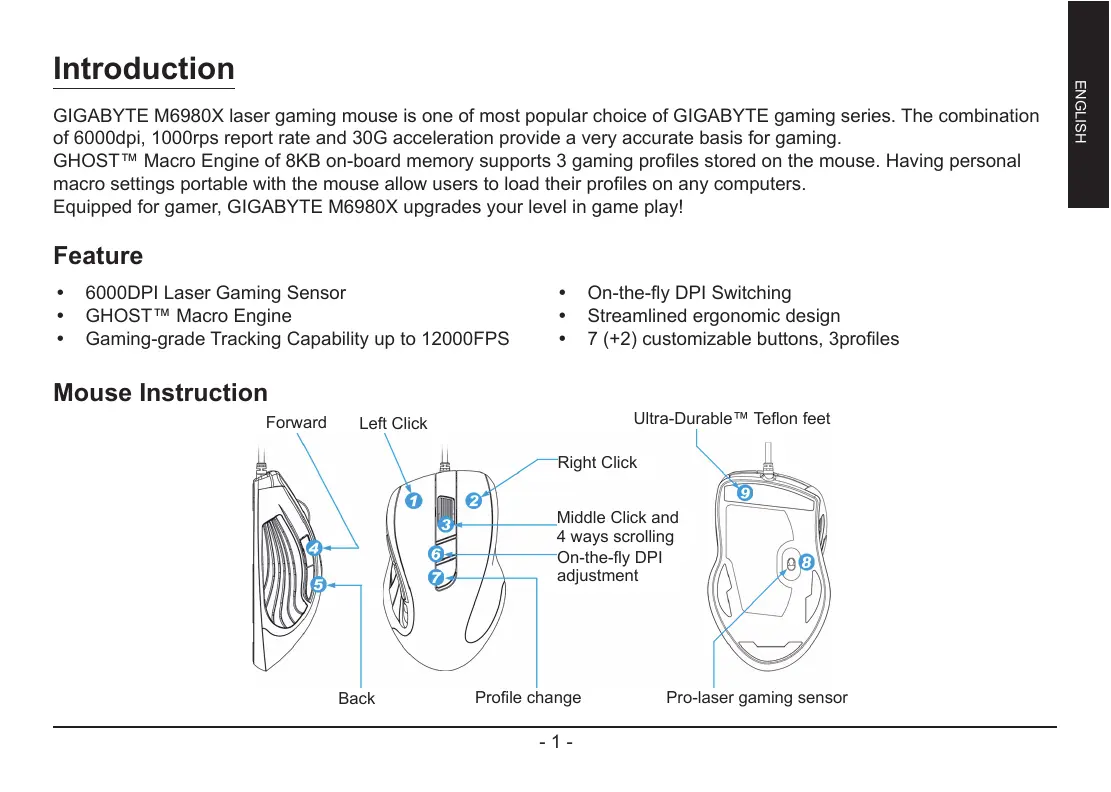


| Product type | Wired gaming mouse |
| Brand | GIGABYTE |
| Model | AORUS M3 |
| Sensor | Laser 6000 DPI (customizable from 400 to 6000 DPI via GHOST software) |
| Buttons | 9 programmable buttons (7 + 2) |
| Profiles | 3 profiles stored in internal memory (8 KB) |
| Memory | 8 KB internal memory for storing profiles and macros |
| Polling rate | 125/250/500/1000 Hz (adjustable) |
| Acceleration | 30 G |
| Tracking speed | Up to 12000 FPS |
| Lighting | RGB LED customizable per profile (7 colors + off) |
| DPI indicator | 810/1620/3240 DPI default (no LCD, but colored LED) |
| Software | GHOST™ Macro Engine (compatible Windows 98 to 7) |
| Compatibility | Windows 98/2000/XP/7 |
| Dimensions (approx.) | 125 x 70 x 40 mm |
| Weight | Approximately 100 g |
| Power supply | USB (5V, 100 mA) |
| Cable length | 1.8 m |
| Cleaning and maintenance | Clean with a soft, dry cloth. Do not use chemical or abrasive cleaners. |
| Safety | Do not expose to water or extreme temperatures. Avoid violent shocks. |
| Spare parts and repairability | Not disassemblable. No spare parts available. In case of failure, contact customer service. |
Frequently Asked Questions - AORUS M3 GIGABYTE
User questions about AORUS M3 GIGABYTE
0 question about this device. Answer the ones you know or ask your own.
Ask a new question about this device
Download the instructions for your Gaming Mouse in PDF format for free! Find your manual AORUS M3 - GIGABYTE and take your electronic device back in hand. On this page are published all the documents necessary for the use of your device. AORUS M3 by GIGABYTE.
USER MANUAL AORUS M3 GIGABYTE
All intellectual property rights, including without limitation to copyright and trademark of this work and its derivative works are the property of, or are licensed to, GIGA-BYTE TECHNOLOG CO; LTD. Any unauthorized use is strictly prohibited.
Introduction
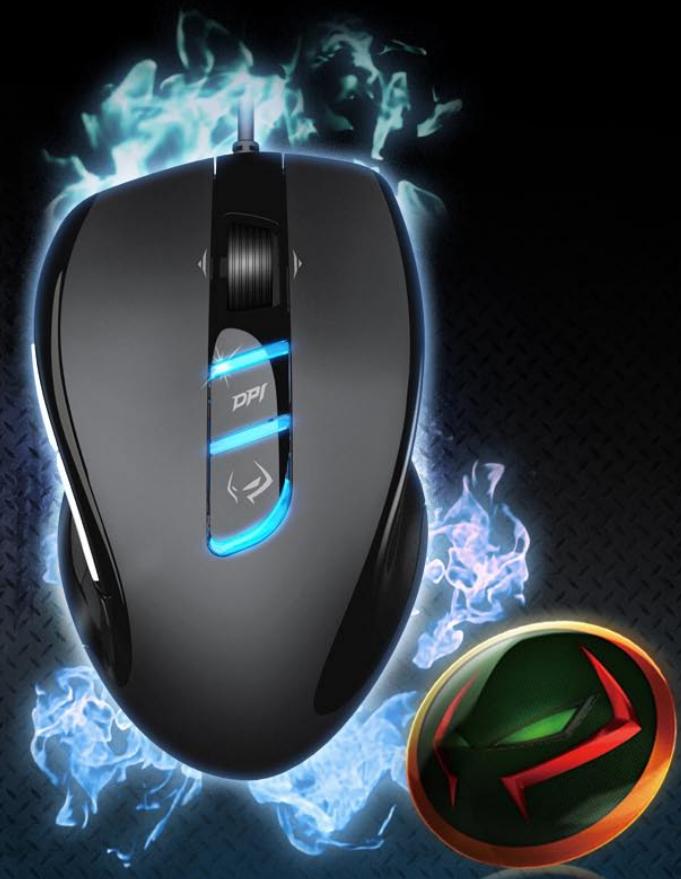
GIGABYTE M6980X laser gaming mouse is one of most popular choice of GIGABYTE gaming series. The combination of 6000dpi, 1000rps report rate and 30G acceleration provide a very accurate basis for gaming.
GHOST™ Macro Engine of 8KB on-board memory supports 3 gaming profiles stored on the mouse. Having personal macro settings portable with the mouse allow users to load their profiles on any computers.
Equipped for gamer, GIGABYTE M6980X upgrades your level in game play!
Feature
6000DPI Laser Gaming Sensor
- GHOST™ Macro Engine
Gaming-grade Tracking Capability up to 12000FPS
- On-the-fly DPI Switching
Streamlined ergonomic design - 7 (+2) customizable buttons, 3profiles
Mouse Instruction
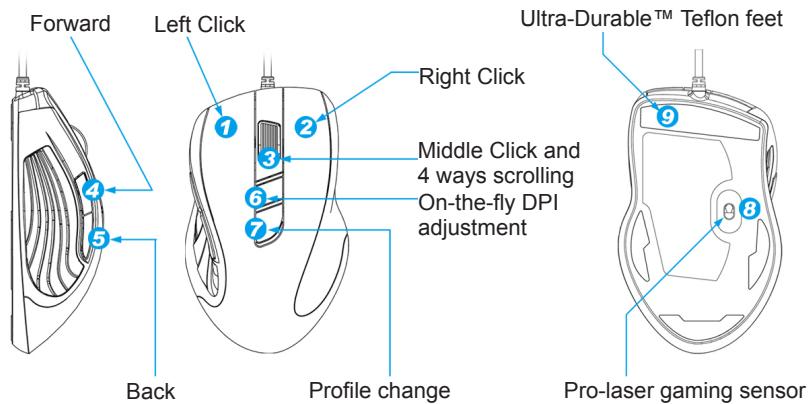
LED display
- DPI indicator
810dpi / 1620dpi / 3240dpi (customizable 400~6000dpi adjustment via GHOST™ Engine)
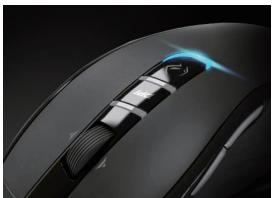
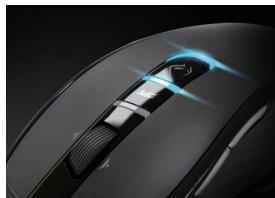
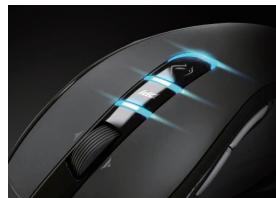
- Profile indicator
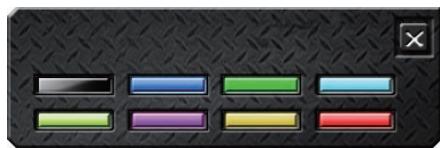
Red: Profile1 / Green: Profile2 / Blue: Profile3 (customized color lighting via GHOST™ Engine)
Important information
Long period of repetitive motion using an improperly set-up workplace, or incorrect body posture may be associated with physical discomfort and injury to nerves, tendons and muscles.
GHOST™ Macro Engine
GHOST™ Macro Engine supports Windows 98, Windows 2000, Windows XP, and Windows 7. Install the software to assign buttons and set up your personal profile.
- BUTTON ASSIGN
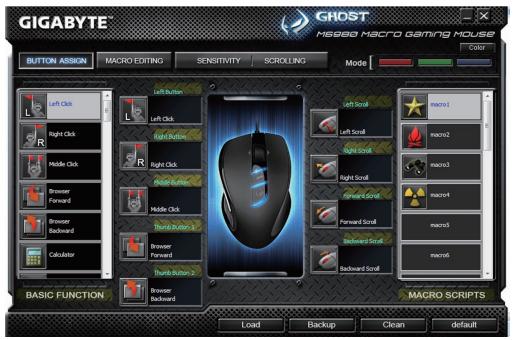
User can assign various functions to buttons from both "BASIC FUNCTION" and "MACRO SCRIPTS". All you have to do is drag the function icon and simply drop to the button you would like to assign. Remember that you may edit each macro script in the "MACRO EDITING" tab.
There are three default color LED lights (red/green/blue) on the panel which indicate three different profiles set up by users. Each individual profile can be assigned various settings to 9 customizable buttons. Moreover, you can also change the color of LED light for each profile.
(There are 7 colors and a light-off mode to choose from).
MACRO EDITING
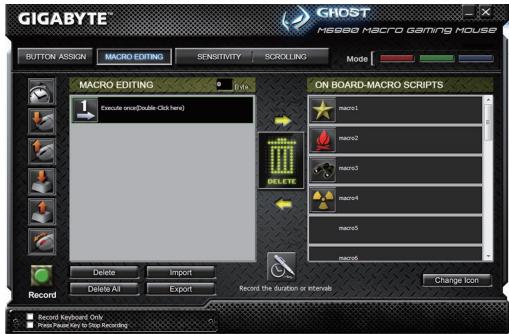
The macro editing tab allows you easily to record all the commands, including key bindings and the press of mouse button. Each single macro also can be imported and exported onto your hard disk for further usage.
Start with:
Step 1 Click "Record the duration or intervals" if you'd like to record intervals between two commands.
Step 2 Double-click "Cycle through selection of action mode" to change the execute mode.
Step 3 Click "Record" to start creating a macro and recording all the keystrokes or mouse commands.
Step 4 Click "Stop" to finish recording this macro when a macro is done.
Step 5 You can also insert additional commands on the "Quick-insert bar" left.
Step 6 After recording a macro, you may drag commands of the macro and drop into "On-board script" to store this macro on the mouse.
Step 7 Double-click on the macro scrip to rename this macro. Moreover, you may also change icon of your personal macro through clicking "change icon".
Step 8 Come back to "Button Assign" tab, the macro you had built would become one application of "Macro scrip" in this tab.
Learn more:
Record the duration or intervals (Time lag)
If this function is marked, it allows you to record the intervals between two commands.
Cycle through selection of action mode
- Execute once:
To execute a macro once. - Loop mode:
Re-pressing to stop: Executing a macro continuously, and re-pressing the assigned button to stop the running macro. - Fire-button mode:
Executing a macro continuously until you release the assigned button.
Export
To export your macro to the PC.
Import
To import a macro to the macro editing in GHOST engine application program.
Re-edit the macro
Dragging the macro script back to macro editing allows you to re-edit this macro.
■ SENSITIVITY/ SCROLLING Tab
Sensitivity
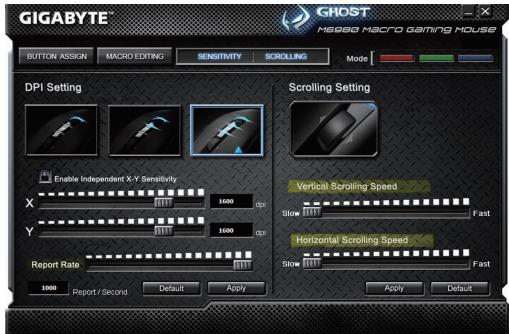
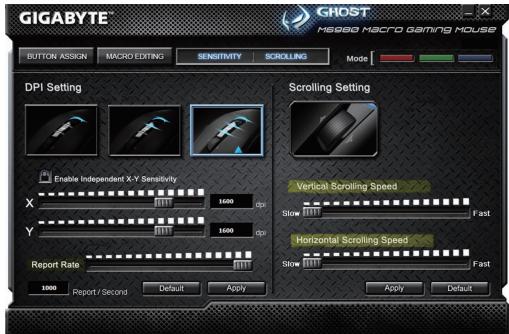
As default setting, there are three sensitivity stages: 810, 1620, and 3240DPI (dots per inch). You can set up preferred sensitivity value of three sensitivity stages, then you can simply adjust through on-the-fly switch. Check "set X and Y axis separately" option to adjust X-Y sensitivity levels.
Report rate
The report rate determines the time intervals that your PC retrieves data from your mouse. You can set the report rate to 125Hz (8ms), 250Hz (4ms), 500Hz (2ms), or 1000Hz (1ms) by moving the knob on the slider.
Scrolling
You can adjust vertical & horizontal scroll wheel speed by moving the knob on the slider.
簡介
(MOxHO BbIbpaTbJIbOoi 137 QBeTOB).
PeDAkTOp MaKpOcOB
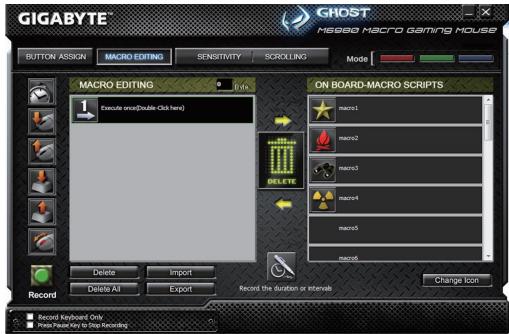
BknaKpaPeakot Makuocob No3Bolrae 3aNaCbB MaKoc NIObIe KOMaHdb, BKNIOUaY KOMbHaun HaxaTn KHOJOK Ha KlaBaNAtype mblu. OTeNbHbIe MaKocbi MoXHo NmnpOtpoBaTa bNtKcNoptpObaTa Ha JeCTKn DnCK JnNcNoB3OBAHn B 6yduem.
OchOBhble DeiectBnA:
Iar 1 Haxmte «3anbc bIInTeBHOCTn / INHePbaIIOB», ecIn XOTne 3ancaTb INHePbaIbMekdy DByMa KOMaHdAmN.
Iar 2 DboHno eKnHa yHKnN «CnKnueckn Bb6op pekmOB» (Hanp., Execute once (OndokpaTHo)) MeHreT peKmncnOpHeHn.
Iar 3 Khonika «3aHnCb» co3daeT MaKpOc N BkJIIOuHaTe 3aINCb BCex Opeaun Ha KNaBnAtupe I MbluN.
Iar 4 KhoNka «CtoT» 3aBep7aet 3aIncB makpoc a nocIe erO c0zHaHn.
War 5 PAnenb «Бbictpa BcTaBka» TAKKe N03BONrEe BCTaBnTb DOnOJIHnTeIbHbIe KOMaHdbl.
Iar 6 Iocne 3aHcN MaKpOca nepetaTe KOMaHdbI MaKpOca Ha naneJIb «BcTpoEHbIe CceHapIN» Inra 3aHcN MaKpOca B namrMbIuN.
7 700Hn HcHApn MaKpOa n03B0JrT nepeMHeBaTb MaKpoc. KpOe TOrO, UJIKNyB Ha KHOJIke «CmeHa 3NaUka», MOXHO CMeHHTb 3HaOH KBaIero IINHoro MaKpOca.
Iar 8 Bepnntecb Na BknaJky «HactpoJa KhoNok» - co3daHbB BamM MaKpoc nOBtca cpeiMaKpOKomAnD B pa3dene «MaKpocbIy
DOnoJIHnTeIbHo:
Pekopd npoDOnKInTeBHoCTN INI INHTepBaJIbI BpeMeHn (BpeM 3aDePxxkN)
YcTaHOBkaФлaxKka 3ToI ΦyHKcIIN («3aIINcBДЛNTeIbHOCrN / INTEpBaIbO (3aIepXKa)») NO3BOJЯET 3aIINcBbATb INTEpBaJIbIMexJy DByMk KOMaHdAMN.
Zuknueckn Bb6op pexmOB
- OndokpatHo:
BbInonHeHne MaKpOca Odn pa3.
LInKnueckn:
ДоВТОРОникатя:ЦКЛУСЕСКOEнперрьIBHoeБыПОЛНЕнe МАКрОСаВПЛOTьdoВТОРОнинхатяHaЗнayЧEнOHКONКИДЯ OCTaHOBKNBыПОЛНЕнЯМakрoca.
- OTOKATNA:
LInKnueckoe HenpepbBHOe BbIOnHeHne MaKpOca BnIObT Do OTKaTHaHa3HaueHHo KHONKn.
3Kcnopt
3KcnpTupOBaHne MaKpOca B KOMNbIbTeP.
Ummnopt
IIMnOPT MaKpOca B yTuNITy peJaTnPoBaHnMa KApocB nPorpaMmbl GHOST Engine.
PekaTpoBaHne MaKpoca
BknadaKa YUBCTBNTbHOCtB / NPOKPyTKA
UyBCTBNTeJIbHOCTb
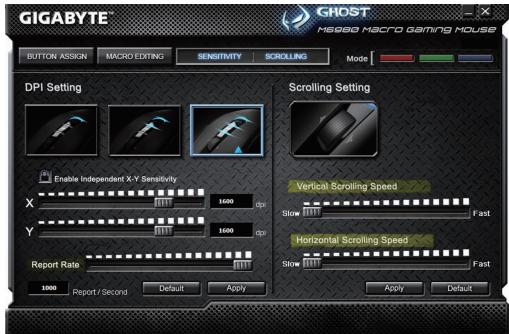
IIO yMOJIaHINIO IOCTUHNO TPN IyOBnIyBCTBnTeJIbHOCTN:810,1620 n 3240 dpi (TOeK Ha JIOM).OINn H3 trpx yOBHeIyBCTBnTeJIbHOCTN MOXHO BbIbpaTb B KaueCTBe OCHOBHoro,A 3aTeM nepeKJIOuATb YyBCTBnTeJIbHOCTb BXoJe INpbl. YcTaHOBtE PhJaXOK «Pa3dJIbHO IO OcARM X N Y»ДЯ pa3dJIbHOH NaCTPOIKIyBCTBnTeJIbHOCTN IO OcARM X N Y.
Yactota OTyETOB
Napametp《UactotaOTeTOB》yCTaHaBnBaet BpeMeHHo INTepBaI cHTbIBaHna DaHHbIX MbII. MoKHO BVb6paTb UactOTy OTeTOB paBHO 125Tc (8Mc), 250Tc (4Mc), 500Tc (2Mc) nIIN 1000Tc (1Mc), nepeMeaJ aON3yHOK Uactota OTeTOB.
Ppokpyka
[ \exists \text{K} ]
- 韓庄:
卡时,
- 哈伊OH-BHIN MOD:
志達成的通行于他,如:
##
SAUGJARJL
者去
KRELOG HOST ENZIEN PELI KEEI 1E 1E 1E 1E 1E 1E 1E 1E 1E 1E 1E
A3KJ
i k
釜戸
- Introduction
- Feature
- LED display
- Important information
- GHOST™ Macro Engine
- - BUTTON ASSIGN
- MACRO EDITING
- Start with:
- Learn more:
- Record the duration or intervals (Time lag)
- Cycle through selection of action mode
- Export
- Import
- Re-edit the macro
- ■ SENSITIVITY/ SCROLLING Tab
- Sensitivity
- Report rate
- Scrolling
- 簡介
- PeDAkTOp MaKpOcOB
- OchOBhble DeiectBnA:
- DOnoJIHnTeIbHo:
- Pekopd npoDOnKInTeBHoCTN INI INHTepBaJIbI BpeMeHn (BpeM 3aDePxxkN)
- Zuknueckn Bb6op pexmOB
- 3Kcnopt
- Ummnopt
- PekaTpoBaHne MaKpoca
- BknadaKa YUBCTBNTbHOCtB / NPOKPyTKA
- UyBCTBNTeJIbHOCTb
- Yactota OTyETOB
- Ppokpyka
- ##
- 者去
- A3KJ
- 釜戸
Brand : GIGABYTE
Model : AORUS M3
Category : Gaming Mouse