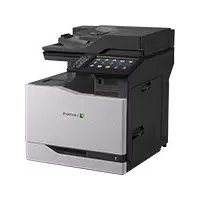
MX417DE - Multifunction Printer LEXMARK - Free user manual and instructions
Find the device manual for free MX417DE LEXMARK in PDF.


Pick your language and provide your email: we'll send you a specifically translated version.
| Product type | Monochrome laser multifunction printer |
| Brand | Lexmark |
| Model | MX417DE |
| Dimensions (W x D x H) | 560 x 510 x 570 mm |
| Weight | 28 kg |
| Power supply | 220-240 V AC, 50/60 Hz |
| Main functions | Print, copy, scan, fax (optional) |
| Print speed | Up to 38 ppm (A4) |
| Print resolution | 1200 x 1200 dpi |
| Paper capacity | 250 sheets (standard tray) |
| Connectivity | Ethernet 10/100/1000, USB 2.0, Wi-Fi (optional) |
| Display | 10.9 cm color touchscreen |
| Maintenance and cleaning | Regularly clean the scanner glass and feed rollers |
| Security | User authentication, network encryption, secure disk erase |
| Spare parts and repairability | Toner cartridge, fuser unit, pickup rollers |
| General information | 1-year manufacturer warranty, online support |
Frequently Asked Questions - MX417DE LEXMARK
How to replace the toner cartridge on the Lexmark MX417DE?
Open the front cover, remove the old cartridge by pulling it out, unpack the new one, insert it until it clicks, then close the cover. The initialization menu will guide you.
What to do if the printer displays 'Paper jam'?
Open the rear cover or paper tray, carefully remove the jammed paper following the arrows. Check that no fragments remain.
How to connect the printer to the Wi-Fi network?
Go to Settings > Network > Wireless > Setup Wizard. Select your network and enter the password. The printer requires an optional Wi-Fi adapter.
How to clean the printer scanner?
Use a soft, lint-free cloth slightly dampened (with water) to wipe the scanner glass and cover. Avoid chemicals.
Why is the print too light or streaky?
The toner level is low or the cartridge is defective. Replace the cartridge. You can also print a cleaning page from the Maintenance menu.
How to scan a document to email?
Place the document on the glass or feeder, press 'Scan', then 'To Email'. Enter the address on the screen or select a contact. Confirm.
The printer does not turn on, what to check?
Make sure the power cord is properly connected and the outlet works. Check the on/off switch on the back of the device.
How to set up automatic duplex printing?
In the driver print settings, check 'Duplex printing' or 'Duplex'. On the printer, go to Menu > Print Settings > Duplex.
What if the printer prints blank pages?
Check that the toner cartridge is not empty or improperly installed. Remove and reinsert it. If the problem persists, replace the cartridge.
How to reset the printer to factory settings?
Go to Menu > Settings > General > Reset. Choose 'Factory reset' and confirm. The printer will restart.
User questions about MX417DE LEXMARK
0 question about this device. Answer the ones you know or ask your own.
Ask a new question about this device
No questions yet. Be the first to ask one.
Download the instructions for your Multifunction Printer in PDF format for free! Find your manual MX417DE - LEXMARK and take your electronic device back in hand. On this page are published all the documents necessary for the use of your device. MX417DE by LEXMARK.