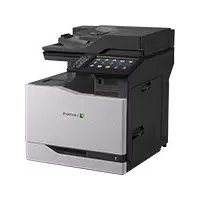
CX417DE - Multifunction Printer LEXMARK - Free user manual and instructions
Find the device manual for free CX417DE LEXMARK in PDF.


Pick your language and provide your email: we'll send you a specifically translated version.
| Product type | Color laser multifunction printer |
| Dimensions (H x W x D) | 500 x 400 x 500 mm |
| Weight | 25 kg |
| Power supply | 220-240 V AC, 50/60 Hz |
| Main functions | Print, copy, scan, fax |
| Print speed (A4 black and white) | Up to 40 pages per minute |
| Print speed (A4 color) | Up to 40 pages per minute |
| Print resolution | 1200 x 1200 dpi |
| Standard paper capacity | 650 sheets |
| Connectivity | USB 2.0, Gigabit Ethernet, optional Wi-Fi |
| Monthly duty cycle | Up to 150,000 pages |
| Maintenance | Regular cleaning of rollers and drum |
| Security | User authentication, SSL/TLS encryption |
| Spare parts | Toner cartridges, photoconductor drum, fuser unit |
| Repairability | Technical intervention recommended for internal repairs |
Frequently Asked Questions - CX417DE LEXMARK
How to replace the toner cartridge on the Lexmark CX417DE?
Open the front cover, remove the old cartridge by pulling on the handle, insert the new cartridge until it clicks, then close the cover. Refer to the manual for safety instructions.
What to do if the printer displays a 'Paper jam' error message?
Open the front and rear covers, gently remove the jammed paper following the paper path. Check that no fragments remain. Close and restart printing.
How to connect the printer to Wi-Fi?
From the control panel, go to Settings > Network > Wireless, select your network and enter the password. You can also use WPS if your router supports it.
What type of paper to use with the Lexmark CX417DE?
Use standard 80 g/m² paper, sizes A4, A5, Letter, Legal. For special prints, refer to the paper guide in the manual.
How to reset the page counter?
The counter cannot be reset by the user. It is stored in the printer's memory. Contact technical support for a reset.
What to do if print quality is poor (streaks, blur)?
Run a drum cleaning via the Maintenance menu. Check the toner level and replace the cartridge if necessary. Use appropriate paper.
How to scan a document to email?
Place the document on the glass or in the feeder, press 'Scan', choose 'Email', enter the address and press 'Start'. First configure the SMTP server in network settings.
The printer does not turn on, what to check?
Check that the power cord is properly plugged in and the outlet works. Try another cable. If the problem persists, contact a technician.
Where to find the printer's serial number?
The serial number is on a label at the back of the printer, as well as in the 'System Info' menu on the control panel.
How to reset to factory settings?
In the Settings menu, select 'Reset', then 'Factory Reset'. Confirm. Note: this erases all custom settings.
User questions about CX417DE LEXMARK
0 question about this device. Answer the ones you know or ask your own.
Ask a new question about this device
No questions yet. Be the first to ask one.
Download the instructions for your Multifunction Printer in PDF format for free! Find your manual CX417DE - LEXMARK and take your electronic device back in hand. On this page are published all the documents necessary for the use of your device. CX417DE by LEXMARK.