
INSTAX SHARE SP-3 - INSTAX SP3 - Instant photo printer FUJIFILM - Free user manual and instructions
Find the device manual for free INSTAX SHARE SP-3 - INSTAX SP3 FUJIFILM in PDF.



| Product type | Instant photo printer |
| Brand | FUJIFILM |
| Model | INSTAX SHARE SP-3 (INSTAX SP3) |
| Dimensions (W × H × D) | 116 × 130.5 × 44.4 mm (without protruding parts) |
| Weight | 312 g (without battery or film) |
| Power supply | Rechargeable lithium-ion battery NP-50 (included) |
| Charging time | Approximately 3 hours (depending on battery level) |
| Battery life (prints) | Approximately 160 prints (depending on usage conditions) |
| Film type | Instax SQUARE (62 × 62 mm format) |
| Film capacity | 10 shots per pack (including 1 black cover) |
| Print resolution | 800 × 800 dots / 318 dpi (12.5 dots/mm) |
| Color range | 256 levels per color (RGB) |
| Supported image formats | JPEG, PNG |
| Wireless interface | Wi-Fi IEEE 802.11b/g/n (2.4 GHz) |
| Print time | Approximately 13 seconds after receiving data |
| Operating temperature | +5°C to +40°C (without condensation) |
| Power consumption | 3 W |
| Box contents | Printer, USB cable, NP-50 battery, ferrite, startup guide |
| Maintenance and cleaning | Clean with a soft, dry cloth; do not use solvents (alcohol, thinner) |
| Safety | Do not disassemble, expose to water or flames; use only the specified battery |
| Spare parts and repairability | NP-50 battery (FUJIFILM ref.); USB cable; AC adapter (5V/1A, not included); contact FUJIFILM support for repairs |
| General information | Print via the "instax SHARE" mobile app (Android/iOS); reprint function; LED indicators for battery and film |
Frequently Asked Questions - INSTAX SHARE SP-3 - INSTAX SP3 FUJIFILM
User questions about INSTAX SHARE SP-3 - INSTAX SP3 FUJIFILM
0 question about this device. Answer the ones you know or ask your own.
Ask a new question about this device
Download the instructions for your Instant photo printer in PDF format for free! Find your manual INSTAX SHARE SP-3 - INSTAX SP3 - FUJIFILM and take your electronic device back in hand. On this page are published all the documents necessary for the use of your device. INSTAX SHARE SP-3 - INSTAX SP3 by FUJIFILM.
USER MANUAL INSTAX SHARE SP-3 - INSTAX SP3 FUJIFILM
natural_image
Line drawing of a rectangular electronic device with a control panel and indicator lights (no text or symbols)User's Guide/Trouble shooting/Safety precautions
日本語:
3ページから27ページをご覧ください。
ENGLISH:
See pages 29 to 55.
Independent JPEG Group (IJG) Licenses
This software is based in part on the work of the Independent JPEG Group.
© 2017 FUJIFILM Corporation. All rights reserved.
日本語
目次
各部の名称 4
ご使用の前に……5
natural_image
Technical illustration of a computer case with an inset showing internal components (no text or symbols)natural_image
Diagram of a device with ports and a close-up view showing internal components (no text or symbols)natural_image
Line drawing of a mechanical device with a clamped component (no text or symbols)
natural_image
Diagram showing cable installation and connection to a device with a power outlet (no text or symbols present)natural_image
Simple line drawing of a car with a speech bubble containing a horizontal bar and starburst symbol (no text or labels)text_image
Diagram showing a hand inserting a device into a device with an arrow indicating the process.text_image
Diagram showing a hand inserting a CD into a device with labeled parts 1 and 2natural_image
Line drawing of a computer monitor with an attached cable, showing internal components (no text or symbols)text_image
Diagram showing a hand pressing a button into a container with Chinese text on the right side.natural_image
Diagram showing a mechanical component being cut with an arrow indicating direction (no text or symbols present)text_image
Diagram showing a 3D object being processed into a box, with a black arrow indicating the process step.natural_image
Illustration of a hand pressing down on a device with an upward arrow (no text or symbols)natural_image
Diagram showing a mechanical component being cut with an arrow indicating direction (no text or symbols present)natural_image
Line drawing of a hand pressing down on a device with an arrow indicating the press (no text or symbols present)text_image
Diagram showing a device with a labeled component and its corresponding schematic view, likely illustrating a mechanical or electrical assembly.リプリントボタンを 1回押します。
2
text_image
Diagram illustrating a device transforming image to four sequential frames, showing progressive shading or transformation.text_image
Diagram showing a device with a labeled component and its transformation, including a magnified view of the device's internal structure.text_image
Diagram illustrating a device emitting air pollutants into a device, with an inset image showing a person's face and cloud-like structure.natural_image
Diagram of a door with arrows indicating direction and measurement lines (no text or symbols)text_image
Diagram showing a hand inserting a device into a device with an arrow indicating the process, labeled with step number 1.natural_image
Line drawing of a device with a connector and internal components (no text or symbols)natural_image
Line drawing of a device with a rectangular panel and dotted line indicators (no text or symbols)natural_image
Illustration of a hand holding a gray cube with motion lines indicating movement (no text or symbols)
natural_image
Abstract geometric illustration of a cube with lightning bolts and stars, no text or symbols present
natural_image
Illustration of a hand holding a rectangular electronic device with a transparent cover (no text or symbols visible)フィルム、プリントの取り扱い
text_image
Illustration showing various hand tools and devices with X marks, including a battery, printer, tablet, and cash register.無線LAN 機器使用上の注意事項
Inserting/Charging the Battery.....31
Inserting the Battery....31
Charging the Battery 32
Charging Indicator 32
Loading the instax SQUARE Film Pack.... 33
Turning on/off the Printer...... 34
Checking Remaining Battery Life......34
Connecting and Printing...... 35
When establishing connection for the first time:....35
When connection is already established: ..... 37
Reprinting......38
Deleting an Image 39
Unloading a Used instax SQUARE
Film Pack 39
About the LED Indication...... 40
SPECIFICATIONS 41
TROUBLE SHOOTING 42
IMPORTANT SAFETY NOTICE ...... 46
Handling the Battery 53
- Read "IMPORTANT SAFETY NOTICE" (Page 46) and "Handling the Battery" (Page 53) for safety use.
- After reading this User's Guide, keep it in a safe, easy to find place where you can refer to it if needed.
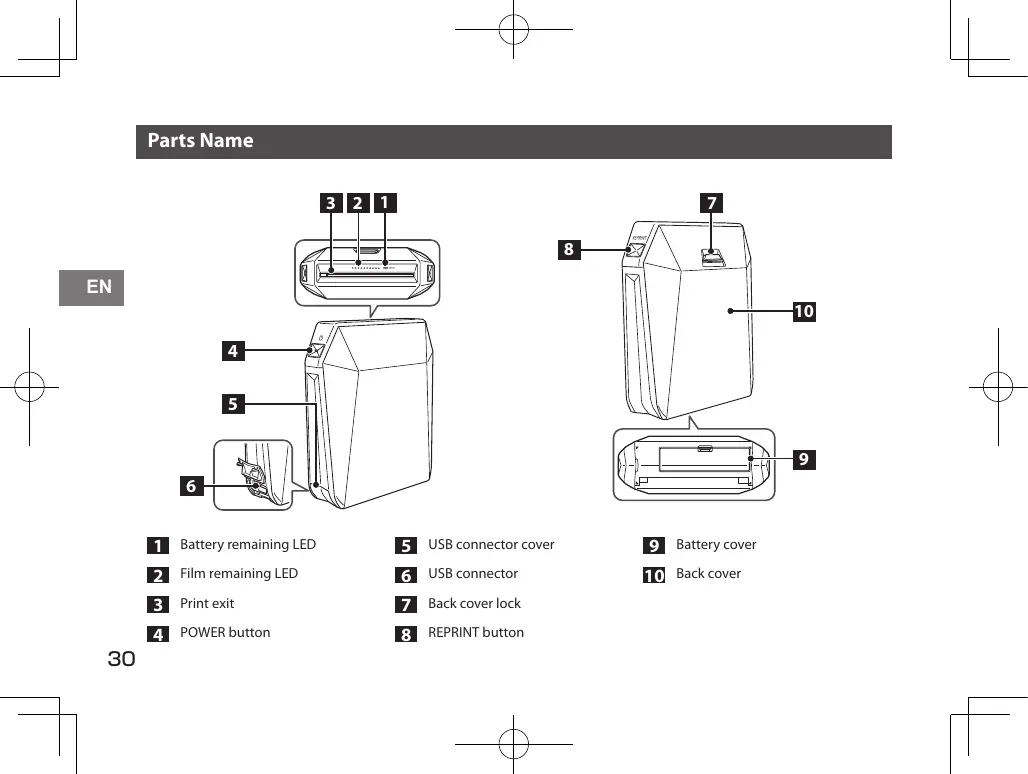
Parts Name
EN
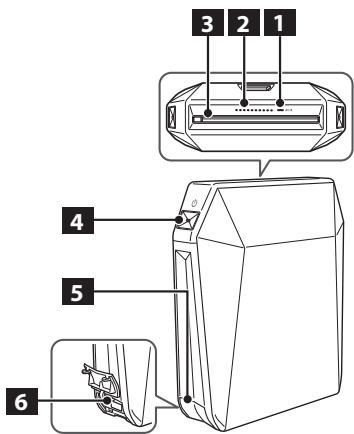
text_image
3 2 1 4 5 61 Battery remaining LED
2 Film remaining LED
3 Print exit
4 POWER button
5 USB connector cover
6 USB connector
7 Back cover lock
8 REPRINT button
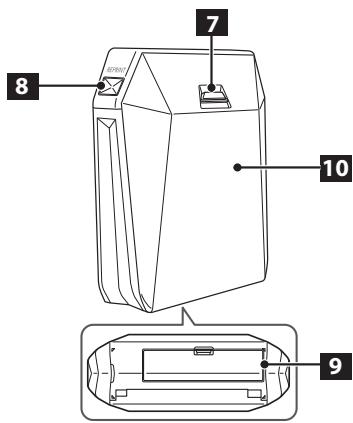
text_image
7 8 10 99 Battery cover
10 Back cover
Before Use
- Before using the printer, install the instax SHARE application on your device.
- When you are using an Android OS device, search for "instax SHARE" in the Google Play, then install the application.
* System requirements of an Android OS device: Android Ver 4.0.3 or later and Google Play are installed. - When you are using an iOS device, search for "instax SHARE" in the App Store, then install the application.
* System requirements of an iOS device: iOS Ver 8.0 or later is installed.
You may not be able to print from some devices even if you have installed the instax SHARE application and your device meets the requirements listed here.
- The battery is not charged fully at shipment. Be sure to charge it before using the printer.
Access instax SHARE website for the latest information on system requirements.
Inserting/Charging the Battery
Inserting the Battery
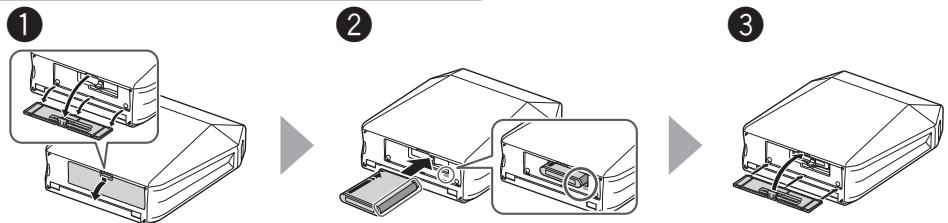
Push the battery cover lock down to open the battery cover.
Insert the battery according to the arrow on it. Make sure the yellow line on the battery aligns with the mark on the printer.
Align the tabs on the battery cover and push the battery cover lock until it clicks into place.
Inserting/Charging the Battery (Continued)
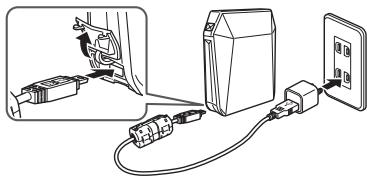
Charging the Battery
Be careful of the orientation. Connect the USB cable with the mark ( ) on the terminal facing up.
natural_image
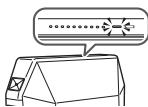
Diagram showing cable installation and connection to a device (no text or symbols present)Connect the printer and an AC power adapter supplied with your smartphone using the supplied USB cable, then connect the AC power adapter to an indoor power outlet. The battery remaining LED indicates the battery charge status. For details, see the table on the right column.
natural_image
Simple line drawing of a device with a speech bubble containing a dotted line and a cross symbol (no text or labels)- Use an AC adapter to meet the rated output below: DC 5.0 V/1000 mA
- You can print an image while charging is in progress.
- Charging time is approximately three hours.
Charging Indicator
| Indication | Battery status/Action |
| Lights red (ON) Flashes red (OFF) | Charging is in progress. |
| Lights orange (ON) Flashes orange (OFF) | Charging is half completed. |
| Lights green (ON) Flashes green (OFF) | Charging is almost completed. |
| Flashes green, then goes off (OFF) | Charging is completed. |
| Flashes green and red alternately, or flashes red, then goes off | An error is being occurred. Stop charging. |
Charging from a PC:
- Connect the printer and PC directly. Do not connect them via a keyboard or USB hub.
- If the PC enters the sleep mode while charging is in progress, charging will stop. If you continue charging, resume the PC and reconnect the USB cable.
- You may not charge the printer from a PC depending on your PC specifications, settings, or status.
Loading the instax SQUARE Film Pack
Caution
Do not open the back cover until you have used up the film; otherwise, the rest of the film will become exposed and turn white. The film can no longer be used.
- When you load the film pack, never press the two rectangular holes on the back of the film pack.
- Never use a film pack beyond its shelf life; otherwise, it may damage the printer.
Use FUJIFILM Instant Film "instax SQUARE" only. The instax mini film or instax WIDE film cannot be used.
Notes on the film pack
• Each FUJIFILM Instant Film "instax SQUARE" pack contains 1 black film protective cover and 10 film sheets.
- Do not remove the film pack from its inner bag before loading it into the printer.
- The film cover is ejected automatically when the back cover is closed.
For details, refer to the instructions and warnings on FUJIFILM Instant Film "instax SQUARE".
1
text_image
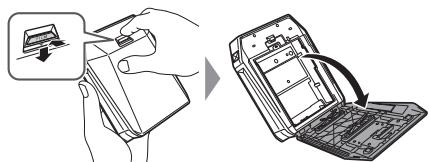
Diagram showing a hand inserting a device into a device with an arrow indicating the process, alongside a close-up of the device's internal structure.Press the back cover lock down to open the back cover.
2
text_image
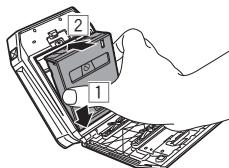
Diagram showing a hand inserting a device into a printed circuit board, labeled with components 1 and 2.Hold both sides of the film pack, align the bottom of the film pack on the groove of the film chamber (1), then insert it straight (2).
Loading the instax SQUARE Film Pack (Continued)
3
natural_image
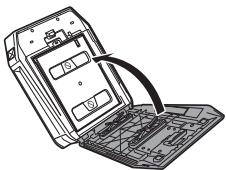
Line drawing of a device with a cable inserted into a tray (no text or symbols)Close the back cover. Make sure the back cover lock clicks into place.
4
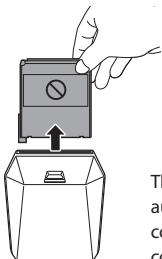
text_image
Diagram showing a hand pressing a button into a container with an arrow indicating direction, accompanied by partial text on the right.The film cover (black) is ejected automatically when the back cover is closed. Remove the film cover from the print exit.
Turning on/off the Printer
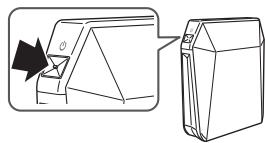
natural_image
Diagram showing a mechanical component being cut with an arrow indicating direction (no text or symbols present)Press and hold the POWER button for approx. 1 second to turn the printer on or off.
Turning the printer on lights up the battery remaining LED.
If no operation occurs for a certain period of time, the printer turns off automatically.
Checking Remaining Battery Life
Use the battery remaining LED to check when turning the printer on or while printing is in progress.
| Indication | Remaining battery life |
| Green | Sufficient |
| Orange | At half capacity |
| Red | Low. Charging the battery is recommended. (See page 32.) |
| Printer turns off after flashing red. | No battery capacity remains. Charge the battery. (See page 32.) |
Connecting and Printing
Notes on Printing
- Place the printer vertically.
- When printing, put the printer on a steady surface such as a desk.
Wireless LAN Setup for iOS Devices
When you are using an iOS device, follow the procedure below to perform wireless LAN setup.
- Select "ON" for "Wi-Fi" in the "Settings" menu of your device.
- Tap the network name (printer name) under "Choose a Network".
When establishing connection for the first time:
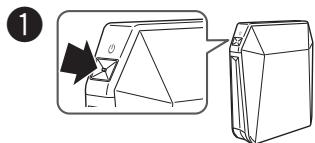
text_image
1Press and hold the POWER button for approx.
1 second to turn the printer on.
The battery remaining LED lights up.
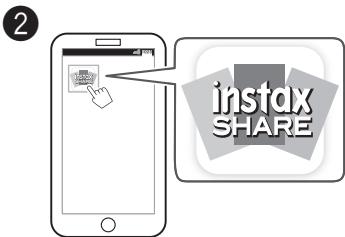
text_image
2 instax SHAREStart the downloaded application "instax SHARE".
text_image
Instor SHARE 2017/08/22 12:08:17 Real Time Options Real Time Settings Options for the Share 42.0g (5.0) Reset My CompleteSelect the picture to print or take a picture.
Continued on the next page
Connecting and Printing (Continued)
4
text_image
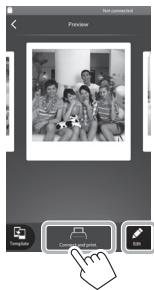
Not connected Preview Navigation Combinant pages EditTap "Connect and print".
Before tapping "Connect and print", tapping 🔒 on the lower right displays the edit menu. You can add a template or adjust an image on this menu. Tap "Done" to exit from the menu.
5
text_image
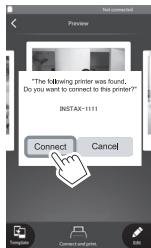
"The following printer was found, Do you want to connect to this printer?" INSTAX-1111 Connect CancelWhen a printer is detected, tap "Connect". If multiple printers are detected, select the printer to connect from the list. Printer's identifier (SSID) is located on the bottom of the printer.
6
text_image
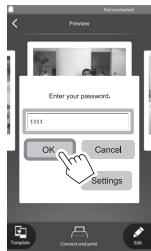
Enter your password. 1111 OK Cancel SettingsEnter the factory default password (1111) or the one you specified, then tap "OK". The printer starts printing.
When printing, put the printer on a steady surface such as a desk.
To reset the password to the factory default (1111), turn the printer on while holding the REPRINT button.
7
natural_image
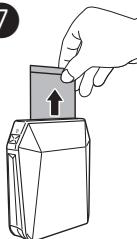
Line drawing of a hand pressing down on a device component with an arrow indicating upward motion (no text or symbols)When the film has been ejected (the printer stops making a sound), grasp the edge of the film, then take it out. 1 film remaining LED turns off every time you print an image.
Connecting and Printing
When connection is already established:
1
natural_image
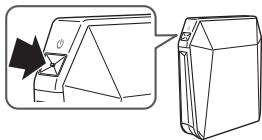
Diagram showing a mechanical component being cut with an arrow indicating direction (no text or symbols present)Press and hold the POWER button for approx.
1 second to turn the printer on.
The battery remaining LED lights up.
2
text_image
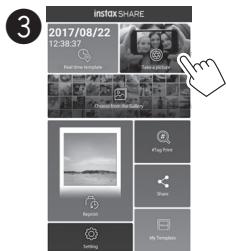
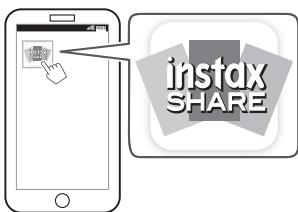
instax SHAREStart the downloaded application "instax SHARE".
3
text_image
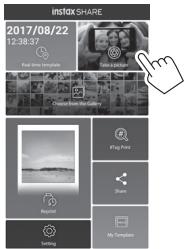
INSTOCK SHARE 2017/08/22 12:38:37 Game From My Country Game From My Country Game From My Country Game From My Country Game From My Country Game From My Country Game From My Country Game From My Country Game From My Country Game From My Country Game From My Country Game From My Country Game From My Country Game From My Country Game From My Country Game From My Country Game From My Country Game From My Country Game From My Country Game From My Country Game From My Countries4
text_image
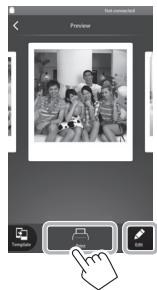
Text connected Preview Copyright Enter EditSelect the picture to print or take a picture.
Tap "Print".
The printer starts printing.
- When printing, put the printer on a steady surface such as a desk.
- Before tapping "Print", tapping 🔔 on the lower right displays the edit menu. You can add a template or adjust an image on this menu. Tap "Done" to exit from the menu.
Continued on the next page
Connecting and Printing (Continued)
5
natural_image
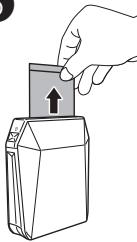
Line drawing of a hand pressing down on a device with an upward arrow (no text or symbols)When the film has been ejected (the printer stops making a sound), grasp the edge of the film, then take it out. 1 film remaining LED turns off every time you print an image.
Reprinting
1
text_image
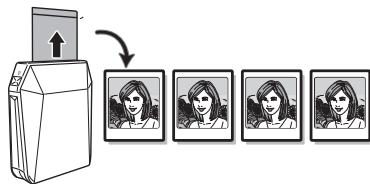
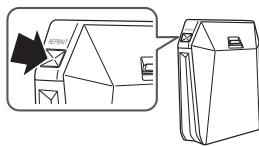
Diagram showing a device with a labeled component and its internal structure, including a magnified view of the component.Press the REPRINT button once.
2
text_image
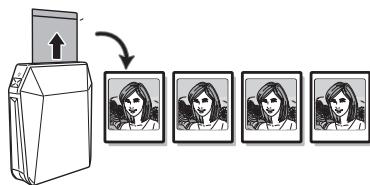
Diagram showing a printer emitting images to four frames, with an arrow indicating the process.Every time you press the REPRINT button, the previous image is reprinted.
- The last printed image is stored even if you turn the printer off. (You can select whether to store the image on the instax SHARE application.)
- Transferring a new image overwrites the stored image.
- You cannot reprint Real time templates.
• Color tones may change slightly in continuous printing.
Deleting an Image
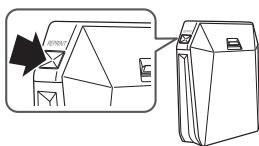
1
text_image
Diagram showing a door panel with a black arrow pointing to the door panel and a close-up of the door, alongside a separate view of the door.Press and hold the REPRINT button for more than 5 seconds with the printer on.
2
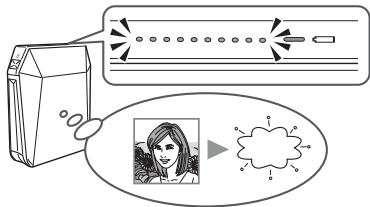
text_image
Diagram illustrating a photo recording setup with a device, a screen, and an image of a person inside a cloud-like shape.The film remaining LED flashes for 1 second and the image is deleted.
Unloading a Used instax SQUARE Film Pack
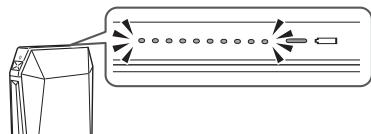
natural_image
Diagram of a mechanical component with arrows indicating motion or force direction (no text or symbols)When no film is left, all the film remaining LEDs flash slowly. Unload the film pack.
1
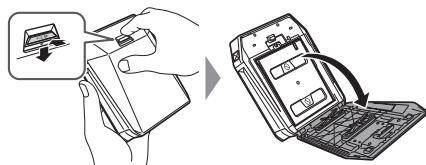
text_image
Diagram showing a hand holding a device next to a device with an arrow indicating the process, alongside its exploded view.Press the back cover lock down to open the back cover.
2
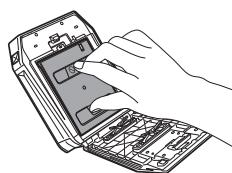
natural_image
Line drawing of a hand inserting a device into a mobile phone (no text or symbols visible)Grasp the rectangular holes on the film pack, then pull it out.
About the LED Indication
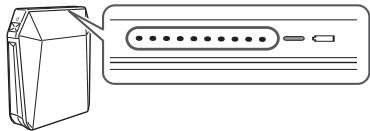
Film remaining LED indication
natural_image
Line drawing of a device with an attached port and cable connector (no text or symbols)The film remaining LED indicates film remaining, printer operation, or error warning.
1 film remaining LED turns off every time you print an image, and flashes slowly to indicate no film remains. See the table below for other indication patterns.
| Operation/Status | Indication |
| You deleted a reprint image. | Flashes rapidly for 1 second. |
| You reset the password. | |
| No reprint image | Flashes slowly for 3 seconds. |
| No film pack | Flashes slowly. |
| No film remains. | |
| Development or communication error occurred. | Flashes rapidly. |
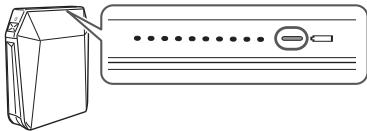
Battery remaining LED indication
natural_image
Line drawing of a device with a handle and control panel (no text or symbols)The battery remaining LED indicates the printer status while charging the battery, or battery life of the printer. See page 32 for indications while charging the battery. See page 34 for battery life of the printer.
SPECIFICATIONS
instax SP-3
| Recording method | 3-color exposure with OLED |
| Film | FUJIFILM Instant Film "instax SQUARE" (Purchased separately) |
| Photo capacity | 10 prints/pack |
| Image size | 62 mm×62 mm/2.4 in.×2.4 in. |
| Supported image size | 800×800 dots |
| Printing resolution | 12.5 dots/mm (318 dpi, 80 μm dot pitch) |
| Printing levels | 256 levels per color (RGB) |
| Interface | Standard compliance: IEEE802.11b/g/nOperation frequency: 2412 MHz to 2462 MHz (11 ch) |
| Supported image format | JPEG, PNG |
| Printing time | Image recording - photo output (fed out): Approx. 13 sec. |
| Approximate printing capacity | Approx. 160 prints (Based on our test conditions)* Varies depending on the conditions of use. |
| Power supply | NP-50 (1 piece) |
| Charging time | Approx. 3 hours (Varies depending on battery remaining level) |
| Power consumption | 3 W |
| Operating temperature | +5°C to +40°C/+41°F to +104°F (no condensation) |
| Dimensions/Weight | 116 mm × 130.5 mm × 44.4 mm/4.6 in. × 5.1 in. × 1.7 in. (excluding projections)312 g/11 oz. (without battery and film pack) |
| Supplied accessory | USB cable (BOB711, Length: 1 m/3.3 ft.), ferrite core |
* Specifications above are subject to change for improvement.
TROUBLE SHOOTING
During printing
| Problems | Possible Causes | Solutions |
| The printer cannot be turned on. | 1 The battery power is low. (The battery remaining LED is flashing red.)2 The battery is not inserted correctly.3 You did not press the POWER button for long enough. | 1 Charge the battery fully.2 Insert the battery correctly.3 Press and hold the POWER button for approx. 1 second. |
| You entered the password, but the device cannot be connected to the printer. | ● The password is incorrect. | ● Turn the printer on while holding the REPRINT button to reset the password to the factory default (1111). |
| You pressed the REPRINT button, but you cannot print. | 1 No images are stored in the printer. (The film remaining LED flashes for 3 seconds.)2 No film remains in the printer. (All the film remaining LED are flashing.)3 The film pack is not loaded. (All the film remaining LED are flashing.) | 1 Transmit an image to print.2 Load a new film pack.3 Load a new film pack. |
| The film pack cannot be loaded, or cannot be loaded smoothly. | 1 The film pack is not for your printer.2 The film pack is not being loaded correctly. | 1 Use FUJIFILM Instant Film “instax SQUARE” only.(No other films can be used.)2 Match the yellow line on the film pack with the yellow positioning mark in your printer. |
| The film cover cannot be ejected. | ● The printer cannot recognize the film pack. | ● Remove the film pack and load it again. |
| The film cannot be ejected to the end. | ● The printer shakes or has been dropped and the film has become misaligned. | 1 Grasp the edge of the film and pull it out.2 Performing another printing operation pushes the jammed film out. |
| The film pack cannot be ejected. | 1 The printer shakes or has been dropped and the film is misaligned.2 The film has been jammed. | 1 Load a new film pack.2 Remove the battery and insert it again. If this does not solve the problem, remove the jammed film and load a new film pack. |
EN
LED status
| Problems | Possible Causes | Solutions |
| The film remaining LED flashes rapidly, then the printer turns itself off. | ● A printer error has occurred. | ● Turn the printer on. |
| The battery remaining LED flashes red slowly, then the printer turns itself off. | ● The battery power is low. | ● Charge the battery fully.When the remaining battery life is low, you cannot turn the printer on even though the printer is connected to the AC power outlet using the USB cable. Turn the printer on after time has elapsed since you started charging. |
| The film remaining LED flashes during communication and printing does not start. | ● Communication has been interrupted for some reason. | ● Turn the printer on, then restart the application on your device. |
| The battery remaining LED flashes red then goes off while charging is in progress. | ● The battery is being charged beyond the operation temperature. | ● Charge the battery between +5°C and +40°C (+41°F and +104°F). |
| The battery remaining LED alternately flashes green and red rapidly. | ● The battery life has expired or there is a problem with the USB cable or AC power adapter. | ● Replace the battery, USB cable, or AC power adapter with a new one. |
Printed pictures
| Problems | Possible Causes | Solutions |
| Part or whole finished print is white. | ● The back cover was opened before you have used up the film. | ● Do not open the back cover until you have used up the film; otherwise, the rest of the film may be exposed and ruined for use. |
| The picture is blurred. | 1 Pressure was applied to the picture immediately after it came out from the printer.2 The picture did not come out smoothly. | 1 Do not shake, bend, fold, or press the print.2 Do not cover the film exit. |
| A black line is printed on the bottom of the finished print. | ● The printer shakes or has been dropped and the film has become misaligned. | ● Retransmit the image. If this does not solve the problem, load a new film pack. |
| A vertical line is printed across the finished print. | ● The print head is dirty. | ● Contact your FUJIFILM dealer or support center. |
EN
IMPORTANT SAFETY NOTICE
This product has been designed with safety in mind, and to provide safe service when handled correctly and in accordance with the User's Guide and instructions. It is important that both the product and the INSTAX film are handled properly and used only to print pictures as instructed in this User's Guide and in the instax SQUARE film instructions. For your ease and safety, please follow what is written in this User's Guide. It is also a good idea to keep this User's Guide in a safe, easy to find place where you can refer to it if needed.

WARNING
This symbol indicates danger, which could result in injury or death. Please follow these instructions.

WARNING
If the printer (or batteries) becomes hot, emits smoke or a burnt smell or otherwise seems abnormal, immediately remove the batteries. Faults of this nature could start a fire and cause burns. (Take particular care to avoid burns when removing the batteries or pull out the USB cable.)
If the printer is dropped into water or if water or metal or other foreign objects get inside the printer, immediately remove the batteries, disconnect the AC power adapter and unplug the AC power adapter from the power outlet. Faults of this nature could cause the printer to overheat or catch fire.
Do not use this printer in places where there is flammable gas or near open gasoline, benzine, paint thinner or other unstable substances which can give off dangerous vapors. Faults of this nature could cause the printer to explode or catch fire and cause burns.
△ Never take apart the batteries. Do not subject them to heat, throw them into an open fire, attempt to recharge them, short-circuit them, drop them, or apply impact to them. Doing so could cause the batteries to explode.
Use only the type of batteries specified in your printer's User's Guide. Faults of this nature could cause the printer to overheat or catch fire.
Make sure batteries are stored in a safe, secure place and well out of the reach of any infants, young children or pets. The batteries could be accidentally swallowed by young children or pets. If this occurs, immediately seek medical treatment.
Only use the specified battery designated for use with the printer. In addition, do not use the printer with a power supply voltage other than that indicated. The use of other batteries could cause the printer to overheat or catch fire.

WARNING
⚠️Never attempt to take this product apart. You may be injured.
If anything is wrong with the printer, never attempt to repair it by yourself. You may be injured.
If this product is dropped or damaged so that the inside is showing, do not touch it. Contact your FUJIFILM dealer.
Do not touch any parts or projecting parts inside the back cover. You may be injured.
Never get this product wet or handle it with wet hands. Doing so may result in an electric shock.
Do not mix new and old batteries or batteries of different types. Also make sure that the battery and polarities are correct. A damaged battery or electrolyte leakage may cause a fire, injury, and contaminate the environment.
If the printer will be left unused for a long period (because you are traveling, etc), remove the batteries, disconnect the AC power adapter and unplug the USB cable. Failing to do so could cause a fire.
Do not move the printer while the USB cable is still connected to it. Doing so could damage the USB cable and cause a fire or electric shock.
⚠️Keep out of the reach of small children. This product could cause injury in the hands of a child.
Do not cover or wrap the printer or the AC power adapter in a cloth or blanket. This can cause heat to build up and distort the casing or cause a fire.
When using the printer, make sure that the battery cover is attached; otherwise, you may be injured.

The "CE" mark certifies that this product satisfies the requirements of the EU (European Union) regarding safety, public health, environment and consumer protection. ("CE" is the abbreviation of Conformité Européenne.)
FCC/INDUSTRY CANADA NOTICE
This device complies with part 15 of FCC Rules and Industry Canada's licence-exempt RSSs. Operation is subject to the following two conditions: (1) this device may not cause harmful interference, and (2) this device must accept any interference received, including interference that may cause undesired operation.
For more information, access the website below.
http://www.fujifilm.com/products/instant_photo/printers/instax_share_sp_3/
Note: This equipment has been tested and found to comply with the limits for a Class B digital device, pursuant to part 15 of the FCC Rules. These limits are designed to provide reasonable protection against harmful interference in a residential
installation. This equipment generates, uses and can radiate radio frequency energy and, if not installed and used in accordance with the instructions, may cause harmful interference to radio communications. However, there is no guarantee that interference will not occur in a particular installation. If this equipment does cause harmful interference to radio or television reception, which can be determined by turning the equipment off and on, the user is encouraged to try to correct the interference by one or more of the following measures:
Reorient or relocate the receiving antenna.
Increase the separation between the equipment and receiver.
Connect the equipment into an outlet on a circuit different from that to which the receiver is connected.
Consult the dealer or an experienced radio/TV technician for help.
Note: This transmitter must not be co-located or operated in conjunction with any other antenna or transmitter.
Note: FCC/INDUSTRY CANADA Radiation Exposure Statement:
This equipment complies with FCC/IC radiation exposure limits set forth for an uncontrolled environment and meets the FCC radio frequency (RF) Exposure Guidelines and RSS-102 of the IC radio frequency (RF) Exposure rules. This equipment should be installed and operated keeping the radiator at least 20cm or more away from person's body in normal use position.
FCC CAUTION
Changes or modifications not expressly approved by FUJIFILM responsible for compliance could void the user's authority to operate the equipment.
CAUTION: This Class B digital apparatus complies with Canadian ICES-003.
Properly shielded cables must be used for connection to computers or AC plug in order to meet FCC emission limits.

Disposal of Electric and Electronic Equipment in Private Households
Disposal of used Electrical & Electronic Equipment
(Applicable in the European Union and other European countries with separate collection systems)
This symbol on the product, or in the manual and in the warranty, and/or on its packaging indicates that this product shall not be treated as household waste.
Instead it should be taken to an applicable collection point for the recycling of electrical and electronic equipment.
By ensuring this product is disposed of correctly, you will help prevent potential negative consequences to the environment and human health, which could otherwise be caused by inappropriate waste handling of this product.
If your equipment contains easy removable batteries or accumulators, please dispose these separately according to your local requirements.
The recycling of materials will help to conserve natural resources. For more detailed information about recycling of this product, please contact your local city office, your household waste disposal service or the shop where you have purchased the product.
In Countries outside of EU: If you wish to discard this product, please contact your local authorities and ask for the correct way of disposal.
COMMON SENSE PRINTER CARE
PRINTER CARE
① Your printer is a precision instrument. Do not get it wet or drop it. Also, do not expose to sand.
② If you are not using your printer for a long period, unload the battery and keep it where it will be safe from heat, dust, and moisture.
③ Do not use solvent such as thinner and alcohol to remove dirt.
④ Keep the film chamber and printer interior clean to avoid damaging films.
⑤ In hot weather, do not leave your printer in hot places such as in a car or on the beach. Do not leave it in damp places for long periods.
⑥ Moth repellent gas such as naphthalene may affect your printer and prints. Be careful to keep your printer or prints in a chest or bureau.
⑦ Because your printer is software-controlled, there is the chance that on rare occasions malfunction. If you experience incorrect operation, reset by removing the batteries and then reloading them after a while.
⑧ Note that the temperature range within which your printer can be used is +5°C to +40°C (+41°F to +104°F).
⑨ Do not use the printer in aircraft, hospitals or other locations where the use of mobile phones is prohibited.
⑩ If the printer causes problems with radio or TV reception, move the printer further away from the radio or TV.
⑪ When printing images, carefully read the owner's manual for the sending device being used and ensure that the device's operating requirements are met.
⑫ Take great care to ensure that printed materials do not violate copyright, image rights, privacy or other personal rights and do not offend public decency. Actions that violate the rights of others, are contrary to public decency or constitute a nuisance may be punishable by law or otherwise legally actionable.
⑬ Make sure the printer stands up vertically; otherwise, it may not deliver the designed performance fully.
⑭ This printer is designed for household use. It is not suitable for commercial printing which requires a large amount of printing.
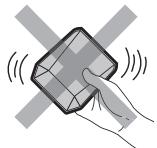
Cautions during printing
natural_image
Illustration of a hand holding a cube with motion lines indicating movement (no text or symbols)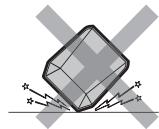
natural_image
Abstract geometric illustration of a cube with lightning bolts and stars, no text or symbols present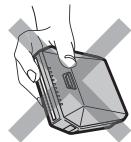
natural_image
Illustration of a hand holding a rectangular electronic device with a grid pattern (no text or symbols)INSTAX SQUARE FILM AND PRINT CARE
See FUJIFILM Instant Film "instax SQUARE" for film use instructions. Follow all instructions for safe and proper use.
① Keep the film in a cool and dry place. Do not leave the film in a place where the temperature is extremely high (e.g., in a closed car) for many hours.
② When you load a film pack, use the film as soon as possible.
③ If the film has been kept in a place where the temperature is extremely high or low, bring it to room temperature before starting to print pictures.
④ Be sure to use the film before the expiration or "Use Before" date.
⑤ Avoid airport checked luggage inspection and other strong X-ray illumination. The effect of fogging, etc. may appear on unused film. We recommend that you carry the printer and/or the film onto the aircraft as carry-on luggage. (Check with each airport for more information.)
⑥ Avoid strong light, and keep the developed prints in a cool and dry place.
⑦ Do not puncture, tear, or cut INSTAX SQUARE film. If film becomes damaged, do not use.
Cautions on handling the film and prints
For details, refer to the instructions and warnings on FUJIFILM Instant Film "instax SQUARE".
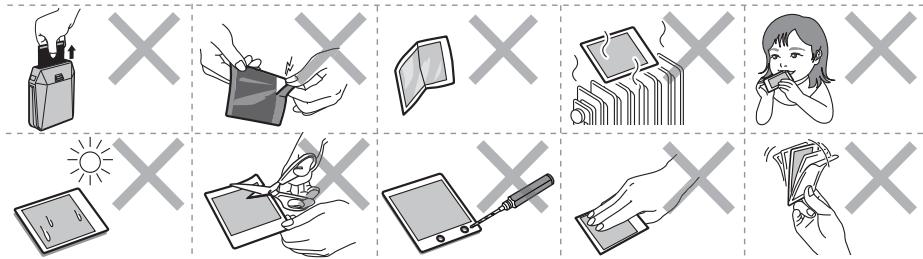
text_image
Grid of nine icons showing various tools and devices, each marked with 'X' symbol, likely representing a technical or digital interface.Wireless Network Devices: Cautions
IMPORTANT: Read the following notices before using the printer's built-in wireless transmitter.
■ Use only as part of a wireless network.
FUJIFILM does not accept liability for damages resulting from unauthorized use. Do not use in applications requiring a high degree of reliability, for example in medical devices or other systems that may directly or indirectly impact human life. When using the device in computer and other systems that demand a greater degree of reliability than wireless networks, be sure to take all necessary precautions to ensure safety and prevent malfunction.
■ Use only in the country in which the device was purchased.
This device conforms to regulations governing wireless network devices in the country in which it was purchased.
Observe all location regulations when using the device. FUJIFILM does not accept liability for problems arising from use in other jurisdictions.
■ Wireless data (images) may be intercepted by third parties.
The security of data transmitted over wireless networks is not guaranteed.
■ Do not use the device in locations subject to magnetic fields, static electricity, or radio interference.
Do not use the transmitter in the vicinity of microwave ovens or in other locations subject to magnetic fields, static electricity, or radio interference that may prevent reception of wireless signals. Mutual interference may occur when the transmitter is used in the vicinity of other wireless devices operating in the 2.4 GHz band.
■ The wireless transmitter operates in the 2.4 GHz band using DSSS and OFDM modulation.
This device operates on the same frequency as commercial, educational, and medical devices and wireless transmitters.
It also operates on the same frequency as licensed transmitters and special unlicensed low-voltage transmitters used in RFID tracking systems for assembly lines and in other similar applications.
■ To prevent interference with the above devices, observe the following precautions.
Confirm that the RFID transmitter is not in operation before using this device. Should you observe that the device causes interference in licensed transmitters used for RFID tracking, immediately choose a new operating frequency for this device to prevent additional interference. If you notice that this device causes interference in low-voltage RFID tracing systems, contact a FUJIFILM representative.
■ Certification marks acquired by the printer are located inside the film chamber.
Information for traceability in Europe
Manufacturer: FUJIFILM Corporation
Address, City: 7-3, Akasaka 9-Chome,
Minato-ku, Tokyo
Country: JAPAN
Authorized representative in Europe:
FUJIFILM EUROPE GMBH
Address, City: Dusseldorf Heesenstrasse 31, 40549
Country: Germany
Information for FUJIFILM in the United
States
FUJIFILM North America Corp.
200 Summit Lake Drive
Valhalla, New York 10595, USA
Information for FUJIFILM in Canada
FUJIFILM Canada Inc.
600 Suffolk Court, Mississauga, Ontario L5R 4G4
Handling the Battery
- Make sure that you use your printer correctly. Read these safety notes and your User's Guide carefully before use.
• After reading these safety notes, store them in a safe place.
| WARNING | CAUTION |
| This symbol indicates danger, which could result in injury or death. Please follow these instructions. | This symbol indicates possible damage, which could result in injury to other people or damage to an object. Please follow these instructions. Please handle the product properly. |
WARNING
| Prohibited | Do not use the battery except as specified. Load the battery as shown by the indicator. |
| Prohibited | Do not heat, change or take apart the battery. Do not drop or subject the battery to impacts. Do not short-circuit the battery. Do not store the battery with metallic products. Do not charge the battery using a charger other than a specified one. Any of these actions can cause the battery to burst or leak and cause fire or injury as a result. |
| Prohibited | Do not use voltages other than the power supply voltage shown. The use of other power sources can cause a fire. |
| Prohibited | If the battery leaks and fluid gets in contact with your eyes, skin or clothing, flush the affected area with clean water and seek medical attention or call an emergency number right away. |
| Required | Risk of explosion if battery is replaced by an incorrect type. Dispose of used batteries according to the instructions. |
| Required | Dispose of used batteries according to the instructions. When discarding, cover the battery terminals with insulation tape. Contact with other metallic objects or batteries could cause the battery to ignite or burst. |
| ⚠️ CAUTION | |
| [Default]Required | When you are cleaning the printer or you do not plan to use the printer for an extended period, remove the battery. Failure to do so can cause a fire or electric shock. |
| [Central]Required | If a problem arises, turn the printer off and remove the battery. Continued use of the printer when it is emitting smoke, is emitting any unusual odor, or is in any other abnormal state can cause a fire or electric shock. Contact your FUJIFILM dealer. |
The Battery
The following describes the proper use of batteries and how to prolong their life. Incorrect use can shorten battery life or cause leakage, overheating, fire, or explosion.
The battery is not charged at shipment. Charge the battery completely before use.
■ Notes on the Battery
The battery gradually loses its charge when not in use. Charge the battery one or two days before use.
Battery life can be extended by turning the printer off when not in use.
Battery capacity decreases at low temperatures; a depleted battery may not function at when cold. Keep a fully charged spare battery in a warm place and exchange as necessary, or keep the battery in warm place and insert it in the printer only when shooting. Do not place the battery in direct contact with hand warmers or other heating devices.
■ Charging the Battery
Charge the battery using the supplied USB cable. Charging times will increase at ambient temperatures below +10°C (+50°F) or above +35°C (+95°F). Do not attempt to charge the battery at temperatures above 40°C (+104°F); at temperatures below +5°C (+41°F), the battery will not charge.
Do not attempt to recharge a fully charged battery. The battery does not however need to be fully discharged before charging.
The battery may be warm to the touch immediately after charging or use. This is normal.
Battery Life
At normal temperatures, the battery can be recharged about 300 times. A noticeable decrease in the length of time the battery will hold a charge indicates that it has reached the end of its service life and should be replaced.
Storage
Performance may be impaired if the battery is left unused for extended periods when fully charged. Deplete the battery fully before storing it.
If the printer will not be used for an extended period, remove the battery and store it in a dry place with an ambient temperature of from +15°C to +25°C (+59°F to +77°F). Do not store in locations exposed to extremes of temperature.
■ Cautions: Handling the Battery
- Do not affix stickers or other objects to the battery.
- Do not tear or peel off the external label.
- Keep the terminals clean.
- The battery and printer body may become warm to the touch after extended use. This is normal.
■ Disposal
Dispose of used batteries accord with local regulations.

text_image
RECYCLE 1.800-822.8837 Li-ion™A lithium ion battery that is recyclable powers the product you have purchased. Please call 1-800-8-BATTERY for information on how to recycle this battery.

This Symbol on the batteries or accumulators indicates that those batteries shall not be treated as Household waste.
In Countries Outside the European Union, Norway, Iceland and Liechtenstein:
If you wish to discard this product including the batteries or accumulators, please contact your local authorities and ask for the correct way of disposal.
[ en ] If you have any inquiries about this product, please contact a FUJIFILM authorized distributor, or access the website below.
http://www.fujifilm.com/