KONICA MINOLTA BIZHUB C200 - Multifunction Printer

BIZHUB C200 - Multifunction Printer KONICA MINOLTA - Free user manual and instructions

Find the device manual for free BIZHUB C200 KONICA MINOLTA in PDF.

📄 4 pages English EN Download 💬 AI Question 11 questions ⚙️ Specs
Notice KONICA MINOLTA BIZHUB C200 - page 2
View the manual : Français FR English EN
Pick your language and provide your email: we'll send you a specifically translated version.
Product Type Black and white multi-function printer
Brand Konica Minolta
Model BIZHUB C200
Print speed (black and white) 20 ppm (pages per minute)
Copy speed (black and white) 20 ppm
Warm-up time 15 seconds
First copy time 6.5 seconds
Copy formats Duplex, ID card copy, N-up (2 in 1, 4 in 1)
Printing functions Duplex printing, N-up, booklet, watermark, secure printing
Scanning functions Color scanning to USB, email, SMB, FTP (with options)
Paper supply 250-sheet tray (standard), optional automatic document feeder
Print resolution 600 x 600 dpi
Scan resolution Up to 600 dpi
Connectivity USB 2.0, Ethernet (with optional network card)
Display 5-line backlit LCD display
Power supply 220-240 V AC, 50/60 Hz
Dimensions (W x D x H) Approx. 570 x 580 x 540 mm
Weight Approx. 30 kg
Power consumption Less than 800 W (during operation)
Additional options Automatic duplex unit AD-509, duplex document feeder DF-625, network card
Security SMTP authentication, secure printing, account tracking
Maintenance Regularly clean the glass and rollers, replace toner as needed
Spare parts and repairability Toner cartridges, drum unit available; repair by authorized technician
General information Compliant with Energy Star, RoHS, WEEE

Frequently Asked Questions - BIZHUB C200 KONICA MINOLTA

How to make a duplex copy?
For automatic duplex copying, install the optional automatic duplex unit AD-509. Then press the Duplex button on the control panel and select the desired mode (1->2, 2->1, etc.).
How to scan to a USB flash drive?
Insert the USB flash drive into the front port. Place your document on the glass or in the feeder. Press Scan, select USB as the destination, then press Start. Files are saved in TIFF, PDF, or JPEG format.
How to replace the toner?
Open the front cover. Remove the used toner cartridge. Unpack the new cartridge and insert it into the printer until it clicks. Close the cover. The printer will run a conditioning cycle.
How to copy an ID card duplex on one page?
Press the special ID Copy button. Place the card on the glass (up to A5 area). Scan the front, then turn the card over and scan the back. The printer prints both sides on one sheet.
How to install print drivers on Windows?
Download the drivers from the Konica Minolta website. Connect the printer via USB or network. Run the installation and follow the on-screen instructions. Restart the computer if necessary.
What to do in case of a paper jam?
Open the front cover and gently remove the jammed paper. Also check the document feeder. Once the paper is removed, close the cover and the printer will resume automatically.
How to use secure printing?
In the print driver, select Secure Printing and set a password. On the printer, press Secure Prints, enter your password, then confirm printing.
How to configure scan to email?
The optional NC-504 network card is required. In the network menu, configure the SMTP address and enable authentication. Use the control panel to enter the destination email address.
How to print multiple pages on one sheet?
In the print driver, go to Layout and choose 2 in 1 or 4 in 1. You can also select booklet mode to create a booklet.
How to connect the printer to the network?
Make sure the optional network card is installed. Connect the Ethernet cable to the RJ-45 port. In the printer's network menu, assign an IP address (DHCP or static). Install the network driver on each workstation.

User questions about BIZHUB C200 KONICA MINOLTA

1 question about this device. Answer the ones you know or ask your own.

Ask a new question about this device

The email remains private: it is only used to notify you if someone responds to your question.

How to clean the print rollers of the KONICA MINOLTA BIZHUB C200 printer?
Frequently Asked Questions - 31/12/2025
Response Notice-Facile

To ensure optimal print quality and extend the lifespan of your KONICA MINOLTA BIZHUB C200 printer, it is important to regularly clean the print rollers. Here’s how to do it:

Steps to clean the print rollers:

  1. Turn off and unplug the printer: For your safety, make sure the device is turned off and unplugged before any intervention.
  2. Access the rollers: Open the printer access panel. Depending on the model, this may require opening the paper tray or toner compartment to reach the rollers.
  3. Prepare a suitable cloth: Use a soft, clean, and lint-free cloth. You can slightly dampen the cloth with distilled water or a cleaning product specifically designed for printers.
  4. Gently clean the rollers: Lightly wipe the cloth over the rollers to remove dust, ink, or paper residue. Avoid applying too much pressure to prevent damaging the rollers.
  5. Let dry: Wait for the rollers to be completely dry before closing the panels and plugging the printer back in.
  6. Test the printer: Turn on the device and perform a test print to check if the cleaning has improved or maintained print quality.

Regular cleaning of the rollers helps prevent paper jams and print defects. If you encounter difficulties or persistent issues, it may be helpful to contact a professional or customer service.

Respond (be the first)

Download the instructions for your Multifunction Printer in PDF format for free! Find your manual BIZHUB C200 - KONICA MINOLTA and take your electronic device back in hand. On this page are published all the documents necessary for the use of your device. BIZHUB C200 by KONICA MINOLTA.

USER MANUAL BIZHUB C200 KONICA MINOLTA

Expanded Basic Functions, to Support Variety of Business Needs

KONICA MINOLTA BIZHUB C200 - Expanded Basic Functions, to Support Variety of Business Needs - 1

Simple operability to enhance your work efficiency

Special hard keys

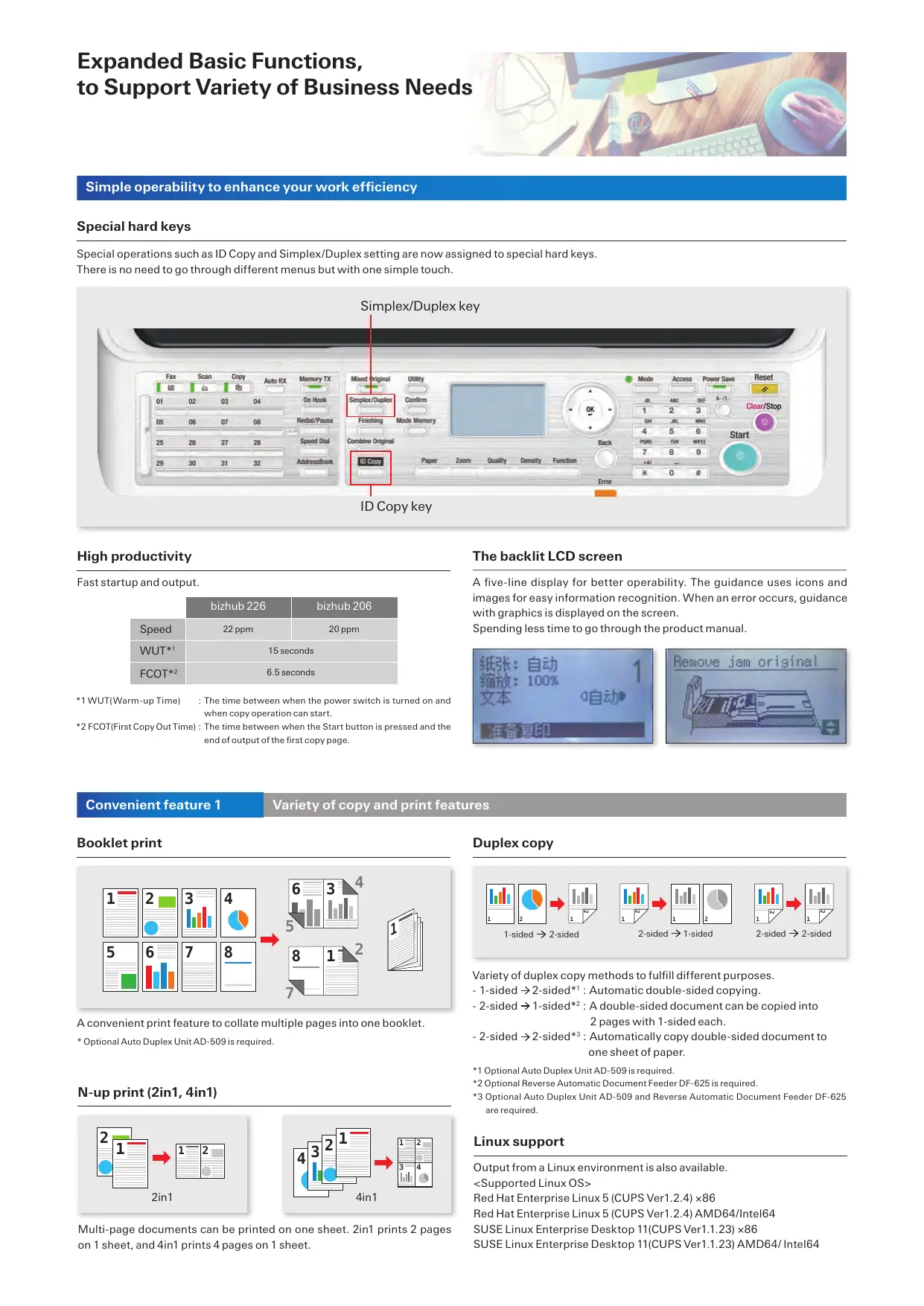
Special operations such as ID Copy and Simplex/Duplex setting are now assigned to special hard keys. There is no need to go through different menus but with one simple touch.
KONICA MINOLTA BIZHUB C200 - Special hard keys - 1

High productivity

Fast startup and output.

bizhub 226bizhub 206
Speed22 ppm20 ppm
WUT*115 seconds
FCOT*26.5 seconds

*1 WUT(Warm-up Time)

The time between when the power switch is turned on and when copy operation can start.

*2 FCOT(First Copy Out Time)

The time between when the Start button is pressed and the end of output of the first copy page.

The backlit LCD screen

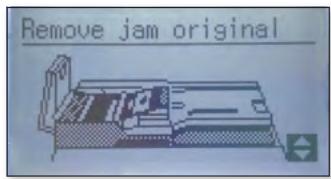
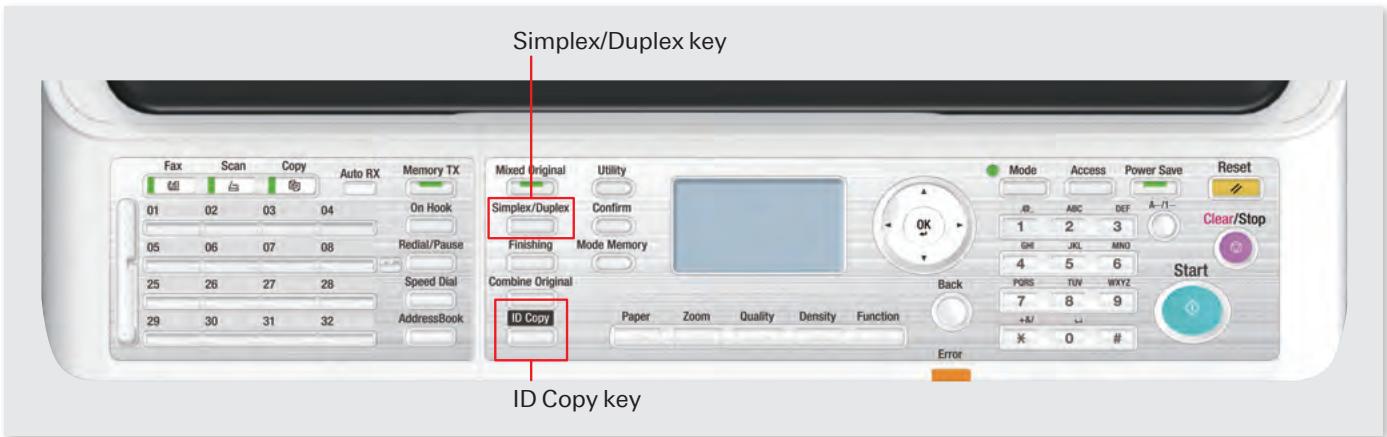
A five-line display for better operability. The guidance uses icons and images for easy information recognition. When an error occurs, guidance with graphics is displayed on the screen.

Spending less time to go through the product manual.
KONICA MINOLTA BIZHUB C200 - The backlit LCD screen - 1

KONICA MINOLTA BIZHUB C200 - The backlit LCD screen - 2

Convenient feature 1

Variety of copy and print features

Booklet print
KONICA MINOLTA BIZHUB C200 - Booklet print - 1

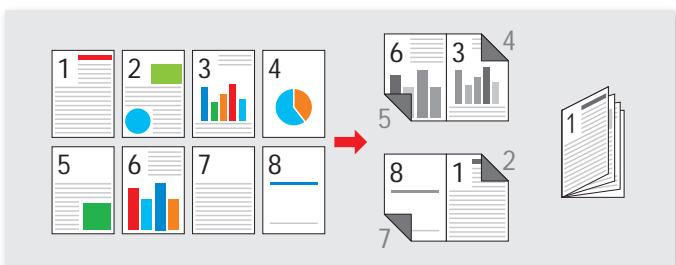
A convenient print feature to collate multiple pages into one booklet.

  • Optional Auto Duplex Unit AD-509 is required.

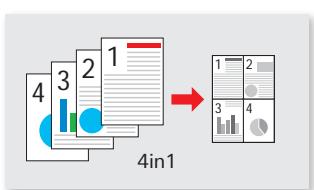
N-up print (2in1, 4in1)
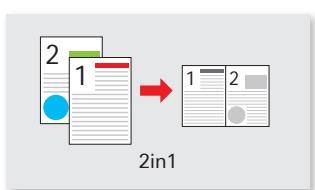
KONICA MINOLTA BIZHUB C200 - N-up print (2in1, 4in1) - 1

KONICA MINOLTA BIZHUB C200 - N-up print (2in1, 4in1) - 2

Multi-page documents can be printed on one sheet. 2in1 prints 2 pages on 1 sheet, and 4in1 prints 4 pages on 1 sheet.

Duplex copy
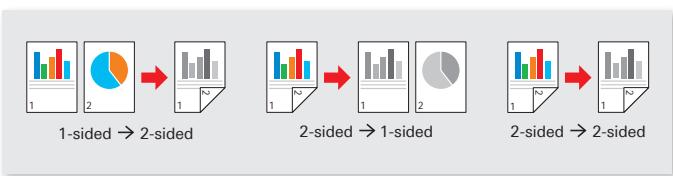
KONICA MINOLTA BIZHUB C200 - Duplex copy - 1

Variety of duplex copy methods to fulfill different purposes.

  • 1-sided 2-sided*1: Automatic double-sided copying.
  • 2-sided 1-sided*2: A double-sided document can be copied into 2 pages with 1-sided each.
  • 2-sided 2-sided ^3 : Automatically copy double-sided document to one sheet of paper.
    1 Optional Auto Duplex Unit AD-509 is required.
    2 Optional Reverse Automatic Document Feeder DF-625 is required.
    3 Optional Auto Duplex Unit AD-509 and Reverse Automatic Document Feeder DF-625 are required.

Linux support

Output from a Linux environment is also available.

Red Hat Enterprise Linux 5 (CUPS Ver1.2.4) × 86

Red Hat Enterprise Linux 5 (CUPS Ver1.2.4) AMD64/Intel64

SUSE Linux Enterprise Desktop 11(CUPS Ver1.1.23) ×86

SUSE Linux Enterprise Desktop 11(CUPS Ver1.1.23) AMD64/Intel64

ID copy
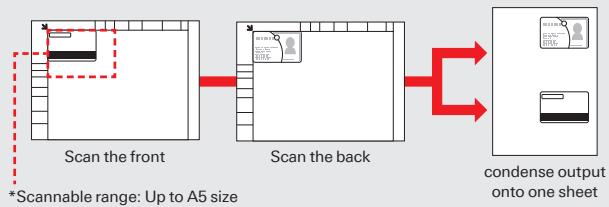
KONICA MINOLTA BIZHUB C200 - ID copy - 1

Any small documents such as employee ID or driver license, its front and back side can be output into one sheet of paper. The readable range is up to A5 size ^*1 . Press the ID Copy button on the operation panel to access this feature directly.

*1 More than one card can be placed (up to A5), as long as the originals are placed within the glass platen.

Convenient feature 3

Multiple convenience colour scan features

Colour scan

Colour documents can be digitised into colour files. Fast colour scan at 20ppm (150dpi)* ^1 , never slows work down. The supported scan file formats are TIFF, PDF, and JPEG.

*1 This is the speed when equipped with the Reverse Automatic Document feeder DF-625.

Select the destination for the scanned data

The scanned files can be saved directly to USB memory, or sent to different destination such as E-mail*1, SMB*1 or FTP*1. The supported scan formats are TIFF, PDF and JPEG.

*1 Optional Network Interface Card NC-504 or PCL controller with NIC IC-209 and Option Panel MK-749 are required.
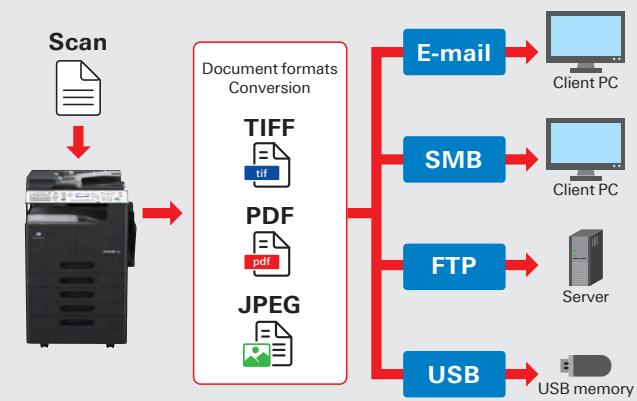
KONICA MINOLTA BIZHUB C200 - Select the destination for the scanned data - 1

Cost and environmental friendliness are always the first priority

Double-sided print and double-sided scan

2-sided document can be output by the Auto Duplex Unit AD-509 (optional) to reduce paper amount.
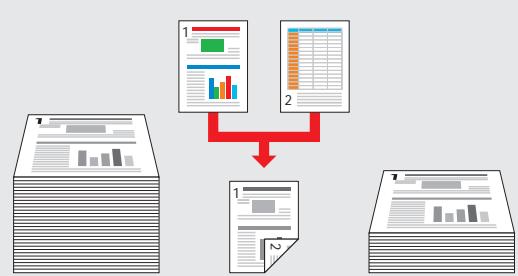
KONICA MINOLTA BIZHUB C200 - Double-sided print and double-sided scan - 1

Any multiple 2-sided documents can be scanned automatically all at once with the Reverse Automatic Document Feeder DF-625 (Optional).
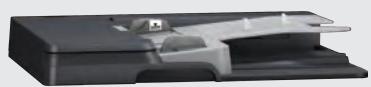
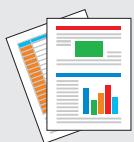
KONICA MINOLTA BIZHUB C200 - Double-sided print and double-sided scan - 2

KONICA MINOLTA BIZHUB C200 - Double-sided print and double-sided scan - 3

Scan performance (1-sided per minute)

Black/white binaryGrayscaleFull colour
150dpi46ppm38ppm20ppm
300dpi46ppm16ppm8ppm
600dpi23ppm--
  • When equipped with the Reverse Automatic Document feeder DF-625.

Toner loop mechanism

With the Kona Minolta's own Toner Loop Mechanism technology, there will be no more waste toner.
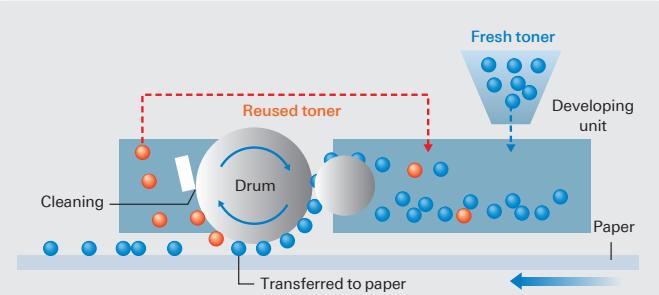
KONICA MINOLTA BIZHUB C200 - Toner loop mechanism - 1

Simitri toner with biomas

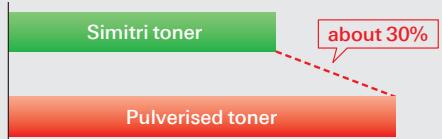
Konica Minolta's own Polymerized Toner technology achieves high image quality. The toner fuses at low temperature to bring the overall reduction of power consumption and CO2 emission, and saving TCO. CO2 emission in the production process can also be also greatly reduced, compared to pulverised toner.

KONICA MINOLTA BIZHUB C200 - Simitri toner with biomas - 1

Comparison of CO_2 emissions during the production of Simitri toner and pulverised toner
KONICA MINOLTA BIZHUB C200 - Simitri toner with biomas - 2

SMTP authentication

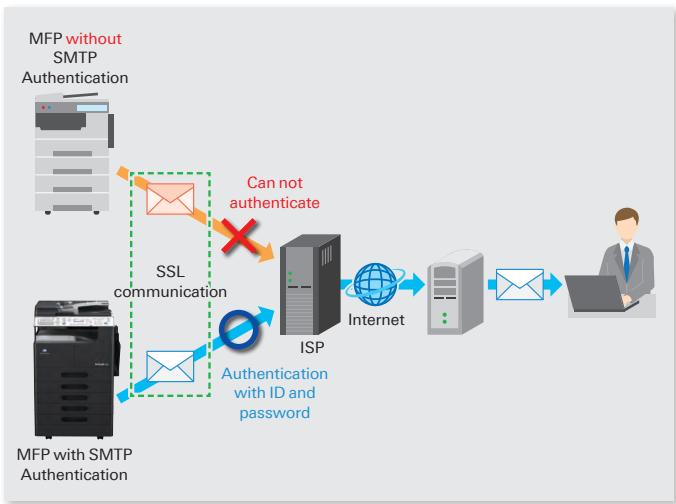
To support SMTP authentication which permits sending e-mail to users authenticated by the SMTP server. E-mail servers and ISPs (Internet Service Providers) etc. which are set for SMTP authentication can be used.

Connection to an SMTP server allows SSL communication, so E-mail can be sent in a security-conscious state. This is suitable for small offices and other situations without a private E-mail server.
KONICA MINOLTA BIZHUB C200 - SMTP authentication - 1

Watermark

KONICA MINOLTA BIZHUB C200 - Watermark - 1

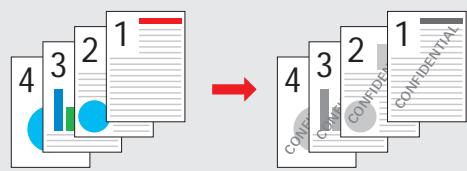
Different types of Watermarks can be added on the documents based on the purpose or importance level of documents.

Account track

The MFP can be set to request a 3-digit account number to use the Copy feature. To restrict users who are not authorized to use the MFP. Also, numbers of copies made under each account can be tracked.

ACCOUNT NO.:---

Input=10Key

Security print

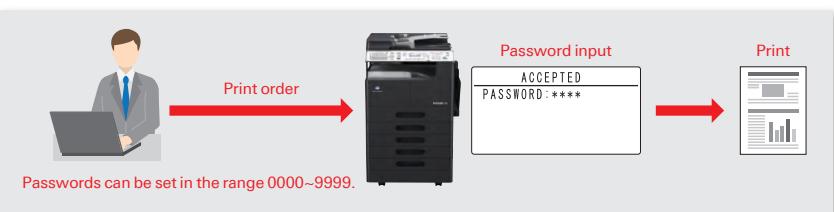
The MFP will not perform any outputs until user enters the same password as it has been set in the printer driver.

To prevent highly confidentiality documents being left on the MFP or taken by unauthorized user.
KONICA MINOLTA BIZHUB C200 - Security print - 1

KONICA MINOLTA BIZHUB C200 - Security print - 2
Model shown is 226 with options.

bizhub 226/206

226

B&W

22

ppm

B&W

B&

A.

RADE

46

46opm

¥1

B

C

=

1

m

*2

PCL

Controller

with NIC.

¥1

Scan

to

UCD

USB

2 : x^ ( x) = 10 .

Internet

Eax

Fax

Simitri

1 + u7 = 4.8

w t h b B to m a s s

*1 Optional

^*2 150 dpi

For more information please visit the bizhub website at

http://www.biz.konicaminolta.com/bw/226_206/index.html

Product appearance, configuration and/or specifications are subject to change without notice. This product is not available for some countries or regions.

The KONICA MINOLTA logo, symbol mark, "Giving Shape to Ideas", bizhub, Simitri and their respective logos are registered trademarks or trademarks of KONICA MINOLTA, INC.

Linux is a registered trademark of Linus Torvalds in the United States and other countries.

Red Hat is a registered trademark of Red Hat, Inc. in the United States and other countries.

SUSE is a registered trademark of Novell, Inc. in the United States and other countries.

All other brands and product names are registered trademarks or trademarks of their respective companies or organisations.

KONICA MINOLTA, INC.

2-7-2 Marunouchi Chiyoda-ku, Tokyo, Japan

http://www.biz.konicaminolta.com

Ecology & Environment

KONICA MINOLTA products are designed with the environment in mind.

Energy Star
RoHS Compliance
WEEE Compliance
- Eco-friendly Toners
- Production at ISO Certified Factories

KONICA MINOLTA BIZHUB C200 - http://www.biz.konicaminolta.com/bw/226_206/index.html - 1

KONICA MINOLTA BIZHUB C200 - http://www.biz.konicaminolta.com/bw/226_206/index.html - 2

KONICA MINOLTA BIZHUB C200 - http://www.biz.konicaminolta.com/bw/226_206/index.html - 3

Requirements for safe use

  • Please read and follow the instruction manual to ensure safe operation.
  • Only operate using appropriate power supply and voltage.
  • Connecting the earth wire to an inappropriate place may cause explosion or electric shock.

Please connect accordingly (Taiwan and the Philippines only)

Manual assistant
Powered by Anthropic
Waiting for your message
Product information

Brand : KONICA MINOLTA

Model : BIZHUB C200

Category : Multifunction Printer