AR 5726 - Printer SHARP - Free user manual and instructions
Find the device manual for free AR 5726 SHARP in PDF.


User questions about AR 5726 SHARP
0 question about this device. Answer the ones you know or ask your own.
Ask a new question about this device
Download the instructions for your Printer in PDF format for free! Find your manual AR 5726 - SHARP and take your electronic device back in hand. On this page are published all the documents necessary for the use of your device. AR 5726 by SHARP.
USER MANUAL AR 5726 SHARP
[1] PRODUCT OUTLINE 1-1
[2] SPECIFICATIONS 2-1
[3] CONSUMABLE PARTS 3-1
[4] EXTERNAL VIEW AND INTERNAL STRUCTURE 4-1
[5]ADJUSTMENTS 5-1
[6] SIMULATION 6-1
[7] SELF DIAG AND TROUBLE CODE 7-1
[8] MAINTENANCE. 8-1
[9]FIRMAWARE UPDATE 9-1
[10] ELECTRICAL SECTION 10-1
Parts marked with “ ” are important for maintaining the safety of the set. Be sure to replace these parts with specified ones for maintaining the safety and performance of the set.
CONTENTS
NOTE FOR SERVICING
- Warning for servicing..
- Precautions for servicing
- Note for repairing/replacing the LSU
[1] PRODUCT OUTLINE
- Line of machines and options 1-1
[2] SPECIFICATIONS
- Basic function 2-1
[3] CONSUMABLE PARTS
- Supply system table. 3-1
- Maintenance parts list 3-2
- Developer/Drum life end definition.. 3-3
- Production number identification 3-3
- Environment conditions 3-3
[4] EXTERNAL VIEW AND INTERNAL STRUCTURE
- External view 4-1
- Internal structure 4-2
- Operation panel 4-3
4.RSPF 4-4 - Sensor 4-5
- Switch 4-5
- Solenoid/Clutch 4-6
8.Drive motor. 4-6
9.Lamp 4-7 - Fan/Filter 4-7
11.PWB. 4-8 - Roller 4-8
[5]ADJUSTMENTS
- Adjustment item list. 5-1
- Details of adjustment. 5-1
[6] SIMULATION
- General 6-1
- Simulation code list 6-3
- Details of simulation 6-6
[7] SELF DIAG AND TROUBLE CODE
- Trouble code list 7-1
- Details of trouble code 7-2
[8] MAINTENANCE
- Maintenance list 8-1
- Details of Maintenance 8-3
- Other related items 8-31
[9] FIRMWARE UPDATE
- Firmware update procedure 9-1
[10] ELECTRICAL SECTION
- Block diagram 10-1
- Actual wiring chart. 10-2
- Signal list. 10-9
NOTE FOR SERVICING
This Service Manual uses some photographs to assure safe operation. Please understand the meanings of photographs before servicing.
WARNING: If this WARNING should be ignored, a serious danger to life or a serious injury may result.
CAUTION: If this CAUTION should be ignored, injury or damage to property could result.
1. Warning for servicing
1) Be sure to connect the power cord only to a power outlet that meets the specified voltage and current requirements. Avoid complex wiring, which may lead to a fire or an electric shock.
2) If there is any abnormality such as smoke or an abnormal smell, interrupt the job and disconnect the power plug. It may cause a fire or an electric shock.
3) Be sure the machine is properly grounded. Failure to ground the machine properly may result in an electric shock or fire. To protect the machine and the power unit from lightening, grounding must be made.
4) When connecting the ground wire, never connect it to the following points as it may cause an explosion, fire, or an electric shock:
Gas tube
Lightning conductor
- A water pipe or a water faucet, which is not recognized as a grounding object by the authorities.
- Grounding wire for telephone line
5) Do not damage, break, or stress the power cord. Do not put heavy objects on the power cord. Do not bend or pull the cord forcefully. It may cause a fire or electric shock.
6) Keep the power cable away from a heat source.
Do not insert the power plug with dust on it into a power outlet. It may cause a fire or an electric shock.
7) Do not put a receptacle with water in it or a metal piece which may drop inside the machine. It may cause a fire or an electric shock.
8) Do not touch the power plug, insert a telephone jack, perform service or operate the machine with wet or oil hands. It may cause an electric shock.
2. Precautions for servicing
1) When servicing, disconnect the power plug, the printer cable, the network cable, and the telephone line from the machine, except when performing the communication test, etc. It may cause an injury or an electric shock.
2) There is a high temperature area inside the machine. Use extreme care when servicing.
3) There is a high voltage section inside the machine which may cause an electric shock. Be careful when servicing.
4) Do not disassemble the laser unit. Do not insert a reflective material such as a screwdriver in the laser beam path. It may damage eyes by reflection of laser beams.
5) When servicing the machine while operating, be careful not to make contact with chains, belts, gear, and any other moving parts.
6) Do not leave the machine with the cabinet disassembled.
Do not allow any person other than a serviceman to touch inside the machine. It may cause an electric shock, a burn, or an injury.
7) When servicing, do not breathe toner, developer, and ink excessively. Do not get them in the eyes. If toner, developer, or ink enters you eyes, wash it away with water immediately, and consult a doctor if necessary.
8) The machine has got sharp edges inside. Be careful not to damage fingers when servicing.
9) Do not throw toner or a toner cartridge in a fire. Otherwise, toner may pop and burn you.
10) When replacing the lithium battery on the PWB, use only the specified battery. If a battery of different specifications is used, it may not be compatible and cause breakdown or malfunction of the machine.
11) When carrying an electric unit or a PWB, use an anti-static (electricity) bag. Failure to do so may cause component failure or machine malfunction.
3. Note for repairing/replacing the LSU
When repairing or replacing, be sure to observe the following items.
1) When repairing or replacing the LSU, be sure to disconnect the power plug from the power outlet.
2) When repairing or replacing the LSU, follow the procedures described in this Service Manual.
3) When checking the operations after repairing the LSU, keep all the parts including the cover installed and perform the operation check.
4) Do not modify the LSU.
5) When visually checking the inside of the machine for the operation check, be careful not to allow laser beams to enter the eyes.
If the above precaution is neglected or an undesignated work is performed, safety may not be assured.
[1] PRODUCT OUTLINE
1. Line of machines and options
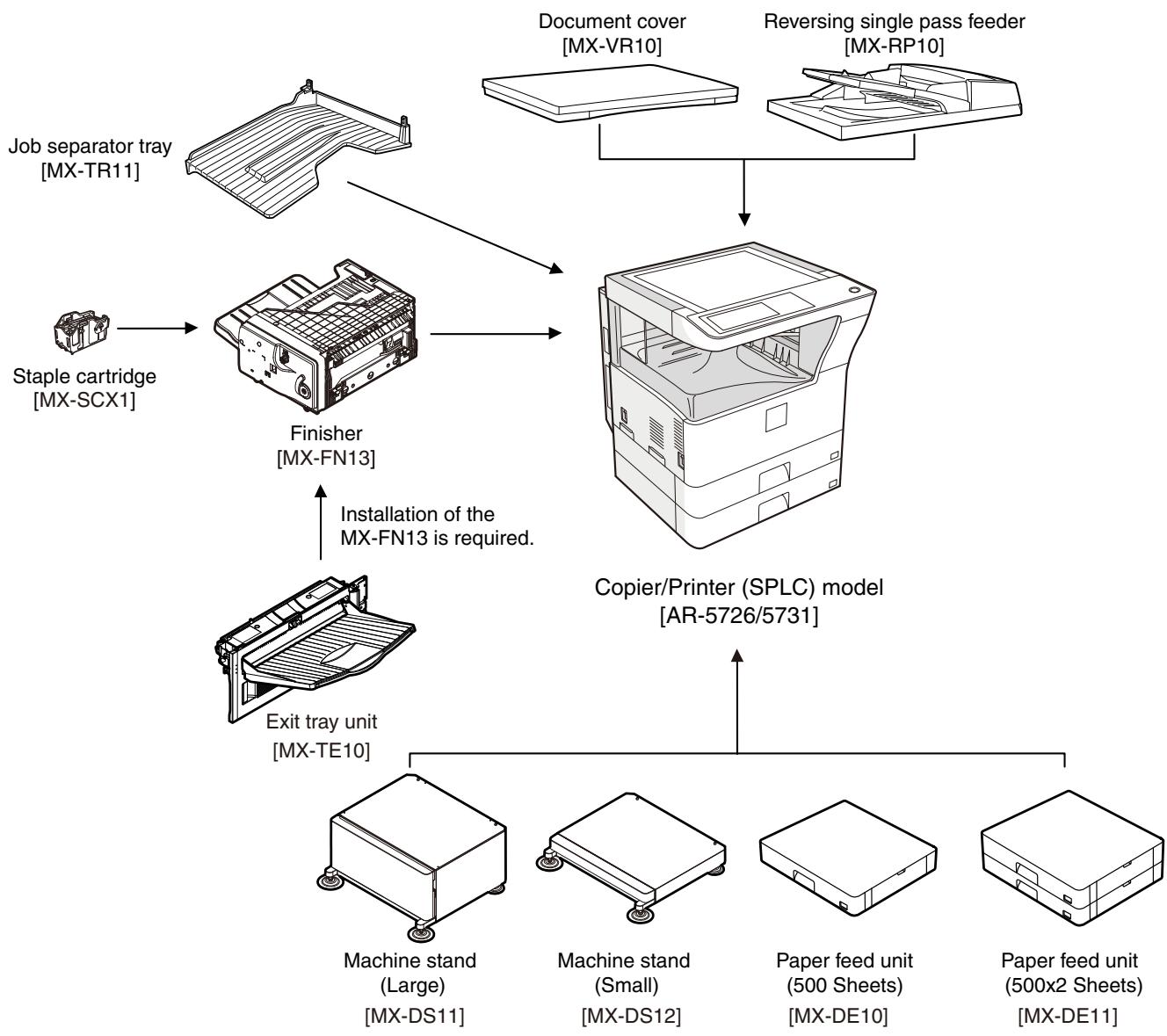
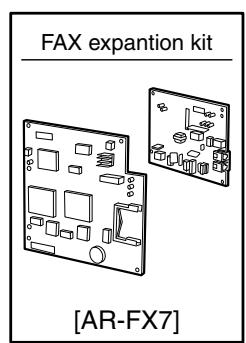
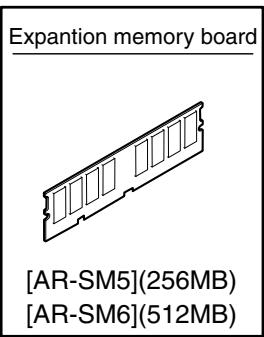
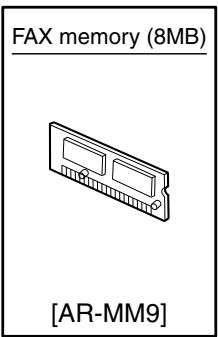
[2] SPECIFICATIONS
1. Basic function
A. Base engine
(1) Type
| Type | Desktop |
(2) Engine composition
| Photoconductor kind | OPC drum (Drum dia. 30mm) |
| Copying method | Electronic photo (Laser) |
| Developing system | Dry, 2-component magnetic brush development |
| Charging system | Sawtooth charging |
| Transfer system | Transfer roller system |
| Cleaning system | Contact blade system |
| Fusing system | Heat roller |
| Toner supply method | Toner supply by front cover open |
| Waste toner disposal | Toner cartridge collection |
(3) Dimensions / Weight
| External dimensions (W x D x H) | OC model: 623 x 628 x 668mm RSPF model: 623 x 628 x 788mm |
| Occupied dimensions (W x D) (when the manual paper feed tray is extended) | 898 x 628mm |
| Weight | About 46kg |
(4)Warmup
| Warm-up time | 23 sec or less (26-sheet model) 25 sec or less (31-sheet model) |
| Pre-heat | Yes |
| Jam recovery time | About 10sec, excluding fusing warmup, toner control, etc. |
Conditions: Leaving for 60 sec after door open, standard conditions, polygon stop.
(5) First copy time
| 26-sheet model | 31-sheet model | |
| Platen | 4.8 sec | 4.5 sec |
| RSPF | 9.3 sec or less | |
- Measuring conditions: When paper of A4 or 8.5" x 11" is fed from the machine tray, with the polygon rotating.
(6) Engine resolution
| Writing resolution | 600 x 600dpi |
| Smoothing (Print) | 1200dpi (equivalent) x 600dpi |
| Gradation | Writing: Binary |
(7) Printable range
| Max. print size | AB series: 416 x 293mm (600dpi: 9826dot x 6920dot) Inch series: 428 x 275mm (600dpi: 10110dot x 6496dot) |
| Void area image loss | Front/Rear: Less than 4mm Right/Left total: Less than 6mm at actual (100%) size |
(8) Engine speed (ppm)
| Tray | Paper size | 26-sheet model | 31-sheet model |
| Tray 1-4 | A3 | 15 | 17 |
| B4/8.5 x 13 | 17 | 20 | |
| A4/B5/A5/8.5 x 11/5.5 x 8.5/16K | 26 | 31 | |
| A4R/8.5 x 11R/16KR | 18 | 24 | |
| B5R | 21 | ||
| 11 x 17 | 14 | 17 | |
| 8.5 x 14 | 16 | 20 | |
| 8K | 19 | ||
| Manual paper feed | A3 | 14 | 17 |
| 8.5 x 13 | 17 | 20 | |
| B4 | 16 | 19 | |
| A4/B5/A5/8.5 x 11/5.5 x 8.5/16K | 23 | 27 | |
| A4R/8.5 x 11R | 19 | 22 | |
| 16KR | 23 | ||
| B5R | 21 | 24 | |
| 11 x 17 | 14 | 16 | |
| 8.5 x 14 | 16 | 19 |
(9) Power source
| Voltage/Current | 220 - 240V 8A |
| Frequency | 50/60Hz |
| Power source code | Inlet type |
| Power switch | 1 power source |
(10) Power consumption
| Maximum rated power consumption | 1.45kw |
| Shift time to sleep mode | Default (1 minute) |
(11) Memory
| Local Memory | Standard | 32MB |
| Expansion | 512MB x 2 | |
| Max. | 1056MB |
B. Controller board
(1) Controller board
| SPLC board | ||
| Interface | Ethernet | No |
| USB 2.0 Device | Full Speed 1slot | |
| Memory | No | |
| Memory expansion slot | --- | |
C. Operation panel
| Type | Dot matrix LCD, touch panel |
| Size | Monochrome H-VGA 8.1" |
| Display dot number | 640 x 240 (H-VGA) |
| LCD drive display area | 192 x 72mm |
| LCD backlight | Fluorescent lamp backlight system |
| LCD contrast adjustment | Yes |
D. Scanner section
(1) Resolution/Gradation
| Reading resolution (dpi) | Copy mode | ||||
| Platen | 400 x 600dpi | ||||
| RSPF | 400 x 600dpi | ||||
| Transmission resolution (dpi) | FAX transmission mode | ||||
| Select mode | Normal text | Fine text | Super fine text | Ultra fine text | |
| Input resolution: OC | 203.2 x 293.4 | 203.2 x 293.4 | 203.2 x 391.2 | 406.4 x 586.7 | |
| Input resolution: RSPF | 203.2 x 293.4 | 203.2 x 293.4 | 203.2 x 391.2 | 406.4 x 586.7 | |
| Transmission resolution | 203.2 x 97.8 | 203.2 x 195.6 | 203.2 x 391 | 406.4 x 391 | |
| Half tone | No | Yes | Yes | Yes | |
| Reading gradation | 256 gradations | ||||
| Exposure lamp | Electrodeless xenon lamp | ||||
| Output gradation | Binary | ||||
(2) Document table
| Type | Document table fixed type (Flat bed) | |
| Scanning area | 297 x 431.8mm | |
| Original standard position | Left bottom reference | |
| Detection | Yes | |
| Detection size | Inch series | Automatic setting 11 x 17, 8.5 x 14, 8.5 x 11, 8.5 x 11R, 5.5 x 8.5 Manual setting 11 x 17, 8.5 x 14, 8.5 x 13 (216 x 330), 8.5 x 11, 8.5 x 11R, 5.5 x 8.5, A3, A4, A4R |
| AB series | Automatic setting A3, B4, A4, A4R, A5 Manual setting 11 x 17, 8.5 x 14, 8.5 x 13 (216 x 330), 8.5 x 11, 8.5 x 11R, A3, B4, A4, A4R, A5 | |
(3) Automatic document feeder
| Type | RSPF(Automatic duplex document feeder unit) | |
| Scan speed | When in single copy | When in duplex copy |
| Copy | 31-sheet model:27 sheets/min(400 x 600dpi)26-sheet model:26 sheets/min(400 x 600dpi) | 31-sheet model:13.6 side/min(400 x 600dpi)26-sheet model:13.6 side/min(400 x 600dpi) |
| Fax | 40 sheets/min(Normal text, A4R) | 17 sheets/min(Normal text, A4R) |
| Document set direction | Face-up reference | |
| Document standard position | Center reference | |
| Document transport system | Sheet through system | |
| Document size | AB series: A3 - A5Inch series: 11 x 17 - 5.5 x 8.5 | |
| Document weight | Single face: 35 - 128g/m2, 9 - 34 lbs,Duplex: 52 - 105g/m2, 13.9 - 28 lbs | |
| Max. loading capacity of documents | 100 sheets (90g/m2)Paper thickness of 13mm or less can be set. | |
| Transport disable document | OHP, perforated documents, photo,catalogue, second original sheet, tracingpaper, carbon paper, heat-sensitive paper,wrinkled paper, folded or broken paper,pasted or cut-away paper, documents ofmany perforated holes (2-hole, 3-holedocuments can be used), document printedby an ink ribbon | |
| Detection | Yes | |
| Detection size | Inchseries | Automatic setting11 x 17, 8.5 x 14, 8.5 x 11,8.5 x 11R, 5.5 x 8.5, A3, A4Manual setting11 x 17, 8.5 x 14, 8.5 x 13 (216 x330), 8.5 x 11, 8.5 x 11R,5.5 x 8.5, A3, A4, A4R |
| ABseries | Automatic setting11 x 17, 8.5 x 11, A3, B4, A4,A4R, B5, B5R, A5Manual setting11 x 17, 8.5 x 14, 8.5 x 13 (216 x330), 8.5 x 11, 8.5 x 11R, A3, B4,A4, A4R, A5 | |
| Multi copy | S-S, S-D, D-D, D-S | |
| Mixed paper feed | Enable (Same width only) | |
E. Paper feed section
| Type | Paper feed tray + Multi manual paper feed (Expanded up to 4 trays by installing options.) | |||
| Paper feed method | Paper is fed from the above by the front loading system. | |||
| Details of paper feed section | Tray1 | Tray2 | Manual paper feed tray | |
| Paper capacity | Standard paper (80g/m2) | 500 sheets | 100 sheets | |
| Paper size | A3, B4, A4, A4R, B5, B5R, A5, 11 x 17, 8.5 x 14, 8.5 x 13, 8.5 x 11, 8.5x11R, 5.5 x 8.5, 8K, 16K, 16KR | A3, B4, A4, A4R, B5R, 11 x 17, 8.5 x 14 (216 x 356), 8.5 x 13 (216 x 330), 8.5 x 11, 8.5 x 11R, 7.25 x 10.5R, 5.5 x 8.5, 8K, 16K, 16KR, A6R, Envelope*1 | A3, B4, A4, A4R, B5, B5R, A5R, A5, B6R, 11 x 17, 8.5 x 14 (216 x 356), 8.5 x 13 (216 x 330), 8.5 x 11, 8.5 x 11R, 7.25 x 10.5R, 5.5 x 8.5, 8K, 16K, 15KR, A6R, Envelope*1 | |
| Paper size detection | No | Yes | ||
| Allowable paper type and weight for paper feed | 56 - 105g/m2/15 - 28lbs Bond | Multi paper feed: Standard paper (56 - 128g/m2) Special paper, heavy paper (max. 200g/m2) Single paper feed: Standard paper, special paper, second original, heavy paper (max. 200g/m2), 56- 200g/m2 (14 - 54lbs) | ||
| Paper type | Standard paper (56 - 80g/m2) Normal paper (60 - 105g/m2) Letterhead Color paper | • Standard paper: 100 sheets (56 - 80g/m2) • Recycled paper/coarse paper: 100 sheets • Heavy paper (max. 200g/m2): 30 sheets • OHP/Label sheet/gift wrapping paper: 40 sheets • Label sheet: 40 sheets • Envelope (AB series: 10 sheets, Inch series: 5 sheets) | ||
| Paper size setting when shipping | Inch series | 8.5 x 11 | --- | |
| AB series | A4 | --- | ||
| Paper remaining detection | No (paper presence only) | |||
- 1: Supported envelope kinds: Commercial10 (4 - 1/8" x 9 - 1/2"), International DL (110mm x 220mm), International C5 (162mm x 229mm)
F. Paper exit section
(1) Center tray of main unit
| Paper exit position/system | Main unit top surface face-down paper exit |
| Paper exit capacity | 500 sheets (A4, 8.5 x 11, 80g/m2paper) |
| Paper exit paper size/ kind | All kinds of paper which can be fed |
| Shifter function | Yes |
| Paper remaining detection for paper exit | Yes |
G. Copy functions
(1) Copy magnification ratio
| Copy magnification ratio | AB series | 25%, 50%, 70%, 81%, 86%, 100%, 115%, 122%, 141%, 200%, 400% |
| Inch series | 25%, 50%, 64%, 77%, 100%, 121%, 129%, 200%, 400% | |
| Zoom | 25 - 400% (Restriction by the document feeder unit: 50 - 200%) | |
(2) Density/copy image quality process
| Exposure mode | Binary: Automatic, Text, Text/Photo, Photo |
| Number of manual steps | 5 steps |
(3) Duplex
| System | Switchback system |
| Paper size | A3, B4, A4, A4R, B5, B5R, A5, 11 x 17, 8.5 x 14, 8.5 x 13, 8.5 x 11, 8.5 x 11R |
| Type and weight of paper which can be passed | 56 - 105g/m2/15 - 21.3 lbs Bond Duplex print from manual paper feed can be made. (Except for heavy paper, OHP sheet, and other special paper) |
- When duplex printing is continued in a certain level of temperature, the printing speed may be reduced in order to prevent an abnormal temperature rise in the machine.
(4) Copy functions
| Automatic paper selection |
| Automatic magnification ratio selection |
| Vertical/horizontal independent magnification ratio |
| Paper type selection |
| Auto tray switching |
| Rotation copy |
| Electronic sort |
| Job reservation (only during warm-up) |
| Program call-out/registration (10 items) |
| Preheat function |
| Auto power shut off function |
| User management (100 items) |
| Mixed documents feed (MIX only) |
| Binding margin (Left/Right/Upper) |
| Edge erase/Center erase (Center/Edge/Center + Edge) |
| 1 set 2 copy |
| Cover paper/Insert paper (Cover/Back cover only) |
| Multi shot (2 in 1/4 in 1) (Centering available) |
| Card shot (Centering available) |
| Pamphlet mode (Centering available) |
| Duplex copy direction switching |
| Large volume document mode |
| Black/white reverse (except for UK) |
| Stream feeding mode (ON/OFF switch by the system setting) |
H. Printer function
(1) Platform
| IBM PC/AT |
| Macintosh |
(2) Support OS
| OS | SPLC | |
| Windows | 2000 | Yes |
| XP | ||
| XP x64 | ||
| Server 2003 | No | |
| Server 2003 x64 | ||
| Vista | Yes | |
| Vista x64 | ||
| Server 2008 | No | |
| Server 2008 x64 | ||
| Mac | 9.0 - 9.2.2 | |
| X 10.2.8 | ||
| X 10.3.9 | ||
| X 10.4.11 | ||
| X 10.5 - 10.5.6 | ||
I. Environmental conditions
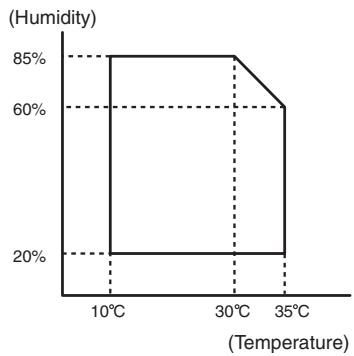
| Standard environmental conditions | Temperature | 20 - 25°C |
| Humidity | 65 ± 5%RH | |
| Usage environmental conditions | Temperature | 10 - 35°C |
| Humidity | 20 - 85%RH | |
| Atmospheric pressure | 590 - 1013 hPa (height: 0 - 2000m) |
[3] CONSUMABLE PARTS
1. Supply system table
A. East Europe/Russia
| No. | Item | Content | Life | Model name | Remarks |
| 1 | Toner cartridge (black) | Toner cartridge (With IC chip) ×1 (Toner; Net 700g) | 33K | MX-312GT | Life setting by A4 (8.5"×11") 6% document Default: Toner save mode |
| 2 | Developer (black) | Developer ×1 (Developer; Net 300g) | 26cpm: 75K 31cpm: 100K | MX-312GV | |
| 3 | Drum | Drum ×1 | 26cpm: 75K 31cpm: 100K | MX-312GR |
B. Asia Subsidiaries
| No. | Item | Content | Life | Model name | Remarks |
| 1 | Toner cartridge (black) | Toner cartridge (With IC chip) ×1 (Toner; Net 700g) | 33K | MX-312AT | Life setting by A4 (8.5"×11") 6% document Default: Toner save mode |
| 2 | Developer (black) | Developer ×1 (Developer; Net 300g) | 26cpm: 75K 31cpm: 100K | MX-312AV | |
| 3 | Drum | Drum ×1 | 26cpm: 75K 31cpm: 100K | MX-312AR |
C. SMEF/Agent
| No. | Item | Content | Life | Model name | Remarks |
| 1 | Toner cartridge (black) | Toner cartridge (With IC chip) ×1 (Toner; Net 700g) | 33K | MX-312FT | Life setting by A4 (8.5"×11") 6% document Default: Toner save mode |
| 2 | Developer (black) | Developer ×1 (Developer; Net 300g) | 26cpm: 75K 31cpm: 100K | MX-312FV | |
| 3 | Drum | Drum ×1 | 26cpm: 75K 31cpm: 100K | MX-312FR |
2. Maintenance parts list
A. East Europe/Russia/SMEF
| No. | Item | Content | Life | Model name | Remarks |
| 1 | Upper heat roller kit | Upper heat roller ×1 | 150K | AR-310UH | |
| Fuser gear ×1 | |||||
| Upper heat roller bearing ×2 | |||||
| Upper cleaning pad ×1 | |||||
| Fusing separation pawl (upper) ×4 | |||||
| Thermistor cleaning pad ×2 | |||||
| 2 | Lower heat roller kit | Lower heat roller ×1 | 300K | MX-311LH | |
| Fusing separation pawl (lower) ×4 | |||||
| Fuser bearing (lower) ×2 | |||||
| 3 | 150K PM kit | Drum separation pawl unit ×2 | 150K | MX-311KA | |
| Transfer roller unit ×1 | |||||
| DV blade ×1 | |||||
| DV side sheet F ×1 | |||||
| DV side sheet R ×1 | |||||
| Toner filter unit ×1 | |||||
| 4 | MC unit | MC unit ×10 | 26cpm: 75K (×10) | MX-311MC | |
| 31cpm: 100K (×10) | |||||
| 5 | Cleaner blade | Cleaner blade ×10 | 26cpm: 75K (×10) | MX-311CB | |
| 31cpm: 100K (×10) | |||||
| 6 | Drum frame unit | Drum frame unit ×1 | 26cpm: 225K | MX-311DU | * The life of the toner reception seat attached to the drum frame is 300K, and it can be used up to 3 times. (Supplied as a drum frame unit.) |
| 31cpm: 300K | |||||
| 7 | Transfer roller unit | Transfer roller unit ×1 | 150K | MX-311TX | |
| 8 | Staple cartridge | Staple cartridge ×3 | 5000 staples ×3 | MX-SCX1 |
- The other maintenance parts than the above are supplied as service parts.
B. Asia Subsidiaries/Agent
| No. | Item | Content | Life | Model name | Remarks |
| 1 | Upper heat roller kit | Upper heat roller x1 | 150K | AR-310UH | |
| Fuser gear x1 | |||||
| Upper heat roller bearing x2 | |||||
| Upper cleaning pad x1 | |||||
| Fusing separation pawl (upper) x4 | |||||
| Thermistor cleaning pad x2 | |||||
| 2 | Lower heat roller kit | Lower heat roller x1 | 300K | MX-311LH | |
| Fusing separation pawl (lower) x4 | |||||
| Fuser bearing (lower) x2 | |||||
| 3 | 150K PM kit | Drum separation pawl unit x2 | 150K | MX-311KA | |
| Transfer roller unit x1 | |||||
| DV blade x1 | |||||
| DV side sheet F x1 | |||||
| DV side sheet R x1 | |||||
| Toner filter unit x1 | |||||
| 4 | MC unit | MC unit x10 | 26cpm: 75K (×10) | MX-311MC | |
| 31cpm: 100K (×10) | |||||
| 5 | Cleaner blade | Cleaner blade x10 | 26cpm: 75K (×10) | MX-311CB | |
| 31cpm: 100K (×10) | |||||
| 6 | Drum frame unit | Drum frame unit x1 | 26cpm: 225K | MX-311DU | * The life of the toner reception seat attached to the drum frame is 300K, and it can be used up to 3 times. (Supplied as a drum frame unit.) |
| 31cpm: 300K | |||||
| 7 | Staple cartridge | Staple cartridge x3 | 5000 staples x3 | MX-SCX1 |
- The other maintenance parts than the above are supplied as service parts.
3. Developer/Drum life end definition
When the developer/drum counter reaches the specified level.
When the developer/drum rpm reaches the specified level.
When either of the above reached the specified level, it is judged as life end.
In an actual case, when correction or warm-up operation is performed as well as output operation, the developer and the drum rotates.
Therefore, the developer/drum consuming level cannot be determined only by the copy/print quantity. When, therefore, the rpm reaches the specified level, it is judged as life end.
To check the drum and developer life, use SIM22-1.
| Developer/drum counter | Number of rotations (Rotations) | ||
| Developer/drum | 26cpm model | 31cpm model | 550K |
| 75K | 100K | ||
4. Production number identification
The label on the toner cartridge shows the date of production.
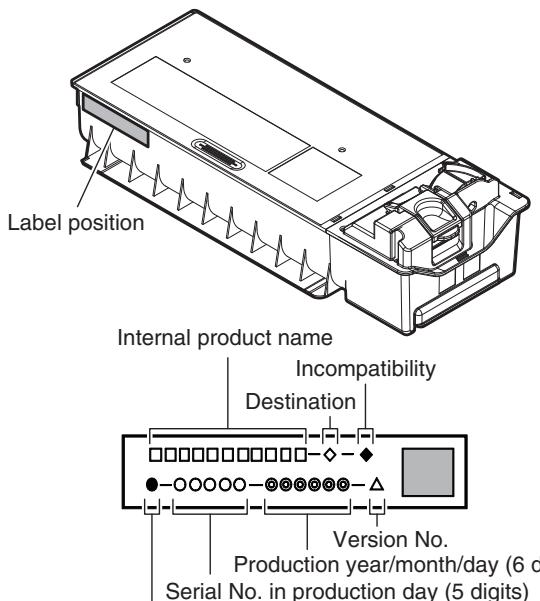
Production place (1 digits)
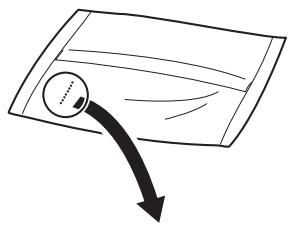
| 1 | 2 | 3 | 4 | 5 | 6 | 7 | 8 |
The lot number is of 8 digits. Each digit indicates the content as follows. The number is printed on the right under side of the back surface of the developer bag.
1 Alphabet Indicates the production factory.
2 Number Indicates the production year.
3,4 Number Indicates the production month.
5,6 Number Indicates the production day.
7 Hyphen
8 Number Indicates the production lot.
The laser print indicates the model conformity code and the date (year, month, day) of production.
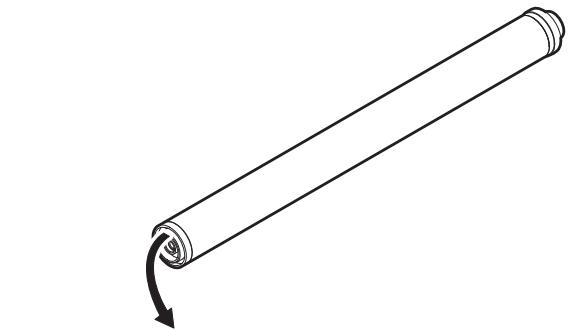
| 1 | 2 | 3 | 4 | 5 |
1 Alphabet Indicates the model conformity code. L for this model.
2 Number Indicates the end digit of the production year.
3 Number or X, Y, Z Indicates the month of packing. X stands for October, Y November, and Z December.
4,5 Number Indicates the day of the month of packing.
5. Environment conditions
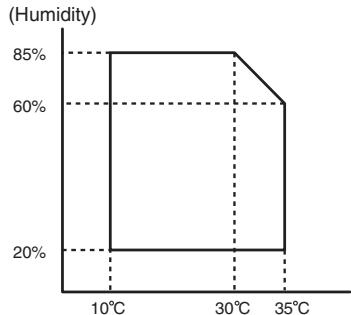
(Temperature)
| Standard environmental conditions | Temperature | 20 - 25°C |
| Humidity | 65 ± 5%RH | |
| Usage environmental conditions | Temperature | 10 - 35°C |
| Humidity | 20 - 85%RH | |
| Atmospheric pressure | 590 - 1013 hPa (height: 0 - 2000m) | |
| Storage period | Toner/Developer: 24 months from the manufactured month (Production lot) under unsealed state Drum: 36 months from the manufactured month under unsealed state | |
[4] EXTERNAL VIEW AND INTERNAL STRUCTURE
1. External view
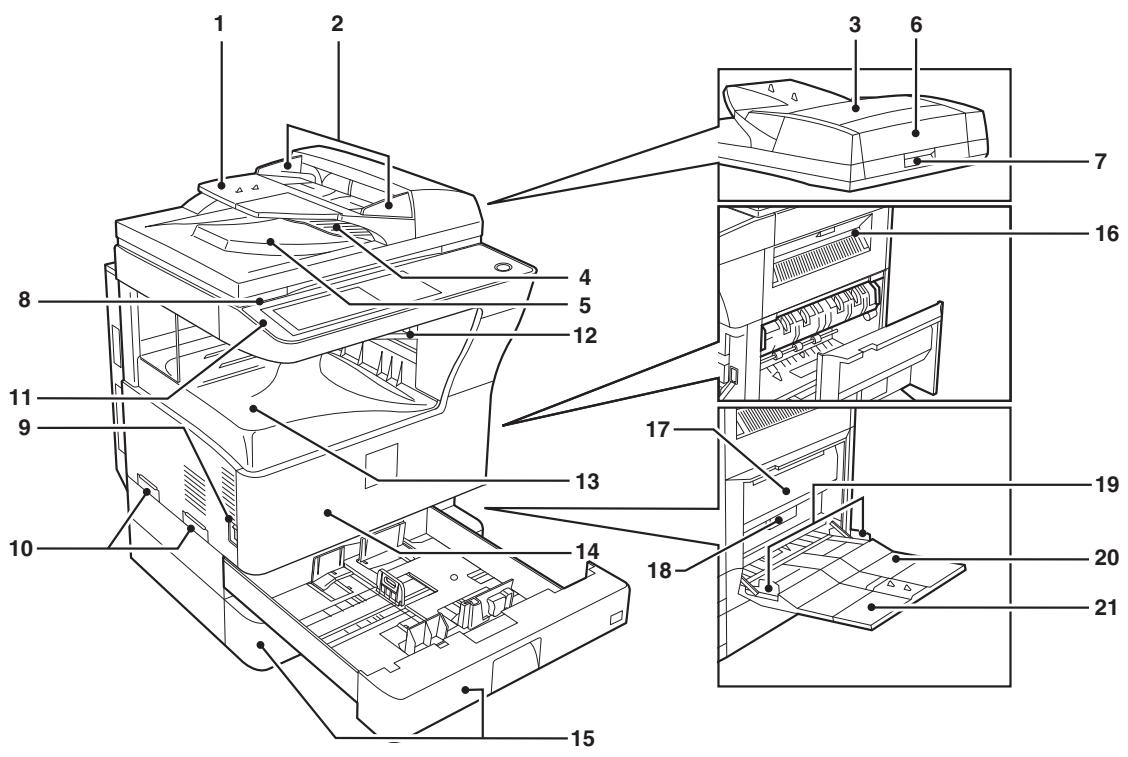
| No. | Name | Function/Operation |
| 1 | Document feeder tray | Place the original(s) that you wish to scan face up here. |
| 2 | Original guides | Adjust to the size of the originals. |
| 3 | Document feeder cover | Open to remove misfed originals. |
| 4 | Reversing tray | Pull out to remove misfed originals. |
| 5 | Exit area | Originals exit the machine here after copying. |
| 6 | Document transport cover | Open to remove misfed originals. |
| 7 | Document transport cover knob | Pull to open the document transport cover. |
| 8 | Document glass | Place an original that you wish to scan face down here. |
| 9 | Power switch | Press to turn the machine power on and off. |
| 10 | Handles | Use to move the machine. |
| 11 | Operation panel | Contains operation keys and the touch panel. |
| 12 | Job separator tray (Upper tray) (optional) | Print jobs and received faxes are delivered to this tray. |
| 13 | Center tray | Finished copies are delivered to the center tray. |
| 14 | Front cover | Open to remove paper misfeeds and perform machine maintenance. |
| 15 | Paper trays | Each tray holds 500 sheets of copy paper. |
| 16 | Upper right side cover | Open to remove misfeeds when an optional job separator tray kit or a optional finisher is installed. |
| 17 | Side cover | Open to remove misfeeds. |
| 18 | Side cover handle | Pull to open the side cover. |
| 19 | Bypass tray paper guides | Adjust to the width of the paper. |
| 20 | Bypass tray | Regular paper and special paper (such as transparency film) can be fed from the bypass tray. |
| 21 | Bypass tray extension | Pull out the bypass tray extension before placing paper in the bypass tray. |
2. Internal structure
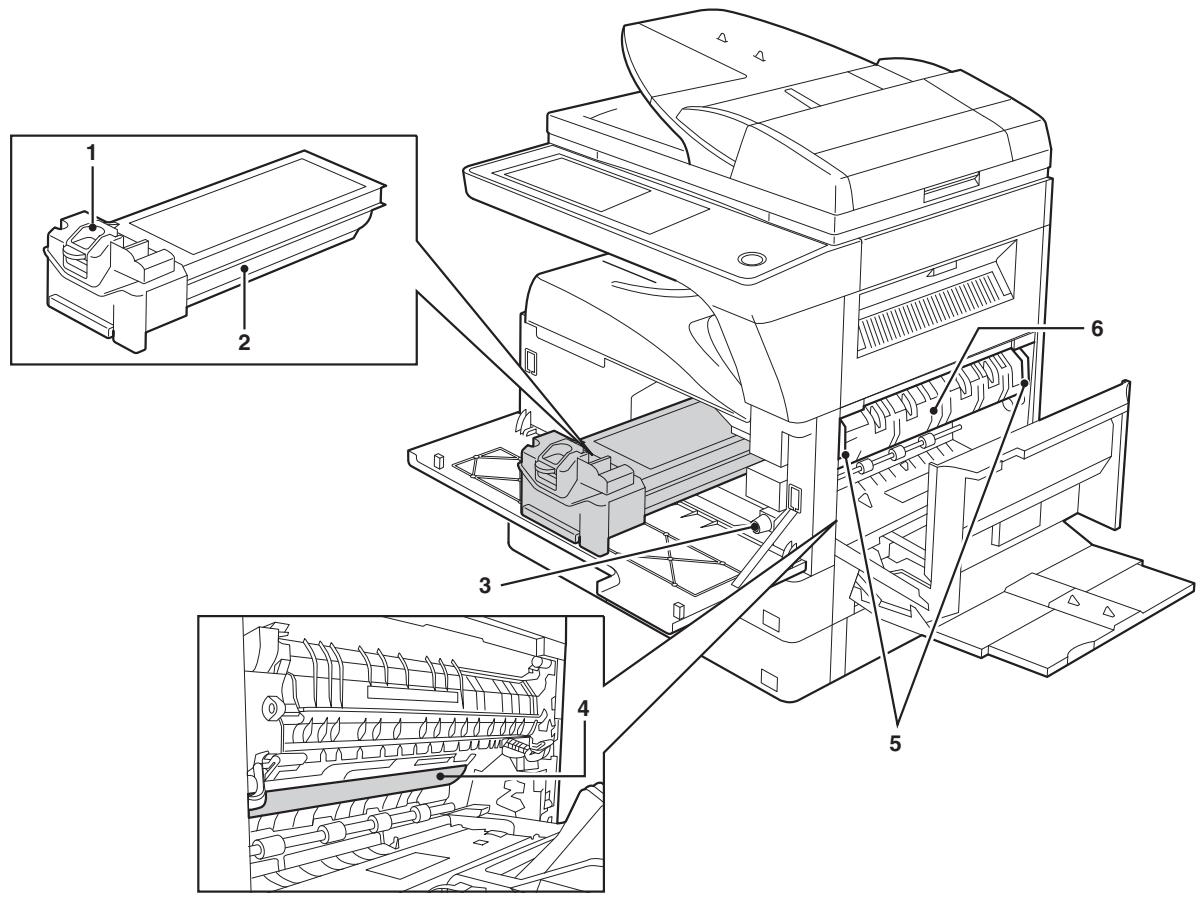
| No. | Name | Function/Operation | Note |
| 1 | Toner cartridge lock release lever | Use to unlock the toner cartridge. | |
| 2 | Toner cartridge | Contains toner. | |
| 3 | Roller rotating knob | Turn to remove misfed paper. | |
| 4 | Photoconductive drum | Copy images are formed on the photoconductive drum. | Do not touch the photoconductive drum (green portion). Doing so may damage the drum and cause smudges on copies. |
| 5 | Fusing unit release levers | To remove a paper misfeed in the fusing unit, push up on these levers and remove the paper. | The fusing unit is hot. Do not touch the fusing unit when removing misfed paper. Doing so may cause a burn or injury. |
| 6 | Fusing unit paper guide | Open to remove misfed paper. |
3. Operation panel
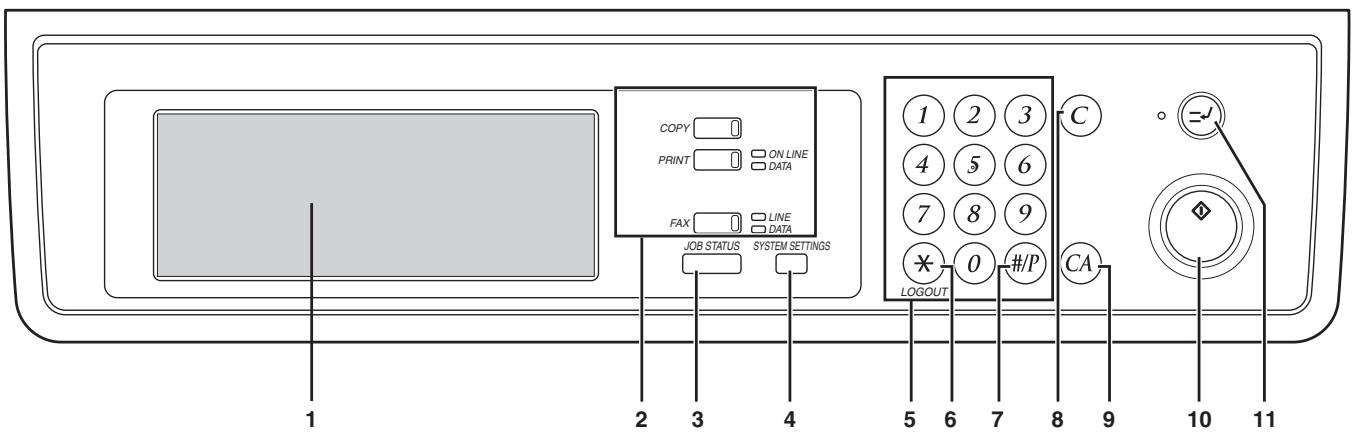
| No. | Name | Function/Operation | Note |
| 1 | Touch panel | The machine status, messages and touch keys are displayed on the panel. The display will show the status of printing, copying or network scanning according to the mode that is selected. For details see the next page. | |
| 2 | Mode select keys and indicators | Use to change modes and the corresponding display on the touch panel. | |
| [COPY] key | Press to select copy mode. | ||
| [PRINT] key/ONLINE indicator/DATA indicator | [PRINT] key: Press to select print mode. • ONLINE indicator: Print jobs can be received when this indicator is lit. • DATA indicator: A print job is in memory. The indicator lights steadily while the job is held in memory, and blinks while the job is printed. | ||
| [FAX] key/LINE indicator/DATA indicator | [FAX] key: Press to select fax mode when the fax option is installed. • LINE indicator: This lights up while faxes are being sent or received. • DATA indicator: Blinks when a fax has been received to memory and lights steadily when a fax is waiting in memory for transmission. | When the fax option is installed. | |
| 3 | [JOB STATUS] key | Press to display the current job status. | |
| 4 | [SYSTEM SETTINGS] key | Use to adjust various settings of the machine including the contrast of the touch panel and administrator settings. | |
| 5 | Numeric keys | Use to enter numeric values for various settings. | |
| 6 | [LOGOUT] key (⊗) | When auditing mode is enabled, press this key after finishing a job to return the machine to account number entry standby. | |
| 7 | [#/P] key (⊕) | Use this key to execute a job program in copy mode. The key is also used to dial in fax mode. | |
| 8 | [CLEAR] key (◎) | Press to clear a copy number setting or cancel a job. | |
| 9 | [CLEAR ALL] key (⊕) | Reset the settings to the initial settings. | |
| 10 | [START] key (⊗) | Press in copy mode, scanner mode, or fax mode to begin copying, network scanning, or faxing. This key blinks when auto power shut mode has activated. Press the key to return to normal operation. | |
| 11 | [INTERRUPT] key (⊗) | Use to perform an interrupt copy job. |
4. RSPF
A. External view
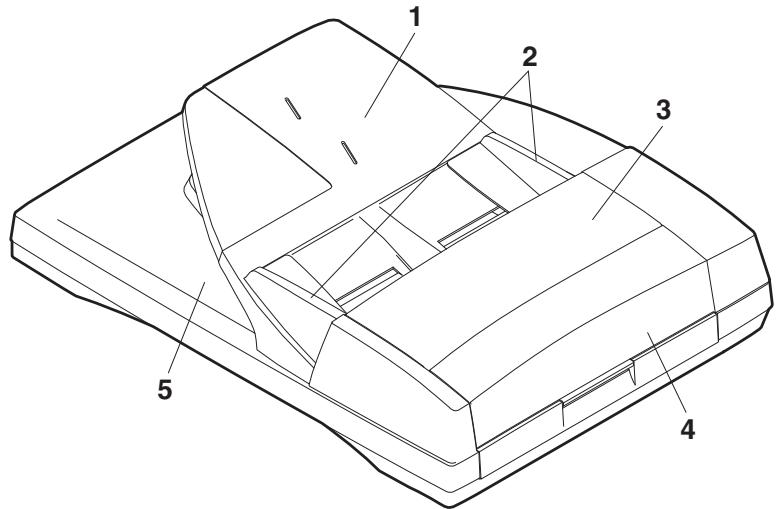
| No. | Name |
| 1 | Document set tray |
| 2 | Document guide |
| 3 | Document feed section cover |
| 4 | Document transport section cover |
| 5 | Document exit section |
B. Internal structure
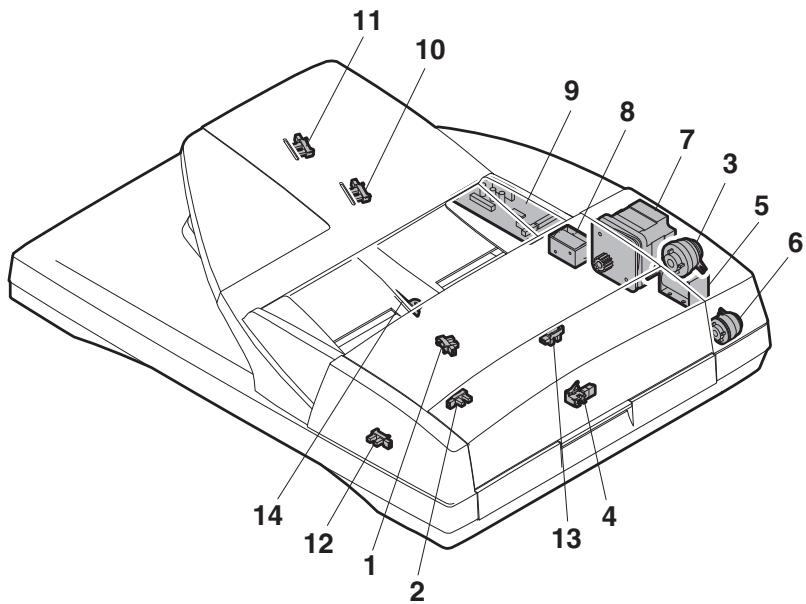
| No. | Code | Name | Type | Function/Operation |
| 1 | EMPS | Document set sensor | Photo transmission | Detects presence of documents. |
| 2 | FGOD | Open/close sensor | Photo transmission | Detects open/close of the paper feed unit. |
| 3 | DFCL | Paper feed clutch | — | — |
| 4 | DFD | Paper entry sensor | Photo transmission | Detects presence of documents. |
| 5 | RSOL | Pressure release solenoid | — | — |
| 6 | CLH | Transport clutch | — | — |
| 7 | DTM | SPF motor | Stepping motor | Drives document feed on the tray, transport, and paper exit roller. |
| 8 | GSOL | Gate solenoid | — | — |
| 9 | — | Interface PWB | — | — |
| 10 | DLS1 | Document length detection SW (Short) | Photo transmission | Detects the document length on the tray. |
| 11 | DLS2 | Document length detection SW (Long) | Photo transmission | Detects the document length on the tray. |
| 12 | OPCLS | Book sensor | Photo transmission | Detects the SPF float. |
| 13 | RDD | Paper exit sensor | Photo transmission | Detects presence of documents. |
| 14 | SWD | Document width sensor | Volume | Detects the document width on the tray. |
5. Sensor
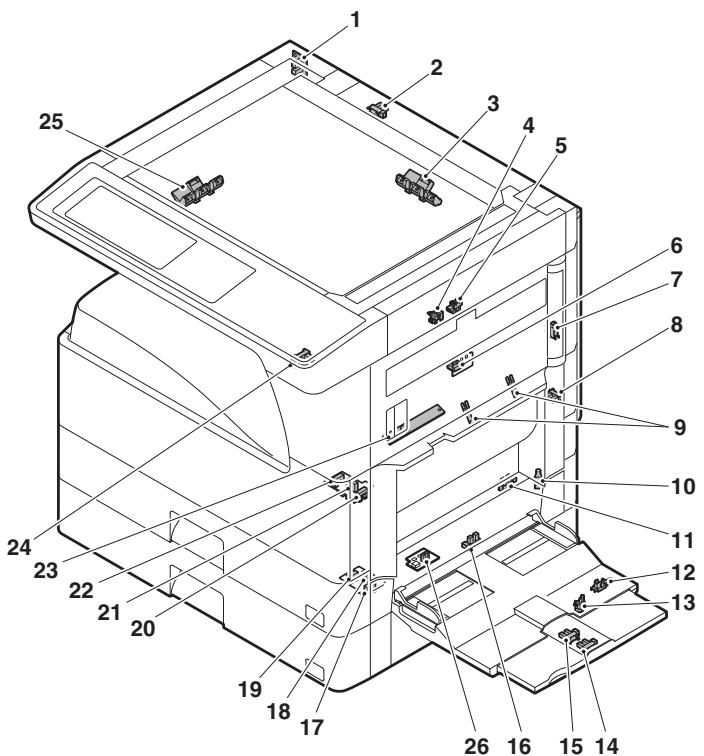
| No. | Name | Code | Function and operation |
| 1 | Mirror home position sensor | MHPS | Mirror (scatterer) home position detection |
| 2 | Document cover sensor | OCSW | Document cover open/close detection |
| 3 | Document size sensor | DSIN3 | Document size detection (Inch series: PD3, 4) (AB series: PD4, 5) |
| 4 | 2nd paper exit sensor (Option) | POD2 | 2nd paper exit detection |
| 5 | 2nd paper exit full detection sensor (Option) | TOPF | 2nd paper exit section full detection |
| 6 | 1st paper exit sensor | POD1 | 1st paper exit detection |
| 7 | Shifter home position sensor (Except North America) | SFTHP | Shifter home position sensor detection |
| 8 | Paper exit sensor (DUP side) | PPD2 | Paper exit detection |
| 9 | Thermistor | Fusing temperature detection | |
| 10 | 1st tray (paper tray) detection | CD1 | 1st tray (paper tray) empty detection |
| 11 | Manual feed paper entry sensor | PPD1L | Sensor of paper entry from the manual paper feed tray, the 2nd/multi-tray desk, or the DUP |
| 12 | Manual paper feed tray empty sensor 2 | MPLS2 | Manual feed tray position detection |
| 13 | Manual paper feed tray empty sensor 1 | MPLS1 | Manual feed tray position detection |
| 14 | Manual feed length detection sensor 1 | MPLD1 | Manual feed paper length detection |
| 15 | Manual feed length detection sensor 2 | MPLD2 | Manual feed paper length detection |
| 16 | Manual feed paper empty sensor | MPED | Manual feed paper empty detection |
| 17 | 2nd tray paper pass sensor | PFD2 | 2nd tray paper pass |
| No. | Name | Code | Function and operation |
| 18 | 2nd tray paper upper limit detection sensor | LUD2 | 2nd tray paper upper limit detection |
| 19 | 2nd tray paper empty sensor | PED2 | 2nd tray paper empty detection |
| 20 | 1st tray paper pass sensor | PPD1H | 1st tray paper pass |
| 21 | 1st tray paper upper limit detection sensor | LUD1 | 1st tray paper upper limit detection |
| 22 | 1st tray paper empty sensor | PED1 | 1st tray paper empty detection |
| 23 | Toner sensor | Toner density detection | |
| 24 | Center tray paper YES/NO sensor | LOEMP | Center tray paper YES/NO detection |
| 25 | Document size sensor | DSINO | Document size detection (Inch series: PD1, 2) (AB series: PD1 - 3) |
| 26 | Reverse pass paper detection sensor | DUP2 | Reverse pass detection |
6. Switch
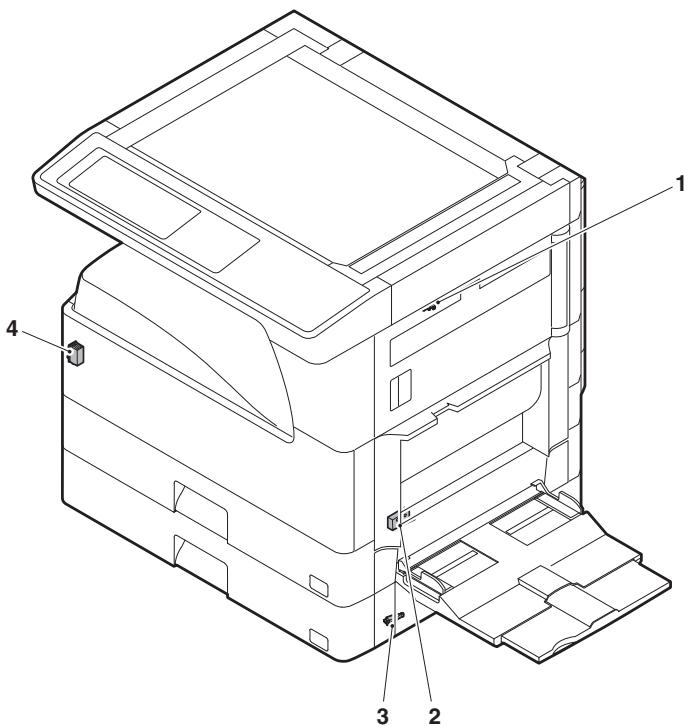
| No. | Name | Code | Function and operation |
| 1 | Right cabinet door switch (Option) | DSWR0 | Right cabinet door open/close detection |
| 2 | Door switch | DSWR1 | Front door and side door open/close detection |
| 3 | 2nd right door switch | DSWR2 | Side door open/close detection |
| 4 | Main switch | PSSW | Main power switch |
7. Solenoid/Clutch
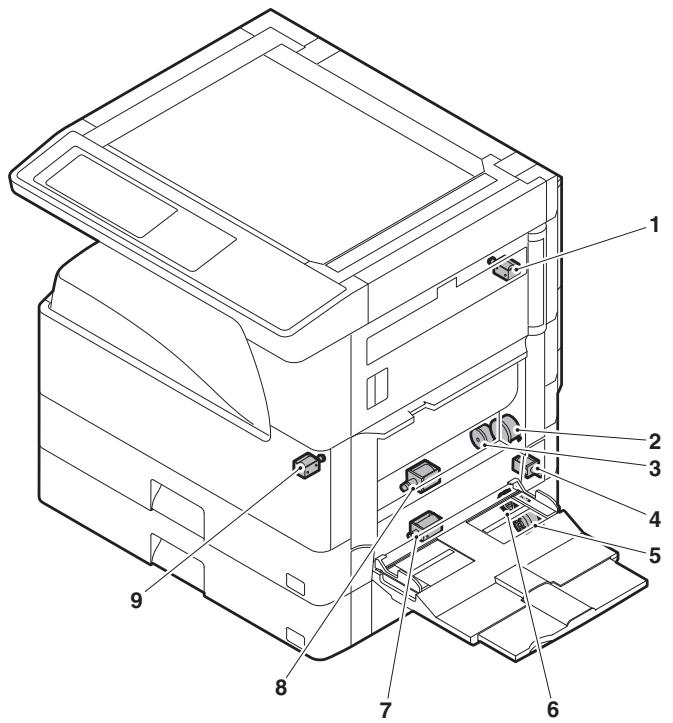
| No. | Name | Code | Function and operation |
| 1 | Paper exit gate switching solenoid (Option) | OGS | Paper exit gate switcher |
| 2 | PS clutch | RRC | Main unit paper feed |
| 3 | Paper feed clutch | CPFS1 | Paper feed roller drive |
| 4 | Manual paper feed solenoid | MPFS | Manual paper feed solenoid |
| 5 | Paper feed transfer clutch | TRC2 | Paper feed transfer clutch |
| 6 | 2nd tray paper feed clutch | CPFS2 | |
| 7 | 2nd tray paper feed solenoid | CPFC2 | Solenoid for the paper feed from the tray |
| 8 | Paper feed solenoid | CPFC1 | Solenoid for the paper feed from the tray |
| 9 | Separation pawl solenoid | PSPS | Separation pawl operation solenoid |
8. Drive motor
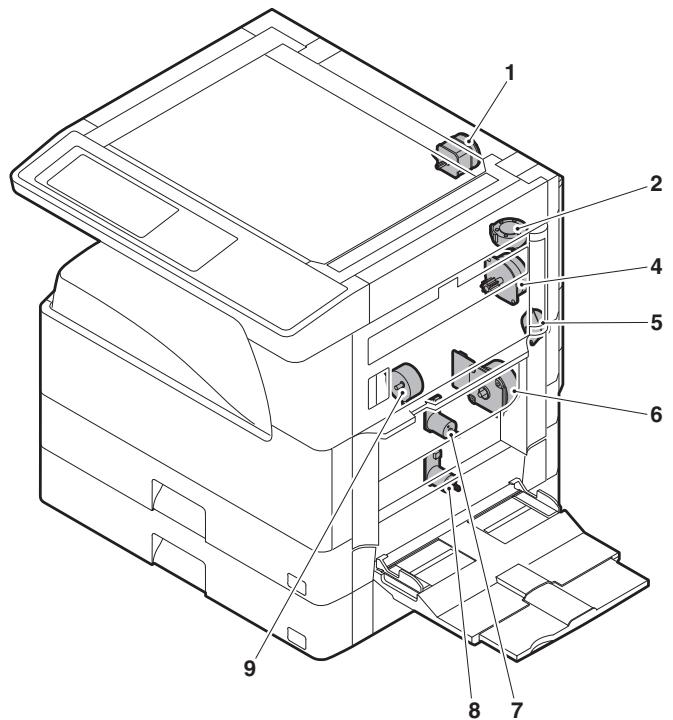
| No. | Name | Code | Function and operation |
| 1 | Mirror motor | MIRM | Optical mirror base drive |
| 2 | Shifter motor(Except North America) | SFTM | Shifter drive |
| 4 | Duplex motor | DPXM | Duplex paper switching and exit motor |
| 5 | DUP-2 motor | Reverse pass for paper transport | |
| 6 | Main motor | MM | Main drive |
| 7 | Tray lift-up motor | LUM1 | Tray paper lift-up |
| 8 | Tray lift-up motor | LUM2 | Tray paper lift-up |
| 9 | Toner motor | TM | Toner supply |
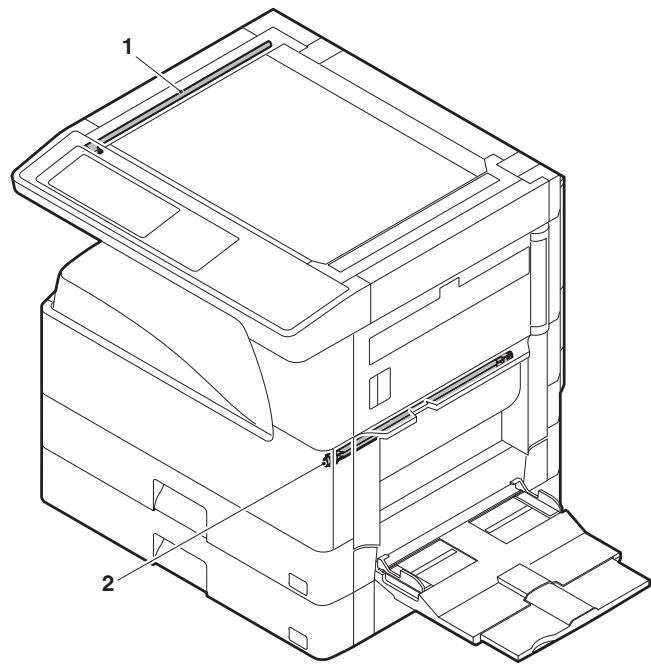
9. Lamp
| No. | Name | Function and operation |
| 1 | Copy lamp | Image radiation lamp |
| 2 | Heater lamp | Fusing heat lamp |
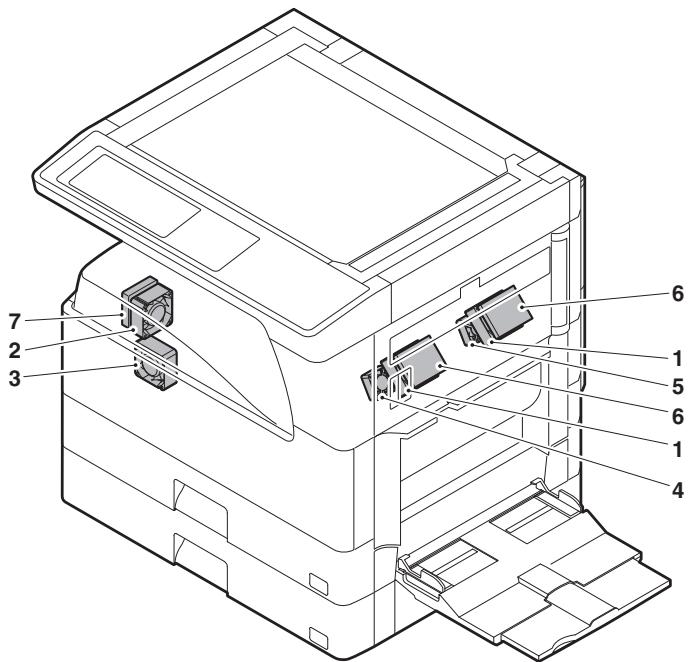
10. Fan/Filter
| No. | Name | Code | Function and operation |
| 1 | Cooling fan | VFM | Cools the inside of the unit. |
| 2 | Exhaust fan motor | DCFM | Cools the inside of the unit. |
| 3 | Intake fan motor | DCFM2 | Cools the inside of the unit. |
| 4 | Fusing paper exit fan | VFM2 | Cools the inside of the unit. (31 sheet model) |
| 5 | Fusing paper exit fan | VFM2 | Cools the inside of the unit. |
| 6 | Ozon filter | ||
| 7 | Ozon filter |
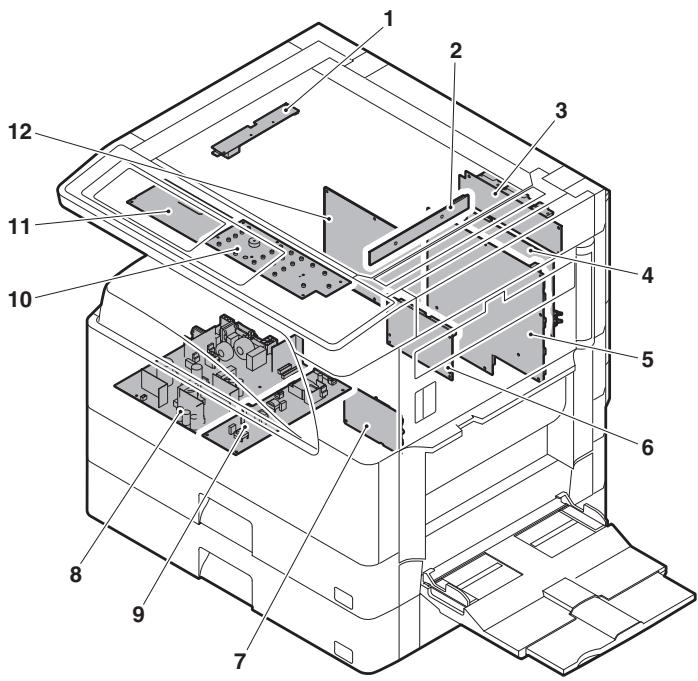
11.PWB
| No. | Name | Function and operation |
| 1 | Inverter PWB | Copy lamp control |
| 2 | CCD PWB | For image scanning (read) |
| 3 | Option connector PWB | |
| 4 | IMC PWB | Image process |
| 5 | MCU PWB | Main unit control |
| 6 | Mother board | Connection with FAX PWB |
| 7 | Tray interface PWB | 2nd tray control |
| 8 | DC power supply PWB | DC voltage control |
| 9 | High voltage PWB | High voltage control |
| 10 | KEY PWB | |
| 11 | OPU PWB | Operation panel control |
| 12 | SPLC PWB | Output image signal |

12. Roller
| No. | Name | Function and operation |
| 1 | Paper exit roller | Paper exit roller |
| 2 | Transport roller | Paper transport roller |
| 3 | Upper heat roller | Fuses toner on paper.(with the Teflon roller) |
| 4 | Lower heat roller | Fuses toner on paper.(with the silicone rubber roller) |
| 5 | DUP transport follower roller | Duplex paper transport |
| 6 | DUP transport roller | Duplex paper transport |
| 7 | Transport roller | Transfer images on the drum onto paper. |
| 8 | Resist roller | Synchronize the paper lead edge with the image lead edge. |
| 9 | Manual paper feed roller | Picks up papers in manual paper feed port. |
| 10 | Manual feed transport roller | Transports paper from the manual paper feed port. |
| 11 | 1st tray pick-up roller | Picks up paper from the tray. |
| 12 | 1st tray paper feed roller | Transports the picked up paper to RESIST section. |
| 13 | 2nd tray pick-up roller | Picks up paper from the tray. |
| 14 | 2nd tray paper feed roller | Transports the picked up paper to RESIST section. |
[5] ADJUSTMENTS
1. Adjustment item list
| Section | Adjustment item | Adjustment procedure/SIM No. | |||
| A | Process section | (1) | Developing doctor gap adjustment | Developing doctor gap adjustment | |
| (2) | MG roller main pole position adjustment | MG roller main pole position adjustment | |||
| (3) | Developing bias voltage adjustment | SIM8-1 | |||
| (4) | Grid bias voltage adjustment | SIM8-2 | |||
| B | Mechanism section | (1) | Print start position adjustment | SIM50-5 | |
| (2) | RSPF image lead edge position adjustment | SIM50-6 | |||
| (3) | Rear edge void adjustment | SIM50-1 | |||
| (4) | Paper off center adjustment | SIM50-10 | |||
| (5) | Left edge void area adjustment | SIM50-1-8 | |||
| (6) | Main scanning direction (FR direction) distortion balance adjustment | No. 2/3 mirror base unit installing position adjustment | |||
| Copy lamp unit installing position adjustment | |||||
| (7) | Sub scanning direction (scanning direction) distortion adjustment | Winding pulley position adjustment | |||
| (8) | Main scanning direction (FR direction) distortion balance adjustment | Rail height adjustment | |||
| (9) | Main scanning direction (FR direction) magnification ratio adjustment | SIM48-1-1 | |||
| (10) | Sub scanning direction (scanning direction) magnification ratio adjustment | a | OC mode in copying (SIM 48-1-2) | ||
| b | RSPF sub scanning direction magnification ratio (SIM48-1-3, 48-1-4) | ||||
| (11) | Off center adjustment (RSPF mode) | SIM50-12 | |||
| (12) | OC (RSPF) open/close detection position adjustment | SIM41-3 | |||
| (13) | Original sensor adjustment | SIM41-2, 41-4 (41-1) | |||
| (14) | RSPF white correction pixel position adjustment (required in an RSPF model when replacing the lens unit) | SIM63-7 | |||
| (15) | RSPF scan position auto adjustment | SIM53-8 | |||
| C | Image density (exposure) adjustment | (1) | Copy mode | SIM46-2 | |
2. Details of adjustment
A. Process section
(1) Developing doctor gap adjustment
1) Remove the doctor cover.
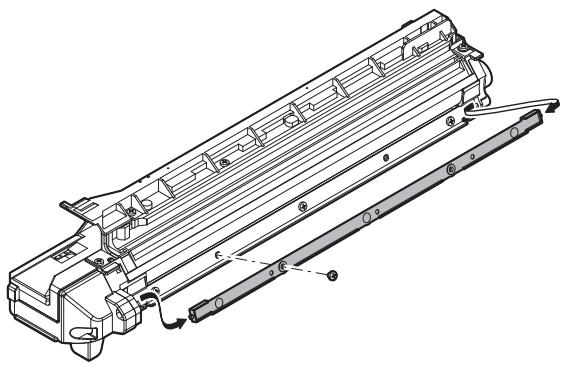
2) Loosen the developing doctor fixing screw A.
3) Insert a thickness gauge of 1.5mm to the positions of three screws on the developing doctor as shown.
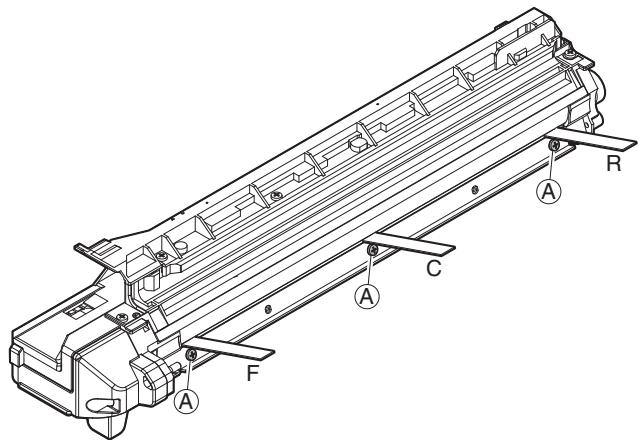
4) Tighten the developing doctor fixing screw.
5) Check the clearance of the developing doctor. If it is within the specified range, then fix the doctor fixing screw with screw lock.
* When inserting a thickness gauge, be careful not to scratch the developing doctor and the MG roller.
Developing doctor gap
F/C/R:1.5+0.1mm
F/C/R:1.5 -0.15mm
(2) MG roller main pole position adjustment
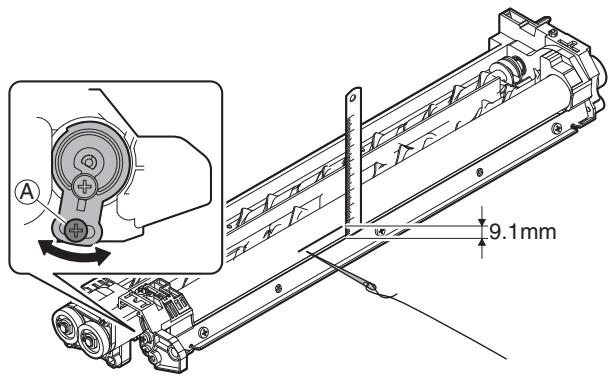
1) Put the developing unit on a flat surface.
2) Tie a needle or pin on a string.
3) Hold the string and bring the needle close to the MG roller horizontally. (Do not use paper clip, which is too heavy to make a correct adjustment.) (Put the developing unit horizontally for this adjustment.)
4) Do not bring the needle into contact with the MG roller, but bring it to a position 2 or 3mm apart from the MG roller. Mark the point on the MG roller which is on the extension line from the needle tip.
5) Measure the distance from the marking position to the top of the doctor plate of the developing unit to insure that it is 9.1mm . If the distance is not within the specified range, loosen the fixing screw A of the main pole adjustment plate, and move the adjustment plate in the arrow direction to adjust.
(3) Developing bias voltage adjustment (SIM 8-1)
1) Execute SIM 8-1.
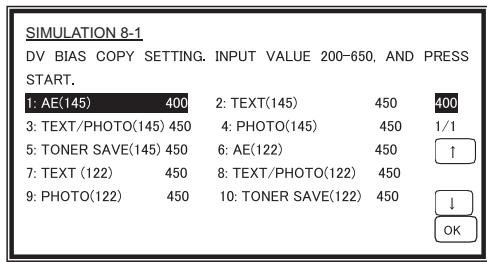
2) Touch the exposure mode to be changed. The current set value is displayed.
3) Enter the set value with the 10-key.
4) Press the [START] key.
Output is made with the entered value, and the display returns to the original state.
| Item | Content | Setting range | Default | |
| 1 | AE (145) | AE (145mm/s) | 200-650 | 450 |
| 2 | TEXT (145) | Character (145mm/s) | 450 | |
| 3 | TEXT/PHOTO (145) | Character/Photo (145mm/s) | 450 | |
| 4 | PHOTO (145) | Photo (145mm/s) | 450 | |
| 5 | TONER SAVE (145) | Toner save (145mm/s) | 400 | |
| 6 | AE (122) | AE (122mm/s) | 450 | |
| 7 | TEXT (122) | Character (122mm/s) | 450 | |
| 8 | TEXT/PHOTO (122) | Character/Photo (122mm/s) | 450 | |
| 9 | PHOTO (122) | Photo (122mm/s) | 450 | |
| 10 | TONER SAVE (122) | Toner save (122mm/s) | 400 | |
Min. unit: -10V increment
(4) Grid bias voltage adjustment (SIM 8-2)
1) Execute SIM 8-2.
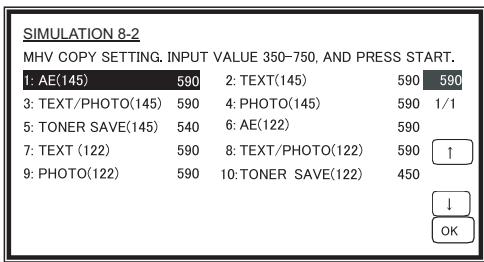
2) Touch the exposure mode to be changed. The current set value is displayed.
3) Enter the set value with the 10-key.
4) Press the [START] key. Output is made with the entered value for 30sec, and the display returns to the original state.
| Item | Content | Setting range | Default | |
| 1 | AE (145) | AE (145mm/s) | 350-750 | 590 |
| 2 | TEXT (145) | Character (145mm/s) | 590 | |
| 3 | TEXT/PHOTO (145) | Character/Photo (145mm/s) | 590 | |
| 4 | PHOTO (145) | Photo (145mm/s) | 590 | |
| 5 | TONER SAVE (145) | Toner save (145mm/s) | 540 | |
| 6 | AE (122) | AE (122mm/s) | 590 | |
| 7 | TEXT (122) | Character (122mm/s) | 590 | |
| 8 | TEXT/PHOTO (122) | Character/Photo (122mm/s) | 590 | |
| 9 | PHOTO (122) | Photo (122mm/s) | 590 | |
| 10 | TONER SAVE (122) | Toner save (122mm/s) | 540 | |
Min. unit: -10V increment
B. Mechanism section
(1) Print start position adjustment
1) Execute SIM 50-5.
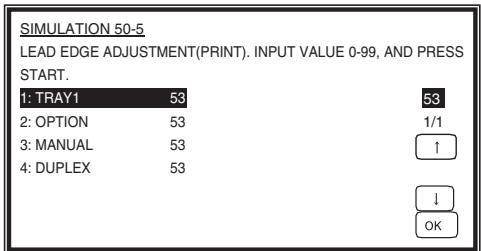
2) Touch the item to be adjusted. The item and the currently set value are highlighted.
3) Press the [P] key. The display is shifted to the copy menu.
4) Select the paper feed tray, the print density, and the duplex mode. Enter the adjustment value with the 10-key.
5) Press the [START] key. Copying is started.
| Item | Content | Setting range | Default | |
| 1 | TRAY1 | 1st tray | 0-99 | 53 |
| 2 | OPTION | Option tray | 1-99 | |
| 3 | MANUAL | Manual feed | ||
| 4 | DUPLEX | Back print | ||
6) Measure the distance H between the paper lead edge and the image print start position. Set the image print start position set value again.
- 1 step of the set value corresponds to about 0.127mm shift.
- Calculate the set value from the formula below.
99 - H/0.127 (mm) = Image print start position set value
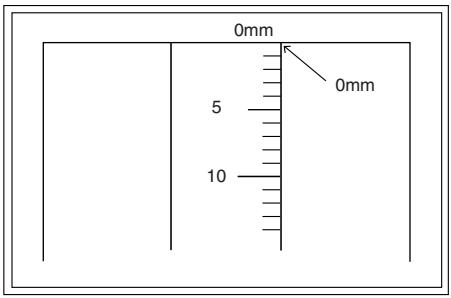
- Fit the print edge with the paper edge, and perform the lead edge adjustment.
Example: 99 - 5 / 0.127 = 99 - 39.4 = about 59
Note: If the set value is not obtained from the above formula, perform the fine adjustment.
7) Execute SIM 50-1-2 to adjust the main tray lead edge void.
- 1 step of the set value corresponds to about 0.127mm shift.
- Calculate the set value from the formula below.
B/0.127 (mm) = Lead edge void adjustment value
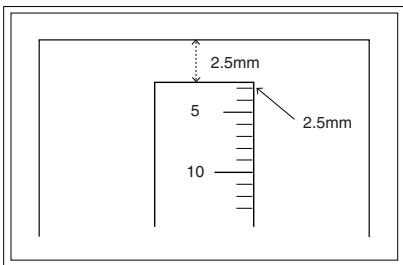
Example: When setting the lead edge void to 2.5mm:
2.5/0.127 = about 20
| Adjustment mode | SIM | Set value | Spec value | Setting range |
| Main tray lead edge void | 50-1 | B/0.127 | Lead edge void: 1 – 4mm | 1 – 99 |
| -2 | ||||
| Print start position | 50-5 | 99 – H/0.127 | Image loss: 3mm or less |
[H: Print start position measurement value (mm),
B: Lead edge void (mm)]
(2) RSPF image lead edge position adjustment
1) Set a scale on the OC table as shown below.
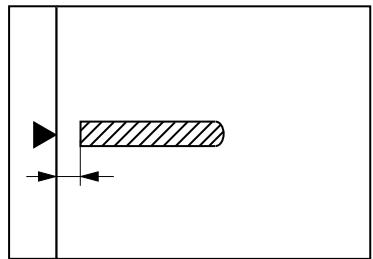
Note: Since the printed copy is used as a test chart, put the scale in paralleled with the edge lines.
2) Make a copy, then use the copy output as an original to make an RSPF copy again.
3) Check the copy output. If necessary, perform the following adjustment procedures.
4) Execute SIM 50-6.
5) Set the RSPF lead edge position set value so that the same image is obtained as that obtained in the previous OC image lead edge position adjustment.
| Adjustment mode | SIM | Set value | Spec value | Setting range |
| RSPF image lead edge position | 50-6 | 1 step: 0.127mm shift | Lead edge void: 1 – 4mm Image loss: 3mm or less | 1 – 99 |
(3) Rear edge void adjustment
1) Set a scale as shown in the figure below.
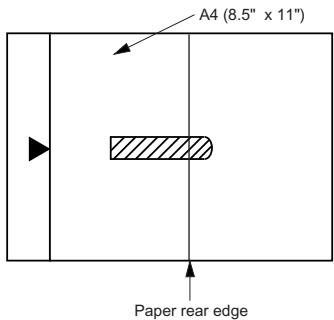
2) Set the document size to A4 (8.5" x 11"), and make a copy at 100% .
3) If an adjustment is required, follow the procedures below.
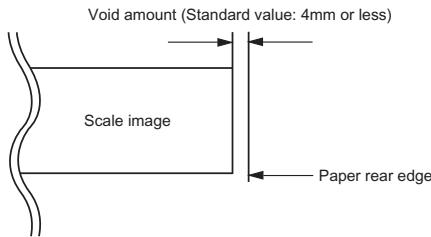
4) Execute SIM 50-1 and set the density mode to DEN-B. The currently set adjustment value is displayed.
5) Enter the set value and press the start key.
The correction value is stored and a copy is made.
| Adjustment mode | SIM | Set value | Spec value | Setting range |
| Rear edge void | 50-1-6 | 1 step: 0.127mm shift | 4mm or less | 1 – 99 |
(4) Paper off center adjustment
1) Set a test chart (UKOG-0089CSZZ) on the document table.
2) Select a paper feed port and make a copy.
3) Execute SIM 50-10.
| SIMULATION 50-10 PRINT OFF-CENTER ADJUSTMENT. INPUT VALUE 1-99, AND PRESS START. | ||
| 1: BYPASS | 50 | 50 |
| 2: TRAY1 | 50 | 1/1 |
| 3: TRAY2 | 50 | ↑ |
| 4: TRAY3 | 50 | |
| 5: TRAY4 | 50 | ↓ |
| 6: DUPLEX | 50 | OK |
4) Touch the item to be adjusted.
The item and the currently set value are highlighted.
5) Press the [START] key.
The display is shifted to the copy menu.
6) Select the paper feed tray and the print density.
Enter the adjustment value with the 10-key.
7) Press the [START] key.
Copying is started.
| Item | Content | Setting range | Default | |
| 1 | BYPASS | Manual paper feed | 1-99 | 50 |
| 2 | TRAY1 | 1st tray | ||
| 3 | TRAY2 | 2nd tray | ||
| 4 | TRAY3 | 3rd tray | ||
| 5 | TRAY4 | 4th tray | ||
| 6 | DUPLEX | Back print | ||
| Adjustment mode | SIM | Set value | Spec value | Setting range |
| Paper off center | 50-10 -2 | Add 1: 0.127mm shift to R side. | Single: Center ±2.0mm | 1 – 99 |
| Reduce 1: 0.127mm shift to L side. | ||||
| Second print surface off-center | 50-10 -6 | Duplex: Center ±2.5mm |
(5) Left edge void area adjustment
Note: Before performing this adjustment, be sure to check that the paper off center adjustment (SIM 50-10) is completed.
1) Execute SIM 50-1.
| SIMULATION 50-1 LEAD EDGE ADJUSTMENT. INPUT VALUE 1-99, AND PRESS START. | ||||
| 1: RRC-A | 43 | 2: DEN-A | 18 | 43 |
| 3: DEN-A -MANUAL | 18 | 4: DEN-A -OPTION | 18 | |
| 5: DEN-A -DUPLEX | 18 | 6: DEN-B | 3 | 1/1 |
| 7: DEN-B-DUP | 50 | 8: SIDE VOID | 18 | 1 |
| 9: SIDE VOID-DUP | 18 | 10: LOSS(OC) | 3 | |
| ↓ | ||||
| OK | ||||
2) Note down the adjustment value of SIM 50-5 (Items 1, 2, 3, 4), and change the value to 99.
3) Set SIM 50-1 (Items 2, 3, 4, 5) to 1. (By setting to 1, there is no void.)
4) Place a chart with a clear lead edge (or a ruler) on the OC document table.
5) Use SIM 50-1 (Item 1) to execute test print. Check the print out and adjust so that the lead edge image is printed. (1 - 99: About 0.127mm/Step)
6) Reset the adjustment values of SIM 50-5 (Items 1, 2, 3, 4) to the original values, and execute test print. Check the print out and adjust so that the lead edge image is printed on the lead edge of paper. (1 - 99: About 0.127mm/Step).
7) Adjust SIM 50-1 (Items 2, 3, 4, 5) so that the lead edge void on the print out is the specified value. (1 - 99: About 0.127mm/Step)
8) Similar to procedure 7, adjust SIM 50-1 (Item 6, 7) so that the rear edge void is the specified value. (1 - 99: About 0.127mm/Step)
9) Similar to procedure 7, adjust SIM 50-1 (Item 8, 9) so that the left edge void is the specified value. (1 - 99: About 0.127mm/Step)
10) Make an enlargement copy (400%), and check that there is no shade of the cabinet printed at the lead edge.
11) If there is a shade printed at the lead edge in procedure 9, adjust SIM 50-1 (Item 10). (1 - 5: About 0.677mm)
- If there is no problem, set to 3.
| Item | Content | Setting range | Default | |
| 1 | RRC-A | Original scan start position adjustment Lead edge position adjustment value (OC) | 1-99 | 43 |
| 2 | DEN-A | Lead edge cancel adjustment (Main tray) | 1-99 | 18 |
| 3 | DEN-A-MANUAL | Lead edge cancel adjustment (Manual feed tray) | 1-99 | 18 |
| 4 | DEN-A-OPTION | Lead edge cancel adjustment (Option tray) | 1-99 | 18 |
| 5 | DEN-A-DUPLEX | Lead edge cancel adjustment (back of the machine) | 1-99 | 18 |
| 6 | DEN-B | Rear edge void adjustment | 1-99 | 30 |
| 7 | DEN-B-DUP | Rear edge void adjustment (Duplex) | 1-99 | 50 |
| 8 | SIDE VOID | Left edge void adjustment (First print surface) | 1-99 | 18 |
| 9 | SIDE VOID-DUP | Left edge void adjustment (Duplex) | 1-99 | 18 |
| 10 | LOSS(OC) | Image loss amount adjustment (Lead edge image loss set value) (OC) | 1-5 | 3 |
| Adjustment mode | SIM | Set value | Spec value | Setting range |
| Left edge void | 50-1 | 1 step: 0.127mm shift | 0.5 – 4mm | 1 – 99 |
| -8 |
(6) Main scanning direction (FR direction) distortion balance adjustment
1) Remove the OC glass, the right cabinet and the upper right side cover.
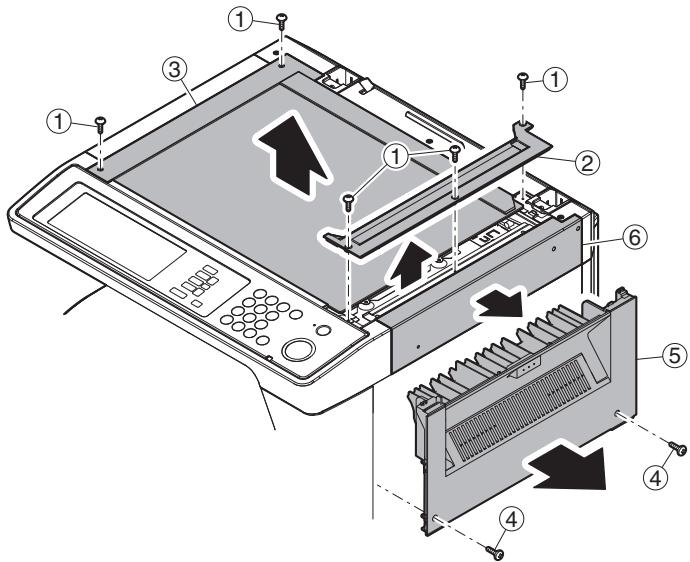
2) Loosen the copy lamp unit wire fixing screw.
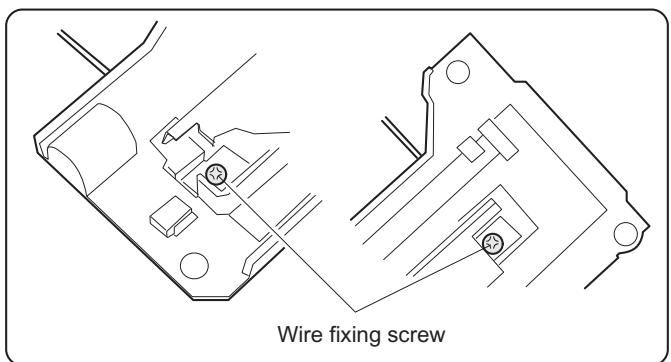
3) Manually turn the mirror base drive pulley and bring No. 2/3 mirror base unit into contact with the positioning plate.
At that time, if the front frame side and the rear frame side of No. 2/3 mirror base unit are brought into contact with the positioning plate at the same time, the mirror base unit parallelism is proper. If one of them is in contact with the positioning plate, perform the adjustment of 4).
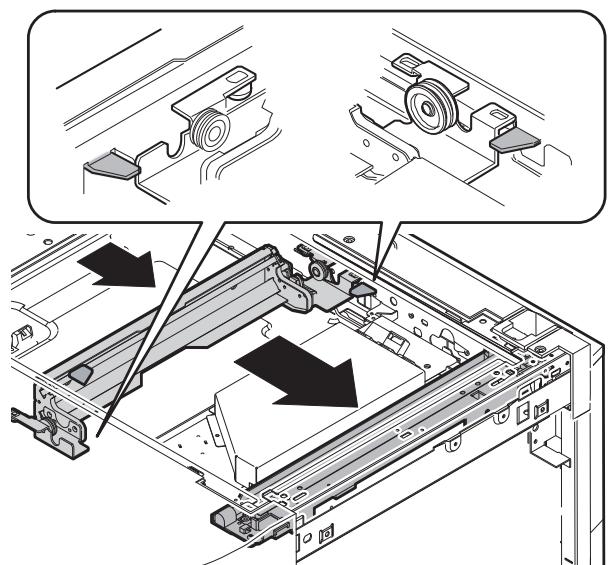
4) Loosen the set screw of the scanner drive pulley which is not in contact with No. 2/3 mirror base unit positioning plate.
5) Without moving the scanner drive pulley shaft, manually turn the scanner drive pulley until the positioning plate is brought into contact with No. 2/3 mirror base unit, then fix the scanner drive pulley.
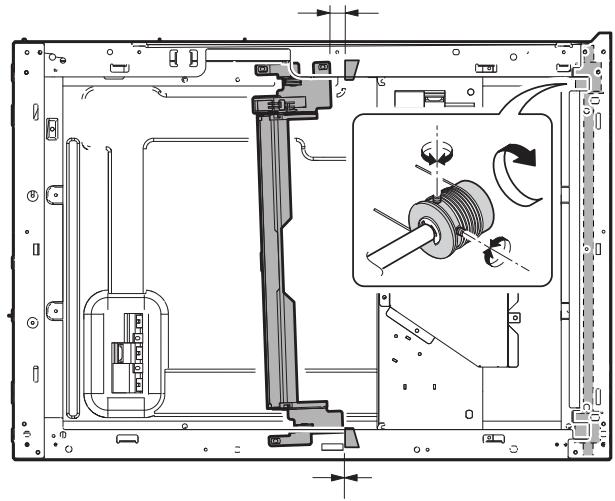
6) Put No. 2/3 mirror base unit on the positioning plate again, push the projections on the front frame side and the rear frame side of the copy lamp unit to the corner frame, and tighten the wire fixing screw.
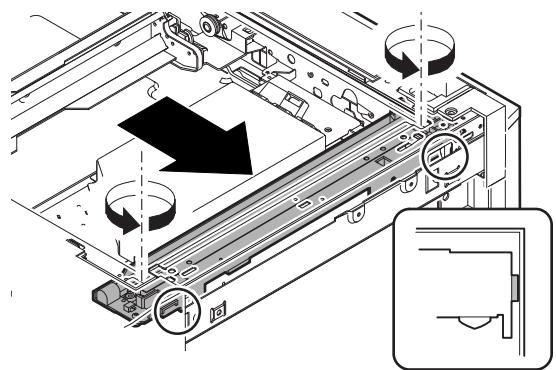
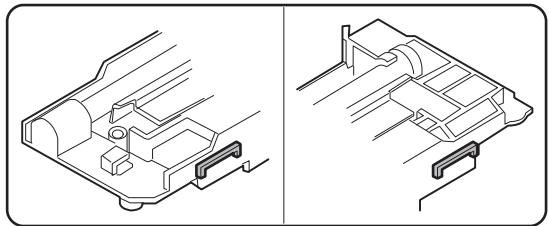
(7) Sub scanning direction (scanning direction) distortion adjustment (Winding pulley position adjustment)
This adjustment must be performed in the following cases:
- When the mirror base drive wire is replaced.
- When the lamp unit, or No. 2/3 mirror holder is replaced.
- When a copy as shown is made.
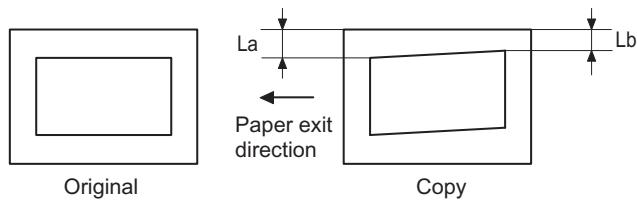
1) Set A3 (11" x 17") white paper on the original table as shown below.
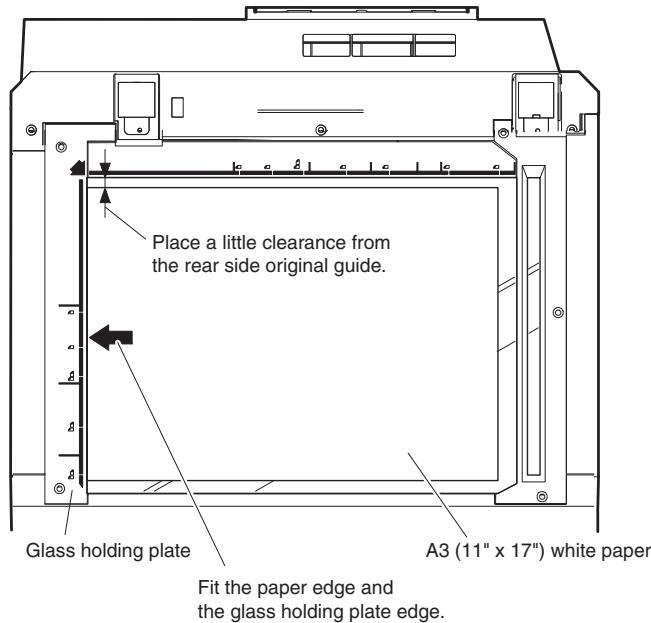
2) Open the original cover and make a normal (100%) copy.
3) Measure the width of the black background at the lead edge and at the rear edge.
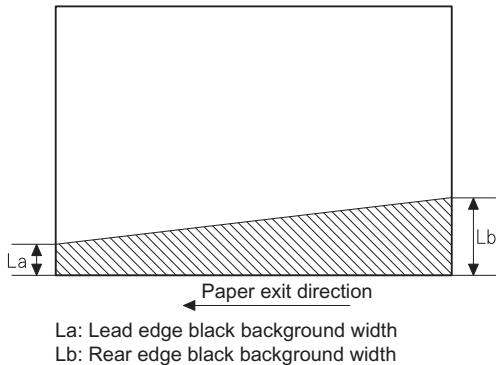
If the width (La) of the black background at the lead edge is equal that (Lb) at the rear edge, there is no need to execute the following procedures of 4) - 7).
4) Loosen the mirror base drive pulley fixing screw on the front frame side or on the rear frame side.
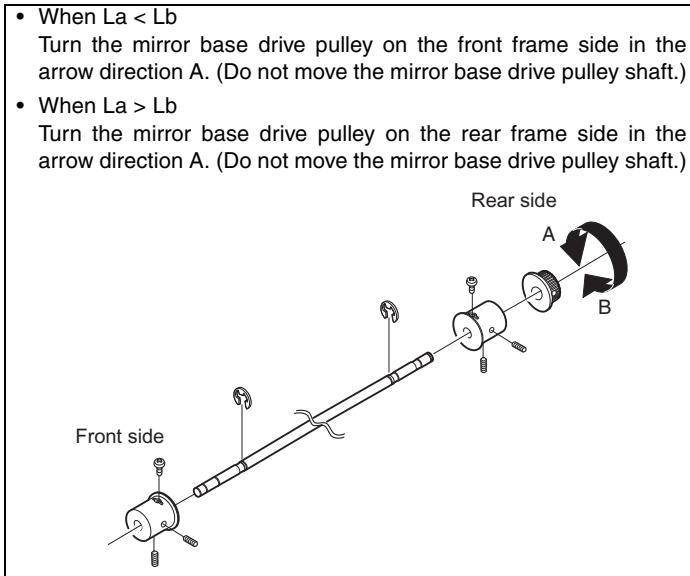
5) Tighten the fixing screw of the mirror base drive pulley.
La = Lb
6) Execute the main scanning direction (FR) distortion balance adjustment previously described in 2) again.
(8) Main scanning direction (FR direction) distortion balance adjustment (Rail height adjustment)
When there is no skew copy in the mirror base scanning direction and there is no horizontal error (right angle to the scanning direction), the adjustment can be made by adjusting the No. 2/3 mirror base unit rail height.
Before performing this adjustment, be sure to perform the horizontal image distortion adjustment in the laser scanner section.
This adjustment must be performed in the following cases:
- When the mirror base wire is replaced.
- When the copy lamp unit and no. 2/3 mirror unit are replaced.
- When the mirror unit rail is replaced and moved.
- When a following copy is made.
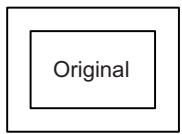
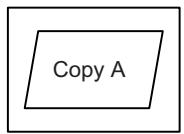
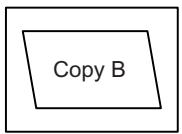
1) Make an original for the adjustment.
Make test sheet by drawing parallel lines at 10mm from the both ends of A3 (11'' × 17'') white paper as shown below. (These lines must be correctly parallel to each other.)
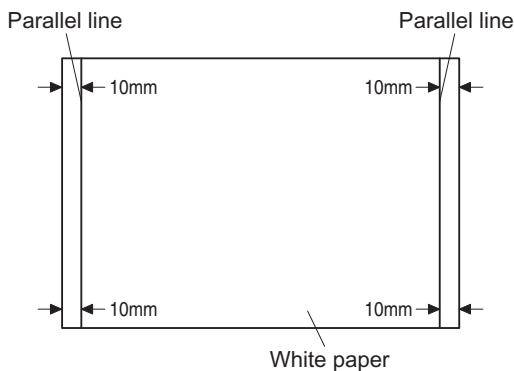
2) Make a normal (100%) copy of the test sheet on A3 (11'' × 17'') paper. (Fit the paper edge and the glass holding plate edge.)
3) Measure the distances (La, Lb, Lc, Ld) at the four corners as shown below.
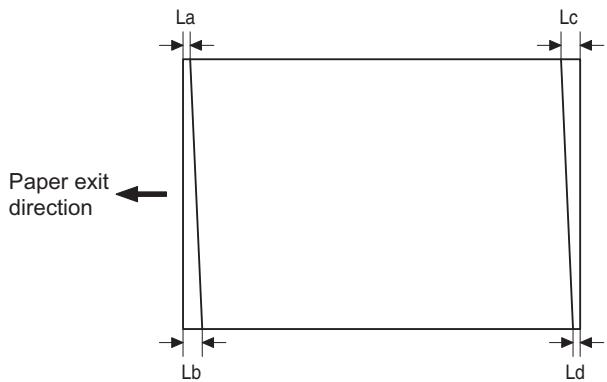
When La = Lb and Lc = Ld , no need to perform the procedures 4) and 5).
4) Move the mirror base B rail position up and down (in the arrow direction) to adjust.
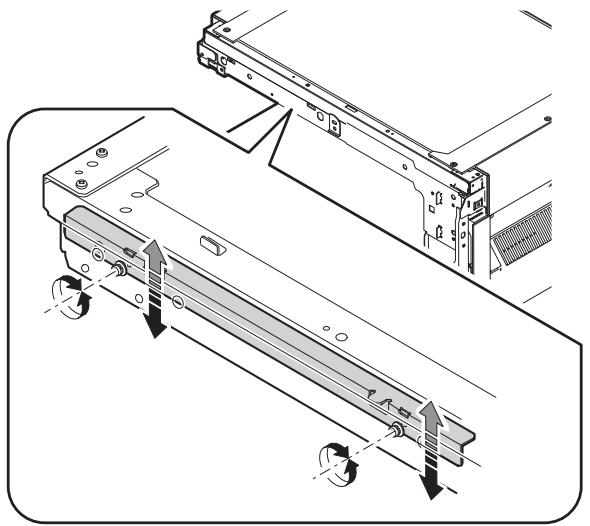
- When La > Lb
- Shift the mirror base B rail upward by the half of the difference of La-Lb.
- When La < Lb
Shift the mirror base B rail downward by the half of the difference of Lb-La.
Example: When La = 12mm and Lb = 9mm, shift the mirror base B rail upward by 1.5mm. - When Lc >Ld Shift the mirror base B rail downward by the half of the difference of Lc-Ld.
- When Lc < Ld
- When Lc < Ld, move the mirror base B on the paper feed side upward.
- When moving the mirror base rail, hold the mirror base rail with your hand.
La = Lb, Lc = Ld
5) After completion of adjustment, manually turn the mirror base drive pulley, scan the mirror base A and mirror base B fully, and check that the mirror bases are not in contact with each other.
* If the mirror base rail is moved extremely, the mirror base may be in contact with the frame or the original glass. Be careful to avoid this.
(9) Main scanning direction (FR direction) magnification ratio adjustment (SIM 48-1)
Note: Before performing this adjustment, be sure to check that the CCD unit is properly installed.
1) Put a scale on the original table as shown below.
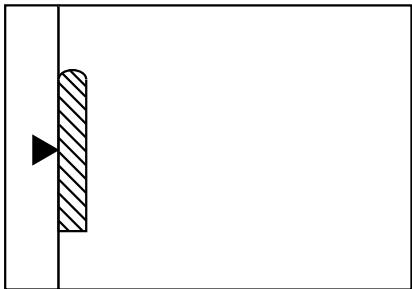
2) Execute SIM 48-1.
3) After warm-up, shading is performed and the current set value of the main scanning direction magnification ratio is displayed on the display section in 2 digits.
4) Manual correction mode (SIM48-1-1)
Enter the set value and press the start key.
The correction value is stored and a copy is made.
Note: A judgment must be made with 200mm width, and must not be made with 100mm width.
| Adjustment mode | Spec value | SIM | Set value | Setting range |
| Main scanning direction magnification ratio | At normal: ±1.0% | 48-1-1 | Add 1: 0.1% increase Reduce 1: 0.1% decrease | 1 – 99 |
(10) Sub scanning direction (scanning direction) magnification ratio adjustment (SIM 48-1-2, SIM 48-1-3)
a. OC mode in copying
Note: Execute the procedure after completion of SIM 48-1-1.
1) Put a scale on the original table as shown below, and make a normal (100%) copy.
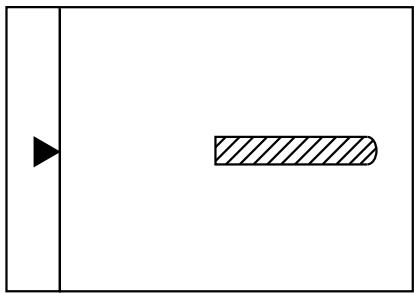
2) Compare the scale image and the actual scale. If necessary, perform the following adjustment procedures.
3) Execute SIM 48-1-2.
4) Enter the set value and press the start key. The set value is stored and a copy is made.
| Adjustment mode | Spec value | SIM | Set value | Setting range |
| Sub scanning direction magnification ratio (OC mode) | At normal: ±1.0% | 48-1-2 | Add 1: 0.05% increase Reduce 1: 0.05% decrease | 1 – 99 |
b. RSPF mode in copying
Note: Before performing this adjustment, be sure to check that the CCD unit is properly installed and that OC mode adjustment in copying has been completed.
1) Put a scale on the original table as shown below, and make a normal (100%) copy to make a test chart.
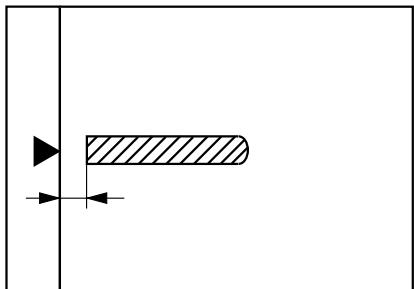
Note: Since the printed copy is used as a test chart, put the scale in parallel with the front side edge of the glass.
2) Set the test chart on the RSPF and make a normal (100%) copy.
3) Compare the scale image and the actual image. If necessary, perform the following adjustment procedures.
4) Execute SIM 48-1-3.
5) After warm-up, shading is performed. The current front surface sub scanning direction magnification ratio correction value is displayed in two digits on the display section.
6) Enter the set value and press the start key. The set value is stored and a copy is made.
7) Execute SIM 48-1-4. The current back surface sub scanning direction magnification ratio is displayed in two digits on the display section.
8) Enter the set value and press the start key. The set value is stored and a copy is made.
| Adjustment mode | Spec value | SIM | Set value | Setting range |
| Sub scanning direction magnification ratio (RSPF mode) | At normal: ±1.0% | 48-1-3 48-1-4 | Add 1: 0.05% increase Reduce 1: 0.05% decrease | 1 – 99 |
(11) Off center adjustment (RSPF mode)
Note: Before performing this adjustment, be sure to check that the paper off center is properly adjusted.
1) Place the center position adjustment test chart (sheet with a straight line in the scan direction at the center) on the RSPF.
2) Make a normal copy from the manual paper feed tray, and check the printed copy with the test chart. If any adjustment is required, perform the following procedure.
3) Execute SIM 50-12.
4) After warm-up, shading is performed and the current set value of the off center adjustment is displayed on the display section in 2 digits.
5) Enter the set value and press the start key. The set value is stored and a copy is made.
| Adjustment mode | Spec value | SIM | Set value | Setting range |
| Original off center mode (RSPF mode) | Single: Center ± 3.0mm | 50-12 | Add 1: 0.1mm shift to R side | 1 – 99 |
| Duplex: Center ±3.5mm | Reduce 1: 0.1mm shift to L side |
(12) OC (RSPF) open/close detection position adjustment
1) Execute SIM 41-3.
2) Gradually close the OC (RSPF) from the full open position, and measure distance A when the display on the operation panel changes. (See the figure below.)
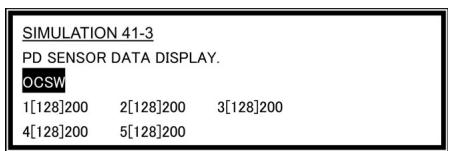
Distance A = Table glass top - OC (RSPF) handle rib
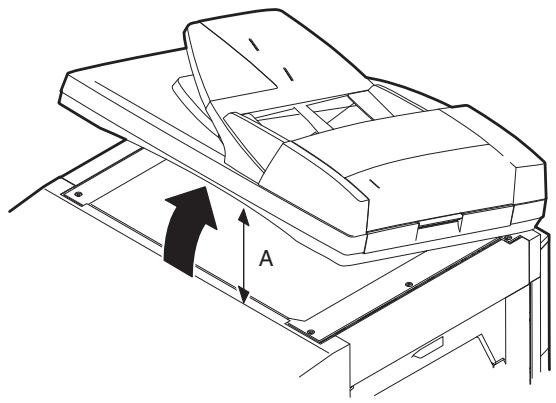
OC (SPF) open/close position A: 125 - 225mm
3) If the distance is outside the specified range, adjust the open/close sensor attachment plate position as shown below.
- Distance < 125 mm : Shift toward A.
- Distance > 225 mm : Shift toward B.
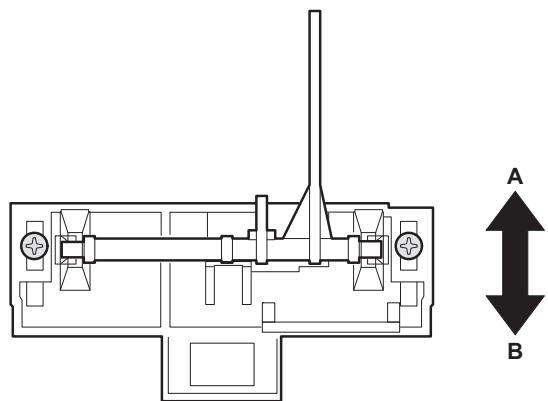
(13) Original sensor adjustment (SIM 41-2, 41-4)
1) Set A3 (11'' × 17'') paper on the OC table. (Keep the SPF (OC cover) open.)
2) Execute SIM 41-2.
3) Keep A=125mm, and execute SIM 41-4. (Do not put paper on the table.)
4) Check the reaction with SIM 41-1.
(14) RSPF white correction pixel position adjustment (required in an RSPF model when replacing the lens unit) (SIM63-7)
1) Fully open the RSPF.
2) Execute SIM 63-7.
3) When the operation panel displays "COMPLETE," the adjustment is completed.
4) If the operation panel displays "ERROR," perform the following measures.
- When the display is 0: Check that the SPF is open.
Check that the lamp is ON. (If the lamp is OFF, check the MCU connector.)
Check that the CCD harness is properly inserted into the MCU connector.
- When the display is 281 or above:
1) Remove the table glass.
2) Remove the dark box.
3) Slide the lens unit toward the front side and attach it, then execute SIM.
- When the display is 143 or below:
1) Remove the table glass.
2) Remove the dark box.
3) Slide the lens unit toward the rear side and attach it, then execute SIM.
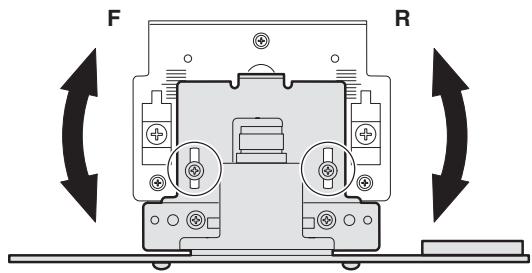
- When the lens unit is moved, execute the OC main scanning magnification ratio auto adjustment, SIM 48-1-1.
- This adjustment is basically O.K. with SIM 63-7.
(15) RSPF scan position auto adjustment
[Function]
Used to adjust the RSPF scan position automatically.
[Operation]
1) With the RSPF or the OC cover open, place a white paper background on the OC glass. (In the RSPF standard model, the RSPF glass surface is included.)
2) Enter SIM53-08, and press [START] button. Outline of SIM: The optical unit is shifted to recognize the boundary between the OC glass and the RSPF glass cover. With the same position as the reference, the RSPF scan position is automatically adjusted.
- After completion of the RSPF scan position auto adjustment, the RSPF lead edge adjustment must be executed. (Both surfaces)
- There must be no other sheet than the black chart on the glass surface.
- Especially when in RSPF scan, the center area is scanned in the main scan direction. Be careful to prevent external light from entering the scan area.
3) Check that the lead edge is not shifted. (Both surfaces) (If the original lead edge adjustment has been made properly, even when the scan position is shifted, it is followed automatically.)
![SHARP AR 5726 - [Operation] - 1](/content/2024/11/201360/images/f65ed6b85b34261cdc2ad1f822b5a0ecdbb732501d466b79d15aa13d01dddeab.jpg)
C. Image density (exposure) adjustment
(1) Copy mode (SIM46-2)
1) Set a test chart (UKOG-0162FCZZ) on the OC table as shown below.
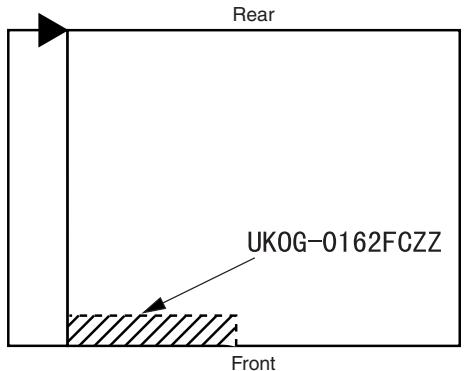
2) Place three or more sheets of A3 (11" x 17") paper on the test chart.
3) Execute SIM 46-2.
4) After warm-up, shading is performed and the current set value of the density (exposure) level is displayed on the display section in 2 digits.
For mode selection, use the [10-key].
5) Change the set value with the [10-key] to adjust the copy image density.
6) Make a copy and check that the specification below is satisfied.
Note: Place originals in the rear reference, and the test chart in the front reference when adjusting the exposure.
| Density mode | Exposure level | Sharp Gray Chart output | Set value | Setting range |
| AUTO | - | "3" is copied. | If too bright, increase the quantity displayed on the copy quantity display. | 1 - 99 |
| TEXT | 3.0 | "3" is copied. | ||
| TEXT/PHOTO | 3.0 | "3" is copied. | ||
| PHOTO | 3.0 | "2" is copied. | ||
| AE (TONER SAVE) | - | "3" is copied. | If too dark, decrease the quantity displayed on the copy quantity display. | |
| TEXT (TONER SAVE) | 3.0 | "3" is copied. | ||
| TEXT PHOTO (TONER SAVE) | 3.0 | "3" is copied. |
[6] SIMULATION
1. General
A. Outline and purpose
The simulation has the following functions to grasp the machine operating status, identify the trouble position and causes in an earlier stage, and make various setups and adjustments speedily for improving the serviceability of the machine.
1) Various adjustments
2) Setup of specifications and functions
3) Canceling troubles
4) Operation check
5) Various counters check, setup, and clear
6) Machine operating status (operation history) data check, clear
7) Transfer of various data (adjustments, setup, operations, counters)
The operating procedures and the displays differ depending on the form of the operation panel of the machine.
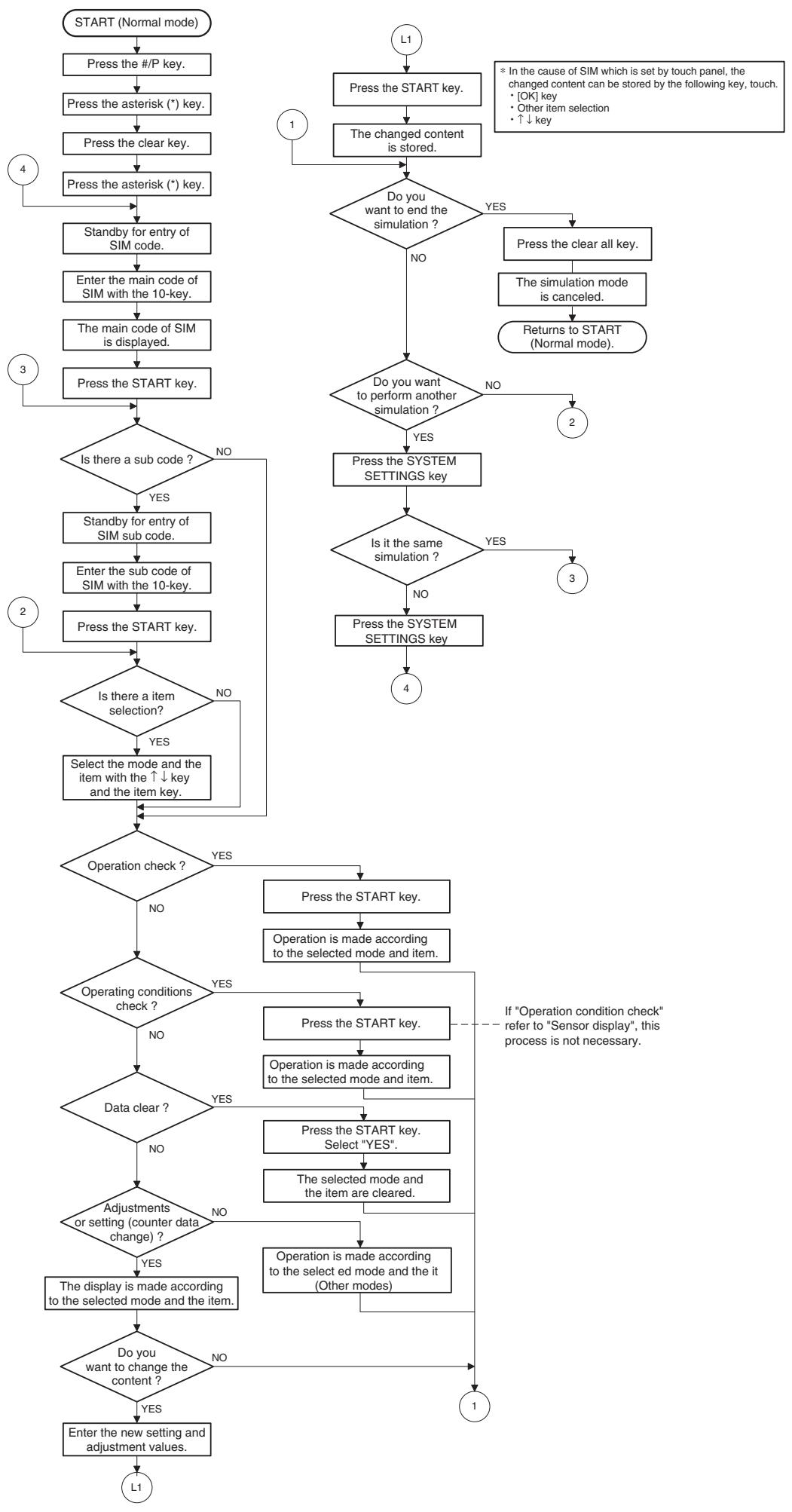
B. Code-type simulation
(1) Operating procedures and operations
- Entering the simulation mode
1) #/P key (program) ON Asterisk (*) key ON CLEAR key ON Asterisk (*) key ON Ready for input of a main code of simulation
2) Entering a main code with the 10-key START key ON
3) Entering a sub code with the 10-key START key ON
4) Select an item with the scroll key and the item key.
5) The machine enters the mode corresponding to the selected item. Press START key to start the simulation operation.
To cancel the current simulation mode or to change the main code and the sub code, press the SYSTEM SETTINGS key.
- Canceling the simulation mode to return to the normal mode
1) Press CLEAR ALL key.
(2) How to change the simulation adjustment value set by the touch panel in the adjustment value entry process
a. Target SIM list
3-7, 8-1, 8-2, 8-3, 8-10, 8-11, 8-12, 9-5, 43-1, 44-34, 46-2, 46-9, 46-10, 46-11, 46-18, 46-20, 46-30, 46-31, 48-1, 48-2, 50-1, 50-5, 50-6, 50-10, 50-12, 51-1, 51-2, 51-9, 53-7
b. Touch panel operating procedure
- In the adjustment value setup menu, the selected item is highlighted. Change is made to the highlighted simulation adjustment value.
- If all the list of the adjustment items is not shown on one page, touch [↑] and [↓] button to shift the page.
- To change an adjustment value, touch the select the item to change the adjustment value. (The selected item is highlighted.) Enter the adjustment value and perform one of the following procedures, and the display of the adjustment value of the selected item is renewed as well as the adjustment value.
1) Touch [OK] button.
2) Touch another selected item to change the selection state.
3) If all the list of the adjustment items cover two or more pages, touch [] and [] button to shift the page.
4) Press [START] key.
* For simulations which allow confirmation print, copying is started after changing the adjustment value.
(46-2, 46-9, 46-10, 46-11, 46-18, 48-1, 48-2, 50-1, 50-5, 50-6, 50-10, 50-12, 51-2, the bold-faced items in the above list.)
- If the entry value is outside the adjustable range, an error buzzer sounds and the adjustment value is not renewed. Page shift is not made, either.
- Simulation code list
| Code | Function | |
| Main | Sub | |
| 1 | 1 | Used to check the operation of the scanner unit and its control circuit. |
| 2 | Used to check the operation of sensor and detector in the scanning (read) section and the related circuit. | |
| 2 | 1 | Used to check the operation of the RSPF unit and the related circuit. |
| 2 | Used to check the operation of sensors and detectors in the RSPF unit and the related circuit. | |
| 3 | Used to check the operation of the loads in the RSPF unit and the control circuits. | |
| 3 | 2 | Used to check the operation of sensor and detector in the finisher and the related circuit. |
| 3 | Used to check the operation of the load in the finisher and the control circuit. | |
| 10 | Used to make each adjustment of the finisher. | |
| 11 | Used to check the shifter operation. Reciprocating operations are continuously performed or the home position is checked. (The shifter is shifted to the home position or moved in one way by the specified steps.) | |
| 4 | 2 | Used to check the operation of sensor and detector in the option tray and the related circuit. |
| 3 | Used to check the operation of the load in the option tray and the control circuit. | |
| 5 | 1 | Used to check the operation of the display (LED), LCD in the operation panel, and control circuit. |
| 2 | Used to check the operation of the heater lamp and the control circuit. | |
| 3 | Used to check the operation of the copy lamp and the control circuit. | |
| 6 | 1 | Used to check the operation of the loads (clutches and solenoids) in the paper transport system and the control circuit. |
| 2 | Used to check the operation of each fan motor and its control circuit. | |
| 7 | 1 | Used to set the aging operation conditions. |
| 6 | Used to set the cycle of intermittent aging. | |
| 8 | Used to set the display of the warm-up time. | |
| 8 | 1 | Used to check and adjust the operation of the developing bias voltage in each copy mode and the control circuit. |
| 2 | Used to check and adjust the operation of the main charger grid voltage in each copy mode and the control circuit. | |
| 10 | Used to check and adjust the operation of the developing bias voltage in each printer mode and the control circuit. | |
| 11 | Used to check and adjust the operation of the main charger grid voltage in each printer mode and the control circuit. | |
| 13 | Used to check and adjust the operation of the developing bias voltage in FAX mode and the control circuit. | |
| 14 | Used to check and adjust the operation of the main charger grid voltage in FAX mode and the control circuit. | |
| 9 | 1 | Used to check and adjust the operation of the load (motor) in the duplex section and the control circuit. |
| 4 | Duplex motor RPM setting | |
| 5 | Used to adjust the timing of switching from normal rotation to reverse rotation or from reverse rotation to normal rotation of the duplex motor. | |
| 10 | 0 | Used to check the operation of the toner motor and its control circuit. |
| Code | Function | |
| Main | Sub | |
| 14 | 0 | Used to cancel excluding the self-diag U2/PF troubles. |
| 16 | 0 | Used to cancel the self-diag U2 trouble. |
| 17 | 0 | Used to cancel the self diag “PF” trouble. |
| 21 | 1 | Used to set the maintenance cycle. |
| 22 | 1 | Used to check the counter value of each section. |
| 2 | Used to check the total numbers of misfeed and troubles. (When the number of misfeed is considerably great, it is judged as necessary for repair. The misfeed rate is obtained by dividing this count value with the total counter value.) | |
| 3 | Used to check the misfeed positions and the number of misfeed at each position. (When the number of misfeed is considerably great, it can be judged as necessary for repair.) | |
| 4 | Used to check the total trouble (self diag) history. | |
| 5 | Used to check the ROM version of each unit (section). | |
| 6 | Used to print each system setting, the account information, and the machine adjustment values. | |
| 7 | Used to display of the administrator password. | |
| 8 | Used to display the original, staple counter. | |
| 9 | Used to check the number of use of each paper feed section. (the number of prints) | |
| 10 | Used to check the system configuration. | |
| 11 | Used to display the FAX send/receive counter (FAX reception and print counter). | |
| 12 | Used to check the misfeed positions and the number of misfeed at each position. (When the number of misfeed is considerably great, it can be judged as necessary for repair.) | |
| 13 | Used to display the CRUM type. | |
| 19 | Used to display the scanner counter in the network scanner mode. | |
| 24 | 1 | Used to clear the misfeed counter, the misfeed history, the trouble counter, and the trouble history. (The counters are cleared after completion of maintenance.) |
| 2 | Used to clear the number of use (the number of prints) of each paper feed section. | |
| 3 | Used to clear the number usage data of the stapler, RSPF, and scanning. | |
| 4 | Used to reset the maintenance counter. | |
| 5 | Used to reset the developer counter. (The developer counter of the DV unit which is installed is reset.) | |
| 6 | Used to clear the copy counter. | |
| 7 | Used to clear the OPC drum (membrane decrease) correction counter. (This simulation is executed when the OPC drum is replaced.) | |
| 9 | Used to clear the printer counter and other counters. | |
| 10 | FAX counter data clear | |
| 15 | Used to clear the scanner counter in the network scanner mode. | |
| 25 | 1 | Used to check the operation of the main drive (excluding the scanner section) and to check the operation of the toner concentration sensor. (The toner concentration sensor output can be monitored.) |
| 2 | Used to make the initial setting of toner concentration when replacing developer. | |
| 26 | 1 | Used to set whether the job separator is installed or not. (Since this cannot be detected by hardware detection, it is set in this simulation.) |
| 26 | 2 | Used to set whether the automatic detection of paper size is made or not. |
| 3 | Used to set the specifications of the auditor. Setting must be made depending on the use condition of the auditor. | |
| 5 | Used to set the count mode of the total counter and the maintenance counter. | |
| 6 | Used to set the specifications depending on the destination. | |
| 12 | Used to input the Software Key for E-MAIL RIC. | |
| 14 | Used to input the Software Key for the PS extension kit. | |
| 18 | Used to set enable/disable of toner save operation. | |
| 22 | Used to set the specification (language display) for the destination. | |
| 30 | Used to set ON/OFF of the heater lamp slow-up control conforming to the CE mark control. | |
| 35 | Used to set whether the same continuous troubles are displayed as one trouble or the series of troubles with SIM 22-4 when the same troubles occur continuously. | |
| 36 | Used to set whether the machine is stopped or not when the maintenance counter life is expired. | |
| 37 | Used to set whether the machine is stopped or not when the developer counter life is expired. | |
| 38 | Used to set whether the machine is stopped or not when the drum counter life is expired. | |
| 50 | Used to set ON/OFF of the black and white reversion function. | |
| 56 | Gamma life correction setting | |
| 57 | Used to set the model code. | |
| 60 | Used to set enable/disable of the FAX mode key when FAX is not installed. (When FAX is installed, the FAX mode is enabled regardless of this setup.) | |
| 71 | In the power save time setting, the pre-heat (pre-heat mode setting) and the auto power shut off time can be set to the short time setup (pre-heat: 1 min, auto power shut off: 1 min) and the long time setup (pre-heat: 15min, auto power shut off: 60min). | |
| 72 | The letterhead support is set. When "Letterhead paper setting" is selected, the set value of SIM 26-46 (Image output direction setting) is set to "Setting Enable" accordingly. | |
| 30 | 1 | Used to display the sensor status attached to the machine. |
| 2 | Used to display the status of the sensors attached to the standard tray and the manual feed tray. (Use SIM 4-2 for the option trays.) The sensor of an uninstalled tray is not displayed. | |
| 40 | 1 | Used to check the sensor of the machine manual feed tray. |
| 2 | Used to adjust the manual paper feed tray paper width detector detection level. | |
| 3 | The AD conversion value of manual feed width detection is displayed. | |
| 41 | 1 | Used to check the document size detection photo sensor. |
| 2 | Used to adjust the detection level of the document size photo sensor. | |
| 3 | Used to check the light reception level and the detection level of the original size detection photo sensor. | |
| 4 | Used to adjust the detection level of OC 20 degrees. | |
| Code | Function | |
| Main | Sub | |
| 43 | 1 | Used to set the fusing temperature. |
| 10 | Used to set the paper feed cycle timing when printing postcards. | |
| 44 | 1 | Used to make various setups in each mode of process control. |
| 2 | Drum life correction setting | |
| 3 | Used to set the DV count correction. | |
| 9 | Used to display the process control correction information. | |
| 14 | Used to display the environment (temperature, humidity) correction information. | |
| 16 | Used to set the toner density control correction value. | |
| 17 | Used to display the toner density control reference value. | |
| 34 | Used to set the transfer current value in each mode. | |
| 40 | Used to set the time from the start of the main motor rotation (Ready) to the start of toner supply in previous rotation after turning on the power. | |
| 46 | 2 | Used to set the exposure level in each exposure mode. |
| 9 | Used to adjust the shift amount and the inclination value for each level (1 to 5) of the exposure mode (Text). | |
| 10 | Used to adjust the shift amount and the inclination value for each level (1 to 5) of the exposure mode (Text/Photo). | |
| 11 | Used to adjust the shift amount and the inclination value for each level (1 to 5) of the exposure mode (Photo). | |
| 12 | FAX exposure level adjustment (1 mode automatic adjustment) | |
| 13 | FAX exposure level adjustment (Normal mode individual adjustment) | |
| 14 | FAX exposure level adjustment (Fine text mode individual adjustment) | |
| 15 | FAX exposure level adjustment (Super Fine mode individual adjustment) | |
| 16 | FAX exposure level adjustment (Ultra Fine mode individual adjustment) | |
| 18 | Used to adjust inclination for each exposure mode. | |
| 19 | Used to set the control method of the exposure mode. | |
| 20 | Used to set the exposure correction value of SPF/RSPF for OC exposure. | |
| 30 | Used to set the AE and the limit value in AE (Toner save). | |
| 31 | Used to set the AE and the limit value in AE (Toner save). | |
| 39 | Used to switch the FAX send image quality. | |
| 48 | 1 | Used to adjust the copy mode magnification ratio (main scanning direction, sub scanning direction). |
| 2 | Used to adjust the scanner mode magnification ratio (main/sub scanning direction). | |
| 3 | Used to adjust the print mode magnification ratio correction. | |
| 8 | FAX magnification adjustment (read) | |
| 9 | FAX magnification adjustment (print) | |
| 50 | 1 | Used to adjust the copy lead edge position. |
| 5 | Used to adjust the print image position (top margin) on the print paper in the print mode. | |
| 6 | Used to adjust the print image position (top margin) on print paper in the copy mode. (RSPF) | |
| 8 | FAX lead edge adjustment (read) | |
| 9 | FAX lead edge adjustment (print) | |
| 50 | 10 | Used to adjust the print image center position.(Adjustment can be made for each paper feed section.) |
| 12 | Used to adjust the print image center position.(Adjustment can be made for each document mode.) | |
| 51 | 1 | Used to adjust the OPC drum separation pawl ON time. |
| 2 | Used to adjust the contact pressure of paper onto the resist roller in each section (copier paper feed section, duplex paper feed section, RSPF paper feed section). (When the print image position varies greatly for the paper or when a lot of paper jam troubles occur, the adjustment is required.) | |
| 8 | Used to set the OPC drum separation pawl operation inhibit. (ON/OFF) | |
| 9 | Used to adjust the OPC drum separation voltage ON/OFF timing. | |
| 53 | 6 | Used to adjust the detection level of the RSPF width. The adjustment method is the 4-point system. Set the guide to Max. (A3/WLetter) position, A4R/Letter R position, A5R/Invoice R position, and Min. position for adjustment. |
| 7 | Used to enter the RSPF width detection adjustment value. | |
| 8 | Used to adjust the RSPF scan position of the mirror unit automatically. For the RSPF scan position automatic adjustment, the mirror unit is shifted to 11mm before the RSPF glass cover edge, and is operated automatically to scan images by the unit of 1 step, detecting the position up to the glass cover automatically. | |
| 9 | RSPF read position adjustment | |
| 10 | RSPF exp adjustment | |
| 55 | 1 | Used to set the soft switch. |
| 61 | 1 | Used to check the LSU (polygon motor) operation. Check speed can select 145mm/s or 122mm/s individually. |
| 63 | 1 | Used to check the result of shading correction. (The shading correction data are displayed.) |
| 7 | Used to adjust the RSPF white correction start pixel position automatically. This adjustment is performed after the lens unit is replaced. | |
| 64 | 1 | Used to check the operation of the printer function (auto print operation). |
| 65 | 1 | Used to adjust the touch panel (LCD display section) detection position. |
| 2 | Used to check the touch panel (LCD display section) detection position adjustment result. | |
| 5 | Used to check the key inputs of the operation panel. | |
| 66 | 1 | Used to change and check the FAX-related soft SW. |
| 2 | Used to clear the FAX-related soft SW. (Except for the FAX adjustment values) | |
| 3 | FAX PWB memory check | |
| 4 | Signal send mode (Signal send level: Max.) | |
| 5 | Signal send mode (Signal send level soft SW setting) | |
| 6 | Printing the confidential password | |
| 7 | Print the screen memory contents | |
| 10 | Image data memory clear | |
| 11 | Used to send 300bps signals. (Signal send level: Max.) | |
| 12 | Used to send 300bps signals. (Signal send level: Set by soft SW) | |
| 13 | Used to register the dial numbers. | |
| 14 | Used to perform the dial test. (10 PPS send test) | |
| 15 | Used to perform the dial test. (20 PPS send test) | |
| 16 | Used to perform the dial test. (DTFM signal send test) | |
| Code | Function | |
| Main | Sub | |
| 66 | 17 | Used to check the DTFM signal send operation. (Signal send level: Max.) |
| 18 | Used to check the DTFM signal send operation. (Signal send level: Set by soft SW.) | |
| 19 | Used to write the SRAM data to the Flash ROM. | |
| 20 | Used to write the Flash ROM data to the SRAM. | |
| 21 | FAX information print | |
| 22 | Handset sound volume adjustment (Japan only) | |
| 24 | Used to clear the FAST storage data. (SEC only) | |
| 30 | Used to set the TEL/LIU. | |
| 31 | Used to set the TEL/LIU. | |
| 32 | Receive data check | |
| 33 | Signal detection check | |
| 34 | Communication time measurement display | |
| 37 | Speaker sound volume adjustment | |
| 41 | CI signal check | |
| 52 | Pseudo-ringer check | |
3. Details of simulation
1
1-1
| Purpose | Operation test/check |
| Function (Purpose) | Used to check the operation of the scanner unit and its control circuit. |
| Section | Optical (Image scanning) |
| Item | Operation |
Operation/procedure
Enter the number of operations, and set the magnification ratio and the original size.
- Select the desired item, and press the [START] key.
- Enter the set value with the 10-key, and press the [START] key.
The scanner unit operates at the speed corresponding to the set value.
The scan counter is displayed during execution.
| Set magnification ratio | 25% to 400% (1% increment) (Default 100%) |
| Document size | Varies depending on the destination. |
| Set number of times | 1 to 999 (0: Continuous operation) |
1-2
| Purpose | Operation test/check |
| Function (Purpose) | Used to check the operation of sensor and detector in the scanning (read) section and the related circuit. |
| Section | Optical (Image scanning) |
| Item | Operation |
Operation/procedure
The status of sensors and detectors in the scanner section is displayed. The active sensors and detectors are highlighted.
MHPS Mirror home position sensor
2
2-1
| Purpose | Operation test/check |
| Function (Purpose) | Used to check the operation of the RSPF unit and the related circuit. |
| Section | RSPF |
| Item | Operation |
Operation/procedure
Enter the number of operations, and set the magnification ratio and the original size.
- Select the desired item, and press the [START] key.
- Enter the set value with the 10-key, and press the [START] key.
The RSPF unit operates at the speed corresponding to the set value.
The scan counter is displayed during execution.
| Set magnification ratio | 50% to 200% (1% increment) (Default 100%) |
| Document size | Varies depending on the destination. |
| Duplex | Selectable only when RSPF is installed. |
| Set number of times | 1 to 999 (0: Continuous operation) |
Note: Executable only when the RSPF is installed.
2-2
| Purpose | Operation test/check |
| Function (Purpose) | Used to check the operation of sensors and detectors in the RSPF unit and the related circuit. |
| Section | RSPF |
| Item | Operation |
Operation/procedure
The operations of sensors and detectors in the RSPF section are displayed.
The active sensors and detectors are highlighted.
(For the original size, the detection result of the original size displayed on the copy menu is highlighted.)
| EMPS | Original empty sensor |
| DLS1 | Original length sensor (Small) |
| DLS2 | Original length sensor (Large) |
| FGOD | RSPF paper feed cover open/close sensor |
| DFD | RSPF paper entry sensor |
| RDD | RSPF original exit sensor |
| OPCLS | Book sensor |
| SWD_LEN | Original detection width sensor (Unit of 0.1mm. "Width x 10" is displayed. Example: For 300mm, 3000 is displayed.) |
| SWD_A/D | Original detection width sensor A/D value |
RSPF width detection size (One of the following is displayed.)
A4/A3, LT/WLT, B5/B4, INV/LTR, A5/A4R, B5R, EXTRA, 8K/16K, 16KR
Note: Executable only when the RSPF is installed.
2-3
| Purpose | Operation test/check |
| Function (Purpose) | Used to check the operation of the loads in the RSPF unit and the control circuits. |
| Section | RSPF |
| Item | Operation |
Operation/procedure
Select the load to be checked with the 10-key, and press the [START] key.
The motor for 10sec, the solenoid ON for 500msec, OFF for 500msec. (20 times)
| Item | Content | |
| 1 | DTM-F | RSPF motor forward rotation |
| 2 | DTM-R | RSPF motor reverse rotation |
| 3 | DFCL | RSPF paper feed clutch |
| 4 | CLH | RSPF PS clutch |
| 5 | GSOL | Document exit gate solenoid |
| 6 | RSOL | Document exit pressure solenoid |
Note: Executable only when the RSPF is installed.
| 3-2 | |
| Purpose | Operation test/check |
| Function (Purpose) | Used to check the operation of sensor and detector in the finisher and the related circuit. |
| Section | Finisher |
| Item | Operation |
Operation/procedure
Used to display the operations of sensors and detectors in the finisher section.
The active sensors and detectors are highlighted.
| FDTPD | Paper delivery tray paper detector |
| FSTPD | Staple tray paper detector |
| FAPHPS-R | Paper alignment plate HP sensor R |
| FAPHPS-F | Paper alignment plate HP sensor F |
| FDRPS | Delivery roller position sensor |
| FPPD1 | Paper pass detector |
| FDTLLS | Delivery tray lower limit sensor |
| FTPS | Tray position sensor |
| FPLD | Paper level detector |
| FSSW | Safety switch |
| FSLD | Staple lead edge detector |
| FSED | Staple empty detector |
| FSHPS | Staple HP sensor |
| FPRD | Process tray paper rear edge detection |
| FPLS | Paper level sensor |
Note: Executable only when the finisher is installed.
| 3-3 | |
| Purpose | Operation test/check |
| Function (Purpose) | Used to check the operation of the load in the finisher and the control circuit. |
| Section | Finisher |
| Item | Operation |
Operation/procedure
Select the load to be checked with the 10-key, and press the [START] key.
The finisher main motor operates for 10sec, the staple motor 5 times, the tray lift-up motor one reciprocating operation, other motors max. 20 reciprocating operations from the home position, the solenoid repeats 500msec ON and 500msec OFF 20 times.
The staple operation motor operates only when there is no cartridge installed.
| Item | Content | |
| 1 | FTLM | Tray lift motor |
| 2 | FSM | Staple motor |
| 3 | FPAM-R | Paper alignment motor R |
| 4 | FPAM-F | Paper alignment motor F |
| 5 | FPDM | Paper delivery motor |
| 6 | FPS | Paddle solenoid |
| 7 | FPTM | Paper transport motor |
| 8 | FDRLM | Delivery roller lift motor |
| 9 | FPGS | Paper gate solenoid |
| 10 | FARLS | Alignment roller lift solenoid |
| 11 | FSL | Staple light |
| 3-10 | |
| Purpose | Adjustment |
| Function (Purpose) | Used to make each adjustment of the finisher. |
| Item | Operation |
Operation/procedure
- Select an item to be adjusted with 10-key, and press [START] key.
- Enter an adjustment value with 10-key, and press [START] key.
| Item | Content | Installation range | Default | |
| 1 | FPAM ADJUST | Paper alignment width adjustment | 40-60 | 50 |
| 2 | FDRLM ADJUST | Paper delivery roller descending position adjustment | 40-60 | 50 |
| 3-11 | |
| Purpose | Operation test/check |
| Function (Purpose) | Used to check the shifter operation.Reciprocating operations are continuously performed or the home position is checked.(The shifter is shifted to the home position or moved in one way by the specified steps.) |
| Item | Operation |
Operation/procedure
Select item "1," and press the [START] key.
The shifter is reciprocated continuously at the specified interval.
| Item | Content | |
| 1 | F-R | Reciprocating operation |
| 2 | HP CHECK | Home position check |
[Selection 2]
- Select item "2," and press the [START] key.
- Move the shifter to the home position or in one way by the specified steps with the following keys.
| [*] key | Shifts the position toward R side by the specified steps. |
| [0 key | Shifts the position toward HP side by the specified steps. |
| [#] key | Shifts to F. |
| SFTHP | Shifter home position (At detection, highlighted) |
4-2
| Purpose | Operation test/check |
| Function (Purpose) | Used to check the operation of sensor and detector in the option tray and the related circuit. |
| Section | Paper feed |
| Item | Operation |
Operation/procedure
The operating states of the sensor and the detector are displayed. (Only the installed option trays are displayed. For the standard tray, use SIM 30-2.)
The active sensors and detectors are highlighted.
| PED2 | 2nd tray paper empty sensor |
| LUD2 | 2nd tray paper upper limit detection sensor |
| PFD2 | 2nd tray paper pass sensor |
| CD2 | 2nd tray empty sensor |
| PED3 | 3rd tray paper empty sensor |
| LUD3 | 3rd tray paper upper limit detection sensor |
| PFD3 | 3rd tray paper pass sensor |
| CD3 | 3rd tray empty sensor |
| PED4 | 4th tray paper empty sensor |
| LUD4 | 4th tray paper upper limit detection sensor |
| PFD4 | 4th tray paper pass sensor |
| CD4 | 4th tray empty sensor |
| DSWR2 | 2nd tray right door detection sensor |
| DSWR3 | 3rd tray right door detection sensor |
| DSWR4 | 4th tray right door detection sensor |
Note: Execution is possible only when the option tray is installed.
4-3
| Purpose | Operation test/check |
| Function (Purpose) | Used to check the operation of the load in the option tray and the control circuit. |
| Section | Paper feed |
| Item | Operation |
Operation/procedure
Select the load to be checked with the 10-key, and press the [START] key.
The motor for 10sec, the solenoid ON for 500msec, OFF for 500msec.
The lift-up motor operates only when the tray is opened. (20 times)
| Item | Content | |
| 1 | LUM2 | 2nd tray lift-up motor |
| 2 | CPFC2 | 2nd tray pick-up solenoid |
| 3 | CPFS2 | 2nd tray paper feed clutch |
| 4 | TRC2 | 2nd tray transport roller clutch |
| 5 | DM | 2nd tray paper transport motor (3rd tray paper transport motor) |
| 6 | LUM3 | 3rd tray lift-up motor |
| 7 | CPFC3 | 3rd tray pick-up solenoid |
| 8 | CPFS3 | 3rd tray paper feed clutch |
| 9 | TRC3 | 3rd tray transport roller clutch |
| 10 | LUM4 | 4th tray lift-up motor |
| 11 | CPFC4 | 4th tray pick-up solenoid |
| 12 | CPFS4 | 4th tray paper feed clutch |
Note: Execution is possible only when the option tray is installed.
5-1
| Purpose | Operation test/check |
| Function (Purpose) | Used to check the operation of the display (LED), LCD in the operation panel, and control circuit. |
| Section | Operation (screen/operation) |
| Item | Operation |
Operation/procedure
The LCD is displayed as follows. (All LED's are ON.)
With the upper half highlighted and the lower half normally displayed, contrast changes "Standard MAX MIN." in every 2sec.
(6 sec later)
With the upper half normally displayed and the lower half highlighted, contrast changes "Standard MAX MIN." in every 2sec.
- When returning to the sub menu selection menu, the display of the standard contrast is displayed for an instant.
5-2
| Purpose | Operation test/check |
| Function (Purpose) | Used to check the operation of the heater lamp and the control circuit. |
| Section | Fusing |
| Item | Operation |
Operation/procedure
- Select the lamp to be checked with the 10-key, and press the [START] key.
ON/OFF operation of the heater lamp is repeated 5 times in an interval of 100ms/900ms.
When completing the operation, the cooling fan is rotated at a low speed.
Item Content
| Item | Content | |
| 1 | HL1 | Heater lamp 1 (Main) operation |
| 2 | HL2 | Heater lamp 2 (Sub) operation |
5-3
| Purpose | Operation test/check |
| Function (Purpose) | Used to check the operation of the copy lamp and the control circuit. |
| Section | Optical (Image scanning) |
| Item | Operation |
Operation/procedure
When the [START] key is pressed, the copy lamp is lighted for 10sec.
6-1
| Purpose | Operation test/check |
| Function (Purpose) | Used to check the operation of the loads (clutches and solenoids) in the paper transport system and the control circuit. |
| Section | Paper transport (Discharge/Switchback/Transport) |
| Item | Operation |
Operation/procedure
- Select the load to be checked with the 10-key, and press the [START] key.
The motor for 10sec, the solenoid ON for 500msec, OFF for 500msec. (20 times)
When the [SYSTEM SETTINGS] is pressed, the operation is interrupted.
The lift-up motor operates only when the tray is opened.
| Item | Content | |
| 1 | LUM1 | 1st tray lift-up motor |
| 2 | CPFC1 | 1st tray pick-up solenoid |
| 3 | CPFS1 | 1st tray paper feed clutch |
| 4 | MPFS | Manual feed pick-up solenoid |
| 5 | RRC | Resist roller clutch |
| 6 | PSPS | Separation pawl solenoid |
| 7 | OGS | Paper exit gate switching solenoid |
| 8 | LUM2 | 2nd tray lift-up motor |
| 9 | CPFC2 | 2nd tray pick-up solenoid |
| 10 | CPFS2 | 2nd tray paper feed clutch |
| 11 | TRC2 | 2nd tray transport roller clutch |
| 12 | LUM3 | 3rd tray lift-up motor |
| 13 | CPFC3 | 3rd tray pick-up solenoid |
| 14 | CPFS3 | 3rd tray paper feed clutch |
| 15 | TRC3 | 3rd tray transport roller clutch |
| 16 | LUM4 | 4th tray lift-up motor |
| 17 | CPFC4 | 4th tray pick-up solenoid |
| 18 | CPFS4 | 4th tray paper feed clutch |
| 19 | ROGS | Right paper exit gate solenoid |
The lift-up motor operates only when the tray is opened.
6-2
| Purpose | Operation test/check |
| Function (Purpose) | Used to check the operation of each fan motor and its control circuit. |
| Section | Others |
| Item | Operation |
Operation/procedure
Select the load to be checked with the 10-key, and press the [START] key.
The selected load is operated for 10sec.
| Item | Content | |
| 1 | VFM | Fusing fan operates |
| 2 | DCFM&DCFM2 | Power cooling fan, power cooling fan 2 operations |
| 3 | VFM2 | Fusing exit paper fan operates |
| 3 | VFM&DCFM&DCFM2 &VFM2 | Fusing fan, power cooling fan, and power cooling fan 2 are operated at the same time. |
7-1
| Purpose | Setting/Operation test/check |
| Function (Purpose) | Used to set the aging operation conditions. |
| Item | Operation |
Operation/procedure
- Select the load to be set with the 10-key.
- Press the [START] key.
When selected without setup, the selected value is registered and highlighted. When selected with previous setup, the previous setup is canceled and it is displayed normally.
Press [CA] key, and the simulation will be terminated and the machine goes into the aging standby mode with the set content.
This setting is canceled by power OFF.
| Item | Content | |
| 1 | AGING | Aging enable/disable setting |
| 2 | MISFEED | Jam detection enable/disable setting |
| 3 | FUSING*1 | Fusing operation enable/disable setting The fusing temperature is not controlled. The heater is not turned ON. |
| 4 | INTERVL | Intermittent setting (Valid only when set to AGING.) |
| 5 | WARMUP | Warm-up save setting The machine goes into the ready state only by shading, disregarding fusing and process control. After going into the ready state, normal control is performed. |
| 6 | DV CHK. | Developing unit detection enable/disable setting |
*1: When the machine exits from the fusing ignoring state, the roller may be cooled down. Therefore, reset the machine to warm up again.
When, therefore, the simulation is canceled by pressing the [CA] key or when the copy mode display is shifted to the initial menu display in the simulation mode of one page copy, the machine is reset.
Note: In SIM 7-1, pressing [CA] key terminates the simulation and the machine enters the aging mode without resetting. Therefore, to perform "4. Intermittent setup," the intermittent cycle must be set with SIM 7-6 in advance.
Reset is not performed when the machine enters the aging mode.
7-6
| Purpose | Setting/Operation test/check |
| Function (Purpose) | Used to set the cycle of intermittent aging. |
| Item | Operation |
Operation/procedure
- Enter the interval aging cycle time (sec) with the 10-key pad. Refer to SIM 7-1.
- Press the [START] key.
When the [START] key is pressed in aging, copying is performed continuously. This simulation is used to set the time interval between copy operations in the unit of second.
This setting is valid when SIM 7-1 (Intermittent setting) is enabled.
| Setting range | 1-255 |
| Default | 3 |
7-8
| Purpose | Setting/Operation test/check |
| Function (Purpose) | Used to set the display of the warm-up time. |
| Item | Operation |
Operation/procedure
- Warm-up starts by the cover open/close. (Can be performed repeatedly by open/close of the cover.)
- The warm-up time is counted up and displayed in the unit of sec. If the [CA] key is pressed at this time, count-up is interrupted to terminate the simulation. (However, warm-up is continued.)
- After completion of warming up, "WARM UP COMPLETED" is displayed and the control returns to the initial screen.
8
8-1
| Purpose | Adjustment/Operation test/check |
| Function (Purpose) | Used to check and adjust the operation of the developing bias voltage in each copy mode and the control circuit. |
| Section | Image process (Photoconductor/Developing/Transfer/Cleaning) |
| Developer/Toner hopper |
Operation/procedure
- Touch the exposure mode to be changed. The current set value is displayed.
- Enter the set value with the 10-key.
- Press the [START] key.
Output is made with the entered value, and the display returns to the original state.
| Item | Content | Setting range | Default | |
| 1 | AE (145) | AE (145mm/s) | 200-650 | 450 |
| 2 | TEXT (145) | Character (145mm/s) | 450 | |
| 3 | TEXT/PHOTO (145) | Character/Photo (145mm/s) | 450 | |
| 4 | PHOTO (145) | Photo (145mm/s) | 450 | |
| 5 | TONER SAVE (145) | Toner save (145mm/s) | 400 | |
| 6 | AE (122) | AE (122mm/s) | 450 | |
| 7 | TEXT (122) | Character (122mm/s) | 450 | |
| 8 | TEXT/PHOTO (122) | Character/Photo (122mm/s) | 450 | |
| 9 | PHOTO (122) | Photo (122mm/s) | 450 | |
| 10 | TONER SAVE (122) | Toner save (122mm/s) | 400 | |
(*) Linked with the destinations of SIM 26-6.
Linked with the auto exposure mode of SIM 46-19-1.
The minimum increment is 10V.
The result of (Set value) -200/ 10 is stored in the EEPROM.
When reading a value from the EEPROM, the value of (EEP value *10+200) is used as the set value.
8-2
| Purpose | Adjustment/Operation test/check |
| Function (Purpose) | Used to check and adjust the operation of the main charger grid voltage in each copy mode and the control circuit. |
| Section | Image process (Photoconductor/Developing/Transfer/Cleaning) |
| Photo conductor |
Operation/procedure
- Touch the exposure mode to be changed. The current set value is displayed.
- Enter the set value with the 10-key.
- Press the [START] key.
Output is made with the entered value for 30sec, and the display returns to the original state.
| Item | Content | Setting range | Default | |
| 1 | AE (145) | AE (145mm/s) | 350-750 | 590 |
| 2 | TEXT (145) | Character (145mm/s) | 590 | |
| 3 | TEXT/PHOTO (145) | Character/Photo (145mm/s) | 590 | |
| 4 | PHOTO (145) | Photo (145mm/s) | 590 | |
| 5 | TONER SAVE (145) | Toner save (145mm/s) | 540 | |
| 6 | AE (122) | AE (122mm/s) | 590 | |
| 7 | TEXT (122) | Character (122mm/s) | 590 | |
| 8 | TEXT/PHOTO (122) | Character/Photo (122mm/s) | 590 | |
| 9 | PHOTO (122) | Photo (122mm/s) | 590 | |
| 10 | TONER SAVE (122) | Toner save (122mm/s) | 540 | |
Min. unit: 10V increment
(*) Linked with the destinations of SIM 26-6.
Linked with the auto exposure mode of SIM 46-19-1.
8-10
| Purpose | Adjustment/Operation test/check |
| Function (Purpose) | Used to check and adjust the operation of the developing bias voltage in each printer mode and the control circuit. |
| Section | Image process (Photoconductor/Developing/Transfer/Cleaning) |
| Developer/Toner hopper |
Operation/procedure
- Touch the exposure mode to be changed. The current set value is displayed.
- Enter the set value with the 10-key.
- Press the [START] key.
Output is made with the entered value for 30sec, and the display returns to the original state.
| Item | Content | Installation range | Default | |
| 1 | DENS1 (145) | Density1 (145mm/s) | 200-650 | 300 |
| 2 | DENS2 (145) | Density2 (145mm/s) | 370 | |
| 3 | DENS3 (145) | Density3 (145mm/s) | 420 | |
| 4 | DENS4 (145) | Density4 (145mm/s) | 530 | |
| 5 | DENS5 (145) | Density5 (145mm/s) | 600 | |
| 6 | TS (145) | Toner save (145mm/s) | 250 | |
| 7 | DENS1 (122) | Density1 (122mm/s) | 300 | |
| 8 | DENS2 (122) | Density2 (122mm/s) | 370 | |
| 9 | DENS3 (122) | Density3 (122mm/s) | 420 | |
| 10 | DENS4 (122) | Density4 (122mm/s) | 530 | |
| 11 | DENS5 (122) | Density5 (122mm/s) | 600 | |
| 12 | TS (122) | Toner save (122mm/s) | 250 | |
The minimum increment is 10V.
The result of (Set value) -200/ 10 is stored in the EEPROM.
When reading a value from the EEPROM, the value of (EEP value *10+200) is used as the set value.
8-11
| Purpose | Adjustment/Operation test/check |
| Function (Purpose) | Used to check and adjust the operation of the main charger grid voltage in each printer mode and the control circuit. |
| Section | Image process (Photoconductor/Developing/Transfer/Cleaning) |
| Photo conductor |
Operation/procedure
- Touch the exposure mode to be changed.
The current set value is highlighted.
-
Enter the set value with
-
Press the [START] key.
Output is made with the entered value for 30sec, and the display returns to the original state.
| Item | Content | Installation range | Default | |
| 1 | DENS1 (145) | Density 1 (145mm/s) | 350-750 | 440 |
| 2 | DENS2 (145) | Density 2 (145mm/s) | 510 | |
| 3 | DENS3 (145) | Density 3 (145mm/s) | 560 | |
| 4 | DENS4 (145) | Density 4 (145mm/s) | 670 | |
| 5 | DENS5 (145) | Density 5 (145mm/s) | 740 | |
| 6 | TS (145) | Toner save (145mm/s) | 390 | |
| 7 | DENS1 (122) | Density 1 (122mm/s) | 440 | |
| 8 | DENS2 (122) | Density 2 (122mm/s) | 510 | |
| 9 | DENS3 (122) | Density 3 (122mm/s) | 560 | |
| 10 | DENS4 (122) | Density 4 (122mm/s) | 670 | |
| 11 | DENS5 (122) | Density 5 (122mm/s) | 740 | |
| 12 | TS (122) | Toner save (122mm/s) | 390 | |
Min. unit: 10V increment
8-13
| Purpose | Adjustment/Operation test/check |
| Function (Purpose) | Used to check and adjust the operation of the developing bias voltage in FAX mode and the control circuit. |
| Section | Image process (Photoconductor/Developing/Transfer/Cleaning) |
| Developer/Toner hopper |
Operation/procedure
- Enter the set value with the 10-key.
- Press the [START] key.
Output is made with the entered value for 30sec. and the display returns to the original state.
| Setting range | 200-650 |
| Default | 450 |
The minimum increment is 10V.
The result of (Set value-200) / 10 is stored in the EEPROM.
When reading a value from the EEPROM, the value of (EEP value * 10 +200) is used as the set value.
Therefore, an even number must be entered. If not, the entered odd number +1 is displayed after pressing [START] key.
8-14
| Purpose | Adjustment/Operation test/check |
| Function (Purpose) | Used to check and adjust the operation of the main charger grid voltage in FAX mode and the control circuit. |
| Section | Image process (Photoconductor/Developing/Transfer/Cleaning) |
| Photo conductor |
Operation/procedure
- Enter the set value with the 10-key.
- Press the [START] key.
Output is made with the entered value for 30sec. and the display returns to the original state.
| Setting range | 350-750 |
| Default | 590 |

9-1
| Purpose | Operation test/check |
| Function (Purpose) | Used to check and adjust the operation of the load (motor) in the duplex section and the control circuit. |
| Section | Duplex |
| Item | Operation |
Operation/procedure
- Select the operation mode with the 10-key.
- Press the [START] key.
The operation is performed for 30sec, and the display returns to the original state.
| Item | Content | |
| 1 | DMF145 | Duplex motor/Duplex 2 motor forward rotation (145mm/s) |
| 2 | DMF122 | Duplex motor/Duplex 2 motor forward rotation (122mm/s) |
| 3 | DMR145 | Duplex motor/Duplex 2 motor reverse rotation (145mm/s) |
| 4 | DMR122 | Duplex motor/Duplex 2 motor reverse rotation (122mm/s) |
9-4
| Purpose | Operation test/check |
| Function (Purpose) | Duplex motor RPM setting |
| Section | Duplex |
| Item | Operation |
Operation/procedure
Enter the set value with the 10-key.
When the duplex motor setting is made, the duplex 2motor is also set accordingly.
| Setting range | 1-13 |
| Default | 5 |
9-5
| Purpose | Adjustment |
| Function (Purpose) | Used to adjust the timing of switching from normal rotation to reverse rotation or from reverse rotation to normal rotation of the duplex motor. |
Operation/procedure
- Touch the item to set.
- Enter the set value with the 10-key, and press the [START] key.
| Item | Installation range | Default | |
| 1 | 145mm/s | 18-76 | 18 |
| 2 | 122mm/s | 18 | |
| 3 | RIGHT 145mm/s | 50 | |
| 4 | RIGHT 122mm/s | 50 | |
10
10-0
| Purpose | Operation test/check |
| Function (Purpose) | Used to check the operation of the toner motor and its control circuit. |
| Section | Image process (Photoconductor/Developing/Transfer/Cleaning) |
| Developer/Toner hopper | |
| Item | Operation |
Operation/procedure
Press the [START] key and operate the toner motor for 30 sec.
14
14-0
| Purpose | Clear/Cancel (Trouble etc.) | |
| Function (Purpose) | Used to cancel excluding the self-diag U2/PF troubles. | |
| Item | Trouble | Error |
Operation/procedure
- Press the [START] key.
- When "1: YES" is selected, troubles other than U2 and PF are canceled. (When "2: NO" is selected, the simulation is canceled.)
16
16-0
| Purpose | Clear/Cancel (Trouble etc.) | |
| Function (Purpose) | Used to cancel the self-diag U2 trouble. | |
| Item | Trouble | Error |
Operation/procedure
- Press the [START] key.
- When "1: YES" is selected, U2 trouble is canceled. (When "2: NO" is selected, the simulation is canceled.)
17
17-0
| Purpose | Cancel (Trouble, etc) | |
| Function (Purpose) | Used to cancel the self diag “PF” trouble. | |
| Item | Trouble | Error |
Operation/Procedure
- Press the [START] key.
- When “1: YES” is selected, PF trouble is canceled. (When “2: NO” is selected, the simulation is canceled.)
21
21-1
| Purpose | Setting | |
| Function (Purpose) | Used to set the maintenance cycle. | |
| Item | Specifications | Counter |
Operation/procedure
- Enter the set value with the 10-key.
- Press the [START] key.
| Item | Content | |
| 26cpm | 31cpm | |
| 0 | 5K | 5K |
| 1 | 10K | 10K |
| 2 | 20K | 50K |
| 3 | 25K | 75K |
| 4 | 50K | 100K |
| 5 | 75K (Default) | 150K (Default) * |
| 6 | FREE | FREE |
- When selecting 150K, maintenance message is displayed by implementing the following conditions.
- Maintenance count = 150K.
- DV count = 100K
- DR count = 100K
- When maintenance message is displayed, replace consumption part reaching the number of sheets of maintenance, then clear the replaced part's counter only.
22-1
| Purpose | Adjustment/setting/operation data output/check (display/print) |
| Function (Purpose) | Used to check the counter value of each section. |
| Item | Counter |
Operation/procedure
Each counter is displayed.
| TOTAL | Total counter |
| MAINTENANCE | Maintenance counter |
| DEVE | Developer counter |
| DRUM | Drum counter |
| COPY | Copy counter |
| PRINTER | Printer counter |
| IMC | IMC counter |
| DUPLEX | Duplex counter |
| OTHERS | The other counters |
| FAX SEND | FAX Send counter |
| FAX RCV | FAX receive counter |
| FAX OUTPUT | FAX print counter |
| DEVE RANGE | Developer traveling distance counter |
| DRUM RANGE | Drum traveling distance counter |
| DEVE ROLL | Developer rotation counter (K) |
| DRUM ROLL | Drum rotation counter (K) |
| DEVE LIFE | Developer life meter (%) |
| DRUM LIFE | Drum life meter (%) |
22-2
| Purpose | Adjustment/setting/operation data output/check (display/print) |
| Function (Purpose) | Used to check the total numbers of misfeed and troubles. (When the number of misfeed is considerably great, it is judged as necessary for repair. The misfeed rate is obtained by dividing this count value with the total counter value.) |
| Item | Trouble |
Operation/procedure
Each counter data are displayed.
| PAPER JAM | JAM counter |
| SPF JAM | RSPF JAM counter |
| TROUBLE | Trouble counter |
The counter display is in 7 digits.
22-3
| Purpose | Adjustment/setting/operation data output/check (display/print) | |
| Function (Purpose) | Used to check the misfeed positions and the number of misfeed at each position. (When the number of misfeed is considerably great, it can be judged as necessary for repair.) | |
| Item | Trouble | Mis-feed |
Operation/procedure
The misfeed history is displayed in the sequence of recentness by the name of sensors and detectors. Max. 40 items of information can be stored in memory. (The old ones are deleted sequentially.) The trouble section may be determined by the data.
(Jam cause code)
| Item | Jam contents |
| TRAY1 | 1st tray pick-up miss |
| TRAY2 | 2nd tray pick-up miss |
| TRAY3 | 3rd tray pick-up miss |
| TRAY4 | 4th tray pick-up miss |
| BPT | Multi manual feed pick-up miss |
| PPD1_ND | Paper-in sensor lead edge jam |
| PPD1_ST | Paper-in sensor rear edge jam |
| PPD1_DUP | Paper-in sensor reverse jam |
| PPD2_ND | Duplex sensor lead edge jam |
| PPD2_ST | Duplex sensor rear edge jam |
| PPD_PRI | PS time out jam |
| POD3_ND | Right paper exit lead edge jam |
| POD3_ST | Right paper exit rear edge jam |
| POD2_ND | Upper tray paper exit lead edge jam |
| POD2_ST | Upper tray paper exit rear edge jam |
| POD1_ND | Lower tray paper exit lead edge jam |
| POD1_ST | Lower tray paper exit rear edge jam |
| PINT SHORT | Abnormality between PS papers. |
| PFD2_ND | 2nd paper pass lead edge jam |
| PFD2_ST | 2nd paper pass rear edge jam |
| PFD3_ND | 3rd paper pass lead edge jam |
| PFD3_ST | 3rd paper pass rear edge jam |
| PFD4_ND | 4th paper pass lead edge jam |
| PFD4_ST | 4th paper pass rear edge jam |
| SIZE SHORT | Duplex short scale error |
| FPPD1_N | Finisher entry port sensor not-reached jam |
| FPPD1_S | Finisher entry port sensor remaining jam |
| FSTPD_S | Finisher paper exit remaining jam |
| FSTPLJ | Finisher staple jam |
22-4
| Purpose | Adjustment/setting/operation data output/check (display/print) |
| Function (Purpose) | Used to check the total trouble (self diag) history. |
| Item | Trouble |
Operation/procedure
The trouble error codes are displayed in the sequence of the latest one first. Max. 40 items of information are stored. (Older ones are deleted in sequence.) The machine condition can be estimated by this data.
22-5
| Purpose | Adjustment/Setting/Check |
| Function (Purpose) | Used to check the ROM version of each unit (section). |
| Item | Software |
Operation/procedure
Used to display the ROM version of each section.
[Display example]
ROM version 1.250 [1.25] (up to 2 decimal places)
The display of the protocol monitor and the soft SW follows this display.
| S/N | Machine serial number |
| MCU | Main Control Unit |
| IMC | IMC |
| OPE | Panel + Panel label code |
| PRINTER | PRINTER |
| NIC | NIC |
| FINISHER | FINISHER |
| FAX | FAX |
| Panel display | Destination | Panel software support language |
| JPN | Japan | Japanese, American English, English |
| EFS | SEC | American English, English, French, Spanish, Brazilian Portuguese |
| SECL | ||
| SUK | ||
| SCA/SCNZ | ||
| Distributor area | ||
| EEU | SEEG/SEA/East Europe, etc. | English, German, Polish, Czech, Hungarian, Greek, Turkish, Russian, French, Italian, Slovak |
| NEU | SEF/SEES/SEIS/SEN, etc. | English, German, French, Spanish, Dutch, Italian, Portuguese, Swedish, Norwegian, Finnish, Danish |
| CHN | SOCC | Simplified Chinese, American English, English, Japanese |
| TWN | Taiwan | Traditional Chinese (Local support), American English, English |
| ARB | Saudi Arabia | American English, English, French, Spanish, Hebrew (Local support), Arabic |
| FAS | Iran | English, Arabic, Persian, American English, French, Spanish |
22-6
| Purpose | Adjustment/setting/operation data output/check (display/print) | |
| Function (Purpose) | Used to print each system setting, the account information, and the machine adjustment values. | |
| Item | Data | Setting/adjustment data |
Operation/Procedure
(Initial screen)
The currently set value is highlighted beside the adjustment item.
- Select the adjustment item with the 10-key.
- Press the [START] key.
The display is shifted to the copy menu and the set value is stored.
- Select the paper feed tray and the print density.
- Press the [START] key.
Copying is started.
After canceling a jam (After picking up, the [C] key is invalid.)
When the other information is repeatedly printed, the display may show the message, "Remove original from original table." However, the operation is performed normally.
| Item | Content | |
| 1 | ALL | All lists group print (Default) |
| 2 | SYSTEM SETTING | System setting information list |
| 3 | ACCOUNTING COUNTERS | List of total number of prints |
| 4 | AUDITOR NO. | Department number list |
| 5 | MACHINE SIM SETTING | Machine simulation setting list |
| 6 | FAX SIM SETTING*1 | FAX simulation setting list (Only when the FAX board is installed. The display does not go to the print data transfer display, but to the FAX SIM menu.) |
- When the IMC board is not installed, key input is disabled.
- Duplex print cannot be made.
- For the FAX SIM setting list, the display and the operating procedures differ.
Note: When the simulation is canceled, the display returns to the original state but the machine is not reset.
22-7
| Purpose | User data output/Check (Display/Print) | |
| Function (Purpose) | Used to display of the administrator password. | |
| Item | Data | User data |
Operation/procedure
Used to display the administrator password.
22-8
| Purpose | Adjustment/setting/operation data output/check (display/print) |
| Function (Purpose) | Used to display the original, staple counter. |
| Item | Counter |
Operation/procedure
Each counter is displayed.
| SPF | RSPF counter |
| SCAN | Scan counter |
| STAPLE | Stapler counter |
The counter display is in 7 digits.
22-9
| Purpose | Adjustment/setting/operation data output/check (display/print) |
| Function (Purpose) | Used to check the number of use of each paper feed section. (the number of prints) |
| Section | Paper feed |
| Item | Counter |
Operation/procedure
Used to display each paper feed counter.
| BYPASS | Manual feed counter |
| TRAY1 | Tray 1 counter |
| TRAY2 | Tray 2 counter |
| TRAY3 | Tray 3 counter |
| TRAY4 | Tray 4 counter |
The counter display is in 7 digits.
22-10
| Purpose | Adjustment/setting/operation data output/check (display/print) | |
| Function (Purpose) | Used to check the system configuration. | |
| Item | Specifications | Option |
Operation/procedure
The detected machine composition is displayed.
(The job separator cannot be detected. Based on SIM 26-1 setting.)
| Item | Display items |
| SPEED | 26CPM/31CPM |
| DF | NONE/[1: RSPF] |
| OUTPUT | NONE/[2: Finisher]/[3: Job separator] |
| CasetTE1 | NONE/[4: One-step paper feed unit] |
| CasetTE2 | NONE/[5: Two-step paper feed unit] |
| IMC MEM | NONE/Expansion memory capacity (MB) |
| PRINTER | NONE/[6: PRINTER] |
| PS3 | NONE/[7: PS3] |
| NIC | NONE/[8: NIC] |
| SCANNER | NONE/[9: SCANNER] |
| FAX | NONE/[10: FAX] |
| FAX MEM | NONE/Memory capacity (MB) |
| HAND SET | NONE/[11: Handset] |
| USB HOST | NONE/USB HOST |
| ICCARDR/W | NONE/MX-ECX2 |
NONE: When it is not installed, "---" is displayed.
[ ]: Shows the product code in the list below.
| No. | Item | Model code |
| 1 | RSPF | MX-RP10 |
| 2 | Finisher | MX-FN13 |
| 3 | Job separator | MX-TR11 |
| 4 | 1 tray paper feed unit | MX-DE10 (*1) |
| 5 | 2 tray paper feed unit | MX-DE11 (*1) |
| 6 | PRINTER | MX-PB12 |
| 7 | PS3 | MX-PK10 |
| 8 | NIC | STANDARD (Only SoftNic) |
| 9 | SCANNER | MX-NSX1 |
| 10 | FAX | AR-FX7 |
| 11 | Handset | AR-HN4 |
*1: The number of installed units is displayed beside the model code.
For the tray, only the option tray is displayed.
22-11
| Purpose | Adjustment/setting/operation data output/check (display/print) |
| Function (Purpose) | Used to display the FAX send/receive counter (FAX reception and print counter). |
| Section | FAX |
| Item | Counter |
Operation/procedure
Used to display the FAX send/receive counter.
| FAX SEND PAGE/TIME | FAX send page and time |
| FAX RECEIVE PAGE/TIME | FAX receive page and time |
| FAX OUTPUT | FAX output (number of print) |
The counter display is in 8 digits.
Note: Executable only when the FAX is installed.
22-12
| Purpose | Adjustment/setting/operation data output/check (display/print) | |
| Function (Purpose) | Used to check the misfeed positions and the number of misfeed at each position. (When the number of misfeed is considerably great, it can be judged as necessary for repair.) | |
| Section | RSPF | |
| Item | Trouble | Misfeed |
Operation/procedure
Used to display the RSPF jam history data sequentially from the latest one.
Forty RSPF jam histories are displayed sequentially from the latest.
| Error code | Name | Sensor name | Paper Reached/ Not Reached to the sensor |
| DFD_ND | RSPF paper in lead edge jam | SPF P-IN sensor | Not Reached |
| DFD_ST | RSPF paper in rear edge jam | SPF P-IN sensor | Reached |
| RDD_ND | RSPF paper out lead edge jam | SPF P-IN sensor | Reached, P_OUT Not Reached |
| RDD_ST | RSPF paper out rear edge jam | SPF P-OUT sensor | Reached, P_IN passed (OFF) |
| JAM_REV | RSPF duplex reverse jam | SPF P-IN sensor | Not Reached (Paper after reversing) |
| ORG SHORT | RSPF short size error | SPF P-IN sensor | Passed (OFF at JAM) |
| Error code | Name | Sensor name | Paper Reached/Not Reached to the sensor |
| ORG LONG | RSPF long size error | SPF P-OUT sensor | Reached |
| SPF P-IN sensor | Reached |
22-13
| Purpose | Adjustment/setting/operation data output/check (display/print) |
| Function (Purpose) | Used to display the CRUM type. |
| Item | Specifications |
Operation/Procedure
Used to display the CRUM type.
| Item | Content |
| 00 | Not fixed. |
| 01 | AR-A |
| 02 | AR-B |
| 03 | AR-C |
| 04 | China |
| 05 | Japan |
| 99 | Conversion completed. |
22-19
| Purpose | Adjustment/setting/operation data output/check (display/print) |
| Function (Purpose) | Used to display the scanner counter in the network scanner mode. |
| Section | Network scanner |
| Item | Counter |
Operation/procedure
Used to display the scanner counter.
| SCANMODE | Scanner mode counter |
The counter display is in 7 digits.
24
24-1
| Purpose | Data clear |
| Function (Purpose) | Used to clear the misfeed counter, the misfeed history, the trouble counter, and the trouble history. (The counters are cleared after completion of maintenance.) |
| Section | Memory |
| Item | Counter |
Operation/procedure
Jam/trouble counter is cleared individually. (The history of each counter is deleted when clearing)
- Select the counter to be cleared with the 10-key.
- Press the [START] key.
The confirmation menu is shown.
- Select "1: YES."
1: YES (Cleared)
2: NO (Not cleared) (Default)
| Item | Content | |
| 1 | JAM | JAM counter/JAM history |
| 2 | SPF JAM | RSPF JAM counter/RSPF JAM history |
| 3 | TROUBLE | Trouble counter/Trouble history |
| 24-2 | |
| Purpose | Data clear |
| Function (Purpose) | Used to clear the number of use (the number of prints) of each paper feed section. |
| Section | Paper feed |
| Item | Counter |
Operation/procedure
Used to clear each paper feed counter individually.
- Select the counter to be cleared with the 10-key.
- Press the [START] key. The confirmation menu is shown.
- Select "1: YES."
1: YES (Cleared)
2: NO (Not cleared) (Default)
| Item | Content | |
| 1 | BYPASS | Manual feed counter |
| 2 | TRAY1 | Tray 1 counter |
| 3 | TRAY2 | Tray 2 counter |
| 4 | TRAY3 | Tray 3 counter |
| 5 | TRAY4 | Tray 4 counter |
24-3
| Purpose | Data clear |
| Function (Purpose) | Used to clear the number usage data of the stapler, RSPF, and scanning. |
| Section | Transport/Finisher |
| Item | Counter |
Operation/procedure
Used to clear the original and staple counters individually.
- Select the counter to be cleared with the 10-key.
- Press the [START] key. The confirmation menu is shown
- Select "1: YES."
1: YES (Cleared)
2: NO (Not cleared) (Default)
| Item | Content | |
| 1 | SPF | RSPF counter |
| 2 | SCAN | Scan counter |
| 3 | STAPLE | Stapler counter |
24-4
| Purpose | Data clear |
| Function (Purpose) | Used to reset the maintenance counter. |
| Item | Counter |
Operation/procedure
- Press the [START] key. The confirmation menu is shown.
- Select "1: YES."
1: YES (Cleared)
2: NO (Not cleared) (Default)
| 24-5 | ||
| Purpose | Data clear | |
| Function (Purpose) | Used to reset the developer counter. (The developer counter of the DV unit which is installed is reset.) | |
| Section | Image process (Photoconductor/Developing/Transfer/Cleaning) | |
| Developer/Toner hopper | ||
| Item | Counter | Developer |
Operation/procedure
After execution of SIM25-2, this counter is cleared.
- Press the [START] key.
The confirmation menu is shown.
- Select "1: YES."
1: YES (Cleared)
2: NO (Not cleared) (Default)
24-6
| Purpose | Data clear | |
| Function (Purpose) | Used to clear the copy counter. | |
| Item | Counter | Copier |
Operation/procedure
- Press the [START] key.
The confirmation menu is shown.
- Select "1: YES."
1: YES (Cleared)
2: NO (Not cleared) (Default)
24-7
| Purpose | Data clear |
| Function (Purpose) | Used to clear the OPC drum (membrane decrease) correction counter. (This simulation is executed when the OPC drum is replaced.) |
| Section | Image process (Photoconductor/Developing/Transfer/Cleaning) |
| Photo conductor | |
| Item | Counter |
Operation/procedure
- Press the [START] key.
The confirmation menu is shown.
- Select "1: YES."
1: YES (Cleared)
2: NO (Not cleared) (Default)
24-9
| Purpose | Data clear | |
| Function (Purpose) | Used to clear the printer counter and other counters. | |
| Section | Printer | |
| Item | Counter | Printer |
Operation/procedure
- Select the counter to be cleared with the 10-key.
- Press the [START] key.
The confirmation menu is shown.
- Select "1: YES."
1: YES (Cleared)
2: NO (Not cleared) (Default)
| Item | Content | |
| 1 | PRINTER | Printer counter |
| 2 | IMC | IMC counter |
| 3 | DUPLEX | DUPLEX counter |
| 4 | OTHERS | The other counters |
24-10
| Purpose | Data clear |
| Function (Purpose) | FAX counter data clear |
| Section | FAX |
| Item | Counter |
Operation/procedure
- Select a counter to be cleared with the 10 key.
- Select "1: YES."
1: YES (Cleared)
2: NO (Not cleared) (Default)
| Item | Content | |
| 1 | FAX SEND (PAGE & TIME) | FAX send page and time |
| 2 | FAX RECEIVE (PAGE & TIME) | FAX receive page and time |
| 3 | FAX OUTPUT | FAX output (number of prints) |
Note: Executable only when the FAX is installed.
24-15
| Purpose | Data clear |
| Function (Purpose) | Used to clear the scanner counter in the network scanner mode. |
| Section | Scanner section |
| Item | Counter |
Operation/procedure
- Press the [START] key.
The confirmation menu is shown.
- Select "1: YES."
1: YES (Cleared)
2: NO (Not cleared) (Default)
The scanner mode counter and the number of send of the scanner are cleared.
- The simulation to perform communication with the PCL is inhibited until Notice Page storing is completed. (Only when the serviceman call error occurs.)
- When in other than the serviceman call error, entering the simulation is not allowed from the system check display.
25
25-1
| Purpose | Operation test/check |
| Function (Purpose) | Used to check the operation of the main drive (excluding the scanner section) and to check the operation of the toner concentration sensor. (The toner concentration sensor output can be monitored.) |
| Section | DRIVE |
| Item | Operation |
Operation/procedure
- Press the [START] key.
The main motor rotates to start monitoring the toner density control sensor. (3min operation) - Even in toner end error, if there is no other error (including cover open) after turning on the power, this simulation can be performed.
25-2
| Purpose | Setting |
| Function (Purpose) | Used to make the initial setting of toner concentration when replacing developer. |
| Section | Image process (Photoconductor/Developing/Transfer/Cleaning) |
| Developer/Toner hopper |
Operation/procedure
After execution, the developer counter is cleared.
1) Open the cover with the power OFF.
2) Turn on the power. (Since the cover is open, the machine does not perform initializing.)
3) Execute the simulation.
4) Enter SIM 25-2. ([25] [START] key [2] [START] key)
5) Close the cover just before starting the simulation.
6) Press the [START] key.
The main motor rotates. After stirring for 3 min, the toner density control sensor value is sampled 16 times, and the average value is stored.
When "EE-EU" or "EE-EL" after completion, an error display is shown.
Note: After completion of execution, be sure to press the [CA] key to cancel the simulation.
26
26-1
| Purpose | Setting | |
| Function (Purpose) | Used to set whether the job separator is installed or not. (Since this cannot be detected by hardware detection, it is set in this simulation.) | |
| Item | Specifications | Option |
Operation/procedure
- Select the set value with the 10-key.
- Press the [START] key.
| Set value | Connection option |
| 0 | None (default) |
| 1 | Job separator provided. |
26-2
| Purpose | Setting |
| Function (Purpose) | Used to set whether the automatic detection of paper size is made or not. |
| Section | Paper feed |
| Item | Specifications |
Operation/procedure
- Select the item with the 10-key and press the [START] key. Used to set the automatic size detection.
- Set whether automatic detection of paper size is made or not with the 10-key.
| 1:B4/LG,FC | Setting to detect B4/Legal as FC 0: B4 legal is detected as B4 legal. (Default) 1: B4 legal is detected as FC. |
| 2:A4<->LT | This setup detects Letter as A4 in the inch series and A4 as Letter in the AB series. 0: Detection disable (Default) 1: Detection valid |
8.5'' × 13'' detection valid/invalid setup
| Set value | Setup | Remarks |
| 0 | Detection invalid | Default |
| 1 | Detection valid |
Detection size when 8.5'' × 13'' document/paper is used.
| Employed unit | DestINATION | Document size | Set value | ||
| 0 (Invalid) | 1 (Valid) | ||||
| Docu ment | Document table/RSPF | AB series | FC (8.5" x 13") | B4 | FC (8.5" x 13") |
| LG (8.5" x 14") | B4 | FC (8.5" x 13") | |||
| B4 | B4 | FC (8.5" x 13") | |||
| Inch series | FC (8.5" x 13") | LG (8.5" x 14") | FC (8.5" x 13") | ||
| LG (8.5" x 14") | LG (8.5" x 14") | FC (8.5" x 13") | |||
| B4 | WLT (11" x 17") | WLT (11" x 17") | |||
| Paper | Machine paper feed tray | All destinations | - | Set with system setting. | |
| Manual paper feed tray | AB series | FC (8.5" x 13") | LG (8.5" x 14") | FC (8.5" x 13") | |
| LG (8.5" x 14") | LG (8.5" x 14") | FC (8.5" x 13") | |||
| B4 | B4 | B4 | |||
| Inch series | FC (8.5" x 13") | LG (8.5" x 14") | FC (8.5" x 13") | ||
| LG (8.5" x 14") | LG (8.5" x 14") | FC (8.5" x 13") | |||
| B4 | B4 | B4 | |||
A4/LT (8.5" x 11") detection enable/disable setup
In the inch series, Letter is detected as A4; in the AB series, A4 is detected as Letter.
| Set value | Setup | Remarks |
| 0 | Detection invalid | Default |
| 1 | Detection valid |
Detection size when A4/LT (8.5" x 11") document/paper is used.
| Employed unit | Destina-tion | Document size | Set value | ||
| 0 (Invalid) | 1 (Valid) | ||||
| Docu-ment | Document table/RSPF | AB series | A4 | A4 | LT (8.5" x 11") |
| LT (8.5" x 11") | A4 | LT (8.5" x 11") | |||
| Inch series | A4 | LT (8.5" x 11") | A4 | ||
| LT (8.5" x 11") | LT (8.5" x 11") | A4 | |||
| Paper | Machine paper feed tray | All destina-tions | - | Set with system setting. | |
| Manual paper feed tray | All destina-tions | - | Regardless of the simulation setup. | ||
| 26-3 | |
| Purpose | Setting |
| Function (Purpose) | Used to set the specifications of the auditor. Setting must be made depending on the use condition of the auditor. |
| Section | Auditor |
| Item | Specifications |
Operation/procedure
Select the mode corresponding to the auditor specification mode with the 10-key.
| Item | Content | Setting range | Default | |
| 0 | P10 | Built-in auditor mode | 0-2 | 0 |
| 1 | VENDOR | Coin vendor mode | ||
| 2 | OTHER | Others | ||
When "1: VENDOR (Coin vendor mode)" is set, the following three items of system setting are changed.
1) Set the LCD backlight change inhibit to "1: OFF (Enable)."
2) When SIM 26-6 destination setting is set to "0: Japan," duplex copy inhibit setting must be set to "0: ON (Inhibit)."
3) Set the sort automatic selection to "0: OFF (Disable)."
26-5
| Purpose | Setting | |
| Function (Purpose) | Used to set the count mode of the total counter and the maintenance counter. | |
| Item | Specifications | Counter |
Operation/procedure
Used to set the count up number (1 or 2) when an A3/WT paper passes through.
For the drum counter and the developer counter, double count is employed unconditionally.
(Target counter selection)
| Item | Content | |
| 1 | TOTAL COUNTER | Total counter |
| 2 | MAINTENANCE COUNTER | Maintenance counter |
Used to set the count up number of the selected counter.
| Item | Content | Setting range | Default | |
| 1 | SINGLE COUNT | Single count | 1-2 | 2 |
| 2 | DOUBLE COUNT | Double count | ||
26-6
| Purpose | Setting | |
| Function (Purpose) | Used to set the specifications depending on the destination. | |
| Item | Specifications | Destination |
Operation/procedure
Select the destination with the 10-key.
By changing the destination, some other setting items may be changed.
| Item | Content | Setting range | Default | |
| 0 | JAPAN | Japan | 0-14 | 0 |
| 1 | SEC | SEC | ||
| 2 | SECL | SECL | ||
| 3 | SEEG | SEEG | ||
| 4 | SUK | SUK | ||
| 5 | SCA | SCA | ||
| 6 | SEF | SEF | ||
| 7 | INEG | EX inch series | ||
| 8 | ABEG | EX AB series | ||
| 9 | INEF | EX inch series (FC) | ||
| 10 | ABEF | EX AB series (FC) | ||
| 11 | CHINESE | China | ||
| 12 | TAIWAN | Taiwan AB | ||
| 13 | SEEG2 | SEEG2 | ||
| 14 | TAIWAN2 | Taiwan China | ||
26-12
| Purpose | Setting |
| Function (Purpose) | Used to input the Software Key for E-MAIL RIC. |
| Section | E-MAIL RIC |
| Item | Specifications |
Operation/procedure
The current setup is displayed with ON or OFF.
Enter an input (20 digits) of the E-MAIL RIC soft key with the 10-key and press the [START] key, and the collating result is displayed with OK or NG.
After canceling the simulation, if OK, the E-MAIL RIC function is enable; if NG, the E-MAIL RIC function is disabled.
This setting must be reset after the simulation cancel.
26-14
| Purpose | Setting |
| Function (Purpose) | Used to input the Software Key for the PS extension kit. |
| Section | Printer |
| Item | Specifications |
Operation/procedure
The current setup is displayed with ON or OFF.
Enter an input (20 digits) of the PS expansion kit soft key with the 10-key and press the [START] key, and the collating result is displayed with OK or NG.
After canceling the simulation, if OK, the PS expansion kit function is enable; if NG, the PS expansion kit function is disabled.
This setting must be reset after the simulation cancel.
Note: Executable only when the PCL/PS3 is installed.
26-18
| Purpose | Setting | |
| Function (Purpose) | Used to set enable/disable of toner save operation. | |
| Item | Specifications | Operation mode (Common) |
Operation/procedure
Input the set value with the 10-key and press the [START] key.
| Item | Content | Setting range | Default | |
| 0 | OFF | Disable | 0-1 | 1 |
| 1 | ON | Enable | ||
26-22
| Purpose | Setting |
| Function (Purpose) | Used to set the specification (language display) for the destination. |
| Item | Specifications |
Operation/procedure
Select the display language with the 10-key, and press the [START] key.
This setup varies in connection with SIM 26-6 (Destination setup).
| Item | Remarks | |
| 0 | JAPANESE | |
| 1 | ENG.US | |
| 2 | ENG. UK | |
| 3 | FRENCH | |
| 4 | GERMAN | |
| 5 | ITALY | |
| 6 | DUTCH | |
| 7 | SWEDISH | |
| 8 | SPANISH | |
| Item | Remarks | |
| 9 | PORTUGUESE | |
| 10 | TURKISH | |
| 11 | GREEK | |
| 12 | POLISH | |
| 13 | HUNGARIAN | |
| 14 | CZECH | |
| 15 | RUSSIAN | |
| 16 | FINNISH | |
| 17 | NORWEGIAN | |
| 18 | DANISH | |
| 19 | CHINESE | |
| 20 | TAIWANESE | Traditional Chinese supported locally |
| 21 | SLOVAK | |
| 22 | HEBREW | Supported locally |
| 23 | BRAZILIAN PORTUGUESE | |
| 24 | ARABIC | |
| 25 | Farsi | |
26-30
| Purpose | Setting | |
| Function (Purpose) | Used to set ON/OFF of the heater lamp slow-up control conforming to the CE mark control. | |
| Item | Specifications | Operation mode (Common) |
Operation/procedure
Input the set value with the 10-key and press the [START] key.
This setup varies in connection with SIM 26-6 (Destination setup).
| Item | Default | ||
| U.S.A, Canada, Australia, France, Taiwan | Others | ||
| 0 | OFF | 0 | 1 |
| 1 | ON | ||
26-35
| Purpose | Setup |
| Function (Purpose) | Used to set whether the same continuous troubles are displayed as one trouble or the series of troubles with SIM 22-4 when the same troubles occur continuously. |
| Item | Specifications |
Operation/procedure
Enter the set value with 10-key, and press [START] key.
| Item | Content | Default | |
| 0 | ONCE | When two or more troubles occur, only one is registered. | 0 |
| 1 | ANY | All the troubles occurred are registered. | |
26-36
| Purpose | Setting |
| Function (Purpose) | Used to set whether the machine is stopped or not when the maintenance counter life is expired. |
| Item | Operation |
Operation/procedure
Input the set value with the 10-key and press the [START] key.
| Item | Content | Default | |
| 0 | STOP | Stop | 1 |
| 1 | NON STOP | Non stop | |
26-37
| Purpose | Setting |
| Function (Purpose) | Used to set whether the machine is stopped or not when the developer counter life is expired. |
| Item | Operation |
Operation/procedure
Input the set value with the 10-key and press the [START] key.
| Item | Content | Default | |
| 0 | STOP | Stop | 1 |
| 1 | NON STOP | Non stop | |
26-38
| Purpose | Setting |
| Function (Purpose) | Used to set whether the machine is stopped or not when the drum counter life is expired. |
| Item | Operation |
Operation/procedure
Input the set value with the 10-key and press the [START] key.
| Item | Content | Default | |
| 0 | STOP | Stop | 1 |
| 1 | NON STOP | Non stop | |
26-50
| Purpose | Setting |
| Function (Purpose) | Used to set ON/OFF of the black and white reversion function. |
| Item | Operation |
Operation/procedure
Enter the set value with the 10-key, and press the [START] key.
| Item | Content | Default | |
| 0 | ON | Enable | 1 (U.K.) |
| 1 | OFF | Disable | 0 (Others) |
26-56
| Purpose | Setting |
| Function (Purpose) | Gamma life correction setting |
| Item | Operation |
Operation/procedure
Sets enable/disable of the gamma life correction function.
| Item | Set value | Default | |
| 1 | AE (Japan) | 0: Disable 1: Enable | 0 |
| 2 | AE (Ex Japan) | 0 | |
| 3 | Text | 1 | |
| 4 | Text/Photo | 1 | |
| 5 | Photo (Error diffusion) | 1 | |
| 6 | Photo (Dither) | 1 | |
| 7 | T/S AE (Japan) | 0 | |
| 8 | T/S AE (Ex Japan) | 0 | |
| 9 | T/S Text | 1 | |
| 10 | T/S Text/Photo | 1 | |
26-57
| Purpose | Setting |
| Function (Purpose) | Used to set the model code. |
| Item | Operation |
Operation/procedure
Input the set value with the 10-key and press the [START] key.
| Item | |
| 1 | AR-5726 |
| 2 | AR-5731 |
26-60
| Purpose | Setting |
| Function (Purpose) | Used to set enable/disable of the FAX mode key when FAX is not installed. (When FAX is installed, the FAX mode is enabled regardless of this setup.) |
| Item | Operation |
Operation/procedure
Input the set value with the 10-key and press the [START] key.
| Item | Content | Default | ||
| U.S.A, Canada, U.K., Australia | Others | |||
| 0 | ON | Effective (The message with FAX uninstalled is displayed.) | 0 | 1 |
| 1 | OFF | Disable (Error Beep) | ||
This setup varies in connection with SIM 26-6 (Destination setup).
26-71
| Purpose | Setting |
| Function (Purpose) | In the power save time setting, the pre-heat (pre-heat mode setting) and the auto power shut off time can be set to the short time setup (pre-heat: 1 min, auto power shut off: 1 min) and the long time setup (pre-heat: 5min, auto power shut off: 30min). |
Operation/procedure
Select the short time setup or the long time setup of the pre-heat time and the auto power shut off time with the 10-key, and press the [START] key.
| Item | Content | Default |
| 1 | Preheat: 1min, auto power shut off: 1min | 1 |
| 2 | Preheat: 5min, auto power shut off: 30min |
Note: When the sub code 71 is entered to display the setting menu, the default values are always displayed. (However, the default time is not always set.)
26-72
| Purpose | Setting |
| Function (Purpose) | The letterhead support is set. When “Letterhead paper setting” is selected, the set value of SIM 26-46 (Image output direction setting) is set to “Setting Enable” accordingly. |
Operation/procedure
Input the set value with the 10-key and press the [START] key.
| Item | Content | Setting range | Default | |
| 0 | OFF | Letterhead paper is not set. | 0-1 | 0 |
| 1 | ON | Letterhead paper is set. | ||
30
30-1
| Purpose | Operation test/check |
| Function (Purpose) | Used to display the sensor status attached to the machine. |
| Section | Others |
| Item | Operation |
Operation/procedure
The active sensors and detectors are highlighted.
| PPD1H | PS paper detection 1 sensor |
| PPD1L | PS paper detection 2 sensor |
| PPD2 | Fusing paper sensor |
| POD1 | 1st paper exit paper out sensor |
| DVCH | Developing cartridge detection sensor |
| DRST | Drum initial detection sensor |
| DSWR1 | Interlock switch (side door) |
| SFTHP | Shifter home position sensor |
| POD2 | 2nd paper exit paper out sensor |
| TOPF | 2nd paper exit full detection sensor |
| DSWR0 | 2nd paper exit cover open/close detection sensor |
| LOEMP | 1st paper exit empty detection sensor |
| DUP2 | Reverse path paper sensor |
| POD3 | Right paper exit sensor |
| PTOPF | Right paper exit full sensor |
30-2
| Purpose | Operation test/check |
| Function (Purpose) | Used to display the status of the sensors attached to the standard tray and the manual feed tray. (Use SIM 4-2 for the option trays.)The sensor of an uninstalled tray is not displayed. |
| Section | Paper feed |
| Item | Operation |
Operation/procedure
The active sensors and detectors are highlighted.
| PED1 | 1st tray paper empty sensor |
| LUD1 | 1st tray paper upper limit detection sensor |
| CD1 | 1st tray empty sensor |
| PED2 | 2nd tray paper empty sensor |
| LUD2 | 2nd tray paper upper limit detection sensor |
| CD2 | 2nd tray empty sensor |
| PFD2 | 2nd tray paper pass sensor |
| DSWR2 | 2nd tray right door detection sensor |
| MPED | Manual tray paper empty detection |
| MPLS1 | Manual tray length detection 1 |
| MPLS2 | Manual tray length detection 2 |
| MPLD1 | Manual feed paper length detection 1 |
| MPLD2 | Manual feed paper length detection 2 |
Width detection size of the manual feed tray (one of them is displayed.) A4/A3, LT/WLT, B5/B4, INV/LTR, A5/A4R, B5R, POSTCARD, EXTRA, 8K/16K
(At detection, highlighted)
40
40-1
| Purpose | Operation test/check |
| Function (Purpose) | Used to check the sensor of the machine manual feed tray. |
| Section | Paper feed |
| Item | Operation |
Operation/procedure
The active sensors and detectors are highlighted.
| MPLS1 | Manual tray length detection 1 |
| MPLS2 | Manual tray length detection 2 |
| MPLD1 | Manual feed paper length detection 1 |
| MPLD2 | Manual feed paper length detection 2 |
Width detection size of the manual feed tray (one of them is displayed.) A4/A3, LT/WLT, B5/B4, INV/LTR, A5/A4R, B5R, POSTCARD, EXTRA, 8K/16K
40-2
| Purpose | Adjustment |
| Function (Purpose) | Used to adjust the manual paper feed tray paper width detector detection level. |
| Section | Paper feed |
| Item | Operation |
Operation/procedure
The adjustment method is of the 4-point system. Set the guide to Max. (A3/WLetter) position, A4R/Letter R position, A5R/Invoice R position, and Min. position for adjustment.
1) Set A3/W Letter and fit the guide, then press the [START] key.
2) Set A4R/LetterR and fit the guide, then press the [START] key.
3) Set to A5R/INVOICE R and fit the guide, then press the [START] key.
4) Narrow the guide at minimum, press the [START] key.
5) Set the paper detection width (+) , and press the [START] key.
6) Set the paper detection width (-) , and press the [START] key.
If "FAILED" is displayed in procedure 1), 2), 3), or 4), it is NG of adjustment. Repeat the adjustment.
| Middle position adjustment L | Yes | MID-L ADJ.ON |
| No | MID-L ADJ.OFF | |
| Middle position adjustment S | Yes | NID-S ADJ.ON |
| No | MID-S ADJ.OFF |
40-3
| Purpose | Adjustment |
| Function (Purpose) | The AD conversion value of manual feed width detection is displayed. |
| Section | Paper feed |
| Item | Operation |
Operation/procedure
The AD conversion value of manual feed width detection is displayed.
41
41-1
| Purpose | Operation test/check |
| Function (Purpose) | Used to check the document size detection photo sensor. |
| Section | Others |
| Item | Operation |
Operation/procedure
The operation status of the sensors and detectors in the original size detection section are displayed. The active sensors and detectors are highlighted.
| OCSW | Original cover state Open: Highlighted display Close: Normal display |
| PD1 to 5 | Original sensor status Without original: Normal display With original: Highlighted display |
For AB series, PD1 to 5 is displayed, for inch series, PD1 to 4.
41-2
| Purpose | Adjustment |
| Function (Purpose) | Used to adjust the detection level of the document size photo sensor. |
| Section | Others |
| Item | Operation |
Operation/procedure
Place an A3 (or WLT) document on the document table, and press [START] key with the OC cover open.
The adjustment is performed and the result is displayed.
| OCSW | Original cover state Open: Highlighted display Close: Normal display |
| 1 to 5 | PD sensor detection level (Hexadecimal display) |
The value in [ ] shows the threshold value. (Hexadecimal display)
For AB series, 1 to 5 is displayed, for inch series, 1 to 4.
During execution of the simulation, "EXECUTING" is displayed.
41-3
| Purpose | Operation test/check |
| Function (Purpose) | Used to check the light reception level and the detection level of the original size detection photo sensor. |
| Section | Others |
| Item | Operation |
Operation/procedure
The detection output level of each sensor is displayed in real time.
| OCSW | Original cover state Open: Highlighted display Close: Normal display |
| 1 to 5 | PD sensor detection level (Hexadecimal display) |
The value in [ ] shows the threshold value of 20 degree detection adjustment. (Hexadecimal display)
For AB series, 1 to 5 is displayed, for inch series, 1 to 4.
41-4
| Purpose | Adjustment |
| Function (Purpose) | Used to adjust the detection level of OC 20 degrees. |
| Section | Others |
| Item | Operation |
Operation/procedure
Set the OC cover at 20 degrees detection and press the [START] key. The detection output level of each sensor is displayed in real time.
| OCSW | Original cover state Open: Highlighted display Close: Normal display |
| 1 to 5 | PD sensor detection level (Hexadecimal display) |
The value in [ ] shows the threshold value of 20 degree detection adjustment. (Hexadecimal display)
For AB series, 1 to 5 is displayed, for inch series, 1 to 4.
During execution, [EXECUTING] is highlighted.
43
43-1
| Purpose | Setting |
| Function (Purpose) | Used to set the fusing temperature. |
| Section | Fixing (Fusing) |
| Item | Operation |
Operation/procedure
- Touch the item to be set.
- Enter the set value with the 10-key.
| Item | Content | Setting range | Default | ||
| (Others) | (Europe) | ||||
| 1 | Ready Temp Main (145) | Ready temperature Main (145mm/s) | 150 - 220 | 185 | 190 |
| 2 | Ready Temp Sub (145) | Ready temperature Sub (145mm/s) | 150 - 220 | 180 | 185 |
| 3 | Ready Temp Main (122) | Ready temperature Main (122mm/s) | 150 - 220 | 175 | 180 |
| 4 | Ready Temp Sub (122) | Ready temperature Sub (122mm/s) | 150 - 220 | 170 | 175 |
| 5 | WarmUp Target Main (145) | Warmup target temperature Main (145mm/s) | 150 - 220 | 180 | 190 |
| 6 | WarmUp Target Sub (145) | Warmup target temperature Sub (145mm/s) | 150 - 220 | 180 | 190 |
| 7 | WarmUp Target Main (122) | Warmup target temperature Main (122mm/s) | 150 - 220 | 175 | |
| 8 | WarmUp Target Sub (122) | Warmup target temperature Sub (122mm/s) | 150 - 220 | 170 | |
| 9 | WarmUp Temp Main (145) | Warmup complete temperature Main (145mm/s) | 0 - 40 | 10 | |
| 10 | WarmUp Temp Sub (145) | Warmup complete temperature Sub (145mm/s) | 0 - 40 | 15 | |
| 11 | WarmUp Temp Main (122) | Warmup complete temperature Main (122mm/s) | 0 - 40 | 10 | |
| 12 | WarmUp Temp Sub (122) | Warmup complete temperature Sub (122mm/s) | 0 - 40 | 15 | |
| 13 | 600dpi Main (145) | 600dpi Main (145mm/s) | 150 - 220 | 190 | 195 |
| 14 | 600dpi Sub (145) | 600dpi Sub (145mm/s) | 150 - 220 | 190 | 195 |
| 15 | POST CARD Main (145) | Postcard Main (145mm/s) | 150 - 220 | 200 | |
| 16 | POST CARD Sub (145) | Postcard Sub (145mm/s) | 150 - 220 | 200 | |
| 17 | CARDBOA RD Main (145) | Thick paper Main (145mm/s) | 150 - 220 | 200 | |
| 18 | CARDBOA RD Sub (145) | Thick paper Sub (145mm/s) | 150 - 220 | 200 | |
| 19 | 600dpi Main (122) | 600dpi Main (122mm/s) | 150 - 220 | 175 | 185 |
| 20 | 600dpi Sub (122) | 600dpi Sub (122mm/s) | 150 - 220 | 175 | 185 |
| 21 | CARDBOA RD Main (122) | Postcard Main (122mm/s) | 150 - 220 | 190 | |
| 22 | POST CARD Sub (122) | Postcard Sub (122mm/s) | 150 - 220 | 190 | |
| 23 | POST CARD (122mm/s) | Thick paper Main (122mm/s) | 150 - 220 | 190 | |
| 24 | CARDBOA RD Sub (122) | Thick paper Sub (122mm/s) | 150 - 220 | 190 | |
| 43-10 | |
| Purpose | Setting |
| Function (Purpose) | Used to set the paper feed cycle timing when printing postcards. |
| Section | Paper feed |
| Item | Operation |
Operation/procedure
Input the set value with the 10-key and press the [START] key.
| Setting range | 1-99 |
| Default | 50 |
44
44-1
| Purpose | Setting |
| Function (Purpose) | Used to make various setups in each mode of process control. |
| Section | Image process (Photoconductor/Developing/Transfer/Cleaning) |
| Item | Operation |
Operation/procedure
Enter the set value with the 10-key, and press the [START] key.
| Item | Content | Default | |
| 1 | ENVIRONMENT ADJ. | Environmental correction Allow/Inhibit (0: Inhibit, 1: Allow) | 1 |
| 2 | DUPLEX PRINT ADJ. | Duplex print correction Allow/Inhibit (0: Inhibit, 1: Allow) | 0 |
| 3 | ENVIROMENT ADJ (TC) | Transfer current enviroment correction Allow/Inhibit (0: Inhibit, 1: Allow) | 0 |
44-2
| Purpose | Setting |
| Function (Purpose) | Drum life correction setting |
| Section | Image process (Photoconductor) |
| Item | Operation |
Operation/procedure
- Select an item with 10-key, and press [START] key.
- Enter the setting value, and press [START] key.
| Item | Content | Default | |
| 1 | GRIDBIASADJUST | Drum life correction Disable/Enable(0: Disable, 1: Enable) | 1 |
44-3
| Purpose | Setting |
| Function (Purpose) | Used to set the DV count correction. |
| Section | Image process (Photoconductor/Developing/Transfer/Cleaning) |
| Item | Operation |
Operation/procedure
- Select an item with 10-key, and press [START] key.
- Enter the setting value, and press [START] key.
| Item | Content | Default | |
| 1 | PR_LIFE_ADJUST | DV count correction Disable/Enable (0: Disable, 1: Enable) | 1 |
| 2 | TN_LIFE_ADJUST | Life of toner control DV correction Disable/Enable (0: Disable, 1: Enable) | 1 |
| 3 | RATE_ADJUST | Printing rate correction Disable/Enable (0: Disable, 1: Enable) | 1 |
| 4 | TONER_ADJUST | Toner unconditionally supply correction Disable/Enable (0: Disable, 1: Enable) | 1 |
| 44-9 | |
| Purpose | Adjustment/Setup/Operation data output/Check (Display/Print) |
| Function (Purpose) | Used to display the process control correction information. |
| Section | Image process (Photoconductor/Developing/Transfer/Cleaning) |
| Item | Operation |
Operation/procedure
Used to display the process control correction information.
| 44-14 | |
| Purpose | Adjustment/Setup/Operation data output/Check (Display/Print) |
| Function (Purpose) | Used to display the environment (temperature, humidity) correction information. |
| Item | Operation |
Operation/procedure
The following data are displayed.
| TH AREA | Current environment area |
| TMP DATA | Detection temperature of sensor (C°) |
| HUD DATA | Detection humidity of sensor (%) |
- The value before entry of SIM is displayed. (It is not revised in real time.)
If sim entry is just after power turned on, the display value is all 0.
| 44-16 | |
| Purpose | Setting |
| Function (Purpose) | Used to set the toner density control correction value. |
| Section | Image process (Photoconductor/Developing/Transfer/Cleaning) |
| Item | Operation |
Operation/procedure
Sets the toner density control correction value of the traveling distance count.
| Item | Setting range | Default | ||
| 1 | 0 - 93000 | (31-sheet model) | 1-99 | 45 |
| 2 | 93001 - 186000 | (31-sheet model) | 1-99 | 45 |
| 3 | 186001 - 279000 | (31-sheet model) | 1-99 | 45 |
| 4 | 279001 - 372000 | (31-sheet model) | 1-99 | 45 |
| 5 | 372001 - 465000 | (31-sheet model) | 1-99 | 45 |
| Item | Setting range | Default | ||
| 6 | 465001 - 857313 | (31-sheet model) | 1-99 | 45 |
| 7 | 857314 - 1714625 | (31-sheet model) | 1-99 | 45 |
| 8 | 1714626 - 2571938 | (31-sheet model) | 1-99 | 45 |
| 9 | 2571939 - 3429250 | (31-sheet model) | 1-99 | 45 |
| 10 | 3429251 - 4286563 | (31-sheet model) | 1-99 | 45 |
| 11 | 4286564 - 5143875 | (31-sheet model) | 1-99 | 45 |
| 12 | 5143876 - 6001188 | (31-sheet model) | 1-99 | 45 |
| 13 | 6001189 - 6858500 | (31-sheet model) | 1-99 | 45 |
| 14 | 6858501 - 7715813 | (31-sheet model) | 1-99 | 45 |
| 15 | 7715814 - 8573125 | (31-sheet model) | 1-99 | 45 |
| 16 | 8573126 - 9430438 | (31-sheet model) | 1-99 | 45 |
| 17 | 9430439 - 10287750 | (31-sheet model) | 1-99 | 45 |
| 18 | 10287751 - 11145063 | (31-sheet model) | 1-99 | 45 |
| 19 | 11145064 - 12002375 | (31-sheet model) | 1-99 | 45 |
| 20 | 12002376 - | (31-sheet model) | 1-99 | 45 |
| 21 | 0 - 93000 | (26-sheet model) | 1-99 | 45 |
| 22 | 93001 - 186000 | (26-sheet model) | 1-99 | 45 |
| 23 | 186001 - 279000 | (26-sheet model) | 1-99 | 45 |
| 24 | 279001 - 372000 | (26-sheet model) | 1-99 | 45 |
| 25 | 372001 - 465000 | (26-sheet model) | 1-99 | 45 |
| 26 | 465001 - 857313 | (26-sheet model) | 1-99 | 45 |
| 27 | 857314 - 1714625 | (26-sheet model) | 1-99 | 45 |
| 28 | 1714626 - 2571938 | (26-sheet model) | 1-99 | 45 |
| 29 | 2571939 - 3429250 | (26-sheet model) | 1-99 | 45 |
| 30 | 3429251 - 4286563 | (26-sheet model) | 1-99 | 45 |
| 31 | 4286564 - 5143875 | (26-sheet model) | 1-99 | 45 |
| 32 | 5143876 - 6001188 | (26-sheet model) | 1-99 | 45 |
| 33 | 6001189 - 6858500 | (26-sheet model) | 1-99 | 45 |
| 34 | 6858501 - 7715813 | (26-sheet model) | 1-99 | 45 |
| 35 | 7715814 - 8573125 | (26-sheet model) | 1-99 | 45 |
| 36 | 8573126 - 9430438 | (26-sheet model) | 1-99 | 45 |
| 37 | 9430439 - 10287750 | (26-sheet model) | 1-99 | 45 |
| 38 | 10287751 - 11145063 | (26-sheet model) | 1-99 | 45 |
| 39 | 11145064 - 12002375 | (26-sheet model) | 1-99 | 45 |
| 40 | 12002376 - | (26-sheet model) | 1-99 | 45 |
| 44-17 | |
| Purpose | Adjustment/Setup/Operation data output/Check (Display/Print) |
| Function (Purpose) | Used to display the toner density control reference value. |
| Section | Image process ( Photoconductor/Developing/Transfer/Cleaning) |
| Item | Operation |
Operation/procedure
The following data are displayed. (The displayed value is the previous print correction value.)
| TARGET | Toner concentration control reference value |
| DEV REF | Developer adjustment value |
| LIFE | Toner container life correction value (SIM 44-16) |
| TH | Toner container environment correction value |
TARGET = DEVREF+(LIFE-50)+(TH-50)
Developer adjustment value 128, life correction 60 (developer adjustment value plus 10), environment correction 45 (5 subtraction correction), rapid toner supply correction = 128 + (60 - 50) + (45 - 50) = 133. )
44-34
| Purpose | Setting |
| Function (Purpose) | Used to set the transfer current value in each mode. |
Operation/procedure
- Touch the item to be set.
- Enter the set value with the 10-key.
To support an individual necessity in paper and the environment, it is variable in the range of 5 to 30 A in the increment of 1uA in each mode.
When changing +V2 , check with +V1 unchanged. If there is any trouble in the half tone image of graphics, keep the relationship between +V1 and +V2 at the default and change it.
When the image quality is deteriorated because the user selects the OHP mode and use other than the recommended OHP, decrease the transfer current to adjust deterioration of black background picture quality. If some of characters are not printed, increase the transfer current.
This setting is changed in linkage with SIM 26-6 destination setting.
*1: SECL/SCA/SEF/EX inch series/EX AB series/EX inch series (FC)/ EX AB series (FC)/China/Taiwan/SEEG2
*2: SEC/SEEG/SUK
| Item | Content | Setting range | Default | ||
| *1 | *2 | ||||
| 1 | +V1F (145) | 145mm/s normal paper W +V1 single surface. Duplex (Front) | 5-30 | 5 | |
| 2 | +V1R (145) | 145mm/s normal paper W +V1 Duplex (Back) | 5-30 | 5 | |
| 3 | +V2F (145) | 145mm/s normal paper W +V2 single surface. Duplex (Front) | 5-30 | 18 | 20 |
| 4 | +V2R (145) | 145mm/s normal paper W +V2 Duplex (Back) | 5-30 | 14 | 18 |
| 5 | +V1S-F (145) | 145mm/s normal paper N1 +V1 single surface. Duplex (Front) | 5-30 | 5 | |
| 6 | +V1S-R (145) | 145mm/s normal paper N1 +V1 Duplex (Back) | 5-30 | 5 | |
| 7 | +V2S-F (145) | 145mm/s normal paper N1 +V2 single surface. Duplex (Front) | 5-30 | 18 | |
| 8 | +V2S-R (145) | 145mm/s normal paper N1 +V2 Duplex (Back) | 5-30 | 18 | |
| 9 | +V1SS-F (145) | 145mm/s normal paper N2 +V1 single surface. Duplex (Front) | 5-30 | 5 | |
| 10 | +V1SS-R (145) | 145mm/s normal paper N2 +V1 Duplex (Back) | 5-30 | 5 | |
| 11 | +V1SS-F (145) | 145mm/s normal paper N2 +V2 single surface. Duplex (Front) | 5-30 | 18 | |
| 12 | +V1SS-R (145) | 145mm/s normal paper N2 +V2 Duplex (Back) | 5-30 | 18 | |
| 13 | +V1 THICK (145) | 145mm/s thick paper > LTR +V1 | 5-30 | 5 | |
| 14 | +V2 THICK (145) | 145mm/s thick paper > LTR +V2 | 5-30 | 14 | |
| 15 | +V1 THICK S (145) | 145mm/s thick paper ≤ LTR +V1 | 5-30 | 5 | |
| 16 | +V2 THICK S (145) | 145mm/s thick paper ≤ LTR +V2 | 5-30 | 14 | |
| 17 | +V1 THIN (145) | 145mm/s thin paper > LTR +V1 | 5-30 | 5 | |
| 18 | +V2 THIN (145) | 145mm/s thin paper > LTR +V2 | 5-30 | 18 | |
| 19 | +V1 THIN S (145) | 145mm/s thin paper ≤ LTR +V1 | 5-30 | 5 | |
| 20 | +V2 THIN S (145) | 145mm/s thin paper ≤ LTR +V2 | 5-30 | 18 | |
| Item | Content | Setting range | Default | ||
| *1 | *2 | ||||
| 21 | +V1 LABEL (145) | 145mm/s label paper > LTR +V1 | 5-30 | 5 | |
| 22 | +V2 LABEL (145) | 145mm/s label paper > LTR +V2 | 5-30 | 18 | |
| 23 | +V1 LABEL S (145) | 145mm/s label paper ≤ LTR +V1 | 5-30 | 5 | |
| 24 | +V2 LABEL S (145) | 145mm/s label paper ≤ LTR +V2 | 5-30 | 14 | |
| 25 | +V1 OHP (145) | 145mm/s OHP > LTR +V1 | 5-30 | 5 | |
| 26 | +V2 OHP(145) | 145mm/s OHP > LTR +V2 | 5-30 | 14 | |
| 27 | +V1 OHP S (145) | 145mm/s OHP ≤ LTR +V1 | 5-30 | 5 | |
| 28 | +V2 OHP S (145) | 145mm/s OHP ≤ LTR +V2 | 5-30 | 18 | |
| 29 | +V1 POSTCARD (145) | 145mm/s postcard/envelope > 100mm +V1 | 5-30 | 5 | |
| 30 | +V2 POSTCARD (145) | 145mm/s postcard/envelope > 100mm +V2 | 5-30 | 26 | |
| 31 | +V1 POSTCARD S (145) | 145mm/s postcard/envelope ≤ 100mm +V1 | 5-30 | 5 | |
| 32 | +V2 POSTCARD S (145) | 145mm/s postcard/envelope ≤ 100mm +V2 | 5-30 | 26 | |
| 33 | +V1F (122) | 122mm/s normal paper W +V1 single surface. Duplex (Front) | 5-30 | 5 | |
| 34 | +V1R (122) | 122mm/s normal paper W +V1 Duplex (Back) | 5-30 | 5 | |
| 35 | +V2F (122) | 122mm/s normal paper W +V2 single surface. Duplex (Front) | 5-30 | 12 | 14 |
| 36 | +V2R (122) | 122mm/s normal paper W +V2 Duplex (Back) | 5-30 | 12 | |
| 37 | +V1S-F (122) | 122mm/s normal paper N1 +V1 single surface. Duplex (Front) | 5-30 | 5 | |
| 38 | +V1S-R (122) | 122mm/s normal paper N1 +V1 Duplex (Back) | 5-30 | 5 | |
| 39 | +V2S-F (122) | 122mm/s normal paper N1 +V2 single surface. Duplex (Front) | 5-30 | 14 | |
| 40 | +V2S-R (122) | 122mm/s normal paper N1 +V2 Duplex (Back) | 5-30 | 14 | |
| 41 | +V1SS-F (122) | 122mm/s normal paper N2 +V2 Duplex (Back) | 5-30 | 5 | |
| 42 | +V1SS-R (122) | 122mm/s normal paper N2 +V1 single surface. Duplex (Front) | 5-30 | 5 | |
| 43 | +V2SS-F (122) | 122mm/s normal paper N2 +V1 Duplex (Back) | 5-30 | 14 | |
| 44 | +V2SS-R (122) | 122mm/s normal paper N2 +V2 single surface. Duplex (Front) | 5-30 | 14 | |
| 45 | +V1 THICK (122) | 122mm/s thick paper > LTR +V1 | 5-30 | 5 | |
| 46 | +V2 THICK (122) | 122mm/s thick paper > LTR +V2 | 5-30 | 10 | |
| 47 | +V1 THICK S (122) | 122mm/s thick paper ≤ LTR +V1 | 5-30 | 5 | |
| 48 | +V2 THICK S (122) | 122mm/s thick paper ≤ LTR +V2 | 5-30 | 12 | |
| 49 | +V1 THIN (122) | 122mm/s thin paper > LTR +V1 | 5-30 | 5 | |
| 50 | +V2 THIN (122) | 122mm/s thin paper > LTR +V2 | 5-30 | 12 | |
| 51 | +V1 THIN S (122) | 122mm/s thin paper ≤ LTR +V1 | 5-30 | 5 | |
| 52 | +V2 THIN S (122) | 122mm/s thin paper ≤ LTR +V2 | 5-30 | 12 | |
| 53 | +V1 LABEL (122) | 122mm/s label paper > LTR +V1 | 5-30 | 5 | |
| 54 | +V2 LABEL (122) | 122mm/s label paper > LTR +V2 | 5-30 | 12 | |
| 55 | +V1 LABEL S (122) | 122mm/s label paper ≤ LTR +V1 | 5-30 | 5 | |
| 56 | +V2 LABEL S (122) | 122mm/s label paper ≤ LTR +V2 | 5-30 | 12 | |
| 57 | +V1 OHP (122) | 122mm/s OHP > LTR +V1 | 5-30 | 5 | |
| 58 | +V2 OHP (122) | 122mm/s OHP > LTR +V2 | 5-30 | 8 | |
| 59 | +V1 OHP S (122) | 122mm/s OHP ≤ LTR +V1 | 5-30 | 5 | |
| 60 | +V2 OHP S (122) | 122mm/s OHP ≤ LTR +V2 | 5-30 | 12 | |
| 61 | +V1 POSTCARD (122) | 122mm/s postcard/envelope > 100mm +V1 | 5-30 | 5 | |
| 62 | +V2 POSTCARD (122) | 122mm/s postcard/envelope > 100mm +V2 | 5-30 | 16 | |
| 63 | +V1 POSTCARD S (122) | 122mm/s postcard/envelope ≤ 100mm +V1 | 5-30 | 5 | |
| 64 | +V2 POSTCARD S (122) | 122mm/s postcard/envelope ≤ 100mm +V2 | 5-30 | 16 | |
44-40
| Purpose | Setting |
| Function (Purpose) | Used to set the time from the start of the main motor rotation (Ready) to the start of toner supply in previous rotation after turning on the power. |
Operation/procedure
Enter the set value with the 10-key, and press the [START] key.
Set the toner supply previous rotation time.
| Setting range | 1-99 (sec) |
| Default | 4 (sec) |
46
46-2
| Purpose | Adjustment | |
| Function (Purpose) | Used to set the exposure level in each exposure mode. | |
| Item | Picture quality | Density |
Operation/procedure
- Touch the item to be adjusted. (Automatic adjustment)
The currently set value is highlighted beside the adjustment item. - Press the [START] key. The display is shifted to the copy menu.
- Select the paper feed tray and the print density. Use the 10-key to set the exposure level.
- Press the [START] key. Copying is started.
(Exposure mode)
| Item | Content | Setting range | Default | |
| 1 | AE | AE | 1-99 | 50 |
| 2 | TEXT | Character Level 3.0 | ||
| 3 | TEXT/PROTO | Character/Photo Level 3.0 | ||
| 4 | PHOTO | Photo Level 3.0 | ||
| 5 | AE(TS) | AE (TS) | ||
| 6 | TEXT(TS) | Character (TS) Level 3.0 | ||
| 7 | TEXT/PROTO(TS) | Character/Photo (TS) Level 3.0 | ||
- Except for AE and AE (TS), only Level 3 can be set.
Note: When this simulation is canceled, the display returns to the initial menu but the machine is not reset.
46-9
| Purpose | Adjustment | |
| Function (Purpose) | Used to adjust the shift amount and the inclination value for each level (1 to 5) of the exposure mode (Text). | |
| Item | Picture quality | Density |
Operation/procedure
- Touch the item to be adjusted. The adjustment item and the currently set value are highlighted.
- Press the [START] key. The display is shifted to the copy menu.
- Select the paper feed tray and the print density. Use the 10-key to set the exposure level.
- Press the [START] key. Copying is started.
(Exposure mode (Text))
| Item | Content | Setting range | Default | |
| 1 | 1.0 (SHIFT) | Character level 1.0 (shift q'ty) | 1-99 | 22 |
| 2 | 1.0 (GAMMA) | Character level 1.0 (slant) | 1-99 | 44 |
| 3 | 2.0 (SHIFT) | Character level 2.0 (shift q'ty) | 1-99 | 36 |
| 4 | 2.0 (GAMMA) | Character level 2.0 (slant) | 1-99 | 47 |
| 5 | 3.0 (SHIFT) | Character level 3.0 (shift q'ty) | 1-99 | 50 |
| 6 | 3.0 (GAMMA) | Character level 3.0 (slant) | 1-99 | 50 |
| 7 | 4.0 (SHIFT) | Character level 4.0 (shift q'ty) | 1-99 | 61 |
| 8 | 4.0 (GAMMA) | Character level 4.0 (slant) | 1-99 | 55 |
| 9 | 5.0 (SHIFT) | Character level 5.0 (shift q'ty) | 1-99 | 72 |
| 10 | 5.0 (GAMMA) | Character level 5.0 (slant) | 1-99 | 60 |
| 11 | TS 1.0 (SHIFT) | Character (TS) level 1.0 (shift q'ty) | 1-99 | 22 |
| 12 | 1TS 1.0 (GAMMA) | Character (TS) level 1.0 (slant) | 1-99 | 44 |
| 13 | TS 2.0 (SHIFT) | Character (TS) level 2.0 (shift q'ty) | 1-99 | 36 |
| 14 | TS 2.0 (GAMMA) | Character (TS) level 2.0 (slant) | 1-99 | 47 |
| 15 | TS 3.0 (SHIFT) | Character (TS) level 3.0 (shift q'ty) | 1-99 | 50 |
| 16 | TS 3.0 (GAMMA) | Character (TS) level 3.0 (slant) | 1-99 | 50 |
| 17 | TS 4.0 (SHIFT) | Character (TS) level 4.0 (shift q'ty) | 1-99 | 61 |
| 18 | TS 4.0 (GAMMA) | Character (TS) level 4.0 (slant) | 1-99 | 55 |
| 19 | TS 5.0 (SHIFT) | Character (TS) level 5.0 (shift q'ty) | 1-99 | 72 |
| 20 | TS 5.0 (GAMMA) | Character (TS) level 5.0 (slant) | 1-99 | 60 |
Note: When this simulation is canceled, the display returns to the initial menu but the machine is not reset.
46-10
| Purpose | Adjustment |
| Function (Purpose) | Used to adjust the shift amount and the inclination value for each level (1 to 5) of the exposure mode (Text/Photo). |
| Item | Picture quality |
Operation/procedure
- Touch the item to be adjusted. The adjustment item and the currently set value are highlighted.
- Press the [START] key. The display is shifted to the copy menu.
- Select the paper feed tray and the print density. Use the 10-key to set the exposure level.
- Press the [START] key. Copying is started.
(Exposure mode (Text/Photo))
| Item | Content | Setting range | Default | |
| 1 | 1.0 (SHIFT) | Character/Photo level 1.0 (shift q'ty) | 1-99 | 30 |
| 2 | 1.0 (GAMMA) | Character/Photo level 1.0 (slant) | 1-99 | 37 |
| 3 | 2.0 (SHIFT) | Character/Photo level 2.0 (shift q'ty) | 1-99 | 40 |
| 4 | 2.0 (GAMMA) | Character/Photo level 2.0 (slant) | 1-99 | 43 |
| 5 | 3.0 (SHIFT) | Character/Photo level 3.0 (shift q'ty) | 1-99 | 50 |
| 6 | 3.0 (GAMMA) | Character/Photo level 3.0 (slant) | 1-99 | 50 |
| 7 | 4.0 (SHIFT) | Character/Photo level 4.0 (shift q'ty) | 1-99 | 57 |
| 8 | 4.0 (GAMMA) | Character/Photo level 4.0 (slant) | 1-99 | 61 |
| 9 | 5.0 (SHIFT) | Character/Photo level 5.0 (shift q'ty) | 1-99 | 64 |
| 10 | 5.0 (GAMMA) | Character/Photo level 5.0 (slant) | 1-99 | 66 |
| 11 | TS 1.0 (SHIFT) | Character/Photo (TS) level 1.0 (shift q'ty) | 1-99 | 30 |
| 12 | TS 1.0 (GAMMA) | Character/Photo (TS) level 1.0 (slant) | 1-99 | 37 |
| 13 | TS 2.0 (SHIFT) | Character/Photo (TS) level 2.0 (shift q'ty) | 1-99 | 40 |
| 14 | TS 2.0 (GAMMA) | Character/Photo (TS) level 2.0 (slant) | 1-99 | 43 |
| 15 | TS 3.0 (SHIFT) | Character/Photo (TS) level 3.0 (shift q'ty) | 1-99 | 50 |
| 16 | TS 3.0 (GAMMA) | Character/Photo (TS) level 3.0 (slant) | 1-99 | 50 |
| 17 | TS 4.0 (SHIFT) | Character/Photo (TS) level 4.0 (shift q'ty) | 1-99 | 57 |
| 18 | TS 4.0 (GAMMA) | Character/Photo (TS) level 4.0 (slant) | 1-99 | 61 |
| 19 | TS 5.0 (SHIFT) | Character/Photo (TS) level 5.0 (shift q'ty) | 1-99 | 64 |
| 20 | TS 5.0 (GAMMA) | Character/Photo (TS) level 5.0 (slant) | 1-99 | 66 |
Note: When this simulation is canceled, the display returns to the initial menu but the machine is not reset.
46-11
| Purpose | Adjustment | |
| Function (Purpose) | Used to adjust the shift amount and the inclination value for each level (1 to 5) of the exposure mode (Photo). | |
| Item | Picture quality | Density |
Operation/procedure
- Touch the item to be adjusted. The adjustment item and the currently set value are highlighted.
- Press the [START] key. The display is shifted to the copy menu.
- Select the paper feed tray and the print density. Use the 10-key to set the exposure level.
- Press the [START] key. Copying is started.
(Exposure mode (Photo))
| Item | Content | Setting range | Default | |
| 1 | 1.0(SHIFT) | Photo level 1.0 (shift q'ty) | 1-99 | 16 |
| 2 | 1.0(GAMMA) | Photo level 1.0 (slant) | 50 | |
| 3 | 2.0(SHIFT) | Photo level 2.0 (shift q'ty) | 33 | |
| 4 | 2.0(GAMMA) | Photo level 2.0 (slant) | 50 | |
| 5 | 3.0(SHIFT) | Photo level 3.0 (shift q'ty) | 50 | |
| 6 | 3.0(GAMMA) | Photo level 3.0 (slant) | 50 | |
| 7 | 4.0(SHIFT) | Photo level 4.0 (shift q'ty) | 56 | |
| 8 | 4.0(GAMMA) | Photo level 4.0 (slant) | 61 | |
| 9 | 5.0(SHIFT) | Photo level 5.0 (shift q'ty) | 62 | |
| 10 | 5.0(GAMMA) | Photo level 5.0 (slant) | 66 | |
Note: When this simulation is canceled, the display returns to the initial menu but the machine is not reset.
46-12
| Purpose | Adjustment |
| Function (Purpose) | FAX exposure level adjustment (1 mode automatic adjustment) |
| Section | FAX |
| Item | Image quality |
Operation/procedure
- Select "1: COPY START." The currently set value is displayed beside the item.
- Enter the set value of the exposure level with the 10-key, and press the [# /P] key.
- Press the [START] key. Copying is started and the set value is stored.
| Normal display | NOW PRINTING |
| Error display | DOOR OPEN |
| JAM | |
| PAPER EMPTY |
There is no tray selection operation.
The optimum paper tray for the scanned size is selected.
| Item | Setting range | Default | |
| 1 | COPY START | - | - |
| 2 | FAX EXP.LEVEL | 0-99 | 50 |
Note: Executable only when the FAX is installed.
46-13
| Purpose | Adjustment |
| Function (Purpose) | FAX exposure level adjustment (Normal mode individual adjustment) |
| Section | FAX |
| Item | Image quality |
Operation/procedure
The currently set value is highlighted beside the item.
- Select an item to be adjusted.
- Enter the set value of the exposure level with the 10-key.
- Press the [START] key. Copying is started and the set value is stored.
| Normal display | NOW PRINTING |
| Error display | DOOR OPEN |
| JAM | |
| PAPER EMPTY |
There is no tray selection operation.
The optimum paper tray for the scanned size is selected.
| Item | Content | Setting range | Default | |
| 1 | COPY START | Copy start | - | - |
| 2 | EXP.LEVEL | Exposure level selection | 0-99 | 50 |
| 3 | AE | Normal text AE | ||
| 4 | MANUAL | Normal text MANUAL | ||
Note: Executable only when the FAX is installed.
46-14
| Purpose | Adjustment |
| Function (Purpose) | FAX exposure level adjustment (Fine text mode individual adjustment) |
| Section | FAX |
| Item | Image quality |
Operation/procedure
- Select "1: COPY START."
The currently set value is displayed beside the item.
- Enter the set value of the exposure level with the 10-key, and press the [# /P] key.
- Press the [START] key.
Copying is started and the set value is stored.
| Normal display | NOW PRINTING |
| Error display | DOOR OPEN |
| JAM | |
| PAPER EMPTY |
There is no tray selection operation.
The optimum paper tray for the scanned size is selected.
| Item | Content | Setting range | Default | |
| 1 | COPY START | Copy start | - | - |
| 2 | EXP.LEVAL | Exposure level selection | 0-99 | 50 |
| 3 | AE (PHOTO ON) | Fine text AE (Half tone) | ||
| 4 | AE (PHOTO OFF) | Fine text AE | ||
| 5 | MANUAL (PHOTO ON) | Fine text MANUAL (Half tone) | ||
| 6 | MANUAL (PHOTO OFF) | Fine text MANUAL | ||
Note: Executable only when the FAX is installed.
46-15
| Purpose | Adjustment |
| Function (Purpose) | FAX exposure level adjustment (Super Fine mode individual adjustment) |
| Section | FAX |
| Item | Image quality |
Operation/procedure
The currently set value is highlighted beside the item.
- Select an item to be adjusted.
- Enter the set value of the exposure level with the 10-key.
- Press the [START] key.
Copying is started and the set value is stored.
| Normal display | NOW PRINTING |
| Error display | DOOR OPEN |
| JAM | |
| PAPER EMPTY |
There is no tray selection operation.
The optimum paper tray for the scanned size is selected.
| Item | Content | Setting range | Default | |
| 1 | COPY START | Copy start | - | - |
| 2 | EXP.LEVEL | Exposure level selection | 0-99 | 50 |
| 3 | AE (PHOTO ON) | Super Fine AE (Half tone) | ||
| 4 | AE (PHOTO OFF) | Super Fine AE | ||
| 5 | MANUAL (PHOTO ON) | Super Fine MANUAL (Half tone) | ||
| 6 | MANUAL (PHOTO OFF) | Super Fine MANUAL | ||
Note: Executable only when the FAX is installed.
46-16
| Purpose | Adjustment |
| Function (Purpose) | FAX exposure level adjustment (Ultra Fine mode individual adjustment) |
| Section | FAX |
| Item | Image quality |
Operation/procedure
The currently set value is highlighted beside the item.
- Select an item to be adjusted.
- Enter the set value of the exposure level with the 10-key.
- Press the [START] key.
Copying is started and the set value is stored.
| Normal display | NOW PRINTING |
| Error display | DOOR OPEN |
| JAM | |
| PAPER EMPTY |
There is no tray selection operation.
The optimum paper tray for the scanned size is selected.
| Item | Content | Setting range | Default | |
| 1 | COPY START | Copy start | - | - |
| 2 | EXP.LEVEL | Exposure level selection | 0-99 | 50 |
| 3 | AE (PHOTO ON) | Ultra Fine AE (Half tone) | ||
| 4 | AE (PHOTO OFF) | Ultra Fine AE | ||
| 5 | MANUAL (PHOTO ON) | Ultra Fine MANUAL (Half tone) | ||
| 6 | MANUAL (PHOTO OFF) | Ultra Fine MANUAL | ||
Note: Executable only when the FAX is installed.
46-18
| Purpose | Adjustment |
| Function (Purpose) | Used to adjust inclination for each exposure mode. |
| Item | Picture quality |
Operation/procedure
- Touch the item to be adjusted.
The adjustment item and the current set value are highlighted.
- Press the [START] key.
The display is shifted to the copy menu.
- Select the paper feed tray and the print density.
Set the exposure level with the 10-key.
- Press the [START] key.
Copying is started.
(Auto adjustment)
| Item | Content | Setting range | Default | ||
| 1 | AE | AE | 1-99 | 50 | |
| 2 | TEXT | Character | Level 3.0 | ||
| 3 | TEXT/PHOTO | Character/Photo | Level 3.0 | ||
| 4 | PHOTO | Photo | Level 3.0 | ||
| 5 | AE(TS) | AE(TS) | |||
| 6 | TEXT(TS) | Character (TS) | Level 3.0 | ||
| 7 | TEXT/PHOTO(TS) | Character/Photo (TS) | Level 3.0 | ||
Note: When this simulation is canceled, the display returns to the initial menu but the machine is not reset.
46-19
| Purpose | Adjustment |
| Function (Purpose) | Used to set the control method of the exposure mode. |
| Item | Picture quality |
Operation/procedure
- Touch the item to be adjusted.
The currently set value is highlighted beside the adjustment item.
- Press the [START] key.
The display is shifted to the adjustment value entry menu. - Enter the adjustment value with the 10-key, and press the [START] key.
When the [SYSTEM SETTINGS] key is pressed, the display returns to the original state (adjustment item selection menu).
| Item | Content | Default | |
| 1 | AE MODE (1:EXPOSURE 2:TONER) | Auto exposure mode* (1: Priority on Image quality, 2: Priority on toner consumption) | 2 |
| 2 | AE STOP(COPY) (0:FIXED 1:REAL TIME) | Auto exposure STOP mode (COPY) (0: Fixed, 1: Real-time) | 0 |
| 3 | AE MODE(FAX) (0:FIXED 1:REAL TIME) | Auto exposure STOP mode (FAX) (0: Fixed, 1: Real-time) | 0 |
| 4 | AE STOP(SCAN) (0:FIXED 1:REAL TIME) | Auto exposure STOP mode (SCANNER) (0: Fixed, 1: Real-time) | 0 |
| 5 | PHOTO MODE | Photo mode (1: ED (Error diffusion), 2: DT (Dither)) | 2 |
- Auto exposure mode
- When SIM 26-6 (Destination setup) is changed from EX Japan to Japan, the setup value becomes 1 (Default: Japan). If, on the contrary, it is changed from Japan to EX Japan, the set value becomes 2 (Default: EX Japan)
- If the auto exposure mode setup value is changed, the setup value of SIM 46-30 (AE limit setup) is reset to the default value.
46-20
| Purpose | Adjustment |
| Function (Purpose) | Used to set the exposure correction value of SPF/RSPF for OC exposure. |
| Item | Picture quality |
Operation/procedure
- Touch the item to be adjusted.
The adjustment item and the currently set value are highlighted. - Enter the set value with the 10-key.
| Item | Content | Setting range | Default | |
| 1 | SPF EXPOSURE | SPF | 1-99 | 53 |
| 2 | RSPF EXPOSURE | RSPF | ||
46-30
| Purpose | Setting |
| Function (Purpose) | Used to set the AE and the limit value in AE (Toner save). |
Operation/procedure
- Touch the item to be adjusted.
The adjustment item and the currently set value are highlighted. - Enter the set value with the 10-key.
If SIM 26-6 (Destination setup) and SIM46-19 (Auto exposure mode) are changed, this setup is also changed to the default value accordingly.
| Item | Setting range | Default | |
| 1 | AE | 0-31 | 0 |
| 2 | AE(TS) | ||
46-31
| Purpose | Setting |
| Function (Purpose) | Used to set the AE and the limit value in AE (Toner save). |
Operation/procedure
- Touch the item to be adjusted.
The adjustment item and the currently set value are highlighted.
- Enter the set value with the 10-key.
| Item | Setting range | Default | |
| 1 | AE | 0-2 | 1 |
| 2 | TEXT | ||
| 3 | TEXT/PHOTO | ||
| 4 | PHOTO | ||
46-39
| Purpose | Setting |
| Function (Purpose) | Used to switch the FAX send image quality. |
Enter the set value with the 10-key.
| Item | Content | Setting range | Default | |
| 0 | HAIRLINE | Original with pencil lines and thin lines | 0-1 | 0 |
| 1 | PRINTER | Printed original | ||
48
48-1
| Purpose | Adjustment |
| Function (Purpose) | Used to adjust the copy mode magnification ratio (main scanning direction, sub scanning direction). |
| Section | Image processing |
| Item | Picture quality |
Operation/procedure
- Touch the item to be set.
The item and the currently set value are highlighted. - Press the [START] key.
The display is shifted to the copy menu. - Select the paper feed tray and the print density, and enter the adjustment value with the 10-key.
- Press the [START] key.
Copying is started.
| Item | Content | Setting range | Default | |
| 1 | F-R | Main scanning magnification ratio adjustment | 1-99 | 50 |
| 2 | SCAN | Sub scanning magnification ratio adjustment | 60 | |
| 3 | SPF (SIDE1) | RSPF surface sub scan magnification ratio | 50 | |
| 4 | SPF (SIDE2) | RSPF back surface sub scan magnification ratio | ||
| 5 | DUPLEX | DUPLEX sub scanning magnification ratio adjustment | ||
| 6 | MirSpeed | Mirror speed adjustment | ||
Note: When this simulation is canceled, the display is shifted to the initial menu, but the machine is not reset.
| 48-2 | |
| Purpose | Adjustment |
| Function (Purpose) | Used to adjust the scanner mode magnification ratio (main/sub scanning direction). |
| Section | Image processing |
| Item | Picture quality |
Operation/procedure
- Touch the item to be set.
The item and the currently set value are highlighted.
2. Press the [START] key.
The display is shifted to the copy menu.
3. Select the paper feed tray and the print density, and enter the adjustment value with the 10-key.
4. Press the [START] key.
Copying is started.
| Item | Content | Setting range | Default | |
| 1 | F-R | Main scanning magnification ratio adjustment | 1-99 | 50 |
| 2 | SCAN | Sub scanning magnification ratio adjustment | ||
| 3 | SPF (SIDE1) | RSPF surface sub scan magnification ratio | ||
| 4 | SPF (SIDE2) | RSPF back surface sub scan magnification ratio | ||
48-3
| Purpose | Adjustment |
| Function (Purpose) | Used to adjust the print mode magnification ratio correction. |
| Section | Image processing |
| Item | Picture quality |
Operation/procedure
-
The adjustment item and the currently set value are highlighted.
-
Enter the adjustment value with the 10-key.
Changes magnification ratio by changing speed of main motor.
The change of the paper transfer speed is 0.1% when changing value is 1.
| Item | Content | Setting range | Default | |
| 1 | 145mm/s | Main motor speed (145mm/s) | 45-55 | 50 |
| 2 | 122mm/s | Main motor speed (122mm/s) | ||
48-8
| Purpose | Adjustment |
| Function (Purpose) | FAX magnification adjustment (read) |
| Section | FAX |
Operation/procedure
The currently set value is highlighted beside the item.
- Select an item to be adjusted.
- Enter the set value of the magnification ratio adjustment with the 10 key.
- Press the [START] key.
Copying is started and the set value is stored.
| Normal display | NOW PRINTING |
| Error display | DOOR OPEN |
| JAM | |
| PAPER EMPTY |
There is no operation of tray selection.
The optimum paper tray for the scanned size is selected.
Even when the SPF/RSPF is selected, if there is no original on the SPF/RSPF, the OC is scanned.
Even when the OC is selected, if there is any original on the SPF/RSPF, the SPF/RSPF is scanned. (Setting 2)
| Item | Content | Setting range | Default | |
| 1 | COPY START | Copy start | - | - |
| 2 | SCAN SELECT (OC/SPF/RSPF) | Scan selection (OC/ SPF/RSPF) | 1-255* | 128 |
| 3 | OC(MAIN) | SCAN Main scanning magnification ratio adjustment (OC) | 1-255* | 128 |
| 4 | OC(SUB) | SCAN Sub scanning magnification ratio adjustment (OC) | 1-255* | 128 |
| 5 | SPF(MAIN) | SCAN Main scanning magnification ratio adjustment (SPF) | 1-255* | 128 |
| 6 | SPF(SUB) | SCAN Sub scanning magnification ratio adjustment (SPF) | 1-255* | 128 |
| 7 | RSPF(MAIN) | SCAN Main scanning magnification ratio adjustment (RSPF) | 1-255* | 128 |
| 8 | RSPF(SUB) | SCAN Sub scanning magnification ratio adjustment (RSPF) | 1-255* | 128 |
- The adjustment can be made in the range of -12.7% - +12.7% by the increment of 0.1%.
Note: Executable only when the FAX is installed.
48-9
| Purpose | Adjustment |
| Function (Purpose) | FAX magnification adjustment (print) |
| Section | FAX |
Operation/procedure
The currently set value is highlighted beside the item.
- Select an item to be adjusted.
- Enter the set value of the magnification ratio correction with the 10 key.
- Press the [START] key.
| Normal display | NOW PRINTING |
| Error display | DOOR OPEN |
| JAM | |
| PAPER EMPTY |
There is no operation of tray selection.
The optimum paper tray for the scanned size is selected.
When two pages are scanned, duplex printing is made.
| Item | Content | Setting range | Default | |
| 1 | COPY START | Copy start | 1-255 | 128 |
| 2 | Horizontal | Print magnification ratio adjustment (Horizontal, vertical to paper passing) | 1-255 | 128 |
| 3 | Vertical | Print magnification ratio adjustment (Vertical, parallel to paper passing) | 1-255 | 128 |
| 4 | Horizontal (DUPLEX) | Print magnification ratio adjustment on the back surface (Horizontal, vertical to paper passing) | 1-255 | 128 |
| 5 | Vertical (DUPLEX) | Print magnification ratio adjustment on the back surface (Vertical, parallel to paper passing) | 1-255 | 128 |
Note: Executable only when the FAX is installed.
50-1
| Purpose | Adjustment | |
| Function (Purpose) | Used to adjust the copy lead edge position. | |
| Item | Picture quality | Image position |
Operation/procedure
- Touch the item to be adjusted.
The item and the currently set value are highlighted. - Enter the adjustment value with the 10-key and press the [P] key., The display goes to the copy menu.
When the [START] key is pressed, the display goes to the copying state and print is started.
(When the [P] key is pressed: Copy menu)
- Select the paper feed tray and the print density.
Enter the exposure level with the 10-key.
- Press the [START] key.
Copying is started.
Note: When this simulation is canceled, the display is shifted to the initial menu, but the machine is not reset.
(Adjustment procedure)
- Note down the adjustment value of SIM 50-5 (Items 1, 2, 3, 4), and change the value to 99.
- Set SIM 50-1 (Items 2, 3, 4, 5) to 1. (By setting to 1, there is no void.)
- Place a chart with a clear lead edge (or a ruler) on the OC document table.
- Use SIM 50-1 (Item 1) to execute test print. Check the print out and adjust so that the lead edge image is printed. (1 - 99: About 0.127mm/Step)
- Reset the adjustment values of SIM 50-5 (Items 1, 2, 3, 4) to the original values, and execute test print. Check the print out and adjust so that the lead edge image is printed on the lead edge of paper. (1 - 99: About 0.127mm/Step).
- Adjust SIM 50-1 (Items 2, 3, 4, 5) so that the lead edge void on the print out is the specified value. (1 - 99: About 0.127mm/Step)
- Similar to procedure 6, adjust SIM 50-1 (Item 6, 7) so that the rear edge void is the specified value. (1 - 99: About 0.127mm/Step)
- Similar to procedure 6, adjust SIM 50-1 (Item 8, 9) so that the left edge void is the specified value. (1 - 99: About 0.127mm/Step)
- Make an enlargement copy (400%), and check that there is no shade of the cabinet printed at the lead edge.
-
If there is a shade printed at the lead edge in procedure 9, adjust SIM 50-1 (Item 10). (1 - 5: About 0.677mm )
-
If there is no problem, set to 2.
| Item | Content | Setting range | Default | |
| 1 | RRC-A | Original scan start position adjustment Lead edge position adjustment value (OC) | 1-99 | 43 |
| 2 | DEN-A | Lead edge cancel adjustment (Main tray) | 1-99 | 18 |
| 3 | DEN-A-MANUAL | Lead edge cancel adjustment (Manual feed tray) | 1-99 | 18 |
| 4 | DEN-A -OPTION | Lead edge cancel adjustment (Option tray) | 1-99 | 18 |
| 5 | DEN-A -DUPLEX | Lead edge cancel adjustment (back of the machine) | 1-99 | 18 |
| 6 | DEN-B | Rear edge void adjustment | 1-99 | 30 |
| 7 | DEN-B-DUP | Rear edge void adjustment (Duplex) | 1-99 | 50 |
| Item | Content | Setting range | Default | |
| 8 | SIDE VOID | Left edge void adjustment (First print surface) | 1-99 | 18 |
| 9 | SIDE VOID-DUP | Left edge void adjustment (Duplex) | 1-99 | 18 |
| 10 | LOSS(OC) | Image loss amount adjustment (Lead edge image loss set value) (OC) | 1-5 | 3 |
50-5
| Purpose | Adjustment | |
| Function (Purpose) | Used to adjust the print image position (top margin) on the print paper in the print mode. | |
| Item | Picture quality | Print area |
Operation/procedure
- Touch the item to be adjusted.
The item and the currently set value are highlighted.
- Enter the adjustment value with the 10-key and press the [P] key. The display goes to the copy menu.
When the [START] key is pressed, the display goes to the copying state and print is started.
(When the [P] key is pressed: Copy menu)
- Select the paper feed tray and the print density.
Enter the exposure level with the 10-key.
- Press the [START] key.
Copying is started.
Note: When this simulation is canceled, the display is shifted to the initial menu, but the machine is not reset.
| Item | Content | Setting range | Default | |
| 1 | TRAY1 | 1st tray | 0-99 | 53 |
| 2 | OPTION | Option tray | 1-99 | |
| 3 | MANUAL | Manual feed | ||
| 4 | DUPLEX | Back print | ||
50-6
| Purpose | Adjustment | |
| Function (Purpose) | Used to adjust the print image position (top margin) on print paper in the copy mode. (RSPF) | |
| Item | Picture quality | Image position |
Operation/procedure
- Touch the item to be adjusted.
The item and the currently set value are highlighted.
- Enter the adjustment value with the 10-key and press the [P] key. The display goes to the copy menu.
When the [START] key is pressed, the display goes to the copying state and print is started.
(When the [P] key is pressed: Copy menu)
- Select the paper feed tray and the print density.
Enter the exposure level with the 10-key.
- Press the [START] key.
Copying is started.
Note: When this simulation is canceled, the display is shifted to the initial menu, but the machine is not reset.
| Item | Content | Setting range | Default | |
| 1 | SIDE1 | Surface original scan start position adjustment | 1-99 | 50 |
| 2 | SIDE2 | Back original scan start position set | 1-99 | 50 |
| 3 | END EDGE | Rear edge void adjustment (RSPF) | 1-99 | 50 |
| 4 | LOSS(SIDE1) | Surface image loss quantity set | 1-5 | 3 |
| 5 | LOSS(SIDE2) | Back image loss quantity set | 1-5 | 3 |
| 6 | REARLOS(SIDE1) | Surface rear edge image loss quantity set | 1-5 | 3 |
| 7 | REARLOS(SIDE2) | Back rear edge image loss quantity set | 1-5 | 3 |
50-8
| The adjustments on the machine side must have been normally completed. | |
| Purpose | Adjustment |
| Function (Purpose) | FAX lead edge adjustment (read) |
| Section | FAX |
The currently set value is highlighted beside the item.
- Select an item to be adjusted.
- Enter the set value of the lead edge adjustment with the 10 key.
- Press the [START] key.
Copying is started.
| Normal display | NOW PRINTING |
| Error display | DOOR OPEN |
| JAM | |
| PAPER EMPTY |
There is no tray selection operation.
The optimum paper tray for the scanned size is selected.
- Select the scanning method.
Even when the SPF/RSPF is selected, if there is no original on the SPF/RSPF, the OC is scanned.
Even when the OC is selected, if there is any original on the SPF/RSPF, the SPF/RSPF is scanned. (Setting 2)
| Item | Content | Setting range | Default | |
| 1 | COPY START | Copy start | - | - |
| 2 | SCAN SELECT (OC/ SPF/RSPF) | Scan selection (1: OC, 2: SPF, 3: RSPF back) | 1-3 | 1 |
| 3 | LEAD | Scan lead edge position adjustment value of the selected method in 2. | 43-57 | 50 |
| 4 | LEFT | Scan left edge position adjustment value of the selected method in 2. | 43-57 | 50 |
| 5 | REAR | Scan rear edge position adjustment value of the selected method in 2. | 43-57 | 50 |
| 6 | RIGHT | Scan right edge position adjustment value of the selected method in 2. | 43-57 | 50 |
Note: Executable only when the FAX is installed.
50-9
| Purpose | Adjustment |
| Function (Purpose) | FAX lead edge adjustment (print) |
| Section | FAX |
Operation/procedure
The currently set value is highlighted beside the item.
- Select an item to be adjusted.
-
Enter the set value of the lead edge adjustment with the 10 key.
-
Press the [START] key.
| Normal display | NOW PRINTING |
| Error display | DOOR OPEN |
| JAM | |
| PAPER EMPTY |
There is no tray selection operation.
The optimum paper tray for the scanned size is selected.
When two pages are scanned, duplex print is made,
| Item | Content | Setting range | Default | |
| 1 | COPY START | Copy start | - | - |
| 2 | LEAD | Print lead edge void adjustment value (Front surface) | 43-57 | 53 |
| 3 | LEFT | Print left edge void adjustment value (Front surface) | 43-57 | 53 |
| 4 | REAR | Print rear edge void adjustment value (Front surface) | 43-57 | 53 |
| 5 | LEAD (DUPLEX) | Print lead edge void adjustment value (Back surface) | 43-57 | 53 |
| 6 | LEFT (DUPLEX) | Print left edge void adjustment value (Back surface) | 43-57 | 53 |
| 7 | REAR (DUPLEX) | Print rear edge void adjustment value (Back surface) | 43-57 | 53 |
Note: Executable only when the FAX is installed.
50-10
| Purpose | Adjustment | |
| Function (Purpose) | Used to adjust the print image center position. (Adjustment can be made for each paper feed section.) | |
| Section | Image processing (ICU) | |
| Item | Picture quality | Image position |
Operation/procedure
- Touch the item to be adjusted.
The item and the currently set value are highlighted. - Enter the adjustment value with the 10-key and press the [P] key. The display goes to the copy menu.
When the [START] key is pressed, the display goes to the copying state and print is started.
(When the [P] key is pressed: Copy menu) - Select the paper feed tray and the print density. Enter the exposure level with the 10-key.
- Press the [START] key. Copying is started.
Note: When this simulation is canceled, the display is shifted to the initial menu, but the machine is not reset.
| Item | Content | Setting range | Default | |
| 1 | BYPASS | Manual paper feed | 1-99 | 50 |
| 2 | TRAY1 | 1st tray | ||
| 3 | TRAY2 | 2nd tray | ||
| 4 | TRAY3 | 3rd tray | ||
| 5 | TRAY4 | 4th tray | ||
| 6 | DUPLEX | Back print | ||
50-12
| Purpose | Adjustment | |
| Function (Purpose) | Used to adjust the print image center position. (Adjustment can be made for each document mode.) | |
| Section | Image processing | |
| Item | Picture quality | Image position |
Operation/procedure
- Touch the item to be adjusted.
The item and the currently set value are highlighted. - Enter the adjustment value with the 10-key and press the [P] key., The display goes to the copy menu.
When the [START] key is pressed, the display goes to the copying state and print is started.
(When the [P] key is pressed: Copy menu)
- Select the paper feed tray and the print density.
Enter the exposure level with the 10-key. - Press the [START] key.
Copying is started.
Note: When this simulation is canceled, the display is shifted to the initial menu, but the machine is not reset.
| Item | Content | Setting range | Default | |
| 1 | OC | OC document scan | 1-99 | 50 |
| 2 | SPF(SIDE1) | RSPF document front surface scan | ||
| 3 | SPF(SIDE2) | RSPF document back surface scan | ||
51
51-1
| Purpose | Adjustment |
| Function (Purpose) | Used to adjust the OPC drum separation pawl ON time. |
| Section | Image process (Photoconductor/Developing/Transfer/Cleaning) |
| Item | Operation |
Operation/procedure
- Touch the item to be adjusted.
The item and the currently set value are highlighted. - Enter the adjustment value with the 10-key.
| Item | Setting range | Default | |
| 1 | 145mm/s | 1-99 | 50 |
| 2 | 122mm/s | ||
51-2
| Purpose | Adjustment |
| Function (Purpose) | Used to adjust the contact pressure of paper onto the resist roller in each section (copier paper feed section, duplex paper feed section, RSPF paper feed section). (When the print image position varies greatly for the paper or when a lot of paper jam troubles occur, the adjustment is required.) |
| Section | Paper transport (Discharge/Switchback/Transport) |
| Item | Operation |
Operation/procedure
- Touch the item to be adjusted.
The item and the currently set value are highlighted. - Press the [START] key.
The display is shifted to the copy menu. -
Select the paper feed tray and the print density.
Enter the adjustment value with the 10-key. -
Press the [START] key.
Copying is started.
Note: When this simulation is canceled, the display is shifted to the initial menu, but the machine is not reset.
| Item | Content | Setting range | Default | |
| 1 | BYPASS | Manual feed | 1-99 | 50 |
| 2 | TRAY1 | 1st tray | 1-99 | 50 |
| 3 | TRAY2 | 2nd tray | 1-99 | 50 |
| 4 | TRAY3 | 3rd tray | 1-99 | 50 |
| 5 | TRAY4 | 4th tray | 1-99 | 50 |
| 6 | DUPLEX | Back print | 1-99 | 70 |
| 7 | SPF(SIDE1) | RSPF front surface | 1-99 | 50 |
| 8 | SPF(SIDE2) | RSPF back surface | 1-99 | 50 |
51-8
| Purpose | Setting |
| Function (Purpose) | Used to set the OPC drum separation pawl operation inhibit. (ON/OFF) |
| Section | Image process (Photoconductor/Developing/Transfer/Cleaning) |
| Item | Operation |
Operation/procedure
Select the set value with the 10-key.
| Item | Content | Setting range | Default | |
| 0 | ON | Enable | 0-1 | 0 |
| 1 | OFF | Disable | ||
51-9
| Purpose | Setting |
| Function (Purpose) | Used to adjust the OPC drum separation voltage ON/OFF timing. |
| Section | Process (OPC drum, developing, transfer, cleaning) |
| Item | Operation |
Operation/Procedure
- Touch the item to be adjusted.
The item and the currently set value are highlighted. - Enter the set value with the 10-key.
| Item | Content | Setting range | Default | |
| 1 | SHV ON | Separation voltage ON timing * Transfer V2ON reference (Synchronized with the adjustment value of 50.) | 25-90 | 50 |
| 2 | SHV OFF | Separation voltage OFF timing * Transfer V2OFF reference (Synchronized with the adjustment value of 50.) | 50-90 | 75 |
53-6
| Purpose | Adjustment |
| Function (Purpose) | Used to adjust the detection level of the RSPF width. The adjustment method is the 4-point system. Set the guide to Max. (A3/WLetter) position, A4R/Letter R position, A5R/Invoice R position, and Min. position for adjustment. |
| Section | RSPF |
Operation/Procedure
(Max. position setting)
- Set the guide to the maximum position, and press the [START] key.
- Set A4R and fit the guide, and press the [START] key.
- Set A5R and fit the guide, and press the [START] key.
- Set the guide to the minimum position, and press the [START] key.
- Set the paper recognition width (+), and press the [START] key.
- Set the paper recognition width (-) , and press the [START] key.
If "FAILED" is displayed in the above procedure 1, 2, 3, or 4, repeat the adjustment.
(Middle position L/S setting)
| Middle position adjustment L | YES | MID-L ADJ.ON |
| NO | MID-L ADJ.OFF | |
| Middle position adjustment S | YES | MID-S ADJ.ON |
| NO | MID-S ADJ.OFF |
53-7
| Purpose | Adjustment |
| Function (Purpose) | Used to enter the RSPF width detection adjustment value. |
| Section | RSPF |
Operation/Procedure
- Touch the item to be adjusted.
The item and the currently set value are highlighted. - Enter the RSPF original tray size adjustment value (specified on the back of the RSPF) with the 10-key.
| Item | Content | Setting range | Default | |
| 1 | MAX POSITION | Max. width | 0-999 | 0 |
| 2 | POSITION 1 | Adjustment point 1 | ||
| 3 | POSITION 2 | Adjustment point 2 | ||
| 4 | MIN POSITION | Min. width | ||
53-8
| Purpose | Adjustment |
| Function (Purpose) | Used to adjust the RSPF scan position of the mirror unit automatically. For the RSPF scan position automatic adjustment, the mirror unit is shifted to 11mm before the RSPF glass cover edge, and is operated automatically to scan images by the unit of 1 step, detecting the position up to the glass cover automatically. |
Operation/Procedure
With the RSPF or the OC cover open, put a white paper on the OC glass (the RSPF glass surface is included for the RSPF standard model), and press the [START] key.
If the adjustment is executed normally, the adjustment value is displayed and saved in the EEPROM. If an error occurs, "ERR" is displayed and the value is not saved in the EEPROM.
If the adjustment is not performed because of abnormality, "---" is displayed.
During execution of the adjustment, the operation cannot be interrupted.
53-9
| Purpose | Adjustment |
| Function (Purpose) | RSPF read position adjustment |
Operation/Procedure
Press [START] key.
| Item | Setting range | Default |
| Read position adjustment | 1-99 | 50 |
53-10
| Purpose | Adjustment |
| Function (Purpose) | RSPF exp adjustment |
Operation/Procedure
- Press [START] key.
- Enter the adjustment value with the 10-key.
| Item | Setting range | Default | |
| 1 | SPF EXPOSURE | 1-99 | 53 |
| 2 | RSPF EXPOSURE | ||
55-1
| Purpose | Setting |
| Function (Purpose) | Used to set the soft switch. |
| Section | Operation |
Operation/Procedure
Used to enter the number of SW to be changed.
The bit to be changed is specified by 10-key. (The current value is highlighted.)
When [START] key is pressed, the entered value is set.
61-1
| Purpose | Operation test/check |
| Function (Purpose) | Used to check the LSU (polygon motor) operation. Check speed can select 145mm/s or 122mm/s individually. |
| Section | LSU |
| Item | Operation |
Operation/procedure
Press the [START] key, and the LSU test is performed.
Used to set the LSU to ON state and check that the sync signal (HSYNC/) is outputted or not.
After operation for 30 sec, the result is displayed. (Interruption cannot be made for 5 sec after starting the operation.)
63
63-1
| Purpose | Adjustment/setting/operation data output/check (display/print) |
| Function (Purpose) | Used to check the result of shading correction. (The shading correction data are displayed.) |
| Section | Scanner (Exposure) |
| Item | Operation |
Operation/procedure
Pressing the [START] key performs shading, and displays the result (center pixel).
63-7
| Purpose | Adjustment |
| Function (Purpose) | Used to adjust the RSPF white correction start pixel position automatically. This adjustment is performed after the lens unit is replaced. |
| Section | Scanner |
| Item | Operation |
Operation/procedure
Lift the RSPF unit to the fully open position, and press the [START] key.
[ ] indicates the order number of the pixel of the white sheet for RSPF exposure correction in the RSPF position.
If the adjustment is normally completed, "COMPLETE" is displayed and data are written into the EEPROM.
In case of an abnormality, "ERROR" is displayed and no data is written into the EEPROM.
The RSPF white correction start pixel = Displayed pixel position - 34 If the simulation is executed with the RSPF unit closed, an error will result.
64
64-1
| Purpose | Operation test/check |
| Function (Purpose) | Used to check the operation of the printer function (auto print operation). |
| Section | Printer |
| Item | Operation |
Operation/procedure
- Select the print item with the 10-key.
- Press the [START] key.
The display is shifted to the copy menu.
- Select the paper feed tray and the print density.
- Press the [START] key.
Copying is started.
During execution of the print test, the [SYSTEM SETTINGS] key and the [INTERRUPTION] key are invalid.
| Item | Content | Setting range | Default | |
| 1 | 2 BY 4 MODE | Self print is made in 2 by 4 mode (printing 2 lines and not printing 4 lines). Since scanning is not performed, when the original is set on the RSPF, this cannot be performed. * Duplex print cannot be made. | 1-2 | 1 |
| 2 | LATTICE PRINT | Lattice print (1cm, 1dot width WLT, A3 print (A3 main scan, WLT sub scan)) is performed. * Duplex print can be made. | ||
- If the IMC board is not installed, the key inputs cannot be made.
65
65-1
| Purpose | Adjustment |
| Function (Purpose) | Used to adjust the touch panel (LCD display section) detection position. |
| Section | Operation (Display, Operation) |
Operation/Procedure
Press the keys displayed on the LCD sequentially.
Adjust the touch panel coordinates.
When the point of "+" on the LCD is pressed, it turns gray. Press all the four points of +.
65-2
| Purpose | Adjustment/Setting/Operation data output check (Display, Print) |
| Function (Purpose) | Used to check the touch panel (LCD display section) detection position adjustment result. |
| Section | Operation (Display, Operation) |
Operation/Procedure
Check the touch panel coordinates.
Press the keys displayed on the LCD sequentially.
When the touch panel is pressed, the X-coordinate and the Y-coordinate (dot conversion values) are displayed.
65-5
| Purpose | Adjustment/Setting/Operation data output check (Display, Print) |
| Function (Purpose) | Used to check the key inputs of the operation panel. |
| Section | Operation (screen/operation) |
Operation/procedure
Check the key input of the operation panel.
Press the keys displayed on the LCD sequentially.
After completion of all key entries, "COMPLETE" is displayed.
66
66-1
| Purpose | Setting |
| Function (Purpose) | Used to change and check the FAX-related soft SW. |
| Section | FAX |
Operation/procedure
- Enter the soft SW number to be selected with the 10-key.
- Check and change the setting content of the selected soft SW.
- Press the [START] key to save the set content.
The FAX-related soft SW is displayed on the LCD, and changing can be made by monitoring it.
Note: Executable only when the FAX is installed.
66-2
| Purpose | Adjustment |
| Function (Purpose) | Used to clear the FAX-related soft SW. (Except for the FAX adjustment values) |
| Section | FAX |
Operation/procedure
- Enter the country code with the 10-key, and press the [START] key.
- When "1: (YES)" is selected, the soft SW corresponding to the country code is cleared. When "2: (NO)" is selected, the simulation is canceled.
Country code
Japan :00000000
U.S.A. : 10110101
Australia : 00001001
U.K. : 10110100
France : 00111101
Germany : 00000100
Sweden : 10100101
Switzerland : 10100110
Italy : 01011001
Belgium : 00001111
Luxembourg:01101001
Netherlands:01111011
Finland : 00111100
Note: Executable only when the FAX is installed.
66-3
| Purpose | Operation test/check |
| Function (Purpose) | FAX PWB memory check |
| Section | FAX |
| Item | Operation |
Operation/procedure
Press the [START] key.
Read/write can be checked for FAX PWB memory.
The check result is displayed separately for each memory.
- Memory to be checked
| DRAM | ||
| SRAM | ||
| Flash ROM | Program area | SUM check only |
| Memory area | ||
| Option memory | The memory size follows the automatically detected value. | |
| PAGE | ||
| MODEM | ||
- Detailed procedure
| 1 | “55H” is written to all the addresses of each memory, and the address data are read in sequence to check that they were properly written. |
| 2 | “AAH” is written to all the addresses of each memory, and the address data are read in sequence to check that they were properly written. |
| 3 | “00H” is written to all the addresses of each memory, and the address data are read in sequence to check that they were properly written. |
| 4 | Perform checks 1 - 3 sequentially. If there is no abnormality, it is “OK.” If there is any abnormality, “NG” is notified to the error address. |
| 5 | The check result is saved. New result is overwrited with each check. |
Interruption cannot be made during operation.
Note: Executable only when the FAX is installed.
66-4
| Purpose | Operation test/check |
| Function (Purpose) | Signal send mode (Signal send level: Max.) |
| Section | FAX |
| Item | Operation |
Operation/procedure
Select the signal number with the 10-key, and press the [START] key. The signal is sent to the line and the machine speaker. (Sending the signal is continued until the [SYSTEM SETTINGS] key is pressed.)
By entering the signal number and pressing the [START] key during execution, the signal kind can be changed.
| Item | Send signal | |
| 1 | NO SIGNAL | Signal not sent |
| 2 | 33.6 V34 | 33.6 V34 |
| 3 | 31.2 V34 | 31.2 V34 |
| 4 | 28.8 V34 | 28.8 V34 |
| 5 | 26.4 V34 | 26.4 V34 |
| 6 | 24.0 V34 | 24.0 V34 |
| 7 | 21.6 V34 | 21.6 V34 |
| 8 | 19.2 V34 | 19.2 V34 |
| 9 | 16.8 V34 | 16.8 V34 |
| 10 | 14.4 V34 | 14.4 V34 |
| 11 | 12.0 V34 | 12.0 V34 |
| 12 | 9.6 V34 | 9.6 V34 |
| 13 | 7.2 V34 | 7.2 V34 |
| 14 | 4.8 V34 | 4.8 V34 |
| 15 | 2.4 V34 | 2.4 V34 |
| 16 | 14.4 V33 | 14.4 V33 |
| 17 | 12.0 V33 | 12.0 V33 |
| 18 | 14.4 V17 | 14.4 V17 |
| 19 | 12.0 V17 | 12.0 V17 |
| 20 | 9.6 V17 | 9.6 V17 |
| 21 | 7.2 V17 | 7.2 V17 |
| 22 | 9.6 V29 | 9.6 V29 |
| 23 | 7.2 V29 | 7.2 V29 |
| 24 | 4.8 V27t | 4.8 V27t |
| 25 | 2.4 V27t | 2.4 V27t |
| 26 | 0.3 FLG | 7EH Flag signal |
| 27 | CED2100 | Tone signal |
| 28 | CNG1100 | |
| 29 | 0.3 V21 | |
| 30 | ANSam | |
| 31 | RINGER | Pseudo-ringer sound ([ON HOOK] key ON) |
| 32 | No MSG | Voice message (no sound) |
| Under the state where the ring back tone can be sent to the line, keep the sound composition IC volume to 0. | ||
| 33 | No RBT | Ring back tone (no sound) |
| Under the state where the ring back tone can be sent to the line, keep the G/A volume to 0. | ||
| 34 | DP MAKE | Dial pulse (make) |
| Maintain the make state with keeping the condition to be able to send to the dial pulse line. | ||
| 35 | DP BRK | Dial pulse (break) |
| Maintain the break state with keeping the condition to be able to send to the dial pulse line. | ||
Note: Executable only when the FAX is installed.
| Signal number | Send signal | |
| 32 | No MSG | Voice message (no sound) |
| Under the state where the ring back tone can be sent to the line, keep the sound composition IC volume to 0. | ||
| 33 | No RBT | Ring back tone (no sound) |
| Under the state where the ring back tone can be sent to the line, keep the G/A volume to 0. | ||
| 34 | DP MAKE | Dial pulse (make) |
| Maintain the make state with keeping the condition to be able to send to the dial pulse line. | ||
| 35 | DP BRK | Dial pulse (break) |
| Maintain the break state with keeping the condition to be able to send to the dial pulse line. | ||
Note: Executable only when the FAX is installed.
66-5
| Purpose | Operation test/check |
| Function (Purpose) | Signal send mode (Signal send level soft SW setting) |
| Section | FAX |
| Item | Operation |
Operation/procedure
Select the signal number with the 10-key, and press the [START] key.
By setting the signal number, signals are sent to the line and the machine speaker. (Sending signals is continued until interruption command is made (by pressing [SYSTEM SETTINGS] key.)
By entering the signal number and pressing the [START] key during execution, the signal kind can be changed.
| Signal number | Send signal | |
| 1 | NO SIGNAL | Signal not sent |
| 2 | 33.6 V34 | 33.6 V34 |
| 3 | 31.2 V34 | 31.2 V34 |
| 4 | 28.8 V34 | 28.8 V34 |
| 5 | 26.4 V34 | 26.4 V34 |
| 6 | 24.0 V34 | 24.0 V34 |
| 7 | 21.6 V34 | 21.6 V34 |
| 8 | 19.2 V34 | 19.2 V34 |
| 9 | 16.8 V34 | 16.8 V34 |
| 10 | 14.4 V34 | 14.4 V34 |
| 11 | 12.0 V34 | 12.0 V34 |
| 12 | 9.6 V34 | 9.6 V34 |
| 13 | 7.2 V34 | 7.2 V34 |
| 14 | 4.8 V34 | 4.8 V34 |
| 15 | 2.4 V34 | 2.4 V34 |
| 16 | 14.4 V33 | 14.4 V33 |
| 17 | 12.0 V33 | 12.0 V33 |
| 18 | 14.4 V17 | 14.4 V17 |
| 19 | 12.0 V17 | 12.0 V17 |
| 20 | 9.6 V17 | 9.6 V17 |
| 21 | 7.2 V17 | 7.2 V17 |
| 22 | 9.6 V29 | 9.6 V29 |
| 23 | 7.2 V29 | 7.2 V29 |
| 24 | 4.8 V27t | 4.8 V27t |
| 25 | 2.4 V27t | 2.4 V27t |
| 26 | 0.3 FLG | 7EH Flag signal |
| 27 | CED2100 | Tone signal |
| 28 | CNG1100 | |
| 29 | 0.3 V21 | |
| 30 | ANSam | |
| 31 | RINGER | Pseudo-ringer sound ([ON HOOK] key ON) |
66-6
| Purpose | Data output, check | |
| Function (Purpose) | Printing the confidential password | |
| Section | FAX | |
| Item | Data | Confidential/Pass code |
Operation/procedure
Press the [START] key.
The confidential ID table (confidential BOX numbers, confidential BOX names, and confidential password) is printed.
The confidential data of My company mode is printed separately.
Note: Executable only when the FAX is installed.
66-7
| Purpose | Data output, check | |
| Function (Purpose) | Print the screen memory contents | |
| Section | FAX | |
| Item | Data | Image data |
Operation/procedure
Press the [START] key.
Used to input all image data (including confidential reception data, remote send image, not-sent image) stored in image memory of the FAX section.
The output image is remained even after outputting.
Note: Executable only when the FAX is installed.
66-10
| Purpose | Adjustment/Setting/Check | |
| Function (Purpose) | Image data memory clear | |
| Section | FAX | |
| Item | Data | Image data |
Operation/procedure
Select "1: YES" with the 10-key and press the [START] key. (When "2: NO" is selected, the simulation is canceled.)
Used to clear all image data (including confidential reception data) stored in image memory of the FAX section.
The management table is also cleared (initialized) at the same time.
- If there is any print data, the power must be turned off after clearing.
Note: Executable only when the FAX is installed.
66-11
| Purpose | Operation test/check |
| Function (Purpose) | Used to send 300bps signals. (Signal send level: Max.) |
| Section | FAX |
| Item | Operation |
Operation/procedure
Select the signal number with the 10-key, and press the [START] key.
By setting the signal number, the specified signal is delivered to the line at the speed of 300bps. (The signal is continuously sent until the interruption command is provided by pressing the [SYSTEM SETTINGS] key.)
The signal send level can be selected from 0dB or the soft SW set value.
The signal send level is returned to the soft SW set value before execution of the mode after completion of the mode.
By entering the number and pressing the [START] key during execution, the signal kind can be changed.
| Item | |
| 1 | NO SIGNAL |
| 2 | 11111 |
| 3 | 11110 |
| 4 | 00000 |
| 5 | 010101 |
| 6 | 00001 |
Note: Executable only when the FAX is installed.
66-12
| Purpose | Operation test/check |
| Function (Purpose) | Used to send 300bps signals. (Signal send level: Set by soft SW) |
| Section | FAX |
| Item | Operation |
Operation/procedure
Select the signal number with the 10-key, and press the [START] key.
By setting the signal number, the specified signal is delivered to the line at the speed of 300bps. (The signal is continuously sent until the interruption command is provided by pressing the [SYSTEM SETTINGS] key.)
The signal send level can be selected from 0dB or the soft SW set value.
The signal send level is returned to the soft SW set value before execution of the mode after completion of the mode.
By entering the number and pressing the [START] key during execution, the signal kind can be changed.
| Item | |
| 1 | NO SIGNAL |
| 2 | 11111 |
| 3 | 11110 |
| 4 | 00000 |
| 5 | 010101 |
| 6 | 00001 |
Note: Executable only when the FAX is installed.
66-13
| Purpose | Setting |
| Function (Purpose) | Used to register the dial numbers. |
| Section | FAX |
| Item | Operation |
Operation/procedure
Enter the number with the 10-key, [+] key, and [#] key.
Press the [CLEAR] key to return to the initial state.
Press the [START] key to register the entered number.
Note: Executable only when the FAX is installed.
66-14
| Purpose | Operation check/test |
| Function (Purpose) | Used to perform the dial test. (10 PPS send test) |
| Section | FAX |
| Item | Operation |
Operation/Procedure
-
Select the item with the 10-key, and press the [START] key.
-
Set the make time with the 10-key.
The dial is sent with the set value +26ms
The sending dial cannot be interrupted.
| Item | Content | Setting range | |
| 0 | EXECUTE | Execution | - |
| 1 | MAKE TIME | Dial pulse make time setting | 0-15 |
Note: Executable only when the FAX is installed.
66-15
| Purpose | Operation check/test |
| Function (Purpose) | Used to perform the dial test. (20 PPS send test) |
| Section | FAX |
| Item | Operation |
Operation/Procedure
-
Select the item with the 10-key, and press the [START] key.
-
Set the make time with the 10-key.
The dial is sent with the set value +9ms
The sending dial cannot be interrupted.
| Item | Content | Setting range | |
| 0 | EXECUTE | Execution | - |
| 1 | MAKE TIME | Dial pulse make time setting | 0-15 |
Note: Executable only when the FAX is installed.
66-16
| Purpose | Operation check/test |
| Function (Purpose) | Used to perform the dial test. (DTFM signal send test) |
| Section | FAX |
| Item | Operation |
Operation/Procedure
- Select the item with the 10-key, and press the [START] key.
- Enter the set value with the 10-key.
The sending dial cannot be interrupted.
| Item | Content | Setting range | |
| 0 | EXECUTE | Execution | - |
| 1 | HIGH (SW) | High group | 0-15 |
| 2 | HIGH-LOW (SW) | High group, Low group | 0-15 |
- Select the soft SW reflection.
| Item | Content | |
| 1 | NO STORE TO SW | Not reflected. |
| 2 | STORE TO SW | Reflected. (Shift SW value changed.) |
Note: Executable only when the FAX is installed.
66-17
| Purpose | Operation check/test |
| Function (Purpose) | Used to check the DTFM signal send operation. (Signal send level: Max.) |
| Section | FAX |
| Item | Operation |
Operation/procedure
Enter the DTFM signal (1 digit (1 to 9, 0, *, #)) and press the [START] key. When the [SYSTEM SETTINGS] key is pressed during execution, the simulation is terminated.
Note: Executable only when the FAX is installed.
66-18
| Purpose | Operation check/test |
| Function (Purpose) | Used to check the DTFM signal send operation. (Signal send level: Set by soft SW.) |
| Section | FAX |
| Item | Operation |
Operation/Procedure
Enter the DTFM signal (1 digit (1 to 9, 0, *, #)) and press the [START] key. When the [SYSTEM SETTINGS] key is pressed during execution, the simulation is terminated.
Note: Executable only when the FAX is installed.
66-19
| Purpose | Back up |
| Function (Purpose) | Used to write the SRAM data to the Flash ROM. |
| Section | FAX |
| Item | Data |
Operation/Procedure
Select "1: YES" with the 10-key, and press the [START] key. The data are backed up. (When "2: NO" is selected, the simulation is canceled.)
- The AR-FX5 data cannot be written into the AR-FX7. If it is executed, data are initialized and deleted. In addition, the AR-FX7 data cannot be used in the AR-FX5.
Note: Executable only when the FAX is installed.
66-20
| Purpose | Back up |
| Function (Purpose) | Used to write the Flash ROM data to the SRAM. |
| Section | FAX |
| Item | Data |
Operation/Procedure
Select "1: YES" with the 10-key, and press the [START] key. The Flash ROM data are read out and written into the SRAM. (When "2: NO" is selected, the simulation is canceled.)
- The AR-FX5 data cannot be written into the AR-FX7. If it is executed, data are initialized and deleted. In addition, the AR-FX7 data cannot be used in the AR-FX5.
Note: Executable only when the FAX is installed.
66-21
| Purpose | Check |
| Function (Purpose) | FAX information print |
| Section | FAX |
| Item | Data |
Operation/procedure
- Select the item to be printed.
- Press the [START] key.
The information of the selected item is printed.
| Item | Content | |
| 1 | USER SW.LIST | User setting list |
| 2 | SOFT SW.LIST | Soft SW list |
| 3 | SYSTEM ERROR | System error list Used to print the system error log (error number and time). |
| 4 | PROTOCOL | Protocol error list Regardless of soft SW38-1 status, the protocol monitor of the preceding communication is printed. (Printing is allowed at any time before starting the next communication.) For this operation, the protocol monitor of one communication is always buffered. |
| 5 | PARTIAL SRAM CLEAR | Clear the FSS area in the SRAM. |
Note: Executable only when the FAX is installed.
66-22
| Purpose | Setting |
| Function (Purpose) | Handset sound volume adjustment (Japan only) |
| Section | FAX |
| Item | Operation |
Operation/procedure
- Select the sound volume to be set.
(MAX: Large, MIDDLE: Medium, MIN: Small)
- Press [START] key.
Selection of 1, 2, and 3 can be made even during execution of the simulation.
A sound is generated during execution of the simulation.
Note: Execution is possible only when FAX is installed.
66-24
| Purpose | Data clear | |
| Function (Purpose) | Used to clear the FAST storage data. (SEC only) | |
| Section | FAX | |
| Item | Data | Initializing |
Operation/procedure
Select "1: YES" with the 10-key and press the [START] key. The FAST storage data are cleared. (When "2: NO" is selected, the simulation is canceled.)
Note: Executable only when the FAX is installed.
66-30
| Purpose | Operation test/check |
| Function (Purpose) | Used to set the TEL/LIU. |
| Section | FAX |
| Item | Operation |
Operation/procedure
When the relay state of the polarity reverse relay, the handset hook switch, or the external telephone hook switch is changed, the content of change is displayed regardless of the soft SW setup (real time). The display of change is kept until an interruption command is supplied by pressing the [SYSTEM SETTINGS] key.
| Item | Notification contents | |
| Signal low | Signal high | |
| HS2 | ON | OFF |
| HS1 | ON | OFF |
| RHS | ON | OFF |
| EXHS | ON | OFF |
Note: Executable only when the FAX is installed.
66-31
| Purpose | Setting |
| Function (Purpose) | Used to set the TEL/LIU. |
| Section | FAX |
| Item | Operation |
Operation/Procedure
- Enter the set value. (Valid only 1 to 5)
- The entered bit is alternatively switched between "0" and "1" and the target signal name is highlighted.
- Press the [START] key to send the signal.
When the [CUSTUM SETTINGS] key is pressed, the output is terminated.
Note: Executable only when the FAX is installed.
66-32
| Purpose | Operation test/check |
| Function (Purpose) | Receive data check |
| Section | FAX |
| Item | Operation |
Operation/procedure
The fixed data received from the line are checked and the result is displayed.
When data are coincident, "OK" is displayed. When not, "NG" is displayed.
Note: Executable only when the FAX is installed.
66-33
| Purpose | Operation test/check |
| Function (Purpose) | Signal detection check |
| Section | FAX |
| Item | Operation |
Operation/Procedure
Signal detection is checked and the result is displayed.
Note: Executable only when the FAX is installed.
66-34
| Purpose | Operation test/check |
| Function (Purpose) | Communication time measurement display |
| Section | FAX |
| Item | Operation |
Operation/procedure
The send/receive test is performed, and the time required for send/ receive of the image data in the test is measured and displayed.
| Setup on the user side when executing communication | Communication: Memory send means: Normal Character Picture quality: Lighter Density: ON ECM: OFF Sender information: | |
| Measuring range | Send | From flag reception before sending of image data until sending of RCP frame |
| Receive | From flag reception before reception of image data until reception of RCP frame | |
| Mode when measuring | Used to make communication not in a simulation process but in the normal screen and measure the time. | |
| How to check the time | Enter the simulation for communication time check and check the time. | |
| Measuring unit | msec | |
When there are two or more send/receive operations of image data in one communication, only the time of the last send/receive data near the end is measured.
Note: Executable only when the FAX is installed.
66-37
| Purpose | Adjustment/Setting/Check |
| Function (Purpose) | Speaker sound volume adjustment |
| Section | FAX |
Operation/procedure
The following test sound is delivered to the line and the speaker to adjust the sound kind and volume.
The send level to the line is the set value of soft SW.
The set values of the selected sound kind and volume are written to each soft SW.
- Sound kinds pattern
| Sound kinds (Test sound) | Sound volume set value | ||||
| RINGER | Call sound | DEF. | LAR. | MED. | SMA. |
| LINE MONITO | Line monitor sound (Test sound: communication signal sound) | DEF. | LAR. | MED. | SMA. |
| ON HOOK | On-hook (Test sound, communication signal sound) | DEF. | LAR. | MED. | SMA. |
| SCAN FINISH | Scan finish sound | DEF. | LAR. | MED. | SMA. |
| TX/RX FINISH | Communication finish sound | DEF. | LAR. | MED. | SMA. |
| DTMF | DTFM send sound | DEF. | LAR. | MED. | SMA. |
LAR: (MED. Value + 1)
MED: (SMA value +1) - (LAR value - 1)
SMA: 1 - (MED. Value + 1)
- Sound volume pattern
Note: Executable only when the FAX is installed.
66-41
| Purpose | Adjustment/Setting/Check |
| Function (Purpose) | CI signal check |
Operation/procedure
When the [START] key is pressed, the call signal from CI pin is detected to deliver the call sound to the line and the speaker. The volume of call sound follows the soft SW.
Signal detection and delivery of pseudo-call sound at detection are executed until the interruption command is provided by pressing the [SYSTEM SETTINGS] key.
Note: Executable only when the FAX is installed.
66-52
| Purpose | Operation test/check (Japan only) |
| Section | FAX |
| Item | Operation |
| Function (Purpose) | Pseudo-ringer check |
Operation/procedure
Press [START] key.
The call sound of the machine and the pseudo-ring are generated.
[7] SELF DIAG AND TROUBLE CODE
- Trouble code list
| Trouble code | Trouble contents | Trouble detection | |
| Main code | Sub code | ||
| A0 | 01 | Security incompatibility error | |
| E1 | 00 | IMC PWB communication trouble | MCU |
| 10 | IMC PWB trouble | ||
| 11 | IMC PWB ASIC error | ||
| 12 | IMC PWB CODEC IC error | ||
| 13 | IMC PWB flash ROM error | ||
| 14 | IMC PWB expanded memory module (DIMM) error | ||
| 15 | IMC PWB page memory error /SRAM error | ||
| 16 | IMC PWB standard compression memory error | ||
| 17 | IMC PWB smoothing IC error | ||
| 80 | IMC PWB communication trouble (protocol) | ||
| 81 | IMC PWB communication trouble (Parity) | ||
| 82 | IMC PWB communication trouble (Overrun) | ||
| 84 | IMC PWB communication trouble (Framing) | ||
| 88 | IMC PWB communication trouble (Time-out) | ||
| E7 | 02 | LSU trouble | |
| 10 | CCD black level error | ||
| 11 | CCD white level error | ||
| 12 | Shading trouble | ||
| F1 | 00 | Finisher communication trouble | FIN |
| 03 | Delivery roller lift motor trouble | ||
| 10 | Staple motor trouble | ||
| 15 | Tray lift motor trouble | ||
| 19 | Paper alignment motor F trouble | ||
| 20 | Paper alignment motor R trouble | ||
| 37 | RAM data trouble | ||
| 50 | Incompatible trouble | ||
| 95 | Paper exit option configuration error | ||
| F2 | 02 | Toner supply failure | |
| 04 | Model error | ||
| Type error | |||
| Destination error | |||
| Data abnormality | |||
| Misc error | |||
| 05 | CRUM chip communication error | ||
| F5 | 02 | Copy lamp (xenon lamp) error | |
| F6 | 00 | FAX control PWB communication trouble | MCU |
| 10 | FAX control PWB trouble | ||
| 80 | FAX control PWB communication trouble (Protocol) | ||
| 81 | FAX control PWB communication trouble (Parity) | ||
| 82 | FAX control PWB communication trouble (Overrun) | ||
| 84 | FAX control PWB communication trouble (Framing) | ||
| 88 | FAX control PWB communication trouble (Time-out) | ||
| 96 | Combination error between the MCU and the FAX firmware. | ||
| 99 | FAX control PWB destination error | ||
| F9 | 00 | Printer PWB communication trouble | MCU |
| 10 | Printer PWB trouble | ||
| Trouble code | Trouble contents | Trouble detection | |
| Main code | Sub code | ||
| F9 | 80 | Printer PWB communication trouble (Protocol) | |
| 81 | Printer PWB communication trouble (Parity) | ||
| 82 | Printer PWB communication trouble (Overrun) | ||
| 84 | Printer PWB communication trouble (Framing) | ||
| 88 | Printer PWB communication trouble (Time-out) | ||
| H2 | 00 | Main heater lamp thermistor open hard detection | |
| 01 | Sub heater lamp thermistor open hard detection | ||
| H3 | 00 | Main heater lamp abnormally high temperature hard detection trouble | |
| 01 | Sub heater lamp abnormally high temperature hard detection trouble | ||
| 10 | Main heater lamp abnormally high temperature soft detection trouble | ||
| 11 | Sub heater lamp abnormally high temperature soft detection trouble | ||
| H4 | 00 | Main heater lamp abnormally low temperature detection | |
| 01 | Sub heater lamp abnormally low temperature detection | ||
| 20 | Main heater lamp abnormally low temperature detection | ||
| 21 | Sub heater lamp abnormally low temperature detection | ||
| H5 | 01 | 10 times of continuous detection of the lower paper exit sensor (POD1) lead edge jam or the upper paper exit sensor (POD2) lead edge jam or the duplex sensor (PPD2) rear edge jam | |
| L1 | 00 | Scanner feed trouble | |
| L3 | 00 | Scanner return trouble | |
| L4 | 01 | Main motor trouble | |
| 11 | Shifter motor trouble | ||
| 31 | VFM trouble | ||
| 32 | DCFM or DCFM2 trouble | ||
| 33 | VFM2 trouble | ||
| L6 | 10 | Polygon motor trouble | |
| L8 | 10 | Power abnormality detection trouble | |
| U1 | 01 | FAX battery error | |
| 02 | PANEL LOW battery error | ||
| U2 | 04 | EEPROM communication error | |
| 20 | Machine speed code data error | ||
| U7 | 00 | RIC communication trouble | |
| U9 | 00 | Operation control PWB communication trouble | OPE |
| 80 | Operation control PWB communication trouble (Protocol) | ||
| 81 | Operation control PWB communication trouble (Parity) | ||
| 82 | Operation control PWB communication trouble (Overrun) | ||
| 84 | Operation control PWB communication trouble (Framing) | ||
| 88 | Operation control PWB communication trouble (Time-out) | ||
| 99 | Operation panel destination error | ||
| EE | EL | Developer adjustment trouble (Over-toned abnormality) | |
| EU | Developer adjustment trouble (Under-toned abnormality) | ||
| PF | 00 | PF trouble | |
- Details of trouble code
| Trouble code | Details of trouble | ||
| Main code | Sub code | ||
| A0 | 01 | Content | Security incompatibility error |
| Details | When the PCL or the FAX control PWB is installed, it does not match with compatible/incompatible setup of the MCU PWB security. | ||
| Cause | The security compatibility/incompatibility of the installed PCL or FAX control PWB does not match with that of the MCU PWB. | ||
| Check and remedy | Cheek the security compatibility/incompatibility of each board. Match the security compatibility/incompatibility of the boards. | ||
| E1 | 00 | Content | IMC PWB communication trouble |
| Details | Communication trouble between MCU and IMC PWB | ||
| Cause | IMC PWB connector disconnection. Motherboard connector pin breakage. IMC PWB ROM defect, data failure. | ||
| Check and remedy | Check the connectors of the IMC PWB and MCU PWB. Check the grounding of the copier. Check the ROM of the IMC PWB. | ||
| 10 | Content | IMC PWB trouble | |
| Details | IMC PWB hardware abnormality | ||
| Cause | IMC PWB abnormality | ||
| Check and remedy | Replace the IMC PWB | ||
| 11 | Content | IMC PWB ASIC error | |
| Details | ASIC abnormality on IMC PWB | ||
| Cause | IMC PWB abnormality | ||
| Check and remedy | Replace the IMC PWB | ||
| 12 | Content | IMC PWB CODEC IC error | |
| Details | CODEC IC (JBIG chip) abnormality on IMC PWB | ||
| Cause | IMC PWB abnormality | ||
| Check and remedy | Replace the IMC PWB | ||
| E1 | 13 | Content | IMC PWB flash ROM error |
| Details | Flash ROM abnormality on IMC PWB | ||
| Cause | IMC PWB abnormality | ||
| Check and remedy | Replace the IMC PWB. When the program download is abnormally terminated, a error may occur. In this case, download the program again. | ||
| Remarks | Program ROM abnormality | ||
| Trouble code | Details of trouble | ||
| Main code | Sub code | ||
| E1 | 14 | Content | IMC PWB expanded memory module (DIMM) error |
| Details | IMC extended compression memory module (DIMM) installation error. IMC extended compression memory module (DIMM) access error. | ||
| Cause | IMC expanded memory module installation trouble. IMC expanded memory module trouble. IMC expanded memory contact trouble. IMC PWB abnormality. | ||
| Check and remedy | Check installation of the expanded memory module. (Spec: Added to Slot 1.) Replace the expanded memory module. Replace the IMC PWB. | ||
| Remarks | Extend memory abnormality for compressed image store (DIMM module) | ||
| 15 | Content | IMC PWB page memory error /SRAM error | |
| Details | IMC PWB page memory or work SRAM access error | ||
| Cause | IMC PWB abnormality | ||
| Check and remedy | Replace the IMC PWB | ||
| Remarks | Print buffer page memory or work SRAM abnormality | ||
| 16 | Content | IMC PWB standard compression memory error | |
| Details | Access error of standard compression memory on IMC PWB | ||
| Cause | IMC PWB abnormality | ||
| Check and remedy | Replace the IMC PWB | ||
| Remarks | Standard compression image store memory abnormality | ||
| 17 | Content | IMC PWB smoothing IC error | |
| Details | IMC PWB smoothing IC abnormality | ||
| Cause | IMC PWB abnormality | ||
| Check and remedy | Replace the IMC PWB | ||
| 80 | Content | IMC PWB communication trouble (protocol) | |
| Details | Communication trouble between MCU and IMC PWB (Protocol error) | ||
| Cause | IMC PWB connector disconnection. Motherboard connector pin breakage. IMC PWB ROM defect, data failure. | ||
| Check and remedy | Check the connectors of the IMC PWB and MCU PWB. Check the grounding of the copier. Check the ROM of the IMC PWB. | ||
| 81 | Content | IMC PWB communication trouble (Parity) | |
| Details | Communication trouble between MCU and printer IMC (Parity error) | ||
| Cause | IMC PWB connector disconnection. Motherboard connector pin breakage. IMC PWB ROM defect, data failure. | ||
| Check and remedy | Check the connectors of the IMC PWB and MCU PWB. Check the grounding of the copier. Check the ROM of the IMC PWB. | ||
| E1 | 82 | Content | IMC PWB communication trouble (Overrun) |
| Details | Communication trouble between MCU and IMC PWB (Overrun error) | ||
| Cause | IMC PWB connector disconnection. Motherboard connector pin breakage. IMC PWB ROM defect, data failure. | ||
| Check and remedy | Check the connectors of the IMC PWB and MCU PWB. Check the grounding of the copier. Check the ROM of the IMC PWB. | ||
| 84 | Content | IMC PWB communication trouble (Framing) | |
| Details | Communication trouble between MCU and IMC PWB (Framing error) | ||
| Cause | IMC PWB connector disconnection. Motherboard connector pin breakage. IMC PWB ROM defect, data failure. | ||
| Check and remedy | Check the connectors of the IMC PWB and MCU PWB. Check the grounding of the copier. Check the ROM of the IMC PWB. | ||
| 88 | Content | IMC PWB communication trouble (Time-out) | |
| Details | Communication trouble between MCU and IMC PWB (Time-out error) | ||
| Cause | IMC PWB connector disconnection. Motherboard connector pin breakage. IMC PWB ROM defect, data failure. | ||
| Check and remedy | Check the connectors of the IMC PWB and MCU PWB. Check the grounding of the copier. Check the ROM of the IMC PWB. | ||
| E7 | 02 | Content | LSU trouble |
| Details | BD signal from LSU is not detected in a constant cycle (Kept OFF or ON) | ||
| Cause | LSU connector or LSU inside harness trouble or disconnection. Polygon motor rotation abnormality. Laser does not illuminate. MCU PWB failure. | ||
| Check and remedy | Check for disconnection of the LSU connector. Check the LSU operation with SIM 61-1. Check that the polygon motor rotates normally. Check laser LED lighting. Replace the LSU unit. Replace the MCU PWB. | ||
| 10 | Content | CCD black level error | |
| Details | CCD black reference plate scan level abnormality when the copy lamp turns off. | ||
| Cause | Flat cable installation failure to CCD unit. CCD unit error. | ||
| Check and remedy | Check flat cable installation to the CCD unit. Check CCD unit. | ||
| Trouble code | Details of trouble | ||
| Main code | Sub code | ||
| E7 | 11 | Content | CCD white level error |
| Details | Improper CCD white reference plate reading level for copy lamp lighting | ||
| Cause | Flat cable installation failure to CCD unit. Dirt on the mirror, lens, and reference white plate. Copy lamp lighting trouble. CCD unit abnormality. MCU PWB abnormality. (Occurred in the RSPF scan position) | ||
| Check and remedy | Clean the mirror, the lens, and the reference white plate. Check the copy lamp light quantity and its operation. (SIM 5-3) Check CCD unit. Check MCU PWB. | ||
| 12 | Content | Shading trouble | |
| Details | White correction is not completed in the specified number of times. | ||
| Cause | Flat cable installation failure to CCD unit. Dirt on the mirror, lens, and reference. white plate. Copy lamp lighting trouble. CCD unit abnormality. MCU PWB abnormality. | ||
| Check and remedy | Clean the mirror, the lens, and the reference white plate. Check the copy lamp light quantity and its operation. (SIM 5-3) Check CCD unit. Check MCU PWB. | ||
| F1 | 00 | Content | Finisher communication trouble |
| Details | Communication line test error occurs when power is turned on or after the exit of a simulation mode. Error in finisher communication | ||
| Cause | Connection trouble or disconnection of the connector and harness between the body and the finisher. Finisher control PWB trouble. Control PWB failure. Malfunction by noises. | ||
| Check and remedy | Canceled by turning OFF/ON the power. Check the connectors and the harness of communication line. Replace the finisher control PWB. | ||
| 03 | Content | Delivery roller lift motor trouble | |
| Details | Paper exit roller lift-up motor operation abnormality | ||
| Cause | Motor lock. Motor rpm abnormality. Overcurrent to the motor. Finisher control PWB trouble. | ||
| Check and remedy | Use SIM3-3 to check the delivery roller lift motor operation | ||
| 10 | Content | Staple motor trouble | |
| Details | Staple motor operation abnormality | ||
| Cause | Motor lock. Motor rpm abnormality. Overcurrent to the motor. Finisher control PWB trouble. | ||
| Check and remedy | Use SIM 3-3 to check the staple motor operation. | ||
| F1 | 15 | Content | Tray lift motor trouble |
| Details | The finisher lift-up motor does not reach the specified position | ||
| Cause | Lift-up motor abnormality.Lift-up motor upper limit sensor abnormality.Finisher PWB abnormality. | ||
| Check and remedy | Use SIM 3-3 to check the lift-up motor operation | ||
| 19 | Content | Paper alignment motor F trouble | |
| Details | Alignment motor operation abnormality | ||
| Cause | Motor lock.Motor rpm abnormality.Overcurrent to the motor.Finisher control PWB trouble. | ||
| Check and remedy | Use SIM3-3 to check the alignment (F) motor operation. | ||
| 20 | Content | Paper alignment motor R trouble | |
| Details | Alignment motor operation abnormality | ||
| Cause | Motor lock.Motor rpm abnormality.Overcurrent to the motor.Finisher control PWB trouble. | ||
| Check and remedy | Use SIM3-3 to check the alignment (R) motor operation | ||
| 37 | Content | RAM data trouble | |
| Details | Backup RAM contents are disturbed | ||
| Cause | Finisher control PWB trouble.Malfunction by noise. | ||
| Check and remedy | Replace the finisher control PWB. | ||
| 50 | Content | Incompatible trouble | |
| Details | Speed does not coincide between finisher and main unitA finisher which is not applicable is installed. | ||
| Cause | Connection of a finisher incompatible with the machine is detected. | ||
| Check and remedy | Connect the MX-FN13 to the machine. | ||
| 95 | Content | Paper exit option configuration error | |
| Details | An improper option is installed. | ||
| Cause | Configuration of the paper exit option is improperness. | ||
| Check and remedy | Install a proper option. | ||
| F2 | 02 | Content | Toner supply failure |
| Details | The value judged from the actual toner supply hysteresis differs greatly from the toner sensor value | ||
| Cause | Developing unit trouble.Toner supply abnormality caused by installation of unpacked toner cartridge. | ||
| Check and remedy | Replace the developing unit.Use SIM 25-1 to perform DV stirring. | ||
| Trouble code | Details of trouble | ||
| Main code | Sub code | ||
| F2 | 04 | Content | Model error |
| Type error | |||
| Destination error | |||
| Data abnormality | |||
| Misc error | |||
| Details | (Model error)When the boot program model code does not match with the CRUM model information | ||
| (Type error)When the CRUM type is other than [Genuine/Conversion/Production rotation] | |||
| (Destination error)The destination of the body differs from that of the CRUM | |||
| (Data abnormality)The initial check information includes an erroneous value.When the max. toner supply time is 00.When the print hard stop is 00. | |||
| Cause | CRUM chip failure.Erroneous TNCA. | ||
| Check and remedy | Replace the CRUM chip.Replace the TNCA. | ||
| 05 | Content | CRUM chip communication error | |
| Cause | CRUM chip failure.Developing unit contact trouble.MCU PWB failure. | ||
| Check and remedy | Check installation of the developing unit.Replace the MCU PWB. | ||
| F5 | 02 | Content | Copy lamp (xenon lamp) error |
| Details | The copy lamp does not light up | ||
| Cause | Copy lamp abnormality.Copy lamp harness abnormality.CCD PWB harness abnormality. | ||
| Check and remedy | Check the copy lamp. (SIM 5-3)When the lamp lights:Check the harnesses and connectors between the CCD unit and the MCU PWB.When the lamp does not light:Check the harness and connector between the copy lamp and the MCU PWB.Replace the copy lamp unit.Replace the MCU PWB. | ||
| F6 | 00 | Content | FAX control PWB communication trouble |
| Details | Communication trouble between MCU and FAX control PWB | ||
| Cause | FAX control PWB connector disconnection.Harness trouble between FAX control PWB and MCU PWB.Motherboard connector pin breakage.FAX control PWB ROM defect/Data failure. | ||
| Check and remedy | Check the connectors and the harness of FAX control PWB and MCU PWB Check the grounding of the copier.Check FAX control PWB ROM. | ||
| 10 | Content | FAX control PWB trouble | |
| Details | FAX control PWB abnormality | ||
| Cause | FAX control PWB defect | ||
| Check and remedy | Replate the FAX control PWB | ||
| F6 | 80 | Content | FAX control PWB communication trouble (Protocol) |
| Details | Communication trouble between MCU and FAX control PWB (Protocol error) | ||
| Cause | FAX control PWB connector disconnection Harness trouble between FAX control PWB and MCU PWB. Motherboard connector pin breakage. FAX control PWB ROM defect/Data failure. | ||
| Check and remedy | Check the connectors and the harness of FAX control PWB and MCU PWB. Check the grounding of the copier. Check FAX control PWB ROM. | ||
| 81 | Content | FAX control PWB communication trouble (Parity) | |
| Details | Communication trouble between MCU and FAX control PWB (Parity error) | ||
| Cause | FAX control PWB connector disconnection Harness trouble between FAX control PWB and MCU PWB. Motherboard connector pin breakage. FAX control PWB ROM defect/Data failure. | ||
| Check and remedy | Check the connectors and the harness of FAX control PWB and MCU PWB. Check the grounding of the copier. Check FAX control PWB ROM. | ||
| 82 | Content | FAX control PWB communication trouble (Overrun) | |
| Details | Communication trouble between MCU and FAX control PWB (Overrun error) | ||
| Cause | FAX control PWB connector disconnection. Harness trouble between FAX control PWB and MCU PWB. Motherboard connector pin breakage. FAX control PWB ROM defect/Data failure. | ||
| Check and remedy | Check the connectors and the harness of FAX control PWB and MCU PWB. Check the grounding of the copier. Check FAX control PWB ROM. | ||
| 84 | Content | FAX control PWB communication trouble (Framing) | |
| Details | Communication trouble between MCU and FAX control PWB (Framing error) | ||
| Cause | FAX control PWB connector disconnection. Harness trouble between FAX control PWB and MCU PWB. Motherboard connector pin breakage. FAX control PWB ROM defect/Data failure. | ||
| Check and remedy | Check the connectors and the harness of FAX control PWB and MCU PWB. Check the grounding of the copier. Check FAX control PWB ROM. | ||
| Trouble code | Details of trouble | ||
| Main code | Sub code | ||
| F6 | 88 | Content | FAX control PWB communication trouble (Time-out) |
| Details | Communication trouble between MCU and FAX control PWB (Time-out error) | ||
| Cause | FAX control PWB connector disconnection. Harness trouble between FAX control PWB and MCU PWB. Motherboard connector pin breakage. FAX control PWB ROM defect/Data failure. | ||
| Check and remedy | Check the connectors and the harness of FAX control PWB and MCU PWB. Check the grounding of the copier. Check FAX control PWB ROM. | ||
| 96 | Content | Combination error between the MCU and the FAX firmware. | |
| Details | The version of the FAX firmware is not changed “04.xx” or later. | ||
| Cause | The version of the FAX firmware is not proper. | ||
| Check and remedy | Change the version of the FAX firmware to “04.xx” or later. | ||
| 99 | Content | FAX control PWB destination error | |
| Details | The machine destination setup does not coincide with the FAX control PWB destination setup. | ||
| Cause | The machine destination setup (Sim 26-6) does not coincide with the FAX control PWB setup | ||
| Check and remedy | Check the variety of FAX LIU PWB. Check the machine destination setup (Sim 22-6) and FAX country code (Soft SW table). | ||
| F9 | 00 | Content | Printer PWB communication trouble |
| Details | Communication trouble between MCU and printer PWB | ||
| Cause | Printer PWB connector disconnection. Harness trouble between the printer PWB and the MCU PWB. Motherboard connector pin breakage. Printer PWB ROM defect/Data failure. | ||
| Check and remedy | Check the connectors and the harness of the printer PWB and MCU PWB. Check the grounding of the copier. Check ROM on printer PWB. | ||
| 10 | Content | Printer PWB trouble | |
| Details | Printer PWB abnormality | ||
| Cause | Printer PWB defect | ||
| Check and remedy | Replace the printer PWB | ||
| 80 | Content | Printer PWB communication trouble (Protocol) | |
| Details | Communication trouble between MCU and printer PWB (Protocol error) | ||
| Cause | Printer PWB connector disconnection. Harness trouble between the printer PWB and the MCU PWB. Motherboard connector pin breakage. Printer PWB ROM defect/Data failure. | ||
| Check and remedy | Check the connectors and the harness of the printer PWB and MCU PWB. Check the grounding of the copier. Check ROM on printer PWB. | ||
| F9 | 81 | Content | Printer PWB communication trouble (Parity) |
| Details | Communication trouble between MCU and printer PWB (Parity error) | ||
| Cause | Printer PWB connector disconnection. Harness trouble between the printer PWB and the MCU PWB. Motherboard connector pin breakage. Printer PWB ROM defect/Data failure. | ||
| Check and remedy | Check the connectors and the harness of the printer PWB and MCU PWB. Check the grounding of the copier. Check ROM on printer PWB. | ||
| 82 | Content | Printer PWB communication trouble (Overrun) | |
| Details | Communication trouble between MCU and printer PWB (Overrun error) | ||
| Cause | Printer PWB connector disconnection. Harness trouble between the printer PWB and the MCU PWB. Motherboard connector pin breakage. Printer PWB ROM defect/Data failure. | ||
| Check and remedy | Check the connectors and the harness of the printer PWB and MCU PWB. Check the grounding of the copier. Check ROM on printer PWB. | ||
| 84 | Content | Printer PWB communication trouble (Framing) | |
| Details | Communication trouble between MCU and printer PWB (Framing error) | ||
| Cause | Printer PWB connector disconnection. Harness trouble between the printer PWB and the MCU PWB. Motherboard connector pin breakage. Printer PWB ROM defect/Data failure. | ||
| Check and remedy | Check the connectors and the harness of the printer PWB and MCU PWB. Check the grounding of the copier. Check ROM on printer PWB. | ||
| 88 | Content | Printer PWB communication trouble (Time-out) | |
| Details | Communication trouble between MCU and printer PWB (Time-out error) | ||
| Cause | Printer PWB connector disconnection. Harness trouble between the printer PWB and the MCU PWB. Motherboard connector pin breakage. Printer PWB ROM defect/Data failure. | ||
| Check and remedy | Check the connectors and the harness of the printer PWB and MCU PWB. Check the grounding of the copier. Check ROM on printer PWB. | ||
| H2 | 00 | Content | Main heater lamp thermistor open hard detection |
| Details | Main heater lamp thermistor open detection. Fusing unit not installed. | ||
| Cause | Main thermistor defect. Control PWB failure. Fusing section connector contact failure. Fusing unit not installed. | ||
| Check and remedy | Check the harness and the connector of the thermistor and the MCU. | ||
| Trouble code | Details of trouble | ||
| Main code | Sub code | ||
| H2 | 01 | Content | Sub heater lamp thermistor open hard detection |
| Details | Fusing sub thermistor open detection. Fusing unit not installed. | ||
| Cause | Sub thermistor defect. Control PWB failure. Fusing section connector contact failure. Fusing unit not installed. | ||
| Check and remedy | Check the harness and the connector of the thermistor and the MCU. | ||
| H3 | 00 | Content | Main heater lamp abnormally high temperature hard detection trouble |
| Details | The fusing main heater thermistor causes abnormally high temperature | ||
| Cause | Main thermistor defect. Control PWB failure. Fusing section connector contact failure. | ||
| Check and remedy | Check the main heater lamp blinking with SIM 5-2-1. When the lamp blinks normally: Check the thermistor and the harness. Check the MCU PWB thermistor input circuit. If lamp lights and stays lit: Check the power circuit and the lamp control circuit on MCU PWB. Clear the display of self-diagnostics with SIM 14. | ||
| 01 | Content | Sub heater lamp abnormally high temperature hard detection trouble | |
| Details | The fusing sub thermistor causes abnormally high temperature | ||
| Cause | Sub thermistor defect. Control PWB failure. Fusing section connector contact failure. | ||
| Check and remedy | Check the sub heater lamp blinking with SIM 5-2-2. When the lamp blinks normally: Check the thermistor and the harness. Check the MCU PWB thermistor input circuit. If lamp lights and stays lit: Check the power circuit and the lamp control circuit on MCU PWB. Clear the display of self-diagnostics with SIM 14. | ||
| 10 | Content | Main heater lamp abnormally high temperature soft detection trouble | |
| Details | A/D value the fusing main thermistor causes abnormally high temperature (over 230°C). | ||
| Cause | Main heater lamp thermistor defect. Control PWB failure. Fusing section connector contact failure. | ||
| Check and remedy | Check the main heater lamp blinking with SIM 5-2-1. When the lamp blinks normally: Check the thermistor and the harness. Check the MCU PWB thermistor input circuit. If lamp lights and stays lit: Check the power circuit and the lamp control circuit on MCU PWB. Clear the display of self-diagnostics with SIM 14. In case of a problem with SIM 14, check the source of the fault. | ||
| H3 | 11 | Content | Sub heater lamp abnormally high temperature soft detection trouble |
| Details | A/D value the fusing sub heater lamp thermistor causes abnormally high temperature (over 230°C). | ||
| Cause | Sub heater lamp thermistor defect. Control PWB failure. Fusing section connector contact failure. | ||
| Check and remedy | Check the sub heater lamp blinking with SIM 5-2-2. When the lamp blinks normally: Check the thermistor and the harness. Check the MCU PWB thermistor input circuit. If lamp lights and stays lit: Check the power circuit and the lamp control circuit on MCU PWB. Clear the display of self-diagnostics with SIM 14. | ||
| H4 | 00 | Content | Main heater lamp abnormally low temperature detection |
| Details | The setup temperature (about 90°C) is not reached within the specified time (about 20sec) from turning on the power. When the temperature of main heater lamp thermistor falls below 140°C in the standby mode or printing. When the temperature of main heater lamp thermistor falls below 50°C in the pre-heat mode. | ||
| Cause | Main heater lamp thermistor defect Main heater lamp failure Main thermostat failure Control PWB failure | ||
| Check and remedy | Check the heater lamp blinking with SIM 5-2. When the lamp blinks normally: Check the thermistor and the harness. Check the MCU PWB thermistor input circuit. If lamp lights and stays lit: Check for disconnection of the heater lamp and thermostat. Check the interlock switch. Check the power circuit and the lamp control circuit on MCU PWB. Clear the display of self-diagnostics with SIM 14. | ||
| Trouble code | Details of trouble | ||
| Main code | Sub code | ||
| H4 | 01 | Content | Sub heater lamp abnormally low temperature detection |
| Details | The setup temperature (about 90°C) is not reached within the specified time (about 20sec) from turning on the power. When the temperature of sub heater thermistor falls below 140°C in the standby mode or printing. When the temperature of sub heater lamp thermistor falls below 50°C in the pre-heat mode. | ||
| Cause | Sub heater lamp thermistor defect. Sub heater lamp failure. Sub thermostat failure. Control PWB failure. | ||
| Check and remedy | Check the sub heater lamp blinking with SIM 5-2-2. When the lamp blinks normally: Check the thermistor and the harness. Check the MCU PWB thermistor input circuit. If lamp lights and stays lit: Check the power circuit and the lamp control circuit on MCU PWB. Clear the display of self-diagnostics with SIM 14. | ||
| 20 | Content | Main heater lamp abnormally low temperature detection | |
| Details | The setup temperature (about -25°C: Sim 43-1-1) is not reached within the specified time (about 40sec) from turning on the power. A/D value of fusing main thermistor is not reached within the specified temperature. (specified temperature : SIM43-1 (600dpi) -25°C) | ||
| Cause | Main thermistor defect. Main heater lamp failure. Main thermostat failure. Control PWB failure. | ||
| Check and remedy | Check the main heater lamp blinking with SIM 5-1. When the lamp blinks normally: Check the thermistor and the harness. Check the MCU PWB thermistor input circuit. If lamp lights and stays lit: Check the power circuit and the lamp control circuit on MCU PWB. Clear the display of self-diagnostics with SIM 14. Check that there is no foreign material in the contact section between the thermistor and the heat roller. | ||
| H4 | 21 | Content | Sub heater lamp abnormally low temperature detection |
| Details | The setup temperature (about -25°C: Sim 43-1-1) is not reached within the specified time (about 40sec) from turning on the power.A/D value of fusing sub thermistor is not reached within the specified temperature (specified temperature : SIM43-1 (600dpi) -25°C ) | ||
| Cause | Sub thermistor defect.Sub heater lamp failure.Sub thermostat failure.Control PWB failure. | ||
| Check and remedy | Check the sub heater lamp blinking with SIM 5-2-2.When the lamp blinks normally:Check the thermistor and the harness.Check the MCU PWB thermistor input circuit.If lamp lights and stays lit:Check the power circuit and the lamp control circuit on MCU PWB.Clear the display of self-diagnostics with SIM 14.Check that there is no foreign material in the contact section between the thermistor and the heat roller. | ||
| H5 | 01 | Content | 10 times of continuous detection of the lower paper exit sensor (POD1) lead edge jam or the upper paper exit sensor (POD2) lead edge jam or the duplex sensor (PPD2) rear edge jam |
| Details | After supplying the power, one of the above jams occurs 10 times continuously in printing Counting is started on supplying the power. When any one of the above jams occurs, one count is made. When paper entry to the POD1 or POD2 is detected, the counter is cleared. | ||
| Cause | A paper jam (paper rounding, etc.) near the duplex sensor (PPD2) on the fusing unit is not canceled completely.POD1, POD2, PPD2 sensor breakdown or harness connection troubleFusing unit installation failure | ||
| Check and remedy | Check for jam paper in the fusing section.(paper winding, etc.)Check fusing unit installation Check the POD1, POD2 or PPD2 sensor. Clear the trouble with SIM 14. | ||
| Trouble code | Details of trouble | ||
| Main code | Sub code | ||
| L1 | 00 | Content | Scanner feed trouble |
| Details | Scanner feed is not completed within the specified time. | ||
| Cause | Mirror unit defect. Scanner wire disconnection. Origin detection sensor error. Mirror motor harness abnormality. | ||
| Check and remedy | Check the scanning operation with SIM 1-1. When the mirror not feeds: Check for disconnection of the scanner wire. Check the harness and connector between the mirror motor and the MCU PWB. Replace the mirror unit. Replace the MCU PWB. When the mirror feeds: Check the mirror home position sensor with SiM 1-2. | ||
| L3 | 00 | Content | Scanner return trouble |
| Details | Scanner return is not completed within the specified time. When OC copying with the mirror at the home position, the mirror is not in the home position. | ||
| Cause | Mirror unit defect. The scanner wire is disconnected. Origin detection sensor error. Mirror motor harness abnormality. | ||
| Check and remedy | Check the scanning operation with SIM 1-1. When the mirror fails to return: Check for disconnection of the scanner wire. Check the harness and connector between the mirror motor and the MCU PWB. Replace the mirror unit. Replace the MCU PWB. When the mirror feeds: Check the mirror home position sensor with SiM 1-2. | ||
| L4 | 01 | Content | Main motor trouble |
| Details | The main motor does not rotate. The motor lock signal is detected for 1sec or more after the main motor rotates. The motor lock signal is detected for 1sec during rotation of the main motor. | ||
| Cause | Main motor defect. Main motor connection, harness trouble or disconnection. MCU PWB failure. | ||
| Check and remedy | Check the main motor operation with SIM 25-1. Check connection of the main motor harness and connector. Replace the main motor. Replace the MCU PWB. | ||
| L4 | 11 | Content | Shifter motor trouble |
| Details | The shifter home position detection signal is not detected when the shifter is operating. | ||
| Cause | Shifter motor trouble or harness connection trouble and disconnection.Shifter home position sensor trouble. | ||
| Check and remedy | Check the shifter motor operation with SIM 3-11.Check connection of the shifter motor harness/connector.Replace the shifter motor.Replace the MCU PWB. | ||
| 31 | Content | VFM fan trouble | |
| Details | 5 sec after starting the fan motor rotation, the motor lock signal is detected for 1 sec.During rotation of the fan motor, the motor lock signal is detected for 1 sec. | ||
| Cause | Fan motor trouble.Fan motor connection harness connection trouble or disconnection.MCU PWB trouble. | ||
| Check and remedy | Use SIM6-2 to check the operation of the fan motor.Check connection of the fan motor harness and connector.Replace the fan motor.Replace the MCU PWB. | ||
| 32 | Content | DCFM or DCFM2 fan trouble | |
| Details | 5 sec after starting the fan motor rotation, the motor lock signal is detected for 1 sec.During rotation of the fan motor, the motor lock signal detected for 1 sec. | ||
| Cause | Fan motor trouble.Fan motor connection harness connection trouble or disconnection.MCU PWB trouble. | ||
| Check and remedy | Use SIM6-2 to check the operation of the fan motor.Check connection of the fan motor harness and connector.Replace the fan motor.Replace the MCU PWB. | ||
| 33 | Content | VFM2 fan trouble | |
| Details | 5 sec after starting the fan motor rotation, the motor lock signal is detected for 1 sec.During rotation of the fan motor, the motor lock signal detected for 1 sec. | ||
| Cause | Fan motor trouble.Fan motor connection harness connection trouble or disconnection.MCU PWB trouble. | ||
| Check and remedy | Use SIM6-2 to check the operation of the fan motor.Check connection ofthe fan motor harness and connector.Replace the fan motor.Replace the MCU PWB. | ||
| Trouble code | Details of trouble | ||
| Main code | Sub code | ||
| L6 | 10 | Content | Polygon motor lock trouble |
| Details | The polygon motor does not rotate. The motor lock signal is detected for 18sec or more after the polygon motor rotates. The motor lock signal is detected for 1sec during rotation of the polygon motor. | ||
| Cause | Polygon motor unit failure Polygon motor connection, harness trouble or disconnection MCU PWB failure | ||
| Check and remedy | Check the polygon motor operation with SIM 61-1. Check the connectors and the harness of polygon motor Replace the polygon motor. Replace the MCU PWB. | ||
| L8 | 10 | Content | Power abnormality detection trouble |
| Details | The power status monitoring signal keeps power OFF state after passing the specified time (2sec). | ||
| Cause | Circuit around the power status monitoring signal (PSSTS) failure. | ||
| Check and remedy | Check whether power status monitoring signal (PSSTS) on MCU PWB is OPEN or not. Replace MCU PWB. | ||
| U1 | 01 | Content | FAX battery error |
| Details | The SRAM backup battery voltage on FAX control PWB falls. | ||
| Cause | The SRAM backup battery voltage on FAX control PWB falls. | ||
| Check and remedy | Check voltage of the SRAM back up battery. Replace the battery. | ||
| 02 | Content | PANEL LOW battery error | |
| Details | The voltage of the panel clock function battery falls. | ||
| Cause | The voltage of the panel clock function battery falls. | ||
| Check and remedy | Check voltage of panel clock function battery. Replace the battery. | ||
| U2 | 04 | Content | EEPROM communication error |
| Details | EEPROM communication error | ||
| Cause | EEPROM defect. ICU PWB EEPROM access circuit failure. | ||
| Check and remedy | Check that the EEPROM is properly set. Clear trouble with SIM 16. Replace the MCU PWB. | ||
| 20 | Content | Machine speed code data error | |
| Details | The machine boot speed information is not identical to the model code speed information | ||
| Cause | EEPROM defect. SIM operation error. | ||
| Check and remedy | Check for matching of the machine and model information setting in SIM26-57. | ||
| U7 | 00 | Content | RIC communication trouble |
| Details | Error in communication with RIC. Error in communication test after turning on the power or canceling SIM. | ||
| Cause | Connector harness contact trouble or disconnection. RIC control PWB trouble. MCU PWB failure. Malfunction by noises. | ||
| Check and remedy | Check the communication cable, connectors from the RIC box to the main body. | ||
| U9 | 00 | Content | Operation control PWB communication trouble |
| Details | Communication trouble between MCU and the operation control PWB | ||
| Cause | Operation control PWB connector disconnection. Harness failure of the operation control PWB and the MCU PWB | ||
| Check and remedy | Check the connectors and the harness of the operation control PWB and MCU PWB. Check the grounding of the copier. Check ROM on the operation control PWB. | ||
| 80 | Content | Operation control PWB communication trouble (Protocol) | |
| Details | Communication trouble between MCU and the operation control PWB (Protocol error) | ||
| Cause | Operation control PWB connector disconnection. Harness failure of the operation control. PWB and the MCU PWB. | ||
| Check and remedy | Check the connectors and the harness of the operation control PWB and MCU PWB. Check the grounding of the copier. | ||
| 81 | Content | Operation control PWB communication trouble (Parity) | |
| Details | Communication trouble between MCU and the operation control PWB (Parity error) | ||
| Cause | Operation control PWB connector disconnection. Harness failure of the operation control PWB and the MCU PWB. | ||
| Check and remedy | Check the connectors and the harness of the operation control PWB and MCU PWB. Check the grounding of the copier. | ||
| 82 | Content | Operation control PWB communication trouble (Overrun) | |
| Details | Communication trouble between MCU and the operation control PWB (Overrun error) | ||
| Cause | Operation control PWB connector disconnection. Harness failure of the operation control PWB and the MCU PWB. | ||
| Check and remedy | Check the connectors and the harness of the operation control PWB and MCU PWB. Check the grounding of the copier. | ||
| Trouble code | Details of trouble | ||
| Main code | Sub code | ||
| U9 | 84 | Content | Operation control PWB communication trouble (Framing) |
| Details | Communication trouble between MCU and the operation control PWB (Framing error) | ||
| Cause | Operation control PWB connector disconnection.Harness failure of the operation control PWB and the MCU PWB. | ||
| Check and remedy | Check the connectors and the harness of the operation control PWB and MCU PWB. Check the grounding of the copier. | ||
| 88 | Content | Operation control PWB communication trouble (Time-out) | |
| Details | Communication trouble between MCU and the operation PWB (Time-out error) | ||
| Cause | Operation control PWB connector disconnection.Harness failure of the operation control PWB and the MCU PWB. | ||
| Check and remedy | Check the connectors and the harness of the operation control PWB and MCU PWB. Check the grounding of the copier. | ||
| 99 | Content | Operation panel destination error | |
| Details | An error occurred in checking the destination of the operation panel and the main body. | ||
| Cause | Erroneous connection the operation panel unit.SIM setup error. | ||
| Check and remedy | Check the destination information of the operation panel unit and the MCU.(Sim26-6/22) | ||
| EE | EL | Content | Developer adjustment trouble (Over-toned abnormality) |
| Details | An abnormality occurred in execution of automatic developer adjustment.Sample data was detected over-toner. | ||
| Cause | Toner concentration sensor abnormality.Toner concentration trouble.Developing unit trouble.MCU PWB failure. | ||
| Check and remedy | Use SIM 25-2 to perform the auto developer adjustment. | ||
| EU | Content | Developer adjustment trouble (Under-toned abnormality) | |
| Details | An abnormality occurred in execution of automatic developer adjustment.Sample data was detected under-toner. | ||
| Cause | Toner concentration sensor abnormality.Toner concentration trouble.Developing unit trouble.MCU PWB failure. | ||
| Check and remedy | Use SIM 25-2 to perform the auto developer adjustment. | ||
| PF | 00 | Content | PF trouble |
| Details | The copy inhibit command from RIC is received. | ||
| Cause | Judged by the host. | ||
| Check and remedy | Inform to the host. | ||
[8] MAINTENANCE
1. Maintenance list (For 26cpm)
X: Check (Check, clean, replace or adjust according to necessity.)
O: Cleaning ▲: Replace ☆: Lubricate
| Unit | Parts | 75k | 150k | 225k | 300k | 375k | 450k | 525k | 600k | Note |
| Process | Drum | ▲ | ▲ | ▲ | ▲ | ▲ | ▲ | ▲ | ▲ | |
| Cleaner blade | ▲ | ▲ | ▲ | ▲ | ▲ | ▲ | ▲ | ▲ | ||
| Seal F/R | × | × | × | × | × | × | × | × | ||
| Drum frame unit(Toner reception sheet) | × | × | ▲ | × | × | ▲ | × | × | Usable for three PM cycles | |
| MC unit | ▲ | ▲ | ▲ | ▲ | ▲ | ▲ | ▲ | ▲ | ||
| Separation pawl unit | × | ▲ | × | ▲ | × | ▲ | × | ▲ | ||
| Star ring | ▲ | ▲ | ▲ | ▲ | ▲ | ▲ | ▲ | ▲ | ||
| DV | Developer | ▲ | ▲ | ▲ | ▲ | ▲ | ▲ | ▲ | ▲ | |
| Toner filter unit | ▲ | ▲ | ▲ | ▲ | ▲ | ▲ | ▲ | ▲ | ||
| DV blade | × | ▲ | × | ▲ | × | ▲ | × | ▲ | ||
| DV side sheet F | × | ▲ | × | ▲ | × | ▲ | × | ▲ | ||
| DV side sheet R | × | ▲ | × | ▲ | × | ▲ | × | ▲ | ||
| Toner sensor | × | × | × | × | × | × | × | × | ||
| Fusing | Upper heat roller | ○ | ▲ | ○ | ▲ | ○ | ▲ | ○ | ▲ | |
| Lower heat roller | ○ | ○ | ○ | ▲ | ○ | ○ | ○ | ▲ | ||
| Upper separation pawl | ○ | ▲ | ○ | ▲ | ○ | ▲ | ○ | ▲ | ||
| Upper cleaning pad | × | ▲ | × | ▲ | × | ▲ | × | ▲ | ||
| Lower separation pawl | ○ | ○ | ○ | ▲ | ○ | ○ | ○ | ▲ | ||
| Thermistor | ○ | ○ | ○ | ○ | ○ | ○ | ○ | ○ | ||
| Fuser gear | ☆ | ▲ | ☆ | ▲ | ☆ | ▲ | ☆ | ▲ | ||
| Upper heat roller bearing | × | ▲ | × | ▲ | × | ▲ | × | ▲ | ||
| Lower fuser bearing | × | × | × | ▲ | × | × | × | ▲ | ||
| Thermistor cleaning pad | × | ▲ | × | ▲ | × | ▲ | × | ▲ | ||
| Paper guide | ○ | ○ | ○ | ○ | ○ | ○ | ○ | ○ | ||
| Paper feed | Pickup roller | × | × | × | × | × | × | × | × | Changing criteria for parts: 100k |
| Paper feeding sheet | × | × | × | × | × | × | × | × | ||
| Pickup roller and feed roller(RSPF) | × | × | × | × | × | × | × | × | ||
| Transport | Transport roller unit | ○ | ▲ | ○ | ▲ | ○ | ▲ | ○ | ▲ | |
| Gear | × | - | × | - | × | - | × | - | ||
| Others | Paper feed rollers | ○ | ○ | ○ | ○ | ○ | ○ | ○ | ○ | |
| Gears | ☆ | ☆ | ☆ | ☆ | ☆ | ☆ | ☆ | ☆ | ||
| Ozone filter | ▲ | ▲ | ▲ | ▲ | ▲ | ▲ | ▲ | ▲ |
(For 31cpm)
X: Check (Check, clean, replace or adjust according to necessity.)
O: Cleaning ▲: Replace ☆: Lubricate
| Unit | Parts | 100k | 150k | 200k | 300k | 400k | 450k | 500k | 600k | Note |
| Process | Drum | ▲ | × | ▲ | ▲ | ▲ | × | ▲ | ▲ | |
| Cleaner blade | ▲ | × | ▲ | ▲ | ▲ | × | ▲ | ▲ | ||
| Seal F/R | × | × | × | × | × | × | × | × | ||
| Drum frame unit(Toner reception sheet) | × | × | × | ▲ | × | × | × | ▲ | Usable for three PM cycles | |
| MC unit | ▲ | × | ▲ | ▲ | ▲ | × | ▲ | ▲ | ||
| Separation pawl unit | × | ▲ | × | ▲ | × | ▲ | × | ▲ | ||
| Star ring | ▲ | ▲ | ▲ | ▲ | ▲ | ▲ | ▲ | ▲ | ||
| DV | Developer | ▲ | × | ▲ | ▲ | ▲ | × | ▲ | ▲ | |
| Toner filter unit | ▲ | × | ▲ | ▲ | ▲ | × | ▲ | ▲ | ||
| DV blade | × | ▲ | × | ▲ | × | ▲ | × | ▲ | ||
| DV side sheet F | × | ▲ | × | ▲ | × | ▲ | × | ▲ | ||
| DV side sheet R | × | ▲ | × | ▲ | × | ▲ | × | ▲ | ||
| Toner sensor | × | - | × | × | × | - | × | × | ||
| Fusing | Upper heat roller | ○ | ▲ | ○ | ▲ | ○ | ▲ | ○ | ▲ | |
| Lower heat roller | ○ | ○ | ○ | ▲ | ○ | ○ | ○ | ▲ | ||
| Upper separation pawl | ○ | ▲ | ○ | ▲ | ○ | ▲ | ○ | ▲ | ||
| Upper cleaning pad | × | ▲ | × | ▲ | × | ▲ | × | ▲ | ||
| Lower separation pawl | ○ | ○ | ○ | ▲ | ○ | ○ | ○ | ▲ | ||
| Thermistor | ○ | ○ | ○ | ○ | ○ | ○ | ○ | ○ | ||
| Fuser gear | ☆ | ▲ | ☆ | ▲ | ☆ | ▲ | ☆ | ▲ | ||
| Upper heat roller bearing | × | ▲ | × | ▲ | × | ▲ | × | ▲ | ||
| Lower fuser bearing | × | × | × | ▲ | × | × | × | ▲ | ||
| Thermistor cleaning pad | × | ▲ | × | ▲ | × | ▲ | × | ▲ | ||
| Paper guide | ○ | ○ | ○ | ○ | ○ | ○ | ○ | ○ | ||
| Paper feed | Pickup roller | × | × | × | × | × | × | × | × | Changing criteria for parts: 100k |
| Paper feeding sheet | × | × | × | × | × | × | × | × | ||
| Pickup roller and feed roller(RSPF) | × | × | × | × | × | × | × | × | ||
| Transport | Transport roller unit | ○ | ▲ | ○ | ▲ | ○ | ▲ | ○ | ▲ | |
| Gear | × | - | × | - | × | - | × | - | ||
| Others | Paper feed rollers | ○ | ○ | ○ | ○ | ○ | ○ | ○ | ○ | |
| Gears | ☆ | ☆ | ☆ | ☆ | ☆ | ☆ | ☆ | ☆ | ||
| Ozone filter | ▲ | ▲ | ▲ | ▲ | ▲ | ▲ | ▲ | ▲ |
2. Details of Maintenance
| Unit | Parts | |||
| A. Process unit | (1) | Drum | ||
| (2) | Drum section | a. | Main charger | |
| b. | Cleaning blade | |||
| c. | Drum frame unit | |||
| d. | Moquette F/R | |||
| e. | Separation pawl | |||
| B. Developing unit | (1) | Developer | ||
| (2) | Toner filter unit | |||
| (3) | DV side sheet F/ DV side sheet R | |||
| (4) | DV blade | |||
| (5) | Toner sensor | |||
| C. Fusing section | (1) | Thermostat | ||
| (2) | Thermistor | |||
| (3) | Paper guide | |||
| (4) | Fusing separation pawl (lower) | |||
| (5) | Lower heat roller | |||
| (6) | Heater lamp | |||
| (7) | Upper cleaning pad | |||
| (8) | Fusing separation pawl (upper) | |||
| (9) | Upper heat roller | |||
| (10) | Thermistor cleaning pad | |||
| D. Optical section | (1) | CCD unit | ||
| (2) | Lamp unit | a. | Lamp | |
| b. | PWB | |||
| c. | Wire | |||
| d. | Mirror motor | |||
| E. Paper feed section | (1) | Paper feed solenoid | ||
| (2) | Tray sensor PWB | |||
| (3) | Manual P-in sensor/Manual empty sensor | |||
| (4) | Multi manual paper feed | a. | Paper feed roller/pickup roller | |
| b. | Reverse sensor | |||
| c. | Separation sheet | |||
| d. | Clutch/solenoid | |||
| (5) | Upper 500 sheets tray paper feed | a. | Paper feed roller/pickup roller | |
| b. | Separation sheet | |||
| (6) | Lower 500 sheets tray paper feed | a. | Paper feed roller/pickup roller | |
| b. | Separation sheet | |||
| c. | Lift up unit | |||
| d. | Transport clutch | |||
| e. | Paper feed clutch | |||
| f. | Transport clutch | |||
| g. | Solenoid | |||
| h. | Sensor PWB | |||
| F. Side door unit | (1) | Transport roller unit | ||
| (2) | Transport roller | |||
| (3) | DUP transport roller | |||
| (4) | DUP motor | |||
| G. 1st paper exit unit | (1) | Cooling fan | ||
| (2) | Transport/exit roller | |||
| H. Laser unit | (1) | LSU | ||
| I. Power unit | (1) | Power source | ||
| J. PWB | (1) | Option CN PWB | ||
| (2) | IMC PWB | |||
| (3) | MCU PWB | |||
| (4) | Motherboard PWB | |||
| (5) | Second interface PWB | |||
| K. Ozone filter | ||||
| Unit | Parts | |||
| L. Drive section | (1) | DUP reverse motor | ||
| (2) | Main drive motor | |||
| (3) | Toner motor | |||
| (4) | PS transport clutch | |||
| (5) | Paper feed clutch | |||
| (6) | Drive unit | |||
| (7) | Lift up motor | |||
| M. Transport section | (1) | Transport roller | ||
| N. Operation section | (1) | Operation section | ||
| (2) | OPU PWB | |||
| (3) | Key PWB | |||
| (4) | LCD unit | |||
| O. Switch | (1) | Power switch | ||
| P. RSPF | (1) | Document tray section | a. | Document tray unit |
| b. | Document length sensor | |||
| c. | Document width resistor PWB | |||
| (2) | Paper feed unit section | a. | Paper feed clutch | |
| b. | Pickup roller | |||
| c. | Paper feed roller | |||
| d. | Paper feed unit | |||
| e. | Separation sheet | |||
| f. | Sensor | |||
| (3) | Transport section | a. | Transport unit | |
| b. | PS clutch | |||
| c. | Pressure release solenoid | |||
| d. | RSPF motor | |||
| e. | Transport roller | |||
| f. | Roller | |||
| g. | Sensor | |||
| h. | Roller | |||
| i. | Roller | |||
| (4) | Base section | a. | Interface PWB | |
| b. | Solenoid | |||
| c. | Book sensor | |||
| d. | Sensor | |||
A. Process unit
(Note for servicing the OPC drums)
1. Prevention of oily dirt attachment
Note:
- Be careful not to attach fingerprints or oily dirt on the OPC drum surface. (Keep the unit away from oils and dust.)
- When replacing the OPC drum, cover the OPC drum with the protection sheet and hold the protection sheet.
If it is required to hold the OPC drum directly, use enough care not to touch the cleaning blade area, 5mm inside from both edges of the OPC drum. (If a fingerprint or oily dirt is attached to the cleaning blade area of the OPC drum, the cleaning blade may flip.)
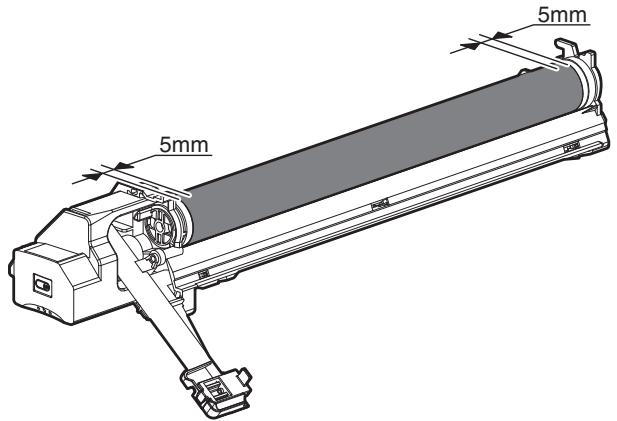
[Countermeasures]
If a fingerprint is attached to the OPC drum surface erroneously, perform the following countermeasures.
1) Use dry cloth to clean and remove the dirt.
2) Apply KYNAR to prevent blade flip.
[Check method]
Check to confirm that the OPC drum is free from fingerprints or oily dirt and that the cleaning blade is completely cleaned by the following method.
- Make a print of a half tone image on all the surface of A4 (11" x 8.5") paper, and check the printed paper for any abnormality in the image.
2. Prior exposure prevention
Note:
- Avoid servicing in a place where there is strong light.
- Do not expose the unit to light for a long time.
- Cover the OPC drum with light-blocking material. (When using paper, use about 10 sheets of paper to block light.)
[Countermeasures]
If the OPC drum is erroneously exposed to light too much (prior exposure), perform the following countermeasures.
1) Print half tone images on the whole surface of A4 (11" x 8.5") paper, and check to confirm that there is no irregular density area in the previously exposed section.
2) Damages due to prior exposure may be recovered by keeping the OPC drum for several hours. If, however, image are not recovered, replace the OPC drum.
(1) Drum
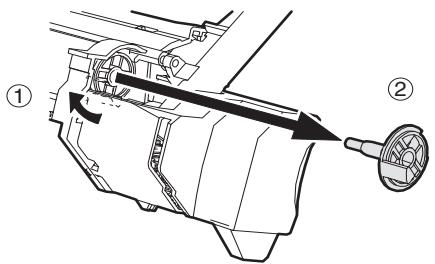
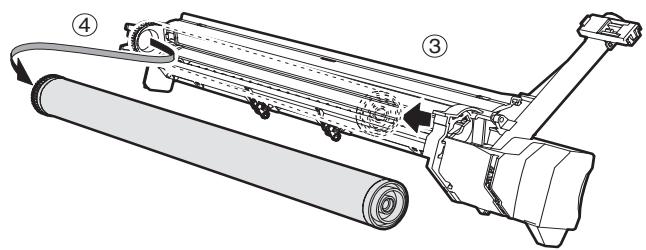
Note: When installing the process unit in the main unit after replacing the drum, process unit may not be able to install by reason of the drum drive coupling position. In this case, rotate the drum about 45 degrees and install again.
(2) Drum section
a. Main charger
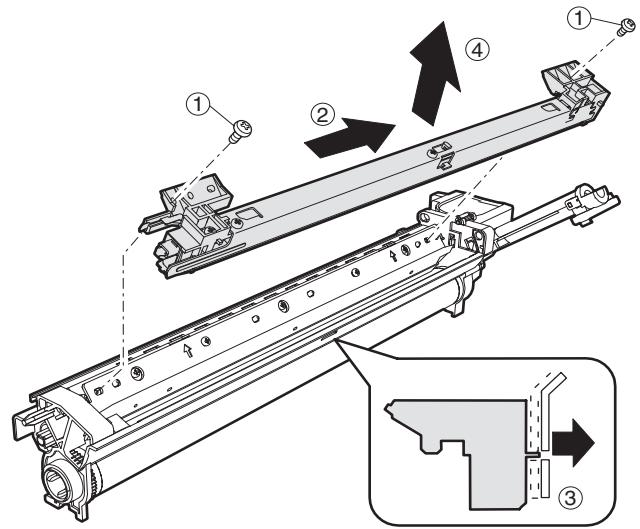
b. Cleaning blade
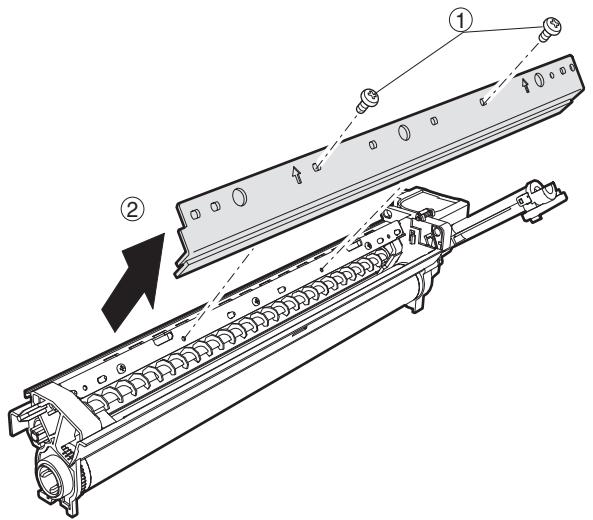
c. Drum frame unit
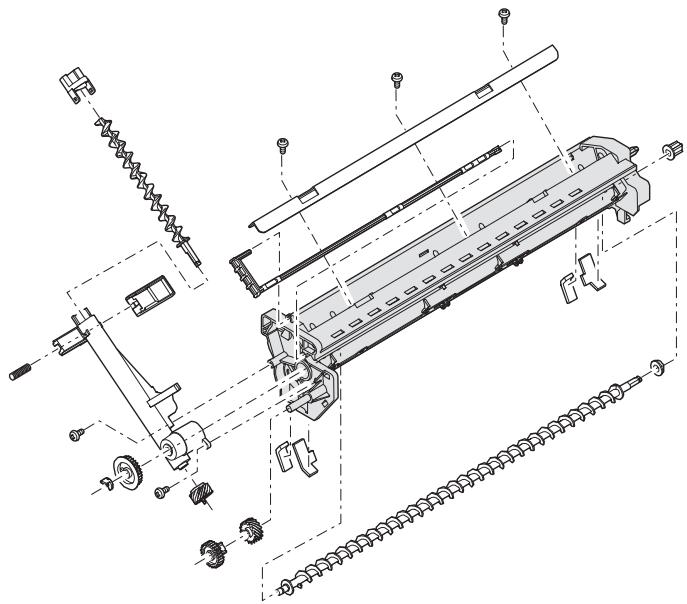
d. Moquette F/R
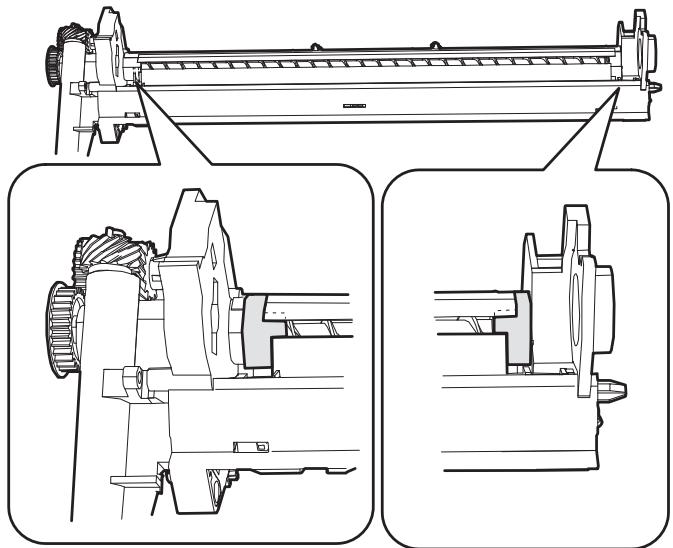
Note: If it disturbs the blade movement, replace it and attach new one.
e. Separation pawl
Disassembly* Hold the tip of the separation pawl and remove it.
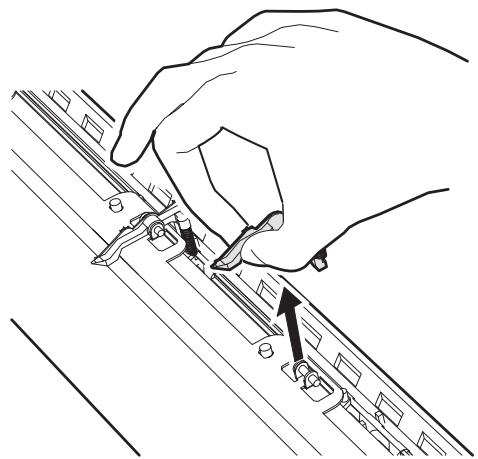
Assembly* Press the center of the separation pawl and install it.
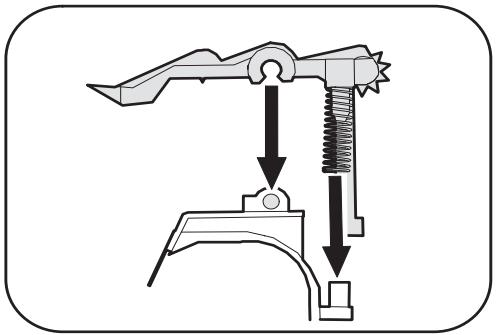
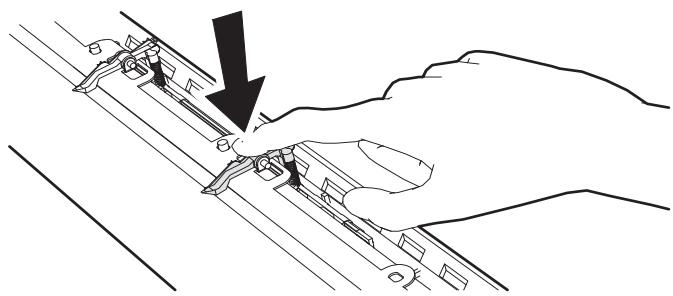
B. Developing section
(1) Developer
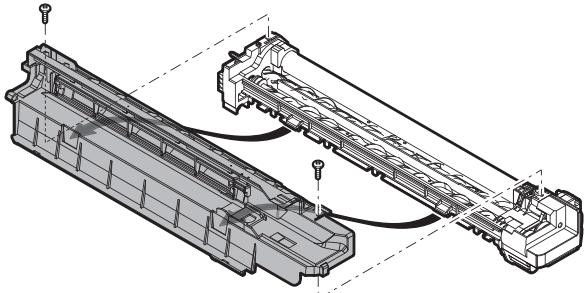
Rotate the MG roller to discharge developer.
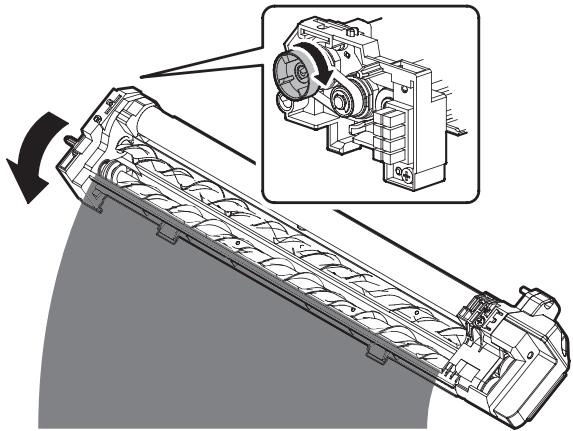
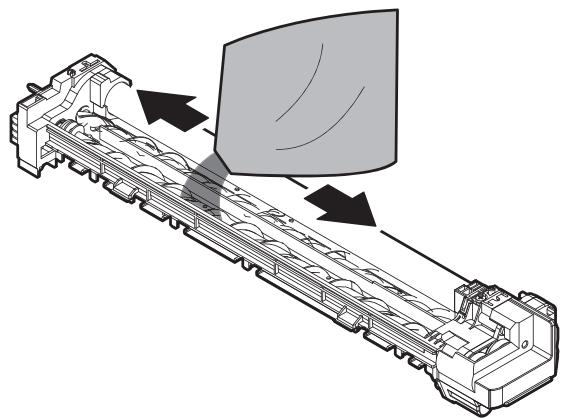
(2) Toner filter unit
With the guide AS (cover) removed, replace it.
When replacing, clean the guide AS.

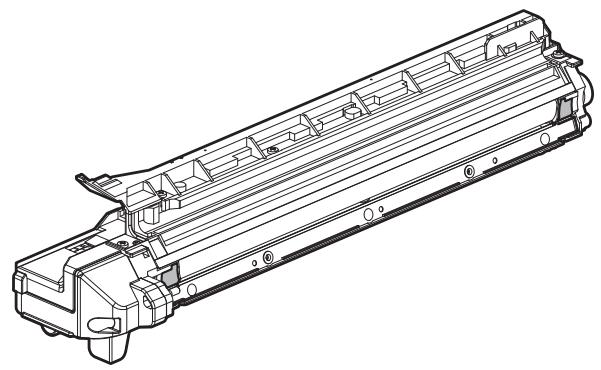
(3) DV side sheet F/ DV side sheet R
[DV side sheet F/ DV side sheet R attachment reference]
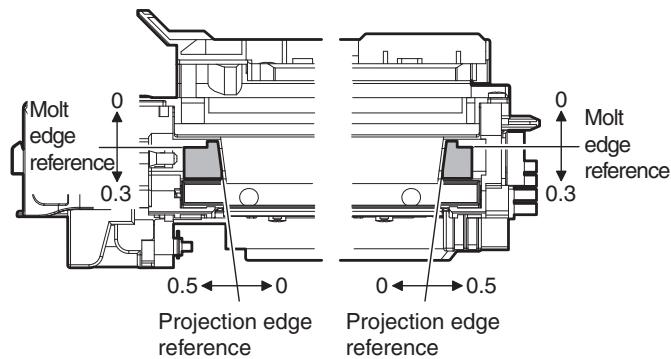
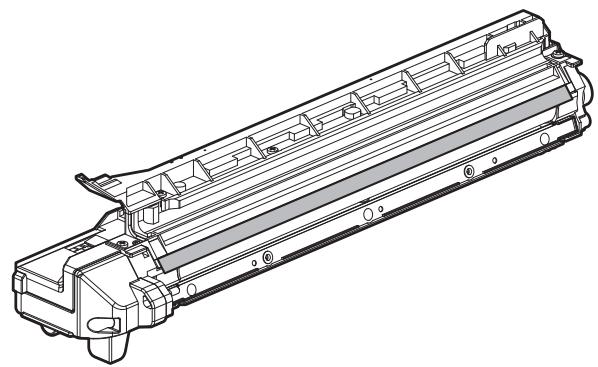
(4) DV blade
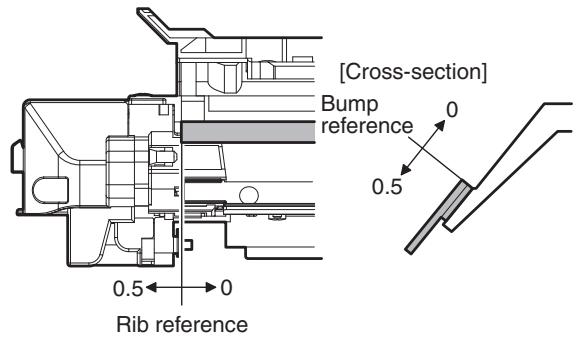
[DV blade attachment reference]
(5) Toner sensor
- Execution of cleaning the sensor must be made after discharging used DV in DV replacement.
- Without removing the MG roller, use waste cloth to remove toner from the sensor surface in the arrow direction.
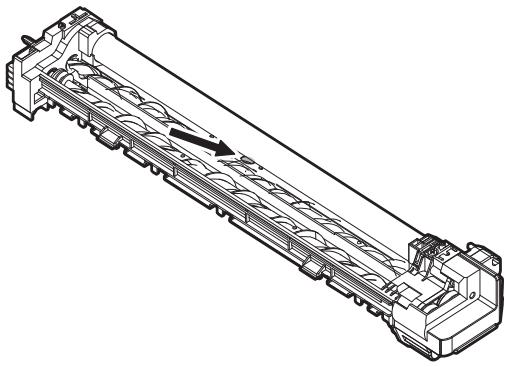
- Clean the sensor only after removing used DV when replacing DV.
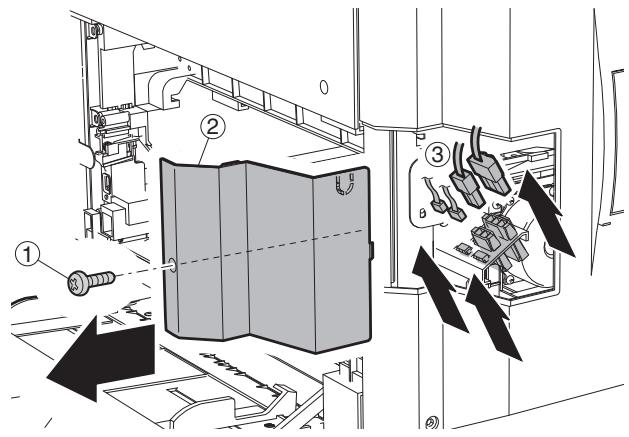
C. Fusing section
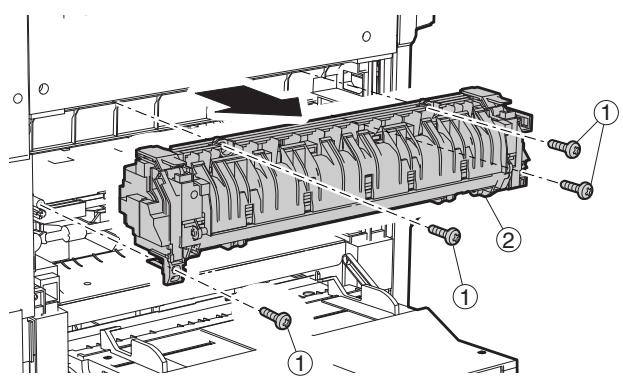
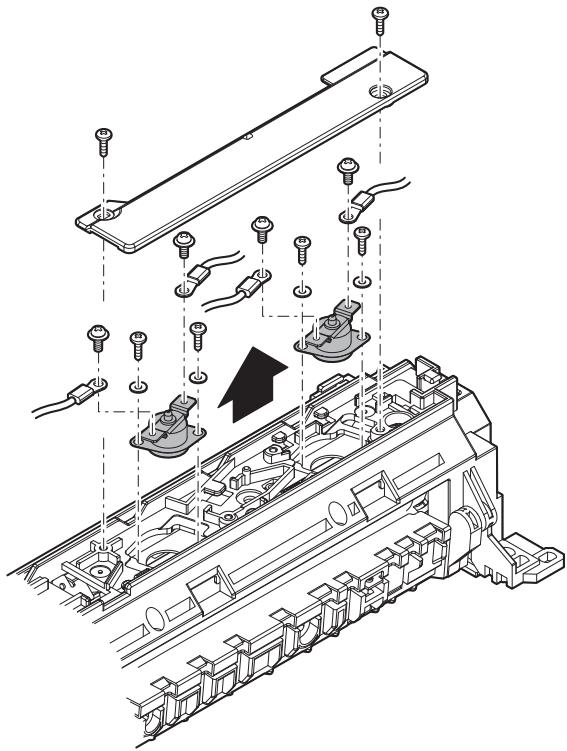
(1) Thermostat
Note: When securing the lamp harness and the thermostat, the tightening torque of the screw (4 positions) is 6-9 kgs.
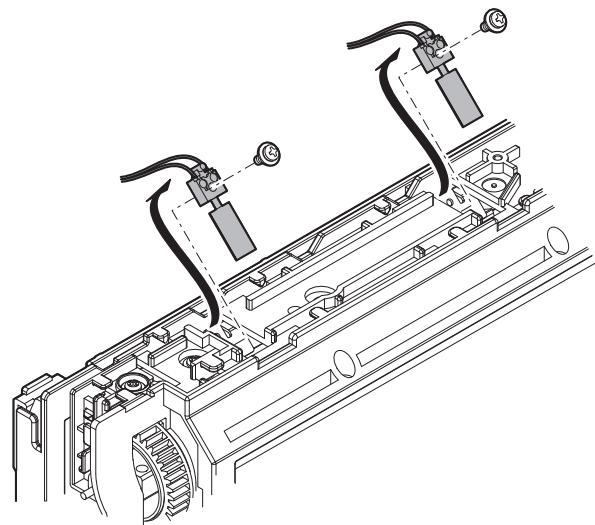
(2) Thermistor
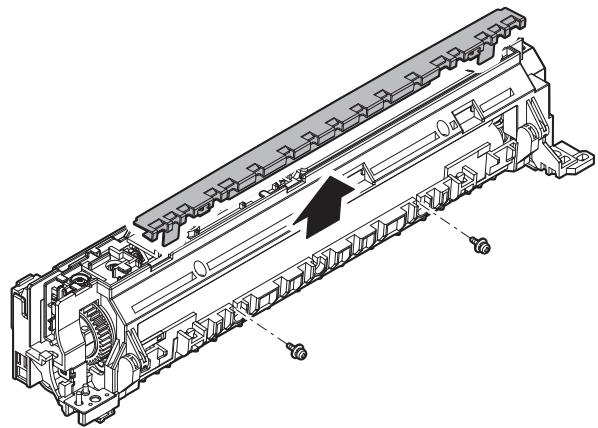
(3) Paper guide

(4) Fusing separation pawl (lower)
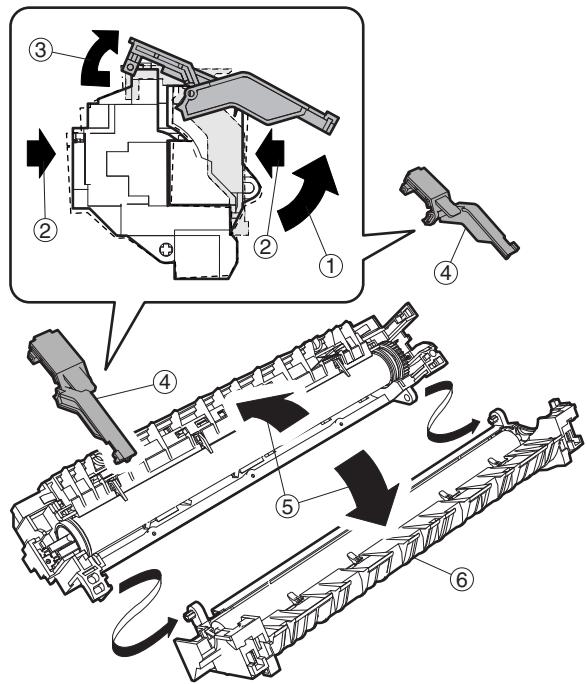
(5) Lower heat roller
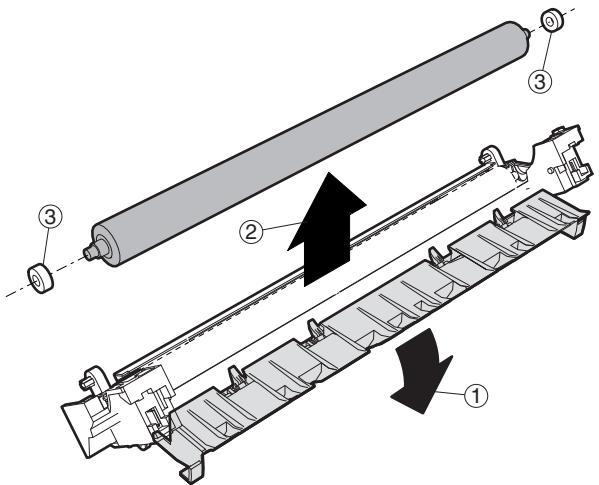
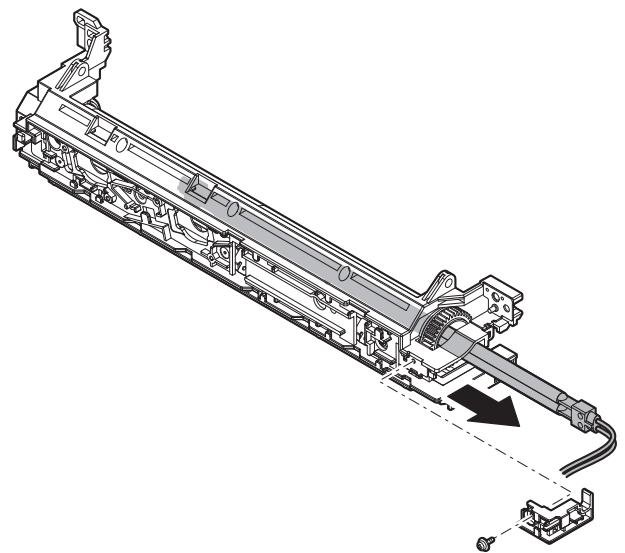
(6) Heater lamp
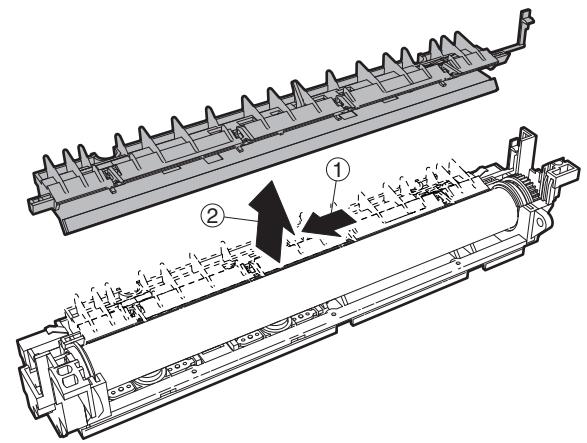
(7) Upper cleaning pad
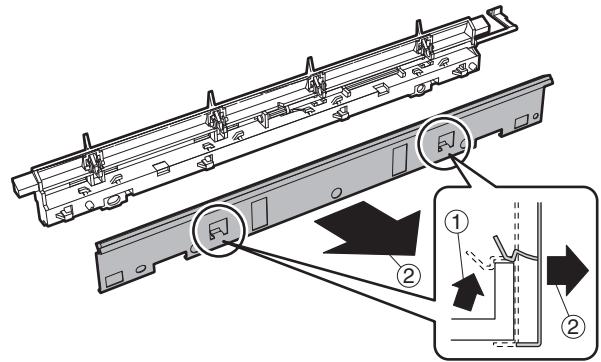
(8) Fusing separation pawl (upper)
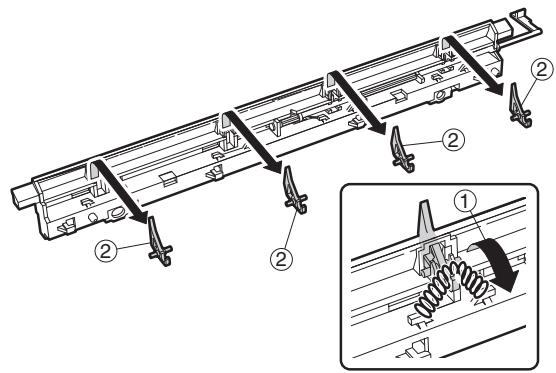
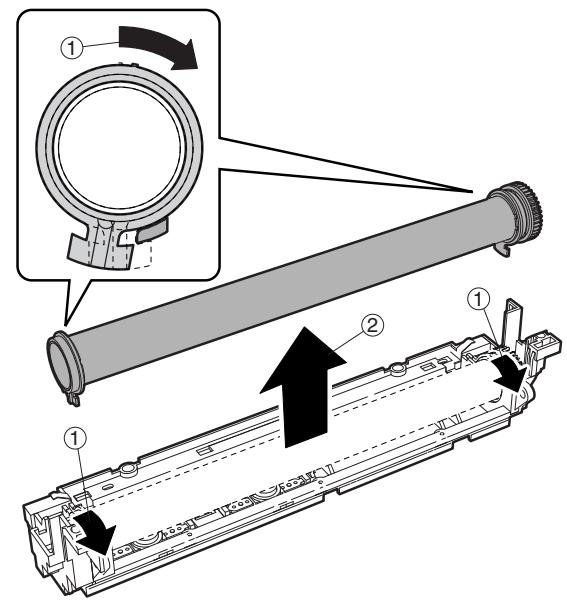
(9) Upper heat roller
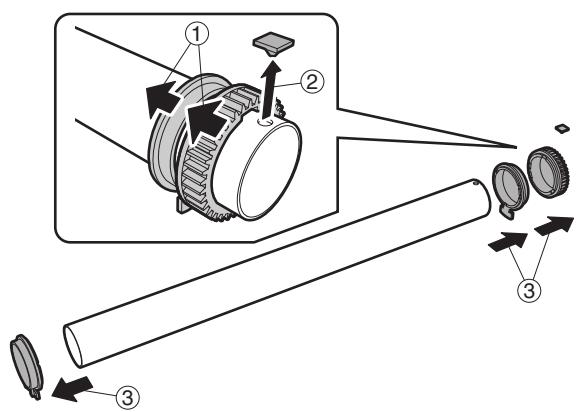
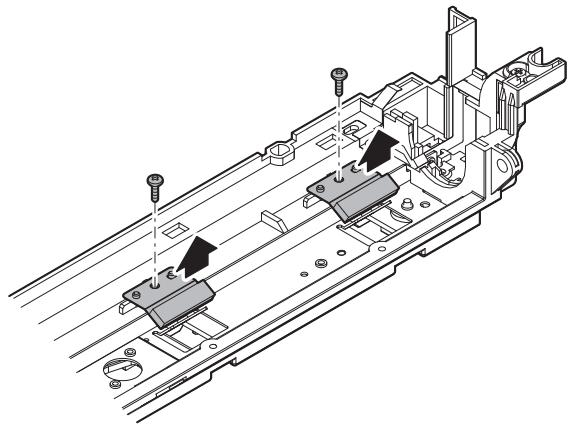
(10) Thermistor cleaning pad
D. Optical section
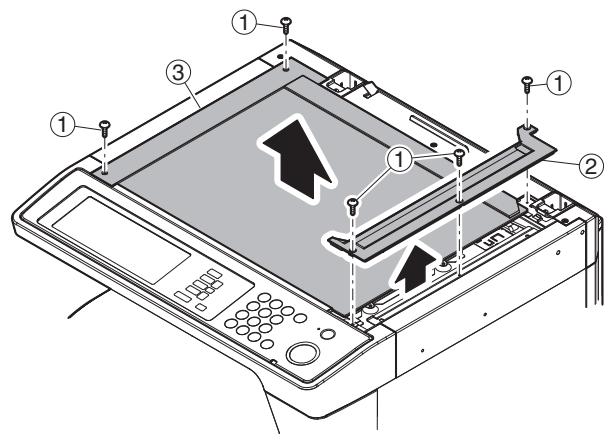
(1) CCD unit
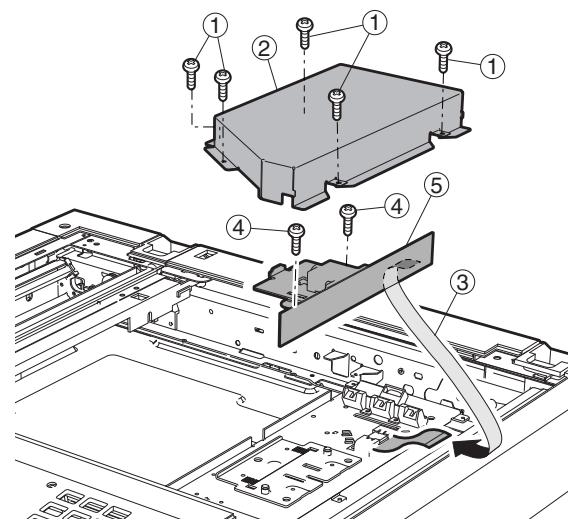
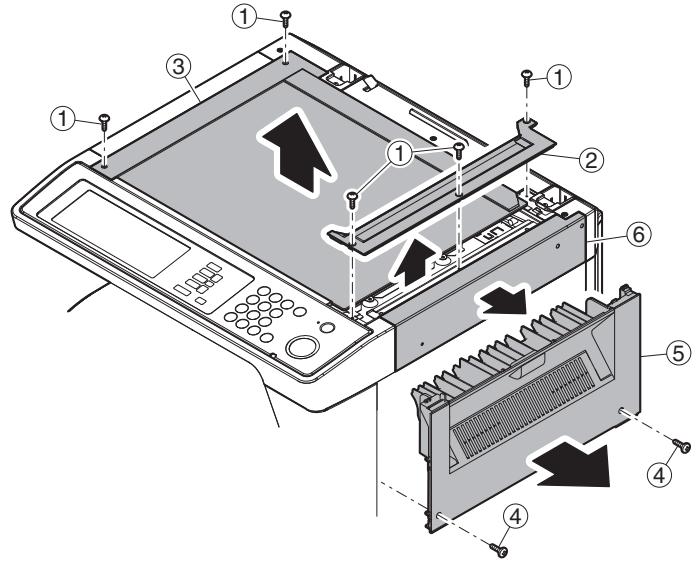
(2) Lamp unit
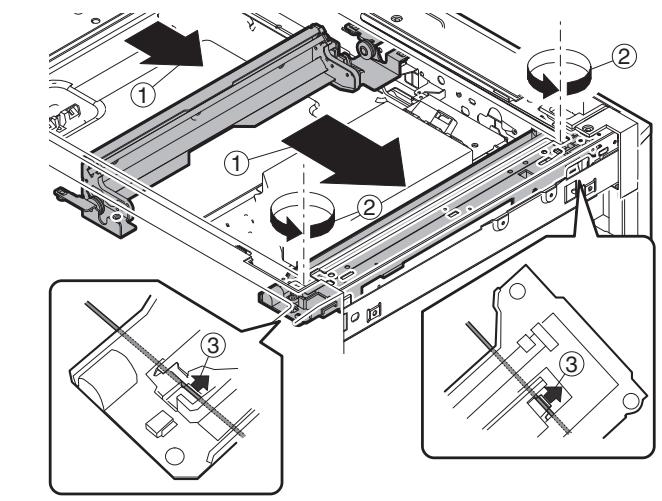
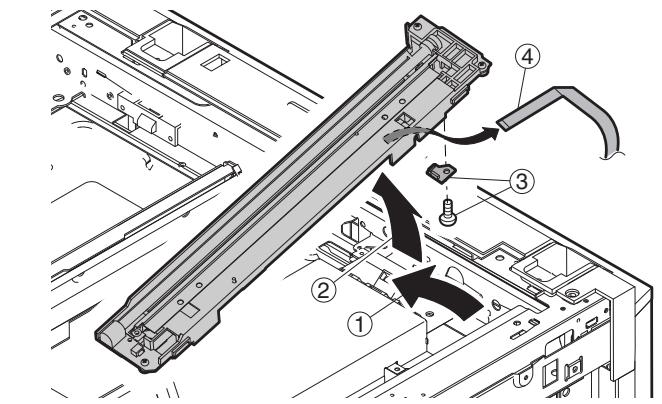
a. Lamp
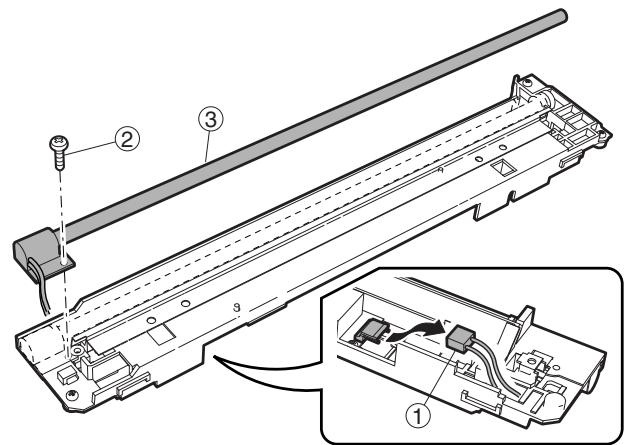
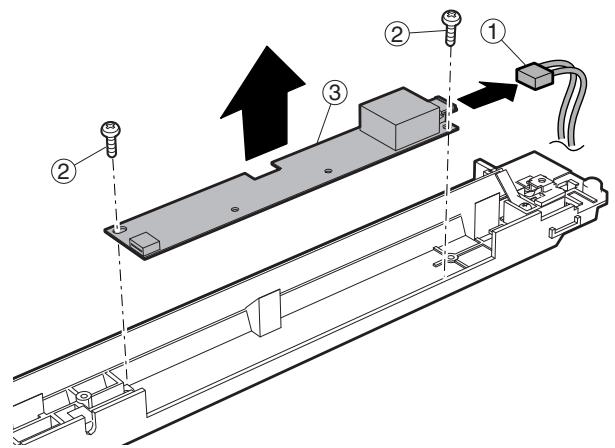
b.PWB
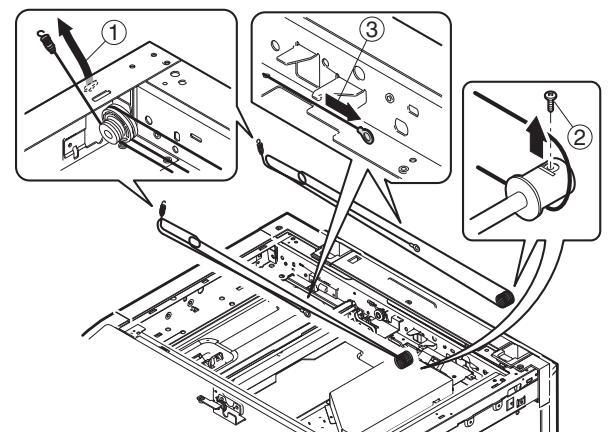
c. Wire
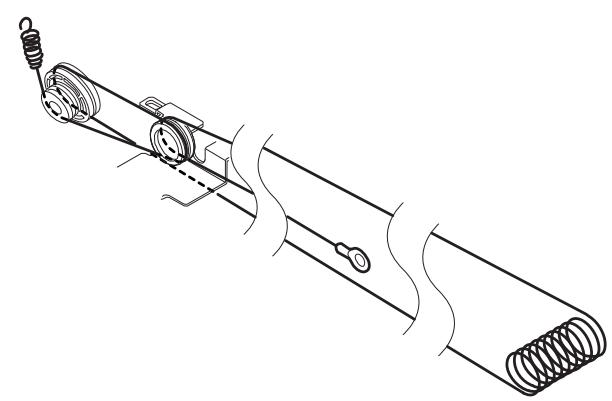
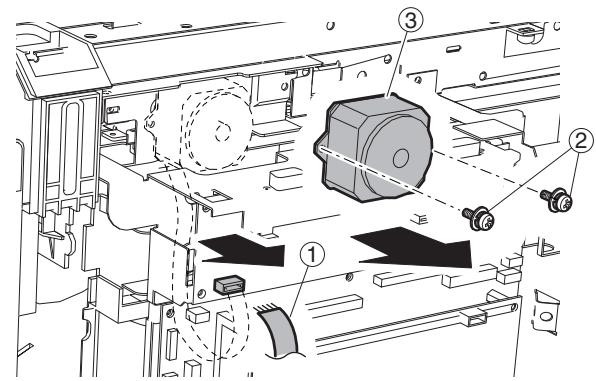
d. Mirror motor
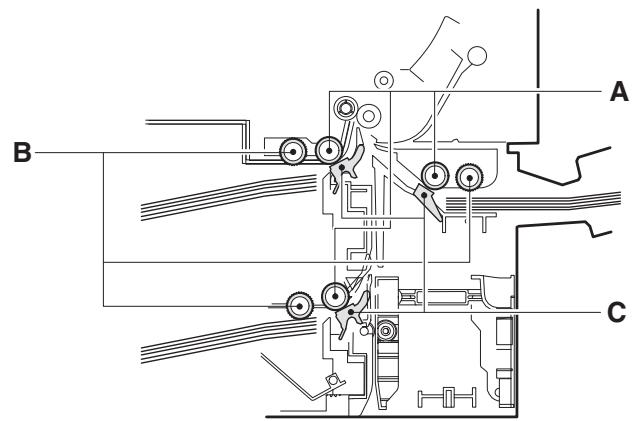
E. Paper feed section
| A | Paper feed roller |
| B | Pickup roller |
| C | Separation sheet |
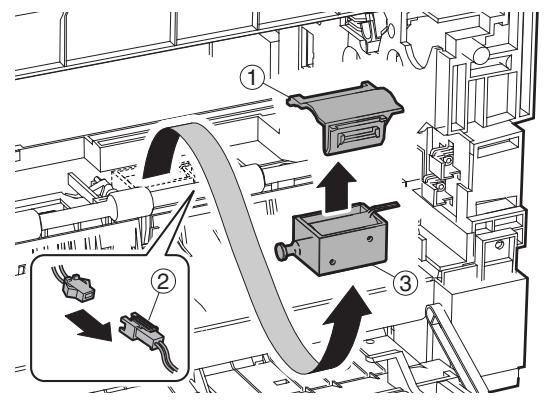
(1) Paper feed solenoid
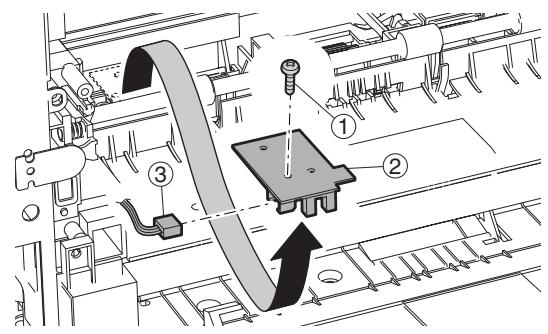
(2) Tray sensor PWB
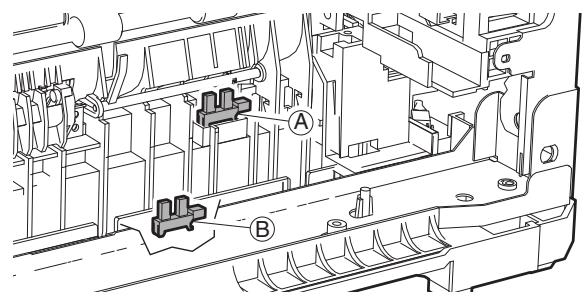
(3) Manual P-in sensor/Manual empty sensor
(4) Multi manual paper feed
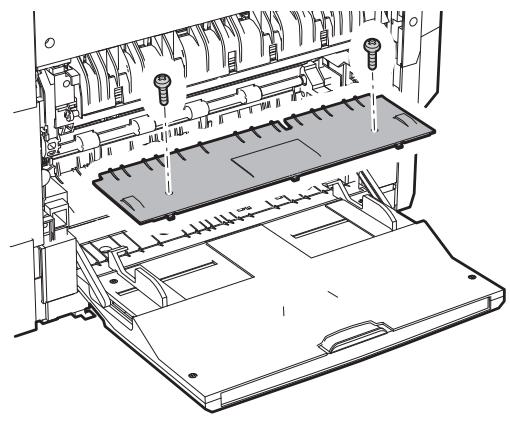
a. Paper feed roller/pickup roller
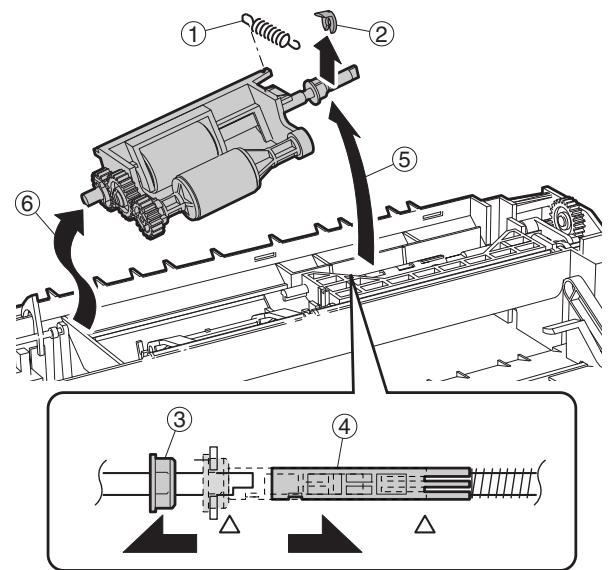
Installation*Install so that the cam transmit arm (1) comes under the roller arm (2).
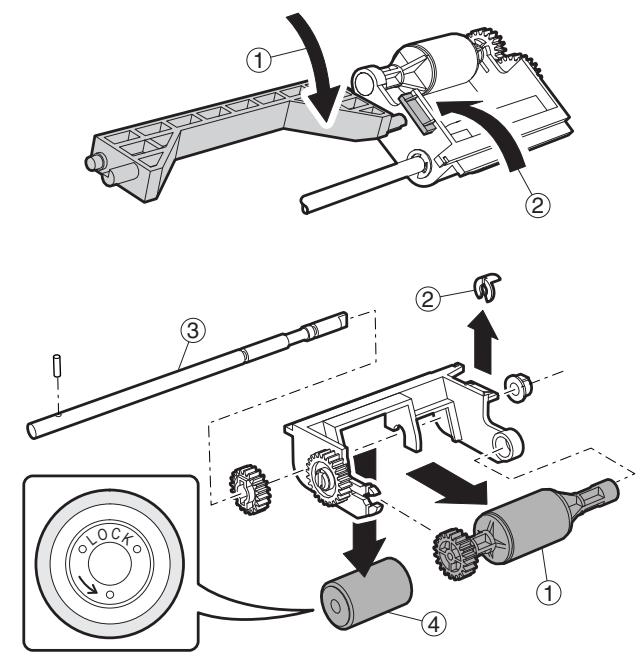
b. Reverse sensor
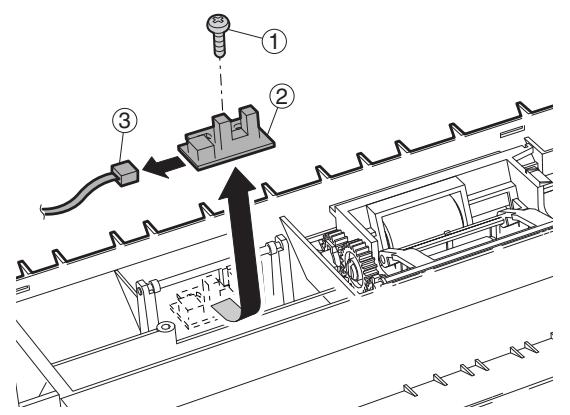
c. Separation sheet
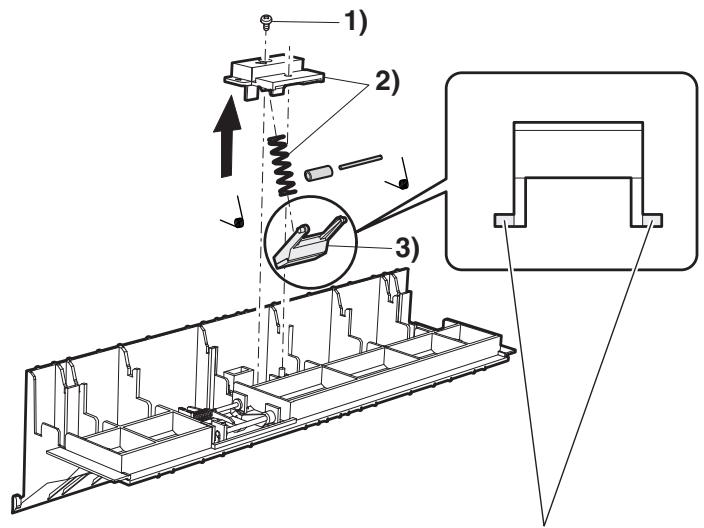
* Slightly apply grease GP501MR (UKOG-0012QSZZ) around the axis. One rice grain for each.
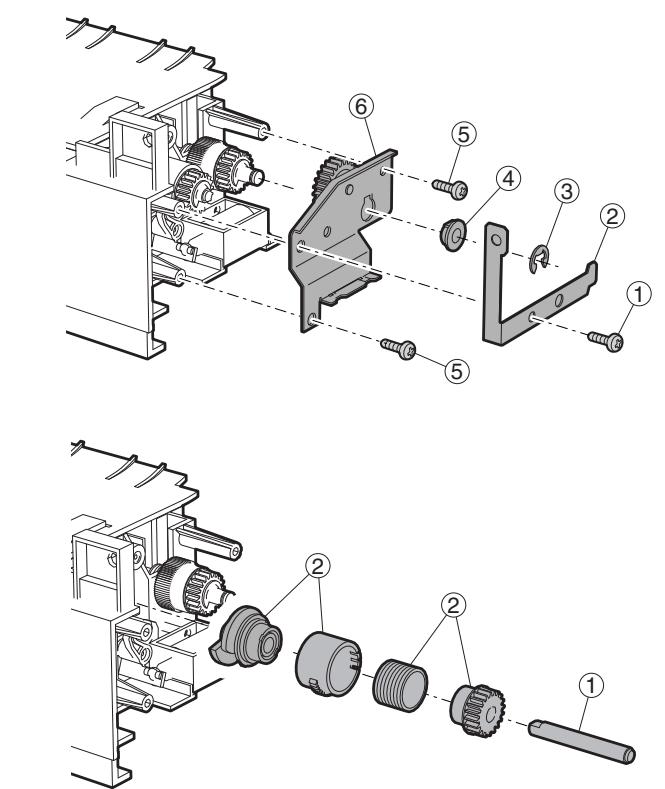
d. Clutch/solenoid
(Clutch)
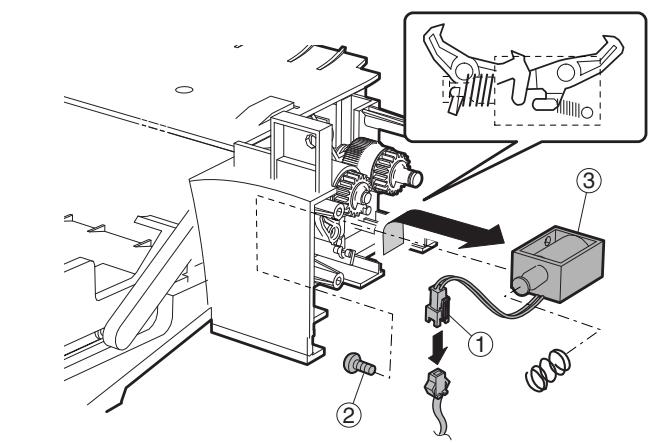
(Solenoid)
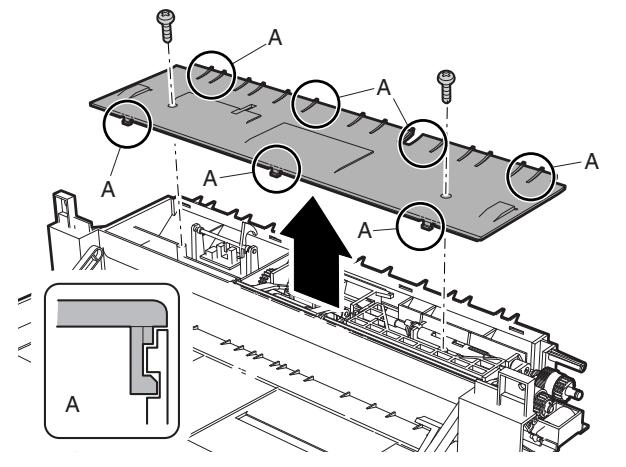
(Clutch)
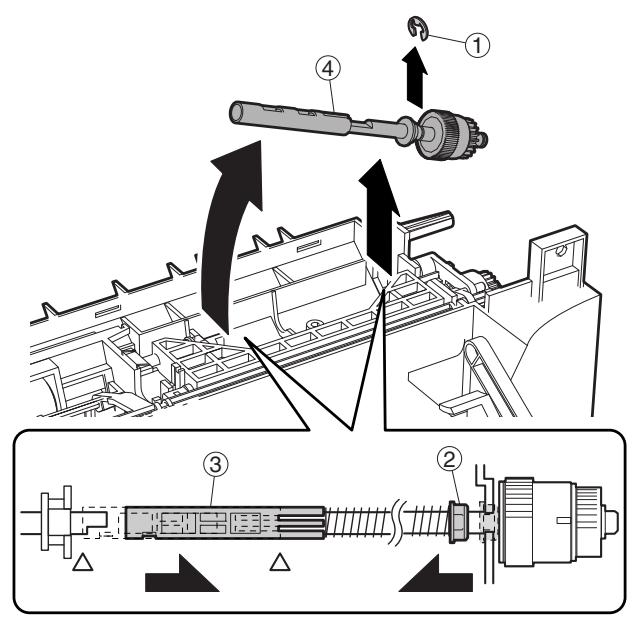
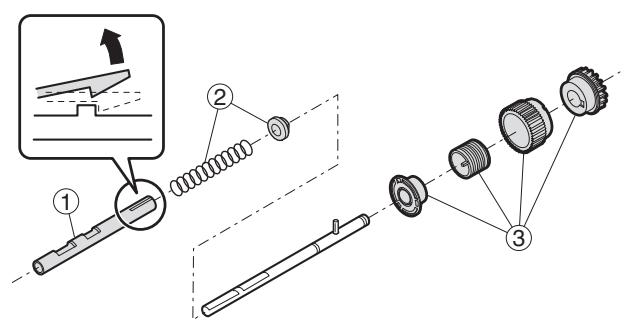
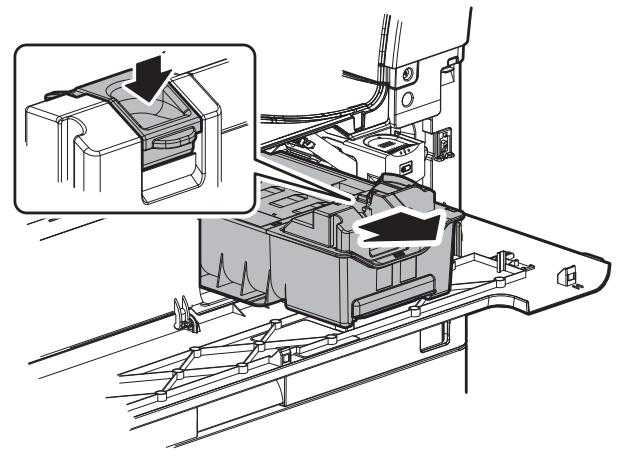
(5) Upper 500 sheets tray paper feed
a. Paper feed roller/pickup roller
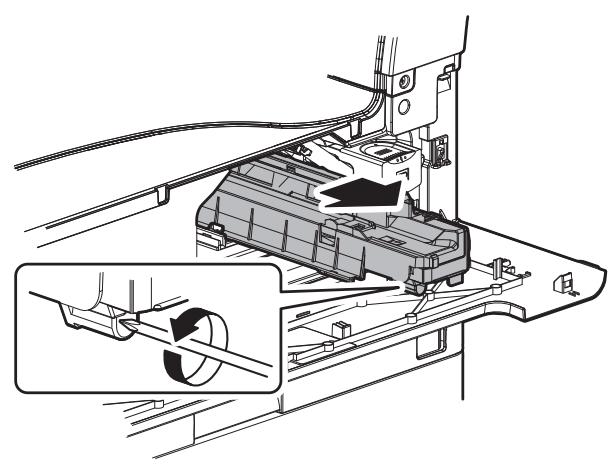
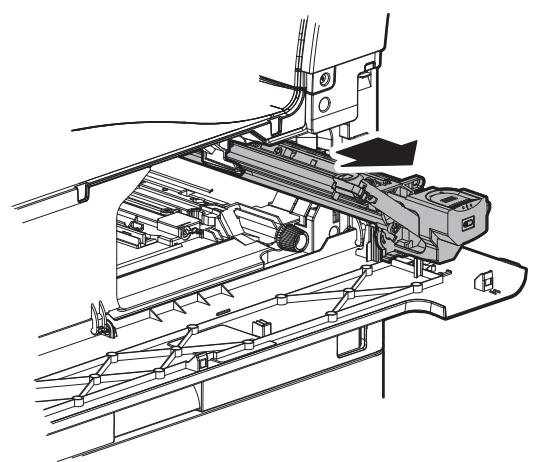
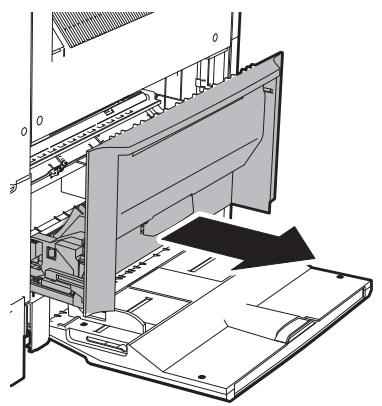
Note: With the toner cartridge installed, do not tilt or shake the developer cartridge.
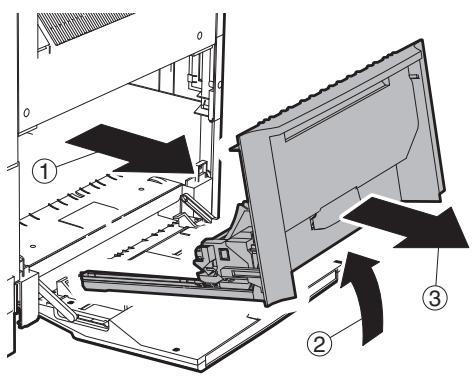
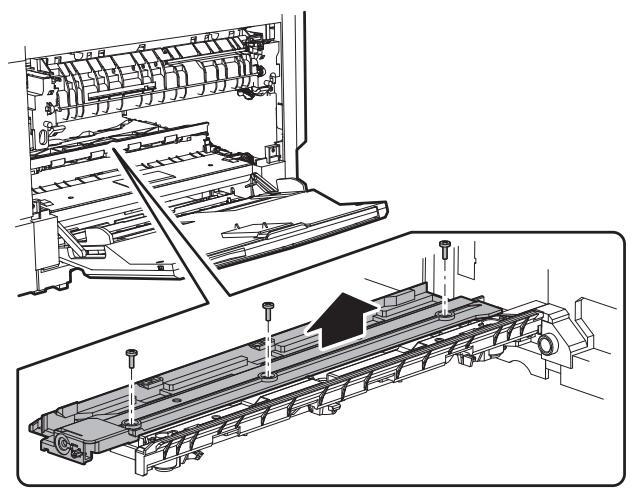

* When replacing, be careful not to adhere conduction grease (black) to the drive section.
Slightly apply grease GE676 (UKOG-0013QSZZ) to the drum boss.

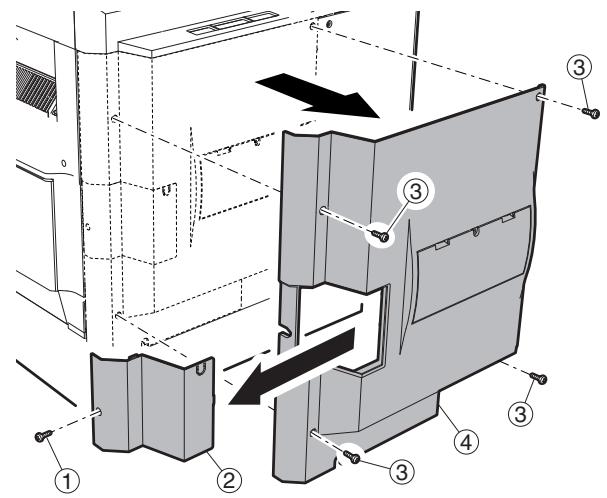
b. Separation sheet
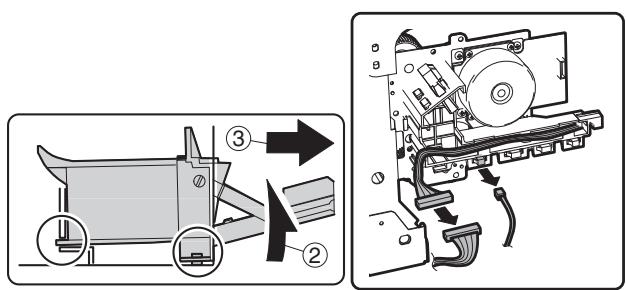
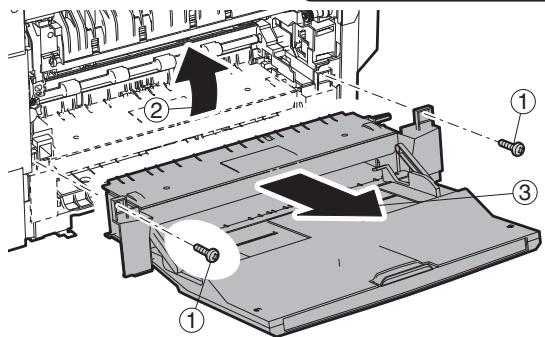
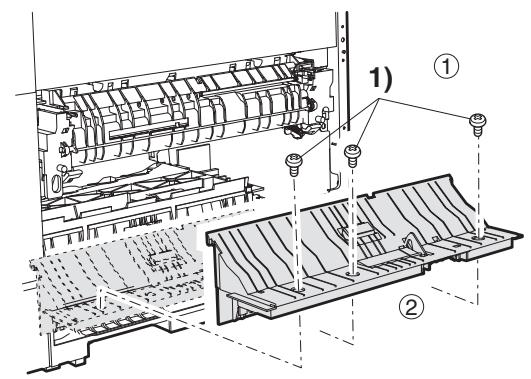
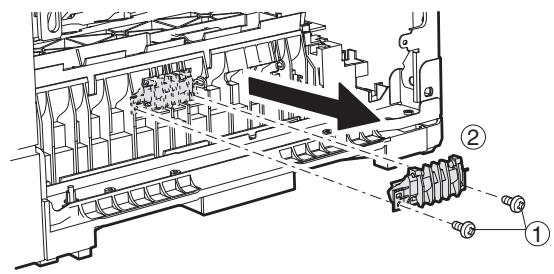
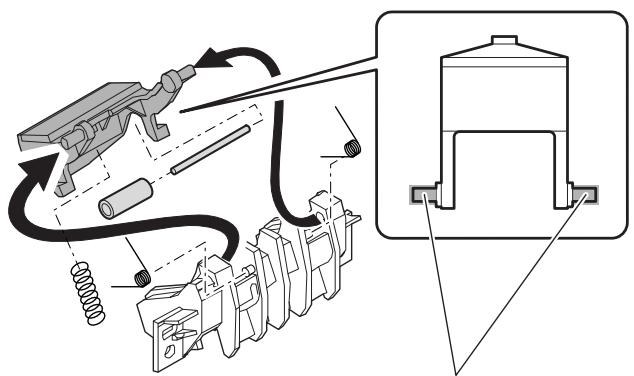
* Slightly apply grease GP501MR (UKOG-0012QSZZ) around the axis. One rice grain for each. Grease should not come out when assembling.
(6) Lower 500 sheets tray paper feed
a. Paper feed roller/pickup roller
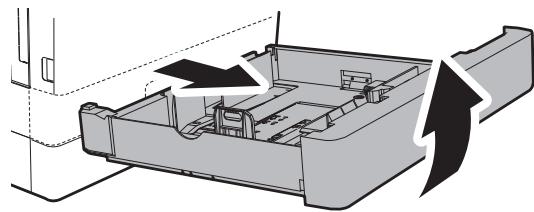
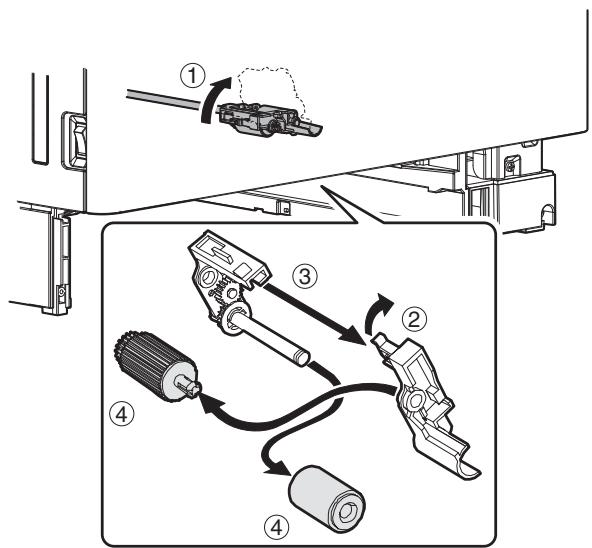
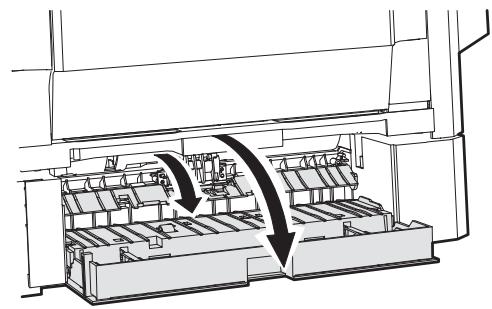
b. Separation sheet
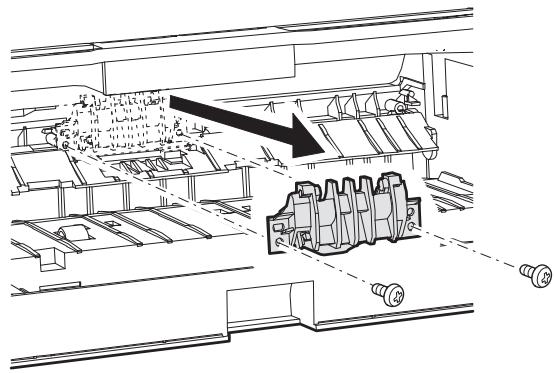
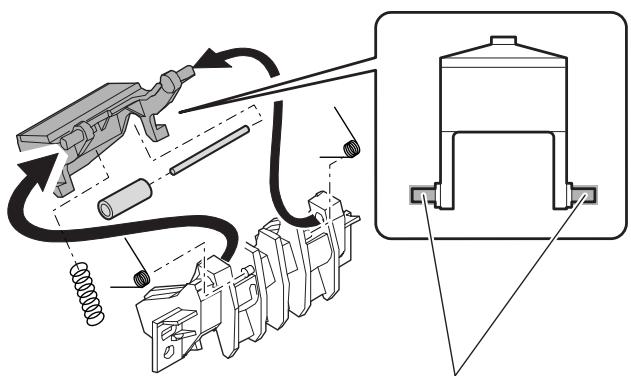
* Slightly apply grease GP501MR (UKOG-0012QSZZ) around the axis. One rice grain for each. Grease should not come out when assembling.
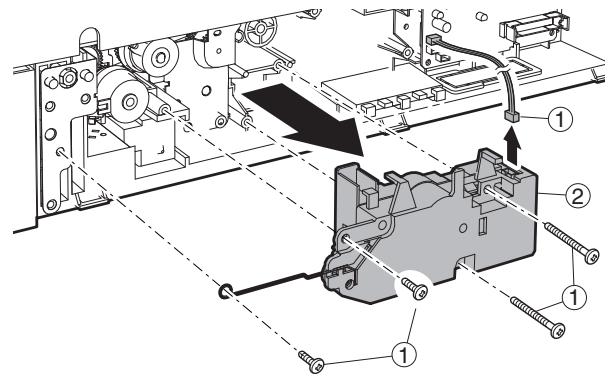
c. Lift up unit
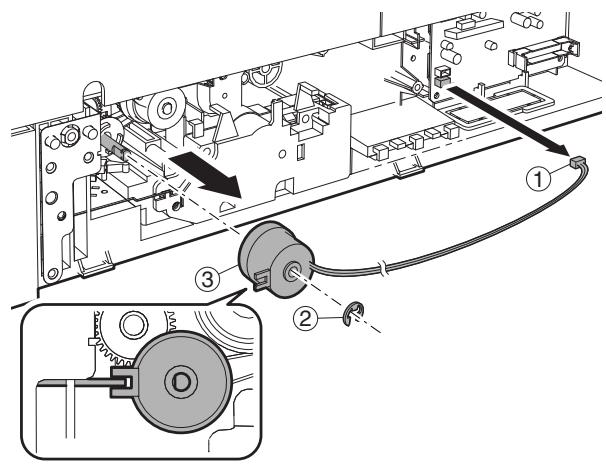
d. Transport clutch
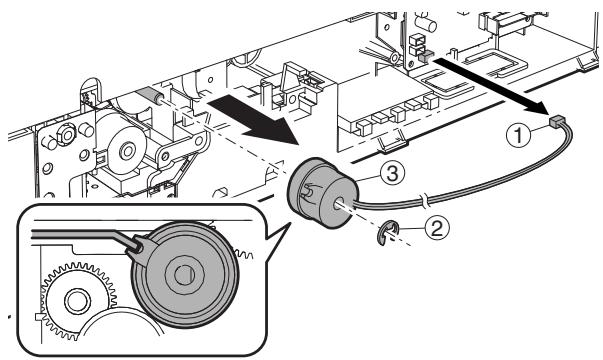
e. Paper feed clutch
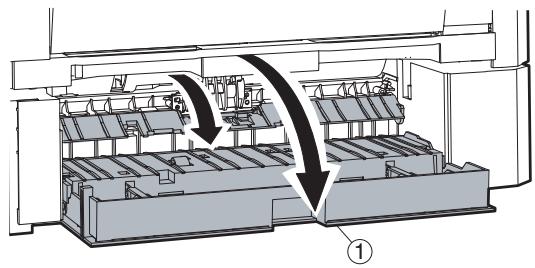
f. Transport clutch
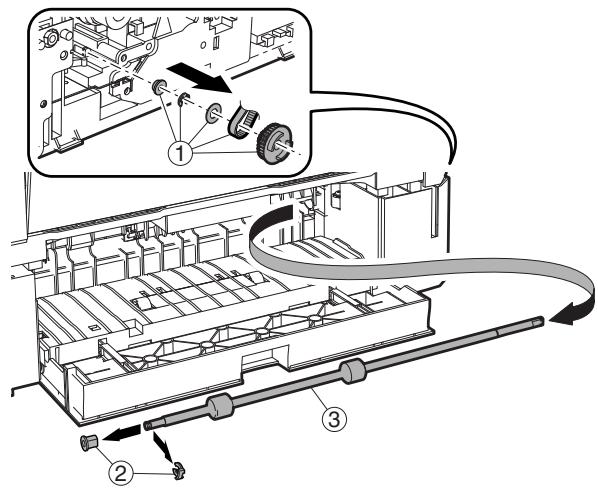
g. Solenoid
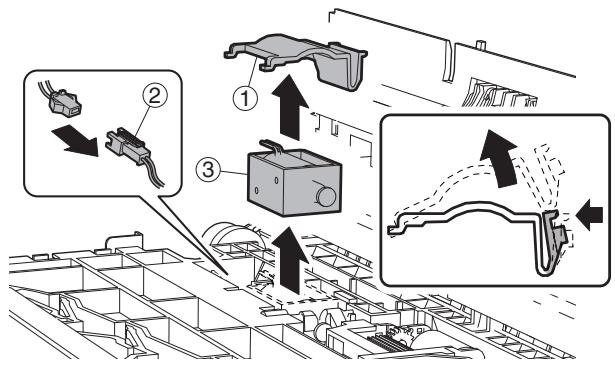
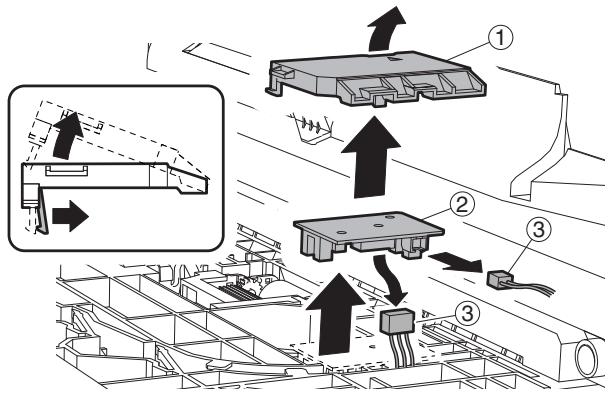
h. Sensor PWB
F. Side door unit
(1) Transport roller unit
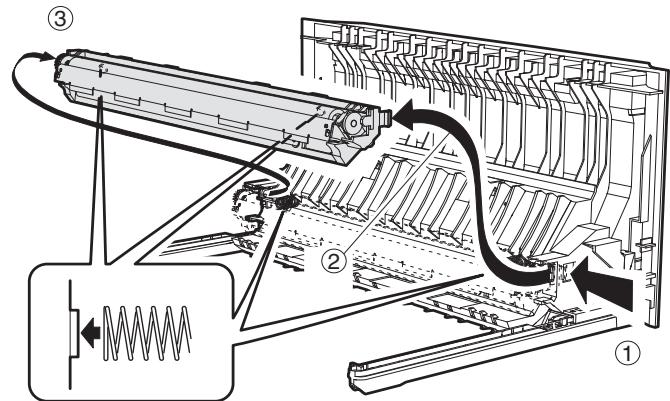
* Check that two springs are securely inserted into the transfer roller unit bosses.
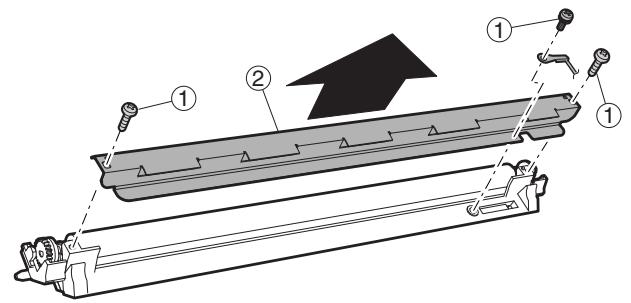
(2) Transport roller
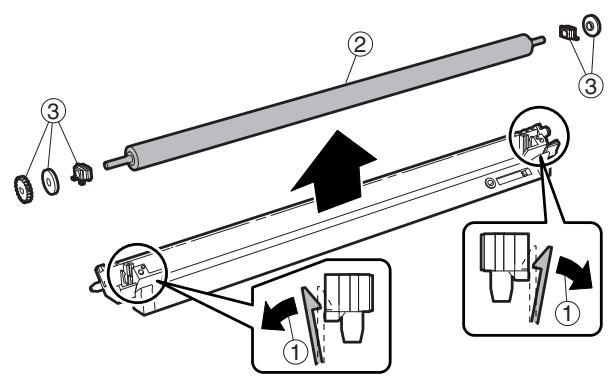
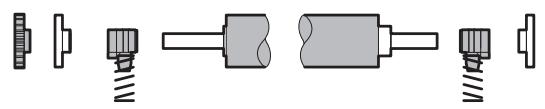
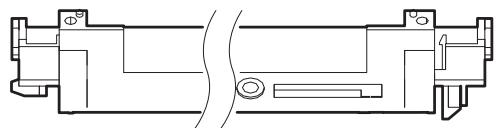
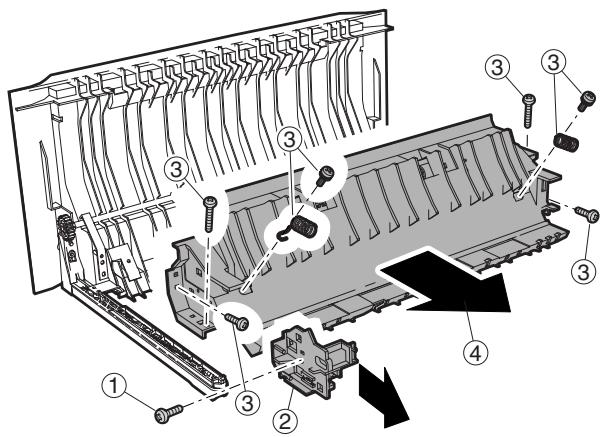
(3) DUP transport roller
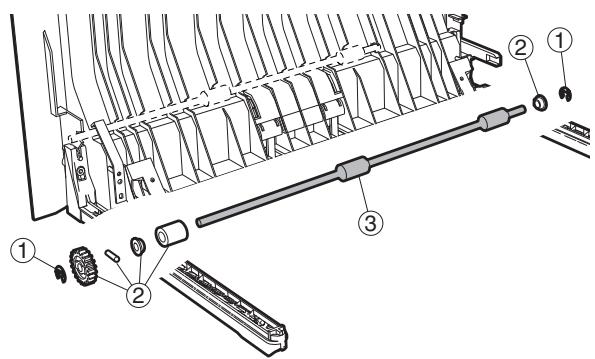
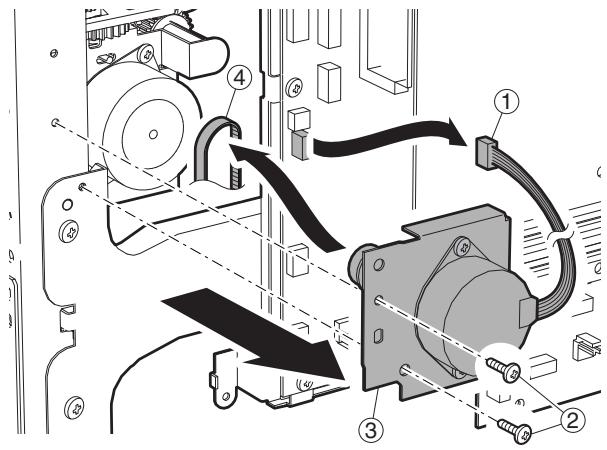
(4) DUP motor
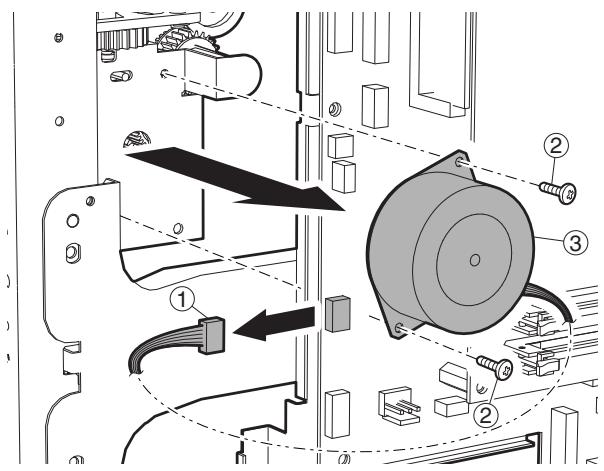
G. 1st paper exit unit
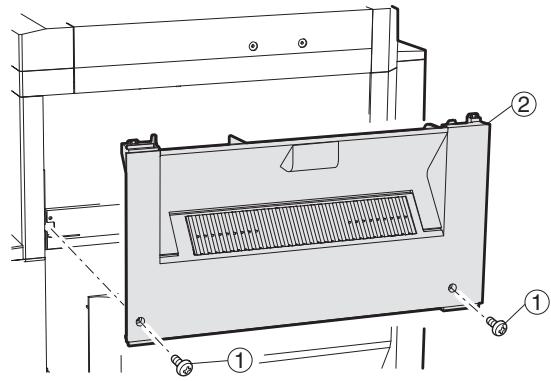
(1) Cooling fan
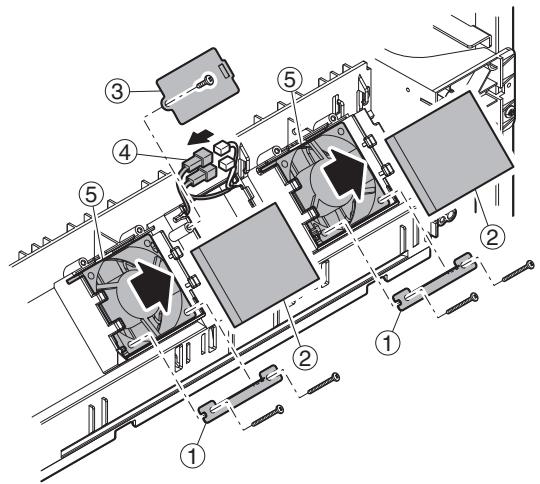
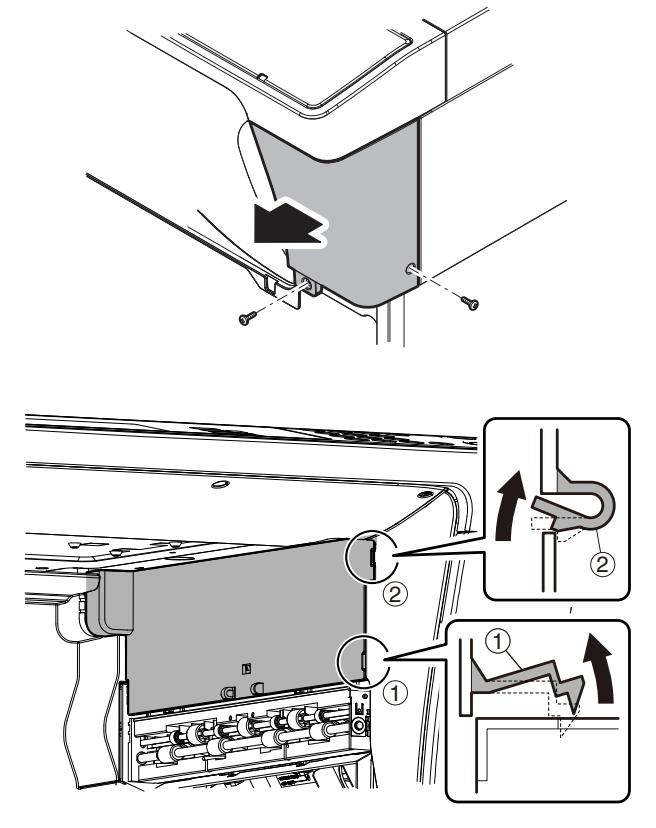
(2) Transport/exit roller
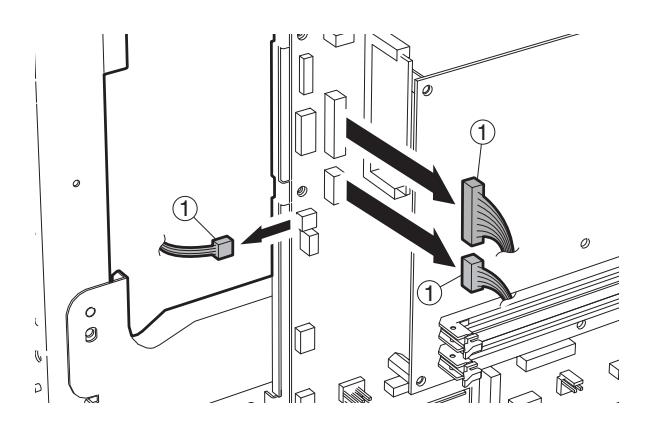
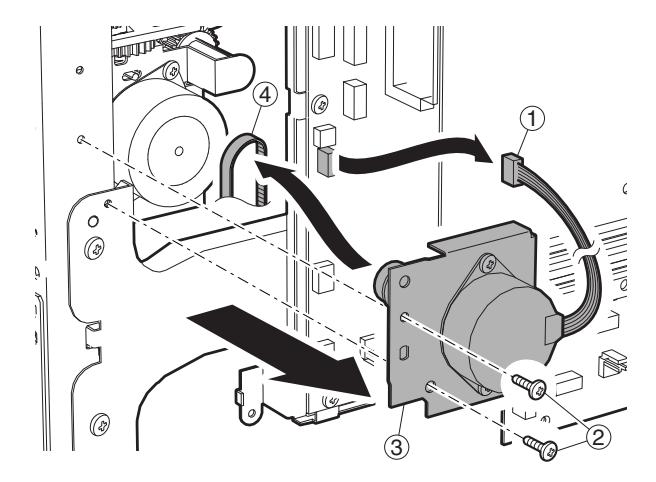
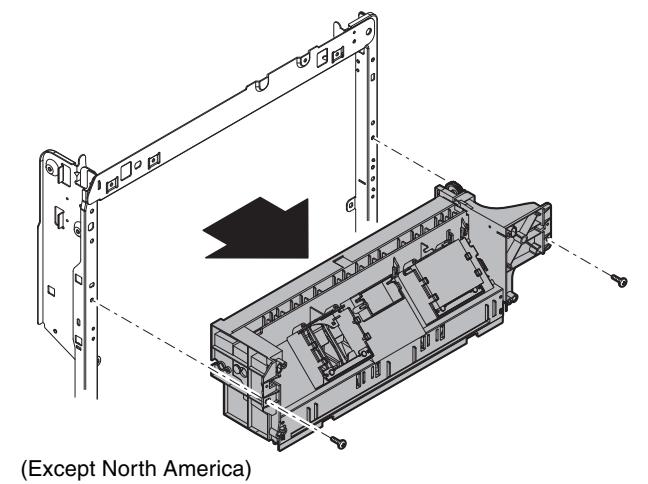
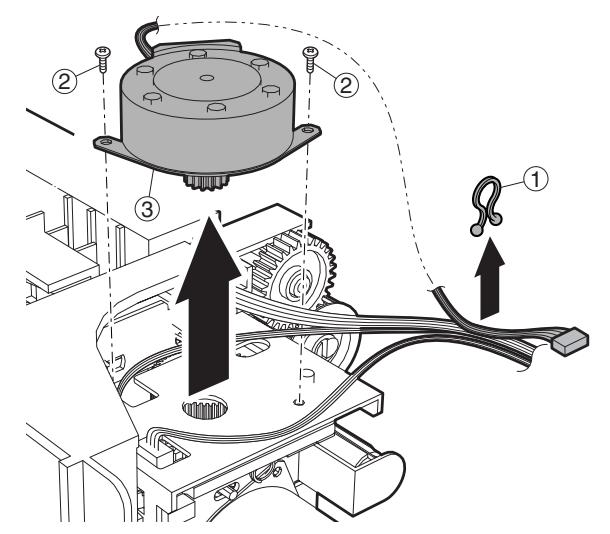
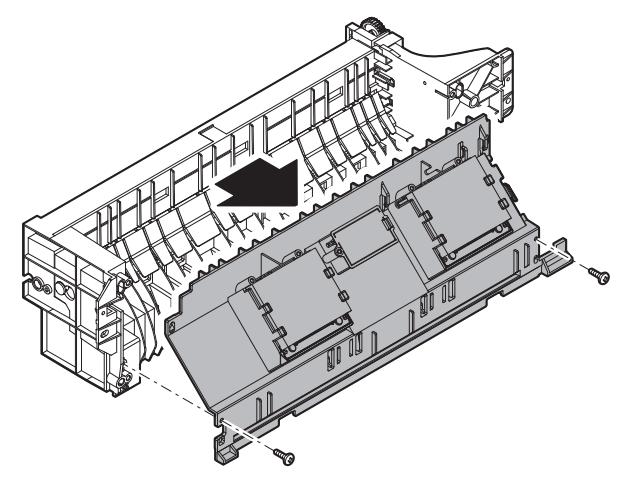
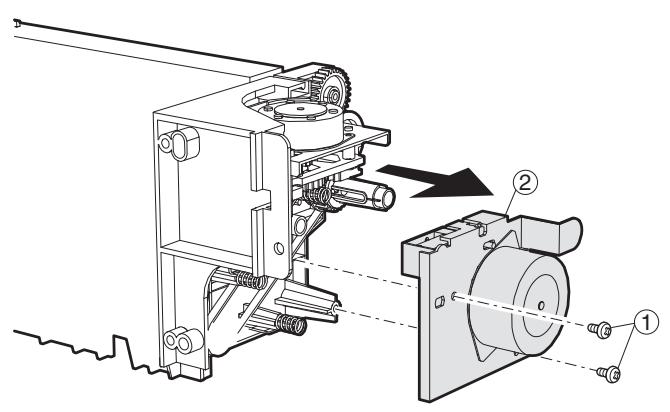
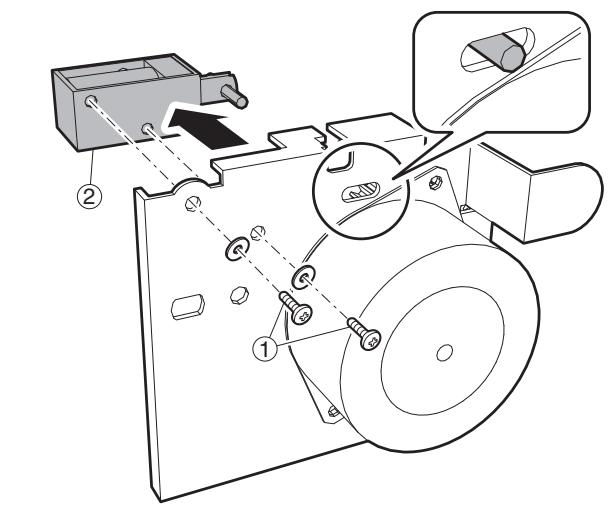
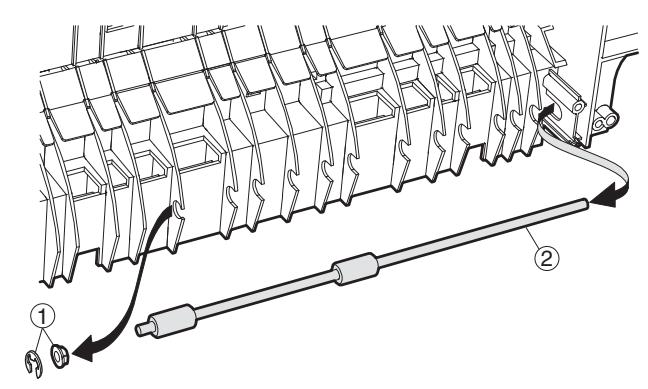
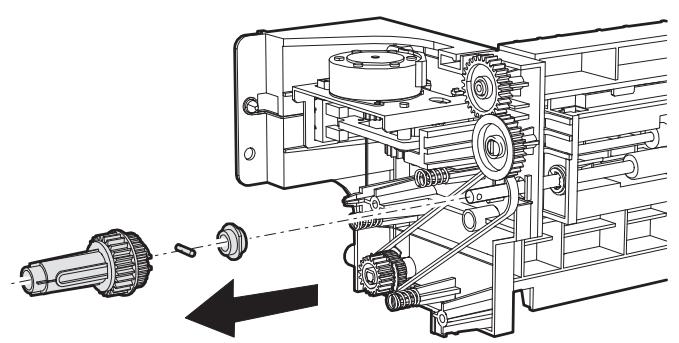
Note: Check to confirm that the solenoid shaft is in the gate bracket, and fix with the screw.
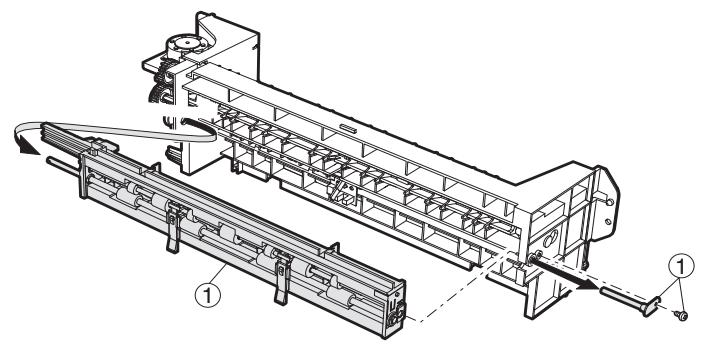
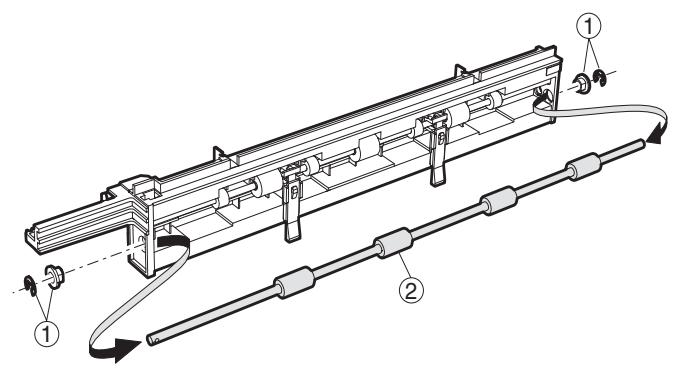
H. Laser unit
Note: Do not disassemble the LSU unit.
(1) Lsu
1) Turn OFF the machine power, and disconnect the power plug from the power outlet.
2) Remove the left cabinet and exit tray.
3) Disconnect the LSU connector, and remove the securing screws to remove the LSU.
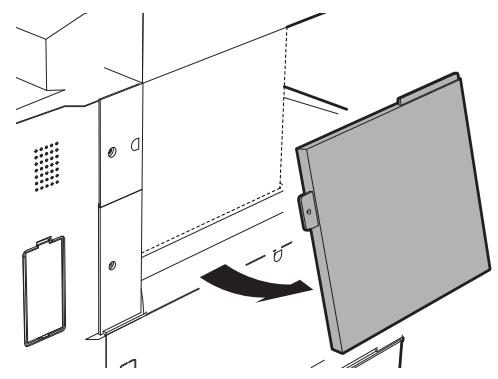
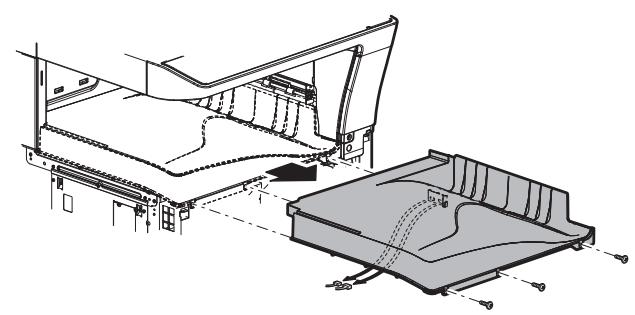
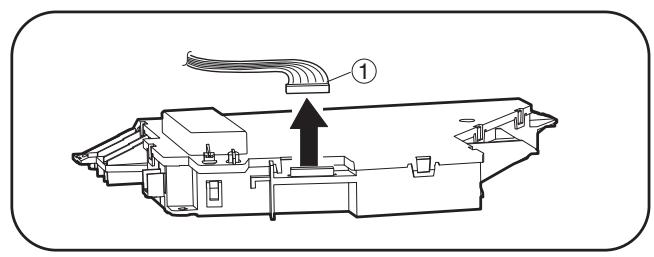
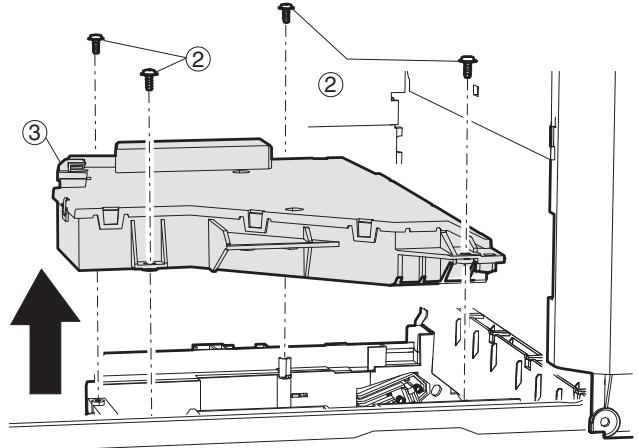
I. Power unit
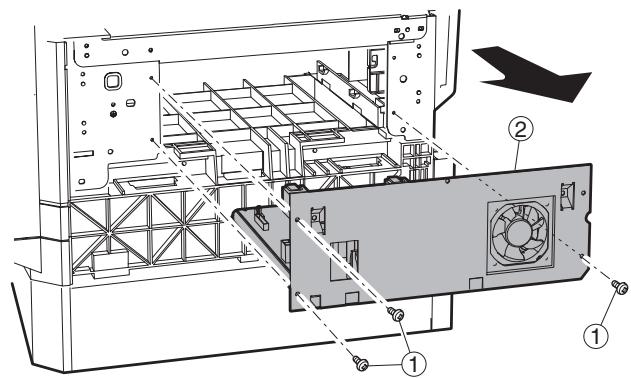
(1) Power source
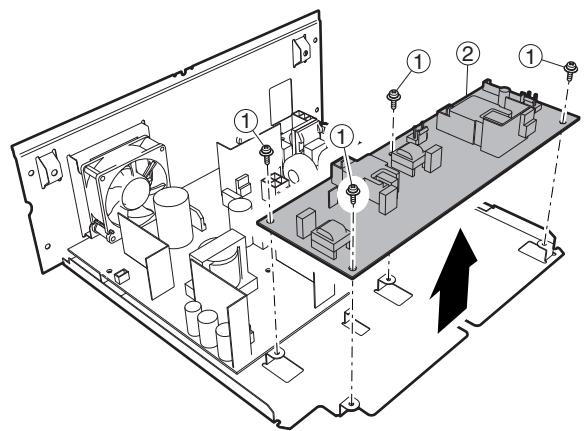
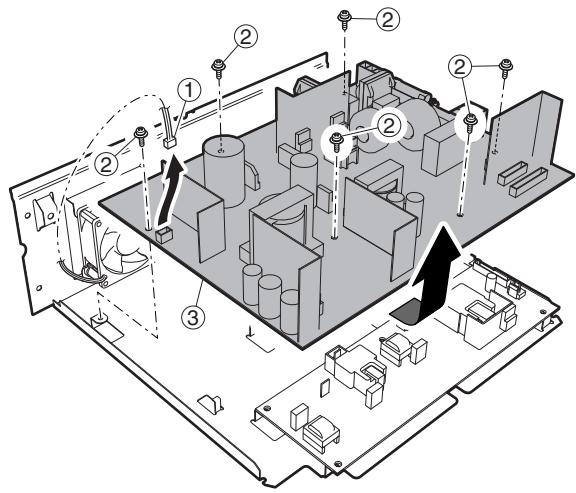
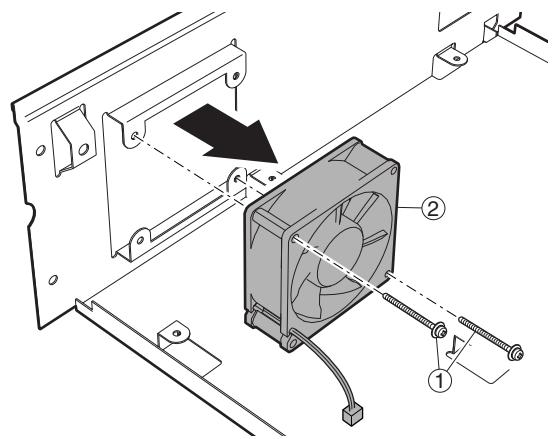
J. PWB
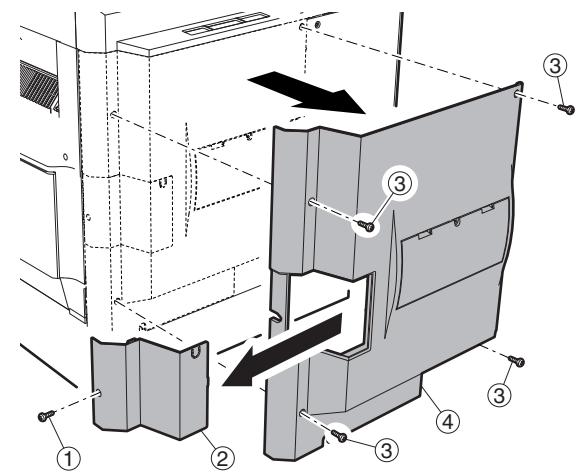
(1) Option CN PWB
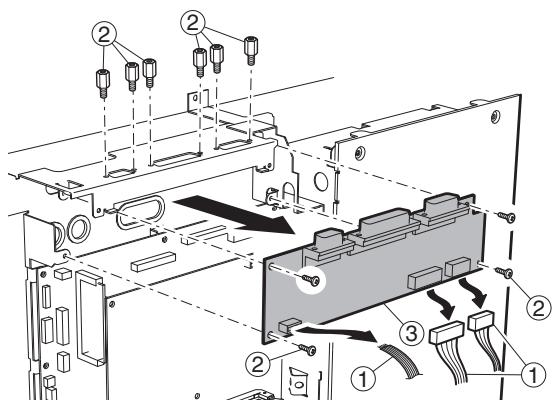
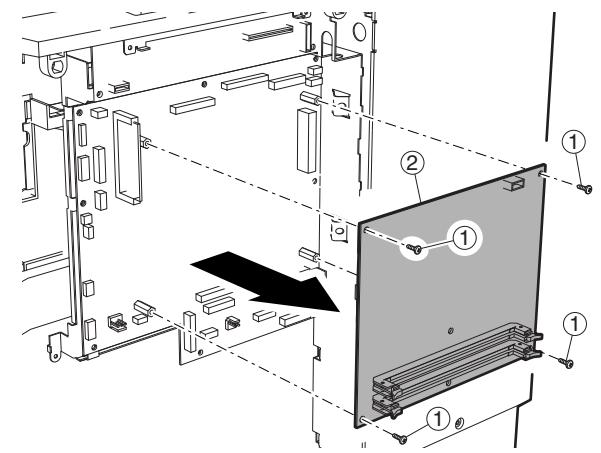
(2) IMC PWB
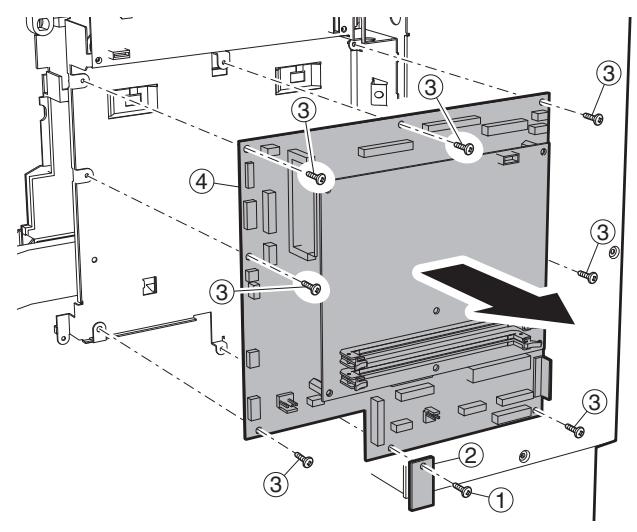
(3)MCUPWB
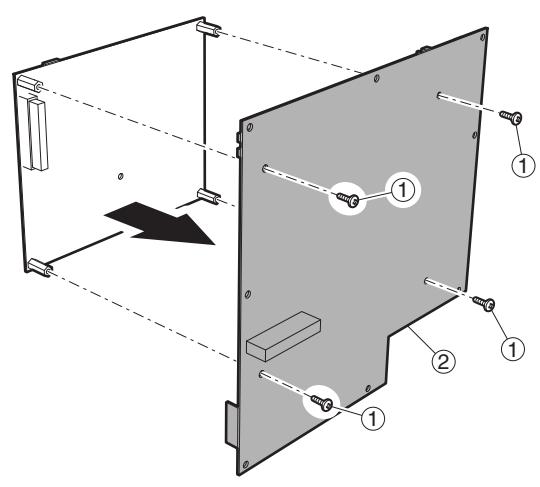
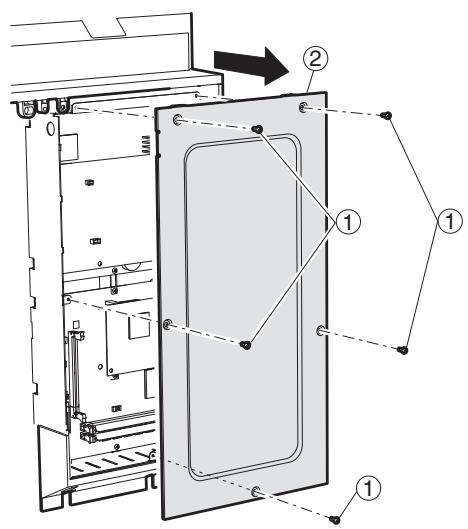
(4) Motherboard PWB
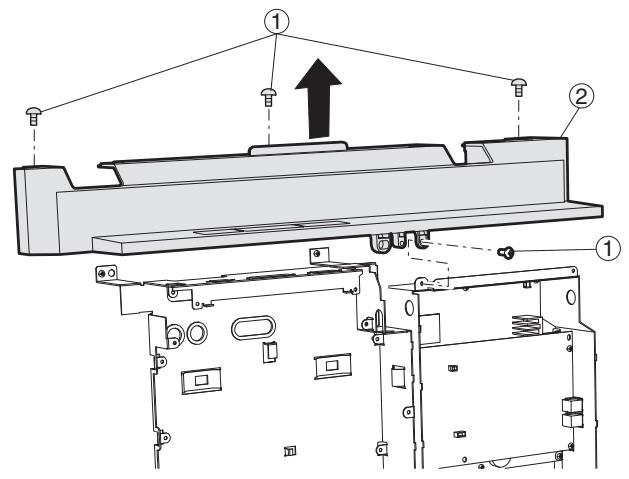
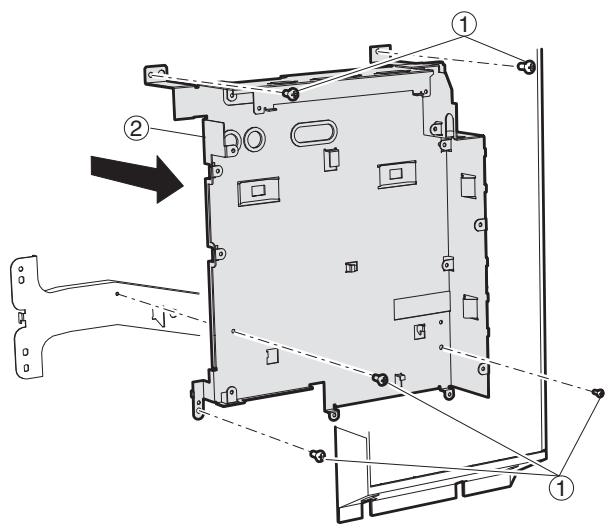
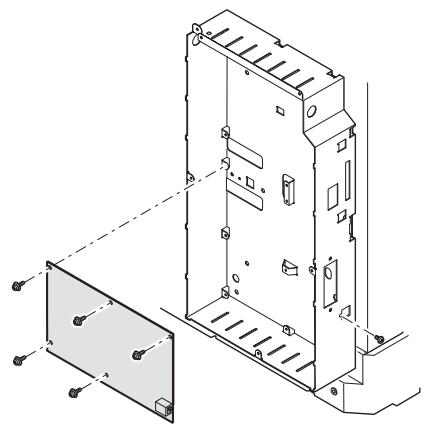
(5) Second interface PWB
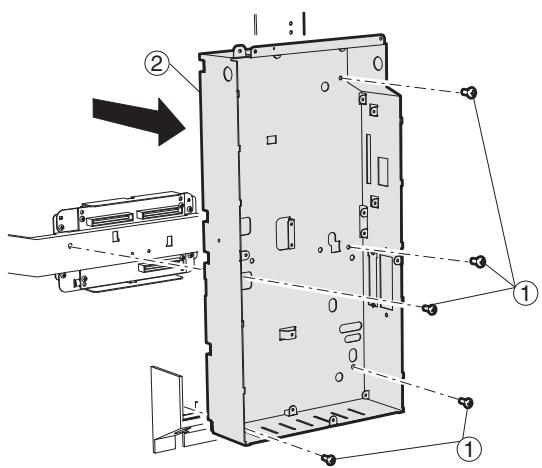
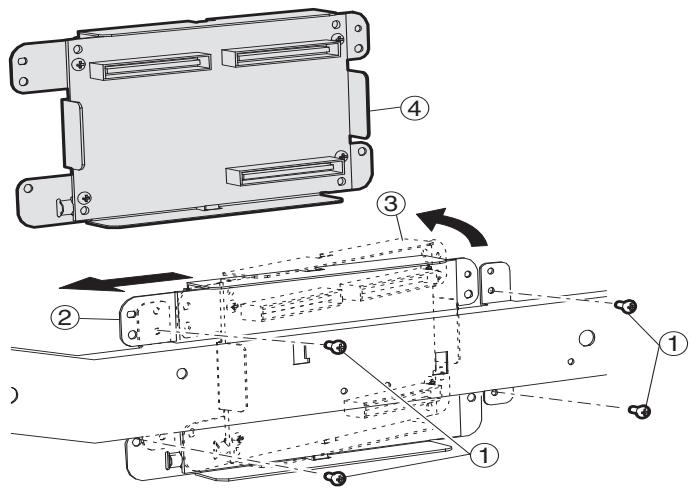
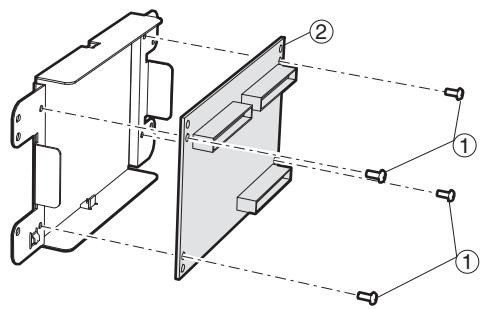

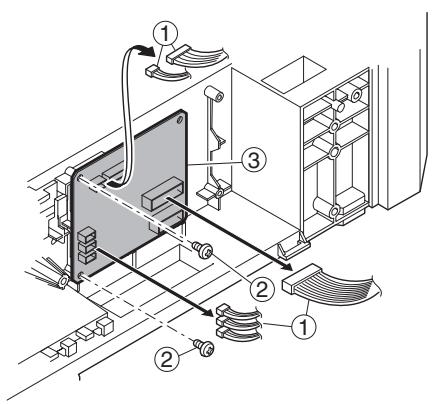
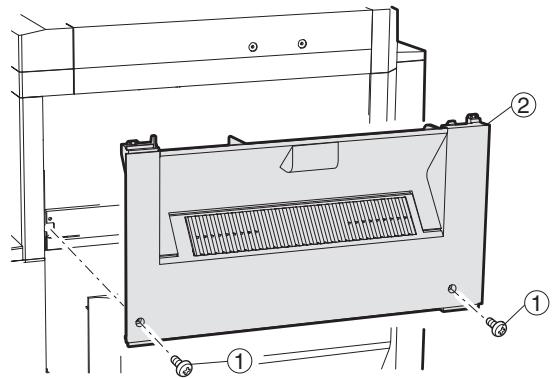
K. Ozone filter
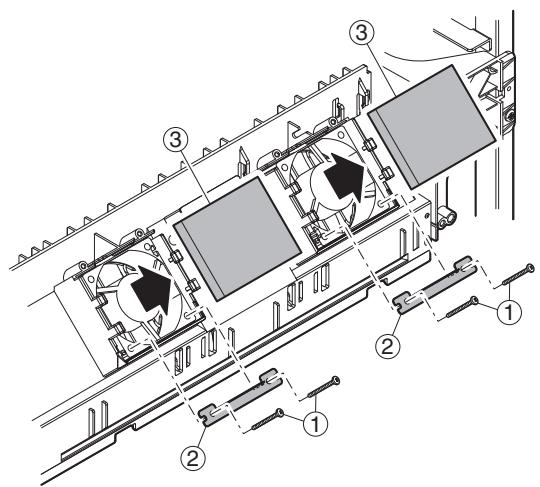
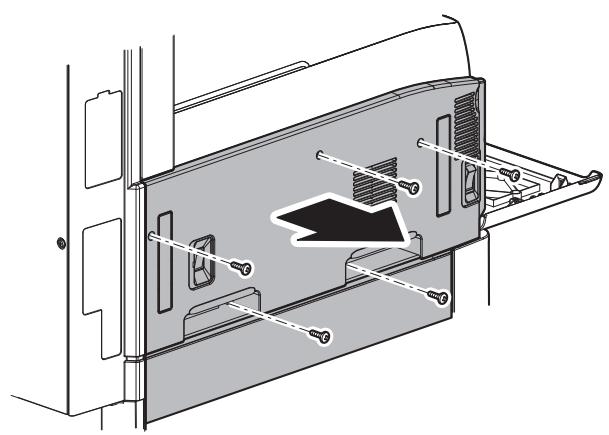
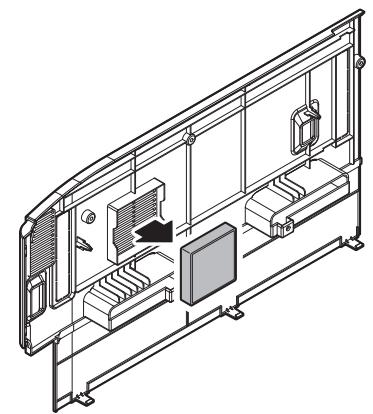
L. Drive section
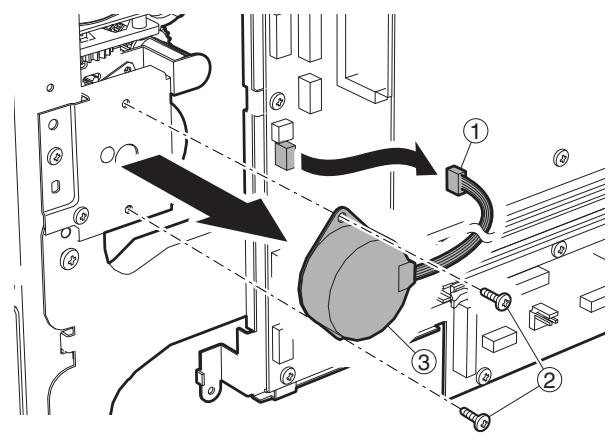
(1) DUP reverse motor
(2) Main drive motor
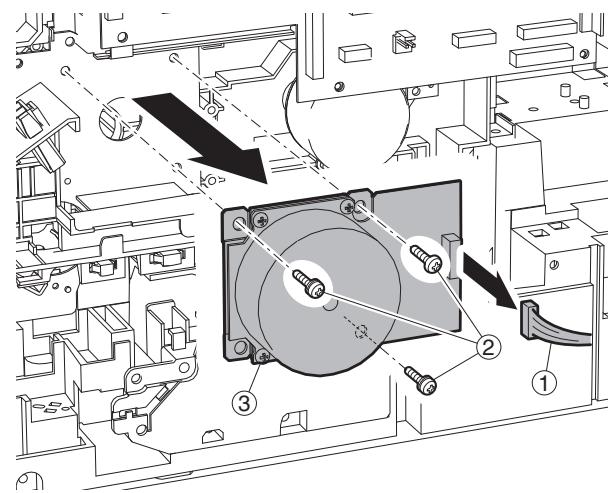
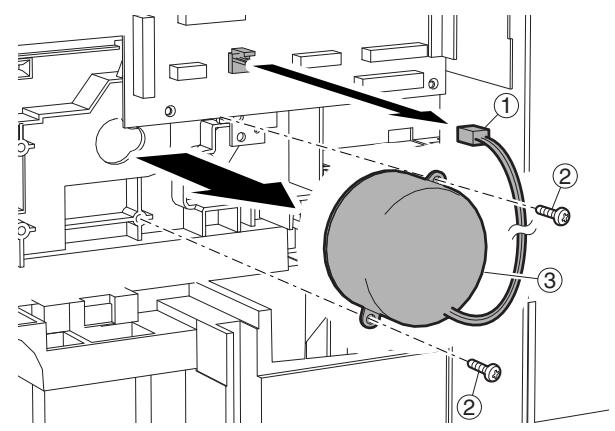
(3) Toner motor
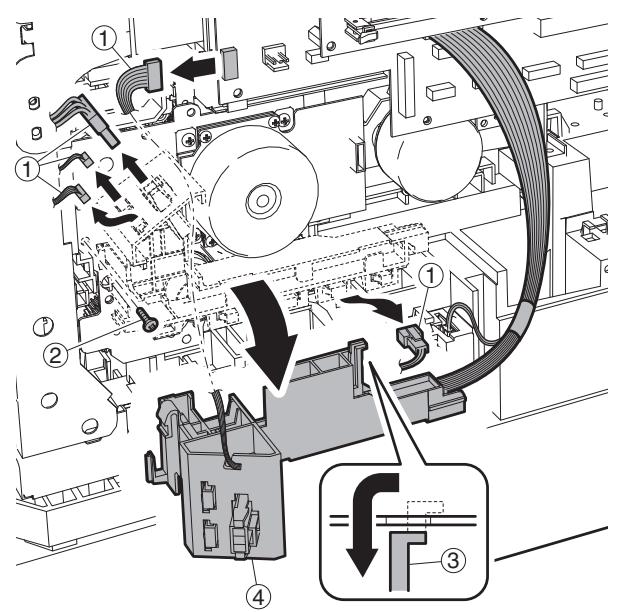
(4) PS transport clutch
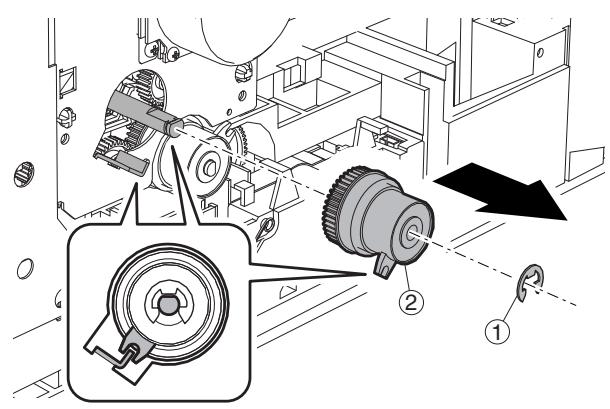
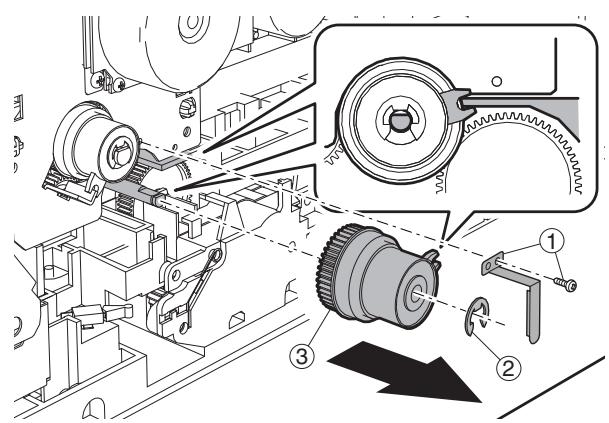
(5) Paper feed clutch
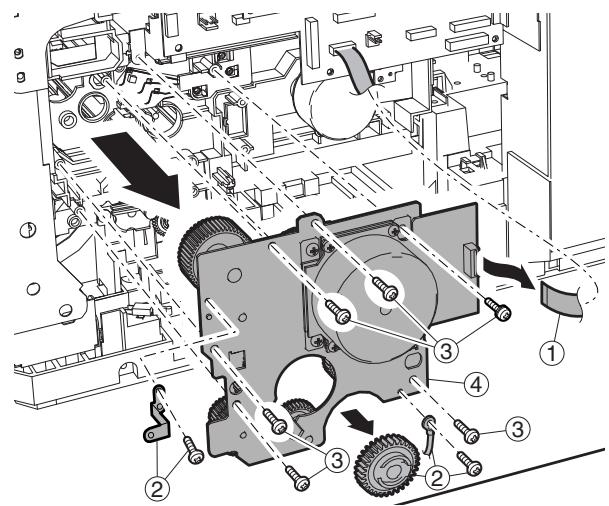
(6) Drive unit
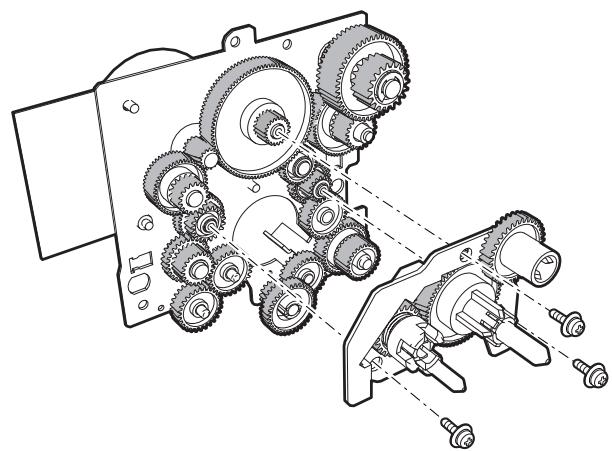
Drive unit (Grease application part)
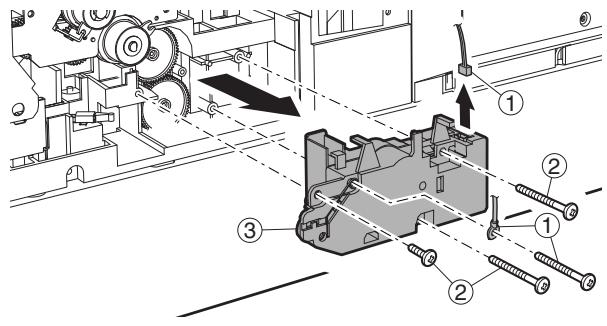
(7) Lift up motor
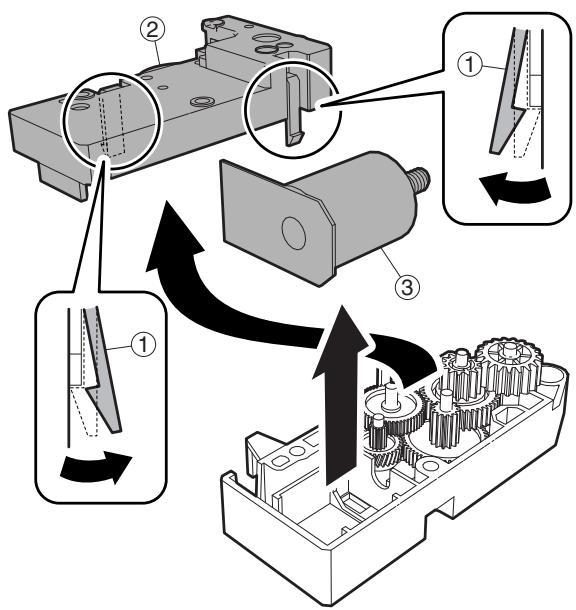
M. Transport section
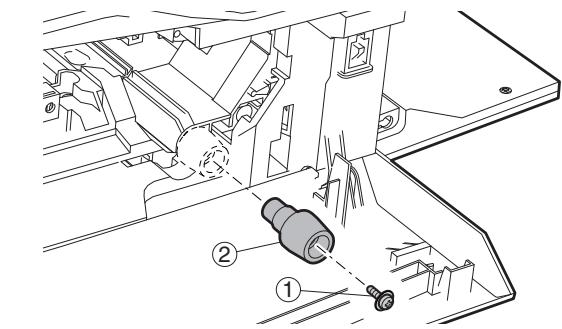
(1) Transport roller
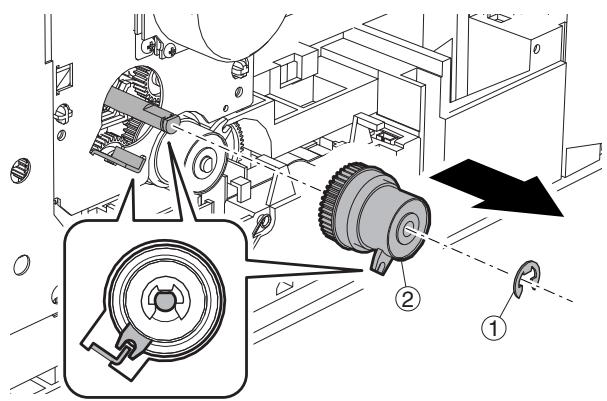
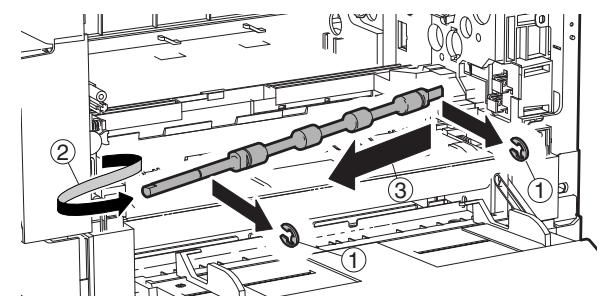
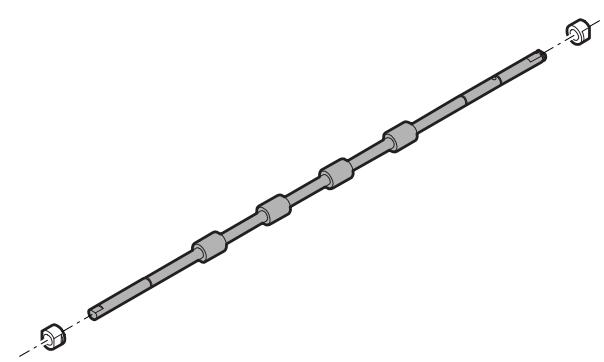
N. Operation section
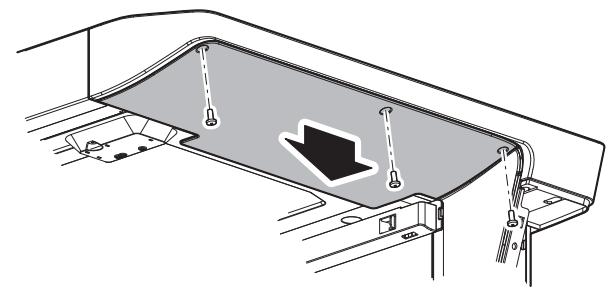
(1) Operation section
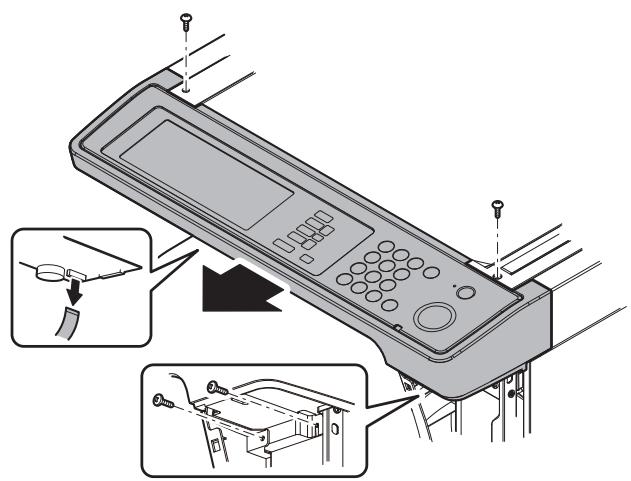
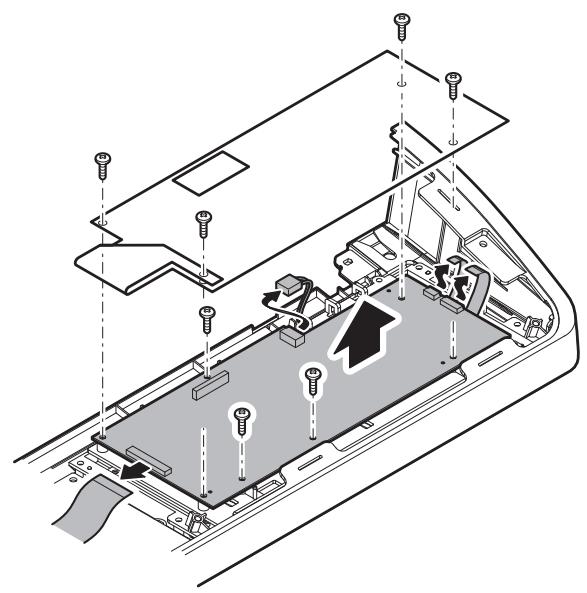
(2) OPU PWB
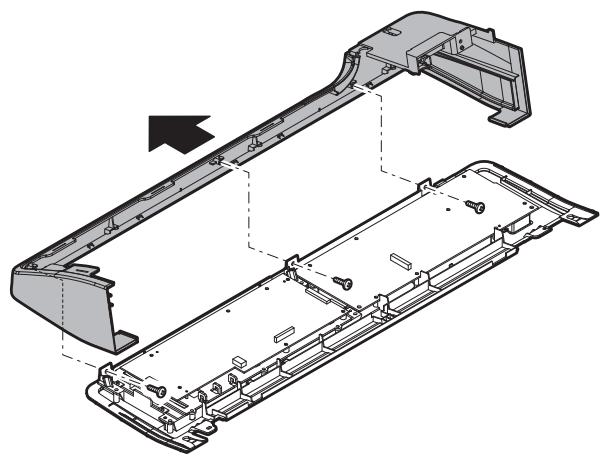
(3) Key PWB
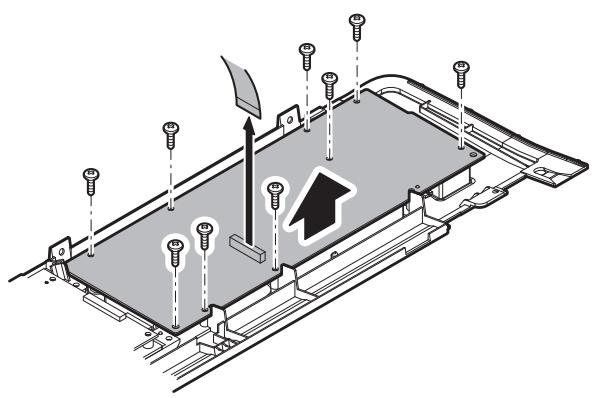
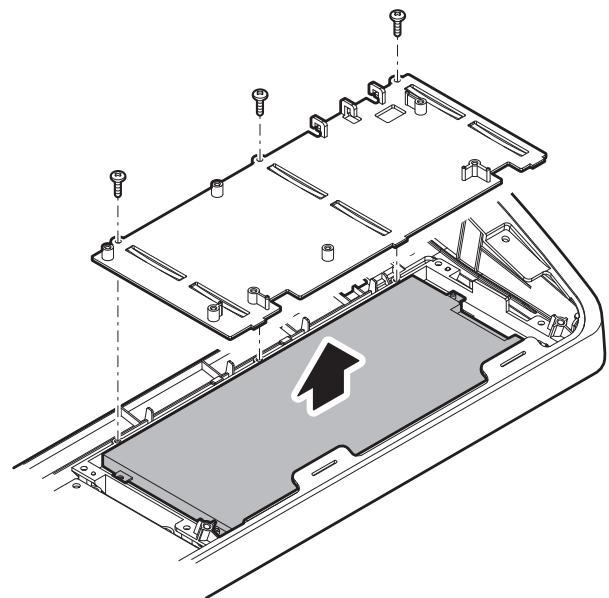
(4) LCD unit
O. Switch
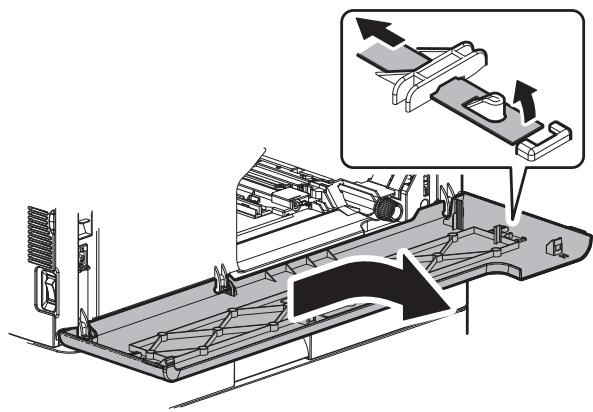
(1) Power switch
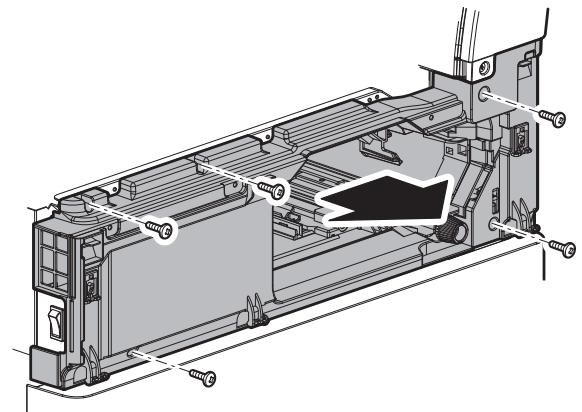
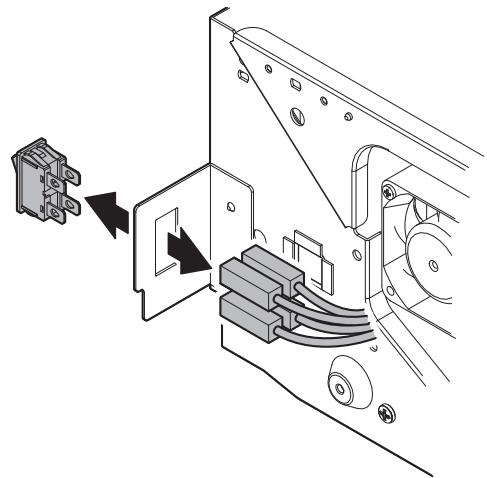
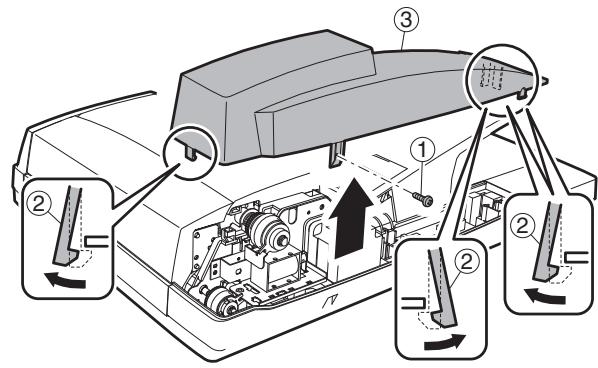
P. RSPF
(1) Document tray section
a. Document tray unit
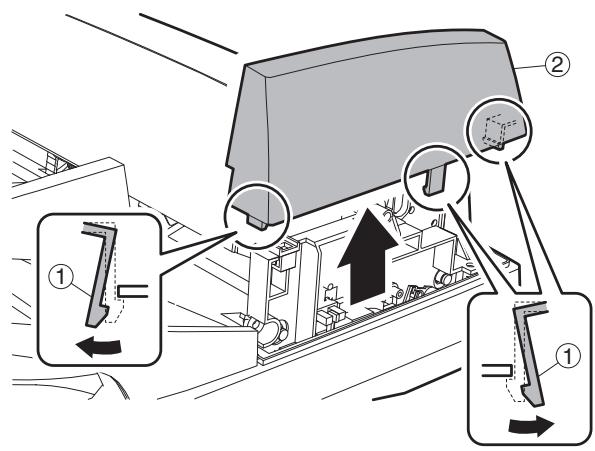
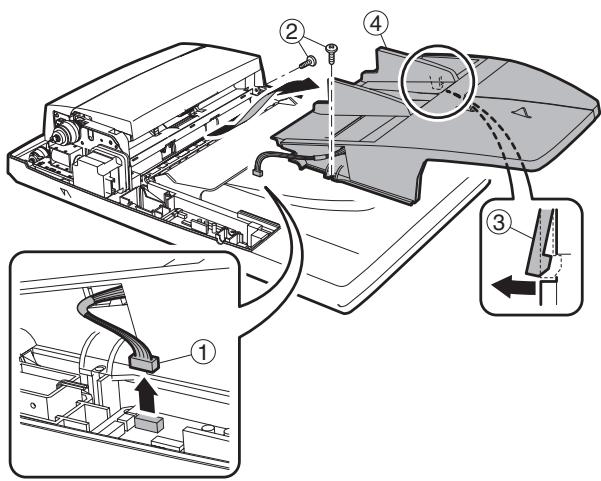
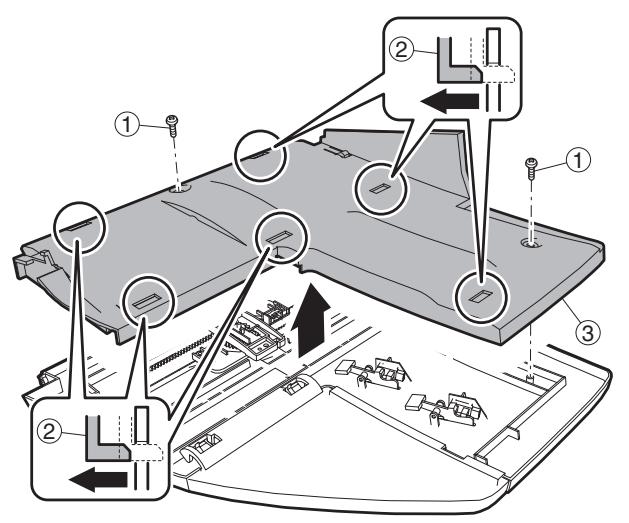
b. Document length sensor
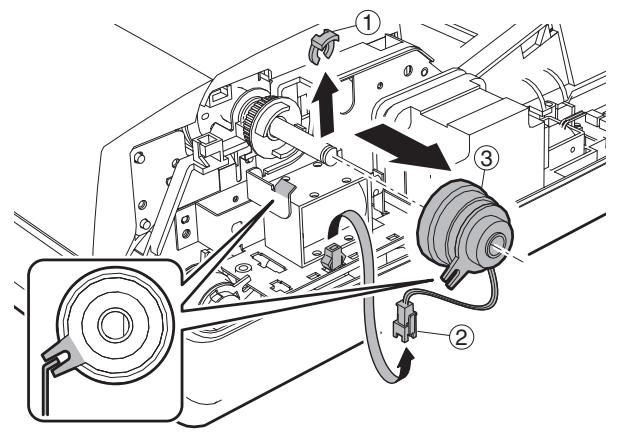
(2) Paper feed unit section
a. Paper feed clutch
b. Pickup roller
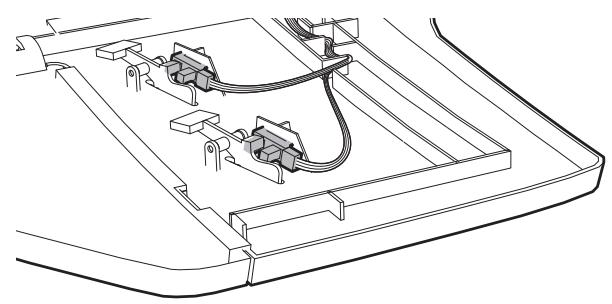
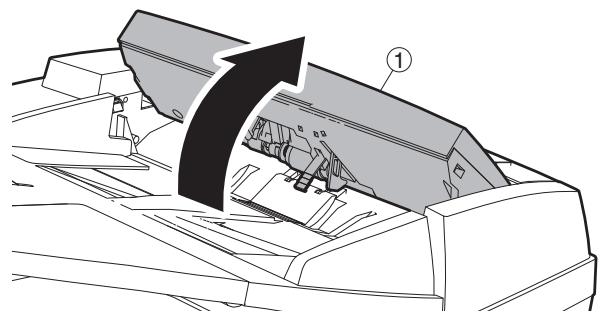
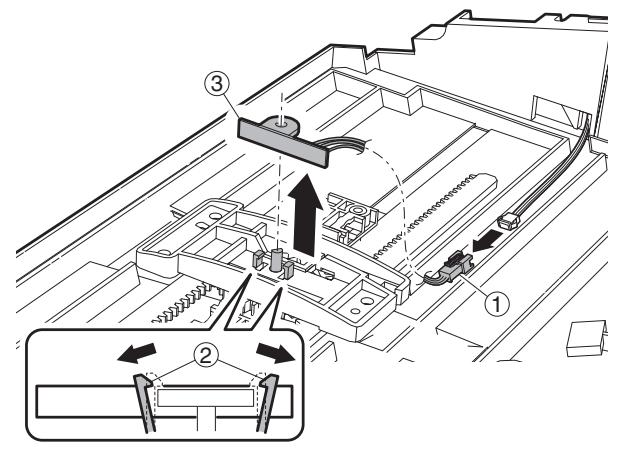
c. Document width resistor PWB
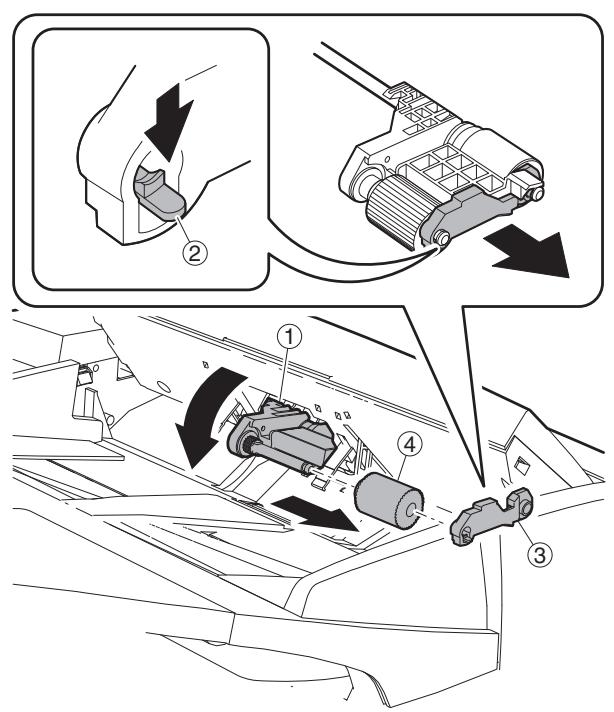
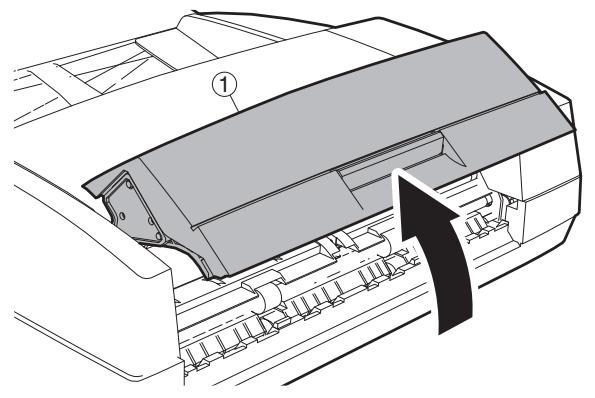
c. Paper feed roller
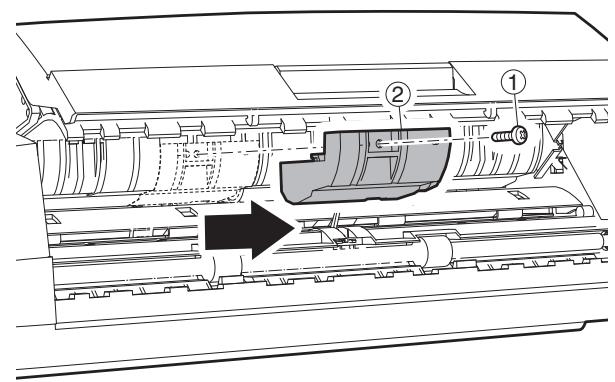
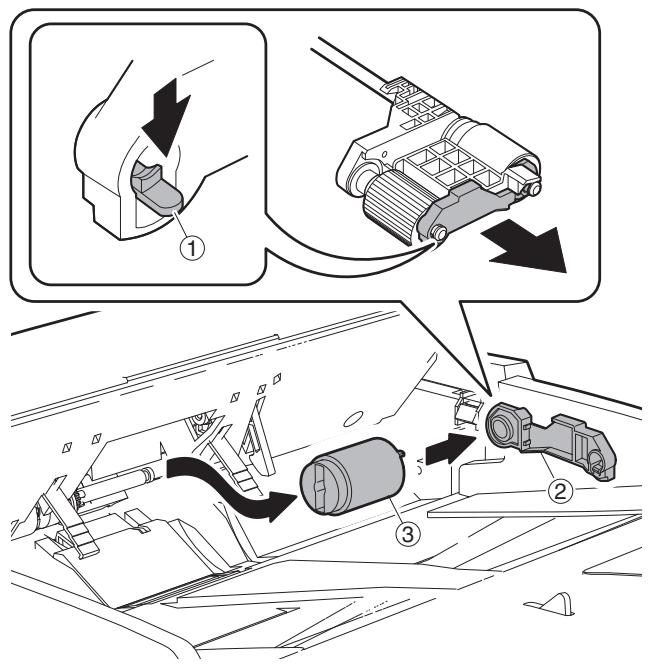
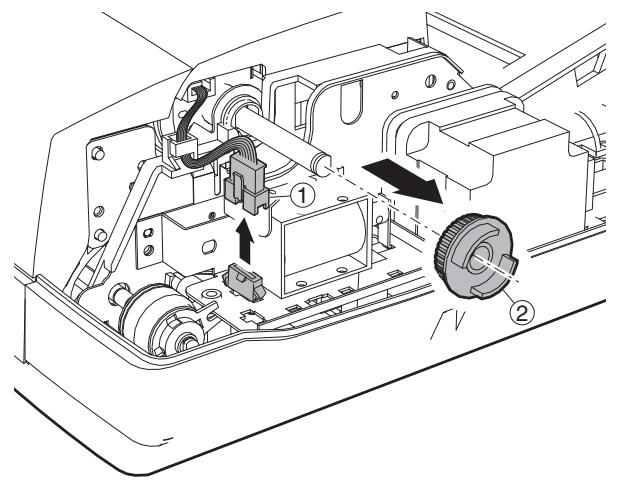
d. Paper feed unit
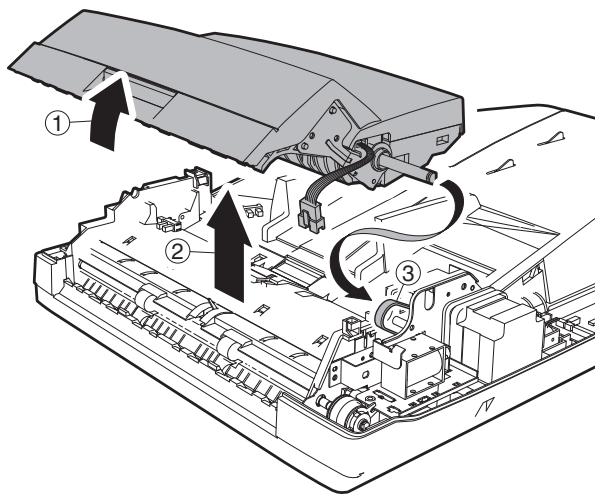
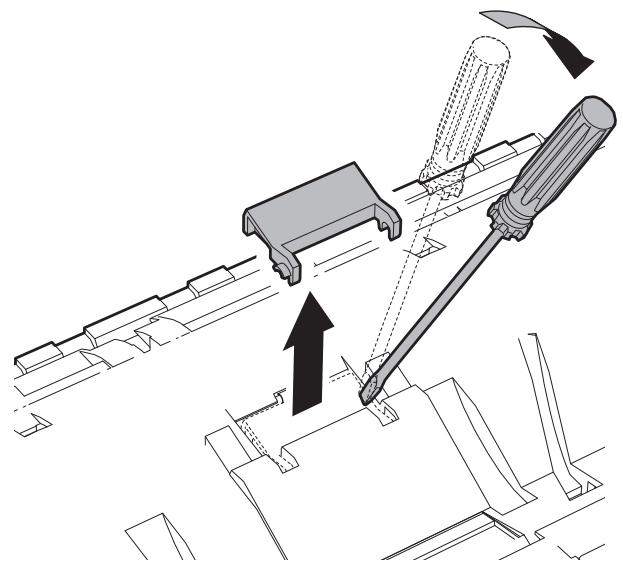
e. Separation sheet
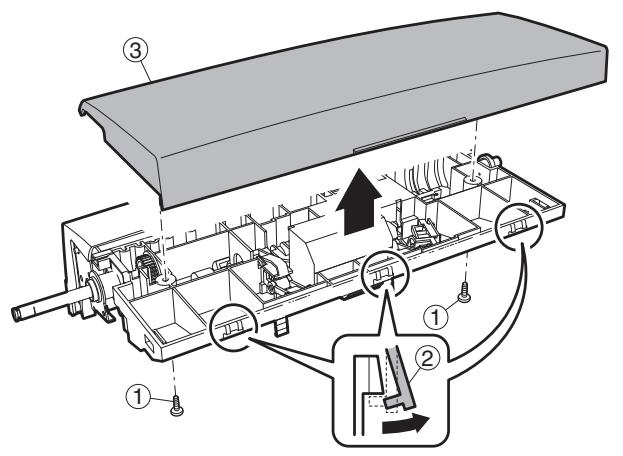
f. Sensor
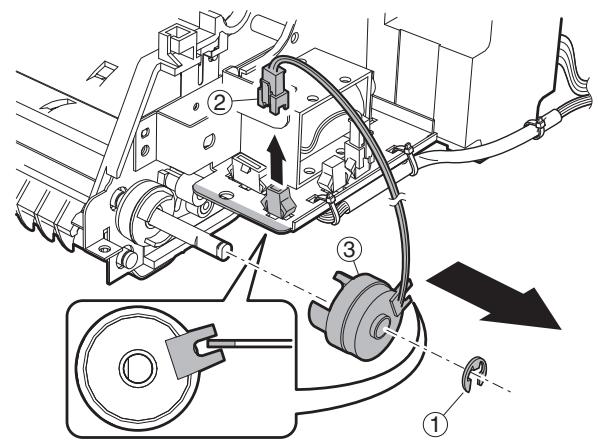
b. PS clutch
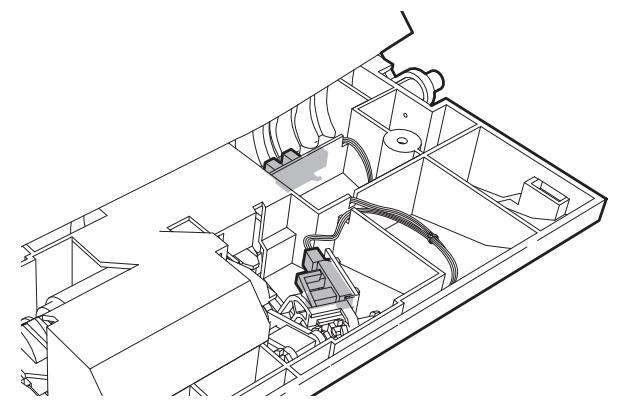
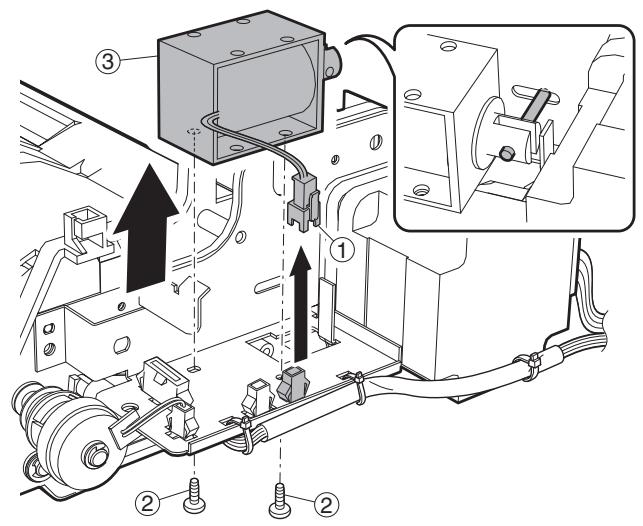
c. Pressure release solenoid
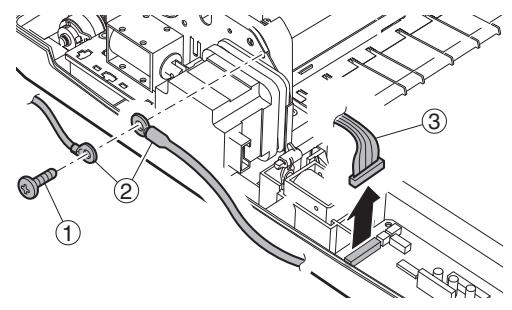
(3) Transport section
a. Transport unit
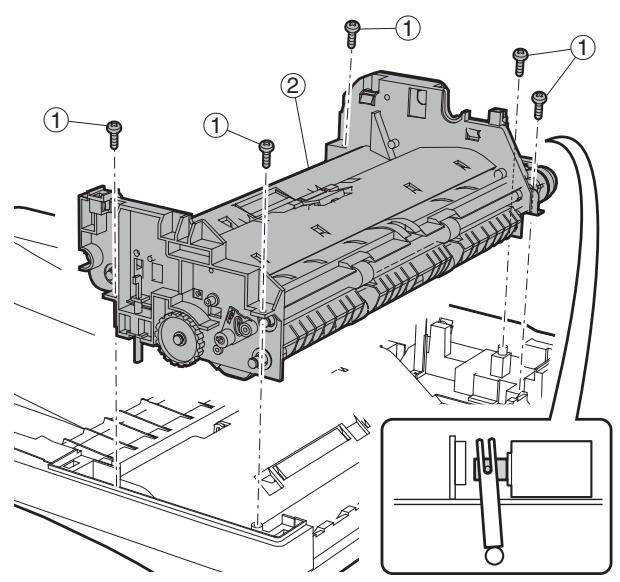
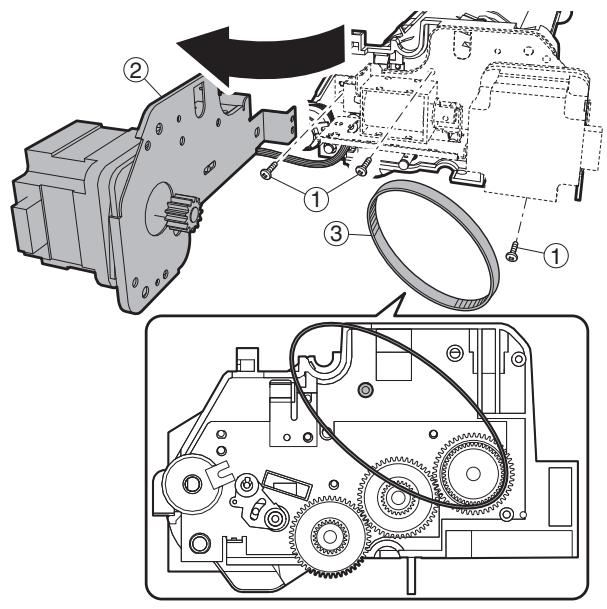
d. RSPF motor
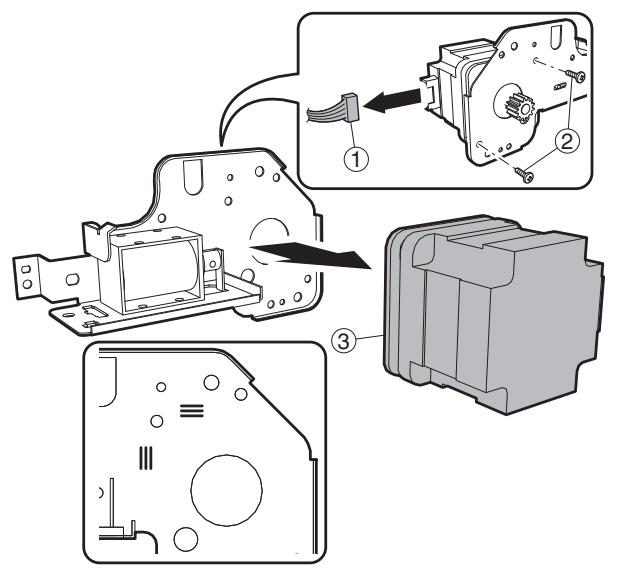
The motor is positioned by the jig. Use the mark when assembling it to the original position.
e. Transport roller
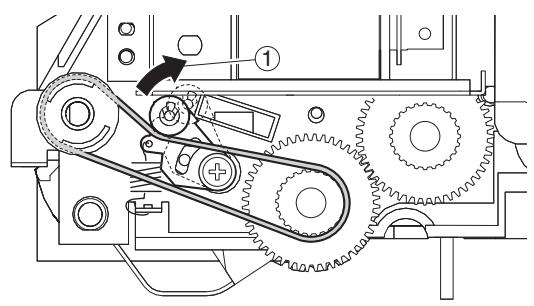

f. Roller
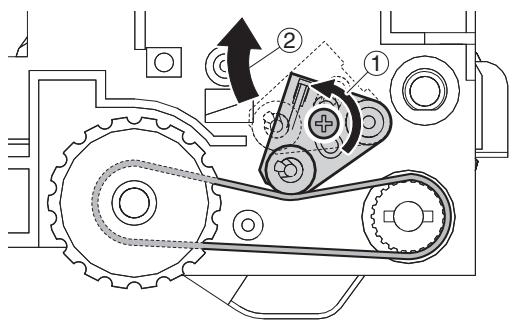
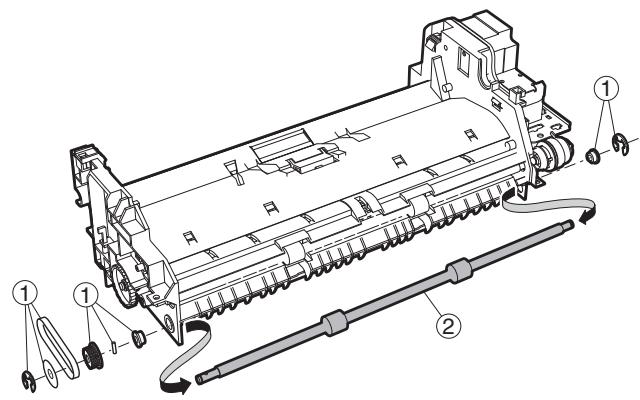
g. Sensor
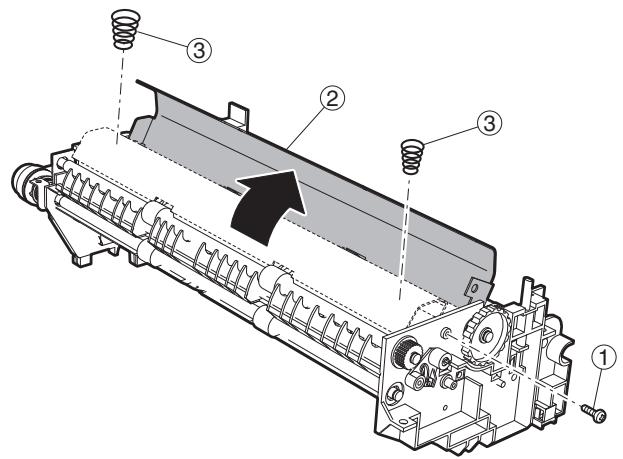
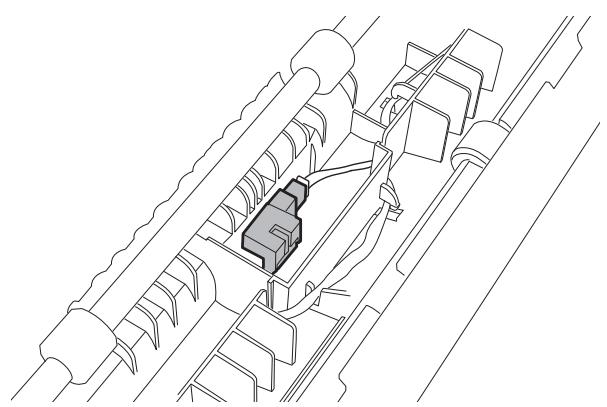
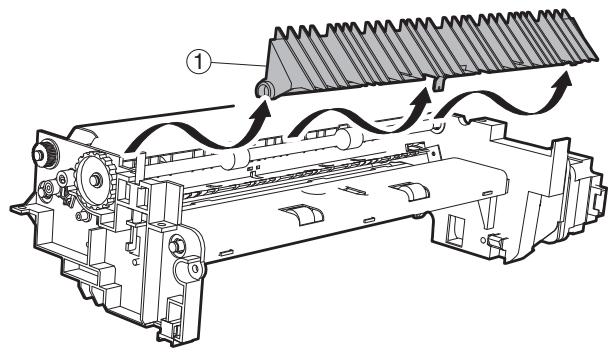
h. Roller
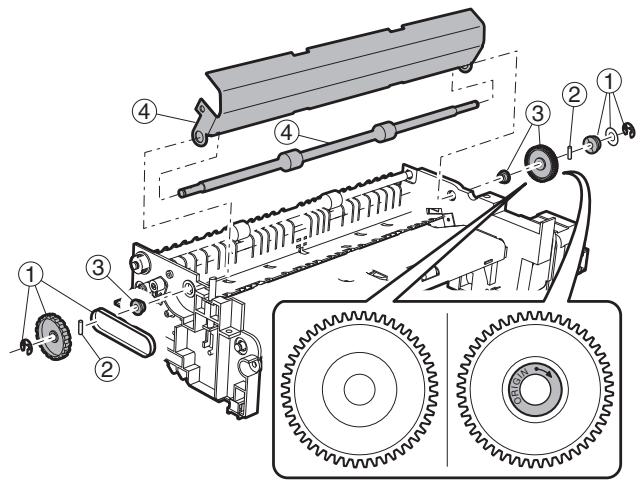
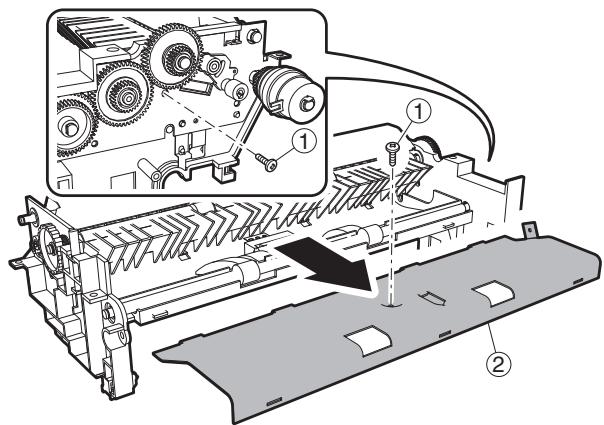
i. Roller
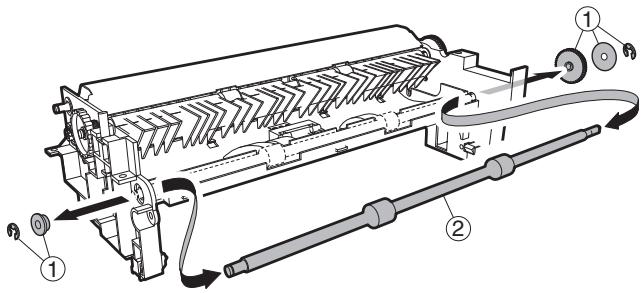
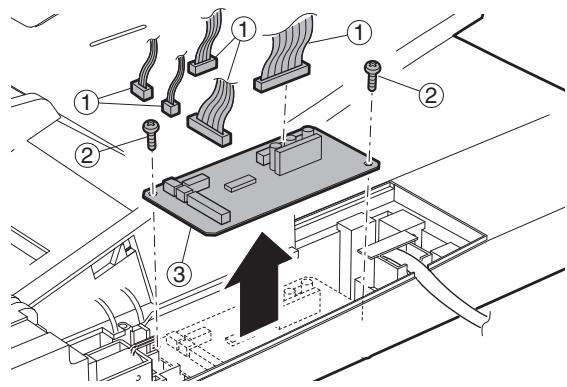
(4) Base section
a. Interface PWB
b. Solenoid
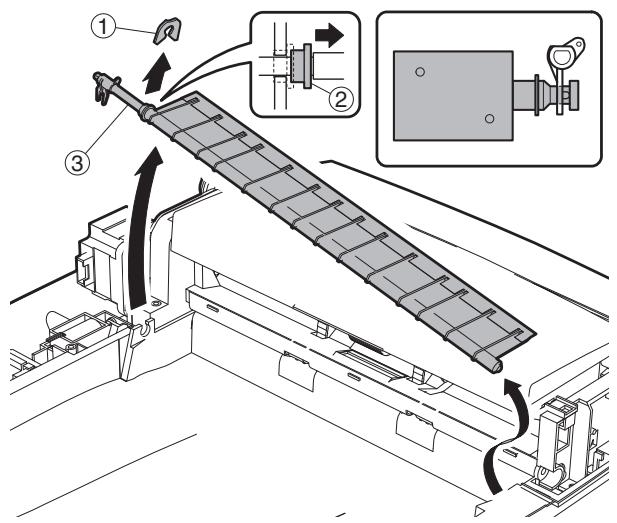
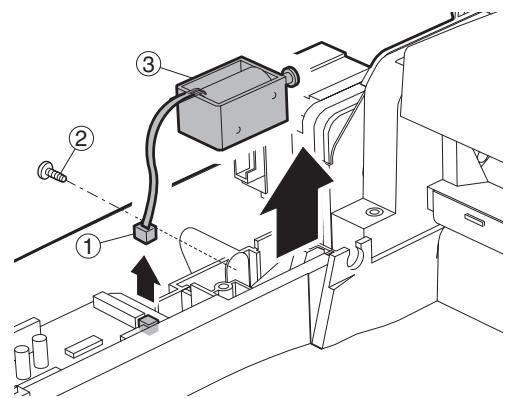
c. Book sensor
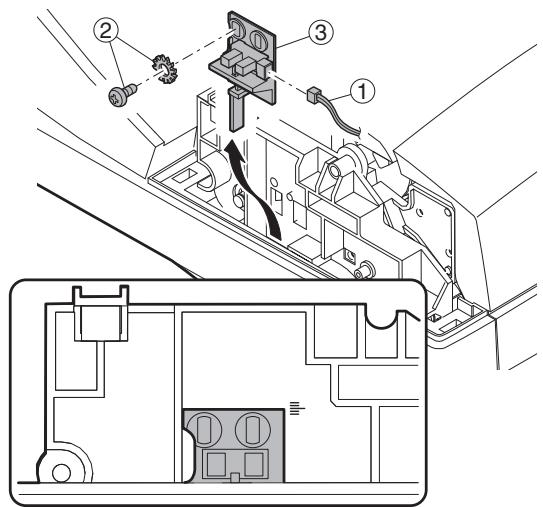
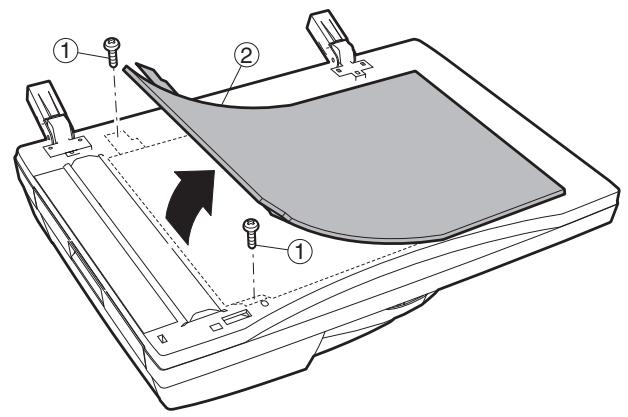
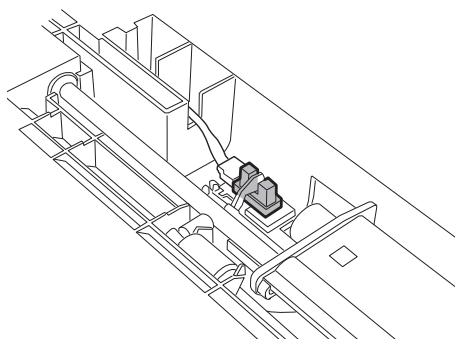
3. Other related items
A. Counter clear
| Item | SIM | Remarks |
| Maintenance cycle setting | SIM 21-1 | |
| Jam/trouble counter clear | SIM 24-1 | |
| Paper feed counter clear | SIM 24-2 | |
| Scan/Stapler counter clear | SIM 24-3 | |
| Maintenance counter clear | SIM 24-4 | * |
| Developing counter clear | SIM 24-5 | After execution of SIM25-2, this counter is cleared. |
| Copy counter clear | SIM 24-6 | |
| Drum counter clear | SIM 24-7 | At drum replacement |
| Printer, IMC, Duplex, other counter clear | SIM 24-9 | |
| FAX counter clear | SIM 24-10 | |
| Scanner mode counter clear | SIM 24-15 |
- 31 sheet model: When maintenance message is displayed, replace consumption part reaching the number of sheets of maintenance, then clear the replaced part's counter only.
[9] FIRMWARE UPDATE
1. Firmware update procedure
(Necessary items for update)
A Personal computer
B RS232C cross cable (D-sub 9pin to D-sub 9pin, or D-sub 25pin to D-sub 9pin)
C Software for version-up
(Target PWB)
1MCUPWB
2 Panel PWB
3 IMC PWB
4 Finisher PWB
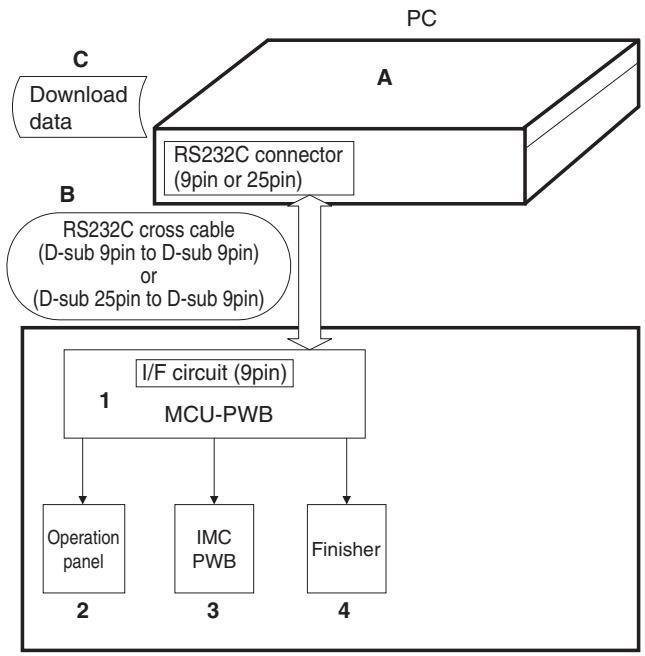
Outline of Update Procedure
Prepare following files necessary for program update
- Maintenance software: maintenance.exe
- Andromeda module file: ProcModelR.mdl
- Maintenance tool driver: SFZEJENU.inf
A. Firmware update method (for Copier, and fax firm)
Following operational procedures are for:
- Copier firm
fax firm
1) Make sure copier is off, and connect it to PC with download cable beforehand.
2) Start up the maintenance program on PC. Select the model name from the model selection dialogue box.
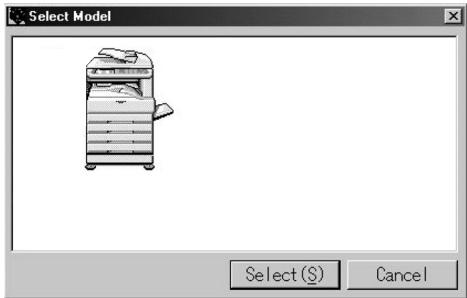
3) Make sure only "Printer Control Board" tree is visible under "Simulation Command List".
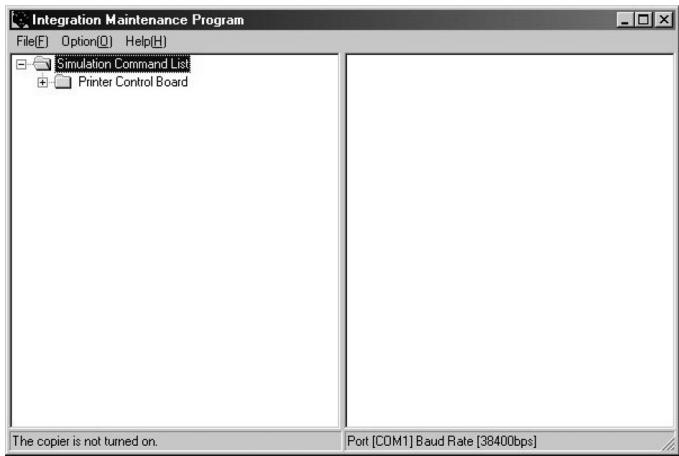
4) Turn on the copier. The machine starts up in the download mode.
5) Additional tree will be visible when downloading maintenance program on PC.
* Make sure to start up maintenance program before turn on the machine.
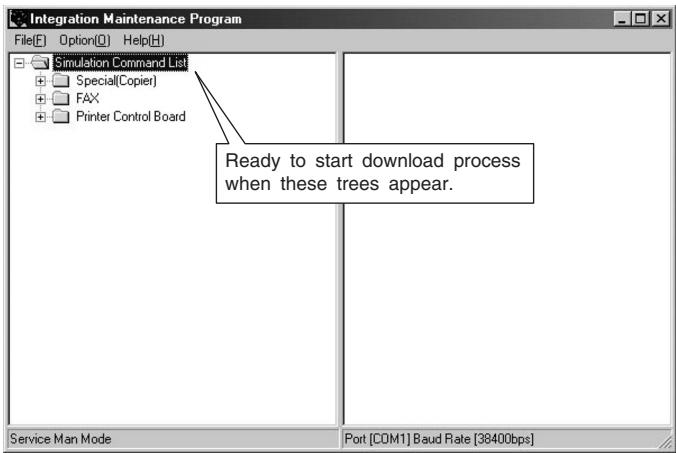
6) When downloading copier firm, expand "Special(Copier)", and double-click on "All Data areas Download".

7) Select download file(.dat), and press "Open" button.
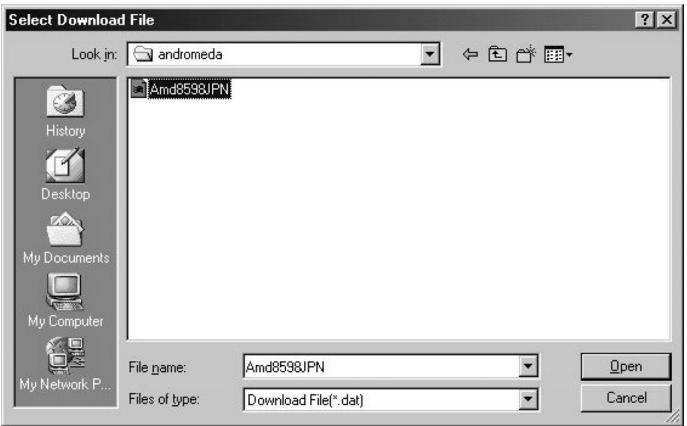
8) Download procedure starts automatically.
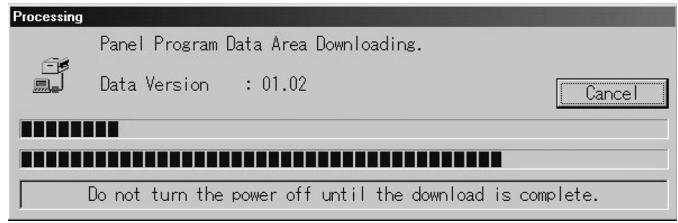
9) Notice message "Download is complete. Check the copier panel to make sure the download is complete." will appear on PC.
10) Close the maintenance program, and turn off the copier. Turn on the copier again after pulling the plug.
This is the end of download procedure.
- It is possible that download process somehow went wrong if the copier does not start up properly. In that case, start up the copier and maintenance program in download mode by repeating the step 1)-5) again. And then, Expand "Special", and double-click on "Confirm Error Status". If any of the message besides "No error has been occurred" appears, it means that download is incomplete, so please try again.
B. Others (Troubleshooting)
Followings are the error possibly occur during the download process and troubleshooting method.
| No | Warning/errormessage | Detail |
| 1 | Incorrect destination. Continue with the download process? | Destination of download file and copier doesn't match.Possible to select either continue or cancel the job.[TROUBLESHOOTING]To change destination, select "Yes". If not, select "No" and cancel download process. |
| 2 | Incorrect download file. | Invalid download file for the machine is selected, or the file format is not correct.[TROUBLESHOOTING]Confirm the download file. Possibly the improper download file is selected. |
| 3 | No downloadable data included. | Unable to find appropriate data in selected download file.[TROUBLESHOOTING]Confirm the download file. Possibly the improper download file is selected. |
| 4 | This option not available. | Download procedure is executed on uninstalled optional kit.[TROUBLESHOOTING]Confirm installed optional kit.Confirm the download file. Possibly the improper download file is selected. |
| 5 | The data size exceeds the Flash ROM size.Try again with the appropriate size of data. | Panel flash ROM size is not enough to execute download procedure.[TROUBLESHOOTING]Confirm the download file. Possibly the improper download file is selected.Exchange the flash ROM to the one which has more capacity. |
| 6 | Time out error. | Transmission errorUnable to receive data from the machine among the certain period of time.[TROUBLESHOOTING]Restart maintenance program after confirming communication port or communication cable. |
| 7 | Communication (incoming) error. | Incorrect download procedure.The machine did not proceed download procedure correctly.[TROUBLESHOOTING]Restart maintenance program after confirming communication port or communication cable.Make sure the communication device of PC(either COM or parallel) is under right condition. |
| 8 | Checksum error. | Transmission errorThe check sum value of the transmission data is mismatch.[TROUBLESHOOTING]Restart maintenance program after confirming communication device of PC (either COM or parallel) is under right condition. |
| 9 | Error during the download process. Error code: 0xXXXXXXXXX | Download data file operation error.[TROUBLESHOOTING]Restart maintenance program after confirming the selected download file is not abnormal andnot using other application. |
| 10 | An error. [0xXXXXXXXXX] | The error occurred except the above errors.[TROUBLESHOOTING]Restart maintenance program after confirming communication device of PC(either COM or parallel) is under right condition. |
[10] ELECTRICAL SECTION
1. Block diagram
A. SYSTEM BLOCK DIAGRAM
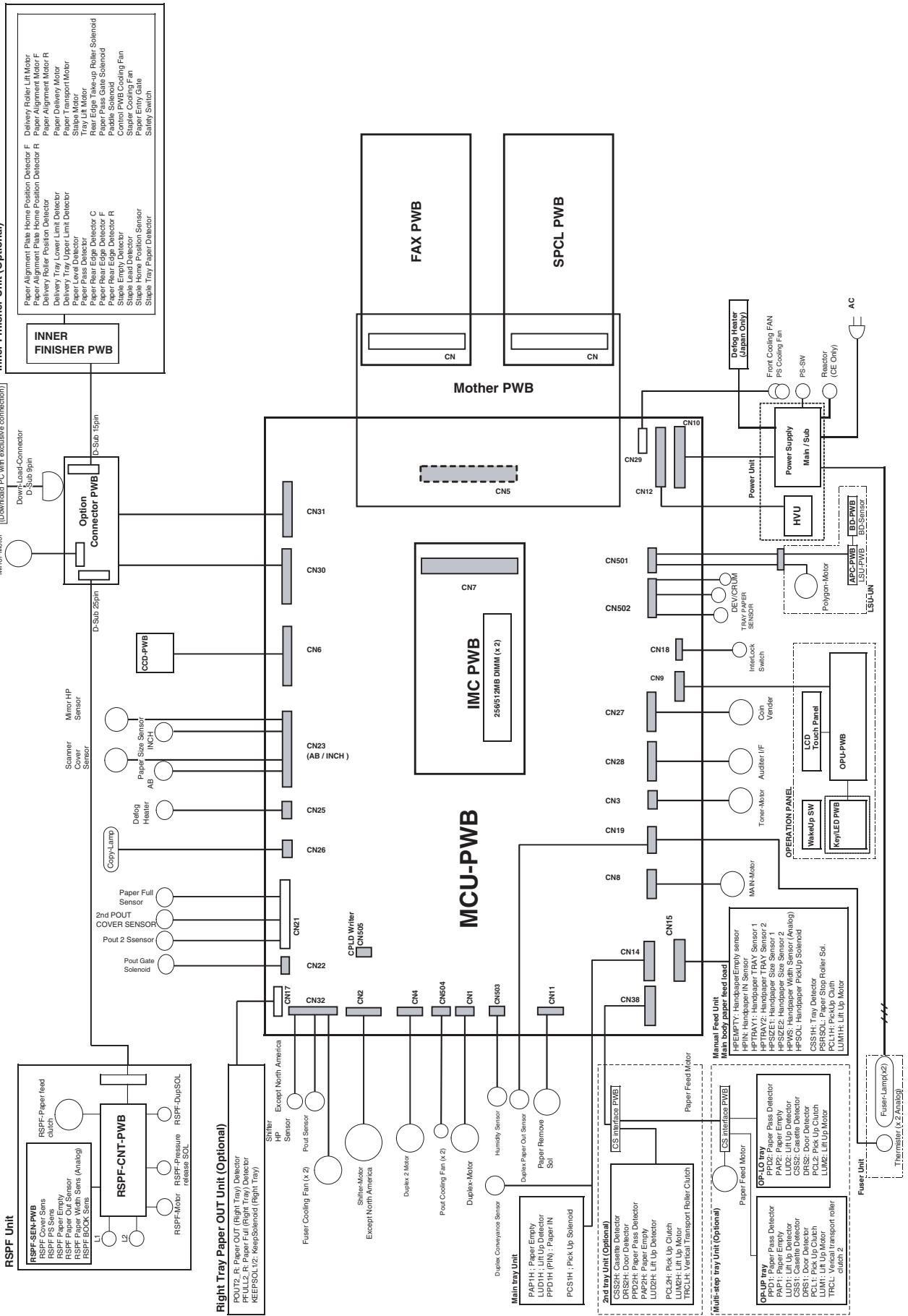
2. Actual wiring chart
A. MCU - Panel unit, Optical base plate sensor section
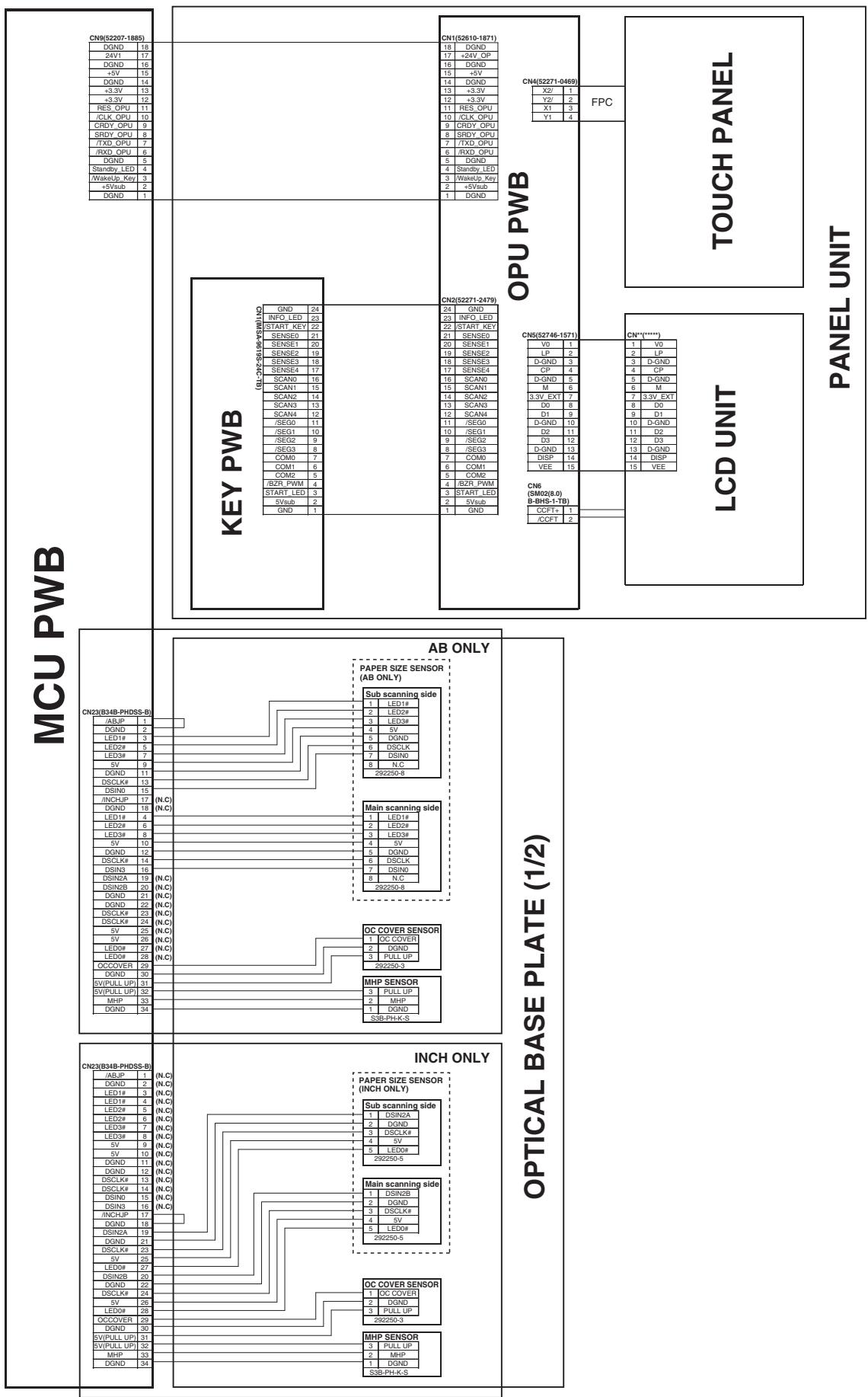
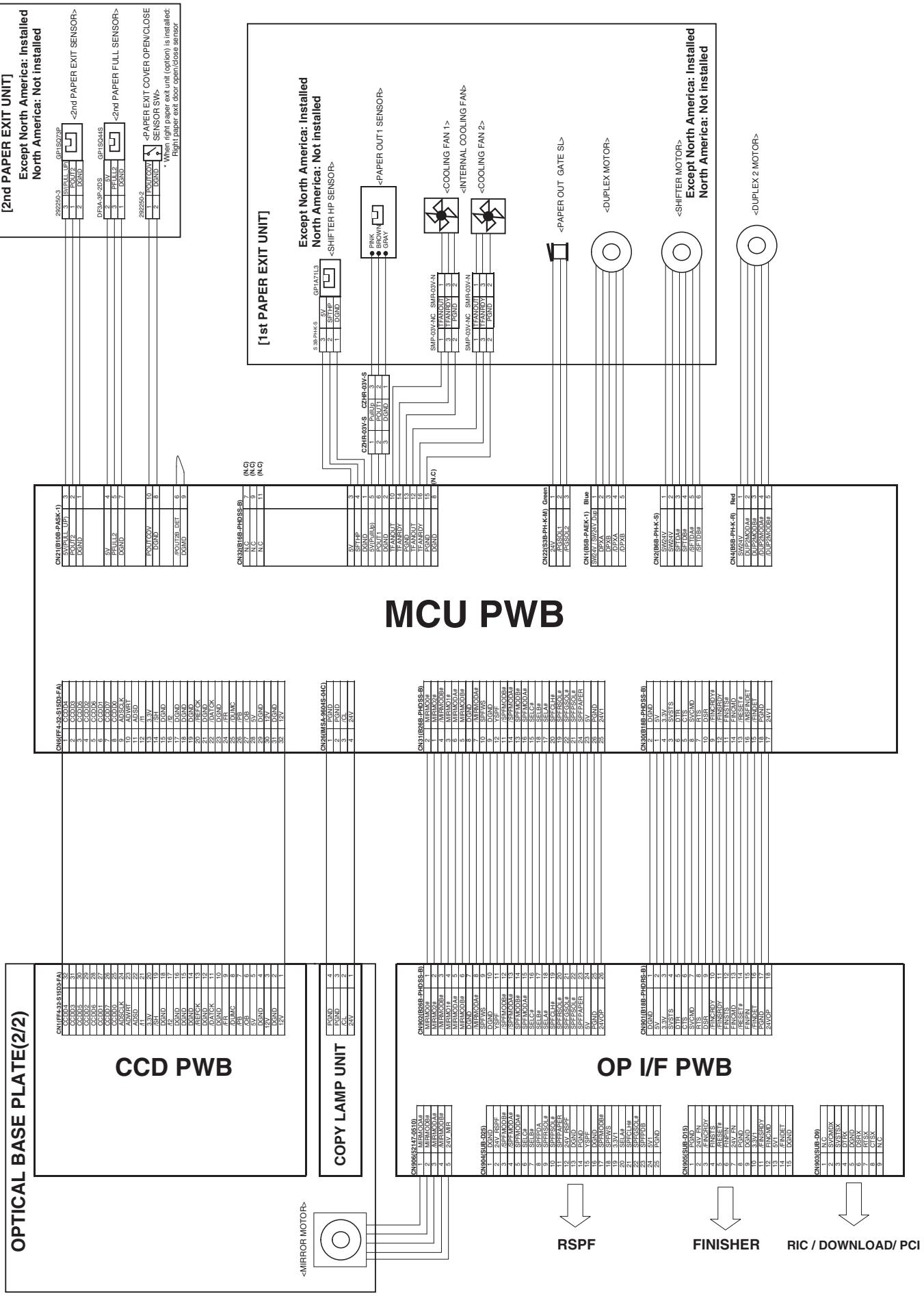
B. MCU - Optical base plate 2, OP I/F PWB, 1st paper exit unit, 2nd paper exit unit
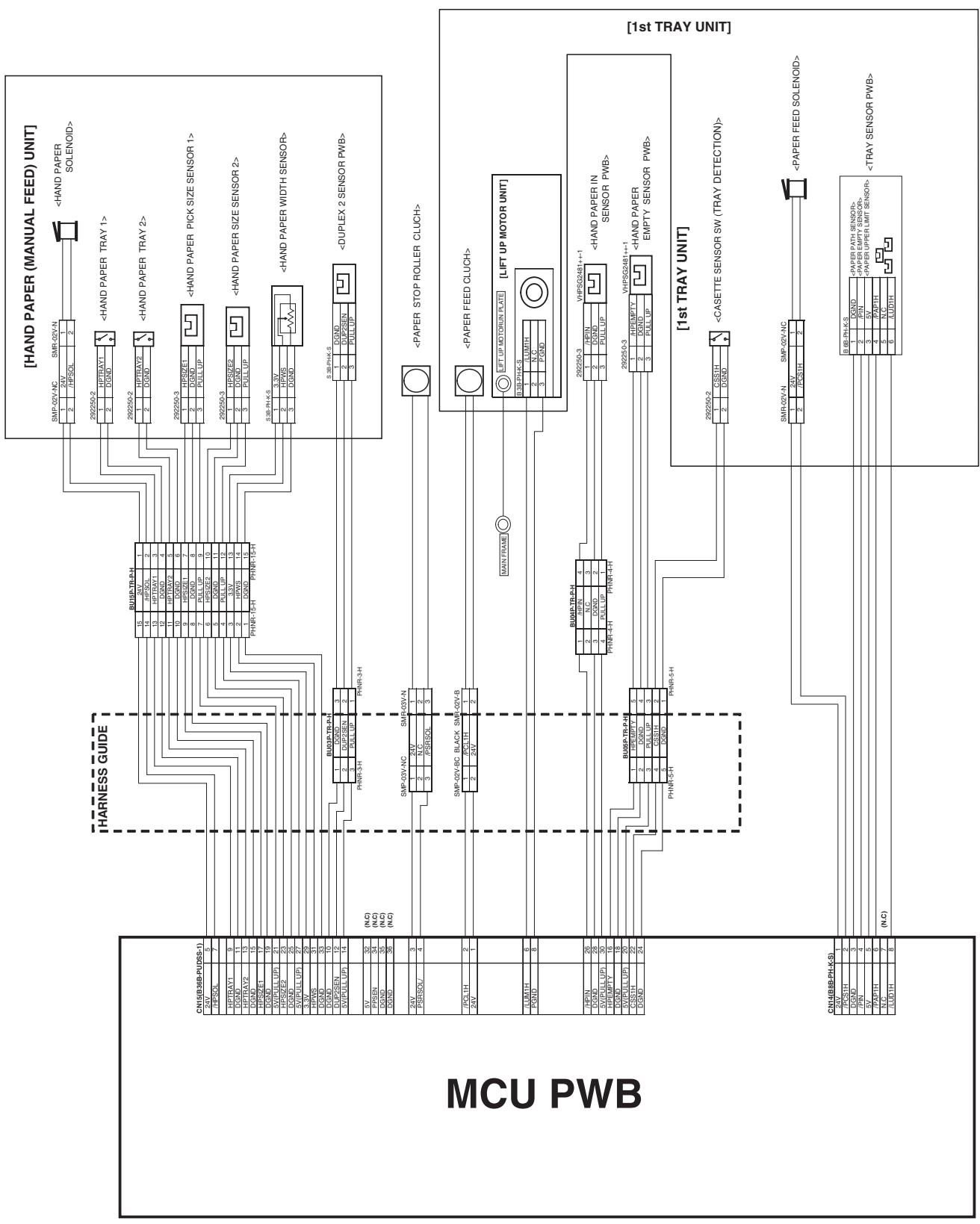
C. Manual feed, 1st tray unit section
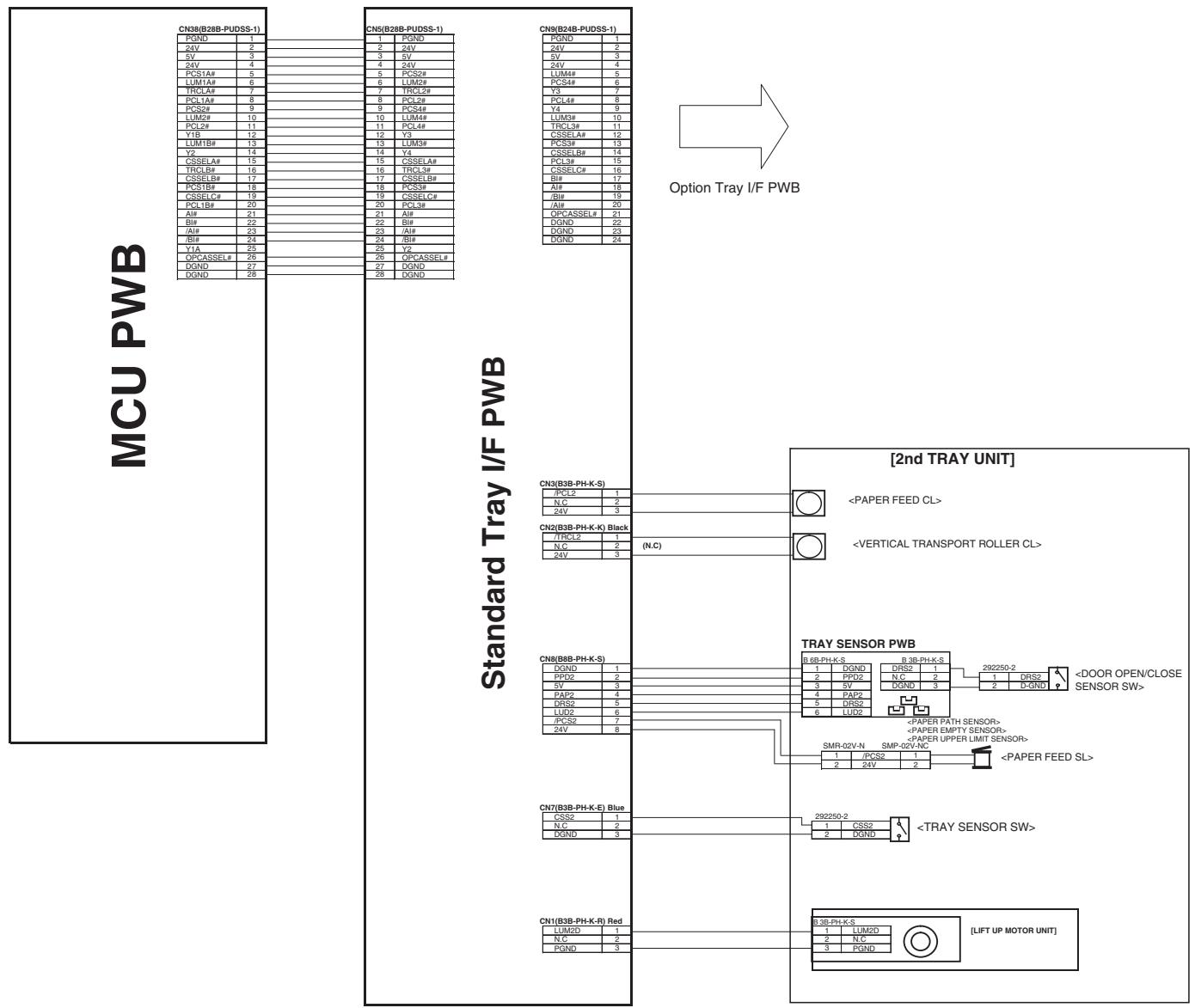
D. 2nd tray unit section
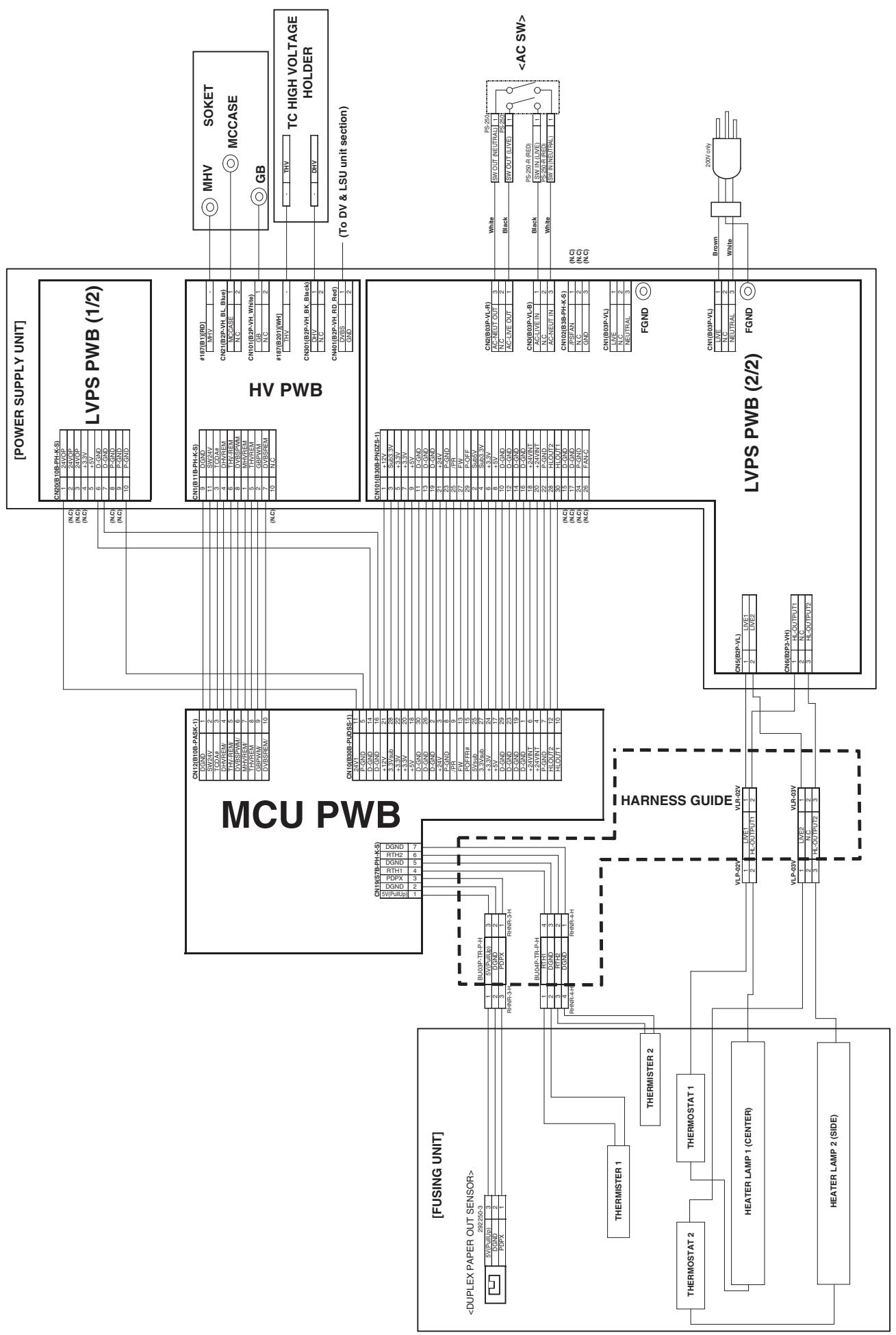
E. Fusing unit, Power supply unit section
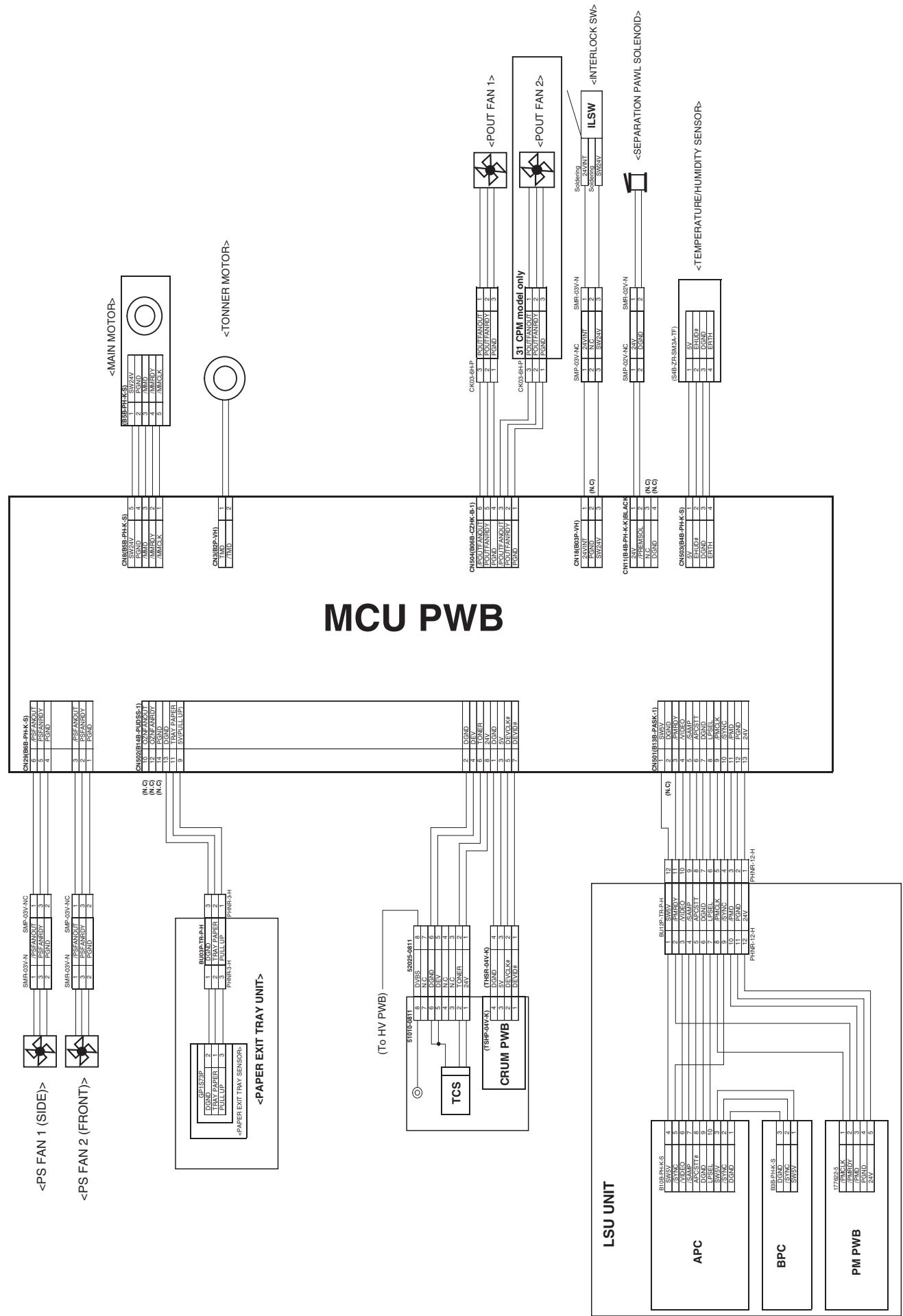

SPCL PWB
Board to Board Connector
MOTHER PWB
10 27 34 5 6 8 9 10 11 12 13 14 15 16 17 18 19 20 21 22 23 24 25 26 27 28 29 30 31 32 33 34 35 36 37 38 39 40 41 42 43 44 45 46 47 48 49 50 51 52 53 54 55 56 57 58 59 60 61 62 63 64 65 66 67 68 69 70 71 72 73 74 75 76 77 78 79 80
Board to Board Connector
FAX PWB FAX PWB
- Signal list
| Signal name | Name | Function/Operation | Connector level | Connector No. | Pin No. | PWB name | NOTE | |
| "L" | "H" | |||||||
| CL | Copy lamp | Controls ON/OFF of the copy lamp. | ON | OFF | CN26 | 3 | MCU | |
| CLH | RSPF clutch | Controls ON/OFF of the RSPF paper feed roller. | ON | OFF | CN5 | 13 | RSPF interface | |
| COVER | RSPF cover open/close detection | Detects open/close of the RSPF cover. | OPEN | CLOSE | CN5 | 2 | RSPF interface | |
| CSS1 | Tray 1 installation detection | Detects installation of tray 1. | NO | YES | CN15 | 22 | MCU | |
| CSS2 | Tray 2 installation detection | Detects installation of tray 2. | NO | YES | CN7 | 1 | Standard tray I/F | |
| CSS3 | Tray 3 installation detection | Detects installation of tray 3. | NO | YES | CN7 | 1 | Option tray I/F | |
| CSS4 | Tray 4 installation detection | Detects installation of tray 4. | NO | YES | CN4 | 8 | Option tray I/F | |
| DPX | Duplex motor | Controls the duplex motor. | - | - | CN1 | 2,3,4,5 | MCU | |
| DRS2 | Door open/close detection (Tray 2) | Detects door open/close. | OPEN | CLOSE | CN8 | 5 | Standard tray I/F | |
| DRS3 | Door open/close detection (Tray 3) | Detects door open/close. | OPEN | CLOSE | CN8 | 5 | Option tray I/F | |
| DRS4 | Door open/close detection (Tray 4) | Detects door open/close. | OPEN | CLOSE | CN4 | 5 | Option tray I/F | |
| DUP2SEN | DUP2 paper delivery sensor | Detects paper delivery in the reverse path. | YES | NO | CN15 | 12 | MCU | |
| EHUD | Humidity sensor | Senses the humidity. | - | - | CN503 | 2 | MCU | Analog detection |
| ERTH | Temperature sensor | Senses the temperature. | - | - | CN503 | 4 | MCU | Analog detection |
| GSOL | Gate solenoid | Reverses the paper exit gate in ON operation. | ON | OFF | CN4 | 2 | RSPF interface | |
| HLOUT1 | Heater lamp main | Turns ON/OFF the heater lamp main. | OFF | ON | CN10 | 10 | MCU | |
| HLOUT2 | Heater lamp sub | Turns ON/OFF the heater lamp sub. | OFF | ON | CN10 | 12 | MCU | |
| HPEMPTY | Manual feed paper presence detection | Detects presence of paper for manual paper feed. | YES | NO | CN15 | 16 | MCU | |
| HPIN | Manual feed paper entry detection | Detects paper entry for manual feed. | NO | YES | CN15 | 26 | MCU | |
| HPSIZE1 | Manual feed paper length detection | Detects the length of manual feed paper. | NO | YES | CN15 | 17 | MCU | |
| HPSIZE2 | Manual feed paper size detection (Longitudinal direction) | Detects the size of manual feed paper. (longitudinal direction) | NO | YES | CN15 | 23 | MCU | |
| HPSOL | Manual paper feed solenoid | Controls the manual paper feed solenoid. | ON | OFF | CN15 | 7 | MCU | |
| HPTRAY1 | Manual paper feed tray length detection | Detects the length of manual feed tray paper. | LONG | SHORT | CN15 | 9 | MCU | |
| HPTRAY2 | Manual paper feed tray length detection | Detects the length of manual feed tray paper. | SHORT | LONG | CN15 | 13 | MCU | |
| HPWS | Manual feed paper width detection | Detects the width of manual feed paper. | - | - | CN15 | 31 | MCU | |
| KEEPPSOL | Right paper exit gate solenoid | Drives the right paper exit gate solenoid. | ON | OFF | CN17 | 8,9 | MCU | |
| LUD1H | Lift-up motor upper limit detection | Detects the upper limit of the lift-up motor. | Not detected | Detected | CN14 | 8 | MCU | |
| LUD2 | Lift-up motor upper limit detection (Tray 2) | Detects the upper limit of the lift-up motor. | Not detected | Detected | CN8 | 6 | Standard tray I/F | |
| LUD3 | Lift-up motor upper limit detection (Tray 3) | Detects the upper limit of the lift-up motor. | Not detected | Detected | CN8 | 6 | Option tray I/F | |
| LUD4 | Lift-up motor upper limit detection (Tray 4) | Detects the upper limit of the lift-up motor. | Not detected | Detected | CN4 | 6 | Option tray I/F | |
| LUM1H | Lift-up motor | Drives the lift plate of the paper tray. | OFF | ON | CN15 | 6 | MCU | |
| LUM2D | Lift-up motor | Drives the lift plate of the paper tray. | OFF | ON | CN1 | 1 | Standard tray I/F | |
| LUM3D | Lift-up motor | Drives the lift plate of the paper tray. | OFF | ON | CN1 | 1 | Option tray I/F | |
| LUM4D | Lift-up motor | Drives the lift plate of the paper tray. | OFF | ON | CN4 | 14 | Option tray I/F | |
| MHP | Mirror home position sensor | Corrects the initial position of the scanner. | Other than home position. | Home position | CN23 | 33 | MCU | |
| MIRMOD | Mirror motor | Controls the mirror operation. | - | - | CN906 | 1,2,3,4 | OP I/F PWB | |
| MMD | Main motor | Controls the main motor. | ON | OFF | IC215 | 3 | MCU | |
| MMRDY | Main motor lock | Detects lock of the main motor. | Rotation | Lock | IC215 | 2 | MCU | |
| OCCOVER | OC cover open/close detection | Detects open/close of the OC cover. | OPEN | CLOSE | CN23 | 29 | MCU | |
| OZNFANOUT | Ozone fan | Controls the ozone fan. | OFF | ON | CN502 | 10 | MCU | |
| PAP1H | Paper pass sensor (Tray 1) | Detects paper pass. | YES | NO | CN14 | 6 | MCU | |
| PAP2 | Paper pass sensor (Tray 2) | Detects paper pass. | YES | NO | CN8 | 4 | Standard tray I/F | |
| PAP3 | Paper pass sensor (Tray 3) | Detects paper pass. | YES | NO | CN8 | 4 | Option tray I/F | |
| PAP4 | Paper pass sensor (Tray 4) | Detects paper pass. | YES | NO | CN4 | 4 | Option tray I/F | |
| PAPER | Paper entry sensor | Detects paper entry. | YES | NO | CN5 | 18 | SPF interface | |
| PCL1H | Paper feed clutch (Tray 1) | Controls ON/OFF of the paper feed roller. | ON | OFF | CN15 | 2 | MCU | |
| PCL2 | Paper feed clutch (Tray 2) | Controls ON/OFF of the paper feed roller. | ON | OFF | CN3 | 1 | Standard tray I/F | |
| PCL3 | Paper feed clutch (Tray 3) | Controls ON/OFF of the paper feed roller. | ON | OFF | CN3 | 1 | Option tray I/F | |
| PCL4 | Paper feed clutch (Tray 4) | Controls ON/OFF of the paper feed roller. | ON | OFF | CN4 | 10 | Option tray I/F | |
| PCS1H | Paper feed solenoid (Tray 1) | Controls ON/OFF of the paper feed roller. | ON | OFF | CN14 | 2 | MCU | |
| PCS2 | Paper feed solenoid (Tray 2) | Controls ON/OFF of the paper feed roller. | ON | OFF | CN8 | 7 | Standard tray I/F | |
| PCS3 | Paper feed solenoid (Tray 3) | Controls ON/OFF of the paper feed roller. | ON | OFF | CN8 | 7 | Option tray I/F | |
| PCS4 | Paper feed solenoid (Tray 4) | Controls ON/OFF of the paper feed roller. | ON | OFF | CN4 | 12 | Option tray I/F | |
| PDPX | Duplex sensor | Detects paper presence for duplex. | YES | NO | CN19 | 3 | MCU | |
| PFULL2 | No. 2 paper exit full sensor | Detects paper full in the No. 2 paper exit unit. | YES | NO | CN21 | 5 | MCU | |
| PFULL2_R | Right paper exit full sensor | Detects paper full in the right paper exit unit. | YES | NO | CN17 | 5 | MCU | |
| PGSOL | Paper exit gate solenoid | Controls the paper exit gate. | ON | OFF | CN22 | 2,3 | MCU | |
| PIN | Paper entry sensor | Detects paper entry. | YES | NO | CN14 | 4 | MCU | |
| POUT1 | No. 1 paper exit sensor | Detects paper exit of the No. 1 paper exit unit. | NO | YES | CN32 | 6 | MCU | |
| POUT2 | No. 2 paper exit sensor | Detects paper exit of the No. 2 paper exit unit. | YES | NO | CN21 | 2 | MCU | |
| POUT2_R | Right paper exit sensor | Detects paper exit of the right paper exit unit. | YES | NO | CN17 | 2 | MCU | |
| POUTCOV | Paper exit cover open/close detection | Detects open/close of the paper exit cover. | OPEN | CLOSE | CN21 | 10 | MCU | |
| POUTFANOUT | Paper exit cooling fan | Cools the fusing unit. | OFF | ON | CN504 | 3,6 | MCU | |
| POUTFANRDY | Paper exit cooling fan lock detection | Detects lock of the paper exit cooling fan. | Rotation | Lock | CN504 | 2,5 | MCU | |
| PPD2 | Paper pass sensor (Tray 2) | Detects paper pass. | YES | NO | CN8 | 2 | Standard tray I/F | |
| PPD3 | Paper pass sensor (Tray 3) | Detects paper pass. | YES | NO | CN8 | 2 | Option tray I/F | |
| PPD4 | Paper pass sensor (Tray 4) | Detects paper pass. | YES | NO | CN4 | 2 | Option tray I/F | |
| PREMSOL | Paper separation solenoid | Controls the paper separation solenoid. | ON | OFF | CN11 | 2 | MCU | |
| PSFANOUT | PS fan | Drives the PS fan. | OFF | ON | CN29 | 3,6 | MCU | |
| PSFANRDY | PS fan lock detection | Detects lock of the PS fan. | Rotation | Lock | CN29 | 2,5 | MCU | |
| PSOL | PS solenoid | Controls ON/OFF of the PS roller. | ON | OFF | CN5 | 11 | SPF interface | |
| PSRSOL | Resist roller solenoid | Controls the resist roller. | ON | OFF | CN15 | 4 | MCU | |
| RSOL | Reverse solenoid | Reverses the paper exit gate in ON operation. | ON | OFF | CN5 | 15 | SPF interface PWB | |
| RTH1 | Thermister 1 | Detects the fusing temperature. | - | - | CN19 | 4 | MCU | |
| RTH2 | Thermister 2 | Detects the fusing temperature. | - | - | CN19 | 6 | MCU | |
| SFTD | Shifter motor | Offsets paper. | - | - | CN2 | 3,4,5,6 | MCU | |
| SFTHP | Shifter home position sensor | Detects the home position of the shifter. | Other than home position. | Home position | CN32 | 4 | MCU | |
| SPFOPEN | SPF cover open/close sensor | Detects open/close of the SPF cover. | OPEN | CLOSE | CN5 | 24 | SPF interface | |
| SPFOUT | SPF paper exit sensor | Detects paper exit of the SPF. | YES | NO | CN3 | 1 | SPF interface | |
| SPFWS | SPF document width detection | Detects SFP documents. | - | - | CN2 | 9 | SPF interface | Analog detection |
| TFANOUT | Fusing fan | Drives the fusing fan. | OFF | ON | CN32 | 10,12 | MCU | |
| TFANRDY | Fusing fan lock detection | Detects lock of the fusing fan. | Rotation | Lock | CN32 | 14,16 | MCU | |
| TMD | Toner motor | Controls the toner motor. | - | - | CN3 | 1,2 | MCU | |
| TONER | Toner sensor | Detects the toner density. | - | - | CN502 | 6 | MCU | Analog detection |
| TRCL2 | Vertical transport clutch | Controls ON/OFF of the vertical transport roller. | ON | OFF | CN2 | 1 | Standard tray I/F | |
| TRCL3 | Vertical transport clutch | Controls ON/OFF of the vertical transport clutch. | ON | OFF | CN2 | 1 | Option tray I/F | |
| W0 | Paper empty sensor | Detects paper empty. | YES | NO | CN5 | 1 | SPF interface | |
LEAD-FREE SOLDER
The PWB's of this model employs lead-free solder. The "LF" marks indicated on the PWB's and the Service Manual mean "Lead-Free" solder. The alphabet following the LF mark shows the kind of lead-free solder.
Example:
| Solder composition | Solder composition code |
| Sn-Ag-Cu | a |
| Sn-Ag-Bi | b |
| Sn-Ag-Bi-Cu | |
| Sn-Zn-Bi | z |
| Sn-In-Ag-Bi | i |
| Sn-Cu-Ni | n |
| Sn-Ag-Sb | s |
| Bi-Sn-Ag-P | p |
| Bi-Sn-Ag |
(1) NOTE FOR THE USE OF LEAD-FREE SOLDER THREAD
When repairing a lead-free solder PWB, use lead-free solder thread.
Never use conventional lead solder thread, which may cause a breakdown or an accident.
Since the melting point of lead-free solder thread is about 40^ higher than that of conventional lead solder thread, the use of the exclusive-use soldering iron is recommendable.
(2) NOTE FOR SOLDERING WORK
Since the melting point of lead-free solder is about 220^ , which is about 40^ higher than that of conventional lead solder, and its soldering capacity is inferior to conventional one, it is apt to keep the soldering iron in contact with the PWB for longer time. This may cause land separation or may exceed the heat-resistive temperature of components. Use enough care to separate the soldering iron from the PWB when completion of soldering is confirmed.
Since lead-free solder includes a greater quantity of tin, the iron tip may corrode easily. Turn ON/OFF the soldering iron power frequently.
If different-kind solder remains on the soldering iron tip, it is melted together with lead-free solder. To avoid this, clean the soldering iron tip after completion of soldering work.
If the soldering iron tip is discolored black during soldering work, clean and file the tip with steel wool or a fine filer.
デジル複合機
Digital Multifunction System
MX-M260/N/FG/FP
MX-M310/N/FG/FP
AR-5726/5731
MX-VR10
(Except North America,
Japan, Argentina)
MX-RP10
(North America, Japan,
Argentina is standard)
MODEL MX-TR11
(Japan is standard)
- Interchangeability of parts is expressed by No1~6 as shown in the table below.
| 1 | Interchangeable. |
| 2 | Current type can be used in place of new type. New type cannot be used in place of current type. |
| 3 | Current type cannot be used in place of new type. New type can be used in place of current type. |
| 4 | Not interchangeable. |
| 5 | Interchangeable if replaced with same types of related parts in use. |
| 6 | Others. |
- New & Addition, Change, Abolition, and Quantity change are expressed with the marks shown in the table below.
| New & Addition | N |
| Change | ○ |
| Abolition | × |
| Q'quantity (increase) /Others | ☆ |
| Q'quantity (decrease) | ★ |
| Correction | C |
- Running Change of Effective Time is expressed as R/C.
| R / C | Running Change |
補修部品の兰ク付
Rank A : Maintenance parts, and consumable parts which are not included in but closely related to maintenance parts
Rank B : Performance/function parts (sensors, clutches, and other electrical parts), consumable parts
Rank E : Unit parts including PWB
Rank D: Preparation parts (External fitting, packing, parts packed together)
Rank C : Parts other than the above (excluding sub components of PWB)
Because parts marked with "▲" is indispensable for the machine safety maintenance and operation, it must be replaced with the parts specific to the product specification.
○当モデルのサイーニス資料には、その資料以外にサイーニスマニアル(回路図含む)のはろ。合わせて利用下載。
Other than this Parts Guide, please refer to documents Service Manual(including Circuit Diagram) of this model.
Please use the 13 digit code described in the right hand corner of front cover of the document, when you place an order.
For U.S. only-Use order codes provided in advertising literature. Do not order from parts department.
:定期交换的必要性:
: Maintenance parts for which the periodic replacement is necessary.
10 結紙部(Paper feed section)
| NO. | PARTS CODE | Inter-changese | PRICE RANK | NEW MARK | PART RANK | DESCRIPTION | TR No. | Effective time | |
| Ex. | Ja. | ||||||||
| 1 | XEBS 7 30 P 1 0000 | AC | DD | C | Screw(3×10) | £'λ | |||
| 2 | CPWBF 0 081 QSE2 | AP | EQ | E | Cassette sensor PWB | 加さルリフ基板 | |||
| 3 | MLEVP 0 064 QSZZ | AD | DJ | C | Paper detect actuator | 紙換知7円工-4 | |||
| 4 | MLEVP 0 063 QSZ1 | AD | DJ | C | Upper limit detect actuator | 上限核知刀工-4 | |||
| 5 | MLEVP 0 056 QSZZ | AC | DJ | C | P-IN actuator | P-IN7円工-4 | |||
| 6 | MSPRD 0 201 QSZZ | AC | DJ | C | Paper feed in actuator spring | 入紙7円工-4 空洞-4 | |||
| 7 | PCOVP 0 064 QSZZ | AD | DJ | D | Solenoid cover | ルフローロ-4 | |||
| 8 | RPLU 0 026 QSZ1 | AR | EQ | B | Paper feed solenoid | 絡紙ルフ-4 | |||
| RPLU - 0 026 QSP 1 | 1 | AR | EQ | B | Paper feed solenoid | 絡紙ルフ-4 | |||
| 9 | MARP 0 026 QSZZ | AD | DJ | C | Solenoid arm | ルフローロ-4 | |||
| 10 | NROLR 0 1 33 QSZZ | AM | EG | A | Pick up roller | £' イフローロ-4 | |||
| 11 | MARP 0 019 QSZZ | AD | DJ | C | Pick up arm F | £' イフローロ-4 F | |||
| 13 | NGERH0 9 90 FCZZ | AB | DJ | C | Gear(16T) | £' λ | |||
| 14 | NROLR 0 1 32 QSZ1 | AR | EQ | C | Paper feed roller AND2 | 絡紙ローロ-AND2 | |||
| 15 | MARP 0 021 QSZZ | AD | DJ | C | Pick up arm R | £' イフローロ-4 R | |||
| 16 | LP i N - 0 026 MCZZ | AA | DD | C | Spring pin(φ2-8) | £' イフローロ-4 | |||
| 17 | NGERH0 1 07 QSZZ | AD | DJ | C | Paper feed gear(20T) | 絡紙ローロ-4 | |||
| 18 | MSPRD 0 389 QSZZ | AC | DJ | C | Pick up roller pressure spring | £' イフローロ-4 加压スフ-4 | |||
| 19 | NBRGC0 1 00 FCZ1 | AC | DJ | C | Bearing 6 | ^ ナリス6 | |||
| 20 | NGERH0 0 97 QSZZ | AF | DS | C | 2nd joint gear | 2nd連軸+4 | |||
| 21 | DHA i - 0 350 QSPZ | AG | DX | C | Cassette sensor harness | 加さルリフ-4 | |||
| 22 | QSW-B 0 017 QSZZ | AF | DS | B | Tray detect switch | 徒接知4 | |||
| 23 | NGERH0 1 56 QSZZ | AD | DJ | C | Paper feed clutch gear(42T) | 絡紙ローロ-4 | |||
| 24 | MSPRC0 2 09 QSZ1 | AC | DJ | C | Solenoid spring | ルフローロ-4 | |||
| 25 | XRESP 40 - 0 60 00 | AA | DD | C | E type ring(E4) | E ナリス | |||
| 27 | XRESP 50 - 0 60 00 | AA | DD | C | E type ring(E5) | E ナリス | |||
| 28 | PCLC - 0 024 QSZZ | AX | FG | B | Paper feed clutch(42T) | 絡紙ローロ-4 | |||
| 29 | NSFT Z 0 080 QSZ1 | AG | DS | C | Paper feed roller shaft | 絡紙ローロ-4 轴 | |||
| 30 | VHPSG2481 ++ -1 | AE | DS | B | Photo sensor(SG2481) | 打交道-4 | |||
| 31 | DHA i - 0 399 QSPZ | AF | DS | C | Manual paper feed empty harness | 手差L 工厂工-4 消音材 C | |||
| 32 | XEBS T 30 P 0 80 00 | AC | DD | C | Screw(3×8) | £' λ | |||
| 34 | LPLTP 0 1 92 QSZZ | AK | DX | C | Dehumidify heater fixing plate | (Japan)除湿比-4 取付板 | |||
| 35 | RHT - 0 0 0 6 QSZZ | AQ | EQ | B | Dehumidify heater | (Japan)除湿比-4 | |||
| 36 | PSHEZ 0 391 QSZ1 | AC | DJ | C | Paper feed solenoid sound proof A | 絡紙ルフ-4 消音材 A | |||
| 37 | PSHEZ 0 392 QSZ1 | AB | DJ | C | Paper feed solenoid sound proof B | 絡紙ルフ-4 消音材 B | |||
| 38 | PSHEZ 0 393 QSZ1 | AA | DJ | C | Paper feed solenoid sound proof C | 絡紙ルフ-4 消音材 C | |||
| 39 | |||||||||
| 40 | |||||||||
| 41 | |||||||||
| 42 | |||||||||
| 43 | |||||||||
| 44 | |||||||||
| 45 | |||||||||
| 46 | |||||||||
| 47 | |||||||||
| 48 | |||||||||
| 49 | |||||||||
| 50 | |||||||||
| 51 | |||||||||
| 52 | |||||||||
| 53 | |||||||||
| 54 | |||||||||
| 55 | |||||||||
| 56 | |||||||||
| 57 | |||||||||
| 58 | |||||||||
| 59 | |||||||||
| 60 | |||||||||
| 61 | |||||||||
| 62 | |||||||||
| 63 | |||||||||
| 64 | |||||||||
| 65 | |||||||||
| 66 | |||||||||
| 67 | |||||||||
| 68 | |||||||||
| 69 | |||||||||
| 70 | |||||||||
| 71 | |||||||||
| 72 | |||||||||
| 73 | |||||||||
| 74 | |||||||||
| 75 | |||||||||
| 76 | |||||||||
| 77 | |||||||||
| 78 | |||||||||
| 79 | |||||||||
| 80 | |||||||||
| 81 | |||||||||
| 82 | |||||||||
| 83 | |||||||||
| 84 | |||||||||
| 85 | |||||||||
| 86 | |||||||||
| 87 | |||||||||
| 88 | |||||||||
| 89 | |||||||||
| 90 | |||||||||
| 91 | |||||||||
| 92 | |||||||||
| 93 | |||||||||
| 94 | |||||||||
| 95 | |||||||||
| 96 | |||||||||
| 97 | |||||||||
| 98 | |||||||||
| 99 | |||||||||
| 100 | |||||||||
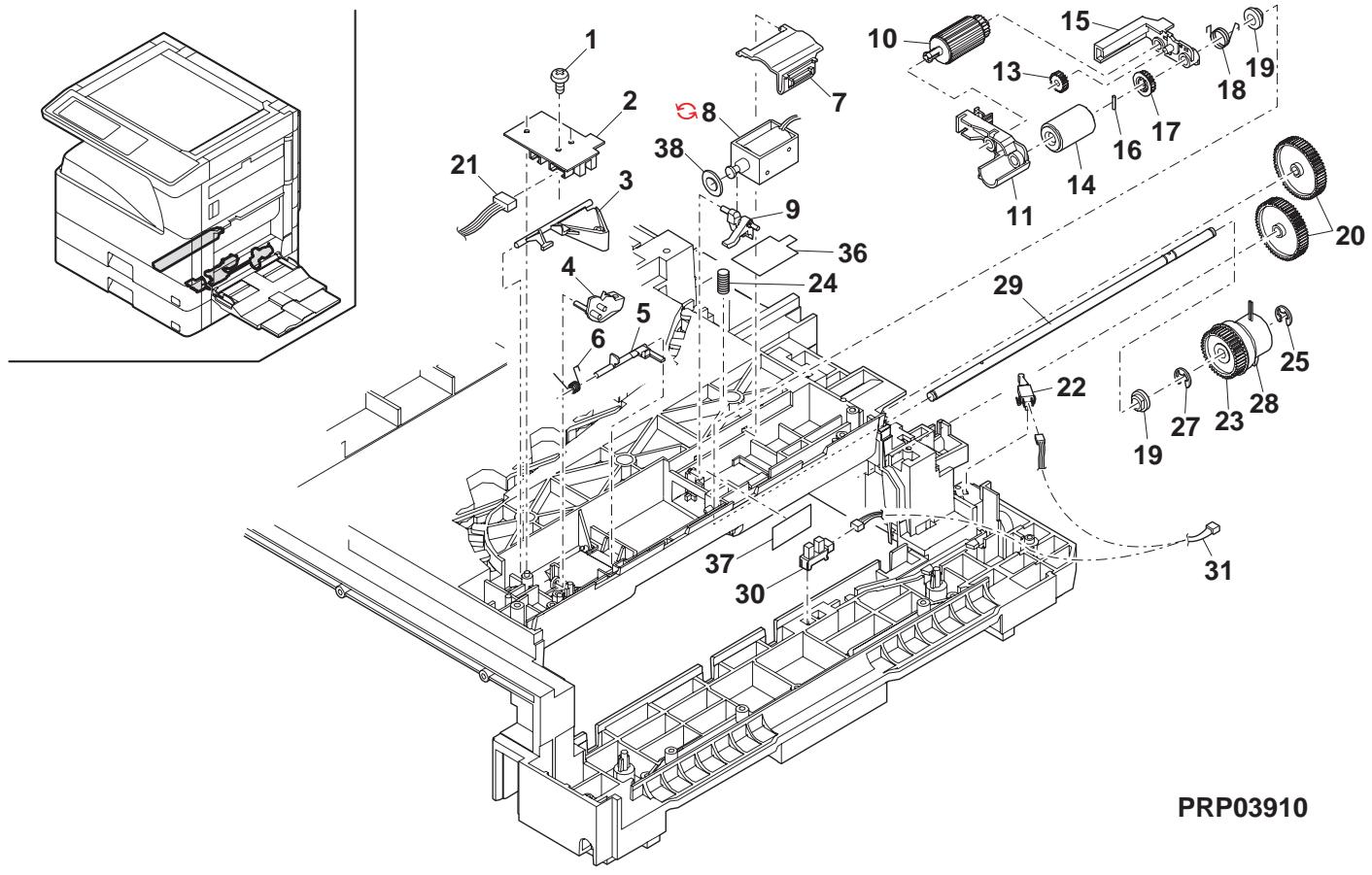
10 給紙部(Paperfeedsection)
11 搬送部(Paper transfer section)
| NO. | PARTS CODE | Inter-changese | PRICE RANK | NEW MARK | PART RANK | DESCRIPTION | TR No. | Effective time | |
| Ex. | Ja. | ||||||||
| 1 | XEBS740P12000 | AA | DD | C | Screw(4×12) | b'λ | |||
| 2 | PCOVP0053QSZ6 | AK | EB | D | Middle frame cover | 中間ル-あら"- | |||
| 3 | MSPRD0194QSZ1 | AD | DJ | C | PS earth spring LP | PS 7-λλ''Lp''LP | |||
| 4 | MSPRC0291QSZZ | AC | DJ | C | PS pressure spring | PS 加压λ''Lp'' | |||
| 5 | NSFTZ0065QSZ1 | AD | DJ | C | PS sub shaft | PS 從動軸 | |||
| 6 | NKOM-0006QSZZ | AC | DJ | C | PS collar(φ13.5) | PS ハ | |||
| 7 | PSHEZ0133QSZZ | AD | DJ | C | Paper feed sheet | 鉛鉛用ト | |||
| 8 | XEBS740P10000 | AA | DD | C | Screw(4×10) | b'λ | |||
| 9 | PG i DM0067QST1 | AP | EQ | C | Base plate paper feed guide | 台板絵紙''ト'' | |||
| 10 | MSPRD0233QSZ1 | AC | DJ | C | MF actuator spring | MF 7''Lp''-λ''Lp'' | |||
| 11 | MLEVP0023QSZZ | AE | DS | C | MF actuator | MF 7''Lp''-λ''Lp'' | |||
| 12 | MLEVP004QSZZ | AE | DS | C | MF actuator 2 | MF 7''Lp''-2 | |||
| 13 | LPLTP0348QSZZ | AC | DJ | C | Separator plate | 挪きレト | |||
| 14 | MSPRC0301QSZZ | AD | DJ | C | Pressure plate spring | 压着板λ''Lp'' | |||
| 15 | PFTA-0019QSZZ | AE | DS | D | Pressure plate cover | 压着板盖 | |||
| 16 | XEBS730P10000 | AC | DD | C | Screw(3×10) | b'λ | |||
| 17 | PSHEZ0242QSZ1 | AH | DX | C | Pressure plate sheet | 压着板ト | |||
| 18 | LRALP0008QSZ | AN | EG | C | Base plate rail R | 台板レトR | |||
| 19 | VHPGP1S73P+-18 | AF | DS | B | Photo sensor(GP1S73P) | フローナー | |||
| 20 | DHA i -0398QSPZ | AE | DS | C | Manual paper feed P-IN harness | 手差 L-P-IN-ス | |||
| 21 | MSPRD0202QSZZ | AB | DJ | C | Manual paper feed P-IN actuator spring | 手差 L-P-IN 7''Lp''-λ''Lp'' | |||
| 22 | MLEVP0057QSZZ | AC | DJ | C | Manual paper feed P-IN actuator | 手差 L-P-IN 7''Lp''-λ''Lp'' | |||
| 23 | PSHEZ0515QSZZ | AG | DX | A | Separator sheet | 挪きレト | |||
| 24 | LPLTP0409QSZZ | AC | DJ | C | Separator plate AND2 | 挪きアリトAND2 | |||
| 25 | PCOVP0088QSZ1 | AD | DJ | D | Plate cover | 7''Lp''- | |||
| 26 | MSPRC0270QSZZ | AB | DJ | C | Separator plate spring | 挪きアリト 7''Lp'' | |||
| 27 | NKOM-0005QSZZ | AC | DJ | C | Cassette guide collar | 加さはト''ト'' | |||
| 28 | NSFTZ0048QSPZ | AF | DS | C | Cassette collar shaft | 加さはト・轴 | |||
| 29 | XBPS730P08KS0 | AB | DD | C | Screw(3×8KS) | b'λ | |||
| 30 | PSHEZ0301QSZZ | AC | DJ | C | Rail R side sheet F | レルR p''Lp''-F | |||
| 31 | PSHEZ0302QSZZ | AC | DJ | C | Rail R side sheet R | レルR p''Lp''-R | |||
| 32 | PSHEZ0463QSZZ | AD | DJ | C | Front separator sheet | 前摺レト | |||
| 33 | PSPÖ-0026QSZZ | AA | DJ | C | MF ACT cushion | MF ACT λ''Lp'' | |||
| 34 | LHLDZ0094QSZZ | AC | DJ | C | PS pressure holder | PS 加压はト" | |||
| 35 | MSPRC0292QSZZ | AC | DJ | C | PS follower connect spring | PS 従勤接続 7''Lp'' | |||
| 36 | MSPRD0287QSZZ | AC | DJ | C | Paper feed sub roller spring | 給紙補助 7''Lp''-Lp'' | |||
| 37 | NROLP0087QSZZ | AD | DJ | C | Paper feed sub roller | 給紙補助レト- | |||
| 38 | NSFTZ0101QSZZ | AC | DJ | C | Paper feed sub roller shaft | 給紙補助レト-轴 | |||
| 39 | PSHEZ0314QSZ2 | AF | DS | C | Toner protect sheet N | け一飛散封止 7''Lp''N | |||
| 40 | LBRC-0012QSZZ | AD | DJ | C | Manual paper feed sub collar bracket | 手差 L辅助加 7''Lp''-Lp'' | |||
| 41 | NKOM-0011QSZZ | AC | DJ | C | Manual paper feed sub collar | 手差 L辅助加 | |||
| 42 | NSFTZ0101QSZZ | AC | DJ | C | Paper feed sub roller shaft | 給紙補助レト-轴 | |||
| 43 | MSPRD03008000 | AC | DD | C | Separator guide plate | 挪きアリト | |||
| 44 | XEBS730P08000 | AC | DD | C | Screw(3×8) | b'λ | |||
| 45 | LPLTP0396QSZ1 | AD | DJ | C | Separator guide plate | 挪きアリト | |||
| 46 | LX-WZ0064FCZZ | AA | DD | C | Push nut(M3) | 7''Lp''-Lp'' | |||
| 47 | PG i DM0186QSZZ | AK | DX | D | Cover guide | 加''Lp''-Lp'' | |||
| 48 | LPLTP0622FCZZ | AC | DJ | C | M4 plate N | M4 7''Lp''N | |||
| 49 | CG i DM0067RS56 | - | AX | FG | E | Base plate paper feed guide unit [Missing parts code] | 台板絵紙 7''Lp''-工部 | ||
| 50 | CCOVP0053RS55 | - | AS | EZ | E | Middle frame cover unit [Missing parts code] | 中間ル-ム 7''Lp''-工部 | ||
| 51 | CCOVP0088RS56 | - | AN | EQ | E | Plate cover unit [Missing parts code] | 7''Lp''-工部 | ||
| 52 | CCOVP0088RS56 | - | AN | EQ | E | Separation plate unit | 分離アリト工部 | ||
11 搬送部(Paper transfer section)
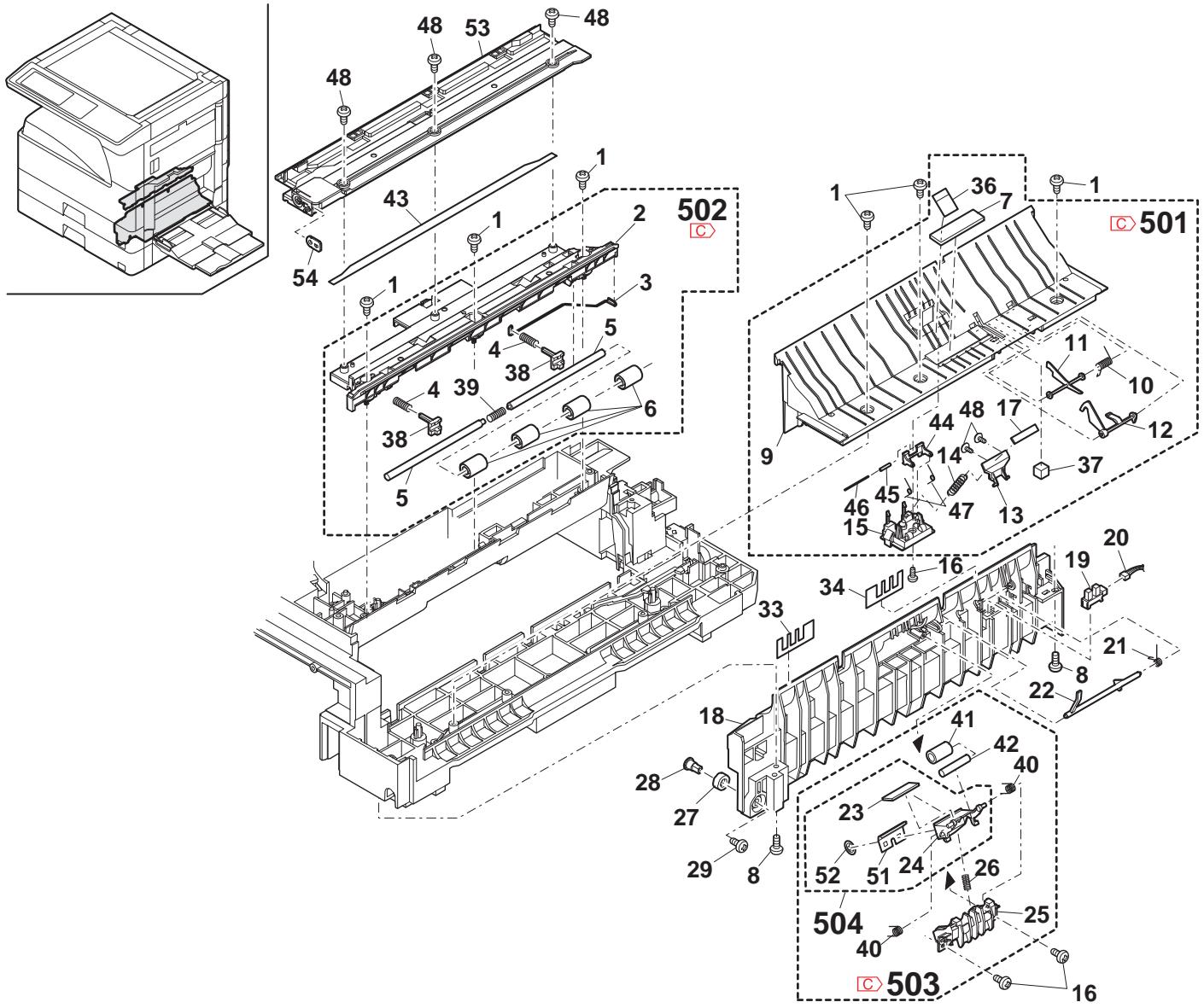
PRP03911
12 トトトト(Side door unit)
| NO. | PARTS CODE | Inter-changese | PRICE RANK | NEW MARK | PART MARK | DESCRIPTION | TR No. | Effective time | |
| Ex. | Ja. | ||||||||
| 1 | MLEVP0058QSTZ | - | AD | DJ | C | Lock lever | torlal - | ||
| 2 | GDOR-0002QSTD | - | AV | FG | D | Right door [Missing parts code] | 右下? | 1st lot | |
| 3 | XRESP40-06000 | - | AA | DD | C | E type ring(E4) | E リル - | ||
| 4 | LBSHZ0303FCZZ | - | AC | DJ | C | M bushing C | M フリフNGC | ||
| 5 | NGERH0074QSZZ | - | AD | DJ | C | DUP roller drive gear | DUP ユーネー 驱動技 | ||
| 6 | LPINS0133FCZZ | - | AA | DD | C | Pin(2×10) | awilful - | ||
| 7 | PTME-0020QSZ1 | - | AC | DJ | C | Lock pawl | tori爪 | ||
| 8 | MSPRD0222QSZZ | - | AC | DJ | C | Lock pawl spring | tori爪 tori爪 | ||
| 9 | MARP0043QSZZ | - | AC | DJ | C | Lock pawl arm | tori爪牙头 | ||
| 10 | NSFTZ0055QSZ3 | - | AH | DX | C | Lock pawl shaft | tori爪牙头 | ||
| 11 | XRESP30-06000 | - | AA | DD | C | E type ring(E3) | E リル - | ||
| 12 | NRLOP0036QSZZ | - | AP | EQ | C | DUP transport roller | DUP 搬送tori爪 | ||
| 13 | XPSSJ20-07000 | - | AA | DD | C | Spring pin (φ2-7) | tori爪 tori爪 | ||
| 14 | MSPRT0279QSZ1 | - | AC | DJ | C | DUP follower spring | DUP 從動 tori爪 | ||
| 15 | NROLP1122FCZZ | - | AF | DS | C | PS upper roller | PS 上口 - | ||
| 16 | LFRM-0040QSZ3 | - | AS | EQ | D | Right door inner (Except Japan) | 右下? | ||
| LFRM-0040QSZ4 | - | AS | EQ | D | Right door inner (Japan) | 右下? | |||
| 17 | MSPRC0349QSZ | - | AD | DJ | C | High voltage spring B | 高压tori爪 tori爪 | ||
| 18 | MSPRC0348QSZZ | - | AD | DJ | C | High voltage spring A | 高压tori爪 tori爪 | ||
| 19 | LPLTM0102QSZZ | - | AD | DJ | C | DUP roller earth plate | DUP 0-7-7-7板 | ||
| 20 | LHLDZ0084QSZ1 | - | AE | DS | C | TR terminal interface holder | TR端子 中縫技技 | ||
| 21 | XEBS730P06000 | - | AA | DD | C | Screw(3×6) | b'λ | ||
| 22 | MSPRC0296QSZZ | - | AF | DS | C | TR pressure spring R | TR压接 tori爪 | ||
| 23 | MSPRC0295QSZZ | - | AF | DS | C | TR pressure spring F | TR压接 tori爪 | ||
| 24 | XHBS730P10000 | - | AD | DD | C | Screw(3×10) | b'λ | ||
| 25 | XHBS730P16000 | - | AA | DD | C | Screw(3×16) | b'λ | ||
| 26 | XEBS730P10000 | - | AC | DD | C | Screw(3×10) | b'λ | ||
| 28 | LPLTM0090QSZ1 | - | AE | DJ | C | Inner reinforce plate F | 内一补強板F | ||
| 29 | LPLTM0091QSZ1 | - | AE | DJ | C | Inner reinforce plate R | 内一补強板R | ||
| 30 | MSPRD0205QSZZ | - | AE | DS | C | TC ground spring | TCg"r"or"r"or"r"or"r"or"r"or"r"or"r"or"r"or"r"or"r"or"r"or"r"or"r"or"r"or"r"or"r"or"r"or"r"or"r"or"r"or"r"or"r"or"r"or"r"or"r"or"r" or"r"or"r"or"r"or"r"or"r"or"r"or"r"or"r"or"r"or"r"or"r"or"r"or"r"or"r"or"r"or"r"or"r"or"r"or"r"or"r"or"r"or"r"or"r"or"r"or"r"或"r"or"r"or"r"or"r"or"r"or"r"or"r"or"r"or"r"or"r"or"r"or"r"or"r"or"r"or"r"or"r"or"r"or"r"or"r"or"r"or"r"or"r"or"r"or"r"or"r" | ||
| 32 | LPLTM0363QSZZ | - | AF | DS | C | Rail reinforce plate | I-4辅强板 | ||
| 33 | CHLDZ0150RS52 | - | BE | GN | A | TC unit (Except Japan) | TC上口 - | ||
| CHLDZ0150RS51 | - | BE | GN | A | TC unit (Japan) | TC上口 - | |||
| 34 | PSHEZ0307QSZ1 | - | AB | DJ | C | Right door sheet | 右下? | ||
| 36 | PSHEZ0431QSZ1 | - | AF | DS | C | Right door DUP sheet | 右下? DUP ト | ||
| 38 | LX-BZ0084QSPZ | - | AB | DD | C | Screw | b'λ | ||
| 39 | NGERH0243QSZZ | - | AD | DJ | C | TC gear(20T) | TC上口 - | ||
| 40 | XEBS730P08000 | - | AC | DD | C | Screw(3×8) | b'λ | ||
| 41 | MSPRC0289QSZZ | - | AB | DJ | C | TC roller spring R REF | 軽写tori爪 tori爪 | ||
| 42 | MSPRC0280QSZZ | - | AC | DJ | C | TC roller spring F | 軽写tori爪 tori爪 | ||
| 43 | LSUPP0003QSZ1 | - | AD | DJ | C | Right door roller rib | 右下? To-To- | ||
| 44 | PCLR-0014QSZ1 | - | AD | DJ | C | TC roller collar A2R | TC上口-A2R | ||
| 46 | PG i DH0093QSZ3 | - | AN | EG | C | TR front paper guide | TR前 | ||
| 49 | LHLDZ0150QSZ1 | - | AK | DX | C | Transfer holder And2 Ref | 軽写tori爪 And2 Ref | ||
| 50 | LPLTM0365QSZZ | - | AD | DJ | C | TR electrode plate | TR電極板 | ||
| 51 | NROLR0159QSZ1 | - | AY | FQ | C | Transfer roller AN3 | 軽写tori爪 AN3 | ||
| 52 | NBRGP0023QSZZ | - | AD | DJ | C | Roller bearing | tori 輸受 | ||
| 54 | LPLTM0245QSZ2 | - | AG | DX | C | TR reinforce plate | TR補強板 | ||
| 55 | LX-BZ1181FCZZ | - | AB | DD | C | Screw(3×6K) | b'λ | ||
| 56 | LPLTM0512QSZZ | - | AG | DX | C | Separate discharge sheet | 剥離除電圧 | ||
| 57 | LPLTM0247QSZZ | - | AC | DJ | C | Separate electrode plate | 剥離電極板 | ||
| 58 | PMLT-0044QSZZ | - | AA | DJ | C | TR cushion [MX-M Series] | TR上口 - | ||
| PMLT-0044QSZZ | - | AA | DJ | C | TR cushion [MX-M Series] | TR上口 - | |||
| 59 | PSEL-0163QSZ1 | - | AH | DX | C | Transfer cleaner pad | 軽写tori爪 tori爪 | ||
| 60 | LHLDZ0151QSZZ | - | BF | GN | C | Side door unit(Without No.33) [Except Japan) [No.33 除<] (Japan) [No.33 除<] (Japan) [No.33 除<] (Japan) [No.33 除<] (Japan) [No.33 除<] (Japan) [No.33 除<] (Japan) [No.33 除<] (Japan) [No.33 除<] (Japan) [No.33 除<] (Japan) [No,33 除<] (Japan) [No,33 除<] (Japan) [No,33 除<] (Japan) [No,33 除<] (Japan) [No,33 除<] (Japan) [No,33 除<] (Japan) [No,33 除<] (Japan) [No,33 除<] (Japan) [No,33 限] (Japan) [No,33 限] (Japan) [No,33 限] (Japan) [No,33 限] (Japan) [No,33 限] (Japan) [No,33 限] (Japan) [No,33 限] (Japan) [No,33 限] (Japan) [No,33 限] (Japan) [No,33 限】 | |||
| 61 | PRNGF0107FCZ1 | - | AC | DJ | C | Star ring | tori爪 - | ||
| (Unit) | |||||||||
| 901 | CDOR-0002RS62 | - | BF | GN | E | Side door unit(Without No.33) [Except Japan) [No.33 除<] (Japan) [No.33 除<] (Japan) [No.33 除<] (Japan) [No.33 除<] (Japan) [No.33 除<] (Japan) [No.33 除<] (Japan) [No.33 除<] (Japan) | |||
| CDOR-0002RS63 | - | BF | GN | E | Side door unit(Without No.33) [Japan) [No.33 除<] (Japan) [No.33 除<] (Japan) [No.33 除<] (Japan) [No.33 除<] (Japan) [No.33 除<] (Japan) [No.33 除<] (Japan) [No.33 除<] (Japan) [No.33 除<] (Japan) [no.33 除<] (Japan) [no.33 除<] (Japan) [no.33 除<] (Japan) [no.33 除<] (Japan) [no.33 除<] (Japan) [no.33 除<] (Japan) [no.33 除<] (Japan) [no.33 除<] (Japan) [no.33 ] | ||||
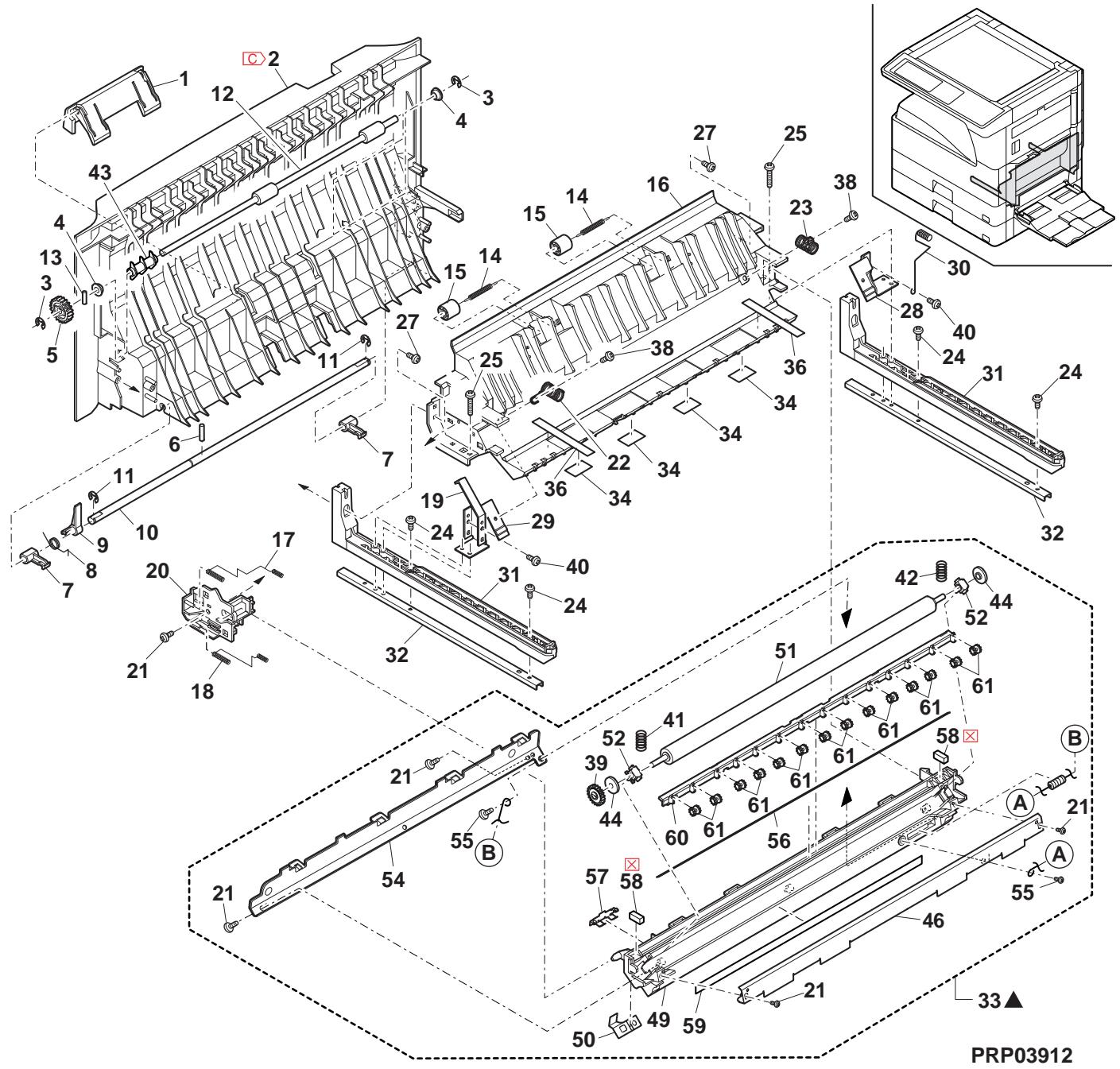
13 ルフ手差しトルはト (Multi manual paper feed tray unit)
| NO. | PARTS CODE | Inter-chang | PRICE RANK | NEW MARK | PART RANK | DESCRIPTION | TR No. | Effective time | |
| Ex. | Ja. | ||||||||
| 1 | PG i DM0 075QSTZ | - | AE | DJ | C | MB side guide F | [Missing parts code] MB パドナト" F | 1st lot | |
| 2 | PG i DM0 076QSTZ | - | AE | DJ | C | MB side guide R | [Missing parts code] MB パドナト" R | 1st lot | |
| 3 | XEBS730P08000 | AC | DD | C | Screw(3×8) | t'λ | |||
| 4 | LSOU-0024QSTE | AS | EQ | D | Manual paper feed tray 1 upper | 手差レット1上 | |||
| 5 | PTME-0271FCZZ | AD | DJ | C | Tray lock pawl | レフロー爪 | |||
| 6 | MSPRC0250QSZZ | AC | DJ | C | Tray lock spring | レフローリフ | |||
| 7 | NGERR0140QSZZ | AD | DJ | C | Width detect rack | 幅検知りは | |||
| 8 | XEPS730P06X00 | AA | DD | C | Screw(3×6X) | t'λ | |||
| 9 | NGERP1385FCZZ | AF | DS | C | Width detect pinion | 幅検知にネト | |||
| 10 | LHLDZ0066QSZZ | AD | DJ | C | Harness holder | ハローマフ- | |||
| 11 | LSOU-0026QSTC | AP | EQ | D | Manual paper feed tray 2 upper | 手差レット2上 | |||
| 12 | QSW-B0017QSZZ | AF | DS | B | Tray detect switch | レフロー爪 | |||
| 13 | DHA i -0359QSZZ | AP | EQ | C | Manual paper feed unit harness | 手差レット一耘 | |||
| 14 | MSPRP2830FCZZ | AA | DJ | C | Width detect plate spring | 幅検知板λ"リフ | |||
| 15 | LPLTP0234QSZZ | AE | DS | C | Width detect plate | 幅検知リフ | |||
| 16 | MLEVP0035QSE2 | AC | DJ | C | Original detect actuator | 原稿検知効工-1-2- | |||
| 17 | CPWBF0106QSE4 | AP | EQ | E | Manual paper feed VR PWB | 手差レVR基板 | |||
| 18 | LSOU-0025QSTC | - | AS | EQ | D | Manual paper feed tray 1 lower | [Missing parts code] 手差レット1下 | 1st lot | |
| 19 | VHPGP1S73P+-18 | AF | DS | B | Photo sensor(GP1S73P) | 手比はさ | |||
| 20 | LSOU-0027QSTC | - | AP | EQ | D | Manual paper feed tray 2 lower | [Missing parts code] 手差レット2下 | 1st lot | |
| 22 | XEBS730P06000 | AA | DD | C | Screw(3×6) | t'λ | |||
| (Unit) | |||||||||
| 901 | CSOU-0024RS65 | BF | GN | E | Manual paper feed tray unit (Except Japan) | 手差レット二耘 | |||
| CSOU-0024RS66 | BF | GN | E | Manual paper feed tray unit (Japan) | 手差レット二耘 | ||||
| NO. | PARTS CODE | Inter-changec | PRICE RANK | NEW MARK | PART RANK | DESCRIPTION | TR No. | Effective time | |||||||||||||||||||
| Ex. | Ja. | ||||||||||||||||||||||||||
| 1 | XBP S7 40 P08ES0 | AB | DD | C | Screw(4×8ES) | b'λ | |||||||||||||||||||||
| 2 | RMOTP 0069QSPZ | BA | FX | B | Main motor | m'v-à-à- | |||||||||||||||||||||
| 3 | CPLTM0160QS02 | AU | FG | C | Main drive plate | m'v-à-à-à-à- | |||||||||||||||||||||
| 4 | MSPRC0200QSZ1 | AB | DJ | C | Ratchet spring | f'v'v'v'v'v'v'v'v'v'v'v'v'v'v'v'v'v'v'v'v'v'v'v'v'v'v'v'v'v'v'v'v'v'v'v'v'v'v'v'v'v'v'v'v'v'v'v'v'v'v' v'v'v'v'v'v'v'v'v'v'v'v'v'v'v'v'v'v'v'v'v'v'v'v'v'v'v'v'v'v'v'v'v'v'v'v'v'v'v'v'v'v'v'v'v'v'v'v'v'v' | |||||||||||||||||||||
| 5 | NGERH0234QSZZ | AF | DS | C | Ratchet gear(49T) | f'v'v'v'v'v'v'v'v'v'v'v'v'v'v'v'v'v'v'v'v'v'v'v'v'v'v'v'v'v'v'v'v'v'v'v'v'v'v'v'v'v'v'v'v'v'v'v'v' v' | |||||||||||||||||||||
| 6 | NGERH0090QSZ1 | AF | DS | C | Fusing drive gear(19T) | 定着驱动" | |||||||||||||||||||||
| 7 | NGERH0084QSZZ | AK | DX | C | Gear(94/21T) | ||||||||||||||||||||||
| 8 | XRESP70-08000 | AA | DD | C | E type ring(E7) | E'v'v'v'v'v'v'v'v'v'v'v'v'v'v'v'v'v'v'v'v'v'v'v'v'v'v'v'v'v'v'v'v'v'v'v'v'v'v'v'v'v'v'v'v'v'v'v'v'v' | |||||||||||||||||||||
| 9 | NGERH0192QSZZ | AD | DJ | C | Gear(46/19T) | ||||||||||||||||||||||
| 10 | NGERH0086QSZZ | AD | DJ | C | Gear(39/21T) | [MX-M260/M260N/M260FP/M260FG, AR-5726] | |||||||||||||||||||||
| NGERH0190QSZZ | AC | DJ | C | Gear(39/19T) | [MX-M310/M310N/M310FP/M310FG, AR-5731] | ||||||||||||||||||||||
| 11 | NGERH0087QSZZ | AE | DJ | C | Gear(30/21T) | [MX-M260/M260N/M260FP/M260FG, AR-5726] | |||||||||||||||||||||
| NGERH0189QSZZ | AD | DJ | C | Gear(30/21T) | [MX-M310/M310N/M310FP/M310FG, AR-5731] | ||||||||||||||||||||||
| 12 | NGERH0010QSZZ | AD | DJ | C | Gear(28T) | ||||||||||||||||||||||
| 13 | NGERH0092QSZZ | AD | DJ | C | Gear(30/16T) | ||||||||||||||||||||||
| 14 | NGERH0093QSZZ | AD | DJ | C | Gear(28/16T) | ||||||||||||||||||||||
| 15 | XBPS730P06KS0 | AB | DD | C | Screw(3×6KS) | ||||||||||||||||||||||
| 16 | NGERH0095QSZZ | AE | DJ | C | Gear | ||||||||||||||||||||||
| 17 | NGERH0191QSZZ | AC | DJ | C | MG gear | MG "v" | |||||||||||||||||||||
| 18 | NGERH0186QSZZ | AH | DX | C | N gear(58/21T) | N "v" | |||||||||||||||||||||
| 19 | NGERH0096QSZZ | AE | DJ | C | Gear(37/25T) | ||||||||||||||||||||||
| 20 | CPLTM0161QS02 | AP | EQ | C | Sub drive plate | g'v'v'v'v'v'v'v'v'v'v'v'v'v'v'v'v'v'v'v'v'v'v'v'v'v'v'v'v'v'v'v'v'v'v'v'v'v'v'v'v'v'v'v'v'v'v'v'v'v'V | |||||||||||||||||||||
| 21 | MSPRC0262QSZ1 | AC | DJ | C | MG spring | MG λ" 'v' v'v'v'v'v'v'v'v'v'v'v'v'v'v'v'v'v'v'v'v'v'v'v'v'v'v'v'v'v'v'v'v'v'v'v'v'v'v'v'v'v'v'v'v'v'v'v'v'v" | |||||||||||||||||||||
| 22 | NCPL-0009QSZZ | AC | DJ | C | MG coupling | MG 加" 'v' " " " " " " " " " " " " " " " " " " " " " " " " " " " " " " " " " " " " " " " " " " " " " " " " " " " " " " " " " " " " " " " " " " " " " " " " " " " " " " " " " " " " " " " " " " " " " " " " " " " " “ | |||||||||||||||||||||
| 23 | NGERH0091QSZZ | AE | DJ | C | Coupling gear(34T) | 加" 'v' " " " " " " " " " " " " " " " " " " " " " " " " " " " " " " " " " " " " " " " " " " " " " " " " " " " " " " " " " " " " " " " " " " " " " " " " " " " " " " " " " " " " " " " " " " " " " " " | 24 | CGERH0204RS51 | AX | FQ | C | Drum coup gear | d" v' v' v' v' v' v' v' v' v' v' v' v' v' v' v' v' v' v' v' v' v' v' v' v' v' v' v' v' v' v' v' v' v' v' v' v' v' v' v' v' v' v' v' v' v' v' v' v' v' v' v" | ||||||||||||||
| 25 | DHA i -0602QSPZ | AE | DS | C | AN2R main motor harness | AN2R main motor harness | |||||||||||||||||||||
| 26 | LX-WZ0012QSZZ | AB | DD | C | Poly slider AND2 | 木" 'v' " " " " " " " " " " " " " " " " " " " " " " " " " " " " " " " " " " " " " " " " " " " " " " " " " " " " " " " " " " " " " " " " " " " " " | 27 | XRESP50-06000 | AA | DD | C | E type ring(E5) | E 'v' v'v'v'v'v'v'v'v'v'v'v'v'v'v'v'v'v'v'v'v'v'v'v'v'v'v'v'v'v'v'v'v'v'v'v'v'v'v'v'v'v'v'v'v'v'v'v'v' v' | ||||||||||||||
| 28 | LX-WZ0476FCZZ | AC | DD | C | Poly slider | 木" 'v' " " " " " " " " " " " " " " " " " " " " " " " " " " " " " " " " " " " " " " " " " " " " " | 29 | LX-WZ0407FCZZ | AB | DD | C | Poly slider | 木" 'v' " " " " " " " " " " " " " " " " " " " " " " " " " " " " | 2 | (Unit) | ||||||||||||
| 301 | CPLTM0160RS59 | BH | HC | E | Drive unit [MX-M260/M260N/M260FP/M260FG, AR-5726] 驱動ルト | ||||||||||||||||||||||
| CPLTM0160RS60 | BH | HC | E | Drive unit [MX-M310/M310N/M310FP/M310FG, AR-5731] 驱動ルト | |||||||||||||||||||||||
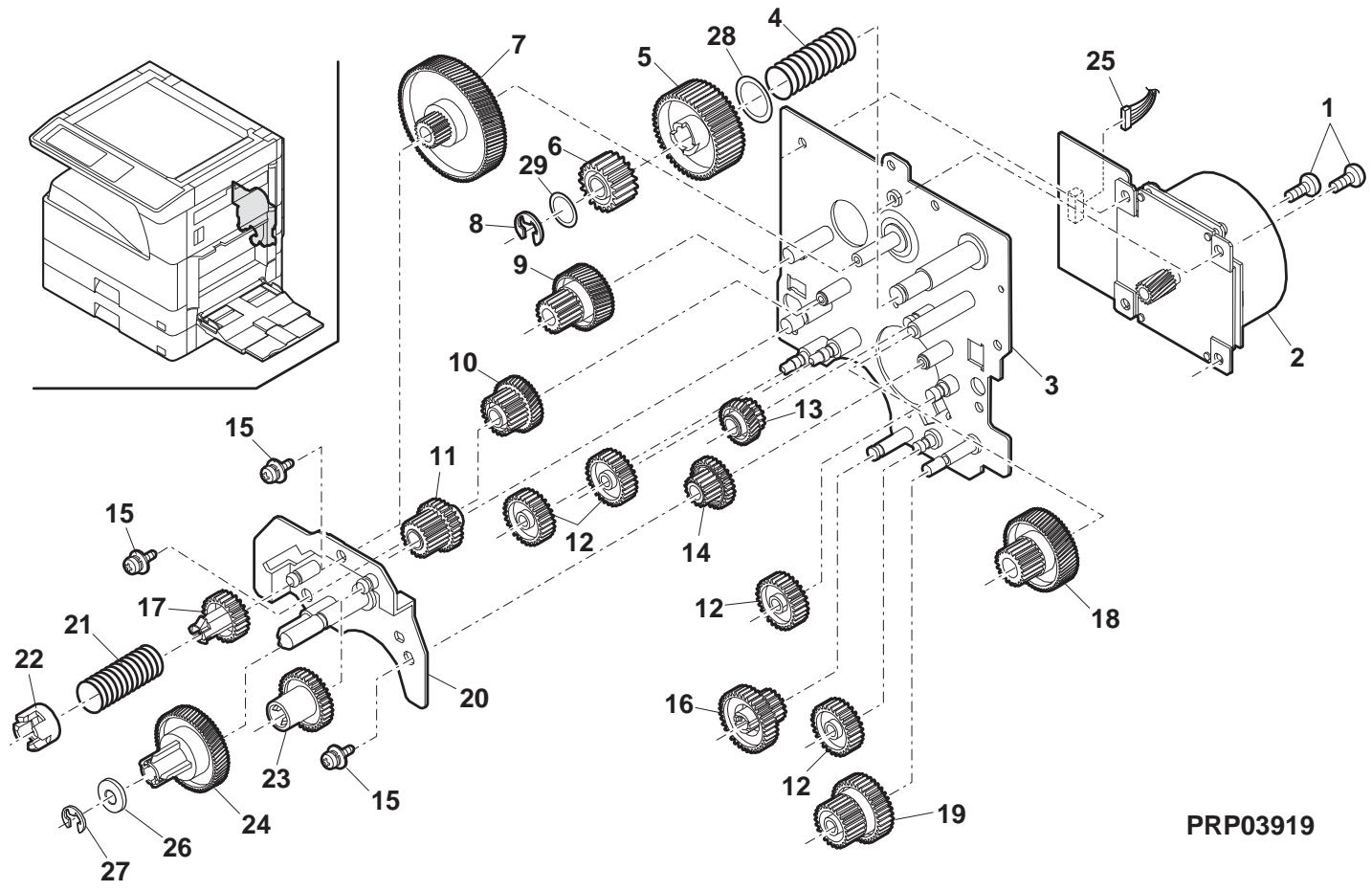
20 第一排紙1(1st delivery paper unit 1)
| NO. | PARTS CODE | Inter-chang | PRICE RANK | NEW MARK | PART RANK | DESCRIPTION | TR No. | Effective time | ||
| Ex. | Ja. | |||||||||
| 1 | NSFTZ0042QSZ1 | AE | DS | C | Delivery sub roller shaft | 排紙從動-フ軸 | ||||
| 3 | NROLP0049QSZZ | AC | DJ | C | Delivery sub roller | 排紙從動-フ軸 | ||||
| 4 | NROLP0111QSZZ | AD | DJ | C | Delivery sub roller(Large) | 排紙從動-フ軸(大) | ||||
| 6 | PBRSR0019QSZZ | AK | DX | B | Discharger brush LP | 除電フローリVP | ||||
| 7 | NROLR0114QSZZ | AR | EZ | C | Delivery roller C | 排紙-フ-CP | ||||
| 8 | NBRGY2122SCZZ | AB | DD | C | Transport roller bearing | 搬送-フ-軸受 | ||||
| 9 | LPLTM0195QSZZ | AC | DJ | C | Delivery earth plate A | 排紙-フ-板A | ||||
| 10 | NBRGM0501FCZZ | AB | DJ | C | Bearing | 軸受 | ||||
| 11 | XRESP50-06000 | AA | DD | C | E type ring(E5) | E リフ | ||||
| 12 | LHLDZ0058QSZ3 | AQ | EQ | C | Delivery roller holder | 排紙-フ-木枠- | ||||
| 13 | LPLTP0185QSZ2 | AL | EB | C | Delivery change gate | 排紙切替-ト | ||||
| 14 | MSPRD0224QSZZ | AB | DJ | C | Delivery actuator spring | 排紙フローフ-λフ リフ | ||||
| 15 | MLEVP0055QSZ1 | AC | DJ | C | Delivery actuator | 排紙フローフ- | ||||
| 16 | MSPRT0197QSZ1 | AC | DJ | C | Delivery sub spring | 排紙從動-スフ リフ | ||||
| 17 | XEBS730P08000 | AC | DD | C | Screw(3x8) | E* | ||||
| 18 | CPWBF0222QSE3 | AK | EB | E | Sensor PWB | ルフ-基板 | ||||
| 21 | CSFTZ0023QS04 | AE | DS | C | Shifter shaft (North America) | フフ-スフト軸 | ||||
| CSFTZ0023QS01 | AH | DX | C | Shifter shaft (Except North America) | フフ-スフト軸 | |||||
| 22 | XRESP40-06000 | AA | DD | C | E type ring(E4) | E リフ | ||||
| 23 | LFRM-0038QSZ5 | AZ | FX | C | Delivery frame | 排紙レム | ||||
| 24 | NROLR0051QSZ1 | AL | EB | C | DUP delivery roller | DUP 排紙-フ- | ||||
| 25 | LBSHZ0303FCZZ | AC | DJ | C | M bushing C | M リフク- C | ||||
| 26 | PG i DM0165QSZ1 | AR | EQ | C | Delivery upper paper guide | 排紙上 ←-←-←-←- | ||||
| 27 | NROLP1122FCZZ | AF | DS | C | PS upper roller | PS 上部- | ||||
| 28 | MSPRT0229GCAZ | AC | DJ | C | FU spring R | FU リフク- R | ||||
| 29 | XHBS740P10000 | AA | DD | C | Screw(4x10) | E* | ||||
| 35 | LX-BZ0780FCPZ | AC | DD | C | Screw | E* | ||||
| 36 | PSHEZ0650QSZ | AB | DJ | C | Delivery hole sheet B | 排紙孔マ行- B | ||||
| 37 | PSHEZ0649QSZZ | - | AA | DJ | C | Delivery hole sheet A [Missing parts code] | 排紙孔マ行-A | 1st lot | ||
| 38 | PSHEZ0655QSZZ | AD | DJ | C | Delivery fan connector sheet | 排紙フローフ- | ||||
| 39 | PF i LZ0017QSZ1 | AP | EQ | A | Ozone filter | φフク-IL-IL- | ||||
| 40 | LX-BZ0099QSZZ | - | AB | DD | C | Screw [Missing parts code] | E* | 1st lot | ||
| 41 | LPLTM0509QSZZ | AC | DJ | C | OF fixing plate | OF 押元-LE- | ||||
| 42 | NFANP0020QSPZ | AP | EQ | B | Fan motor ANR2 | フフク-ク-ANR2 | ||||
| (Unit) | ||||||||||
| 901 | CFRM-0038RS74 | BP | LP | E | 1st delivery unit(Without No.29,35 Include Block 21) (North America) (No.29,35を除くフフ21含む) | 1st 排紙工号 (No.29,35を除くフフ21含む) | ||||
| CFRM-0038RS75 | BQ | LP | E | 1st delivery unit(Without No.29,35 Include Block 21) (Japan) | 1st 排紙工号 (No.29,35を除くフフ21含む) | |||||
| CFRM-0038RS76 | - | BQ | LP | E | 1st delivery unit(Without No.29,35 Include Block 21) [Missing parts code](Except North America,Japan) | 1st 排紙工号 (No.29,35を除くフフ21含む) | ||||
| - | ||||||||||
20 第一排紙1-1b1(1stdeliverypaperunit1)
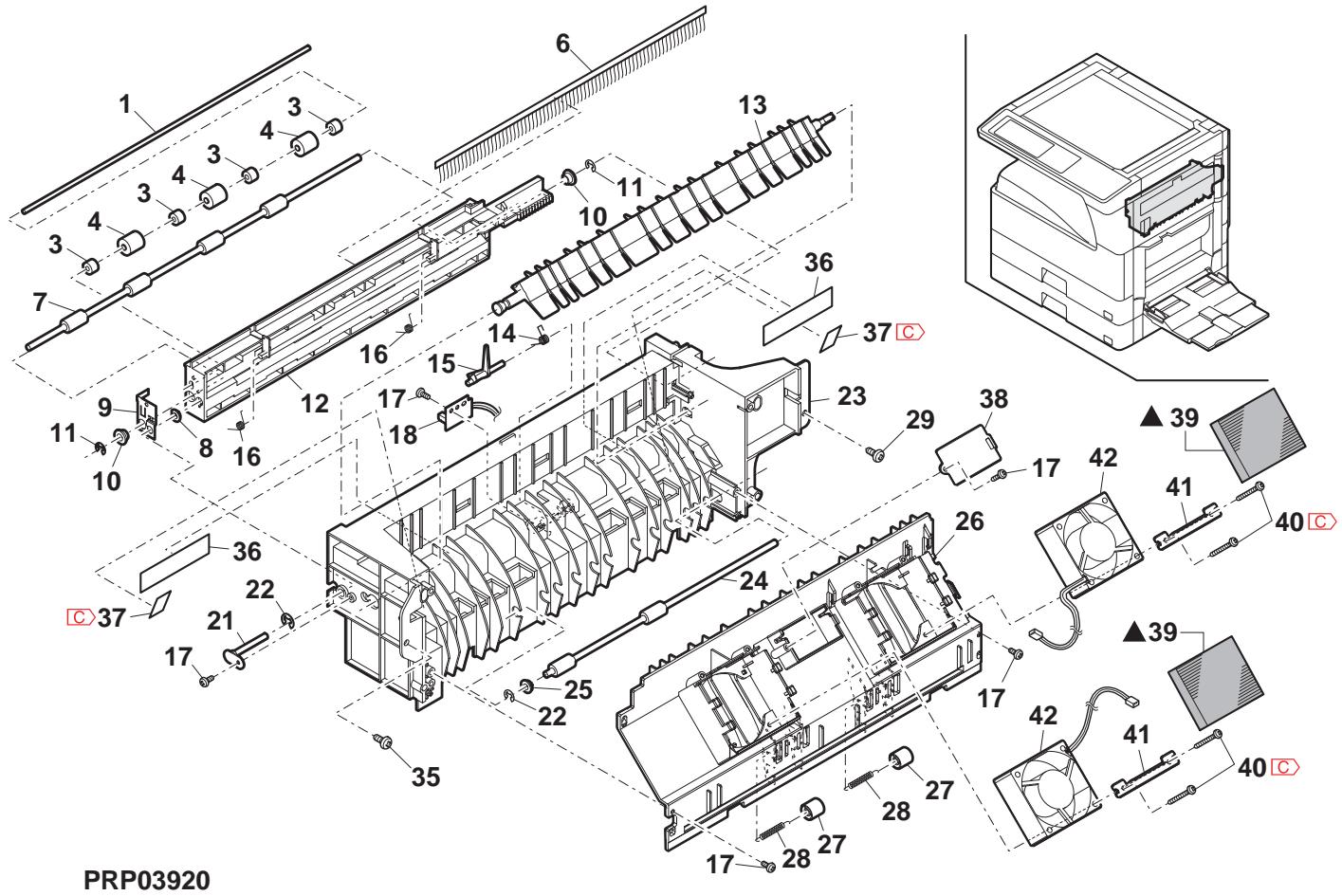
21 第一排紙12(1st delivery paper unit 2)
| NO. | PARTS CODE | Inter-chang | PRICE RANK | NEW MARK | PART MARK | DESCRIPTION | TR No. | Effective time | |
| Ex. | Ja. | ||||||||
| 1 | XHBS730P08000 | AB | DD | C | Screw(3×8) | (Except North America) ヒλ | |||
| 2 | RMOTSO071QSPZ | BD | GJ | B | Shifter motor | (Except North America) フフロー- | |||
| 3 | CPLTM0184QS03 | AH | DX | C | Shifter drive plate | (Except North America) フフロー- | |||
| 4 | XEBS730P08000 | AC | DD | C | Screw(3×8) | Lλ | |||
| 5 | MSPRD0225QSZZ | AC | DJ | C | Stopper return spring | (Except North America) フフロー- 微梯 (Ex:17) LILV | |||
| 6 | LSTPP0003QSZ1 | AC | DJ | C | Shifter stopper | (Except North America) フフロー- | |||
| 7 | NGERH0068QSZ1 | AD | DJ | C | Shifter gear(50T) | (Except North America) フフロー- | |||
| 8 | NGERH0067QSZZ | AD | DJ | C | Shifter gear(24T) | (Except North America) フフロー- | |||
| 9 | VHPGP1A71L3-18 | AG | DS | B | Photo sensor(GP1A71L3) | (Except North America) フフロー- | |||
| 11 | XRESP30-06000 | AA | DD | C | E type ring(E3) | (Except North America) E LILV | |||
| 12 | XRESP40-06000 | AA | DD | C | E type ring(E4) | (Except North America) E LILV | |||
| 13 | MSPRD0216QSZZ | AD | DJ | C | Shifter earth spring | (Ex:17) LILV | |||
| 14 | MSPRT0217QSZ1 | AC | DJ | C | Gate return spring | (Ex:17) 微梯 (Ex:17) LILV | |||
| 15 | LBRC-0002QSZ1 | AC | DJ | C | Gate bracket | (Ex:17) LILV | |||
| 16 | LBSHZ030FCZZ | AC | DJ | C | M bushing C | (Ex:17) LILV C | |||
| 17 | NBRGY2122SCZZ | AB | DD | C | Transport roller bearing | (Ex:17) 駠受 | |||
| 18 | NBRGC0019QSZZ | AD | DJ | C | Bearing(φ6) | (Ex:17) 駠受 | |||
| 19 | XPSSJ30-08000 | AA | DD | C | Spring pin(φ3-8) | (Ex:17) LILV B | |||
| 20 | NBLTT0024QSZZ | AG | DS | B | Drive belt 240 | (Ex:17) LILV C | |||
| 21 | NGERH0080QSZZ | AE | DJ | C | Delivery drive gear(25/31T) | (Ex:17) 接細驅動 (Ex:17) DUP 接細圏 (Ex:17) DUP 接細圏 | |||
| 22 | NGERH0082QSZZ | AD | DJ | C | DUP delivery gear(20/31T) | (Ex:17) 接細圏 (Ex:17) DUP 接細圏 | |||
| 23 | MSPRD0198QSZZ | AC | DJ | C | Delivery earth spring B | (Ex:17) LILV B | |||
| 24 | NGERH0113QSZZ | AC | DJ | C | Idle gear B(29T) | (Ex:17) LILV B | |||
| 25 | NGERH0114QSZZ | AC | DJ | C | Idle gear C(29T) | (Ex:17) LILV C | |||
| 26 | MSPRD0196QSZZ | AC | DJ | C | Delivery earth spring A | (Ex:17) LILV A | |||
| 27 | NGERH0155QSZZ | AD | DJ | C | Gear(31/39T) | (Ex:17) | |||
| 28 | RPLU-0027QSZZ | AU | EZ | B | Change gate solenoid | (Ex:17) 切替ローツル (Ex:17) 切替ローツル | |||
| RPLU-0027QSPZ | 1 | AU | EZ | B | Change gate solenoid | (Ex:17) 切替ローツル (Ex:17) 切替ローツル | |||
| 29 | CBRC-0004QS03 | AF | DS | C | DUP motor fixing bracket | (Ex:17) 取付ローツル (Ex:17) 取付ローツル | |||
| 30 | RMOTSG0070QSPZ | BD | GJ | B | DUP motor | (Ex:17) LILV B | |||
| 31 | XHBS730P08000 | AB | DD | C | Screw(3×8) | (Ex:17) LILV C | |||
| 32 | XBBS726P03000 | - | AA | DD | C | Screw(2.6×3) | [Missing parts code] LILV (2.6×3) | ||
| 33 | XWHS730-05070 | AA | DD | C | Washer | LILV | |||
| 34 | LHLDW1334FCZZ | - | AA | DJ | C | Wire holder | LILV | ||
| 35 | PSHEZ0316QSZZ | AD | DJ | C | Delivery motor sheet | (Ex:17) 接細圏 (Ex:17) LILV | |||
| 36 | PRDAZ0002QSZZ | AD | DJ | C | Delivery motor radiation plate | (Ex:17) 接細圏 (Ex:17) 放熱板 | |||
| 37 | PSHEZ0341QSZZ | AA | DJ | C | Shifter stop mylar | (Ex:17) 接細圏 (Ex:17) 口行 | |||
| 38 | CFMR-0038RS76 | - | AX | FG | E | Shifter unit | (Ex:17) 接細圏 (Ex:17) 口行 | ||
| 39 | CFMR-0038RS54 | - | BA | FX | E | DUP motor fixing bracket unit | (Ex:17) 次付ローツル (Ex:17) 口行 | ||
| 40 | Unit | ||||||||
| 901 | CFRM-0038RS74 | BP | LP | E | 1st delivery unit(Include Block 20) (North America) | 1st 接細圏 (Ex:17) 口行 (Ex:17) 口行 (Ex:17) 口行 | |||
| CFMR-0038RS76 | - | BQ | LP | E | 1st delivery unit(Include Block 20) (Missing parts code) | 1st 接細圏 (Ex:17) 口行 (Ex:17) 口行 (Ex:17) 口行 | |||
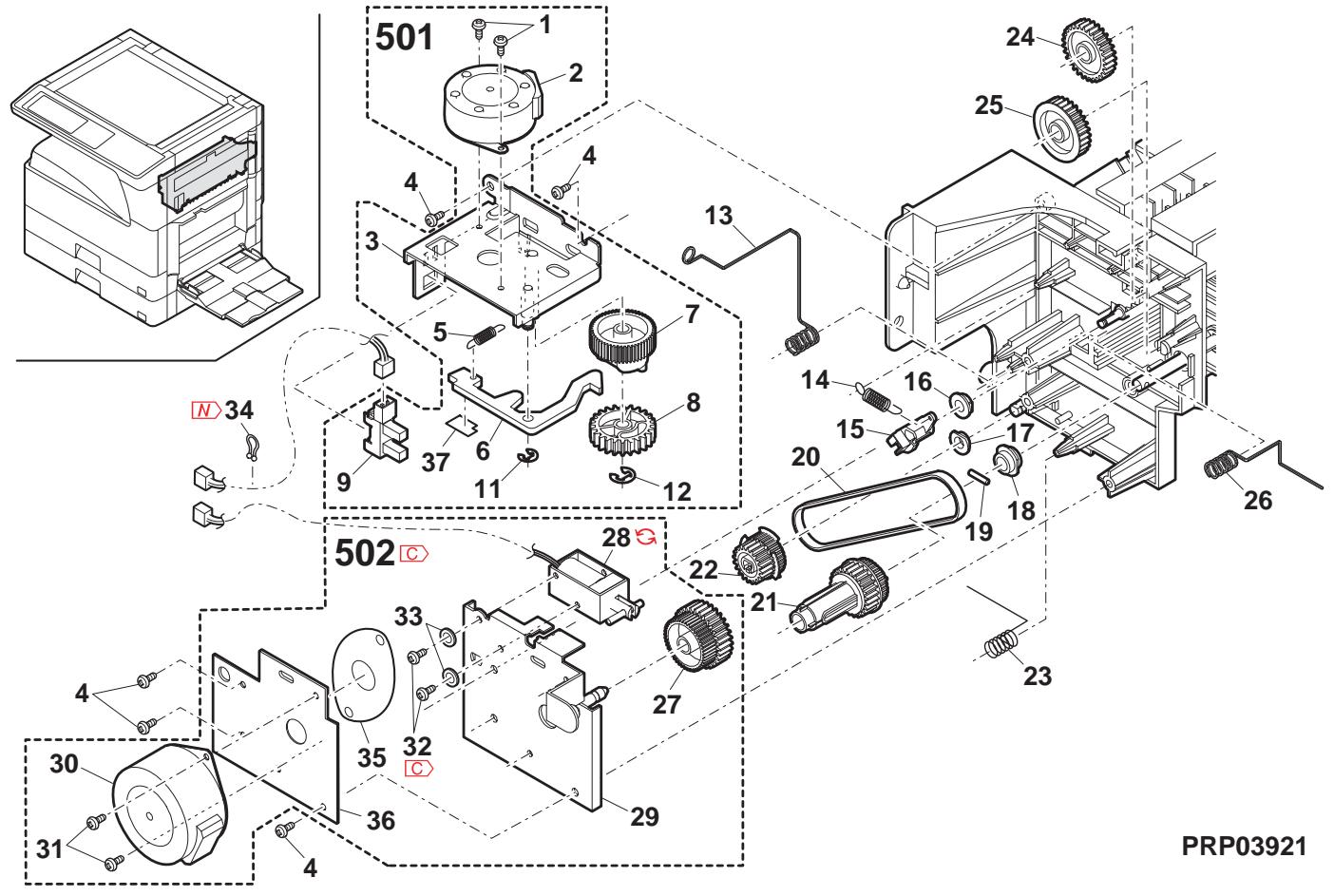
21 第一排紙1-2(1st delivery paper unit 2)
22 基板部(PWB section)
| NO. | PARTS CODE | Inter-chang | PRICE RANK | NEW MARK | PART RANK | DESCRIPTION | TR No. | Effective time | |
| Ex. | Ja. | ||||||||
| 1 | CPWBX0136QS3L | CB | TX | E | IMC PWB [MX-M260/M260N/M260FP/M260FG,AR-5726] IMC基板 | ||||
| CPWBX0136QS3M | CB | TX | E | IMC PWB [MX-M310/M310N/M310FP,AR-5731] IMC基板 | |||||
| 2 | XBBS730P0800 | AA | DD | C | Screw(3×8) | b'λ | |||
| 3 | PSPAB039QSZZ | AG | DJ | C | Spacer | λ''-μ'' | |||
| 4 | CPWBF0235QSE1 | BB | GD | E | Option interface PWB | 打'√中继基板 | |||
| 5 | XBBS830P0800 | AA | DD | C | Screw(3×8) | b'λ | |||
| 6 | DHA i-0611QSPZ | - | AV | FG | C | AN2R MCU-OP interface harness [Missing parts code] | AN2R MCU-OP中继N-1K | ||
| 7 | LHLDZ0062QSZ2 | AT | EZ | C | MCU PWB fixing plate | MCU基板取付板 | 1st lot | ||
| 8 | LX-BZ0090QSPZ | AE | DD | C | Hexagon screw | 6角b'λ | |||
| 9 | LHLDW086QSZZ | AB | DJ | C | Harness ring LPD | h'πr'l'p'v'LPD | |||
| 10 | CPWBX0233QS31 | CD | UD | E | MCU PWB [MX-M260 North America] | MCU基板MCU基板 | |||
| CPWBX0233QS32 | CD | UD | E | MCU PWB [MX-M310 North America] | MCU基板 | ||||
| CPWBX0233QS33 | CD | UD | E | MCU PWB [MX-M260/M260FP/M260FG Except North America] | MCU基板 | ||||
| CPWBX0233QS34 | CD | UD | E | MCU PWB [MX-M310/M310N/M310FP/M310FG Except North America] | MCU基板 | ||||
| CPWBX0233QS35 | CC | UB | E | MCU PWB [AR-5726] | MCU基板 | ||||
| CPWBX0233QS36 | CC | UB | E | MCU PWB [AR-5731] | MCU基板 | ||||
| 11 | XBPS730P06KS0 | AB | DD | C | Screw(3×6KS) | b'λ | |||
| 12 | LHLDZ0071QSZZ | AG | DX | C | Mother board holder | h''-a''-b''-c''- | |||
| 13 | CPWBN0137QSE1 | AZ | FX | E | Mother board | h''-a''-b''-c''- | |||
| 14 | XHBS730P0800 | AB | DD | C | Screw(3×8) | b'λ | |||
| 15 | LX-BZ0082QSPZ | AA | DD | C | Screw(3×8) | b'λ | |||
| 16 | LHLDZ0070QSZ3 | AW | FG | C | OP PWB holder | OP基板b''-a''-b''-c''- | |||
| 17 | XHBS730P0800 | AB | DD | C | Screw(3×8) | b'λ | |||
| 18 | XEBS740P1000 | AA | DD | C | Screw(4×10) | b'λ | |||
| 19 | XBPSS730P08KS0 | AB | DD | C | Screw(3×8KS) | b'λ | |||
| 20 | PSHEZ0269QSZZ | AC | DJ | C | CCD harness sheet | CCD n-πk-μk- | |||
| 22 | DHA i-0345QSZZ | AG | DX | C | CCD harness | CCD n-πk | |||
| 23 | CPWBX0140QS3K | CM | UW | E | FAX main PWB (Japan) | FAX mK板板 | |||
| 24 | CPWBN0174QS31 | BV | MW | E | LIU PWB (Japan) | LIU 基板 | |||
| 25 | RSPA00001QSPZ | AH | DX | B | Speaker (Japan) | λ''-μ''- | |||
| 26 | XEPS730P06X0 | AA | DD | C | Screw(3×6) | j''-k''- | |||
| 27 | LSUPP0001QSZZ | AC | DJ | C | Spacer(WLS18-0) | λ''-k''- | |||
| 28 | DHA i-0606QSPZ | - | BT | MW | C | ILSW interface harness 2 [Missing parts code] | ILSW中继N-1K2 | ||
| 29 | CPWBX0202RS55 | BZ | TR | E | PCL PWB [MX-M260N/M310N] | PCL 基板 | |||
| CPWBX0202RS54 | CA | TR | E | PCL PWB [MX-M260FP/M310FP] | PCL 基板 | ||||
| 30 | PCAPH0018QSZZ | AD | DJ | D | 15P protect cap | 15P 保护N-1K | |||
| 31 | PCAPH0019QSZZ | AE | DJ | D | 25P protect cap (Except North America, Japan, Argentina) | 25P 保护N-1K | |||
| 32 | PCAPH0017QSZZ | AC | DJ | D | 9P protect cap | 9P 保护N-1K | |||
| 33 | CPWBN0135QS34 | - | BS | MW | E | SPLC PWB [Missing parts code] | SPLC 基板 | 1st lot | |
| [MX-M260/M310/M260FG/M310FG,AR-5726/5731] | |||||||||
| 35 | DHA i-0591QSP1 | - | BE | GN | C | 1st delivery harness [Missing parts code](North America) | 1st排纸N-1K | ||
| DHA i-0601QSP1 | BE | GN | C | 1st delivery harness (Except North America) | 1st排纸N-1K | ||||
| 37 | DHA i-0200QSZZ | AS | EZ | C | CL harness | CL n-πk | |||
| 38 | DHA i-0347QSPZ | AN | EQ | C | Optical sensor harness (Inch Series) | 光学N-1K | |||
| DHA i-0346QSPZ | AP | EQ | C | Optical sensor harness (AB Series) | 光学N-1K | ||||
| 39 | DHA i-0506QSPZ | AQ | EQ | C | LSU interface harness | LSU 中继N-1K | |||
| 40 | DHA i-0593QSPZ | - | BF | GN | C | Drive/Manual paper feed interface harness [Missing parts code]驱动/手差L | 驱动/手差L | ||
| 41 | DHA i-0350QSPZ | AG | DX | C | Cassette sensor PWB harness | h''-k''-k''-k''-k''-k''-k''-k''-k''-k''-k''-k''-k''-k''-k''-k''-k''-k''-k''-k''-k''-k''-k''-k''-k''-k''-k''-k''-k''-k''-k''-k''-k''-k''-k'' 42 | DHA i-0610QSP1 | ||
| DHA i-0381QSPZ | AH | DX | C | Fusing interface harness | 定着中继N-1K | ||||
| 43 | DHA i-0594QSPZ | - | BG | GT | C | AN2R power supply harness [Missing parts code] | AN2R 電源N-1K | ||
| TLABH0533QSZZ | AB | DJ | D | USB label AND | USB f''-k''-k''-k''-k''-k''-k''-k''-k''-k''-k''-k''-k''-k''-k''-k''-k''-k''-k''-k''-k''-k''-k''-k''-k''-k''-k''-k''-k''-k''-k''-k''-k''-k" | ||||
| TLABH0534QSZZ | AB | DJ | D | NIC label AND [Except MX-M260FG/M310FG] | NIC f''-k''-k''-k''-k''-k''-k''-k''-k''-k''-k''-k''-k''-k''-k''-k''-k''-k''-k''-k''-k''-k''-k''-k''-k''-k''-k''-k''-k''-k''-k''-k''-k''-K" | ||||
| RTCH0161FCP1 | AV | FG | B | Temperature humidity sensor | 温度湿度N-1K | ||||
| 72 | DHA i-0595QSPZ | AE | DS | C | Temperature humidity sensor harness | 温度湿度N-1K | |||
| 73 | LSUPM0002QSZZ | AE | DJ | C | Support post [MX-M260N/M310N/M260FP/M310FP] | f''-b''-b''-b''-b''-b''-b''-b''-b''-b''-b''-b''-b''-b''-b''-b''-b''-b''-b''-b''-b''-b''-b''-b''-b''-b''-b''-b''-b''-b''-b''-b''-b''-b''-b'' 44 | VCORF0046FCZZ | ||
| RCORF0046FCZZ | AH | DX | C | Core | ∅ | ||||
| RCORF0046FCZZ | - | AH | DX | C | Core | ∅ | |||
| 75 | DHA i-0597QSP1 | - | BF | GN | C | MCU-casette harness [Missing parts code] | MCU-加T''-k''-k''-k''-k''-k''-k''-k''-k''-k''-k''-k''-k''-k''-k''-k''-k''-k''-k''-k''-k''-k''-k''-k''-k''-k''-k''-k''-k''-k''-k''-k''-k''-k" 80 | DHA i-0590QSPZ | |
| VH i 29L 1607DQS | BB | GD | B | MCU ROM [MX-M260 North America] | MCU ROM | ||||
22 基板部(PWB section)
22 基板部(PWB section)
| NO. | PARTS CODE | Inter-changese | PRICE RANK | NEWMARK | PARTRANK | DESCRIPTION | TR No. | Effective time | |
| Ex. | Ja. | ||||||||
| 84 | VH i 29 L 32077QS | AZ | FQ | B | PCL BOTDIMMJ [MX-M260N/M310N Philippines] PCLBOTDIMMJ | ||||
| VH i 29 L 32079QS | AZ | FX | B | PCL BOTDIMMJ [MX-M260N/M310N Except Philippines] PCLBOTDIMMJ | |||||
| VH i 29 L 64012QS | BD | GN | B | PCL BOTDIMMJ [MX-M260FP/M310FP] PCLBOTDIMMJ | |||||
| 85 | LBND J0013FCZ1 | AE | DJ | C | Band\( {\lambda }^{ \circ } \)h* | ||||
| 86 | PSPAN0025QSZZ | AE | DS | C | Spacer\( {\lambda }^{ \circ } -\frac{1}{4} - \) | ||||
| 87 | LX-BZ0024QSZZ | AA | DD | C | Screw\( {t}^{ \circ } \)\( \lambda \) | ||||
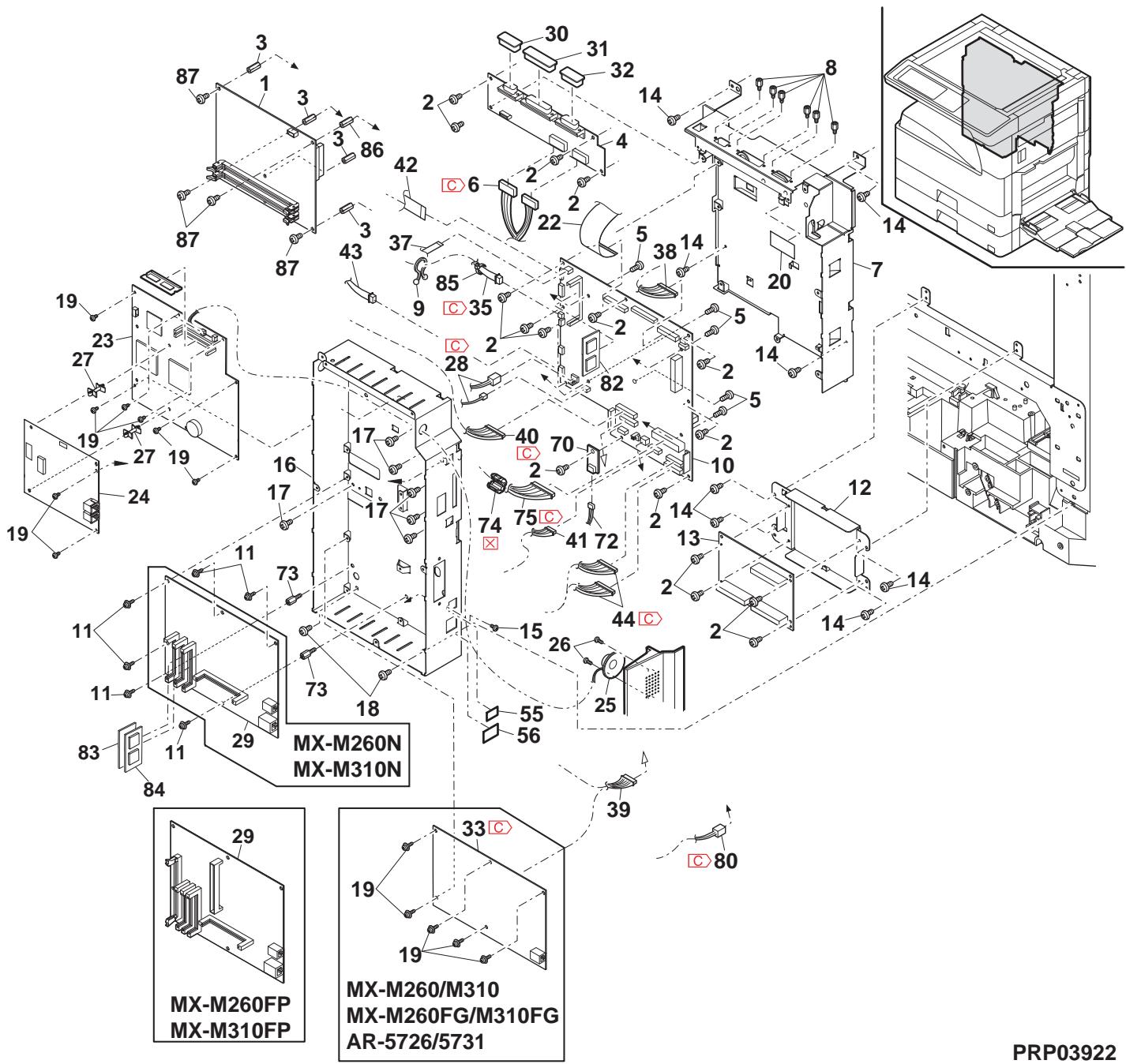
23 後ル-部 (Rear frame section)
| NO. | PARTS CODE | Inter-changese | PRICE RANK | NEW MARK | PART | DESCRIPTION | TR No. | Effective time | |
| Ex. | Ja. | ||||||||
| 1 | XBP SN 40 P 06 K 00 | - | AA | DD | C | C | Screw(4×6K) | t'λ | |
| 2 | DHA i - 0596QSPZ | - | BT | MW | C | C | AN2R HL interface harness [Missing parts code] | AN2R HL 中继n-λ | |
| 3 | TLABZ 4868 FCZ1 | - | AB | DJ | D | D | Earth label (200V Series) | t'λ | |
| 4 | XHBS 730P 06000 | - | AC | DD | C | C | Screw(3×6) | t'λ | |
| 5 | LPLTM 162QSZ1 | - | AC | DJ | C | C | Drive earth plate | 驱動7-λ板 | |
| 6 | LPLTM 0252QSZZ | - | AD | DJ | C | C | Paper feed earth plate LP | 給紙7-λ板LP | |
| 7 | DHA i - 0593QSPZ | - | BF | GN | C | C | Drive/Manual paper feed interface harness [Missing parts code] | 驱動/手差L 中继n-λ | |
| 8 | DHA i - 0378QSPZ | - | AC | DJ | C | C | Cassette earth harness | 地拉T-λn-λ | |
| 9 | XHBS 730P 08000 | - | AB | DD | C | C | Screw(3×8) | t'λ | |
| 10 | XEBS 740P 30000 | - | AC | DD | C | C | Screw(4×30) | t'λ | |
| 11 | PG DM0 184QSZ1 | - | AH | DX | C | C | Harness guide | n-λn-λ' n" | |
| 12 | XEBS 740P 30000 | - | AC | DD | C | C | Screw(4×30) | t'λ | |
| 13 | CDA i U024RS57 | - | AZ | FQ | E | 1st lift up unit | 1st lrrr7-7' 7-7' 7-7' | ||
| 15 | LPLTM 0249QSZZ | - | AC | DJ | C | 2nd earth plate | 2nd T-λ板 | ||
| 19 | QACCD 7713QCPZ | - | AT | EZ | B | AC cord (North America) AC n-1" | |||
| QACCB 7623QCPZ | - | BB | GD | B | AC cord (U.kingdom,UAE,Yemen,Oman,Qatar, Kuwait,Bahrain) AC n-1" | ||||
| QACCVR 621QCPZ | - | AQ | FQ | B | AC cord (Germany.Switzerland,Europe,East Europe, Algeria,Iran,Egypt,Syrta,Tunisia,Nigeria, West Africa,Morocco,Jordan,Lebanon) AC n-1" | ||||
| QACCZR 626QCPZ | - | BB | GD | B | AC cord (Philippines) AC n-1" | ||||
| QACCZR 941QCPZ | - | BB | FX | B | AC cord (Thailand,Indonesia) AC n-1" | ||||
| QACC89521QCZ | - | AW | FG | B | AC cord (India.Special country,Malaysia,Singapore) AC n-1" | ||||
| QACCJ 6413QCPA | - | AY | FQ | B | AC cord (Japan) AC n-1" | ||||
| QACCLR 624QCPZ | - | BA | FX | B | AC cord (Australia,New Zealand) AC n-1" | ||||
| QACCR 7621QCZZ | - | AZ | FQ | B | AC cord (Argentina) AC n-1" | ||||
| QPLGA 4171CCPZ | - | AR | EQ | B | Plug (India) T'λ" | ||||
| QPLGA 0001QCZ | - | AN | EQ | B | Plug (Special country) T'λ" | ||||
| QPLGA 0009QCPZ | - | AR | EQ | B | Plug (Malaysia,Singapore) T'λ" | ||||
| PHOG-1023CCZZ | - | AB | DD | B | Plug protector (India,Malaysia,Singapore) T'λ"用保護 | ||||
| TCAUS 0009QSZZ | - | AF | DS | D | LAG Plug caution label (Argentina) LAG T'λ" 注意" | ||||
| 20 | QSW-C9295QCPZ | - | AL | EB | B | Power supply switch(AJ8W200BF) 電源λ" | |||
| 21 | QSW-C9294QCZZ | - | AF | DS | B | Dehumidify heater switch (Japan) 除湿T-λ" | |||
| 22 | DHA i - 0589QSPZ | - | BS | MW | C | Dehumidify heater switch harness (Japan) 除湿T-λ" | |||
| 23 | DHA i - 0545QSPZ | - | AH | DX | C | Dehumidify heater separate harness (Japan) 除湿T-λ" | |||
| 24 | RCi LZ0016QSZZ | - | BE | GN | C | Reactle (200V) T'λ" | |||
| 28 | RDENC 0052QSPZ | - | BZ | TF | E | Low voltage power supply unit (120V) 低压电源n-1" | |||
| RDENC 0053QSPZ | - | BZ | TF | E | Low voltage power supply unit (230V) 低压电源n-1" | ||||
| RDENC 0051QSPZ | - | BZ | TF | E | Low voltage power supply unit (100V) 低压电源n-1" | ||||
| 29 | RDENU 0058QSPZ | - | BN | LE | E | High voltage power supply unit 高压电源n-1" | |||
| 30 | LHLDW 1057FCZZ | - | AB | DD | C | Wire saddle(LWS-3S) T'λ" | |||
| 31 | DHA i - 0588QSPZ | - | BF | GN | C | AC switch harness (Missing parts code) AC λ"n-λ" | |||
| LFi X-0016FCZZ | - | AD | DJ | C | AC cord fixing (100V Series) AC n-1"押元 | ||||
| 33 | XEBS 740P30000 | - | AC | DD | C | Screw(4×30) t'λ | |||
| 34 | XEBS 740P12000 | - | AA | DD | C | Screw(4×12) t'λ | |||
| 35 | XWHS 740-08100 | - | AA | DD | C | Washer t'λ" | |||
| 36 | XWSS 740-10000 | - | AA | DD | C | Washer n'初n-1" | |||
| 37 | LPLTM 0349QSZZ | - | AS | EQ | C | Power supply fixing plate 電源取付板 | |||
| 38 | NFANP 0020QSPZ | - | AP | EQ | B | P/S fan motor PS f"n-λ" | |||
| 39 | XBPS 730P30KS0 | - | AC | DD | C | Screw(3×30KS) t'λ" | |||
| 42 | XBPS 730P08KS0 | - | AB | DD | C | Screw(3×8KS) t'λ" | |||
| 45 | LPLTM 0369QSZZ | - | AG | DS | C | Delivery support angle 接线保持T'λ" | |||
| 46 | XHB 740P10000 | - | AA | DD | C | Screw(4×10) t'λ" | |||
| 47 | LSUPP 0133FCPZ | - | AC | DJ | C | PWB supporter 基板n-1" | |||
| 49 | RCORF 0031QSPZ | - | AK | DX | C | Core n'初n-1" | |||
| 50 | LNBJD 0013FCZ1 | - | AE | DJ | C | Band 结束n" | |||
| 51 | LHLDW 1154FCZZ | - | AC | DJ | C | Wire saddle(LWS5S2W) T'λ" | |||
| 52 | LBNDJ 0037FCZ1 | - | AA | DJ | C | Band 结束n" | |||
| 53 | PTUBP 0012QSZZ | - | AC | DJ | C | Tube(F5×20) t'λ" | |||
| 54 | RCORF 0004QSZZ | - | AF | DS | C | Core (200V Series) n-1" | |||
| 55 | LBSHC 0008QSZ | - | AC | DJ | C | Edging(L=32) (200V Series) n'g" | |||
| 56 | LPLTM 0478QSZZ | - | AC | FS | C | AC Inlet fixing plate (200V Series) AC n'ul" 取付板 | |||
| 57 | XHSS 730P06000 | - | AB | DD | C | Screw(3×6) (200V Series) t'λ" | |||
| 58 | NEXBS 730P12000 | - | AC | DD | C | Screw(3×12) t'λ" | |||
| 59 | XEBS 730P10000 | - | AC | DD | C | Screw(3×10) (200V Series) t'λ" | |||
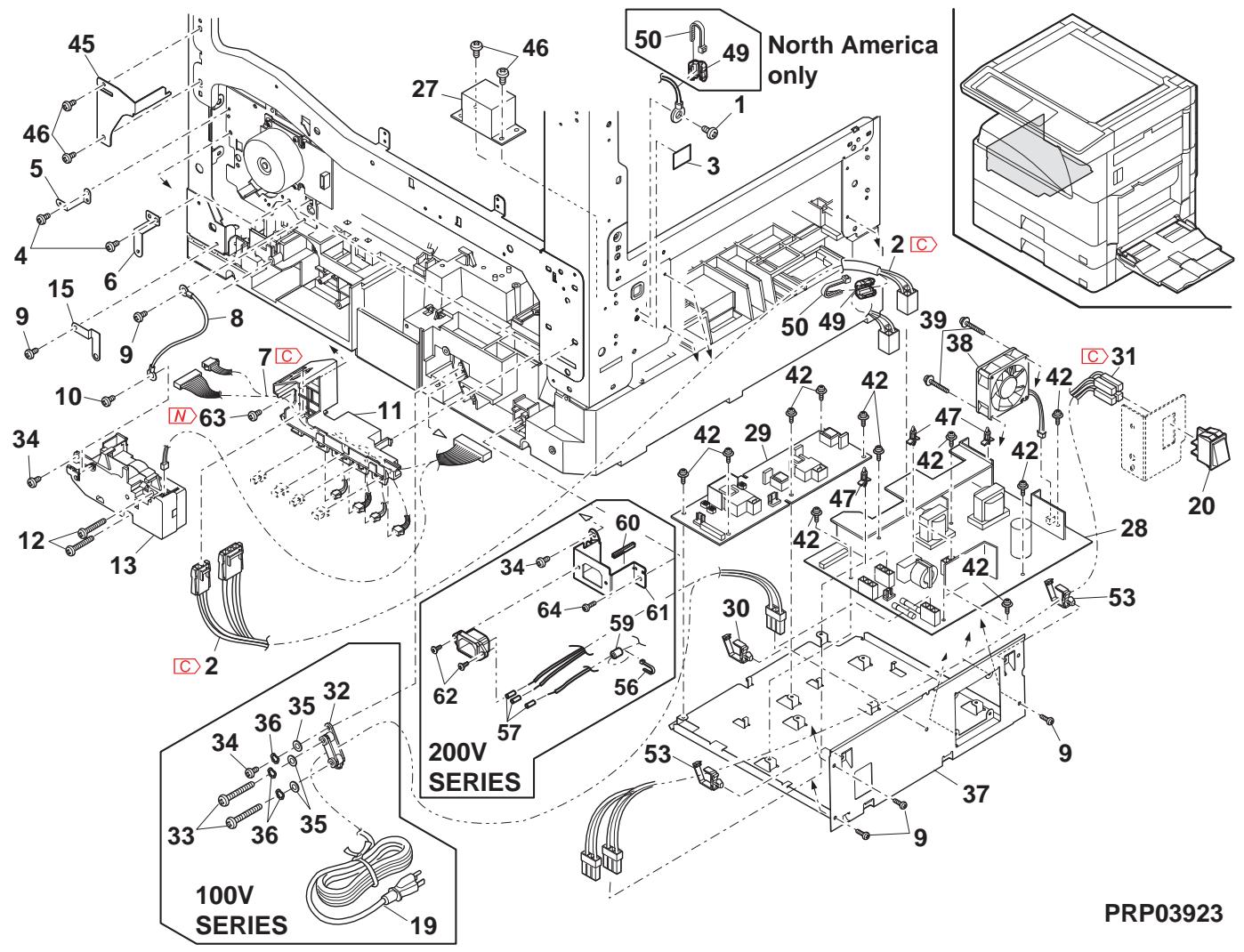
23 後7l-部 (Rear frame section)
27 2nd 搬送部 (2nd paper transfer section)
| NO. | PARTS CODE | Inter-chang | PRICE RANK | NEW MARK | PART RANK | DESCRIPTION | TR No. | Effective time | |
| Ex. | Ja. | ||||||||
| 1 | MSPRC0378QSZ1 | AB | DJ | C | Lock spring リリスリフ | ||||
| 2 | MLOKZ0001QSZZ | AC | DJ | C | Paper guide lock リリスリフ | ||||
| 3 | XEPS730P08X00 | AA | DD | C | Screw(3×8X) | ||||
| 4 | PG i DM0068QSZ1 | AP | EG | C | Transport paper guide 搬送 リリスリフ | ||||
| 5 | MARMP0015QSZZ | AD | DJ | C | 2nd door arm 2nd ト 77-44 | ||||
| 6 | NSFTZ0054QSZ1 | AD | DJ | C | Transport paper guide shaft 搬送 リリスリフ | ||||
| 7 | NROLP1060FCZZ | AF | DS | C | U-turn roller Uケーダ-44 | ||||
| 8 | MSPRP0345QSZ1 | AD | DJ | C | Transport paper guide spring 搬送 リリスリフ | ||||
| 9 | XEBS730P08000 | AC | DD | C | Screw(3×8) リリス | ||||
| 10 | GCÖVA0026QSTC | - | AP | EQ | D | Right cover [Missing parts code] 右加 - | 1st lot | ||
| 11 | XEBS730P10000 | AC | DD | C | Screw(3×10) リリス | ||||
| 12 | PCÖVP0089QSZZ | AD | DJ | D | Plate cover フレット 加 - | ||||
| 13 | LPLTP0409QSZZ | AC | DJ | C | Separator plate AND2 搏きフレットAND2 | ||||
| 14 | PSHEZ0515QSZZ | AG | DX | A | Separator sheet 搏きシト | ||||
| 15 | NROLR0130QSZZ | AL | EB | C | Transport roller 搏送は-44 | ||||
| 16 | MSPRC0270QSZZ | AB | DJ | C | Separator plate spring 搏きフレット リリス | ||||
| 17 | NBRGZ0503FCZZ | AC | DJ | C | Bearing 軸受 | ||||
| 18 | LSTPP0011QSZZ | AC | DJ | C | Resin E type ring 树脂 E 錄 | ||||
| 19 | LRALP0009QSZ2 | AP | EQ | C | Cassette rail R カリル R | ||||
| 20 | XBPS730P08KS0 | AB | DD | C | Screw(3×8KS) リリス | ||||
| 21 | NKOM-0005QSZZ | AC | DJ | C | Cassette guide collar 加さリドコ | ||||
| 22 | NSFTZ0048QSPZ | AF | DS | C | Cassette collar shaft 加さリド軸 | ||||
| 23 | PG i DM0074QSZZ | AK | DX | C | 2nd U-turn guide 2ndUケーダ-44 | ||||
| 24 | XEBS740P12000 | AA | DD | C | Screw(4×12) リリス | ||||
| 25 | PSHEZ0301QSZZ | AC | DJ | C | Rail R side sheet F [leel R ナリス] 空地 F | ||||
| 26 | PSHEZ0302QSZZ | AC | DJ | C | Rail R side sheet R [leel R ナリス] 空地 R | ||||
| 27 | MSPRD0287QSZZ | AC | DJ | C | Paper feed sub roller spring 絡紙補助ローラ- リリス | ||||
| 28 | NROLP0087QSZZ | AD | DJ | C | Paper feed sub roller 絡紙補助ローラ- | ||||
| 29 | NSFTZ0101QSZZ | AC | DJ | C | Paper feed sub roller shaft 絡紙補助ローラ- | ||||
| 30 | PSHEZ0356QSZ1 | AE | DS | C | Plate cover sheet フレット 加 - | ||||
| 31 | PSHEZ0347QSZ1 | AC | DJ | C | 2nd rail R sheet 2nd leel R 裁 | ||||
| 32 | LPLTM0396QSZ1 | AD | DJ | C | Separator guide plate 搏きフレット | ||||
| 33 | PSPAZ0055QSZZ | AA | DJ | C | Plate cover spacer フレット 加 - リリス | ||||
| 34 | LX-WZ0064FCZZ | AA | DD | C | Push nut(M3) フリス | ||||
| 501 | CCOVP0089RS55 | - | AP | EQ | E | Plate cover unit [Missing parts code] フレット 加 - 空地 | 1st lot | ||
| 502 | CG i DM0068RS55 | - | AU | EZ | E | Transport paper guide unit [Missing parts code] 搏送 フレット 加 - 空地 | 1st lot | ||
| 503 | CPLTP0409RS51 | AN | EG | C | Separation plate unit 分離フレット | ||||
| 504 | |||||||||
| 505 | |||||||||
| 506 | |||||||||
| 507 | |||||||||
| 508 | |||||||||
| 509 | |||||||||
| 510 | |||||||||
| 511 | |||||||||
| 512 | |||||||||
| 513 | |||||||||
| 514 | |||||||||
| 515 | |||||||||
| 516 | |||||||||
| 517 | |||||||||
| 518 | |||||||||
| 519 | |||||||||
| 520 | |||||||||
| 521 | |||||||||
27 2nd 搬送部 (2nd paper transfer section)
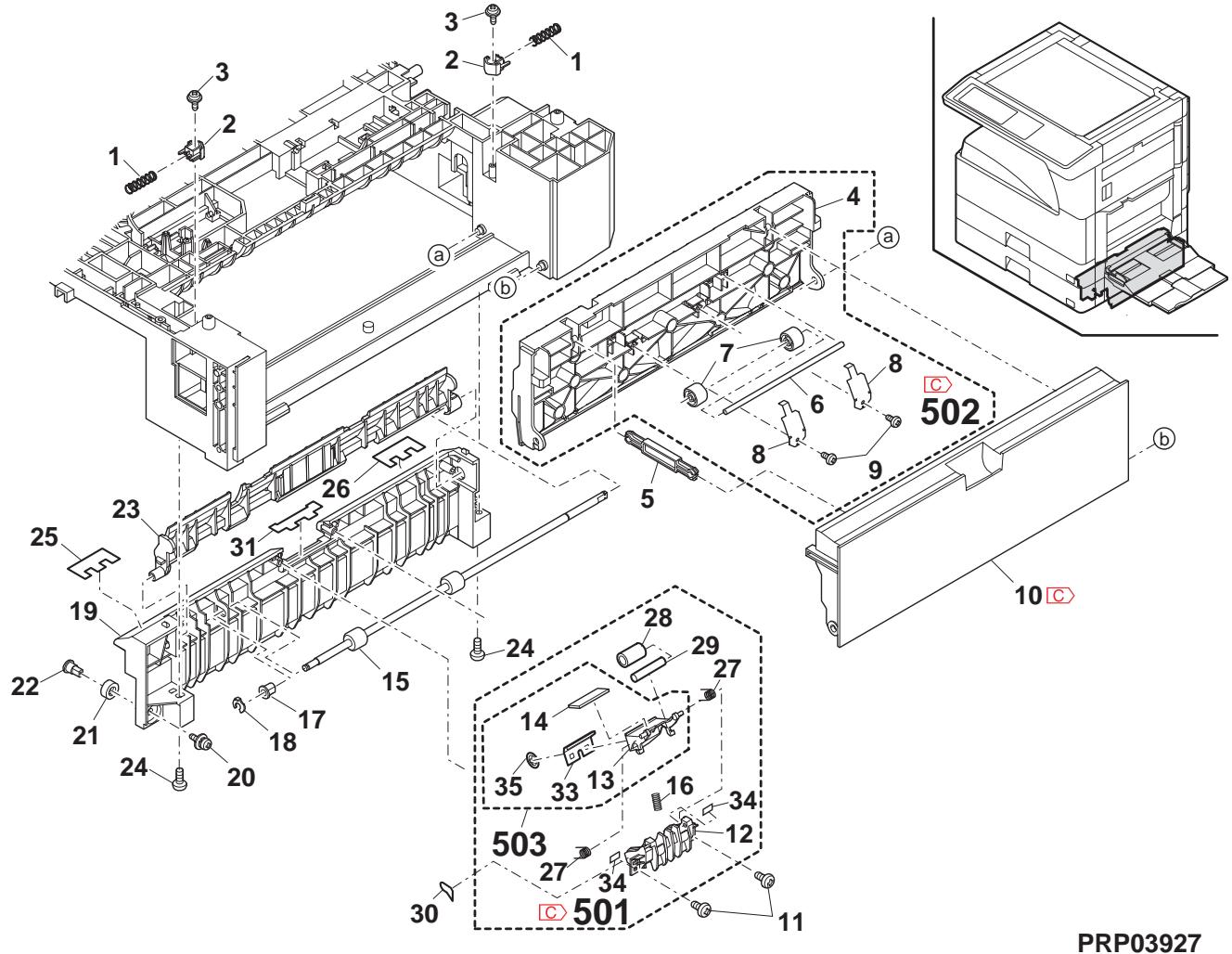
25 2nd 550�yuh(2nd 550 cassette unit)
| NO. | PARTS CODE | Inter-changese | PRICE RANK | NEW MARK | PART RANK | DESCRIPTION | TR No. | Effective time | |
| Ex. | Ja. | ||||||||
| 1 | LPLTP0159QSZZ | AD | DJ | C | Cassette rear edge plate 保後端板 | ||||
| 2 | LHLDW1226FCZZ | AB | DJ | C | Turn fastener トフフフフ | ||||
| 3 | LPLTM0179QSZ1 | AR | EQ | C | Rotation plate 回軸板 | ||||
| 4 | PSHEZ0274QSZZ | AC | DJ | C | Rotation plate sheet 回軸板←ト | ||||
| 5 | GCAS0005QSZ4 | BA | GD | D | 550 cassette 550 豉伏 | ||||
| 6 | PGiDM0070QSZ1 | AM | EG | C | Guide F 保伏F | ||||
| 7 | PTPE-0021QSZ1 | - | AA | DJ | C | GID tape [Missing parts code] GID 两面→F | 1st lot | ||
| 8 | LPLTM0181QSZ1 | AB | DJ | C | Side plate guide F 侧板"伏F | ||||
| 9 | PGiDM0071QSZ | AL | EB | C | Guide R 保伏R | ||||
| 10 | LX-BZ1144FCPZ | AA | DD | C | Screw 保λ | ||||
| 11 | NGERH0193FCZZ | AB | DD | C | UC manual paper feed gear UC手差←↑ | ||||
| 12 | MSPRC2631FCZZ | AC | DJ | C | Fusing pressure spring 定着加压 ムリフ | ||||
| 13 | MLEVP0755FCZ1 | AE | DJ | C | Side plate F lever 侧板F←- | ||||
| 14 | LX-BZ0833FCPZ | AC | DD | C | Screw 保λ | ||||
| 15 | CSHEZ0244QS02 | AE | DJ | C | 2nd cassette sheet ASS'Y 2nd応伏ト組品 | ||||
| 16 | XRESP70-08000 | AA | DD | C | E type ring(E7) E リフ伏 | ||||
| 17 | NGERH0108QSZZ | AD | DJ | C | Lift gear(22T) 保伏 | ||||
| 18 | MSPRC0354QSZZ | AC | DJ | C | Lift gear spring 保伏 水伏 | ||||
| 19 | NSFTZ0047QSZ1 | AK | EB | C | Lift shaft トフフ伏 | ||||
| 20 | LPLTM0180QSZ1 | AE | DS | C | Lift plate トフ伏 | ||||
| 21 | NBRGP0041GCZZ | AD | DJ | C | Bearing 軸受 | ||||
| 22 | XEBS74010000 | AA | DD | C | Screw(4×10) 保λ | ||||
| 23 | JHNDP0012QSZZ | AU | EZ | C | 2nd cassette panel AN2R 2nd応伏ト ミル AN2R | ||||
| 24 | XBPS740P08KS0 | AB | DD | C | Screw(4×8KS) 保λ | ||||
| 25 | GCōV-0282FCZZ | AH | DX | D | Cassette handle cover P2 保伏 口手伏 -P2 | ||||
| 26 | PSHEZ5948FCZZ | AD | DJ | C | Cassette handle sheet P2 保伏 口手伏 P2 | ||||
| 27 | LPLTM0277QSZZ | AC | DJ | C | Side plate guide R 侧板"伏R | ||||
| 28 | XEBS730P08000 | AC | DD | C | Screw(3×8) 保λ | ||||
| 29 | TCADZ0549QSZZ | - | AE | DS | D | Size display card [Missing parts code](Inch Series) 保伏 表示→ | 1st lot | ||
| TCADZ0550QSZZ | AE | DS | C | Size display label (AB Series except Japan) 保伏 表示→ | |||||
| TCADZ0551QSZZ | AE | DS | C | Size display label (Japan) 保伏 表示→ | |||||
| 501 | CCASP0005RS79 | - | BF | GN | E | 2nd 550 cassette unit [Missing parts code] 2nd 550 豉伏 ミフ伏 | 1st lot | ||
| (Unit) | |||||||||
| 901 | CCASP0005RS59 | BK | HC | E | 2nd 550 cassette unit(Without No.30) 2nd 550 豉伏 ミフ伏 (No.30を除く) | ||||
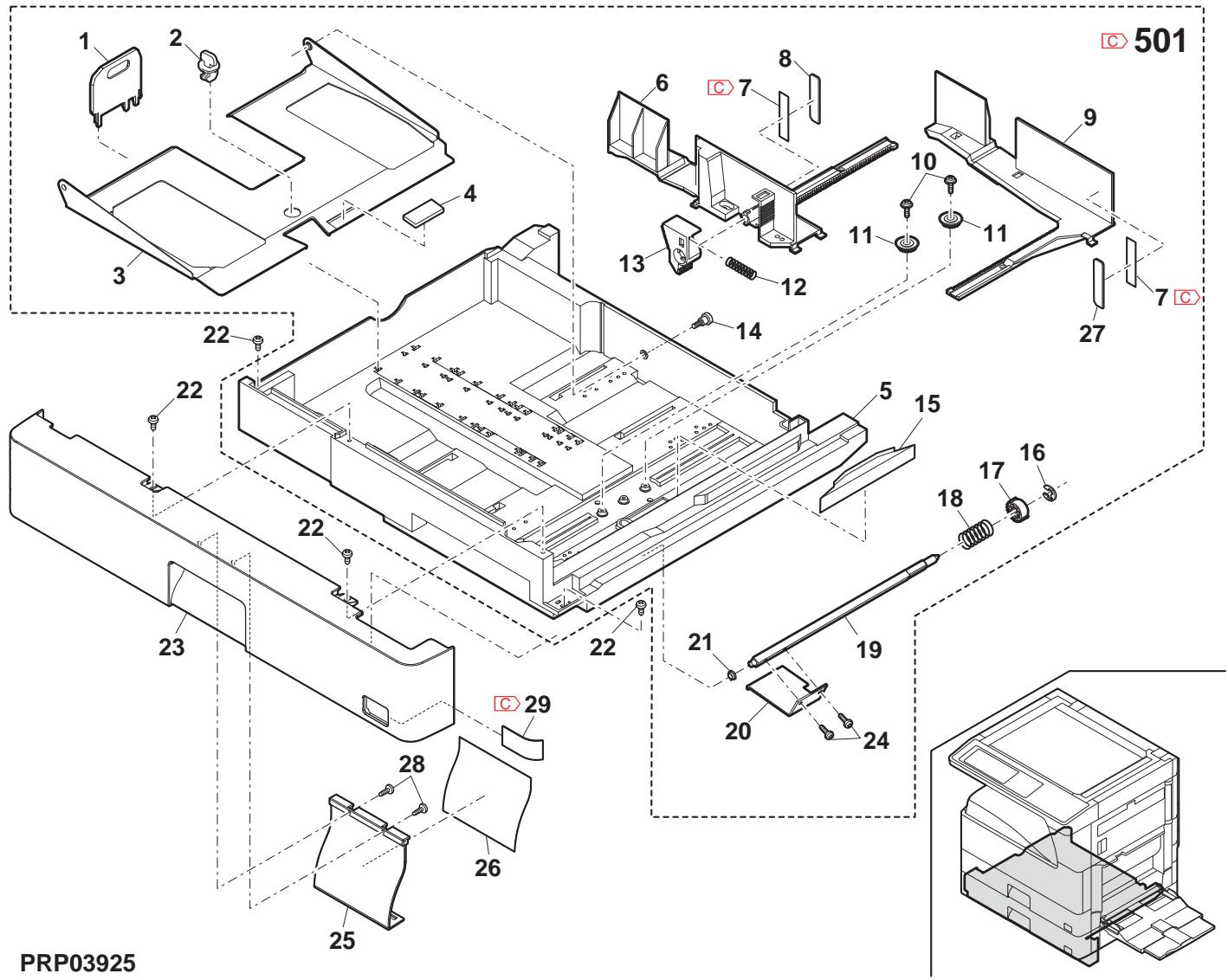
2nd 550 (2nd 550 cassette unit)
26 2nd 結紙部 (2nd paper feed section)
| NO. | PARTS CODE | Inter-chang | PRICE RANK | NEW MARK | PART RANK | DESCRIPTION | TR No. | Effective time | ||
| Ex. | Ja. | |||||||||
| 2 | PCOVP 0070QSZZ | AD | DJ | D | Sensor cover | せんが一。 | ||||
| 4 | CPWBFO095QSE3 | AP | EQ | E | 2nd cassette sensor PWB | 2nd イルバーナー基板 | ||||
| 5 | MLEVP 0063QSZ1 | AD | DJ | C | Upper limit detect actuator | 上限検知70000000000000000000000000000000000000000000000000000000000000000000000000000000000000000000000000000 | ||||
| 6 | MLEVP 0064QSZZ | AD | DJ | C | Paper detect actuator | 紙検知700000000000000000000000000000000000000000000000000000000000000000000000000000000000000000000000 | ||||
| 7 | MLEVP 0062QSZZ | AC | DJ | C | P-IN detect actuator | 入紙検知70000000000000000000000000000000000000000000000000000000000000000000000000000000000000000000000 | ||||
| 8 | PCOVP 0064QSZZ | AD | DJ | D | Solenoid cover | ルフク。 | ||||
| 9 | RPLU-0026QSZ1 | AR | EQ | B | Paper feed solenoid | 給紙ルフク。 | ||||
| RPLU-0026QSP1 | 1 | AR | EQ | B | Paper feed solenoid | 給紙ルフク。 | ||||
| 10 | MARMP 0026QSZZ | AD | DJ | C | Solenoid arm | ルフク。 | ||||
| 11 | MSPRC0209QSZ1 | AC | DJ | C | Solenoid spring | ルフク。 | ||||
| 13 | NSFTZ0102QSZZ | AH | DX | C | 2nd paper feed roller shaft | 2nd 結紙ローナーベ轴 | ||||
| 14 | QSW-B0017QSZZ | AF | DS | B | Tray detect switch | トレ検知4000 | ||||
| 17 | DHA i-0397QSPZ | AD | DJ | C | Cassette detect interface harness | かす検知中縫ハス | ||||
| 18 | NBRGC0100FCZ1 | AC | DJ | C | Bearing 6 | ^ リリカ。6 | ||||
| 19 | MSPRD0389QSZZ | AC | DJ | C | Pick up roller pressure spring | t'' リリカ。加圧λ'' リリカ。 | ||||
| 20 | MARMP 0021QSZZ | AD | DJ | C | Pick up arm R | t'' リリカ。7000R | ||||
| 21 | NGERH0107QSZZ | AD | DJ | C | Paper feed gear(20T) | 給紙状。 | ||||
| 22 | LPiN-0026MCZZ | AA | DD | C | Spring pin(φ2-8) | t'' リリカ。7000 | ||||
| 23 | NROLR0132QSZ1 | AR | EQ | C | Paper feed roller AND2 | 給紙ローナーAND2 | ||||
| 24 | MARMP 0019QSZZ | AD | DJ | C | Pick up arm F | t'' リリカ。7000F | ||||
| 25 | NGERH0990FCZZ | AB | DJ | C | Gear(16T) | t'' 中 | ||||
| 27 | NROLR0133QSZZ | AC | DJ | C | Paper feed in detect actuator spring | 入紙検知7000。 | ||||
| 29 | DHA i-0394QSPZ | AD | DJ | C | Door open/close detect harness | 7開閉検知ハス | ||||
| 30 | MSPRD0204QSZZ | AC | DJ | C | Paper feed in detect actuator spring | 入紙検知7000。 | ||||
| 31 | DHA i-0473QSP1 | AG | DX | C | Cassette sensor PWB harness | かす検知基板ハス | ||||
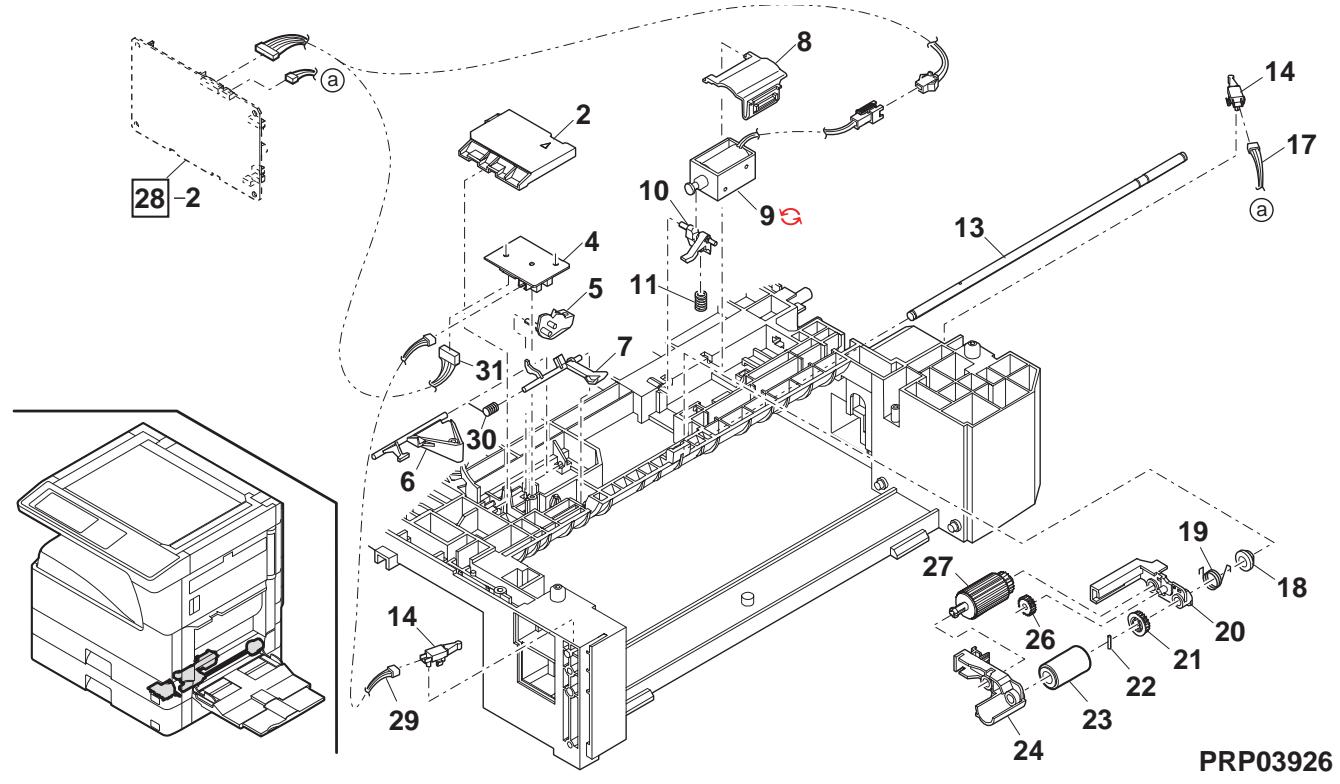
26 2nd給紙部(2nd paper feed section)
27 2nd 搬送部 (2nd paper transfer section)
| NO. | PARTS CODE | Inter-chang | PRICE RANK | NEW MARK | PART RANK | DESCRIPTION | TR No. | Effective time | ||
| Ex. | Ja. | |||||||||
| 1 | MSPRC0378QSZ1 | AB | DJ | C | Lock spring リルフリル | |||||
| 2 | MLOKZ0001QSZZ | AC | DJ | C | Paper guide lock チ-n-が応つロル | |||||
| 3 | XEPS730P08X00 | AA | DD | C | Screw(3×8X) ヤλ | |||||
| 4 | PG i DM0068QSZ1 | AP | EG | C | Transport paper guide 搬送 チ-n-が応つロル | |||||
| 5 | MARMP0015QSZZ | AD | DJ | C | 2nd door arm 2nd ト77-4 | |||||
| 6 | NSFTZ0054QSZ1 | AD | DJ | C | Transport paper guide shaft 搬送 チ-n-が応つロル 油ト | |||||
| 7 | NROLP1060FCZZ | AF | DS | C | U-turn roller Uケーダ-4 | |||||
| 8 | MSPRP0345QSZ1 | AD | DJ | C | Transport paper guide spring 搬送 チ-n-が応つロル ラルの | |||||
| 9 | XEBS730P08000 | AC | DD | C | Screw(3×8) ヤλ | |||||
| 10 | GCÖVA0026QSTC | - | AP | EQ | D | Right cover [Missing parts code] 右加一 | 1st lot | |||
| 11 | XEBS730P10000 | AC | DD | C | Screw(3×10) ヤλ | |||||
| 12 | PCÖVP0089QSZZ | AD | DJ | D | Plate cover フレトカ一 | |||||
| 13 | LPLTP0409QSZZ | AC | DJ | C | Separator plate AND2 搏きフレトAND2 | |||||
| 14 | PSHEZ0515QSZZ | AG | DX | A | Separator sheet 搏きドト | |||||
| 15 | NROLR0130QSZZ | AL | EB | C | Transport roller 搏送は一 | |||||
| 16 | MSPRC0270QSZZ | AB | DJ | C | Separator plate spring 搏きフレト ラルの | |||||
| 17 | NBRGZ0503FCZZ | AC | DJ | C | Bearing 軸受 | |||||
| 18 | LSTPP0011QSZZ | AC | DJ | C | Resin E type ring 栅脂 ELLR | |||||
| 19 | LRALP0009QSZ2 | AP | EQ | C | Cassette rail R カリルR | |||||
| 20 | XBPS730P08KS0 | AB | DD | C | Screw(3×8KS) ヤλ | |||||
| 21 | NKOM-0005QSZZ | AC | DJ | C | Cassette guide collar 加ささささささささささささささささささささささささささささささささささささささささささささささささささささささささささささささささささささささささささささささささささささささささささささささささささささ | |||||
| 22 | NSFTZ0048QSPZ | AF | DS | C | Cassette collar shaft 加さささささささささささささささささささささささささささささささささささささささささささささささささささささささささささささささささささささささささささささささささささささささささささささささささ | |||||
| 23 | PG i DM0074QSZZ | AK | DX | C | 2nd U-turn guide 2ndUケーダ-4 | |||||
| 24 | XEBS740P12000 | AA | DD | C | Screw(4×12) ヤλ | |||||
| 25 | PSHEZ0301QSZZ | AC | DJ | C | Rail R side sheet F カルR栓钉F | |||||
| 26 | PSHEZ0302QSZZ | AC | DJ | C | Rail R side sheet R カルR栓钉R | |||||
| 27 | MSPRD0287QSZZ | AC | DJ | C | Paper feed sub roller spring 絡紙補助ローラル ラルの | |||||
| 28 | NROLP0087QSZZ | AD | DJ | C | Paper feed sub roller 絡紙補助ローラル | |||||
| 29 | NSFTZ0101QSZZ | AC | DJ | C | Paper feed sub roller shaft 絡紙補助ローラル | |||||
| 30 | PSHEZ0356QSZ1 | AE | DS | C | Plate cover sheet フレトカ一 | |||||
| 31 | PSHEZ0347QSZ1 | AC | DJ | C | 2nd rail R sheet 2nd しぃルR栓钉 | |||||
| 32 | LPLTM0396QSZ1 | AD | DJ | C | Separator guide plate 搏きフレトFR | |||||
| 33 | PSPAZ0055QSZZ | AA | DJ | C | Plate cover spacer フレトカ一 ラルの | |||||
| 34 | LX-WZ0064FCZZ | AA | DD | C | Push nut(M3) ユルフリル | |||||
| 501 | CCOVP0089RS55 | - | AP | EQ | E | Plate cover unit [Missing parts code] モルフリル一。一。一。一。一。一。一。一。一。一。一。一。一。一。一。一。一。一。一。一。一。一。一。一。一。一。一。一。一。一。一。一。一。一。一。一。一。一。一。一。一。一。一。一。一。一。一。一。一。一。一。 ラルの | ||||
| 502 | CG i DM0068RS55 | - | AU | EZ | E | Transport paper guide unit [Missing parts code] 搏送 チ-n-が応つロル ダルの | ||||
| 503 | CPLTP0409RS51 | AN | EG | E | Separation plate unit 分離フレト工部 | |||||
| 504 | ||||||||||
| 505 | ||||||||||
| 506 | ||||||||||
| 507 | ||||||||||
| 508 | ||||||||||
| 509 | ||||||||||
| 510 | ||||||||||
| 511 | ||||||||||
| 512 | ||||||||||
| 513 | ||||||||||
| 514 | ||||||||||
| 515 | ||||||||||
| 516 | ||||||||||
| 517 | ||||||||||
| 518 | ||||||||||
| 519 | ||||||||||
| 520 | ||||||||||
| 521 | ||||||||||
27 2nd 搬送部 (2nd paper transfer section)
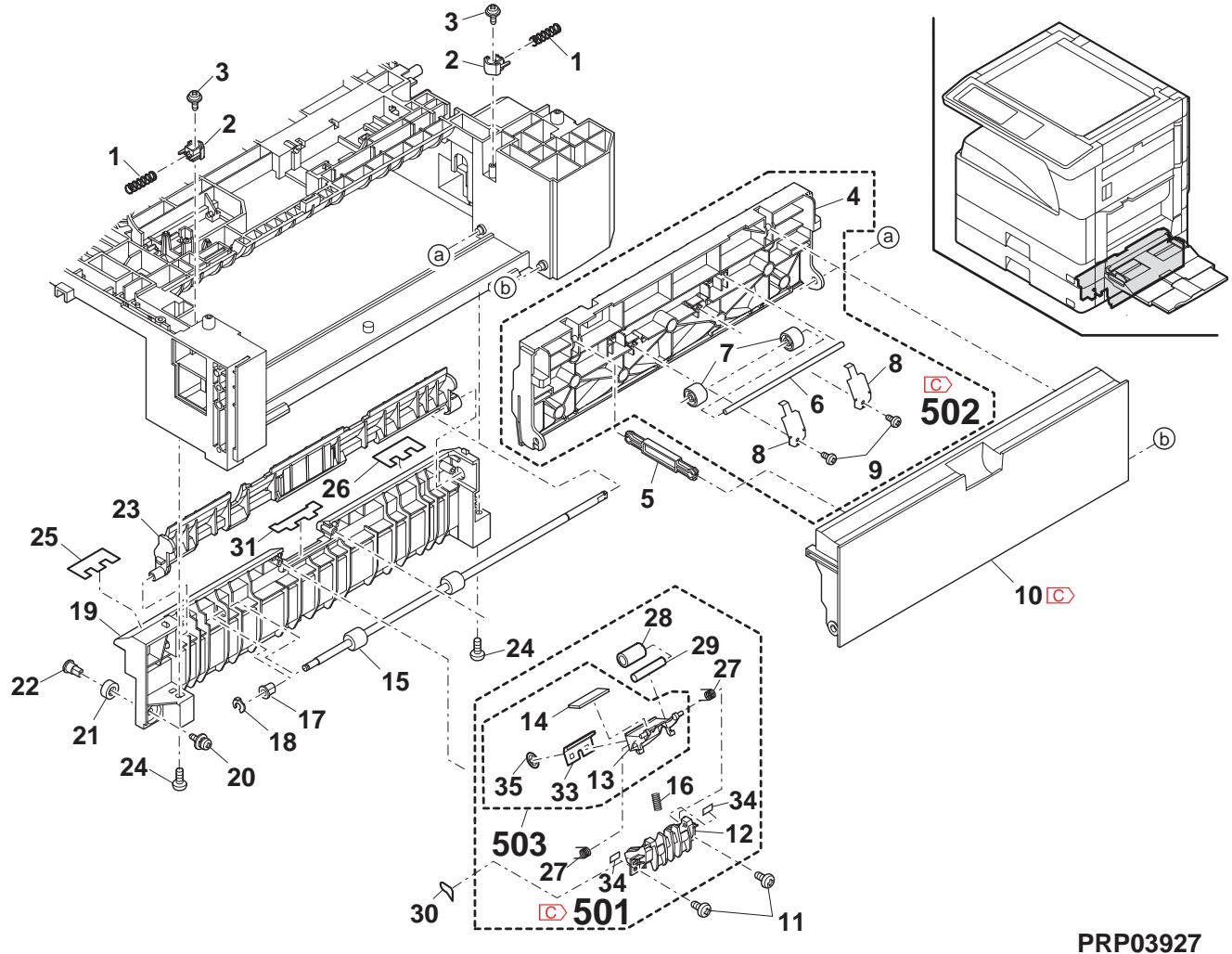
28 2nd 驱動部 (2nd drive section)
| NO. | PARTS CODE | Inter-changese | PRICE RANK | NEWMARK | PARTRANK | DESCRIPTION | TR No. | Effective time | |
| Ex. | Ja. | ||||||||
| 1 | PCOVP 0084QSZZ | AE | DJ | C | 2nd bottom cover | 2nd 底加- | |||
| 2 | CPWBF 0228QSE1 | AX | FG | E | 2nd cassette interface PWB | 2nd 加下中继基板 | |||
| 3 | XEBS730P08000 | AC | DD | C | Screw(3×8) | 6 | |||
| 4 | DHA i - 0597QSP1 | - | BF | GN | C | 2nd multi step harness | [Missing parts code] | 1st lot | |
| 5 | NBRGC0100FCZ1 | AC | DJ | C | Bearing 6 | 6 | |||
| 6 | MARMP 0018QSZZ | AD | DJ | C | Body joint arm | 本体連結7-4 | |||
| 7 | PCLC-0031QSZZ | - | AQ | EQ | B | 2nd paper feed clutch(42T) | [Missing parts code] | 1st lot | |
| 8 | XRESP40-06000 | AA | DD | C | E type ring(E4) | E リル* | |||
| 9 | XRESP50-06000 | AA | DD | C | E type ring(E5) | E リル* | |||
| 10 | MSPRT0203QSZZ | AC | DJ | C | Joint spring | 連結効力(42T) | |||
| 11 | NGERH0119QSZZ | AD | DJ | C | Gear(36T) | 6 | |||
| 12 | NGERH1207FCZZ | AF | DS | C | Joint gear(40T) | 連結効力 | |||
| 13 | CDA i U024RS58 | AZ | FQ | E | 2nd lift up unit | 2ndリフロー。 | |||
| 14 | XEBS740P30000 | AC | DD | C | Screw(4×30) | 6 | |||
| 15 | XEBS740P12000 | AA | DD | C | Screw(4×12) | 6 | |||
| 17 | DHA i - 0474QSP1 | - | BS | MW | C | LUM harness | LUM ルル | ||
| 20 | LPLTM0203QSZ1 | AF | DS | C | Multi step drive plate | 多段驅動効果 | |||
| 24 | NGERH0121QSZZ | AE | DJ | C | Gear(20T/45T/26P) | 6 | |||
| 25 | NBLTT029QSZZ | AG | DX | B | Vertical transport belt | 縄搬送効果 | |||
| 26 | PCLC-0020QSZZ | AX | FG | B | Transport clutch | 搬送効果 | |||
| 28 | NPLYZ0027QSZZ | AD | DJ | C | Vertical transport pulley | 縄搬送効果 | |||
| 29 | PSHEZ0250QSZZ | AB | DJ | C | Flange sheet | 万歳広ト | |||
| 30 | NROLP0008QSZZ | AD | DJ | C | Pulley | 7-1-1- | |||
| 31 | PSHEZ0249QSZZ | AB | DJ | C | Flange sheet | 万歳広ト | |||
| 32 | NBRGC0529FCZZ | AD | DJ | C | Bearing | 軸受 | |||
| 33 | LPLTM0176QSZ1 | AH | EB | C | Clutch earth plate | 万歳広ス板 | |||
| 34 | PSHEZ0556QSZZ | AC | DJ | C | Harness holder sheet | ハーマ�押元ト | |||
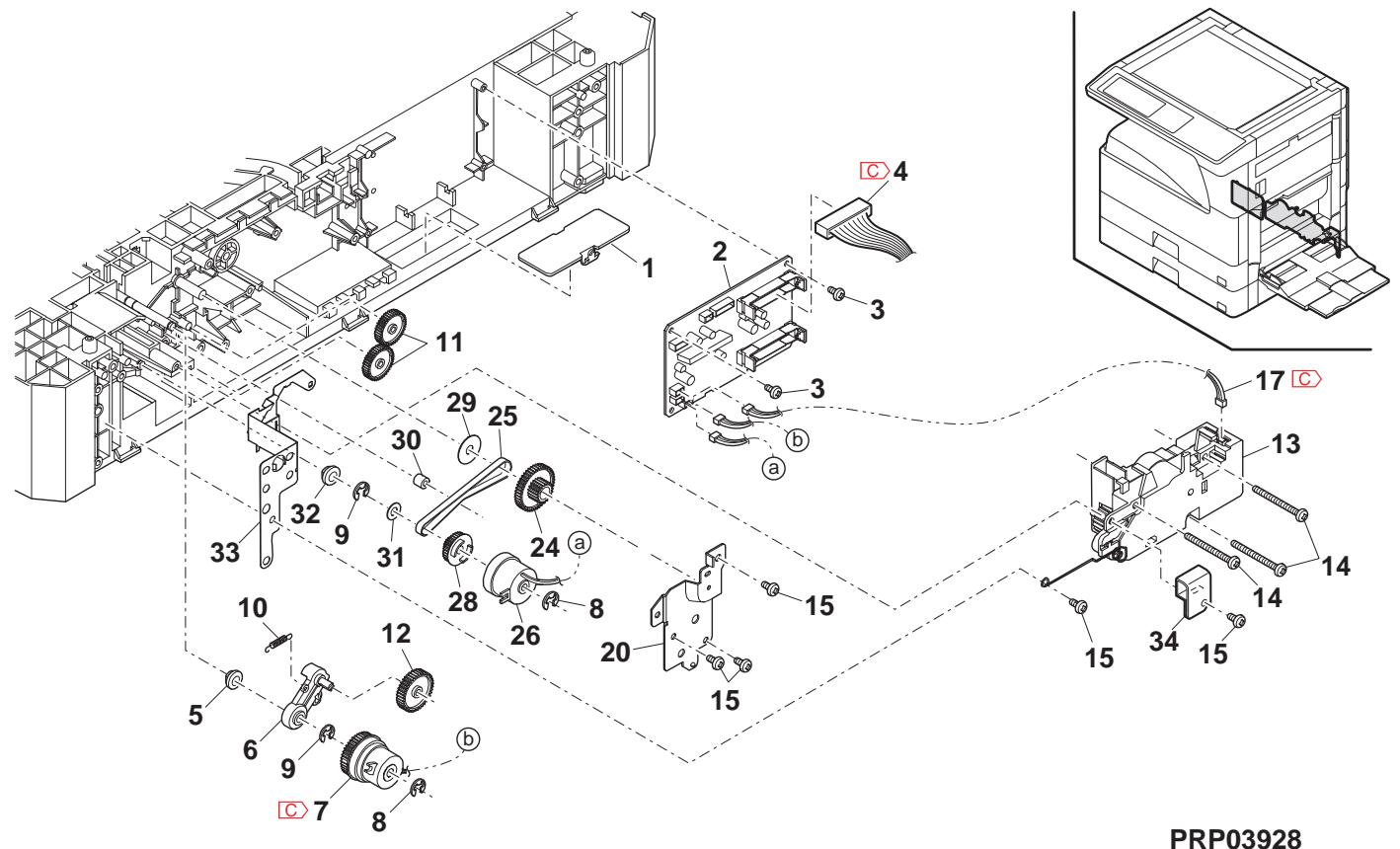
28 2nd 驱動部 (2nd drive section)
37 棍包及付属品(Packing material & accessories)
| NO. | PARTS CODE | Inter-chang | PRICE RANK | NEW MARK | PART RANK | DESCRIPTION | TR No. | Effective time | |
| Ex. | Ja. | ||||||||
| 2 | TINSE2026QSZZ | AY | FQ | D | Operation manual [MX-M260/M310 English(North America)] 取拔說明書 | ||||
| TINSE2078QSZZ | BD | GN | D | Operation manual [English(Except North America,U.Kingdom)] 取拔說明書 | |||||
| TINSE2090QSZZ | - | BG | GX | D | Operation manual [Missing parts code] [MX-M Series English(U.Kingdom)] 取拔說明書 | 1st lot | |||
| TINSG2088QSZZ | - | BD | GN | D | Operation manual [Missing parts code] [German(Germany,Switzerland)] 取拔說明書 | 1st lot | |||
| TINSJ2031QSZZ | AY | FQ | D | Operation manual [Japanese] 取拔說明書 | |||||
| TINSE2027QSZZ | AK | DX | D | Operation manual(Copy/SPLC install guide) [English] 取拔說明書 | |||||
| TINSE2083QSZZ | AY | FQ | D | Operation manual(Copy/PCL install guide) [English MX-M260N/M310N] 取拔說明書 | |||||
| TINSG2089QSZZ | - | AR | EQ | D | Operation manual(Copy/SPLC install guide) [Missing parts code] [German(Germany,Switzerland)] 取拔說明書 | 1st lot | |||
| TINSJ2032QSZZ | AK | EB | D | Operation manual(Copy/SPLC install guide) [Japanese MX-M260FG/M310FG] 取拔說明書 | |||||
| TINSJ2033QSZZ | AN | EQ | D | Operation manual(Copy/SPLC install guide) [Japanese MX-M260FP/M310FP] 取拔說明書 | |||||
| TINSJ2034QSZZ | AW | FG | D | Operation manual(FAX) [Japanese] 取拔說明書 | |||||
| CDSKA0261QS31 | AH | DX | D | CD-ROM [MX-M260 North America] CD-ROM | |||||
| CDSKA0264QS31 | - | AL | EB | D | CD-ROM [Missing parts code] [MX-M Series(Except North America)] CD-ROM | 1st lot | |||
| CDSKA0265QS31 | AL | EB | D | CD-ROM(PDL DISK1) [MX-M260N/M310N] CD-ROM | |||||
| CDSKA0266QS31 | AL | EB | D | CD-ROM(PDL DISK2) [MX-M260N/M310N] CD-ROM | |||||
| CDSKA0267QS31 | AL | EB | D | CD-ROM [MX-M260FG/M310FG] CD-ROM | |||||
| CDSKA0268QS31 | AL | EB | D | CD-ROM [MX-M260FP/M310FP] CD-ROM | |||||
| TCADZ0049QSZZ | AH | DX | D | Installation report card (Germany,Switzerland,Europe,East Europe) 設置報告書 | |||||
| TCADS1693FCZZ | AA | DS | D | Installation report card (Japan) 設置報告書 | |||||
| TCADZ0098QSZZ | AF | DS | D | Warranty card SUK (U.kingdom) 保証かト'SUK | |||||
| CCADZ1518FC01 | AB | DJ | D | Maintenance card EX [MX-M260/M260N/M310N,AR-5726/5731] ナフクトEX | |||||
| CCADZ1561FC01 | AK | DX | D | Maintenance card J [MX-M260FG/M260FP/M310FG] ナフクトJ | |||||
| TGANE1001QCZB | AC | DJ | D | SCA warranty (Australia,New Zealand) SCA 保證書 | |||||
| QCNWG0013QSZZ | AF | DS | C | Line cable (Japan) ナフクトJ | |||||
| TKEI0001QSZZ | AE | DJ | D | Counter contract card (Japan) 加藤-契約書 | |||||
| 7 | SPAKA0484QSZZ | BE | GN | D | Bottom packing case (Japan) 底がス | ||||
| 8 | LX-BZ0015QSPZ | AF | DS | C | 2/3 fixing screw 2/3固定ごス | ||||
| 9 | TCADZ0010QSZZ | AC | DJ | D | Fixing screw caution card 固定ごス 注意ごス | ||||
| 10 | LHLDW1226FCZZ | AB | DJ | C | Turn fastener 報表変態 | ||||
| 11 | TCADZ1275FCZZ | AB | DJ | D | Cassette rotation tag はり回転け | ||||
| 12 | SSAKA3001CCZZ | AA | DD | D | Vinyl bag(140×360) (North America,Japan,Argentina) ボリ袋 | ||||
| SSAKA5003CCZZ | AA | DD | D | Vinyl bag(140×260) (Except North America,Japan) ボリ袋 | |||||
| 13 | SSAKA2343QCZZ | AA | DD | D | Vinyl bag(260×380) ボリ袋 | ||||
| 14 | SPAKA0134RSZZ | AL | EB | D | OC protect sheet OC 保護けト | ||||
| 15 | LBNDC0075FCZZ | AB | DJ | C | AC cord band (Except North America,Japan,India, Special country,Philippines,Malaysia,Singapore) AC ナフクト | ||||
| UBNDA0001FCZZ | AA | DD | C | AC cord band (India,Special country,Malaysia, Singapore,Argentina) AC ナフクト | |||||
| 17 | SPAKA3914FCZZ | AC | DJ | D | DV sleeve (Japan) DV ナフクト | ||||
| 19 | TLABZ0106RSZZ | AF | DS | D | LAG 4 label (Argentina) LAG4 ナフクト | ||||
37 棍包及付属品(Packing material & accessories)
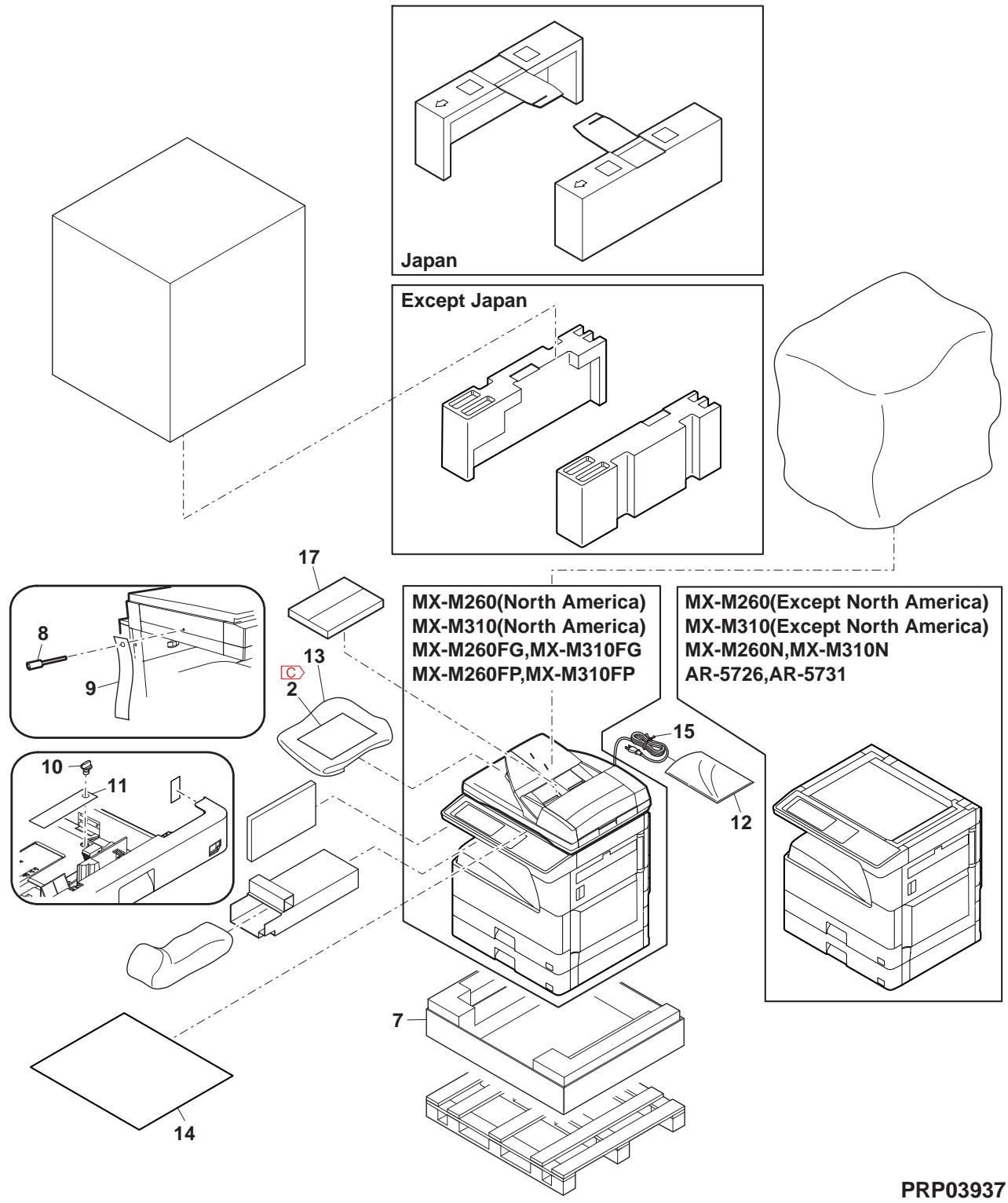
PRP03937
38 MX-VR10 棍包及付属品 (MX-VR10 Packing material & accessories)
38 MX-VR10 棍包及付属品 (MX-VR10 Packing material & accessories)
| NO. | PARTS CODE | Inter-changese | PRICE RANK | NEWMARK | PARTRANK | DESCRIPTION | TR No. | Effective time | |
| Ex. | Ja. | ||||||||
| 1 | GCÖV-0 075QSZ1 | BB | GD | D | OC cover | OC 加* - | |||
| 2 | GCÖV-0 247FCZZ | AS | EQ | D | OC stocker | OC ストウェー | |||
| 3 | PCUSS0 032QSZZ | AW | FG | C | OC mat | OC マフ | |||
| 4 | MHNG-0 025QSTZ | BC | GD | C | OC hinge R | OC ハング * R | |||
| 5 | XWVS740-05000 | AA | DD | C | Washer | ウashi | |||
| 6 | XEBS740P12000 | AA | DD | C | Screw(4×12) | ビス | |||
| 7 | MHNG-0 026QSTZ | BC | GD | C | OC hinge L | OC ハング * L | |||
| 14 | SSAKH3012KCZZ | AD | DJ | D | Vinyl bag | ロリ袋 | |||
| (Unit) | |||||||||
| 901 | CCÖV-0 075RS53 | - | BK | HC | E | OC cover unit | OC 加* -�ルト | ||
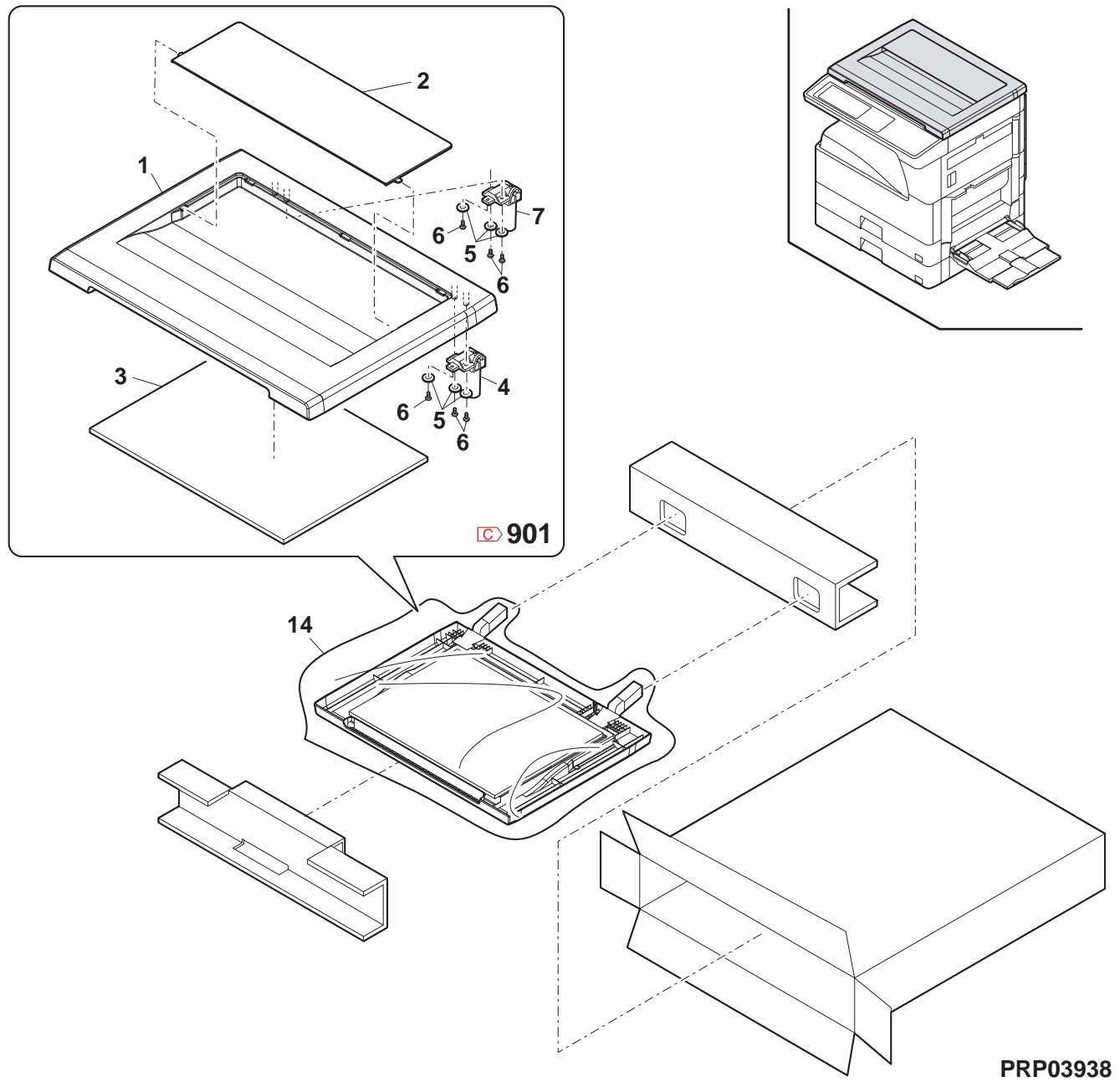
39 MX-RP10 棍包及付属品 (MX-RP10 Packing material & accessories)
39 MX-RP10 棍包及付属品 (MX-RP10 Packing material & accessories)
| NO. | PARTS CODE | Inter-changese | PRICE RANK | NEWMARK | PARTRANK | DESCRIPTION | TR No. | Effective time | |
| Ex. | Ja. | ||||||||
| 1 | SPAKA0088QSZZ | AE | DS | D | Protect packing sheet | 保護�� | |||
| 2 | CFiX-0012RS54 | AU | EZ | E | SPF glass fixing plate unit | SPFがフロー | |||
| 3 | SSAKZ0004QSZZ | AA | DD | D | Vinyl bag(80×450) | 木袋 | |||
| 6 | SSAKH3012KCZZ | AD | DJ | D | Vinyl bag | 木袋 | |||
| 7 | SPAKA0488QSZZ | BK | HG | D | Add R | トR | |||
| 9 | SPAKA0487QSZZ | BF | GN | D | Add L | トL | |||
| 10 | LSOU-0041QST1 | AP | EQ | C | Middle tray | 中間トリ | |||
| 11 | SSAKA1341QCZZ | AA | DD | D | Vinyl bag(180×380) | 木袋 | |||
| 12 | SPAK-545ECCZZ | AA | DD | D | Vinyl bag | 静電木袋 | |||
| 14 | SPAKA0622QSZZ | AG | DX | D | OC mat fixing add | OC マト固定材 | |||
| 15 | CCLEZ0020QS01 | AK | EB | D | SPF glass cleaner | SPFがフロー | |||
| 16 | TLABS3760FCZZ | AC | DJ | D | CE label | CE フロー | |||
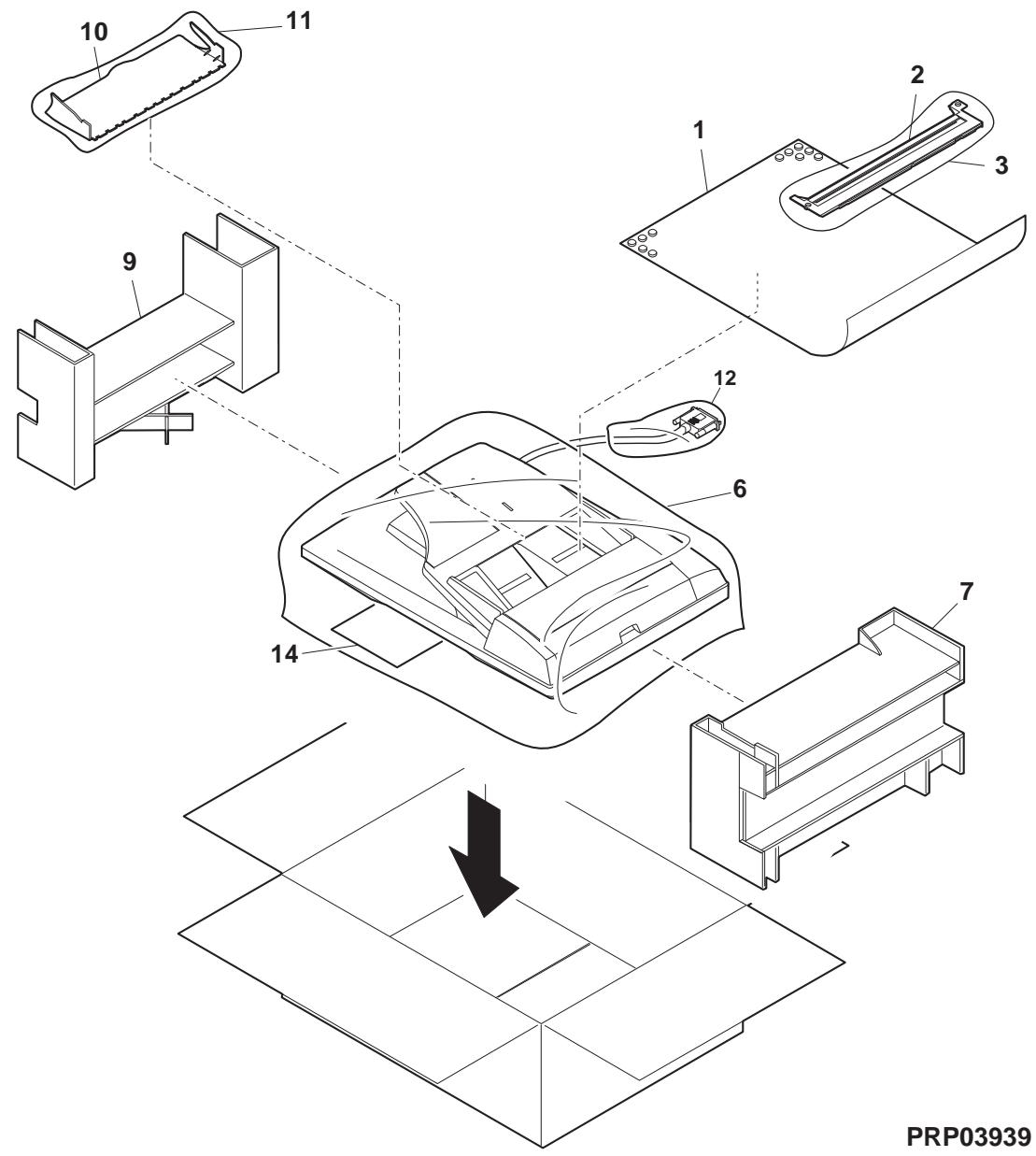
40 MX-TR11 棍包及付属品 (MX-TR11 Packing material & accessories)
40 MX-TR11 棍包及付属品 (MX-TR11 Packing material & accessories)
| NO. | PARTS CODE | Inter-changese | PRICE RANK | NEWMARK | PARTRANK | DESCRIPTION | TR No. | Effective time | |
| Ex. | Ja. | ||||||||
| 1 | X E B S 7 4 0 P 1 0 0 0 0 | AA | DD | C | Screw(4×10) | 匕'λ | |||
| 2 | X H B S 7 4 0 P 1 0 0 0 0 | AA | DD | C | Screw(4×10) | 匕'λ | |||
| 3 | SS A K A 0 0 0 6 U C Z Z | AA | DD | D | Vinyl bag(50×60) | 木'袋 | |||
| 4 | L H L D Z 0 1 4 9 Q S Z Z | AH | DX | C | 2nd delivery holder | 第2排紙札の- | |||
| 7 | SS A K - 4 2 7 1 C C Z Z | AD | DJ | D | Vinyl bag(420×690) | 木'袋 | |||
| 9 | SS A K A 2 5 4 0 Q C Z Z | AB | DD | D | Vinyl bag(260×560) | 木'袋 | |||
| 10 | N PSHEZ 0 6 6 5 Q S Z Z | - | AC | DJ | C | Optical frame sheet | 光学レーパー- | 09/08 Mid | |