EasyManual
SCANJET PROFESSIONAL 3000 - To scan HP - Free user manual and instructions
Find the device manual for free SCANJET PROFESSIONAL 3000 HP in PDF.


Questions des utilisateurs sur SCANJET PROFESSIONAL 3000 HP
0 question sur cet appareil. Repondez a celles que vous connaissez ou posez la votre.
Poser une nouvelle question sur cet appareil
Download the instructions for your To scan in PDF format for free! Find your manual SCANJET PROFESSIONAL 3000 - HP and take your electronic device back in hand. On this page are published all the documents necessary for the use of your device. SCANJET PROFESSIONAL 3000 by HP.
USER MANUAL SCANJET PROFESSIONAL 3000 HP
HP Scanjet Professional 1000 Mobile
Scanner
User Guide
Contents
1 Scanner overview 3
Scanner hardware 3
Scanner front panel buttons 3
Scanner software 4
How to scan with the HP Scanjet 1000 scanner driver 4
2 Use the scanner 5
Load originals 5
Document loading tips 5
Load documents 7
Load a card into the paper feed slot 7
Scan a document 7
Tips on scanning 8
Scan from the scanner button 8
Scan from TWAIN-compliant scanning software 8
3 Useful scanner features 9
Filter out a color from a document (color channel dropout) 9
4 Care and maintenance 10
Order maintenance and scanning supplies 10
Clean the roller and the scanner glass. 10
5 Troubleshooting 12
Basic troubleshooting tips 12
Scanner installation troubleshooting 12
Check the USB cable. 13
Uninstall and then reinstall the HP Scanjet 1000 scanner driver 13
Scanner initialization or hardware problems 13
Check the USB connection 13
Reset the scanner. 14
Scanner has stopped working correctly 14
Scanner operation problems 15
Scanner will not turn on 15
Scanner does not scan right away 15
Scanner scans only one side of a two-sided page 15
Scanned images are not straight 16
Scanned image is fuzzy 16
Optimize scanning and task speeds 16
The scan is completely black or completely white 16
Vertical black stripes appear on the scanned image. 16
Scan files are too large 16
Scanner buttons are not working correctly 17
Scanner paper path problems 17
Paper jamming, skewing, misfeeds 17
Scanning fragile originals 18
Paper does not feed successfully 18
The scanned image has streaks or scratches. 18
An item loaded in the scanner jams repeatedly 19
Clear jams from the scanner 19
6 Product support. 20
Getting assistance 20
Where to get additional information 20
HP Scanjet 1000 driver help 21
Technical resources 21
7 Specifications 22
Scanner Specifications 22
Environmental specifications 23
Regulatory information 23
Disposal of Waste Equipment by Users in Private Households in the European Union.. 23
Index 25
1 Scanner overview
This User Guide covers what you need to know about using your scanner.
- Scanner hardware
- Scanner software
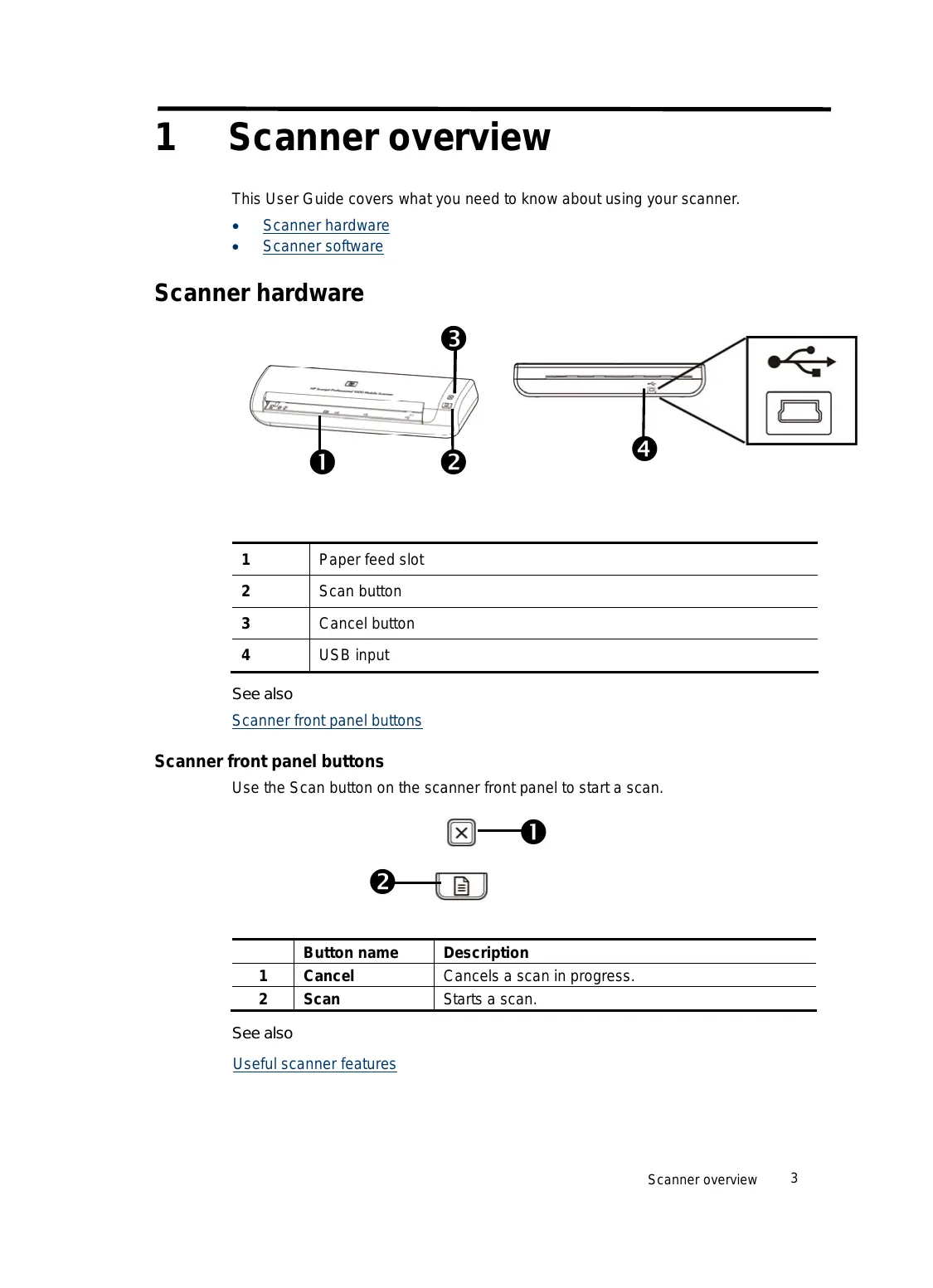
Scanner hardware
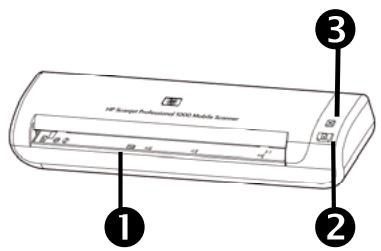

| 1 | Paper feed slot |
| 2 | Scan button |
| 3 | Cancel button |
| 4 | USB input |
See also
Scanner front panel buttons
Scanner front panel buttons
Use the Scan button on the scanner front panel to start a scan.


| Button name | Description | |
| 1 | Cancel | Cancels a scan in progress. |
| 2 | Scan | Starts a scan. |
See also
Useful scanner features
Scanner software
The scanner comes with an assortment of scanning and document-management programs, including:
HP Scanjet 1000 scanner driver (TWAIN)
- Nuance OmniPage software application
- Nuance PaperPort software application
- NewSoft Presto! BizCard software application
How to scan with the HP Scanjet 1000 scanner driver
To start a scan, you need to install the HP Scanjet 1000 scanner driver and the TWAIN-compliant scanning software applications. HP recommends installing all of the bundled software applications. Start one of the applications. Select the TWAIN data source to display the HP Scanjet 1000 TWAIN user interface. (Different applications provide different methods for displaying the TWAIN user interface. It is often accomplished by selecting "Scanner Settings" or "Acquire".) Click the Scan button on the TWAIN user interface to start a scan. For more information on how to use the TWAIN-compliant software application, please refer to the Software Help provided by the application.
Use the HP Scanjet 1000 TWAIN user interface to start a scan:
Start a scan: Load the original in the paper feed slot, and then click Scan. The scan will be completed using the default settings.
Scan Progress Window
The Scan Progress Window opens when you start a scan. Use this window to complete the following tasks:
- Cancel a scan.
- Complete the scan and process the document
For more information, click Help on the HP Scanjet 1000 TWAIN user interface.
2 Use the scanner
The following topics describe the HP Scanjet scanner as well as how to scan an original document.
- Load originals
- Scan a document
Load originals
For helpful information on loading your documents properly, refer to the following topics.
Document loading tips
- Load documents
- Load a card into the paper feed slot
Document loading tips
- Be sure that your documents are within these guidelines:
| Width: | 74 mm to 216 mm (2.9 in to 8.5 in) |
| Length: | 52 mm to 356 mm (2.1 in to 14 in) |
| Weight: | 50 g/m2 to 120 g/m2 (13.3 to 32 lb) |
- In the HP Scanjet 1000 TWAIN user interface, set the page size to match the width and length of the paper that you are scanning.
- The scanner paper feed slot can process cards that meet the following specifications:
| Minimum size: | 74 mm x 52 mm (2.9 in x 2.1 in) |
| Maximum size: | 210 mm x 269 mm (8.3 in x 10.6 in) |
| Minimum weight: | 50 g/m2(13.3 lbs) |
| Maximum weight: | 120 g/m2(32 lbs) |
- Scanning the following types of documents might result in paper jams or damage to the documents.
| Wrinkled or creased documents | Curled documents | ||
| Torn documents | Documents with paper clips or staples | ||
| Carbon paper | Coated paper | ||
| Extremely thin, translucent paper | Paper with adhesive notes or flags attached | ||
| Photos | Overhead transparencies | ||
| Papers that are stuck together | Paper with wet substances such as glue or correction fluid |
How to avoid paper jams
- Smooth out any folds or curls in your documents before placing them into the paper feed slot. If the leading edge of a document is curled or folded, it may cause a paper jam.
- To scan fragile documents (such as photos or documents on wrinkled or very lightweight paper), place the document in a clear, heavyweight document sleeve no wider than 216 ~mm (8.5 in) before loading them into the paper feed slot.

TIP: If you do not have an appropriately-sized document sleeve, consider using a sleeve intended for use in a ring binder. Trim the ring-side edge so the sleeve is no more than 216mm (8.5 in) wide.
- Clean the scanning rollers after scanning a document that has pencil writing on it. See also
Clean the rollers and the scanner glass
Scanner paper path problems
Load documents
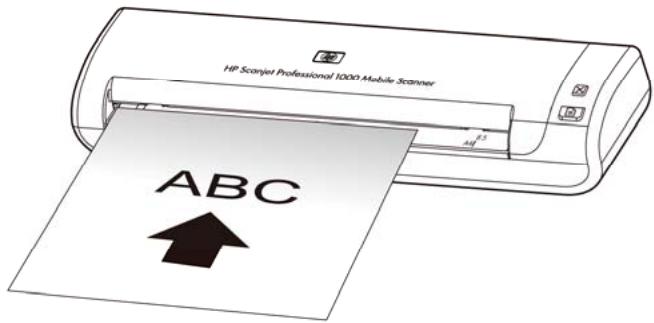
The HP Scanjet 1000 is a duplex scanner, which means it can scan one side of the page or both sides of the page at the same time. However, the HP Scanjet 1000 can only scan one page at a time.
- To scan a single side of the page, insert the page face up with the top of the page pointing to the paper feed slot.
To scan both sides of the page, insert the 1^st page face up with the top of the page pointing to the paper feed slot.
- Align the original to the left side of the paper feed slot.
Load a card into the paper feed slot
To load a card into the paper feed slot, follow these steps:
- Place the card face up with the long dimension parallel to the paper feed slot and make sure the top of the card points to the paper feed slot.
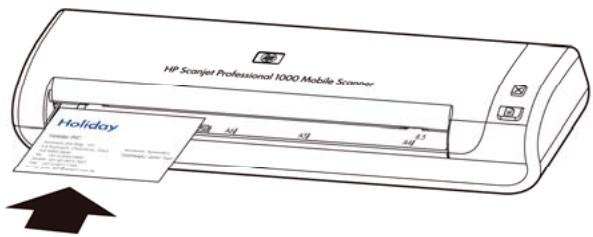
- Align the original to the left side of the paper feed slot.
Scan a document
The following topics describe how to scan originals using the scanner and the scanner software.
- Tips on scanning
- Scan from the scanner button
- Scan from TWAIN-compliant scanning software
Tips on scanning
- To reduce paper jams, use scan settings that specify the actual dimensions of the page that you are scanning.
To cancel a scan, press Cancel.
Scan from the scanner button
To scan using the scanner buttons, follow these steps:
- Load the originals.
- Press the Scan button to start a scan. The Scan Progress Window will be displayed and the scanned image will be saved in a default location or a user defined location
Scan from TWAIN-compliant scanning software
You can scan an image or document directly into a software program if the program is TWAIN compliant. Generally, the program is compliant if it has a menu option such as Acquire, Scan, Import New Object, or Insert. If you are unsure whether the program is compliant or what the option is, see the documentation for that program.
- Start the scanning software, and then select the TWAIN data source.
- Select the settings that are appropriate for the documents that you are scanning.
- Carry out the appropriate actions to complete the scan.
For more information, see the online help for the scanning software.
3 Useful scanner features
Experienced document management professionals might be interested in the following scan feature. The feature is available from any document TWAIN application that allows you to modify the scan settings in its user interface.
Filter out color from a document (color dropout)
Filter out a color from a document (color channel dropout)
With HP Scanjet 1000, you can filter out a color channel (red, green, or blue).
Removing colors from the scan might reduce the scan file size and improve optical character recognition (OCR) results.
To select colors to eliminate from a scan in the HP Scanjet 1000 TWAIN user interface, follows these steps:
- Start the scanning software, and then select the TWAIN data source.
- On the TWAIN user interface, press the Color Dropout tab, choose the color channel you wish to remove from the Color drop-down list.
For information about the color dropout settings, see the online help for the scanning software that you are using.

NOTE: The color channel filter only applies to grayscale scans and to black and white scans.
4 Care and maintenance
This section presents information about how to care for and maintain the scanner.
- Order maintenance and scanning supplies
Clean the roller and the scanner glass
Occasional cleaning of the scanner helps ensure high-quality scans. The amount of care necessary depends upon several factors, including the amount of use and the environment. You should perform routine cleaning as necessary.

CAUTION: Before placing an item in the paper feed slot, make sure that the item does not contain wet glue, correction fluid, or other substances that can be transferred to the interior of the scanner.
Make sure there are no curls, wrinkles, staples, paper clips, or any other attached material.
Order maintenance and scanning supplies
You can purchase maintenance parts for your scanner.
- Visit the HP scanner parts Web site at www.hp.com/buy/parts
- Select your language, and then click the arrow.
Clean the roller and the scanner glass
Use the HP roller cleaning cloth to clean the rollers and the scanner glass on the following conditions:
- As a guideline, clean the rollers after every 5,000 scans. Note that this guideline might vary based on the type of documents you are scanning.
The scanned images have streaks or scratches.
You experience repeated document jams.
To clean the roller and the scanner glass, follow these steps:
- Open the sealed HP roller cleaning cloth container, starting at the notch. Take care not to tear the cleaning cloth.
- Remove the cleaning cloth and unfold it.
- Place the unfolded cloth into the paper feed slot.
- Press the Scan button to feed the cloth through the scanner.
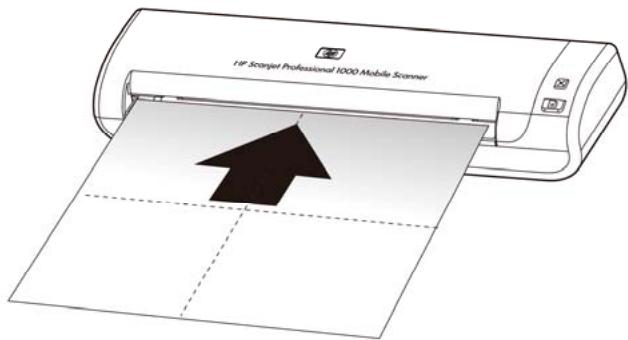

CAUTION: Wait two minutes for the components to dry before proceeding to the next step.
-
Place one sheet of paper in the scanner. Scan and view the results.
-
If streaks still appear, repeat steps 3 through 5. The cleaning cloth can be cycled through the scanner up to five times within 30 minutes. After that, the cloth will dry out.
5 Troubleshooting
This section contains solutions for common problems with the scanner.
Basic troubleshooting tips
- Scanner installation troubleshooting
- Scanner initialization or hardware problems
- Scanner operation problems
- Scanner buttons are not working correctly
- Scanner paper path problems
For additional troubleshooting, press the Help button of the HP Scanjet 1000 TWAIN user interface.
Basic troubleshooting tips
Simple issues such as smudges on the scanner glass or loose cables can cause your scanner to produce fuzzy scans, operate in an unexpected manner, or fail to operate. Always check the following items when you encounter scanning problems.
- If scans are fuzzy, clean the rollers. If you are scanning a document using an OCR shortcut, make sure that the original document is clear and crisp enough to be scanned.
- Make sure that the USB cable is firmly seated in the USB port on the back of the scanner.
- If you have connected the scanner to the computer through a USB hub or through a USB port on the front of the computer, disconnect the scanner and then reconnect it to a USB port on the back of the computer.
- Disconnect the USB cable, wait 60 seconds, and then reconnect the USB cable.
- Restart the computer.
If you continue to have problems, it is possible that your HP scanner firmware, or associated driver are out of date or have become corrupted. See www.hp.com/support to locate firmware, and driver updates for your scanner.
See also
- Clean the rollers and the scanner glass
- Reset the scanner
- Check that the scanner has power
Check the cable.
Scanner installation troubleshooting
If the scanner does not work after installation, you might see a message on the computer screen that is similar to one of the following:
- The computer cannot communicate with the scanner. To fix the problem, check the scanner cables and software as described here.
The scanner could not be initialized.
The scanner could not be found.
An internal error has occurred.
The computer cannot communicate with the scanner.
To fix the problem, check the scanner cable and software as described here.
- Check the USB cable.
- Uninstall and then reinstall the HP Scanjet 1000 scanner driver.
Check the USB cable
The USB cable is connected between the scanner and the computer.
- Use the cable that was included with the scanner. Another USB cable might not be compatible with the scanner.
- Ensure that the USB cable is securely connected between the scanner and the computer. The trident icon on the USB cable faces up when the cable is properly connected to the scanner.
- If the USB cable is connected to a USB port on the front of the computer, move it to a USB port on the back of the computer.
For additional USB troubleshooting information, see www.hp.com/support, select your country/region, and then use the search tool to find USB troubleshooting topics.
Uninstall and then reinstall the HP Scanjet 1000 scanner driver
If checking the scanner cable connection did not solve the problem, the problem might have occurred because of an incomplete installation. Try uninstalling and then reinstalling the HP Scanjet 1000 scanner driver.
- Disconnect the USB cable.
- Use the Add/Remove tool (in Windows Vista or Windows 7, the Programs and Features tool) from the Control Panel to uninstall the HP Scanjet 1000 scanner driver.
- Restart the computer.
- Use the HP Software CD that came with the scanner to reinstall the HP Scanjet 1000 scanner driver.
- Reconnect the USB cable.
Scanner initialization or hardware problems
- Check the USB connection
- Reset the scanner
- Scanner has stopped working correctly
Check the USB connection
Check the physical connection to the scanner.
- Use the cable that was included with the scanner. Another USB cable might not be compatible with the scanner.
- Ensure that the USB cable is securely connected between the scanner and the computer. The trident icon on the USB cable faces up when the cable is properly connected to the scanner.
If the problem persists after verifying the above items, try the following:
-
Do one of the following tasks depending on how the scanner is connected to the computer:
-
If the USB cable is connected to a USB hub or a docking station for a laptop, disconnect the USB cable from the USB hub or the docking station, and then connect the USB cable to a USB port on the back of the computer.
- If the USB cable is directly connected to the computer, plug it into another USB port on the back of the computer.
-
Remove all other USB devices from the computer except for the keyboard and the mouse.
-
Disconnect the USB cable, wait 30 seconds, and then reconnect the USB cable.
- Restart the computer.
-
After the computer has restarted, try using the scanner.
-
If the scanner works, reconnect any additional USB devices one at a time; try the scanner after connecting each additional device. Disconnect any USB devices that prevent the scanner from working.
If the scanner does not work, uninstall and then reinstall the HP scanner driver.
See also
Uninstall and then reinstall the HP Scanjet 1000 scanner driver
Reset the scanner
If you receive an error message similar to Scanner initialization failed or Scanner not found when trying to use the scanner, you should reset the scanner. To reset the scanner, follow these steps:
- Close your TWAIN-compliant software, if it is open.
- Disconnect the USB cable that connects the scanner to the computer.
- Turn the computer off, wait 60 seconds, and then turn on the computer.
-
Reconnect the USB cable to a USB port on the back of the computer.
-
Make sure that the USB cable is connected to the back of the scanner correctly. The trident icon on the USB cable faces up when the cable is properly connected to the scanner.
- Try connecting the USB cable to a different USB port on the back of the computer.
Scanner has stopped working correctly
If the scanner stops scanning, follow these steps. After each step, start a scan to see if the scanner is working. If the problem persists, proceed with the next step.
- A cable might be loose. Ensure that the USB cable is properly connected. Use the cable that was included with the scanner. Another USB cable might not be compatible with the scanner.
-
Ensure that the scanner is receiving power from the computer. Use the Windows Device Manager tool to verify that the computer recognizes the scanner.
Windows 2000/XP/XP, 64 bit: The Windows Device Manager tool is available on the Hardware tab of the Systems tool in the Control Panel. -
Vista/Vista, 64 bit/Windows 7: If you have the categorized Control Panel view, select Control Panel, select Hardware and Sound, and then select Device Manager. If you have the Classic view, select Control Panel, then select Device Manager.
-
Disconnect the USB cable.
- Restart your computer.
- Use the Add/Remove tool (in Windows Vista or Windows 7, the Programs and Features tool) from the Control Panel to uninstall the HP Scanjet 1000 scanner driver.
- Reinstall using the HP Software CD that came with your scanner.
- Reconnect the USB cable.
Scanner operation problems
- Scanner will not turn on
- Scanner does not scan right away
- Scanner scans only one side of a two-sided page
- Scanned image is fuzzy
- Optimize scanning and task speeds
The scan is completely black or completely white - Scanned images are not straight
Vertical black strips appear on the scanned image - Scan files are too large
Scanner will not turn on
If the scanner will not turn on when you connect the USB cable to the computer, check the following:
- Be sure the USB cable is connected properly and the computer is turned on.
- The computer may have been unplugged. Check to see that the power cable of your computer has not become disconnected or unplugged from the power source. If you connect the scanner to a laptop, check if the laptop battery has power.
The power supply of your computer may not be working.
Check that the green LED on the power supply case is on.
° If the green LED is not on, ensure that power is available to the power outlet or surge protector that the power supply is plugged into.
If power is available to the power outlet or surge protector but the green LED is still not on, the power supply might be defective. Contact the manufacturer of your computer for assistance.
Scanner does not scan right away
Make sure the computer is turned on and the USB cable is properly connected between the scanner and your computer.
Scanner scans only one side of a two-sided page
Verify the TWAIN-compliant application supports duplex scanning and that the duplex option has been selected.
Scanned images are not straight
Verify that the document is fed straight into the paper feed slot.
Scanned image is fuzzy
- Verify that the original document is not fuzzy.
Clean the roller and glass strips inside the scanner.
See also
Clean the rollers and the scanner glass
Optimize scanning and task speeds
Several settings influence the total time for a scanning job. When you want to optimize scanning performance, consider the following information.
- To optimize performance, make sure your computer meets the recommended system requirements. To view minimum and recommended system requirements, see www.hp.com, select your country/region, search on your scanner model, and then search on datasheet.
- If you are scanning to editable text, the optical character recognition (OCR) software requires more processing time than for non-OCR scans, which is normal. Wait for the item to scan.

NOTE: For the best OCR results, scanner compression should be set to the minimum compression level or disabled.
- Scanning at a higher resolution than necessary increases scanning time and creates a larger file with no additional benefit. If you are scanning at a high resolution, set the resolution to a lower level to increase scanning speed.
See also
Scan files are too large
The scan is completely black or completely white
The item might not be placed correctly in the document feeder. Make sure that the item you are trying to scan is placed face up.
Vertical black stripes appear on the scanned image
There is dirt on the scanner glass. Clean the scanner glass.
See also
Clean the roller and scanner glass
Scan files are too large
If the saved scan files are very large, try the following:
- Verify the scan resolution setting:
200 dpi is sufficient for storing documents as images.
For most fonts, 300 dpi is sufficient for using optical character recognition (OCR) to create editable text.
° For Asian fonts and small fonts, 400 dpi is the recommended resolution.
Color scans create larger files than do black and white scans.
- Most scanning applications allow users to control the compression used for output files. Refer to the documentation for the scanning application for more information.
Scanner buttons are not working correctly
After each step, press a button to see if it is working correctly. If the problem persists, proceed with the next step.
- A cable might be loose. Ensure that the USB cable is securely connected.
- The HP Scanjet 1000 scanner driver might not have installed. If so, use the HP Scanjet Software CD to install HP Scanjet 1000 scanner driver to enable the buttons.
- Disconnect the USB cable, wait 30 seconds, and then reconnect the USB cable.
- Restart your computer.
- If the problem persists, the buttons might be disabled outside of the HP scanner driver. Try the following procedure:
a. Open Control Panel, select Scanners and Cameras (In Windows 7, the Devices and Printers tool), and then select your scanner model from the list.
b. Display the scanner properties:
- Windows 2000: Click Properties.
- Windows XP and Vista: Right-click your scanner model, and then click Properties.
c. Examine the buttons setting for your scanner:
- Windows 2000: Ensure that the Disable Device Events option is not selected.
- Windows XP, Vista, and 7: Ensure the Take No Action option is not selected.
d. Make sure that the application selected for the scan button is installed and functioning on your system.
See also
HP Scanjet 1000 scanner driver
Scanner paper path problems
- Paper jamming, skewing, misfeeds
- Scanning fragile originals
- Paper does not feed successfully
The scanned image has streaks or scratches
An item loaded in the scanner jams repeatedly
Clear jams from the scanner
Paper jamming, skewing, misfeeds
- If the page looks skewed as they feed into the scanner paper path, check the resulting scanned image in the software to ensure that it is not skewed.
-
The page might not be placed correctly. Straighten the page and center the page.
-
Clean the scanner paper path to help reduce misfeeds. If misfeeds still occur, clean the rollers.
See also
Document loading tips
Clean the roller and the scanner glass
Scanning fragile originals
To safely scan fragile originals (photographs or documents on wrinkled or very lightweight paper) place originals in a clear, heavyweight document sleeve that is no more than 216 mm (8.5 in) wide before inserting into the document feeder.

TIP: If you do not have an appropriately-sized document sleeve, consider using a sheet protector intended for use in a ring binder. Trim the ring-side edge so the sleeve is no more than 216mm (8.5 in) wide.
Paper does not feed successfully
Re-insert the paper into the document feeder, ensuring that it makes contact with the rollers.
A problem with the scanner hardware might exist. Follow this procedure to test the scanner:
- Ensure that the USB cable is securely connected.
- Ensure that the power supply of your computer is securely connected between the computer and a live electrical outlet or surge protector. Check that the green LED on the power supply case is on to verify that the poser supply is functional.
- If the power supply is connected to a surge protector, ensure that the surge protector is plugged into an outlet and turned on.
- Disconnect the USB cable and turn off the computer. After 60 seconds, reconnect the USB cable and then turn on the computer, in that order.
- Try to rescan.
See also
Clean the rollers and the scanner glass
The scanned image has streaks or scratches
After each step, try another scan to see if the streaks or scratches are still apparent. If so, then try the next step. For information on cleaning the scanner, see the Care and maintenance section.
- Check that the originals are clean and unwrinkled.
Clean the rollers.
See also
Care and maintenance
An item loaded in the scanner jams repeatedly
The item might not meet the guidelines for acceptable originals.
The item might have something on it, such as staples or self-adhesive notes on the original that must be removed.
See also
Load originals
Clear jams from the scanner
To clear a paper jam:
- Gently pull the paper from the scanner.
- Smooth out any wrinkles caused by the jam.
- Reinsert the paper to the paper feed slot.
- Resume scanning.
See also
Clean the rollers and the scanner glass
- Document loading tips
6 Product support
Accessibility options on this scanner include the ability to enable and disable scanner buttons. To enable or disable scanner buttons, please follow these steps:
- After the HP Scanjet 1000 scanner driver has been installed successfully, the HP Button Utility icon will be displayed on the bottom-right corner of your system tray.
- Right-click the HP Button Utility icon and check Disable. To enable scanner buttons, uncheck Disable.
See also
Where to get additional information
Getting assistance
In order to get the best results from your HP product, please consult the following HP support offerings:
- Review the troubleshooting chapter in this guide.
- See the HP online support website at www.hp.com/support, or contact your point of purchase. HP online support is available to all HP customers. It is the fastest source for up-to-date product information and expert assistance, including the following features:
Online chat and email access to qualified online support specialists
- Software, firmware, and driver updates for your product
- Valuable product and troubleshooting information for technical issues
- Proactive product updates, support alerts, and HP newsletters (available when you register your product)
-
HP support by phone
-
Support options and fees vary by product, country/region, and language.
-
Fees and policies are subject to change without notice. Please see www.hp.com/support for the latest information.
-
Post-warranty period
After the limited warranty period, help is available online at www.hp.com/support.
- Extending or upgrading your warranty
If you would like to extend or upgrade the product's warranty, please contact your point of purchase or see the HP Care Pack Services at www.hp.com/support. - If you already purchased an HP Care Pack Service, please check the support conditions in your contract.
Where to get additional information
There are several sources of information that describe using the scanner and the scanning software.
HP Scanjet 1000 driver help
The HP Scanjet 1000 Scanner Driver Help explains how to use HP Scanjet 1000 scanner driver features such as removing color and changing basic scanning settings.
To open HP Scanjet 1000 Scanner Driver Help, follow these steps:
- Start your TWAIN-compliant scanning software application.
- Select the HP Scanjet 1000 TWAIN data source. Different applications provide different methods for displaying the TWAIN user interface. It is often accomplished by selecting "Scanner Settings" or "Acquire". The HP Scanjet 1000 TWAIN user interface will be displayed.
- Click the help button (the question mark in the upper right corner of the title bar) or press the F1 function key.
Technical resources
See www_hp.com/support for updated information about the scanner.
7 Specifications
This section contains regulatory information and product specifications for your scanner.
Scanner Specifications
| Name | Description |
| Scanner type | Duplex mobile scanner |
| Size | Width: 290 mm (11.41 in), Depth: 75 (2.95), Height: 50 mm (1.97 in) |
| Weight | 0.674 kg (1.5 lbs) |
| Scanning element | Contact image sensor (CIS) |
| Interface | USB 2.0 high speed (compatible with USB 1.1) |
| Optical resolution | 600 x 600 dpi hardware |
| Power consumption | For power consumption information, see the regulatory_supplicant.pdf file on the HP Scanning Software CD. |
| Energy information | Hewlett-Packard printing and imaging equipment marked with the ENERGY STAR® logo is qualified to the U.S. Environmental Protection Agency's ENERGY STAR specifications for imaging equipment. The following mark will appear on ENERGY STAR qualified imaging products: ENERGY STAR Additional ENERGY STAR qualified imaging product model information is listed at: http://www.hp.com/go/energystar |
| System requirements | To view minimum and recommended system requirements, go to www.hp.com, select your country/region, search on your scanner model, and then search on datasheet. |
Document specifications
| Name | Description |
| Minimum paper size | 74 x 52 mm (2.9 x 2.1 in) |
| Maximum paper size | 215.9 x 356 mm (8.5 x 14 in) |
| Minimum paper weight | 50 g/m2(13.3 lbs) |
| Maximum paper weight | 120 g/m2(32 lbs) |
Environmental specifications
| Name | Description |
| Temperature | Operating the scanner: 10° to 35°C (50° to 95°F) |
| Storage: -40° to 65°C (-40° to 149°F) | |
| Relative humidity | Operating the scanner: 10% to 80°C noncondensing 10° to 35°C(50° to 95°F) |
| Storage: up to 90% at 0° to 65°C (32° to 149°F) |

NOTE: In the presence of high electromagnetic fields, it is possible the output from the HP scanner may be slightly distorted.
NOTE: HP is committed to providing our customers with information about the chemical substances in our products as needed to comply with legal requirements such as REACH (Regulation EC No. 1907/2006 of the European Parliament and the Council). A chemical information report for this product can be found at www.hp.com/go/reach.
Regulatory information
Regulatory Model Identification Number: For regulatory identification purposes your product is assigned a Regulatory Model Number. The Regulatory Model Number for your product is FCLSD-1002. This regulatory number should not be confused with the marketing name (HP Scanjet Professional 1000 mobile scanner) or product number (L2722A). Additional regulatory information about your scanner can be found on the regulatory_suppplement.pdf file on the CD shipped with your product.
Disposal of Waste Equipment by Users in Private Households in the European Union

This symbol on the product or on its packaging indicates that this product must not be disposed of with your other household waste. Instead, it is your responsibility to dispose of your waste equipment by handing it over to a designated collection point for the recycling of waste electrical and electronic equipment. The separate collection and recycling of your waste equipment at the time of disposal will help to conserve natural resources and ensure that it is recycled in a manner that protects human health and the environment. For more information about where you can drop off your waste equipment for recycling, please contact your local city office, your household waste disposal service or the shop where you purchased the product.
Index
black stripes
troubleshooting, 16
buttons
scatterfrontpanel,3
Care Pack Service, 20
clean
glass, rollers, 10
clean the rollers, 10
cleaning cloth, 10
clear a paper jam, 19
Color Dropout, 9
features
color dropout, 9
fragile originals, 18
front panel
Scan button, Cancel button, 3
fuzzy scans, 12
maintenance
clean the scanner glass, clean rollers, 10
paper
jams, skew, misfeed, 17
paper feed slot, 5
Paper feed slot, 3
parts
order, 10
power supply
troubleshooting, 15
scanning programs
scan from, 4
scanning software, 8
stripes
troubleshooting, 16
supplies
order, 10
TWAIN, 4
TWAIN-compliant software application, 4
user interface
TWAIN, 4
Vertical black stripes
troubleshooting, 16
warranty
extend, 20
Web site
order supplies, 10