USER MANUAL DSC HX 60 SONY
Learning more about the camera ("Help Guide")
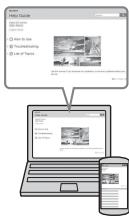
"Help Guide" is an on-line manual. Refer to it for in-depth instructions on the many functions of the camera.
① Access the Sony support page.
http://www.roya.net/SonyInfo/Support/
② Select your country or region.
③ Search for the model name of your camera within the support page.
- Check the model name on the bottom of your camera.
Viewing the Guide
This camera is equipped with a built-in instruction guide.
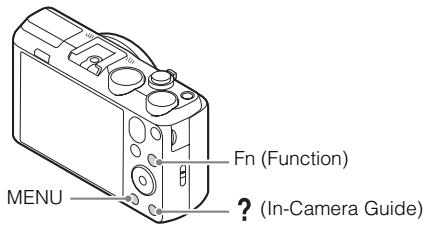
In-Camera Guide
The camera displays explanations for MENU/Fn (Function) items and the setting values.
① Press the MENU button or the Fn (Function) button.
② Select the desired item, then press the ? (In-Camera Guide) button.
Shooting Tip
The camera displays shooting tips for the shooting mode selected.
① Press the ? (In-Camera Guide) button in shooting mode.
② Select the desired shooting tip, then press on the control wheel. The shooting tip is displayed.
- You can scroll the screen using / and change shooting tips using / .
Owner's Record
The model and serial numbers are located on the bottom. Record the serial number in the space provided below. Refer to these numbers whenever you call your Sony dealer regarding this product.
Model No. DSC-HX60/DSC-HX60V
Serial No.
Model No. AC-UB10C/AC-UB10D
Serial No.
GB
WARNING
To reduce fire or shock hazard, do not expose the unit to rain or moisture.
IMPORTANT SAFETY INSTRUCTIONS -SAVE THESE INSTRUCTIONS DANGER TO REDUCE THE RISK OF FIRE OR ELECTRIC SHOCK, CAREFULLY FOLLOW THESE INSTRUCTIONS
If the shape of the plug does not fit the power outlet, use an attachment plug adaptor of the proper configuration for the power outlet.
CAUTION
Battery pack
If the battery pack is mishandled, the battery pack can burst, cause a fire or even chemical burns. Observe the following cautions.
I AC Adaptor
Use the nearby wall outlet (wall socket) when using the AC Adaptor. Disconnect the AC Adaptor from the wall outlet (wall socket) immediately if any malfunction occurs while using the apparatus.
For Customers in the U.S.A. and Canada
I RECYCLING LITHIUM-ION BATTERIES
Lithium-Ion batteries are recyclable.
You can help preserve our environment by returning your used rechargeable batteries to the collection and recycling location nearest you.
For more information regarding recycling of rechargeable batteries, call toll free
1-800-822-8837, or visit http://www.call2recycle.org/

Caution: Do not handle damaged or leaking Lithium-Ion batteries.
Battery pack
This device complies with Part 15 of the FCC Rules. Operation is subject to the following two conditions:
(1) This device may not cause harmful interference, and (2) this device must accept any interference received, including interference that may cause undesired operation.
CANICES-3B/NMB-3B
This equipment complies with FCC/IC radiation exposure limits set forth for an uncontrolled environment and meets the FCC radio frequency (RF) Exposure Guidelines in Supplement C to OET65 and RSS-102 of the IC radio frequency (RF) Exposure rules. This equipment has very low levels of RF energy that are deemed to comply without testing of specific absorption ratio (SAR).
For Customers in the U.S.A.
If you have any questions about this product, you may call:
Sony Customer Information Center
1-800-222-SONY (7669)
The number below is for the FCC related matters only.
Trade Name:SONY
Model No.: DSC-HX60V
Responsible Party: Sony Electronics Inc.
Address: 16530 Via Esprillo,
San Diego, CA 92127 U.S.A.
Telephone No.: 858-942-2230
This device complies with Part15 of the FCC Rules. Operation is subject to the following two conditions: (1) This device may not cause harmful interference, and (2) this device must accept any interference received, including interference that may cause undesired operation.
This equipment must not be co-located or operated in conjunction with any other antenna or transmitter.
CAUTION
You are cautioned that any changes or modifications not expressly approved in this manual could void your authority to operate this equipment.
I Note:
This equipment has been tested and found to comply with the limits for a Class B digital device, pursuant to Part 15 of the FCC Rules.
These limits are designed to provide reasonable protection against harmful interference in a residential installation. This equipment generates, uses, and can radiate radio frequency energy and, if not installed and used in accordance with the instructions, may cause harmful interference to radio communications. However, there is no guarantee that interference will not occur in a particular installation. If this equipment does cause harmful interference to radio or television reception, which can be determined by turning the equipment off and on, the user is encouraged to try to correct the interference by one or more of the following measures:
- Reorient or relocate the receiving antenna.
- Increase the separation between the equipment and receiver.
- Connect the equipment into an outlet on a circuit different from that to which the receiver is connected.
- Consult the dealer or an experienced radio/TV technician for help.
The supplied interface cable must be used with the equipment in order to comply with the limits for a digital device pursuant to Subpart B of Part 15 of FCC Rules.
For Customers in Canada
This device complies with Industry Canada licence-exempt RSS standard(s).
Operation is subject to the following two conditions: (1) this device may not cause interference, and (2) this device must accept any interference, including interference that may cause undesired operation of the device.
For Customers in Europe
Notice for the customers in the countries applying EU Directives
Manufacturer: Sony Corporation, 1-7-1 Konan Minato-ku Tokyo, 108-0075 Japan
For EU product compliance: Sony Deutschland GmbH, Hedelfinger Strasse 61, 70327
Stuttgart, Germany
CE
Hereby, Sony Corporation, declares that this equipment is in compliance with the essential requirements and other relevant provisions of Directive 1999/5/EC. For details, please access the following URL:
http://www.compliance.sony.de/
Notice
If static electricity or electromagnetism causes data transfer to discontinue midway (fail), restart the application or disconnect and connect the communication cable (USB, etc.) again.
This product has been tested and found compliant with the limits set out in the EMC regulation for using connection cables shorter than 3 meters (9.8 feet).
The electromagnetic fields at the specific frequencies may influence the picture and sound of this unit.
Disposal of waste batteries and electrical and electronic equipment (applicable in the European Union and other European countries with separate collection systems)

This symbol on the product, the battery or on the packaging indicates that the product and the battery shall not be treated as household waste. On certain batteries this symbol might be used in combination with a chemical symbol. The chemical symbols for mercury (Hg) or lead (Pb) are added if the battery contains more than 0.0005% mercury or 0.004% lead. By ensuring these products and batteries are disposed of correctly, you
will help prevent potentially negative consequences for the environment and human health which could otherwise be caused by inappropriate waste handling. The recycling of the materials will help to conserve natural resources.
In case of products that for safety, performance or data integrity reasons require a permanent connection with an incorporated battery, this battery should be replaced by qualified service staff only. To ensure that the battery and the electrical and electronic equipment will be treated properly, hand over these products at end-of-life to the applicable collection point for the recycling of electrical and electronic equipment. For all other batteries, please view the section on how to remove the battery from the product safely. Hand the battery over to the applicable collection point for the recycling of waste batteries. For more detailed information about recycling of this product or battery, please contact your local Civic Office, your household waste disposal service or the shop where you purchased the product or battery.
For Customers in Singapore
Complies with IDA Standards DB00353
Checking the supplied items
The number in parentheses indicates the number of pieces.
- Camera (1)
- Rechargeable Battery Pack NP-BX1 (1)
- Micro USB Cable (1)
- AC Adaptor AC-UB10C/UB10D (1)
- Power Cord (mains lead) (not supplied in the USA and Canada) (1)
- Wrist Strap (1)
- Shoe Cap (1) (Attached on the camera)
- Instruction Manual (this manual) (1)
Wi-Fi Connection/One-touch (NFC) Guide (1)
This guide explains the functions that require a Wi-Fi connection.
Identifying parts
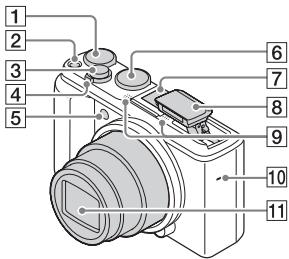
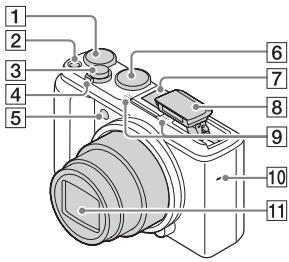
1 Exposure compensation dial
2 ON/OFF (Power) button
3 Shutter button
For shooting: W/T (zoom) lever For viewing: (Index) lever/ (Playback zoom) lever
Self-timer lamp/AF illuminator
6 Mode dial i (Intelligent Auto)/
io^+ (Superior Auto)/
P (Program Auto)/
A (Aperture Priority)/
S (Shutter Priority)/
M (Manual Exposure)/
MR (Memory recall)/
(iMovie)/i (iSweep
Panorama)/SCN (Scene Selection)
[7] Multi interface shoe*
8 Flash
- Press the ±b (Flash pop-up) button to use the flash. The flash does not pop up automatically.
- When not using the flash, press it back into the camera body.
9 Microphone
10 Speaker
11 Lens
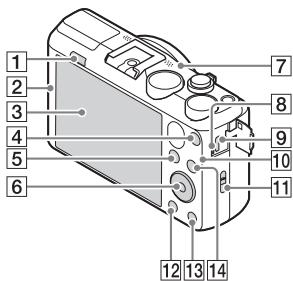
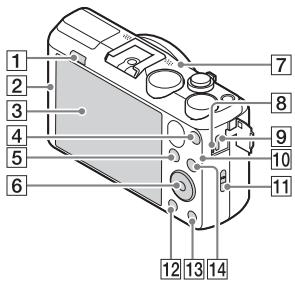
1 (Flash pop-up) button
2 N (N Mark)
- Touch the mark when you connect the camera to a smartphone equipped with the NFC function.
- NFC (Near Field Communication) is an international standard of the short-range wireless communication technology.
3 LCD screen
MOVIE(Movie)button
5 (Playback) button
6 Control wheel
GPS receiver (built-in, DSC-HX60V only)
Charge lamp
9 Multi/Micro USB Terminal*
Supports Micro USB compatible device.
[10] Wi-Fi sensor (built-in)
11 Hook for Wrist Strap
12 MENU button
13 ? (In-Camera Guide)/ (Delete) button
For shooting: Fn (Function) button For viewing: (Send to Smartphone) button
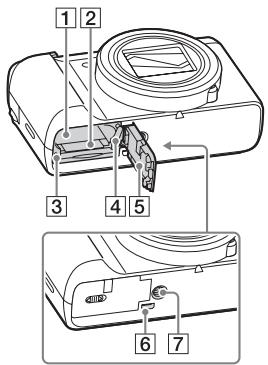
1 Battery insertion slot
2 Memory card slot
3 Access lamp
4 Battery eject lever
5 Battery/Memory card cover
6 HDMI micro jack
7 Tripod socket hole
-
Use a tripod with a screw less than 5.5mm (7/32 inches) long. Otherwise, you cannot firmly secure the camera, and damage to the camera may occur.
-
For details on compatible accessories for the multi interface shoe and the Multi/Micro USB Terminal, visit the Sony web site, or consult your Sony dealer or local authorized Sony service facility. You can also use accessories that are compatible with the accessory shoe. Operations with other manufacturers' accessories are not guaranteed.
Multi Interface Shoe
Accessory Shoe
Inserting the battery pack
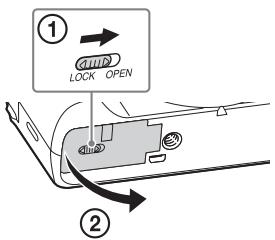
1 Open the cover.
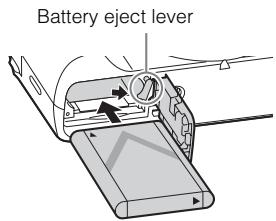
2 Insert the battery pack.
- While pressing the battery eject lever, insert the battery pack as illustrated. Make sure that the battery eject lever locks after insertion.
- Closing the cover with the battery inserted incorrectly may damage the camera.
Charging the battery pack
For customers in the USA and Canada
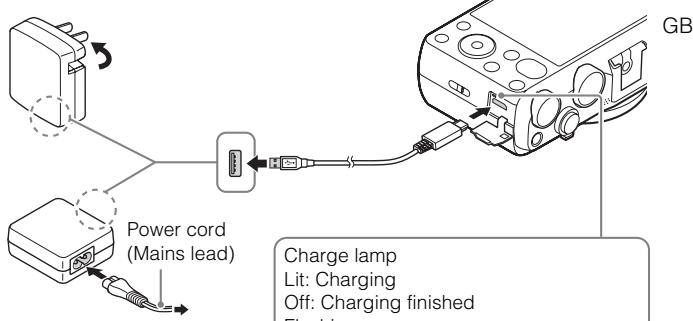
For customers in countries/ regions other than the USA and Canada
Charge lamp
Lit: Charging
Off: Charging finished
Flashing:
Charging error or charging paused temporarily because the camera is not within the proper temperature range
1 Connect the camera to the AC Adaptor (supplied), using the micro USB cable (supplied).
2 Connect the AC Adaptor to the wall outlet (wall socket).
The charge lamp lights orange, and charging starts.
- Turn off the camera while charging the battery.
- You can charge the battery pack even when it is partially charged.
- When the charge lamp flashes and charging is not finished, remove and re-insert the battery pack.
Notes
- If the charge lamp on the camera flashes when the AC Adaptor is connected to the wall outlet (wall socket), this indicates that charging is temporarily stopped because the temperature is outside the recommended range. When the temperature gets back within the appropriate range, the charging resumes. We recommend charging the battery pack in an ambient temperature of between 10^ to 30^ (50^ to 86^) .
- The battery pack may not be effectively charged if the terminal section of the battery is dirty. In this case, wipe any dust off lightly using a soft cloth or a cotton swab to clean the terminal section of the battery.
- Connect the AC Adaptor (supplied) to the nearest wall outlet (wall socket). If malfunctions occur while using the AC Adaptor, disconnect the plug from the wall outlet (wall socket) immediately to disconnect from the power source.
- When charging is finished, disconnect the AC Adaptor from the wall outlet (wall socket).
- Be sure to use only genuine Sony brand battery packs, micro USB cable (supplied) and AC Adaptor (supplied).
Charging time (Full charge)
The charging time is approximately 230 minutes using the AC Adaptor (supplied).
Notes
- The above charging time applies when charging a fully depleted battery pack at a temperature of 25^ (77^) . Charging may take longer depending on conditions of use and circumstances.
Charging by connecting to a computer
The battery pack can be charged by connecting the camera to a computer using a micro USB cable.
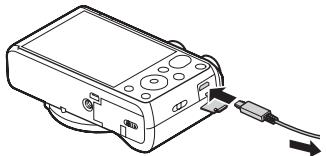
To a USB jack
- If you connect the camera to a computer when power is turned on, the battery is not charged but the camera will be powered by the computer, which allows you to import images to a computer without worrying about the battery running out.
Notes
Note the following points when charging via a computer:
- If the camera is connected to a laptop computer that is not connected to a power source, the laptop battery level decreases. Do not charge for an extended period of time.
- Do not turn on/off or restart the computer, or wake the computer to resume from sleep mode when a USB connection has been established between the computer and the camera. That may cause the camera to malfunction. Before turning on/ off, or restarting the computer or waking the computer from sleep mode, disconnect the camera and the computer.
- No guarantees are made for charging using a custom-built computer or a modified computer.
Battery life and number of images that can be recorded and played back
| Battery life | Number of images |
| Shooting (still images) | Approx. 190 min. | Approx. 380 images |
| Typical movie shooting | Approx. 55 min. | — |
| Continuous movie shooting | Approx. 90 min. | — |
| Viewing (still images) | Approx. 310 min. | Approx. 6200 images |
Notes
- The above number of images applies when the battery pack is fully charged. The number of images may decrease depending on the conditions of use.
-
The number of images that can be recorded is for shooting under the following conditions:
-
Using a Sony Memory Stick PRO Duo™ (Mark2) media (sold separately).
- The battery pack is used at an ambient temperature of 25^ (77^)
- [GPS On/Off] is set to [Off] (DSC-HX60V only)
-
[Display Quality] is set to [Standard]
-
The number for "Shooting (still images)" is based on the CIPA standard, and is for shooting under the following conditions:
(CIPA: Camera & Imaging Products Association)
- DISP is set to [Display All Info].
- Shooting once every 30 seconds.
- The zoom is switched alternately between the W and T ends.
- The flash is used once every two times.
- The power is turned on and off once every ten times.
GB
- The number of minutes for movie shooting is based on the CIPA standard, and is for shooting under the following conditions:
- [Record Setting]: 60i 17M(FH)/50i 17M(FH).
- Typical movie shooting: Battery life based on repeatedly starting/stopping shooting, zooming, turning on/off, etc.
- Continuous movie shooting: Battery life based on non-stop shooting until the limit (29 minutes) has been reached, and then continued by pressing the MOVIE button again. Other functions, such as zooming, are not operated.
Supplying power
You can use the AC Adaptor AC-UD10 (sold separately) or AC-UD11 (sold separately) for shooting and playback to supply power when shooting or playing back images.
Notes
- If you shoot or play back images when the camera is connected to the supplied AC Adaptor, power will not be supplied through the AC Adaptor.
Inserting a memory card (sold separately)
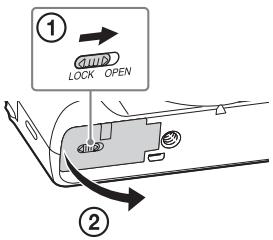
1 Open the cover.
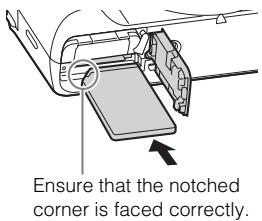
2 Insert the memory card (sold separately).
- With the notched corner facing as illustrated, insert the memory card until it clicks into place.
3 Close the cover.
Memory cards that can be used
| Memory card | For still images | For movies |
| A | Memory Stick XC-HG Duo™ | ✓ | ✓ |
| Memory Stick PRO Duo™ | ✓ | ✓ (Mark2 only) |
| Memory Stick PRO-HG Duo™ | ✓ | ✓ |
| B | Memory Stick Micro™ (M2) | ✓ | ✓ (Mark2 only) |
| C | SD memory card | ✓ | ✓ (Class 4 or faster) |
| SDHC memory card | ✓ | ✓ (Class 4 or faster) |
| SDXC memory card | ✓ | ✓ (Class 4 or faster) |
| D | microSD memory card | ✓ | ✓ (Class 4 or faster) |
| microSDHC memory card | ✓ | ✓ (Class 4 or faster) |
| microSDXC memory card | ✓ | ✓ (Class 4 or faster) |
- In this manual, the products in the table are collectively referred to as follows:
A: Memory Stick PRO Duo media
B: Memory Stick Micro media
C:SD card
D: microSD memory card
Notes
- When using Memory Stick Micro media or microSD memory cards with this camera, make sure to use with the appropriate adaptor.
To remove the memory card/battery pack
Memory card: Push the memory card in once to eject the memory card.
Battery pack: Slide the battery eject lever. Be sure not to drop the battery pack.
Notes
- Never remove the memory card/battery pack when the access lamp (page 9) is lit. This may cause damage to data in the memory card.
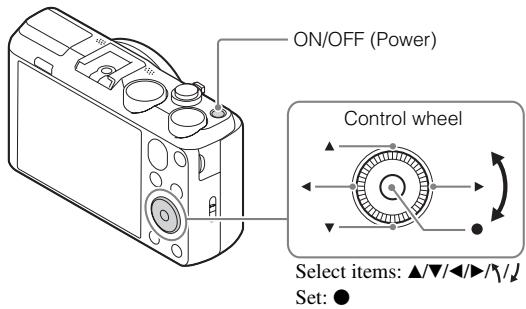
1 Press the ON/OFF (Power) button.
The Date & Time setting is displayed when you turn on the camera for the first time.
- It may take some time for the power to turn on and allow operation.
2 Check that [Enter] is selected on the screen, then press on the control wheel.
3 Select a desired geographic location by following the on-screen instructions, then press .
4 Set [Daylight Savings], [Date/Time] and [Date Format], then press .
- When setting [Date/Time], midnight is 12:00 AM, and noon is 12:00 PM.
5 Check that [Enter] is selected, then press .
Shooting still images/movies
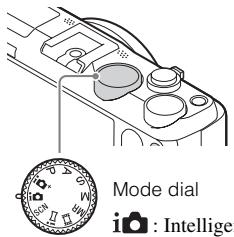
Mode dial
i: Intelligent Auto
:Movie
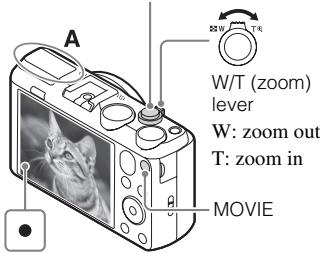
Shutter button
Do not cover the flash (A).
GB
Shooting still images
1 Press the shutter button halfway down to focus.
When the image is in focus, a beep sounds and the indicator lights.
2 Press the shutter button fully down to shoot an image.
Shooting movies
1 Press the MOVIE (Movie) button to start recording.
- Use the W/T (zoom) lever to change the zoom ratio.
2 Press the MOVIE button again to stop recording.
Notes
- Do not pull up the flash manually. This may cause a malfunction.
- When using the zoom function while shooting a movie, the sound of the camera operating will be recorded. The sound of the MOVIE button operating may also be recorded when movie recording is finished.
-
The panoramic shooting range may be reduced, depending on the subject or the way it is shot. Therefore even when [360^] is set for panoramic shooting, the recorded image may be less than 360 degrees.
-
Continuous movie shooting is possible for approximately 29 minutes at one time with the camera's default settings and when the ambient temperature is approximately 25^ (77^) . When movie recording is finished, you can restart recording by pressing the MOVIE button again. Recording may stop to protect the camera depending on the ambient temperature.
Viewing images
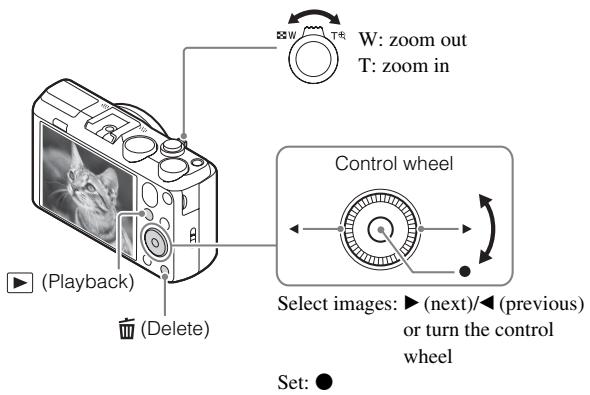
1 Press the (Playback) button.
- When images on a memory card recorded with other cameras are played back on this camera, the registration screen for the data file appears.
Selecting next/previous image
Select an image by pressing (next)/ (previous) on the control wheel or by turning the control wheel. Press in the center of the control wheel to view movies.
- Deleting an image
① Press the (Delete) button.
② Select [Delete] with on the control wheel, then press .
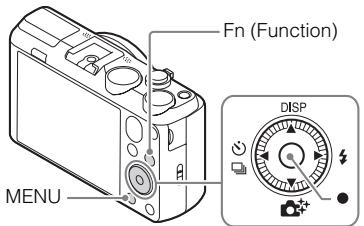
Control wheel
Control wheel
DISP (Display Contents): Allows you to change the screen display.
/ (Drive Mode): Allows you to switch between shooting methods, such as single shooting, continuous shooting or bracket shooting.
( Photo Creativity): Allows you to operate the camera intuitively and shoot creative images easily.
(Flash Mode): Allows you to select a flash mode for still images.
(Lock-on AF): The camera tracks the subject and adjusts focus automatically even when the subject is moving.
Allows you to register 12 functions and recall those functions when shooting.
① Press the Fn (Function) button.
② Select the desired function by pressing / / on the control wheel.
③ Select the setting value by turning the control wheel.

(Camera Settings)
| Image Size | Selects the size of still images. |
| Aspect Ratio | Selects the aspect ratio for still images. |
| Quality | Sets the image quality for still images. |
| Panorama: Size | Selects the size of panoramic images. |
| Panorama: Direction | Sets the shooting direction for panoramic images. |
| File Format | Selects the movie file format. |
| Record Setting | Selects the size of the recorded movie frame. |
| Drive Mode | Sets the drive mode, such as for continuous shooting. |
| Flash Mode | Sets the flash settings. |
| Flash Comp. | Adjusts the intensity of flash output. |
| Red Eye Reduction | Reduces the red-eye phenomenon when using flash. |
| Focus Mode | Selects the focus method. |
| Focus Area | Selects the area of focus. |
| AF Illuminator | Sets the AF illuminator, which provides light for a dark scene to aid focusing. |
| ISO | Adjusts the luminous sensitivity. |
| Metering Mode | Selects the metering mode that sets which part of the subject to measure to determine the exposure. |
| White Balance | Adjusts the color tones of an image. |
| DRO/Auto HDR | Compensates automatically for brightness and contrast. |
| Creative Style | Selects the desired image processing. |
| Picture Effect | Selects the desired effect filter to achieve a more impressive and artistic expression. |
| High ISO NR | Sets noise reduction processing for high-sensitivity shooting. |
| Lock-on AF | Sets the function to track a subject and continue focusing. |
| Smile/Face Detect. | Selects to detect faces and adjust various settings automatically. Sets to automatically release the shutter when a smile is detected. |
| Soft Skin Effect | Sets the Soft Skin Effect and the effect level. |
| Auto Obj. Framing | Analyzes the scene when capturing faces, close-ups, or subjects tracked by the Lock-on AF function, and automatically trims and saves another copy of the image with a more impressive composition. |
| Scene Selection | Selects pre-set settings to match various scene conditions. |
| Movie | Selects the shooting mode to suit your subject or effect. |
| SteadyShot | Sets SteadyShot for shooting movies. |
| Auto Slow Shut. | Sets the function that automatically adjusts the shutter speed following the brightness of the environment. |
| Micref Level | Sets the microphone reference level when recording movies. |
| Wind Noise Reduct. | Reduces wind noise during movie recording. |
| Shooting Tip List | Displays the shooting tip list. |
| Memory | Registers the desired modes or camera settings. |

Custom Settings)
| MF Assist | Displays an enlarged image when focusing manually. |
| Grid Line | Sets a grid line display to enable alignment to a structural outline. |
| Auto Review | Sets auto review to display the captured image after shooting. |
| Exposure Set. Guide | Sets the guide displayed when exposure settings are changed in the shooting screen. |
| Zoom Setting | Sets whether to use the Clear Image Zoom and Digital Zoom when zooming. |
| Write Date | Sets whether to record a shooting date on the still image. |
GB
| Function Menu Set. | Customizes the functions displayed when the Fn (Function) button is pressed. |
| MOVIE Button | Sets whether to always activate the MOVIE button. |

(Wireless)
| Send to Smartphone | Transfers images to display on a smartphone. |
| Send to Computer | Backs up images by transferring them to a computer connected to a network. |
| View on TV | You can view images on a network-enabled TV. |
| One-touch(NFC) | Assigns an application to One-touch (NFC). You can call up the application when shooting by touching an NFC-enabled smartphone to the camera. |
| Airplane Mode | You can set this device not to perform wireless communications and GPS functions. |
| WPS Push | You can register the access point to the camera easily by pushing the WPS button. |
| Access Point Set. | You can register your access point manually. |
| Edit Device Name | You can change the device name under Wi-Fi Direct, etc. |
| Disp MAC Address | Displays the MAC address of the camera. |
| SSID/PW Reset | Reset the SSID and password for the smartphone connection. |
| Reset Network Set. | Reset all network settings. |

(Application)
| Application List | Displays the application list. You can select the application you want to use. |
| Introduction | Displays instructions on using the application. |

(Playback)
| Delete | Deletes an image. |
| View Mode | Sets the way in which images are grouped for playback. |
| Image Index | Displays multiple images at the same time. |
| Slide Show | Shows a slide show. |
| Rotate | Rotates the image. |
| ® Enlarge Image | Enlarges the playback images. |
| 4K Still Image PB | Outputs still images in 4K resolution to an HDMI-connected TV that supports 4K. |
| Protect | Protects the images. |
| Motion Interval ADJ | Adjusts the interval for showing the tracking of subjects in [Motion Shot Video], where the tracking of the subject's motion will be shown when playing back movies. |
| Specify Printing | Adds a print order mark to a still image. |
GB

(Setup)
| Monitor Brightness | Sets the screen brightness. |
| Viewfinder Bright. | When using an electronic viewfinder (sold separately), sets the brightness of the electronic viewfinder. |
| Volume Settings | Sets the volume for movie playback. |
| Audio signals | Sets the functional sounds of the camera. |
| GPS Settings (DSC-HX60V only) | Sets the GPS function. |
| Upload Settings | Sets the upload function of the camera when using an Eye-Fi card. |
| Tile Menu | Sets whether to display the tile menu every time you press the MENU button. |
| Mode Dial Guide | Turns the mode dial guide (the explanation of each shooting mode) on or off. |
| Display Quality | Sets the display quality. |
| Pwr Save Start Time | Sets the length of time until the camera turns off automatically. |
| PAL/NTSC Selector (only for 1080 50i compatible models) | By changing the TV format of the device, shooting in a different movie format is possible. |
| Demo Mode | Sets demonstration movie playback to on or off. |
| HDMI Resolution | Sets the resolution when the camera is connected to an HDMI TV. |
| CTRL FOR HDMI | Operates the camera from a TV that supports BRAVIATM Sync. |
| USB Connection | Sets the USB connection method. |
| USB LUN Setting | Enhances compatibility by limiting the functions of the USB connection. |
| USB Power Supply | Sets whether or not to supply power through USB connection. |
| Language | Selects the language. |
| Date/Time Setup | Sets the date and time, and daylight savings. |
| Area Setting | Sets the location of use. |
| Format | Formats the memory card. |
| File Number | Sets the method used to assign file numbers to still images and movies. |
| Select REC Folder | Changes the selected folder for storing images. |
| New Folder | Creates a new folder for storing still images and movies (MP4). |
| Folder Name | Sets the folder name for still images. |
| Recover Image DB | Recovers the image database file and enables recording and playback. |
| Display Media Info. | Displays the remaining recording time of movies and the recordable number of still images on the memory card. |
| Version | Displays the camera software version. |
| Setting Reset | Restores settings to their defaults. |
Features of PlayMemories Home™
The software PlayMemories Home allows you to import still images and movies to your computer and use them. PlayMemories Home is required for importing AVCHD movies to your computer.
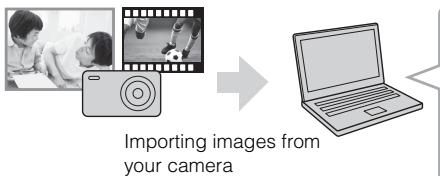
Playing back imported images
For Windows, the following functions are also available:
Viewing images on a calendar

Creating movie discs


Uploading images to network services
Sharing images on PlayMemories OnlineTM

PlayMemories Online

Notes
- An Internet connection is required to install PlayMemories Home.
- An Internet connection is required to use PlayMemories Online or other network services. PlayMemories Online or other network services may not be available in some countries or regions.
- Use the following URL for Mac applications: http://www.sony.co.jp/imsoft/Mac/
- If the software PMB (Picture Motion Browser), supplied with models released before 2011, has already been installed on your computer, PlayMemories Home will overwrite it during the installation. Use PlayMemories Home, the successor software of PMB.
System requirements
You can find the system requirements for the software at the following URL: www.sony.net/pcenv/

Installinng PlayMemories Home on a computer
Using the Internet browser on your computer, go to the following URL, and then install PlayMemories Home.
www.sony.net/pm/
- For details on PlayMemories Home, refer to the following PlayMemories Home support page (English only): http://www.sony.co.jp/pmh-se/
- When installation is complete, PlayMemories Home starts.
2 Connect the camera to your computer using the micro USB cable (supplied).
- New functions may be installed in PlayMemories Home. Connect the camera to your computer even if PlayMemories Home is already installed on your computer.
Notes
- Do not disconnect the micro USB cable (supplied) from the camera while the operating screen or the accessing screen is displayed. Doing so may damage the data.
- To disconnect the camera from the computer, click on the tasktray, then click (disconnect icon). For Windows Vista, click on the tasktray.
Adding functions to the camera
You can add the desired functions to your camera by connecting to the application download website (PlayMemories Camera AppS^TM ) via the Internet.
http://www.sony.net/pmca
- After installing an application, you can call up the application by touching an NFC-enabled Android smartphone to the N mark on the camera, using the [One-touch(NFC)] function.
Number of still images and recordable time of movies
The number of still images and recordable time may vary depending on the shooting conditions and the memory card.
Still images
Image Size]: L: 20M
When [Aspect Ratio] is set to [4:3]*
| Quality\Capacity | 2 GB |
| Standard | 295 images |
| Fine | 200 images |
- When the [Aspect Ratio] is set to other than [4:3], you can record more pictures than shown above.
Movies
The table below shows the approximate maximum recording times. These are the total times for all movie files. Continuous shooting is possible for approximately 29 minutes (a product specification limit). The maximum continuous recording time of an MP4 (12M) format movie is about 15 minutes (limited by the 2 GB file size restriction).
(h hour), m (minute))
| Capacity Record Setting | 2 GB |
| 60i 24M(FX)/50i 24M(FX) | 10 m |
| 60i 17M(FH)/50i 17M(FH) | 10 m |
| 60p 28M(PS)/50p 28M(PS) | 9 m |
| 24p 24M(FX)/25p 24M(FX) | 10 m |
| 24p 17M(FH)/25p 17M(FH) | 10 m |
| 1440×1080 12M | 15 m |
| VGA 3M | 1 h 10 m |
- The recordable time of movies varies because the camera is equipped with VBR (Variable Bit-Rate), which automatically adjusts the image quality depending on the shooting scene. When you record a fast-moving subject, the image is clearer but the recordable time is shorter because more memory is required for recording. The recordable time also varies depending on the shooting conditions, the subject or the image quality/size settings.
Notes on using the camera
Functions built into this camera
-
This manual describes 1080 60i-compatible devices and 1080 50i-compatible devices.
-
To determine whether your camera supports the GPS function, check the model name of your camera.
GPS-compatible: DSC-HX60V
GPS-incompatible: DSC-HX60
- To check whether your camera is a 1080 60i-compatible device or 1080 50i-compatible device, check for the following marks on the bottom of the camera.
1080 60i-compatible device: 60i
1080 50i-compatible device: 50i
- This camera is compatible with 1080 60p or 50p-format movies. Unlike standard recording modes up to now, which record in an interlacing method, this camera records using a progressive method. This increases the resolution, and provides a smoother, more realistic image.
- While aboard an airplane, set [Airplane Mode] to [On].
On GPS-compatible devices (DSC-HX60V only)
- Use GPS in accordance with regulations of countries and regions where you use it.
- If you do not record the location information, set [GPS On/Off] to [Off].
On use and care
Avoid rough handling, disassembling, modifying, physical shock, or impact such as hammering, dropping, or stepping on the product. Be particularly careful of the lens.
Notes on recording/playback
- Before you start recording, make a trial recording to make sure that the camera is working correctly.
- The camera is neither dust-proof, nor splash-proof, nor water-proof.
- Do not aim the camera at the sun or other bright light. It may cause a malfunction of the camera.
- If moisture condensation occurs, remove it before using the camera.
- Do not shake or strike the camera. It may cause a malfunction and you may not be able to record images. Furthermore, the recording media may become unusable or image data may be damaged.
Do not use/store the camera in the following places
- In an extremely hot, cold or humid place
In places such as in a car parked in the sun, the camera body may become deformed and this may cause a malfunction.
- Under direct sunlight or near a heater
The camera body may become discolored or deformed, and this may cause a malfunction.
-
In a location subject to shaking or vibration
-
Near a location that generates strong radio waves, emits radiation or is strongly magnetic
In such locations, the camera may not properly record or play back images.
- In sandy or dusty places
Be careful not to let sand or dust get into the camera. This may cause the camera to malfunction, and in some cases this malfunction cannot be repaired.
Notes on the screen and lens
- The screen is manufactured using extremely high-precision technology, and over 99.99% of the pixels are operational for effective use. However, some tiny black and/or bright dots (white, red, blue or green) may appear on the screen. These dots are a normal result of the manufacturing process, and do not affect the recording.
- Take care that your fingers or other objects are not caught in the lens when it is operating.
Notes on the flash
- Do not carry the camera by the flash unit, or use excessive force on it.
- If water, dust or sand get into the open flash unit, it may cause a malfunction.
- Take care that your finger is not in the way when pushing the flash down.
On camera's temperature
Your camera and battery may get hot due to continuous use, but it is not a malfunction.
On the overheat protection
Depending on the camera and battery temperature, you may be unable to record movies or the power may turn off automatically to protect the camera.
A message will be displayed on the screen before the power turns off or you can no longer record movies. In this case, leave the power off and wait until the camera and battery temperature goes down. If you turn on the power without letting the camera and battery cool down enough, the power may turn off again or you may be unable to record movies.
On charging the battery
- If you charge a battery that has not been used for a long time, you may be unable to charge it to the proper capacity.
This is due to the battery characteristics. Charge the battery again.
- Batteries which have not been used for more than a year may have become deteriorated.
Warning on copyright
Television programs, films, videotapes, and other materials may be copyrighted. Unauthorized recording of such materials may be contrary to the provisions of the copyright laws.
No guarantee in the case of damaged content or recording failures
Sony cannot provide a guarantee in the case of failure to record or loss or damage of recorded content due to a malfunction of the camera or recording media, etc.
Cleaning the camera surface
Clean the camera surface with a soft cloth slightly moistened with water, then wipe the surface with a dry cloth. To prevent damage to the finish or casing:
- Do not expose the camera to chemical products such as thinner, benzine, alcohol, disposable cloths, insect repellent, sunscreen or insecticide.
Maintaining the screen
- Hand cream or moisturizer left on the screen may dissolve its coating. If you get any on the screen, wipe it off immediately.
- Wiping forcefully with tissue paper or other materials can damage the coating.
- If fingerprints or debris are stuck to the screen, we recommend that you gently remove any debris and then wipe the screen clean with a soft cloth.
Notes on wireless LAN
We assume no responsibility whatsoever for any damage caused by unauthorized access to, or unauthorized use of, destinations loaded on the camera, resulting from loss or theft.
Camera
[System]
Image device: 7.82mm (1/2.3 type)
Exmor ^T CMOS sensor
Total pixel number of camera:
Approx. 21.1 Megapixels
Effective pixel number of camera:
Approx. 20.4 Megapixels
Lens: Sony G 30 × zoom lens
f = 4.3mm - 129mm (24 mm -
720mm (35 mm film equivalent))
F3.5 (W) - F6.3(T)
While shooting movies (16:9):
26.5mm - 795mm^*
While shooting movies (4:3):
32.5mm - 975mm^*
- When [SteadyShot] is set to [Standard]
SteadyShot: Optical
File format:
Still images: JPEG compliant
DCF, Exif, MPF Baseline), DPOF compatible
Movies (AVCHD format):
AVCHD format Ver. 2.0
compatible
Video: MPEG-4 AVC/H.264
Audio: Dolby Digital 2ch, equipped with Dolby Digital Stereo Creator
Manufactured under license from Dolby Laboratories.
Movies (MP4 format):
Video:MPEG-4AVC/H.264
Audio: MPEG-4 AAC-LC 2ch
Recording media: Memory Stick PRO
Duo media, Memory Stick Micromedia, SD cards, microSD memory cards
Flash: Flash range (ISO sensitivity
(Recommended Exposure Index) set to Auto):
Approx. 0.25m to 5.6m
(0.82 ft. to 18.37 ft.) (W)/
Approx. 2.0m to 3.0m
(6.56 ft. to 9.84 ft.) (T)
HDMI connector: HDMI micro jack
Multi/Micro USB Terminal*:
USB communication
USB communication: Hi-Speed USB (USB 2.0)
- Supports Micro USB compatible device.
[Screen]
LCD screen:
7.5cm (3.0 type) TFT drive
Total number of dots:
921 600 dots
[Power, general]
Power: Rechargeable battery pack NP-BX1, 3.6 V
AC Adaptor AC-UB10C/UB10D, 5 V
Power consumption (during shooting):
Approx. 1.2 W
Operating temperature: 0^ to 40^ (32^ to 104^)
Storage temperature: -20^ to +60^ (-4^ to +140^)
Dimensions (CIPA compliant):
108.1mm× 63.6mm× 38.3mm
(4 3/8 inches × 2 5/8 inches × 1 9/16 inches) (W/H/D)
Mass (CIPA compliant) (Approx.): 272 g (9.6 oz) (including NP-BX1 battery pack, Memory Stick PRO Duo media)
Microphone: Stereo
Speaker: Monaural
Exif Print: Compatible
PRINT Image Matching III: Compatible
[Wireless LAN]
Supported standard: IEEE 802.11 b/g/n
Frequency: 2.4GHz
Supported security protocols: WEP/WPA-PSK/WPA2-PSK
Configuration method: WPS (Wi-Fi Protected Setup) / manual
Access method: Infrastructure Mode
NFC: NFC Forum Type 3 Tag compliant
AC Adaptor AC-UB10C/UB10D
Power requirements: AC 100 V to 240V 50Hz / 60Hz 70mA
Output voltage: DC 5 V, 0.5 A
Operating temperature: 0^ to 40^ (32^ to 104^)
Storage temperature: -20^ to +60^ (-4^ to +140^)
Dimensions (Approx.): 50mm× 22mm× 54mm (2 inches × 7 / 8 inches × 21/4 inches) (W/H/D)
Rechargeable Battery Pack NP-BX1
Battery type: Lithium-ion battery
Maximum voltage: DC 4.2 V
Nominal voltage: DC 3.6 V
Maximum charge voltage: DC 4.2 V
Maximum charge current: 1.89 A
Capacity: 4.5 Wh (1240 mAh)
Design and specifications are subject to change without notice.
Trademarks
Memory Stick and are trademarks or registered trademarks of Sony Corporation.
- "AVCHD Progressive" and the "AVCHD Progressive" logotype are trademarks of Panasonic Corporation and Sony Corporation.
- Dolby and the double-D symbol are trademarks of Dolby Laboratories.
- The terms HDMI and HDMI High-Definition Multimedia Interface, and the HDMI Logo are trademarks or registered trademarks of HDMI Licensing LLC in the United States and other countries.
- Windows and Windows Vista are registered trademarks of Microsoft Corporation in the United States and/or other countries.
Mac is a registered trademark of Apple Inc. in the United States and other countries.
- iOS is a registered trademark or trademark of Cisco Systems, Inc.
- iPhone and iPad are registered trademarks of Apple Inc. in the United States and other countries.
- SDXC logo is a trademark of SD-3C, LLC.
- Android and Google Play are trademarks of Google Inc.
- Wi-Fi, the Wi-Fi logo and Wi-Fi PROTECTED SET-UP are registered trademarks of the Wi-Fi Alliance.
- The N Mark is a trademark or registered trademark of NFC Forum, Inc. in the United States and in other countries.
- DLNA and DLNA CERTIFIED are trademarks of Digital Living Network Alliance.
- Facebook and the "F" logo are trademarks or registered trademarks of Facebook, Inc.
YouTube and the YouTube logo are trademarks or registered trademarks of Google Inc.
- Eye-Fi is a trademark of Eye-Fi, Inc.
- In addition, system and product names used in this manual are, in general, trademarks or registered trademarks of their respective developers or manufacturers. However, the TM or ® marks may not be used in all cases in this manual.
MEMORYSTICK
LITHIUM ION


AVCHD Progressive
Hami

Additional information on this product and answers to frequently asked questions can be found at our Customer Support Website.
http://www.sony.net/
Responsible : Sony Electronics Inc.
Adresse: 16530 Via Esprillo, San Diego, CA 92127 E.-U.
Complies with IDA Standards DB00353
(h (heure), m (minute))
| Capacité Réglage d'enreg. | 2 Go |
| 60i 24M(FX)/50i 24M(FX) | 10 m |
| 60i 17M(FH)/50i 17M(FH) | 10 m |
| 60p 28M(PS)/50p 28M(PS) | 9 m |
| 24p 24M(FX)/25p 24M(FX) | 10 m |
| 24p 17M(FH)/25p 17M(FH) | 10 m |
| 1440×1080 12M | 15 m |
| VGA 3M | 1 h 10 m |
Films (format AVCHD) :
Films (format MP4) :
(CIPA: Camera & Imaging Products Association)
Format AVCHD Ver. 2.0
kompatibel
Video: MPEG-4 AVC/H.264
Audio: Dolby Digital 2ch,
Konfigurationsmethode: WPS (Wi-Fi Protected Setup)/manuell
Helpfunct. in camera
(CIPA: Camera & Imaging Products Association)
DISP is ingesteld op [Alle info weerg.].
WPS (Wi-Fi Protected Setup)/
handmatig
Toegangsmethode:
Infrastructureurmodus
Elementary apparatus

CLASS
AVCHD Progressive
HOMI

A membranous cystitis (BCC) is a rare entity that is characterized by the presence of a single or multiple cystic lesions in the bladder. It is usually associated with a history of bladder cancer, and it is also common in men.
(DCF, Exif, MPF Baseline),
DPOF-kompatibilis Mozgókepek (AVCHD
A (Aperture Priority)/
S (Shutter Priority)/
M (Manual Exposure)/
MR (Memory recall)/
(B) (Movie)/i (iSweep
Panorama)/SCN (Scene Selection)
Sanky pre rozne Rozhmania*
Blesk
- Stăcte tlacidlo (Vysunutie blesku), aby ste mohli použit blesk. Blesk sa nevusniece automaticke.
- Ked sa blesk nepouziva, zatlače ho spāt do tela fotoparātu.
9 Mikrofon
10 Reproduktor
11 Objektiv
1 Tlacdido (Vysunutie blesku)
2 N (Značka N)
(Film)/i (iPanorering)/
SCN (Scenval)
(CIPA: Camera & Imaging Products Association)
(DCF, Exif, MPF Baseline),
DPOF-kompatibla
Filmer (AVCHD-format):
AVCHD-format Ver. 2.0-
kompatibel
M (Man. Eksponering)/
MR (Hent minne)/(Film)/
i (i-Panoramaftografering)/
SCN (Scenevalg)
[7] Multigrensesnittsko*
8 Blits
(CIPA: Camera & Imaging Products Association)
(h (time), m (minut))
| Kapasitet
Opptaksinnst. | 2 GB |
| 60i 24M(FX)/50i 24M(FX) | 10 m |
| 60i 17M(FH)/50i 17M(FH) | 10 m |
| 60p 28M(PS)/50p 28M(PS) | 9 m |
| 24p 24M(FX)/25p 24M(FX) | 10 m |
| 24p 17M(FH)/25p 17M(FH) | 10 m |
| 1440×1080 12M | 15 m |
| VGA 3M | 1 h 10 m |
Blits: Blitsomrade (med Auto angitt for
ISO-folsomhet (anbefalt
eksponeringsindeks)):
Ca. 0,25m til 5,6m(W) / ca.2,0m
Producent: Sony Corporation, 1-7-1 Konan Minato-ku Tokyo, 108-0075 Japan
Overensstemmelse med EU lovgivning: Sony Deutschland GmbH, Hedelfinger Strasse 61, 70327 Stuttgart, Tyskland

(Film)/i (iPanorering)/
SCN (Valg af motiv)
7 Multiinterface-tilbehorsssko*
8 Blitz
(CIPA: Camera & Imaging Products Association)
(Brugerdef. indstlinger)
(h (time), m (minut))
| Kapacitet
Optageindstilling | 2 GB |
| 60i 24M(FX)/50i 24M(FX) | 10 m |
| 60i 17M(FH)/50i 17M(FH) | 10 m |
| 60p 28M(PS)/50p 28M(PS) | 9 m |
| 24p 24M(FX)/25p 24M(FX) | 10 m |
| 24p 17M(FH)/25p 17M(FH) | 10 m |
| 1440×1080 12M | 15 m |
| VGA 3M | 1 h 10 m |
Konfigurationsmetode: WPS (Wi-Fi Protected Setup) / manuel
Adgangsmetode: Infrastrukturtilstand
NFC: NFC Forum Type 3 Tag-kompatibel
Lysnetadapter AC-UB10C/ UB10D
Strömkrav: Vekselström 100 V til 240 V, 50 Hz/60 Hz, 70 mA
Udgangsspanding: Javnstrom 5 V, 0.5 A
Driftstemperatur: 0^ til 40^
Opbevaringstemperatur: -20^ til +60^
Mäl (ca.): 50mm× 22mm× 54mm (B/H/D)
Batterity: Lithium-ion-batteri
Maksimal spending: Jævnstrøm 4,2 V
Nominal spanding: Jævnstrøm 3,6 V