KD-X310BT - Car stereo JVC - Free user manual and instructions
Find the device manual for free KD-X310BT JVC in PDF.



User questions about KD-X310BT JVC
0 question about this device. Answer the ones you know or ask your own.
Ask a new question about this device
Download the instructions for your Car stereo in PDF format for free! Find your manual KD-X310BT - JVC and take your electronic device back in hand. On this page are published all the documents necessary for the use of your device. KD-X310BT by JVC.
USER MANUAL KD-X310BT JVC
MANUEL D'INSTRUCTIONS
JVCKENWOOD Corporation
Please read all instructions carefully before operation to obtain the best possible performance from the unit.
Enter below the Model No. and Serial No, which are located on the top or bottom of the cabinet. Retain this information for future reference.
Model No.
Serial No.
Redistribution and use in source and binary forms, with or without modification, are permitted provided that the following conditions are met:
- Redistributions of source code must retain the above copyright notice, this list of conditions and the following disclaimer.
- Redistributions in binary form must reproduce the above copyright notice, this list of conditions and the following disclaimer in the documentation and/or other materials provided with the distribution.
- Neither the name of the Xiph.org Foundation nor the names of its contributors may be used to endorse or promote products derived from this software without specific prior written permission.
THIS SOFTWARE IS PROVIDED BY THE COPYRIGHT HOLDERS AND ONTRIButors "AS IS" AND ANY EXPRESS OR IMPLIED WARRANTY, INCLUDING, BUT NOT LIMITED TO, THE IMPLIED WARRANTY OF MERCHANTABILITY AND FITNESS FOR A PARTICULAR PURPOSE ARE DISCLAIMED. IN NO EVENT SHALL THE FOUNDATION OR COLNTRIButors BE LIABLE FOR ANY DIRECT, INDIRECT, INCIDENTAL, SPECIAL, EXEMPLARY, OR CONSEQUENTIAL DAMAGES (INCLUDING, BUT NOT LIMITED TO, PROCEDURE OF SUBSTITUTE GOODS OR SERVICES; LOSS OF USE, DATA, OR PROFITS; OR BUSINESS INTERUPTION) HOWEVER CAUSED AND ON ANY THEORY OF LIABILITY, WHETHER IN CONTRACT, STRICT LIABILITY, OR TORT (INCLUDING NELIGENCE OR OTHERWISE) ASING IN ANY WAY OUT OF THE USE OF THIS SOFTWARE, EVEN IF ADVISED OF THE POSSIBILITY OF SUCH DAMAGE.
FCC WARNING
This equipment may generate or use radio frequency energy. Changes or modifications to this equipment may cause harmful interference unless the modifications are expressly approved in the instruction manual. The user could lose the authority to operate this equipment if an unauthorized change or modification is made.
FCC NOTE
This equipment has been tested and found to comply with the limits for a Class B digital device, pursuant to Part 15 of the FCC Rules. These limits are designed to provide reasonable protection against harmful interference in a residential installation. This equipment may cause harmful interference to radio communications, if it is not installed and used in accordance with the instructions. However, there is no guarantee that interference will not occur in a particular installation. If this equipment does cause harmful interference to radio or television reception, which can be determined by turning the equipment off and on, the user is encouraged to try to correct the interference by one or more of the following measures:
Reorient or relocate the receiving antenna.
- Increase the separation between the equipment and receiver.
- Connect the equipment into an outlet on a circuit different from that to which the receiver is connected.
- Consult the dealer or an experienced radio/TV technician for help.
CALIFORNIA, USA ONLY
This product contains a CR Coin Cell Lithium Battery which contains Perchlorate Material—special handling may apply. See www.dtsc.ca.gov/hazardouswaste/perchlorate
This device complies with Industry Canada licence-exempt RSS standard(s).
Operation is subject to the following two conditions:
(1) This device may not cause interference, and
(2) this device must accept any interference, including interference that may cause undesired operation of the device.
The term "IC:" before the certification/ registration number only signifies that the Industry Canada technical specification were met.
Note de IC (Industrie Canada)
Le present appearil est conforme aux CNR d'Industrie Canada applicables aux apparéils radio exempts de licence.
This equipment complies with FCC/IC radiation exposure limits set forth for an uncontrolled environment and meets the FCC radio frequency (RF) Exposure Guidelines in Supplement C to OET65 and RSS-102 of the IC radio frequency (RF) Exposure rules. This equipment has very low levels of RF energy that it deemed to comply without maximum permissive exposure evaluation (MPE). But it is desirable that it should be installed and operated keeping the radiator at least 20cm or more away from person's body (excluding extremities: hands, wrists, feet and ankles). Under Industry Canada regulations, this radio transmitter may only operate using an antenna of a type and maximum (or lesser) gain approved for the transmitter by Industry Canada. To reduce potential radio interference to other users, the antenna type and its gain should be so chosen that the equivalent isotropically radiated power (e.i.r.p.) is not more than that necessary for successful communication.
ATTENTION
How to read this manual
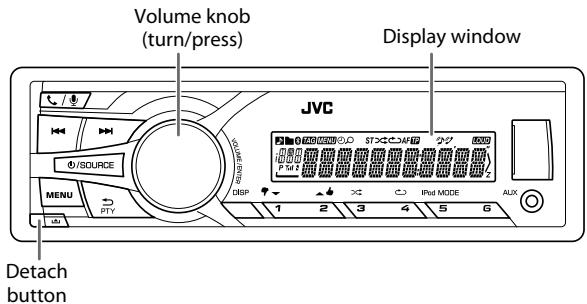
- Operations are explained mainly using buttons on the faceplate.
- [XX] indicates the selected items.
- ( XX) indicates references are available on the stated page.
BEFORE USE
Warning
Do not operate any function that takes your attention away from safe driving.
Caution
Volume setting:
- Adjust the volume so that you can hear sounds outside the car to prevent accidents.
- Lower the volume before playing digital sources to avoid damaging the speakers by the sudden increase of the output level.
General:
- Avoid using the USB device or iPod/iPhone if it might hinder safe driving.
- Make sure all important data has been backed up. We shall bear no responsibility for any loss of recorded data.
- Never put or leave any metallic objects (such as coins or metal tools) inside the unit, to prevent a short circuit.
Remote control (RM-RK52):
- Do not leave the remote control in hot places such as on the dashboard.
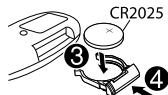
- The Lithium battery is in danger of explosion if replaced incorrectly. Replace it only with the same or equivalent type.
- The battery pack or batteries shall not be exposed to excessive heat such as sunshine, fire or the like.
- Keep the battery out of reach of children and in its original packaging when not in used. Dispose of used batteries promptly. If swallowed, contact a physician immediately.
Maintenance
Cleaning the unit: Wipe off dirt on the faceplate with a dry silicone or soft cloth.
Cleaning the connector: Detach the faceplate and clean the connector gently with a cotton swab, being careful not to damage the connector.
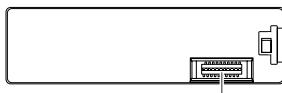
Connector (on the reverse side of the faceplate)
Faceplate
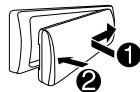
Attach
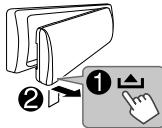
Detach
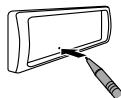
How to reset
Your preset adjustments will also be erased.
Remote control (RM-RK52) (For KD-X310BT)
Remote sensor (Do not expose to bright sunlight.)
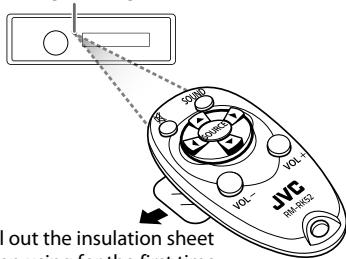
Pull out the insulation sheet when using for the first time.
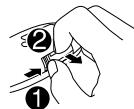
How to replace the battery
| To | Do this (on the faceplate) | Do this (on the remote control) |
| Turn on the power | Press ☐/SOURCE. • Press and hold to turn off the power. | ( not available ) |
| Adjust the volume | Turn the volume knob. | Press VOL + or VOL - . |
| Press the volume knob to mute the sound or pause playback. • Press again to cancel. | Press to mute the sound or pause playback. • Press again to cancel. | |
| Select a source | Press ☐/SOURCE repeatedly. • Press ☐/SOURCE, then turn the volume knob within 2 seconds. | Press SOURCE repeatedly. |
| Change the display information | Press DISP repeatedly. (→21) • Press and hold to scroll the current display information. | ( not available ) |

Cancel the demonstration
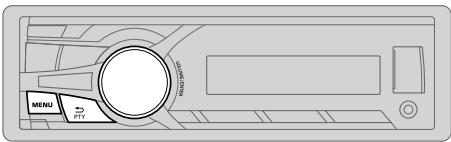
1 Press and hold MENU.
2 Turn the volume knob to select [DEM0], then press the knob.
3 Turn the volume knob to select [DEMO OFF], then press the knob.
4 Press MENU to exit.

Set the clock
1 Press and hold MENU.
2 Turn the volume knob to select [CLOCK], then press the knob.
3 Turn the volume knob to select [CLOCK SET], then press the knob.
4 Turn the volume knob to make the settings, then press the knob. Day Hour Minute
5 Turn the volume knob to select [24H/ 12H], then press the knob.
6 Turn the volume knob to select [12 HOUR] or [24 HOUR], then press the knob.
7 Press MENU to exit.

Set the basic settings
1 Press and hold MENU.
2 Turn the volume knob to make a selection (see the following table), then press the knob.
3 Press MENU to exit.
To return to the previous setting item or hierarchy, press PTY.
Default: XX
| CLOCK | |
| CLOCK ADJ | AUTO: The clock time is automatically set using the Clock Time (CT) data in FM Radio Broadcast Data System signal. ; OFF: Cancels. |
| CLOCK DISP | ON: The clock time is shown on the display even when the unit is turned off. ; OFF: Cancels. |
| SETTINGS | |
| BEEP | ON: Activates the keypress tone. ; OFF: Deactivates. |
| SRC SELECT | |
| AM* | ON: Enables AM in source selection. ; OFF: Disables. |
| PANDORA* | ON: Enables PANDORA in source selection. ; OFF: Disables. |
| IHEART* | ON: Enables IHEARTRADIO in source selection. ; OFF: Disables. |
| AUX* | ON: Enables AUX in source selection. ; OFF: Disables. |
| F/W UPDATE | |
| SYSTEM / BLUETOOTH | |
| F/W xxxx | YES: Starts upgrading the firmware. ; NO: Cancels (upgrading is not activated).For details on how to update the firmware, see:<http://www.jvc.net/cs/car/>. |
- Not displayed when the corresponding source is selected.
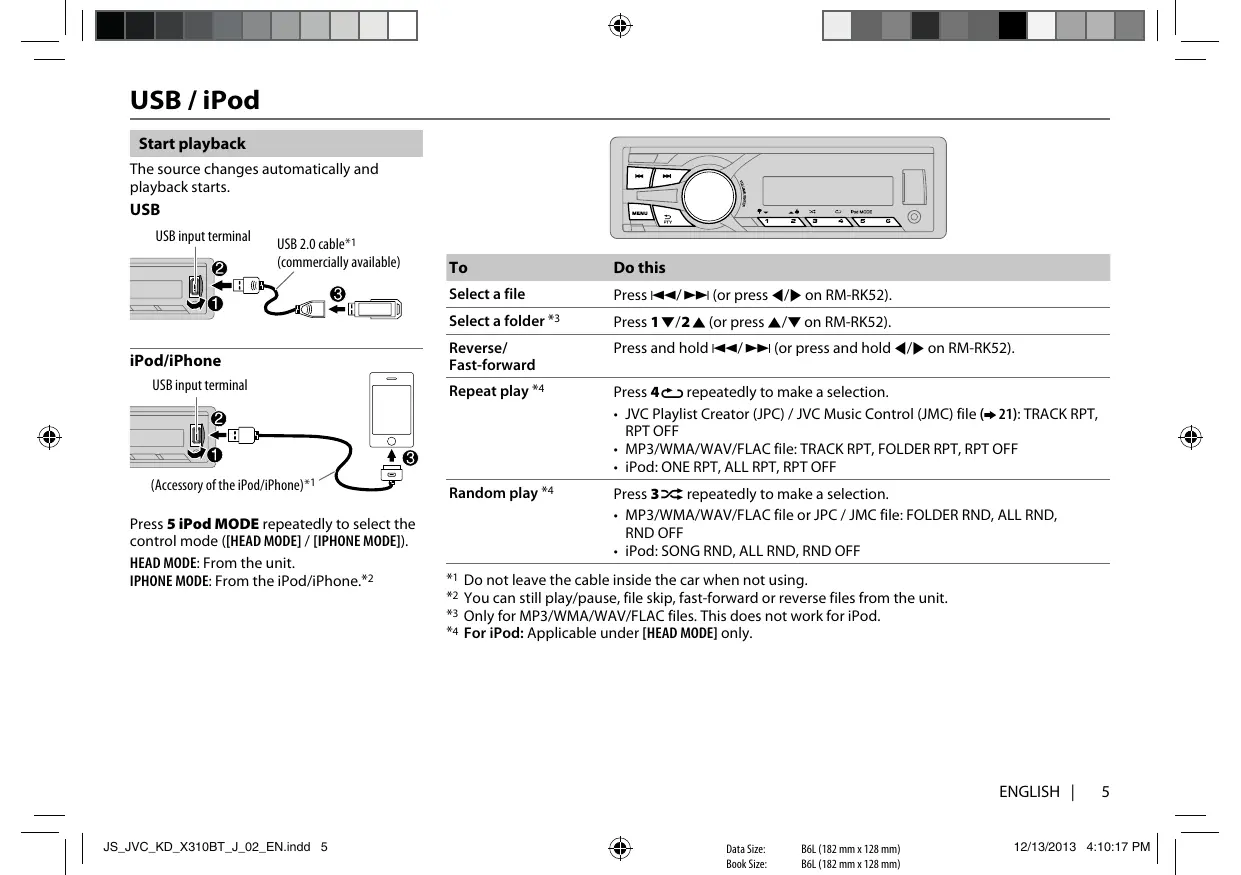
Start playback
The source changes automatically and playback starts.
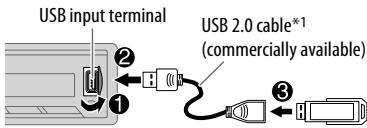
USB
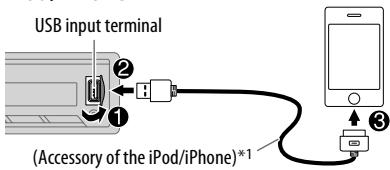
iPod/iPhone
Press 5 iPod MODE repeatedly to select the control mode ([HEAD MODE] / [IPHONE MODE]).
HEAD MODE: From the unit.
IPHONE MODE: From the iPod/Phone.*2
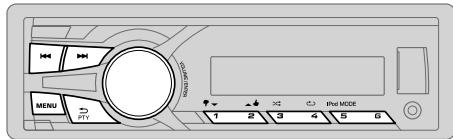
| To | Do this |
| Select a file | Press ↓/▶(or press ↓/▶ on RM-RK52). |
| Select a folder *3 | Press 1▼/2▲ (or press ▲/▼ on RM-RK52). |
| Reverse/ Fast-forward | Press and hold ↓/▶(or press and hold ↓/▶ on RM-RK52). |
| Repeat play *4 | Press 4 repeatedly to make a selection. • JVC Playlist Creator (JPC) / JVC Music Control (JMC) file (⇒ 21): TRACK RPT, RPT OFF • MP3/WMA/WAV/FLAC file: TRACK RPT, FOLDER RPT, RPT OFF • iPod: ONE RPT, ALL RPT, RPT OFF |
| Random play *4 | Press 3 repeatedly to make a selection. • MP3/WMA/WAV/FLAC file or JPC / JMC file: FOLDER RND, ALL RND, RND OFF • iPod: SONG RND, ALL RND, RND OFF |
1 Do not leave the cable inside the car when not using.
2 You can still play/pause, file skip, fast-forward or reverse files from the unit.
3 Only for MP3/WMA/WAV/FLAC files. This does not work for iPod.
4 For iPod: Applicable under [HEAD MODE] only.
Select a file from a list
For iPod: Applicable only when [HEAD MODE] is selected. ( 5)
1 Press MENU.
2 Turn the volume knob to make a selection, then press the knob.
- MP3/WMA/WAV/FLAC file: Select the desired folder, then a file.
-
iPod or JPC / JMC file: Select the desired file from the list (PLAYLISTS, ARTISTS, ALBUMS, SONGS, PODCASTS, GENRES, COMPOSERS, AUDIOBOOKS*).
-
Only for iPod.
If you have many files....
You can search through them quickly (on step 2 above) by turning the volume knob quickly.
- Not applicable for iPod.
Select a song by name
While listening to the iPod and [HEAD MODE] is selected ( 5) ...
If you have many folders or files, you can search through them quickly according to the first character (A to Z, 0 to 9 and OTHERS).
"OTHERS" appear if the first character is other than A to Z, 0 to 9.
1 Press MENU.
2 Turn the volume knob to select the desired list, then press the knob.
3 Press 1 / 2 or turn the volume knob quickly to select the desired character.
4 Turn the volume knob to select the desired folder or file, then press the knob.
Change the USB drive
When a smartphone (Mass Storage Class) is connected to the USB input terminal, you can select its internal memory or external memory (such as an SD card) to playback the stored songs.
You can also select the desired drive to playback when a multiple drives device is connected.
Press 5 iPod MODE repeatedly to select the desired drive.
(or)
1 Press and hold MENU.
2 Turn the volume knob to select [USB/IPOD], then press the knob.
3 Turn the volume knob to select [USB], then press the knob.
4 Press the volume knob to select [DRIVECHANGE].
The next drive is selected automatically.
Repeat steps 1 to 4 to select the following drives.
Selectable items: [DRIVE 1] to [DRIVE 5]
Change the playback speed of the Audiobook
While listening to the iPod and [HEAD MODE] is selected ( 5) ...
1 Press and hold MENU.
2 Turn the volume knob to select [USB/IPOD], then press the knob.
3 Turn the volume knob to select [IP0D], then press the knob.
4 Turn the volume knob to make a selection, then press the knob. BOOK NORMAL / BOOK FASTER / BOOK SLOWER: Select the desired playback speed of the Audiobooks sound file in your iPod/iPhone.
(Default: Depends on your iPod/iPhone setting.)
- To return to the previous setting item or hierarchy, press PTY.
- To cancel, press MENU.
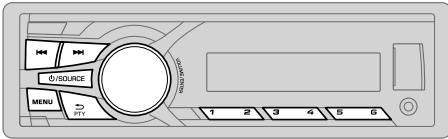
"ST" lights up when receiving an FM stereo broadcast with sufficient signal strength.
Search for a station
1 Press SOURCE to select FM or AM.
2 Press (or press on RM-RK52) to search for a station automatically. (or)
Press and hold (or press and hold on RM-RK52) until "M" flashes, then press repeatedly to search for a station manually.
Store a station
You can store up to 18 stations for FM and 6 stations for AM.
While listening to a station....
Press and hold one of the number buttons (1 to 6) to store. (or)
1 Press and hold the volume knob until "PRESET MODE" flashes.
2 Turn the volume knob to select a preset number, then press the knob.
The preset number flashes and "MEMORY" appears.
- To select a stored station: Press one of the number buttons (1 to 6). (or)
Press MENU, then turn the volume knob to select a preset number and press the knob to confirm.
Search for your favorite program (PTY Search)
Available only for FM source.
1 Press and hold S PTY.
2 Turn the volume knob to select a PTY code, then press the knob to start searching.
If there is a station broadcasting a program of the same PTY code as you have selected, that station is tuned in.
PTY code: NEWS, INFORM (information), SPORTS, TALK, ROCK, CLS ROCK (classic rock), ADLT HIT (adult hits), SOFT RCK (softrock), TOP 40, COUNTRY, OLDIES, SOFT, NOSTALGA (nostalgia), JAZZ, CLASSICL (classical), R & B (rhythm and blues), SOFT R&B (soft rhythm and blues), LANGUAGE, REL MUSC (religious music), REL TALK (religious talk), PERSNLYT (personality), PUBLIC, COLLEGE, HABL ESP (Spanish talk), MUSC ESP (Spanish music), HIP HOP, WEATHER
Other settings
1 Press and hold MENU.
2 Turn the volume knob to select [TUNER], then press the knob.
3 Turn the volume knob to make a selection ( 8) , then press the knob.
4 Press MENU to exit.
To return to the previous setting item or hierarchy, press PTY.
Default: XX
| RADIO TIMER | Turns on the radio at a specific time regardless of the current source. 1 ONCE/DAILY/ WEEKLY/OFF: Select how often the timer will be turned on. 2 FM/ AM: Select the FM or AM band. 3 01 to 18 (for FM)/ 01 to 06 (for AM): Select the preset station. 4 Set the activation day* and time. ·“◎” lights up when complete. * Selectable only when [ONCE] or [WEEKLY] is selected in step 1. Radio Timer will not activate for the following cases. · The unit is turned off. ·[OFF] is selected for [AM] in [SRC SELECT] after Radio Timer for AM is selected. (⇒ 4) |
| SSM | SSM 01 - 06 / SSM 07 - 12 / SSM 13 - 18: Automatically resets up to 18 stations for FM. “SSM” stops flashing when the first 6 stations are stored. Select SSM 07 - 12 / SSM 13 - 18 to store the following 12 stations. |
| IF BAND | AUTO: Increases the tuner selectivity to reduce interference noises from adjacent FM stations. (Stereo effect may be lost.) ; WIDE: Subjects to interference noises from adjacent FM stations, but sound quality will not be degraded and the stereo effect will remain. |
| MONO | Displayed only when the source is FM. ON: Improves the FM reception, but the stereo effect will be lost. ; OFF: Cancels. |
| AREA | AREA US: For North/Central/South America, AM/FM intervals: 10 kHz/200 kHz; AREA EU: For any other areas, AM/FM intervals: 9 kHz/50 kHz. ; AREA SA: For some South American countries, AM/FM intervals: 10 kHz/50 kHz. |
AUX
Use a portable audio player
1 Connect a portable audio player (commercially available).
3.5mm(1 / 8^ ) stereo mini plug with "L" shaped connector (commercially available)
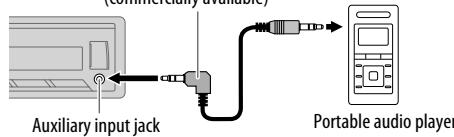
2 Select [ON] for [AUX] in [SRC SELECT]. ( 4)
3 Press SOURCE to select AUX.
4 Turn on the portable audio player and start playback.

Use a 3-core plug head stereo mini plug for optimum audio output.
Preparation:
Install the latest version of the Pandora application onto your device (iPhone/ iPod touch), then create an account and log in to Pandora.
- Select [ON] for [PANDORA] in [SRC SELECT]. ( 4)
Start listening
1 Open the Pandora application on your device.
2 Connect your device to the USB input terminal.
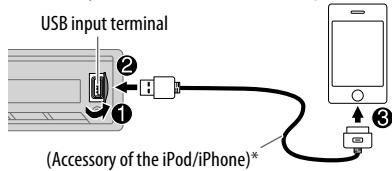
The source changes to PANDORA and broadcast starts.
- Do not leave the cable inside the car when not using.
| To | Do this |
| Pause or resume playback | Press the volume knob (or press OK on RM-RK52). |
| Thumbs up or thumbs down | Press 2 / 1 (or press ▲/▼ on RM-RK52). • If thumbs down is selected, the current track is skipped. |
| Skip a track | Press ▷ (or press ▷ on RM-RK52). |
Create a new station
1 Press MENU.
2 Turn the volume knob to select [NEW STATION], then press the knob.
3 Turn the volume knob to select [FROM TRACK] or [FROM ARTIST], then press the knob.
A new station is created based on the current song or artist.
Search for a registered station
1 Press MENU.
2 Turn the volume knob to make a selection, then press the knob.
[BY DATE]: According to the registered date.
A-Z: Alphabetical order.
3 Turn the volume knob to the desired station, then press the knob.
Bookmark a song or artist information
1 Press and hold the volume knob.
2 Turn the volume knob to select [THIS TRACK] or [THIS ARTIST], then press the knob.
"BOOKMARKED" appears and the information is stored to your device. The bookmark is available on your Pandora account but not on this unit.
iHeartRadio®
Preparation:
Install the latest version of iHeart Link for JVC application onto your device (iPhone/ iPod touch), then create an account and log in to iHeartRadio.
- Select [ON] for [IHEART] in [SRC SELECT]. ( 4)
Start listening
1 Open the iHeart Link application on your device.
2 Connect your device to the USB input terminal.
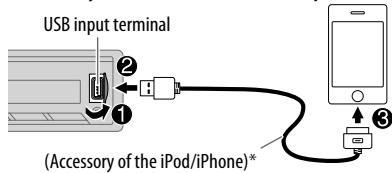
* Do not leave the cable inside the car when not using.
3 Press SOURCE to select IHEARTRADIO.
Broadcast starts automatically
| To | Do this |
| Pause or resume playback | Press the volume knob (or press OK on RM-RK52). |
| Thumbs up or thumbs down for custom station | Press 2♣/1♣ (or press ▲/▼ on RM-RK52). • If thumbs down is selected, the current track is skipped. |
| Skip a track for custom station | Press▶► (or press► on RM-RK52). |
| Create a new/custom station | Press and hold the volume knob. |
| Add to favorite stations for live station | Press and hold 3. |
| Scan for live station | Press 3. |
Search for a station
1 Press MENU.
2 Turn the volume knob to select a category, then press the knob.
3 Turn the volume knob to the desired station, then press the knob. When a city list appears, you can skip cities in alphabetical order.
4 Press MENU to exit.
Skip cities by alphabetical order
While a city list appears during search...
1 Turn the volume knob quickly to enter character search.
You can search through the list quickly according to the first character (A to Z).
2 Turn the volume knob or press 2/1 to select the character to be search for.
3 Press the volume knob to start searching.
Preparation:
1 Connect the optional SiriusXM Vehicle Tuner (commercially available).
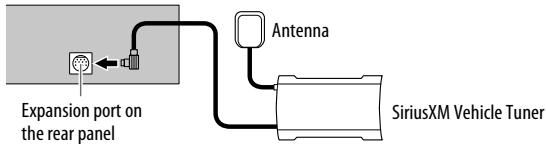
2 Activate the subscription through www.siriusxm.com/activatenow or call 1-866-635-2349.
The Radio ID is required to activate the SiriusXM Vehicle Tuner. The Radio ID is located on the label of the SiriusXM Vehicle Tuner and can also be shown on the unit's display window when you select "Channel 0" after SiriusXM Vehicle Tuner is connected. For users in Canada: To activate SiriusXM Canada service go to www.xmradio.ca and click on "ACTIVATE RADIO" in the top right corner, or call 1-877-438-9677.
3 Press SOURCE to select SIRIUS XM to start updating.
Start listening
1 Press SOURCE to select SIRIUS XM.
2 Press MENU.
3 Turn the volume knob to select a CATEGORY, then press the knob.
4 Turn the volume knob to select a category from the list, then press the knob.
If "ALL CHANNELS" is selected, all the available channels will be shown.
5 Turn the volume knob to select a channel, then press the knob. (or)
Press / to search for a channel manually.
- Pressing and holding / changes the channel rapidly.
If a locked channel or a mature channel ([MATURE CH] is set to [ON]) is selected, a pass code input screen appears. Enter the pass code to receive the channel.
Store a channel
You can store up to 18 channels.
Press and hold one of the number buttons (1 to 6). (or)
1 Press and hold the volume knob until "PRESET MODE" flashes.
2 Turn the volume knob to select a preset number, then press the knob.
The preset number flashes and "MEMORY" appears.
To select a stored channel:
Press one of the number buttons (1 to 6).
(or)
1 Press MENU.
2 Turn the volume knob to select PRESET, then press the knob.
3 Turn the volume knob to select a preset number, then press the knob.
SiriusXM Replay™
1 Press the volume knob.
The unit memorizes this paused position.
2 Press the volume knob to start Replay.
Replay starts from the paused position in step 1.
During Replay...
- To pause or resume playback, press the volume knob.
To skip the current song backward/forward, press I<▶/▶I. - To rewind/fast-forward, press and hold | < < | .
- To exit from Replay and go to live, press and hold the volume knob.
Smart Favorites
User preset channels 1 to 6 are initially assigned as the Smart Favorites channels. SiriusXM Vehicle Tuner automatically buffers the broadcast audio content of the Smart Favorites channels in the background.
- Smart Favorite channel is available with SXV200 or later SiriusXM tuner models.
- " * " appears at the last character of the channel name for the Smart Favorites channels.
- This unit can store a maximum of six Smart Favorites channels. If you try to assign the 7th channel, an error beep tone will be heard.
To cancel the Smart Favorites channels...
1 Press MENU.
2 Turn the volume knob to select PRESET, then press the knob.
3 Turn the volume knob to select a preset number, then press and hold the knob.
"*" are removed from the last character.
To reassign the Smart Favorites channels...
Repeat steps 1 to 3.
"*" appears at the last character.
When you select a Smart Favorites channel, you can rewind and replay up to 30 minutes of any of the missed news, talk, sports or music content.
SiriusXM settings
1 Press and hold MENU.
2 Turn the volume knob to select [SIRIUS XM], then press the knob.
3 Turn the volume knob to make a selection (see the following table), then press the knob.
4 Press MENU to exit.
To return to the previous setting item or hierarchy, press PTY.
Default: XX
There are two types of lock functions available:
SiriusXM-defined: When [MATURE CH] is set to [ON]
- User-defined: Using [CHANNEL EDIT] when [MATURE CH] is set to [OFF]
CH LOCK To unlock settings:
1 Turn the volume knob to select a number.
2 Press / to move to the entry position.
3 Repeat steps 1 and 2 to enter the current pass code. (Initial pass code is 0000.)
4 Press the volume knob to confirm.
CODE SET
1 Turn the volume knob to select a number.
2 Press / to move to the entry position.
3 Repeat steps 1 and 2 to enter a new 4-digit pass code.
4 Press the volume knob to confirm.
5 Repeat steps 1 to 4 to reconfirm the pass code.
- Make a note of the new pass code to enter channel lock settings from next time.
CHEDIT*
1 Turn the volume knob to select a category, then press the knob.
2 Turn the volume knob to select a channel you want to lock, then press the knob. "L" appears in front of the channel number.
3 Press and hold PTY to exit.
CH CLEAR*
YES: Clears all the locked channels. ; NO: Cancels.
MATURE CH
ON: Turns on the SiriusXM-defined lock setting (mature channel).; OFF: Turns off.
- If [ON] is selected, your setting [CH EDIT] is temporary ignored.
SIGNAL LVL
WEAK/ GOOD/ STRONG: Shows the strength of the current received signal.
BUF USAGE
0% — 100% (0): Shows the memory usage for Replay buffer.
SXM RESET
YES: Resets stored channel, locked channel setting and Mature CH setting to default. ; NO: Cancels.
- Displayed only when [MATURE CH] is set to [OFF].
You can operate Bluetooth devices using this unit.
Connect the microphone
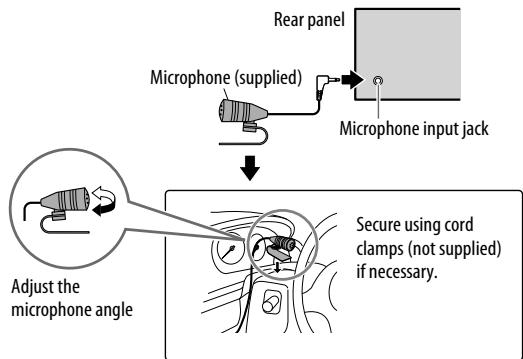
If you turn off the unit or detach the control panel during a phone call conversation, the Bluetooth connection is disconnected. Continue the conversation using your mobile phone.
Supported Bluetooth profiles
- Hands-Free Profile (HFP1.5)
- Advanced Audio Distribution Profile (A2DP)
- Audio/Video Remote Control Profile (AVRCP1.3)
- Object Push Profile (OPP)
- Phonebook Access Profile (PBAP)
- Serial Port Profile (SPP)
Pair a Bluetooth device
When connecting a Bluetooth device to the unit for the first time, perform pairing between the unit and the device. Once the pairing is completed, the Bluetooth device will remain registered in the unit even if you reset the unit.
- Up to five devices can be registered (paired) in total.
- A maximum of two Bluetooth phones and one Bluetooth audio device can be connected at any time.
- This unit supports Secure Simple Pairing (SSP).
- Some Bluetooth devices may not automatically connect to the unit after pairing. Connect the device to the unit manually. Refer to the instruction manual of the Bluetooth device for more information.
1 Press /SOURCE to turn on the unit.
2 Search and select "JVC UNIT" on the Bluetooth device.
"BT PAIRING" flashes on the display.
- For some Bluetooth devices, you may need to enter the Personal Identification Number (PIN) code immediately after searching.
3 Perform (A) or (B) depending on what scrolls on the display.
- For some Bluetooth devices, pairing sequence may vary from the steps described below.
(A) "[Device Name]" "XXXXXX" "VOL-YES" "BACK-NO"
- “XXXXXX” is a 6-digit passkey randomly generated during each pairing.
1 Ensure that the passkey which appears on the unit and Bluetooth device is the same.
Press the volume knob to confirm the passkey.
3 Operate the Bluetooth device to confirm the passkey.
(B) "[Device Name]" "VOL-YES" "BACK-NO"
Press the volume knob to start pairing.
2. If "PAIRING" "PIN 0000" scrolls on the display, enter the PIN code "0000" into the Bluetooth device. You can change to a desired PIN code before pairing. ( 17)
- If only "PAIRING" appears, operate the Bluetooth device to confirm pairing.
"PAIRING COMPLETED" appears when pairing is completed.
- "9" will light up when a Bluetooth mobile phone is connected.
" will light up when a Bluetooth audio player is connected.
Bluetooth compatibility check mode
You can check the connectivity of the supported profile between the Bluetooth device and the unit.
- Make sure there is no Bluetooth device connected.
1 Press and hold /
"BLUETOOTH" "CHECK MODE" appears. "SEARCH NOW USING PHONE" "PIN IS 0000" scrolls on the display.
2 Search and select "JVC UNIT" on the Bluetooth device within 3 minutes.
3 Perform (A), (B) or (C) depending on what appears on the display.
(A) "PAIRING" "XXXXXX" (6-digit passkey): Ensure that the same passkey appears on the unit and Bluetooth device, then operate the Bluetooth device to confirm the passkey.
(B) "PAIRING" "PIN IS 0000": Enter "0000" on the Bluetooth device.
(C) "PAIRING": Operate the Bluetooth device to confirm pairing.
After pairing is successful, "PAIRING OK" "[Device Name]" appears and Bluetooth compatibility check starts.
If "CONNECT NOW USING PHONE" appears, operate the Bluetooth device to allow phonebook access to continue.
The connectivity result flashes on the display.
"PAIRING OK" and/or "H.FREE OK"1 and/or "A STREAM OK"2 and/or
"PBAP OK"*3:Compatible
1 Compatible with Hands-Free Profile (HFP)
2 Compatible with Advanced Audio Distribution Profile (A2DP)
*3 Compatible with Phonebook Access Profile (PBAP)
After 30 seconds, "PAIRING DELETED" appears to indicate that pairing has been deleted, and the unit exits check mode.
- To cancel, press and hold /SOURCE to turn off the power, then turn on the power again.
Bluetooth mobile phone
| To | Do this |
| Receive a call | Press / or the volume knob. On RM-RK52: Press ▲/▼/▲. · When [AUTO ANSWER] is set to the selected time, the unit answers incoming call automatically. (→ 16) |
| Reject an incoming call | Press and hold / or the volume knob. On RM-RK52: Press and hold ▲/▼/▲. |
| End a call | Press and hold / or the volume knob. On RM-RK52: Press and hold ▲/▼/▲. |
| Activate or deactivate hands-free mode | Press the volume knob during a call. · Operations may vary according to the connected Bluetooth mobile phone. |
| Adjust the phone volume | Turn the volume knob during a call. Phone volume: [00] to [50] (Default: [15]) · This adjustment will not affect the volume of the other sources. |
| Switch between two connected phones | Press / repeatedly. · Not applicable during a call. |
Improve the sound quality during a call
While talking on the phone....
1 Press and hold MENU.
2 Turn the volume knob to make a selection (see the following table), then press the knob.
3 Press MENU to exit.
To return to the previous setting item or hierarchy, press PTY.
Default: XX
| MIC LEVEL | -20 — +08 (0): The sensitivity of the microphone increases as the number increased. |
| NOISE RDCT | -05 — -20 (-10): Adjust the noise reduction level until the least noise is being heard during a phone conversation. |
| ECHO CANCEL | 1 — 10 (4): Adjust the echo cancellation delay time until the least echo is being heard during a phone conversation. |
Text message notification
When the phone receives a text message, the unit rings and "RCVMESSAGE" appears.
- You cannot read, edit, or send a message through the unit.
To clear the message, press any button.
Bluetooth mode operations
1 Press / to enter Bluetooth mode.
2 Turn the volume knob to make a selection (see the following table), then press the knob.
3 Press MENU to exit.
To return to the previous setting item or hierarchy, press PTY.
| RECENT CALL | 1 Press the volume knob to select a name or a phone number. ·“>” indicates call received, “<” indicates call made, “M” indicates call missed. ·“NO HISTORY” appears if there is no recorded call history or call number. 2 Press the volume knob to call. |
| PHONEBOOK | 1 Turn the volume knob to select a name, then press the knob. 2 Turn the volume knob to select a phone number, then press the knob to call. ·If the phone supports PBAP, the phonebook of the connected phone is automatically transferred to the unit when pairing. If the phone does not support PBAP, “SEND P.BOOK MANUALLY” appears. Transfer the phonebook manually. (→ 17, P.BOOK WAIT) ·This unit can display only non-accent letters. (Accent letters such as “U” is shown as “U”). ·If the phonebook contains many contacts, (→ 16, Select a contact by name). |
| DIAL NUMBER | 1 Turn the volume knob to select a number (0 to 9) or character (×, #, +). 2 Press ↓/▶ to move the entry position. Repeat steps 1 and 2 until you finish entering the phone number. 3 Press the volume knob to call. |
| VOICE | Speak the name of the contact you want to call or the voice command to control the phone functions. (→ Use Voice Recognition) |
| SETTINGS | Default: XX |
| AUTO ANSWER | 01 SEC — 30 SEC: The unit answer incoming call automatically in the selected time (seconds). ; OFF: Cancels. |
| RING TONE | IN UNIT: The unit rings to notify you when a call/text message comes in. (Default ring tone is different according to the paired device.)CALL: Selects your preferred ring tone (TONE 1 — 5) for incoming calls.MESSAGE: Selects your preferred ring tone (TONE 1 — 5) for incoming text messages.IN PHONE: The unit uses the connected phones' ring tone to notify you when a call/text message comes in. (The connected phone will ring if it does not support this feature.) |
| MSG NOTICE* | ON: The unit rings and "RCVMESSAGE" appears to notify you of an incoming text message. ; OFF: Cancels. |
- Functionality depends on the type of the phone used.
Use Voice Recognition
1 Press and hold / The connected phone (which has been paired the earliest) is activated. However, if priority device is connected, pressing and holding / activate the priority device. ( 17, PRIORITY)
2 Speak the name of the contact you want to call or the voice command to control the phone functions.
- Supported Voice Recognition features vary for each phone. Refer to the instruction manual of the connected phone for details.
- This unit also supports the intelligent personal assistant function of iPhone.
Select a contact by name
- You can search through the contacts quickly according to the first letter (A to Z, 0 to 9, and OTHERS).
- "OTHERS" appears if the first character is other than A to Z, 0 to 9.
1 Press / to enter Bluetooth mode.
2 Turn the volume knob to select [PHONEBOOK], then press the knob.
3 Press 1 / 2 to select the desired letter.
4 Turn the volume knob to select a name, then press the knob.
5 Turn the volume knob to select a phone number, then press the knob to call.
To return to the previous setting item or hierarchy, press PTY.
Store a contact in memory
You can store up to 6 contacts.
1 Press to enter Bluetooth mode.
2 Turn the volume knob to select [RECENT CALL], [PHONEBOOK], or [DIAL NUMBER], then press the knob.
3 Turn the volume knob to select a contact or enter a phone number. If a contact is selected, press the volume knob to show the phone number.
4 Press and hold one of the number buttons (1 to 6).
"MEMORY P(selected preset number)" appears when the contact is stored.
To erase a contact from the preset memory, select [DIAL NUMBER] in step 2 and store a blank number.
Make a call from memory
1 Press / to enter Bluetooth mode.
2 Press one of the number buttons (1 to 6).
3 Press the volume knob to call. "NO PRESET" appears if there is no contacts stored.
Delete a contact
Not applicable for mobile phone that supports PBAP.
1 Press / to enter Bluetooth mode.
2 Turn the volume knob to select [RECENT CALL] or [PHONEBOOK], then press the knob.
3 Turn the volume knob to select a contact or a phone number.
4 Press and hold S PTY.
5 Turn the volume knob to select [DELETE] or [DELETE ALL], then press the knob.
DELETE: Selected name or phone number in step 3 is deleted.
DELETE ALL: All names or phone numbers from the selected menu in step 2 is deleted.
6 Turn the volume knob to select [YES] or [NO], then press the knob.
Bluetooth mode settings
1 Press and hold MENU.
2 Turn the volume knob to select [BLUETOOTH], then press the knob.
3 Turn the volume knob to make a selection (see the following table), then press the knob.
4 Press MENU to exit.
To return to the previous setting item or hierarchy, press PTY.
Default: XX
| PHONE | Selects the phone or audio device to connect or disconnect. |
| AUDIO | “×” appears in front of the device name. |
| APPLICATION | Shows the connected phone name using the JVC Smart Music Control*1 app. “×” appears in front of the device name. |
| DELETE PAIR | 1 Turn the volume knob to select a device to delete, then press the knob. 2 Turn the volume knob to select [YES] or [NO], then press the knob. |
| PRIORITY | Selects a device to be connected as priority device. “×” appears in front of the device name set as priority. ·“NO PAIR” appears if there is no registered device found. |
| P.BOOK WAIT*2 | Copies up to 400 numbers from the phonebook memory of a connected phone. |
| SET PINCODE (0000) | Changes the PIN code (up to 6 digits). 1 Turn the volume knob to select a number. 2 Press ↓/▶ to move the entry position. Repeat steps 1 and 2 until you finish entering the PIN code. 3 Press the volume knob to confirm. |
1 JVC Smart Music Control is designed to view JVC car receiver status and perform simple control operations on Android smart phones. For JVC Smart Music Control operations, visit JVC website: http://www.jvc.net/cs/car/.
2 Selectable only when the connected phone supports OPP.
| AUTO CNT | ON: The unit automatically reconnect when the Bluetooth device is within range. ; OFF: Cancels. |
| INITIALIZE | YES: Initialized all the Bluetooth settings (including stored pairing, phonebook, and etc.). ; NO: Cancels. |
| INFORMATION | MY BT NAME: Displays the unit name (JVC UNIT). ; MY ADDRESS: Shows address of this unit. |
Internet radio via Bluetooth
Listen to Pandora
Preparation:
Select [ON] for [PANDORA] in [SRC SELECT]. ( 4)
You can listen to Pandora on your smart phone (Android OS) through Bluetooth on this unit.
1 Open the Pandora application on your device.
2 Connect to Bluetooth audio player. ( 13)
3 Press SOURCE to select PANDORA.
The source switches and broadcast starts automatically.
- You can operate Pandora in the same way as Pandora for iPod/iPhone. ( 9)
Listen to iHeartRadio
Preparation:
Select [ON] for [IHEART] in [SRC SELECT]. ( 4)
You can listen to iHeartRadio on your smart phone (Android OS) through Bluetooth on this unit.
1 Open the iHeart Link application on your smart phone.
2 Connect your smart phone via Bluetooth connection. ( 13)
3 Press SOURCE to select IHEARTRADIO.
The source switches and broadcast starts automatically.
- You can operate iHeartRadio in the same way as iHeartRadio for iPod/ iPhone. (→ 10)
Bluetooth audio player
Operations and display indications may differ according to their availability on the connected device.
| To | Do this |
| Playback | 1 Press SOURCE to select BT AUDIO. 2 Operate the Bluetooth audio player to start playback. |
| Pause or resume playback | Press MENU (or press on RM-RK52). |
| Select group or folder | Press 1▼/2▲ (or press ▲/▼ on RM-RK52). |
| Reverse/ forward skip | Press ↓/▶i (or press ↓/▶ on RM-RK52). |
| Reverse/ fast-forward | Press and hold ↓/▶i (or press and hold ↓/▶ on RM-RK52). |
| Repeat play | Press 4 repeatedly to make a selection. TRACK RPT, ALL RPT, RPT OFF |
| Random play | Press 3 repeatedly to make a selection. GROUP RND, ALL RND, RND OFF |
AUDIO SETTINGS
1 Press and hold MENU.
2 Turn the volume knob to make a selection (see the following table), then press the knob.
Repeat step 2 until the desired item is selected.
3 Press MENU to exit.
To return to the previous setting item or hierarchy, press PTY.
Default: XX
| EQ SETTING | ||
| EQ PRESET | FLAT / HARD ROCK / JAZZ / POP / R&B / TALK / USER1 / USER2 / VOCAL BOOST / BASS BOOST / CLASSICAL / DANCE: Selects a preset equalizer. | |
| EASY EQ | 1 USER1/ USER2: Select a preset name. | |
| Default:00 | 2 Adjust your own sound settings. SUB.W*1: -08 to +08/ BASS LVL: -06 to +06/ MID LVL: -06 to +06/ TRE LVL: -06 to +06 | |
| PRO EQ | 1 USER1/ USER2: Select a preset name. | |
| 2 BASS / MIDDLE / TREBLE: Select a sound tone. | ||
| 3 Adjust the sound elements of the selected sound tone. | ||
| BASS Frequency: 60/80/100/200 Hz Level: -06 to +06 Q: Q1.0/Q1.25/Q1.5/Q2.0 | ||
| MIDDLE Frequency: 0.5/1.0/1.5/2.5 kHz Level: -06 to +06 Q: Q0.75/Q1.0/Q1.25 | ||
| TREBLE Frequency: 10.0/12.5/15.0/17.5 kHz Level: -06 to +06 Q: Q FIX | ||
| AUDIO | |
| BASS BOOST | +01 / +02: Selects your preferred bass boost level. ; OFF: Cancels. |
| LOUD | 01 / 02: Boosts low or high frequencies to produce a well-balanced sound at low volume. ; OFF: Cancels. |
| SUB.W LEVEL*1 | -08 — +08 (00): Adjusts the subwoofer output level. |
| SUB.W*2 | ON / OFF: Turns on or off the subwoofer output. |
| SUB.W LPF*1 | THROUGH: All signals are sent to the subwoofer. ; LOW 55Hz / MID 85Hz / HIGH 120Hz: Audio signals with frequencies lower than 55 Hz/ 85 Hz/ 120 Hz are sent to the subwoofer. |
| FADER*3*4 | R06 — F06 (00): Adjusts the front and rear speaker output balance. |
| BALANCE*3 | L06 — R06 (00): Adjusts the left and right speaker output balance. |
| VOL ADJUST | -05 — +05 (00): Presets the volume adjustment level of each source (compared to the FM volume level). Before adjustment, select the source you want to adjust. ("VOL AD) FIX" appears if FM is selected.) |
| AMP GAIN | LOW POWER: Limits the maximum volume level to 30. (Select if the maximum power of each speaker is less than 50 W to prevent damaging the speakers.) ; HIGH POWER: The maximum volume level is 50. |
| D.T.exp(Digital Track Expander) | ON: Creates realistic sound by compensating the high-frequency components and restoring the rise-time of the waveform that are lost in audio data compression. ; OFF: Cancels. |
| L/O MODE | SUB.W / REAR: Selects whether rear speakers or a subwoofer are connected to the REAR/SW line out terminals on the rear panel (through an external amplifier). |
1 Displayed only when [L/O MODE] is set to [SUB.W] and [SUB.W] is set to [ON].
2 Displayed only when [L/0 MODE] is set to [SUB.W].
3 This adjustment will not affect the subwoofer output.
4 If you are using a two-speaker system, set the fader level to [00].
DISPLAY SETTINGS
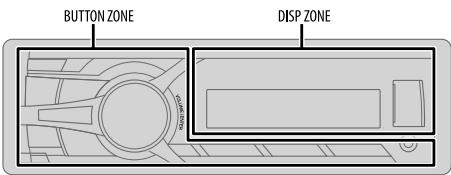
1 Press and hold MENU.
2 Turn the volume knob to make a selection (see the following table), then press the knob. Repeat step 2 until the desired item is selected.
3 Press MENU to exit.
To return to the previous setting item or hierarchy, press PTY.
Default: XX
| DISPLAY | |
| DIMMER | Selects the display and button illumination adjusted in the [BRIGHTNESS] setting.AUTO: Changes between the day and night adjustments when you turn off or on the car headlights.*1; ON: Selects the night adjustments.; OFF: Selects the day adjustments. |
| BRIGHTNESS | Sets the button, display and USB input terminal brightness for day and night separately. 1 DAY/NIGHT: Select day or night. 2Select a zone for setting. (⇒ Illustration above) 3Set the brightness level (00 to 31). (Default: DAY: 31; NIGHT: 15) |
| SCROLL*2 | ONCE: Scrolls the display information once.; AUTO: Repeats scrolling at 5-second intervals. ; OFF: Cancels. |
1 The illumination control wire connection is required. (→27)
2 Some characters or symbols will not be shown correctly (or will be blanked).
MORE INFORMATION
Playable files
- Playable audio file: MP3 (.mp3), WMA (.wma), WAV (.wav), FLAC (.flac)
- Playable USB device file system: FAT12, FAT16, FAT32
Even when audio files comply with the standards listed above, playback may be impossible depending on the types or conditions of media or device.
About USB devices
- This unit can play MP3/WMA/WAV/FLAC files stored on a USB mass storage class device.
- You cannot connect a USB device via a USB hub.
-
Connecting a cable whose total length is longer than 5m may result in abnormal playback.
The maximum number of characters for: -
Folder names: 64 characters
- File names: 64 characters
- MP3 Tag: 64 characters
WMA Tag: 64 characters
WAV Tag: 64 characters -
FLAC Tag: 64 characters
-
This unit can recognize a total of 20 480 files, 999 folders (999 files per folder including folder without unsupported files), and of 8 hierarchies.
- This unit cannot recognize a USB device whose rating is other than 5 V and exceeds 1 A.
About iPod/iPhone
Made for
- iPod touch (1st, 2nd, 3rd, 4th, and 5th generation)
- iPod classic
- iPod nano (3rd, 4th, 5th, 6th and 7th generation)
-
iPhone, iPhone 3G, 3GS, 4, 4S, 5
-
It is not possible to browse video files on the "Videos" menu in [HEAD MODE].
- The song order displayed on the selection menu of this unit may differ from that of the iPod/ iPhone.
- If some operations are not performed correctly or as intended, visit: http://www.jvc.net/cs/car/.
About Pandora
- Pandora is available only in the U.S., Australia and New Zealand.
- Because Pandora is a third-party service, the specifications are subject to change without prior notice. Accordingly, compatibility may be impaired, or some or all of the services may become unavailable.
- Some functions of Pandora cannot be operated from this unit.
- For issues using the application, please contact Pandora at Pandora-support@pandora.com.
About iHeartRadio
- iHeartRadio® is a third-party service, therefore the specifications are subject to change without prior notice. Accordingly, compatibility may be impaired or some or all of the services may become unavailable.
- Some iHeartRadio® functionality cannot be operated from this unit.
About JVC Playlist Creator and JVC Music Control
- This unit supports the PC application JVC Playlist Creator and Android™ application JVC Music Control.
- When you play audio file with song data added using the JVC Playlist Creator or JVC Music Control, you can search for audio file by Genres, Artists, Albums, Playlists, and Songs.
- JVC Playlist Creator and JVC Music Control are available from the following web site: http://www.jvc.net/cs/car/.
About Bluetooth
- Depending on the Bluetooth version of the device, some Bluetooth devices may not be able to connect to this unit.
- This unit may not work with some Bluetooth devices.
- Signal conditions vary, depending on the surroundings.
- For more information about Bluetooth, visit the following JVC website: http://www.jvc.net/cs/car/.
Change the display information
Press DISP repeatedly.
| FM or AM | Station name (PS)*1→Frequency → Program type (PTY)*1*2→Title*1*2→Day/Clock→(back to the beginning) *1 For FM Radio Broadcast Data System stations only. *2 If unavailable, "NO PTY" / "NO TEXT" appears. |
| USB | Playing time → Day/Clock → Album title/Artist*3 → Track title*3 → Folder/file name → (back to the beginning) *3 If not recorded, "NO NAME" appears. |
| USB-IPOD | Playing time → Day/Clock → Album title/Artist*4 → Track title*4 → (back to the beginning) *4 If not recorded, "NO NAME" appears. |
| PANDORA | Station name → Album title/Artist → Track title → Playing time → Day/Clock → (back to the beginning) |
| IHEART | Station name → Track title*5 → Track Artist*5 → Day/Clock → (back to the beginning) *5 If unavailable, station name appears. |
| SiriusXM | Channel no./Channel name → Artist → Song title → Content information → Category name → Day/Clock → (back to the beginning) |
| AUX | AUX ←→ Day/Clock |
| BT AUDIO | Playing time → Day/Clock → Album title/Artist*6 → Track title*6 → (back to the beginning) *6 If not recorded, "NO NAME" appears. |
TROUBLESHOOTING
| Symptom | Remedy |
| Sound cannot be heard. | ·Adjust the volume to the optimum level. ·Check the cords and connections. |
| "MISWIRING CHK WIRING THEN RESET UNIT"/"WARNING CHK WIRING THEN RESET UNIT" appears and no operations can be done. | Check to be sure the terminals of the speaker wires are insulated properly, then reset the unit. If this does not solve the problem, consult your nearest service center. |
| Source cannot be selected. | Check the [SRC SELECT] setting. (⇒ 4) |
| Radio reception is poor. / Static noise while listening to the radio. | ·Connect the antenna firmly. ·Pull the antenna out all the way. |
| Correct characters are not displayed. | This unit can only display uppercase letters, numbers, and a limited number of symbols. |
| Playback order is not as intended. | The playback order is determined by the file name (USB). |
| Elapsed playing time is not correct. | This depends on the recording process earlier. |
| "NOT SUPPORT" appears and track skips. | Check whether the track is a playable format. (⇒ 20) |
| "CANNOT PLAY" flashes and/ or connected device cannot be detected. | ·Check whether the connected device is compatible with this unit and ensure the files are in supported formats. (⇒ 20) ·Reattach the device. |
| "READING" keeps flashing. | ·Do not use too many hierarchical levels and folders. ·Reattach the USB device. |
| The iPod/iPhone does not turn on or does not work. | ·Check the connection between this unit and iPod/iPhone. ·Detach and reset the iPod/iPhone using hard reset. |
| Symptom | Remedy | |
| Pandora | "ADD ERROR" | New station creation is unsuccessful. |
| "SEARCH ERR" | ||
| "CHK DEVICE" | Check the Pandora application on your device. | |
| "NO SKIPS" | The skip limit has been reached. | |
| "NO STATIONS" | No stations are found. | |
| "STATION LIM" | The number of registered stations has reached its limit. Retry after deleting unnecessary stations from your device. | |
| "UPGRADE APP" | Make sure you have installed the latest version of the Pandora application on your device. | |
| "CONNECT ERR" | Communication is unstable. | |
| "RATING ERR" | Registration of thumbs up/thumbs down has failed. | |
| "LICENSE ERR" | You try to access from a country which Pandora is not deliverable. | |
| iHeartRadio | Station cannot be selected. | If "Explicit Content" in [Account Settings] is checked in the web version of iHeartRADIO, custom stations become unavailable. |
| "CREATE ERR" | Custom station name creation is unsuccessful. | |
| "SAVE ERROR" | Addition to the favorite category failed. | |
| "DISCONNECTED" | Check the connection to the device. | |
| "NO SKIPS" | The skip limit has been reached. Retry later. | |
| "NO STATIONS" | No stations are found. | |
| "NOT CONNECTD" | Link to the application is impossible. | |
| "UPDATE APP" | Make sure you have installed the latest version of the iHeart Link for JVC application on your device. | |
| "PLS LOGIN" | You haven't log in. Log in again. | |
| "STATION NOT AVAILABLE" | Broadcast from the station is over. | |
| "STATION NOT SELECTED" | No station is selected. | |
| "STREAM ERR" | Broadcast data is interrupted. | |
| "THUMBS ERR" | Registration of Thumbs Up/Down has failed. | |
| "TIMED OUT" | The request has resulted in time-out. | |
| Symptom | Remedy | |
| SiriusXM® Radio | "CH LOCKED" | The selected channel is locked. Enter the correct pass code to unlock. (→12) |
| "CHAN UNSUB" | The selected channel is unsubscribed. Call 1-866-635-2349 or 1-877-438-9677 to subscribe. | |
| "CH UNAVAIL" | The selected channel is unavailable. | |
| "CHK ANTENNA" | Check the antenna and its connection are in good condition. | |
| "CHECK TUNER" | Make sure the SiriusXM Vehicle Tuner is connected to the unit. | |
| "NO SIGNAL" | Make sure the antenna is mounted outside the vehicle. | |
| "SUBSCRIPTN UPDATED - ENTER TO CONTINUE" | Your subscription is updated. Press the volume knob to continue. | |
| "WRONG CODE" | Make sure you have entered the correct pass code. (→12) | |
| Bluetooth® | No Bluetooth device is detected. | • Search from the Bluetooth device again. • Reset the unit. (→3) |
| Pairing cannot be made. | • Make sure you have entered the same PIN code to both the unit and Bluetooth device. • Delete pairing information from both the unit and the Bluetooth device, then perform pairing again. (→13) | |
| "PAIRING FULL" appears. | The number of registered devices has reached its limit. Retry after deleting an unnecessary device. (→17, DELETE PAIR) | |
| "PLEASE WAIT" appears. | The unit is preparing to use the Bluetooth function. If the message does not disappear, turn off and turn on the unit, then connect the device again. | |
| Bluetooth® | "BT DEVICE NOT FOUND" appears. | The unit failed to search for the registered Bluetooth devices during [AUTO CNT]. Turn on Bluetooth from your device and connect manually. (→18) |
| Echo or noise occurs. | ·Adjust the microphone unit's position. (→13) ·Check the [ECHO CANCEL] setting. (→15) | |
| Phone sound quality is poor. | ·Reduce the distance between the unit and the Bluetooth device. ·Move the car to a place where you can get a better signal reception. | |
| "NOT SUPPORT" appears. | The connected phone does not support Voice Recognition feature. | |
| "ERROR" appears. | Try the operation again. If "ERROR" appears again, check if the device supports the function you have tried. | |
| The unit does not respond when you try to copy the phonebook to the unit. | You may have tried to copy the same entries (as stored) to the unit. Press DISP or →PTY to exit. | |
| Sound is being interrupted or skipped during playback of a Bluetooth audio player. | ·Reduce the distance between the unit and the Bluetooth audio player. ·Turn off, then turn on the unit and try to connect again. ·Other Bluetooth devices might be trying to connect to the unit. | |
| Symptom | Remedy | |
| Bluetooth® | The connected Bluetooth audio player cannot be controlled. | ·Check whether the connected Bluetooth audio player supports Audio/Video Remote Control Profile (AVRCP). (Refer to the instructions of your audio player.) ·Disconnect and connect the Bluetooth player again. |
| “H/W ERROR” appears. | Reset the unit and try the operation again. If “H/W ERROR” appears again, consult your nearest service center. | |
| “BT ERROR PLS UPDATE” appears. | Update the Bluetooth firmware. (→4) | |
If you have any troubles, try the following:
1 Check TROUBLESHOOTING
2 Reset the unit ( 3)
3 Contact (USA only)
Call: 1-800-252-5722 (or) visit: http://www.jvc.com
SPECIFICATIONS
| TUNER | FM Frequency Range | 87.9 MHz to 107.9 MHz (200 kHz step) 87.5 MHz to 108.0 MHz (50 kHz step) |
| Channel Space Selection | 50 kHz/200 kHz | |
| Usable Sensitivity (S/N = 26 dB) | 8.2 dBf (0.71 μV/75 Ω) | |
| Quieting Sensitivity (DIN S/N = 46 dB) | 17.2 dBf (2.0 μV/75 Ω) | |
| Frequency Response (±3 dB) | 30 Hz to 15 kHz | |
| Signal-to-Noise Ratio (MONO) | 64 dB | |
| Stereo Separation (1 kHz) | 40 dB | |
| AM Frequency Range | 530 kHz to 1 700 kHz (10 kHz step) 531 kHz to 1 611 kHz (9 kHz step) | |
| Channel Space Selection | 9 kHz/10 kHz | |
| Usable Sensitivity (S/N = 20 dB) | 29 dBμ (28.2 μV) | |
| USB | USB Standard | USB 1.1, USB 2.0 (Full speed) |
| Compatible Devices | Mass storage class | |
| File System | FAT12/ 16/ 32 | |
| Maximum Supply Current | DC 5 V --- 1 A | |
| D/A Converter | 24 Bit | |
| Frequency Response (±1 dB) | 20 Hz to 20 kHz | |
| Signal-to-Noise Ratio (1 kHz) | 105 dB | |
| Dynamic Range | 88 dB | |
| Channel Separation | 90 dB | |
| MP3 Decode | Compliant with MPEG-1/2 Audio Layer-3 | |
| WMA Decode | Compliant with Windows Media Audio | |
| WAV Decode | RIFF waveform Audio Format (Linear PCM only) | |
| FLAC Decode | FLAC files |
| Auxiliary | Frequency Response (±3 dB) | 20 Hz — 20 kHz |
| Input Maximum Voltage | 1 200 mV | |
| Input Impedance | 30 kΩ |
| Bluetooth | Version | Bluetooth Ver.2.1+EDR |
| Frequency Range | 2.402 GHz — 2.480 GHz | |
| Output Power | +4 dBm (MAX), 0 dBm (AVE) Power Class 2 | |
| Maximum Communication Range | Line of sight approx. 10 m (32.8 ft) | |
| Profile | HFP1.5 (Hands-Free Profile), A2DP (Advanced Audio Distribution Profile), AVRCP1.3 (Audio/Video Remote Control Profile), OPP (Object Push Profile), PBAP (Phonebook Access Profile), SPP (Serial Port Profile) |
| Audio | Maximum Output Power | 50 W × 4 |
| Full Bandwidth Power (at less than 1 % THD) | 22 W × 4 | |
| Speaker Impedance | 4 Ω — 8 Ω | |
| Preout Level/Load (USB) | 2 500 mV/10 kΩ | |
| Preout Impedance | ≤ 600 Ω |
| General | Operating Voltage (10.5 V — 16 V allowable) | 14.4 V |
| Maximum Current Consumption | 10 A | |
| Operating Temperature Range | 0°C to +40°C | |
| Installation Size (W × H × D) | 182 mm × 53 mm × 106 mm (7-3/16" × 2-1/8" × 4-3/16") | |
| Weight | 0.66 kg (1.5 lbs) |
Subject to change without notice.
Warning
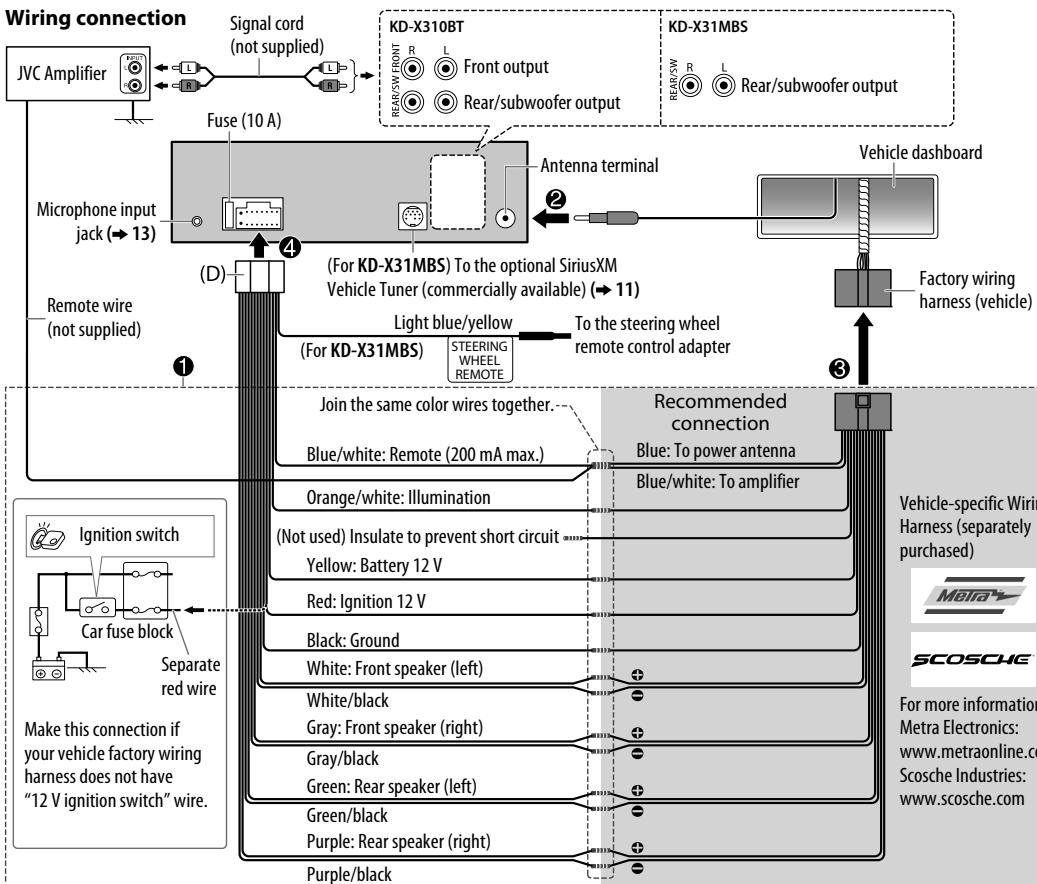
- The unit can only be used with a 12VDC power supply, negative ground.
- Disconnect the battery's negative terminal before wiring and mounting.
- Do not connect Battery wire (yellow) and Ignition wire (red) to the car chassis or Ground wire (black) to prevent a short circuit.
- Insulate unconnected wires with vinyl tape to prevent a short circuit.
- Be sure to ground this unit to the car's chassis again after installation.
Caution
- For safety's sake, leave wiring and mounting to professionals. Consult the car audio dealer.
- Install this unit in the console of your vehicle. Do not touch the metal parts of this unit during and shortly after use of the unit. Metal parts such as the heat sink and enclosure become hot.
- Do not connect the wires of speakers to the car chassis or Ground wire (black), or connect them in parallel.
- Connect speakers with a maximum power of more than 50W . If the maximum power of the speakers is lower than 50W , change the [AMP GAIN] setting to avoid damaging the speakers. ( 19)
- Mount the unit at an angle of less than 30^ .
- If your vehicle wiring harness does not have the ignition terminal, connect Ignition wire (red) to the terminal on the vehicle's fuse box which provides 12 V DC power supply and is turned on and off by the ignition key.
- After the unit is installed, check whether the brake lamps, blinkers, wipers, etc. on the car are working properly.
- If the fuse blows, first make sure the wires are not touching car's chassis, then replace the old fuse with one that has the same rating.
Basic procedure
1 Remove the key from the ignition switch, then disconnect the terminal of the car battery.
2 Connect the wires properly. See Wiring connection. ( 27)
3 Install the unit to your car. See Installing the unit (in-dash mounting).
4 Connect the terminal of the car battery.
5 Reset the unit. ( 3)
Installing the unit (in-dash mounting)
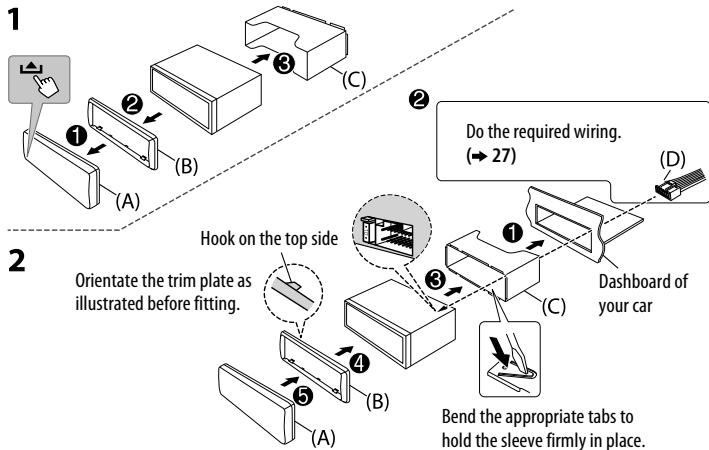
When installing without the mounting sleeve
Use only the specified screws. Using wrong screws might damage the unit.
Flat or round head screws (not supplied) M5× 8mm (M5× 3 / 8^ )
8 mm (3/8") 8 mm (3/8")

8 mm (3/8")
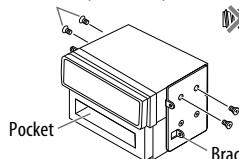

Bracket (not supplied)
How to remove the unit
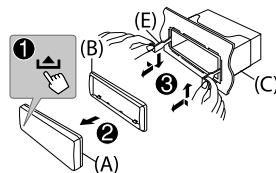
Part list for installation
(A) Faceplate

(B) Trim plate

(C) Mounting sleeve
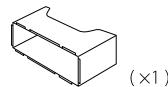
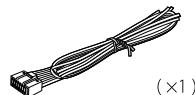
(D) Wiring harness
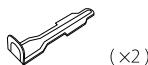
(E) Extraction key
CONTENIDO
- España, México, Chile, Colombia, México, Venezuela, Argentina, Guatemala, Guatemala, Guatemala, Guatemala, Guatemala, Guatemala, Guatemala, Guatemala, Guatemala, Guatemala, Guatemala, Guatemala, Guatemala, Guatemala, Guatemala, Guatemala, Guatemala, Guatemala, Guatemala, Guatemala, Guatemala, Guatemala, Guatemala, Guatemala, Guatemala, Guatemala, Guatemala, Guatemala, Guatemala, Guatemala, Guatemala, Guatemala, Guatemala, Guatemala, Guatemala, Guatemala, Guatemala, Guatemala, Guatemala, Guatemala, Guatemala, Guatemala, Guatemala, Guatemala, Guatemala, Guatemala, Guatemala, Guatemala, Guatemala, Guatemala,atemala, Guatemala, Guatemala, Guatemala, Guatemala, Guatemala, Guatemala, Guatemala, Guatemala, Guatemala, Guatemala, Guatemala, Guatemala, Guatemala, Guatemala, Guatemala, Guatemala, Guatemala, Guatemala, Guatemala, Guatemala, Guatemala, Guatemala, Guatemala, Guatemala, Guatemala, Guatemala, Guatemala, Guatemala, Guatemala, Guatemala, Guatemala, Guatemala, Guatemala, Guatemala, Guatemala, Guatemala, Guatemala, Guatemala, Guatemala, Guatemala, Guatemala, Guatemala, Guatemala, Guatemala, Guatemala, Guatemala, Guatemala, Guatemala, Guatemala,哥伦比亚
You could memorize a maximum of 18 stations for FM and 6 stations for AM.
Pendant l'ecoute d'une station...
- Microsoft and Windows Media are either registered trademarks or trademarks of Microsoft Corporation in the United States and/or other countries.
- "Made for iPod," and "Made for iPhone" mean that an electronic accessory has been designed to connect specifically to iPod, or iPhone, respectively, and has been certified by the developer to meet Apple performance standards. Apple is not responsible for the operation of this device or its compliance with safety and regulatory standards. Please note that the use of this accessory with iPod or iPhone may affect wireless performance.
- iPhone, iPod, iPod classic, iPod nano, and iPod touch are trademarks of Apple Inc., registered in the U.S. and other countries.
Lightning is a trademark of Apple Inc. - Pandora, the Pandora logo, and the Pandora trade dress are trademarks or registered trademarks of Pandora Media, Inc., used with permission.
- iHeartRadio® is a registered mark of Clear Channel Broadcasting, Inc. in the United States and other countries. Such marks are used under license.
- Sirius, XM and all related marks and logos are trademarks of Sirius XM Radio Inc. All rights reserved.
Android is trademark of Google Inc. - The Bluetooth® word mark and logos are registered trademarks owned by Bluetooth SIG, Inc. and any use of such marks by JVC KENWOOD Corporation is under license. Other trademarks and trade names are those of their respective owners.