
SCOUTKVM - KVM switch DAXTEN - Free user manual and instructions
Find the device manual for free SCOUTKVM DAXTEN in PDF.


| Product Type | KVM Switch |
| Brand | DAXTEN |
| Model | SCOUTKVM |
| Number of Ports | 2 or 4 ports (depending on version) |
| Dimensions (2 ports) | Height 2.5 cm, Width 15.7 cm, Depth 6.0 cm |
| Dimensions (4 ports) | Height 2.5 cm, Width 24.2 cm, Depth 7.8 cm |
| Unit Weight (2 ports) | 0.15 kg |
| Unit Weight (4 ports) | 0.30 kg |
| Kit Weight (2 ports) | 1.25 kg |
| Kit Weight (4 ports) | 2.25 kg |
| Power Supply | Not required (optional external power supply 5V DC) |
| Maximum Resolution | 1920 x 1440 @ 85 Hz |
| System Compatibility | Windows 95/98/2000/ME/NT/XP, Linux |
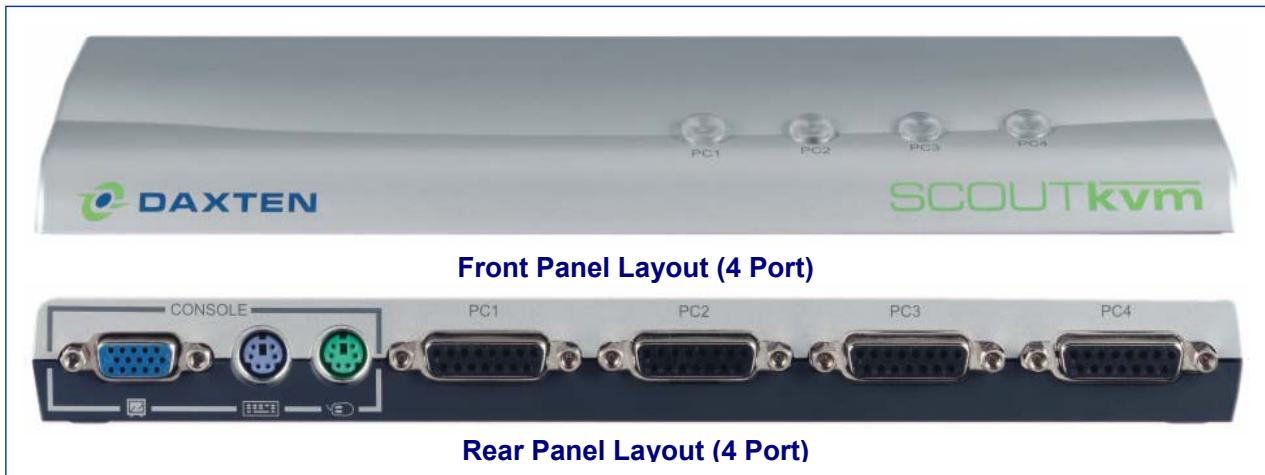
| Console Connectors | Mini Din 6 (keyboard, mouse), HD 15 (monitor) |
| PC Connectors | D-Sub 15 pin female (KVM combo) |
| Controls | Front selection buttons, keyboard shortcuts (Ctrl+Ctrl) |
| Functions | Keyboard/mouse emulation, Auto-Scan, lock status storage |
| Operating Temperature | 0 to 40 °C |
| Operating Humidity | 0~80 % RH non-condensing |
| Warranty | 24 months |
| Compliance | CE (EN55022 Class B, EN50082-1, EN60555-2), FCC Part 15 Class B |
| Maintenance and Cleaning | Use a dry, soft cloth. Disconnect before cleaning. |
| Safety | Follow grounding instructions and do not plug in devices while powered on. |
| Spare Parts and Repairability | Contact Daxten or an authorized reseller for spare parts. |
Frequently Asked Questions - SCOUTKVM DAXTEN
User questions about SCOUTKVM DAXTEN
0 question about this device. Answer the ones you know or ask your own.
Ask a new question about this device
Download the instructions for your KVM switch in PDF format for free! Find your manual SCOUTKVM - DAXTEN and take your electronic device back in hand. On this page are published all the documents necessary for the use of your device. SCOUTKVM by DAXTEN.
USER MANUAL SCOUTKVM DAXTEN
1014-02K SCOUTkvm 2 Port Switch including 1.8m (6ft) cables
1014-04K SCOUTkvm 4 Port Switch including 1.8m (6ft) cables
2095-02P SCOUTkvm PS/2 cable 1.8m (6ft)
2095-03P SCOUTkvm PS/2 cable 3.0m (10ft)
2095-05P SCOUTkvm PS/2 cable 5.0m (15ft)
2095-07P SCOUTkvm PS/2 cable 7.5m (25ft)
2095-10P SCOUTkvm PS/2 cable 10m (30ft)
2141-01U PS/2 to USB adapter
9014-00A Optional Power Supply 5V DC
Physical Properties
| Height | Width | Depth | Unit Weight | Kit Weight | |
| SCOUTkvm 2 port | 2.5cm / 0.98” | 15.7cm / 6.18” | 6.0cm / 2.36” | 0.15 kg | 1.25 kg |
| SCOUTkvm 4 port | 2.5cm / 0.98” | 24.2cm / 9.35” | 7.8cm / 3.07” | 0.30 kg | 2.25 kg |
Operation and Storage parameters
Operating Temperature: 0 40^ C (32 to 104^ F )
Storage Temperature: -20~60°C (-4 to 140°F)
Humidity: 0~80% RH non-condensing
Connections
Keyboard: Mini Din 6 pin Female
Mouse: Mini Din 6 pin Female
Monitor: HD 15 pin Female
PC: All in one D-Sub 15 pin Female (Keyboard, Video and Mouse)
NOTE: This equipment complies with the requirements of European EMC directive 89/336 EEC in respect of EN55022 Class B, EN 50082-1 and EN 60555-2.
This equipment has been found to comply with the limits for a Class B digital device, pursuant to Part 15 of the FCC Rules. These limits are designed to provide reasonable protection against harmful interference when the equipment is operated in a commercial environment. This equipment generates, uses, and can radiate radio frequency energy and, if not installed and used in accordance with the instruction manual, may cause harmful interference to radio communications. Operation of this equipment in a residential area is likely to cause harmful interference in which case the user will be required to correct the interference at his own expense.
Copyright 2003. All rights reserved.
Daxten, the Daxten logo, SCOUTkvm and The Brains Behind KVM Switching and Sharing are trademarks of Daxten Industries.
All other trademarks acknowledged.
Revision 1.4

SCOUTkvm
Introduction
Thank you for purchasing the SCOUTkvm Switch. This product will ensure easy and accurate control over 2 - 4 PCs through a single console. The SCOUTkvm is compatible with PS/2 and USB* style computers. It has keyboard and mouse emulation for error free boot-ups and supports a wide variety of mice including the Microsoft Intellimouse. The SCOUTkvm supports high resolutions of up to 1920 x 1440 without any deterioration of the image quality. Switching between PCs can be accomplished in two ways: through keyboard Hot Key commands or by using the convenient front panel PC selection buttons.
*Optional adapter required for USB
Product Features
Allows a user to control 2 - 4 computers from one console.
Works with Windows 95/98/2000/ME/NT/XP and Linux.
No drivers or additional software are required for operation.
No external power supply required.
Keyboard and mouse emulation allows for error free boot-up.
The [CAPS LOCK], [SCROLL LOCK] and [NUM LOCK] status is stored for each computer.
Supports Monitor resolutions of up to 1920 x 1440 @ 85Hz.
Supports VGA, SVGA and MultiSync monitors.
Select Push-button or keyboard Hot Key control.
Comes with Auto-Scan mode for convenient automatic switching.
Front panel status LEDs give a clear indication of the active PC.
Hardware Installation
Installation
Before connecting your computers and console devices to the SCOUTkvm switch, please ensure that all devices are powered off. Connecting devices while powered on may lead to damage to your computers or the SCOUTkvm. Daxten cannot be held responsible for damage caused by connecting devices that are powered.
- Place the SCOUTkvm switch in a convenient location; its small size makes it easy to place it on the desktop.
- Connecting the console devices:
2.1. Connect your monitor's HD 15-pin connector to the SCOUTkvm's Monitor 'CONSOLE' device on the rear panel.
2.2. Connect your PS/2 keyboard to the PS/2 keyboard connector (purple) and your PS/2 mouse to the PS/2 mouse connector (green) on the rear panel of the SCOUTkvm.
- Connecting the computers with PS/2 ports via the SCOUT KVM cable:
3.1. Connect the DB 15-pin male connector to the next free PC port on the rear panel of the SCOUTkvm (labelled PC1, PC2...).
3.2. Connect the blue HD 15-pin male connector to the VGA port on your computer.
3.3. Connect the purple PS/2 (6-pin MiniDIN) keyboard connector to the PS/2 keyboard port on your computer. NOTE: for USB ports, please see Step 4
3.4. Connect the green PS/2 (6-pin MiniDIN) mouse connector to the PS/2 mouse port on your computer. NOTE: for USB ports, please see Step 4
- Connecting the computers with USB ports via the SCOUT KVM cable:
4.1. Connect the DB 15-pin male connector to the next free PC port on the rear panel of the SCOUTkvm (labelled PC1, PC2...).
4.2. Connect the blue HD 15-pin male connector to the VGA port on your computer.
4.3. Connect the PS/2 keyboard connector (purple) to the Daxten PS/2 to USB adaptor.
4.4. Connect the PS/2 mouse connector (green) to the Daxten PS/2 to USB adaptor.
4.5. Connect the USB connector to a USB port on your computer.
- Power up the computers. The computer connected to the first port will be shown on the monitor. You may check if the keyboard and mouse work after the system has booted up. If this is OK, use the Select button to select the following computers to verify keyboard and mouse functionality. If you find that the keyboard or mouse are not working correctly please verify that all cables are properly connected.
Using the SCOUTkvm
The SCOUTkvm provides two possibilities to select the desired computer. You may use either the Select button on the unit, or make use of the keyboard Hot Key commands.
You may notice that the mouse cannot be used for around 2 seconds when the SCOUTkvm switches to another computer. This is normal and is caused by the synchronization process which ensures that the mouse operates correctly.
Selection buttons
2 Port: Pressing the Select button on the front panel cycles through computers 1 ~ 2.
4 Port: Pressing the individual PC buttons will switch the signal to the desired computer.
Keyboard Hot Key commands
To send Hot Key commands to the SCOUTkvm switch, press and release Ctrl Ctrl within 2 seconds. Press a command key for the desired effect. The following commands are supported:
| First Key | Second Key | Command Key | Command Result |
| Ctrl | Ctrl | 1, 2, 3 or 4 | Switches to the desired PC |
| Ctrl | Ctrl | ↑ | Switch to previous PC |
| Ctrl | Ctrl | ↓ | Switch to next PC |
| Ctrl | Ctrl | S | Auto-Scan mode ON |
| Ctrl | Ctrl | 0 | Auto-Scan mode OFF |
| Ctrl | Ctrl | S 0 | Scan 8 Seconds (default) |
| Ctrl | Ctrl | S 1 | Scan 15 Seconds |
| Ctrl | Ctrl | S 2 | Scan 30 Seconds |
| Ctrl | Ctrl | S 3 | Scan 60 Seconds |
In Auto-Scan mode, the image shown on the monitor will automatically switch to the next computer. The delay is user definable (see Table above). After the last computer has been shown, the first computer will be shown again.
Note: In this mode there is no mouse or keyboard control.
Press any key to exit the Auto-Scan mode. The SCOUTkvm switch will stop at the last PC shown.
The Hot Key sequence can be changed if required. To change from the factory default of Ctrl, please use the following sequence:
[OLD HOT KEY] [NEW HOT KEY]
for example: Ctrl Ctrl Scroll Lock Scroll Lock
New Hot Key: Scroll Lock Scroll Lock
The following combinations are available for Hot Keys:
Ctrl Ctrl (default) Alt Alt Scroll Lock Scroll Lock Shift Shift
Factory Reset
On the side of the SCOUTkvm there is a reset button, which will return all settings to the factory default.
Optional Power Supply
The optional Power Supply is only required on the rare instance where a PC does not provide the SCOUTkvm switch with enough power through the keyboard and mouse port. If you require an external power supply, please contact Daxten or an authorised reseller.
Technical Support
If you cannot determine the nature of a problem, please call Daxten and ask for Technical Support. If possible, call from a phone located near the unit, as we may be able to solve your problem directly over the phone. If we cannot solve your problem, and determine that the fault is in the unit, we will issue a Return Material Authorisation (RMA) number that must appear on the outside of all returned products. The unit should be double-packed in the original container, insured, and shipped to the address given to you by our Technical Support representative. The Technical Support offices are found on the back of this manual.
Limited Warranty
Daxten warrants to the end user that this product is and will be free from defects in materials and workmanship for a period of 24 months from the date of purchase. If during the warranty period the product should fail, the purchaser must promptly call Daxten for a RETURN MATERIALS AUTHORIZATION (RMA) number. Make sure that the RMA number appears on the packing slip, proof of purchase, AND ON THE OUTSIDE OF EACH SHIPPING CARTON. Unauthorized returns or collect shipments will be refused.
Ship prepaid to the Daxten office (see back page) where you purchased your product. The above limited warranty is voided by occurrence of any of the following events, upon which the product is provided as is, with all faults, and with all disclaimers of warranty identified below:
- If non-Daxten approved power supply or cabling is attached to the product.
- If defect or malfunction was caused by abuse, mishandling, unauthorized repair, or use other than intended.
- If unauthorized modifications were made to product.
- If unreported damages occurred in any shipment of the product.
- If damages were due to or caused by equipment or software not provided by Daxten.
- If the product is used with non-grounded or incorrectly polarized AC power.
- If the product is used in contradiction to any instruction provided by any User Guide or Instruction Sheet provided to you or with the product.
EXCEPT AS SPECIFICALLY PROVIDED ABOVE AND TO THE MAXIMUM EXTENT ALLOWED BY LAW, DAXTEN DISCLAIMS ALL WARRANTYES AND CONDITIONS WHETHER EXPRESS, IMPLIED, OR STATUTORY AS TO ANY MATTER WHATSOEVER INCLUDING, WITHOUT LIMITATION, TITLE, NON-INFRINGEMENT, CONDITION, MERCHANTABILITY OR FITNESS FOR ANY PARTICULAR OR INTENDED PURPOSE.
EXCEPT AS EXPRESSLY PROVIDED ABOVE AND TO THE MAXIMUM EXTENT ALLOWED BY LAW, DAXTEN SHALL NOT BE LIABLE FOR ANY SPECIAL, INDIRECT OR CONSEQUENTIAL DAMAGES (INCLUDING WITHOUT LIMITATION, LOSS OF PROFIT, LOSS OF BUSINESS, LOSS OF INFORMATION, FINANCIAL LOSS, PERSONAL INJURY, LOSS OF PRIVACY OR NEGLIGENCE) WHICH MAY BE CAUSED BY OR RELATED TO, DIRECTLY OR INDIRECTLY, THE USE OF A PRODUCT OR SERVICE, THE INABILITY TO USE A PRODUCT OR SERVICE, INADEQUACY OF A PRODUCT OR SERVICE FOR ANY PURPOSE OR USE THEREOF OR BY ANY DEFECT OR DEFICIENCY THEREIN EVEN IF DAXTEN OR AN AUTHORIZED DAXTEN DEALER HAS BEEN ADVISED OF THE POSSIBILITY OF SUCH DAMAGES OR LOSSES.
Waste Electrical and Electronic Equipment (WEEE)

Within the European this symbol indicates that this product should not be disposed in household waste. It should be deposited at an appropriate facility to enable recovery and recycling. For information on how to recycle this product, please check with the reseller of the product that replaces this product "Take Back" or the original seller of this product.

DAXTEN®
THE BRAINS BEHIND
KVM SWITCHING & SHARING
www.daxten.com
Ireland
Bay 21
Free Zone West
Shannon, Co. Clare
info.ie@daxten.com
www.daxten.ie
Tel: +353 (0) 61 23 4000
Fax: +353 (0) 61 23 4099
Österreich
Kunstlergasse 11/4
A-1150 Wien
info.at@daxten.com
www.daxten.at
Tel: +43 (0)1 879 77 65
Fax: +43 (0)1 879 77 65 30

Espana
C/Florian Rey, 8
50002 Zaragoza
info.es@daxten.com
www.daxten.com.es
Tel: +34 902 197 662
Fax: +34 976 201 633
USA
811 W. Evergreen Ave
Suite 302A
Chicago, IL 60622
info.us@daxten.com
www.daxten.us
Tel: +1 312 475 0795
Fax: +1 312 475 0797
Deutschland
Salzufer 16, Geb. B
10587 Berlin
info.de@daxten.com
www.daxten.de
Tel: +49 (0) 30 8595 37-0
Fax: +49 (0) 30 8595 37-99

Sweden
info.se@daxten.com
www.daxten.se

Denmark
info.dk@daxten.com
www.daxten.dk

United Kingdom
5 Manhattan Business Park
Westgate
London W5 1UP
info.uk@daxten.com
www.daxten.co.uk
Tel: +44 (0) 20 8991 6200
Fax: +44 (0) 20 8991 6299
Schweiz
Seebahnstr. 231
8004 Zurich
info.ch@daxten.com
www.daxten.ch
Tel: +41 (0) 43243 32 11
Fax: +41 (0) 432433216

France
B.P 04-77
Route de Cheptainville
91630 Marolles-en-Hurepoix
info.fr@daxten.com
www.daxten.fr
Tel: +33 (0)1 64 56 09 33
Fax: +33 (0)1 69 14 88 34
