
RACKACCESS 8I - Computer Equipment DAXTEN - Free user manual and instructions
Find the device manual for free RACKACCESS 8I DAXTEN in PDF.


| Product Type | 1U rack console with integrated 8-port KVM switch |
| Brand | DAXTEN |
| Model | RACKACCESS 8I (15" TFT) |
| Dimensions (W x D x H) | 48.26 x 51.51 x 4.32 cm (19 x 20.28 x 1.7 inches) |
| Weight | 13 kg (28.6 lb) |
| Display | 15" active matrix TFT, resolution 1024x768, pixel pitch 0.297 mm, viewing angles 160° H / 160° V |
| Keyboard | 88 keys + 17-key numeric keypad, travel 3 mm, force 60 g, lifetime 10 million keystrokes |
| Touchpad | Industrial standard, two buttons, lifetime > 1 million cycles |
| Power supply | 110-240 VAC (auto-detection), 48-62 Hz, power consumption 35 W max (on), 1 W (standby) |
| PC Connectors | RJ45 all-in-one (keyboard, video, mouse) |
| Update Connector | RJ11 |
| Power Connector | IEC female |
| Included CPU Adapters | PS/2, USB, SUN |
| Main Features | Integrated 8-port KVM switch, hotkey and OSD control, programmable scan, firmware update via serial cable, max distance 10 m with CAT5 cable |
| Supported Operating Systems | DOS, Windows (9X, NT4, 2000, XP, 2003), Linux, UNIX, QNX, SGI, FreeBSD, BeOS, Open VMS, Novell, Alpha UNIX, HP UX, SUN |
| Operating Temperature | 0 to 40 °C (32 to 104 °F) |
| Operating Humidity | 10 to 85 % RH non-condensing |
| Certifications | FCC-A, CE, EPA Energy Star, VESA DPMS, MRP-II |
| Warranty | 24 months |
| Maintenance and Cleaning | Use a soft, dry cloth. Do not use abrasive or liquid products. |
| Security | OSD password protection (3 levels), configurable auto-off after inactivity |
| Spare Parts and Repairability | CPU adapters available separately (PS/2, USB, SUN) and flash update cable. For repairs, contact Daxten technical support. |
Frequently Asked Questions - RACKACCESS 8I DAXTEN
User questions about RACKACCESS 8I DAXTEN
0 question about this device. Answer the ones you know or ask your own.
Ask a new question about this device
Download the instructions for your Computer Equipment in PDF format for free! Find your manual RACKACCESS 8I - DAXTEN and take your electronic device back in hand. On this page are published all the documents necessary for the use of your device. RACKACCESS 8I by DAXTEN.
USER MANUAL RACKACCESS 8I DAXTEN
| 2364-01P | SCOUTup CPU Adaptor PS/2 |
| 2364-01U | SCOUTup CPU Adaptor USB |
| 2364-01S | SCOUTup CPU Adaptor SUN |
| 2364-00A | SCOUTup Flash upgrade Cable |
Physical Properties
| RackAccess 15” TFT Display | 4.32cm / 1.7” | 48.26cm / 19” | 51.51cm / 20.28” | 13kg / 28.6lb |
| RackAccess 17” TFT Display | 4.32cm / 1.7” | 48.26cm / 19” | 56.59cm / 22.28” | 15kg / 33.0lb |
| RackAccess 19” TFT Display | 4.32cm / 1.7” | 48.26cm / 19” | 56.59cm / 22.28” | 15kg / 33.0lb |
Operation and
Storage parameters
| Operating | 0 ~ 40°C | 0 ~ 40°C | 0 ~ 40°C |
| Temperature: | 32 ~104°F | 32 ~104°F | 32 ~104°F |
| Humidity: | 10~85% RH non-condensing | 10~85% RH non-condensing | 10~85% RH non-condensing |
| Storage Temperature: | -20 ~ 60°C | -20 ~ 60°C | -20 ~ 60°C |
| - 4 ~140°F | - 4 ~140°F | - 4 ~140°F | |
| Humidity: | 10~95% RH non-condensing | 10~95% RH non-condensing | 10~95% RH non-condensing |
Connections
| PC: | All in one RJ45 Socket (Keyboard, Video and Mouse) |
| Upgrade | RJ11 Socket |
| Power | IEC Female connector |
| Monitor | 15” TFT Display | 17” TFT Display | 19” TFT Display |
| Display Area: | 30.4 x 22.8 cm | 33.7 x 27.0 cm | 37.6 x 30.10 cm |
| 12 x 9" | 13.7 x 10.64" | 14.8 x 11.8" | |
| Scan frequency horizontal: | 31.47K to 68KHz | 31.47K to 68KHz | 31.47K to 68KHz |
| Scan frequency vertical: | 60Hz to 85Hz | 60Hz to 75Hz | 60Hz to 75Hz |
| Viewing Angle: | 160° Horizontal, | 140° Horizontal, | 140° Horizontal, |
| 160° Vertical | 110° Vertical | 135° Vertical | |
| Pixels: | 1024 x 768 | 1280 x 1024 | 1280 x 1024 |
| Pixel pitch: | 0.297 x 0.297 mm | 0.264 x 0.264 mm | 0.294 x 0.294 mm |
| Picture tube: | 15" TFT Active | 17" TFT Active | 19" TFT Active |
| Matrix | Matrix | Matrix | |
| Video: | Analog | Analog | Analog |
| RGB 7Vp-p/75Ω | RGB 0.7 Vp-p/75Ω | RGB 0.7 Vp-p/75Ω | |
| Sync: | Separate | Separate | Separate |
| Display Data Channel Compatibility | DDC 2B | DDC 2B | DDC 2B |
Keyboard
Keys 88 key keyboard & 17 key numeric keypad
Travel 3mm / 0.11"
Typing force 60g ± 20g / 2.11oz ± 0.70oz
Life cycle 10 million key presses
Touchpad
Compatibility Industrial standard
Mouse button Two key buttons
Life cycle >1 million cycles
Operations
User Controls: On/Off Power Button Contrast, Brightness, Display Quality, OSD adjustment
On Screen Display Auto-Adjustment
Adjustment Contrast, Balance
Phase, Pixel clock
TXT/GFX Selection
Colour temperature & brightness
Control type Digital
Operating Systems DOS, Windows (9X, NT4, 2000, XP, 2003 Server) LINUX, UNIX, QNX, SGI, FreeBSD, BeOS, Open VMS, Novell, Alpha UNIX, HP UX, SUN
Transmission distance Up to 10m (33ft)
Power
Input 110-240 VAC (auto sensing) 48-62Hz
Consumption 35 Watts maximum (On) on 15" RackAccess
45 Watts maximum (On) on 17" RackAccess
50 Watts maximum (On) on 19" RackAccess
1 Watt Power Saving Mode (Off)
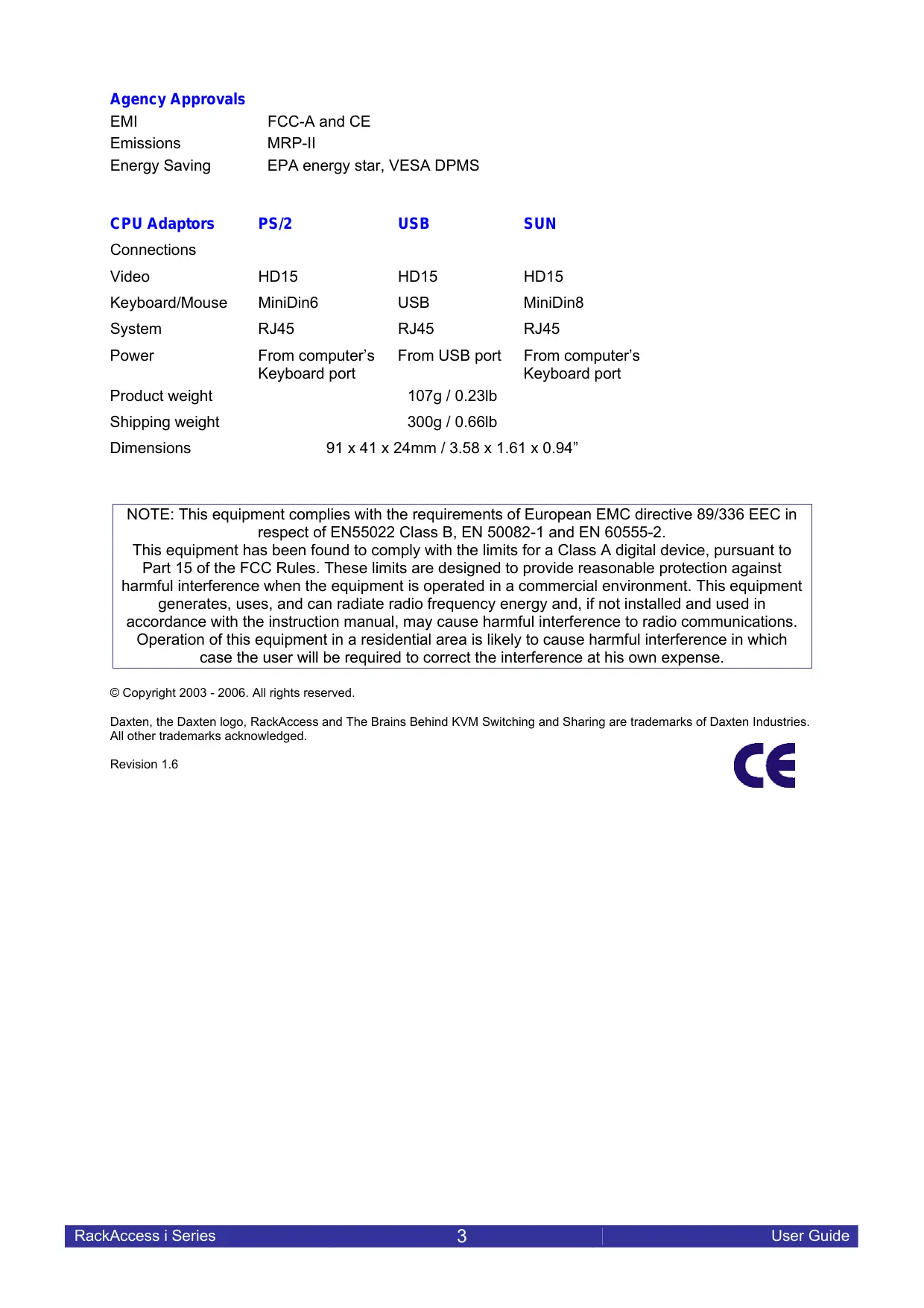
Agency Approvals
| EMI | FCC-A and CE |
| Emissions | MRP-II |
| Energy Saving | EPA energy star, VESA DPMS |
| CPU Adaptors | PS/2 | USB | SUN |
| Connections | |||
| Video | HD15 | HD15 | HD15 |
| Keyboard/Mouse | MiniDin6 | USB | MiniDin8 |
| System | RJ45 | RJ45 | RJ45 |
| Power | From computer's Keyboard port | From USB port | From computer's Keyboard port |
| Product weight | 107g / 0.23lb | ||
| Shipping weight | 300g / 0.66lb | ||
| Dimensions | 91 x 41 x 24mm / 3.58 x 1.61 x 0.94" | ||
NOTE: This equipment complies with the requirements of European EMC directive 89/336 EEC in respect of EN55022 Class B, EN 50082-1 and EN 60555-2.
This equipment has been found to comply with the limits for a Class A digital device, pursuant to Part 15 of the FCC Rules. These limits are designed to provide reasonable protection against harmful interference when the equipment is operated in a commercial environment. This equipment generates, uses, and can radiate radio frequency energy and, if not installed and used in accordance with the instruction manual, may cause harmful interference to radio communications. Operation of this equipment in a residential area is likely to cause harmful interference in which case the user will be required to correct the interference at his own expense.
Copyright 2003 - 2006. All rights reserved.
Daxten, the Daxten logo, RackAccess and The Brains Behind KVM Switching and Sharing are trademarks of Daxten Industries. All other trademarks acknowledged.
Revision 1.6

RackAccess 8i & RackAccess 16i
Introduction
The RackAccess 8i and 16i are compact 1U high rack mountable TFT Screen, keyboard and mouse, with integrated kvm switch (SCOUTup). Available in 3 screen sizes 15", 17" and 19"
Product Features
Integrated SCOUTup 8 or 16 port KVM switch.
Available with integrated IP control (SCOUTip).
Operating system independent, transparent to all applications.
Supports PS/2, USB and SUN computers through an adapter for each platform.
Hot key controls (Switch channels using the pop up menu)
Programmable scan mode for automatic sequencing between PCs
Configure channels and access privileges with easy menus and help screens
Assign names to individual PCs
Flash upgradeable
Distance between console and computer can be up to 10m with simple CAT5 cabling
Plug and play system configuration.
LCD panel size: 15", 17" or 19" depending on model.
Keyboard layouts in English UK and US, German, French, Spanish, Swiss, Dutch, Danish, Russian, Swedish and Norwegian
High VGA resolution 1024x768 on the 15" model, 1280x1024 on the 17" and 19" models.
88key keyboard + 17key numeric keypad
Standard 19" Rack mounting accessories
High Video Quality
The RackAccess built in TFT LCD monitor supports resolution up to 1024x768 (15") or 1280x1024 (17" & 19"), a colour depth to 16M (dithering), and includes automatic adjustments to easily configure your LCD settings for optimum video quality.
LCD monitor's OSD operation
Control Functions
The Monitor control functions are located right to the screen.
The control key description
- MENU


Activate the on screen display function
Increase / Decrease - Contrast control
Up / Down - Menu Access
Power Switch
Description
5. Menu
Press the Menu button to activate the on screen display screen. It is a toggle key, switching the OSD on and off. Press twice to turn off the OSD. The OSD screen will automatically turn off after 10 seconds idle time.
6. +&— Select keys / Brightness Control keys
The two keys have two sets of functions:
When OSD screen is not activated, the two keys are used to adjust the brightness
When OSD screen is activated, the two keys are used to select the required adjustment items
7. Power switch
Use the power switch to turn ON or OFF power. We recommend turning your system on first, then the LCD monitor.
Adjusting the Monitor
The LCD monitor is designed to work with a range of compatible video adapters on the market. Due to all the possible variations between these video adapters, you may need to adjust the settings for your video card.
Adjustment Procedure
First, you must activate the OSD screen through pressing the MENU key, the OSD menu will show in the centre of screen as below
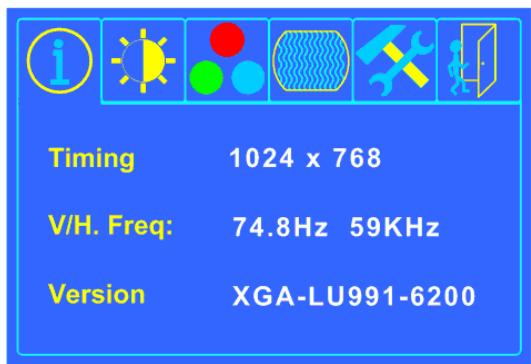
Figure 1 - The OSD Screen
Pressing the OSD Menu button causes the OSD menu screen to appear.
- Use the + & - keys to select desired group of options.
- Use key for sub menus or select item to change.
- Use the + & - keys to change the value.
- Use to go back one level
Press the Menu button to exit the OSD

Display current timing information

Brightness and Contrast Adjustment

Adjusts the Brightness value

Adjusts the Contrast value (Valid only when your colour temperature is set to user mode)

Return to the previous Menu

Colour Temperature Adjustment

Enables or disables the sRGB values


Display Quality Adjustment
Auto Adjust - use this option to apply setting automatically


User Mode: Changes the RGB colour values
Execute the white balance function

Change Red gain for the colour temperature

Change Green gain for the colour temperature

Change Blue gain for the colour temperature

Return to the previous Menu
6500K
Sets the colour temperature to 6500K
9300K
Sets the colour temperature to 9300K

Return to the previous Menu

OSD Adjustment

Restores settings to factory default values

OSD parameter setting

Sets the OSD timer

Moves the OSD menu horizontally

Moves the OSD menu vertically

Return to the previous Menu

Exit the OSD screen
Notes:
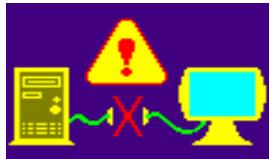
Out of Range
When the monitor is ON and there is no video signal received, the following message will be displayed
When the frequency range of the signal is out of the Monitor's specifications, (over 85Hz ) the will be displayed

Changes the viewable screen size

Adjusts phase tracking to reduce screen flicker

Moves the whole screen left or right

Moves the whole screen up or down

Return to the previous Menu

Set the graphic mode or text mode

Enable 720x400 text mode

Enable 640x400 graphic mode

Return to the previous Menu
Auto-Adjustment
We recommend that you use the Auto-Adjustment to get optimized video quality. Use the + & - key to select auto-adjustment, then press key to get optimized quality.
Introduction - Integrated SCOUTup Switch
The built in KVM switch (SCOUTutp) will ensure easy and accurate control of up to 16 PCs through a single console. The SCOUTutp is compatible with PS/2, USB and SUN style computers. It has keyboard and mouse emulation for error free boot-ups. Switching between PCs can be accomplished through keyboard Hot Key commands, or through the OSD (On-Screen-Display).
Installation
Before connecting your computers and console devices to the SCOUTup switch, please ensure that all devices are powered off.
- Connecting the computers with an UTP patch cable and a PS/2 adapter :
1.1. Connect the blue HD 15-pin male connector to the VGA port on your computer.
1.2. Connect the purple PS/2 (6-pin Mini DIN) keyboard connector to the PS/2 keyboard port on your computer.
1.3. Connect the green PS/2 (6-pin Mini DIN) mouse connector to the PS/2 mouse port on your computer.
1.4. Connect the UTP cable with the PS/2 adapter and the desired SCOUTup computer port.
- Connecting the computers with an UTP patch cable and a USB adapter:
2.1. Connect the blue HD 15-pin male connector to the VGA port on your computer.
2.2. Connect the USB connector to a USB port on your computer.
2.3. Connect the UTP cable with the USB adapter and the desired SCOUTup computer port.
- Connecting the computers with an UTP patch cable and a SUN adapter:
3.1. Connect the blue HD 15-pin male connector to the VGA port on your computer.
3.2. Connect the SUN connector to the keyboard & mouse port on your computer.
3.3. Connect the UTP cable with the SUN adapter and the desired SCOUTup computer port.
- Power up the RackAccess.
Using the SCOUTutp
Note: Before switching your computers on, please configure non PS/2 computers emulation type in the OSD!
The SCOUTup provides two possibilities to select the desired computer. You may use either the keyboard Hot Key commands or take advantage of the OSD (On-Screen-Display).
You may notice that the mouse cannot be used for around 1 second when the SCOUTup switches to another computer. This is normal and is caused by the synchronization process which ensures that the mouse operates correctly.
Keyboard Hot Key commands
To send Hot Key commands to the SCOUTup switch, press and release the Ctrl key twice within 2 seconds. Press a command key for the desired effect. The following commands are supported:


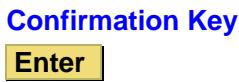
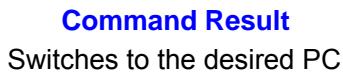
In Auto-Scan mode, the image shown on the monitor will automatically switch to the next computer. The delay is user definable
OSD (On-Screen-Display)
To access the OSD, press the Hot Key twice and the OSD window appears:
Lines with blue text show active computers, lines with grey text show inactive computers.
To navigate up and down use the UP and DOWN arrow keys.
To jump from one column to another (in Settings) use the Tab key.
| Port No. | Computer Name | No. | C = computer S = switch |
| 01 | SUN | 01 | C |
| 02 | PS/2 1 | 02 | C |
| 03 | SCOUT | 03 | S |
| 04 | SUN | 04 | C |
| 05 | PS/2 3 | 05 | C |
| 06 | USB | 06 | C |
| 07 | USB | 07 | C |
| 08 | PS/2 4 | 08 | C |
After you have selected a computer press Enter. A confirmation label appears showing which computer you accessed. To exit the OSD or return to a previous window within the OSD press ESC Note: When you use the OSD you can't use the keyboard Hot Keys at the same time.
OSD Settings
Press F2 and the setting window will appear.
When the OSD is password protected only the administrator has access to this window.
| OSD Settings |
| General |
| Ports |
| Time |
| Users |
| Security |
General Settings
Select General and press ENTER, the General Settings window will appear. From this window you can do the following:
Security
The OSD comes with an advanced password security system with 3 different security levels. Each security level has different access rights to the system and have are limited in number as shown below.
| General Settings |
| Security |
| Hotkey |
| Autoskip |
| Serial port |
| Keyboard language |
| Switch name |
1 x Administrator (Status A)
Set and modify all Passwords and security profiles
Fully access any computer
Access all OSD functions
1 x Supervisor (Status S)
Fully access any computer
Access the following OSD functions only - F4 Scan, F5 Tune and F6 Moving the Confirmation label.
6 x User (Status U)
Each User has a profile set by the Administrator that defines the access level to different computers.
Activating password protection
Only the Administrator can password-protect or disable the protection of the OSD as follows:
- Navigate to the Security line and press the Space Bar to toggle between On and Off.
- The password box appears. Type the Administrators password (default password is admin).
- Press Enter
Hot Key
Press the Hot Key and the OSD appears. To change the Hot Key to [Ctrl Ctrl] (CL on display), Ctrl, F11, Shift, Shift (SH on display) or Print Screen.
Press the Space Bar to toggle between the different options. Once selected, press the new Hot Key to display the OSD in the future.
Autoskip
To access only the active computer lines on the OSD you can use this feature.
To activate the Autoskip toggle between the options with the Space Bar.
Serial port
Serial port ON means the Control Management program can be used. To change the Serial port settings, navigate to the Serial port line and toggle between the options using Space Bar.
Keyboard language
The default is US English which can be changed to German (DE) or French (FR) as follows:
Navigate to the Keyboard language line and toggle between the options using the Space Bar.
Switch name
You can substitute up to 18 characters in the line. A space constitutes a character. Give each switch's OSD a different name.
Factory Default
To return to the factory default Settings you have to press F7 and all changes will be removed.
Ports
In the Settings window navigate to the Ports line and press ENTER. The Ports Settings window appears.
Name (Editing the computer name)
In this window you can edit the computer names with up to 15 characters.
To erase a character you have to select it and then press the Space Bar. Blank spaces remain in place of the character.
To erase an entire line place the cursor at the beginning of the line and press the space bar until the line is erased.
PORTS SETTINGS
| Name | KB | HKEY | ||
| 01 | COMPUTER | 01 | P S | N O |
| 02 | COMPUTER | 02 | U 1 | N O |
| 03 | SWITCH | 03 | P S | C L F 1 1 |
| 04 | COMPUTER | 04 | P S | N O |
| 05 | COMPUTER | 05 | U 2 | N O |
| 06 | COMPUTER | 06 | U 3 | N O |
| 07 | COMPUTER | 07 | P S | N O |
| 08 | COMPUTER | 08 | P S | N O |
(KB) Keyboard
The SCOUTutp operates with Windows, Linux, HP UX, Alpha UNIX SGI, DOS, Novell, MAC, USB or Open VMS. By default the keyboard mode is set to PS for Intel based computers.
For the other systems set the KB column as follows:
PS Standard keyboard, MAC and SUN
U1 for HP UX
U2 for Alpha UNIX, SGI, Open VMS
U3 IBM AIX
Adding/changing a Hot Key (HKEY)
If you cascade the SCOUTup by connecting another SCOUTup Switch to a computer port instead of a computer, you have to connect the utp cables to the new switch and you have to define the HOT KEYS for the new OSD. When you cascade these hotkeys must be different for the top and bottom layers.
To add/change a hotkey:
- On the line to which the Switch is connected, press Tab to jump to the HKEY column.
- Toggle between the options using the space bar.
Time Settings
In the Settings window navigate to the Time line and press ENTER. The Time Settings window appears
Scan (SCN) - Label (LBL) - Time out (T/O)
SCN - In the SCN column, changes the scan period.
LBL - In the LBL column, changes the display period of the OSD label showing which computer is currently accessed.
Time Settings
| NAME | SCN | LBL | T/0 | ||
| 01 | COMPUTER | 030 | 030 | 030 | |
| 02 | COMPUTER | 030 | 030 | 030 | |
| 03 | SWITCH | 030 | 030 | 030 | |
| 04 | COMPUTER | 030 | 030 | 030 | |
| 05 | COMPUTER | 030 | 030 | 030 | |
| 06 | COMPUTER | 030 | 030 | 030 | |
| 07 | COMPUTER | 030 | 030 | 030 | |
| 08 | COMPUTER | 030 | 030 | 030 |
T/O - When password protection is activated you can automatically disable the Management keyboard, mouse and screen after a preset time of non-use. Set this Timeout period in the T/O column.
To set the above periods:
- On the desired line press Tab to jump to the desired column.
- Place the cursor over one of the 3 digits and type a new number. Enter a leading zero where necessary. For example, type 0 for 40 seconds.
Typing 9 9 9 in the LBL column displays the label continuously. Typing 0 0 0 – the label will not appear.
Typing 9 9 9 in the T/O column disables the Timeout function. Typing 0 0 0 - the Timeout function works immediately. We recommend a T/O setting of at least 10 seconds.
Typing 9 9 9 in the SCN column displays the screen for 999 seconds. Typing 0 0 0 – the computer screen is skipped.
Users
In the Settings window navigate to the Users line and press Enter. The Users Settings window appears.
Turn on the Security feature (under OSD Settings) to configure any Users Settings.
There are 3 different access levels. These are: Y - Full access to a particular computer. Plus access to the F4, F5 and F6 OSD functions V -Viewing access only, to a particular computer (No keyboard/mouse functionality) N - No access to a particular computer - A TIMEOUT label appears if access is attempted
USERS SETTINGS
| USERS | ||||||||
| 1 | 2 | 3 | 4 | 5 | 6 | |||
| 0 1 | COMPUTER | 0 1 | Y | Y | Y | V | N | V |
| 0 2 | COMPUTER | 0 2 | V | V | Y | Y | N | V |
| 0 3 | SWITCH | 0 3 | Y | Y | Y | Y | Y | Y |
| 0 4 | COMPUTER | 0 4 | V | V | V | V | V | V |
| 0 5 | COMPUTER | 0 5 | N | N | Y | N | N | V |
| 0 6 | COMPUTER | 0 6 | V | V | N | N | N | V |
| 0 7 | COMPUTER | 0 7 | Y | Y | Y | Y | Y | Y |
| 0 8 | COMPUTER | 0 8 | Y | Y | Y | Y | Y | Y |
To give a user the desired access level, navigate to the desired computer line and USER and toggle between the options using the space bar.
Security
In the Settings window navigate to the Security line and press Enter. The Security Settings window appears.
In the window above you can see the Name of the User, his password and the type of the password.
To change a user name or password you have to navigate to the desired line and column. Type a new user name or password. User authentication is done solely via the password. There is no security significance to the names.
SECURITY SETTINGS
| NAME | password | T |
| ADMINISTRATOR | ADMIN | A |
| SUPERVISOR | S | S |
| USER | 1 | U |
| USER | 2 | U |
| USER | 3 | U |
| USER | 4 | U |
| USER | 5 | U |
| USER | 6 | U |
The OSD HELP window - F1
To access the HELP window press F1. The HELP window appears: Please note! All the functions set out in the Help window are performed from the Main window. The Help window is merely a reminder of the hotkeys and their functions.
Scanning computers-F4
Where necessary adjust the scan time in the Time Settings window, see above.
To activate scanning:
Press the Hot Key twice to open the OSD.
Press F4. Your screen displays each active computer sequentially, with the Scan label appearing in the top left corner.
Press F4 to deactivate scanning:
Tuning - F5
You can tune the image of any remote computer screen from the Select Computer window.
To adjust the screen image:
Navigate to the remote computer you wish to adjust.
Press F5 . The screen image of the selected computer appears, together with the Image Tuning label.
Adjust the image by using the Right and Left Arrow keys, when the image is satisfactory, press Esc
Note! Picture quality is relative to distance. The further away a remote computer is from the SCOUTup, the lower the image quality, and the more tuning needed. Place the higher resolution computers closer to the main unit.
Moving the label - F6
Position the OSD label anywhere on the screen.
To position the OSD label from the Main window, navigate to the desired computer using the Up and Down arrow keys. Press F6. The selected screen image and Identification label will appear. Use the arrow keys to move the label to the desired position. Press Esc to save and exit.
Using the Control software
As an alternative to the OSD you can operate the SCOUTup system with the Control software located on the Documentation CD. With the OSD you operate the system and view the computer screens on the same monitor. The Control software requires 2 monitors 1 for the software and 1 to view the computer screens.
With the Control software you can:
-View computers
-Edit OSD Settings
-Save configurations for future use
-Read and write configurations to the SCOUTup Switch
Control software system requirements
Pentium 166 or higher computer, 16Mb RAM, Windows 98 and later, a free Serial port
Connecting the serial download cable
To run the software, connect the serial cable to the computer containing the software, and to the SCOUTutp.
Note! The system must be fully connected BEFORE running the Control software. Failure to connect the system first will lead to the software working in demo mode.
To install the software:
Insert and start the Documentation CD.
Choose SCOUTup RS232 Control. The SCOUTup RS232 Control window appears.
Choose Install SCOUTutp Control Software. Once installed, a shortcut icon appears on the Desktop.
Double-click the icon to run the software. Or choose Start / Programs / SCOUTutp Control / SCOUTutp Control.
To run the software from the CD:
Choose Run SCOUTup switch Control Software from CD.
If the Security feature is activated, the software requires a password.
Selecting a Com port (Serial port)
During the Setup process you will be prompted to choose a Com port. Choose the Com port to which the serial download cable is connected. Failure to select the correct Com port will result in the software running in demo mode. Once Setup is complete the Control window appears.
Computer icons
| Icon | Meaning |
| Computer is connected and switched on | |
| Computer is switched off or unconnected |
| Icon | Meaning |
| Computer that you are presently connected to | |
| Connected and switched on computer with a Local Workstation attached and presently being used locally. After remaining idle for the Timeout period, it changes to yellow. |
When you first open the Control window the software automatically gets the status of the system, including the security access Settings.
Communication Error
If a Communication Error box appears when trying to scan the system, check that: The Serial download cable is connected to the computer's and SCOUTup IP Manager's serial ports. The Com Port Settings in Options / Com Port are set correctly. After changing the Com port exit and re-start the Control software.
The View menu
From the View menu choose one of the following:
-All computers, or only active switched on computers.
-The Legend
-The toolbar
Selecting a computer
To select a computer: Click on the computers icon. The system switches to that computer. The connected icon appears with a red background. Control and monitor the selected computer from the keyboard and mouse connected to the SCOUTutp.
The toolbar buttons
The toolbar buttons are explained below.
Get Status
If for whatever reason there is a break in communication between the Control software and the system, click "Get Status" to get the current status of the computers in system. The system automatically updates the status before every switch.
Read Configuration
To see the current Settings of the entire system (names, scan Settings etc.) click "Read Configuration". All current Settings are received. You view the computer Settings from the Control window and other Settings from the Edit menu - discussed below.
Write Configuration
With the Control software you can make changes to all OSD Settings. You can then save these configurations in a file to use in the future by selecting Save or Save As from the File menu.
Note! Save or Save As, will have no affect on the OSD.
To change the OSD Settings you must press "Write Configuration" or choose Write Configuration from the File menu after making changes. The changes will then be sent to the SCOUTup system Manager, and the OSD will reflect these changes.
Renaming a computer
To rename a computer:
Type the new name in the box below the computer icon.
Click "Write Configuration" to save the settings on the OSD.
Or click Save or Save As, from the File menu to save the changes in a file and not alter the OSD names.
The Edit menu
You can edit all OSD fields. Edit the following from the Edit menu.
Logon
Passwords
Settings
Password protection
When the SCOUTup system is password protected, the Control software behaves in exactly the same way as the OSD. You must type in the required password to access the Control software. The access you gain depends on the security status --.
To change the security access, close and reopen the Control software, and type in the different passwords.
Administrator (Status A)
The Administrator can:
Set and modify all Passwords and security profiles
Fully access any computer
Use all functions
Supervisor (Status S)
The Supervisor can:
Fully access any computer
Scan computers
User (Status U)
There are 6 different Users in the SCOUTup system. Each User has a Profile that defines the access level to different computers. There are 3 different access levels. These are:
Y-Full access to a particular computer
V-Viewing access only, to a particular computer (No keyboard/mouse functionality)
N - No access to a particular computer
By default the User Profile Settings are full access.
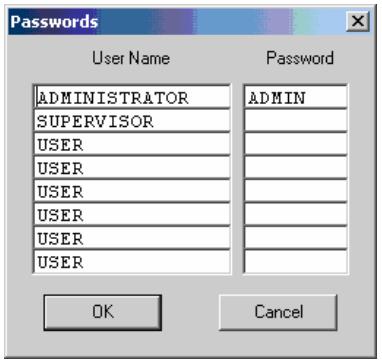
Logon and Passwords
You can make the following changes:
- Edit the Logon and Passwords by choosing them from the Edit menu. See figures below.
- Make the desired changes.
- Click OK.
Settings
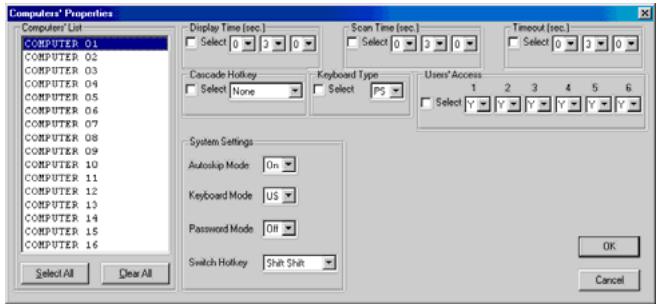
Choose Settings from the Edit menu. The Computers' Properties box appears.
Here you can edit all the data that can be edited in the OSD.
To edit a setting:
- In the Computer List, select the desired computer or group of computers.
- Make the desired changes.
- Check the Select box next to the changed setting.
- Click OK.
- To activate the changes press write configuration and then read configuration.
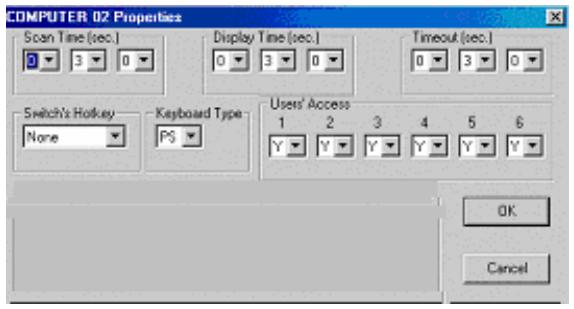
Single computer Settings
To see all the Settings of a single computer, right click the computer icon. The Settings appear as in the figure below.
Note! There is no Select box to check.
Loading a saved configuration
To load a saved configuration:
From the File menu choose Open.
Note: All changes done with the Control software are only reflected in the OSD AFTER pressing "Write Configuration"
The factory default Settings
To revert to the factory default Settings:
On the toolbar press "Set Default"
There is no need to press "Write Configuration".
Upgrading the SCOUTutp firmware
With the SCOUTutp Update software program you can upgrade the firmware for the OSD, the Manager and the Adaptors
SCOUTutp Update enables you to add new features and fix bugs in a quick and efficient manner.
You can install the SCOUTutp Switch Update on any computer, even one not part of the SCOUTutp system.
The SCOUTutp Update software and latest firmware is on the Documentation CD, and on the Daxten website www.daxten.com
System requirements for the SCOUTutp Update software
Pentium 166 or higher, 16 MB RAM and 10 MB free Hard Drive space.
Free Serial port. Windows 98 and later.
Starting and configuring the SCOUTutp Update
- Start the SCOUTutp Update software. The SCOUTutp Update window appears
The table shown explains the functions of the buttons and boxes in the SCOUTutp Switch Update window.
- From the Options menu choose Com Port. The Com Port box appears.
- Choose an available Com Port and click OK.
| Button or Box | Function |
| Select | Selects all Adaptors |
| Unselect | Unselects selected Adaptors |
| Start | Starts firmware download |
| F/W | Displays the firmware version number |
| H/W | Displays the hardware version number |
| Cancel | Cancels selected function |
| 10:06 | System time |
| Status | Displays download status |
| File | Name of Update file |
Note! The Serial download cable must be connected to the selected Serial port.
Verifying the version numbers
Before upgrading the firmware, you must first verify which firmware and hardware versions you have.
The OSD version number
To verify the OSD version number:
- Open the SCOUTutp Switch Update program.
- In the Switch Unit box, check the OSD option.
- Click F/W Version the version number appears in the Switch box.
The H/W Version button is greyed out, as there is no hardware relevant to the OSD.
The SCOUTutp Manager version number
To verify the SCOUTutp version number:
- Open the SCOUTup Switch Update program.
- In the Switch Unit box, check the SCOUTup Manager option.
- Click F/W Version the firmware version number appears in the Switch Unit box.
- Click H/W Version the hardware version number appears in the Switch Unit box.
Verifying the ADAPTOR version number
Before you can check a ADAPTOR, you must uncheck the Switch Unit box options.
To verify the ADAPTOR version number:
- Open the SCOUTutp Switch Update program.
- Check one or more or all of the Adaptors.
- Click F/W Version the firmware version number appears after the ADAPTOR number.
- Click H/W Version the hardware version number appears after the ADAPTOR number.
When "Not responding" appears, there is no computer connected, or it is switched off.
Updating the firmware
Warning! Never switch off any computer connected to the SCOUTup system during the updating process.
To update the firmware:
- Open the SCOUTup Switch Update program.
- In the SCOUTutp Switch Update window, check the appropriate option in the Switch Unit box or the desired ADAPTOR.
- From the File menu, choose Open. The Open box appears
- Navigate to the folder that contains the firmware update file. You may only see the files that match the file selection mask.
- Open the file.
- Click Start. The SCOUTup Switch Update flashes the firmware. On completion the firmware version number appears.
- Check that the updated version number is correct by pressing F/W Version
Firmware Update generates one log file per session that displays a chronological list of actions. You can read the log file in any ASCII text editor. The log file is located in the Windows directory.
Reset
Reset the software for the SCOUTup Manager or Adaptors when for example the unit hangs or when the mouse fails to work properly. Resetting is done via the Serial port, and avoids the need to shut down the computer.
Note! The Reset function does not affect the parameter settings of the unit.
Resetting the Switch or ADAPTOR units
To reset the Switch or ADAPTOR units:
- For the Switch, check the SCOUTup Switch option in the Switch Unit box.
- For the Adaptors, check one or more Adaptors in the ADAPTOR Units box.
- From the Options menu choose Advanced / Reset. The units reset. The system should now be operational.
Troubleshooting tips
When using Firmware Update software you may sometimes get a Communication Error message. When updating a unit and a Communication Error message appears, do the following:
- Check that the Serial download cable's connector is connected to the Switch's Communication port.
- Check that the Serial download cable's DB9F connector is connected to the DB9M Serial port on the CPU's rear panel.
- Restart the download process.
Power failure
If the power fails while updating the SCOUTutp firmware, do the following:
If the power fails during the firmware update of the Switch, a Communication Error message appears.
Simply resume the firmware update by opening the folder that contains the firmware update file and continue from there.
If the electricity fails during the firmware update of the cables a Not Responding or Upgrade Error message appears. Restart the upgrade from the beginning.
USB / SUN Combo keys
The connected PS/2 keyboard does not have a special SUN keypad to perform special functions in the SUN Operating System environment. So when a USB or SUN ADAPTOR is connected to a SUN computer, the ADAPTOR emulates these SUN keys using a set of key combinations called Combo keys. See the table below.
| SUN key | Combo key |
| Stop | Left Ctrl + Alt + F1 |
| Props | Left Ctrl + Alt + F3 |
| Front | Left Ctrl + Alt + F5 |
| Open | Left Ctrl + Alt + F7 |
| Find | Left Ctrl + Alt + F9 |
| Again | Left Ctrl + Alt + F2 |
| Undo | Left Ctrl + Alt + F4 |
| Copy | Left Ctrl + Alt + F6 |
| Paste | Left Ctrl + Alt + F8 |
| Cut | Left Ctrl + Alt + F10 |
| SUN key | Combo key |
| Help | Left Ctrl + Alt + F11 |
| Compose | Left Ctrl + Alt + Keypad * |
| Crescent | Scroll Lock |
| Volume Up | Left Ctrl + Alt + Keypad - |
| Volume Down | Left Ctrl + Alt + Keypad + |
| Mute | Left Ctrl + Alt + F12 |
| Sun Left ◆ key | Left key |
| Sun Right ◆ key | Right key |
| Alt-Graph | Right Alt or Alt Gr |
| Stop A | Left Ctrl + Alt + 1 |
USB / Mac Settings (On the USB ADAPTOR)
To access any of the following Special Settings:
- Install the USB ADAPTOR.
- Attach a PS/2 keyboard to Manager Unit or to Switch Unit
- Open a text-editing program (like Notepad or SimpleText)
- Hold down the Esc key, tap the S key, and release the Esc key.
- The USB-to-PS/2 conversion chip version and settings will be displayed: "v2.1[wp]" means you have version 2.1 and the "W" and "P" settings are active.
- Using Esc and the appropriate letter, you may change settings as desired and the new configuration will be displayed in the text editor.
NOTE: The USB ADAPTOR stores these settings in their own internal memory so even if you unplug, power down, or move them to another computer, the settings will not be lost.
The following table illustrates how the W and R settings change key assignments on a PS/2 keyboard.
Mac Equivalents
| Settings | PS/2 Keyboard Layout | |||
| Left key | Left Alt | Right Alt | Right key | |
| None (Mac default) | Alt/Option | Command | Command | Alt/Option |
| W (PC default) | Command | Alt/Option | Alt/Option | Command |
| WR | Alt/Option | Command | Alt/Option | Command |
| R | Command | Alt/Option | Command | Alt/Option |
More Special Settings
| Esc A | Resettes USB ADAPTOR to Mac default (QP). |
| Esc E | Stops the normal USB power-off feature. Set this if you want to use the attached mouse and keyboard to wake up the computer. After executing the [Esc E] command, unplug and re-plug the USB ADAPTOR from the USB port or restart your computer to make this Special Setting take effect. |
| Esc O | Resettes USB ADAPTOR to PC default (WP). |
| Esc P | Scandinavian “*” key code conversion changes the scan code for the <|> (pipe character) key. This affects UNIX workstations and some foreign keyboards. |
| Esc Q | Sets the mouse speed to a faster mode. |
| Esc T | Allows the operating system to control the “Num Lock” indicator. |
| Esc Y | Sets the <Scroll Lock> key as a USB scroll lock. (Default mode uses <Scroll Lock> as a Mac “Power off” key). |
Technical Support
If you cannot determine the nature of a problem, please call Daxten and ask for Technical Support. If possible, call from a phone located near the unit, as we may be able to solve your problem directly over the phone. If we cannot solve your problem, and determine that the fault is in the unit, we will issue a Return Material Authorisation (RMA) number that must appear on the outside of all returned products. The unit should be double-packed in the original container, insured, and shipped to the address given to you by our Technical Support representative. The Technical Support offices are found on the back of this manual.
Limited Warranty
Daxten warrants to the end user that this product is and will be free from defects in materials and workmanship for a period of 24 months from the date of purchase. If during the warranty period the product should fail, the purchaser must promptly call Daxten for a RETURN MATERIALS AUTHORIZATION (RMA) number. Make sure that the RMA number appears on the packing slip, proof of purchase, AND ON THE OUTSIDE OF EACH SHIPPING CARTON. Unauthorized returns or collect shipments will be refused.
Ship prepaid to the Daxten office (see back page) where you purchased your product. The above limited warranty is voided by occurrence of any of the following events, upon which the product is provided as is, with all faults, and with all disclaimers of warranty identified below:
- If non-Daxten approved power supply or cabling is attached to the product.
- If defect or malfunction was caused by abuse, mishandling, unauthorized repair, or use other than intended.
- If unauthorized modifications were made to product.
- If unreported damages occurred in any shipment of the product.
- If damages were due to or caused by equipment or software not provided by Daxten.
- If the product is used with non-grounded or incorrectly polarized AC power.
- If the product is used in contradiction to any instruction provided by any User Guide or Instruction Sheet provided to you or with the product.
EXCEPT AS SPECIFICALLY PROVIDED ABOVE AND TO THE MAXIMUM EXTENT ALLOWED BY LAW, DAXTEN DISCLAIMS ALL WARRANTYES AND CONDITIONS WHETHER EXPRESS, IMPLIED, OR STATUTORY AS TO ANY MATTER WHATSOEVER INCLUDING, WITHOUT LIMITATION, TITLE, NON-INFRINGEMENT, CONDITION, MERCHANTABILITY OR FITNESS FOR ANY PARTICULAR OR INTENDED PURPOSE.
EXCEPT AS EXPRESSLY PROVIDED ABOVE AND TO THE MAXIMUM EXTENT ALLOWED BY LAW, DAXTEN SHALL NOT BE LIABLE FOR ANY SPECIAL, INDIRECT OR CONSEQUENTIAL DAMAGES (INCLUDING WITHOUT LIMITATION, LOSS OF PROFIT, LOSS OF BUSINESS, LOSS OF INFORMATION, FINANCIAL LOSS, PERSONAL INJURY, LOSS OF PRIVACY OR NEGLIGENCE) WHICH MAY BE CAUSED BY OR RELATED TO, DIRECTLY OR INDIRECTLY, THE USE OF A PRODUCT OR SERVICE, THE INABILITY TO USE A PRODUCT OR SERVICE, INADEQUACY OF A PRODUCT OR SERVICE FOR ANY PURPOSE OR USE THEREOF OR BY ANY DEFECT OR DEFICIENCY THEREIN EVEN IF DAXTEN OR AN AUTHORIZED DAXTEN DEALER HAS BEEN ADVISED OF THE POSSIBILITY OF SUCH DAMAGES OR LOSSES.
Waste Electrical and Electronic Equipment (WEEE)

Within the European this symbol indicates that this product should not be disposed in household waste. It should be deposited at an appropriate facility to enable recovery and recycling. For information on how to recycle this product, please check with the reseller of the product that replaces this product "Take Back" or the original seller of this product.

DAXTEN®
THE BRAINS BEHIND
KVM SWITCHING & SHARING
www.daxten.com
Ireland
Bay 21
Free Zone West
Shannon, Co. Clare
info.ie@daxten.com
www.daxten.ie
Tel: +353 (0) 61 23 4000
Fax: +353 (0) 61 23 4099

Österreich
Kunstlergasse 11/4
A-1150 Wien
info.at@daxten.com
www.daxten.at
Tel: +43 (0)1 879 77 65
Fax: +43 (0)1 879 77 65 30
Espana
C/Florian Rey, 8
50002 Zaragoza
info.es@daxten.com
www.daxten.com.es
Tel: +34 902 197 662
Fax: +34 976 201 633
USA
811 W. Evergreen Ave
Suite 302A
Chicago, IL 60622
info.us@daxten.com
www.daxten.us
Tel: +1 312 475 0795
Fax: +1 312 475 0797
Deutschland
Salzufer 16, Geb. B
10587 Berlin
info.de@daxten.com
www.daxten.de
Tel: +49 (0) 30 8595 37-0
Fax: +49 (0) 30 8595 37-99

Sweden
info.se@daxten.com
www.daxten.se

Denmark
info.dk@daxten.com
www.daxten.dk

United Kingdom
5 Manhattan Business Park
Westgate
London W5 1UP
info.uk@daxten.com
www.daxten.co.uk
Tel: +44 (0) 20 8991 6200
Fax: +44 (0) 20 8991 6299
Schweiz
Seebahnstr. 231
8004 Zurich
info.ch@daxten.com
www.daxten.ch
Tel: +41 (0) 43 243 32 11
Fax: +41 (0) 43 243 32 16

France
B.P 04-77
Route de Cheptainville
91630 Marolles-en-Hurepoix
info.fr@daxten.com
www.daxten.fr
Tel: +33 (0)164560933
Fax: +33 (0)1 69 14 88 34
