
DOMINION KSX - User manual DAXTEN - Free user manual and instructions
Find the device manual for free DOMINION KSX DAXTEN in PDF.


| Product type | KVM switch with serial management and power control |
| Dimensions (W x D x H) | 43.4 x 26.7 x 4.4 cm (1U standard) |
| Weight | Approximately 3.5 kg |
| Power supply | 100-240 V AC, 50/60 Hz, power cable included |
| KVM ports | 4 or 8 ports depending on model (DKSX440, DKSX880) |
| RS-232 serial ports | 4 or 8 RJ45 ports |
| Network connectivity | Ethernet 10/100 Base-T, RJ45 port |
| Built-in modem | RJ11 for analog backup access |
| Main functions | Remote KVM access, serial console management, graphical power control, browser administration |
| Encryption | 128-bit SSL (authentication and data) |
| Supported video resolutions | 640x480 to 1280x1024, up to 85 Hz |
| Security protocols | RADIUS, SSL, security group |
| Power per port | Dedicated port for Raritan Remote Power Control unit |
| Local console | PS/2 keyboard port, PS/2 mouse port, VGA monitor (admin and access) |
| Client software | Raritan Remote Client (RRC) via browser or installation |
| Maintenance and cleaning | Clean with a soft, dry cloth. Unplug before cleaning. |
| Safety | FCC Class A compliant, Japanese VCCI certifications |
| Spare parts and repairability | Contact Raritan technical support. Cables and adapters available separately. |
| General information | Brand marketed under DAXTEN. Manufactured by Raritan Computer Inc. |
Frequently Asked Questions - DOMINION KSX DAXTEN
User questions about DOMINION KSX DAXTEN
0 question about this device. Answer the ones you know or ask your own.
Ask a new question about this device
Download the instructions for your User manual in PDF format for free! Find your manual DOMINION KSX - DAXTEN and take your electronic device back in hand. On this page are published all the documents necessary for the use of your device. DOMINION KSX by DAXTEN.
USER MANUAL DOMINION KSX DAXTEN
Raritan Computer Inc.
400 Cottontail Lane
Somerset, NJ 08873
USA
Tel. 1-732-764-8886
Fax. 1-732-764-8887
E-mail: sales@raritan.com
http://www.raritan.com/
Raritan Computer Japan, Inc.
4th Flr. Shinkawa NS Building
1-26-2 Shin-kawa, Chuo-ku
Tokyo 104-0033
Japan
Tel. 81-03-3523-5991
Fax. 81-03-3523-5992
E-mail: sales@raritan.co.jp
http://www.raritan.co.jp
Raritan Computer France
120 Rue Jean Jaures
93200 Levallois-Perret
France
Tel. 33-14-756-2039
Fax: 33-14-756-2061
E-mail: sales.france@raritan.com
http://www.raritan.fr
Raritan Computer U.K. Ltd.
36 Great St. Helen's
London
EC3A 6AP
http://www.raritan.com
Raritan Computer Europe, B.V.
Eglantierbaan 16
Raritan Computer Taiwan, Inc.
5F, 121, Lane 235
Pao-Chiao Rd., Hsin Tien
Taipei Hsien
Taiwan, ROC
Tel. 886-2-8919-1333
Fax. 886-2-8919-1338
E-mail: sales asia@raritan.com
http://www.raritan.com.tw
Copyright ©2004 Raritan Computer, Inc.
KSX-0D-E
February 2005
255-80-5020
Raritan Computer U.K. Ltd.
36 Great St. Helen's
London
EC3A 6AP
United Kingdom
Tel. 44 20 7614 7700
Fax. 44 20 7614 7701
E-mail: sales.uk@raritan.com
United Kingdom
Tel. 44 20 7614 7700
Fax. 44 20 7614 7701
E-mail: sales.uk@raritan.com
http://www.raritan.com
Shanghai Representative Office of Raritan Computer, Inc.
RM 19C-1 Shanghai Shiye Building
18 Caoxi North Road
Shanghai China 2000030
Tel. 86-21-64680475
Fax. 86-21-64627964
E-mail: sales.asia@raritan.com
This equipment has been tested and found to comply with the limits for a Class A digital device, pursuant to Part 15 of the FCC Rules. These limits are designed to provide reasonable protection against harmful interference in a commercial installation. This equipment generates, uses, and can radiate radio frequency energy and if not installed and used in accordance with the instructions, may cause harmful interference to radio communications. Operation of this equipment in a residential environment may cause harmful interference.
Trademark Information
Product names mentioned in this document are trademarks or registered trademarks of their respective companies. Dominion, CommandCenter, Remote Power Control, and their respective logos are trademarks or registered trademarks of Raritan Computer, Inc. PS/2, RS/6000, and PC/AT are registered trademarks of International Business Machines Corporation. Sun is a registered trademark of Sun Microsystems. Netscape is a registered trademark of Netscape Communication Corporation. Apple and Macintosh are registered trademarks of Apple Computer, Inc. Mozilla is a registered trademark of the Mozilla Foundation. Windows and Internet Explorer are registered trademarks of Microsoft Corporation. Linux is a registered trademark of Linus Torvalds. All other marks are the property of their respective owners.
Japanese Approvals
For assistance in the U.S., please contact the Raritan Technical Support Team by telephone (732) 764-8886, by fax (732) 764-8887), or by e-mail tech@raritan.com Ask for Technical Support – Monday through Friday, 8:00am to 8:00pm, EST.
For assistance outside the U.S., please contact your regional Raritan office.
Contents
Chapter 1: Introduction. 1
Dominion KsX Overview 1
Product Photos 2
Product Features 3
Terminology 4
Package Contents 5
Chapter 2: Installation
Configuring Target KVM Servers 7
Server Video Resolution 7
Desktop Background 7
Windows XP / Windows 2003 Settings
Windows 2000 / ME Settings. 8
Windows 95/98/NT Settings 8
Linux Settings 8
Sun Solaris Settings 8
Apple Macintosh Settings 9
Configuring Target Serial Devices 9
Configuring Network Firewall Settings 9
Physical Connections 10
Initial Configuration 13
Connect to Dominion KSX Remotely 16
Launch Raritan Remote Client (RRC) 16
Establish a Connection. 17
Note to CommandCenter Users 17
Chapter 3: Raritan Remote Client 19
Invoking Raritan Remote Client (RRC) via Web Browser 19
Security Settings 19
Launching Raritan Remote Client 19
Removing RRC from the Browser Cache 20
Optional: Installing Raritan Remote Client Software 21
RRC Window Layout 21
RRC Navigator 22
Navigator Options 23
Creating New Profiles 23
Establishing a New Connection 25
Closing a Remote Connection 26
RRC Toolbar and Shortcuts 27
RRC Status Bar. 28
Remote Desktop: KVM Console Control 29
Single Mouse Mode / Dual Mouse Mode 30
Full Screen Mode 31
Keyboard Macros 32
Connection and Video Properties 35
Color Calibration 37
Remote Desktop: Serial Control 38
Remote Connection 38
Changing Serial Settings 39
Viewing Serial Console History 40
Serial Console Logging 40
Cutting and Pasting Serial Data 40
Remote Desktop: Power Control 41
Remote Connection 41
Remote Dominion KSX Device Administration 44
Configuration Menu 44
Firmware Upgrade 44
Device Restart 44
Device Configuration Backup and Restore 44
Log Files 44
Chapter 4: Administrative Functions 45
45
Local Admin Console 45
Remote Admin Console. 46
Navigating the Administrative Menus 46
Network Configuration 47
Path Configuration 48
Security Configuration 48
Performance Settings. 51
Remote Authentication: Users, Groups, and Access Permissions 52
Overview 52
Relationship between Users and Group Entries 52
Create or Change Group Accounts 53
Assign Port Access Permissions 54
Delete Group Accounts 55
Create or Change User Accounts 55
Delete User Accounts 57
Remote Authentication Implementation 58
Introduction 58
Remote Authentication Implementation 58
General Settings for Remote Authentication 60
Time and Date 64
View Dominion KSX Status 65
Restart or Shutdown the Dominion KSX 65
Diagnostics 65
Appendix A: Specifications 67
Remote Connection 67
Raritan Remote Client (RRC) Software 67
KVM Input 67
Appendix B: Serial Port Pin-Out Diagrams 69
Dominion KSX RJ45 Serial Pin-Out 69
SCSDB25F Nulling Serial Adapter Pin-Out 69
SCSDB25M Nulling Serial Adapter Pin-Out 69
SCSDB9F Nulling Serial Adapter Pin-Out 70
SCSDB9M Nulling Serial Adapter Pin-Out 70
Custom, Nulling RJ45 Cable 71
CRLVR-15 Custom Rollover Cable for Most Sun / Cisco RJ45 Serial Ports......... 71
Appendix C: SNMP Features 73
Appendix D: FAQ 75
Appendix E: Troubleshooting 77
Problems and Suggested Solutions 77
Event Log File and On-Screen Error Codes 83
Important Information
Login
- The default Dominion KSX login user name is admin, with the password raritan. This user has administrative privileges.
- Passwords are case sensitive and must be entered in the exact case combination in which they were created.
- The default password raritan must be entered entirely in lowercase letters.
- To ensure security, change the default password as soon as possible.
Default IP Address
Dominion KSX ships with the default IP address of 192.168.0.192.
Firmware
This manual applies to Dominion KSX Firmware v3.2 and above.
Chapter 1: Introduction
Dominion KSX Overview
Congratulations on your purchase of Dominion KSX, the complete solution for remote office administration. Dominion KSX is the first hardware-based integrated solution to provide remote KVM access, serial device management and power control in a single unit. With Dominion KSX, administrators may troubleshoot and control remote office server closets as if physically present at the branch office. Unlike remote control software solutions, Dominion KSX provides:
One consolidated view of all IT equipment deployed at branch office locations
- A single, platform-independent solution offering centralized, integrated, and secure control
Network-independent access via built-in modem for emergency access even when the network is down
BIOS-level control of KVM equipment and console level control of serial devices
Raritan's Dominion KSX is designed specifically to make the management of your IT infrastructure at branch locations easier, faster, and more cost-effective. This innovative device combines secure console level access and cold-start power control of everything in your server closets. This means from anywhere you access the Web, you can directly access, troubleshoot, and even reboot all of your remote equipment including:
- Domain Servers
- File/Print Servers
Headless Servers
Network Appliances - Serial IT Equipment
- Switches
- Routers
- Firewalls
Security Interfaces
Application Servers - Load Balancers
Environmental Control
Product Photos
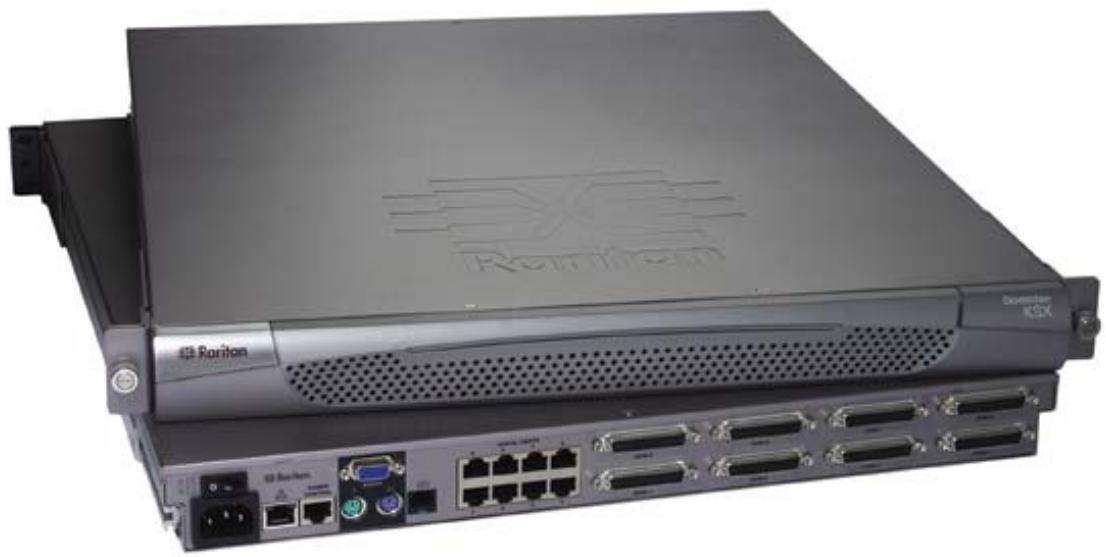
Dominion KSX Stacked View

Dominion KSX Rear View
Product Features
Access
- Remote access via the Internet, LAN/WAN, or dial-up modem
- Single integrated solution for remote serial console and KVM console access
Web browser accessible - Integrated, graphical remote power control interface
- Integrated modem allows remote office devices to be accessible even if network is unavailable
Remote access to 4 or 8 KVM ports - Remote access to 4 or 8 serial console ports
Performance
- Superior compression algorithm for exceptional performance over low-bandwidth connections
No impact on target server performance
Automatic sensing of video resolution for optimum display
High-performance mouse tracking and synchronization
Security
- SSL 128-bit RSA public key, 128-bit RC4 private key encryption
- Single, configurable TCP port for firewall protection
Supports RADIUS authentication protocol - Port-level authorization
Administration
Remote Administration via Web Browser interface
SNMP Support
- Firmware upgradeable over Ethernet
- Simplified installation and user interface
- Local user console for direct analog access to KVM devices
- Extensive downloadable user event log
DHCP or fixed IP addressing
Terminology
This manual makes use of the following terms to indicate components of a typical Dominion KSX configuration. While reading the manual, please refer to the diagram below for clarification when necessary.
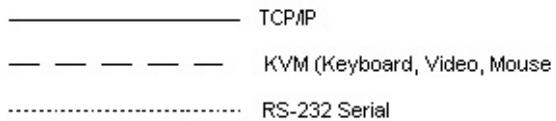
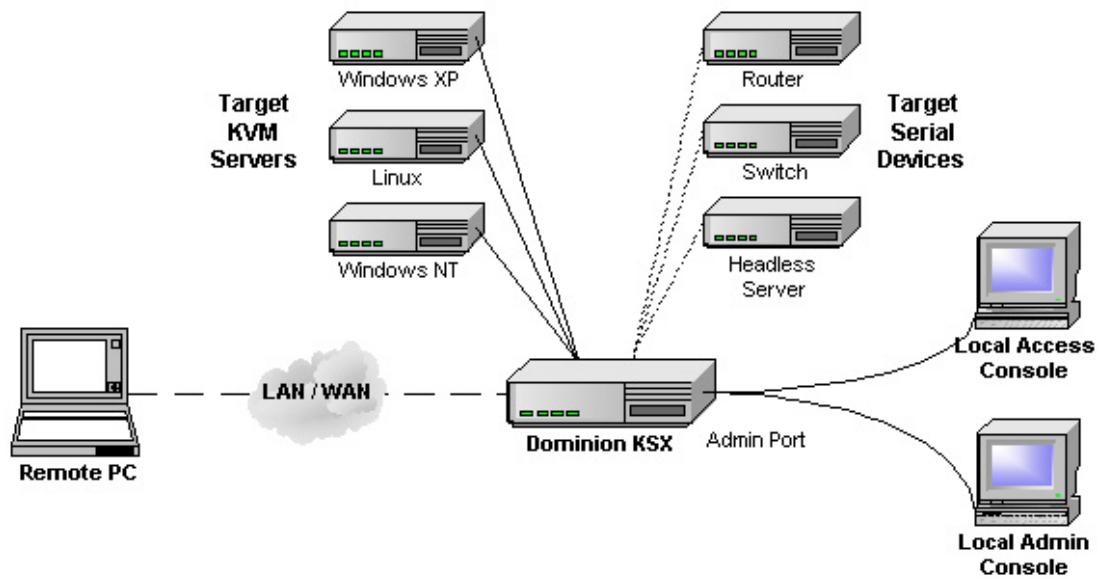
Target KVM Servers
Servers with graphical video cards and user interfaces, such as Windows, Linux, Solaris, etc. to be accessed remotely via Dominion KSX.
Target Serial Devices
Serially-controlled (RS-232) devices to be accessed remotely via Dominion KSX. For example, headless servers, routers, switches, CSU/DSU, etc.
Remote PC
A networked Windows-based computer used to access and control target devices connected to Dominion KSX.
Local Access Console
An optional user console, consisting of a PS/2 keyboard, PS/2 mouse, and multi-sync VGA monitor, directly attached to Dominion KSX to control Target KVM Servers locally (not through the network).
Local Admin Console
A PS/2 keyboard and VGA monitor directly attached to Dominion KSX, used for administration and setup. From this console, Dominion KSX administration menus can be performed directly. Target KVM Servers and Target Serial Devices cannot be viewed using this screen.
While Dominion KSX also allows remote administration via the network, the local admin console provides the most convenient means to perform initial setup.
Note: Please remember that the locations of the Local and the Admin ports depend on the KSX model. Dominion KSX units have a label on the underside of the chassis identifying the hardware version. The models that read either: Chassis RX440-F/S-0B or -0D or Chassis RX880-F/S-0B or -0D have the Local Admin ports on the rear panel and Local Access Console ports on the front panel (behind the bezel). For those models with labels that read Chassis RX440-F/S-0F or Chassis RX880-F/S-0F; these locations are reversed: the Local Admin ports are found on the front panel (behind the bezel) and Local Access Console ports are on the rear panel. Please consult the labeling on your Dominion KSX unit to determine where the Local and Admin ports are located.
Package Contents
Dominion KSX ships as a fully configured stand-alone product in a standard 1U 19" rackmount chassis, along with the following contents:
(1) Dominion KSX unit
(1) Dominion KSX Quick Installation and Setup Guide
(1) Raritan User Manual CD-ROM
(1) Raritan Remote Client software CD-ROM
(1) Rackmount Kit
(1) AC Power Cord
(1) RJ11 telephone cord
(1) Cat5 Network cable
Chapter 2: Installation
Configuring Target KVM Servers
Before installing Dominion KSX, you must first configure any target KVM servers that you wish to access via Dominion KSX in order to ensure optimum performance, as outlined below. Note that the following configuration requirements apply only to Target KVM Servers, not to the computers that you will be using to access Dominion KSX remotely (see Chapter 1: Introduction, Terminology).
Server Video Resolution
Ensure that each Target KVM Server's video resolution and refresh rate is supported by Dominion KSX, and the signal is non-interlaced. Dominion KSX supports the following video resolutions:
Text Modes
640x480 @ 60Hz 1024x768 @ 60Hz
640x480 @ 72Hz 1024x768 @ 70Hz
640x480 @ 75Hz 1024x768 @ 75Hz
640x480@85Hz 1024x768 @ 85Hz
800x600@56Hz 1152x864 @ 60Hz
800x600@60Hz 1152x864 @ 75Hz
800x600 @ 72Hz 1280x1024 @ 60Hz
800x600 @ 75Hz
800x600 @ 85Hz
Desktop Background
For optimal bandwidth efficiency and video performance, target servers running graphical user interfaces such as Windows, Linux, X-Windows, Solaris, and KDE should be configured with desktop backgrounds set to a predominantly solid, plain, light-colored graphic. Backgrounds featuring photos or complex gradients should be avoided.
Windows XP / Windows 2003 Settings
On target servers running Microsoft Windows XP, disable the "Enhanced Pointer Precision" option, and set the mouse motion speed to exactly the middle speed setting. These parameters are found in Control Panel Mouse Mouse Pointers.
Note: For Target Servers running Windows NT, 2000, or XP, you may wish to create a username that is to be used only for remote connections through Dominion KSX. This will enable you to keep the Target Server's slow mouse pointer motion/acceleration settings exclusive to the Dominion KSX connection only, as other users may desire faster mouse speeds.
Disable transition effects in Control Panel Display Appearance Settings.
Note: Windows XP and 2000 login screens revert to pre-set mouse parameters that differ from those suggested for optimal Dominion KSX performance. As a result, mouse sync will not be optimal at these screens. If you are comfortable adjusting the registry on Windows target servers, you can obtain better Dominion KSX mouse synchronization at login screens by using the Windows registry editor to change the following settings: Default user mouse motion speed = 0; mouse threshold 1 = 0 ; mouse threshold 2 = 0 .
Windows 2000 / ME Settings
On target servers running Microsoft Windows 2000 / ME, set the mouse pointer acceleration to "none" and the mouse motion speed exactly to the middle speed setting. These parameters are found in Control Panel Mouse.
Disable transition effects in Control Panel Display Effects.
Windows 95 / 98 / NT Settings
On target servers running Microsoft Windows 95 / 98 / NT, set the mouse motion speed to the slowest setting in Control Panel Mouse Motion.
Disable window, menu, and list animation in Control Panel Display Effects.
Linux Settings
On target servers running Linux graphical interfaces, set the mouse acceleration to exactly 1 and set threshold to exactly 1.
As mentioned above, please ensure that each target server running Linux is using a resolution supported by Dominion KSX at a standard VESA resolution and refresh rate. Each Linux target server should also be set so the blanking times are within +/- 40% of VESA standard values.
To check for these parameters:
- Go to the Xfree86 Configuration file XF86Config
Using a text editor, disable all non-Dominion KSX supported resolutions - Disable the virtual desktop feature, which is not supported by Dominion KSX
- Check blanking times (+/- 40% of VESA standard).
- Restart computer
Note: In many Linux graphical environments, the command <Ctrl + Alt + Plus> will change the video resolution, scrolling through all available resolutions that remain enabled in the XF86Config file.
Sun Solaris Settings
As mentioned, all target servers must be configured to one of the display resolutions supported by Dominion KSX, as listed on page 6. The most popular supported resolutions for Sun machines are:
1024x768@60Hz
1024x768@70Hz
1024x768@75Hz
1024x768@85Hz
1152x900@66Hz
1152x900@76Hz
1280x1024@60Hz
Target servers running the Solaris operating system must output VGA video (H-and-V sync, not composite sync). To change your Sun video card output from composite sync to the non-default
VGA output, first issue the Stop+A command to drop to bootprom mode. Then, issue the command:
setenv output-device screen:r1024x768x70
to change the output resolution. Issue the "boot" command to reboot the server.
Alternatively, you may contact your Raritan representative to purchase a video output adapter. 13W3 Suns with composite sync output require APSSUN II Raritan guardian for use with Dominion KSX. HD15 Suns with composite sync output require 1396C Raritan converter to convert from HD15 to 13W3 and an APSSUN II Raritan guardian converter to support composite sync. HD15 Suns with separate sync output require an APKMSUN Raritan guardian for use with Dominion KSX.
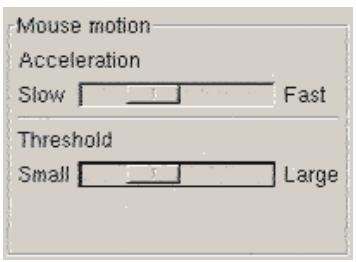
On target servers running the Solaris operating system, set the mouse acceleration value to exactly 1 and threshold to exactly 1.
This can be performed from the graphical user interface (as shown below), or with the command line "xset mouse a t" where "a" is the acceleration and "t" is the threshold.
Apple Macintosh Settings
For target servers running an Apple Macintosh operating system, while no specific mouse setting is required, please be aware that while using Dominion KSX to access and control your target server, you must set the Dominion KSX client (Raritan Remote Client) to "single cursor" mode (see Chapter 3: Raritan Remote Client, Remote KVM Console Control, Single Mouse Mode).
Dual cursor mode is not supported; the two mouse pointers will not appear in sync if you attempt to control a Macintosh server via Dominion KSX in dual cursor mode.
Configuring Target Serial Devices
For each target serial device that you wish to connect to Dominion KSX for remote access, please:
- Ensure that the serial terminal settings are set to a VT-100 emulation. Dominion KSX supports only standard VT-100 emulation.
- Either change the serial communication parameters to 9600 baud N-8-1 (Dominion KSX default), or note the communication parameters for later reference.
Configuring Network Firewall Settings
If you wish to access Dominion KSX through a network firewall, your firewall must allow communication on TCP Port 5000. Alternatively, Dominion KSX can be configured to use a differentTCP port of your own designation (see Chapter 4: Administrative Functions, Network Configuration).
Optional: If you wish to take advantage of Dominion KSX's web-access capabilities, the firewall must also allow inbound communication on TCP Port 443 – the standard TCP port for HTTPS communication. If you wish to take advantage of Dominion KSX's automatic redirection of HTTP requests to HTTPS (i.e., so users may type the more common, "http://xxx.xxx.xxxx", instead of "https://xxx.xxx.xxxx"), then the firewall must also allow inbound communication on TCP Port 80 – the standard TCP port for HTTP communication.
Physical Connections
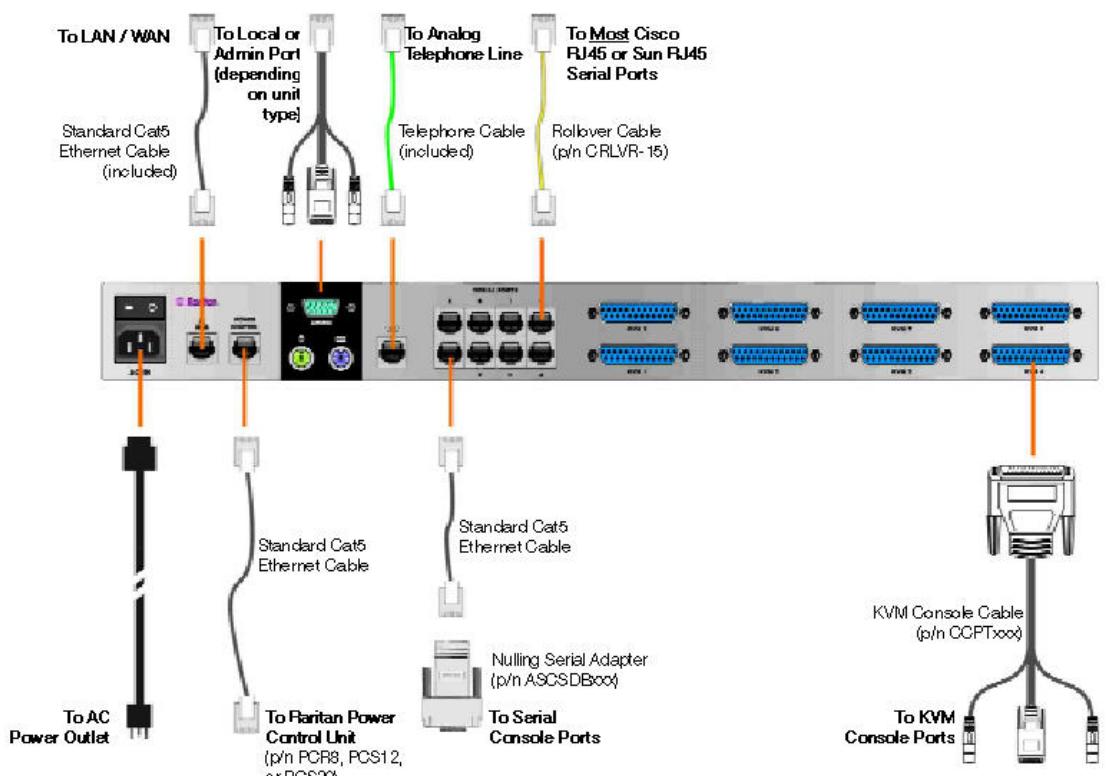
Back Panel of Dominion KSX
AC Power Line
Attach the included AC power cord to Dominion KSX and into an AC Power Outlet.
Network Port
Connect a standard Ethernet cable from the network port to an Ethernet switch, hub, or router.
Power Control Port (optional)
To employ Dominion KSX's integrated power control graphical interface, connect a standard Cat5 Ethernet cable from the port labeled "Power Control" to the equivalently labeled port found on a Raritan Remote Power Control unit (p/n PCR8, PCS12, or PCS20).
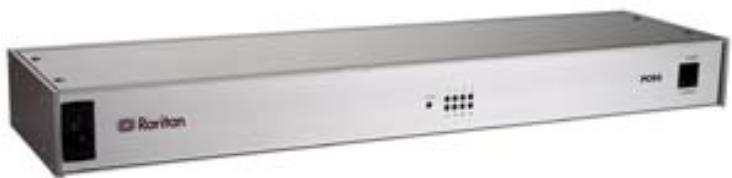
Note: This port works only with Raritan brand Remote Power Control units. You may use similar products from other vendors by connecting them as a standard serial device. However, note that Dominion KSX does not present a graphical interface to other vendors' power control products, only a standard command-line interface; Dominion KSX's graphical power control interface applies only to Raritan brand Remote Power Control units.
Local Admin Console
Attach a PS/2 keyboard and multisync monitor to the appropriate ports (see diagram on previous page) of the Dominion KSX unit. Depending on your KSX model, the local Admin Console ports may be on the front or the back panel (remove the front bezel by pulling it horizontally towards you). The local Admin Console is very useful during initial setup, and may be removed thereafter.
Note: Please remember that the locations of the Local and the Admin ports depend on the KSX model. Dominion KSX units have a label on the underside of the chassis identifying the hardware version. The models that read either: Chassis RX440-F/S-0B or -0D or Chassis RX880-F/S-0B or -0D have the Local Admin ports on the rear panel and Local Access Console ports on the front panel (behind the bezel). For those models with labels that read Chassis RX440-F/S-0F or Chassis RX880-F/S-0F; these locations are reversed: the Local Admin ports are found on the front panel (behind the bezel) and Local Access Console ports are on the rear panel. Please consult the labeling on your Dominion KSX unit to determine where the Local and Admin ports are located.
Telephone Line Port (optional)
Dominion KSX features an integrated modem for remote access even when the LAN/WAN is unavailable. Use the included telephone cable to connect the port labeled "Tel Line" to an analog telephone jack.
Serial Input Ports
Connect RS-232 serially-controlled devices to Dominion KSX for the ability to remotely access terminal console ports on devices such as headless servers, routers, switches, and network appliances. For each serial console port for which you wish to provide remote access via Dominion KSX, connect the serial interface to Dominion KSX as appropriate to the physical form factor of your serial console port:
- DB9 Serial Ports: Attach one end of a standard, straight-through Cat5 cable to an unoccupied RJ45 serial port on the back of your Dominion KSX. Attach the other end of the Cat5 cable to a Raritan nulling serial adapter: P/N ASCSDB9F for DB9 (M) serial ports; and P/N ASVSDB9M for DB9 (F) serial ports. Then, attach the Raritan nulling serial adapter directly to your device's serial console port.
- DB25 Serial Ports: Attach one end of a standard, straight-through Cat5 cable to an unoccupied RJ45 serial port on the back of your Dominion KSX. Attach the other end of the Cat5 cable to a Raritan nulling serial adapter: P/N ASCSDB25F for DB25 (M) serial ports; and P/N ASVSDB25M for DB25 (F) serial ports. Then, attach the Raritan nulling serial adapter directly to your device's serial console port.
- RJ45 Serial Ports (from Sun and Cisco): Most Sun and Cisco RJ45 Serial Ports may be connected directly to an unoccupied RJ45 serial port on the back of your Dominion KSX, using a "rollover" cable whose pin-outs are described in Appendix B: Serial Port Pin-Out Diagrams, "CRLVR-15 Custom Rollover Cable for Most Sun / Cisco RJ45 Serial Ports". This cable is often provided by Sun and Cisco in shipments of their products whose serial ports have the RJ45 form factor. If not, this cable may be purchased directly from Raritan - order part number CRLVR-15.
- RJ45 Serial Ports (from vendors other than Sun and Cisco): Unfortunately, no widely accepted standard for RS-232 serial signal transmission through an RJ45 form factor port currently exists. Therefore, to connect an RJ45 serial port to Dominion KSX, refer to your vendor's product manual to obtain a pin-out diagram of its RJ45 serial console port. Then, using Cat5 cable with RJ45 terminators, crimp a cable in order whose pin-out corresponds correctly to Dominion KSX specifications as found in Appendix B of this manual.
For your reference, the following chart can assist you in creating, modifying, or confirming such a custom cable:
| Dominion KSX Serial Port Pin | Function | Proper Nulling Connection to Your Serial Console* | Port Pin of Your Serial Console** |
| 1 | RTS | CTS | |
| 2 | DTR | DSR and DTD | |
| 3 | TXD | RX ("RXD") | |
| 4 | GND | GND | |
| 5 | SGND | GND or SGND | |
| 6 | RXD | TX ("TXD") | |
| 7 | DSR | DTR | |
| 8 | CTS | RTS |
Notes:
Standard serial nulling signal associations as specified by RS-232.
* Fill in this column with values specified by the device manual provided with your serially-controlled device.
In most cases, this signal is optional – generally used only if hardware flow control is enabled.
KVM Input Ports
To connect servers with graphical video cards, such as those running Microsoft Windows or Linux, attach the DB25 end of a Raritan KVM Console Cable (p/n CCPTxxxx) to a KVM port found on the back panel of Dominion KSX. Connect the other end of the cable to corresponding PS/2 keyboard, mouse, and VGA video ports of the server to which you wish to provide remote network access.
KVM Output / Local Access Console Ports (optional)
For convenient access to Target KVM Servers while onsite (in the presence of Dominion KSX), you may choose to take advantage of Dominion KSX's Local Access Console ports, located on the front or the rear of the chassis, depending on your model. If the ports are on the front panel, remove the front bezel by pulling it horizontally towards you. Then, attach a multisync VGA monitor, PS/2 mouse, and PS/2 keyboard to the ports located on the right hand side.
When accessing the Dominion KSX locally, there will be no graphical user interface. Instead, to change ports, press the SCROLL LOCK key twice and then press the number key of the port you wish to view (1 through 4 for DKSX440, 1-8 for DKSX880), and then press ENTER.
Hot Key combinations for local access control:
$$ \text {S C R O L L L O C K} + \text {S C R O L L L O C K} + # \text {k e y} $$
Go to port number #
$$ \mathbf {S C R O L L L O C K} + \mathbf {S C R O L L L O C K} + \uparrow $$
Go to previous active port
$$ \mathbf {S C R O L L} \quad \mathbf {L O C K} + \mathbf {S C R O L L} \quad \mathbf {L O C K} + \downarrow $$
Go to next active port
$$ \mathbf {S C R O L L} \quad \mathbf {L O C K} + \mathbf {S C R O L L} \quad \mathbf {L O C K} + \mathbf {Z} $$
Activate autoscan mode (exit autoscan mode by pressing any key except CTRL, ALT, SHIFT, or Window key.)
Initial Configuration
The steps below allow you to quickly set up Dominion KSX for the first time using the Dominion KSX Setup Wizard. The Dominion KSX Setup Wizard appears only when accessing the Administrative Menus on an unconfigured Dominion KSX, and guides you through initial configuration parameters. The easiest way to perform this initial configuration is by using the Local Admin Console (see 'Physical Connection' instructions in the previous sections).
- Power ON Dominion KSX via the power switch on the back of the Dominion KSX unit.
- The Welcome to Dominion KSX Setup Wizard Screen will appear on the Local Admin Console.
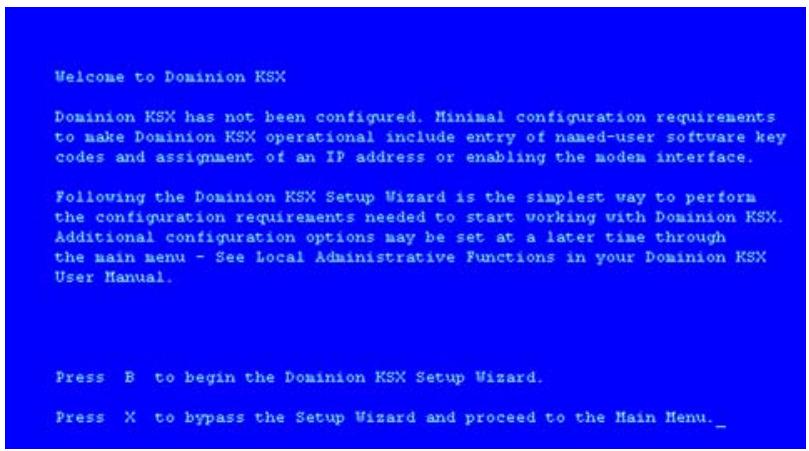
- Press the letter B on the Local Admin Console keyboard to begin the Dominion KSX Setup Wizard.
- All entered key codes will be saved and the Network Configuration Screen will appear.
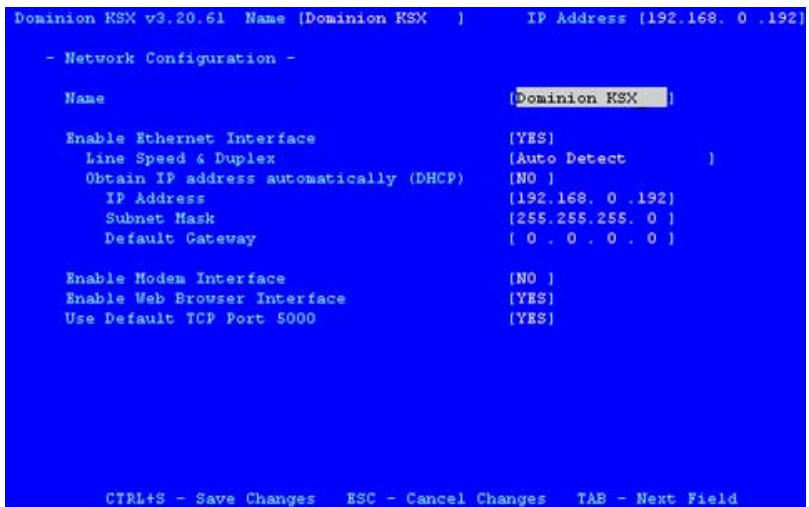
-
Use the TAB, (up arrow) or (down arrow) keys to select each line on the Network Configuration screen and the SPACE bar or the or keys to toggle between available entries. Press ENTER, TAB, or the key when your entry on each line is complete. Below are descriptions of each field, and the appropriate values to assign.
-
Name: Designate a unique name for this Dominion KSX unit, for example, "Miami Data Center." The default name is Dominion KSX.
-
Enable Ethernet Interface: Designates whether Dominion KSX should enable its Ethernet adapter as active (default: YES).
-
Line Speed & Duplex: Enter the visual efficiency for the monitor: Auto detect 10 Mbps/Full Duplex, 10 Mbps/Half Duplex, 100 Mbps/Full Duplex, or 100 Mbps/Half Duplex
-
Obtain IP address automatically (DHCP):
YES: Enables dynamic IP addressing for Dominion KSX. Each time Dominion KSX boots, it requests an IP address from the local DHCP server. Note that this setting can make remote access to Dominion KSX from outside the LAN difficult, since the dynamically assigned IP address must be known in order to initiate a connection.
NO (default): Assigns a fixed IP address to the Dominion KSX unit (recommended).
- IP Address: Enter the IP address for Dominion KSX given by your Network Administrator.
- Subnet Mask: Enter a Subnet Mask provided by your Network Administrator.
-
Default Gateway: Enter the Default Gateway if your Network Administrator specifies one.
-
Enable Modem Interface: Enables Dial-up Modem access (default: NO). Dominion KSX models have an integrated modem. Change to YES to enable dial-up modem access.
-
Enable Web Browser Interface: Enables web browser access to Dominion KSX (default: YES).
Use Default TCP Port 5000: -
YES (default): Utilizes the default port 5000.
- NO: Enter an alternate port number.
Note: In order to access Dominion KSX from beyond a firewall, your firewall settings must enable two-way communication through the default port 5000 or the non-default port configured above.
- Press Ctrl+S to save entries. The Main Menu will appear.
- On the Main Menu, type R to restart and then press ENTER.
-
When prompted, press the letter R to restart Dominion KSX.
-
Dominion KSX will restart and the Dominion KSX Initialization screen will appear upon boot up.
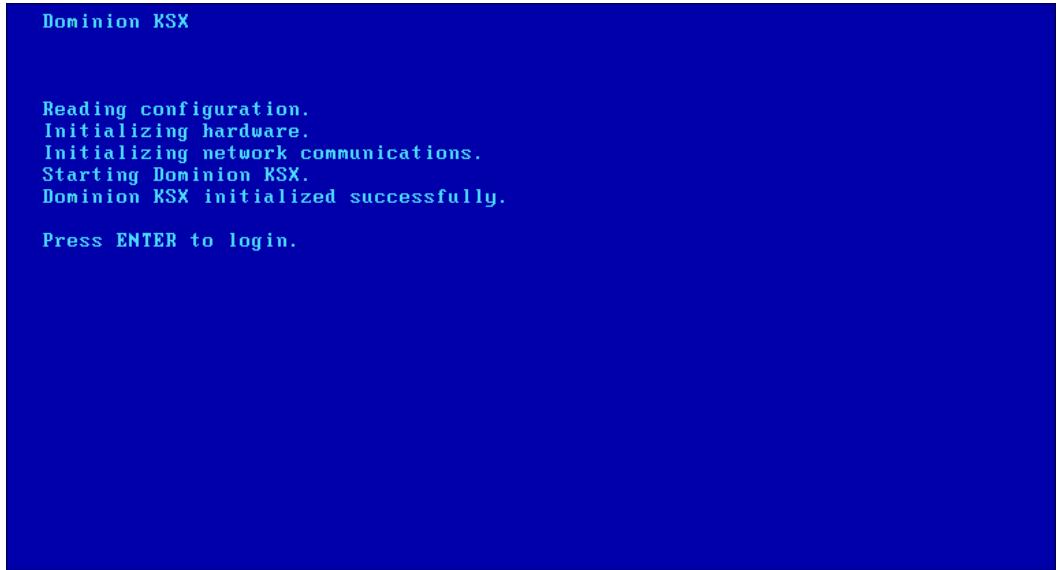
- Congratulations! Dominion KSX is now ready for initial connection.
Proceed to the next section to initiate your first remote connection to Dominion KSX. After you have become familiar with the remote operation of Dominion KSX, consult Chapter 4: Administrative Functions to review the complete administrative functions provided by Dominion KSX.
Connect to Dominion KSX Remotely
Having completed the physical installation of Dominion KSX, you are now ready to establish an initial network connection. Below are basic instructions for doing so. Please see Chapter 3: Raritan Remote Client for detailed instructions, being sure to review the "KVM Session Properties" and "Color Calibration" sections to optimize your Dominion KSX performance for Target KVM Servers.
Launch Raritan Remote Client (RRC)
- Log into any Windows-based computer with network access to Dominion KSX.
- If you are using Windows NT, 2000, XP, or 2003, ensure that you are not a "restricted" user.
- Launch Microsoft Internet Explorer. Ensure that your Internet Explorer security settings allow the download and execution of ActiveX controls.
Note: The Windows default security setting, "Medium", will suffice.
- In the text field found on the Internet Explorer "Address" bar, type in the IP address you assigned to Dominion KSX in Step 5 of the previous section, "Initial Configuration." Press ENTER to load and launch the web access client, called Raritan Remote Client.
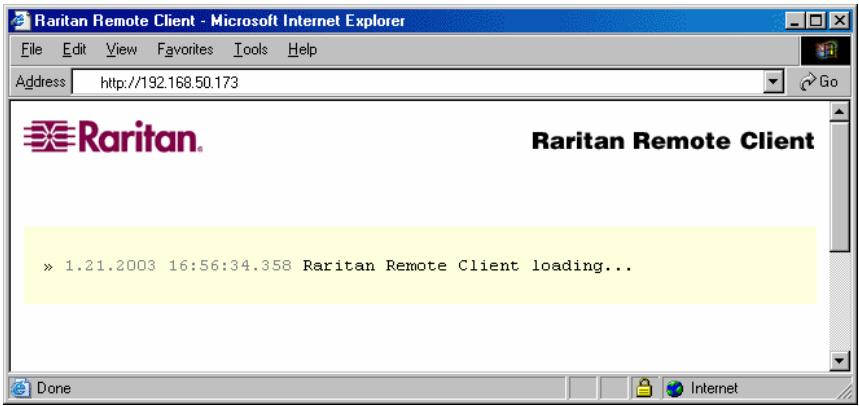
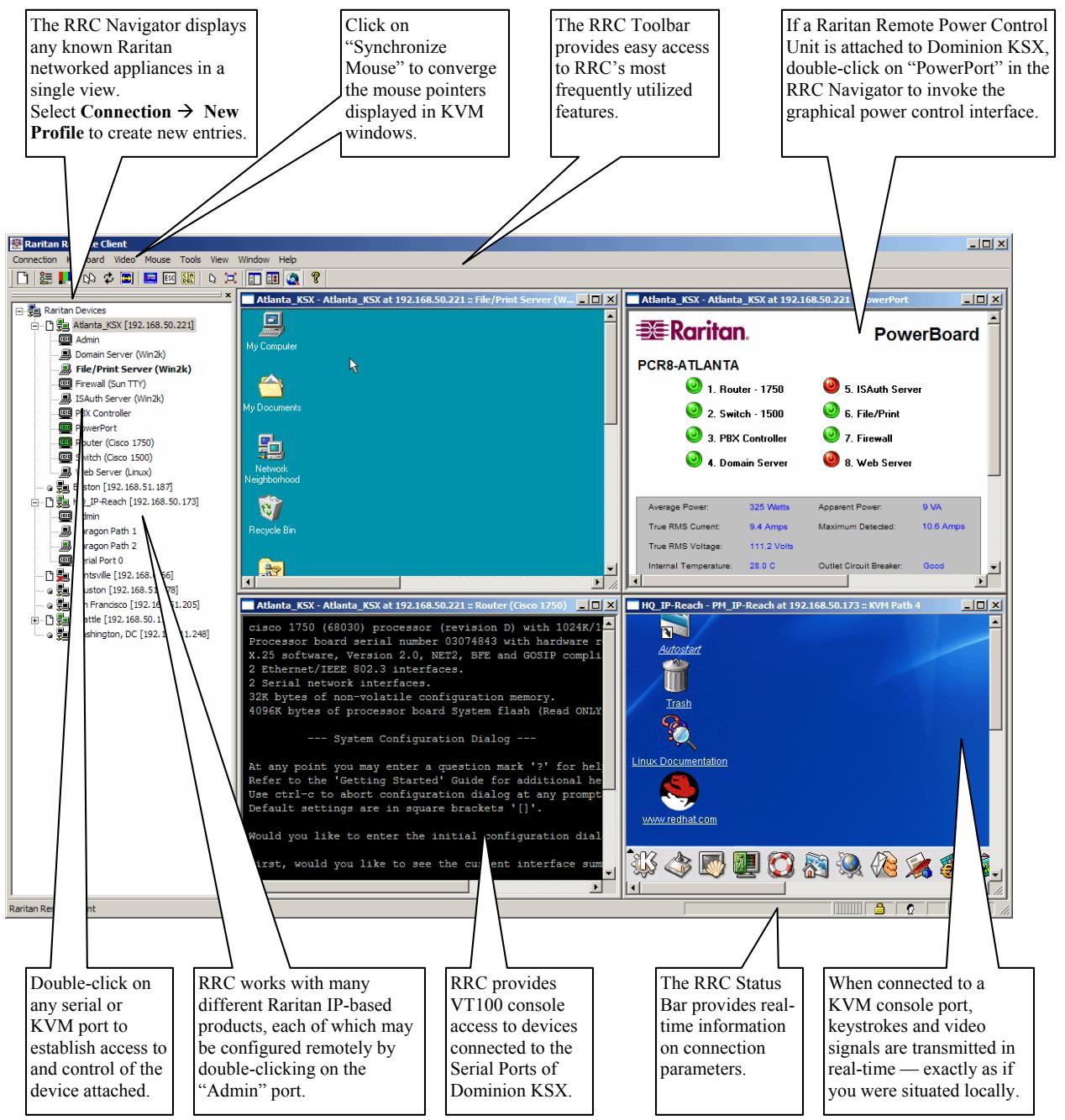
- After launching Raritan Remote Client, you will see a tree list on the left-hand side of the screen with a list of all automatically-detected Raritan devices found on your subnet. If you do not find your Dominion KSX unit listed there by name, create one manually by selecting Connection New Profile on the menu bar. See Chapter 3: Raritan Remote Client, RRC Navigator and Creating New Profiles for more information.
- Double-click on the entry corresponding to your Dominion KSX unit, found on the left-hand side of Raritan Remote Client.
Establish a Connection
Immediately upon double-clicking on the entry corresponding to your Dominion KSX unit, found on the left-hand side of Raritan Remote Client (RRC), Dominion KSX will request your user credentials. Log on with the default username and password (admin/raritan). You will immediately be connected to your Dominion KSX unit. Use the RRC Navigator, found on the left-hand side of the RRC window, to select and connect to a port.
Note to CommandCenter Users
If you are using Dominion KSX in a CommandCenter configuration, perform the installation steps as outlined above. After completing the steps in this chapter, please consult the CommandCenter user guide to proceed with your installation. The rest of this user guide applies primarily to users deploying Dominion KSX unit(s) without the integration functionality of CommandCenter.
Chapter 3: Raritan Remote Client
Invoking Raritan Remote Client (RRC) via Web Browser
Dominion KSX features Web Browser access, providing a connection from any Windows-based Remote PC running Microsoft Internet Explorer 4.0+ , Mozilla 1.1+ , and Netscape 7+ .
Security Settings
Accessing Dominion KSX via web browser requires your web browser to be configured to appropriate settings. Specifically, in the Internet Explorer security settings tab:
- "Download Signed ActiveX controls" should be set to either "Enable" or "Prompt"
- "Run ActiveX controls and plug-ins" should be set to either "Enable" or "Prompt"
Please consult your Microsoft Internet Explorer documentation for details regarding these settings.
Note: Microsoft Windows 2000, Microsoft Windows XP, and Microsoft Windows 2003 restrict certain types of users from downloading and running ActiveX controls and plug-ins, regardless of the above settings in Internet Explorer. Please consult your Microsoft Windows documentation for more information.
Launching Raritan Remote Client
- After checking to ensure that your browser security settings have been configured appropriately, type the IP address assigned to your Dominion KSX unit (see Chapter 2: Installation, Initial Configuration) in the URL / Address text box of your web browser.

Note: Dominion KSX ships with the default IP address of 192.168.0.192
- Dominion KSX redirects you to an HTTPS (128-bit) secure web page for launching Raritan Remote Client.
- Depending on your browser security configuration, you may see any or all of the following dialog boxes, confirming access and launching of an externally-provided program. Click Yes to advance through any of these prompts.
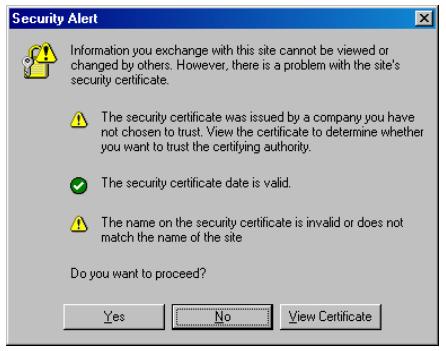
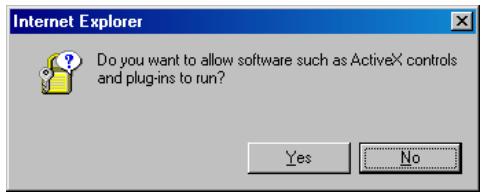
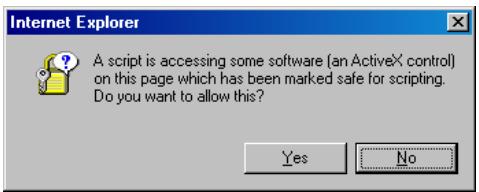
Note: Microsoft Windows 2000 and Microsoft Windows XP restrict certain types of users from downloading and running ActiveX controls and plug-ins, regardless of the settings in Internet Explorer and regardless of your approval of the above warnings. Please review the previous section, "Security Settings", and consult your Microsoft Windows documentation for more information.
Removing RRC from the Browser Cache
To remove RRC from your browser cache, whether to perform an upgrade, to save disk space, or to remove evidence of RRC being executed on a PC, follow the standard procedure as proscribed by your web browser software.
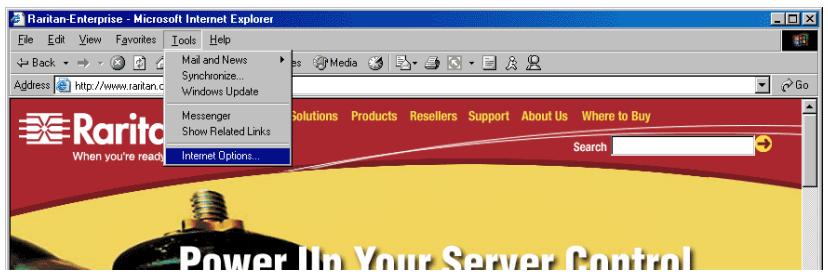
Directions for Internet Explorer v6.0:
- If you have used RRC recently, exit and restart Internet Explorer.
- On the Internet Explorer menu bar, select Tools Internet Options.
- When the "Internet Options" dialog box appears, click on "Settings."
- When the "Settings" dialog box appears, click on "View Objects."
- Internet Explorer will display a list of cached program objects. Select any entries named "TeleControl Class", "Raritan Console", or "Power Board" and delete them.
Optional: Installing Raritan Remote Client Software
Note: This step is optional. Dominion KSX can be accessed from a Remote PC either by installing Raritan Remote Client software, or by launching Raritan Remote Client via web browser (see previous section). While accessing Dominion KSX via web browser does not require any software installation on the Remote PC, this section details the steps required to invoke Raritan Remote Client using standalone software. This may be useful for accessing Dominion KSX via modem, or if you wish to close firewall access to ports 80 and/or 443.
- Insert the provided (RRC) CD-ROM into the CD-ROM drive of your PC. Make sure the RRC version indicated is v3.10 or greater.
- The RRC setup program will run automatically. If it does not, right-click on your PC's CD-ROM drive in Windows Explorer and choose Auto Play.
- Follow the on-screen instructions given by the InstallShield Wizard to complete TRC installation on your Remote PC. Under "Select Components," you must select either the US version for a US Remote PC keyboard, or the Japanese version for a Japanese Remote PC keyboard.
Note: The Japanese version of RRC enables a Japanese keyboard at the Remote PC and also requires a Japanese keyboard to be set at the Target Server. The interface information remains in English.
- Depending upon the configuration of your PC, the RRC installation program may also automatically install Direct X and Microsoft Foundation Class libraries if required. If this occurs, you will be directed to restart your PC upon completing installation.
- A Raritan Remote Client icon will be added to your desktop. Click on this icon to launch Raritan Remote Client.
RRC Window Layout
Raritan Remote Client functions are grouped into five general sections on the screen. Each section will be discussed in detail further in this chapter.
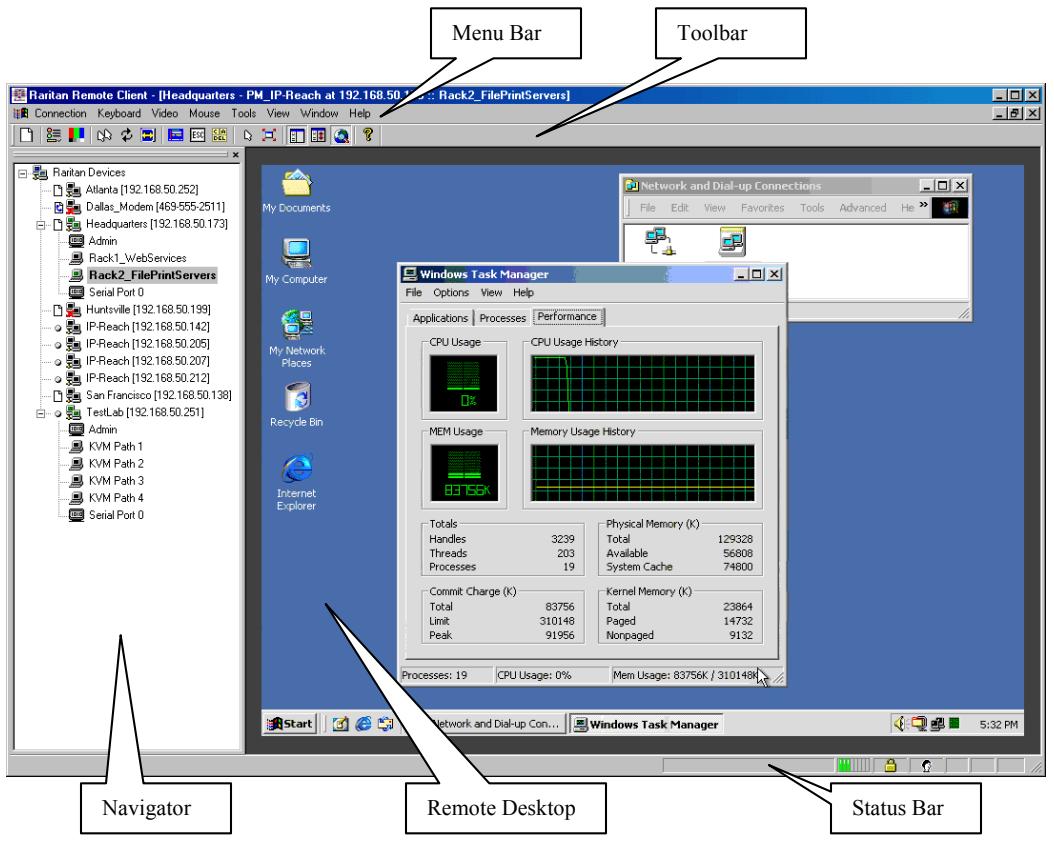
RRC Navigator
The RRC Navigator provides a single view to every known Raritan device, allowing convenient access to multiple Raritan networked appliances.
The RRC Navigator displays:
(a) All Raritan devices for which a connection profile exists, and
(b) All Raritan devices that are automatically identified on the network
Note: Automatic Raritan device identification utilizes the UDP protocol, and will typically identify all Raritan devices on your subnet. Network administrators rarely allow UDP to function outside of a subnet.
Note: Automatic Raritan device identification will find only Raritan devices configured to use the default TCP Port (5000).
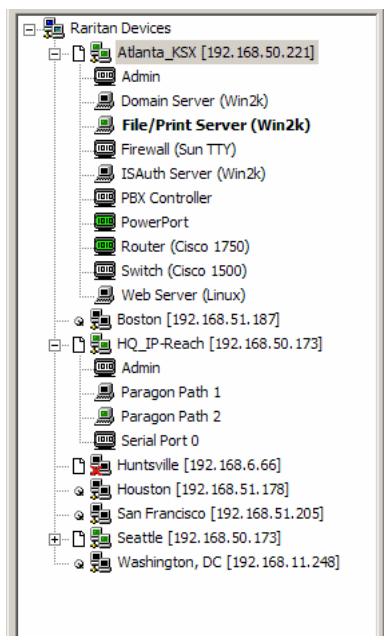
Each device entry in the RRC Navigator provides two icons to communicate network status and connection profile information.
Left Icon (Connection Profile)
| □ | Profiled – A network connection profile exists for this device. |
| 图 | Modem Profile – A modem connection profile exists for this device. |
| @ | Not Profiled – RRC found this device on the network, but a connection profile does not exist for it. |
Right Icon (Network Status)
| 题 | Connected (green) - You are currently authenticated and connected to this device. |
| 题 | Available (black) - This device is currently available on the network, but you are not currently connected to it. |
| 题 | Unavailable - A profile exists for this device, but it is not currently available on the network. (Note that all devices with modem profiles to which you are not currently connected will display this icon.) |
For each Raritan device to which you are connected, the RRC Navigator expands its display tree to show each port for which you have access.
- Ports displayed with a green icon indicate that you are connected to that port.
- Bold type indicates which port is currently displayed (active) in the remote desktop area of the client.
For each port entry, RRC navigator displays the following icons:
| Remote KVM Port, connected (green) |
| Remote KVM Port, not yet connected |
| Remote Serial port, connected (green) |
| Remote Serial Port, not yet connected |
Navigator Options
Certain RRC Navigator attributes may be customized to your preferences.
| Display / Hide Navigator - Toggle whether the RRC Navigator is shown. This option can also be toggled by choosing View → Navigator from the Menu Bar. | |
| Refresh Navigator - Update the device status information shown in the RRC Navigator. | |
| Show Browsing Devices - Toggle whether RRC Navigator should display "Not Profiled" devices automatically found on the network or show only devices for which profiles exist. This option can also be toggled by choosing View → All Devices from the Menu Bar. |
Note: The Browse connection method is the only method of connecting to a Raritan Device configured to use DHCP IP addressing.
Creating New Profiles
Connection profiles store important information about your Raritan device such as IP Address, custom TCP ports, preferred compression settings, and custom security keys.
Note: If your Raritan device is configured to use a custom TCP port (see Chapter 4: Administrative Functions, Network Configuration), or a group security key (see Chapter 4: Administrative Functions, Security Settings), you must first create a connection profile in order to access the device.
To Create a Connection Profile:
- Select Connection New Profile from the Menu Bar, or click on the leftmost icon in the Toolbar. The Connection Profile dialog box will appear, displaying all connection profiles which currently exist.
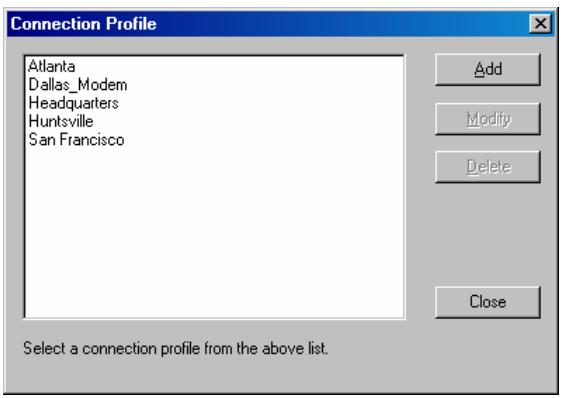
- Click Add.
- The Add Connection dialog appears. Options are grouped under three tabs: Connect, Compression, and Security.
Connect Tab
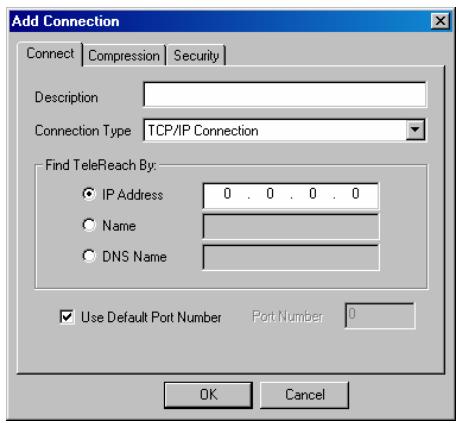
- Description: Enter a text name to easily identify the Raritan device that you are configuring, such as "Atlanta_Datacenter."
- Connection Type: Select TCP/IP Connection for a LAN/WAN connection; select Dial-Up Connection for a direct analog modem connection to the Raritan device.
For a TCP/IP Connection, select the manner by which RRC should locate your Raritan device:
- IP Address: The IP address assigned to your Raritan device (see Chapter 4: Administrative Functions, Network Configuration).
-
Name: The name assigned to your Raritan device during initial setup (see Chapter 4: Administrative Functions, Network Configuration).
-
DNS Name: If you have configured your DNS server to resolve a DNS name to the IP address that you have assigned to your Raritan device, you may use this DNS name to access your Raritan device.
For a Dial-Up Connection, enter the dialing parameters that RRC should use to establish a connection:
- Phone Number: Be sure to include any additional codes that RRC should dial to establish a connection, such as country codes, area codes, outside line access codes, etc.
- Modem: Select the modem, as configured in Windows, that RRC should use to dial and connect to your Raritan device.
Select a TCP Port to use:
- Use Default Port Number: Dominion KSX is configured by default to use TCP Port 5000 for communicating with RRC. Dominion KSX can be configured to use a different TCP Port (see Chapter 4: Administrative Functions, Network Configuration); if so, uncheck the Use Default Port Number option, and enter the configured TCP Port to be used.
Compression Tab
Settings in the Compression Tab are adjustable via the RRC client, and therefore are not necessary for pre-configuration in the Connection Profile. Should you wish to pre-configure these settings, however, refer to the section in this chapter labeled "Remote Desktop: KVM Console Control, Connection and Video Properties."
Security Tab
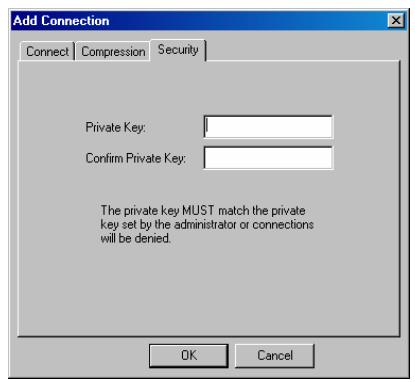
If you have configured your Dominion KSX unit to use a private group key, you must enter it here in order to be authorized to initiate a connection with that Dominion KSX unit. Click OK when you are finished.
When you have completed the Connect and Security screens, click OK to finish creating the connection.
Establishing a New Connection
To connect to a Raritan networked device, double-click on its entry in the RRC Navigator. You will be asked to authenticate to the device.
Note: The default Dominion KSX login user name is admin, with the password raritan. This user has administrative privileges. Passwords are case sensitive and must be entered in the exact case combination in which they were created.
The default password raritan must be entered entirely in lowercase letters.
To ensure security, change the default username password as soon as possible.
If you do not see an entry for your Dominion KSX in the RRC Navigator, follow the instructions in the Creating New Profiles section in this chapter to create a new connection profile for your Dominion KSX.
If you are having problems connecting to a Raritan device, be sure to check the following:
-Username/Password:Raritanusernamesand passwordsare case-sensitive.
- TCP Port: If you have configured your Raritan Device to use a non-default TCP Port, this information must be entered into its connection profile.
- Firewall Settings: If you are accessing a Raritan Device through a firewall, that firewall must be configured to allow two-way communication on TCP Port 5000 (or the custom TCP Port to which your Raritan Device has been configured).
- Security Key: If you have configured your Raritan Device to require a group security key, that key must be entered into the device's connection profile.
Closing a Remote Connection
When you would like to terminate your connection to a Dominion KSX unit, simply right-click on the device entry in the RRC Navigator, and select Disconnect.
RRC Toolbar and Shortcuts

Raritan Remote Client Toolbar
The RRC Toolbar provides convenient, one-click access to the most commonly used features and parameters of Raritan Remote Client:
| BUTTON | BUTTON NAME | HOT KEY | FUNCTION |
| New Profile | <Ctrl+Alt+C> | Creates a new Navigator entry for a Raritan device; same results as selecting Connection → New Profile in the menu bar. | |
| Connection Properties | <Ctrl+Alt+P> | Opens Modify Connection Properties dialog box to manually adjust bandwidth-correlated options (Connection Speed, Color Depth, etc.). | |
| Video Settings | N/A | Opens the Video Settings dialog box to manually adjust video conversion parameters. | |
| Synchronize Mouse | <Ctrl+Alt+S> | In dual-mouse mode, forces realignment of Target Server mouse pointer with Raritan Remote Client mouse pointer. | |
| Refresh Screen | <Ctrl+Alt+R> | Forces refresh of video screen. | |
| Auto-sense Video Settings | <Ctrl+Alt+A> | Forces refresh of video settings (resolution, refresh rate). | |
| Enter On-Screen Menu | N/A | Not applicable for Dominion KSX. Used by RRC with other Raritan products. | |
| Exit On-Screen Menu | ESC | Not applicable for Dominion KSX. Used by RRC with other Raritan products. | |
| Send Ctrl+Alt+Del | <Ctrl+Alt+D> | Not applicable for Dominion KSX. Used by RRC with other Raritan products. | |
| Single Cursor Mode | <Ctrl+Alt+X> | Enters Single Cursor Mode, in which the local PC's mouse pointer no longer appears on-screen. Press <Ctrl+Alt+X> to exit this mode. | |
| Full Screen Mode | <Ctrl+Alt+F> | Maximizes the screen real estate to view the Target Server desktop. | |
| Show / Hide Navigator | N/A | Toggles whether or not the RRC Navigator is displayed. | |
| Refresh Navigator | N/A | Forces a refresh of the data displayed by the RRC Navigator. | |
| Show / Hide "Browsing" Devices | N/A | Toggles whether or not the RRC Navigator displays Raritan Devices automatically identified on the network (that do not have pre-configured profiles associated with them). | |
| About | N/A | Displays version information about Raritan Remote Client. |
RRC Status Bar
The Status Bar at the bottom of the Raritan Remote Client window conveys information about the status of your remote connection session to Dominion KSX.
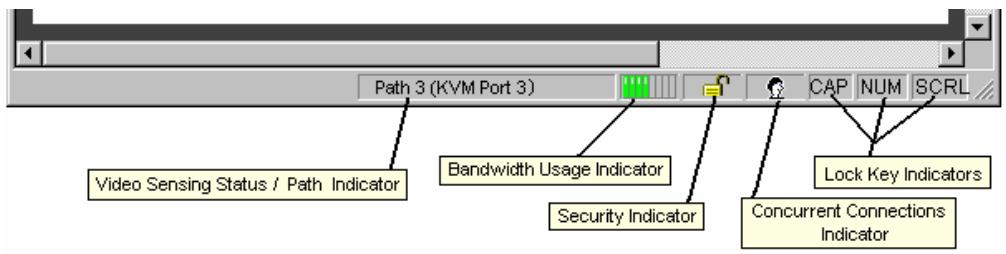
Video Sensing Status / Path Indicator
Indicates the occurrence of video sensing, during connections to Target KVM Server ports.
Bandwidth Usage Indicator
Indicates how much of your total available bandwidth is currently being used. The Connection Speed setting, found under the Compression tab of the Connection Properties screen, determines total available bandwidth.
Security Indicator
Indicates whether the current remote connection is protected by encryption. Encryption requirements are set during Dominion KSX configuration (see Chapter 4). When a Dominion KSX device is configured for No encryption or SSL Authentication, NO data encryption, the Security Indicator is represented on the Status Bar as an open lock. When SSL authentication, data encryption or SSL authentication, SSL encryption is selected, the Security Indicator is represented on the Status Bar as a closed lock.
Concurrent Connections Indicator
Indicates if multiple remote users are currently connected to the same Dominion KSX path, showing one icon for a single connected user, and two icons if two or more users are connected.
Concurrent connection ability can be set globally under PC Share Mode on the Security Configuration screen (see Chapter 4), or set per individual user in the Concurrent Access Mode setting on the User Account Settings screen (see Chapter 4).
Lock Key Indicators
Indicates the status of the current Target KVM Server, with respect to the activation of the CapsLock, Num-Lock, and Scroll-Lock keys. If these keys are enabled on the Target Server being viewed, this affirmative status will be reflected on the Status Bar as indicated.
Remote Desktop: KVM Console Control
After using the RRC Navigator to establish a connection with a Dominion KSX unit (see the previous section: Establishing a Connection), the Navigator entry corresponding to the Dominion KSX unit will expand to show all ports on the Dominion KSX enabled for remote access.
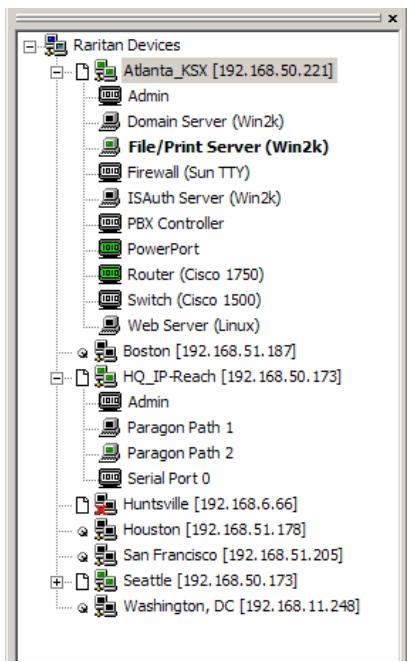
Remote KVM ports are designated with the following icon:

To establish a remote KVM console connection, simply double-click on the KVM port that you would like to control.
Upon connection, Dominion KSX displays the real-time video output by the Target KVM Server that is connected to your Dominion KSX KVM port. This video is compressed and encrypted according to the configuration settings specified by the administrator (see Chapter 4).
Once connected to a Target KVM server, you obtain complete, low-level control of the KVM console as if you were physically located next to the server.
To switch to a different KVM port, simply double-click on the corresponding entry in the RRC Navigator.
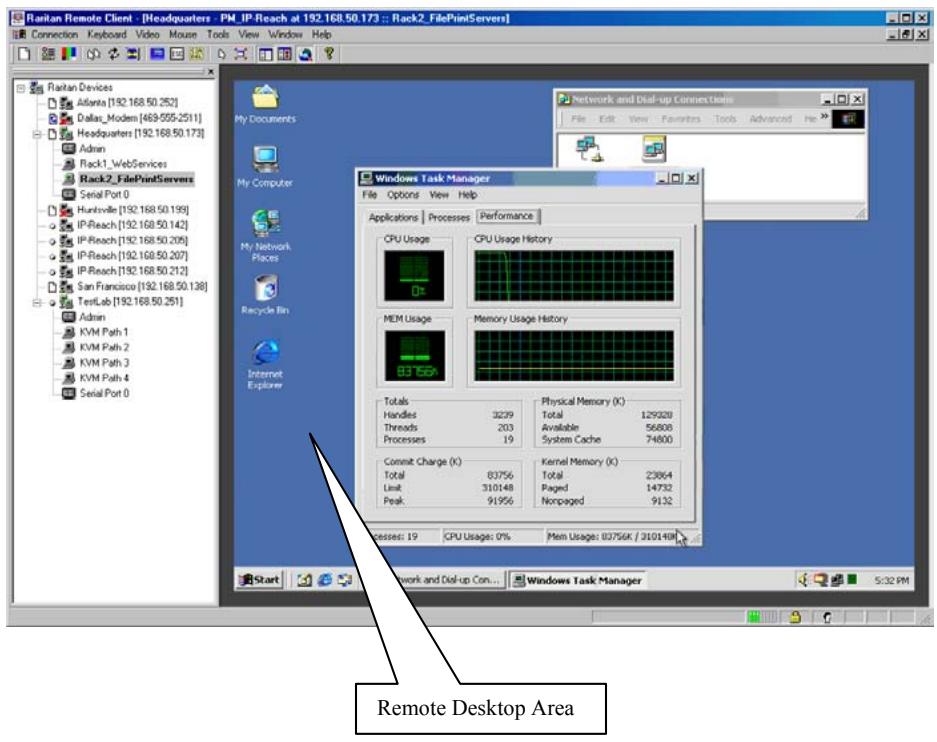
When your mouse pointer lies within the Remote Desktop area of RRC, mouse movements and clicks are directly transmitted to the Target KVM server connected.
Single Mouse Mode / Dual Mouse Mode
When remotely viewing a Target KVM Server that uses a pointing device, by default you will see two mouse pointers within the Remote Desktop area of the Raritan Remote Client window. The Raritan Remote Client mouse pointer, generated by the operating system on which RRC is running, slightly leads the Target KVM Server's mouse pointer during movement, a necessary result of digital delay.
On fast LAN connections, however, some users prefer to disable the Raritan Remote Client mouse pointer, opting to view only the Target KVM Server's mouse pointer during operation. To toggle between these two modes, use the Ctrl+Alt+X Hot Key, or press the Single Mouse Pointer mode icon in the RRC Toolbar.
Note: For better alignment between the two mouse pointers in dual-mouse mode, click on the [Synchronize Mouse] button on the RRC Toolbar, or simultaneously press the keys Ctrl+Alt+S. This will force a realignment of the two mouse pointers. If you have carefully followed the "Configuring Target KVM Servers" directions found in Chapter 2, and the mouse pointers still remain out of sync, click on the [Auto-Sense Video] button on the RRC Toolbar.
Full Screen Mode
Raritan Remote Client's full screen mode maximizes the screen real estate available to RRC for displaying the remote desktop by removing window borders, toolbars, status bars, and the RRC Navigator.
This option is particularly useful for viewing a Target KVM Server whose video resolution is equal to or greater than the video resolution setting of the PC on which RRC is running, for example, viewing a 1028x768 server on a 1028x768 PC.
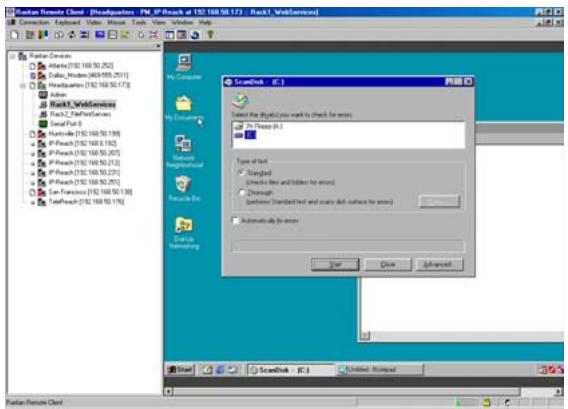
Standard View
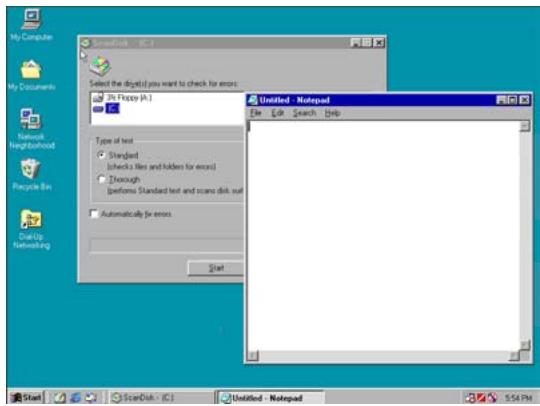
Full Screen Mode View
To toggle full screen mode, click on the full screen mode icon in the RRC Toolbar or use the Hot Key combination Ctrl+Alt+F. To exit full screen mode, press Ctrl+Alt+F again.
Keyboard Macros
RRC allows users to create custom keyboard macros in order to send given key sequences to the Target KVM Server connected to Dominion KSX. This feature allows customers to send keystrokes to remote servers that may be otherwise unintentionally interpreted by the computer on which RRC is running.
Dominion KSX's Keyboard Macro feature can be used to ensure that keystroke combinations intended for the Target Server are sent to, and interpreted only by, the Target Server.
Ctrl+Alt+Delete Macro
Due to its frequent use, a Ctrl+Alt+Delete macro has been pre-programmed into Raritan Remote Client, and is useful in illustrating the power of keyboard macros.
| DEL | Send Ctrl+Alt+Del | <Ctrl+Alt+D> | Sends a Ctrl+Alt+Delete macro to the Target Server. |
Clicking on the Ctrl+Alt+Delete icon in the RRC Toolbar sends this key sequence to the server or KVM switch to which you are currently connected. In contrast, if you were to physically press the Ctrl+Alt+Delete keys while using RRC, the command would first be intercepted by your own PC due to the structure of the Windows operating system, instead of sending the key sequence to the target server as intended.
Building a Keyboard Macro
To illustrate the creation of a keyboard macro, the following directions detail the steps necessary to create a keyboard macro for the Windows command, "Minimize All Windows / Show Desktop".
Example: In Windows, pressing the Windows+D key combination minimizes all program windows. However, when connected to a target server with RRC, a keyboard macro is the only means to accomplish this task on the target server – because, again, pressing the key combination Windows+D would result in your own client PC intercepting the command and performing it – instead of sending the command to the target server as intended.
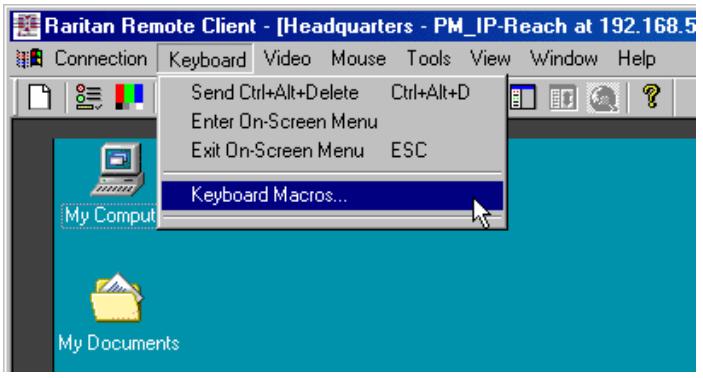
- On the RRC Menu Bar, select Keyboard Keyboard Macros.
-
When the Keyboard Macros dialog box opens, click Add.
-
The Add Keyboard Macro dialog box opens.
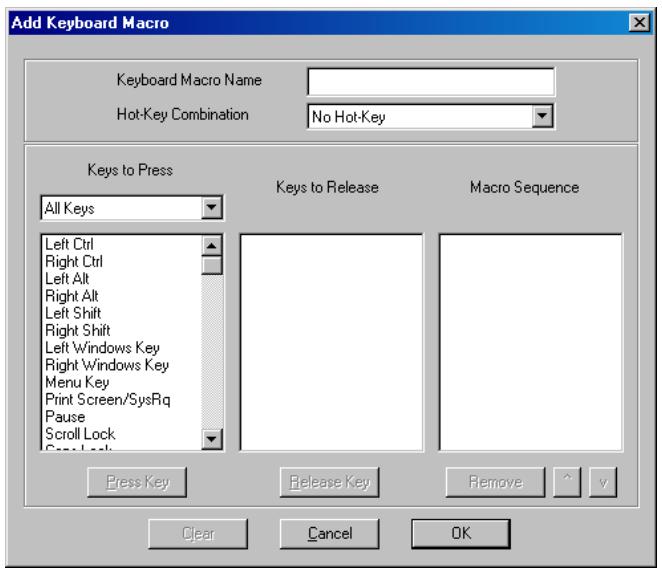
- Build the Keyboard Macro by editing all the fields in the Add Keyboard Macro window, in the order described below. Click on the OK button when finished.
a) Enter a name into the Keyboard Macro Name field, which will appear on the RRC Menu Bar, after successful creation of the keyboard macro. For our example, "Minimize All Windows".
b) Optional: Designate a keystroke combination in the Hot-Key Combination field, which allows easy macro execution from your keyboard when RRC is running. For our example "Minimize All Windows," we selected <Ctrl + Alt + 1> .
c) In the Keys to Press selection box, select each key for which you would like to emulate key presses – in the order by which they are to be pressed – clicking on the [Press Key] button after each selection. As each key is selected, it will appear in the Keys to Release selection box in the middle of the dialog box.
d) In our "Minimize All Windows" example, we require the transmission of two keys: the Windows key and the letter D key.
e) In the Keys to Release selection box, select each key for which you would like to emulate key releases – in the order by which they are to be released – clicking Release Key after each selection.
f) In our "Minimize All Windows" example, we require both keys pressed to also be released.
g) Review the Macro Sequence text box, whose contents are automatically generated, to ensure that the contents accurately reflect the exact key sequence you desire. Use and and the Remove button to adjust the contents and order of your macro if necessary.
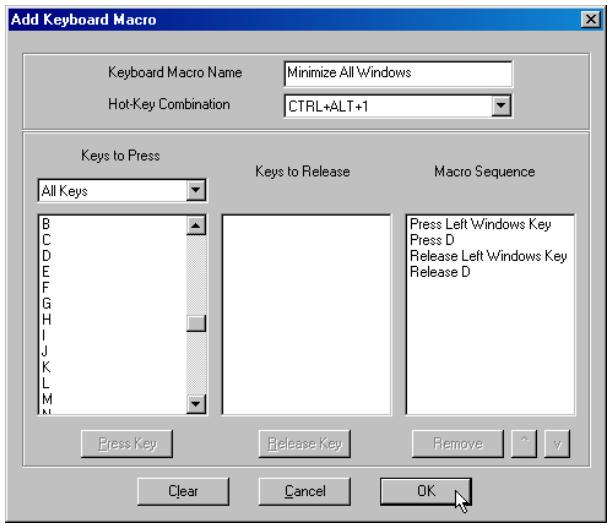
- After clicking OK, the Keyboard Macros dialog box will appear, listing your new keyboard macro.
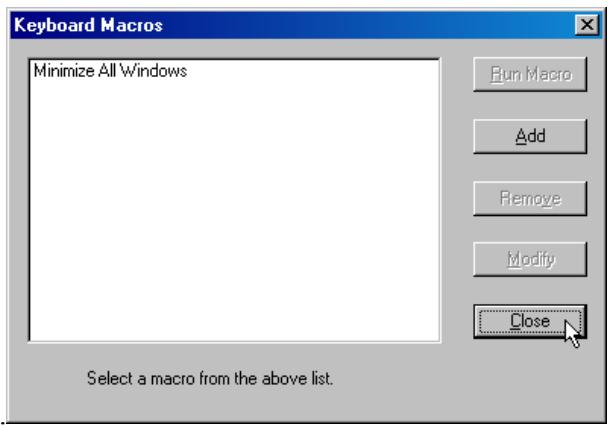
- Click on the [Close] button to complete the keyboard macro editing procedure.
Running a Keyboard Macro
Once a macro is created, it can be run via the RRC Menu Bar or with the Hot Key combination if one had been designated during the macro creation.
Menu Bar Activation
After a macro has been created, it appears in the Keyboard menu on the RRC Menu Bar. You can simply click on the entry to execute your new keyboard macro.
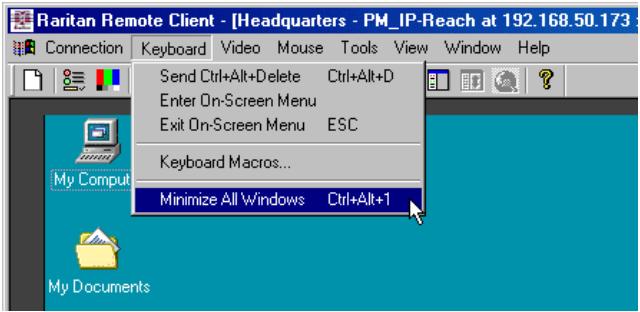
Hot-Key Activation
Alternatively, once a macro has been created, it can be executed while using RRC by pressing the Hot Key you (optionally) assigned to the macro. In the "Minimize All Windows" example described above, a user can press the keys Ctrl+Alt+1 simultaneously while using RRC to send the Windows+D key combination to the target server.
Connection and Video Properties
Dominion KSX's dynamic video compression algorithms maintain KVM console usability under varying bandwidth constraints. Unlike competitive solutions, Dominion KSX optimizes its KVM output for not only LAN utilization, but also via the WAN and dial-up. By dynamically adjusting color depth and limiting video output, Dominion KSX offers the optimal balance between video quality and system responsiveness in any bandwidth constraint.
Power users of RRC should understand the following adjustable parameters in the Connection Properties and Video Settings dialog boxes, and familiarize themselves with the effects of each setting – in different operating environments, they can be optimized to your requirements.
Connection Properties
| 3 | Connection Properties | <Ctrl+Alt+P> | Opens Modify Connection Properties dialog box to manually adjust bandwidth-correlated options (Connection Speed, Color Depth, etc.). |
To access the Connection Properties dialog box, either select Connection Connection Properties from the RRC Menu Bar, or click the Connection Properties button in the RRC Toolbar.
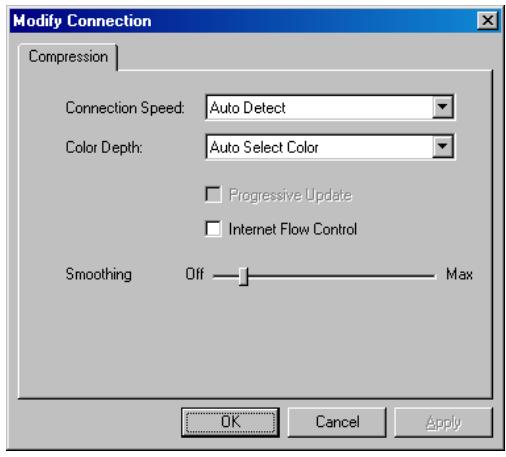
Connection Speed
The Connection Speed selection box allows users to manually constrain Dominion KSX from using more than a designated amount of network bandwidth. While Dominion KSX normally detects available bandwidth automatically, users can use the Connection Speed setting to manually inform Dominion KSX of a bandwidth constraint – whereby Dominion KSX adapts its behavior and simply refrains from even attempting to consume more than the available bandwidth.
Color Depth
For most administrative tasks (server monitoring, reconfiguring, etc.), server administrators do not require the full 24-bit or 32-bit color spectrum made available by most modern video graphics cards. Attempting to transmit such high color depths, then, would waste an enormous amount of precious network bandwidth.
Instead, Dominion KSX can dynamically adapt the color depth transmitted to remote users, in order to maximize usability in all bandwidth constraints.
- Progressive Update option: The extremely innovative Dominion KSX feature of Progressive Update can enormously increase usability in constrained bandwidth environments. When Progressive Update is enabled, Dominion KSX first sends an image of the remote desktop at lower color depths, and then provides higher color depth images as bandwidth allows.
This option is very similar in philosophy as the common World Wide Web notion of "interlaced GIF" files.
Note: When Color Depth is set to Auto Select Color (default), Progressive Update is automated. Dominion KSX will enable/disable Progressive Update as needed, disabling it for fast connections and enabling it for slow connections.
Internet Flow Control
Many public WAN links are by their very nature unpredictable. Packets sent over the public Internet do not necessarily arrive at their destination in the order they were sent. When using Dominion KSX over an unpredictable public WAN (particularly in international scenarios), the Internet Flow Control toggle ensures that packets transmitted by Dominion KSX are received and reconstructed by RRC in the correct order.
Smoothing
The video smoothing level instructs Dominion KSX to what degree color gradation shifts are relevant for transmission. Video pixels that stray from the majority color are assigned approximated color values to reduce bandwidth used and video noise transmitted. Overly high smoothing levels can result in color inaccuracies; whereas lower smoothing levels require greater bandwidth and processing power.
Video Settings
| Video Settings | N/A | Opens the Video Settings dialog box to manually adjust video conversion parameters. |
To access the Video Settings dialog box, either select Video Video Settings from the RRC Menu Bar, or click the Connection Properties button in the RRC Toolbar.
Most of the settings in this dialog box can be refreshed by performing Color Calibration, as described in the next section, or by manually forcing Dominion KSX to auto-detect the video settings (on the RRC Menu Bar, select Video Auto-sense Video Settings). However, it is useful for power users to understand the meanings and ramifications of each setting.
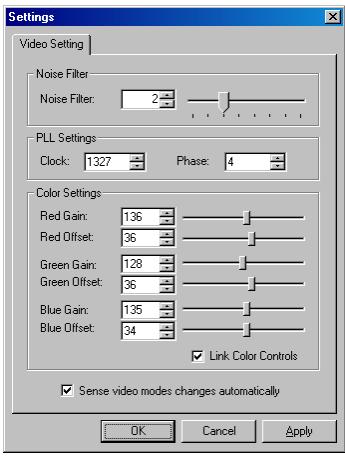
Noise Filter
The video output of graphics cards are transmitted in analog form, and are susceptible to electrical and interference noise. Dominion KSX's advanced circuitry can filter out these small, false, and unintended signal variations, thereby optimizing picture quality and bandwidth consumed.
Higher: Noise Filter settings instruct Dominion KSX to transmit a variant pixel of video only if a large color variation exists in comparison to its neighbors. However, setting the threshold too high can result in the unintentional filtering of desired screen changes.
Lower: Noise Filter settings instruct Dominion KSX to transmit most pixel changes. Setting this threshold too low will result in higher bandwidth use.
Note: Lower Noise Filter settings (approximately 1 to 4) are recommended. Although higher settings will stop the needless transmission of false color variations, true and intentional small changes to a video image may not be transmitted.
Analog-to-Digital Settings
The following parameters are best left to Dominion KSX to automatically detect (on the RRC Menu Bar, select Video > Auto-sense Video Settings), but a brief description of each is included here.
-
PLL Settings: If the video image looks extremely blurry or unfocused, the PLL Settings for clock and phase can be adjusted until a better image appears on the active Target Server.
-
Clock: Horizontal sync divider to produce pixel clock. Controls how quickly video pixels are displayed across the video screen. Changes made to clock settings cause the video image to stretch or shrink horizontally. Odd number settings are recommended.
- Phase: Phase values range from 0 to 31 and will wrap around. Stop at the phase value that results in the best video image for the active Target Server.
Color Settings: Gain control can be thought of as contrast adjustment. Offset control can be thought of as brightness adjustment.
- Red Gain: Controls the amplification of the red signal.
- Red Offset: Controls the bias of the red signal.
- Green Gain: Controls the amplification of the green signal.
- Green Offset: Controls the bias of the green signal.
- Blue Gain: Controls the amplification of the blue signal.
- Blue Offset: Controls the bias of the blue signal.
-
Link Color Controls: Makes all the gain slide adjusters move in unison when any one color's gain slide is moved and all the offset slide adjusters move in unison when any one color's offset slide is moved.
-
Sense video mode changes automatically: Determines whether Dominion KSX will automatically update the video image being sent RRC each time it detects a change in video resolution or refresh rates at the Target Server.
Color Calibration
Automatic Color Calibration adjusts the color settings on Dominion KSX to reduce excess color noise and data during digitization of video images. This data streamlining will increase the operational performance of Dominion KSX, particular color accuracy.
A very simple procedure to execute, Color Calibration should be performed if the color levels (hue, brightness, saturation) of transmitted video images do not seem accurate. Because Dominion KSX color settings remain static and do not change when switching from one Target KVM Server to another, performing this Color Calibration routine once on a single representational Target KVM Server will benefit all connected Target KVM Servers.
To Perform Color Calibration:
- Open a remote KVM connection to any server running a graphical user interface.
- Ensure that a solid white color covers approximately 15% or more of the target server's desktop. One simple way to accomplish this is to open the Notepad application and maximize its window size.
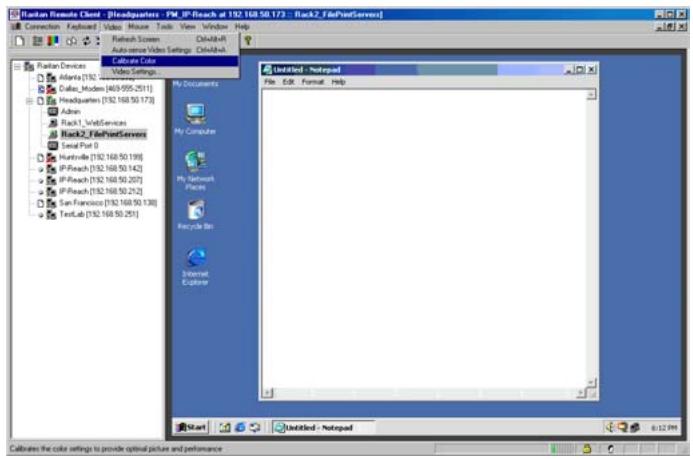
- On the RRC Menu Bar, select Video Calibrate Color to perform the color calibration.
Remote Desktop: Serial Control
In addition to remote KVM console access, Dominion KSX also offers users the convenience of accessing your remote serial devices with the same solution. Any serial console supporting VT100 emulation may be connected to the serial ports found on Dominion KSX, and accessed using the Raritan Remote Client.
Remote Connection
To open a remote connection to a serial device connected to your Dominion KSX, double-click on the corresponding Navigator entry as displayed by RRC:
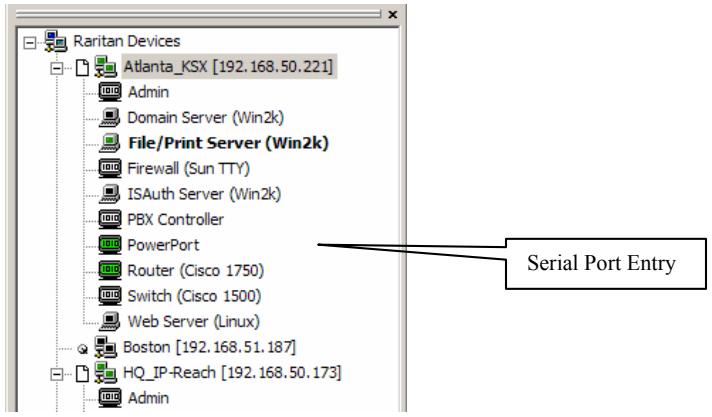
Remote Serial Ports are designated with the following icon:

A terminal window displaying the console output of the serial device connected to Dominion KSX will appear, and the icon found next to the serial port entry on the RRC Navigator will turn green.
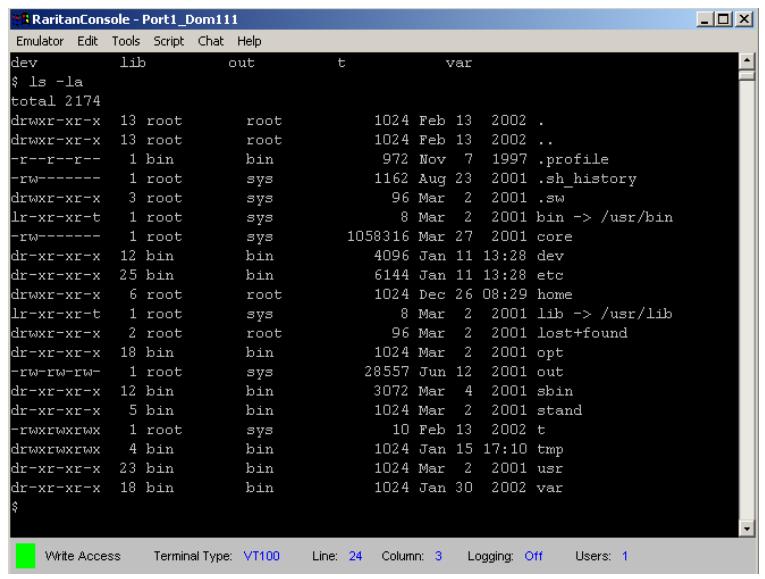
Note: Dominion KSX Serial Console access supports only VT100 terminal emulation; be sure your serial device is appropriately configured before connecting to Dominion KSX.
Note: If using Windows XP, Service Pack 1, the serial console will not appear if you have two conflicting Java virtual machines installed on your system (i.e., one from Sun Microsystems, and on from Microsoft).
Upon connecting remotely to the selected serial console port, your keystrokes will be transmitted directly to that serial console port.
Changing Serial Settings
You may change the serial terminal settings such as baud rate, parity, and stop bits used by Dominion KsX to communicate with your serial device, by right-clicking on the serial port entry in the
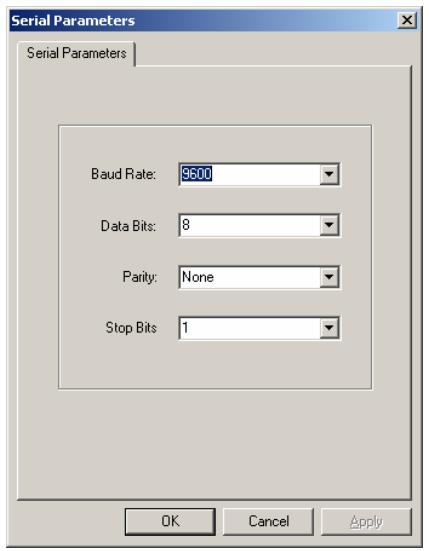
RRC Navigator, and selecting Serial Parameters in the menu. Click on the [OK] button when finished.
Viewing Serial Console History
The History feature allows you to view the recent history of your console sessions by displaying the console messages to and from the target device. This function displays up to 999 lines of recent console message history. This information can be useful during debugging, troubleshooting, or administering a target device.
Note: History data is displayed only to the user who requested the history.
To View Session History:
- In the top menu bar of Raritan Remote Console, click on Serial.
- Select History from the drop-down menu.
Serial Console Logging
Raw console data from the target device can be logged to a file in your computer.
Start Logging
- In the top menu bar of Raritan Remote Console, click on Serial.
- Select Start Logging from the drop-down menu.
- Choose an existing file or provide a new file name in the File Dialog box. When an existing file is selected for logging, data gets appended to the contents. Providing a new file name creates a brand new file. Click OK after you have selected or created a file.
Stop Logging
- In the top menu bar of Raritan Remote Console, click on Serial.
- Select Stop Logging from the drop-down menu.
Cutting and Pasting Serial Data
Use the Copy, Paste, and Select All Text commands to relocate and / or re-use important text.
To Copy and Paste All Text:
- In the top menu bar of Raritan Remote Console, click on Serial.
- Choose Select All Text from the drop-down menu.
- In the top menu bar of Raritan Remote Console, click on Serial.
- Choose Copy from the drop-down menu.
- Position the cursor at the location you wish to paste the text and click once to make that location active.
- In the top menu bar of Raritan Remote Console, click on Serial.
- Select Paste from the drop-down menu.
Remote Desktop: Power Control
In addition to remote KVM and serial console access, Dominion KSX also offers users the option of graphical, hard power control. To take advantage of this capability, you should obtain and connect a Raritan remote power control unit to the dedicated "Power Control" port of Dominion KSX (see Chapter 2: Installation, "Physical Connections" for more details).
Raritan offers remote power control units in 1U and 0U form factors; offering 8, 12, or 20 outlets; and in configurations for different voltage, international, and load (amp rating) environments. Contact your Raritan representative for more information about Raritan remote power control units.
Please note that both the dedicated "Power Control" port and the graphical power control interface described below, only apply and operate with Raritan brand remote power control units. Similar devices from third party vendors will not function as described below with the dedicated "Power Control" port on Dominion KSX, however they of course can be connected to the Dominion KSX serial console ports – just as any other serial device.
Remote Connection
To open a remote connection to initiate remote power control, double-click on the corresponding Navigator entry named "PowerPort", as displayed by RRC:

A window displaying the graphical power control interface (called "PowerBoard"), will appear, and the icon found next to the serial port entry on the RRC Navigator will turn green.
Note: If using Windows XP, Service Pack 1, the graphical power control interface will not appear if you have two conflicting Java virtual machines installed on your system (i.e., one from Sun Microsystems, and on from Microsoft).
When the PowerBoard graphical power control interface appears, the user interface allows you to turn an outlet ON or OFF by clicking the icon before the Outlet name or number.
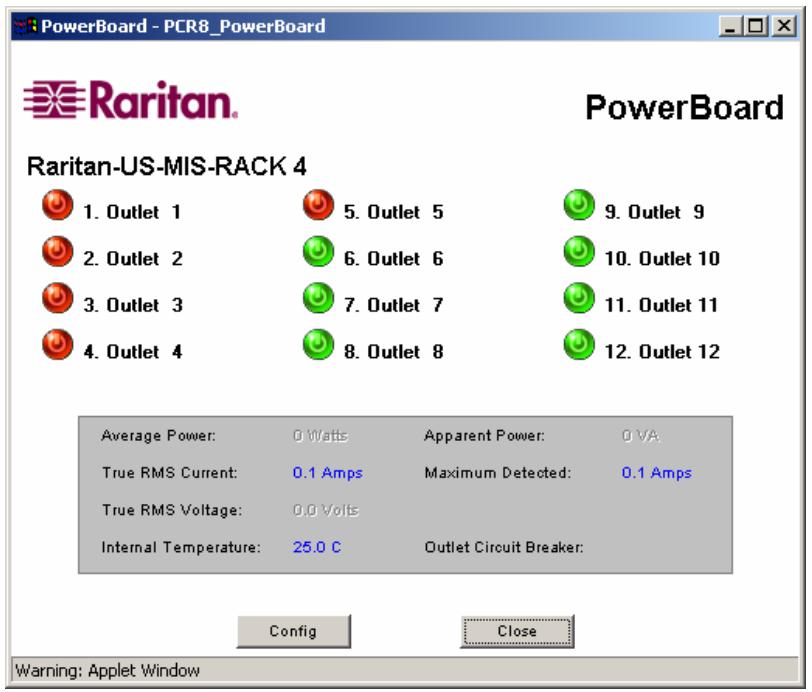
To Turn ON a Device or Outlet:
Whether or not a device is connected to an outlet, a RED icon before the outlet number indicates the outlet is OFF and there is no power feeding to it. Click on the red button icon, it will change to GREEN, indicating the outlet is now ON and there is power feeding to it.
To Turn OFF a Device or Outlet:
If the button icon before an outlet number is GREEN, click on the green button icon to turn OFF the outlet. A confirmation message will appear:
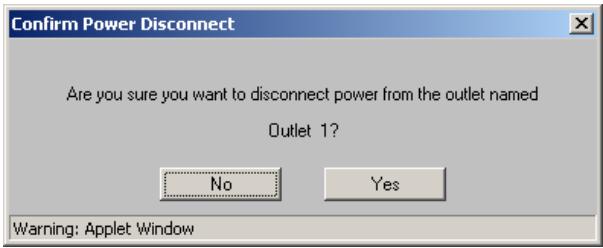
Click Yes to turn off the outlet. The button icon for that outlet turns RED to indicate that the outlet is now OFF.
Configuration Options:
Click Config on the PowerBoard window to configure outlets on the power control unit. The Config window appears.
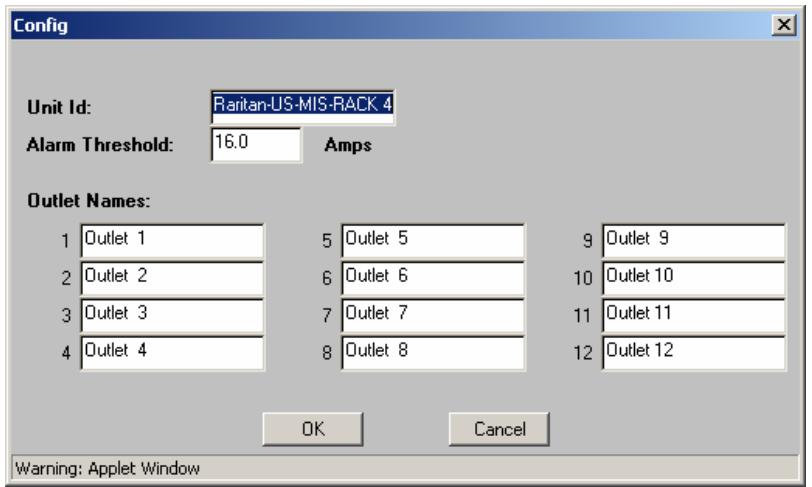
Options for Outlet configuration include:
- Assign a Unit ID: Give the power control unit an identification name, for example, using City, Building, Rack, or other information. For example: Raritan-US-MIS-RACK 4.
- Set the Alarm Threshold, in Amps: When the threshold is reached, an audible alarm is activated to users located next to the power control unit.
- Assign outlets specific Outlet Names: For easier identification and control, give each outlet a name.
Click OK when finished to close the Configuration window and launch the PowerBoard Applet.
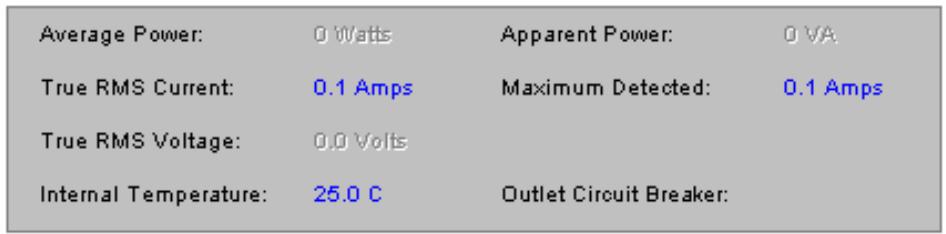
For your convenience, PowerBoard parameters are listed in the gray box in the PowerBoard window. These parameters are details that apply to the entire bank of outlets, and not on a per-. outlet level.
Parameters include:
Average power
True RMS Current
True RMS Voltage
- Internal Temperature
- Apparent Power
Maximum Detected
- Outlet Circuit Breaker
Remote Dominion KSX Device Administration
When logged into a Dominion KSX unit as a user with administrative privileges, Dominion KSX allows you to perform many powerful device administration tasks remotely.
Configuration Menus
An Administrative user can access Dominion KSX's lowest level configuration menus (explained in detail in Chapter 4), by double-clicking the "Admin" port entry of a Dominion KSX device shown in the RRC Navigator.
Firmware Upgrade
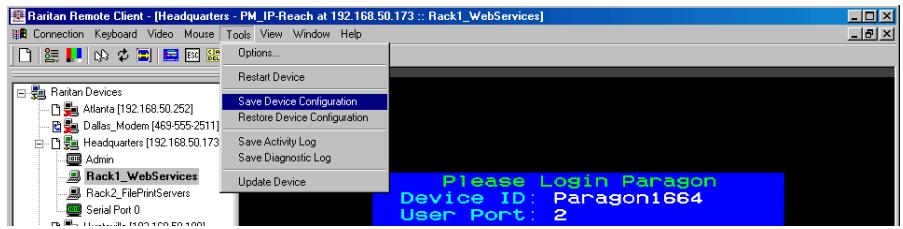
Remote firmware upgrades may be performed by selecting Tools Update Device on the RRC Menu Bar. RRC will prompt you to locate a Raritan firmware distribution file (*.RFP format), which can be found on the Raritan web site (www.raritan.com) when available. Be sure to read all instructions included in firmware distributions before performing an upgrade.
Device Restart
Administrative users may restart Dominion KSX units by selecting Tools Restart Device on the RRC Menu Bar.
Device Configuration Backup and Restore
By selecting Tools Save Device Configuration and Tools Restore Device Configuration on the RRC Menu Bar, Administrative users may download and upload complete Dominion KSX configurations to their local computers for archiving.
Log Files
Dominion KSX provides detailed activity logs for troubleshooting purposes, which may be downloaded to your local computer for viewing, reporting, and analysis. On the RRC Menu Bar, select Tools Save Activity Log, or Tools Save Diagnostic Log.
Chapter 4: Administrative Functions
Accessing the Administrative Functions
Administrative functions may be accessed via the local admin console (see Chapter 2: Installation, Physical Connections), or via remote administration (see Chapter 3: Raritan Remote Client, Remote Device Administration). Only administrators (users with administrative privileges) can access the Dominion KSX Administrative Menus.
Local Admin Console
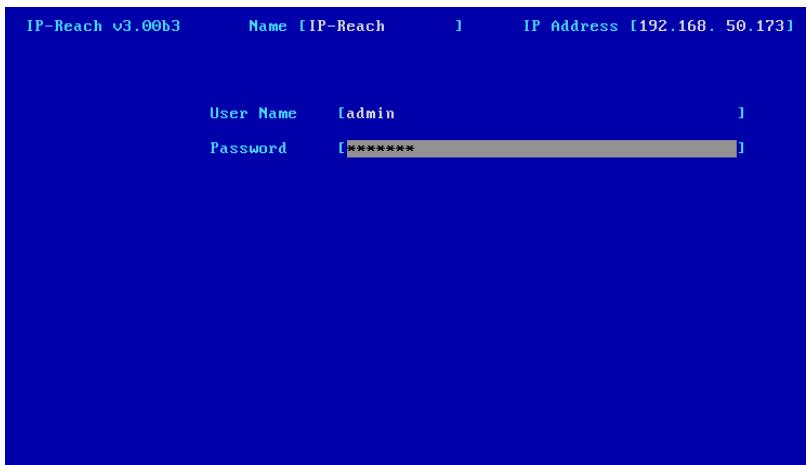
Power ON the Dominion KSX unit via the power switch on the back of the unit. The Administrative functions and menus will be displayed on the VGA monitor connected to your "Local Admin Console" ports, if connected as directed in Chapter 2: Installation, Physical Connections.
Note: The default Dominion KSX login user name is
Passwords are case sensitive and must be entered in the exact case combination in which they were created. The default password <raritan> must be entered entirely in lowercase letters.
To ensure security, change the default username password as soon as possible.
Remote Admin Console
An alternative way to access Dominion KSX's administrative functions is to do so remotely, using the Raritan Remote Client.
Any administrative user logged on to Dominion KSX can perform administrative functions remotely to make changes to the system, as long as Dominion KSX is set to allow remote administration privileges - see Allow Remote Administration on the Security Configuration screen.
Note: Only users with administrator privileges can access the Remote Admin feature.
To access the Administrative menus from Raritan Remote Client, double click on the Admin path entry displayed on the RRC Navigator for the Dominion KSX unit you wish to configure.
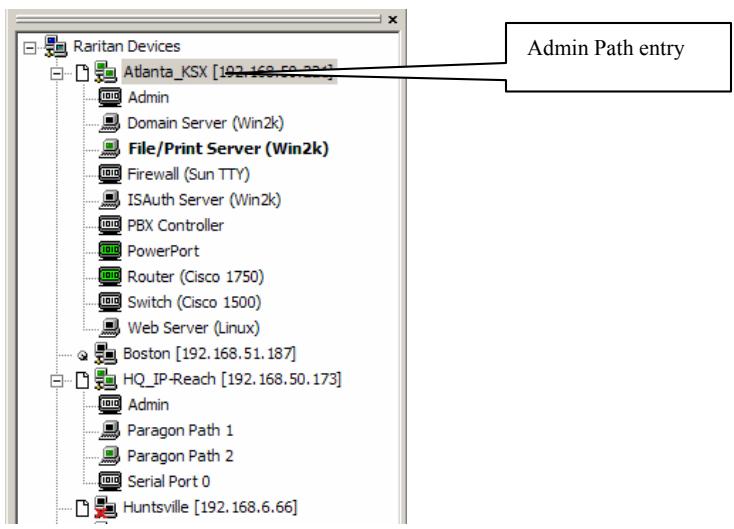
Navigating the Administrative Menus
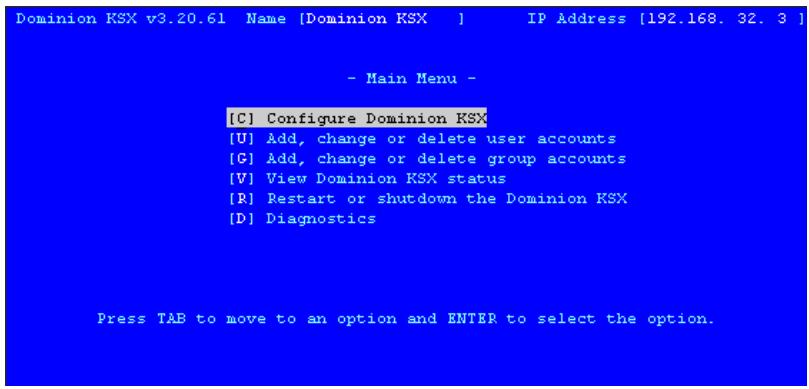
- Use the TAB, , or keys to highlight, or press the letter before, the desired menu selection and then press ENTER.
- Press ESC at any time to back out of a screen to the previous screen or menu.
- After adding accounts or making changes, press Ctrl+S to save all changes. You must reboot to apply changes to your system.
Network Configuration
Select [C] Configure Dominion KsX on the Main Menu to view the Configuration Menu.
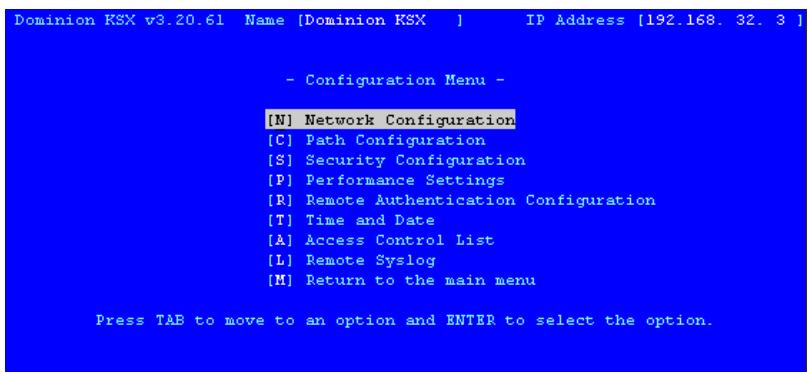
Select [N] Network Configuration to make changes to the Network Configuration. When finished, remember to press Ctrl+S to save any changes, and then reboot to apply changes to the system.
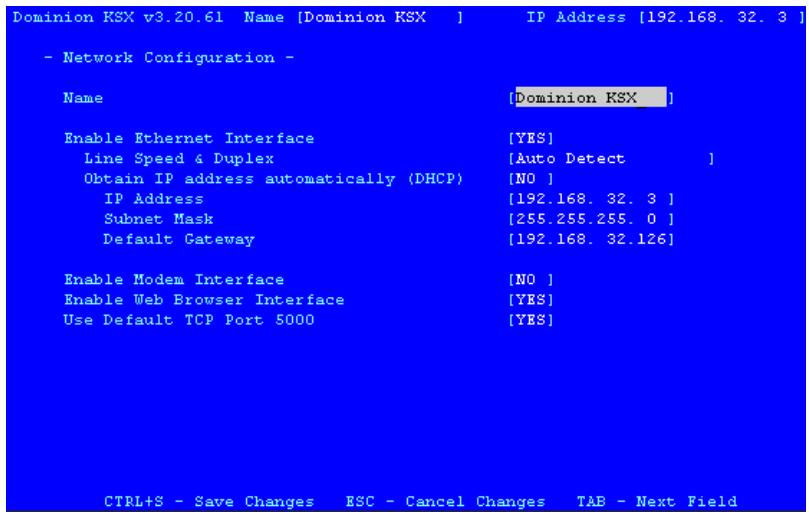
- Name: Designate a unique name for this Dominion KSX unit, for example, "Miami Sales Office." The default name is Dominion KSX.
- Enable Ethernet Interface: Designates whether Dominion KSX should enable its Ethernet adapter as active (default: YES).
Note: Network connections must be 10BASE-T or 100BASE-TX Ethernet
- Line Speed & Duplex: Enter the network speed to be used by Dominion KSX's Ethernet interface: Auto detect, 10 Mbps/Full Duplex, 10 Mbps/Half Duplex, 100 Mbps/Full Duplex, or 100 Mbps/Half Duplex
-
Obtain IP address automatically (DHCP):
-
YES: Enables dynamic IP addressing for Dominion KSX. Each time Dominion KSX boots, it will request an IP address from the local DHCP server. Note that this setting can make remote access to Dominion KSX from outside the LAN difficult, since the dynamically assigned IP address must be known in order to initiate a connection.
- NO (default): Assigns a fixed IP address to the Dominion KSX unit (recommended).
IP Address: Enter the IP address for Dominion KSX given by your Network Administrator.
Subnet Mask: Enter a Subnet Mask provided by your Network Administrator.
Default Gateway: Enter the Default Gateway if your Network Administrator specifies one.
- Enable Modem Interface: Enables Dial-up Modem access (default: NO).
-
Enable Web Browser Interface: Enables web browser access to Dominion KSX (default: YES).
Use Default TCP Port 5000: -
YES (default): Utilizes the default port 5000.
- NO: Enter an alternate port number.
Note: In order to access Dominion KSX from beyond a firewall, your firewall settings must enable two-way communication through the default port 5000, or the non-default port configured above.
Path Configuration
Select [C] Path Configuration on the Configuration Menu to name each KVM Input and Serial Input port. Ports will be displayed alphabetically. After saving your changes, reboot the unit to apply these changes.
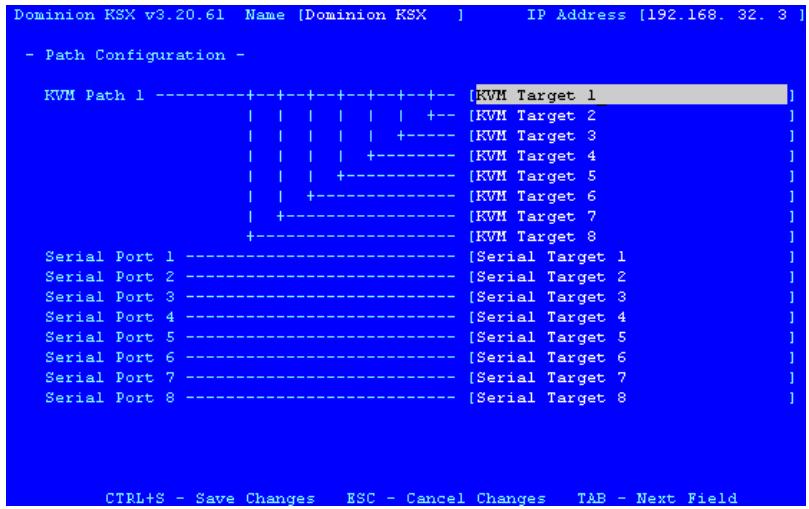
Security Configuration
Select [S] Security Configuration on the Configuration Menu to set Dominion KSX security parameters.
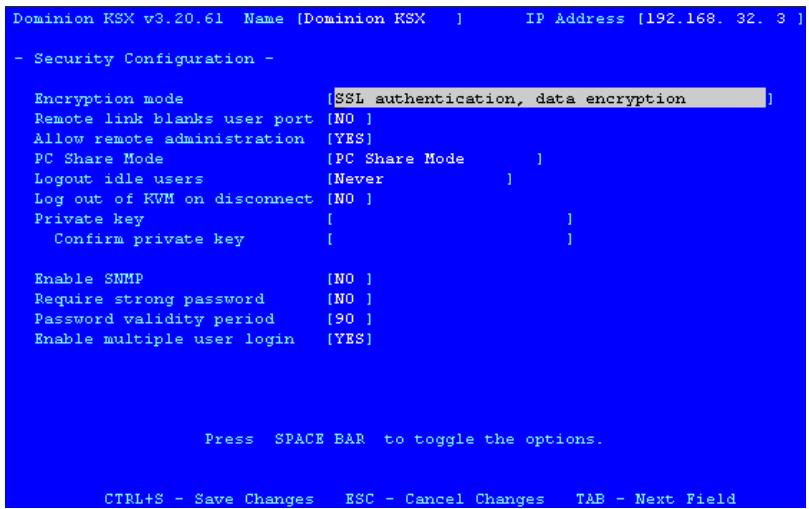
-
Encryption mode: Toggle through the choices and select the desired level of encryption for initial connection authentication and remote session video data transfer.
-
No encryption: No encryption or security. Neither the initial connection authentication nor remote video data transfer is encrypted.
- SSL authentication, NO data encryption: This mode secures user names and passwords, but not KVM data. 128-bit Secure Socket Layer (SSL) protocol provides a private communications channel between Dominion KSX and the Remote PC during initial connection authentication. No encryption security in place during remote KVM data transfer.
- SSL authentication, data encryption (default): This mode secures user names, passwords, and KVM data. 128-bit Secure Sockets Layer (SSL) protocol provides a private communications channel between Dominion KSX and the Remote PC during initial connection authentication. After authentication, KVM data is also transferred with 128-bit encryption, but using a proprietary protocol more efficient than SSL.
- SSL authentication, SSL data encryption: This mode secures user names and passwords, and provides high-level security for KVM data. 128-bit Secure Sockets Layer (SSL) protocol provides a private communications channel between Dominion KSX and the Remote PC during initial connection authentication. 128-bit SSL encryption is also in place during remote KVM data transfer.
Note: SSL data encryption increases the amount of data that must be sent over the remote connection, and is, therefore, not recommended for modem or very slow Internet connections. The default setting "SSL authentication, data encryption" offers exactly the same level of security with a higher level of efficiency.
-
Remote link blanks user port: Determines whether the Direct Analog User port will be blanked out locally when a remote user is accessing the corresponding KVM port. This keeps a local user from seeing what the remote user is doing.
-
NO (default): User port can be viewed locally during remote user access.
-
YES: User port cannot be viewed locally during remote user access. The local or Direct Analog user console will stop displaying video.
-
Allow remote administration:
-
NO: To keep access to all Administrative Functions available only from the Dominion KSX Admin Console, and not from a Remote PC.
-
YES (default): Allows remote access to all Administrative Dominion KSX Functions by administrators logged on at a Remote PC.
-
PC Share Mode: Determines global concurrent remote access. Enables up to eight remote users to simultaneously log on to one Dominion KSX unit and concurrently view and control the same Target KVM Server through Dominion KSX. Control is based on first active/keyboard mouse input, so multiple remote users attempting keyboard input or mouse movement at exactly the same moment may experience uneven control.
-
Private Mode (default): No PC Share. Each Dominion KSX path can be accessed exclusively by only one user at a time.
- PC Share Mode: Dominion KSX ports can be accessed by more than one user (administrator or non-administrator) at a time. Control is based on first active keyboard/mouse input, so multiple remote users attempting keyboard input or mouse movement at exactly the same moment may experience uneven control.
- PC Share Admins Only: Dominion KSX can be accessed by more than one user (administrative users only) at a time. Control is based on first active keyboard/mouse input, so multiple remote users attempting keyboard input or mouse movement at exactly the same moment may experience uneven control.
Note: PC Share Mode is a global setting. For individual user access settings see Keyboard and Mouse Control and Concurrent Access Mode on the User Account Settings screen. Each user profile can be set individually to enable/disable keyboard and mouse control, and concurrent access.
-Logout idle users: Offers an option for Dominion KSX to automatically disconnect remote users after certain selected time intervals of inactivity have passed.
- Never (default): Idle remote users will never be disconnected.
-
After 5, 15, 30, 60, or 120 minutes: Idle remote users will be automatically disconnected from Dominion KSX after the selected time period has passed with no active input from the Remote PC.
-
Log out of KVM on disconnect: Sets automatic log out from the connected KVM's OSD.
-
NO (default): No special commands will be given to effect to the OSD of the connected KVM switch upon user remote disconnection from IP-Reach. When a remote user disconnects from IP-Reach the OSD of the connected KVM switch will remain in the state last seen by the user.
- YES: When a remote user disconnects from IP-Reach, then IP-Reach will automatically send a log out command (
) to the connected KVM switch.
Notes:
For concurrent connections, the Log out command, if set, will be sent when the last connected user logs off from Dominion KSX.
For the "log out of KVM" option to function properly, Dominion KSX must be configured to match the base KVM switch's hot key (see Chapter 3: Raritan Remote Client, Remote Dominion KSX Device Administration).
-
Private key: Enter a private key password. This private key acts as a second level of password protection. Only remote users who know the private key password, in addition to their user name and password, can log in and connect to Dominion KSX.
-
Confirm private key: Enter private key password again for re-confirmation.
Notes:
Private key passwords are case sensitive. For remote user login, passwords must be entered by the user in the exact case combination in which they were created here.
Private key passwords must be alphanumeric. Special characters cannot be used.
- Enable SNMP: Toggles whether Dominion KSX responds to SNMP GET REQUESTS
- Require strong password: Requires user passwords to have a minimum of 6 characters with at least one alphabetical character and one non-alphabetical character (punctuation or number). The first four characters of the password and the username cannot match.
- Password validity period: Type a number of days in this field to force users to change their passwords after a set duration.
- Enable multiple user login: When this rule is selected, a given username/password combination can be connected into Dominion KSX from multiple client workstations at a time.
Performance Settings
Select [P] Performance Settings on the Configuration Menu to set up Dominion KSX's video data transfer and bandwidth parameters.
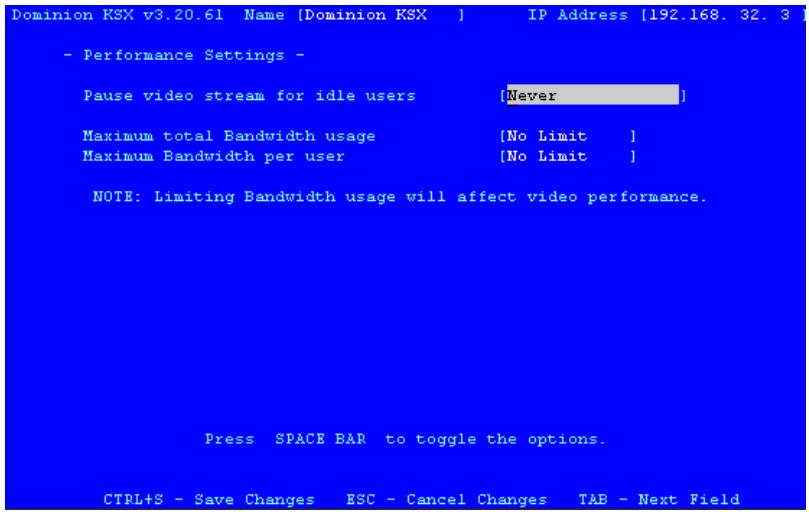
-
Pause video stream for idle users: Pausing the flow of video data during periods of prolonged inactivity will prevent an inactive user from needlessly consuming bandwidth.
-
Never (default): Video data will continually be sent to Remote PC, constantly updating the screen, even if the remote user is Idle, sending no active input to Dominion KSX.
-
After 5, 15, 30, 60, or 120 minutes: Video data flow to the Remote PC will pause after the selected time period has passed with no active input from the Remote PC.
-
Maximum total Bandwidth usage: Sets an upper limit to the amount of bandwidth that can be consumed by this one Dominion KSX unit.
-
No Limit (default): Dominion KSX can consume as much bandwidth as needed.
-
10, 5, 2, or 1 megabit or 512, 256, 128 kilobit: Total bandwidth available to be consumed by this Dominion KSX unit is limited to the selected quantity. The lower the bandwidth allowed, the slower the performance that may result.
-
Maximum Bandwidth per user: Sets an upper limit to the amount of bandwidth that can be consumed by each user logged onto this one Dominion KSX unit.
-
No Limit (default): Each active user can consume as much bandwidth as needed.
- 10, 5, 2, or 1 megabit or 512, 256, 128 kilobit: Bandwidth consumed by each active user during the operation of this Dominion KSX unit is limited to the selected quantity. The lower the bandwidth allowed, the slower the performance that may result.
Remote Authentication: Users, Groups, and Access Permissions
Overview
Dominion KSX keeps an internal list of user and group names to determine access authorization and permissions. This information is stored internally in a hashed / encrypted format.
Note to CommandCenter Users
If you plan to configure Dominion KSX to be integrated with and controlled by Raritan's CommandCenter management appliance, this section of the User Manual does not apply to you. When an Dominion KSX unit is controlled by CommandCenter, CommandCenter determines the allowed users and groups. Please refer to your CommandCenter User Guide.
Note to Raritan Customers Upgrading from Previous Firmware Versions
If you previously configured Raritan products such as Dominion KSX and Dominion KSX running legacy firmware versions earlier than v3.2, read this entire section carefully. Beginning with firmware version v3.2 and above, the implementation of users and groups has changed significantly to provide more flexible and powerful configurations.
Relationship between Users and Group Entries
Dominion KSX organizes all users into groups. Assigning users to groups allows you to manage permissions for all users in a given group at once, instead of managing permissions on a user-by-user basis.
- User information is used to determine user authentication (i.e., is a given user allowed to access Dominion KSX at all?)
- Group information is used to determine authorization for all users in a given group (i.e., to which ports on Dominion KSX do the users in a group have access rights?)
You may choose not to associate specific users with groups. In this case, Dominion KSX classifies the user as "Individual."
Mandatory User Groups
Every Dominion KSX has three default user groups. These groups cannot be deleted:
| ADMIN | User group for original, factory-default administrative user. |
| NONE | Permissions defined for this group are employed for a user when your Dominion KSX is configured for remote authentication via LDAP or RADIUS (see next section), and a login attempt is successful but no user group is returned by the remote authentication server. |
| UNKNOWN | Permissions defined for this group are employed for a user when your Dominion KSX is configured for remote authentication via LDAP or RADIUS (see next section), and a login attempt is successful but the user group returned by the remote authentication server is not found in Dominion KSX. |
Create or Change Group Accounts
- Select [G] Add, change or delete group accounts from the Main Menu to add or change a Group Account.
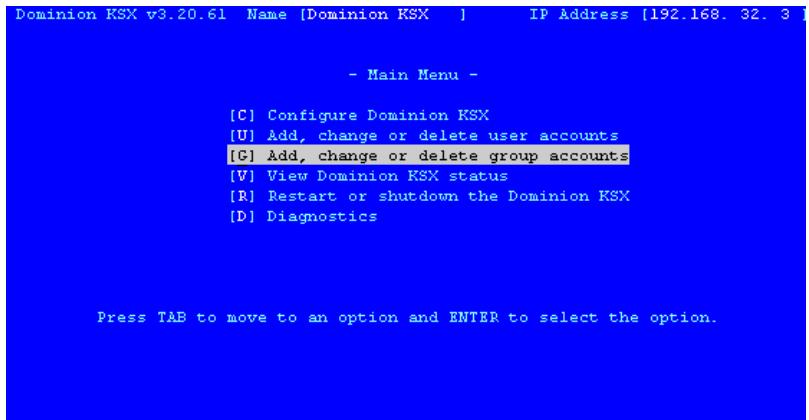
- The Group Account screen appears. Note the key commands at the bottom of the screen.
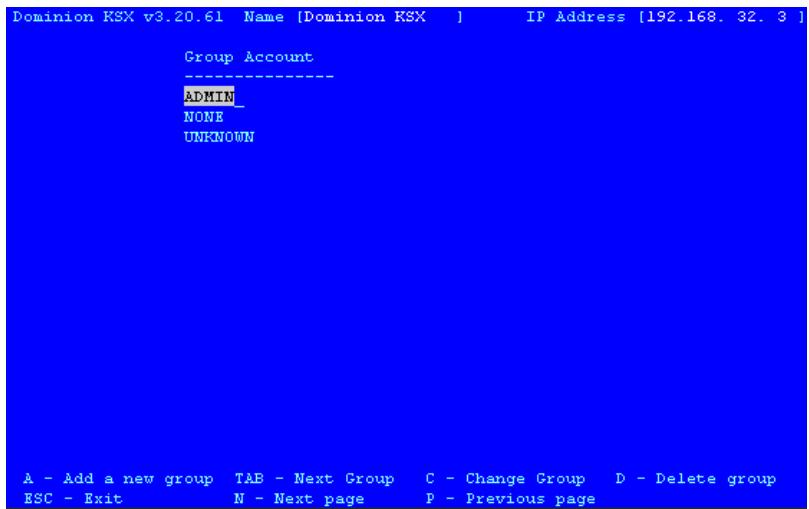
- To create a new group account, press A.
- To change group account properties, use the TAB key to highlight the group and then press ENTER. The Group Account Settings screen appears.
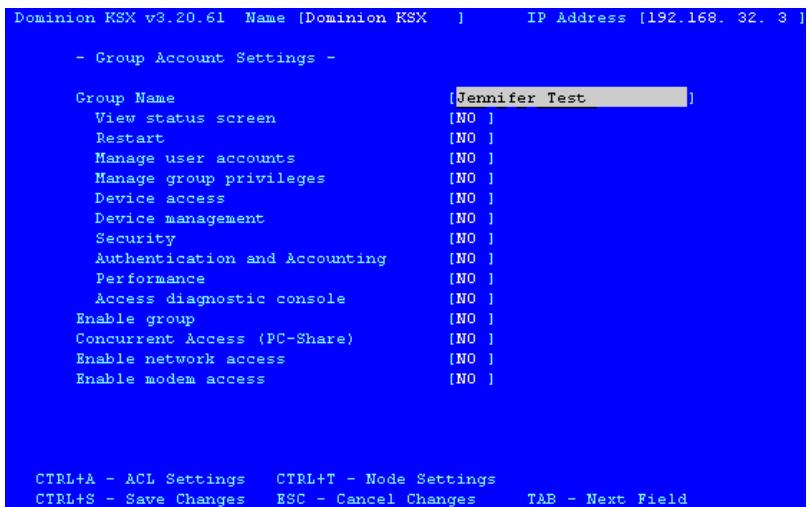
a. Type the Group Account name in the Group Name field. The name can consist of alphanumeric characters, up to 23 characters long, and the first character cannot be a number.
b. Use the and arrow keys or the TAB key to move through the line items, and press the SPACE BAR to toggle choices from YES to NO. When finished, press CTRL+S to save your data, press ESC to exit the screen without saving.
- Press CTRL + S to save changes.
Assign Port Access Permissions
By default, all new User Groups have no access rights to any of Dominion KSX's KVM and serial ports. Access permissions must be assigned for each user group.
- While in the Group Account Settings screen described above, press CTRL+T to select Node Settings. The Node Settings Menu appears, listing each Target KVM and Serial Port configured on your Dominion KSX, and their permissions.
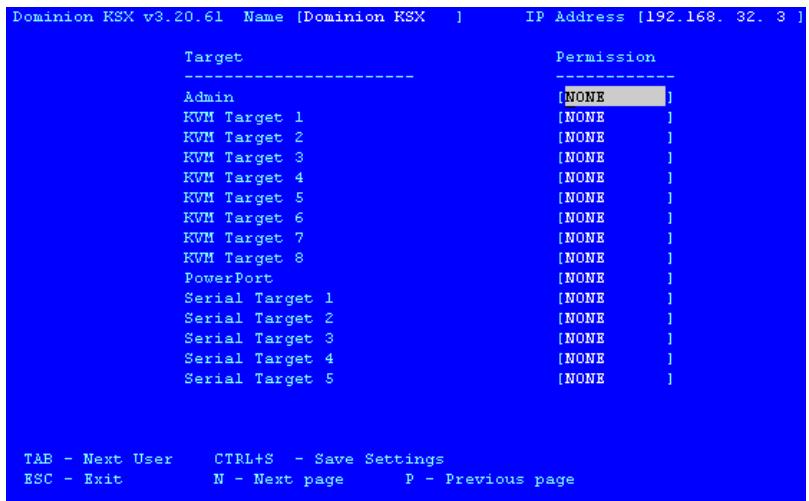
- Use the and arrow keys to scroll through the KVM and Serial Ports, and press the SPACE bar to toggle Permissions:
a. NONE - Users in this group do not have permissions to access this KVM or Serial Port at all. The port will not even be displayed as an option for users in this group.
b. READ ONLY – Users in this group have permission to view this KVM or Serial console port, but do not have the ability to control it (type, move the mouse, etc.).
c. READ WRITE - Users in this group have permission to view this KVM or Serial console port, and have the ability to control it.
- Press CTRL+S to save changes. You will return to the Group Account Settings screen for the user group you are editing or creating and you must press CTRL+S once more while in this screen to save the permissions settings to the user group.
Delete Group Accounts
To delete an existing group account, select [G] Add, change or delete group accounts from the Main Menu. When the Group Account screen appears, press TAB to select the group account to delete, press the letter D, and then press ENTER. Before deleting a group, ensure that there are no users assigned to it, or those users will also be deleted.
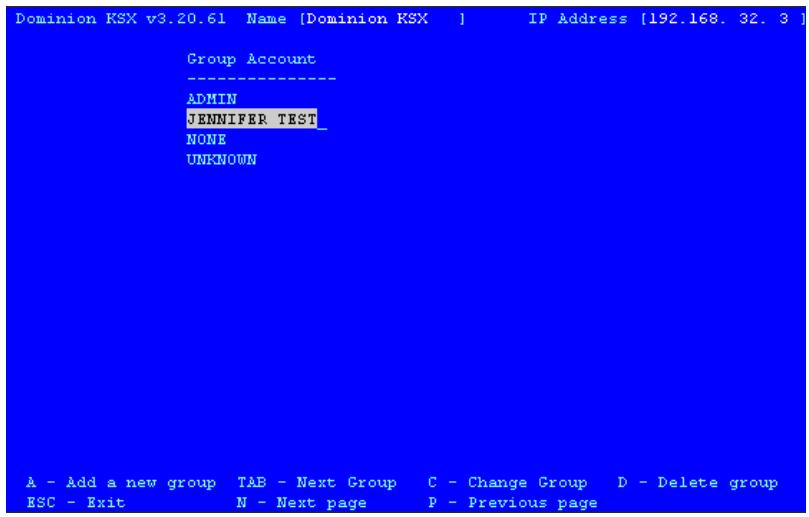
Note: You cannot delete the default group ADMIN.
Create or Change User Accounts
- Select [U] Add, change or delete user accounts from the Main Menu to add or change a User Account.
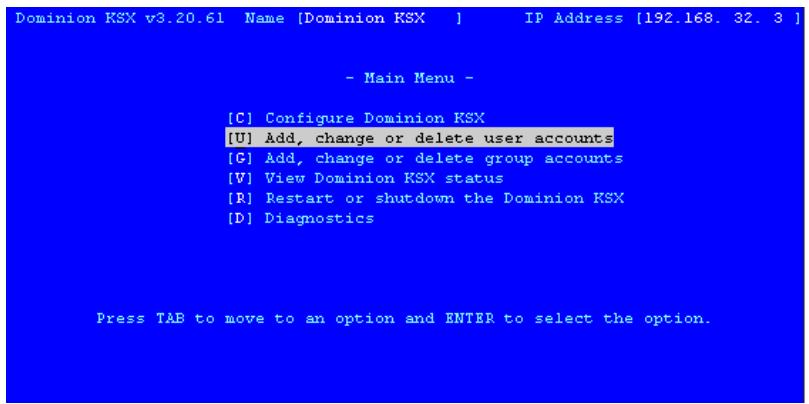
- The User Account window appears.
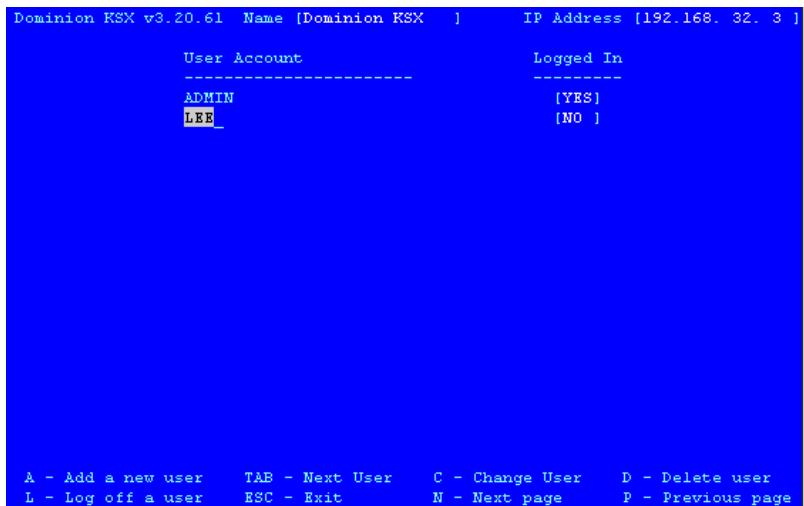
- To add a new user account, press the letter A.
- To change a user account properties, use the TAB key to move through the list and press ENTER to select a user to change.
- The User Account Settings screen appears.
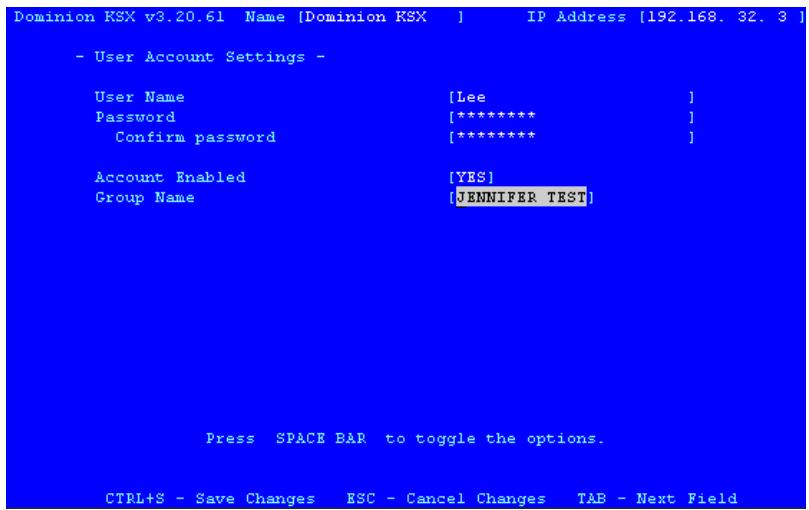
a. Type the user's name in the User Name field. The name can consist of alpha-numeric characters, up to 23 characters long, and the first character cannot be a number.
b. Type the user's password in the Password field. The password can consist of alphanumeric characters, up to 23 characters long.
c. Retype the password to confirm it in the Confirm password field.
d. In the Account Enabled field, press the SPACE bar to toggle from YES to NO to enable this user's account (default: NO)
e. Press SPACE to toggle the group name this user will belong to in the Group Name field.
- When finished, press CTRL+S to save your data, or press ESC to exit the screen without saving.
Delete User Accounts
To delete an existing user account, Select [U] Add, change or delete user accounts from the Main Menu. When the User Account screen appears, press TAB to select the user account to be deleted, press the letter D, and then press ENTER.
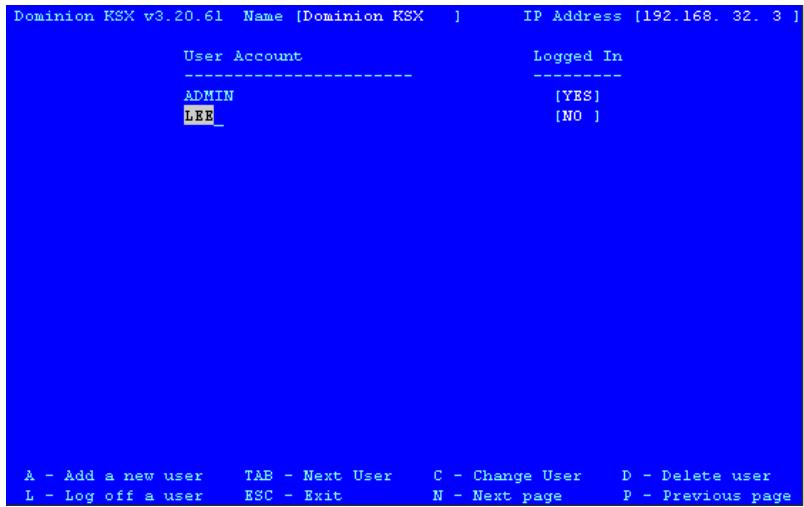
Note: You cannot delete the default user ADMIN.
Remote Authentication Implementation
Introduction
Note to CommandCenter Users
If you plan to configure Dominion KSX to be integrated with and controlled by Raritan's CommandCenter management appliance, this section of the User Manual does not apply to you. When an Dominion KSX unit is controlled by CommandCenter, CommandCenter determines the allowed users and groups. Please refer to your CommandCenter User Guide.
Note to Raritan Customers Upgrading from Previous Firmware Versions
If you have previously implemented RADIUS authentication on Raritan products such as Dominion KSX and Dominion KSX running legacy firmware versions earlier than v3.2, read this entire section carefully. Beginning with firmware version v3.2 and above, the implementation of external authentication has changed significantly to provide more flexible and powerful configurations.
Supported Protocols
To simplify management of usernames and passwords, Dominion KSX is able to forward authentication requests to an external authentication server. Dominion KSX supports two external authentication protocols: LDAP and RADIUS.
Note on Microsoft Active Directory
Microsoft Active Directory uses the LDAP protocol natively, and can function as an LDAP server and authentication source for Dominion KSX. If it has the IAS (Internet Authorization Server) component, a Microsoft Active Directory server can also serve as a RADIUS authentication source.
Remote Authentication Implementation
Priority
When a user tries to authenticate to an Dominion KSX unit that is configured for external authentication, Dominion KSX first checks its own internal user database for that username. If the username is not found in the Dominion KSX internal database, the request is forwarded to the external authentication server.
- If username is not found in Dominion KSX internal database: Request is forwarded to external authentication server to determine whether the login is allowed or denied.
- If username is found in Dominion KSX internal database and Password is correct: Login is allowed.
- If username is not found in Dominion KSX internal database and Password is incorrect: Login is denied; the request does NOT get forwarded to the external authentication server.
Authentication vs. Authorization
When your Dominion KSX unit is configured for remote authentication, the external authentication server is used primarily for the purposes of authentication, not authorization.
Authorization is determined by Dominion KSX on the basis of user groups. That is, once a given user is allowed to access the Dominion KSX system in general (authenticated), that user's specific permission (authorization) is determined by Dominion KSX based upon the user's group.
The external authentication server can assist in authorization by informing Dominion KSX about the user group to which a user belongs whenever the authentication server approves a given user's login request. The sections Implementing LDAP Remote Authentication and Implementing RADIUS Remote Authentication that follow explain this in more detail.
The flow diagram below illustrates the steps taken:
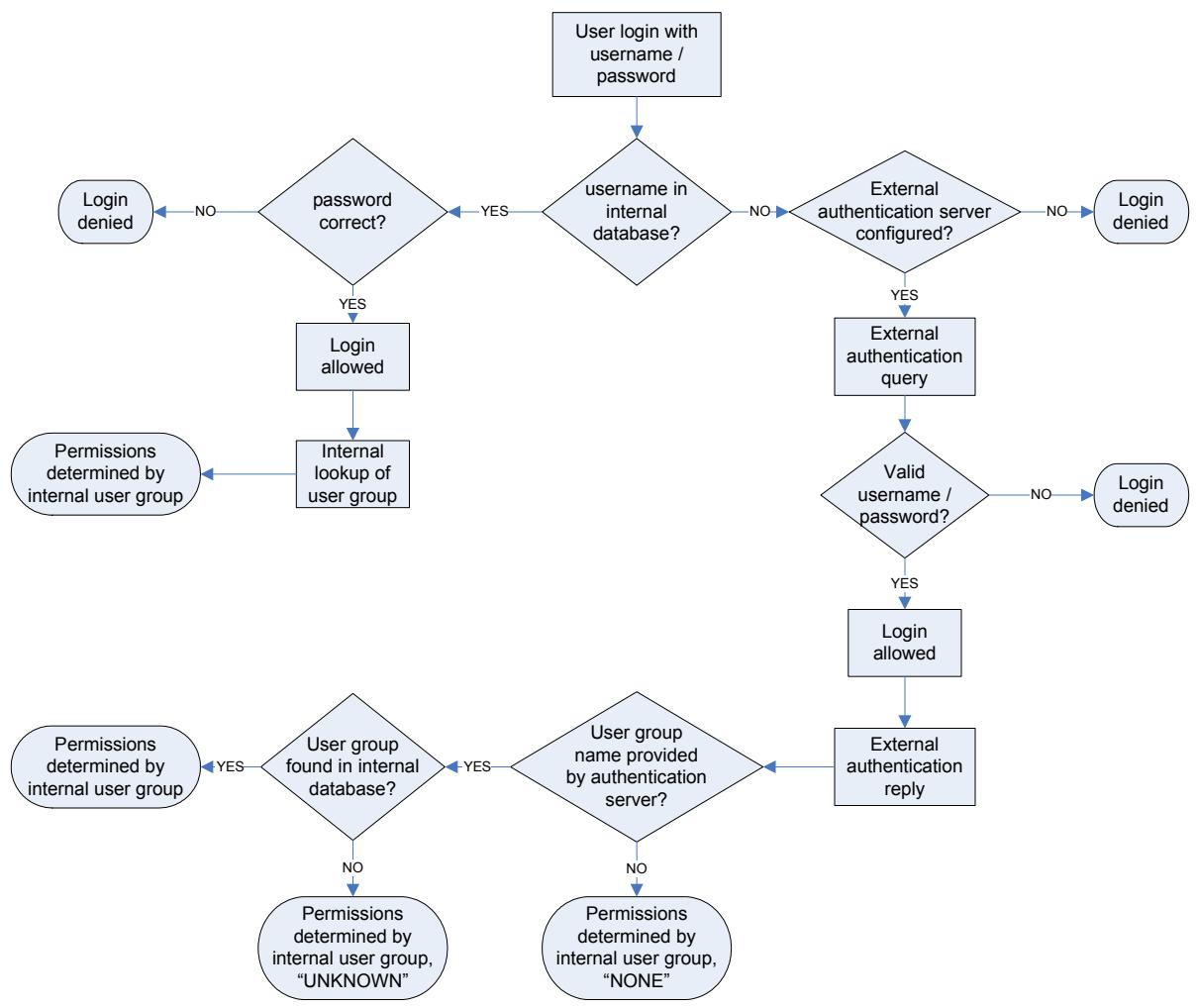
Note the importance of the group to which a given user belongs, as well as the need to configure the groups named, "UNKNOWN" and "NONE." If the external authentication server returns a group name that is not recognized by Dominion KSX, that user's permissions are determined by the permanent group named "UNKNOWN." If the external authentication server does not return a group name, that user's permissions are determined by the permanent group named "NONE."
Please see the sections involving LDAP or RADIUS in this chapter to determine how to configure your authentication server to return user group information to Dominion KSX as part of its reply to an authentication query.
General Settings for Remote Authentication
You must log on to Dominion KSX as default Administrator (user name admin, password raritan) to set Remote Authentication properties.
- At the Main Menu, select [C] Configure Dominion KSX. When the Configuration Menu appears, select [R] Remote Authentication Configuration.
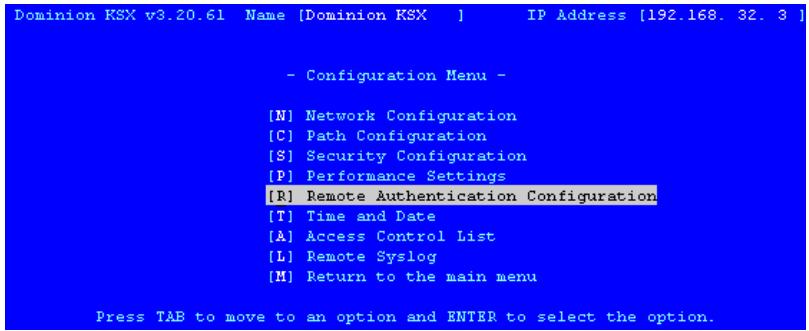
- The Authentication and Accounting screen appears.
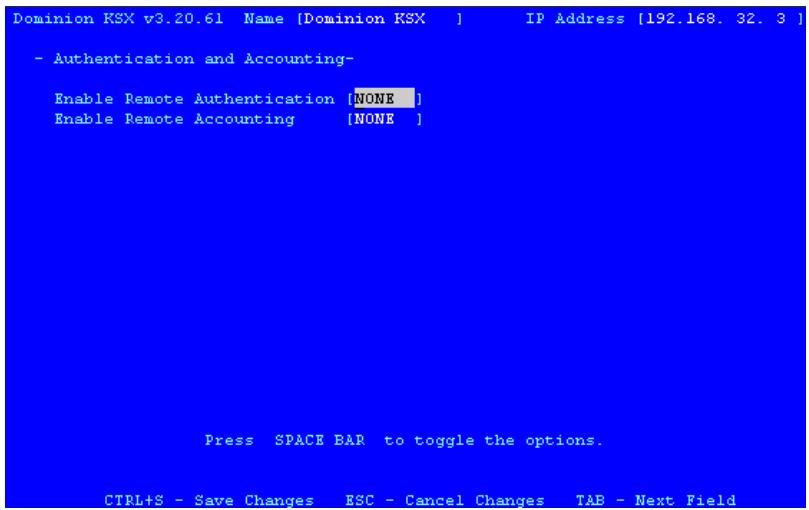
- Press the SPACE bar to toggle the options of the remote authentication protocol you wish to use; select RADIUS, LDAP, or LDAPS.
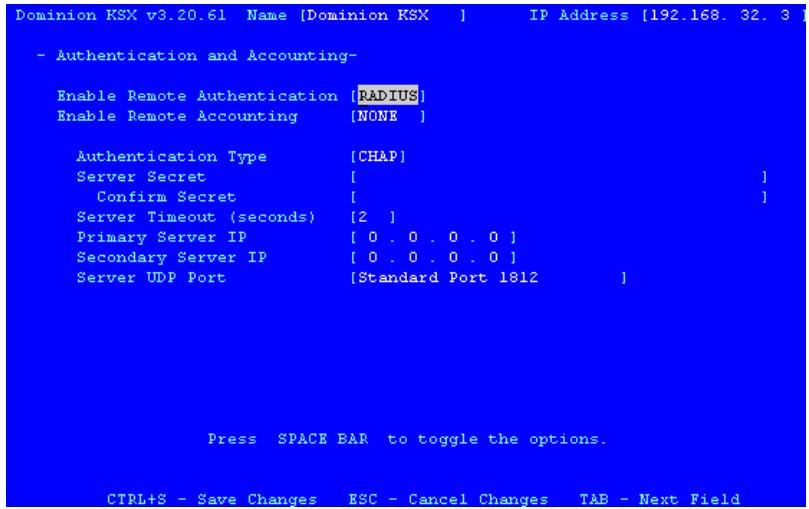
- The Authentication and Accounting screen for the protocol you select appears. Use the TAB key to move through the fields.
a. Press the SPACE bar to toggle the Authentication Type field.
b. Type the server secret needed to authenticate against your remote authentication servers in the Server Secret field. Re-type the server secret in the Confirm Secret field.
c. Type the time of inactivity (in seconds) that should pass before the server times out in the Server Timeout (seconds) field.
d. Type the IP addresses of your primary and secondary remote authentication servers in the Primary Server IP and Secondary Server IP fields.
- If you selected LDAP as your remote authentication protocol, please read the next section Implementing LDAP Remote Authentication to complete the fields in the LDAP panel of the Remote Authentication window. If you selected RADIUS, please skip to Implementing RADIUS Remote Authentication to complete the fields in the RADIUS panel of the window.
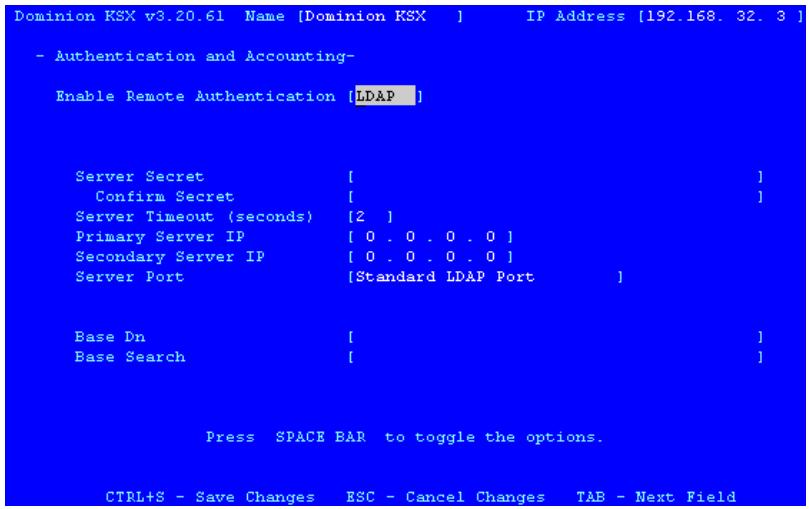
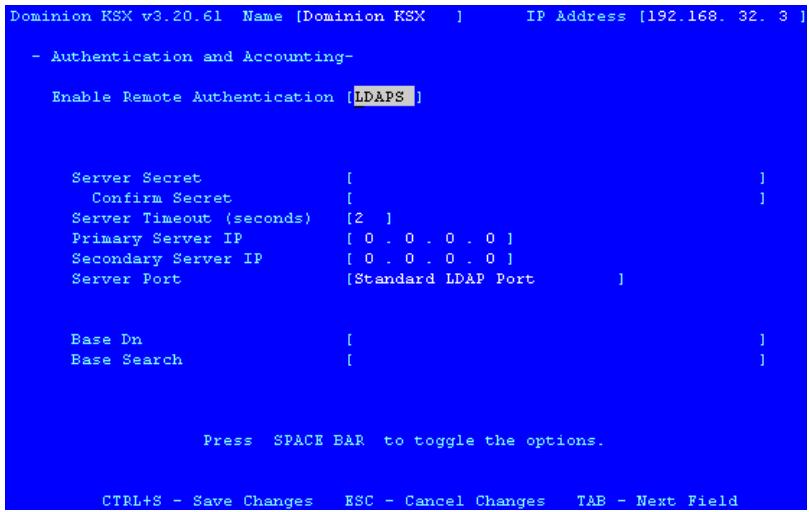
- If you are appointing Remote Accounting, in the Authentication and Accounting screen,
to the Enable Remote Accounting field, and press SPACE to toggle to RADIUS.
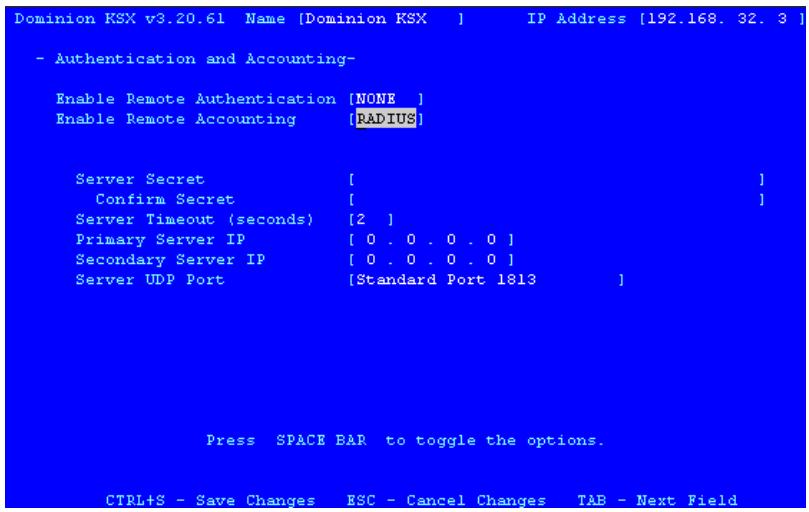
- When finished, press ENTER to save your changes, or press ESC to exit without saving Remote Authentication configurations.
Implementing LDAP Remote Authentication
Reminder: Microsoft Active Directory functions natively as an LDAP authentication server.
If you choose LDAP authentication protocol, complete the LDAP fields as follows:
- Use Secure LDAP: Apply this rule to enable LDAP-S, which ensures that all authentication requests and replies transmitted over the network are encrypted.
- Default Port / User Defined Port: Select an option button to choose whether you would like to use the standard LDAP TCP ports, or specify your own user defined port.
- Base DN, Base Search, and Certificate File: Consult your authentication server administrator for the appropriate values to type into these fields in order to process LDAP authentication queries from Dominion KSX.
Returning User Group Information via LDAP
When an LDAP authentication attempt succeeds, Dominion KSX determines the permissions for a given user based on the permissions of the user's group. Your remote LDAP server can provide these user group names by returning an attribute named as follows:
rciusergroup
attribute type: string
This may require a schema extension on your LDAP server. Please consult your authentication server administrator to enable this attribute.
Implementing RADIUS Remote Authentication
Microsoft Active Directory can be used as source information for RADIUS authentication by installing the Windows server component Internet Authentication Server.
If you choose RADIUS authentication protocol, complete the RADIS fields as follows:
- Authentication Type: Click on the drop-down arrow to select either CHAP or PAP protocol.
-
Server UDP Port / Custom UDP Port: Click on the drop-down arrow to select whether you would prefer using standard RADIUS TCP port 1812, the legacy RADIUS TCP port 1645, or type in your own user defined port in the Custom UDP Port field.
-
Remote Accounting / Custom Accounting Port: Click on the check box to send authentication events to a RADIUS accounting server; if so, type the TCP port should be used for transmitting events in the Custom Accounting Port.
Returning User Group Information via RADIUS
When a RADIUS authentication attempt succeeds, Dominion KSX determines the permissions for a given user based on the permissions of the user's group.
Your remote RADIUS server can provide these user group names by returning an attribute, implemented as a RADIUS FILTER-ID. The FILTER-ID should be formatted as follows:
Raritan:G{GROUP_NAME}
where GROUP_NAME is a string, denoting the name of the group to which the user belongs.
RADIUS Communication Exchange Specifications
Dominion KSX sends the following information to RADIUS server in an authentication query:
| ATTRIBUTE | DATA |
| USER-NAME | The user name entered at the login screen. |
| USER-PASSWORD | In PAP mode, the encrypted password entered at the login screen. |
| CHAP-PASSWORD | In CHAP mode, the CHAP protocol response computed from the password and the CHAP challenge data. |
| NAS-IP-ADDRESS | Dominion KSX's IP Address |
| NAS-IDENTIFIER | The Dominion KSX unit name as configured in “Network Configuration” (see previous section). |
| NAS-PORT-TYPE | The value ASYNC (0) for modem connections and ETHERNET (15) for network connections. |
| NAS-PORT | Always 0. |
| STATE | If this request is in response to an ACCESS-CHALLENGE, the state data from the ACCESS-CHALLENGE packet will be returned. |
| PROXY-STATE | If this request is in response to an ACCESS-CHALLENGE, the proxy state data from the ACCESS-CHALLENGE packet will be returned. |
Dominion KSX sends the following RADIUS attributes to the RADIUS server with each accounting request:
| ATTRIBUTE | DATA |
| SESSION-TYPE | Either START (1) for log in or STOP (2) for log out. |
| SESSION-ID | A string containing a unique session name. The name is in the format of “<NAS-IDENTIFIER>;<user IP address>;<unique session number>”Example: “Dominion KSX:192.168.1.100:122” |
| USER-NAME | As above. |
| NAS-IP-ADDRESS | As above. |
| NAS-IDENTIFIER | As above. |
| NAS-PORT-TYPE | As above. |
| NAS-PORT | As above. |
| FILTER-ID | Any FILTER-ID attributes returned by the RADIUS server during authentication will be sent in each accounting request. |
| CLASS | Any CLASS attributes returned by the RADIUS server during authentication will be sent in each accounting request. |
| ACCT- AUTHENTIC | How the user was authenticated. Either RADIUS (1) if the user was authenticated by the RADIUS server or LOCAL (2) if the user was authenticated by Dominion KSX's built-in user name database. |
| TERMINATE- CAUSE | If this is a STOP request, the reason the user was terminated. Either USER_REQUEST (1), LOST_SERVICE (3), SESSION_TIMEOUT (5), or ADMIN_RESET (6). |
Time and Date
On the Configuration Menu, select [T] Time and Date to view Current Date and Time on the Dominion KSX unit. You must save changes and reboot Dominion KSX to apply changes to Time and Date.
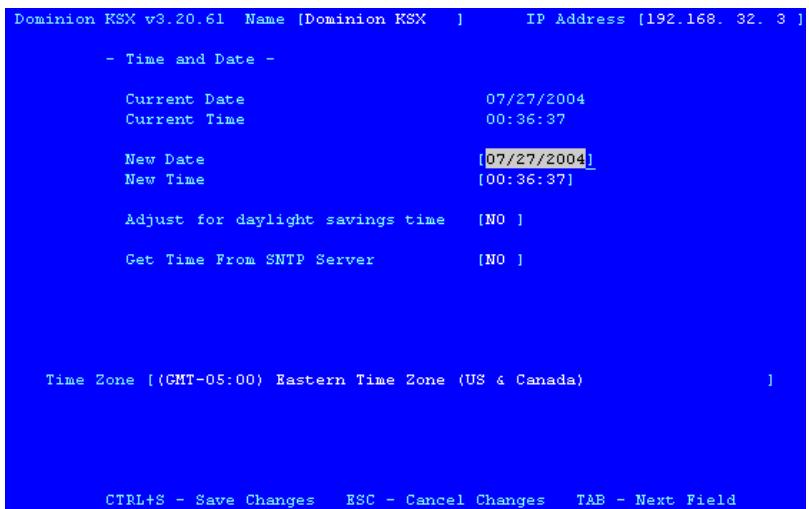
- New Date / New Time: Manually change to current date and time values.
- Adjust for daylight savings time: Toggle between YES and NO to reflect whether your country or state follows the daylight savings time procedure.
-
Get Time From SNTP Server: Indicates whether Dominion KSX time/date should be automatically synchronized with the time/date of an external SNTP server.
-
Primary Server IP Address: IP address of first SNMP server to attempt time synchronization.
- Secondary Server IP Address: IP address of second SNMP server to query, if primary server is unavailable.
- User standard UDP port 123: Allows user to modify UDP port used for SNMP time synchronization. Consult your SNMP server administrator to determine if this value should be adjusted.
Time Zone: Select the time zone in which your Dominion KSX unit is physically located.
View Dominion KSX Status
Select [V] View Dominion KSX Status from the Main Menu to view the Dominion KSX Event Log screen. This screen displays a log file containing information about Dominion KSX log in and connection activities. This Event Log stores events such as user login or logout, bad login attempts, Admin login and logout at the Dominion KSX Admin console, Admin changes to the system configuration, Admin user profile additions, changes, or deletions, modem activity, system startup and shutdown, and all errors that occur, with the date and time of each event. Please see Appendix F: Troubleshooting for a listing of error codes with their meaning and suggested solution. Up to 2,048 events can be stored in one log file.
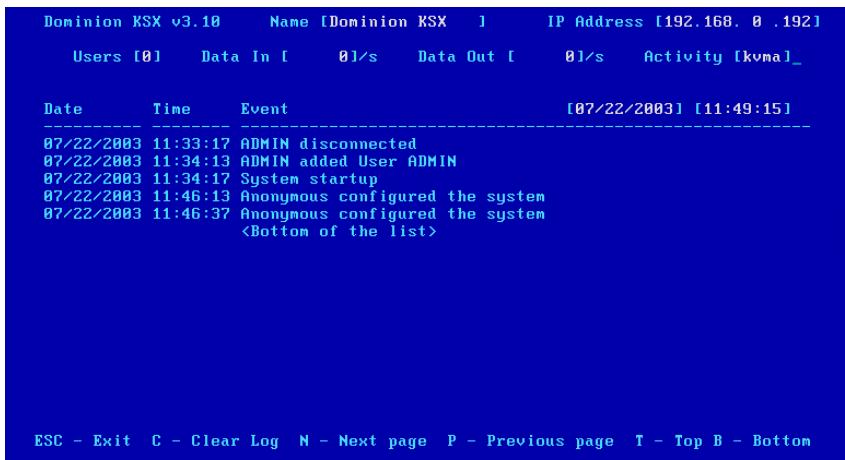
Dominion KSX is able to auto-recover from fatal errors. If a fatal error occurs, it is recorded and Dominion KSX automatically reboots. If a non-fatal error occurs, it is recorded and Dominion KSX waits until all users are logged off the system, and then it reboots to make sure the previous non-fatal error does not escalate to a fatal error.
Restart or Shutdown the Dominion KSX
Select [R] Restart or Shutdown the Dominion KSX from the Main Menu to restart or shutdown the Dominion KSX unit.
Diagnostics
Select [D] Diagnostics from the Main Menu to view Dominion KSX Diagnostic functions. These functions are meant to enable Raritan Technical Support to assist you in the case of a problem with your Dominion KSX unit. Please do not invoke these functions unless you are fully aware of their meanings and intended use. Contact Raritan Technical Support should you require more information at (732) 764-8886.
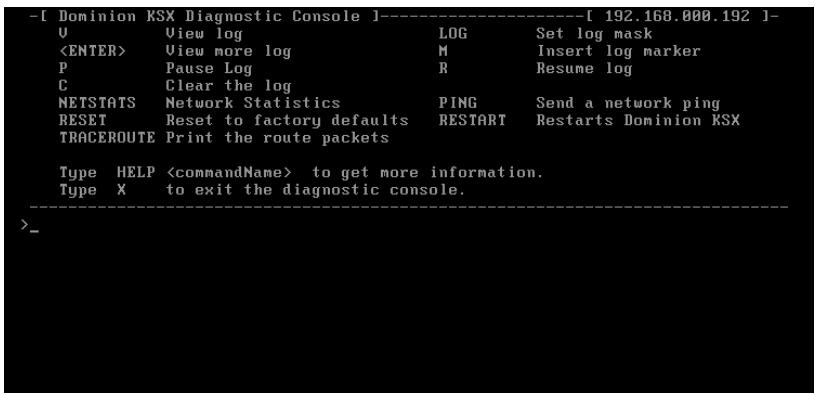
Appendix A: Specifications
| ITEM | DIMENSIONS (WxDxH) | WEIGHT | POWER | |
| KSX 440 | 1U full width, rack mountable: 17.33” (W) x 21.26” (D) x 1.75” (H) 440 mm (W) x 540 mm (D) x 44 mm (H) | 24.2lbs. (11kg.) | 110/220V auto-switching (50/60 Hz European) | |
| KSX 880 | 1U full width, rack mountable: 17.33” (W) x 21.26” (D) x 1.75” (H) 440 mm (W) x 540 mm (D) x 44 mm (H) | 24.2lbs. (11kg.) | 110/220V auto-switching (50/60 Hz European) | |
Remote Connection
Network: 10BASE-T, 100BASE-TX Ethernet
Modem: 56K modem included
Protocols: TCP/IP, UDP, SNMP, HTTP, HTTPS, RADIUS
Raritan Remote Client (RRC) Software
Operating System Requirements: Windows XP / NT* / ME / 2000 / 2003 with DirectX and Java Virtual Machine.
- NT support for some international keys are limited due to Micros
KVM Input
Keyboard: PS/2
Mouse: PS/2
Video: VGA
Supported Resolutions:
Text Modes 1024x768 @ 60Hz
640x480 @ 60Hz 1024x768 @ 70Hz
640x480 @ 72Hz 1024x768 @ 75Hz
640x480 @ 75Hz 1024x768 @ 85Hz
640x480@85Hz 1152x864 @ 60Hz
800x600@56Hz 1152x864 @ 75Hz
800x600 @ 60Hz 1280x1024 @ 60Hz
800x600 @ 72Hz
800x600 @ 75Hz
800x600 @ 85Hz
Appendix B: Serial Port Pin-Out Diagrams
In order to provide maximum port density and to enable simple UTP (Category 5) cabling, the serial ports found on Dominion KSX are compact RJ45 ports. However, no widely adopted industry-standard exists for sending serial data over RJ45 connections. For your reference, the serial pin-out employed by Dominion KSX is provided below.
Dominion KSX RJ45 Serial Pin-Out
| RJ45(FEMALE) | FUNCTION |
| 1 | RTS |
| 2 | DTR |
| 3 | TXD |
| 4 | GND |
| 5 | SG |
| 6 | RXD |
| 7 | DSR |
| 8 | CTS |
SCSDB25F Nulling Serial Adapter Pin-Out
| RJ45 (FEMALE) | DB25 (FEMALE) |
| 1 | 5 |
| 2 | 6,8 |
| 3 | 3 |
| 4 | 1 |
| 5 | 7 |
| 6 | 2 |
| 7 | 20 |
| 8 | 4 |
SCSDB25M Nulling Serial Adapter Pin-Out
| RJ45 (FEMALE) | DB25 (MALE) |
| 1 | 5 |
| 2 | 6,8 |
| 3 | 3 |
| 4 | 1 |
| 5 | 7 |
| 6 | 2 |
| 7 | 20 |
| 8 | 4 |
SCSDB9F Nulling Serial Adapter Pin-Out
| RJ45 (FEMALE) | DB9 (FEMALE) |
| 1 | 8 |
| 2 | 1,6 |
| 3 | 2 |
| 4 | SHELL |
| 5 | 5 |
| 6 | 3 |
| 7 | 4 |
| 8 | 7 |
SCSDB9M Nulling Serial Adapter Pin-Out
| RJ45 (FEMALE) | DB9 (MALE) |
| 1 | 8 |
| 2 | 1,6 |
| 3 | 2 |
| 4 | SHELL |
| 5 | 5 |
| 6 | 3 |
| 7 | 4 |
| 8 | 7 |
Custom, Nulling RJ45 Cable
Like Dominion KSX, many newer devices also provide serial ports in RJ45 form. However, as noted above, each implementation is proprietary: not all serial ports using RJ45 connectors are alike!
Owners of hardware with RJ45 serial ports, who very familiar with network cabling, may be able to crimp their own UTP/Cat 5 cable such that no adapters are necessary to connect their device to Dominion KSX; a single, custom-made UTP/Cat 5 cable can connect the device's RJ45 serial port to Dominion KSX's RJ45 serial device ports.
To do so, reference the RJ45 pin-out diagram above, along with the serial RJ45 pin-out diagram of your device.
CRLVR-15 Custom Rollover Cable for Most Sun / Cisco RJ45 Serial Ports
For your convenience, Raritan also provides P/N CRLVR-15, a custom Cat5 cable that enables most Sun / Cisco RJ45 serial ports to be connected directly to Dominion KSX serial ports. Alternatively, you may crimp this cable yourself by following the cable pin-out diagram below:
| RJ45 (MALE) | RJ45 (MALE) |
| 1 | 8 |
| 2 | 7 |
| 3 | 6 |
| 4 | 5 |
| 5 | 4 |
| 6 | 3 |
| 7 | 2 |
| 8 | 1 |
WARNING! Not all Sun and Cisco devices have been tested with this cable; you must refer to the user's manual of your device and confirm its pin-out to ensure compatibility. If you are at all unfamiliar with this procedure, you should not attempt to make your own direct-connect cable – instead, use Raritan's standard DB9 and DB25 adapters.
Appendix C: SNMP Features
For convenient monitoring with standard network management systems such as HP OpenView or IBM Tivoli software solutions, Dominion KSX features an SNMP agent with standard MIB2 support.
Dominion KSX responds to SNMP GET requests with standard MIB2 variables, although for security reasons only a subset of the variables are provided.
Appendix D: FAQ
| QUESTION: | ANSWER: |
| Does Dominion KSX provide an integrated interface that allows you to view both the KVM paths and Serial devices that are connected? What about power control? | Yes, the Dominion KSX graphical user interface (GUI) lets you view and name all of the connected devices – both KVM and serial. In addition, if a Raritan power strip is used, Dominion KSX provides a GUI interface for power control. |
| Does Dominion KSX provide a local access port? | Dominion KSX includes a local access port for KVM devices. No access port for serial devices is included. However, serial access can be obtained via a Raritan software interface that is always shipped with Dominion KSX. |
| Can I open multiple windows and “tile” in order to monitor multiple servers and other IT equipment? | Yes, you may monitor and “tile” up to eight serial ports and one KVM connection concurrently per Dominion KSX unit. |
| Can I use a browser such as Netscape or do I have to use Internet Explorer? | Dominion KSX supports both Netscape and Internet Explorer. However, the browsers must run on a Windows-based server. |
| What cable does Raritan recommend for use with the KVM ports on Dominion KSX? | Raritan recommends KVM UltraThin cables (CCPT). Raritan’s standard cables (CCP) will also work. |
| Can I use Dominion KSX with my existing Raritan IP-Reach product? Will this combination work to give me an added user? | Yes. The same remote interface is used for both the Dominion KSX and IP-Reach. |
| Is Dominion KSX easy to install? | Yes. Dominion KSX is very easy to install. It is a true ‘plug and play’ appliance that does not require an external server to operate. |
| What level of control does Dominion KSX have over attached Target Servers? | The remote user has direct access and total control of target devices for maintenance, administration and troubleshooting, from running GUI applications to BIOS-level troubleshooting, and even rebooting. |
| What makes the performance of Dominion KSX different from that of remote access software? | With Dominion KSX, no software runs on each individual target server. Traditional remote access software solutions require software to be loaded and running on each target server, which must offer a supporting operating system. This can create compatibility, performance, and reliability issues on mission critical target servers. |
| What remote access connection methods can Dominion KSX accommodate? | Dominion KSX provides network administrators with a choice of remote access via Internet, LAN/WAN, or dial-up modem. That means servers can be accessed both in and out of band so remote access to mission critical target servers is always available—even if the network is down. |
| What is the slowest connection Dominion KSX can handle? | Dominion KSX offers scalable performance based on bandwidth available, down to 20kbps. |
| Can I use Dominion KSX in a VPN? | Yes, Dominion KSX fits into most any network configuration utilizing TCP/IP. The network administrator simply adds Dominion KSX as a node on the network via Dominion KSX admin console. |
| Can I perform a Dial-up modem connection to Dominion KSX over a PBX line? | No. Modems require an analog telephone line. |
| Can I use Dominion KSX within my local network? | Dominion KSX can be used in any computer network that supports TCP/IP. |
| When does Dominion KSX use TCP? UDP? | Both TCP and UDP are used by Dominion KSX. However, TCP is essential, whereas UDP is optional. UDP is used only for one Dominion KSX feature, automatic detection of Dominion KSX units in a subnet (see Chapter 3: Raritan Remote Client, RRC Navigator). If you do not employ the browse feature (and by extension, are not using DHCP), then Dominion KSX will only communicate using TCP. |
| How are user profile and password information stored on the Dominion KSX unit? | All sensitive data is hashed and stored encrypted for the highest security. |
| Can I perform a Dial-up modem connection to Dominion KSX over a PBX line? | No. Modems require an analog telephone line. |
Appendix E: Troubleshooting
Problems and Suggested Solutions
| REMOTE CONNECTION PROBLEMS | SOLUTION |
| I cannot connect to Dominion KSX via dial-up modem. | Ensure that you have specified the modem device for your Remote PC in the Add Connection Window (Dial-up type connection) modem field. Although concurrent connections may be enabled (either globally or individually), the modem in Dominion KSX will only accommodate one remote connection at a time – ensure that someone else is not already connected via modem. Ensure that your user profile has modem access enabled and that Dominion KSX is configured to enable a modem interface on the Network Configuration Screen. Ensure that the communication port chosen by the network administrator on the Network Configuration screen matches the port set in your connection profile. |
| I cannot connect to Dominion KSX via LAN/WAN or Internet. | Re-check the IP settings for Dominion KSX from the Dominion KSX Admin Console or remote Admin Console window. Accessing the Network Configuration screen, ensure that the IP addresses set for “IP Address, Subnet Mask, and Default Gateway” are still set correctly, per your Network Administrator’s instructions. Ensure that your user profile has network access enabled and that Dominion KSX is configured to enable a network interface. Ensure that the communication port chosen by the network administrator on the Network Configuration screen matches the port set in your connection profile. Ensure that the network configuration is correct by sending a PING from the Remote PC to Dominion KSX. |
| I cannot connect to Dominion KSX via Web Browser. | Re-check the IP settings for Dominion KSX from the Dominion KSX Admin Console or remote Admin Console window. Accessing the Network Configuration screen, ensure that the IP addresses set for “IP Address, Subnet Mask, and Default Gateway” are still set correctly, per your Network Administrator’s instructions. Ensure that your user profile has Web Browser access enabled and that Dominion KSX is configured to enable Web Browser. |
| I cannot connect to Dominion KSX and seem to be stuck at the Login window. | Ensure that you are using a valid and correct user name and password. Ensure that you are typing user name and password in the exact upper and lowercase combinations in which they were created. Drag the Login window to the side |
| and view Connection Status window behind it. The Connection Status window will show details on your connection attempts, and may offer specifics on the problem. |
| TARGET KVM SERVER KEYBOARD PROBLEMS | SOLUTION |
| Dominion KSX is not accepting keyboard commands from the Remote PC. | The window in Raritan Remote Client that is displaying you Target KVM Server must be the active window for proper keyboard control. Ensure the window in which you are typing is active. Try clearing the keyboard signals to ensure that the release or breakcode signal has been received – alternately press the <Ctrl>, <Shift> and <Tab> keys rapidly a few times on your keyboard. Ensure the remote user has keyboard and mouse privileges. Exit the Dominion KSX software and then restart it again. |
| I pressed the Caps Lock key on my Remote PC. The CAPS indicator on the Dominion KSX Status Bar appeared, but the Caps Lock indicator light is not lit on my Remote PC keyboard. | This is normal. Use the indicators on the Status Bar to determine CAPS key status for the Target KVM Server. |
| The Keyboard is not functioning and the green LED on the back of Dominion KSX for at least one of the KVM ports is not blinking, but rather constantly lit. | Reset the keyboard chips within Dominion KSX by recycling power to it. Make sure you power down both Dominion KSX and all attached KVM switches at the same time. Otherwise the KVM chips in Dominion KSX will draw power from the KVM switches and fail to reset. |
| I am accessing Dominion KSX via the Web Browser and the keyboard does not function. I type, but nothing happens. | Click the window title bar under the Dominion KSX toolbar to activate the viewing window. If the viewing window is not the active window, the keyboard will not function. |
| TARGET KVM SERVER MOUSE PROBLEMS | SOLUTIONS |
| Target KVM Server Mouse Pointer tracks too slowly after Dominion KSX Mouse Pointer. Immediately after switching to | When working from a Remote PC, a slight delay between your local mouse pointer and the Target KVM Server's Mouse Pointer is normal due to uncontrollable lags in the speed of the remote connection - Internet, direct dial |
| a new Target Server channel the mouse stops and/or is out of sync. | modem, or network. With each new video image viewed, Dominion KSX automatically re-syncs and aligns the mouse pointers. Wait a few seconds after switching to each new video image for automatic re-calibration to take place and the two mouse pointers will line up with each other. If you do not wish to wait for this auto calibration, or you find the two mouse pointers out of sync at any time; click the Synchronize Mouse button, or simultaneously press the keys <Ctrl-Alt-S>. This will manually re-align the two pointers. Be sure to follow the directions in Chapter 2: Installation, “Configuring Target KVM Servers” in order to ensure that mouse synchronization functions properly. |
| The local mouse pointer does not track or is not in sync (not aligned) with the Target KVM Server's Mouse Pointer. | Click Synchronize Mouse button, or press <Ctrl-Alt-S>. Ensure each Target Server uses a standard Windows mouse driver; the IntelliMouse driver is not currently supported. Be sure to follow the directions in Chapter 2: Installation, “Configuring Target KVM Servers” in order to ensure that mouse synchronization functions properly. Click Auto-sense Video button or simultaneously press <Ctrl-Alt-A>. |
| Dominion KSX is not accepting my mouse. | Dominion KSX will not support a serial type mouse or non-standard mouse drivers. It does support a PS/2 style mouse and standard Windows mouse drivers. Other mouse drivers may function with Dominion KSX, but will require extensive changes to the mouse settings until a functioning mix of motion settings is found. If you must use a mouse driver on a Target Server that is not currently supported by Dominion KSX, try setting the mouse acceleration to <none> and the mouse speed to <slow>. |
| Dominion KSX Mouse Pointer and the Target Server Mouse Pointer do not sync up in certain Windows NT Administration screens, like the NT log on screen. | Windows NT Administration or Log On screens may revert to default mouse pointer motion/acceleration speeds. As a result, mouse sync may not be optimal at these screens. If you are comfortable adjusting the registry on the Windows NT Target Server, you can obtain better Dominion KSX mouse sync at NT Administration screens by entering the Target Server's registry editor and changing the following settings: default user mouse motion speed = 0; mouse threshold 1 = 0; mouse threshold 2 = 0. |
| TARGET KVM SERVER PROBLEMS | SOLUTION |
| When I reboot a Target KVM Server through Dominion KSX, from a Remote PC, I cannot access the Target Server's BIOS. It seems Dominion KSX is not accepting the BIOS entry command keystroke. | To access a Target Server's BIOS, you may have to first temporarily de-select the Sense video mode changes automatically checkbox in the Video Settings window, accessed with the Video Settings button on the Dominion KSX toolbar. Video auto-sensing slows the remote viewing of the reboot process and makes it difficult to send BIOS access keystrokes to the Target Server from a Remote PC (the BIOS screen prompt passes too quickly). De-selecting the auto-sense checkbox frees Dominion KSX to convey BIOS access keystrokes as quickly as possible. It also aides in the quick interpretation of rapidly changing video screens. Be sure to re-select the checkbox when finished with BIOS access. |
| TARGET KVM SERVER VIDEO PROBLEMS | SOLUTION |
| After switching to a different Target Server channel the video is not clear. Sometimes there is a black edge at the boundary of the Target Server's screen. | Click the Auto-sense Video button or simultaneously press the keys <Ctrl-Alt-A>. Dominion KSX will adjust the video settings. If the video does not become clear, additional manual video setting adjustments may be necessary. Contact Raritan Technical Support to discuss changes to the Video Settings window. Ensure all Target Servers have standard blanking times. Horizontal and vertical blanking times should closely approximate VESA standard values. |
| When viewing a Target Server remotely, the video image is filled with moving block of incorrect color that seem to track next to the movement of the mouse pointer. | The Color Settings on the Video Settings tab in the Video window are not set correctly. Attempt manual adjustment until the color blocking ceases or run the Automatic Color Calibration Routine (see Chapter 3: Raritan Remote Client, Color Calibration). |
| The screen is filled with small visual errors, or grains of missing color, which need to be cleaned up. | Click the Refresh Screen button on the Dominion KSX toolbar or simultaneously press the keys <Ctrl-Alt-R>. |
| The video seems to be stuck in Auto Sense mode and the auto sensing message in the middle of the screen keeps counting higher and higher. | Pressing the Auto-sense Video button while auto sensing is occurring will stop the auto sense process. Check your Target Server resolution to ensure Dominion KSX supports it. |
| WEB BROWSER PROBLEMS | SOLUTION |
| Raritan Remote Client does not appear when I attempt to access Dominion KSX via web browser. | Ensure that your Dominion KSX has Web Browser access enabled. Ensure that you are accessing Dominion KSX with a Windows-based computer (Win32), using Internet Explorer, Netscape, or Mozilla. Ensure that your network and firewall configuration allows access to the HTTPS port 443. Ensure that your network and firewall configuration allows access to the HTTP port 80 (if you wish to use the URL “http://” instead of “https://”). If you are using Windows NT and higher, and this is the first time you are accessing Dominion KSX via web browser on that computer, ensure that you are not logged in as a “restricted” user. Ensure that your web browser allows ActiveX objects to be downloaded and launched. |
| When using Raritan Remote Client via web browser, I click on a serial port or the power control port (“PowerPort”), but nothing appears - I only see a blank white screen. | If you are using Windows XP, Microsoft’s inconsistent application of Java technology can cause conflicts in your web browser’s capability to run Java applets. Be sure that only one Java virtual machine is active on your computer. Many Windows XP users have multiple Java virtual machines from Sun Microsystems – or more likely – both a Microsoft Java virtual machine, as well as a Sun Microsystems Java virtual machine both active. These version conflicts cause Raritan Remote Client’s serial console and power control capabilities to cease from executing. |
| LOCAL ACCESS CONSOLE PROBLEMS | SOLUTION |
| When using the Local Access Console on Dominion KSX to access Target KVM Servers locally, noise appears on my monitor. | Increase the video resolution of your Target KVM Server. If noise persists, use a CRT monitor instead of an LCD monitor on the Local Access Console port. |
Event Log File and On-Screen Error Codes
Dominion KSX will display or log an error code in the Dominion KSX Event Log Screen in the event of a problem occurring. Error codes are eight-digit hexadecimal numbers, containing two parts: the first four denote error type; and the second four digits denote a location code.
These last four digits of the Dominion KSX error code are the most useful in determining what has caused a system failure. Below is a list of location codes (the last four digits of an error code), and their meanings.
| ERROR CODE (LAST 4 DIGITS) | MEANING | RECOMMENDATION |
| 0001 – 0003 | Memory allocation error | Reboot Dominion KSX. Make sure the BIOS memory test recognizes at least 64MB of RAM. If the problem persists, restore the software and file system from the Recovery CD-ROM. |
| 0004 | Could not read the onconfiguration file on startup. The file may be corrupt, the file system may be damaged, or the config file might be from an older version of Dominion KSX. | Reenter the configuration information and reboot. If the problem continues, restore the software and file system from the Recovery CD-ROM. |
| 0005 | The config file was missing. This may be the first time you have started Dominion KSX or the file system has become corrupt. | Reenter the configuration information and reboot. If the problem continues, restore the software and file system from the Recovery CD-ROM. |
| 0006 | The config file could not be saved. The file system may be corrupt or the hard drive may not be responding. | Retry, but if the problem persists, restore the software and file system from the Recovery CD-ROM. |
| 0007 – 0008 | Memory allocation error. | Reboot Dominion KSX. Make sure the BIOS memory test recognizes at least 64MB of RAM. If the problem persists, restore the software and file system from the Recovery CD-ROM. |
| Delete | Memory allocation error. | Reboot Dominion KSX. Make sure the BIOS memory test recognizes at least 64MB of RAM. If the problem persists, restore the software and file system from the recovery CD-ROM. |
| 0009 | Could not find the frame rabber card. | Power off the system and make sure the frame grabber card is inserted firmly. If the problem persists, there may be a problem with your Dominion KSX hardware. |
| 000A | Frame grabber card is not responding correctly. | Power off the system and make sure the frame grabber card is inserted firmly. If the problem persists, there may be a problem with your Dominion KSX hardware. |
| 000B | Memory allocation error. | Reboot Dominion KSX. Make sure the BIOS memory test recognizes at least 64MB of RAM. If the problem persists, restore the software and file system from the Recovery CD-ROM. |
| 000C – 000F | Memory allocation error. | Reboot Dominion KSX. Make sure the BIOS memory test recognizes at least 64MB of RAM. If the problem persists, |
| restore the software and file system from the Recovery CD-ROM. | ||
| 0011 | The Ethernet controller could not be found. | There is a problem with the Dominion KSX hardware. |
| 0012 | The modem could not be found. | Power off the system and make sure the frame grabber card is inserted firmly. If the problem persists, there may be a problem with your Dominion KSX hardware. |
| 0013 | Memory allocation error. | Reboot Dominion KSX. Make sure the BIOS memory test recognizes at least 64MB of RAM. If the problem persists, restore the software and file system from the Recovery CD-ROM. |
| 0014 | There is a problem with the IP address. | Check the IP address configuration and reboot. |
| 0015 | The DHCP server did not respond. Dominion KSX could not acquire an IP address. | Make sure your DHCP server is operating correctly and then reboot Dominion KSX. |
| 0016-0019 | There is a problem with one of the Dominion KSX startup files. | Restore the software and file system from the Recovery CD-ROM. |
| 001A | Error occurred while initializing the UDP socket. | Reboot Dominion KSX. Make sure the BIOS memory test recognizes at least 64MB of RAM. If the problem persists, restore the software and file system from the Recovery CD-ROM. |
| 001B | Error occurred while initializing the TCP write socket. | Reboot Dominion KSX. Make sure the BIOS memory test recognizes at least 64MB of RAM. If the problem persists, restore the software and file system from the Recovery CD-ROM. |
| 001C | Error occurred while initializing the TCP read socket. | Reboot Dominion KSX. Make sure the BIOS memory test recognizes at least 64MB of RAM. If the problem persists, restore the software and file system from the Recovery CD-ROM. |
| 001D-001E | Resource allocation error. | Reboot Dominion KSX. Make sure the BIOS memory test recognizes at least 64MB of RAM. If the problem persists, restore the software and file system from the Recovery CD-ROM. |
| 001F | Could not listen to the TCP write socket. | Reboot Dominion KSX. Make sure the BIOS memory test recognizes at least 64MB of RAM. If the problem persists, restore the software and file system from the Recovery CD-ROM. |
| 0020 | Could not listen to the TCP read socket. | Reboot Dominion KSX. Make sure the BIOS memory test recognizes at least 64MB of RAM. If the problem persists, restore the software and file system from the Recovery CD-ROM. |
| 0021 | TCP listen process failed. | Reboot Dominion KSX. Make sure the BIOS memory test recognizes at least 64MB of RAM. If the problem persists, restore the software and file system from the Recovery CD-ROM. |
| 0022 | UDP listen process failed. | Reboot Dominion KSX. Make sure the BIOS memory test recognizes at least 64MB of RAM. If the problem persists, restore the software and file system from the Recovery |
| CD-ROM. | ||
| 0023 | SSL write failed. | Reboot Dominion KSX. Make sure the BIOS memory test recognizes at least 64MB of RAM. If the problem persists, restore the software and file system from the Recovery CD-ROM. |
| 0024 | SSL read failed. | Reboot Dominion KSX. Make sure the BIOS memory test recognizes at least 64MB of RAM. If the problem persists, restore the software and file system from the Recovery CD-ROM. |
| 0025 | Memory allocation error. | Reboot Dominion KSX. Make sure the BIOS memory test recognizes at least 64MB of RAM. If the problem persists, restore the software and file system from the Recovery CD-ROM. |
| 0026 – 0029 | Resource allocation error. | Reboot Dominion KSX. Make sure the BIOS memory test recognizes at least 64MB of RAM. If the problem persists, restore the software and file system from the Recovery CD-ROM. |
| 002A – 002F | Resource allocation error. | Reboot Dominion KSX. Make sure the BIOS memory test recognizes at least 64MB of RAM. If the problem persists, restore the software and file system from the Recovery CD-ROM. |
| 0030-0039 | Resource allocation error. | Reboot Dominion KSX. Make sure the BIOS memory test recognizes at least 64MB of RAM. If the problem persists, restore the software and file system from the Recovery CD-ROM. |
| 003A – 003F | Resource allocation error. | Reboot Dominion KSX. Make sure the BIOS memory test recognizes at least 64MB of RAM. If the problem persists, restore the software and file system from the Recovery CD-ROM. |
| 0040 | Resource allocation error. | Reboot Dominion KSX. Make sure the BIOS memory test recognizes at least 64MB of RAM. If the problem persists, restore the software and file system from the Recovery CD-ROM. |
255-80-5020