
DSC - Digital Camera MINOX - Free user manual and instructions
Find the device manual for free DSC MINOX in PDF.


| Product type | Digital camera, spy mini camera |
| Brand | MINOX |
| Model | DSC |
| Dimensions (camera) | 86 x 30 x 21 mm |
| Dimensions (flash module) | 76 x 41 x 21 mm |
| Weight (camera) | 90 g |
| Weight (flash module) | 80 g |
| Power supply | Built-in rechargeable lithium-ion battery, charges via USB |
| Sensor | 5.0 MP CMOS (3.2 MP native) |
| Photo resolution | 2560 x 1920 pixels (interpolated) |
| Video resolution | 640 x 480 pixels |
| Internal memory | 128 MB |
| External memory | microSD up to 16 GB (photos are then stored on the card) |
| Viewfinder | Optical (Galilean type) |
| Screen | 1.5 inch TFT LCD (integrated into the flash module) |
| Flash | Built-in LED + external electronic flash (DSC Flash module) |
| Lens | 8.7 mm Minoctar, 4 glass elements with IR filter |
| Aperture | F 3.0 |
| Connectivity | Mini USB 2.0 (transfer and charging) |
| File formats | Photo: JPEG, Video: AVI |
| Included accessories | Flash module with monitor, USB cable, security chain, leather cases |
| Warranty | 2 years (conditions in manual) |
Frequently Asked Questions - DSC MINOX
User questions about DSC MINOX
0 question about this device. Answer the ones you know or ask your own.
Ask a new question about this device
Download the instructions for your Digital Camera in PDF format for free! Find your manual DSC - MINOX and take your electronic device back in hand. On this page are published all the documents necessary for the use of your device. DSC by MINOX.
USER MANUAL DSC MINOX
Introduction 31
Scope of delivery 31
Batteries 32
Operating controls and components 32
How to use your MINOX DSC 33
Increasing the camera memory capacity with a microSD card 34
Connecting the flash module (DSC Flash) to the camera (DSC) 35
Switching on the MINOX DSC 36
Using Flash/Display Unit 36
Use the Flash 37
Selecting the menu language 38
Shooting photos 38
Taking videos 39
Playback mode 40
Deleting images 41
Transferring images to your computer 42
Fastening the safety chain 44
Adjusting your camera settings 44
Camera maintenance 46
Trouble shooting 48
Technical data 52
Conditions of Warranty 54
Disclaimer of liability 55
Introduction
Congratulations on the purchase of your new MINOX DSC (Digital Spy Camera). Like all other MINOX products this digital camera boasts the traditional values fostered by the house of MINOX. It combines functionality in the smallest possible space with maximum quality.
Simple and fast operation make the MINOX DSC ideal for digital photography. It also guarantees unlimited photographic fun with its distinguished and striking looks. The MINOX DSC is now set to become your permanent companion, ready to capture wonderful memories in a modern way.
This manual is to help you get the maximum benefit from all functions of your MINOX DSC.
Enjoy your new camera!
Get to know your camera
Please take enough time to read all operating instructions and the Safety and Maintenance information in the last section of the manual.
Scope of delivery
MINOX DSC
- Flash module with integrated monitor
- User manual
- USB cable/charging cable flash unit
- Safety chain
- Soft leather cases (camera/flash unit)
Accessories (optionally available)
AC Adaptor
EU version 606-350.000-120
UK version 606-350.000-220
US version 606-350.000-320
Batteries
Your MINOX DSC and the flash module that is included in the scope of delivery are both fitted ex-works with a powerful lithium-ion battery. The removal and replacement of the batteries is only to be carried out by authorized service personnel. MINOX GmbH shall not warranty for any damage to the batteries that is caused by incorrect removal or insertion of the batteries.
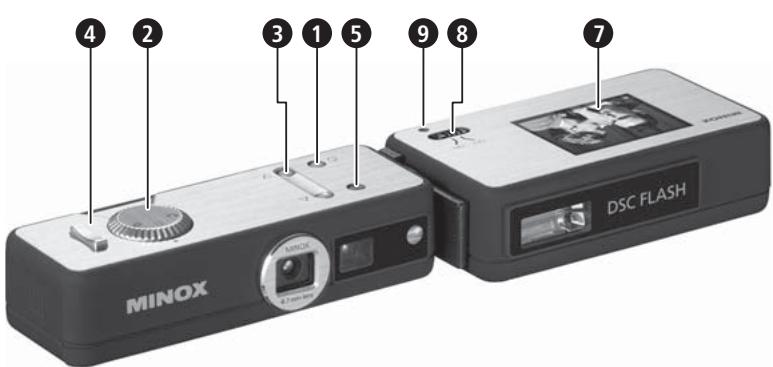
Operating controls and components*
On the DSC (camera)
1 On/Off button
2 Mode dial
Up/Down buttons
4 Shutter release
LED display
The multicolor LED display indicates the following:
Blue: you are in Photo or Video mode
Green: you are in Play mode
Off: during the photo shoot
Red: during the video shoot
Red flashing: memory is full
Blue flashing: battery nearly empty
Violet (red and blue): integrated flash activated
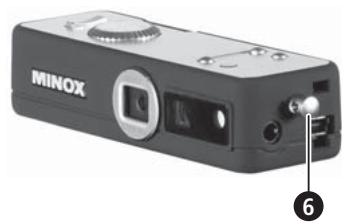
Safety eye (for attaching the safety chain)
On the flash module
7 Monitor
8 On/Off button
9 Ready display (flash)
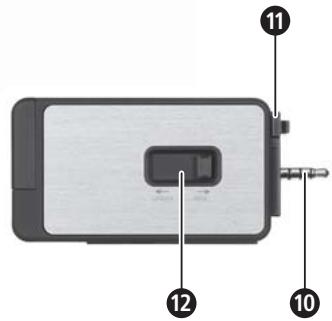
10 Connector (contacts)
1 Engaging notches
12 Sliding lock
How to use your MINOX DSC
Before using the DSC for the first time you have to fully charge the integrated batteries.
Note: When charging for the first time the batteries must be fully charged to ensure maximum performance. Do not interrupt the charging process before the green light goes out, indicating that the charging process has finished.
Charging the batteries
Charging the battery in the camera (DSC)
Use the provided power supply cable (mini USB to USB) to connect the DSC to the USB port of your
switched-on computer. Charging starts automatically.
To charge the battery of the DSC without the computer you can use an optionally available AC Adaptor (Order number see: Accessories).
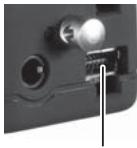
Mini USB port
A green LED lights up while the battery is charging. Charging is complete when the green light goes out.
Charging the battery in the flash module (DSC Flash)
Use the provided power supply cable (mini jack to USB) to connect the flash to the USB port of your switched-on computer. Charging commences automatically.
To charge the battery of the flash module without the computer you can use an optionally available power adapter (Order number see: Accessories).
A green LED lights up while the internal battery is charging. Charging is complete when the green light goes out.
Increasing the camera memory capacity with a microSD card
The MINOX DSC is equipped ex-works with a 128 MB internal memory, capable of storing approx. 37 images.
An additional microSD card (Secure Digital) substantially increases the memory capacity of your DSC.
The MINOX DSC supports microSD cards with a capacity of up to 16 GB. MicroSD cards are available from photo dealers and electronics stores.
Inserting a microSD card
Open the battery compartment cover of the DSC and insert the microSD card the right way up (with the gold contacts facing upward) into the microSD card slot. The SD symbol appears on the monitor.
Important: Inserting the microSD card blocks the internal memory. All new photo and video shootings will now be stored on the microSD card. The internal memory is only available until you remove the microSD card.
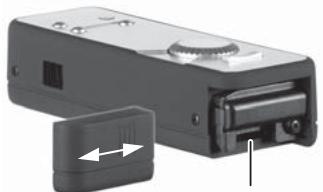
microSD card slot
Connecting the flash module (DSC Flash) to the camera (DSC)
Switch both the camera and the flash module off before connecting the external flash to the DSC.
Hold the flash module with the monitor facing upward next to the DSC with the camera controls facing upward. Now join the two units so that the connector of the flash fits into the socket of the camera and the safety chain eye of the DSC fits into the mating opening on the flash module. To connect the two devices simultaneously press
down and gently squeeze the engaging notches. When doing so, the notches of the flash must engage in the corresponding openings on the DSC. Now move the slide lever on the bottom of the flash fully to the right (into the position "lock"), until you hear this audibly engage. The flash module is now firmly connected and engaged with the DSC camera.
To separate the flash module and camera again you must first switch off both units. Move the slide lever on the bottom of the flash into the position
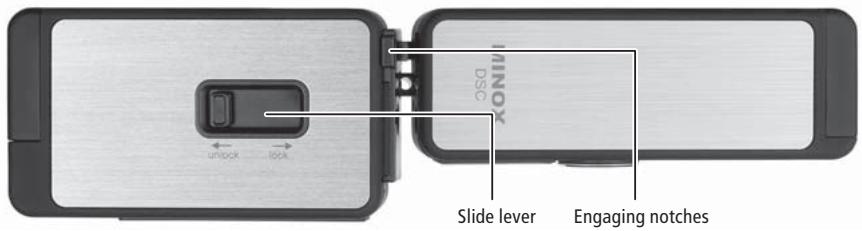
"unlock". Now carefully press with a finger on one of the two engaging notches (top or bottom) between the two devices. This disengages the locking action of the flash module with the camera.
Note: Before connecting the external flash with the camera you must remove the safety chain from the camera (DSC), if attached.
Switching on the MINOX DSC
To switch the DSC on press the On/Off button and hold it down until the LED lights up blue (in the Photo/Video mode) or green (in the Playback mode).
The switching on of the DSC takes effect with a delay of a few seconds to avoid any unintentional switching on of the MINOX DSC.
Using Flash/Display Unit
The followings operations can only be done after the Flash Unit is connected to the Spycam properly. Otherwise the Flash Unit is in power-off state.
Switch On the Display
Switch the Display On/Off button to the ON side and switch on the Spycam. You can see the preview on the Display.
Switch Off the Display
Switch the Display On/Off button to the OFF side. The Display will turn off but the Spycam remains in power-on state.
Use the Flash
Charge the Flash
Switch on the Spycam in Camera mode. Press the UP button on the Spycam once to enable the flash and press again to disable the Flash. The green LED located on the upper side of the flash unit is flashing during charging process.
Trigger the Flash
When the flash is fully charged the green LED lights on and shows the readiness of the flash. Press the Shutter button on the Spycam to trigger the flash.
Notes
- The Display On/Off button enable the display on/off only and has no effect on flashing.
- The Flash Unit have no flashing and display if it is not connected to the Spycam.
Technical data Flash Unit
Voltage supply to the Flash Unit 4V
| Flash | Display | Current drain (mA) |
| Off | On | 130 |
| Charging | On | 300 |
| Charging | Off | 170 |
Measurement is made by using a Flash Unit with a Spycam.
Selecting the menu language
The MINOX DSC menu items can be displayed in several languages. If, after switching on the camera and the flash module, the menus are not shown in your language, go to the section Adjusting your camera settings > Selecting the language
Shooting photos
Framing the subject and shooting the picture
Set the mode dial to the desired Photo mode. With connected and switched on flash module the -symbol appears on the monitor.
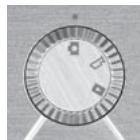
Frame the subject you want to shoot through the viewfinder or in the monitor of the connected flash module. Press the shutter release to capture and save the picture.
The LED display extinguishes during the shot and the respective saving process. The LED display then lights up blue again to signal that the DSC is ready to take the next shot.
Using the flash
Activate the flash function in the Photo mode
by pressing the Up button. The LED display now lights up violet (red and blue) to indicate that the flash is ready.
When switched on the flash is controlled automatically and only operates when there is insufficient light.
If the flash is not connected the LED flash in the camera is used. This is immediately ready for use.
When the flash module is connected, this flash is used instead of the internal LED flash.
After switching on the flash function the green lamp (LED) on the flash module lights on to indicate that the flash is ready for operation. The time it takes to signal that the flash is ready can vary, depending on the charge status of the built-in battery. Press the Up button again to deactivate the flash function, the LED display lights up blue again.
Taking videos
Framing the subject and shooting the video
Set the mode dial to the desired Video mode. With connected and switched on flash the -signal appears on the monitor. Frame the scene you want to shoot through the
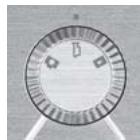
viewfinder of the DSC or in the monitor of the connected and switched-on flash module. Press the shutter release to start shooting the video. The LED display lights up red during the shooting. To stop shooting press the shutter release again.
Playback mode
Viewing images or videos on the monitor
The images or video clips stored on your camera can be viewed on the monitor integrated in the flash module. To do this, connect the DSC flash module to your DSC as
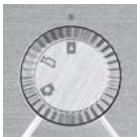
described above and switch the monitor on.
Activate the Playback mode by turning the mode dial to the corresponding position. The monitor of the connected flash module now displays the -symbol.
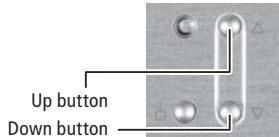
Press the Up or Down button to page through your saved images or video clips.
Press the shutter release to start a selected video clip. Press the shutter release again to stop the playback.
Viewing details (only photos)
The zoom function allows you to view details of your images.
When you are viewing an image press the shutter release to enter the Playback menu. Select Zoom and press
Playback
Zoom
4 Thumbs
9 Thumbs
Slide Show
the shutter release to confirm this selection.
Pressing the Up or Down button enables you to zoom in or zoom out. Press the shutter release again to view the individual image details in square sections. With the Up or Down button you can select and view the individual details of the image. Press the shutter release a third time to exit the Zoom mode.
| Playback |
| Zoom |
| 4 Buttons |
| 9 Buttons |
| Slide Show |
| Playback |
| Zoom |
| 4 Buttons |
| 9 Buttons |
| Slide Show |
Viewing several images at once (miniature images)
Press the shutter release in Playback mode to enter the Playback menu. To show your saved images in thumbnail format select 4 Thumbsils or 9 Thumbsils and confirm this selection by pressing the shutter release. The monitor now shows all images in the desired format.
Select the desired image using the Up or Down button and press the shutter release to display it as a single image.
Viewing images in a slide show
The DSC can display your saved images on the monitor in a slide show.
| Playback |
| Zoom |
| 4 Thumbs |
| 9 Thumbs |
| Slide Show |
Press the shutter release inPlayback mode to enter the Playback menu, select Slide Show and confirm this
selection by pressing the shutter release. The slide show commences. Press the shutter release again to stop the slide show.
Deleting images
Important note!
Deleted images and video clips cannot be restored. In case of doubt make a copy of your data before deleting images. MINOX GmbH shall not be liable for data loss caused by incorrect operation.
| Playback |
| Delete One |
| Delete All |
| Setup |
| Exit |
| Playback |
| Delete One |
| Delete All |
| Setup |
| Exit |
Deleting a single image
In Playback mode select the image you want to delete using the Up or Down button.
Press the shutter release to enter the Playback menu, select Delete One and confirm this selection by pressing the shutter release. Confirm the safety question that appears with Yes and press the shutter release again. The selected image is now irrevocably deleted from the memory of the camera.
Deleting all images
In the Playback mode press the shutter release to enter the Playback menu. Select Delete all and
confirm this selection by pressing the shutter release. Confirm the safety question that appears with Yes and press the shutter release again. All images are now irrevocably deleted from the memory of the camera.
Transferring images to your computer
The MINOX DSC supports the following operating systems:
- Windows 2000/ME/XP/Vista
Mac OS 9.x or OS X
Driver installation is not required. Older operating systems are not supported.
Note: When connected to your switched-on computer via the USB cable the MINOX DSC is supplied with power and the battery is charged. Refer also to section Charging the batteries.
Connecting your camera to the computer
Always switch the DSC on before connecting it to the computer. Then connect the camera to the computer using the provided USB cable (connect the smaller connector to the camera and the larger one to the computer.)
When connecting the MINOX DSC to your computer for the first time the computer will recognize it as new hardware. You computer automatically installs the drivers. Wait until your computer informs you that installation has been completed before trying to access the images or video clips stored in the camera or on the microSD card.
Note: If there is a microSD card installed in the camera you can only access the data on this card. To access any data in the internal memory of the camera you must first remove the SD card.
Transferring images to a Windows PC
Click on the symbol My Computer on your computer. You will see a symbol with the designation Removable media. Double click on the symbol and open the folder DCIM and then folder 100_ICAM in which all your images are stored.
Transferring images to an Apple Mac
After connecting and switching on the camera a new hard drive system appears on your desktop with the designation MINOX. On this hard drive you will find a folder DCIM, and in this folder another folder 100_ICAM with all your images and video clips. You can rename the hard drive MINOX to any name you choose.
Note: You can also use your camera to store or download other files. To do this, open the above mentioned folder and copy the respective file into this folder to save it in the camera memory.
Fastening the safety chain
Attach the safety chain to the provided safety chain eye on the DSC. It is not possible to connect the safety chain when the DSC is connected to the external flash module.
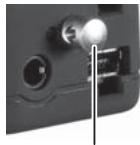
safety chain eye
Note: You must remove the safety chain before connecting the external flash to the DSC.
Adjusting your camera settings
Adjusting the camera settings can only be carried out with the flash module (DSC flash) connected. The settings can only be carried out using the monitor.
See section Connecting the flash module (DSC Flash) to the camera (DSC)
Opening the Setup menu
In playback mode press the shutter release, the Playback menu appears on the monitor. Use the Up or Down button to change to the menu item Setup and confirm this selection by pressing the shutter release again.
| Playback |
| Delete One |
| Delete All |
| Setup |
| Exit |
| Setup |
| Format |
| AutoOff |
| Frequency |
| Settings |
Use the Up or Down button to select one of the following options:
Format the internal camera memory and micro SD card.
You can format the internal memory of the DSC and micro SD card. In the Setup menu select Format and confirm by pressing the shutter release. In the Format menu select Yes and again press the shutter release to confirm this selection. All images, video clips and data in the memory are irrevocably deleted.
| Setup |
| Format |
| AutoOff |
| Frequency |
| Settings |
| Setup |
| Format |
| AutoOff |
| Frequency |
| Settings |
Setting the Auto Off time
Select Auto Off and press the shutter release. Use the Up or Down button to determine the time after which you wish the camera to turn itself off. Confirm your selection by pressing the shutter release.
Adjusting the mains frequency
To reduce flicker in video mode when shooting in artificial light (fluorescent lamps) you can manually adjust the frequency. To do this select the frequency 50Hz or 60Hz and confirm your selection by pressing the shutter release.
| Setup |
| Format |
| AutoOff |
| Frequency |
| Settings |
| Setup |
| Language |
| Exit |
Revert to default settings
If you want to reset your camera to the ex-works settings, select Settings press the shutter release to reset the settings.
Language selection
You can set the language used in the menus. Select Language and press the shutter release. Choose the language you wish and confirm your selection by pressing the shutter release.
Camera maintenance
Read the following information carefully to ensure correct use of your MINOX DSC.
Places to avoid
Do not store or use the camera in the following environments:
- in very damp, soiled or dusty places.
- in places exposed to direct sun radiation or extreme temperatures, such as inside a locked car in the summertime.
- in extremely cold places.
- in places exposed to severe vibrations.
- in places exposed to smoke or steam.
-
in places exposed to strong magnetic fields (e.g. in the proximity of electrically operated motors, transformers or magnets).
-
in places where aggressive chemicals such as pesticides, rubber or vinyl products are stored on a long-term basis.
Note: Keep the MINOX DSC away from sand and dust. As with all digital cameras the MINOX DSC is also particularly susceptible to sand and dust. When in sandy places always make sure that the camera is not unprotected, especially on beaches or in the desert where find sand is blown about by wind.
How to keep the DSC and the external DSC flash
If you are not using your MINOX DSC for a longer period of time, it is best to store it and the flash module in a dry place.
Cleaning your DCC
Always use the optionally available MINOX Cleaning Set (Order No. 69731). Use the small
brush to carefully remove dust from the lens and the LCD surface of the display. Wipe the surface gently with the special micro-fiber cloth. If there are any marks on the lens, put a drop of the liquid lens cleaner onto the micro-fiber cloth and gently wipe the lens surface.
Never scratch any part of the camera or flash module with hard objects. Never use volatile substances such as solvents, benzene or insecticides, as these may react with the camera body and cause deformation or damage to the coating.
When flying
We do not recommend storing the camera in your suitcase or baggage. Keep your MINOX DSC safely in your hand luggage.
Trouble shooting
| Problem | Cause | Remedy |
| The camera is not functioning | The camera (DSC) is not switched on | Hold the ON/OFF button down for a moment |
| Low battery voltage | Recharge battery or use the power adapter (available optionally) | |
| Order No.: EU 606-350.000-120 UK 606-350.000-220 US 606-350.000-320 | ||
| Poor contact between camera (DSC) and flash module (DSC-Flash) | Clean the contacts with a soft cotton wool tip | |
| The camera is not shooting (images or videos) | The Mode dial is on Playback | Turn the Mode dial to the appropriate setting (photo or video) |
| The flash is loading | When the flash has loaded you can release the shutter | |
| The camera is not shooting /images or videos) | The microSD card is full | Insert a new (empty) microSD card |
| Download all images and data from the microSD card onto a computer, as required, and then delete the images or data from the SD card to make space for new images | ||
| The SD card is not formatted correctly | Format the microSD card. See „For- matting the internal camera memory and microSD card“ | |
| If new formatting does not solve the problem, the logic circuits of the microSD card could be faulty. Contact MINOX Customer Service | ||
| Battery cannot be charged | Poor or missing contact between USB port of the camera and the computer or mains adapter | Make sure that the USB cable is firmly connected and the computer is swi- ched on, or that the mains adapter is properly inserted in the socket |
| Image is blurred or not sharp | Camera shake | Make sure not to move the camera when pressing the shutter release |
| The subject in the picture is too dark | Not enough light for the shot | Switch on the flash |
| The subject in the picture is too light | Subject is too close, flash is too strong | Increase the distance to the subject |
| Light falling directly on the subject or is reflected from the subject onto the camera | Change the angle of the shot | |
| The flash is switched on and is possibly not required | Switch the flash off | |
| White dots appear on the image | The flash light is reflected by dust particles or insects in the air | This is unfortunately a familiar effect and is not due to faulty functioning of the camera (This is particularly evident when shooting with flash) |
| There are marks and imperfections on the image | Dirty lens | Clean the lens using the MINOX Cleaning Set, Order No. 69731 |
| The flash does not trigger | The flash is switched off | Switch the flash on |
Technical data
| Image sensor | 5.0 MP, CMOS Sensor (3.2 MP hardware resolution) |
| Image resolution | Still: 2,560 x 1,920 pixels (interpolated) Video clip: 640 x 480 pixels |
| File format | Still: JPEG / Videoclips: AVI |
| Memory | Internal: 128 MB NAND Flash memory External: optional mini SD card up to 16 GB |
| Viewfinder | Optical (Galileian-Style) |
| Display | 1.5" TFT LCD display (integrated in DSC Flash module) |
| Flash | DSC with LED flash DSC Flash: electronic flash |
| Lens | 8.7 mm Minoctar Lens / 4 elements glass lens with IR filter glass |
| Focal length | 8.7 mm (corresponds to approx. 42 mm with 35 mm format) |
| Lens aperture | F 3.0 |
| Focus range | 1 m, infinity |
| White balance | Automatic |
| Shutter speed | Automatic |
| Power supply | Rechargeable Lithium-ion-Battery/USB-cable |
| Support | Windows ME/2000/XP/Vista / MacOS compatible |
| System requirements | min. 450 MHz, min. 128 MB RAM, min. 800 MB free volume space, USB 2.0 |
| Data transfer | miniUSB cable (USB 2.0 high speed) |
| Dimensions | DSC: 3.38 x 1.18 x 0.82 inch / 86 x 30 x 21 mm (W x L x H) DSC Flash: 3.38 x 1.18 x 0.82 inch / 76 x 41 x 21 mm (W x L x H) |
| Weight | DSC: 2.11 oz / 90 g DSC Blitz-Modul (Flash): 2.82 oz / 80 g |
Conditions of Warranty
With the purchase of this MINOX camera you have acquired a product that has been manufactured and inspected to stringent quality standards.
The statutory warranty of two years for this product is granted by us from the date of purchase from an authorized dealer and is subject to the following conditions:
1) During the warranty period we shall deal with complaints based on faulty manufacture free of charge by repair, replacement of defective parts or full replacement with a flawless product of the same kind, at our own discretion. Consequential claims of whatever kind and whatever the legal basis shall be excluded.
2) Claims under warranty shall be null and void if the defect has been caused by improper handling - which can also include the use of external accessories -, if the product is serviced by
unauthorized persons and workshops or if the serial number has been obliterated.
3) Warranty claims can only be made by submission of a typewritten sales slip of an authorized dealer.
4) When submitting claims under warranty please return the MINOX camera together with the original typewritten warranty and a description of the complaint to the Customer Service of MINOX GmbH or a country Agency.
5) People traveling abroad may make use of the MINOX Agency of the respective country, within the terms of the Warranty of MINOX GmbH. A list of all current MINOX Agencies abroad can be found under "Service" on the MINOX website www.minox.com.
Disclaimer of liability
While every effort is made to ensure that the information given in this Manual is accurate and complete, we accept no liability for any errors or omissions.
MINOX reserves the right to change the herein described hardware and software features at any time without advance notice.
This Manual may not be reproduced, transferred, copied, stored in information systems or translated into other languages, whether in whole or in part, in whatever form or with whatever means, unless expressly permitted by MINOX in writing beforehand.
MINOX shall not accept damage claims resulting from faulty or lost data based on incorrect operation or malfunction of the camera, software, SD storage cards (SD cards), computers or auxiliary equipment.
MINOX GmbH
Walter-Zapp-Str. 4
D-35578 Wetzlar
Tel.: +49 (0) 6441 / 917-0
Fax: +49 (0) 6441 / 917-612
eMail: info@minox.com
Internet: www.minox.com
MINOX GmbH
Walter-Zapp-Str. 4
D-35578 Wetzlar, Germany
Tel.: +49 (0) 6441 / 917-0
Fax: +49 (0) 6441 / 917-612
e-mail: info@minox.com