
DCM 5.0 - Digital Camera MINOX - Free user manual and instructions
Find the device manual for free DCM 5.0 MINOX in PDF.



| Product Type | Digital camera module for spotting scope |
| Brand | MINOX |
| Model | DCM 5.0 |
| Sensor | 5.0 MP CMOS (3.2 effective MP) |
| Photo resolution | 2560 x 1920 pixels (interpolated), 2048 x 1536 pixels |
| Video resolution | 320 x 240 pixels |
| Internal memory | 128 MB Flash |
| External storage | SD card up to 16 GB (SDHC) |
| Display | 2.0-inch TFT LCD monitor |
| White balance | Auto, Daylight, Cloudy, Lamp, Fluorescent, Night |
| Shutter | Direct, remote control, 2-sec self-timer |
| Zoom | 4x digital zoom |
| File format | Photo: JPEG; Video: AVI |
| Power supply | Rechargeable lithium-ion battery, USB cable |
| Drivers | Windows Vista/ME/2000/XP, Mac OS X |
| Dimensions | 74 x 47 x 44 mm |
| Weight | Approx. 220 g |
| Main functions | Photo and video shooting, playback, slideshow, erase, USB transfer, self-timer, exposure compensation, remote control |
| Maintenance and cleaning | Soft brush and lint-free cloth; avoid solvents |
| Safety | Avoid moisture, dust, sand, magnetic fields, extreme temperatures |
| Spare parts | Lithium-ion battery, USB cable, remote control (CR2032 battery) |
| Warranty | 2 years legal, subject to conditions |
Frequently Asked Questions - DCM 5.0 MINOX
User questions about DCM 5.0 MINOX
0 question about this device. Answer the ones you know or ask your own.
Ask a new question about this device
Download the instructions for your Digital Camera in PDF format for free! Find your manual DCM 5.0 - MINOX and take your electronic device back in hand. On this page are published all the documents necessary for the use of your device. DCM 5.0 by MINOX.
USER MANUAL DCM 5.0 MINOX
Magnifications with the DCM
Other spotting scopes can not be adapted with the MINOX DCM.
Inserting the battery 21
Charging the battery 22
Switching the camera on 22
Taking your first picture 23
Taking videos 23
Playback mode 24
Image quality 25
Increase the camera memory
with an SD card 26
Inserting an SD card 26
Deleting unwanted images 26
Downloading your images
to your computer 27
Using the Self Timer 28
Adjusting the white balance (WB) 29
Adjusting the Exposure Values (EV) 29
Adjusting your camera settings 30
How to use the remote control 31
Camera maintenance 32
Technical Data. 34
Conditions of warranty 35
Introduction
Congratulations on the purchase of your new MINOX DCM. Like all other MINOX products this digital Camera Module boasts the traditional values fostered by MINOX. It combines functionality in the smallest possible space with excellent optical quality.
Fast and easy operation make the MINOX DCM an excellent tool for digital observation and digital photography in combination with a spotting scope. The MINOX DCM is ready to become your permanent companion and capture wonderful memories in the modern way.
These instructions are to help you benefit from the full performance spectrum of your MINOX DCM.
Enjoy photography with your digital Camera Module!
Introducing your DCM
Please take a few moments to read these Instructions and the Safety and Maintenance notes in the last section of this manual.
Inserting the battery
Your camera uses a lithium-ion rechargeable battery. You can recharge the battery using the provided accessory equipment. We do not warranty for battery or camera damage caused by using any other method to charge the battery.
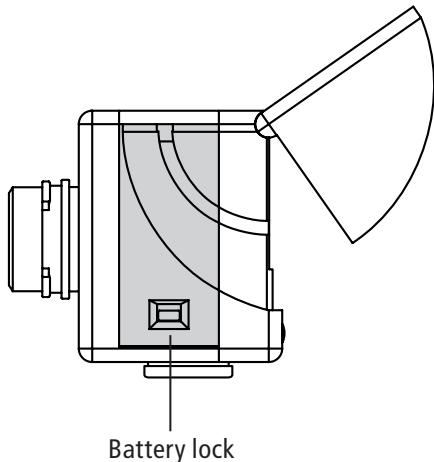
To insert the battery hold the Camera Module with your right hand, with the monitor shield flipped open and the back facing upward. Now open the battery compartment cover by opening the latch with the thumb of your left hand and moving it to the side.
Slide the battery into the battery compartment with the metal contacts head first and close the battery latch. Close the battery compartment.
Your photos will remain safely stored in the camera memory or on the SD card even if the batteries are removed or replaced.
Charging the battery
Connect the switched off Camera Module using the provided USB cable to the USB connection of your computer. This starts the charging process automatically. While the battery is being charged a green lamp lights up in the proximity of the USB connection.
Charging is completed when the lamp extinguishes.
Switching your Camera Module On / Off
To switch the camera on press and hold the Mode button ON/MODE.
To switch your camera off, press the Mode button until the Setup menu appears. Press the Down button until Power Off is selected and then press the Select button to switch the camera off. By default the DCM will automatically switch itself off if it is not used within 60 seconds, thus saving battery power.
| Setup |
| Power Off |
| Format |
| Auto Off |
| Frequency |
Taking your first picture
Frame your subject
When the DCM is switched on it is in Camera Mode and the symbol appears on the display. If this symbol does not show, press the Mode button until it appears.
Digital zoom function
Frame your subject in the display on the back of the Camera Module.
To change the size of the desired image detail (zoom function) press the Up button (to zoom in) or Down button (to zoom out).
Shoot the picture
Press the shutter button (RELEASE) to shoot the picture.
Taking videos
Select Video Mode
In the Photo mode, press the Select button (SEL/OK); the Camera Menu appears. Use the Down button to select the option Movie and then press the Select button (SEL/OK) again to get into the Video Setup Menu.
The Camera option is selected. Use the Up button to select the option Movie and then press the Select button (SEL/OK) to confirm the setting. The camera is now in Video Mode, the symbol will show on the display.
Frame the scene
Frame the scene you want to take using the display on the back of the camera. To change the size of the desired image detail (zoom function) press the Up button (to zoom in) or the Down button (to zoom out).
Shoot the video
Press the shutter button (RELEASE) to start the recording. Press it again to stop the video. During the shooting you will see a red dot in the display.
| Camera |
| Quality |
| Movie |
| Self Timer |
| WB |
| Movie |
| Movie |
| Camera |
Playback mode
Review your pictures and videos on the display
Press the Mode button (ON/MODE) as many times as needed to get into the Playback mode () .
Use the Up or Down button to scroll through the stored images.
Press the shutter button to start the replay of a video clip. Press the shutter button again to stop the replay before the end of the clip.
Look at details
You can take a closer look at details of your images using the zoom function.
Press the Select button (SEL/OK) while viewing an image. Select Zoom and press the Select button (SEL/OK) again.
Press the Up or Down button to zoom in or zoom out. Press the Select button twice to leave Zoom Mode.
| Playback |
| Zoom |
| 4 Thumbnail |
| 9 Thumbnail |
| Slide Show |
| Playback |
| Zoom |
| 4 Thumbnail |
| 9 Thumbnail |
| Slide Show |
Review several images at once
Press the Select button when in Playback Mode (▶) to reach the Playback Menu, select either 4 or 9 images, and press the Select button. The display will now show 4 or 9 miniature images of your pictures.
Select one of the images using the Up or Down button and press the Select button to enlarge this image.
View your pictures in a slide show
Your Camera Module can automatically display your images one after the other in a slide show.
Press the Select button when in Playback Mode (▶) to reach the Playback Menu, select Slide Show and press the Select button. The slide show then starts.
Press the select button again to stop the slide show.
Image quality
The higher the selected quality, the larger the size of the individual image file. You can choose between three different quality settings for your images. This has an impact on the number of images that will fit on the internal memory of the DCM:
Low () - 2048 x 1536 pixels
-up to 117 images
Normal ( ) - 2048 x 1536 pixels
-up to 60 images
High ( ) - 2560× 1920 pixels (by interpolation)
-up to 37 images
| Camera |
| Quality |
| Movie |
| Self Timer |
| WB |
| Quality |
| Low |
| Normal |
| High |
When in Camera Mode press the Select button (SEL/OK) to enter the Camera Menu. Select Quality and press the Select button (SEL/OK) again. This brings you into the Quality Menu where you can select the different quality settings using the Up or Down button.
Press the Select button (SEL/OK) again to confirm your selection.
Increase memory capacity with an SD Card
SD Cards (Secure Digital) increase the amount of memory available for storing images and videos. SD cards can be purchased from photo dealers and
from electronic goods retailers. Your camera supports up to 4 GB SD Card memory.
Inserting an SD Card
Open the battery compartment and insert the SD card in the SD Card slot with the gold contacts pointing to the Display.
Important: If the SD Card is write-protected, a lock symbol appears on the display and you cannot shoot pictures or videos.
Deleting unwanted images
Delete an individual image
In Playback Mode (▶) use the Up or Down button to select the image you want to delete.
Press the Select button (SEL/OK), to enter the Playback Menu, select Delete One and press the Select button. Select Yes and press the Select button (SEL/OK) again.
The selected image is then deleted from the camera memory.
Delete all images
In Playback mode (▶) press the Select button to enter the Playback Menu, select Delete All and press the Select button (SEL/OK). Select Yes and press the Select button (SEL/OK) again. All images are then deleted from the camera memory.
Downloading pictures onto your computer
Note: You do not need to install camera drivers for Windows versions Vista/2000/ME/XP or Mac OS 9+ or OS X. Your MINOX DCM does not support older versions of the named operating systems.
Note: When your DCM is connected your computer supplies the power via the USB cable to save the batteries.
Connect your Camera Module to the computer
Always turn your Camera Module on before connecting it to the computer. Then connect the DCM to the computer using the provided USB cable (the smaller sized head connects to the Camera Module and the larger one to the computer).
When you connect your Camera Module to your computer for the first time, your computer will recognize it as new hardware. Your computer then installs the drivers automatically. Wait until your computer informs you that the installation is complete before trying to access the pictures or movies stored in the camera or on the SD card.
Download images to a Windows PC
Open the My Computer icon on your computer. You will see a new icon named Removable Disk.
Double click on the icon and open the folder DCIM and then the folder 100_CAM in which all of your images are stored.
Download images to an Apple Mac
After connecting the Camera Module and switching it on, a new hard disk icon appears on your Desktop called Untitled.
In this hard disk you will find a folder named DCIM and this contains a folder named 100_CAM in which all of your images are stored.
You can rename Untitled to any name you prefer.
Note: You can also use your Camera Module for saving or transferring other files. Simply open the above named folder and copy in the file you want to save in the camera memory.
Using the Self Timer
Put yourself in the picture using the Self Timer function. The timer has a two seconds delay.
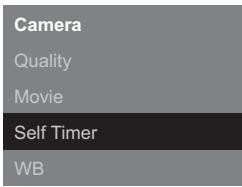
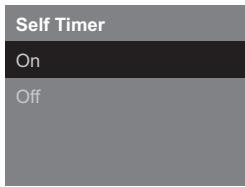
In Camera Mode press the Select button (SEL/OK); This provides access to the Camera Menu. Select Self Timer and press the Select button (SEL/OK)
again. This provides access to the Self Timer Menu. Select On and press the Select button (SEL/OK) to confirm your selection.
The Camera Module is now in Self Timer Mode, the symbol appears on the display.
Frame your picture as required. To do this, you can still use the zoom function as normal.
After pressing the shutter button you have two seconds to put yourself in the picture before the shutter is released.
Adjusting the White Balance (WB)
The white balance ensures natural color rendition of your pictures. The Camera Module is set to automatic white balance in the factory. In critical light conditions you can selectively adjust the white balance.
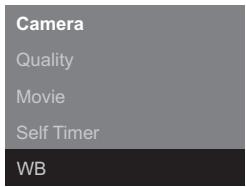
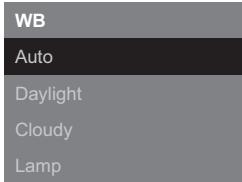
In Camera Mode press the Select button (SEL/OK); this provides access to the Camera Menu. Select WB and press the Select button (SEL/OK) again. In the WB Menu you can choose between 6 settings:
Auto (automatic), Daylight, Cloudy, Lamp, Tungsten, Night
Press the Select button (SEL/OK) to confirm your selection.
Adjusting the Exposure Values (EV)
In critical light conditions you can manually adjust the brightness of your images.
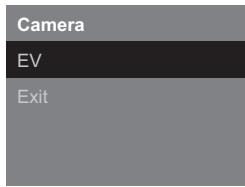
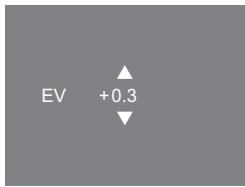
In Camera Mode press the Select button (SEL/OK); this provides access to the Camera Menu. Select EV and press the Select button (SEL/OK) again. Now reduce or increase the exposure time using the Up or Down button.
Press the Select button (SEL/OK) to confirm your adjustment.
Adjusting your camera settings
Open the Setup Menu
Press the ON/MODE button until the Setup Menu appears on the display.
| Setup |
| Power Off |
| Format |
| Auto Off |
| Frequency |
Use the Up or Down button to select one of the following options:
Switch off
Select the option Power Off and press the Select button (SEL/OK) to switch off the Camera Module.
Formatting
It is possible to format your camera memory. In the Setup Menu select Format and press the Select button. Select Yes in the Formatting Menu and press the Select button (SEL/OK) again. This deletes all images and settings.
Set AutoOff time
Select AutoOff and press the Select button (SEL/OK). Select the time after which you would like the camera to switch off automatically if left unattended.
Adjust frequency
You can manually adjust the frequency to reduce image flicker under tungsten light when in the Video Mode. Select Frequency and press the Select button (SEL/OK).
Select between 50Hz and 60Hz and confirm your setting with the Select button.
Reset settings
If you want to reset the camera settings to the default settings select Settings and press the Select button (SEL/OK). Select Default and press the Select button to reset the settings.
Language setting
You can set the language used in the menus. Select Language and press the Select button (SEL/OK).
Select the preferred language and confirm the setting with the Select button (SEL/OK).
How to use the remote control
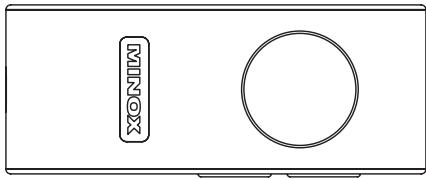
The remote can release the shutter of the DCM within the range of two meters.
Capturing image
Press the big round button at the front with the camera symbol to capture image.
Capturing video
Press the MODUS P/V button to start capturing video and press this button again to stop capturing.
Zooming in/out
Press the Zoom button to zoom in/out.

Insert & change battery
Follow the direction on a battery compartment cover to open. Take a new CR2032 battery and
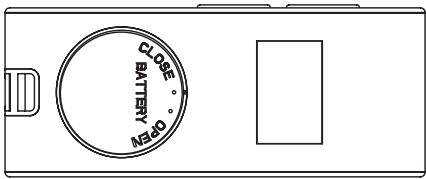
place it in the battery compartment. Pay attention to the correct pole alignment + / - . Close and lock the battery compartment cover.
Maintenance of the Camera Module
Please read the following information to make sure you are using your DCM correctly.
Places to avoid
Do not store or use your camera in any of the following environments:
- very damp, dirty or dusty places,
- places exposed to direct sunlight or extreme
temperatures, such as the inside of a closed car in the summer,
extremely cold places,
places exposed to severe vibrations,
places exposed to smoke or steam,
- places exposed to strong magnetic fields (e.g. in close proximity of electric motors, transformers or magnets,
- places where aggressive chemicals are stored on a long-term basis, such as pesticides, rubber or vinyl products.
Note: Always keep the DCM away from sand and dust. Like any other electronic/digital camera, the DCM is particularly sensitive to sand and dust. Always make sure that the camera is not exposed to sand in sandy places, especially on the beach or in the desert where fine sand is blown about.
Storing the Camera Module
If your DCM is not being used for a longer period, it is best to remove the battery and store the Camera Module in a dry place.
Cleaning your DCM
Use a small brush to carefully remove the dust from the lens and the LCD surface. Gently wipe the surface with a dry, soft, fluff-free cloth. If there are any spots on the lens, apply a few drops of liquid lens cleaner to an optical cloth and carefully wipe the lens surface.
Never scratch any part of the Camera Module using a hard object. Do not use volatile substances like solvents, benzole or insecticide as these could react with the camera body and lead to deformation or destroy the coating.
Traveling by air
Do not pack the Camera Module in baggage to be handed in at the airport. The baggage handling could cause damage on the inside of the Camera Module, even if there are no signs of this showing on the outside.
Technical Data
| Image sensor | 5.0 MP, CMOS Sensor (3.2 MP Hardware-resolution) |
| Image resolution | Still: 2,560 x 1,920 pixels (interpolated), 2,048 x 1,536 Pixel (3.2 MP); Videoclip: 320 x 240 pixels |
| Memory | Internal: 128 MB Flash memory External: optional SD card up to 16 GB (supports SDHC) |
| Display | 2.0" TFT LCD display |
| White balance | Automatic, Daylight, Cloudy, Lamp, Tungsten, Night |
| Shutter | Direct / Remote Control / Selftimer: 2 sec |
| Zoom | 4x digital zoom |
| File-format | Picture: JPEG / Video: AVI |
| Power supply | Rechargeable Lithium-Ion-Battery/USB-cable |
| Support | Windows Vista / ME / 2000 / XP; Mac OS X compatible |
| Dimensions | 74 mm (L) x 47 mm (W) x 44 mm (H) |
| Weight | approx. 220 g / 7.76 oz |
Conditions of warranty
With the purchase of this MINOX product you have acquired a product which has been manufactured and checked to special quality standards.
For this product the MINOX GmbH provides warranty of 2 years. The period commences on the date of purchase from an authorized dealer and the warranty is subject to the following conditions:
1) During the warranty period we shall deal with complaints based on faulty manufacture (free of charge) by repair, replacement of defective parts or replacement by an identical flawless product at our own discretion. Consequential claims, no matter what kind of what legal argument in connection with this warranty, cannot be accepted.
2) Claims under warranty are null and void, if the defect has been caused by improper handling - which also can include the use of non-MINOX
accessories - if the MINOX product is serviced by unauthorized persons or workshops, or if the serial number has been obliterated.
3) Warranty claims can only be made by submission of the typewritten sales slip of an authorized dealer.
4) When submitting claims under warranty please return the MINOX product together with the typewritten sales slip and a description of the claim to the MINOX GmbH or MINOX agency.
5) Tourists may, if required, make use of the Agency of the country in which they are travelling (within the terms of the Warranty of the MINOX GmbH) by presenting the typewritten sales slip.
MINOX GmbH
Walter-Zapp-Str. 4
D-35578 Wetzlar
Tel.: +49 (0) 6441 / 917-0
Fax: +49 (0) 6441/917-612
eMail: info@minox.com
Internet: www.minox.com
Notes
Sommaire
Présentation 39
5.0 Megapixels (3.2 MP hardware resolution)
- 2.0" TFT/LCD-Display
128MB internal memory
- SD cards up to 16 GB (optional)
- Rechargeable Li-Ion battery
Design subject to alterations without notice.
MINOX is a registered trademark of MINOX GmbH, Wetzlar.
- Introduction
- Introducing your DCM
- Inserting the battery
- Charging the battery
- Switching your Camera Module On / Off
- Taking your first picture
- Taking videos
- Frame the scene
- Shoot the video
- Playback mode
- Look at details
- Review several images at once
- Image quality
- Increase memory capacity with an SD Card
- Inserting an SD Card
- Deleting unwanted images
- Delete all images
- Downloading pictures onto your computer
- Using the Self Timer
- Adjusting the White Balance (WB)
- Adjusting the Exposure Values (EV)
- Adjusting your camera settings
- Formatting
- Set AutoOff time
- Adjust frequency
- Reset settings
- Language setting
- How to use the remote control
- Capturing image
- Capturing video
- Zooming in/out
- Insert & change battery
- Maintenance of the Camera Module
- Places to avoid
- Storing the Camera Module
- Cleaning your DCM
- Traveling by air
- Technical Data
- Conditions of warranty
- Notes
- Sommaire
Brand : MINOX
Model : DCM 5.0
Category : Digital Camera