DC 7011 - Camera MINOX - Free user manual and instructions
Find the device manual for free DC 7011 MINOX in PDF.


User questions about DC 7011 MINOX
0 question about this device. Answer the ones you know or ask your own.
Ask a new question about this device
Download the instructions for your Camera in PDF format for free! Find your manual DC 7011 - MINOX and take your electronic device back in hand. On this page are published all the documents necessary for the use of your device. DC 7011 by MINOX.
USER MANUAL DC 7011 MINOX
FCC STATEMENT (For customers in USA)
This device complies with Part 15 of the FCC Rules. Operation is subject to the following two conditions:
(1) This device may not cause harmful interference, and
(2) This device must accept any interference received, including interference that may cause undesired operation.
Note:
This equipment has been tested and found to comply with the limits for Class B digital devices, pursuant to Part 15 of the FCC rules. These limits are designed to provide reasonable protection against harmful interference in a residential installation. This equipment generates uses and can radiate radio frequency energy and, if not installed and used in accordance with the instructions, may cause harmful interference to radio communications. However, there is no guarantee that interference will not occur in a particular installation. If this equipment does cause harmful interference to radio or television reception, which can be determined by turning the equipment off and on, the user is encouraged to try to correct the interference by one or more of the following measures:
■ Reorient or relocate the receiving antenna.
■ Increase the separation between the equipment and receiver.
■ Connect the equipment into an outlet on a circuit different from that to which the receiver is connected.
■ Consult the dealer or an experienced radio/TV technician for help.
Use of shielded cable is required to comply with Class B limits in Subpart B of Part 15 of the FCC rules.
Do not make any changes or modifications to the equipment unless otherwise specified in the manual. If such changes or modifications should be made, you could be required to stop operation of the equipment.
READ THIS FIRST
Trademark Information
■ Microsoft ^® and Windows ^® are U.S. registered trademarks of Microsoft Corporation.
■ Pentium ^® is a registered trademark of Intel Corporation.
■ Macintosh is a trademark of Apple Computer, Inc.
■ SD ^TM is a trademark.
■ Photo Explorer and Photo Express are trademarks.
■ Other names and products may be trademarks or registered trademarks of their respective owners.
Product Information
■ Product design and specifications are subject to change without notice. This includes primary product specifications, software, software drivers, and user's manual. This User Manual is a general reference guide for the product.
The product and accessories that come with your digital camera may be different from those described in this manual. This is due to the fact that different retailers often specify slightly different product inclusions and accessories to suit their market requirements, customer demographics, and geographical preferences. Products very often vary between retailers especially with accessories such as batteries, chargers, AC adapters, memory cards, cables, carrying cases/pouches, and language support. Occasionally a retailer will specify a unique product color, appearance, and internal memory capacity. Contact your dealer for precise product definition and included accessories.
■ The illustrations in this manual are for the purpose of explanation and may differ from the actual design of your digital camera.
■ The manufacturer assumes no liability for any errors or discrepancies in this user manual.
■ For user manual and driver updates, refer to our website or contact your dealer.
Notice
If static electricity or electromagnetism causes data transfer to discontinue midway (fail), restart the application or disconnect and connect the communication cable (USB, etc.) again.
EN-2
SAFETY INSTRUCTIONS
Read and understand all Warnings and Cautions before using this product.
Warnings
If foreign objects or water have entered the camera, turn the power OFF and remove the batteries and the AC power adapter.
Continued use in this state might cause fire or electric shock. Consult the store of purchase.

If the camera has fallen or its case has been damaged, turn the power OFF and remove the batteries and the AC power adapter.
Continued use in this state might cause fire or electric shock. Consult the store of purchase.

Do not disassemble, change or repair the camera.
This might cause fire or electric shock. For repair or internal inspection, ask the store of purchase.

Use the supplied AC adapter only with the indicated power supply voltage.
Use with any other power supply voltage might cause fire or electric shock.

Do not use the camera in areas near water.
This might cause fire or electric shock. Take special care during rain, snow, on the beach, or near the shore.

Do not place the camera on inclined or unstable surfaces.
This might cause the camera to fall or tilt over, causing injury.

Keep the batteries out of the reach of children.
Swallowing batteries might cause poisoning. If the battery is accidentally swallowed, immediately consult a physician.

Do not use the camera while you are walking, driving or riding a motorcycle.
This might cause you to fall over or result in traffic accident.

Cautions
Insert the batteries paying careful attention to the polarity (+ or −) of the terminals.
Inserting the batteries with its polarities inverted might cause fire and injury, or damage to the surrounding areas due to the battery rupturing or leaking.
Do not fire the flash close to anyone's eyes.
This might cause damage to the person's eyesight.
Do not subject the LCD monitor to impact.
This might damage the glass on the screen or cause the internal fluid to leak. If the internal fluid enters your eyes or comes into contact with your body or clothes, rinse with fresh water. If the internal fluid has entered your eyes, consult a physician to receive treatment.
A camera is a precision instrument. Do not drop it, strike it or use excessive force when handling the camera.
This might cause damage to the camera.
Do not use the camera in humid, steamy, smoky, or dusty places.
This might cause fire or electric shock.
Do not remove the battery immediately after long period of continuous use.
The battery becomes hot during use. Touching a hot battery might cause burns.
Do not wrap the camera or place it in cloth or blankets.
This might cause heat to build up and deform the case, resulting in fire. Use the camera in a well-ventilated place.
Do not leave the camera in places where the temperature may rise significantly, such as inside a car.
This might adversely affect the case or the parts inside, resulting in fire.
Before you move the camera, disconnect cords and cables.
Failure to do this might damage cords and cables, resulting in fire and electric shock.


Notes on Battery Usage
When you use the battery, carefully read and strictly observe the Safety Instructions and the notes described below:
■ Different battery types and surrounding temperatures may affect the battery performance.
- Avoid using batteries in extremely cold environments as low temperatures can shorten the battery life and reduce camera performance. This low temperature will also influence Alkaline battery performance, therefore Ni-MH rechargeable battery is highly recommended.
If you are using the new rechargeable batteries or rechargeable batteries that have not been used for an extended period of time (batteries that pass the expiry date are exceptions) might affect the number of pictures that can be taken. Therefore, to maximize their performance and lifetime, we recommend that you fully charge the batteries and discharge them for at least one complete cycle before use.
■ The battery may feel warm when using the camera for an extended period of time or using the flash continuously. This is normal and not a malfunction.
■ The camera may feel warm when being used continuously or for an extended period of time. This is normal and not a malfunction.
If you will not be using the batteries for an extended period of time, remove them from the camera to prevent leakage or corrosion.
■ Never use batteries of different types (together) or mix old and new batteries.
■ Always keep the terminals in a clean state.
■ Never use manganese batteries.
■ Risk of explosion if battery is replaced by an incorrect type.
■ Dispose of used batteries according to the instructions.
CONTENTS
INTRODUCTION 8
Package Contents....9
GETTING TO KNOW YOUR CAMERA ....10
Front View....10
Rear View....11
Mode Dial 12
LCD Monitor Information 13
PREPARING THE CAMERA ....15
Installing the Batteries....15
Using the AC Adapter (Optional Accessory) 16
Inserting and Removing an SD Memory Card (Optional Accessory) 17
Attaching the Camera Strap 18
LED Indicators....18
GETTING STARTED....19
Turning the Power On/Off 19
Choosing the Screen Language....19
Setting the Date and Time....20
Formatting an SD Memory Card or Internal Memory 21
Using the LCD Monitor 22
PHOTOGRAPHY MODE....23
Shooting Images 23
Setting Image Resolution and Quality 24
Using the Zoom Function 25
Using the Flash 26
Setting Focus 27
Capture Mode....28
Burst 28
Auto Bracket....29
Self-Timer....30
Adjusting the Exposure (EV Compensation) 31
Setting White Balance 32
PLAYBACK MODE - THE BASICS ......33
Viewing Images....33
Magnifying Images ....34
Thumbnail Display....35
Slideshow Display 36
Resizing an Image....37
MOVIE MODE ....38
Recording Movie Clips 38
Playing Back Movie Clips 39
PLAYBACK MODE - ADVANCED FEATURES ....40
Playing Back Still Images/Movie Clips on TV....40
Deleting Images/Movie Clips....41
Protecting Images/Movie Clips....42
Setting the DPOF 43
TRANSFERRING FILES FROM YOUR DIGITAL CAMERA TO COMPUTER .....45
Connect the digital camera to your computer....46
Download images or movie clips....47
EDITING SOFTWARE INSTALLATION ....48
Installing Photo Explorer ....48
Installing Photo Express....49
USING THE DIGITAL CAMERA AS A PC CAMERA....50
Step 1: Install the PC camera driver....50
Step 2: Connect the digital camera to your computer .....51
Step 3: Run your application software (i.e. Windows NetMeeting) ....51
MENU OPTIONS ....52
Camera Menu....52
Movie Menu....55
Playback Menu....56
Setup Menu....58
SPECIFICATIONS....60
TROUBLESHOOTING GUIDE......61
POSSIBLE NUMBER OF RECORDABLE IMAGE....62
CONNECTING TO A PICTBRIDGE-COMPATIBLE PRINTER 63
INTRODUCTION
Thank you for purchasing the new digital still camera!
Equipped with a 7.0 Megapixels CCD sensor, your camera delivers high quality, 3072 x 2304 resolution images. Other features provided by the camera include the following:
■ 7.0 Megapixels
A high-resolution CCD sensor provides 7.0 megapixels for high quality of images.
■ Auto flash
An auto flash sensor automatically detects the shooting (lighting) conditions and determines whether the flash should be used.
■ 2.5" TFT color image LCD monitor
■ Optical zoom: 1x\~3x
■ Digital zoom: 1.2x\~4x
■ Approx. 32MB internal (built-in) memory
Images can be captured without using an SD memory card.
■ Support for SD memory card for memory expansion
You may wish to expand the memory capacity (up to 2GB capacity) by using an additional SD memory card.
USB connection
Still images or movie clips that you have recorded can be downloaded to your computer using the USB cable.
■ DPOF functionality
DPOF can be used to print your images on a DPOF compatible printer by simply inserting the SD memory card.
■ Provided editing software: Photo Explorer/ Photo Express
You can enhance and retouch your images on your computer by using the provided editing software.
■ PictBridge support
You can connect the camera directly to a printer that supports PictBridge and perform image selection and printing using the camera monitor screen and controls.
Package Contents
Carefully unpack your kit box and ensure that you have the following items. In the event that any item is missing or if you find any mismatch or damage, promptly contact your dealer.
Common Product Components:
Digital Camera
■ User's Manual
■ Software CD-ROM
■ Camera Strap
■ Camera Pouch
AV Cable
USB Cable
■ Batteries
GETTING TO KNOW YOUR CAMERA
Front View
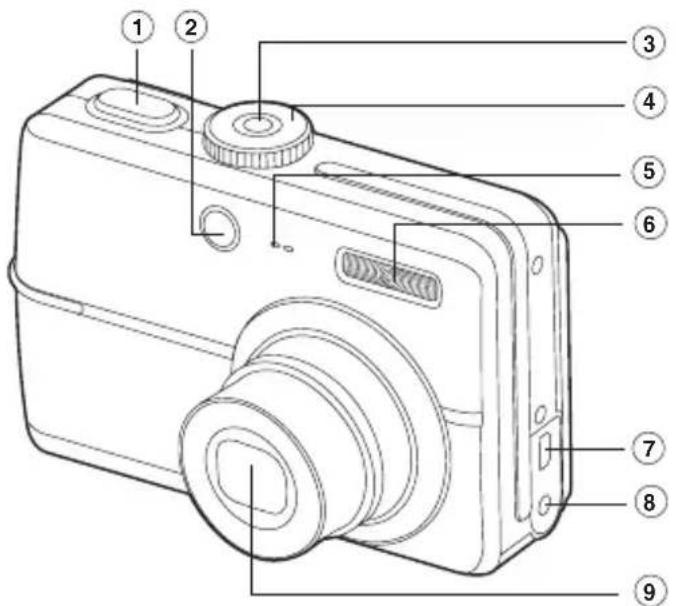
text_image
Labeled diagram of a digital camera with numbered parts for identification- Shutter release button
- Self-timer LED
- Power switch
- Mode dial
-
Microphone
-
Flash
- PC / AV terminal
- DC input terminal
- Lens
Rear View

text_image
Labeled diagram of a digital camera with numbered parts for identification-
LED indicator
-
/ Zoom in (telephoto) button

Zoom out (wide-angle)
button
-
Playback button
-
MENU button
-
Delete button
-
Arrow button (Up)

Self-timer button
- Arrow button (Right)

Focus
-
Strap holder
-
Arrow button (Down)

Exposure compensation button
- Arrow button (Left)

Flash button
- button

button
12.Battery / card cover
-
Tripod socket
-
LCD monitor
Mode Dial
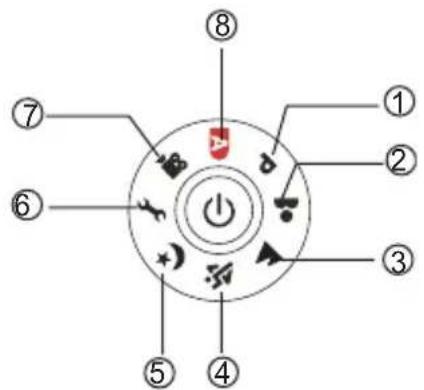
You can select from seven shooting modes and setup mode according to shooting conditions to achieve the desired effect.
text_image
Diagram of a circular device with numbered components and directional arrows indicating control or operation.Mode Description
- Program Select this mode to permit the ISO, EV, and White Balance to be set manually.
- Portrait Select this mode to make people stand out with the background out-of-focus.
- Landscape Select this mode to take phototographs of distant scenery or landscapes.
- Sports Select this mode to shoot fast moving objects.
- Night Select this mode to take photographs of people against a dusk or night-time background.
- Setup Select this mode to adjust the camera settings.
- Video Select this mode to record video clips.
- Auto Select this mode to adjust point-and-shoot action.
Using the Mode Dial
- Rotate the mode dial to the desired mode and turn your camera on by pressing the power switch.
- Compose your subject within the focus frame. For Auto mode, when you press the shutter release button down half way, the camera's Auto Focus feature automatically focuses the image. Proper exposure is determined and locked at the same time.
- Press the shutter release button all the way down to capture the image.
LCD Monitor Information
■ Camera Mode
- Mode indication

text_image
[ ]Program Mode [ ] P o r t r [ ] Landscape Mode [ ] Sport Mode [ ] Night Mode [ ] S e t u p [ ] Movie Mode [ ] Auto Mode
text_image
P 10+2 532 64 3 SD a i t M o 7 7M 8 9 10 ISO 11 12 M o d e +0.3 14 13- Flash mode
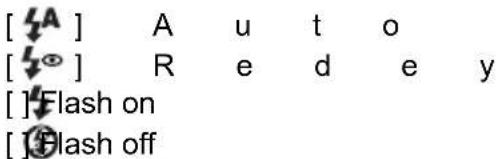
text_image
[A] A u t o [÷] R e d e y [ ]Flash on [ ]Flash off- Capture mode
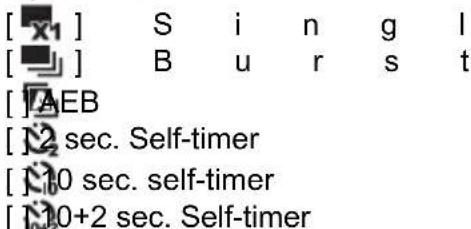
text_image
[x1] S i n g l [ ] B u r s t [ ] AEB [ ] 2 sec. Self-timer [ ] 10 sec. self-timer [ ] 10+2 sec. Self-timer- Focus mode
text_image
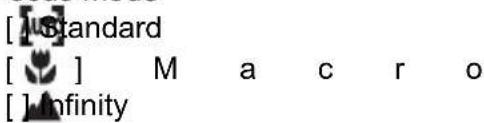
[I] standard [ ] M a c r o [ ] infinity-
Possible number of shots
-
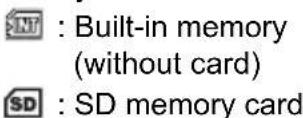
Memory status
- Battery and AC adapter

text_image
[Full battery power [Medium battery power [Low battery power [No battery power ][AC adapter- Recorded pixels

text_image
[78072 x 2304 [52592 x 1944 [32048 x 1536 [14280 x 960 [1640 x 480- Image quality

text_image
[ ★ ] F i n e [ ★ ] N o r m a l [ ]Economy- White balance

text_image
[ ]Auto [ ] [●] D a y l i g h t [ ]Cloudy [ ]Tungsten [ ]Fluorescent- ISO sensitivity

text_image
[ISO Auto [ISO 64] 6 4 [ISO 100] 1 0 0 [ISO 200] 2 0 0- EV compensation
13.Focus area
14.Zoom bar
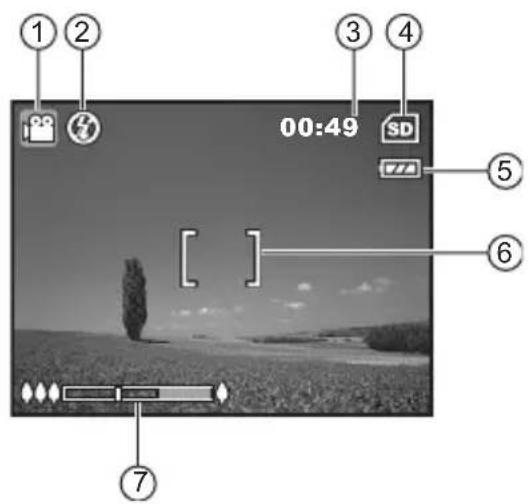
■ Movie Mode
- Movie mode
- Flash mode
- Recordable movie time available
- Memory status
- Battery power and AC adapter indicator
- Focus area
- Zoom bar
text_image
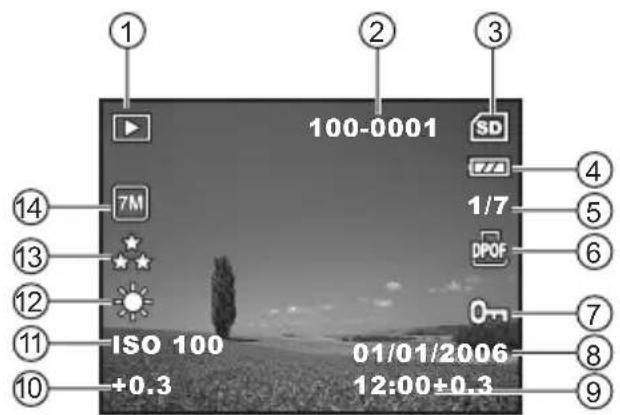
1 2 00:49 SD 7 5 6 7■ Image Playback
- Playback mode
- Number of image
- Memory status
- Battery power and AC adapter indicator
- Index number of total number
- DPOF indicator
- Protect indicator
- Date
- Time
- EV compensation
- ISO sensitivity
- White balance
- Image quality
- Recorded pixels
text_image
1 2 3 100-0001 SD 7M 1/7 DPOF 4 5 6 7 ISO 100 01/01/2006 12:00±0.3 8 9 10 +0.3■ Movie Playback
- Playback mode
- Movie mode
- Number of movie
- Memory status
- Battery power and AC adapter indicator
- Index number of total number
- Elapsed time
- Date
- Time
10.Play/Pause indicator

text_image
1 2 3 4 100-0001 00:05 SD 1/7 5 6 7 01/01/2006 12:01 8 9EN-14
PREPARING THE CAMERA
Installing the Batteries
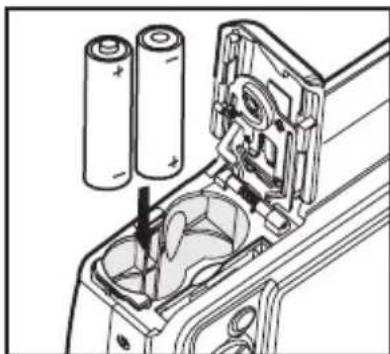
You can use 2 AA size batteries (alkaline or Ni-MH rechargeable) to power the camera. Make sure that the power of the digital camera is off before inserting or removing the batteries.
- Make sure the camera is turned off.
- Open the battery cover.
- Insert the batteries in the correct orientation as shown in the illustration.
- Close the battery cover.
■ To remove the batteries, turn the camera off before removing batteries and hold the camera with the battery cover facing upward, then open the battery cover.
natural_image
Technical line drawing of a mechanical assembly with cylindrical components and a central housing (no text or symbols)
■ Be careful not to drop the batteries when opening or closing the battery cover.
■ Due to the characteristics of AA alkaline battery, camera performance may deteriorate. AA alkaline battery is not recommended except in emergencies and checking the camera's functionality.
Using the AC Adapter (Optional Accessory)
Use of the AC adapter is recommended if you intend to use the LCD monitor for a long time or connect the camera to a PC.
- Make sure your camera is off.
- Connect one end of the AC adapter to the camera DC input terminal labeled "DC IN 3.3V".
- Connect the other end to an power outlet.

natural_image
Line drawing of a digital camera connected to a cable, with an inset showing the cable being inserted (no text or symbols present)
■ Make sure to use only the AC adapter specified for the camera. Damage caused by the use of an incorrect adapter is not covered under the warranty.
■ To prevent unexpected auto power off resulting from no battery power left during the process of transferring your images to the computer, use the AC adapter as a power supply.
■ The AC adapter can only be used to power the camera. Batteries cannot be charged inside the camera.
Inserting and Removing an SD Memory Card (Optional Accessory)
The digital camera comes with 32MB of internal memory, allowing you to store captured still images or video clips in the digital camera. Moreover, you can also expand the memory capacity by using an optional SD (Secure Digital) memory card so that you can store more files.
-
Make sure your camera is turned off before inserting or removing a memory card.
-
Open the SD memory card cover.
-
Insert an SD memory card in the correct orientation as shown in the illustration.
-
Close the battery/SD memory card cover.
■ To remove the SD memory card, make sure the camera is turned off. Press lightly on the edge of the memory card and it will eject.

natural_image
Technical line drawing of a mechanical assembly with no visible text or symbols
■ Be sure to format an SD memory card with this digital camera before using it. Refer to section in the manual titled "Formatting an SD Memory Card or Internal Memory" for further details.
■ To prevent valuable data from being accidentally erased from an SD card, you can slide the write protect tab (on the side of the SD memory card) to "LOCK".
■ To save, edit, or erase data on an SD memory card, you must unlock the card.

text_image
LOCK Write-protect tab LOCK Write-protection stateAttaching the Camera Strap
■ Attach the strap as shown in the illustration.

text_image
Technical diagram showing rope knotting and cable installation steps with labeled components 1 and 2LED Indicators
| Indicators State Description/Activity | |
| LED indicator Solid green The digital camera is powering up. | |
| Solid green The digital camera is ready to record images (or movies). | |
| LED indicator Blinking red and green | USB communication/transfer in progress |
| LED indicator Blinking red Charging the flash. | |
| Self-timer indicator Blinking green The self-timer function is activated. | |
GETTING STARTED
Turning the Power On/Off
■ Press the power switch until the digital camera turns on.
■ To turn the power off, press the power switch again.

text_image
Power switchChoosing the Screen Language
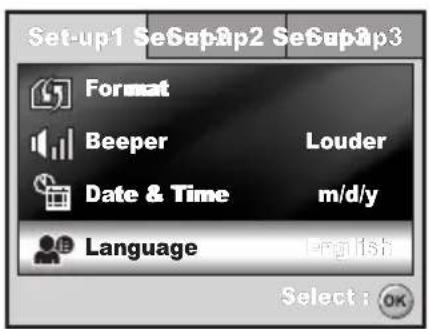
Follow the steps below to choose the desired language.
- Rotate the mode dial to and turn your camera on by pressing the power switch.

text_image
Diagram of a device with a control panel and indicator lights, labeled in Chinese.- [Set-up1] is displayed.
- Use the four-way controller (▼) to select [Language], then press the button.
- Use the four-way controller (▲▼) to select the language you want.
- Press the button to confirm.
text_image
Set-up1 SeGap2p2 SeGap3p3 Format Beeper Louder Date & Time m/d/y Language English Select: OKSetting the Date and Time
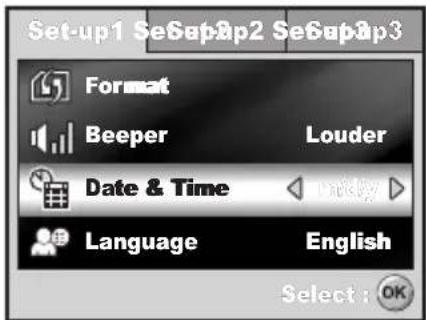
Follow the steps below to set the date display style, current date and time.
-
Rotate the mode dial to and turn your camera on by pressing the power switch.
-
[Set-up1] is displayed.
-
Use the four-way controller (▼) to select [Date & Time] and the four-way controller (◀▶) to switch the date types, then press the ○ button.
-
Press the four-way controller (◀▶) to select Day, Month, Year and Time fields.
■ To increase a value, press the four-way controller (▲).
■ To decrease a value, press the four-way controller (▼).
■ The time is displayed in 24-hours format.
- Press the button after all fields are set.
text_image
Set-up1 SeSap2p2 SeSap3p3 Format Beeper Louder Date & Time Language English Select: OK
text_image
Date & Time 01 / 01 / 2006 00 : 00 Select : OK
The date illustration shown is for the purpose of explanation and may differ from the actual setting of your camera.
Formatting an SD Memory Card or Internal Memory
The term “Formatting” means preparing an “SD memory card” to record images; this process is also called “initialization”. This utility formats an SD memory card or the internal memory and erases all stored images and data.
-
Rotate the mode dial to and turn your camera on by pressing the power switch. ■ [Set-up1] is displayed.
-
Use the four-way controller (▼) to select [Format], then press the O button.
-
Use the four-way controller (▲▼) to select [Yes], then press the OK button to confirm.

text_image
Set-up1 Se6up2p2 Se6up3p3 Format Beeper Louder Date & Time m/d/y Language English Select : OK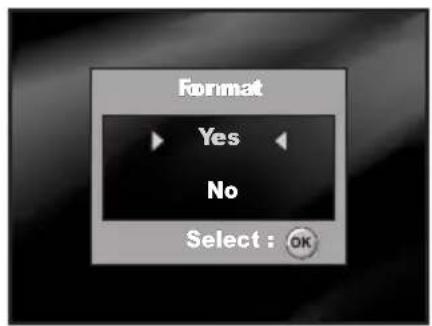
text_image
Format Yes No Select : OK
■ When you format an SD memory card, be aware that all data on the SD memory card will be erased. Protected images are also erased.
■ To format the internal memory, do not insert an SD memory card into the camera. Otherwise, you will format the SD memory card.
■ An SD memory card having any problem cannot be properly formatted.
Using the LCD Monitor
Your camera is equipped with a 2.5" full color TFT LCD monitor to help you compose images, replay recorded images/movie clips or adjust menu settings. The mode icons, text and numbers displayed on the monitor may vary according to the current settings.
-
Rotate the mode dial to , or
-
Press the power switch to turn on the power.
-
Compose your scene on the LCD monitor.
-
Press the shutter release button.

natural_image
Line drawing of a digital camera with an LCD screen and control panel (no text or symbols)
■ The LCD monitor darkens in strong sunlight or bright light. This is not a malfunction. ■ To prevent your images from being blurred while pressing the shutter release button, always hold it carefully. This is especially important when you are shooting under low lighting conditions, since your camera may decelerate the shutter speed to ensure your images are properly exposed.
PHOTOGRAPHY MODE
Shooting Images
-
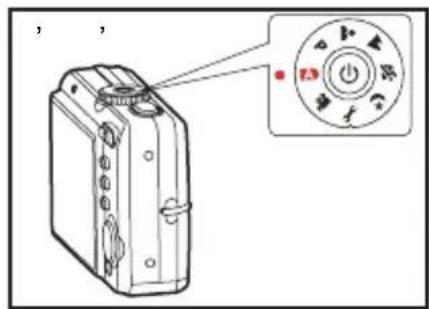
Rotate the mode dial to ▲, or ▲ and turn your camera on by pressing the power switch.
-
Compose the image on the LCD monitor screen so that the main subject is within the focus frame.
-
Press the shutter release button down halfway to focus the image.
■ When you press the shutter release button down halfway, the camera's Auto
text_image
Diagram of a device with a circular control knob labeled '123' pointing to its left side, showing internal components and directional arrows.Focus feature automatically focuses the image. The focus frame turns green if the subject is in focus. Proper exposure is determined and locked at the same time.
- Press the shutter release button the rest of the way down to capture the image.

■ The actual captured image appears to be larger than the one displayed by the LCD monitor screen after the image has been captured.
- Pressing the OK/IO button switches the LCD monitor display mode. Each time you press the OK/IO button, the display changes in the following order: Normal Display → Infomation Display → No Icons → LCD Off.
Setting Image Resolution and Quality
As you get to know the digital camera, you can set the image resolution (number of vertical and horizontal pixels) and image quality (compression ratio) based on the types of images you want to shoot. These settings affect the number of images that can be stored in the internal memory, or on an SD memory card.
Higher resolution and higher quality images provide finer detail but cause the images' file size to be larger.
To change image resolution or image quality, perform these steps below:
-
Rotate the mode dial to ▲, or ▲ and turn your camera on by pressing the power switch.
-
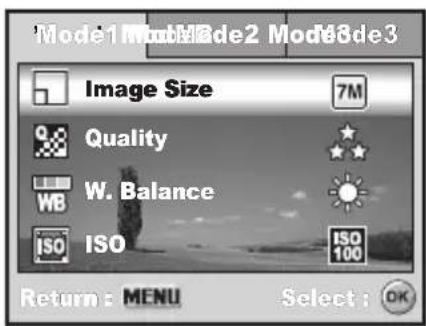
Press the MENU button.
- [Mode1] is displayed. - In the Amode, [Auto] is displayed.
-
Use the four-way controller (▼) to select [Image Size], then press the OK button.
-
Use the four-way controller (▲▼) to select the desired setting, then press the OK button to confirm.
-
Follow the step 3 and 4 above to set the [Quality].
text_image
Mode1 Mode2 Mode3 Image Size 7M Quality W. Balance ISO ISO 100 Return: MENU Select: OK
text_image
Image Size 7M 3072 x 2304 5M 2592 x 1944 3M 2048 x 1536 1.2 M 1280 x 960 Cancel : MENU Select : Cancel
■ The possible number of shots and recording time depend on the storage size, resolution and quality settings and the subject of the image to be captured.
■ You can resize the images later. Please refer to the section in this manual titled "Resizing an Image" for further detail.
Using the Zoom Function
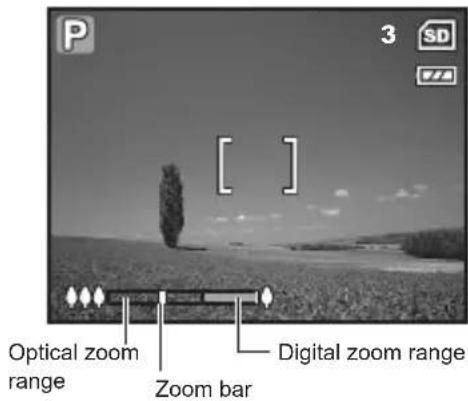
This camera is equipped with 3x optical zoom. The lens moves during the optical zoom photography, allowing you to capture telephoto and wide-angle shots. By using the optical zoom function, images appear closer by pressing the button, or smaller away by pressing the button.
The zoom bar indicates the current level of magnification. When the digital zoom is within 3x magnification, the zoom bar is within the optical zoom range. When the digital zoom function is set to On, you can further enlarge the subjects with 4x digital zoom by pressing continuously the Button. It is activated after your camera reaches its maximum optical zoom factor (3x) and the zoom bar is within the digital zoom area. You can enlarge the subject to a maximum magnification equivalent to 12 times. A useful feature as it is, however, the more the image is enlarged, the more pixelated the image will appear.
text_image
Optical zoom range Zoom bar Digital zoom rangeTo capture a zoomed image, perform the following steps:
-
Rotate the mode dial to ▲, or ▲ and turn your camera on by pressing the power switch.
-
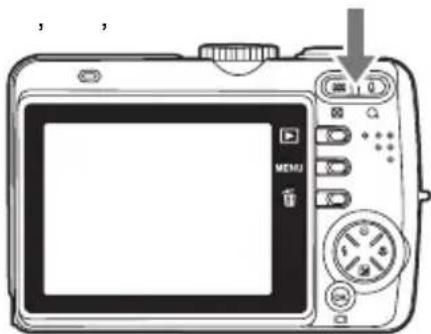
Adjust the magnification ratio by using the
/ button.
■ To exit the zoom photography, press continuously the 🎥 button.
■ The status of digital magnification is displayed on the LCD monitor.
- Compose your scene and press the shutter release button.
text_image
Diagram of a digital camera with labeled buttons and a screen, showing control panel and display area
■ To enable digital zoom feature, set the [Mode2- Digital Zoom] to [On] in the A, P, , ▲, ▲, or ▲ mode.
Using the Flash
The flash is designed to function automatically when lighting conditions warrant the use of flash. You can take an image using a desired flash mode to suit your circumstances.
- Rotate the mode dial to ▲, or
- Press the power switch to turn on the power.
- Press the four-way controller (◀/ ▶) . T h flash mode changes each time the button is pressed. You can also change the setting using the four-way controller (▲▼).
- Press the button to confirm the setting.
- Compose your scene and press the shutter release button.

text_image
Flash Mode Auto OK: OKThe camera has four flash modes: Auto, Auto + Red-eye, Flash on and Flash off. The table below will help you to choose the appropriate flash mode:
| Flash mode Description | |
| Auto The flash fires automatically according to the photographic conditions. | |
| Red-eye Use this mode to reduce the red-eye phenomenon when you want to take natural-looking photographs of people and animals in low-light conditions.When taking photographs, the red-eye phenomenon can be reduced by asking the subject (person) to look at the digital camera or get as close to the digital camera as possible. | |
| Flash on The flash will always fire regardless of the surrounding brightness. | |
| Flash off The flash will not discharge, regardless of the brightness. Use this mode when taking pictures using indoor lighting, for stages and indoor competitions, and when the subject is too far away for the flash to be effective. |
Setting Focus
Images can be captured with the focus determined automatically using auto focus. You may over-ride the auto focus and specify [macro or [] infinity.
-
Rotate the mode A dial to ▲, or
-
Press the power switch to turn on the power.
-
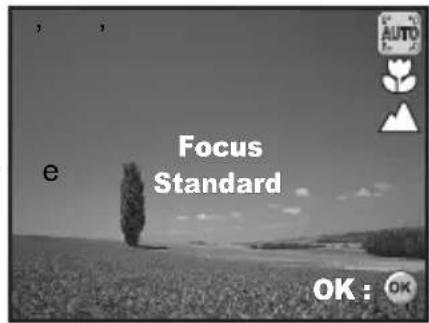
Press the four-way controller (▶/ 🎯) . T h focus mode changes each time the button is pressed. You can also change the setting using four-way controller (▲▼).
-
Press the button to confirm the setting.
-
Compose your scene and press the shutter release button.
text_image
e Focus Standard OK : OKThe camera has three focus modes: Standard, Macro and Infinity. The table below will help you choose the appropriate focus mode:
| Focus mode Description | |
 Standard Select Standard-focus setting for most occasions when you want the camera to automatically determine the focus setting. When using Standard-focus setting, any object at a range of focus is 50 cm or greater can be in focus. Standard Select Standard-focus setting for most occasions when you want the camera to automatically determine the focus setting. When using Standard-focus setting, any object at a range of focus is 50 cm or greater can be in focus. | |
 Macro Select Macro-focus setting to capture close-up images. When the lens is zoomed to its widest position you may focus objects as close as 5 cm. When the lens is zoomed to its telephoto position (3x zoom) you may focus objects as close as 35 cm. Macro Select Macro-focus setting to capture close-up images. When the lens is zoomed to its widest position you may focus objects as close as 5 cm. When the lens is zoomed to its telephoto position (3x zoom) you may focus objects as close as 35 cm. | |
 Infinity Select Infinity-focus setting when you want to capture images of subject at a distance of infinity. The flash mode will be set to Flash Off automatically. Infinity Select Infinity-focus setting when you want to capture images of subject at a distance of infinity. The flash mode will be set to Flash Off automatically. |
Capture Mode
Burst
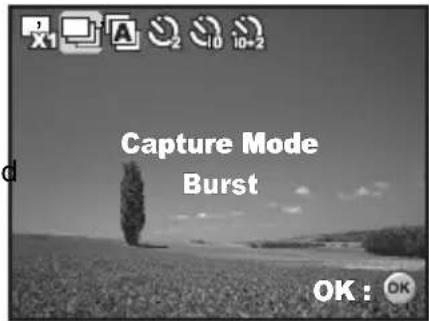
This mode is used for continuous shooting. 3 pictures are taken continuously once the shutter release button is pressed. Secure the camera to a tripod or place it on a stable surface.
-
Rotate the mode dial to , or
-
Press the power switch to turn on the power.
-
Press the four-way controller (▲/ ⏻) a n use (▲) to select [Burst]. You can also change the setting using four-way controller (◀▶).
-
Press the button to confirm the setting.
text_image
Capture Mode Burst OK : OKThe indicator is displayed on the monitor screen.
-
Press the shutter release button halfway to lock the focus.
-
Press the shutter release button to capture a sequence of images.

In Burst mode, the flash mode will be set to Flash Off automatically.
Auto Bracket
In this mode, the camera automatically changes the exposure within a set range to take three shots after you press the shutter release button once. Auto Bracket settings can be combined with exposure compensation settings to extend the adjustment range.
-
Rotate the mode dial to, or
-
Press the power switch to turn on the power.
-
Press the four-way controller (▲/ ⏻) a n use (▲) to select [AEB]. You can also change the setting using the four-way controller (◀▶).
-
Press the button to confirm the setting. The indicator is displayed on the LCD monitor screen.
-
Press the shutter release button to capture the three images.

text_image
Capture Mode AEB OK : OK
In AEB mode, the flash mode will be set to Flash Off automatically.
Self-Timer
The self-timer can be used in situations such as group shots. When using this option, you should either mount the camera on a tripod (recommended) or rest it on a flat, level surface.
-
Secure the camera to a tripod or place it on a stable surface.
-
Rotate the mode dial to , or
-
Press the power switch to turn on the power.
-
Press the four-way controller (▲/ ⏻) a n use (▲) to select your desired self-timer mode. You can also change the setting using four-way controller (◀▶).
-
Press the button to confirm the setting.
-
Compose your scene and press the shutter release button.

text_image
Capture Mode 2 sec. Self-timer OK : OK■ The self-timer function is activated.
■ The photograph is then taken after the preset time.
■ To cancel the self-timer at any time, press the four-way controller (▲/_) or press the shutter release button halfway. The table below will help you choose the appropriate self-timer mode:
| Self-timer mode | Description |
| 2 sec.Self-timer | The image is captured about 2 seconds after the shutter is pressed. This mode is useful for preventing camera shake. |
| 10 sec.Self-timer | The image is captured about 10 seconds after the shutter is pressed. This mode is suitable for the shots in which the photographer has to be included. |
| 10+2 sec.Self-timer | The first image is captured about 10 seconds after the shutter release button is pressed, and then the second image is captured 2 seconds later. This mode is convenient when capturing group images in succession. Flash does not fire in this mode. |

■ After one shot is taken, the self-timer mode is turned off.
■ If you wish to take another image using the self-timer, repeat these steps.
EN-30
Adjusting the Exposure (EV Compensation)
You can manually adjust the exposure determined by the digital camera. Use this mode when the proper exposure cannot be obtained, for example, when the contrast (difference between bright and dark areas) between the subject and the background is extremely high. The EV compensation value can be set in the range from -2.0EV to +2.0EV.
- Rotate the mode dial to ,
or ★).
-
Press the power switch to turn on the power.
-
Press the four-way controller (▼/ ☐) a n use ◀ to set the range of EV compensation value from -2.0EV to +2.0EV.
-
Press the button to confirm the setting.

text_image
EV ±0.0 Select: Set: Select:Setting White Balance
This feature lets you make adjustments to compensate for different lighting types according to your shooting conditions.
-
Rotate the mode P oral ▲ to , or ★.
-
Press the power switch to turn on the power.
-
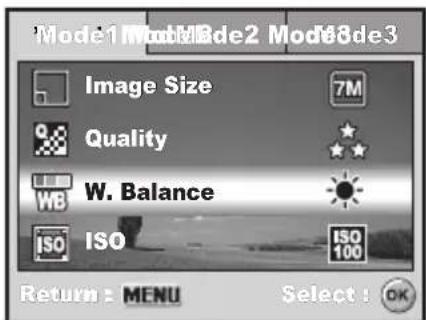
Press the MENU button. [Mode1] is displayed.
-
Use the four-way controller (▼) to select [W. Balance], then press the OkButton.
-
Use the four-way controller (▲▼) to select the desired white balance setting, then press the O button to confirm.
-
To cancel the setting, press the MENU button and exit the menu.
-
Press the shutter release button to capture the image.
text_image
Mode1 Mode2 Mode8de3 Image Size 7M Quality ★ WB W. Balance ISO ISO 100 Return: MENU Select: OK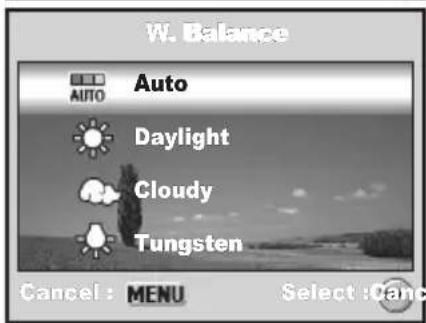
text_image
W. Balance AUTO Auto Daylight Cloudy Tungsten Cancel : MENU Select : Canc
text_image
W. Balance Fluorescent Cancel : MENU Select :OancPLAYBACK MODE - THE BASICS
Viewing Images
You can display the still images one by one.
-
Rotate the mode dial to ▲, or and turn your camera on by pressing the power switch.
-
Press the button.
■ The last recorded image appears on the LCD monitor screen.
■ Basic information is shown by indicators on the LCD monitor screen. To see full information display, press the OK button.

natural_image
Black-and-white landscape photo of a lone tree on a field with sky and clouds (no text or symbols)- Use the four-way controller (◀) to select the desired images.
■ To view the previous image, press the four-way controller (◀).
■ To view the next image, press the four-way controller (▶).

For protected images/movie clips, On mark will be displayed. Refer to the section in this manual titled "Protecting Images/Movie Clips" for further details.
For images selected for printing with DPOF setting, 📋 mark will be displayed. (Refer to the section in this manual titled "Setting the DPOF" for further details.)
■ If there is no image stored in the internal memory or on the SD memory card, [No image] message will appear on the LCD monitor screen.
■ You cannot enter the Playback mode from the Setup mode.
Magnifying Images
While reviewing your images, you may enlarge a selected portion of an image. This magnification allows you to view fine details. The zoom factor displayed on the screen shows the current magnification ratio.
- Press the button.
■ The last recorded image appears on the LCD monitor screen.
■ To view the previous image, press the four-way controller (◀).
■ To view the next image, press the four-way controller (▶).
- Adjust the zoom ratio by using the button.

■ To enlarge the selected image, press the 🔊 button.
■ To return to the normal image, press the button.
■ The magnification factor is displayed on the LCD monitor screen.

natural_image
Black-and-white landscape photo of a lone tree on a grassy field with sky and clouds, no text or symbols visible- To view different portions of the images, press the four-way controller (▲▼◀▶) to adjust the display area.

The magnification factors range from 1.5X to 4X (within 6 stages: 1.5X, 2.0X, 2.5X, 3.0X, 3.5X and 4.0X).
Thumbnail Display
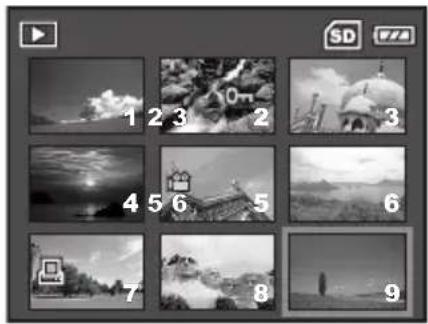
This function allows you to view 9 thumbnail images on the LCD monitor screen simultaneously so you may search for a particular image.
- Press the button.
■ The last recorded image appears on the LCD monitor screen.
- Press the button once.
■ Nine thumbnail images are displayed simultaneously.
■ For recorded movie clips, the movie mode icon will be displayed.
For protected images/movie clips,0π mark will be displayed. (Refer to the section in this manual titled "Protecting Images/Movie Clips" for further details.)
natural_image
Grid of nine grayscale landscape photos including landscapes, buildings, and landscapes with no visible text or symbols-
Use the four-way controller (▲▼◀▶) to move the cursor to select the image to be displayed at regular size.
-
Press the OK / button to display the selected image on full screen.
Slideshow Display
The slideshow function enables you to play your images back automatically in sequential order. This is very useful and entertaining feature for reviewing recorded images and for presentations.
- Press the button.
■ The last recorded image appears on the LCD monitor screen.
-
Press the MENU button to access the Playback menu. Then use the four-way controller (▼) to select [Slide Show] and press the O button.
-
Use the four-way controller (▲▼) to set the playback interval, then press the OK button.
■ The slideshow starts.
■ The movie clips display the first frame image, and the movie is not played back.
■ To stop slideshow, press the OK button.
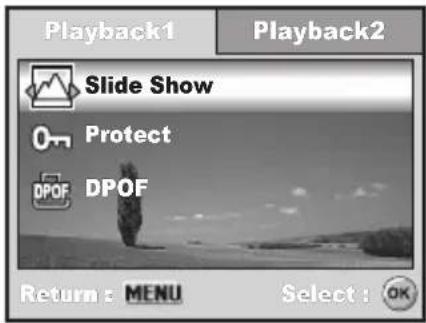
text_image
Playback1 Playback2 Slide Show Protect DPOF DPOF Return: MENU Select: OK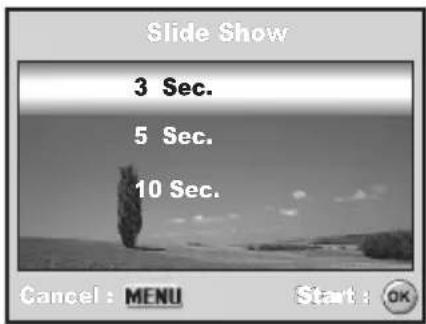
text_image
Slide Show 3 Sec. 5 Sec. 10 Sec. Cancel : MENU Start : OK
■ You can adjust the slideshow display interval within the range of 3 sec., 5 sec., 10 sec..
Resizing an Image
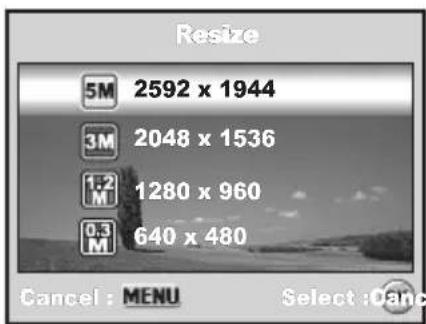
You can change the image size of a captured image to one of the following sizes: 2592 x 1944 pixel, 2048 x 1536 pixel, 1280 x 960 pixel, 640 x 480 pixel.
- Press the button.
■ The last recorded image appears on the LCD monitor screen.
- In the ▶ mode, use the four-way controller (◀▶) to select the desired images.
- To view the previous image, press the four-way controller (◀). - To view the next image, press the four-way controller (▶).
text_image
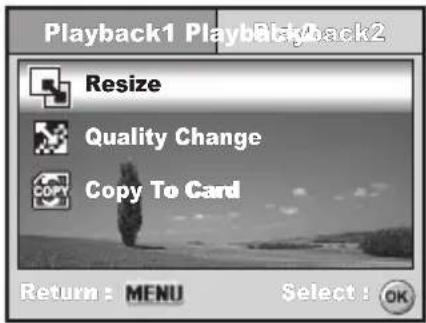
Playback1 Playback2 Resize Quality Change Copy To Card Return: MENU Select: OK-
Press the MENU button to access the Playback menu. Press the four-way controller (▶) to select [Playback2] and press (▼) to select [Resize] and press the OK button.
-
Use the four-way controller (▲▼) to select the desired setting, then press the OK button to confirm.
text_image
Resize 5M 2592 x 1944 3M 2048 x 1536 1.2 M 1280 x 960 0.3 M 640 x 480 Cancel : MENU Select : Cancel
■ You can only choose a smaller size image; you cannot increase the resolution of an image.
■ Movie cannot be resized.
MOVIE MODE
Recording Movie Clips
This mode allows you to record movie clips with sound via built-in microphone.
-
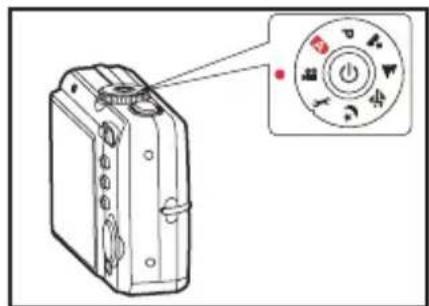
Rotate the mode dial to 📋 and turn your camera on by pressing the power switch.
-
Press the shutter release button to start recording.
-
To stop recording, press the shutter release button again.
text_image
Diagram of a device with a control panel and directional indicator, labeled in Chinese.
natural_image
Black-and-white landscape photo of a lone tree on a grassy field with no visible text or symbols
■ The optical zoom function (3X) can be activated before you start recording the movie clips
■ The digital zoom function can be activated before and during the recording.
- Pressing the OK/☐ button switches the LCD monitor screen display mode. Each time you press the OK/☐ button, the display changes in the following order: Normal Display → No Icons → LCD Off.
Playing Back Movie Clips
You can play back the recorded movie clips on the LCD monitor screen. However, the sound recorded with movie clips can only be played back on a TV or on a computer.
-
Press the button.
-
Use the four-way controller (◀▶) to go through the images until the movie clip you want to play back is displayed.
■ To view the previous image, press the four-way controller (◀).
■ To view the next image, press the four-way controller (▶).
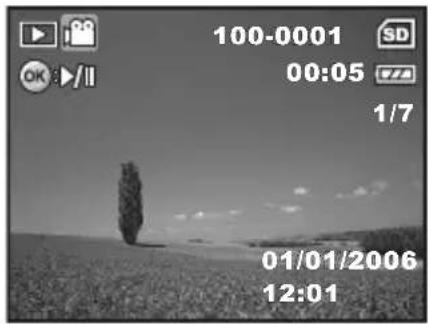
- Press the button to start playing back the movie clips.
natural_image
Black-and-white landscape photo of a lone tree on a grassy field, no visible text or symbols■ To pause or resume movie playback, press the OK button again.

■ The index number, date and time indicators displayed on the LCD monitor screen will disappear after a few seconds.
■ The zoom function cannot be activated when playing back movie clips.
■ To playback the movie clips on the computer, we recommend you to use Windows Media Player 9.0 or later (WMP 9.0 or later). You can download WMP version from the website at www.microsoft.com.
PLAYBACK MODE - ADVANCED FEATURES
Playing Back Still Images/Movie Clips on TV
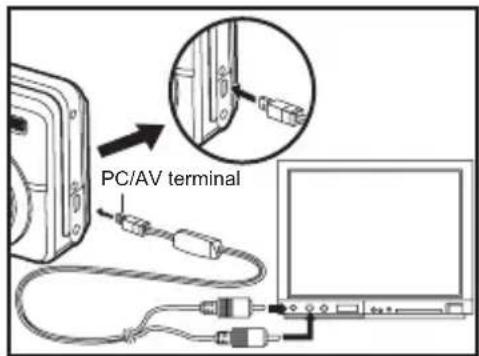
You can also playback your images on a TV screen. Before connecting to any device, make sure to select NTSC/PAL system to match the video output system of the video equipment you are going to connect to the digital camera, then turn off all devices to be connected.
-
Connect one end of the AV cable to the AV terminal of the digital camera.
-
Connect the other end to the AV input socket of the TV set.
-
Turn the TV and digital camera on.
-
Playback the images/movie clips.
■ The method of operation is the same as playing back still images and movie clips on the digital camera.
text_image
PC/AV terminal
■ The sound recorded with movie clips can only be played back on a TV or on a computer.
Deleting Images/Movie Clips
Use this function to delete one or all images/movie clips stored in SD memory card or the internal memory. Please note that the deleted images or movie clips cannot be recovered. Exercise caution before deleting a file.
-
Rotate the mode dial to ▲, or and turn your camera on by pressing the power switch.
-
Press the button.
■ The last recorded image/movie clip appears on the LCD monitor screen.
-
Use the four-way controller (◀▶) to select the image/movie clip you want to delete.
-
Press the button to delete.
-
Use the four-way controller (▲▼) to select [This Image] or [All Images] by your preference, then press the OK button.
-
When the delete message appears, use the four-way controller (▲▼) to select [Yes], then press the OK button to confirm the deletion.
■ If you wish to cancel the deletion, select [No].

text_image
, Delete This Image All Images Cancel : MENU Select : Canc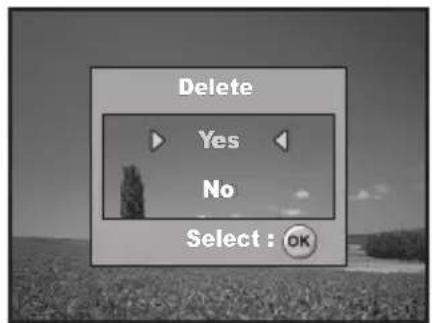
text_image
Delete Yes No Select : OK
■ Protected images cannot be deleted with the delete function.
Protecting Images/Movie Clips
Set the data to read-only to prevent images from being erased by mistake.
- Press the button.
■ The last recorded image appears on the LCD monitor screen.
- In the ▶ mode, use the four-way controller (◀▶) to select the desired images.
■ To view the previous image, press the four-way controller (◀).
■ To view the next image, press the four-way controller (▶).
-
Press the MENU button, then use the four-way controller(▼) to select [Protect] and press the O button.
-
Use the four-way controller (▲▼) to choose the desired setting, then press the OK button.
■ [Protect One]: Protect one image/movie.
■ [Protect All]: Protect all images/movies (at once).
- Use the four-way controller (▲▼) to select [Lock], then press the OK button to confirm.
■ Press the MENU button to return to the ▶ mode. The 0 indicator appears on the selected image.
■ If you wish to cancel the protect function of a protected image, select [Unlock].
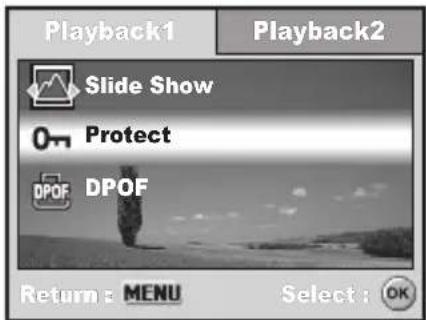
text_image
Playback1 Playback2 Slide Show Protect DPOF DPOF Return: MENU Select: OK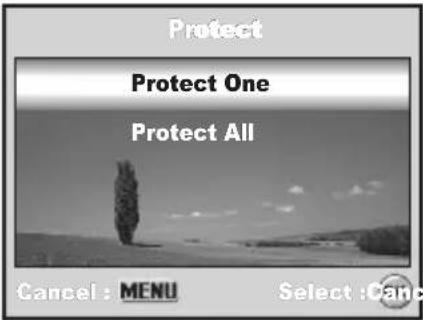
text_image
Protect Protect One Protect All Cancel : MENU Select : Canc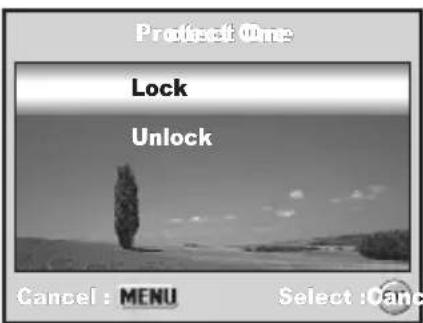
text_image
Protect One Lock Unlock Cancel : MENU Select : CancelSetting the DPOF
DPOF (Digital Print Order Format) allows you to embed printing information on your SD memory card. By using DPOF, you can select an image to be printed and then specify how many prints or which image you would like. Take your SD memory card to a DPOF enabled printer that accepts SD memory cards. The DPOF/card-compatible printer will read the embedded information on the SD memory card and print your images as specified.
To configure print settings for a single image / all images.
-
Press the ▶button, then use the four-way controller (◀▶) to select the desired image you want to print.
-
Press the MENU button. Use the four-way controller (▲▼) to select [DPOF], then press the OK button.
-
Use the four-way controller (▲▼) to select by your preference, then press the button.
[One Image]: To configure print settings for a single image.
[All Images]: To configure print settings for all images.
[Reset All]: Resets all DPOF settings.

natural_image
Black-and-white landscape photo of a lone tree on a grassy field under a cloudy sky (no text or symbols)
text_image
Playback1 Playback2 Slide Show Protect DPOF Return: MENU Select: OK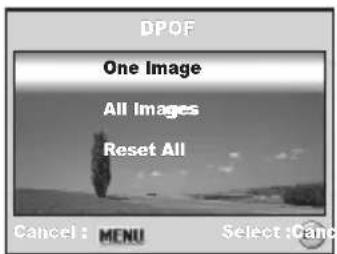
text_image
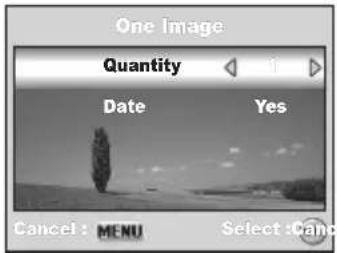
DPOF One Image All Images Reset All Cancel : MENU Select : Canc- Use the four-way controller (▲▼) to select by your preference, then press the button.
[Quantity]: Allows you to select image quantity (0\~10). Use the four-way controller (◀▶) to set the image quantity.
[Date]: The date of recording can be printed directly on the images. Select [Yes] or [No] with the four-way controller (◀▶).
- Press the MENU button to return to the image playback mode.
■ The print icon is marked on the displayed image.
■ To cancel the DPOF settings for a single image, go back to step 3 to select [One Image] and select 0 in [Quantity] in the next step. For resetting all the DPOF settings, go back to step 3 to select [Reset All].
text_image
One Image Quantity Date Yes Cancel: MENU Select: Canc
text_image
One Image Quantity 0 Date Yes Cancel: MENU Select: Canc
natural_image
Black-and-white photo of a lone tree walking on a grassy field under a cloudy sky (no text or symbols visible)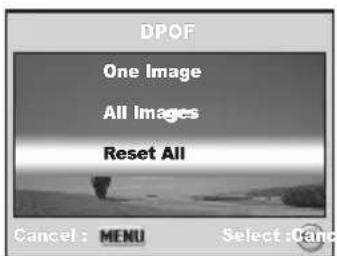
text_image
DPOF One Image All Images Reset All Cancel: MENU Select: Canc
Before you perform the DPOF settings on your camera, always remember to copy your images from the internal memory to an SD memory card first.
■ The 📋 print icon will appear on the LCD monitor screen indicating images selected for printing.
■ You cannot print movies.
■ Depending on the printer or printing equipment at the photo processing lab., the date may not be imprinted on the pictures even if the DPOF settings are made.
TRANSFERRING RECORDED IMAGES AND VIDEOS TO YOUR COMPUTER
System Requirements (Windows)
■ Pentium III 600 MHz or higher
■ Windows 2000/XP
64MB RAM
■ 128MB hard disk space
■ CD-ROM drive
■ Available USB port
System Requirements (Macintosh)
■ PowerPC G3/G4
■ OS 9.0 or later
64MB RAM
■ 128MB hard disk space
■ CD-ROM drive
■ Available USB port
Connect the digital camera to your computer
- Rotate the mode dial to and turn your camera on by pressing the power switch.
- Press the four-way controller (▶) to select the [Set-up2] menu, then use the four-way controller (▼) to select [USB Mode].
-
Press the button.
-
Use the four-way controller (▼) to select [PC], then press the O button.
-
Turn off your camera.
-
Connect your camera and the computer via the supplied USB cable.
- Turn your camera on by pressing the power switch.
- There will be a new "Removable Disk" icon detected in "My Computer", which contains your recorded images or movie clips. (For Mac users, double-click [untitled] or [unlabeled] disk drive icon on our desktop.)

text_image
Set-up1 SeSap-Op2 SeSap-Op3 USB Mode TV NTSC LCD Brightness OFF Auto Shut Down 3 Min. Select : OK
text_image
USB Mode PC PictBridge PC CAM. Select : OK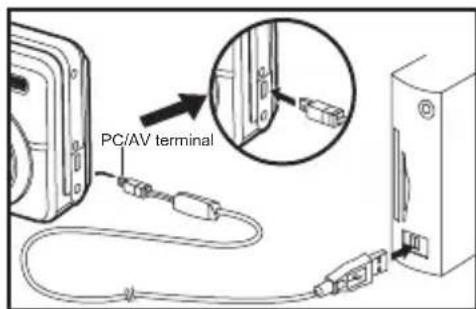
text_image
PC/AV terminalDownload images or movie clips
When the digital camera is turned on and connected to your computer, it is considered to be a disk drive, just like a floppy disk or CD. You can download (transfer) images by copying them from the “Removable disk” (“untitled” or “unlabeled” disk on a Macintosh) to your computer hard drive.
Windows
Open the “removable disk” and double click on the DCIM / DSCIM folder to open it to find more folders. Your images are inside these folder(s). Select the desired still images or video clips and then choose “Copy” from the “Edit” menu. Open the destination location (folder) and choose “Paste” from the “Edit” menu. You may also drag and drop image files from the digital camera to a desired location.
Macintosh
Open the “untitled” disk icon, and the destination location on your hard disk. Drag and drop from the digital camera to the desired destination.

■ Memory card users may prefer to use a memory card reader (highly recommended).
■ Video playback application is not included with the package. Make sure that video playback application has been installed in your computer.
EDITING SOFTWARE INSTALLATION
Installing Photo Explorer
Ulead® Photo Explorer provides a simple and efficient way to transfer, browse, modify and distribute digital media. Acquire photos, video or sound clips from various digital device types and easily browse or add personal descriptions; make timely modifications; or distribute the media through the medium of your choice: E-mail, Print, Slideshow Presentations. It is an indispensable all-in-one tool for owners of digital cameras, WebCams, DV camcorders, scanners, or anyone who strives to effectively organize a large collection of digital media.
- Insert the enclosed CD-ROM into your CD-ROM drive.
- When the welcome screen appears, click "INSTALL PHOTO EXPLORER 8.0". Follow the on-screen instructions to complete the installation.

■ For more information about the operation of Photo Explorer application software, refer to its respective help documentation.
■ For Windows 2000/XP users, please make sure to install and use the Photo Explorer in "Administrator" mode.
■ Photo Explorer is not supported on the Mac. iPhoto or iPhoto2 is recommended.
Installing Photo Express
Ulead® Photo Express is complete photo project software for digital images. The step-by-step workflow, visual program interface, and in-program help assist users in creating exciting photo projects. Acquire digital photos effortlessly from digital cameras or scanners. Organize them conveniently with the Visual Browse mode. Use hundreds of ready-to-use templates such as albums, cards, posters, slideshows, and more. Edit and enhance images with photo editing tools, photographic filters, and special effects. Embellish projects by adding creative design elements such as frames, callouts, and stamp objects. Share results with family and friends via e-mail and multiple print options.
- Insert the enclosed CD-ROM into your CD-ROM drive.
- When the welcome screen appears, click "INSTALL PHOTO EXPRESS 5.0". Follow the on-screen instructions to complete the installation.

For information on how to use Photo Express to edit and retouch your recorded images, please refer to its online help.
For Windows 2000/XP users, make sure to install and use the Photo Express while logged in as a user with an Administrator account.
■ Photo Express is not supported on the Mac.
USING THE DIGITAL CAMERA AS A PC CAMERA
Your digital camera can act as a PC camera, which allows you to videoconference with business associates, or have a real-time conversation with friends or family. To use the digital camera for videoconferencing, your computer system must include the items as below:
■ Microphone
Sound card
■ Speakers or headphones
■ Network or Internet connection

■ Video conferencing (or video editing) software is not included with the digital camera.
■ This mode is not supported for Mac.
Step I: Install the PC camera driver
The PC-camera driver included in the CD-ROM is exclusively for Windows. The PC camera function is not supported for Mac platforms.
- Insert the enclosed CD-ROM into your CD-ROM drive.
- When the welcome screen appears, click "INSTALL PC-CAM DRIVER". Follow the on-screen instructions to complete the installation.
- After the driver installation is completed, restart your computer.
Step 2: Connect the digital camera to your computer
- Rotate the mode dial to and turn your camera on by pressing the power switch.
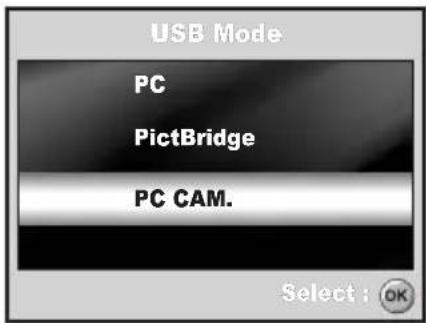
- Press the four-way controller (▶) to select the [Set-up2] menu, then use the four-way controller (▼) to select [USB Mode].
- Press the button.
- Use the four-way controller (▲▼) to select [PC CAM], then press the O button.
- Connect your camera and the computer via the supplied USB cable.
- Position the digital camera steadily on top of your computer monitor or use a tripod.
text_image
USB Mode PC PictBridge PC CAM. Select : OKStep 3: Run your application software (i.e. Windows NetMeeting)
To use Windows NetMeeting for videoconferencing:
- Go to Start → Programs → Accessories → Communications → NetMeeting to launch the NetMeeting program.
- Click the Start Video button to view live video.
- Click the Place Call button.
- Type the e-mail address or the network address of the computer that you are calling.
- Click Call. The person that you are calling must also have Windows NetMeeting running and be willing to accept your call to start the videoconference.

■ The video resolution for videoconferencing applications is generally 320 x 240.
■ For more information about the operation of videoconference application software, refer to its respective help documentation.
■ Use of AC adapter is recommended while the camera is used as a PC camera.
MENU OPTIONS
Camera Menu
This menu is for the basic settings to be used when capturing still images.
text_image
Auto Image Size 7M Quality Return: MENU Select: OK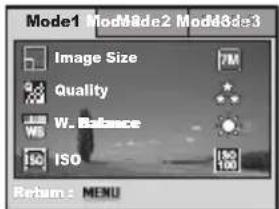
text_image
Mode1 Mod8de2 Mode8de3 Image Size 7M Quality * W. Balance ISO ISO 100 100 Return: MENU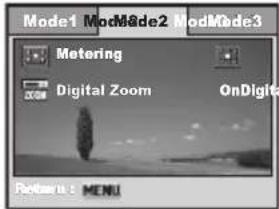
text_image
Mode1 ModMode2 ModMode3 Metering Digital Zoom OnDigital Return: MENU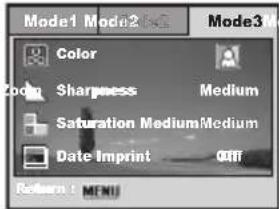
text_image
Mode1 Mode2 Mode3 Color Zoom Sharpness Medium Saturation MediumMedium Date Imprint Off Return: MENU-
Rotate the mode dial to ,A ,P ,or, and turn your camera on.
-
Press the MENU button, then use the four-way controller (◀▶) to select the [Mode1] / [Mode2] / [Mode3] menu.
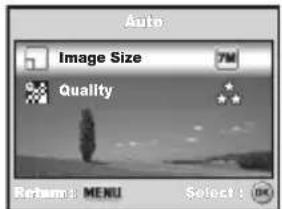
In A Mode, press the MENU button to access the [Auto] menu directly.
- Use the four-way controller (▲▼) to select the option item, then press the OK button.
- Press the four-way controller (▲▼) to select the desired setting, then press the OK button.
In the A Mode
| Item Functional Description | |
Image Size | Sets the size of the image that will be captured. Refer to the section in this manual titled "Setting Image Resolution and Quality" for further details.7M 3072 x 23045M 2592 x 19443M 2048 x 15361.2M 1280 x 9600.3M 640x480 |
Quality Sets the quality (compression rate) at which the image is captured. | Refer to the section in this manual titled "Setting Image Resolution and Quality" for further details.★ Fine★★ Normal★ Economy |

In


,
or
Mode.

Mode1 settings
| Item Functional Description | |
| Image Size Refer to the section in this manual titled “Setting Image Resolution and Quality” for further details. | |
| Quality Refer to the section in this manual titled “Setting Image Resolution and Quality” for further details. | |
| W.Balance Sets the white balance when shooting under a variety of lighting conditions and permits photographs to be taken that approach the conditions that are seen by the human eye. | |
| ISO Sets the sensitivity for taking pictures. When the sensitivity is raised (and the ISO figure is increased), photography will become possible even in dark locations, but the more pixelated (grainier) the image will appear. |

Mode2 settings
| Item Functional Description | |
Metering You | Can select the metering mode that sets which part of the subject to measure to determine the exposure. Center-weighted: Averages the light metered from the entire frame, but gives greater wieght to the subject matter at the center. Center-weighted: Averages the light metered from the entire frame, but gives greater wieght to the subject matter at the center. Spot: The exposure is determined by the small area in the center of the screen only. Spot: The exposure is determined by the small area in the center of the screen only. |
| Digital ZoomZOOM | This sets whether or not to use digital zoom at the time of shooting. Refer to the section in this manual titled “Using the Zoom Function” for further details. |
■ Mode3 settings
| Item Functional Description | |
| Color Sets the color of the image that will be captured. | |
 | Full ColorBlack & WhiteSepia |
| Sharpness Sets the level of image sharpness. | |
 | HighMediumLow |
| Saturation To capture an image, your camera offers you three different degrees of color to match with your preference.Your images will demonstrate different impression by selecting different degrees of color. This is called “Saturation”. | |
 | HighMediumLow |
| Date Imprint | The date of recording can be printed directly on the still images. This function must be activated before the image is captured. The date appears on the right bottom of the captured picture. When images are shot with date imprint feature, the date cannot be removed later. |
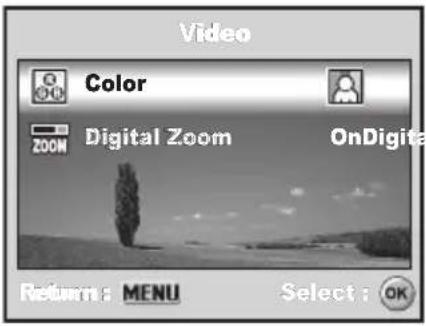
Movie Menu
This menu is for the basic settings to be used when recording movie clips.
text_image
Video Color ZOOM Digital Zoom OnDigital Return: MENU Select: OK- Rotate the mode dial to 🎨 and turn your camera on.
- Press the MENU button.
- Press the four-way controller (▲▼) to select the option item. Then press the OK button
- Press the four-way controller (▲▼) to select the desired setting, then press the button.
- To exit the movie menu, press the MENU button.
| Item Functional Description | |
Color | Refer to the Camera Menu's option item (the P, or Mode) for further details. |
Digital Zoom | Refer to the Camera Menu's option item (the P, or Mode) for further details. |
Playback Menu
In the menu, set the settings used for playback.

text_image
Playback1 Playback2 Slide Show Protect DPOF DPOF Return: MENU Select: OK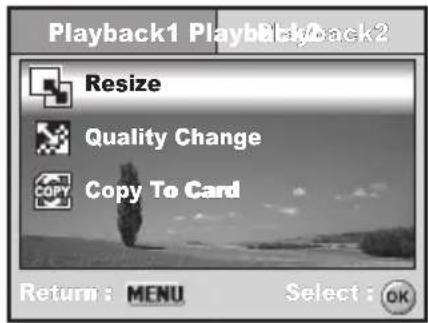
text_image
Playback1 Playback2 Resize Quality Change Copy To Card Return : MENU Select : OK- Press the button.
■ The last recorded image appears on the LCD monitor screen.
- Press the MENU button, then use the four-way controller (▲▼) to select the [Playback1] / [Playback2] menu.
- Use the four-way controller (▲▼) to select the option item, then press the OK button.
- Press the four-way controller (▲▼) to select the desired setting, then press the OK button.
- To exit the playback menu, press the MENU button.
■ Playback1
| Item Functional Description | |
Slide Show | You can play back recorded images in order with a selected interval time. This function is useful for checking your images or for presentations, etc. Refer to the section in this manual titled “Slideshow Display” for further details.3 Sec. / 5 Sec. / 10 Sec. |
Protect Set | the data to read-only to prevent images from being erased by mistake.Refer to the section in this manual titled “Protecting Images/Movie Clips” for further details. |
DPOF Allow | ws you to select the desired pictures to be printed and set the number of prints and whether or not to imprint the data in DPOF format. You can print images easily just by inserting the SD memory card to a DPOF-compatible printer or taking it to a print shop. Refer to the section in this manual titled “Setting the DPOF” for further details. |
■ Playback2
| Item Functional Description | |
Resize Change | nges the size of a recorded image.Resizing replaces the original image with the changed image. Only resizing to a smaller size is available. Refer to the section in this manual titled “Resizing an Image” for further details5M 2592 x 19443M 2048 x 15361.2M 1280 x 9600.3M 640x480 |
Quality Change | Changes the quality (compression rate) of a recorded image.Compresses images and overwrites an old size images with a newly compressed image. Only quality changing to a lower quality level is available.★ Normal★ Economy |
Copy to Card | Allows you to copy your files from the digital camera’s internal memory to an SD memory card. You can only do this if you have an SD memory card installed and some files in internal memory. |
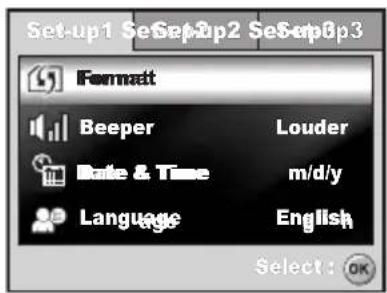
Setup Menu
This feature allows you to set up the default settings by preference for using your camera.
text_image
Set-up1 SeSep2p2 SeSep6p3 Format Beeper Louder Date & Time m/d/y Language English Select : OK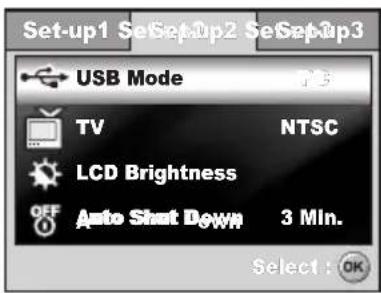
text_image
Set-up1 Setup2 Setup3 USB Mode TV NTSC LCD Brightness OFF Auto Shot Down 3 Min. Select: OK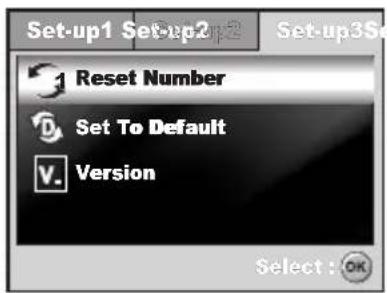
text_image
Set-up1 Setup2 Set-up3S 1 Reset Number D Set To Default V. Version Select : OK- Rotate the mode dial to mode and turn your camera on.
- Press the four-way controller (◀▶) to select the [Set-up1] / [Set-up2] / [Set-up3] menu.
- Use the four-way controller (▲▼) to select the desired option item, then press the OK button.
- To exit the setup menu, rotate the mode dial to another mode.
■ Set-up1 settings
| Item Functional Description | |
Format Erases  | es all images and reformats the SD memory card loaded in your camera. Protected images are also erased. SD memory card cannot be formatted if it is write-protected.Refer to the section in this manual titled “Formatting an SD Memory Card or Internal Memory” for further details. |
| Beeper This | sets whether or not to mute the startup sound, and the camera sound each time you press a camera button.Louder / Soft / Off |
Date & Time  | This sets the date and the time.Refer to the section in this manual titled “Setting the Date and Time” for further details.d/m/ym/d/yy/m/d |
| Language Sets [KSAT] | Sets the language that is displayed on the LCD monitor screen.Refer to the section in this manual titled “Choosing the Screen Language” for further details. |
■ Set-up2 settings
| Item Functional Description | |
USB Mode  | Selects to choose one of the following modes for further settings.PC / PictBridge / PC CAM |
TV Sets video  | output of the camera for matching the video output systemof the equipment that you are going to connect to the camera.PAL / NTSC |
LCD Brightness  | This sets the brightness of the LCD monitor screen.The adjustment range is from -5 to +5. |
Auto Shut Down  | If no operation is performed for a specific period of time, the power tothe camera is automatically turned off. This feature is useful to reducebattery wear.2 Min. / 3 Min. / 5 Min. / Off |
■ Set-up3 settings
| Item Functional Description | |
Reset Number. | Sets whether or not to reset the file number when you take photographs. This creates a new folder. The captured images are recorded to the newly created folder from number 0001. |
Set to Default | Returns all basic settings to the digital camera's default settings. The time setting will not be reset. |
Version This  | displays the current firmware version of the camera. |
SPECIFICATIONS
ItemDescription
| Image Sensor CCD | |
| Effective pixels 7.0 Mega pixels | |
| Image size Still image: 3072 x 2304, 2592 x 1944, 2048 x 1536, 1280 x 960, 640 x 480Movie clip: 320 x 240 | |
| Image quality Still image: Fine / Normal / EconomyMovie image: QVGA | |
| Recording media Approx. 32MB internal memorySD memory card (Optional, up to 2 GB) | |
| File format JPEG (Exif 2.2), DCF, Motion JPEG (AVI) | |
| Lens F-no.: Wide: 2.8 / Tele: 4.8Focal length: 5.8mm~17.4mm (equivalent to 34~102mm) | |
| Focus range Normal : 50cm ~ infinityMacro : Wide: 5cm~infinity; Tele: 35cm~infinity | |
| Flash effective range Wide: Approx. 0.5 m - Approx.2.3 mTele: Approx. 0.5 m - Approx. 1.7 m | |
| LCD monitor 2.5" color TFT-LCDApprox. 115K pixels display | |
| Self-timer 10 sec self-timer, 2 sec self-timer, 10+2 sec self-timer | |
| Exposure compensation -2.0EV~ +2.0EV (in 1/3 EV increments) | |
| White balance Auto, Daylight, Cloudy, Tungsten, Fluorescent | |
| ISO Auto, 64, 100, 200 | |
| Interface DC input terminal, PC/AV terminal | |
| Power 2 x AA (alkaline or Ni-MH rechargeable) batteriesAC-DC adapter (3.3V/2A) (Optional) | |
| Dimension Approx. 89.4 x 60 x 26 mm | |
| Weight Approx. 120g (without batteries & SD card) |
* Recording capacity shows approximate number of shots recorded during CIPA-compliant testing. Actual performance may vary according to operating conditions.
* Design and specifications are subject to change without notice.
TROUBLESHOOTING GUIDE
| Symptom Possible causes Solutions / Corrective Actions | ||
| Power does not turn on. | * The battery has run out.* The battery is not oriented correctly.* The battery cover is not closed properly.* The AC adapter (optional) is disconnected. | * Load new or fully charged battery.* Load the battery in the correct direction.* Close the battery cover correctly.* Properly connect the AC adapter. |
| Camera suddenly powers down. | * The function of [Auto Shut Down] in the mode has been activated.* The battery has run out. | * Turn the power back on and set the option of [[Auto Shut Down] to [Off].* Load new or fully charged battery. |
| Image is not captured when the shutter release button is pressed. | * The camera is in the mode.* Memory is full. | * Rotate the mode dial to A, P, ▲, ▶, ★, ▼. * Transfer the desired files to your computer and then delete unnecessary files, or use a different memory card. |
| Flash does not fire. | * Flash off is selected in flash mode.* 10+2 sec. Self-timer is selected in self-timer mode.* The [Capture Mode] is set to [Burst] or [AEB].* The camera is in the (video) mode. | * Select a different flash mode.* Select [AF] in the [Capture Mode].* Switch the mode dial to another mode. |
| Continuous shooting is not possible. | * The capacity of the built-in memory or SD memory card is full. | * Insert SD memory card with available space or delete unwanted images. |
| Cannot transfer files over a USB connection. | * USB cable is not connected securely.* USB driver is not installed.* Camera is turned off. | * Check all connections.* Install the USB driver on your computer.* Turn on the camera. |
POSSIBLE NUMBER OF RECORDABLE IMAGE
The frame counter indicates the approximate number of images that can be stored on the internal memory and the SD memory card. The number of recordable images may vary depending on the recorded subject, the capacity of the memory card, if there are files other than images or when the recording is made while switching the picture quality or resolution.
| Resolution Quality | Internal Memory | SD Memory Card | |||||||
| 32 MB | 64 MB | 128 MB | 256 MB | 512 MB | 1GB 2GB | ||||
| 3072 x 23047M | Fine 6 | 7 16 | 33 68 | 137 276 | 6 553 | ||||
| Normal 12 | 15 32 | 65 13 | 2 266 5 | 33 1068 | |||||
| Economy 18 | 24 49 | 100 2 | 02 406 | 815 1631 | |||||
| 2592 x 19445M | Fine | 9 | 11 | 24 | 49 | 100 | 200 | 402 | 806 |
| Normal | 17 | 22 | 46 | 93 | 188 | 378 | 758 | 1518 | |
| Economy | 25 | 33 | 68 | 138 | 278 | 559 | 1121 | 2244 | |
| 2048 x15363M | Fine | 16 | 21 | 43 | 87 | 177 | 355 | 712 | 1425 |
| Normal | 27 | 36 | 74 | 150 | 302 | 606 | 1214 | 2431 | |
| Economy | 41 | 53 | 109 | 222 | 446 | 796 | 1796 | 3595 | |
| 1280 x 96012M | Fine | 54 | 70 | 143 | 291 | 584 | 1173 | 2350 | 4703 |
| Normal | 70 | 91 | 187 | 379 | 763 | 1531 | 3065 | 6135 | |
| Economy | 107 | 139 | 285 | 576 | 1157 | 2321 | 4649 | 9304 | |
| 640 x 48003M | Fine | 204 | 265 | 540 | 1092 | 2194 | 4402 | 8814 | 9999 |
| Normal | 233 | 302 | 618 | 1248 | 2507 | 5031 | 9999 | 9999 | |
| Economy | 286 | 371 | 758 | 1531 | 3075 | 6169 | 9999 | 9999 | |
■ The above data shows the standard testing results. The actual capacity varies according to the shooting conditions and settings.
■ Approximate Duration of Recording Time
The table below indicates the approximate duration of recording time depending on the capacity of the internal memory and the SD memory card.
| Image size | Internal Memory | SD Memory Card | ||||||
| 32MB | 64MB | 128MB | 256MB | 512MB | 1GB | 2GB | ||
| 320 x 240 | 00:39 | 00:51 | 01:45 | 03:33 | 07:09 | 14:23 | 28:48 | 57:39 |
■ The values for the recording time may vary depending on the shooting conditions and settings.
■ The frame rate is 30 fps (frames per second).
CONNECTING TO A PICTBRIDGE-COMPATIBLE PRINTER
Even if you do not have a computer, you can connect the camera directly to a printer that supports PictBridge to perform image selection and printing using the camera screen and controls. DPOF support also lets you specify which images you want to print and how many copies of each should be printed.
Connecting the camera to the printer
- Rotate the mode dial to and turn your camera on by pressing the power switch.
- Press the four-way controller (▶) to select the [Set-up2] menu, then use the four-way controller (▼) to select [USB Mode]. Press the OK button.
- Use the four-way controller (▲▼) to select [PictBridge], then press the O button.
- Connect your camera and the printer via a supplied USB cable.

text_image
USB Mode PC PictBridge PC CAM. Select : OK■ The message “One moment” will appear on the LCD monitor screen.
Printing images
When the camera is properly connected to a PictBridge-compatible printer, the [Printing Mode Select] screen is displayed on the LCD monitor screen. Use the four-way controller (▲▼) to select the print mode.
In [Print] Mode: Lets you print the specified image with PictBridge.
| Step Figure Procedure | ||
| 1 |  | Use the four-way controller (▲▼) to select the [Print] mode, then press the button. |
| 2 | 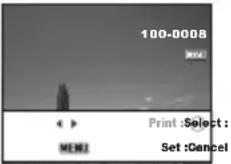 | Use the four-way controller (◄►) to select the image you want to print, then press the four-way controller (▼) to set more detailed settings. |
| 3 |  | Use the four-way controller (▲▼) to select by your preference, then press the button.[Quantity]: Specifies the number of prints. You can select the number up to 10.[Date]: If you select [With], images are printed with the date.[File Name]: If you select [With], images are printed with the file name. |
| 4 |  | After Print Setting is set, the print icon is marked on the displayed image. You can still use the four-way controller (◄►) to change the image by your preference, then press the button to print. |
| 5 | 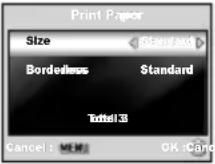 | Use the four-way controller (▲▼) to access the paper selection setting, then press the button to confirm.[Size]: You may select the desired item depending on the type of printer being used.[Borderless]: You may select the desired item depending on the type of printer being used. |
| 6 |   | This starts printing and displays the message “Transferring” on the LCD monitor screen. The message will disappear after the printing is finished. Then the screen returns to [Printing Mode Select].■ To cancel printing:Pressing the OK button during print data transfer displays the screen for selecting whether to [Continue] or [Cancel] printing. |
In [Print All] Mode: Lets you print all images with PictBridge.
| Step Figure Procedure | ||
| 1 |  | If you wish to print all the images stored in the camera, you may choose [Print All] in [Printing Mode Select]. |
| 2 | To set Print Settings, follow steps 2 to 6 in [Print] Mode. | |
In [Print With DPOF] Mode: This function only lets you print the specified image based on the previous DPOF settings.
| Step Figure Procedure | ||
| 1 | 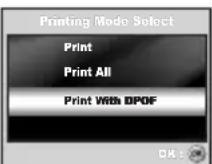 | If you wish to print images with DPOF setting, you may choose [Print With DPOF] in [Printing Mode Select]. |
| 2 | To set Print Settings, follow steps 2 to 6 in [Print] Mode. | |

■ When connecting a printer which is not compatible with DPOF, [Print With DPOF] cannot be selected.
natural_image
Simple line drawing of a trash bin with two crossed lines indicating no waste or discharge (no text or symbols)
Attention: Your product is marked with this symbol. It means that used electrical and electronic products should not be mixed with general household waste. There is a separate collection system for these products.
A. Information on Disposal for Users (private households)
1. In the European Union
Attention: If you want to dispose of this equipment, please do not use the ordinary dust bin!
Used electrical and electronic equipment must be treated separately and in accordance with legislation that requires proper treatment, recovery and recycling of used electrical and electronic equipment.
Following the implementation by member states, private households within the EU states may return their used electrical and electronic equipment to designated collection facilities free of charge*. In some countries* your local dealer may also take back your old product free of charge if you purchase a similar new one.
*) Please contact your local authority for further details.
If your used electrical or electronic equipment has batteries or accumulators, please dispose of these separately beforehand according to local requirements.
By disposing of this product correctly you will help ensure that the waste undergoes the necessary treatment, recovery and recycling and thus prevent potential negative effects on the environment and human health which could otherwise arise due to inappropriate waste handling.
2. In other Countries outside the EU
If you wish to discard this product, please contact your local authorities and ask for the correct method of disposal.
For Switzerland: Used electrical or electronic equipment can be returned free of charge to the dealer, even if you don't purchase a new product. Further collection facilities are listed on the homepage of www.swico.ch or www.sens.ch.
B. Information on Disposal for Business Users
1. In the European Union
If the product is used for business purposes and you want to discard it:
Please contact your local dealer who will inform you about the take-back of the product. You might be charged for the costs arising from take-back and recycling. Small products (and small amounts) might be taken back by your local collection facilities.
For Spain: Please contact the established collection system or your local authority for take-back of your used products.
2. In other Countries outside the EU
If you wish to discard of this product, please contact your local authorities and ask for the correct method of disposal.
