
DC 7411 - Camera MINOX - Free user manual and instructions
Find the device manual for free DC 7411 MINOX in PDF.

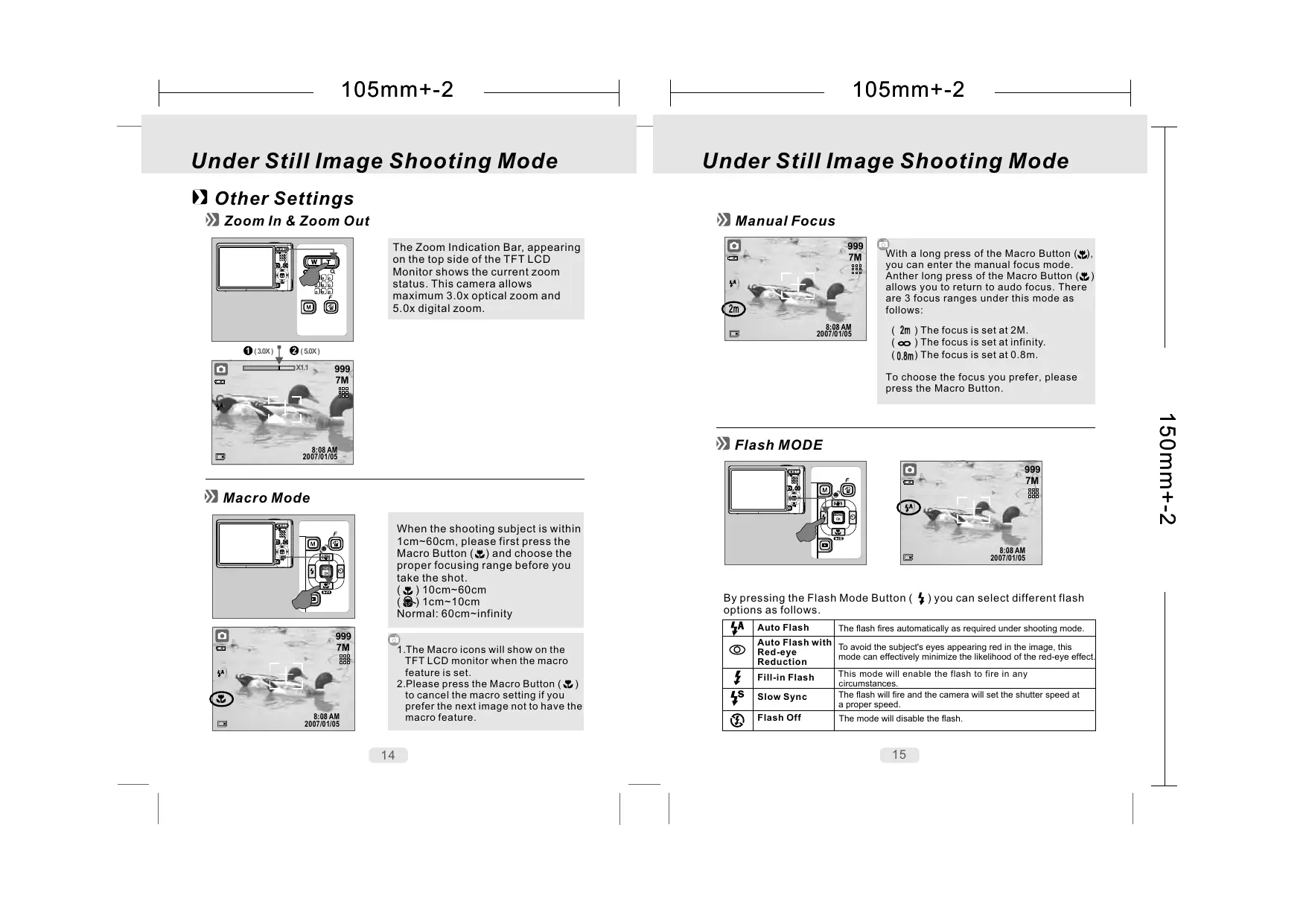

| Product Type | Compact digital camera |
| Brand | MINOX |
| Model | DC 7411 |
| Sensor | CCD sensor, approximate resolution 7 megapixels |
| Lens | 3x optical zoom, focal length equivalent to 35-105 mm |
| Screen | 2.5-inch LCD screen |
| Metering Modes | Multi, Spot |
| White Balance | Auto, preset settings |
| Shooting Mode | Single, Burst |
| Built-in Flash | Auto, red-eye reduction, slow sync, off, fill-in |
| Recording Resolution | Up to 3264 x 2448 pixels |
| Image Format | JPEG |
| Storage | SD / SDHC memory card compatible |
| Power Supply | 2 AA batteries (alkaline recommended) or rechargeable Ni-MH battery |
| Dimensions (W x H x D) | Approx. 90 x 60 x 30 mm |
| Weight | Approx. 120 g (without batteries) |
| Connections | USB 2.0, composite video output |
| Maintenance and Cleaning | Clean the lens with a soft, dry cloth; use a blower to remove dust |
| Safety Instructions | Do not expose to moisture, avoid shocks, do not disassemble the device |
| Spare Parts and Repairability | Batteries, charger, USB cable available; repair by an authorized technician |
| Warranty | 2 years |
Frequently Asked Questions - DC 7411 MINOX
User questions about DC 7411 MINOX
0 question about this device. Answer the ones you know or ask your own.
Ask a new question about this device
Download the instructions for your Camera in PDF format for free! Find your manual DC 7411 - MINOX and take your electronic device back in hand. On this page are published all the documents necessary for the use of your device. DC 7411 by MINOX.
USER MANUAL DC 7411 MINOX
Turn On Or Off The Camera
Loading The Battery 7
Removing The Battery 7
Charging The Battery With The Charger 8
Special Notes 8
Inserting Or Removing A Memory Card -9
Attaching The Wrist Strap
Basic Photography For Still Image 10
Under Still Image Shooting Mode 11
Set The Shooting Mode 11
AUTO Mode 11
PROGRAM MODE 12
NIGHT MODE 12
PORTRAIT MODE 12
SUNSET MODE 13
BACKLIGHT MODE 13
FIREWORKS MODE 13
Other Settings 14
Zoom In & Zoom Out 14
Macro Mode 14
Manual Focus 15
Flash Mode 15
Self-timer 16
Voice Memo 17
Image Size 17
Image Quality 18
Metering 18
Continuous Shooting 19
Sharpness 19
Effect 20
Photo Frame 20
OSD Information 21
Exposure Value 21
ISO Value 22
White Balance 22
RGB 23
ISH (Image Stabilizer Helper) 23
UnderPlaybackMode(24
Playback Of Still Image, Movie Clip And Audio Clip 24
Thumbnail Display (Small Images) 25
Explore A Part Of A Still Image 25
Trim A Still Image 26
Display Image Information 26
Set An Image With Protection 27
Slideshow 27
Delete Image 28
DPOF-Standard 29
Copy To Card 29
Resize A Still Image 30
Set A Still Image As An Option Of The Start-up Image 30
Rotate An Image 31
Set An Image With Special Effect 31
Table Of Contents
Under Movie Clip Mode (12) 32
Video Size 32
Special Effect 32
Metering 33
OSD Information 33
■ SETUP Setting ( 34
General Introduction 34
LCD Brightness 34
Setting Start-Up Image 34
Setting Start-Up Sound 35
Setting Shooting Sound 35
Selecting System Sound 35
Setting Power Saving 36
Setting Date & Time Imprint 36
Setting Date & Time Type 36
Setting Operating Language 36
Setting File 37
Setting USB 37
SettingVIDEO 37
Setting RESET 37
Setting FORMAT 38
Under Voice Recording Mode (2) 38
Under Digital Music Player Mode ( ) 39
Under PMP Mode (□) 40
How To Use The PMP Mode 41
Things You Can Do With ArsSoft Media Converter 42
Introduction Of Other Important Functions 43
■ Printer Connection (PictBridge) 45
» Connecting the Camera to a PictBridge-supported Printer 45
Select Pictures To Print 46
AUTOSET 47
CUSTOMSET 47
DPOF print 47
48
Reset 49
TV Connection 50
General Introduction 50
PC Connection 51
How to Connect with A Computer 51
Computer Notebook Connection 51
Installing The Camera's Driver 52
Under Microsoft Windows 98SE 52
Under Microsoft Windows 2000 53
Under Microsoft Windows ME/XP 54
Under Mac 9.X or later 54
Installung Ulead Photo Explorer 55
Under Windows Operating System (Windows 98SE/2000/ME/XP) 55
Under Macintosh Operating System(Mac 0.X or later) 57
- Downloading the Image(s) 60
Under Windows Operating System (Windows 98SE/2000/ME/XP) 60
Under Macintosh Operating System (Mac 9.X or later) 61
Appendix 62
Error Message Table 62
Specifications 63
About ArcSoft, Inc 65
- Things You Can Do With "ArcSoft Videolmpression" 66
About Ulead Photo Explorer 67
- Things You Can Do In Ulead Photo Explorer 8.5 SE Basic 68
Cautions
- Do not try to disassemble the camera by yourself, which may damage the camera or cause electric shock.
- Do not fire the flash in a close distance (less than 1 meter); it may hurt your eyes.
- Keep the camera away from the reach of children or animals to prevent them from swallowing the batteries or small accessories.
- Stop using the camera if any kind of liquid or foreign object enters the camera. If it happens, power off the camera and contact your dealer for help.
- Do not operate this camera with wet hands; it may cause electric shock.
The camera may be damaged in an environment of high temperature. - To avoid leakage, please remove the battery if the camera is expected not to be in use for a long period.
It is normal that the temperature of the camera body rises if the camera works for a long time. - Do not press the lens portion hard, or it may cause the malfunction of the lens.
Small Tip to Save You Big Headache
A digital camera is in a way very similar to a computer. If the digital camera hangs itself during operation, please follow the procedures below and most likely the camera can be re-activated.
- Remove the battery.
- Reload the battery.
- Switch on the camera.
Overall Introduction
Accessories
Digital Camera
Camera Driver & Software CD
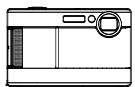

Li-ion Battery & Charger
User Manual / Quick Start Guide
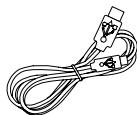
USB/Video Cable
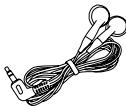
Earphone
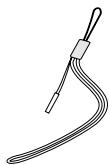
Wrist Strap
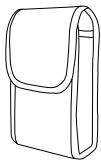
Camera Pouch
Overall Introduction
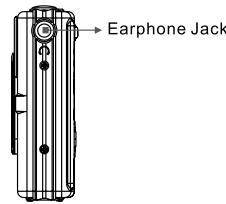
External View
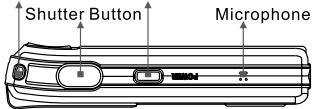
TOP
Strap Eyelet Power Button
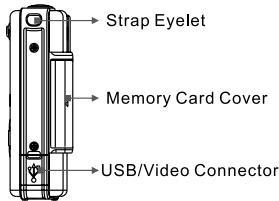
SIDE
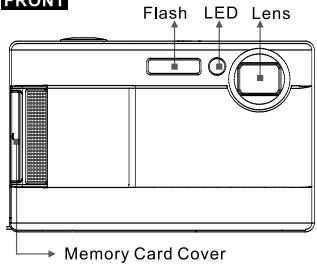
FRONT
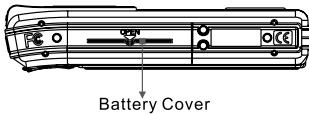
BOTTOM
Key Function Buttons
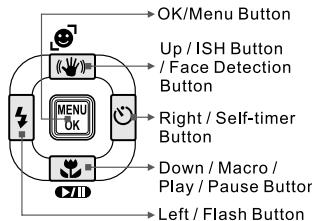
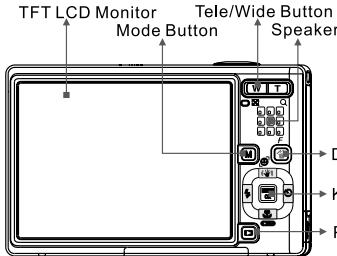
BACK
Delete Button(Function Hot Key)
Key Function Buttons
Playback Button
Overall Indtroduction
Icon Display
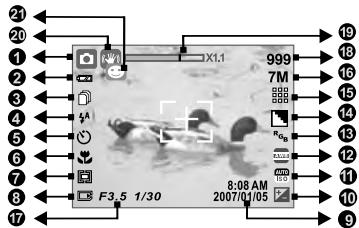
1. Working Mode
()BatteryFull
(B) Battery Half Drained
()Battery Drained
3.Shooting Mode
(A)Auto Flash
Auto Flash with Red-eye Reduction
(4)Fill-in Flash
(1s) Slow Sync
(3) Flash Off
5. Self-timer
( ) 10 Seconds
(8) 2 Seconds
( ) Double
6. Focus Range
Turn On Or Off The Camera
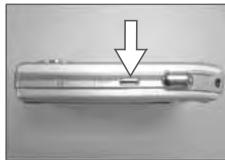

Press down the "POWER" Button to turn on the camera.
Repeat above to turn off the camera.
Loading The Battery
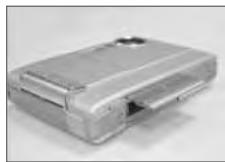
- Power off the camera.
- Slide out the battery cover to open it.
- Follow the polarity indications to load the battery.
- Close the Battery Cover.
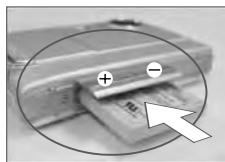

The below symbols on the TFT LCD Monitor are the indication of the battery status.
(电):Battery power is full.
() : Battery power is half drained. Have a new battery ready.
(□): Battery power is drained. Replace with a new battery.
The battery may run out if the battery is kept inside the camera for a long time without using. Please remove the battery when the camera is not in use.
The battery may not work normally under 0^ or over 40^ . It's normal that the temperature of the camera rises after being used for a long period.
Removing The Battery
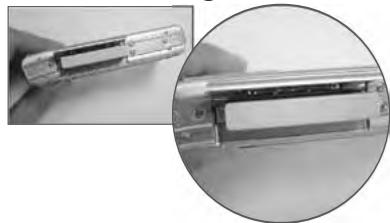

(1) Power off the camera.
(2) Slide the battery door in the direction indicated.
(3) Remove the battery.
(4) Close the Battery Cover.
Getting Ready
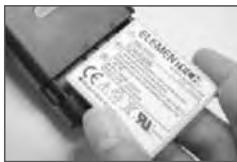
Charging The Battery With The Charger
The battery is not charged when the camera is shipped. Charge the battery before use.
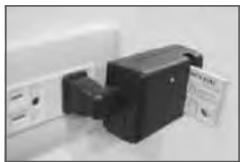
Charging Procedure
(a) Insert the battery to the battery slot by the polarity indications.
(b) Connect the charger to the electrical outlet.
(c) The LED will light up in red color when charging.
(d) The charging is completed when the LED turns green.
(e) Remove the battery when the charging is completed.

A new battery should be charged for at least 4 hours.
It's normal if the temperature of the camera and battery rises after a period of use.
Special Notes
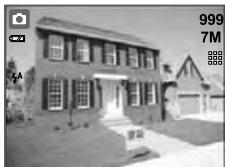
A message of "Low Light!" appearing on the TFT LCD Monitor is a warning to remind you to go to the Flash Mode and select Auto Flash or Fill-in flash to get more light to improve the image quality.
In this case, please release the shutter button and press it again since the auto functiun may be difficult to use if:
- The subject is far away from the photographer or in the dark.
- The subject is viewed through a piece of glass or window.
A fast-moving or a flashing subject is passing through.
- The subject is reflective like a mirror, a luminous body, or a lustrous subject.
Do not touch the lens when it is in use.
Getting Ready
Inserting Or Removing A Memory Card
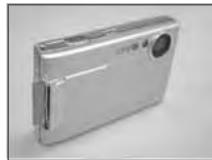
- Power off the camera.
- Open the Battery Card Cover.
- Insert the memory card into the card slot and press it down until a click sound happens. (Please press the memory card again to get it out once a click sound happens.)
- Close the Memory Card Cover.
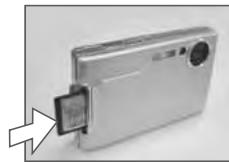

- Formatting a brand new memory card is strongly recommended for first use.
The image(s) can be stored either in built-in flash memory or in memory card. When the memory card is inserted, the images will be stored in the memory card rather than the built-in flash memory. On the other hand, the images will be stored in the built-in flash memory when a memory card is not inserted.
Attaching The Wrist Strap
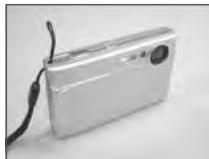
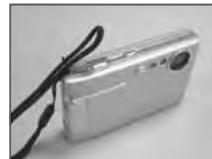
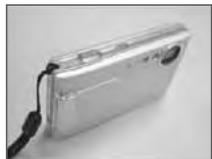
Getting Ready
Basic Photography For Still Image
- Press the Power Button to turn on the camera.
- Make sure the camera is set at Still Image Shooting Mode.
- Use Tele/Wide Button to zoom in and zoom out.
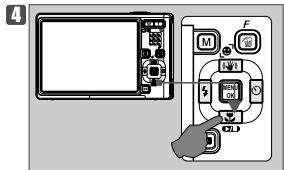
- Press the Macro Button ( ) if required (closer than 60cm).
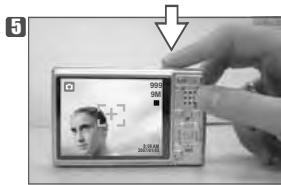
- Press the Shutter Button halfway for focusing and then press the Shutter Button fully down to capture the image.
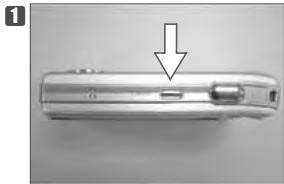
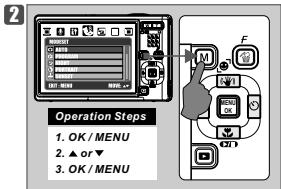

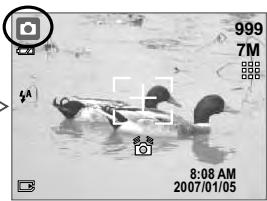
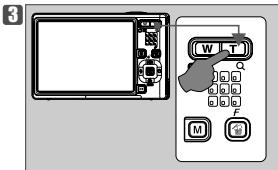
Under Still Image Shooting Mode
Set The Shooting Mode (Default: AUTO)
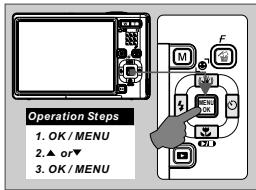
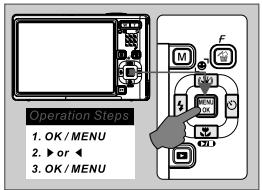
Press OK/Menu Button to set the shooting mode. There are 7 options which are:

AUTO
PROGRAM
NIGHT
PORTRAIT
SUNSET
BACKLIGHT
FIREWORKS
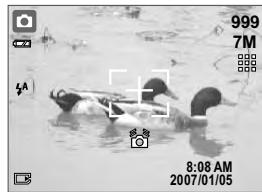

AUTO MODE
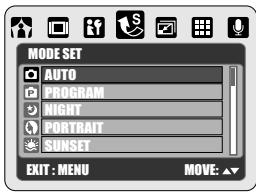

Operation Steps
- OK/MENU
- ▲ or ▼
- OK/MENU
Under this mode the following settings will be automatically locked at the factory default settings and cannot be adjusted.
- Auto Flash
- Auto Flash & Red-eye Reduction
- Flash Off are available.
Under Still Image Shooting Mode

PROGRAM MODE
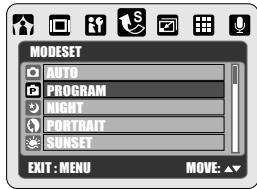

Operation Steps
- OK/MENU
- ▲ or ▼
- OK/MENU
In program mode, the metering, sharpness, effect, WB, frame, shooting flash & ISO can be adjusted.

NIGHT MODE
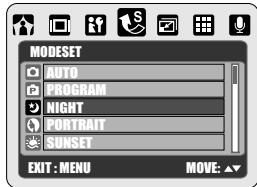

Operation Steps
- OK/MENU
- ▲ or ▼
- OK/MENU
Under this mode the settings below will be locked.
- Slow Sync
- Flash off are available.

PORTRAIT MODE
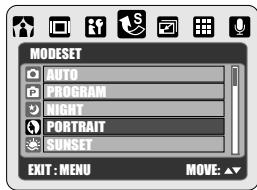

Operation Steps
- OK/MENU
- ▲ or ▼
- OK/MENU
Under this mode the settings below will be locked.
(a) Metering : Multi
(b) Sharpness : Normal
(c) Effect : Normal
(e) Shooting: Single
(f) Flash : Only
- Auto Flash & Red-eye Reduction
- Flash off are available.
Under Still Image Shooting Mode

SUNSET MODE
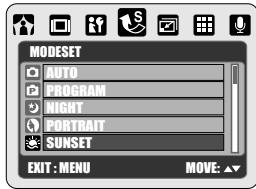

Operation Steps
- OK/MENU
- or
- OK/MENU
Under this mode the settings below will be locked.
Under this mode the settings below will be locked as below.
Under this mode the settings below will be locked.
Under Still Image Shooting Mode
Other Settings
Zoom In & Zoom Out
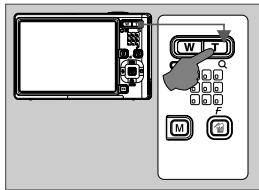
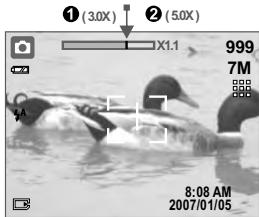
The Zoom Indication Bar, appearing on the top side of the TFT LCD Monitor shows the current zoom status. This camera allows maximum 3.0x optical zoom and 5.0x digital zoom.

Macro Mode
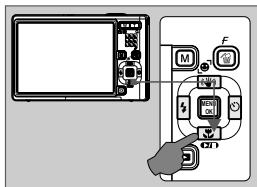
When the shooting subject is within 1cm 60cm please first press the Macro Button (出) and choose the proper focusing range before you take the shot.
10cm~60cm 1cm~10cm
Normal: 60cm~infinity
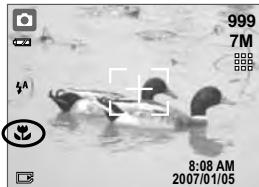

1.The Macro icons will show on the TFT LCD monitor when the macro feature is set.
2. Please press the Macro Button ( ) to cancel the macro setting if you prefer the next image not to have the macro feature.
Under Still Image Shooting Mode

Manual Focus
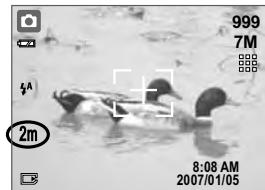

With a long press of the Macro Button (you can enter the manual focus mode. Anther long press of the Macro Button ( allows you to return to audio focus. There are 3 focus ranges under this mode as follows:
(2m) The focus is set at 2M.
() The focus is set at infinity.
(0.8m) The focus is set at 0.8m.
To choose the focus you prefer, please press the Macro Button.

Flash MODE
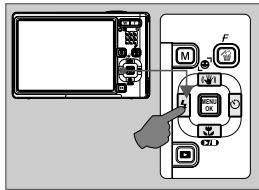
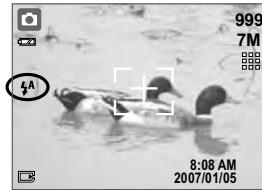
By pressing the Flash Mode Button (4) you can select different flash options as follows.
| A | Auto Flash | The flash fires automatically as required under shooting mode. |
| ◎ | Auto Flash with Red-eye Reduction | To avoid the subject's eyes appearing red in the image, this mode can effectively minimize the likelihood of the red-eye effect. |
| ♀ | Fill-in Flash | This mode will enable the flash to fire in any circumstances. |
| ♂ | Slow Sync | The flash will fire and the camera will set the shutter speed at a proper speed. |
| ◇ | Flash Off | The mode will disable the flash. |
Under Still Image Shooting Mode
Self-timer
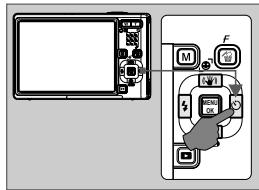
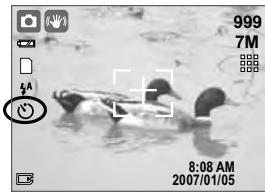

With the 10 sec. Self-timer () The image will be taken after an interval of 10 seconds once the Shutter Button is released.
With the 2 sec. Self-timer (^#) : The image will be taken after an interval of 2 seconds once the Shutter Button is released.
+ With the Double self-timer (^0) : The image will be taken twice once the Shutter Button is released.
The first image will be taken after 10 seconds and the second image 2 seconds after the first.
Under Still Image Shooting Mode

Voice Memo
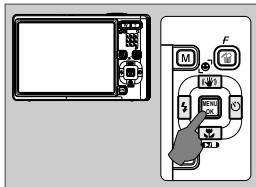
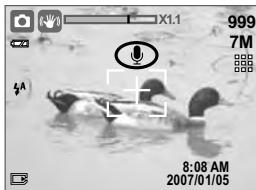
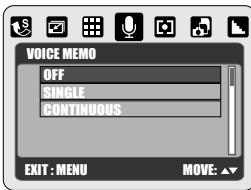

There are 2 ways to add the voice memo to an image:
-
At Still Image Shooting Mode
(a) Press OK/Menu Button and choose "VOICE MEMO"
(b) Choose "SINGLE" to enable a voice memo for this image you are going to take or choose "CONTINUOUS" to have voice memos for the images from now on (you can cancel the voice memo function by choosing "OFF").
(c) 10 seconds of voice memo will be recorded. -
At Playback Mode ( )
(a) Choose the image to which you wish to add a voice memo.
(b) Press Up Button and press the Shutter Button to start the voice memo.
(c)10 seconds of voice memo will be recorded.

After the voice memo is added onto the image, () will be shown on the image as a notice in the Playback Mode.

Image Size(Default:3072x2304)
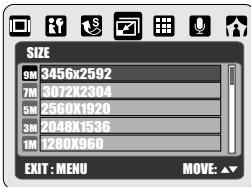

The options of the image size are as follows:
(9M) 3456 x 2592 (via interpolation)
(7M) 3072 × 2304
(5M) 2560 x 1920
(3M) 2048 x 1536
(1M) 1280 × 960
Operation Steps
1. OK/MENU
2. or
- or
Under Still Image Shooting Mode
Image Quality (Default:FINE)
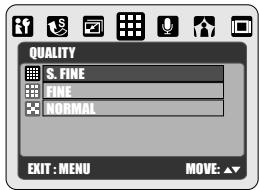
Operation Steps
- OK/MENU
- or
- ▲or
The Image quality options are provided as follows:
By changing the camera's metering pattern you can improve exposure and brightness of your image if necessary.
Multi Metering:
Exposure will be evaluated according to the average of the available light sources in the image area. This is suitable for general use.
Spot Metering:
If the subject is against the light source or has little contrast, you can use this function to have the subject be brighter.
This feature can only be used under Program Mode.
Under Still Image Shooting Mode
Continuous Shooting (Default:SINGLE)
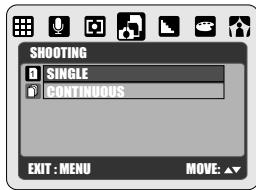
Operation Steps
- OK/MENU
- or
- or

1.SINGLE: No continuous shooting.
2.CONTINUOUS: You can have the continuous shooting function starting by pressing the Shutter Button and on hold and ending by letting go of the Shutter Button.
Note
The continuous shooting function will not be canceled until "SINGLE" is chosen.

This feature can only be used under Program Mode.
Sharpness(Default:NORMAL)
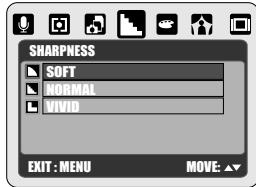
Operation Steps
- OK/MENU
- or
- ▲ or ▼

This effect can make the edge of the SOFT captured image look smoother, which is suitable for image editing on PC.

This effect can make the edge of the

MAL captured image look sharp, which is suitable for printing out.

This effect can make the edges of your captured image look sharper but may result in more image noise.

This feature can only be used under Program Mode.
Under Still Image Shooting Mode
Effect(Default:NORMAL)
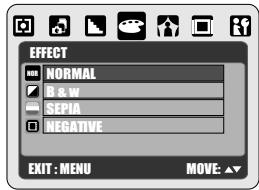
Operation Steps
- OK/MENU
- or
- ▲ or

| mal | No special effect is added to the picture. |
| N | Turn the image into black and white. |
| IA | Turn the image into yellowish brown. |
| ATIVE | Turn the image into negative film effect . |
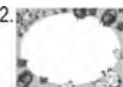
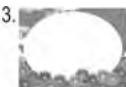
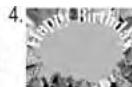
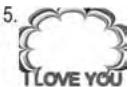
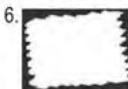
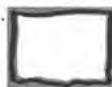
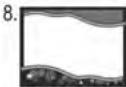
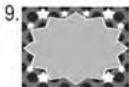
Photo Frame (Default:OFF)
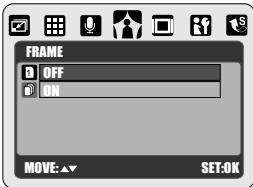
Operation Steps
- OK/MENU
- or
- ▲ or ▼

You can put the selected photo frame to the image you capture.
Cancel the Photo Frame function after use if you prefer the next image not to be with Photo Frame.
Note
This function can only be used when the resolution is set at less than 7 mega pixels (3072x2304).
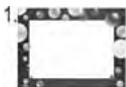


Under Still Image Shooting Mode

OSD Information(Default:DETAIL)
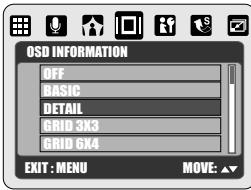
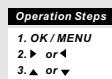

There are 5 options for the OSD information. 1.OFF: No OSD information is displayed.
2.BASIC: Only basic information is displayed.
3.DETAIL: Detailed information is displayed.
4. GRID 3X3: Grid lines for 9 grids will show on the TFT LCD Monitor for you to compose the image.
5.GRID 6X4: Grid lines for 24 grids will show on the TFT LCD Monitor for you to compose the image.
Note
Please choose "OFF" to cancel the grid lines if you prefer not to use them for the next image.

Exposure Value (Default:0)
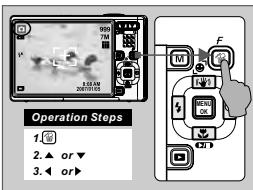


To adjust the exposure, you will need to set the working mode at Program Mode ( ) and press the Delete Button ( ) first.
Press Up or Down to the Exposure Value setting.
You can adjust the value of the exposure compensation which ranges from -2.0EV to +2.0EV (in 0.5EV increments) with the Right and Left Button. After the preferred value is chosen, please press OK/Menu Button to confirm the setting. ( ) will be shown on the TFT LCD Monitor if the EV is not set at ±0. Please note that the higher the EV value is the brighter the image will be.
Under Still Image Shooting Mode
ISO Value (Default: AUTO)
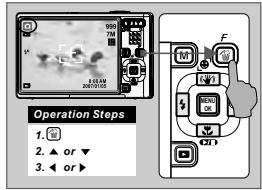
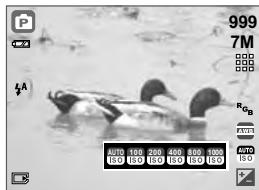

To adjust the ISO value, you will need to set the working mode at Program Mode ( ) and press the Delete Button ( ) first.
Press Up or Down Button to the ISO setting and choose the ISO value you prefer and press the OK/Menu Button to confirm.
>> White Balance (Default:AWB( auto white balance))
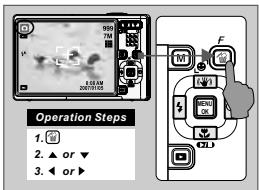
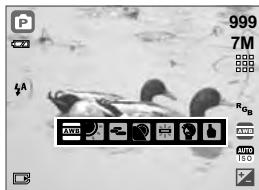

To adjust the white balance, you will need to set the working mode at Program Mode (☑) and press the Delete Button (☑) first.
You can select the most appropriate white balance setting for a given shooting environment by "Custom" setting.
- Choose the CUSTOM setting.
- Put a sheet of white in front of the camera, and then press the shutter button.
- Press ok/Menu Button to confirm.
| Auto | Adjusting the white balance automatically |
| Day light | Under the strong light environment |
| Cloudy | Under the cloudy light environment |
| Sunset | Under the sunset light environment |
| Fluorescent | Under the fluorescent light environment |
| Tungsten | Under the tungsten light environment |
| Custom | Under uncertain light environment |
Under Still Image Shooting Mode

RGB
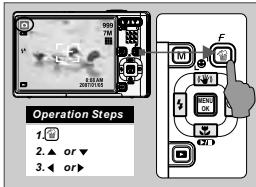
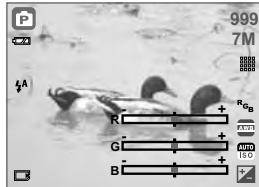

To adjust the RGB setting, you will need to set the working mode at Program Mode ( ) and press the Delete Button ( ) first.
Press Up or Down Button to the RGB setting and choose the RGB setting you prefer by pressing Left or Right Button and press OK/Menu Button to confirm
ISH (Image Stabilizer Helper)
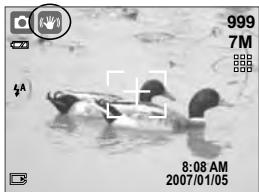
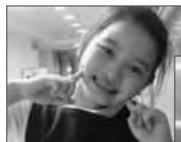
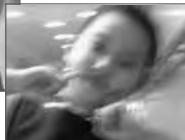

Pressing the ISH Button (W) can activate this function.
This function will only help to "reduce" the chance of blurred image due to unsteady holding of the camera.
Note
- Image noise may occur with this feature.
- When you prefer the next image or movie clip not to be with ISH feature, please press the ISH Button (W) again.
- When ISH is used, the flash will be automatically set at "Flash Off" and the ISO value will be set at "AUTO". These settings cannot be changed.
- It is suggested to use this feature under low light conditions when the object is beyond 3.0 m from the camera.
UnderPlaybackMode(
Playback Of Still Image, Movie Clip And Audio Clip
Please press Playback Button (▶) and the camera will show the stored still images, movie clips and audio clips (voice recording). Use the Right and Left Button to choose the file you would like to play.
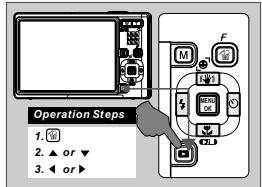
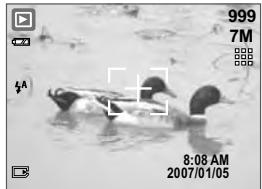

- Still Image
Still images are the images with no special signs such like () and ()
( ) represents that the images are with voice memos. - Movie Clip
Movie clips are the ones with ( ). - Audio Clip (voice recording)
Audio clips are the ones with (a).
UnderPlaybackMode()

Thumbnail Display (Small Images)
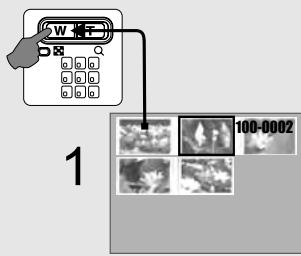
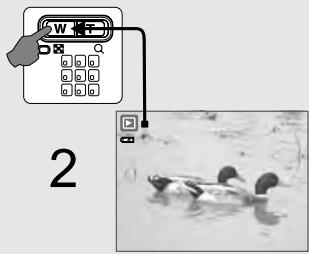

By pressing the W Button (W) you can display the stored files by thumbnails (Pressing the T Button (T) returns you to the normal playback display). Select a file and press OK/Menu Button to enlarge the selected image or file.

Explore A Part Of A Still Image
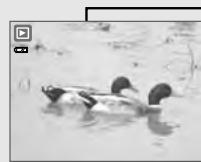
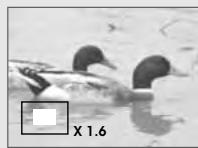
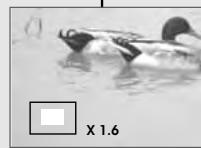
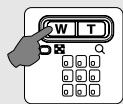
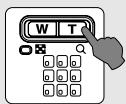

- Pressing and holding the T Button (T) you can enlarge a still image up to 8.0x (depending on the original size of the image).
- Use the direction buttons to explore the image.
- By pressing and holding the W Button (W) you can return to the normal size image.
UnderPlaybackMode(
Trim A Still Image
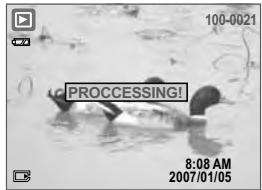
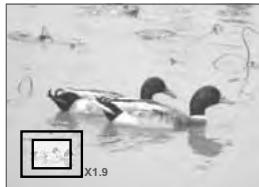

- Select an image.
- Press the T Button (T) or W Button (W) to choose the size of the enlargement.
- Press OK/Menu Button and choose "TRIM" and press the OK/Menu Button again to confirm the request.
The camera will save the trimmed image as a new image after you confirm the request.
Display Image Information
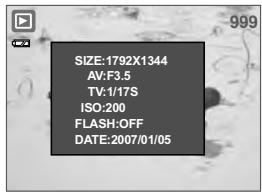
Pressing and holding the payback button (▶) can show the image information. Pressing the playback button (▶) again will cancel the information display.
UnderPlaybackMode(
Set An Image With Protection

Set Selected Image(s) With Protection
- Press the OK/Menu Button and choose "PROTECT".
2.Choose "SELECT" and press OK/Menu Button. - Choose one image and press T Button (T).
4.Choose another image and press T Button (T) or W Button(W). (O - n) will show on the TFT LCD Monitor when the protection is set. - Press OK/Menu Button to confirm the request for the protection of the selected image(s).
6.To cancel the protection, please press T Button (T) or W Button(W).
Set All Images With Protection
- Press the OK/Menu Button and choose "PROTECT".
- Choose "ALL" and press OK/Menu Button to confirm the request. (O-) will show on the TFT LCD Monitor when the protection is set.
- To cancel the protection, please press T Button (T) and W Button (W).
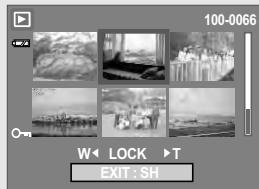
Slideshow

Press Menu/OK Button to enter the menu and choose SLIDE.
There are three options in this feature which are:
SHOW
This option is to start the slideshow after you set up the settings of INTERVAL and EFFECT. In this option you can also choose to play the slideshow just once or repeatedly.
INTERVAL
This option is to choose the interval time between each still image.
■ EFFECT
This option is to choose the effect of the slideshow.
Note
After you complete the setting of INTERVAL and EFFECT, please go to SHOW PLAY/ REPEAT to start the slideshow.
UnderPlaybackMode(
Delete Image
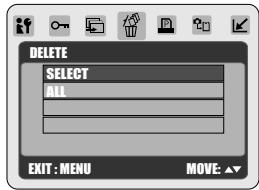
Operation Steps
- OK/MENU
- or
- or

You can delete the selected image(s) or all images with this function.
Please press OK/Menu Button and choose "DELETE" and following the steps below.
Delete Single Image
Select the image you'd like to delete and press the Delete Button ( ).
Select "DELETE" to proceed or select "CANCEL" to cancel the request.
Delete All Image(s)
1.Push the OK/Menu Button.
2.Choose "ALL" and press the OK/Menu Button.
3. Choose "DELETE" to confirm the deleting request or choose "CANCEL" to cancel the request. Press the OK/Menu Button again to proceed.
UnderPlaybackMode()

Copy To Card
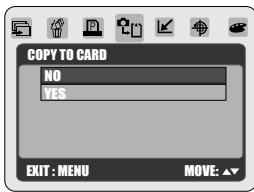
Operation Steps
-
OK/MENU
-
or
- or

This function allows you to copy the images stored in the internal flash memory into the memory card.

DPOF-Standard
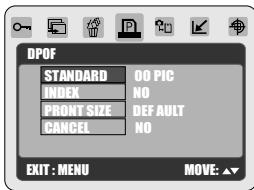
Operation Steps
- OK/MENU
- or
3.▲or

This function can only be used when a memory card is inserted.
This option allows you to put the print quantity (MAX. 30 pcs) on your memory card.
[ONE PIC] - specifies the number of copies for a selected image and you can press LEFT/RIGHT Button to go to next image.
[ALL PICS] specifies the number of copies for all pictures apart from movie clips and voice recording files.
Note: You cannot see the "PRINT" function on the TFT LCD Monitor if a memory card is not inserted.
UnderPlaybackMode(
Resize A Still Image
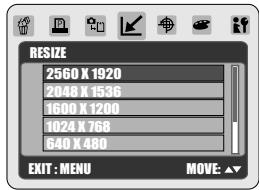
Operation Steps
- OK/MENU
- or
- or

This function allows you to resize a still image.
- Choose the image you would like to resize.
- Press OK/Menu Button and choose "RESIZE".
- Choose the image size you prefer and press OK/Menu Button to confirm.
- The resized image will be stored as a new image.
Set A Still Image As An Option Of The Start-up Images
This function allows the option of using your own image as the start-up screen.
- Choose the image you would like to use.
- Press OK/Menu Button and choose "RESIZE".
3.Choose"USERIMAGE1"or"USERIMAGE2"and pressOK/Menu Button to confirm.
Note
To set the "USER IMAGE 1" or "USER IMAGE 2" as the start-up image please refer to "Setting The Start-Up Image".
UnderPlaybackMode()

Rotate An Image
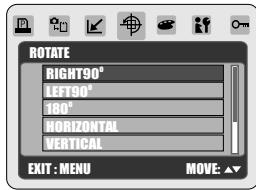
Operation Steps
- OK/MENU
- or
- or

With this setting you can rotate the image RIGHT 90^ , LEFT 90^ , 180°, HORIZONTAL and VERTICAL.
- Choose the image you would like to rotate.
- Press OK/Menu Button and choose "ROTATE".
- Choose the rotation you prefer and press OK/Menu Button.
4.The image after rotation will be stored as a new image.

Set An Image With Special Effect
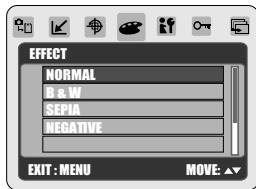
Operation Steps
- OK/MENU
- or
- or

This function allows you to set an image with special effect.
- Choose the image you would like to set with a special effect.
- Press OK/Menu Button and choose "EFFECT".
- Choose the special effect you prefer and press OK/Menu Button.
- The image with the special effect will be stored as a new image.
Under Movie Clip Mode (¶)
Please press the Mode Button (M) and choose Movie Clip Mode (M).
Video Size (Default:640x480 30FPS)
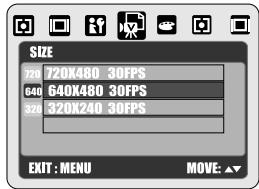
Operation Steps
- OK/MENU
- or
- ▲or

The video size options are provided as follows:
720×48030FPS
640x48030FPS
320 × 24030FPS
Special Effect (Default: NORMAL)
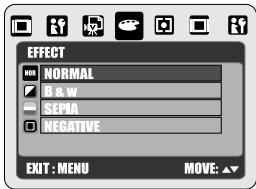
Operation Steps
- OK/MENU
- or
- or

| Normal | NOR | No special effect is added to the picture. |
| B&W | D | Turn the image into black and white. |
| SEPIA | E | Turn the image into yellowish brown. |
| NEGATIVE | F | Turn the image into negative film effect. |
Under Movie Clip Mode (¶)
Metering (Default:MULTI)
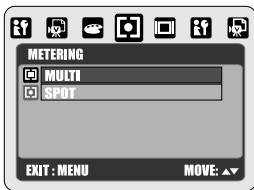
Operation Steps
- OK/MENU
- or
- ▲or

With Metering Setting, you can get more superior exposure condition and take a picture with brightness.
Multi Metering:
Exposure will be evaluated according to the average of the available light sources in the image area. This is suitable for general use.
- Spot Metering:
If the subject is backlit or has little contrast, you can use this function to have the subject appear brighter.
OSD Information (Default:DETAIL)
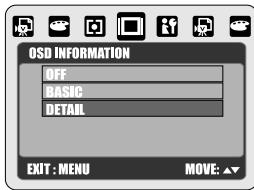
Operation Steps
- OK/MENU
- or
- ▲or

are 3 options for the OSD information.
1.OFF: No OSD information is required.
2.BASIC: Only basic information is required.
3.DETAIL:Detailed information is required.
Note
Please choose "OFF" to cancel the grid lines if you prefer the next image without the grid lines.
SETUP Setting( if)
General Introduction
You can enter SETUP in any working modes by pressing the OK/MENU Button and choosing "SETUP" ().
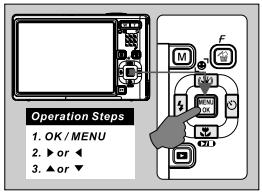

1.LCD 2.S. IMAGE
3.S.SOUND 4.SH.SOUND
5.SYS.VOLUME 6.PWR SAVE
7. IMPRINT 8. DATE &TIME
9.LANGUAGE 10.FILE
11. USB 12.VIDEO
13. RESET ALL 14. FORMAT
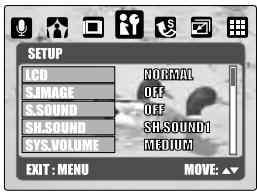

LCD Brightness(Default: NORMAL)
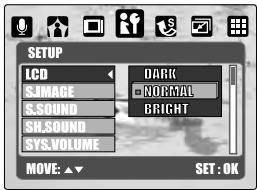

There are 3 options of the LCD brightness to choose which are DARK, NORMAL and BRIGHT.

Setting Start-Up Image
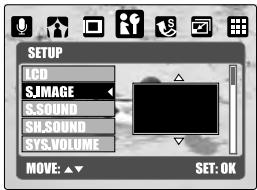

The camera has the space for 1 factory start-up image and 2 user start-up images. To set up the start-up image, please following the steps below.
-
Press OK/Menu Button and choose "SETUP".
-
Choose "S. IMAGE".
-
Select the image you prefer and press OK/Menu Button to confirm the setting. Or you can choose "OFF" to not have a start-up image.
To set an image as a user start-up image option, please refer to "Set A Still Image As An Option Of The Start-up Images".
SETUP Setting( i)

Setting Start-Up Sound (Default: SOUND1)
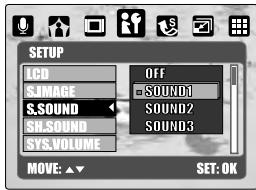

To set up the start-up sound please follow the steps below.
- Press OK/Menu Button and choose "SETUP".
- Choose "S.SOUND".
- Select the sound you prefer and press OK/Menu Button to confirm the setting. Or you can choose "OFF" to not have a start-up sound.

Setting Shooting Sound (Default:SH.SHOUND1)
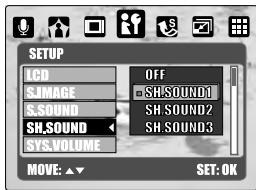

To set up the shooting sound please follow the steps below.
- Press OK/Menu Button and choose "SETUP".
- Choose "SH.SOUND".
- Select the sound you prefer and press OK/Menu Button to confirm the setting. Or you can choose "OFF" to not have a shooting sound.

Setting System Sound (Default: MEDIUM)
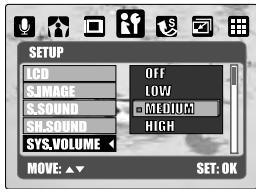

To set up the System sound please follow the steps below.
- Press OK/Menu Button and choose "SETUP".
- Choose "SYS.VOLUME".
- Select the sound volume you prefer and press OK/Menu Button to confirm the setting. Or you can choose "OFF" to not have a System sound.
Note: The system sound includes the start-up sound and shooting sound.
SETUP Setting( if)

Setting Power Saving (Default: 3 MIN.)
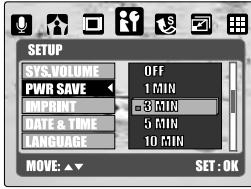

To set up the power saving time please follow the steps below.
- Press OK/Menu Button and choose "SETUP".
- Choose "PWR SAVE".
- Select the time you prefer for the power saving and press OK/Menu Button to confirm the setting. Or you can choose "OFF" to not have the power saving function.
Note: If it is set at "OFF", the camera will not turn off automatically. The battery may get drained soon if the camera is being on for a long time.

Setting Date & Time Imprint (Default: OFF)
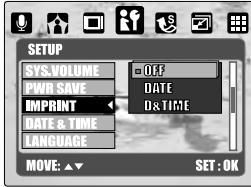

This function allows you to print the date or date & time on the image.

Setting Date & Time Type (Default: YY/MM/DD)
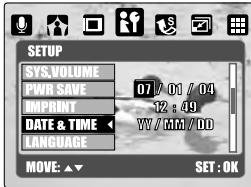

This function allows you to choose the type of the date & time.

Setting Operating Language
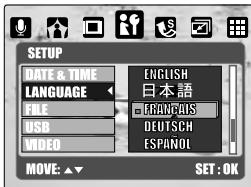

There are 12 languages for you to choose which are English, Japanese, French, German, Spanish, Italian, Turkish, Russian, Thai, Portuguese, Simplified Chinese and Traditional Chinese.
SETUP Setting( i)

Setting File (Default: SERIES)
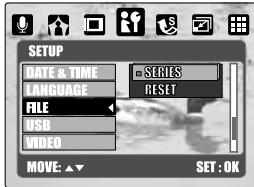

his setting allows you to name the files. If RESET is selected, the next file name will be set from 0001 even after formatting, deleting all, or inserting a new memory card.
If SERIES is selected, the file name will directly follow the latest stored file name instead.

Setting USB(Default:COMPUTER)
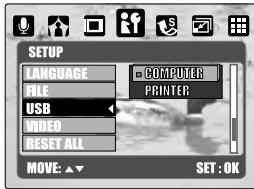

With the connection of the printer for iCreditBridge function, you have to select the option of printer for correct driver support.

SettingVIDEO(Default:NTSC)
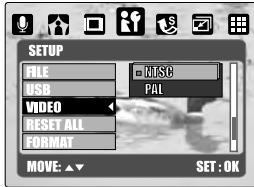

TSC: U.S.A. Canada, Japan, South Korea, aiwan, Mexico.
PAL: Australia, Austria, Belgium, China, Denmark, Finland, Germany, U.K., Nolland, Italy, Kuwait, Malaysia, New Zealand, Singapore, Spain, Sweden, Switaerland, Thailand, Norway.

Setting RESET(Default:No)
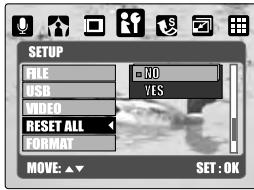

This option provides the function of recalling all default values except the Date, Time, language, and Video Out.
SETUP Setting( if)

Setting FORMAT(Default:No)
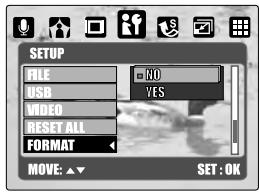

This function allows you to format the memory card or the built-in flash memory.

Note
All the data stored in the memory card or flash memory will be deleted after the formatting.
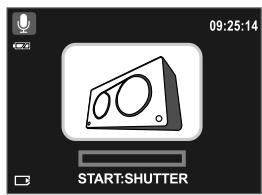
Under Voice Recording Mode()
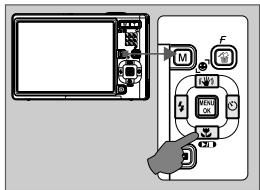

- Press the Mode Button and choose Voice Recording Mode (O).
- Press the Shutter Button to start the recording and press the Shutter Button again if you'd like to stop the recording.
- Press the Play/Pause Button (CD) during the recording can put the recording on hold and press the same button again and re-activate the recording.
Under Digital Music Player Mode( )
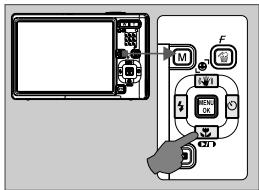

+ How To Download Digital Music To The Camera
- Connect the Camera to the computer with the USB/Video cable.
- Copy the digital music files to the "Removable Disk" (when the camera is connected to the computer the computer will create a new disk called "Removable Disk").
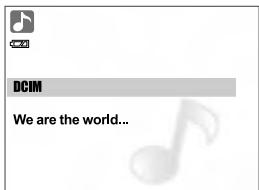

How To Play The Digital Music
- Press the Mode Button (M) and choose Digital Music Player Mode ()
- Choose the folder where you posted the digital music files.
- Choose the music file you would like to play and press the Menu /OK Button.
- The music will come out from the built-in speaker if no earphone is used. If you prefer to play the music through an earphone, please have the earphone connected to the Earphone Jack (A).

How To Delete The Digital Music From The Camera
There are two ways that you can delete the music files which are:
- By pressing the Delete Button.
- Connect the camera with the computer and delete the digital music files from the Removable Disk.
Under PMP Mode( )

How To Adjust The Volume
By using the Tele/Wide Button you can adjust the sound volume.

How To Set The Playing Mode Of The Digital Music
By pressing the UP Button, you can choose your playing mode from one of the following options:
Play single song repeatedly.
All Play all songs repeatedly.
5 Play all songs randomly.
Note
To save power, the back light of the LCD will turn off under the Digital Music Player Mode if the camera is not being operated for 30 seconds. By pressing any key to re-activate the LCD back light.
Under PMP Mode( )
THIS CAMERA ACCEPTS AND RECOGNIZES ONLY THE FILES
RECORDED BY THIS CAMERA. FOR THE FILES THAT ARE RECORDED
BY OTHER CAMERAS OR DEVICES, THEY WILL HAVE TO BE
CONVERTED FIRST BY ArcSoft Media Convert INCLUDED IN THE CD-ROM.
Under this mode you can view all the still images and movie clips no matter if they are recorded by this camera or other cameras or devices (as long as the files have been converted by ArcSoft Media Converter).
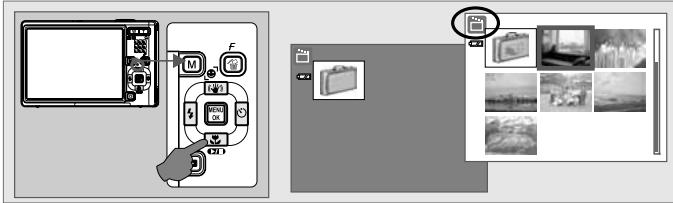

How To Use The PMP Mode
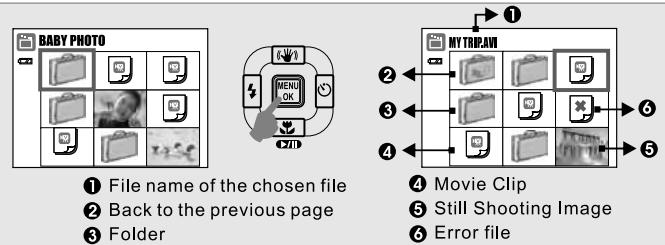
- Press the Mode Button (M) and choose PMP Mode (□).
- Use the direction buttons to select the folders and files you would like to play and press the OK/Menu Button.
- Select ( ) can go back to the previous page.
Note
- Error file can mean the file has not been converted by ArcSoft Media Converter or the file is damaged.
- This mode is only for playback and no changes to the images or video clips can be made under this mode.
- If the memory card is inserted, only the files stored in the memory card will show. If no memory card is inserted, only the files stored in the flash memory will show.
Under PMP Mode( )
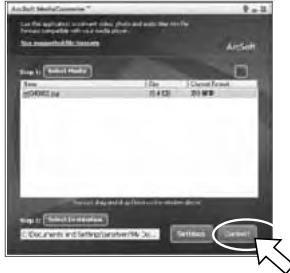
Things You Can Do With ArcSoft Media Coverter To convert the photo or video files
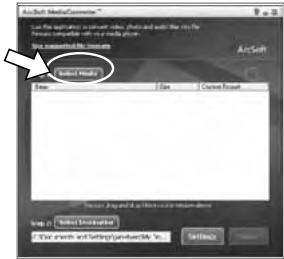
(a) Open the "ArcSoft Media converter" software and then click on 【Step1:SelectMedia】.
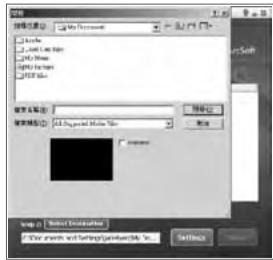
(b) Select the files that you would like to convert.
(c) Delete the files that you have selected but you'd like to remove from the list.
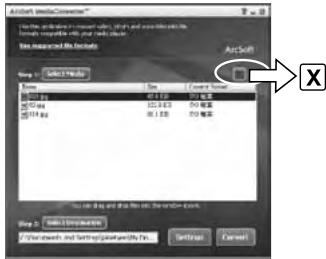
(d) Select【Step2:Select Destination】and then click on"Convert".
Under PMP Mode(□)
Introduction Of Other Important Functions
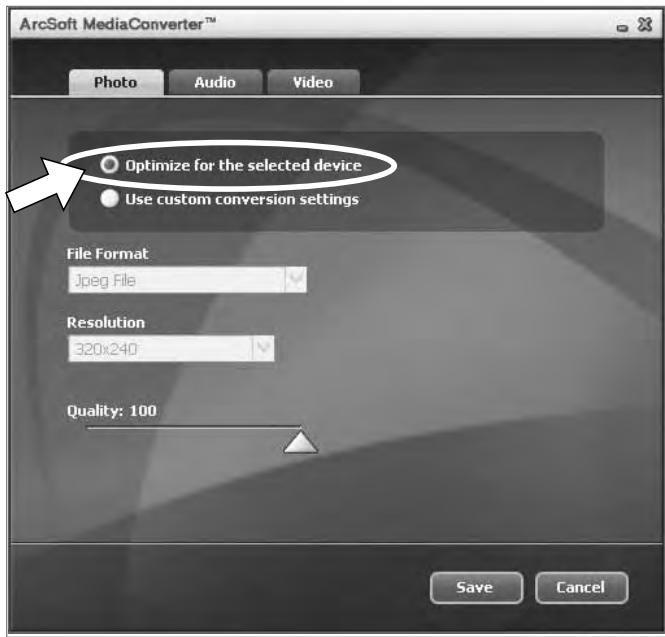
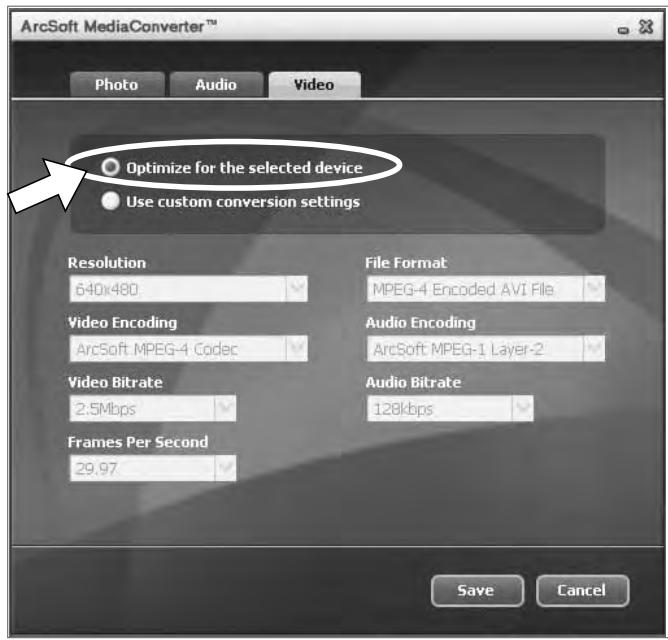
【Settings】: Please select "Optimize for the selected device" to convert the file to play on Album Mode.
1 Photo
Under PMP Mode( )
2 Video
Printer Connection (PictBridge)
Connecting The Camera To A PictBridge-supported Printer
If the printer you have supports the interface of PictBridge, then you can have your camera connected with the printer by the supplied USB cable to have the stored images print out directly.
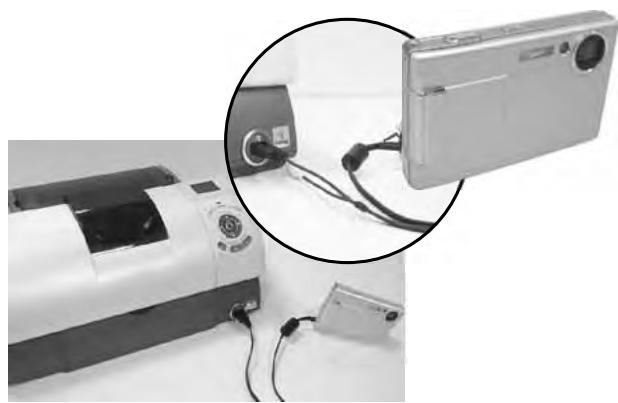

- Have both the camera and the printer powered on.
- Press the Menu/OK Button to go to SETUP Mode.
- Go to USB and select PRINTER for printer connection.
- Use the supplied USB cable to connect the camera to the PictBridge-supported printer as shown above.
Printer Connection (PictBridge)
>> Select pictures to print
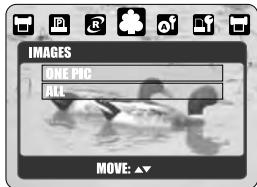
[ONE PIC]: The PictBridge function will be applied only to the picture currently displayed.
[ALL PICS]: The PictBridge function will be applied to all pictures.
Setting the Number of Copies to Print
- Select [ONE PIC] or [ALL PICS]. A screen where you can set the number of copies to print will appear as shown above.
- Press the Up/Down Button to select the number of prints. Maximum 30 prints.
- Use the Left/Right Button to select another picture and select the number of prints for another picture.
- After setting the number of prints, press the Menu/OK Button to save.
- Press the Shutter Button to return to the menu without setting the number of prints.
Printer Connection (PictBridge)
AUTOSET
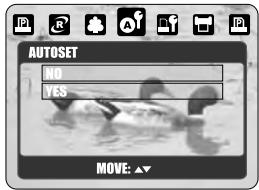

YES]: All values in the [CUSTOM SET] are automatically changed.
[NO]: [CUSTOM SET] values are kept.
CUSTOMSET
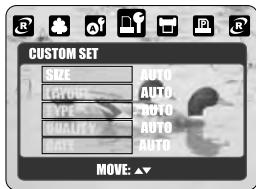

You can select the Paper Size, Print Format, Paper Type, Print Quality, Date Print, and File Name Print menus for printed pictures.
| SIZE | Sets the size of the printing paper |
| LAYOUT | Sets the number of pictures to be printed on a sheet of paper |
| TYPE | Sets the type of the printing paper |
| QUALITY | Sets the quality of the picture to be printed |
| DATE | Sets whether to print the date |
| FILE NAME | Sets whether to print the file name |
Printer Connection (PictBridge)
DPOF PRINT
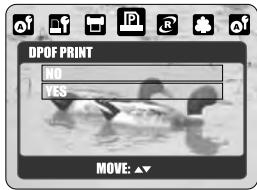

This allows you to directly print the files with DPOF information.
- [YES]: Directly print the file with the DPOF information
[NO]: Cancel the printing
Depending on the manufacturer and printer model, some menus may not be available.
If the camera is connected to a printer without supporting the DPOF, the menu is still displayed but the function is not available.
》 Printing Pictures

[STANDARD]: Print the pictures stored in the memory card in set numbers. Each picture will be printed on one piece of paper.
[INDEX]: Print multiple images on one sheet of paper.
Please press the Shutter Button halfway to stop printing.
Printer Connection (PictBridge)

Reset
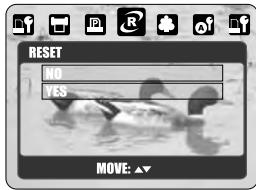

This function allows you to initialize user-changed configurations.
- [YES]: All print and image settings will be reset back to the default.
[NO]: Settings will not be reset.
All default printer settings are based on the those of the printer manufacturer.
TV Connection
General Introduction
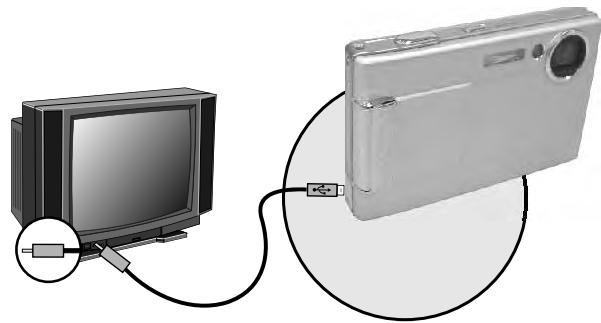

Connect the USB/Video connector of the camera to video input ports of the TV set with the supplied Video/USB Cable.
Turn on the TV and switch the TV/Video switch to A/V mode.
Power on the camera and then switch to the Playback Mode.
Press down the LEFT or RIGHT direction Button to go to the next or last image for TV reviewing.
PC Connection
How to Connect with a Computer

Computer / Notebook Connection
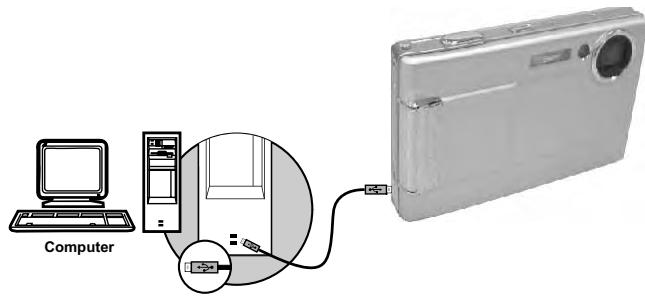

When the USB/Video Cable is in connection with the computer while the camera is on, the camera will automatically go to the PC Mode from any working mode and turn off TFT LCD monitor.
In this Mode, you can download images to your computer.
PC Connection
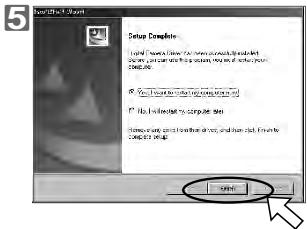
Installng The Camera's Driver
Under Microsoft Windows 98SE
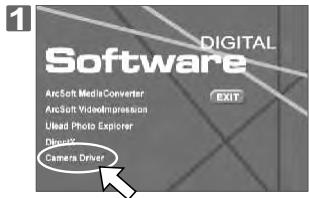
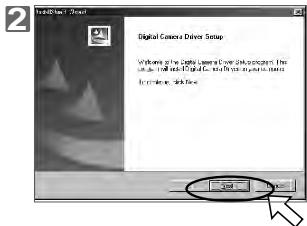
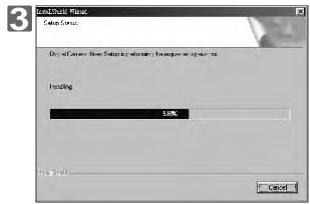
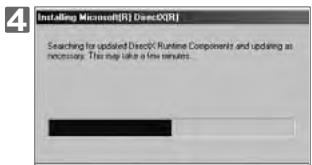
PC Connection
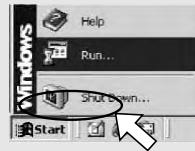
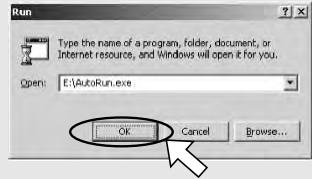
If the auto run program fails under certain situation, please go to the Start Menu, click "Run" and key in "CD-ROM Drive:\AutoRun.exe" and then click "OK" Button.

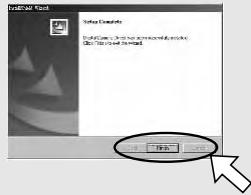
If the computer has been installed with \ DirectX 8.0 or later already, the installation procedure will skip above step 4 and go to the following window directly completing the driver installation.

Under Microsoft Windows 2000
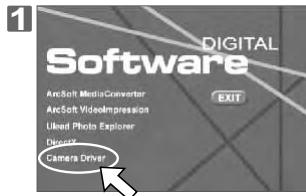

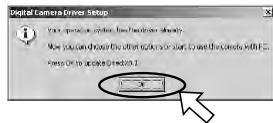

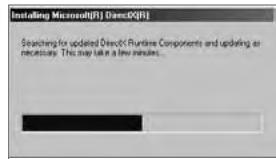
PC Connection
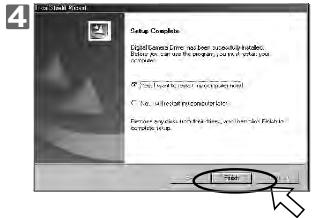

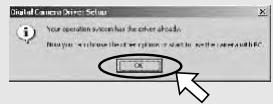
Having DirectX 8.0 or later already, the computer will skip the installation procedure from step 2 above and go to the following window directly. Please complete the driver installation with a "OK" Click.

Under Microsoft Windows ME / XP
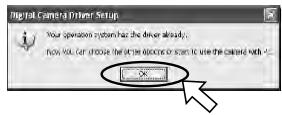
The camera's driver is not required under Windows ME and Windows XP. Please go to page 57 for installing Ulead Photo Explorer or go to page 62 for downloading the stored image(s) onto the PC. Please click "OK", if the below window prompts.

Under Mac 9.X or later
This camera, supporting only Mac 9.X or later versions, does not require any driver installation. Please refer to Page 59 for installing Ulead Photo Explorer or Page 63 for downloading the stored images onto the PC.
PC Connection
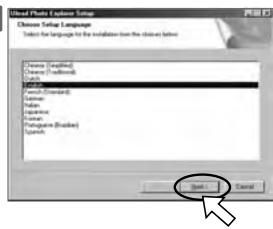
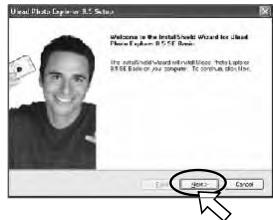
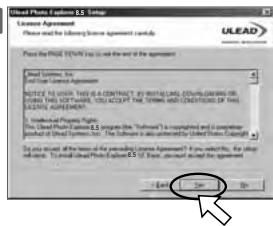
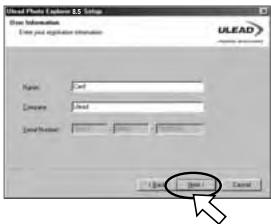
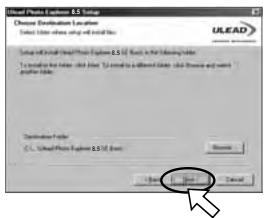
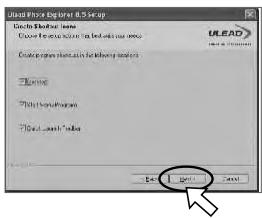
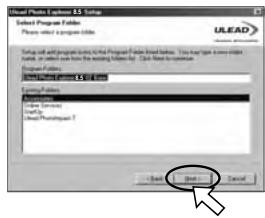
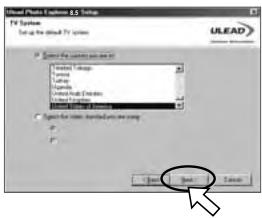
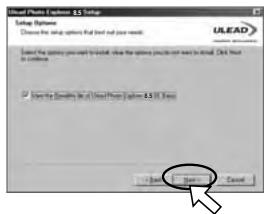
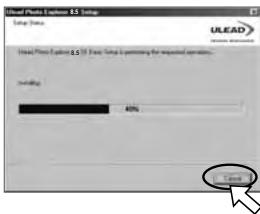
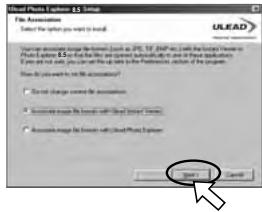
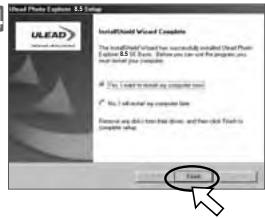
Installling Ulead Photo Explorer

Under Windows Operating System (Windows 98SE/2000/ME/XP)
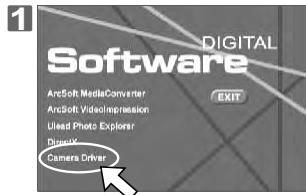
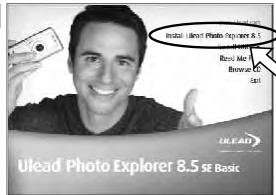
2

4

6
PC Connection
7
8
9
10
11
12
PC Connection
13
14

Under Macintosh Operating System (Mac 9.X or later)
Step1:
Turn on the computer.
Step2:
Insert the CD into the CD-ROM
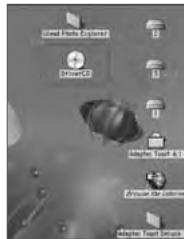
Drive. The computer will create an icon named "Driver CD" on the desktop.
Step3:
Double click on the icon and choose the language you prefer by double clicking on one of the folders below.
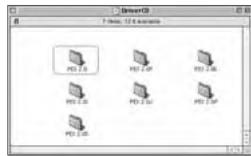
PEX 2.0: English
PEX 2.0F: French
PEX 2.0G: German
PEX 2.01: Italian
PEX 2.0J: Japanese
PEX 2.0P: Portuguese
PEX 2.0S: Spanish
PC Connection
Step4:
Select PEX2.0 Installer to install.
Step6:
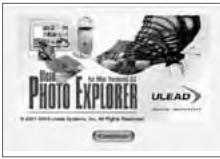
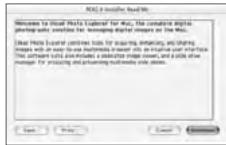
A welcome screen will jump out. Please press Continue for the next step.
Step8:
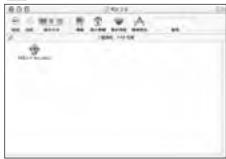
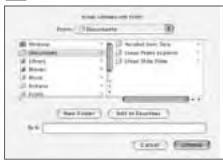
Select the folder you just installed, and press Choose for the next step.
4
5
6
7
8
9
Step5:
Press Continue for the next step.
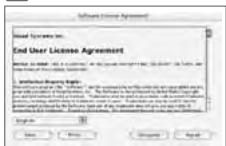
Step7:
Please read through the contract. If you agree with the contract, please press Agree. If not, please press Disagree, and installation will be cancelled simultaneously.
Step9:
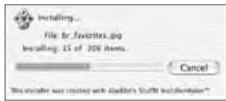
PEX2.0 will now start to install.
PC Connection
Step10:
Installation completed, please press Quit to exit.

Installation was successful. Choose Quit if you are finished or Continue to perform further installations.
Continue
Quit

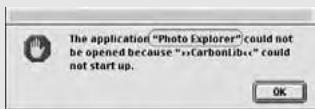
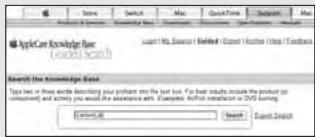
If a warning window shows up please visit Apple's official web-site http://kbase.info. apple.com to download the latest version of CarbonLib.
a.Key in "CarbonLib" in the search bar and click "Search" button.
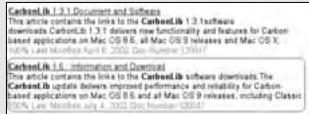
b. Download the latest version of CarbonLib.
c.Reboot the computer.
d.Go to the desktop and double click on the icon "Ulead Photo Explorer" to start Ulead Photo Explorer.
PC Connection
Downloading the Image(s)
Under Windows Operating System (Windows 98SE/2000/ ME/XP)
-
Downloading Image(s) From Removable Disk
-
Turn on the PC.
-
Switch on the camera.
-
Connect the camera to the PC by USB cable under any working mode. Please make sure the USB Cable is well connected to both the PC and camera.
-
When the USB cable is connected to the PC, there will be a new hard disk named Removable Disk showing on the computer.
-
The stored image(s) can be found in" Removable Disk\Dcim\100media".
-
View the image with a double-clicks.
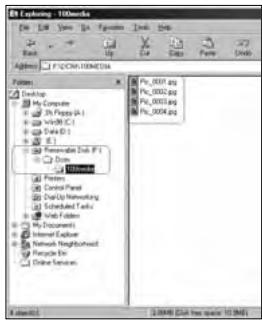
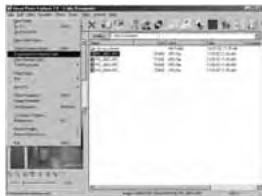
- Downloading Image(s) Through Ulead Photo Explorer
-
Connect the camera to the PC by USB cable under any working mode. Please make sure the USB cable is well connected to both the PC and camera.
-
Start Ulead Photo Explorer 8.5 SE Basic.
-
Click "File \Download From Memory Card" to get the stored image(s).
PC Connection
Under Macintosh Operating System (Mac 9.X or later)
- Downloading Image(s) From Removable Disk
- Turn on the PC.
- Switch on the camera.
- Connect the camera to the PC by USB cable under any working mode. Please make sure the USB cable is well connected to both the PC and camera.
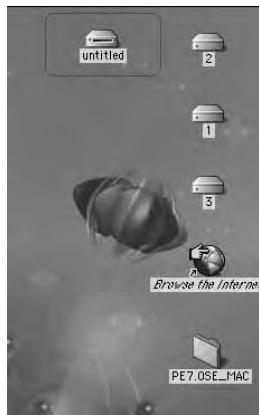
- When the USB cable is connected to the PC, there will be a new icon named "untitled" showing on the computer.
- Double click on the icon.
- The stored image(s) can be found in the folder of DCIM\100MEDIA.
- View the image(s) with double-clicks.
- Downloading Image(s) Through Ulead Photo Explorer
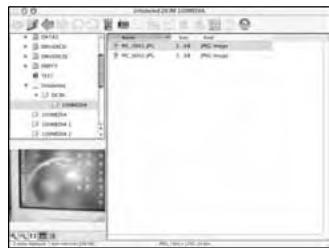
- Turn on both the PC and switch on the camera. Connect the camera to the PC by USB table and a new disk such as "Unlabeled" will be created automatically.
- Start with Ulead Photo Explorer 8.5 SE Basic. The stored image(s) can be found in the folder of DCIM \100MEDIA\Please view the image(s) with double-clicks.
Appendix
Error Message Table
| Messages | Causes | Solutions |
| CARD FULL | There is insufficient card memory capacity for storing an image. | Delete the stored image(s) in the memory card or insert a new memory card. |
| MEMORY FULL | There is insufficient internal memory capacity for storing an image. | Delete the stored image(s) in the flash memory. |
| CARD LOCKED (ICON BLINKING) | The memory card is under protection. | Set the card protection switch at non-protection position. |
| LOCK | The Image can not be deleted under protection. | Unlock the protected image. |
| NO IMAGE | There is no image stored in the memory card or built-in flash memory. | |
| FILE ERROR | File format error. | Insert a new memory card or format the built-in flash memory. |
| MEMORY ERROR | Memory is damaged or fails. | Format the memory card or built-in flash memory. |
| CARD ERROR | Card is damaged or fails. | Insert a new memory card. |
| LOW BATTERY! (ICON BLINKING) | Battery power is drained. | Insert a new battery. |
| LOW LIGHT! | The environment is too dark in Flash off or "Night Scene". | Set the flash mode at Auto Flash or Fill-in Flash. |
| HAND SHAKE ICON | The environment is too dark in Flash off or "Night Scene". | Avoid shake. Set the flash mode at Auto Flash or Fill-in Flash. |
| NO PAPER! | Paper has run out. | Please put more paper in the paper tray of the Printer. |
| Camera Hangs | 1. Remove the battery. 2. Reload the battery. 3. Switch on the camera. |
Appendix
Specifications
| Specifications | ||
| Image Sensor | Type | 1/2 5" CCD |
| Effective Pixels | Approx. 7.24 Mega Pixels (3112x2328) | |
| Total Pixels | Approx. 7.41 Mega Pixels (3164x2342) | |
| Lens | Focal Length | Wide: 6.3 Tele: 18.9 mm (35mm Film Equivalent:37~113 mm) |
| F No. | F3.5 ~ F4.5 | |
| Digital Zoom | Capture Mode: 5x, Play Mode: 2-8x (Base on the different image size setting) | |
| LCD Display | 3.0" color TFT LCD 230k Pixels | |
| Viewfinder | Optical Viewfinder | No |
| Focusing | Type | Auto Focus with 3.0 x Optical Zoom, Manual Focus |
| Range | Normal 60cm - infinity Macro: 10cm~60cm (Wide), 40cm~60cm (Tele) Super Macro: 1cm~10cm | |
| Shutter | Type | Mechanical Shutter and Electrical Shutter |
| Speed | Normal 1 sec. - 1/2000 sec. Night Sce: 8 sec. - 1/2000 sec. | |
| Exposure | Control | Programmed AE |
| Compensation | ±2EV (0.5EV / steps) | |
| ISO Equivalent | Aut: 100, 200, 400, 800, 1000 | |
| Flash | Modes | Auto / Auto & Red - Eye Reduction / Slow Sync / Fill-in / Off |
| Range | 0.2~3.0 m. Wide mode Full Charging Time: <5 sec (new battery condition) | |
| White Balance | Auto/Daylight/Cloudy/Fluorescent/Tungsten/Sunset/Custom | |
| Anti-hand Shaking (ISH) | Yes | |
| Shooting | Still Image | Modes: Single Image, Continuous Shooting |
| Live View | Max. 30 fps with Normal Light Level | |
| Movie Clip | Format: MPEG-4 (MPEG-4 encoded AVI format) with ADPCM Audio Size: 720x480, 640x480(VGA), 320X240(CIF) Frame Rate: 30fps Recording time is based on memory capacity | |
| Effect | B/W, Normal, Sepia, Negative | |
| Sharpness | Soft, Normal, Vivid | |
| Metering | Mult, Spot | |
| Photo Frame | 9 Frame Options | |
| Self-timer | 10 sec., 2 sec. Double with LED indicator | |
| Voice recording | Yes | |
| Speaker | Yes | |
| Storage | Media | Internal memory: 32MB flash memory External memory: supporting SD/MMC card |
| File Format | Still Image: JPEG EXIF2.2, DCF1.1, DPOF1.1, Movie Clip: MPEG-4 AVI with Audio | |
Appendix
| Image Size 9.0 Million Max. | [9M]: 3456x2592 via interpolation. [3M] 2048x1536. [7M] 3072x2304 [1M] 1280x960 | |
| PictBridge (Direct Printing) | Yes | |
| MP3 & PMP Player Function | Supported MP3 & PMP player function | |
| Playback Function | Single Image / AV Play / Thinnails / Slide Show | |
| Supports Editing functions | Trimming, Resize, Rotation (Base on the small image size) | |
| Interface | Digital output connector: USB 2.0 High-Speed (Max 480Mb/s) Other interface: Stereo ear-phone jack, Video-out (Use same connector as USB) | |
| Power Source | NP40 Li-on Battery with External Charger | |
| Dimensions (WxHxD) | 97 x 61 x 18.5 mm (Body: 17 mm) Metal Case Design | |
| Weight | Approx. 113.8g (without battery and card) | |
| Software | Mass storage Camera Driver | NI |
| Application for Windows | ArcSoft MediaConverter (Windows 2000/XP only) ArcSoft Videol impression 2 Ulead Photo Explorer 8.5 SE Basic | |
| Application for MAC | Ulead Photo Explorer 2 | |
| Camera System Requirements | ||
| For Windows | PC with processor better than MMX Pentium 233MHz (XP: Pentium II 300MHz) Windows 2000/ME/XP Minimum 32MB RAM (XP: 128MB) 140MB of available hard-disk space USB port, CD-ROM drive 800, 600 pixels, 16-bit color display compatible monitor (24-bit color display recommended) | |
| For Macintosh | Power Mac G3 or later Mac OS 9.2 or later Minimum 64MB RAM 110MB of available hard-disk space USB port, CD-ROM drive QuickTime 8.01 or later for Movie Clip | |
"Specifications and product desing are subject to change without any notice for further improvement"
Appendix
AboutArcSoft,Inc
Customer Service
For the best experience with your ArcSoft software, register each of your titles right after you've completed the installation process. Contact our customer service department if you have any questions or concerns.
Product FAQ
http://arccsoft.custhelp.com/cgi-bin/arccsoft.cfg/php/enduser/std_alp.php? Search the ArcSoft Knowledge Base to get information on how-to's, troubleshooting tips, features, and more.
Phone technical support (for registered users only) http://www.arcsoft.com/support/custservice_phone.asp
Contact our phone support representatives and have your issues resolved right away.
Appendix
Things You Can Do With "ArcSoft VideoImpression"
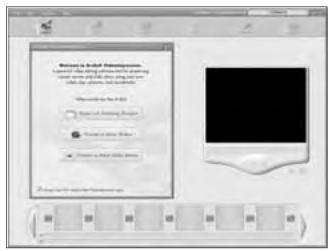
You could choose :
- Open an Existing Project.
- Create a New Video.
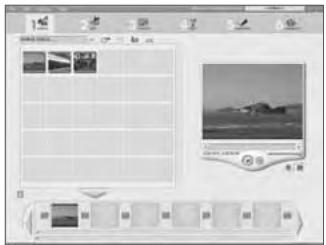
- Create a New Slide Show.
When you choose option and click on next page, you could edit the files by following steps: MEDIA、 EDIT、 EFFECTS、 TEXT、 NARRATE、 PRODUCE。
Appendix
About Ulead Photo Explorer
Software license
The software mentioned in this manual is furnished under a License Agreement which is included with the product. This Agreement specifies the permitted and prohibited uses of the product.
Licenses and trademarks
ICl Library 1991-1992 C-Cube Microsystems. Ulead Systems, Inc. And the Ulead logo are trademarks of Ulead Systems, Inc. All other product names and any registered and unregistered trademarks mentioned in this manual are for identification purposes only and remain the exclusive property of their respective owners.
Technical supports
Registered users are entitled to Ulead technical support. This Web site has valuable up-to-date information about Photo Explorer, other Ulead products, and free downloads. Visit our Web site at www.ulead.com, or send an e-mail at support@ulead.com.tw.
Headquarters: Ulead Systems, Inc.
Japan:Ulead Systems, Inc.
Http://www.ulead.co.jp
E-mail: info@ulead.co.jp
Europe:Ulead Systems GmbH
http://www.ulead.de
http://www.ulead.co.uk
http://www.ulead.co.uk/fr
E-mail: info@ulead.de
North & South America: Ulead Systems, Inc.
Http://www.ulead.com
E-mail: info@ulead.com
Asia-Pacific:Ulead System, Inc.
Http://www.asiapac.ulead.com
E-mail: info@asiapac.ulead.com
China: Ulead Systems, Inc.
Things You Can Do In Ulead Photo Explorer 8.5 SE Basic
Here's an overview of what you can do in Ulead Photo Explorer. Refer to the chapters in this user guide for more details.
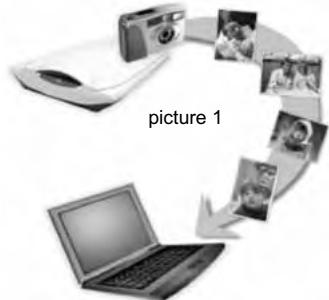
Acquire images
Acquire images from digital cameras, scanners, or memory card readers. (picture 1)
Adjust images
Make adjustments to images, such as straighten, rotate, crop, balance color, remove red eye, etc. Image adjustments can be applied to multiple images at one time.(picture 2)
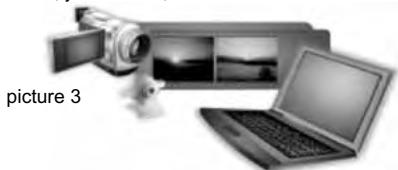
Capture and trim video
Capture video clips from DV camcorders, PC cameras, WebCams, motion cameras or capture boards. Later, you can trim, convert and optimize video clips.(picture 3)
Appendix
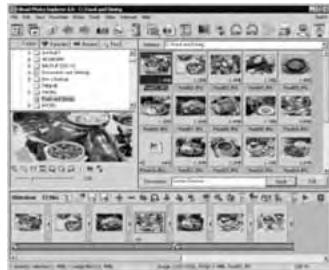
Browse thumbnails
Ulead Photo Explorer displays files as thumbnails, allowing you to visually browse through images and media files. (picture 4)
picture 4
picture 5
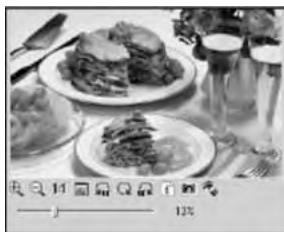
Preview images and other media
Instantly preview images, video and audio files in Photo Explorer without actually opening them. (picture 5)
picture 6
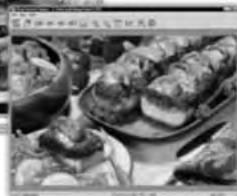
View images
Display images in larger views by switching to Viewer mode or opening images in Ulead Instant Viewer. (picture 6)
Appendix
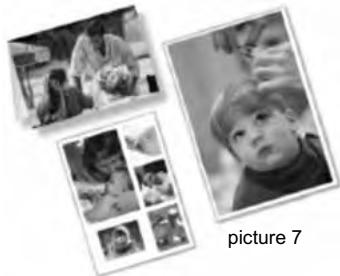
Print images in various layouts
Output single-image prints, greeting cards, or print images in different photo sizes.
You can also print an index sheet of thumbnails for your image collection. (picture 7)
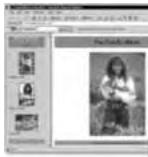
Create slideshows
Assemble images, video and audio files into a multimedia slideshow. Apply cool transition effects to your slideshow. (picture 8)
picture 8
Output Web thumbnails and Web slideshows
Create Web photo albums and Web slideshows ready to be uploaded to the Internet. (picture 9)
picture 9
Share on the Internet
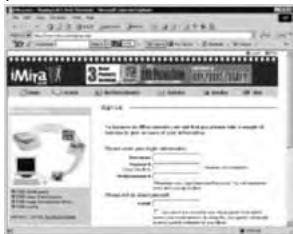
To share selected images on the Web, upload them to iMira.com, Ulead's free image sharing Web site. (picture 10)
picture 10
FaceTracker™
FotoNation
Face Detection
What You Should Know Before Using Face Detection
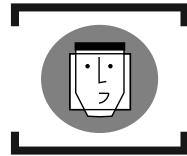
Face Detection allows you to focus on human faces. It is effective with the camera held horizontally or vertically.
Face Detection can only be used with still image and movie clip.
Face Detection is effective within a distance of 2.8m
Subjects not suitable for Face Detection:
The face is obscured by glasses, a hat or hair.
A person turned sideways, or who has their head tilted.
The subject is too far to recognize a face.
How To Use Face Detection
Please set the camera at the following Still Image Shooting Modes
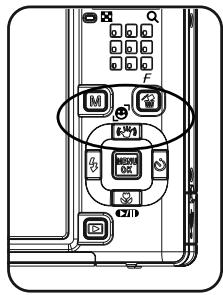
(a) Press the Up Direction Button (W / ) until (W) or (W) shows on the LCD Monitor.
(b) The camera will start tracking the human face(s) with focus frame(s).
(c) Press the Shutter Button half-way to lock-up the focusing (the camera will choose one best subject to do the focusing). After the focusing only the chosen focus frame will remain on the LCD Monitor.
(d) Make sure the chosen focus frame is in green color and then press the Shutter Button fully to take the picture.
Note
If you would like to cancel Face Detection, please press the Up Direction Button
( / 念 ) until ( 念 ) disappears from the LCD Monitor.
- Table Of Contents
- Cautions
- Small Tip to Save You Big Headache
- Overall Introduction
- Accessories
- External View
- Key Function Buttons
- Overall Indtroduction
- Icon Display
- Working Mode
- 3.Shooting Mode
- Self-timer
- Focus Range
- Turn On Or Off The Camera
- Loading The Battery
- Removing The Battery
- Getting Ready
- Charging The Battery With The Charger
- Charging Procedure
- Special Notes
- Inserting Or Removing A Memory Card
- Attaching The Wrist Strap
- Basic Photography For Still Image
- Under Still Image Shooting Mode
- Set The Shooting Mode (Default: AUTO)
- AUTO MODE
- Operation Steps
- PROGRAM MODE
- NIGHT MODE
- PORTRAIT MODE
- SUNSET MODE
- Other Settings
- Zoom In & Zoom Out
- Macro Mode
- Manual Focus
- Flash MODE
- Self-timer
- Voice Memo
- Image Size(Default:3072x2304)
- Image Quality (Default:FINE)
- Multi Metering:
- Spot Metering:
- Continuous Shooting (Default:SINGLE)
- Note
- Sharpness(Default:NORMAL)
- Effect(Default:NORMAL)
- Photo Frame (Default:OFF)
- OSD Information(Default:DETAIL)
- Exposure Value (Default:0)
- ISO Value (Default: AUTO)
- >> White Balance (Default:AWB( auto white balance))
- RGB
- ISH (Image Stabilizer Helper)
- UnderPlaybackMode(
- Playback Of Still Image, Movie Clip And Audio Clip
- UnderPlaybackMode()
- Thumbnail Display (Small Images)
- Explore A Part Of A Still Image
- UnderPlaybackMode(
- Trim A Still Image
- Display Image Information
- Set An Image With Protection
- Slideshow
- Delete Image
- Copy To Card
- DPOF-Standard
- Resize A Still Image
- Set A Still Image As An Option Of The Start-up Images
- Rotate An Image
- Set An Image With Special Effect
- Under Movie Clip Mode (¶)
- Video Size (Default:640x480 30FPS)
- Special Effect (Default: NORMAL)
- Metering (Default:MULTI)
- OSD Information (Default:DETAIL)
- SETUP Setting( if)
- General Introduction
- LCD Brightness(Default: NORMAL)
- Setting Start-Up Image
- SETUP Setting( i)
- Setting Start-Up Sound (Default: SOUND1)
- Setting Shooting Sound (Default:SH.SHOUND1)
- Setting System Sound (Default: MEDIUM)
- Setting Power Saving (Default: 3 MIN.)
- Setting Date & Time Imprint (Default: OFF)
- Setting Date & Time Type (Default: YY/MM/DD)
- Setting Operating Language
- Setting File (Default: SERIES)
- Setting USB(Default:COMPUTER)
- SettingVIDEO(Default:NTSC)
- Setting RESET(Default:No)
- Setting FORMAT(Default:No)
- Under Voice Recording Mode()
- Under Digital Music Player Mode( )
- + How To Download Digital Music To The Camera
- How To Play The Digital Music
- How To Delete The Digital Music From The Camera
- Under PMP Mode( )
- How To Adjust The Volume
- How To Set The Playing Mode Of The Digital Music
- Things You Can Do With ArcSoft Media Coverter To convert the photo or video files
- Under PMP Mode(□)
- Introduction Of Other Important Functions
- Photo
- Video
- Printer Connection (PictBridge)
- Connecting The Camera To A PictBridge-supported Printer
- >> Select pictures to print
- Setting the Number of Copies to Print
- AUTOSET
- CUSTOMSET
- DPOF PRINT
- 》 Printing Pictures
- TV Connection
- PC Connection
- How to Connect with a Computer
- Installng The Camera's Driver
- Under Microsoft Windows 2000
- Under Microsoft Windows ME / XP
- Under Mac 9.X or later
- Installling Ulead Photo Explorer
- Step4:
- Step6:
- Step8:
- Step5:
- Step7:
- Step9:
- Step10:
- Downloading the Image(s)
- - Downloading Image(s) Through Ulead Photo Explorer
- Under Macintosh Operating System (Mac 9.X or later)
- - Downloading Image(s) From Removable Disk
- Appendix
- AboutArcSoft,Inc
- Customer Service
- Product FAQ
- Phone technical support (for registered users only) http://www.arcsoft.com/support/custservice_phone.asp
- Things You Can Do With "ArcSoft VideoImpression"
- About Ulead Photo Explorer
- Software license
- Licenses and trademarks
- Technical supports
- Headquarters: Ulead Systems, Inc.
- Japan:Ulead Systems, Inc.
- Europe:Ulead Systems GmbH
- North & South America: Ulead Systems, Inc.
- Asia-Pacific:Ulead System, Inc.
- China: Ulead Systems, Inc.
- Things You Can Do In Ulead Photo Explorer 8.5 SE Basic
- Acquire images
- Adjust images
- Capture and trim video
- Browse thumbnails
- picture 5
- Preview images and other media
- View images
- Print images in various layouts
- Create slideshows
- Output Web thumbnails and Web slideshows
- Share on the Internet
- Face Detection
- What You Should Know Before Using Face Detection
- How To Use Face Detection
Brand : MINOX
Model : DC 7411
Category : Camera