
DC-1311 - Camera MINOX - Free user manual and instructions
Find the device manual for free DC-1311 MINOX in PDF.


| Product type | Compact digital camera |
| Brand | MINOX |
| Model | DC-1311 |
| Image resolution | 1.3 megapixels (1280×960 and 640×480 pixels) |
| Image quality | Super fine, Fine, Normal (with variable compression ratios) |
| Zoom | Digital 2× |
| Lens | Fixed, aperture F2.8/8, macro from 0.3 to 0.6 m |
| Built-in flash | Auto, red-eye reduction, synchronized, disabled |
| Operating modes | Record, Playback, Setup, Delete, Computer |
| Internal memory | 8 MB Flash memory |
| External memory | CompactFlash Type I card (up to 128 MB) |
| LCD screen | 1.6 inches (280×220 pixels) color |
| Viewfinder | Optical real (framing tolerance 85±5%) |
| Power supply | 4 AA batteries (alkaline, NiMH, lithium) or 6V DC power adapter |
| Connectivity | USB 1.1, composite video output (NTSC/PAL), power adapter input |
| File format | JPEG (EXIF 2.1) |
| White balance | Auto, Sunny, Shade, Fluorescent, Tungsten |
| Exposure compensation | -1.8 to +1.8 EV in 0.3 EV steps |
| Self-timer | 10 seconds |
| OSD languages | English, French, German, Spanish, Japanese, Portuguese, Simplified and Traditional Chinese |
| Operating systems | Windows 98/2000/Me, Mac OS 8.6 or later |
| Weight | Approximately 200 g (without batteries or card) |
| Dimensions | 105 × 66.5 × 48 mm |
| Certifications | CE, FCC, VCCI, BSMI |
| Box contents | Camera, 4 AA batteries, USB cable, video cable, software CD, quick start guide, manual, case, wrist strap |
Frequently Asked Questions - DC-1311 MINOX
User questions about DC-1311 MINOX
0 question about this device. Answer the ones you know or ask your own.
Ask a new question about this device
Download the instructions for your Camera in PDF format for free! Find your manual DC-1311 - MINOX and take your electronic device back in hand. On this page are published all the documents necessary for the use of your device. DC-1311 by MINOX.
USER MANUAL DC-1311 MINOX
This camera is under warranty for one full year from the date of purchase by the original purchaser. In case of defects in materials or workmanship, we will replace or repair the camera free of charge. This warranty applies to the camera only. This warranty does not include batteries, or other accessories which have not been manufactured by our company. This warranty will not be honored if the camera has been mishandled or tampered with, or altered by anyone other than the manufacturer. Other than for the warranty herein, we are not responsible for loss, damage, or inconvenience of any kind.
A defective camera being returned under warranty must be accompanied by a brief description of the difficulties encountered and also by a proof of purchase with the date of purchase clearly indicated. All related transportation costs and insurances are at the owner's expense. Any alteration of this warranty cannot be made without the written approval from our company.
FCC Notice
This equipment has been tested and found to comply with the limits for a Class B digital device, pursuant to part 15 of the FCC Rules. These limits are designed to provide reasonable protection against harmful interference in commercial installation. This equipment generates, uses and can radiate radio frequency energy and if not installed and used in accordance with the instructions, may cause harmful interference to radio communications. However, there is no guarantee that interference will not occur in a particular installation. If this equipment does cause harmful interference to radio or television reception, detectable by turning the equipment in question off and on, the user is encouraged to try to correct the interference by one or more of the following measures: Reorient or relocate the receiving antenna; Increase the distance between the equipment and the receiver; Connect the equipment to an outlet on a different circuit than that which the receiver is connected to; Or consult the dealer or an experienced radio/TV technician for help.
NOTE
A shielded-type DC power cable incorporated with a ferrite core is required in order to meet the FCC emission limits and also to prevent interference to the nearby radio and television reception.
Use only shielded I/O cable incorporated with a ferrite core to connect this equipment to host computer and TV set. Shielded A.C. power cable and shielded I/O cables are required in order to meet the FCC emission limits. It is essential that only the supplied power cord and I/O cable(s) be used.
Do not use this camera if it is emitting smoke, becomes unusually hot to be touched, emitting any unusual odor or noise, or if it is in any other abnormal states.
Operating the camera in any of these situations may cause a fire or an electrical shock.
Stop using the camera immediately, turn the camera off, and then disconnect the power source
(batteries or AC power adapter). (If you are using the AC power adapter,
unplug the adapter from the AC power outlet after you have disconnected the camera.)
After checking that smoke is no longer being emitted, contact your dealer or your local authorized service facility and request repairs. never attempt to repair this camera yourself as this is dangerous.

Do not use the camera if any water has entered the camera.
Turn the camera off, and then disconnect the power source (batteries or AC power adapter).
(if you are using the AC power adapter, unplug the adapter from the AC power outlet after you have disconnected the camera.) Then contact your dealer or your local authorized service facility. Do not continue to use the camera as this may cause a fire or an electrical shock.

Do not use the camera if any foreign objects have entered the camera. Turn the camera off, and then disconnect the power source (batteries or AC power adapter).
(if you are using the AC power adapter, unplug the adapter from the AC power outlet after you have disconnected the camera.) Then contact your dealer or your local authorized service facility. Do not continue to use the camera as this may cause a fire or an electrical shock.

If the camera has been dropped or if the camera case has been damaged,
turn the camera off, and then disconnect the power source (batteries or AC power adapter).
(if you are using the AC power adapter, unplug the adapter from the AC power outlet after you have disconnected the camera.) Then contact your dealer or your local authorized service facility.
Do not continue to use the camera as this may cause a fire or an electrical shock.
WARNING
Do not place the camera in any unstable locations such as on a wobbly table or sloping surface where the camera may fall or tip over and cause injury.
Do not expose the camera to moisture and make sure that there is no water getting into the camera. Take particular care when using the camera under extreme weather conditions such as rain or snow, or when operating the camera at the beach on near water. Water in the camera may cause a fire or an electrical shock.
Do not insert or drop metallic or inflammable foreign objects into the camera through access points such as the Compact Flash card slot. This may cause a fire or an electrical shock.
Do not attempt to modify this camera. This may cause a fire or an electrical shock.
Do not remove the camera casing. This may cause an electrical shock. Internal inspection, maintenance and repairs should only be carried out by your dealer or local authorized service facility.
Avoid using this camera in the bathrooms. Exposure to excessive moisture may cause a fire or an electrical shock.
Do not touch the power plug during a thunderstorm if you are using the AC power adapter. This may cause an electrical shock.
Never operate this camera in any way while driving a vehicle. This may cause a traffic accident.
CAUTION

Do not place this camera in damp or dusty locations.
This may cause a fire or an electrical shock.

Do not place this camera in a location affected by oil fumes or steam,
such as near a cooking stove or humidifier. This may cause a fire or an electrical shock.

Do not leave this camera in a location subject to extremely high temperatures, such as in a sealed vehicle or in direct sunlight.
Exposure to high temperatures may adversely affect the camera case and internal components and may cause a fire.

Do not cover or wrap the camera or the AC power adapter with a cloth or quilt.
This may cause heat to build up and distort the case and cause a fire.
Always use the camera and its accessories in well-ventilated locations

Handle the camera carefully and do not bump the camera into any hard object.
Handling the camea roughly may cause a malfunction..

Do not move the camera while it is switched on.
(if you are using the AC power adapter, unplug the adapter from the AC power outlet after you have switched off the camera.)
Ensure that any connector cords or cables to other devices are disconnected before moving the camera,
Failure to do so may damage the cords or cables and cause a fire or an electrical shock.

When handing the camera, always unplug it from the power source (batteries or AC power adapter) for safety.
(if you are using the AC power adapter, unplug the adapter from the AC power outlet after you have disconnected the camera.)
Failure to do may result in an electrical shock.
CAUTION

When leaving the camera unused for long periods, such as during a vacation,
always unplug the camera from the power source (batteries or AC power adapter ) for safety.
(if you are using the AC power adapter, unplug the adapter from the AC power outlet after you have disconnected the camera.)
Failure to do so could result in a fire.

Do not use batteries other than those specified for use with your camera.
The use of unsuitable batteries may result in the batteries splitting or leaking and causing a fire, injury, or soiling of the battery compartment.

When fitting batteries into the camera, check the polarity markings on the battery (- and +) to ensure that you insert the battery correctly.
Incorrect battery polarity may result in the batteries splitting or leaking and causing a fire, injury, or soiling of the battery compartment.

Remove the batteries if the camera will not be used for an extended period of time.
The batteries may leak and cause a fire, injury or soiling of the battery compartment.
If the batteries leak, clean and wipe the battery compartment carefully and install new batteries.
Wash your hands carefully if you touch the battery fluid.
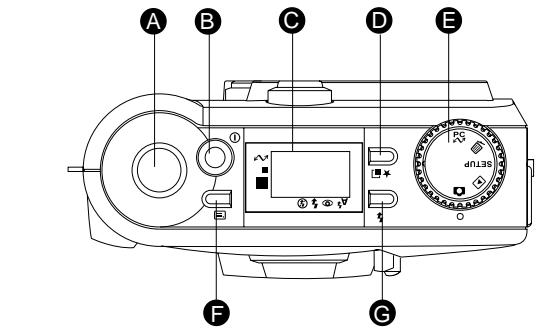
Fig.1
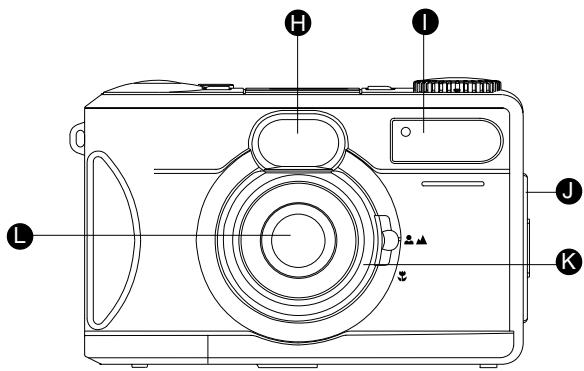
Fig.2
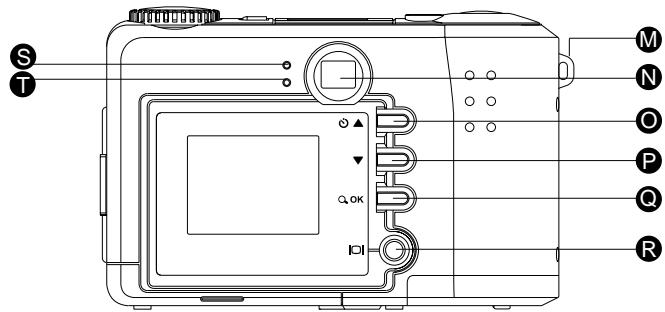
Fig.3
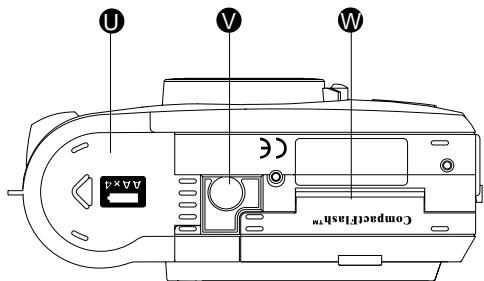
Fig.4
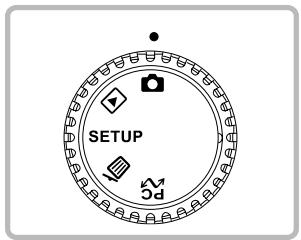
Fig.5
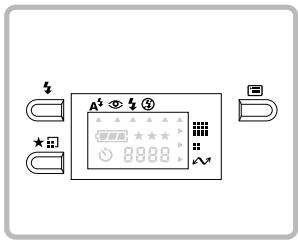
Fig.6
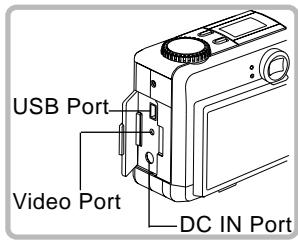
Fig.7
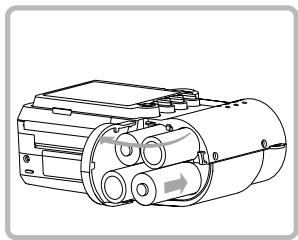
Fig.8
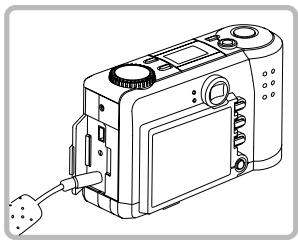
Fig.9
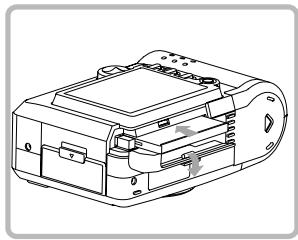
Fig.10
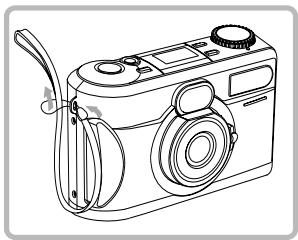
Fig.11
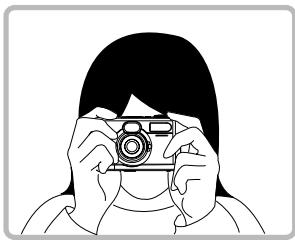
Fig.12
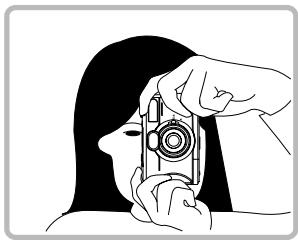
Fig.13
Contents
Getting Started 12
Checking Accessories 12
System Requirements 13
Identifying the Parts 14
Top View 14
Front View 14
Rear View 14
Bottom View 15
Operating Mode Knob 15
Status LCD 16
LCD Monitor 16
16
Preparing the Power Supply 17
Loading the CompactFlash™ Card 18
19
Setting the Date and Time 19
Basic Operations 19
How to record an image? 19
How to playback images? 21
How to view image information and thumbnails? 22
How to examine image details? 22
How to delete images? 23
How to set the focus? 24
How to set the image resolution & quality? 24
How to set the flash? 26
Advanced Operation 26
How to adjust the EV compensation? 26
How to adjust the White Balance? 27
How to set the OSD (On-Screen Display) language? 27
How to set the Self-Timer? 28
How to format the CF (CompactFlashTM) card? 28
Operating Modes and Menus 29
RECORD Mode 29
PLAY Mode 31
34
DELETE Mode 37
COMPUTER Mode 39
Transferring your Images to the Computer 39
Driver Installation for PC 39
Downloading Images 40
Editing and Processing images 40
Driver Installation the for Mac 45
Additional Information 45
Names and Functions 45
LED Messages 49
Specification 50
Getting Started
Thanks for the purchase of the digital camera. With the camera, you will live a whole new camera experience and make photo shooting more interesting and fun. Here below we will guide you through the whole picture taking process, please keep this booklet on hand and enjoy your time.
Checking Accessories
Standard Accessories:
4 x "AA" alkaline batteries
Video Cable
USB Cable
■ Bundled Software with camera driver
Instruction Manual
Quick Start Guide
Pouch
Strap
Optional Accessories:
- Compact Flash™ Memory Card-4MB, 8MB, 16MB, 32MB, 48MB, 64MB, 96MB, and 128MB
AC Power Adapter
System Requirements
Pentium 166 MHz processor or higher / PowerPC G3/G4 or higher
Windows 98/Me/2000
Mac OS 8.6 or later
An available USB port
At least 32 MB RAM
80 MB available hard disk space
A CD-ROM drive
Color monitor (800x600 24-bit or higher recommended)
Microsoft Internet Explorer 4.0 or higher
Identifying the Parts
Top View(Fig.1)
1.Shutter Button
2. Power Button
3.Status LCD
4. Resolution/Quality Button
5. Operating Mode Knob
6. Menu Button
7. Flash Mode Button
Front View(Fig.2)
1.Viewfinder Window
2. Flash
3. Jack Cover
4. Focus Knob
5. Lens
Rear View(Fig.3)
- Strap Holder
2.Viewfinder
3.Up/Backward/Self-timerButton - Down / Forward Button
-
OK / Zoom Button
-
Display Button
- LED 1
- LED 2
Bottom View (Fig.4)
- Battery Cover
- Tripod Socket
- CF Cover
Operating Mode Knob(Fig.5)
The camera provides 5 different operating modes for your selection:
- Record Mode
- Play Mode
- Setup Mode SETUP
- Delete Mode
- Computer Mode
Status LCD(Fig.6)
The status LCD contains the following indicators:
- Resolution Indicator
- Computer Mode Indicator
- Image Quality Indicator
- Battery Power Indicator
- Flash Mode Indicator A ④
- Images Remaining/Image Number Indicator 8888
- Self-timer Indicator
LCD Monitor
The LCD Monitor shows the current image information:
- Resolution
- Quality
- Time (optional)
- Date (optional)
- File Name
Connectors(Fig.7)
USB Port
Video Port
DC IN Port
Preparing the Power Supply
Using Batteries(Fig.8)
- Slide the battery cover in the direction indicated by the arrow.
- Insert 4 batteries with the correct polarity as shown on the inner side of the battery cover.
- Close the battery cover.
On Battery Usage
Use 4 "AA" type batteries only.
■ Do not mix battery types or it may cause a fire or explosion. Use only one battery type at one time.
■ Batteries should be inserted in the battery compartment with the "+" and "-" sides facing correctly.
Batteries should be replaced when the battery indicator appears an empty icon.
To improve battery performance, replace all installed batteries at the same time and keep batter away from heat.
- Do not drop, puncture or disassemble batteries.
Take off all the installed batteries if they won't be used for a long period of time since the last time.

Any of these actions may cause the battery to split or leak, resulting in fire or injury.

Do not attempt to charge the alkaline battery.

Do not carry or store a battery with objects such as metal pens, necklaces, coins or hairpins.
This could short circuit the positive + and negative - poles of the battery.

Do not heat or attempt to disassemble a battery, and do not place a battery in water or in a fire.

Do not subject batteries to strong impacts, such as hitting them with a hammer, stepping on them or dropping them.
Using the Power Adapter(Fig.9)
- Open the connector cover and connect one end of the power adapter to the DC 6V IN port as illustrated.
- Connect the other end of the power adapter to a power outlet.

Use only the specified batteries or AC power adapter specified for use with this camera. The use of other power sources may cause a fire.
Loading the CompactFlash™ Card (Fig.10)
To record images, please insert a Compact Flash™ card if no internal memory is built in your digital camera.
To load the CF card, perform the following:
- Make sure to turn off the camera.
- Open the CF card slot cover and then insert a CF card as indicated by the arrow.
- Close the CF card slot cover.
Attaching the Strap(Fig.11)
- Insert the thin end of the strap into the strap holder.
- Pass the other end of the strap through the loop of thin cord and pull the strap tight.
Setting the Date and Time (optional)
Switch to SETUP mode and then power on the camera, the Setup menu appears.
Press the OK / Zoom Button to select DATE/TIME. The cursor skips to the data field as the OK / Zoom Button being pressed. Use the arrow buttons ( / ) to make the change. For more details, please refer to page 35.
Basic Operations
How to record an image?

If there is no internal memory built in your camera, you have to insert a CF card first before photo shooting.
To record an image, perform the following:
- Power on the camera.
-
Set the operating mode to RECORD
-
Use the viewfinder window or LCD Monitor to frame the image.
-
Press the Display button to turn on the LCD Monitor for usage.
-
Press the Shutter button.
- LED1 is blinking while capturing images.
Digital Zoom
To record a zoom image, perform the following:
- Set the camera to Record mode.
- Press the Display button to turn on the LCD monitor.
- Press the OK / Zoom button to activate 2X digital zoom function.
-
Press the Shutter button.
-
Digital Zoom is only available at the resolution of 1280x960 pixels.
Precaution
To perform a successful photo shooting, please follow the instructions below before starting your camera tasks.
On Camera Holding (Fig.12-13)
-
Hold the camera firmly with both hand and brace your elbows lightly against your body.
Take care to keep your fingers, hair and the camera strap away from the camera lens. -
Use the viewfinder or LCD display to frame your shot.
- Be sure to rest the camera against your forehead while using the viewfinder to focus your shot.
On Shutter Button Release
- Press the shutter button slowly and gently with your finger on it.
- Keep your camera still and do not shake while pressing the shutter button.
- Release your press when you hear a "Beep" sound.
How to playback images?

To playback the image recorded in the CF card, make sure the card is inserted.

To playback the images recorded in the camera internal memory, make sure the CF card is ejected.
You can review the recorded images either on the LCD Monitor or on a TV. To playback images, perform the following:
On the LCD Monitor
- Power on the camera.
- Set the operating mode to PLAY mode . The last image recorded appears.
- Use the arrow buttons ( / ) to forward/backward through the recorded images.
On a TV
- Set the appropriate Video output mode corresponding to your TV standard.
- Connect one end of the video cable to the VIDEO port of your camera.
- Connect the other end of the cable to the VIDEO port of your television.
- Turn on the camera and the TV.
- Set the camera to PLAY mode
- Use the arrow buttons ( / ) to forward/backward through the recorded images.
How to view image information and thumbnails?
General information is also recorded at the same time as image captured. In PLAY mode 口 , Display button acts as a switch to cycle through image information on, thumbnail display and image information off.
- Set the camera to PLAY mode
- Press the Display button to bring up the information over the image displayed.
- Press the Display button again to show thumbnail images.
- Use the arrow buttons ( / ) to quickly locate the image you are searching, and then press the OK or Display button to preview it at full screen.
How to examine image details?
Sometimes you may want the images to be enlarged on the LCD monitor to have carefully examined. In PLAY mode , OK / Zoom Button provides this feature and acts as a magnifier to cycle through 2X, 4X, 1X.
- Set the camera to PLAY mode
- Press the OK / Zoom Button once to magnify the image at 2X.
- Press the OK / Zoom Button again to magnify the image at 4X.
- Use the arrow buttons to navigate the image magnified in a sequent of "Z" type.
How to delete images?

To delete the images recorded in the CF card, make sure to insert the card before deletion.

To delete the images recorded in the camera (internal memory), do not insert any CF card or the camera will not be able to read the internal data with an external memory card attached.
- Set the operating mode to DELETE
- Press the Menu button to enter the DELETE MENU.
- Use the arrow buttons ( / ) to select DELETE CURRENT or DELETE ALL
- Press the OK / Zoom Button to confirm.
- Use the arrow buttons ( / ) to select YES, then press the OK / Zoom Button to re confirm the deletion.

You can browse the recorded images on the LCD Monitor or on a TV.
If there is no image stored in the memory a "NO IMAGES" message pops up. To exit this message, switch to any other camera mode.

You can review the recorded images on the LCD Monitor or on a TV.
How to set the focus?
Before taking a picture, you may need to set the focus. The camera provides 2 different type for your selection:
| Mode | Effective Range (Meter) | Description |
| Icon Portrait/Telephoto | 0.6 ~ ∞ | For a normal/long distance shot |
| Icon Close-up | 0.3 ~ 0.6 | For a macro shot |
Simply switch the Focus knob to select one.
How to set the image resolution & quality ?
This camera provides 6 different image resolution & quality combination settings:
- 1280x960 pixels resolution with Super Fine ( ), Fine ( ), Normal ( ) quality.
- 640x480 pixels resolution with Super Fine ( ), Fine ( ), Normal ( ) quality.
To change the resolution & quality setting, perform the following:
- Power on the camera.
- Set the operating mode to RECORD
- Press the Resolution & Quality button . To toggle the selection.

The setting is conserved even if the camera power is off.
Resolution Indicator
In RECORD mode: Shows the currently set image resolution setting.
In PLAY mode: Shows the captured image resolution setting.
Image Quality Indicator
In RECORD mode: Shows the currently set image quality setting.
In PLAY mode: Shows the captured image quality setting.
| Resolution | Quality | Compression Ratio | Estimated Pictures (8MB) |
| 1280x960 | ★★★ | 8:1 | 17 |
| 1280x960 | ★★ | 12:1 | 25 |
| 1280x960 | ★ | 20:1 | 50 |
| 640x480 | ★★★ | 4:1 | 34 |
| 640x480 | ★★ | 8:1 | 69 |
| 640x480 | ★ | 16:1 | 138 |

The setting is conserved even if the camera power is off.
How to set the flash?
The Flash Mode can only be set under RECORD mode. There are 4 modes available: Auto, RedEye, Fill-In and Off. The default setting is OFF. To change the setting, press the Flash Mode button a number of times until the desired one is selected.
| Mode | Description |
| Auto | Flash is enabled automatically in low light conditions |
| Red-Eye | Auto Mode with pre-flash to reduce red eye effect |
| Fill-In | Flash is always enabled |
| Off | Flash is always disabled |

The setting is conserved even if the camera power is off
Advanced Operation
How to adjust the EV compensation?
To adjust the EV compensation, perform the following:
- Set the operating mode to RECORD
- Press the Menu button. The Record menu appears.
- Select the EV COMPENSATION item.
- Select the desired exposure value.
The effective range is from -1.8 to +1.8 in steps of 0.3 EV.
How to adjust the White Balance?
To adjust the White Balance, perform the following:
- Set the operating mode to RECORD
- Press the Menu button. The Record menu appears.
- Select the WHITE BALANCE item.
- Select the desired white balance setting.

This setting is reset to AUTO when the camera power is off.
How to set the OSD (On-Screen Display) language?
To set the OSD language, perform the following:
- Set the operating mode to SETUP.
- The Setup menu appears.
- Select the LANGUAGE item.
- Select the desired language setting.

The setting is conserved even if the camera power is off.
How to set the Self-Timer?
The self-timer can only be set under RECORD mode.
To use the Self-Timer function, perform the following:
- Press the Self-Timer button to activate the Self-timer.
- Press the Shutter button.
- After 10 seconds, an image is captured and the timer will turn itself off.

The Self-Timer is designed to count down for 10 seconds. In the first 7 seconds, the indicator blinks at a rate relatively slow and then blinks rapidly for the last 3 seconds.
How to format the CF (CompactFlash™) card?
To format the CF card, perform the following:
- Set the operating mode to SETUP.
- Select the FORMAT MEDIA item.
- Select YES to re-format the CF card (default = NO).
Operating Modes and Menus
RECORD Mode
Set the operating mode to RECORD for image capturing.
RECORD MENU
Press the Menu button in RECORD mode, the RECORD menu appears.
The menu contains the following items:
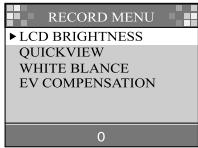
LCD BRIGHTNESS:
Changes the brightness setting (-5 +5 , Interval = 1 ) of the LCD display.
Press the OK / Zoom Button to select this item. The cursor skips to the data field as the OK / Zoom Button being pressed. Use the arrow buttons ( /) to increase/decrease the LCD brightness. Press the OK / Zoom Button again to make the change. The cursor returns to the Record menu automatically when the change is made.

The setting is conserved even if the camera power is off.
QUICKVIEW:
If the LCD Monitor is on and QuickView mode is enabled, a preview of the captured image is shown on the LCD Monitor as soon as the image acquired. When the 3 seconds are over, the LCD Monitor will return to viewfinder mode.
If the LCD Monitor is off but QuickView mode is enabled, a preview of the captured image is temporarily shown on the LCD Monitor for 3 seconds as soon as the image acquired. After the 3 seconds is over, the LCD Monitor will be automatically turned off.
During this 3 seconds of preview in either case, the user will have the option, by means of an on-screen prompt, of deleting the image just captured by pressing the OK / Zoom Button once processing is completed.

Using the LCD Monitor while taking pictures shortens the life span of your batteries. To save battery power you can take pictures without the LCD Monitor. Simply turn off the LCD Monitor and use the Optical Viewfinder to frame the image as you would with a traditional camera.
Select the item by the arrow buttons ( / ) and then press the OK / Zoom Button to confirm. The cursor skips to the data field as the OK / Zoom Button being pressed. Use the arrow buttons ( / ) to select the desired setting. The cursor returns to the Record menu automatically when the change is made.

The setting is conserved even if the camera power is off.
WHITE BALANCE:
Select either one of the 5 (Auto, Sun, Shade, Fluorescent, Tungsten) manual white balance settings. The auto white balance is recommended for most cases. For certain critical circumstances, if the result did not come out as expected, you may manually change to another white balance type according to the ambient lighting condition.
Select the item by the arrow buttons ( / ) and then press the OK / Zoom Button to confirm. The cursor skips to the data field as the OK / Zoom Button being pressed. Use the arrow buttons ( / ) to select the desired white balance type. Press the OK / Zoom Button again to make the change. The cursor returns to the Record menu automatically when the change is made.
Reference:
The approximate color temperature of the 4 above white balance settings (except Auto White Balance) will be Sun = 5500K , Shade = 6000K , Flourescent = 4000K and Tungsten = 2850K .
EV COMPENSATION:
Adjusts the exposure compensation over a range of -1.8 to +1.8 EV in steps of 0.3 EV.
Select the item by the arrow buttons ( / ) and then press the OK / Zoom Button to confirm. The cursor skips to the data field as the OK / Zoom Button being pressed. Use the arrow buttons ( / ) to increase/decrease the EV compensate value (-1.8 +1.8) . Press the OK / Zoom Button again to make the change. The cursor returns to the Record menu automatically when the change is made.
PLAY Mode
In Play mode, users can review the recorded images on the LCD Monitor or on a TV. Set the operating mode to PLAY for image review.
PLAY MENU
Press the Menu button in PLAY mode, the Play menu appears. The menu contains the following items:
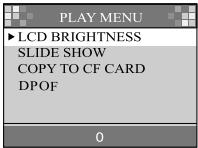
LCD BRIGHTNESS:
Changes the brightness setting (-5 +5 , Interval = 1 ) of the LCD Monitor.
Press the OK / Zoom Button to select this item. The cursor skips to the data field as the OK / Zoom Button being pressed. Use the arrow buttons (/) to increase/decrease the LCD brightness. Press the OK / Zoom Button again to make the change. The cursor returns to the Record menu automatically when the change is made.

The setting is conserved even if the camera power is off.
SLIDE SHOW:
Displays the recorded images sequentially, with a user-defined delay between images.
Select the item by the arrow buttons ( / ) and then press the OK / Zoom Button to confirm. The cursor skips to the data field as the OK / Zoom Button being pressed. Use the arrow buttons ( / ) to increase/decrease the delay between 2 to 10 seconds with interval 2. Press the OK / Zoom Button again to make the change. The slide show starts.
Press the Display/Menu/OK/ arrow buttons ( / ) buttons or switch the Operating Mode knob while a slide show is playing to interrupt the display and returns to the PLAY mode.
COPY TO CF CARD: (Optional)
Copy the recorded images to the external CF card.
Select the item by the arrow buttons ( / ) and then press the OK / Zoom Button to confirm. The cursor skips to the data field as the OK / Zoom Button being pressed. Use the arrow buttons ( / ) to toggle the YES or NO option. Then press OK / Zoom Button to confirm.
DPOF (Digital Print Order Format)
If you select the DPOF item, all your settings will save in the CF card. Therefore, the printer will print directly as your setting, after you insert the CF card into a printer.
DPOF User Interface
You can use Shutter or Menu button to setup DPOF, procedures are showed as following:
(1) Use Shutter button in PLAY Mode:
1. Set the Operating Mode to the PLAY, then the last image appears.
2. Press the Shutter button to toggle the DPOF print tag setting of the selected image.

The default setting is size=Standard and quantity=1, when using the Shutter button to enable the DPOF print tag.
(2) Use Menu button in Play Menu:
- Set the Operating Mode to the PLAY 口 , then the last image appears.
- Use the arrow buttons ( / ) to select the image you want for DPOF setting.
- Press the Menu button, the Play menu appears.
- Use the arrow buttons ( / ) to select DPOF item, then press OK / Zoom Button to confirm.
-
DPOF submenu will be showed, and there are 4 items in this submenu, including Print Quantity, Print Size, Print Index, and Print Enable. Use arrow buttons ( / ) to select one of 4 items, then press OK / Zoom Button to confirm.
-
If you select PRINT QUANTITY, use the arrow buttons ( / ) to make change, and then press OK to confirm and return to the DPOF submenu. You can set the print quantity from 1 to 9.
-
If you select PRINT SIZE, use the arrow buttons ( / ) to make change, and then press OK to confirm and return to the DPOF submenu. You can set the print size from PRINT STD, 3X5, 4X6, 5X7, 8x10.(inch)
-
If you select PRINT INDEX, use the arrow buttons ( / ) to toggle ON or OFF, and then press OK to confirm and return to the DPOF submenu. You can select to print photo index or not.
- If you select PRINT ENABLE, use arrow buttons ( / ) to toggle ENABLE or DISABLE. If you select "ENABLE" and press OK / Zoom Button to confirm, the camera will save the setting and returns to Play menu. If you select "DISABLE" and press OK / Zoom Button to confirm, the camera will erase this image's DPOF setting and returns to Play menu.

If your printer only supports DPOF version 1.0, you must set PRINT STD for the "PRINT SIZE" option.

DPOF function can only be operated with CF card inserted.
SETUP Mode
In SETUP mode, users can customize their own preferences according to the actual requirements.
SETUP MENU
Switch the Operating Mode knob to SETUP, the Setup menu appears. The menu contains the following items:
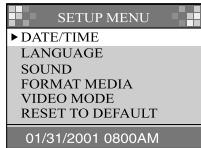
DATE/TIME: (optional)
Displays the date and time information.
When the camera is used for the first time or the batteries are replaced, you may need to have the correct date/time set.
Press the OK / Zoom Button to select DATE/TIME. The cursor skips to the data field and the first item (Month) in this field is selected. Use the arrow buttons (/) to change the number or press the OK / Zoom Button to proceed to the next item. When the last item is selected/changed, press OK / Zoom Button to return to the Setup menu.
LANGUAGE:
Sets the OSD menu language.
There are 8 languages available for your selection. They are English, French, German, Spanish, Japanese, Portuguese, Traditional Chinese and Simplified Chinese.
Select the item by the arrow buttons ( / ) and then press the OK / Zoom Button to confirm. The cursor skips to the data field as the OK / Zoom Button being pressed. Use the arrow buttons ( / ) to select the desired language setting (default=English). Press the OK / Zoom Button again to make the change. The cursor returns to the Setup menu automatically when the change is made.
SOUND:
Enables/disables the sound effects.
You may choose either to turn on or off (default=ON) the sound effects while pressing a button is produced by the camera.
Select the item by the arrow buttons ( / ) and then press the OK / Zoom Button to confirm. The cursor skips to the data field as the OK / Zoom Button being pressed. Use the arrow buttons ( / ) to toggle the selection. Press the OK / Zoom Button again to make the change. The cursor returns to the Setup menu automatically when the change is made.

The setting is conserved even if the camera power is off.
FORMAT MEDIA:
Formats the CompactFlash™ card.
Select the item by the arrow buttons ( / ) and then press the OK / Zoom Button to confirm. The cursor skips to the data field as the OK / Zoom Button being pressed. Use the arrow buttons ( / ) to toggle the selection. Select YES and press the OK / Zoom Button to re-format the CF card and returns to the Setup menu. Select NO and press the OK / Zoom Button to cancel and return to the Setup menu without any change.
VIDEO MODE:
Sets video output type.
The camera provides 2 different video output type for your selection: NTSC and PAL. Select the correct video type for the connected device (e.g. NTSC TV or PAL TV).
RESET TO DEFAULT:
Returns all the camera settings to the factory default settings.
Select the item by the arrow buttons ( / ) and then press the OK / Zoom Button to confirm. The cursor skips to the data field as the OK / Zoom Button being pressed. Use the arrow buttons ( / ) to toggle the selection. Select YES and press the OK / Zoom Button to make the change and returns to the SETUP menu. Select NO, then press the OK / Zoom Button to cancel and return to the SETUP menu without any change.
Image Resolution = 1280 × 960
Image Quality = Super fine
White Balance = Auto
Flash = Off
QuickView = Off
LCD Brightness = 0
EV Compensation = 0.0
Slide Show Delay = 4 seconds
Sound = ON
DELETE Mode
In DELETE mode, users can delete all the recorded images at a time or just delete one after another.
DELETE MENU
Switch the operating mode to DELETE

To delete the images recorded in the CF card, make sure to insert the card before deletion.

To delete the images recorded in the camera (internal memory), do not insert any CF card or the camera will not be able to read the internal data with an external memory card attached.
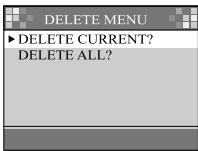
DELETE CURRENT
- The last image taken or the image currently being viewed in Play mode will be shown.
- Use the arrow buttons ( / ) to select the captured images you want to delete.
- Press the Menu button to enter the DELETE MENU. As DELETE CURRENT is highlighted, press the OK / Zoom Button to confirm your selection.
- TheMESSAGE window appears, use the arrow buttons ( / ) to select Yes, then press the button to delete the image.

You can browse the recorded images on the LCD Monitor or on a TV.
DELETE ALL
- The last image taken or the image currently being viewed in Play mode will be shown.
- Press the Menu button to enter the DELETE MENU.
- Use the arrow buttons ( / ) to select DELETE ALL, then press the OK / Zoom Button to confirm to confirm your selection.
- TheMESSAGE window appears, use the arrow buttons ( / ) to select Yes, then press the OK button to delete all the images stored in your camera memory or in the CF card.
Computer Mode
Images can only be transferred to a Computer via USB in this mode. There are no menus associated with this mode, and no buttons are active in this mode.
Transferring your Images to the Computer
Before image transfer, please read the following guideline carefully.
Driver Installation for PC
For Users of Windows 98
If you are planning to transfer your images into a Windows98-based computer, make sure to complete the camera driver installation before the camera connection. The steps are as below:
- Insert the software CD-ROM disc into your CD-ROM drive
- The setup program starts. Follow the on screen instructions to complete the camera driver installation
- Restart the computer (recommended)
For Users of Windows 2000/Me
Windows 2000/Me supports the camera in all aspects, you don't even have to install the driver yourself. Go ahead for the camera connection directly.
Downloading Images
- Plug one end of USB to computer.
- Power on the camera.
- Switch the mode dial to Computer Mode PG
- Plug the other end of USB to the camera.
- Double-click My computer icon on the desktop and find the Removable Disk.
- Drag and drop the images in the removable disk mentioned above to the folder in your hard disk.
- Once the copy process has been completed, the images then successfully have downloaded from the camera to your PC.
Editing and Processing images
Using MGI PhotoSuite
MGI PhotoSuite is a very user-friendly image editing program. With PhotoSuite, you can breezily retouch, compose and organize your images in just seconds. It contains a variety of templates, such as photo frames, birthday cards, calendars and other fun stuffs. Get your images ready and go explore this amazing program.
To use the program, follow the steps below:
- Launch MGI PhotoSuite.
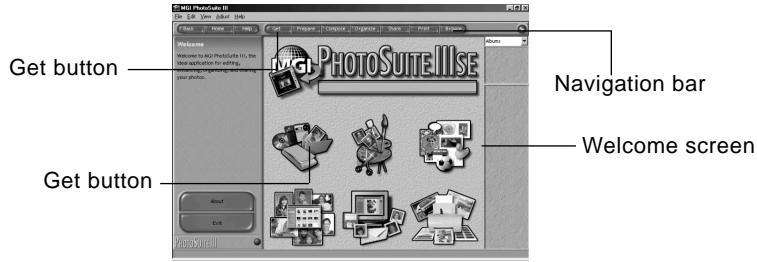
- Click the large Get button on the Welcome screen, or the Get button on the Navigation bar.
- Choose a photo source (e.g. computer) and click the Open button.(see below)
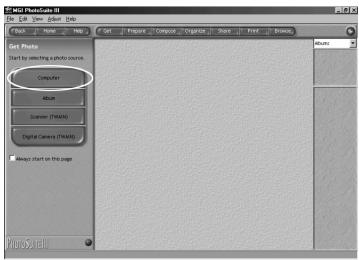
- Now you are able to process your images with all the tools provided by PhotoSuite.
Using MGI PhotoVista
MGI PhotoVista is an easy-to-use program that lets you create spectacular 360^ panoramic images in a snap. When you view these panoramas, you get the experience of being totally immersed in a realistic environment. Photovista's powerful engine quickly and automatically stitches images together, and its intuitive interface will let even a novice get great results in minutes.
To use the program, follow the steps below:
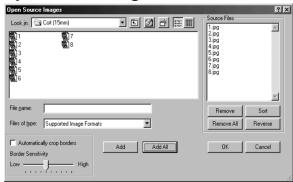
Step 1: Open Source Images in MGI PhotoVista
MGI PhotoVista requires some overlap of source images to properly align them before a stitch. For best results, use a 20% to 50% overlap. The number of photos you need to shoot to achieve this overlap depends on the lens type you're using.
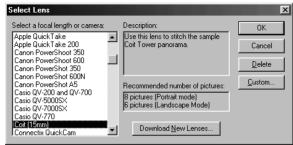
Step 2: Select the Lens
Click the Select Lens icon. The Select Lens dialog box appears. Select the proper lens type.
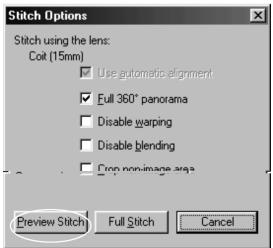
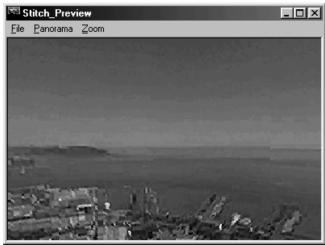
Step 3: Preview the Stitch
Click the Stitch Panorama icon. The Stitch Options dialog box appears. Click Preview Stitch button.
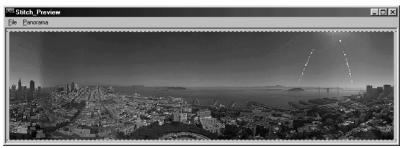
Step 4: View the Panorama In Action
Choose Show Viewer from the Panorama menu. The Stitch Preview window changes to viewer mode. Press and drag the pointer over the panorama vertically and horizontally. Press SHIFT to zoom in or press CTRL to zoom out. Close the viewer window when you're done to return to the preview stitch.
Step 5: Create a Full Stitch
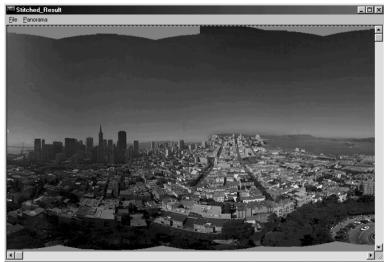
Click the Stitch Panorama icon. The Stitch Options dialog box appears. Click Full Stitch button. The stitch Progress dialog box displays the progress of the stitch. Follow the procedure in Step 4 to view
the panorama in action.
Step 6: Save a Panorama
After Step5, you can save the panorama from the Stitched Result window as a BMP, Flashpix (FPX), or JPEG file. MGI PhotoVista also automatically creates an IVR file for you, which you use to play the panorama.

Driver Installation the for Mac
1.Insert CD-ROM.
Click the Digital Camear Driver Installer and Camera Driver Installation for Mac will start.
- Select Install Location and click Install.
- Click Cancel and installation will be cancelled.
Click Continue and the installation will progress.
4.Installation is successful.
Click Continue for additional installation.
Click Restart to restart the computer.
- After restarting computer, a new folder will be made automatically on the desktop when you connect camera to Mac.
Additional Information
Names and Functions
Viewfinder Window
The optical viewfinder is the real-image type with 85± 5% alignment tolerance.
LCD Monitor
When you are about to take a picture, you may use the LCD monitor to frame the image. Press the Display button to turn on/off the LCD monitor.
DisplayButton
The LCD button is only active in RECORD and PLAY modes. While in RECORD mode, press the Display button will toggle the LCD monitor On and Off. In PLAY mode, press the Display button to review the images in the following 3 modes:
- Single image display
- Single image display with image information overlay
- Multi-image (3x3 thumbnail) display
Menu Button
The Menu button is active in RECORD/PLAY/DELETE modes. Press the Menu button to turn on the Record/Play/Delete menus. To access the Record/Play/Delete menu, simply rotate the operating mode knob to RECORD/PLAY/DELETE mode and press the Menu button. To turn off the menu, press the Menu button again.
OK / Zoom Button OK
The OK / Zoom Button is active any time a menu or dialog is displayed. Use the button to select/ confirm the currently highlighted item.
The Zoom, button is active in RECORD/PLAY modes. You can enlarge the subject on the LCD monitor by pressing the Zoom button to take zoom shots. It also acts as a magnifier, allowing you to examine carefully the images being capatured in RECORD mode.
Power Button ①
Press the power button to turn on/off the camera. While the camera is powered on and there is no button activity or host communication for about 90 seconds, the camera will automatically turn itself off to conserve battery power (standby) meanwhile press any button or rotate the Mode knob will bring the camera back immediately. If there is no any activity for 3 minutes, the system power will be off and you will have to press the power button to turn it on.
Shutter Button
The Shutter button is only active in RECORD mode. You may press the button in RECORD mode for image capturing, processing and storing. Before photo shooting, please make sure that your camera has available free space for image storage and there is appropriate light for a successful image capturing.
Self-Timer Button
The Self-Timer button is active only in RECORD mode. When the Self-Timer button is pressed, the 10-second self-timer is enabled. To disable the self-timer function, do any of the following:
- Press the Self-Timer button again.
- Press the Shutter button to capture the image.
Power off the camera. - Change to another mode other than RECORD mode.
- Let the camera automatically disable the Self-Timer function after an image is captured.
Operating Mode Knob
Switch the Operating Mode knob to select the desired operating mode. There are five operating modes available as follows:
RECORD: Capture/stores images
PLAY: Review images in memory
SETUP SETUP: Change camera settings
DELETE:Delete images in memory
COMPUTER: Transfer images to your Computer
Battery Power Indicator
You may check the battery status by the battery power indicator on the LCD display.
Battery icon with 3 bars on: The battery is fully charged.
Battery icon with 2 bars on: The battery is partially charged.
Battery icon with 1 bar on: Prepare new batteries.
Battery icon with no bars on: The battery needs to be replaced, there is no battery power remains.
The camera will be forced to power it off at once.
Images Remaining/Image Number Indicator
The digit number on the Status LCD may have different meanings in each mode:
Record mode: Shows the estimated remaining number of the images that can be recorded with current setting.
Play/Delete modes: Shows the current number of image showed on LCD Monitor.
Computer mode: Shows "PC" icon, indicating this camera is currently set to Computer mode.
LED Messages
| Type | Color | Status | Description | Sound |
| LED1 | Red | Blinking | While detecting the system error | Yes |
| LED1 | Green | On | Camera is powered on | No |
| LED1 | Red | Blinking | Image processing (Compression/Decompression) | No |
| LED1 | Orange | Blinking | USB processing | No |
| LED2 | Green | On | CF card is inserted | No |
| SELF-Timer Indicator | Red | Blinking | Self-Timer function is activated | No |
| SELF-Timer Indicator | Red | On | Self-Timer button is pressed | Yes |
Specification
| Image Sensor | CCD sensor with 1.3 mega pixels |
| Image Resolution | 1280*960/640*480 |
| Image Quality | Normal, Fine, Super Fine |
| Color | 24-bit Color (RGB) |
| Lens | Fixed Lens with Macro (0.3m~0.6m), Aperture-2 step (Auto)F:2.8/8 |
| Zoom | 2 X Digital Zoom |
| File Format | JPEG, EXIF 2.1 |
| Internal Memory | 8MB Flash Memory |
| External Memory | Compact Flash Card Type 1 Slot |
| Processing Time | Interval during taking pictures < 4 sec; picture playback time < 4 sec |
| Software Driver | PC(Windows 98/2000/Me); PowerPC G3/G4(Mac OS 8.6 or later) |
| AP | MGI PhotoSuite III SE, MGI PhotoVista |
| LCD Display | 1.6" color LCD for real time display with 280x220 pixels |
| LCD Indicator | Flash/Quality/Battery Status/Number of Image |
| Built-in Flash | Auto, Red-eye reduction, Fill-in, Off |
| Self-timer | 10 sec delay |
| Exposure | Auto; Manual: 0.3 EV step, -1.8 ~ +1.8EV |
| White Balance | Auto, Sun, Shade, Fluorescent,Tungsten |
| Language | English, Japanese, German, French, Spanish,Portuguese, Traditional Chinese, Simplified Chinese |
| Connectors | AC power port/ USB port / Video Output (NTSC or PAL) |
| Power | 4X AA (Alkaline Battery, NiMh, Lithium); AC-DC Adapter |
| Certification | CE, FCC, VCCI, BSMI |
| Dimensions | 105x66.5x48 mm |
| Weight | about 200g(without battery and CF card) |
- FCC Notice
- NOTE
- WARNING
- CAUTION
- Contents
- Getting Started 12
- Identifying the Parts 14
- Basic Operations 19
- Advanced Operation 26
- Operating Modes and Menus 29
- Transferring your Images to the Computer 39
- Additional Information 45
- Getting Started
- Checking Accessories
- Standard Accessories:
- Optional Accessories:
- System Requirements
- Identifying the Parts
- Top View(Fig.1)
- Front View(Fig.2)
- Rear View(Fig.3)
- Bottom View (Fig.4)
- Operating Mode Knob(Fig.5)
- Status LCD(Fig.6)
- LCD Monitor
- Connectors(Fig.7)
- Preparing the Power Supply
- Using Batteries(Fig.8)
- On Battery Usage
- Using the Power Adapter(Fig.9)
- Loading the CompactFlash™ Card (Fig.10)
- Attaching the Strap(Fig.11)
- Setting the Date and Time (optional)
- Basic Operations
- How to record an image?
- Digital Zoom
- Precaution
- On Shutter Button Release
- How to playback images?
- On the LCD Monitor
- On a TV
- How to view image information and thumbnails?
- How to examine image details?
- How to delete images?
- How to set the focus?
- How to set the image resolution & quality ?
- Resolution Indicator
- Image Quality Indicator
- How to set the flash?
- Advanced Operation
- How to adjust the EV compensation?
- How to adjust the White Balance?
- How to set the OSD (On-Screen Display) language?
- How to set the Self-Timer?
- How to format the CF (CompactFlash™) card?
- Operating Modes and Menus
- RECORD Mode
- RECORD MENU
- LCD BRIGHTNESS:
- QUICKVIEW:
- WHITE BALANCE:
- Reference:
- EV COMPENSATION:
- PLAY Mode
- PLAY MENU
- SLIDE SHOW:
- COPY TO CF CARD: (Optional)
- DPOF (Digital Print Order Format)
- DPOF User Interface
- SETUP Mode
- SETUP MENU
- DATE/TIME: (optional)
- LANGUAGE:
- SOUND:
- FORMAT MEDIA:
- VIDEO MODE:
- RESET TO DEFAULT:
- DELETE Mode
- DELETE MENU
- DELETE CURRENT
- DELETE ALL
- Computer Mode
- Transferring your Images to the Computer
- Driver Installation for PC
- For Users of Windows 98
- For Users of Windows 2000/Me
- Downloading Images
- Editing and Processing images
- Using MGI PhotoSuite
- Using MGI PhotoVista
- Step 1: Open Source Images in MGI PhotoVista
- Step 2: Select the Lens
- Step 3: Preview the Stitch
- Step 4: View the Panorama In Action
- Step 5: Create a Full Stitch
- Step 6: Save a Panorama
- Driver Installation the for Mac
- Additional Information
- Names and Functions
- Viewfinder Window
- DisplayButton
- Menu Button
- OK / Zoom Button OK
- Power Button ①
- Shutter Button
- Self-Timer Button
- Operating Mode Knob
- Battery Power Indicator
- Images Remaining/Image Number Indicator
- LED Messages
Brand : MINOX
Model : DC-1311
Category : Camera