
I-DS3 PLUS - Bluetooth speaker BOSTON ACOUSTICS - Free user manual and instructions
Find the device manual for free I-DS3 PLUS BOSTON ACOUSTICS in PDF.


| Product Type | Bluetooth speaker with wireless subwoofer |
| Brand | Boston Acoustics |
| Model | I-DS3 PLUS |
| Total power | 100 watts |
| Speakers | Two high-performance midrange/tweeter speakers |
| Subwoofer | 15 cm, amplified, wireless |
| Docking station | Universal for iPhone/iPod (adapters included) |
| Bluetooth connectivity | Built-in for wireless playback |
| Auxiliary audio input | Yes (via RCA cable) |
| Video output | Composite and S-Video |
| Remote control | Infrared with CR2025 battery |
| Audio processing | BassTrac® for clean bass |
| Wide stereo function | Yes, can be activated |
| Power supply | Mains (external AC adapter for speaker, direct cord for subwoofer) |
| Cleaning | Soft dry cloth |
| Safety | Double insulation, do not expose to water, do not block ventilation |
| Standards | FCC Class B, ICES-003, CE |
| Warranty | 1 year parts and labor |
Frequently Asked Questions - I-DS3 PLUS BOSTON ACOUSTICS
User questions about I-DS3 PLUS BOSTON ACOUSTICS
0 question about this device. Answer the ones you know or ask your own.
Ask a new question about this device
Download the instructions for your Bluetooth speaker in PDF format for free! Find your manual I-DS3 PLUS - BOSTON ACOUSTICS and take your electronic device back in hand. On this page are published all the documents necessary for the use of your device. I-DS3 PLUS by BOSTON ACOUSTICS.
USER MANUAL I-DS3 PLUS BOSTON ACOUSTICS
Powered Speaker with Wireless Subwoofer for iPhone/iPod
Powerful performance sound from your iPhone or iPod
Espanol
IMPORTANT SAFETY INSTRUCTIONS

This symbol found on the apparatus indicates hazards arising from dangerous voltages.

This symbol found on the apparatus indicates double insulation.

Warning! To reduce the risk of fire or electrical shock, do not expose this apparatus to rain or moisture.

This symbol found on the apparatus indicates that the apparatus must be placed in a separate collection facility for electronic waste and not disposed with household waste.

This symbol found on the apparatus indicates the user should read all safety statements found in the user manual.
- Read these instructions.
- Keep these instructions.
- Heed all warnings.
- Follow all instructions.
- Do not use this apparatus near water.
- Clean only with dry cloth.
- Do not block any ventilation openings. Install in accordance with the manufacturer's instructions.
- Do not install near any heat sources such as radiators, heat registers, stoves, or other apparatus (including amplifiers) that produce heat.
- Do not defeat the safety purpose of the polarized or grounding type plug. A polarized plug has two blades with one wider than the other. A grounding-type plug has two blades and a third grounding prong. The wide blade or the third prong is provided for your safety. If the provided plug does not fit into your outlet, consult an electrician for replacement of the obsolete outlet.
- Protect the power cord from being walked on or pinched particularly at plugs, convenience receptacles, and the point where they exit from the apparatus.
- Only use attachments/accessories specified by the manufacturer.
- Unplug this apparatus during lightning storms or when unused for long periods of time.
- Refer all servicing to qualified service personnel. Servicing is required when the apparatus has been damaged in any way, such as power-supply cord or plug is damaged, liquid has been spilled or objects have fallen into the apparatus, the apparatus has been exposed to rain or moisture, does not operate normally, or has been dropped.
- Maintain a minimum distance of 2^ (50mm) around the front, rear, and sides of the apparatus for sufficient ventilation. The ventilation should not be impeded by covering the ventilation openings or placing on or around the apparatus items such as newspapers, table-cloths, curtains, etc.
- No open flame sources, such as lighted candles, should be placed on the apparatus.
- The apparatus shall not be exposed to dripping or splashing. No objects filled with liquids, such as vases, shall be placed on the apparatus.
- Either the power inlet connector on the rear of the apparatus or the power plug at the wall must remain accessible, to be able to disconnect power from the apparatus.
- To completely disconnect this apparatus from the AC Mains, disconnect the power supply cord plug from the AC receptacle.
- The mains plug of the power supply cord shall remain readily operable.

American Users:
Note: This equipment has been tested and found to comply with the limits for a Class B digital device, pursuant to Part 15 of the FCC Rules. These limits are designed to provide reasonable protection against harmful interference in a residential installation. This equipment generates, uses and can radiate radio frequency energy and, if not installed and used in accordance with the instructions, may cause harmful interference to radio communications. However, there is no guarantee that interference will not occur in a particular installation. If this equipment does cause harmful interference to radio or television reception, which can be determined by turning the equipment off and on, the user is encouraged to try to correct the interference by one or more of the following measures:
Reorient or relocate the receiving antenna.
- Increase the separation between the equipment and receiver.
- Connect the equipment into an outlet on a circuit different from that to which the receiver is connected.
- Consult the dealer or an experienced radio/ TV technician for help.
Caution: Unauthorized changes or modifications to the receiver could void the user's authority to operate the equipment.
This equipment complies with FCC RF radiation exposure limits set forth for an uncontrolled environment. It should be installed and operated with a minimum distance of 20 centimeters between the radiator and your body.
The transmitter must be used exclusively for fixed, point-to-point operations. It must not be co-located or operated in conjunction with any other antenna or transmitter.
Canadian Users

This class B digital apparatus complies with Canadian ICES-003.
Operation is subject to the following two conditions:
(1) this device may not cause interference, and (2) this device must accept any interference, including interference that may cause undesired operation of the device.
To prevent radio interference to the licensed service, this device is intended to be operated indoors and away from windows to provide maximum shielding. Equipment that is installed outdoors is subject to licensing.
RLAN - Radio Local Area Network Equipment
| AT | CZ | FI | IS | LT | PT | SE | FR |
| BE | DK | DE | IE | MT | SK | CH | IT |
| EE | GR | LV | NL | SI | TR | LU | |
| CY | HU | PL | ES | GB | NO |
The use of this equipment requires a license in RO.
This equipment may only be used indoors in BG, FR.
This equipment may only be used in one's own premises in IT.
This equipment is for private use only in LU.
Operation is not allowed within a radius of 20km from the centre of Ny-Alesund in NO.
Hereby, Boston Acoustics, Inc. 300 Jubilee Drive, Peabody, MA 01960 USA, declares that this i-DS3plus is in compliance with the essential requirements and other relevant provisions of Directive 1999/5/EC. A copy of the Declaration of Conformity (DOC) may be obtained from:
Oliver Kriete
Boston Acoustics, Division of D&M Europe B.V.
Beemdstraat 11
5653 MA Eindhoven
The Netherlands
Introduction
Thank you for choosing Boston Acoustics and congratulations on your purchase of the i-DS ^3 plus powered speaker/subwoofer system. If you own other Boston products, the outstanding audio performance and ease-of-use of the i-DS ^3 plus should come as no surprise. If you're new to Boston, welcome – we think you've made a great choice. The i-DS ^3 plus combines a high performance amplified speaker system with a powerful amplified subwoofer. Simply put, the i-DS ^3 plus lets your iPhone or iPod deliver unsurpassed sound. The compact main speaker system delivers room filling sound thanks to special stereo separation enhancing electronics. The subwoofer pumps out powerful bass and can be placed anywhere in the room thanks to its wireless connection.
Features
- Integrated universal iPhone/iPod dock. Controls and charges all dockable iPhone/iPod models.
100 Watts total system power for outstanding audio performance. - Dual high performance midrange drivers and dual high performance tweeters. Powerful 6"woofer.
- Intuitive, easy to use controls
Remote control puts basic iPod control functions at your finger tips. - Play wirelessly! Wireless subwoofer can be placed anywhere in your room!
- BassTrac® audio processing for clean bass at all listening levels.
- Play iPod videos on your TV! S-Video and Composite Video Output from all video-capable iPhone/iPod models.
- Auxiliary audio input for connecting other audio devices.
- Play in Color! Customize your main speaker with optional interchangeable metal grilles.
The Parts of the i-DS3plus
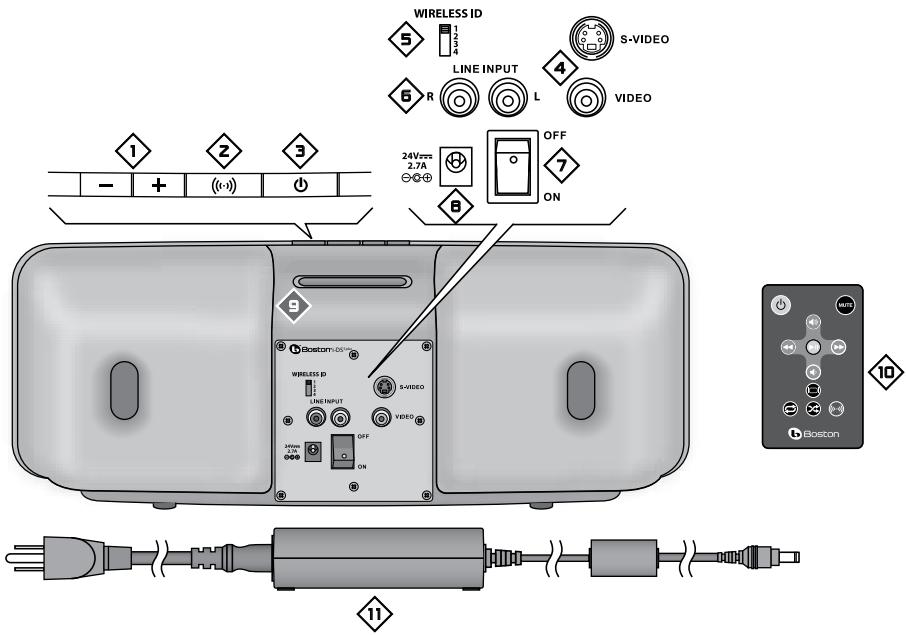
Volume Up and Down Buttons
Wide Stereo Button – Increase stereo separation. Lights orange when active.
Power/Standby Button - Lights blue when main speaker is active; blinks when the sound is muted.
Video Outputs - Composite and S-video outputs let you watch video programs stored on your iPhone/iPod on a TV.
Wireless ID Switch - Selects the "channel" for the wireless subwoofer signal. Set to the same channel.
Line Inputs - Let you connect other sources, such as a portable CD player to the i-DS3plus.
Power Switch - Used to turn the main speaker off when it won't be used for an extended period of time.
Power Input - Connect the power supply here.
iPhone/iPod dock
Remote Control
Power Supply - Provides power to the main speaker. Plug it into the wall and connect it to the power input
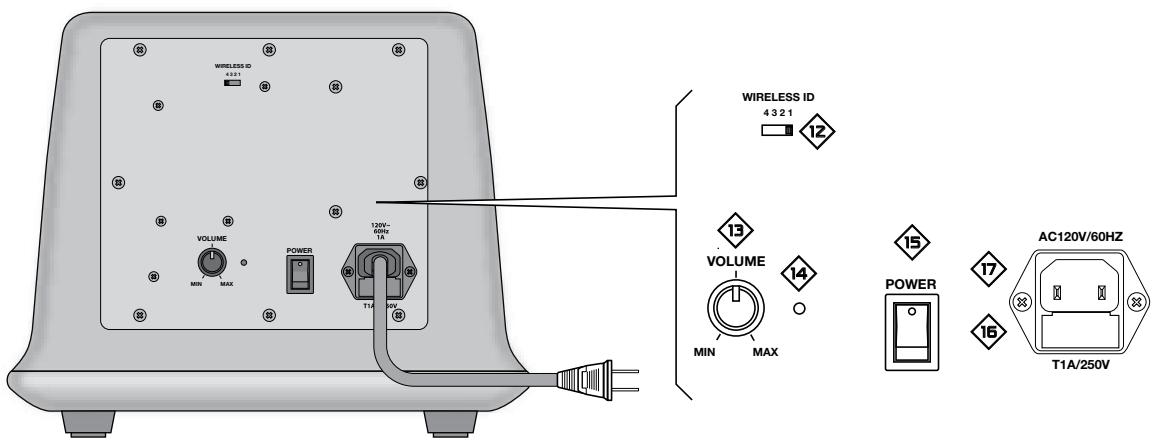
Wireless ID Switch - Selects the "channel" for the wireless Subwoofer signal. Set it to the same channel as
Volume - Adjusts the volume of the subwoofer to balance with the main speakers.
Status Indicator - Lights red when the subwoofer is active and green when it is in standby mode.
Power Switch - Used to turn the subwoofer off when it won't be used for an extended period of time.
Power Fuse - Protects the subwoofer.
Power Cord - Plug it into an AC outlet.
Unpacking and Setting Up i-DS ^3 plus
Carefully unpack the i-DS3 plus components. If there is any sign of damage from transit, report it immediately to your dealer and/or delivery service. Keep the shipping carton and packing materials for future use. Be sure to keep your purchase receipt in a safe place, as it may be required for warranty purposes.
In the box you should find the main speaker, the main speaker power supply and power cord, the powered subwoofer, the remote control and iPhone/iPod dock adapters.
Placement
The i-DS ^3 plus will sound great just about anywhere. If you want to hear a traditional stereo image you should position the main speaker so it faces your typical listening location. The subwoofer can be placed anywhere. It gets its signal wirelessly, you don't need to worry about connections. You just need an AC outlet. Corner placement can help reinforce bass output.
Avoid placing the i-DS3 p / u s components where they will be in direct sunlight.
Power Connection
The main speaker has an external power supply 1 . Connect its power cord to a wall outlet. Connect the power output cord to the connector in the back of the main speaker labeled 24V 2 . Connect the subwoofer power cord 7 directly to a wall power outlet.
Docking Your iPod
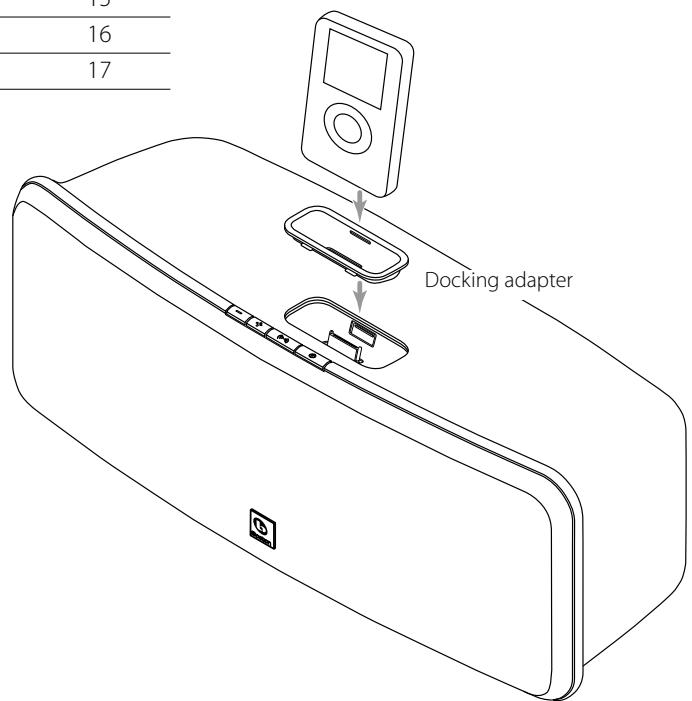
The i-DS ^3 plus is supplied with docking adapters. These fit in the docking well in the top of the i-DS ^3 plus to support various iPhone/iPod models. The table below lists the iPhone/iPod models and the docking adapters to use with them. The number of the docking adapter is molded into the back of the part. Place the appropriate adapter in the docking well and plug your iPhone/iPod into the dock.
| iPod Model (Capacity) | Adapter Number |
| iPod nano (2/4GB) | 8 |
| 5G and U2 iPod (30GB with video), iPod classic (80GB) | 9 |
| 5G iPod with video (60GB/80GB), iPod classic (160GB) | 10 |
| iPod nano - 2nd generation (2/4/8GB) | 11 |
| iPhone | 12 |
| iPod nano - 3rd generation (4/8GB) | 13 |
| iPod touch (8GB/16GB) | 14 |
| iPhone 3G and 3GS | 15 |
| iPod nano - 4th generation | 16 |
| iPod touch - 2nd generation | 17 |
Using i-DS3plus
Getting Started
Once your i-DS ^3 plus is set up and plugged in, turn on the power switches on the back of the main speaker 7 and the subwoofer 14 . Turn the subwoofer volume control 12 up about half way. (You may want to adjust this later, but use this setting to start.)
i-DS3plus Controls
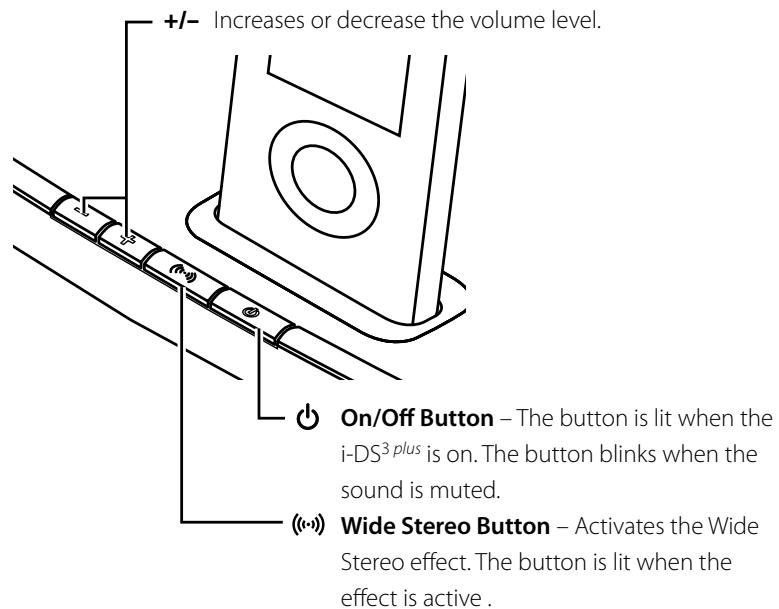
When your iPhone/iPod is docked in the i-DS3 plus. Use the ^+ /--" buttons to adjust the volume. The iPhone/iPod navigation controls ,II, and work as they usually do.
About the Remote Control
Turns the i-DS ^3 plus on or returns it to standby mode.
Starts play, or pauses play, of your iPhone/iPod.
Press to increase sound volume. Press and hold for faster adjustment.
Press to decrease sound volume. Press and hold for faster adjustment.
MUTE Press to mute, or un-mute the sound. When the sound is muted the light on the main power button blinks.
Press once to skip to the next track. Press and hold to scan forward within a track.
Press once to return to the beginning of the current track. Press twice to skip to the beginning of the previous track. Press and hold to scan backward within a track.
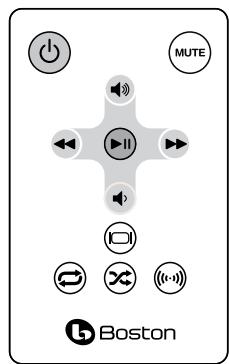
Turns the video output on or off.
Turns the repeat track feature on or off.
Turns the shuffle track feature on or off.
Turns the wide stereo feature on or off. When wide stereo is active, the button on the main speaker is lit.
Note: When you unpack your remote control there will be a plastic insulation tab extending from the battery compartment. Pull out this tab before using the remote control.
There must be an unobstructed line of sight to the front of the i-DS ^3 plus main speaker when using the remote control. Point the remote control at the front panel of the main speaker when pressing the buttons. For best results you should be within 20 feet of the unit and no more than 45^ off axis. Being in a brightly lit room can reduce the sensitivity of the i-DS ^3 plus to remote control commands.
Note: Eventually you'll need to replace the remote battery. If the remote doesn't reliably operate the i-DS3plus, put in a new CR2025 3V lithium coin type battery.
Automatic Activation and Standby
The power switches on the back of the main speaker and the subwoofer can be left on. i-DS3plus has an automatic power standby system. After a few minutes of inactivity the amplifiers go into standby mode. As soon as i-DS3plus receives a signal from the iPod the amplifiers automatically turn on again. If the i-DS3plus won't be used for an extended period of time, turn the power switches off.
Other Adjustments
Subwoofer Volume Control Adjustment
You may need to make further adjustments to the subwoofer volume control to produce a better blend with the main speaker and produce a balanced, natural sound. Start with the subwoofer volume control at the middle of its rotation range. Play a variety of source material—some music, a movie sound track with dynamic special effects, some spoken dialog. Adjust the subwoofer volume control up and down a bit from the starting point until you have a setting that produces a natural sound with all the various types of program material.
Wireless ID Switches 12
Both the main speaker and the subwoofer have Wireless ID switches. The various switch settings change the frequency of the wireless signal the main speaker sends to the subwoofer. The two switches must be set to the same channel. Typically you'll never need to adjust these switches. What are they for? If you have more than one i-DS ^3 plus system in your house you can use different wireless ID Switch settings so the systems won't interfere with each other.
Connecting Other Equipment
Line Inputs
Other audio equipment, such as a portable CD player or older iPod models that do not have the universal docking adapter, can be connected to the i-DS ^3 plus through the Line inputs on the back of the main speaker. Typically you'll need a cable that has a stereo 1/8-inch plug on one end to connect to the output of the device you are connecting to the i-DS ^3 plus. The other end of the cable should have two RCA plugs that will connect to the i-DS ^3 plus line inputs.
Using the Video Output
If your iPhone/iPod can store video or photos you can view them on an external television when it is docked to the i-DS ^3 plus. There are two outputs – a composite output and an S-video output. Use which ever one is compatible with your television. For the composite output, connect a standard RCA plug cable between the i-DS ^3 plus and the composite video input of your television. Typically the composite video input of a television is color coded yellow. To use the S-video output you will need a special S-video cable to connect the i-DS ^3 plus to the corresponding input on your television. Refer to the manual for your television for information on this input and how to use it.
Maintenance and Service
The i-DS3 enclosures may be cleaned using a soft cloth to remove fingerprints or to wipe off dust. All wiring connections should be inspected and remade at least once a year.
In the event that your i-DS3 ever needs service, contact your local Boston Acoustics dealer or visit www.bostonacoustics.com/dealers for a list of dealers in your area.
Limited Warranty
Boston Acoustics warrants to the original purchaser of the i-DS3plus that it will be free of defects in materials and workmanship in its mechanical parts for a period of one year from the date of purchase.
Your responsibilities are to install and use the i-DS3 plus according to the instructions supplied, to provide safe and secure transportation to an authorized Boston Acoustics service representative, and to present proof of purchase in the form of your sales slip when requesting service.
Excluded from this warranty is damage that results from abuse, misuse, improper installation, accidents, shipping, or repairs/modifications by anyone other than an authorized Boston Acoustics service representative.
This warranty is limited to the Boston Acoustics product and does not cover damage to any associated equipment. This warranty does not cover the cost of removal or reinstallation. This warranty is void if the serial number has been removed or defaced. This warranty gives you specific legal rights, and you may also have other rights which vary from state to state.
If Service Seems Necessary
First, contact the dealer from whom you purchased the product. If that is not possible, write to:
Boston Acoustics, Inc.
100 Corporate Drive
Mahwah, NJ 07430 USA
Or contact us via e-mail at:
US: support@bostona.com
Japan: ba_info@dm-holdings.com
Asia Pacific: service@dm-singapore.com
We will promptly advise you of what action to take. If it is necessary to return your i-DS3plus to the factory, please ship it prepaid. After it has been repaired, we will return it freight prepaid in the United States and Canada.

For EU Customers Only
This symbol found on the product indicates that the product must not be disposed of with household waste. Instead, it may be placed in a separate collection facility for electronic waste or returned to a retailer when purchasing similar product. The producer paid to recycle this product. Doing this contributes to reuse and recycling, minimizes adverse effects on the environment and human health and avoids any fines for incorrect disposal.
Boston Acoustics, Inc.
100 Corporate Drive
Mahwah, NJ 07430 USA
Boston Acoustics, Division of D&M Europe B.V.
Beemdstraat 11
5653 MA Eindhoven
Pays-Bas
Introduction
Boston Acoustics, Inc.
100 Corporate Drive
Japon: ba_info@dm-holdings.com
RLAN - Radio Local Area Network Equipment
| AT | CZ | FI | IS | LT | PT | SE | FR |
| BE | DK | DE | IE | MT | SK | CH | IT |
| EE | GR | LV | NL | SI | TR | LU | |
| CY | HU | PL | ES | GB | NO |
Boston Acoustics, Division of D&M Europe B.V.
Beemdstraat 11
5653 MA Eindhoven
Paesi Bassi
Introduzione
Boston Acoustics, Inc.
100 Corporate Drive
Mahwah, NJ 07430 USA
Asia Pacifico: service@dm-singapore.com
RLAN - Radio Local Area Network Equipment
| AT | CZ | FI | IS | LT | PT | SE | FR |
| BE | DK | DE | IE | MT | SK | CH | IT |
| EE | GR | LV | NL | SI | TR | LU | |
| CY | HU | PL | ES | GB | NO |
Boston Acoustics, Inc.
100 Corporate Drive
Mahwah, NJ 07430 USA
Ellerkontaktaossviae-post:
USA: support@bostona.com
Japan: ba_info@dm-holdings.com
Boston Acoustics, Division of D&M Europe B.V.
Beemdstraat 11
5653 MA Eindhoven
Niederlande
Einleitung
Boston Acoustics, Inc.
100 Corporate Drive
Mahwah, NJ 07430 USA
Japan: ba_info@dm-holdings.com
© 2009. All rights reserved. Boston, Boston Acoustics and BassTrac are registered trademarks, and the B/A ellipse symbol, make it your own, and play smart are trademarks of Boston Acoustics, Inc.
iPod is a trademark of Apple Computer, Inc., registered in the U.S. and other countries.
142-003544-5
- Powered Speaker with Wireless Subwoofer for iPhone/iPod
- Powerful performance sound from your iPhone or iPod
- Espanol
- IMPORTANT SAFETY INSTRUCTIONS
- American Users:
- Canadian Users
- Introduction
- Features
- The Parts of the i-DS3plus
- Unpacking and Setting Up i-DS 3 plus
- Placement
- Power Connection
- Docking Your iPod
- Using i-DS3plus
- Getting Started
- i-DS3plus Controls
- About the Remote Control
- Automatic Activation and Standby
- Other Adjustments
- Subwoofer Volume Control Adjustment
- Wireless ID Switches 12
- Connecting Other Equipment
- Line Inputs
- Using the Video Output
- Maintenance and Service
- Limited Warranty
- If Service Seems Necessary
- For EU Customers Only
- Introduzione
- Einleitung
Brand : BOSTON ACOUSTICS
Model : I-DS3 PLUS
Category : Bluetooth speaker