ND45000 - Network Storage Server COMET LABS - Free user manual and instructions
Find the device manual for free ND45000 COMET LABS in PDF.


| Product Type | Network Storage Server (NAS) |
| Brand | COMET LABS |
| Model | ND45000 |
| Disk Capacity | Up to 8 hard drives |
| Supported RAID Configurations | RAID 0, RAID 1, RAID 5, Linear, Single Disk |
| Network Interfaces | 2 to 3 Ethernet ports (with failover and load balancing) |
| Supported Protocols | Microsoft Networking (SMB/CIFS), AppleTalk (AFP), NFS (Unix/Linux), NetWare, FTP, Web (HTTP) |
| Backup Functions | Tape backup (SCSI), remote replication, backup agent, NetBak Replicator (Windows) |
| Snapshot Function | Yes, scheduled or manual snapshot |
| Built-in Antivirus | Antivirus scan agent (requires a Windows server) |
| User Management | User and group creation, quotas, PDC authentication (Windows Domain) |
| LCD Display | Front LCD panel for system information and network configuration |
| Power Supply | Mains power supply, UPS compatible via RS-232 or SNMP |
| Dimensions (approx.) | Not specified in the manual |
| Weight | Not specified in the manual |
| Maintenance and Cleaning | Avoid power outages, regularly back up data, do not open the casing yourself |
| Security | Administrator password, share access rights, hardware reset |
| General Information | 87-page user manual, version 3.0, compatible with Windows, Mac, Linux |
Frequently Asked Questions - ND45000 COMET LABS
User questions about ND45000 COMET LABS
0 question about this device. Answer the ones you know or ask your own.
Ask a new question about this device
Download the instructions for your Network Storage Server in PDF format for free! Find your manual ND45000 - COMET LABS and take your electronic device back in hand. On this page are published all the documents necessary for the use of your device. ND45000 by COMET LABS.
USER MANUAL ND45000 COMET LABS
Copyright 2000- 2003. All Rights Reserved.
CUSTOMER SERVICE
To obtain service or technical support for your system, please refer to the registration card for detailed contacts.
Trademarks
Microsoft®, Windows® and Internet Explorer® are registered trademarks of Microsoft Inc. Novell® and NetWare® are registered trademarks of Novell Inc. Apple® and Macintosh® are registered trademarks of Apple Computer Inc. All other brand or product names are trademarks of their respective companies or organizations.
LIMITED WARRANTY
In no event shall COMET LABS's liability exceed the price paid for the product from direct, indirect, special, incidental, or consequential software, or its documentation. COMET LABS offers no refunds for its products. COMET LABS makes no warranty or representation, expressed, implied, or statutory, with respect to its products or the contents or use of this documentation and all accompanying software, and specifically disclaims its quality, performance, merchantability, or fitness for any particular purpose. COMET LABS reserves the right to revise or update its products, software, or documentation without obligation to notify any individual or entity.
FCC STATEMENT
The COMET LABS Network Disk Server has been tested and found to comply with the limits for a Class B digital device, pursuant to Part 15 of the FCC Rules. These limits are designed to provide reasonable protection against harmful interference in a residential installation. This equipment generates, uses, and can radiate radio frequency energy and, if not installed and used according to the instructions, may cause harmful interference to radio communications. However, there is no guarantee that interference will not occur in a particular installation. If this equipment does cause harmful interference to radio or television reception, which is found by turning the equipment off and on, the user is encouraged to try to correct the interference by one or more of the following measures:
- Reorient or relocate the receiving antenna
- Increase the separation between the equipment or device
- Connect the equipment to an outlet other than the receiver's
- Consult a dealer or an experienced radio/TV technician for assistance
CAUTION
Danger of explosion if battery is incorrectly replaced. Replace only with the same or equivalent type recommended by the manufacturer. Dispose of used batteries according to the manufacturer's instruction.
Contents
Chapter 1. Overview of Network Disk Server 5
1.1 Package Contents.. 5
1.2 System Overview 6
Chapter 2. Installation and Set-up of Network Disk Server.8
2.1 Installing the Hardware 8
2.2 Set-up before First Operation 9
Chapter 3. Administration of Network Disk Server............10
3.1 Accessing the Administration Page 10
3.2 Server Administration 12
3.3 Quick Configuration 13
3.4 System Settings. 13
3.5 Network Settings 14
3.6 Disk Configuration 16
3.7 User Management 18
3.8 Network Share Management 20
3.9 System Tools 21
3.10 Statistics & Logs 24
Chapter 4. Accessing Network Disk Server 25
4.1 Using Microsoft Windows 25
4.2 Using the Apple Mac Operating System 28
4.3 Using the Unix/Linux Operating System 33
4.4 Using Novell NetWare 33
4.5 Using a Web Browser 33
4.6 Using File Transfer Protocol (FTP) 33
Chapter 5. Introduction to Backup Functions 34
5.1 Tape Backup 34
5.2 Remote Replication 38
5.3 Backup Agent 41
5.4 NetBak Replicator 43
Chapter 6. Snapshot 52
6.1 What is Snapshot? 52
6.2 Basic Snapshot Settings 53
6.3 Advanced Snapshot Settings 54
6.4 Creating a Snapshot or a Schedule 55
6.5 Restoring Data from Snapshots 58
6.6 Viewing Snapshot Status 59
6.7 Using Snapshot for Tape Backup and Remote Replication 60
Chapter 7. Virus Scan 62
7.1 Virus Scan 62
7.2 Installing Virus Scan Agent 63
7.3 Enabling Virus Scan Support 67
7.4 Viewing Details of Infected Files 68
Chapter 8. Network Disk Server - Maintenance 69
8.1 Shutdown/Restart the Server 69
8.2 Reset the Administrator Password & Network Settings 69
8.3 Disk Failure or Malfunction 70
8.4 Power Outage or Abnormal Shutdown 70
Appendix A: LCD Panel 71
Appendix B: Web File Manager 73
Appendix C: JAVA Web File Manager 76
Appendix D: Quick Install Wizard 79
Appendix E: Using FTP 82
Appendix E: Using FTP 83
Chapter 1. Overview of Network Disk Server
1.1 Package Contents
The Network Disk ServerTM box contains:
Network Attached Storage Appliance
- User Manual
Power Cord
- Ethernet Cables
- Software Companion CD-ROM
Warranty Registration Card
Important Note: Please backup important data periodically to avoid any potential data loss.
1.2 System Overview
ND-45000
- Front View
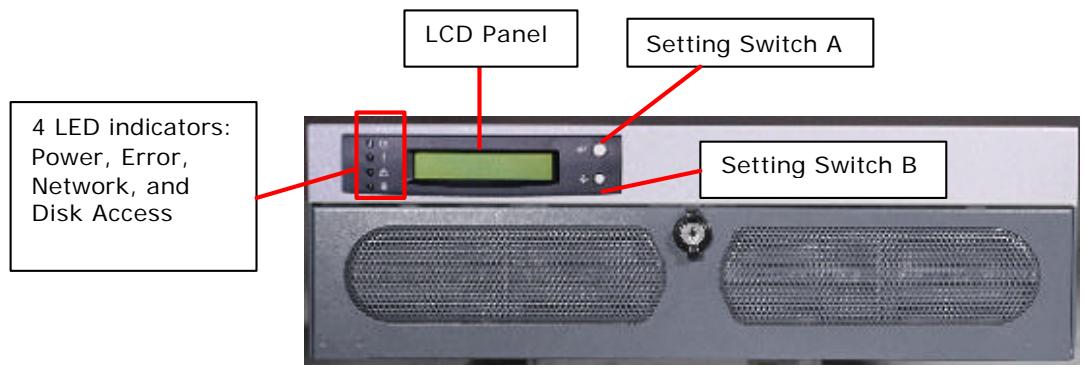
Indicator lights on the left of the LCD panel
| This light shines when power is on. |
| This light indicates a system error which needs to be corrected. |
| This light flashes when data is being transmitted through the network. |
| This light flashes when data is being stored or retrieved from the disks. |
IN THIS MANUAL, ALL SCREEN CAPTURES ARE DISPLAYED FOR ND43000. ND45000 SERIES ARE HAVING THE SAME FUNCTIONALITIES AND OFFER BETTER PERFORMANCES.
Chapter 2. Installation and Set-up of Network Disk Server
2.1 Installing the Hardware
The following steps will guide you through the Network Disk Server hardware installation:
- Connect the Network Disk Server™ to your Network.
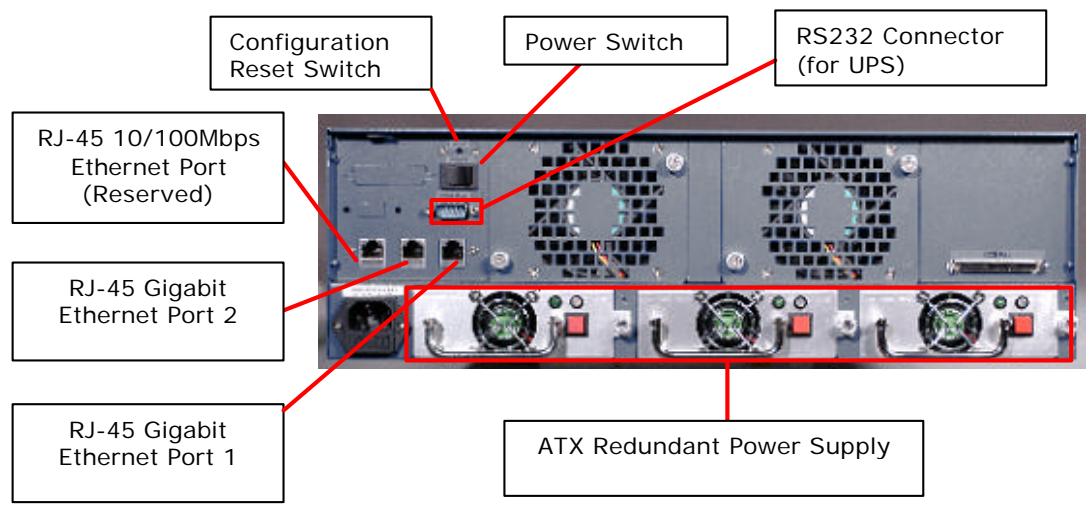
Note: The system provides two to three network ports. To configure Fail Over and Load Balance, at least two network ports must be connected.
- If you want to back up your files to the tape, please connect the tape drive to the SCSI port on the back of your Network Disk Server. Then turn on the tape drive. (This function is only applicable for Network Disk Server models with SCSI port).
- To use a UPS with your unit, please connect the UPS to the RS-232 port on the back of your Network Disk Server via a serial cable. And connect the power plug of the Network Disk Server to the output power inlet of the UPS. (This function is only applicable for Network Disk Server models with SCSI port).
- Power on the Network Disk ServerTM.
Note: The power switch uses toggle switch design (after pushing the button it will return to the original position). All you need to do is to flip the switch one to turn-on or turn-off.
When all power cables have been properly connected, push the Power Switch on the back of the Network Disk Server. The LCD Panel will light up and the system is ready for set-up:
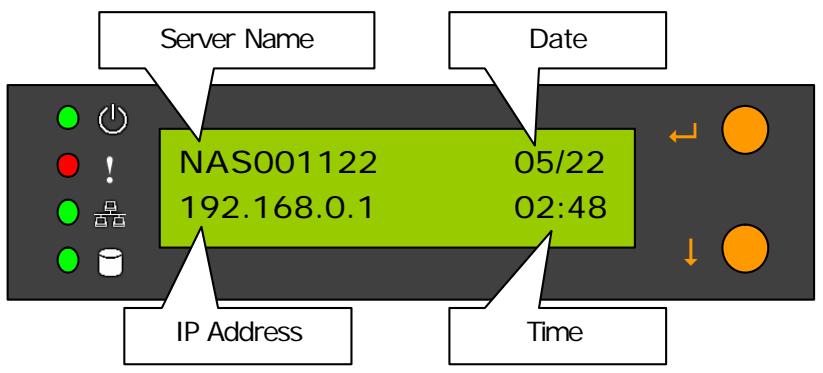
At this time the hardware installation of your Network Disk Server is complete. Please proceed to "Set-up before First Operation".
2.2 Set-up before First Operation
The factory default settings of your Network Disk Server will search the network via DHCP (Dynamic Host Configuration Protocol) to automatically detect IP address settings. If your network does not support the DHCP protocol, the Network Disk Server will use the default settings listed below:
IP Address: 192.168.0.1
Subnet Mask: 255.255.255.0
Once the Network Disk Server completes its boot-up process, the LCD panel displays the current IP address settings.
If your network does not support the DHCP protocol, you must configure your Network Disk Server to the proper LAN settings before using it for the first time. (If you do not know your LAN settings, please contact your network administrator).
- Use the LCD panel to change the network settings. For more information, see Appendix A.
- Use the Quick Install Wizard on the CD-ROM to change the network settings. For more information, see Appendix D.
Once you complete the Network Disk Server settings, you can use your web browser to perform further administrative settings.
Chapter 3. Administration of Network Disk Server
Once you have installed the Network Disk Server and other hardware and connected it to the networks, you can use your browser (supports Microsoft Internet Explorer 5.0 or later and Netscape Navigator 4.5 or later; Microsoft Internet Explorer 5.5 is recommended) to complete administrative tasks for the Network Disk Server.
3.1 Accessing the Administration Page
The following methods allow administrator to access the Administration page:
- Launch your web browser (Microsoft Internet Explorer version 5.5 is recommended). If you know the IP address of the Network Disk Server, type the IP address in the address bar of the browser and press "Enter". The IP address can also be obtained on the LCD display of the Network Disk Server (see Appendix A).

- Use the Quick Installation Wizard (see Appendix D) and double-click on Network Disk Server in the list that appears. When the browser displays the home page of your Network Disk Server, click on the Administration link.
Enter the user name and password to continue the administration setup.
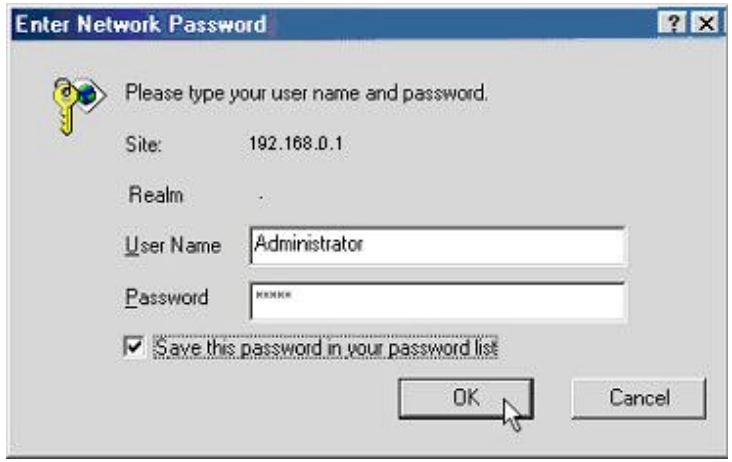
The default login name and password are as follows:
Login: Administrator
Password: admin
If this is the first time you enter the Administration page, the Quick Configuration page appears automatically. Please refer to the Quick Configuration section for more details.
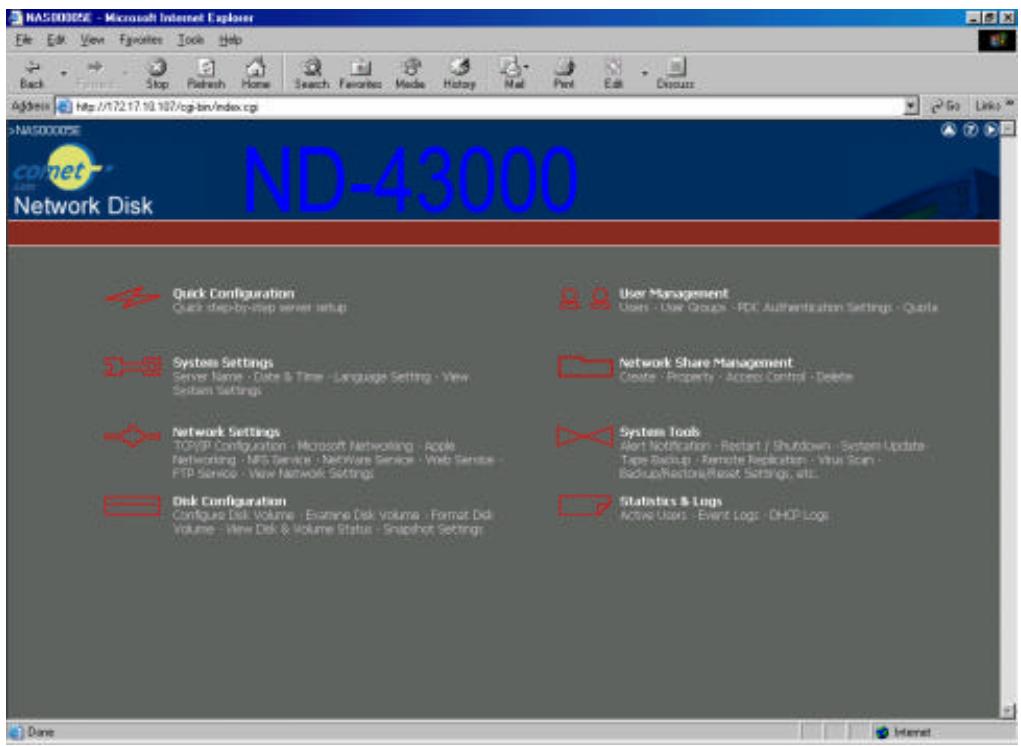
3.2 Server Administration
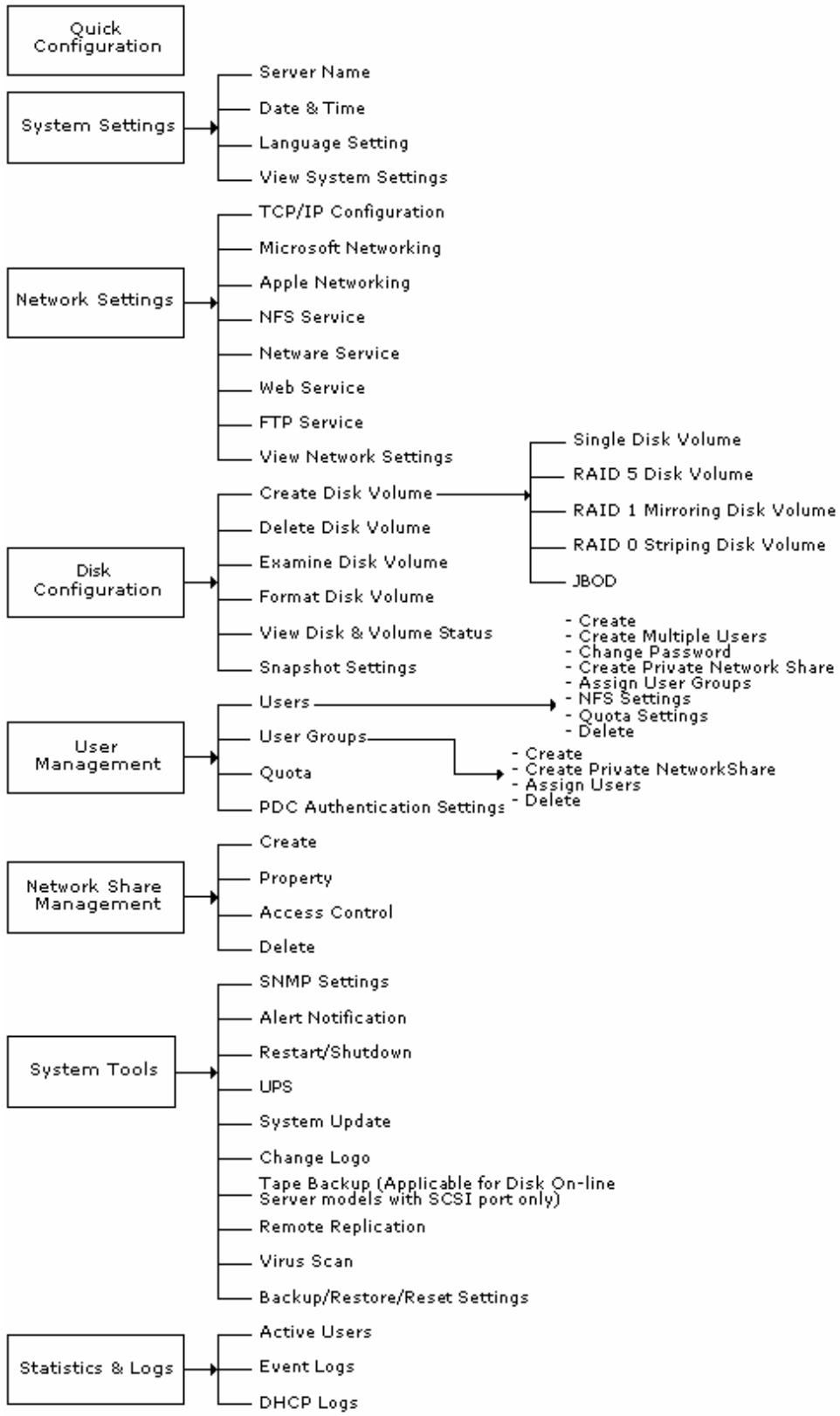
3.3 Quick Configuration
The Quick Configuration will guide you through the configuration process step-by-step, as follows:
- Enter the name, workgroup and description for this server.
- Change the administrator password.
- Enter the date, time and time zone for this server.
- Select the language that this server will use for file names.
- Enter the IP address, subnet mask and default gateway for this server.
- Select the network file services that you want to provide on this server.
- Configure disk volume on this server.
- Configure the method of user authentication.
- Manage users and user groups for this server.
- Manage network shares on this server. It might take 3 to 10 minutes to complete the Quick Configuration depending on the type of configurations.
3.4 System Settings
Basic system settings include the server name, date, time, and language settings.
Server Name
You must assign a unique name for your Network Disk Server for ease of identification within the local network. The server name can accommodate as much as 14 characters, which can be a combination of letters (A-Z or a-z), numbers (0-9) and hyphens (-). The server will not accept name containing blank spaces, period (.), or names with only numbers. The LCD display will show the current server name.
Next, you must configure your Network Disk Server to the workgroup. The workgroup represents a basic computer group within the Microsoft Network. Files are normally shared within the group. Workgroups can accommodate as much as 15 characters but must exclude the following characters:
$$ \vdots : \forall^ {\prime} < > ^ {\star} + = \backslash |?, [ ] / $$
The first character cannot be a period (.). For ease of management and usage, please set your Network Disk Server and attached computer(s) in the same workgroup.
Moreover, the Network Disk Server allows you to specify comments (such as administrator name, department, or location) that describe the Network Disk Server for ease of identification to an on-line user.
- Date & Time
Set the date, time, and time zone according to your current location. If the settings are incorrectly entered, the following problems may occur:
- When using a web browser to access or save a file, the time of the file accessed or saved may be out of sync.
- The system event log time will be incorrect compared to the actual time an action occurred.
- Language Setting
The server is based on the language settings and uses it accordingly while creating or displaying files and directories. Select the correct language settings to avoid the following problems:
- Inability to create files or directories with special wording.
- Inability to display files or directories name with special wording
View System Settings
You can view all the current system settings such as server name and workgroup from this page.
3.5 Network Settings
The network settings include TCP/IP configuration and network service settings.
- TCP/IP Configuration
According to your local network, you can choose the following two methods to configure the TCP/IP settings:
i. Obtain IP address settings automatically via DHCP
If your network supports DHCP, the Network Disk Server will automatically use the DHCP protocol to retrieve the IP (Internet Protocol) address and related information.
ii. Use static IP address
Use the user defined IP address settings.
Fixed IP Address
The IP address is a 32-bit digit code used to differentiate each single entity on a network. The IP address is separated into 4 groups of eight bits separated by dots: 192.168.0.1.
- Subnet Mask
The subnet mask is used to define computer within the same local network. It is a 32-bits digit code: 255.xxx.xxx.xxx.
- Default Gateway
The gateway is generally referred as an interchange point that connects two networks, such as LAN and WAN. If you do not need to configure gateway address, set it as 0.0.0.0.
- Enable DHCP Server
Once the DHCP server's dynamic address allocation function is activated it will automatically assign dynamic addresses to any computer in the network that is configured to automatically obtain IP addresses.
Note: Only one DHCP server may be activated at any time in a network to avoid causing conflicts in communication.
Configuration of Network Interfaces
The system supports multiple network interfaces that enable you to perform Fail Over and Load Balancing functions. Fail over ensures server availability to the network. If the primary port is disconnected due to a hardware or cable problem, the secondary port will replace its network identity. If the failed port resumes the network connection, it will also resume the role as the primary interface.
Microsoft Networking
Users using the Network Disk Server on the Microsoft Windows operating systems must start Microsoft Network Services.
If the local network has a WINS server installed, please specify the IP address. The Network Disk Server will automatically register its name and IP address with the WINS service. Or you can enable your Network Disk Server as the WINS server for your network.
Apple Networking
Users using the Network Disk Server on Apple's Mac operating systems must enable AppleTalk network support.
If your AppleTalk network uses extended networks, and is assigned with multiple zones, please assign a zone name to the Network Disk Server. If you do not want to assign a network zone, please enter an asterisk () Asterisk () is the default setting.
- NFS Service
Users using Network Disk Server on Unix/Linux operating system computer or server must start Unix/Linux NFS service. The Network Disk Server supports NFS version 2.0/3.0. To correctly use the NFS service, you must assign a User's UID and IP address. Please select User Management · Users · NFS Settings to start the setup.
- NetWare Service
If you wish to use NetWare to access the Network Disk Server, you must activate the NetWare service. The Network Disk Server will then operate in a manner similar to a Novell NetWare 3.12 file server.
Web Service
Other than standard OS support, you have the choice to use a web browser to access your files on the Network Disk Server. If your Network Disk server is connected to the Internet and uses a valid IP address, the Network Disk Server allows you to access your files using a web browser from anywhere in the world.
- FTP Service
If you wish to download files from or upload files to your Network Disk Server by using file transfer protocol (FTP), you must first activate the FTP service.
View Network Settings
You can view all the current system settings such as server name and workgroup from this page.
3.6 Disk Configuration
Depending on the models, the Network Disk Server can accommodate a maximum of eight disks. The Disk Volume can be configured according to your needs.
- Single Disk
You can choose to use a stand-alone disk. However, if the disk is damaged, all data will be lost.
RAID 5 Disk Volume
Three or more hard disks can be teamed up to form a large-capacity RAID 5 disk group. This system will distribute and store data among its various member disks as it is received. At the same time it uses an amount of space roughly equivalent to a whole disk to store reference numbers with the same elements. Should one of the disks in the group suffer some kind of damage, you can shut down the computer and install a new disk, and the
system will restore the data on the new disk using the reference number. In addition, if you have a system with four disks but use only three in your RAID 5 group, the fourth will serve as a backup disk. If one of the three disks is damaged the system will automatically start using the spare disk without powering down and changing the affected disk. Generally speaking, the capacity of a RAID 5 disk group is one disk's worth of space less than the total rated capacity of the group.
Note: RAID 5 may be used only with equipment that has three or more disks.
RAID 1 Mirroring Disk Volume
Mirroring Disk protects your data by automatically backing up the contents of one disk onto the second disk of a mirrored pair. This protects your data if one of the disks fails. Unfortunately, the storing capacity is equal to a single disk, as the second drive is used to automatically back up the first. Mirroring Disk is suitable for personal or corporate use to store important data.
RAID 0 Striping Disk Volume
Striping disk combines two or more disks into one larger disk. It offers the fastest disk access but it does not have any protection of your data if the striped array fails. The disk capacity equals the number of disks in the array times the size of the smallest disk. Striping disk is usually used to maximize your disk capacity or for fast disk access but not for storing important data.
- Linear Disk Volume
You can combine two or more disks into one larger disk. During file saving, the files are saved on physical disks sequentially but do not have a disk failure file protection function. The overall capacity of linear disks is the sum of all disks. Linear disks are generally used for storing large data and are not appropriate to use for file protection of important data.
By factory default, the Network Disk Server has been pre-set into one large disk. If you wish to use other disk configurations, the settings can be changed during the first Quick Configuration access. Furthermore, to increase the hard disk life, the hard disk will go to standby mode if there is no access within 30 minutes. If any data access happens while the hard disk is in stand-by mode, it will take 3 or 5 seconds for the hard disk to return to normal mode. You can select System Tools \ Hardware Settings to change the setting.
You can also perform the following disk administration:
- Create Disk Volume
- Delete Disk Volume
- Examine Disk Volume
- Format Disk Volume
View Disk & Volume Status
In addition to the above functions, users can also perform snapshot taking in Snapshot Settings of System Tools. This function enables users to take a real-time and dynamic replication of the snapshot according to the disk volume at a certain point of time. The data contained in the snapshot is the same as the previously copied network hard disk drives. The content in the snapshot will not be affected even when changing the content of the disk volume. If an original data is damaged, it can be restored from the snapshot image.
3.7 User Management
The Network Disk Server can share its files with multiple users. It is important to plan and organize users and user groups' accessibility to ease the administration work.
- Users
The factory default settings include the following users:
Administrator
By default, the administrator is a member of the administrators group and has access to the system administration. You cannot delete the user Administrator.
Guest
When you use a non-registered user name to login, the server recognizes it as a Guest and will allow limited access. A guest does not belong to any user group. You cannot delete the user Guest or create a password.
Anonymous
When you connect to the server by FTP service, you can use the name to login as a guest. You cannot delete this user or change its password.
You can create a new user according to your needs. The following information is required to create a new user:
- User Name
The user name must not exceed 32 characters. It is case insensitive and it can contain double-byte characters. (Such as Chinese, Japanese, and Korean) But it cannot contain any of the characters below:
$$ \because / \backslash [ ]: ; | = , + * ? < > ^ {\prime} $$
- Password
The password must not exceed 16 characters. Due to security concerns, the password must be at least 6 characters. Try to avoid using codes that are easily decipherable.
You can perform the following settings for users:
Create User
Create Multiple Users
Create Private Network Share
- Assign User Groups
- NFS Settings
Quota Settings
- Delete User
- User Groups
To administer access rights, you can create user groups. User groups are a collection of users with the same access rights to files or folders. By factory default, the server contains the following pre-defined user groups:
Administrators
All members of the administrator group have the rights to perform system management. You cannot delete the administrator group.
Everyone
All registered users belongs to everyone group. You cannot delete the user groups, "Everyone" or delete any of its users.
You can manage user groups with the following options:
- Create User Groups
- Create Private Network Share
- Assign Users
- Delete User Groups
User groups name must not exceed 256 characters. It is case insensitive and it can contain double-byte characters such as Chinese, Japanese, and Korean. But it cannot contain any of the characters below:
$$ \because / \backslash [ ] :; | = , + * ? < > ^ {\prime} $$
To properly manage security, it is very important to manage users and user groups. You may set the share access parameters of each user or user group accordingly.
- PDC Authentication Settings
If you have a Windows PDC (Primary Domain Controller) server to handle the domain security in your network, you don't need to re-enter all the users and groups with the Network Disk Server. You can simply enable the PDC authentication feature; the Network Disk Server will connect with the NT domain and get all the information of the domain users and groups automatically.
To enable PDC authentication, you must enter the domain name as well as the user name and password already established in this domain. The Network Disk Server will use the user name and password to log in to the NT domain and retrieve user and group information. Once you have configured the Network Disk Server to
use PDC authentication, all NT domain users and groups will appear in lists of users and groups for which you can define access rights.
Note: NetWare users cannot be authenticated via the PDC server. To properly authenticate NetWare users, please go to User Management · Users · Change Password page and type the password for that user manually.
Quota
The amount of space given out to all users in the system can be limited in order to manage and allocate it efficiently. Once these restrictions are in place, users will be prevented from obtaining more space once they have reached their limit. This prevents monopolizing of a large amount of disk space by a small group of users. No limitations are set on the system when it leaves the factory.
3.8 Network Share Management
The primary purpose of network storage is file sharing. In a standard operation environment, you can create different network share folders for various types of files, or provide different file access rights to users or user groups. By factory default, a "public" share folder is created. The share folder gives full access to all users or guests.
Administrator network shares with the following:
Create a Network Share
- Change the name, path and comment of a network share
- Set access right for a network share
- Remove a network share
You can create new network shares according to your needs. While creating a network share the following parameters must be set:
Network Share Name
The network share name must not exceed 32 characters. It cannot contain double-byte characters (such as Chinese, Japanese, and Korean) as well as the characters listed below:
$$ ''. + = \backslash \backslash : | ^ {\star}? < >; [ ] \% $$
- Disk Volume
The network share will be created under the specified disk volume.
- Path
All data are stored under the assigned path onto the disk volume. You can select Specify Path Automatically to allow the server to automatically create a new path on the disk volume to store the network share files. Or you can assign a specific path for the share folder. The manually assigned path cannot exceed 256 characters and cannot contain the characters listed below:
$$ ^ {\prime \prime} \backslash : | ^ {*} ? < >; ^ {\prime} $$
Comment
The Comment field allows a brief description of the share folder to help users identify its purpose in a network neighborhood window. The comment cannot exceed 128 characters.
Once the network share is created, you can start assigning access rights to users or user groups:
Full Access
Full access allows the user or user group to read, write, create, or remove all files and directories in the network share.
- Read Only
Reads files only in the network share but denies functions to write, create or delete files or directories.
Deny Access
Denies all files access on the network share.
3.9 System Tools
The following system tools allow optimized maintenance or management of your Network Disk Server:
- SNMP Settings
In order to use Simple Network Management Protocol (SNMP) to manage the Network Disk Server's network components, the SNMP service must be started.
- Alert Notification
Configures administrator's e-mail address and SMTP server IP address. In case of warning or malfunction, an email is automatically sent to the administrator.
- Restart/Shutdown
Powers off or restarts the Network Disk Server.
- Hardware Settings
You can enable or disable the following hardware functions of your Network Disk Server:
i. Enable LCD panel setting function
Allow you to change the TCP/IP configuration using the LCD panel buttons.
ii. Enable configuration reset switch
Depress and hold on the configuration reset switch for 5 seconds to reset the administrator password and network settings to the factory default.
iii. Enable hard disk standby mode
Hard disk will go to standby mode if there is no access within the period you specify.
iv. Enable buzzer
If the buzzer is disabled, it will not sound when a system error occurs, but the warning light will still shine.
UPS
By enabling the UPS support, you can protect the system from abnormal shutdown caused by power outage. In the event of utility power failure, the system will shut down automatically by probing the power status of the connected UPS unit. You can also set a shutdown timer to turn off the system automatically after it detects the AC power failure. In general, the UPS can keep supplying the power for the system for about 5 to 10 minutes. But this depends on the maximum load of the UPS and the number of the loads connected to it.
The UPS is supported by the following two ways:
i. via a serial port interface (only for models with serial port)
ii. via SNMP network management protocol
If the UPS you used is not supported, please contact technical support or visit our web site for updated news.
- System Update
Performs system software updates. Make sure that the image file that you are about to update is the correct version and read through the instructions carefully. It is wise to back up all existing data on the Network Disk Server prior to performing system software update. The current settings will remain unchanged after the system is upgraded.
- Change Logo
You can place a picture that you desire on the upper right corner of the home page. The size of the picture cannot exceed 20K bytes.
- Tape Backup (Applicable for models with SCSI port only)
The tape backup tools allow you to perform the backup or restore jobs using a tape drive with ease. In principal, there are two different types of backups: Full Backup or Incremental Backup. Full backup will back up all the files in the backup source. However, the incremental backup will only back up any modified or new files after last backup.
Backup Now
To back up the files to the tape right away, you can run an immediate backup job.
Restore
To restore from the previously backup tape, you can perform the restore operation.
Scheduled Jobs
You can schedule a backup job to be executed automatically at any later time periodically.
Tools
There are several useful tape functions to operate on the tape drive. For example, you can rewind, eject or erase the tape here.
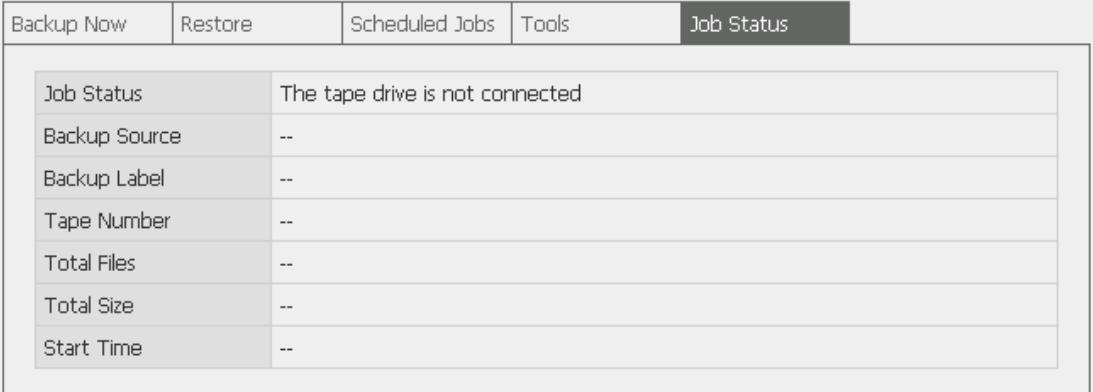
Job Status
You can review or monitor the status of the backup or restore job.
Note:
-
The SCSI tape drive has to be properly connected and turned on before starting the system, or it will not be detected.
-
The HVD (High Voltage Differential) SCSI tape drive is not supported by this system.
Remote Replication
When you want to replicate the local files to the remote folder on another Network Disk Server, the remote replication function allows you to perform this job with ease. You can perform immediate replication job or schedule a replication job to be executed at the specified time periodically. In order to reduce the network bandwidth usage as well as the time consumed, you can select to compress the files before transferring them over the network.
- Virus Scan
Virus scanning agent helps you protect your system from being infected by viruses. You need to operate Windows NT or Windows 2000 server with virus-scanning software installed to perform real-time virus scanning. To enable virus scan support, specify the IP address of network share, the administrator IR and password.
Infected files are automatically deleted or quarantined by the NT virus-scanning software as setup by the NT administrator.
- Backup/Restore/Reset Settings
If you want to backup configuration settings, please select one configuration and then click [Save] button. The system may ask you whether to save or open the backup configuration file, in this case please choose to save it. Please keep the backup image file
carefully.
If you want to restore configuration settings, please select one configuration and then first click the [Browse...] button to specify the backup image file then click the [Restore] button.
You can also reset the following settings to the default values:
- Users/Groups settings
- Disk configuration
- Share Volume Settings
- Hardware settings
- System settings
- Network configuration
- All settings
3.10 Statistics & Logs
You can monitor the current logon user of the Network Disk Server and the system event logs for the purpose of user administration or system diagnostic reference.
Active Users
Displays information on all online users.
Event Logs
The Network Disk Server can store thousands of recent event logs, including warning, error and information messages. In the event of a system malfunction (LCD error indicator lights up), the event logs can be retrieved to help diagnose the system problem.
DHCP Logs
If the DHCP server function is activated, you can use it to monitor all of the assigned dynamic addresses, client MAC addresses and other information.
Chapter 4. Accessing Network Disk Server
4.1 Using Microsoft Windows
Under the Microsoft Windows operating system, you can access the Network Disk Server using the following steps:
-
Use the following methods to locate and connect the Network Disk Server within the local network:
-
Click on the Start button and select Run in the Windows menu bar. Enter the name of the Network Disk Server, for example: \NAS004001, and press Enter.
- You may also look for the Network Disk Server within the Network Neighborhood. Locate the workgroup and find the name of your Network Disk Server. When the server is found, double-click on the server name to connect.
- You may also use the "Search for Computers" function to look for your Network Disk Server in Windows. Under Windows ME or Windows 2000, please follow these steps:
i. Open "My Network Places" folder.
ii. Under the tools bar menu click "Search".
iii. Computer Name path key-in Network Disk Server name.
iv. Click once on Search.
Once the Network Disk Server is found, double-click your mouse button to connect.
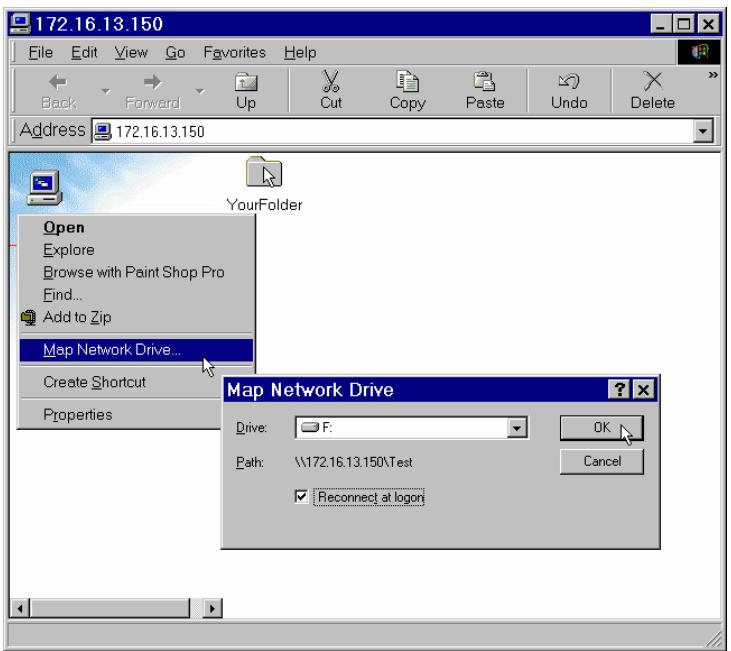
- Once the connection to the Network Disk Server is successful, all listing on your available network share are displayed. Move the mouse pointer to the network share you want to access and click the right button once. A popup menu appears; select "Map Network Drive". A popup window that allows you to assign a drive letter for the network share appears (note: do not use the drive letter used by the CD-ROM). If you wish to make the share folder available for your next start-up, check the "Reconnect at logon" box on the popup window and click on "OK" to make the network share as one disk drive in your system.
-
Once the network share is a part of your system disk drives, you can locate the network share in "My Computer" and access it as a regular hard disk drive.
-
You can also map the network drive by clicking Map Drive in Quick Install Wizard.
4.2 Using the Apple Mac Operating System
If you are a Mac OS user, you can use the following two methods to access to your Network Disk Server:
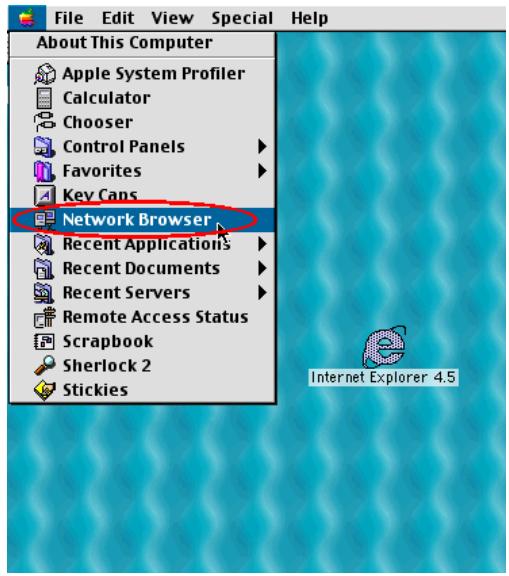
1. Using Network Browser
a. Choose "Network Browser" in the Apple menu.
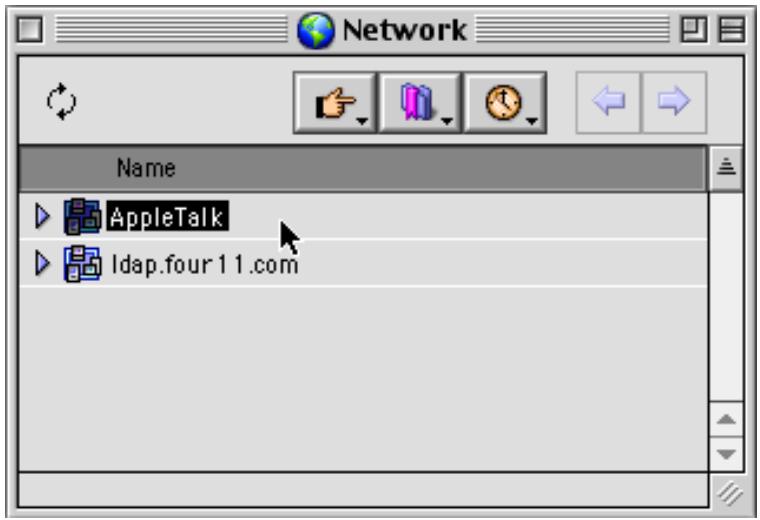
b. In the "Network Browser", choose AppleTalk; a list of all computers on the AppleTalk network appears. Choose the Network Disk Server.
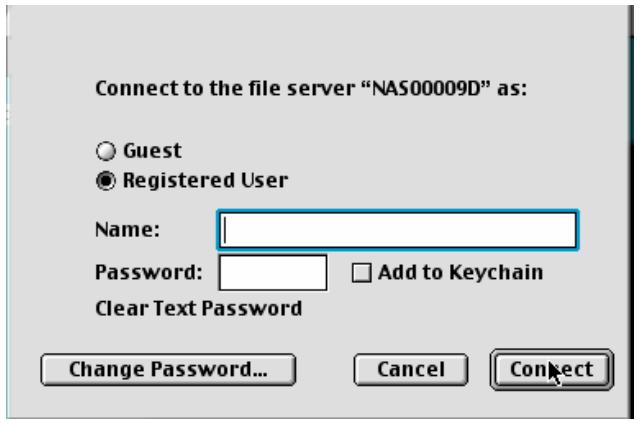
c. Once the Network Disk Server is chosen, the system will request you to input the login name and password. Click then "Connect" or use "Guest" to enter. When the login name and password are confirmed, a popup window informs you that the connection is made with the Network Disk Server.
d. When the Network Disk Server is connected, the network browser displays all the network shares. You can then access or drag & drop the share folders.
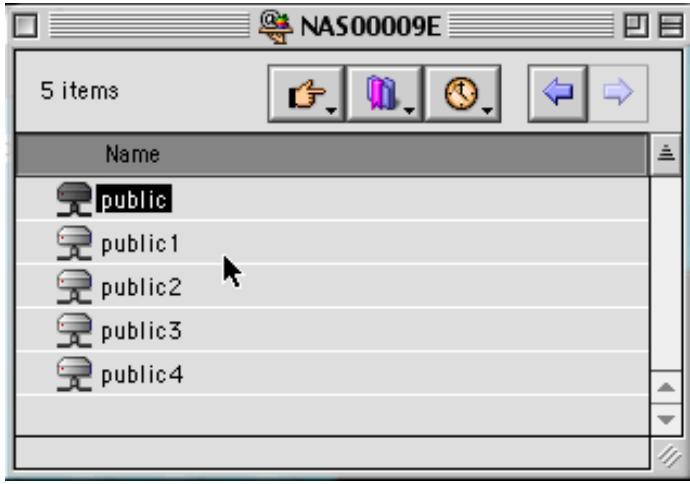
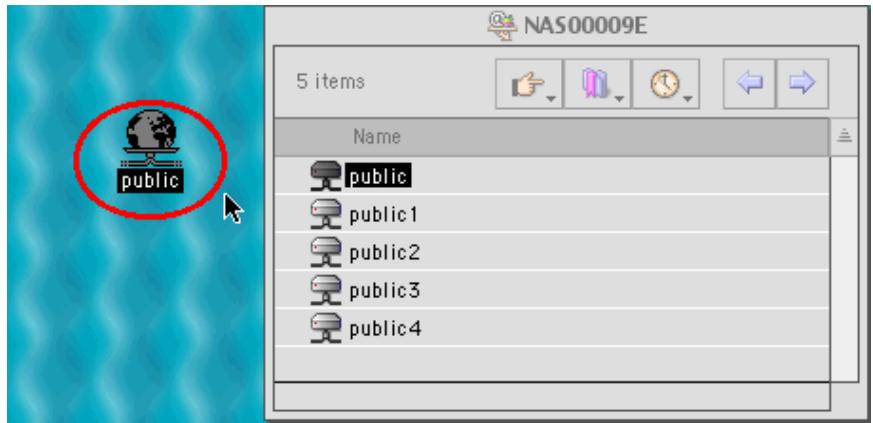
e. Choose either one of the network shares to start to link. The network share appears on the Mac OS desktop.
2. Using the Chooser
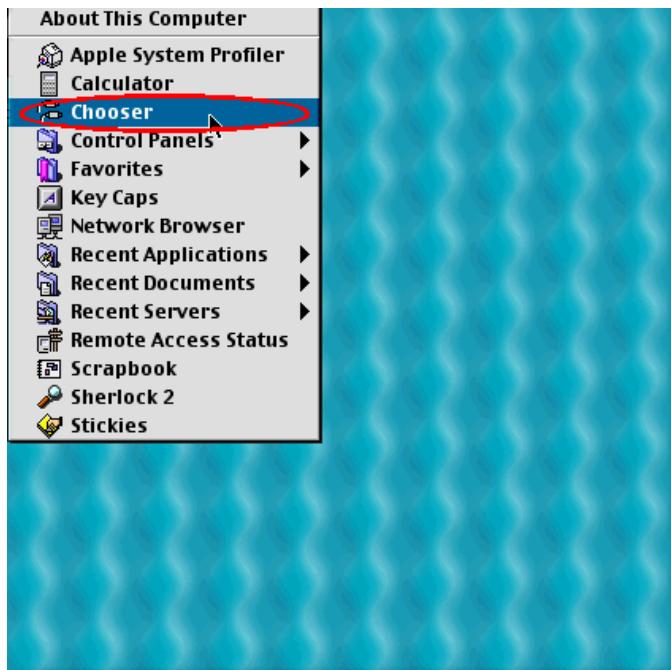
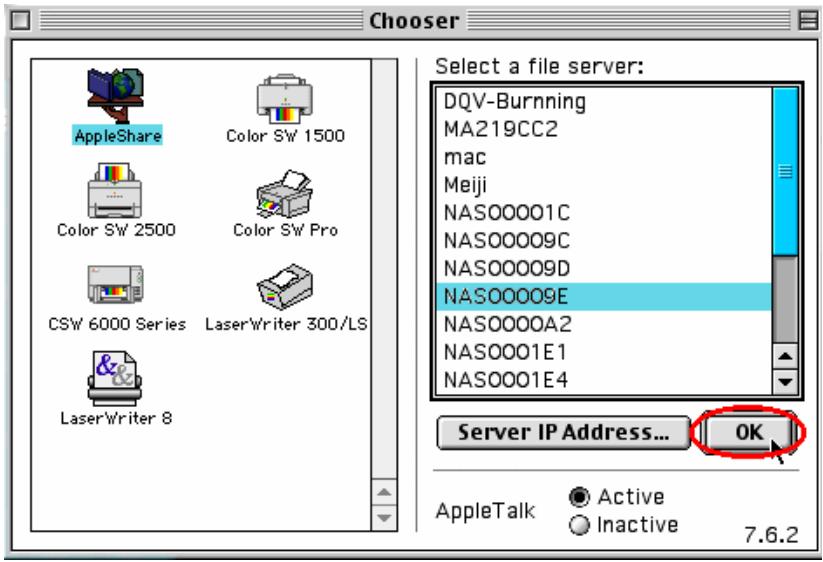
a. Select Chooser in the Apple menu bar.
b. Click on AppleShare. The name of the Network Disk Server appears on the right side of the window.
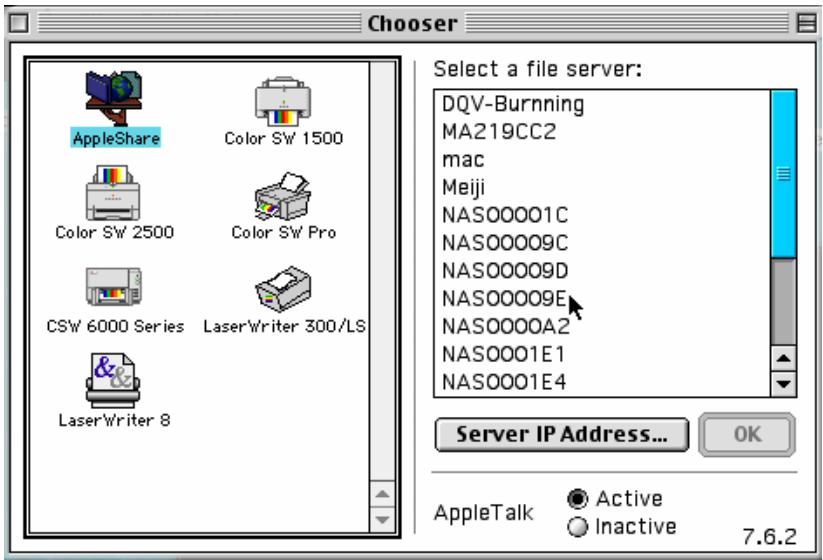
c. Use the mouse to highlight the Network Disk Server and then click on the "OK" button located at the bottom right-hand side of the screen.
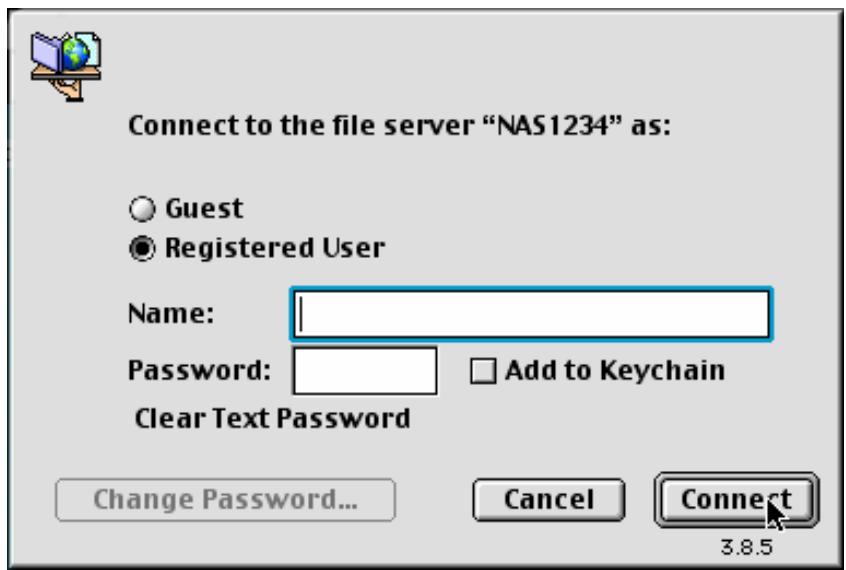
d. Enter the correct login name and password or use "Guest" to login, then click on "Connect".
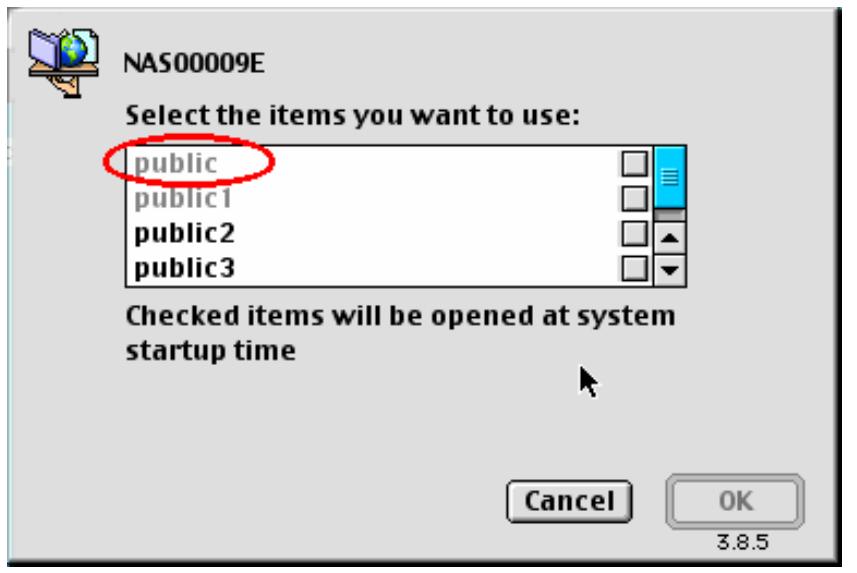
e. All available network shares will be listed. Use the mouse to choose a network share and click on "OK".
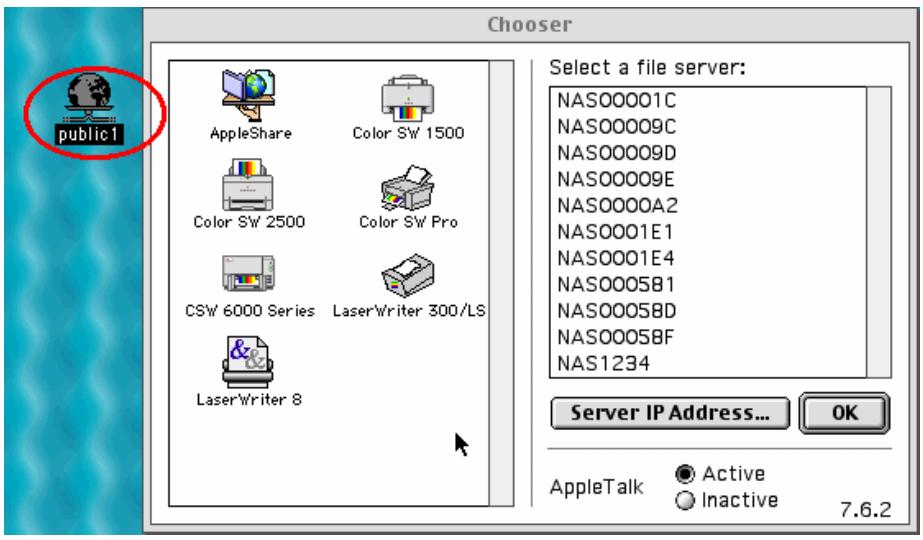
f. You can then close the Chooser program. Double click on the icon on the desktop to access your files.
4.3 Using the Unix/Linux Operating System
Other than Microsoft OS and Mac OS, your Network Disk Server supports Unix based systems (such as IBM AIX, HP-UX, Sun Solaris, Linux, Free BSD, etc) through the NFS service:
- Under Unix, use the following commands:
mount -t nfs
For example, if your Network Disk server's IP address is 192.168.0.1 and you want to link the network share folder "public" under the /mnt/pub directory, use the following command.
mount -t nfs 192.168.0.1:/public /mnt/pub
Note: You must login as "root" user to initiate the above command.
- Logged in as the user id that you defined, you can use the mounted directory to access your network share files.
For more information about NFS settings, please refer to your Unix system documentation.
4.4Using Novell NetWare
If you are accessing the Network Disk Server from the NetWare client, please refer to the NetWare user's manual for more information. The Network Disk Server functions as a NetWare 3.12 file server.
4.5Using a Web Browser
Other than OS support, your Network Disk Sever also provides a convenient web style file management that allows using a standard web browser to access your data. If you link the Network Disk Server onto the Internet and use a public IP address, you can logon to access the files from anywhere in the world.
For more information, please refer to Appendix B.
4.6Using File Transfer Protocol (FTP)
In addition to working with multiple operating systems, the Network Disk Server also supports FTP. You can use popular FTP software and enter the user name and password to connect to the Network Disk Server. Or you may key in anonymous as the user name in order to access public network share folders that is open to guest users.
Chapter 5. Introduction to Backup Functions
5.1 Tape Backup
Overview
Users using servers with SCSI port are enabled to back up data to the server with Tape Backup.
The system supports two types of backup:
- Full Backup: To back up all files in the backup source.
- Incremental Backup: To back up any modified or new files since the last backup only.
Using Tape Backup
- Enter administration page. Go to System Tools and select Tape Backup.
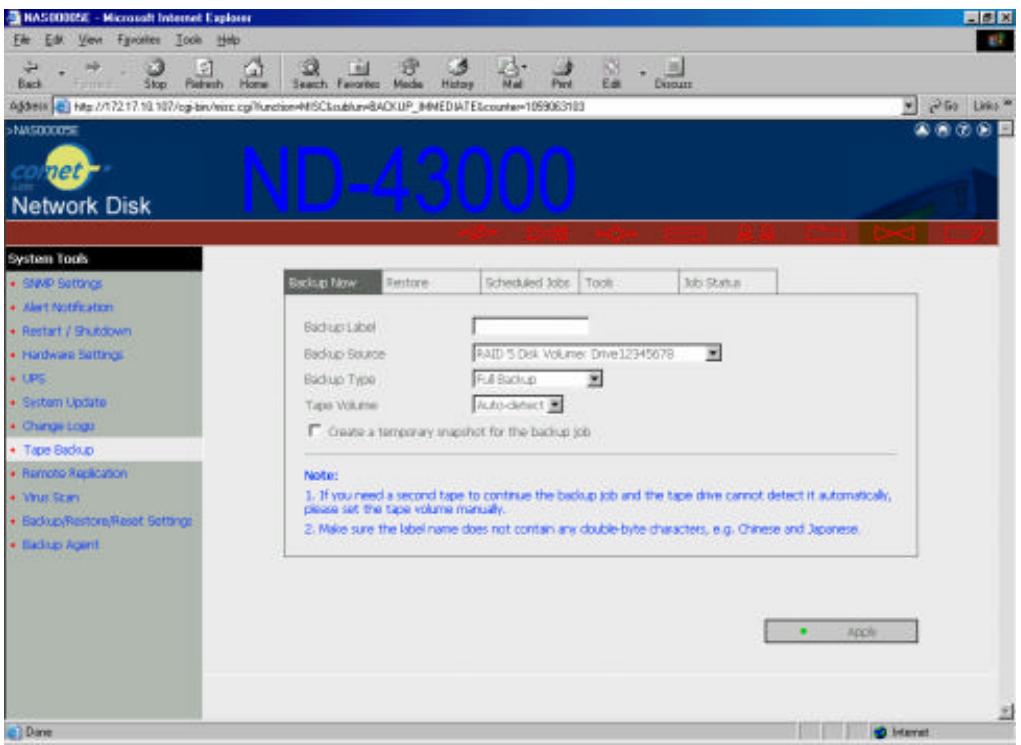
- Select a function: Backup Now, Restore, Scheduled Jobs, Tools or Job Status.
A. Backup Now
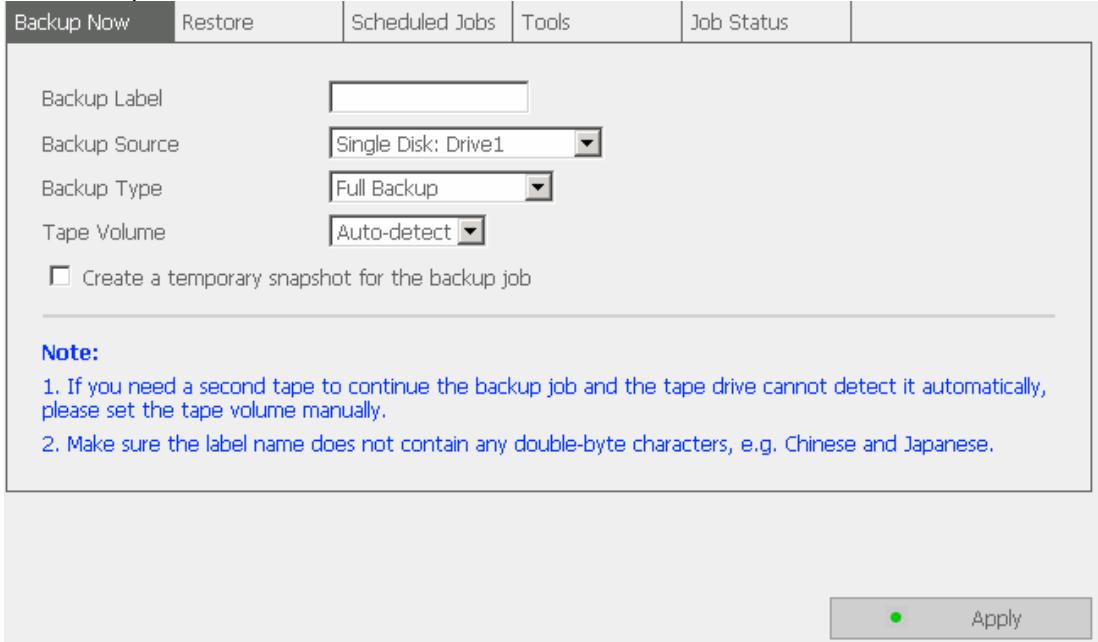
i. Enter the backup label.
ii. Select backup source.
iii. Select backup type.
iv. Select whether or not to create a temporary snapshot for the backup job.
v. Click Apply to activate the settings.
B. Restore
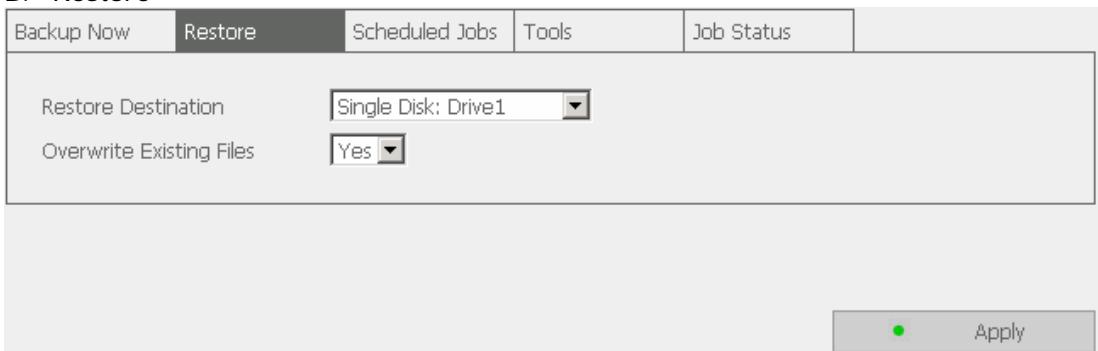
i. Select restore destination.
ii. Select whether or not to overwrite existing files during restoring.
iii. Click Apply to activate the settings.
C. Scheduled Jobs
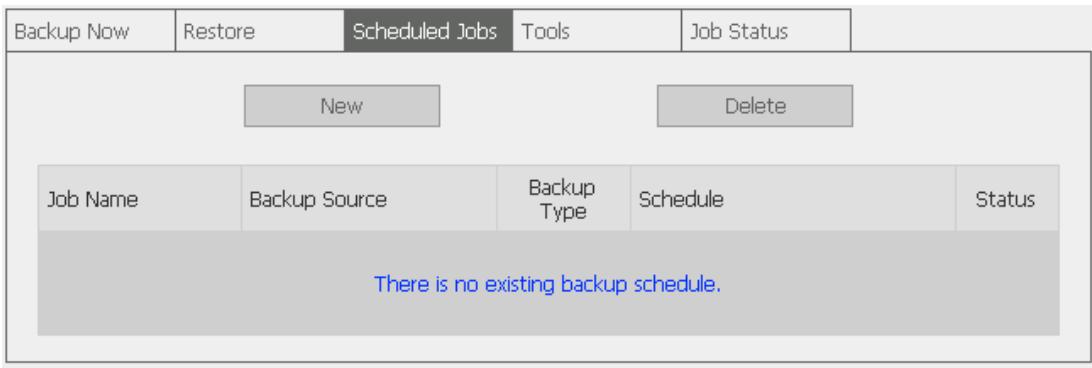
i. Click New to enter the following page:
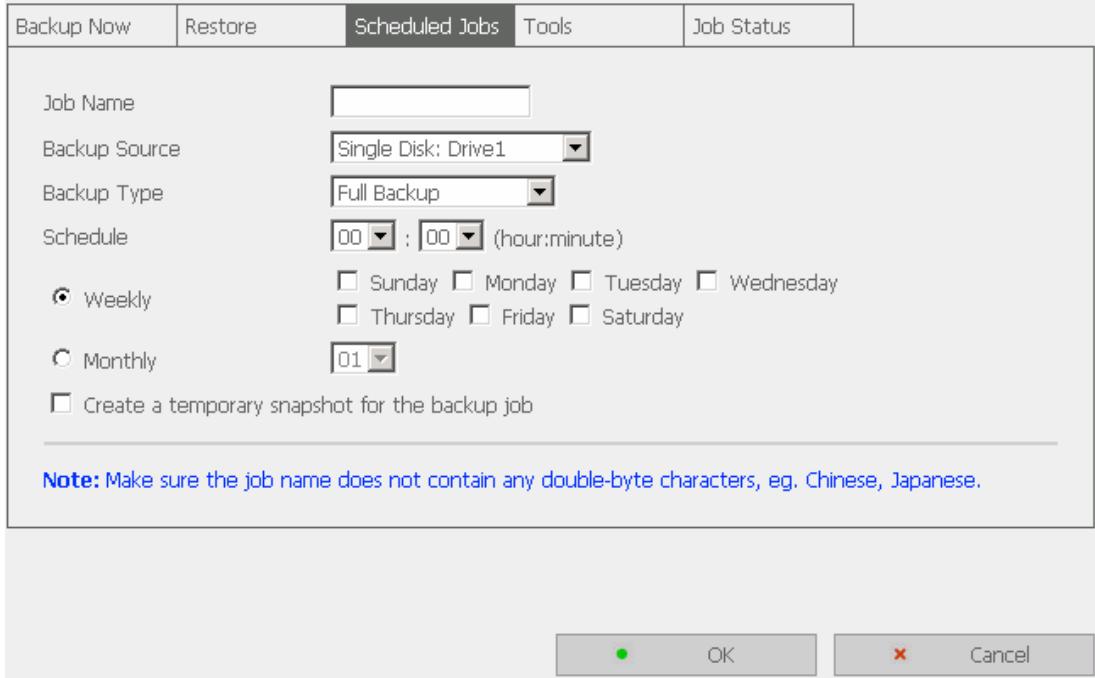
ii. Enter a job name.
iii. Select the backup source.
iv. Select the backup type.
v. Modify the backup schedule (select to back up files every week or at a certain time every month).
vi. Select whether or not to create a temporary snapshot for the backup job.
vii. Click OK to apply the settings or Cancel to cancel the modifications.
D. Tools
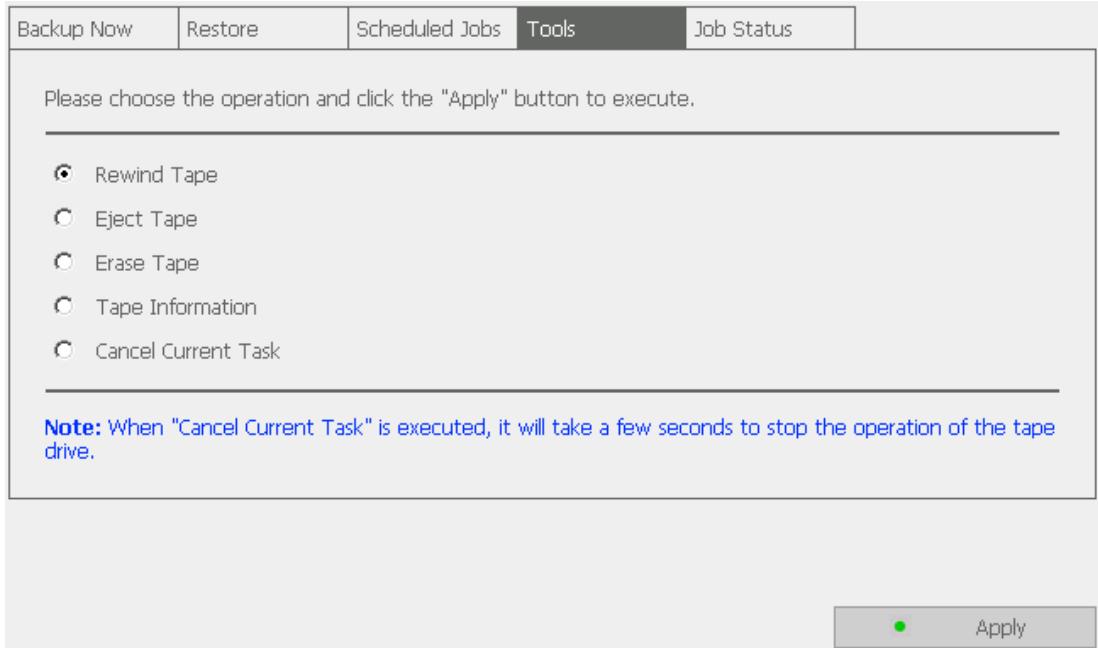
i. Select an option in the Tools section.
ii. Click Apply to activate the setting.
E. Job Status
To view the job status of Tape Backup, click Job Status and the following page will be shown. To exit the page, click Close.
Close
5.2 Remote Replication
Overview
Remote Replication enables you to replicate local files to remote folders on another server. The files will be compressed before the replication process in order to save time for data transfer. The system enables the choices for immediate and scheduled replication.
Using Remote Replication
- Enter administration page. Go to System Tools and select Remote Replication.
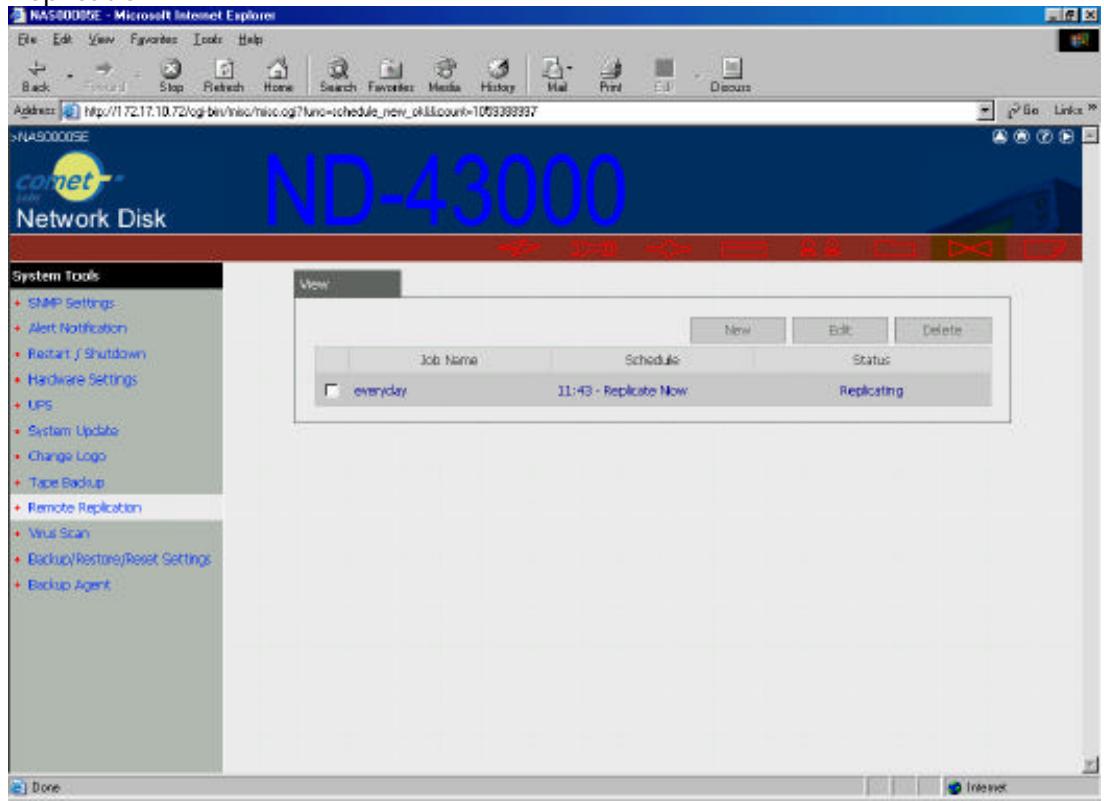
A. New
i. Click New to enter the following page:
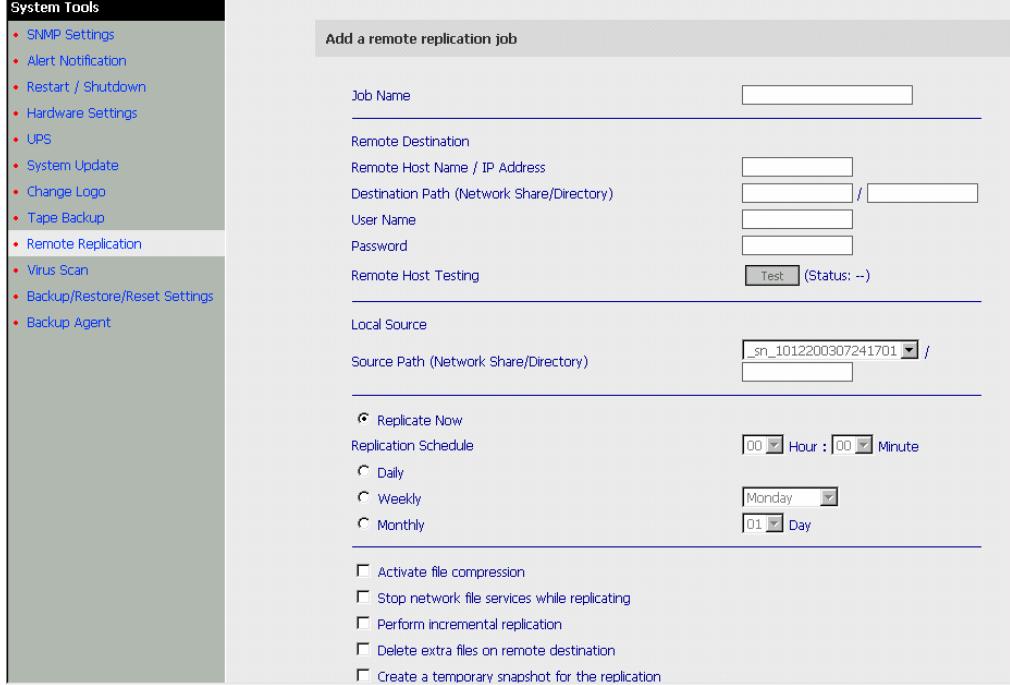
Enter all the necessary fields and select the appropriate settings for the remote replication job.
Click OK to apply or Cancel to cancel the settings.

Note: To enable Remote Replication, make sure
(1) Microsoft Networking Service has been activated,
(2) The specified destination network share and directory have been created, and
(3) The user name and password are valid with full access right to the destination folder.
B. Edit
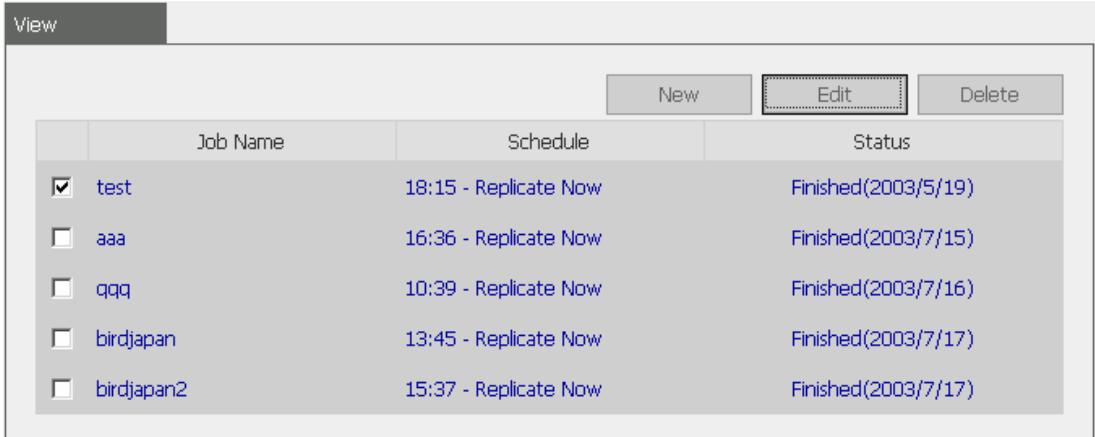
i. Select an entry to edit.
ii. Click Edit.
iii. Modify the appropriate fields.
iv. Click OK to apply or Cancel to cancel the settings.
C. Delete
i. Select an entry to delete.
ii. Click Delete.
5.3 Backup Agent
Overview
Backup Agent enables NAS to fully support most backup software developed by storage management companies. Not only can the server be compatible with more tape drive and tape library models, but also support backup jobs in different OS. In addition, some cooperating companies have developed certain virtual tape library models with backup agents, which have enhanced the backup function of NAS and also turn NAS to a multi-functional virtual tape library.
Installation of Backup Agent
Follow the steps below to install Backup Agent:
Step 1: Download Backup Agent program to local disk
Step 2: Install Backup Agent program
- Enter NAS administration page. Go to System Tools and select Backup Agent.
- Click Browse to select Backup Agent.
- Click Install Agent. When the installation is completed, NetVault 6.5.3 will be shown on the page.
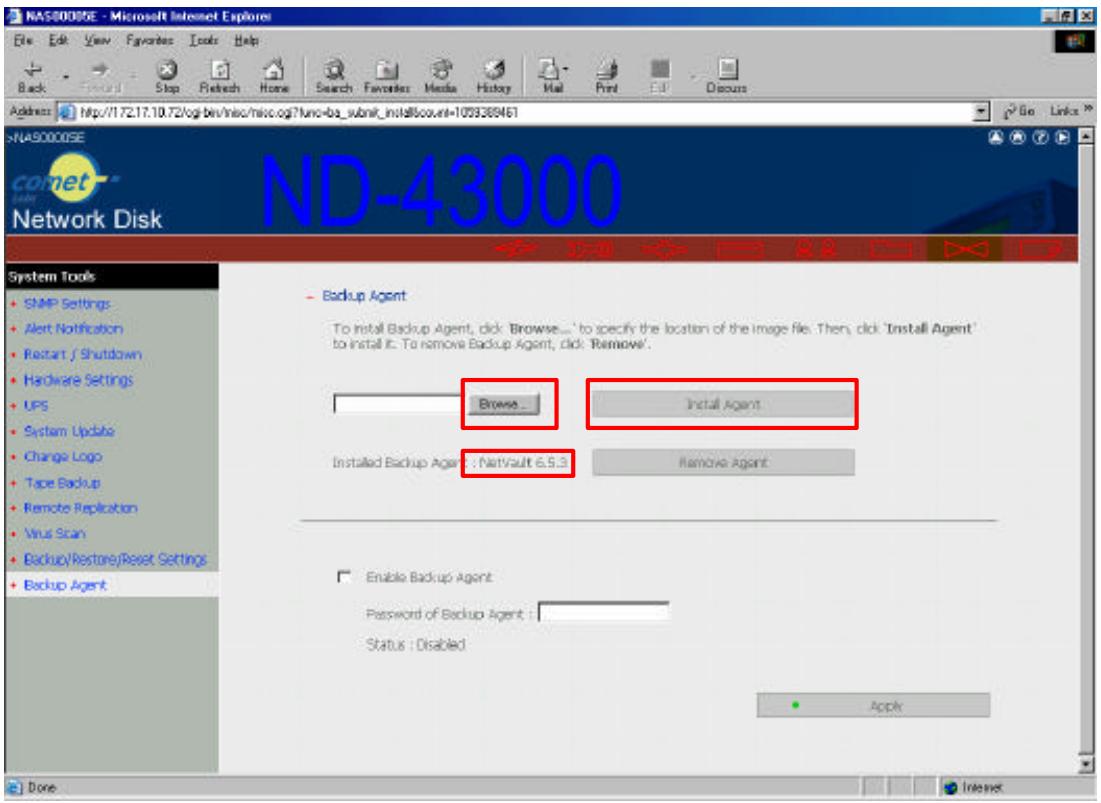
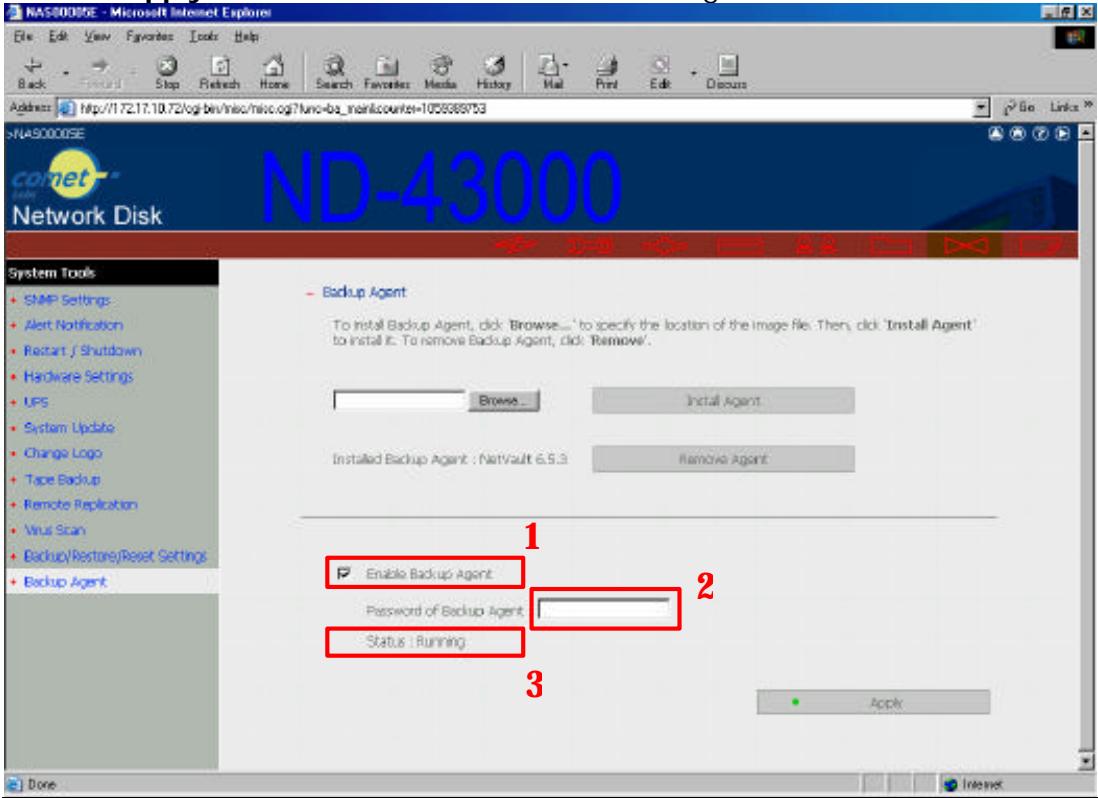
Step 3 Configure and enable Backup Agent
- Click Enable Backup Agent.
- Enter the password for Backup Agent.
- Click Apply. The status will be shown as Running.
5.4 NetBak Replicator
Overview
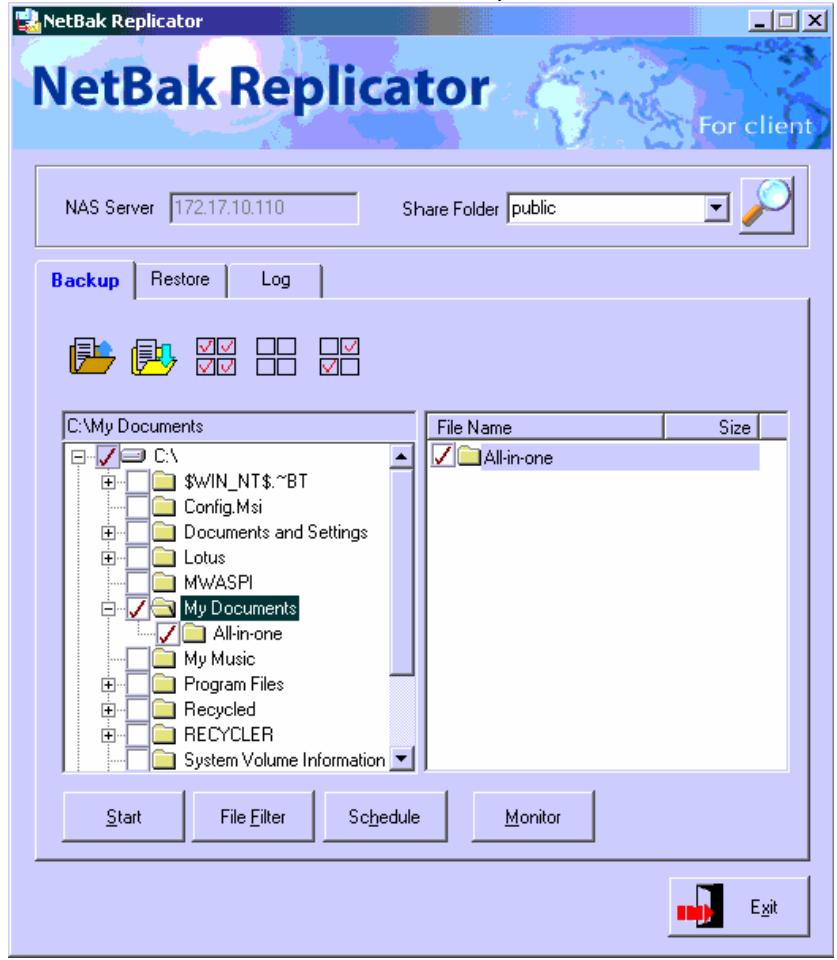
NetBak Replicator is a software installed in user's system (Windows only) for data backup. Users can upload any files or folders to server and back up the data.
Main Functions
- Backup
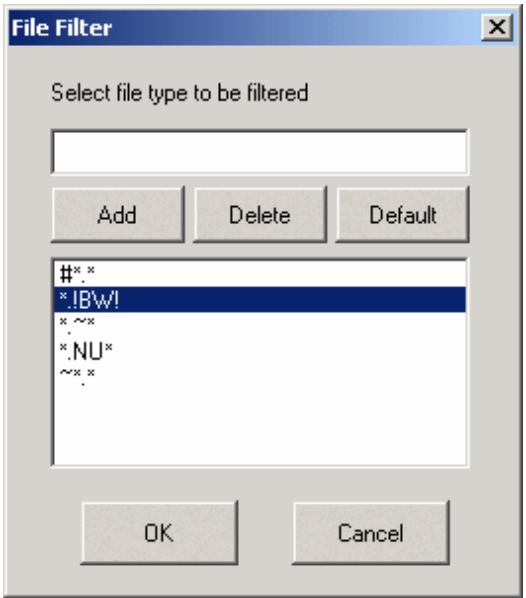
File Filter
Users can select particular file types to be excluded from backup. The system will filter all files belonging to these file types when backing up the data.
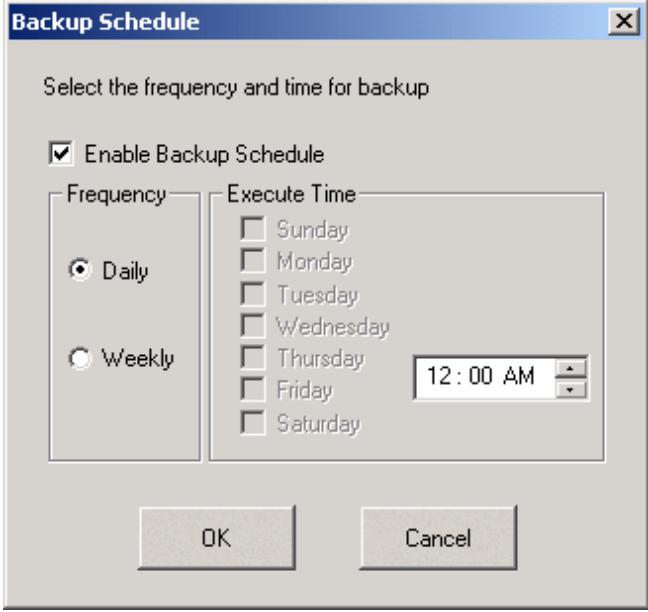
Schedule
Users can specify a schedule for backing up data with this option, e.g. 12:00 every day or 05:00 every Saturday.
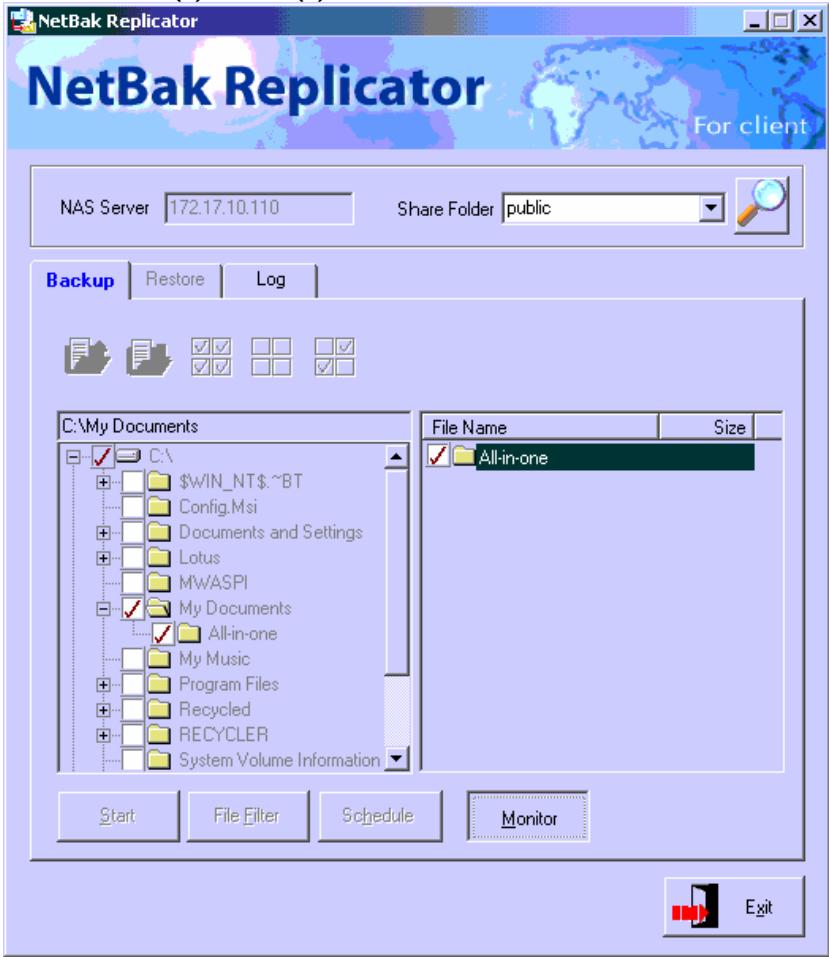
Monitor
When this option is enabled, the system will upload all files or folders to the server instantly for backup when the files or folders are modified.
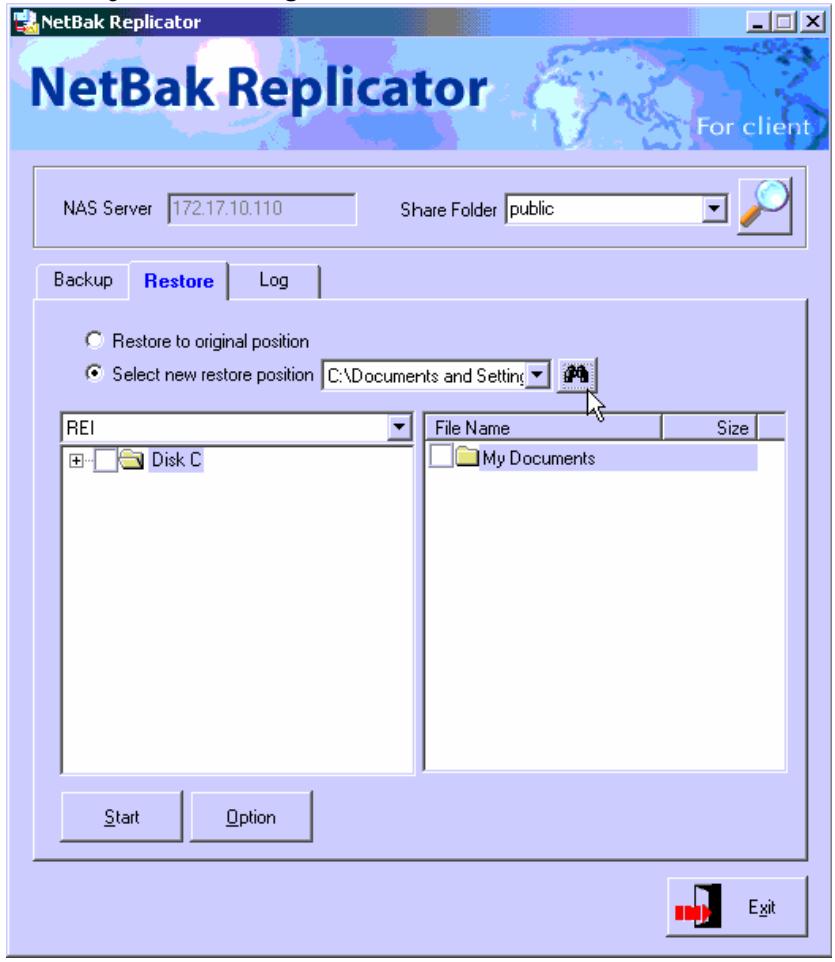
-Restore
Select this option to restore backed up data to the original location of the file or to a new directory.
- Log
Enable this option to record events of NetBak Replicator, e.g. the time when NetBak Replicator starts and terminates, Restore and Monitor, backup time and original location of all files, etc.
Installing NetBak Replicator
- Run Install NetBak Replicator in the companion CD.
- Follow the steps to install NetBak Replicator. Then click Finish.
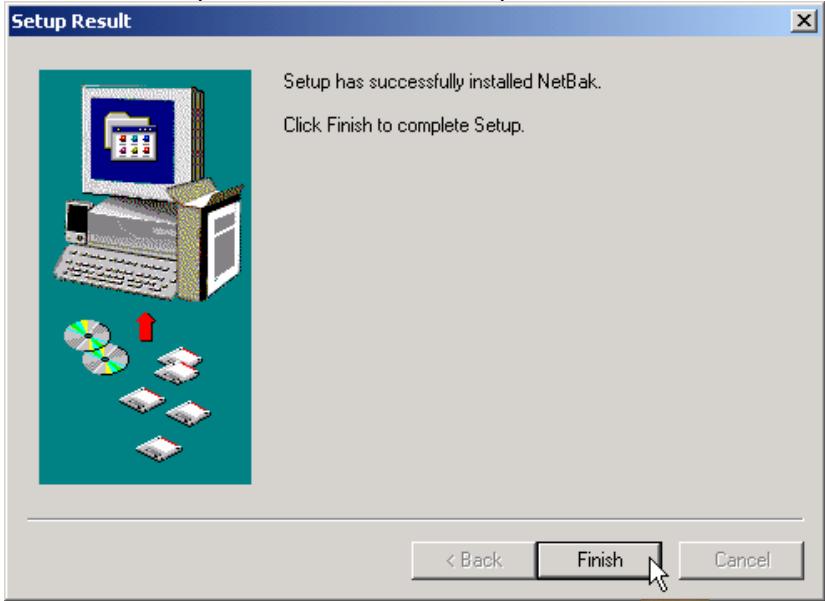
- Upon successful installation, a shortcut icon NetBak will be shown on the Desktop.
Using NetBak Replicator
- Click Start/Programs/NetBak to run
NetBak.

- Click Select the IP address of the server and the share folder.
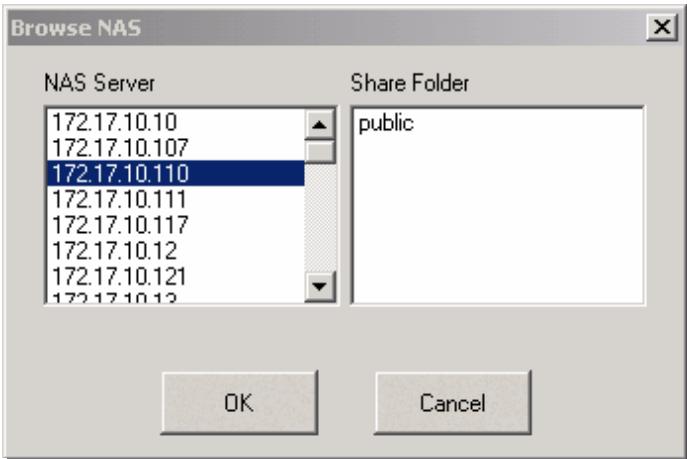

Note: Only authorized users can access the share folders. Double click the folder. The system will prompt for user name and password to authenticate the access privilege of the users.
- Select an action to take: Backup, Restore or Log.
3.1 Backup
Select files or folders to be backed up.
A. File Filter
Click File Filter and select the file type to be excluded from backup. Click OK to confirm.
B. Schedule
Click Schedule and Enable Backup Schedule. Modify Frequency and Execute Time for NetBak schedule. Then click OK.
C. Monitor
Select folder(s) or file(s) to be monitored then click Monitor.
3.2 Restore
A. Select Restore to original position or click to specify the directory for restoring.
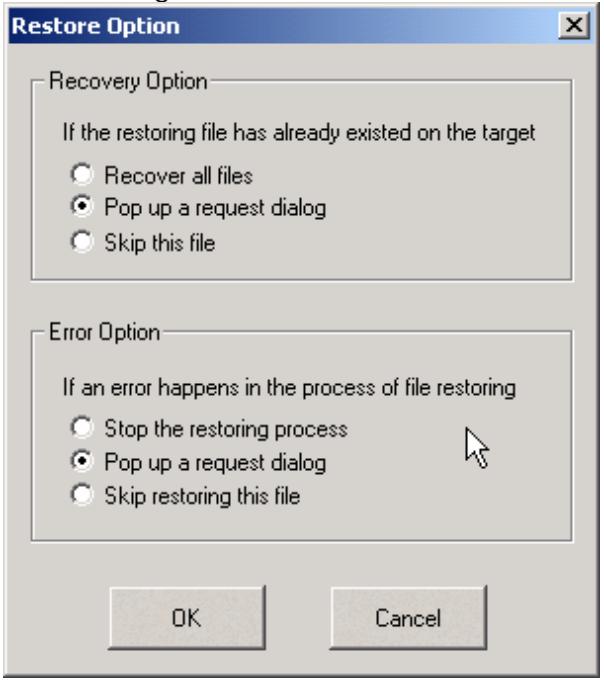
B. Click Option to select action to be taken when a restoring file has already existed in the target directory or when an error happens during file restoring. Click OK to confirm.
3.3 Event
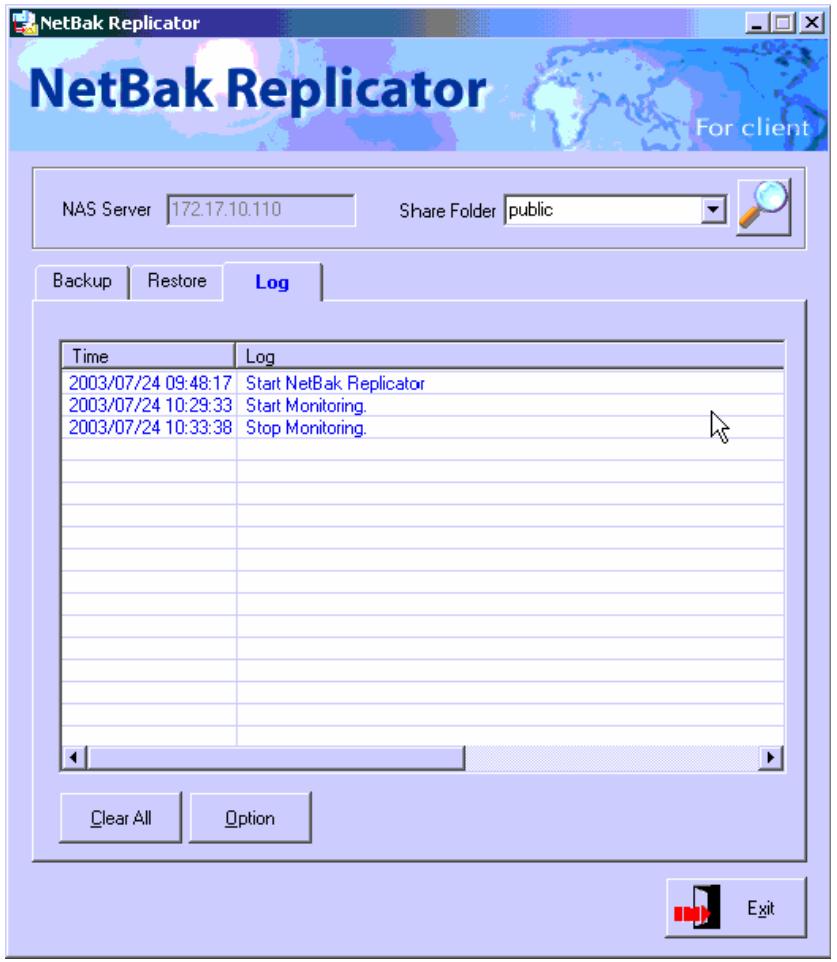
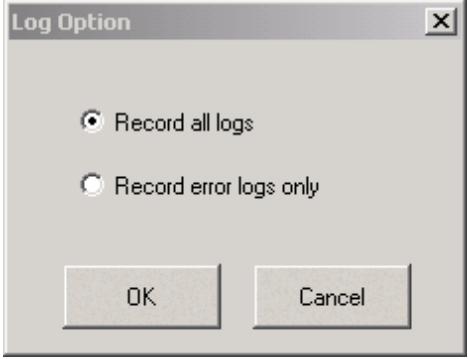
A. Click Option to select type of logs to be recorded.
B. To clear all logs, click Clear All.
Chapter 6. Snapshot
6.1 What is Snapshot?
Snapshot enables users to create a copy of disk volume instantaneously as a backup source. Taking a snapshot takes only a few seconds and there is no need to stop the file service in the process. The creation of snapshot will not modify the disk volume while any changes made to the disk volume will not affect any formerly taken snapshots.
Each snapshot records disk volume at a certain point of time. Snapshot settings can perform snapshot taking automatically for the system. In case of system malfunction like deleting files by mistake or being infected with virus, users can make use of snapshots created to restore the files. In addition to backup and restoration of disk volume, users can also schedule snapshot taking and create multiple snapshots for data restoration.
6.2 Basic Snapshot Settings
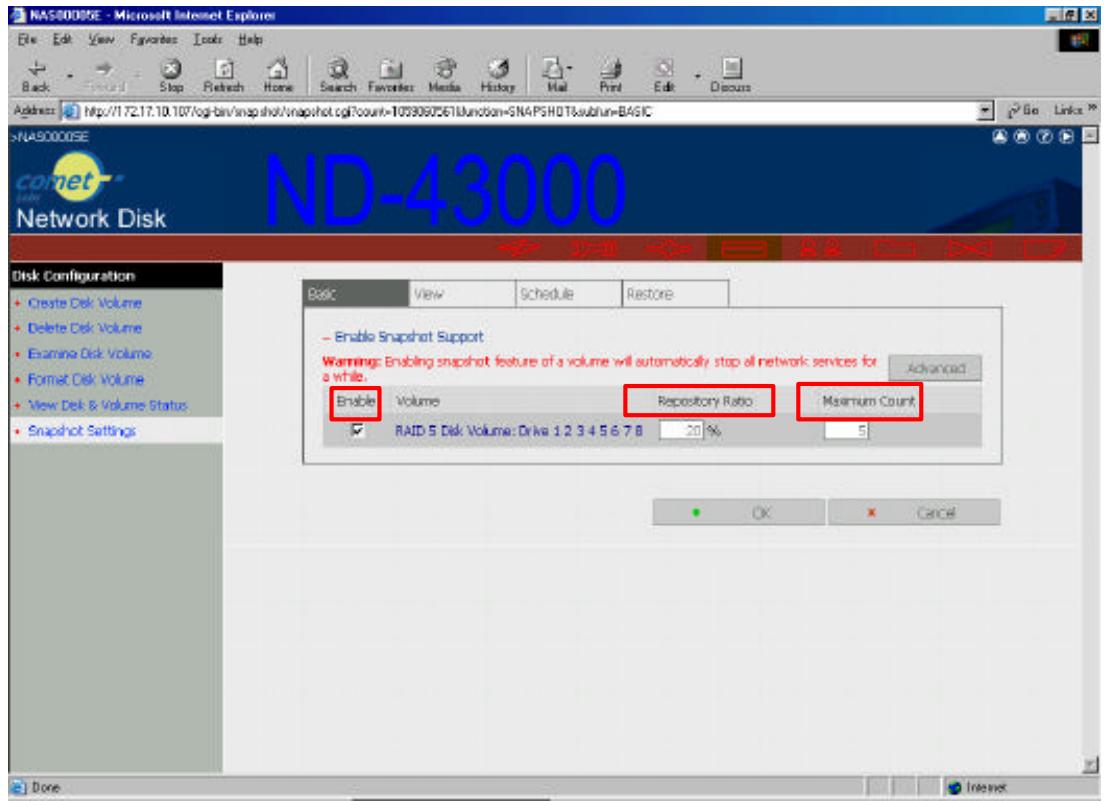
To activate or disable a snapshot, go to Snapshot Settings of Disk Configuration and click Basic. Make sure to enable the snapshot support of the disk volume before creating a snapshot.
To enable one or more volumes' snapshot support, please select the item(s), assigning Repository Ratio and Maximum Count values and then click OK.
To disable one or more volumes' snapshot support, unselect the item(s) and click OK. To undo the changes, click Cancel and refresh the page.
Note:
- To change Repository Ratio or Maximum Count of volume, disable its snapshot support, click OK, and enable it again.
- Disabling the snapshot support will automatically remove all snapshots on this volume.
6.3 Advanced Snapshot Settings
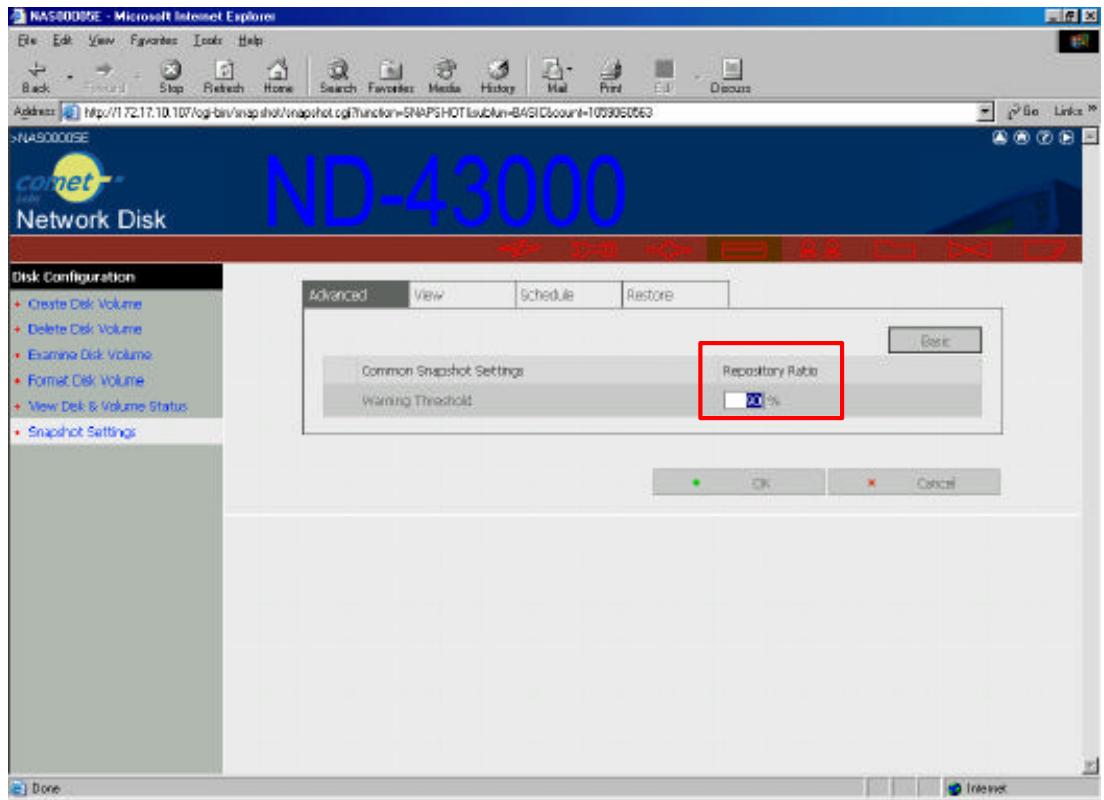
To set up when to warn about every snapshot's use status, set the Snapshot Warning Threshold value and click OK. The default threshold to log a warning message is when a snapshot is 90% full. Click Basic or Cancel to return to the Basic Snapshot Settings page.
6.4 Creating a Snapshot or a Schedule
In Snapshot Settings page, click Schedule to create, edit or delete a snapshot schedule. Users can schedule an hourly, weekly or monthly snapshot of the disk volume.
To create a snapshot schedule, click New.
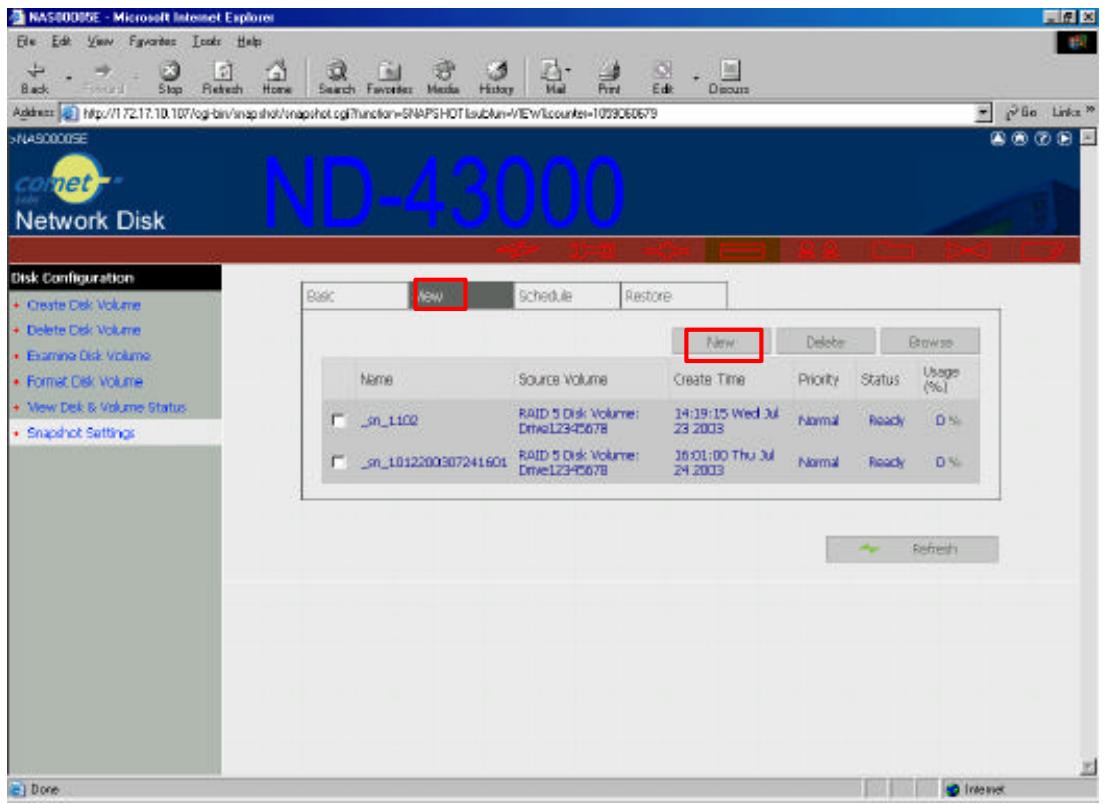
Select Create Now or define the time interval, i.e. repeat hourly, weekly or monthly for the snapshot schedule.
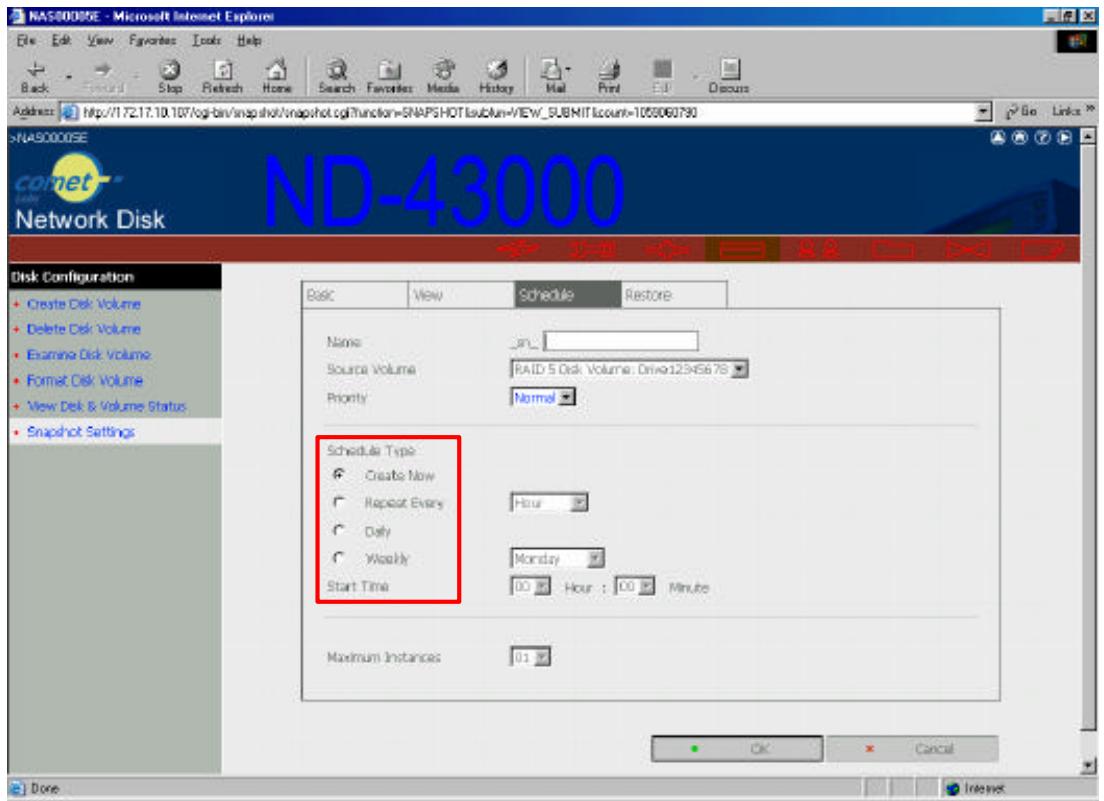
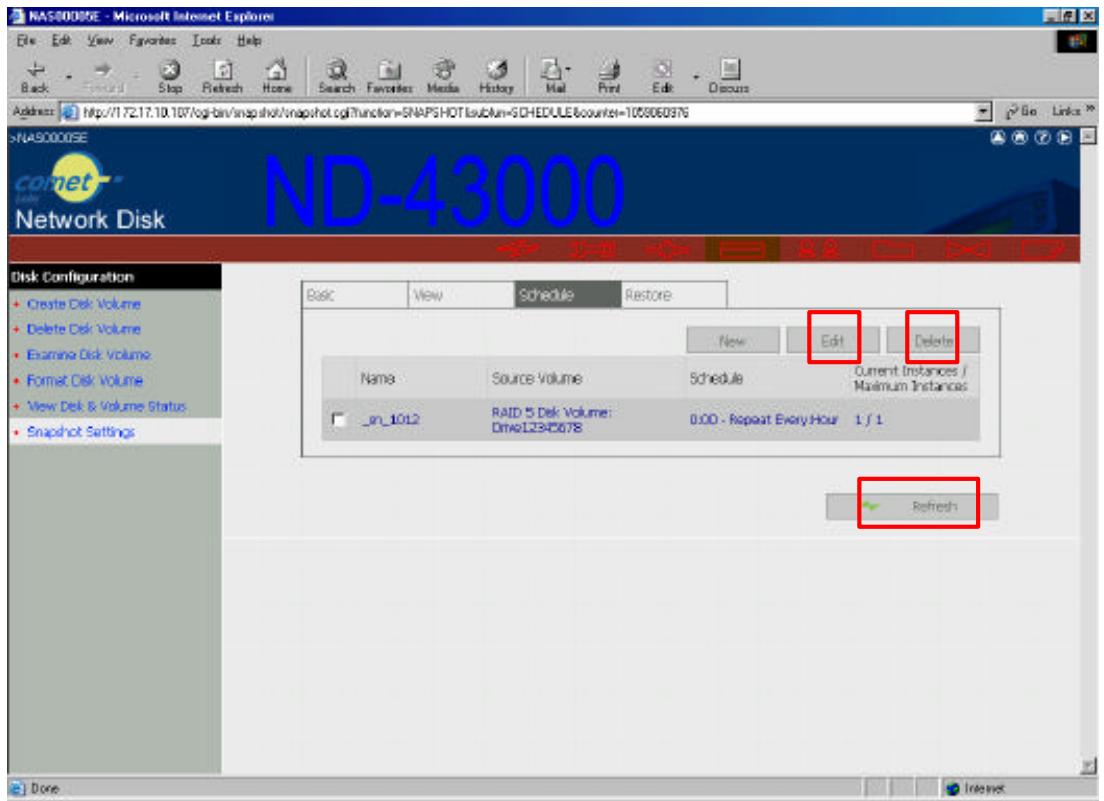
To modify a current schedule, tick the appropriate box and click Edit. To remove it, click Delete. To view the updated status of the schedule, click Refresh.
6.5 Restoring Data from Snapshots
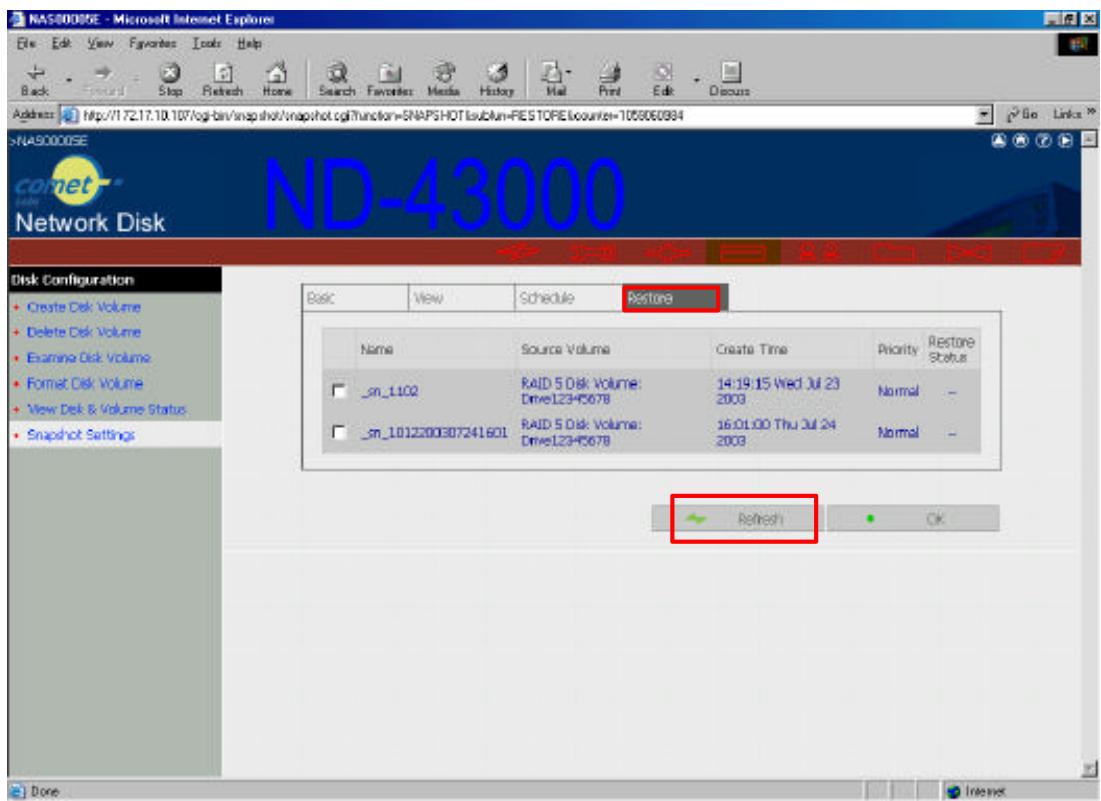
To restore the disk volume to the status of a particular point of time, go to the Restore section of Snapshot Settings. Tick the box of the snapshot to which the disk volume will be restored and click OK.
To view the updated restoring status, click Refresh.
The description of the items for restoring status is as below:
| Restoring Status | Description |
| Restoring | The disk volume is being restored. |
| Completed | The disk volume has been restored successfully. |
| Failed | The disk volume cannot be restored successfully. |
6.6 Viewing Snapshot Status
To view the list of snapshots created for a disk volume and their status, click View in the Snapshot Settings section.
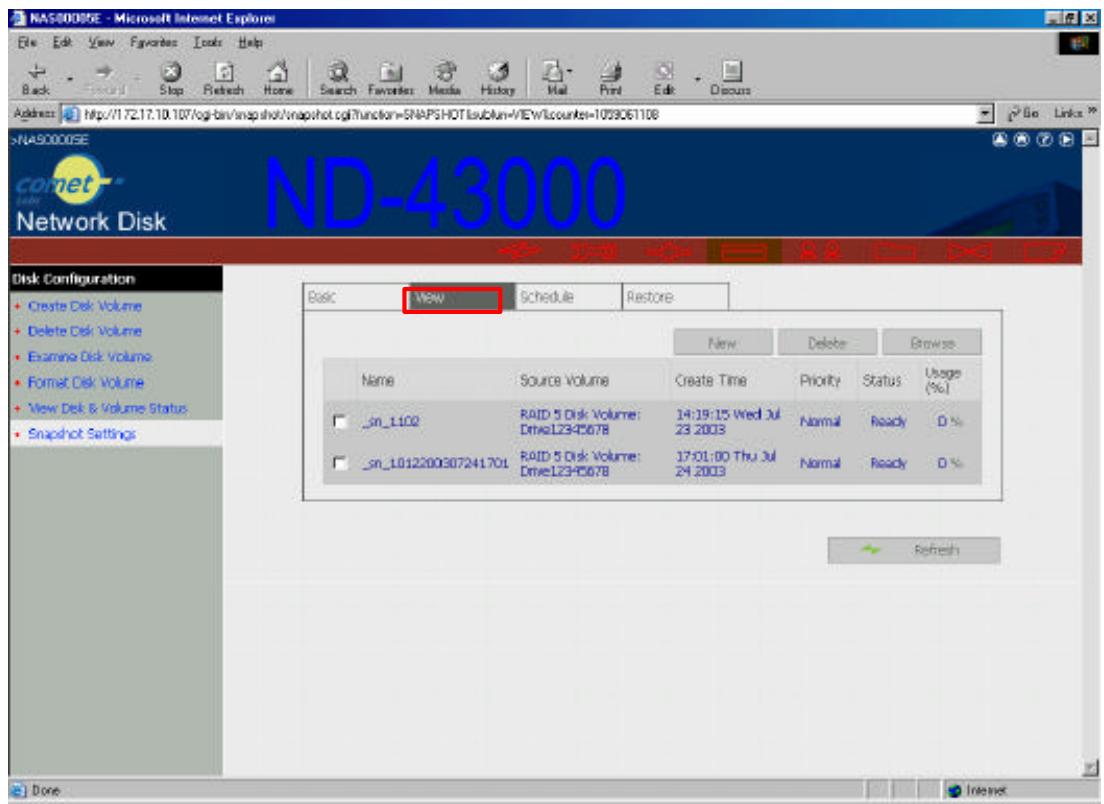
- Users can click Create to add a new snapshot.
- To remove a snapshot, tick the appropriate box and click Delete.
- To view the details of a snapshot, tick the appropriate box and click Browse.
- To view the updated status of the snapshots, click Refresh.
6.7 Using Snapshot for Tape Backup and Remote Replication
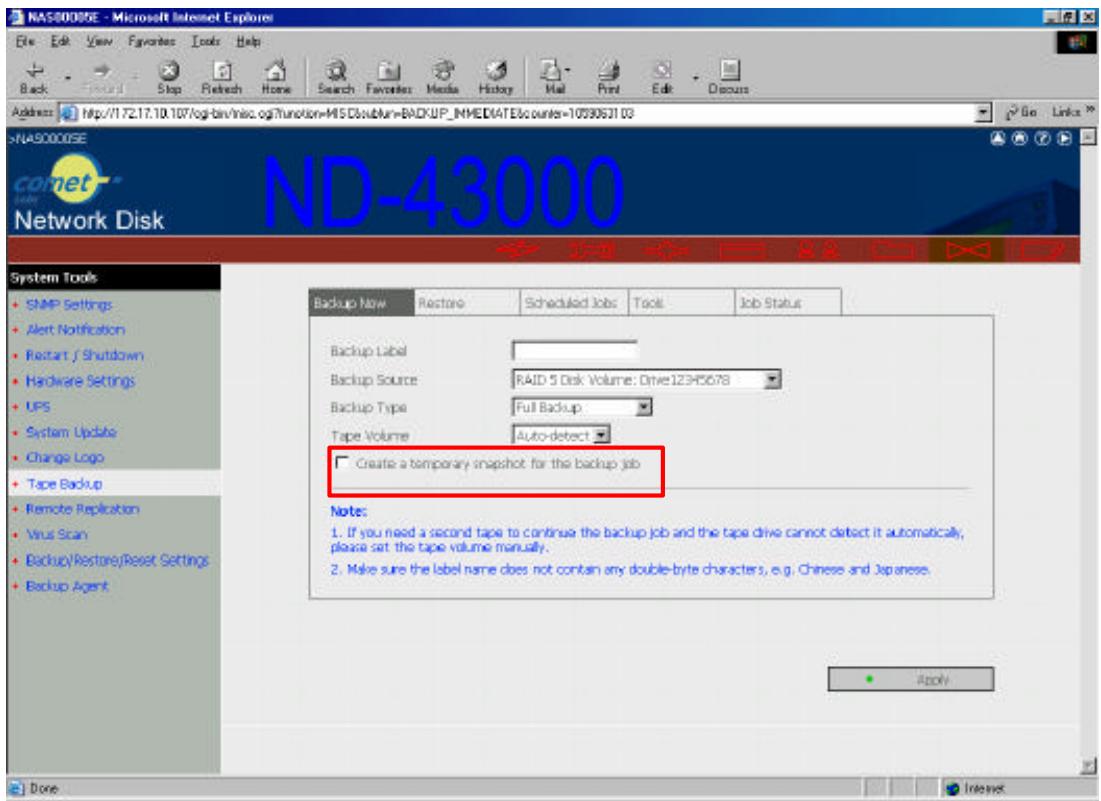
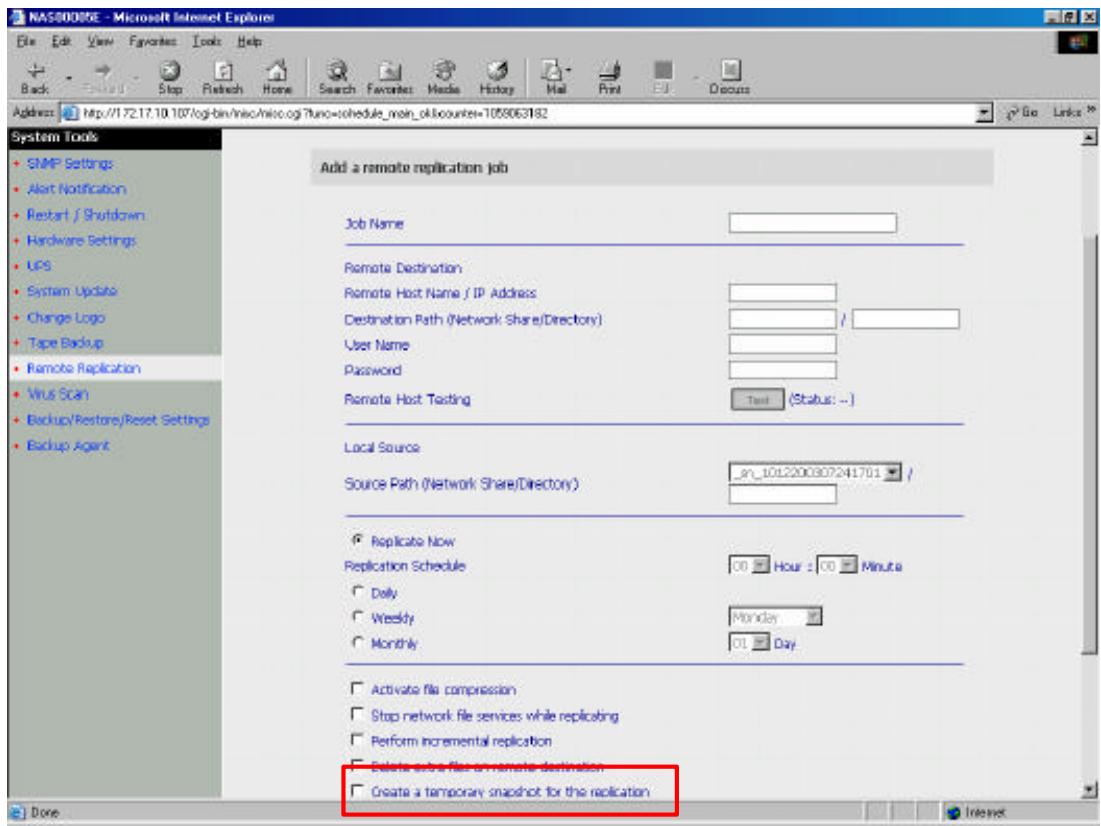
When tape backup and remote replication are performed to backup disk volume, the process will take a number of hours. As the end time of backup may vary, the data backed up may lose its intactness. To ensure the completeness and continuity of the backup data, tick the box "Take a snapshot before performing the backup job". When this option is selected, a snapshot of the disk volume will be taken automatically for tape backup or remote replication.
- Tape Backup (This function is applicable for models with SCSI port only.)
In Backup Now of the Tape Backup section, tick the box "Take a snapshot before performing the backup job".
Remote Replication
In Remote Replication of System Tools, click New. Tick the box
"Create a temporary snapshot for the replication" as shown below:
Chapter 7. Virus Scan
7.1 Virus Scan
A network share may not be able to detect a virus without an automatic virus scan function when there is a transfer of infected files. The user computer may have been infected in this situation. To prevent virus infection of the user computers, the system provides a virus scan program to comprehend with available virus scan agent for the best data protection.
In System Tools, enter the IP address of the network share and set up the user account and password for the virus scan agent. Specify the IP address of the virus scan agent. When there is a file transfer, the virus scan agent will notify the virus scan software on the system to scan the file.
7.2 Installing Virus Scan Agent
Make sure the virus scan agent and software are installed on the same computer that performs virus scanning before activating the agent.
Follow the following steps to installing Virus Scan Agent:
-
Run the CD-ROM enclosed in the Network Disk Server package. When the following screen appear, click Install Virus Scan Agent.
-
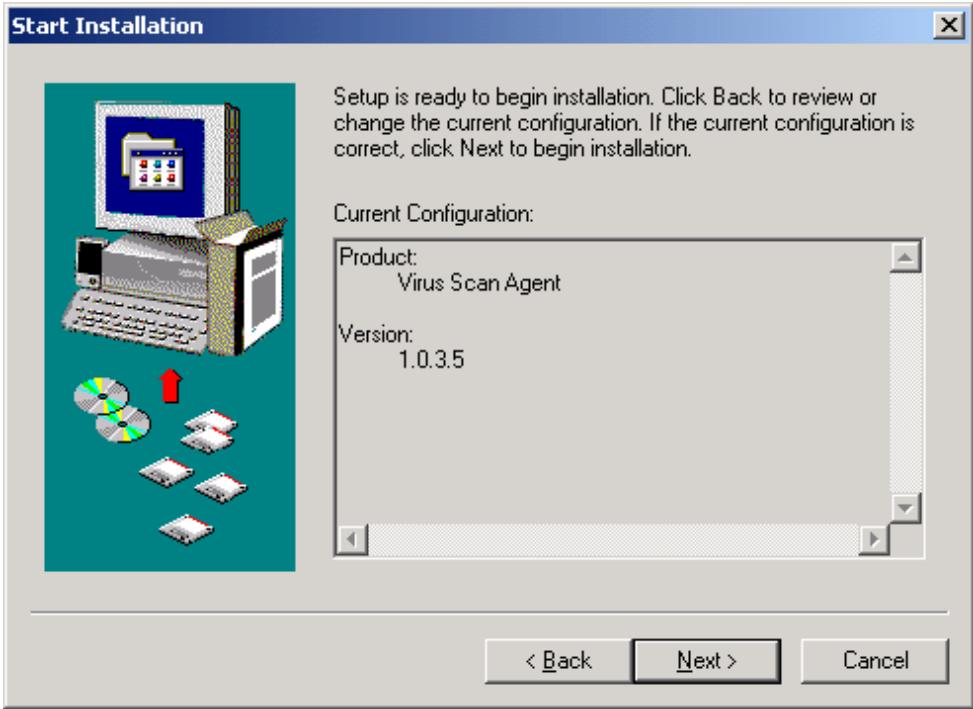
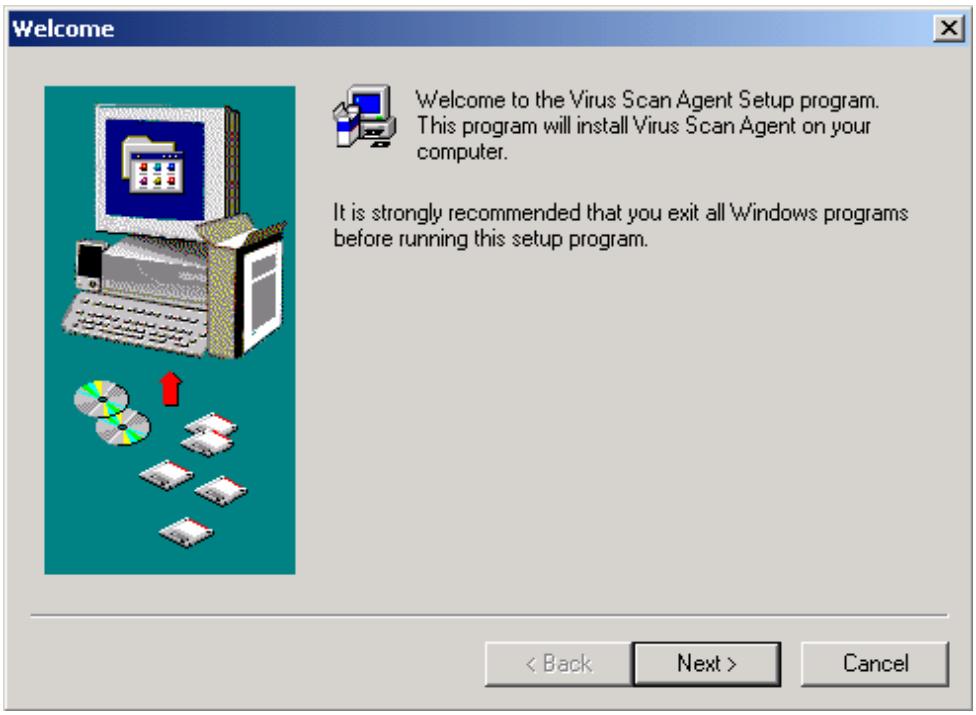
Click Next to continue the Virus Scan Agent Setup.
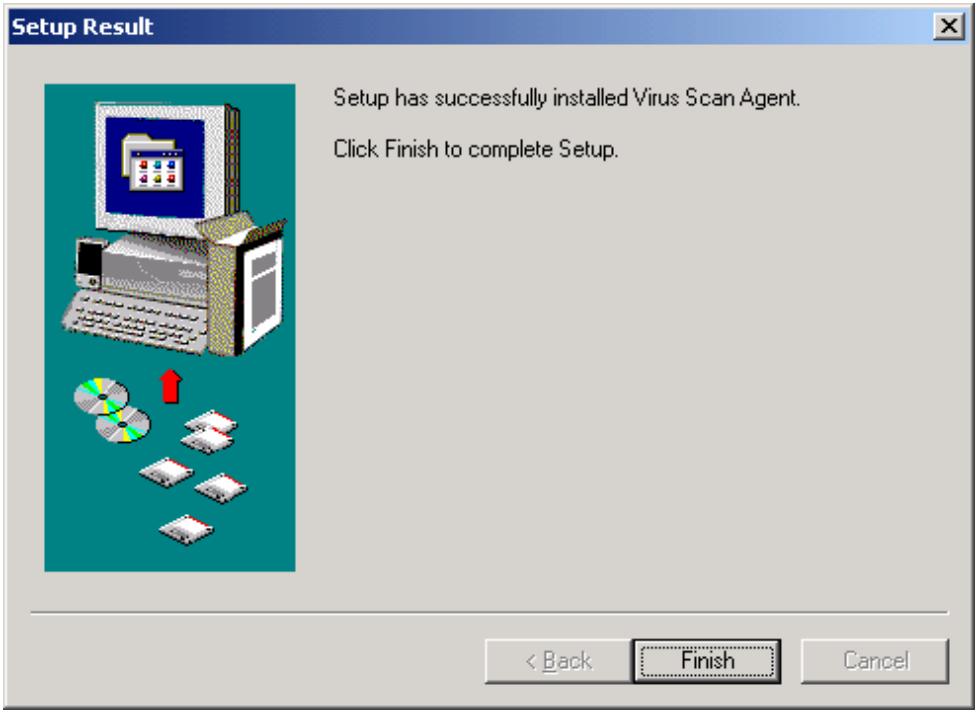
3. Click Finish to complete the Setup.
A screen will pop up to show the system information the first time you have successfully installed the virus scan agent.
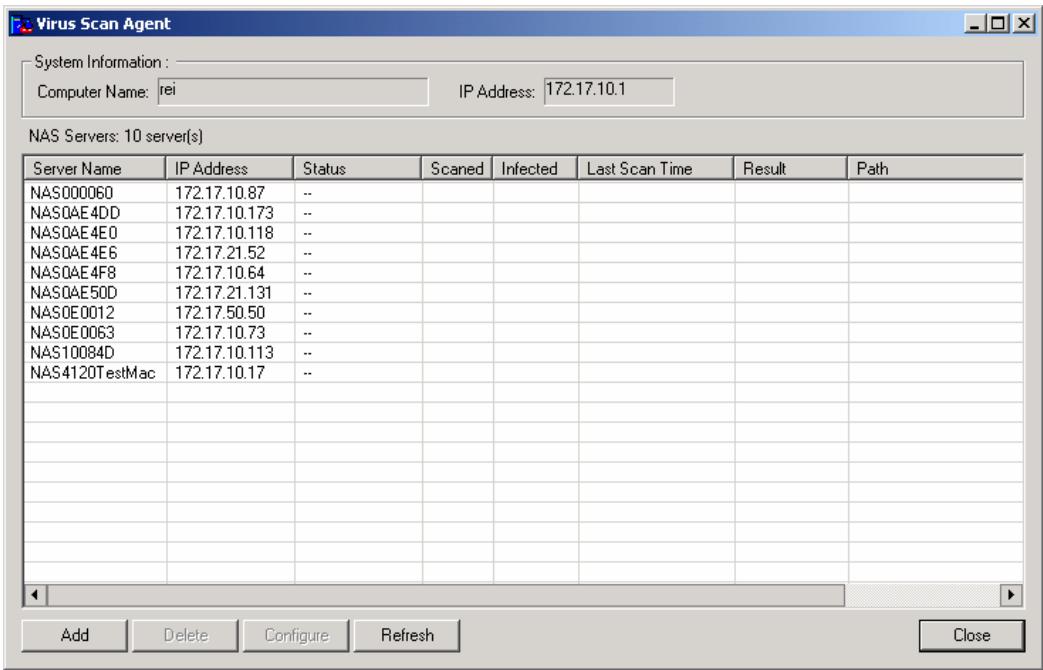
The description of the fields is as below:
| Fields | Description |
| Server Name | Name of the network share under the protection of virus scan agent |
| IP Address | The IP address of the network share |
| Status | Connection status of the host network share with the virus scan agent: • Disconnect: Not connected to the network • Idle: Connection has been enabled but there is no file transfer for three minutes or more. • Ready: Connection has been enabled and ready to be scanned • ---: User name and password have not been set up |
| Infected | Number of infected files |
| Last Scan Time | Date and time of the most recent virus scanning job |
| Result | Scanning result: OK: No files are infected • Virus Found: Virus is found. The name |
| of the infected file(s) may not be displayed due to the scanning of other files. Go to the administration page to view the name and location of the infected file(s). • Access Denied: Access to the server is denied. • Authentication Failed: The login user ID is not authorized to access the folder of the network share. | |
| Path | The file location on the network share |
7.3 Enabling Virus Scan Support
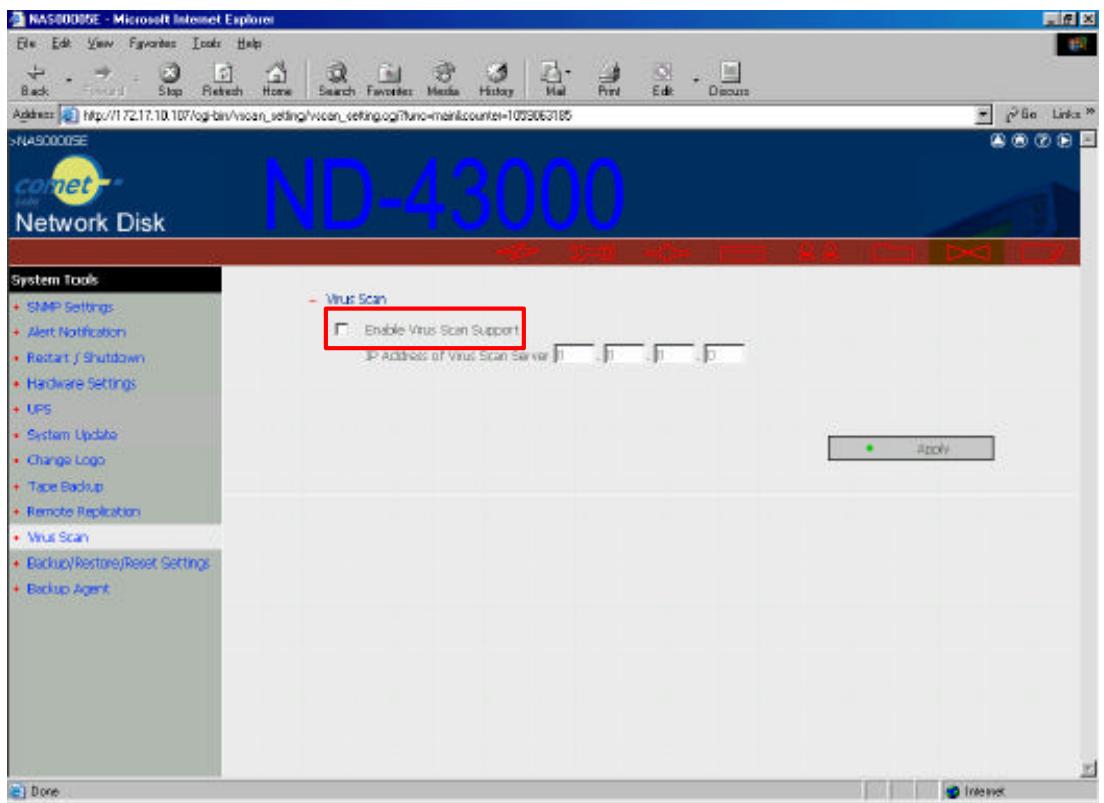
Go to Virus Scan of System Tools. To enable virus scan support, tick the box Enable Virus Scan Support. Enter the IP address of the virus scan server and click Apply.
7.4 Viewing Details of Infected Files
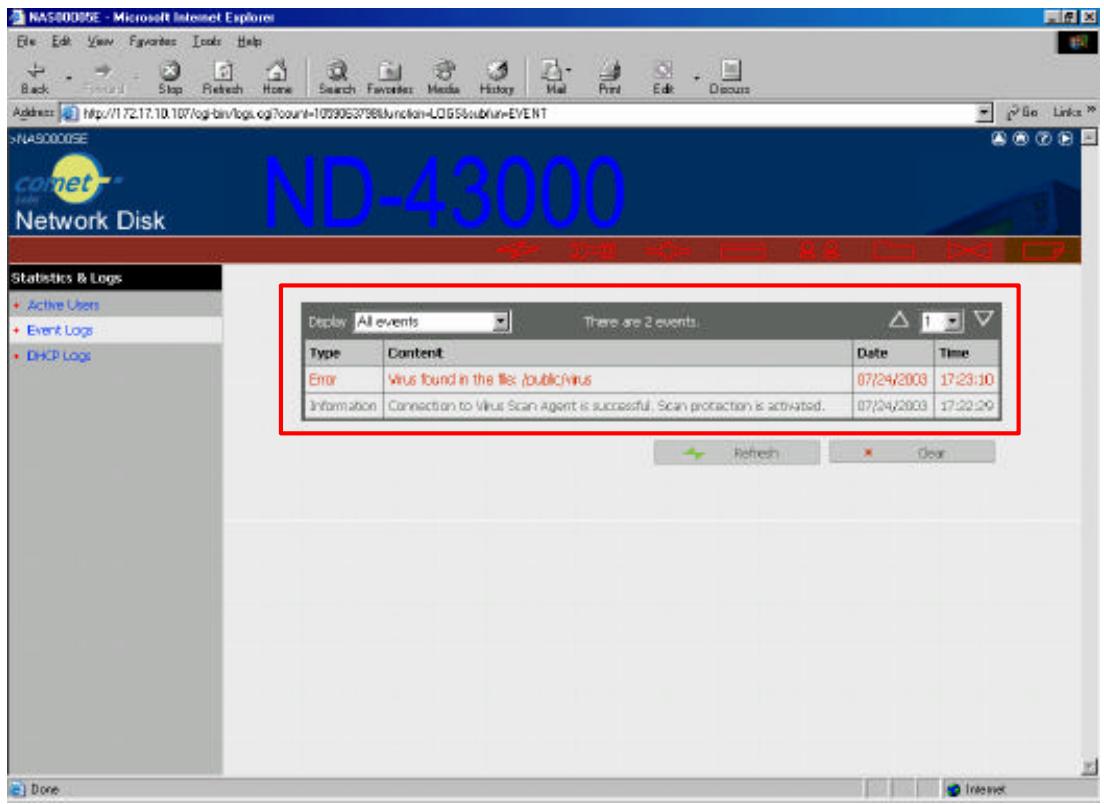
To view the details of infected files of the network share, go to Event Logs of Statistics & Logs. A warning message will be shown in the table.
Chapter 8. Network Disk Server - Maintenance
The Network Disk Server has been specially designed to run on 24 hours, 7 days a week and to be ready at all times. It is also robust to protect against system crashes caused by power loss. This section provides a general maintenance overview.
8.1 Shutdown/Restart the Server
Please use the following steps to shutdown/restart the server:
- Ask all the connected users to save their working files and stop using the Network Disk Server.
- Open the administration web page and go to System Tools · Restart/Shutdown. Follow the instructions to restart or shutdown the system.
8.2 Reset the Administrator Password & Network Settings
If you accidentally forget the administrator password, you will not be able to perform any administration work on the Network Disk Server. Under this condition, you can reset the administrator password and network configuration to the factory default.
- Use the tip of a ball point pen and depress the configuration reset switch located on the back of the Network Disk Server. Hold it for about 5 seconds until the beep.
- The network configuration will be reset, and you may need to reconfigure some or all of the network settings before you can connect to the Network Disk Server.
- Use a web browser to connect to the Network Disk Server. Enter the System Administration and enter the following login name and password.
Login: Administrator
Password: admin
You can then perform system administration.
Note: If the configuration reset switch is disabled in the System Tools · Hardware Settings page, you are no longer able to use this function. Please remember your administrator password.
8.3 Disk Failure or Malfunction
If you are suffering from a disk failure or malfunction, please do the following:
- Log all abnormal events or messages for technician's reference.
- Stop all operations of the Network Disk Server and power it off.
- Contact the customer service for technical support.
Note: Your Network Disk Server must be repaired by a trained technician. Please do not try to repair the Network Disk Server on your own.
8.4 Power Outage or Abnormal Shutdown
In the event of power outage or abnormal shutdown of the Network Disk Server, the system should return to its original state prior to shutdown or power outage after restart. If the system is not operating within normal parameters, please proceed with the following steps:
- In the event of system configuration setting lost during power outage or abnormal shutdown, please manually reset your desired configurations.
- In the event of system operating abnormally or error message, please contact customer service for support.
To prevent similar occurrence, please periodically backup all critical files or folders and remember the following tips:
- Please follow Shutdown/Restart the Server steps described above for normal shutdown or restart.
- If you are able to anticipate power outage, please backup all critical files or folders prior to power outage and shutdown your server normally. Restart your server once the power has returned to normal.
Note: To prevent major loss of data in the event of a disk failure, please back up your data periodically.
Appendix A: LCD Panel
Displayed Information
After system powers on, the following information is displayed on the LCD panel:
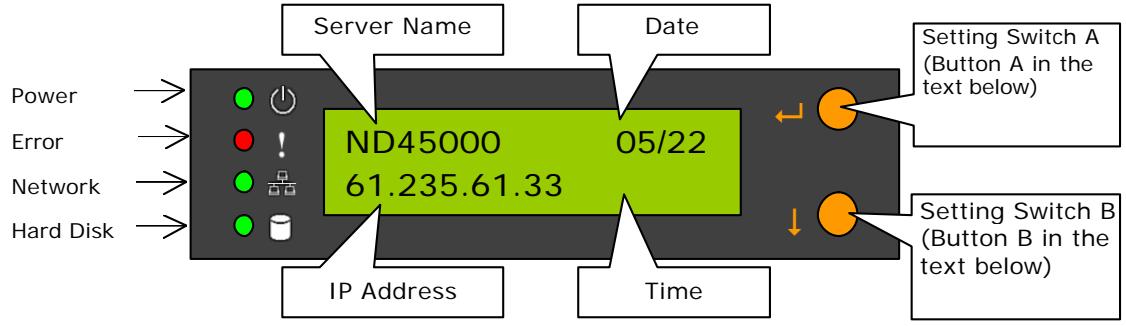
Checking IP address, system and disk information
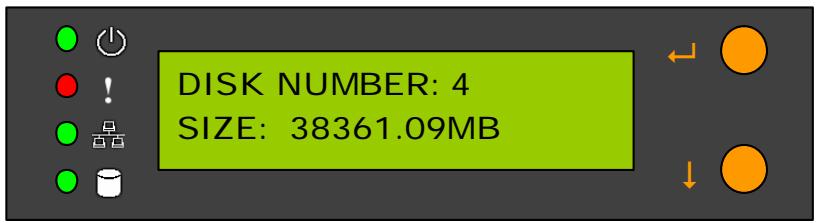
Click on B to show the available disk space. Please note that this is actually the entire amount of disk space, and not the amount of space that you can use.
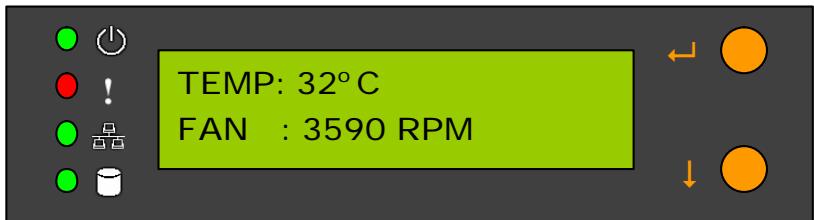
Click on B again to show current CPU temperature and fan speed.
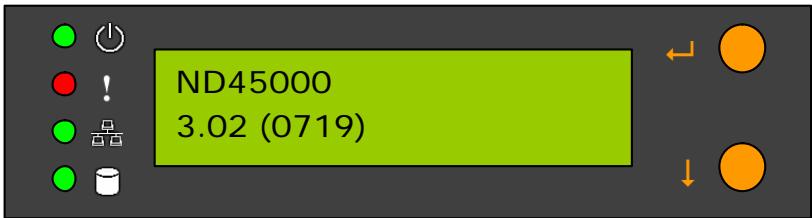
Click B again to display the model number and version information as shown below:
System Setting Function
- Enter System Setting
- Press the switch A for two seconds to enter System Setting.
- Press the switch B for selection options.
- Press the switch A to enter the selection options.
Network Settings
Enter Network Settings, press the switch B to choose DHCP or Static IP.
- Obtain IP Address Automatically (DHCP)
DHCP will automatically obtain IP address settings.
- Specify Static IP Address (STATIC IP)
Press switch A to select STATIC IP and complete the following steps:
- SETSTATICIP
Press the switch B to set the IP address settings. Press switch B to select the number 0~255. Press switch A for the next number.
- SET NETMASK
Follow the same procedure as above.
- SET GATEWAY
Follow the same procedure as above.
- SELECT STATIC IP
Press switch B to select YES or NO and confirm by pressing switch A. NO will return to the Network Settings menu.
- RESTART SYSTEM
You need to restart the system to make changes effective. Press switch B to select YES or NO and press switch A to confirm.
Power Down
Press switch A to shutdown the system.
Reboot System
Press switch A to reboot the system.
- Exit
Press switch A to exit the settings menu.
Appendix B: Web File Manager
Using Web File Manager
Start your web browser and enter your Network Disk Servers home page. Select Web File Manager and enter the correct login name and password. You may also enter "guest" in the login name field with no password to access the network shares on the Network Disk Servers as an anonymous guest.
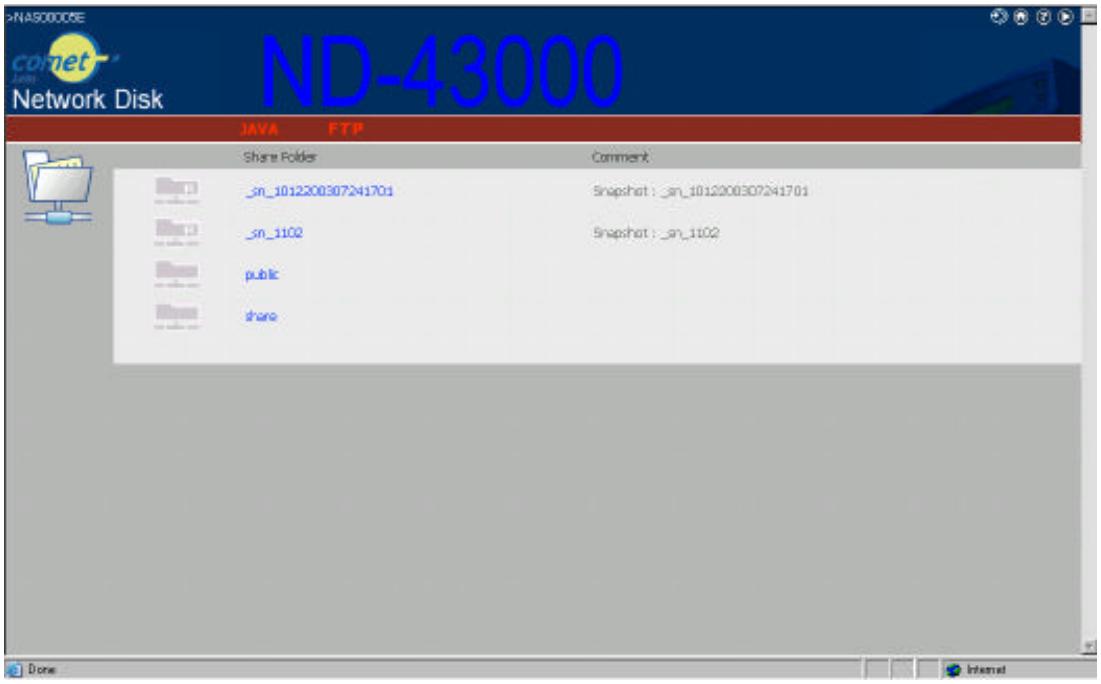
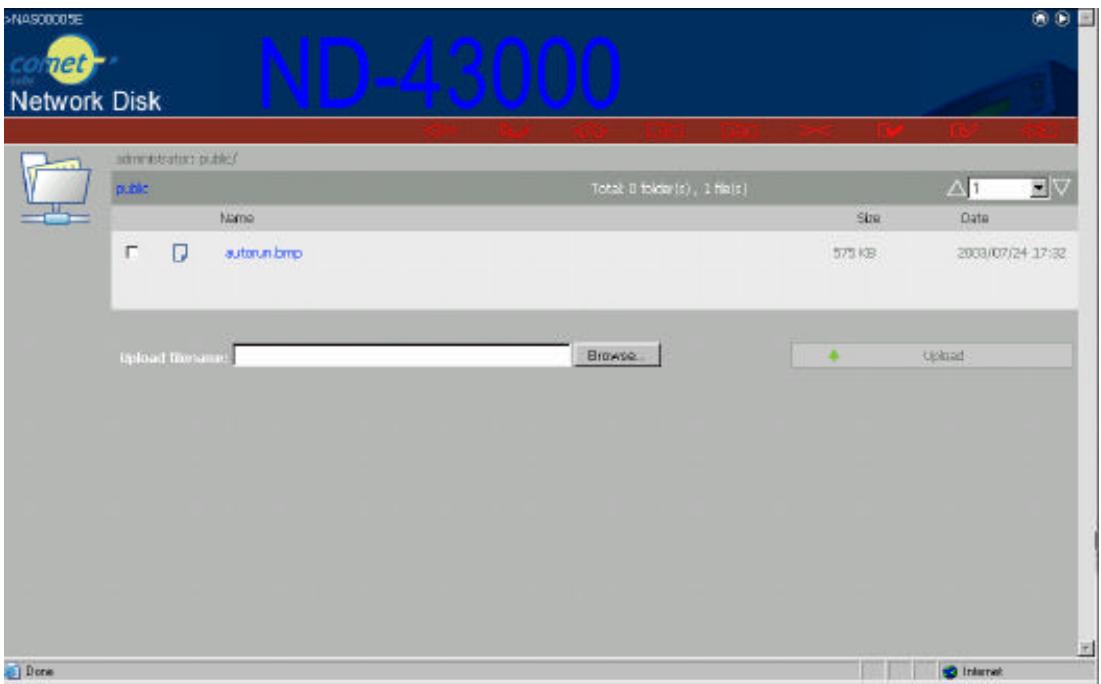
The Network Disk Servers allows you to organize your network share folders online. You can save these files inside folders as well as rename and remove files or folders.
How to View Files On-line
Click on a file displayed on the web page. The file's data are displayed on the browser. If your browser does not support the file format, the download window pops up automatically.Once the file is downloaded,you can open it on your computer.
How to Create Folders
- Enter the folder that you want to create the new folder.
- On the tool bar, click on (Create Folder).
- Enter the name of the new folder and confirm.
- Renaming Files or Folders
- Select the file or folder you want to rename.
- On the tool bar, click on (Rename).
- Enter the new file or folder name and confirm.
- Deleting Files or Folders
- Check the file(s) or folder(s) you wish to delete.
- On the tool bar, click on (Delete).
- A window appears. Click on OK to delete the selected file or folder.
To delete all files and folders, click on (Select All), then click
on (Delete).
- Uploading
- Enter the folder of the file you want to upload.
- Click on "Browse..." to select the file you want to upload.
- Click on "Upload".
- Downloading
- Click the right mouse button on the file which you want to download.
- A context menu appears. Click on "Save Target As..." to download the file.
- Logging out Web File Manager
On the tool bar, click on (Logout) to leave the web file manager.
Web File Manager Icons
| JAVA | Advanced File Manager |
| ←→ | Up - go back to the parent folder |
| Refresh - reload the current page | |
| Home - go back to the network shares list home page | |
| Create Folder - create a new folder | |
| A-B | Rename - rename the selected file or folder |
| × | Delete - remove the selected file(s) or folder(s) |
| √ | Select All - select all files and folders |
| Select None - cancel all selection | |
| Logout - leave the web file manager | |
| Full access network share folder | |
| Read-only network share folder | |
| ! | Malfunction network share folder |
Appendix C: JAVA Web File Manager
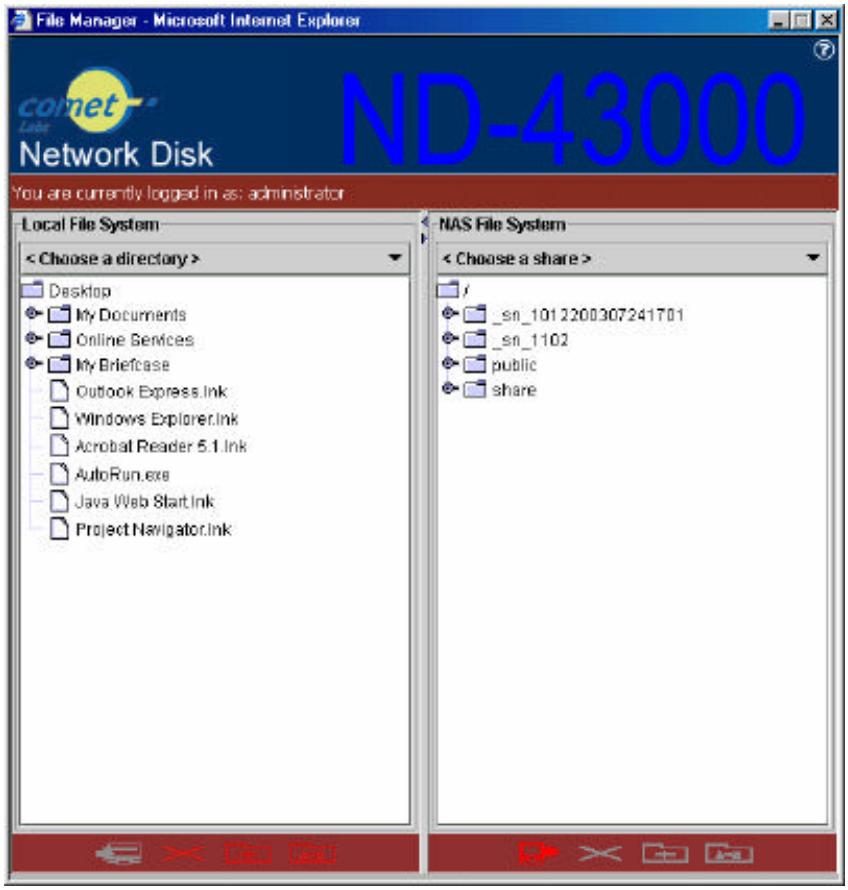
JAVA web file manager is developed to enable multiple files transfer simultaneously with the JAVA and http techniques. The user-friendly interface enables you to select the files for downloading and uploading by dragging them from and dropping to the list on the window. You can also resume the operation.
Uploading Files
Use one of the following two methods to upload files:
- First, select the file(s) you wish to upload from the local file system tree located on the left hand side of the applet. Then drag the selected files to the desired share folder on the right hand side of the applet.
- First, select the file(s) you wish to upload from the local file system tree located on the left hand side of the applet. Then select a destination share folder located on the right hand side of the applet, and click on the
button to upload the file(s).
Downloading Files
Use one of the following two methods to download file(s):
- First, select the file(s) you wish to download from the remote file system tree located on the right hand side of the applet. Then drag the selected files to the desired local folder on the left hand side of the applet.
- First, select the file(s) you wish to download from the remote file system tree located on the right hand side of the applet. Then select a destination local folder located on the left hand side of the applet, and click on the button to download the file(s).
Renaming Files or Folders
Use one of the following three methods to rename a file or a folder:
- Triple-click on the file or folder you wish to rename.
- With the file or folder you wish to rename selected, click on the button.
- With the file or folder you wish to rename selected, press the F2 key on your keyboard.
Deleting Files or Folders
Use one of the following two methods to delete file(s) or folder(s):
- With the file(s) or folder(s) you wish to delete selected, click on the button.
- With the file(s) or folder(s) you wish to delete selected, press the DEL key on your keyboard.
Creating New Folder
Click on the button, then enter a valid new folder name.
Copying Files (Available only for files located on Network Disk Server).
Use one of the following two methods to copy file(s) among Network Disk Server folders:
- First, select the file(s) you wish to copy, then, with the CTRL key pressed, drag the files you wish to copy to the destination folder.
- First, press CTRL + C with the file(s) you wish to copy selected. Then, select a destination folder, and press CTRL + V to finish the copying operation.
Moving Files (Available only for files located on Network Disk Server)
Use one of the following two methods to move file(s) among Network Disk Server folders:
- First, select the file(s) you wish to move, then drag the files you wish to move to the destination folder.
- First, press CTRL + X with the file(s) you wish to move selected. Then, select a destination folder, and press CTRL + V to finish the moving operation.
Changing Working Directory
To change the current working directory, first click on the drop-down combo box located on the top of window, then select the desired working directory.
Appendix D: Quick Install Wizard
Introduction
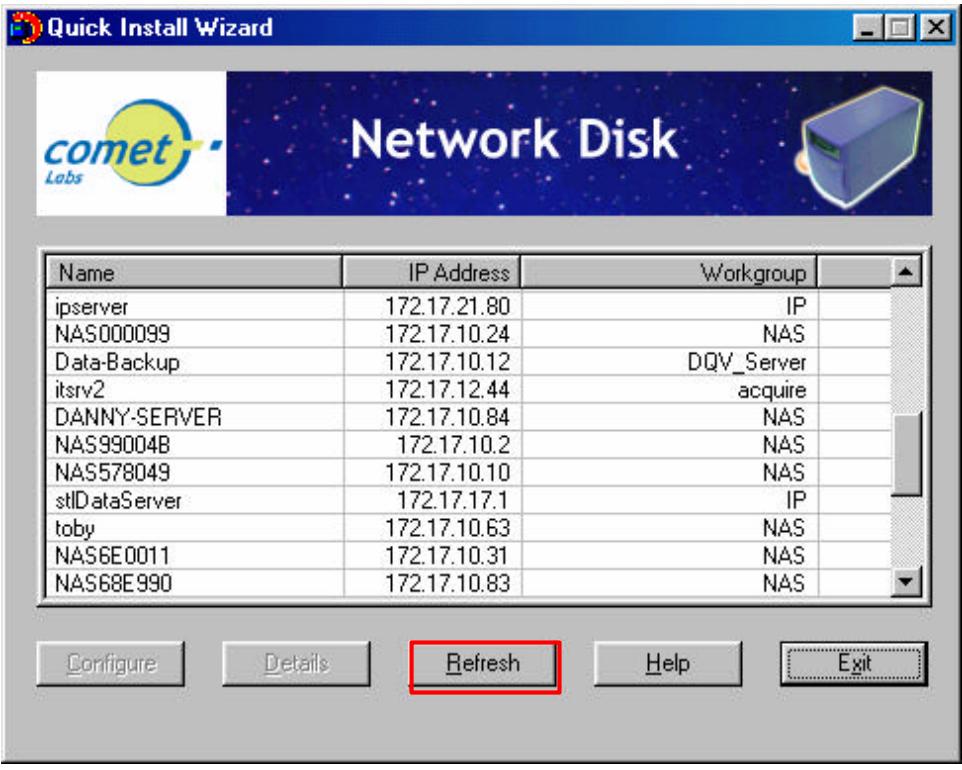
The Quick Install Wizard enables you to list the Network Disk Servers within your local network, and display basic information such as server names, workgroups and IP addresses. You may also set up the server name, date/time and basic network configuration of the Network Disk Server via this program.
Screenshot
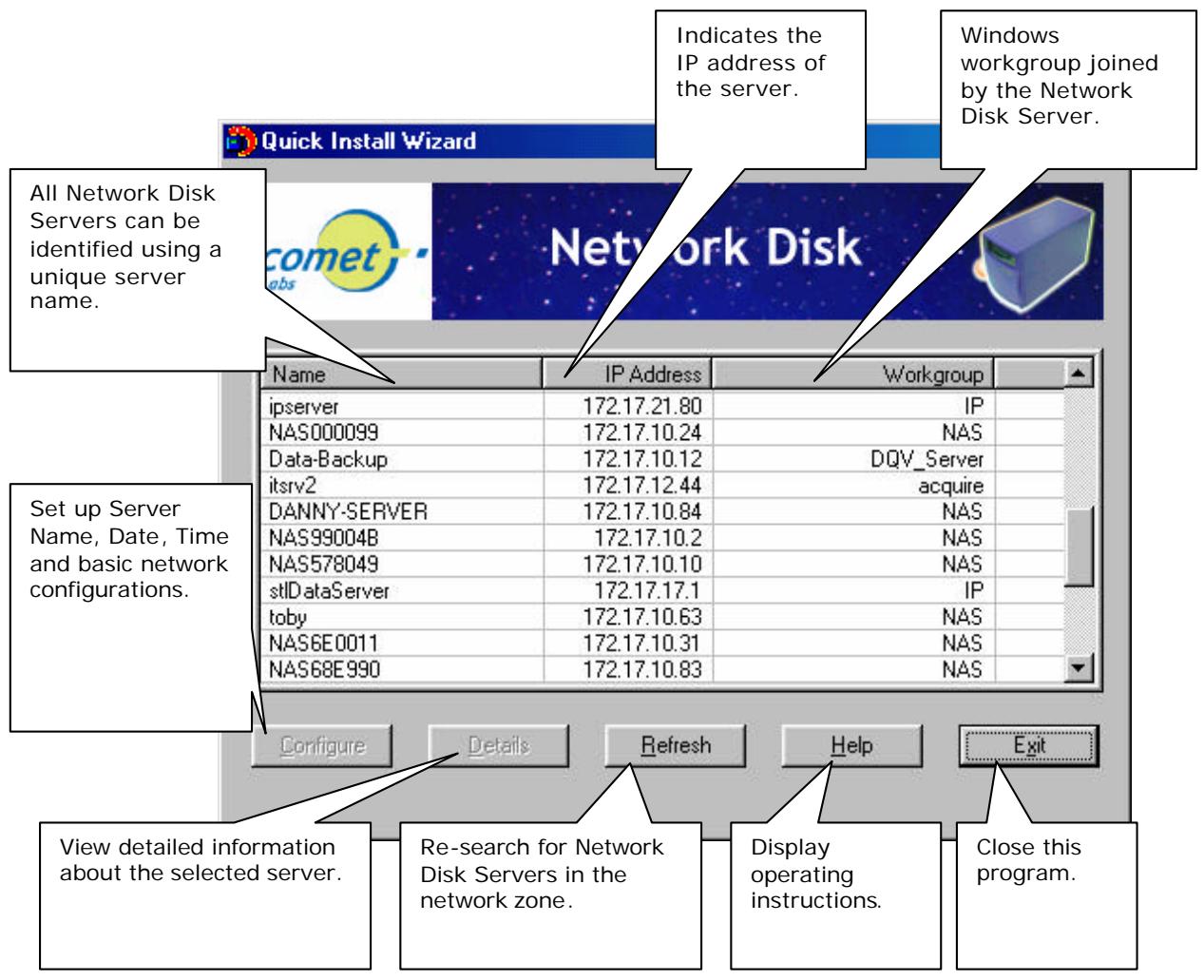
Operation Help
1. Setting up your Network Disk Server
Select the Network Disk Server that you want to configure, and then click on the Configure button. An authentication window asking you to enter the administrator's password appears as shown below:
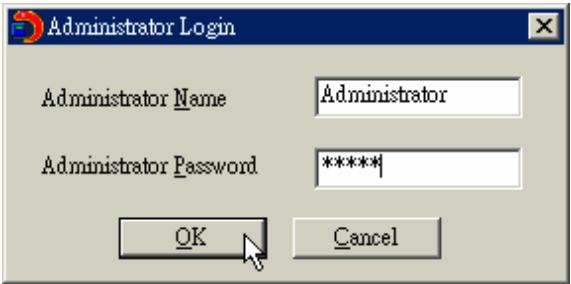
Click on OK after entering the password. If the name and password are correct, the configuration window is displayed on the screen:

Change the settings and click on OK when done to complete the configuration setup.
Note:
- After changing some settings, you may be asked to restart the Network Disk Server.
- If you want to set up detailed configuration, you need to enter the administration web page of the Network Disk Server via the browser.
For more configurations, check your browser under "System Administration"
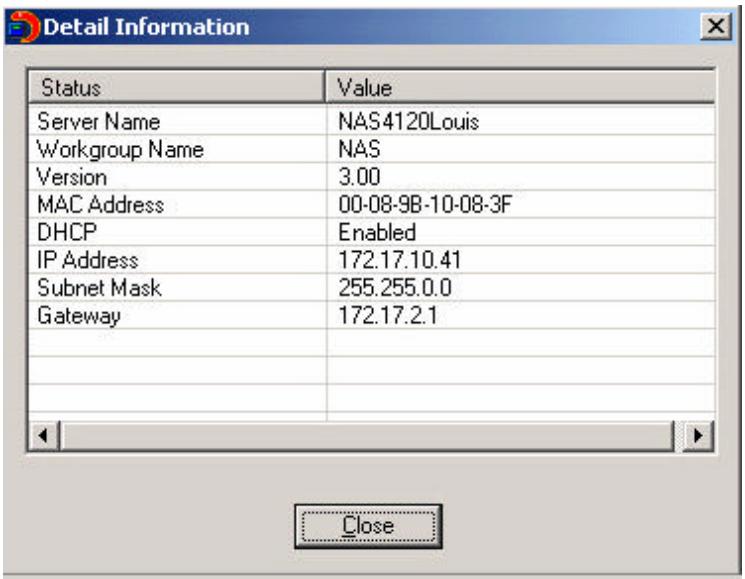
2. Viewing detailed information on the Network Disk Server
Choose the Network Disk Server by highlighting it with the mouse, then click on "Group Data" to display current settings and status as shown below:
3. Finding information on other Network Disk Servers in the same network
Click on "Refresh" in the Toolbar to find information on other Network Disk Servers in the same network.
4. Displaying User Help File
Click on "Help" at the top to display the Help file.
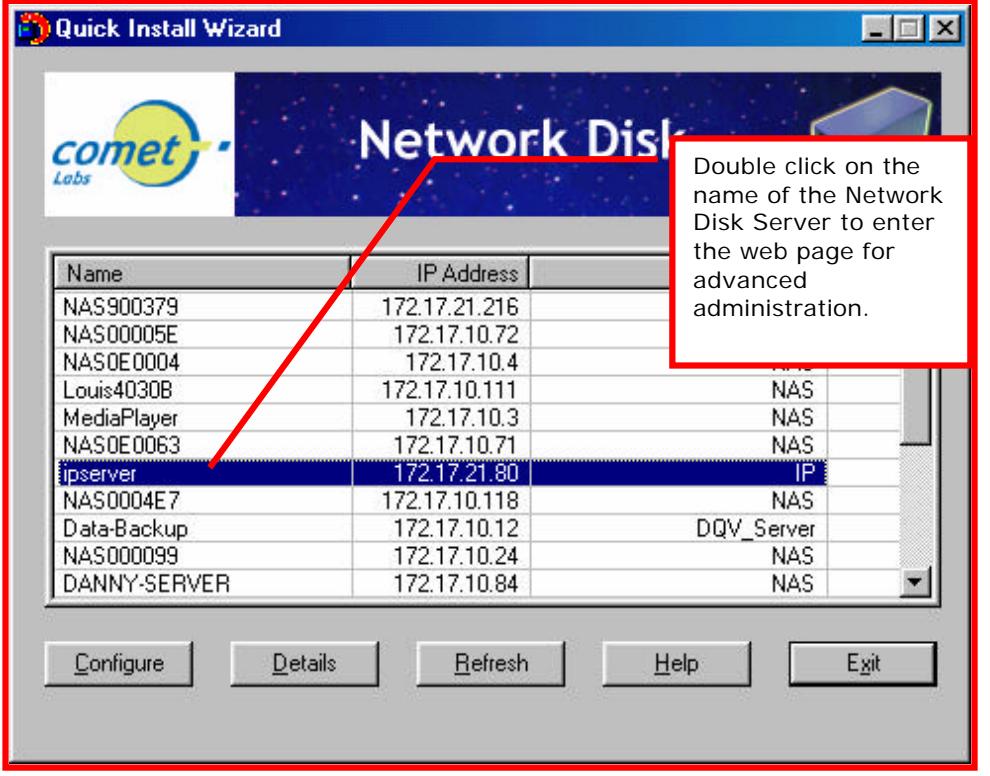
5. To enter the home page of the Network Disk Server:
Double click on the name of the Network Disk server to enter the web page for advanced administration.
Appendix E: Using FTP
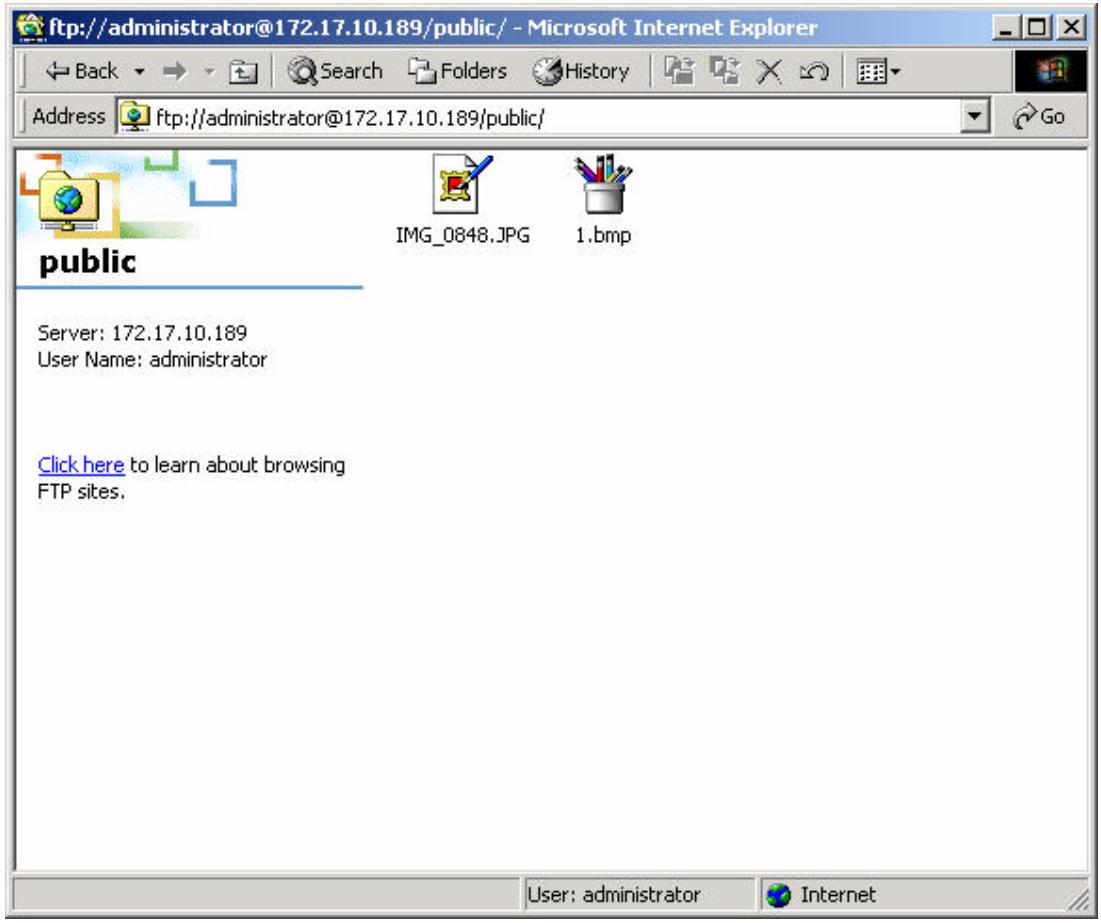
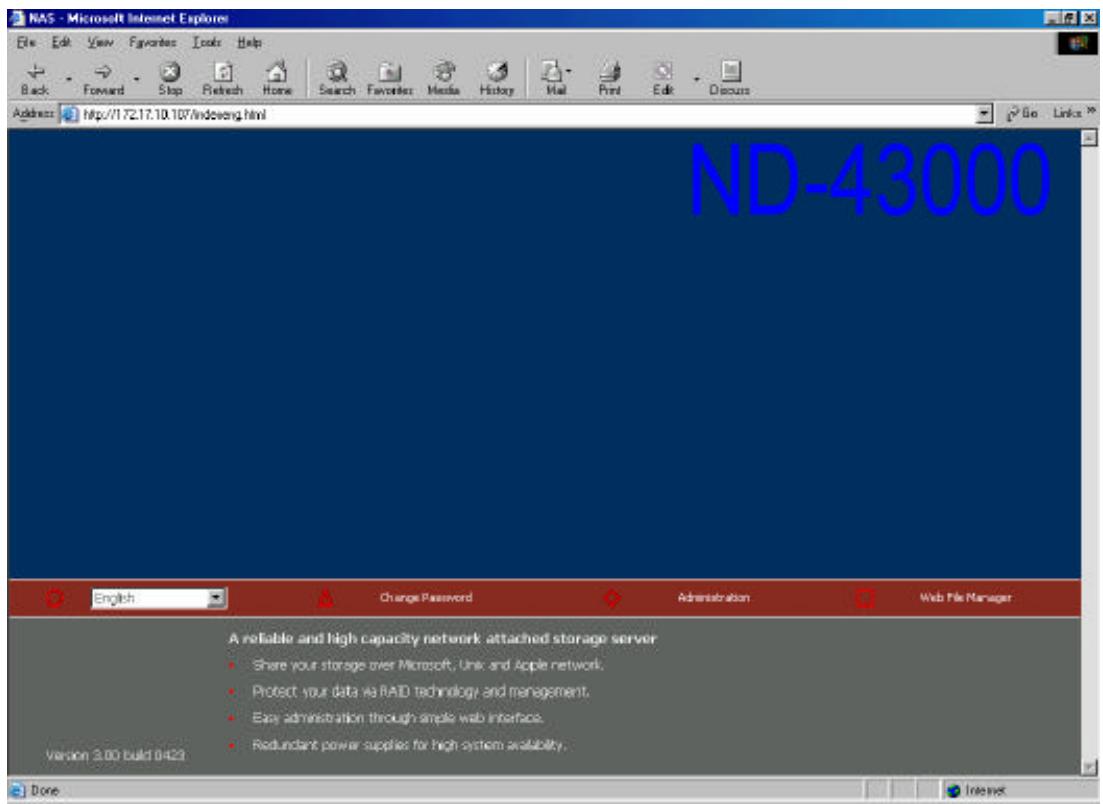
Besides viewing the share folders on Web File Manager web page, you can also access the folders via the FTP function of Web File Manager. Follow the steps below to enter Web File Manager:
- Enter the first page of Network Disk Server, click Web File Manager.
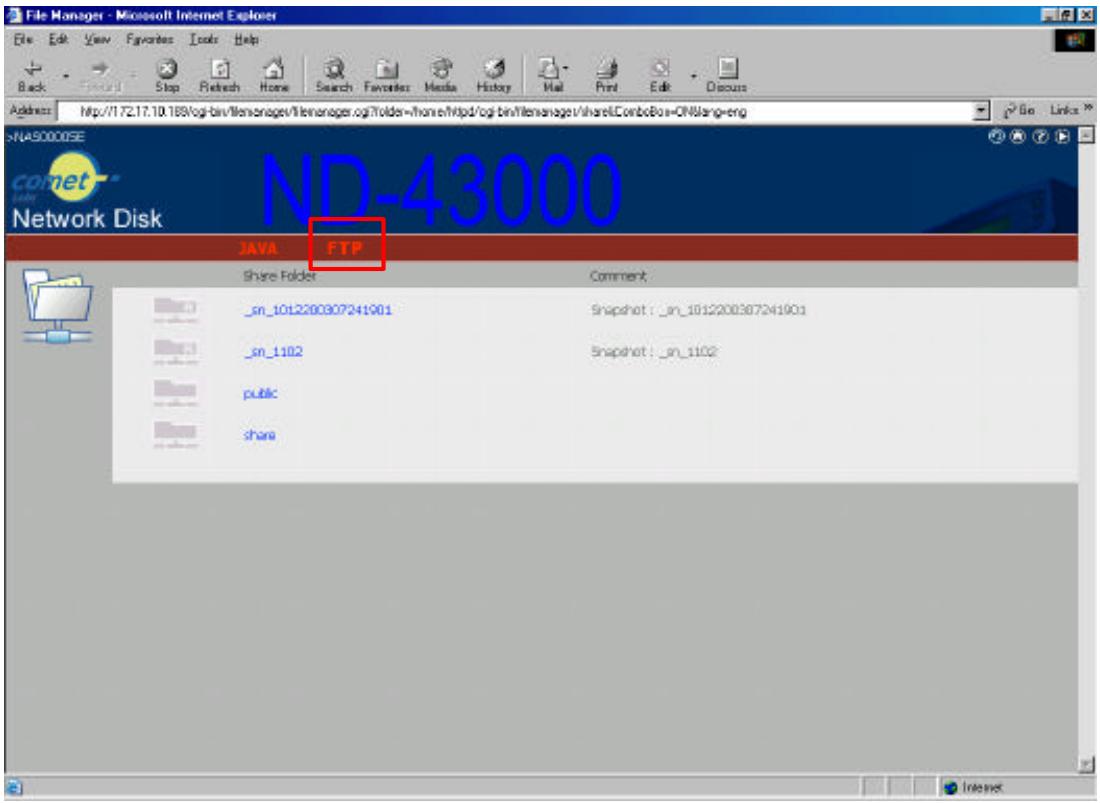
2. Click FTP.
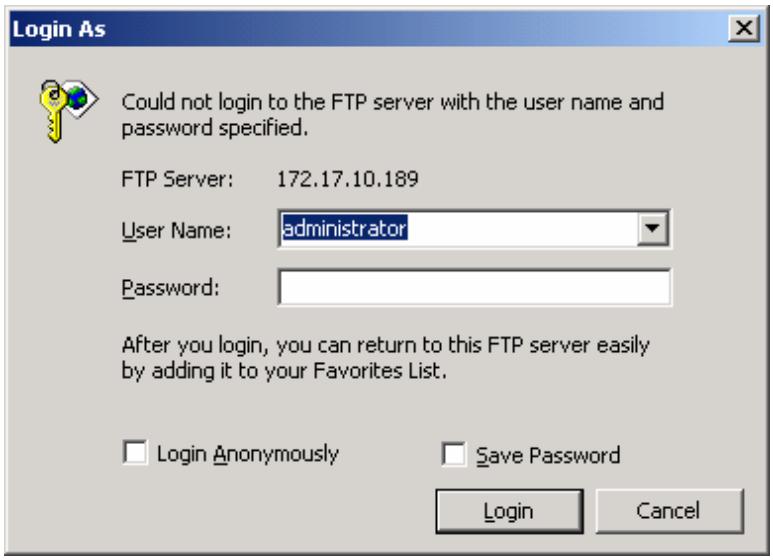
- Enter the user name and the password to login to the FTP server.
- Double click the share folder to access the files.
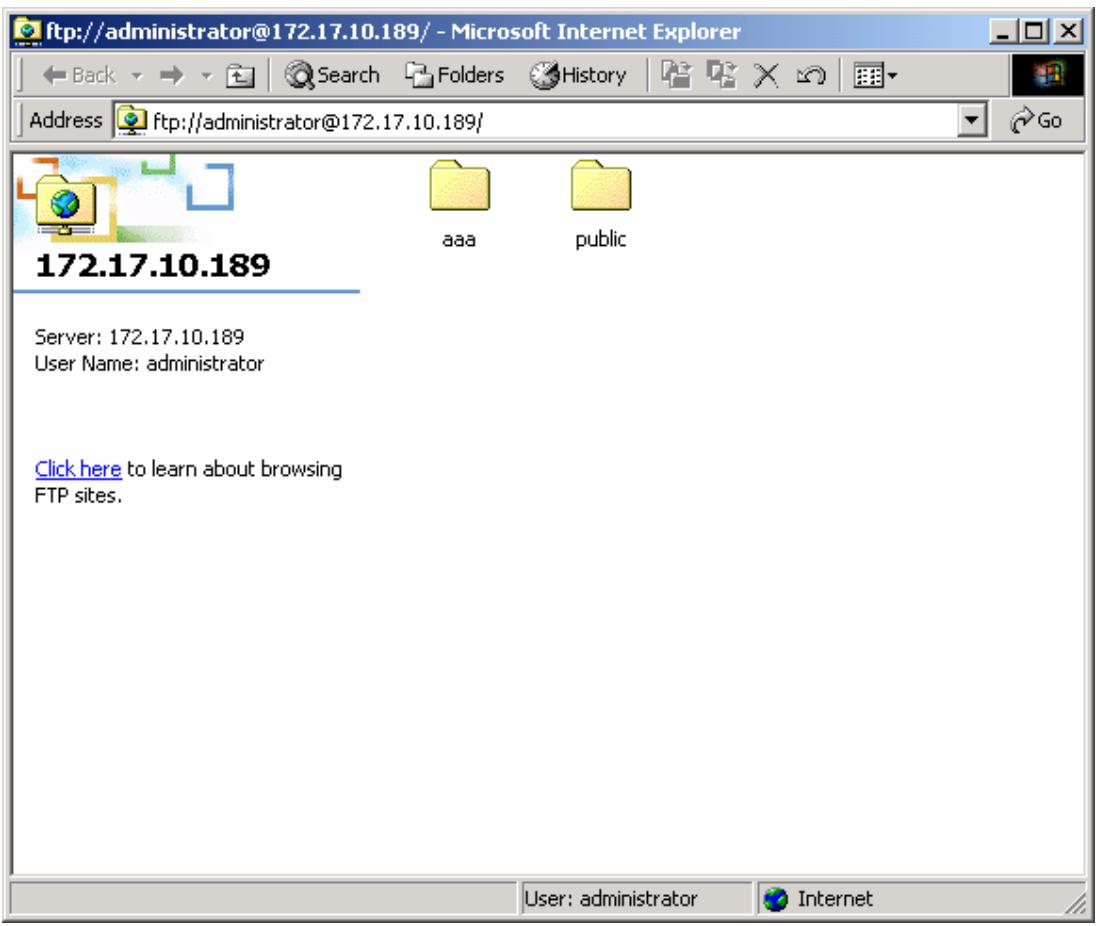
- All files in the share folder will be displayed. You copy, delete or rename the files in the share folder(s) easily and efficiently with general commands of Windows, e.g. drag and drop. Hence, using FTP reduces the time and effort consumed with managing the folders.