
ND16000 - Network Data Storage COMET LABS - Free user manual and instructions
Find the device manual for free ND16000 COMET LABS in PDF.


User questions about ND16000 COMET LABS
0 question about this device. Answer the ones you know or ask your own.
Ask a new question about this device
Download the instructions for your Network Data Storage in PDF format for free! Find your manual ND16000 - COMET LABS and take your electronic device back in hand. On this page are published all the documents necessary for the use of your device. ND16000 by COMET LABS.
USER MANUAL ND16000 COMET LABS
Network Attached Storage
ND16000 Series
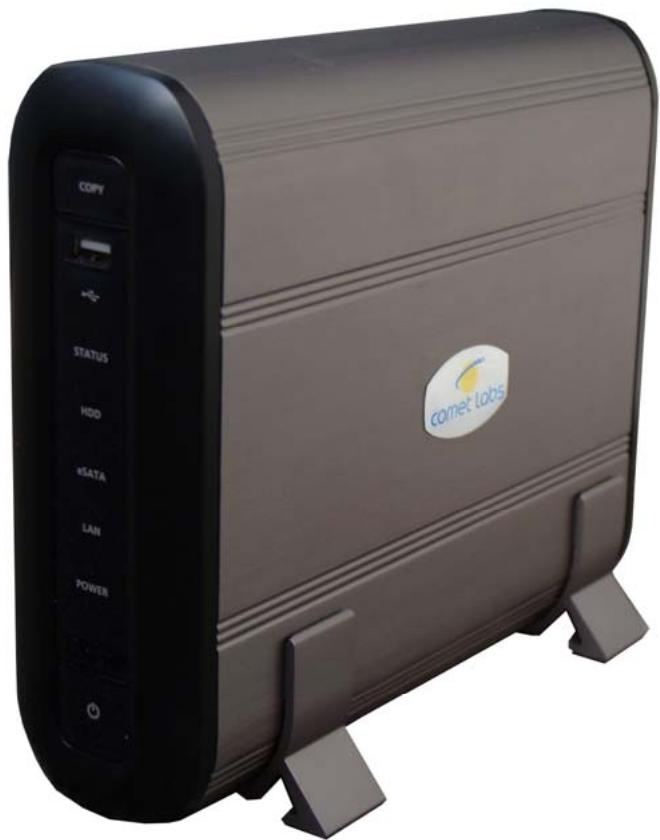
User Manual (Version: 1.0)
FOREWORD
Thank you for choosing COMET LABS products! This user manual provides detailed instructions of using ND16000. Please read carefully and start to enjoy the powerful functions of ND16000!
LIMITED WARRANTY
In no event shall the liability of COMET LABS Systems, Inc. (COMET LABS) exceed the price paid for the product from direct, indirect, special, incidental, or consequential software, or its documentation. COMET LABS makes no warranty or representation, expressed, implied, or statutory, with respect to its products or the contents or use of this documentation and all accompanying software, and specifically disclaims its quality, performance, merchantability, or fitness for any particular purpose. COMET LABS reserves the right to revise or update its products, software, or documentation without obligation to notify any individual or entity.

CAUTION
- Back up your system periodically to avoid any potential data loss. COMET LABS disclaims any responsibility of all sorts of data loss or recovery.
-
Should you return any components of ND16000 package for refund or maintenance, make sure they are carefully packed for shipping. Any form of damages due to improper packaging will not be compensated.
-
ND16000 can operate normally in the temperature of 0 - 35 and relative humidity of 0% -85% . Please make sure the environment is well-ventilated.
- The power cord and devices connected to ND16000 must provide correct supply voltage (40W, 90-264V).
- Do not place ND16000 in direct sunlight or near chemicals. Make sure the temperature and humidity of the environment are in optimized level.
- Unplug the power cord and all connected cables before cleaning. Wipe ND16000 with wet towel. Do not use chemical or aerosol to clean ND16000.
- Do not place any objects on ND16000 for the server's normal operation and to avoid overheat.
- Use the flat head screws in the product package to fasten the hard disk in ND16000 when installing hard disk for proper operation.
- Do not place ND16000 near any liquid.
- Do not place ND16000 on any uneven surface to avoid falling off and damage.
- Make sure the voltage is correct in your location when using ND16000. If you are not sure, please contact the distributor or the local power supply company.
- Do not attempt to repair your ND16000 in any occasions. Improper disassembly of the product may expose you to electric shock or other risks. For any enquiries, please contact the distributor.
Table of Contents
Chapter 1 Overview of ND16000 7
1.1 Introduction 7
1.2 Package Contents 8
1.3 Hardware Illustration 8
Chapter 2 Installation of ND16000. 9
2.1 Set up ND16000 9
2.2 Check System Status 10
2.3 Configure Software Settings 12
2.3.1 Windows Users 12
2.3.2 MAC Users 21
Chapter 3 Start to Enjoy the Powerful Services of ND16000 28
3.1 Server Administration 32
3.2 Quick Configuration 33
3.3 System Settings 36
3.3.1 Server Name 36
3.3.2 Date & Time 37
3.3.3 Encoding Setting 38
3.3.4 View System Settings 38
3.4 Network Settings 39
3.4.1 TCP/IP Configuration 39
3.4.2 Microsoft Networking 40
3.4.3 Apple Network 42
3.4.4 Web File Manager 42
3.4.5 FTP Service 43
3.4.6 Multimedia Station 44
3.4.7 Download Station 44
3.4.8 Web Server 45
3.4.9 View Network Settings 46
3.5 Device Configuration 47
3.5.1 SATA Disk 47
3.5.2 USB Disk 48
3.5.3 USB Printer 50
3.5.4 eSATA Disk 52
3.6 User Management 54
3.6.1 Users 54
3.6.2 User Groups.. 56
3.6.3 Quota 61
3.7 Network Share Management 63
3.7.1 Create 64
3.7.2 Property 65
3.7.3 Access Control 66
3.7.4 Delete 67
3.8 System Tools 68
3.8.1 Alert Notification 69
3.8.2 Restart/Shutdown 69
3.8.3 Hardware Settings 70
3.8.4 System Update 71
3.8.5 Change Logo 72
3.8.6 Remote Replication (Disaster Recovery) 73
3.8.7 Backup/Restore/Reset Settings 76
3.9 Event Logs 77
Chapter 4 Copy Data Directly by USB Ports to ND16000. 78
Chapter 5 Multimedia Station 79
Chapter 6 Download Station 85
Chapter 7 Web Server 91
Chapter 8 FTP Server 93
Chapter 9 Web File Manager. 96
Chapter 10 NetBak Replicator 101
Chapter 11 ND16000 Maintenance 115
11.1 Restart/ Shut down Server 115
11.2 Reset Administrator Password and Network Settings 116
11.3 Disk Failure or Malfunction 117
11.4 Power Outage or Abnormal Shutdown 117
Technical Support 118
Chapter 1 Overview of ND16000
1.1 Introduction
Thank you for choosing ND16000 . This product has the following key features:
9-in-1 server: Multimedia Station, Download Station, Mirror Station, Disaster Recovery, Web Server, Backup Server, File Server, FTP Server, and Printer Server
Easy to use, simple configuration in a few steps and ND16000 is ready to use!
- Enormous storage capacity, support SATA disk of up to 500GB or above, and extendable to 1TB or more by eSATA/USB port.
3 high speed USB 2.0 (480Mbps) to support multiple USB devices like printer, disk, digital camera, thumb drive, card reader etc. to provide diversified functions.
High speed transfer, 480Mb USB 2.0, Gigabit Ethernet, 1.5GB eSATA high speed file transfer. With highly efficient block level algorithm, data transfer can be done instantly.
- Incomparable high reliability, most complete and reliable data backup: instant/ schedule/ real-time backup and can compress data to remote location.
Stylish aluminum design, the best heat-release, shock-resistance, anticollision aluminum design
1.2 Package Contents
Your ND16000 package contains:
√ ND16000
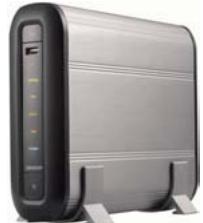
Adaptor
Power cord
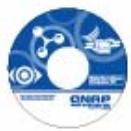
CD-ROM (user manual, Quick Install Wizard and software inclusive)
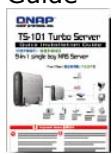
Quick Installation Guide
Flat head screw x 4

Ethernet cable x 1
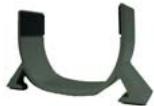
Stand x 2
1.3 Hardware Illustration
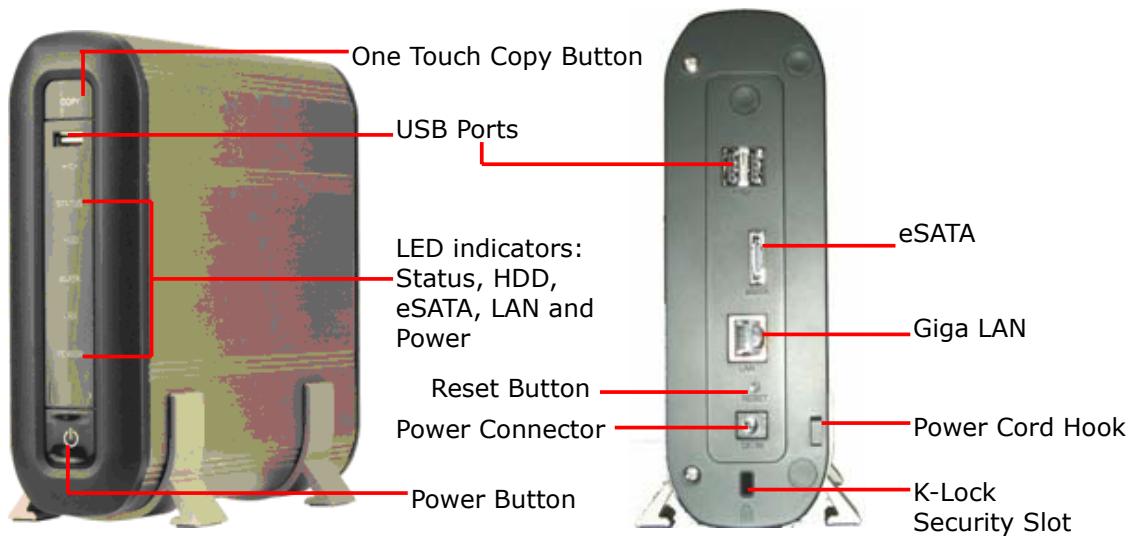
Chapter 2 Installation of ND16000
2.1 Set up ND16000
Please check your network environment and select the appropriate installation method before installing ND16000.
1. Office/ Home
Connect ND16000 and PC to the same hub/ switch/ router.
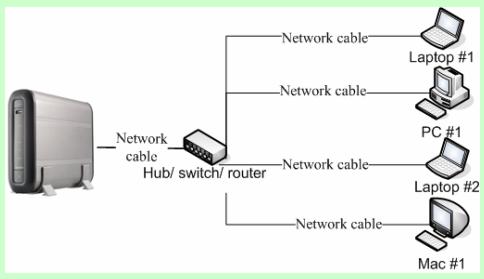
2. Individual
Connect ND16000 directly to your PC by a network cable.
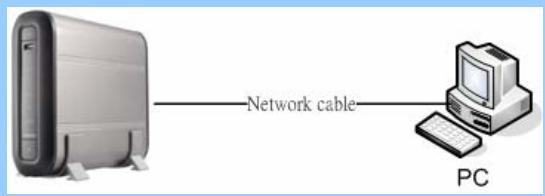
When you have verified your network environment, please follow the steps below to install ND16000.
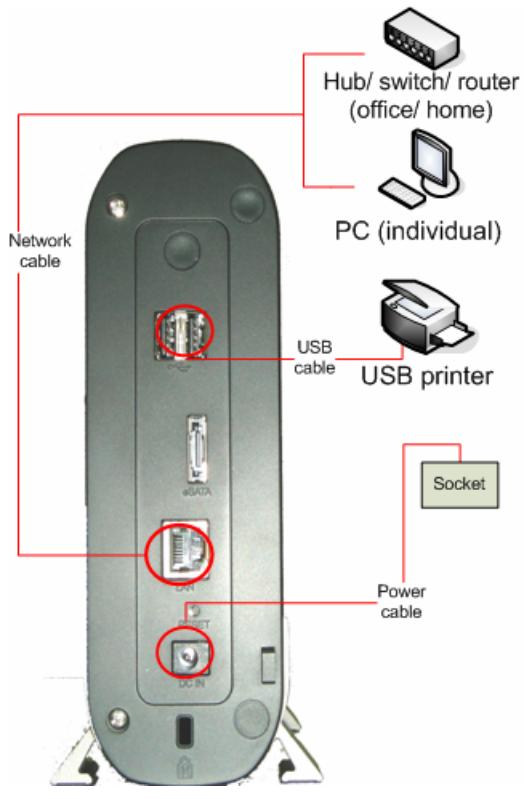
Connect TS-101 to hub/ switch/ router or PC according to your network environment.
Connect USB printer to TS-101 and enable USB printer service*.
3 Connect the power.
Press the power button of TS-101 to turn on the server.
- Optional step. You can skip this step if you are not using printer service.
2.2 Check System Status
ND16000 provides LED indicators for you to indicate system status and
information easily. When ND16000 is turned on, please check the following items to make sure system status is normal.
| LED | System starting up | System has started |
| ①Power | Blue | Blue |
| ②Network (LAN) | Blink in orange | Orange |
| ④Hard disk (HDD) | Blink in yellow | Off |
| ⑤Status | Blink in red (short beep once)→ Blink in green (long beep once) | Green |
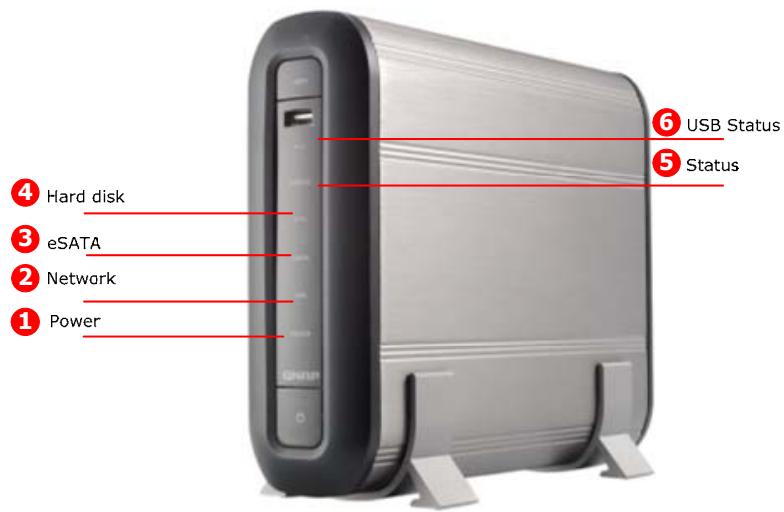
LED Display & System Status Overview (Long blink: LED blinks for 3 seconds;
short blink: LED blinks for one second)
| LED | LED Display & System Status |
| Power | Blue: System has started |
| Network | Short blink in orange: Accessing network |
| eSATA | Short blink in yellow: Accessing data |
| HDD | Short blink in yellow: Accessing data |
| Status | Green: System is normal Short blink in red: When system is turned on Glow in red for 3 seconds/ long blink in red: Hard disk not detected Red: Incorrect hard disk format Long blink in green and red alternatively: Bad blocks are found in hard disk Short blink in green and red alternatively: Warning on disk full status (long beep twice) |
| Front USB Status | Short blink in yellow twice: System detects USB Yellow: You can press copy button to copy data. Short blink in yellow: Accessing data |
| Other Status | |||
| Action | LED | Process | Finish |
| Update firmware | Power | Short blink in blue | Blue |
| Status | Short blink in green and red alternatively | Green (long beep thrice) | |
| System shut down | Power | Short blink in blue | Off |
| Status | Off (short beep once) | Off | |
2.3 Configure Software Settings
After checking system status, please follow the steps below to configure software settings of ND16000. The configuration procedure of Windows and MAC users are different. Please select the appropriate procedure according to your OS.
2.3.1 Windows Users
Insert ND16000 CD-ROM in your PC
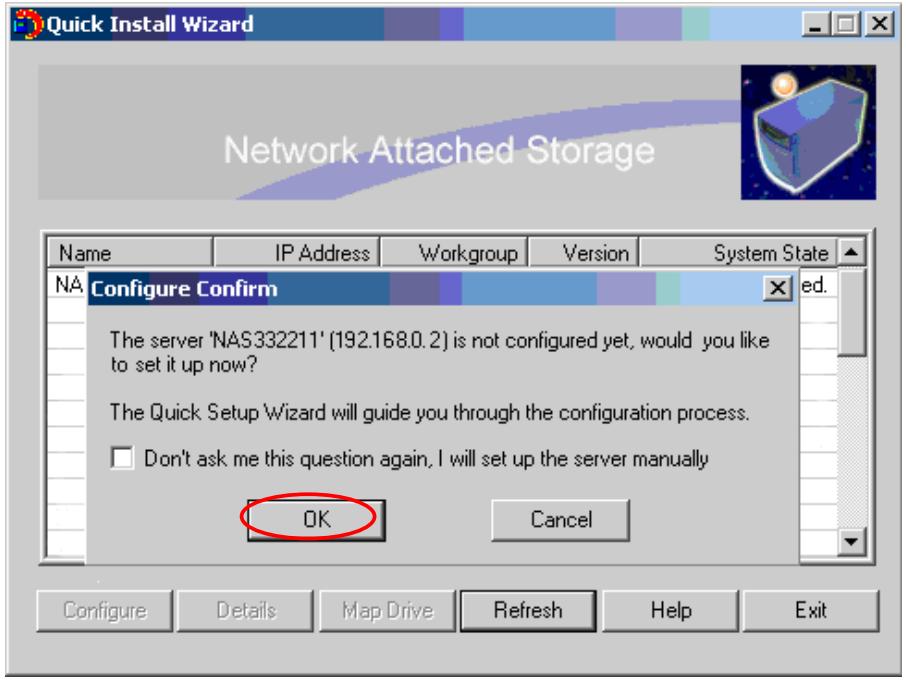
- Run Quick Install Wizard. When the browser prompts for performing quick configuration, click OK.

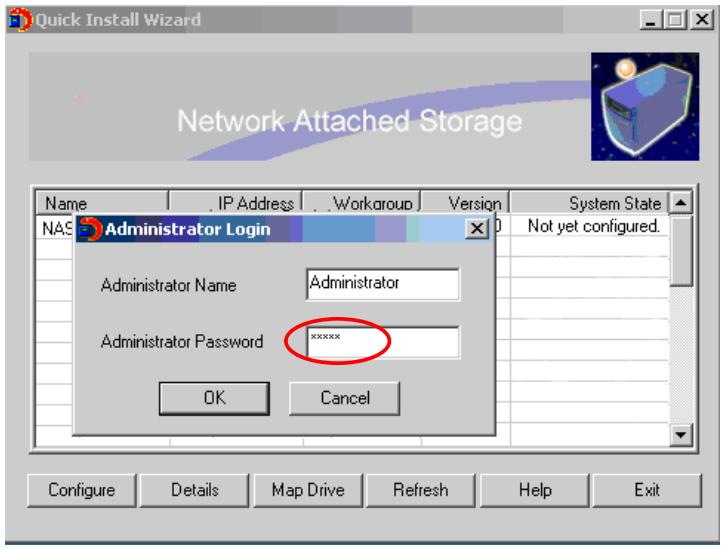
Enter the default user name and password.
Default user name: Administrator
Password: admin
When you have entered quick configuration page, follow the instructions to complete the settings. Click Next to continue.
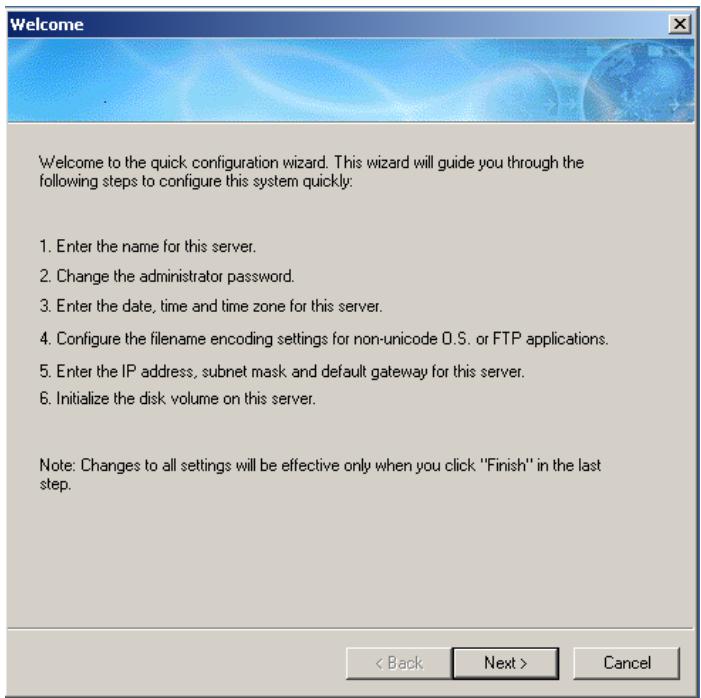
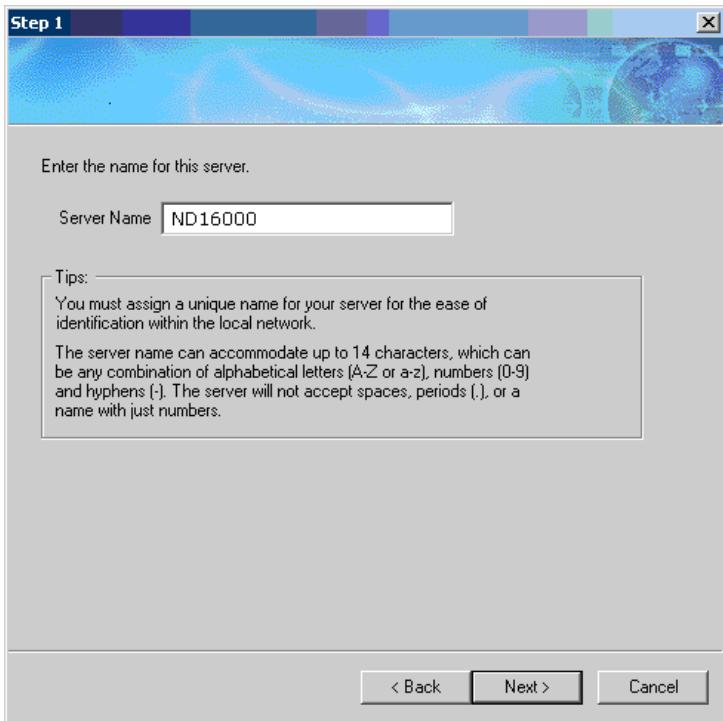
Step 1. Enter the server name and click Next.
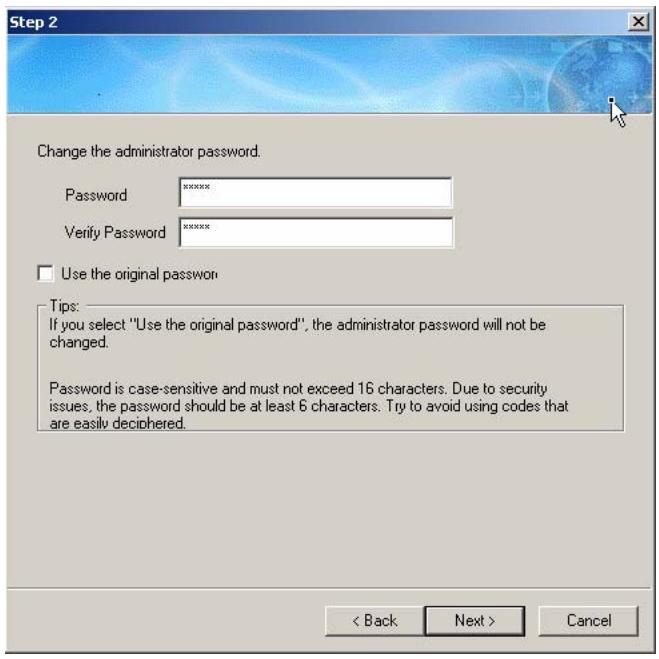
Step 2. Enter a new password or select to use the original password. Click Next to continue.
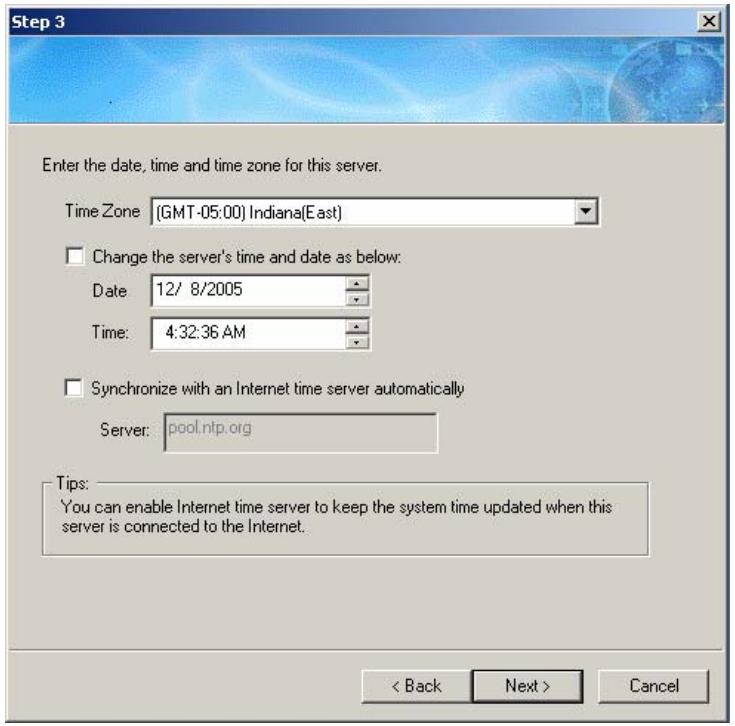
Step 3. Select the time zone of your location or enter the date and time manually. You can also select to synchronize the time of ND16000 with an Internet time server automatically. Click Next to continue.
Step 4. Select the encoding language of ND16000 and click Next.
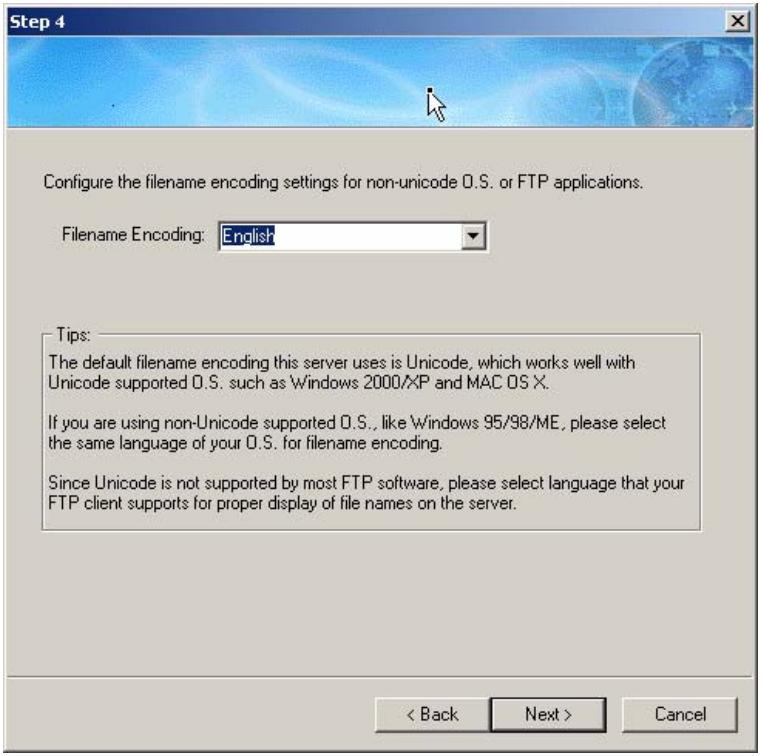

Note: All files and directories on ND16000 will be created using Unicode encoding. If your FTP clients or PC does not support Unicode, e.g. Windows 95, 98, ME OS, select the language the same as the OS of your PC here in order to view the files and directories on the server properly.
Step 5. It is recommended to use DHCP protocol to acquire IP address automatically. If your network does not support DHCP, please enter the IP address settings and click Next.
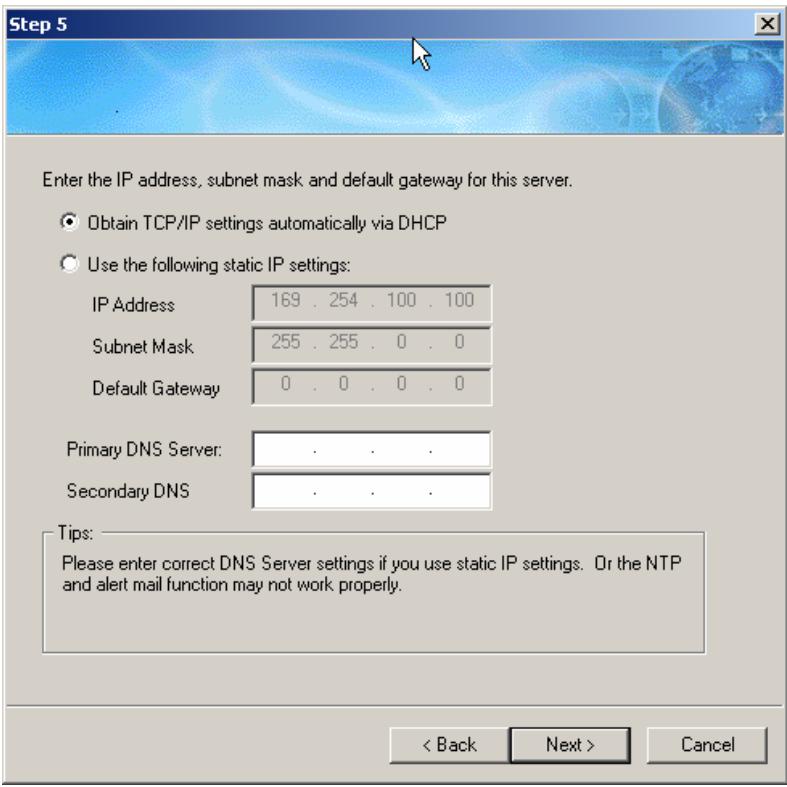

Note: If you select to enter IP address manually, please make sure your PC and ND16000 are in the same LAN. If you are not sure about the network settings, please contact your network administrator or ISP.
Step 6. When a new hard disk is installed in ND16000, select "Initialize the hard disk now" and click Next to format and initialize the disk.
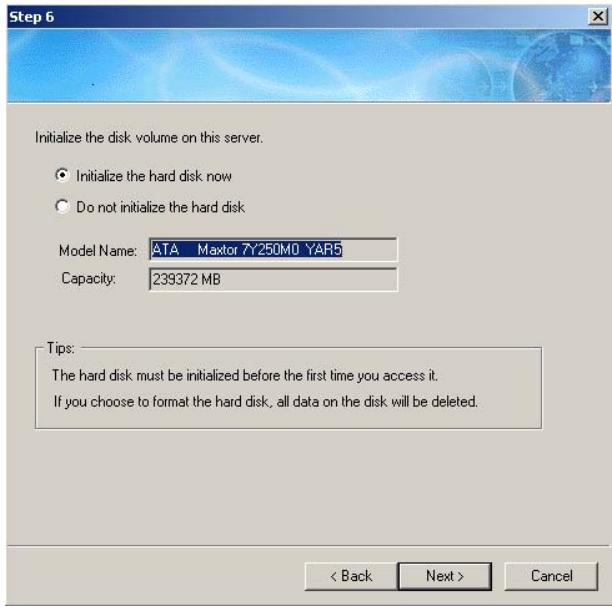

Note: All disk data will be cleared after disk initialization.
Step 7. You have finished quick configuration. Please make sure all settings are correct and click Next to start disk formatting.
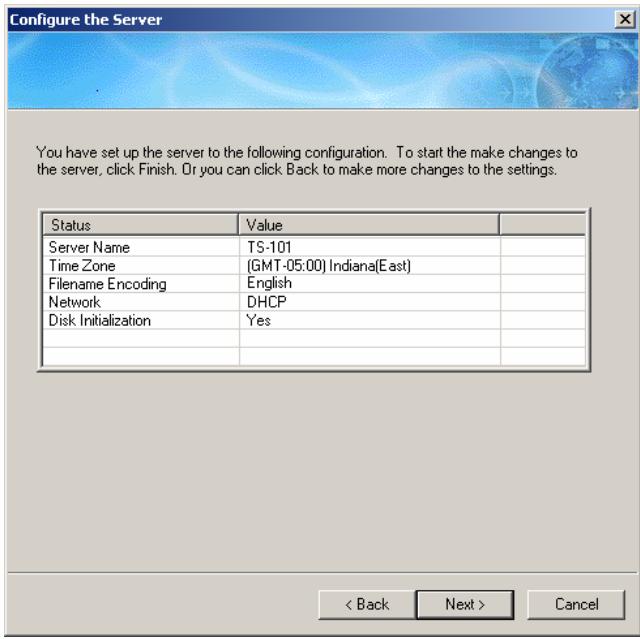
Please wait patiently when the disk is being formatted. Formatting may take a few minutes depending on the capacity of your hard drive. When the disk is formatted, click Next to proceed.
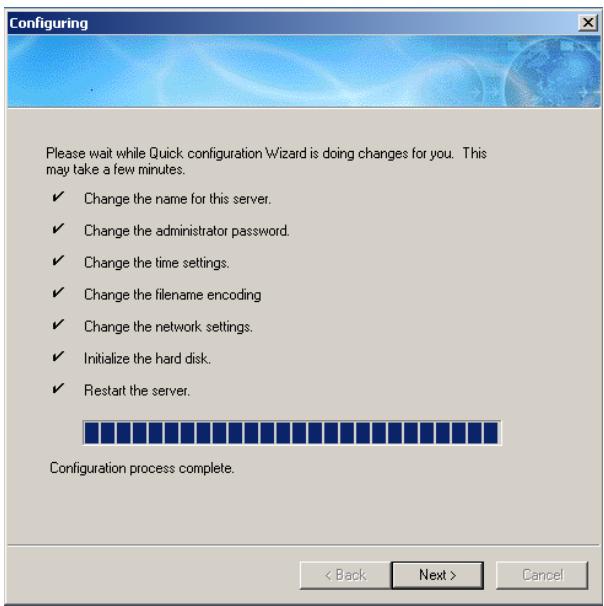
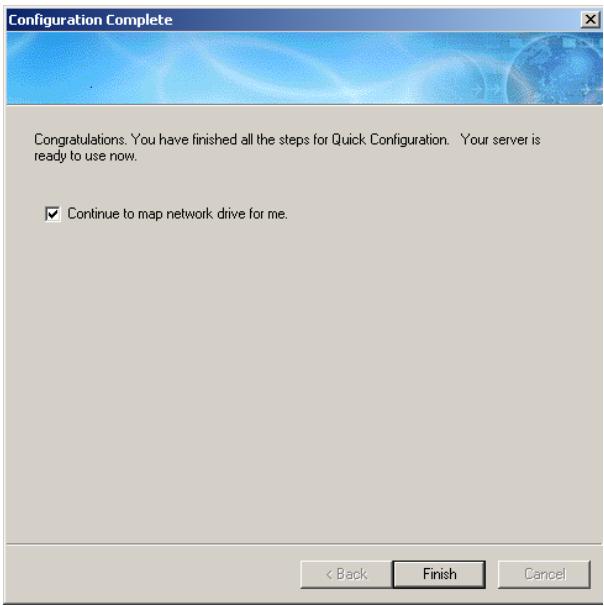
Congratulations! You have finished Quick Configuration. Your ND16000 is ready to use.
ND16000 provides several default share folders for data sharing and access. To map the share folders on ND16000 as your drive, check the option
"Continue to map network drive for me" and follow the steps below to proceed. To start to use ND16000 immediately, you can skip to 3.
a. For example, to map the folder Public as your drive, select the folder and click Map Network Drive.
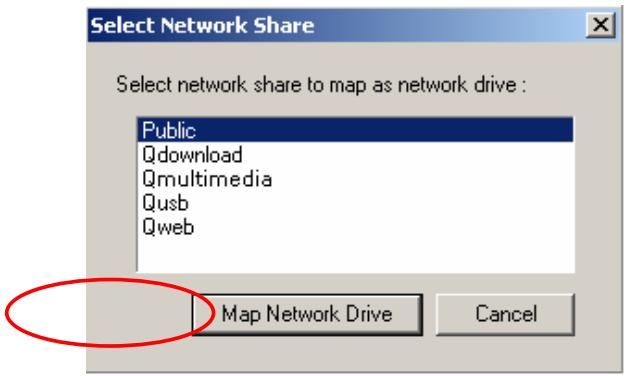

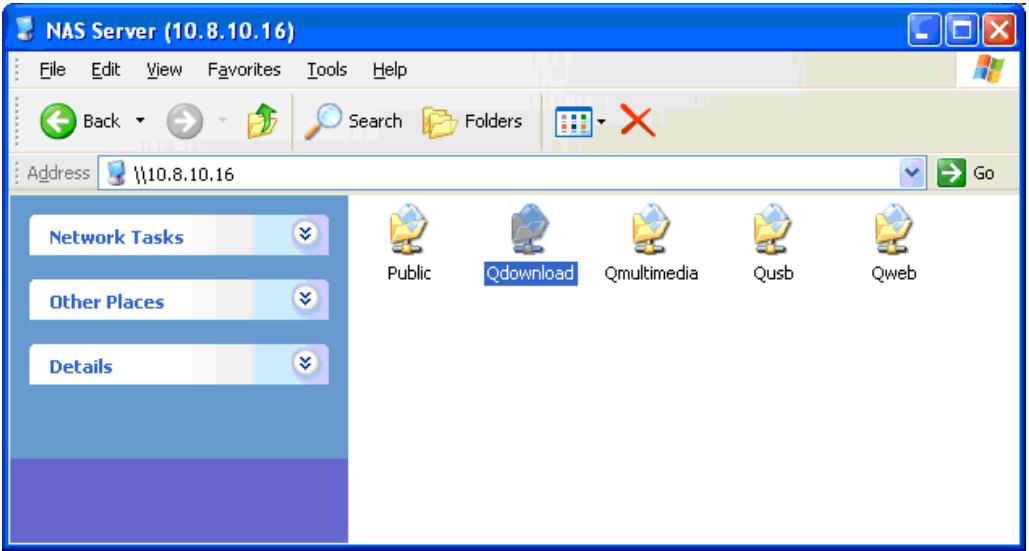
Note: The share folders Qdownload, Qmultimedia, Qusb, and Qweb are system default network share of ND16000 for the use of Download Station, Multimedia Station, USB Auto-copy and Web Server.
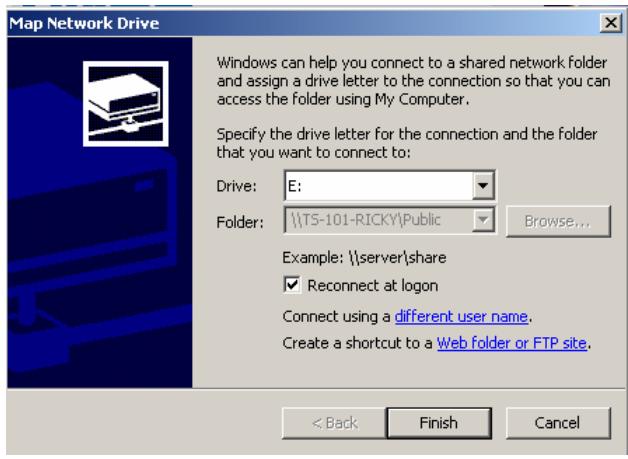
b. Select the drive letter for the connection and click Finish.
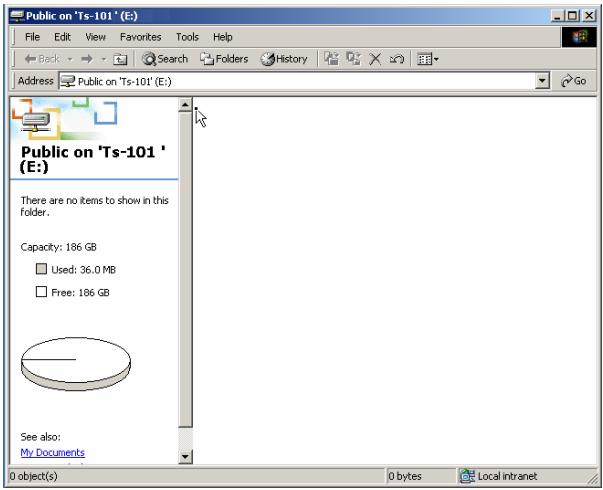
c. Upon successful connection, you can start to use the share folder on ND16000. You can access these folders by opening My Computer.
- Quick Install Wizard will appear when all configurations are completed. Click on the name of ND16000 on the list to enter administration page.
- When the administration page of ND16000 is shown, you can start to use the services. If you have any questions during web administration, please click the help button on the top right hand corner of the page.
To modify system settings, click Administration. Enter the user name and password to login.
Default user name: administrator
Password: admin
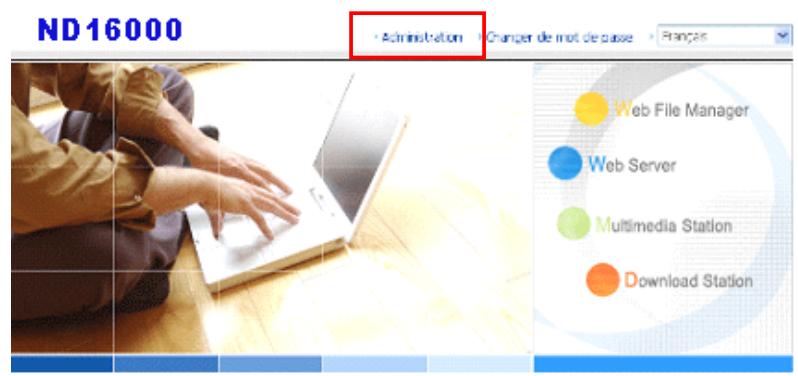
It is recommended to use Internet Explorer 6.0 or above to access ND16000. If the OS of your PC is Windows 98, ND16000 supports Internet Explorer 6.0 or above only.
2.3.2 MAC Users
ND16000 provides two methods for MAC users to connect to ND16000. You can select A. Connect ND16000 by MAC directly or B. Connect ND16000 by the network.
A. Connect your ND16000 with MAC directly
- Please go to Network settings and select Using DHCP. Then connect ND16000 to your MAC via a cable.
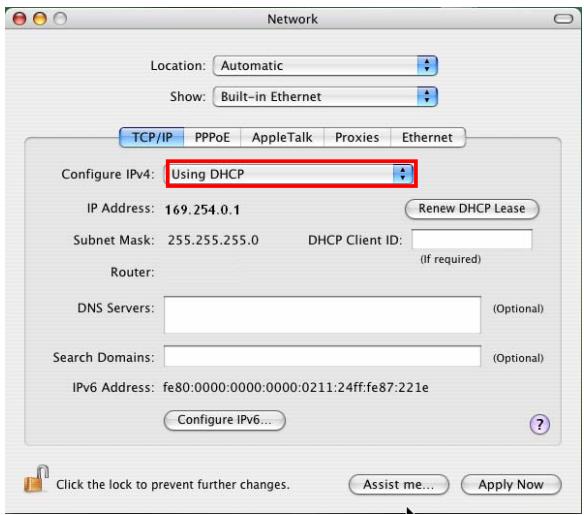
- Open a web browser and enter the default IP address of ND16000 to login the system.
Default IP of ND16000: http://169.254.100.100:6000


Note: Please use the browser Safari in MAC to access ND16000.
- When the administration page is shown, click Administration. Enter the default user name and password to login.
Default user name: administrator
Password: admin


ND16000
Change Password
English
Web File Manager

Web Server

Multimedia Station

Download Station

A reliable and high capacity network attached storage server
- Share your storage over Microsoft and Apple network.
- Easy administration through simple web interface.
Web File Manager
Web File Manager enables you to upload files to Turbo Station and maintain the files.
- Follow the step-by-step guide in Quick Configuration to complete the settings of ND16000. If you have any questions during web administration, please click the help button on the top right hand corner of the page.
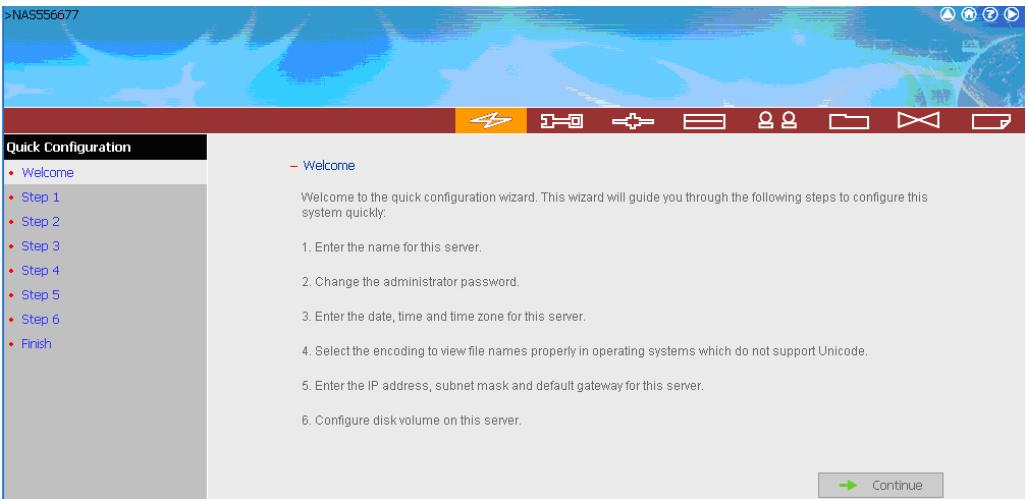
B. Connect ND16000 by the network
- Please go to Network settings to check and write down the subnet and router address of your MAC. Then select Using DHCP.
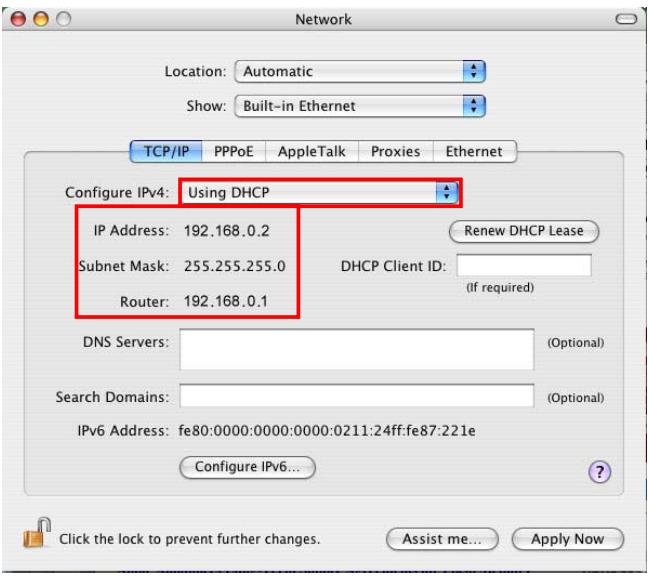

Note: If you are not sure about the network settings, please contact your network administrator or ISP.
- Connect ND16000 to your MAC by a cable. Open a web browser and enter the default IP address of ND16000.
Default IP address of ND16000:
http://169.254.100.100:6000


Note: Please use the browser Safari in MAC to access ND16000.
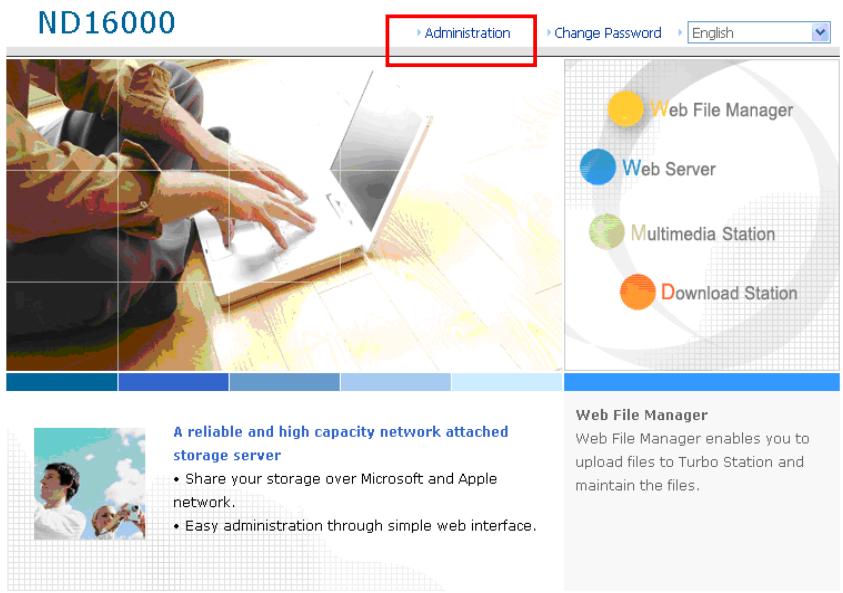
- When the administration page is shown, click Administration. Enter the default user name and password to login.
Default user name: administrator
Password: admin
- Go to TCP/IP Configuration of Network Settings. Select to use static IP and input the IP address of ND16000. Make sure the value does not conflict with the IP address of your MAC and other devices in LAN. Configure the subnet mask and default gateway of ND16000 to the same as subnet mask and router address of MAC which you set in Step 1. Click Apply to confirm.
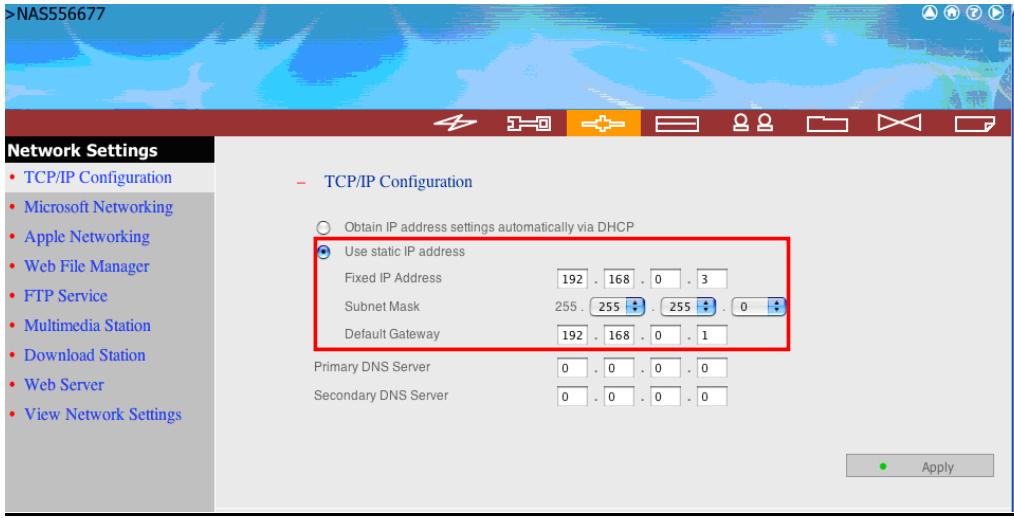

Note: When using static IP, please make sure your MAC and ND16000 are in the same LAN. If you are not sure about the settings, please contact your network administrator or ISP.
- Click Yes to restart ND16000 for the changes to take effect. Please wait patiently for ND16000 to restart.

- Connect your MAC and ND16000 to the network. Open a web browser and enter the IP address of ND16000 you set up in step 4.


Note: Please use the browser Safari in MAC to access ND16000.
- Click Administration and enter the default user name and password to login.
Default user name: administrator
Password: admin
ND16000
Administration
Change Password
English

A reliable and high capacity network attached storage server
- Share your storage over Microsoft and Apple network.
- Easy administration through simple web interface.
Web File Manager
Web File Manager enables you to upload files to Turbo Station and maintain the files.
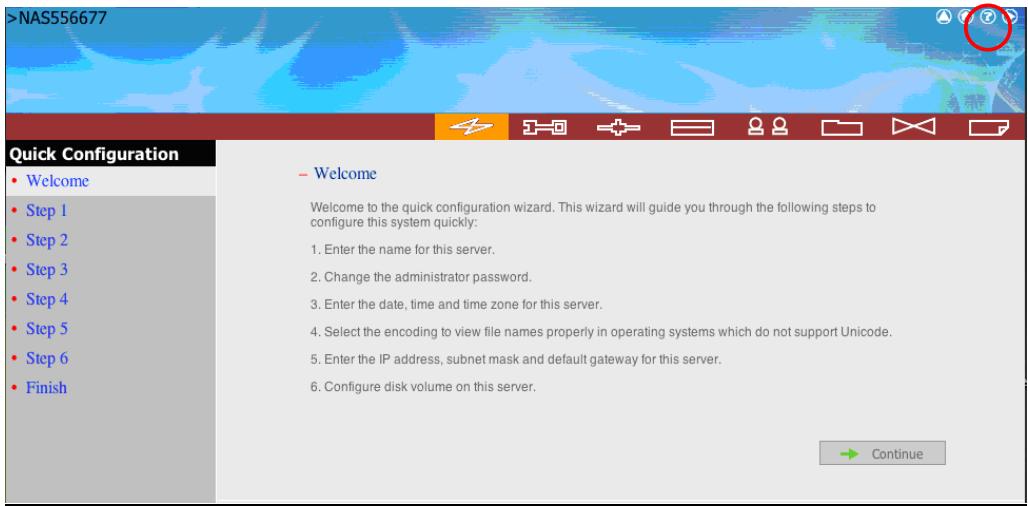
- Follow the step by step guide in Quick Configuration to complete the settings of ND16000. If you have any questions during web administration, please click the help button on the top right hand corner of the page.
Chapter 3 Start to Enjoy the Powerful Services of ND16000
ND16000 provides the following powerful functions and applications.
A. Use network share-Public folder
- You can access the public folder of ND16000 by the following means:
a. Open My Network Places and find the workgroup of ND16000. If you cannot find the server, please browse the whole network to search for ND16000. Double click the name of ND16000 for connection.
b. Use Run function in Windows. Enter [\text{[ND16000 name]*}] or [\text{[ND16000 IP]}# to access share folder on ND16000.]
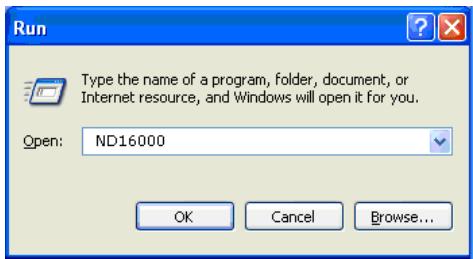
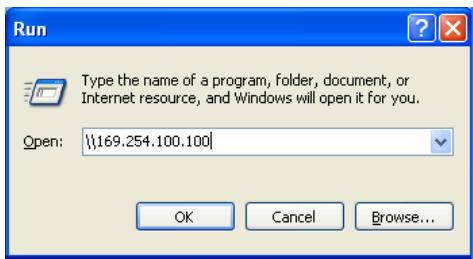
c. Windows users can use Quick Install Wizard to find ND16000. When the administration page is shown, click Web File Manager. Enter the user name and password, and then start to manage ND16000.
- You can upload files to the Public folder.
Manage ND16000 using web browser by Windows or MAC
- You can access ND16000 web administration page by the following methods:
a. Windows users can use Quick Install Wizard to find ND16000.
b. Windows and MAC users can open a web browser and enter http://
[ND16000 name]:6000* or http:// [ND16000 IP]:6000#
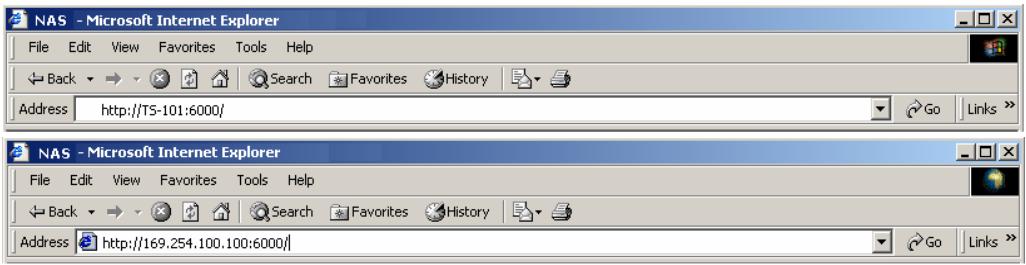

Note:
- It is recommended to use Microsoft Internet Explorer 6.0 or above to access ND16000. If the OS of your PC is Windows 98, ND16000 supports Internet Explorer 6.0 only.
- Please use the browser Safari in MAC to access ND16000.
*The user name here should be the same as the server name you enter in Chapter 2.3 Configure Software Settings.
The IP address here should be the same as the IP address you enter in Chapter 2.3 Configure Software Settings. If you are using DHCP: (a) connect PC to ND16000 directly, please use the default IP address 169.254.100.100:6000 of ND16000; (b) connect ND16000 by network, please run Quick Install Wizard to view the IP address of ND16000.
- When the administration page is shown, click Administration, Web File Manager, Web Server, Multimedia Station, or Download Station. Enter the user name and password, and then start to manage ND16000. For further details, please refer to the user manual in ND16000 CD-ROM.
ND16000
Administration
Change Password
English
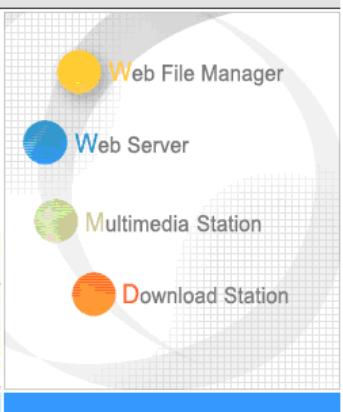

A reliable and high capacity network attached storage server
- Share your storage over Microsoft and Apple network.
- Easy administration through simple web interface.
Web File Manager
Web File Manager enables you to upload files to Turbo Station and maintain the files.
Multimedia Station
ND16000 provides a user-friendly web management interface for you to manage personal albums easily. You can view images and multimedia files, or browse photos by thumbnails preview. Please refer to Chapter 5.
Download Station
ND16000 supports P2P download mechanism. You can add download task to ND16000 and let the server finish downloading even without connecting the server to PC. Please refer to Chapter 6.
Mirror Station
Provides unique Q-RAID 1 technology which enables mirroring data backup to external USB/ eSATA disk. Please refer to Chapters 3.5.2 and 3.5.4.
Disaster Recovery
ND16000 supports unique remote replication to back up important files instantly to another COMET LABS NAS server. In case of data damage in PC, you can restore all backup data. Please refer to Chapter 3.8.6.
Web Server
ND16000 enables you to upload html files and manage your own website easily. Please refer to Chapter 7.
Printer Server
ND16000 supports network printer sharing function by direct USB connection. No extra help from PC is needed. Please refer to Chapter 3.5.3.
FTP Server
ND16000 offers the simplest FTP server setup procedure for you to establish FTP server without any professional assistance. Please refer to Chapter 8.
Backup Server
NetBak Replicator is a powerful backup software designed for Windows users to configure automatic backup schedule. Block level remote replication is supported to provide the most reliable, instant and secure data backup mechanism. Please refer to Chapter 10.
File Server
ND16000 provides convenient and secure file server functions that support central data management. Users can be granted with access right to access network share and share important files. Please refer to Chapter 3.7 and Chapter 9.
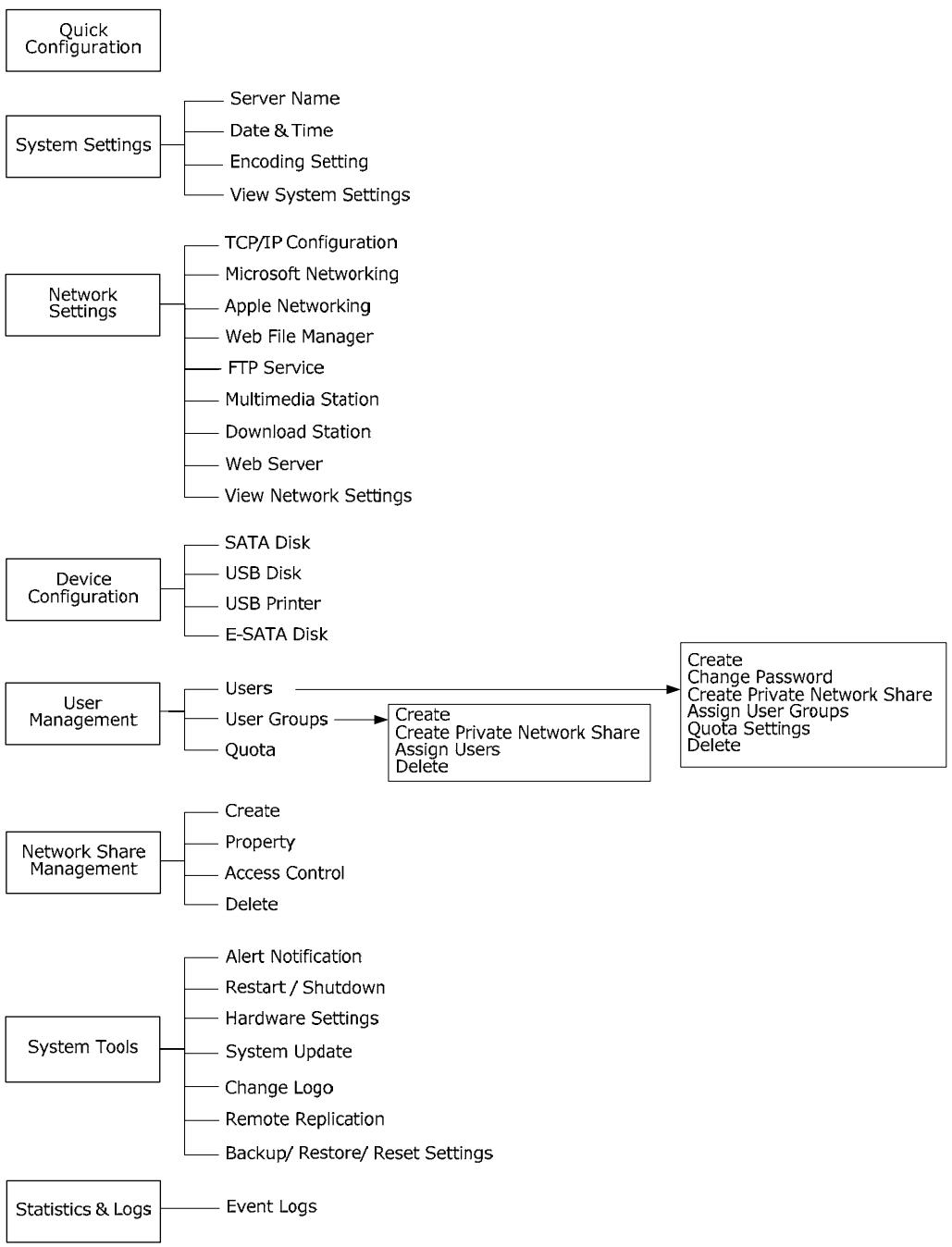
3.1 Server Administration
There are eight main sections in server administration:
3.2 Quick Configuration

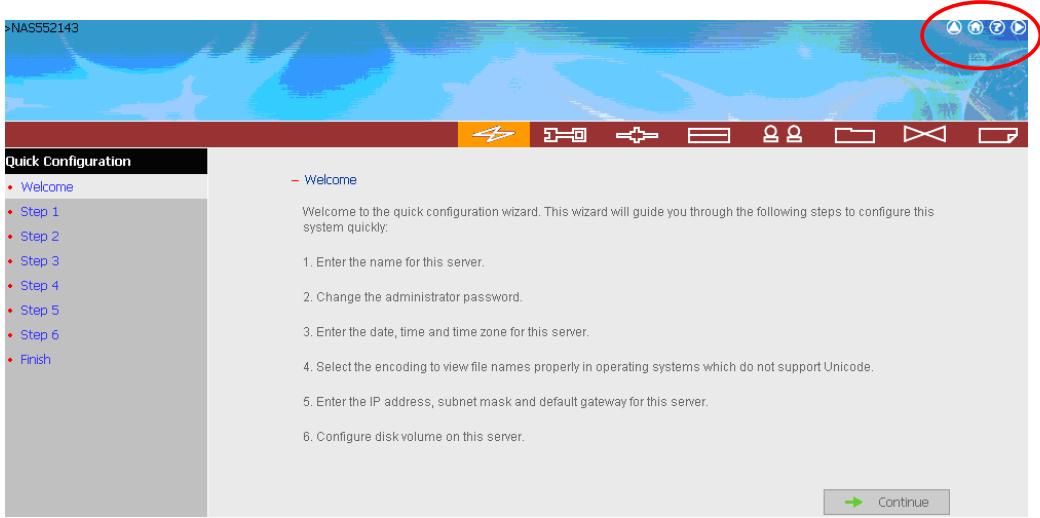
Please follow the step-by-step guide in Quick Configuration to complete the settings of ND16000. If you have any questions during web administration, please click the help button on the top right hand corner of the page. Other buttons are described as below:
: Return to previous page
: Return to home page
:Logout system
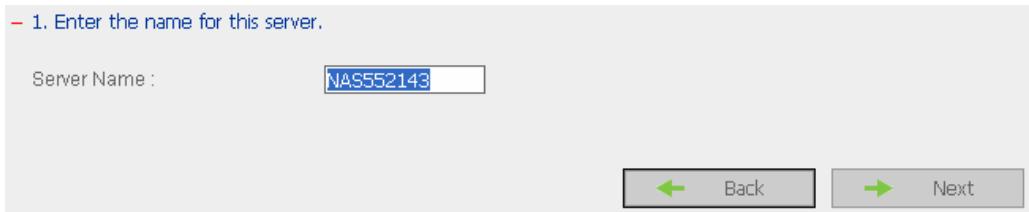
Step 1. Enter the server name.
Step 2. Change the administrator password or select to use the original password.
-
- Change the administrator password.
Password:
Verify Password :

Use the original password
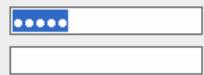
Note: If you select "Use the original password", the administrator password will not be changed.
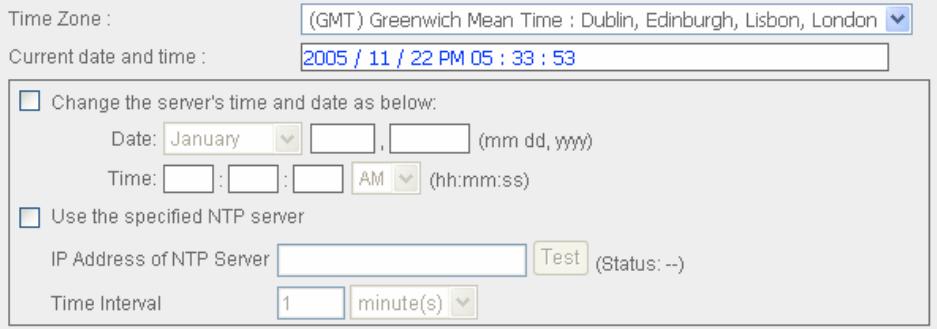
Step 3. Enter the date, time and select the time zone for the server.
-
- Enter the date, time and time zone for this server.
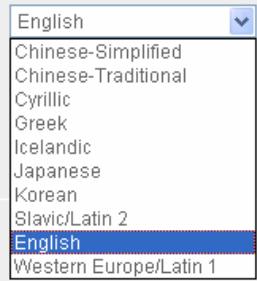
Step 4. Select the language the server uses to display files and directories. The default setting is English.
-
- Select the default encoding.
Encoding:

Back

Next
Step 5. Enter the IP address, subnet mask and default gateway for the server.
-
- Enter the IP address, subnet mask and default gateway for this server.
Obtain TCP/IP settings automatically via DHCP
Use the following settings
IP Address:
Subnet Mask:
Default Gateway:
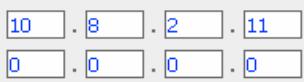
Primary DNS Server
Secondary DNS Server
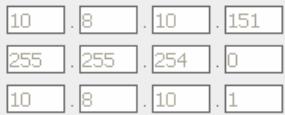
Note: If you don't need a default gateway for this server, please enter "0.0.0.0".

Back

Next
Step 6. Initialize the disk volume in ND16000 for first time configuration.
-
- Configure disk volume on this server.
Initialize disk Yes No
Note: If you choose "Yes", all data on the disk will be deleted.

Back

Next
Step 7. When ND16000 is initialized, the basic settings will be shown.
System is initialized.
Server Name: NAS552143
Time Zone: (GMT) Greenwich Mean Time: Dublin, Edinburgh, Lisbon, London
Time Setting: 2005/11/22 PM 05:35:22
Encoding: English
Network: 10.8.10.151 (STATIC)
Disk: Ready

Close
3.3 System Settings

Basic system settings include the server name, date, time, and view system settings.

3.3.1 Server Name
Enter the name of ND16000. The server name can be 14 characters long at maximum, which can contain alphabets, numbers and hyphen (-). The server does not accept names with space, period (.), or names in pure numbers.

3.3.2 Date & Time
Set the date, time, and time zone according to your location. If the settings are incorrect, the following problems may occur:
- When using a web browser to access or save a file, the display time of the action will be incorrect.
- The system event log time will be incorrect compared to the actual time when an action occurs.
Adjust the date, time and time zone of this server
Time Zone:
Current date and time:

Change date and time manually
Date
Time

Use the specified NTP server
Time Interval
(GMT) Greenwich Mean Time : Dublin, Edinburgh, Lisbon, London
2005/11/22PM05:36:57
You can enable or use specified NTP (Network Time Protocol) server to update the date and time of the system automatically. To enable NTP server, please enable Configure NTP server or client setting and enter the IP address or domain name of the NTP server, e.g. time.nist.gov, time.windows.com in Use the specified NTP server field. Then enter the time interval for adjusting the time (minimum value is 1 minute and maximum value is 99 days).
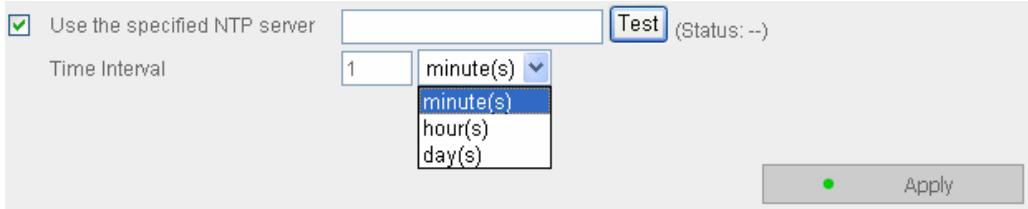

Note: The first time you enable NTP server, it may take several minutes for time synchronization before the time is correctly adjusted.
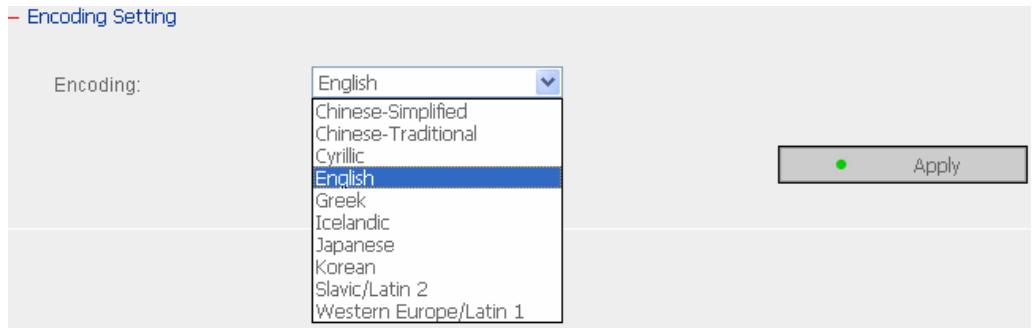
3.3.3 Encoding Setting
Select the language ND16000 uses to display files and directories.

Note: All files and directories on ND16000 will be created using Unicode encoding. If your FTP clients or the OS of your PC does not support Unicode, e.g. Windows 95/98/ME, select the language the same as your OS here in order to view the files and directories on the server properly.
3.3.4 View System Settings
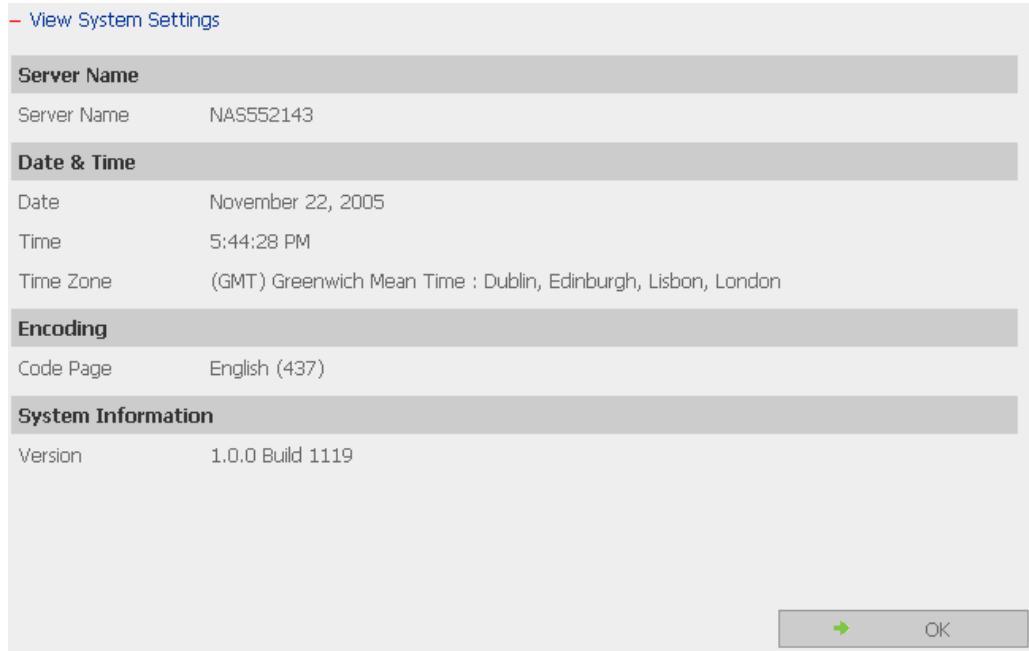
You can view all current system settings, e.g. server name, on this page.
3.4 Network Settings

You can configure network settings in this section and enable several powerful applications of ND16000, e.g. Multimedia Station, Download Station, and Web Server.
3.4.1 TCP/IP Configuration
You can select one of the following two methods to configure the TCP/IP settings of ND16000.
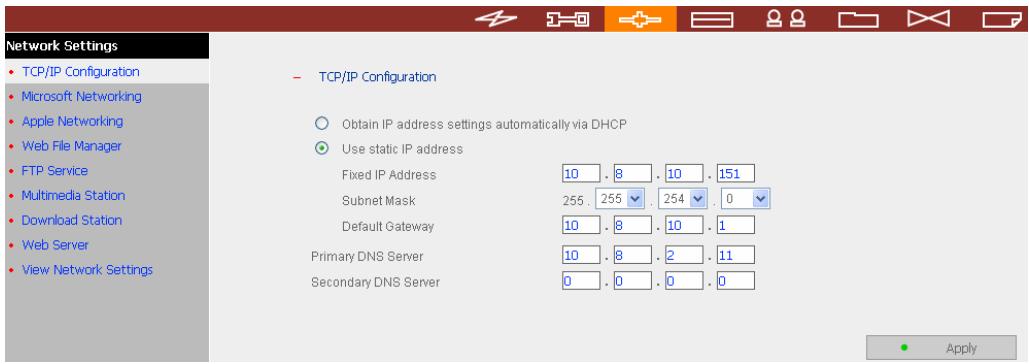
- Obtain IP address settings automatically via DHCP
If your network supports DHCP, ND16000 will automatically use DHCP protocol to retrieve the IP address and related information.
Use static IP address
To use fixed IP address for network connection, enter fixed IP address, subnet mask and default gateway.
Primary DNS Server: Enter the IP address of primary DNS server that provides DNS service for ND16000 in external network.
Secondary DNS Server: Enter the IP address of secondary DNS server that provides DNS service for ND16000 in external network.
| Primary DNS Server | 10 | 8 | 2 | 11 |
| Secondary DNS Server | 0 | 0 | 0 | 0 |
3.4.2 Microsoft Networking
Microsoft Networking
Enable file service for Microsoft networking
Standalone Server
Server Description
Workgroup
Enable WINS server
Use the specified WINS server
WINS server IP address
Domain Master
TS-101 NAS Server
1231


Apply
Enable file service for Microsoft networking: If you are using Microsoft
Windows, enable this service to access the files on network share folders. Assign a workgroup name.
✓ Standalone Server
Use local users for user authentication.
WINS server
If the local network has a WINS server installed, specify the IP address. ND16000 will automatically register its name and IP address with WINS service. If you do not want to enable WINS server support, or you do n have a WINS server on your network, enter 0.0.0.0 in the field for WIN server IP address.
Enable WINS server
Use the specified WINS server
WINS server IP address


Domain Master
There is a unique Domain Master Browser for collecting and recording resources and services available for each PC in the network or workgroup of Windows. When a domain master browser (Windows NT/ 200x/ XP PC) exists already in the network, there is no need to configure ND16000 as the domain master.
When you find the waiting time for accessing Network Neighborhood too long, it may due to failure of an existing master browser, or there is no master browser available. If the reason is the latter one, you can check the box Domain Master in this section to configure ND16000 as the master browser to enhance the speed of accessing information on Network Neighborhood.
3.4.3 Apple Network
To use ND16000 on Apple MAC operating system, enable AppleTalk network support.
If your AppleTalk network uses extended networks, and is assigned with multiple zones, assign a zone name to ND16000. If you do not want to assign a network zone, enter an asterisk (*) to use the default setting. This setting is disabled by default.
Apple Networking
EnableAppleTalkfile serviceforApple networking
Zone
Apply
3.4.4 Web File Manager
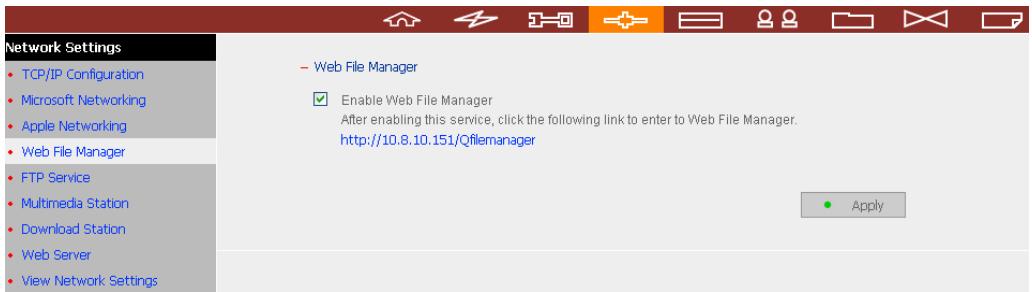
To access files on ND16000 via web browser, enable Web File Manager. If ND16000 is connected to the Internet and uses a valid IP address, you can access files on the server by web browser from anywhere. For more information, please refer to Chapter 9.
Web File Manager
Enable Web File Manager
After enabling this service, click the following link to enter to Web File Manager.
http://10.8.10.151/Qfilemanager
Apply
3.4.5 FTP Service
When you enable FTP service, you can define the port number for the service and maximum number of users connected to the FTP at the same time.
Select whether to enable/disable Unicode Support. The default setting is No. Since most FTP clients do not support Unicode currently, it is recommended that you disable Unicode support here and select the language the same as your OS in "System Settings—Encoding Setting" page so that the folders and files on FTP can be properly shown (please refer to Chapter 3.3.3). If your FTP client supports Unicode, make sure you have enabled Unicode support for both your client and ND16000.
- FTP Service

Enable FTP Service
Port Number
Maximum Connections
Unicode Support


Yes No

Apply
3.4.6 Multimedia Station
To share multimedia files like photos, music or video files on the network, please enable Multimedia Station. For further information, please refer to Chapter 5.
Multimedia Station
Enable Multimedia Station
After enabling this service, click the following link to enter to Multimedia Station.
http://10.8.10.151/QMultimedia

Apply
3.4.7 Download Station
To use P2P download function of ND16000, please enable Download Station. For further information, please refer to Chapter 6.
Download Station
Enable Download Station
After enabling this service, click the following link to enter to Download Station.
http://10.8.10.151/QDownload

Apply

Note:
Please be warned against illegal downloading of copyrighted materials. The Download Station functionality is provided for downloading authorized files only. Downloading or distribution of unauthorized materials may result in severe civil and criminal penalty. Users are subject to the restrictions of the copyright laws and should accept all the consequences.
3.4.8 Web Server
You can publish your own server by enabling Web Server function of ND16000.
For further information, please refer to Chapter 7.
Web Server
Enable Web Server
After enabling this service, click the following link to enter to Web Server. http://10.8.10.151/
Apply
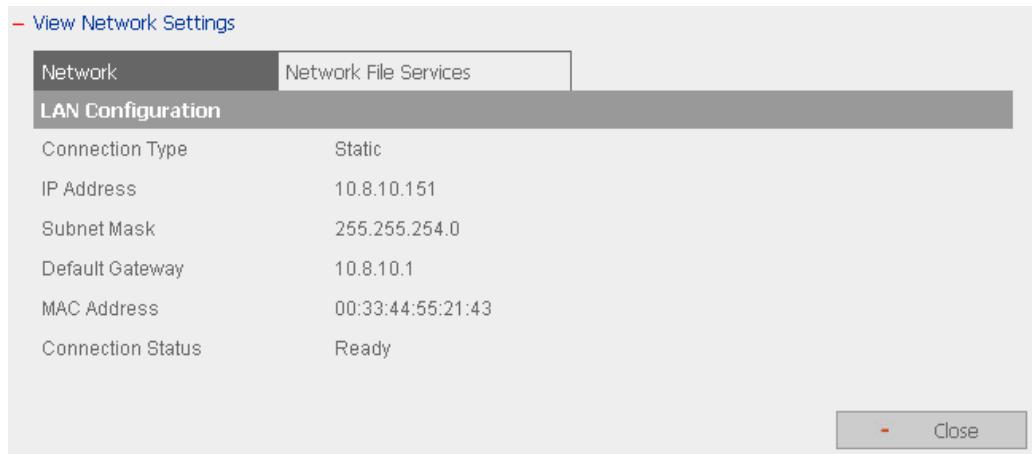
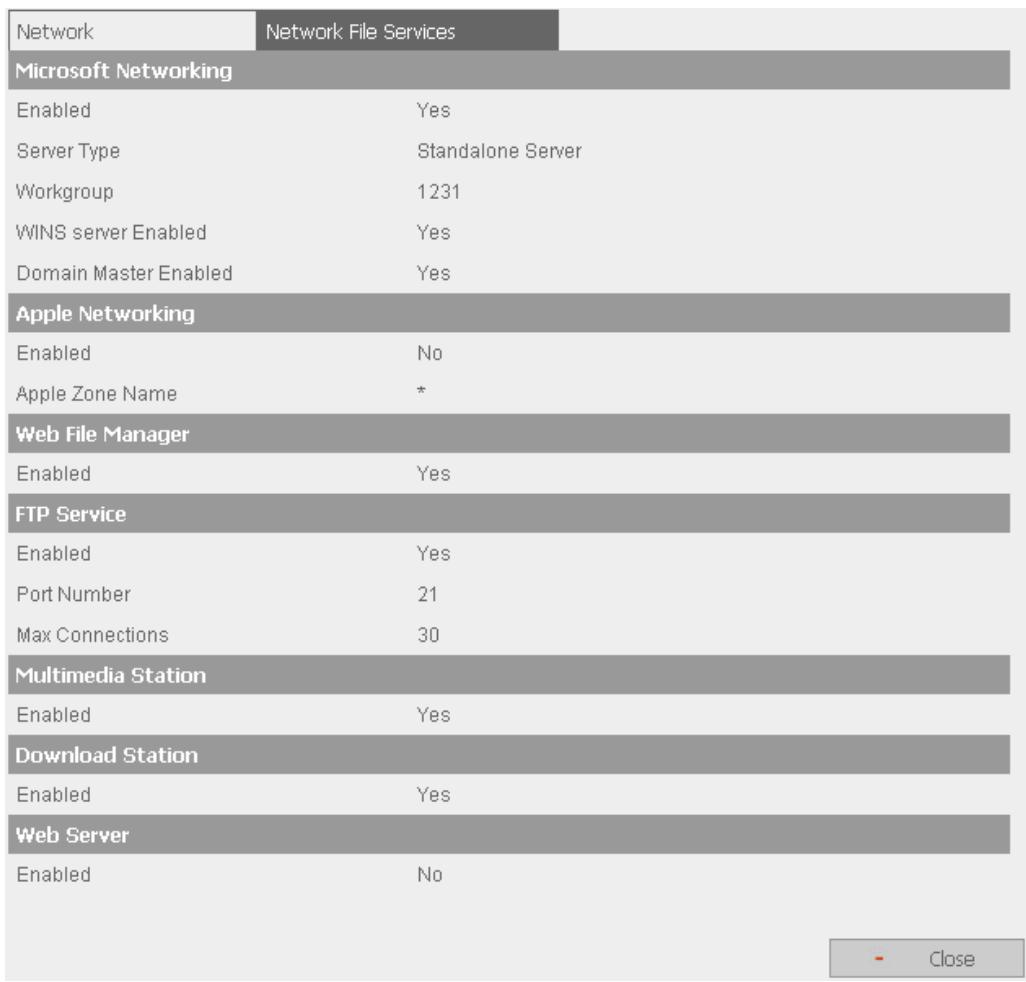
3.4.9 View Network Settings
You can view current network settings and status of ND16000 in this section.
You can configure SATA disk, USB disk, USB printer and external SATA (eSATA) disk in this section.
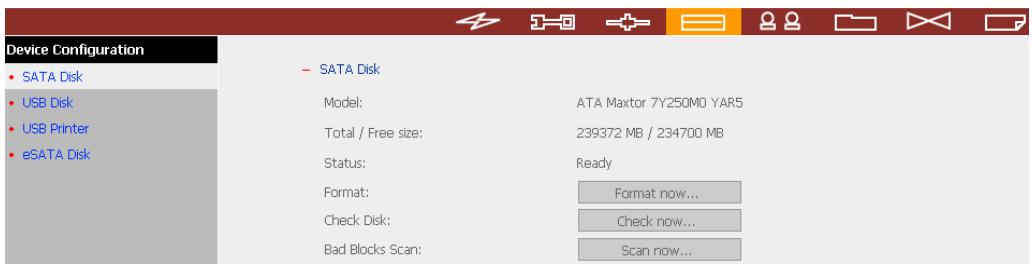
3.5.1 SATA Disk
This page shows the model, size and current status of the SATA disk on ND16000. You can format and check disk, and scan bad blocks on the disk. When the SATA disk is formatted, ND16000 will create the following default share folders:
Public: network share for file sharing
Qdownload: network share for Download Station
✓ Qmultimedia: network share for Multimedia Station
Qusb: network share for data copy function via USB ports
Qweb: network share for Web Server
- SATA Disk
Model:
ATA Maxtor 7Y250MO YAR5
Total / Free size:
239372 MB / 234700 MB
Status:
Ready
Format:
Format now...
Check Disk:
Check now...
Bad Blocks Scan:
Scan now...
3.5.2 USB Disk
ND16000 supports USB disks and thumb drives for extended storage and Q-RAID 1 function. You can select one of the following settings for the disk:
a. Data Sharing: Select this option to use the selected USB disk as a network share of ND16000.
b. Q-RAID 1: Select this option to configure the selected USB disk with the SATA disk in ND16000 as Q-RAID1 configuration.
When backup is executed once, data can be automatically backed up by connecting the external disk to ND16000 directly. There is no need to configure the settings in administration interface. Manual operation is required for the first time backup to enhance secure data protection.

Note: Only one disk can be set as Q-RAID 1 at one time.
USB Disk
Manufacturer:
Model:
Device Type:
Total / Free size:
File System:
Status:
Format As:
Eject:
Maxtor 6
EO40LO
USB 2.0
39205 MB/34650 MB
EXT3
Q-RAID1 disk unmatched
Format now...
Eject now...
Disk Usage Setting:

Data Sharing

Q-RAID1
Recover Data

Apply
Recover data from USB disk when the SATA disk of ND16000 fails:
When the SATA disk of ND16000 fails, you can recover data from a backup disk if the disks have been previously configured as Q-RAID 1. Please follow the steps below to recover data from a backup USB disk to ND16000.
- Replace the failed SATA disk with a new one.
- Format the new disk by clicking Format now in Device Configuration-SATA Disk page.
- Connect a USB disk to ND16000.
- Go to Device Configuration-USB Disk page. Click the Recover Data button* under Disk Usage Setting. All data on the USB disk will be recovered to the new SATA disk.

Warning: After executing this function, all data different from the USB disk will be removed from the SATA disk of ND16000.
*This button will appear when the following conditions are all met:
a. The usage of the plugged in USB disk has been configured as Q-RAID 1.
b. The SATA disk in ND16000 has been changed or the plugged in USB disk has been configured as Q-RAID 1 in other servers.
c. No Q-RAID1 disk is currently running on ND16000.
USB Disk
Manufacturer:
Model:
Device Type:
Total / Free size:
File System:
Status:
Format As:
Eject:

Maxtor 6
E040L0
USB 2.0
39205 MB/34650 MB
EXT3
Q-RAID1 disk unmatched
Format now...
Eject now...
Disk Usage Setting:

Data Sharing

Q-RAID1
Recover Data

Apply
3.5.3 USB Printer
- To provide printer sharing function for network users, you can simply connect a USB printer to the USB port of ND16000. ND16000 will detect the printer automatically.
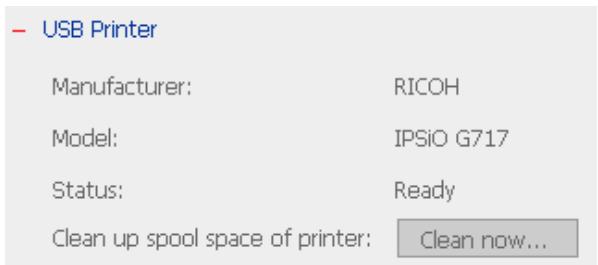
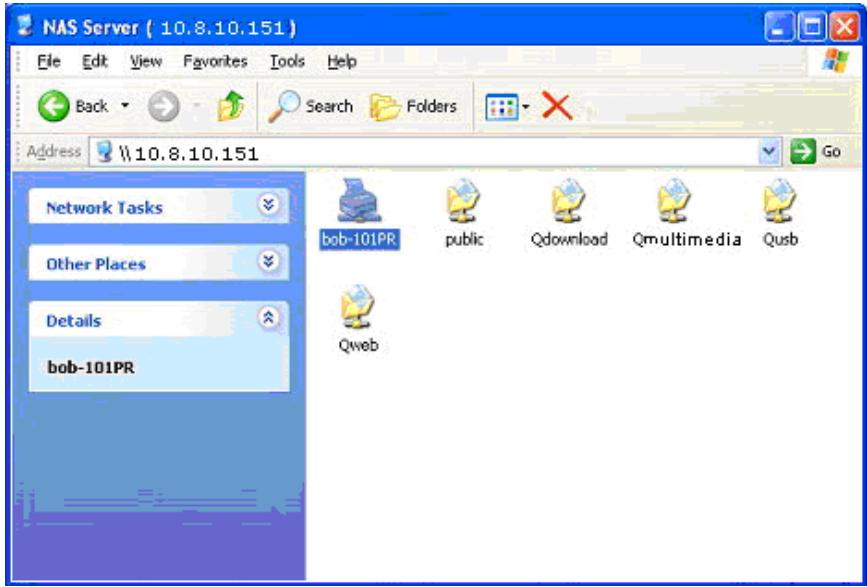
- A printer icon should be shown in the share folder of the server. Double click the icon.
- Install the printer driver.
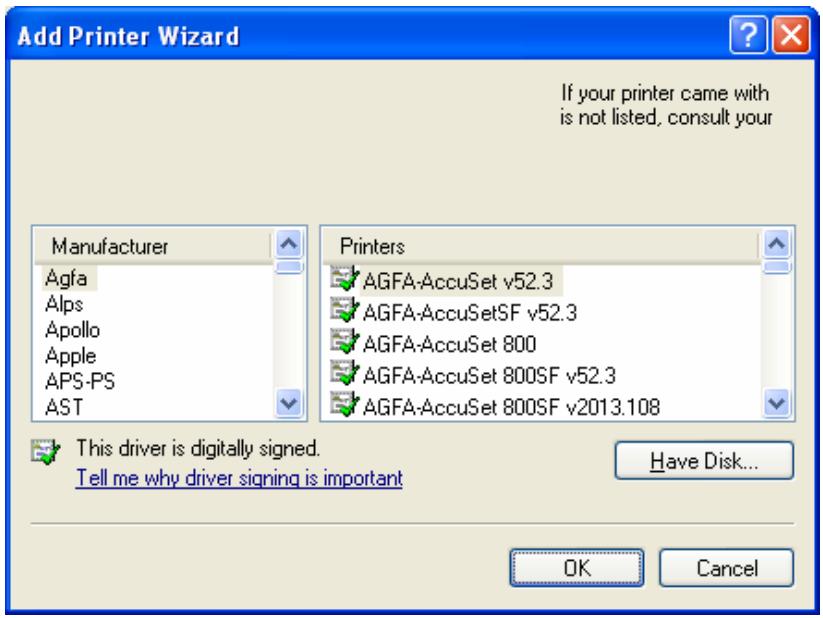
- When finished, you can start to use network printer service of ND16000.
3.5.4 eSATA Disk
ND16000 supports eSATA disk for extended storage and Q-RAID 1 function. You can connect an eSATA disk to the eSATA port of ND16000. You can select one of the following two settings for the disk:
a. Data Sharing: Select this option to use the selected eSATA disk as a network share of ND16000.
b. Q-RAID 1: Select this option to configure the selected eSATA disk with the SATA disk in ND16000 as Q-RAID1 configuration.
When backup is executed once, data can be automatically backed up by connecting the external disk to ND16000 directly. There is no need to configure the settings in administration interface. Manual operation is required for the first time backup to enhance secure data protection.

Note: Only one disk can be set as Q-RAID 1 at one time.
eSATA Disk
esATA Disk 1
Manufacturer:
Maxtor 6
Model:
EO40LO
Total / Free size:
39205 MB/34650 MB
File System:
EXT 3
Status:
Format As:

Eject:
Q-RAID1 disk unmatched
Format now...
Eject now...
Disk Usage Setting:

Data Sharing

Q-RAID1
Recover Data

Apply
Recover data from eSATA disk when the SATA disk of ND16000 fails:
When the SATA disk of ND16000 fails, you can recover data from a backup disk if the disks have been previously configured as Q-RAID 1. Please follow the steps below to recover data from a backup eSATA disk to ND16000.
- Replace the failed SATA disk with a new one.
- Format the new disk by clicking Format now in Device Configuration-SATA Disk page.
- Connect an eSATA disk to ND16000.
- Go to Device Configuration- eSATA Disk page. Click the Recover Data button* under Disk Usage Setting. All data on the eSATA disk will be recovered to the new SATA disk.

Warning: After executing this function, all data different from the eSATA disk will be removed from the SATA disk of ND16000.
*This button will appear when the following conditions are all met:
a. The usage of the plugged in USB disk has been configured as Q-RAID 1.
b. The SATA disk in ND16000 has been changed or the plugged in USB disk has been configured as Q-RAID 1 in other servers.
c. No Q-RAID1 disk is currently running on ND16000.
-eSATA Disk
Manufacturer:
Model:
Total / Free size:
File System:
Status:
Format As:
Eject:

Maxtor 6
E040L0
39205 MB / 34650 MB
EXT3
Q-RAID1 disk unmatched
Format now...
Eject now...
Disk Usage Setting:
Data Sharing
Q-RAID1
Recover Data

Apply
The files on ND16000 can be shared among multiple users. For easier
management and better control of users' access right, you have to organize users,
user groups and their access right control.
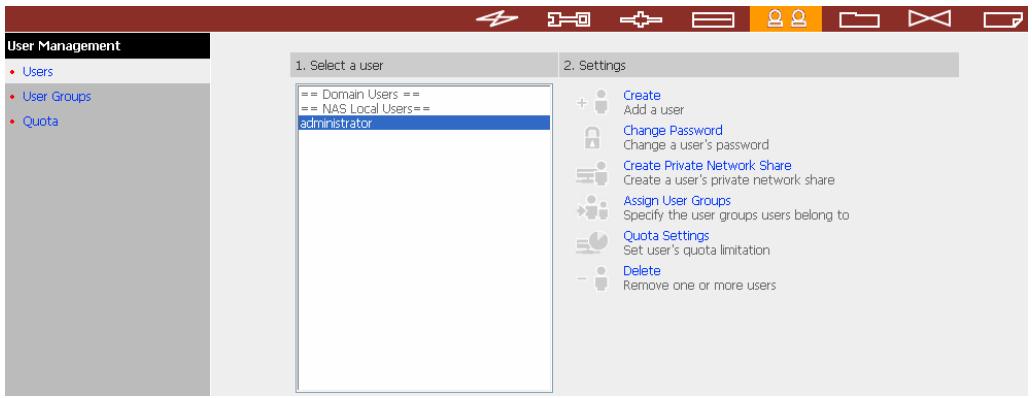
3.6.1 Users
The system has created the following users by default:
1 Administrator
By default, administrator has access to system administration and cannot be deleted.
Guest
This is a built-in user and will not be displayed on User Management page. When you use a non-registered user name to login, the server will recognize the user as a guest and will allow limited access. A guest does not belong to any user group.
Anonymous
This is a built-in user and will not be displayed on User Management page. When you connect to the server by FTP service, you can use this name to login as a guest.
512 users can be created at maximum (including system default users). You can create a new user according to your needs. The following information is required to create a new user:
User name
The user name must not exceed 32 characters. It is case-insensitive and can contain double-byte characters, such as Chinese, Japanese, and Korean except:
$$ " / \backslash [ ] :; | = , + * ? < > ^ {\prime} $$
Password
The password is case-sensitive and can be 16 characters long at maximum. It is recommended to use a password of at least 6 characters.
You can perform the following settings for users:
| + | Create |
| Add a user | |
| Change Password | |
| Change a user's password | |
| Create Private Network Share | |
| Create a user's private network share | |
| Assign User Groups | |
| Specify the user groups users belong to | |
| Quota Settings | |
| Set user's quota limitation | |
| Delete | |
| Remove one or more users |
3.6.2 User Groups
User group is a collection of users with the same access right to files or folders.
ND16000 has created the following user groups by default:
1 Administrators
All members in this group have administration right. You cannot delete this group.
Everyone
All registered users belong to everyone group. You cannot delete this group.
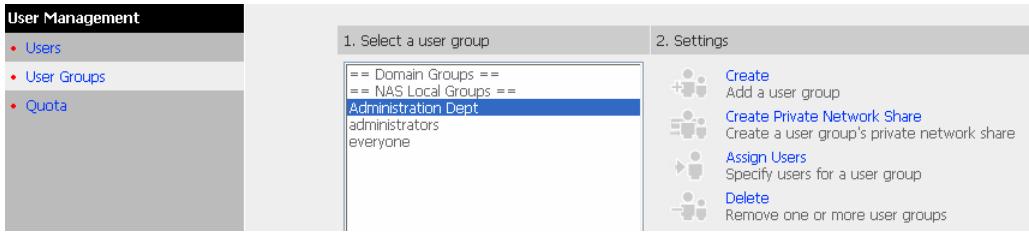
You can manage user groups with the following options:
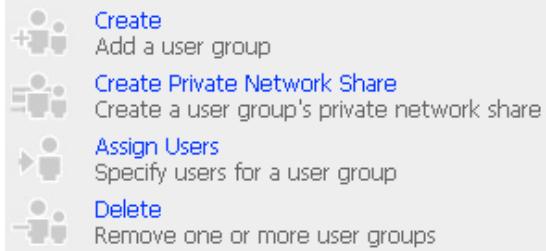
1024 groups can be created at maximum. User groups name must not exceed 256 characters. It is case-insensitive and can contain double-byte characters, such as Chinese, Japanese, and Korean, except the following on
$$ " / \backslash [ ] :; | = , + * ? < > ^ {\prime} $$
Create Users and Assign Users to User Group
The following example demonstrates how to create new users and assign users to a user group.
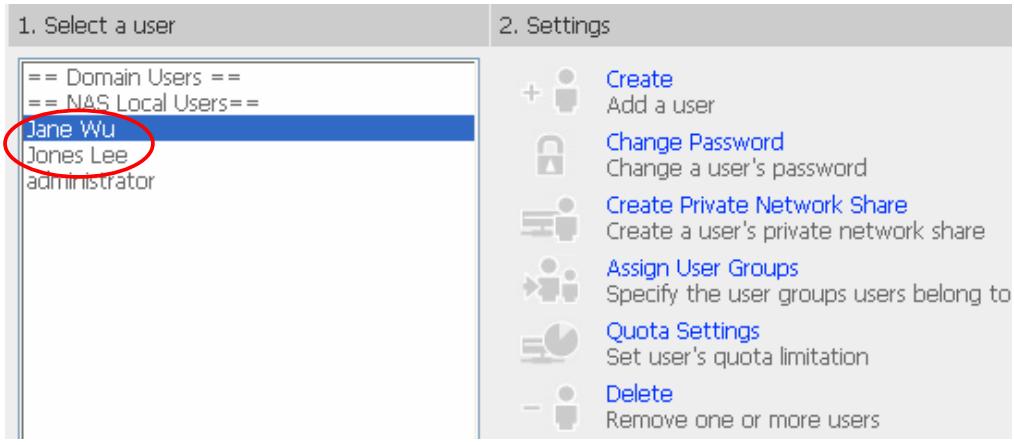
ABC Co. has recently recruited two employees Mr. Jones Lee for Administration Department and Ms. Jane Wu for Sales Department. The IT Department therefore needs to create two user accounts for them to access company data on ND16000.
i. To create a user account, go to User Management-Users. Click Create.
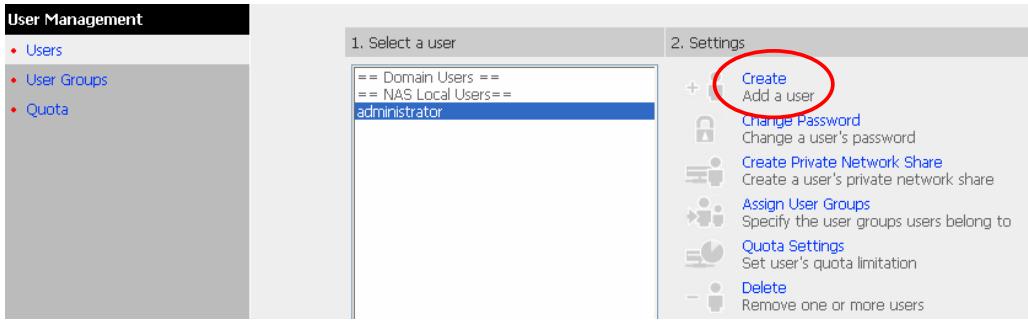
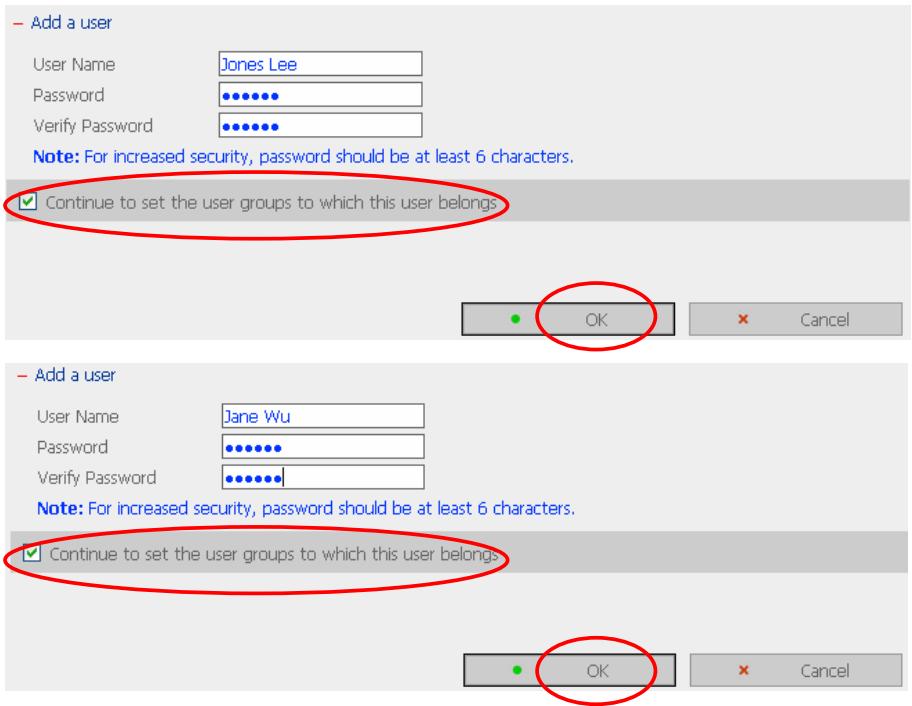
ii. Enter the user name (Jones Lee/ Jane Wu) and password. Check the box "Continue to set the user groups to which this user belongs" and click OK.
iii. Select the user groups the users belong to on the right list, i.e. Mr. Jones Lee for Administration Dept and Ms. Jane Wu for Sales Dept, and click Add. Then click Close.
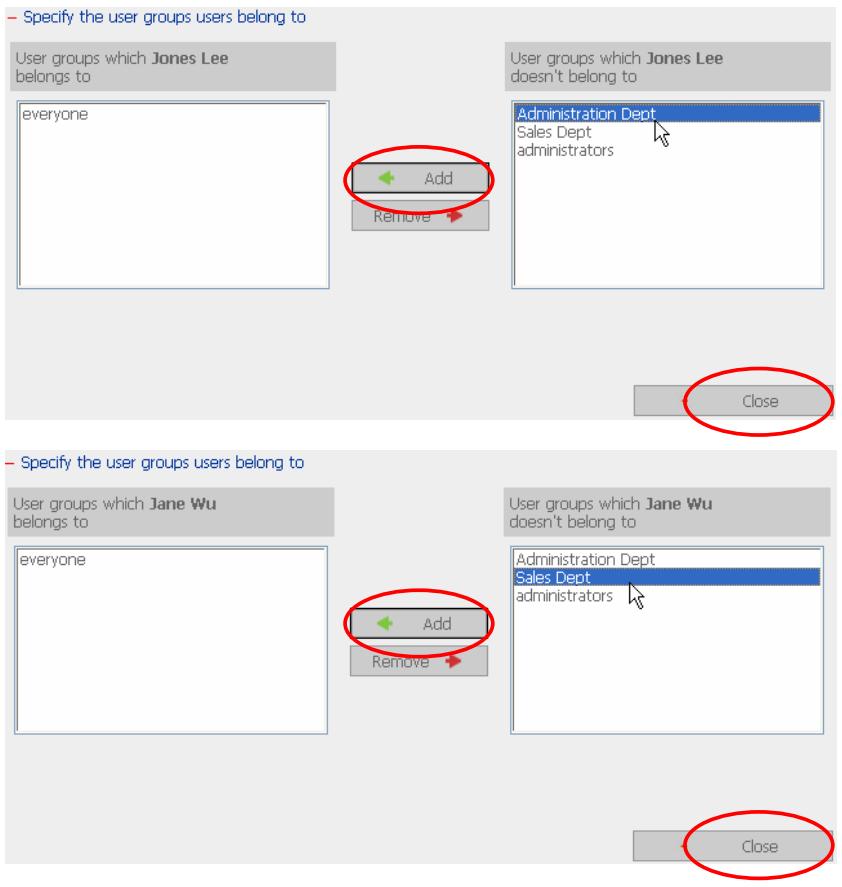
iv. After creating the users, the users will appear on the list on Create User Page.
Create Private Network Share for User Groups
You can create particular network share for each user group. The procedure is described as below:
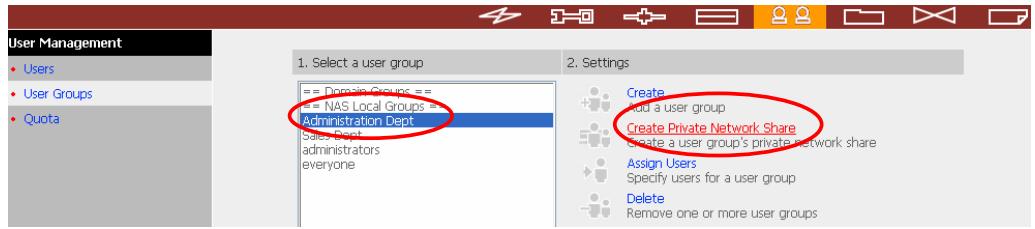
- To create a network share called media accessible by Administration
Department only, please go to "User Management—User Groups" page.
Select the user group Administration Dept and click Create Private Network Share on the right.
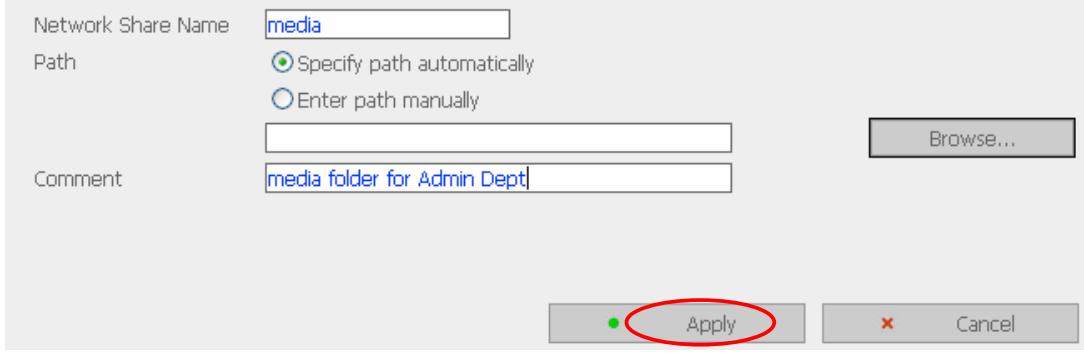
- Enter the network share name media. Select to disk volume that the share will be created in and specify the path automatically or manually. Enter the comment for the network share, e.g. media folder for Admin Dept and click
Apply.
Enter new network share's name, volume and path. Only users that are the members of Administration Dept user group can access this network share.
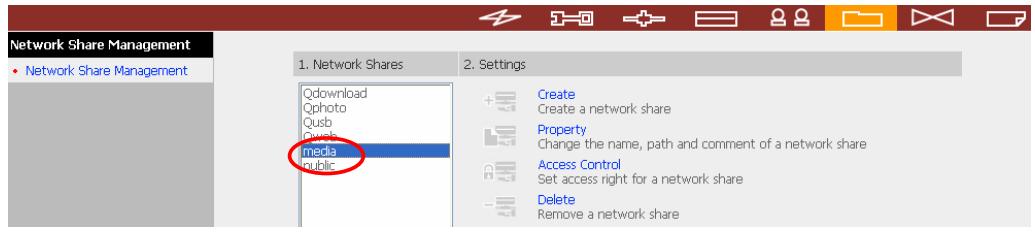
- You can see the folder media in Network Share Management page.
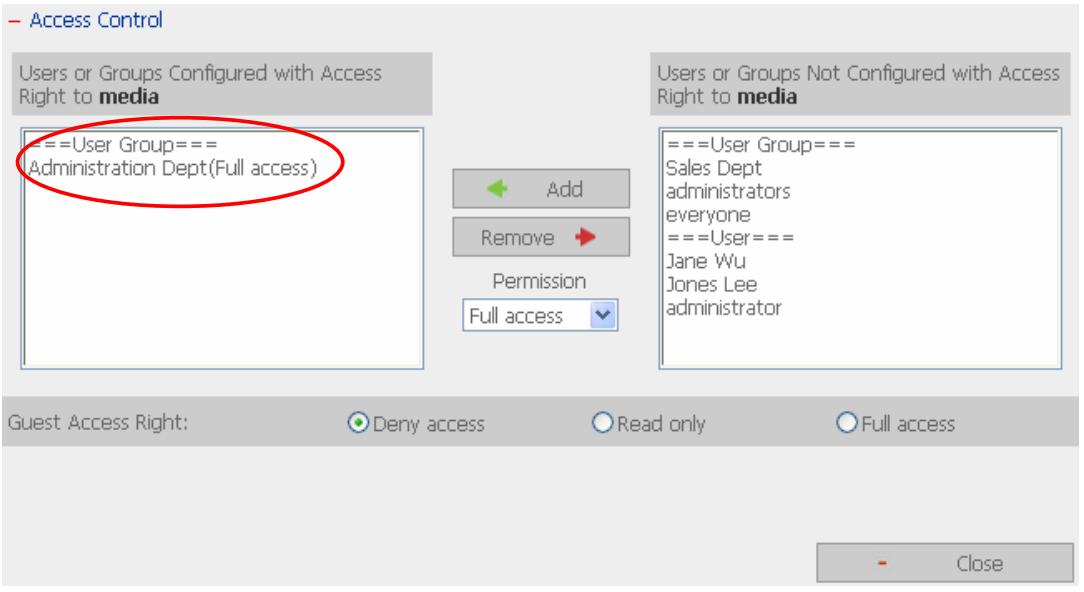
- Enter Access Control. You can see that only Administration Dept has full access right to the folder.
3.6.3 Quota
To allocate disk volume efficiently, you can specify the quota that can be used by each user. When this function is enabled and a user has reached his/her disk quota, he/she cannot upload data to the server anymore. By default, no limitations are set for users. You can modify the following two options:
i. Enable quota for all users
ii. Quota size on each disk volume
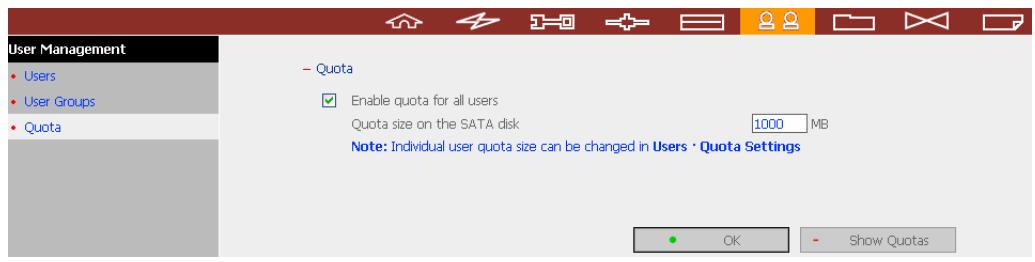
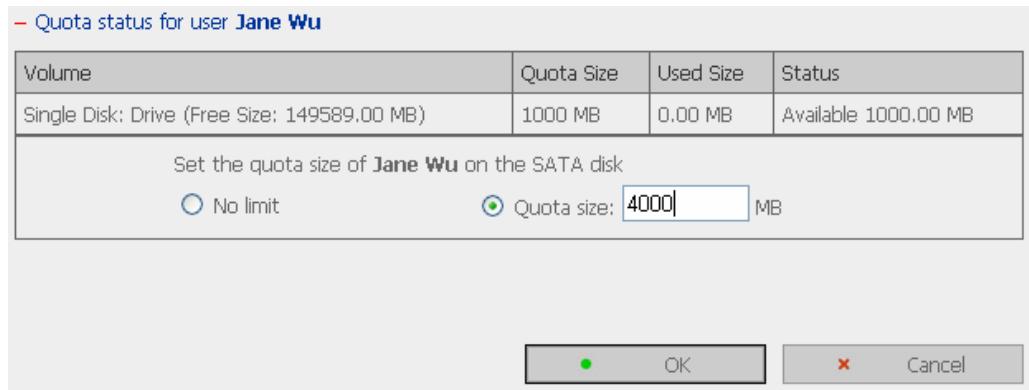
Please refer to the following example to configure the quota setting of users: The IT department is planning to set the disk quota of Mr. Jones Lee from Administration Department and Ms. Jane Wu from Sales Department on ND16000. The disk quota is 2000MB for Mr. Jones Lee and 4000MB for Ms. Jane Wu.
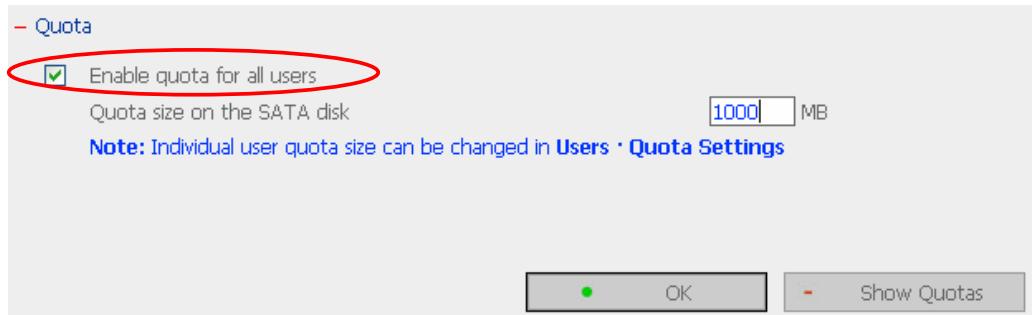
- Please go to Quota page in User Management to enable quota for all users. Enter the quota size on each disk volume, e.g. 1000MB. The quota for individual user can be modified later.
- Select Jones Lee on User page and click Quota Settings on the right.
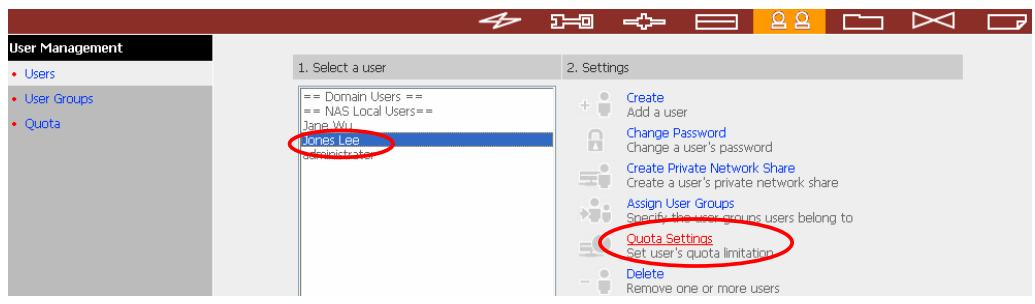
- Enter the quota size 2000MB and click OK.
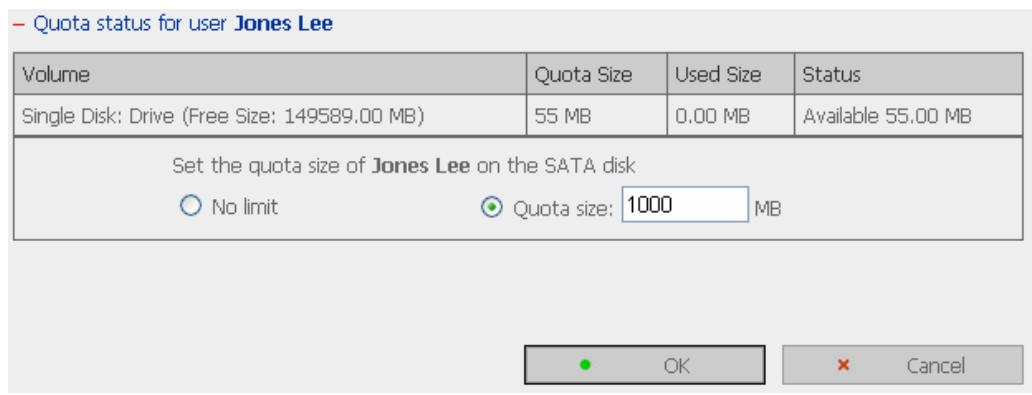
- Follow the same steps and enter the quota size 4000MB for Jane Wu and click OK. The quota setting is successfully applied.
3.7 Network Share Management

The primary purpose of network storage is file sharing. You can create different network share folders for various types of files, and provide different file access rights to users or user groups.
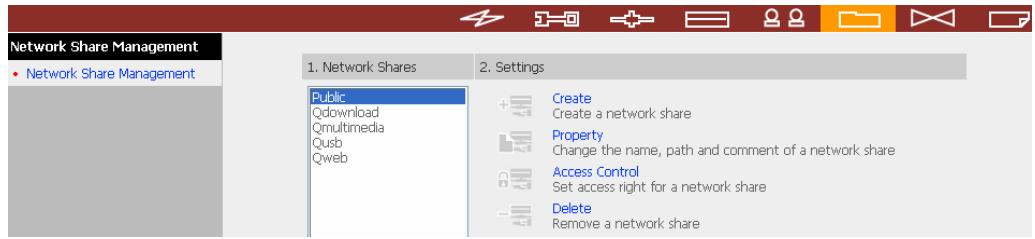
There are four options in Network Share Management:
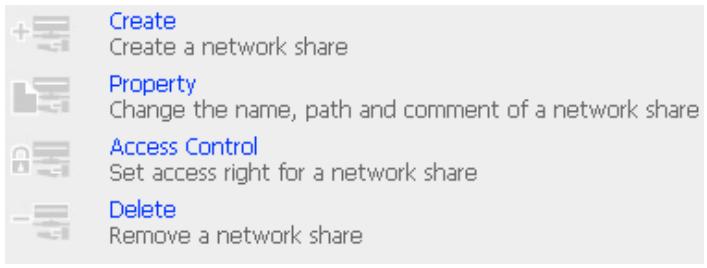
3.7.1 Create
To create a network share, enter the following information:
Network share name
The share name must not exceed 12 characters and cannot contain the following characters:
$$ ''. + = / \backslash : | * ? < >; [ ] \% $$
✓ Disk volume
This area shows the disk volume status.
√ Path
All data are stored under the assigned path onto the disk volume. You can select "Specify path automatically" or assign a path manually. The path cannot exceed 256 characters and cannot contain the characters below:
$$ ''. + = / \backslash : | * ? < >; [ ] \% $$
√ Comment
Enter a brief description for the share folder. The comment cannot exceed 128 characters.
Create
Network Share Name
Path

Specify path automatically
Enter path manually
Comment
Browse...
Grant full access right for everyone
Grant read access right for guest
Continue to set access right for this network share


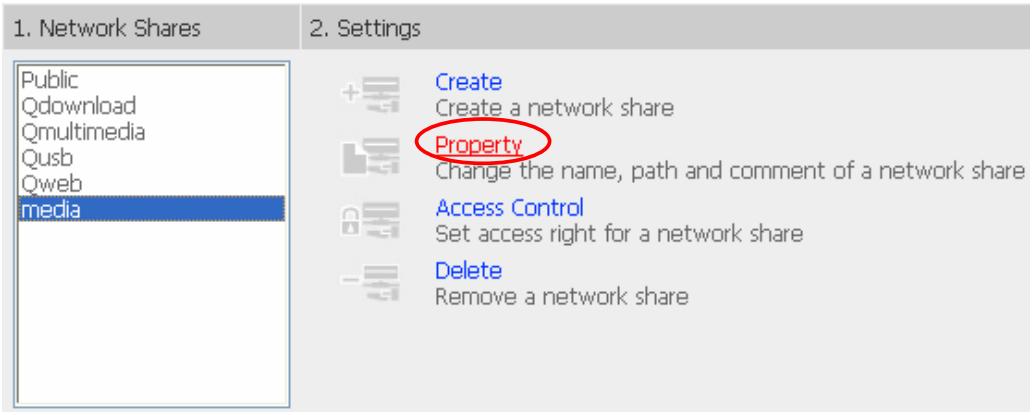
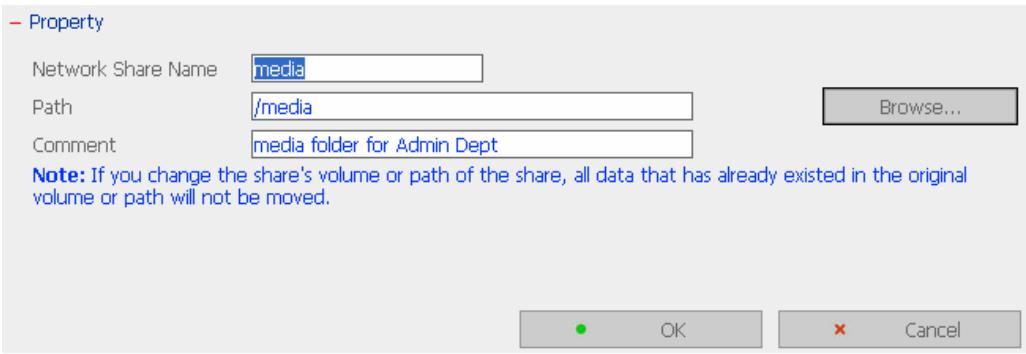
3.7.2 Property
To edit the property of an existing network share, select a share and click
Property. You can then edit the content of that share.
3.7.3 Access Control
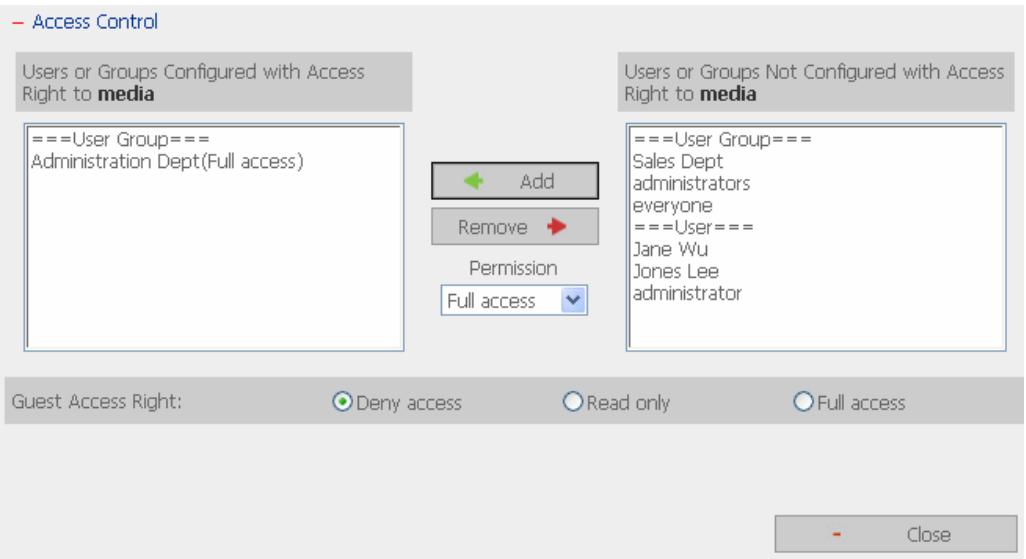
When a network share is created, you can assign access rights to users or user groups:
Deny access
Access to the network share will be denied.
Read only
Users can read the files only on the network share.
√ Full access
Users can to read, write, create, or delete files and folders on the network share.
3.7.4 Delete
Select a share and click Delete. Click OK to confirm.
Please make sure you want to delete network share media.
Note: All active users who are currently using this network share will be disconnected.

OK

Cancel
3.8 System Tools

System Tools enable you to optimize the maintenance and management of ND16000.
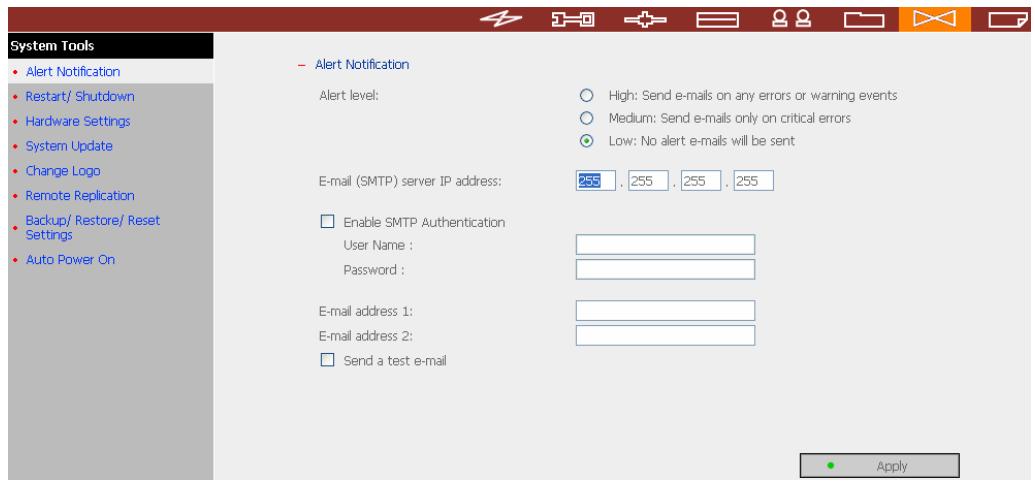
3.8.1 Alert Notification
Enter the e-mail address of administrator and SMTP server IP address. In case of warning or malfunction, e.g. CPU fan fails, a disk drive fails or is unplugged, an email will be sent to the administrator automatically. You can refer to Event Logs section in Event Logs (refer to Chapter 3.9) to check all happened errors and warnings.
If your mailbox requires SMTP authentication, enter the user name and password.

Note: It is recommended to send a test e-mail to make sure you can receive the alert mails.
Alert Notification
Alert level:
High: Send e-mails on any errors or warning events
Medium: Send e-mails only on critical errors
Low: No alert e-mails will be sent
E-mail (SMTP) server IP address:

Enable SMTP Authentication
UserID :
Password :
E-mail address 1:
E-mail address 2:
Send a test e-mail

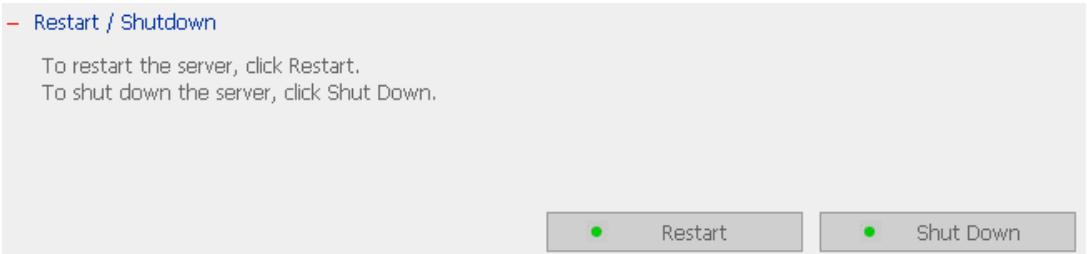
3.8.2 Restart/Shutdown
Select to restart or shut down ND16000.
- Restart/Shutdown
To restart the server, click Restart.
To shut down the server, click Shut Down.


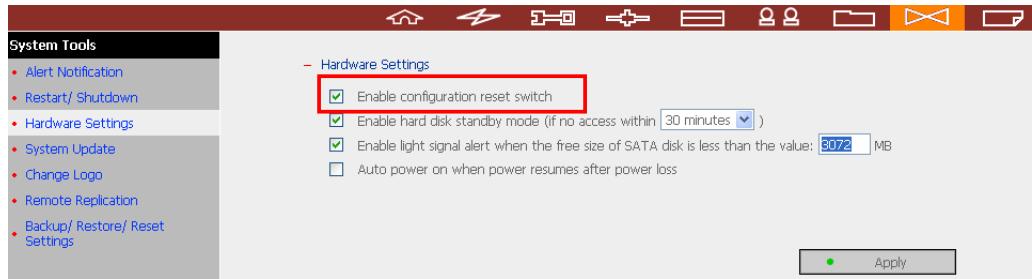
3.8.3 Hardware Settings
You can enable or disable the hardware functions of ND16000.
Hardware Settings
Enable configuration reset switch
Enable hard disk standby mode (if no access within 30 minutes
Enable light signal alert when the free size of SATA disk is less than the value: 3072 MB
Auto power on when power resumes after power loss

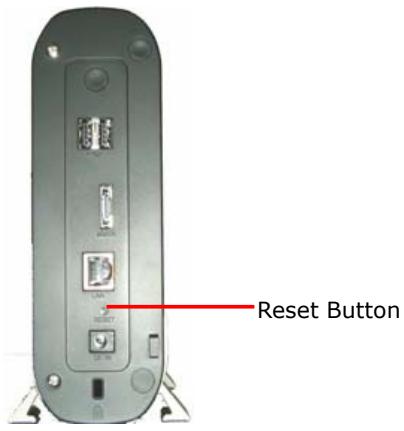
i. Enable configuration reset switch
By enabling this option, you can press the reset button for 5 seconds to reset the administrator password and system settings to default.
ii. Enable hard disk standby mode
When this function is enabled, hard disk will go to standby mode if there is no access within the specified period.
iii. Enable light signal alert when the free size of SATA disk is less than the value: The Status LED indicator will blink red and green when this function is enabled and the free space of the SATA disk is less than the value. The range of the value is 1-51200 MB.
iv. Auto power on when power resumes after power loss
When this function is enabled, ND16000 will turn on automatically when power resumes after improper shutdown or power loss.
3.8.4 System Update
System Update
Note: If the system is running properly, you do not need to update the firmware.
Current firmware version: 1.0.0 Build 1221
Before updating system firmware, please make sure the product model and firmware version are correct.
Follow the steps below to update firmware:
Step 1: Download the release notes of the same version as the firmware from QNAP website
http://www.qnap.com.tw/ Read the release notes carefully to make sure you need to update the firmware.
Step 2: Before updating system firmware, back up all disk data on the server to avoid any potential data loss during system update.
Step 3: Click the [Browse...] button to select the correct firmware image for system update. Click the [Update System] button to update the firmware.
Note: System update may take tens of seconds to several minutes to complete depending on the network connection status. Please wait patiently. The system will inform you when system update is completed.

Update System

Note: If the system is running properly, you do not need to update the firmware.
Before updating system firmware, please make sure the product model and firmware version are correct. Follow the steps below to update firmware:
Step 1: Download the release notes of the same version as the firmware from COMET LABS website http://www.COMET LABS.com.tw/. Read the release notes carefully to make sure you need to upgrade the firmware.
Step 2: Before upgrading system firmware, back up all disk data on the server to avoid any potential data loss during system update.
Step 3: Click the [Browse...] button to select the correct firmware image for system update. Click Update System to update the firmware.
Note: System update may take tens of seconds to several minutes to complete depending on the network connection status. Please wait patiently. The system will inform you when system update is completed.
3.8.5 Change Logo
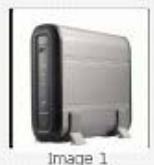
You can choose a personal picture to display on the login page of ND16000. The size of the picture cannot exceed 20K bytes.
Change Logo
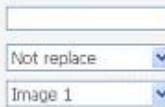
Please select an image from the To be displayed pull-down menu. Then click Apply to confirm the change.
To upload your own image, click Browse to select the image. Then click Upload to upload the image.
To replace an image, select an appropriate image from the To be replaced to pull-down menu and click Apply.
Downloaded image:
To be replaced to:
To be displayed:





Note: For the best image effect, the recommended size for the image is 100 x 100 pixels.
Apply
3.8.6 Remote Replication (Disaster Recovery)
Remote Replication enables you to replicate files on ND16000 to another ND16000 or COMET LABS NAS series. The files will be compressed before the replication process in order to save time for data transfer. Make sure a network share is created before creating a remote replication task.
Using Remote Replication
Login ND16000 and go to Remote Replication in System Tools.
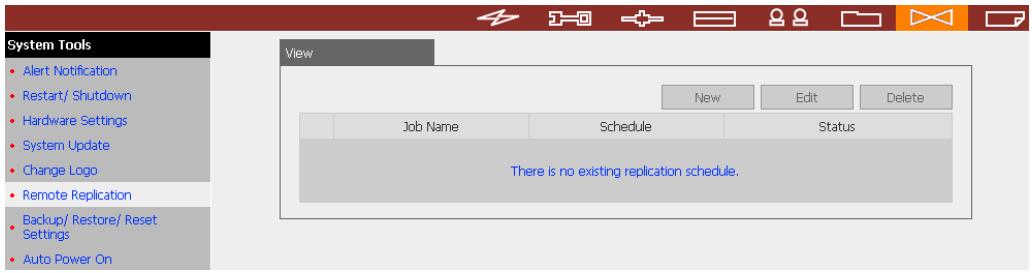
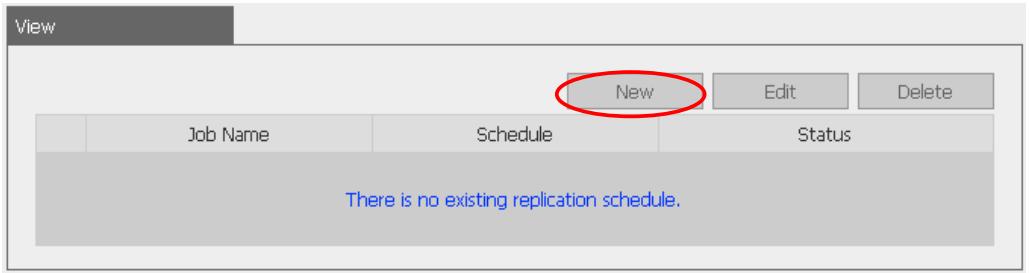
i. New
a. Click New to enter the following page.
b. Complete all settings and click OK to save or Cancel to quit.
Add a remote replication job
Job Name

Remote Destination
Remote Host Name / IP Address
Destination Path (Network Share/Director)
User Name
Password
Remote Host Testing




Test
(Status: --)
Local Source
Source Path (Network Share/Director)
public


Replicate Now
Replication Schedule


Daily
Weekly


Monthly


Activate file compression
Stop network file services while replicating
Perform incremental replication
Delete extra files on remote destination


Note: To use remote replication, enable Microsoft Networking service, make sure the destination network share and directory have been created, and the user name and password are valid to login the destination folder.
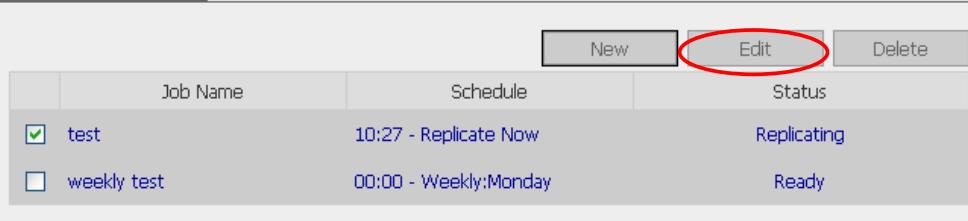
ii. Edit
a. Select the task to be edited.
b. Click Edit.
c. Modify the settings.
d. Click OK to save or Cancel to quit.
View
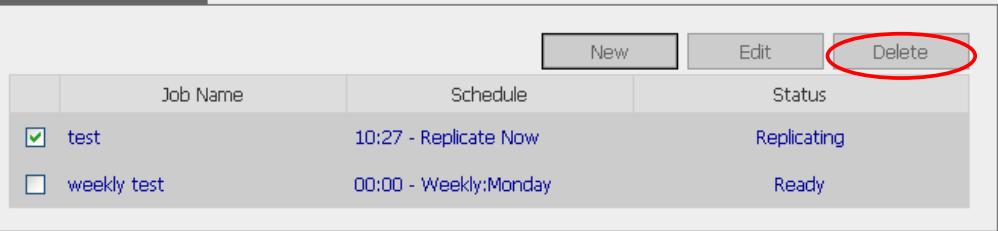
iii. Delete
a. Select the task to be deleted.
b. Click Delete.
View
3.8.7 Backup/Restore/Reset Settings
- To backup all settings, including user accounts, server name and network configuration etc., click Backup and select to open or save the setting file.
- To restore all settings, click Browse to select a previously saved setting file and click Restore to confirm.
- To reset all settings to default, click Reset.
- Backup/Restore/Reset Settings
To restore all settings, click Browse to select a previously saved setting file and click Restore to confirm.
To backup all settings, including user accounts, server name and network configuration etc., click Backup and select to open or save the setting file.
To reset all settings to default, click Reset.
Browse.

Restore

Backup

Reset
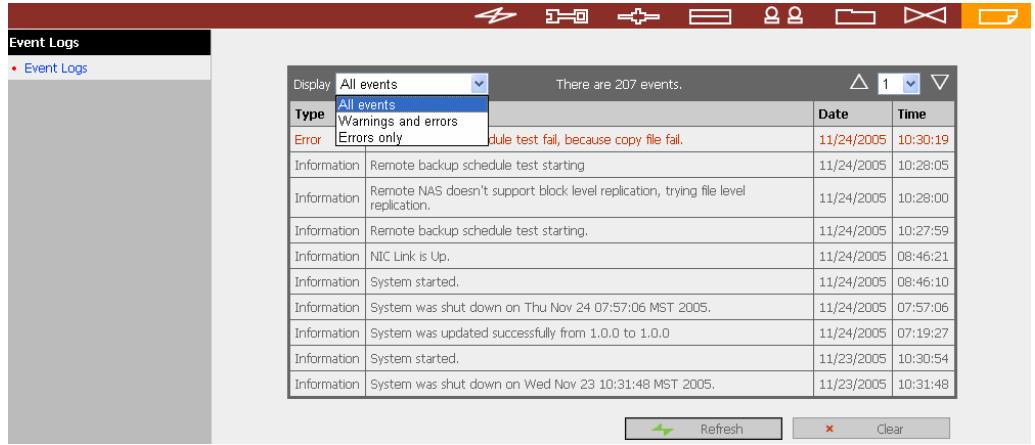
3.9 Event Logs

ND16000 can store thousands of recent event logs, including warning, error and information messages. In case of system malfunction, event logs can be retrieved to analyze system problems.
Chapter 4 Copy Data Directly by USB Ports to ND16000
ND16000 supports direct copy of data on USB devices to ND16000 by using the Copy button. To use this function, please follow the steps below:
- Make sure a SATA disk is installed correctly in ND16000 according to the instructions in Chapter Erreur! Source du renvoi introvable..
- Turn on ND16000.
- Format the SATA disk in SATA Disk page of Device Configuration (please refer to Chapter 3.5.1). A system default folder Qusb will be created in ND16000.
- Connect USB devices, e.g. digital camera, flash to the USB port of ND16000.
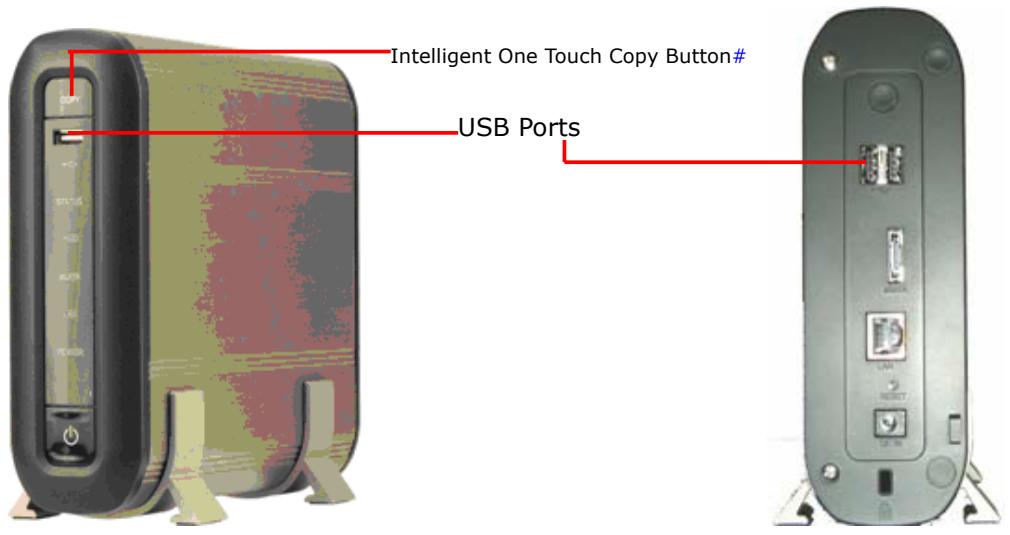
- Press the Copy button on ND16000. All data on the USB device will be copied to the folder Qusb/(xxxxyyzz)* on ND16000 instantly.
Intelligent one touch copy: ND16000 will detect if there is any file changed inside the USB device. If any file is changed, ND16000 will copy it automatically.
- xxxx: year; yy: month; zz: date
Chapter 5 Multimedia Station
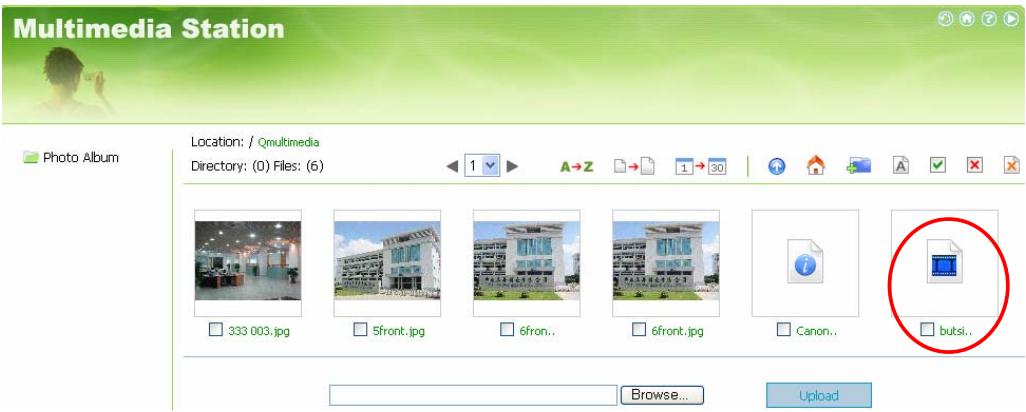
ND16000 provides a user-friendly web management interface for you to manage personal albums easily. You can view images and multimedia files, or browse photos by thumbnails preview.
A. Upload photos by web administration
- To use Multimedia Station of ND16000, make sure a SATA disk is installed correctly in ND16000 according to the instructions in Chapter Erreur! Source du renvoi introuvable.. A share folder Qmultimedia will be created. Enable Multimedia function in Network Settings.
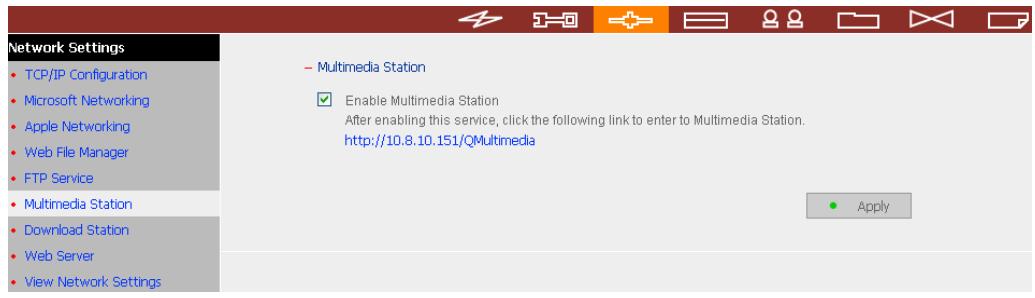
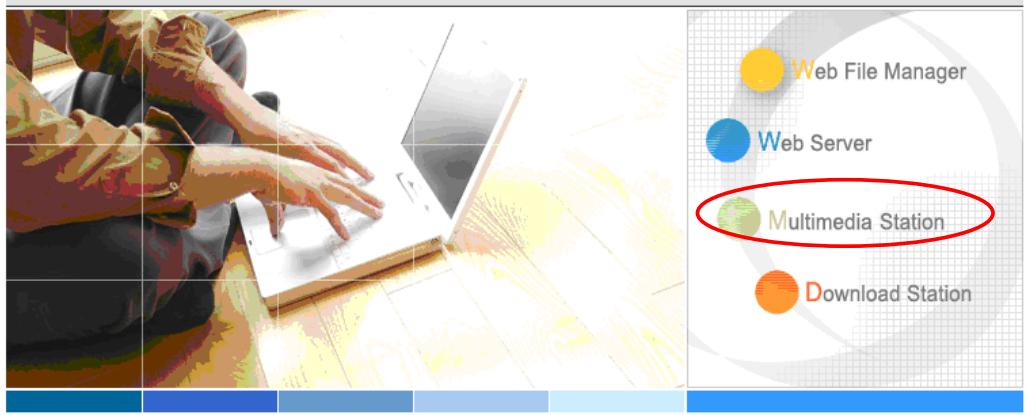
- Click on the link http://ND16000 IP/Qmultimedia on Multimedia Station page or click Multimedia Station on the login page of ND16000 to access Multimedia Station.
Administration
Change Password
English
ND16000

A reliable and high capacity network attached storage server
- Share your storage over Microsoft and Apple network.
- Easy administration through simple web interface.
Web File Manager
Web File Manager enables you to upload files to Turbo Station and maintain the files.
- Click on the top right hand corner. Login with administrator name and password to manage Multimedia Station. Users without administration right can view the photos and multimedia files on Multimedia Station but they do not have the right to modify the files.
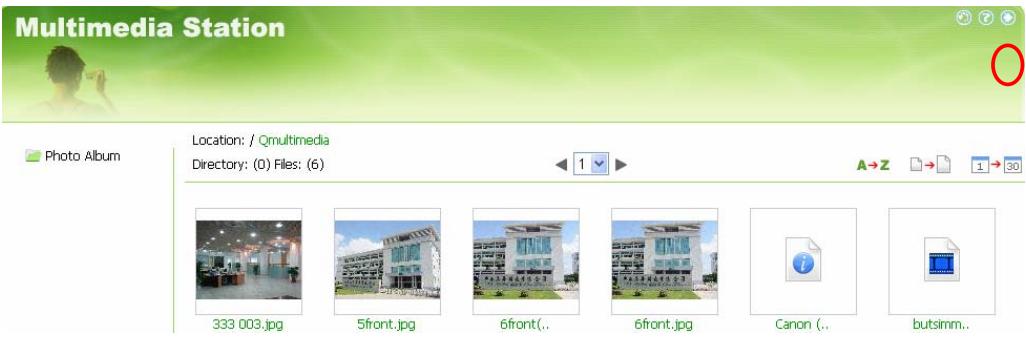
- Click Browse to select the multimedia file and then click Upload to upload the file to the folder.
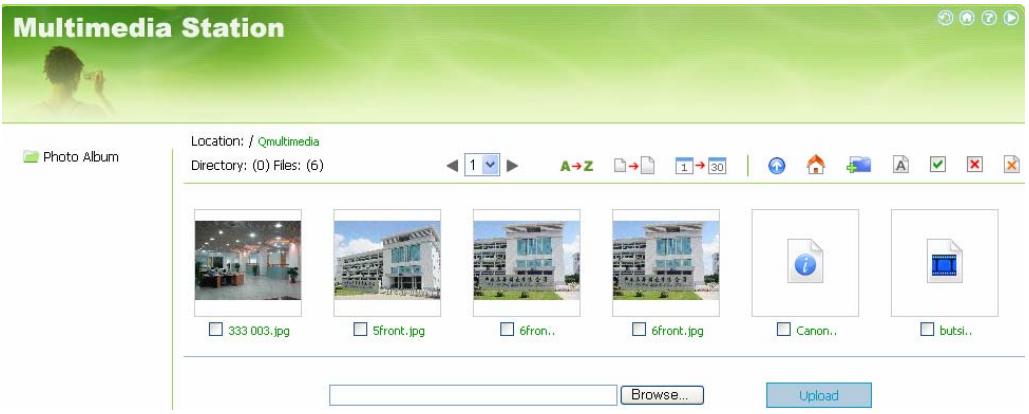
- You can also create folders by clicking and upload files to the folders.
B. Upload photos to Qmultimedia folder directly
You can upload multimedia files to ND16000 directly by the following steps.
- Use Run function in Windows. Enter [server name] or [server IP] to access share folder on ND16000.
- Open the folder Qmultimedia. Enter the user name and password to login.
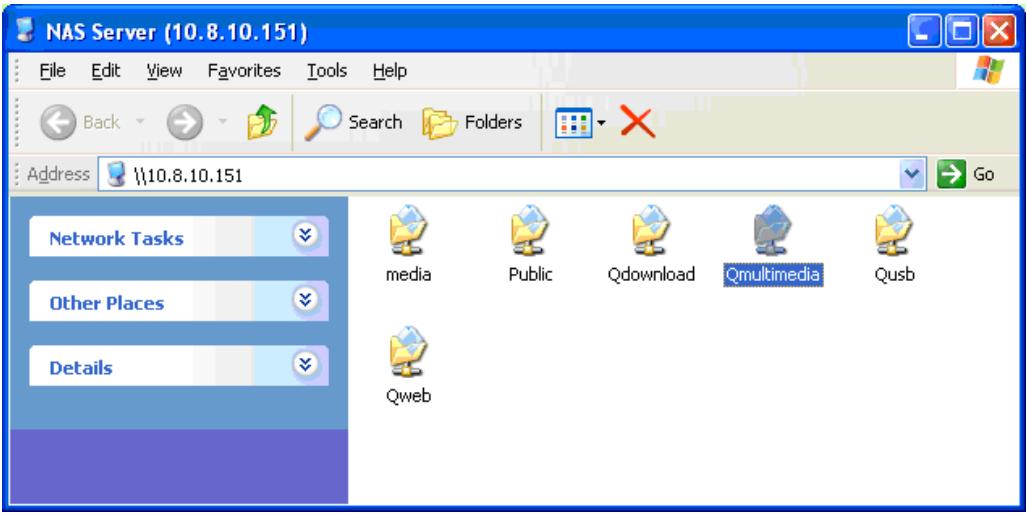
- Drag the files and folders to the folder directly. Please wait patiently when ND16000 is generating thumbnails for images during uploading.
When you login Multimedia Station by web browser again, all multimedia files will be shown.
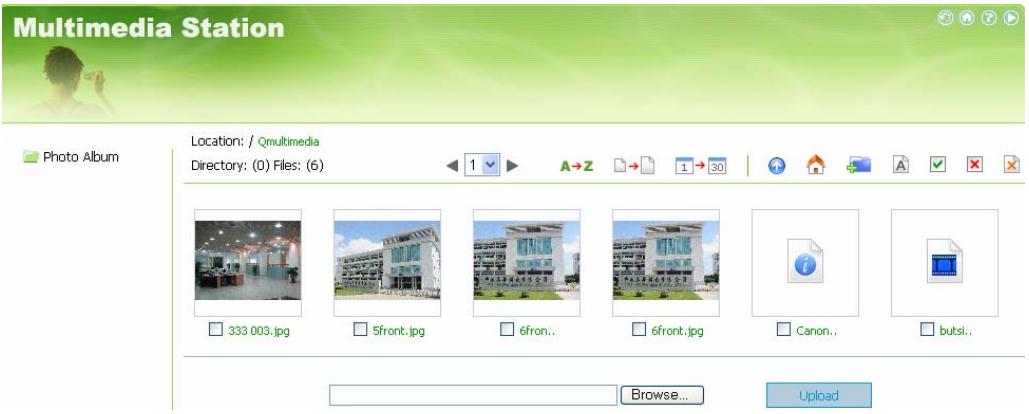
Buttons on Multimedia Station page

Sort files by name

Sort files by size
Sort files by date

Return to previous page

Return to Home

Create folder

Rename file or folder

Select all

Select none

Delete
Support file format list
| Type | File format |
| Picture | jpg, bmp, pig |
| Video | wmx, wvx,avi, mpeg, mpg, mpe, m1v, mp2, mpv2, mp2v, mpa, dvr-ms, asf, asx, wpl, WM, wmx, wmd, wz |
| Audio | wma, wax, cda, wav, mp3, m3u, mid, midi, rmi, aif, aifc, aiff, au, SND |
| Others | (Other formats not mentioned above) |
- To view detailed information of a photo, click on the thumbnail of the picture.
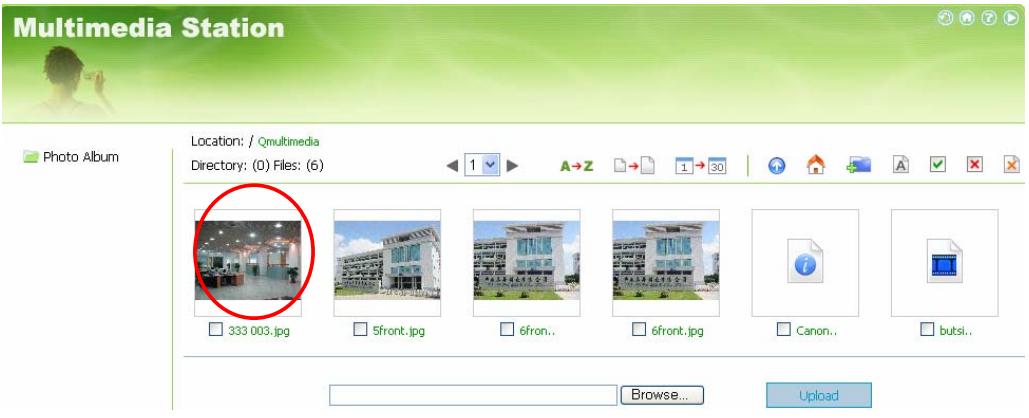
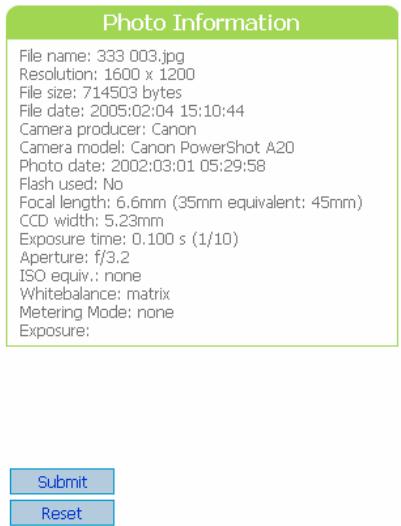
- The information of the photo, e.g. file name, resolution, size, camera producer will be shown on the right. You can enter a description for the picture in the box below the photo and click Submit. To reset the description to previously saved version, click Reset.


Buttons Description
You can use the buttons on top of the photo to manage the album.
| Back to previous level | |
| Previous image | |
| Next image | |
| Rotate image anticlockwise | |
| Rotate image clockwise | |
| Zoom in | |
| Zoom out | |
| SlideShow: 3 play | Play slideshow. Select the time interval in seconds. Click play to play slide show. To stop playing, click stop. |
| Print the image | |
| Save the picture |
Play music or video files
To play music or video files on Multimedia Station, you can click on the thumbnail of the file displayed on the page. The file will be played by your default music or video playing program.
Chapter 6 Download Station
ND16000 supports P2P download mechanism. You can add download task to ND16000 and let the server finish downloading independent of PC.

Note:
Please be warned against illegal downloading of copyrighted materials. The Download Station functionality is provided for downloading authorized files only. Downloading or distribution of unauthorized materials may result in severe civil and criminal penalty. Users are subject to the restrictions of the copyright laws and should accept all the consequences.
- To use Download Station, make sure a SATA disk is installed correctly in ND16000 according to the instructions in Chapter Erreur! Source du renvoi introuvable.. A share folder Qdownload will be created. Enable this function in Network Settings.
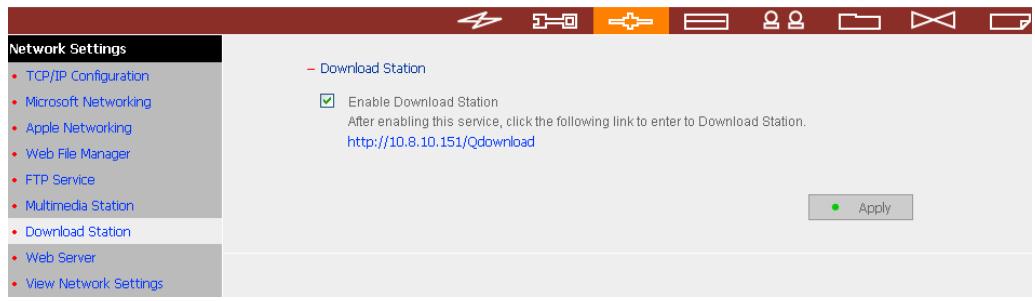
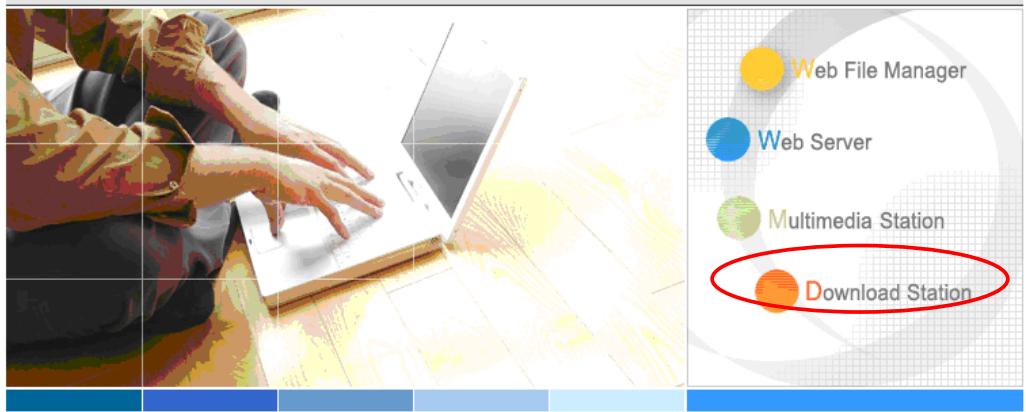
- Click on the link http://ND16000 IP/Qdownload on Download Station page or click Download Station on the login page of ND16000 to access Download Station.
ND16000
Administration
Change Password
English

A reliable and high capacity network attached storage server
- Share your storage over Microsoft and Apple network.
- Easy administration through simple web interface.
Web File Manager
Web File Manager enables you to upload files to Turbo Station and maintain the files.
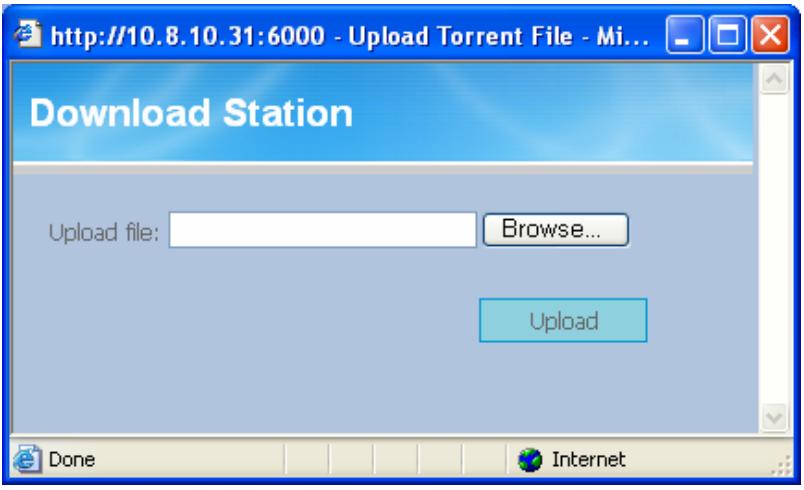
- Click Add new download task on the left and upload a torrent file. You can download legal torrent files by searching on the Internet. There are websites that provide legally sharing torrents e.g. www.legaltorrents.com. Please download the torrent files to your local disk and then upload them to ND16000.
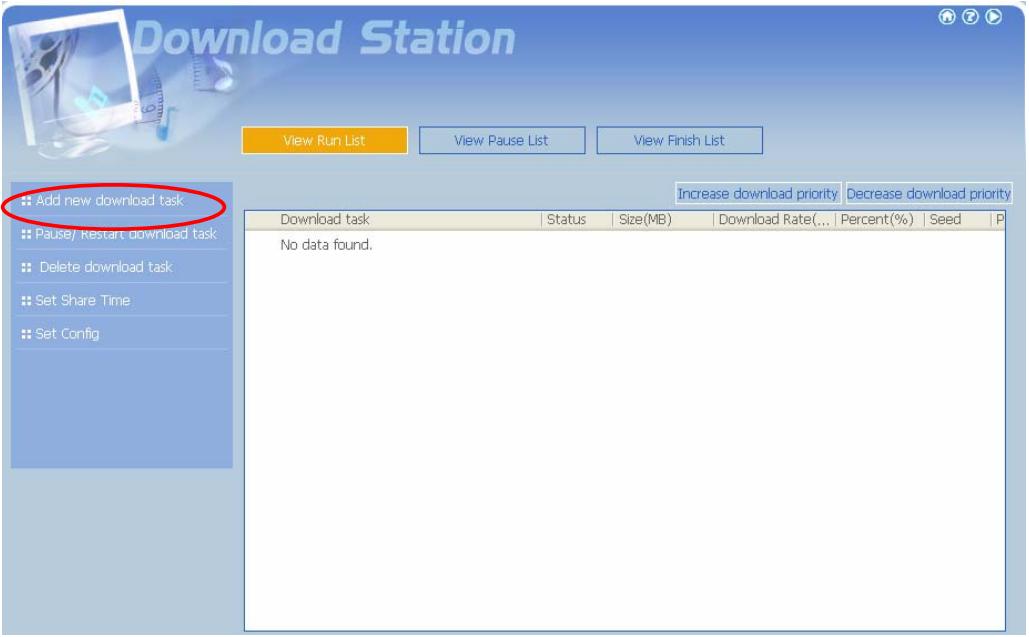
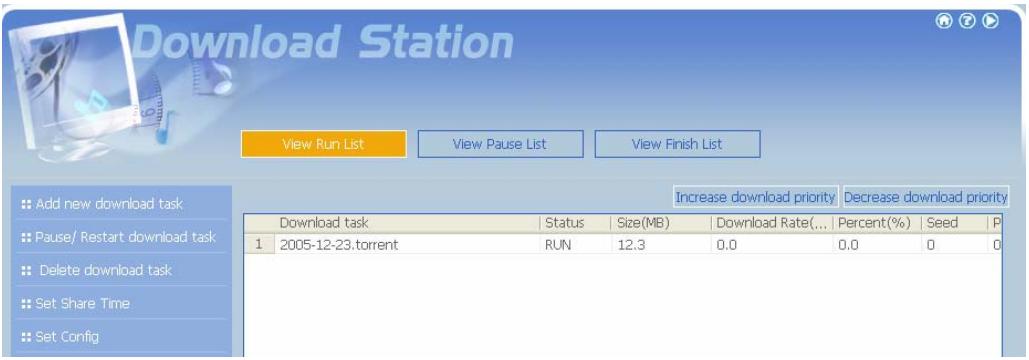
- After uploading a download task, the task will appear on View Run List.
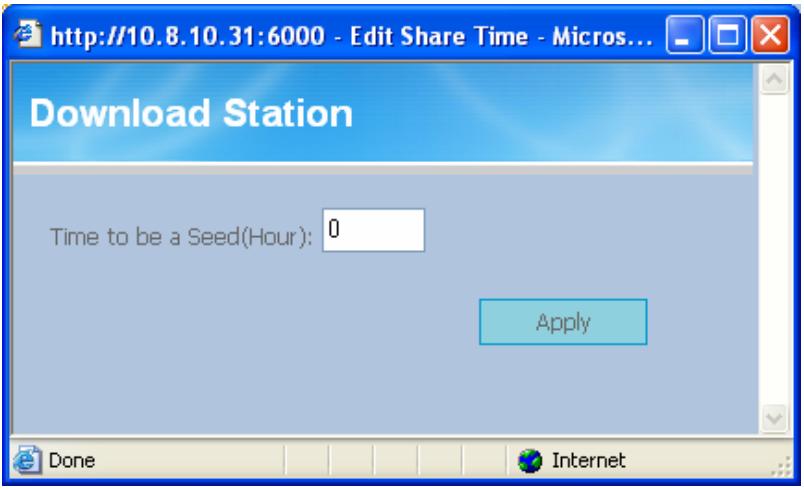
- You can select an available download task and click Set Share Time to configure the time for sharing the torrent file, or click Set Config to set the maximum number of downloads at the same time (default value is 3).

- To pause a running download task, select the task in View Run list and click Pause/ Restart Task. To delete a running, paused, or finished task, select the task and click Delete Task. To restart a paused task, select the task in View Pause List and click Pause/ Restart Task. You can also increase or decrease task priority by clicking Increase Task Priority and Decrease Task Priority when there are multiple download tasks.
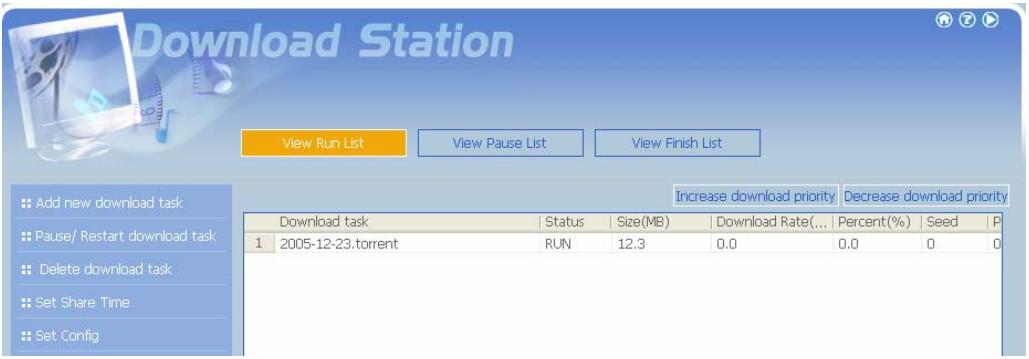
- You can view tasks that are paused or finished in View Pause List and View Finish List respectively.

-
To logout Download Station, click on the top right hand corner.
-
To access the folders you have downloaded, please go to the share folder Qdownload of ND16000.
Chapter 7 Web Server
ND16000 enables you to upload HTML files and manage your own website easily by Web Server function. Once you activate Web Server function, you can access your own homepage wherever you are. You can add hyperlinks in your homepage to connect to all the features of ND16000, such as Download Station, Multimedia Station and Web Server.
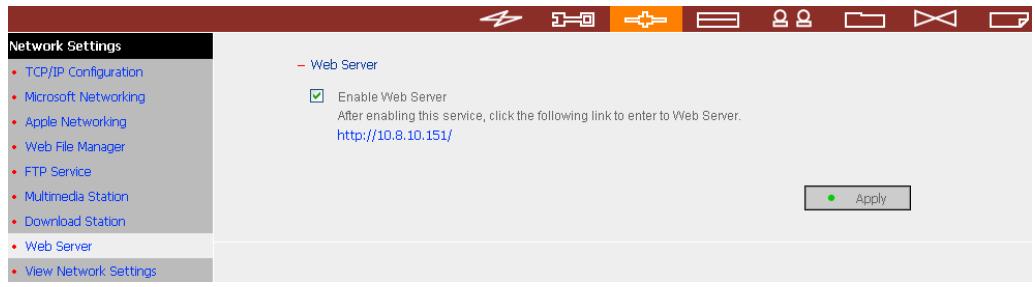
- To use Web Server, make sure a SATA disk is installed correctly in ND16000 according to the instructions in Chapter Erreur! Source du renvoi introuvable.. A share folder Qweb will be created. Enable Web Server in Network Settings.
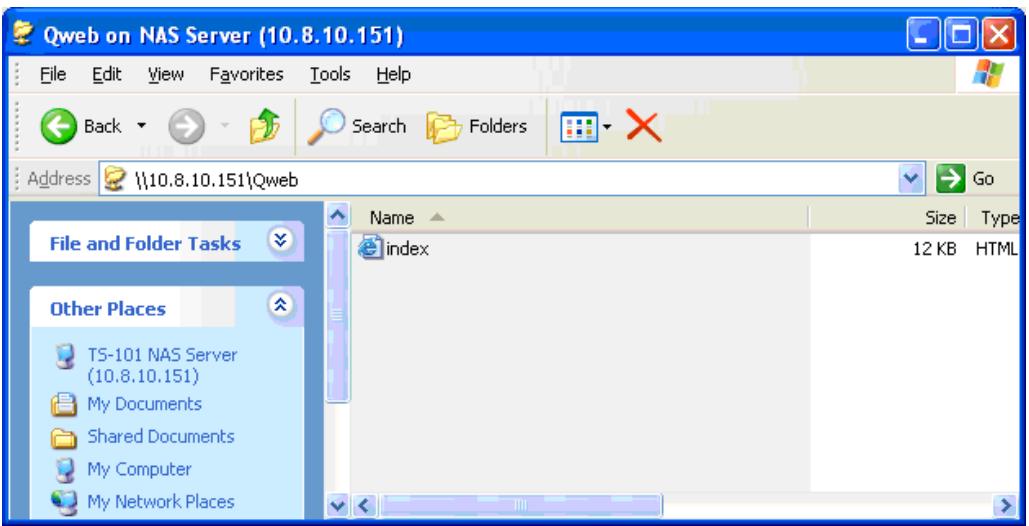
- You can upload your HTML files to the folder Qweb by the following methods:
a. By using samba: You can open a web browser and type [\text{[ND16000 IP]}]Qweb or [\text{[ND16000 name]}]Qweb. Login the folder and upload your HTML files.
b. By FTP: You can login FTP service and upload your HTML files to the folder (please refer to Chapter 8).
c. By Web File Manager: You can login Web File Manager and upload your HTML files to the folder (please refer to Chapter 9).
The file index.html or index.htm will be the home path of your webpage.
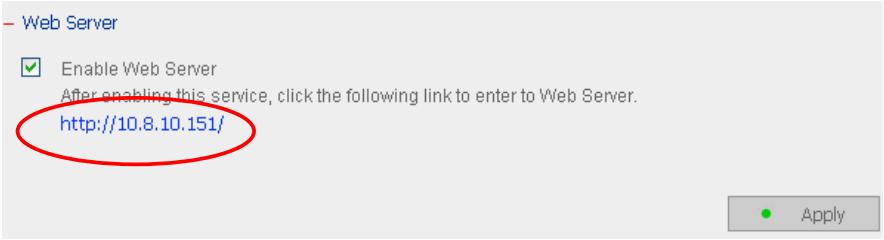
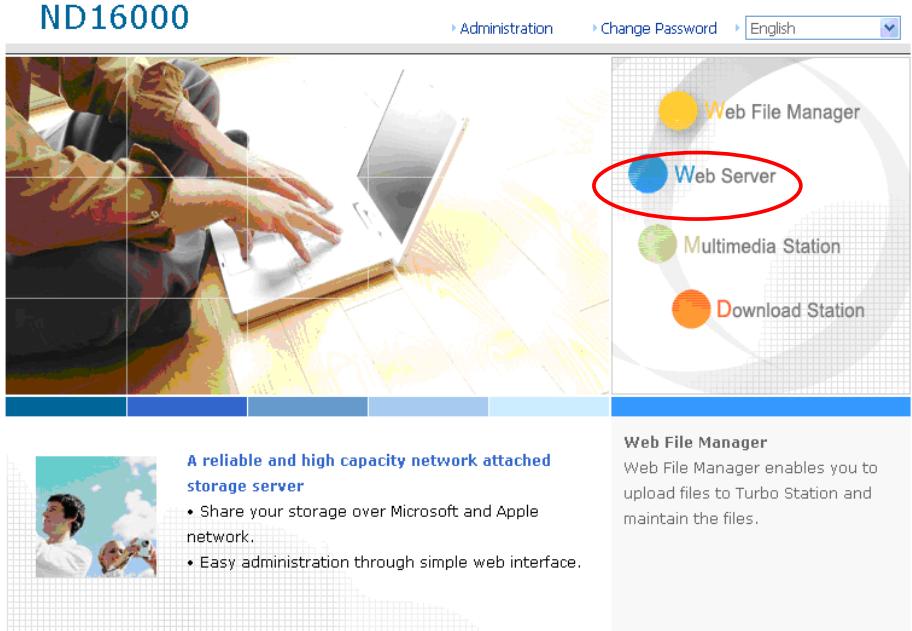
- Click on the link http://ND16000 IP/ on Web Server page or click Web Server on the login page of ND16000 to access the web page you upload. Note that when Web Server is enabled, you have to type [http://ND16000 IP address:6000] in your web browser to access the login page of ND16000.
Chapter 8 FTP Server
ND16000 supports FTP service. To use FTP service, enable this function in
Network Settings and follow the steps below:
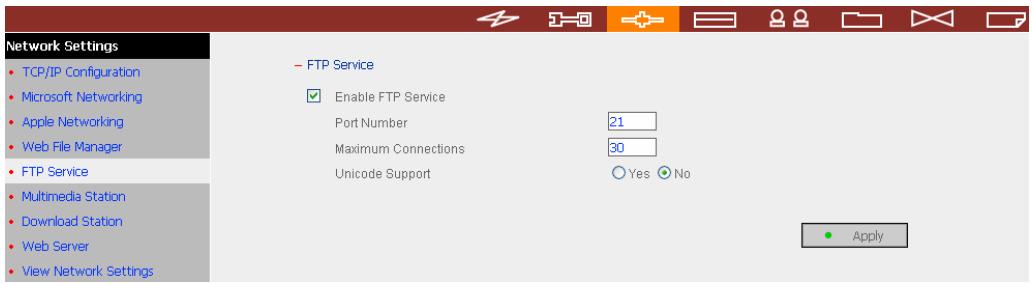
- Open an IE browser and type ftp://[ND16000 IP] or ftp://[ND16000 name]. OR
- By Web File Manager of ND16000.
a. Go the ND16000 administration and click Web File Manager. Enter user name and password to login ND16000.
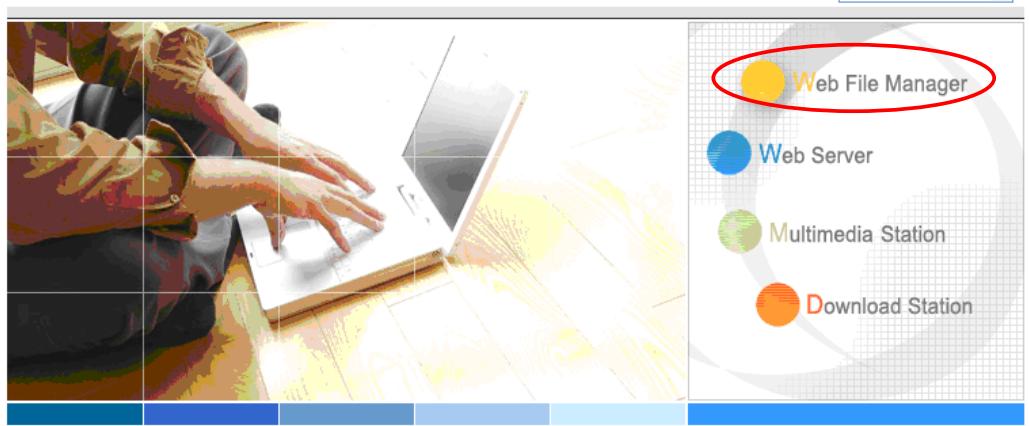
ND16000

A reliable and high capacity network attached storage server
- Share your storage over Microsoft and Apple network.
- Easy administration through simple web interface.
Web File Manager
Web File Manager enables you to upload files to Turbo Station and maintain the files.
b. Click FTP.
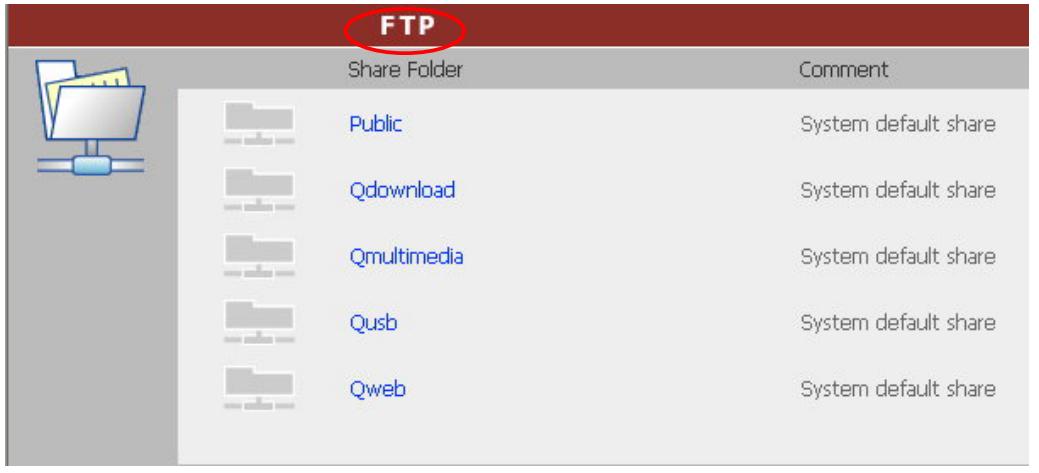
c. Enter the user name and password to login FTP service.
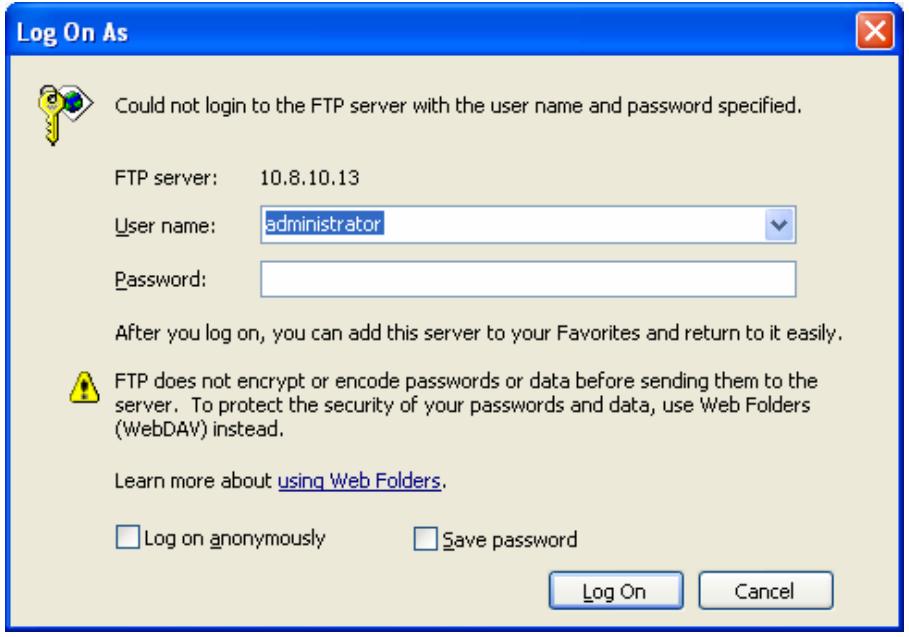
d. You can start to enjoy FTP service.
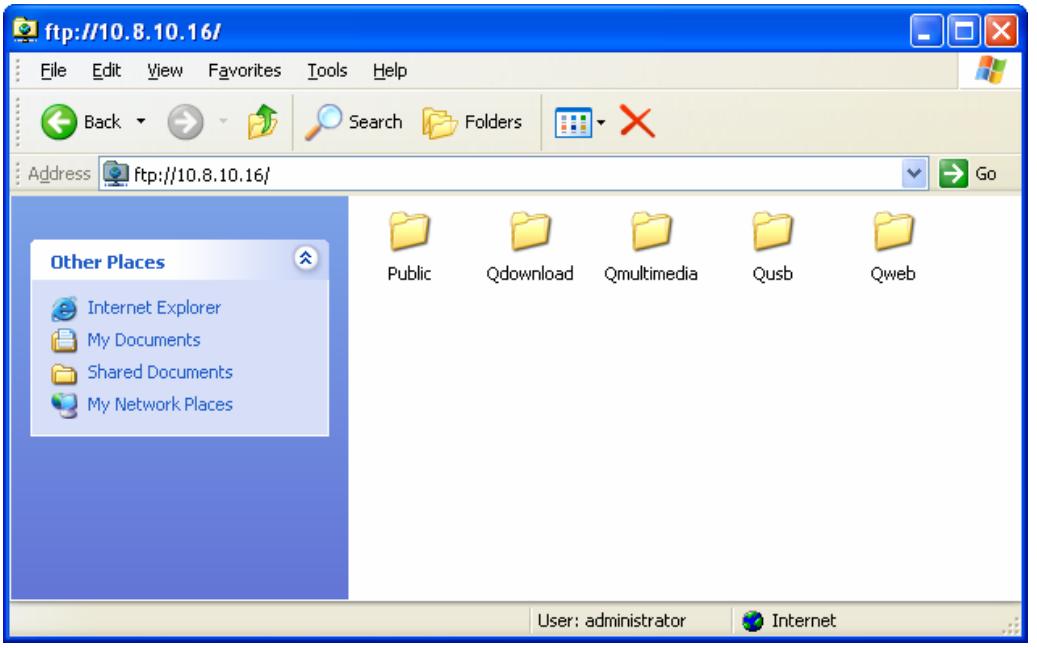
Chapter 9 Web File Manager
Using Web File Manager
To use Web File Manager, enable web service in Network Settings first.
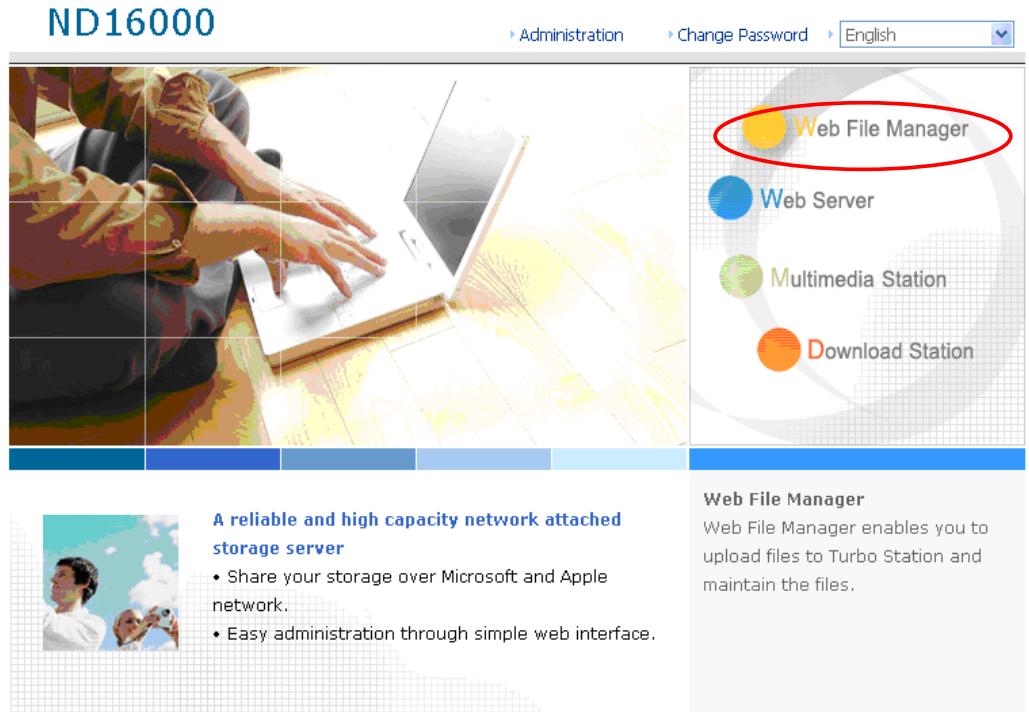
Launch the web browser and go to ND16000 administration page. Select Web File Manager and enter the correct login name and password. You may also enter "guest" in the login name field without password to access the network shares on ND16000 as an anonymous guest.

Note: Make sure a network share has been created before using Web File Manager.
Select an existing network share for management.
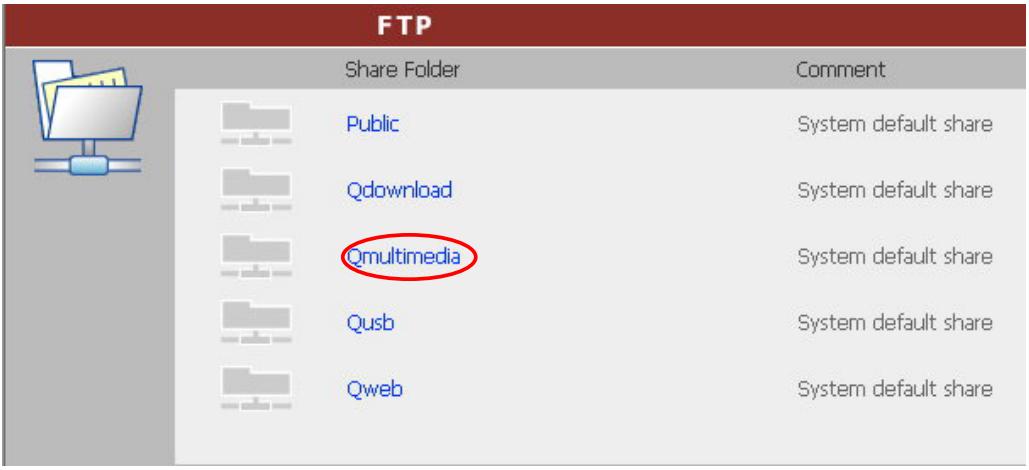
You can organize network share folders of ND16000. With Web File Manager, you can upload, rename, or delete files and folders in the network shares.
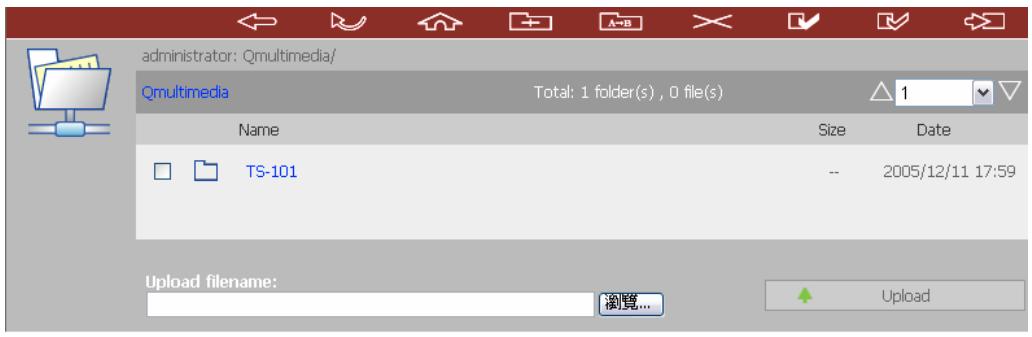
View files online
Click on a file displayed on the web page. The information of the file will be displayed. If your browser does not support the file format, a download window will pop up automatically. Download the file and you can open it on your PC.
Create folder
i. Select a network share or folder in which you want to create a new folder.
ii. Click (Create Folder) on the toolbar.
iii. Enter the name of the new folder and click OK.
Rename file or folder
i. Select a file or folder to rename.
ii. Click (Rename) on the toolbar.
iii. Enter the new file or folder name and click OK.
Delete file or folder
i. Select a file or folder to delete.
ii. Click (Delete) on the toolbar.
iii. Confirm to delete the file or folder.
To delete all files and folders, click (Select All) and then (Delete).
Upload file
i. Open the folder to upload file to.
ii. Click Browse to select the file.
iii. Click Upload.
Download file
i. Select a file to download.
ii. Right click the mouse and select "Save Target As" to save the file.
Logout
To exit Web File Manager, click (Logout).
Viewing Files Named in Local Language
To view files named in Chinese, you may have to configure the browser settings.
Take Internet Explorer as an example, follow the steps below to configure the
settings.
1. Click on Tools in IE browser.
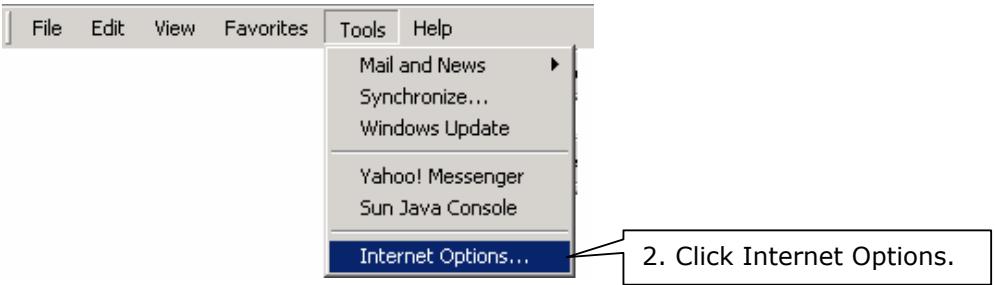
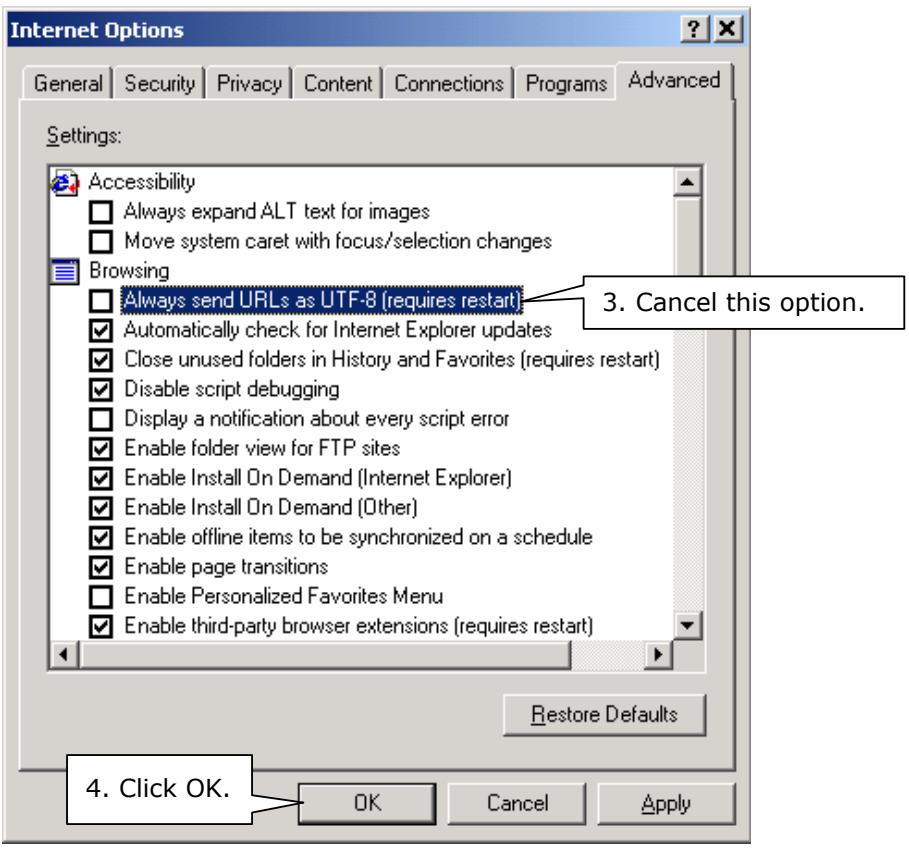
5. Restart the browser.
Web File Manager Icons
| Icon | Description |
| ← | Up-return to the parent folder |
| Refresh-reload the current page | |
| Home-return to network share list home page | |
| Create folder | |
| A-B | Rename file or folder |
| × | Delete file or folder |
| √ | Select all |
| Cancel selection | |
| Logout | |
| Full access network share folder | |
| R | Read-only network share folder |
| ! | Malfunction network share folder |
Chapter 10 NetBak Replicator

NetBak Replicator is a powerful program installed in user's system (Windows OS only) for data backup. You can back up any files or folders on local PC to specified share folder on ND16000 by LAN or WAN.
Main Functions
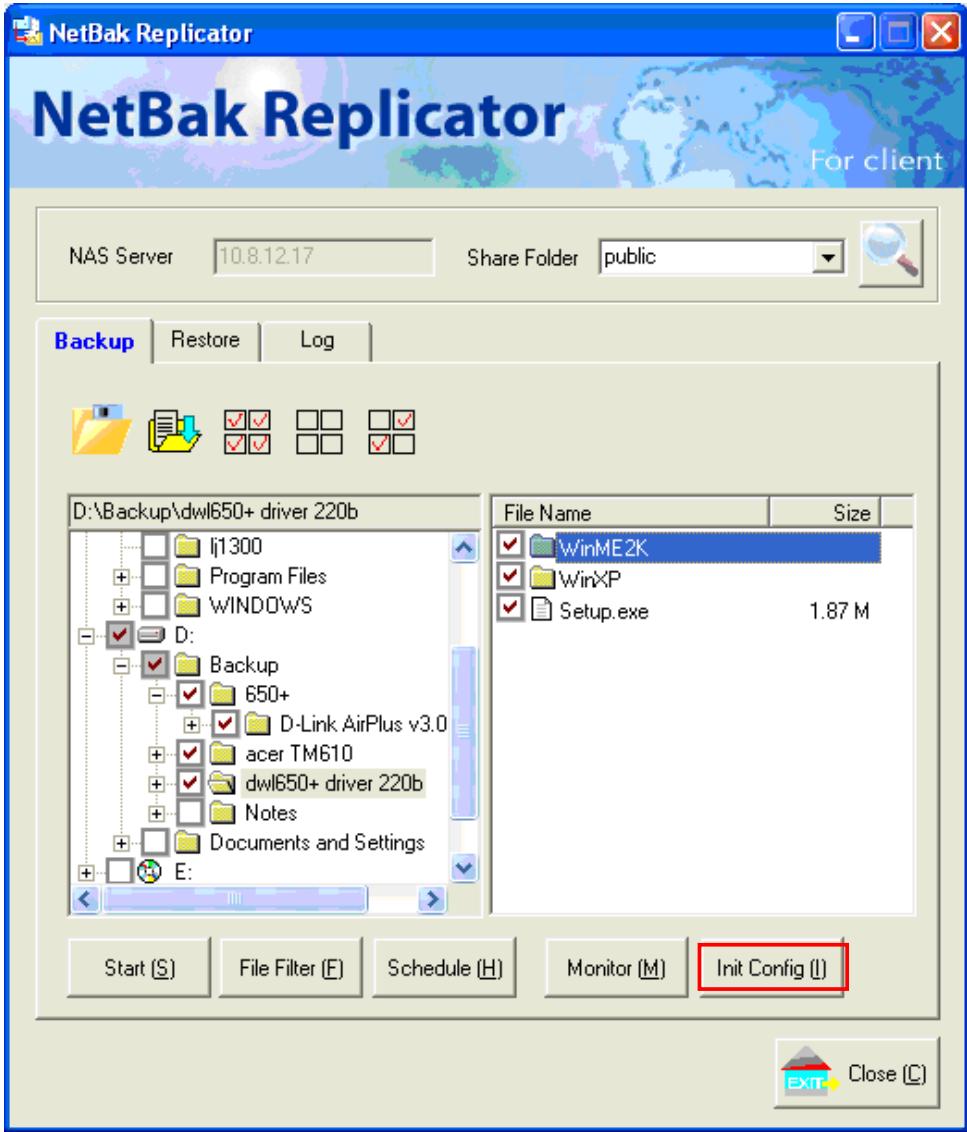
1. Backup
- Instant Backup
You can select files and folders on local PC and back up files to specified network share folder on ND16000 immediately.
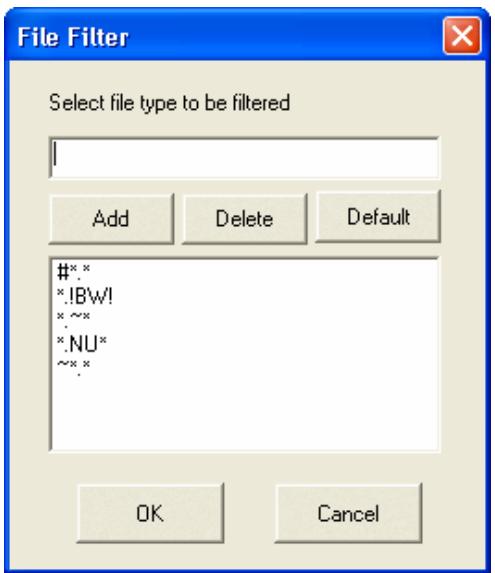
File Filter
You can select particular file types to be excluded from backup. The system will filter all files belonging to these file types when backing up data.
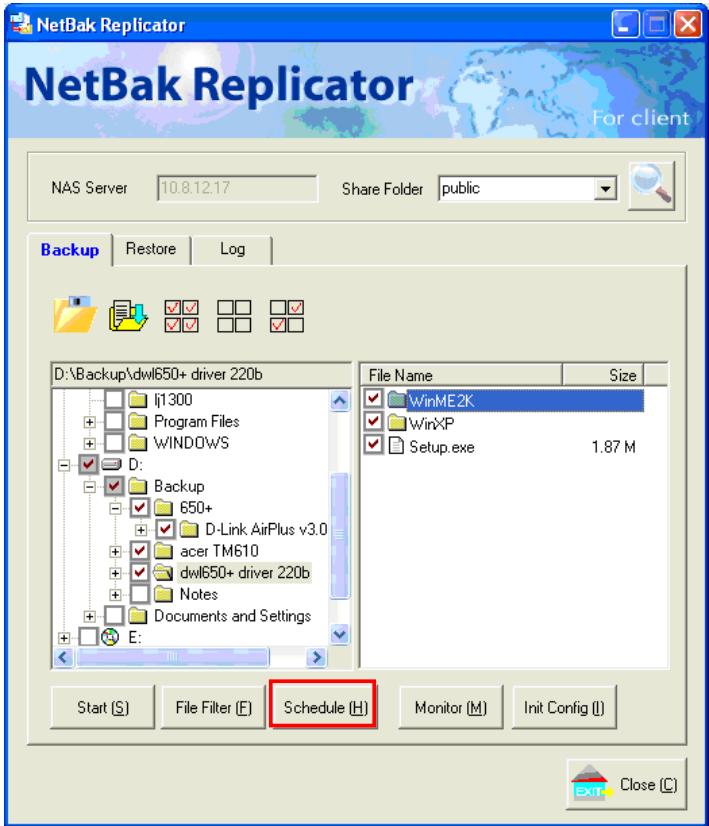
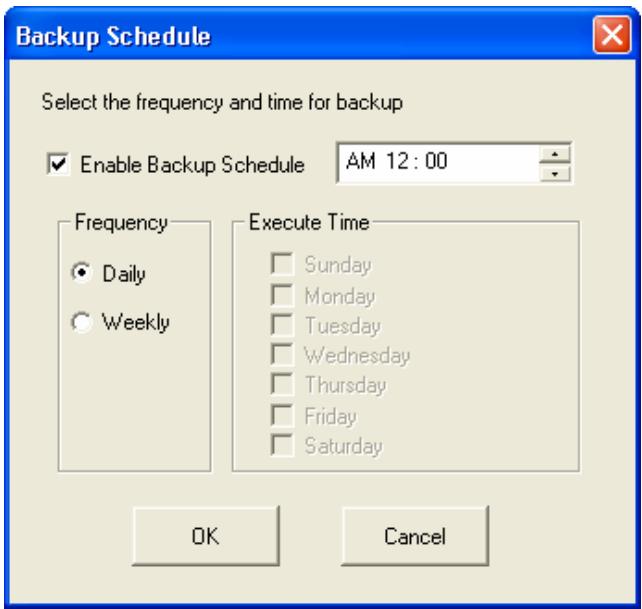
Schedule
You can specify a schedule for backing up data with this option, e.g. 12:00 every day or 05:00 every Saturday.
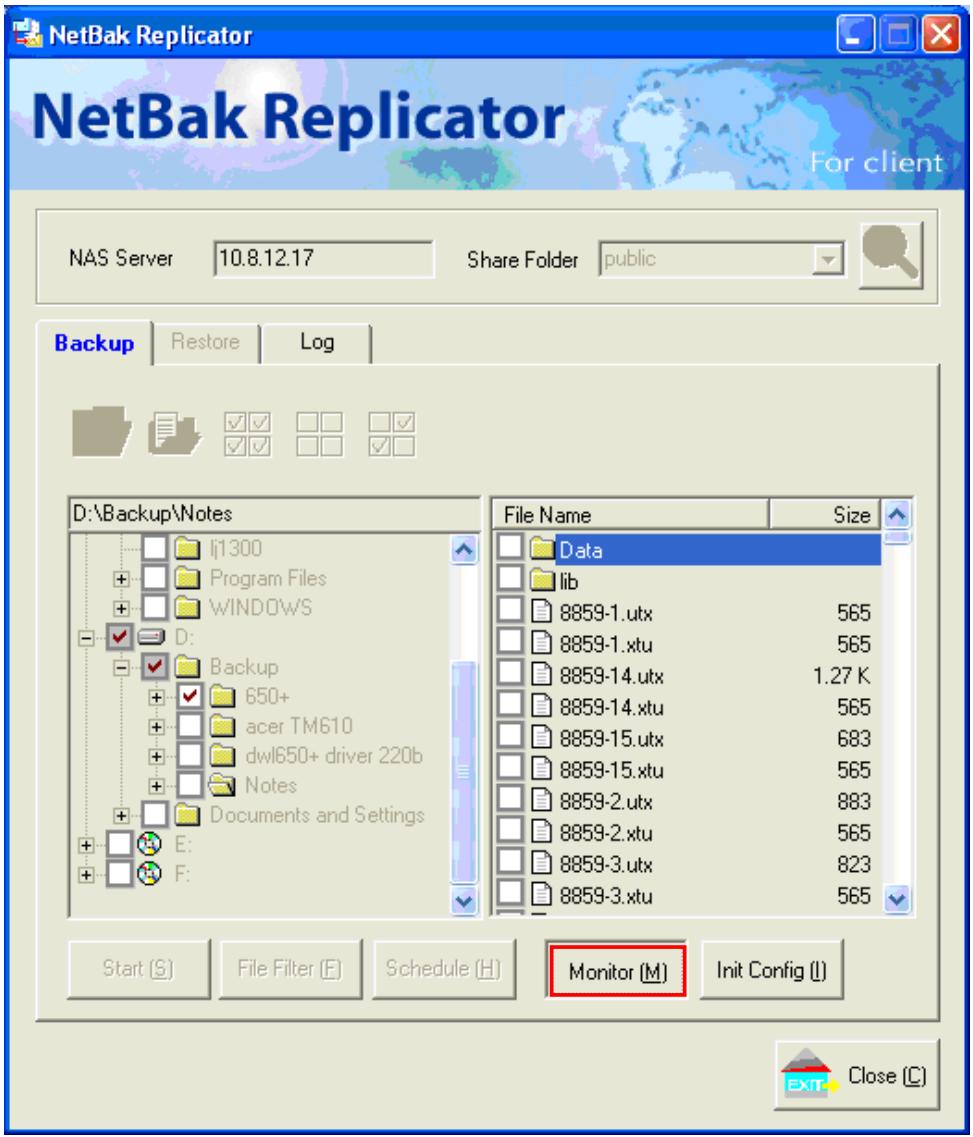
Monitor
When this option is enabled, the system will upload all files or folders to the server instantly for backup when the files or folders are modified.
2. Restore
Select this option to restore backed up data to the original location of the file or to a new directory.
3. Log
Enable this option to record events of NetBak Replicator, e.g. the time when NetBak Replicator starts and terminates.
Install NetBak Replicator
- Select Install NetBak from the ND16000 CD-ROM.
- Follow the steps to install NetBak Replicator.
- Upon successful installation, a shortcut icon NetBak will be shown on the Desktop. Double click the icon to run NetBak Replicator.
Use NetBak Replicator
- Before using NetBak Replicator, please login ND16000 administration and go to Network Share Management to create a share folder for backup. Make sure the share folder is open for everyone access or you login the share folder with an authorized account or administrator by NetBak Replicator.
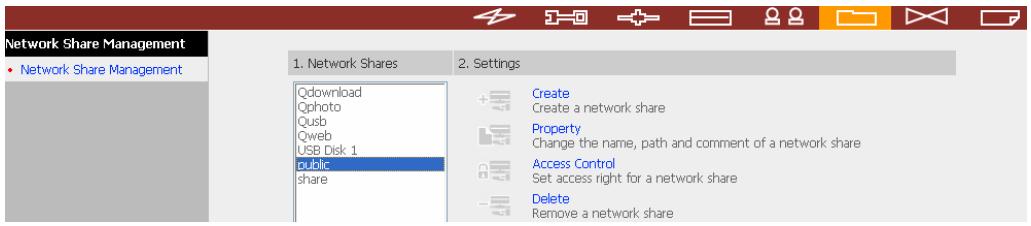
- Run NetBak Replicator. Click All ND16000 and their share folders within the network will be displayed.
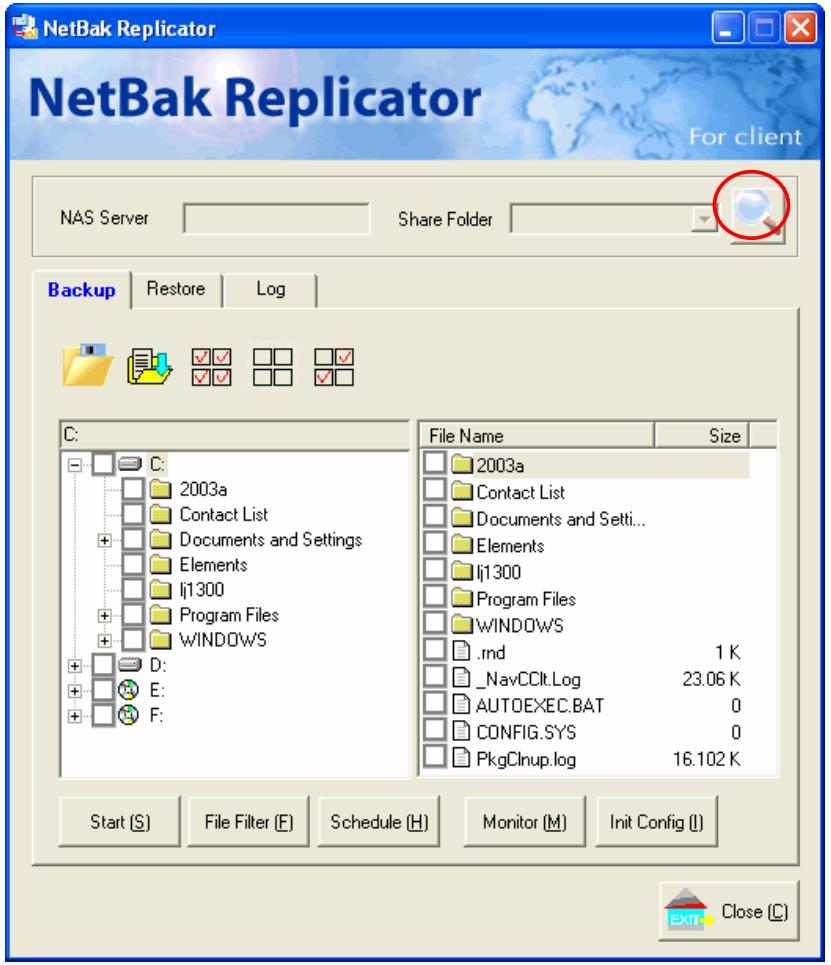
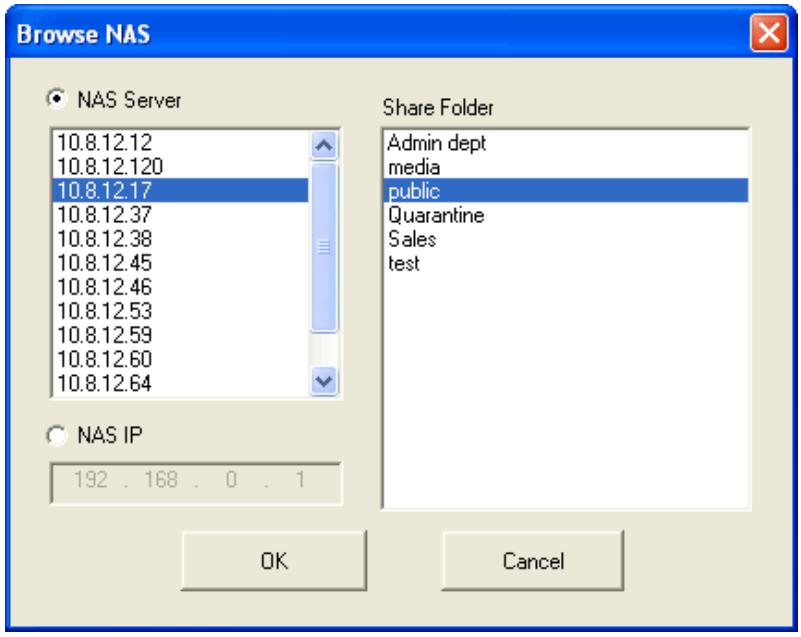
- When the following window appears, ND16000 connected to the LAN will appear on the left list. Select a server and a share folder on the right. NetBak Replicator also supports backup via WAN, you can enter the IP address of ND16000 for data backup directly and select a share folder. Then click OK.
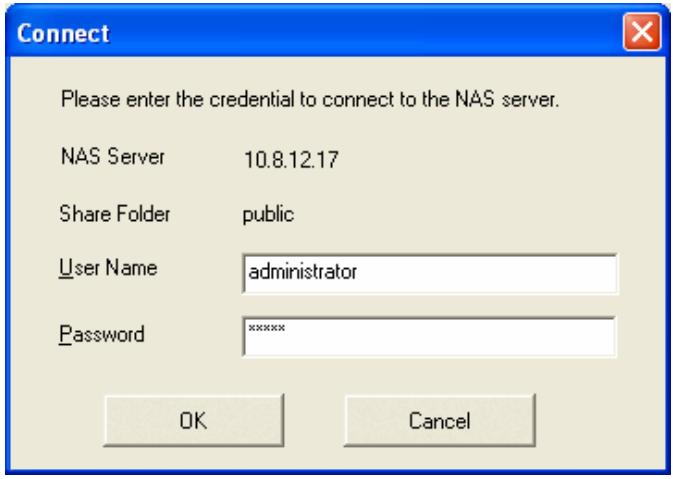
- Enter the user name and password to login the server.
Description of Buttons on NetBak Replica
| Open Configuration: Open a previously saved NetBak Replicator configuration. | |
| Save Configuration: Save the settings on NetBak Replicator. The file will be named as *.rpr | |
| Select All: Select all folders. The column on the left shows all available folders and the right column shows the files in the folders. | |
| Clear All: Clear selection of all folders. | |
| Select My Document: Select all folders in My Document. | |
| Close: When clicking this button, NetBak Replicator window will minimize and an icon will be displayed in system tray. To restore or exit the program, right click the icon and select Restore or Exit. |
-
You can start the backup procedure upon successful connection to the ND16000.
-
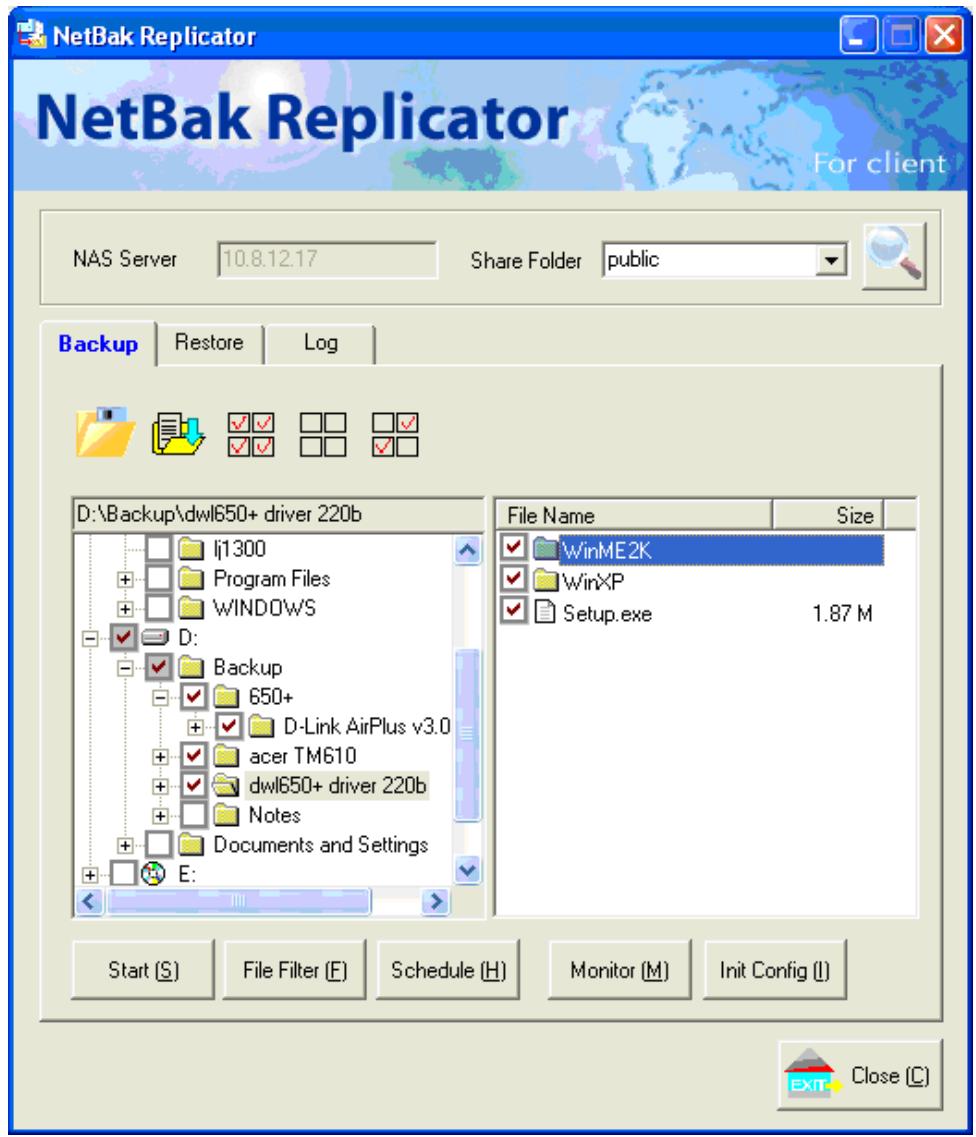
Backup
Select files and folders for backup.
Start
When you have selected the files for backup to ND16000, click Start on NetBak Replicator. The program will start to copy the selected files to the specified share folder on ND16000.
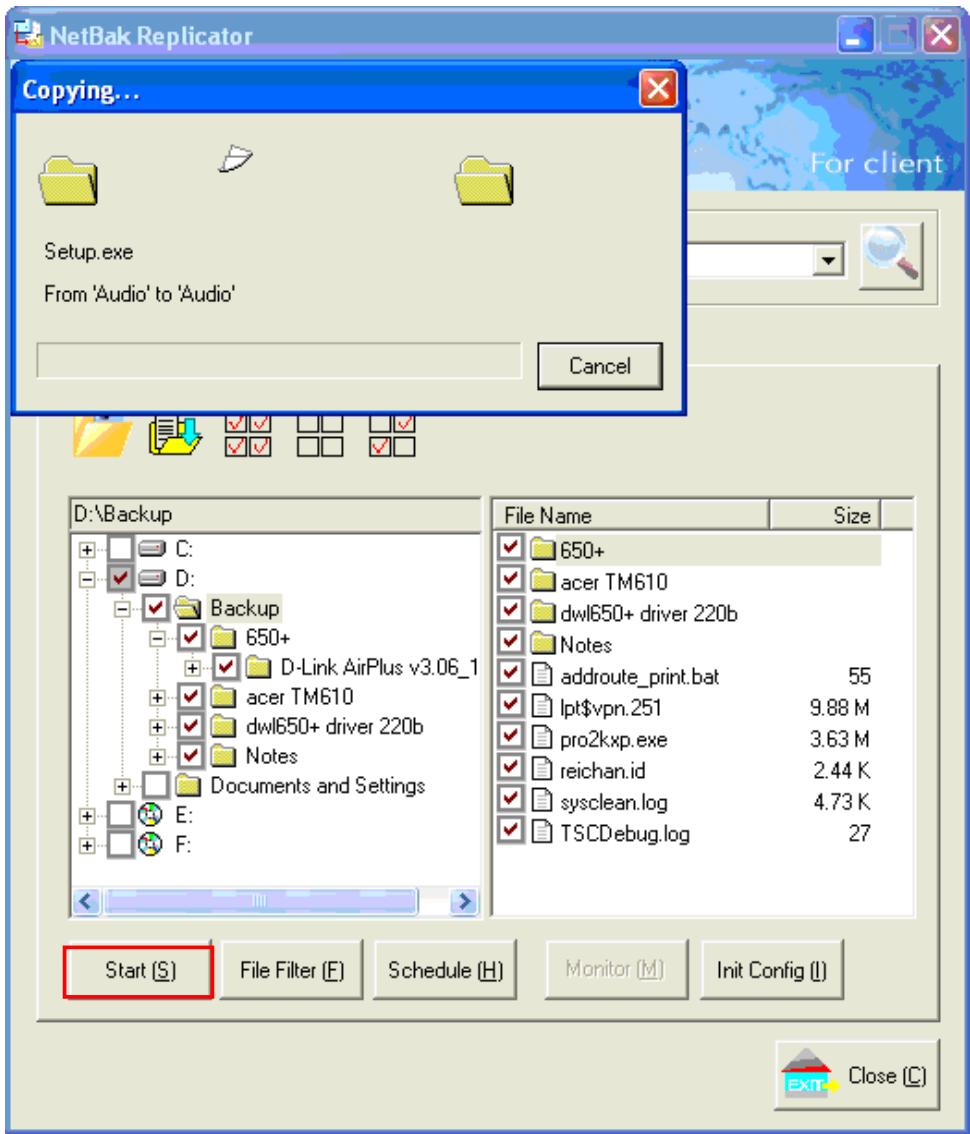
√ File Filter
Click File Filter on NetBak Replicator main page to select file format to be skipped from backup. Then click OK.
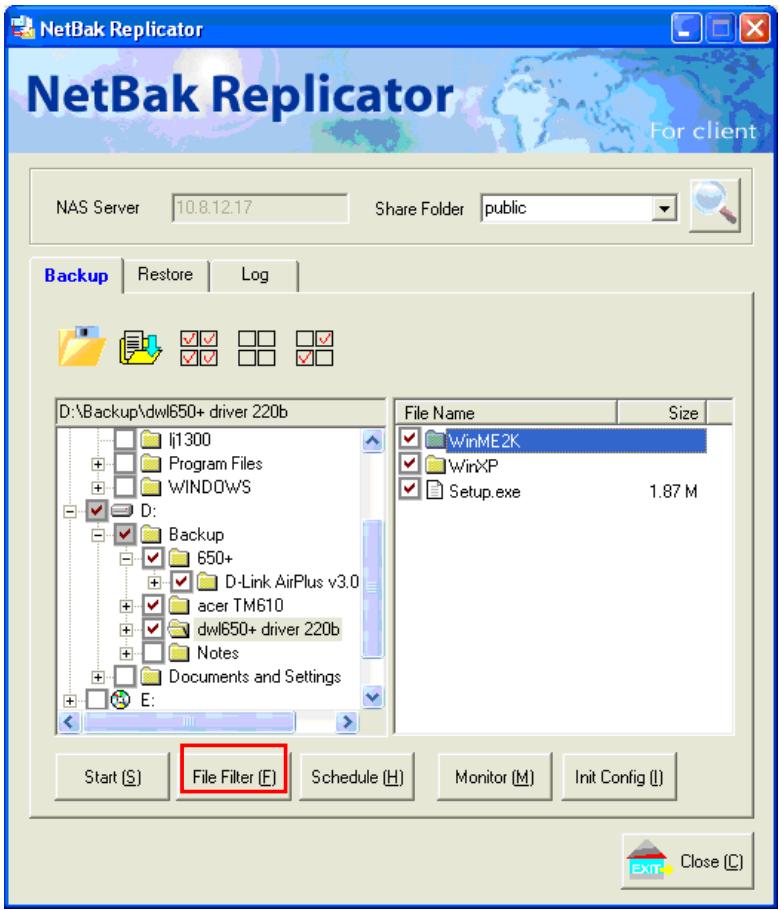
✓ Schedule
Click Schedule on NetBak Replicator main page. Then check the box "Enable Backup Schedule" and select the frequency and time for backup. Click OK to confirm.
Monitor
Select a folder for monitoring. When this option is enabled, the system will upload all files or folders to the server instantly for backup when the files or folders are modified. Other files will be gray and cannot be selected. Click Monitor again to cancel monitoring. An icon will appear on task bar of Windows® when monitoring is in process.
Initialize Configuration
When using this function, NetBak Replicator will record all current settings of the user, including whether or not monitor function is enabled. When the user login again, this program will load the previous recorded settings for users to manage data backup.
- Restore
Please follow the steps below to restore files from ND16000 to your PC.
a. Restore to original position: Select the location that the data will be restored to.
b. Select new restore position: Click to select the directory to restore data to or select a previously chosen location from the drop-down menu.
c. Select the folder(s) and sub folder(s) for restoring data on the right list and click Start.
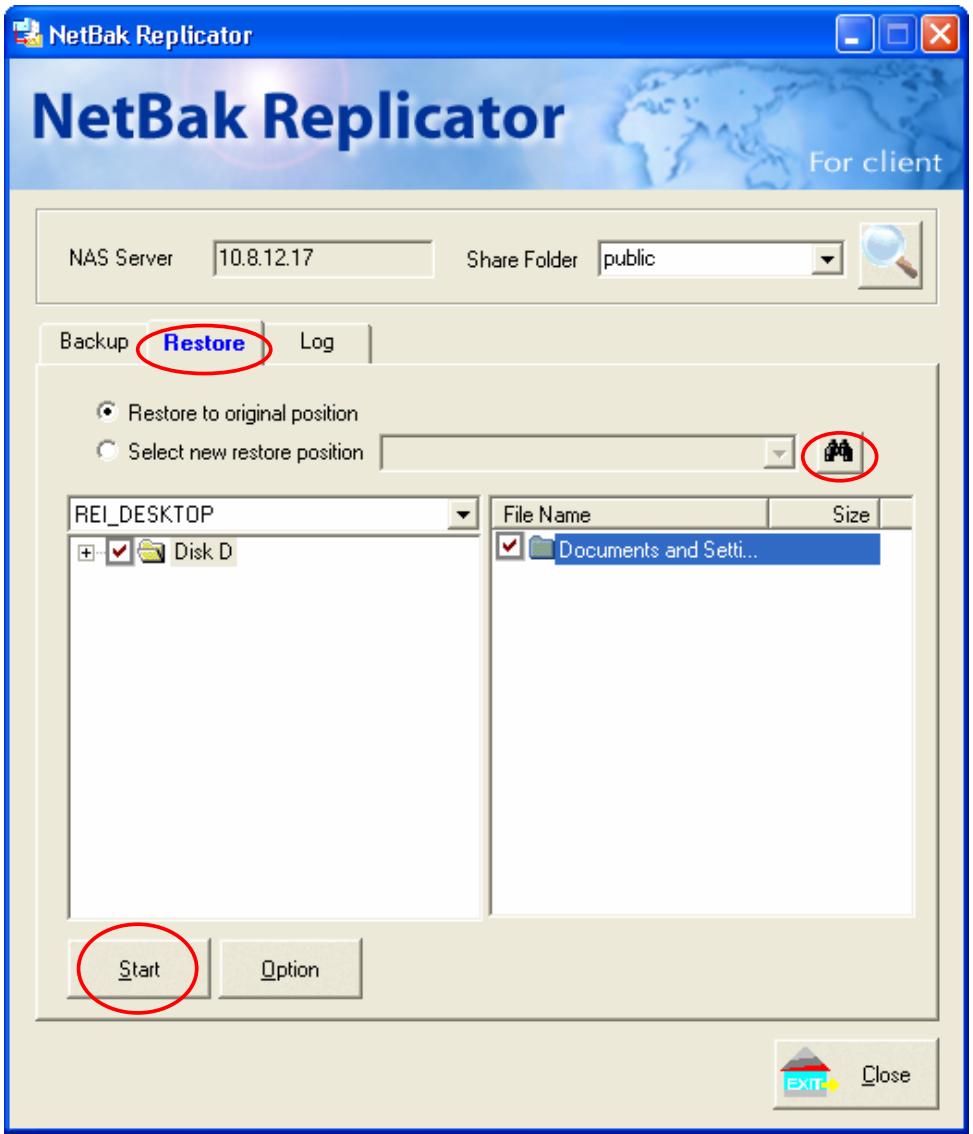
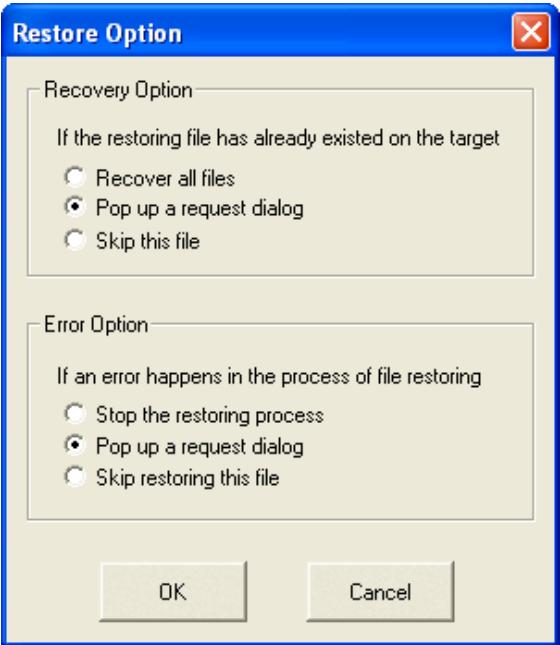
d. Option: Select recovery option and error option.
If the restoring file has already existed on the target folder, you can select to:
Recover all files
Pop up a request dialog
Skip this file
If an error happens in the process of file restoring, you can select to:
Stop the restoring process
Pop up a request dialog
Skip restoring this file
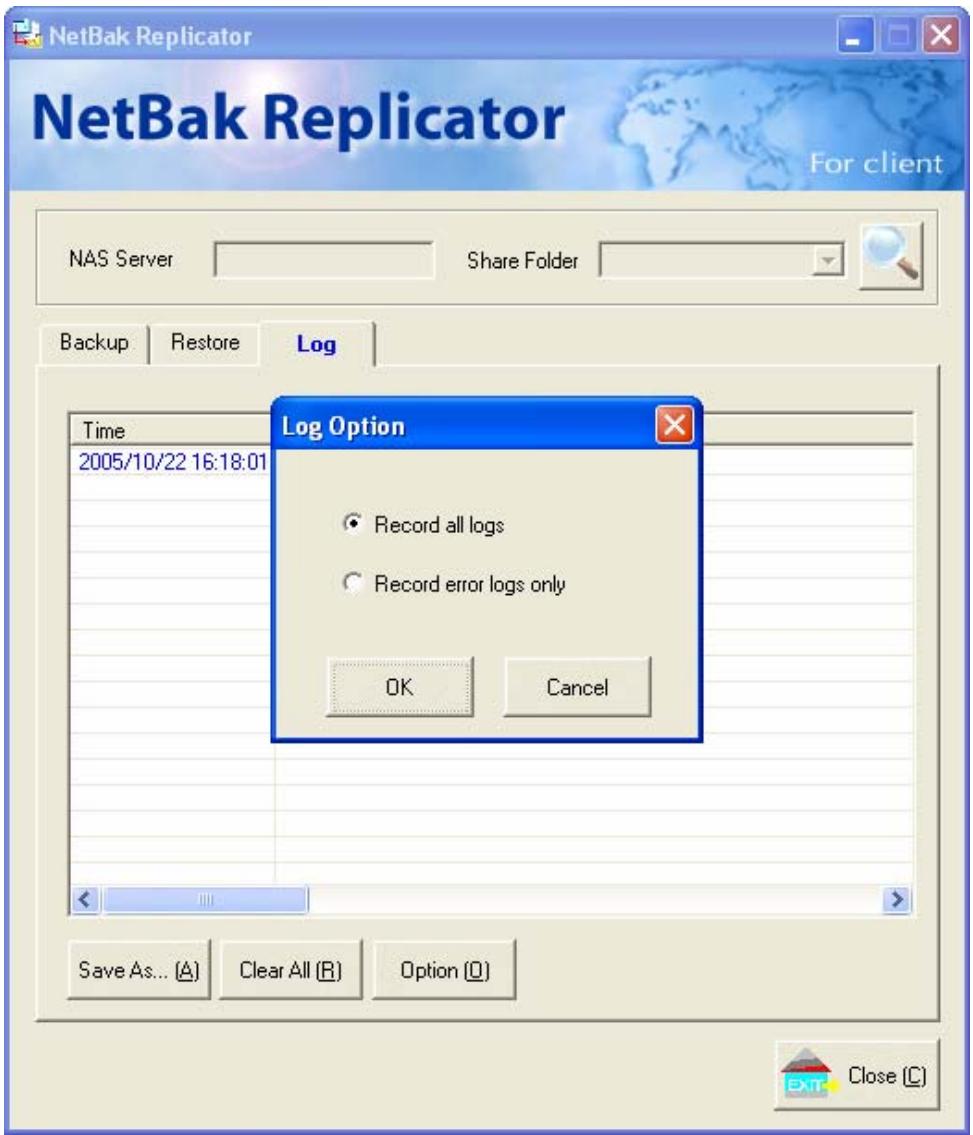
Log
a. Save As...: To save all logs on NetBak Replicator, click this button. All logs will be saved as text file.
b. Clear All: Click this button to clear all logs.
c. Option: Select the type of logs to be recorded—“Record all logs” or “Record error logs only”.
Chapter 11 ND16000 Maintenance
ND16000 is specially designed to run 24x7 and be ready at all times against system crash caused by power outage. This section provides a general overview on system maintenance.
11.1 Restart/ Shut down Server
Follow the steps below to restart or shut down ND16000.
- Enter the administration page and select Restart/ Shutdown in System Tools.
- Click Restart to reboot the server or Shut Down to turn off the server.
11.2 Reset Administrator Password and Network Settings
To reset the administrator password and network settings of ND16000,
- Press the reset button of ND16000 for a few seconds. A beep sound will be heard.
- Login ND16000 with the default user name and password:
Default user name: administrator
Password: admin

Note: To reset the system by the reset button, the option "Enable configuration reset switch" in Hardware Settings must be activated.
11.3 Disk Failure or Malfunction
When you encounter disk malfunction or failure, please do the following:
- Record the malfunction status or error messages shown in Event Logs.
- Stop using the failed ND16000 and turn off the server.
- Contact customer service for technical support.

Note: Your ND16000 must be repaired by professional technicians, do not try to repair the server yourself.
Please back up any important files or folders to avoid potential data loss due to disk crash.
11.4 Power Outage or Abnormal Shutdown
In case of power outage or improper shutdown of ND16000, the system will resume to the state before it is shut down. If your server does not function properly after restart, please do the following:
- If the system configuration is lost, configure the system again.
- In the event of abnormal operation of the server, contact customer service for technical support.
To avoid the above situations, please back up your data periodically and make sure you have done the following:
- Follow the instructions described in Chapter 11.1 to restart or shut down the server.
- If there is an anticipated power outage, back up all important data and turn off the server properly until power supply is resumed.
Technical Support
COMET LABS provides dedicated online support and customer service via instant messenger. You can contact us by the following means:
Online Support:
www.cometlabs.com
E-mail: support@cometlabs.com