
EASYTOUCH 35 - Remote control X10 - Free user manual and instructions
Find the device manual for free EASYTOUCH 35 X10 in PDF.



| Product type | Universal remote control with touch screen |
| Brand | X10 |
| Model | EASYTOUCH 35 |
| Power | 4 AAA alkaline batteries (LR03) |
| Screen | Backlit touch screen, customizable |
| Controllable devices | TV, VCR, DVD, SAT, CBL, CD, AUDIO, X10 home automation (up to 8 modes) |
| Transmission | Infrared (IR) and Radio (RF) for X10 modules |
| Code library | Pre-programmed codes for most brands |
| Code search | Manual by entry, by brand, or automatic |
| Learning | Up to 40 commands per mode from an original remote control |
| Macros | 9 macro keys, up to 20 commands per macro |
| Zapping function | Switch between two channels via the P
|
| All off function | Turns off all devices with a single prolonged press |
| TV volume control | TV volume and mute accessible from any mode (adjustable option) |
| Backlight | Yes, turns off 10 seconds after last key press |
| Transmission LED | Flashes when sending a command |
| Dimensions (estimated) | Approximately 20 x 6 x 3 cm |
| Weight (estimated) | Approximately 200 g (without batteries) |
| Maintenance and cleaning | Clean with a soft dry cloth; avoid moisture and sharp objects on screen |
| Safety | Use only AAA alkaline batteries; respect polarity; do not expose to moisture or shocks |
| Spare parts and repairability | Batteries only; no spare parts available; no user repair |
| General information | 98-page manual available in several languages; compatible with Powermid receiver and X10 modules |
Frequently Asked Questions - EASYTOUCH 35 X10
User questions about EASYTOUCH 35 X10
0 question about this device. Answer the ones you know or ask your own.
Ask a new question about this device
Download the instructions for your Remote control in PDF format for free! Find your manual EASYTOUCH 35 - X10 and take your electronic device back in hand. On this page are published all the documents necessary for the use of your device. EASYTOUCH 35 by X10.
USER MANUAL EASYTOUCH 35 X10
- General Safety Note 3
- Introduction 4
- Installing the batteries 5
4.Description of the ET35 "rubber" keys 5
5.Description of the ET35 "Touchscreen" keys 6 - Programming using 3 Digit Code Tables for the TV, VCR, CD, SAT, CBL, DVD, AUDIO and Marmitek X-10 Home Automation keys 8
- Programming using Brand search method 9
- Programming using Code search method 11
- Identifying codes found using the search procedures 12
- Programming a Macro 13
- Channel toggle key 15
12.Setting key labels 17 - Code learning 18
- Marmitek X-10 Home Automation 20
14.1.Changting the home automation House Code 21
14.2. Programming the Home Automation IR/RF mode 21
-
Extra functions 23
-
Controlling your equipment from any place in your home 24
17.Problems and troubleshooting 25
1 General Safety Note
Technical manipulation of the product or any changes to the product are forbidden, due to security and approval issues.
Do not use sharp or metal objects on the Touchscreen.
Do not press hard on the glass Touchscreen.
Take care of proper starting up the device - consult your user guide. Children should use the device only under adult supervision.
Avoid the following:
- strong mechanical tear and wear
high temperature - strong vibrations
high humidity
Please also respect the additional safety notes in the various user guide chapters. For questions not covered from the user guide please visit www.marmitek.com.
To insure a proper set up please read the manual and safety notes carefully.
Battery change:
The device may only be used with 4 AAA batteries - never try to connect to another power supply. When inserting batteries be sure the right polarity is used. Remove the batteries when the device is not used for a longer period. Make sure that the batteries are not short circuited and are not disposed in fire (danger of explosion)
Batteries do not belong in children hands. Do not leave batteries lying around openly - they might be swallowed by children or animals. If this happens see a doctor immediately.
Leaking or damaged batteries can upon contact with skin cause burning or acid damage - if necessary use suitable gloves
Disposal of batteries:
Batteries are special waste and do not belong in general household waste disposal.
By law, the end-user is required to dispose of used batteries by returning them - disposal through household waste is forbidden. Your used batteries can be returned to all local authorized collection points.
Keep the environment safe.
2 Introduction
The ET35 is designed to control up to 8 devices (TV, VCR, CD, SAT, CBL, DVD, AUDIO, Marmitek X-10 Home Automation). The Marmitek X-10 Home Automation key can be used to control any other audio/video appliance.
To allow direct control of all these appliances, in a convenient way, the ET35 includes a Touchscreen. The Touchscreen can display only the functions you need during a certain sequence e.g.: during the setting of ET35 to control an A/V appliance or when you are controlling one of your appliances.
The ET35 has unique features, combined to a big storage capacity, such as:
- "Macro" option: a total number of 20 key strokes can be stored under each of the 9 available Macro keys
code learning, up to 40 keys per each mode - channel scan/search function
video plus / show-view key
All power off feature: to switch off all the modes in 2 presses
TV Volume/ Mute, whatever the last mode was selected - Channel toggle key
- Customising of the screen, using a predefined list of symbols, according to your specific needs
- RF transmission to control your appliances through walls and ceilings (PowerMid Receiver required, sold separately).
- Marmitek X10 key, which will enable you to control lamps and electric appliances from a distance. For controlling your lamps or appliances, you will need additional home automation modules. Visit www.marmitek.com for more information.
The ET35 contains a library of codes that are pre-programmed into the remote control. This library covers nearly all the audio video products on the market today.
To make it easy for you to find the right code for your audio video appliance, we advise to use the CODE SEARCH feature.
3 Installing the batteries
- Open the cover on the back of the ET35
- Insert 4 batteries (AAA size alkaline). Make sure the batteries are the same brand and are NEW and observe polarities indicated inside the battery compartment.
- All the user programmed parameters will be retained indefinitely during battery replacement
4 Description of the ET35 "rubber" keys
1: LED: Turns on whenever a rubber key or an Touchscreen key is pressed and indicates when commands are being transmitted.
2: TV, VCR, CD, SAT, CBL, DVD, AUDIO, Marmitek X-10 Home Automation mode: To select the appliance you wish to control.
The Marmitek X-10 Home Automation key allows you to control any light or appliances connected to Home Automation (Marmitek X10) modules or to program and control any kind of devices such as a TV, satellite receiver, video recorder or DVD player. By default this key is pre-program to control home automation modules.
3: POWER: to switch off the last selected appliance
mode:Turns All Lights on.
4: VOL + / -: to control the volume
mode: brights and dims the selected Home Automation Module.
5: MACRO: to launch a macro (see chapter 10)
6: SET UP: to set the remote control for the appliance you wish to control. Allow the access to secondary functions:
- Press and release the Setup key (the S segment appears on the top right hand corner of the Touchscreen)
- Press the desired secondary function key (the "S" is turned off).
7: MUTE: to turn on and off the sound
mode: turns All Home Automation module off.
8: CHAN +/-: to select the next or the previous channel
mode: turns on or off the selected home automation module.
9: TELETEXT ON: to display Teletext
10: TELETEXT OFF: to turn off Teletext
11: 一 ^ 一 Rew
In VCR, DVD or CD mode: This button works the same way as in your original remotes.
IN TV mode: Coloured key (Red), control of videotext or special equipment functions.
12:Fast Forward
In VCR, DVD or CD mode: This button works the same way as in your original remotes.
IN TV mode: Coloured key (Blue), control of videotext or special equipment functions.
13: Play
In VCR, DVD or CD mode: This button works the same way as in your original remotes.
IN TV mode: Coloured key (Yellow), control of videotext or special equipment functions.
14: Stop
In VCR, DVD or CD mode: This button works the same way as in your original remotes.
IN TV mode: Coloured key (Green), control of videotext or special equipment functions.
15: REC (record)
This key works the same way as the one on your original remote for your VCR. In
order to avoid a mistake you have to press this key twice to activate this feature.
16:Pause
In VCR, DVD or CD mode: This button works the same way as in your original remotes.
IN TV mode: Coloured key (Magenta), control of videotext or special equipment functions.
17: Touch Screen
18: Backlighting:
By pressing this key the screen will be illuminated. The backlighting will stay on while pressing keys, and will time out ten seconds after the last key was pressed.
Error Indication
The LED flashes 3 times and the sounder beeps 3 times for any error condition.
5 Description of the ET35 "Touchescreen" keys
The Touchscreen Display
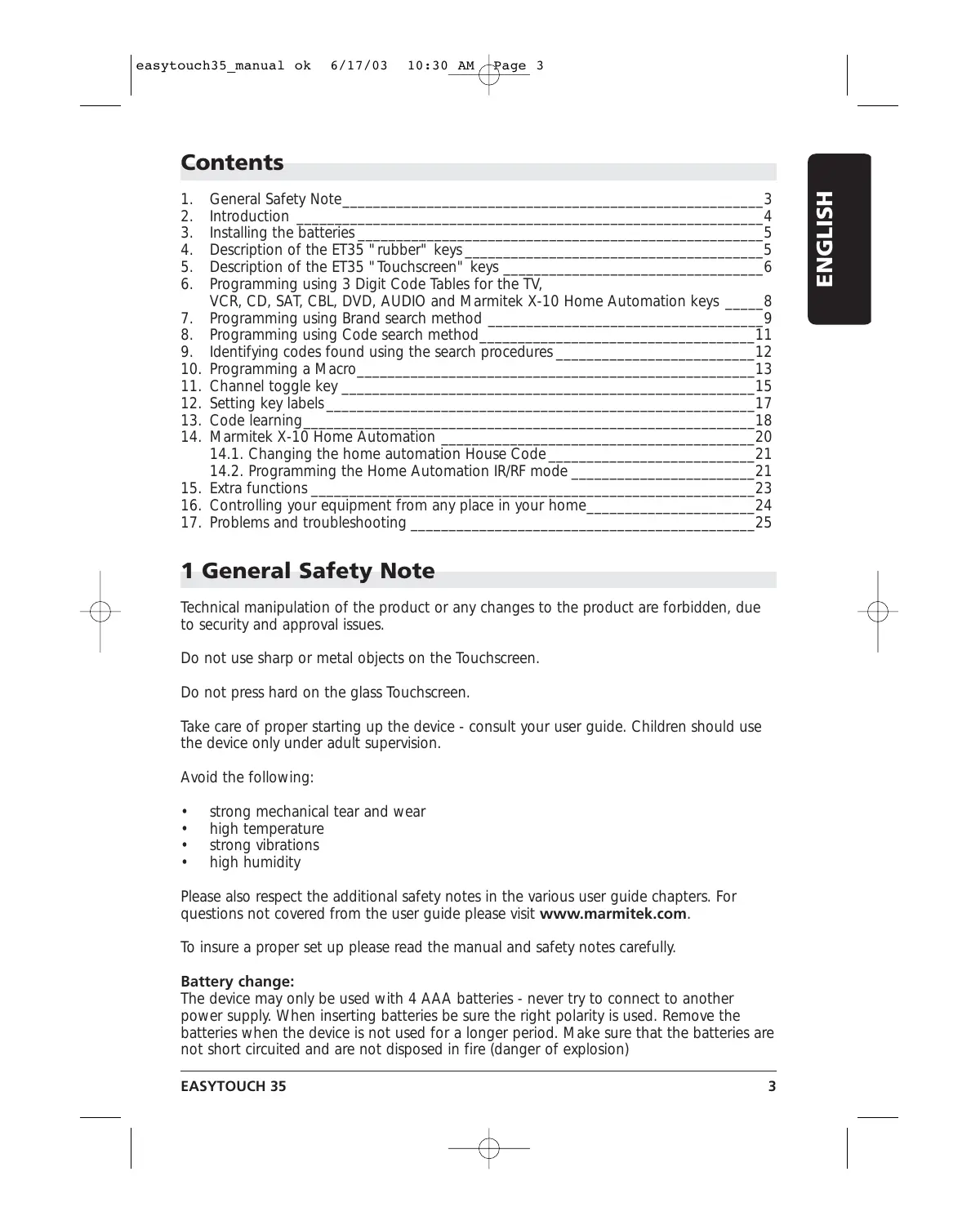
The Liquid Crystal Display (Touchscreen) acts as a "Virtual Keypad" comprising a 15 position segmented "key" area. Pressing the "SCREEN" key lets you toggle between two available sets, or "screens" of keys for the mode you are in.
Master Screen
The display is normally blank when the remote is not in use. Pressing the Setup key, any Mode key, the Macro key or any Touchscreen touch key turns the display panel on. The remaining rubber keys do not activate the display.
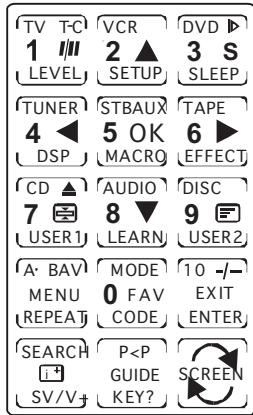
Typical Screen1
All the appliance can be controlled through 2 Touchscreens. Common screen keys are described below.
Numeric keys 0 - 9: For digit or numeric key entries e.g. to select the channel number, or to enter the code of your device
-///: In connection with the numeric keys this key allows you to directly select channels higher than 9 (depending on the appliance).
A/V: Selection of the SCART plug to view or record e.g. DVD, SAT, VCR, ...
SEARCH: To scan up available program channels or tracks (see chapter 15.4)
P<P: Allows to program 2 specific channels and switch between them with a single key press (see chapter 11)
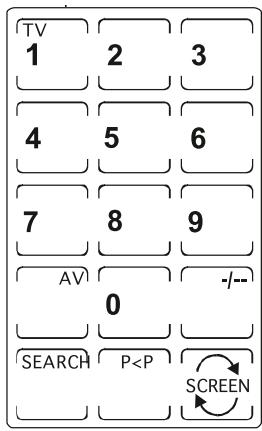
Typical Screen2
SCREEN: To toggle access between first and second mode screens
UP, DOWN, LEFT, RIGHT: Navigation keys used in Menu.
MENU: To display the menu.
OK: Confirms menu selections.
EXIT: To turn Menu OFF
: Info key: to display the program channel and title information, etc.
Other Useful Touchscreen Keys:
Teletext Mix: (TV, CBL & SAT) Allows to mix the Teletext and the picture of the selected channel
: Teletext Hold: (TV, CBL & SAT) Stops page change in teletext mode.
SV/V+: (VCR) corresponds to "Showview" or "Videoplus" functions (see chapter 15.5).
III: (VCR) for tape speed i.e. short-play or long play.
10: (DVD) is for track digit entries greater than 0-9 (e.g. +10).
REPEAT: (DVD) to repeat the disc playback either completely or from two User-set points (Repeat A-B).
T-C: (DVD) Disc Track or Chapter playback
FAV: (SAT & CBL) is for the devices "Favourite" channel function
GUIDE: (SAT & CBL) to call up the devices on-screen program guide
A-B: (AUDIO) Speaker A or B
DSP: (AUDIO) Digital Signal Processing selection
EFFECT: (AUDIO) DSP Effects toggle
MODE: (AUDIO) AM or FM Tuner selection
SLEEP: (TV Only) To turn off your TV after a period of 1 to 99 minutes. Proceed as follows:
- The remote must be in TV Mode with the "second" display screen being shown.
- Press and hold the Touchscreen "SLEEP" Key until the LED remains on (occurring after approximately 2-3 seconds) and display will show the Sleep Setup Screen.
- Release the "SLEEP" key.
- Press and release the numeric keys (01-99) for the time required. The LED will blink off to indicate keypress acceptance and the remote display will return to normal operation.
- TV Sleep Timer now set. Leave the Remote pointing towards the TV with an unobstructed path.
To cancel the Sleep Timer, press and release the Power key in TV Mode or press and hold the SLEEP key until the remote beeps twice.
Programming the ET35
You program the ET35 using the Setup key and following the procedures below. Each keypress is acknowledged with an LED blink and a beep from the sounder. 3 LED blinks and sounder beeps indicate an incorrect or invalid entry.
Attention: You always need to activate the touch screen remote control by touching the screen before you can start the described procedure.
6 Programming using 3 Digit Code Tables for the TV, VCR, CD, SAT, CBL, DVD, AUDIO and Marmitek X-10 Home Automation keys
Note: you can dedicate any appliance (TV, DVD, SAT...) to the VCR, DVD, SAT, CD, AUDIO, CBL and Marmitek X-10 Home Automation keys: you need first to enter the 3 digit code of the appliance you wish to control (found in the code book). In any case, follow the method below:
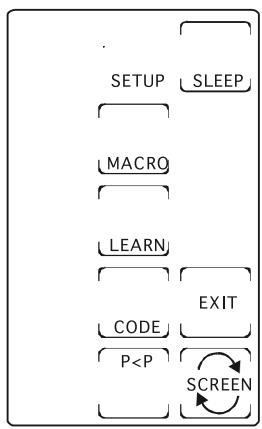
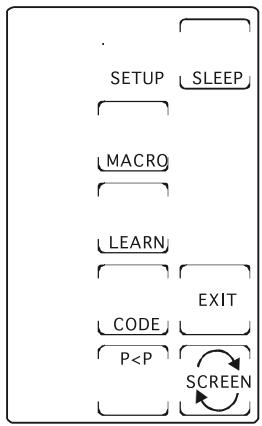
Setup Screen - Main
- Make sure your appliance is switched on (for example TV)
- Activate your ET35 remote by touching the screen
- Press and hold the Setup key until the LED remains on (occurring after approximately 2-3 seconds) and display shows the Main Setup Screen.
- Release Setup key.
- Press and release the Touchscreen "CODE" Key.
- Display will show the Mode Setup Screen. Press and release desired Mode key (TV, VCR, SAT, etc.) on the rubber keypad.
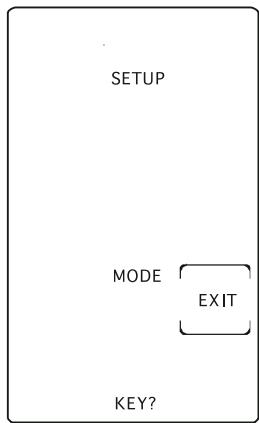
Setup Screen - Mode
Setup Screen - Code
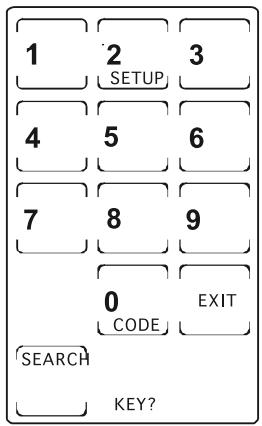
- Display will show the Code Setup Screen. Enter the 3 digits of the Device Code from the Library Code Tables. For a valid Code, the LED blinks off after the last digit is entered. For an invalid Code, the LED will flash rapidly three times before going off. In both cases, the display will return to the Main Setup Screen.
- Press and release the Touchscreen "EXIT" key to return to normal operation.
- Point the remote in the direction of your TV and press the POWER key. Your device should turn off. Check other functions (for example for a VCR: FF or REW etc.). If certain functions are not responding this indicates that the entered code is not the correct one. In that case repeat the above procedure with the next corresponding code of your brand.
10.Direct Library Code entry now complete
- Repeat this procedure for the other appliance you want to control (TV, VCR, DVD, SAT, CD, CBL, AUDIO and Marmitek X-10 Home Automation)
7 Programming using Brand Search Method
It is possible to search for your appliance's code by entering the brand of the appliance you wish to control.
Setup Screen - Main
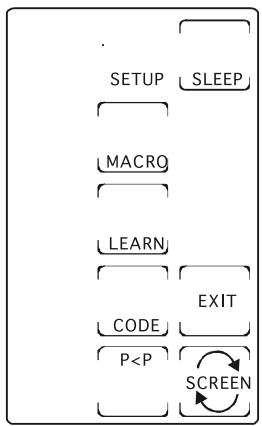
- Make sure your appliance is switched on. If not switch it on manually
- Press and hold Setup key until the LED remains on (occurring after approximately 2-3 seconds) and display shows Main Setup Screen.
- Release Setup key.
- Press and release the Touchscreen "CODE" Key.
- Display will show the Mode Setup Screen. Press and release desired Mode key (TV, VCR, SAT, etc.) on the rubber keypad. Note the Brand Search Method is not available for CD/Audio appliance.
Setup Screen - Mode
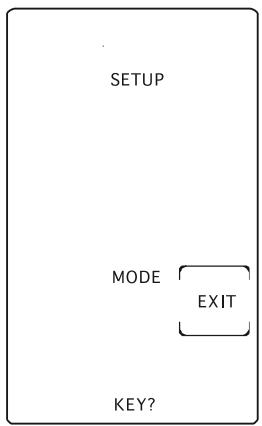
- Display will show the Code Setup Screen. Using the Table blow, press and release the numeric key (0-6) corresponding to desired Manufacturer. Note - pressing "0" carries out a full library search same as normal Code Search Method.
| Digit | |
| Key | Brand |
| Press | |
| 1 | PHILIPS |
| 2 | SONY |
| 3 | THOMSON |
| 4 | SABA |
| 5 | GRUNDIG |
| 6 | NOKIA |
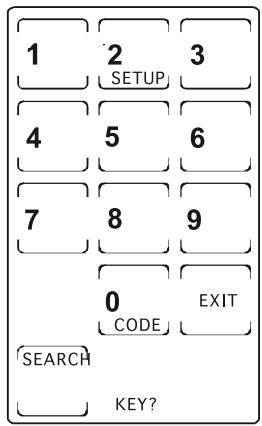
Setup Screen - Code
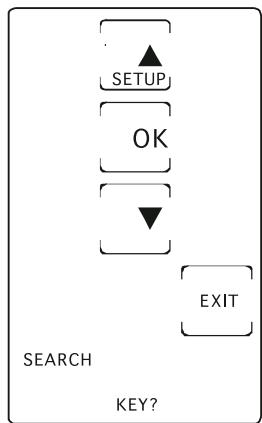
Setup Screen - Search
- Press and release the Touchscreen "SEARCH" Key.
- Display will show the Search Setup Screen. Press the Touchscreen "UP" key (or Power or Play) repeatedly until the Device to be controlled changes channel. Alternatively, you can use the Channel Up & Down keys. Press and release the Touchscreen "OK" (or Mute) key to install the Code. Display will return to the Main Setup Screen. If you accidentally overshoot the Code required, press the Touchscreen "DOWN" or Channel Down to backtrack through the Library to return to the correct code. Pressing the Touchscreen "UP" key (or Power or Play) will change direction to forward again.
- Repeat this procedure for any other appliance you want to control (TV, VCR, DVD, SAT, CD, CBL, AUDIO and Marmitek X-10 Home Automation).
- The Code Search Method entry is now complete. Press and release the Touchscreen "EXIT" key to return to normal operation.
Notes:
a. When all codes under a Brand have been searched the LED will "error" flash indicating end of search and Main Setup Screen will be displayed.
b. The above search procedure assumes that you want to store VCR codes under the VCR key, Cable codes under CBL, etc. If you want, for example, to store a VCR code
under CBL, etc., then the Mode key must be "primed" for the new appliance. First follow the "Programming using 3 Digit Code Table" procedure and then enter any VCR code prior to carrying out the above search steps.
8 Programming using Manual Code Search
If you are unable to find your code either in the Code Tables or by using the Brand Search Method, you can try all the available codes for the appliance using the Manual Code Search.
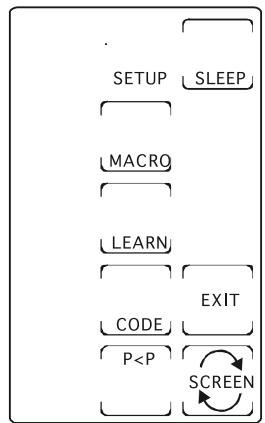
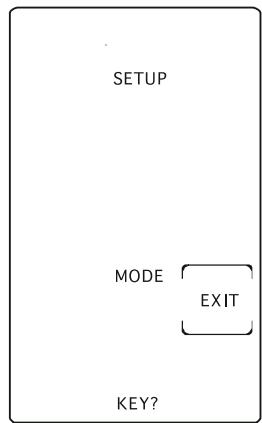
Setup Screen - Main
Setup Screen - Mode
- Make sure your appliance is switched on. If not switch it on manually.
- Press and hold Setup key until the LED remains on (occurring after approximately 2-3 seconds) and display shows Main Setup Screen. Release Setup key.
-
Press and release the Touchscreen "CODE" Key.
-
Display will show the Mode Setup Screen. Press and release desired Mode key (TV, VCR, SAT, etc.) on the rubber keypad.
-
Display will show the Code Setup Screen. Press and release the Touchscreen "SEARCH" Key.
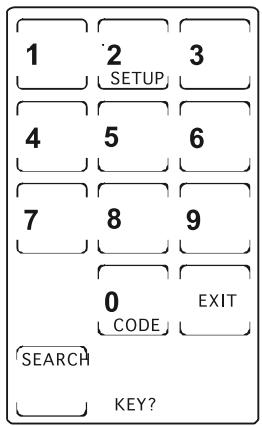
Setup Screen - Code
- Display will show the Search Setup Screen. Press the Touchscreen "UP" key (or Power or Play) repeatedly until the Device to be controlled changes channel. Alternatively, you can use the Channel Up key. Press and release the Touchscreen "OK" (or Mute) key to install the Code. Display will return to the Main Setup Screen. If you accidentally overshoot the Code required, press the Touchscreen "DOWN" or Channel Down to backtrack through the Library to return to the correct code. Pressing the Touchscreen "UP" key (or Power or Play) will change direction to forward again.
- Repeat this procedure for any other appliance you want to control (TV, VCR, DVD, SAT, CD, CBL, AUDIO and Marmitek X-10 Home Automation).
- The Code Search Method entry is now complete. Press and release the Touchscreen "EXIT" key to return to normal operation.
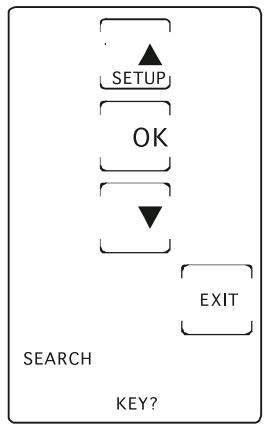
Setup Screen - Search
Notes:
a. When all codes have been searched the LED will "error" flash indicating end of search and Main Setup Screen will be displayed.
b. The above search procedure assumes that you want to store VCR codes under the VCR key, Cable codes under CBL, etc. If you want, for example, to store a VCR code under CBL, etc., then the Mode key must be "primed" for the new appliance. First follow the "Programming using 3 Digit Code Table" procedure and then enter any VCR code prior to carrying out the above search steps.
c. If the Device does not have a Channel Up key, use the Play (VCR & CD/Audio only) or the Power keys instead.
d. Code Search will start from the currently stored three digit number under that Mode e.g. if the Mode has 100 codes and the currently stored code is 050 then the Code Search will start from 051 continuing to 100 before looping back to 000 and finishing at 050. This simplifies the search process by allowing you to bypass codes already tried.
9 Identifying codes found using the search procedures
- Press and hold Setup key until the LED remains on (occurring after approximately 2-3 seconds) and display will show the Main Setup Screen.
- Release Setup key.
- Press and release the Touchscreen "CODE" Key.

Setup Screen - Main
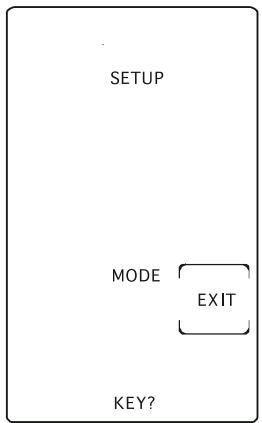
Setup Screen - Mode
Setup Screen - Code ID
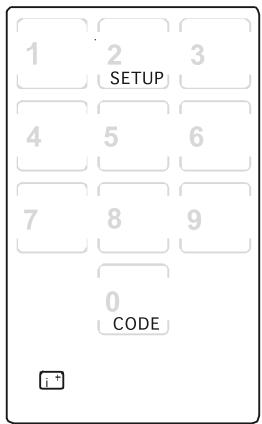
Blink Back Digits
- Display will show the Mode Setup Screen. Press and release desired Mode key (TV, VCR, SAT, etc.) on the rubber keypad.
-
Display will show the Code Setup Screen. Press and release Setup key.
-
Display will show the Code Identification Screen (Initially blank except for "SETUP", "INFO" and "CODE" labels). The display will now show
the code using the Touchscreen digits. The 3 digits will be shown in sequence for 1 second each followed by a 0.5 second gap where no digits are shown. This sequence will only be carried out once then display will return to the Main Setup Screen. - Code Identification is now complete. Press and release the Touchscreen "EXIT" key to return to normal operation.
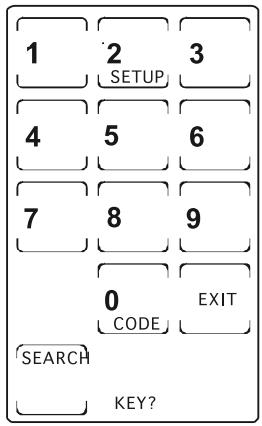
Setup Screen - Code
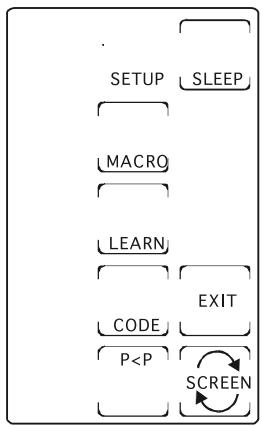
Setup Screen - Main
10 Programming a Macro
The Home Theatre Macro function allows you to store several sequences of IR Commands (key presses). One press of the Macro key will execute the whole sequence. A total number of 20 keystrokes can be stored under each of the 9 available Macro keys.
- Press and hold Setup key until the LED remains on (occurring after approximately 2-3 seconds) and the display shows the Main Setup Screen.
- Release Setup key.
- Press and release the Touchscreen "MACRO" Key.
Setup Screen - Macro1
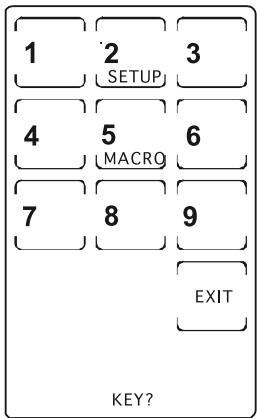
Setup Screen - Macro2
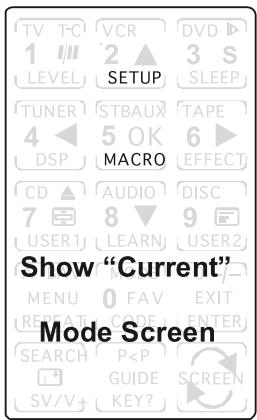
- The Macro Setup Digit Screen will be shown. Press and release the digit key the Macro is to be stored under.
- The Macro Mode Setup Screen will be shown. The first key stored in a Macro must be a Mode key. Press and release desired Mode key (TV, VCR, SAT, etc.) on the rubber keypad.
Setup Screen - Mode
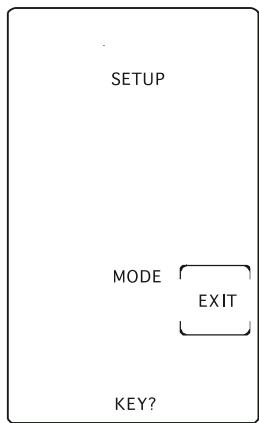
- Display will show the Macro Key? Key Setup Screen. This screen comprises the current screen labels for that Mode plus the SETUP and MACRO Touchscreen labels will be shown. Press and release the remote keys (maximum of 20) that are required to be stored in the exact order that they should be transmitted. Use the Touchscreen "SCREEN" key to toggle the screen keys displayed and use the Mode keys for any Mode changes. The Setup key can be used to add delays - see separate notes. These are all counted as keystrokes.
-
To store the Macro, press and release the rubber "MACRO" Key. Display will return to the Main Setup Screen. Note - if you program the maximum of 20 keys, then the Macro will be automatically stored on the 20th keypress.
-
Macro key programming now completed. Press and release the Touchscreen "EXIT" key to return to normal operation.
Macro Notes:
- "SHIFTED" key commands are not allowed to be included in Macros.
- There is an automatic delay of 0.5 second between each IR transmission in the sequence.
-
It may be necessary to have "delays" included in the Macro sequence (e.g. to allow your TV warm-up time). Pressing the Setup key can include delays. The display will show the Macro Delay Setup Screen for digit selection. Press the digit for the required delay (in seconds) e.g. to enter a delay of 4 seconds, press and release Setup followed by 4. The maximum delay is 9 seconds. An "EXIT" key entry will give the default 0.5second delay. A delay is counted as one keystroke.
-
Pressing the Setup key twice allows for the User to abort and exit the Macro routine. First Setup keypress takes you to the "Delay" screen and the second Setup press results in abort and exit.
- It is not possible to include a Macro within a Macro.
To Delete a Macro:
- Press and hold the Setup key until the LED remains on (occurring after approximately 2-3 seconds) and the display shows Main Setup Screen.
- Release Setup key.
- Press and hold either the Touchscreen or rubber MACRO key. The LED will blink off to indicate the keypress acceptance and the Macro Delete Setup Screen will be shown. Only set Macros will be shown.
- Press and release the digit key for the Macro that is to be deleted. The LED will blink off and the Macro is deleted. Use the EXIT key to abort if required.
- Macro deletion is now complete.
11 Channel toggle key
The Channel-Toggle "P<P" key is a special form of Macro key. The feature allows you to program in two specific channels and switch between them with a single key-press. For example, you may want to switch between TV channels 123 and 456. Programming the "P<P" key will allow you to do this.
Two sets of data are to be entered. Each set of data can be up to 4 key-presses and must be a minimum of 2. The first keypress in each set must be a Mode key. The following keystrokes can be any other key (except for Mode, Macro, Setup and Screen) although in practice, these keys will usually be digit keys. Note no "shifted" commands can be part of a "P<P" sequence and a SCREEN keypress counts as a keystroke.
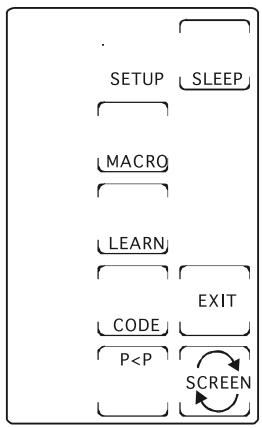
Setup Screen - Main
To Program the Channel-Toggle Feature:
- Press and hold Setup key until the LED remains on (occurring after approximately 2-3 seconds) and display shows the Main Setup Screen.
- Release Setup key.
- Press and release the Touchscreen "P<P" Key.
Setup Screen - P<P1
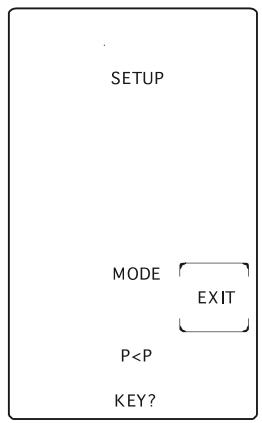
- Display will show the "P<P1" Mode Setup Screen. Press and release desired Mode key (TV, VCR, SAT, etc.) on the rubber keypad.
- Display will show the "P<P2" Setup Screen. This screen comprises the current screen labels for the Mode plus the SETUP and "P<P" Touchscreen labels will be shown. You can now press up to 3 keys (a minimum of 1 key must be pressed). Use the "SCREEN" Key to toggle the screen keys displayed – this counts as a keypress. When 3 keys are entered you will automatically continue to Step 6. If less than
3 keys are required then press the Mode key and go directly to Step 7.
Setup Screen - P<P2
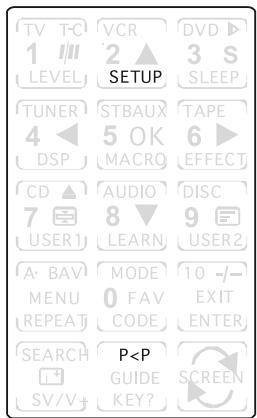
- To enter the second set of data, press and release desired Mode key (TV, VCR, SAT, etc.) on the rubber keypad. Display will again show the "P<P2" Setup Screen.
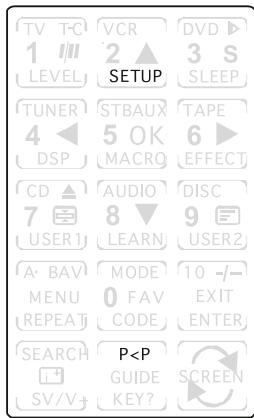
- You can now press up to 3 keys (a minimum of 1 key must be pressed) for the second set of data. Use the "SCREEN" Key to toggle the screen keys displayed – this counts as a keypress. When 3 keys are entered you will automatically continue to Step 8. If less than 3 keys are required then press the Setup key and go directly to Step 8.
- Display will return to the Main Setup Screen. Channel Toggle "P<P" setting routine now complete. Press and release the Touchscreen "EXIT" key to return to normal operation.
- To activate the Channel-Toggle function, Press and release the Touchscreen "P<P" key repeatedly to alternate between the two sets of data you entered.
Setup Screen - P<P2
12 Setting Key Labels:
You can select which keys are shown or "hidden" in the display for each of the Device Modes. You can select any Touchscreen key for change except for the SCREEN, SLEEP, SEARCH and P<P keys.
- Press and hold Setup key until the LED remains on (occurring after approximately 2-3 seconds) and display shows the Main Setup Screen.
- Release Setup key.
- Press and release the Touchscreen "SCREEN" Key.
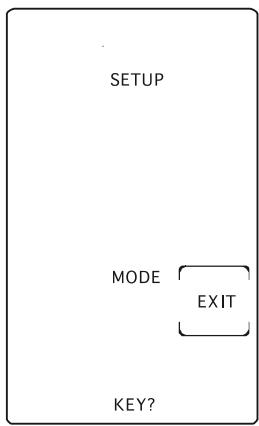
Setup Screen - Mode
- Display will show the Mode Setup Screen. Press and release desired Mode key (TV, VCR, SAT, etc.) on the rubber keypad.
- Display will show the SCREEN Setup Screen. This screen comprises the current screen labels for the Mode plus the SETUP and SCREEN Touchscreen labels will be shown. You can now press any of the Touchscreen panel keys within the current Mode to select the individual key label display required. Use the "SCREEN" Key to toggle the screen keys displayed. To Exit,
pressing the Setup or Mute keys will save changed key label selections and display returns to the Main Setup Screen. If you want to edit another Mode's key labels then press the other Mode key - the Mode you were in is saved and display changes to the new Mode for any Label changes.
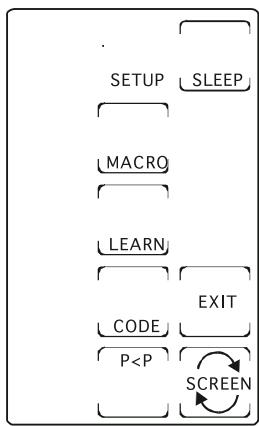
Setup Screen - Main
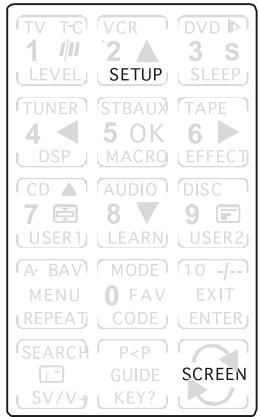
Setup Screen - SCREEN
- Key Label change routine now complete. Press and release the Touchscreen "EXIT" key to return to normal operation.
Notes:
- To reset the displayed Modes key labels back to their Default settings, press and hold the current Mode key for approximately 3 seconds at Step 4 above until the Main Setup Screen is shown.
- These labels are not displayed as part of the Key Label change routine - "SLEEP", "SETUP", "MACRO", "LEARN", "P<P", "KEY?" and "SEARCH".
13 Code Learning:
It is possible to learn IR commands (up to 40 keys per Mode) from your original remote.
Tips On Learning:
- Always use of fresh batteries for the ET35 and original remote
- Carry out a Master Clear before attempting any Learning.
- Place the original remote to the base of the Touchscreen so the IR LED on the original remote is in line with the Touchscreen opto-diode input (See graphic below).
- Keep the distance between the two remotes to about 5cm
- Experiment by Learning 2 or 3 keys initially and then carry out a Master Clear before completely Learning your original remote's keyboard.
- Do not attempt to Learn directly under an incandescent or low-energy light.
- When Learning a key, do not release the key being Learned until the display returns and the LED remains on. This can take 2-3 seconds.
- No functions may be stored under the Touchscreen SCREEN, LIGHT, SLEEP, P<P, SEARCH keys or under rubber keys Setup, Macro, TV, VCR, DVD, CBL, SAT, CD, Marmitek X-10 Home Automation or Audio keys. It is not possible to learn under "shifted keys".
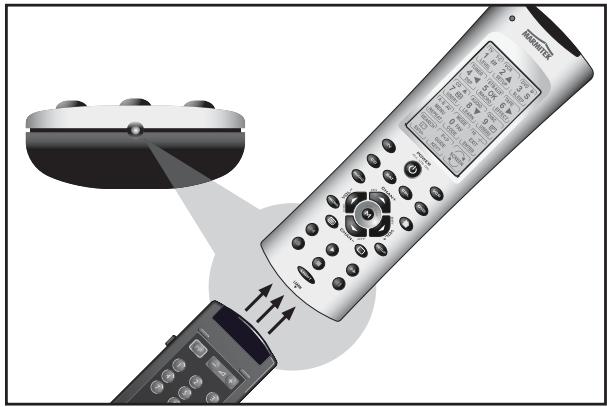
To Learn Commands:
- Press and hold Setup key until the LED remains on (occurring after approximately 2-3 seconds) and the display shows the Main Setup Screen.
- Release Setup key.
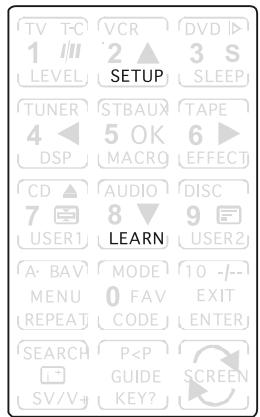
- Press and release Touchscreen "LEARN" Key.
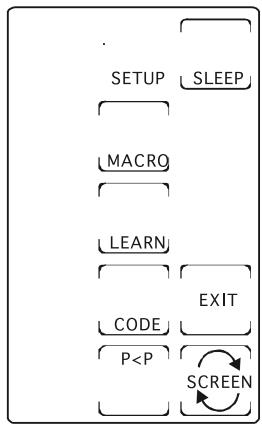
Setup Screen - Main
Setup Screen - Mode
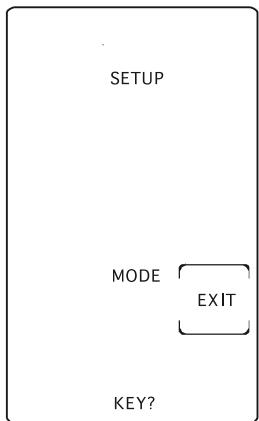
- Display will show the Mode Setup Screen. Press and release desired Mode key (TV, VCR, SAT, etc.) on the rubber keypad.
-
Display will show the Learn Setup Screen. This screen comprises the current labels for the Mode along with the SETUP and LEARN Touchscreen labels. Press and release the ET35 remote key (rubber or Touchscreen) to be taught with the original remote key code. Use the Touchscreen "SCREEN" Key to toggle the screen keys displayed.
-
Press and hold the original remote key until the LED blinks off once and the display shows the Learn Next Setup Screen (this process can take up to 2 or 3 seconds to complete). If there is a problem with learning the LED will flash three times but still remain in the Learn routine with the Learn Next Setup Screen displayed. To learn another key, press and release the Touchscreen "LEARN" Key and repeat from Step "5". To save and exit from the Learn routine, press and release the Touchscreen "OK" Key. Return to the Main Setup Screen.
- Learning now complete. Press and release the Touchscreen "EXIT" key to return to normal operation.
To Clear all stored Learned Commands under a Mode:
Setup Screen - Main
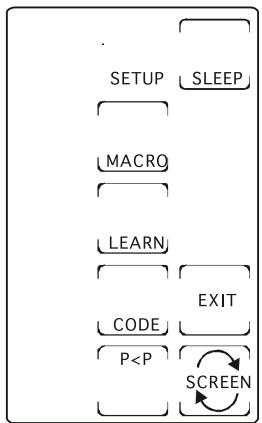
- Press and hold Setup key until the LED remains on (occurring after approximately 2-3 seconds) and display shows the Main Setup Screen.
- Release Setup key.
- Press and release the Touchscreen "LEARN" Key.
Setup Screen - Learn1
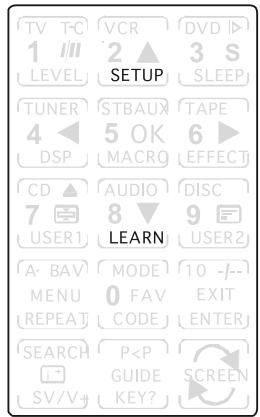
Setup Screen - Learn3
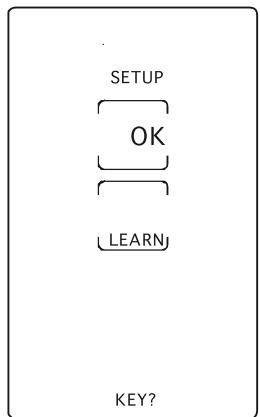
- Display will show the Mode Setup Screen. Press and release desired Mode key (TV, VCR, SAT, etc.) on the rubber keypad. The LED will blink off once to indicate the keypress acceptance.
Setup Screen - Learn1
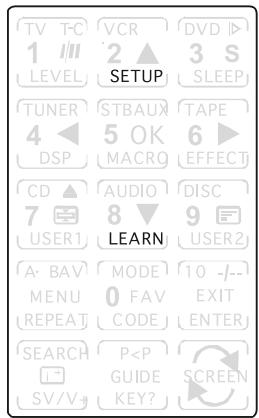
- Display will show the Learn Setup Screen. Press and hold the Setup Key until the Main Setup Screen is displayed. All Learned Command entries under that Mode are now cleared.
Setup Screen - Mode
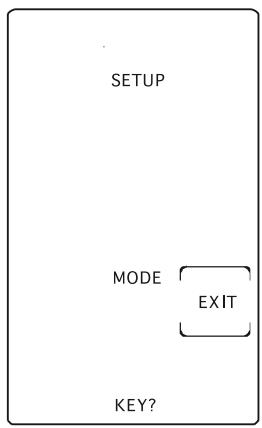
Master Clear - To Clear all stored Learned Commands (recommended on first time Learning)
- Carry Steps 1 and 2 same as above.
- Press and hold the Touchscreen "LEARN" Key until the Main Setup Screen is displayed (after approx. 5 seconds). All Learned Command entries are now cleared.
14 Marmitek X-10 Home Automation
The ET35 remote allows you to control all electric appliances you have in your house. In addition to transmitting infrared signals, which controls your TV, VCR, CD, SAT, CBL, Audio and DVD, your remote is equipped with a radio transmitter sending Marmitek X10 signals, which will enable you to control lamps and electric appliances from a distance.
Here are some examples that you can do with your ET35 remote using home automation mode:
- Switch on/off, dim lights while you watch TV.
- Switch on the lights at night to frighten intruders when you detect something suspicious.
- Switch on your electric blanket before the film ends to have it warm when you go to sleep.
For controlling your lamps or appliances, you will need additional home automation modules. The modules are simply plugged into AC outlets with no additional wiring required. Visit www.marmitek.com for more information.
To switch on/ off an appliance plugged into an home automation module: Press the key (2), then press the unit code of the home automation module on the Touchscreen display and then press CHAN+ / - (8).
To dim/bright a light plugged into a home automation module: press its unit code on the Touchscreen display and then press VOL+ / - (4).
To turn ON all the home automation Lamp modules: Press the Power key (3).
To turn Off all the home automation modules (Lamp and appliance): press the Mute key (7).
14.1. Changing the home automation House Code
The preset house code is A and in the majority of cases it is not necessary to change this setting except if there is interference from neighbouring Marmitek X10 systems. In that case:
- Press the Marmitek X-10 Home Automation key
- Press and hold SETUP until the LED lights continuously.
- Release the SETUP button.
- Press the SETUP button again.
- Use the digit keys on the Touchscreen display to enter the number equivalent to the chosen home code (1=A, 2=B, ... 16=P).
- Press ENTER followed by EXIT to confirm your command.
Note: The code you have chosen has to be the same as the one selected on the Transceiver module TM13 or the security console, with which you use your remote.
14.2. Programming the Home Automation IR/RF mode
Your ET35 remote control can control your electric appliances using infrared signals (via an infrared mini-controller IR7243) or RF signals (via a transceiver module TM13). The key is set to RF mode by factory setting.
To program the key to send an Infrared signal, proceed as follow
Setup Screen - Main
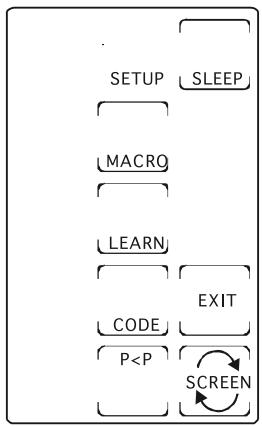
- Activate your ET35 remote by touching the screen
- Press and hold the Setup key until the LED remains on (occurring after approximately 2-3 seconds) and display shows the Main Setup Screen.
- Release Setup key.
-
Press and release the Touchscreen "CODE" Key.
-
Display will show the Mode Setup Screen. Press and release Marmitek X-10 Home Automation key .
- Display will show the Code Setup Screen. Enter 821.
- Press and release the Touchscreen "EXIT" key to return to normal operation.
To program the key to send radio signals, proceed as follow
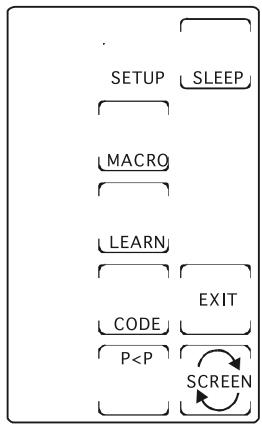
Setup Screen - Main
- Activate your ET35 remote by touching the screen
- Press and hold the Setup key until the LED remains on KEY? (occurring after approximately 2-3 seconds) and display shows the Main Setup Screen.
- Release Setup key.
- Press and release the Touchscreen "CODE" Key.
-
Display will show the Mode Setup Screen. Press and release Marmitek X-10 Home Automation key .
-
Display will show the Code Setup Screen. Enter 820.
- Press and release the Touchscreen "EXIT" key to return to normal operation.
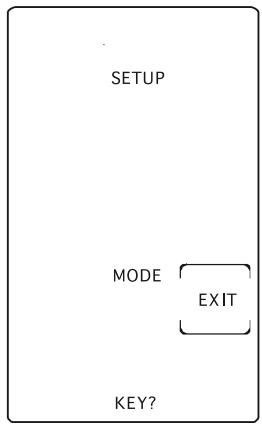
Setup Screen - Mode
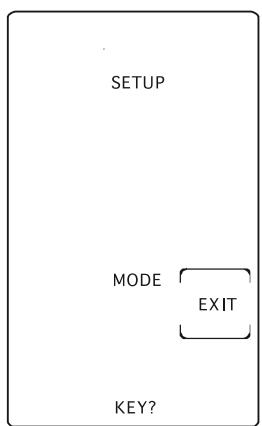
Setup Screen - Mode
15 Extra functions:
1. Keypress Acknowledge Beep Feature:
It is possible to get an audible feedback of key-presses. When any key is pressed, the remote will generate a beep acknowledging the keypress. The Keypress Acknowledge feature can be toggled on or off as follows:
- Press and hold Setup key until the LED remains on (occurring after approximately 2-3 seconds) and the Main Setup Screen is shown.
- Release Setup key.
- To disable the beep, press and hold the rubber Stop key until the LED blinks. To enable the Beep, press and hold the rubber Play key until the LED blinks.
- Beep Feature now toggled On or Off and the Main Setup Screen is shown.
2. Touchscreen Panel On-Time:
The Touchscreen Panel display will remain on for a User selectable time period (10, 20, 30, ..., 90 seconds). Power-on default is 10 seconds from last keypress. To set the Touchscreen/Light On time:
- Press the TV key
- Press and hold Setup key until the LED remains on (occurring after approximately 2-3 seconds) and the Main Setup Screen is shown.
- Release Setup key.
- Press and release the Setup key. The LED will blink to acknowledge the keypress and the "9" Digit Setup Screen will be shown.
- Press and release a digit key 1-9 (1=10 seconds, 2=20seconds, etc) followed by ENTER. The LED will blink to acknowledge the keystress and the display will return to the Main Setup Screen.
- Touchscreen On time setting now complete.
3. User Master Reset:
To reset the remote defaults back to factory settings.
- Press and hold Setup key until the LED remains on and display shows the Main Setup Screen.
- Release Setup key.
- Press and hold the Setup key for approximately 5 seconds until the LED blinks on then turns off.
- Default Reset now complete and remote will be in normal TV Mode.
4. Channel Scan/Search Key (Touchscreen):
The Channel Scan/Search function is only available in TV, DVD, CBL/SAT and CD/Audio Modes. Pressing the Touchscreen "SEARCH" Key allows the User to sequentially scan up available program channels. This key cannot be learned.
When pressed, a Channel Up command for the Current Mode code is sent once every 3 seconds. When any other key is pressed the scan will stop. Scanning will automatically time-out after 2 minutes if no key is pressed.
5. VideoPlus/Showview Key SV/V+ (Touchscreen):
This key allows the User to directly access their VCR VideoPlus or Showview function if the feature is available on their VCR. If VideoPlus or Showview feature is not available then this key will allow direct access to any VCR Timer or Menu operation (if present) as an alternative. The VideoPlus/Showview function is only available in VCR programmed Modes. This key can be learned if required.
6. All Power Off Feature:
If the Power key is pressed consecutively twice within a 1second period, and the second Power key-press is held for greater than 2 seconds, then the remote will send the Power command for all Modes.
7. TV Volume/Mute Punch-Through:
The TV Volume/Mute punch-through feature allows the User to control the Volume and Mute function of their Television in any Mode programmed to be a VCR (inc. DVD), Cable or SAT library device without the need to change to TV Mode. This feature is also available if Marmitek X-10 Home Automation key is programmed to control a second VCR, Cable or SAT device.
8. CBL/SAT Volume Control:
Some Cable and Satellite have their own volume control. By default in CBL/SAT modes, the ET35 Volume and Mute key control the TV volume. To change the volume and mute control either to TV or CBL/SAT for CBL/SAT mode, proceed as follows:
- Press and release the TV mode key (TV must be in TV mode for this procedure).
- Press and hold setup key until the LED remains on and the Main Setup Screen is shown.
- Release Setup key.
- Press and hold the Mute key for approximately 5 seconds. The LED will blink, and stay off for the 5second period then blink once more to indicate volume toggle acceptance. The display will return to the main Setup Screen.
- Remote Volume default is now set.
16 Controlling your equipment from any place in your home
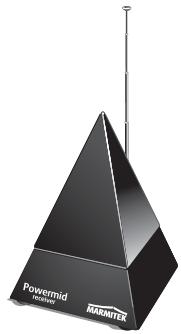
Your remote is prepared to work together with the Marmitek Powermid Receiver. This receiver (art. no. 08903) allows you to control audio and video equipment from another room or even outside the house, using your
Marmitek Remote. Just plug the receiver into a wall socket and place it in line of sight with your equipment. Ask your dealer for more information.
17 Problems and troubleshooting
The remote doesn't work or looses codes entered
- Confirm with your original remote that the equipment works correctly
- Make sure that you have pressed the corresponding mode key of the equipment or device that you want to control.
- If the listed code does not work, try the AUTOSEARCH method or enter the next code of that brand.
To find the corresponding code for your equipment use the automatic search. - Check that the batteries have the correct polarity position.
- The programming of the remote requires 4 AAA batteries (new). If the remote looses codes within a few days/weeks the problem can be solved by using 4 new batteries from the same brand.
If the LED is lit permanently, in general it will be necessary to replace the batteries.
Important:
The ET35 must be used only in the way described in this instruction manual and may not be used for a purpose not intended.
Inhalt
Setup Screen - Main
Setup Screen - Learn1
2. Touchscreen Panel On-Time:
5. VideoPlus/Showview Knopf SV/V+ (Touchscreen):
15: REC (record)
5. Touche VideoPlus/Showview SV/V+ (Touchscreen):
A-B: (AUDIO) speaker A of B.
5 VideoPlus/Showview-knop SV/V+ (Touchscreen):
DECLARATION OF CONFORMITY
Hereby, Marmitek BV, declares that this EASYTOUCH 35 is in compliance with the essential requirements and other relevant provisions of Directive 1999/5/EC.
- General Safety Note
- Battery change:
- Disposal of batteries:
- Introduction
- Installing the batteries
- Description of the ET35 "rubber" keys
- 18: Backlighting:
- Error Indication
- Description of the ET35 "Touchescreen" keys
- The Touchscreen Display
- Master Screen
- Typical Screen1
- Typical Screen2
- Other Useful Touchscreen Keys:
- Programming the ET35
- Programming using 3 Digit Code Tables for the TV, VCR, CD, SAT, CBL, DVD, AUDIO and Marmitek X-10 Home Automation keys
- Setup Screen - Code
- Programming using Brand Search Method
- Setup Screen - Main
- Setup Screen - Mode
- Notes:
- Programming using Manual Code Search
- Identifying codes found using the search procedures
- Programming a Macro
- Setup Screen - Macro1
- Setup Screen - Macro2
- Macro Notes:
- Channel toggle key
- Setup Screen - P<P1
- Setup Screen - P<P2
- Setting Key Labels:
- Code Learning:
- Tips On Learning:
- To Learn Commands:
- To Clear all stored Learned Commands under a Mode:
- Setup Screen - Learn1
- Setup Screen - Learn3
- Master Clear - To Clear all stored Learned Commands (recommended on first time Learning)
- Marmitek X-10 Home Automation
- Changing the home automation House Code
- Programming the Home Automation IR/RF mode
- To program the key to send an Infrared signal, proceed as follow
- To program the key to send radio signals, proceed as follow
- Extra functions:
- Keypress Acknowledge Beep Feature:
- Touchscreen Panel On-Time:
- User Master Reset:
- Channel Scan/Search Key (Touchscreen):
- VideoPlus/Showview Key SV/V+ (Touchscreen):
- All Power Off Feature:
- TV Volume/Mute Punch-Through:
- CBL/SAT Volume Control:
- Controlling your equipment from any place in your home
- Problems and troubleshooting
- Important:
- Inhalt
- VideoPlus/Showview Knopf SV/V+ (Touchscreen):
- Touche VideoPlus/Showview SV/V+ (Touchscreen):
- VideoPlus/Showview-knop SV/V+ (Touchscreen):
- DECLARATION OF CONFORMITY
Brand : X10
Model : EASYTOUCH 35
Category : Remote control