
RSX-1058 - AV receiver ROTEL - Free user manual and instructions
Find the device manual for free RSX-1058 ROTEL in PDF.


| Product Type | Audio/Video Receiver |
| Brand | ROTEL |
| Model | RSX-1058 |
| Output Power | 75 W per channel (8 Ω, 20 Hz - 20 kHz, all channels); 100 W per channel (1 kHz, 8 Ω, two channels) |
| Dimensions (W x H x D) | 432 x 162 x 442 mm |
| Weight | 17.4 kg |
| Power Supply | 120 V~ 60 Hz (USA) or 230 V~ 50 Hz (Europe) depending on version |
| Power Consumption | 450 W (max), 100 W (average), 4.7 W (standby) |
| Decodable Audio Formats | Dolby Digital, Dolby Digital EX, DTS, DTS-ES, DTS 96/24, LPCM (up to 192 kHz), HDCD, MP3 |
| Video Inputs | 4x HDMI (Ver. 1.1), 3x Component, 3x S-Video, 3x Composite |
| Video Outputs | 1x HDMI, 1x Component, 1x S-Video, 1x Composite |
| Tuner | AM/FM with RDS, 30 presets, direct access and auto search |
| Number of Amplifier Channels | 5 |
| Preamp Outputs | 7.1 channels: front (L/R), center, surround (L/R), back center (CB1/CB2), subwoofer (SUB1/SUB2) |
| Zone Functions | Zones 2, 3 and 4 with independent source and volume selection |
| Remote Control | RR-1060 universal programmable with LCD display and backlight |
| Display | Fluorescent display (FL) and OSD menu on TV |
| Safety | Double electrical insulation, overvoltage protection, antenna grounding per NEC Article 810 |
| Maintenance and Cleaning | Clean with a dry cloth or vacuum; do not use liquid |
| Spare Parts and Repairability | No user-serviceable parts; refer all servicing to qualified personnel |
| Additional Connections | 6x 12V Trigger outputs, IR inputs (EXT and Zones), IR outputs, RJ-45 port for update/control |
| Standards | FCC Class B, NMB-003, RoHS, WEEE |
| Intended Use | Domestic installation; do not expose to humidity, ensure ventilation of at least 10 cm around |
Frequently Asked Questions - RSX-1058 ROTEL
User questions about RSX-1058 ROTEL
0 question about this device. Answer the ones you know or ask your own.
Ask a new question about this device
Download the instructions for your AV receiver in PDF format for free! Find your manual RSX-1058 - ROTEL and take your electronic device back in hand. On this page are published all the documents necessary for the use of your device. RSX-1058 by ROTEL.
USER MANUAL RSX-1058 ROTEL
Surround Sound Receiver
Ampli-tuner Surround


CAUTION: TO REDUCE THE RISK OF ELECTRIC SHOCK, DO NOT REMOVE COVER. NO USER-SERVICEABLE PARTS INSIDE. REFER SERVICING TO QUALIFIED SERVICE PERSONNEL.

This symbol is to alert the user to the presence of uninsulated dangerous voltages inside the product's enclosure that may constitute a risk of electric shock.

This symbol is to alert the user to important operating and maintenance (service) instructions in this manual and literature accompanying the product.
APPLICABLE FOR USA, CANADA OR WHERE APPROVED FOR THE USAGE
CAUTION: TO PREVENT ELECTRIC SHOCK, MATCH WIDE BLADE OF PLUG TO WIDE SLOT. INSERT FULLY.
ATTENTION: POUR EVITER LES CHOCSE ELECTRIQUES, INTRODUIRE LA LAME LA PLUS LARGE DE LA FICHE DANS LA BORNE CORRESPONDANTE DE LA PRESE ET POUSSER JUSQU AU FOND.
This Class B digital apparatus complies with Canadian ICES-003.
Rotel products are designed to comply with international directives on the Restriction of Hazardous Substances (RoHS) in electrical and electronic equipment and the disposal of Waste Electrical and Electronic Equipment (WEEE). The crossed wheelie bin symbol indicates compliance and that the products must be appropriately recycled or processed in accordance with these directives.

This symbol means that this unit is double insulated. An earth or ground connection is not required.
Notice
The COMPUTER I/O connection should be handled by authorized persons only.
FCC Information
This equipment has been tested and found to comply with the limits for a Class B digital device, pursuant to Part 15 of the FCC Rules. These limits are designed to provide reasonable protection against harmful interference in a residential installation. This equipment generates, uses and can radiate radio frequency energy and, if not installed and used in accordance with the instruction, may cause harmful interference to radio communications.
However, there is no guarantee that interference will not occur in a particular installation. If this equipment does cause harmful interference to radio or television reception, which can be determined by turning the equipment off and on, the user is encouraged to try to correct the interference by one or more of the following measures:
Reorient or relocate the receiving antenna.(TV, radio, etc.)
- Increase the separation between the equipment and receiver
- Connect the equipment to an outlet on circuit different from that to which the receiver is connected.
- Consult the dealer or an experienced radio/TV technician for additional help.
Caution
This device complies with part 15 of the FCC Rules operation is subject to the following to conditions: (1) This device may not cause harmful interference, and (2) this device must accept any interference received, including interference that may cause undesired operation.
NOTE TO CATV SYSTEM INSTALLER: Call the CATV system or antenna installer's attention to Article 820-40 of the NEC. This provides guidelines for proper grounding and, in particular, specifies that the cable ground shall be connected to the grounding system of the building, as close to the point of cable entry as practical. See installation diagram.
NOTE: This equipment has been tested and found to comply with the limits for a Class B digital device, pursuant to Part 15 of the FCC Rules. These limits are designed to provide reasonable protection against interference in a residential installation. This equipment generates and can radiate radio frequency energy and, if not installed and used in accordance with the instructions, may cause interference to radio or TV communications. There is no guarantee that interference will not occur in a particular installation. If this equipment does cause interference to radio or television reception, which can be determined by turning the equipment off and on, try to correct the interference by one or more of the following measures:
Reorient or relocate the receiving antenna.
- Increase the separation between the unit and the television tuner.
- Connect the unit to an AC power outlet on a different electrical circuit.
- Consult your authorized Rotel retailer for assistance.
Important Safety Instructions
WARNING: There are no user serviceable parts inside. Refer all servicing to qualified service personnel.
WARNING: To reduce the risk of fire or electric shock, do not expose the unit to moisture or water. Do not expose the unit to dripping or splashing. Do not place objects filled with liquids, such as vases, on the unit. Do not allow foreign objects to get into the enclosure. If the unit is exposed to moisture, or a foreign object gets into the enclosure, immediately disconnect the power cord from the wall. Take the unit to a qualified service person for inspection and necessary repairs.
Read all the instructions before connecting or operating the component.
Keep this manual so you can refer to these safety instructions.
Heed all warnings and safety information in these instructions and on the product itself. Follow all operating instructions.
Clean the enclosure only with a dry cloth or a vacuum cleaner.
Do not use this unit near water.
You must allow a minimum 10 cm or 4 inches of unobstructed clearance around the unit. Do not place the unit on a bed, sofa, rug, or similar surface that could block the ventilation openings. If the unit is placed in a bookcase or cabinet, there must be ventilation of the cabinet to allow proper cooling.
Keep the component away from radiators, heat registers, stoves, or any other appliance that produces heat.
The unit must be connected to a power supply only of the type and voltage specified on the rear panel. (USA: 120 V/60Hz, EC: 230V/50Hz)
Connect the component to the power outlet only with the supplied power supply cable or an exact equivalent. Do not modify the supplied cable. A polarized plug has two blades, with one wider than the other. A grounding plug has two blades plus a third grounding prong. These are provided for your safety. Do not defeat grounding and/or polarization safety provisions. If the supplied plug does not fit your outlet, please consult an electrician for replacement of the obsolete outlet. Do not use extension cords.
The main plug of the power cordset is a disconnect device of the apparatus. In order to completely disconnect the apparatus from the supply mains, the main plug of the power cordset should be unplugged from the mains (AC) outlet. The stand-by LED indicator will not be lit up to show the power cord is unplugged.
Do not route the power cord where it will be crushed, pinched, bent, exposed to heat, or damaged in any way. Pay particular attention to the power cord at the plug and where the cord exits the back of the unit.
The power cord should be unplugged from the wall outlet during a lightning storm or if the unit is to be left unused for a long period of time.
Use only accessories specified by the manufacturer.
Use only with a cart, stand, rack, bracket or shelf system recommended by Rotel. Use caution when moving the unit in a stand or rack to avoid injury from a tip-over.
Use Class 2 wiring for speaker connections to ensure proper installation and minimize the risk of electrical shock.
Immediately stop using the component and have it inspected and/or serviced by a qualified service agency if:
- The power supply cord or plug has been damaged.
- Objects have fallen or liquid has been spilled into the unit.
The unit has been exposed to rain. - The unit shows signs of improper operation
- The unit has been dropped or damaged in any way
WARNING: The master power switch is located on the rear panel. The unit must be located in the open area allowing unobstructed access to the main power switch.
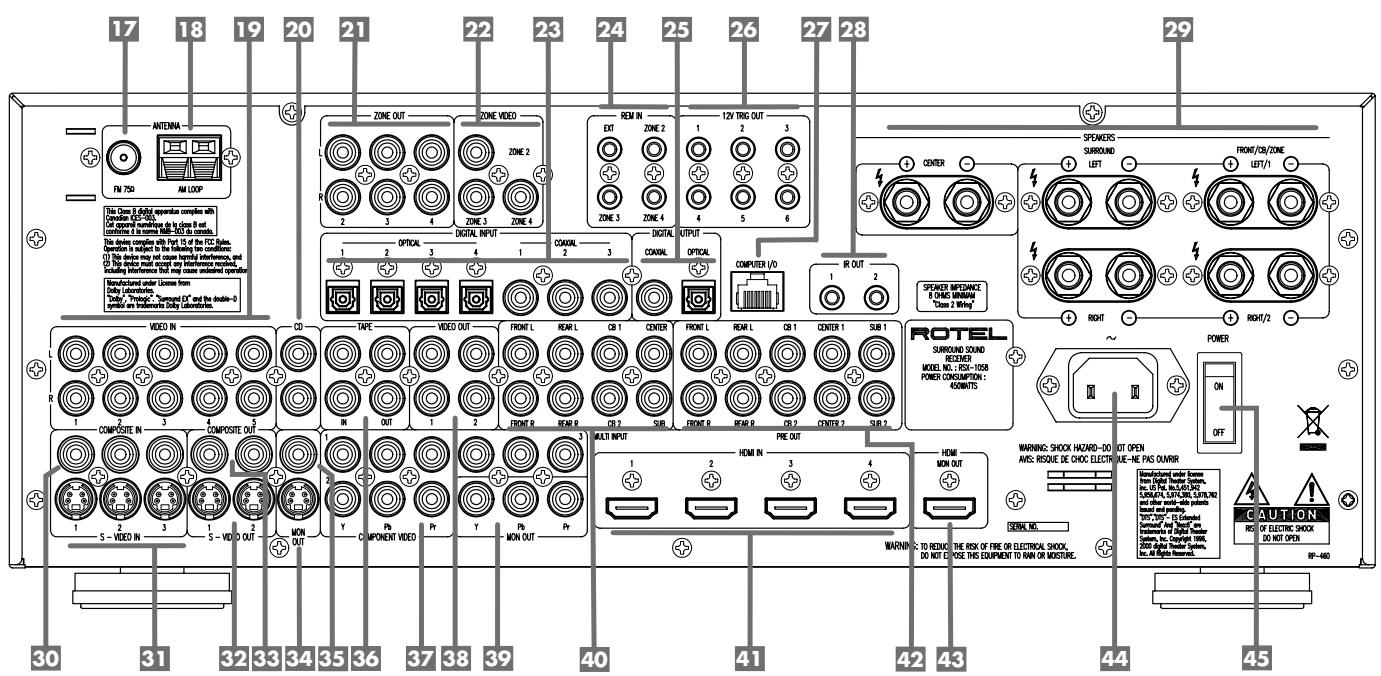
1: Controls and Connections Commandes et Branchements
2: RR-1060 Remote
Turn off the RSX-1058
and the entire system
before making connections!
3: Connecting the Speakers
5: TV Analog Connections
6: DVD Player Analog Connections
7: DVD-A or SACD Player Connections
8: Cable, Satellite, or HDTV Analog Connections
9: VCR Analog Connections
10: CD Player/CDR Recorder Connections
11: Audio Recorder Connections
12: AM and FM Antennae Connections
Boxed numbers refer to RSX-1058 illustration. Boxed letters refer to RR-1060 illustration.
FCC Information 3
Caution 3
Important Safety Instructions. 3
1: Controls and Connections 4
2:RR-1060 Remote. 5
3: Connecting the Speakers 6
4: Digital Video Connections 7
5: TV Analog Connections 8
6: DVD Player Analog Connections. 8
7: DVD-A or SACD Player Connections. 9
8: Cable, Satellite, or HDTV Analog Connections...9
9: VCR Analog Connections 10
10: CD Player/CDR Recorder Connections 10
11: Audio Recorder Connections 11
12:AM and FM Antennae Connections 11
13: On-Screen Menus 12
About Rotel. 15
Getting Started. 15
Key Features. 15
Unpacking 16
Placement 16
CONNECTIONS 16
Analog Audio Inputs & Outputs 16
CD Inputs 16
TAPE Inputs 36 16
TAPE Outputs 36 16
VIDEO 1-5 Audio Inputs 19 16
VIDEO 1-2 Audio Outputs 38 17
MULTI Inputs 40
Speaker Outputs 29 17
Preamp Outputs 17
ZONE 2-4 Audio Outputs 21. 17
Video Inputs & Outputs 17
VIDEO 1-3 Composite Video Inputs 30 18
VIDEO 1-2 Composite Video Outputs 33 18
VIDEO 1-3 S-Video Inputs 31 18
VIDEO 1-2 S-Video Outputs 32 18
VIDEO 1-3 Component Video Inputs 37 18
VIDEO 1-4 HDMI Inputs 41 18
TV Monitor Outputs 34 35 39 43 18
ZONE OUT Video Outputs 19
Digital Audio Input & Outputs 19
Digital Inputs 23 19
Digital Outputs 25 19
Other Connections 19
AC Input 44 19
Master Power Switch 45 19
12V TRIGGER Connections 26 20
REM IN Jacks 24 20
IR OUT Jacks 23 20
Computer 1/0 27 20
Making Connections 20
CD Player 20 23 20
DVD Player 19 23 30 31 37 41. 20
Cable, Satellite, HDTV Tuner 192330313741 21
Audio Recorder 23 25 36 21
VCR or Digital Video Recorder 19232530313233373841.21
DVD-A or SACD Player 40 21
TV Monitor 34 35 39 43 22
Speakers 29 22
Connecting a Subwoofer 42 22
Amplifiers 42 23
AM Antenna 18 23
FM Antenna 23
Front Panel Overview 23
Front-panel Display 5 24
Remote Sensor 2 24
Remote Control Overview 24
Using the RR-1060
AUDIO Button A 24
Overview of Buttons and Controls. 24
STANDBY Button 1
POWER Button N 24
ON/OFF Buttons 24
VOLUME Knob 11
VOLUME Buttons 24
MUTE Buttons 14 R 24
LIGHT Button 24
DEVICE/INPUT Buttons 6 13 A 24
D-SLT Button 24
SEL Button 16 25
REC Button 25
ZONE Buttons 15 U 25
UP/DOWN Buttons T 25
+/- Buttons 25
Speaker Selection Buttons 25
EQ Button 25
TONE Button 25
Surround Mode Buttons 12 w 25
SUR+Button 25
DYN Button 25
MENU/OSD Button S 25
ENTER Button T 25
BAND Buttons 4 I 25
TUNING Buttons 3 P 25
MEM Buttons TO B 25
NUMERIC Buttons 7 B 25
DIRECT Button 8 FRQ DIRECT Button D 25
MONO Button 9 FM MONO Button H 25
TUNE Button F
PRESET Button G
P-TUN Button 25
SCAN Button 25
RDS/RBDS Buttons AA 26
Basic Operations. 26
Power and Standby On/Off 145 N O.....26
Volume Adjustments 11 q 26
Muting the Sound 14 R 26
Selecting Inputs 26
Input Buttons 6 13 A 26
Selecting a Source Input from the Front Panel
6 13 15 16 27
Selecting a Source from the Remote
A J U 27
Selecting the Same Input for all Outputs
15 16 J U 27
Selecting Digital Inputs 27
Overview of Surround Formats. 27
Dolby Surround
Dolby Pro Logic II 27
Dolby Digital 28
DTS 5.1
DTS 96/24 28
DTS Neo:6. 28
Dolby Digital Surround EX
DTS-ES6.1 and 7.1 Channel Surround.. 28
Dolby Pro Logic IIx
6.1 and 7.1 Channel Surround 29
Rotel XS
6.1 and 7.1 Channel Surround 29
DSP Music Modes 29
2Ch/5Ch/7Ch Stereo Formats 29
Other Digital Formats 29
Automatic Surround Modes 30
Manually Selecting Surround Modes.....30
Dolby Digital 5.1 discs
Dolby Digital Surround EX discs
12 TVW 30
Dolby Digital 2.0 discs 12 T V W 31
DTS 5.1 discs
DTS 96/24 discs
DTS-ES 6.1 discs T W W 31
Digital Stereo discs
(PCM, MP3, and HDCD) 12 T V W 31
Analog Stereo 12 T V W 32
Other Settings 32
Speaker Level E T 32
Group Delay E T 33
Dynamic Range L 33
Contour/Tone Settings T X 33
Cinema EQ K 33
Tuner Controls 33
BAND Buttons 4 I 34
TUNING Buttons 3 P 34
MEMORY Button TO B 34
NUMERIC Buttons:
Station Presets TO B 34
DIRECT Button 8
FRQ DIRECT Button 34
MONO Button 9
FM MONO Button H 35
TUNE Button F
PRESET Button G
P-TUN Button Z 35
SCAN Button M 35
RDS and RBDS Tuning 35
DISP Button 35
PTY Button AA 35
TP Button 36
TA Button AA 36
Zones 2-4 Operation.. 36
Zones 2-4 Power On/Off 36
Controlling Zones 2-4 from the Main Room
6 11 15 A Q T U 36
Controlling Zones 2-4 from the Remote Location
A O Q T 37
37
Menu Basics 37
Navigation Buttons S T 37
System Status. 37
Main Menu 38
Configuring Inputs 38
Input Setup 38
Multi Input Setup 39
Dolby Pro Logic IIx. 39
DTS Neo:6 40
Configuring Speakers and Audio 40
Understanding Speaker Configuration 40
Speaker Setup. 41
Advance Speaker Setup. 41
Subwoofer Setup. 42
Test Tone. 43
Delay Setup 43
Contour Setup 44
Miscellaneous Settings 44
Other Options. 44
Video/HDMI Setup 45
Zones 2-4 Setup 45
Default Setup. 45
MORE INFORMATION 46
Troubleshooting 46
Specifications 47
Audio. 47
Video 47
FM Tuner. 47
AM Tuner 47
General. 47
About Rotel
A family whose passionate interest in music led them to manufacture high fidelity components of uncompromising quality founded Rotel 45 years ago. Through the years that passion has remained undiminished and the family goal of providing exceptional value for audiophiles and music lovers regardless of their budget, is shared by all Rotel employees.
The engineers work as a close team, listening to, and fine tuning each new product until it reaches their exacting musical standards. They are free to choose components from around the world in order to make that product the best they can. You are likely to find capacitors from the United Kingdom and Germany, semi conductors from Japan or the United States, while toroidal power transformers are manufactured in Rotel's own factory.
Rotel's reputation for excellence has been earned through hundreds of good reviews and awards from the most respected reviewers in the industry, who listen to music every day. Their comments keep the company true to its goal - the pursuit of equipment that is musical, reliable and affordable.
All of us at Rotel, thank you for buying this product and hope it will bring you many years of enjoyment.
"DTS", "DTS-ES Extended Surround", "DTS ES® Matrix 6.1" and "DTS ES® Discrete 6.1", and "DTS Neo:6®" are trademarks of Digital Theater Systems, Inc.
Manufactured under license from Dolby Laboratories. "Dolby", "Pro Logic", and the double-D symbol are trademarks of Dolby Laboratories.
HDCD^® , HDCD, High Definition Compatible Digital and Pacific MicrosonicsTM are either registered trademarks or trademarks of Pacific Microsonics, Inc. in the United States and/or other countries. HDCD system manufactured under license from Pacific Microsonics, Inc. This product is covered by one or more of the following: In the USA: 5,479,168, 5,638,074, 5,640,161, 5,808,574, 5,838,274, 5,854,600, 5,864,311, 5,872,531, and in Australia: 669114. Other patents pending.
Getting Started
Thank you for purchasing the Rotel RSX-1058 Surround Sound Receiver. The RSX-1058 is four products in one:
- A digital audio/video processor for a wide range of formats including Dolby Surround®, Dolby Digital®, DTS® and HDCD® source material.
- A full-featured audio/video control center for analog and digital source components.
- A high-quality AM/FM tuner with RDS capability.
- A 5-channel power amplifier to drive two front speakers (or two center back speakers), a center channel speaker, and two rear surround speakers.
Key Features
- Rotel's Balanced Design Concept combines advanced circuit board layout, comprehensive parts evaluation, and extensive listening tests for superior sound and long term reliability.
- Dolby® Pro Logic IIx® decoding (for 5.1, 6.1, and 7.1 channel systems) with improved separation and frequency response for Dolby Surround® matrix encoded recordings. Can be optimized for Music or Cinema sources, Pro Logic® or Games.
Automatic Dolby Digital® decoding Dolby Digital® 2.0, Dolby Digital® 5.1, and Dolby Digital Surround EX® recordings.
Automatic decoding for DTS® 5.1 channel, DTS-ES® Matrix 6.1 channel, DTS-ES® Discrete 6.1 channel, and DTS 96/24 digital recordings. -
Rotel XS (eXtended Surround) automatically ensures proper decoding and optimum performance from any multichannel digital signal on 6.1 and 7.1 channel systems. Always active in any system with center back speaker(s), Rotel XS even works with signals that would not otherwise activate the proper decoding (such as non-flagged DTS-ES and Dolby Surround EX discs) or for which there is no extended surround decoder (such as DTS 5.1, Dolby Digital 5.1, and even Dolby Pro Logic II decoded Dolby Digital 2.0 recordings).
-
DTS® Neo:6® Surround modes for deriving surround channels for 5.1, 6.1 or 7.1 channel systems from 2-channel stereo or matrix surround recordings. Can be optimized for Music or Cinema sources.
Automatic HDCD® decoding for signals from High Definition Compatible Digital® compact discs.
DVD-A high-resolution multichannel audio signals are automatically detected when using an HDMI input connection. - Surround modes for playback of surround sound material on 2 channel and 3 channel systems for total compatibility.
Automatic decoding of digital signals from MP3 (MPEG-1 Audio Layer 3) players. - Analog input and output video connections for use with Composite video, S-Video, and Component Video signals, including conversion to Component Video output.
- HDMI (Ver. 1.1) switching for digital video signals up to 1080p and downscaling from 1080i to 480p / 576p . Compatible with DVI components with HDMI-DVI adapter.
- Optical digital, coax digital, and analog input and output audio connections.
- Five built-in amplifier channels, each delivering 75 watts (all channels driven).
- AM/FM tuner with 30 station presets, direct access tuning, and auto-tuning.
- RDS (Radio Data Systems) and RBDS (Radio Broadcast Data Service) capability.
- Zone 2, 3, and 4 outputs with independent input selection and volume adjustments for multi-zone custom installations along with IR-repeater capability for operation from the remote zone.
- MULTI Input for outboard adapter and future upgradeability
- User friendly ON-SCREEN DISPLAY with programmable labels for video components. Choice of languages.
Universal learning remote control to operate the RSX-1058 and other components. - Upgradeable microprocessor software to accommodate future upgrades.
Unpacking
Remove the unit carefully from its packing. Find the remote control and other accessories. Save the box as it will protect the RSX-1058 if you move or need to return it for maintenance.
Placement
Place the RSX-1058 on a solid, level surface away from sunlight, heat, moisture, or vibration. Make sure that the shelf can support the weight of the unit.
Place the RSX-1058 close to the other components in your system and, if possible, on its own shelf. This will make initial hookup, and subsequent system changes easier.
The RSX-1058 can generate heat during normal operation. Do not block ventilation openings. Allow a minimum of 10 cm or 4 inches of unobstructed space around the unit. If installed in a cabinet, make sure that there is adequate ventilation.
Don't stack other components or objects on top of the RSX-1058. Don't let any liquid fall into the unit.
CONNECTIONS
Although the RSX-1058's rear panel looks daunting, connecting the unit to your system is straightforward. Each of the source components in the system are connected to the RSX-1058 inputs with a pair of standard RCA cables for analog audio, a video connection (Composite, S-Video, Component Video, and/or HDMI), and an optional digital audio cable (coax or optical).
NOTE: Surround formats like Dolby Digital and DTS are digital formats and the RSX-1058 can only decode them when a digital input signal is available. For this reason, you should always connect your DVD player's digital outputs to the RSX-1058, using either the optical or coax inputs.
The outputs of RSX-1058 are sent to up to five speakers or to optional power amplifier(s) with standard RCA cables from preamp audio outputs. The video signal from the RSX-1058 is sent to the TV monitor using Composite video, S-Video, Component Video, and/or HDMI connections.
In addition, the RSX-1058 has MULTI input connections for a source component that does its own surround decoding, remote IR sensor inputs, and 12V trigger connections for remote turn-on of other Rotel components.
NOTE: Do NOT plug any system component into an AC source until all connections have been properly made. Video cables should have a 75 ohm impedance. The S/PDIF digital audio interface standard also specifies a 75 ohm impedance and all good digital cables adhere to this requirement. Do NOT substitute conventional audio interconnect cables for digital or video signals. Standard audio interconnects will pass these signals, but their limited bandwidth reduce performance.
When making signal connections, connect LEFT channels to LEFT channel jacks and RIGHT channels to RIGHT channel jacks. All RCA-type connections on the RSX-1058 follow these standard color codes:
Left channel audio: white RCA jack Right channel audio: red RCA jack Composite video: yellow RCA jack
NOTE: Each source input must be properly configured using the INPUT SETUP menu of the OSD menu system. We recommend going to this menu after connecting each source to configure it as desired. See Input Setup of the Setup section for information.
Analog Audio Inputs & Outputs
The following connections are used for connecting analog audio signals to and from the RSX-1058. See the Making Connections topic for specific instructions on connecting each type of component.
NOTE: Normally, the RSX-1058 converts analog inputs to digital signals. All of the digital processing is available including bass management, digital crossovers, speaker level and delay settings, and a number surround mode options. Alternatively, there is an analog bypass surround mode that routes 2-ch and Multi Input analog signals directly to the Volume control and outputs, bypassing the digital processing entirely for pure analog stereo.
CD Inputs 20
A left/right pair of RCA analog audio inputs for connecting a CD player.
TAPE Inputs 36
A pair of RCA inputs, labeled TAPE IN, for connecting the left/right analog audio signals from an audio tape deck or recording device.
TAPE Outputs 36
A pair of RCA inputs, labeled TAPE OUT, for sending left/right line level analog audio signals for recording on a tape deck or recording device.
NOTE: These outputs should be connected to the inputs of the same tape deck connected to the TAPE IN inputs.
VIDEO 1-5 Audio Inputs
Five pair of RCA inputs, labeled VIDEO IN 1-5, provide connections for left/right analog audio signals from five additional source components. These inputs have corresponding video inputs and are used for VCRs, satellite TV tuners, DVD players, etc. However,
they may also be used for additional audio only components, simply by omitting the corresponding video connections.
VIDEO 1-2 Audio Outputs 38
Two pair of RCA jacks, labeled VIDEO OUT 1 & 2, provide connections for sending line level left and right analog audio signals for recording to a VCR.
These connections correspond to theVIDEO IN 1-2 connections. Make sure that you are consistent. If you hook up a particular VCR to theVIDEO 1 inputs, hook up theVIDEO 1 outputs to the same VCR.
NOTE: There are no analog audio outputs for VIDEO 3, 4 & 5. Therefore, in an elaborate system, hook up all of the VCRs and recording devices to VIDEO 1-2 and use VIDEO 3, 4 & 5 for playback only components.
NOTE: Video 1-2 can be used for audio-only tape decks, simply omitting the corresponding video connections.
MULTI Inputs 40
A set of RCA inputs accept up to 7.1 channels of analog signals from a DVD-A or SACD player. There are inputs for FRONT L & R, CENTER, SUB, REAR L & R, and CENTER BACK (CB) 1 & 2.
These inputs bypass all digital processing in the RSX-1058 and are routed directly to the Volume control and outputs.
There are two subwoofer options for the MULTI input. Normally, the .1 channel input is passed through directly to the subwoofer output. An optional bass redirect feature duplicates the 7 main channels, sums them, and sends this mono signal through a 100Hz analog low filter to the subwoofer output. This provides an unaltered analog bypass for the seven main channels along with a subwoofer signal derived from those channels.
Speaker Outputs 29
The RSX-1058 has five built-in amplifiers, two for the front (right and left), one for the center channel, and two for the rear surround speakers (right and left). There are five pairs of binding post connections (one pair for each speaker) which accept bare wire, spade lugs, or banana plug connectors (in some markets).
NOTE: The RSX-1058 has a speaker redirect feature which allows you to use the front channel amplifiers to drive center back speakers or remote Zone 2 speakers when a separate power amplifier is used for the front speakers. This feature is configured in the Default Setup menu.
Preamp Outputs 42
A group of ten RCA analog audio outputs sends the RSX-1058's line level output signals to external amplifiers and powered subwoofoers. These outputs are variable level, adjusted by the RSX-1058 volume control. The ten connectors provide output for: FRONT L & R, CENTER 1 & 2, SURROUND (REAR) L & R, CENTER BACK CB1 & CB2, and SUB-WOOFER 1 & 2.
NOTE: Depending on your system configuration, you may use some or all of these connections. For example, if you only have one center channel, connect it to the CENTER 1 output. If you only have one center back channel, connect it to the CB1 output.
ZONE 2-4 Audio Outputs 21
Three pair of RCA inputs, labeled ZONE OUT, sending analog audio signals to external amplifiers for a remote zones. These outputs can be configured as either fixed or variable level using the ZONE 2-4 SETUP menu.
NOTE: Only analog input signals are available at the Zone 2-4 outputs. Source components connected to only the digital inputs are not available in Zone 2-4.
To configure your system for Zone 2-4 operation, connect the left and right Zone 2, 3 or 4 outputs on the RSX-1058 to the left and right channel inputs of the amplifier powering the remote speakers in the appropriate, using standard RCA audio cables.
Video Inputs & Outputs
These connections are used for connecting video signals to and from the RSX-1058. See the Making Connections section for specific instructions for each type of component.
The RSX-1058 provides Composite, S-Video, Component Video, and HDMI connections. Composite video connections simplify system configuration; however, S-Video connections
typically provide better picture quality. Component Video or HDMI connections provide the best signal quality and are required for HDTV or progressive scanned DVD video.
NOTE: The HDMI digital connections are compatible with DVI components with an appropriate DVI-D cable adapter.
The RSX-1058 provides upscaling and downscaling for the various video formats. Composite Video or S-Video video signals can be upscaled to 480p / 576p , 720p , 1080i and 1080p on HDTV Component or HDMI monitors by choosing the appropriate output setting in the VIDEO/HDMI menu.
Also, HDMI or Component input video signals at 1080i or 720p can be downscaled to 480p / 576p for a HDTV monitor by choosing this output setting in the VIDEO/HDMI menu.
When the input is 1080p, it cannot be down-scaled but is pass-through only and is not affected by the output setting.
NOTE: The HDTV Component Video output is subject to HDCP copy protection. It may not display 720p or 1080i resolution when the source signal incorporates copy protection.
Consider the following implications for your system configuration:
On Screen Display: The RSX-1058 OSD system is available on the TV monitor, when using Composite, S-Video, or Component Video and HDMI connections from the RSX-1058 outputs to the TV set. OSD menus are available on all video monitors. But, the OSD menu video resolution is available only at 480i/576i for a Composite/S-Video monitor, and 480p/576p only for a HDTV monitor. When the monitor is connected by Component Video only (not together with HDMI), the OSD is available at 480i/576i.
NOTE: With the RSX-1058, the TV monitor cannot display the video signal and the OSD menus at the same time. When the main OSD setup menus are activated, the video input is interrupted and restored when the OSD menus are cancelled. When the temporary OSD is displayed on the the TV monitor in the case of Composite or S-Video video input, it is not related to the video output resolution.
Output Conversion: The RSX-1058 converts Composite and S-Video signals to Component Video signals for output to an NTSC or PAL
TV monitor. S-Video signals cannot be converted to Composite outputs. For maximum convenience, connect the RSX-1058 to the TV monitor with Component Video or HDMI Video connections.
NOTE: When you have changed the output resolution in the VIDEO/HDMI menu during operation, restart by switching power OFF and ON again, to stabilize the picture image in the new resolution setup.
Many digital HDTV monitors adjust scan rates and other video parameters depending on the type of input connection. You may wish to make multiple connections between the RSX-1058 and the TV monitor, switching inputs on the TV to take advantage of these features.
NOTE: Do not connect HDMI and Component Video outputs to a monitor simultaneously, as the two video image signals may affect each other.
VIDEO 1-3 Composite Video Inputs 30
Three inputs accept standard Composite video signals from source components using standard 75 ohm RCA video cables.
VIDEO 1-2 Composite Video Outputs 33
Two RCA jacks, labeled COMPOSITE OUT 1 & 2, provide connections for sending Composite video signals for recording on a VCR or other recording device. These connections correspond to the VIDEO IN 1-3 connections. Make sure that you are consistent. If you hook up a particular VCR to the VIDEO 1 inputs, hook up the VIDEO 1 output to the same VCR.
NOTE: The RSX-1058 cannot convert S-Video or Component Video to Composite Video. Therefore, only signals from the Composite Video inputs are available at these outputs.
VIDEO 1-3 S-Video Inputs 31
Three inputs, labeled S-VIDEO IN 1-3 accept S-Video signals from source components.
VIDEO 1-2 S-Video Outputs
Two S-VIDEO jacks, labeled S-VIDEO OUT 1 & 2, provide connections for sending S-Video signals for recording on a VCR or other recording device.
These connections correspond to theVIDEO IN 1-3 connections. Make sure that you are consistent. If you hook up a particular VCR to theVIDEO 1 inputs, hook up theVIDEO 1 output to the same VCR.
NOTE: The RSX-1058 cannot convert Composite video or Component Video signals to S-Video. Only signals received at the S-Video inputs are available at these outputs.
VIDEO 1-3 Component Video Inputs 37
Component Video connections split the video into three signals - luminance (Y) and chrominance (P_B and PR) signals, allowing delivery of a reference quality picture with high definition signals. Component Video connections should be used for progressive scan DVD players and high-definition television receivers. Each of these signals is carried by a separate 75 ohm video cable with RCA connectors.
Three sets of inputs, labeled COMPONENT Video IN 1-3 accept Component video signals from source components.
Video Input/Output formats
| INPUT VIDEO | Component out | HDMI out | Composite/ S-Video out | |||||||
| 480p/ 576p | 720p | 1080i | 1080p | 480p/ 576p | 720p | 1080i | 1080p | |||
| Composite/ S-Video | 480i/576i | ● | ●* | ●* | ● | ● | ● | ● | ● | |
| Component | 480i/576i | ● | ●* | ●* | ● | ● | ● | ● | ● | |
| 480p/576p | ● | ●* | ●* | ● | ● | ● | ● | |||
| 720p (60/50) | ● | ●* | ●* | ● | ● | ● | ● | |||
| 1080i (60/50) | ● | ●* | ●* | ● | ● | ● | ● | |||
| 1080p (60/50) | ||||||||||
| HDMI | 480i/576i | ● | ●* | ●* | ● | ● | ● | ● | ● | |
| 480p/576p | ● | ●* | ●* | ● | ● | ● | ● | |||
| 720p (60/50) | ● | ●* | ●* | ● | ● | ● | ● | |||
| 1030i (60/50) | ● | ●* | ●* | ● | ● | ● | ● | |||
| 1080p (60/50) | ● | |||||||||
NOTE: When using a progressive scan or 1080i HDTV video signal from the Component Video inputs, the TV monitor cannot display the video signal and the OSD menus at the same time. When the main OSD setup menus are displayed, the progressive video signal is interrupted and restored when the OSD menus are cancelled. The temporary OSD information displays (such as volume setting, etc.) are not displayed.
VIDEO 1-4 HDMI Inputs
HDMI inputs provide various digital video connections for use with components that have either HDMI outputs or DVI-D outputs (with an appropriate DVI-HDMI adapter). HDMI connections carry video signals in all formats including progressive scan up to 1080p. The implementation of HDMI supports audio signals, or a separate audio connection from an HDMI component.
Four inputs, labeled HDMIVIDEO IN 1-4 accept signals from source components.
NOTE: When using HDMI connections, the TV monitor can display the OSD menus and can also display video from Composite, S-Video, or Component Video sources, as the RSX-1058 is capable of upscaling these signals.
TV Monitor Outputs 34 35 39 43
The TV MONITOR outputs of the RSX-1058 send the video signal to your TV monitor. Four types of video output connections are provided - RCA Composite video, S-Video, Component Video, and HDMI digital.
The Composite Video output sends all interlace video inputs to the TV monitor; the S-Video output also sends all interlace video inputs to the TV. The HDMI output sends all format video inputs to the TV; the Component Video output also sends all format source inputs to the TV. Therefore, HDMI and Component Video are the most convenient type of connection. It is always possible to use Component or HDMI as a single output connection, because the RSX-1058 includes upconversion and scaling for all video inputs. See the VIDEO INPUT/OUTPUT FORMATS list, on this page.
NOTE: When you have changed the output resolution in the VIDEO/HDMI menu during operation, restart by switching power OFF and ON again, to stabilize the picture image in the new resolution setup.
NOTE: HDTV Component Video output is subject to HDCP copy protection. It may not display 720p or 1080i resolution when the source signal incorporates copy protection. However, when Video Out is set to 480p/576p in the VIDEO/HDMI menu, all sources will be available. Component Video output is not available for 480i/576i images.
NOTE: Do not connect HDMI and Component Video outputs to a monitor simultaneously, as the two video image signals may affect each other.
HDMI connections:
- The RSX-1058 uses the HDMI Ver. 1.1 standard. TV monitors with HDMI inputs should be compatible with this version.
- The video signal sent to the TV through the HDMI connection will not be displayed properly unless all HDMI components in the system, including the TV monitor, are compatible with the HDCP copy protection standard.
- Only audio signals passed through directly from the source component are sent to the TV set through the HDMI connection. To send decoded audio from the RSX-1058 to the TV, you must select 'TV mode' in the VIDEO/HDMI menu.
- TV monitors with DVI-D connections can usually be connected to the HDMI output of the RSX-1058 with the use of an appropriate 24-pin DVI-HMDI adaptor. However, there are occasionally some incompatibilities with older DVI-D equipped monitors.
- Use theScaler setting of the RSX-1058 'VIDEO OUT FORMAT' in the VIDEO/HDMI menu to match the native resolution of the TV monitor.
In general, HDMI is the optimum connection for digital high-definition monitors such as LCD, plasma, or DLP monitors.
NOTE: Do not connect HDMI and Component Video outputs to a monitor simultaneously, as the two video image signals may affect each other.
ZONE OUT Video Outputs 22
The ZONE OUT Video outputs of the RSX-1058 send a Composite video signals to TV monitors in Zone 2, 3 & 4.
NOTE: Only Composite video input signals are available at the Zone 2, 3 & 4 video outputs.
Digital Audio Input & Outputs
The RSX-1058 provides digital connections which may be used in place of, or in addition to, the analog audio input and output connections described in the previous sections. These connections include seven digital inputs and also an HDMI Audio digital input. and two digital outputs (for recording),
These digital connections can be used with any source component that supplies a digital signal, such as a DVD player, CD player, or satellite TV tuner.
NOTE: With a digital connection, the RSX-1058 will be used to decode the signal, rather than the source component's internal decoders. In general, you must use digital connections for a DVD player or other component that supplies a Dolby Digital or DTS signal; otherwise the RSX-1058 will not decode these formats.
Digital Inputs 23
The RSX-1058 accepts digital inputs from source components such as CD players, satellite TV tuners, and DVD players. The built-in digital processor senses and adjusts to the correct sampling rates.
There are seven digital inputs on the rear panel, three coaxial and four optical, as well as HDMI Audio input. These digital inputs can be assigned to any of the input sources using the INPUT SETUP screen during the setup process. For example, you can assign the COAXIAL 1 digital input connector to the VIDEO 1 source and the OPTICAL 2 digital input to the VIDEO 3 source. By default, the source input buttons are factory configured to select the following inputs:
CD: Digital Coaxial 2
Tuner: Analog (built-in)
Tape: Digital Coaxial 3
Video 1: HDMI Audio (HDMI 1)
Video 2: HDMI Audio (HDMI 2)
Video 3: Digital Optical 1
Video 4: Digital Optical 2
Video 5: Digital Coaxial 1
NOTE: When using digital connections, you should also make the analog audio input connections described previously. The analog connection is necessary to record to an analog recorder in some circumstances or for ZONE 2, 3 & 4 operation.
Digital Outputs 25
The RSX-1058 has two digital outputs (one coaxial and one optical) to send the digital signal from any of the digital inputs to a digital recorder or outboard digital processor. When a digital input source signal is selected for listening, that signal is automatically sent to both digital outputs for recording.
NOTE: Only digital signals from source components are available at these outputs. Analog signals cannot be converted and are not available at the digital outputs.
Other Connections
AC Input 44
Your RSX-1058 is configured at the factory for the proper AC line voltage in the country where you purchased it (USA: 120 volts/60Hz AC or CE: 230 volts /50 Hz AC). The AC line configuration is noted on a decal on the back of your unit.
Plug the supplied cord into the AC INPUT receptacle on the back of the unit.
NOTE: Memorized settings and video labels are preserved indefinitely, even if the RSX-1058 is disconnected from AC power.
Master Power Switch 45
The large rocker switch on the rear panel is a master power switch. When it is in the OFF position, power to the unit is completely off. When it is in the ON position, the front-panel STANDBY and remote control ON/OFF buttons can be used to activate the unit or put it into standby mode.
NOTE: After all connections are completed, the rear panel master power switch should be put in the ON position and usually left in that position.
12V TRIGGER Connections 26
Many Rotel amplifiers offer the option of turning them on and off using assignable 12 volt trigger signals. These six connections provide this 12 volt trigger signal from the RSX-1058. When the RSX-1058 is activated, a 12 volt DC signal is sent to the amplifiers to turn them on. When the RSX-1058 is put in STANDBY mode, the trigger signal is interrupted and the amplifiers turn off.
NOTE: The 12V Trigger outputs can be assigned to turn on only when specific input sources are activated. See the Input Setup and Zone 2-4 Setup menus in the Setup section of this manual for details.
To use the remote turn on feature, connect one of the RSX-1058's 12V TRIG OUT jacks which is assigned to the 12 volt trigger input of a Rotel amplifier, using a cable with mono 3.5mm mini-plugs on both ends. The +12V DC signal appears at the "tip" connector.
REM IN Jacks 24
Four 3.5mm mini-jacks (labeled ZONE 2, 3 & 4, and EXT) receive command codes from an industry-standard infrared receiver (Xantech, etc.), used when the IR signals from a hand held remote control cannot reach the front-panel IR sensor or zone rooms.
EXT: The EXT jack is used with an outboard IR receiver to duplicate the front-panel IR sensor. This feature is useful when the unit is installed in a cabinet and the front-panel sensor is blocked or when IR signals need to be relayed to other components.
ZONE: The ZONE jacks are used with IR repeater systems to receive signals from IR control systems in remote locations. For example, remote signals sent to the ZONE 2 REM IN control the ZONE 2 features of the RSX-1058 and can be relayed to other components.
Consult your authorized Rotel dealer for information on external receivers and the proper wiring of 3.5mm mini-plugs to fit the REM IN jacks.
NOTE: The IR signals from the EXT REMOTE IN and ZONE 2-4 REMOTE IN jacks can be relayed to source components using external IR emitters or hard-wired connections from the IR OUT jacks. See the following section for additional information.
IR OUT Jacks 28
The IR OUT 1 & 2 jacks send IR signals received at the ZONE 2-4 REM IN or the EXT REM IN jacks to an infrared blaster or emitter placed in front of a source component's IR sensor. In addition, the IR OUT can be hard-wired to Rotel CD players, DVD players, or tuners with a compatible connector.
These outputs are used to allow IR signals from Zones 2-4 to be sent to the source components, or to pass along IR signals from a remote in the main room when the sensors on the source components are blocked by installation in a cabinet.
See your authorized Rotel dealer for information on IR emitters and repeater systems.
Computer I/O 27
The RSX-1058 can be operated from a computer with audio system control software from third-party developers. This control is accomplished by sending operating codes from the computer via a hard-wired RS-232 serial connection. In addition, the RSX-1058 can be updated using special software from Rotel.
The COMPUTER I/O input provides the necessary network connections on the rear panel. It accepts standard RJ-45 8-pin modular plugs, such as those commonly used in 10-BaseT UTP Ethernet cabling.
For additional information on the connections, cabling, software, and operating codes for computer control or updating of the RSX-1058, contact your authorized Rotel dealer.
Making Connections
CD Player 20 23
See Figure 10
Connect the left and right analog outputs from the CD player to the AUDIO IN jacks labeled CD (left and right).
Optional: Connect the digital output of the CD player to any of the Optical or Coax digital inputs on the RSX-1058. Use the INPUT SETUP screen to assign that digital input to the CD source. The default assignment is COAXIAL 2.
There are no default video connections for a CD Player.
DVD Player 19 23 30 31 37 41
See Figure 6
Standard Definition TVs:
In a system with a standard definition TV, DVD connections can be made to theVIDEO 1, 2, 3, 4 or 5 inputs. You may wish to use assigned Video Inputs with interlace picture for DVD players. The video picture is then available by the assigned Video Inputs. The analog audio is the same as the input labelled terminals.
The video setting in each video source is by assignment, so the INPUT labels of VIDEO 1-5 do not relate to video terminal numbers.
It is possible to assign any type of video terminals, from the available three Composite Video, three S-Video, three Component Video and four HDMI.
If the monitor used is SDTV, an interlace source (480i/576i) should be used.
NOTE: If you plan to distribute video from the DVD player to a TV monitor in Zone 2, 3 or 4, you must make a composite video connection.
High Definition TVs:
It is possible to connect any video input for use with an HDTV monitor, as the RSX-1058 has a built-in video converter andScaler inside. However, the higher the resolution of the input signal, the higher the quality of the picture.
If you intend to use the progressive scan feature with an HDTV monitor, you should use Component Video and/or HDMI video connections from the DVD player. If the DVD player has a DVI-D output, this can usually be connected to the HDMI input on the RSX-1058 using a DVI-HDMI adapter.
Connect a set of Component Video cables or an HDMI cable from the DVD player to the appropriate VIDEO 1, 2 or 3 input or HDMI 1-4 input on the RSX-1058.
Digital Audio connections:
Connect the digital output of the DVD player to any one of the OPTICAL IN or COAXIAL IN digital inputs on the RSX-1058. Use the INPUT SETUP screen to assign that digital input to
the same video input source used above. If an HDMI connection is used, assign HDMI Audio for the digital audio, or one of the OPTICAL IN or COAXIAL IN digital inputs.
Analog audio connections:
If you want to record the audio signal from the DVD player or distribute the audio signal to Zones 2-4, connect the left and right analog outputs from the DVD player to the left and right AUDIO IN jacks corresponding to the VIDEO IN input selected above.
Cable, Satellite, HDTV Tuner 192330313741
See Figure 8
Standard Definition TVs:
In a system with a standard definition TV, cable or satellite tuner connections can be made to the VIDEO 1, 2, 3, 4, or 5 inputs. You may wish to use assigned Video Inputs with interlace picture. The video picture is then available by the assigned Video Input. The analog audio is the same as the input labelled terminals.
The video setting in each video source is by assignment, so the INPUT labels of VIDEO 1-5 do not relate to video terminal numbers.
It is possible to assign any type of video terminals, from the available three Composite Video, three S-Video, three Component Video and four HDMI.
If the monitor used is SDTV, an interlace source (480i/576i) should be used.
NOTE: If you plan to distribute video from the tuner to a TV monitor in Zone 2, 3 or 4, you must make a composite video connection.
High Definition TVs:
It is possible to connect any video input for use with an HDTV monitor, as the RSX-1058 has a built-in video converter andScaler inside. However, the higher the resolution of the input signal, the higher the quality of the picture.
With a high-definition cable or satellite tuner and an HDTV monitor, you should use Component Video and/or HDMI video connections from the tuner. If the tuner has a DVI-D output, this can usually be connected to the HDMI input on the RSX-1058 using a DVI-HDMI adapter.
Connect a set of Component Video cables or an HDMI cable from the tuner to the appropriate input on the RSX-1058.
Digital Audio connections:
Connect the digital output of the tuner to any one of the OPTICAL IN, COAXIAL IN or HDMI IN digital inputs on the RSX-1058. Use the INPUT SETUP screen to assign that digital input to the same video input source used above. For example, if you use the Video 4 inputs above, assign the digital input to the HDMI IN 1 input.
Analog audio connections:
If you want to record the audio signal from the tuner to a VCR or distribute the audio signal to Zones 2-4, connect the left and right analog outputs from the DVD player to the left and right AUDIO IN jacks corresponding to the VIDEO IN input selected above.
Audio Recorder 23 25 36
See Figure 11
Connect the left and right analog outputs from an audio tape deck to the AUDIO IN jacks labeled TAPE IN (left and right).
Connect the left/right AUDIO OUT/TAPE OUT jacks to the inputs on the audio tape deck.
Optional: For a digital recording device, connect the digital output of the recorder to one of the OPTICAL IN or COAXIAL IN digital inputs on the RSX-1058. Use the INPUT SETUP screen to assign that digital input to the TAPE source. If the recording device accepts a digital recording input, connect either the OPTICAL OUT or COAXIAL OUT connection to the digital input of the recorder.
No video connections are required for an audio recording device.
VCR or Digital Video Recorder 19232530313233373841
See Figure 9
VCR connections can be made to the VIDEO 1,VIDEO 2, orVIDEO 3 inputs and outputs. If you choose VIDEO 1, make sure that you use either Composite or S-Video inputs and outputs for all analog audio and video connections.
Connect video cables (Composite Video, S-Video, and/or Component Video) from the output of the VCR to the appropriate video input which is assigned.
Connect video cables (Composite Video and/or S-Video) from the VIDEO OUT jacks to the VCR inputs.
Connect the left and right analog outputs from the VCR to one pair of the AUDIO IN jacks labeled VIDEO 1-3.
Connect the left and right AUDIO OUT jacks for VIDEO 1-2 to the analog inputs on the VCR.
Optional: For a digital recording device, you can use digital audio connections. Connect the digital output of the recorder to one of the OPTICAL IN or COAXIAL IN digital inputs on the RSX-1058. Use the INPUT SETUP screen to assign that digital input to the VIDEO source (VIDEO 1, 2, or 3) used for the previous connections. If the recording device accepts a digital recording input, connect one of the OPTICAL OUT or COAXIAL OUT connections to the digital input of the recorder.
DVD-A or SACD Player 40
See Figure 7
To hook up a DVD-A, a SACD player, or any external surround decoder, use audio RCA cables to connect the outputs of the player to the RCA jacks labeled MULTI INPUT, making sure that you observe proper channel consistency, i.e. connect the right front channel to the R FRONT input, etc. Depending on your system configuration, make six connections (FRONT L & R, SURROUND L & R, CENTER, and SUBWOOFER), seven connections (adding a CENTER BACK connection), or eight connections (adding two CENTER BACK connections).
The MULTI inputs are analog bypass inputs, passing signals directly through to the Volume Control and preamp outputs, bypassing all of the digital processing. The RSX-1058 provides an optional bass redirect feature that duplicates the seven main channels and passes them through an analog 100Hz low pass filter, creating a summed mono subwoofer output derived from the main channels. See the INPUT SETUP menu in the Setup section of this manual for details on bass redirect feature.
TV Monitor 34 35 39 43
See Figure 5
Connect the TV MONITOR output to the corresponding input on your television monitor, using Composite Video, S-Video, Component Video, and/or HDMI cables.
NOTE: The RSX-1058 can send any video input of interlaced format for output to Composite or S-Video monitor connections. Please see the VIDEO INPUT/OUTPUT FORMATS list, in the "Video Inputs & Outputs" section of this manual. The RSX-1058 automatically handles PAL or NTSC video formats, so if a PAL source is connected to the input, it will provide PAL output; if the source is NTSC, the video output will be NTSC.
For HDTV monitors:
To send progressive scanned or high-definition signals to the TV, you must connect it with either a set of three Component Video cables or an HDMI digital cable. Either can provide excellent results, but in general using the HDMI cable is preferable for a monitor that displays digital signals (LCD, plasma, DLP, etc.). Component Video cables would be preferable for CRT-based direct view or rear projection monitors that display analog signals.
If you use the HDMI connection, the monitor will display video at whatever resolution is sent from the source component. Set the resolution of the source component to match the TV's native resolution.
NOTE: Do not connect HDMI and Component Video outputs to a monitor simultaneously, as the two video image signals may affect each other.
The RSX-1058 HDMI connections conform to the Version 1.1 standard.
You can usually connect the HDMI output of the RSX-1058 to a monitor with DVI-D inputs by using an appropriate HDMI-DVI adapter.
NOTE: In order for HDMI signals to be displayed properly, the TV monitor must be compatible with HDCP copy protection.
Speakers 29
See Figure 3
The RSX-1058 has built-in amplifiers to power up to five speakers. There are five pairs of binding post connections (one pair for each
speaker) which accept bare wire, spade lugs, or banana plug connectors (in some markets).
NOTE: Speakers should have an impedance of 8 ohms or higher.
Each pair of connectors is color-coded for polarity: red for positive and black for negative. All speakers and all speaker wire is also marked for polarity. For proper performance, you must maintain this polarity at all speaker connections. Always connect the positive terminal of each speaker to the corresponding red speaker terminal on the RSX-1058 and the negative speaker terminal to the corresponding black connector on the RSX-1058.
There are connectors for FRONT LEFT, FRONT RIGHT, SURROUND LEFT, SURROUND RIGHT, and CENTER. You must connect each of the five speakers to the proper terminal on the RSX-1058.
Route the wires from the RSX-1058 to the speakers. Leave enough slack so you can move the components to allow access to the speaker connectors. If you are using banana plugs, connect them to the wires and then plug into the backs of the binding posts. The collars of the binding posts should be screwed in all the way (clockwise). If you are using terminal lugs, connect them to the wires. If you are attaching bare wires directly to the binding posts, separate the wire conductors and strip back the insulation from the end of each conductor. Be careful not to cut into the wire strands. Unscrew the binding post collars. Place the connector lug or the twisted bare wire around the binding post shaft. Turn the collars clockwise to clamp the connector lug or wire firmly in place.
- Connect the front right speaker to the binding posts labeled FRONT/CB/ZONE RIGHT/2.
- Connect the front left speaker to the binding posts labeled FRONT/CB/ZONE LEFT/1.
- Connect the center channel speaker to binding posts labeled CENTER.
- Connect the surround right speaker to binding posts labeled SURROUND RIGHT.
- Connect the surround left speaker to binding posts labeled SURROUND LEFT.
NOTE: Be sure that no loose wire strands can touch adjacent wires or connectors. After you have connected the speakers, you need to configure the RSX-1058 for the size and style of speakers in your system and calibrate the relative volume levels of the speakers using the built-in test tones. See the Setup section of this manual.
Redirect Feature
The RSX-1058 has a "redirect" feature that allows you to use the front left and front right amplifier channels to power either center back or Zone speakers. For example, you might use a separate Rotel stereo power amplifier to drive the front speakers and then use the extra amplifier channels in the RSX-1058 to power two center back speakers.
If your system does not have center back speakers, you can also redirect the built-in front channel amplifiers to drive a pair of speakers in Zone 2, 3 or 4.
To use the redirect feature to power center back speakers in a 6.1 or 7.1 channel system:
- Connect the center back speaker in a 6.1 channel system or the center back left speaker in a 7.1 channel system to the binding posts labeled FRONT/CB/ZONE LEFT/1.
- Connect the center back right speaker to binding posts labeled FRONT/CB/ZONE RIGHT/2.
- Go to the DEFAULT SETUP screen of the ON-SCREEN MENU system and change the REDIRECT setting to the center back channels instead of the front channels, and set FACTORY DEFAULT to 'YES'.
Connecting a Subwoofer 42
See Figure 3
To hook up a powered subwoofer, connect a standard RCA audio cable from either of the two PREOUT jacks labeled SUB to the input on the subwoofer's power amp. Both SUB outputs provide the same signal. Use either connection for a single subwoofer. Use both connections to hook up two subwoofoers.
After you have connected the subwoofer, you need to configure the RSX-1058 to use the subwoofer and calibrate the relative volume level of the subwoofer using the built-in test tones. See the Setup section of this manual.
Amplifiers 42
To hook up power amplifiers, connect an audio cable from each PREOUT jack to the input of the amplifier channel that will power the corresponding speaker. In a full home theater system, you will need to make as many as seven different connections in addition to the subwoofer. These connections are labeled FRONT L&R, CENTER, and REAR L & R. There are two CENTER jacks, use either jack for a single center channel or both if you have two center channels. In six or seven channel systems, you will make one or two additional connections for center back speaker(s). These jacks are labeled CB1 and CB2. Use CB1 for a single center back channel.
Make sure that you have each output connected to the correct amplifier channel (front right, left rear, etc.).
AM Antenna 18
See Figure 12
The RSX-1058 includes a plastic loop antenna to receive AM radio signals. Remove this antenna from the box and locate it near the RSX-1058. It can be tacked to a wall, using the mounting tab provided. Alternatively, you can fold the center portion of the antenna to form a tabletop stand.
Connect the 300 ohm twin-conductor wire from the loop antenna to the push terminals labeled AM LOOP, attaching one wire to each terminal. It does not matter which wire attaches to which terminal, but make sure that the connections are solid and that the two wires do not touch.
You may need to rotate or otherwise reorient the antenna to find the best position.
NOTE: To use an outdoor antenna, connect its 300 ohm twin-conductor wire to the terminals in place of the loop antenna.
FM Antenna 17
See Figure 12
The RSX-1058 is supplied with a T-shaped indoor FM antenna. Connect the coax F-type plug to the FM antenna connector on the RSX-1058. For best reception, unfold the T-shaped antenna. Eyelets at both ends of the T allow tacking the antenna to a wall, if desired. Experiment with positioning for best reception.
NOTE: To use an outdoor antenna, connect its 75 ohm coax lead wire to the FM connector instead of the indoor wire antenna, only after a professional contractor has installed the antenna system in accordance with local electrical codes.
Considering its large number of features, settings, and options, the RSX-1058 is remarkably easy to operate. The key to operating the RSX-1058 is its system of On-Screen Displays (OSD) which guide you through various choices.
The RSX-1058 can be operated from the front panel or the remote control. Front-panel controls are unusually simple to use, with just a few knobs and buttons to guide you through OSD menu options. The remote control provides more complete control options.
To guide you through the operation of the RSX-1058, this section of the manual starts with explaining the basic layout and function of the front panel and the remote control. Then, we explain the basic operations such as turning the unit on and off, adjusting volume, selecting a source for listening, etc. Following that is a detailed explanation of surround sound modes and how to configure the RSX-1058 for various types of recordings. Finally, there are instructions for additional features and Zones operation. All of these are features that may be used in normal use. The last section of the manual (Configuration) details options that may be selected during initial setup and configuration of the unit, many of which will be set once and left untouched.
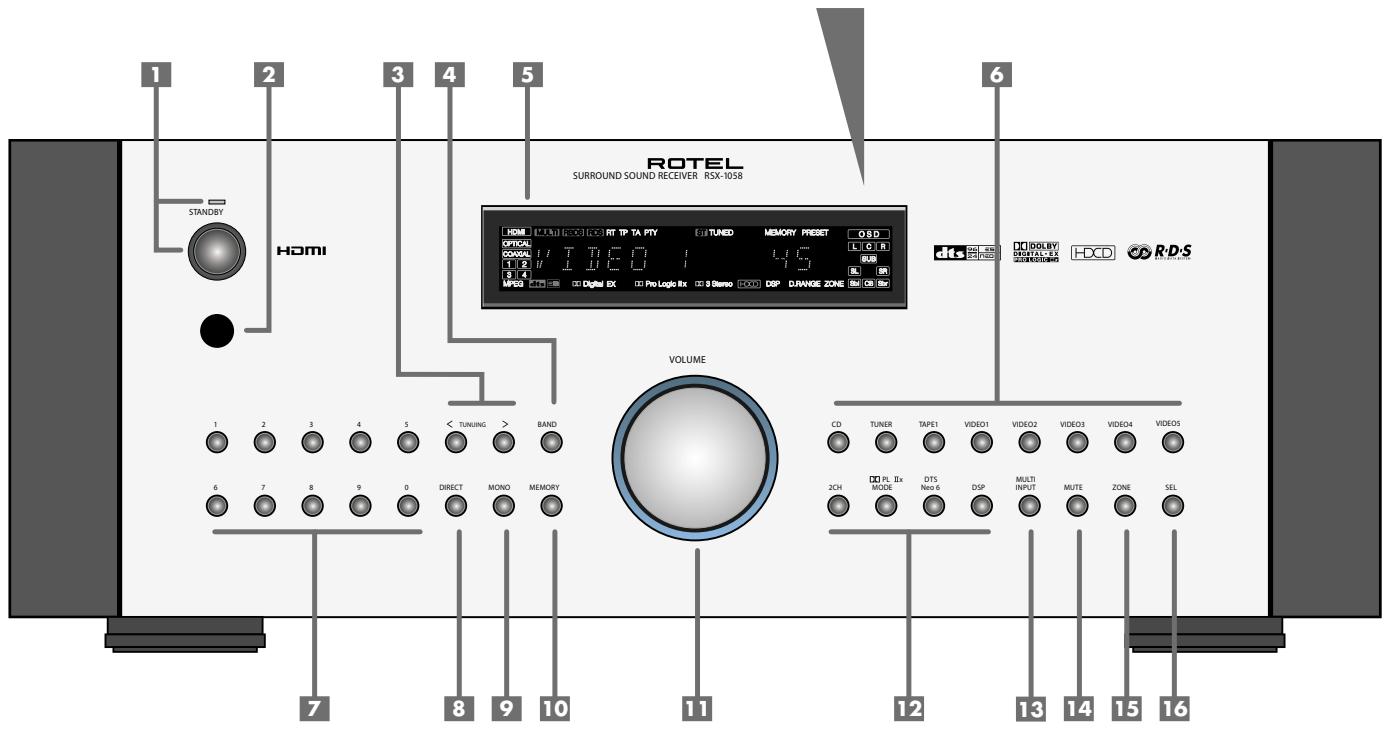
Throughout this manual, numbers in gray boxes refer to the RSX-1058 illustration at the front of this manual. Letters refer to the RR-1060 remote illustration. When both appear, the function is found on both the RSX-1058 and the remote. When only one appears, that function is found only on the RSX-1058 or the remote.
Front Panel Overview
The following is a brief overview of the control and features on the front panel of the RSX-1058. Details concerning the use of these controls are provided in subsequent sections of this manual describing various tasks.
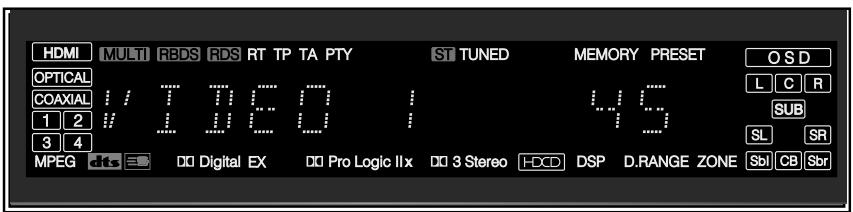
Front-panel Display 5
The fluorescent (FL) display in the upper portion of the RSX-1058 provides information about the status of the unit, tuner reception, and activation of special features. The main portion of the display typically shows the current input source (or radio station frequency) selected for listening on the left side and the current volume level on the right.
Icons along the left side of the display show the currently selected digital input. Icons at the right of the display show individual surround channels and are used in configuring the system. Icons across the bottom of the display show the current surround mode and other special features. Icons at the top of display assist in tuning radio stations and operation of RDS/RBDS features.
The FL display can be turned off, if desired. See the MENU button section for instructions.
Remote Sensor 2
This sensor receives IR signals from the remote control. Do not block this sensor.
NOTE: The remainder of the buttons and controls on the front panel are described in the Overview of Buttons and Controls section.
Remote Control Overview
The RSX-1058 includes a full-function learning remote control that can operate the RSX-1058 plus nine other audio/video components.
A separate manual gives detailed instructions on programming and using the RR-1060 to replace all of the remote controls in your system. The RR-1060 manual covers many extra features (such as custom labeling of remote buttons that appear in its LCD display). To avoid duplication, we provide only basic information about using the RR-1060 to operate the RSX-1058 in this manual.
Many of the RR-1060 functions duplicate the front-panel controls. For that reason, we cover the controls on the remote under appropriate topics throughout this manual. Letters in gray boxes next to the name of a function refers to the labeled illustration of the remote at the front of this manual.
Using the RR-1060 AUDIO Button A
To operate the RSX-1058 with the remote, make sure that the AUDIO mode is active by pressing the AUD button on the remote before you start. If one of the other buttons (CD, TAPE, etc.) is pressed, the remote will control another component, not the RSX-1058. The AUDIO mode will stay active until another DEVICE/INPUT button is pressed.
Overview of Buttons and Controls
This section provides a basic overview of the buttons and controls on the front panel and the remote control. Detailed instructions on the use of these buttons are provided in the more complete operating instructions in the following sections. Buttons or controls identified with a number appear on the front panel. Those identified with a letter appear on the remote control. When both a number and a letter appear, the control is duplicated on both the front panel and the remote control.
STANDBY Button 1 POWER Button N
The front-panel STANDBY button and the remote control POWER button activate or deactivate the unit. The rear panel master POWER switch must be in the ON position for the remote standby function to operate.
ON/OFF Buttons
The power ON and OFF buttons on the remote provide discrete ON and OFF commands to activate the unit or put it in standby mode. The rear panel master POWER switch must be in the ON position for the remote standby function to operate.
All OFF command: A long press of the OFF button (more than 3 seconds) sets all rooms to standby, from any room.
VOLUME Knob VOLUME Button
The large rocker button on the remote and the large rotary control on the front panel provide the master VOLUME control, adjusting the output level of all channels simultaneously.
MUTE Buttons 14 R
Push the MUTE button once to turn the sound off. An indication appears in the front panel and on-screen displays. Press the button again to restore previous volume levels.
NOTE: Pressing the volume buttons on the remote also cancels the muting function.
LIGHT Button C
Press this button on the side of the remote to turn the backlighting on for using the remote in a dark room.
DEVICE/INPUT Buttons 6 13 A
The top row of buttons on the front panel plus the MULTI INPUT button are used to select source inputs for listening/viewing.
These buttons are duplicated on the remote, except that the MULTI INPUT button is labeled EXT and the remote buttons have two functions:
Short press: A short press of any button changes the device that the remote operates, but does not change the RSX-1058's input selection.
Long press: A longer press changes the remote control device and changes the source input for listening/viewing in the main room.
NOTE: A long press of the EXT button changes the input to the 7.1 channel analog MULTI INPUT. Pressing the AUD button only changes the remote device; there is no input source associated with this button.
D-SLT Button Y
Press this button to change the digital input associated with the current source input.
SEL Button 16 REC Button J
Press the front-panel SEL button or the remote control REC button to select the desired zone for additional changes such as changing the input, adjusting the volume, or turning a remote zone on or off. Repeatedly press the button until the desired zone appears in the front panel: RECORD > ZONE 2 > ZONE 3 > ZONE 4. Once the desired zone appears, you have 10 seconds to make the desired change. Change the input selection by pressing an INPUT button. When ZONES 2-4 appear, you can also adjust the volume, or turn the zone on or off by pressing the ZONE button.
A long press of the SEL or REC button is used to cancel the PARTY mode and return all zones to their last previously selected inputs.
ZONE Button 15 U
Either of these buttons serve as a standby button for the currently-selected remote zone, toggling the zone on or off. Select the desired zone using the front-panel SEL or remote control REC button as described above.
UP/DOWN Buttons T
These two buttons on the remote are used to move the cursor up or down to select lines in the OSD menus. These buttons are also used in conjunction with the TONE button to make CONTOUR/TONE adjustments.
+/- Buttons T
These two buttons on the remote are used to change settings on a selected line in the OSD menus. Also used for selecting options in some surround modes.
Speaker Selection Buttons
These three buttons on the remote are used to select a speaker or group of speakers for temporary level adjustments. In addition, the C button is used in conjunction with the UP/DOWN buttons for temporary adjustment of group delay/lip synch.
EQ Button K
This button on the remote is used to turn on and off the Cinema EQ feature, a high-cut filter useful for older movie soundtracks.
TONE Button X
This button on the remote is used for temporary Contour adjustments. It toggles between high frequency (HF) and low frequency (LF) modes. Once a mode is selected, the UP/DOWN buttons are used to make the adjustments to the speaker or speakers selected in the Contour Setup menu.
NOTE: Permanent contour adjustments can be made using the Contour Setup menu.
Surround Mode Buttons 12 W
Five buttons on the remote (2CH, PLC, PLM, 5CH, 7CH) and four buttons on the front panel (2CH, DOLBY PLIIx Mode, DTS/Neo 6, DSP) allow direct selection of certain surround modes. The function of these buttons varies depending on the type of recording being played. See the Manually Selecting Surround Modes section for detailed information.
SUR+ Button V
This button on the remote is used in conjunction with the + / - buttons for manual selection of surround modes and features. See the Manually Selecting Surround Modes section for information.
DYN Button L
Used the DYN button on the remote to select the dynamic range control setting in Dolby Digital surround mode.
MENU/OSD Button
Push this button on the remote to turn on the OSD menu system. If the menu system is already visible, push this button to cancel the display. Press and hold the button to turn off the front-panel display.
ENTER Button T
The ENTER button is used to confirm and memorize various settings in the setup and operation of the RSX-1058. Its use is described in detail in the relevant sections.
BAND Buttons 4 1
Press either of the BAND buttons to toggle between AM and FM reception.
TUNING Buttons 3 P
The TUNING buttons (labeled CH UP/DOWN on the remote control) provide three different tuning functions, depending on the mode of operation: frequency tuning, preset tuning, or selection of an RDS/RBDS program type.
MEM Button 10 B
The front-panel MEMORY button or remote control MEM button (also labeled "X") is used with the NUMERIC buttons to store station presets.
NUMERIC Buttons 7 B
The NUMERIC buttons on the front panel or the remote are used to enter the number of a memorized station preset or for direct entry of a station frequency.
DIRECT Button 8
FRQ DIRECT Button D
The front-panel DIRECT and remote control FRQ DIRECT buttons are used in conjunction with the NUMERIC buttons for direct entry of a station frequency in AM/FM tuning.
MONO Button 9
FM MONO Button H
The front-panel MONO and remote control FM MONO buttons change the FM mode from stereo reception to mono reception.
TUNE Button F
PRESET Button
P-TUN Button Z
The TUNE, PRESET, and P-TUN buttons on the remote are used to select FREQUENCY tuning or PRESET tuning modes. The TUNE and PRESET buttons select the modes directly. The P-TUN button toggles between the two modes.
SCAN Button M
Preset scan tuning automatically scans through the memorized station presets, playing each for 5 seconds. Press the SCAN button on the remote to begin preset scanning. Press the button again to stop the scanning and listen to the desired preset.
RDS/RBDS Buttons
Four remote control buttons (DISP, PTY, TP, TA) are used to activate various RDS/RBDS tuning features. See the RDB/RBDS Tuning section of the manual for detailed information.
Basic Operations
This section covers the basic operating controls of the RSX-1058 and the remote.
Power and Standby On/Off 145 N0
The rear panel POWER switch on the RSX-1058 is a master power switch. The button must be in the ON position for the unit to operate. When it is in the OFF position, the unit is fully off and cannot be activated from the front panel or remote control.
In normal operation, the rear panel POWER switch is always left in the ON position. The RSX-1058 is activated and deactivated using the front-panel STANDBY button, the remote control POWER button, or the remote ON/OFF buttons. When activated, the RSX-1058 is fully functional and the front-panel display illuminated. When deactivated, the unit goes into a standby mode, with minimal power applied to the microprocessor.
NOTE: When the unit has AC power applied and the rear panel POWER switch is on, the front-panel STANDBY LED lights, regardless of whether the unit is in standby mode or activated.
The front-panel STANDBY button and the remote control POWER button function as toggle switches. Press either button to activate the unit. Press either button again to put the unit in standby mode.
The ON/OFF buttons on the remote serve the same function, but provide discrete ON (active) or OFF (standby) commands.
NOTE: When using the Zone room capability of the RSX-1058, the standby activation is completely independent for the main room and the zones. ON/OFF commands sent from the remote in the main room will not affect Zones 2-4. Pressing the ON/OFF buttons on a remote located in Zone 2, 3 or 4 will only affect that zone and not the main room. When the unit is activated in one of the zones, that zone's icon is lit in the front-panel FL display.
There are four available power mode options, which may be useful in configuring the RSX-1058 for special system configurations. See the Other Options menu in the Setup section of this manual for additional details on changing the default standby behavior.
'Resume' retains the last power configuration when the main power is switched OFF and then switched ON again. For example, if the RSX-1058 is in operation and the main power is switched OFF, when the main power is switched ON, the unit will be in operation mode again.
All OFF command: A long press of the OFF button (more than 3 seconds), from any room, sets the RSX-1058 to standby.
Volume Adjustments 11 a
The listening volume of the RSX-1058 can be adjusted from the front panel or the remote.
Front Panel: Rotate the front-panel VOLUME knob clockwise to increase the volume, counterclockwise to decrease.
Remote: Press the VOL UP button to increase the volume; press the VOL DOWN button to decrease.
When you adjust the volume, the setting is shown on the SDTV monitor and/or the front-panel display. The current volume setting is also shown on the SYSTEM STATUS OSD screen.
NOTE: The VOLUME controls can be used to change the volume in Zone 2, 3 or 4. Press the front-panel or remote control ZONE button and adjust the volume. After 10 seconds, the VOLUME control reverts to normal operation.
Muting the Sound 14 R
The volume of the RSX-1058 can be turned off or muted. Push the MUTE button on the front panel or the remote once to turn the sound off. A MUTE indication appears in the OSD and the front-panel displays. Press the MUTE button again or adjust the volume settings to restore output levels.
Selecting Inputs
Input Buttons 6 13 A
You can select any of nine source inputs for listening and/or watching: CD, TUNER, TAPE, VIDEO 1,VIDEO 2,VIDEO 3,VIDEO 4,VIDEO 5, or MULTI INPUT (EXT on remote).
The front-panel display and the ON-SCREEN DISPLAY show the name of the current listening source selection. The labels for VIDEO sources can be customized to match your components.
NOTE: When the TUNER input source button is pressed, the frequency of the currently tuned station is displayed. Pressing the button again toggles the display to show the word TUNER instead of the frequency display.
All of the source inputs can be customized using the ON-SCREEN DISPLAY configuration menus to accept either analog signals or digital signals from one of the seven assignable digital inputs, or HDMI Audio. When a digital input is assigned, the RSX-1058 checks for the presence of a digital signal at that input. If a digital signal is present when the source is selected, it is automatically activated and the proper surround mode enabled. If no digital signal is present, the analog inputs for that source are selected. This auto-sensing is the preferred configuration for digital source inputs such as DVD players. When an ANALOG input is assigned, the unit will not access a digital signal, even though one may be available at the digital input.
By default, the source input buttons are factory configured to select the following inputs:
CD: Digital Coaxial 2
Tuner: Analog (built-in)
Tape: Digital Coaxial 3
Video 1: HDMI Audio (HDMI 1)
Video 2: HDMI Audio (HDMI 2)
Video 3: Digital Optical 1
Video 4: Digital Optical 2
Video 5: Digital Coaxial 1
Each source input should be configured using the ON-SCREEN DISPLAY menu system to use the desired input type (analog or digital auto-sensing). See the INPUT MENU section for configuration instructions.
NOTE: In addition to selecting analog or digital signals, the configuration options also permit custom labeling and selection of a default surround mode for each of the eight inputs.
The input source buttons can also be used (with the SEL button described in the next section) to select an analog input source signal to be available at the outputs for recording, and to select an analog input source for Zones 2-4.
Selecting a Source Input from the Front Panel 6 13 15 16
To select a source for LISTENING: Press one of the eight INPUT buttons or the MULTI INPUT button.
To select a source for RECORDING: Press the SEL button once and then press one of the eight INPUT buttons within 5 seconds.
To select a source for Zone 2, 3 or 4: Press the SEL button two or more times to select the desired zone and then press one of the INPUT buttons within 10 seconds.
NOTE: See the section on Zone 2-4 operations for details of selecting a source for the remote zone.
Selecting a Source from the Remote A J U
To select a source for LISTENING in the main room: press and hold one of the DEVICE/INPUT buttons for more than one second. To select the MULTI INPUT, press and hold the EXT button.
NOTE: A short press of a DEVICE/INPUT button changes the remote control device only, but does not change the source input.
To select a source for RECORDING: Press the REC button. Then, press and hold one of the DEVICE/INPUT buttons within 5 seconds.
Alternatively, you can press the REC button and then use the + / - buttons to scroll through the available source options. Select any input (CD, TUNER, TAPE, or VIDEO 1-5). Selecting the SOURCE option links the recording
source to the input selected for main room listening. Whatever input is selected for listening is also sent to the record outputs.
To select a source for Zone 2, 3 or 4: Press the REC button two or more times to select a zone. Then, press and hold one of the DEVICE/INPUT buttons within 10 seconds.
Alternatively, you can press the ZONE button and then use the + / - buttons to scroll through the available source options. Select any input (CD, TUNER, TAPE, or VIDEO 1-5). Selecting the SOURCE option links the Zone 2, 3 or 4 source to the input selected for main room listening. Whatever input is selected for the main room is also sent to the Zone 2, 3 or 4 outputs.
Selecting the Same Input for all Outputs 15 16 J U
You may wish to have the same input for listening, recording, and all of the remote zones. The RX-1058 makes this configuration (called Party Mode) easy by linking the inputs for recording and remote zones to the input selected for listening. When linked, changing the input selection for listening will automatically change the input for recording and remote zones.
To activate Party Mode, press and hold the ZONE button on the front panel or Remote for at least 3 seconds. The words PARTY ON appear briefly in the display and the ZONE icon flashes for ten seconds. The record input selection and all remote zone input selections will be displayed as "SOURCE", indicating that they are linked to the input selected for listening. While in PARTY mode, a "P" indicator remains in the front-panel display.
To cancel Party Mode, press and hold the SEL button on the front panel or the REC button on the remote for at least 3 seconds. Party Mode is cancelled as indicated by the temporary display of the words PARTY OFF in the front-panel display. The recording input and the inputs for all remote zones revert to their last previous selection, no longer linked to the listening input.
You can also cancel the link for just the record output or for one individual zone by selecting a different input for that output. In this case, the input selection for the unchanged record output or remote zones remained linked to the listening input selection. Any source change cancels the "P" indicator in the display.
Selecting Digital Inputs Y
A default digital audio input can be specified for each source input using the Input Setup menu. However, you can override the default digital input for the currently selected source by pressing the D-SLT button on the remote. Each press of the button steps to the next digital input in order: OPTICAL 1, OPTICAL 2, OPTICAL 3, OPTICAL 4, COAXIAL 1, COAXIAL 2, COAXIAL 3. The actual choices you see will be limited to those inputs with an active digital signal connected, so you may not see all of the inputs listed.
Overview of Surround Formats
To get the best performance from your RSX-1058, it helps to understand the many surround sound formats available today, to know which decoding process to use for a particular recording, and how to select it. This section provides basic background information about surround sound formats. The following sections provide detailed operating instructions for automatic and manual selection of surround modes.
NOTE: The RSX-1058 has built-in amplifiers to drive five speakers in a 5.1 channel system. To use surround modes for 6.1 or 7.1 channel systems, you will need a separate power amplifier to drive one or two speakers.
Dolby Surround Dolby Pro Logic II
The most widely available surround sound format for consumer audio/video is Dolby Surround®, available on nearly all commercial VHS tapes, many television broadcasts, and most DVDs. Dolby Surround is the consumer version of the analog Dolby Stereo system first introduced in the film industry in 1972. It is a matrix-encoding system that records front left, front center, front right, and a mono surround channel into a 2-channel stereo recording. During playback, a Dolby Pro Logic® or Pro Logic II decoder extracts each channel and distributes it to the appropriate speakers.
The original Dolby Pro Logic decoder delivered a mono signal with reduced high-frequency content to the surround speakers. A more advanced decoder in the RSX-1058, Dolby
Pro Logic II, increases the separation and frequency response of the surround channels for significantly improved performance with Dolby Surround encoded recordings.
Dolby Pro Logic II decoding should be used for any analog recording labeled "Dolby Surround" or any Dolby Digital 2.0 soundtrack. Dolby Pro Logic II does a superb job deriving surround sound from conventional 2-channel stereo recordings, using phase relationships to extract front, right, center, and surround channels. A "music mode" makes Pro Logic II an excellent choice for audio CDs.
Dolby Digital
In 1992, a digital recording system, called Dolby Digital, was first used in the film industry. Dolby Digital is a recording/playback system that uses compression techniques to store large amounts of audio data efficiently, much like the JPEG format stores large photographs in small files on a computer. Because it is capable of performance beyond that of audio CDs and can tailor its output for a wide ranges of system configurations, Dolby Digital is the standard audio format for DVDs and for digital television broadcasting in the United States.
The Dolby Digital system can be used to record up to six discrete audio channels, but can also be used for fewer. For example, a Dolby Digital 2.0 soundtrack is a digital 2-channel recording of a matrix encoded Dolby Surround soundtrack. To play a Dolby Digital 2.0 recording, use Dolby Pro Logic II decoding as previously described.
The most common use of Dolby Digital in newer films, in both the film industry and in home theater, is Dolby Digital 5.1. Instead of encoding multiple surround channels on a two-channel recording, Dolby Digital 5.1 records six discrete channels: front left, front center, front right, surround left, surround right, and a Low Frequency Effects (LFE) channel containing ultra-low bass signals intended for a subwoofer. A Dolby Digital decoder extracts the channels from the digital bitstream, converts them to analog signals and routes them to the appropriate amplifiers and speakers. All channels provide full frequency response with total separation between all channels and large dynamic range capability. A Dolby Digital 5.1 soundtrack can provide more impressive surround sound than matrix Dolby Surround.
Decoding of Dolby Digital 5.1 soundtracks is automatic. When the RSX-1058 detects a Dolby 5.1 signal on one of its digital inputs, it activates the proper processing. Keep in mind that Dolby Digital is only available from digital sources (a DVD, a LaserDisc, or a Digital TV/Cable/SAT tuner). Also, you must connect the source with a digital cable (coax or optical) to an active digital input on the RSX-1058.
NOTE: Many DVDs have a Dolby Digital 2.0 matrix soundtrack as the default, which should be decoded with Pro Logic II. The Dolby Digital 5.1 soundtrack may have to be selected as an option from the setup menus at the beginning of the DVD. Look for a Dolby Digital 5.1 selection under "Audio" or "Languages" or "Setup Options" when you insert the disc.
DTS 5.1 DTS 96/24
DTS® (Digital Theater Systems) is an alternative digital format competing with Dolby Digital in both movie theaters and home theater markets. The basic functions of the DTS system are similar to those of Dolby Digital (for example, 5.1 discrete channels), however the technical details of the compression and decoding processes differ somewhat and a DTS decoder is required.
A recent extension of the DTS encoding system is DTS 96/24. These recordings provide the performance of a 96kHz sampling rate while still using actual 48kHz sampling rate of standard DTS discs.
Like Dolby Digital, DTS can only be used on a digital recording and, therefore, is only available for home use on LaserDiscs, DVDs, or other digital formats. To use the RSX-1058's DTS decoder, you must connect your DVD player to the RSX-1058's digital inputs. As with Dolby Digital 5.1, detection and proper decoding of DTS 5.1 signals is automatic.
NOTE: DVDs with a DTS soundtrack almost always have it configured as an option to the standard matrix Dolby Surround format. To use DTS, you may have to go to the setup menus at the beginning of the DVD and select "DTS 5.1" instead of "Dolby Surround" or "Dolby Digital 5.1". In addition, many DVD players have the DTS digital bitstream turned off by default and cannot output a DTS soundtrack (even if selected on the disc's menu) until you activate the player's DTS output. If you hear no sound the first time you attempt to play a DTS disc, go to the DVD player's configuration menus and turn on the DTS bitstream. This is a one-time setting and need only be done once.
DTS Neo:6
The RSX-1058 features a second type of DTS surround sound decoding: DTS Neo:6. This decoding system is similar to Dolby Pro Logic II and is designed for playback of any 2-channel stereo recording, either matrix-encoded or not. The Neo:6 decoder can be used with any conventional 2-channel source such as a stereo TV or FM broadcast or a CD. It can also be used as an alternative method of decoding matrix-encoded Dolby Surround recordings or TV broadcasts. Activate the DTS Neo:6 decoding with the DTS Neo:6 button as detailed later in this section. DTS Neo:6 is not used with DTS 5.1 digital sources and the button need not be pressed for those recordings.
Dolby Digital Surround EX DTS-ES
6.1 and 7.1 Channel Surround
In 1999, the first Dolby Digital soundtrack was released to theaters with an additional center back surround channel, intended to increase the directional effects from behind the audience. This additional surround channel is encoded into the two existing surround channels in Dolby Digital 5.1, using a matrix encoding process similar to that used previously in Dolby Surround. This new extended surround capability is called Dolby Digital Surround EX.
DTS has added a similar capability for recording this extended surround information called DTS-ES® 6.1 Matrix. They have also taken it one step further and developed the capability to record this extended surround information as a discrete channel in a system called DTS-ES® 6.1 Discrete.
All of these systems are extensions of the existing Dolby Digital 5.1 and DTS 5.1 digital surround sound formats. Users with one center back speaker (a 6.1 configuration) or two center back speakers (a 7.1 configuration) can take advantage of this extended surround information. On traditional 5.1 channel systems, Dolby Digital Surround EX or DTS-ES 6.1 discs sound exactly the same as 5.1 channel discs in each respective format.
If you have configured your system with one or two center back speakers, decoding of DTS-ES discs is automatic, just as it is with standard DTS soundtracks. Likewise, decoding of Dolby Digital Surround EX discs is automatic with one exception. Some Surround EX titles do not have the detection "flag" encoded on the disc. To activate the Dolby Digital Surround EX features for these discs (or for standard 5.1 channel Dolby Digital discs), you must manually activate Dolby Surround EX processing.
Dolby Pro Logic IIx 6.1 and 7.1 Channel Surround
The latest technology from Dolby uses advanced matrix decoding for the surround channels in a 6.1 channel or 7.1 channel system. Working with any 2.0 channel or 5.1 channel recording, Dolby Pro Logic IIx processing distributes the surround channel information among three or four surround channels, with a Music mode optimized for musical recordings and a Cinema mode optimized for film soundtracks.
Rotel XS 6.1 and 7.1 Channel Surround
The RSX-1058 also features Rotel XS (eXtended Surround) processing provides extended surround performance on 6.1 and 7.1 channel systems. The key benefit of Rotel XS is that it works at all times with all multichannel digital signals, even those that might not otherwise activate Dolby Digital EX or DTS-ES surround decoding for the center back channel(s). Always available when center back speaker(s) are configured in the system setup, Rotel XS decodes the surround channels and distributes the extended surround channels to the center back speaker(s) in a way that tends to create a diffuse surround effect. Rotel XS works with matrix-encoded surround signals (such as non-flagged DTS-ES and Dolby Surround EX discs) as well as digital source ma
terial that is not Dolby Surround EX encoded (such as DTS 5.1, Dolby Digital 5.1, and even Dolby Pro Logic II decoded Dolby Digital 2.0 recordings).
DSP Music Modes
Unlike all of the formats mentioned above, the RSX-1058 offers four surround modes that are not part of a specific recording/playback system. These modes (DSP 1-4) use digital signal processing that adds special acoustic effects to any signal. DSP processing can be used with Dolby Surround recordings, Dolby Digital recordings, CDs, radio broadcasts, or any other source material; however, typically DSP settings would be used with source material for which there is no specific surround decoder.
The four DSP MODES in the RSX-1058 use digital delay and reverberation effects to simulate progressively larger acoustic environments with DSP 1 being the smallest type of venue (such as a jazz club) and DSP 4 being a large venue (such as a stadium). Typically used to add ambience and a sense of space when listening to music sources or other sources that lack surround sound encoding.
2CH/5CH/7CH stereo formats
The RSX-1058 also provides four modes that disable all surround processing and deliver stereo signals to amplifiers and speakers. The four options are:
2CH Stereo: Turns off the center channel and all surround channels in the system and delivers a conventional 2-channel signal to the front speakers. If the system is configured to route bass signals from the front speakers to the subwoofer, this capability remains in effect.
Analog Bypass: For 2-channel analog inputs, there is a special stereo mode that bypasses ALL of the RSX-1058's digital processing. The two front speakers receive pure analog stereo full-range signals with no subwoofer crossover, no delay, no level adjustments, and no contour adjustment.
5CH Stereo: Distributes a stereo signal to 5.1 channel systems. The left channel signal is sent, unchanged, to the front left and surround left speakers. The right channel is sent to the front right and surround right speakers. A mono sum of the two channels is sent to the center channel speaker.
7CH Stereo: This mode is the same as 5CH Stereo described above except that it also distributes stereo signals to center back speaker(s) installed in the system.
Other Digital Formats
Several other digital formats are not surround sound formats at all, but rather systems for digital 2-channel recordings.
PCM 2-channel: This is an uncompressed 2-channel digital signal such as that used for standard CD recordings and some DVD recordings, particularly of older films.
HDCD®: This system uses higher bit rates and a variety of enhancements to improve the sonic performance compared to standard audio CDs. These discs, labeled HDCD, can be played on standard CD players. However, when the digital signal is decoded using an HDCD decoder like that in the RSX-1058, they will provide exceptional musical reproduction.
DTS Music 5.1 Discs: These discs are a variation of audio CDs that include a DTS 5.1 channel recording. The RSX-1058 decodes these discs just like a DTS movie soundtrack when played on a CD player or DVD player with a digital output connection.
DVD-A music discs: Taking advantage of the increased storage capacity of the DVD disc, new high bit rate multichannel audio recordings are available on DVD-A discs. DVD-A discs may include multiple versions of the recording including standard PCM stereo, Dolby Digital 5.1, DTS 5.1, and 96kHz / 24 bit (or higher) multichannel recordings using MLP compression. Several of these formats (standard PCM, Dolby Digital, and DTS 5.1 can be decoded by the RSX-1058 when the DVD player is connected with a digital cable. However, the existing optical and coax digital audio connection standard does not provide sufficient bandwidth for multichannel high sampling rate MLP recordings. Therefore, you must use the HDMI high-definition digital connection to replay the high-resolution audio soundtrack of DVD-A discs. Alternatively, the high-resolution audio can be decoded by the DVD-A player and the resulting analog signals sent to the RSX-1058's MULTI INPUT.
SACD®: This is a proprietary high-resolution audio standard for use on SACD compatible disc players. As with DVD-A discs, the bandwidth is too high for today's digital connec
tion. Thus, these discs must be decoded by a SACD compatible player, with the output sent to the RSX-1058's MULTI INPUTS.
MP3: The RSX-1058 also features a decoder for the digital MP3 (MPEG1-Audio Layer 3) compression format. MP3 format recordings are available on the Internet and can be played on portable MP3 players or some disc players that can read CD-ROM discs connected to the RSX-1058's digital inputs.
MPEG Multichannel: Widely used in Europe, this format uses MPEG data compression to record up to 5.1 channels of discrete digital audio, similar in function to the Dolby Digital and DTS formats.
Automatic Surround Modes
Decoding of digital sources connected to the digital inputs is generally automatic, with detection triggered by a "flag" embedded in the digital recording telling the RSX-1058 what decoding format is required. For example, when Dolby Digital 5.1 or DTS 5.1 channel surround is detected, the RSX-1058 activates the proper decoding.
The unit will also detect DTS-ES Matrix 6.1 or DTS-ES Discrete 6.1 discs and activate DTS-ES Extended Surround decoding. Dolby Digital Surround EX recordings also trigger automatic decoding (although not all Surround EX DVDs have the necessary flag and may require manually activating Surround EX decoding).
Likewise, a digital input from an HDCD® encoded compact disc, a standard CD, a DTS 96/24 disc, or MP3 player will be auto-detected and properly decoded to 2CH stereo operation.
Dolby Pro Logic IIx or Rotel XS processing can be configured to be automatically active in all 6.1 or 7.1 channel systems configured with center back speaker(s) and will ensure proper extended surround decoding of all multichannel digital signals, even those that might not otherwise trigger the proper extended surround mode.
In many cases, the RSX-1058 will also recognize a digital signal with Dolby Surround encoding (such as the default soundtrack on many DVDs) and activate Dolby® Pro Logic II® decoding. Additionally, you can configure a default surround mode for each input using the INPUT SETUP menu (see the Setup section of this manual).
Combined with the auto-detection of Dolby Digital 5.1 and DTS, this default surround setting makes operation of the RSX-1058 surround modes totally automatic. For example, if you set Dolby Pro Logic II movie mode as the default for all of your video inputs, the RSX-1058 will automatically decode Dolby Digital 5.1 and DTS soundtracks when they are played and use Pro Logic II matrix decoding for all other recordings.
For stereo inputs such as CD and Tuner, you could select STEREO mode as the default for 2-channel playback or Dolby Pro Logic II music mode if you prefer to hear music sources in surround sound.
NOTE: A digital signal coming into the RSX-1058 will be recognized and properly decoded. However, on a DVD with multiple soundtracks, you must tell the DVD player which one to send to the RSX-1058. For example, you may need to use the DVD's menu system to select the Dolby Digital 5.1 or DTS 5.1 soundtrack rather than the default Dolby Digital 2.0 Dolby Surround soundtrack.
Manually Selecting Surround Modes
As described in the previous section, the combination of auto-detection of Dolby Digital and DTS recordings and setting default surround modes for each input during the setup of the RSX-1058 makes operation of surround modes totally automatic. For many users, this automatic surround mode selection will meet all of their listening needs.
For users who prefer a more active role in setting surround modes, buttons on the remote and the front panel provide manual selection of surround mode that are not automatically detected or, in some cases, to override an automatic setting.
Manual settings available from the front panel and/or the remote might be used when you want to play:
- Standard 2-channel stereo (left/right speakers only) with no surround processing.
- Downmixed 2-channel playback of Dolby Digital 5.1 or DTS recordings.
-
Dolby 3-channel stereo (left/right/center) of 2-channel recordings.
-
5-channel or 7-channel stereo from 2-channel recordings.
One of four DSP modes for DSP concert hall simulation from 2-channel music recordings. - Dolby Pro Logic II cinema or music mode matrix decoding of 2-channel recordings.
- DTS Neo:6 cinema or music mode matrix decoding of 2-channel recordings.
- Dolby Digital Surround EX decoding of Dolby Digital 5.1 channel recordings or Dolby Digital Surround EX discs that do not trigger automatic decoding.
NOTE: DTS, DTS-ES Matrix 6.1, DTS-ES Discrete 6.1, DTS 96/24, Dolby Digital, MP3, MPEG Multichannel, HDCD (96kHz), and PCM 2-channel (96kHz) digital signals are auto-detected and cannot be overridden. However, you can choose to use Dolby Digital Surround EX decoding for any Dolby Digital 5.1 source material. You can also downmix Dolby Digital 5.1 or DTS 5.1 recordings for 2-channel playback.
- HDCD (non 96kHz) and PCM 2-channel (non 96kHz) digital signals can be overridden to Dolby Pro Logic II, Dolby 3-Stereo, DTS Neo:6, DSP 1-4, 5CH Stereo, 7CH Stereo, and Stereo.
- Dolby Digital 2-channel Stereo can be overridden to Dolby Pro Logic II, Dolby 3-Stereo, and Stereo.
The following topics describe in detail the manual surround mode options available for each type of recording:
Dolby Digital 5.1 discs Dolby Digital Surround EX discs
12 T V W
Dolby Digital decoding is auto-detected and cannot be overridden. You may, however, select a 2 channel downmix of 5.1 channel recordings. In a 6.1ch or 7.1ch system, you can also choose Dolby Surround EX, Dolby Pro Logic IIx Music, Dolby Pro Logic IIx Cinema (7.1ch only), or Rotel XS processing for center back channels.
NOTE: In addition to the options that follow, you can press the 2CH button on the front panel or the remote to toggle between 2-channel downmix and multichannel playback.
- On a 5.1 system. Press the SUR+ button on the remote, then press the + / - buttons to change between DD 5.1 channel or DD 2.0 channel downmix playback.
- On a 6.1 system. Press the SUR + button on the remote, then use the + / - buttons to step through five options: DD 2.0 channel downmix, DD 5.1 channel, DD Surround EX center back processing, DD with Pro Logic Ilx Music center back processing or DD with Rotel XS center back processing. You should typically select Surround EX or discs that are labeled Dolby Digital Surround EX. For standard 5.1 channel discs, Dolby Pro Logic Ilx Music or Rotel XS processing will provide a more diffuse surround effect than the more highly localized Dolby EX decoding and will probably be the better 6.1 channel options for non-Surround EX discs. Selecting DD 5.1 forces the center back channel processing off for conventional 5.1 channel playback. You can also repeatedly press the DOLBY PLIIx Mode button on the front panel until the desired center back channel option is selected.
- On a 7.1 system. Press the SUR + button on the remote, then use the + / - buttons to step through six options: DD 2.0 channel downmix, DD 5.1 channel, DD Surround EX center back processing, DD with Pro Logic IIx Music center back processing, DD with Pro Logic IIx Cinema back channel processing, or DD with Rotel XS center back processing. You should typically select Surround EX or discs that are labeled Dolby Digital Surround EX. For standard 5.1 channel discs, Dolby Pro Logic IIx Music or Rotel XS processing will provide a more diffused surround effect than the more highly localized Dolby EX decoding and may be the better 7.1 channel options for non-Surround EX discs. Selecting DD 5.1 forces the center back channel processing off for conventional 5.1 channel playback. You can also repeatedly press the DOLBY PLIIx Mode button on the front panel until the desired center back channel option is selected.
NOTE: When playing any Dolby Digital source, you can select one of three dynamic range control settings. See the Dynamic Range topic in the Other Settings section of this manual.
Dolby Digital 2.0 discs
Dolby Digital decoding is auto-detected and cannot be overridden. You may, however, select 2-channel playback, 5.1 channel playback with Pro Logic II matrix surround, 6.1/7.1 channel playback with Pro Logic IIx matrix surround, or Dolby 3-Stereo playback.
- On a 5.1 system. Press the SUR+ button on the remote, then use the + / - buttons to step through four options: DD 2.0 channel, DD with Pro Logic II Cinema matrix surround, DD with Pro Logic II Music matrix surround, or Dolby Digital 3 channel stereo. You can also repeatedly press the 2CH button on the front panel or the remote to select the same options.
- On a 6.1/7.1 system. Press the SUR+ button on the remote, then use the + / - buttons to step through four options: DD 2.0 channel, DD with Pro Logic IIx Cinema matrix surround, DD with Pro Logic IIx Music matrix surround, or Dolby Digital 3 channel stereo. You can also repeatedly press the 2CH button on the front panel or the remote to select the same options.
- To select Cinema or Music options in Pro Logic II or Pro Logic IIx modes. Press the SUR+ button twice while in Pro Logic II or Pro Logic IIx modes. Then, use the +/- buttons to select the Music or Cinema options.
NOTE: When playing any Dolby Digital source, you can select one of three dynamic range control settings. See the Dynamic Range topic in the Other Settings section of this manual.
DTS 5.1 discs DTS 96/24 discs DTS-ES 6.1 discs 12 T W
DTS decoding is auto-detected and cannot be overridden. You may, however, select a 2 channel downmix of 5.1 channel recordings or add Rotel XS center back processing for 5.1 channel discs.
NOTE: In addition to the options that follow, you can press the 2CH button on the remote to toggle between 2-channel downmix and multichannel playback.
- On a 5.1 system. Press the SUR+ button on the remote, then press the + / - buttons to change between DTS 5.1 channel or DTS 2.0 channel downmix playback.
- On a 6.1/7.1 system with a DTS 5.1 disc. Press the SUR + button on the remote, then use the + / - buttons to step through the optional modes: DTS 2.0 channel downmix, DTS 5.1 channel, DTS with Rotel XS center back processing, DTS with Pro Logic Ilx Music center back processing, or DTS with Pro Logic Ilx Cinema center back processing (available only for 7.1 channel systems). Selecting DTS 5.1 forces the center back channel processing off for conventional 5.1 channel playback. You can also repeatedly press the DTS Neo:6 button on the front panel until the desired option is selected.
- On a 6.1/7.1 system with a DTS-ES disc. Press the SUR+ button on the remote, then use the + / - buttons to step through three optional modes: DTS 2.0 channel downmix, DTS 5.1, or DTS-ES 6.1ch/7.1ch playback. On the front panel, press the DTS Neo:6 button while playing a DTS source to step through the same options.
- On a 6.1/7.1 system with a DTS 96/24 disc. Press the SUR + button on the remote, then use the + / - buttons to step through the optional modes: DTS 2.0 channel downmix, DTS 96, or DTS 96 with Rotel XS center back processing. You can also repeatedly press the DTS Neo:6 button on the front panel until the desired option is selected.
Digital Stereo discs (PCM, MP3, and HDCD) 12 T V W
This group of recordings includes any non-Dolby Digital 2-channel signal from the RSX-1058's digital inputs. You can play these recordings in 2-CH Stereo, Dolby 3-Stereo, 5-CH Stereo, 7-CH Stereo modes. You can also use Dolby Pro Logic II matrix surround (5.1 ch systems), Dolby Pro Logic IIx Music (6.1/7.1 ch systems), Dolby Pro Logic IIx Cinema (6.1/7.1 ch systems), DTS Neo:6 surround, or one of the MUSIC 1-4 DSP modes.
All of the bass management settings (speaker size, subwoofer, and crossover) are in effect with digital stereo inputs.
NOTE: In addition to the options that follow, you can select 2-channel, Pro Logic II Cinema (for 5.1 ch systems), Pro Logic II Music (for 5.1 ch systems), Pro Logic IIx Music (for 6.1/7.1 ch systems), Pro Logic IIx Cinema (for 7.1 ch systems), 5-channel stereo, or 7-channel stereo by pressing one of the surround mode buttons on the remote (2CH, PLC, PLM, 5CH, 7CH).
- To select any mode for 2-channel digital recordings. Press the SUR+ button on the remote, then use the +/- buttons to step through the optional modes until the desired mode is displayed.
To select STEREO mode for 2-channel digital recordings. Press the 2CH button on the front panel or remote. - To select Dolby multichannel modes for 2-channel digital recordings. You can also step through the Dolby options (Pro Logic II, Pro Logic IIx, or 3-Stereo) by repeatedly pressing the DOLBY PLIIx Mode button on the front panel. You can select Pro Logic or Pro Logic IIx Cinema or Music modes by pressing the PLC or PLM buttons on the remote.
To change the Cinema or Music option in Pro Logic II mode, press the SUR + button on the remote twice while in Pro Logic II or Pro Logic IIx modes. Then, press the + / - buttons to select the option.
- To select DTS Neo:6 mode for 2-channel digital recordings. You can also step through the DTS options (Neo:6 Cinema or Neo:6 Music) by repeatedly pressing the DTS Neo:6 button on the front panel.
To change the Cinema or Music option in Neo:6 mode, press the SUR + button on the remote twice while in Neo:6 mode. Then, press the + / - buttons to select the option.
- To select DSP multichannel modes for 2-channel digital recordings.
You can also step through the DSP options (MUSIC 1-4, 5CH, 7CH) by repeatedly pressing the DSP button on the front panel. Directly select 5CH mode by pressing the 5CH button on the remote. Directly select 7CH mode by pressing the 7CH button on the remote.
Analog Stereo 12 TV W
This type of recording includes any conventional stereo signal from the RSX-1058's analog inputs, including analog audio from CD players, FM tuners, VCRs, tape decks, etc.
Analog stereo inputs require a choice about how the signal is routed through the RSX-1058. One option is the analog bypass mode. In this mode, the stereo signal is routed directly to the volume control and the outputs. It is pure 2-channel stereo, bypassing all of the digital circuitry. None of the bass management features, speaker level settings, contour settings, or delay settings are active. There is no subwoofer output. A full-range signal is sent directly to two speakers.
The other option converts the analog inputs to digital signals, passing them through the digital processors in the RSX-1058. This option allows all of the features to be active including bass management settings, crossovers, subwoofer outputs, contour settings, etc. In this mode, you can select several surround modes including 2-CH Stereo, Dolby 3-Stereo, 5-CH Stereo, 7-CH Stereo modes. You can also use Dolby Pro Logic II or Pro Logic IIx surround, DTS Neo:6 surround, or one of the MUSIC 1-4 DSP modes.
NOTE: In addition to the options that follow, you can select Pro Logic II Cinema, Pro Logic II Music, Pro Logic IIx Cinema, Pro Logic IIx Music, 5-channel stereo, or 7-channel stereo by pressing one of the surround mode buttons on the remote (PLC, PLM, 5CH, 7CH).
- To select Stereo or Analog bypass mode for 2-channel analog recordings. Press the 2CH button on the remote to toggle between Stereo (with digital processing) or Analog Bypass (no digital processing) modes.
To select any mode for 2-channel analog recordings. Press the SUR + button on the remote, then use the + / - buttons to step through the optional modes until the desired mode is displayed. - To select Dolby multichannel modes for 2-channel analog recordings. You can also step through the Dolby options (Pro Logic II, Pro Logic IIx, or 3-Stereo) by repeatedly pressing the DOLBY PLLx/3ST button on the front panel. You
can select Pro Logic or Pro Logic IIx Cinema or Music modes by pressing the PLC or PLM buttons on the remote.
To change the Cinema or Music option in Pro Logic II mode, press the SUR + button on the remote twice while in Pro Logic II or Pro Logic IIx modes. Then, press the + / - buttons to select the option.
- To select DTS Neo:6 modes for 2-channel analog recordings. You can also step through the DTS options (Neo:6 Cinema or Neo:6 Music) by repeatedly pressing the DTS Neo:6 button on the front panel.
To change the Cinema or Music option in Neo:6 mode, press the SUR + button on the remote twice while in Neo:6 mode. Then, press the + / - buttons to select the option.
To select DSP multichannel modes for 2-channel analog recordings.
You can also step through the DSP options (DSP 1-4, 5CH, 7CH) by repeatedly pressing the DSP button on the front panel. Directly select 5CH mode by pressing the 5CH button on the remote. Directly select 7CH mode by pressing the 7CH button on the remote.
Other Settings
Speaker Level E T
The levels of all channels should be calibrated using the TEST TONE procedure during the initial setup of the RSX-1058. You can make a temporary change in the relative volume of the center, surround, center back, or subwoofer channels using buttons on the remote control or the front-panel controls. These temporary adjustments only remain in effect until a different input is selected or until the RSX-1058 is turned off.
To adjust speaker levels using the remote:
- Press a selection button on the remote to select a channel (or pair of channels) for adjustment. Press the C button to adjust the CENTER channel. Press the S button to adjust the SUBWOOFER channel. Press the R button to adjust the rear SURROUND or CENTER BACK channels (each press of the R button toggles between the SURROUND
channels and the CENTER BACK channels). The selected speaker and its current setting appear briefly in the display.
2. Use the UP or DOWN buttons on the remote to adjust the output level of the selected channel(s).
NOTE: If no level adjustment is made for 10 seconds, the levels revert to the default calibrated settings.
As you select a speaker in the above adjustments, you may notice an addition choice, "group delay". See the following for an explanation of this feature.
Group Delay E T
The SPEAKER adjustments (described above) can also be used to make a temporary adjustment to the group delay or "lip-synch" delay. Group delay delays the overall audio signal (to all speakers) by a specified amount to correct for situations where the video and audio signals are out of synch. This can occur with upconverted digital TV signals or when trying to match a radio broadcast with the video from a sports event. The settings range from 0 to 500 milliseconds in 5 ms increments.
Like the speaker settings, this is a temporary adjustment that overrides the permanent default setting for a video source until a different input source is selected or the unit is turned off.
To adjust group delay using the remote:
- Press the C button on the remote twice.
- Use the UP or DOWN buttons on the remote to adjust the amount of delay applied to all channels.
Dynamic Range L
Dolby Digital recordings are capable of wide dynamic range (the difference between the softest and loudest sounds). In some cases, this may tax amplifiers and/or speakers. In other cases, you may want to reduce the dynamic range when listening at low volume levels. This is particularly useful in order to keep dialog loud enough to be intelligible while avoiding excessively loud sound effects. Dolby Digital dynamic compensation is a sophisticated feature that allows you to adjust the dynamic range while still preserving
ing fidelity. The actual amount of compression relies on instructions embedded in the Dolby Digital recording and varies to best suit the specific program content.
There are three dynamic range settings available for Dolby Digital recordings:
- MAX: full dynamic range.
- MID: slightly reduced dynamic range, roughly comparable to the signal from a compact disc.
MIN: more heavily reduced dynamic range, but still comparable to the signal from a typical VHS Hi-Fi recording.
To adjust dynamic range:
Press the DYN button on the remote repeatedly until the desired setting appears in the front-panel display. This setting remains in effect for all Dolby Digital program material until it is changed.
NOTE: The dynamic range compensation feature is only available in Dolby Digital mode. The setting is ignored with all other types of recordings.
Contour/Tone Settings T X
The contour controls (available on the remote control) can be used to make a temporary change to the high or low frequency content at the frequency extremes. Adjustments to the contour settings are temporary; they remain in effect only until a different source input is selected or the unit is turned off. Permanent settings can be made using the Contour Setup menu.
The settings can be adjusted up or down by a maximum of 6dB. Changing the high frequency contour (HF) increases or decreases the treble. Changing the low frequency contour (LF) increases or decreases the bass content. The changes affect only the speaker or speaker(s) selected for adjustment in the Contour Setup menu. The settings are shown on the front-panel display as you adjust them.
To adjust the contour settings from the remote:
-
Press the TONE button on the remote. Either LF or HF appears in the OSD and front-panel displays, depending on which adjustment is currently active. Press the TONE button again to toggle to the other adjustment.
-
Press the UP/DOWN buttons on the remote to increase or decrease the setting. The display will revert to normal operation following several seconds of inactivity.
NOTE: The tone adjustments are available for all surround modes and inputs, except the MULTI input and analog bypass mode.
Cinema EQ K
The EQ button (remote only) activates or deactivates a special CINEMA EQ setting. This equalization may be desirable for playback of movie source material to compensate for the acoustic differences between a commercial cinema and a home theater environment by reducing the high-frequency content.
The EQ setting is independent for each source input. Using the button only changes the setting for the currently active source input.
Tuner Controls
The RSX-1058 features a digital synthesized AM/FM tuner with RDS capability and 30 station presets. The unit offers a wide range of tuning options. Here is an overview of the tuning options (more detailed information is provided in subsequent sections of this manual):
- Manual frequency tuning tunes up or down to the next station frequency (when in frequency tuning mode). Press and release a TUNING button (CH UP/DOWN on the remote) to tune.
- Direct frequency tuning lets you enter the desired station frequency digits. Press the DIRECT button (or the FRQ DIRECT) button on the remote) and enter the digits using the NUMERIC buttons.
Automatic frequency search tuning searches up or down to find the next receivable broadcast signal. Press and hold a TUNING button (CH UP/DOWN on the remote) for at least one second to search up or down. - Station preset tuning lets you directly enter the number of a memorized station preset. Enter the number of the memorized preset using the NUMERIC buttons.
- Preset tuning jumps up/down to the next memorized station preset. When in PRESET mode, press a TUNING button
(CH UP/DOWN on the remote) to select the next station preset. Press the PRESET button on the remote to select PRESET tuning mode. Press the TUNE button on the remote to select FREQUENCY tuning mode. Press the P-TUN button on the remote to toggle between preset and frequency tuning modes.
- Preset scan tuning automatically scans through the memorized station presets, playing each for 5 seconds. Press the SCAN button on the remote to begin preset scanning. Press the button again to stop the scanning and listen to the desired preset.
- RDS (Europe) or RBDS (USA) tuning provides a range of special tuning and search features based on data codes encoded with the broadcast signal. See the RDS section of this manual for detailed information.
NOTE: The RSX-1058 comes configured for tuning in the market where you purchased it (N. America or Europe). To change this default setting, see the information on the DEFAULT SETUP on-screen menu later in this manual.
BAND Buttons 4 1
Press the BAND button to toggle between AM and FM reception. An indicator in the front-panel display confirms your choice and the currently tuned station frequency is shown.
TUNING Buttons 3 P
The TUNING buttons (labeled CH UP/DOWN on the remote control) provide three different tuning functions, depending on the mode of operation.
In the normal FREQUENCY tuning mode, press a TUNING button (CH UP/DOWN on the remote) and release to manually jump to the next station frequency, regardless of whether or not a station is broadcasting on that frequency. For auto frequency search tuning, press and hold the TUNING button for approximately one second. An AUTO indicator will appear in the front-panel display and the tuner will begin scanning up or down through the frequencies until the next available signal is detected. If this is not the desired station, repeat the automatic tuning procedure to find the next station. Weak stations will be skipped during auto tuning.
NOTE: Select the FREQUENCY tuning mode by pressing the TUNE button on the remote or toggle between FREQUENCY and PRESET modes by pressing the P-TUN button.
In the PRESET tuning mode, press a TUNING button (CH UP/DOWN on the remote) and release to jump to the next memorized station preset.
NOTE: Select the PRESET tuning mode by pressing the PRESET button on the remote or toggle between FREQUENCY and PRESET modes by pressing the P-TUN button. A PRESET indicator appears in the display when PRESET TUNING is activated.
In the RDS PTY search mode, press a TUNING button (CH UP/DOWN on the remote) to select the desired program type from the scrolling list in the display. See the section on RDS tuning for more details.
NOTE: Several indicators in the front-panel display assist tuning. A large display shows the tuned frequency. A TUNED indicator lights when a sufficiently strong signal is received. A ST indicator lights when a stereo FM signal is received.
MEMORY Button 10 B
The MEMORY button (labeled MEM and "X" on the remote is used with the NUMERIC buttons to store memorized station presets. See the next section for detailed instructions.
NUMERIC Buttons: Station Presets 7 10 B
The RSX-1058 can store up to 30 station presets for recall at any time using the NUMERIC buttons on the front panel. To memorize a station:
- Tune to the desired station, AM or FM.
- Press the MEMORY button on the front-panel or remote. A MEMORY indicator will flash for five seconds in the front-panel display.
-
While the MEMORY indicator is flashing, press the number of the preset where you wish to store the station frequency. For example, to memorize the station as preset 3, press the 3 button. To memorize preset 15, press the 1 button followed by the 5 button.
-
A previously stored frequency is erased from memory when a new frequency is memorized for the same preset number.
To tune to a previously memorized station, just press the preset number on the NUMERIC buttons. For example, to tune to preset 3, press the 3 button. To tune to preset 15, press the 1 button and then press the 5 button.
NOTE: If the TUNER is not already the selected input, pressing a NUMERIC button on the frontpanel activates the TUNER. If using the NUMERIC buttons on the remote, first manually select the tuner input, if not already active.
The NUMERIC buttons can also be used for direct access tuning (see next section).
DIRECT Button 8 FRQ DIRECT Button D
If you know the frequency of the desired station, you may tune it directly using the DIRECT button and the NUMERIC buttons.
- Press the DIRECT button on the front panel or the FRQ DIRECT button on the remote to change the NUMERIC buttons from station preset to Direct Access mode. The station frequency in the front-panel display will change to a series of four bars, representing the digits of a station frequency, with the first bar flashing.
- Enter the first digit of the station frequency using the NUMERIC buttons. The digit will appear in the frequency display and the second bar will flash. Enter the remaining digits of the frequency. When all of the necessary digits have been entered, the receiver will tune to the displayed station frequency. Note that entering a station frequency is slightly different for the USA and Europe:
In the USA:
FM87.50MHz Press: 8 > 7 > 5
FM101.90MHz Press: 1 > 1 > 9
AM1410kHz Press: 1 > 4 > 1
In Europe:
FM87.50MHz Press: 8 > 7 > 5 > 0
FM101.90MHz Press: 1 > 1 > 9 > 0
AM1413kHz Press: 1 > 4 > 1 > 3
MONO Button 9 FM MONO Button H
The MONO button on the front panel or the FM MONO button on the remote change the FM mode from stereo reception to mono reception. In stereo mode, a stereo signal will be heard if the station is broadcasting a stereo signal and there is sufficient signal strength. An ST indicator will light in the front-panel display. In mono mode, a mono signal will be heard even if the station is broadcasting a stereo signal.
NOTE: Switching to mono mode can improve the reception of weak or distant FM signals. Less signal strength is required for clean mono reception than for stereo reception.
TUNE Button F PRESET Button P-TUN Button Z
These remote control buttons are used to change between FREQUENCY tuning mode and PRESET tuning mode. In frequency tuning mode, the TUNING buttons (CH UP/DOWN on the remote) advance to the next station frequency. In preset tuning mode, the TUNING buttons advance to the next memorized station preset.
Select the FREQUENCY tuning mode by pressing the TUNE button on the remote. Select the PRESET tuning mode by pressing the PRESET button on the remote. Toggle between the two modes by pressing the P-TUN button. A PRESET indicator appears in the display when PRESET TUNING is activated.
SCAN Button M
This button activates a preset scanning feature. When you press the button, the tuner begins scanning through all memorized station presets, playing each for 5 seconds before moving to the next. To stop the station scanning when the desired station preset is reached, press the button again.
NOTE: If a PRESET station is currently tuned when the PRESET SCAN button is pressed, scanning will start with the next higher preset number and continue through all presets, stopping on the initial preset. If a PRESET station is not currently tuned when the button is pressed, scanning will start from PRESET 1 and continue to PRESET 30.
RDS and RBDS Tuning
The Rotel RSX-1058 is equipped with RDS (Radio Data Systems) reception capabilities for Europe and RBDS (Radio Broadcast Data Service) capabilities for the United States. These broadcast systems provide additional functionality to FM radio reception by transmitting encoded information along with the radio signal. This signal is decoded by an RDS or RBDS receiver and can provide a range of informational features including:
- A display of the station's identifying name (e.g. BBC1).
- A display of the station's program content (e.g. ROCK or NEWS).
- Traffic information broadcasts.
- A scrolling text display for announcements or information.
In addition, RDS provides several advanced search features including:
- Search for a station with the desired program content (PTY).
- Search for traffic information (TP).
- Search for stations broadcasting special traffic announcements (TA).
RDS broadcasting has been widely available in many European markets for years. There are a large number of RDS stations and most users will be familiar with the features and operation. In the USA, implementation of the RBDS system is more recent. Fewer stations are broadcasting RBDS signals and the features may be less familiar to many users. Consult your authorized Rotel dealer for more information on RDS or RBDS broadcasting in your area.
NOTE: The RDS and RBDS features are entirely dependent on the broadcaster sending encoded signals. Thus, they will only be available in markets where RDS or RBDS is implemented and where stations are broadcasting these data signals. If there are no RDS or RBDS stations, the RSX-1058 will function as a standard radio receiver.
NOTE: RDS and RBDS services are only available on FM broadcasts. The features and buttons described below are only operational in FM mode.
DISP Button
There are five display options when the currently tuned station is broadcasting RDS information and the RDS indicator in the frontpanel display is lit. Press the DISP button on the remote to step through the five display options:
- Standard FREQUENCY display.
- PROGRAM SERVICE name. This is typically the station's call letters, such as BBC1. If the current station is not broadcasting an RDS signal, the display will show "NO NAME DATA".
- PROGRAM TYPE. This is a description of the station's content from a standardized list of program types in each market. If the current station is not broadcasting an RDS signal, the display will show "NO PTY DATA".
- CLOCK TIME. A time and date display broadcast by the station. If the current station is not broadcasting an RDS signal, the display will show "NO TIME DATA".
- RADIO TEXT. Additional scrolling text messages broadcast by the station. If the current station is broadcasting radio text data, an RT indicator lights in the display and the scrolling text appears. If the current station is not broadcasting an RDS signal, the display will show "NO TEXT DATA".
PTY Button
The PTY search function permits you to scan available broadcasts for RDS stations broadcasting a particular type of program content.
- Press the PTY button. The current RDS program type will appear in the display.
- If desired, change to a different PROGRAM TYPE using the TUNING UP/DOWN buttons to scroll through the list.
-
Press the PTY button a second time within 10 seconds. The tuner will attempt to find an RDS station broadcasting the selected type of program. If the button is not pressed within 10 seconds after selecting a program type, the PTY function will be cancelled.
-
If no station is located for the desired content type, the tuner will return to the last previously tuned station.
- Cancel the PTY function by pressing any other button.
NOTE: If the currently tuned station is broadcasting PTY data, a PTY indicator lights in the front-panel display.
TP Button
Searches for an RDS station broadcasting traffic information programming:
- Press the TP button. The tuner attempts to find an RDS station broadcasting the traffic programming. If a station is found, a TP indicator lights in the front-panel display.
- If no station is located, the tuner will return to the last previously tuned station.
- Cancel the TP function by pressing any other button.
TA Button
Searches for an RDS station broadcasting special traffic announcements:
- Press the TA button. The tuner will attempt to find an RDS station broadcasting traffic announcements.
- If no station is located, the tuner will return to the last previously tuned station.
- Cancel the TA function by pressing any other button.
Zone 2-4 Operation
The RSX-1058 provides Zone 2-4 multi-room capability, allowing you to enjoy music and operate the system from up to three additional rooms or 'zones'. From these remote locations, you can select a source component (independent from the source playing in the main room), adjust the volume level in the remote zone, and operate the source components.
To use the Zone 2-4 capability, you need additional components: a pair of speakers installed in the remote zone, an amplifier to drive them, an optional TV monitor for video signals, and a third-party IR repeater system.
Zones 2-4 can be controlled from the main room using RSX-1058's front-panel SEL or remote control REC button. Operation from the remote zone or zones requires the installation of an infrared repeater system (Xantech, Niles, etc.) which relays infrared remote control commands from Zone 2, 3 or 4 to the specific ZONE REM IN connector on the back of the RSX-1058.
Several points to keep in mind about the Zone 2-4 function:
- There are two options for output level, selectable from the OSD configuration menu. VARIABLE output provides full adjustment of the volume level. FIXED output disables the Zone 2, 3 or 4 volume control with the output permanently set to a specified level. This might be useful for sending a line level signal to a preamp or integrated amp with its own volume control or to a distribution amplifier with multiple volume controls.
- The RR-1060 remote control supplied with the RSX-1058 will operate Zone 2, 3 or 4 if used with a repeater system from the remote zone. It can also be programmed to operate Rotel source components via the RSX-1058's IR OUT jack.
- Any source component connected to the RSX-1058's analog inputs can be sent to the Zone 2, 3 or 4 outputs. ZONE 2, ZONE 3 and ZONE 4 operate independently of the main room. You can select a different source or adjust Zone 2, 3 or 4 volume from each zone without affecting the MAIN outputs in any way.
- Avoid sending the same infrared command to the RSX-1058 front-panel sensor and a Zone 2, 3 or 4 repeater at the same time. This means that Zones 2, 3 or 4 must be in a different room from the RSX-1058.
Zone 2-4 Power On/Off
Once master power is applied to the unit by pressing the rear panel POWER switch button, the RSX-1058 provides independent power on/off operation for all zones. Pressing the remote control ON/OFF buttons in the main room activates or deactivates the RSX-1058 in the main room only and has no effect on Zone 2, 3 or 4. Conversely, activating or deactivating Zone 2, 3 or 4 has no effect on the main listening room. How
ever, placing the rear panel master POWER switch in the OFF position completely shuts off the unit, for all zones.
NOTE: For proper power on and off operation with Zones 2-4, the RSX-1058's power mode should be set to the factory default STANDBY setting or to the DIRECT setting using the Other Options menu described in the Setup section of this manual.
Controlling Zones 2-4 from the Main Room 6 11 15 A Q T U
You can control Zones 2-4 from the main room using front-panel or remote control buttons to activate or deactivate Zones 2-4, change input sources, and adjust the volume. Controlling Zone 2, 3 or 4 from the main room is accomplished by pressing the SEL button on the front panel or REC button on the remote two or more times, putting the RSX-1058 in Zone 2, 3 or 4 control mode temporarily. When Zone 2, 3 or 4 status is displayed, the OSD and/or front-panel displays show the current source selection and volume in that zone for ten seconds, during which time you can use the front panel VOLUME control and INPUT buttons to change the ZONE 2, 3 or 4 settings.
To turn Zone 2, 3 or 4 on or off:
- Press the front panel SEL or remote REC button repeatedly until the desired zone status appears in the OSD and front panel displays.
- Within 10 seconds, press the front panel or remote ZONE button to toggle the selected Zone on or off.
- Following 10 seconds with no commands, the RSX-1058 reverts to normal operation.
To change the Zone 2, 3 or 4 input source:
- Press the front panel SEL or remote REC button repeatedly until the desired zone status appears in the OSD and front panel displays.
- Within 10 seconds, press one of the INPUT buttons to select a new source for the selected zone. The name of the selected source appears in the display. Instead of
pressing an INPUT button, you can also push the + / - buttons on the remote to step through the inputs.
3. Following 10 seconds with no commands, the RSX-1058 reverts to normal operation.
To change Zone 2, 3 or 4 volume:
- Press the front panel SEL or remote REC button repeatedly until the desired zone status appears in the OSD and front panel displays.
- Within 10 seconds, adjust the volume control on the front panel or remote to change the output level for the selected zone. The new setting appears in the display.
- Following 10 seconds with no commands, the RSX-1058 reverts to normal operation.
Controlling Zones 2-4 from the Remote Locations A O Q T
With a properly configured IR repeater system, you have full control of Zones 2-4 using an RR-1060 remote from the zone locations. You can select and operate a source, adjust the volume, and turn the relevant Zone on or off. Whatever commands you send from the RR-1060 will change ONLY the Zone for the location you are in, just as if you were controlling a totally independent audio system in that room. These changes will have no effect on the main listening room.
To turn the Zone on or off, press the ON/OFF buttons on the remote. To adjust the volume in the Zone, press the VOLUME buttons on the remote. To select a different analog input source, press one of the DEVICE/INPUT buttons on the remote. You can also use the + / - buttons to step through the source inputs.
All OFF command: A long press of the OFF button (more than 3 seconds) from any room, sets all rooms to standby, i.e., the RSX-1058 goes to standby completely.
NOTE: The volume adjustment is only available if the Zone 2-4 outputs are configured to use VARIABLE levels. With FIXED levels, the volume control for Zones 2-4 is disabled.
SETUP
The RSX-1058 features two types of information displays to help operate the system. The first consists of simple status displays that appear on the TV screen and/or front panel display whenever primary settings (Volume, Input, etc.) are changed. These status displays are self-explanatory.
A more comprehensive ON-SCREEN DISPLAY (OSD) menu system is available at any time by pressing the MENU/OSD button on the remote. These OSD menus guide you through the configuration and setup of the RSX-1058. In general, the settings made in the configuration process are memorized as default settings and need not be made again for normal operation of the unit.
The OSD menus can be configured to display several different languages. The default English version of all the menus is shown at the front of this manual. If your language is available, those menus will be shown in the following instructions. If you would like to change from the default English language before proceeding, go to the instructions for the OTHER OPTIONS menu later in this manual. From this menu, you can change the language display.
Menu Basics
Navigation Buttons S T
The following remote control buttons are used to navigate the OSD menu system:
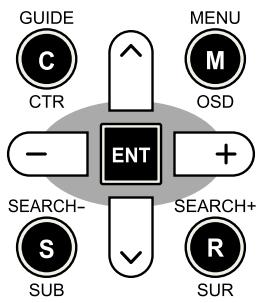
MENU/OSD button: Press to display the SYSTEM STATUS screen. From the SYSTEM STATUS screen, press the ENTER button to display the MAIN MENU screen which has links to all other menus. If a menu is already
visible, push this button to cancel the display. The MENU button on the front panel provides the same function.
DOWN/UP Buttons: Press to move up and down in the lists of menu items that appear on the OSD screens.
+/- Buttons: Press to change the current settings for a selected menu item on OSD screens.
ENTER Button: From the SYSTEM STATUS screen, press ENTER to display the MAIN MENU screen. From any other OSD screen, press ENTER to confirm a setting and return to the MAIN menu.
System Status
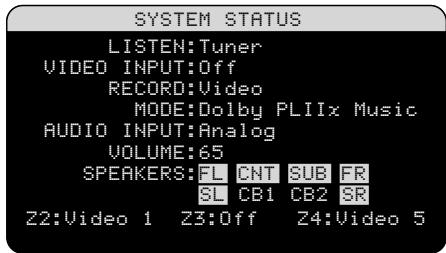
The SYSTEM STATUS menu provides a snapshot of the current system settings and a starting point for reaching all other screens and menus. This screen appears when you press the remote MENU/OSD and displays the following information:
LISTEN: the input source selected for listening.
VIDEO INPUT: the video source selected for viewing. It is necessary to assign a video input, by selecting from Composite 1-3, S-Video 1-3, Component 1-3, HDMI 1-4 or OFF (no video) in the INPUT SETUP menu.
RECORD: the source selected for recording from the VIDEO and AUDIO outputs.
MODE: the current surround sound mode.
AUDIO INPUT: the input selected for the current source: Optical Digital, Coaxial Digital, HDMI Audio, Analog, etc.
VOLUME: the current volume setting.
SPEAKERS: highlights the speakers that are currently configured for the system (front right, center, subwoofer, front left, surround left, center back 1, center back 2, and surround right).
ZONE: shows the current status of ZONE 2, 3 & 4 (Z2, Z3 & Z4). In the example, the ZONE 2 source is Video 1, ZONE 3 is OFF, and the ZONE 4 source is Video 5.
No changes can be made using this screen; it only provides information. To go to the rest of the menus, press the ENTER button to go to the MAIN menu. Press the MENU/OSD button on the remote to cancel the display and return to normal operation.
NOTE: The SYSTEM STATUS screen appears for five seconds when the unit is turned on and automatically turns off.
Main Menu
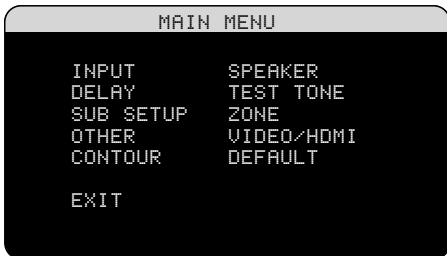
The MAIN MENU provides access to OSD screens for various configuration options. MAIN MENU is reached by pressing the ENTER button from the SYSTEM STATUS menu described above or from most other menus. To go to the desired menu, move the highlight using the UP/DOWN and + / - buttons on the remote and press the ENTER button. Press the MENU/OSD button on the remote to cancel the display and return to normal operation.
Configuring Inputs
A key step in setting up the RSX-1058 is to configure each source input using the INPUT SETUP screens. Configuring the inputs allows you to set defaults for a number of settings including the type of input connector, the desired surround mode, custom labels that appear in the displays when a source is selected, and many more. The following OSD menus are used to configure the inputs.
Input Setup
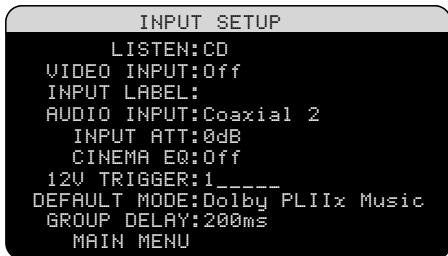
The INPUT SETUP menu configures the source inputs and is reached from the MAIN menu. The screen provides the following options, selected by placing the highlight on the desired line using the UP/DOWN buttons:
LISTEN: changes the current listening input source (CD, TUNER, TAPE, VIDEO 1-5, & MULTI INPUT). Changing this input also allows you to select a specific input for configuring.
VIDEO INPUT: select the video source to be displayed on the TV monitor. Assign the input to a source component you have connected by selecting from Component 1-3, S-Video! - 3, Component! - 3 and HDMI 1-4. For audio only sources (such as a CD player), you would typically specify OFF so that no video is displayed.
INPUT LABEL: The eight character labels for the all eight inputs can be customized. Place the highlight on this line to begin labelling. The first character in the label will be flashing.
- Press the + / - buttons on the remote to change the first letter, scrolling through the list of available characters.
- Press the ENT button on the remote to confirm that letter and move to the next position.
- Repeat steps 1 and 2 until all eight characters (including blank spaces) have been completed. The final press of the ENT button saves the new label.
AUDIO INPUT: assigns a physical input connection to use as the default for the source displayed in the first line of the menu. The options are ANALOG input, four OPTICAL digital inputs (OPTICAL 1-4), and three COAXIAL digital inputs (COAXIAL 1-3), HDMI Audio.
NOTE: HDMI Audio input is assigned to a specific VIDEO input.
When a digital input is the default, the unit will check for a digital signal when the INPUT SOURCE is selected. If no digital signal is present, the unit will automatically revert to the analog input.
When an ANALOG input is the default, the unit will not access a digital signal, even though one may be present at the digital input; thus, the ANALOG setting forces the unit to use an analog signal. Assigning a digital input (with its auto-sensing) is generally the preferred configuration for any source with a digital output.
INPUT ATTENUATION: the audio INPUT ATT function allows you to reduce the level of the audio input by up to -6dB in 1dB steps.
NOTE: If a source connected to a digital input is selected, that signal will automatically be sent to both digital outputs for recording.
CINEMA EQ: The RSX-1058 includes a CINEMA EQ feature which reduces the high-frequency content of movie soundtracks to simulate the frequency response of a large movie theater and/or eliminate sibilance. You can turn the CINEMA EQ on or off as the default setting for the selected input using this menu choice. In general, this setting should be OFF for most source inputs, unless you are consistently bothered by excessively bright sound from movie soundtracks.
12V TRIGGER: The RSX-1058 has six 12V trigger outputs (labeled 1-6) that supply a 12V DC signal to turn on Rotel components and other components as needed. This menu item turns on specific 12V trigger outputs whenever the indicated source is selected. You can select any numbers from 1-6 to allow the 12V trigger output to appear, such as 1,3,5,6. For example, set up the VIDEO 1 input to turn on the 12V trigger for your DVD player. Press the +/- button to select (enable or disable) numbers and press ENT at each step.
DEFAULT MODE: The DEFAULT MODE setting allows you to set a default surround sound mode for each source input. The default setting will be used unless the source material triggers automatic decoding of a particular type or unless the default setting is temporarily overridden by the front panel or remote surround mode buttons.
NOTE: Default surround modes are stored independently for the analog and digital inputs for each source.
Options for the default surround modes are: Dolby Pro Logic II, Dolby 3 Stereo, DSP 1, DSP 2, DSP 3, DSP 4, 5ch Stereo, 7ch Stereo, PCM 2 Channel, DTS Neo:6, Bypass (for analog input only), and Stereo.
NOTE: The following types of digital discs or source material are generally detected automatically and the proper decoding activated with no action or setting required: DTS, DTS-ES Matrix 6.1, DTS-ES Discrete 6.1, Dolby Digital, Dolby Digital Surround EX, Dolby Digital 2-channel, PCM 2-Channel, PCM 96kHz, MP3, HDCD, and HDCD 96kHz.
Since Dolby Digital 5.1 and DTS sources are detected and decoded automatically, the default setting typically tells the RSX-1058 how to process a 2-channel stereo signal. For example, you might have your CD input default to 2-channel stereo, DVD and VCR inputs default to Dolby Pro Logic II processing for matrix-encoded Dolby surround material, and TUNER input default to one of the DSP modes.
In some cases, the default setting can be manually overridden by the front panel surround mode buttons or the SUR + button on the remote. See the Manually Selecting Surround Modes section of this manual for more information on which settings can be overridden.
Two of the default surround mode settings available on this menu offer additional choices. Dolby Pro Logic II decoding offers a choice of CINEMA or MUSIC settings, etc. DTS Neo:6 decoding offers a choice of CINEMA or MUSIC settings. When either Dolby Pro Logic II or DTS Neo:6 is selected with this menu item, the current setting choice will also be displayed. In addition, the function of the ENTER button changes, taking you to a sub-menu where you can change the settings and/or additional parameters for Dolby Pro Logic II or DTS Neo:6 decoding. See the following section for details.
GROUP DELAY: Also known as "lip-sync" delay, this setting delays the audio signal for an input by the specified amount to match the video input. This feature can be useful when the video signal is delayed more than the audio signal as sometimes happens with
upconverted digital TV processors or when trying to match a radio broadcast with the video from a sports event.
The range of available settings is from 0ms to 500ms, in 5ms increments. The setting is individually stored for each input and is the default group delay each time that input is selected. The setting can be temporarily overridden from the front panel or the remote.
OPTIONS: This selection is only visible when Pro Logic II or Neo:6 surround mode is selected. Highlight this line and press ENTER to go to submenus with additional options; press the +/- button to select these surround modes. See below.
To return to the MAIN menu from the INPUT SETUP menu (except when Dolby Pro Logic II or DTS Neo:6 is selected in the SURR MODE field), press the ENTER button. Press the MENU/OSD button on the remote to cancel the menu display and return to normal operation.
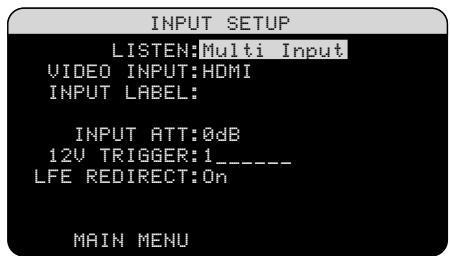
Multi Input Setup
When the MULTI INPUT source is selected on the INPUT SETUP menu, the available options change to reflect the fact that these inputs are direct analog inputs and bypass the RSX-1058's digital processing. The INPUT, CINEMA EQ, DEFAULT MODE and GROUP DELAY options are not available since these are all digitally implemented features.
The VID INPUT, INPUT LABEL, INPUT ATT and 12V TRIGGER options are still available and work as described on the previous menu.
One additional option, LFE REDIRECT, provides an alternative bass management configuration. Typically, the eight channels of the MULTI INPUT are configured as pure analog bypass signals, going straight from the inputs to the volume control and the preamp outputs, bypassing all of the digital processing. There are no crossovers and no bass management;
therefore, whatever signal goes into the subwoofer channel will be sent to the subwoofer preamp output.
This configuration may not be ideal for multichannel systems configured with high-pass speakers, redirecting bass to a powered subwoofer. An option, called LFE REDIRECT, sends the seven main channels directly to the outputs as usual. In addition, it takes a duplicate copy of these seven channels, combines them into mono, and routes them through a 100Hz analog low-pass crossover to the subwoofer preamp output. This creates a summed mono subwoofer signal, derived from the seven main channels of the MULTI INPUT.
Use the LFE REDIRECT off for the pure analog bypass configuration. Use the LFE REDIRECT on setting to derive the mono summed subwoofer output.
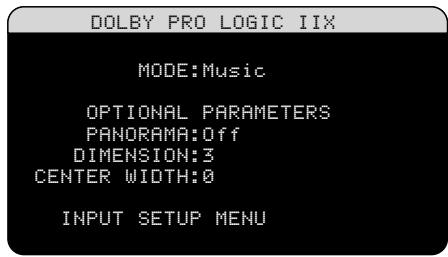
Dolby Pro Logic IIx
When Dolby Pro Logic IIx is selected as the default surround mode on the INPUT SETUP menu, there are additional settings and parameters to optimize the surround decoding for music or movie soundtracks. Dolby Pro Logic II uses matrix decoding algorithms to derive a center channel and surround channels from 2-channel source material.
The first line of the Dolby Pro Logic IIx submenu selects CINEMA, MUSIC, GAME, or PRO LOGIC modes for matrix decoding. Use the + / - buttons on the remote to select a mode.
Select CINEMA to optimize for Dolby Surround encoded movie soundtracks including increased surround separation and full-bandwidth surround channel frequency response.
Select MUSIC to optimize for musical recordings. When the MUSIC mode is selected, three additional parameters will be available on the OSD screen. Use the UP/DOWN buttons
on the remote to select a parameter. Use the + / - buttons to change the selected parameter as follows:
- PANORAMA: The Panorama option extends the front stereo image to include the surround speakers for a dramatic "wrap-around" effect. The options are OFF or ON.
- DIMENSION: The Dimension option allows you to gradually adjust the soundfield towards the front or towards the rear. There are seven incremental settings from 0 to 6. A setting of 0 shifts the soundfield towards the rear for maximum surround effect. A setting of 6 shifts the soundfield to the front for minimum surround effect. The default setting of 3 provides a "neutral" balance between the two extremes.
- CENTER WIDTH: The Center Width option allows you to spread the signal intended for the center speaker to the left and right front speakers, widening the perceived soundfield. There are eight incremental settings from 0 to 7. With the default setting of 0, there is no center width spreading and all of the center channel information is sent to the center speaker. The maximum setting of 7 shifts all of the center channel signal to the left and right speakers, essentially muting the center speaker and maximizing the soundfield width. Other settings provide incremental steps between the two extremes.
Select GAME to optimize for Dolby Surround encoded video games.
Select PRO LOGIC for original Dolby Pro Logic decoding. Typically, Pro Logic II (Cinema or Music modes) will provide better surround performance, even with older source material. Original Pro Logic mode provides 5.1 channel surround sound, even on 6.1/7.1 channel systems.
When you have completed all the desired adjustments, highlight the INPUT SETUP MENU line at the bottom of the screen and press the ENTER button to return to the INPUT SETUP menu (or just press the ENTER button).
DTS Neo:6
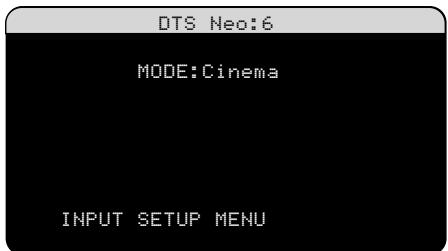
When DTS Neo:6 is selected as the default surround mode on the INPUT SETUP menu, there are additional option settings and parameters available to optimize the surround decoding for various types of recordings, music or movie soundtracks. DTS Neo:6 uses matrix decoding algorithms to derive a center channel and surround channels from 2-channel source material.
In DTS Neo:6 surround mode, there will only be one choice available on the sub-menu: selecting CINEMA or MUSIC modes. Use the + / - buttons on the remote to change the settings.
- Select CINEMA to optimize the DTS Neo:6 decoding for movie soundtracks.
- Select MUSIC to optimize the DTS Neo:6 decoding for musical recordings.
When you have completed the setting, highlight the INPUT SETUP MENU line at the bottom of the screen and press the ENTER button to return to the INPUT SETUP menu (or just press the ENTER button).
Configuring Speakers and Audio
This section of the setup process covers items concerning audio reproduction such as the number of speakers, bass management including subwoofer crossovers, establishing equal output levels for all channels, delay settings, and tone contour settings.
Understanding Speaker Configuration
Home theater systems vary in the number of speakers and the bass capabilities of those speakers. The RSX-1058 offers surround modes tailored to systems with various numbers of speakers and bass management features which send bass information to the speaker(s) best
able to handle it - subwoofoers and/or large speakers. For optimum performance, you must tell the RSX-1058 the number of speakers in your system and how bass should be distributed among them.
NOTE: There are two types of bass in a surround system. The first is bass recorded in each of the main channels (front, center, and surround). This bass is present in all recordings and soundtracks. In addition, Dolby Digital 5.1 and DTS 5.1 recordings may have a Low Frequency Effects (LFE) channel – the .1 channel. This LFE channel, typically played by a subwoofer, is used for effects such as explosions or rumble. The use of the LFE channel will vary from soundtrack to soundtrack. Recordings that are not encoded in Dolby Digital or DTS do not have the LFE channel.
The following configuration instructions refer to LARGE and SMALL speakers, referring more to their desired bass configuration than their physical size. Specifically, use the LARGE setting for speakers that you want to play deep bass signals. Use the SMALL designation for speakers that would benefit from having their bass sent to more capable speakers. The bass management system redirects bass information away from all SMALL speakers and sends it to the LARGE speakers and/or the SUBWOOFER. It may be useful to think of LARGE as "full-range" and SMALL as "high-pass filtered."
Four typical examples of the many possible system configurations illustrate the principles behind bass management:
- Five LARGE speakers and subwoofer: This system requires no bass redirection. All five speakers play the normal bass recorded in their respective channels. The subwoofer plays only the LFE channel bass. Depending on the soundtrack, there may be minimal use of the LFE channel, so the subwoofer would be under utilized. Meanwhile the normal bass places higher demands on the capabilities of the other speakers and the amplifiers driving them.
- LARGE front, center, surround speakers, no subwoofer. The normal bass from the front, center, and surround channels is played in its respective speakers. With no subwoofer, the LFE bass is redirected to all five LARGE speakers. This places significant demands on these
speakers and their amplifiers, as they must play their own normal bass plus the very demanding LFE bass.
- All SMALL speakers and subwoofer. The normal bass from all channels is redirected to the subwoofer, which also plays the LFE channel. The subwoofer handles ALL of the bass in the system. This configuration provides several benefits: deep bass is played by the speaker most suited to do so, the main speakers may play louder with less distortion, and the need for amplifier power is reduced. This configuration should be used with bookshelf-size or smaller main speakers. It should also be considered in some cases with floorstanding front speakers. This configuration is advantageous when driving the system with moderate power amplifiers.
- LARGE front speakers, SMALL center and surround speakers, and a subwoofer. The normal bass from the SMALL center and surround speakers is redirected to the LARGE front speakers and the subwoofer. The LARGE front speakers play their own normal bass plus the redirected bass from the SMALL speakers and LFE bass. The subwoofer plays the LFE bass plus the redirected bass from all of the other channels. This might be an appropriate configuration with a pair of very capable front speakers driven by a large power amplifier. A potential disadvantage with mixed LARGE and SMALL configurations is that the bass response may not be as consistent from channel to channel as it might be with the all SMALL configuration.
NOTE: As an alternative configuration with a satellite/subwoofer package as the front speakers, follow the speaker manufacturer's instructions, connecting the high-level inputs of the powered subwoofer directly to the front speaker outputs of the RSX-1058 and connecting the satellites to the subwoofer's own crossover. In this arrangement, the speakers would be classified as LARGE and the subwoofer setting would be OFF for all surround modes. No information is lost during playback because the system redirects bass information to the front LARGE speakers. While this configuration ensures proper satellite speaker operation by using the speaker's own crossovers, it has some disadvantages in terms of system calibration and would generally not be the preferred configuration.
Speaker Setup
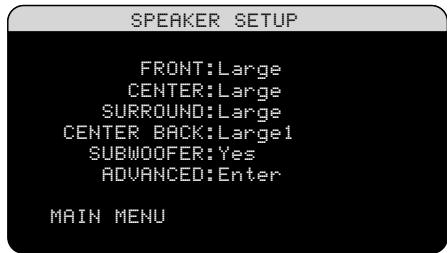
The SPEAKER SETUP menu is used to configure the RSX-1058 for use with your specific loudspeakers and to determine the bass management configuration as described in the previous overview. The menu is accessed from the MAIN menu.
The following speaker options are available:
FRONT SPEAKERS (small/large): Use the LARGE setting to have the front speakers play low bass (full-range). Use the SMALL setting to redirect normal bass away from these speakers to a subwoofer (high-pass filtered).
CENTER SPEAKER(S) (large/small/ none): Use the LARGE position (not available with SMALL front speakers) to have the center speaker play low bass (full-range). Use the SMALL position if your center channel speaker has limited low frequency capability, or if you prefer that the bass be sent to the subwoofer (high-pass). Select the NONE setting if your system does not have a center channel speaker (the surround modes will automatically divide all center channel information equally between the two front speakers, creating a phantom center channel).
SURROUND SPEAKERS (large/small/ none): Select the LARGE setting (not available with SMALL front speakers) to have the surround speakers play low bass (full-range). If your rear speakers have limited bass capability or if you would prefer that the bass go to a subwoofer, use the SMALL setting (high-pass). If your system has no rear surround speakers, select the NONE setting (surround channels are added to the front speakers so none of the recording is lost).
CENTER BACK SPEAKER(S) (large1/ large2/small1/small2/none): Some sys- tems have one or two additional center back surround speakers. Select the LARGE settings (not available with SMALL front speakers) to have your center back speaker(s) play low
bass. Use LARGE 1 if you have one center back speaker (6.1) or LARGE 2 (7.1) if you have two center back speakers (7.1). If your center back speakers have limited bass capability or if you would prefer that the bass go to a subwoofer, use the SMALL setting (SMALL1 for one speaker, SMALL2 for two speakers). If your system has no center back speakers, select the NONE setting. With center back speakers, the Rotel XS eXtended surround, Dolby Digital EX, DTS-ES, Dolby Pro Logic II, DTS Neo:6 or other decoders will provide center back signals for any surround mode.
SUBWOOFER (yes/no/max): The YES setting is the standard setting if your system has a subwoofer. If your system does not have a subwoofer, select NO. Select the MAX setting for maximum bass output with normal bass being duplicated by both the subwoofer and any LARGE speakers in the system.
ADVANCED: Speaker configuration is generally a global setting for all surround modes and need only be done once. However, for special circumstances, the RSX-1058 provides the option of setting the speaker configuration independently for each of four surround modes. Select the ADVANCED line on the menu and press ENTER to go to the ADVANCED SPEAKER SETUP menu described in the following section.
To change a setting on the SPEAKER SETUP menu, place the highlight on the desired line using the UP/DOWN buttons and use the + / - buttons to toggle through the available settings. To return to the MAIN menu, press the ENTER button. Press the MENU/OSD button on the remote to cancel the display and return to normal operation.
Advanced Speaker Setup
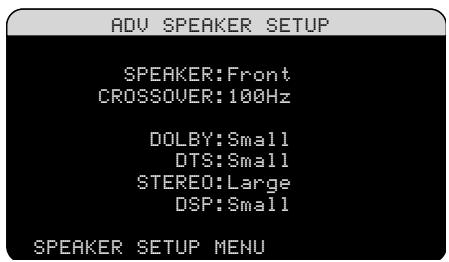
In most cases, the standard speaker configuration described above is a global setting and can be used for all surround modes. However, the RSX-1058 provides the capability to customize these settings for four different sur
round modes: Dolby, DTS, Stereo, and DSP. For example, you could set up the Dolby and DTS modes for 5.1 channel sound, while the Stereo mode changes to a 2-speaker setup with or without a subwoofer. In addition, the ADVANCED SPEAKER SETUP allows you to select a customized high-pass crossover frequency for the front, center, surround, and surround back speakers.
NOTE: In most systems, the default settings on this menu will provide the most predictable results and most users will not need to change any settings. You should fully understand bass management and have a specific reason for needing a custom configuration before changing these settings. Otherwise, skip to the following topic, SUBWOOFER SETUP.
The available settings on the ADVANCED SPEAKER SETUP menu are as follows:
SPEAKER (front/center/surround/ center back/subwoofer): Select the set of speakers to be configured with custom settings.
CROSSOVER (40Hz/60Hz/80Hz/ 100Hz/120Hz/150Hz/200Hz): Typically, the RSX-1058 uses a single master setting for the high-pass and low-pass crossover point between all SMALL speakers and the subwoofer. This master crossover point is set on the SUBWOOFER SETUP menu described in the following section. When you first access the ADVANCED SPEAKER SETUP menu, the current master crossover point will be shown on this line. Change the value of this line only if you want the current speaker to have a different crossover point. For example, if your master crossover is set to 80Hz , but you want your front speakers to crossover to the subwoofer at 60Hz , you would select 60Hz for the front speakers on this line. This setting ONLY affects redirected bass and does not affect the LFE channel in any way. The OFF setting (available only for the subwoofer) sends a full-range signal to your subwoofer so that you can use its built-in low-pass filter.
NOTE: When a speaker is set to LARGE on the SPEAKER SETUP menu or on this MENU, the crossover setting is not available since, by definition, a LARGE speaker plays full-range
with no bass redirection to the subwoofer and no crossover. Likewise, the OFF setting for the subwoofer crossover is not available for SMALL speakers, since SMALL means that the speaker will redirect its bass below a given crossover point to the subwoofer. In addition, the CROSSOVER setting is not available for the MULTI INPUT.
DOLBY (large/small/none): Sets the current speaker (shown in the first line) to LARGE, SMALL, or NONE, overriding the master setting from the SPEAKER SETUP menu. This setting will ONLY take effect with Dolby Digital or Dolby Pro Logic II decoding.
DTS (large/small/none): The same options described for Dolby above, except these settings ONLY take effect with DTS and DTS Neo:6 decoding.
STEREO (large/small/none): The same options described for Dolby above, except these settings ONLY take effect in STEREO surround mode.
DSP (large/small/none): The same options described for Dolby above, except these settings ONLY take effect with any of the DSP MUSIC surround modes.
NOTE: When the front speakers are set to use the master crossover frequency on the ADVANCED SPEAKER SETUP menu, the surround mode specific "large/small/none" settings are not available for the other speakers. These speakers will use the setting determined in the basic SPEAKER SETUP menu.
Subwoofer Setup
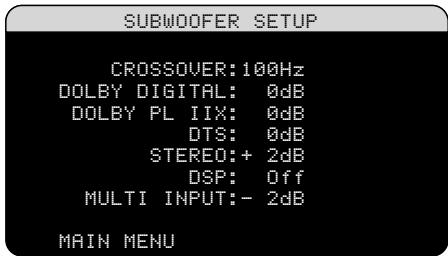
The SUBWOOFER SETUP menu allows selection of the master subwoofer crossover frequency and independent adjustment of subwoofer level for each surround mode.
CROSSOVER(40Hz/60Hz/80Hz/100Hz/ 120Hz/150Hz/200Hz/OFF): This setting specifies a master low-pass filter for the subwoofer and a corresponding high-pass filter for all SMALL speakers in the system at the
selected frequency. To adjust the crossover frequency, highlight the CROSSOVER line using the UP/DOWN buttons. Then, use the + / - buttons to choose the master crossover point. The 80Hz or 100Hz crossover points are the most common in home theater systems and should be used unless you have a specific reason to choose a different crossover point based on your specific speakers.
The OFF setting sends a full-range signal to your subwoofer so that you can use its built-in low-pass filter. With the OFF setting, a 100 Hz high-pass filter is activated for all SMALL speakers in the system.
NOTE: The master crossover point can be overridden with a custom crossover frequency for the front, center, surround, or surround back speakers in the ADVANCED SPEAKER SETUP menu; however, in most systems the single master crossover point should work well
DOLBY DIGITAL:
DOLBY PLIIx:
DTS:
STEREO:
DSP:
MULTI INPUT:
These six lines allow you to override the master subwoofer level setting as determined on the TEST TONE menu (see next section) for each specific surround mode. When going to the SUBWOOFER SETUP menu from the MAIN menu, the current surround mode is automatically highlighted. Use the + / - buttons to adjust the subwoofer level for the current surround mode. The options are OFF (which turns off the subwoofer for that mode) and a range of adjustments from -9dB to +9dB and MAX (+10dB). A setting of 0dB means that the specified surround mode will use the master subwoofer level. Any other setting is an offset to the master setting. For example, an adjustment of -2dB for a particular surround mode means that the subwoofer level will be 2dB quieter than the master subwoofer level when that surround mode is selected. Use these subwoofer level settings to adjust the relative bass output of various surround modes. Changing the master subwoofer level will increase or decrease the level for all surround modes.
NOTE: Only the current surround mode can be adjusted on this menu. You will need to change surround modes using the front panel or remote buttons to adjust a different mode.
We recommend starting with the settings for all surround modes at the default OdB setting during the test tone calibration of the system and for a period of familiarization after that. As you listen to a variety of source material over time, you may notice that certain surround modes consistently produce too much or too little bass from the subwoofer. If so, then use these menu settings to customize each surround mode. In general, if the master subwoofer level is set properly (i.e. not too loud), individual settings for each surround mode should not be necessary.
NOTE: In Dolby Digital and DTS recordings, the LFE channel is used to produce spectacular low bass effects, placing considerable demands on your subwoofer system. If you hear distortion or other signs of distress from your subwoofer at loud listening levels, you may consider reducing the subwoofer level for the Dolby Digital and/or DTS surround modes. In other surround modes, there is no LFE channel and the subwoofer will only reproduce redirected bass from the other channels, which is not as likely to tax the subwoofer.
To return to the MAIN menu, press the ENTER button. Press the MENU/OSD button on the remote to cancel the display and return to normal operation.
Test Tone
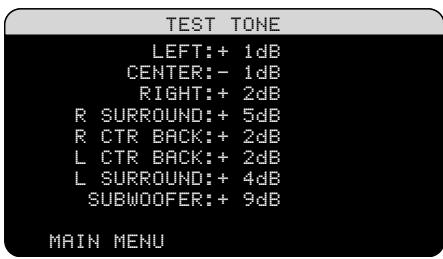
This menu uses filtered pink noise test tones to set equal volume levels for all speakers (left front, center, right front, right surround, center back, left surround, and subwoofer) to ensure proper surround sound reproduction. Setting the output levels using the test procedure provides the most accurate adjustment so that digital surround sound material will be reproduced as it was intended and is a critical step in calibrating the system.
NOTE: If you have configured your system to use two center back speakers, there will be an additional line in the menu, giving you the ability to independently adjust the CENTER BACK 1 and CENTER BACK 2 speakers.
To access this menu and perform the test tone calibration, you can be in any surround mode except BYPASS with any input except the MULTI INPUT. Enter the OSD menu system and select TEST TONE from the MAIN MENU to reach this screen.
When you enter the TEST TONE menu, you will hear a test tone coming from the highlighted speaker. Highlight different speakers by moving the cursor to the desired line using the UP/DOWN buttons. The test tone will shift accordingly to the selected speaker.
Seated in the normal listening location, shift the test tone to the various speakers. Using the one speaker as a reference, listen for any speakers that are noticeably louder or quieter. If so, adjust that speaker's levels up or down (in 1dB increments) using the + / - buttons. Continue switching among the speakers and adjusting until all are the same volume.
To return to the MAIN menu, press the ENTER button. Press the MENU/OSD button on the remote to cancel the menu display and return to normal operation.
Calibration with an SPL meter:
Calibrating the system with an SPL (Sound Pressure Level) meter, rather than by ear, provides more precise results and improves the system's performance significantly. Inexpensive SPL meters are widely available and the procedure is quick and easy.
Both Dolby and DTS specify a standard calibration level for all theaters to ensure that soundtracks can be played at the volume level intended by the director of the film. This reference level should result in spoken dialog played at a realistic level for normal speech with the loudest peaks in any single channel at about 105dB. The RSX-1058's test tones are generated at a precise level (-30dBs) relative to the loudest possible digitally recorded sound. At the Dolby or DTS reference level, these test tones should produce a 75dB reading on an SPL meter.
Set the meter to its 70dB dial setting with SLOW response and C-weighting, held away from your body at your listening position (mounting the SPL meter on a camera tripod makes this easier). You can point the SPL meter at each speaker as it is being measured; however, positioning the meter in a fixed position pointing at the ceiling is easier and probably produces more consistent results.
Increase the master volume control on the RSX-1058 until the meter reads 75dB (+5dB on the meter scale) when playing the test tone through one of the front speakers. Then, use the individual channel adjustments on the TEST TONE menu to adjust each of the individual speakers, including the subwoofer, to the same 75dB on the SPL meter.
NOTE: Due to meter weighting curves and room effects, the actual level of the subwoofer may be slightly higher than you measure. To compensate, Dolby suggests setting the subwoofer several dB lower when calibrating with an SPL meter (i.e. set the subwoofer to read 72dB on the meter instead of 75dB). Ultimately, the proper subwoofer level must be determined by personal taste and some listeners prefer to set it above 75dB for film soundtracks. Exaggerated bass effects come at the expense of proper blending with the main speakers and place stress on the subwoofer and its amplifier. If you can localize bass from the subwoofer, the subwoofer level may be too high. Music can be useful for fine-tuning the subwoofer level as excessive bass is readily apparent. The proper setting will generally work well for music and movie soundtracks.
Remember the setting of the master volume control used during this calibration. To play a Dolby Digital or DTS soundtrack at the reference volume level, simply return to that volume setting. Note that most home theater listeners find this setting to be excessively loud. Let your own ears be the judge for deciding how loud to playback movie soundtracks and adjust the master volume control accordingly. Regardless of your listening levels, using an SPL meter to calibrate equal levels for all speakers in the system is recommended.
Delay Setup
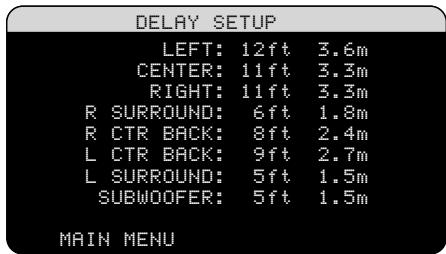
The DELAY SETUP menu, which is reached from the MAIN menu, allows you to set the delay for individual speakers. This ensures that the sound from each speaker arrives simultaneously at the listening position, even
when the speakers are not all placed at equal distances from the listener. Increase the delay to speakers located closer to the seating area and decrease the delay to speakers located farther from the seating area.
The RSX-1058 makes setting the delay time for each speaker very easy. Simply measure the distance (in feet or meters) from your seating position to each speaker in your system. Set the measured distance in the line for each speaker. The menu provides a line for each speaker configured in your system and provides a range of settings up to 99 feet (30 meters) in 1 foot (0.3 m) increments with each increment equivalent to an additional delay of 1ms.
To change a setting, place the highlight on the desired line using the UP/DOWN buttons and use the + / - buttons to increase or decrease the delay setting. To return to the MAIN menu, press the ENTER button. Press the MENU/OSD button on the remote to cancel the display and return to normal operation.
NOTE: If you have configured your system to use two center back speakers, there will be an additional line in the menu, giving you the ability to independently adjust the CENTER BACK 1 and CENTER BACK 2 speakers.
Contour Setup
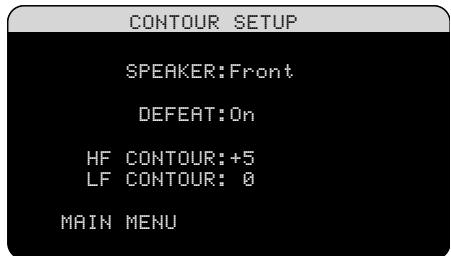
The CONTOUR SETUP menu allows digital adjustment of the bass and treble response of each group of speakers in the system. For example, if your center channel speaker sounds too bright, you could roll off the extreme high frequencies.
SPEAKER (front/center/surround/ center back/all): Select which speaker or group of speakers to adjust. Selecting ALL allows adjustment of the entire system as a whole.
DEFEAT (on/off): Selecting the ON setting defeats the contour adjustment, bypassing the contour processing entirely for that speaker or group of speakers.
HF CONTOUR: Adjusts the extreme high frequency slope over a range of -6dB (MIN) to +6dB (MAX). Negative number settings reduce the high frequency output; positive number settings increase it.
LF CONTOUR: Adjusts the extreme low frequency slope over a range of -6dB (MIN) to +6dB (MAX). Negative number settings reduce the low frequency output; positive number settings increase it.
The contour adjustments are designed to work at the frequency extremes and be relatively subtle so that they do not have a negative impact on midrange sounds. We recommend acclimating to the sound of the system with the contour adjustments defeated and then making adjustments, if necessary, to address specific speaker response issues or personal taste.
NOTE: You can also make temporary contour adjustments using the TONE and UP/DOWN buttons on the remote. See the Contour/Tone Settings section of this manual for details.
Miscellaneous Settings
Other Options
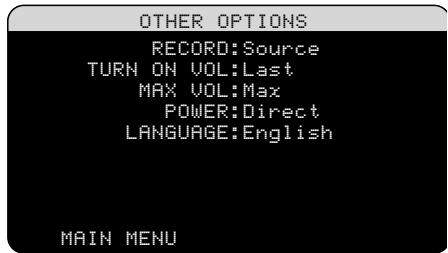
This OTHER OPTIONS menu, accessed from the MAIN menu, provides access to several miscellaneous settings as follows:
RECORD: Select which source signal to be sent to the recording outputs by choosing one of the input sources. The options are: CD, TAPE, TUNER, VIDEO 1-5, and SOURCE. You can either select a specific component or select SOURCE which will send the signal to the record outputs from whatever source is selected for listening. The default is SOURCE.
TURN ON VOL: Specifies a default volume level to be used each time the RSX-1058 is activated. You can select LAST to have the RSX-1058 power up with the last previously used volume setting. Or, you specify a volume from MIN (full mute) to MAX, in 1dB increments. Note that this setting cannot exceed the MAX VOL established in the next line of the menu.
MAX VOL: Specifies the maximum volume level for the RSX-1058. The volume cannot be adjusted above this level. Settings range from MIN to MAX, in 1dB increments.
POWER: This setting determines how the RSX-1058 powers up.
With the default STANDBY setting, the unit powers up in standby mode when AC is applied and the rear panel POWER button is ON. The unit must be activated using the front panel STANDBY button or the remote ON/OFF buttons.
With the DIRECT setting, the unit is fully activated when AC power is applied and the rear panel POWER button is ON; however, it may be put in standby mode using the front panel STANDBY button or the remote ON/OFF buttons.
In ALWAYS-ON mode, the unit remains fully active whenever AC is present and the rear panel POWER button is ON; the front panel STANDBY button and the remote ON/OFF buttons are disabled and the unit cannot be put in standby mode.
In RESUME mode, the RSX-1058 will return to the last power condition setting when switched on. For example, when the AC mains power is switched OFF during operation, it will return to operating mode when the mains power is switched on again.
LANGUAGE: Selects a language for the On Screen Display.
Change settings on the OTHER OPTIONS menu by highlighting the desired line using the UP/DOWN buttons and using the + / - buttons to step through the available settings. To return to the MAIN menu, press the ENTER button. Press the MENU/OSD button on the remote to cancel the display and return to normal operation.
Video/HDMI Setup
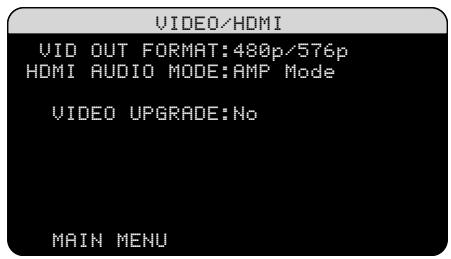
The VIDEO/HDMI menu deals with the configuration of the HDMI and Component output for high-definition video display devices. See the Video Inputs & Outputs section of this manual.
VIDEO OUTPUT FORMAT: options are 480p / 576p 720p 1080i and 1080p.
HDMI AUDIO MODE: options are AMP MODE and TV MODE. In AMP MODE the HDMI Audio and other audio (analog or digital) inputs are processed and amplified by the RSX-1058 for output to the connected loudspeakers. TV MODE (pass-through) provides HDMI Audio and other audio (analog or digital) outputs for use with an audio-capable display device. In TV MODE, there is no output from the RSX-1058's speaker terminals.
VIDEO UPGRADE: the default setting is NO. Select YES in this line only to initiate theVIDEO UPGRADE mode when necessary.
When VIDEO UPGRADE is selected, the display will change to indicate FLASH UPGRADE MODE.
NOTE: The VIDEO UPGRADE option enables the COMPUTER I/O port, to allow upgrading the RSX-1058's software from a computer by qualified personnel. The user will not normally be able to make use of this facility.
Zone 2-4 Setup
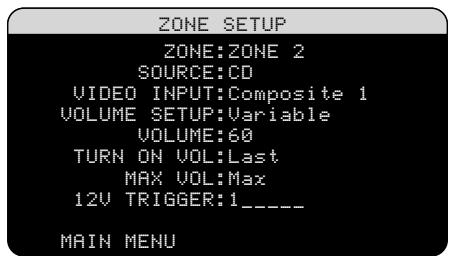
The ZONE SETUP menu provides settings and configuration options related to the operation of Zones 2-4 individually. This menu is
reached by highlighting the ZONE 2, 3 or 4 in the ZONE line on the MAIN menu and pressing ENTER.
SOURCE: Specifies a source for listening in the selected zone. Options are CD, TUNER, TAPE,VIDEO 1-5, SOURCE, and OFF. Selecting the SOURCE option links Zone 2, 3 or 4 to the source selected for the main zone so this zone will hear the same source as the main room. Selecting the OFF option turns the zone off.
VIDEO INPUT: Specifies a video source (Composite Video only) for the selected zone. The options available are Composite 1, 2 and 3 and OFF. (If SOURCE, above, is set to OFF, the VIDEO INPUT selection will not be available.)
VOLUME SETUP: configures Zone 2, 3 or 4 outputs for VARIABLE or FIXED volume levels. VARIABLE allows control of the volume settings in Zone 2, 3 or 4 from the RSX-1058 front panel or from a remote control/IR repeater in that zone. FIXED output disables the Zone 2, 3 or 4 volume control. In this mode, the Zone 2, 3 or 4 level can be fixed at the level specified on the next line, thus optimizing system performance when sending a fixed level signal to a preamp or amplifier with its own volume adjustment.
VOLUME: In VARIABLE output mode, this line shows the current volume setting for Zone 2, 3 or 4. In FIXED output mode, this volume setting establishes a permanent fixed output level for Zone 2, 3 or 4.
Move the highlight to the desired line using the UP/DOWN buttons and use the + / - buttons to adjust the volume level. To return to the MAIN menu, press the ENTER button. Press the MENU/OSD button on the remote to cancel the display and return to normal operation.
TURN ON VOL: Specifies a default volume level to be used each time Zone 2, 3 or 4 is activated. You can select LAST to have a Zone activate with the last previously used volume setting. Or, you specify a volume from MIN (full mute) to MAX, in 1dB increments. Note that this setting cannot exceed the MAX VOL established in the next line of the menu.
MAX VOL: Specifies the maximum volume level for Zone 2, 3 or 4. The volume cannot be adjusted above this level. Settings range from MIN to MAX, in 1dB increments.
12V TRIGGER: The RSX-1058 has six 12V trigger outputs that supply a 12V DC signal to turn on Rotel components and other components as needed. The six 12V Trigger outputs may be assigned to each Zone and can send a turn-on signal to remote components whenever the Zones are activated. Select the appropriate setting from the six 12V Trigger options to send the turn-on signal, by pressing ENT then +/- and then ENT for next. For example, Zone 2 could use 12V Triggers 1, 3 and 6; Zone 3, 12V Triggers 2 and 3; Zone 4, 12V Triggers 5 and 6.
Default Setup
DEFAULT SETUP
TUNER SETTING:N.America
REDIRECT:Front>Zone 2
FACTORY DEFAULT:No
USER DEFAULT:No
SET USER DEFAULT:No
SET NEW PASSWORD:No
MAIN MENU
The DEFAULT SETUP menu provides access to six functions:
- Set the tuning function for North American or European frequencies.
- Redirect the front channel amplifiers to power center back speakers or front speakers in Zone 2, 3 or 4.
- Restore all features and settings to the original FACTORY DEFAULT settings.
- Memorize a custom group of settings as a USER DEFAULT.
- Activate the memorized USER DEFAULT settings.
- Set a NEW PASSWORD for the memorized USER DEFAULT settings.
To change the TUNER setting: Place the highlight on the TUNER SETTING line using the UP/DOWN buttons and use the + / - buttons to change the setting to N. AMERICA or EUROPE. Then, move the highlight to the FACTORY DEFAULT line and change the setting to YES as described above. The screen will change to a confirmation screen. Press the ENTER button to proceed with resetting the FACTORY DEFAULT settings and changing the TUNER SETTING. To return to the MAIN menu without resetting the FACTORY DEFAULT and TUNER settings, change the entry to NO and press the ENTER button.
To change the FRONT REDIRECT setting: Place the highlight on the FRONT REDIRECT line using the UP/DOWN buttons and use the + / - buttons to change the setting to FRONT SP (for powering front speakers), CB SP (for powering center back speakers), ZONE 2, ZONE 3 or ZONE 4 (for powering speakers in one of the Zones 2, 3 or 4). If you redirect the internal amplifiers, then you will need a separate stereo amplifier to drive your front speakers.
NOTE: Changing the default TUNER SETTING or REDIRECT SETTING can only be done at the same time as restoring the FACTORY DEFAULT settings. Therefore, we recommend selecting your default TUNER and REDIRECT settings and resetting to the FACTORY DEFAULT settings as the first step in configuring the unit, before you change or memorize any other configuration settings.
To restore the FACTORY DEFAULT set-
tings: Place the highlight on the FACTORY DEFAULT line using the UP/DOWN buttons and use the + / - buttons to change the setting to YES. Press the ENTER button to proceed with resetting the FACTORY DEFAULT settings with re-confirmation screen. The unit will power off (to Standby Mode) and then on, with the factory settings restored. To return to the MAIN menu without resetting the FACTORY DEFAULT settings, change the entry to NO and press the ENTER button.
NOTE: Resetting to factory default settings will erase all stored settings including delay settings, speaker settings, balance settings, input settings and more. You will lose ALL system configuration settings. Be certain that you wish to do so before resetting the factory defaults.
To memorize USER DEFAULT settings:
Many of the current configuration settings can be stored as a USER DEFAULT, which can be activated at any time from this menu screen. To save the current settings as a USER DEFAULT, place the highlight on the SET USER DEFAULT line using the UP/DOWN buttons and use the + / - buttons to change the setting to YES.
You will then be asked to enter a PASSWORD. If you have not previously entered a password, use the universal password '8888'. Use the + / - buttons to enter each digit and press ENTER to confirm.
To change your password, use the + / - buttons to highlight the line SET NEW PASSWORD. You may then enter and confirm your new password in the same way, before returning to the DEFAULT SETUP menu.
Press the ENTER button to store the new USER DEFAULT settings. To return to the MAIN menu without saving any changes, change all entries on the screen to NO and press the ENTER button.
NOTE: If there is insufficient memory to store a USER DEFAULT configuration file, the SET USER DEFAULT option will not be available.
To activate memorized USER DEFAULT settings: After you have stored a USER DEFAULT configuration file, you can activate those settings at any time by placing the highlight on the USER DEFAULT line using the UP/DOWN buttons. Use the + / - buttons to change the setting to YES. Press the ENTER button to proceed with activating the USER DEFAULT settings. To return to the MAIN menu without activating the USER DEFAULT settings, change the entry to NO and press the ENTER button.
MORE INFORMATION
Troubleshooting
The unit does not turn on.
- Make sure the power cord is plugged into the rear panel and a live AC outlet.
- Make sure the rear panel POWER switch is in the ON position.
No sound from any input.
Make sure that MUTING is off and VOL-UME is turned up.
- Make sure that preamp outputs are connected to a power amplifier and that the amplifier is turned on.
- Make sure source inputs are connected and configured correctly.
- Check that the setting for HDMI AUDIO in the VIDEO/HDMI on-screen menu is AMP MODE.
No sound from digital sources.
- Make sure that digital input connector is assigned to the proper source input and that the source input is configured to use the digital input rather than an analog input.
- Check the configuration of the DVD player to ensure that the bitstream and/or DTS digital output is activated.
No sound from some speakers.
- Check all power amp and speaker connections.
- Check Speaker Configuration settings in the Setup menus.
No video output on TV monitor.
Make sure that the TV monitor is connected properly and check the input assignments. S-Video and Composite Video TV monitors can only be used with interlaced SD sources. HDMI and Component TV monitors can be used with Standard Definition (SD) and High Definition (HD) sources. An HDMI 1080p source can only be sent to a 1080p-compliant TV monitor.
- Component Video output at 720p or 1080i may not be available if the source signal includes HDCP copy protection.
- HDMI cables must be 5 meters or less in length.
OSD menus are not displayed on TV Monitor.
- In some PAL systems, the menus may not be displayed unless there is an active video signal.
Video and Audio do not match.
- Check that the proper video source is selected for each input.
- Check that the group delay (lip-synch) setting is not misadjusted.
Clicking or popping sounds when switching inputs.
- The unit uses relay switching to preserve maximum sound quality. The mechanical clicking of the relays is normal.
- During switching, it may take a split second for digital signals to be recognized and properly decoded. Rapid repeated switching between inputs or settings can result in clicks or pops from the speakers as the unit attempts to lock on to the rapidly changing signals. This causes no harm.
Controls do not operate.
- Make sure that fresh batteries are installed in the remote.
- Make sure that the IR sensor on the front panel is not blocked. Aim the remote at the sensor.
Make sure the sensor is not receiving strong IR light (sunlight, halogen lighting, etc.) - Unplug the unit from the AC outlet, wait 30 seconds, and plug it back in to reset.
No video from Zones 2, 3 or 4
- Check ZONE SETUP configuration and zone video input setting as assigned and make sure that a Composite source is connected.
Specifications
Audio
Continuous Amplifier Power (five channels driven) 75 watts/ch (20-20k Hz, <0.05% THD, 8 ohms)
Continuous Amplifier Power (two channels driven) 100 watts/ch (1kHz, <1.0% THD, 8 ohms, DIN)
Total Harmonic Distortion < 0.09% Intermodulation Distortion (60 Hz:7 kHz) < 0.05%
Frequency Response
10 Hz - 120 kHz, ±3dB (analog bypass)
10 Hz - 95 kHz, ±3dB (digital input)
Signal to Noise Ratio (IHFA-weighted) 95dB (analog bypass) 92dB (Dolby Digital, dts) OdBFs
Input Sensitivity/Impedance Line Level: 200 mV/100K ohms
Preamp Output Level/Output Impedance 1.0 V / 1K ohms
Contour (LF/HF) ±6dB at 50 Hz/15 kHz
Decodable Digital Input Signals
Dolby Digital, Dolby Digital EX, DTS, DTS-ES, DTS 96/24, LPCM (up to 192k), HDCD, MP3
Video
Input Resolutions
480i/576i, 480p/576p, 720p, 1080i
1080p (HDMI only)
Output Resolutions
480i/576i (Composite, S-Video only), 480p/576p, 720p, 1080i
1080p (HDMI only)
Signal to Noise Ratio 45dB
Input Impedance 75 ohms
Output Impedance 75 ohms
Output Level 1.0 volt
HDMI Input/Output : Version 1.1
FM Tuner
Usable Sensitivity 14.2dBf
Signal to Noise Ratio (at 65dBf) 70dB
Harmonic Distortion (at 65dBf) 0.03%
Stereo Separation (1 kHz) 45dB
Output level 1V
Antenna Input 75 ohms unbalanced
AM Tuner
Sensitivity 500 V / m
Signal to Noise Ratio 40dB
Output level 500 mV
Antenna Input Loop Antenna
General
Power Consumption
450 watts
100 watts (idle)
4.7 watts (standby)
Power Requirements (AC)
120 volts, 60Hz (USA version)
230 volts, 50Hz (CE version)
Weight 17.4 kg/38.4 lb.
Dimensions (W x H x D)
432 x 162 x 442 mm
17.01" x 6.38" x 17.40"
Front Panel Height (feet removed/for rack mount) 150mm / 5.91^
When sizing openings in custom cabinets, measure the unit to be installed and/or allow at least 1mm clearance on all sides for unit to unit tolerances.
All specifications are accurate at the time of printing. Rotel reserves the right to make improvements without notice.
Rotel and the Rotel HiFi logo are registered trademarks of The Rotel Co, Ltd., Tokyo, Japan.

ATTENTION :
RISQUE D'ÉLECTROCUTION. NE PAS OUVRIR

ATTENTION: POUR RÉDUIRE LE RISQUE D'ÉLECTROCUTION, NE PAS RETIRER LE CAPOT. IL N'Y A A L'INTERIEUR AUCUNE PIECE SUSCEPTIBLE D'ETRE MODIFIÉE PAR L'UTILISATEUR. EN CAS DE PROBLEME, ADRESSEZ-VOUS À UN REPARATEUR AGRÉ.

This Class B digital apparatus complies with Canadian ICES-003.
Touches RDS/RDBS AA 65
Signal Test (Test Tone) 86
| ENTRÉE VIDÉO | Sortie matériel Composantes | Sortie HDMI | Sortie matériel Composité/S-Visidéo | |||||||
| 480p/576p | 720p | 1080i | 1080p | 480p/576p | 720p | 1080i | 1080p | |||
| Vidéo composité/S-Vidéo | 480i/576i | ● | ●* | ●* | ● | ● | ● | ● | ● | |
| 480i/576i | ● | ●* | ●* | ● | ● | ● | ● | ● | ||
| 480p/576p | ● | ●* | ●* | ● | ● | ● | ● | |||
| 720p (60/50) | ● | ●* | ●* | ● | ● | ● | ● | |||
| 1080i (60/50) | ● | ●* | ●* | ● | ● | ● | ● | |||
| 1080p (60/50) | ||||||||||
| Vidéo Composantes | 480i/576i | ● | ●* | ●* | ● | ● | ● | ● | ● | |
| 480p/576p | ● | ●* | ●* | ● | ● | ● | ● | |||
| 720p (60/50) | ● | ●* | ●* | ● | ● | ● | ● | |||
| 1030i (60/50) | ● | ●* | ●* | ● | ● | ● | ● | |||
| 1080p (60/50) | ||||||||||
| HDMI | 480i/576i | ● | ●* | ●* | ● | ● | ● | ● | ● | |
| 480p/576p | ● | ●* | ●* | ● | ● | ● | ● | |||
| 720p (60/50) | ● | ●* | ●* | ● | ● | ● | ● | |||
| 1090i (60/50) | ● | ●* | ●* | ● | ● | ● | ● | |||
| 1080p (60/50) | ||||||||||
Commande VOLUME Touche VOLUME
Signal Test (Test Tone)
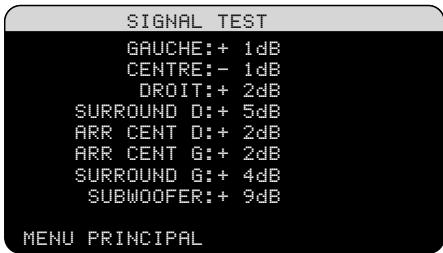
VOLUME AU DÉMARRAGE (TURN ON
North Reading, MA 01864-2699
USA
Phone: +1 978-664-3820
Fax: +1 978-664-4109
Rotel Europe
Dale Road
Worthing, West Sussex BN11 2BH
England
Phone: +44 (0)1903 221 761
Fax: +44 (0)1903 221525
Rotel Deutschland
Kleine Heide 12