
RESCUEAGENT 9 - Backup and Recovery Software NERO - Free user manual and instructions
Find the device manual for free RESCUEAGENT 9 NERO in PDF.


User questions about RESCUEAGENT 9 NERO
0 question about this device. Answer the ones you know or ask your own.
Ask a new question about this device
Download the instructions for your Backup and Recovery Software in PDF format for free! Find your manual RESCUEAGENT 9 - NERO and take your electronic device back in hand. On this page are published all the documents necessary for the use of your device. RESCUEAGENT 9 by NERO.
USER MANUAL RESCUEAGENT 9 NERO
Copyright and Trademark Information
This document, like the software described therein, is provided as a license and may only be used or reproduced in accordance with the licensing agreement. The contents of this document, as well as the associated software, is subject to change without prior notice. Nero AG rejects any responsibility for the correctness of the contents of this document and rejects any claims that transcend the clauses of the guarantee agreement.
This document and all of its contents are protected by copyright and are the property of Nero AG. All rights reserved. In addition, this document contains material that is protected by internationally valid copyright. This document may not be reproduced, transmitted, or transcribed in whole or in part without the express written permission of Nero AG.
Please keep in mind that existing graphics, pictures, videos, music titles or other materials that you may wish to insert or transcribe into projects may be protected by copyright. The unauthorized use of this type of material in your projects may violate the rights of the owner of the copyright. Make sure that you obtain all necessary authorizations from the owner of the copyright.
Unless you own the copyright, have permission from the copyright owner or your actions fall under the "fair use" provisions of copyright law, you may be violating national or international copyright laws. The transcribing, re-formation, modification or publication of copyright-protected material may lead to claims for damages and the enforcement of other legal measures against you. If you are unsure of your rights, you should contact your legal advisor.
Some Nero Suite applications require technologies developed by third-party manufacturers, some of which are contained in the Nero Suite as demo versions. These applications can be activated online free of charge or by sending an activation fax to have unlimited use of the version. Nero will only transmit the data necessary for activation of the technology licensed from third parties. For unlimited use of Nero Suite, it is therefore necessary to have an Internet connection or a fax machine.
Copyright © 2006 - 2008 Nero AG and its licensors. All rights reserved.
Nero, the Nero logo, Nero Digital, Nero Essentials, Nero Express, Nero ImageDrive, Nero LiquidTV, Nero MediaHome, Nero PhotoSnap, Nero Recode, Nero RescueAgent, Nero ShowTime, Nero SecurDisc, Nero StartSmart, Nero Vision, InCD, Move it, and UltraBuffer are trademarks or protected trademarks of Nero AG.
Adobe, Acrobat, Acrobat Reader and Premiere are trademarks or protected trademarks of Adobe Systems, Incorporated.
AMD Athlon, AMD Opteron, AMD Sempron, AMD Turion, ATI Catalyst and ATI Radeon are trademarks or registered trademarks of Advanced Micro Devices, Inc.
ATSC is a trademark of the Advanced Television Committee.
ICQ is a registered trademark of AOL, LLC.
Apple, iPhoto, iPod, iTunes, iPhone, FireWire, and Mac are brands or registered trade names of Apple, Inc.
ARM is a registered trademark of ARM, Ltd
AudibleReady is a registered trademark of Audible, Inc.
BenQ is a trademark of the BenQ Corporation.
Blu-ray Disc is a brand of Blu-ray Disc Association.
CyberLink is a registered trademark of CyberLink Corp.
DLNA is a registered trademark of Digital Living Network Alliance.
DivX and DivX Certified are registered trademarks of DivX, Inc.
Dolby, Pro Logic and the double-D symbol are brands or registered trademarks of Dolby Laboratories, Inc.
DTS and DTS Digital Surround are trademarks or registered trademarks of DTS, Inc.
DVB is a registered trademark of the DVB Project.
Freescale is a trademark of Freescale Semiconductor, Inc.
Google and YouTube are trademarks of Google, Inc.
WinTV is a registered trademark of Hauppauge Computer Works, Inc.
Intel, Pentium and Core are trademarks or registered trademarks of Intel Corporation.
Linux is a registered trademark of Linus Torvalds.
Memorex is a registered trademark of Memorex Products, Inc.
ActiveX, ActiveSync, DirectX, DirectXShow, Internet Explorer, Microsoft, HDI, MSN, Outlook, Windows, Windows Mobile, Windows
NT, Windows Server, Windows Vista, Windows Media, Xbox, Xbox 360, the Windows Vista start button and the Windows logo are trademarks or registered trademarks of Microsoft Corporation.
My Space is a trademark of MySpace, Inc.
NVIDIA, GeForce and ForceWare are brands or registered trademarks of NVIDIA Corporation.
Nokia is a registered trademark of Nokia Corporation.
CompactFlash is a registered trademark of SanDisk Corporation.
Sony, Memory Stick, PlayStation, PLAYSTATION and PSP are brands or registered trademarks of Sony Corporation.
HDV is a trademark of Sony Corporation and Victor Company of Japan, Limited (JVC).
UPnP is a registered trademark of the UPnP Implementers Corporation.
Labelflash is a registered trademark of Yamaha Corporation.
The trademarks mentioned here are named for information purposes only. All trade names and trademarks are the property of their respective owners.
Nero AG, Im Stoeckmaedle 13-15, D-76307 Karlsbad, Germany
Table of contents
1.1 About the manual 4
1.2 About Nero RescueAgent 4
1.3 Working with Nero RescueAgent 5
1 Start Successfully 4
2 Launching the Program 6
3 Start screen 7
3.1 Select Storage Medium and Scan Level 8
4 Files to Recover Screen 9
4.1 Show Specific Files / Only Specific Files Window 10
4.2 Select Files to Recover 11
5 Recovery Completed Screen 13
5.1 Save log file 14
6 End screen 15
7 Technical Information 16
7.1 System requirements 16
7.2 Supported File Systems 16
7.3 Key Combinations 16
8 Glossary 18
9 Index 19
10 Contact 20
1 Start Successfully
1.1 About the manual
This manual is intended for all users who want to learn how to use Nero RescueAgent(TM). It is process-based and explains how to achieve a specific objective on a step-by-step basis.
To make best use of this documentation, please note the following conventions:
| ○ | Indicates warnings, preconditions or instructions that have to be precisely followed. |
| ○ | Indicates additional information or advice. |
| 1. Start ... | The number at the beginning of a line indicates a prompt for action. Carry out these actions in the order specified. |
| → | Indicates an intermediate result. |
| → | Indicates a result. |
| OK | Indicates text passages or buttons that appear in the program interface. They are shown in boldface. |
| (see...) | Indicates references to other chapters. They are executed as links and are shown in red and underlined. |
| [...] | Indicates keyboard shortcuts for entering commands. |
1.2 About Nero RescueAgent
With Nero RescueAgent you can quickly and easily recover files from storage media, that, for instance, have been corrupted by scratches or cannot be read correctly due to ageing.
The following storage media are supported by Nero RescueAgent.
CD
DVD
Hard drive
USB stick
Memory card
Floppy
For multisession disks and disks formatted for the UDF file system capable of packet writing, Nero RescueAgent also provides the option of recovering deleted files and older file versions.
1.3 Working with Nero RescueAgent
The Nero RescueAgent Assistant helps you to restore files in just a few steps.
The following individual steps are necessary.
- Select storage medium and scan level.
Search storage medium for files that can be restored. - Select files to be restored and define storage location for files.
StartRestore
Save log file (optional)
Then you can either start a new scan, scan the storage medium again, restore files or end Nero RescueAgent.
See also:
Select Storage Medium and Scan Level 8
Select Files to Recover 11
Save log file 14
2 Launching the Program
To start Nero RescueAgent(TM) via Nero StartSmart, proceed as follows:
- Click the Nero StartSmart icon.
The Nero StartSmart window opens.
- Click the button.
The list of Nero applications is displayed.
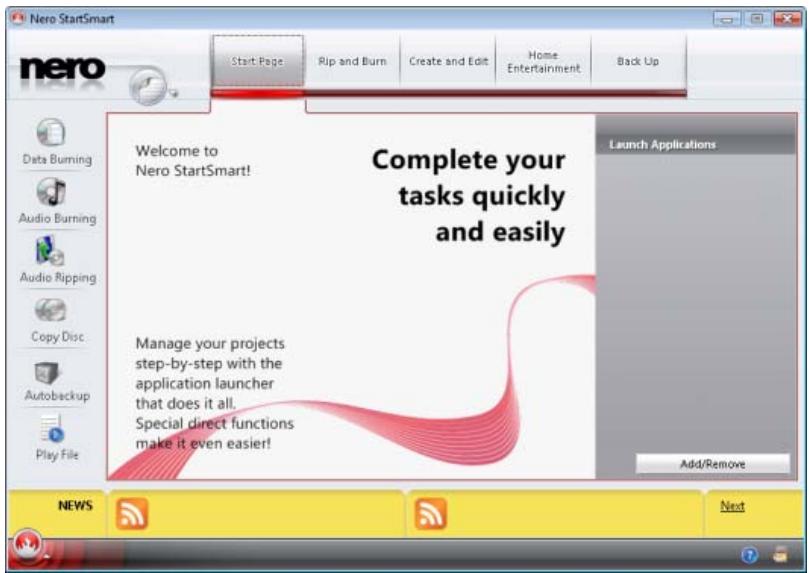
Nero StartSmart window
- Select the Toolbox > Nero RescueAgent(TM) entry in this selection list.
- The Nero RescueAgent(TM) window opens.
You have launched Nero RescueAgent(TM) via Nero StartSmart.
3 Start screen
In the start screen of Nero RescueAgent, you can select the storage medium from which to restore data. In addition you can choose between a fast and a deep scan.
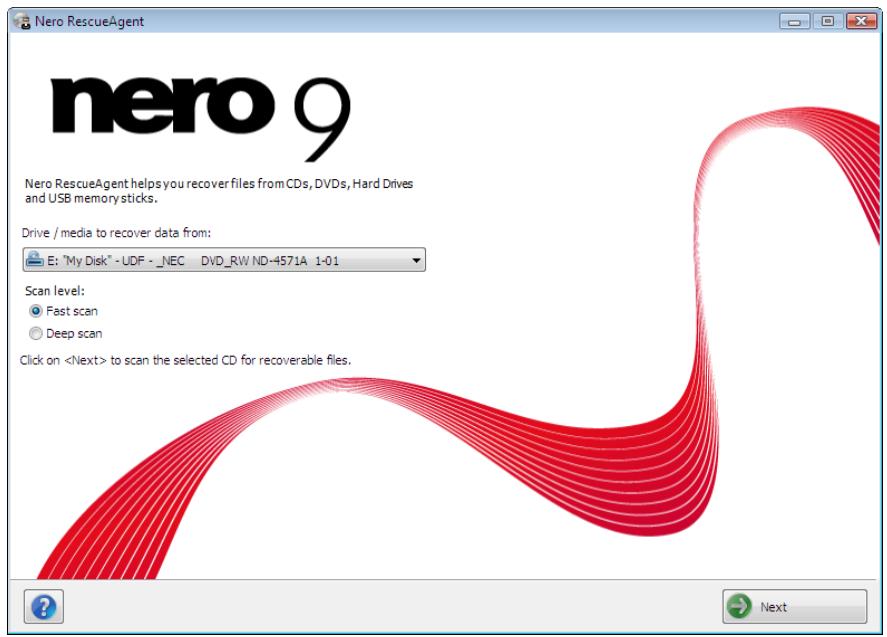
Start screen
The following setting options are available:
| Drop-down menu Drive/media from which to recover data: | Selects the storage medium from which data is to be restored. |
| Option button Fast scan | Selects the faster scan. The fast scan searches only the FAT file system of the storage medium. With the aid of the fast scans, deleted files and older file versions are found. |
| Option button Deep scan | Selects the deep scan. The deep scan searches the whole storage medium. With the deep scan you will find individual faulty meta-file entries, corrupted files, unreadable sectors as well as files that have been deleted and that are no longer visible in the FAT file system. The deep scan takes much longer than the fast scan. |
| Button Help | Opens the Help window and displays information on program and version number. |
| Button Next | Starts the search for files that can be recovered. |
3.1 Select Storage Medium and Scan Level
To select the storage medium and the scan level, proceed as follows:
- Place the desired disc into the drive or connect the desired storage medium to your computer.
- Select the storage medium from the Drive / Data Medium from which to Restore Data from the drop-down menu.
- Select the desired scan level.

The fast scan only searches the FAT file system of the storage medium. The fast scan finds deleted files and older file versions.
The deep scan searches the whole storage medium. With the deep scan you can find individual faulty meta-file entries, corrupted files, unreadable sectors as well as files that have been deleted and which are not visible in the FAT file system.
The deep scan takes much longer than the fast scan.
- Click the Next button.
The Fast Scan Being Processed screen or the Deep Scan Being Processed screen is displayed. Progress can be followed here. After completion of the search, the Files to Recover screen is displayed.
See also:
Select Files to Recover 11
Start screen 7
4 Files to Recover Screen
The Files to Recover screen lists all files that can be restored. If files can only to be partly restored, they are marked in yellow. If there is only a small probability that files can be restored, they are marked in red.
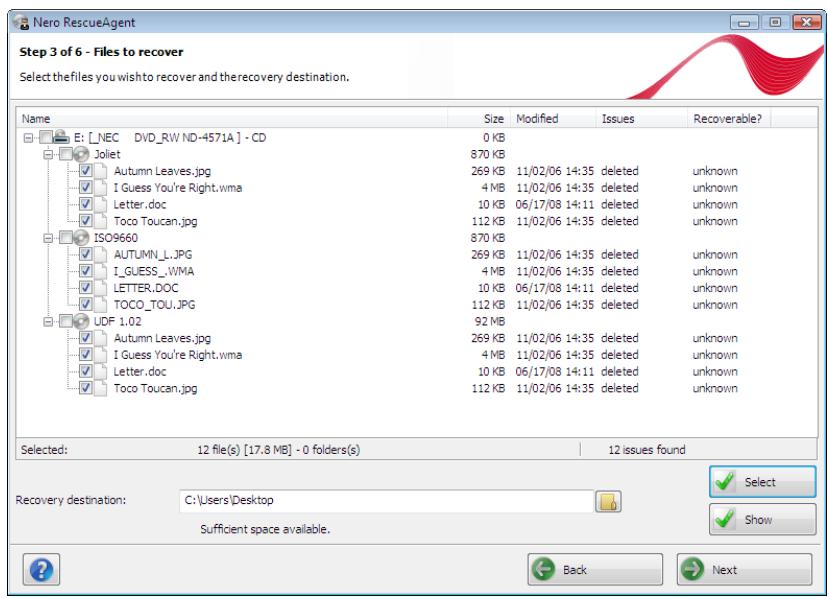
Files to Recover screen
The following setting options are available:
| Button Select | Opens the Select Specified Files window. Here files can be selected according to particular criteria and also problem categories can be chosen for restoring. |
| Button Displays | Opens the Show only Specific Files window. Here files can be se- lected according to particular criteria and problem categories can be chosen for restoring. |
| Button | Opens the Find Folder window. Here you can define the folder in which the restored files are to be saved. |
| Button Back | Returns to the start screen. |
| Button Next | Starts the recovery of the selected files. Only available when a storage locality for the files to be restored has already been defined. |
See also:
Select Files to Recover 11
4.1 Show Specific Files / Only Specific Files Window
In the Select Specific Files and Only Show Specific Files windows, files can be selected and can be displayed in the Files to Recover screen. The files can be selected according to particular criteria and also problem categories whereby an easy overview is obtained even for long lists.
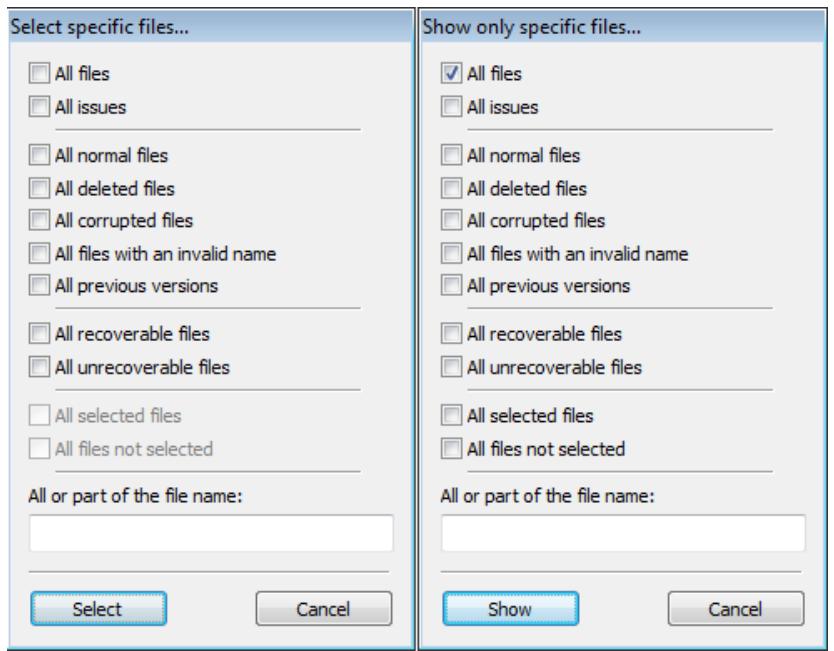
Select Specific Files and Show only Specific Files window
The following setting options are available:
| Check Box All files | Selects all files or shows them |
| Check Box All problems | Selects all files from all problem categories or shows them. |
| Check Box All normal files | Selects all files or shows files in which no faults have been found. |
| Check Box All deleted files | Selects all deleted files or shows them. |
| Check Box All corrupted files | Selects all corrupted files or shows them. Nero RescueAgent finds corrupted files only only when the Deep Scan option has been selected in the start screen. |
| Check Box All files with incorrect file names | Selects all files with incorrect file names or shows them. Nero RescueAgent finds files with incorrect names only if the Deep Scan option has been selected in the starting screen. |
| Check Box All previous versions | Selects all older file versions or shows them. |
| Check Box All recoverable files | Selects all files that can be restored or shows them. |
| Check Box All unrecoverable files | Selects all files that cannot be restored or shows them. |
| Check Box All selected files | Shows all selected files Only available in Display Specific Files window. |
| Check Box All files not selected | Shows all files that have not been selected. Only available in Display Specific Files window. |
| Input field All or part of the file name: | Enter a search term here which is to be searched for in the listed files in the Files to Recover screen. All files that contain the search term are listed or shown. |
| Button Select | Closes the Select Specific Files window and marks all the selected criteria and problem categories in the Files to Recover screen. |
| Button Displays | Closes the Only Select Specific Files window and shows all the selected criteria and problem categories in the Files to Recover screen. |
| Button Close | Closes the Select Specific Files or the Show Only Specific Files window. |
4.2 Select Files to Recover
The Files to Recover screen lists all files and folders that can be restored. As the list can be very long, there it is possible to show files according to certain criteria and problem categories. The files can also be selected from the folder tree.
The following requirements have to be fulfilled:
- You have searched the desired storage medium for files to be restored.
The Files to Recover screen appears.
In order to select files according to specific criteria and problem categories, proceed as follows:
- Click the Select button.
The Select Specific Files window opens. -
Select the check box of the desired criteria or enter a search term in the All or Part of the File Name input field and click the Select button.
The Select Specific Files window is closed. The Select button receives a green tick. -
Click the Display button.
The Show only Specific Files window is opened.
- Select the check boxes of the criteria and problem categories or enter a search term in the All or Part of a File Name input field and click the Display button.
The Show only Specific Files window is closed. The Display button receives a green tick.
- Click the button in order to define the target folder of the file to be restored.
The Browse Folder window is opened.

The folder in which the files are to be stored must not be situated on the same storage medium from which the files are to be restored.
- Select the folder in which the files are to be stored and click the OK button.
The Browse folder window is closed.
- Click the Next button.
Nero RescueAgent begins restoring the selected files. This can take some time depending on how severely the storage medium is damaged. After restoration is complete, the Restoration Completed screen appears.
See also:
Save log file 14
Files to Recover Screen 9
Show Specific Files / Only Specific Files Window→10
5 Recovery Completed Screen
All recovered files are displayed in the Recovery complete screen. The screen also indicates how many files could not be recovered. You can save a log file as a summary of the recovery performed.
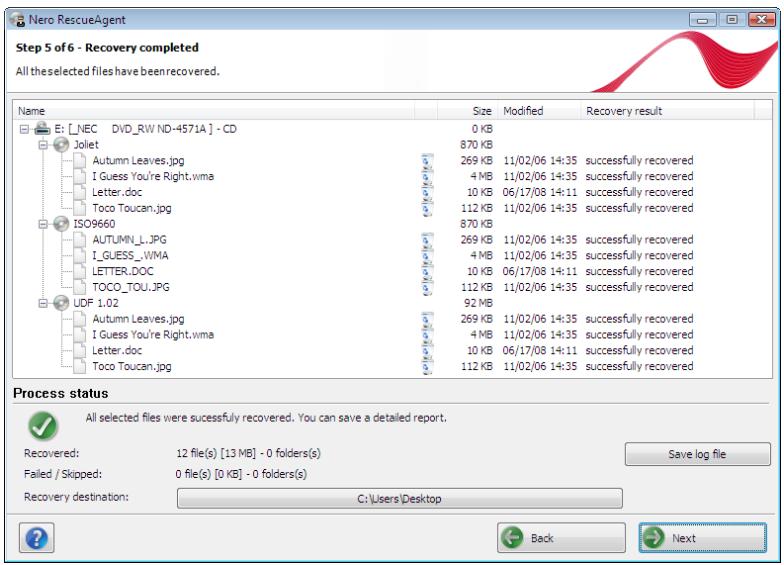
Recovery Completed Screen
The following setting options are available:
| Button Save log file | The Save as dialog appears. You can specify the storage location for the log file here. The log file is saved in TXT format. |
| Button Location | Opens the folder in which the restored files were saved. |
| Context Menu Explore this folder | Opens the folder in which the marked file was saved in Windows® Explorer. |
| Button Back | Returns to the Files are Being Restored screen. |
| Button Next | Changes to the end screen of Nero Res-cueAgent. |
5.1 Save log file
The following requirements have to be fulfilled:
- You have restored files with Nero RescueAgent.
The Restoring Completed screen appears.
To save a log file, proceed as follows:
- Click the Save Log File button.
The Save As window appears. - Select the folder to which the log file is to be saved and click the OK button.
The Save as dialog is closed. - Click the Next button.
The end screen of Nero RescueAgent appears. You can now either start a new scan, scan the same storage medium again, restore further files or close Nero RescueAgent.
See also:
Recovery Completed Screen 13
6 End screen
In the end screen you can either start a new scan, scan the same storage medium again, restore further files or end Nero RescueAgent.
The following setting options are available:
| Menu icon New scan | Returns to the start screen. |
| Menu icon Scan the same drive | Restarts a scan on the same drive with the same scan options. |
| Menu icon Recover more files | Changes to the Files to Recover screen. Here you can select further files to restore, or simply restart restoring with the files that are already selected. |
| Menu icon Close this application | Closes Nero RescueAgent. |
| Button Close | Closes Nero RescueAgent. |
7 Technical Information
7.1 System requirements
Nero RescueAgent(TM) is installed along with the Nero Suite. Its system requirements are the same. You can find more detailed information on the system requirements under www.nero.com.
7.2 Supported File Systems
UFD (versions 1.0 to 2.6 only VAT)
ISO 9660 (including Joliet).
Multisession Disc
UDF/ISO Bridge Disc
NTES
FAT 12/16/32
7.3 Key Combinations
In Nero RescueAgent menu commands can be carried out on-the-fly via predefined key combinations.
The following key combinations are available:
| [Ctrl+B] | Returns to the previous screen. |
| [Ctrl+R] | Starts recovery. Only available in the Files to Recover screen. |
| [Ctrl+S] | Starts the search for files on the selected storage medium. Only available on the starting screen. |
| [Ctrl+C] | Aborts restoring of the files. Only available in the Files Are Being Recovered screen. |
| [Ctrl+A] | Selects all files from the disk. Only available in the Files to Recover screen. |
| [Ctrl+P] | Selects all files for which problems have been determined and re-storing is required. Only available in the Files to Recover screen. |
| [Ctrl+D] | Opens the Find Folder window. Only available in the Files to Recover screen. |
| [Ctrl+L] | The Save as window appears. Here you can store a log file and specify the storage location. Only available in the Recovery completed screen. |
| Ctrl+Pos 1 | Returns to the start screen. Only available in the Recovery completed screen. |
| Alt+Plus button | Expands all entries in the folder tree starting from the selected entry or from the root if no entry is selected. Only available in the Files to Recover screen. |
| Alt+Minus button | Hides all entries in the folder tree starting from the selected entry or from the root if no entry is selected. Only available in the Files to Recover screen. |
| Esc | Closes Nero RescueAgent. |
8 Glossary
Bridge Disc
A Bridge Disc is a variant of a CD-ROM that can be read from CD drives but also from CD-I devices such as a Photo CD for example. It is defined in the White Book Standard and contains extra information in an XA (Standard Architecture) track on the CD-ROM.
FAT
FAT (File Allocation Table) is a file system developed by Microsoft. The FAT 12, FAT 16 and FAT 32 file systems are used on all types of mobile storage media (e.g. USB sticks, memory cards).
ISO 9660
The International Organization for Standardization defined the Universal Standard 9660 which determines the features of the CD. This format is platform-independent and can thus be read by computers with different operating systems. In order to ensure universal readability, the file names used should be as short as possible. (In a DOS environment no more than eight characters may be used).
Joliet
Joliet refers to an extension of the ISO-9660 standard for file names. Joliet was designed by Microsoft in order to represent more characters. The file name can be up to 64 characters long and contain the letters A-Z, a-z, umlauts and the .
Multisession Disc
A multisession disc can contain several sessions that are not fixed. This way, more data can be added in new sessions at a later point in time, and the disc is not closed until it is full.
NTFS
New Technology File System is a Windows® file system. Its advantages include differentiated access and rights management, as well as defragmentated data storage, which allows the processing speed to remain high.
Packet-writing
Packet-writing refers to a procedure for writing to optical media incrementally. An optical medium, e.g. a DVD, can be used as a hard drive as a result. This way, files can be copied, moved, changed, or erased on the respective optical medium.
UDF
The Universal Disc Format is a platform-independent file system. File names can be up to 255 characters long; 8 and 16 bit character sets are supported.
9 Index
C
Conventions, manual 4
E
End screen
Close Application. 15
New scan. 15
Restore further files 15
Scan the same drive again. 15
K
Key Combinations
[Ctrl+A]. 16
[Ctrl+B]. 16
[Ctrl+C] 16
[Ctrl+D] 16
[Ctrl+L] 17
[Ctrl+P]. 16
[Ctrl+R] 16
[Ctrl+S]. 16
Alt+Minus button 17
Alt+Plus button 17
Ctrl+Pos 1. 17
Esc. 17
L
Launching the Program 6
Log File
Location 13
Save 14
M
Manual, conventions 4
0
Overview
Method of working 5
Method of working - overview. 5
Restored files. 13
Storage location of log file 13
R
Restore
Overview. 13
Save log file 14
Select files. 11
Start over 14
S
Scan
Deep scan. 7
Deeper 7
Fast scan 7
Faster. 7
Same drive. 15
Start screen. 7
Scan
New. 15
Screen
End screen. 15
Files to Recover. 9
Files to Recover screen 9
Guide 7
Help. 7
Restoring completed. 13
Start screen. 7
Select
Criteria 11
Deep scan. 8
Fast scan 8
Problem categories 11
Scan level: 8
Select criteria 11
Select fast scan. 8
Select problem categories 11
Select restore files 11
Select scan level: 8
Select storage medium. 8
Specific files 11
Storage medium. 8
Select specific files. 11
Show specific files. 11
System requirements 16
W
Window
Only show specific files. 10
Select specific files. 10
10 Contact
Nero RescueAgent(TM) is a Nero AG product.
Nero AG
Glendale, CA 91203-2335
USA
Internet: www.nero.com
Help: http://support.nero.com
Fax: (818) 956 7094
E-mail: US-CustomerSupport@nero.com
Nero KK
Rover Center-kita 8F-B, 1-2-2
Nakagawa-chouo Tsuzuki-ku
Yokohama, Kanagawa
Japan 224-0003
Internet: www.nero.com
Help: http://support.nero.com
Copyright © 2008 Nero AG and its licensors. All rights reserved.