
PHOTOSNAP 9 - Photo editing software NERO - Free user manual and instructions
Find the device manual for free PHOTOSNAP 9 NERO in PDF.


User questions about PHOTOSNAP 9 NERO
0 question about this device. Answer the ones you know or ask your own.
Ask a new question about this device
Download the instructions for your Photo editing software in PDF format for free! Find your manual PHOTOSNAP 9 - NERO and take your electronic device back in hand. On this page are published all the documents necessary for the use of your device. PHOTOSNAP 9 by NERO.
USER MANUAL PHOTOSNAP 9 NERO
Copyright and trademark information
This document, like the software described therein, is provided as a license and may only be used or reproduced in accordance with the licensing agreement. The contents of this document, as well as the associated software, is subject to change without prior notice. Nero AG rejects any responsibility for the correctness of the contents of this document and rejects any claims that transcend the clauses of the guarantee agreement.
This document and all of its contents are protected by copyright and are the property of Nero AG. All rights reserved. In addition, this document contains material that is protected by internationally valid copyright. This document may not be reproduced, transmitted, or transcribed in whole or in part without the express written permission of Nero AG.
Please keep in mind that existing graphics, pictures, videos, music titles, and other materials that you may wish to insert or transcribe into projects may be protected by copyright. The unauthorized use of this type of material in your projects may violate the rights of the owner of the copyright. Make sure that you obtain all necessary authorizations from the owner of the copyright.
Unless you own the copyright, have permission from the copyright owner, or your actions fall under the "fair use" provisions of copyright law, you may be violating national or international copyright laws. The transcribing, duplication, modification or publication of copyright-protected material may lead to claims for damages and the enforcement of other legal measures against you. If you are unsure of your rights, you should contact your legal advisor.
Some of the applications of the Nero Suite require technology developed by third-party manufacturers and may be included in Nero Suite as demo versions. These applications can be activated online free of charge or by sending an activation fax to enable unlimited use of the version. Nero will only transmit the data necessary for activation of the technology licensed from third parties. For unlimited use of Nero Suite, it is therefore necessary to have an Internet connection or a fax machine.
Copyright © 2006 - 2008 Nero AG and its licensors. All rights reserved.
Adobe, Acrobat, Acrobat Reader and Premiere are brands or protected trade names of Adobe Systems, Incorporated. AMD Athlon™, AMD Opteron™, AMD Sempron™, AMD Turion™, ATI Catalyst™ and ATI Radeon™ are brands or protected trademarks of Advanced Micro Devices, Inc. ASTC is a trademark of Advanced Television Committee. ICQ is a registered trademark of AOL, LLC. Apple, iPhone™, iPod, iTunes, FireWire, and Mac are brands or registered trade names of Apple, Inc. ARM is a registered trademark of ARM, Ltd. AudibleReady is a registered trademark of Audible, Inc. BenQ is a trademark of the BenQ Corporation. Blu-ray Disc is a brand of Blu-ray Disc Association. CyberLink is a registered trademark of CyberLink Corp. DLNA is a registered trademark of Digital Living Network Alliance. DivX and DivX Certified are registered trademarks of DivX, Inc. Dolby, Pro Logic and the double-D symbol are brands or registered trademarks of Dolby Laboratories, Inc. DTS and DTS Digital Surround are registered trademarks of DTS, Inc. DVB is a registered trademark of the DVB Project. Freescale is a brand of Freescale Semiconductor, Inc. Google and YouTube are trademarks of Google, Inc. WinTV is a registered trademark of Hauppauge Computer Works, Inc. Intel, Intel XScale, Pentium and Intel Core™2 Duo are brands or registered trademarks of the Intel Corporation. Linux is a registered trademark of Linus Torvalds. Memorex is a registered trademark of Memorex Products, Inc. ActiveX, ActiveSync, DirectX, DirectShow, Internet Explorer, Microsoft, HDI, MSN, Outlook, Windows, Windows Mobile, Windows NT, Windows Server, Windows Vista, Windows Media, Xbox, Xbox 360, the Start button of Microsoft Windows Vista and the Windows logos are brands or registered trademarks of Microsoft Corporation. MySpace™ is a brand of MySpace, Inc. NVIDIA, GeForce and ForceWare are brands or registered trademarks of NVIDIA Corporation. Nokia is a registered trademark of Nokia Corporation. CompactFlash is a registered trademark of SanDisk Corporation. Sony, Memory Stick, PlayStation, PLAYSTATION and PSP are brands or registered trademarks of Sony Corporation. HDV is a brand of Sony Corporation and Victor Company of Japan, Limited (JVC). UPnP is a registered trademark of the UPnP Implementers Corporation. Labelflash is a registered trademark of Yamaha Corporation.
All brands are for information purposes only. All trade names and trademarks are the property of their respective owners.
Nero AG, Im Stoeckmaedle 13-15, D-76307 Karlsbad, Germany
Table of contents
1.1 About the manual 5
1.2 About Nero PhotoSnap 5
1.3 Basic Steps 6
2 Launching the program 7
3User Interface 8
1 Start Successfully 5
4 Program options 10
5 Image effects 12
5.1 General Effect Area 12
5.2 Main effects 13
5.2.1 Settings in the Lighting Region 15
5.2.2 Color Balance 16
5.2.3 Resolution Settings Area 17
5.2.4 Noise Settings Area 18
5.2.5 Sharpening Settings Area 19
5.2.6 Rotate Settings Area 20
5.3 Further Graphic Effects 22
5.3.1 Settings in the Aging Area 26
5.3.2 Median Settings Area 26
5.3.3 Canvas Settings Area 26
5.3.4 Duotone Settings Area 27
6 Image formats 28
6.1 Compression Settings for the TIFF Format. 28
6.2 Compression Settings for the JPEG Format 29
6.3 Compression Settings for the PNG Format 29
7 Overview of Data Information and Metadata 30
8 Edit Picture 31
8.1 Autofix exposure 31
8.1.1 Correcting the Lighting with the aid of the Histogram 31
8.1.2 Lighting with Gradation Curve 33
8.2 Balancing the Color of a Picture 34
8.3 Red Eye Removal 35
8.4 Save Picture 35
8.5 Save Picture 36
9 Nero PhotoSnap Viewer 38
9.1 About Nero PhotoSnap Viewer 38
9.2 Program Interface 38
9.3 Full Screen 39
9.4 Configuration 40
Table of contents
10 Technical Information 41
10.1 System requirements 41
10.2 Key Combinations 41
10.3 Formats supported 42
10.3.1 Image formats 42
11 Glossary 43
12 Index 45
13 Contact 49
1 Start Successfully
1.1 About the manual
This manual is intended for all users who want to learn how to use Nero PhotoSnap. It is process-based and explains how to achieve a specific objective on a step-by-step basis.
To make best use of this documentation, please note the following conventions:
| ○ | Indicates warnings, preconditions or instructions that have to be precisely followed. |
| ○ | Indicates additional information or advice. |
| 1. Start ... | The number at the beginning of a line indicates a prompt for action. Carry out these actions in the order specified. |
| → | Indicates an intermediate result. |
| → | Indicates a result. |
| OK | Indicates text passages or buttons that appear in the program interface. They are shown in boldface. |
| (see...) | Indicates references to other chapters. They are executed as links and are shown in red and underlined. |
| [...] | Indicates keyboard shortcuts for entering commands. |
1.2 About Nero PhotoSnap
Nero PhotoSnap lets you edit your digital photographs. You can choose from a large selection of tools to improve the picture quality or to create special picture effects.
Nero PhotoSnap is supplemented by the Nero PhotoSnap Viewer viewing software. Your digital photos and photo files can be viewed with Nero PhotoSnap Viewer.
With the integrated database of Nero Scout and using the Select an Image File to be Opened window, you can search for files using various criteria and then directly edit them in Nero PhotoSnap.

With Nero CoverDesigner, you can create covers and labels for discs (CDs, DVDs, etc.). Nero CoverDesigner is a part of Nero 9 Premium and is automatically installed with it. You will find further information in the Nero CoverDesigner manual.
See also:
About Nero PhotoSnap Viewer 38
1.3 Basic Steps
Nero PhotoSnap lets you modify a picture and apply effects to it. Several tools and picture effects are available to you in the right work area for this purpose.
The following basic steps are necessary in order to post-process a picture:
Load the picture in Nero PhotoSnap.
Choose the effect for the picture.
Undertake any required fine settings for the effect.
Save picture under a new name.
2 Launching the program
To start Nero PhotoSnap via Nero StartSmart, proceed as follows:
- Click the StartSmart icon.
The Nero StartSmart window opens.

Click the

The list of Nero applications appears.
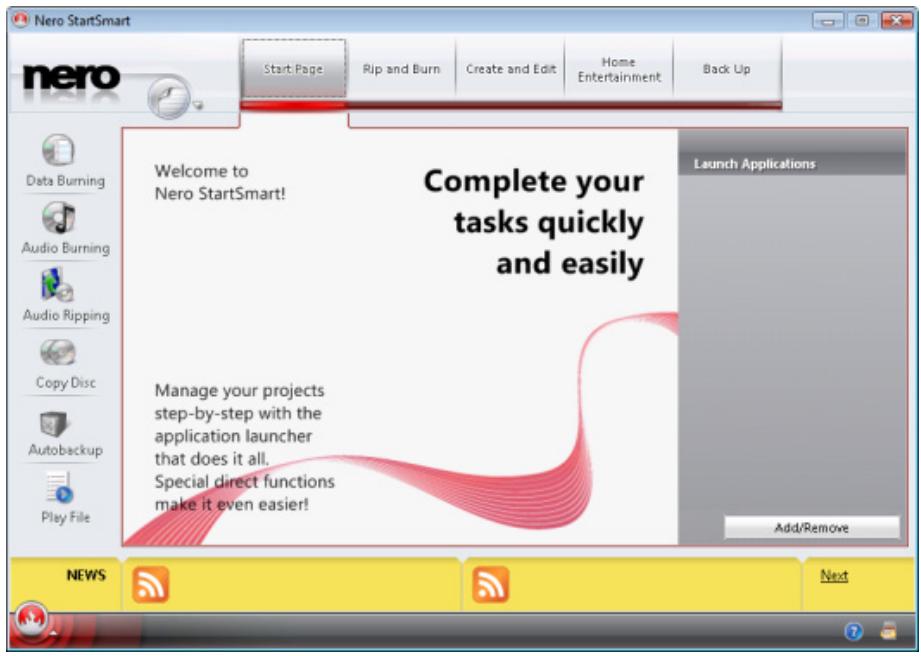
Nero StartSmart window
- Select the Nero PhotoSnap entry in the selection list.
- The Nero PhotoSnap window opens.
You have launched Nero PhotoSnap via Nero StartSmart.
3 User Interface
The program interface of Nero PhotoSnap is where you begin to edit photos and pictures. In one task bar Nero PhotoSnap offers file, display and configuration options, and in the Toolbox area it offers filters and effects for picture editing. The opened picture is displayed in the editing area.
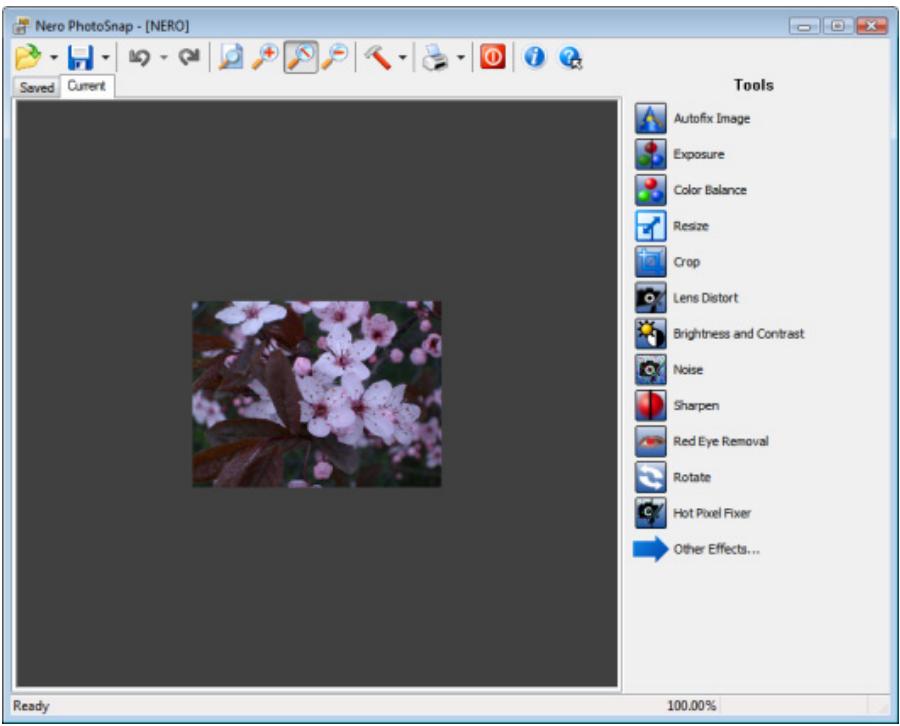
Program interface with opened picture
In the icon barthe following buttons are available:
| Opens the Select a picture window, where you can select a picture to open. In the drop-down menu you can select one of the most recently opened picture files. | |
| Saves the picture. In the drop-down menu you can save the picture under a different name and set the options for compression if needed. | |
| Undoes the last editing step. | |
| Restores the undone editing step. | |
| Fits the picture to the editing area. | |
| Increases the view of the picture. | |
| Displays the picture in its original size (100% zoom). | |
| Decreases the view of the picture. | |
| Opens the Options window where you can configure the program. In the drop-down menu, file information can be displayed. | |
| Prints the picture. You can configure the printer settings in the drop-down menu. | |
| Closes Nero PhotoSnap. | |
| Opens the About Nero PhotoSnap window to display information such as the version number. | |
| Opens the window Help Information which displays the Online Help. Help can only be opened if it has been installed separately. |
The following setting options are available in the editing area:
| Tab Saved | Displays the original picture as it is saved. |
| Tab Current | Displays the current editing state of the pic-ture (not saved). |
| Tab Preview | Shows how the picture would look with the current filter. This tab is available only if a filter is se-lected. |
| Tab Split Preview | Shows the current picture in the left pane and in the right pane how the picture would look if the current filter were applied. This tab is available only if a filter is se-lected. |
| Button | Synchronizes the view of the left and right pictures, i.e. if the left picture is enlarged, the right picture is also enlarged and vice-versa. If the button is deactivated, the views are not synchronized. This button is available when the Split Preview tab is displayed. |
In the Toolbox area, effects are available that you can apply to pictures.
| Other effects | Shows additional effects. |
| Back to main effects | Shows the main effects. |
See also:
Program options 10
4 Program options
Nero PhotoSnap lets you define the presets for displaying pictures. You define the presets in the Options window, which you open with the button.
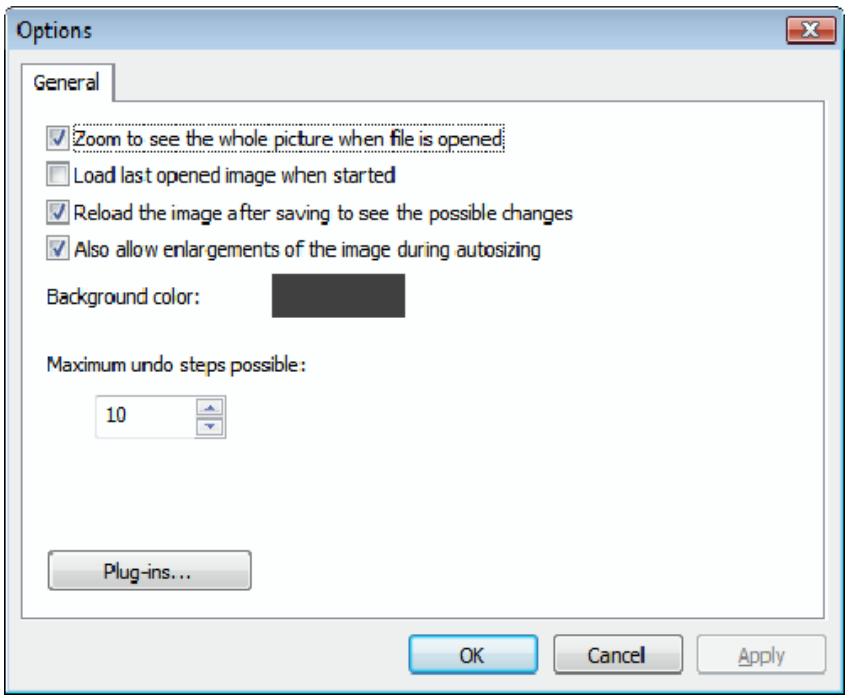
Options Window
The following setting options are available:
| Check Box Zoom to see the whole pic-ture when file is opened | Fits the picture to the editing area. If the check box is cleared, the picture is displayed in its original size (100%) in the editing area. |
| Check Box Load last opened picture when started | Loads the most recently opened picture when Nero PhotoSnap is launched. |
| Check Box Reload the picture after sav-ing to see the possible changes | Reloads after saving the picture and displays it in the Saved and Current tabs. If the check box is selected, the Saved tab displays the original picture before editing (from the Nero PhotoSnap clipboard) and the Current tab displays the edited and saved picture. If you are not satisfied with the changes, you can click the button to reset the changes and edit again from the original pic-ture. |
| Check Box Also allow picture enlargement during autosizing | Enlarges the picture if required to fit into the editing area. If the check box is cleared, the maximum picture enlargement is the original size. |
| Button Background Color | Defines the background color of the editing area. |
| Input field Maximum undo steps | Defines how many steps can be undone. |
| Button Plug-ins | Opens the Configure Plug-in Manager window where you can register plug-ins (currently, no additional plug-ins are available). |
See also:
User Interface 8
5 Image effects
5.1 General Effect Area
When you select an effect, a corresponding effect area is usually shown. Some effects possess special settings possibilities and areas.
Generally, the following options are available:
| Drop-down menu Preferences | Creates a name for the selected settings. |
| Button Save | Saves the preset. |
| Button Delete | Deletes the selected preset. |
| Button Apply | Applies the effect. |
| Button Cancel | Cancels the action and shows the Toolbox area. |
| Check Box Preview | Shows the Filter Preview preview window. Here you see the saved picture above and the edited picture below. |
See also:
Main effects 13
Further Graphic Effects 22
5.2 Main effects
When a picture is open, you can switch between main effects and other effects in the Toolbox area with the Other Effects and Return to Main Effects buttons. The main effects are particularly useful for correcting imperfections in the digital picture caused by, for example, a faulty shot or a faulty scan. The other effects are used for artistic editing and creative picture manipulation.
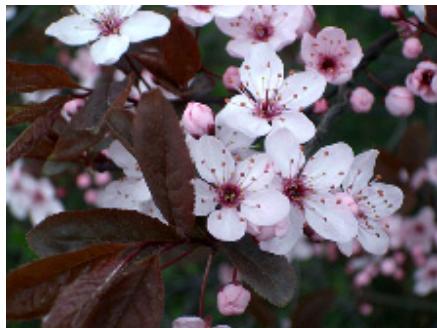
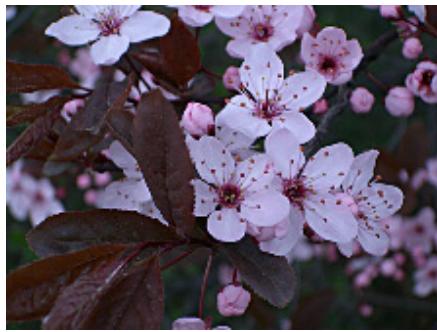
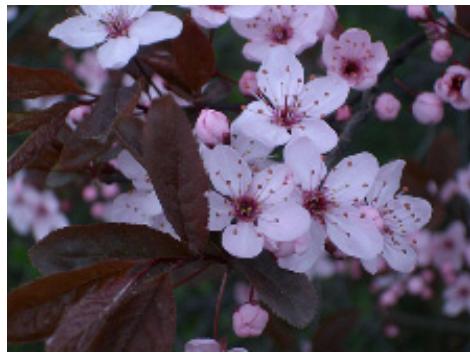
The following main effects are available, demonstrated by the contrast between the original graphic (left) and the effect used (right):

Automatically corrects the light and color values of a picture.

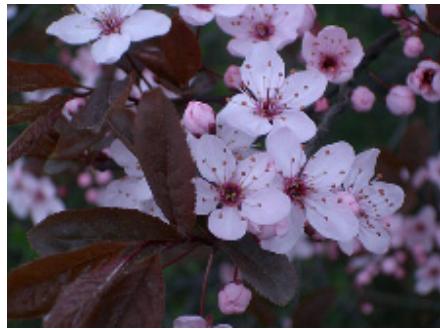
Shows the Color/Exposure area where you can correct the exposure automatically or manually.
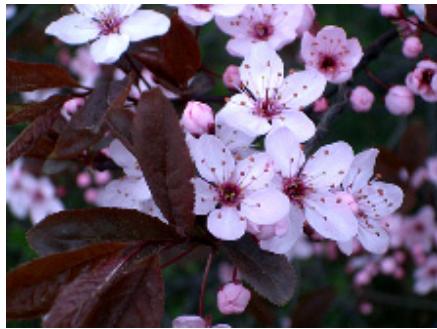

Displays the Color/Color Balance area in which individual color values can be incremented or reduced. Example: in the sample picture, the amount of red is reduced.
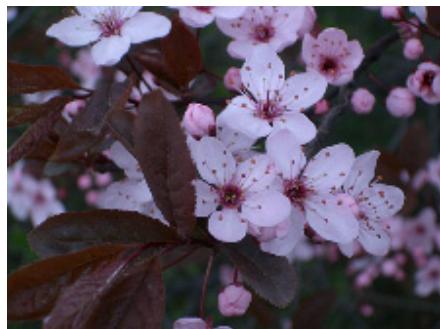
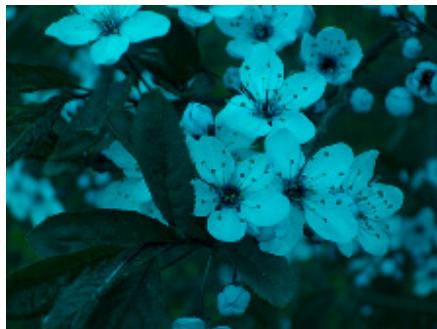

Shows the Resolution area where you can change the pixel size, resolution and/or print size of the picture.

Shows the Crop area where you can extract (crop) part of the area.
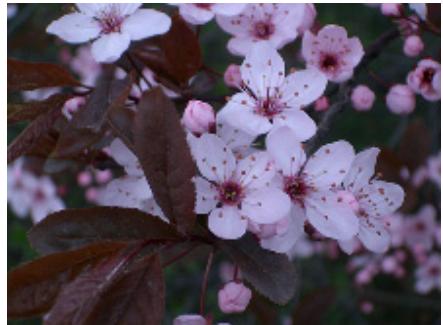

Shows the Lens distortion area where you can offset pin cushion or barrel lens distortion.
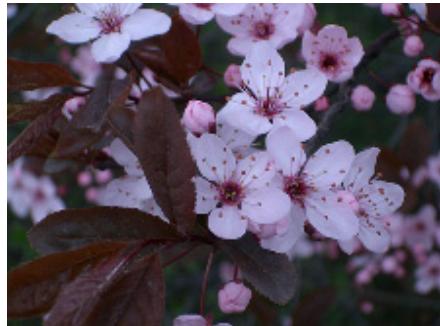
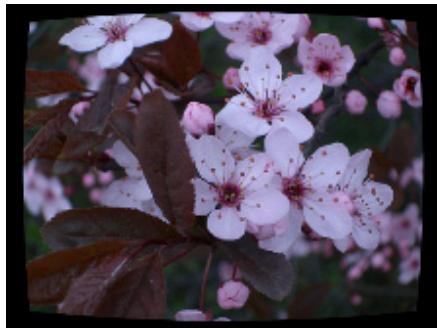

Fades in the Brightness and Contrast area.
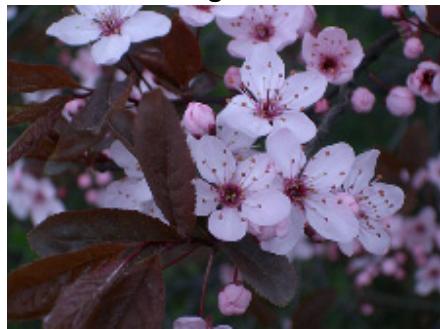
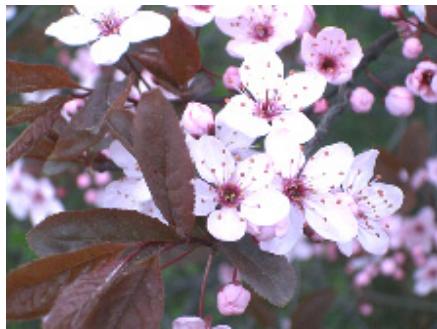

Shows the Noise area, where you can reduce or increment picture noise.

Displays the Sharpness area
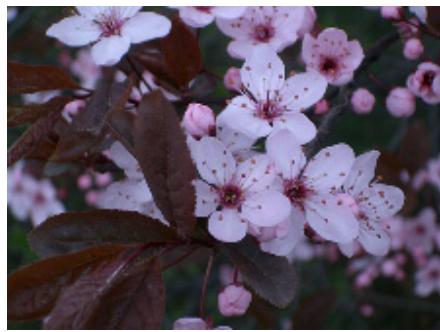

Shows the Red eye removal area, where you can correct red eyes.

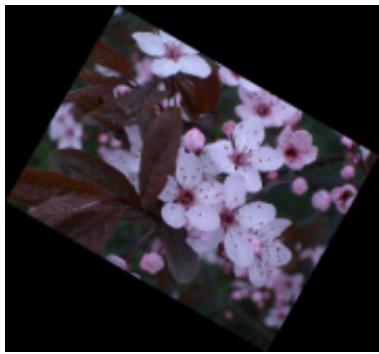
Shows the Rotate area, where you rotate the picture.

Shows the Hot pixel fixer area, where you can remove so-called hot pixels.
See also:
General Effect Area 12
Further Graphic Effects 22
Red Eye Removal 35
5.2.1 Settings in the Lighting Region
You can correct the exposure with Nero PhotoSnap. For this purpose there is a histogram and gradation correction curve available in the Color/Exposure area.
The following tabs are available:
| Histogram Correction | This defines the brightness range of the histogram using two lines. On the left are the light pixels, on the right the dark pixels. The histogram is recorded in the background. |
| Gravitation curves | Defines the distribution of the brightness values using a curve. On the X axis are the hue values of the original from light to dark, on the Y axis the tone values after the correction from light to dark. A straight curve with a 45° angle means that the original values remain unchanged. The histogram is recorded in the background. |

The histogram graphically shows the brightness distribution of the picture pixels. On the X axis are the hue values from 0 (light) to 255 (dark), on the Y axis the number of pixels.
See also:
Main effects 13
Correcting the Lighting with the aid of the Histogram 31
Lighting with Gradation Curve 33
5.2.2 Color Balance
You can correct the color of the picture with Nero PhotoSnap and, for example, remove a color cast. Correction options in RGB and HSL modes are available for that purpose in the Color/Color balance area.
You can perform the color balance with the RGB tab in RGB mode: colors are defined with combinations of the three primary colors red, green and blue. The color balance can be performed on the HSL tab in HSL mode: colors are defined by a combination of hue factors, saturation and lightness.
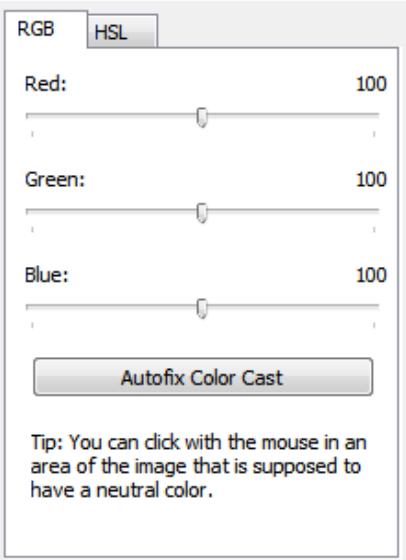
Color Balance, Tabs, RGB Area
The following input options are available on the RGB tab:
| Slider Red / Green / Blue | Regulates the amount of color. Slide the regulator to the right to increase the amount of color (up to 100%). Slide the regulator to the left to decrease the amount of color (to 0%). |
| Button Auto-remove color cast | Automatically balances an existing color cast. |
The following input options are available on the HSL tab:
| Slider Hue | Regulates the primary colors. Slide the regulator to the right or left to change the primary color hue of each pixel. |
| Slider Saturation | Regulates the saturation of the colors. Slide the regulator to the right to increase the saturation or to the left to decrease. |
| Slider Brightness | Regulates the saturation of the colors. Slide the regulator to the right to increase the saturation or to the left to decrease. |
See also:
Main effects 13
Balancing the Color of a Picture 34
5.2.3 Resolution Settings Area
The resolution, size and font size of a picture can be changed in the resolution area.
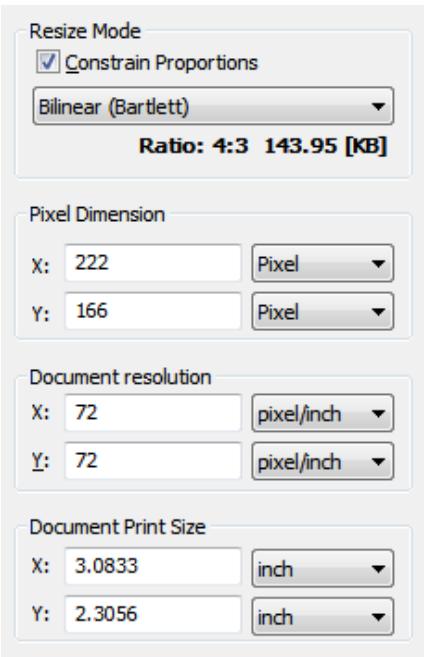
Resolution Area
The following areas are available in the Resolution area:
| Area Resize Mode | Selects a method for changing the size of the picture. |
| Check Box Constrain proportions | Retains the proportions of the picture. |
| Area Document resolution | Defines the resolution of the picture in pixels per cm or inch. |
| Area Document Print Size | Defines the print size of the picture in cm or inches. |
| Area Document Print Size | Defines the print size of the picture in cm or inches. |
The following selection items are available in the Size-Change Mode selection list:
| No picture resampling | Changes the pixel size of the picture; the picture is not re-calculated if there is a major change. |
| Nearest Neighbor | This method is the fastest and easiest and is especially suited to illustrations with few colors. Contrasts and edges are retained. Not well suited for photography. |
| Bilinear | Re-calculates the picture if there is size change by taking into account the upper and lower pixels for the recalculation. This method is fast and espe-cially suitable for drawings and illustrations. |
| Bilinear (Bartlett) | If there is a size change, the picture is re-calculated by taking into account the surrounding pixels in different parts. Though more exact for picture size reductions than the simple bilinear method, it is slower. This method produces the best results for drawings and illustrations. |
| Bicubic | If there is a size change, the picture is recalculated by taking into account all adjacent pixels during the recalculation. This method is particularly suited for realistic photos. The edges and lines are retained relatively well. However, the method may produce artefacts on sharp edges and is there-fore not well suited for drawings. |
| Lanczos | If there is a size change, this recalculates the picture by taking into account the surrounding pixels in a defined ratio to the recalculation. This method is qualitatively the best and thus requires the most time to calcu-late. It is especially well suited for detailed half-tone photos. However the method may produce artefacts on sharp edges and is therefore not well suited for drawings. |
See also:
Main effects 13
5.2.4 Noise Settings Area
In the Noise area it is possible to increment or decrease the picture noise. Noise occurs in digital photos if the ISO sensitivity is high when taking photos. Disturbance signals, unwanted pixels or artefacts may appear.
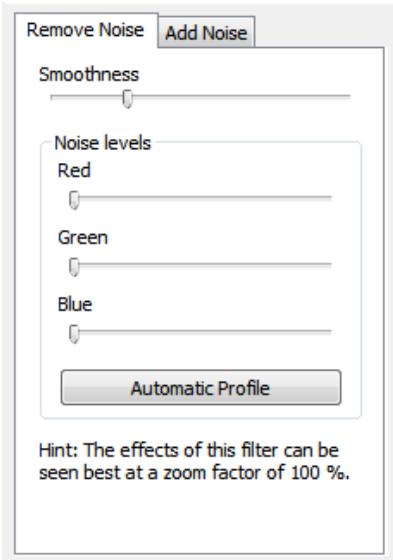
Noise Area
The following settings are available on the Noise tab:
| Slider Smoothness | Defines the degree of general noise reduction. |
| Area Noise levels | Defines the degree of noise reduction of the primary colors red, green and blue. |
| Button Auto profile | Automatically reduces noise. The regulators are set to an optimal value. |
The following slider is available on the +Noise tab:
Noise levels
Defines the degree of general noise reduction.
See also:
Main effects 13
5.2.5 Sharpening Settings Area
In the Sharpen area the picture can be sharpened or softened. The sharp effect is achieved by the Mask Softening filter that wipes out unsharpness or softening effects with the Gaussian filter. The impression of sharpness in pictures is the result of as high as possible tone value change, meaning from the contrast between two surfaces. The more edgy and contrasting these surfaces are, the sharper the transition seems to be.
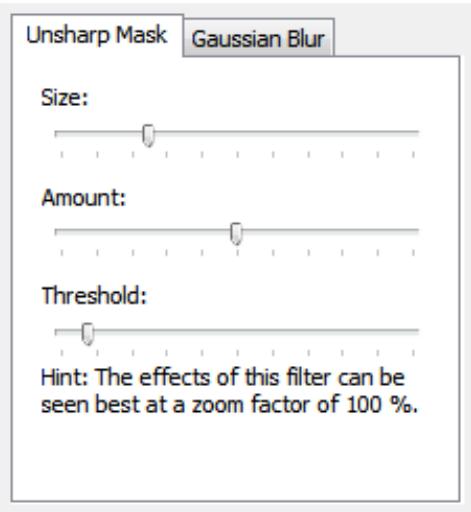
Sharpen Area
The following settings are available on the Mask Softening tab:
| Size | Defines how many pixels should be included in the sharpening calculation. |
| Amount | Defines the degree of contrast removal. |
Threshold
Defines from which edge contrast sharpening should occur.
The following slider is available on the Gaussian Blurring tab:
Size
Defines how many pixels of an area should be included in the unsharpening calculation.

There is no general regulator mixing for sharpening that applies to all picture. The optimal regulator mixing must be determined by trial and error.
See also:
Main effects 13
5.2.6 Rotate Settings Area
In the Rotate area you can rotate the picture or the picture content.
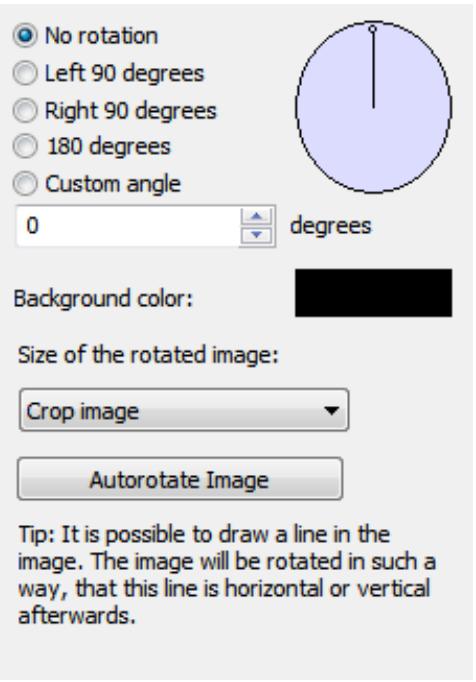
Rotate Area
The following configuration options are available in the Rotate area:
| Option button No rotation | The picture is not rotated. |
| Option buttons Left/Right 90 degrees | Rotates the picture 90 degrees to the left or right. |
| Option button 180 degrees | Rotates the picture 180 degrees. |
| Option button Custom angle | Rotates the picture by any number of degrees. Enter the degrees in the input field or rotate the slider of the circle. |
| Color space Background Color | Defines a background color for unfilled areas that occur when rotating. |
| Button Autorotate picture | Rotates the picture automatically by looking for edges; the picture is rotated so that most edges are horizontal or vertical. |
The following items are available in the Size of the rotated picture drop-down menu:
| No cropping | Does not crop the picture and fits the picture in an outer frame with horizontal and vertical edges. The newly created area is filled with the selected background color. |
| Crop picture | Crops the picture in such a manner that no background areas can be seen. Here the largest possible cropping is used, although under certain circumstances picture content can be lost. |
| Crop but keep picture size | Crops the picture like Crop picture but increases the size of the crop so that the dimensions of the rotated picture are the same as the original. |
See also:
Main effects 13
Save Picture 35
5.3 Further Graphic Effects
When a picture is open, you can switch between main effects and other effects in the Toolbox area with the Other Effects and Return to Main Effects buttons. The other effects are used for artistic editing and creative picture manipulation.
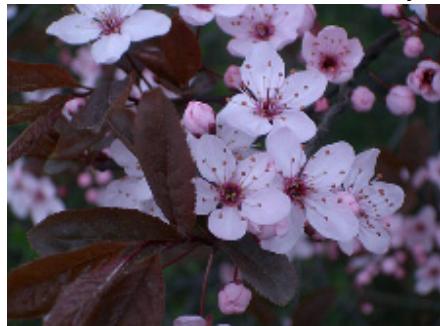
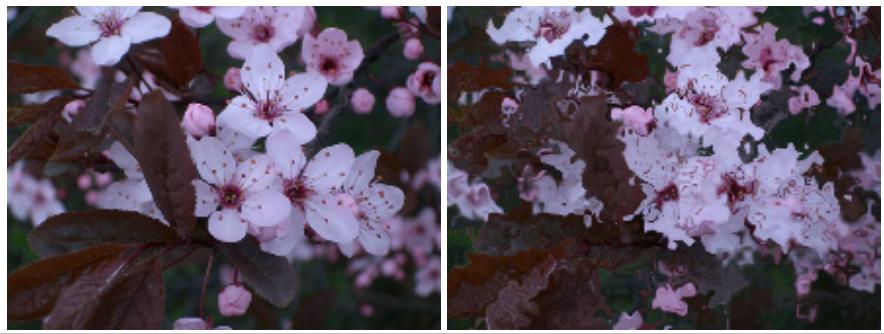
The following further effects are available, clarified by the comparison between the original graphic at the left and the effects used on the right.

Shows the Median area where you can use a water color effect.
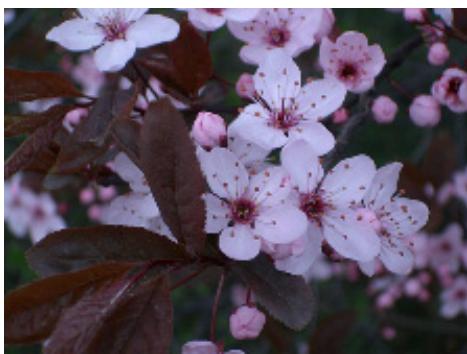
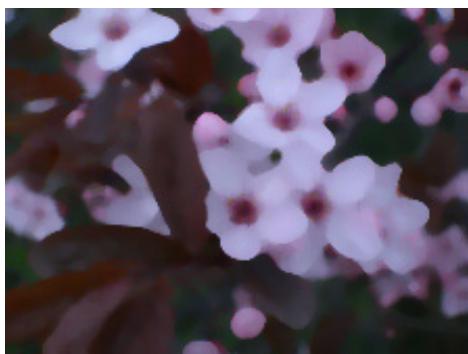

Shows the Color/Inverting area, where you can invert the colors of a picture and create a negative of the picture.
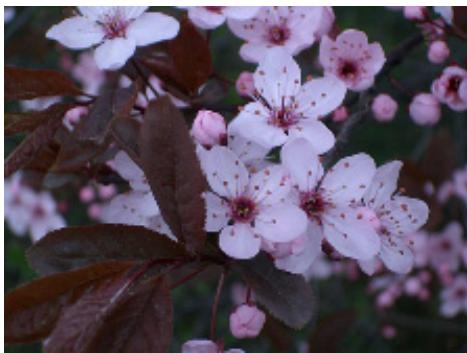
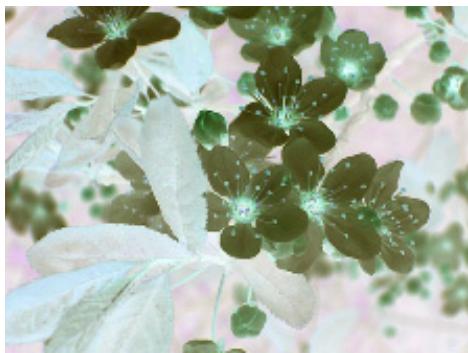

Changes the gray scale conversion. This means that a colored picture is recalculated into gray scales.
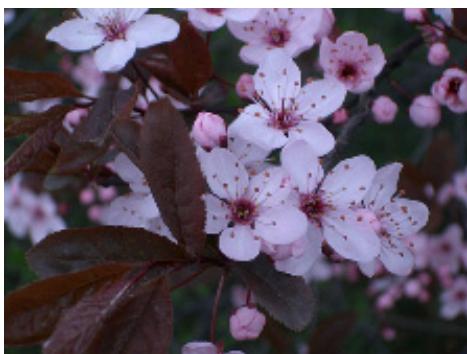
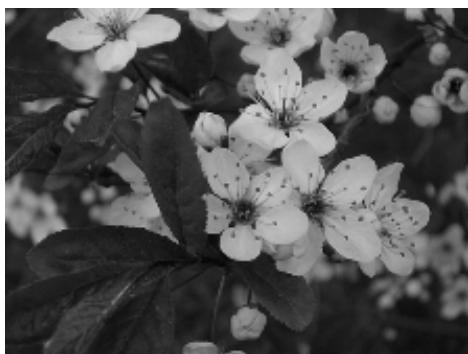

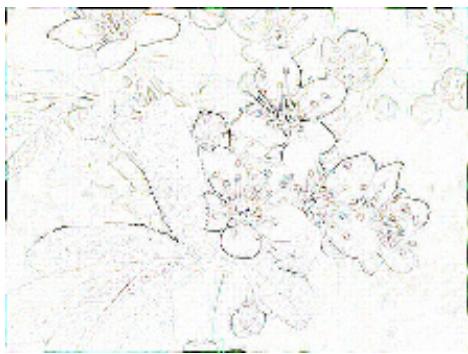
Reduce the picture to its edges, i.e. to the transitions between color areas.
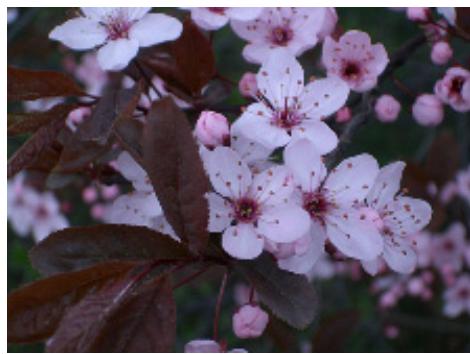

Applies the vignetting filter. This means that the picture is elliptically shadowed toward the corners.
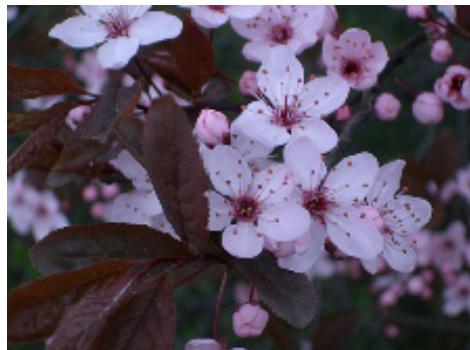
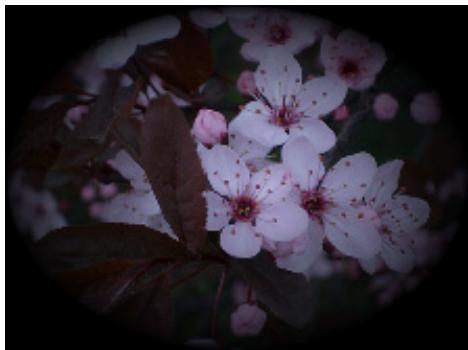

Mirrors the picture horizontally.

Mirrors the picture vertically.

Applies the relief effect. This means that edges of areas within a picture are highlighted as shaded and other colors are suppressed.
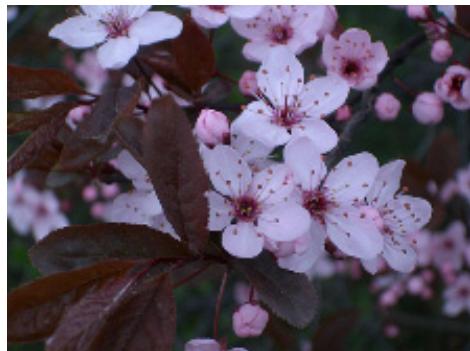
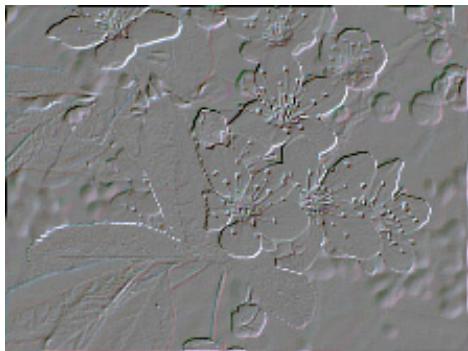

Shows the Aging area where you can apply an aging effect.

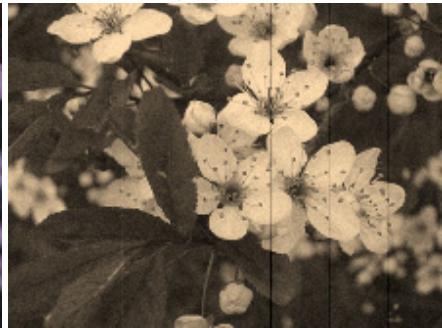

Shows the Canvas area, where you can apply the canvas effect.
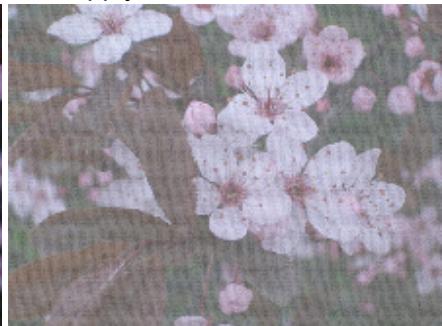

Shows the Glow area, where you can add a glow emanating from a bright surface area.
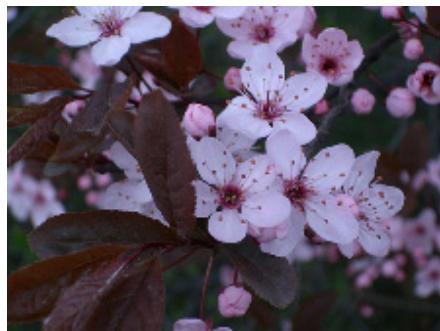
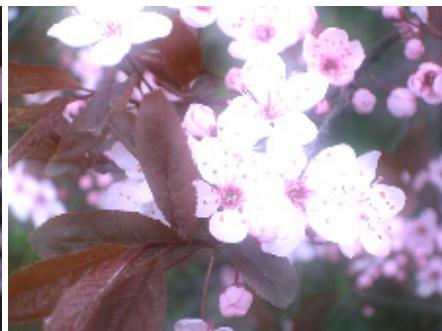

Shows the JPEG artefact removal area, where you can improve pixelated JPEG pictures.

Displays the Duotone area, in which a desired color scale can be set by means of two particular contrasting color shades.


Shows the Kaleidoscope area, where you can use a kaleidoscope effect.
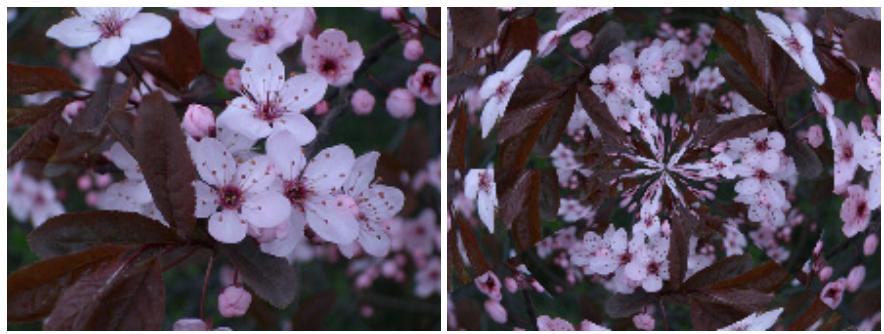

Shows the Posterization area, where you can use the oil painting effect.
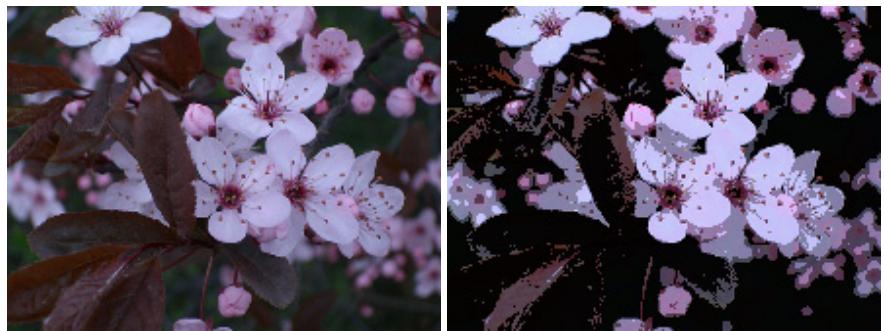

Shows the Solarization area, where you can apply the solarization effect.
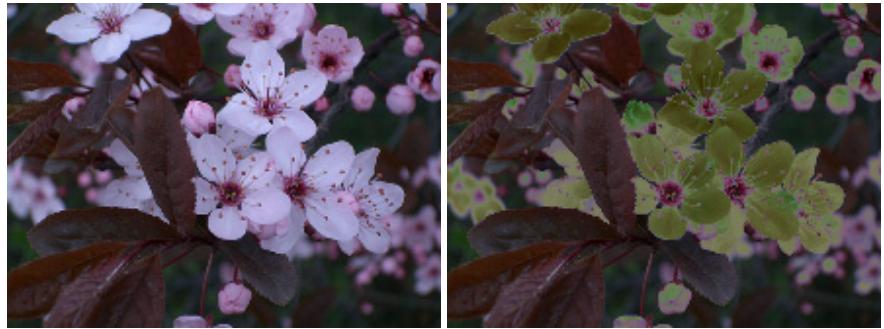

Shows the Water area, where you can apply water effects.
See also:
Main effects 13
General Effect Area 12
5.3.1 Settings in the Aging Area
A picture can be artificially aged in the Aging area.
The following sliders are available in the Aging area:
| Intensity | Defines the degree of aging. As a picture ages, it becomes increasingly sepia toned. |
| Desaturation | Defines how faded the colors should be. |
| Noise | Adds noise to the picture, i.e. randomly distributed artefact pixels. |
| Scratches | Adds sepia scratches to the picture. |
| Lines | Adds vertical lines to the picture. |
See also:
Further Graphic Effects 22
5.3.2 Median Settings Area
In the media area the picture can be alienated with the help of median effects. This effect replaces an individual pixel with another pixel that possesses the median value of a neighboring pixel within a certain environment.

For instance, with a high median value you can alienate a photo to such an extent that it looks like a painting.
The following slider is available:
Filter intensity Determines the amount of the median intensity.
See also:
Further Graphic Effects 22
5.3.3 Canvas Settings Area
In the Canvas area, you can imitate a surface structure of a picture with the aid of texture.
The following setting options are available:
| Drop-down menu Texture | Selects a predefined surface structure. |
| Slider Intensity | Determines how visible a surface structure should be seen. |
See also:
Further Graphic Effects 22
5.3.4 Duotone Settings Area
In the Duotone area two contrasting color shades can be selected with which the picture is to be colored.
The following buttons are available:
| Dark color | Opens the Color window in which you can select the one predefined dark color or can mix the corresponding color. |
| Light color | Opens the Color window in which you can select the one predefined light color or can mix the corresponding color. |
See also:
Further Graphic Effects 22
6 Image formats
6.1 Compression Settings for the TIFF Format.
Nero PhotoSnap has several compression processes available in the TIFF picture format. You can set the desired process and the degree of compression in the Save As > settings window.
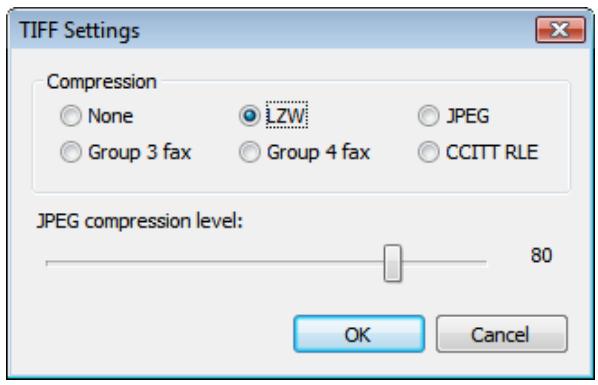
The following settings options are available in the Compression area:
| Option button None | Uses no additional compression method. |
| Option button LZW | Performs non-lossy fast compression using the Lempel, Ziv and Welch method. The file size can be reduced by up to 50%. The loading time in editing programs can, however, be longer. This method is particularly well suited for gray scale and color pictures. |
| Option button JPEG | Carries out a lossy JPEG compression. Using the JPEG compression strength slide regulator you can define the degree of compression. |
| Option button Group 3 fax | Performs a non-lossy compression by encoding isochromatic pixels and saving the information separately. This method is used by all fax devices and is well suited for black & white pictures. |
| Option button Group 4 fax | Performs a non-lossy compression by encoding isochromatic pixels and saving the information separately. The method is well suited for black & white pictures. |
| Option button CCITT RLE | Carries out a non-lossy compression using run-length encoding. Isochromatic pixels are encoded using counters. This method is particu-larly suitable for black & white pictures or pictures with large areas of the same color. |
See also:
Compression Settings for the JPEG Format 29
Compression Settings for the PNG Format 29
6.2 Compression Settings for the JPEG Format
Nero PhotoSnap possesses several compression processes for saving in the JPEG picture format.
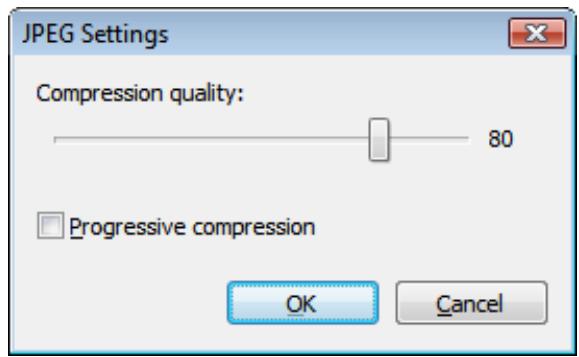
JPEG settings window
The following setting options are available in the JPEG settings window for JPEG/JPG pictures:
| Slider Compression quality | Regulates the compression strength. |
| Check Box Progressive compression | Compresses the picture progressively. When a progressively compressed JPEG picture is accessed on the Internet, it becomes visible in layers. The user first sees an unsharp picture which then becomes increasingly sharp. |
See also:
Compression Settings for the TIFF Format. 28
Compression Settings for the PNG Format 29
6.3 Compression Settings for the PNG Format
When saving in the PNG picture format in Nero PhotoSnap, the color depth can be reduced to save memory. The degree of compression can be set in the Save As > Settings window.
The following check box is available:
| Convert current picture to 256 colors (dithered) | Reduces the color depth to 256 colors and thereby reduces the file size. |
See also:
Compression Settings for the JPEG Format 29
Compression Settings for the TIFF Format. 28
7 Overview of Data Information and Metadata
The File Information window provides you with information about the picture. If the photo was taken with a digital camera, metadata is usually present, e.g. camera-specific EXIF information such as aperture and shutter time. You can open the File Information window from Nero PhotoSnap or from Nero PhotoSnap Viewer.
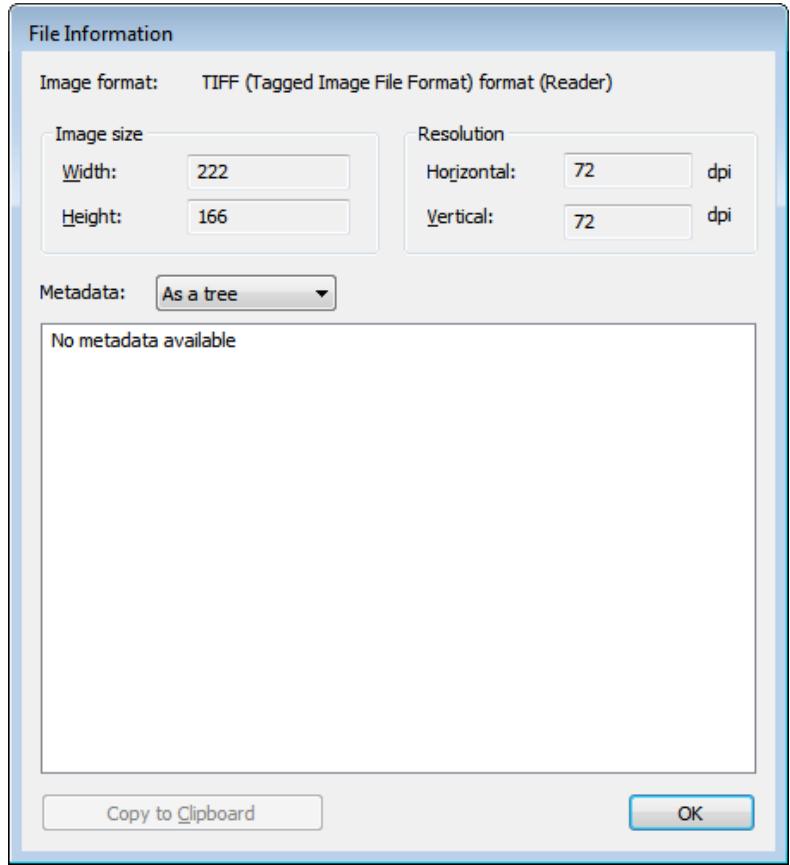
File Information Window
The following information and setting options are available in the File Information window:
| Picture format | Displays the format of the picture. |
| Picture size | Displays the size of the picture in height and width. |
| Resolution | Displays the resolution of the picture in dpi, horizontally and vertically. |
| Drop-down menu Metadata | Defines the way the metadata is displayed. It can be displayed as a Tree or a List. |
| Button Copy to clipboard | Copies the metadata to the clipboard. |
8 Edit Picture
Nero PhotoSnap allows pictures to be assigned pre-defined filters and effects. Picture effects are available to you in the Toolbox area picture effects.
To edit a picture, proceed as follows:
- Click the picture effect button you want in the Toolbox area.
The corresponding area is displayed. The Preview and Split Preview tabs are displayed.

The effects Convert to gray scale to Embossing are applied immediately to the picture. The button lets you undo the effect you have applied.
- To view both the current picture and the picture with the effect, click the Split Preview tab.
The Split Preview tab is displayed. The button is displayed over the editing area.
-
Enlarge or decrease the size of the picture to be able to better view the effect.
-
To close the Preview window, clear the Show preview check box.
-
Define the desired settings in the section.
The picture changes in accordance with the settings.
-
To save your settings for the effect:
-
Click in the Presets drop-down menu.
- Enter a name.
- Click the Save button.
The settings are saved under the selected name. The next time you use the effect, the saved settings are available to you in the Presets drop-down menu.

You can overwrite an existing preset with new settings by clicking the Save button when the corresponding entry is selected in the Presets drop-down menu.
- Click the Apply button.
The effect is applied to the picture. The Preview and Split Preview tabs are hidden.
8.1 Autofix exposure
8.1.1 Correcting the Lighting with the aid of the Histogram
With Nero PhotoSnap you can correct the exposure of the picture by adjusting the brightness range of the histogram.

The histogram graphically shows the brightness distribution of the picture pixels. On the X axis are the hue values from 0 (light) to 255 (dark), on the Y axis the number of pixels.

A well-exposed picture has a histogram with different elevations spread from left to right. In contrast, a picture which is underexposed or overexposed has no elevations or only very flat elevations in the left and/or right areas. To correct such a picture, you can move the lines accordingly until they achieve the elevations or you can have it done automatically. The hue values then cover the entire brightness range, and the exposure is corrected.
The following requirement has to be fulfilled:
The Exposure area is displayed.
Proceed as follows to adjust the lighting of a picture:
- Click the Histogram correction tab.
The Histogram Correction tab is displayed.
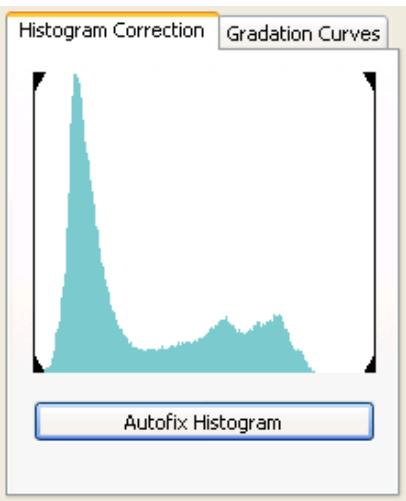
Exposure area, Histogram correction tab -- this picture is underexposed
- To automatically adjust the brightness range, click the Adjust Automatically button.
→ The two lines that define the brightness range are shifted.
-
If you want to adjust the brightness range manually:
-
Move the left line.
The beginning of the brightness range is defined. -
Move the right line.
The end of the brightness range is defined. -
Click the Apply button.
You have adjusted the exposure. The histogram of the picture being edited now stretches across the entire brightness range.
See also:
Settings in the Lighting Region 15
Lighting with Gradation Curve 33
8.1.2 Lighting with Gradation Curve
With Nero PhotoSnap it is possible to correct the lighting of the picture in that the gradation curve is corrected.

The gradation curve defines the distribution of the brightness values. On the X axis are the hue values of the original from light to dark, on the X axis the tone values after the correction from light to dark. A straight curve with a 45^ angle means that the original values remain unchanged.
The following requirement has to be fulfilled:
The Exposure area is displayed.
To correct the lighting with the aid of the gradation curve, proceed as follows:
- Click the Gradation curves tab.
The Gradation curves tab is displayed.
- If you wish to prevent a deformation in certain lightness areas, set the control points by clicking on the curve.
A control point is set.
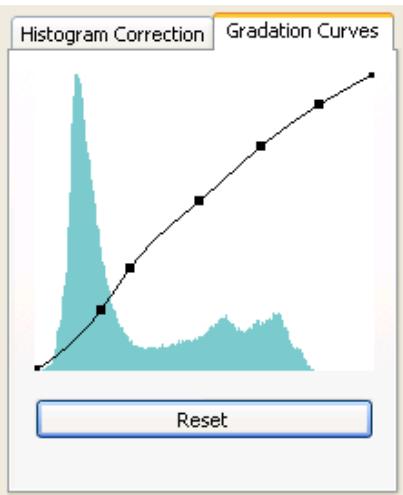
Exposure area, Gradation Curves tab -- drawn gradation curves with control points
-
Pull the curve upward or downward to lighten or darken the hue values of this area.
-
Click the Apply button.
You have adjusted the exposure. The histogram of the edited picture then shows a changed profile.
See also:
Settings in the Lighting Region 15
Correcting the Lighting with the aid of the Histogram 31
8.2 Balancing the Color of a Picture
You can perform a color balance or correct a color cast with Nero PhotoSnap. You can perform the color balance manually, semi-automatically, or automatically.
The following requirement has to be fulfilled:
The Color/Color balance area is displayed.
To correct the color of a picture with Nero PhotoSnap, proceed as follows:
-
To perform a manual color balance:
-
Click the RGB tab or the HSL tab.
The RGB tab or the HSL tab is displayed.
- Slide the regulator as required.
The picture shows the changes.

You can perform the color balance with the RGB tab in RGB mode: colors are defined with combinations of the three primary colors red, green and blue. The color balance can be performed on the HSL tab in HSL mode: colors are defined by a combination of hue, saturation and lightness factors.
-
To perform a semi-automatic color balance:
-
Click the RGB tab.
The RGB tab is displayed. - Move the cursor over the picture.
The cursor appears as a pipette. -
Click in an area of the picture with a neutral color, e.g. gray.
The regulators are moved accordingly and the picture shows the changes. -
To perform an automatic color balance:
-
Click the RGB tab.
The RGB tab is displayed. -
Click the Remove Color Cast button.
Nero PhotoSnap analyzes the color distribution. The regulators are moved accordingly and the picture shows the changes. -
Click the Apply button.
You have performed a color balance.
See also:
Color Balance 16
8.3 Red Eye Removal
Nero PhotoSnap lets you remove red eyes. Red eye in photos usually occurs when a person or animal is photographed with a flash in dark surroundings. The flash or light is reflected by the retina and appears red in photos. The effect is even greater if the pupil is opened wide.

The red-eye effect describes a side effect in photography with a flash. It is visible by the wide opened pupils due to the bright flash passing unhindered through the retina with its strong blood flow, which then reflects the flash in red.
The following requirement has to be fulfilled:
The Red eye removal area is displayed.
To remove red eye from the picture, proceed as follows:
- Click the picture, hold down the mouse button, and draw a circle or ellipse around the pupil.
The area is marked and the red pupil is colored dark. - Click the Next button.
The marked area is defined. - Repeat the two previous steps for each pupil from which you want to remove red eye.
- Move the Intensity of red eye reduction regulator.
- The black color of the pupils will be increased or reduced, depending on the initial state.

The regulator changes all areas marked in the picture.
- Click the Apply button.
You have removed red eyes from the picture.
See also:
Main effects 13
8.4 Save Picture
Nero PhotoSnap lets you rotate a picture. You can rotate manually, semi-automatically or automatically..
The following requirement has to be fulfilled:
The Rotate area is displayed.
To rotate a picture, proceed as follows:
-
To rotate manually:
-
Select one of the option fields or rotate the angle circle.
The picture is rotated by the selected angle.
-
To rotate the picture semi-automatically:
-
Click the picture and draw a line.
The picture is rotated so that the drawn line is horizontally or vertically positioned. -
To rotate the picture automatically:
-
Click the Autorotate button.
Nero PhotoSnap automatically rotates the picture so that the majority of edges in the picture are horizontally or vertically positioned. -
Select an item in the Size of the rotated picture drop-down menu to define the size of the rotated picture.
-
If you selected the No cropping entry and unfilled areas were created by rotation, click the Background color input field and select a background color.
The newly created picture areas are filled with the selected background color. -
Click the Apply button.
You have rotated the picture.
See also:
Rotate Settings Area 20
8.5 Save Picture
If you have applied effects, you can save the picture. You can overwrite the current picture or save the changed picture under a different name. For pictures in the JPG or TIFF format you have additional settings available for compression.
The following requirement has to be fulfilled:
- You have processed a picture or used a filter.
To save a picture, proceed as follows:
- To save the picture and/or overwrite, click the button.
The picture is saved.
-
To save the picture at a different location, in a different picture format and/or under a different name:
-
Click the small triangle next to the button.
- Select the Save as entry.
The Save As window appears.
- Select where you want to save the picture, select a picture format from the File type drop-down menu, and enter a name.
- If you want to define compression settings for JPG, JP2, TIFF or PNG, click Settings.
The corresponding window opens.
- Define the settings you want and click the OK button.
-
Click the Save button.
The picture is saved. -
To save the current picture using the JPG, JP2, TIFF or PNG compression settings:
-
Click the small triangle next to the button.
- Select the Settings entry.
The corresponding window opens.
- Select the settings you want.
You have saved the picture.
9 Nero PhotoSnap Viewer
9.1 About Nero PhotoSnap Viewer
With Nero PhotoSnap Viewer you are in possession of an easy to use and intuitive picture viewing software with which you can very easily view all you digital photos.

Nero PhotoSnap Viewer supports the same picture formats as Nero PhotoSnap.
See also:
Program Interface 38
Configuration 40
Full Screen 39
About Nero PhotoSnap 5
9.2 Program Interface
The program interface of Nero PhotoSnap Viewer is where you begin to view pictures. It consists of a menu bar, a toolbar and the viewing area.
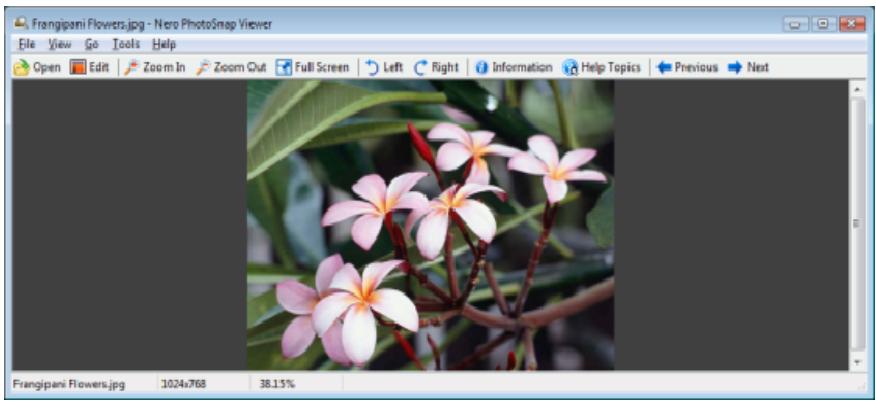
Nero PhotoSnap Viewer program interface
The following items are available in the menu bar:
| File | Options for opening and printing a picture. You can also configure the printer and the program and register plug-ins (no plug-ins currently available). |
| View | Options for viewing the picture. |
| Start | Options for browsing pictures. |
| Tool-box | Options for rotating the picture. You can also have information about the picture displayed and open Nero PhotoSnap. |
| Help | Offers options for displaying Online Help and the About Nero PhotoSnap Viewer window, where you can see the version number among other things. |
The following buttons are available in the toolbar:
| Open | Opens the Select an Image File to be Opened window in which you can choose a picture. |
| Edit | Opens Nero PhotoSnap. Nero PhotoSnap lets you edit your pictures. |
| Zoom In | Increases the view of the picture. |
| Zoom Out | Decreases the view of the picture. |
| Full Screen | Full screen display of the picture. |
| Left/Right | Rotates the picture 90° to the left or right. |
| Information | Opens the File Information window, from which you can obtain information such as the size of the graphic or the color depth of the picture. |
| Help Topics | Opens the Online Help (if you installed it). |
| Previous Picture | Displays the previous picture in the folder. |
| Next Picture | Displays the next picture in the folder. |
See also:
About Nero PhotoSnap Viewer 38
Full Screen 39
Configuration 40
9.3 Full Screen
Clicking the Full Screen View button lets you view the picture full screen. The picture either fills the entire screen or appears in its original size (100%) with a background. You can display the next picture by pressing the space bar.
You can open the context menu by clicking the right mouse button. The context menu contains the same entries as the toolbar on the desktop.
The following entry is also available:
| Toggle full screen view | Exits full screen view and displays the picture again in the viewing area. |
See also:
Program Interface 38
Configuration 40
About Nero PhotoSnap Viewer 38
9.4 Configuration
Nero PhotoSnap Viewer lets you define the presets for displaying pictures. The presets are defined in the Settings window, accessible via File > Presets.
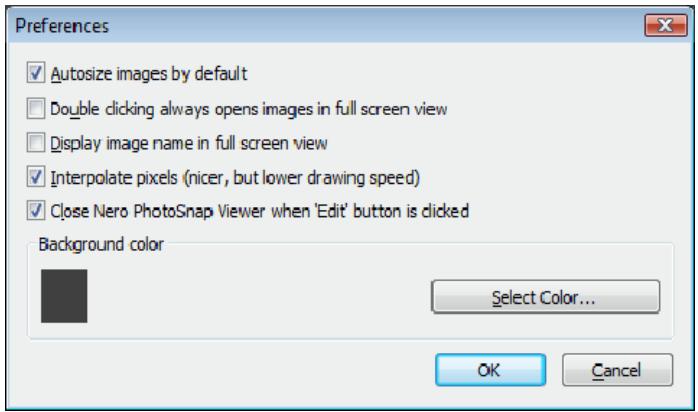
Settings window (Nero PhotoSnap Viewer)
The following setting options are available:
| Check Box Autosize pictures by default | Fits the picture to the size of the viewing area or screen. Increases or decreases the view of the picture if required. If the check box is cleared, the pictures are displayed in their original sizes (100%). If the viewing area is too small to show the entire picture, the scroll bars are displayed. |
| Check Box Double clicking always opens pictures in full screen view | Opens pictures when double clicked in full screen view. If the check box is cleared, the picture opens in the viewing area. |
| Check Box Display picture name in full screen view | Displays the picture name in full screen view. |
| Check Box Resample pixels | Displays the picture smoothly when enlarged. The picture is recalculated (interpolated) using a special calculation method that may take a while, depending on the picture size. If the check box is cleared, the picture will appear pixelated when enlarged. |
| Check Box Close Nero PhotoSnap Viewer when 'Edit' is clicked | Closes Nero PhotoSnap Viewer if you click Edit. |
| Button Select color | Defines the color of the viewing area and background. |
See also:
Full Screen 39
Program Interface 38
10 Technical Information
10.1 System requirements
Nero PhotoSnap is installed along with the Nero Suite. Its system requirements are the same. You can find more detailed information on the system requirements under www.nero.com.
10.2 Key Combinations
The following key combinations for entering commands are available in Nero PhotoSnap and Nero PhotoSnap Viewer:
| [Ctrl+O] | Opens the file browser so that a picture can be selected for import- ing. |
| [Ctrl+P] | Prints the opened picture. |
| [Ctrl+S] | Saves the processed picture. |
| Ctrl + Z | Undoes the last action. |
| [ALT + F4] | Ends the application. |
| Number pad * | Zooms the whole picture in. |
| Number pad / | Zooms to 100%. |
| Number pad + | Zooms in. |
| Number pad - | Zooms out. |
In addition, the following key combinations are available in Nero PhotoSnap Viewer:
| [Enter] | Changes between full-screen and normal view. |
| [Space] | Jumps to the next frame. |
| [L] | Rotates the picture to the left or right. |
| [R] | Rotates the picture to the right. |
| Right/left arrow keys | Navigates through several pictures. |

You can also use the mouse wheel to navigate through the pictures.
10.3 Formats supported
10.3.1 Image formats
- Bitmap (BMP)
Device Independent Bitmaps (DIB) - Graphics Interchange Format (GIF)
JPEG File Interchange Format (JFIF)
Joint Photographic Expert Group (JPEG, JPG, JPE)
Picture Exchange (PCX)
Portable Network Graphics (PNG)
Portable Pixel Map (PPM)
Targa Image File (TGA)
Tagged Image File Format (TIFF, TIF)
Windows Media File (WMF)
Dr. Halo Image (CUT) - read only
Direct Draw Surface (DDS) - read only
Amiga Paint Image (IFF, LBM) - read only
JPEG2000 (JP2, J2C, J2K, JPC, JPF) - read only
Koala Paint C64 (KOA) - read only
Photo CD (PCD) - read only
Portable BitMap (PBM) - read only
Portable Bitmap Utility Formats (PGM, PNM) - read only
Portable Pixel Map (PPM) - read only
Photoshop Document (PSD) - read only
SUN Raster Format (RAS) - read only
Wireless Bitmap Image (WBMP, WBM) - read only
X Bitmap (XBM) - read only - PixMap (XPM) - read only
X-Quiktime (QTI,QTF, QTIF) - read only
11 Glossary
DPI
The Dots per Inch give the number of pixels per inch (1 inch = 2.54 cm) and thus the resolution which an output device, such as a printer, can provide.
EXIF
EXIF stands for Exchangeable Image File Format and is a standard of JEITA (Japan Electronic and Information Technology Industries Association) for metadata in picture files. Information such as camera type, aperture, exposure time, distance to object and the date when the photo was taken can be stored in the metadata. The graphic formats JPEG and TIFF are supported. The metadata is written in the header, thus in front of the actual picture information.
Hot pixel
A hot pixel is a point in a picture, which in digital photography appears in strong additional color in the background and occurs mostly when the image sensor of the digital camera gets too hot while photographing or when the period of exposure to light is too long. It occurs due to inaccuracies in chip manufacturing. Hot pixels can be removed from the photo by means of special filters.
HSL
The HSL mode (Hue; Saturation; Lightness) determines a color by means of the hue, the saturation and the lightness.
Interpolation
The interpolation is a process in which pixel values known from analysis are shot on to unknown values. This procedure serves for the seeming enhancement of the resolution of graphics, videos and photos.
ISO number
The ISO (International Organization for Standardization) number is a standard for defining light sensitivity in the field of analog photography. The graininess increases with increasing ISO number, leading to the picture becoming coarser. The greater the ISO value, the quicker the film absorbs the light. Thus the lighting times become shorter. The sensitivity of CCD chips is constant, but a higher ISO number can be simulated in that the sensitivity can be increased by an increase in the signal strength. An unwanted result of picture signal strengthening is an increase in picture noise.
JPEG
The Joint Photographic Experts Group-Format denotes a file standard for compression of pictures with resulting losses. Pictures compressed with JPEG carry the file extensions .jpg or .jpeg.
Lens Aperture
A lens aperture is an arrangement on the camera which regulates the amount of light falling onto the lens. It determines, on the one hand, the light intensity on the data carrier and, on the other hand, the color sharpness of the photo.
LZW Algorithm
The Lempel-Ziv-Welch algorithm uses a standard of loss-free data compression that was developed by Abraham Lempel, Jacob Ziv and Terry Welch.
Metadata
Metadata is a particular additional information for data with the purpose of describing it better and for making it easier to find. Metadata contains information on the artist, album, track, running time, bit rate, resolution, and so on. As a result, it is possible to categorize files according to their type (audio, video or picture).
Picture Noise
The picture noise is an optical coarse graining which is disturbingly noticeable in a photo. As all semiconductors, a CCD sensor chip possesses a certain basic electronic noise that is triggered by signal superposition and interference frequencies.
PNG
A Portable Network Graphic designates a loss-free compression format for graphic files. It is the successor to the GIF (Graphic Interchange Format) and serves mainly for the standardized exchange of graphics on the Internet.
RGB
Red, Green, and Blue designate the combination of primary colors for a new color combination. In RGB mode, all the different colors are characterized by their red, green and blue components. The color produced is the result of adding the three color components to white.
Run-length process
The run-length process designates an algorithm for loss-free graphic compression. In this process same-colored pixels are coded with the aid of counters. The method is mainly suitable for black-white pictures or pictures with large same-colored areas.
TIFF
The Tagged Image File Format designates the container of a graphic format in which picture files can be saved. It is often used in the pre-print step as an exchange format.
12 Index
1
100% view 8
2
256 colors 29
A
Adapt
Automatic. 13
Brightness. 14
Contrast. 14
Font size 13
Pixel Dimension. 13
Resolution. 13
Application
Exit. 9
Start window 8
User Interface 8
Area
Aging 26
Canvas 26
Duotone 27
Median 26
Noise 18
Rotate 20
Sharpen 19
Automatic color balance 34
Automatic sizing 11
B
Background Color 11, 21
Balance
Colors. 13
Lens distortion 14
Black-white 22
Brightness 14
Browse 39
C
Color
Adapt 13
Color balance
Carry out automatically 34
Implement manually 34
Implement semi-automatically 34
Compression
CCITT RLE 28
Compression 37
JP2 37
JP2 picture compression. 37
JPEG. 28, 29
JPEG, progressive 29
JPG 37
JPG picture compression. 37
PNG 29,37
PNG picture compression. 37
Progressive JPEG compression 29
Run-length compression 28
Run-length encoding. 28
Run-length process 28
TIFF 37
TIFF picture compression 37
Contrast. 14
Adapt. 14
Contrast colors 27
Conventions, manual 5
Correct
Exposure 33
Correction
Automatic 13
Crop 14
Current 9
D
Decrease
View 8
Zoom out. 8
E
Edit
Color 13
Exposure. 13
Edit Picture
Autofix exposure 31, 33
Gradation curve 33
Red Eye Removal 35
Effects
Aging 24, 26
Canvas. 24, 26
Canvas effect 26
Contrast colors 27
Duotong 24
Edge 23
Emboss 23
Embossing 23
Gaussian Blur 19
Glow 24
Gray scale 22
Inversion 22
JPEG artefact remover 24
Kaleidoscope 25
Main effects 9, 13
Median 22, 26
Median effect 26
Mirror, horizontally 23
Mirror, vertically 23
Negative 22
Nostalgia 24, 26
Oil picture 25
Other effects 9
Painting 26
Posterize 25
Shadowing 23
Solarize 25
Surface structure 26
Texture 24, 26
Texture effect. 26
Vignetting 23
Water 25
Watercolor 22
Enlarge
View. 8
Exit
Application 9
Exposure
Adapt 13
Correct 31, 33
F
Filter
Aging 24
Black-white 22
Duotone 24
Edge filter 23
Edges 23
Emboss 23
Embossing 23
Glow. 24
Gray scale 22
Inversion 22
JPEG artefact remover 24
Kaleidoscope 25
Median 22
Mirror, horizontally 23
Negative 22
Nostalgia 24
Oil picture 25
Posterize 25
Shadowing 23
Solarize 25
Vertical mirroring 23
Vignetting. 23
Water 25
Watercolor 22
Full Screen 39
G
Gaussian Blur. 19
H
Help information 9
Histogram correction 32
Hot pixel fixer 15
J
JPEG
Compression 29
JPEG compression 28
K
Key Combinations 41
L
Lempel, Ziv and Welch compression.... 28
LZW 28
LZW compression 28
M
Main effects 9
Manual color balance 34
Manual, conventions 5
Manufacturer information 9
Menu bar 38
Mirror
Horizontal 23
vertical. 23
N
Nero PhotoSnap Viewer
Full Screen 39
Noise
Decrease 14
Increase 14
Noise levels. 18
Nostalgia 26
0
Open
Options. 9
Picture. 8
Settings 9
Options. 10
Original view. 8
Other effects. 9
P
Picture
Adapt brightness. 14
Adapt color 13
Adapt exposure 13
Adapt pixel dimension 13
Aging 24
Aging filter 24
Aquarel effect 22
Aquarel filter 22
Automatic correction. 13
Automatic picture correction 13
Background Color 21
Balance colors 13
Balance lens distortion 14
canvas 24
Canvas 24
Change Resolution 13
Crop 21
Customize font size 13
Decrease 39
Duotone 24
Duotone filter 24
Edge filter 23
Edges 23
Edit 31, 39
Emboss. 23
Embossing effect 23
Embossing filter 23
Enlarge 39
Font size 13
Glow. 24
Glow filter 24
Gray scale 22
Gray scale filter 22
Increase noise 14
Inversion 22
Inversion filter 22
JPEG artefact filter 24
JPEG artefact remover 24
Kaleidoscope 25
Kaleidoscope filter 25
Median 22
Median filter 22
Mirror filter, horizontal 23
Mirror filter, vertically 23
Mirror horizontally 23
Mirror vertically 23
Negative 22
Negative filter 22
Nostalgia effect 24
Nostalgia filter 24
Oil picture 25
Oil picture filter. 25
Open 8,39
Posterize 25
Posterizing filter 25
Print 9
Red Eye Removal 15
Reduce noise. 14
Release picture section 14
Relief filter 23
Removing 'hot pixels' 15
Resolution. 13
Rotate 15,20,35,39
Select 8
Shadowing 23
Shadowing filter 23
Sharpen 14
Solarize 25
Solarizing filter 25
Texture 24
Texture filter 24
TIFF compression 28
Vignetting 23
Water 25
Water filter. 25
Zoom All 8
Picture noise
Decrease 14
Increase 14
Noise. 14
Picture noise 14
Picture section. 14
Picture sharpness 14
Plug-in 11
PNG
Compression 29
Preview 9,31
Picture. 9
Print 9
Program
7
Startup 7
Program Interface
Nero PhotoSnap Viewer 38
Nero PhotoSnap Viewer program interface.....38
Program window 8
R
Remove
Red Eye 15,35
Red Eye Removal 35
Removing 'hot pixels' 15
Restore. 8
Rotate. 15, 20
Rotation 20
S
Save 8,36
Save As 36
Save Picture 36
Save preferences 31
Saved 9
Index
Semi-automatic color balance. 34
Sharpen 14
Shortcuts 41
Split Preview 31
Startup
Program. 7
Surface structure 26
Synchronization
View. 9
System requirements 41
T
Tab
Current. 9
Noise 18
Noise reduction. 18
Preview 9
Preview, split 9
Saved 9
Split Preview 9
Threshold 19
TIFF compression 28
Tint
Auto-removal 34
Color balance 34
Remove manually. 34
Toolbar 8,39
Two contrast colors. 27
U
Undo 8
V
View
Decrease. 8
Enlarge. 8
Synchronization 9
W
Window
File Information 39
Z
Zoom
Decrease. 39
Enlarge. 39
In 8
Off 8
Zoom in 8
Zoom All
Picture 8
13 Contact
Nero PhotoSnap is a Nero AG product.
Nero AG
Glendale, CA 91203-2335
USA
Internet: www.nero.com
Help: http://support.nero.com
Fax: (818) 956 7094
E-mail: US-CustomerSupport@nero.com
Nero KK
Rover Center-kita 8F-B, 1-2-2
Nakagawa-chouu Tsuzuki-ku
Yokohama, Kanagawa
Japan 224-0003
Internet: www.nero.com
Help: http://support.nero.com
Copyright © 2008 Nero AG and its licensors. All rights reserved.