COVERDESIGNER MULTIMEDIA SUITE 10 - Multimedia Creation Software NERO - Free user manual and instructions
Find the device manual for free COVERDESIGNER MULTIMEDIA SUITE 10 NERO in PDF.


User questions about COVERDESIGNER MULTIMEDIA SUITE 10 NERO
0 question about this device. Answer the ones you know or ask your own.
Ask a new question about this device
Download the instructions for your Multimedia Creation Software in PDF format for free! Find your manual COVERDESIGNER MULTIMEDIA SUITE 10 - NERO and take your electronic device back in hand. On this page are published all the documents necessary for the use of your device. COVERDESIGNER MULTIMEDIA SUITE 10 by NERO.
USER MANUAL COVERDESIGNER MULTIMEDIA SUITE 10 NERO
Copyright and Trademark Information
This document, like the software described therein, is provided as a license and may only be used or reproduced in accordance with the licensing agreement. The contents of this document, as well as the associated software, is subject to change without prior notice. Nero AG rejects any responsibility for the correctness of the contents of this document and rejects any claims that transcend the clauses of the guarantee agreement.
This document and all of its contents are protected by copyright and are the property of Nero AG. All rights reserved. In addition, this document contains material that is protected by internationally valid copyright. This document may not be reproduced, transmitted, or transcribed in whole or in part without the express written permission of Nero AG.
Please keep in mind that existing graphics, pictures, videos, music titles or other materials that you may wish to insert or transcribe into projects may be protected by copyright. The unauthorized use of this type of material in your projects may violate the rights of the owner of the copyright. Make sure that you obtain all necessary authorizations from the owner of the copyright.
Unless you own the copyright, have permission from the copyright owner or your actions fall under the "fair use" provisions of copyright law, you may be violating national or international copyright laws. The transcribing, duplication, modification or publication of copyright-protected material may lead to claims for damages and the enforcement of other legal measures against you. If you are unsure of your rights, you should contact your legal advisor.
Some Nero Multimedia Suite applications require technologies developed by third-party manufacturers and may be included in Nero Multimedia Suite as demo versions. These applications can be activated online free of charge or by sending an activation fax to have unlimited use of the version. Nero will only transmit the data necessary for activation of the technology licensed from third parties. For unlimited use of Nero Multimedia Suite, it is therefore necessary to have an Internet connection or a fax machine.
Copyright © 2006 - 2010 Nero AG and its licensors. All rights reserved.
Nero, Nero BackItUp, Nero BackItUp & Burn, Nero Burning ROM, Nero Digital, Nero DMA Manager, Nero Essentials, Nero Express, Nero ImageDrive, Nero LiquidTV, Nero MediaHome, Nero MediaHub, Nero MediaStreaming, Nero Move it, Nero Music2Go, Nero PhotoDesigner, Nero PhotoSnap, Nero Recode, Nero RescueAgent, Nero Simply Enjoy, Nero SmartDetect, Nero SmoothPlay, Nero StartSmart, Nero Surround, Nero Vision, Nero Vision Xtra, Burn-At-Once, InCD, LayerMagic, Liquid Media, the SecurDisc logo, and UltraBuffer are common law trademarks or registered trademarks of Nero AG.
Adobe, Acrobat, Acrobat Reader and Premiere are trademarks or registered trademarks of Adobe Systems, Incorporated. AMD Athlon, AMD Opteron, AMD Sempron, AMD Turion, ATI Catalyst and ATI Radeon are trademarks or registered trademarks of Advanced Micro Devices, Inc. ATSC is a trademark of the Advanced Television Committee. ICQ is a registered trademark of AOL, LLC. Apple, iPhoto, iPod, iTunes, iPhone, FireWire, and Mac are trademarks or registered trademarks of Apple, Inc. ARM is a registered trademark of ARM, Ltd. AudibleReady is a registered trademark of Audible, Inc. BenQ is a trademark of the BenQ Corporation. Blu-ray Disc is a trademark of Blu-ray Disc Association. CyberLink is a registered trademark of CyberLink Corp. DLNA is a registered trademark of Digital Living Network Alliance. DivX and DivX Certified are registered trademarks of DivX, Inc. Dolby, Pro Logic and the double-D symbol are trademarks or registered trademarks of Dolby Laboratories, Inc. DTS and DTS Digital Surround are registered trademarks of DTS, Inc. DVB is a registered trademark of the DVB Project. Freescale Semiconductor, Inc. Google and YouTube are trademarks of Google, Inc. WinTV is a registered trademark of Hauppauge Computer Works, Inc. Intel, Intel XScale, Pentium and Core are trademarks or registered trademarks of Intel Corporation. Linux is a registered trademark of Linus Torvalds. Memorex is a registered trademark of Memorex Products, Inc. ActiveX, ActiveSync, DirectX, DirectShow, Internet Explorer, Microsoft, HDI, MSN, Outlook, Windows, Windows Mobile, Windows NT, Windows Server, Windows Vista, Windows Media, Xbox, Xbox 360, the Windows Vista start button and the Windows logo are trademarks or registered trademarks of Microsoft Corporation. My Space is a trademark of MySpace, Inc. NVIDIA, GeForce and ForceWare are trademarks or registered trademarks of NVIDIA Corporation. Nokia is a registered trademark of Nokia Corporation. CompactFlash is a registered trademark of SanDisk Corporation. Sony, Memory Stick, PlayStation, PLAYSTATION and PSP are trademarks or registered trademarks of Sony Corporation. HDV is a trademark of Sony Corporation and Victor Company of Japan, Limited (JVC). UPnP is a registered trademark of the UPnP Implementers Corporation. Labelflash is a registered trademark of Yamaha Corporation.
The trademarks mentioned here are named for information purposes only. All trade names and trademarks are the property of their respective owners.
Nero AG, Im Stoeckmaedle 13, D-76307 Karlsbad, Germany
Table of contents
1 Start Successfully 6
1.1 About the Manual 6
1.2 About Nero CoverDesigner 6
1.3 Nero CoverDesigner Versions 6
1.4 Working With Nero CoverDesigner 6
2 Starting the Program 8
3 Main Screen 9
3.1 Menu Bar 9
3.2 Toolbars 10
3.2.1 Standard Toolbar 10
3.2.2 View Toolbar 11
3.2.3 Text Toolbar 12
3.2.4 Modify Objects Toolbar 12
3.2.5 Tools Toolbar 13
3.2.6 Align Toolbar 13
3.2.7 Floating Toolbar 14
3.3 Drawing Area 14
3.4 Objects 14
3.5 Dynamic Objects 15
4 New Document Window 16
4.1 Document Type 17
4.2 Standard Document Type 17
4.3 DVD Case Document Type 18
4.4 DVD Slim Case Document Type 19
4.5 BD Case Document Type 19
4.6 BD Slim Case Document Type 19
4.7 Multi Box Document Type 19
4.8 Maxi Document Type 20
4.9 Slim Pack Document Type 20
4.10 Mini CD Document Type 20
4.11 Biz Card Document Type 21
4.12 Rectangular Biz Card Document Type 21
4.13 LightScribe Document Type 21
5 Creating a New Document 22
5.1 Creating a Nero Digital Document 22
5.2 Creating a New Document or Image Document 22
6 Editing a Document 24
Table of contents
6.1 Adding a Cover Element 24
6.2 Modifying the Template Later on 24
6.3 Assigning a Paper Stock 24
7 Designing The Cover Element 26
7.1 Inserting an Object 26
7.2 Editing an Object 27
7.3 Converting Artistic Text 29
7.4 Applying Image Effects 29
7.5 Inserting And Editing a Background 30
8 Document Data Window 32
8.1 Document 33
8.2 Disc 33
8.3 Audio/Chapter Data 34
8.4 File System 34
8.5 Video/Picture Data 35
8.6 Data Entry 35
8.6.1 Track/Chapter 36
8.6.2 File Information 36
8.6.3 Picture 36
Properties And Background Properties Window 37
9.1 Pen Tab 38
9.2 Brush Tab 39
9.3 Text Tab 41
9.4 Text Box Tab 42
9.5 Bend Tab 42
9.6 Image Tab 42
9.7 Image Effects 44
9.8 Import Picture Tab 45
9.9 Tracks And Folder Tab 46
9.10 Field Tab 48
10 Geometry Window 50
10.1 Geometry Window For Bent Objects 50
11 Align Elements Window 52
12 Design Tools 54
12.1 Grid 54
12.2 Guidelines 54
13 Creating And Editing a Template 55
13.1 Creating a Template 55
Table of contents
13.2 Modifying a Template 55
14 Saving a Document 57
15 Storing a Cover in a Nero Digital File 58
16 Printing the Document 59
16.1 Print Window 59
16.1.1 Properties Tab 59
16.1.2 Elements Tab 61
17 Print Settings And Paper Stocks 63
17.1 Printer Calibration 63
17.2 Paper Stocks Window 63
17.3 Creating a Paper Stock Profile 66
17.4 Default Paper Stock Settings 67
18 Printing LightScribe Label 68
18.1 LightScribe Print Properties Window 68
19 Printing Labelflash Label 69
19.1 Labelflash Print Properties Window 70
20 Program Settings 73
20.1 Application Preferences Window 73
20.2 Specifying Default Settings For Objects 73
21 Technical Information 75
21.1 System Requirements 75
21.2 Image Formats 75
21.3 Formats for Playlists 75
22 Index 77
23 Contact 80
1 Start Successfully
1.1 About the Manual
This manual is intended for all users who want to learn how to use Nero CoverDesigner. It is process-based and explains how to achieve a specific objective on a step-by-step basis.
To make best use of this documentation, please note the following conventions:
| ○ | Indicates warnings, preconditions or instructions that have to be precisely followed. |
| ○ | Indicates additional information or advice. |
| 1. Start ... | The number at the beginning of a line indicates a prompt for action. Carry out these actions in the order specified. |
| → | Indicates an intermediate result. |
| → | Indicates a result. |
| OK | Indicates text passages or buttons that appear in the program interface. They are shown in boldface. |
| (see...) | Indicates references to other chapters. They are executed as links and are shown in red and underlined. |
| [...] | Indicates keyboard shortcuts for entering commands. |
1.2 About Nero CoverDesigner
Nero CoverDesigner is a powerful application for creating custom cover elements such as booklets, inlays, and labels. Nero CoverDesigner supports cover elements for a wide range of disc types, such as CD jewel cases, DVD cases, multi-boxes, maxi CDs, slim packs, business cards, and more.
Nero CoverDesigner supports LightScribe and Labelflash recorders, which you can use to print labels directly on compatible media.
1.3 Nero CoverDesigner Versions
Nero CoverDesigner is available in two different versions: Nero CoverDesigner and Nero CoverDesigner Essentials.
Nero CoverDesigner Essentials does not offer the following features:
- Creating and burning labels with LightScribe
- Creating and burning labels with Labelflash
1.4 Working With Nero CoverDesigner
If you want to design a cover with Nero CoverDesigner, you must create a new document first. If the document should contain a tracklist, directory, and/or fields, enter the document data.
You can now design the document as desired. You can:
- add cover elements if desired,
■ assign another template,
insert and edit objects such as text and pictures on the tabs, and
design the background.
Before the document is printed, you can set different printing options.
With a LightScribe recorder and Nero CoverDesigner, you can print labels directly on LightScribe media (see Printing LightScribe Labels 68).
With a Labelflash recorder and Nero CoverDesigner, you can print labels directly on Labelflash media (see Printing Labelflash Labels 69).
Creating and burning labels with LightScribe or Labelflash is only available in the full version.
You can always upgrade your Essentials version at www.nero.com to get the full version with all the functions.
See also
Printing Labelflash Label 69
Printing LightScribe Label 68
Print Window 59
Inserting And Editing a Background 30
Modifying the Template Later on 24
Adding a Cover Element 24
2 Starting the Program
To start Nero CoverDesigner via Nero StartSmart, proceed as follows:
- Click the Nero StartSmart icon.
The Nero StartSmart window is opened. - Click the button.
The list of Nero applications is displayed.
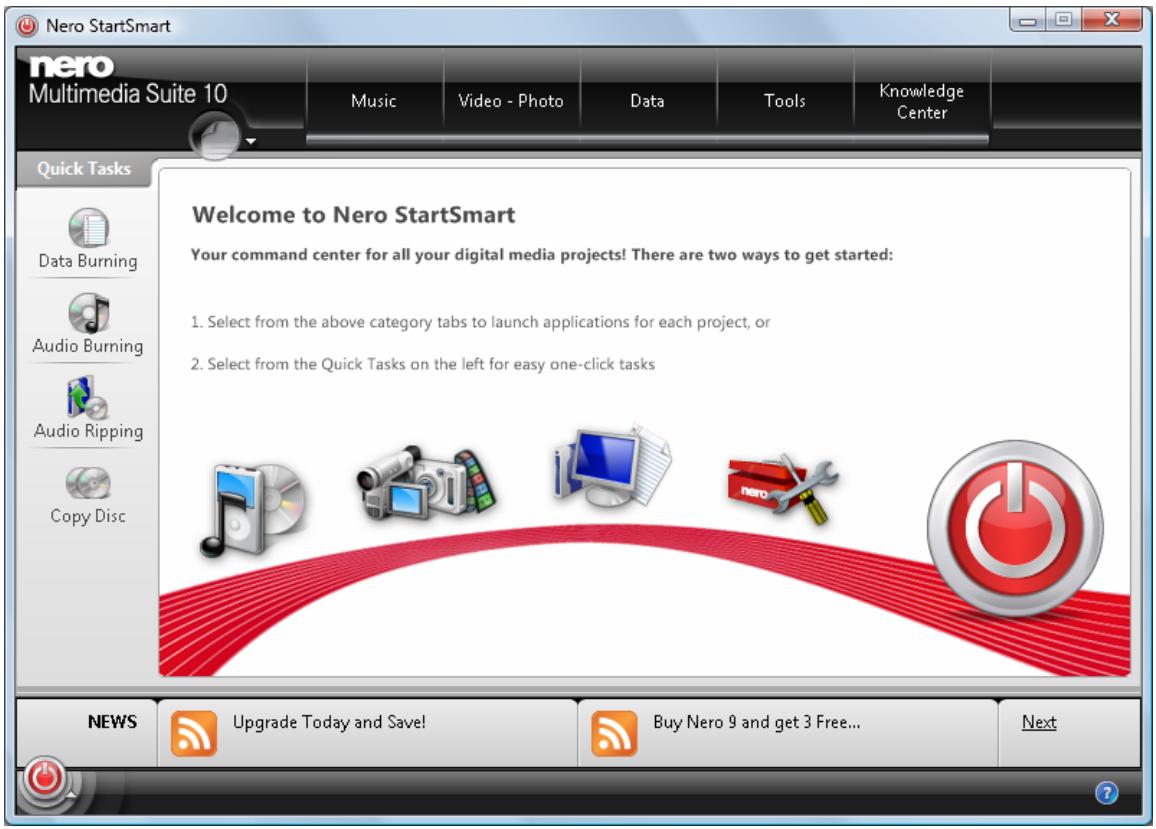
Nero StartSmart window
- Select the Nero CoverDesigner entry in the selection list.
The Nero CoverDesigner window is opened.
You have started Nero CoverDesigner via Nero StartSmart.
3 Main Screen
The main screen is the starting point for all actions that can be performed using Nero CoverDesigner.
The screen consists of a menu bar, several toolbars, and a drawing area.
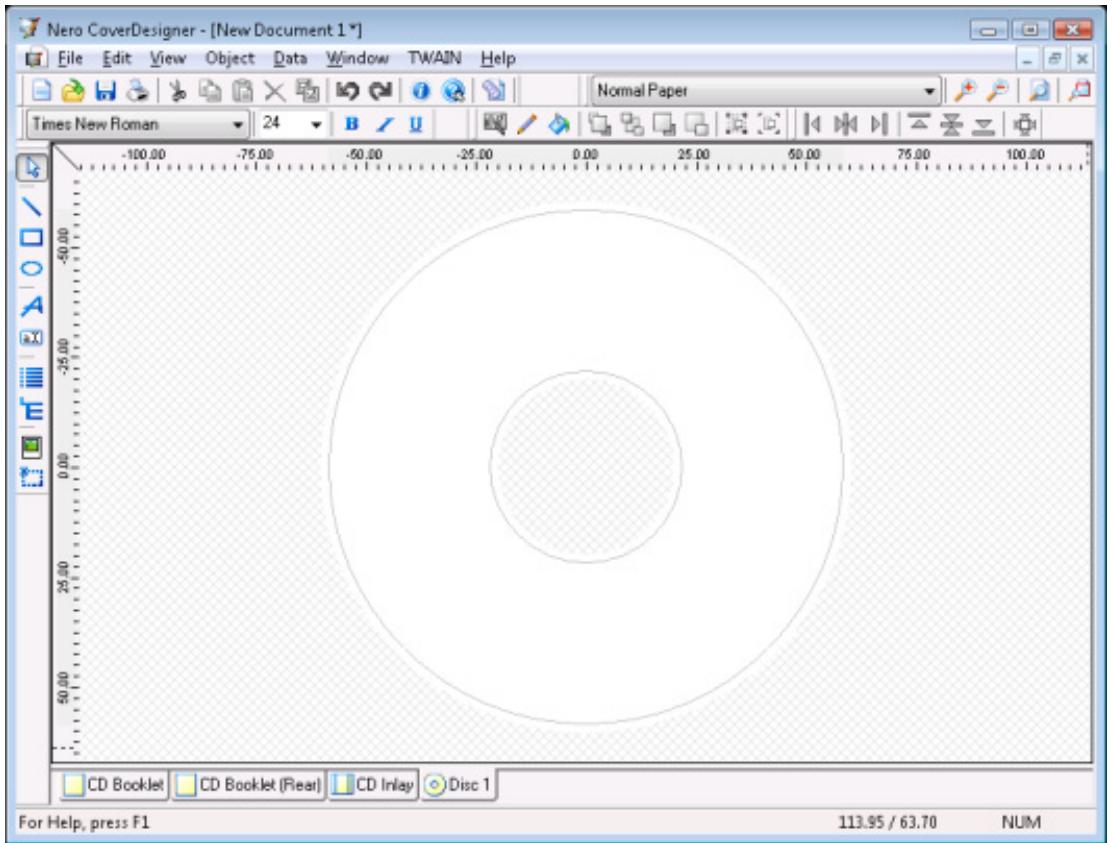
Nero CoverDesigner Main Screen
3.1 Menu Bar
The menu bar offers the following menus:
| MenuFile | Opens the File menu, which provides file-related functions such as open, save, and close. In addition, you can save files as templates, configure your printer and paper stock, make program-specific settings, as well as import and export information from and to Nero Digital files. |
| MenuEdit | Opens the Edit menu, which provides editing functions such as cut, paste, duplicate, and delete. In addition, you can copy properties, change the applied template, change the backgrounds of the cover elements as well as add or delete cover elements as desired. |
Main Screen
| Menu View | Opens the View menu, which allows you to hide and display screen and cover elements. In addition, you can display and use grid and guide lines as well as display objects in the editable area only. |
| Menu Object | Opens the Object menu, which you can use for editing the individual objects of your drawing: You can insert objects, change their shape and position, group objects, as well as open the Properties window where you can edit the properties of objects. In addition, you can insert a background and set default settings for objects. |
| Menu Data | Opens the Data menu with the Document Data entry, which allows you to enter document-specific data such as the disc name or track entries. |
| Menu Window | Opens the Window menu, which allows you to change the position and arrangement of multiple open documents on the main screen (drawing area). All open documents can also be closed. |
| Menu TWAIN | Opens the TWAIN menu, which allows you to scan pictures if a scanner is attached. |
| Menu Help | Opens the Help menu, which offers information on different subjects. |
3.2 Toolbars
The following toolbars are available in Nero CoverDesigner:
| Standard | Provides standard functions for the document and objects. |
| View | Allows you to zoom in or out of the drawing area. In addition, you can select a paper stock for the current document. |
| Text | Allows you to format text. In addition, you can choose the font and size of the text. |
| Modify Objects | Provides functions for modifying and editing objects. |
| Tools | Provides various tools which you can use for inserting or selecting objects in the drawing area. |
3.2.1 Standard Toolbar
The following icons are available in the Standard toolbar:

Opens the New Document window where you can select the document type and template for a new document.
Main Screen
| Opens an existing Nero CoverDesigner document or a Nero CoverDesigner template. | |
| Saves the current Nero CoverDesigner document. | |
| Prints the current Nero CoverDesigner document. | |
| Opens the LightScribe Print Properties window, where you can configure the printing options for LightScribe and print a LightScribe label. This icon is only available if a LightScribe recorder is connected. | |
| Cuts out a selected object and stores it on the clipboard. | |
| Copies a selected object to the clipboard. | |
| Deletes a selected object. | |
| Applies the properties of one object to another. | |
| Undoes the last editing step. | |
| Restores an editing step that has been undone. | |
| Opens the About Nero CoverDesigner window, where you can view the version number, for example. | |
| Opens the integrated online help. | |
| Opens the Document Data window, where you can enter data such as the disc title and tracks for the document. | |
| Opens the Labelflash Print Properties window, where you can configure the printing options for Labelflash and print a Labelflash label. This icon is only available if a Labelflash recorder is connected. |

Creating and burning labels with LightScribe or Labelflash is only available in the full version.
You can always upgrade your Essentials version at www.nero.com to get the full version with all the functions.
3.2.2 View Toolbar
The following icons are available in the View toolbar:
| + | Magnifies the current view of the drawing area. |
| - | Reduces the size of the current view of the drawing area. |
| [ ] | Restores the standard view of the drawing area. |
| Magnifies a selected area of the drawing area. |
3.2.3 Text Toolbar
The following icons are available in the Text toolbar:
| B | Changes the selected text to bold. |
| I | Changes the selected text to italics. |
| U | Underlines the selected text. |
3.2.4 Modify Objects Toolbar
The following icons are available in the Modify Objects toolbar:
| Opens the Properties window for a selected object. | |
| Applies a margin color to the selected object. | |
| Applies a fill color to the selected object. | |
| Positions the selected object in front of all the others. | |
| Moves the selected object behind all the others. | |
| Moves the selected object one position towards the top. | |
| Moves the selected object one position towards the back. | |
| Groups multiple selected objects. | |
| Ungroups objects. |
3.2.5 Tools Toolbar
The following icons are available in the Tool toolbar:
| Activates the selection tool, used to select objects. | |
| Activates the line tool, which you can use to insert a line. | |
| Activates the rectangle tool, which you can use to insert a rectangle. | |
| Activates the ellipse tool, which you can use to insert an ellipse. | |
| Activates the text tool, which you can use to insert a text graphic. | |
| Activates the text box tool, which you can use to insert a text box. | |
| Activates the track list tool, which you can use to insert a track list. A track list is a list of audio files (tracks). | |
| Activates the directory tool, which you can use to insert a folder. The folder refers to data files. | |
| Activates the image tool, which you can use to insert an image. | |
| Activates the field tool, which you can use to insert different fields. |
Track lists, directories, and fields are dynamic objects. The contents that are entered in the document data are entered here. You can modify this data as well. Dynamic objects are particularly useful for creating templates.
3.2.6 Align Toolbar
The following icons are available in the Align toolbar:
| Aligns the object to the left margin. | |
| Centers the object horizontally. | |
| Aligns the object to the right margin. | |
| Aligns the object to the top margin. | |
| Centers the object vertically. | |
| Aligns the object to the bottom margin. | |
| Opens the Align elements window. Here you can align the object relative to another object. |
See also
Align Elements Window 52
3.2.7 Floating Toolbar
When you select a dynamic object and leave the mouse over the object, a floating toolbar appears after a brief interval.
The following icons are available in the floating toolbar:
| Opens the Properties window. | |
| Opens the Document Data window. |
3.3 Drawing Area
The cover elements are designed in the drawing area. The drawing area consists of tabs for the different cover elements that belong to the selected document type or that you have added to a user-defined type, as well as the rulers at the top and on the left.
You can use the tabs in the drawing area to switch between the individual cover elements. If you want to view multiple cover elements at the same time, you can select the cover elements that should be visible from the View menu: The drawing area will then be divided into subwindows.
On the tabs you will find:
- an editable, unshaded area the size and shape of the selected cover element where the cover element is designed, and
a shaded, non-editable area.
The gray line in the editable area is the edge of the cover element. The white outer margin represents the bleed area, which you can configure on the Printing tab of the Application Preferences window (see Application Preferences Window 73).
3.4 Objects
An object in Nero CoverDesigner is a design element that can be placed in the drawing area. Objects can be inserted, duplicated, moved, their size, shape, and appearance modified, and edited.
The following objects are available in Nero CoverDesigner:
Geometric objects: line, rectangle, ellipse
Artistic text
Text box
Picture
Dynamic objects: track list, directory, and fields
3.5 Dynamic Objects
Track lists, directories, and fields are dynamic objects. These objects take the majority of their contents from the document data. Therefore, you cannot enter text in the objects; you must enter the contents in the document data instead.
The following dynamic objects are available:
| Tracklist | The track list takes its contents from the document data that contains the audio/chapter data for the tracks/chapters of an audio CD. Sample contents might be an automatically assigned sequential track number or information about the artist and/or title. |
| Directory | The directory takes its contents from the document data that contains the files from the file system of a data CD. Sample contents might be an automatically assigned sequential number, the file path and/or file name. |
| Fields | Fields take their contents primarily from the document data, for example, information about the title, artist, disc title, and/or release data. In addition, information about the save or print date and a user-defined text entry can be displayed as well. |
4 New Document Window
When you start Nero CoverDesigner, the New Document window is automatically opened along with the main screen. This window is your starting point for creating a new document. You can also open the window with the icon on the toolbar in the main screen.
The New Document window consists of two selection lists, a preview window and setting options.
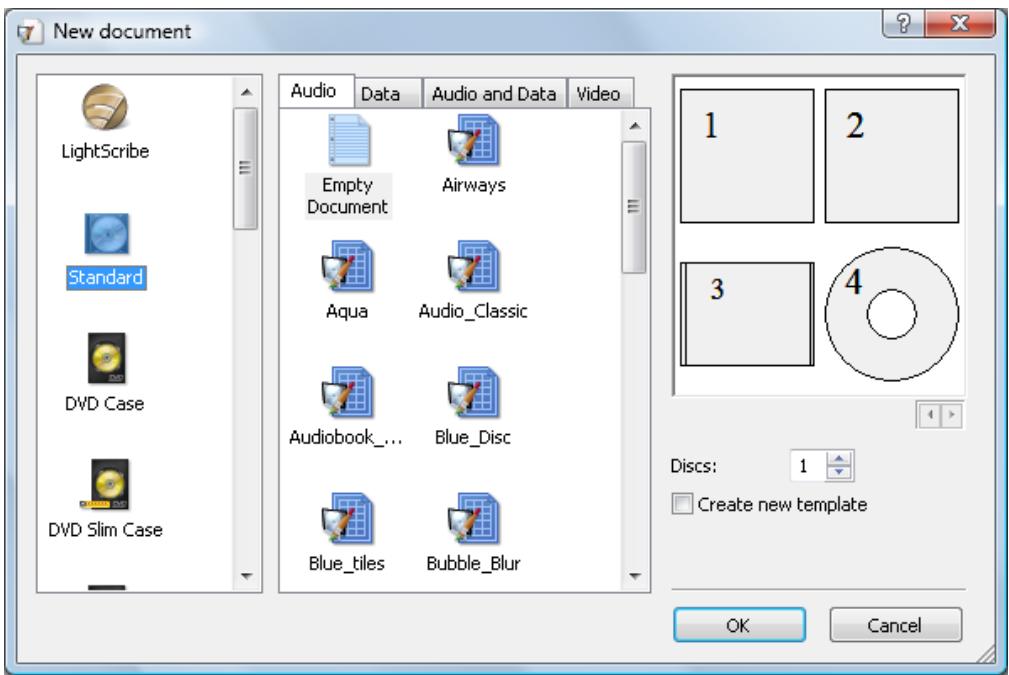
New Document
The document types are displayed in the left selection list. Templates for the selected document type are displayed in the right selection list, and there are four tabs available:
| Audio | For the Audio CD disc type |
| Data | For the data disc disc type |
| Audio and Data | For the audio and data disc type |
| Video | For the video disc type |
The tabs contain templates for each disc type. The template can contain relevant fields like the playing time, or a track list for audio CDs. The disc type is automatically correctly set in the document data of a template. The cover elements can be displayed with the template design in the preview window. The following setting options are available in the New Document window:
| Discs | Sets the number of the Disc cover element in the document. Up to four discs can be added to the document. |
| Create new template | Creates a template, i.e. the document is saved in *.nct format and appears in the templates list. |
| OK | Creates a new document and closes the window. |
| Cancel | Cancel the procedure and closes the window. |
4.1 Document Type
With Nero CoverDesigner, you can select different document types. Each document type contains predefined cover elements that you can design.
The following cover elements are available:
| Booklet | Insert in the interior of the CD, DVD or Blu-ray case as a booklet or individual sheet. Visible from the front in disc cases made from clear plastic. Normally it contains additional information about the disc, such as the track titles for Audio CDs. |
| Inlay | Insert in the back of the CD case. For DVD and Blu-ray cases, a continuous sheet that is inserted into the outer case of the DVD/Blu-ray. The inlay is visible from the outside. |
| Disc | Label in the form of a disc. |
| Mini disc /(rectangular) Biz Card | Label in mini disc / Biz Card / rectangular Biz Card form. |
When you select a document type, predefined cover elements that you can design are automatically added to the document.
If you would like to choose the cover elements yourself, select the Custom document type. Here you can insert any cover element you wish into the current document with the Edit > Insert New Page menu item.
The Full Template document type makes all the cover elements available.
Up to four discs can be added as cover elements to the Standard, DVD Case, BD Case, Multi Box, Maxi, Slim Pack and Custom document types by adding an additional disc to the document data (see Document Data Window 32).
4.2 Standard Document Type
The Standard document type corresponds to the customary jewel case for CDs. Jewel case packaging is usually made from clear plastic. The front and the back are joined by a hinge. There is space for the booklet behind the front piece. The tray holds the CD inside. The tray can be removed. There is room for the inlay under the tray.
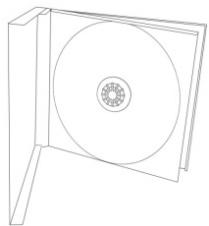
Jewel Case
The following elements can be designed with Nero CoverDesigner:
| □ | CD Booklet (Front) |
| □ | CD Booklet (Rear) |
| □ | Inlay |
| ◎ | Disc |
4.3 DVD Case Document Type
A DVD case is a type of packaging for DVDs. The packaging is larger than a normal CD case and has a fold in the middle. The booklet is placed inside. The inlay is inserted between the plastic film and the exterior.
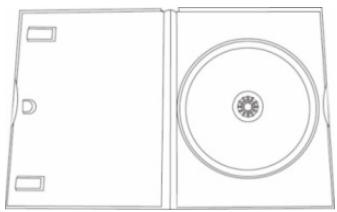
DVD Case
The following elements can be designed with Nero CoverDesigner:
| DVD Booklet for the Interior | |
| DVD Inlay for the Case | |
| Disc |
4.4 DVD Slim Case Document Type
The DVD Slim Case document type corresponds to the customary slim case for DVDs. Slim case packaging is usually made from clear plastic. The front and the back are joined by a hinge. There is space for the booklet behind the front piece. The tray holds the DVD inside. The tray can be removed.
The following elements can be designed with Nero CoverDesigner:
| □ | DVD Slim Booklet |
| □ | DVD Slim Booklet (Mid) |
| ◎ | Disc |
4.5 BD Case Document Type
A BD case is a type of packaging for Blu-ray Discs. The packaging has a fold in the middle. The booklet is placed inside. The inlay is inserted between the plastic film and the exterior.
The following elements can be designed with Nero CoverDesigner:
| BD Booklet | |
| BD Inlay | |
| Disc |
4.6 BD Slim Case Document Type
The BD Slim Case document type corresponds to the customary slim case for Blu-ray Discs. Slim case packaging is usually made from clear plastic. The front and the back are joined by a hinge. There is space for the booklet behind the front piece. The tray holds the Blu-ray Disc inside.
The following elements can be designed with Nero CoverDesigner:
| □ | BD Slim Booklet |
| □ | BD Slim Booklet (Mid) |
| ◎ | Disc |
4.7 Multi Box Document Type
A multi box is a type of packaging for multiple CDs and can usually be opened on two sides.
The following elements can be designed with Nero CoverDesigner:
| □ | CD Booklet (Front) |
| □ | CD Booklet (Rear) |
| □ | Front CD Inlay |
| □ | Rear CD Inlay |
| ◎ | Disk 1 |
| ◎ | Disk 2 |
4.8 Maxi Document Type
The maxi format was developed for single CDs, i.e., CDs that contain one track instead of an entire album. A maxi case is thinner than a CD jewel case. Instead of a booklet, it includes a sheet that has been folded twice on the right side so that it has a legible spine. The tray that contains the CD is integrated in the case and cannot be removed.
The following elements can be designed with Nero CoverDesigner:
| Maxi Inlay | |
| Disc |
4.9 Slim Pack Document Type
A slim pack is thinner than a maxi CD. It is used for single CDs and data discs created at home. Instead of a booklet it includes a single sheet that is not folded.
The following elements can be designed with Nero CoverDesigner:
| □ | CD Booklet (Front) |
| □ | CD Booklet (Rear) |
| ◎ | Disc |
4.10 Mini CD Document Type
A mini CD is a CD with a diameter of 8 cm. Most drives have a recess in the tray for mini CDs.
The following element can be designed with Nero CoverDesigner:
| □ | Mini Inlay (Front) |
| □ | Mini Inlay (Rear) |
| ◎ | Mini-Disc |
4.11 Biz Card Document Type
The oval Biz Card is also known as a business card CD and is often used for advertising purposes.
The following element can be designed with Nero CoverDesigner:
| Biz Card |
4.12 Rectangular Biz Card Document Type
The rectangular biz card has the same format as a standard business card.
The following element can be designed with Nero CoverDesigner:
| Rectangular Biz Card |
4.13 LightScribe Document Type
If you have a LightScribe recorder, you can print the label side of a LightScribe CD/DVD with Nero CoverDesigner. The label side of the disc has a special color or thermal layer which is heated by the laser in the recorder so that pictures and text are printed.

This function is only available in the full version. You can always upgrade your Essentials version at www.nero.com to get the full version with all the functions.

This function is only available in recorders that support LightScribe technology.
The following element can be designed with Nero CoverDesigner:
| Disc |
5 Creating a New Document
There are three types of documents in Nero CoverDesigner. The distinguishing feature is how the background of the cover elements is created:
| Standard Document | The background is created by the user as desired or taken from the template. |
| Picture Document | A selected picture is used for the background of all cover elements. |
| Nero Digital Document | The cover art saved in the Nero Digital file is used for the background of all cover elements. |
5.1 Creating a Nero Digital Document
With Nero CoverDesigner, an album cover that has been stored in a Nero Digital file can be extracted and then used as the basis for a Nero CoverDesigner document.
To create a Nero Digital document, proceed as follows:
- Click the File > New Cover from Nero Digital menu.
The Open window is opened. - Select a Nero Digital file that contains a cover and then click the Open button.
The New Document window is opened; the Custom document type is selected. - If you want to design a cover for Nero Digital audio, click the Audio tab. If you want to design a cover for Nero Digital video, click the Video tab.
- Select the Nero Digital Cover template.
- Click the OK button.
The New Document window is closed. In the drawing area, the cover elements that were stored in the Nero Digital file are displayed. The cover is used as the background picture.
You have created a new Nero Digital document and can now finish the design.
See also
Designing The Cover Element 26
5.2 Creating a New Document or Image Document
To create a new document or picture document, proceed as follows:
- If you want to create a new document, click the icon in the toolbar.
The New Document window is opened.
-
If you want to create a new picture document:
-
Click the File > New Cover from Picture menu.
The Open window is opened. - Select the desired image file and then click the Open button.
The New Document window is opened. - Select a document type from the left selection list.
The right selection list displays the templates for the selected document type; the Audio tab is selected by default. - Click one of the tabs in the right selection list to select a disc type.
The selection list displays the templates for the selected document and disc type. - Select an already designed template or the Empty Document template from the selection list on the right.
The selected template is displayed in the preview area. - If applicable, enter the number of discs that the document should contain.
You can increase the number of discs in the document afterwards by adding a disc to the document data.
- Click the OK button.
The New Document window is closed. If you selected a template that contains dynamic objects, the Document Data window is opened.
- If the Document Data was opened, enter the document data, and then click the OK button.
The document data is applied and the Document Data window is closed. In the drawing area, the cover elements of the selected document type are displayed on tabs. If you have created a picture document, the selected picture is inserted as the background picture of all the cover elements.
You have created a new document and can now finish the design.
See also
Designing The Cover Element 26
Document Type 17
6 Editing a Document
6.1 Adding a Cover Element
If you selected the Custom document type, only the cover element for the disc label is initially available on the Disc 1 tab. You can add new cover elements to the document, however.
Proceed as follows:
- Click the Edit > Insert New Page menu in the main screen.
The Insert Page window is opened. - Select the cover element that you want to add to the current document.
- Click the Insert button.
The window is closed. The corresponding tab with the new cover element is added to the document.
Deleting Cover Elements
You can remove cover elements with the Edit > Remove Current Page menu item. A document must contain at least one cover element, however.
6.2 Modifying the Template Later on
You can later modify the template used for a document in order to select another design.
The document data of the original document remains intact but not necessarily all the inserted objects. Inserted objects are only retained if you select a template with the same document and disc type.
To modify a template, proceed as follows:
- Click the Edit > Change Template menu in the main screen.
The Choose New Template window is opened. - Select a new template from the right selection list.
The Choose New Template window is closed.
The document appears with the design of the selected template.
6.3 Assigning a Paper Stock
You can assign a paper stock to every cover element. The dimensions of the cover element may change when you do so. Assigning a paper stock usually means that you want to print on special stock, from a particular manufacturer, for example.
Changing the Size of Cover Elements
If you change the size of a cover element, objects may end up outside the drawing area: Objects are positioned absolutely in relation to the ruler, i.e., the page dimensions, and not relative to the cover element itself.
To assign a paper stock to a cover element, proceed as follows:
- Click the tab that contains the desired cover element.
The cover element is displayed. - Click the drop-down menu in the View toolbar.
The drop-down menu is opened. - Select a paper stock.
The drop-down menu is closed and the selected paper stock is assigned to the cover element. The size, dimensions, and/or position of the cover element may change.
7 Designing The Cover Element
7.1 Inserting an Object
In Nero CoverDesigner, you can insert objects in order to design cover elements for a document. An inserted object is automatically selected and can be edited.
To design a cover element, you can insert objects in the drawing area. Proceed as follows:
-
To insert a line:
-
Click the icon on the toolbar.
→ The cursor changes to a crosshair with a line symbol. -
Click in the drawing area and drag the cursor.
The line is inserted. -
To insert a rectangle:
-
Click the icon on the toolbar.
→ The cursor changes to a crosshair with a rectangle symbol. -
Click in the drawing area and drag the cursor.
The rectangle is inserted. -
To insert an ellipse:
-
Click the icon on the toolbar.
→ The cursor changes to a crosshair with an ellipse symbol. -
Click in the drawing area and drag the cursor.
The ellipse is inserted. -
To insert artistic text:
-
Click the A icon on the toolbar.
The cursor changes to a crosshair with an A.
-
Click in the drawing area.
A vertical line is inserted. -
Enter the text directly in the drawing area.
- Press the Enter key.
You cannot enter artistic text with a line break. To enter longer text with line breaks, use the Text Box object.
-
To insert a text box:
-
Click the a.I icon on the toolbar.
The cursor changes to a crosshair with "Abc".
- Click in the drawing area and drag the cursor.
The Properties window is opened at the Text Box tab. - Enter the text in the input area.
- Specify the text options.
- Click the OK button.
→ The text box is inserted with the text that you entered.
6. To insert a track list or a folder:
- Click the or E icon on the toolbar.
→ The cursor changes to a crosshair with a track list or folder symbol. - Click in the drawing area and drag the cursor.
The track list or folder is inserted. If you have completed the document data, the corresponding contents are displayed.
7. To insert a picture:
- Click the icon on the toolbar.
The Open browser window is opened. - Select an image file and then click on the Open button.
The Open window is closed. The mouse pointer changes to a crosshair with a camera symbol, and the frame of the selected image is displayed around the pointer. - Click in the drawing area.
→ The selected image is inserted.
8. To insert a field:
- Click the icon on the toolbar.
The extended dialog box is opened and displays the field types. - Select a field type.
The cursor changes to a crosshair and an outline of the selected field is displayed in the background. - Click in the drawing area.
The field is inserted. If you have entered something into the document data, the corresponding content is displayed. If the document data is empty, the field type name is displayed in angled brackets.
You have successfully inserted an object. Now you can edit it and continue designing the cover. The inserted object is automatically selected and displays a frame with the anchor points of the frame and a rotation arrow.
7.2 Editing an Object
You can edit an inserted object with Nero CoverDesigner. You can modify the size, shape, position, and, if desired, color.
In order to change the size, shape, or position of an object, proceed as follows:
-
Click the icon (selection tool) on the toolbar.
-
Select the object that you want to edit.
A frame with anchor points and a rotation arrow are displayed around the object.
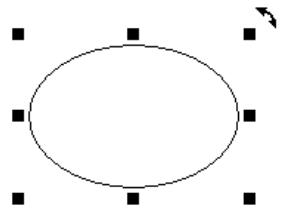
Selected Object
-
To change the position, size, and/or rotation of an object precisely:
-
Click the Object > Geometry menu.
The Geometry window is opened. - Enter the desired position, size, and angle of rotation.
-
Click the OK button.
→ The window is closed and the object is modified to match your new entries. -
To align an object precisely in the drawing area:
-
Click the Object > Align menu.
The Align Elements window is opened. - Set the desired options.
- Click the OK button.
→ The window is closed and the object is positioned according to your new entries.
- To change the position of an object manually, hold down the mouse button and move the object.
-
To change the position of the midpoint of a bent text:
-
Click on the midpoint.
The mouse pointer changes to a crosshair.
2. Move the midpoint while holding down the mouse button.
The position of the midpoint is modified.
-
To change the size or shape of an object manually:
-
Move the mouse pointer over an anchor point on the frame.
The mouse pointer changes to a double arrow that shows you which direction you can pull the object in. -
Click the anchor point and pull it in the desired direction.
The object becomes larger or smaller.
-
To change the rotation of an object manually:
-
Move the mouse pointer over the rotation arrow of the frame.
The mouse pointer changes to a rotation arrow. -
Click the rotation arrow and rotate the object in the desired direction.
The rotation of the object is changed. -
To change properties such as the pen, brush, font, etc.:
-
Click the icon.
→ The Properties window is opened. The tabs that are visible in the window are a factor of the currently selected object.
2. Specify the properties in the tabs.
3. Click the OK button.
The window is closed and the object is modified to match your new entries.
-
To change the contents of artistic text:
-
Click the A icon on the toolbar.
The cursor changes to a crosshair with an A. - Click on the artistic text and change the content as desired.
- Press the Enter key.
You have edited the object.
7.3 Converting Artistic Text
With Nero CoverDesigner, you can convert artistic text to a graphic element. The text properties can no longer be edited after the conversion.
To convert artistic text, proceed as follows:
- Click the icon (selection tool) on the toolbar.
- Select the artistic text that you want to convert.
A frame with anchor points and a rotation arrow are displayed around the text. - Select Convert to Curves in the context menu.
A window that informs you that the text will be converted to a graphic element and that you will no longer be able to edit the text properties appears. - Click the OK button.
The dialog window is closed, and the artistic text is converted.
You have successfully converted artistic text to a graphic element. The Pen and Brush tabs are available in the Properties window.
7.4 Applying Image Effects
In Nero CoverDesigner, you can apply a wide range of effects to images.
Proceed as follows:
- Click the icon (selection tool) on the toolbar.
-
Select the image that you want to edit.
A frame with anchor points and a rotation arrow are displayed around the text. -
Click the icon.
The Properties window is opened.
- Click the Effects button.
A menu is displayed. - Choose the desired effect.
A corresponding window containing before and after views opens.

For some effects, no window opens; the effect is applied immediately instead, such as with the Negative effect.
- Select the desired value with the slider.
- Click the OK button.
The window is closed. The image area displays the current view of the picture.
- Add additional effects if you wish.
- Click the OK button.
The Properties window is closed. The image in the drawing area is modified to match your new entries.

If you are not satisfied with the effect(s), you can undo your last action(s) with the icon on the toolbar.
The number of actions that you can undo depends on the value that was entered in the program settings. You can change this value in the Application Preferences window (see Application Preferences Window 73).
See also
Image Effects 44
7.5 Inserting And Editing a Background
With Nero CoverDesigner, you can insert and edit a background. You can insert or edit the backgrounds for all the cover elements of a document at the same time or insert or edit the background of a cover element separately.
To insert a background and edit its properties, proceed as follows:
- If you want to insert or edit the background for the current cover element, click the Object > Background Properties menu.
If you want to insert or edit the background for all cover elements, click the Edit > Change All Backgrounds menu.
The Background Properties window is opened.
-
If you want to create a colored background:
-
Click the Brush tab.
-
Select a color and a style, if desired.
-
If you want to insert a background image:
-
Click the Image tab.
- Select an picture file in the Picture Source area.
→ The image is displayed in the Image preview area. The Stretch Mode area is active.
- In the Stretch Mode area, specify how the background image is scaled.
-
Apply any desired effects to the picture.
-
Click the OK button.
The background is displayed according to your settings.
See also
Image Effects 44
Image Tab 42
8 Document Data Window
You can view and/or enter document data in the Document Data window. Document data determines contents of the dynamic objects track list, directory, and fields that can be applied when designing a cover or label. You can enter the contents, name, etc., of the disc for which you want to create a cover or label.

When you launch from another Nero application, the document data is automatically filled in with the information from the disc, if possible.
You can import data from a Nero Digital file into the document data by selecting File > Import from Nero Digital.
By default, the document data contains at least the Document, Disk 1 and a data type. You can add additional entries yourself.
You can open the window by clicking the Data > Document Data menu.
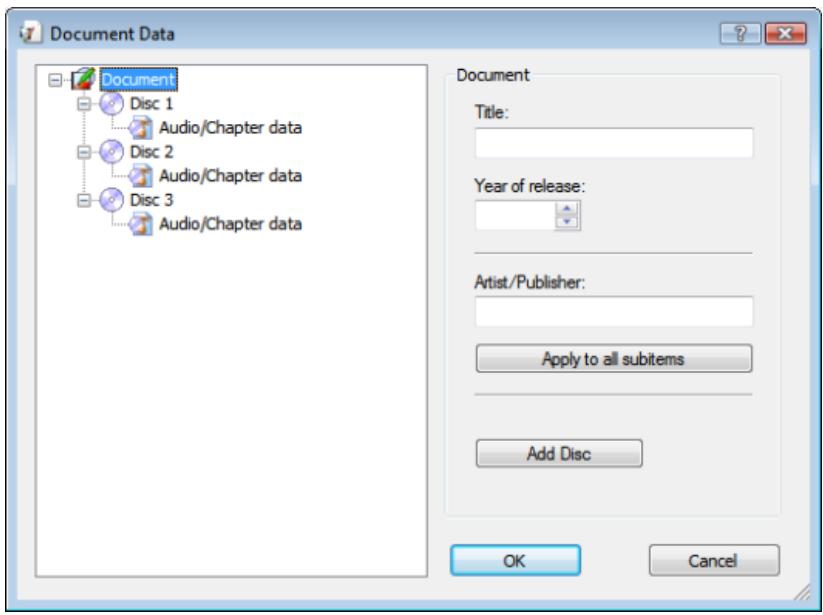
Document data
The window consists of two areas: In the area on the left, the document data elements are displayed in a tree structure; in the area on the right, the input options for the currently selected element are displayed.
The tree structure of the document data can have up to four levels and represents the project or disc structure. You can enter information which can then be used by the dynamic objects on each level.
The top, or first level always contains the Document element, which refers to the entire project.
The next level, the second one, indicates the discs that are contained in the project. You can add up to four discs to the Document element. You can specify a disc type for each disc; this entry affects the third and fourth levels. There are four disc types you can choose from:
Audio for the Audio CD disc type
Data for data discs
Audio + Data for the audio and data disc type
Video for video discs
By default, the disc type that you selected when you created the document in the New Document window is used for the discs.
The third level contains the data type or types that that are contained on the disc of the selected type. An Audio CD, for example, contains audio files – in other words, the data type Audio/Chapter Data. A data disc contains pure data – in other words, the data type File System.
The fourth level contains the contents of the disc under its corresponding data type. Audio files (tracks), for example, are listed under Audio/Chapter Data, and data files under the File System data type.
8.1 Document
For the Document element, the following input options are available in the Document area on the right:
| Title | Specifies the title of the document. By default, the document title is applied to the Subtitle input field for the disc as well. This information is used for the Title field type. |
| Year of release | Specifies the release year. This information is used for the Year field type. |
| Artist/Publisher | Specifies the artist or publisher. This information is used for the Artist field type. |
| Apply to all subitems | Applies the artist or publisher entry to the corresponding input fields Artist/Publisher for the Disc and Artist for the Tracks. |
| Add Disc | Adds a disc to the document data. Up to four discs can be added. The corresponding tabs from Disc 1 to Disc 4 with the new cover element for the disc label are added to the document. |
8.2 Disc
For the Disc element, the following input options are available in the Disc area on the right:
| Subtitles | Specifies the title of the disc. By default, the document title is applied to the input field. This information is used for the Disc Title field type. |
| Type | Specifies the disc type. Four types are available: Audio, Data, Audio + Data and Video. Depending on the selected disc type, the disc will contain different data types on the next level. This information is used for the Disc Type field. |
| Artist/Publisher | Specifies the artist or publisher of the disc. This information is used for the Disc Artist field type. |
| Apply to all subitems | Applies the artist or publisher entry to the Artist input field for the tracks. |
| Erase | Deletes the disc from the document data and its corresponding tab from the document. |
| Import Data | Opens the Read An Import File window, which you can use to select a CDC file. |
8.3 Audio/Chapter Data
Audio/Chapter Data appears as an entry for the Audio, Audio + Data, and Video disc types. Information about the track number and total playing time is displayed in the Audio/Chapter Data area on the right.
The following buttons are available:
| Add Track | Adds a track entry to the data. |
| Delete All | Deletes all tracks from the data. |
8.4 File System
File System appears as an entry for the Data, Audio + Data, and Video disc types. Information about the number of entries and the total size is displayed in the File System area on the right.
The following buttons are available:
| Add Files | Opens the Select the Files You Want to Add to the Disc window so that you can select a file. A new entry is added to the data and the file information is applied. |
| Delete All | Deletes all file entries from the data. |
| Adding folders | Opens the Browse for Folder window in which a folder can be selected. The folder is added to the data as a file entry. |
8.5 Video/Picture Data
Video/Picture Data appears as an entry for the Video disc type. The number of pictures is displayed in the Video / Screen Shot Data area on the right.
The following buttons are available:
| Adding a Picture | Displays the Open window so that you can select an image. A new entry is added to the data and the file information is automatically applied; the image is stored in the Nero CoverDesigner document. |
| Delete All | Deletes all file entries from the data. |
Adding an Entry
When you add an entry to the data, the information from the entry is applied to the document data, and the data structure is expanded accordingly.
Adding a Picture
If you add a picture, the picture is stored in the document as well. Tracks, folders, and data files are not stored in the document.
8.6 Data Entry
8.6.1 Track/Chapter
For the Track/Chapter data entry, the following input options are available in the Audio Track area on the right:
| Title | Specifies the title of the track. |
| Artist | Specifies the artist of the track. |
| Playing Time | Specifies the playing time of the track. |
| Extended Info | Provides additional information about the track. |
| Erase | Deletes the track entry. |
8.6.2 File Information
For the File Information data entry, the size and path of the file are displayed in the Audio Track area on the right.
The following input options are available:
| Title | Specifies the title of the file. |
| Erase | Deletes the file entry. |
8.6.3 Picture
For the Picture File data entry, the following input options are available in the area on the right:
| Title | Specifies the title of the picture. |
| Erase | Deletes the picture entry. |
9 Properties And Background Properties Window
The Properties or Background Properties window offers numerous configuration options for objects and the background. Different tabs are available depending on the currently selected object.
The Properties window for a selected object can be opened with the icon. You can edit the object by modifying the configuration options in the window.
The Background Properties window can be opened for all backgrounds by selecting Edit > Change All Backgrounds or for the background of the current cover element by selecting Object > Background Properties from the menu. You can insert and edit the background with the setting options.
The following tabs are available:
| Pen | Specifies whether the object has an outline. You can set the width and color as well. This tab is available for all objects. |
| Brush | Specifies whether or not the object is filled and with what color. You can set the style and color as well. This tab is available for the rectangle, ellipse, artistic text, text box, track list, directory, and field objects as well as the background. |
| Text | Determines the content and options for the text. This tab is available for the text and field objects. |
| Font | Determines the font, style, and size of the text. In addition, you can choose whether the text should be displayed in strikeout, underline and/or small caps. A preview window displays your changes. This tab is available for the text and field objects. |
| Text box | Allows you to enter and format text. The tab is available for the text box object. |
| Bend | Bends the object. This tab is available for the text box, track list, and directory objects. |
| Image | Allows you to select and edit a picture. This tab is available for the picture, text box, track list, and folder objects as well as the background. |
| Import Image | Provides import functions for pictures. This feature is particularly useful for creating templates. For example, here you can determine whether a preview picture is automatically displayed when you start Nero CoverDesigner by way of Nero Burning ROM and have created an appropriate compilation there. This tab is available for the image object. |
| Import Text | Allows you to import a comment. This feature is particularly useful for creating templates for Audio Book CDs. This function is only performed when you start Nero CoverDesigner from Nero Burning ROM and have created a compilation with the Audio Book CD disc format. This tab is available for the text box object. |
| Tracks | Provides options for the contents and appearance of the track list. |
| Directory | Provides options for the contents and appearance of the directory. |
| Field | Provides options for the contents and appearance of fields. |
9.1 Pen Tab
The Pen tab provides settings for the object outline.
The following setting options are available:
| × | Activates the outline. |
| Width | Determines the width of the outline. |
| Color | Shows the color of the outline. You can set the color with the color circle, the brightness slider, or the input fields in the Select Color area. |
| Color Circle | Determines the color of the outline. You can move the small square in the middle of the color circle. This determines the color. You can see which color has been selected in the Color display field. |
| Brightness Slider | Determines the brightness of the outline color. You set the desired value with the slider. You can see the brightness that has been selected in the Color display field. |
| Hue | Sets the hue. You can enter a value between 0 and 255. The square moves around the radius of the color circle counterclockwise, beginning on the right with the value 0 = red. |
| Saturation | Defines the saturation of the color. You can enter a value between 0 and 255. The square moves across the color circle in a straight line towards the exterior. A saturation of 255 means that one color component has a value of 255 and the other two both have a value of 0. |
| Brightness | Determines the brightness of the color. You can enter a value between 0 and 255. The brightness slider moves upwards or downwards. 255 means maximum brightness. |
| Red | Defines the red component of the color. You can enter a value between 0 and 255. 255 being completely red. |
| Green | Defines the green component of the color. You can enter a value between 0 and 255. 255 being completely green. |
| Blue | Defines the blue component of the color. You can enter a value between 0 and 255. 255 being completely blue. |
If the red, green, and blue components are equal, then the outline color is black (brightness 0), white (brightness 255), or gray (brightness value between 0 and 255).
9.2 Brush Tab
The Brush tab provides configuration options for the object outline.
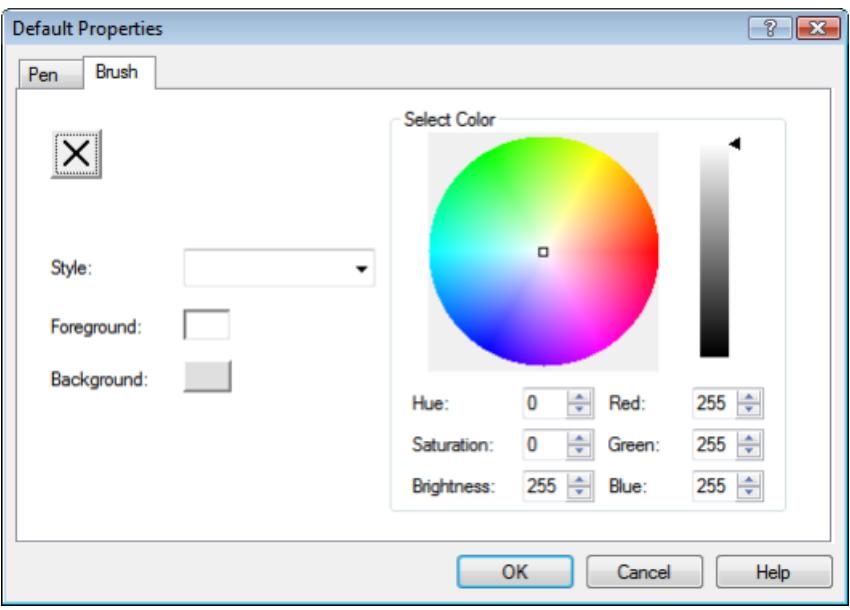
Brush tab
The following setting options are available:
| X | Activates filling. When the brush option is deactivated, the background of the object is transparent. |
| Style | Selects a style. A style is always a mixture of two colors: the foreground and background color. No style is selected by default. |
| Foreground | Displays the foreground color. Click the button to change the foreground color, i.e., apply any changes you make in the Select Colour area to the foreground color. The button displays the fill color if no style has been selected. |
| Background | Displays the background color. Click the button to change the background color, i.e., apply any changes you make in the Select Colour area to the background color. The button is grayed out if no style has been selected. |
| Color Circle | Determines the fill color. You can move the small square in the middle of the color circle. This determines the color. You can see which color has been selected in the Color display field. |
| Brightness Slider | Determines the brightness of the outline color. You set the desired value with the slider. You can see the brightness that has been selected in the Color display field. |
| Hue | Sets the hue. You can enter a value between 0 and 255. The square moves around the radius of the color circle counterclockwise beginning on the right with the value 0 = red. |
| Saturation | Defines the saturation of the color. You can enter a value between 0 and 255. The square moves across the color circle in a straight line towards the exterior. A saturation of 255 means that one color component has a value of 255 and the other two both have a value of 0. |
| Brightness | Determines the brightness of the color. You can enter a value between 0 and 255. The brightness slider moves upwards or downwards. 255 means maximum brightness. |
| Red | Defines the red component of the color. You can enter a value between 0 and 255. 255 being completely red. |
| Green | Defines the green component of the color. You can enter a value between 0 and 255. 255 being completely green. |
| Blue | Defines the blue component of the color. You can enter a value between 0 and 255. 255 being completely blue. |
9.3 Text Tab
The Text tab provides configuration options and determines the content of the Text and Field objects.
The following setting options are available:
| Read-only | If the input field in the Content area is grayed out, the text can no longer be modified. This option is particularly useful when you are creating templates. |
| Bent | Bends the text with the lower edge around a midpoint. |
| Rotate the text by 180 degrees | Rotates the text by 180 degrees, i.e., the text is rotated with its top edge around the midpoint. This option is only available if the Bent check box is selected. |
| Content | Defines the contents of the text. For Field objects, this option is grayed out because the contents are dynamically generated from the document data. |
See also
Creating a Template 55
9.4 Text Box Tab
You enter the contents of the text box on the Text Box tab. Unlike artistic text, a line break is possible in a text box. The usual text editing options are available: font and size selection, bold face, cursive, underline, align, color, copy, and paste.
The following check boxes are available:
| Fit to shape | Displays the text in the editable area only, even if the text box lies partially outside. The font size is not changed. |
| Read-only | Grays out the contents of the tab so that the text can no longer be modified. This option is particularly useful when you are creating templates. |
See also
Creating a Template 55
9.5 Bend Tab
The following check boxes are available on the Bend tab:
| Bend object | Bends the text with the lower edge around a midpoint. |
| Rotate the text by 180 degrees | Rotates the text by 180 degrees, i.e., the text is rotated with its top edge around the midpoint. This option is only available if the Bend object check box is selected. |
9.6 Image Tab
On the Image tab, you can select a picture and edit it if you wish. A preview of the picture is displayed in the Image area. The Name field displays the name of the file.
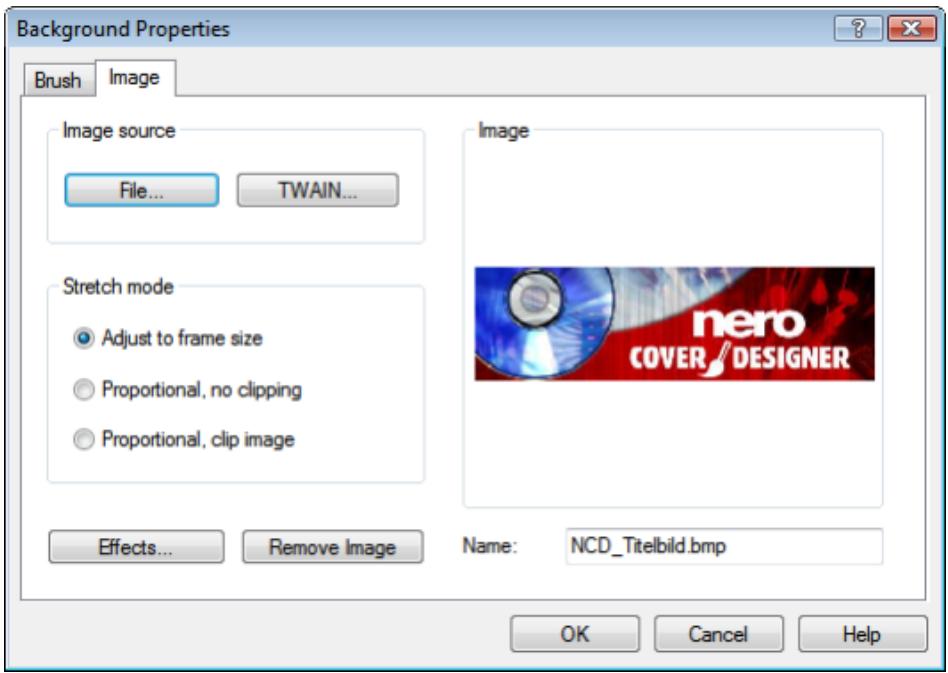
Image Tab
The following setting options are available:
| Button Effects | Opens a menu where you can select different effects to apply to the image. |
| Button Remove Image | Removes the image. |
The following configuration options are available in the Picture Source area:
| Button File | Displays the Open window, where a picture file can be selected. |
| Button TWAIN | Scans an image. This feature is only offered if you have a scanner installed. |
The following configuration options are available in the Stretch Mode area:
| Option button Adjust to frame size | Adjusts the image to match the background or frame size. If the background or frame is larger or smaller than the image, the image is expanded or reduced in size accordingly. This means that the width and/or length of the image may be distorted. |
| Option button Proportional, no clipping | Adjusts the image proportionally to the background or frame size; the ratio of the width and length of the image (aspect ratio) remains the same. |
| If the background or frame is larger or smaller than the image, blank areas may appear above/below or on the left/right of the image. The longest side determines how the image is resized. | |
| Option buttonProportional, clipimage | Adjusts the image proportionally to the background or frame size; the ratio of the width and length of the image (aspect ratio) remains the same.If the background or frame is larger or smaller than the image, areas may be clipped above/below or on the left/right of the image. The shortest side determines how the image is resized. |
9.7 Image Effects
There are several effects for pictures available in Nero CoverDesigner.
Color Adjustment effect:
| Brightness | Opens the Brightness window with before and after views of the picture. Move the Brightness slider left or right to darken or lighten the picture. |
| Contrast | Opens the Contrast window with before and after views of the picture. Move the Contrast slider left or right to increase or decrease the contrast of the picture. |
| Gamma | Opens the Gamma window with before and after views of the picture. Move the Gamma slider left or right to darken or lighten the midtones of the picture. |
| Equalizer | Applies the Equalize effect to a picture. This effect distributes the brightness values of the colors uniformly. This effect is appropriate for adjusting a picture that is too light or dark. It is also useful for making objects in the shadows more visible. |
Filter effect:
| Emboss | Creates an embossed version of the picture. |
| Erode | Generates a watercolor version of the picture, making the picture softer and coarser. |
| Mosaic | Opens the Mosaic window with before and after views of the picture. Move the Mosaic slider to the right to make the picture coarser, creating a mosaic effect. |
| Outline | Draws the edges of the surfaces in the picture, generating an outline effect. |
| Parabolic > Convex | Generates a convex view. |
| Parabolic > Concave | Generates a concave view. |
| Posterize | Opens the Posterize window with before and after views of the picture. Move the Posterize slider right or left to create an oil painting effect. |
| Sharpen | Opens the Sharpen window with before and after views of the picture. Move the Sharpness slider to the right to make the picture sharper and harder. |
| Solarize | Opens the Solarize window with before and after views of the picture. Move the Solarize slider to the left to strengthen the lighting effect. Move the slider completely to the left to invert the values and create a negative. |
| Soften | Opens the Soften window with before and after views of the picture. Move the Soften slider to the right to make the picture softer and less focused. In doing so, areas are merged together. |
Flip effect:
| Horizontal | Flips the image horizontally, making it appear as the mirror image. |
| Vertical | Flips the image vertically, the image appears upside down. |
| Negative | Creates a negative of the image. |
| Pinch | Opens the Pinch window with before and after views of the picture. Move the Pinch slider right or left to pinch or bloat the picture from the center. |
| Swirl | Opens the Swirl window with before and after views of the image. Move the Swirl slider right or left to swirl the image to the right or left. |
| Rotate | Opens the Rotate window with before and after views of the image. Move the Rotate slider to the right to rotate the image 90°, 180° or 270°. |
9.8 Import Picture Tab
The Import Picture tab provides the following setting options:
| Import picture, if possible | Activates the Picture to import drop-down menu. |
| Picture to import | Selects the image that should be imported. The following entries are available: |
| Nothing: No image is imported. Thumbsail: Imports a preview image when you start Nero CoverDesigner from Nero Burning ROM and have created a compilation with the Audio Book CD disc format. This feature is particularly useful for creating templates for Audio Book CDs. Video Picture: Imports a picture than you have added to the Video/Picture Data entry in the document data. You can determine which picture is imported with the Disc Number and Picture Number fields. CoverArt: Imports an image from a Nero Digital file (if it is technically possible). | |
| Import Original Picture | Imports the specified image. If the image has been modified, you can use this button to import the original image again. |
9.9 Tracks And Folder Tab
On the Tracks and Folder tabs, you can determine the appearance of the track list or folder and select which contents are displayed. The track list contains information from audio files, the folder contains information from data files. You cannot enter text in the track list/folder yourself – the contents are taken from the document data.
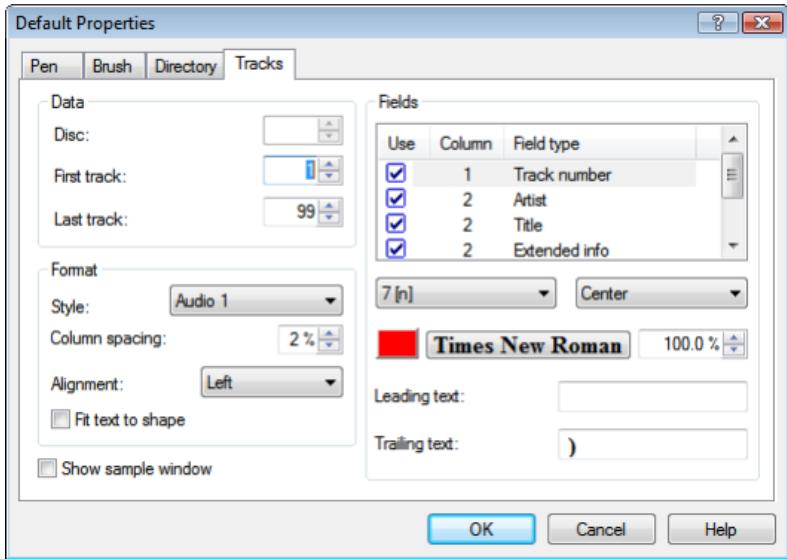
Tracks/Folder Tab
The following configuration options are available:
| Check box Show sample window | Opens the Sample preview window. |
The following configuration options are available in the Data area:
| Input field Disc | Species the disc that the information should be taken from. |
| Input field First Track/Entry | Specifies which audio/data file the track list / folder should begin at. |
| Input field Last Track/Entry | Specifies which audio/data file the track list / folder should end at. |
The following configuration options are available in the Format area:
| Drop-down menu Style | Selects a predefined style with which to display the track list / folder. The style can be modified in the Fields area. |
| Input field Column Spacing | Sets the column spacing in percent. |
| Drop-down menu Orientation | Specifies the alignment of the text. |
| Check box Fit text to shape | Displays the text in the editable area only, even if the track list / folder lies partially outside. The font size is adjusted if necessary. |
The following configuration options are available in the Fields area:
| Selection list | Displays the fields that are available in the selected style, such as track number or file path. The meaning of each column is as follows:Use: The field is visible in the track list / folder. If the check box is not selected, the field is not visible in the track list/folder.Column: Indicates the column that the field will be displayed in.Field Type: Indicates the field type, e.g., track number or title. |
| Left Drop-Down Menu | Selects a format for the selected field.Text can be displayed normally, with uppercase letters, with lowercase letters, or reversed.Numbers can be displayed as single digits, double digits, or Roman numerals.Playing times can be displayed in different formats, e.g., in seconds, M:SS, H:MM:SS, etc.File sizes can be displayed in bytes, KB or MB. |
| Right drop-down menu | Selects the alignment for the selected field. The alignment always refers to the full column that the field is in. |
| Opens the Select Color window so that you can define a color for the selected field. The window is the same as the one for the Select Color area on the Pen and Brush tabs. The button shows the currently selected color. | |
| Times New Roman | Opens the Font window so that you can choose a font, style, and effects for the selected field. You can also specify the character set to use in the Script drop-down menu. A preview of the text is displayed in the Sample area. The button displays the currently selected font. The input field (to the right of the button) specifies a relative font size in percent for the selected field. |
| Input field Leading Text | Specifies a relative font size in percent for the selected field. |
| Input field Trailing Text | Specifies the text that should appear after the selected field in the track list / folder. |
See also
BrushTab 39
9.10 Field Tab
The Field tab provides setting options for fields. Fields take their content from the document data for the most part. The Field tab consists of the Field Type selection list, the Options area, and a check box.
All of the field types are listed in the Field Type selection list. The Options area refers to the selected field type. Not all setting options are available for each field type.
The following setting options are generally available:
| Field type | Specifies the field type. The following field types are available: Title, Artist, Disc Type, Year, Disc Title, Disc Artist, Number of Tracks, Total Playing Time, Total Size of Files, Last Save Date, Print Date, and Custom Text. |
| Check box Fixed Size | Specifies that the text has a fixed height, even if the size of the frame is modified. The text height is based on the font size that is specified on the Font tab. If the check box is not selected, the text size is adjusted to match the frame size and vice versa. This feature is not available for bent text. |
The following configuration options are available in the Options area:
| Drop-down menu Alignment | Specifies the alignment of the selected field type in the frame. |
| Drop-down menu Disc | Specifies which disc the selected field type refers to. |
| Drop-down menu Time Format | Specifies the format for the playing time. |
| Drop-down menu Size Format | Specifies the format for the file size. |
| Drop-down menu Date Format | Specifies the format for the date. |
| Input text Custom Text | Specifies the text for the Custom Text field type. |
| Input text Leading Text | Specifies the text that appears in front of the selected field type. |
| Input text Trailing Text | Specifies the text that should appear after the selected field type. |
The field type that you select in the Field Type selection list is applied to the inserted field even if you assigned a different field type beforehand.
10 Geometry Window
The position, size, and rotation of an object are determined in the Geometry window. You can open the window by clicking the Object > Geometry menu.
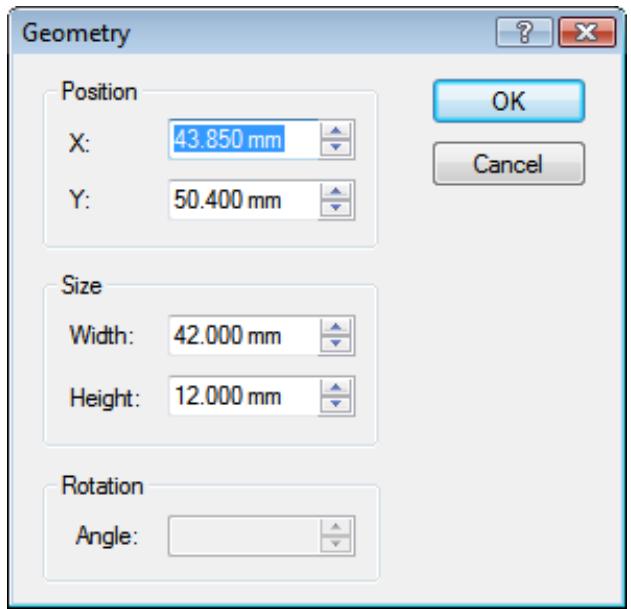
Geometry window
The following input fields are available in the Position area:
| X | Specifies the X coordinate of the top left point of the frame. |
| Y | Specifies the Y coordinate of the top left point of the frame. |
The following input fields are available in the Size area:
| Width | Specifies the width of the object in millimeters. |
| Height | Specifies the height of the object in millimeters. |
The following input field is available in the Rotation area:
| Angle | Specifies the angle of rotation. |
10.1 Geometry Window For Bent Objects
For bent objects, the position of the center and the position of the object in terms of the center are specified in the Geometry window. You can open the window by clicking the Object > Geometry menu.
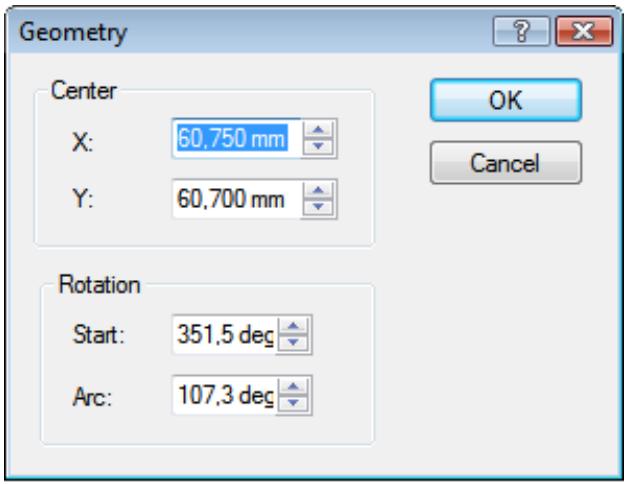
Geometry window for bent objects
The following input fields are available in the Center area:
| X | Specifies the X coordinate of the center point (which the object is rotated around). |
| Y | Specifies the Y coordinate of the center point (which the object is rotated around). |
The following input fields are available in the Rotation area:
| Start | Specifies the position of the text in relation to the center point. The starting point of the text is the left edge of the first character. The division into degrees is the one commonly used in mathematics: 0 degrees is on the right at the height of the midpoint and the units progress in a counterclockwise direction. |
| Arc | Specifies the arc to apply to the text. Selecting 180 degrees, for example, bends the text in a semicircle. |
11 Align Elements Window
The Align Elements window aligns objects relative to the page, i.e., the editable drawing area, or another object. You can open the window by clicking the Object > Align menu.
This feature is not available for bent objects.
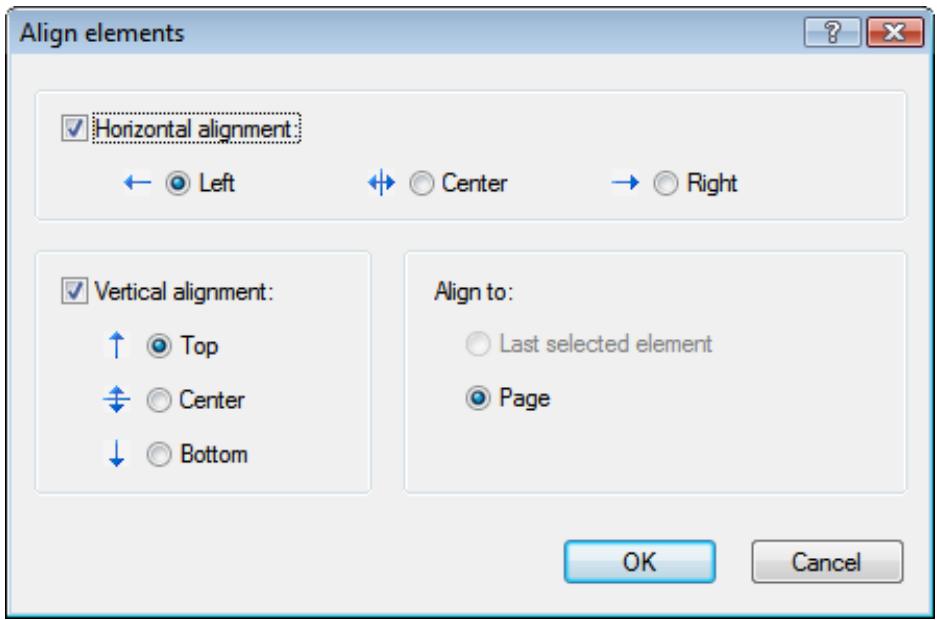
Align Elements window
This window contains the following check boxes and option buttons:
| Check box Horizontal alignment | Specifies the horizontal alignment. There are three option buttons: Left: Aligns the object along the left edge. Center: Centers the object. Right: Aligns the object along the right edge. |
| Check box Vertical alignment | Specifies the vertical alignment. There are three option buttons: Top: Aligns the object along the top edge. Center: Centers the object. Bottom: Aligns the object along the bottom edge. |
| Option button Last Selected Element | Aligns the object with another. In order to use this feature, two objects must be selected; the object that |
Align Elements Window
| was selected last will be aligned in relation to the first. This feature is useful for positioning two objects on top of one another, e.g., text on a picture. | |
| Option buttonPage | Aligns the object to the page, i.e., to the editable area. |
12 Design Tools
12.1 Grid
A grid can be used to position objects. In Nero CoverDesigner, the grid is displayed as a series of dots with equal horizontal and vertical spacing.
The following options are available in the View menu of Nero CoverDesigner:
| Show Grid | Displays the grid. |
| Snap to Grid | Snaps objects to the grid. Objects are snapped to the grid points when they are moved or drawn near them. |
| Grid Setup | Displays the Grid Setup window where you can specify the horizontal and vertical spacing of the grid points. |
12.2 Guidelines
Guidelines are lines that can be used to help position objects. In Nero CoverDesigner, guidelines are displayed as dashed blue lines.
The following options are available in the View menu of Nero CoverDesigner:
| Entry Show Guidelines | Displays the guidelines. |
| Entry Snap to Guidelines | Aligns objects along the guidelines. Objects are snapped to the guidelines when they are moved or drawn near them. |
| Entry Set Up Guidelines | Opens the Set Up Guidelines window, where you can create horizontal and/or vertical guidelines. |
Creating Guidelines Manually
You can create guidelines manually by clicking on the horizontal or vertical ruler and dragging a guideline onto the drawing area.
13 Creating And Editing a Template
13.1 Creating a Template
With Nero CoverDesigner, you can create your own templates.

Document data is not saved when the document is saved as a template.
To do this, proceed as follows:
- Click the icon on the toolbar.
The New Document window is opened. - Select the document type and an empty or predesigned template.
- Select the Create New Template check box.
- Click the OK button.
The New Document window is closed and the predefined cover elements for the selected document type are displayed in the drawing area.
If you selected the Custom document type, you can add new cover elements by selecting Edit > Insert New Page from the menu.
- Design the document as desired.
- Select File > Save from the menu.
The Save As window is opened.
- If the My Documents folder is displayed, select the Nero CoverDesigner Templates folder from the Save In drop-down menu.
- Enter a file name and click the Save button.
Even if you did not select the Create New Template check box at the beginning, you can still create a template. In this case, simply select Save as Template from the File menu. Make certain that you save the template file in the Nero CoverDesigner Templates folder so that it appears in the template list.
The template file is saved under the selected name. It will now be available in the template list of the New Document window under the document and disc type that you selected when you created it or whose cover elements were contained in the template file.
13.2 Modifying a Template
You can modify templates in Nero CoverDesigner.
Proceed as follows:
- Click the File > Open menu.
A browser window is opened. - Select the desired Nero CoverDesigner template file (.nct) from the Nero CoverDesigner Templates folder and then click the Open button.
The browser window is closed. A window asking if you want to edit the template is opened. - Click the Yes button.
The template document is opened. - Edit the document as desired.
- Click the button.
The changes are saved in the template. You can now close the template and use it to create a new document.
14 Saving a Document
You can save a document that you have created in Nero CoverDesigner.This saves all of the document's cover elements and any document data that you have entered.
To save a document, proceed as follows:
- Select File > Save from the menu.
The Save As window is opened. - Enter the file name and path to save the file under.
- Click the Save button.
The Save As window is closed and the document is saved.
15 Storing a Cover in a Nero Digital File
With Nero CoverDesigner, you can save an album cover in a Nero Digital file. Nero Digital is an MPEG-4 storage format for audio and video files that can contain additional information. It was developed by Nero AG. The designed cover element is stored in the file as cover art. This means that an image of your final cover element design is created and saved as a background image.
Any existing cover elements of the same type (e.g., a booklet) in the Nero Digital file are overwritten. We recommend that you create a Nero Digital document beforehand (see Creating a Nero Digital Document→22), to see whether any cover art has been stored in the Nero Digital file already.
The following requirement must be fulfilled:
You have created a document complete with designed cover elements.
To save a cover in a Nero Digital file, proceed as follows:
- Click the File > Export to Nero Digital menu.
The Save As window is opened. - Select the Nero Digital file that you want to save the cover in.
- Click the Save button.
The cover elements are saved in the Nero Digital file. You can now use the Nero Digital file to create a Nero Digital document that contains the stored cover elements.
See also
Creating a Nero Digital Document 22
16 Printing the Document
The following requirement must be fulfilled:
You have already opened a document.
To print a document or part of it, proceed as follows:
- Click the File > Print menu.
The Print window is opened. - Select a printer on the General tab.
- Select the desired options on the Properties tab.
- Select the cover elements that should be printed on the Elements tab.
- If you have assigned different paper stocks to the cover elements, check below the preview area to see in which order the paper stock will be printed. Insert the paper/media in the printer in the correct order.
- Click the OK button.
The document or selected cover elements are printed.
16.1 Print Window
You set the print options for the document in the Print window prior to printing.
The window consists of three tabs:
| General | Allows you to select a printer. |
| Properties | Provides setting options for printing paper borders and crop marks as well as for bleeding. |
| Elements | Selects the cover elements for printing. |
16.1.1 Properties Tab
The Properties tab contains three areas: Print Borders, Print Crop Marks, and Miscellaneous.
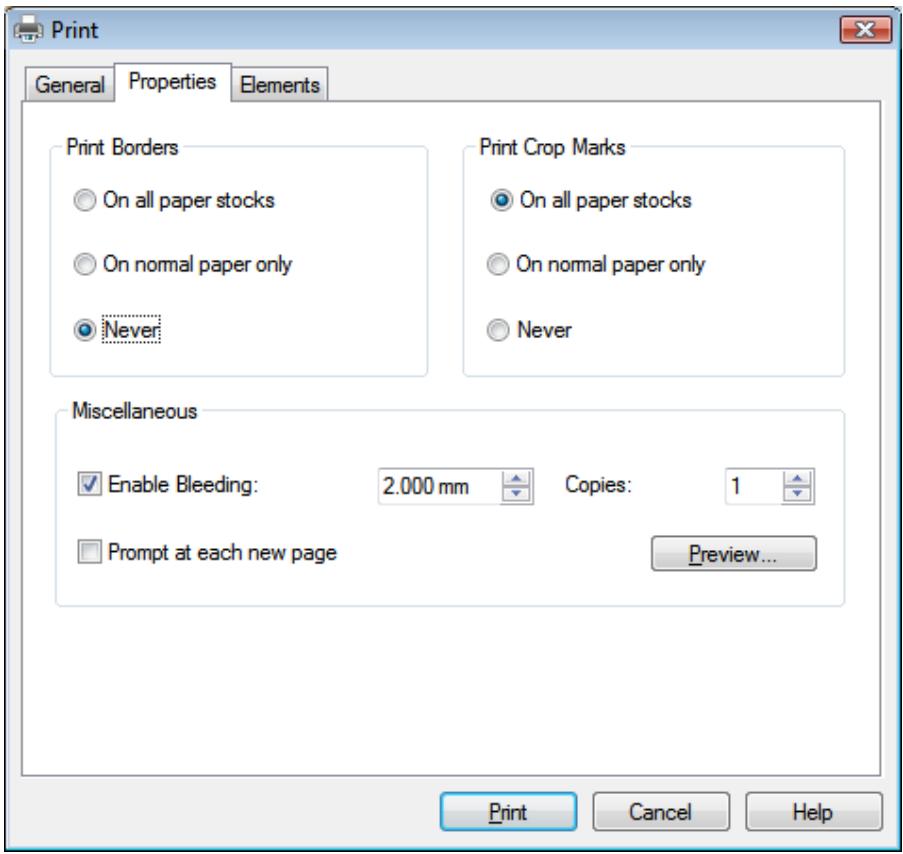
Print window, Properties tab
The following configuration options are available in the Print Borders area:
| Option button On all paper stocks | Prints borders for all paper stocks. |
| Option button On normal paper only | Prints borders on normal paper stock only. |
| Option button Never | Never prints paper borders. |
The following configuration options are available in the Print Crop Marks area:
| Option button On all paper stocks | Prints crop marks for all paper stocks. |
| Option button On normal paper only | Prints crop marks on normal paper stock only. |
| Option button Never | Never prints crop marks. |
The following configuration options are available in the Miscellaneous area:
| Check box/ Input field Enable Bleeding | Enables bleeding and specifies how far beyond the edge of the cover element printing will occur |
| Check box Prompt at each new page | Specifies that printing must be confirmed for each new page. |
| Input field Copies | Specifies how many times the document should be printed. |
| Button Preview | Opens the Print Preview window. |
16.1.2 Elements Tab
The Elements tab contains a selection list, a preview area, and configuration options. You can select the cover elements to print in the selection list.
The preview area shows how the cover elements that are to be printed will appear on the page. The paper stock that the currently displayed cover elements will be printed on is displayed below the preview area. Cover elements that will be printed are displayed in blue - cover elements that will not be printed are displayed in gray.
The following configuration options are available on the Elements tab:
| Input field Copies of the Element | Specifies how many times the selected cover element should be printed. |
| Check box Print on normal paper | Prints the selected cover element on normal paper. This check box is only available if the normal paper stock has not been assigned to the cover element. |

Print window, Elements tab
17 Print Settings And Paper Stocks
17.1 Printer Calibration
With Nero CoverDesigner, you can calibrate your printer to ensure precise print alignments. We recommend that you calibrate your printer once after you have selected the paper stock and printer.
To calibrate you printer, proceed as follows:
- Prior to calibration, select the desired paper stock and the printer.
- Click the File > Preferences menu.
The Application Preferences window is opened.
- Click the Printing tab.
- Click the Print Calibration Sheet button.
The calibration sheet is printed.
- Fold the calibration sheet in the middle horizontally and vertically.
- Unfold the calibration sheet and read the values at which both fold lines cross the axis.
- If the fold lines do not cross in the middle of the axis, enter the horizontal and vertical values from the calibration page in the Horizontal/Vertical settings fields on the Printing tab.
- Repeat steps 4 to 6 to check the new entries. If the fold lines cross in the middle of the axis, proceed to the next step. Otherwise repeat the previous step.
- Click the OK button.
The Application Preferences window is closed. The calibration settings are saved, and your printer is now calibrated.
17.2 Paper Stocks Window
In the Paper Stocks window you can view predefined paper stocks or create your own custom ones. You can open the window by clicking the File > Paper Stocks menu.
User-defined paper stocks are useful for modifying the size and depiction of a cover element.
Predefined paper stocks have been set to match the manufacturer's specifications for labels and papers. For example, some special papers can require a specific placement and position of the cover element. Or labels may have different sizes.
You can select the paper stocks that are listed here or that you create in the main screen area and assign them to the current cover element.
The window consists of three areas. User-defined and predefined paper stocks are displayed in a selection list in the area on the left. Each paper stock can contain one or more labels. These labels correspond to the cover elements in Nero CoverDesigner.
Setting options for the user-defined paper stocks are displayed in the middle area. These setting options are grayed out for the predefined paper stocks.
The size and position of the cover elements are displayed in the preview area on the right.
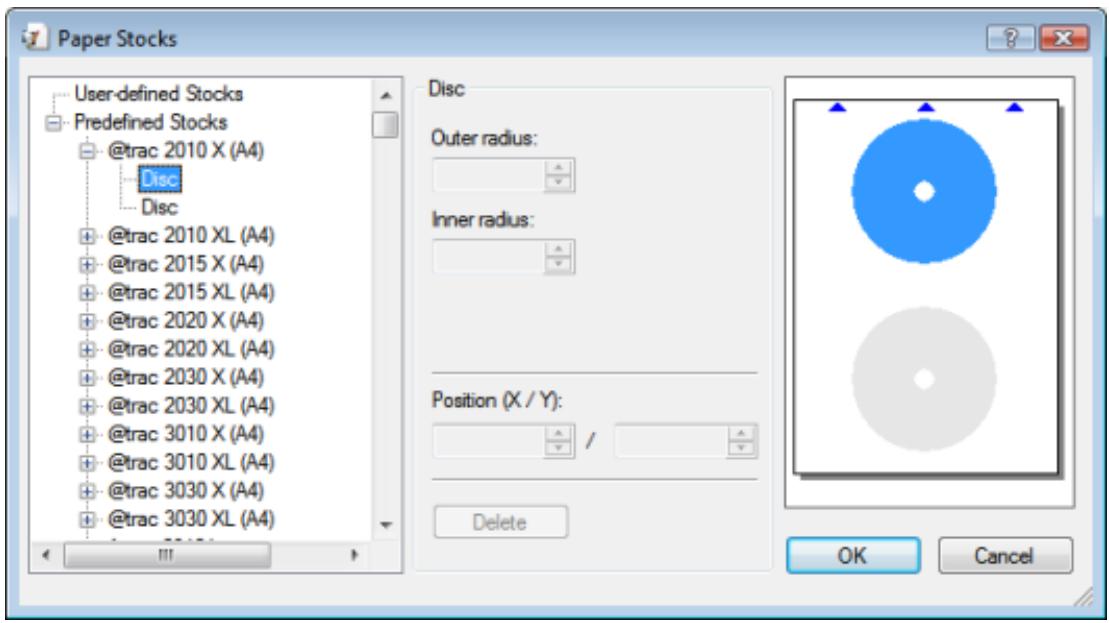
Paper Stocks window
The following configuration options are available in the User-defined Paper Stock entry:
| Add Stock | Adds a new paper stock. |
| Importing | Imports a definition file for paper stock in DAT format. New paper stocks are added to the user-defined paper stocks. |
| Exporting | Exports a definition file for paper stock in DAT format. All user-defined paper stocks are exported. |
The following configuration options are available in the paper stock entry:
| Name | Specifies the name of the paper stock. |
| Width/Height | Specifies the width and height. |
| Portrait | Specifies that the paper is printed in portrait mode. |
| Landscape | Specifies that the paper is printed in landscape mode. |
| Add Item | Displays a selection list that you can use to select a cover element. The selected cover element is added to the paper stock. |
| Delete Stock | Deletes the current paper stock. |
The following configuration options are available in the item / cover element entry:
| Width/Height | Specifies the width and height. |
| Spine Width | Specifies the width of the spine, i.e., the middle part of the inlay.The input field is available for the DVD inlay, CD inlay, maxi booklet, and mini CD inlay (front and rear covers). |
| Rear Width | Specifies the width of the rear portion, i.e., the part that is folded around.This field is available for the maxi booklet and mini CD inlay (back) cover elements. |
| Indentation Radius | Specifies the radius of the flap. This field is available for the Biz Card envelope cover element. |
| Fold Width | Specifies the width of the folded seam.This field is available for the business card envelope cover element. |
| Radius of Outer Boundary | Specifies the outer radius and therefore the size of the printable area (disc edge).This field is available for the business card cover element. |
| Center Hole Radius | Specifies the inner radius and therefore the size of the unprintable area.This input field is available for the Biz Card and rectangular Biz Card cover elements. |
| Bounding Rectangle | Specifies the size of the rectangle and therefore the oval form of the business card.This input field is available for the Biz Card cover element. |
| Rounded Corners (X/Y) | Specifies the radius of the rounded corners on the disc.This field is available for the rectangular business card cover element. |
| Outer Radius | Specifies the outer radius and therefore the size of the printable area (disc edge).This field is available for the disc and mini CD cover elements. |
| Inner Radius | Specifies the inner radius and therefore the size of the unprintable area (disc hole).This field is available for the disc and mini CD cover elements. |
| Position X/Y | Specifies the position of the cover element on the paper that was defined in the paper stock profile. |
17.3 Creating a Paper Stock Profile
With Nero CoverDesigner, you can create your own custom paper stocks. User-defined paper stocks are available in the main screen area for cover elements that have been added as labels to the paper stock.

The creation of user-defined paper stocks is useful for designing covers and labels whose dimensions vary from standard measurements.
To create a paper stock, proceed as follows:
- Click the File > Paper Stocks menu.
The Paper Stocks window is opened. - Select the User-defined Stocks entry in the selection list.
- Click the Add Stock button in the Paper Stocks area.
A Stock 1 subentry is added to the User-defined Stocks entry. - Select the Stock 1 subentry.
The Paper Stock area is displayed. - Enter the name and dimensions of the paper stock in the Paper Stock area.
- Click the Add Item button.
A selection list of cover elements is displayed. - Select the cover element that you want to add to the paper stock.
The selected cover element is added to the paper stock. - Select the inserted cover element.
- Specify the desired dimensions such as the height/width and position of the cover element on the paper in the area in the middle.
- Repeat the four previous steps for each cover element that you want to add to the paper stock.
- Click the OK button.
The Paper Stocks window is closed.
The paper stock is saved and is now available for the selected cover elements in the drop-down menu of the View toolbar.
See also
Paper Stocks Window 63
Application Preferences Window 73
17.4 Default Paper Stock Settings
On the Paper Stocks tab in the Application Preferences window, you can set the default settings for paper stocks.
The following setting options are available:
| Drop-down menu Stock | Specifies a default paper stock for the selected cover element. |
| Check box Print elements by default | Selects all cover elements of a document for printing by default. If you clear this check box, you must select the cover elements in the Print window manually before you print. |
| Check box Show default label metrics | Displays the normal disc size when you assign a paper stock with a radius that deviates from the standard value to a cover element. |
18 Printing LightScribe Label
If you have a LightScribe recorder connected, you can also print the label side of a LightScribe CD/DVD with Nero CoverDesigner. The label side of the disc has a special color or thermal layer which is heated by the laser in the recorder so that pictures and text are printed.

This function is only available in the full version. You can always upgrade your Essentials version at www.nero.com to get the full version with all the functions.
This function is only available in recorders that support LightScribe technology.
To print a LightScribe label, proceed as follows:
- Create a new document with the LightScribe document type.
The document contains a Disc 1 tab with the cover element for the disc label. - Design the disc label as desired.
- Click the icon on the toolbar.
The LightScribe Print Properties window is opened. - Set the desired print options.
- Insert a recordable LightScribe disc into the LightScribe recorder with the label side facing down.
- Click the Print button.
The printing process begins. You can monitor the process status with the progress bar. As soon as the printing is finished, the Nero - LightScribe window is opened and displays a message about the result of the printing process. - Click the OK button.
You have successfully created and printed a custom LightScribe label.
18.1 LightScribe Print Properties Window
You can customize the print properties of your LightScribe label to suit your requirements in the LightScribe Print Properties window.
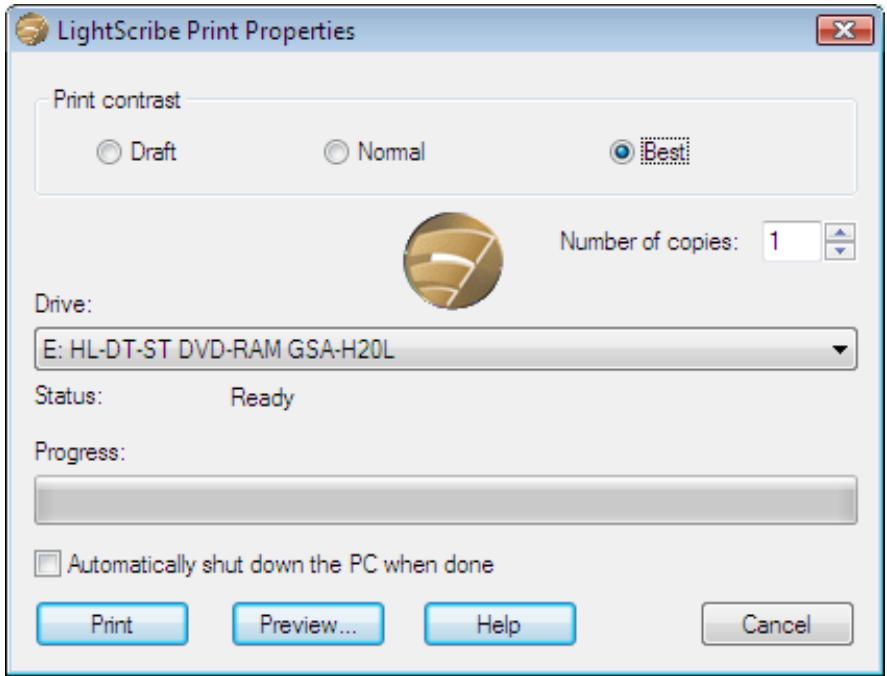
LightScribe Print Properties window
The following options are available:
| Area Print contrast | Adjusts the desired print quality. This option button is set to Normal by default. |
| Input field Number of copies | Defines the number of copies you require. |
| Drop-down menu Drive | Defines the desired recorder. Available only if multiple LightScribe recorders are available. |
| Check box Automatically shut down the PC when done | Shuts down the computer after the label has been printed (if possible). |
| Button Print | Starts printing the label. |
| Button Preview | Opens the LightScribe Print Preview dialog box. A print preview of the label is displayed here. |
19 Printing Labelflash Label
You can print a label on the label and/or data side of a Labelflash DVD with Nero CoverDesigner.

This function is only available in the full version. You can always upgrade your Essentials version at www.nero.com to get the full version with all the functions.
This feature is only available with a Labelflash recorder.
To print a Labelflash label on the label side or a DiskT@2 on the data side of your DVD, proceed as follows:
- Create a new document with any document type, e.g. Standard.
- Click the Disc 1 tab.
- Edit the disc label as desired.
- Click the icon on the toolbar.
The Labelflash Print Properties window is opened.
- Set the desired print options.
- Select the side that you want to print on.
The logo in the bottom left corner displays the corresponding Labelflash or DiskT@2 logo.
- If you want to print a Labelflash label on the label side, insert a blank Labelflash disc in the recorder with the label side facing down. If you want to print a DiskT@2 on the data side, insert a blank Labelflash disc with the data side facing down in the recorder.
- Click the OK button.
→ The Labelflash Print or DiskT@2 Print window is opened and the print process starts. You can monitor the process status with the progress bar. As soon as printing is finished, a window is opened, indicating the result of the printing process.
- Click the OK button.
You have successfully created and printed a custom Labelflash label or a DiskT@2.
See also
Creating a New Document or Image Document 22
19.1 Labelflash Print Properties Window
You can customize the print properties of your Labelflash label to suit your requirements in the Labelflash Print Properties window.

Labelflash Print Properties window
The following configuration options and buttons are available:
| Drop-down menu Profile for | Adjusts the desired print quality. Select Custom to change the contrast level and rotation speed. |
| Slider Contrast level | Specifies the contrast level for printing. |
| Drop-down menu Rotation speed | Specifies the rotation speed of the DVD. |
| Option button Data Side | Specifies that the data side should be printed on by default. |
Printing Labelflash Label
| Option button Labels | Specifies that the label side should be printed on by default. |
| Option button Both Sides | Specifies that both sides should be printed on by default. |
| Button Print Preview | Opens the Print Preview window, which shows an approximation of what the label will look like on the Labelflash DVD. |
| Check box Eject disc after printing | Ejects the disc after printing is complete. |
| Button Burn (is displayed instead of the OK button) | Starts the print process. |
20 Program Settings
20.1 Application Preferences Window
You can make settings that determine the general appearance and behavior of Nero CoverDesigner in the Application Preferences window. You can open the window by clicking the File > Preferences menu.
The window contains the following tabs:
| General | Provides general setting options for Nero CoverDesigner such as displaying info messages, and country-specific measurement units. |
| Folders | Specifies the path for documents, templates, and imported files. |
| Paper Stocks | Provides setting options for paper stocks. |
| Printing | Specifies the bleed area and allows you to calibrate your printer |
| Undo | Offers options for undoing actions. You can specify the maximum reserved memory, the number of possible undo steps, or unlimited undo steps here. |
| LightScribe | Allows you to specify setting options for LightScribe recorders such as the print quality, default drive (if multiple LightScribe recorders are installed), default label template, and print resolution. These setting options are only used if a LightScribe recorder is available. |
Creating and burning labels with LightScribe or Labelflash is only available in the full version.
You can always upgrade your Essentials version at www.nero.com to get the full version with all the functions.
See also
Printer Calibration 63
Default Paper Stock Settings 67
20.2 Specifying Default Settings For Objects
In Nero CoverDesigner, you can specify default settings for objects. The default settings determine the entries in the tabs of the Properties window for an object.
Default settings cannot be configured for pictures.
To specify default settings for objects, proceed as follows:
-
To specify default settings for geometric objects:
-
Click the Object > Default Graphic Properties menu.
→ The Default Properties window with the Pen and Brush tabs is opened. - Specify the desired properties in the tabs.
-
Click the OK button.
The window is closed. Geometric objects will now be inserted with the selected properties by default. -
To configure default settings for artistic text and fields:
-
Click the Object > Default Artistic Text Properties menu.
The Default Properties window with the Pen, Brush, Font, and Field tabs is opened. -
Specify the desired properties in the tabs.
-
Click the OK button.
The window is closed. Artistic text and fields will now be inserted with the selected properties by default. -
To configure default settings for text boxes, track lists, and folders:
-
Click the Object > Default Text Box Properties menu.
The Default Properties window with the Pen, Brush, Folder, and Tracks tabs is opened. - Specify the desired properties in the tabs.
- Click the OK button.
The window is closed. Text boxes, track lists, and folders will now be inserted with the selected properties by default.
You have successfully configured the default settings for objects.

Changes made on the tabs may sometimes not apply to all objects.
See also
Properties And Background Properties Window 37
21 Technical Information
21.1 System Requirements
Nero CoverDesigner is installed along with its suite. Its system requirements are the same. You can find more detailed information on the system requirements under www.nero.com.
In addition, the following requirements apply:
Using LightScribe Direct Disc Labeling
Your computer requires the latest LightScribe system software when using a CD or DVD recorder with LightScribe support.
If you have downloaded and installed an updated Nero version from the Nero website, install the LightScribe system software separately. You can find the latest version at www.nero.com/link.php?topic_id=114&gen_id=8.
16-bit Windows compatible sound card and speakers or headphones
- Optional: CD recorder
- Optional: Blu-ray capable recorder and Blu-ray disc
- Optional: LightScribe capable burner (LightScribe host software must be installed) and LightScribe capable disc
- Optional: Labelflash capable recorder and Labelflash disc
Printer
- Optional: Scanner
21.2 Image Formats
- Bitmap (BMP)
Device Independent Bitmaps (DIB) - Graphics Interchange Format (GIF)
Joint Photographic Expert Group (JPEG, JPG,JPE)
Picture Exchange (PCX)
Portable Network Graphics (PNG)
Portable Pixel Map (PPM)
Targa Image File (TGA)
Tagged Image File Format (TIFF, TIF)
Windows Media File (WMF)
Portable Bitmap (PBM) - read only
Word Perfect Graphic (WPG)
21.3 Formats for Playlists
- Chromeleon Driver Configuration Plugin Nero File (CDC)
22 Index
Adding a Disc 23
Angle of rotation 50
Artistic Text Edit 29
Audiobook CD 46
Background 31
Fill Titles. 31
Inserting 31
Background Properties 37
BD Case 19
BD Slim Case. 19
Bend 37
Bent Text Edit 28
Biz Card 21
Bleeding Set size 73
Border 60
Brightness 44
Brush 37
Business Card CD. 21
Calibration Sheet Printing 63
CD Case 18
Color Select. 38,40
Color Adjustment 44
Concave View 45
Configuration 73
Contrast. 44
Conventions, manual 6
Convex View 45
Cover Art 58
Cover Element Add 17 Booklet. 17 Disc. 17 Inlay. 17
Creating an Image Document 22
Crop Marks. 60
Data 10
Deleting Cover Elements 24
Design Element 15
Directory 38
Disc Add 17
Disc Add 33
Disc type. 16, 33
Document data 32
Enter 32
Use 15
Drawing area 14
DVD Case 18
DVD Slim Case 19
Dynamic Object 15
Edit 9
Effect 44
Ellipse 13,26
Emboss 44
Entry Add 35
EqualizeEqualize 44
Field. 13, 27, 38
Field type 48
Artist 33
Title 33
Year 33
Fields 15
File 9
Filter 44
Flip. 45
Folder 13, 15, 27
Font 37
Geometric Object 15
Help 10
Horizontal
Flip. 45
Reversed Image. 45
Image 13, 37
Rotate 45
Scale. 43
Import Image 38
Jewel Case. 18
LightScribe Label
Printing 68
Line 13,26
Line Break 26
Manual, conventions 6
Maxi 20
Midtone Value 44
Mini CD 21
Mosaic 44
Multi Box 20
Negative
Flip. 45
Nero Digital
Exporting a Cover 58
32
Saving the Cover 58
Nero Digital Cover Extracting 22
Object 10, 15
Bend 37
Copy 11
Cut 11
Delete 11
Edit 28
Set size 50
Transfer properties 11
Object Properties 37
Oil Painting Effect. 45
Outline 44
Pen 37
Picture 27
Pinch 45
Posterize 45
Preset
Undo 73
Print 59
Program
Starting the program 8
Rectangle 13,26
Restore 11
Rotate 45
Save a document 57
Scan 43
Sharpen 45
Slim Pack 20
Solarize 45
Start 8
From another application 32
Swirl. 45
System requirements 75
Other. 75
Template
Generate 17
Save 55
Select. 16, 23
Text 13,26,37
Importing 38
Protect 41
Rotate 41
Text box. 13,26,37
Protect 42
Rotate 42
Text Line Break 26
Tracklist. 13, 15
Tracks 38
Transfer properties 11
TWAIN 10
Index
Undo 11,30
Vertically
Flip 45
View 10
Watercolor. 44
Window 10
23 Contact
Nero CoverDesigner is a Nero AG product.
Nero AG
Im Stoeckmaedle 13
76307 Karlsbad
Germany
Internet: www.nero.com
Help: http://support.nero.com
Fax: +49 724 892 8499
Nero Inc.
330 N Brand Blvd Suite 800
Glendale, CA 91203-2335
USA
Internet: www.nero.com
Help: http://support.nero.com
Fax: (818) 956 7094
E-mail: US-CustomerSupport@nero.com
Nero KK
Rover Center-kita 8F-B, 1-2-2
Nakagawa-chouu Tsuzuki-ku
Yokohama, Kanagawa
Internet: www.nero.com
Help: http://support.nero.com
Japan 224-0003
Copyright © 2010 Nero AG and its licensors. All rights reserved.