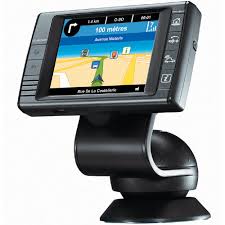
X-930 - Tires MICHELIN - Free user manual and instructions
Find the device manual for free X-930 MICHELIN in PDF.



| Product Type | Portable GPS Navigation System |
| Brand | MICHELIN |
| Model | X-930 |
| Dimensions (approx.) | 12 x 8 x 2 cm |
| Weight (approx.) | 200 g |
| Power Supply | Rechargeable battery via USB cable |
| Screen | Color touch screen, finger-readable interface |
| Main Functions | GPS navigation with voice instructions, route planning, POI search (points of interest), saves, history, day/night mode, 2D/3D view, warnings (POI Warner, Speed Limit Warner), navigation simulation, map management |
| Onboard Content | Detailed digital maps, tourist POIs (Michelin Green Guide), golf courses, practical life POIs |
| Update | Via PC applications SD Manager and POI Manager, SD card |
| Connectivity | USB for PC connection, built-in GPS receiver |
| Maintenance and Cleaning | Clean the screen with a soft, dry cloth. Avoid moisture and shocks. |
| Safety | Do not operate while driving. Use only when the vehicle is stationary. Observe traffic regulations. |
| Spare Parts and Repairability | SD card, USB cable, mount. Hardware warranty 2 years, software 90 days. |
| General Information | ViaMichelin Navigation software. Compatible with Windows 2000/XP. Not compatible with Mac. |
| Available Languages | French, English, German, Spanish, Italian, Dutch |
Frequently Asked Questions - X-930 MICHELIN
User questions about X-930 MICHELIN
0 question about this device. Answer the ones you know or ask your own.
Ask a new question about this device
Download the instructions for your Tires in PDF format for free! Find your manual X-930 - MICHELIN and take your electronic device back in hand. On this page are published all the documents necessary for the use of your device. X-930 by MICHELIN.
USER MANUAL X-930 MICHELIN
1.1- Installing ViaMichelin Navigation onto your X-930
1.2- Installing ViaMichelin Navigation PC applications
2 VIAMICHELIN NAVIGATION ON YOUR X-930 13
2.1- Navigate to
Navigate to an address in a town
Navigate to a POI (Point of Interest)
Navigate to a chosen point on the map
Navigate to My Saved Items
Navigate to History
Navigation settings
2.2- Plan your journey
Plan a route
Display a map
Search for a POI
2.3- Settings
3 VIAMICHELIN NAVIGATION POI LOCATIONS. 18
4 MORE INFORMATION 19
D
ViaMichelin Navigation is an advanced navigation software program, offering detailed country maps, accurate down to street-level. When present on the ViaMichelin Navigation X-930, it forms part of a versatile portable GPS navigation system.
ViaMichelin Navigation provides you with vocal guidance instructions as you drive and displays driving directions clearly on your X-930 screen, allowing you to drive confidently throughout your journey. Its user-friendly, easy-to-use interface enables you to quickly familiarise yourself with your GPS solution, making it simple to use throughout your journeys.
1 INSTALLING VIAMICHELIN NAVIGATION
1.1- Installing ViaMichelin Navigation onto your X-930
As ViaMichelin Navigation is a "Plug & Drive" solution, you can install your ViaMichelin Navigation software and country map in one easy step: simply insert the SD card provided in the pack into your X-930 and follow the step-by-step instructions which appear automatically on your screen. Your new navigation software will be ready to guide you within seconds!
1.2 - Installing the ViaMichelin Navigation PC applications
ViaMichelin Navigation also comes with two PC applications: SD Manager and POI Manager. These two programmes help you manage your navigation software from your PC, for example, when exporting POI files or restoring your SD card.
When you use the CD-ROM for the first time, the installation programme, InstallShield, will start automatically and offer to install the ViaMichelin Navigation PC applications together with ActiveSync which enables your PC to communicate with your ViaMichelin Navigation X-930. Simply follow the instructions on the screen and both SD Manager and POI Manager applications will be installed on your PC.
SD Manager
You can start up SD Manager directly from the icon on your Desktop, or by clicking on "Start/Programs/ViaMichelin/ ViaMichelin Navigation X-930/ SD Manager".
With SD Manager, you can re-format your SD card if you have damaged it. Connect your X-930 to your PC using the USB cable provided. Open the SD Manager programme and follow the instructions on the screen. Your SD card will be restored and you can use it again.
POI Manager
You can start up POI Manager directly from the icon on your Desktop, or by clicking on "Start/Programs/ViaMichelin/ViaMichelin Navigation X-930/ POI Manager".
With POI Manager, you can export Point of Interest (POI) files onto your ViaMichelin Navigation X-930. The files must be in *.poi format.
Adding *.poi files:
-Connect your ViaMichelin Navigation X-930 to your PC, using the USB cable
-Open the POI Manager programme
-Click on the "Browse/Folder" button
-Select your *.poi file and click "OK"
New POI types and POI icons will then appear on your ViaMichelin Navigation X-930
2 VIAMICHELIN NAVIGATION ON YOUR X-930
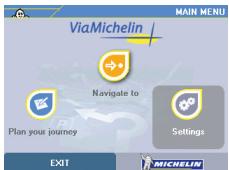
ViaMichelin Navigation is designed to meet all your needs when travelling. The Main Menu allows you quick access to the functions you want, wherever you are.
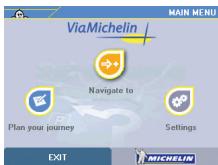

Navigate to: chose this function when your car's departure point is or will be your GPS position. You will then be able to quickly select your destination and start up the navigation mode.

Plan your journey: select this function when you want to plan a route, navigate on the map, search for Points of Interest (POIs) or create your own Saved Items.

Settings: this function gathers together all the options and settings required to personalise the software to your own preferences.
2.1-ViaMichelin Navigation: Navigate to
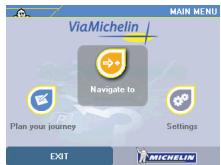
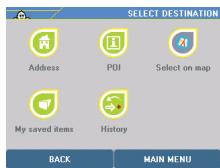
You are offered 5 options when selecting your destination:

select an address in a town

select a particular address saved in your Favourites

select a Point of Interest (POI)

select one of the last ten destinations you have chosen.

select a place on the map

Navigate to an address in a town:
- Click on "Address".
- Enter in your destination town or the postcode of the town and confirm the town selected if you are offered a list of choices.
- Then enter in your destination street. If you do not want to specify one, then click on TOWN CENTRE: ViaMichelin Navigation will then guide you to the centre of the town selected.

After confirming your destination street, you can make your search more precise by selecting the centre of the street if you do not want to be guided to a specific point in the street

specifying the street number you want to be guided to

selecting the intersection with another street.
A summary of your route will then be displayed in the Route Summary. Click on OK to start up the navigation mode.


When your Route Summary is displayed, you can save your departure and/or destination points by clicking on this button which will then add them to your Favourites, making it quicker and easier in the future to specify your destinations.

You can access your route settings by clicking on this button. You can also change your route by clicking on CHANGE ROUTE
You can return to the Main Menu at any stage simply by clicking on the CHANGES ROUTE button in the bottom right hand corner.

Navigate to a POI (Point of Interest)
ViaMichelin Navigation also provides driving directions to a Point of Interest (POI), whether it is a standard POI (include in the application) or a personal one (saved by you).
- Click on "POI"
- Select the POI category you want
- Then you have the option of searching for a POI around:

a town

your GPS position

your departure point

your destination/arrival point

Navigate to a point on the map
With ViaMichelin Navigation you can also choose your destination point directly on the map using the Location indicator.
- Find the location you want to go to on the map and tap the screen to place the Location indicator on the location
- Click on DESTINATION OK
- Confirm your route to start up the navigation mode

Navigate to My Saved Items
You can choose a location that you have previously saved as a Saved Item (possible in the Route Summary or from the Map mode).
For example, you can save places you regularly travel to, such as Home, Office, Gym...
- Select "My saved items"
- Choose the Saved item you want from the list or do a search
- Click OK in the Route Summary to start up the navigation mode

Navigate to "History"
ViaMichelin Navigation automatically stores your last ten destinations so you can quickly and select the same destinations by choosing the one you want from the stored list.
Navigation settings
Numerous functions linked to the navigation mode can be accessed from the navigation screen simply by tapping on the screen when in navigation mode:
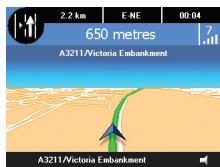

Navigate to: allows you to enter in a new destination point


Activate/Deactivate sound: enables you to turn the sound (for voice guidance instructions) on or off

GPS: allows you to access your GPS status screen
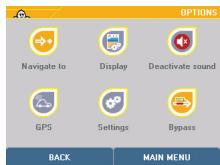

Bypass: this option allows you to bypass a section of your route by asking for an alternative route in case of traffic jams or road works. You can specify the distance of the route bypass: 100 yards, 500 yards, 1 mile, 5 miles, 10 miles, 20 miles... You can cancel the route bypass at any time simply by tapping on the "Cancel bypass" icon

More advanced functions can be accessed through the "Display" menu and the "Settings" menu.

The Display menu allows you to adapt the following features to your own preferences:
- Switch between day mode and night mode
- Switch between 2D and 3D screen display views
- Adjust the navigation screen perspective
- Navigation settings: made up of three parts (left, centre, right), you can customise what information you want displayed at the top of your screen during navigation. For example: distance remaining, time remaining, time, speed, direction.

You can also access the navigation settings feature directly from the navigation screen - simply tap in the top left, right, or centre areas.

The Settings menu allows you to set the following features to your own preferences:
- Sound: on this screen, you can adjust the volume of the voice guidance instructions. Move the cursor left (lower volume) or right (higher volume) and check the result by tapping on the Test button
-
Display POIs: Here you can choose which POI categories you want to see displayed as symbols on your navigation screen.
-
Two warning features can be set:
Speed Warner: you can set the speed limits you do not want to exceed on all types of roads (high-ways, major roads, other main roads, local roads, streets, small streets). If you then exceed the set speed limit, an audible signal will sound and the screen will flash.
POI Warner: you can choose which POI categories you want to be alerted on when you approach them. An audible signal sounds when you are 30 seconds away and again when you are 10 seconds away, with an icon displayed on the screen. For example, if you want to be alerted when you are approaching a petrol station, simply activate the POI Warner for the Petrol Station POI category and your X-930 will warn you when you are 30 seconds (and then 10 seconds) away from petrol station.
- Speed limits: this function allows you to set the speed limits of the various types of roads you will use during your journey (highways, main roads...).
2.2- ViaMichelin Navigation: Plan your journey
The Plan your journey menu provides all the tools needed to plan a journey, allowing you to:
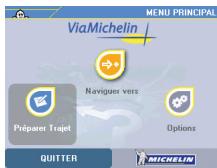
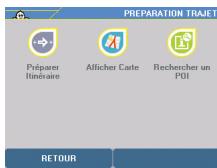

plan a route to use later

display maps so you can find your way around an area

search for a Point of Interest (POI) from the many available categories and, of course, you can also save your favourite locations or any new addresses you have discovered.

Plan a route
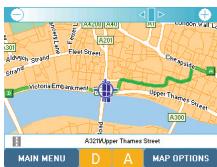
Use this option when you want to plan your route in advance: you can then estimate, in advance, the distance to be travelled, preview the route step-by-step on the map also reading the interactive driving directions, further improve the route by adding in your own speed settings, displaying traffic directions...
Specifying your departure and destination points can be done, just like in navigation mode, by choosing: - an address in a town
- a Point of Interest
- a place on the map
- a particular point saved in your Saved Items please refer to chapter 2.1 for more details.
Once the departure and destination points have been chosen, you will be able to see your route plan on the map and:
You can also change your route calculation settings in the Route Summary: change the average road speeds, route type such as shortest or quickest route, specify whether you are travelling by car or on foot...

Display a map
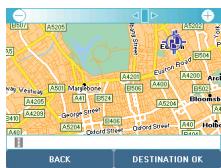
This function gives you direct access to all the options linked to the map: zooming in or out, search function, centring on specific points, changing maps...
Moving the map: you can easily move the map from top to bottom or left to right simply by moving your finger or the stylus on the map.
Zooming in or out on the map: the zoom bar at the top of the screen allows you to choose your preferred zoom level for better viewing of the map. The and buttons enable you to quickly select a departure point and an arrival point directly on the map. Once these 2 points have been chosen, the route calculation is done automatically and the route displayed on your map.
Map options:
this menu gives you access to numerous advance map functions:
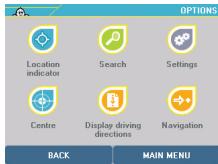

Location indicator: the Location indicator is shown by this symbol and allows you to locate where you are and to highlight a point on the map. You can access several functions by clicking on this button
You can select the position given by the Location indicator as your departure point or your destination/arrival point.

Save the address in your Saved Items or add a personal POI on this point.


Search: from the map, you can use the search function to search for an address, search for a POI (Point of Interest), select a point on the map, search for a Saved Item in the My favourites section, search in History for one of the last ten destinations (please refer to chapter 2.1 for more details).

Settings: use this button if you want to change your aspects of your map.
For example, if you have several maps saved on your X-930 and/or SD card, you can:


-
change which map you use at any time,
-
delete your maps,


specify whether you want to display the street traffic direction or the street names on your map

allows you to change the map language into another language. For example, by selecting French as your map language, certain (not all) places names may appear in French.


-
display particular POIs (Points of Interest) on your map
-
switch to a personal POI category you saved earlier

Centre: this function enables you to centre your map on:

the location indicator,

your departure point,

your destination/arrival point,

your GPS position,

the route plan.

Display driving directions: once your route has been calculated, you can display stepby-step directions (in text format) to follow to the destination point.

Navigation: clicking on this button allows you to activate the navigation mode or the navigation demo mode once your route has been calculated or planned. The demo mode lets you simulate your route without having to connect to your GPS receiver.

Search for a POI:
The "Search for a POI" option allows you to search for a Point of Interest within all the Points of Interest categories included in your software. ViaMichelin Navigation contains several thousand Points of Interest, classified in categories such as airports, post offices, car parks, shopping centres, hospitals...all useful addresses when you are travelling.
To search for a particular POI, follow the instructions listed in chapter 2.1.
2.3- ViaMichelin Navigation: SETTINGS
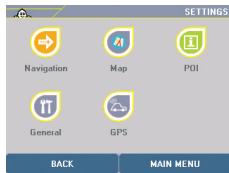
Accessed from the Main Menu, the menu contains all of the ViaMichelin Navigation software personalisation settings and options, classified according to specific features such as Navigation, Map, POI, GPS... Wherever you are, you can adjust and customise your ViaMichelin Navigation software settings, according to your own preferences. All these settings have been described in the previous chapters (please to refer chapters 2.1 and 2.2 for more information).

In the "General" section, you can change the application interface language (6 languages available) for ViaMichelin Navigation: just click on Language. In this section, you can also specify which unit of distance measurement you prefer (km or mile). You can also adjust the time and the brightness of the screen

VIAMICHELIN NAVIGATION POI LOCATIONS
Your ViaMichelin Navigation X-930 is also enhanced with a wide range of additional exclusive ViaMichelin Points of Interest (POIs) locations. These POIS include tourist locations, taken from The Michelin Green Guide, and practical addresses to ease your daily tasks and activities.
The Michelin Green Guide:
A selection of almost 19,000 tourist POI locations, taken from the world-famous Michelin guides providing you with tourist information throughout Europe:
1★ The Michelin star rating (*** worth the journey, ** worth a detour, * interesting)

Museums

Leisure (parks, activity areas)

Châteaux (castles, stately homes)

Sites (special tourist sites)

Architecture

Religious buildings

Streets and districts
Golf courses:
Make the most of your free time and let your ViaMichelin Navigation X-930 guide you to almost 9,000 golf courses throughout Europe (information provided by the European Golf Association
Practical POIs
Discover the wide variety of practical and useful addresses selected by ViaMichelin and grouped into convenient categories such as:
Petrol stations, Car parks, Garages, Having a drink, Culture, Leisure activities, Local shops, Food shops, Shopping, Beauty care, Going out, Sports
For more information, go to www.shop.ViaMichelin.co.uk.
You can also easily download additional POI files from the ViaMichelin online store: for example, download, for free, the speed camera locations (for France only) which are updated monthly (as supplied by the French Road Safety Authorities).

Register your ViaMichelin Navigation product on www.ViaMichelin.com and receive updates on new products and services as well as benefit from special promotional offers.

MORE INFORMATION
PC CONFIGURATION
- PC with 128 MB of RAM or more
- Microprocessor: Pentium® 200 MHz minimum
- CD-ROM drive
- Operating system: Microsoft™ 2000 or XP
- Average hard drive memory required: 300 MB

Please note that ViaMichelin Navigation is not compatible with Mac operating systems.
CONDITIONS OF USE AND WARRANTY AGREEMENT
Please read the following terms and conditions prior to using the ViaMichelin portable navigation system that you have purchased. Use of the software provided with this system is subject to a licence granted by ViaMichelin, and/or other suppliers, to the initial buyer, the end-user (hereinafter "You"), for his/her personal use, in accordance with the following software licensing agreement.
SOFTWARE LICENSING AGREEMENT
Use of the software contained in the ViaMichelin product shall mean that You have accepted this agreement. If You do not accept the terms and conditions of this agreement, please return the unused and complete ViaMichelin product (equipment, accessories, software and documentation, with packaging) to the retailer [you purchased it from] within no more than thirty (30) days following your purchase in order to obtain a full refund. The sales receipt shall be proof of purchase.
Software covered: This agreement applies to the ViaMichelin Navigation software, other software provided by ViaMichelin or by third parties with the ViaMichelin portable navigation appliance, and the corresponding documentation (hereinafter the "Software"), whether it is pre-installed on the navigation appliance, provided on a CD-ROM or memory card, or obtained by downloading.
Licence: ViaMichelin and/or its suppliers grant You a limited, non-exclusive licence to use the Software in accordance with the following conditions and limitations.
Intellectual property rights: Intellectual property rights relating to the Software and content integrated into the Software (data, databases, programs, etc.) are protected by regulations in force in France and in Europe and by provisions of international treaties. Any breach of these rights shall constitute copyright infringement. ViaMichelin and its suppliers shall retain all rights that are not expressly granted.
Restrictions on use: You are only authorised to use the Software in conjunction with the ViaMichelin portable navigation appliance and the accessories provided with them. Under no circumstances may the Software be used with any equipment or accessories other than those provided.
You are not authorised to reproduce, modify, adapt, decompile or disassemble the Software, perform reverse engineering or use the Software on another medium. If You reside in the European Union, ViaMichelin will provide You on written request with the information necessary for the Software to be interoperable with other programs in accordance with the statutory provisions in force.
You may make a back-up copy of the Software solely for the purpose of regenerating the original software in the event of accidental damage. You must reproduce all the information regarding copyright and any other information relating to property rights shown on the Software and affix said information to any copy that you may make.
You are not authorised to extract, reproduce, represent, modify, adapt or extract the data and/or data bases integrated into the Software. In particular, You are strictly prohibited from downloading the digital maps or data contained in the Software and from transferring them onto other software and/or equipment.
You are not authorised to lend or borrow the Software or to use it for business or professional purposes. You may not grant a sub-licence to the Software, whether free of charge or for valuable consideration, or grant or transfer a licence.
Term: This licensing agreement shall be valid until it is terminated or ends for any reason whatsoever. It may be terminated at any time in the event You breach any of the provisions hereof. Immediately after its termination or end, you should return the Software to ViaMichelin and/or destroy any copies in your possession.
Severability: If one of the provisions of this licensing agreement proves to be invalid, unlawful or inapplicable, this shall not affect the validity, lawfulness and applicability of the other provisions.
Governing law and jurisdiction: This licensing agreement shall be governed by French law. In the event of a dispute, the courts of Nanterre, France shall have jurisdiction.
In accordance with the provisions of Article 12 of [French] Decree no. 2005-829 of 20 July 2005 relating to the composition of electrical and electronic equipment and the elimination of waste created by this type of equipment, this product should not be disposed of in household waste.
It must be deposited at an appropriate collection point for the treatment, recovery and recycling of waste from electrical and electronic equipment or returned to the retailer, who will take it back free of charge when you purchase a new product.
By making this gesture for the environment, you are helping to save natural resources and protect human health.
Warranty:
This warranty is granted by ViaMichelin to the initial buyer, i.e., the end-user, of a ViaMichelin portable navigation system for his/her personal use (hereinafter "You").
Equipment: ViaMichelin warrants that the portable navigation appliance and the accessories thereto (hereinafter "the Equipment") shall be free of any material or manufacturing defects, subject to normal use, for a period of two (2) years from the date of the initial purchase.
Software: ViaMichelin warrants that the Software ViaMichelin Navigation and any other ViaMichelin brand Software provided with the above-mentioned navigation appliance (hereinafter "the Software") shall comply with the specifications with which they are supplied, for a period of ninety (90) days from the date of the initial purchase. ViaMichelin warrants that the Software media shall be free from any defect during this warranty period. ViaMichelin does not warrant that the operation of the Software shall be uninterrupted and free from error. On the date the Software is acquired or used, certain data and/or information may have been modified without ViaMichelin having been informed of this. Errors in calculation may occur due to the fact that the Software is used in an external system or due to the conditions of the local environment.
Limit on the warranty: This warranty does not apply to normal wear and tear to the product.
This warranty does not cover (i) material damage to the surface of the portable navigation appliance including cracks and scratches on the screen or the outer case, (ii) damage caused by incorrect use or use that does not comply with the instructions, negligence, or an attempt to repair or modify the product, (iii) damage caused by fire, damp or leaks, exposure to a source of heat, fluctuations in voltage, natural disasters or other risks, (iv) or damage caused by the use of the product with other equipment and/or software than those it is sold with.
No software or equipment produced by a third party and provided with the ViaMichelin products is covered by this warranty and ViaMichelin does not provide any warranty on behalf of said third parties. The equipment and software produced by third parties are covered by a warranty from the supplier or the licensor.
Remedies: In the event of a hidden defect of which ViaMichelin is informed during the warranty period, your sole remedy shall be to obtain the repair or replacement of the Equipment and/or the Software, solely at ViaMichelin's discretion and at its expense. If ViaMichelin cannot reasonably repair or replace the product, ViaMichelin may, solely at its discretion, refund to You the purchase price paid for the product. Replaced parts or products may be new or reconditioned or versions that are comparable to the defective product. ViaMichelin warrants all replaced Equipment and/or Software for a period of ninety (90) days from the date of shipment or until the end of the original warranty period if this is later.
Implementation of the warranty: To implement this warranty, You should contact the retailer [you purchased it from] and return the Equipment and/or Software to it during the applicable warranty period, following the instructions the retailer will give You. Proof of the initial purchase will be required.
Exclusions from the warranty: This warranty excludes all other express, implicit or statutory warranties, conditions and terms, including marketing guarantees, suitability for a specific use, accuracy, compliance with the description, regarding satisfactory quality, the absence of any virus in the Software and non-copyright infringement, that ViaMichelin and its suppliers expressly refuse [to grant].
However, no provision of this warranty shall affect your statutory rights.
Limitation of responsibility and liability: Insofar as this is allowed by the applicable regulations, ViaMichelin and/or its suppliers shall under no circumstances be responsible for any direct and/or indirect damage, special or subsequent damage, in particular, for information purposes but not limited to, the loss of earnings or profit, loss of business, loss of data and loss of software, or of equipment, including the costs of recovery, reproduction or repairs following the above-mentioned loss, caused by the use of and/or the impossibility of using the product even if ViaMichelin and/or its suppliers have been informed of the possibility of said damage. In any event, ViaMichelin's liability shall be limited to the price You paid for the product.
Severability: If one of the provisions of this warranty proves to be invalid, unlawful or inapplicable, this shall not affect the validity, lawfulness and applicability of the other provisions.
Govering law and jurisdiction: This warranty shall be governed by French law. In the event of a dispute, the courts of Nanterre, France shall have jurisdiction.
Please note: If you use the ViaMichelin portable navigation system in your vehicle, you are responsible for positioning and using the navigation tools inside your vehicle so that the driver's visibility is not obstructed and the operation of safety systems is not hindered, and so as to avoid any risk of accident, injury and/or damage. You must obey road safety rules and only handle the ViaMichelin portable navigation system when your vehicle is stationary. ViaMichelin and/or its suppliers shall not be liable for any use of this product that may cause accidents or damage or that break the law, or for any direct or indirect consequences thereof.

COPYRIGHTS
© Michelin 2005. Cartography © ViaMichelin 2004. Digital Data © Tele Atlas 2004.





- VIAMICHELIN NAVIGATION ON YOUR X-930 13
- 2.1- Navigate to
- 2.2- Plan your journey
- 2.3- Settings
- VIAMICHELIN NAVIGATION POI LOCATIONS. 18
- MORE INFORMATION 19
- D
- INSTALLING VIAMICHELIN NAVIGATION
- 1.1- Installing ViaMichelin Navigation onto your X-930
- - Installing the ViaMichelin Navigation PC applications
- SD Manager
- POI Manager
- Adding *.poi files:
- VIAMICHELIN NAVIGATION ON YOUR X-930
- 2.1-ViaMichelin Navigation: Navigate to
- Navigate to an address in a town:
- Navigate to a POI (Point of Interest)
- Navigate to a point on the map
- Navigate to My Saved Items
- Navigate to "History"
- Navigation settings
- 2.2- ViaMichelin Navigation: Plan your journey
- Plan a route
- Display a map
- Map options:
- Search for a POI:
- To search for a particular POI, follow the instructions listed in chapter 2.1.
- 2.3- ViaMichelin Navigation: SETTINGS
- VIAMICHELIN NAVIGATION POI LOCATIONS
- The Michelin Green Guide:
- Museums
- Golf courses:
- Practical POIs
- MORE INFORMATION
- PC CONFIGURATION
- CONDITIONS OF USE AND WARRANTY AGREEMENT
- SOFTWARE LICENSING AGREEMENT
- Warranty:
- COPYRIGHTS
Brand : MICHELIN
Model : X-930
Category : Tires