RD-6513 - AV receiver SHERWOOD - Free user manual and instructions
Find the device manual for free RD-6513 SHERWOOD in PDF.


User questions about RD-6513 SHERWOOD
0 question about this device. Answer the ones you know or ask your own.
Ask a new question about this device
Download the instructions for your AV receiver in PDF format for free! Find your manual RD-6513 - SHERWOOD and take your electronic device back in hand. On this page are published all the documents necessary for the use of your device. RD-6513 by SHERWOOD.
USER MANUAL RD-6513 SHERWOOD
IMPORTANT SAFETY INSTRUCTIONS
- Read these instructions.
- Keep these instructions.
- Heed all warnings.
- Follow all instructions.
- Do not use this apparatus near water.
- Clean only with dry cloth.
- Do not block any ventilation openings.
Install in accordance with the manufacturer's instructions.
- Do not install near any heat sources such as radiators, heat registers, stoves, or other apparatus (including amplifiers) that produce heat.
- Do not defeat the safety purpose of the polarized or grounding-type plug. A polarized plug has two blades with one wider than the other.
A grounding type plug has two blades and a third grounding prong. The wide blade or the third prong are provided for your safety. If the provided plug does not fit into your outlet, consult an electrician for replacement of the obsolete outlet.
- Protect the power cord from being walked on or pinched particularly at plugs, convenience receptacles, and the point where they exit from the apparatus.
-
Only use attachments accessories specified by the manufacturer.
-
Use only with the cart, stand, tripod, bracket, or table specified by the manufacturer, or sold with the apparatus.
When a cart is used, use caution when moving the cart/apparatus combination to avoid injury from tip-over.

PORTABLE CART WARNING
- Unplug this apparatus during lightning storms or when unused for long periods of time.
- Refer all servicing to qualified service personnel. Servicing is required when the apparatus has been damaged in any way, such as power-supply cord or plug is damaged, liquid has been spilled or objects have fallen into the apparatus, the apparatus have been exposed to rain or moisture, does not operate normally, or has been dropped.
Introduction
READ THIS BEFORE OPERATING YOUR UNIT



CAUTION :
TO REDUCE THE RISK OF ELECTRIC SHOCK, DO NOT REMOVE COVER (OR BACK). NO USER-SERVICEABLE PARTS INSIDE. REFER SERVICING TO QUALIFIED SERVICE PERSONNEL.

This symbol is intended to alert the user to the presence of uninsulated "dangerous voltage" within the product's enclosure that may be of sufficient magnitude to constitute a risk of electric shock to persons.

This symbol is intended to alert the user to the presence of important operating and maintenance (servicing) instructions in the literature accompanying the appliance.
WARNING : TO REDUCE THE RISK OF FIRE OR ELECTRIC SHOCK, DO NOT EXPOSE THIS APPLIANCE TO RAIN OR MOISTURE.
Caution regarding installation
Note : For heat dispersal, do not install this unit in a confined space such as a bookcase or similar enclosure.
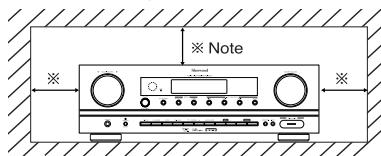
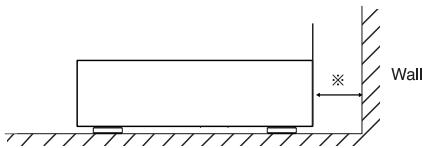
Do not block ventilation openings or stack other equipment on the top.
Note to CATV System Installer :
This reminder is provided to call the CATV system installer's attention to Article 820-40 of the NEC that provides guidelines for proper grounding and, in particular, specifies that the cable ground shall be connected to the grounding system of the building, as close to the point of cable entry as practical.
FCC INFORMATION
This equipment has been tested and found to comply with the limits for a Class B digital device, pursuant to Part 15 of the FCC Rules. These limits are designed to provide reasonable protection against harmful interference in a residential installation. This equipment generates, uses and can radiate radio frequency energy and, if not installed and used in accordance with the instructions, may cause harmful interference to radio communications. However, there is no guarantee that interference will not occur in a particular installation. If this equipment does cause harmful interference to radio or television reception, which can be determined by turning the equipment off and on, the user is encouraged to try to correct the interference by one or more of the following measures:
- Reorient or relocate the receiving antenna.
- Increase the separation between the equipment and receiver.
- Connect the equipment into an outlet on a circuit different from that to which the receiver is connected.
- Consult the dealer or an experienced radio/TV technician for help.
Caution : Any changes or modifications in construction of this device which are not expressly approved by the party responsible for compliance could void the user's authority to operate the equipment.
This Class B digital apparatus complies with Canadian ICES-003.
Units shipped to the U.S.A and CANADA are designed for operation on 120 V AC only.
Safety precaution with use of a polarized AC plug. However, some products may be supplied with a nonpolarized plug.
CAUTION
: To prevent electric shock, match wide blade of plug to wide slot, fully insert.
ATTENTION
ENERGY STAR is a U.S. registered mark. As an ENERGY STAR Partner, Sherwood has determined that this product meets the ENERGY STAR guidelines for energy efficiency.
CAUTION
- Leave a space around the unit for sufficient ventilation.
- Avoid installation in extremely hot or cold locations, or in an area that is exposed to direct sunlight or heating equipment.
- Keep the unit free from moisture, water, and dust.
- Do not let foreign objects in the unit.
- The ventilation should not be impeded by covering the ventilation openings with items, such as newspapers, table-cloths, curtains, etc.
- No naked flame sources, such as lighted candles, should be placed on the unit.
- Please be care the environmental aspects of battery disposal.
- The unit shall not be exposed to dripping or splashing for use.
- No objects filled with liquids, such as vases, shall be placed on the unit.
- Do not let insecticides, benzene, and thinner come in contact with the set.
- Never disassemble or modify the unit in any way.
Notes on the AC power cord and the wall outlet. - The unit is not disconnected from the AC power source(mains) as long as it is connected to the wall outlet, even if the unit has been turned off.
- To completely disconnect this product from the mains, disconnect the plug from the wall socket outlet.
- When setting up this product, make sure that the AC outlet you are using is easily acceptable.
- Disconnect the plug from the wall outlet when not using the unit for long periods of time.
CONTENTS
- IMPORTANT SAFETY INSTRUCTIONS 3
Introduction
- READ THIS BEFORE OPERATING YOUR UNIT 4
System Connections 6
Front Panel Controls 11
Remote Controls 13
- REMOTE CONTROL OPERATION RANGE 14
- LOADING BATTERIES 14
Operations
LISTENING TO A PROGRAM SOURCE 15
· SURROUND SOUND 18
ENJOYING SURROUND SOUND 19
LISTENING TO RADIO BROADCASTS 24
RECORDING 26
OTHER FUNCTIONS 28
System Setup 29
- SETTING THE SYSTEM 31
- SETTING THE INPUT 33
- SETTING THE SPEAKER SETUP 34
- SETTING THE CH LEVEL 39
- SETTING THE PARAMETER 41
Troubleshooting Guide 43
Specifications 44
System Connections
- Do not plug the AC input cord into the wall AC outlet until all connections are completed.
- Be sure to observe the color coding when connecting audio, video and speaker cords.
- Make connections firmly and correctly. If not, it can cause loss of sound, noise or damage to the receiver.
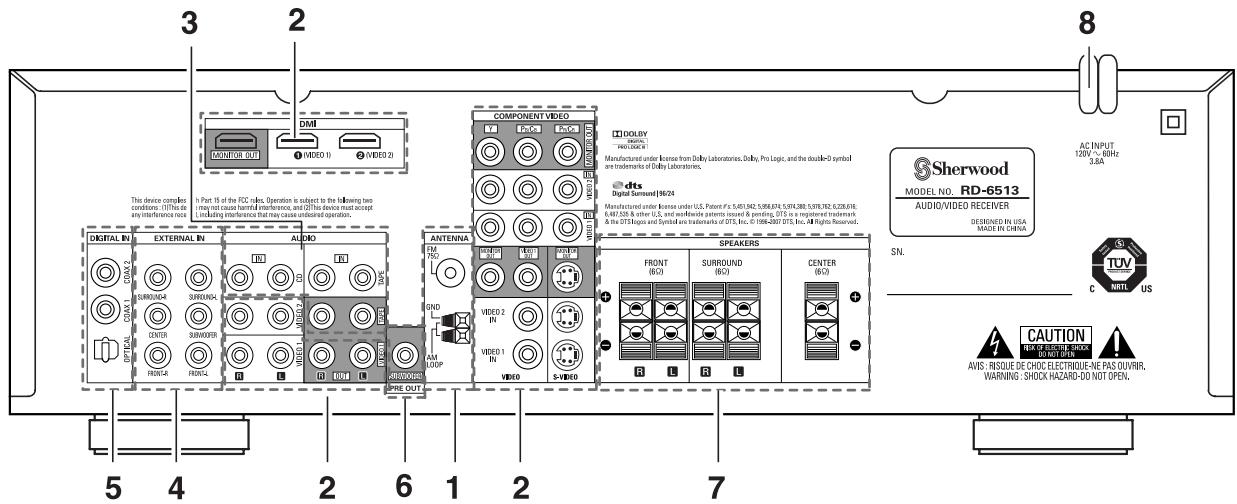
1. CONNECTING ANTENNAS
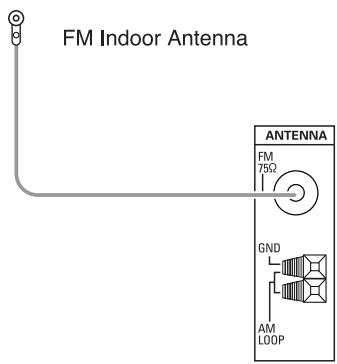
- Change the position of the FM indoor antenna until you get the best reception of your favorite FM stations.
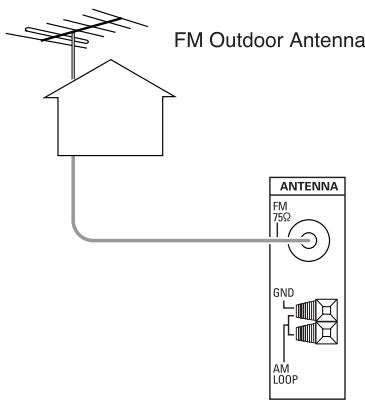
- A 75Ω outdoor FM antenna may be used to further improve the reception. Disconnect the indoor antenna before replacing it with the outdoor one.
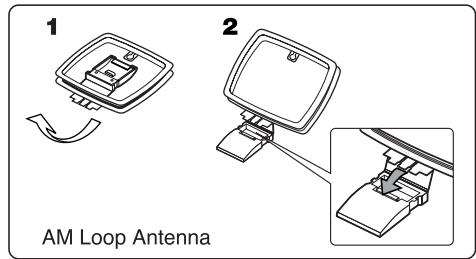
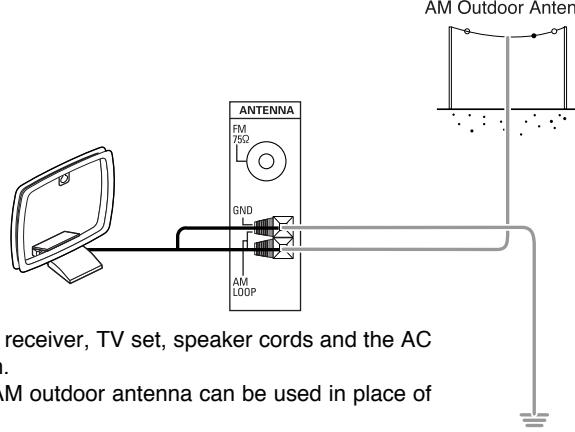
- Place the AM loop antenna as far as possible from the receiver, TV set, speaker cords and the AC input cord and set it to a direction for the best reception.
- If the reception is poor with the AM loop antenna, an AM outdoor antenna can be used in place of the AM loop antenna.
2. CONNECTINGVIDEOCOMPONENTS
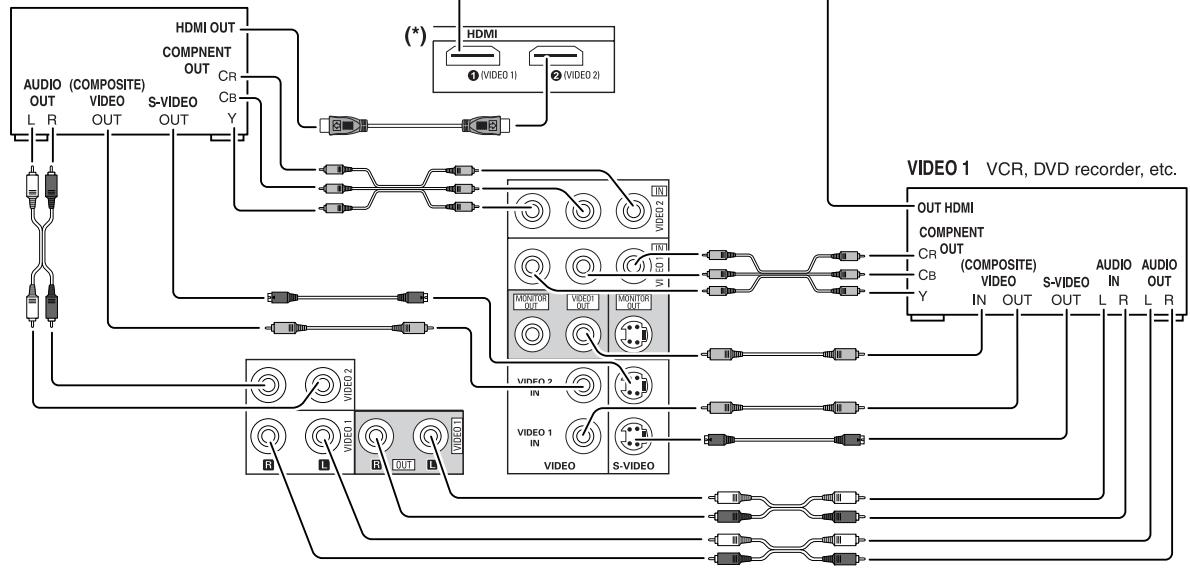
VIDEO 2 DVD player, LD player, etc.
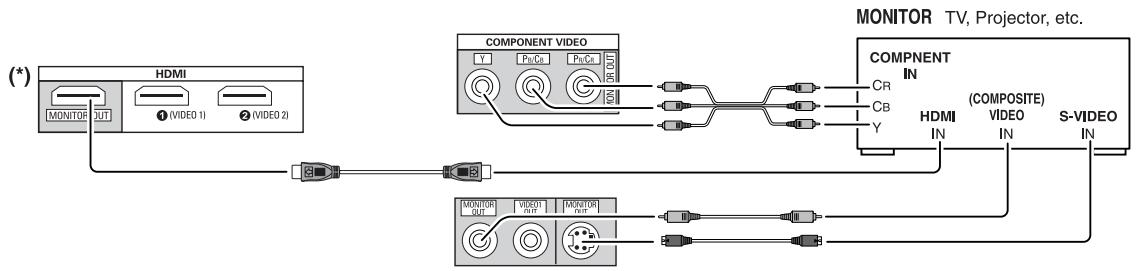
- The jacks of Video 1 may also be connected to a DVD recorder or other digital video recording component. For details, refer to the operating instructions of the component to be connected.
- The jacks of Video 2 can also be connected to an additional video component such as a cable TV tuner, an LD player or satellite system.
There are three types of video jacks (COMPONENT, S-VIDEO, (composite) VIDEO) for analog video connections and the HDMI
connectors for digital video and audio connections. Connect them to the corresponding video jacks according to their capability
For your reference, the excellence in picture quality is as follows : "HDMI" > "COMPONENT" > "S-VIDEO" > "(composite) VIDEO". - When making COMPONENT Video connections, connect "Y" to "Y", "PB/CB" to "CB"(or "B-Y", "PB") and "PR/CR" to "CR"(or "R-Y", "PR").
■ Note :
- When recording video program sources throughVIDEO 1 OUT jacks or viewing video program sources through MONITOR OUT jack, you must use the same type of video jacks that you did connect to video playback components such as DVD player, LD player, etc.
■HDMI (High Definition Multimedia Interface) connection : (*)
- You can connect the source component (DVD player, etc.) to the display component (TV, projector, etc.) through this receiver with using a commercially available HDMI cord.
- The HDMI connection can carry uncompressed digital video signals and digital audio signals.
- This receiver can output digital video and digital audio signals from the HDMI MONITOR OUT of this receiver without passing through any circuits as they were input into the HDMI IN, meaning the audio signals which are input into the HDMI IN cannot be reproduced on this receiver).
- This receiver is HDMI Ver. 1.3 compatible.
HMI, the HDMI logo and High-Definition Multimedia Interface are trademarks or registered trademarks of HDMI licensing LLC.
Notes :
- Depending on the connected component, unreliable signal transfer may happen.
(For details, refer to the operating instruction of your component.) - For stable signal transfer, we recommend using HDMI cords that are a maximum of 5 meters in length.
3. CONNECTING AUDIO COMPONENTS
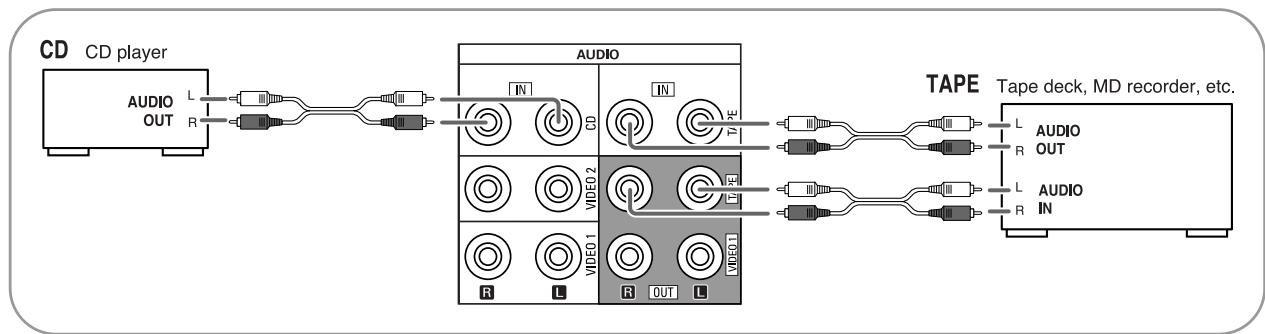
- The TAPE IN/OUT jacks can be connected to audio recording equipment such as a tape deck, an MD recorder, etc.
4. CONNECTING EXTERNAL INs
- Use these jacks to connect the corresponding analog outputs of 6 CH decoder or DVD player with 6 CH output for Dolby Digital or DTS, etc. (For details, see the operator's manual of the component to be connected.)
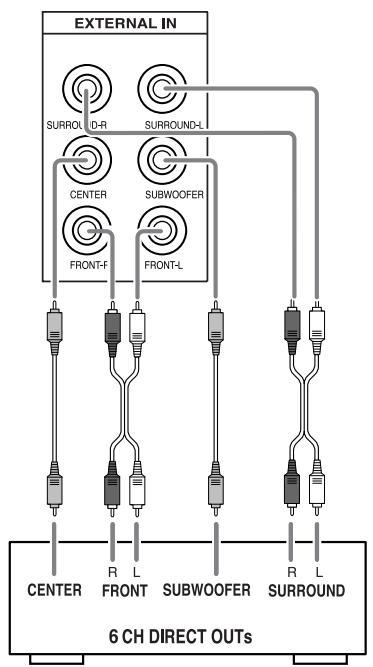
Decoder with 6 channel outputs
5. CONNECTING DIGITAL INs
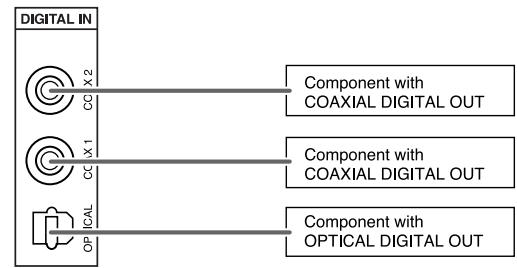
- The OPTICAL and the COAXIAL DIGITAL OUTs of the components that are connected to CD and VIDEO 1 ~VIDEO 2 of this unit can be connected to these DIGITAL INs.
- A digital input should be connected to the components such as a CD player, LD player, DVD player, etc. capable of outputting DTS Digital Surround, Dolby Digital or PCM format digital signals, etc.
- For details, refer to the operating instructions of the component connected.
- When making the COAXIAL DIGITAL connection, be sure to use a 75 COAXIAL cord, not a conventional AUDIO cord.
- All of the commercially available optical fiber cords cannot be used for the equipment. If there is an optical fiber cord which cannot be connected to your equipment, consult your dealer or nearest service organization.
■ Note :
- Be sure to make either a OPTICAL or a COAXIAL DIGITAL connection on each component. (You don't need to do both.)
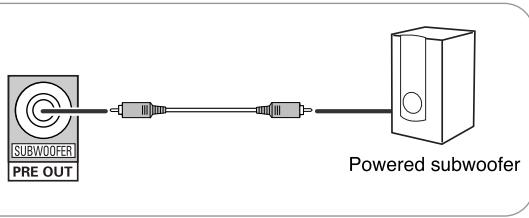
6. CONNECTING SUBWOOFER PRE OUT
- To emphasize the deep bass sounds, connect a powered subwoofer.
7. CONNECTING SPEAKERS
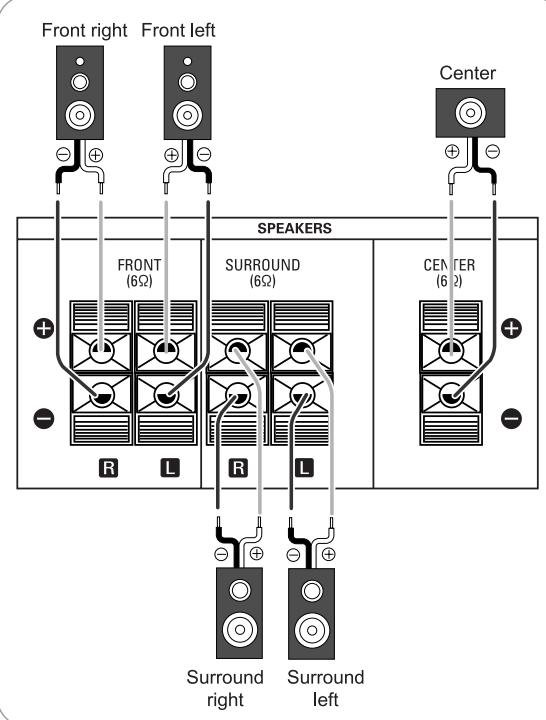
- Be sure to connect speakers firmly and correctly according to the channel(left and right) and the polarity(+ and -). If the connections are faulty, no sound will be heard from the speakers, and if the polarity of the speaker connection is incorrect, the sound will be unnatural and lack bass.
- For installing the speakers, refer to "Speaker placement" on page 10.
- After installing the speakers, first adjust the speaker settings according to your environment and speaker layout. (For details, refer to "SETTING THE SPEAKER SETUP" on page 34.)
Caution :
- Be sure to use the speakers with the impedance of 6 ohms or above.
- Do not let the bare speaker wires touch each other or any metal part of this unit. This could damage this unit and/or the speakers.
8. AC INPUT CORD
- Plug the cord into a wall AC outlet.
Speaker placement
Ideal speaker placement varies depending on the size of your room and the wall coverings, etc. The typical example of speaker placement and recommendations are as follows :
■ Front left and right speakers and center speaker
- Place the front speakers with their front surfaces as flush with TV or monitor screen as possible.
- Place the center speaker between the front left and right speakers and no further from the listening position than the front speakers.
- Place each speaker so that sound is aimed at the location of the listener's ears when at the main listening position.
Surround left and right speakers
- Place the surround speakers approximately 1 meter (40 inches) above the ear level of a seated listener on the direct left and right of them or slightly behind.
Subwoofer
- The subwoofer reproduces powerful deep bass sounds. Place a subwoofer anywhere in the front as desired.
Notes :
- When using a conventional TV, to avoid interference with the TV picture, use only magnetically shielded front left and right and center speakers.
- To obtain the best surround effects, the speakers except the subwoofer should be full range speakers.
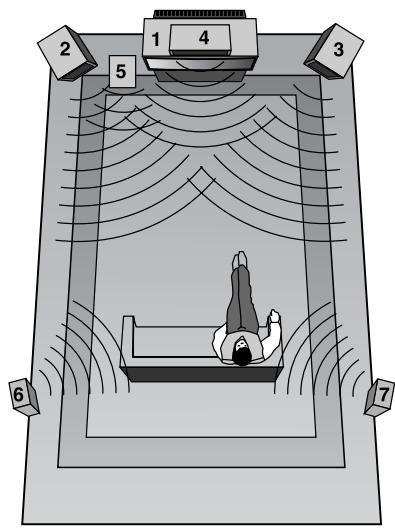
- TV or screen
- Front left speaker
- Front right speaker
- Center speaker
- Subwoofer
- Surround left speaker
- Surround right speaker
Front Panel Controls
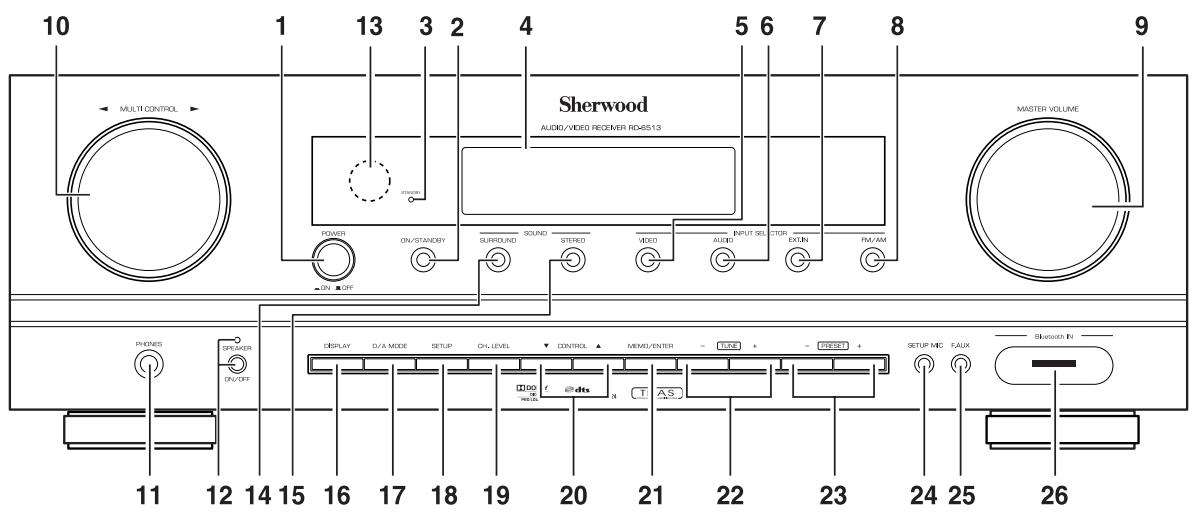
- POWER switch
- POWER ON/STANDBY button
- STANDBY indicator
- FLUORESCENT DISPLAY For details, see below.
- VIDEO INPUT SELECTOR button
- AUDIO INPUT SELECTOR button
7.EXT.IN SELECTOR button - FM/AM button
- MASTER VOLUME CONTROL knob
-
MULTI CONTROL knob (▲/▶)
-
HEADPHONE jack
- SPEAKER button/indicator
- REMOTE SENSOR
- SURROUND MODE button
- STEREO button
- DISPLAY button
- DIGITAL/ANALOG MODE button
- SETUP button
19.CHANNEL LEVEL button -
CONTROL UP/DOWN ( / ) buttons
-
MEMORY/ENTER button
- TUNING UP/DOWN (+/-) buttons
- PRESET UP/DOWN (+/-) buttons
- SETUP MIC JACK For details, see next page.
- FRONT AUX IN JACK For details, see next page.
- Bluetooth IN connector For details, see next page.
FLUORESCENT DISPLAY
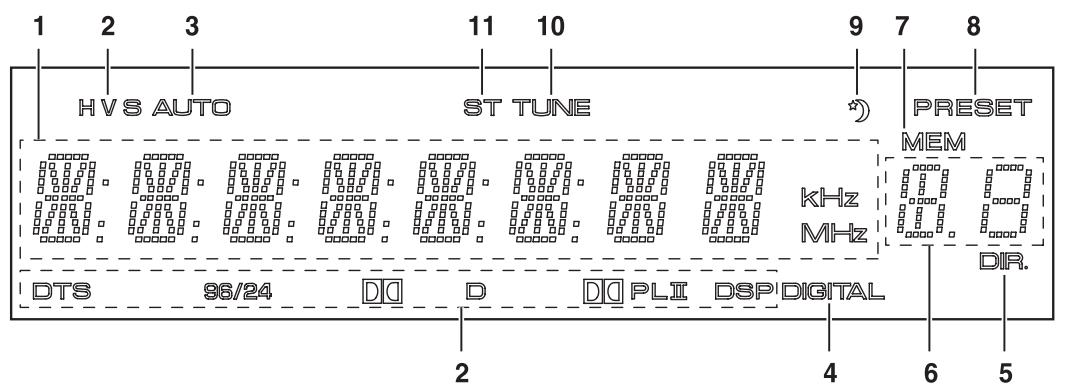
- Input, frequency, volume level, operating information, etc.
- Surround mode indicators
- AUTO indicator
- DIGITAL INPUT indicator
- DIRECT indicator
-
Preset number, sleep time display
-
MEMORY indicator
- PRESET indicator
- SLEEP indicator
- TUNED indicator
- STEREO indicator
■ SETUP MIC JACK
- To use Auto Setup function, connect the supplied microphone to the SETUP MIC jack.(For details, refer to "When selecting the AUTO SETUP" on page 35.)
Notes:
- Because the microphone for Auto Setup is designed for use with this receiver, do not use a microphone other than the one supplied with this receiver.
- After you have completed the auto setup procedure, disconnect the microphone.
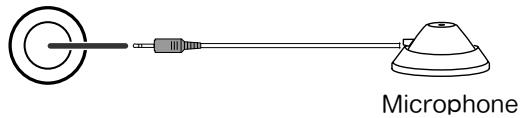
SETUP MIC
FRONT AUX IN JACK
- The FRONT AUX IN jack can be connected to additional audio components such as an MP3 player, etc.
■ Note :
- When connecting this jack to an MP3 player, etc., you should use the stereo mini cord, not a mono mini cord.

Bluetooth IN CONNECTOR
- If the Bluetooth IN connector is connected to Sherwood Audio Receiver BT-R7(sold separately) with Bluetooth wireless technology, you can enjoy music wirelessly with a music player featuring Bluetooth wireless technology such as MP3 player, mobile phone, etc..
(For information on Sherwood Audio Receiver BT-R7, contact your dealer.)
- The Bluetooth word mark and logos are registered trademarks owned by Bluetooth SIG, Inc. and any use of such marks by Sherwood Corporation is under license. Other trademarks and trade names are those of their respective owners.
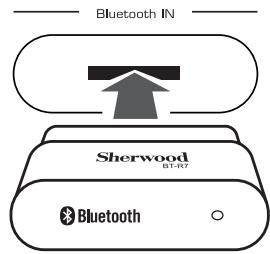
Notes:
- For safe operation, turn the power off before connecting or disconnecting the Audio Receiver BT-R7.
- When not using the Bluetooth IN connector, cover it with the supplied cap.
Remote Controls
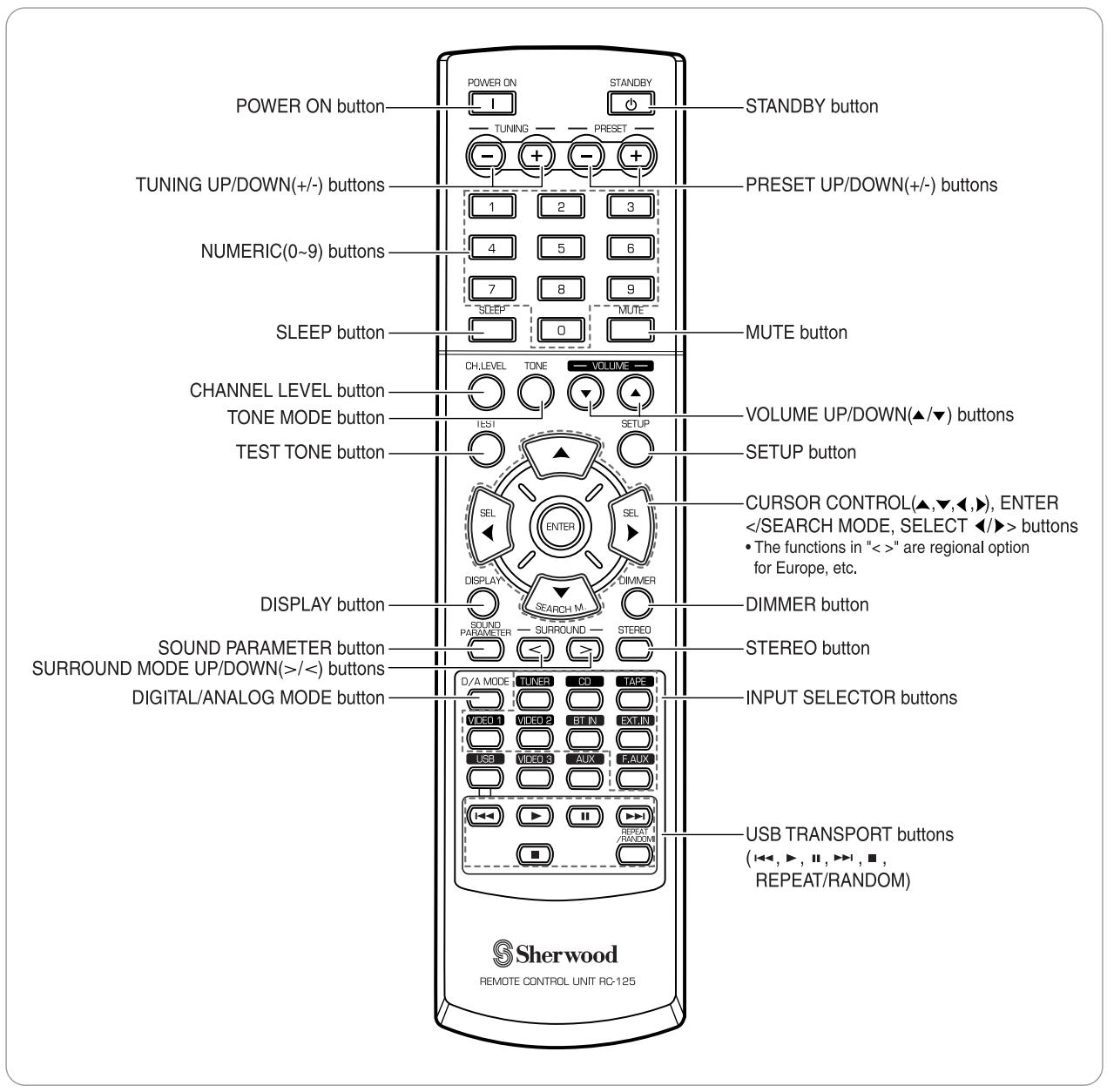
■ Note :
- Some buttons (USB, VIDEO 3, AUX and USB transport buttons) are not available for this receiver.
- Use the remote control unit within a range of about 7 meters (23 feet) and angles of up to 30 degrees aiming at the remote sensor.
LOADING BATTERIES
- Remove the cover.
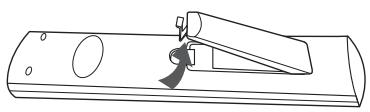
- Load two batteries ("AAA" size, 1.5 V) matching the polarity.
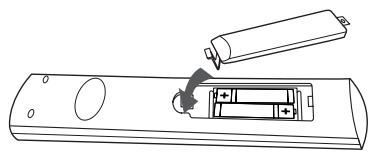
- Remove the batteries when they are not used for a long time.
- Do not use the rechargeable batteries (Ni-Cd type).
Operations
Note: Before operating this receiver, first set this unit as desired for optimum performance, doing the system setup procedures. (For details, refer to "System Setup" on page 29.)
LISTENING TO A PROGRAM SOURCE
Before operation
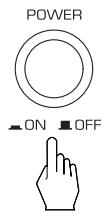
- Enter the standby mode.
- The STANDBY indicator lights up. This means that the receiver is not disconnected from the AC mains and a small amount of current is retained to support the operation readiness.
- To switch the power off, push the POWER switch again.
- Then the power is cut off and the STANDBY indicator goes off.
- In the standby mode, turn the power on.
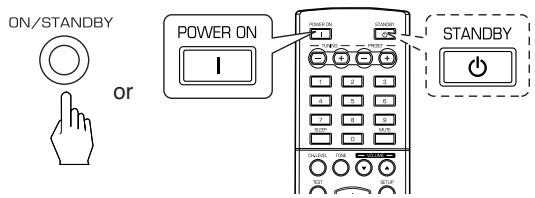
- Each time the POWER ON/STANDBY button on the front panel is pressed, the receiver is turned on to enter the operating mode or off to enter the standby mode.
- On the remote control, press the POWER ON button to enter the operating mode or press the STANDBY button to enter the standby mode.
-
In the standby mode, if the INPUT SELECTOR button is pressed, the receiver is turned on automatically and the desired input is selected.
-
Switch the speakers on.
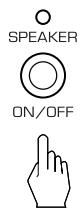
- Then the SPEAKER indicator lights up and the sound can be heard from the speakers connected to the speaker terminals.
-
When using the headphone for private listening, press the SPEAKER button again to switch the speakers off.
-
Select the desired input source.
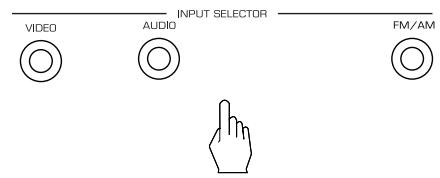
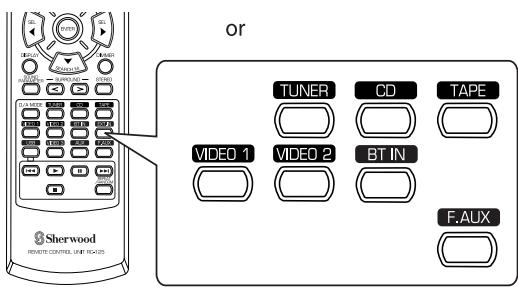
Each time the "VIDEO" button on the front panel is pressed, the input source changes as follows:
VIDEO 1 VIDEO 2
Each time the "AUDIO" button on the front panel is pressed, the input source changes as follows:

Each time the "FM/AM" button is pressed, the band changes as follows:

■ When selecting the EXTERNAL IN as desired
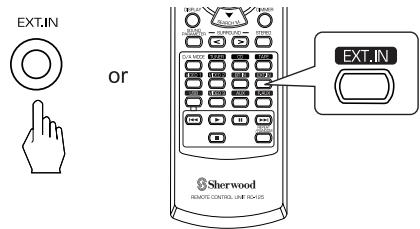
- "EXT IN" is displayed and 6 separate analog signals from the component connected to this input pass through the tone and volume circuits only and can be heard from your speakers.
- Selecting the desired input source to cancel the external in function.
- These analog signals can be heard only, not recorded.
When CD,VIDEO 1~2 is selected as an input source
- Select the digital or the analog input connected as desired.
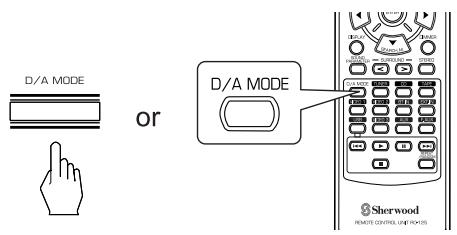
Each time this button is pressed, the corresponding input is selected as follows:
o(PTical) c(oaxial)1 c(oaxial) 2 A(nalog)
Notes :
- When F AUX, TAPE, BT IN, EXT IN or tuner is selected as an input source, the digital input cannot be selected.
- When the selected digital input is not connected, the "DIGITAL" indicator flickers and the analog input is automatically selected.
- The selected digital or analog input is automatically assigned to the corresponding input source on the INPUT setup menu. (For details, refer to "SETTING THE INPUT" on page 33.)
-
The sound from the component connected to the selected digital input can be heard regardless of the selected input source.
-
Operatethe selected component for playback.
-
When playing back the program sources with surround sound, refer to "ENJOYING SURROUND SOUND" on page 19.
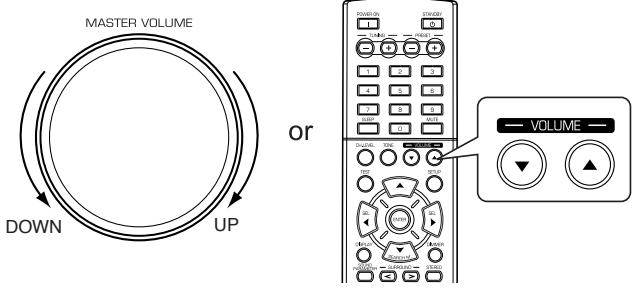
- Adjust the (overall) volume.
- To mute the sound.
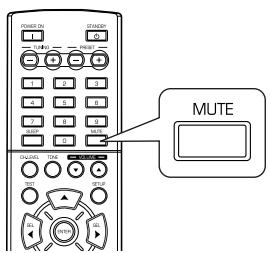
"MUTE" will flicker.
To resume the previous sound level, press it again.
- To listen with the headphones.
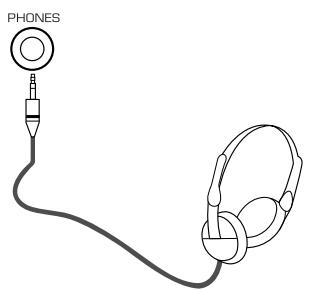
- Be sure to switch the speakers off.
- When listening to a DTS or Dolby Digital program source, if the headphones are plugged in and the SPEAKER button is set to off, it enters the 2CH downmix mode automatically. (For details, refer to "2CH downmix mode" on page 19.)
■ Note :
- Be careful not to set the volume too high when using headphones.
Adjusting the tone (bass and treble)
9. Enter the tone mode.
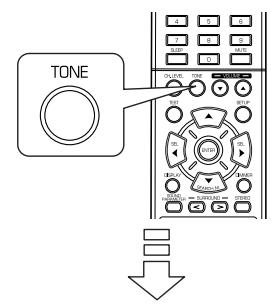
TONE: OFF
- The tone mode is displayed for several seconds.
10. Press the CURSOR LEFT(▲)/RIGHT(▲) buttons to select the desired tone mode.
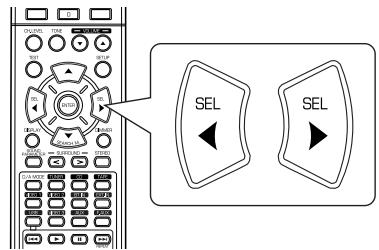
Each time these buttons are pressed, the tone mode is selected as follows:
OFF: To listen to a program source without the tone effect. ("DIR" indicator lights up.)
ON: To adjust the tone for your taste. ("DIR" indicator goes off.)
■ Note :
- When the EXTERNAL IN is selected as an input source, the TONE cannot be set to ON.
■When the TONE is set to ON to adjust the tone (bass and treble).
- Press the CURSOR UP(▲)/DOWN(▼) buttons to select the desired tone.
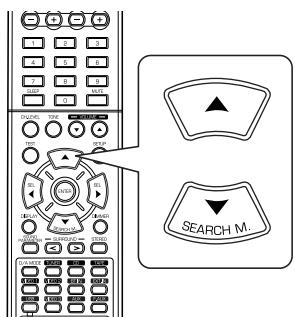
Each time these buttons are pressed, the tone is selected as follows :
BASS TRBL(treble) TONE:ON
- Press the CURSOR LEFT(▲)/RIGHT(▶) buttons to adjust the selected tone as desired.
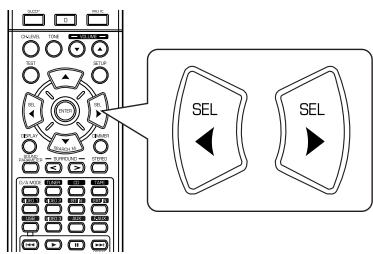
The tone level can be adjusted within the range of -10 +10 dB.
In general, we recommend the bass and treble to be adjusted to 0 dB (flat level).
- Extreme settings at high volume may damage your speakers.
- To complete tone adjustment, repeat the above steps 11 and 12.
- If the tone display disappears, start from the step 9 again.
SURROUND SOUND
This receiver incorporates a sophisticated Digital Signal Processor that allows you to create optimum sound quality and sound atmosphere in your personal Home Theater.
Surround modes
DTS Digital Surround
DTS Digital Surround(also called simply DTS) is a multi-channel digital signal format which can handle higher data rates. Discs bearing the DTS logo include the recording of up to 5.1 channels of digital signals, which can be generally thought to provide better sound quality due to the lower audio compression required.
It also provides wide dynamic range and separation, resulting in magnificent sound.
DTS 96/24
This is high resolution DTS with a 96 kHz sampling rate and 24 bit resolution, providing superior fidelity. Use it with DVDs bearing the DTS 96/24 logo.
Manufactured under license under U.S. Patent #s: 5,451,942; 5,956,674; 5,974,380; 5,978,762; 6,226, 616; 6,487,535 & other U.S. and worldwide patents issued & pending. DTS and DTS Digital Surround are registered trademarks and the DTS logos , Symbol and DTS 96/24 are trademarks of DTS, Inc. © 1996-2007 DTS, Inc. All Rights Reserved.
Dolby Digital
Dolby Digital is the multi-channel digital signal format developed by Dolby Laboratories. Discs bearing the Dolby Digital logo includes the recording of up to 5.1 channels of digital signals, which can reproduce much better sound quality, spatial expansion and dynamic range characteristics than the previous Dolby Surround effect.
Dolby Pro Logic II surround
This mode applies conventional 2-channel signals such as digital PCM or analog stereo signals as well as Dolby Surround signals, etc. to surround processing to offer improvements over conventional Dolby Pro Logic circuits. Dolby Pro Logic II surround includes 3 modes as follows:
- Dolby Pro Logic II Movie
When enjoying movies, this mode allows you to further enhance the cinematic quality by adding processing that emphasizes the sounds of the action special effects.
- Dolby Pro Logic II Music
When listening to music, this mode allows you to further enhance the sound quality by adding processing that emphasizes the musical effects.
- Dolby Pro Logic II Emulation
This mode expands any 2-channel sources, including Dolby Surround sources) for 4 channel(front left, center, front right and surround) playback. The surround channel is monaural, but is played through two surround speakers.
Dolby, Pro Logic, and the double-D symbol are registered trademarks of Dolby Laboratories.
- The following modes apply conventional 2-channel signals such as digital PCM or analog stereo signals to high performance Digital Signal Processor to recreate sound fields artificially.
Theater
This mode provides the effect of being in a theater-in-the round when watching a play.
■ Movie
This mode provides the effect of being in a movie theater when watching a movie.
Hall 1/2
This mode provides the ambience of a chamber hall for chamber music or an instrumental solo(Hall 1) or concert hall for orchestral music or an opera (Hall 2).
Stadium
This mode provides the expansive sound field to achieve the true stadium effect when watching baseball or soccer games.
Church
This mode provides the ambience of a church for baroque, string orchestral or choral group music.
Club 1/2
This mode creates the sound field of a jazz club with a low ceiling and hard walls (Club 1) or a live house with a relatively spacious floor (Club 2).
Arena 1/2
This mode provides a feeling of a live concert in a medium sized (Arena 1) or large (Arena 2) arena.
Game
Use this mode to enjoy video game sources.
■ Matrix
This mode reproduces a delayed signals from the surround channels to emphasize the sense of expansion for music sources.
- When the EXTERNAL INs is connected to the 6CH decoder for a surround such as Dolby Digital, etc., you can enjoy the corresponding surround sound, too. (For details, see th operator's manual of the component to be connected.)
- Before surround playback, first perform the speaker setup procedure, etc. on the SETUP menu for optimum performance. (For details, refer to "SETTING THE SPEAKER SETUP" on page 34.)
- When the EXTERNAL IN is selected as an input source, the surround modes cannot be selected.
■ When CD or VIDEO 1 ~ 2 is selected as an input source
Select the auto surround mode or the manual surround mode depending on how to select a surround mode.
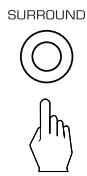
- Each time this button is pressed, the mode changes as follows: Auto surround mode : The optimum surround mode will be automatically ("AUTO" indicator selected depending on the signal format being input. lights up.)
Manual surround mode: You can select the desired of different surround modes selectable for the signal being input with using the MULTI CONTROL knob or the SURROUND MODE UP/DOWN (> / <) buttons.
Notes :
- When the input source other than CD and VIDEO 1 ~ 2 is selected, you cannot select the auto surround mode and can select the surround mode as desired (the manual surround mode).
- When the auto surround mode is selected, the surround modes other than the optimum surround mode cannot be selected.
■ Select the desired surround mode (when selecting the manual surround mode in case of CD,VIDEO 1 ~ 2)
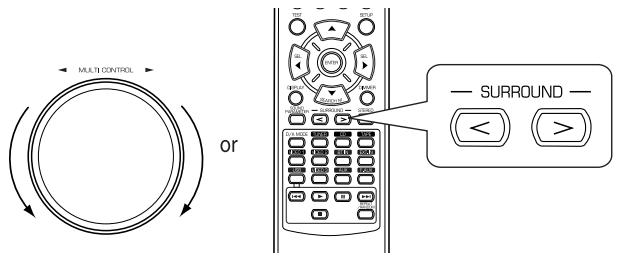
Each time the MULTI CONTROL knob is rotated or the SURROUND UP / DOWN (> / <) buttons are pressed, the surround mode changes depending on the input signal format as follows:
| Signal format being input | Selectable surround mode |
| Dolby Digital 5.1 channel sources | DOLBY DIGITAL |
| Dolby Digital 2 channel sources | DOLBY PLII MOVIE, DOLBY PLII MUSIC, DOLBY PLII EMULATION |
| DTS sources, DTS 96/24 sources | DTS or DTS 96/24 |
| 96 kHz PCM(2 channel) sources | DOLBY PLII MOVIE, DOLBY PLII MUSIC, DOLBY PLII EMULATION |
| PCM (2channel) sources, Analog stereo sources | DOLBY PLII MOVIE, DOLBY PLII MUSIC, DOLBY PLII EMULATION, THEATER, MOVIE, HALL1, HALL2, STADIUM, CHURCH, CLUB1, CLUB2, ARENA1, ARENA2, GAME, MATRIX |
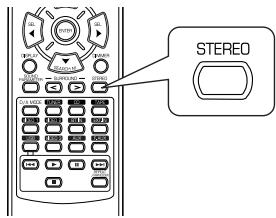
■To cancel the surround mode for stereo playback

STEREO

or
- Depending on the signal format which is being input, either the stereo mode or the 2CH downmix mode is selected.
- To cancel either the stereo mode or the 2CH downmix mode, select the surround mode with using the MULTI CONTROL knob on the front panel or the SURROUND MODE UP/DOWN (>/<) buttons on the remote control.
2CH downmix mode
- This mode allows the multi-channel signals encoded in DTS or Dolby Digital format to be mixed down into 2 front channels and to be reproduced through only two front speakers or through headphones.
- When the SPEAKER button is set to off to listen with headphones while playing the multi-channel digital signals from DTS or Dolby Digital sources, it will enter the 2CH downmix mode automatically.
When adjusting the sound parameters
- While playing digital signals from Dolby Digital or DTS program source or listening in Dolby Pro Logic II Music mode, you can adjust their parameters for optimum surround effect.
1. Press the SOUND PARAMETER button.
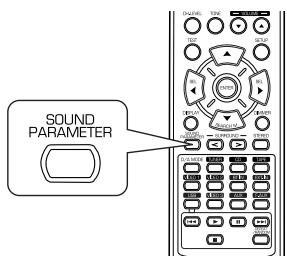
- Then "DRC: ~" (or "PANO: ~") is displayed for several seconds.
- If the parameter mode disappears, press this button again.
2. Press the CURSOR UP(▲)/DOWN(▼) buttons to select the desired parameter.
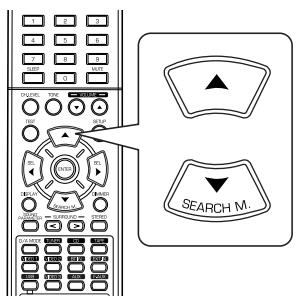
Each time these buttons are pressed, the parameter mode changes as follows:

- "DRC" can be selected only while playing digital signals from Dolby Digital or DTS source.
- "PANO", "C.WIDTH" and "DIMEN" can be selected only while listening in Dolby Pro Logic II Music mode.
3. Press the CURSOR LEFT(▲)/ RIGHT(▶) buttons to adjust the selected parameter as desired.
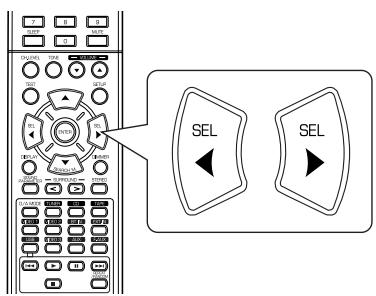
■ When selecting the "DRC(Dynamic Range Compression: Night mode)"
This function compresses the dynamic range of previously specified parts of Dolby Digital or DTS sound track (with extremely high volume) to minimize the difference in volume between the specified and non-specified parts. This makes it easy to hear all of the sound track when watching movies at night at low levels. The night mode can be set to OFF or ON (default value: OFF).
Note: In some Dolby Digital or DTS softwares, the night mode may not be valid.
■ When selecting the "PANO (Panorama)" mode
This mode extends the front stereo image to include the surround speakers for an exciting "wraparound" effect with side wall imaging. Select "OFF" or "ON"(default value: OFF).
■ When selecting the "C. WIDTH (Center width)" control
This adjusts the center image so it may be heard only from the center speaker, only from the left/right speakers as a phantom image, or from all three front speakers to varying degrees.
The control can be set in 8 steps from 0 to 7(default value : 3).
■ When selecting the "DIMEN (Dimension)" control
This gradually adjusts the soundfield either towards the front or towards the rear. The control can be set in 7 steps from -3 to +3 (default value : 0).
4. Repeat the above steps 2 and 3 to adjust other parameters.
Adjusting each channel level with test tone
- The volume level of each channel can be adjusted easily with the test tone function.
■ Note : When the SPEAKER button is set to off, the test tone function does not work.
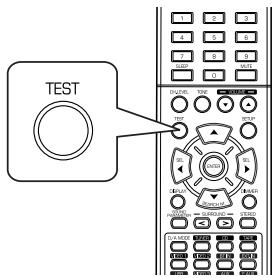
1. Enter the test tone mode.
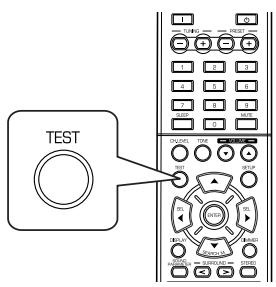
TESTFL
- The test tone mode is displayed and will be heard from the speaker of each channel for 2 seconds as follows:
FL C FR SR SL SW Fronct Left Center Front Right Surround Right Surround Left Subwoofer - When the speaker setting is "N (None or No)", the test tone of the corresponding channel is not available.
2. At each channel, adjust the level as desired until the sound level of each speaker is heard to be equally loud.
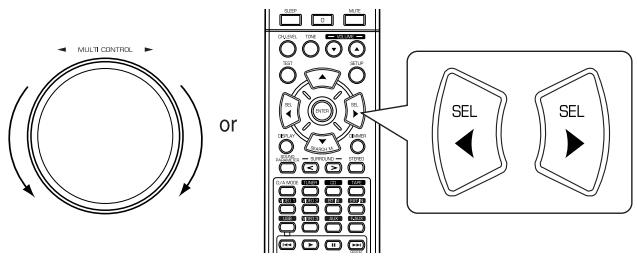
- You can select the desired channel with the CONTROL UP(▲)/DOWN(▼) buttons or the CURSOR UP(▲)/DOWN(▼) buttons.
3. Cancel the test tone function.
Adjusting the current channel level
After adjusting each channel level with test tone, adjust the channel levels either according to the program sources or to suit your tastes.
- You can adjust the current channel levels as desired. These adjusted levels are just memorized into user's memory ("CAL"), not into preset memory("REF 1", "REF 2").
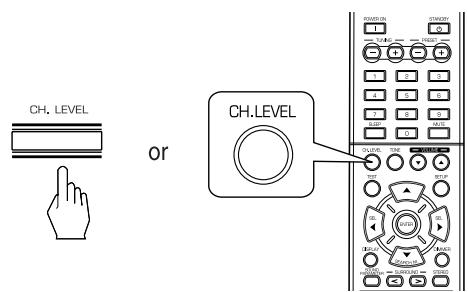
1. Press the CHANNEL LEVEL button.
MOTEREF
- Then the memory mode ("REF 1", etc.) is displayed for several seconds.
- When the memory mode or channel level disappears, press this button again.
2. Select the desired channel.
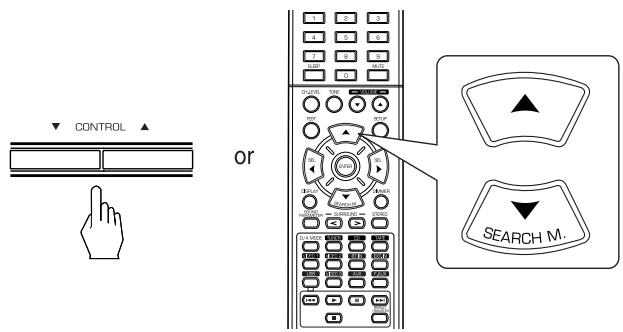
Each time these buttons are pressed, the corresponding channel is selected as follows:

< >: Only when the digital signals from Dolby Digital or DTS program sources that include LFE signal are input, LFE level can be displayed.
- Depending on the speaker settings ("N (None or No)") and surround mode, etc., some channels cannot be selected.
- When the SPEAKER button is set to off, only the Front Left and Front Right channels can be selected.
3. Adjust the level of the selected channel as desired.
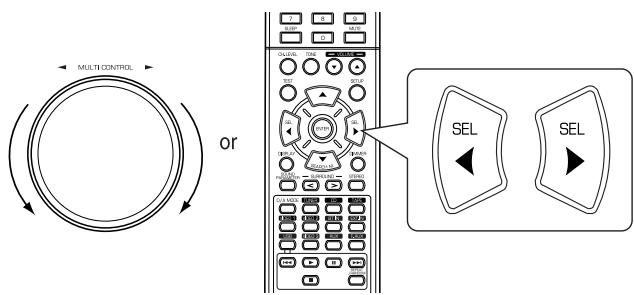
- The LFE level can be adjusted within the range of -10 0 dB and other channel levels within the range of -15 +15 dB.
- In general, we recommend the LFE level to be adjusted to 0 dB. (However, the recommended LFE level for some early DTS software is -10 dB.) If the recommended levels seem too high, lower the setting as necessary.
4. Repeat the above steps 2 and 3 to adjust each channel level.
Memorizing the adjusted channel levels
- You can memorize the adjusted channel levels into preset memory("REF 1", "REF 2") and recall the memorized whenever you want.
- After performing the steps 1 4 in "Adjusting the current channel level" procedure on page 22, press the (MEMORY/)ENTER button.
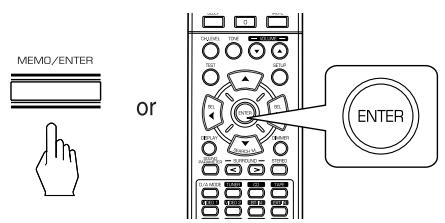
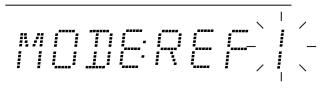
-
Then "1" of "REF 1" indication flickers for several seconds.
-
Select the desired one of REF 1 and REF 2.
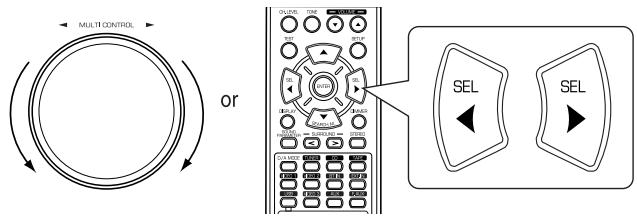
-
If the preset memory disappears, perform the above step 1 again.
-
Confirm your selection.
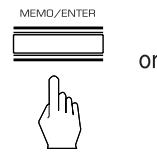
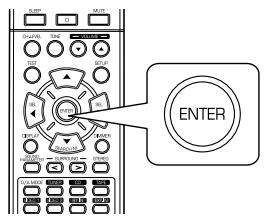
Recalling the memorized channel levels
-
The adjusted channel levels have now been memorized into the selected memory.
-
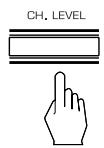
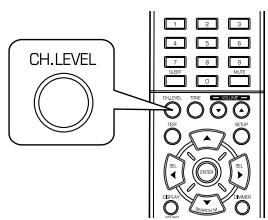
Press the CHANNEL LEVEL button.
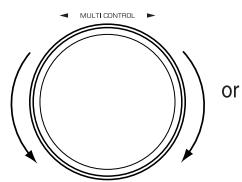
or
- Select the desired one of REF 1 and REF 2.
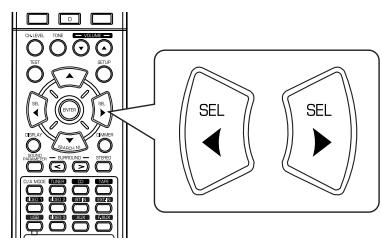
"CAL" (or "REF 1", etc.) is displayed for several seconds.
- If the channel level mode display disappears, press this button again.
- Then the channel levels memorized into the selected preset memory are recalled.
LISTENING TO RADIO BROADCASTS
Auto tuning
1. Select the desired band.
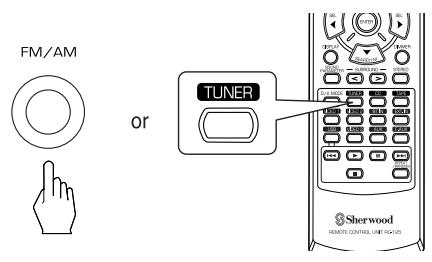
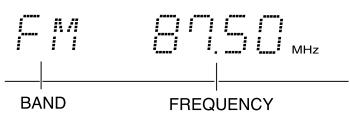
Each time this button is pressed, the band changes as follows;

- When FM stereo broadcasts are poor because of weak broadcast signals, select the FM mono mode to reduce the noise, then FM broadcasts are reproduced in monaural sound.
2. Press the TUNING UP (+) /DOWN(-) buttons for more than 0.5 second.
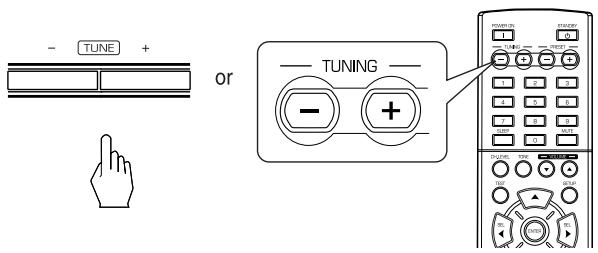
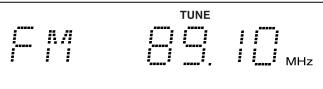
- The tuner will now search until a station of sufficient strength has been found. The display shows the tuned frequency and "TUNE".
- If the station found is not the desired one, simply repeat this operation.
- Weak stations are skipped during auto tuning.
Manual tuning
- Manual tuning is useful when you already know the frequency of the desired station.
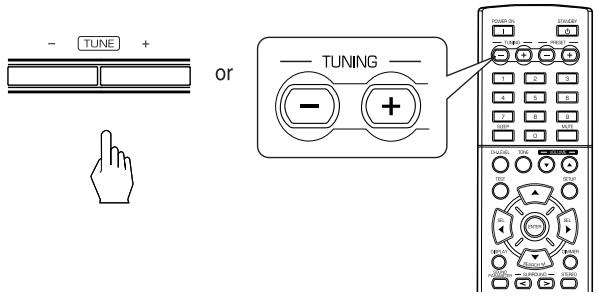
After selecting the desired band, press the TUNING UP(+) /DOWN(-) buttons repeatedly until the right frequency has been reached.
Auto presetting
- Auto presetting function automatically searches for FM stations only and store them in the memory.
- While listening to FM radio broadcasts, press and hold down the (MEMORY/) ENTER button for more than 2 seconds.
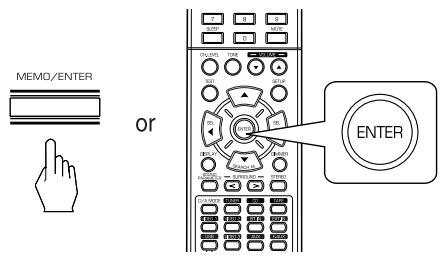
- Then "AUTO MEM" flickers and this receiver starts auto presetting.
- To stop auto presetting, press this button again.
- Up to 30 FM stations can be stored.
Notes:
FM stations of weak strength cannot be memorized.
- To memorize AM stations or weak stations, preform "Manual presetting" procedure with using "Manual tuning" operation.
Manual presetting
- You can store up to 30 preferred stations in the memory.
- Tune in the desired station with auto or manual tuning.
- Press the (MEMORY/)ENTER button.
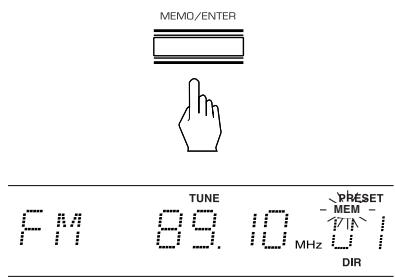
"MEM" is flickering for several seconds.
- Select the desired preset number (1~30) and press the (MEMORY/)ENTER button.
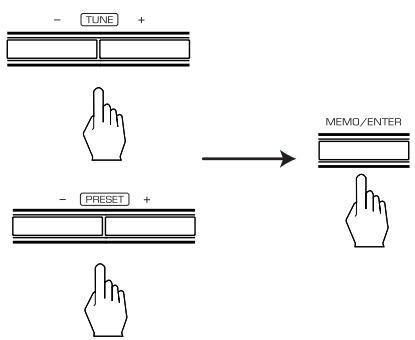
- When using the NUMERIC buttons on the remote control.
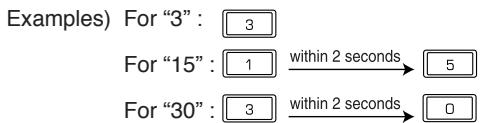
- The station has now been stored in the memory.
- When using the NUMERIC buttons, the station is stored automatically without pressing the (MEMORY/)ENTER button.
- A stored frequency is erased from the memory by storing another frequency in its place.
-
If "MEM" goes off, start again from the above step 2.
-
Repeat the above steps1 to 3 to memorize other stations.
The following items, set before the receiver is turned off, are memorized.
- INPUT SELECTOR settings
- Surround mode settings
- Preset stations,etc.
Tuning to preset stations
After selecting the tuner as an input source, select the desired preset number.
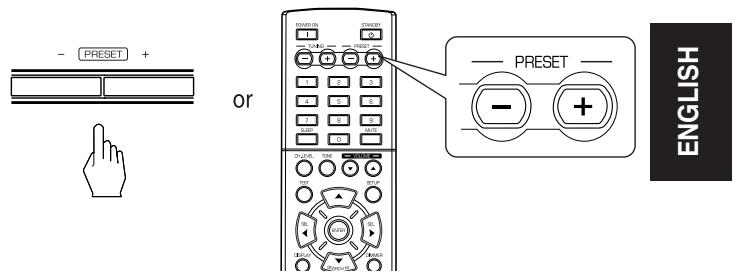
- When using the NUMERIC buttons on the remote control.
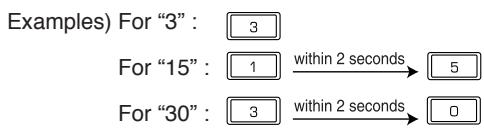
RECORDING
- The analog signals from the EXTERNAL INs as well as the digital signals from the coaxial or optical digital input can be heard but cannot be recorded.
- When recording the analog signals from CD,VIDEO 1 ~ 2, be sure to select th analog input. (For details, refer to "When CD,VIDEO 1 ~ 2 is selected as an input source" on page 16.)
- The volume and tone (bass, treble) settings have no effect on the recording signals.
Recording with TAPE
- Select the desired input as a recording source except for TAPE.
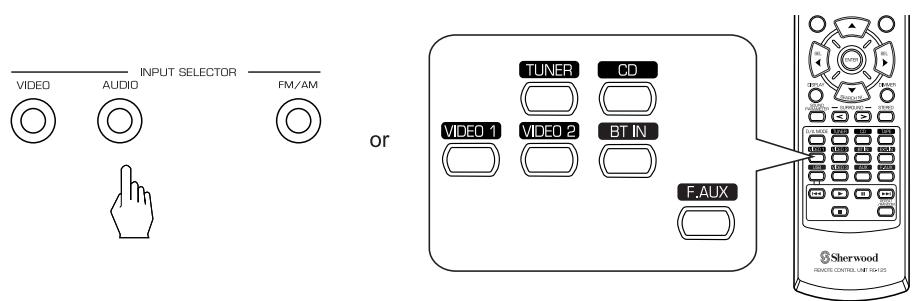
- Start recording on the TAPE.
- Start play on the desired input.
Dubbing from video components onto VIDEO 1
- Select VIDEO 2 as a recording source.
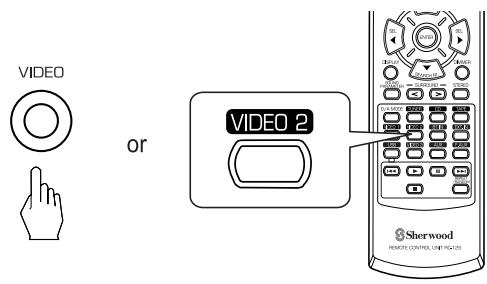
- Start recording on the VIDEO 1.
- Start play on the VIDEO 2.
Dubbing the audio and video signals separately onto VIDEO 1
Example) When dubbing the VIDEO 2 video signal and the CD audio signal separately onto VIDEO 1.
- Select VIDEO 2 as a video recording source.
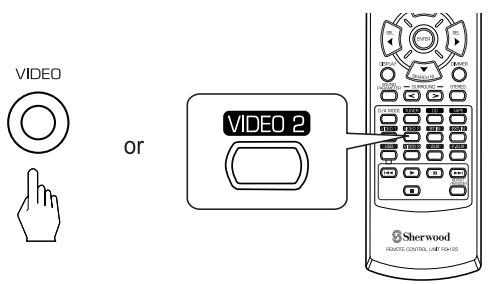
- Select CD as an audio recording source.
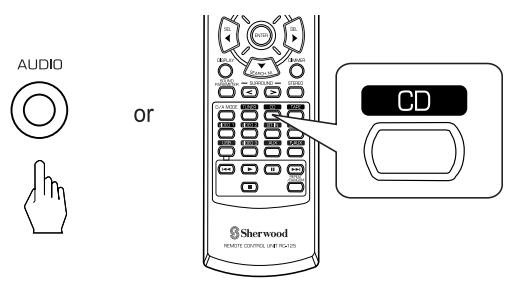
- Start recording on the VIDEO 1.
-
Start play on the VIDEO 2 and the CD respectively.
-
The audio signal from the CD and the video signal from the VIDEO 2 will be dubbed and you can enjoy them on the TV set and from the speakers.
■ Note :
- Be sure to observe the order of the above steps 1 and 2.
OTHER FUNCTIONS
Operating the sleep timer
- The sleep timer allows the system to continue to operate for a specified period of time before automatically shutting off.
- To set the receiver to automatically turn off after the specified period of time.
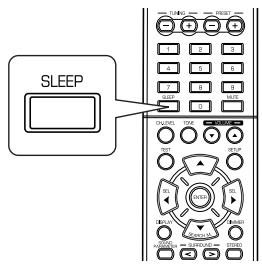
Each time this button is pressed, the sleep time changes as follows:

- While operating the sleep timer, "★") lights up.
- When the sleep time is selected, the fluorescent display is dimly lit.
Adjusting the brightness of the fluorescent display
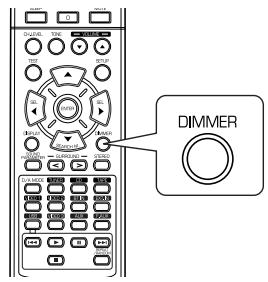
Each time this button is pressed, the brightness of the fluorescent display changes as follows:

- In the display OFF mode, pressing any button will restore the display ON mode.
Displaying the operation status
During playback,
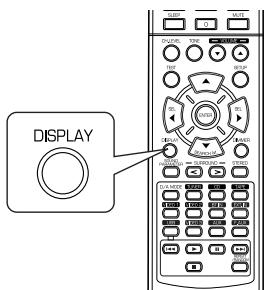
Each time this button is pressed, the display mode changes as follows:
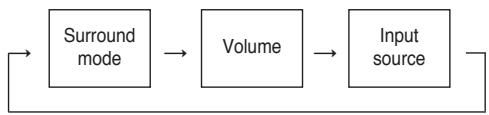
- When the EXTERNAL IN is selected as an input source, the surround mode is not displayed.
System Setup
- The setup menu is displayed on the fluorescent display and allows you to perform the setup procedures easily. In most situations, you will only need to set this once during the installation and layout of your home theater, and it rarely needs to be changed later. The setup menu consists of 5 main menus; system, input, speaker setup, CH level and parameter. These menus are then divided up into various sub-menus.
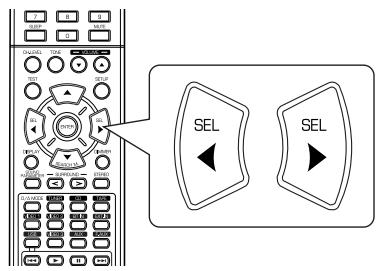
Navigating through the setup menu - The explanations here assume you are using the buttons on the remote control when performing the setup menu operation. However, you can use the buttons on the front panel as well.
The buttons on the front panel correspond to those on the remote control as shown below.
| Button on the remote control | SETUP | ENTER | ▲ SEARCH M. | SEL SEL |
| Button on the front panel | SETUP | MEMO/ENTER | ▼ CONTROL ▲ | ▼ MULTI CONTROL ▼ |
- Turn the setup menu on.
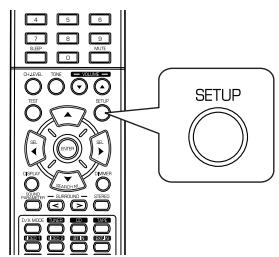
5456
-
The setup menu will be shown.
To turn the menu off, press this button again. -
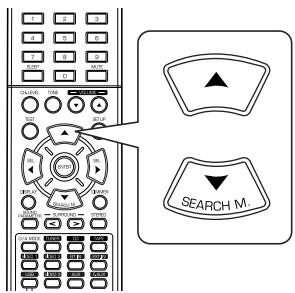
Select the desired menu using the CURSOR UP(▲)/DOWN(▼) buttons.
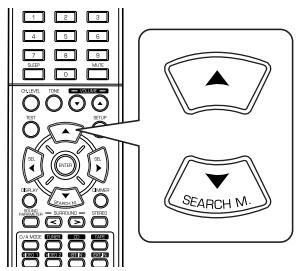
- Confirm your selection.
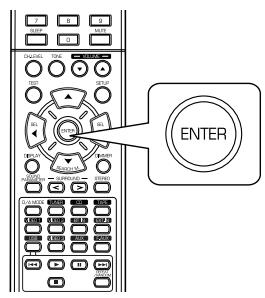
- When selecting "SYSTEM", see "SETTING THE SYSTEM" on page 31.
- When selecting "INPUT", see "SETTING THE INPUT" on page 33.
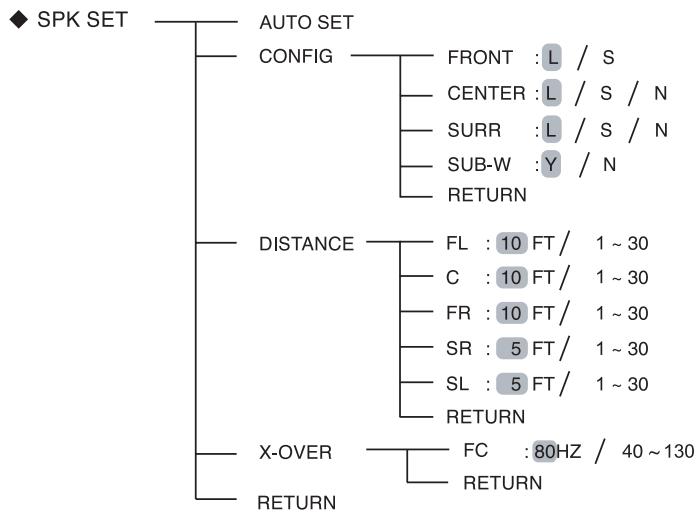
- When selecting "SPK SET", see "SETTING THE SPEAKER SETUP" on page 34.
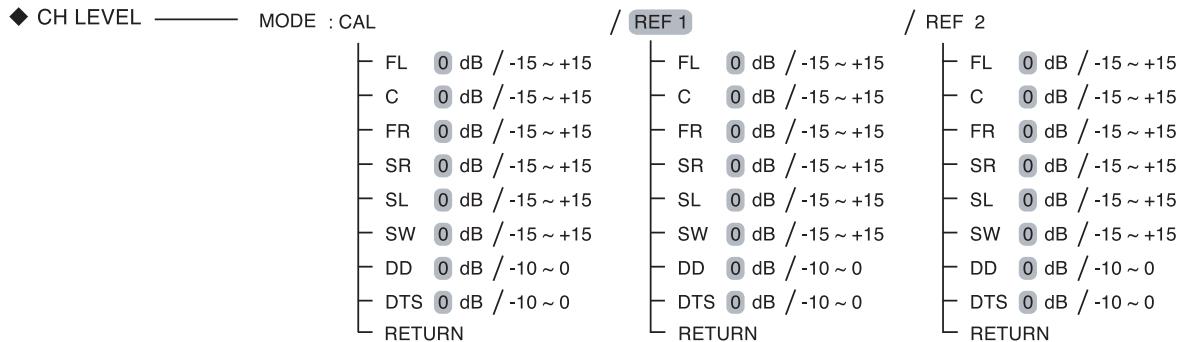
- When selecting "CH LEVEL", see "SETTING THE CH LEVEL" on page 39.
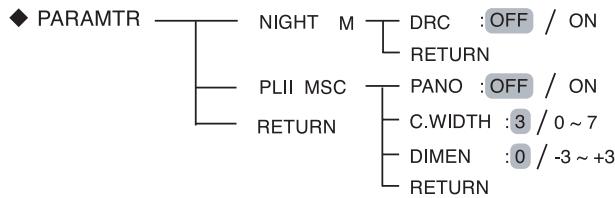
- When selecting "PARAMTR", see "SETTING THE PARAMETER" on page 41.
-
When selecting "EXIT", the setup menu will be turned off.
-
Setup menu flow
- The setup menu flow is as follows :

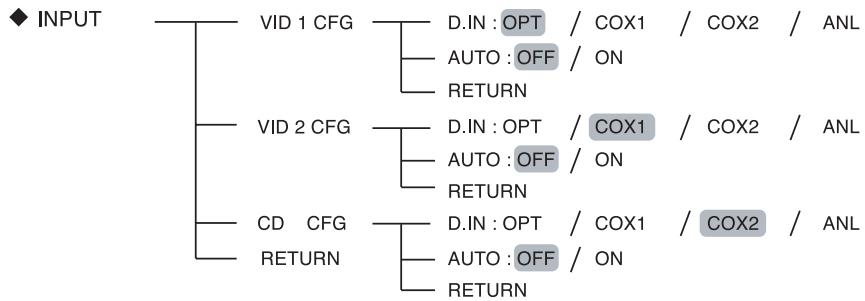
EXIT
- When "RETURN" is selected on a sub-menu, it will return to the previous menu.
Note: - During setup menu operation, only the (POWER ON/) STANDBY button and the buttons required for system setup will function.
SETTING THE SYSTEM
SYSTEM

- SW (SUBWOOFER) : To select the desired subwoofer mode.
TONE: To adjust the tone (bass and treble) as desired. - RMEQ (ROOM EQ): To select the desired room EQ mode.
-
RETURN: To return to the previous menu.
-
Press CURSOR UP(▲)/DOWN(▼) buttons to select the desired item.
- Press the CURSOR LEFT(▲)/RIGHT(▶) buttons to set the selected item as desired.
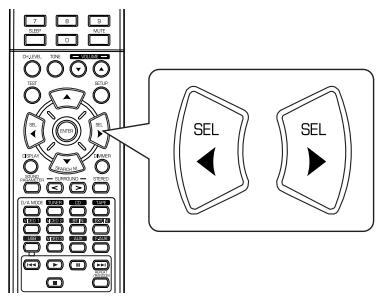
When selecting the SUBWOOFER mode
- "SW + " mode is effective only when "FRONT", "CENTER" or "SURR" is set to "L" and "SUB-W" is set to "Y" on the SPK SET menu. (For details, refer to "SETTING THE SPEAKER SETUP" on page 34.)
NORM : When the low frequency signals of channels set to "L" are reproduced from those channels only.
In this mode, the low frequency signals that are reproduced from the subwoofer channel is only the low frequency signals of LFE (from the multi-channel sources that contains LFE (Low Frequency Effects) channel, also called the ".1" channel) and the channels set to "S".
SW +: When the low frequency signals of channels set to "L" are reproduced simultaneously from those channels and the subwoofer channel.
In this mode, the low frequency range expands more uniformly through the room, but depending on the size and shape of the room, interference may result in a decrease of the actual volume of the low frequency range.
When selecting the TONE
OFF: To listen to a program source without the tone effect. ("DIR" indicator lights up.)
↓
ON: To adjust the tone for your taste. ("DIR" indicator goes off.)
Note :
-
When the EXTERNAL IN is selected as an input source, the TONE cannot be set to ON.
-
When the TONE is set to ON to adjust the tone (bass and treble)
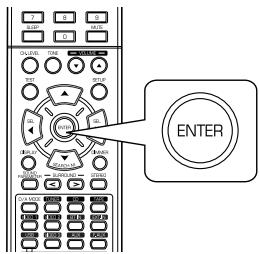
① Press the ENTER button to enter the tone adjustment.

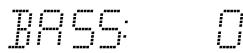
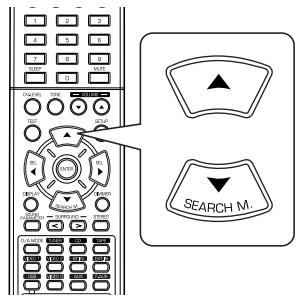
② Press the CURSOR UP(▲)/DOWN(▼) buttons to select the desired tone.
③ Press the CURSOR LEFT(▲)/RIGHT(▶) buttons to adjust the selected tone as desired.
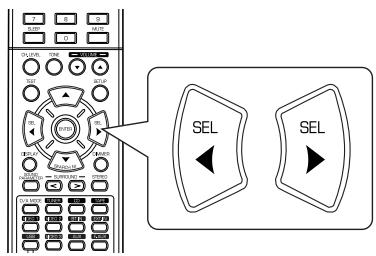
The tone level can be adjusted within the range of -10 +10 dB.
- In general, we recommend the bass and treble to be adjusted to 0 dB (flat level).
- Extreme settings at high volume may damage your speakers.
To complete tone adjustment, repeat the above steps ② and ③.
When selecting the ROOM EQ mode
- The room EQ is a kind of room equalizer for your speakers. According to the acoustic characteristics of your room measured by the auto setup, the room EQ automatically adjusts the frequency response of your speakers.
- If you use different brands or sizes of speakers for some channels or have a room with unique acoustic characteristics, such as walls, furniture, and the dimensions or the shape of the room, we recommend using the room EQ.
Note:
- When playing the 96kHz PCM (2 channel) digital signals, the room EQ is invalid.
OFF: When turning off the room EQ.
↓
ON (AUTO SET): To adjust the frequency response of all speakers to the flattest response.
- If you have never performed the auto setup, it will automatically enter the auto setup mode to measure the acoustic characteristics of your room. In this case, you should perform the auto setup to set the ROOM EQ to ON. (For details, refer to "When selecting the AUTO SETUP" on page 35.)
SETTING THE INPUT

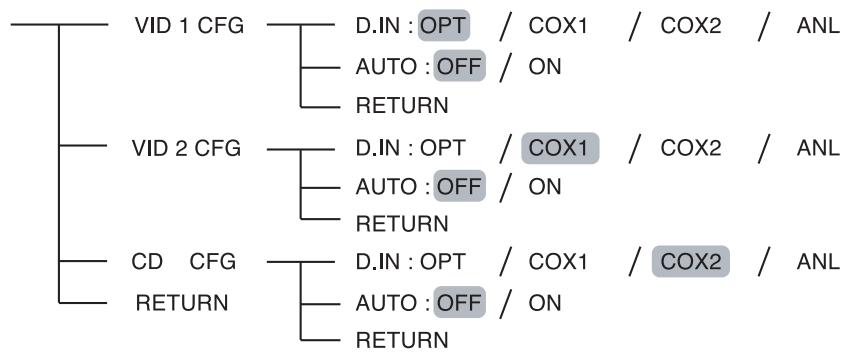
- D.IN (DIGITAL IN) : To assign the connected DIGITAL INs to the desired input.
- AUTO (AUTO SURROUND): To select the auto surround mode or the manual surround mode.
-
RETURN : To return to the previous menu.
-
Press the CURSOR UP(▲)/DOWN(▼) buttons to select the desired input source, then press the ENTER button.
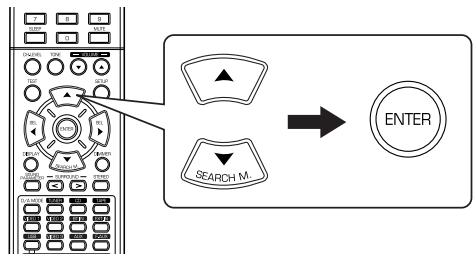

Example) When selecting the VIDEO 2
11111
- Press the CURSOR UP(▲)/DOWN(▼) buttons to select the desired item.
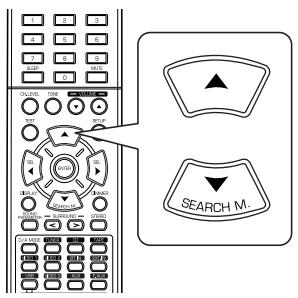
- Press the CURSOR LEFT( /RIGHT () buttons to set the selected item as desired.
When selecting the DIGITAL IN
- You should assign the connected DIGITAL INs to the desired of CD and VIDEO 1 ~ VIDEO 2. (For details, refer to "CONNECTING DIGITAL INs" on page 9.)
- You can select the desired of OPT (optical), COX 1(coaxial 1), COX 2(coaxial 2) and ANL (analog).
■ Note :
- In such a case that a DIGITAL IN is assigned to two input sources or more, when these input sources are selected, the digital audio signals can be heard from the same DIGITAL IN.
When selecting the AUTO SURROUND
- Depending on how to select a surround mode, you can select the auto surround mode or the manual surround mode.
OFF : You can select the desired of different surround modes selectable for the signal being input with (Manual surround mode) using the MULTI CONTROL knob or the SURROUND MODE UP/DOWN (> / <) buttons. (For details, refer to "ENJOYING SURROUND SOUND" on page 19.)
ON : The optimum surround mode will be automatically selected depending on the signal format being (Auto surround mode) input.
Notes :
- When the input source other than CD and VIDEO 1 ~ 2 is selected, you cannot select the auto surround mode and can select the surround mode as desired(the manual surround mode).
- When the auto surround mode is selected, the surround modes other than the optimum surround mode cannot be selected.
SETTING THE SPEAKER SETUP
- After you have installed this receiver and connected all the components, you should adjust the speaker settings for the optimum sound acoustics according to your environment and speaker layout.
- Even when you change speakers, speaker positions, or the layout of your listening environment, you should adjust the speaker settings, too.
- When performing the AUTO SETUP procedure, you need not perform the CONFIGURATION, DISTANCE and CH LEVEL setup procedures.
SPK SET
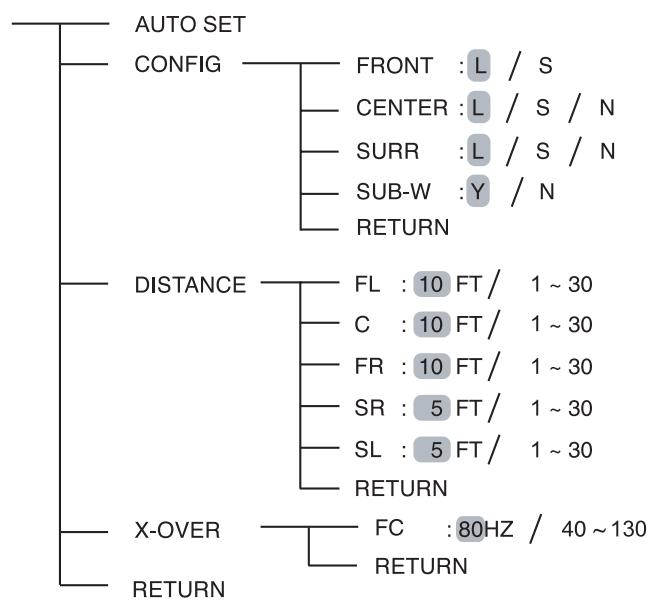
- AUTO SET (AUTO SETUP) : To set the speaker setup and channel level setup automatically.
- CONFIG (CONFIGURATION) : To select the sizes of the speakers that are connected.
- DISTANCE: To enter the distance between the listening position and each speaker to set the delay time automatically for optimum surround playback.
- X-OVER (CROSSOVER): To select the desired crossover frequency.
- RETURN: To return to the previous menu.
When selecting the AUTO SETUP
- Auto Setup lets you avoid troublesome listening-based speaker setup and achieve good surround sound. You should connect the supplied microphone to the SETUP MIC jack so that this receiver can analyze the information from a series of test tones emitted from speakers and can adjust the configuration, distance, sound level and frequency response of each speaker automatically.
- If you want to personalize your speaker setup and channel level setup by making the settings manually, perform "When selecting the CONFIGURATION" on page 36, "When selecting the DISTANCE" on page 37, "When selecting the CROSSOVER" on page 38, "Adjusting each channel level with test tone" on page 21 and "Adjusting the current channel level" on page 22.
- After the auto setup has been completed, the ROOM EQ is automatically set to ON. (For details, refer to "When selecting the ROOM EQ mode" on page 32.)
Preparations
①. Check that the speakers are securely connected to this receiver.
- If your subwoofer has adjustable volume and crossover frequency, set the volume halfway and set the crossover frequency to the maximum or the low pass filter off.
②. Connect the supplied microphone to the SETUP MIC jack on the front panel.(For details, refer to "SETUP MIC JACK" on page 12.)
Notes :
- Because the microphone for Auto Setup is designed for use with this receiver, to use the auto setup function, do not use a microphone other than the one supplied with this receiver.
After you have completed the auto setup procedure, disconnect the microphone.
1. Place the microphone on a flat level surface at the listening position.
If possible, use a tripod, etc. to attach the microphone at the same height as your ears would be when you are seated in your listening position.
- Ensure there are no obstacles between the speakers and the microphone.
2. Press the CURSOR UP(▲)/DOWN(▼) buttons to select the "AUTO SET", then press the ENTER button.
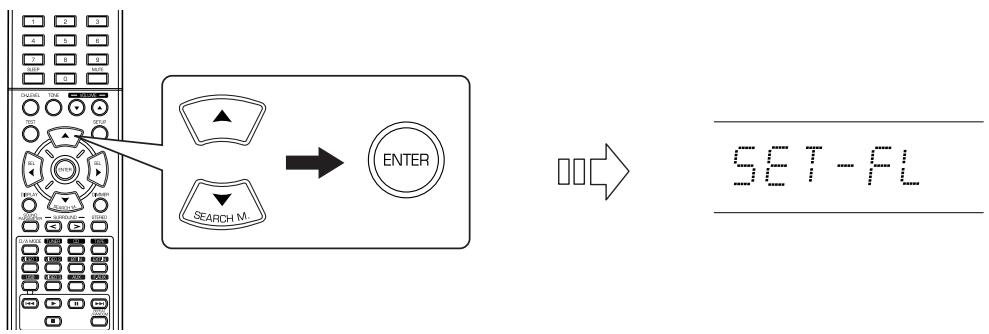
- Loud test tones are output from each speaker and then if the auto speaker setup procedure has been completed and the results are memorized, the "AUTO SET" will be displayed.
- Check the results on each setup menu (CONFIGURATION menu on page 36, DISTANCE menu on page 37, and CH LEVEL menu for "REF 1" mode on page 39.)
- If the results are not satisfactory, you can retry the auto setup procedure or personalize your speaker setup and channel level setup by making the settings manually.
- To stop the auto setup procedure while outputting the test tones, press the ENTER button.
- If there may be a problem with speaker or microphone connection, "ERROR" will be displayed. In this case, turn off the power, check the connection and then retry the auto setup procedure.
Notes :
- Because the test tones are loud, ensure there no infants or small children in the room.
- For best results, ensure the room is as quiet as possible during the auto setup procedure.
If there is too much ambient noise, the results may not be satisfactory.
When selecting the CONFIGURATION
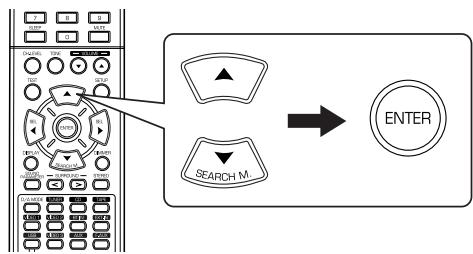
- Press the CURSOR UP(▲)/DOWN(▼) buttons to select the "CONFIG", then press the ENTER button.

FRNT: L
- Press the CURSOR UP(▲)/DOWN(▼) buttons to select the desired speaker.
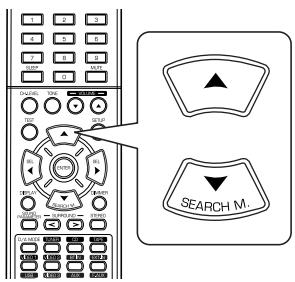
- Press the CURSOR LEFT(▲)/ RIGHT(▶) buttons to set the selected speaker as desired.
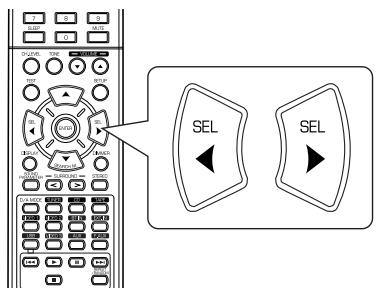
- Depending on your speaker type, you can select one of these following speaker types.
L(Large): Select this when connecting speakers that can fully reproduce sounds below crossover frequency.
S(Small): Select this when connecting speakers that can not fully reproduce sounds below crossover frequency. When this is selected, sounds below crossover frequency are sent to the subwoofer or speakers which are set to "L (Large)" (when not using a subwoofer)
N(None): Select this when no speakers are connected. When this is selected, sounds are sent to the speakers which are not set to "N (None)".
Y(Yes)/N(No): Select the desired depending on whether a subwoofer is connected or not.
Notes:
- When speakers are set to "S (Small)", you should set their crossover frequency correctly according to their frequency characteristics. (For details, refer to "When selecting the CROSSOVER" on page 38.)
- When "SUB-W" is set to "N (No)", "FRONT" is automatically set to "L (Large)".
-
When the "FRONT" is set to "S (Small)", "CENTER" and "SURR" cannot be set to "L (Large)".
-
Repeat the above steps 2 and 3 until the speakers are all set to the desired mode.
■About the speaker size
- Select "L (Large)" or "S (Small)" not according to the actual size of the speaker but according to the speaker's capacity for playing low frequency (bass sound below frequency set on the "X-OVER" menu) signals.
- If you do not know, try comparing the sound at both settings (setting the volume to a level low enough so as not to damage the speakers) to determine the proper setting.
When selecting the DISTANCE
- Press the CURSOR UP(▲)/DOWN(▼) buttons to select the DISTANCE, then press the ENTER button.
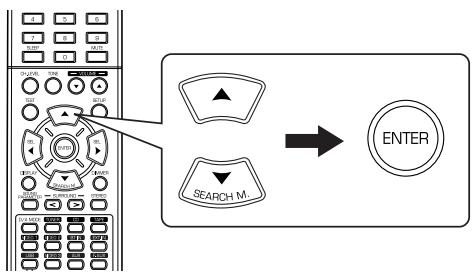

F F
- Press the CURSOR UP(▲)/DOWN(▼) buttons to select the desired speaker.
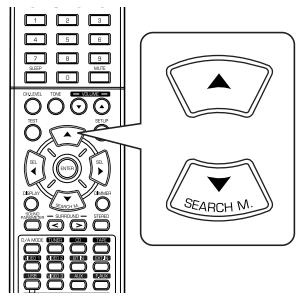
Note :
-
You cannot select the speakers set to "N (None)" and the subwoofer.
-
Press the CURSOR LEFT(▲)/RIGHT(▶) buttons to set the selected speaker as desired.
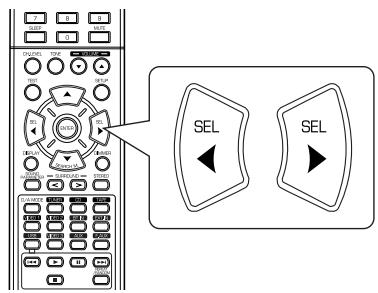
-
You can set the distance within the range of 1 30 feet in 1 feet intervals.
-
Repeat the above steps 2 and 3 until the distances are all set as desired.
■About the speaker distance
When enjoying multi-channel surround playback with Dolby Digital and DTS sources, etc., it is ideal that the center and surround speakers should be the same distance from the main listening position as the front speakers. By entering the distance between the listening position and each speaker, the delay times of center and surround speakers are automatically adjusted to create an ideal listening environment virtually as if the center and surround speakers were at their ideal locations respectively.
When selecting the CROSSOVER
-
When speakers are set to "S (Small)", be sure to set their crossover frequency correctly according to their frequency characteristics.
-
Press the CURSOR UP(▲)/DOWN(▼) buttons to select the "X-OVER", then press the ENTER button.
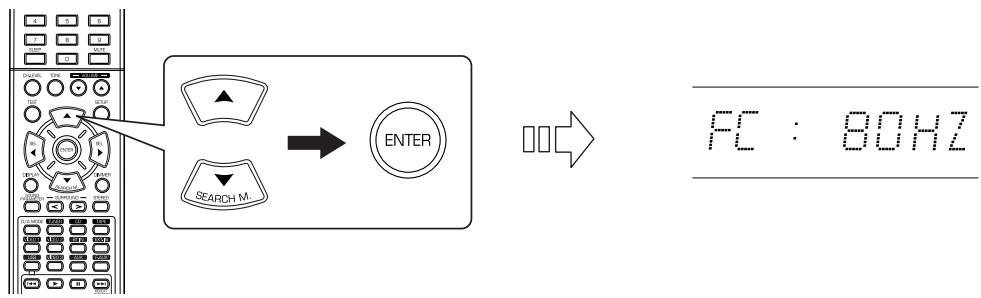
- Press the CURSOR LEFT(▲)/RIGHT(▶) buttons to set the crossover frequency as desired.
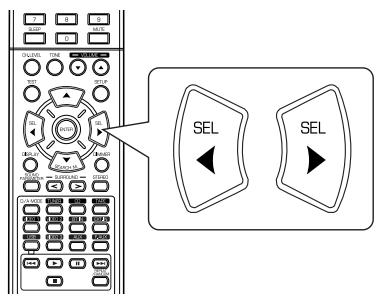
- You can adjust the crossover frequency within the range of 40 130Hz in 10Hz intervals.
About the crossover frequency
- When speakers are set to "S (Small)", low frequencies in those channels that are below the crossover frequency are to output from subwoofer or front speakers which are set to "L (Large)" (when not using a subwoofer).
- Refer to the operating instructions of the speakers to be connected. If the frequency range of your speaker is 100Hz 20 kHz, the crossover frequency should be set to 100Hz (or slightly higher).
SETTING THE CH LEVEL
CHLEVEL
MODE : CAL
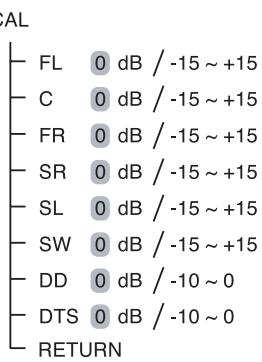
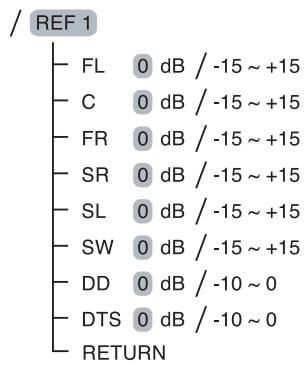
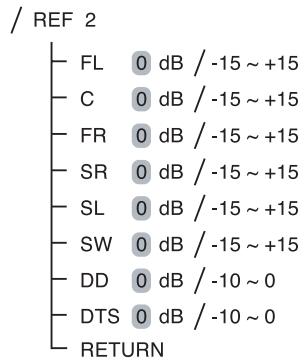
Note : Depending on the speaker settings ("N (None or No)"), some channels cannot be selected.
Adjusting the current channel level
-
You can adjust the current channel levels as desired. These adjusted levels are just memorized into user's memory("CAL"), not into preset memory ("REF 1", "REF 2")
After adjusting each channel level with test tone, adjust the channel levels either according to the program sources or to suit your tastes. (For details, refer to "Adjusting each channel level with test tone" on page 21.) -
Press the CURSOR UP(▲)/DOWN(▼) buttons to select the desired channel.
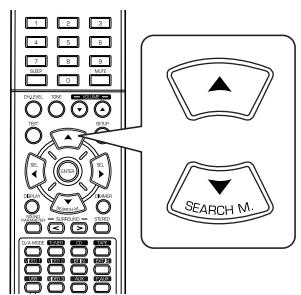

Example) When selecting Dolby Digital source's LFE
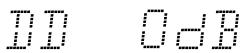
- Press the CURSOR LEFT(▲)/RIGHT(▶) buttons to adjust the level of the selected channel or program source's LFE as desired.
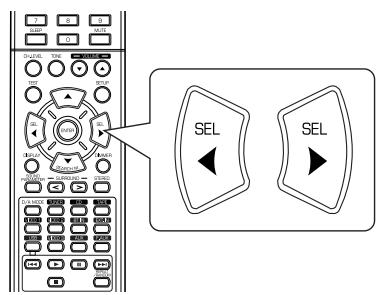
- The LFE level can be adjusted within the range of -10 0 dB and other channel levels within the range of -15 +15 dB
-
In general, we recommend the LFE level to be adjusted to 0 dB. (However, the recommended LFE level for some early DTS software is -10 dB.) If the recommended levels seem too high, lower setting as necessary.
-
Repeat the above steps 1 and 2 to adjust each channel level.
Memorizing the adjusted channel levels
-
You can memorize the adjusted channel levels into preset memory("REF 1", "REF 2") and recall the memorized whenever you want.
-
After performing the steps 1 3 in "Adjusting the current channel level" procedure on page 39, press the ENTER button.
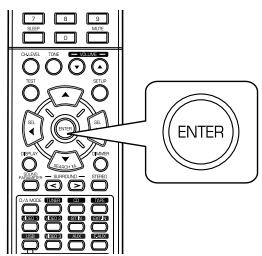

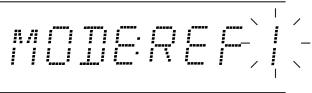
-
Then "1" of "REF 1" indication flickers.
-
Press the CURSOR LEFT(▲)/RIGHT(▶) buttons to select the desired preset memory, then press the ENTER button.
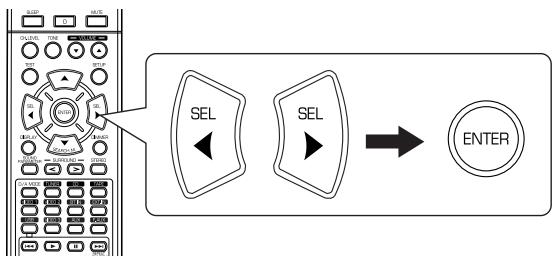
Recalling the memorized channel levels
Each time the CURSOR LEFT( ) or RIGHT( ) button is pressed, "REF 1" or "REF 2" is selected.
- The adjusted channel levels have now been memorized into the selected memory.
- Press the CURSOR UP(▲)/DOWN(▼) buttons to select the "MODE ~".
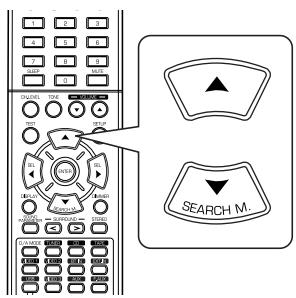

MODE:CAL
-
"CAL" may be displayed instead of "REF 1" or "REF 2".
-
Press the CURSOR LEFT(▲)/RIGHT(▶) buttons to select the desired one of REF 1 and REF 2.
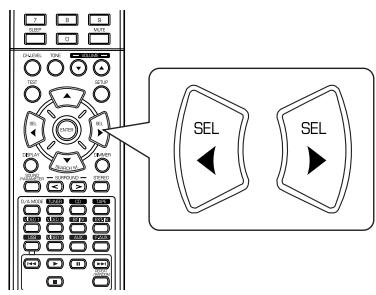
- Then the channel levels memorized into the selected preset memory are recalled.
SETTING THE PARAMETER
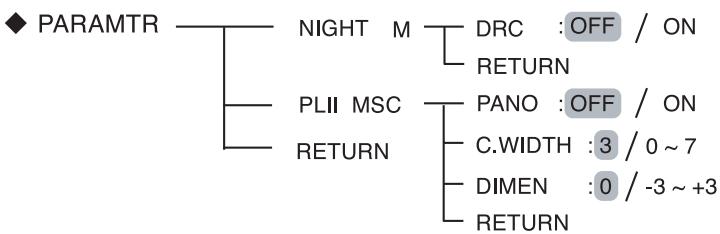
- NIGHT M (NIGHT MODE): To adjust the dynamic range compression that makes faint sound easier to hear at low volume levels.
- PLII MSC (DOLBY PLII MUSIC): To adjust the various surround parameters for optimum surround effect.
- RETURN : To return to the previous menu.
When selecting the NIGHT MODE
- This function compresses the dynamic range of previously specified parts of Dolby Digital or DTS sound track (with extremely high volume) to minimize the difference in volume between the specified and non-specified parts. This makes it easy to hear all of the sound track when watching movies at night at low levels.
Notes:
The night mode setting is valid only when the digital signals from Dolby Digital or DTS program source are being input.
- In some Dolby Digital or DTS softwares, the night mode setting may not be valid.
- Press the CURSOR UP(▲)/DOWN(▼) buttons to select the "NIGHT M", then press the ENTER button.
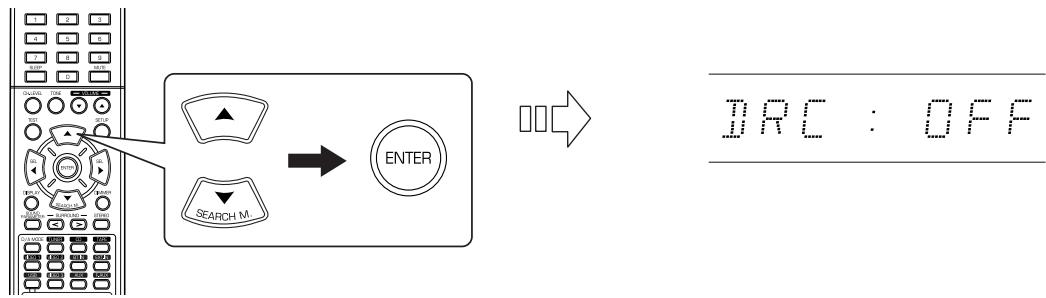
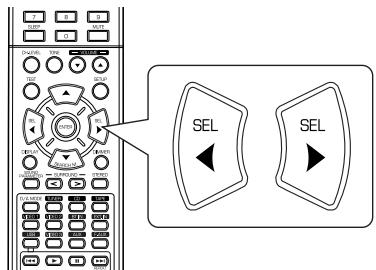
- Press the CURSOR LEFT( )/RIGHT( ) buttons to set the night mode as desired.
OFF: To turn off the night mode function.
↑
ON:To turn it on.
When selecting the DOLBY PLII MUSIC
-
You can adjust the various surround parameters for optimum surround effect.
Note: The parameter settings are valid only when listening in Dolby Pro Logic II Music mode. -
Press the CURSOR UP(▲)/DOWN(▼) buttons to select the "PLII MSC", then press the ENTER button.
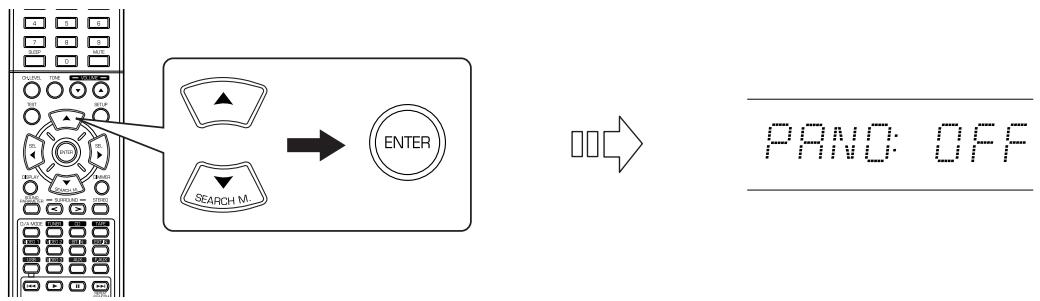
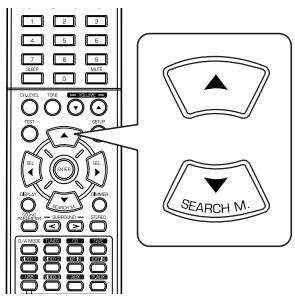
- Press the CURSOR UP(▲)/DOWN(▼) buttons to select the desired parameter.
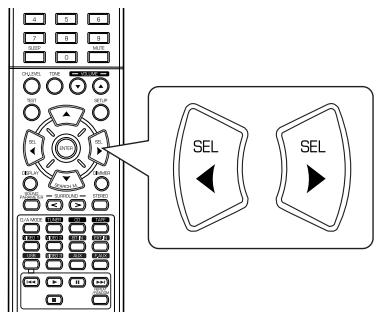
- Press the CURSOR LEFT(▲)/ RIGHT(▶) buttons to adjust the selected parameter as desired.
■ When selecting the "PANO (Panorama)" mode
This mode extends the front stereo image to include the surround speakers for an exciting "wraparound" effect with side wall imaging. Select "OFF" or "ON"(default value:OFF).
■ When selecting the "C. WIDTH (Center width)" control
This adjusts the center image so it may be heard only from the center speaker, only from the left/right speakers as a phantom image, or from all three front speakers to varying degrees. The control can be set in 8 steps from 0 to 7 (default value : 3).
■ When selecting the "DIMEN (Dimension)" control
This gradually adjusts the soundfield either towards the front or towards the rear. The control can be set in 7 steps from -3 to +3 (default value : 0).
- Repeat the above steps 2 and 3 to adjust other parameters.
Troubleshooting Guide
If a fault occurs, run through the table below before taking your receiver for repair.
If the fault persists, attempt to solve it by switching the receiver off and on again. If this fails to resolve the situation, consult your dealer. Under no circumstances should you attempt to repair the receiver yourself. This could void the warranty.
| PROBLEM | POSSIBLE CAUSE | REMEDY |
| No power | ·The AC input cord is disconnected. ·Poor connection at AC wall outlet or the outlet is inactive. | ·Connect the cord securely. ·Check the outlet using a lamp or another appliance. |
| No sound | ·The speaker cords are disconnected. ·The master volume is adjusted too low. ·The MUTE button on the remote control is pressed to ON. ·Speakers are not switched on. ·Incorrect selection of the input source. ·Incorrect connections between the components. | ·Check the speaker connections. ·Adjust the master volume. ·Press the MUTE button to cancel the muting effect. ·Press the SPEAKER button to ON. ·Select the desired input source correctly. ·Make connections correctly. |
| No sound from the surround speakers | ·Surround mode is switched off(stereo mode). ·Master volume and surround level are too low. ·A monaural source is used. ·Surround speaker setting is "N". | ·Select a surround mode. ·Adjust master volume and surround level. ·Select a stereo or surround source. ·Select the desired surround speaker setting. |
| No sound from the center speaker | ·Surround mode is switched off(stereo mode). ·Center speaker setting is "N". ·Master volume and center level are too low. | ·Select the desired surround. ·Select the desired center speaker setting. ·Adjust master volume and center level. |
| Stations cannot be received | ·No antenna is connected. ·The desired station frequency is not tuned in. ·The antenna is in wrong position. | ·Connect an antenna. ·Tune in the desired station frequency. ·Move the antenna and retry tuning. |
| Preset stations cannot be received | ·An incorrect station frequency has been memorized. ·The memorized stations are cleared. | ·Memorize the correct station frequency. ·Memorize the stations again. |
| Poor FM reception | ·No antenna is connected. ·The antenna is not positioned for the best reception. | ·Connect an antenna. ·Change the position of the antenna. |
| Continuous hissing noise during FM reception, especially when a stereo broadcast is received. | ·Weak signals. | ·Change the position of the antenna. ·Install an outdoor FM antenna. |
| Continuous or intermittent hissing noise during AM reception, especially at night. | ·Noise is caused by motors, fluorescent lamps or lightning, etc. | ·Keep the receiver away from noise sources. ·Install an outdoor AM antenna. |
| Remote control unit does not operate. | ·Batteries are not loaded or exhausted. ·The remote sensor is obstructed. | ·Replace the batteries. ·Remove the obstacle. |
Specifications
■ AMPLIFIER SECTION
Power output, stereo mode, 6 Ω, THD 0.7%, 40 Hz~20 kHz
Total harmonic distortion, 6 Ω, 100 W, 1 kHz 0.09 %
- Intermodulation distortion
60 Hz : 7 kHz= 4 : 1 SMPTE, 6 Ω, 100 W
0.1 %
Input sensitivity, 47k Line (CD, TAPE,VIDEO) 280 mV
- Signal to noise ratio, IHF "A" weighted Line (CD, TAPE, VIDEO) 92 dB
- Frequency response Line (CD, TAPE, VIDEO), 20 Hz~50 kHz +0 dB, -3 dB
Output level TAPE REC, 2.2k 280mV PRE OUT (Subwoofer),1 kΩ . 1.0 V
- Bass/Treble control, 100 Hz/10 kHz ±10 dB
- Surround mode, only channel driven
- Front power output, 6 Ω, 1 kHz, THD 0.7 % 110 W / 110 W
- Center power output, 6 Ω, 1 kHz, THD 0.7 % 110 W
- Surround power output, 6 Ω, 1 kHz, THD 0.7 % 110 W / 110 W
DIGITAL AUDIO SECTION
- Sampling frequency 32, 44.1, 48, 96 kHz
- Digital input level Coaxial, 75 Ω 0.5 Vp-p Optical, 660 nm -15 ~ -21 dBm
VIDEO SECTION
- Video format NTSC
Input sensitivity (=Output level), 75 Ω Video (Composite (normal)) 1 Vp-p S-Video (luminance signal) 1 Vp-p (chrominance signal) 0.286 Vp-p
Component video (R-Y signal) 0.5 Vp-p
(B-Y signal) 0.5 Vp-p
(Y signal) 1.0 Vp-p
HDMI connector 19 pin
FM TUNER SECTION
·Tuning frequency range 87.5\~108 MHz
- Usable sensitivity, THD 3%, S/N 30 dB 12.8 dBf
·50 dB quieting sensitivity, mono/stereo 20.2/45.3 dBf
- Signal to noise ratio, 65 dBf, mono/stereo 55/50 dB
Total harmonic distortion, 65 dBf,1 kHz, mono/stereo 0.5/1.0%
Frequency response, 30 Hz~12 kHz ±3.0 dB
- Stereo separation, 1 kHz 30 dB
- Capture ratio 4 dB
·IF rejection ratio 80 dB
AM TUNER SECTION
- Tuning frequency range 520 ~ 1710 kHz
- Usable sensitivity 500 V/m
- Signal to noise ratio 40 dB
- Selectivity 25 dB
GENERAL
Power supply 120 V ~ 60 Hz
·Power consumption 3.8A
Dimensions (W× H× D , including protruding parts) 440x141x370 mm (17-3/8x5-1/2x14-1/2 inches)
Weight (Net) 9.2 kg (20.3 lbs)
Note: Design and specifications are subject to change without notice for improvements.