
KIRK 7010 - Cordless phone POLYCOM - Free user manual and instructions
Find the device manual for free KIRK 7010 POLYCOM in PDF.



| Product type | DECT cordless phone |
| Brand | Polycom |
| Model | KIRK 7010 |
| Category | Cordless phone |
| Weight (with battery) | 123 g ± 10 g |
| Battery | Integrated rechargeable (replacement by distributor) |
| Talk time | 20 hours |
| Standby time | 200 hours |
| Initial charging time | 14 to 16 hours |
| Protection rating | IP54 (protected against dust and splashes) |
| Operating temperature | -10°C to 55°C |
| Charging temperature | 0°C to 40°C |
| Display | LCD screen with icons |
| Keypad | Alphanumeric, programmable keys, four-way navigation |
| Main functions | Calls, directory (100 contacts), call log, silent mode, keypad lock, shortcuts, alarm |
| Speakerphone | Not available on this model |
| Vibrator | Not available on this model |
| Bluetooth | Not available on this model (model 7040 only) |
| Standards | CE, EN 60950-1, EN 301 406, EN 300 328 |
| Maintenance and cleaning | Clean with a soft cloth; resistant to disinfectant products |
| Recycling | Do not dispose of with household waste (WEEE); battery recycling via polycom.com/batteries |
Frequently Asked Questions - KIRK 7010 POLYCOM
User questions about KIRK 7010 POLYCOM
0 question about this device. Answer the ones you know or ask your own.
Ask a new question about this device
Download the instructions for your Cordless phone in PDF format for free! Find your manual KIRK 7010 - POLYCOM and take your electronic device back in hand. On this page are published all the documents necessary for the use of your device. KIRK 7010 by POLYCOM.
USER MANUAL KIRK 7010 POLYCOM
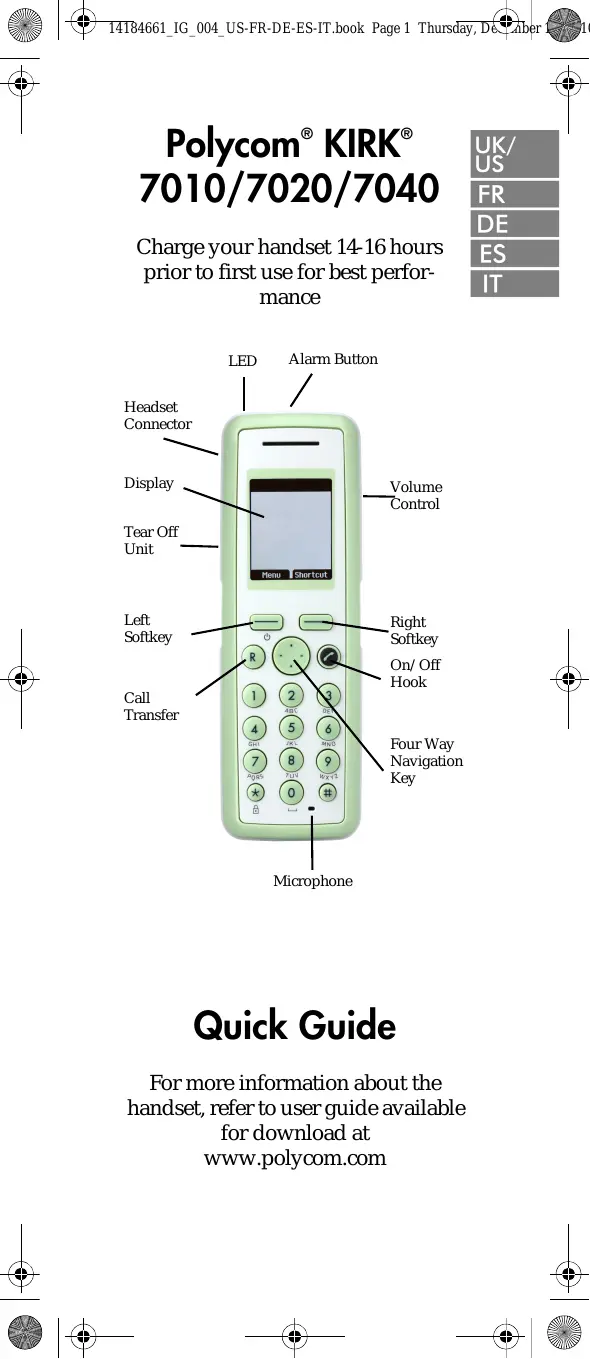
Charge your handset 14-16 hours prior to first use for best performance
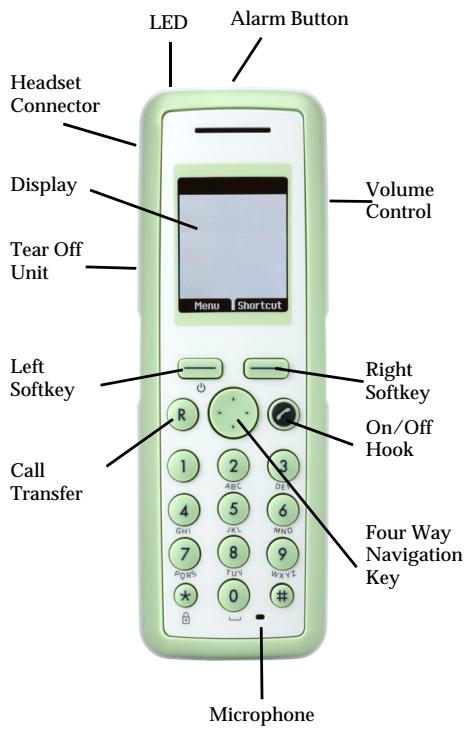
text_image
LED Alarm Button Headset Connector Display Tear Off Unit Menu Shortcut Volume Control Left Softkey Right Softkey On/Off Hook Call Transfer Four Way Navigation Key MicrophoneQuick Guide
For more information about the handset, refer to user guide available for download at www.polycom.com
Basic Handset Option
Turning Handset On/Off
- To turn on the handset, press left softkey.
- To turn off the handset, press left softkey until the question Turn off? appears in the display. Confirm with Yes.
Adjusting Speaker Volume
Use the key placed at the upper right side of the handset for volume control.
Locking Keypad
- Press Menu followed by to lock keypad.
- Press Unlock followed by to unlock keypad.
Shortcuts.
Predefined Shortcuts
Predefined shortcuts are unchangeable and assigned to different keys on the handset.
Silent mode On/Off: Press Menu, followed by the # button to turn the handset silent mode on/off. In silent mode the ringer will be muted and the vibrator activated.
Call transfer: While off hook, press R.
Call list: Press left side of the navigation key to enter Call list.
Missed Calls: Press right side of navigation key.
Find Name: Press top or bottom of navigation key.
Exit Menu: While navigating menus, press the R button to exit the menu and go back to the main screen.
Save contact: Dial number and press Save.
UK/US
Personal Shortcuts
Personal shortcuts consist of functions, you have chosen to add from a list of shortcuts. The list is assigned to the right softkey.
To add a shortcut:
1 Press Shortcut.
2 Scroll to Edit shortcut and press Select.
3 Press Select to add the function to the list of personal shortcuts.
To use a shortcut:
1 Press Shortcut.
2 Scroll to the desired shortcut and press Select.
Making Calls
Off Hook Dialling (Dial Directly)
1 Press ↗ to make a call.
2 Dial number.
3 Press 📋 to terminate the call.
On Hook Dialling (Pre-Dial)
1 Dial number.
2 Press ↗ to make a call.
3 Press ↗ to terminate the call.
Speed Dial
- Press a key (0-9) continuously for three seconds until a call is started. (You must assign a key to a number in Phone Book).
Assigning Speed Dials
1 Press Menu to enter the main menu.
2 Scroll the Phone Book and press Select.
3 Scroll to Speed dial and then press Select.
4 Scroll to the appropriate speed dial entry (0-9) and then press Add name.
5 Select the appropriate phone book entry and press OK.
6 Select the appropriate number and press OK.
From Call List
1 Press left side of navigation key to enter Call list.
2 Scroll to desired name or number and press ↗.
From Phone Book
1 Press Menu to enter main menu.
2 Scroll to Phone Book and press Select.
3 Scroll to Find name and press Select.
4 Find the desired name and press to make a call.
Answering Calls
- Press ↗ to answer a call when your handset rings.
UK/US
Mute a Call
- Press Silence and the ring signal is muted.
Reject a Call
- Press Reject to refuse the call.
Call Transfer
- Press and dial number. To withdraw the call, press again.
Note: The feature is system dependent.
Turning Speakerphone On/Off (Not available on 7010)
- While on a call, press Loud on to turn speakerphone on.
- Press Loud off to turn speakerphone off.
Turning Microphone Mute On/Off
- While on a call, press Mic Mute to turn microphone mute on.
- Press Mic on to turn microphone mute off.
Changing Settings
Adjusting Ringing Volume
1 Press Menu to enter main menu.
2 Scroll to Settings and press Select.
3 Scroll to Ringing volume and press Select.
4 Press left or right side of navigation key to adjust the volume.
5 Press Set and then Back.
Changing Ringing Tone
1 Press Menu to enter main menu.
2 Scroll to Settings and press Select.
3 Scroll to Ringing tone and press Select.
4 Scroll to desired ringing tone and press Change to listen to chosen ringer tone.
5 Press Back.
Turning Vibrator On/Off (Not available on 7010)
1 Press Menu to enter main menu.
2 Scroll to Settings and press Select.
3 Scroll to Vibrator and press Select.
4 Scroll to On or Off and press Change.
5 Press Back.
Adding Contact to Phone Book
1 Press Menu to enter main menu.
2 Scroll to Phone Book and press Select.
3 Scroll to Add name/number and press Select.
4 Type the name of the contact using the keys 2-9.
5 Scroll to number and enter the number of the contact (max. 24 digits).
6 Press Save to store the name and number.
Handset Options Status
UK/US
To display the status of the handset options (battery, ringer volume, firmware etc.).
1 Press Menu to enter the main menu.
2 Scroll to Status and then press Select.
3 Press the top or bottom of the navigation key to highlight the appropriate menu item and then press Select to enter the menu of the selected item.
4 Press Back.
Bluetooth Function (7040 feature only)
Activate Bluetooth
1 Press Menu to enter main menu.
2 Scroll to Settings and press Select.
3 Scroll to Bluetooth and press Select.
4 Scroll to Active and press Select.
5 Scroll to On and press Select.
Pair Wireless Headset with the Handset
1 Press Menu to enter main menu.
2 Scroll to Settings and press Select.
3 Scroll to Bluetooth and press Select.
4 Scroll to Search for compatible Bluetooth headset and press Select.
5 Select the headset code number listed in the display of the handset and press Stop, then press Add.
6 Enter pin code and press OK (Consult the user guide of the Bluetooth headset for the pin code information).
7 Press OK, and press Options in order to connect to the headset.
8 Scroll to Connect and press Select.
9 Press OK.
Auto Connect
1 Press Menu to enter main menu.
2 Scroll to Settings and press Select.
3 Scroll to Bluetooth and press Select.
4 Scroll to Active and press Select.
5 Scroll to Settings and press Select.
6 Activate Auto connect by pressing Select, then press Back. The wireless headset will now connect automatically to the handset when the headset is turned on.
Headset Volume
1 Press Menu to enter main menu.
2 Scroll to Settings and press Select.
3 Scroll to Bluetooth and press Select.
4 Scroll to Active and press Select.
5 Scroll to Settings and press Select.
6 Scroll to Headset volume and press Select.
7 Press left or right side of navigation key to adjust the volume.
Switch Between Headset and Handset
When the headset is active and the handset is off hook, the audio can be switched between the headset and the handset.
1 Activate handset / headset soft key by pressing the left or the right side of the navigation key.
2 Press Handset, and the audio is switched to the handset.
3 Press Headset, and the audio is switched back to the headset.
UK/US
Battery
The battery is connected to the handset from factory and must not be removed. To replace the battery, please contact your local distributor.
General Information Technical Specifications
Approvals
EN 60950-1: 2006
EN 301 489-1 v.1.8.1 (2008-04)
EN 301 489-6 v.1.3.1 (2002-08)
EN 301 489-17 v.1.2.1 (2002-08)
EN 55022:2006+A1:2007 (Charger only)
EN 50360:2001
Size and weight 7010
Size: 148 x 50.4 x 21.6mm/5.8 x 2.0 x 0.85in
Weight: 120g/4.23 oz incl. battery ± 10g/0.35oz.
Size and weight 7020
Size: 148 x 50.4 x 20mm/5.8 x 2.0 x 0.8 in
Weight: 111g/3.9oz incl. battery ± 10g/0.35oz.
Size and weight 7040
Size: 148 x 50.4 x 20mm/5.8 x 2.0 x 0.79in
Weight: 115g/4.06oz incl. battery ± 10g/0.35oz.
Capacity 7010/7020/7040
Active talking time up to 20 hours
Standby time up to 200 hours
Capacity 7040 with bluetooth turned on
Active talking time up to 15 hours
Standby time up to 100 hours
Temperature
Operating temperature: -10-55°C/
14-131°F
Effective charging range of this system is
0-40°C/32-104°F
IP Rating
According to EN60529
7010: IP54 (Dust protected and water
splash proof)
7020/7040: IP64 (Dust tight and water
splash proof)
Drop Test
According to IEC 60068-2-31 (2008-05)
Vibration Test
According to IEC 60068-2-6 (2007-12)
Bump Test
According to IEC 60068-2-27 (2008-2)
Disinfectant Resistant Handset
International Regulatory and Product Information
| CE | This 7010 / 7020/ 7040 Handset has been marked with the CE mark. This mark indicates compliance with EEC Directive 1999/5/EC. A full copy of the Declaration of conformity can be obtained from Polycom Ltd, 270 Bath Road, Slough, Berkshire, SL1 4DX, UK.The WEEE Marking on this equipment indicates that the product must not be disposed of with unsorted waste, but must be collected separately.Visit www.polycom.com/batteries for further guidance on battery recycling. |

Important Safety Instructions
Before using your telephone equipment, you should always follow basic safety instruction to reduce the risk of fire, electrical shock and injury to persons, and damage to property.
- Read and understand all instructions.
- Follow all warnings and instructions including those marked on the product.
- Unplug this product before cleaning. Do not use liquid cleaners or aerosol cleaners. Use damp cloth for cleaning.
- Do not install the telephone equipment in the bathroom or near a wash bowl, kitchen sink, or laundry tub, in a wet basement, or near a swimming pool.
- Slots or openings in the equipment are provided for ventilation to protect it from over-heating. These openings must not be blocked or covered.
- The product should be operated only from the type of power source indicated on the instructions. If you are not sure of the type of power supply, consult your dealer or local power company.
- Do not overload wall outlets and extension cords as this can result in fire or electrical shock.
- Never push objects of any kind into this product through cabinet slots as they may touch dangerous voltage points or short out parts that could result in fire, electrical shock, or injury. Never spill liquid of any kind into this product.
- To reduce the risk of electrical shock or burns, do not disassemble this product. Opening or removing covers may expose you to dangerous voltages, dangerous electrical current, or other risks. Incorrect reassemble can cause electrical shock when the appliance is subsequently used. If the product need repair, consult your dealer.
- Refer servicing to qualified service personnel.
- Avoid using telephone during an electrical storm. There may be a risk of electrical shock from lightning.
-
Do not use the telephone to report a gas leak in the vicinity of the leak.
-
Do not place the base or charger near microwave ovens, radio equipment, or non-ground connected televisions. These appliances may cause electrical interference to the base or handset.
- The charger must be placed on a hard, flat surface and connected to a functional 120 volt AC power source depending on the country of use.
- This telephone will not operate in the event of a blackout. Please keep a backup phone for emergencies.
- Installation must be performed in accordance with all relevant national wiring rules.
- Plug acts as Disconnect Device - The socket outlet to which this apparatus is connected must be installed near the equipment and must always be readily accessible.
- This device and its antenna must not be co-located or operating in conjunction with any other antenna or transmitter.
Intrinsic safety
Do not use the handset in conditions where there is a danger of electrically ignited explosions.
Exposure to sunlight, heat and moisture Do not expose the wireless phone to direct sunlight for long periods. Keep the wireless phone away from excessive heat and moisture.
Spare parts and accessories
Use only approved spare parts and accessories. The operation of non-approved parts cannot be guaranteed and may even cause damage.
Power failure
In the event of a power failure or flat battery, you cannot use the handset to make or receive calls.
Battery Precautions
- Periodically clean the charge contacts on both the charger and handset.
- Exercise care in handling batteries in order not to short the batteries with conducting materials such as rings,
UK/US
bracelets, and keys. The batteries or conducting material may overheat and cause burns or fire.
- Do not open or mutilate the batteries. Released electrolyte is corrosive and may cause damage to the eyes or skin. The electrolyte may be toxic if swallowed.
- During charging batteries heat up. This is normal and not dangerous.
- Lithium cell installation Caution - Danger of Explosion if Battery is incorrectly replaced. Replace only with the same or equivalent type recommended by the manufacturer. Dispose of used batteries according to the manufacturer's instructions.
Notices
Before installing this equipment, users should ensure that it is permissible to be connected to the facilities of the local telecommunications company. The equipment must also be installed using an acceptable method of connection. The customer should be aware that compliance with the above conditions may not prevent degradation of service in some situations.
Repairs to certified equipment should be coordinated by a representative designated by the supplier. Any repairs or alterations made by the user to this equipment, or equipment malfunctions, may give the telecommunications company cause to request the user to disconnect the equipment.
Users should ensure for their own protection that the electrical ground connections of the power utility, telephone lines and internal metallic water pipe system, if present, are connected together. This precaution may be particularly important in rural areas.
EMC CAUTIONS: Users should not attempt to make such connections themselves, but should contact the appropriate electric inspection authority, or electrician, as appropriate.
If your telephone equipment causes harm
to the telephone network, the telephone company may ask you to disconnect the system from the line until the problem has been corrected or they may discontinue your service temporarily. If possible, they will notify you in advance, But if advance notice is not practical, you should be notified as soon as possible. You will be informed of your right to file a complaint with the FCC.
Your telephone company may make changes in its facilities, equipment, operations, or procedures that could affect the proper functioning of your telephone system. If they do and it is possible, you will be notified in advance to give you an opportunity to maintain uninterrupted telephone service. If you experience trouble with this telephone system, disconnect it from the network until the problem has been corrected or until you are sure that the equipment is not malfunctioning.
Note: This equipment has been tested and found to comply with the limits for a class B digital device, pursuant to local regulations. These limits are designed to provide reasonable protection against harmful interference in a residential installation. This equipment generates, uses and can radiate radio frequency energy and, if not installed and used in accordance with the instructions, may cause harmful interference to radio communications. However, there is no guarantee that interference will not occur in a particular installation. If this equipment does cause harmful interference to radio or television reception, which can be determined by turning the equipment off and on, the user is encouraged to try to correct the interference by one or more of the following measures:
- Reorient or relocate the receiving antenna.
- Increase the separation between the equipment and receiver.
- Connect the equipment into an outlet on a circuit different from that to which the receiver is connected.
UK/US
- Consult the dealer or an experienced radio/TV technician for help.
FCC Note: This device complies with part 15 of the FCC rules. Operation is subject to the following two conditions: (1) This device may not cause harmful interference, and (2) this device must accept any interference received, including interference that may cause undesired operation.
Modifications not expressly approved by this company could void the user's authority to operate the equipment.
SAR - Exposure to Radio Frequency (RF) Signals: The wireless phone is a radio transmitter and receiver. It is designed and manufactured not to exceed the emission limit for exposure to radio frequency (RF) energy set by the OET Bulletin 65 Supplement C. These limits are part of comprehensive guidelines and established permitted levels of RF energy for the general population. These guidelines are based on the safety standards previously set by international standard bodies. These standards include a substantial safety margin designed to assure the safety of all persons, regardless of age and health.
This device and its antenna must not be co-located or operating in conjunction with any other antenna or transmitter.
This device has been shown to be capable of compliance for localized specific absorption rate (SAR) for uncontrolled environment / general public exposure limits specific in ANSI/EEE C95.1-1992 and has been tested in accordance with the measurement procedures specified in IEEE Std. 1528-2003 December 2003.
IC Note: Operation is subject to the following two conditions: (1) This device
may not cause interference, and (2) this device must accept any interference, including interference that may cause undesired operation of the device.
The Term “IC”: before the certification/registration number only signifies that the Industry Canada technical specifications were met.
Privacy of communications may not be ensured when using this telephone.
Power Outage: In the event of a power outage, your wireless telephone will not operate. The wireless telephone requires electricity for operation. You should have a telephone which does not require electricity available for use during power outages.
Information to user: The users manual or instruction manual for an intentional or unintentional radiator shall caution the user that changes or modifications not expressly approved by the party responsible for compliance could void the user's authority to operate the equipment.
External incoming call
Internal incoming call
Missed call
Battery charging
Keypad locked
Microphone muted
Silent mode


For more icons, refer to user guide available for download at www.polycom.com
Polycom® KIRK® 7010/7020/7040
FR
Dimensions: 148 x 50.4 x 21.6mm
Dimensions: 148 x 50.4 x 20mm
Dimensions: 148 x 50.4 x 20mm
270 Bath Road, Slough,
Berkshire, SL1 4DX, UK.
©2010 Polycom, Inc. All rights reserved.
Specifications subject to change without notice.
Polycom Headquarters
4750 Willow Road
Pleasanton
CA 94588 (T)
Polycom (Denmark)
Langmarksvej 34
DK-8700 Horsens
Tel. +45 7560 2850
Fax +45 7560 5851
emeadk@polycom.com
www.polycom.com