
WC030 - Webcam SWEEX - Free user manual and instructions
Find the device manual for free WC030 SWEEX in PDF.


| Product type | Webcam |
| Brand | SWEEX |
| Model | WC030 |
| Interface | USB 1.1 |
| Sensor | CMOS 300K |
| Built-in microphone | Yes |
| Frame rate | 30 frames per second |
| Focus | 30 mm to infinity |
| Lens format | 1/4 inch |
| Color filter | RGB 24 and I420 |
| Supported resolutions | 160x120, 176x144, 320x240, 352x288, 640x480 |
| Supported operating systems | Windows 98SE, 2000, XP |
| Power supply | Via USB port |
| Indicator light | Green LED |
| Image capture button | Yes |
| Focus ring | Yes |
| Included software | SmartCam 2.1 |
| Warranty | 3 years |
| Package contents | Webcam, CD-ROM with drivers and manual |
| Maintenance | Clean with a soft, dry cloth. Avoid moisture and dust. |
| Safety | Do not open the device, protect it from shocks and excessive heat. |
Frequently Asked Questions - WC030 SWEEX
User questions about WC030 SWEEX
0 question about this device. Answer the ones you know or ask your own.
Ask a new question about this device
Download the instructions for your Webcam in PDF format for free! Find your manual WC030 - SWEEX and take your electronic device back in hand. On this page are published all the documents necessary for the use of your device. WC030 by SWEEX.
USER MANUAL WC030 SWEEX
WC030 Sweeex Webcam 300K with Microphone USB
Introduction
First of all, many thanks for purchasing this SweeX USB Webcam 300K with Microphone. This webcam enables you to easily video and voice-chat with all your friends across the world.
To ensure this product operates correctly, we advise you to carefully read this manual first. If despite this manual you still experience problems during installation or operation of this product, go to www.sweex.com and look under the heading service & support.
In order to fully enjoy the Sweex USB Webcam 300K with Microphone, it is important to observe a number of things:
- Do not expose the Sweex USB Webcam 300K with Microphone to extreme temperatures. Do not place the device in direct sunlight or in the direct vicinity of heating elements.
- Do not use the Sweeex USB Webcam 300K with Microphone in extremely dusty or moist surroundings.
- Protect the device against powerful shocks or jolts - they may damage the internal electronics.
- Never attempt to open the device yourself - it will cause the warranty to lapse.
Contents of the box
Prior to using the SweeX USB Webcam 300K with Microphone, check if all required parts are present. The following parts must be present in the box:
- USB webcam 300K with microphone
- CD-ROM with manual and driver
If one of the above parts is missing, please contact the retail outlet.
Important!
Install the driver prior to connecting the Sweex USB Webcam 300K with Microphone!
Specifications
- Interface: USB 1.1
- Sensor: 300K CMOS
Built-in microphone - Frame frequency: 30 frames per second
Focus: 30mm to infinite - Lens format: 1 / 4''
Colour filter: RGB 24 and I420 - Resolutions: 160 × 120,176 × 144,320 × 240,352 × 288 and 640 × 480
Supports:Windows 98SE/2000/XP
Software installation under Windows 98SE, 2000 and XP
We advise you to ensure the operating system is up-to-date before starting the installation. This is easy to check by starting up Internet Explorer and selecting the option "Windows Update" in the "Extra" menu.
Insert the Sweex CD-ROM in the CD-ROM player. The autorun menu will start automatically.
In this menu, select "Drivers Windows 98SE, 2000 and XP"

Driver Windows 98SE, 2000 - XP
In the event that the autorun menu does not appear, the driver installation process can also be started manually. In order to do this, open "My computer" and go to X\driver\ (X being the letter of your CD-ROM drive). Here you will find the 'USBPCComSN9C103_v4.6.6.0_whql.exe' file, double-click this file and follow the instructions.
The following screen appears:
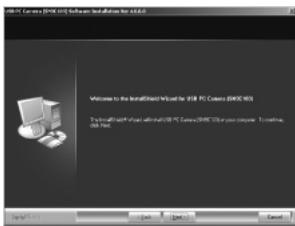
Click "Next".
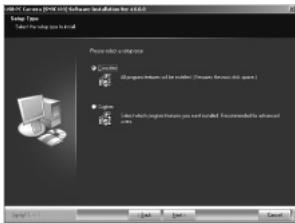
Select the first option "Complete" and click "Next".
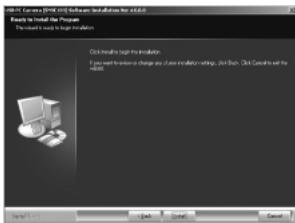
Here select the option "Install" and finally click "Finish".
Now connect the Sweex USB Webcam 300K with Microphone to the PC or laptop.
Windows 2000 and XP will automatically install the Sweex USB Webcam 300K with Microphone. Following installation, the webcam can be used.
If Windows 98SE is used, the following screen appears:

Click "Next".
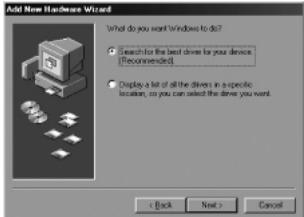
Here, select the option "Search for the best driver" and click "Next".
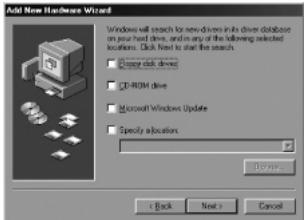
Untick all options. Then click "Next".
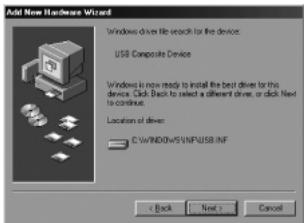
To complete this section, click "Next" and then "Finish".
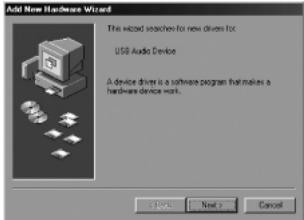
Click "Next".
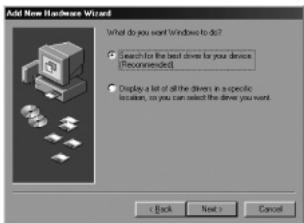
Here, select the option "Search for the best driver" and click "Next".
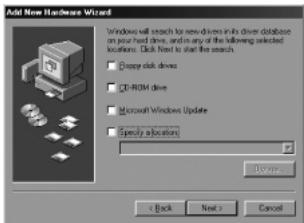
Untick all options. Then click "Next".
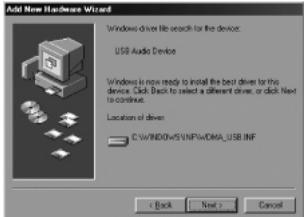
To complete the installation process, click "Next" and then "Finish".
Testing the functioning of the webcam
The functioning of the Sweex USB Webcam 300K with Microphone can be viewed and tested as follows:
Go to START "All Programs" "USB PC Camera (SN9C103)" "AMCap".
Or, if the Windows classic style is used:
Go to START "Programs" "USB PC Camera (SN9C103)" "AMCap".
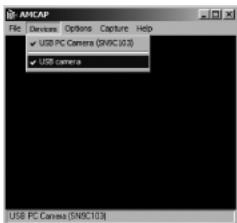
In AMC, open the "Devices" menu. Make sure to select the correct webcam: 'USB PC Camera (SN9C103)'.
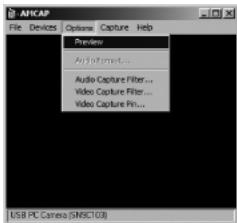
In AMCap, open the "Options" menu. Select the "Preview" option. This option enables you to view the picture.
Microphone
Note! When using the built-in microphone, Windows must have selected it as an active recording device. You can check this as follows:
Go to START "Control Panel"
Or, if the Windows classic style is used:
Go to START "Settings" "Control Panel".
Here, open "Sound and audio devices" and go to the "Audio" tab.
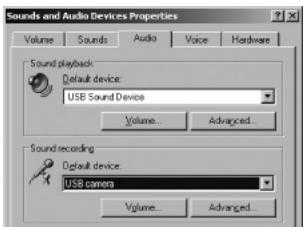
Check if the sound recording device is set to 'USB camera'.
LED indicator
The Sweeex USB Webcam 300K with Microphone has 1 green LED. This is continuously lit, which means that the webcam has been connected and is functioning properly.
Focus ring
The picture of the SweeX USB Webcam 300K with Microphone can be brought into focus manually by means of the focus ring. This can be found at the front of the camera and can be identified by a black notch. By turning it either to the left or right, the picture can be brought into focus.
Snapshot button
The SweeX USB Webcam 300K with Microphone also has a so-called snapshot button. Use this to take a picture at any random moment. It is enabled following installation. The button can be found on top of the webcam.
SmartCam 2.1
The SmartCam software is an additional application for video mailing and video monitoring and is included with the webcam. You do not need to install this software if you want to use the webcam with the standard video-chat programmes.
Only install SmartCam if you are sure you need the additional functions.
Note! This programme is freeware which means that Sweex will not offer any support for this programme.
Warranty
All products under the Sweex brand are warranted for a period of three years. We do not grant support or warranties for any software and/or (rechargeable) batteries included. Settlement of guarantee only takes place via the dealer where you have purchased the product in question.
The rightful owner has and retains title to all brand names and related rights mentioned in this manual.