
WC053 - Webcam SWEEX - Free user manual and instructions
Find the device manual for free WC053 SWEEX in PDF.


User questions about WC053 SWEEX
0 question about this device. Answer the ones you know or ask your own.
Ask a new question about this device
Download the instructions for your Webcam in PDF format for free! Find your manual WC053 - SWEEX and take your electronic device back in hand. On this page are published all the documents necessary for the use of your device. WC053 by SWEEX.
USER MANUAL WC053 SWEEX
WC053 - Foldable Hi-Def 1.3M Trackcom USB 2.0
Introduction
- Do not expose the Sweex Foldable Hi-Def 1.3M Trackcam USB 2.to extreme temperatures. Do not place the device in direct sunlight or in the direct vicinity of heating elements.
- Do not use the Sweex Foldable Hi-Def 1.3M Trackcam USB 2 in extremely dusty or moist surroundings.
- Protect the device against powerful shocks or jolts - they may damage the internal electronics.
- Never attempt to open the device yourself - it will cause the warranty to lapse.
Important!
Install the driver prior to connecting the Sweex Foldable Hi-Def 1.3M Trackcam USB 2!
Software installation under Windows 98SE
Insert the Sweex CD-ROM in the CD-ROM player. The autorun menu will start automatically.
In this menu, select "Drivers Windows 98SE, 2000 and XP"

Drivers Windows 98SE, 2000 and XP
In the event that the autorun menu does not appear, the driver installation process can also be started manually. In order to do this, open "My computer" and go to X:\driver\ (X being the letter of your CD-ROM drive). Here you can find the "setup.exe" file. Double-click this file and follow the instructions.
Having selected the desired installation language, the following screen appears:
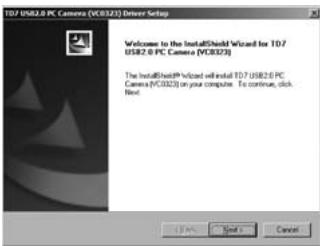
Click "Next".
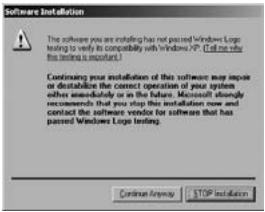
During this installation, Windows may display a message that the software has not been certified. This will not affect the correct functioning of the Sweeex webcam. All Sweeex products and corresponding drivers are tested extensively. Here select the option "Continue Anyway".
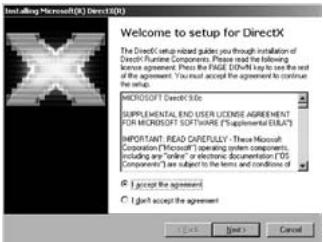
The Sweeex webcam requires version 9.0c of the so-called Microsoft DirectX in order to ensure it operates correctly. Here select "I accept the agreement" and press "Next" twice.
Click "Yes, I want to restart my computer now" and click "Finish". Connect the Swee x webcam once the computer has been restarted.
Windows 98SE will automatically install the Sweex Webcam. After this installation, the webcam is ready for use.
Software installation under Windows 2000 or XP
Under Windows 2000 or XP, the following screen will appear:
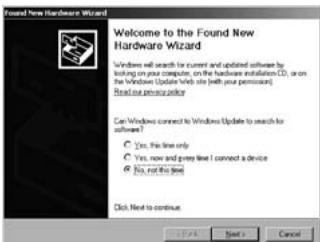
Select "No, not this time" and click "Next".
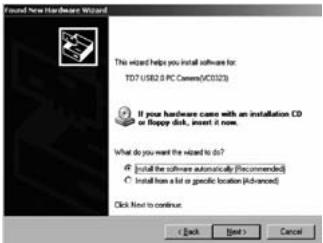
Here, select the option "Install the software automatically" and click "Next".
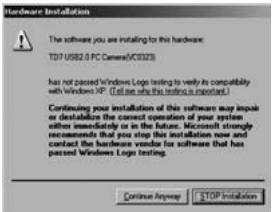
During this installation, Windows may display a message that the software has not been certified. This will not affect the correct functioning of the Swee webcam. All Swee products and corresponding drivers are tested extensively. Here select the option "Continue Anyway".
Click "Finish" to complete the Sweex webcam installation. After this installation, the webcam is ready for use.
Viewing the webcam picture
The picture of the Sweeex webcam can be viewed as follows:
Via START go to "All Programs" and select the option "VIMicroCAM" under "TD7 USB2.0 PC Camera(VC0323)".
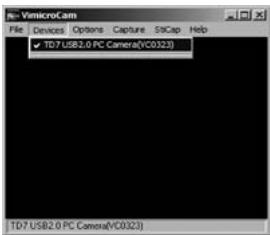
In VimicroCam, open the "Devices" tab. Make sure to select the correct webcam: "TD7 USB2.0 PC Camera(VC0323)".
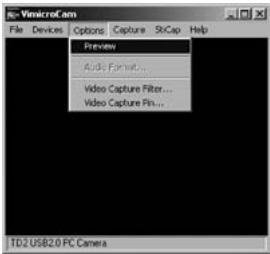
In VimicroCam, open the "Options" menu. Select "Preview". This option enables you to view the picture.
In the same menu, the "Video Capture Filter..." and "Video Capture Pin..." options enable you to change the settings of the webcam.
Microphone
The Sweeex webcam contains a separate microphone connection. This must be inserted in the sound card ("mic in").
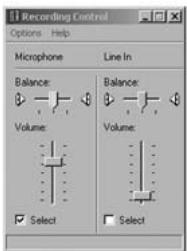
Note! When using the external microphone, Windows must have selected it as an active recording device. You can check this as follows:
Via START go to "Programs", then go to "Accessories" and "Entertainment".
Open "Volume Control" and via "Options" go to "Properties". Here, select "Recording". Check whether the "Microphone" has been selected as an active recording source.
Face tracking
The Swee web cam features a "Face tracking" function. By activating this function, the webcam detects your face and automatically zooms into it.
Note! "Face tracking" only operates within the webcam's range of vision.
VimicroCam ("Options" "Video Capture Filter..." ) opens the webcam properties screen:
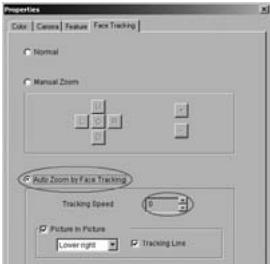
Go to the fourth tab "Face Tracking" and select "Auto Zoom by Face Tracking". "Face tracking" is now enabled. By increasing the "Tracking Speed", the SweeX webcam will zoom in on the face quicker.
Digital Zoom
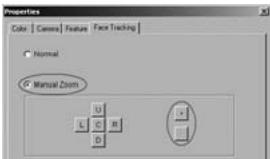
The digital zoom function of the Sweex webcam can be activated by selecting "Manual Zoom" in the same tab as that for "Face tracking":
Special Effect
The various visual effects for the webcam can be activated by selecting the tab "Feature". This tab is situated next to "Face tracking".
Focus ring
The picture of the Sweex Webcam can be brought into focus manually by means of the focus ring. The focus ring is a rotating wheel around the lens at the front of the camera. By turning it the picture can be brought into focus.
Warranty
All Sweex products are warranted for three years. We do not grant support or warranties for any software and/or (rechargeable) batteries included. Settlement of guarantee only takes place via the dealer where you have purchased the product in question.
The rightful owner has and retains title to all brand names and related rights mentioned in this manual.