
WC056 - Webcam SWEEX - Free user manual and instructions
Find the device manual for free WC056 SWEEX in PDF.


User questions about WC056 SWEEX
0 question about this device. Answer the ones you know or ask your own.
Ask a new question about this device
Download the instructions for your Webcam in PDF format for free! Find your manual WC056 - SWEEX and take your electronic device back in hand. On this page are published all the documents necessary for the use of your device. WC056 by SWEEX.
USER MANUAL WC056 SWEEX
WC056-Hi-def 5M webcam USB2.0
- Do not expose the Hi-def SM webcam USB 2.0 to extreme temperatures. Do not place the device in direct sun light or close to heating elements.
- Do not use the Hi-def 5M webcam USB 2.0 in extremely dusty or moist environments.
- Prevent hard shocks or impacts of the device, as this can cause damage to the internal electronics.
- Never try to open the device yourself, this voids the warranty.
Important!
It is not necessary to install drivers for the Sweeex webcam. The webcam instantly works with all basic functions and chat software. For extra settings you can install the supplied drivers.
- Connecting the webcam.
- Place the Swee x CD-ROM in the CD-ROM player. The autorun menu will start automatically.
- In this menu choose the option "Drivers Windows XP and Vista".

Drivers XP and Vista
If the autorun menu does not appear the driver can also be installed manually. To do this open "My Computer" and go to X:\drivers\ (X is the letter of the CD-ROM drive). In here there is a file 'WC031V2V2 drivesxp_visto...' Double click on this file. Follow the installation procedure until it is completed.
View webcam image
The image of the Sweex webcam can be viewed as follows:
Go via START to "All Programs" and choose "Swee x Hi-Def Web cam" and then "AMCAP".
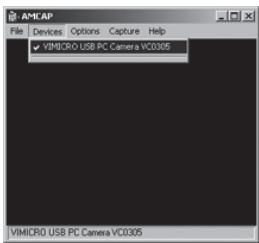
In AMC9 open the "Devices" tab. Make sure that here the correct webcam is selected: "Sweex Hi-Def Webcam".
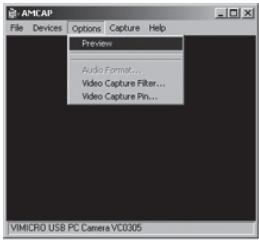
In AMC9 open the "Options" menu. Choose the option "Preview". With this option the image can be viewed.
The effects, such as Face Tracking and Zoom only work up to a resolution under 640x480. In external applications, such as chat programs, you can use the effects.
Microphone
The Sweex webcam has a separate microphone connection. This has to be plugged in to the sound card ("mic in").
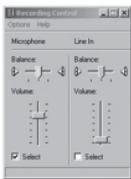
Important! When using the external microphone Windows has to select this as active recording input. You can check this as follows:
Go via START to "Programs", then to "Accessories" and "Entertainment".
Open "Volume Control" and via "Options" go to "Properties". Select "Recording". Check if the 'Microphone' is selected as active recording input.
Snapshot button
The Swee web cam has a 'snapshot button'. With this, after AMC or an other program by which you can see the image of the webcam is activated, you can make a picture.
Warranty
For most Sweex products a warranty period of 3 years applies. On Graphics Cards and Consumer Electronics Sweex offers 2 years of warranty. We do not give support or warranty on supplied software, rechargeable batteries and batteries. Transaction of warranty only takes place at the sales point where the product is bought.
All brand names and associated rights mentioned in this manual are and stay property of the rightful owner.