
T66 - Mobile Phone ERICSSON - Free user manual and instructions
Find the device manual for free T66 ERICSSON in PDF.


| Product type | GSM mobile phone |
| Brand | Ericsson |
| Model | T66 |
| Dimensions (estimated) | 105 x 45 x 20 mm |
| Weight (estimated) | 80 g (with battery) |
| Power supply | Lithium-ion battery BSL-14; Travel Charger CTR-10 |
| Display | Monochrome screen, resolution 96x64 pixels |
| Main functions | Calls, SMS, Calendar, Calculator, Code memo, Clock, Alarm, Games (Pyramid, Smash, Mill), WAP browser, Vibrator, Polyphonic ringtones, Call lists, Phonebook 250 contacts, Chat, Long messages |
| Care and cleaning | Use a soft, dry cloth. Do not use chemical products. |
| Security | Keypad lock, SIM lock, phone lock, call restrictions, emergency call 112 |
| Spare parts and repairability | Battery BSL-14, charger CTR-10, car charger adapter CLA-11, hands-free kit HPB-10. Support via an authorized Ericsson service center. |
| General information | GSM 900/1800 MHz standard; standby time up to 150 h, talk time up to 5 h (estimates). User manual available in PDF. |
Frequently Asked Questions - T66 ERICSSON
User questions about T66 ERICSSON
0 question about this device. Answer the ones you know or ask your own.
Ask a new question about this device
Download the instructions for your Mobile Phone in PDF format for free! Find your manual T66 - ERICSSON and take your electronic device back in hand. On this page are published all the documents necessary for the use of your device. T66 by ERICSSON.
USER MANUAL T66 ERICSSON
Important battery information
It takes up to 30 minutes for a new battery to start charging.
Insert the SIM card and attach the battery to the phone before you start charging.
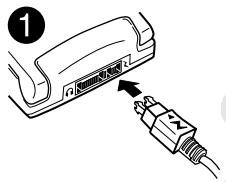
Connect the charger to the mains, then to the phone.
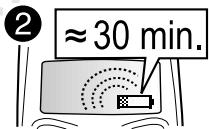
It takes up to 30 minutes for a new battery to start charging.
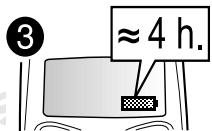
It takes about 4 hours to fully charge a battery the first time.
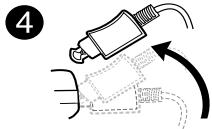
Disconnect the charger by tilting the plug up.
Easy access to WAP
If you have a WAP account for your phone, you can go to Ericsson Mobile Internet and get the WAP settings sent to your phone via SMS.
Go to mobileinternet.ericsson.com and select the brick for WAP and e-mail configuration. Choose to have the WAP settings sent to your phone, and follow the instructions.
To install the new WAP settings
- When you receive the text message, press YES.
- Select the WAP profile in which you want to save the WAP settings, and press YES. You can now start using your WAP browser.
Contents
Getting Started 5
Making and Receiving Calls 8
Key Functions 12
Using the Menus 13
Entering Letters 17
Your Personal Phone Book .........20
Using the Call List 25
Your Voice Mail Service 26
Personalizing Your Phone 27
Text and Chat Messages 34
Profiles 40
Diverting Incoming Calls 41
Security for Your Phone and Subscription 42
More Than One Call 46
Setting Network Preferences 49
Call Time and Call Cost 50
Using the WAP Browser 52
Calendar 55
Code Memo 57
Calling Card Calls 59
Extras 60
Online Services 63
Ericsson Mobile Internet 63
Troubleshooting 64
DisplayIcons 66
Quick Keys 68
Technical Data 69
Safe and Efficient Use 70
Limited Warranty 76
Regulatory Information 79
Ericsson T66
First edition (May 2001)
This manual is published by Ericsson Mobile Communications AB, without any warranty. Improvements and changes to this manual necessitated by typographical errors, inaccuracies of current information, or improvements to programs and/or equipment, may be made by Ericsson Mobile Communications AB at any time and without notice. Such changes will, however, be incorporated into new editions of this manual.
All rights reserved.
©Ericsson Mobile Communications AB, 2001
Publication number: EN/LZT 108 4573 R1A
INNOVATRON PATENTS
Note: Some of the services in this manual are not supported by all networks. This also applies to the GSM International Emergency Number 112.
Note: You should read the Guidelines for Safe and Efficient Use and the Warranty chapters before using your mobile phone.
Please contact your network operator or service provider if you are in doubt whether you can use a particular service or not.
T9™ Text Input is a registered trademark of Tegic Communications.
T9TM Text Input is licensed under one or more of the following: U.S. Pat. Nos. 5,818,437, 5,953,541, 5,187,480, 5,945,928, and 6,011,554; Canadian Pat. No. 1,331,057, United Kingdom Pat. No. 2238414B; Hong Kong Standard Pat. No. HK0940329; Republic of Singapore Pat. No. 51383; Euro.Pat. No. 0 842 463(96927260.8) DE/DK, FI, FR, IT, NL, PT, ES, SE, GB; and additional patents are pending worldwide.
Getting Started
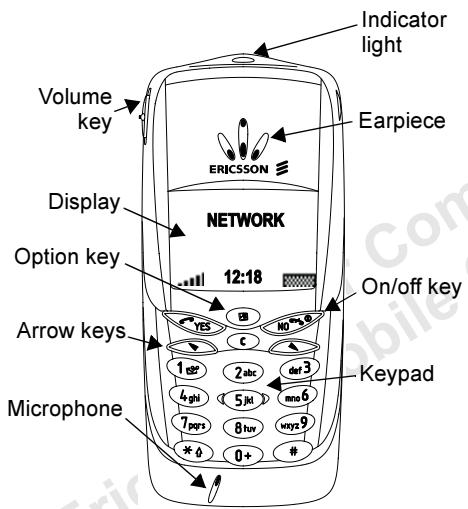
Front
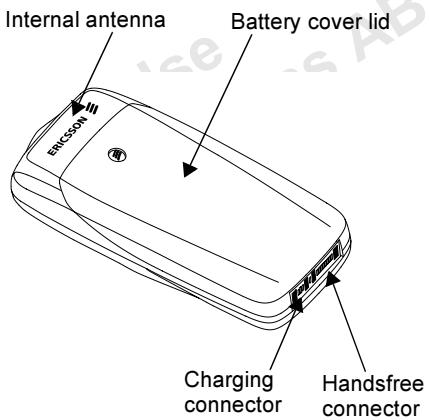
Back
About this User's Guide
Some services and functions described in this User's Guide are service provider - and subscription-dependent. Because of this, all menus may not be available in your phone and the shortcut numbers to menus and functions may vary between phones.
This symbol indicates that a service or function is network- or service provider dependent.

Please refer to the information provided by your service provider for more information about your subscription.
We recommend that you read the chapter "Using the Menus" on page 13 for information about how to move through the menus.
The SIM Card
When you register as a subscriber with a network operator, you get a SIM (Subscriber Identity Module) card. The SIM card contains a computer chip that keeps track of your phone number, the services included in your subscription, and your Phone book information, among other things.
SIM cards come in two sizes. One is the size of a credit card and the other is smaller. Your phone uses
the smaller card. Many credit card-sized SIM cards have a perforated smaller card that you can take out easily.
Assembly
Before you can use your phone you need to:
- insert the SIM card.
Note: Always insert the SIM card into the phone before attaching the battery.
attach and charge the battery.
Note: Always turn off the phone and detach the charger before you insert or remove a SIM card.
Inserting and Removing the SIM Card
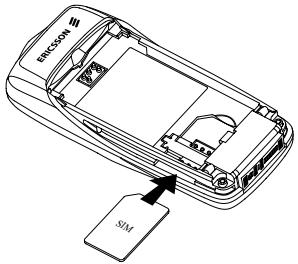
- Slide the SIM card into the slot, under the silvery holder, with the golden connectors facing down and the cut corner to the left.
Attaching the Battery to your Phone
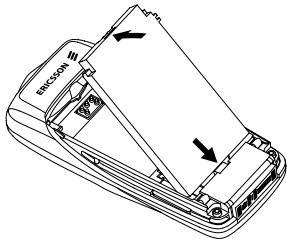
- Place the battery into the back of the phone, with the golden connectors facing down, and push down until it clicks into place.
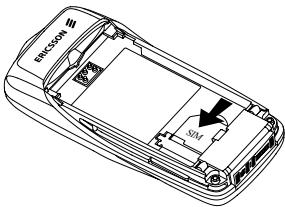
- To remove the SIM card, slide it out.
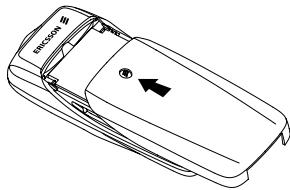
- Slide the battery cover upwards from the bottom of the phone into place as shown in the picture.
Note: To remove the battery cover, press the top centre of the cover and slide downwards.
Charging Connections
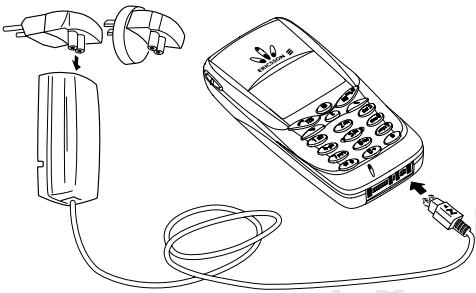
Note: The mains plug may look different depending on the mains socket in your country. Do not connect it to any other item than your Ericsson Travel Charger CTR-10. It must not be separated from the charger when plugged into the wall socket.
You can use the phone while the battery is being charged. However, this lengthens the charging time. When the battery is fully charged, the battery meter in the display is full.
Making and Receiving Calls
Turning Your Phone On
- Press and hold no until you hear a tone.
- Enter your PIN (Personal Identity Number), if you have one for your SIM card. Your PIN is provided by your network operator.
If you make a mistake while entering your PIN, delete the wrong number by pressing .
- Press YES.
If you enter your PIN incorrectly 3 times in a row then the SIM card is blocked. See "The SIM Card Lock" on page 42.
Network Search
After you have turned on the phone (and entered your PIN), the phone searches for a network. When a network is found, the phone beeps three times. The indicator light on top of the phone flashes green. This is called "standby mode". You can now make and receive calls.
Turning Your Phone Off
- In standby mode, press and hold no until you hear a tone.
Making a Call
- Enter the area code and phone number.
If you make a mistake while entering the number, delete the wrong number by pressing .
- Press YES.
Press no to end the call.
Note: The Ongoing call menu is displayed when is pressed during a call.
Changing the Earpiece Volume
During a call you can change the earpiece volume by sliding the volume key on the side of the phone.
- Slide the key upwards to increase the volume.
- Slide the key downwards to decrease the volume.
Turning Off the Microphone
During a call you can turn off the microphone.
- Press and hold .
- Press to resume the conversation.
Re-dialling a Previously Called Number
The Call list contains numbers that you have dialled, answered or missed.
To re-dial a previously called number
- Press Yes from standby mode to enter the Call list.
- Press or to scroll through the list.
- When the number you want to call is highlighted, press Yes to make the call.
Automatic Re-Dialling
If a connection failed, and the display shows Retry?, you can re-dial the number by pressing Yes. Your phone automatically re-dials (up to 10 times):
- until the call is answered.
- until you press a key or receive a call.
Note: Automatic re-dialling is not available for data calls.
Making International Calls
- Press and hold the 0 key until a + sign appears. The + replaces the international prefix number of the country from which you are calling.
- Enter the country code, area code (without the leading zero) and phone number. Press YES.
Making Emergency Calls
- Enter 112 (the international emergency number).
- Press YES.
Your Ericsson phone supports the international emergency numbers, 112, 911 and 08. This means that it can normally be used to initiate an emergency call in any country, with or without a SIM card inserted, if a GSM network is within range.
Note: Some service providers may require that a SIM card is inserted, and in some cases that the PIN has been entered as well.
Emergency Numbers
Some countries may not promote the international emergency number, 112.
Your operator may therefore have stored additional local emergency numbers on the SIM card.
To use another emergency number
- Press to go to the Phone book menu.
- Press Yes to select the menu.
- Press until Special numbers is highlighted, then press YES.
- Press until SOS numbers is highlighted, then press YES.
- Press to go to the number you want, then press yes to make the call.
Receiving Calls
When you receive a call, the phone rings and the display shows Answer?.
Tip: Press when the phone rings to mute signal.

If your subscription includes the Calling Line Identification (CLI) service and the caller's network sends the number, the caller's number is shown in the display. If you have saved the caller's name and number in the phone book, the caller's name is displayed. If the network does not send the number, the display shows Withheld.
Answering a Call
- Press YES to answer a call.
Rejecting a Call
Press NO, or
- slide the volume key on the side of the phone either upwards or downwards twice.
The caller hears a busy tone if this is supported by the caller's network. If "Divert Calls When Busy" is on, the call is diverted to the number you have specified. See "Diverting Incoming Calls" on page 41.
The Notepad
You can use the phone to make a note of a phone number during a call. Use the number keys to enter the number. When you end the call, the number remains in the display.
When you enter the number, the person at the other end can hear the tones. You can turn the tones off (can only be done during a call).
To turn the tone signals off during a call
- Press 国
- Scroll to Turn off tones and press YES.
Showing And Hiding Your Phone Number
You can choose to show or hide your number for a particular call, if this service is supported by your subscription.

To hide or show your phone number
- Enter the phone number you wish to call.
- Press 国
- Scroll to Hide my number or Show MyNumber and press YES to make the call.
Ciphering
Ciphering is a built-in feature that encodes your calls and messages to provide additional privacy.
An exclamation mark inside a triangle is shown in the display during a call to indicate that ciphering is currently not being provided by the network.
Sending Touch Tone Signals
To use telephone banking or to control an answering machine, you need to use codes. These codes are sent as touch tone signals (also known as DTMF - Dual Tone Multiple Frequency tones). If you press 0 - 9, *4 and # during a call, these numbers and characters are sent as tone signals. You can save codes in your phone book and during a call, go to the phone book by pressing , find the entry in the phone book and press , and Send as DTMF. See also "Touch Tone Services" on page 24
Key Functions
The table below shows some examples of the key functions. See also "Quick Keys" on page 68.
| Key | Use |
| YES | To make calls and answer calls. |
| To select a menu or setting. | |
| NO | To turn the phone on or off, press and hold the key. |
| To end a call. | |
| To reject a call. | |
| To go back one level in the menus, to leave a setting unchanged. | |
| To go back to standby mode, press and hold no. | |
| and | To move (scroll) through menus, lists and text. |
| (Clear) | To delete numbers and letters from the display. |
| To delete an item from a list. | |
| To turn off the microphone during a call, press and hold the key. |
Key
Use
1 9,0
To enter the digits 0-9.
Press and hold 0 to enter the international prefix ^+
To enter letters.
To move through menus using shortcuts.
*
To enter
(Hash)
To enter #.
Volume key
To increase or decrease the volume of the earpiece during a call.
To reject an incoming call, slide either upwards or downwards twice.
To scroll through menus, lists and text. To enter the Status menu.
Option Key
The option key, gives you the most common options for the function you are using. You can also select Exit to standby and the Help function for menus.
Using the Menu
There are seven main menus. Each menu has several sub-menus, where you find the different functions.
Moving Through the Menus
There are two ways of moving through the menus:
- Scrolling with the and
- Using shortcuts
Press... to...

scroll left or up through the menus.

scroll right or down through the menus.
YES
select a menu, sub-menu or a setting.
NO
go back one level in the menus, leave a setting unchanged. press and hold No to go back to standby

enter optional menus
Using Shortcuts
A quicker way to move through the menus is to use shortcuts. Enter the menus by pressing or and then simply enter the number of the menu to which you want to go.
How to Interpret the Instructions
In this example we are going to set the key sound to the tone option.
To set the key sound
- Scroll to Settings, YES, Sounds & alerts, YES, Key sound, YES.
- Select Tone and press YES.
Interpret the instructions as follows:
1.From standby,press or to scroll to the Settings menu.
2. Press YES to select the Settings menu. The name of the menu that you have chosen is shown at the top of the display (Settings).
3. Press Yes to select the Sounds & alerts sub-menu.
4. Press or to scroll to the Key sound sub-menu and press YES to select it.
- Press or to scroll to the Tone option and press YES to select it. You have now set the key sound to tones.
- Press and hold no to go back to standby.
Shortcuts
This is how to interpret the instructions above by using shortcuts:
To set the key sound
- Press or to enter the main menu.
- Press 4 to select the Settings menu.
- Press 1 to select the Sounds & alerts sub-menu.
- Press 9 to select the Key sound sub-menu.
- Press or to scroll to Tone.
- Press YES to select the tone option.
- To go back to standby, press and hold no.
Tip: To check a setting without changing it: scroll to the setting and leave it unchanged by pressing NO.
Display text
- Text at the top indicates the menu you have chosen.
-
A text that is highlighted shows your position in the menu. If you press Yes, you enter this menu or select this option.
-
Grey text indicates a function that is temporarily unavailable, for example due to your subscription or due to a certain setting which has not been turned on.
- A filled button indicates that this option is selected.
- A tick indicates that this item is selected.
Help Texts
Your phone has pop-up help texts that explain the sub-menus.
To turn the help texts on or off
- Scroll to Settings, YES, Display, YES, Menu help.
- Select On or Off and press YES.
Menu Language
Most SIM cards automatically set the display language to the language of the country where you bought your SIM card, Automatic. If this is not the case, the pre-set language is English.
To change the display language
- Scroll to Settings, YES, Language, YES, Menus, YES.
- Select a language and press YES.
Note: You can always choose Automatic by pressing
8888 in standby, and English by pressing
0000 in standby.
My Shortcuts
You can place your favourite functions in the menu My shortcuts to quickly and easily reach the functions you use most.
To add a function to My Shortcuts
- Scroll to My shortcuts, YES, Edit shortcuts, YES.
- Select a function from the list by pressing
- Press Yes to confirm.
To change the position of the shortcut item.
- Select a function from My shortcuts list.
- Press and scroll to Move up or Move down. Press YES.
- Repeat steps 1 & 2 until the item is in the desired position.
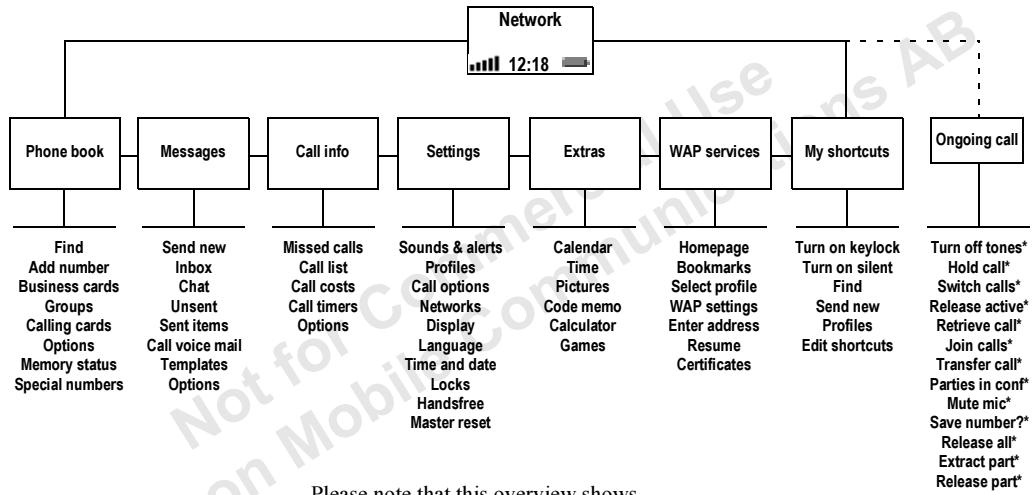
Menu overview
Please note that this overview shows all the possible menu alternatives in your phone. Many of the alternatives are network and subscription dependent.
The Ongoing call menu is activated by pressing during a call.
- Only available during a call.
Entering Letters
You can enter letters when you add names to the phone book, write text messages (SMS) or enter WAP addresses.
Your phone also has a function called T9TM Text Input (predictive text input) for long texts such as text messages, if the input language you select supports this. T9 Text Input is a quicker way to write texts. See "Writing using T9 Text Input" on page 19.
Input Modes
You can select the input mode that you want to use when writing.
To select input modes
- Scroll to Settings, YES, Language, YES, Input, YES.
- Scroll to the alphabets (input modes) that you want to use for entering letters and press . Repeat step 2 if you want to use another input mode.
- Press Yes to leave the menu.
When writing you can switch to another input mode by pressing and then select Input. See "The List of Options" on page 18.
T9 Text Input
T9 Text Input is on by default. If you wish, you can turn off the T9 Text Input.
To turn the T9 Text Input on or off
- Scroll to Settings, YES, Language, YES, T9 options, YES, T9 in use, YES.
- Select On or Off.
See the table of the Latin alphabet below for key functions when writing without T9 Text Input.
Press... to get...
| 1 | Space |
| 2 | A B C A A E à C 2 Γ |
| 3 | D E F è É 3 Δ Φ |
| 4 | G H l i 4 |
| 5 | J K L 5 Λ |
| 6 | M N O N ð 0 ð 6 |
| 7 | P Q R S θ 7 Π Σ |
| 8 | T U V U û 8 |
| 9 | W X Y Z 9 |
Press... to get...
| 0 | 0 + |
| # | . , !? ; ; "() + - * / # |
| C | to delete a letter or number |
| * ∘ | to shift between capital, initial upper-case, lower-case, case letters and numbers |
| 0 - | press and hold to enter numbers |
| 9 | |
| # | press and hold to Add symbol menu |
| - | move cursor back |
| + | move cursor forward |
| Volume + | go up one line |
| Volume - | go down one line |
Example:
- To enter an 'A', press 2 once.
- To enter a 'B', quickly press ② twice.
- To enter lower-case letters, press three times and then enter the letter, for example an 'a'.
The List of Options
If you press when writing text messages, you enter a list of options:
- Insert melody - for SMS only
This option allows you to insert a melody.
- Ins. picture - for SMS only
This option allows you to insert a picture.
- Edit word - for T9 Text Input only.
If you want to delete the complete word, press and hold . If you do not want to delete the complete word, but edit it letter by letter, move the cursor by using or and then delete letters by pressing . Enter letters by pressing the appropriate key the number of times needed up you get the letter you want. When you are finished press YES.
- Add symbol
Symbols such as!and?are shown.
Move between the symbols by using the keys
Volume + or 2 = move up
or 4 = move left
or 6 = move right
Volume-or 8 = move down
Press YES to select a symbol.
- Candidates (0) - for T9 Text Input only A list of alternative words is shown. Scroll to a word and press YES.
- Input If you want to change the input mode for the text you are writing, scroll to an input mode and press Yes.
- Dictionary - for T9 Text Input only If you want to change the language for the text you are writing, scroll to a language and press YES.
- Reply request - for SMS only You can turn on the reply request option. When you send a message, you are asked whether you want the recipient to reply or not.
- Message type - for SMS only You can select how you want your text message to be interpreted by the receiver.
- Send - for SMS only This option will send the message.
- Help - for T9 Text Input only Explains T9 Text Input
- Exit to standby
- Exit to standby
Writing using T9 Text Input
The T9 Text Input method uses a built-in dictionary to recognize the most commonly used word for a sequence of key presses. This way, you can press each key only once, even if the letter you want is not the first letter on the key.
Note: Keys 1 - 9 have the same function as when writing without T9 Text Input.
To enter letters using T9 Text Input
- Scroll to Messages, YES, Send new, YES.
- Press 3 , 7 , 4 , 2 , 7 , 6 , 6 .
The word "Ericsson" appears.
If the word shown is the one you want:
- press to accept and add a space.
If the word shown is not the one you want:
- press 0 to view alternative words. Accept a word and add a space by pressing 1.
If you do not find the word you want by pressing 0 :
-
press to view the options menu. Select Edit word. Edit the word and press YES. The word is added to the dictionary.
-
Continue writing your message. See also "Text and Chat Messages" on page 34.
Tip: Press # to enter a full stop. To enter other punctuation marks, press and hold # . 0 checks the next candidate for the suggested word. Accept by pressing 1. Press and hold * to select T9 Text Input on/off.
Your Personal Phone Book
Your phone has a phone book in which you can save numbers and accompanying names (an entry).
To save a number together with a name
- Scroll to Phone book, YES, Add number, YES.
- Select Add new? or any of the numbers from the list by pressing YES.
- Enter the phone number that you want to save and press YES.
- Enter a name that you want to associate with the phone number and press YES.
- Press Yes again to save the entry in the suggested position.
To call a number saved in the phone book
- Press and hold until the Find menu appears.
- Enter the name (or the first few letters of the name) associated with the number that you want to call and press YES. If the name displayed is not the one you want, press or until you find the correct name and number.
- Press yes to make the call.
Shortcuts to Phone Book Entries
You can call the phone numbers that you have saved in positions 1-9 by entering the position number in standby, and then pressing yes.
When in standby, you can find an entry by pressing and holding one of the keys 2 - 9 to find an entry beginning with the first letter on that key, or the closest following. For example, press and hold 4 to get to the first entry beginning with the letter "G" (or the closest following). Press 4 again to get to the first entry beginning with "H" and so on. When you find the entry you want, press yes to make the call.
Ask to Save
If Ask to save is on, you are asked if you want to save any called or answered number that is not already saved in your phone book.
To turn the Ask to Save function on or off
- Scroll to Phone Book, YES, Options, YES, Ask to save, YES.
- Select On or Off and press YES.
Note: Your subscription must support the Calling Line Identification Service, if you want to save answered numbers.
Keeping the Phone Book Up to Date
You can change and delete names and numbers from the phone book.
To edit an entry
- Scroll to Phone book, YES, Find, YES.
- Enter the name (or the first few letters) for the entry that you wish to edit and press YES.
- Press 国
- Select Edit and press YES.
- When you have finished editing, press Yes to save your changes.
To delete an entry from the phone book
- Scroll to Phone book, YES, Find, YES.
- Enter the name (or the first few letters) for the entry that you wish to edit and press YES.
- When the entry you want to delete is highlighted, press
- Press yes to confirm.
Sort Order
Your phone book entries can be sorted according to their position number or the name.
To choose a sort order
- Scroll to Phone book, YES, Options, YES, Sort order, YES.
- Select a sort order and press YES.
Phone Book Memories
Your phone book entries are saved in the memory on your SIM card.
You can also save your entries in the phone memory. The phone memory holds 250 positions in which your entries are saved when all SIM positions are occupied.
You can check how many memory positions you have in your memories and how many of them you have used.
To check the status of the memories
- Scroll to Phone book, YES, Memory status, YES.
Choosing where to save an entry
When you save an entry and are asked to enter the position number, you can do the following:
To save the number in the first empty position suggested, press YES.
To save the number in another position, press to delete the position number, enter a new position number and press yes.
- To save the number in the phone memory, you first need to know how many positions you have got on your SIM card. You can check this in the Memory status menu. If, for example, you have 250 positions on your SIM card, you can enter position number 251 to save a number in the first position of the phone memory.
Tip: Press to move a selected contact to another position, or to select "Card memory" or "Phone memory".
Overwrite Protection
If you try to save a phone number in a position which already contains a phone number, the message Overwrite? appears together with the name saved in that position. You now have two options:
- Press es to replace the number with the new one.
- Press no if you do not want to replace the old number. Enter a new position and press yes.
You can delete entries saved in the phone memory.
To delete all entries from the phone memory
- Scroll to Phone book, YES, Options, YES, Delete all, YES.
- Press Yes again.
- Enter the phone lock code (0000 or another one that you have chosen yourself, see "The Phone Lock" on page 43), and press YES.
Note: The entries on your SIM card are not deleted.
Groups
You can create a group of phone book entries. You can then send a text message to all members of that group at the same time. See "Text and Chat Messages" on page 34.
To create a new group
- Scroll to Phone book, YES, Groups, YES, Add new?, YES.
- Enter a name for the group and press Yes.
- Scroll to Add new? and press YES.
- Select an entry in your phone book and press YES.
- To add the next member, repeat steps 3 and 4.
- Press No to leave the menu.
To add a member to an existing group.
- Select a group and press YES.
- Select Add new? and press YES.
- Select an entry in your phone book and press yes.
Business Cards
You can add your own business card as an entry in the phone book. You can then exchange business cards via SMS.
To send your own business card
- Scroll to Phone book, YES, Business cards, YES
- Select Send my own and press YES.
- Enter the recipient's phone number and press yes. Press to recall a number from the phone book.
- Press YES to send.
To edit your own business card
- Scroll to Phone book, YES, Business cards, YES, Edit my card, YES.
- Edit your own phone number, press yes, edit your name and press yes again.
To save a received business card
- When you have received a business card the display shows Save received business card?.
- Press Yes to accept the number, name and position and it will be stored in the phone book.
Tip: You can edit the number, name and position in the phone book of the business card.
Touch Tone Services
In your phone book, you can save a phone number together with tone signals and codes. When you call this entry, the phone number and all the tone signal codes are then dialled automatically.
Note: Saving personal codes in the phone book involves a risk if your phone is stolen. It is safer to save personal codes in the Code memo. See "Code Memo" on page 57.
To save a phone number together with tone signals and codes
- Scroll to Phone book, YES, Add number, YES.
- After entering the phone number, press until the pause character appears in the display. Enter the code, then if needed, enter another pause, another code and so on.
- Enter the name that you want to associate with the phone number and code and press YES.
- Press YES to save.
Copying From One SIM Card to Another
You can copy your phone book entries on one SIM card to another, via the phone's memory.
If your phone memory contains phone book entries that you wish to keep, you first need to copy these entries from the phone memory to a SIM card, otherwise they will be deleted.
Note: You can only copy 250 items at a time. Check your phone memory and your SIM card memory before you start copying, to make sure that you do not delete entries you want to keep.
To copy from a SIM card to the phone memory
- Insert a SIM card.
- Scroll to Phone book, YES, Options, YES, Copy, YES, Copy from card, YES.
- Enter from which position number on the SIM card you want to start copying and press YEs.
- Press yes again to start copying.
Wait until the display shows Phone book entries copied:.
To copy from the phone memory to a SIM card
- Insert a SIM card.
- Scroll to Phone book, YES, Options, YES, Copy, YES, Copy to card, YES.
- Enter the position number of your SIM card where you want to start saving your entries and press Yes.
- Press Yes again to start copying.
Wait until the display shows Phone book entries copied:.
Using the Call List
The Call list saves the last 30 incoming and outgoing calls.
The calls are saved in chronological order, except for the last dialled number, which is always displayed in the first position. If you check a call within 24 hours, the time of the call is displayed. Otherwise, the time is replaced by the date.
If the incoming call is a restricted number, the display shows Unknown.
To call a number from the call list
- Press Yes when the phone is in standby mode.
-
Select the number you want to call and press YES.
-
press and select Edit bef. call to edit the number before calling.
Tip: You can also select the Call list from the Call info menu.
To clear the call list, scroll to Call info, YES, Options, YES, Clear call list, YES.
To turn the call list on or off
- Scroll to Call info, YES, Options, YES, Set call list, YES.
- Select On or Off and press YES. If you turn off the list, it is cleared.
Missed Calls
If you have missed a call, the message Missed calls:1 appears in standby mode. (The number indicates the number of missed calls.)
To check your missed calls
- Press Yes to display the missed calls.
- Select a number and press yes to call the number.
Press no if you do not want to check your missed calls now.
Your Voice Mail Service
The answering service of your service provider allows callers to leave a voice message when you cannot answer your calls. You are informed about the voice message via a text message or by a specific voice mail indication.
Using Your Voice Mail Service
You can save the number to your voice mail service.
To save your Voice Mail number
- Scroll to Messages, YES, Options, YES, Voice mail no., YES.
- Enter your voice mail number and press YES.
To call your Voice Mail Service
- Press and hold 7 from standby.
Receiving a Voice Mail
When you receive a voice mail, your phone beeps and the message New voice mail appears in the display. Press Yes to listen to the voice mail. If you want to listen to it later, press No.

Personalizing Your Phone
You can adjust the phone settings to suit your own requirements.
Ring Signals
You can specify the ring signal volume, choose among different ring signals or compose your own.
Ring Signal Volume
The ring signal volume can be set to six levels. You can also turn the ring signal off (0).
To set the ring signal volume
- Scroll to Settings, YES, Sounds & alerts, YES, Ring volume, YES.
- Press or to decrease or increase the volume.
- Press YES to save the setting.
Tip: Use the volume key on the side of the phone to change the volume silently.
To turn the ring signal on or off
1.Fromstandby,pressandhold
2. Press YES.
All signals except the alarm and timer signals are turned off.
To cancel, repeat step1 and press YES
Increasing Ring
You can choose a ring signal that rises in steps from the lowest volume to the highest.
- Scroll to Settings, YES, Sounds & alerts, YES, Increasing ring, YES. Select On and press YES.
Ring Signal Type
You can choose a ring signal from a list of different sounds and melodies.
To choose a ring signal
- Scroll to Settings, YES, Sounds & alerts, YES, Ring signals, YES, Calls, YES.
- Select a ring signal and press YES.
Tip: Use the volume key on the side of the phone to scroll silently.
Specific Ring Signals for Personal Calls
If your subscription includes the Calling Line Identification (CLI) service, you can assign a personal ring signal to up to ten callers.
If the last seven digits of a caller's number correspond to a number you have specified, then that caller's ring signal is used.
You can include question marks in a phone number. For example, 012345??? means that calls from phone numbers between 012345000 and 012345999 will have the same personal ring signal. Press and hold # to insert a question mark.
To set a specific ring signal for a caller
- Scroll to Settings, YES, Sounds & alerts, YES, Ring signals, YES, Personal rings, YES, Add new?, YES.
- Enter the caller's number and press YES.
Press to recall a number from the phone book.
- Select a ring signal and press yes.
Composing Your Own Ring Signal
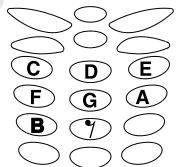
The melody editor enables you to compose your own ring signals.
To edit or compose a ring signal
- Scroll to Settings, YES, Sounds & alerts, YES, My melodies, YES.
- Select one of the melodies and press YES.
- Select Edit and press YES.
- Use the keypad to enter a note.
- To add a new note move the cursor using to the dotted frame and press the keypad.
-
When a note is entered you can change the note in the following ways:
-
press to change up one note.
- press 4 to change down one note.
- press ② to increase the octave.
- press ⑤ to decrease the octave.
- press 3 to change to a longer note.
- press 6 to change to a shorter note.
- press 7 to change to a flat or sharp note.
- press 8 to turn the vibration on or off.
- press to change the duration specifier.
- press ( ) to add a new note above the current note.
- press 0 to increase or decrease the volume.
- press to delete the selected note.
-
Scroll using or from one note to the next. The highlighted line on the display shows which note is selected.
-
Press Yes to listen to the melody.
- Press Yes again to save the melody or No to continue editing the melody.
Tip: You can play a melody from the menu.
To create a repeat block of notes
- Select the starting note of the repeat and press #
- Select the ending note of the repeat and press #
- Press # to change the repeat count 1-9 times, or to continually repeat.
Tip: You can add repeat blocks from the menu.
To set the volume, beat and style for a melody
- Scroll to Settings, YES, Sounds & alerts, YES, My melodies, YES.
- Select a melody and press YES.
-
Select a setting and press YES.
-
Set volume, to decrease or increase the volume.
-
Set beat, to decrease or increase the beats per minute.
-
Set style, to select a style.
- Enter your setting and press yes to save the setting.
Note: The volume of the melody is dependent upon the main volume settings.
To edit the melody name and composer
- Select the melody to edit from the Settings/Sounds & alerts/My melodies menu and press YES.
-
Scroll and select Melody info and press YES.
-
Press Yes once to edit the melody name.
- Press Yes twice to edit the composer name.
- Enter a new name and press Yes.
Tip: Press when in the Melody info menu to edit the melody name and composer name.
Vibrating Alert
You can choose to be notified of an incoming call by the buzzing of the Vibrating alert. You can set the phone's Vibrating alert to one of the following:
- On (all the time)
- On if silent (on when the ringing volume is turned off or when you have set the phone to silent)
- Off (all the time)
Note: When your phone is attached to a charger, the Vibrating alert is turned off automatically.
To set the Vibrating alert
- Scroll to Settings, YES, Sounds & alerts, YES, Vibrating alert, YES.
- Select the setting you want, and then press YES.
Message Signal
You can set the message signal.
- Scroll to Settings, YES, Sounds & alerts, YES, Message alert, YES and select the signal you want.
Pictures
Your phone contains pictures which can be edited and saved as new pictures in My pictures. The pictures can be inserted in a text message, see "To insert a picture in a text message" on page 34.
You can delete pictures from My pictures and My favourites, but you cannot delete the original pictures that were in the phone when you bought it.
To edit and save a picture in your phone
- Scroll to Extras, YES, Pictures, YES.
-
Select a picture group and press YES.
-
Press and to scroll through the pictures. Select a picture and press YES to view the editing tools. You can now start to edit the picture.
- Press to view the Options menu.
- Select Save and press Yes. The picture is saved in My pictures.
How to use the keys when editing a picture.
Key Use
1 Move the cursor up and left.
2 Move the cursor up.
3 Move the cursor up and right.
4 Move the cursor left.
5 Lift up, or put down the pen. Press and hold to switch between zoom and full size view.
6 Move the cursor right.
Move the cursor down and left.
8 Move the cursor down.
9 Move the cursor down and right.
0 Switch line thickness.
Key Use
Yes Save the picture.
No Quit the picture editor.
c Clear the picture.
走 出 Move the cursor 1, 5 or 10 spaces.
Switch between black and white pen colour.
Brings up the Options menu.
To save a picture in My Favourites
- Scroll to Extras, YES, Pictures, YES.
- Select a picture group and press YES.
- Select a picture and press
- Select My favourites and press YES.
To delete a picture from My Favourites
- Select a picture from My favourites and press .
- Press Yes to delete the picture.
To install a background picture
1.Scroll to Extras, YES, Pictures, YES.
2. Select a picture group and press YES.
3. Select a picture and press
4. Select Inst. picture and press YES.
You can turn the background picture on or off.
- Select Background from the Settings/Display menu and select On or Off.
Key Sound
You can set the key sound to clicks, tones or silent.
- Select Key sound from the Settings/Sounds & alerts menu and then select the key sound you want.
Minute Minder
If you turn on the minute minder, you hear a beep once every minute during a call.
- Select Minute minder from the Call info/Call timers menu and then select On or Off.
Display Light
The display light can be set to automatic, off or on. In automatic mode, the display light is turned off a few seconds after you press the last key.
- Select Light from the Settings/Display menu, and then select the alternative you want.
The Keypad Lock
The keypad lock feature helps you to avoid accidental dialling. The keypad remains locked until you:
- answer an incoming call
- unlock the keypad
- receive an SMS.
Note: You can call the international emergency number 112 even if the keypad is locked.
To lock the keypad manually
- Press in standby.
- Select Turn on keylock and press YES.
To unlock the keypad
- Press .
- Select Turn off keylock? and press YES.
Automatic keylock means that if no keys are pressed after 25 seconds, the keypad will be locked.
To turn the automatic keylock on or off
- Scroll to Settings, YES, Locks, YES, Auto keylock, YES.
- Select On or Off and press YES.
Time and Date
The time is always displayed in standby mode.
To set the time
- Scroll to Settings, YES, Time and date, YES, Set time, YES.
- Enter the time and press YES.
To choose a 12-hour or a 24 hour clock, scroll to Settings, YES, Time and date, YES, Time settings, YES and then select the time format you want. If you select the 12-hour clock, you can alternate between am and pm by pressing #
Date
When the phone is in standby mode, you can slide the volume key to see today's date.
To set the date
- Scroll to Settings, YES, Time and date, YES, Set date, YES.
- Enter the year (two digits), month and day and then press YES.
To select another date format, scroll to Settings, YES, Time and date, YES, Date format, YES, and then select the date format you want.
Answering Mode
When using a portable handsfree, you can choose to answer a call by pressing any key (except NO) or set the phone to answer the call automatically.
To select answering mode
- Scroll to Settings, YES, Handsfree, YES, Answering mode, YES.
- Select an answering mode and press yes.
Greeting text
When you turn your phone on or off, a greeting appears in the display. If you want to interrupt the greeting, you can press the No key.
To select a greeting
- Scroll to Settings, YES, Display, YES, User greeting, YES.
- Select a greeting and press yes.
You can also turn off the greeting by selecting Off.
Phone Number Display
To check your own phone number, scroll to Settings, YES, Display, YES, My numbers, YES. If your number is not stored on your SIM card, you can enter it yourself.
Master Reset
You can reset the phone settings to the way they were when you bought your phone.
To reset the phone
- Scroll to Settings, YES, Master reset, YES.
- Enter the phone lock code (0000 or the new code if you have changed it) and press
Text and Chat Messages
You can use the Short Message Service (SMS) to send and receive text messages.
If the number to your service centre is not stored on your SIM card, you must specify the number yourself. This also applies to chat messages. See "Mobile Chat" on page 36.
Note: The number to your service centre is provided by your service provider.
To check the number to your service centre
- Scroll to Messages, YES, Options, YES, Service centres, YES.
If no number is found, select Add new? and press YES.
- Enter the number, including the international + sign and country code, and press YES.
Sending a Text Message
You can send a text message and insert pictures and melodies in it. When you send messages containing pictures and melodies, you use the Long Messages function. See "Long Messages" on page 38.
To send a text message
- Scroll to Messages, YES, Send new, YES.
- Enter your message and press YES. See "Entering Letters" on page 17.
- Enter the recipient's phone number or recall it from the phone book by pressing
- Press YES to send the message.
Tip: You can also press to recall a number from the phone book.
If you want to send the message later, press no when you are asked to enter the phone number. The message is saved in the Unsent list.
To insert a picture in a text message
- Scroll to Messages, YES, Send new, YES.
- While entering your message, press
- Select Ins. picture and press YES.
- Select one of the picture groups and press YES.
- Select the picture you want to insert and press YES.
To insert a melody in a text message
- Scroll to Messages, YES, Send new, YES.
- While entering your message, press 国
- Select Insert melody and press YES.
- Select the melody you want to insert and press YES.
Sending a Text Message to a Group
You can send text messages to a group that you have specified and saved in your phone book, see "Groups" on page 23.
To send a text message to a group
- Follow steps 1 & 2 of "To send a text message".
- Press , select Groups and press YES.
- Select a group and press YES.
Note: You will be charged for each group member.
Receiving a Message
When you receive a message, the phone beeps, the indicator light rapidly flashes green and the message New message Read now? appears in the display.
To read the message
- Press YES.
Press No if you want to read the message later. The message is saved in your Inbox in the Message menu.
- Press or to scroll through the message. An arrow in the bottom right corner of the display indicates that there is more text in the message.
-
When you have read the message, press yes. A menu with different options appears. Select
-
Reply to reply to a message.
- Forward to forward a message.
- Delete to delete the message.
- Save to save the message.
- Call to call the sender of the message.
- Numbers to call or save a phone number found in the message.
- Read next to read the next message.
Tip: If you select a message in the Inbox and press, you can see the list of options.
If the sender of the message wants you to reply, the message 'Reply request Reply?' appears in the display. Press yes again to reply. If you do not want to reply, press no.
To save a picture found in a message
- When the picture is highlighted, press
- Select Save picture and press Yes. The picture is saved in My pictures in the Pictures menu.
To save a melody found in a message
- When the melody icon is highlighted, press
- Select Save melody and press YES.
- Scroll to the position where you want to save the melody within My melodies and press Yes.
Note: To set the saved melody as a ring signal, see "To choose a ring signal" on page 27.
Saving Incoming Messages
Incoming messages are saved in the phone memory. The phone memory can hold up to 20 messages. When the phone memory is full, the oldest read message is deleted when a new message is received.
If the phone memory becomes full of unread messages, new messages are automatically saved on the SIM card. Messages that are saved on the SIM card remain there until you delete them.
To save a message on the SIM card
- When you have read the message, press YES.
- Select Save and press YES.
Mobile Chat
You can use the chat function to send and receive chat messages. The chat function works in the same way as a chat on the Internet.
To start a chat session
- Scroll to Messages, YES, Chat, YES, Start new, YES.
- Enter the recipient's phone number or recall it from the phone book by pressing
- Write your chat message and press YES.
If you receive a new message while another chat session is ongoing, the new message is saved in the Inbox in the Messages menu.
To suspend and resume a chat session
You can suspend an ongoing chat session by pressing no twice and appears in the display. While a session is suspended you can use any of the other functions in your phone. When a session is suspended you can scroll to Messages, YES, Chat, YES. In the chat menu you can choose to:
-Resume the suspended session
- Save the session
- Start new session with another person
End the suspended session
Tip: You can also press when in the chat session to see a list of options.
When you receive a new chat message from the person you were chatting with, the chat session is automatically reactivated if in standby. If you are using another function of the phone then your phone beeps.
To end a chat session
- During a chat session, press NO.
- End session? appears in the display. To end the session, press YES.
You can choose to enter a nickname which will appear in the recipient's display each time you send a chat message.
To enter a chat nickname
- Scroll to Messages, YES, Chat, YES, Options, YES.
- Select Nickname and press YES.
- Enter your nickname, with a maximum of 6 characters, and press yes.
You can choose to hide your own message from your phones display when you are in a chat session.
To show or hide your own chat message
- Scroll to Messages, YES, Chat, YES, Options, YES.
- Select Hide my lines and press YES.
- Select On or Off and press YES.
Customizing Your Text Messages
You can set a default value for the message options below, or you can turn on the Set on send option which means that you choose the setting you want each time you send a message.
Message Type
You can send different types of messages. Your service provider may offer the facility of converting a text message into a format (fax, etc.) that suits the equipment that is going to receive the message.
Validity Period
If your message cannot be delivered, for example if the recipient has turned off the phone, your service centre can save the message to send it later.
Reply Request
If you want the recipient of your message to reply, you can turn on the Request reply option.
To set a default message option
- Scroll to Messages, YES, Options, YES.
- Select an option, YES.
- Select Set default, YES.
- Select an option, YES.
To turn Set on send on or off
- Scroll to Messages, YES, Options, YES.
- Select an option, YES.
- Select Set on send, YES.
- Select On or Off and press YES.
Long Messages
A short text message can consist of up to 160 characters. You can send a longer message, but it is automatically divided into several shorter messages (up to three messages) and depending on your service provider, you can be charged for each message.
To turn long messages on or off
- Scroll to Messages, YES, Options, YES, Long messages, YES.
- Select On or Off and press Yes.
Note: If the recipient's phone does not support long messages, the messages are received one at a time.
Templates
If you have one or more standard messages that you use often, you can save these as templates in your phone. You can save 10 templates consisting of up to 160 characters each.
To create a template
- Scroll to Messages, YES, Templates, YES, Add new?, YES.
- Enter the message and press YES.
- To send the template now, press yes when Send message now? appears and proceed as described in "To send a text message" on page 34. Press no if you do not want to send the template now.
To use a template
- Scroll to Messages, YES, Templates YES.
- Select the template and press Yes. You may edit the message before sending it.
- When you have completed the message, press YES.
- Enter the recipient's phone number.
- Press Yes to send the template.
Tip: If you select a template in Templates and press, you can see a list of options.
Area Information

Area Information is a type of text message that is sent to all subscribers in a certain network area, for example, a local traffic report. The message automatically appears display. You cannot save area messages. We have read the message and press YES or NO deleted.
Please consult your operator for more information about the area information codes.
To turn Area Information on or off
- Scroll to Messages, YES, Options, YES, Area info, YES, Reception.
- Select On or Off and press YES.
To insert an Area Information code
- Scroll to Messages, YES, Options, YES, Area info, YES, Edit list, YES, Add new?, YES.
- Enter the new code and press Yes.
Cell Information
The "Cell information channel" is used by some network operators for sending messages to their subscribers within a certain network area.
- To turn on the channel, select Cell information from the Messages/Options menu and then select On.

Profiles
A profile is a group of settings which are set to suit a certain environment. For example, when you go to a meeting, you can choose the Meeting profile and a number of settings are set – the ring signal is turned off etc.
The Profiles
Your phone has a number of pre-set profiles that you can add accessories for, rename or change. You cannot change the name of or add any accessories to the Normal profile.
To choose a profile manually
- Scroll to Settings, YES, Profiles, YES and select a profile.
To change a profile setting
- Scroll to Settings, YES, Profiles, YES, Edit current, YES.
- Select a setting and press YES.
- Change the profile settings and press yes.
To change the name of a profile
- Scroll to Settings, YES, Profiles, YES, Edit current, YES, Profile name, YES and enter a new name.
You can reset all profile settings to the way they were set when you bought your phone.
- Select Reset profiles from the Settings/Profiles menu.
Automatic Activation
The Port h-free profile, is automatically activated when you use the portable handsfree accessory. When you disconnect your phone from the accessory, the profile is changed back to the one which was active before, if the current profile was activated automatically.
When you buy your phone, the automatic activation is set on the Portable handsfree profile.
To turn automatic activation on or off
- Scroll to Settings, YES, Profiles, YES, Auto activation, YES.
- Select On or Off and press Yes.
Note: A profile with no associated accessories, such as Meeting or Normal, must be chosen manually.
Diverting Incoming Calls
If you cannot answer an incoming voice or data call, you can divert it to another number.
For voice calls, (not data) you can choose between the following divert alternatives:
- All voice calls - divert all voice calls.
- When busy - divert calls if you are already on the phone.
- Not reachable - divert calls if your phone is turned off or if you are unreachable.
- No reply - divert calls that you do not answer within a specified time limit (operator service).
To turn on a call divert
- Scroll to Settings, YES, Call options, YES, Divert calls, YES.
- Select a divert option and press YES.
- Select Activate and press YES.
- Enter the phone number to which you want your calls to be diverted and press yes, or retrieve it from the phone book by pressing
Note: When the Restricted Calls function is on, some Divert Calls options cannot be activated. See "Restrict Calls" on page 44.
To turn off a call divert
- Scroll to Settings, YES, Call options, YES, Divert calls, YES.
- Scroll to a divert option and press YES.
-
Select Cancel and press YES.
-
Select Get status to check if a divert option is on or off.
You can check the status of all divert options.
- Select Check all from the Settings/Call options/Divert calls menu.
Security for Your Phone and Subscription
The SIM Card Lock
The SIM card lock protects your subscription, but not your phone itself, from unauthorized use. If you change SIM cards, the phone still works with the new SIM card.
Most SIM cards are locked at the time of purchase. If the SIM card lock is on, you have to enter a "PIN" (Personal Identity Number) every time you turn on your phone.
If you enter your PIN incorrectly three times in a row, the SIM card is blocked. This is indicated by the message PIN blocked. To unblock it you need to enter your "PUK" (Personal Unblocking Key). Your PIN and PUK are supplied by your service provider.
To unblock your SIM card
- PIN blocked appears in the display.
- Enter your PUK and press YES.
- Enter a new four- to eight-digit PIN and press YES.
- Re-enter the new PIN to confirm and press YES.

To change your PIN
- Scroll to Settings, YES, Locks, YES, Card lock, YES, Change PIN, YES.
- Enter your old (current) PIN and press YES.
- Enter your new PIN and press YES.
- Re-enter the new PIN to confirm and press YES.
Note: If the message "Codes do not match" appears, you entered the new PIN incorrectly. If the message "Wrong PIN" appears, followed by "Old PIN:" you entered your old PIN incorrectly.
To change your PIN 2
- Scroll to Settings, YES, Locks, YES, Card lock, YES, Change PIN2, YES.
- Proceed as described in "To change your PIN".
To turn the SIM card lock on or off
- Scroll to Settings, YES, Locks, YES, Card lock, YES, Protection, YES.
- Select On or Off, and press YES.
- Enter your PIN and press YES.
The Phone Lock
The phone lock protects the phone against unauthorized use if it is stolen and the SIM card is exchanged. It is not on when you buy the phone. You can change the phone lock code (0000) to any four-to eight-digit personal code. The phone lock can be set to on, automatic or off.
Phone Lock On
If the phone lock is on, the message Phone locked Phone lock code: appears each time you turn on the phone. You have to enter your code followed by yes to use your phone.
Automatic
If the phone lock is set to automatic, you do not need to enter your phone lock code until a different SIM card is inserted in the phone.
Changing the phone lock code
- Scroll to Settings, YES, Locks, YES, Phone lock, YES, Change code, YES.
- Follow the steps described in "To change your PIN" on page 43.
Note: It is important that you remember your new code. If you should forget it, you have to hand in your phone to your local Ericsson retailer.
To set the phone lock
- Scroll to Settings, YES, Locks, YES, Phone lock, YES, Protection, YES.
- Select an alternative and press YES.
- Enter the phone lock code and press YES.
Restrict Calls
The Restrict Calls service allows you to restrict certain types of calls being made and received.

You need a password, which comes with your subscription, to activate or cancel a call restriction.
The following calls can be restricted:
- all outgoing calls, All outgoing
- all outgoing international calls, OutgoingIntl
- all outgoing international calls except to your home country, Outg intl roam
- all incoming calls, All incoming
- all incoming calls when you are abroad (when roaming), Inc when roam
To turn a call restriction on or off
- Scroll to Settings, YES, Call options, YES, Restrict calls, YES.
- Select an option and press yes.
- Select Activate or Cancel and press YES.
-
Enter your password and press YES.
-
To check the status of a call restriction, select the call restriction and then Get status.
- To turn off all call restrictions, select Cancel all.
- To change the password, select Change Password.
Note: If you divert incoming calls, you cannot activate some Restrict calls options. Likewise, if you restrict calls, you cannot activate some Divert calls options.
Fixed Dialling
The Fixed Dialling function allows calls to be made only to certain numbers saved on the SIM card. If an attempt is made to call other numbers, the message Number not permitted appears in the display. Fixed dialling requires a SIM card that allows fixed numbers to be saved. The fixed numbers are protected by your PIN2.
- Partial numbers can be saved. For example, saving 0123456 allows calls to be made to all numbers starting with 0123456.
- Numbers that include question marks can be saved. For example, saving 01234567?0, allows calls to be made to numbers from 0123456700 to 0123456790. To enter a question mark, press and hold #
Note: Calls to the international emergency number 112 can still be made, even when Fixed dialling is on.
To turn Fixed Dialling on or off
- Scroll to Phone Book, YES, Options, YES, Fixed dialling, YES.
- Enter your PIN2 and press YES.
- Select On or Off and press YES.
To save a fixed number
- Select Add new? from the Phonebook/Special numbers/Fixed numbers menu, then enter the number.
Closed User Groups
The Closed user group function is a way of lowering call costs. On some networks it is cheaper to make calls within a call group. You can have a maximum of 10 groups.

To add a group
- Scroll to Settings, YES, Call options, YES, Closed groups, YES, Edit list YES.
- Scroll to Add new? and press YES.
- Enter the name of the user group and press YES.
- Enter the index number and press yes.
You get the index number from your operator.
To activate a group
- Scroll to Settings, YES, Call options, YES, Closed groups, YES, Edit list YES.
- Select a group and press YES.
- Select Activate and press Yes. Calls can only be made within the selected group.
To call outside Closed User Groups
- Scroll to Settings, YES, Call options, YES, Closed groups, YES, Open calls, YES.
- Select On and press YES.
Accept Calls
With the Accept calls service, you can choose to receive calls only from certain numbers. Other calls are rejected by a busy tone. You have to save the numbers that you want to receive in an Accepted callers list. The numbers must first be saved in your phone book. The rejected calls are saved in the Call list.
To add numbers to the Accepted Callers List
- Scroll to Settings, YES, Call options, YES, Accept calls, YES, Accepted list, YES.
2.Scroll to Add new?, YES.
This takes you to the phone book.
- Select an entry and press YES.
To set the accept calls option
- Scroll to Settings, YES, Call options, YES, Accept calls, YES, Accept options, YES.
- Select an option and press YES.
More Than One Call
Your phone can handle more than one call simultaneously. You can, for example, put an ongoing call on hold while you make or answer a second call, and then switch between the two calls.
You can set up a conference call to have a joint conversation with up to four people.
You can also reach the different options described below by pressing
The Call Waiting Service
If the call waiting service is on, you hear a beep if you receive a second call during an ongoing call.
To turn the Call Waiting service on or off
- Scroll to Settings, YES, Call options, YES, Call waiting, YES.
- Select Activate or Cancel and press YES.
Select Get status to check if call waiting is on or off.
Note: If you are engaged in data call, incoming calls are rejected.
Making a Second Call
- Put the ongoing call on hold by pressing YES.
- Enter the number you wish to call and press yes.
Note: You can only put one call on hold.
Receiving a Second Call
If the Call Waiting service is on, you hear a beep in the earpiece if you receive a second call.
- Press Yes to answer the second call and put the ongoing call on hold (Answer).
- Select Busy to reject the second call and continue the ongoing call.
- Select Release&answer to answer the second call and to end the ongoing call.
One Ongoing Call and One Call On Hold
When you have one active call and one call on hold, you can do one of the following:
- Press yes to switch between the two calls.
-
Press, then select Join calls to join the two calls into a conference call.
-
Press, then select Transfer call to connect the two calls. You are disconnected from both calls. This service is operator dependent.
- Press No to end the ongoing call and, then press Yes to retrieve the held call.
- Press 13 , then select Release all, to end both calls.
Receiving a Third Call
You cannot answer a third call without ending one of the first two calls.
- Select Release&answer to end the current call and answer the waiting call. The call on hold remains on hold.
- Select Busy to reject the waiting call.
Conference Calls
You can include up to four participants in a conference call. To create a conference call, you must have one active call and one call on hold.

To join the two calls into a conference call
- Press 国
- Select Join calls, YES.
To add a new participant
- Press yes to put the conference group on hold.
- Call the next person you wish to include in the conference group.
- Press 国
- Select Join calls, YES. Repeat steps 1 to 3 to include more participants.
To check the participants
- Press 国
- Select Parties in conf, YES.
You can have a private conversation with one participant and put the other participants on hold.
To extract a participant
- Press 国
- Scroll to Parties in conf, YES.
- Select a participant and press
- Scroll to Extract part. Press YES.
To rejoin the participant
- Press 国
- Scroll to Join calls, YES.
To release a participant
- Press 国
2.Scroll to Parties in conf, YES. - Select a participant and press
- Scroll to Release part, YES.
You can put a conference on hold and make a new call. You can switch between the calls in the same way as when switching between two normal calls.
To end the conference call
- Press NO.
Setting Network Preferences
When you turn on the phone, it automatically searches for the last accessed network. If this is not within range, you may use another network, provided your network operator has an agreement that allows you to do so. This is called roaming.
To select a network
- Scroll to Settings, YES, Networks, YES, Select network, YES.
- Select a network and press YEs.
To start an automatic network search
- Scroll to Settings, YES, Networks, YES, New search, YES.
List of Preferred Networks
You can edit the list that defines in which order your phone will select a network during automatic network selection. The list is set by your operator and stored on the SIM card.
To review the list of networks
- Scroll to Settings, YES, Networks, YES, Preferred nets, YES.
- To see a network's full name, select the network and press 国
- Scroll to Full name and press YES.
To add a network to the list
- Scroll to Settings, YES, Networks, YES, Preferred nets, YES, Add new?, YES.
- Select the network you want and press YES.
- If the network you want does not appear in the list, scroll to Other and press Yes.
- Enter the three-digit country number and the two-digit network number and press yes.
- Enter a position number and press yes.
To rearrange the list
- Scroll to Settings, YES, Networks, YES, Preferred nets, YES.
- Select the network you want to move and press
- Select New priority and press YES.
- Enter the new position number and press YES.
Search Modes
Automatic search mode means that your phone first searches for the last accessed network. If this is not available, it automatically searches for another available network within range.
- Manual search mode means that your phone first searches for the last accessed network, but if this is not available, the question Select net? appears. You then need to choose a network as described in "To select a network" on page 49.
To select automatic or manual search mode
- Select Automatic or Manual from the Settings/ Networks/Search mode menu and press Yes.
Call Time and Call Cost
During a call, the duration of the call is shown in the display. If you subscribe to cost information, the call cost (or the number of call units) is displayed instead.
Call Time
You can check the duration of your Last call, Outgoing time, and the Total time.
To Check the Call Time
- Scroll to Call info, YES, Call timers, YES.
-
Select a call time and press YES.
-
Select Reset timers if you want to reset the call time counter.
Call Cost
You can check the cost of your Last call and the Total cost of your calls.

To check the call cost
- Scroll to Call info, YES, Call costs, YES.
-
Select a call cost and press YES.
-
Select Clear total cost to reset the counter.
Note: If you subscribe to cost information, you must enter your PIN2 to clear the cost or time counter.
Setting the Call Cost
You can use the 'tariff' function to specify the price per call unit. If you do not specify a price per call unit, the number of call units is displayed instead.
To enter the price per call unit
- Scroll to Call info, YES, Call costs, YES, Set tariff, YES.
- Enter your PIN2 and press YES.
- Select Change tariff and press YES.
- Enter the code for the currency you want, (for example GBP for Pounds Sterling), and press YES.
- Enter the price per call unit and press yes. To enter a decimal point, press * .
Credit Limit for Calls
If supported by your network and your subscription, you can enter a total amount of money that can be used for making calls. When the amount reaches zero, no more calls can be made. Please note that the credit limit is only an estimated value.
To set a specific credit limit
- Scroll to Call info, YES, Call costs, YES, Set credit, YES.
- Enter your PIN2 and press yes.
-
Select Change credit and press YES.
-
Enter an amount and press yes. To set an unlimited credit, select Unlimited.
Using the WAP Browser
Your phone has a WAP (Wireless Application Protocol) browser which is designed to bring a modified Internet to your mobile phone, a mobile Internet. A wide range of services are available, for example, news, entertainment, timetables, reservations, banking, e-mail.
Preparing Your Phone for WAP
Before you can start using the WAP browser, you have to enter settings for a WAP profile. You can have different WAP profiles depending on how you connect to the mobile Internet. You could, for example, have one WAP profile for mobile e-commerce and another one for general WAP browsing.
Note: The settings may already be entered when you buy the phone, or you can receive the settings from your network operator or your service provider. You can also receive settings from http:// mobileinternet.ericsson.com.
To enter the WAP settings manually
1.Scroll to WAP services, YES, WAP settings, YES.
2. Select a WAP profile and press yes.
3.Scroll to Gateway, YES, User id, YES.
4. Enter the User id to your gateway and press YES.
5. Select Password and press YES.
6. Enter the password to your gateway and press YES.
7. Select Data address and press YES.
8. Enter the IP address to your gateway and press yes.
9. Press no to go back one level in the menus.
10. Scroll to GSM data, YES, Phone number, YES.
11. Enter the phone number you use with your GSM data connection and press YES.
12. Scroll to Dial type and press YES.
13. Select Analogue or ISDN connection and press YES.
You have now entered the settings you need to start browsing the Internet. You may also need to enter the following information.
14.Scroll to User id and press YES.
15. Enter the User id for your GSM data connection and press YES.
16. Scroll to Password and press YES.
17. Enter the Password for your GSM data connection and press S
To start browsing
-
First select the WAP profile you want to use. Scroll to WAP services, YES. Select profile, YES.
-
Then do one of the following:
-
Open your homepage (Ericsson Mobile Internet is default).
- Enter the address of a WAP site. Select Enter address and press YES. Enter the WAP address.
- Go to one of your bookmarks.
Tip: If the WAP address starts with http://, you do not need to enter this prefix. You only need to enter the prefix if it starts with something else, for example, ftp://.
To change homepage
- Scroll to WAP services, YES, WAP settings, YES.
- Select the WAP profile you want and press YES.
- Select Edit homepage and press YES.
- Enter a name for this homepage and press Yes.
- Enter the address to the WAP page you want to set as your homepage and press yes.
Options While You are Browsing
You can reach different options while browsing, by pressing It's content may vary depending on which WAP site you are visiting.
- Go to menu. Go back to the WAP services menu in order to access other phone menus. When you want to start browsing again, scroll to WAP services, YES, Resume, YES.
- Reload page. Get the latest version of the WAP page you are browsing.
- Add bookmark. Add the page you are currently browsing to your list of bookmarks. When you save a bookmark, it is associated with the WAP profile that you are currently using.
- New homepage. Set the current WAP page as your homepage.
- Exit WAP. End your browsing.
To open a bookmark while browsing
- When you are browsing, press until the Options menu appears.
2.Scroll to Go to menu, YES, Bookmarks, YES. - Select the bookmark you want and press YES.
- Select Go to and press YES.
Images
You can choose whether you want to see images or not when you are browsing. If you turn off the Show images function, the images appear as icons in the display.
If an image contains a link, you can access the link by highlighting the image, then press YES.
To turn the show images function on or off
- Scroll to WAP services, YES, WAP settings, YES.
- Select a WAP profile and press YES.
- Scroll to Show images and press YES.
- Select On or Off and press YES.
Download Timeout
You can specify the time that should pass before the download attempt of a WAP page is stopped.
To set the download timeout
- Scroll to WAP services, YES, WAP settings, YES,
- Select a WAP profile and press YES.
- Select Response timer and press YES.
- Enter how many seconds you want the download to continue before it stops, and press Yes.
To switch WAP profiles
1.Scroll to WAP services, YES, Select profile, YES.
2. Select a WAP profile and press YES. This WAP profile is active until you switch again.
To change the name of a WAP profile
- Scroll to WAP services, YES, WAP settings, YES.
- Select a WAP profile and press yes.
- Select Rename and press YES.
- Enter a new name and press YES.
Security
To establish secure connections when using certain WAP services, you need to have certificates saved in your phone.
To check the certificates in your phone
- Scroll to WAP services, YES, Certificates, YES. You can see a list of the available certificates.
To set a secure connection to a profile
- Scroll to WAP services, YES, WAP settings, YES.
- Select a profile.
- Select Security, YES.
- Select On, YES.
Calendar
The Calendar makes it possible for you to keep track of important meetings that you need to attend, phone calls that you need to make or tasks you need to do. In the Calendar you can save:
- Meetings, including date and time, priority, duration, subject, location, recurrence and a reminder.
- Phone calls, including date and time, priority, duration, what phone number to call, subject and a reminder.
- Reminders, including date and time, priority, recurrence and subject.
- ToDo, including subject, priority and due date.
To add an event in the calendar
- Scroll to Extras, YES, Calendar, YES.
- In Month view, use or to select the week of the event you wish to add.
- Press YES to enter Week view.
- Use or to select a day and press YES.
- Select Add new event? Press YES.
-
Select an event and press YES.
-
Enter settings for the event and proceed at each stage by pressing YES.
- The event is saved, when the display shows New entry added.
Tip: You can also press in Week view to add an event.
Note: If due date is left as the current date then the item will be shown in the calendar until you remove it or mark it as done. Overdue items have an asterisk in front of them.
To delete an event in the calendar
- In the Calendar, scroll to the day of the event.
- Use or to select the event.
- Press to delete. Press YES to confirm.
Tip: When the event is selected in the day view, you can also delete the event from the menu.
To edit an event in the calendar
- In the Calendar, scroll to the day of the event.
- Use to select the event.
-
Press 国
-
Select Edit and press YES.
- Enter the correct date, time etc. and press YES after each one. If you do not want to change a part of the entry, press YES and it remains the same.
- The changed event is saved, when the display shows Saved.
To call a phone number saved in a phone call event
- In the Calendar, scroll to the day in which the phone call event is saved.
- Select the phone call event and press 国
- Select Call and press YES.
Viewing Your Calendar
To view your Calendar content, scroll to Extras, Yes, Calendar, Yes and then select one of the following:
-
Month View. Move from one week to the next by using the or keys. Press YES to enter a certain week. Press YES again to enter a certain day. Days which include an event are marked in bold.
-
Week View. Events are shown as blocks on an hourly scale. If a day has to do items assigned to it then the day name is marked in bold. You can enter a certain day by pressing Yes when a day is highlighted.
Day View. All the events for a certain day.
Tip: You can also press in Month view to select a certain day.
Viewing the Storage Status
You can see how many percent of the storage entries that are free or used, and the interval between your first and last appointment.
- Scroll to Extras, YES, Calendar, YES.
- Press 国
- Scroll to Status and press Yes.
Exchanging Calendar Entries
You can send and receive calendar events using a text message.
To send a calendar event
- Select the event you wish to send from the calendar.
- Press 国
- Select Send and press YES.
- Enter the recipient's phone number or recall it from the phone book by pressing
- Press YES to send.
To receive a calendar entry
When you receive a calendar entry, the phone beeps, the indicator light rapidly flashes green and the message Calendar entry received Accept event?/ Calendar entry received Accept去做?. If you press Yes the event or todo will be saved in your calendar, and if you press No the event or todo will be discarded.
Code Memo
Instead of having to remember all the different security codes for credit cards and so on, you can save them encrypted in Code memo in your phone. Then all you need to remember is the password to open Code memo.
Using the Check Word Function
To confirm that you have entered the correct password in Code memo you must enter a Checkword. When you enter your password the checkword is shown for a short time. If the password is correct, the correct codes are shown. If you enter the incorrect password, the checkword and the codes that are shown are also incorrect.
Using Code Memo
To open the Code Memo for the first time
- Scroll to Extras, YES, Code memo, YES.
A message appears - Press YES and enter a 4 digit password to start the code memo and press YES.
- Confirm the new password by entering it again. Enter a checkword and press YES. The checkword can consist of both letters and digits.
To add a new code
- Scroll to Extras, YES, Code memo, YES.
- Enter your password to open the code memo.
- Select Add new code?, YES.
- Enter a name associated with the code, for example the name of the credit card company, and press YES.
- Enter the code and press YES.
To delete a single code
- Open the code memo as described above.
- Select the code you want to delete and press .
- Delete? appears. Press YES.
To change a code
- Open the code memo as described above.
- Select the code you want to change and press 国
- Select Edit.
- Enter the name and press yes, enter the code and press yes.
Tip: When a code is selected you can press to edit or delete it.
To change the Code Memo Password
- Open the code memo as described above.
- Scroll to Options and press YES.
- Scroll to Chg password and press YES.
- Enter your new password and press YES.
- Repeat the new password and press YES.
- Enter a checkword and press YES.
Forgot your password?
If you forget your password, just enter any password to access the Code memo function. The checkword and codes that are then shown are incorrect. You must now reset the Code memo.
To reset Code memo
- Scroll to Options, YES, Reset, YES.
- Reset code memo? appears. Press YES.
The Code memo is reset and all entries are cleared. The next time you enter the Code memo, you must start at "To open the Code Memo for the first time" on page 57.
Calling Card Calls
The Calling Card Service lets you redirect the charges to either a credit card account or to a calling card account, instead of your normal account. To be able to make calling card calls, you need to turn on the service.

You can save two separate calling card numbers in your phone. The numbers are protected by the phone lock code. See "The Phone Lock" on page 43.
Note: You cannot use the Calling card service for data calls.
To turn on the calling card service
- Scroll to Phone book, YES, Options, YES, Set callingcards, YES.
- Enter your phone lock code and press YES
- Select On and press Yes.
To save a card number
- Scroll to Phone book, YES, Calling cards, YES.
- Enter your phone lock code and press YES.
-
Select Add new? and press YES.
-
Enter the access number of the calling card server and press YES.
- Enter a name and press yes.
- Enter the verification code of the calling card server and press YES.
- Select which you want to send first - the number you want to call or the verification - and press s
To select a card
- Scroll to Phone book, YES, Calling cards, YES.
- Enter your phone lock code and press YES.
- Select the card you want and press yes.
Making a Calling Card Call
- Enter the phone number of the person you want to call.
- Press and hold YES.
The access number of the calling card server is called. During the connecting phase, you are asked to send the phone number you want to call and the verification code, in the order chosen earlier.
- Press when the display shows Send or wait a few seconds and the number and code are sent automatically.
Extras
Alarm Clock
The phone has an alarm clock which rings at the time set, even if the phone is turned off. You can also set a recurrent alarm to ring at a specific time on several days, for example, to ring every Monday at a set time
To set the alarm
- Scroll to Extras, YES, Time, YES, Alarm clock, YES.
- Enter the time and press yes.
To turn the alarm signal off
- Press any key to turn the alarm off when it rings. If you do not want the alarm to be repeated, press YES.
To turn the alarm function off
- Scroll to Extras, YES, Time, YES, Alarm clock, YES.
- Select Cancel and press YES.
To change the alarm signal
- Scroll to Settings, YES, Sounds & alerts, YES, Alarm signal, YES.
- Select a signal and press YES.
To set the recurrent alarm
- Scroll to Extras, YES, Time, YES, Recurrent alarm, YES.
- Enter the time and press YES.
- Select the day or days you want and press yes.
Tip: By pressing when in the recurrence rule menu, you can make multiple selections and also clear all selections.
To cancel a recurrent alarm
- Scroll to Extras, YES, Time, YES, Recurrent alarm, YES.
- Select Cancel and press YES.
Calculator
The phone has a built-in calculator which can add, subtract, divide and multiply. Scroll to Extras, YES, Calculator, YES.
Press # to get +,-,x,/.
- Press to erase.
- Press to enter a decimal point, % or brackets.
Stopwatch
Scroll to Extras, YES, Time, YES, Stopwatch, YES.
- To start, stop or re-start the stopwatch, press YES.
To save up to 9 lap times, press # . - To check saved lap times, press or .
- To reset the stopwatch, press .
Note: The stopwatch is turned off if you receive a call or text message, or if you exit the stopwatch menu.
Timer
The phone has a built-in 24-hour timer.
To set the timer
- Scroll to Extras, YES, Time, YES, Timer, YES.
- Enter the time and press yes to start the timer.
- When the alert sounds, press any key to turn it off.
To set a new time when the timer is running
- Scroll to Extras, YES, Time, YES, Timer, YES, Set new time, YES.
- Enter the time and press Yes. The countdown begins. The timer is shown in standby mode. When the alert sounds, press any key to turn it off.
Games
Your phone has 3 games. Help texts are available in each game.
To start a game
- Scroll to Extras, YES, Games, YES.
- Select a game, YES.
- Select Start and press Yes.
- Select New (or Resume if the previous game was paused) and press Yes.
Pyramid
The objective of Pyramid is to move all the cards from the pyramid, stock pile, waste pile to the foundation pile. Cards are selected in pairs where the combined value equals 13 (example: Queen and Ace, nine and four etc.). Kings can be moved singly. As soon as you select them they will move to the foundation pile. You can select the top card from the stock pile, waste pile or any card in the pyramid that is completely exposed. Cards from the stock pile may be placed on the waste pile if you cannot make a pair with the other cards.
To control the game
- move left, move right
- 1 = select card/pile, confirm move
- 2 = turn up new card from stock pile
- 4 = view a selected pile
Mill
The objective of Mill is to remove as many opponent's pieces as possible from the game board. A player wins by reducing the opponent to just 2 pieces or by blocking the opponent's pieces so that they cannot be moved. First place your nine pieces in turn on any empty point on the board.
Then take turns in moving a piece to the next empty point along a line, trying to make a row of three pieces of the same colour along a straight line. This is called a "mill". Jumping is not permitted. The player who makes a mill can then remove one of their opponent's pieces from the board, providing that it is not part of an opponent's mill. When there are no longer any pieces on the board that are not part of a mill, a player may then take a piece from an opponent's mill. Pieces taken from the board cannot be used again in that game.
When a player has only three pieces left, the player is allowed to move a piece to any vacant spot on the board. The player who only has two pieces on the board or is blocked from moving is the loser.
To control the game
4 = move left, 6 = move right
- 2 = move up, 8 = move down
- 5 = select piece, confirm move
Smash
The objective of Smash is to break the blocks with the paddle and the ball. When the ball hits a block, you gain points according to the row where the block was located. If the ball hits the ground, you lose points. Some blocks include bonus points or dropping mines. If the dropping mine hits your paddle, you lose the game. The level is completed after all the blocks have been destroyed and you have more than 0 points, otherwise you lose the game.
To control the game
- 4 = move the paddle left
- 6 = move the paddle right
Online Services
Online services are customized services offered by a service provider, independently of mobile phones and mobile phone manufacturers.

New Menu
A SIM card which supports the Online services works in the same way as a normal SIM card.
When you have inserted your SIM card and turned on your phone, your service provider can, at any time download data over the air to your SIM card. After the first data download and after restarting your phone, a new menu appears in your phone as the first sub-menu under the Extras menu.
To enter your new menu system
- Scroll to Extras, YES, Online services, YES.
Note: This menu only appears if your SIM card supports this service. Some service providers may not use the name "Online services". Your phone may not support all of the services offered.
Ericsson Mobile Internet
The Mobile Internet is a service supplied by Ericsson to make it easier for you to communicate and receive information quickly, wherever you are. It gives you access to various messaging services, online customer services, user manuals and other useful information. With the Mobile Internet you can also download communications software to ensure you get the best out of your Ericsson products.
The Ericsson Mobile Internet address is: http://mobileinternet.ericsson.com
Troubleshooting
Here are some problems that you might encounter while using your phone. Some problems require that you call your service provider, but most of the problems you can easily correct yourself.
The Phone Cannot be Switched On Hand-held Phone
- Recharge or replace the battery. See "Important Battery Information" on page 2.
No Indication of Charging
When you start charging a battery that is empty or a battery that has not been used for a long time, it makes take a while before the battery meter appears in the display.
Display language
If the display shows a language that you do not understand, you can always choose Automatic (determined by your SIM card) by pressing 8888 in standby. You can always choose English by pressing 0000 in standby.
Error Messages
Insert Card
There is no SIM card in the phone or you may have inserted it incorrectly. Insert a SIM card. See "The SIM Card" on page 6.
Insert Correct SIM Card
The phone is set to work only with certain SIM cards. Insert the correct SIM card.
SOS Calls Only
You are within range of a network, but you are not allowed to use it. However, in an emergency, some operators allow you to call the international emergency number 112. See "Making Emergency Calls" on page 10.
No Network
There is no network within range or the received signal is too weak. You have to move to get a signal that is strong enough.
Wrong PIN, Wrong PIN2
You have entered your PIN or PIN2 incorrectly.
- Enter the correct PIN or PIN2, and press YES. See "The SIM Card Lock" on page 42.
Codes do not match
When you want to change a security code (for example your PIN) you have to confirm the new code by entering it again. The two codes that you have entered do not match. See "The SIM Card Lock" on page 42.
PIN/PIN2Blocked
You have entered your PIN or PIN2 incorrectly three times in a row. To unblock, see "The SIM Card Lock" on page 42.
PUK blocked - Contact operator
You entered your personal unblocking key code (PUK) incorrectly 10 times in a row. Contact your network operator or service provider.
Phone Locked
The phone is locked. To unlock the phone, see "The Phone Lock" on page 43.
Phone lock code:
Your phone comes with the phone lock code, 0000. You can change it to any four- to eight-digit code. See "The Phone Lock" on page 43.
Number not permitted
The Fixed dialling function is on and the number you have dialled is not on your fixed numbers list. See "Fixed Dialling" on page 44.
Charging, alien battery
The battery you are using is not an Ericsson-approved battery and is charging slowly for safety reasons.
Display Icons
Icon Description

Network signal indicator.

Battery status indicator.

You have missed an incoming call.

All incoming calls will be diverted to a defined number. No calls or only certain calls from numbers in a list are received.

The ring signal is turned off.

The alarm clock has been set and is on.

The recurrent alarm has been set and is on.

All audible signals are turned off, except the alarm and timer.

You have received a text message.
Icon
Description

You have received a voice message.

Indicates that the keypad is locked.

You have an ongoing call.

Indicates a missed call in the call list.

Indicates an answered call in the call list.

Indicates a dialled number in the call list.

The phone book entry is saved in the phone memory.

The phone book entry is a group.

Unread text message (in inbox list).

Unchecked voice message (in inbox list).

You can enter the phone book by pressing
| Icon | Description |
| The text message is saved in the SIM card memory. | |
| Indicates that you have an ongoing session. | |
| Incoming chat message. | |
| Outgoing chat message. | |
| Indication on where to start writing a chat message. | |
| Melody inserted in a text message. | |
| Indicates a meeting in your calendar. | |
| Indicates an event to make a phone call. | |
| Indicates a reminder is set in your calendar. | |
| Indicates a todo in your calendar. | |
| The todo has been marked as done in the calendar. |
| Icon | Description |
| Preferred network. | |
| Forbidden network. | |
| Your home network is within range. | |
| Indicates a help text. | |
| Ciphering is currently not being provided by the network. | |
| A secure WAP connection has been established |
Quick Keys
To...
Do this:
enter the Call list
enter My shortcuts
enter the Find menu
call your voice mail service
enter the ^+ sign to make an international phone call
set the phone to silent
turn on keylock
turn off keylock
speed dial (phone book positions 1-9)
press YES from standby
press from standby
press and hold from standby
press and hold 1 from standby
press and hold 0 from standby
press and hold from standby
press from standby and select Turn on keylock.
press and then press YES
press any of the number keys 1 -9 and YES from standby
To...
find a phone book entry beginning with the first letter (or the closest following) on a key
find a phone book entry
put a call on hold
switch between two calls
Do this:
press and hold any of the keys 2 -9 from standby
enter the position number and press # from standby
press Yes
press Yes
Technical Data
General
| Product name | T66 |
| System | GSM 900/GSM 1800/GSM 1900 |
| SIM Card | Small plug in card 3V |
Dimensions
| Size | 91.7 x 41.0 x 17.5 mm |
| Weight with standard battery | 59.5g |
Ambient temperatures
| Max | +55°C |
| Min | -10°C |
Safe and Efficient Use
Note: Please read this information before using your mobile phone.
Your mobile phone is a highly sophisticated electronic device. To get the most out of your mobile phone, please read this text about product care, and safe and efficient use.
Product Care
- Do not expose your product to liquid or moisture or to humidity.
- Do not expose your product to extreme high or low temperatures.
- Do not expose your product to lit candles, cigarettes, or cigars, or to open flames etc.
- Do not drop, throw or try to bend the product as rough treatment could damage it.
- Do not paint your product as the paint could obstruct the earpiece, microphone or any moveable parts and prevent normal use.
-
Do not attempt to disassemble your product. The product does not contain consumer serviceable components. Only Ericsson Service Points or Certified Service Centres should perform service.
-
Do not use any accessories other than Ericsson originals compatible with the Product (Standard Battery BSL-14, Travel Charger CTR-10, Cigarette Lighter Adapter CLA-11 and Portable Hands free with answering button HPB-10). Use of other accessories may result in loss of performance, damage to the product, fire, electric shock or injury. The warranty does not cover product failures which have been caused by the use of non-Ericsson approved accessories as specified above.
- Treat your product with care, keep it in a clean and dust free place.
Antenna Care and Replacement
- To avoid impaired performance please ensure that your mobile phone's antenna is not damaged.
- Do not remove the antenna yourself. If your phone's antenna is damaged, please take it to an Ericsson Service Point or Certified Service Centre.
- Only use an antenna that has been specifically designed for your phone. Use of unauthorised antennas, modifications, or attachments could damage the phone and may violate the appropriate regulations, causing loss of performance and SAR levels above the recommended limits (see below).
Efficient Use
Only expose the mobile phone to temperatures between +55^ (+131^) and -10^ (+14^) when the phone is in use.
For optimum performance with minimum power consumption please:
- Hold the phone as you would any other telephone. While speaking directly into the mouthpiece, angle the antenna in a direction up and over your shoulder.
- Do not touch the antenna when the phone is in use. Touching the antenna affects call quality, may cause the phone to operate at a higher power level than needed and may shorten talk and standby times. If your mobile phone is equipped with an infrared eye, never direct the infrared ray at anyone's eye and make sure that it does not disturb any other infrared units.
Radio Frequency Energy
Your mobile phone is a low-power radio transmitter and receiver. When it is turned on, it intermittently receives and transmits radio-frequency (RF) energy (radio waves). The system that handles the call controls the power level at which the phone transmits.
Exposure to Radio Frequency Energy
All Ericsson mobile phone models are designed to not exceed the limits for exposure to RF energy set by national authorities and international health agencies.* These limits establish permitted levels of radio wave exposure for the general population. The guidelines were developed by international scientific organizations like ICNIRP (International Commission on Non-Ionizing Radiation Protection) through periodic and thorough evaluation of scientific studies. The limits include a safety margin designed to assure the safety of all persons, regardless of age and health.
-
Examples of radio-frequency exposure guidelines and standards that Ericsson mobile phone models are designed to conform to:
-
ICNIRP, "Guidelines for limiting exposure to time-varying electric, magnetic, and electromagnetic fields (up to 300 GHz)", International Commission on NonIonizing Radiation Protection (ICNIRP), Health Physics, vol.74, pp494-522, April 1998.
-
99/519/EC, "Council Recommendation of 12 July 1999 on the limitation of exposure of the general public to electromagnetic fields (0 Hz to 300 GHz)", Official Journal of the European Communities, 1999.
-
IEEE C95.1-1991, "Safety levels with respect to human exposure to radio frequency electromagnetic fields, 3 kHz to 300 GHz", The Institute of Electrical and Electronics Engineers Inc. (IEEE).
FCC Report and Order, ET Docket 93-62, FCC 96-326, Federal Communications Commission (FCC), August 1996. - Radiocommunications (Electromagnetic Radiation Human Exposure) Standard 1999, Australian Communications Authority (ACA), May 1999.
Driving
Please check if local laws and/or regulations, in the country/state where you are, restrict the use of mobile phones while driving. Law in many countries/states requires drivers to use a Hands Free solution. If so, it is recommended that you use Ericsson Portable Hands Free (HPB-10) only with this Ericsson mobile phone while driving.
Ericsson is concerned about your safety. Always give full attention to driving and pull of the road and park before making or answering a call if driving conditions so require.
RF energy may affect some electronic systems in motor vehicles such as car stereo, safety equipment
etc. In addition, some vehicle manufacturers do not allow use of mobile phones in their vehicles, unless a handsfree kit with an external antenna supports the installation. Check with your vehicle manufacturer's representative to be sure that your mobile phone will not affect the electronic systems in your vehicle.
Vehicles Equipped with an Air Bag
An air bag inflates with great force. Do not place objects, including either installed or portable wireless equipment, in the area over the air bag or in the air bag deployment area. If in-vehicle wireless equipment is improperly installed and the air bag inflates, serious injury could result.
Electronic Devices
Most modern electronic equipment is shielded from RF signals. However, certain electronic equipment may not be shielded against the RF signals from your mobile phone, therefore:
- Do not use your mobile phone near medical equipment without requesting permission.
- Mobile phones may affect the operation of some implanted cardiac pacemakers and other medically implanted equipment. Pacemaker patients should be
aware that the use of a mobile phone very close to a pacemaker might cause the device to malfunction. Avoid placing the phone over the pacemaker, e.g. in your breast pocket. When using the phone, place it at the ear opposite the pacemaker. If a minimum distance of 15cm (6" inches) is kept between the mobile phone and the pacemaker, the risk of interference is limited. If you have any reason to suspect that interference is taking place, immediately turn off your phone. Contact your cardiologist for more information.
- Some hearing aids might be disturbed by mobile phones. In the event of such disturbance, you may want to contact your local Certified Call-Centre to discuss alternatives.
- If you use any other personal medical device, consult the manufacturer of your device to determine if it is adequately shielded from external RF energy.
- Turn your mobile phone off in any facility where posted notices so require.
Aircraft
-
Turn off your mobile phone before boarding any aircraft.
-
To prevent interference with communication systems, you must not use your mobile phone while the plane is in the air.
- Do not use it on the ground without permission from the crew.
Blasting Areas
Turn off your mobile phone when in a blasting area or in areas posted "turn off two-way radio" to avoid interfering with blasting operations. Construction crews often use remote control RF devices to set off explosives.
Explosive Atmospheres
Turn off your mobile phone when in any area with a potentially explosive atmosphere. It is rare, but your mobile phone or its accessories could generate sparks. Sparks in such areas could cause an explosion or fire resulting in bodily injury or even death.
Areas with a potentially explosive atmosphere are often, but not always, clearly marked. They include fuelling areas, such as petrol stations, below deck on boats, fuel or chemical transfer or storage facilities, and areas where the air contains chemicals or particles, such as grain, dust, or metal powders.
Do not transport or store flammable gas, liquid, or explosives in the same compartment of your vehicle, that contains your mobile phone and accessories.
Power Supply
- Connect the AC power adapter only to designated power sources as marked on the product.
- To reduce risk of damage to the electric cord, remove it from the outlet by holding onto the AC adapter rather than the cord.
- Make sure the cord is positioned so that it will not be stepped on, tripped over or otherwise subjected to damage or stress.
- To reduce risk of electric shock, unplug the unit from any power source before attempting to clean it.
- The AC power adapter must not be used outdoors or in damp areas.
- DANGER - Never alter the AC cord or plug. If the plug will not fit into the outlet, have a proper outlet installed by a qualified electrician. Improper connection can result in risk of electric shock.
Children
DO NOT ALLOW CHILDREN TO PLAY WITH YOUR MOBILE PHONE OR ITS ACCESSORIES. THEY COULD HURT THEMSELVES OR OTHERS, OR COULD ACCIDENTALLY DAMAGE THE MOBILE PHONE OR ACCESSORY. YOUR MOBILE PHONE OR ITS ACCESSORY MAY CONTAIN SMALL PARTS THAT COULD BE DETACHED AND CREATE A CHOKING HAZARD.
Disposing of the Product
The product should never be placed in municipal waste. Please check local regulations for disposal of electronic products.
Emergency Calls IMPORTANT!
This mobile phone, like any mobile phone, operates using radio signals, cellular and landline networks as well as user-programmed functions, which cannot guarantee connection under all conditions. Therefore you should never rely solely upon any mobile phone for essential communications (e.g. medical emergencies).
Remember, in order to make or receive calls the mobile phone must be switched on and in a service area with adequate cellular signal strength. Emergency calls may not be possible on all cellular phone networks or when certain network services and/or mobile phone features are in use. Check with your local service provider.
Battery Information Charging the Battery
The battery delivered with your phone is not fully charged. We recommend that you charge the battery for 4 hours before you use the phone for the first time.
If you are charging a new battery, or a battery that has run out completely, it may take a while (up to 30 minutes) before you get any indication (the top indicator lights up and the battery meter appears in the display) that the battery is being charged.
Note: You cannot turn on the phone before the indicator lights up and the battery meter appears in the display. The battery can only be charged in temperatures between +5^ (+41^) and +45^ (+113^) .
Battery Use and Care
A rechargeable battery has a long service life if treated properly. A new battery, or one that has not been used for a long time could have reduced capacity the first few times it is used.
- The talk and standby times depend on the actual transmission conditions when using the phone. If the phone is used near a base station less power is required and talk and standby times are prolonged.
- Use only Ericsson original standard battery (BSL-14) and chargers (Travel Charger CTR-10 and Cigarette Lighter Adapter CLA-11) together with your mobile phone. Using other batteries and chargers could be dangerous, and the warranty does not cover product failures which have been caused by use of other batteries and chargers.
- Do not expose the battery to extreme temperatures, never above +60^ (+140^) . For maximum battery capacity use the battery in room temperature. If the battery is used in low temperatures the battery capacity will be reduced.
- Turn off your phone before removing the battery.
- Use the battery for the intended purpose only.
-
Do not attempt to take the battery apart.
-
Do not let the metal contacts on the battery touch another metal object. This could short-circuit and damage the battery.
- Do not expose the battery to open flames. This could cause the battery to explode.
- Do not expose the battery to liquid.
- Do not allow the battery to be put into the mouth. Battery electrolytes may be toxic if swallowed.
Disposing of the Battery
The battery should never be placed in municipal waste. Please check local regulations for disposal of batteries.

Limited Warranty
Thank you for purchasing this Ericsson Product. To get maximum use of your new product we recommend that you follow a few simple steps:
- Read the Safe and Efficient Use chapter.
- Read all the terms and conditions of your Ericsson Warranty.
- Save your original receipt. You will need it for warranty repair claims. Should your Ericsson Product need warranty service, please return it to the dealer from whom it was purchased, or contact your local Ericsson Certified Call-Centre or visit www.ericsson.com/consumers to get further information.
Our Warranty
Ericsson Mobile Communications AB, Torshamnsgatan 27, S-164 80 Stockholm, Sweden, warrants this Product to be free from defects in material and workmanship at the time of its original purchase by a consumer, and for a subsequent period of one (1) year.
Any Ericsson accessory is covered by a warranty period of one (1) year from the date of its original purchase by a consumer in accordance with the applicable terms and conditions stipulated herein.
What We Will Do
If, during the warranty period, this Product fails to operate under normal use and service, due to improper materials or workmanship, Ericsson subsidiaries, authorised distributors, Service Points or Certified Service Centres will, at their option, either repair or replace the Product in accordance with the terms and conditions stipulated herein.
Conditions
- The warranty is valid only if the original receipt issued to the original purchaser by the dealer, specifying the date of purchase and serial number, is presented with the Product to be repaired or replaced. Ericsson reserves the right to refuse warranty service if this information has been removed or changed after the original purchase of the Product from the dealer.
-
If Ericsson repairs or replaces the Product, the repaired or replaced Product shall be warranted for the remaining time of the original warranty period or for ninety (90) days from the date of repair, whichever is longer. Repair or replacement may involve the use of functionally equivalent reconditioned units. Replaced faulty parts or components will become the property of Ericsson.
-
This warranty does not cover any failure of the Product due to normal wear and tear, or due to misuse, including but not limited to use in other than the normal and customary manner, in accordance with Ericsson's instructions for use and maintenance of the Product. Nor does this warranty cover any failure of the Product due to accident, modification or adjustment, acts of God, improper ventilation or damages resulting from liquid.
- This warranty does not cover Product failures due to improper repair installations, modifications or service performed by a non-Ericsson Service Point or Certified Service Centre or opening of the Product by non-Ericsson certified persons.
- The warranty does not cover Product failures which have been caused by use of non-Ericsson original accessories or by use of Ericsson original accessories not compatible with the Product as specified in the Guidelines for Safe and Efficient Use chapter.
-
Tampering with any of the seals on the Product will void the warranty.
-
THERE ARE NO EXPRESS WARRANTYES, WHETHER WRITTEN OR ORAL, OTHER THAN THIS PRINTED LIMITED WARRANTY. ALL IMPLIED WARRANTYES, INCLUDING WITHOUT LIMITATION THE IMPLIED WARRANTYES OR MERCHANTABILITY OR FITNESS FOR A PARTICULAR PURPOSE, ARE LIMITED TO THE DURATION OF THIS LIMITED WARRANTY. IN NO EVENT SHALL ERICSSON BE LIABLE FOR INCIDENTAL OR CONSEQUENTIAL DAMAGES OF ANY NATURE WHATSOEVER, INCLUDING BUT NOT LIMITED TO LOST PROFITS OR COMMERCIAL LOSS, TO THE FULL EXTENT THOSE DAMAGES CAN BE DISCLAIMED BY LAW.
Some countries/states do not allow the exclusion or limitation of incidental or consequential damage, or limitation of the duration of implied warranties, so the preceding limitations or exclusions may not apply to you.
The warranty provided does not affect the consumer's statutory rights under applicable national legislation in force, nor the consumer's rights against the dealer arising from their sales/purchase contract.
International Service
You can have your Ericsson Product serviced within the warranty period in any country where an identical Product is sold by an authorised Ericsson distributor. To find out if your Product is sold in the country you are in, please call the local Certified Call Centre.
In order to be granted service, you have to present your original receipt specifying the date of purchase and serial number. Please observe that certain services may not be possible elsewhere than in the country of original purchase, for example due to the fact that your Ericsson Product may have an interior or exterior which is different from equivalent models sold in other countries. It may not be possible to repair SIM-locked Products.
Regulatory Information
Declaration of Conformity
We, Ericsson Mobile Communications AB of Torshamngatan 27
S-164 80 Stockholm, Sweden
declare under our sole responsibility that our product
Ericsson type 1130401-BV
and in combination with our accessories, to which this declaration relates is in conformity with the appropriate standards 3GPP TS 51.010-1, EN 301 489-7 and EN 60950, following the provisions of, Radio Equipment and Telecommunication Terminal Equipment Directive 99/5/EC with requirements covering EMC directive 89/336/EEC, and Low voltage directive 73/23/EEC.
Kista May 9, 2001
Place & date of issue

Anders Torstenssoh, President BU GSM
0682
We fulfill the requirements of the R&TTE Directive (99/5/EC).
FCC Statement
Before a phone model is available for sale to the public, it must be tested and certified to the FCC that it does not exceed the limit established by the government-adopted requirement for safe exposure. The tests are performed in positions and locations (i.e. at the ear and worn on the body) as required by the FCC for each model. Body worn measurements are made while the phone is in use and worn on the body with an Ericsson accessory. The design and composition of an accessory can affect the body worn SAR (Specific Absorption Rate) levels for the phone. Ericsson has not measured, and makes no representation about, the body worn SAR levels when the phone is used with non-Ericsson accessories.
This device complies with Part 15 of the FCC rules. Operation is subject to the following two conditions: (1) This device may not cause harmful interference, and (2) This device must accept any interference received, including interference that may cause undesired operation.
Index
A
Accept calls 46
Alarm clock 60
set time 60
turn off 60
Alarm signal 60
Answering a call 11
Answering mode 33
Answering service. See Voice mail service
Area information 39
Ask to save 21
Assembling the phone 6
B
Background picture 31
Barring calls. See Restrict calls
Battery
attaching 7
Battery indicator 66
Bookmarks 53
adding a bookmark 53
Business cards 23
editing 24
receiving 24
sending 23
C
Calculator 60
Calendar 55
add an event 55
deleting an event 55
editing an event 55
receiving an entry 57
schedule a meeting 55
schedule a phone call 55
sending an entry 57
set a reminder 55
set a task 55
Call barring. see Restrict calls
Call cost 50
setting a credit limit 51
setting a price per call unit 51
Call divert
turning off 42
turning on 41
Call forwarding. See Call divert
Call list 25
call number 25
missed calls 26
Call restrictions. See Restrict calls
Call time 50
Call waiting service
turning off 46
turning on 46
Calling Line Identification (CLI)
service 11
Calls
answering 11
conference 47
emergency 10
ending 9
hiding your number 11
international 10
making 9
putting on hold 47, 48
receiving 10
rejecting 11
showing your number 11
switching between calls 47
Cell information 40
Chat 36
ending a chat session 37
nicknames 37
resuming a chat session 37
snippets 37
starting a chat session 36
suspended a chat session 37
Choosing a calling card 59
Clock. See Time
Closed user groups 45
Code Memo 57
Conference calls 47
adding a participant 48
extracting a participant 48
releasing a participant 48
setting up 47
Credit card calls
making a call 59
saving a number 59
D
Date 32
setting 32
Display
help texts 15
light 31
Divert calls
turning off 42
turning on 41
E
Earpiece volume 9
Emergency calls 10
Emergency numbers 10
Ending a call 9
Entering letters 17
F
Fixed dialling 44
turning on 45
Fixed numbers 45
storing 45
Forwarding calls. See Call divert
G
Games 61
Mill 62
Pyramid 61
Smash 62
Groups. See phone book
H
Handsfree 33
Help texts 15
Hiding your number 11
1
International calls 10
International emergency number 10
K
Key functions 13
quick keys 68
Key sound 31
Keypad 5
Keypad lock 32
automatic 32
manual 32
unlock 32
L
Letters
entering 17
input modes 17
T9 input 19
M
Making a call 9
Master reset 33
Melodies
compose or edit 28
insert in message 35
save from message 36
Menu language 15
Menu 13
display text 14
leave a menu 13
moving (scrolling) through 13
select a menu 13
shortcuts 14
Message signal 30
Messages. See Text messages
Microphone
muting 9
turning off 9
Mill 62
Minute minder 31
Missed calls 26
Moving through menus 13
Muting the microphone 9
My shortcuts 15
adding function 15
removing function 15
N
Network
preferred 49
search modes 50
selecting 49
Notepad 11
0
Online Services 63
Opening a homepage 53
Opening a WAP page 53
P
Personal ring signal 28
Phone
turning off 9
turning on 8
Phone book 20
ask to save 21
card memory 22
delete a phone number 21
editing a name 21
editing a phone number 21
groups 23
memory 22
overwrite protection 23
phone memory 22
save a number 20
shortcuts 21
sort order 22
Phone lock
activating/cancelling 44
auto lock 43
changing the security code 43
on 43
Pictures 30
edit 30
insert in message 34
save from message 36
PIN
changing 43
PIN2
changing 43
Plus sign (+) 10
Profiles
selecting 40
PUK 42
Pyramid 61
Q
Quick Keys 68
R
Reading a message 35
Receiving a call 10
Recurrent alarm 60
Re-dialling
automatic 9
Rejecting a call 11
Request reply (SMS) 38
Restrict calls 44
changing password 44
changing status 44
Ring signal
choosing 27
compose own melody 28
increasing ring 27
message signal 30
personal 28
turn off 27
volume 31
S
Saving a number 20
Scrolling 12
Sending a message 34
Sending Touch Tone Signals 12
Service centre 34
Shortcuts 14
Showing your number 11
Silent ring signal 27
SIM card
inserting 7
removing 7
unblocking 42
SIM card lock
activating/cancelling 43
Smash 62
SMS. See Text messages
SOS calls 10
SOS numbers 10
Special Alarm
turn off 60
Standby mode 8
Switching between two calls 47
T
Text messages 34
calling phone number in 35
deleting 35
forwarding 35
long messages 38
message types 38
reading 35
replyrequested38
replying 35
saving 36
sending 34
Time 32
format 32
setting the time 32
Tone signals
turning off 11
Turn off microphone 9
Turning phone on 8
V
Vibrating alert 29
Voice mail 26
Voice mail service
calling 26
saving number 26
Volume
earpiece 9
Volume key 11, 13
W
WAP
bookmarks 53
entering WAP settings 52
opening a homepage 53
opening a WAP page 53
preparing the phone 52
security 54
WAP profiles 54