GF768 - Mobile Phone ERICSSON - Free user manual and instructions
Find the device manual for free GF768 ERICSSON in PDF.


| Product Type | Mobile Phone |
| Brand | Ericsson |
| Model | GF768 |
| Dimensions | 115 x 49 x 21 mm |
| Weight | 120 g |
| Battery Type | NiMH or Li-Ion, 800 mAh |
| Standby Time | Up to 100 hours |
| Talk Time | Up to 3 hours |
| Display | Monochrome LCD |
| Network | GSM 900/1800 |
| SIM Card Type | Mini-SIM |
| Key Features | SMS, Phonebook, Call Log, Alarm, Calculator |
| Charging | Proprietary charger, approx. 2 hours charge time |
| Maintenance | Clean with dry cloth; avoid moisture; replace battery when degraded |
| Safety | Use only approved accessories; avoid extreme temperatures; turn off in restricted areas |
| Spare Parts & Repairability | Battery and charger available; repairs by qualified service center |
| General Information | Original release circa 2000; user manual available in PDF |
Frequently Asked Questions - GF768 ERICSSON
User questions about GF768 ERICSSON
0 question about this device. Answer the ones you know or ask your own.
Ask a new question about this device
Download the instructions for your Mobile Phone in PDF format for free! Find your manual GF768 - ERICSSON and take your electronic device back in hand. On this page are published all the documents necessary for the use of your device. GF768 by ERICSSON.
USER MANUAL GF768 ERICSSON
The CE symbol on our products signifies that they have been certified according to the EMC directive 89/336/EEC, the Telecommunications directive 91/263/EEC, and the Low Voltage directive 73/23/EEC when applicable. The products fulfil the requirements according to the following standards:
Cellular Phones and Accessories in Combination:
ETS 300 342-1 EMC for European digital cellular telecommunications.
Accessories Without Direct Connection to a Cellular Phone:
EN 50081 Electromagnetic compatibility, Generic Emission Standard, and EN 50082 Electromagnetic compatibility, Generic Immunity Standard.
This manual describes Ericsson GF768
Acrobat edition (Aug 1997)
This manual is published by Ericsson Mobile Communications AB, without any warranty. Improvements and changes to this manual necessitated by typographical errors, inaccuracies of current information, or improvements to programs and/or equipment, may be made by Ericsson Mobile Communications AB at any time and without notice. Such changes will, however, be incorporated into new editions of this manual.
All rights reserved.
© Ericsson Mobile Communications AB, 1997.
Publication number: LZT 126 1343/x R1A
INNOVATRON PATENTS
Guidelines for Safe and Efficient Use
Important: Read this information before using your portable phone
General
Since its introduction in the mid 1980s the portable phone is one of the most exciting and innovative products ever developed. With it, you can stay in contact with your office, your home, emergency services, and others.
Your telephone is a radio transmitter and receiver. When it is ON it receives and also sends out radio frequency (RF) energy. Depending upon the type of mobile phone you have purchased, it operates in different frequency ranges and employs commonly used modulation techniques. When you use your phone, the system handling your call controls the power level at which your phone transmits.
For the safe and efficient operation of your phone, observe these guidelines.
Exposure to radio frequency energy
The International Commission on Non-Ionizing Radiation Protection (ICNIRP), sponsored by the World Health Organization (WHO), published a statement in 1996 which sets limits for exposure to RF fields from handheld mobile phone. According to this statement, which is based on the available body of research, there is no evidence that mobile terminals meeting the recommended limits can cause any adverse health effects. All Ericsson telephones conform to the ICNIRP recommendations, and international exposure standards, such as:
• CENELEC European Pre-standard ENV50166-2
• ANSI/IEEE C95.1-1992 (USA, Asia-Pacific)
If you want to limit RF exposure even further, you may choose to control the duration of your calls and operate your phone in the most power efficient manner.
Efficient phone operation
How to use your phone for optimum performance with minimum power consumption:
- Hold the phone as you would any other telephone. While speaking directly into the mouthpiece, angle the antenna in a direction up and over your shoulder. If the antenna is extendable, it should be extended during a call.
- Do not hold the antenna when the phone is IN USE. Holding the antenna affects call quality, may cause the phone to operate at a higher power level than needed and shorten talk and standby times.
Antenna care and replacement
Do not use the phone with a damaged antenna. Replace a damaged antenna immediately. Consult your manual to see if you may change the antenna yourself. If so, use only an Ericsson approved antenna. Otherwise, take your phone to a qualified service centre for repair.
Use only the designated Ericsson antenna. Unauthorized antennas, modifications, or attachments could
damage the phone and may violate the appropriate regulations.
Do not use an antenna designed for any other type of portable telephone than the telephone you have purchased.
Driving
Check the laws and regulations on the use of telephones in the areas where you drive. Always obey them. Also, when using your phone while driving, please:
- Give full attention to driving.
- Use hands-free operation, if available.
- Pull off the road and park before making or answering a call if driving conditions so require.
RF energy may affect some electronic systems in motor vehicles. In addition, some vehicle manufacturers forbid the use of mobile phones in their vehicles.
Check with your vehicle manufacturer's representative to be sure your phone will not affect the electronic systems of your vehicle.
Electronic devices
Most modern electronic equipment, for example, equipment in hospitals and cars, is shielded from RF energy. However, RF energy from telephones may affect some electronic equipment.
Turn your phone OFF in health care facilities when regulations posted in the areas instruct you to do so.
Always request permission before using your phone near medical equipment.
Mobile telephones may affect the operation of some implanted cardiac pacemakers, equipment for people with hearing impairments and other medically implanted equipment. Pacemaker patients should be aware that the use of a mobile phone very close to a pacemaker may cause the device to malfunction. Avoid placing the phone over the pacemaker, i.e. in your breast pocket. When using the phone, place it at your ear opposite the pacemaker. If a distance of 15cm. is kept between the phone and the pacemaker, the risk of interference is limited. Contact your cardiologist for more information.
Aircraft
Turn your phone OFF before boarding any aircraft.
- Use it on the ground only with crew permission
- Turn off your phone before the aircraft leaves the ground. Do not use it in the air.
To prevent possible interference with aircraft systems, safety regulations require you to have permission from a crew member to use your phone while the plane is on the ground. To prevent interference with communication systems, you must not use your phone while the plane is in the air.
Power Supply
- Connect AC (Power supply) only to designated power sources as marked on the product.
• To reduce risk of damage to electric cord, remove from outlet by holding onto AC adapter rather than cord.
• Make sure the cord is located so that it will not be stepped on, tripped over or otherwise subjected to damage or stress.
- To reduce risk of electric shock, unplug unit from power source before attempting any cleaning, then use soft cloth dampened on with water.
Children
Do not allow children to play with your phone. It is not a toy. Children could hurt themselves or others (by poking themselves or others in the eye with the antenna for example). Children could also damage the phone or make calls that increase your telephone bills.
Blasting areas
To avoid interfering with blasting operations, turn your unit OFF when in a “blasting area” or in areas posted “turn off two-way radio”. Construction crews often use remote control RF devices to set off explosives.
Potentially explosive atmospheres
Turn your phone OFF when in any area with a potentially explosive atmosphere. It is rare, but your phone or its accessories could generate sparks. Sparks in such areas could cause an explosion or fire resulting in bodily injury or even death.
Areas with a potentially explosive atmosphere are often, but not always, clearly marked. They include fu-elling areas, such as gas stations, below deck on boats, fuel or chemical transfer or storage facilities, and areas where the air contains chemicals or particles, such as grain, dust, or metal powders.
Do not transport or store flammable gas, liquid, or explosives in the compartment of your vehicle which contains your phone and accessories.
Product care
- Do Not expose product to water or moisture. Example: bathtub, laundry sink, wet/damp basement, swimming pools, etc.
- Do Not expose product to extreme temperatures such as found near a hot radiator or stove, or in a car parked in the sun.
- Do not expose product to extreme cold temperatures such as a car parked outdoors in winter.
- Do Not expose product to lit candles, cigarettes, cigars, open flames, etc.
- Use only Ericsson Original accessories. Failure to do so may result in loss of performance, fire, electric shock, or injury, and will void the warranty.
- Do Not attempt to disassemble the product. Doing so will void warranty. This product does not contain consumer serviceable components. Service should only be performed by Authorized Service Centres.
Table of Contents
Guidelines for Safe and Efficient Use i
Assembly Instructions 1
Assemble and Charge - Four
Steps 1
-
Inserting SIM Card 1
-
Attaching Battery 2
-
Connecting
Charger to Phone 2
- Connecting
Charger to Mains 2
About the Charging Function 3
About the Battery
and the SIM Card 3
Turning On the Phone and General Information 3
Turning On
the Phone 3
About the Display 4
Learning about Your Phone 5
Making and Receiving Calls 6
Making a Call 6
Ending a Call 6
Making an
International Call 6
Making an
Emergency Call 6
Retry Function 6
Receiving a Call 6
Answering a Call 6
Rejecting a Call 6
Putting a
Call on Hold 7
About Calling Line Identification (CLI) 7
Handling Two Calls 7
Useful Information while Talking
Changing Volume while Talking 8
Muting Microphone 8
Using Phone as Scratch Pad
Sending Tone Signals 8
Checking Time of Calls 8
Navigating the Menu System
About the Menu System 9
Moving Through the Menu System 9
Selecting the Key Sound Menu 9
Creating Your Own Phone Book
About the Phone Book 11
Storing Numbers on SIM Card 11
Storing Numbers in Phone's Memory 11
About Recalling Phone Numbers 12
Position Recall 12
Deleting Storage Position 12
About Last Dialled Numbers 13
About Unanswered Calls 13
Personalizing Your Phone 13
Changing Ring Volume 13
About Ring Type 13
Viewing the Clock 14
Setting Clock 14
Setting Alarm 14
Turning Off the Alarm 14
About Display Language 14
Changing Key Sound 14
Making Your Personal Ring Signal
About the Phone's Note System 15
Simple Melody 15
Complex Melody 16
Diverting Calls 17
About Diverting Calls 17
Diverting 17
Viewing Status of Call Divert 17
Cancelling Call Divert 17
Protecting Your Keypad, Phone and SIM Card 18
About Locks 18
Keypad Lock 18
Card Lock (SIM) 18
Changing PIN 18
Unblocking with PUK 18
Phone Lock 19
(Un)Locking Phone 19
Barring Calls – Restricting Calls 19
About Barring Calls 19
Activating Call Bars for Any
Call Type 20
Cancelling
All Call Bars 20
Sending and Receiving Text Messages 21
About Text
Messages 21
Checking
Subscription 21
Setting Service
Center Address 21
Sending SMS 21
About Other
Message Types 22
Receiving a Message 22
Reading an
Old Message 22
Receiving Area Information 23
About Area
Information 23
Activating the
Area Information 23
Adding a Code 23
Erasing a Code 23
Changing a Code 23
Knowing Duration of Calls 24
About Duration of Calls 24
Viewing Calling
Information 24
Other Networks 24
About Choosing
Network 24
Selecting a Network 25
Index 27
Assembly Instructions
This chapter describes how you assemble the phone, what the SIM Card is, and how you handle the battery.
Assemble and Charge – Four Steps
- Insert the SIM Card.
- Attach the battery.
- Connect the charger to the phone.
- Connect the charger to the mains.
1. Inserting SIM Card
Place the SIM Card with the golden connectors facing down and the cut corner turned to the left (see Figure 1).
Slide the SIM Card into the SIM Card slot. The SIM release button will slide towards the antenna as the SIM Card is pushed in.
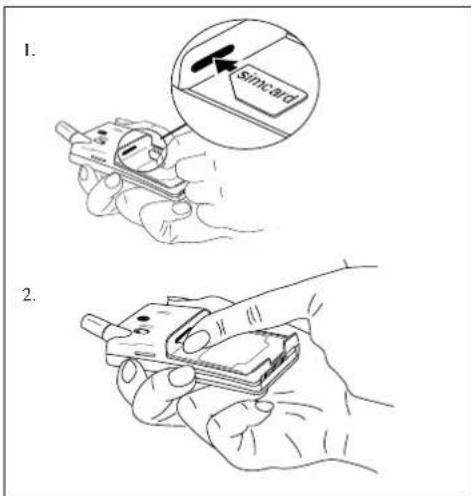
text_image
1. Simicard 2.Figure 1. Inserting SIM Card
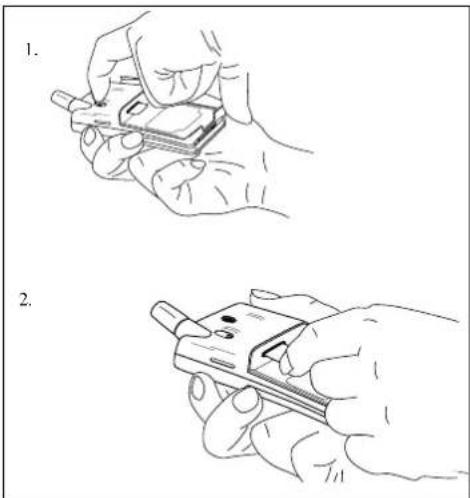
Removing SIM Card
- Make sure the battery is removed.
- Slide the SIM release button towards you (see Figure 2).
- Pull out the SIM Card.
natural_image
Two hand-drawn illustrations showing a handheld device being held, with no visible text or symbols.Figure 2. Removing SIM Card.
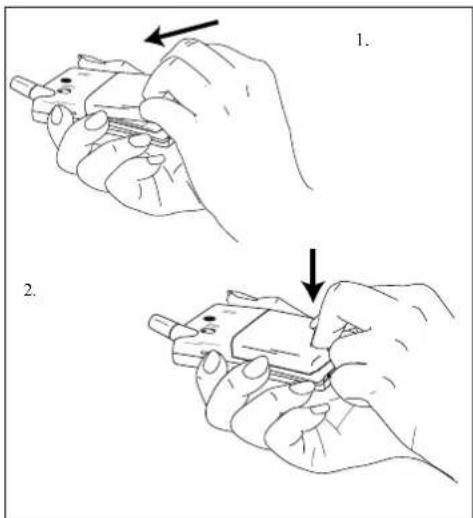
2. Attaching Battery
Place the battery on top of the phone and push until you hear a click (see Figure 3).
text_image
Illustration showing two hand positions (1 and 2) of a device being held, with arrows indicating movement direction.Figure 3. Attaching battery.
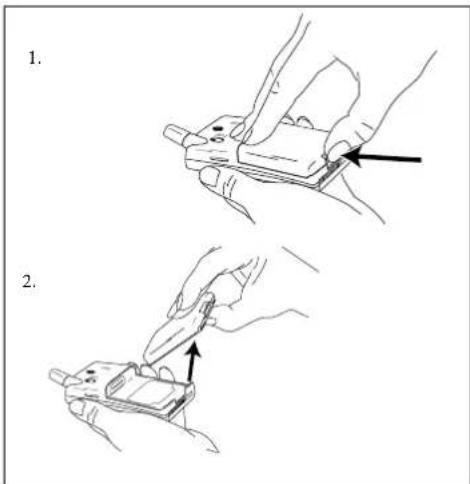
Removing Battery
- Make sure the phone is turned off.
- Press the locking catch on the bottom of the battery (see Figure 4.).
- Lift the battery up and away from the phone.
text_image
1. 2.Figure 4. Removing battery.
3. Connecting Charger to Phone
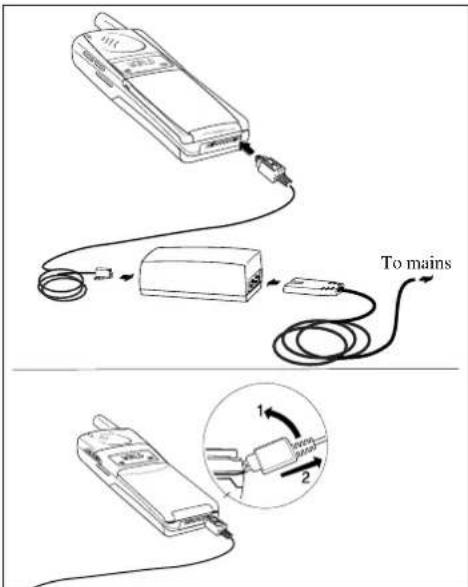
Have the battery attached to the phone and connect the charger as described in Figure 5. Use the power plug that fits your mains.
Disconnecting Charger
Lift the plug up and pull it out (see Figure 5).
text_image
To mains 1 2Figure 5. Connecting and disconnecting charger.
4. Connecting Charger to Mains
Plug the charger into a mains socket. The phone now starts to charge the battery and you can see the battery meter in the display move while charging.
About the Charging Function
When you connect external power to the phone, the battery is charged. When the battery is fully charged, the charging stops. You cannot overcharge your battery.
When you are charging the battery you can use your phone as normal; however the charging time will be longer.
About the Battery and the SIM Card
The Battery
Your phone is supplied with a Nickel Metal Hydride battery. The battery is not charged before shipment, even though there might be enough power to turn the phone on.
The SIM Card
Before you can start using your phone, you need to order a SIM Card from a GSM service
provider. The SIM Card is a computer circuit that keeps track of your phone number, the services that you have ordered from the service provider, and your phone book information.
The SIM Card sometimes contains information that lets the phone automatically change the display texts into the language of the SIM Card.
Your SIM Card is supplied with a security code or PIN (Personal Identity Number) that you need to enter into the phone to gain access to the phone and network.
Turning On the Phone and General Information
This chapter describes the display information you receive from your phone when you use it.
Turning On the Phone
- Press and hold down the NO key until you hear a click. The display will prompt you to enter the PIN (the security code that follows your SIM Card).
PIN:
- Enter the PIN and press YES.
The PIN is indicated as **** in the display. If you entered the PIN correctly, you will be welcomed by your phone. Then it searches for a network.
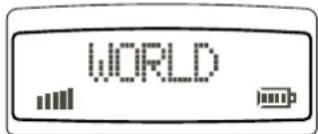
When a network is found, the indicator light on top of the phone flashes green once every second and the standby display is shown (see Figure 6).
text_image
WORLDFigure 6. Standby display.
Turning Off the Phone
- Press and hold the NO key until you hear a click and the display is dark.
About the Display
Your phone display will help you to:
- Verify that you are dialling correctly.
- Check your battery status.
- Check your signal strength and service availability.
- Indicate that you have received messages.
Looking at the Display
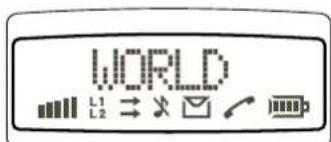
The picture below shows how the display looks when the entire icon row is lit. Table 1 explains what each icon means.
Note!
All icons may not be visible at all times.
text_image
WORLD L1 L2Figure 7. Display with all icons lit.
WORLD

L1 L2


Table 1. Description of display icons.
| Icon: Indicates: | |
| Network The name and country of the network. | |
| Signal Strength The received signal strength in five steps, depending on the strength of the signal. | |
| Line Whether line 1 or 2 is active. The respective icon is lit when the current line is activated. These icons only show if you have two lines on your SIM Card. | |
| Divert The divert arrow indicates that the phone has a divert active. The arrows corresponds to the line that is diverted. | |
| Silent Ring Signal Shows that no ring signal will sound when the phone is ringing. | |
| Letter That you have received a short text message or area information. | |
| Phone That you are engaged in a call. | |
| Battery The current battery strength – more bars means more power remaining. | |
Learning about Your Phone
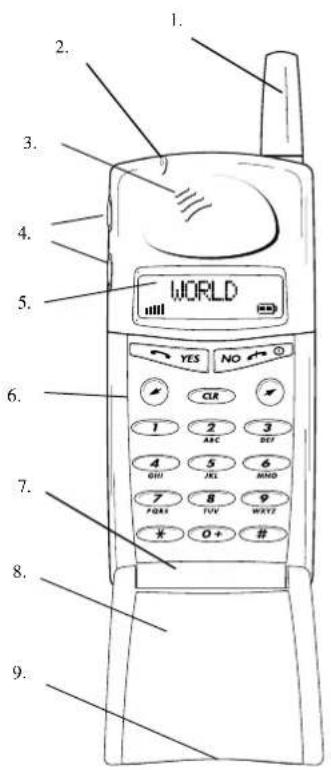
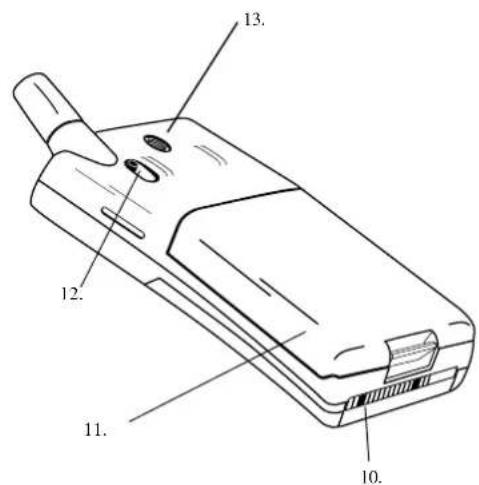
The parts list corresponds to Figures 8 and 9:
- Antenna
- Status light
- Earpiece
- Volume keys
- Display
- Keypad
- Microphone (inside)
- Flip
- Microphone channel
- Charging connector
- Battery
- SIM release button
- Phone clip
text_image
1. 2. 3. 4. 5. WORLD 6. 7. 8. 9.Figure 8. Front view of your phone.
text_image
Technical diagram of a mobile phone with numbered parts labeled 10 through 13Figure 9. Semi-back view of your phone.
Making and Receiving Calls
This chapter describes how to make and receive calls, how to make international and emergency calls, how to show or hide your phone number when calling (CLI – Calling Line Identification) and how to handle two calls simultaneously.
Making a Call
- Enter the area code and phone number. The phone number is shown in the display. If the number is longer than 10 digits, the beginning of the number will be shown as an arrow (see Figure 10).
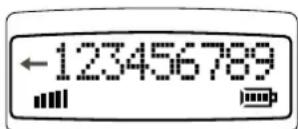
Figure 10. Number with more than 10 digits.
To erase a digit, press CLR. To erase the entire phone number, press and hold down CLR for a couple of seconds.
- Press YES to make the call. The display shows Calling, followed by Connecting and the phone icon is lit.
If the number is busy, you will hear a busy tone and the display shows Busy.
Ending a Call
- Press NO to end the call.
Making an International Call
- Press and hold the zero key until the international + prefix is displayed.
- Enter the country code, area code (without any leading zero) and the phone number.
- Press YES to make the call.
Making an Emergency Call
- Enter 112 (The international emergency number) and press YES. The display shows Emergency.
The 112 emergency number can be used in any country with or without a SIM Card, provided a GSM network is within range.
Retry Function
If the call connection fails and the receiver's network admits it, the display shows Retry? Press YES to redial the number, otherwiseNO.
If you press YES, the number will automatically be redialed until the call is answered, or 10 times at the most. If you press any key, or you receive a call, the redailling is interrupted.
If the redialling is successful, the phone rings twice to inform you.
Receiving a Call
When you receive a call, the phone rings and the indicator light on the top of the phone blinks green rapidly. The display showsAnswer?
Answering a Call
- Press YES to answer the call
- When the call is finished, press NO.
Rejecting a Call
- Press NO or press a volume key twice when the phone rings. The display now looks like this:
BusyTone
If the caller's network supports it, the caller will hear a busy tone.
If you have been unable to answer, or you have rejected a call, the number of the unanswered call will be shown in the Missed Call menu.
Putting a Call on Hold
- Press YES to put a call on hold. To put the call off hold, press YES again.
About Calling Line Identification (CLI)
The Calling Line Identification service shows the caller's phone number when you receive a call (you have to order this service). If the caller's name is stored in your phone book, the name is displayed instead of the number.
Showing Your Phone Number
If you subscribe to normally withhold your number when calling, you can show the number on a particular call.
-
Enter the number you wish to call.
-
Press ↗.
The display shows Send Id?
- Press YES to make the call.
Hiding Your Phone Number
If you subscribe to normally show your number when calling, you can hide your number on a particular call.
- Enter the number you wish to call.
2 P r e stwice.
The display shows Hide Id?
- Press YES to make the call.
Handling Two Calls
Your phone can handle two calls simultaneously. This allows you to hold one call and make or receive another, then you can switch between the two calls.
To be able to receive a second call, you have to activate the Call Wait function.
Activating the Call Wait Function
- Press *43 # followed by YES.
The display will show Please Wait followed by ON.
Deactivating the Call Wait Function
- Press #43# followed by YES.
Receiving a Second Call While a Call Is in Progress
When you receive a second call, you will hear a tone in the earpiece and the display showsCall Wait.
- Press YES answer the second call. The current call is put on hold. The display now looks like this.
1 On Hold
- To reject the second call, press zero followed by YES.
Switching Between Two Calls
- Press YES to switch between the two calls.
Ending the Current Call and Return to the Held Call
- Press NO to end the current call.
The display shows Retrieve? and you hear two beeps. - Press YES within three seconds to return to the held call.
If you do not press YES within three seconds, the held call is automatically ended.
Making a Second Call while a Call Is in Progress
- Enter the second phone number and press YES. The first call is put on hold and the display looks like this:
1 On Hold
Receiving a Third Call
If you are engaged in one call and have a second one on hold, you may receive a third call. You will hear a tone in the ear piece and CallWait is shown in the display.
You can only have one call on hold at a time, so you need to end the first or second call before you answer the call.
You can do one of the following:
- Press zero followed by YES to reject the third call.
- End the first call, retrieve the held call, and answer the incoming call
- End both calls. The phone rings and the question Answer? appears in the display. Press YES to answer the call.
Useful Information while Talking
During a call, you can: change the volume of the ear piece; use the display as a scratch pad; send DTMF tones; check the duration of the current call.
Changing Volume while Talking
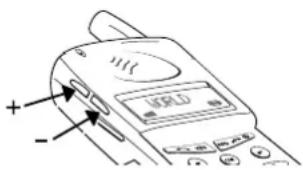
During a call, you can use the volume keys to increase or decrease the ear piece volume (see Figure 11).
text_image
USERLED + -Figure 11. Changing volume.
Muting Microphone
- Press and hold the CLR key for as long as you want the microphone muted.
Using Phone as Scratch Pad
-
Enter a phone number on the keypad while talking.
When you end the call, the number remains in the display. -
Press YES to make the call in the display.
Sending Tone Signals
During a call you can press keys0 - 9, * and # to send DTMF tones. For example, to perform banking by phone or to control an answering machine.
Checking Time of Calls
When you start a call (incoming or outgoing), the airtime is counted in minutes and seconds and shown on the display, like this:
1:34
Navigating the Menu System
This chapter describes how you navigate through the menu system to get maximum use of your phone.
About the Menu System
You control the functions of your phone by a menu system.
Some menus have sub-menus that have individual settings. If the menu has sub-menus, three dots appear after the menu name. See the example below:
Barrine...
Moving Through the Menu System
Use these keys to move through the menu system and to find the different menus.


When you reach the desired menu, press YES to choose the menu. Use the ↗/↗ keys until you reach the function or setting you want. Then, in the same way you chose a menu, press YES to select the setting or function.
| Press this: To: | |
| YES | confirm a setting or a selection. |
| NO | reject a setting or a function. |
| CLR | return to the standby display. |
| scroll to the right in the menu system. | |
| scroll to the left in the menu system. |
Glossary
These terms will be used throughout the manual.
Scroll: Pressing the left or right arrow key to move between the menus.
Select: Scrolling to a menu and then press YES.
Enter: Keying in letters or numbers from the keypad.
Selecting the Key Sound Menu
-
Press CLR to clear the display. Press the left arrow key until you reach the Keysound menu.
-
Press YES. This is an example to show how to select the Key Sound menu.
Menu Overview
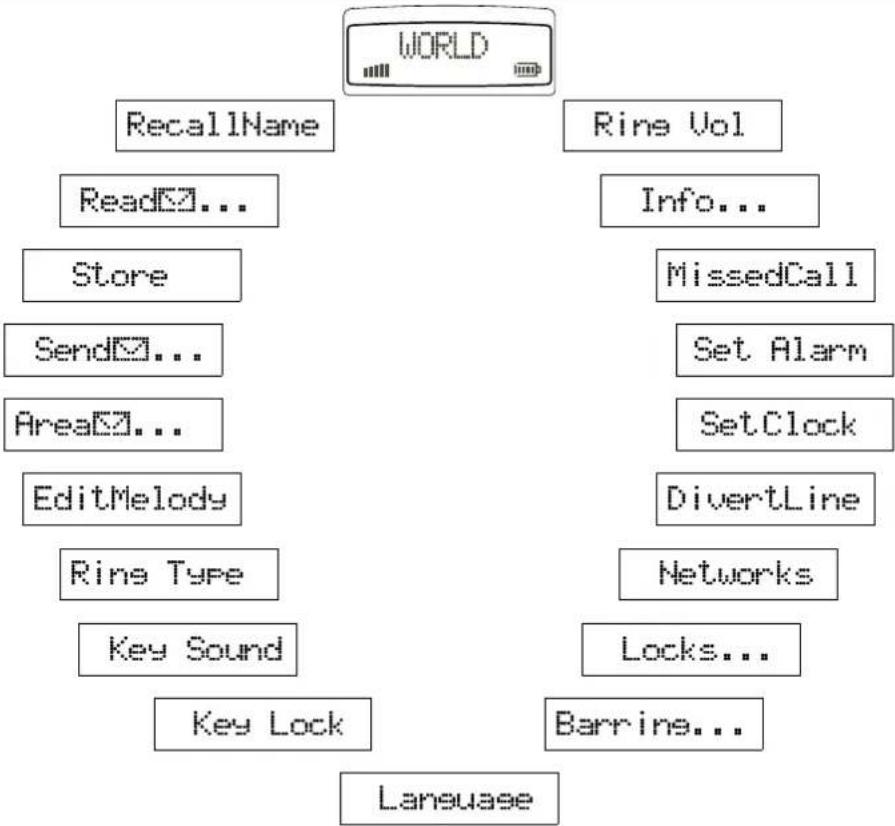
flowchart
graph TD
    A["World"] --> B["RecallName"]
    A --> C["Rine Vol"]
    B --> D["Read..."]
    B --> E["Info..."]
    C --> F["Info..."]
    D --> G["Store"]
    G --> H["Send..."]
    H --> I["Set Alarm"]
    I --> J["Area..."]
    J --> K["SetClock"]
    K --> L["EditMelody"]
    L --> M["DivertLine"]
    M --> N["Rine Type"]
    N --> O["Networks"]
    O --> P["Key Sound"]
    P --> Q["Locks..."]
    Q --> R["Key Lock"]
    R --> S["Barrine..."]
    S --> T["Language"]
Creating Your Own Phone Book
This chapter describes how you can store phone numbers both on your SIM Card and in your phone's own memory.
About the Phone Book
You can store your phone numbers both on your SIM Card and in your phone's own memory. The difference between the two is you can remove the SIM Card and use all those telephone numbers in other phones, while phone's memory always stays the same no matter which SIM Card is inserted.
You can store up to 50 phone numbers in the phone memory. The number of phone numbers you can store on your SIM Card is SIM Card dependent.
International Numbers
If you intend to use your phone book both at home and abroad, you should store all phone numbers as international phone numbers, i.e. with the international prefix “+” and the country code before the area code (without any leading zero) and the number.
- To enter the plus prefix, press and hold the zero until you see the plus in the display.
Speed Dialling
The phone numbers that you store in positions1-9 on the SIM Card can be called by entering the position number and then pressing YES. You should, therefore, save positions1-9 for important numbers.
Storing Numbers on SIM Card
- Enter the phone number you wish to store.
- Press the left arrow key until Store is shown and press YES twice.
- Enter the first letter of the name by pressing the appropriate numeric key as many times as required (see Table 2 for all characters).
Enter the next letter when the cursor has moved to the next letter position. The number of letters the name can have is SIM Card dependent.
Press YES when you are done with the name.
- If you want to store the phone number in the storage position suggested in the display, go directly to step 5.
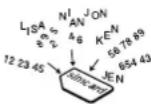
If you want to store the number in a different position, press CLR to erase the position number displayed and enter another number.
- Press YES to confirm the position number. The display shows Stored.
If you have chosen a position number that is already occupied, Overwrite? is displayed. Press YES to overwrite or NO to return to the position number and change it.
Storing Numbers in Phone's Memory
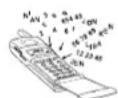
Follow the the same procedure as storing a phone number on the SIM Card up to step 4. When you are prompted to set storage position number, press # once to enter the α character (which indicates storage in phone memory) and twice to have the phone suggesting the first free storage position.
Press YES to confirm the storage.
About Recalling Phone Numbers
You can recall a phone number any time from either the SIM Card or the phone memory. You can recall the phone number by either the name or the storage position number.
Recalling by Name
- Press CLR to erase any digits from the display.
- Select the RecallName menu.
You are prompted to enter a name.
- Enter either the full name or the first letter and press YES.
The first name that matches the letter string is displayed. If needed, scroll to the name you want.
The selected name and number will blink on the display until you press the * key.
- Press YES to call the number.
Recalling by Number – Speed Dialling
- Press CLR to erase any digits from the display.
- Enter a position number between 1 and 9.
- Press YES to make the call.
Position Recall
From SIM Card
- Enter the position number and press#.
- Press YES to call the number, or scroll until you find the number you want to call and press YES.
- Press CLR or NO to return to the standby display with the number showing.
From Phone Memory
- Press and hold # until the ≈ symbol is shown.
-
Enter the position number.
-
Press # to recall number.
- Press YES to call the number, or scroll until you find the number you want to call and press YES.
Deleting Storage Position
- Select the RecallName menu.
- Choose the name you want to delete, press and hold CLR.
- Press YES at the Erase prompt.
Table 2. List of keypad numbers, symbols and letters. Press * to get lower-case letters. Press and hold a key to get the number directly Press a volume key together with a numeric key to get the second or third letter position.
| Key Press | the corresponding key this many times to get the symbol. | ||||||||||||
| 1 | 2 | 3 | 4 | 5 | 6 | 7 | 8 | 9 | 1 | 0 | 1 | 1 | |
| 1 | s p | a | c | e | - | ? | ! | , | . | : | " | ' | |
| 2 | A | B | C | Å | Ä | Æ | à | Ç | 2 | ||||
| 3 | D | E | F | è | É | 3 | |||||||
| 4 | G | H | I | ì | 4 | ||||||||
| 5 | J | K | L | 5 | |||||||||
| 6 | M | N | O | Ñ | Ö | ∅ | Ò | 6 | |||||
| 7 | P | Q | R | S | ß | 7 | |||||||
| 8 | T | U | V | Ü | Ü | 8 | |||||||
| 9 | W | X | Y | Z | 9 | ||||||||
| 0 | + | & | @ | / | $ | % | £ | Θ | Ξ | Ψ | Ω | 0 | |
| # | * | # | |||||||||||
About Last Dialled Numbers
Your phone can store at least the 5 last dialled numbers. The most you can store depends on your SIM Card.
Recalling From List of Last Dialled Numbers
-
Press CLR to erase any digits from the display.
-
Press YES. The number last called is shown.
- Press YES to call the number or scroll to the number you want to call.
About Unanswered Calls
Sometimes you are unable to answer a call. Then the phone keeps track of your latest missed calls in the MissedCall menu.
Checking Unanswered Calls
Select the MissedCall menu. A number, a name or Unknown is shown.
Now do one of the following:
- Press YES to see who the call is from (CLI).
- Press CLR to erase the call.
- Scroll between the entries.
Personalizing Your Phone
This chapter describes all the different ways you can personalize your phone to your own requirements.
Changing Ring Volume
- Select the Ring Vol menu.
- Scroll to the desired ring volume, pressYES. Use the volume keys to scroll silently.
Turning Off Ring Volume
- Select the Ring Vol menu.
- Press the left arrow key until no squares are lit and press YES. The standby display now looks like this:
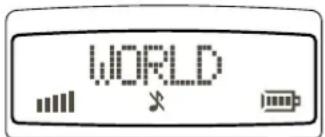
text_image
WORLDAbout Ring Type
You can choose between different types of ring signals. You also have the possibility to choose a melody that you have created yourself. See the chapter on Making Your Personal Ring Signal.
Changing Ring Type
- Select the Ring Type menu. The display now looks like this.
Melody 1?
- Press the right or left arrow to listen to the different ring types. Use the volume keys to scroll silently.
- Press YES to select your preferred ring type.
Viewing the Clock
If you want to view the time on your phone, press one of the volume keys on the side of the phone.
Setting Clock
- Select the Set Clock menu. The display now looks like this.
14:30
- Follow the instruction table below on how to set the clock. (Set hours before the minutes.)
| To change this: Do this: | |
| Hours press the left or right arrow keys. | |
| Minutes press the number keys. | |
| am or pm press the * button to toggle. | |
| 12-hours or 24-hours | press the # button to toggle. |
- Press YES to set the time.
Setting Alarm
- Select the Set Alarm menu.
The last alarm time is shown.
2 Enter the alarm time. - Press YES.
The standby display now looks like this:
World 卑
Your alarm works even though the phone is turned off.
When the Alarm Rings...
- Press any key and the Turn Off prompt appears.
- Press YES to turn it off completely or any key to activate the snooze function (9 minutes).
Turning Off the Alarm
- Select the Set Alarm menu. The Off prompt appears.
- Press YES.
About Display Language
Your phone has many laguages that you can choose for your display texts. If you SIM card supports the automatic function, the phone has automatically chosen the SIM card default language.
Note!
When you change language, you change all display texts immediately.
Changing Display Language
- Select the Language menu.
- Scroll to the language you want is shown and press YES.
Resetting Display Language to English
- Clear the display.
- Enter the digit string* #0000#.
Changing Key Sound
- Select the Key Sound menu.
- Select the key sound you want.
Making Your Personal Ring Signal
This chapter describes how you can make your own ring signal. You will find one example of how to make a simple melody and one example of a little more complex melody. You will also find a table of sample melodies that you can use.
About the Phone's Note System
Your phone has the capability to handle a range of tones spreading over two octaves.
Look in Table 3 to understand which notes and other notation corresponds to which keys. Figure 13 also explains which key goes with which note on the keypad.
If you press and hold a key, you make the note long.
Note!
You do not need to be musical to make your own melody, just look in Table 4 for two sample melodies that are easy to create.
Simple Melody
The simple melody is Do-Re-Me. This song corresponds to the C, D, and E tones on a music scale.
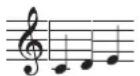
Making Do-Re-Me
- Select the Edit Melody menu. Your display now looks like this.
LZT 126 1343/x RIA 15

- Press the 1 key. The display will now show a c.
- Press the 2 key. The display now looks like this:

- Press the 3 key. The display now looks like this:

- Press YES to test the melody. The phone plays the melody and asks you if you want to save the melody.
- Press YES to save the melody as an alternative in the Ring Typemenu.
Table 3. List of musical notation.
| Press this: To: | |
| 1-9 | insert notes, where 1 gives a C and 9 a high D. |
| # | increase or decrease the pitch in half tone steps.Press once to sharp (#), twice to flat (b), three times to get the normal pitch. |
| * | insert a short pause (1/8). |
| ✗ | scroll within the melody. Press and hold to get to the beginning or end of the melody. |
| 0 | get either a higher or a lower octave for the note you have inserted.You know it is higher as a plus sign is added in front of the note name. |
| CLR | erase the note to the left of the cursor. If you press and hold CLR, the whole melody is erased. |
Complex Melody
The complex melody is Twinkle, Twinkle Little Star — first section. This section corresponds to F, F, C, C, D and C tones on a music scale.
Making Twinkle, Twinkle Little Star
- Select the Edit Melody menu. Your display now looks like this.
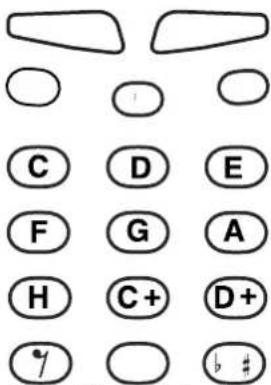
text_image
C D E F G A H C+ D+/ ○ b #
Figure 13. Keypad in musical notes.
- Press the 4 key twice. The display now looks like this:

- Press the 8 key twice. The display now looks like this:

- Press the 9 key twice. The display now looks like this:

- Press and hold the 8 key until you see a capital C with a plus sign in the display. The display now looks like this:

-
Press YES to test the melody. The phone plays the melody and asks you if you want to save the melody.
-
Press YES to save the melody as an alternative in the Ring Type menu.
Table 4. List of key pressures to make melodies. s = short key pressure L = long key pressure
| Twinkle, Twinkle Little Star. | |||||||||||||||
| Enter: | 1s 1s 5s | 5s 6s 6s | 5s * 4s | 4s 3s | 3s 2s 2s | 1L | |||||||||
| Display: | c | c | g | g | a | a | g | p | f | f | e | e | d | e | |
| Fanfare. | |||||||||||||||
| Enter: | 5s 5s 5s | * 7s * | 2s 0 * | 5L | 0 | ||||||||||
| Display: | g | g | g | p | b | p | +d | p | +G | ||||||
Diverting Calls
This chapter describes the divert function.
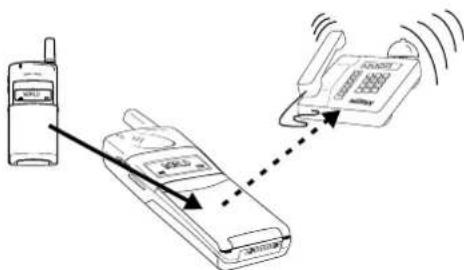
text_image
Diagram showing a mobile phone with signal transmission via a landline to an open landline, illustrating wireless communication.About Diverting Calls
When supported by your service provider, you can use the DivertLine menu to divert (forward) your calls to another number, for example your voice mail or home phone.
Note!
If your SIM Card and your service provider support two lines, you need to set each line separately. Here we assume you have one line.
The divert service lets you divert:
- All calls: regardless of if your telephone is turned on or off.
- Unanswered calls: if you do not answer within 30 seconds, if your phone is busy, turned off or out of reach of a network.
As a reminder, the display will inform you about any activated call divert each time you turn on the phone.
Your standby display now looks like this:
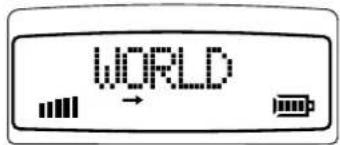
text_image
WORLDThe DivertLine menu changes into DivertOff when the divert is active.
Diverting
- Select the DivertLine menu.
- Select a divert option.
- Chose Activate and press YES.
You may now do one of the following: - Enter a number at the prompt where you want your calls to be diverted, including the area code, and press YES.
- Press the left arrow key to enter a name from your phone book and press YES.
- Use the phone number that is suggested and press YES.
You will only get a number suggested if you have activated the divert function before.
There may be a short delay before the network responds to your divert option, and your display will prompt you when the divert is active (on or off).
Viewing Status of Call Divert
- Select the DivertLine menu.
- Select the divert option you wish to view and choose GetStatus.
There may be a short delay before the network responds, and your display will prompt you which divert is active (on or off).
Cancelling Call Divert
- Select the DivertLine menu.
- Select the divert option you wish to cancel and choose Cancel.
There may be a short delay before the network responds, but you will be prompted that your divert is cancelled.
Protecting Your Keypad, Phone and SIM Card
This chapter describes the different locks that you can use to protect your phone. These are the only ways of protecting your phone in case of theft.
About Locks
Your phone has three types of locks:
- Keypad lock (does not protect in case of theft)
- Card lock
- Phone lock
The card and phone locks are found in the Locks menu and you find the keypad lock in the Keylock menu.
Keypad Lock
You can lock the keypad so that unintentional key action has no effect if the phone is turned on when you are carrying it in a handbag or pocket. When activated, the keypad lock is turned on 30 seconds after the last key action. And the standby display has a lock icon.
The keypad remains locked until you:
- answer or reject a call.
- unlock the keypad yourself.
Note!
You can always make the international emergency call 112 when the keypad is locked.
Setting the Keypad Lock
-
Select the Key Lock menu.
-
Select Auto.
To turn off the automatic keypad lock, select the Off option.
Unlocking Keypad
- Press ↗ and press YES.
Card Lock (SIM)
The card lock protects your SIM Card. When the card lock is active, you will always be prompted to enter your PIN at s

PINs and PUKs
When you buy your SIM Card, you obtain a 4-to 8-digit PIN (Personal Identity Number) and a longer PUK (Personal Unblocking Key). If your SIM card allows it, you can turn off the card lock.
The PIN is the code that you enter to get access to and activate your subscription. PIN2 is used with special functions.
The PUK (and PUK 2) is a little longer code that helps you unlock your phone when you have forgotten the PIN (PIN2).
Changing PIN
- Select CardLock in the Locks menu.
- Select NewPIN.
- Enter the old PIN at the prompt and pressYES.
- Enter the new PIN and press YES.
- Repeat the new PIN at the prompt and press YES.
Unblocking with PUK
If you have entered the PIN incorrectly three times in a row, the display will read:
PUK:
- Enter your PUK and pressYES.
- Enter a new PIN at the prompt and pressYES.
- Repeat the new PIN at the prompt and press YES.
If you entered both the PUK and the PIN correctly, the display will read:
New PIN
Phone Lock
The phone lock protects the phone against unauthorized use of the phone if there is theft. The phone lock is not activated when phone.
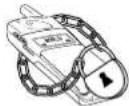
These are the two types of phone locks:
Autolock: you need to enter the phone lock code every time you change SIM Card in the phone.
Full lock: you need to enter the phone lock code every time you turn on the phone.
Changing Phone Lock Code
- Select Phone Lock in the Locks menu.
- Select New Code.
- Enter 0000 at the prompt (the factory default code) or your own code and press YES.
- Key in a 4 to 8 digit personal code at the prompt and press YES.
- Repeat the new code at the prompt and press YES.
(Un)Locking Phone
- Select Phone Lock in the Locks menu.
- Select the desired lock option, for example Auto Lock.
- Enter 0000 (the factory default code) or your own phone lock code at the prompt and press YES.
To unlock the phone, choose Unlock in the Locks menu.
Barring Calls – Restricting Calls
This chapter describes how you can bar (restrict) calls to and from your phone. This feature is available in your phone, but might not be supported in your subscription.
About Barring Calls
The call barring service lets you control which kind of calls can be made to or from your phone. This feature is convenient if you lend your phone to somebody else. This feature is GSM service dependent.
Barring Options
Your phone supports the following barring options (but your subscription might not support all):
- all outgoing calls – you cannot make any calls.
- all outgoing international calls – you cannot make any international calls.
- all outgoing international calls except to your home country – you cannot make any interna-
tional calls except to the SIM Card home country.
- all incoming calls – you will not receive any calls.
- all incoming calls when you are abroad – you will not receive any calls when abroad.
To activate any of the barring functions, you
Note!
need a password that comes with your subscription.
Activating Call Bars for Any Call Type
- Select either Incoming or Outgoing call bars from the Barring menu
- Select the barring option you want.
- Select Activate.
- Enter your password (provided with your subscription) and press YES.
There may be a short delay before the network responds and your display will prompt you which call bars have been activated.
Press CLR to stop the responses from the network.
Cancelling All Call Bars
-
Select the Cancel All option in the Barring menu.
-
Enter your password at the prompt and press YES.
There may be a short delay before the network responds and your display will prompt you which call bars have been cancelled.
Press CLR to stop the responses from the network.
Sending and Receiving Text Messages
This chapter describes SMS, what you need to do before you can send messages, how you send messages, and how you read messages. This service is network dependent.
About Text Messages
The Short Message Service (SMS) function allows you to send and receive text messages that contain up to 160 characters. Text messages can be received when the phone is in standby mode, when you are engaged in a call, or when incoming calls are diverted to another phone number. Also, if you have had your phone turned off for a while the network will keep track of the message and send it to your phone as soon as it is turned on.
After a message is received, it is left in the phone's memory, which works similar to a computer's working memory. The message remains in the phone's memory until you read it. You can even turn off the phone and the message will remain intact. If you, on the other hand, change SIM Card, you will lose the unread message. This is because messages should be personal.
Note!
You need to set the service center number before you can send any messages. If you only want to receive messages, you do not need to do anything.
Checking Subscription
- Call your service provider to see which services your subscription supports, or check the service provider's manual.
Setting Service Center Address
- Check the service center address (number) for your service provider.
- Select Options in the Send menu.
- Select Serv Cent.
- Enter the service center address with the international prefix and press YES.
Sending SMS
- Select New in the Send menu.
- Enter your message and press YES. You can also enter a phone number.
See Table 2 for all letters and symbols available.
- Enter the phone number, or press the left arrow key to enter a name you want to send to and press YES.
The display now looks like this:
Sent!
If your message does not go through, it will be sent back to you.
Setting Duration of Message
- Select Options in the Send menu.
- Select Valid Per.
- Select how long you want the message to be repeated.
The service center repeats the message for the set duration or until the receiver can receive it.
About Other Message Types
You can send SMS from your phone to the service center and the service center can change the message into the following types (if supported):
The E-mail address cannot contain more than 20 characters.
Telex
Fax
Both group 3 and 4.
X400
Voice
Changing Message Type
- Select Options in the Send menu.
- Select Msg Type.
- Select the message type you want.
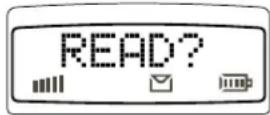
Receiving a Message
When you receive a message the display looks like this:
At the same time you will hear a beep as loud as the ring signal and the green light on top of the phone will flash.
Reading an Incoming Message
- Press YES when you have received a message. The display will show you the date of the incoming SMS, you can see the time by pressing *.
2. Press YES.
The display will show you from which phone number the message is sent, or the name if stored in your phone book. The display could now look like this:

The arrow shows you that you can start scrolling through the message with the right arrow key.
- Press the right arrow key to read the message. When you have read a message, you can do one of the following:
- Call a phone number in the message by pressing YES.
- Erase the message by pressing YES at the erase prompt.
- Store the message by pressingNO at the erase prompt (you may get a reply prompt if the sender has required a reply). Press YES at the Store prompt and the message is stored on the SIM Card.
Erasing a Message
- Press CLR any time during the message and answer YES on the question prompt.
Reading an Old Message
- Select the Read menu.
- Scroll to the message you want to read and press YES.
- Read through the message by pressing the right arrow key.
Receiving Area Information
This chapter describes how you can make your phone available for Area Information (AI). This service is network dependent.
About Area Information
While the SMS function is a personal service with messages directed to you, the Area Information is a broadcast type message that is sent to all subscribers in a certain cell, for example a section of a city, at the same time. You can set your phone to receive only those types of messages you want to listen to, e.g.: the local weather forecast or the local traffic report. Each message is identified by a 3-digit code. Check with your service provider for which message types are available in your network.
When you receive an AI the display looks like this:
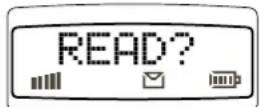
The default setting for the phone is that the AI service is turned off.
At present the following message types exists:
Code Title
000 Index
010 Flashes
020 Hospitals
022 Doctors
024 Pharmacy
030 Long-distance road reports
032 Local road reports
034 Taxis
040 Weather
050 District
052 Network information
054 Operator services
056 Directory enquiries (national)
057 Directory enquiries (international)
058 Customer care (national)
059 Customer care (international)
Activating the Area Information
- Select On in the AreaInfo sub-menu.
Adding a Code
- Select EditList in the AreaInfo sub-menu.
- Press the right arrow key to find the first empty position and press YES.
- Enter a new code and press YES. The display could now look like this if you have added the pharmacy title to the second position:

Erasing a Code
- Select Edit List in the AreaInfo sub-menu.
- Scroll to the position (to the left in the display) you wish to erase and press YES.
- Press YES at the erase prompt.
Changing a Code
- Select Edit List in the AreaInfo sub-menu.
- Scroll to the position (to the left in the display) you wish to change and press YES.
- Scroll to New Code and press YES.
- Enter the new code and press YES.
Knowing Duration of Calls
This chapter describes how you can keep track of the duration of your calls.
About Duration of Calls
Your phone is capable of keeping track of the following:
Total Calls:
This feature shows the total time of all calls in hours and minutes since the meter was last set.
Outgoing Calls:
This feature tracks the time of all your outgoing calls in hours and minutes since the meter was last set.
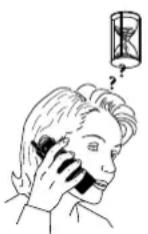
Last Call:
This feature tracks the duration of your last call in minutes and seconds.
The duration of the call appears in the display after a call is finished. The total time of all calls is recorded in the phone and is also default.
Viewing Calling Information
There are two ways to view the calling information:
- Look in the display for the duration or cost of your last call when it is ended.
- Select the Info menu to view all options.
Other Networks
This chapter describes how you select a different network when you are out of range of your home service provider's network.
About Choosing Network
When you turn on the phone, it selects its home network. If this is not within range, you might not be able to get any reception or, if you are abroad, you can choose a different network, pro-
vided your service provider has an agreement allowing you to use the network. This is called roaming.
When you select the Networks menu, the phone automatically searches for all networks present in the area you are in. Each network that is
found, has a status indication telling you whether the network is available or forbidden.
See the list below for a description of the status indication:
Display: Meaning:
Network and # home network
Network and * currently used network
Network and A other available networks
Network and S other available network (given priority by your home service provider)
Network and F forbidden networks
Auto automatic network search
Note!
The status of forbidden networks can change, so it is important that you make a network search to update the list, especially when you are visiting another country.
Auto is the basic setting for the network search and selection. This setting means that your phone takes care of all the network search and selection.
Selecting a Network
- Select the Networks menu.
The phone performs a network search and the display shows the current network followed by the network list.
- Scroll through the network list to see which networks are available.
- Press YES to select a network.
When you have made a network selection, Networks? is shown whenever the phone cannot contact the desired network. You can now either:
- Select a new network.
- Set the phone to the automatic search mode.
Setting Phone to Automatic Network Search
- Select the Networks menu.
- Scroll, after the search, to Auto and press YES.
Index
A
AI
See Area information
Alarm
setting 14
snooze 14
turning off 14
Answering calls 6
Antenna 5
Area information 23
about 23
activating 23
adding codes 23
changing codes 23
erasing codes 23
Assembly 1
Assembly instructions 1
Autolock 19
B
Barring calls
about 19
activating 20
cancelling
Battery
about 3
attaching
removing
status
Battery icon
Busy tone
20
5
(二)
2
2
4
4
6
C
Call wait 7
Calling line identification 7
Calls
answering 6
barring 19
diverting, about 17
duration 24
emergency 6
ending 6
hold 7
international 6
making 6
outgoing 24
price 24
receiving 6
rejecting 6
restricting 19
total 24
Charger
connecting 2
connector 5
disconnecting 2
function 3
CLI 7,13
Clock
setting 14
viewing 14
Complex melody 16
D
Dialling 4
Display 5
information 4
language 14
Divert icon 4
Diverting calls 17
about 17
cancelling 17
extended menu 17
reduced menu 17
view status 17
Duration of calls 24
E
E-mail 22
Earpiece 5
Emergency calls 6
Enter 9
Erasing text message 22
F
Fax 22
Flip 5
Full lock 19
G
General information 3
Glossary 9
I
International numbers
storing 11
International prefix 6
K
Key sound
changing 14
Keypad 5
lock 18
unlock 18
Keypad lock
turning off 18
L
Language
display, changing 14
Language reset 14
Last dialled
about 13
numbers recall 13
Letter icon 4
Line indicator icon 4
Locks
about 18
keypad 18
phone 19
SIM
18
M
Mains 2
Making ring signal 15
Making calls 6
Melody complex 16 simple 15
Memory phone 11 SIM 11
Menu system about 9 overview 10
Message type changing 22
Message types
e-mail 22
fax 22
telex 22
voice 22
X400 22
Messages See Text messages
Microphone 5 mute 8
Microphone channel 5
N
Network selecting 25
Nickel metal hydride 3
Noting music 15
o
Overview menus 10
P
Phone locking 19 locking code 19 turning off 3 unlocking 19 Phone book 11 about 11 changing 12 Phone clip 5 Phone icon 4 Phone number hiding 7 showing 7 storing 11
PIN about 18 changing 18 Position recall from phone 12 from SIM 12 Protecting phone 18 PUK 18 about 18
R
Recalling by name 12
by number 12
Receiving calls 6
Rejecting calls 6
Ring signal 15
icon 4
personal 15
See Ring volume
Ring type
about 13
changing 13
Ring volume
changing 13
muting 13
Ringing alarm 14
Roaming 24
S
Scroll 9
Select 9
Service center 21
setting 21
Setting keypad lock 18
Signal strength icon 4
SIM Card
about 3
inserting 1
protecting 18
release button 1,5
removing 1
Simple melody 15
SMS See Text messages
Snooze 14
Speed dialling 12
Stopping calls See Barring calls
Storing numbers
Phone memory 11
SIM Card 11
T
Telex 22
Text message
about 21
crasing 22
going through 21
reading 22
saving 22
sending 21
types 22
Turning off phone 3
Turning on phone 3
Two calls 7
U
Unanswered calls 13
Unblocking 18
V
Voice (message) 22
Volume keys 5
X
X400 22