
T28S - Mobile Phone ERICSSON - Free user manual and instructions
Find the device manual for free T28S ERICSSON in PDF.


| Product Type | Dual-band GSM mobile phone |
| Brand | Ericsson |
| Model | T28s |
| Dimensions (H x W x D) | 99 x 44 x 19 mm |
| Weight | 96 g (with standard battery) |
| Battery | Rechargeable lithium-ion, up to 8 hours talk time and 100 hours standby (depending on usage) |
| Display | Monochrome graphic display with icons and text |
| Network | GSM 900/1800 MHz |
| Main functions | Calls, phonebook, SMS, voice mail, call forwarding, voice control, profiles, calculator, alarm, games |
| Phonebook | Up to 99 contacts in phone memory, SIM capacity varies |
| Messages | SMS (160 characters), group send, templates, email via SMS |
| Voice control | Voice dialing, voice answer |
| Profiles | Normal, Meeting, Silent, Outdoor, etc. with pre-set settings |
| Security | SIM lock (PIN), phone lock, call barring, fixed numbers |
| Connectivity | Infrared (via accessory), system connector for charger and handsfree kit |
| Compatible accessories | Travel charger, car charger, handsfree kit, extra battery |
| Care and cleaning | Clean with a soft, dry cloth. Do not use chemical or abrasive cleaners. Avoid moisture. |
| Warranty | Refer to the documentation provided with the phone for warranty terms. |
| General information | Manufactured by Ericsson Mobile Communications AB, 1999. CE approved. |
Frequently Asked Questions - T28S ERICSSON
User questions about T28S ERICSSON
0 question about this device. Answer the ones you know or ask your own.
Ask a new question about this device
Download the instructions for your Mobile Phone in PDF format for free! Find your manual T28S - ERICSSON and take your electronic device back in hand. On this page are published all the documents necessary for the use of your device. T28S by ERICSSON.
USER MANUAL T28S ERICSSON
Contents at a Glance
Getting Started 3
Preparing Your Phone for Use 4
Turning Your Phone On and Off 9
Display Information and Key Functions 11
Making and Receiving Calls 13
During a Call 16
Functions and Settings 19
T28 Features 20
Using the Menus 21
Your Personal Phone Book 27
Using the Call List 35
Your Voice Mail Service 37
Personalizing Your Phone 39
Sending and Receiving Text Messages (SMS) 46
Diverting Incoming Calls 56
Security for Your Phone and Subscription 58
Handling More than One Call Simultaneously 65
Setting Network Preferences 70
Knowing the Call Time/Call Cost 73
Using Two Voice Lines 75
Voice Control 76
Calling Card Calls 79
Sending and Receiving Fax and Data Calls 82
Extras 84
The Profile Concept 88
Accessories 91
Online Services 99
Additional Information 103
Quick Keys 104
Troubleshooting 106
Ericsson Mobile Internet 108
Technical Data 109
Glossary 110
Guidelines for Safe and Efficient Use 115
Warranty 121
Declaration of Conformity 123
Index 125
Eriksson T28s Second edition (September 1999) This manual is published by Eriksson Mobile Communications AB, without any warranty, improvements and changes to this manual necessitates by typographical errors, inaccuracies of current information, or improvements to programs and/or equipment, may be made by Eriksson Mobile Communications AB at any time and without notice. Such changes will, however, be incorporated into new editions of this manual. All rights reserved. ©Ericsson mobile Communications AB, 1999 Publication number: EN/LZT 126 1456 R1B Printed in Sweden INNOVATRON PATENTS
Please note!
Some of the services in this manual are not supported by all networks. This also applies to the GSM International Emergency Number 112.
Please contact your network operator or service provider if you are in doubt whether you can use a particular service or not.
Note! You should read the Guidelines for Safe and Efficient Use and the Warranty chapters before using your mobile phone.
The CE symbol on our products signifies that they have been certified according to the EMC directive 89/336/EEC, the Telecommunications directive 91/263/EEC, and the Low Voltage directive
73/23/EEC when applicable. The products fulfil the requirements according to the following standards:
Cellular Phones and Accessories in Combination:
ETS 300 342-1 EMC for European digital cellular telecommunications.
Accessories Without Direct Connection to a Cellular Phone:
EN 50081 Electromagnetic compatibility, Generic Emission Standard, and EN 50082 Electromagnetic compatibility, Generic Immunity Standard.
Getting Started
Preparing Your Phone for Use 4
Turning Your Phone On and Off 9
Display Information and Key Functions 11
Making and Receiving Calls 13
During a Call 16
Preparing Your Phone for Use
Overview
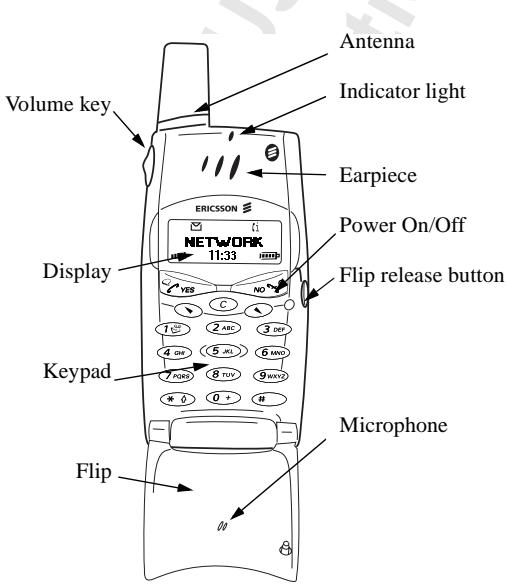
Front
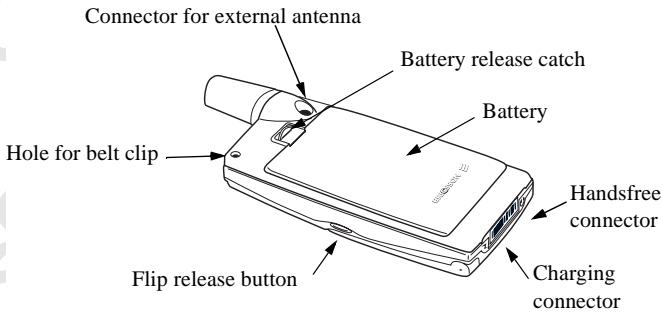
Back
Assembly
You need to do the following to use your phone:
insert the SIM card
attach the battery to the phone
charge the battery
The SIM Card
When you register as a subscriber with a network operator, you get a SIM (Subscriber Identity Module) card. The SIM card contains a computer chip that keeps track of your phone number, the services included in your subscription, and your Phone Book information, among other things.
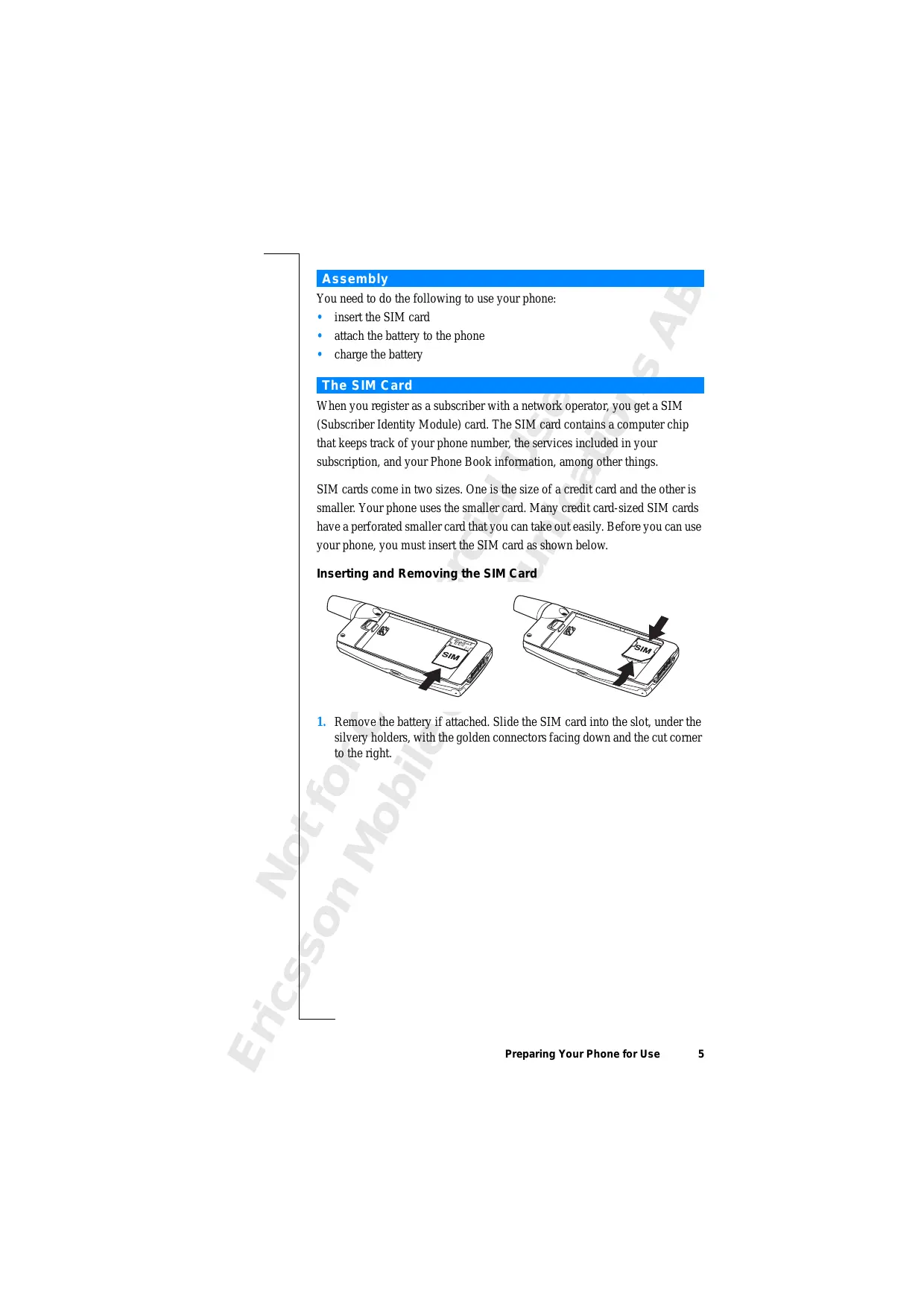
SIM cards come in two sizes. One is the size of a credit card and the other is smaller. Your phone uses the smaller card. Many credit card-sized SIM cards have a perforated smaller card that you can take out easily. Before you can use your phone, you must insert the SIM card as shown below.
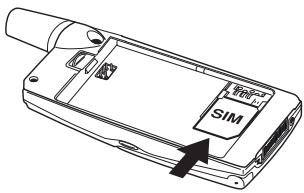
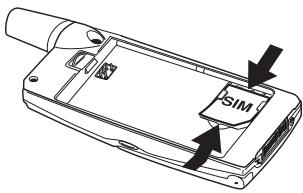
Inserting and Removing the SIM Card
-
Remove the battery if attached. Slide the SIM card into the slot, under the silvery holders, with the golden connectors facing down and the cut corner to the right.
-
Raise the edge of the SIM card and slide it out.
The PIN
Most SIM cards are supplied with a security code, also known as PIN (Personal Identity Number), which you need to access the network. Every time you turn on your phone, you are asked to enter your PIN. You will find your PIN in the information from your operator.
Some operators may have services that require a second PIN, your PIN2.
You should be careful with your PIN, since it is your protection against unauthorized use of your subscription.
If your PIN is entered incorrectly three times in a row, the SIM card is blocked. If this happens, you can unlock it by using your PUK (Personal Unblocking Key code), which you also get from your operator.
The Battery
Your T28 comes with a lithium battery. The battery is not charged when you buy your phone, but there may be enough power to switch the phone on. We recommend that you charge the battery up to three hours before you use the phone for the first time.
Attaching the Battery to Your Phone
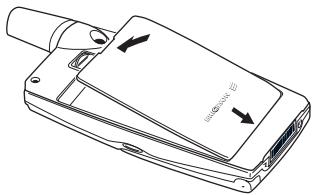
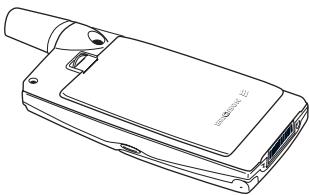
- Place the battery on the back of the phone and push until you hear a click.
When to Charge the Battery
The battery that comes with your phone can be charged whenever you wish without affecting its performance. You can also charge the battery when the phone is off.
To remind you that you will soon need to charge the battery or replace it with a charged one:
- an alarm signal (a short beep) sounds and the message Attention! Battery low appears in the display

the indicator light on top of the phone starts flashing red
If you have an Ericsson-approved battery, you can check the remaining talk and standby times in the Status menu by sliding the volume key upwards or downwards in standby mode. You can move downwards in the menu by pressing . The remaining standby and talk times depend on the type of battery you use and your position in the network. Please note that these times are approximate and you may have 20% less time than is shown in the display.
Note! The phone turns itself off when the battery can no longer power it satisfactorily.
Charging the Battery
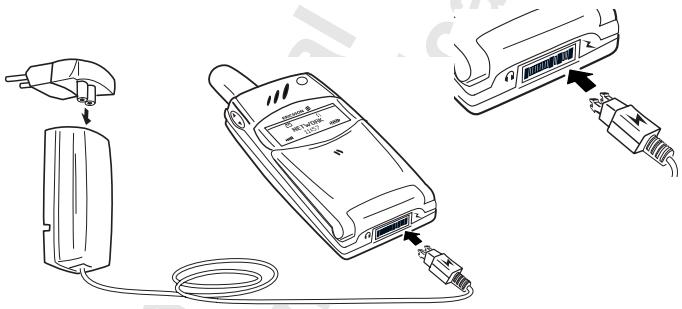
- Make sure that the battery is attached to the phone.
-
Connect the charger to the mains.
-
Connect the charger to the phone as shown. The flash symbol on the plug must face upwards.
Note! The mains plug may look different depending on the mains socket in your country. Do not connect it to any other item than you Ericsson Travel Charger CTR-10. It must not be separated from the charger when plugged into the mains socket.
To indicate charging:
- the indicator on the top of the phone shows a steady red light (or green, if the phone is switched on)
the message Charging only is shown in the display
the battery meter in the display pulses continuously
Note! If you charge a new battery that is empty, or a battery that has not been used for a long time, it may take a while until you get an indication of charging in the display. Only then can you switch on and use your phone.
An Ericsson-approved battery is indicated by Ericsson Optimized charging each time you start charging the battery when the phone is switched on. For the best charging, talk and standby times in the long run, we recommend that you use only Ericsson-approved batteries with your phone.
Batteries that are not Ericsson-approved are charged slowly for safety reasons. These are indicated by Charging alien battery each time you start charging the battery when the phone is switched on.
Tip! You can use the phone while the battery is being charged. However, this lengthens the charging time.
When the battery is fully charged, the battery meter in the display is full and the indicator on the top of the phone shows a steady green light.
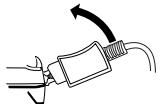
Disconnecting the Charger
Disconnect the charger from the phone by moving the plug upwards.
Removing the Battery
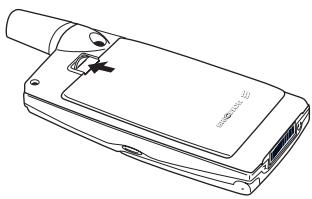
- Slide the release catch upwards.
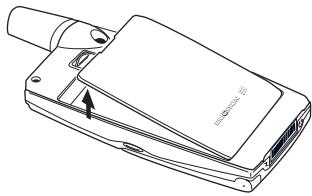
- Lift the battery away from the phone.
Turning Your Phone On and Off
Turning your Phone on
- Open the flip by pressing the flip release button on the right side of the phone.
- Press and hold the NO key until you hear a tone.
If "PIN:" Appears in the Display
Some SIM cards are protected with a PIN code. If PIN: appears in the display after you have turned on the phone:
- Enter your PIN. If you make a mistake while entering your PIN, erase the wrong number by pressing the C key.
- Press YES.
Note! If your PIN is entered incorrectly three times in a row, the SIM card is blocked. You can unblock it by using your PUK. See "The SIM Card Lock" on page 58.
If 'Phone locked' appears in the display, enter your phone lock code. See "The Phone Lock" on page 59.
Network Search
After you have turned on the phone (and entered your PIN), the phone searches for a network.
When a network is found, the phone beeps three times. The indicator light on top of the phone flashes green once every second and your network operator's name (in most cases abbreviated) appears in the display.
This is called standby mode. You can now make and receive calls.
Note! See "Error Messages" on page 106, if you do not reach standby.
Initial Settings
The first time you turn on your phone, you may want to choose the ring signal type and set the clock and date. For more information about these and other settings, see "Personalizing Your Phone" on page 39.
Display Language
Most modern SIM cards automatically set the display language to the language of the country where you bought your SIM card, (Automatic). If this is not the case, the preset language is English. To change the display language, see "Display Language" on page 43.
If your phone shows a language that you do not understand, you can change it to Automatic, or English, in the following ways:
To change the display language to Automatic
- If not in standby mode, press and hold the NO key to go to standby.
- Press the arrow key.
- Enter 8888.
- Press the arrow key.
To change the display language to English
- If not in standby mode, press and hold the NO key to go to standby.
- Press the arrow key.
- Enter 0000.
- Press the arrow key.
Turning Your Phone Off
- In standby mode, press and hold the NO key until you hear a tone.
Display Information and Key Functions
In standby mode, the display shows the name of your operator, the time, the signal strength and the battery power. Other icons appear if you receive any messages, divert all your incoming calls, set the alarm clock and so on.
In this chapter, you will also learn about the key functions.
Display Information
The table below shows and explains each icon which may appear in standby.
| Icon | Name | Explanation |
| Signal strength meter | Tells you the strength of the network signal. | |
| Battery meter | Tells you the status of the battery. | |
| Missed call indicator | You have missed an incoming call. | |
| Divert indicator | All incoming calls will be diverted to a defined number. | |
| Accept Some/None indicator | No calls or only certain calls from numbers in a list are received. | |
| Profile indicator | Another profile than Normal has been chosen. | |
| Ring signal off indicator | No sound can be heard when you receive a call. | |
| Alarm indicator | The alarm clock has been set and is on. | |
| Silent indicator | All audible signals are turned off, except the alarm and timer. | |
| SMS indicator | You have received a text message. | |
| Voice mail indicator | You have received a voice message, depending on your subscription. | |
| Voice label in phone indicator | Indicates that voice dialling is set to Start on Flip. | |
| Line 1 indicator | Line 1 is in use for outgoing calls – if you subscribe to the Two Line Service | |
| Line 2 indicator | Line 2 is in use – if you subscribe to the Two Line Service. |

Ciphering indicator
Ciphering is currently not being provided by the network.

Home zone indicator
You are in your home zone.
Does not appear on all networks.
Note! Each menu has got its own symbol. See "Menu Graphics" on page 21.
Key Functions
The table below explains the key functions.
Key
Use
Flip release button
To open the flip and answer incoming calls. (To end a call, close the flip.)
YES
To make calls and answer calls.
To voice dial, press and hold the key.
To enter the Call List from standby.
To choose a menu, sub-menu or setting.
NO
To turn the phone on or off, press and hold the key in standby.
To end a call.
To reject a call.
To go back one level in the menus, to exit a setting or to leave a setting unchanged.
To get back to standby mode, press and hold the key.

and
To enter the menu system.
To move (scroll) through menus, lists and text.
C (Clear)
To erase numbers and letters from the display.
To mute the microphone during a call, press and hold down the key.
To set the phone silent, press and hold the key from standby.
To delete an item from a list.
Number keys
To enter the digits 0-9.
The 0 key enters the international prefix (+) if held down.
To call your Voice Mail, press and hold the 1 key.
To enter the phone book, press and hold any of the numbers 2-9.
To move through menus using shortcuts.
To enter letters, for example when writing an SMS.
#
To enter *
To shift between upper- and lower-case letters.
Hash)
To enter #.
Volume key upwards and downwards
To increase or decrease the volume of the earpiece or handsfree loudspeaker during a call.
To reject an incoming call, quickly slide the key twice.
To voice dial, slide and hold the key when the flip is open
To move through the menus.
To open the flip without answering a call, slide and hold the key while pressing the flip release button.
To enter the Status menu.
Note! For information about the key functions in the menus, see "Moving through the Menus" on page 23.


Making and Receiving Calls
In this chapter, we assume that you have turned on your phone and that you are within range of a network. If you are abroad, you may use other networks, provided your home network has an agreement that allows you to do this. See "Setting Network Preferences" on page 70.
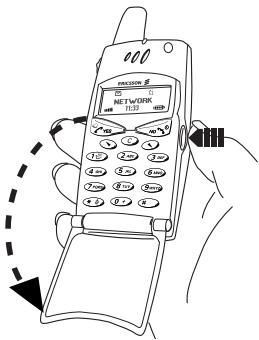
Making a Call
. Open the flip by pressing the flip release button.
. Enter the area code and phone number.
Press YES.
Note! Some countries may not use area codes.
While a call is in progress, a time counter automatically starts and you can see how long you have been on the phone. If your network and subscription supports it, you see the cost of the call in the display. See "Knowing the Call Time/Call Cost" on page 73.
Ending a Call
- Close the flip or press NO to end the call.
Re-dialling a Previously Called Number
In the Call List you find numbers that you have dialled, answered or missed.
To re-dial a previously called number
- Press YES to enter the Call List.
- Press or to choose the number you want to call.
- Press YES to make the call.
For more information, see "Using the Call List" on page 35.
Automatic Re-Dialling
If the connection failed when you first called and the display shows Retry?, you can re-dial the number by pressing YES. Your phone automatically re-dials (up to 10 times)
- until the call is answered. When the call is successfully connected, you hear a ring signal.
until you press a key or receive a call.
Note! You do not need to take the phone to your ear until you hear the ring signal.
Automatic re-dialling is not available for fax and data calls.
Making International Calls
- Press and hold the 0 key until a + sign appears.
The + replaces the international prefix number of the country from which you are calling.
- Enter the country code, area code (without the leading zero) and phone number.
- Press YES.
Making Emergency Calls
- Enter 112 (the international emergency number).
- Press YES.
The international emergency number 112 can normally be used in any country, with or without a SIM card inserted, if a GSM network is within range.
Note! Some network operators may require that a SIM card is inserted, and in some cases that the PIN code has been entered as well.
Some networks may not use the international emergency number 112.
Receiving a Call
When you receive a call, the phone rings and the display shows Answer?
If your subscription includes the Calling Line Identification (CLI) service and the caller's network sends the number, you see the caller's number in the display. If the caller's number and name are stored in the phone book, the caller's name is also shown.
If the incoming call is a restricted number, the display shows Withheld. If the incoming call is a number without any CLI service, Unknown is shown.
Answering a Call
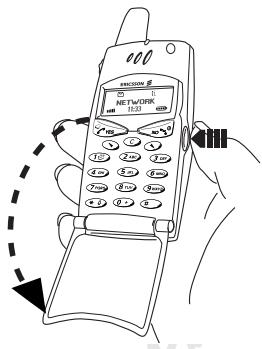
- Open the flip by pressing the flip release button or press YES if the flip is open.
Rejecting a Call
- Slide the volume key on the side of the phone twice.
The display shows Busy tone. The caller hears a busy tone if this is supported by the caller's subscription. If Divert When Busy is on, the call is diverted to the number you have specified. See "Diverting Incoming Calls" on page 56.
Note! To open the flip without answering a call, you need to slide the volume key while opening the flip. Then you may reject a call by pressing NO or by closing the flip.
Ciphering
Ciphering is a built-in feature that scrambles your calls and messages to provide additional privacy.
An exclamation mark is shown in the display to indicate that ciphering is currently not being provided by the network.
During a Call
Your phone has several functions, which you might find helpful while a call is in progress.
Changing the Listening Volume
You can easily change the listening volume during a call by sliding the volume key on the side of the phone.
To change the listening volume during a call
- Slide upwards to increase the volume.
- Slide downwards to decrease the volume.
Muting the Microphone
If you wish, you may turn the microphone off during a call.
To turn the microphone off temporarily during a call
- Press and hold down the c key.
Muted appears in the display. - To continue your conversation, release the C key.
Tip! Instead of pressing and holding the c key, you can put the call on hold.
To put a call on hold
- Press YES.
Call held appears in the display. - To continue your conversation, press YES again.
Sending Tone Signals
To use telephone banking services or to control an answering machine, you need to use codes. These codes are sent as tone signals (also known as DTMF tones or touch tones). With your mobile phone, you may use these codes during a call. If you press 0-9, * and # during a call, these numbers and characters are sent as tone signals.
Tip! You can also save codes only or codes together with a phone number in your Phone Book. See "Telephone Banking Services" on page 32. However, it may be a risk to save your codes in the phone in case it is stolen.
The Notepad
If you want to make a note of a phone number during a call, you can use your phone display as a notepad.
To use the notepad during a call
Use the number keys to enter the number.
When you end the call, the number remains in the display or, if Ask to Save is on, you will be asked to save the number in your phone book. You can also find the number in Add Number in the Phone Book menu. See "T28 Features" on page 20.
When you enter the number, the person you are talking to will hear the tones. If you wish, you may turn the tones off during a call. See "Turn off Tones" on page 42.
Checking the Duration or Cost of the Call
During a call, the display normally shows the duration in minutes and seconds. Depending on your subscription, you may see the call cost displayed instead.
Note! This depends on your network and SIM subscription. See "Knowing the Call Time/Call Cost" on page 73.
Minute Minder
If you turn on the minute minder, you hear a beep once every minute during a call as a reminder of the duration of the ongoing call. See "Minute Minder" on page 42.
More than One Call Simultaneously
Your phone is capable of handling more than one call simultaneously. You can put the current call on hold and then make or answer a second call. You can also set up a conference call with up to five people. See "Handling More than One Call Simultaneously" on page 65.
Functions and Settings
T28 Features 20
Using the Menu 21
Your Personal Phone Book 27
Using the Call List 35
Your Voice Mail Service 37
Personalizing Your Phone 39
Sending and Receiving Text Messages (SMS) 46
Diverting Incoming Calls 56
Security for Your Phone and Subscription 58
Handling More than One Call Simultaneously 65
Setting Network Preferences 70
Knowing the Call Time/Call Cost 73
Using Two Voice Lines 75
Voice Control 76
Calling Card Calls 79
Sending and Receiving Fax and Data Calls 82
Extras 84
The Profile Concept 88
Accessories 91
Online Services 99
T28 Features
Your T28 is a small new generation phone: a Dual Band phone with a lithium battery; a phone of modern design and advanced technology.
The active flip makes it possible for you to answer by just opening the flip. Or why not use the Voice Control and say 'Answer' to answer a call or 'Busy' if you wish to reject the call. You can also call a person by simply saying the name.
The T28 has a 'Profile' feature which makes it possible for you to change a few settings by just choosing a certain Profile, since each profile includes a group of settings preset to suit a certain environment. For example, when you go to a meeting, you can just choose the 'Meeting' profile and a number of settings that suit a meeting are then set automatically.
The Profiles are also related to intelligent accessories such as a desktop charger, a portable or vehicle handsfree. For example, you may place the T28 in a vehicle handsfree kit and the 'In Car' profile is chosen automatically.
In the display of the T28 you can see a mixture of text and symbols, which makes it easier for you to move through the menus when you want to change a certain setting, turn on the Vibrating Alert, send a message, save a number and so on.
An extra feature is the numbered shortcuts, which takes you to a certain setting quickly and easily. You may also create your own favourite menu, 'My Shortcuts', by including the settings you use most often. If you should need help using the menus, the T28 is equipped with help texts to guide you.

Using the Menu
You can find all your phone functions in the menus. You use the menus every time you want to change a setting in your phone, such as the ring signal. You also use the menus to get the most out of your phone: to set the alarm clock, send text messages, save important phone numbers, etc.
The menus are arranged in a loop, which you enter and move (scroll) through with the and keys or by using shortcuts. Each menu contains a list of options. Some menus have sub-menus with additional options.
Menu Graphics
You enter the menus by pressing or . At the top of the display, there are icons symbolizing each menu. Besides these, there are symbols within the sub-menus indicating missed calls, help texts, voice labels etc.
The table below illustrates and explains each menu icon and symbol.
| Symbol | Name | Description |
| □ | Phone Book menu | Your personal phone book. |
| Messages menu | Handling of text and voice messages. | |
| i | Call Info menu | Call time and call cost information. |
| ii | Settings menu | Personal settings and profiles. |
| Extras menu | Games, alarm clock and other extras. | |
| + | Call Handling menu | Handling of ongoing calls. |
| * | My Shortcuts menu | A selection of your most frequently used functions. |
| ! | Ongoing call indicator | You have an ongoing call. |
| - | Missed calls indicator | Indicates a missed call in the call list, in the missed calls list and in standby. |
| + | Answered call indicator | Indicates an answered call in the call list. |
| + | Dialled number indicator | Indicates a dialled number in the call list. |
| h | Phone memory indicator | Indicates that a phone book entry is saved in the phone memory and the SIM memory is full. |
| q | Group indicator | Indicates that a phone book entry is a group. |
| e | Unread SMS indicator | Indicates that a text message has not been read. |
| o | Unchecked Voice Mail | Indicates that a voice message has not been checked. |
| d+ | Phone book look up indicator | Indicates that you can enter the phone book by pressing ⋒. |
| d | SIM card memory indicator | Indicates that a phone book entry is saved in the SIM card memory. |
| o | Voice label in phone indicator | Indicates that a voice label has been recorded for an entry in the phone only. Indicates that voice dialling is set to Start on Flip. |
| o | Voice label in car indicator | Indicates that a voice label has been recorded for an entry in the car handsfree kit. |
| o | Voice label in phone and in car indicator | Indicates that a voice label has been recorded for an entry in the phone and in the car handsfree kit. |
| o | Preferred network indicator | Indicates that a network is preferred and can be used. |
| o | Forbidden network indicator | Indicates that a network is forbidden and cannot be used. |
| o | Home zone indicator | Indicates that you are in your home zone. Does not appear on all networks. |
| h | Help text indicator | Indicates a help text. |
| l | Lock indicator | Indicates that the card lock or phone lock is on. |
Moving through the Menu
There are two ways of moving through the menus:
- scrolling with or
using shortcuts
Scrolling by Using or
Press... to...
scroll left or up through menus or functions.
scroll right or down through menus or functions.
YES select a menu, sub-menu or setting.
NO go back one level in the menu system, exit a setting or leave a setting unchanged.
go back to standby mode by pressing and holding the key.
C delete an item from a list.
Note! For information about how to enter letters, see "Entering Letters" on page 28.
Tip! Once in the menu system, you can press and hold the or key or slide and hold the volume key until you reach the menu or sub-menu that you want instead of pressing the or key repeatedly.
Using Shortcuts
A quicker way to move through the menus is to use the shortcuts. You simply enter the number of the menu or sub-menu to which you want to go, but you first need to enter the menus by pressing or . To get back to standby, you press and hold NO as normal.
Tip! A quicker way to enter the 'Find and Call' function is to press and hold . A quicker way to enter the first sub-menu in the 'My Shortcuts' menu is to press and hold .
Note! Your phone may not have all the menu alternatives described in this manual since many of them are network- and subscription-dependent.
Because of this, the shortcut numbers may vary between phones.
How To Interpret the Instructions
In the instructions in this manual we use the and keys to describe the functions and settings, since the shortcut numbers may vary between phones due to your subscription and network.
The following instruction tells you how to set the key sound to 'Tone'.

To set the key sound
- Scroll to Settings, YES, Sounds & Alerts, YES, Key Sound, YES.
- Select Tone.
Interpret the instruction as follows:
- From the standby mode, use or to scroll to the Settings menu.
- Press YES to select the menu.
Now you are in the Settings menu.
The name of the menu that you have chosen is shown at the top of the display (Settings).
- Press YES to select the Sounds & Alerts sub-menu.
(You do not need to scroll with the arrow keys since this is the first sub-menu in the main menu Settings).
- Use or to scroll to the Key Sound sub-menu.
Press YES to select the sub-menu.
- Use or to scroll to Tone.
Press YES to select the Tone alternative.
Now you have set the key sound to 'Tone'.
To go back to standby mode, press and hold the NO key.
This is how to interpret the same instruction as above when using shortcuts:
To set the key sound
- Press or to enter the menu system.
- Press 4 to select the Settings menu.
- Press 1 to select the Sounds & Alerts sub-menu.
- Press 5 to select the Key Sound sub-menu.
- Select Tone.
Display Text
When you move through the menu system, the display changes. The following hints can help you:
- Black text within a frame at the top indicates the menu you have chosen.
- Inverted text on a black layer indicates your position in the menu system. If you press YES you enter this menu or select this setting.
- Grey text indicates a function that is temporarily unavailable, for example due to your subscription or due to a certain setting which is not on.
Text marked with a tick indicates the current setting or settings selected. - Text marked with a filled button indicates the current setting selected.
Note! Most sub-menus in the 'Call Handling' menu are shown in grey text when no call is active. However, they are shown in black text during a call.
My Shortcuts
You can place your favourite settings in the menu My Shortcuts. In this way, you can quickly and easily reach the settings you use most.
When you buy your phone, My Shortcuts contains a few settings which you can remove if you wish. You can also add a setting from another menu to My Shortcuts.


To add a setting to My Shortcuts
- Scroll to My Shortcuts, YES, Edit Shortcuts, YES.
- Select a setting from the list by pressing *
- Enter the position number you want for your setting in this menu.
- Press YES.
If you want to add another setting, repeat steps 2 and 3.
To remove a setting from My Shortcuts, repeat steps 1 and 2.
- Press YES to exit the list.
Tip! A quicker way to enter the first sub-menu in the 'My Shortcuts' menu is to press and hold .
Help texts
To help you use the functions and settings of the menus, your phone includes pop-up help texts that explain the sub-menus.
These help texts are set to On when you buy your phone, but you may turn them off at any time.
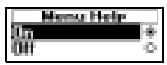
To turn the help texts on or off
- Scroll to Settings, YES, Display, YES, Help Functions, YES, Menu Help, YES.
- Select On or Off.
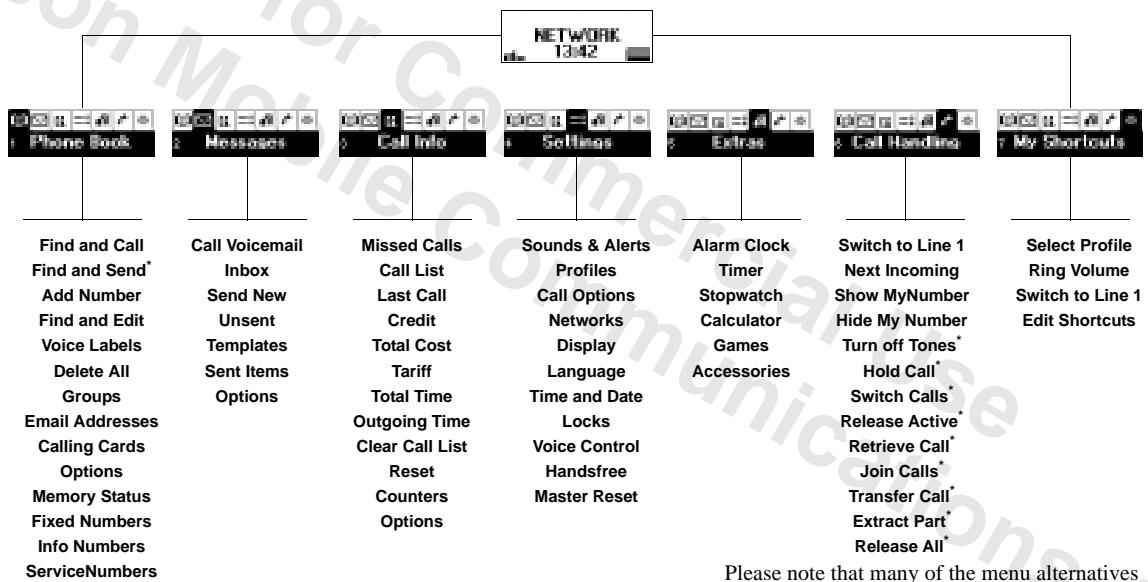
Please note that many of the menu alternatives are network- and subscription-dependent.
- Only available during a call.
Your Personal Phone Book
You can create a personal phone book by saving phone numbers and accompanying names (an entry). An easy way to make calls is by recalling the phone numbers or names saved in your phone book.
Creating a Personal Phone Book
Before you start creating your personal phone book, there are a few things you need to know. You need to learn about the memories, how to save the numbers with the international (+) sign and how to enter letters.
Phone Book Memories
You can save phone numbers and names in:
the card memory on the SIM card
the phone memory
Your entries are first saved in the positions on your SIM card. The actual number of memory positions available depends on your SIM card.
Saving your numbers in the card memory allows you to use the numbers saved on the SIM card even when you change phones, i.e. when you insert your SIM card into another phone.
By saving your numbers in the phone memory, they are always available to you in your phone, even if you change SIM cards. The phone memory holds 99 positions in which your entries are saved when all SIM positions are occupied.
International Numbers
If you intend to use your phone both at home and abroad, it is a good idea to save all phone numbers as international phone numbers, i.e. with the (+) sign, (which automatically replaces the international dialling prefix for the country you are calling from) followed by the country code, the area code and the phone number.
To enter an international phone number
- Press and hold 0 to enter the + sign. Exclude the leading zero in the area code.
Entering Letters
You can enter letters when you use the phone book and when you compose a short message (SMS). See "Sending and Receiving Text Messages (SMS)" on page 46.
Press the appropriate key, 1-9, 0 or #, repeatedly until the character you want appears in the display.
| Press... | to get... |
| 1 | Space -?!, .: ; ''<=>( )._1 |
| 2 | A B C Å A /E à C 2 Γ |
| 3 | D E F è É 3 Δ Φ |
| 4 | G H I i 4 |
| 5 | J K L 5 Λ |
| 6 | M N O N ñ û û 6 |
| 7 | P Q R S β 7 Π Σ |
| 8 | T U V Ü û 8 |
| 9 | W X Y Z 9 |
| 0 | + & @ /à % £ £ ¥ £ € i 0 Θ Ξ Ψ Ω |
| # | # * |
Example:
To enter an 'A', press 2 once.
To enter a B^ , quickly press 2 twice.
- To enter lower-case letters, enter the letter, for example an 'A', and then press *. An 'a' appears. Lower-case letters now appear until you press * again.
To enter numbers, press and hold any number key.
To delete letters and numbers, press the C key.
You may also use the volume key as a shortcut to certain letters:
To enter a B^ , slide the volume key upwards and press 2.
To enter a 'C', slide the volume key downwards and press 2.
Tip! You can choose another alphabet by pressing and holding #.



Saving a Number Together with a Name
Every phone number that you save gets a position number. You can save the phone numbers together with a name to make it easier for you to keep track of your phone numbers.
To save a number together with a name
- Scroll to Phone Book, YES, Add Number, YES.
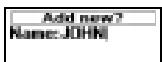
A list of numbers used but not saved appears. - Select Add New? or any of the numbers from the list by pressing YES.
- Enter a phone number that you wish to save (including the (+) sign and the country code) and press YES.
- Enter a name that you want to associate with the phone number and press YES.
- You now have three options:
To save the number in the suggested first empty position, press YES.
- To save the number in another position, press C to erase the position number, enter a new position number and press YES.
- To save the number in the phone memory, you need to know how many positions you have got on your SIM card. You can check this in Memory Status in the Phone Book menu. If, for example, you have 200 positions on your SIM, you can enter position number 201 to save a number in the phone memory.
If you have turned Voice Dialling on, you are asked if you want to add a voice label to your phone book entry. See "Voice Control" on page 76.
Ask to Save
If you wish to be asked to save any dialled or answered number that is not already saved in your phone book, you can turn on the Ask to Save option.
To turn the Ask to Save function on or off
- Scroll to Settings, YES, Display, YES, Help Functions, YES, Ask to Save, YES.
- Select On or Off.
Note! Your subscription must support the Calling Line Identification service.
Calling a Number Saved In the Phone Book
You can either call a number by using the name saved with it or you can call the number by using the position number that it was saved in.
The order of searching for names and numbers depends on the sort order you have chosen, i.e. by name or by position.



To choose a sort order
- Scroll to Phone Book, YES, Options, YES, Sort Order, YES.
- Select a sort order.
To call a number saved in the phone book
- Scroll to Phone Book, YES, Find and Call, YES.
- Enter the position number or the name (or the first few letters of the name) associated with the number that you want to call.
- Press YES.
If the name displayed is not the one you want, press or until you find the correct name and number.
- Press YES to make the call.
Tip! A quicker way to enter the 'Find and Call' function is to press and hold

Shortcuts to Phone Book Entries
When in standby, you can find an entry by:
entering the position number followed by #.
- pressing and holding one of the keys 2-9 to find an entry beginning with a specific letter.
For example, pressing and holding 2 takes you to the first entry beginning with the letter A (or closest following).
Once you are in the list of phone book entries you can use or to scroll through the positions, or enter a position number or a letter to go to a certain entry.
Speed Dialling
You can call the phone numbers that you have saved in positions 1-9 in the memory by entering the position number and then pressing YES.
Example:
- Enter the number 3.
- Press YES to make the call.
Keeping the Phone Book Up to Date
You may need to change the names and numbers in the phone book from time to time. You may also want to change the position number of an entry.
Editing a Phone Number In the Phone Book
You need to find the phone book entry that you wish to edit. You can use either the stored position or the name. See "Calling a Number Saved In the Phone Book" on page 29.

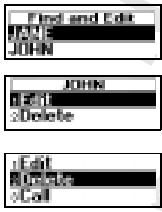
To edit an entry
- Scroll to Phone Book, YES, Find and Edit, YES.
- Enter the position number or the name of the entry that you wish to edit. Press YES.
If the name displayed is not the one you want, press or until you find the correct name and number.
- Press YES to select the entry.
- Select Edit.
- Edit the number and press YES.
Use the or keys to move the cursor. Use the C key to delete.
- Edit the name and press YES.
- Edit the position number and press YES.
Overwrite Protection
If you try to save a phone number in a position which already contains a phone number, the message Overwrite? appears together with the name saved in that position. You now have two options:
To save the number in the selected position
Press YES to replace the number with the new one.
To save the number in a different position
- Press NO.
- Enter the new position number.
- Press YES to save the number in the new position.
When the Card Memory Is Full
When all SIM card positions are full, an icon appears next to the position number, see margin. From now on your entries are stored in the phone memory.
If all positions, including the phone memory are full, you have to delete an old number by entering a position that is already occupied and press YES.
To delete an entry from the memory
- Scroll to Phone Book, YES, Find and Edit, YES.
- Enter the position number or the name of the number that you want to delete and press YES. (This depends on the sort order, i.e. by name or by position.)
- Press YES.
- Select Delete.
- Press YES to confirm your choice.
Delete all in phone memory?
To delete all entries from the phone memory
- Scroll to Phone Book, YES, Delete All, YES.
- The question Delete all in phone memory? appears. Press YES.
- Enter the phone lock code (0000 or another one that you have chosen yourself). All entries in the phone memory are deleted.
Telephone Banking Services
If you use telephone banking services, you can save the phone number of your banking service together with your personal codes, or you can save your codes only. You need to add a pause (p) between the phone number and the codes.
You insert a pause by pressing and holding the * key. Usually, a # is required after each code. Sometimes a pause is required, too. Talk to your bank if you are in doubt about how to use # and pause (p).
Note! It may be a risk to save your codes in the phone in case it is stolen.
To save a phone number with codes
- Scroll to Phone Book, YES, Add Number, YES, Add new?, YES.
- After entering the phone number, press and hold the * key until the pause character p appears in the display.
- Enter the code and #. If required, enter a pause, the next code and so on.
- Enter the name that you want to associate with the phone number and code and press YES.
- Press YES to save.
If you want to save the number in a different position than the one suggested, see "Saving a Number Together with a Name" on page 29.
To make a call with tone signal codes, proceed as described in "Calling a Number Saved In the Phone Book" on page 29. When you make the call, the phone dials the number, waits until the call is answered and then sends the code. If you insert another pause and another code, it pauses again, sends the next code and so on.
To save codes only
- Scroll to Phone Book, YES, Add Number, YES, Add new?, YES.
- Enter the code followed by a # and if required, a pause, another code and so on.
- Press YES.
- Enter a name that you want to associate with your codes and press YES.
- Press YES to save.

During a call, you can retrieve these codes from the phone book and send them.
To send the codes during a call
- Scroll to Phone Book, YES, Find and Send, YES.
- Enter the name (or first few letters) or position number of your codes and press YES.
- Press YES to send the codes.
Groups
The T28 allows you to create groups of phone book entries. In this way you can send a text message to several recipients at the same time. See "Sending and Receiving Text Messages (SMS)" on page 46.
To create a new group
- Scroll to Phone Book, YES, Groups, YES, Add new?, YES.
- Enter a name for the group and press YES.
- Scroll to Add new?, YES.
- Select an entry in your phone book.
- To add the next member, press YES at Add new?.
To add a new member to an existing group
- Scroll to Phone Book, YES, Groups, YES.
- Select the group that you want to edit.
3.Scroll to Edit, YES, Add new?, YES. - Select an entry in your phone book.
To delete a member from a group
- Scroll to Phone Book, YES, Groups, YES.
- Select the group that you want to edit.
- Select Edit.
- Scroll to the member that you want to delete and press C.
- Press YES to confirm your choice.
To delete a group
- Scroll to Phone Book, YES, Groups, YES.
- Select the group that you want to delete.
- Select Delete.
- Press YES to confirm your choice.
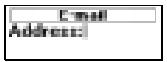

e-mail addresses
You can save e-mail addresses to be used when you want to send a text message as an e-mail. See "Sending and Receiving Text Messages (SMS)" on page 46. You can save 10 e-mail addresses, each consisting of 60 characters.
To save an e-mail address
- Scroll to Phone Book, YES, Email Addresses, YES, Add new?, YES.
- Enter an e-mail address and press YES.
- Enter a name and press YES.
Tip! The @ sign is accessed by pressing the 0 key three times.
To edit an e-mail address
- Scroll to Phone Book, YES, Email Addresses, YES.
- Select the entry that you want to edit.
- Select Edit.
- Edit the e-mail address and press YES.
- Edit the name and press YES.
To delete an e-mail address
- Scroll to Phone Book, YES, Email Addresses, YES.
- Select the entry that you want to delete.
- Select Delete.
- Press YES to confirm your choice.
Checking the Status of the Memories
The Memory Status function in your phone book lets you check how many memory positions you have left in your memories.
To check the status of your different phone book memories
- Scroll to Phone Book, YES, Memory Status, YES.
- Use to scroll through the list.

Using the Call List
The Call List is a phone number log that saves information (time, date, phone number and name) about the last 30 incoming and outgoing calls. Once your list exceeds 30 calls, the oldest one is deleted.
What Calls Are Saved?
The numbers that you have dialled are always saved. If your subscription includes the Calling Line Identification (CLI) service and the caller's network sends the number, you will also find the numbers (together with a name if saved in your phone book) of answered and missed calls in the Call List. If the incoming call is a restricted number, the display shows Withheld. If the incoming call is a number without any CLI service, Unknown is shown. You can call any of the numbers in the Call List.
The Call List saves:
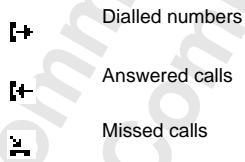
All the calls are saved together in chronological order. The last call you have made is saved in the first position. If the same number is called more than once, the latest call replaces earlier ones. If you check a call within 24 hours, the time of the call is displayed. Otherwise, the time is replaced by the date.
Note! If you change SIM cards or turn the Call List off, the list is cleared. Called numbers may remain in the SIM card memory though.
To call a number from the call list
- Scroll to Call Info, YES, Call List, YES.
- Scroll to the number that you want to call and press YES.
Tip! Press YES when the phone is in standby mode to go directly to the call list.
Missed calls: 1


To delete a number from the call list
- Scroll to Call Info, YES, CallList, YES.
- Scroll to the number you want to delete and press C. The question Delete? appears in the display.
- Press YES to delete the number.
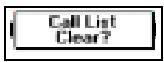
To clear the call list
- Scroll to Call Info, YES, Clear Call List, YES. The question Call List Clear? appears in the display.
- Press YES to clear the call list.
To turn the call list on or off
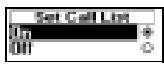
- Scroll to Call Info, YES, Options, YES, Set Call List, YES.
- Select On or Off. If you select Off the question Call List Clear? appears in the display.
- Press YES to clear the call list.
Missed Calls
If you have missed a call, the message Missed Calls: 1 appears in standby mode, where the number 1 indicates the number of missed calls.
- Press YES to display the missed calls.
- If you wish to call a number from the Missed Calls List, press YES at the number you want to call.
Note! You can also see the Missed Calls List in the 'Call Info' menu. Missed calls are also saved in the Call List.
To be able to see if you have missed a call, the Call List must be on.
Showing And Hiding Your Number
Some operators offer subscriptions where your phone number is normally hidden. You can choose to show or hide your number for a particular call, if Calling Line Identification Restriction service (CLIR) is supported by your subscription.
To hide your phone number for a particular call
- Enter the phone number you wish to call.
- Scroll to Call Handling, YES, Hide My Number, YES.
- Press YES to make the call.
To show your phone number for a particular call
- Enter the phone number you wish to call.
- Scroll to Call Handling, YES, Show MyNumber, YES.
- Press YES to make the call.


Your Voice Mail Service
Note! This service depends on your subscription and operator.
The answering service of your network allows callers to leave a voice message when you cannot answer your calls. Depending on your network operator, you will be informed that you have received a voice message in different ways.
Some operators inform you by sending a specific Voice Mail indication. If this is the case, the voice mail icon appears in the display.
Most operators, however, inform you by sending a text message, (i.e. an SMS), for example asking you to call your Voice Mail Service. For more information about receiving and reading text messages, see "Receiving a Message" on page 50.
Note! For more information about your Voice Mail Service, please refer to the information provided by your network operator.
Communicating With Your Voice Mail Service
If you want your phone to easily interact with your Voice Mail Service, you can store the number to your Voice Mail Service. You will get the number in the information provided by your network operator.
To store your Voice Mail number
- Scroll to Messages, YES, Options, YES, Voice Mail No., YES.
- Enter your Voice Mail number and press YES.
Note! The number to your Voice Mail Service may be different if you are calling from a network that is not your home network.
Calling your Voice Mail
When you receive a voice mail, an alert signal sounds and the message New voicemail appears in the display (only if you receive the specific voice mail indication). If you want to check your voice mail now, press YES to call your Voice Mail Service.
If you press NO, you can call your Voice Mail Service at a later time to listen to your recorded messages.
To call your Voice Mail Service
Scroll to Messages, YES, Call Voicemail, YES.
Tip! You can also call your Voice Mail Service by pressing and holding 1 from standby.
Changing Number and Signal
To change your Voice Mail number
- Scroll to Messages, YES, Options, YES, Voice Mail No., YES.
- Press and hold to delete the existing number.
- Enter your new Voice Mail number and press YES.
To change the message alert signal
- Scroll to Messages, YES, Options, YES, Message Alert, YES.
- Select the signal you want.
Tip! If you subscribe to the Two Line Service, you may have different Voice Mail numbers for your two lines. You may also set different options for the two lines. For example, you can set all incoming calls on Line 1 to be diverted to your Voice Mail and let all incoming calls on Line 2 be connected.
Further information about your Voice Mail Service can be found in the operating instructions supplied by your network operator.
Personalizing Your Phone
Silent
You can choose to set your phone completely silent so that all signals except the alarm and timer signals are turned off.
To set the phone silent
- From standby, press and hold C.
- Silent on? appears. Press YES.
An icon appears in standby.
To cancel, repeat step 1 and press YES at Silent off?.
Ring Signal Volume
You can set the volume in six steps. The first step means that two clicks are heard when you receive a call. You can also turn the ring signal off (0). An icon then appears in standby.
To set the ring signal volume
- Scroll to Settings, YES, Sounds & Alerts, YES, Ring Volume, YES.
The level of the ring volume appears in the display. - Use to increase the volume, to decrease it.
The phone rings once with the actual setting as you increase the volume. - Press YES to save the setting.
Tip! Use the volume key on the side of the phone to change the volume of the ring signal silently.
Increasing Ring
You can choose a ring signal that rises in steps from the softest volume to the loudest, Increasing Ring.
To set the ring signal to Increasing Ring
- Scroll to Settings, YES, Sounds & Alerts, YES, Increasing Ring, YES.
- Select On.
The Increasing Ring must be Off for the ring signal volume to apply.


Note! If the phone is set to silent, the increasing ring signal is not heard.
Ring Signal Type
You can choose a ring signal from a list of different sounds and melodies. You can also compose up to four melodies of your own by entering notes with the keypad. See "Composing Ring Signals" on page 41.
To choose one of the ring signal types
- Scroll to Settings, YES, Sounds & Alerts, YES, Ring Signals, YES, Voice Calls, YES.
- Select the ring signal type that you want.
Tip! If you do not wish to disturb other people, use the volume key on the side of the phone to scroll silently.
Different Ring Signals for Line 1 and Line 2
If you subscribe to the Two Line Service, you can set different ring signals for the two lines. L1 and L2 are displayed instead of Voice.
Different Ring Signals for Voice, Data and Fax Calls
Provided your SIM subscription supports Fax and Data calls, you can set different ring signals for voice, fax and data calls respectively.
Specific Ring Signals for Personal Calls
If your subscription includes the Calling Line Identification (CLI) service, you can assign a personal ring signal to up to ten callers. You can, for example, have one ring signal for your friend and another one for your colleague.
If the last seven digits of a caller's number correspond to a number you have specified, then that caller's ring signal is used.
You can include question marks (?) in a phone number. For example, 012345??? means that calls from phone numbers between 012345000 and 012345999 will have the same personal ring signal. You get a question mark by pressing and holding #.
To specify a caller's number and the accompanying ring signal
- Scroll to Settings, YES, Sounds & Alerts, YES, Ring Signals, YES, Personal Rings, YES, Add new?, YES.
- Enter the caller's number and press YES.
You can also recall it from the Phone Book by pressing - Select the ring signal type you want.


To delete a caller's number
- Scroll to Settings, YES, Sounds & Alerts, YES, Ring Signals, YES, Personal Rings, YES.
- Scroll to the number you wish to delete and press YES.
- Select Delete.
Composing Ring Signals
You can compose four different ring signals.
To compose a ring signal
- Scroll to Settings, YES, Sounds & Alerts, YES, Ring Signals, YES, My Melodies, YES.
- Select My Melody 1, My Melody 2, My Melody 3 or My Melody 4.
- Press C to clear the display.
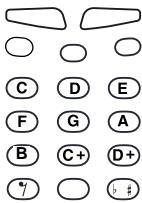
- Use the keypad to enter notes.
The keyboard now works as a keyboard (see figure in margin above):
Press and hold a key to enter a long note.
Press 0 to raise the note one octave.
Press # once to raise the note one semitone.
Press # twice to lower the note one semitone.
- To listen to your melody, press YES.
- Press YES again to save it or press NO to continue editing.
Vibrating Alert
You can choose to be notified of an incoming call by the buzzing of the Vibrating Alert. You can set the phone's Vibrating Alert to one of the following:
- On (all the time)
- On If Silent (on when the ring volume is turned off or when you have set the phone to silent)
- Off (all the time)
Note! When your phone is placed in a desktop charger or a handsfree car kit, the Vibrating Alert is turned off automatically.
To set the Vibrating Alert
- Scroll to Settings, YES, Sounds & Alerts, YES, Vibrating Alert, YES.
- Select the setting you want.
Message Signal
You can choose whether to hear clicks, tones or nothing (silent) when you receive a voice or text message (SMS).





To set the message signal
- Scroll to Settings, YES, Sounds & Alerts, YES, Ring Signals, YES, Message Alert, YES.
- Select the signal you want.
You can also find the Message Alert in Options in the Messages menu.
Alarm Signal
To change the alarm signal for the alarm clock
- Scroll to Settings, YES, Sounds & Alerts, YES, Ring Signals, YES, Alarm Signal, YES.
- Select the signal you want.
Key Sound
You can choose whether to hear clicks, tones or nothing (silent) when you press the keys.
To set the key sound
- Scroll to Settings, YES, Sounds & Alerts, YES, Key Sound, YES.
- Select the key sound you want.
Minute Minder
If you turn on the minute minder, you hear a beep once every minute during a call.
To turn the minute minder on or off
- Scroll to Settings, YES, Sounds & Alerts, YES, Minute Minder, YES.
- Select On or Off.
You can also find the minute minder in Options in the Call Info menu.
Turn off Tones
If you make a note of a number during a call, you use the display as a notepad, see "The Notepad" on page 17. The person you are talking to will hear the tone signals as you press the keys. If you wish to, you may turn the tone signals off.
Note! You can only turn the tones on or off during a call.
To turn the tone signals off during a call
- Scroll to Call Handling, YES.
- Select Turn off Tones.



To turn the tone signals on during a call
- Scroll to Call Handling, YES.
- Select Turn on Tones.
Display Light
You can set the display light to automatic, off or on. In automatic mode, the display light is turned off automatically a few seconds after you have pressed the last key. It comes on again when you press a key, open the flip, or when you receive a call or message.
To set the display light
- Scroll to Settings, YES, Display, YES, Light, YES.
- Select the display light setting you want.
Display Language
Most modern SIM cards automatically set the display language to the language of the country where you bought your SIM card, Automatic. If this is not the case, the preset language is English.
To change the display language
- Scroll to Settings, YES, Language, YES.
- Select the language you want.
Tip! You can always choose English by pressing , 0000, in standby. You can always choose Automatic by pressing , 8888, in standby.
Greeting Text
When you turn on your phone, 'Ericsson' appears in the display. Instead of this, you can write your own greeting.
Note! Some operators may have their own greeting.
To write a new greeting
- Scroll to Settings, YES, Display, YES, User Greeting, YES.
- Select Custom.
- Write your new greeting, using the number keys. For information on how to enter letters, see "Entering Letters" on page 28.
You may also edit your greeting.
- Press YES to confirm your setting.
To set the standard greeting
- Scroll to Settings, YES, Display, YES, User Greeting, YES.
- Select Standard.



To turn the greeting off
- Scroll to Settings, YES, Display, YES, User Greeting, YES.
- Select Off.
Phone Number Display
My Numbers allows you to check your phone number(s). If your phone number cannot be retrieved from your SIM card, you can enter it yourself.
To enter your phone number
- Scroll to Settings, YES, Display, YES, My Numbers, YES, Voice, YES.
- Enter the number and then press YES.
Tip! You can also enter your fax and/or data number and your different numbers for Line 1 and Line 2, if these are supported by your subscription.
Time
The time is always displayed when the phone is in standby mode.
To set the time format
- Scroll to Settings, YES, Time and Date, YES, Time Format, YES.
- Select the 24-hour or 12-hour (am/pm) clock.
To set the clock
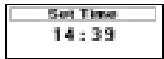
- Scroll to Settings, YES, Time and Date, YES, Set Time, YES.
- Enter the time in hours and minutes, and press YES.
Move from number to number by pressing or .
If you select the 12-hour clock, you can alternate between am and pm by pressing #.
Automatic Time Zone
With the Automatic Time Zone function, you will be asked whether to update the clock when you enter a new time zone. You can choose to turn the function off, if you like.
To turn the Automatic Time Zone off
- Scroll to Settings, YES, Time and Date, YES, Auto Time Zone, YES.
- Select Off.
Note! This service depends on the network.
Date
When the phone is in standby mode, you can slide the volume key upwards or downwards to see today's date in the Status menu.



To set the date format
- Scroll to Settings, YES, Time and Date, YES, Date Format, YES.
- Select the date format you want.
To set the date
- Scroll to Settings, YES, Time and Date, YES, Set Date, YES.
- Enter the year (two digits), month and day and then press YES. If you have chosen another date format you must enter the date differently.
Master Reset
You can reset the phone's settings to the way they were when you bought your phone.
To reset the phone
- Scroll to Settings, YES, Master Reset, YES.
- Enter the phone lock code (0000) and press YES. The phone lock code may be another one, in case you have changed it.
Sending and Receiving Text Messages (SMS)
The Short Message Service (SMS) allows you to send and receive text messages consisting of up to 160 characters.
A useful feature in your T28 is that you can send text messages to a group which you have defined in your phone book. See "Groups" on page 33.
Instead of calling or sending a text message to the members of that group one at a time, you can simply send a single group SMS.
If your SIM card does not contain the phone number to your network service centre, you must specify the number yourself. Otherwise you cannot reply to received messages or send your own messages. See "Enable the Phone to Send SMS" below.
Note! The Short Message Service may not be available on all networks. Some network operators may only allow SMS to be sent within their own network.
Enable the Phone to Send SMS
If you want to send or reply to a message, you need to make sure that your network operator's Service centre number is set. Most modern SIM cards already contain this information at the time of purchase. You can obtain the service centre number from your network operator.
To activate a service centre number found in the list
- Scroll to Messages, YES, Options, YES, Service Centres, YES.
- Scroll to the number you want and press YES.
- Select Activate.
If no number is found in the list, you have to set the number yourself.
To enter the phone number to your service centre
- Scroll to Messages, YES, Options, YES, Service Centres, YES, Add new?, YES.
- Enter the number, including the international (+) sign and country code and press YES.

Composing a Text Message
For more information on how to enter text and the letters, see “Entering Letters” on page 28.
Example:
To enter an 'A', press 2 once.
To enter a B^ , quickly press 2 twice.
- To enter lower-case letters, enter the letter, for example an 'A', and then press *. An 'a' appears. Lower-case letters now appear until you press * again.
To enter numbers, press and hold any number key.
To delete letters and numbers, press the C key.
You may also use the volume key as a shortcut to certain letters:
To enter a 'B', slide the volume key upwards and press 2.
To enter a 'C', slide the volume key downwards and press 2.
Tip! You can choose another alphabet by pressing and holding #.
Sending a New Text Message
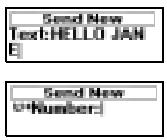
- Scroll to Messages, YES, Send New, YES.
- Enter your message and press YES.
- Enter the recipient's phone number or recall it from the phone book by pressing
- Press YES to send the message.
- Sending message appears in the display followed by Message has been sent.
Note! If you have turned on any of the "Set On Send" options (Message Type, Validity Period, Reply Request), you need to make these choices before entering the phone number. See "Customizing your Text Messages" on page 48.
Saving the Message for Later Use
If you do not want to send the message now, you can save it in the phone memory and send it later:
- Press NO when you are asked to enter a phone number. The message can now be recalled from the Unsent list in the Messages menu.
To send the message later
- Scroll to Messages, YES, Unsent, YES
-
Select the message you want to send. The message appears in the display.
-
Press YES.
- Select Send.
If you wish, you may now edit your message.
5. Press YES and proceed from step 3 as described in "Sending a New Text Message" above.
Note! The same procedure is used with all types of messages, for example e-mail, fax messages etc. Check with your network operator to find out which message types you can use.
Sending Text Messages to a Group
With your T28 you can send text messages to a pre-defined group. You need to specify a group and save it in your phone book before you can send text messages to a group. For more information on how to create groups, see "Groups" on page 33.
To send a text message to a group
- Scroll to Messages, YES, Send New, YES.
- Enter your message and press YES.
- Press to enter the Phone Book menu.
- Scroll to Groups and press YES.
- Select the group you want and press YES to send the message.
Note! When you send text messages to a group, you will be charged for each member included in that group.
Customizing your Text Messages
Before you send your message, you can set the type of message, the validity period and if you want the recipient of your message to reply to your message.
Message Type
Your phone can send different types of messages. Your network operator's service centre may offer the facility of converting a text message into a format (e-mail, fax, etc.) that suits the equipment that is going to receive the message. Please contact your network operator to find out which message types you can use and how.
You can set a standard message type that you want to use or you can turn on a Set on Send option, which means that you are asked to select which message type you want to send, before sending it.





To set a standard message type
- Scroll to Messages, YES, Options, YES, Message Type, YES, Set Default, YES.
- Select the message type you want.
The selected message type is now standard until you change it.
To turn "Set on Send" on or off
- Scroll to Messages, YES, Options, YES, Message Type, YES, Set on Send, YES.
- Select On or Off.
Validity Period
If your message cannot be delivered because the recipient has turned off the phone, your service centre can save the message to send it later. If the service centre has not been able to reach the recipient within a certain time, the message will be deleted.
You can set a validity period as your standard or you can turn on a
Set on Send option, which means that you are asked to set the validity period before sending the message.
To set a validity period as your standard
- Scroll to Messages, YES, Options, YES, Validity Period, YES, Set Default, YES.
- Select the validity period you want.
The selected validity period is now your standard until you change it.
To turn the Set on Send function on or off
- Scroll to Messages, YES, Options YES, Validity Period, YES, Set on Send, YES.
- Select On or Off.
Reply to Messages
If you want the recipient of your message to reply, you can turn on the
Request Reply option. When this function is on, you are asked to choose if you want the recipient to reply or not before your message is sent. If you want the recipient to reply, select On and press YES.
To turn the Request Reply function on or off
- Scroll to Messages, YES, Options, YES, Reply Request, YES.
- Select On or Off.
Note! Not all network operators support these functions.
Templates
If you have one or more standard messages that you use often, you can save these as Templates to be reused whenever you want. You can save up to 5


New message Read now?
templates which can consist of 30 characters each. Your templates are saved in the phone memory.
To save a template
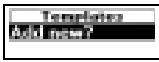
- Scroll to Messages, YES, Templates, YES, Add new?, YES.
- Enter the message and press YES.
For more information on how to enter text, See "Composing a Text Message" on page 47.
- If you want to send the message now, press YES when Send message now? appears in the display, and proceed as described in "Sending a New Text Message" on page 47. The message is saved in the list of templates.
- If you do not want to send the message now, press NO. The message is saved as a template for later use.
To send a template
- Scroll to Messages, YES, Templates, YES.
- Select the template you want to send. You may edit the message before sending it. See "Sending a New Text Message" on page 47.
- When you have completed the message, press YES.
- Enter the recipient's phone number.
- Press YES to send the template.
To delete a template
- Scroll to Messages, YES, Templates, YES.
- Select the message you want to delete and then press C. The message Delete? appears in the display.
- Press YES to delete the message.
Receiving a Message
When you receive a message, you hear a signal, the indicator light on the top of the phone rapidly flashes green and the message New message Read now? appears in the display.
Note! All networks do not send an audible signal.
To read the message now
- Press YES when you see the question New message Read now?.
The display shows when the message was received and from what number it was sent, if your network supports the Calling Line Identification service
(CLI). If you have saved the number together with a name in the phone book, the name is shown instead.
- Scroll through the message using the arrow keys. takes you forwards and takes you backwards through the message. An arrow at the bottom right corner of the display indicates that there is more text in the message.
- At the end of the message, when the arrow in the display disappears, press YES. A new menu with different options appears:
Delete
Reply
Forward
Save
Call
Read Next
The options are described on the following pages.
Note! If the sender of the message wants you to reply, the message 'Reply requested Reply?' appears in the display when you press YES, if this function is supported by your network operator. If you do not want to reply, press NO.
To read the message later
Press NO when you see the question New message Read now?.
The message is now saved in the phone memory and an envelope icon appears at the top of the display. The envelope icon disappears as soon as you have read the message. If you want to read the message later you can retrieve it from the Inbox menu (see below).
Calling a Phone Number Found in a Message
- Press YES when the number is highlighted.
- Select Call 0990237237.
Calling the Sender of the Message
- When you have read the message, press YES.
- Select Call in the option list. If you have saved the number together with a name in the phone book, the name of the person who sent the message appears together with Call.
Replying to a Message
- When you have read the message, press YES.
- Select Reply in the option list.
-
Select what message you want to send as a reply (send a new message or include this message when replying).
-
Enter your message and press YES to send the message.
Note! If the sender of the message wants you to reply, the message 'Reply requested Reply?' appears in the display, if this function is supported by your network operator, when you press YES at the end of the message. Press YES again to reply. If you do not want to reply, press NO.
Forwarding a Message
- When you have read the message, press YES.
- Select Forward in the option list.
You may edit your message before sending it.
- When you have completed your message, press YES.
- Enter the recipient's phone number.
- Press YES to send the message.
Deleting a Message
- When you have read the message, press YES.
- Select Delete in the option list.
Tip! You can also delete a message by pressing C while reading it. The message Delete? appears in the display. Press YES to delete the message.
You can delete a message from the list of messages in the Inbox menu without having to open it.
To delete a message from the list in the Inbox menu
- Scroll to Messages, YES, Inbox, YES.
- Select the message you want to delete and press C. The message Delete? appears in the display.
- Press YES to delete the message.
Saving Incoming Messages
If you do not want to read an incoming message at once, it is automatically saved in the phone memory. This allows you to read it later. If there are any unread messages in this memory, the envelope icon appears at the top of the standby display.
The phone memory can hold up to 15 messages. When all memory positions are full, the oldest read message is overwritten when a new message is received.
If the phone memory becomes full of unread messages, new messages are automatically saved on the SIM card.
Messages remain in the phone memory until you delete them, until you insert a different SIM card or until the phone needs the memory space to save new messages.
The SIM Card Memory
You can save important messages on your SIM card. Messages that are saved on the SIM card remain there until you delete them, i.e. they will not be overwritten if you receive any new messages. The maximum number of messages that you can save depends on your SIM card.
To save a received message in the SIM card memory
- When you have read the message, press YES.
- Select Save in the option list.
The message automatically moves from the phone memory to the SIM card memory. The display shows the position of the message and the number of saved messages, for example the third message of fifteen that can be saved on the SIM card.
Note! If you save your messages on the SIM card, you can reach them if you should use your SIM card with another phone.
Reading a saved Message
- Scroll to Messages, YES, Inbox, YES.
means an unread message.
means that the message is saved on the SIM card.
- Select the message you want to read.
- Read the message as described in "Receiving a Message" on page 50.
- If you want to read the next message, press YES at the end of the message.
- Select Read Next in the option list.
Area Information
The ordinary Short Message Service is a personal service that carries your private messages. The Area Information is another type of text message which is sent to all subscribers in a certain network area.
The information may be a local road report or a phone number to a local taxi.
Note! This feature may not be available on all networks.
To turn Area Information on or off
- Scroll to Messages, YES, Options, YES, Area Info, YES, Reception, YES.
- Select On or Off.
Area Information Message Types
Each type of Area Information message is identified by a three-digit code. The list below shows examples of the Area information codes that exist today.
| Code: | AI Message Type: |
| 000 | Index |
| 010 | Newsflashes |
| 020 | Hospitals |
| 022 | Doctors |
| 024 | Pharmacies |
| 030 | Long-distance road reports |
| 032 | Local road reports |
| 034 | Taxis |
| 040 | Weather |
| 050 | District cell information |
| 052 | Network information |
| 054 | Operator services |
| 056 | Directory enquiries (national) |
| 057 | Directory enquiries (international) |
| 058 | Customer care (national) |
| 059 | Customer care (international) |
Note! These codes are operator dependent. For information about the area information services that you can use, please refer to the information supplied by your network operator.
Area Information Message List
You can decide which types of area information messages you wish to receive. The number of Area Info codes that can be saved depends on your SIM card.
To insert an Area Information code
- Scroll to Messages, YES, Options, YES, Area Info, YES, Edit List, YES, Add new?, YES.
- Enter the new code and press YES.
To delete the code
- Scroll to Messages, YES, Options, YES, Area Info, YES, Edit List, YES.
- Select the code you want to delete and press C. The message Erase? appears in the display.
- Press YES to delete the code.

Receiving an Area Message
When you receive an Area Information message, the message automatically appears in the display. You read the message in the same way as you read an ordinary text message, see "Receiving a Message" on page 50. When you have read the message, press YES. The message is deleted.
Cell Information
The Cell information channel (see "Area Information Message List" on page 54) is used by network operators for sending messages to their subscribers within a certain network area. For example, the operator may inform you that you are within your home network area and that you can now make calls at a lower rate.
Note! This feature may not be supported by your network operator.
To turn Cell Information on or off
- Scroll to Messages, YES, Options, YES, Cell Information, YES,
- Select On or Off.
Diverting Incoming Calls
If you want to make certain that your incoming calls are correctly handled when you are unable to answer them, you can use the Divert Calls service to divert them to another phone number.
Note! The Divert Calls service may not be available on all networks.
The Divert Calls service lets you divert your voice, fax and data calls respectively – provided your subscription supports fax and data calls.
For voice calls, you may choose between the following divert alternatives:
- divert all voice calls, All Voice Calls
- divert calls if you are already on the phone, When Busy
- divert calls that you do not answer within a specified time limit (operator dependent), No Reply
- divert calls if your phone is turned off or if you are unreachable, Not Reachable
Note! These alternatives are only valid for voice calls.
If you subscribe to the Two Line Service, you may set different Divert Calls for your two voice lines, i.e. Line 1 and Line 2. You will then have an additional divert alternative, i.e. All Line 2 Calls.
Tip! If you place your T28 in a specific Ericsson Desktop Charger, your calls may be diverted automatically. See "Desktop Charger" on page 92.
When you are making a phone call and the phone call is diverted to another number, this is indicated in your display, if supported by your subscription. Similarly, when receiving an incoming phone call which has been diverted from another number, this is indicated in your display, if supported by your subscription.
Activating Divert Calls
To divert a call
- Scroll to Settings, YES, Call Options, YES, Divert Calls, YES.
- Scroll to the divert you want to turn on (All Voice Calls, When Busy, No Reply, Not Reachable, Fax Calls or Data Calls) and press YES.
- Select Activate.
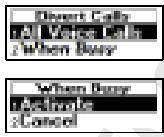
- A phone number recently used for the divert function or a number recently present in the display will be suggested as a divert number. Enter the phone number, including the area code, to which you want your calls to be diverted and then press YES. If you need to delete numbers, press C.
Tip! If the phone number is stored in the phone book, you do not need to enter it. Press l and then recall the number.
When you turn on the All Voice Calls divert, an icon is shown in standby.
Note! When the Restricted Calls function is on, some Divert Calls options cannot be activated. See "Security for Your Phone and Subscription" on page 58.
Cancelling Divert Calls
To cancel a certain Divert Calls
- Scroll to Settings, YES, Call Options, YES, Divert Calls, YES.
- Scroll to the divert you want to cancel and press YES.
- Select Cancel.
The message Please wait appears, followed by a message which informs you that the Divert Calls has been cancelled.
Checking the Divert Status
To check the status of a certain Divert Calls
- Scroll to Settings, YES, Call Options, YES, Divert Calls, YES.
- Scroll to the divert you want to check and press YES.
- Select Get Status.
The message Please wait appears, followed by a message which informs you whether the Divert Calls is on or not.
To check the status of all Divert Calls
- Scroll to Settings, YES, Call Options, YES, Divert Calls, YES, Check All, YES.
Security for Your Phone and Subscription
There are several ways to protect your phone and subscription from unauthorized use. Anything from a SIM card lock to full phone number control.
The SIM Card Lock
The SIM card lock only protects your subscription and not your phone itself from unauthorized use. If you change SIM cards, the phone still works with the new SIM card.
Most SIM cards are locked at the time of purchase. If the SIM card lock is on, you have to enter the PIN (Personal Identity Number) every time you turn on your phone. If you enter your PIN incorrectly three times in a row, the SIM card is blocked. This is indicated by the message PIN blocked. If this happens you need to unblock it to access your subscription.
To unblock your SIM card
- PIN blocked appears.
- Enter your PUK (or PUK2) which you will find in the information supplied by your network operator.
- Press YES.
- Enter a new four- to eight-digit PIN (or PIN2).
- Press YES.
- Re-enter the new PIN (or PIN2) to confirm.
- Press YES.
Note! If you enter the wrong PUK ten times in a row, your card is permanently blocked. If this happens, you should contact your network operator.
To change your PIN code
- Scroll to Settings, YES, Locks, YES, Card Lock, YES, Change PIN, YES.
- Enter your old (current) PIN and press YES.
- Enter your new PIN and press YES. The phone asks you to repeat the PIN.
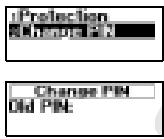
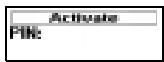
- Enter your new PIN a second time and press YES.
The PIN has now been changed.
Note! If the message Codes do not match appears, this means you entered the new PIN incorrectly. If the message Wrong PIN appears, followed by
Old PIN: you entered your old PIN incorrectly.
To change your PIN 2
- Scroll to Settings, YES, Locks, YES, Card Lock, YES, Change PIN2, YES.
- Follow the same procedure as described in "To change your PIN code" above.
To turn off the SIM card lock
- Scroll to Settings, YES, Locks, YES, Card Lock, YES, Protection, YES, Off, YES.
- Enter your PIN and press YES.
The message Unlocked confirms that the card lock has now been turned off.
Note! This only works if your SIM card allows you to cancel the card lock.
To turn on the SIM card lock
- Scroll to Settings, YES, Locks, YES, Card Lock, YES, Protection, YES, On, YES.
- Enter your PIN and press YES.
The message Locked confirms that the card lock is now on.
The Phone Lock
The phone lock protects the phone against unauthorized use if it is stolen and the SIM card is exchanged. It is not on when you buy the phone. You can change the phone lock code (0000) to any four- to eight-digit personal code.
The phone lock can be On, Automatic or Off.
Phone lock on
If the phone lock is On, the message Phone locked Phone lock code: appears each time you turn on the phone. You have to enter your code followed by YES to use your phone.
Automatic
If the phone lock is set to Automatic, you do not need to enter your phone lock code until a different SIM card is inserted in the phone. After the phone lock code has been entered correctly, the phone can be used with the new SIM card. You are not asked to enter the phone lock code again until the original SIM card or a different SIM card is inserted.
Changing the phone lock code
- Scroll to Settings, YES, Locks, YES, Phone Lock, YES, Change Code, YES.
- Follow the steps described in "To change your PIN code" on page 58.
Note! It is important that you remember your new code. If you should forget it, you have to hand in your phone to your local Ericsson retailer.
To set the phone lock to on, automatic or off
- Scroll to Settings, YES, Locks, YES, Phone Lock, Protection, YES.
- Select On, Automatic or Off.
- Enter the phone lock code and press YES.
The new lock status is shown.
RESTRICT CALLS
The Restrict Calls service allows you to restrict certain types of calls to be made and received.
Note! This service may not be available on all networks or may require a separate subscription.
The following calls can be restricted:
all outgoing calls, All Outgoing
all outgoing international calls, Outgoing Intl
all outgoing international calls except to your home country, Outg Intl Roam
all incoming calls, All Incoming
- all incoming calls when you are abroad (when roaming), Inc when Roam
To make sure that a call restriction is not changed by someone else, you need a password, which comes with your subscription, to turn on or cancel a call restriction. You can change the password as often as you like.
To activate/cancel a call restriction
- Scroll to Settings, YES, Call Options, YES, Restrict Calls, YES.
- Scroll to the option you want and press YES.
- Select Activate or Cancel.
- Enter your password and press YES.
The message Please wait appears, followed by a message which informs you whether the call restriction is on or not.
Note! If you divert incoming calls you cannot activate some Restrict Calls options. Likewise, if you restrict calls, you cannot activate some Divert Calls options. See "Diverting Incoming Calls" on page 56.
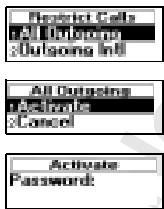



To cancel all call restrictions
- Scroll to Settings, YES, Call Options, YES, Restrict Calls, YES, Cancel All, YES.
- Enter your password and press YES.
The message Please wait appears, followed by a message confirming that all call restrictions have been cancelled.
To check the status of a call restriction
- Scroll to Settings, YES, Call Options, YES, Restrict Calls, YES.
- Scroll to the option you want and press YES.
- Select Get Status.
The message Please wait appears, followed by a message which informs you whether the call restriction is on or not.
To change the password
- Scroll to Settings, YES, Call Options, YES, Restrict Calls, YES, Change Passwd, YES.
- Enter the old (current) password and press YES.
- Enter the new password and press YES.
- Enter the new password a second time and press YES.
The message Please wait appears, followed by a message confirming that the password has been changed.
Fixed Dialling
Fixed Dialling is a way of restricting outgoing calls. It requires a SIM card that allows fixed numbers to be saved. The fixed numbers are normally protected by your PIN2. How many fixed numbers you can save depends on your SIM card.
The Fixed Dialling function allows calls to be made only to certain numbers saved on the SIM card. If an attempt is made to call other numbers, the message Number not permitted appears in the display.
It is possible to save partial numbers, for example an area code, or an area code followed by the first digits common to several numbers. Storing 0123456 allows calls to be made to all numbers starting with 0123456.
Numbers beginning with the international (+) sign and country code can also be saved, allowing you to make calls abroad.
Numbers which include question marks can be saved. A question mark should be read as a wild card, i.e. it can represent any number (0-9). To enter a question mark press and hold #:

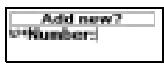

Note! The Fixed Dialling service does not prohibit calls to the international emergency number 112.
To turn the Fixed Dialling service on or off
- Scroll to Phone Book, YES, Options, YES, Fixed Dialling, YES.
- Enter your PIN2 and press YES.
- Select On or Off.
To save fixed numbers
- Scroll to Phone Book, YES, Fixed Numbers, YES, Add new?, YES.
- Enter your PIN2 and press YES.
- Enter the fixed number and press YES.
- Enter the name you want to associate with the number and press YES.
To edit a saved fixed number
- Scroll to Phone Book, YES, Fixed Numbers, YES.
- Scroll to the fixed number that you want to edit and press YES.
- Select Edit.
- Enter your PIN2 and press YES.
- Edit the fixed number and press YES.
- Edit the name and press YES.
- Enter the position number and press YES.
To delete a fixed number
- Scroll to Phone Book, YES, Fixed Numbers, YES.
- Scroll to the fixed number that you want to delete and press YES.
- Select Delete.
- Enter your PIN2 and press YES.
The fixed number is deleted.
Closed User Groups
The Closed User Group (CUG) function is another way of lowering call costs. It depends entirely on your operator and subscription. Not all networks support this function.
Your network operator can place certain numbers in groups. On some networks it is cheaper to make calls within a call group. You can have a maximum of 10 groups.
To add a Closed User Group
- Scroll to Settings, YES, Call Options, YES, Closed Groups, YES, Edit List, YES, Add new?, YES.
-
Enter the name of the Closed User Group and press YES.
-
Enter the index number of the group and press YES.
Note! The index numbers are provided by your network operator.
To activate a Closed User Group
- Scroll to Settings, YES, Call Options, YES, Closed Groups, YES, Edit List, YES.
- Scroll to the group you want to activate and press YES.
- Select Activate.
Calls can only be made within the selected user group.
To call outside Closed User Groups
You can decide whether outgoing calls to a non-CUG number are allowed.
- Scroll to Settings, YES, Call Options, YES, Closed Groups, YES, Open Calls, YES.
- Select On.
To edit a name in the CUG List
- Scroll to Settings, YES, Call Options, YES, Closed Groups, YES, Edit List, YES.
- Scroll to the group that you want to edit and press YES.
- Select Edit.
- Enter a new name and press YES.
To delete a group from the CUG List
- Scroll to Settings, YES, Call Options, YES, Closed Groups, YES, Edit List, YES.
- Scroll to the group that you want to delete and press YES.
- Select Delete.
Accept Calls
With the Accept Calls service, you can choose to receive calls only from certain numbers. Other calls are automatically rejected by a busy tone. You have to save the numbers that you want to receive in an Accepted List. The rejected calls are saved in the Call List in the Call Info menu. When you buy your phone, the setting for the Accept Calls service is set to From All, i.e. you receive calls as normal.
To add numbers to the Accepted Callers List
- Scroll to Settings, YES, Call Options, YES, Accept Calls, YES, Accepted List, YES, Add new?, YES. This takes you to your phone book.
- Select a number.
To add more participants in the Accepted Callers List, repeat steps 1 to 2 above. It is possible to choose a number within a group in your phone book.