
R320S - Mobile Phone ERICSSON - Free user manual and instructions
Find the device manual for free R320S ERICSSON in PDF.


| Product type | GSM dual-band mobile phone |
| Brand | Ericsson |
| Model | R320s |
| Dimensions (approx.) | 130 x 50 x 24 mm |
| Weight (with battery) | Approx. 140 g |
| Battery type | Rechargeable lithium-ion |
| Talk time (approx.) | Up to 4 hours |
| Standby time (approx.) | Up to 100 hours |
| Display | Monochrome graphic LCD with backlight |
| Network | GSM 900 / 1800 MHz |
| Main functions | Calls, SMS, phonebook, calendar, voice memo, voice command, infrared modem, WAP browser, games |
| Power | Ericsson mains charger (5 V DC) |
| Care and cleaning | Wipe with a soft dry cloth. Do not use abrasive products. |
| Security | PIN code, phone lock code, call encryption |
| Spare parts and repairability | Battery and charger replaceable. Antenna non-removable. Repair by authorized center. |
| General information | 159-page user manual available for download. Multiple languages. |
Frequently Asked Questions - R320S ERICSSON
User questions about R320S ERICSSON
0 question about this device. Answer the ones you know or ask your own.
Ask a new question about this device
Download the instructions for your Mobile Phone in PDF format for free! Find your manual R320S - ERICSSON and take your electronic device back in hand. On this page are published all the documents necessary for the use of your device. R320S by ERICSSON.
USER MANUAL R320S ERICSSON
Contents at a Glance
Getting Started 5
Preparing Your Phone for Use 6
Turning Your Phone On and Off 12
Display Information and Key Functions 14
Making and Receiving Calls 16
During a Call 19
Functions and Settings 21
R320 Features 23
Using the Menu 24
Your Personal Phone Book 30
Using the Call List 38
Your Voice Mail Service 40
Personalizing Your Phone 42
Sending and Receiving Text Messages (SMS) 51
Communicating via the Built-in Modem 61
Sending and Receiving Fax, Data and E-mail 65
Business Card Exchange 68
Diverting Incoming Calls 70
Security for Your Phone and Subscription 72
Handling More than One Call Simultaneously 80
Setting Network Preferences 85
Knowing the Call Time and Call Cost 88
Using Two Voice Lines 91
Using the WAP Browser 92
Calendar 101
Voice Memo 106
Voice Control 109
Code Memo 112
Calling Card Calls 115
Extras 117
The Profile Concept 121
Accessories 124
Online Services 131
Additional Information 135
Troubleshooting 136
Ericsson Mobile Internet 138
The Online Version of this User's Guide 139
Technical Data 140
Ericsson R320s
First edition (June 1999)
This User's Guide is published by
Ericsson Mobile Communications AB
without any warranty. Improvements and
changes to this User's Guide necessitated
by typographical errors, inaccuracies of current information, or improvements to
programs and/or equipment, may be made
by Ericsson Mobile Communications AB
at any time and without notice. Such
changes will, however, be incorporated into
new editions of this
User's Guide.
All rights reserved.
Ericsson Mobile Communications AB,
1999
Publication number: EN/LZT 108 2754 R1A
Printed in Sweden
INNOVATRON PATENTS
Glossary 141
Guidelines for Safe and Efficient Use 146
Warranty 152
Declaration of Conformity 154
Index 155
Please note!
Some of the services in this manual are not supported by all networks. This also applies to the GSM International Emergency Number 112.
Please contact your network operator or service provider if you are in doubt whether you can use a particular service or not.
Note! You should read the Guidelines for Safe and Efficient Use and the Warranty chapters before using your mobile phone.
The CE symbol on our products signifies that they have been certified according to the EMC directive 89/336/EEC, the Telecommunications directive 91/263/EEC, and the Low Voltage directive 73/23/EEC when applicable. The products fulfil the requirements according to the following standards:
Cellular Phones and Accessories in Combination:
ETS 300 342-1 EMC for European digital cellular telecommunications.
Accessories Without Direct Connection to a Cellular Phone:
EN 50081 Electromagnetic compatibility, Generic Emission Standard, and EN 50082 Electromagnetic compatibility, Generic Immunity Standard.
Getting Started
Preparing Your Phone for Use 6
Turning Your Phone On and Off 12
Display Information and Key Functions 14
Making and Receiving Calls 16
During a Call 19
Preparing Your Phone for Use
Overview
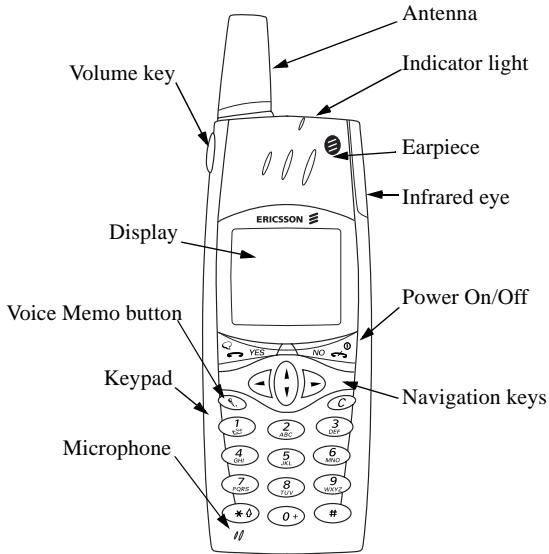
Front
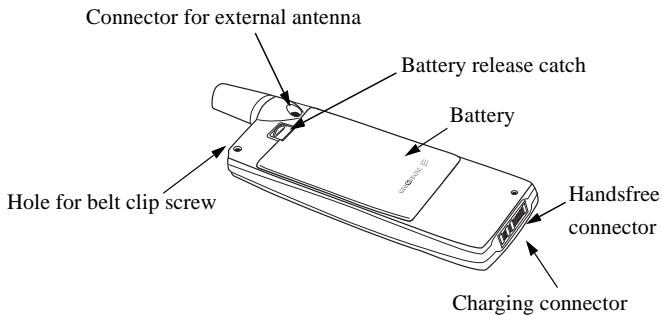
Back
Assembly
You need to do the following to use your phone:
insert the SIM card
attach the battery to the phone
- charge the battery
The SIM Card
When you register as a subscriber with a network operator, you get a SIM (Subscriber Identity Module) card. The SIM card contains a computer chip that keeps track of your phone number, the services included in your subscription, and your Phone Book information, among other things.
SIM cards come in two sizes. One is the size of a credit card and the other is smaller. Your phone uses the smaller card. Many credit card-sized SIM cards have a perforated smaller card that you can take out easily. Before you can use your phone, you must insert the SIM card as shown below.
Inserting and Removing the SIM Card
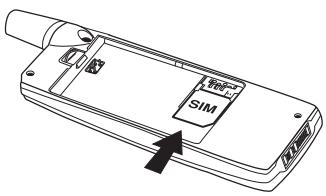
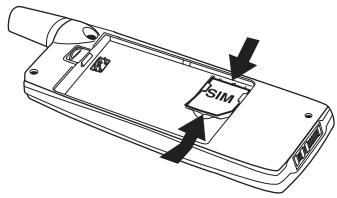
- Remove the battery if attached. Slide the SIM card into the slot, under the silvery holders, with the golden connectors facing down and the cut corner to the right.
- Raise the edge of the SIM card and slide it out.
The PIN
Most SIM cards are supplied with a security code, also known as PIN (Personal Identity Number), which you need to access the network. Every time you turn on your phone, you are asked to enter your PIN. You will find your PIN in the information from your operator.
Some operators may have services that require a second PIN, your PIN2.
You should be careful with your PIN, since it is your protection against unauthorized use of your subscription.
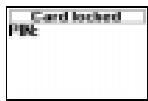
If your PIN is entered incorrectly three times in a row, the SIM card is blocked. If this happens, you can unlock it by using your PUK (Personal Unblocking Key code), which you also get from your operator.
The Battery
Your phone comes with a lithium battery. The battery is not charged when you buy your phone, but there may be enough power to switch the phone on.
Note! We recommend that you charge the battery for up to three hours before you use the phone for the first time.
Attaching the Battery to your Phone
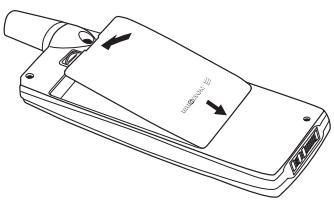
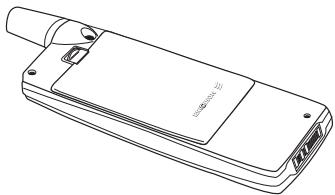
- Place the battery on the back of the phone and push until you hear a click
When to Charge the Battery
The battery that comes with your phone can be charged whenever you wish without affecting its performance. You can also charge the battery when the phone is off.
To remind you that you will soon need to charge the battery or replace it with a charged one:
- an alarm signal (a short beep) sounds and the message Attention! Battery low appears in the display.
the indicator light on top of the phone starts flashing red.
If you have an Ericsson-approved battery, you can check the remaining talk and standby times in the Status menu by sliding the volume key upwards or downwards in standby mode. The total remaining standby and talk time depends on the type of battery you use and your position in the network. Please note that these times are approximate and you may have 20% less time than is shown in the display.
Note! The phone turns itself off when the battery can no longer power it satisfactorily.
Charging the Battery
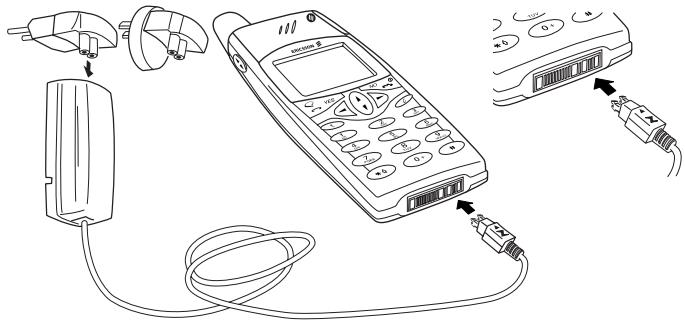
- Make sure that the battery is attached to the phone.
-
Connect the charger to the mains.
-
Connect the charger to the phone as shown in the picture. The flash symbol on the plug must face upwards.
Note! The mains plug may look different depending on the mains socket in your country. The mains plug may not be used for other products than Ericsson chargers.
To indicate charging:
the battery meter in the display pulses continuously
- the indicator on top of the phone shows a steady red light (or green, if the phone is switched on)
- the message Optimized Charging is shown briefly in the display (with an Ericsson-approved battery)
Note! If you charge a new battery that is empty, or a battery that has not been used for a long time, it may take a while until you get an indication of charging in the display.
When the battery is fully charged, the battery meter in the display is full and the indicator on top of the phone shows a steady green light.
Tip! You can use the phone while the battery is being charged. However, this lengthens the charging time.
An Ericsson-approved battery is indicated by Optimized Charging each time you start charging the battery. For the best charging, talk and standby times in the long run, we recommend that you use only Ericsson-approved batteries with your phone.
Note! Batteries that are not Ericsson-approved are charged slowly for safety reasons. These are indicated by the message 'Alien battery - Slow charging' in the display during the charging process.
Disconnecting the Charger
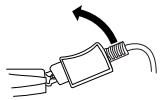
- Move the plug connected to the phone upwards to remove it, as shown in the picture.
Removing the Battery
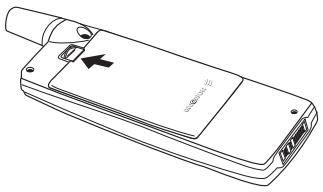
- Slide the release catch upwards.
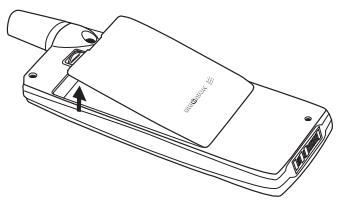
- Lift the battery away from the phone.
The Clip
By using the clip with your phone, you can hang your phone for example on your trousers or shirt. You can detach the phone from the clip and let the clip remain attached.
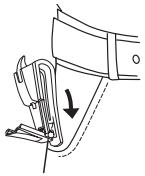
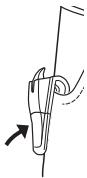
To use the clip with your phone
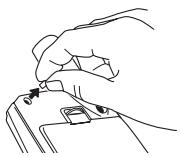
- Remove the rubber plug from the back of the phone and insert and fasten the screw that came with the clip.
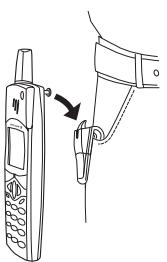
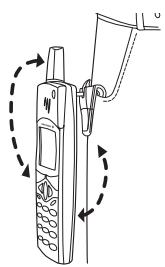
- Slide the phone into the clip until you hear a click
- Now the phone can swivel round in the clip.
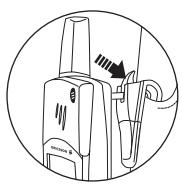
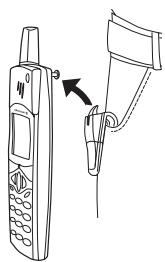
- Press the release catch and move the phone upwards to detach it from the clip.
- The clip remains attached.
Turning Your Phone On and Off
Turning Your Phone On
Press and hold the NO key until you hear a tone.
If "PIN:" Appears in the Display
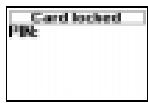
Some SIM cards are protected with a PIN code. If PIN: appears in the display after you have turned on the phone:
- Enter your PIN. If you make a mistake while entering your PIN, erase the wrong number by pressing the C key.
- Press YES.
Note! If your PIN is entered incorrectly three times in a row, the SIM card is blocked. You can unblock it by using your PUK. See "The SIM Card Lock" on page 72.
If 'Phone locked' appears in the display, enter your phone lock code. See "The Phone Lock" on page 73.
Network Search
After you have turned on the phone (and entered your PIN), the phone searches for a network.
When a network is found, the phone beeps three times. The indicator light on top of the phone flashes green once every second and your network operator's name (in most cases abbreviated) appears in the display.
This is called standby mode. You can now make and receive calls.
Note! See "Error Messages" on page 136, if you do not reach standby.
Initial Settings
The first time you turn on your phone, you may want to choose the ring signal type and set the clock and date. For more information about these and other settings, see "Personalizing Your Phone" on page 42.
Display Language
Most modern SIM cards automatically set the display language to the
language of the country where you bought your SIM card, (Automatic). If this is not the case, the preset language is English. To change the display language, see "Display Language and Input Method" on page 47.
If your phone shows a language that you do not understand, you can change it to Automatic, or English, in the following ways:
To change the display language to Automatic
- If not in standby mode, press and hold the NO key to go to standby.
- Press
- Enter 8888.
- Press
To change the display language to English
- If not in standby mode, press and hold the NO key to go to standby.
- Press
- Enter 0000.
- Press
Turning Your Phone Off
- In standby mode, press and hold the NO key until you hear a tone.
Display Information and Key Functions
In standby mode, the display shows the name of your operator, the time, the signal strength and the battery power.
Other icons appear if you receive any messages, divert all your incoming calls, set the alarm clock and so on. In this chapter, you will also learn about the key functions.
Display Information
The table below shows and explains each icon which may appear in standby.
| Icon | Name | Explanation |
| Signal strength meter | Tells you the strength of the network signal. | |
| Battery meter | Tells you the status of the battery. | |
| Missed call indicator | You have missed an incoming call. | |
| Divert indicator | All incoming calls will be diverted to a defined number. | |
| Accept Some/None indicator | No calls or only certain calls from numbers in a list are received. | |
| Profile indicator | Another profile than Normal has been chosen. | |
| Ring signal off indicator | No sound can be heard when you receive a call. | |
| Alarm indicator | The alarm clock has been set and is on. | |
| Silent indicator | All audible signals are turned off, except the alarm and timer. | |
| SMS indicator | You have received a text message. | |
| Voice mail indicator | You have received a voice message, depending on your subscription. | |
| Line 1 indicator | Line 1 is in use for outgoing calls - if you subscribe to the Two Line Service | |
| Line 2 indicator | Line 2 is in use - if you subscribe to the Two Line Service. |

Infrared modem
The built-in infrared modem is activated.

Ciphering indicator
Ciphering is currently not being provided by the network.
Note! Each menu has got its own symbol. See "Menu Graphics" on page 24.
Key Functions
The table below explains the key functions.
Key Use
YES To make calls and answer calls.
To voice dial, press and hold the key.
To enter the Call List from standby.
To choose a menu, sub-menu or setting.
NO To turn the phone on or off, press and hold the key from standby.
To end a call.
To reject a call.
To go back one level in the menus, to exit a setting or to leave a setting unchanged.
To get back to standby mode, press and hold the key.

To enter the menu system.
To move (scroll) through menus, lists and text.
C (Clear)
To erase numbers and letters from the display.
To mute the microphone during a call, press and hold down the key.
To set the phone silent, press and hold the key from standby.
To delete an item from a list.
Number keys
To enter the digits 0-9.
The 0 key enters the international prefix (+) if held down.
To call your Voice Mail, press and hold the 1 key.
To enter the phone book, press and hold any of the numbers 2-9.
To move through menus using shortcuts.
To enter letters, for example when writing an SMS.
* To enter *.
To shift between capital and lower-case letters.
Hash) To enter #.
Volume key To increase or decrease the volume of the earpiece or upwards and handsfree loudspeaker during a call.
To reject an incoming call, slide the key twice.
To voice dial, slide and hold the key.
To move through the menus.
To enter the Status menu.
Note! For information about the menus, see "Moving through the Menu" on page 26.

Making and Receiving Calls
In this chapter, we assume that you have turned on your phone and that you are within range of a network. If you are abroad, you may use other networks, provided your home network has an agreement that allows you to do this. See "Setting Network Preferences" on page 85.
Making a Call
- Enter the area code and phone number.
- Press YES.
Note! Some countries may not use area codes.
While a call is in progress, a time counter automatically starts and you can see how long you have been on the phone. If your network and subscription supports it, you see the price of the call in the display. See "Knowing the Call Time and Call Cost" on page 88.
Ending a Call
Press NO to end the call.
Re-dialling a Previously Called Number
In the Call List you find numbers that you have dialled, answered or missed.
To re-dial a previously called number
- Press YES to enter the Call List.
- Scroll through the list with ( ) and select the number you want to call.
- Press YES to make the call.
For more information, see "Using the Call List" on page 38.
Automatic Re-Dialling
If the connection failed when you first called, the display shows Retry?. You can now re-dial the number by pressing YES. Your phone automatically redials (up to 10 times)
- until the call is answered. When the call is successfully connected, you hear a ring signal.
until you press a key or receive a call.
Note! Automatic re-dialling is not available for fax and data calls.
Making International Calls
- Press and hold the 0 key until a + sign appears.
The + replaces the international prefix number of the country from which you are calling. - Enter the country code, area code (without the leading zero) and phone number.
- Press YES.
Making Emergency Calls
- Enter 112 (the international emergency number).
- Press YES.
The international emergency number 112 can normally be used in any country, with or without a SIM card inserted, if a GSM network is within range.
Note! Some network operators may require that a SIM card is inserted, and in some cases that the PIN code has been entered as well.
Some networks may not use the international emergency number 112.
Receiving a Call
When you receive a call, the phone rings and the display shows Answer?
If your subscription includes the Calling Line Identification (CLI) service and the caller's network sends the number, you see the caller's number in the display. If the caller's number and name are stored in the phone book, the caller's name is displayed instead.
If the incoming call is a restricted number, the display shows Private.

Answering a Call
- Press YES to answer the call.
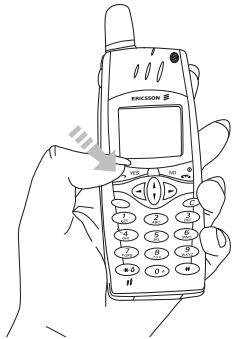
Rejecting a Call
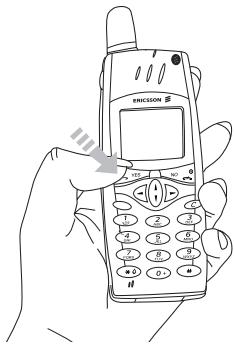
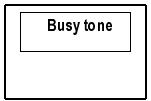
- Slide the volume key on the side of the phone twice. The display shows Busy tone. The caller hears a busy tone if this is supported by the caller's subscription. If Divert Calls When Busy is on, the call is diverted to the number you have specified. See "Diverting Incoming Calls" on page 70.
Ciphering
Ciphering is a built-in feature that scrambles your calls and messages to provide additional privacy.
An exclamation mark is shown in the display during a call, to indicate that ciphering is currently not being provided by the network.
During a Call
Your phone has several functions, which you might find helpful while a call is in progress.
Changing the Listening Volume
You can easily change the listening volume during a call by sliding the volume key on the side of the phone.
To change the listening volume during a call
- Slide upwards to increase the volume.
- Slide downwards to decrease the volume.
Muting the Microphone
If you wish, you may turn the microphone off during a call.
To turn the microphone off temporarily during a call
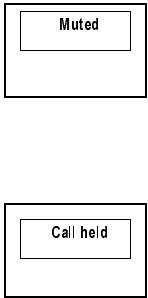
- Press and hold down the C key.
Muted appears in the display. - To continue your conversation, release the c key.
Tip! Instead of pressing and holding the c key, you can put the call on hold. To put a call on hold
- Press YES.
Call held appears in the display. - To continue your conversation, press YES again.
Sending Tone Signals
To use telephone banking services or to control an answering machine, you need to use codes. These codes are sent as tone signals (also known as DTMF tones or touch tones). With your mobile phone, you may use these codes during a call. If you press 0-9, * and # during a call, these numbers and characters are sent as tone signals.
Tip! You can also save codes only or codes together with a phone number in your Phone Book. See "Telephone Banking Services" on page 34. However, it may be a risk to save your codes in the phone in case it is stolen. In order to safely store your codes in the phone, see "Code Memo" on page 112.
The Notepad
If you want to make a note of a phone number during a call, you can use your phone display as a notepad.
Note! You can also record either yourself or the person you talk to during a call. See "Voice Memo" on page 106.
To use the notepad during a call
Use the number keys to enter the number.
When you end the call, the number remains in the display or, if Ask to Save is On, you will be asked to save the number in your phone book. You can also find the number in Add Number in the Phone Book menu. See "Your Personal Phone Book" on page 30.
When you enter the number, the person you are talking to will hear the tones. If you wish, you may turn the tones off during a call. See "Turn Off Tones" on page 46.
Checking the Duration or Cost of the Call
During a call, the display normally shows the duration in minutes and seconds. Depending on your subscription, you may see the call cost displayed instead.
Note! This depends on your network and SIM subscription. See "Knowing the Call Time and Call Cost" on page 88.
Minute Minder
If you turn on the minute minder, you hear a beep once every minute during a call as a reminder of the duration of the ongoing call. See "Minute Minder" on page 46.
More than One Call Simultaneously
Your phone is capable of handling more than one call simultaneously. You can put the current call on hold and then make or answer a second call. You can also set up a conference call with up to five people. See "Handling More than One Call Simultaneously" on page 80.
Functions and Settings
R320 Features 23
Using the Menus 24
Your Personal Phone Book 30
Using the Call List 38
Your Voice Mail Service 40
Personalizing Your Phone 42
Sending and Receiving Text Messages (SMS) 51
Communicating via the Built-in Modem 61
Sending and Receiving Fax, Data and E-mail 65
Business Card Exchange 68
Diverting Incoming Calls 70
Security for Your Phone and Subscription 72
Handling More than One Call Simultaneously 80
Setting Network Preferences 85
Knowing the Call Time and Call Cost 88
Using Two Voice Lines 91
Using the WAP Browser 92
Calendar 101
Voice Memo 106
Voice Control 109
Code Memo 112
Calling Card Calls 115
Extras 117
The Profile Concept 121
Accessories 124
Online Services 131
R320 Features
Your R320 is a new generation phone: a Dual Band phone with a lithium battery; a phone of modern design and advanced technology. It contains a whole new set of functionality helping you to be more efficient and productive, no matter where you are.
Use the WAP micro-browser the same way you use an ordinary Internet browser; to access a whole world of useful information services. Let the Calendar keep track of all your meetings and remind you in advance. Relieve your memory by using the Voice Memo to record yourself or another person, and store your credit card codes, your PC-password and more in the Code Memo.
Or why not use the Voice Control and say 'Answer' to answer a call or 'Busy' if you wish to reject the call. You can also call a person by simply saying the name.
The R320 has a Profile feature which makes it possible for you to change a few settings by just choosing a certain profile, since each profile includes a group of settings preset to suit a certain environment. For example, when you go to a meeting, you can just choose the 'Meeting' profile and a number of settings that suit a meeting are then set.
The profiles are also related to intelligent accessories such as a desktop charger, a portable or vehicle handsfree. For example, you may place the R320 in a vehicle handsfree kit and the 'In Car' profile is chosen automatically.
In the display of the R320 you can see a mixture of text and symbols, which makes it easier for you to move through the menus when you want to change a certain setting, turn on the Vibrating Alert, send a message, save a number and so on.
An extra feature is the numbered shortcuts, which takes you to a certain setting quickly and easily. You may also create your own favourite menu, My Shortcuts, by including the settings you use most often. If you should need help using the menus, the R320 is equipped with help text to guide you.
Using the Menu
You can find all your phone functions in the menus. You use the menus every time you want to change a setting in your phone, such as the ring signal. You also use the menus to get the most out of your phone: to set the alarm clock, send text messages, save important phone numbers, etc.
The menus are arranged in a loop, which you enter and move (scroll) through with the and keys or by using shortcuts. Each menu contains a list of options. Some menus have sub-menus with additional options.
Menu Graphics
You enter the menus by pressing or . At the top of the display there are icons symbolizing each menu. Besides these, there are symbols within the sub-menus indicating missed calls, help texts, voice labels etc.
The table below illustrates and explains each menu icon and symbol.
| Symbol | Name | Description |
| □ | Phone Book menu | Your personal phone book |
| ☑ | Messages menu | Handling of text and voice messages. |
| +□ | Ongoing Call menu/Call Info menu | Handling of ongoing calls, call time and call cost information. |
| =□ | Settings menu | Personal settings and profiles. |
| # | Extras menu | Calendar, voice memo, games, alarm clock and other extras. |
| W | WAP Services menu | Gives you access to Internet. |
| ※ | My Shortcuts menu | A selection of your most frequently used functions. |
The table below explains all other icons and symbols in the phone.
| Symbol | Name | Description |
| I | Ongoing call indicator | You have an ongoing call. |
| - | Missed calls indicator | Indicates a missed call in the call list. |
| I+ | Answered call indicator | Indicates an answered call in the call list. |
| I- | Dialled number indicator | Indicates a dialled number in the call list. |
| I | Phone memory indicator | Indicates that a phone book entry is saved in the phone memory. |
| Group indicator | Indicates that a phone book entry is a group. | |
| Unread SMS indicator | Indicates that a text message has not been read. | |
| Unchecked voice Mail | Indicates that a voice message has not been checked. | |
| Phone book look up indicator | Indicates that you can enter the phone book by pressing <]. | |
| SIM card memory indicator | Indicates that an SMS is saved in the SIM card memory. | |
| Voice label in phone indicator | Indicates that a voice label has been recorded for an entry in the phone only. | |
| Voice label in car indicator | Indicates that a voice label has been recorded for an entry in the car handsfree kit. | |
| Voice label in phone and in car indicator | Indicates that a voice label has been recorded for an entry in the phone and in the car handsfree kit. | |
| Preferred network indicator | Indicates that a network is preferred and can be used. | |
| Forbidden network indicator | Indicates that a network is forbidden and cannot be used. | |
| Home network indicator | Indicates that your network is within range and can be used. | |
| Help text indicator | Indicates a help text. | |
| Lock indicator | Indicates that the card lock or phone lock is on. | |
Moving through the Menus
There are two ways of moving through the menus:
scrolling by using _i and
using shortcuts
Scrolling by Using 山 ,and
Press... to...
scroll up or down through menus or functions.
or switch between menus or functions.
YES select a menu, sub-menu or setting.
NO go back one level in the menu system, exit a setting or leave a setting unchanged. go back to standby mode by pressing and holding the key.
C delete an item from a list.
Note! For information about how to enter letters, see "Entering Letters" on page 31.
Tip! Once in the menu system, you can press and hold the key or slide and hold the volume key until you reach the sub-menu that you want instead of pressing the key repeatedly.
Using Shortcuts
A quicker way to move through the menus is to use the shortcuts. You simply enter the number of the menu or submenu to which you want to go, but you first need to enter the menus by pressing or . To get back to standby, you press and hold NO as normal.
Tip! A quicker way to enter the 'Find and Call' menu is to press and hold A quicker way to enter the first sub-menu in the 'My Shortcuts' menu is to press and hold .
Note! Your phone may not have all the menu alternatives described in this manual since many of them are network- and subscription dependent. Because of this, the shortcut numbers may vary between phones.
How to Interpret the Instructions
In the instructions in this manual we use the scrolling keys to describe the functions and settings, since the shortcut numbers may vary between phones due to your subscription and network.
In this instruction we are going to set the key sound to 'Tone'.
To set the key sound
- Scroll to Settings, YES, Sounds & Alerts, YES, Key Sound, YES.
- Select Tone.
Interpret the instruction as follows:
- From the standby mode, use or to scroll to the Settings menu.
- Press YES to select the menu.
Now you are in the Settings menu.
The name of the menu that you have chosen is shown at the top of the display (Settings).
- Press YES to select the Sounds & Alerts sub-menu.
(You do not need to scroll with the arrow keys since this is the first sub-menu in the main menu Settings).
- Use _ to scroll to the Key Sound sub-menu.
Press YES to select the sub-menu.
- Use to scroll to Tone.
Press YES to select the Tone alternative.
Now you have set the key sound to 'Tone'.
To go back to standby mode, press and hold the NO key.
This is how to interpret the same instruction as above when using shortcuts:
To set the key sound
- Press or to enter the menu system.
- Press 4 to select the Settings menu.
- Press 1 to select the Sounds & Alerts sub-menu.
- Press 8 to select the Key Sound sub-menu.
- Select Tone.
Display Text
When you move through the menu system, the display changes. The following hints can help you:
- Black text within a frame at the top indicates the menu you have chosen.
- Inverted text on a black layer indicates your position in the menu system. If you press YES you enter this menu or select this setting.
- Grey text indicates a function that is temporarily unavailable, for example due to your subscription or due to a certain setting which is not set to on.
Text marked with a tick indicates the current setting or settings selected.
Text marked with a filled button indicates the current setting selected.
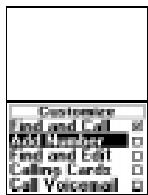
My Shortcuts
You can place your favourite settings in the menu My Shortcuts. In this way, you can reach the settings you use most, quickly and easily.
When you buy your phone, My Shortcuts contains a few settings which you can remove if you wish. You can also add a setting from another menu to My Shortcuts.
To add a setting to My Shortcuts
- Scroll to My Shortcuts, YES, Edit Shortcuts, YES.
- Select a setting from the list by pressing *
- Enter the position number you want for your setting in this menu.
- Press YES.
If you want to add another setting, repeat steps 2 and 3.
To remove a setting from My Shortcuts, repeat steps 1 and 2.
- Press YES to exit the list.
Tip! A quicker way to enter the first sub-menu in the 'My Shortcuts' menu is to press and hold .
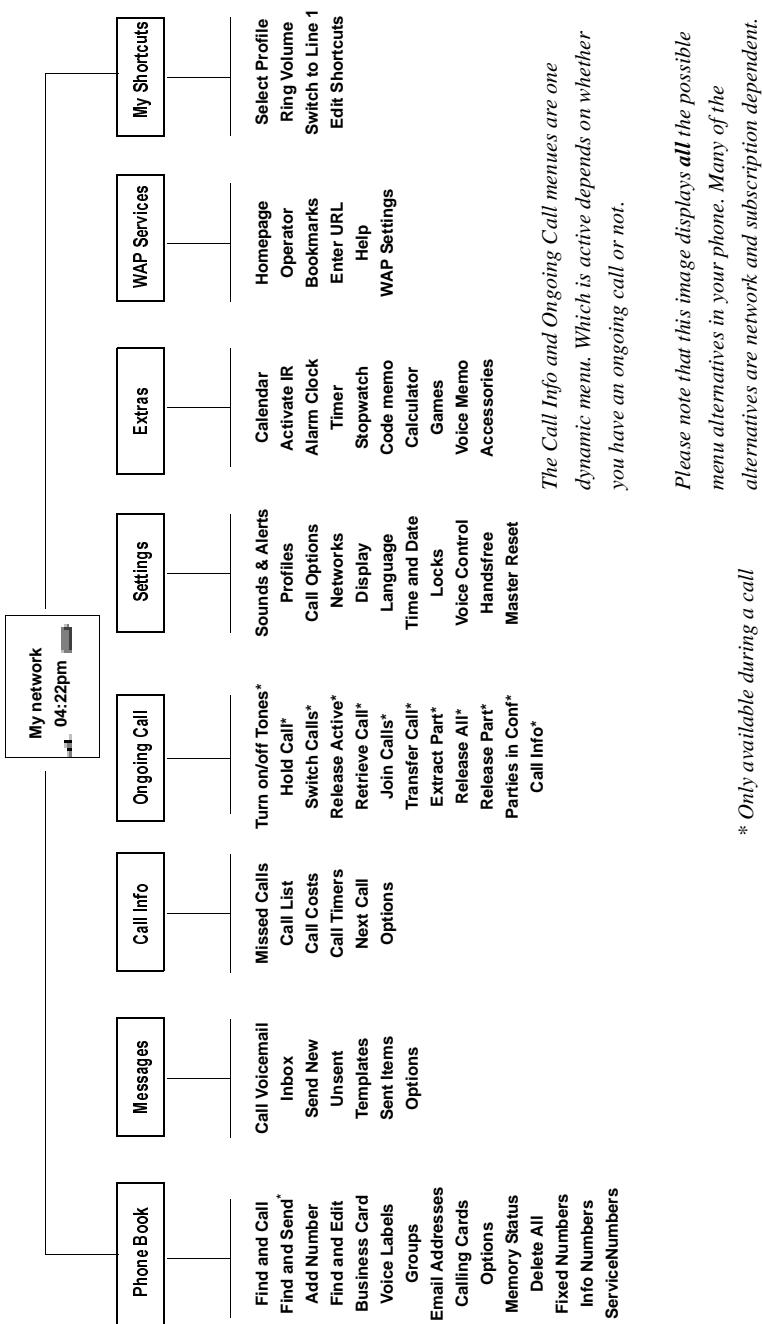
The Dynamic Call Info/Ongoing Call Menu
Depending on whether a call is ongoing or not, the menus Call Info and Ongoing Call will replace each other:
- During an ongoing call: The menu Ongoing Call is active with its submenu options, e.g. Hold Call, Switch Calls.
- During standby mode: The menu Call Info is active with its sub-menu options, e.g. Last Call, Total Time.
When the Ongoing Call menu is active, you can find the Call Info menu at the bottom of the Ongoing Call menu.
Help Functions
If you need help using the menu system, there are help texts available in your phone. See "Help Function" on page 49.
Your Personal Phone Book
You can create a personal phone book by saving phone numbers and accompanying names (an entry). An easy way to make calls is by recalling the phone numbers or names saved in your phone book.
Creating a Personal Phone Book
Before you start creating your personal phone book, there are a few things you need to know. You need to learn about the memories, how to save the numbers with the international (+) sign and how to enter letters.
Phone Book Memories
You can save phone numbers and names in:
the card memory on the SIM card
the phone memory
Your entries are first saved in the positions on your SIM card. The actual number of memory positions available depends on your SIM card.
Saving your numbers in the card memory allows you to use the numbers saved on the SIM card even when you change phones, i.e. when you insert your SIM card into another phone.
By saving your numbers in the phone memory, they are always available to you in your phone, even if you change SIM cards. The phone memory holds 99 positions in which your entries are saved when all SIM positions are occupied.
International Numbers
If you intend to use your phone both at home and abroad, it is a good idea to save all phone numbers as international phone numbers, i.e. with the (+) sign, (which automatically replaces the international dialling prefix for the country you are calling from) followed by the country code, the area code and the phone number.
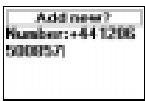
To enter an international phone number
- Press and hold 0 to enter the + sign. Exclude the leading zero in the area code.
Entering Letters
You can enter letters when you are using the phone book and when you are composing a short message (SMS). See "Sending and Receiving Text Messages (SMS)" on page 51.
Press the appropriate key, 1-9, 0 or #, repeatedly until the character you want appears in the display.
| Press... | to get... |
| 1 | Space -?!, . : ; " '<=>( ) 1 |
| 2 | A B C Å Å Æ à Ç 2 Γ |
| 3 | D E F è É 3 Δ Φ |
| 4 | G H I i 4 |
| 5 | J K L 5 Λ |
| 6 | M N O N ð ò ò ò 6 |
| 7 | P Q R S β 7 Π Σ |
| 8 | T U V Ü ù 8 |
| 9 | W X Y Z 9 |
| 0 | + & @ / % £ ¥ ñ ñ ñ ñ Θ Ξ Ψ Ω |
| # | # * |
Example:
To enter an A', press 2 once.
To enter a B^ , press 2 twice quickly.
- To enter lower-case letters, enter the letter, for example an 'A' and then press *. An 'a' appears. Lower-case letters now appear until you press * again.
To enter numbers, press and hold any numeric key.
To delete letters and numbers, press the C key.
You may also use the volume key as a shortcut to certain letters:
To enter a B^ , slide the volume key upwards and press 2.
To enter a 'C', slide the volume key downwards and press 2.
Tip! You can choose another alphabet by pressing and holding #.
Saving a Number Together with a Name
Every phone number that you save includes a position number. You can save the phone numbers together with a name to make it easier for you to keep track of your phone numbers.
To save a number together with a name
- Scroll to Phone Book, YES, Add Number, YES.
A list of numbers used but not saved may appear.
- Select Add new? or any of the numbers from the list by pressing YES.
- Enter a phone number that you wish to save (including the + sign and the country code).
- Enter a name that you want to associate with the phone number and press YES.
- You now have three options:
To save the number in the suggested first empty position, press YES.
- To save the number in another position, press the C key to erase the position number, enter a new position number and press YES.
- To save the number in the phone memory, you need to know how many positions you have got on your SIM card. You can check this in Memory Status in the Phone Book menu. If you, for example, have 200 positions on your SIM, you can enter position number 201 to save a number in the phone memory.
If you have turned the Voice Dialling on, you are asked if you want to add a voice label to your phone book entry. See "Voice Control" on page 109.
Tip! If you do not wish to be asked to save any incoming number not already saved in the phone book you can turn off the 'Ask to Save' option. See "Help Function" on page 49.
Calling a Number Saved In the Phone Book
You can either call a number by using the name saved with it or you can call the number by using the memory position that it was saved in.
The order of searching for names and numbers depends on the sort order you have chosen, i.e. by name or by position.
To choose a sort order
- Scroll to Phone Book, YES, Options, YES, Sort Order, YES.
- Select a sort order.
To call a number saved in the phone book
- Scroll to Phone Book, YES, Find and Call, YES.
- Enter the position number or the name (or the first few letters of the name) associated with the number that you want to call.
- Press YES. If the name displayed is not the one you want, press (1 0) until you find the correct name and number.
- Press YES to make the call.
Tip! A quicker way to enter the 'Find and Call' menu is to press and hold
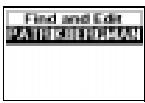
Shortcuts to Phone Book Entries
When in standby, you can find an entry by:
entering the position number followed by #.
- pressing and holding one of the keys 2-9 to find an entry beginning with a specific letter.
For example, pressing and holding 2 takes you to the first entry beginning with the letter A (or closest following).
Once you are in the list of phone book entries you can use ( ) to scroll through the positions, or enter a position number or a letter to go to a certain entry.
Speed Dialling
You can call the phone numbers that you have saved in positions 1-9 in the memory by entering the position number and then pressing YES.
Example:
- Enter the number 3.
- Press YES to make the call.
Keeping the Phone Book Up to Date
You may need to change the names and numbers in the phone book from time to time. You may also want to change the position number for the entry.
Editing a Phone Number In the Phone Book
You need to find the phone book entry that you wish to edit. You can use either the stored position or the name. See "Calling a Number Saved In the Phone Book" on page 32.
To edit an entry
- Scroll to Phone book, YES, Find and Edit, YES.
- Enter the position number or the name for the entry that you wish to edit. Press YES.
If the name displayed is not the one you want, press ( ) until you find the correct name and number.
- Press YES to select the entry.
- Select Edit.
- Edit the number and press YES.
Use and to move the cursor. Use the c key to delete.
- Edit the name and press YES.
- Edit the position number and press YES.
Overwrite Protection
If you try to save a phone number in a position which already contains a phone number, the message Overwrite? appears together with the name saved in that position. You now have two options:
To save the number in the selected position
Press YES to replace the number with the new one.
To save the number in a different position
- Press NO.
- Enter the new position number.
- Press YES to save the number in the new position.
When the Card Memory Is Full
When all SIM card positions are full, an icon appears next to the position number, see margin. From now on your entries are stored in the phone memory.
If all positions, including the phone memory are full, you have to delete an old number by entering a position that is already occupied and press YES.
To delete an entry from the memory
- Scroll to Phone Book, YES, Find and Edit, YES.
- Enter the position number or the name of the number that you want to delete and press YES. (This depends on the sort order, i.e. by name or by position.)
- Press YES.
- Select Delete.
- Press YES to confirm your choice.
To delete all entries from the phone memory
- Scroll to Phone Book, YES, Delete All, YES.
- The question Delete all in phone memory? appears. Press YES.
- Enter the phone lock code (0000 or another one that you have chosen yourself). All entries in the phone memory are deleted.
Telephone Banking Services
If you use telephone banking services, you can save the phone number of your bank together with your personal codes and account numbers. You only need to add pauses between the phone number, account number and security code.
You insert a pause by pressing and holding the * key. Talk to your bank about the correct flow of the phone number, codes and the number of pauses that are required.
Note! However, it may be a risk to save your codes in the phone in case it is stolen. In order to safely store your codes in the phone, see "Code Memo" on page 112.
To save a phone number with an account number and security code
- Scroll to Phone Book, YES, Add Number, YES.
- After entering the phone number, press and hold the * key until the pause character p appears in the display.
- Enter the code, if needed enter another pause, another code and so on.
- Enter the name that you want to associate with the phone number and code and press YES.
- Press YES to save.
If you want to save the number in a different position than the one suggested. See "Saving a Number Together with a Name" on page 31.
To make a call with tone signal codes, proceed as described in "Calling a Number Saved In the Phone Book" on page 32. When you make the call, the phone dials the number, waits until the call is answered and then sends the code. If you insert another pause and another code, it pauses again, sends the next code and so on.
Groups
The phone also allows you to create groups of phone book entries. In this way you can send a text message to several recipients at the same time.
See "Sending and Receiving Text Messages (SMS)" on page 51.
To create a new group
- Scroll to Phone Book, YES, Groups, YES, Add group?, YES.
- Enter a name for the group and press YES.
- Scroll to Add member?, YES.
- Select an entry in your phone book.
- To add the next member, press YES at Add member?.
To add a new member to an existing group
- Scroll to Phone Book, YES, Groups, YES.
- Select the group that you want to edit.
- Scroll to Edit, YES, Add member?, YES.
- Select an entry in your phone book.
To delete a member from a group
- Scroll to Phone Book, YES, Groups, YES.
- Select the group that you want to edit.
- Select Edit.
- Scroll to the member that you want to delete and press C.
- Press YES to confirm your choice.
To delete a group
- Scroll to Phone Book, YES, Groups, YES.
- Select the group that you want to delete.
- Select Delete.
- Press YES to confirm your choice.
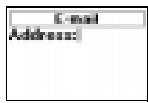
E-mail Addresses
You can save e-mail addresses to be used when you want to send a text message as an e-mail. You can save 10 e-mail addresses consisting of 60 characters each.
See "Sending and Receiving Text Messages (SMS)" on page 51.
To save an e-mail address
- Scroll to Phone Book, YES, Email Addresses, YES, Add new?, YES.
- Enter an e-mail address and press YES.
- Enter a name and press YES.
Tip! The @ sign is accessed by pressing the 0 key three times.
To edit an e-mail address
- Scroll to Phone Book, YES, Email Addresses, YES.
- Select the entry that you want to edit.
- Select Edit.
- Edit the e-mail address and press YES.
- Edit the name and press YES.
To delete an e-mail address
- Scroll to Phone Book, YES, Email Addresses, YES.
- Select the entry that you want to delete.
- Select Delete.
- Press YES to confirm your choice.
Checking the Status of the Memory
The Memory Status function in your phone book lets you check how many memory positions you have left in your memories.
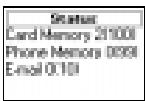
To check the status of your different phone book memories
- Scroll to Phone Book, YES, Memory Status, YES.

Using the Call List
The Call List is a phone number log that saves information (time, date, phone number and name) about the last 30 incoming and outgoing calls. Once your list exceeds 30 calls, the oldest one is deleted.
Note! Depending on whether a call is ongoing or not, the menus 'Call Info' and 'Ongoing Call' will replace each other. See "The Dynamic Call Info/ Ongoing Call Menu" on page 28 for more information.
What Calls Are Saved?
The numbers that you have dialled are always saved. If your subscription includes the Calling Line Identification (CLI) service and the caller's network sends the number, you will also find the numbers (together with a name if saved in your phone book) of answered and missed calls in the Call List. If the incoming call is a restricted number, the display shows Private. You can call any of the numbers in the Call List.
The Call List saves:
| + | Dialled numbers |
| - | Answered calls |
| - | Missed calls |
All the calls are saved together in chronological order. The last call you have made is saved in the first position. If the same number is called more than once, the latest call replaces earlier ones. If you check a call within 24 hours, the time of the call is displayed. Otherwise, the time is replaced by the date.
Note! If you change SIM cards or turn the Call List off, the list is cleared. Called numbers may remain in the SIM card memory though.
To call a number from the call list
- Scroll to Call Info, YES, Call List, YES.
- Scroll to the number that you want to call and press YES.
Tip! Press YES when the phone is in standby mode to go directly to the call list.

To delete a number from the call list
1.Scroll to Call Info, YES, Call List, YES.
2. Scroll to the number you want to delete and press C. The question Delete? appears in the display.
3. Press YES to delete the number.
To clear the call list
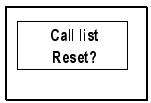
- Scroll to Call Info, YES, Options, YES, Clear Call List, YES. The question Call List Clear? appears in the display.
- Press YES to clear the call list.
To turn the call list on or off
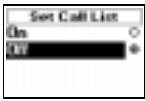
- Scroll to Call Info, YES, Options, YES, Set Call List, YES.
- Select On or Off. If you select Off the question Call List Clear? appears in the display.
- Press YES to clear the call list.
Missed Calls
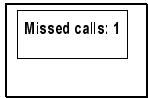
If you have missed a call, the message Missed Calls: 1 appears in standby mode, where the number 1 indicates the number of missed calls.
- Press YES to display the missed calls.
- If you wish to call a number from the list of missed calls, press YES at the number you want to call.
Note! You can also see the Missed Calls List in the 'Call Info' menu. Missed calls are also saved in the Call List.
Showing And Hiding Your Number
Some operators offer subscriptions where your phone number is normally hidden. You can choose to show or hide your number for a particular call, if Calling Line Identification Restriction service (CLIR) is supported by your subscription.
To hide your phone number for a particular call
- Enter the phone number you wish to call.
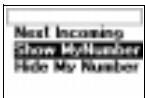
- Scroll to Call Info, YES, Next Call, YES, Hide My Number, YES.
- Press YES to make the call.
To show your phone number for a particular call
- Enter the phone number you wish to call.
- Scroll to Call Info, YES, Next Call, YES, Show MyNumber, YES.
- Press YES to make the call.

Your Voice Mail Service
This service depends on your subscription and operator.
The answering service of your network allows callers to leave a voice message when you cannot answer your calls. Depending on your network operator, you will be informed that you have received a voice message in different ways.
Some operators inform you by sending a specific Voice Mail indication. If this is the case, the voice mail icon appears in the display.
Most operators, however, inform you by sending a text message, (i.e. an SMS), for example asking you to call your Voice Mail Service.
Note! For more information about your Voice Mail Service, please refer to the information provided by your network operator.
Communicating With Your Voice Mail Service
If you want your phone to easily interact with your Voice Mail Service, you can store the number to your Voice Mail Service. You will get the number in the information provided by your network operator.
To store your Voice Mail number
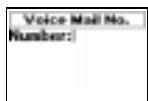
- Scroll to Messages, YES, Options, YES, Voice Mail No., YES.
- Enter your Voice Mail number and press YES.
Note! The number to your Voice Mail Service may be different if you are calling from a network that is not your home network.
Calling Your Voice Mail
When you receive a voice mail, an alert signal sounds and the message
New voicemail appears in the display (only if you receive the specific voice mail indication). If you want to check your voice mail now, press YES to call your Voice Mail Service.
If you press NO, you can call your Voice Mail Service at a later time to listen to your recorded messages.
To call your Voice Mail Service
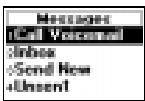
- Scroll to Messages, YES, Call Voicemail, YES.
Tip! You can also call your Voice Mail Service by pressing and holding 1 from standby.
Changing Number and Signal
To change your Voice Mail number
- Scroll to Messages, YES, Options, YES, Voice Mail No., YES.
- Press and hold C to delete the existing number.
- Enter your new Voice Mail number and press YES.
To change the message alert signal
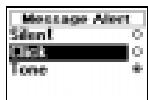
- Scroll to Messages, YES, Options, YES, Message Alert, YES.
- Select the signal you want.
Tip! If you subscribe to the Two Line Service, you may have different Voice Mail numbers for your two lines. You may also set different options for the two lines. For example, you can set all incoming calls on Line 1 to be diverted to your Voice Mail and let all incoming calls on Line 2 be connected.
Further information about your Voice Mail Service can be found in the operating instructions supplied by your network operator.
Personalizing Your Phone
Silent
You can choose to set your phone completely silent so that all signals except the alarm and timer signals are turned off.
To set the phone silent
- From standby, press and hold C.
- Select Turn on Silent.
An icon appears in standby.
To cancel, repeat step 1 and press YES at Turn off Silent.
Ring Signal Volume
You can set the volume in six steps. The first step means that two clicks are heard when you receive a call. You can also turn the ring signal off (0). An icon then appears in standby.
To set the ring signal volume
- Scroll to Settings, YES, Sounds & Alerts, YES, Ring Volume, YES.
The level of the ring volume appears in the display. - Use ( ) to increase or decrease the volume.
The phone rings once with the actual setting as you increase the volume. - Press YES to save the setting.
Tip! Use the volume key on the side of the phone to change the volume.
Increasing Ring
You can choose a ring signal that rises in steps from the softest volume to the loudest, Increasing Ring.
To set the ring signal to Increasing Ring
- Scroll to Settings, YES, Sounds & Alerts, YES, Increasing Ring, YES.
- Select On.
The Increasing Ring must be Off for the ring signal volume to apply.
Note! If the phone is set to silent, the increasing ring signal is not heard.
Ring Signal Type
You can choose a ring signal from a list of different sounds and melodies. You can also compose up to four melodies of your own by entering notes with the keypad. See "Composing and Editing Your Own Ring Signals" on page 44.
To choose one of the existing ring signals
- Scroll to Settings, YES, Sounds & Alerts, YES, Ring Signals, YES, Voice Calls, YES.
- With ( ) , select the ring signal type that you want and press YES. When scrolling through the list, the melody currently stored in the highlighted position is played.
Tip! If you do not wish to disturb other people, use the volume key on the side of the phone to scroll silently.
Different Ring Signals for Line 1 and Line 2
If you subscribe to the Two Line Service, you can set different ring signals for the two lines. Line 1 and Line 2 are displayed instead of Voice.
Different Ring Signals for Voice, Data and Fax Calls
Provided your SIM subscription supports Fax and Data calls, you can set different ring signals for voice, fax and data calls respectively.
Specific Ring Signals for Personal Calls
If your subscription includes the Calling Line Identification (CLI) service, you can assign a personal ring signal to up to ten callers. You can, for example, have one ring signal for your friend and another one for your colleague.
If the last seven digits of a caller's number correspond to a number you have specified, then that caller's ring signal is used.
You can include question marks (?) in a phone number. For example, 012345??? means that calls from phone numbers between 012345000 and 012345999 will have the same personal ring signal. You get a question mark by pressing and holding #.
To specify a caller's number and the accompanying ring signal
- Scroll to Settings, YES, Sounds & Alerts, YES, Ring Signals, YES, Personal Rings, YES, Add new?, YES.
- Enter the caller's number and press YES. You can also recall it from the Phone Book by pressing 已
- Select the ring signal type you want and press YES.
To delete a caller's number
- Scroll to Settings, YES, Sounds & Alerts, YES, Ring Signals, YES, Personal Rings, YES.
- Scroll to the number you wish to delete and press YES.
- Select Delete and press YES.
Composing and Editing Your Own Ring Signals
You can compose four different ring signals.
To compose a ring signal
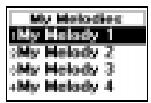
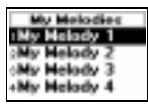
- Scroll to Settings, YES, Sounds & Alerts, YES, My Melodies, YES.
- Select My Melody 1, My Melody 2, My Melody 3 or My Melody 4.
- Press to clear the display.
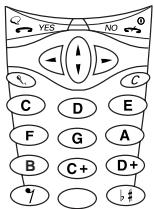
- The keypad now works as a keyboard (see figure in margin above). Use the keypad to enter notes:
Press and hold a key to enter a long note.
Press 0 to raise the note one octave.
Press # once to raise the note one semitone.
Press # twice to lower the note one semitone.
- To listen to your melody, press YES.
- Press YES again to save it or press NO to continue editing.
To edit a ring signal
- Scroll to Settings, YES, Sounds & Alerts, YES, My Melodies, YES.
- Scroll to either My Melody 1, My Melody 2, My Melody 3 or My Melody 4 and press YES.
- Select Edit.
The notes are displayed and you can edit the melody notes with the keys. Press YES to play it.
Note! You can also compose your own and download existing ring melodies from the Ericsson Mobile Internet:
http://mobileinternet.ericsson.com
Sending and Receiving Ring Signals
You can use the built-in modem of your phone to transfer your ring melodies to and from another similar phone.
In order to send ring signals, your phone uses a standard called 'IrDA-Ultra' and to receive, it can use both 'IrDA-Ultra' and 'Standard IR'.
Note! In order for a transmission via the built-in modem to work properly, you have to make sure your phone is properly connected to the other mobile phone during the transmission. This means that the infrared eyes have to be activated and facing each other within a maximum distance of 1 meter and a maximum angle of 30 degrees.
To send a melody
- Scroll to Settings, YES, Sounds & Alerts, YES, My Melodies, YES.
- Scroll to the melody that you want to send. Press YES.
- Position the infrared eye next to the infrared eye on the phone to which you want to send the melody.
- Select Beam and press YES.
When the transmission has succeeded, the display shows Melody successfully beamed.
To receive a melody
- Activate the phone's infrared eye by scrolling to Extras, YES, Activate IR, YES, Automatic, YES. Also, make sure that the infrared eye on the senders' mobile phone is facing the infrared eye on your phone.
- When your phone has received the melody, you hear a short tone and see the text New melody received.
- If you want to hear the melody before you store it, press YES to answer the question Play?. Otherwise press NO.
- Press YES when you see the text Save melody?.
- Select in which position in the melody list you want to store the new melody. The old melody stored in that position will be erased. When scrolling through the list, the melody currently stored in the highlighted position is played.
- Press YES to store the melody.
Note! You cannot select 'Activate IR' from the Extras menu if you are using the WAP browser, or if you use a cable for the communication between your phone and the computer.
Vibrating Alert
You can choose to be notified of an incoming call by the buzzing of the Vibrating Alert. You can set the phone's Vibrating Alert to one of the following:
- On (all the time)
- On If Silent (on when the ring volume is turned off or when you have set the phone to silent)
- Off (all the time)
Note! When your phone is placed in a desktop charger or a handsfree car kit, the Vibrating Alert is turned off automatically.
To set the Vibrating Alert
- Scroll to Settings, YES, Sounds & Alerts, YES, Vibrating Alert, YES.
- Select the setting you want. Press YES.
Message Signal
You can choose whether to hear clicks, tones or nothing (silent) when you receive a voice or text message (SMS).
To set the message signal
- Scroll to Settings, YES, Sounds & Alerts, YES, Message Alert, YES.
- Select the signal you want. Press YES.
You can also find the Message Alert in Options in the Messages menu.
Alarm Signal
To change the alarm signal for the alarm clock
- Scroll to Settings, YES, Sounds & Alerts, YES, Alarm Signal, YES.
- Select the signal you want. Press YES.
Key Sound
You can choose whether to hear clicks, tones or nothing (silent) when you press the keys.
To set the key sound
- Scroll to Settings, YES, Sounds & Alerts, YES, Key Sound, YES.
- Select the key sound you want. Press YES.
Minute Minder
If you turn on the minute minder, you hear a beep once every minute during a call.
To turn the minute minder on or off
- Scroll to Call Info, YES, Call Timers, YES, Minute Minder, YES.
- Select On or Off. Press YES.
Turn Off Tones
If you make a note of a number during a call, you use the display as a notepad, see "The Notepad" on page 20. The person you are talking to will hear the tone signals as you press the keys. If you wish to, you may turn the tone signals off.
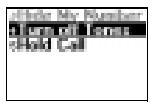
Note! You can only turn the tones on or off during a call.
To turn the tone signals off during a call
- Scroll to Ongoing Call, YES.
- Select Turn off Tones. Press YES.
To turn the tone signals on during a call
- Scroll to Ongoing Call, YES.
- Select Turn on Tones. Press YES.
Display Light
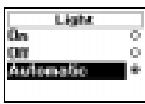
You can set the display light to automatic, off or on. In automatic mode, the display light is turned off automatically a few seconds after you have pressed the last key. It comes on again when you press a key or when you receive a call or message.
To set the display light
- Scroll to Settings, YES, Display, YES, Light, YES.
- Select the display light setting you want. Press YES.
Display Language and Input Method
Most modern SIM cards automatically set the display language to the language of the country where you bought your SIM card, Automatic. If this is not the case, the preset language is English.
You can also select which input methods for text you can choose from when using the phone book and when writing text messages.
To change the display language
- Scroll to Settings, YES, Language, YES, Set Language, YES.
- Select the language you want. Press YES.
Tip! You can always choose English by pressing , 0000, in standby. You can always choose Automatic by pressing , 8888, in standby.
To select input methods to choose from
- Scroll to Settings, YES, Language, YES, Input Method, YES.
- Use * to select or deselect the input methods you want to choose from when using the phone book and when writing text messages.
When you enter or edit a phone book entry or compose a message, you can alter between these input methods by pressing and holding #.
Greeting Text
When you turn on your phone, ERICSSON appears in the display. Instead of this, you can write your own greeting.
To write a new greeting
- Scroll to Settings, YES, Display, YES, User Greeting, YES.
- Select Custom. Press YES.
- Write your new greeting, using the number keys. For information on how to enter letters, see "Entering Letters" on page 31.
You may also edit your existing greeting.
- Press YES to confirm your setting.
To set the standard greeting
- Scroll to Settings, YES, Display, YES, User Greeting, YES.
- Select Standard. Press YES.
To turn the greeting off
- Scroll to Settings, YES, Display, YES, User Greeting, YES.
- Select Off. Press YES.
Phone Number Display
My Numbers allows you to check your phone number(s). If your phone number cannot be retrieved from your SIM card, you can enter it yourself.
To enter your phone number
- Scroll to Settings, YES, Display, YES, My Numbers, YES, Voice, YES.
- Enter the number and then press YES.
Tip! You can also enter your fax and/or data number and your different numbers for Line 1 and Line 2, if these are supported by your subscription.
Time
The time is always displayed when the phone is in standby mode.
To set the time format
- Scroll to Settings, YES, Time and Date, YES, Time Format, YES.
- Select the 24-hour or 12-hour (am/pm) clock. Press YES.
To set the clock
- Scroll to Settings, YES, Time and Date, YES, Set Time, YES.
- Enter the time in hours and minutes, and press YES. Move from number to number by pressing or
If you select the 12-hour clock, you can alternate between am and pm by pressing #.
Automatic Time Zone
With the Automatic Time Zone function, you will be asked whether to update the clock when you enter a new time zone. You can choose to turn the function off, if you like.
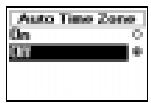
To turn the Automatic Time Zone off
- Scroll to Settings, YES, Time and Date, YES, Auto Time Zone, YES.
- Select Off. Press YES.
Note! This service depends on the network.
Date
When the phone is in standby mode, you can slide the volume key upwards or downwards to see today's date in the Status menu.
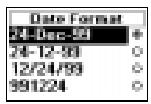
To set the date format
- Scroll to Settings, YES, Time and Date, YES, Date Format, YES.
- Select the date format you want. Press YES.
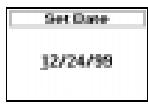
To set the date
- Scroll to Settings, YES, Time and Date, YES, Set Date, YES.
- Enter the year (two digits), month and day and then press YES. If you have chosen another date format you must enter the date differently.
Help Function
To help you in the use of different features, your phone includes some help functions.
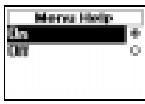
- Menu Help - help texts appear by some sub-menus or settings.
- Ask to Save - whether to save the number of the last person you called.
These functions are set to On when you buy your phone, but you can turn them off at any time.
To turn the help function off
- Scroll to Settings, YES, Display, YES, Menu Help.
- Select Off. Press YES.
To turn Ask to Save off
- Scroll to Phone Book, YES, Options, YES, Ask to Save.
- Select Off. Press YES.
Master Reset
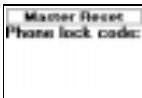
You can reset the phone's settings to the way they were when you bought your phone.
To reset the phone
- Scroll to Settings, YES, Master Reset, YES.
- Enter the phone lock code (0000) and press YES.
The phone lock code may be another one, in case you have changed it.
Sending and Receiving Text Messages (SMS)
The Short Message Service (SMS) allows you to send and receive text messages consisting of up to 160 characters.
A useful feature in your phone is that you can send text messages to a group which you have defined in your phone book. See "Groups" on page 35. Instead of calling or sending a text message to the members of that group one at a time, you can simply send a single group SMS.
If your SIM card does not contain the phone number to your network service centre, you must specify the number yourself. Otherwise you cannot reply to received messages or send your own messages. See "Enable the Phone to Send SMS" below.
Note! The Short Message Service may not be available on all networks. Some network operators may only allow SMS to be sent within their own network.
Enable the Phone to Send SMS
If you want to send or reply to a message, you need to make sure that your network operator's Service centre number is set. Most modern SIM cards already contain this information at the time of purchase. You can obtain the service centre number from your network operator.
To activate a service centre number found in the list
- Scroll to Messages, YES, Options, YES, Service Centres, YES.
- Scroll to the number you want and press YES.
- Select Activate.
If no number is found in the list, you have to set the number yourself.
To enter the phone number to your service centre
- Scroll to Messages, YES, Options, YES, Service Centres, YES, Add new?, YES.
- Enter the number, including the international (+) sign and country code and press YES.
Composing a Text Message
For more information on how to enter text and the letters, see "Entering Letters" on page 31.
Example:
To enter an A', press 2 once.
To enter a B^ , press 2 twice quickly.
- To enter lower-case letters, enter the letter, for example an 'A' and then press *. An 'a' appears. Lower-case letters now appear until you press * again.
To enter numbers, press and hold the numeric keys.
To delete letters, press the C key.
You may also use the volume key as a shortcut to certain letters:
To enter a B^ , slide the volume key upwards and press 2.
To enter a 'C', slide the volume key downwards and press 2.
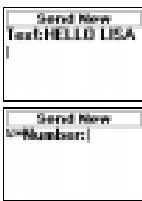
Sending a New Text Message
- Scroll to Messages, YES, Send New, YES.
- Enter your message and press YES.
- Enter the recipient's phone number or recall it from the phone book by pressing
- Press YES to send the message.
- Sending message appears in the display followed by Message has been sent.
Note! If you have turned on any of the "Set On Send" options (Message Type, Validity Period, Reply Request), you need to make these choices before entering the phone number. See "Customizing Your Text Messages" on page 53.
Storing the Message for Later Use
If you do not want to send the message now, you can save it in the phone memory and send it later:
- Press NO when you are asked to enter a phone number. The message can now be recalled from the Unsent list in the Messages menu.
To send the message later
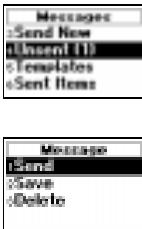
- Scroll to Messages, YES, Unsent, YES
- Select the message you want to send. The message appears in the display.
- Press YES.
- Select Send. If you wish, you may now edit your message.
- Press YES and proceed from step 3 as described in "Sending a New Text Message" above.
Note! The same procedure is used with all types of messages, for example e-mail, fax messages etc. Check with your network operator to find out which message types you can use.
Sending Text Messages to a Group
With your phone you can send text messages to a pre-defined group. You need to specify a group and save it in your phone book before you can send text messages to a group. For more information on how to create groups, see "Groups" on page 35.
To send a text message to a group
- Scroll to Messages, YES, Send New, YES.
- Enter your message and press YES.
- Press to enter the Phone Book menu.
- Scroll to Groups and press YES.
- Select the group you want and press YES to send the message.
Note! When you send text messages to a group, you will be charged for each member included in that group.
Customizing Your Text Messages
Before you send your message, you can set the type of message, the validity period and if you want the recipient of your message to reply to your message.
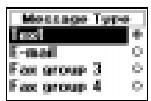
Message Type
Your phone can send different types of messages. Your network operator's service centre may offer the facility of converting a text message into a format (e-mail, fax, etc.) that suits the equipment that is going to receive the message. Please contact your network operator to find out which message types you can use and how.
You can set a standard message type that you want to use or you can turn on a Set on Send option, which means that you are asked to select which message type you want to send, before sending it.
To set a standard message type
- Scroll to Messages, YES, Options, YES, MessageType, YES, Set Default, YES.
- Select the message type you want.
The selected message type is now standard until you change it.
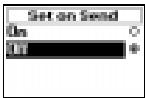
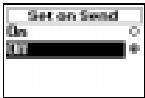
To turn the Set on Send function on or off
- Scroll to Messages, YES, Options, YES, MessageType, YES, Set on Send, YES.
- Select On or Off.
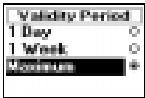
Validity Period
If your message cannot be delivered because the recipient has turned off the phone, your service centre can save the message to send it later. If the service centre has not been able to reach the recipient within a certain time, the message will be deleted.
You can set a validity period as your standard or you can turn on a Set on Send option, which means that you are asked to set the validity period before sending the message.
To set a validity period as your standard
- Scroll to Messages, YES, Options, YES, Validity Period, YES, Set Default, YES.
- Select the validity period you want.
The selected validity period is now your standard until you change it.
To turn the Set on Send function on or off
- Scroll to Messages, YES, Options YES, Validity Period, YES, Set on Send, YES.
- Select On or Off.
Reply to Messages
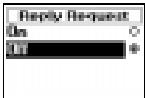
If you want the recipient of your message to reply, you can turn on the Request Reply option. When this function is on, you are asked to choose if you want the recipient to reply or not before your message is sent. If you want the recipient to reply, select On and press YES.
To turn the Request Reply function on or off
- Scroll to Messages, YES, Options, YES, Reply Request, YES.
- Select On or Off.
Note! Not all network operators support these functions.
Templates
If you have one or more standard messages that you use often, you can save these as templates to be reused whenever you want. You can save up to 5 templates which can consist of 30 characters each. Your templates are saved in the phone memory.
To save a template
- Scroll to Messages, YES, Templates, YES, Add new?, YES.
- Enter the message and press YES. For more information on how to enter text, See "Composing a Text Message" on page 52.
- If you want to send the message now, press YES when Send message now? appears in the display, and proceed as described in "Sending a New Text Message" on page 52. The message is saved in the list of templates.
- If you do not want to send the message now, press NO. The message is saved as a template for later use.
To send a template
- Scroll to Messages, YES, Templates, YES.
- Select the template you want to send. You may edit the message before sending it. See "Sending a New Text Message" on page 52.
- When you have completed the message, press YES.
- Enter the recipient's phone number.
- Press YES to send the template.
To delete a template
- Scroll to Messages, YES, Templates, YES.
- Select the message you want to delete and then press C. The message Delete? appears in the display.
- Press YES to delete the message.
Receiving a Message
When you receive a message, you hear a sound, the indicator light on the top of the phone rapidly flashes green and the message New message Read now? appears in the display.
To read the message now
- Press YES when you see the question New message Read now?
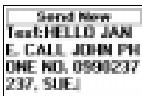
The display shows when the message was received and from what number it was sent, if your network supports the Calling Line Identification service (CLI). If you have saved the number together with a name in the phone book, the name is shown instead. - Scroll through the message using the arrow keys. takes you forward and takes you backwards through the message. An arrow at the bottom right corner of the display indicates that there is more text in the message.
- At the end of the message, when the arrow in the display disappears, press YES. A new menu with different options appears:

- Delete
Reply
Forward
Save
Call
Read Next
The options are described on the following pages.
Note! If the sender of the message wants you to reply, the message 'Reply requested Reply?' appears in the display when you press YES, if this function is supported by your network operator. If you do not want to reply, press NO.
To read the message later
Press NO when you see the question New message Read now?.
The message is now saved in the phone memory and an envelope icon appears at the top of the display. The envelope icon disappears as soon as you have read the message. If you want to read the message later you can retrieve it from the Inbox menu (see below).
Calling a Phone Number Found in a Message
- Select the phone number, e.g. Call 0990237237.
- Press YES when the number is highlighted.
Calling the Sender of the Message
- When you have read the message, press YES.
- Select Call in the option list.
If you have saved the number together with a name in the phone book, the name of the person who sent the message appears together with Call.
Replying to a Message
- When you have read the message, press YES.
- Select Reply in the option list.
Your display now looks like the picture in the margin.
- Select what message you want to send as a reply (send a new message or include this message when sending a message in return).
- Enter your message and press YES to send the message.
Note! If the sender of the message wants you to reply, the message 'Reply requested Reply?' appears in the display, if this function is supported by your network operator, when you press YES at the end of the message. Press YES again to reply. If you do not want to reply, press NO.
Forwarding a Message
- When you have read the message, press YES.
- Select Forward in the option list.
You may edit your message before sending it.
- When you have completed your message, press YES.
- Enter the recipient's phone number.
- Press YES to send the message.
Deleting a Message
- When you have read the message, press YES.
- Select Delete in the option list.
Tip! You can also delete a message by pressing C while reading it. The message Delete? appears in the display. Press YES to delete the message.
You can delete a message from the list of messages in the Inbox menu without having to open it.
To delete a message from the list in the Inbox menu
- Scroll to Messages, YES, Inbox, YES.
- Select the message you want to delete and press C.
The message Delete? appears in the display.
- Press YES to delete the message.
Saving Incoming Messages
If you do not want to read an incoming message at once, it is automatically saved in the phone memory. This allows you to read it later. If there are any unread messages in this memory, the envelope icon appears at the top of the standby display.
The phone memory can hold up to 15 messages. When all memory positions are full, the oldest read message is overwritten when a new message is received.
If the phone memory becomes full of unread messages, new messages are automatically saved on the SIM card.
Messages remain in the phone memory until you delete them, until you insert a different SIM card or until the phone needs the memory space to save new messages.
The SIM Card Memory
You can save important messages on your SIM card. Messages that are saved on the SIM card remain there until you delete them, i.e. they will not be
overwritten if you receive any new messages. The maximum number of messages that you can save depends on your SIM card.
To save a received message in the SIM card memory
- When you have read the message, press YES.
- Select Save in the option list.
The message automatically moves from the phone memory to the SIM card memory. The display shows the position of the message and the number of saved messages, for example the third message of fifteen that can be saved on the SIM card.
Note! If you save your messages on the SIM card, you can reach them if you should use your SIM card with another phone.
Reading a Saved Message
1.Scroll to Messages, YES, Inbox, YES.

means an unread message.

means that the message is saved on the SIM card.
- Select the message you want to read.
- Read the message as described in "Receiving a Message" on page 55.
- If you want to read the next message, press YES at the end of the message.
- Select Read Next in the option list.
Area Information
The ordinary Short Message Service is a personal service that carries your private messages. The Area Information is another type of text message which is sent to all subscribers in a certain network area.
The information may be a local road report or a phone number to a local taxi.
Note! This feature may not be available on all networks.
To turn Area Information on or off
- Scroll to Messages, YES, Options, YES, Area Info, YES, Reception.
- Select On or Off.
Area Information Message Types
Each type of Area Information message is identified by a three-digit code. The list below shows examples of the Area information codes that exist today.
| Code: | AI Message Type: |
| 000 | Index |
| 010 | Newsflashes |
| Code: | AI Message Type: |
| 020 | Hospitals |
| 022 | Doctors |
| 024 | Pharmacies |
| 030 | Long-distance road reports |
| 032 | Local road reports |
| 034 | Taxis |
| 040 | Weather |
| 050 | District cell information |
| 052 | Network information |
| 054 | Operator services |
| 056 | Directory enquiries (national) |
| 057 | Directory enquiries (international) |
| 058 | Customer care (national) |
| 059 | Customer care (international) |
Note! These codes are operator dependent. For information about the area information services that you can use, please refer to the information supplied by your network operator.
Area Information Message List
You can decide which types of area information messages you wish to receive. The number of Area Info codes that can be saved depends on your SIM card.
To insert an Area Information code
- Scroll to Messages, YES, Options, YES, Area Info, YES, Edit List, YES, Add new?, YES.
- Enter the new code and press YES.
To delete the code
- Scroll to Messages, YES, Options, YES, Area Info, YES, Edit List, YES.
- Scroll to the code you want to delete and press C. The message Erase? appears in the display.
- Press YES to delete the code.
Receiving an Area Message
When you receive an Area Information message, the message automatically appears in the display. You read the message in the same way as you read an ordinary text message, see "Receiving a Message" on page 55. When you have read the message, press YES. The message is deleted.
Cell Information
The Cell information channel (see "Area Information Message List" on page 59) is used by network operators for sending messages to their subscribers within a certain network area. For example, the operator may inform you that you are within your home network area and that you can now make calls at a lower rate.
Note! This feature may not be supported by your network operator.
To turn Cell Information on or off
- Scroll to Messages, YES, Options, YES, Cell Information, YES,
- Select On or Off.
Communicating via the Built-in Modem
A very convenient feature of your mobile phone is the built-in modem (which equates to a PC Card modem). With the modem, you can connect your mobile phone to another similar mobile phone, a Palmtop/PDA or a PC. Through this you can send and receive business cards, calendar appointments and ring melodies.
Also, after having installed the modem on a PC, you can send and receive fax and e-mail messages, browse the Internet and much more. See "Using the Modem with a PC" on page 62.
Note! In order for you to use various communications services, you need the appropriate software, for example a fax program, an e-mail program or an Internet browser. In order to use the modem together with the WAP browser in your mobile phone, you also need a mobile phone subscription that supports this. See "Using the WAP Browser" on page 92.
Activating and Deactivating the Infrared Modem
You can choose to activate the built-in infrared modem either automatically or manually. Each time you turn on your mobile phone, the modem is set to Off.
If you choose Automatic, the infrared modem will automatically disconnect itself 3 minutes after the latest connection was ended. This in order to save battery power. If you choose On the modem will continue searching for other infrared devices until you turn the modem Off, or until you turn off the mobile phone.
When the infrared modem has been activated, an icon appears in the display.
To set the modem to Automatic
Scroll to Extras, YES, Activate IR, YES, Automatic, YES
To set the modem to On
Scroll to Extras, YES, Activate IR, YES, On, YES.
To set the modem to Off
Scroll to Extras, YES, Activate IR, YES, Off, YES.

Note! The "Activate IR" function can also be found in My Shortcuts. See "My Shortcuts" on page 28.
Using the Modem with a PC
In order to use the built-in modem together with a PC, you have to install the modem on the PC.
The following requirements have to be fulfilled in order for you to use the built-in modem with a PC:
- IR-equipped computer with Windows® 95/98/NT 4.0, which is configured for infrared communication (unless you are using a cable). The computer also needs a Pentium® processor, 30 MB of free hard drive space and a CD-ROM drive.
To install the built-in modem on the PC
- Insert the CD in your CD drive. The CD should start automatically, but if it does not, you can start it manually by choosing Run from the Start menu, and typing d:\start.exe (change the D drive if your CD drive is named differently). You can also find the files necessary for installing the built-in modem on: http://mobileinternet.ericsson.com
- Follow the Installation Wizard. Place your mobile phone next to the infrared eye on the computer (or connect it to the cable) when the Wizard instructs you to.
Note! Do NOT connect your mobile phone to the computer until the installation program tells you to. This way the installation will run more smoothly.
Connecting to the PC Using the Built-in Infrared Eye
- Place your mobile phone according to the picture below. The infrared eye on the phone should face the infrared eye on the computer. Make sure the phone is switched on and that the built-in infrared eye is activated, see "Activating and Deactivating the Infrared Modem" on page 61.
- Your PC now establishes contact with your mobile phone.
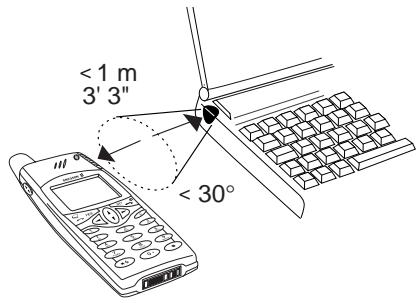
Connecting to a PC Using a Cable
To establish communication between your computer and your phone, you can also use an RS232 cable.
Note! The RS232 cable is an accessory and is not included in the mobile phone kit. If you want to use a cable, be sure to ask for an Ericsson RS232 cable that can be used with your phone.
To connect using a cable
- Make sure you have installed the modem as described in "To install the built-in modem on the PC" on page 62.
- Connect the cable according to the picture below. When you connect the cable to your mobile phone, you may have to press hard to attach it properly.
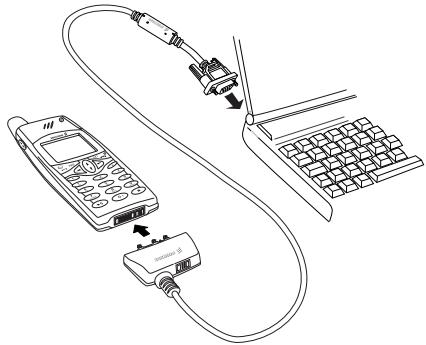
- Your PC will now establish contact with your phone.
Note! The Ericsson RS232 cable does not fully support the RS232 standard. This means that some programs may not have full functionality on computers that communicate with a mobile phone via a cable. For more information about which programs are concerned and how you can take care of the problems, go to Ericsson Mobile Internet on:
http://mobileinternet.ericsson.com
Switching Between Infrared Communication and Cable Communication
You can alternate between using infrared communication or an external RS232 cable when communicating with your PC. Every time you want to change between infrared and cable communication, you can start the Setup Assistant. This is a program that analyzes your computer, helps you make the correct settings and helps you install any missing components.
To switch communication mode
- Make sure you have gone through all the steps in "To install the built-in modem on the PC" on page 62.
- Double-click the file Troubleshooter for R320.bat, which you can find on your computer under C:/Program files/Ericsson/Communications Suite.
- When the Setup Assistant is started, it asks you to select a connection type: Infrared or Cable. Choose the one you want to change to.
- The Setup Assistant then helps you make the correct settings (and helps you install the missing components if necessary).
Solving Connection Problems After the Installation
If you have connection problems between your mobile phone and your computer despite proper installation, you can start the Setup Assistant.
This is the program that analyzes your computer, and helps you install any missing components during regular installation. If you have problems after installation, start the Setup Assistant. It performs a new computer system check and informs you if something is wrong.
To start the Setup Assistant
Double-click the file Troubleshooter for R320.bat, which you can find on your computer under:
C:/Program files/Ericsson/Communications Suite/Troubleshooter for R320.bat
Tips on Using the Built-in Modem
To make sure you get the most out of your built-in modem:
- You can break infrared communication between your mobile phone and computer for a short while (approximately 15-20 seconds) without interrupting the connection. You can configure your computer to make a warning sound when the mobile phone is removed from its reach. Make sure you place your mobile phone back in position within the time limit in order to remain connected.
- Strong sunlight can interfere with the infrared light. To ensure a stable connection, keep the connecting devices away from sunlight.
The Content of the CD
Among other things, the CD that comes with your mobile phone contains this User's Guide in .pdf format, various useful information and software.
Trademark Information
Microsoft, Windows, Windows NT are registered trademarks or trademarks of Microsoft Corporation. Pentium is a registered trademark or trademark of Intel.
Sending and Receiving Fax, Data and E-mail
To be able to use different communications services you need the appropriate software such as a fax program, an e-mail program or an Internet browser. You also need a phone subscription that supports fax and/or data transmission. This is not included in the phone kit. For detailed information, please consult the User's Guides or your network operator.
Sending Fax and Data Calls
All fax and data calls are initiated from the appropriate computer software. To send fax and data calls you need to connect your phone to a computer via an infrared communication link or a cable and then start the appropriate program.
Receiving Fax and Data Calls
The procedure for receiving fax and data calls depends on your network and subscription. If you have different numbers for voice, fax and data calls, this is referred to as multi numbering. This means that you can have up to three numbers in your subscription. If you only have one number for all call types, this is referred to as single numbering.
Receiving Fax and Data Calls - Multi Numbering
If your network and subscription support multi numbering, the display shows what kind of a call you are receiving. There are two possible calls apart from voice calls:
- Fax calls
Data calls
To receive a fax or data call
- Connect your computer to the phone.
- Answer the call from within the program (if it is not answered automatically).
Note! You cannot answer an incoming fax or data call by pressing the YES key on the phone, but you can reject the call by pressing NO.
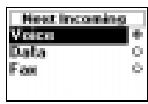
Receiving Fax and Data Calls - Single Numbering
If you have a SIM card that does not support separate fax and data numbers, the phone does not recognize what kind of a call you are receiving.
Next Incoming Call Type
If you want to receive a fax or data call you have to set the phone to one of these options in the Next Incoming sub-menu. You only see this menu if your phone detects that you do not have separate numbers for data, fax and voice. Once you have set your phone for a specific incoming call, it stays like this until you change it. The normal setting is Voice.
Note! Depending on whether a call is ongoing or not, the menus 'Call Info' and 'Ongoing Call' replace each other. See "The Dynamic Call Info/Ongoing Call Menu" on page 28 for more information.
To set the next incoming call type
1.Scroll to Call Info,YES,Next Call,YES,Next Incomng,YES.
2. Select the call type you want (Voice, Data or Fax).
3. Press YES to confirm your choice.
Changing the fax class
If you use fax class 1 and have problems faxing from one mobile phone to another, it is probably due to long delays over the GSM network.
To change the fax class if you are using Microsoft® fax on Windows 95
- Click Start and point to Settings. A sub-menu appears.
- Click Control Panel.
- Double-click the Mail and Fax icon (it may be called Mail).
- In the dialog box that appears, select Microsoft fax. Click Properties.
- Select the Modem tab.
- Select Ericsson R320. Click Properties.
- In the dialog box that appears, click Advanced.
- Select the box Use class 2 if available.
- Click OK.
- Restart Microsoft fax for the changes to take effect.
If you want to use other fax programs or operating systems, please consult your User's Guides.
Sending and Receiving E-mail
You can use the phone's built-in modem and a computer to send or receive e-mail.
To send an e-mail
- In the Dial-Up Networking service on your computer, choose the Ericsson R320 as the modem you wish to use.
- Place your mobile phone next to your computer and make sure it is connected properly, i.e. within 1 metre and 30 degrees of the other infrared eye.
- Start your e-mail program and write a message.
- Send your e-mail message.
Receiving an e-mail
- In the Dial-Up Networking service on your computer, choose the Ericsson R320 as the modem you wish to use.
- Place your mobile phone next to your computer and make sure it is connected properly.
- Start your e-mail program and open your inbox to read your new e-mail messages.
Note! The steps above are only shown as examples. For detailed information on how to use your e-mail program, fax program and Internet browser as well as how to set up the programs properly, please consult the appropriate User's Guides or your service provider.
Business Card Exchange
An electronic business card consists of a name and a phone number and your phone allows you to send and receive the people in your phone book as business cards. You can also create, edit and send your own business card.
The business cards can be transferred between your mobile phone and another similar phone, a palmtop/PDA or a computer.
In order to send business cards, your phone uses a standard called 'IrDA-Ultra' and to receive, it can use both 'IrDA-Ultra' and 'Standard IR'. If you encounter problems, this can be due to the fact that your palmtop/PDA cannot handle these standards.
Note! If you do not know whether your palmtop/PDA can handle the transfer of electronic business cards, please consult the User's Guide or contact either the manufacturer or the local retailer of the palmtop/PDA.
Before you start sending and receiving with the built-in modem, make sure that the infrared eye on the mobile phone, palmtop/PDA or computer is no more than a metre away and at an angle of 30 degrees or less from your phone.
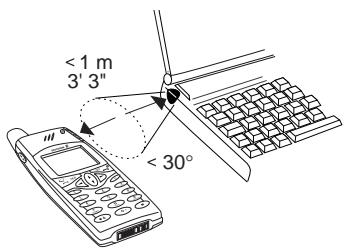
Sending Business Cards
To send your own business card
- Scroll to Phone Book, YES, Business Card, YES.
- Position the phone's infrared eye next to the infrared eye of the phone to which you want to send the business card.
- Select Beam Own.
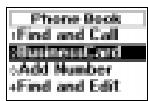
If you have not created your personal business card yet, you are asked if you want to create one
Wait until the display shows Business card beamed.
To send someone else's business card
- Scroll to Phone Book, YES, Business Card, YES, Find & Beam, YES.
- Start a search in your mobile phone's phone book by entering the first letter of the person whose business card you want to send.
If you have chosen to sort the names in your phone book by position, you start a search in the phone book by entering a position number instead of a name. See "To choose a sort order" on page 32.
- Position your phone's infrared eye next to the infrared eye on the phone to which you want to send the business card.
- Press YES.
Wait until the display shows Business card beamed.
Editing Your Own Business Card
- Scroll to Phone Book, YES, Business Card, YES, Edit Own, YES.
- Edit your own phone number, press YES, edit your name and press YES again.
Receiving a Business Card
- Activate your phone's infrared eye by scrolling to Extras, YES, Activate IR, YES, Automatic, YES.
- Position the infrared eye on your phone next to the infrared eye on the phone, palmtop/PDA or computer from which you want to receive the business card.
- When your phone has received the business card, you will hear a short tone and see the incoming business card together with the text Save received business card? in the display.
- Press YES to store the new business card in your phone and wait until the display shows Saved.
If you see the message Phonebook memory full in the display, you are asked if you want to overwrite a position in the phone book.
Note! You cannot select 'Activate IR' from the Extras menu if you are using the WAP browser or if you use a cable for the communication between your phone and the computer.
Trademark Information
The IrDA Feature Trademark is owned by the Infrared Data Association and is used under license there from.
Diverting Incoming Calls
If you want to make certain that your incoming calls are correctly handled when you are unable to answer them, you can use the Divert Calls service to divert them to another phone number.
Note! The Divert Calls service may not be available on all networks.
The Divert Calls service lets you divert your voice, fax and data calls respectively - provided your subscription supports fax and data calls.
For voice calls, you may choose between the following divert alternatives:
- All Voice Calls - divert all voice calls.
- When Busy - divert calls if you are already on the phone
- No Reply - divert calls that you do not answer within a specified time limit (operator dependent)
- Not Reachable - divert calls if your phone is turned off or if you are unreachable.
Note! These alternatives are only valid for voice calls.
If you subscribe to the Two Line Service, you may set different Divert Calls for your two voice lines, i.e. Line 1 and Line 2. You will then have an additional divert alternative, i.e. All Line 2 Calls.
Tip! If you place your phone in a specific Ericsson Desktop Charger, your calls may be diverted automatically. See "Desktop Charger" on page 124.
When you are making a phone call and the phone call is diverted to another number, this is indicated in your display, if supported by your subscription. Similarly, when receiving an incoming phone call which has been diverted from another number, this is indicated in your display, if supported by your subscription.
Activating Divert Calls
To turn on the Divert Calls function
- Scroll to Settings, YES, Call Options, YES, Divert Calls, YES.
- Scroll to the divert you want to turn on (All Voice Calls, When Busy, No Reply, Not Reachable, Fax Calls or Data Calls) and press YES.
- Select Activate.
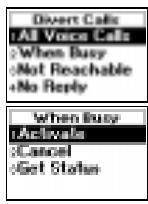
- A phone number recently used for the divert function or a number recently present in the display will be suggested as a divert number. Enter the phone number, including the area code, to which you want your calls to be diverted and then press YES. If you need to delete numbers, press C.
Tip! If the phone number is stored in the phone book, you do not need to enter it. Press and then recall the number.
When you turn on the All Voice Calls divert, an icon is shown in standby.
Note! When the Restricted Calls function is on, some Divert Calls options cannot be activated. See "Security for Your Phone and Subscription" on page 72.
Cancelling Divert Calls
To cancel a certain Divert Calls
- Scroll to Settings, YES, Call Options, YES, Divert Calls, YES.
- Scroll to the divert you want to cancel and press YES.
- Select Cancel.
The message Please wait appears, followed by a message which informs you that the Divert Calls has been cancelled.
Checking the Divert Status
To check the status of a certain Divert Calls
- Scroll to Settings, YES, Call Options, YES, Divert Calls, YES.
- Scroll to the divert you want to check and press YES.
- Select Get Status.
The message Please wait appears, followed by a message which informs you whether the Divert Calls is on or not.
To check the status of all Divert Calls
- Scroll to Settings, YES, Call Options, YES, Divert Calls, YES, Check All, YES.
Security for Your Phone and Subscription
There are several ways to protect your phone and subscription from unauthorized use. Anything from a SIM card lock to full phone number control.
The SIM Card Lock
The SIM card lock only protects your subscription and not your phone itself from unauthorized use. If you change SIM cards, the phone still works with the new SIM card.
Most SIM cards are locked at the time of purchase. If the SIM card lock is on, you have to enter the PIN (Personal Identity Number) every time you turn on your phone. If you enter your PIN incorrectly three times in a row, the SIM card is blocked. This is indicated by the message PIN blocked. If this happens you need to unblock it to access your subscription.
To unblock your SIM card
- PIN blocked appears.
- Enter your PUK (or PUK2) which you will find in the information supplied by your network operator.
- Press YES.
- Enter a new four- to eight-digit PIN (or PIN2).
- Press YES.
- Re-enter the new PIN (or PIN2) to confirm.
- Press YES.
Note! If you enter the wrong PUK ten times in a row, your card is permanently blocked. If this happens, you should contact your network operator.
To change your PIN code
- Scroll to Settings, YES, Locks, YES, Card Lock, YES, Change PIN, YES.
- Enter your old (current) PIN and press YES.
- Enter your new PIN and press YES.
The phone asks you to repeat the PIN.
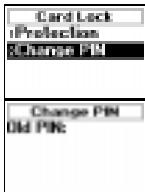
- Enter your new PIN a second time and press YES.
The PIN has now been changed.
Note! If the message 'Codes do not match' appears, this means you entered the new PIN incorrectly. If the message 'Wrong PIN' appears, followed by 'Old PIN':, you entered your old PIN incorrectly.
To change your PIN 2
- Scroll to Settings, YES, Locks, YES, Card Lock, YES, Change PIN2, YES.
- Follow the same procedure as described in 'To change your PIN code' above.
To turn off the SIM card lock
- Scroll to Settings, YES, Locks, YES, Card Lock, YES, Protection, YES, Off, YES.
- Enter your PIN and press YES.
The message Unlocked confirms that the card lock has now been turned off.
Note! This only works if your SIM card allows you to cancel the card lock.
To turn on the SIM card lock
- Scroll to Settings, YES, Locks, YES, Card Lock, YES, Protection, YES, On, YES.
- Enter your PIN and press YES.
The message Locked confirms that the card lock is now on.
The Phone Lock
The phone lock protects the phone against unauthorized use if it is stolen and the SIM card is exchanged. It is not on when you buy the phone. You can change the phone lock code (0000) to any four- to eight-digit personal code.
The phone lock can be On, Automatic or Off.
Phone Lock On
If the phone lock is On, the message Phone locked Phone lock code: appears each time you turn on the phone. You have to enter your code followed by YES to use your phone.
Automatic
If the phone lock is set to Automatic, you do not need to enter your phone lock code until a different SIM card is inserted in the phone. After the phone lock code has been entered correctly, the phone can be used with the new SIM card. You are not asked to enter the phone lock code again until the original SIM card or a different SIM card is inserted.
Changing the phone lock code
- Scroll to Settings, YES, Locks, YES, Phone Lock, YES, Change Code, YES.
- Follow the steps described in "To change your PIN code" on page 72.
Note! It is important that you remember your new code. If you should forget it, you have to hand in your phone to your local Ericsson retailer.
To set the phone lock to on, automatic or off
- Scroll to Settings, YES, Locks, YES, Phone Lock, YES, Protection, YES.
- Select On, Automatic or Off. The current selected setting is not available in the list.
- Enter the phone lock code and press YES.
The new lock status is shown.
The Keypad Lock
The keypad lock feature helps you to avoid accidental dialling, which can happen if you keep your phone in your pocket. You can choose between manual and automatic keylock.
An icon in the shape of a key in the display informs you that the keypad is locked.
Note! Calls to the international emergency number 112 can be made when the keypad is locked. If the phone alarm rings, you can turn it off by pressing any key.
The keypad remains locked until you:
answer an incoming call,
- replace the battery,
- unlock the keypad.
The Manual Keylock
To lock the keypad manually
- Press C until the Standby menu appears and then press *, or scroll to Keylock on and press YES.
To unlock the keypad - Press C and then press * or YES to answer the question Turn off Keylock?
The Automatic Keylock
Automatic keylock means that if no keys are pressed in 25 seconds, the keypad will be locked.
To set the automatic keylock
- Scroll to Settings, YES, Locks, YES, Auto Keylock, YES.
- Select On and press YES.
Note! The keypad lock is always disabled if the phone is connected to vehicle handsfree equipment.
Restrict Calls
The Restrict Calls service allows you to restrict certain types of calls to be made and received.
Note! This service may not be available on all networks or may require a separate subscription.
The following calls can be restricted:
all outgoing calls, All Outgoing
all outgoing international calls, Outgoing Int!
all outgoing international calls except to your home country, Outg Int! Roam
- all incoming calls, All Incoming
- all incoming calls when you are abroad (when roaming), Inc when Roam
To make sure that a call restriction is not changed by someone else, you need a password, which comes with your subscription, to turn on or cancel a call restriction. You can change the password as often as you like.
To turn a call restriction on or off
- Scroll to Settings, YES, Call Options, YES, Restrict Calls, YES.
- Scroll to the option you want and press YES.
- Select Activate or Cancel.
- Enter your password and press YES.
The message Please wait appears, followed by a message which informs you whether the call restriction is on or not.
Note! If you divert incoming calls you cannot activate some Restrict Calls options. Likewise, if you restrict calls, you cannot activate some Divert Calls options. See "Diverting Incoming Calls" on page 70.
To cancel all restricted calls
- Scroll to Settings, YES, Call Options, YES, Restrict Calls, YES, Cancel All, YES.
- Enter your password and press YES.
The message Please wait appears, followed by a message confirming that all call restrictions have been cancelled.
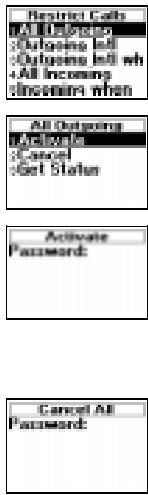
To check the status of a call restriction
- Scroll to Settings, YES, Call Options, YES, Restrict Calls, YES.
- Scroll to the option you want and press YES.
- Select Get Status.
The message Please wait appears, followed by a message which informs you whether the call restriction is on or not.
To change the password
- Scroll to Settings, YES, Call Options, YES, Restrict Calls, YES, Change Passwd, YES.
- Enter the old (current) password and press YES.
- Enter the new password and press YES.
- Enter the new password a second time and press YES.
The message Please wait appears, followed by a message confirming that the password has been changed.
Fixed Dialling
Fixed Dialling is a way of restricting outgoing calls. It requires a SIM card that allows fixed numbers to be saved. The fixed numbers are normally protected by your PIN2. How many fixed numbers you can save depends on your SIM card.
The Fixed Dialling function allows calls to be made only to certain numbers saved on the SIM card. If an attempt is made to call other numbers, the message Number not permitted appears in the display.
It is possible to save partial numbers, for example an area code, or an area code followed by the first digits common to several numbers. Storing 0123456 allows calls to be made to all numbers starting with 0123456.
Numbers beginning with the international (+) sign and country code can also be saved, allowing you to make calls abroad.
Numbers which include question marks can be saved. A question mark should be read as a wild card, i.e. it can represent any number (0-9). To enter a question mark press and hold #.
Note! The Fixed Dialling service does not prohibit calls to the international emergency number 112.
To turn the Fixed Dialling service on or off
- Scroll to Phone Book, YES, Options, YES, Fixed Dialling, YES.
- Enter your PIN2 and press YES.
- Select On or Off.
To save fixed numbers
- Scroll to Phone Book, YES, Fixed Numbers, YES, Add new?, YES.
- Enter your PIN2 and press YES.
- Enter the fixed number and press YES.
- Enter the name you want to associate with the number and press YES.
To edit a saved fixed number
- Scroll to Phone Book, YES, Fixed Numbers, YES, Edit, YES.
- Scroll to the fixed number that you want to edit and press YES.
- Select Edit.
- Enter your PIN2 and press YES.
- Edit the fixed number and press YES.
- Edit the name and press YES.
- Enter the position number and press YES.
To delete a fixed number
- Scroll to Phone Book, YES, Fixed Numbers, YES.
- Scroll to the fixed number that you want to delete and press YES.
- Select Delete.
- Enter your PIN2 and press YES.
The fixed number is deleted.
Closed User Groups
The Closed User Group (CUG) function is another way of lowering call costs. It depends entirely on your operator and subscription. Not all networks support this function.
Your network operator can place certain numbers in groups. On some networks it is cheaper to make calls within a call group. You can have a maximum of 10 groups.
To add a Closed User Group
- Scroll to Settings, YES, Call Options, YES, Closed Groups, YES, Edit List, YES.
- Scroll to Add new? and press YES.
- Enter the name of the user group and press YES.
- Enter the index number of the group and press YES.
Note! The index numbers are provided by your network operator.
To activate a Closed User Group
- Scroll to Settings, YES, Call Options, YES, Closed Groups, YES, Edit List, YES.
- Scroll to the group you want and press YES.
- Select Activate.
Calls can only be made within the selected user group.
To call outside Closed User Groups
You can decide whether outgoing calls to a non Closed User Group number are allowed.
- Scroll to Settings, YES, Call Options, YES, Closed Groups, YES, Open Calls, YES.
- Select On.
To edit a name in the Closed User Group List
- Scroll to Settings, YES, Call Options, YES, Closed Groups, YES, Edit List, YES.
- Scroll to the group that you want to edit and press YES.
- Select Edit.
- Enter a new name and press YES.
To delete a group from the Closed User Group List
- Scroll to Settings, YES, Call Options, YES, Closed Groups, YES, Edit List, YES.
- Scroll to the group that you want to delete and press YES.
- Select Delete.
Accept Calls
With the Accept Calls service, you can choose to receive calls only from certain numbers. Other calls are automatically rejected by a busy tone. You have to store the numbers that you want to receive in an Accepted List. The rejected calls are saved in the Call List in the Call Info menu. When you buy your phone, the setting for the Accept Calls service is set to From All, i.e. you receive calls as normal.
To add numbers to the Accepted Callers List
- Scroll to Settings, YES, Call Options, YES, Accept Calls, YES, Accepted List, YES.
- Scroll to Add new?, YES. This takes you to your phone book.
- Select a number.
To add more participants in the Accepted Callers List, repeat steps 2 to 3 above. It is possible to choose a number within a group in your phone book.
To delete numbers from the Accepted Callers List
- Scroll to Settings, YES, Call Options, YES, Accept Calls, YES, Accepted List, YES.
- Scroll to the number you want to delete and press C.
- Press YES to confirm your choice.
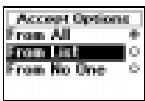

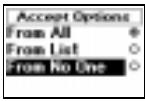

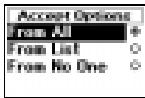
To check the Accepted Callers List
- Scroll to Settings, YES, Call Options, YES, Accept Calls, YES, Accepted List, YES.
To turn on the From List function
-
Scroll to Settings, YES, Call Options, YES, Accept Calls, YES, Accept Options, YES.
-
Select From List. Now you will only receive calls from the participants in the Accepted Callers List. An icon is shown in standby.
To turn on the From No One function
-
Scroll to Settings, YES, Call Options, YES, Accept Calls, YES, Accept Options, YES.
-
Select From No One. All incoming calls will now be rejected. The caller hears a busy tone and you get no indication of incoming calls. An icon is shown in standby.
To turn on the From All function
-
Scroll to Settings, YES, Call Options, YES, Accept Calls, YES, Accept Options, YES.
-
Select From All. You will now receive all calls as normal.
To check the Accepted Calls function
- Scroll to Settings, YES, Call Options, YES, Accept Calls, YES, Accept Options, YES. The Accepted Calls alternative that is on is marked with a filled button.
Handling More than One Call Simultaneously
Your phone allows you to handle more than one call simultaneously. This means that you can put a call that is in progress on hold, while you make or answer a second call, and then switch between the two calls.
You may also set up a Conference Call to have a joint conversation with up to five people. You may put an individual or a group of conference members on hold while you add other people to the conference call. You may also put conference members on hold while you talk to someone privately. See "Conference Calls" on page 82.
Note! Depending on whether a call is ongoing or not, the menus 'Call Info' and 'Ongoing Call' will replace each other. See "The Dynamic Call Info/ Ongoing Call Menu" on page 28 for more information.
The Call Waiting Service
If you wish to be able to receive a second call, while another call is in progress, you must turn on the Call Waiting service.
Note! The Call Waiting service may not be available on all networks. If you are engaged in a fax or a data call, you will not hear any incoming calls. Incoming calls are rejected.
To turn on the Call Waiting service
- Scroll to Settings, YES, Call Options, YES, Call Waiting, YES, Activate, YES. There may be a short delay before the network responds. In the meantime, the message Please wait is displayed. This is followed by the message Call Waiting Activated.
To cancel the Call Waiting service
- Scroll to Settings, YES, Call Options, YES, Call Waiting, YES, Cancel, YES.
To check whether the Call Waiting service is on or not
- Scroll to Settings, YES, Call Options, YES, Call Waiting, YES, Get Status, YES.
Making a Second Call
- Put the current call on hold by pressing YES.
- Enter the number you wish to call and press YES.
You may also retrieve the number from your phone book by pressing and holding 出
Note! You can only put one call on hold.
Receiving a Second Call
If the Call Waiting service is on, you hear a tone in the earpiece if you receive a second call. The number or name of the caller is normally shown at the top of the display together with a list of the alternatives Answer, Busy and
Release&Answer. If the incoming call is a restricted number, the display shows Private.
You can do one of the following:
Put the current call on hold and answer the waiting call
Press YES to answer the waiting call.
The current call is now put on hold.
Your held call is marked in grey in the display and the active call is marked in black.
Continue the current call and reject the waiting call
- Select Busy.
The waiting call is rejected. If the caller's network supports it, the caller hears a busy tone.
Note! If 'Divert When Busy' is on, the waiting call is diverted to the number you have specified.
End the current call and answer the waiting call
- Select Release&Answer.
One Active Call and One Call On Hold
When you have one active call and one call on hold, you can do one of the following:
Switch between the two calls
Press YES.
End the active call and return to the call on hold
- Press NO. The question Retrieve call? appears.
- Press YES.
If you press NO, also the call on hold will be ended.
End both calls
Scroll to Ongoing Call, YES, Release All, YES.
Connect the two calls (Call Transfer)
- Scroll to Ongoing Call, YES, Transfer Call, YES.
The two calls are now connected to each other, and you are disconnected from both calls.
Note! The Call Transfer service may not be available on all networks.
Join the two calls into a Conference Call
Scroll to Ongoing Call, YES, Join Calls, YES.
See 'Conference Calls' below.
Receiving a Third Call
If the Call Waiting service is on, you may receive a third call when you have one active call and a second call on hold. From now on, you cannot answer any more calls without disconnecting one, if you do not want to create a conference call. You hear a tone in the earpiece and Busy and Release&Answer appear in the display.
You can do one of the following:
End the current call and accept the waiting call
- Select Release&Answer.
The waiting call becomes active and the call on hold remains on hold.
Reject the waiting call
- Select Busy.
The third call is rejected. Provided the caller's network supports this function, the caller hears a busy tone.
Create a conference call
See below
Conference Calls
A conference call is a call with more than two participants. As in an ordinary conference, all participants can hear each other at the same time. You may include up to five participants in a conference call.
Note! The Conference Call service may not be available on all networks.
Creating a Conference Call
To create a conference call, you must have one active call and one call on hold.
To join the two calls into a conference call
- Scroll to Ongoing Call, YES, Join Calls, YES.
You have now created a conference call (with yourself, the former active and held calls as participants).
Adding New Participants to the Conference Group
You may put the conference group on hold and then add new participants.
To add a new participant
- Press YES to put the conference group on hold.
- Call the next person you wish to include in the conference group.
- Scroll to Ongoing Call, YES, Join Calls, YES.
You can include up to five participants in the conference group by repeating steps 1 to 3 above.
To check the participants in the conference group
- Scroll to Ongoing Call, YES, Parties in Conf, YES. The first participant's phone number is displayed, if available. If the participant's number and name are stored in your phone book, the name is displayed instead. Otherwise the display shows part 1, 2 etc.
- Scroll with ( 4 1 ) to check the other participants.
Having a Private Conversation with One of the Participants
If you wish to have a private conversation with one of the participants, you may extract that participant from the conference and put the other participants on hold.
To extract a participant
- Scroll to Ongoing Call, YES, Extract Part, YES.
- Select the participant that you want to extract. Press YES.
To rejoin the participant to the conference group
- Scroll to Ongoing Call, YES, Join Calls, YES.
Releasing Participants from the Conference Group
You can release participants from the conference group one by one or all at once.
To release a certain participant
- Scroll to Ongoing Call, YES, Release Part, YES.
- Select the participant that you want to release. Press YES.
To release all participants
Scroll to Ongoing Call, YES, Release All, YES.
Making a Call while a Conference Call Is in Progress
You can put the conference group on hold and make another call. You can then switch between the new call and the conference call.
To put the conference group on hold and make a new call
- Press YES.
- Enter the number you wish to call and press YES.
To switch between the new call and the conference group
Press YES.
To end the new call and return to the conference group
Press NO and then YES.
Ending the Conference Call
Press NO.
Setting Network Preferences
Searching for Networks
When you turn on the phone, it searches for the last accessed network. If this is not within range, you may use another network, provided your home network has an agreement that allows you to do so. This is called roaming.
The order of preference in which the phone chooses a network is determined by a list of preferred networks on your SIM card. Your phone includes a number of functions that let you determine how it searches for a network. You may also choose a network yourself from those within range.
To select a network
- Scroll to Settings, YES, Networks, YES, Select Network, YES.
- If there is more than one network within range, scroll to the network you want and press YES to select it.
To start an automatic network search
- Scroll to Settings, YES, Networks, YES, New Search, YES.
The phone automatically starts searching for a network according to the list of preferred networks stored on your SIM card.
Display Information
The currently used network is marked with a filled button. Together with the network name, you also get the following information in the display:
| The display shows... | meaning... |
| Your home network is within range. You can use it. | |
| The name of the network is included in a list of preferred networks on your SIM card. You can use this network. | |
| The name of the network is included in a list of forbidden networks on your SIM card. You may not be allowed to use this network, except for emergency calls. | |
All other networks without any icons are available, i.e. they are not included in the preferred or forbidden list on your SIM card but they may be used.
Forbidden Networks
The names of the forbidden networks are stored on your SIM card. If such a forbidden network is within range, it is left out when the phone searches for a network (automatic search mode).
If your home network and a forbidden network come to an agreement that allows you to use the forbidden network, you can select this network even though the message Forbidden is displayed.
List of Preferred Networks
You can create and edit a list that defines in which order your phone will select a network during automatic network selection, when your home network is not within range.
The number of networks that can be stored in the list depends on your SIM card.
You can review the network list and rearrange the order of the networks. You can also add new networks to the list and delete networks from it.
To review the list of networks
- Scroll to Settings, YES, Networks, YES, Preferred Nets, YES. The name of the first network is displayed. Use ( 1 1 ) to scroll through the networks in the list.
To see a network's full name
- Scroll to Settings, YES, Networks, YES, Preferred Nets, YES.
- Scroll to a network and press YES.
- Select Full Name.
To add a network to the list
- Scroll to Settings, YES, Networks, YES, Preferred Nets, YES, Add new?, YES.
- Scroll to the network that you want to add and press YES. If the network you want does not appear in the list, scroll to Other and press YES. Enter the three-digit country number and the two-digit network number and press YES.
- Enter a position number and press YES.
Note! All lower prioritized networks will be shifted one step down in the list.
To delete a network from the list
- Scroll to Settings, YES, Networks, YES, Preferred Nets, YES.
- Scroll to the network that you want to delete and press YES.
- Select Delete.
To rearrange the list
- Scroll to Settings, YES, Networks, YES, Preferred Nets, YES.
- Scroll to the network that you want to move and press YES.
- Select Change Priority.
- Enter the new position within the list and press YES.
Search Modes
When you turn on your phone, it searches for a network. This can be done in two different ways, depending on the search mode that is on. When you buy your phone it is set to automatic search mode.
Automatic search mode means that your phone searches for the last accessed network first. If this is not available, it automatically searches for another available network within range.
Manual search mode means that your phone searches for the last accessed network first. If this is not available, the question Select net? appears. You then need to choose a network as described in "Searching for Networks" on page 85.
To turn on the automatic search mode
- Scroll to Settings, YES, Networks, YES, Search Mode, YES, Automatic, YES. To turn on the manual search mode
- Scroll to Settings, YES, Networks, YES, Search Mode, YES, Manual, YES.
Knowing the Call Time and Call Cost
During a call, the duration of the call is shown in the display. When you end the call, the call duration information is shown for another three seconds. If you subscribe to cost information, the call cost (or the number of call units) is displayed instead of the call duration.
Note! Depending on whether a call is ongoing or not, the menus 'Call Info' and 'Ongoing Call' will replace each other. See "The Dynamic Call Info/ Ongoing Call Menu" on page 28 for more information.
Total Call Time or Call Cost
The Call Info menu allows you to check the total time or cost of your calls.
To check the duration of the last call
- Scroll to Call Info, YES, Call Timers, YES, Last Call, YES. Now you can check the duration of the last call.
To check the cost of the last call - Scroll to Call Info, YES, Call Costs, YES, Last Call, YES. Now you can check the cost (if you subscribe to cost information) of the last call.
To check the time of your outgoing calls - Scroll to Call Info, YES, Call Timers, YES, Outgoing Time, YES.
To check the total call time - Scroll to Call Info, YES, Call Timers, YES, Total Time, YES. To check the total call cost
- Scroll to Call Info, YES, Call Costs, YES, Total Cost, YES. To reset the total call time
- Scroll to Call Info, YES, Call Timers, YES, Clear Timers, YES.
- Select Total Time or Outgoing time.
- Press YES to confirm your choice.
Total Time Reset?
To reset the total call cost
- Scroll to Call Info, YES, Call Costs, YES, Clear Total Cost, YES.
- Press YES to confirm your choice.
Note! If you subscribe to cost information, you must enter your PIN2 to clear the cost or time counter.
Determining the Call Cost
The Tariff function lets you enter and specify the price per call unit. The price entered is stored on your SIM card.
Note! This service must be supported by your subscription and your network. If you do not specify a price per call unit, the number of call units is displayed during a call, and in "Last call" and "Total cost" in the "Call Info" menu.
To enter the price per call unit
- Scroll to Call Info, YES Call Costs, YES, Set Tariff, YES.
- Enter your PIN2 and press YES.
- Select Change Tariff.
- Enter the code for the currency you want, for example GBP for Pound Sterling, and then press YES.
- Enter the price per call unit, for example 0.75, and press YES. To enter the decimal point, press #.
To revert to call units
- Scroll to Call Info, YES Call Costs, YES, Set Tariff, YES.
- Enter your PIN2 and press YES.
- Select Units.
Credit Limit for Calls
If both your network and SIM card support this feature, you can enter a total amount of money that can be used for making calls. This could be useful when you lend your phone to someone and do not want their call costs to exceed a certain amount which you can decide. After a call is made, the cost is deducted from this amount. When the amount reaches zero, no more calls can be made.
Note! As the price of a call may vary due to where you are calling from, at what time of the day you are calling and so on, the credit limit is only an estimated value.
To set a specific credit limit
- Scroll to Call Info, YES, Call Costs, YES, Set Credit, YES.
- Enter your PIN2 and press YES.
- Select Change Credit.
- Enter the amount, for example 30 pounds, and then press YES.
To set unlimited credit
- Scroll to Call Info, YES, Call Costs, YES, Set Credit, YES.
- Enter your PIN2 and press YES.
- Select Unlimited.
Note! If you set the credit to Unlimited, the cost counter starts from zero and increases.
Using Two Voice Lines
If your subscription supports the Two Line Service, your phone will have two voice lines with different phone numbers, separate bills and perhaps different subscription services. This is useful for example if you want to keep business calls and private calls on separate lines.
When you buy your phone, the names of the lines are normally Line 1 and Line 2, but you can change their names. You can only send text messages (SMS) on Line 1. An icon indicates the line currently chosen for outgoing calls.
To change the name of a line
- Scroll to Settings, YES, Display, YES, Edit Line Tags, YES.
- Select a line.
- Enter a new name and press YES.
Changing Phone Lines
When you want to make a call, you need to choose which line to use.
Note! Incoming calls can be received on both lines, irrespective of the line currently chosen.
To change phone lines
1.Scroll to Call Info, YES, Next Call, YES.
2. Select Switch to Line1 or Switch to Line2.
From now on, all outgoing calls are made on this line.
Note! Depending on whether a call is ongoing or not, the menus 'Call Info' and 'Ongoing Call' will replace each other. See "The Dynamic Call Info/ Ongoing Call Menu" on page 28 for more information.
Different Settings for Each Line
You may have different settings for each line, for example the ring signal or divert calls.
Tip! You may also have separate Voice Mail numbers for each phone line, if supported by your subscription.
Some operators may show the call time or call cost for each line respectively.
Using the WAP Browser
During the last couple of years we have grown accustomed to browsing the Internet via our computers. This has proven to be a simple and effective way to find all kinds of information, no matter if we are in our homes or in our offices.
Thanks to a new technology called WAP (Wireless Application Protocol), you can find a lot of useful information by using the micro browser in your mobile phone, instead of using your computer. WAP is a standard specifically created for mobile communications devices and gives fast and easy access to Internet information and services.
Examples of WAP services you will be able to find are:
- Ericsson Mobile Internet, a portal offering you online access to customer services, user guides and useful information when you are travelling.
- Reservation services.
- News, sports and weather.
- Restaurants,cinemas,gamesetc.
Banking and stock exchange quotations.
Voice mail, e-mail and fax mail.
You can reach the Ericsson Mobile Internet at: http://mobileinternet.ericsson.com
Note! The WAP service is network dependent. Please check if your subscription supports WAP browsing by using a dial-up connecting or a SMS connection.
Before You Start
Before you can start using the WAP browser there are a few things that need to be taken care of:
-
Make sure the WAP settings in your phone are correctly set. Your operator should provide you with all the necessary information when you sign up for your subscription to the WAP service: for example user name and gateway addresses. Often, your network operator enters the right settings in your phone when you buy it. You can also receive new settings from your network operator via an SMS.
-
Check that your subscription supports WAP browsing by using a dial-up connection or an SMS connection.
Note! Please contact your network operator before you decide to change the settings manually. This way you can be sure the entered settings are correct.
Viewing a WAP Page
You can open WAP pages in three different ways:
- Open your home page.
- Open a bookmark page after you have marked one or more pages as bookmarks.
- Enter an URL address, i.e. the address to a WAP page.
You can also enter the browser by selecting Help or your network operator's page from the WAP Services menu. These pages have fixed destination addresses.
Opening and Changing Your Home Page
Just as you do in an ordinary Internet browser, you can have a default home page in your WAP browser. When you select the home page, it appears in the browser. When you buy your mobile phone, Ericsson Mobile Internet is set to be your home page.
Note! Before you can access your home page, you need to decide which page should be your home page. How you do this is described in "Changing Your Home Page" on page 98.
To access your home page
- Scroll to WAP Services, YES, Homepage, YES.
- If you are already browsing, the browser goes directly to your chosen URL address. Otherwise you may have to choose which communication type to use in order to access WAP pages. See "Choosing Which Communication Type to Use When Browsing" on page 99.
To change your home page
- Scroll to WAP Services, YES, WAP Settings, YES, Chg Homepage, YES.
- Enter the address of the WAP page that you want to use as your home page, for example: http://mobileinternet.ericsson.com.
- Press YES.
Working with Bookmarks
You use WAP bookmarks in your mobile phone just as you do in an ordinary Internet browser, i.e. you can easily find your way back to a certain WAP page that is important to you or that you expect to visit often.
Note! You can only bookmark WAP pages that display the icon ±± in the top right-hand corner.
To add a bookmark
- Scroll to WAP Services, YES.
- Start your browsing by selecting either Homepage, Bookmarks or Enter URL. Read more about how to use these menus in the rest of this chapter.
- Find the WAP page that you want to bookmark. Press and hold YES until the Options menu appears.
- Scroll to the sub-menu Add bookmark and press YES. If there are any empty positions left in your bookmark list (you can save up to 25 bookmarks), your new bookmark is stored. If your bookmark list is full, you have to delete another bookmark before you can save the new one.
- Your new bookmark has been saved when you see the text Bookmark stored.
To delete a bookmark
You can store a maximum of 25 bookmarks. If you have reached this limit, you can delete some of the bookmarks that you do not use any more.
- Scroll to WAP Services, YES, Bookmarks, YES.
- Select the bookmark you wish to delete and press C.
- When you see Delete? press YES if you are sure you want to delete the bookmark.
To edit the title of a bookmark
- When you are browsing, press and hold YES until the Options menu appears.
- Select Bookmarks.
- Select the bookmark you wish to edit.
- Select Edit bookmark.
- Under the heading Edit title, use the and keys to move within the title of the bookmark. Enter the correct name of the bookmark and then press YES.
To set a bookmark as your home page
- Scroll to WAP Services, YES, Bookmarks, YES.
- Select the bookmark you wish to set as your home page and press YES. The browser starts.
- When the bookmark is displayed in the browser, press and hold YES until the Options menu appears.
- Select New homepage and press YES.
- The question Change Homepage? appears. Press YES to confirm your choice.
To reach your bookmarks when you are browsing
- When you are browsing, press and hold YES until the Options menu appears.
- Select Go to Menu.
- In the phone menu, scroll to WAP Services, YES, Bookmarks, YES.
- Scroll to the bookmark that you wish to go to and press YES.
- Select Go to bookmark.
To send a bookmark to another person via SMS
- Scroll to WAP Services, YES, Bookmarks, YES.
- Select the bookmark you wish to send and press YES.
- Select Send in SMS.
- Enter your message and press YES.
Enter the recipient's phone number or retrieve it from the phone book by pressing - Press YES to send the message.
- Sending message appears in the display followed by Message has been sent.
Tip! To send the bookmark you are currently visiting in the browser: open the Options menu by pressing and holding YES and then select 'Send in SMS'.
Opening an URL manually
- Scroll to WAP Services, YES, Enter URL, YES.
- Enter the URL address of the WAP page you want to go to, for example: http://mobileinternet.ericsson.com
- Press YES.
If you are already browsing, the browser goes directly to your chosen URL address. Otherwise, you may have to choose which communication type to use in order to access WAP pages. See "Choosing Which Communication Type to Use When Browsing" on page 99.
Operator Page
Depending on the network, you can find the home page of your network operator.
To open the operator page
- Scroll to WAP Services, YES. Select your operator's page (the name is decided by your operator) and press YES.
- Your operator's WAP page appears.
If you can not find this menu, your network operator does not support this service.
Your Options While Browsing
When you are browsing a WAP page, you can access the Options menu. The options you can choose from this menu are supplied with the pages, and therefore the menu may look a bit different depending on which page you are looking at. Generally, on the Options menu you can also find functions that are useful when browsing.
To reach the Options menu
You can reach the Options menu in two ways:
- No matter where you are browsing, press and hold YES until the Options menu appears.
- Scroll to an area on the WAP page that does not contain any links, phone numbers or e-mail addresses and press YES. You can always find an empty row at the bottom of the WAP page.
The Options Menu
The options menu may look a bit different depending on which page you are looking at. However, it always contains the options below:
- Exit the browsing session.
- Reload a WAP page, i.e. refresh its contents.
- Add bookmark, i.e. add the page you are currently browsing to your list of bookmarks.
- Go to Menu, takes you back to the phone menu, for example to access your bookmarks.
- Send as SMS, i.e. you can send the current page as a bookmark to another phone via SMS.
Returning to the Browser after Accessing the Menus
If you have selected the option Go to Menu in order to access the phone menu, you can easily return to the site you were visiting when you left the browser.
To return to the current WAP page
- Scroll to WAP Services, YES, Resume, YES.
- You return to the beginning of the WAP site where you were when you left the browser.
Note! You will end up at the first page of the site, even if you were in the middle of it when you left the browser.
Online Help Pages
If you need help concerning WAP browsing, you can access help information on the Ericsson Mobile Internet.
To get help
- Scroll to WAP Services, YES, Help, YES.
- If you are already browsing, the browser goes directly to the help page. Otherwise, you may have to choose which communication type to use in order to access WAP pages. See "Choosing Which Communication Type to Use When Browsing" on page 99.
The help information appears in the same language that is set for your phone.
Changing the WAP Settings Manually
Before you start using the WAP browser, it is important that you make sure the WAP settings in your phone are correctly set. Among other things, you need to fill in your user name, your gateway addresses and which sort of connection you want to use when browsing.
Your network operator should provide you with this information when you sign up for your subscription to the WAP service. This information can also be sent to you as an SMS. However, you can also change the WAP settings manually by scrolling to WAP Services, YES, WAP Settings, YES.
Note! Please contact your network operator before you start changing the settings manually. This way you can be sure the entered settings are correct.
Setting Your User ID
When you start your browsing session, your phone connects to a network computer. In order for this network computer to establish a connection to your phone, you need to enter your user ID (user identification). You can start browsing as soon as you have entered the correct user ID together with the correct password.
To set your user identification code
- Scroll to WAP Services, YES, WAP Settings, YES, User ID, YES.
- Enter your user ID and press YES.
Setting Your Password
You need your password and your user ID in order to establish a connection between your phone and the network computer.
To set your password
- Scroll to WAP Services, YES, WAP Settings, YES, Gateway Pwd, YES.
- Enter your password and press YES.
Changing Your Home Page
To change your home page
- Scroll to WAP Services, YES, WAP Settings, YES, Chg Homepage, YES.
- Enter the address of the WAP page that you want to use as your home page, for example: http://mobileinternet.ericsson.com.
- Press YES.
To go to your home page, see "Opening and Changing Your Home Page" on page 93.
Displaying Images
You can choose whether you want to see images or not when you are browsing. The images take extra time to download, but the WAP pages look better with them. When you buy the phone, the image load is set to On.
To turn the image load on or off
- Scroll to WAP Services, YES, WAP Settings, YES, Image load, YES.
- Choose to turn the image load On or Off.
- Press YES.
Note! If you have turned off the image load, the images are displayed as icons in the display. If a picture contains a link, you can access this link by highlighting the image and pressing OK.
Inactivity Time Out
If you have connected to a WAP page and then leave the phone idle for a while, e.g. if you are not accessing any data, you may be asked if you want to stay connected or not.
If you do not answer this question, you are disconnected after a certain amount of time.
The time out only occurs if you are using a dial-up connection as communication type.
You can set the time out.
To set the inactivity time out
- Scroll to WAP Services, YES, WAP Settings, YES, Comm. Type, YES, Dial-up conn., YES, Inactivity timer, YES.
- Enter how many seconds you want to be able to leave the phone idle. Press YES.
Download Time Out
When you try to access some WAP pages, you may have to wait for a long time while your phone tries to download the page. You can set the time that shall pass before the download attempt is stopped.
To set the download time out
- Scroll to WAP Services, YES, WAP Settings, YES, Response timer, YES.
- Enter after how many seconds you want the download to continue before it stops. Press YES.
Choosing Which Communication Type to Use When Browsing
When you choose which communication type to use when you are browsing, you tell your phone and the network computer how they should connect to each other.
There are two ways in which this connection can be established: via either a dial-up connection or SMS (Short Message Service). The speed and cost of the WAP service depends on what communication type you use. For more details regarding your connection, please contact your local service provider or telecommunications operator.
Some network subscriptions allow you to use both a dial-up connection and SMS when browsing. In this case you can choose to be asked at each browsing session which communication type you want to use. If you can use only one communication type, then we recommend that you set this as your preferred communication type.
Choosing Communication Type at Each Browsing Session
To be asked at each browsing session
- Scroll to WAP Services, YES, WAP Settings, YES, Comm. Type, YES, Ask at session, YES.
- Select On.
Choosing Communication Type
To set a preferred communication type
- Scroll to WAP Services, YES, WAP Settings, YES, Comm. Type, YES.
- Select either Dial-up conn. or SMS, depending on what your network subscription recommends you use.
- Press YES.
Setting up a Dial-up Connection
To set a dial-up connection
- Scroll to WAP Services, YES, WAP Settings, YES, Comm. Type, YES, Dial-up conn., YES, WAP Network, YES.
- Enter the phone number that you need to use with your dial-up connection, i.e. the phone number to your WAP gateway.
- Press YES.
- Scroll to Gateway and press YES.
- Enter the IP address to the WAP gateway you should connect to when browsing. An IP address looks something like this: 123.4.67.901.
Note! An IP address consists of four groups of digits, with a maximum of three in each group. If one of your digit groups consists of only one or two digits, you have to enter a zero (0) in front of the original digit for each digit that is missing.
Example: If you were to enter the IP number above, 123.4.67.901, you would need to write 123.004.067.901.
- Press YES.
7.Scroll to User ID and press YES. - Enter the personal user ID that is connected to your WAP browsing account.
- Press YES.
10.Scroll to Dial-up Pwd and press YES. - Enter your password.
- Press YES.
Setting up an SMS Connection
To set addresses for an SMS connection
- Scroll to WAP Services, YES, WAP Settings, YES, Comm. Type, YES, SMS, YES, Service centre, YES.
- Enter the SMS Service Centre address that your network operator has given you.
- Press YES.
- Scroll to Gateway and press YES.
- Enter the gateway phone number provided by your network operator. Press YES.
Calendar
The Calendar makes it possible for you to keep track of important phone calls that you need to make or meetings that you need to attend. You can also have the phone remind you before an appointment. In this way, you can be sure that you don't miss anything important, no matter where you are.
You can store three different appointments in your Calendar:
- Meetings, including date and time, duration, subject, location and a reminder.
- Phone calls, including date and time, duration, what phone number to call, subject and a reminder.
- General reminders including date, time and subject.
Adding a Meeting or Phone Call
To add a meeting or phone call
- Scroll to Extras, YES, Calendar, YES, Add new, YES.
- Select either Meeting or Phone call and press YES.
- Enter the Start date: and press YES.
- Enter the Start time: and press YES.
- Use ( ) to select the Duration time for the meeting. Press YES.
You can also select Other and enter the end date and time.
If you are adding a phone call reminder, enter the Number you should call or recall a number from the phone book by pressing . Press YES.
- Enter the Subject: and press YES.
If it is a meeting, enter the Location. - Use ( ) to select when to get a Reminder about the meeting. Press YES.
Adding a General Reminder
To add a new general reminder
- Scroll to Extras, YES, Calendar, YES, Add new, YES.
- Select Reminder and then press YES.
- Enter the Start date: and press YES.
- Enter the Start time: and press YES.
- Enter the Subject: and press YES.
When the reminder has been stored, the display shows New entry added.
Deleting an Appointment
To delete single appointments
- Scroll to Extras, YES, Calendar, YES.
- Go to the day of the appointment you wish to delete by selecting either View today, Week view or Month view.
- In View today: Scroll to the appointment you wish to delete and press C.
In Week view and Month view: First select the day of the appointment and then scroll to the appointment you wish to delete and press C. - The question Delete? appears. Press YES to confirm your choice.
To delete all appointments or appointments older than a day or a week
- Scroll to Extras, YES, Calendar, YES, Delete, YES.
- Scroll to the items you want to delete and press YES. You can delete items older than one week (>1 Week), older than one day (>1 Day) or all appointments in the Calendar (Delete All).
- The question Delete? appears. Press YES to confirm your choice.
Editing a Calendar Appointment
1.Scroll to Extras, YES, Calendar, YES.
2. Go to the day of the appointment you wish to edit by selecting either View today, Week view or Month view.
3. Scroll to the appointment you wish to edit and press YES. Press YES again.
4. Select Edit.
5. Enter the correct date, time etc. and press YES after each one. If you do not want to change a part of an entry, e.g. the date, press YES and it remains the same.
6. The entry has been successfully changed when you see the text Saved in the display.
Calling a Phone Number Stored in an Appointment
1.Scroll to Extras, YES, Calendar, YES.
2. Go to the day of the appointment in which the phone number is stored, by selecting either View today, Week view or Month view.
3. Scroll to the appointment and press YES and then YES again.
4. Select Call from the list.
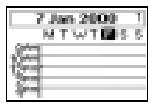
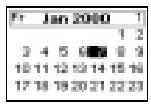
Viewing Today's Appointments
- Scroll to Extras, YES, Calendar, YES, View today, YES.
- Navigate through the appointments using ( 1 1 ) , or select Add new to add a new appointment for today.
Weekly Overview
The weekly overview displays all your appointments during a certain week. All your appointments are displayed as boxes. Whenever you see a box, you know that it is either a meeting to attend, a phone call to make or a reminder of some kind.
To see a weekly overview
- Scroll to Extras, YES, Calendar, YES, Week view, YES.
- Use the key pad in the following ways:
Use and to jump from one day to another.
Press 1 and 3 to jump a week backwards or forward.
- Press 4 and 6 to jump a month backwards or forward.
Press 7 and 9 to jump a year backwards or forward.
Use ( ) to move backwards and forwards within one day.
You can always jump to a day by pressing YES when you have scrolled to it. You can then view all the appointments for that day, or add a new appointment by selecting Add new.
Monthly Overview
You can view a whole month including the number of the week, which is displayed in the top right-hand corner.
To see a monthly overview
- Scroll to Extras, YES, Calendar, YES, Month view, YES.
- Use the key pad in the following ways:
Use and to jump from one day to another.
Press 1 and 3 or ( ) to jump a week backwards or forward.
- Press 4 and 6 to jump a month backwards or forward.
Press 7 and 9 to jump a year backwards or forward.
- Press C to return to today's date. The day of today is always displayed within a square.
- Press and hold YES for a short moment to jump to the weekly overview.
You can always go to a day and then press YES to view all the appointments for that day, or add a new appointment by selecting Add new.
Sending and Receiving Calendar Appointments
Whenever you and your business colleagues, friends or spouse need to update your calendars, you can use the Beaming function. In this way you can send and receive appointments instead of having to write them down on paper and then enter them by hand into the phone.
Before you start sending or receiving calendar appointments, you need to make sure that:
- The RS232 cable is not attached to your phone. If it is, just disconnect the cable before the transfer of the appointment.
- The built-in modem is not occupied by some other infrared transfer, for example, if you are sending or receiving a fax or e-mail. End this transfer before you start the transfer of appointments.
Note! It is only possible to send an appointment to another similar phone and you can only receive appointments from another similar phone and certain palmtops/PDAs. Also, the minimum distance between your phone and another phone or a palmtop/PDA can be different. If you do not know whether your palmtop/PDA supports the transfer of calendar appointments, or how far away you can place it from the phone, please consult your User's Guide or contact the local retailer.
To send a Calendar appointment
1.Scroll to Extras, YES, Calendar, YES.
2. Go to the day of the appointment you wish to send by selecting either View today, Week view or Month view.
3. Select the appointment you want to send and press YES. Press YES again.
4. Scroll to Beam and then position your mobile phone next to the other person's phone. Make sure the infrared eyes are facing each other and that they are within a meter and 30 degrees of each other.
5. Press YES.
6. The calendar appointment has been sent when you see Beamed in the display.
To receive a Calendar appointment
- Scroll to Extras, YES, Activate IR, YES, Automatic, YES.
- Position your mobile phone next to the other person's phone or PDA. Make sure the infrared eyes are facing each other and that they are within a meter and 30 degrees of each other.
- Ask the other person to send the appointment.
- If you want to view the received calendar entry before storing it, then press YES when you see the text New entry received, view?.
If you want to store the calendar entry without viewing it, press NO.
- Press YES to answer the question Accept entry?.
The received appointment is then stored automatically in the correct day.
Note! You cannot select 'Activate IR' from the 'Extras' menu if you are using the WAP browser or if you use a cable for communication between your phone and the computer.
Viewing the Storage Status
To view the storage status of all Calendar appointments
Scroll to Extras, YES, Calendar, YES, Status, YES.
Here you can see how many percent of the storage entries that are free or occupied, and the interval between your first and last appointment.
Voice Memo
The voice memo function allows you to record up to one and a half minutes of your own messages or parts of one or several calls. This is useful when you want to remember what you or someone else has said, but you do not have pen and paper available.
You can make a voice memo recording at any time, including during a call, simply by pressing and holding the voice memo button located just below the YES button on your mobile phone.
The voice memos are stored in your mobile phone and can be accessed even if you change your SIM card.
Recording a Voice Memo
Normally when you record a voice memo, your own voice is recorded. If, on the other hand, a call is in progress and you start recording a voice memo, your phone starts recording the other person by default.
Two seconds before the voice memory is full, you hear a tone. Recordings shorter than 0.25 seconds are not saved.
To record a voice memo
- Press the voice memo button and keep it pressed while you record your memo.
When recording starts, you hear a tone and the display shows the message Recording together with the remaining recording time.
To end the recording
- Release the voice memo button
When a call is not in progress, a recording is automatically ended when you receive an incoming call. When you are recording during a call, the recording is automatically ended when you or the other person ends the call.
The voice memo is saved with the default name 'Memo', together with the information you have chosen. See "Changing Your Voice Memo Labels" on page 108.
If you have recorded during a call, the other person's phone number is shown instead of 'Memo'. If this number is stored in your mobile phones' phone book, the name of the person you were talking to is shown instead.
Viewing and Playing Voice Memos
You can view and play your voice memos at any time, except during a call.
To view and play your stored voice memos
- Briefly press the voice memo button .
2.Use to scroll to the voice memo you wish to hear. - Press YES and listen to your voice memo.
- Wait until the voice memo has ended or press NO to stop playback.
Erasing And Renaming Voice Memos
To erase or rename a voice memo
- Briefly press the voice memo button
- Use ( ) to scroll to the voice memo you wish to erase or rename.
- Press the voice memo button again when the voice memo you want is highlighted. The Options menu is displayed.
To erase: Select Erase and press YES. Press YES again if you are sure you want to erase it.
- To rename: Select Rename and press YES. You can then enter a new name for the current voice memo and save it by pressing YES.
Note! You can also erase a voice memo by highlighting it, pressing C and then YES to answer the question Erase?.
To erase all voice memos
- Scroll to Extras, YES, Voice Memo, YES, Erase All, YES.
- If you are sure you wish to erase all your stored voice memos, press YES again.
Skipping Between Voice Memos During Playback
Use the _i key to skip to the previous or next voice memo.
Viewing the Storage Capability
You can easily see how many seconds you have left for remaining recordings.
- Briefly press the voice memo button
- Scroll to the memory indicator bar at the top and press YES. In the display you can see how many seconds of free memory are left for voice memos.
Setting the Recording Quality
In standby mode, you can record your voice memo in two different modes, depending on what sound quality and recording time you require.
You can choose either to record at High quality with 35 seconds of high sound quality, or to record at Normal quality with 90 seconds of normal sound quality.
To set the recording quality
- Scroll to Extras, YES, Voice Memo, YES, Set Quality, YES.
- Select whether you wish to use 90sec Normal or 35sec High and then press YES to confirm your choice.
The default is Normal quality, but recordings during a call are made with the sound quality of the network you are using.
Setting the Channel for Recording During Calls
You can set the recording channel in your phone to either Record myself, which means that your voice will be recorded or Record other, which means the person you are talking to will be recorded.
When you buy the phone, the Record other is the default setting for all recordings during ongoing calls.
To set the recording channel
- Scroll to Extras, YES, Voice Memo, YES, During Calls, YES.
- Select Record myself if you want to record your own voice when recording voice memos, or select Record other if you want to record the other person.
- Press YES to confirm your selection.
Changing Your Voice Memo Labels
Whenever you record a voice memo, you can choose what kind of information you want to see displayed along with your voice memos. You can choose to display the date, time or length of the voice memo.
To change your voice memo labels
- Scroll to Extras, YES, Voice Memo, YES, Set View, YES.
- Scroll to Date recorded, Length or Time recorded and press # to display it or not.
- Press NO when you have finished.

Voice Control
Your phone allows you to:
voice dial - call someone by simply saying the name
answer and reject calls using your voice when connected to a handsfree kit
To call someone, you only need to press YES until you hear a tone, say the name (voice label) associated with that person and your phone automatically dials the number. To answer or reject calls, say Answer or Busy.
Preparing Your Phone for Voice Dialling
When you buy your phone, voice dialling is set to on. If, for some reason, it has been turned off, you will need to turn it on again before you can start using it.
To turn Voice Dialling on
- Scroll to Settings, YES, Voice Control, YES, Voice Dialling, YES.
- Select On.
Your phone is now ready to record voice labels.
Note! Once you have turned voice dialling on, you are asked if you want to record a voice label every time you save a new number in your phone book. See "Saving a Number Together with a Name" on page 31.
Before you can use voice dialling, you need to record voice labels for your phone book entries. To get a good result when recording voice labels, make sure you are in a quiet environment.
To record voice labels for existing phone book entries
- Scroll to Phone Book, YES, Voice Labels, YES, Add voice?, YES.
- Select a phone book entry to which you want to add a voice label.
- Wait for the tone and say the name (voice label) that you want to save. The voice label is played back to you.
- Press YES to save the voice label you have recorded. If you do not find the recording OK, repeat step 3.
An icon appears next to those phone book entries for which you have saved a voice label.
You can also record voice labels in Find and Edit in the Phone Book menu.
Note! To use voice dialling with a vehicle handsfree unit, you need to record your voice labels in the car, when connected to a vehicle handsfree. Voice labels for phone book entries recorded in the phone will not be available in the car, and vice versa. For more information about the Vehicle Handsfree unit, see "Vehicle Handsfree" on page 127.
Recording Problems
If your phone cannot detect any speech, one of the following might have happened:
you spoke too softly - try speaking louder
the voice label was too short - it should be around one second long
you spoke too late or too soon - speak after the tone
Go back to step 1 of 'To record voice labels for phone book entries'.
Listening to and Editing Voice Labels
Your phone allows you to listen to and edit a list of the phone book entries that have voice labels.
To listen to and/or edit the voice labels saved in your phone book
- Scroll to Phone Book, YES, Find and Edit, YES.
- Scroll to the entry that you want to edit.
The voice label is played back to you.
- Press YES.
- Select Replace Voice if you want to re-record the voice label or select Erase Voice if you want to erase the recorded voice label.
- Continue according to the instructions for editing text or recording voice labels, respectively.
You can also listen to and/or edit your voice labels in Find and Edit in the Phone Book menu.
Voice Label Playback
If you have recorded a voice label for an entry in your phone book, the voice label is played back to you in the following cases:
- when you move through the phone book or voice label list and reach this entry
- when you receive a call from the number corresponding to this entry
- when you voice dial this entry (before the call is connected)
Making Calls Using Your Voice
To make a call
- Press and hold YES until you hear a tone.
- Release YES and say a name that you have recorded earlier.
The name (voice label) is played back to you, and the call is connected.
Instead of pressing and holding YES, as in step 1 above, you can slide and hold the volume key.
Voice Answering
When connected to a portable or vehicle handsfree unit, you can answer or reject incoming calls by using your voice.
Before you can use voice answering, you need to turn on the voice answering function and record your voice commands.
To turn on Voice Answering
- Scroll to Settings, YES, Handsfree, YES, VoiceAnswering, YES.
- Select On.
You now have to train your phone to recognize your voice answering commands.
- Press YES to continue.
- Follow the instructions in the phone display, i.e. say the word Answer and press YES to save your recording. (Use the microphone of the Handsfree unit). If the recording was not OK, repeat step 3.
- Say the word Busy and press YES to save your recordings.
Note! If you prefer, you can use other words instead of 'Answer' and 'Busy'.
To answer an incoming call using your voice
- When the phone rings, say the word Answer.
The word Answer is played back to you and the call will be connected.
To reject an incoming call
- When the phone rings, say the word Busy.
The word Busy is played back to you, and the call is rejected, i.e. the caller hears a busy tone.
Note! For more information about handsfree units, see "Portable Handsfree" on page 126 and "Vehicle Handsfree" on page 127.
Code Memo
Today there is an ever-increasing number of security codes connected to our credit cards, our home, our work etc. Usually, they all have different security codes. The more cards you have, the harder it is to remember all the codes. This problem has been eliminated thanks to the code memo function in your phone.
The big advantage with the code memo is that, instead of remembering all your different codes, you only have to remember the password that you use to open the code memo. When you have entered the correct password, all your codes are then displayed in your phone.
Checkword and Security
Using the Check Word Function
In order to know you have entered the correct password to the code memo, you can also store a checkword. This checkword serves as a confirmation that the password is correct. When you open the code memo and enter your password, the checkword is displayed for a short time.
If the password is correct, then the displayed codes are correct. If not, the wrong checkword is displayed followed by the wrong codes. This is to prevent unauthorized people from accessing your codes.
We recommend that you use a checkword that is only meaningful to you.
Note! Be sure to remember the entered password and checkword. Ericsson cannot read your encrypted codes, so if you forget your password you need to type any password at all (which will not display the right codes), open the code memo and delete all the existing codes. Then you have to enter your codes again.
Factors Strengthening Code Memo Security
- You get no feedback telling you whether the password is right or wrong, except for the checkword - but only you know what that word is.
- All codes are encrypted in the mobile phone.
- When you have accessed your codes, they are displayed for only a limited time. This way another person can not see your codes if you leave the phone behind or if someone steals your phone.
Note! Normally, when you enter a password or an SMS, letters are displayed first when you press the keys on your mobile phone. By pressing and holding # you can easily change between alphabetic ABC... and numeric 123... input.
Opening the Code Memo
To open the code memo for the first time
- Scroll to Extras, YES, Code memo, YES. The following message appears: Enter a password consisting of 4 digits. Use this password to access the code memo next time.
- Press YES and enter a password to start the code memo (be sure to remember the new password.) Press YES.
- Confirm the new password by entering it again.
- Enter a checkword so that later on you know you have entered the correct password. The checkword can consist of both letters and digits.
- Press YES.
To open the code memo after the first time
- Scroll to Extras, YES, Code memo, YES.
- Enter your password and press YES.
Your stored checkword appears. When the decrypting process has finished, codes are displayed based on the entered password.
Adding, Deleting and Changing Codes
Adding a New Code
- Scroll to Extras, YES, Code memo, YES.
- Enter your password to open the code memo.
- Select Add new code, YES.
- Enter the code which you want to add to the code memo and press YES.
- Enter a name associated with the code, for example the name of the credit card company, and press YES.
The display reads New code added.
Deleting a Single Code
- Open the code memo as described above.
- Scroll to the code you want to delete and press C.
- The question Delete? appears. Press YES to confirm your choice.
When the code has been deleted, the display reads Deleted.
Changing a Code
- Scroll to Extras, YES, Code memo, YES.
- Enter your password to open the code memo.
- Scroll to the code you want to change and press YES. Press YES again.
- Select Edit.
- Enter the name and press YES, enter the code and press YES.
Resetting All Codes
Note! This function resets all your codes and your password to open the code memo.
- Scroll to Extras, YES, Code memo, YES.
- Enter your password to open the code memo.
- Scroll to Options and press YES.
- Scroll to Reset and press YES.
- The question Reset code memo? appears. Press YES to confirm your choice. When the reset has finished, the display reads Reset of code memo ready.
Whenever you want to start using the code memo again, you need to start at "To open the code memo for the first time" on page 113.
Changing the Code Memo Password
- Scroll to Extras, YES, Codememo, YES.
- Enter your password to open the code memo.
- Scroll to Options and press YES.
- Scroll to Change Passwd and press YES.
- Enter your new password and press YES.
- Repeat the new password and press YES.
- Enter a new checkword and press YES. The message Password has been changed appears.
Calling Card Calls
When making international or long distance calls, you may not want your operator to charge you for these calls on your normal account. If you have a credit card or a calling card, you may want to redirect the charges to one of these accounts instead. The Calling card service lets you redirect the charges to either a credit card account or to a calling card account.
You can save two separate card numbers in your phone. These numbers are protected by a four- to eight-digit phone lock code. When you buy your phone the code is set to 0000. You may change the code to one that you choose yourself. See "The Phone Lock" on page 73.
Note! You cannot use the Calling card service when making a fax or a data call.
Activating the Calling Card Service
To be able to make calling card calls, you need to turn on the service.
To turn on the Calling card service
- Scroll to Phone Book, YES, Options, YES, Set CallingCards, YES.
- Enter your phone lock code (0000) and press YES.
- Select On.
The Calling card service is now on and the sub-menu Calling Cards is available in the Phone Book menu.
Saving Calling Card Numbers
You can save two calling card numbers in your phone.
To save a card number
- Scroll to Phone Book, YES, Calling Cards, YES.
- Enter your phone lock code and press YES.
- Select Add new?.
- Enter the access number of the calling card server and press YES.
- Enter a name that you want to associate with your calling card server and press YES.
- Enter the verification code of the calling card server and press YES.
- Select whether you want to send the number that you want to call or the verification code first and press YES to confirm your choice.
Note! Your service provider will give you the information needed for the verification codes.
To delete a card number
- Scroll to Phone Book, YES, Calling Cards, YES.
- Scroll to the card number that you want to delete and press YES.
- Select Delete.
The question Delete? appears in the display.
- Press YES.
The card number has been deleted.
To edit a card number
- Scroll to Phone Book, YES, Calling Cards, YES.
- Scroll to the card number that you want to edit and press YES.
- Select Edit.
You may now edit the card number.
- Press YES to confirm the new number.
You may now also edit the name and code.
Choosing a Card
If you have saved two card numbers, you must choose which card you want to use before making a calling card call.
To select a card
- Scroll to Phone Book, YES, Calling Cards, YES.
- Enter your phone lock code and press YES.
- Select the card that you want to use.
- Select Activate card.
Making a Calling Card Call
- In stand-by mode, enter the phone number of your calling card server or retrieve it from the Phone Book by pressing and holding
- Press and hold YES.
The access number of the calling card server is called and during the connecting phase, you are asked to send the phone number of the person that you want to call and the verification code, in the order chosen earlier (see above).
- To send the number and verification code during the connecting phase, press YES when the display shows Send or wait a few seconds and they are sent automatically. Now you are connected to your personal phone call.
Extras
Alarm Clock
The phone has an alarm clock, which you may find useful when travelling. When it is on, an icon is shown in the display.
The alarm rings at the time set and the display flashes, even if the phone is turned off. The volume of the alarm signal is always increasing, provided the battery is attached and charged.
The alarm rings for 60 seconds and is repeated every nine minutes, if you do not turn it off. After 60 minutes, the repeat function is turned off automatically.
To set the time of the alarm
- Scroll to Extras, YES, Alarm Clock, YES.
- Enter the time.
- Press YES to confirm your setting. The alarm has now been activated.
To change the alarm time
- Scroll to Extras, YES, Alarm Clock, YES, Set New Time, YES.
- Enter the time.
- Press YES to confirm your setting.
To turn the alarm signal off
-
Press any key to turn the alarm off when it rings. If you do not want the alarm to be repeated, press YES. To turn off the alarm function
-
Scroll to Extras, YES, Alarm Clock, YES.
- Select Cancel.
Calculator
The phone has a built-in calculator, which can add, subtract, divide and multiply.
Press # to get +, ·, x, l .
- Press c to erase a figure to the left of the cursor.
Press * to enter a decimal point.
To use the calculator
In this example we are going to divide 134 by 32.
- Scroll to Extras, YES, Calculator, YES.
- Enter 134.
- Press # repeatedly until the division sign (I) appears.
- Enter 32.
- Press YES to get the answer.
- To clear the display, press C.
Stopwatch
The phone has a built-in stopwatch for you to time a certain activity.
To run the stopwatch
- Scroll to Extras, YES, Stopwatch, YES.
- Press YES to start the stopwatch. Press YES again to stop it.
To reset the stopwatch
Press C when the stopwatch is not running.
Tip! By pressing # when the stopwatch is running, you can store up to 9 lap times. Press or to check your stored lap times.
Note! If you receive an incoming call or voice or text message while the stopwatch is running, the stopwatch is turned off. If you exit the stop watch menu the stop watch is turned off.
Timer
The phone has a built-in 24-hour timer. You set the time you want and when that time is out, an alert signal sounds.
To set the timer
- Scroll to Extras, YES, Timer, YES.
- Enter the hours, minutes and seconds and press YES. The countdown begins. The timer is shown in standby mode. When the alert sounds, press any key to turn it off.
To set a new time when the timer is running
- Scroll to Extras, YES, Timer, YES, Set New Time, YES.
- Enter the time and press YES. The countdown begins. The timer is shown in standby mode. When the alert sounds, press any key to turn it off.
To turn off the timer
- Scroll to Extras, YES, Timer, YES.
- Select Cancel.
Note! The timer does not work when the phone is turned off.
Games
Your phone has two different games for your enjoyment. There are help texts available in each game as a guide for you to get started.
Tetris
The object of Tetris is to prevent the blocks from reaching the top. Each time you fill a line, the line disappears.
To start Tetris
- Scroll to Extras, YES, Games, YES, Tetris, YES.
Tetris appears in the display. - To start a game, select Start.
- Select level (1-10) by using or
- Press any key to start.
Instead of choosing Start you can scroll with or to select High-score, Help or Quit (at step 2 above).
To control the game
8 or slide the volume key downwards = move left
2 or slide the volume key upwards = move right
5 or 9 = rotate
3 or 6 = drop faster
C = pause
- NO = quit
Solitaire
The object of Solitaire is to form four piles of cards, one per suit, running from ace to king. The cards are dealt out into seven columns. The last six columns have one or more cards facing downwards. If the top card in a column is removed, revealing the face-down card, you may turn it face up. Only kings, or stacks of cards beginning with a king may be moved to an empty column.
Columns of cards are built up in descending order and alternating colour. For example, the eight of hearts may be placed on either the nine of clubs or spades.
The remaining cards in the deck are available for play. You can turn these cards one at a time. The card in the discard pile may be placed on the columns

or the ace piles. When you run out of cards in the deck, you can flip it over and continue.
To start Solitaire
- Scroll to Extras, YES, Games, YES, Solitaire, YES.
Solitaire appears in the display.
- To start a game select New game (or Resume game if you have played before).
Instead of choosing Start you can scroll with or to select Resume game or Help (at step 2 above).
To control the game
1 = Select card/pile, Confirm move, Flip card
- 2 = Turn up new card from game deck
- 3 = Put card on ace pile
- 4 = View a pile (selection and move is possible)
The Profile Concept
Your phone includes a number of pre-programmed profiles. A profile is a group of settings which are set to suit a certain environment. For example, when you go to a meeting, you can just choose the Meeting profile and a number of settings that suit a meeting are set.
Some phone accessories can choose a profile automatically. For example, when you place your phone in a vehicle handsfree unit, the In Car profile is chosen. For more information on automatic activation of profiles, see "Accessories" on page 124.
The Profiles
There are six pre-programmed profiles:
Normal
Meeting
In Car
Outdoors
- Port H-free
Home
Your phone is always set to one of the six profiles. When you buy your phone, it is set to the Normal profile. You cannot create more profiles, but you can change the name of a profile, change the settings included in a profile or add an accessory to a certain profile.
Note! You cannot change the name of the 'Normal' profile and you cannot add an accessory to the 'Normal' profile.
Tip! To find out which profile you are currently in, slide the volume key upwards or downwards in standby mode.
The table below shows the settings of each profile.
| Normal | Meeting | In Car | Outdoors | Port H-free | Home | |
| Ring Volume | 5(6) | 0(6) | 6(6) | 6(6) | 6(6) | 5(6) |
| Increasing Ring | Off | Off | Off | Off | Off | Off |
| Vibrating Alert | On | On if Silent | Off | On | On | Off |
| Accept Calls | From All | From All | From All | From All | From All | From All |
| Divert Calls | Off | Off | Off | Off | Off | Off |
| Calling Cards | None | None | None | None | None | None |
| Light | Auto | Auto | On | Auto | Auto | Auto |
| Line 1/2 | Line 1 | Line 1 | Line 1 | Line 1 | Line 1 | Line 1 |
| Silent | Off | On | Off | Off | Off | Off |
| Auto Activation | Off | Off | On | Off | On | Off |
| Accessories | - | - | Car Hands- free | - | Handsfree | - |
Choosing a Profile Manually
You can always choose to use another profile than the one you currently use.
To choose a profile manually
- Scroll to Settings, YES, Profiles, YES, Select Profile, YES.
- Select the profile you want. Press YES.
You can also find Select Profile in the My Shortcuts menu.
If you choose another profile than Normal, an icon is shown in standby.
Note! A profile with no accessories associated, such as 'Meeting' or 'Normal', must be chosen manually, even if automatic activation is on. The profiles associated with accessories can be chosen automatically. See "Accessories" on page 124.
Changing the Profile Settings
You can re-name the pre-programmed profiles and change the settings according to your wishes.
To change the name of a profile
- Scroll to Settings, YES, Profiles, YES, Profile Name, YES.
- Enter a new name and press YES.
To change a profile setting
- Scroll to Settings, YES, Profiles, YES, Edit Profile, YES.
A list of the profile settings appears. - Select a setting by pressing YES.
- Change the profile setting according to your wishes. For information, see relevant chapters: "Personalizing Your Phone" on page 42, "Security for Your Phone and Subscription" on page 72, "Calling
Card Calls" on page 115 and "Accessories" on page 124.
If you change a setting which is included in a certain profile, the profile is updated. With the Reset Profiles function, you can change all profile settings back to the way they were set when you bought your phone.
To reset the profile settings
- Scroll to Settings, YES, Profiles, YES, Reset Profiles, YES.
- Answer YES if you are sure you want to reset all profiles.
Accessories
By using your phone together with Ericsson original accessories, you have access to a large range of useful features, in addition to those you have when the phone is used separately.
Automatic divert of incoming calls when the phone is placed in a desktop charger
Portable handsfree calling
Handsfree calling in your car
Note! This is on condition that the specific accessories exist in your market.
The Profiles concept, see "The Profile Concept" on page 121, allows you to instruct your phone to activate a specific profile automatically when used together with a certain accessory. On the following pages you can find information on how different accessories interact with your phone and its different profiles.
Every time you disconnect your phone from the accessory, the profile is changed to the one which was active before, if the current profile was activated automatically.
For the profiles associated with an accessory to change automatically, the automatic activation must be on. When you buy your phone, the automatic activation is set to On for the vehicle and portable handsfree units. If you wish, you can turn it off.
To turn automatic activation on or off
- Scroll to Settings, YES, Profiles, YES, Auto Activation, YES.
- Select On or Off.
Desktop Charger
If you use your phone with a specific Ericsson Desktop Charger you have access to some useful features besides ordinary charging. You can choose to make the phone switch to the Home profile automatically and divert all calls to your home number when you place your phone in the charger.
To be able to use these features, you need to make some settings the first time you place your phone in the desktop charger.
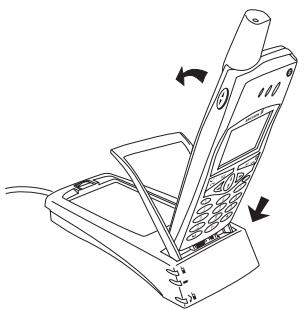
- Place the phone in the desktop charger as shown in the picture and press downwards to attach the phone.
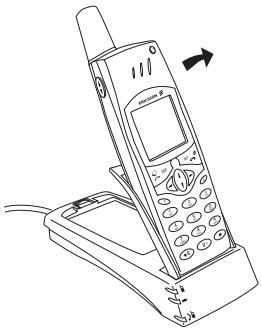
- To detach the phone from the charger, pull the phone towards you and upwards.
Note! For further instructions on how to connect the desktop charger, please contact your local Ericsson retailer.
To associate the desktop charger with a profile and a divert number
- Place the phone in the desktop charger. The message Choose profile? appears in the display.
- Press YES. (If you press NO, the desktop charger will not be associated with any profile).
- Select a profile that you want to associate with the desktop charger, for example the Home profile. Press YES.
- The message Divert when connected to accessory? appears. Press YES. This means that you want to divert your calls, for example, to your home number, when you place the phone in the desktop charger. (If you press NO, your calls will not be diverted).
- Enter a phone number including the area code (for example your home number) and press YES. A number you used before may be suggested to you. Press YES if you want to choose that number, or enter another number.
- The message Automatic activation on? appears. Press YES. The message Profile: Home appears to confirm your choice.
You can also make these settings later, if you wish. In that case, you need to add the desktop charger to the Home profile, or another profile. See "To add an accessory to a profile" on page 130. You may set the divert number in the
Edit Profile submenu, where all profile settings are included (Settings, YES, Profiles, YES, Edit Profile, YES). See "Changing the Profile Settings" on page 122.
Note! The phone must be switched on and the automatic activation must be on for the phone to switch profile automatically when connected to an accessory.
Tip! If you have several desktop chargers, each charger can be associated with a specific profile or all chargers can be associated with the same profile.
Portable Handsfree
When you connect a specific Ericsson Portable Handsfree to your phone, the Port H-free profile is set automatically. This means that all profile settings are set to the values specified for the Port H-free profile. See "The Profile Concept" on page 121.
Tip! If you do not want your phone to switch profile automatically when you connect it to the Portable Handsfree, you need to turn the Auto activation off. To do this, manually select the 'Port H-free' profile, and set the Auto activation to off.
Using the Portable Handsfree
To answer an incoming call
- When the phone rings, press the button on your Portable Handsfree once.
Tip! You can also answer a call by using your voice. See "Voice Answering" on page 111.
To end a call
Press the button on your Portable Handsfree once.
If the Call Waiting service is on, see "The Call Waiting Service" on page 80, you can answer a second call by pressing the button on your Portable Handsfree.
To answer a second call
- Press the button on your Portable Handsfree once to answer the waiting call. The current call is now put on hold.
- When you press the button on your Portable Handsfree again, the second call is disconnected and the first call is retrieved automatically.
To voice dial using the Portable Handsfree
- Press and hold the button on your Portable Handsfree until you hear a tone from the phone.
- Release the button and say a name (voice label) that you have recorded previously.
The name is played back to you and the call is connected.
Note! Before you can use voice dialling, you need to record voice labels for entries in your phone book. See "Preparing Your Phone for Voice Dialling" on page 109.
For best performance when voice dialling and voice answering with a Portable Handsfree unit, we recommend recording your voice labels when connected to a Portable Handsfree unit.
Vehicle Handsfree
When you connect an Ericsson Advanced Vehicle Handsfree to your phone, the In Car profile is set automatically. This means that all profile settings are set to the values specified for the In Car profile. See "The Profile Concept" on page 121.
Placing the Phone in the Vehicle Handsfree
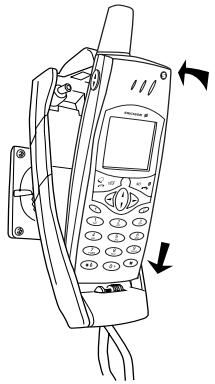
- Place the phone in the holder as shown in the picture and press backwards to attach it.
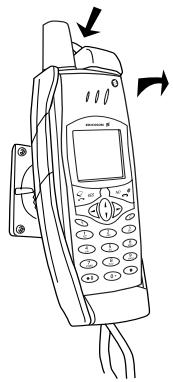
- To release the phone, press the button on top of the holder.
Your Advanced Vehicle Handsfree should be installed by professional personnel. For more information, please contact your local Ericsson retailer.
Tip! If you do not want your phone to switch profile automatically when you connect it to the Advanced Vehicle Handsfree, you need to turn the Auto Activation off. To do this, manually select the 'In Car' profile and set the Auto Activation to off.
Voice Control
The Advanced Vehicle handsfree unit is equipped with its own voice control system which allows you to:
voice dial - call someone by simply saying the name
answer and reject calls using your voice
Before you can use voice dialling, you need to record voice labels to entries in your phone book and the Voice Dialling function needs to be on.
See "Preparing Your Phone for Voice Dialling" on page 109. To use voice dialling with the Advanced Vehicle handsfree unit, you need to record the voice labels in the car. Voice labels for phone book entries recorded in the phone will not be available in the car, and vice versa.
The vehicle handsfree can store up to 100 voice labels. The icons for the phone book entries with voice labels saved when connected to a vehicle handsfree kit look slightly different from those that you save in the phone, see margin.
To voice dial using the Vehicle Handsfree
- Slide and hold the volume key or press YES until you hear a tone.
- Release and say a name (voice label) that you recorded in the car earlier. (Use the microphone of the vehicle handsfree unit.)
The name is played back to you, and the call is connected.
To answer a call using your voice
See "Voice Answering" on page 111.
Handsfree Types
If you use an Advanced Vehicle Handsfree Unit, you can choose between two different ways in which your phone can handle the speech. This is done in the Handsfree sub-menu.
Basic Handsfree
Basic Handsfree means that the phone handles the call in semi-duplex mode. This means that you cannot speak at the same time as the person at the other end of the line. Use this alternative only if Full Handsfree does not work properly.
Full Handsfree
Full Handsfree means that the phone handles the call in full duplex mode. This considerably increases the quality of speech, since you do not have to wait until it is your turn to speak.
For this function to work properly, your phone adapts to the sound environment around the handsfree equipment. This adaptation might take a few calls. During this learning phase, the person you are talking to might hear an echo of his or her own voice (because the sound goes from the speaker into the microphone again). However, this disappears as the other person speaks. If the echo lasts longer than the first few calls, try Basic Handsfree instead.
Tip! Set the handsfree type to 'Full Handsfree' first. If speech quality is poor, set the 'Basic Handsfree' type instead.
To set the handsfree type
- Scroll to Settings, YES, Handsfree, YES, HandsfreeType, YES.
- Select the type you want. Press YES.
Answering Mode
When using a portable or vehicle handsfree unit, you may choose to answer incoming calls in either of two ways: Any Key or Auto.
- Any Key: If this function is turned on, you can answer an incoming call by pressing any key, except the NO key.
- Auto: If this function is turned on, an incoming call is answered automatically after one ring signal.
To set an answering mode
- Scroll to Settings, YES, Handsfree, YES, Answering Mode, YES.
- Select a mode. Press YES.
If you choose the Normal alternative, you have to answer calls as normal.
Tip! You can also answer calls by using the Voice Answering function. See "Voice Answering" on page 111.
Adding Accessories to a Profile
You can add one or many accessories to a profile. For example, if you usually use a portable handsfree together with a specific charger, you may add the charger to the Port H-free profile. The phone recognizes the accessory as it is connected and switches profile automatically.
Note! It is the first accessory which is connected to the phone which switches the profile. Only profiles associated with accessories can be activated
automatically. You must first choose the profile manually to which you want to add an accessory, see "To choose a profile manually" on page 122.
To add an accessory to a profile
- Scroll to Settings, YES, Profiles, YES, Accessories, YES.
Now you are in the list of the accessories which are already associated with the profile.
- Select Add accessory?.
Now you are in the list of all accessories that can be associated with the profile.
-
Select an accessory.
-
The question Automatic activation on? appears, if automatic activation is not on already.
Press YES to turn automatic activation on, which means that the profile will be chosen automatically when the accessory is connected.
Note! You can associate 12 accessories with a profile, besides the portable and vehicle handsfree units. Any accessory above this number will work as ordinary non-profile accessories. You cannot have the same accessory associated with several profiles.
To remove an accessory from a profile
- Scroll to Settings, YES, Profiles, YES, Accessories, YES.
- Scroll to the accessory that you want to remove and press C.
- Delete? appears. Press YES.
Online Services
Imagine that you hear about a new service that your network operator is offering. You call your operator, explain that you want to subscribe to the service and suddenly, within seconds, you have a new menu in your phone that instantly lets you use the new service.
You do not need upgraded software for your phone, but you may need to visit your network operator to get a new SIM card. The rest is all taken care of over the air.
This is just one example of the added value services that are made possible through the Online Services.
Note! Your phone does not support all services offered by the Online Services.
What is Online Services?
The Online Services is the network operators' way of offering customized services, independently of mobile phones and mobile phone manufacturers.
Compatibility
Added value services based on the Online Services require two things in order to work:
- a mobile phone that supports the Online Services.
Your Ericsson phone is such a phone.
a network operator offering the Online Services.
Note! The Online Services on the SIM are designed and run by network operators and not by mobile phone manufacturers. If you require further information about the Online Services, please contact your network operator.
New Menu
A SIM card which supports the Online Services works in the same way as a normal SIM card.
When you have inserted your SIM card and turned on your phone, your network operator may download data to your SIM card. After the first data download and after restarting your phone, the proactive SIM offers a new menu in the phone. The menu offers you new features and services, which can be used instantly.
In your phone, this menu appears under the Extras menu. There can only be one new sub-menu entry under the main menu, but there can be several sub-menus under the new sub-menu entry.
To enter your new menu system
- Scroll to Extras, YES, Online Services, YES.
If any sub-menus appear, select the one that you want and press YES. - Press NO to go back to the standby menu.
Note! Some operators may not use the name Online Services for this menu. Please consult your network operator for more information.
Proactive SIM
The Online Services provides a proactive SIM. This means that the SIM can tell the phone to take certain actions. These actions could include:
showing text from the SIM in the phone's display
- setting up a call to a number on the SIM
initiating a dialogue with the user
Note! All these actions are taken by the SIM card and, consequently, they have nothing to do with the phone's software.
Data Download to the SIM Over the Air
Your network operator may at any time download new data to your SIM card over the air. This new data could consist of new features or a new menu.
Resetting your SIM Card
When the operator updates your SIM card over the air, the phone notifies you by showing a message in your display. You also hear a beep.
In order for your new SIM settings to take effect, you have to turn off your phone and then turn it on again.
Note! After a data download the phone may not work and you will not be able to use it until you restart it. This feature is operator dependent and will probably not happen very often.
SIM Card Initiated Features
The SIM card may prompt you to make a call. This could happen even if you are already engaged in a call.
When this happens, the phone will notify you by producing a sound and showing a message in the display.
- If you are not engaged in a call, a message is shown in the display, asking you whether you want to confirm and make the SIM card initiated call.
If you want to make the SIM card initiated call, press YES.
If you do not want to make the SIM card initiated call, press NO.
- If you are already engaged in a call, you are asked either to put the current call on hold or to end it.
A message appears in the display, asking you whether you want to confirm and make the SIM card initiated call.
If you want to make the SIM card initiated call, press YES.
- If you do not want to make the SIM card initiated call, (you may want to continue with the ongoing call) press NO.
Send a SIM Card Initiated SMS
The SIM card may set up an SMS (text message) and ask you to send this message, for example by the question Send message now?. Press YES if you want to send the SMS.
Details of Services Offered
All services and functions that come with the Online Services are network dependent. Please contact your network operator for details of services offered by the Online Services.
Additional Information
Troubleshooting 136
Ericsson Mobile Internet 138
The Online Version of this User's Guide 139
Technical Data 140
Glossary 141
Guidelines for Safe and Efficient Use 146
Warranty 152
Declaration of Conformity 154
Index 155
Insert card
Insert correct SIM card
SOS calls only
No network
Wrong PIN
Codes do not match
PIN blocked
Troubleshooting
This chapter lists some problems that you might encounter while using your phone. Some problems require that you call your service provider, but most of the problems you encounter you can easily correct yourself.
Error Messages
Insert Card
There is no SIM card in the phone or you may have inserted it incorrectly. Insert a SIM card. See "The SIM Card" on page 7.
Insert Correct SIM Card
The phone is set to only work with certain SIM cards. Insert the correct SIM card.
SOS Calls Only
You are within range of a network but you are not allowed to use it. However, in an emergency, some operators allow you to call the international emergency number 112. See "Making Emergency Calls" on page 17.
No Network
There is no network within range or the received signal is too weak. You have to move to get a signal that is strong enough.
Wrong PIN, Wrong PIN2
You have entered your PIN or PIN2 incorrectly.
- Enter the correct PIN or PIN2, and press YES.
See "The SIM Card Lock" on page 72.
Codes do not match
When you want to change a security code (for example your PIN) you have to confirm the new code by entering it again. The two codes that you have entered do not match. See "The SIM Card Lock" on page 72.
PIN/PIN2 Blocked
You have entered your PIN or PIN2 incorrectly three times in a row. To unblock, see "The SIM Card Lock" on page 72.
PUK blocked-Contact operator
Phone locked
Phone lock code:
Number not permitted
Charging, alien battery
PUK blocked- Contact operator
You entered your personal unblocking key code (PUK) incorrectly 10 times in a row. Contact your network provider or service operator.
Phone Locked
The phone is locked. To unlock the phone, see "The Phone Lock" on page 73.
Phone lock code:
Your phone comes with the phone lock code, 0000. You can change it to any four-to eight-digit code. See "The Phone Lock" on page 73.
Number not permitted
The Fixed Dialling function is on and the number you have dialled is not part of your fixed numbers list. See "Fixed Dialling" on page 76.
Charging, alien battery
The battery you are using is not an Ericsson-approved battery and is charging slowly for safety reasons.
No Indication of Charging
When you start charging a battery that is empty or a battery that has not been used for a long time, it makes take a while until the indicator on the top of the phone shows a red light and the battery meter appears.
The Phone Cannot Be Switched On
Handheld Phone
- Recharge or replace the battery. See "The Battery" on page 8.
Handsfree Phone in Vehicle
- Make sure that the phone is properly inserted into its holder. See "Vehicle Handsfree" on page 127.
Ericsson Mobile Internet
When you are on the move and in need of communication and information, the Mobile Internet is the answer.
The Mobile Internet is a service supplied by Ericsson to make it easier for you to communicate and receive information quickly, wherever you are. It gives you access to various messaging services, on-line customer services, user manuals and other useful information. With the Mobile Internet you can also download communications software to ensure you get the best out of your Ericsson products.
The Ericsson Mobile Internet address is: http://mobileinternet.ericsson.com
The Online Version of this User's Guide
On the CD that comes with your phone, you can find an online version of this User's Guide. This can be handy when you quickly want to look something up and you do not have the paper version of the User's Guide nearby.
When you run the installation program from the CD, as described in "To install the built-in modem on the PC" on page 62, this User's Guide is installed as a file on your computer, in the language you choose during installation. If you cannot find your native language on the CD, you can follow the steps below in order to install the correct version.
To change the language of the Online User's Guide
- Insert the CD in your CD drive. The CD should start automatically. If it does not, you can start it manually by choosing Run from the Start menu, and typing d:\start.exe (change the D drive if your CD drive is named differently).
- On the CD-Browser, click the Help link.
- Click SelectLang.exe and then select the language you want to use. This starts the re-installation of the online version of this User's Guide.
When you have run the installation program from the CD you can usually find the User's Guide on your computer in:
C:/Program Files/Ericsson/Ericsson Communications Suite.
Technical Data
General
| Product name | R320 |
| System | GSM 900/GSM1800 |
| SIM card | Small plug-in card, 3V or 5V type |
| Type number | 110 1201-BV |
Dimensions
| Size | 130 x 51 x 15 mm |
| Weight with Ultra Slim battery | 95g |
| Weight without battery | 75g |
Ambient temperatures
| Max | +55°C |
| Min | -10°C |
The built-in modem
| Standards for transfer | R320 supports secondary implementation of standard IrDA and IrDA-Ultra. |
| Data transmission rate | 9,600 bps without compression because infrared communication via GSM is limited to 9,600 bps. With V.42bis compression you can reach data transmission rates of up to 38,400 bps. |
| Fax | * Up to 9,600 bps * Group III, class 1 and 2. Class 2 is recommended. |
| Power consumption | Using the built-in modem for infrared communication increases battery consumption depending on what sort of communication you have established (fax, e-mail, etc.). |
| RS232 | You can use an RS232 cable for transfer via the built-in modem. |

The IrDA Feature Trademark is owned by the Infrared Data
Association and is used under license there from.
Glossary
Advice of Charge (AoC)
enables you to monitor the cost of calls made from your mobile phone. Details of the last call and total calls made are shown in the phone display. To use this service, it must be supported by your network.
Area Information (AI)
is a service that allows you to receive messages about pre-set topics i.e.
weather forecasts, road reports, etc. To use this service, it must be supported by your network.
Calling Line Identification (CLI)
shows the number of the person calling you in your mobile phone display. You can then make an informed choice as to whether or not to take the call. Bear in mind that not all numbers can be displayed. To use this service, it must be supported by your network.
Divert
enables you to forward calls to another number, for example your voice mail or home phone.
DTMF or Touch Tone
Dual Tone Multi Frequency signal - codes sent as tone signals. Used for telephone banking, accessing an answering machine, etc.
Dual Band GSM 900/1800
Your phone is a dual band phone, which means that you can use your phone on two different kinds of networks – the GSM 900 and the GSM 1800 (also called PCN or DCS 1800) systems.
A dual band phone that combines the two standards can use both frequencies. This increases capacity in densely populated urban areas, and consequently improves the coverage offered by your network operator. It also offers you enhanced international roaming, thanks to the additional networks now available when you are travelling.
The switching between the two systems is done automatically and seamlessly, which means that you can use your phone without ever having to consider
which system is best at the time. This is taken care of by the networks.
However, you should note that the functions offered and the network coverage differ depending on your choice of operator and/or subscription.
Enter
is used for keying in letters or numbers from the keypad.
Fixed Numbers
enables you to allow only numbers beginning with certain pre-defined figures to be dialled from your mobile phone. The service is protected by your PIN2. To use this service, it must be supported by your network.
Full Duplex
in handsfree equipment means that both parties on the phone can talk at the same time. The opposite is simplex mode when one party talks and the other must wait for his/her turn.
Fax Class
Standards for fax transmission are set as classes. Class I and II allow data transfer speeds of between 2400 up to 9600 bps.
GSM 900
GSM is the world's most widely-used digital network, now operating in over 100 countries around the world, particularly in Europe and Asia-Pacific.
The Global System for Mobile Communications is the most-widely used digital mobile phone system. The GSM systems family also includes GSM 1800 and GSM 1900. There are different phases of roll-out for the GSM system and GSM phones are either phase 1 or phase 2 compliant.
GSM 1800
also known as DCS 1800 or PCN, is a digital network working on a frequency of 1800MHz . It is used in Europe and Asia-Pacific.
International (+) Sign
mobile phone (+) sign that automatically adds the correct international code in front of a telephone number when dialling out of a country. You then have to enter the code of the country you are calling.
International Roaming
a mobile phone feature that allows you to switch between networks offering coverage abroad. Your mobile phone automatically selects a network or system (your home network), but if it is not in range or unavailable, it selects
another system. International roaming is based on agreements between network operators in different countries.
Line 1/Line 2
see Two Line Service.
Menu System
is where you can access all the phone's functions. The menus can be accessed and viewed by scrolling with the arrow keys.
Micro browser
accesses and displays the Internet contents in your mobile phone, just as an ordinary browser does in your computer. The micro browser uses small file sizes and the bandwidth of the wireless-handheld network.
Network
a mobile phone network or system consists of a network of cells or areas. A radio base station serves each cell from where calls are forwarded to and received from your mobile phone by wireless radio signals.
Network Operator
to be able to use your phone, you need a subscription to a network. You get this subscription from a network operator, together with a SIM card that you need to use with your phone.
Phone Book
a memory in your mobile phone or SIM card where phone numbers can be stored and accessed by name or position.
PC-Card
also called PCMCIA, the PC-card can act as a modem and connect your mobile phone to a laptop or organizer, enabling data and fax transmission. The thin type II card is the most common size.
PIN
Personal Identification Number - a code used for all GSM-based phones to establish authorization for access to certain functions or information. The PIN code comes with your subscription.
PIN2
Personal Identification Number 2 - an authorization code which is used only for special services. The PIN2 code comes with your subscription.
PUK
Personal Unblocking Key Code – used to unlock a blocked SIM card. This comes with your subscription.
Restrict Calls
enables you to restrict or bar certain or all types of calls to and from your mobile phone, i.e. outgoing calls, outgoing international calls, incoming calls. Barring is switched on with a personal code. To use this service, it must be supported by your network.
Roaming
within your home network, this means that your mobile phone automatically sets up communication procedures with different radio base stations when on the move.
Scroll
move between the menus and functions by pressing , or
Select
choose a menu or function by pressing the YES key.
Semi-Duplex
in handsfree equipment, full duplex means that the connection is open for both parties to talk simultaneously. The opposite, simplex, is when it is open to one at a time. Semi-duplex gives close to, but not complete, duplex functionality.
Service Provider
a company that provides services and subscriptions to mobile phone users.
Short Message Service (SMS)
allows messages of up to 160 characters to be sent and received via the network operator's message centre to your mobile phone. Messages are stored if the phone is off or out of reach ensuring that they reach you. To use this service, it must be supported by your network.
SIM card
Subscriber Identity Module card - a card that must be inserted in any GSM-based mobile phone. It contains subscriber details, security information and memory for a personal directory of numbers. The card can be a small plug-in type or credit card-sized but both types have the same functions. Your phone uses the small plug-in card.
Subscription
is the contract that you have with the service/network provider. To use your phone, you need to have a subscription to a network. You get a SIM (Subscriber Identity Module) card with your subscription. The services included in your subscription depend on your choice of operator and/or subscription. So some of the services and functions described in this manual may not be accessible to you. If you want a complete list of the services included in your subscription, please contact your network operator.
Two Line Service
enables you to have two lines and two different phone numbers on one subscription for your mobile phone. This makes it possible to have separate numbers for business and personal calls. To use this service, it must be supported by your network.
WAP
The Wireless Application Protocol (WAP) is an open, global specification that makes it possible for mobile users with wireless devices to access and interact with information and services easily.
Guidelines for Safe and Efficient Use
Note! Read this information before using your mobile phone.
PRODUCT CARE AND MAINTENANCE
Your mobile phone is a highly sophisticated electronic device. To get the most out of your mobile phone read this text about product care, safe and efficient use.
PRODUCT CARE
- Keep your mobile phone dry.
- Avoid exposing your mobile phone to extreme hot or cold temperatures.
- Avoid placing your mobile phone close to lit candles, cigarettes, naked flames or any heat source.
- As with all sophisticated electronic devices rough treatment could damage your mobile phone.
Only use a soft damp cloth to clean your mobile phone. - Do not paint your mobile phone as the paint could obstruct the earphone, microphone or any moveable parts and prevent normal use.
- Do not attempt to disassemble your mobile phone, a broken warranty seal will void the warranty. The phone does not contain consumer serviceable components. Service should only be performed by Certified Service Partners.
- Only use Ericsson original accessories. Failure to do so may result in loss of performance, damage to the phone, fire, electric shock or injury. The warranty does not cover product failures which have been caused by use of non-Ericsson original accessories.
- Treat your mobile phone with care, keep it in a clean and dust free place.
ANTENNA CARE AND REPLACEMENT
- To avoid impaired performance please ensure your mobile phone's antenna is not bent or damaged.
-
Do not remove the antenna yourself. If your phone's antenna is damaged please take it to a Certified Service Partner.
-
Only use an antenna that has been specifically designed for your phone. Unauthorized antennas, modifications, or attachments could damage the phone and may violate the appropriate regulations causing loss of performance and radio frequency (RF) energy above the recommended limits.
To enjoy optimum performance with minimum power consumption please:
- Hold the phone as you would any other telephone. While speaking directly into the mouthpiece, angle the antenna in a direction up and over your shoulder. If the antenna is extendable/retractable, it should be extended during a call.
- Do not hold the antenna when the phone is in use. Holding the antenna affects call quality, may cause the phone to operate at a higher power level than needed and shorten talk and standby times. If your mobile phone is equipped with an infrared eye, never direct the infrared ray at anyone's eye and make sure that it does not disturb any other infrared units.
RADIO FREQUENCY ENERGY
Your mobile phone is a radio transmitter and receiver. When the phone is turned on, it receives and transmits radio frequency (RF) energy. Depending on the type of mobile phone you possess, it operates on different frequency ranges and employs commonly used modulation techniques. The system that handles your call when you are using your phone controls the power level at which your phone transmits.
EXPOSURE TO RADIO FREQUENCY ENERGY
The International Commission on Non-Ionising Radiation Protection (ICNIRP), supported by the World Health Organisation (WHO), published during 1996 a statement and in 1998 guidelines which set recommended limits for exposure to RF fields from handheld mobile telephones. According to ICNIRP statement, which is based on the available body of research, there is no evidence that mobile terminals meeting the recommended limits can cause any adverse health effects. All Ericsson telephones conform to the ICNIRP guidelines and other international exposure standards, such as:
- CENELEC European Pre-standard ENV50166-2:1995 (Europe)
ANSI/IEEE C95.1-1992 (USA, Asia-Pacific)
AS/NZS 2772.1 (Int):1998 (Australia, New Zealand)
DRIVING
Check the laws and regulations on the use of mobile phones in the areas where you drive. If you are going to use your phone while driving, please:
Give full attention to driving.
- Use an Ericsson Vehicle Handsfree Solution, if available. Law in many countries requires vehicle Handsfree Solution. Read the installation instructions carefully before installing a vehicle Handsfree Solution.
- Pull off the road and park before making or answering a call if driving conditions so require.
RF energy may affect some electronic systems in motor vehicles such as car stereo, safety equipment etc. In addition, some vehicle manufacturers do not allow use of mobile phones, unless the installation is supported by a handsfree kit with an external antenna, in their vehicles. Check with your vehicle manufacturer's representative to be sure that your mobile phone will not affect the electronic systems in your vehicle.
Vehicles Equipped with an Air Bag
An air bag inflates with great force. Do not place objects, including either installed or portable wireless equipment, in the area over the air bag or in the air bag deployment area. If in-vehicle wireless equipment is improperly installed and the air bag inflates, serious injury could result.
ELECTRONIC DEVICES
Most modern electronic equipment, for example equipment in hospitals and cars, is shielded from RF energy. However, certain electronic equipment is not, therefore:
- Do not use your mobile phone near medical equipment without requesting permission.
Mobile phones may affect the operation of some implanted cardiac pacemakers and other medically implanted equipment. Pacemaker patients should be aware that the use of a mobile phone very close to a pacemaker might cause the device to malfunction. Avoid placing the phone over the pacemaker, i.e. in your breast pocket. When using the phone, place it at your ear opposite the pacemaker. If a minimum distance of 15cm is kept between the phone and the pacemaker, the risk of interference is limited. If you have any reason to suspect that interference is taking place, immediately turn off your phone.
Contact your cardiologist for more information.
Some hearing aids might be disturbed by mobile phones. In the event of such disturbance, you may want to consult your service provider, or call the customer services line to discuss alternatives.
AIRCRAFT
- Turn off your mobile phone before boarding any aircraft.
- Do not use it on the ground without crew permission.
To prevent interference with communication systems, you must not use your mobile phone while the plane is in the air.
BLASTING AREAS
Turn off your mobile phone when in a blasting area or in areas posted "turn off two-way radio" to avoid interfering with blasting operations. Construction crews often use remote control RF devices to set off explosives.
POTENTIALLY EXPLOSIVE ATMOSPHERES
Turn off your mobile phone when in any area with a potentially explosive atmosphere. It is rare, but your phone or its accessories could generate sparks. Sparks in such areas could cause an explosion or fire resulting in bodily injury or even death.
Areas with a potentially explosive atmosphere are often, but not always, clearly marked. They include fuelling areas, such as petrol stations, below deck on boats, fuel or chemical transfer or storage facilities, and areas where the air contains chemicals or particles, such as grain, dust, or metal powders.
Do not transport or store flammable gas, liquid, or explosives in the compartment of your vehicle, which contains your mobile phone and accessories.
POWER SUPPLY
- Connect AC (Power supply) only to designated power sources as marked on the product.
- To reduce risk of damage to the electric cord, remove it from the outlet by holding onto the AC adapter rather than the cord.
- Make sure the cord is positioned so that it will not be stepped on, tripped over or otherwise subjected to damage or stress.
- To reduce risk of electric shock, unplug the unit from any power source before attempting to clean it.
The charger must not be used outdoors or in damp areas.
CHILDREN
Do not allow children to play with your mobile phone since it contains small parts that could become detached and create a choking hazard.
EMERGENCY CALLS
IMPORTANT!
This phone, like any mobile phone, operates using radio signals, cellular and landline networks as well as user-programmed functions, which cannot guarantee connection under all conditions. Therefore you should never rely solely upon any mobile phone for essential communications (for example medical emergencies).
Remember, in order to make or receive calls the phone must be switched on and in a service area with adequate cellular signal strength. Emergency calls may not be possible on all cellular phone networks or when certain network services and/or phone features are in use. Check with your local service provider.
BATTERY INFORMATION
New Batteries
The battery delivered with your phone is not fully charged.
Battery Use and Care
A rechargeable battery has a long service life if treated properly. A new battery, or one that has not been used for a long period of time could have reduced capacity the first few times it is being used.
- The talk and standby times depend on the actual transmission conditions when using the phone. If the phone is used nearby a base station less power is required and talk and standby times are prolonged.
- Use only Ericsson original batteries and the AC/DC adapter supplied with your battery charger. Using non original Ericsson accessories could be dangerous and the warranty does not cover product failures which have been caused by use of non-Ericsson original accessories.
- Do not expose your battery to extreme temperatures, never above +60^ (+140^) . For maximum battery capacity use your battery in room temperature. If the battery is used in cold temperatures the battery capacity will be reduced.
- The battery can only be charged when the temperature is between +5^ (+41^) and +45^ (+113^) .
- Turn off your phone before removing the battery.
-
Use only the battery for the intended purpose.
-
Do not attempt to take a battery apart.
- Do not let the metal contacts on the battery touch another metal object. This could short-circuit and damage the battery.
- Do not expose a battery to open flames. This could cause the battery to explode.
- Do not expose a battery to liquid.
- Do not allow the battery to be placed into the mouth. Battery electrolytes may be toxic if swallowed.
RECYCLING YOUR BATTERY
Your phone manufacturer is a member of the Rechargeable Battery Recycling Corporation (RBRC), a non-profit public service organization designed to assist in the recycling of rechargeable batteries. Many areas require recycling of rechargeable batteries. In the U.S., call 1-800-822-8837 to find out how to recycle your battery. Outside the U.S., contact your local retailer for recycling instructions.
Warranty
Thank you for purchasing this Ericsson Product. To get maximum use of the features of your new product we recommend that you follow a few simple steps:
- Read the Guidelines for safe and efficient use.
- Read all the terms and conditions of your Ericsson Warranty.
- Save your original receipt. You will need it for warranty repair claims. Should your Ericsson Product need warranty service, you should return it to the dealer from whom it was purchased or contact your local Ericsson helpdesk to get further information.
OUR WARRANTY
Ericsson warrants this Product to be free from defects in material and workmanship at the time of its original purchase by a consumer, and for a subsequent period of one (1) year.
All accessories for the Product are covered by a warranty for a period of one (1) year from the date of its original purchase by a consumer.
WHAT WE WILL DO
If, during the warranty period, this Product fails to operate under normal use and service, due to improper materials or workmanship, Ericsson subsidiaries, authorised distributors or authorised service partners will, at its option, either repair or replace the Product in accordance with the terms and conditions stipulated herein.
CONDITIONS
- The warranty is valid only if the original receipt issued to the original purchaser by the dealer, specifying the date of purchase and serial number, is presented with the product to be repaired or replaced. Ericsson reserves the right to refuse warranty service if this information has been removed or changed after the original purchase of the product from the dealer.
- If Ericsson repairs or replaces the Product, the repaired or replaced Product shall be warranted for the remaining time of the original warranty period or for ninety (90) days from the date of repair, whichever is longer. Repair or replacement may be via functionally equivalent reconditioned
units. Replaced faulty parts or components will become the property of Ericsson.
- This warranty does not cover any failure of the Product due to normal wear and tear, misuse, including but not limited to use in other than the normal and customary manner, in accordance with Ericsson's instructions for use and maintenance of the Product, accident, modification or adjustment, acts of God, improper ventilation and damages resulting from liquid.
- This warranty does not cover product failures due to repair installations, modifications or improper service performed by a non-Ericsson authorised service workshop or opening of the product by non-Ericsson authorised persons.
- The warranty does not cover product failures which have been caused by use of non-Ericsson original accessories.
- Batteries are warranted only if battery capacity falls below 80% of rated capacity. This warranty becomes void if the batteries are charged by non-Ericsson original battery chargers.
- Tampering with any of the seals on the products will void the warranty.
- THERE ARE NO OTHER EXPRESS WARRANTYES, WHETHER WRITTEN OR ORAL, OTHER THAN THIS PRINTED LIMITED WARRANTY. ALL IMPLIED WARRANTYES, INCLUDING WITHOUT LIMITATION THE IMPLIED WARRANTYES OR MERCHANTABILITY OR FITNESS FOR A PARTICULAR PURPOSE, ARE LIMITED TO THE DURATION OF THIS LIMITED WARRANTY. IN NO EVENT SHALL ERICSSON BE LIABLE FOR INCIDENTAL OR CONSEQUENTIAL DAMAGES OF ANY NATURE WHATSOEVER, INCLUDING BUT NOT LIMITED TO LOST PROFITS OR COMMERCIAL LOSS. TO THE FULL EXTENT THOSE DAMAGES CAN BE DISCLAIMED BY LAW.
Some countries do not allow the exclusion or limitation of incidental or consequential damage, or limitation of the duration of implied warranties, so the preceding limitations or exclusions may not apply to you. This warranty gives you specific legal rights, and you may also have other rights which may vary from country to country.
Declaration of Conformity
We, Ericsson Mobile Communications AB of
Nya Vattentornet
221 83 Lund, Sweden
declare under our sole responsibility that our product
Ericsson type 110 1201-BV
to which this declaration relates, conforms to the appropriate standards
TBR 19, TBR 20, TBR31, TBR32, ETS 300 342-1 and EN 60950,
following the provisions of Teleterminals directive 91/263/EEC,
EMC directive 89/336/EEC, and Low voltage directive 73/23/EEC.
(Place & date of issue)
Index
A
Accept calls 78
Add accessories to a profile 129
Alarm 117
Alarm indicator 14
Alarm signal 46
Answered calls indicator 38
Answering calls 18
Answering mode 129
Answering service. See Voice Mail
Appointments, storing them in the calendar 101
Area information 58
message types 58
receiving area messages 59
Assembling the phone 7
B
Banking by phone 34
Barring calls. See Restrict calls
Battery 8
attaching 8
charging 8, 9
detaching 8
Bell. See Alarm indicator
Bookmarks in the WWW
MMM browser 93
Browser, using the WWW
MMM browser 92
Built-in modem 61
Business Card Exchange 68
C
Cable, connecting using a cable 63
Calculator 117
Calendar 101
Call barring. See Restrict calls
Call cost 88
setting a credit limit 89
specifying price per unit 89
Call divert
activating 70
divert indicator 14
Call list
calling from call list 38
using the call list 38
Call restrictions. See Restrict calls
Call time 88
Call waiting 80
Call waiting service
activating 80
cancelling 80
Calling
from call list 38
Calling card
making a call 116
saving number 115
Calling card services
activating 115
Calling Line Identification (CLI) 38
Calls
answering 18
making 16
putting on hold 19,81,83,84
receiving 17
redialling 16
rejecting 18
switching between calls 81
CB. See Area information
Cell broadcast. See Area information
Changing phone lines 91
Changing the language of the Online
User's Guide 139
Charging 8, 9
disconnecting the charger 10
Choosing a card 116
Clip 10
Clock. See Time
Closed user groups 77
Code Memo 112
Communicating 61
Conference calls 82
adding new participants 83
creating 82
extracting a participant 83
releasing a participant 83
reviewing participants 83
Connecting Using Infrared
Communication 62
Credit card
making a call 116
saving number 115
D
Data, sending and receiving 65
Date 49
format 49
setting 49
Desktop charger 124
Dialled numbers indicator 38
Display
greeting text 48
language 13, 47
light 47
Display information 14
Divert Calls 70
activating 70
checking status 71
divert indicator 14, 71
incoming calls 70
Divert calls
cancelling 71
Divert indicator 14, 71
DTMF tones 19
Dual Band 141
E
Electronic business cards, sending
and receiving 68
E-mail, sending and receiving 65
Emergency calls 17
Erasing and renaming voice memos 107
Ericsson Mobile Internet 138
Error messages 136
F
Fax, sending and receiving 65
Features 23
Fixed dialling 76
activating 76
Fixed numbers 77
editing 77
storing 77
G
Games 119
General reminders, storing them in
the calendar 101
Glossary 141
Greeting text in the display 48
H
Handsfreeusage128
Help functions 49
1
Indicators in display 38
alarm 14
answered calls 38
battery meter 14
dialled numbers 38
divert 14
line 14
missed calls 14, 38
signal strength meter 14
silent ring 14
SMS 14
Initial settings 12
Input Method 47
International calls 17
International emergency number 17
K
Key functions 15
Keypad 6
Keypad Lock 74
L
Language in the display 13, 47
Letters, entering 31
Line
choosing a line 91
Line indicator 14
Lock - keypad lock 74
M
Making a call 16
Meetings, storing them in the calendar 101
Menu system 24
display text 27
moving through 26
Message signal 46
Message types (SMS) 53
Microphone muting 19
Minute minder 46
Missed calls 39
Missed calls indicator 14, 38
Mobile Internet 138
Monthly overview in the calendar 103
Muting microphone 19
N
Name label 31
Network
forbidden networks 86
preferences 85
preferred networks 86
search modes 87
selecting 85
Note Pad 20
0
Online services 131
Online User's Guide, changing the language of 139
Online Version of this User's Guide 139
Overview 6
Own business card, editing and sending 69
P
Personal ring signal 43
Phone book 30
checking status of memory 36
creating 30
edit a phone number 33
e-mail addresses 36
entering letters 31
erasing phone number 34
groups 35
international numbers 30
keeping up to date 33
memory 30
memory full 34
overwrite protection 34
shortcuts 33
Phone calls, storing them in the calendar 101
Phone lock 73
activating/cancelling 74
auto lock 73
changing the security code 74
full lock 73
Phone number
displaying own 48
Phone number in SMS
replying to 56
PIN 7, 12
changing 72
PIN27
changing 73
Playing voice memos 107
Plus sign (+) 17
Portable handsfree 126
Problems, starting the Setup
Assistant 64
Profile
change name of 122
Profiles 121, 126
automatic activation 121
change settings 122
selecting 122
PUK 8, 72
R
Receive calls 17
Receiving a business card 69
Receiving messages (SMS) 55
Recording a voice memo 106
Redialling numbers 16
Rejecting calls 18
Request reply (SMS) 54
Resetting phone 50
Restrict calls 75
cancelling all 75
changing password 76
changing status 75
Ring signal
choosing 43
composing own 44
personal 43
type 43
volume 42
S
Scroll 15
Sending and receiving calendar
appointments 104
Sending business cards 68
Sending messages (SMS) 52
Settings
initial 12
Silent ring signal 14
SIM
Application Toolkit 131
data download to 132
proactive 132
SIM card 7
features initiated by 132
inserting 7
resetting 132
unblocking 72
SIM card lock
activating 73
cancelling 73
unlocking 72
SMS 51
composing messages 52
deleting a message 57
editing messages 52
enabling phone for sending 51
forwarding messages 57
message types 53
reading stored messages 58
receiving messages 55
replyrequested54
replying to messages 56
sending messages 52
storing messages 57
templates 54
types 53
SMS indicator 14
Speed dialling 33
Stop watch 118
Storage status, in the calendar 105
Stored messages (SMS)
reading 58
Storing appointments in the calendar 101
Storing codes in your Code Memo 112
T
Technical data 140
Telephone banking 34
Text messages (SMS) 51
Time 48
format 48
setting 48
Timer 118
Tone signals 19
Touch tones 19
Troubleshooting 136
Turning your phone off 13
Turning your phone on 12
Two Line Service 91
V
Vehicle handsfree 127
Voice control
answering 109, 111
dialling 109
labels 109
making calls 110
rejecting 109
Voice label 109
Voice mail 40
activating 40
calling 40
changing number 41
changing signal 41
Voice Mail indicator 14
Voice memos 106
Volume
changing 19
Volume keys 15, 18
W
WAP 92
WAP Browser 92
Weekly overview in the calendar 103