
BQF-440 - Electronic dictionary FRANKLIN - Free user manual and instructions
Find the device manual for free BQF-440 FRANKLIN in PDF.


User questions about BQF-440 FRANKLIN
0 question about this device. Answer the ones you know or ask your own.
Ask a new question about this device
Download the instructions for your Electronic dictionary in PDF format for free! Find your manual BQF-440 - FRANKLIN and take your electronic device back in hand. On this page are published all the documents necessary for the use of your device. BQF-440 by FRANKLIN.
USER MANUAL BQF-440 FRANKLIN
READ THIS LICENSE AGREEMENT BEFORE USING ANY BOOKMAN PRODUCT.
YOUR USE OF THE BOOKMAN PRODUCT DEEMS THAT YOU ACCEPT THE TERMS OF THIS LICENSE. IF YOU DO NOT AGREE WITH THESE TERMS, YOU MAY RETURN THIS PACKAGE WITH PURCHASE RECEIPT TO THE DEALER FROM WHICH YOU PURCHASED THE BOOKMAN PRODUCT AND YOUR PURCHASE PRICE WILL BE REFUNDED. BOOKMAN PRODUCT means the software product and documentation found in this package and FRANKLIN means Franklin Electronic Publishers, Inc.
LIMITED USE LICENSE
All rights in the BOOKMAN PRODUCT remain the property of FRANKLIN. Through your purchase, FRANKLIN grants you a personal and nonexclusive license to use the BOOKMAN PRODUCT on a single FRANKLIN BOOKMAN at a time. You may not make any copies of the BOOKMAN PRODUCT or of the data stored therein, whether in electronic or print format. Such copying would be in violation of applicable copyright laws. Further, you may not modify, adapt, disassemble, decompile, translate, create derivative works of, or in any way reverse engineer the BOOKMAN PRODUCT. You may not export or reexport, directly or indirectly, the BOOKMAN PRODUCT without compliance with appropriate governmental regulations. The BOOKMAN PRODUCT contains Franklin's confidential and proprietary information which you agree to take adequate steps to protect from unauthorized disclosure or use. This license is effective until terminated. This license terminates immediately without notice from FRANKLIN if you fail to comply with any provision of this license.
Contents
Welcome to the world of BOOKMAN! BOOKMAN is a powerful, portable electronic library with a built-in book and a slot in the back for more books. With this French Professor, you can now translate and define more than 200,000 words, correct misspellings of both French and English words, view noun, adjective, and verb inflections, and save words to a Personal word list for a more enjoyable way to learn. To learn how to use other books, read their User's Guides.
Installing Batteries & Cards 4
Selecting a Book 5
Using the Color Keys 5
Changing the Language 6
Viewing a Demonstration 7
Translating English Words 7
Translating French Words 8
Learning Inflections 9
Finding a Letter 10
Finding a Prefix 10
Correcting Misspellings 11
Using your Personal List.... 11
Highlighting a Word 13
Sending a Word Between Books 13
Changing Game Settings 14
Playing the Games....14
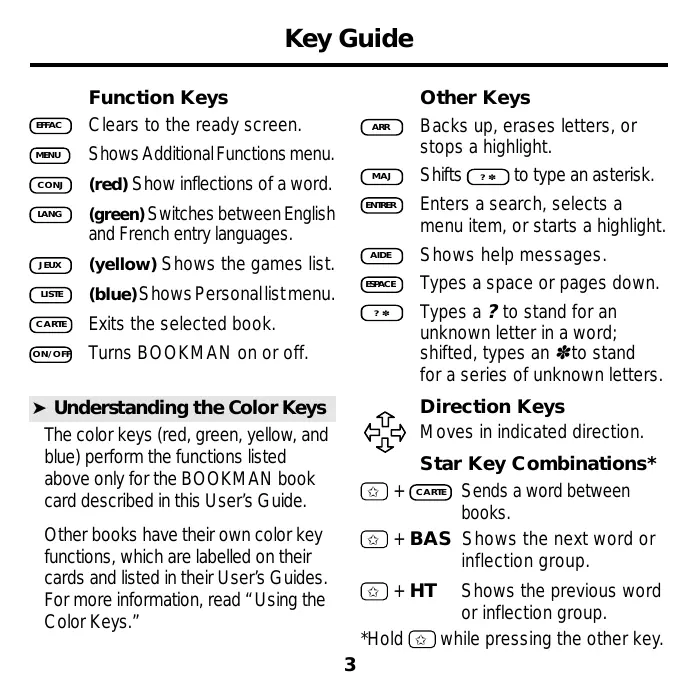
Function Keys
EFFAC Clears to the ready screen.
MENU Shows Additional Functions menu.
CONJ (red) Show inflections of a word.
LANG (green) Switches between English and French entry languages.
JEUX (yellow) Shows the games list.
LISTE (blue) Shows Personal list menu.
CARTE Exits the selected book.
ON/OFF Turns BOOKMAN on or off.
▶ Understanding the Color Keys
The color keys (red, green, yellow, and blue) perform the functions listed above only for the BOOKMAN book card described in this User's Guide.
Other books have their own color key functions, which are labelled on their cards and listed in their User's Guides. For more information, read "Using the Color Keys."
Other Keys
ARR Backs up, erases letters, or stops a highlight.
MAJ Shifts ?* to type an asterisk.
ENTRER Enters a search, selects a menu item, or starts a highlight.
AIDE Shows help messages.
☐ ESPACE Types a space or pages down.
? * Types a ? to stand for an unknown letter in a word; shifted, types an * to stand for a series of unknown letters.

Direction Keys
Moves in indicated direction.
Star Key Combinations\*
☆ + CARTE Sends a word between books.
☆ + BAS Shows the next word or inflection group.
☆ + HT Shows the previous word or inflection group.
*Hold ☆ while pressing the other key.
Installing Batteries
BOOKMAN model 440 uses two lithium CR-2032 batteries. Here is how to install or replace them.
Warning: When the batteries lose power or are removed from BOOKMAN, information that you entered in its built-in book, and in an installed card, will be erased.
- Turn BOOKMAN over.
- Slide off its battery cover in the direction of the triangle.
- Install the batteries following the diagram in the case.
- Replace the battery cover.
Installing Cards
Warning: Never install or remove a card when BOOKMAN is on. If you do, information that you entered in its built-in book, and in an installed card, will be erased.
- Turn BOOKMAN off.
- Turn BOOKMAN over.
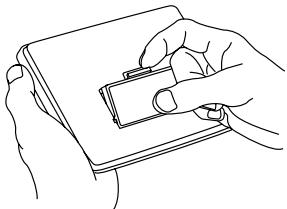
- Align the tabs on the card with the notches in the slot.
natural_image
Line drawing of two hands holding a wallet (no text or symbols)- Press the card down until it snaps into place.
▶ Resuming Where You Left Off
You can turn off BOOKMAN at any screen. When you turn BOOKMAN on again, the screen that you last viewed appears.
▶ Removing Cards
Warning: When you remove a card to install another, information that you entered into the removed card will be erased.
Selecting a Book
Once you have installed a card in your BOOKMAN, you can select which book you want to use.
- Turn BOOKMAN on.
- Press CARTE.
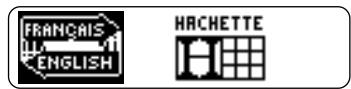
These are sample books.
- Press ⇌ or ⇔ to highlight the book you want to use.
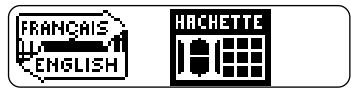
- Press ENTRER to select it.
▶ About Screen Illustrations
Some screen illustrations in this User's Guide may differ from what you see on the actual screen. This does not mean that your BOOK-MAN is malfunctioning.
Using the Color Keys
The red, green, yellow, and blue keys on your BOOKMAN change functions according to which book is selected.
When the built-in book is selected, the color keys function as labelled on the BOOKMAN keyboard. When a card book is selected, the color keys function as labelled on that card.
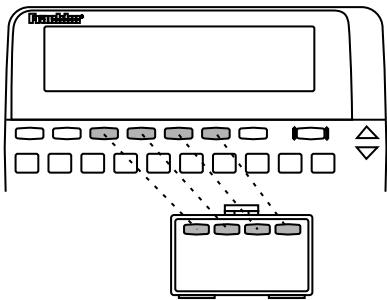
Remember, the color keys for BOOK-MAN books in cards function as labelled on their cards, not as on the keyboard.
Changing the Language
▶ Message Language
When you turn on this product for the first time, you must choose the message language. The message language is the language of prompts, help, and other messages. You can change the message language after your initial decision.
NOTE: The examples in the English half of this manual use English as the message language.
- Press MENU if you are not at the Message language screen.
- Press ☐ to select the Message language screen.
- Press Ⓑ to select English as the message language; press Ⓐ to select French.
Changing the Language
▶ Entry Language
The entry language is the language in which you enter words at ready screens. This determines which dictionary you will use, French or English.
-
If not at the Ready screen, press EFFAC.
-
Press LANG to switch between dictionaries.
Ready for an English word
Ready for a French word
▶ Changing the Contrast
If you want to change the screen contrast, repeatedly press ↑ or ↓ at the blank ready screen.
Viewing a Demonstration
When no book card is installed in your BOOKMAN, a demonstration automatically appears after you select this book. To stop the demo, press EFFAC. To disable it, press MENU and then select Disable Demo. To re-enable it, select Enable Demo.
When a book card is installed, select View Demo from the menu to view the demo.
▶ Help is Always at Hand
You can view a help message at virtually any screen by pressing AIDE. Press the direction keys to read it. To exit help, press ARR.
To read a tutorial of how to use the main functions and keys of this book, select Tutorial from the Additional Functions menu.
▶ Follow the Arrows
The flashing arrows on the right of the screen show which arrow keys you can press to move around menus or view more text.
Translating English Words
With the French Professor you are able to translate English words to French simply by typing English words.
- Press EFFAC.
- Press LANG to change the entry language to English, if needed.
- Type a word (e.g., cat).
To erase a letter press ARR.
- Press ENTRER.
cat noun: chat
- Press EFFAC when finished.
▶ Explanation of Genders
French nouns are different than English nouns in that they must either be masculine or feminine. The
▶ Understanding Definitions
When you find a definition, you may see that there are several different meanings for your word. Here is an example.
- Type man.
- Press ENTRER.
This screen shows that "homme" is the most common use of the word.
The capitalized words found in brackets indicate there's another category that this word could be used with. For example, if you are talking about a chess man, you would use the word "pièce" instead of "homme".
Translating French Words
Your French Professor is fully bilingual. Try translating a French word.
- Press LANG to change the entry language from English to French, if needed.
- Type a word (e.g., poisson).
If you need to type an accent, type the letter (e.g., e) and press ↗ repeatedly until the accent you want appears.
- Press ENTRER.
In addition to "poisson", the French Professor translates words with similar meanings such as "les Poissons", which means the astrological sign Pisces. To view more press ↓.
poisson masculine noun:
fish <inv>
les Poissons:
- Press EFFAC when done.
Learning Inflections
Inflections show changes in a word's meaning or function. This dictionary includes extensive inflections of nouns, verbs, modifiers, and other words.
-
Press LANG to switch to the French ready screen.
-
Type a French word (e.g., écrire).
-
Press CONJ.
These are the principal forms of the verb écrire.
- Press either CONJ or hold ☆ and press BAS repeatedly to view more inflections.
If the word is a noun, an adjective, or another modifier, then there won't be any other inflections.
-
Use the direction keys to read.
-
Press EFFAC when done.
Learning Inflections
▶ Getting Grammar Guidance
When viewing inflections, you can press AIDE to view detailed descriptions of how to use inflections, with usage examples.
▶ Viewing English Inflections
If you are unfamiliar with inflections, it may be helpful to look at some inflected forms of English verbs. Switch the entry language back to English, type be, and press CONU to see the different forms of the English verb "to be". This will give you a good idea of each inflection form.
▶ Verb Inflection Forms
Your French Professor has the following verb forms: present indicative, imperfect indicative, past definite, future, conditional, present subjunctive, imperfect subjunctive, perfect indicative, pluperfect indicative, preterite anterior, future perfect, conditional perfect, perfect subjunctive, pluperfect subjunctive, imperative, and the present participle.
Finding a Letter
If you are uncertain how to spell a word, type a question mark in place of each unknown letter. You can use more than one question mark per word, but you will get a longer list of matches.
- Type a word with ?'s (e.g., port?).
Ready for a French word port?
- Press ENTRER.
porte porto ports
- Highlight a match.
- Press ENTRER to see the word's translation.
▶ Deeper Correction
If you select Deeper correction from a correction list, you will get a longer list of more detailed corrections than the previous list.
Finding a Prefix
To find prefixes type an asterisk in a word. Asterisks stand for a series of letters.
- Type a word ending with an (e.g., armo ).
Ready for a French word armo*
To type an asterisk, hold MAJ and press ?*.
- Press ENTRER.
armoire armoires armoiries
- Highlight a match.
- Press ENTRER to see the French translation.
- Press EFFAC when done.
Correcting Misspellings
If you misspell a word in either language, the French Professor shows you a list of suggestions from which to choose from the selected language.
- Type a misspelled word (e.g., chein).
To erase a letter, press ARR.
- Press ENTRER.

- Use the arrow keys to highlight a correction.
- Press ENTRER to select the word.
- Press EFFAC when done.
Using Your Personal List
▶ Adding Words
You can save up to 80 words total, for both English and French, in your Personal word list for personal study or review. The Personal word list is saved between sessions unless the batteries run out of power or your BOOKMAN is reset.
- Press LISTE.
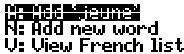
- Highlight N: Add new word and press (ENTRER), or simply press (N).

- Type a word in the current entry language.

- Press ENTRER to add the word.
- Add another word if desired.
- Press EFFAC when done.
▶ Adding Entered Words
You can also add words to your Personal word list directly from the ready screen. Type the word you want to add to your word list. Press LISTE to go to the Personal list menu, and press A to add the word. Press EFFAC when finished.
▶ Adding Highlighted Words
You can also add words to your personal word lists from definitions, and correction lists. Highlight a word and then press LISTE to go to the Personal list menu. Press A to add the word. Press EFFAC to return to the ready screen.
▶ Viewing Your List
- Press LISTE.
- Press LANG to change the entry language, if needed.
- Press ☑ to view list.
- Highlight a word on the list.
- Press ENTER to view its definition(s) or CONJ to view its inflections.
▶ Deleting a Word
- Press LISTE.
- Press ☑ to view the list.
- Highlight the word you want to delete.
- Press Ⓡ to remove that word.
▶ Erasing Your List
- Press LISTE.
- Press ☑ to view the list.
- Press Ⓔ to erase the list.
- Press Ⓨ for yes.
Highlighting a Word
You can look up most words by highlighting them within dictionary definitions. You can then find their definitions, translations, and synonyms. NOTE: By searching for a highlighted word, the entry language changes to the language of the word for which you searched.
- At any text, press ENTRER to start the highlight.
horse noun:
cheval <m>
horseback noun: --
You can turn the highlight off by pressing ARR.
- Use the arrow keys to highlight a word.
horse noun:
thewel <m>
horseback noun: --
- Do one of the following:
| To... | Press... |
| define the word | ENTRER |
| view inflections | CONJ |
| add word to Personal list | LISTE |
Sending a Word Between Books
This BOOKMAN dictionary can send words to and receive words from certain other BOOKMAN books.
To send a word, you must first install a card in your BOOKMAN, and that card must be able to send or receive words. To learn if a card can send or receive words, read its User's Guide.
- Highlight a word in this book.
-
Hold ☆ and press CARTE.
-
Highlight the other book.
-
Press ENTRER.
The word that you highlighted appears in the other book.
- Press ENTRER to look up the word.
Changing Game Settings
You can change the game settings at any time. Each setting applies to all of the games.
- Press JEUX.
- Press ENTRER or press A to adjust the settings.
Language: English Word list: Main Difficulty: Beginner
-
Use ↓ or ↑ to highlight an option.
-
Press to change settings.
▶ Understanding Settings
Language: Select the language you want to play the games with.
Word list: Choose which words you will play the games with (Main or Personal list).
Difficulty: Select the level of difficulty: Beginner, Intermediate, Advanced, TOEFL, and Expert. TOEFL means the difficulty equals that of the Test of English as a Foreign Language.
Inflected forms: Choose whether or not to use inflections among your game words.
Playing the Games
Now that you have selected the settings for the games, let's play them.
-
Press JEUX.
-
Highlight a game using the arrow keys.
H: Ho just settings B: Hangman C: Word Blaster
You can also select a game by typing the letter in front of its name.
-
Press ENTRER to select it.
-
Press ESPACE to play another round.
▶ Selecting Game Difficulty
When you select either Hangman or Word Auction ^™ , you then must choose certain options for those games. In Hangman, you must use the direction keys to choose the number of guesses allowed. In Word Auction you must use the direction keys to determine how much your bankroll will be. These options make the games more or less difficult according to the setting. The default options are at an intermediate skill level.
▶ Hangman
Hangman challenges you to guess a mystery word, indicated by ?'s, one letter at a time. As you type letters, the correct letters appear in place of the question marks, your incorrect letters appear below, and guesses remaining appear to the right. You must guess the word before you run out of tries and your man is hanged.
▶ Word Blaster™
In Word Blaster you try to guess the mystery word before all of its letters appear. As soon as you know the word, press ENTERER. Then type your guess and press ENTERER. If you're wrong, Word Blaster asks you for another word. The speed at which the letters appear is set by the skill level.
▶ Help in Games
Press AIDE while you're in a game if you need help. It will explain the game you are playing. To exit help, press ARR.
▶ Word Auction™
In Word Auction, you try to bid for all the letters of a mystery word, before your cash runs out. The amount of each bid depends on the frequency of the letter. All bids cost you whether correct or incorrect. If you guess the word, your remaining cash is added to the next round.
▶ Word Train™
All aboard the Word Train spelling game! You and the train take turns typing letters to form a word. Whoever types the last letter wins.
▶ Game Options
After you finish a round, you can do the following:
| To... | Press... |
| Play another round | ESPACE |
| View the word's definition | ENTRER |
| Play a different game | ARR |
| Go to the ready screen | EFFAC |
▶ Flashcards
Flashcards flashes words for you to define or study. To view the definition of the word, press ENTRER. Press ARR to return to Flashcards, and then press ↓ to try another word.
NOTE: These next two games test your knowledge of French words only.
▶ Gender Tutor™
Gender Tutor asks you to guess the gender of French nouns. Press M for masculine and F for feminine. Your score is shown in the top right corner of the screen.
▶ Conjumania!™
Conjumania! teaches verb conjugations. It shows you an infinitive French verb and asks you to enter a conjugation. Your conjugation must be spelled correctly, including accents. To try a new conjugation press ESPACE.
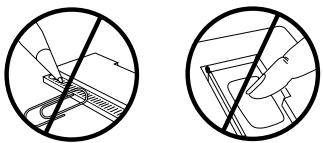
- Do not touch the metal contacts on the cards.
Caution: Touching these electrical contacts with statically charged objects, including your fingers, could erase information entered in a card or built-in book.
natural_image
Two circular diagrams showing a hand holding a device, with no text or symbols present.- Do not put excessive pressure on the cards.
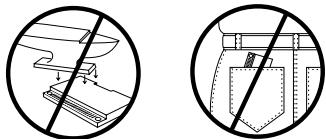
natural_image
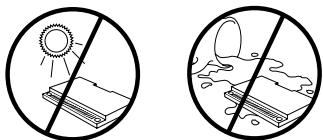
Two circular diagrams showing a crossed-out book and a bag with measurement markings (no text or symbols)- Do not expose the cards to heat, cold, or liquids.
natural_image
Two circular diagrams showing sunlight shining over a stack of books and a water droplet with bubbles (no text or symbols)If the BOOKMAN keyboard fails to respond, or if its screen performs erratically, first press EFFAC and then press ON/OFF twice. If nothing happens, follow the steps below to reset it.
Warning: Pressing the reset button with more than very light pressure may permanently disable your BOOKMAN. In addition, resetting BOOKMAN erases settings and information entered into its built-in book, and in an installed card.
- Hold EFFAC and press ON/OFF.
If nothing happens, try Step 2.
- Use a paper clip to gently press BOOKMAN's reset button.
The reset button is recessed in a pin-sized hole on the back of BOOKMAN. Look for it on the battery cover or near the card slot.
▶ Troubleshooting BOOKMAN
- Make sure your card, if any, is installed correctly.
- Check that the cartridge's metal contacts are dirt-and dust-free.
FRANKLIN warrants to you that the BOOKMAN PRODUCT will be free from defects in materials and workmanship for one year from purchase. In the case of such a defect in your BOOKMAN PRODUCT, FRANKLIN will repair or replace it without charge on return, with purchase receipt, to the dealer from which you made your purchase or Franklin Electronic Publishers, Inc., One Franklin Plaza, Burlington, NJ 08016-4907, within one year of purchase. Alternatively, FRANKLIN may, at its option, refund your purchase price.
Data contained in the BOOKMAN PRODUCT may be provided under license to FRANKLIN. FRANKLIN makes no warranty with respect to the accuracy of data in the BOOKMAN PRODUCT. No warranty is made that the BOOKMAN PRODUCT will run uninterrupted or error free. You assume all risk of any damage or loss from your use of the BOOKMAN PRODUCT.
This warranty does not apply if, in the sole discretion of FRANKLIN, the BOOKMAN PRODUCT has been tampered with, damaged by accident, abused, misused, or misapplication, or as a result of service or modification by any party, including any dealer, other than FRANKLIN. This warranty applies only to products manufactured by or for FRANKLIN. Batteries, corrosion, or battery contacts and any damage caused by batteries are not covered by this warranty. NO FRANKLIN DEALER, AGENT, OR EMPLOYEE IS AUTHORIZED TO MAKE ANY ADDITIONAL WARRANTY IN THIS REGARD OR TO MAKE ANY MODIFICATION OR EXTENSION OF THIS EXPRESS WARRANTY. THE FOREGOING WARRANTY IS EXCLUSIVE AND IS IN LIEU OF ALL OTHER EXPRESS OR IMPLIED WARRANTIES, WRITTEN OR ORAL, INCLUDING, BUT NOT LIMITED TO, WARRANTIES OF MERCHANTABILITY OR FITNESS FOR A PARTICULAR PURPOSE. YOUR SOLE AND EXCLUSIVE REMEDY SHALL BE FRANKLIN'S OBLIGATION TO REPLACE OR REFUND AS SET FORTH ABOVE IN THIS WARRANTY. Some States do not allow the exclusion of implied warranties, or limitations on how long a warranty lasts. This warranty gives you specific rights; you may also have additional rights which vary from State to State. This warranty shall not be applicable to the extent that enforcement of any provision may be prohibited by applicable law.
FRANKLIN SHALL IN NO EVENT BE LIABLE TO YOU OR TO ANY OTHER PERSON FOR ANY SPECIAL, INCIDENTAL, OR CONSEQUENTIAL DAMAGES, OR ANY OTHER INDIRECT LOSS OR DAMAGE, ARISING OUT OF YOUR PURCHASE, THE MANUFACTURE OR SALE OF THE BOOKMAN PRODUCT, THIS LICENSE, OR ANY OBLIGATION RESULTING THEREFROM OR THE USE OR PERFORMANCE OF THE BOOKMAN PRODUCT UNDER ANY LEGAL THEORY, WHETHER BREACH OF CONTRACT, TORT, STRICT LIABILITY OR ANY OTHER CAUSE OF ACTION OR PROCEEDING, WHICH DAMAGES SHALL INCLUDE, BUT NOT BE LIMITED TO, LOST PROFITS. DAMAGES ARE NOT WRITTEN PERFORM, ANY OTHER PROCESSED EXTENT PERMITTED BY LAW). FRANKLIN'S ENTIRE LIABILITY FOR ANY CLAIM OR LOSS, DAMAGE, OR EXPENSE FROM ANY SUCH CAUSE SHALL IN NO EVENT EXCEED THE PRICE PAID FOR THE BOOKMAN PRODUCT. THIS CLAUSE SHALL SURVIVE FAILURE OF AN EXCLUSIVE REMEDY. This license and warranty is governed by the laws of the United States and the State of New Jersey.
Model: BQF-440
- batteries: 2 CR-2032, 3-volt lithium
- size: 12 × 8.3 × 1.4 ~cm
• weight: 4 oz. (without batteries)
© 1987-1996 Franklin Electronic Publishers, Inc., Burlington, NJ 08016-4907 USA. All rights reserved.
© 1989 William Collins Sons & Co., Ltd.
All Rights Reserved
FCC Notice: Complies with the limits for a Class B computing device pursuant to Subpart B of part 15 of FCC Rules. Operation is subject to the following two conditions: (1) This device may not cause harmful interference; and (2) This device must accept any interference received, including interference that may cause undesired operation.
U.S. Patents 4,490,811; 4,830,618; 4,891,775; 4,982,181; 5,007,019; 5,113,340; 5,153,831; 5,203,705; 5,218,536; 5,229,936; 5,249,965; 5,295,070; 5,321,609; 5,333,313; 5,396,606 European Patent 0 136 379. Deutsch Pats. M9409743.7 and M9409744.5; U.K. Reg. Des. 2044953.
Pat. Pend.
ISBN 1-56712-294-9
FPB-28037-00
P/N 7201442
Rev A