
MWD1470 - Electronic dictionary FRANKLIN - Free user manual and instructions
Find the device manual for free MWD1470 FRANKLIN in PDF.


| Product type | Electronic dictionary |
| Brand | Franklin |
| Model | MWD1470 |
| Dimensions (approx.) | 12 x 8 x 1.5 cm |
| Weight (approx.) | 120 g (with batteries) |
| Power supply | 2 AAA batteries (not included) |
| Main functions | Merriam-Webster Dictionary, Thesaurus, Learning exercises, Games, Address book (Databank), Calculator, Converter, Currency converter, Clock |
| Display | Adjustable contrast LCD screen |
| Care and cleaning | Wipe with a soft dry cloth; do not use solvents |
| Safety | Do not disassemble, use recommended batteries, remove used batteries promptly |
| Spare parts and repairability | AAA batteries (standard); no other spare parts available; repair by manufacturer only |
| General information | Contains Merriam-Webster dictionary and thesaurus; compatible with BOOKMAN and BMC cards; serial port for PC connection (cable optional) |
Frequently Asked Questions - MWD1470 FRANKLIN
User questions about MWD1470 FRANKLIN
0 question about this device. Answer the ones you know or ask your own.
Ask a new question about this device
Download the instructions for your Electronic dictionary in PDF format for free! Find your manual MWD1470 - FRANKLIN and take your electronic device back in hand. On this page are published all the documents necessary for the use of your device. MWD1470 by FRANKLIN.
USER MANUAL MWD1470 FRANKLIN
Merriam-Webster's Dictionary & Thesaurus
User's Guide
www.franklin.com
License Agreement
READ THIS LICENSE AGREEMENT BEFORE USING THE ELECTRONIC REFERENCE. YOUR USE OF THE ELECTRONIC REFERENCE DEEMS THAT YOU ACCEPT THE TERMS OF THIS LICENSE. IF YOU DO NOT AGREE WITH THESE TERMS, YOU MAY RETURN THIS PACKAGE WITH PURCHASE RECEIPT TO THE DEALER FROM WHICH YOU PURCHASED THE ELECTRONIC REFERENCE AND YOUR PURCHASE PRICE WILL BE REFUNDED. ELECTRONIC REFERENCE means the software product and documentation found in this package and FRANKLIN means Franklin Electronic Publishers, Inc. Limited Use License
All rights in the ELECTRONIC REFERENCE remain the property of FRANKLIN. Through your purchase, FRANKLIN grants you a personal and nonexclusive license to use this ELECTRONIC REFERENCE. You may not make any copies of the ELEC
TRONIC REFERENCE or of the data stored therein, whether in electronic or print format. Such copying would be in violation of applicable copyright laws. Further, you may not modify, adapt, disassemble, decompile, translate, create derivative works of, or in any way reverse engineer the ELECTRONIC REFERENCE. You may not export or reexport, directly or indirectly, the ELECTRONIC REFERENCE without compliance with appropriate governmental regulations. The ELECTRONIC REFERENCE contains Franklin's confidential and proprietary information which you agree to take adequate steps to protect from unauthorized disclosure or use. This license is effective until terminated. This license terminates immediately without notice from FRANKLIN if you fail to comply with any provision of this license.
Key Guide
Dictionary Keys
DICT Goes to the dictionary.
THES Goes to the thesaurus.
GAMES Goes to the Games menu.
LEARN Goes to the Learning
Exercises menu.
CONF Displays Confusibles for an entry.
Organizer Keys
CLOCK Goes to the Clock.
DATA Goes to the Databank menu.
CALC Goes to the Calculator.
CONV Goes to the Converter.
CURR Goes to the Currency
Converter.
Each unlabeled key at the top of the keyboard corresponds to the function displayed at the bottom of the screen directly above that key. Press the corresponding key to perform the function you want.
Function Keys

Turns the product on or off.

Displays a help message.

In the dictionary, goes to the Word Entry screen.
Clears the Calculator. In the Converter and Databank, goes to its main menu.

Backs up, erases a letter, or turns off the highlight at an entry.

Enters a word, selects an item, or begins a highlight in an entry.

Goes to the Organizer:
Clock, Databank,
Calculator, Converter and
Currency Converter.

Displays the main menus for the dictionary.

At the Word Entry screen, types a ? to stand for a letter in a word. At a menu, displays a menu item. At a dictionary entry, displays the headword. In games, reveals the word and forfeits the game.

Shifts to type capital letters and punctuation marks.

Shifts to allow prev, next, and to type a hyphen (-) or .

Exits the book you were reading.
Combination Keys*

At a dictionary entry,

pages up or down.

At a dictionary entry, displays the next or previous entry.

Transfers a word between books.


Types a hyphen.

Types an @.

Types an apostrophe.

Types a slash.

At the Word Entry screen, types an asterisk to stand for a series of letters in a word. In games, gives a hint.
*Hold the first key while pressing the second.
Direction Keys

Move up or down (located on the side of the device).


Move left or right.
At menus and dictionary entries, pages down. At the Word Entry screen, types a space.
Using the Special Features
Your unit is equipped with several special features that many, but not all BOOKMAN book cards use. To learn if you can use the special features with a particular book card, read its User's Guide.
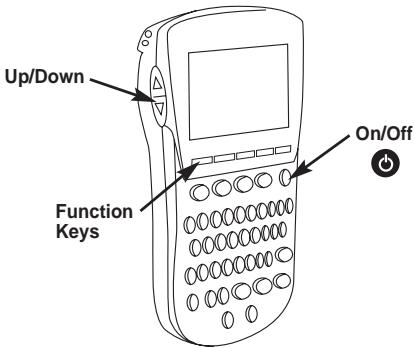
On/Off: Turns the unit on and off. Function Keys: Each of these unlabeled keys corresponds to the dictionary or organizer function that appears directly above it on the screen.
Up/Down: Scrolls up or down on line at a time, moves the highlight in the indicated direction, or moves between menu items.
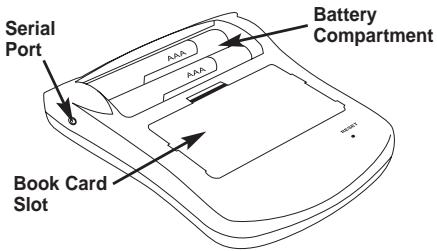
Serial Port: Plug in a serial-to-USB or serial-to-serial cable here to connect this dictionary to your PC.
Book Card Slot: The card slot is located on the back of the unit. It enables you to read electronic books purchased from www.franklin.com and is compatible with all BOOKMAN and BMC cards.
Battery Compartment: The battery compartment is located on the back of the unit. It holds two AAA batteries.
Replacing Batteries
Your product is powered by two AAA batteries. Follow these easy instructions to install or replace them.
Please have the new batteries at hand before you remove the old ones.
- Turn your product off and turn it over.
- Lift the battery cover on the back of your product by pushing up on the catch.
- Remove the old batteries.
- Install the batteries following the +/- markings in the battery compartment.
- Replace the battery cover.
Warning: If the batteries wear-out completely or if you take more than a few seconds while changing the batteries, any information that was entered in the built-in book or book
card may be erased. You should always keep written copies of your important information.
For Your Information
Follow the Arrows
The flashing arrows on the right of the screen show which arrow keys you can press to move around menus or view more text.
Help is Always at Hand
You can view a help message at any screen by pressing HELP.
Press ④ or ⑤ to read. To exit help, press BACK.
About Screen Illustrations
Some screen illustrations in this User's Guide may differ slightly from what you see on screen. This does not mean that your unit is malfunctioning.
Using the Main Menu
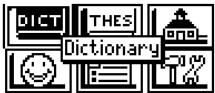
When you press MENU, you will see six icons. Use these to quickly take you to different parts of your dictionary. Use the arrow keys to highlight the icon you want and press ENTER.
Understanding the Menu

Goes to the dictionary Word Entry screen.

Goes to the thesaurus Word Entry screen.

Goes to the Learning Exercises menu.

Goes to the Games menu.

Goes to My Word List.

Goes to the Tools menu.
Viewing a demonstration or tutorial
- Press MENU.
- Use the arrow keys to highlight and press ENTER.
- Press to highlight either Tutorial or View Demo and press ENTER.
To stop the demonstration or exit from the Tutorial and go to the Word Entry screen, press CLEAR.
To go to the main menu, press MENU.
When a book card is installed in your product, select View Demo from the Setup menu to see the demonstration for that card.
Changing the Settings
When using this dictionary, you can activate the Learn a Word feature, adjust the screen contrast, the shut-off time, and the type size. The shut-off time is how long your product stays on if you forget to turn it off. Learn a Word helps you increase your vocabulary by displaying a different headword and definition each time you turn on your dictionary.
- Press MENU.
- Use the arrow keys to highlight and press ENTER.
- Settings will be highlighted. Press ENTER to select it.
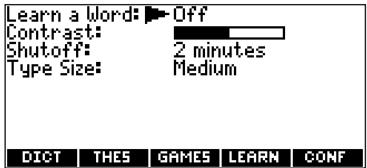
- Press or to move to Learn a Word, Contrast, Shutoff, or Type Size.
- Press or to change the setting.
Your changes are automatically saved.
- Press ENTER when done.
Finding Dictionary Entries
Press CLEAR to return to the Word Entry screen.
1. Press DICT.
Or you can press MENU, highlight [DCT], and press ENTER.
2. Type a word.
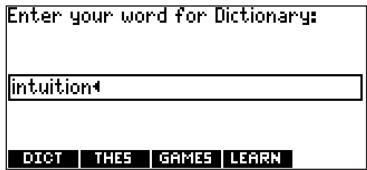
To erase a letter, press BACK. To type a capital, hold CAP and press a letter key. To type a hyphen, hold FN and press J.
3. Press ENTER to view the definition.
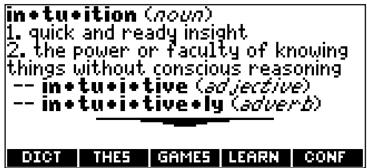
- Press or SPACE to read the definition.
- Hold FN and press ⑥ or ④ to view the next or previous definition.
- Press CLEAR when done.
Choosing Multiple Forms
Some words in this dictionary have more than one form (e.g. resume, resume). When the word you are looking up has multiple forms, the different forms appear in a list.
Simply highlight the form you want and press ENTER to see its dic
tionary entry. For example, enter resume at the Word Entry screen.
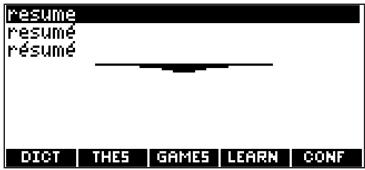
Highlight the form you want and press ENTER to see its dictionary entry. To go back to the Multiple Forms list, press BACK.
Correcting Misspellings
If you enter a misspelled word, a list of corrections appears.
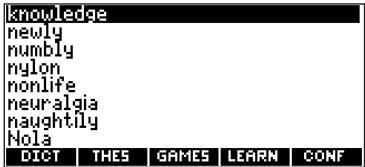
Highlight the word you want and then press ENTER to see its dictionary entry.
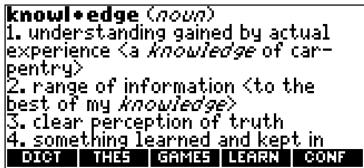
Understanding Definitions
Dictionary entries consist of headwords, parts of speech, and definitions. Other forms of the word may follow the headword. After the translation or definition, you may see a list of usage examples.
Using the Thesaurus
1. Press THES.
Or you can press MENU, highlight THES , and press ENTER.
2. Type a word.
To erase a letter, press BACK. To type a capital, hold CAP and press a letter key. To type a hyphen, hold FN and press J.
3. Press ENTER to view the the-saurus entry.
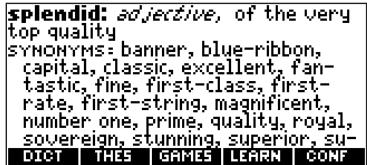
4. Press or SPACE to read the entry.
-
Hold FN and press ① or ④ to view the next or previous the-saurus entry.
-
Press CLEAR when done.
Understanding Thesaurus Entries
A thesaurus entry consists of a group of synonyms, antonyms and classmates. Synonyms are words that have similar meanings, e.g.
happy/joyous. Antonyms are words that have the opposite meaning of the word being defined, e.g.,
happy/unhappy.Classmates are words that are related in some way to the word being defined, e.g.
octagon/polygon, triangle, rectangle, pentagon....
Understanding Flashing Messages
When you first see a definition, notice the upper right corner of the screen. Often either THES or CONF (or both) will flash briefly. THES means the word you looked up has a thesaurus entry.
If you see THES flash, press THES to view the thesaurus entry.
CONF means the word you looked up has a confusable. If you see CONF flash, press CONF to view the confusables.
Understanding Confusibles
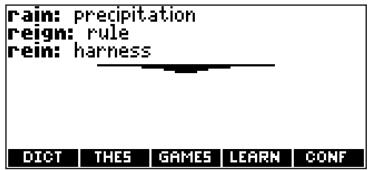
Confusibles are homonyms, homophones and spelling variants that are easy to confuse, e.g. rain, reign, rein. If the word you looked up is a confusable, CONF will flash once in the upper right of the screen. Press CONF to view the confusibles.
Highlighting Words
Another way to look up words is by highlighting them in dictionary entries, thesaurus entries or word lists. You can then find their definitions, thesaurus entries, or add them to My Word List.
- At any text, press ENTER to start the highlight.
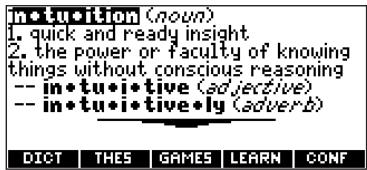
To turn the highlight off, press BACK.
- Use the arrow keys to move the highlight to the word you want.
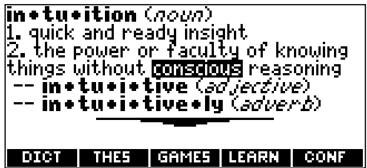
To ...
define the word
view the thesaurus
entry
add word to My
Word List
Press ...
ENTER
THES
LEARN
- Press CLEAR when done.
Finding Letters in Words
If you are uncertain about how to spell a word, type a question mark (?) in place of each unknown letter. To find prefixes, suffixes, and other parts of words, type an asterisk () in a word. Each asterisk stands for a series of letters. Note: If you type an asterisk at the beginning of a word, it may take a little while to find the matching words.
1. Press DICT.
2. Type a word with ?s and *s.
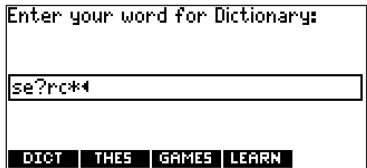
To type an asterisk, hold down CAP and press ? .
3. Press ENTER.
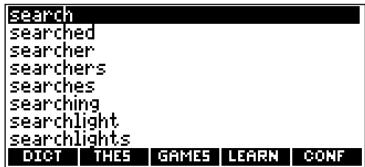
- Press to move the highlight to the word you want and press ENTER to view its definition.
- Press CLEAR when done.
Using Learning Exercises
Using Learning Exercises, you can test your spelling, improve your vocabulary, and browse a list of words that commonly appear on the Scholastic Assessment Test (SAT)*.
*SAT is a registered trademark of the College Entrance Examination Board, which was not involved in the production of, and does not endorse, this product.
Spelling Bee
1. Press LEARN.
Or you can press MENU, highlight and then press ENTER.
2. Highlight Spelling Bee and then press ENTER.
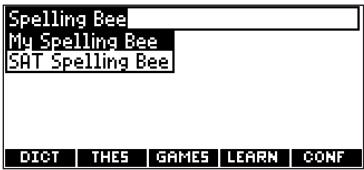
My Spelling Bee uses words on My Word List. SAT Spelling Bee uses words on the SAT Word List.
Note: Because you cannot enter accents, accented words in My Word List will not appear in My Spelling Bee.
3. Select the list you want and
press ENTER.

A word will flash on the screen for you to spell.
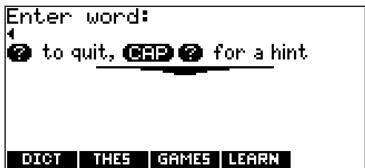
- Type in the word you just saw and press ENTER to see if you spelled it right.
-
Press ENTER to see the definition of the word or press THES to see the thesaurus entry.
-
Press SPACE for a new word.
- Press CLEAR when done.
Flashcards
- Press LEARN.
- Highlight Flashcards and then press ENTER.
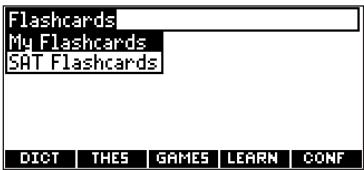
My Flashcards uses words on My Word List. SAT Flashcards uses words on the SAT Word List.
- Select the list you want and press ENTER.
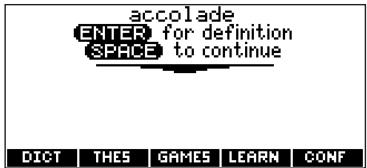
A word will appear on the screen for you to study or define. If needed, press ENTER to see the definition. Press BACK to return to Flashcards.
- Press SPACE for a new word.
- Press CLEAR when done.
SAT Word List
- Press LEARN.
- Highlight SAT Word List and then press ENTER.
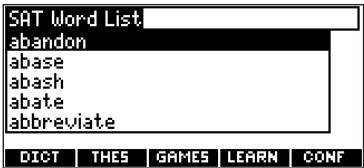
Press or to scroll through the SAT Word List. You can also type a letter to go to the first word beginning with that letter. For example, type t .
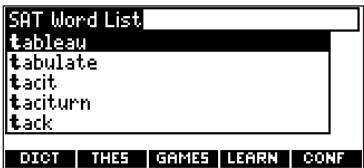
Press ENTER or THES at any word to view its definition or the-saurus entry. Press BACK to return to the list.
Using My Word List
You can save up to 40 words total in My Word List for personal study or review. The list is saved between sessions unless the batteries run out of power or your product is reset.
Adding Words from the Learning Exercises Menu
1. Press LEARN.
Or you can press MENU, highlight , press ENTER and skip to step 3.
2. Highlight My Word List and then press ENTER.
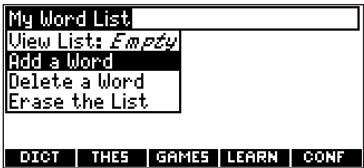
- Press or to highlight Add a Word and press ENTER.
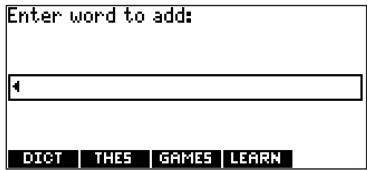
- Type a word you want to remember or use later.
- Press ENTER to add the word.
- Press CLEAR when done.