
CD-S500 - Printer CITIZEN - Free user manual and instructions
Find the device manual for free CD-S500 CITIZEN in PDF.


| Product type | Dot matrix printer |
| Brand and model | CITIZEN CD-S500 |
| Print speed | Up to 240 cps (characters per second) |
| Compatible paper widths | 76.2 mm, 69.5 mm, 57.5 mm |
| Paper types | Roll 1P, 2P (1 original + 1 copy), 3P (1 original + 2 copies) |
| Ribbon | Special cartridge IR-31: purple or black monochrome, red/black bi-color |
| Interfaces | Serial RS-232C or parallel IEEE1284 (USB optional on request) |
| Power supply | 24V AC adapter (CD-S500A) or built-in 100-240V AC (CD-S500S) |
| Power consumption | 24 W |
| Dimensions (L x W x H) | 156 x 247.7 x 132 mm (standard model) |
| Weight | 2.200 kg (standard), up to 2.450 kg with options |
| Print function | Bidirectional, 9 pins, 1/72 inch pitch |
| Carbon copy | Up to 3 layers (original + 2 copies) |
| Automatic paper cutter | Built-in (depending on model), full or partial cut |
| Rewinder | Available on CD-S503 models |
| Black mark sensor | For detection of marks on paper |
| Control panel | 1 button (FEED), 3 LEDs (POWER, PAPER OUT, ERROR), buzzer |
| User memory | 128 KB NV memory for logos, 8 KB for user settings |
| Emulations | ESC/POS, STAR, CBM |
| Operating temperature | 0 to 50 °C |
| Operating humidity | 10 to 90% RH (non-condensing) |
| Safety standards | UL, C-UL, FCC Class A, TÜV-GS, CE, CCC |
| Mounting option | Wall mounting possible with optional kit |
| Included accessories | AC adapter (depending on model), power cord, ribbon cartridge, separator, anti-slip feet, paper roll, user manual |
Frequently Asked Questions - CD-S500 CITIZEN
User questions about CD-S500 CITIZEN
0 question about this device. Answer the ones you know or ask your own.
Ask a new question about this device
Download the instructions for your Printer in PDF format for free! Find your manual CD-S500 - CITIZEN and take your electronic device back in hand. On this page are published all the documents necessary for the use of your device. CD-S500 by CITIZEN.
USER MANUAL CD-S500 CITIZEN
If you want to dispose this product, do not mix with general household waste. There is a separate collection systems for used electronics products in accordance with legislation under the WEEE Directive (Directive 2002/96/EC) and is effective only within European Union.
Ge
Features 12
Explanation of the Models 13
Checking the Accessories 15
Chapter2 Names and Functions of Parts
16
Chapter3 Preparing the Printer
Connections 20
Installation 23
Setting the Paper Near End Sensor 24
Setting the Paper Width and Printing Line Column Number 25
Installing the Ribbon Cassette 27
Installing Roll Paper 28
Operation when the cover is opened and closed 33
Chapter4 Maintenance Mode
HEXDumpMode 35
Soft SW Setting Mode 35
Initial Factory Shipping Mode 39
Cut Position Adjustment Mode 40
Error Indicators 41
Trouble Shooting 43
Chapter5 Appendixes
Specifications 44
Interface 48
COMPLIANCE STATEMENT FOR EUROPEAN USERS
CE marking shows conformity to the following criteria and provisions:
Low Voltage Directive (73/23/EEC)/EN60950-1
EMC Directive (89/336/EEC)/EN55022, EN55024, EN61000-3-2 & EN61000-3-3
FCC COMPLIANCE STATEMENT FOR AMERICAN USERS
This equipment has been tested and found to comply with the limits for a Class A digital device, pursuant to Part 15 of the FCC Rules. These limits are designed to provide reasonable protection against harmful interference when the equipment is operated in a commercial environment. This equipment generates, uses, and can radiate radio frequency energy and, if not installed and used in accordance with the instruction manual, may cause harmful interference to radio communications. Operation of this equipment in a residential area is likely to cause harmful interference in which case the user will be required to correct the interference at his own expense.
CITIZEN is a registered trade mark of CITIZEN WATCH CO., LTD., JAPAN
Company names and product names in this manual are trademarks or registered trademarks of relevant companies.
Copyright © 2005 CITIZEN SYSTEMS JAPAN CO., LTD.
EMI COMPLIANCE STATEMENT FOR CANADIAN USERS
This Class A digital apparatus complies with Canadian ICES-003.
This equipment generates and uses radio frequency energy and if not installed and used properly, that is, in strict accordance with the manufacturer's instructions, may cause interference to radio and television reception. This digital apparatus does not exceed the Class A limits for radio noise emissions from digital apparatus set out in the Radio Interference Regulations of the Canadian Department of Communications. This equipment is designed to provide reasonable protection against such interference in a residential installation. However, there is no guarantee that interference will not occur in a particular installation. If this equipment does cause interference to radio or television reception, which can be determined by turning the equipment off and on, the user is encouraged to try to correct the interference by one or more of the following measures:
- Reorient or relocate the receiving antenna.
- Increase the separation between the equipment and receiver.
- Connect the equipment into an outlet on a circuit different from that to which the receiver is connected.
- Consult the dealer or an experienced radio/TV technician for help.
CAUTION: Use shielded cables to connect this device to computers.
Any changes or modifications not expressly approved by the grantee of this device could void the user's authority to operate the equipment.
ETAT DE CONFORMITE EMI A L'USAGE DES UTILISATEURS CANADIENS
Important Safety Instructions
- Read all of these instructions and save them for later reference.
- Follow all warnings and instructions marked on the product.
- Unplug this product from the wall outlet before cleaning. Do not use liquid or aerosol cleaners. Use a damp cloth for cleaning.
- Do not use this product near water.
- Do not place this product on an unstable cart, stand or table. The product may fall, causing serious damage to the product.
- Slots and openings on the cabinet and the back or bottom are provided for ventilation. To ensure reliable operation of the product and to protect it from overheating, do not block or cover these openings. The openings should never be blocked by placing the product on a bed, sofa, rug or other similar surface. This product should never be placed near or over a radiator or heat register. This product should not be placed in a built-in installation unless proper ventilation is provided.
- This product should be operated from the type of power source indicated on the marking label. If you are not sure of the type of power available, consult your dealer or local power company.
- This product is equipped with a three-pronged plug, a plug having a third (grounding) pin. This plug will only fit into a grounding-type power outlet. This is a safety feature. If you are unable to insert the plug into the outlet, contact your electrician to replace your obsolete outlet. Do not defeat the safety purpose of the grounding-type plug.
- Do not allow anything to rest on the power cord. Do not locate this product where the cord will be walked on.
- If an extension cord is used with this product, make sure that the total of the ampere ratings on the products plugged into the extension cord do not exceed the extension cord ampere rating. Also, make sure that the total of all products plugged into the wall outlet does not exceed 15 amperes for 120V outlet and 7.5 amperes for 220V-240V outlet.
- Never push objects of any kind into this product through cabinet slots as they may touch dangerous voltage points or short out parts that could result in a risk of fire or electric shock. Never spill liquid of any kind on the product.
-
Except as explained elsewhere in this manual, don't attempt to service this product yourself. Opening and removing those covers that are marked "Do Not Remove" may expose you to dangerous voltage points or other risks. Refer all servicing on those compartments to service personnel.
-
The main plug on this equipment must be used to disconnect mains power. Please ensure that the socket outlet is installed near the equipment and shall be easily accessible.
- Unplug this product from the wall outlet and refer servicing to qualified service personnel under the following conditions:
A. When the power cord or plug is damaged or frayed.
B. If liquid has been spilled into the product.
C. If the product has been exposed to rain or water.
D. If the product does not operate normally when the operating instructions are followed. Adjust only those controls that are covered by the operating instructions since improper adjustment of other controls may result in damage and will often require extensive work by a qualified technician to restore the product to normal operation.
E. If the product has been dropped or the cabinet has been damaged.
F. If the product exhibits a distinct change in performance, indicating a need for service.
Notice
- Before use, be sure to read this manual. And keep it handy for reference when needed.
- The contents of this manual may change without prior notice.
- Reproduction, transfer, or transmission of the contents of this manual without prior consent is strictly prohibited.
- We are not liable for any damage resulting from the use of the information contained herein, regardless of errors, omissions, or misprints.
- We are not liable for any problems resulting from the use of optional products and consumable supplies other than the designated products contained herein.
- Do not handle, disassemble or repair the parts other than those specified in this manual.
- We are not liable for any damage caused by user's erroneous use of the printer and inadequate environment.
- Data residing in the printer is temporary. Therefore, all data will be lost if power is lost. We are not liable for any damage or loss of profits caused by data loss due to failures, repairs, inspections, etc.
- Please contact us if there are any mistakes or ambiguities within this manual.
- If there are missing or incorrectly collated pages in this manual, contact us to obtain a new manual.
SAFETY INSTRUCTIONS
which must be strictly observed !
- To prevent personal injury or property damage, the following shall be strictly observed.
- The degree of possible injury and damage due to incorrect use or improperly following instructions is described below.
| Warning | Indicates a situation which, if not observed and handled properly, could result in death or serious injury. |
| Caution | Indicates a situation which, if not observed and handled properly, could result in injury. |
Meaning of symbols

This symbol indicates that something must be handled carefully.

This symbol indicates something that must not be done.

This symbol indicates something that must be done.
Warning
Never perform the following. If not avoided, these may cause damage or trouble to the printer or cause the printer to overheat and release smoke and cause burns or an electrical shock. If the printer is damaged or is malfunctioning, be sure to turn the printer off immediately and remove the power cord from the outlet, then consult our service personnel.
- Do not place the printer in a poorly ventilated area, or shut off the air vent of the printer.
- Do not place the printer where chemical reactions occur, such as in laboratories or where air is mixed with salt or gas.
- Do not use a power voltage or frequency other than those specified.
- Do not plug/unplug the power cord or attach/detach the interface cable by simply grabbing the power cord or interface cable. Do not pull or carry the printer when the tension of the power cord or interface cable is increased.
- Do not drop or put foreign matter such as clips and pins into the printer. This may cause problems.
- Do not plug the power cord into an outlet with many loads.
- Do not spill drinks such as tea, coffee and juice on the printer or spray insecticide on the printer. If drink or water is spilled, first be sure to turn the power off and remove the power cord from the outlet, then consult our service personnel.
- Do not disassemble or modify the printer.
- Do not use this printer when any safety switch built into the product has been cancelled without solving the problem that activated it. If you do, there is a danger that the printer will malfunction, injuring, burning, or electrocuting you.
Discard or safely store the plastic packing bag. This bag should be kept away from children. If the bag is pulled over a child's head, it may cause suffocation.
General Precautions

Caution
- Prior to operation, read the safety instructions carefully and observe them.
- Do not drop or put foreign matter such as clips and pins into the printer. This may cause problems.
- Be careful when moving or carrying the printer. Dropping the printer may cause injury or property damage.
- If this printer is accidentally dropped, be sure to notify a service person; do not try to repair it yourself.
- Do not open the printer during printing.
- When cleaning the surface of the printer case, do not use the cloth that is soaked in thinner, trichloroethylene, benzine, ketone or similar chemicals.
- Do not use the printer where there is a lot of oil, iron particles, or dust.
- Do not spill liquids or spray insecticide on the printer.
- Do not jolt or impact to the printer by stepping on, dropping or hitting the printer.
- Operate the control panel properly. A careless, rough handling may cause problems or malfunction. Do not use such sharp-edged tool as a ballpoint pen for operation.
- Be careful of the edges of the plates so injury or property damage is possible.
- If a problem occurs during printing, stop the printer immediately and unplug the power cord from the outlet.
- When printer trouble occurs, do not try to disassemble it. Instead, consult our service personnel.
Precautions When Installing the Printer
Caution
- Prior to operation, read the safety instructions carefully and observe them.
- Do not use or store the printer near fire, excessive moisture, in direct sunlight, near an air conditioner or heater or other source of unusually humidity or excessive dust.
- Do not place the printer where chemical reactions occur, such as in a laboratory.
- Do not place the printer where air is mixed with salt or gas.
- The printer must sit on a firm, level surface where there is ample ventilation. Never allow the printer's air vent to be blocked by an object.
- Do not put anything on the top of printer.
- Do not place the printer near a radio or television, and do not use the same wall outlet for the printer and radio or television. Radio or television reception could be adversely affected.
- Do not put anything on the power cord or step on it.
- Do not drag or carry the printer with the power cord or interface cable.
- Avoid plugging the power cord into an outlet with many loads.
- Do not bundle the power cord when inserting the plug.
- Always grip the plug housing, not the cord, to plug/unplug the power cord.
- Make certain the power is turned off before connecting/disconnecting the interface cable.
- Avoid lengthening the signal cable or connecting it to any noise-producing device. If it is unavoidable, use the shielded cable or twisted pair for each signal.
- Place the printer near the outlet where the power cord can be unplugged easily to shut off power.
- Use the AC outlet that accepts a three-pronged plug. Otherwise, static electricity may be generated and there will be danger of electric shock.
- Do not carry it holding the cover.
- Doing this might break its mechanisms or cause it to malfunction.
Thank you very much for purchasing the Citizen Dot Matrix Printer CD-S500 series. This printer is a dot matrix printer developed for use with various kinds of data communication terminals, POS terminals, and kitchen printers. It can be used for a wide range of applications thanks to its rich selection of functions.
Features
- Compact design
- A paper drop in mechanism that simplifies paper loading
High speed printing to a maximum of 240cps - Multiple copy printing (original form + 2 copies)
- Input buffer available
- Black mark sensor mechanism
- Versatile printing layout using the page mode
- Logo data or text data prepared by the user can be stored in its user memory
Built-in drawer kick-out interface - Optional auto-cutter (full cut/partial cut)
- Capacity for paper with widths of 76.2/69.5/57.5mm
- Serial (RS-232C) or Parallel (IEEE and Centronics compliant) interface is available as a factory option
- Selection of functions diversified by its operation panel (Soft SW setting mode)
- Can be wall mounted (optional)
Built-in buzzer
Built-in or external AC adapter types available - Dual color printing (red/black)
Explanation of the Models
Models in this series are identified by the following model naming method.
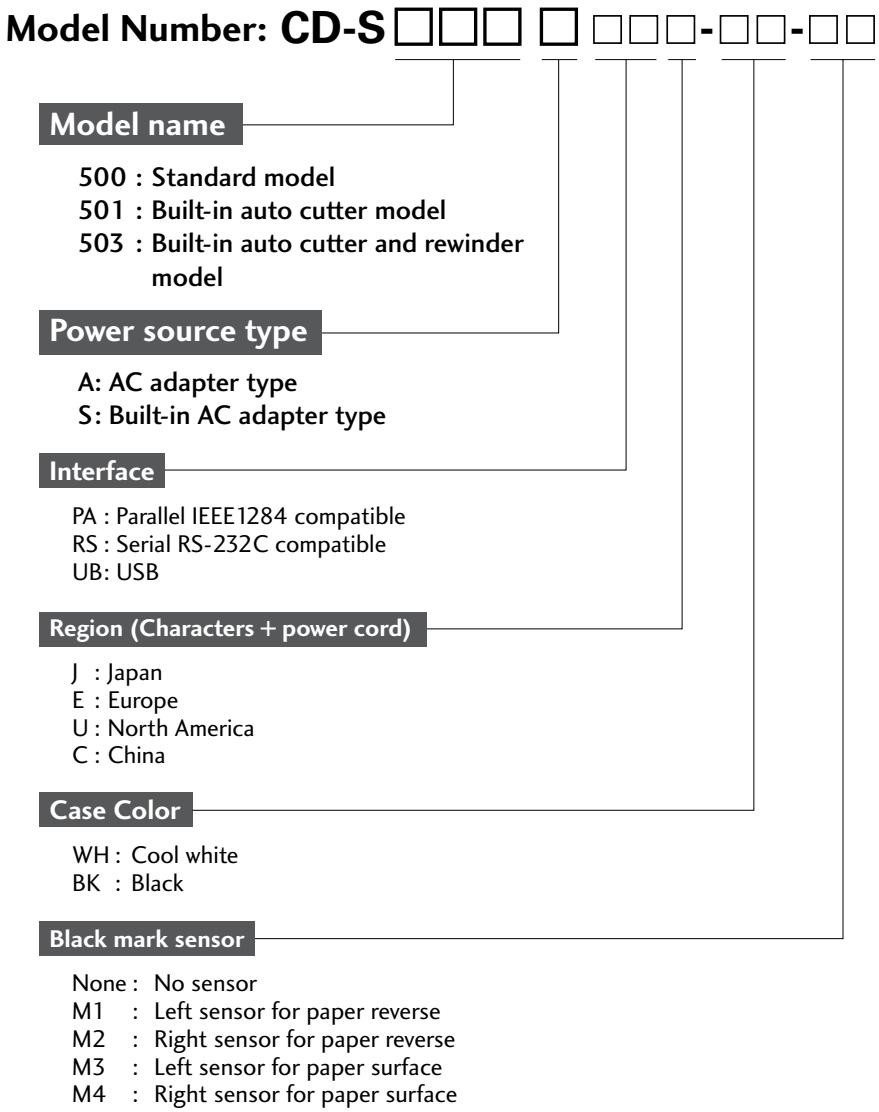
Explanation of models
Examples of models
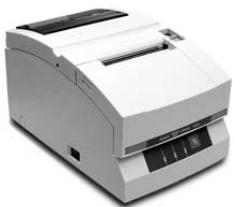
Standard model (AC Adapter type)
CD-S500A□□□-□□-□□
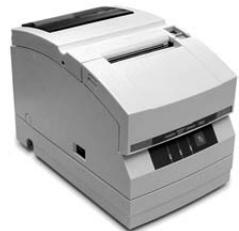
Standard model (Built-in AC adapter type)
CD-S500S□□□-□□-□□
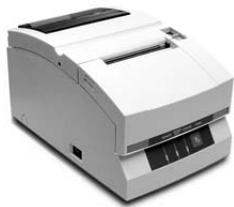
Auto cutter equipped model (AC Adapter type)
CD-S501A□□□-□□-□□
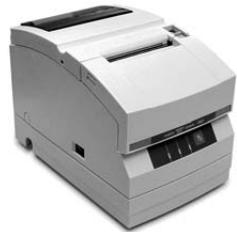
Auto cutter equipped model (Built-in AC adapter type)
CD-S501S□□□-□□-□□
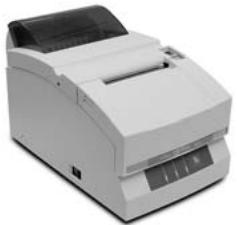
Auto cutter and rewind equipped model (AC Adapter type)
CD-S503A□□□-□□-□□

Auto cutter and rewind equipped model (Built-in AC adapter type)
CD-S503S□□-□□-□□
Checking the Accessories
Check to make sure that the following accessories are included with your printer.
Printer: 1
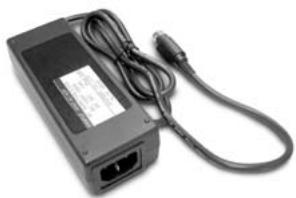
- AC adapter: 1
(CD-S500A series only)
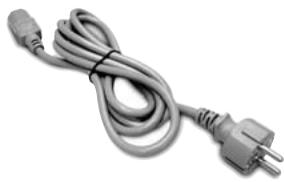
Power cord: 1
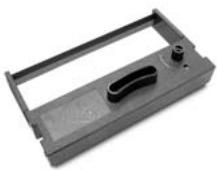
- Ribbon cassette: 1
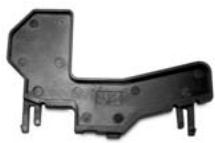
- Partition: 1
- Slip prevention rubber feet: 4
(CD-S500S and CD-S501 S only)
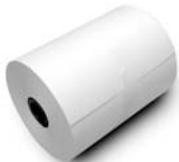
Sample roll paper: 1
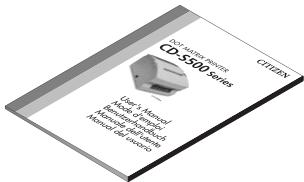
- User's Manual (this document)
■ Printer: 1
- AC adapter type
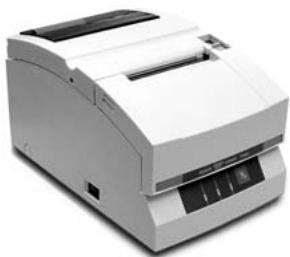
Built-in AC adapter type
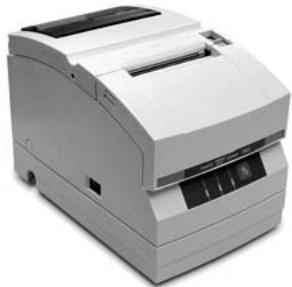
- The AC adapter is set inside the AC adapter case.
Power cord
- Ribbon cassette
- AC adapter
- Partition
Sample roll paper
- User's Manual (this document)
Names and Functions of Parts
Exterior
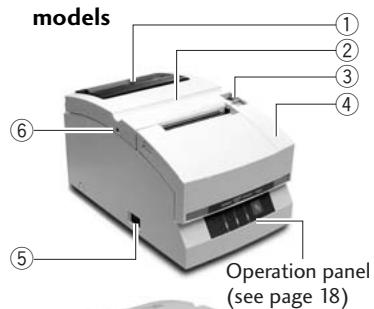
AC adapter type Standard and auto cutter equipped
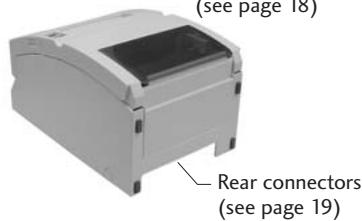
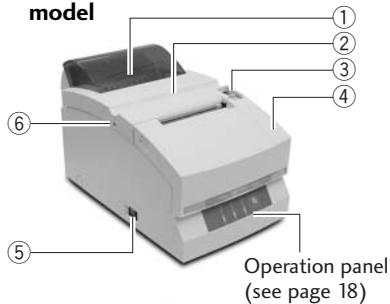
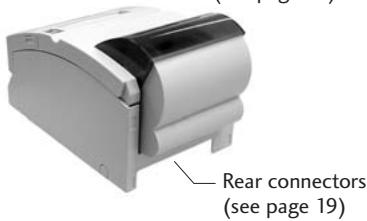
Auto cutter and rewind equipped model
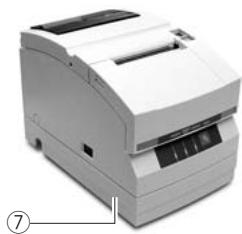
■ Built-in AC adapter type
① Paper check window It can be used to check the amount of paper left on the roll.
② Rear cover It can be opened to set or to replace a paper roll.
③ Rear cover open lever It is a lever used to open the rear cover. Pull the lever towards you to open the rear cover.
④ Front cover It can be opened to set or replace the ribbon cassette.
⑤ Power switch It turns the printer power on and off.
⑥ Cutter lock clearing screw hole When the rear cover cannot be opened because the blade of the auto cutter protrudes after a malfunction or as a result of a paper jam, turn this screw with a Phillips head screw driver to return the blade.
⑦ ACadapter case This is installed only for the built-in AC adapter type.
Interior
AC adapter type
Standard and auto cutter equipped model
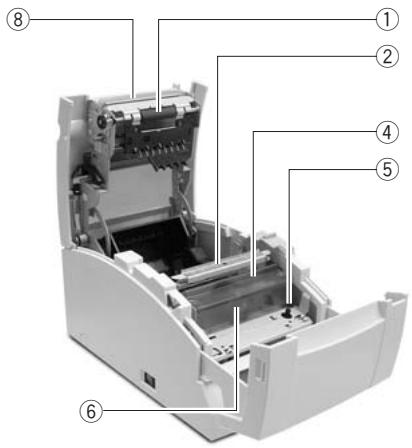
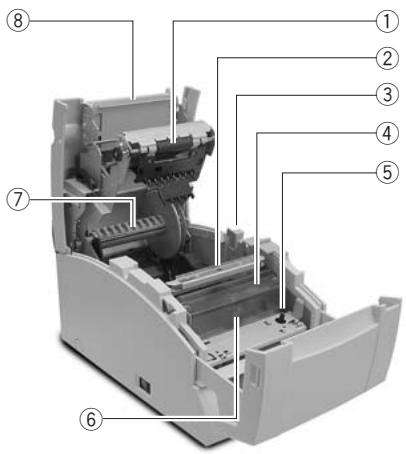
Auto cutter and rewind equipped model
① Platen unit In the standard and auto cutter equipped models, it is combined with ⑧ the auto cutter.
② Paper cut bar It is used to cut the paper manually.
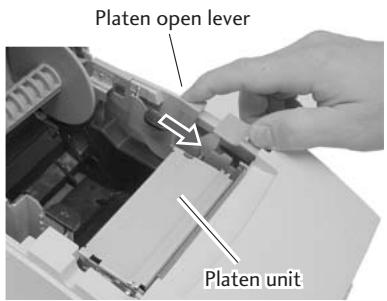
③ Platen open lever It is a lever used to open the platen unit on the rewind equipped model. Open the platen unit by pulling it towards you.
④ Print head cover
⑤ Ribbon cassette drive shaft
⑥ Print head
⑦ Rewinder shaft It rewrites the copy side of the copy roll paper.
⑧ Auto cutter unit It automatically cuts the paper after printing is completed. The cut action is set by a command in Soft SW Setting Mode.
Operation Panel
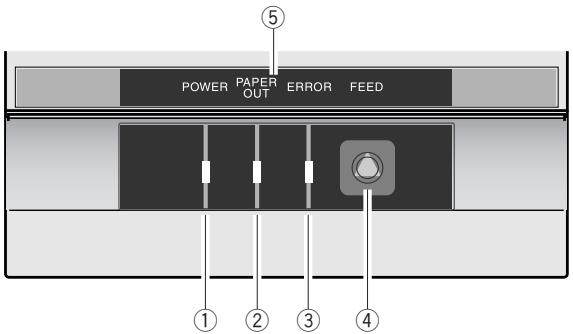
① POWER LED (Green)
It is lit when the power is supplied. When maintenance mode is set or there is an error indication, it is either lit or flashing.
② PAPER OUT LED (Orange)
It is lit in paper out status. When maintenance mode is set or there is an error indication, it is either lit or flashing.
③ ERROR LED (Orange)
It is lit when the rear cover or front cover is open. When maintenance mode is set or there is an error indication, it is either lit or flashing.
④ FEED Switch
When this switch is pressed once, paper feeds (1 line). If it is held down, paper feeds continuously until it is released. And when there is a printer error, pressing this switch can cancel the error status.
⑤ LED NAME SHEET
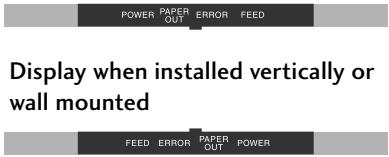
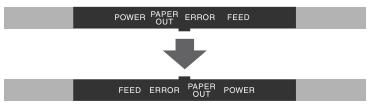
This sheet is used reversed according to the printer installation method. See Vertical Installation and Wall Mounted Installation (page 23).
Display when installed horizontally
Rear Connectors
AC adapter type
Parallel (IEEE1284) interface
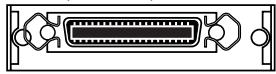
Serial (RS232C) interface
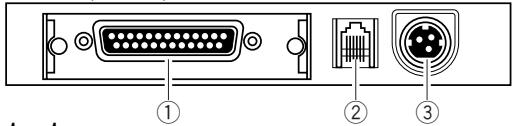
Built-in AC adapter type
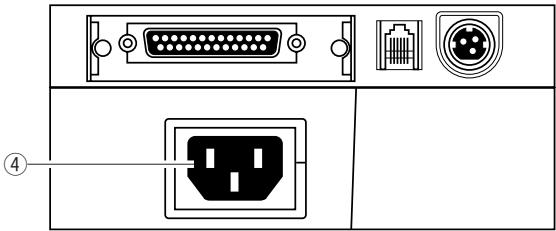
① Interface connector
It is connected to either a serial (RS232C) or parallel (IEEE1284) interface cable.
- A USB interface replaced by a serial or parallel interface will be available as a factory option.
② Drawerkickconnector
It is connected to a cable from the drawer.
③ Power source connector
It is connected to a cable from the AC adapter.
④ Power source inlet
It is connected to the power cord.
Others
Built-in Buzzer
A buzzer sounds when the FEED switch is operated and when there is an error.
The buzzer can be switched between enabled and disabled in Soft SW setting mode.
User Memory
Logo data or text data prepared by the user can be stored in memory.
This stored data remains in memory even after the power is turned off.
Connections
Connecting the Interface Cable
Turn off the power to the printer and insert the connectors being careful about their orientation.

Caution
Always hold the connector when pulling out a cable.
- Install the interface cable so that it will not be caught on your shoes etc.
- Connecting the serial (RS232C) interface cable
Make sure that you insert it firmly and fix it in place by tightening the screw.
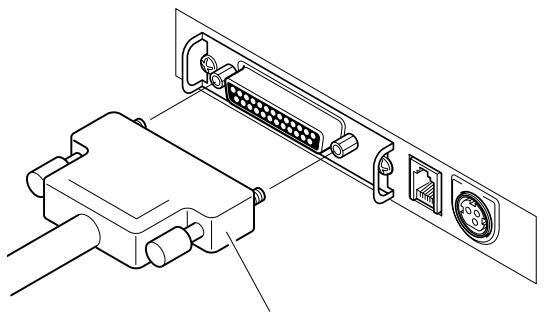
Serial (RS232C) interface cable
- Connecting the parallel (IEEE1284) interface cable
Make sure that you insert it firmly and fix it in place by turning the attachment screws in the direction shown by the arrow.
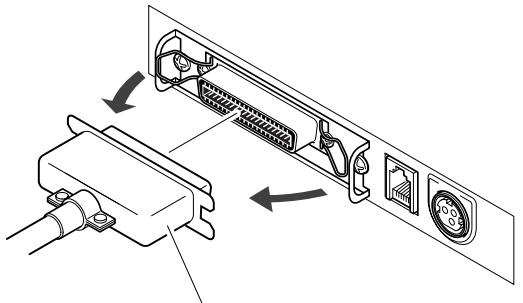
Parallel (IEEE1284) interface cable
Connecting the Printer
Match the top and bottom of the drawer kick connector with the cable terminal and insert it firmly until you hear a click.
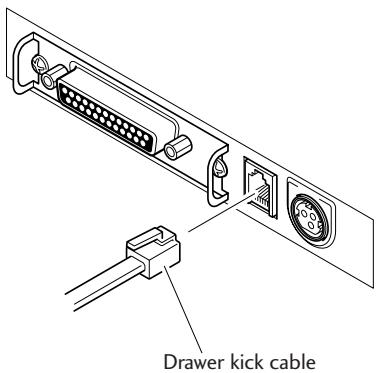

Caution
- Connect only a specialized drawer. (Do not connect a telephone line.)
- Output is impossible during printing.
- Drawer 1 and drawer 2 cannot be driven simultaneously.
- Use a drawer use solenoid that is at least 24 . Make sure that the output current is not higher than 1A. This may cause a malfunction or burn damage.
- Install the drawer kick cable so that it will not be caught on your shoes etc.
See page 48 for detailed specifications of the interfaces.
Connecting the Power
- Make sure that the printer power switch is set to OFF.
- If your printer is an AC adapter type, insert the AC adapter cable connector with its flat side upwards into the power connector on the rear surface of the printer.
If your printer is a built-in AC adapter type, insert the plug on the power cord into the AC inlet on the back surface of the printer.

Caution
- Do not use an AC adapter other than the stipulated product (Model 51AD).
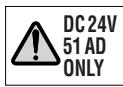
Always hold the connector when inserting or removing the cable connector of the AC adapter.
- Stretching the power cord by pulling it will damage it, causing fire, electric shocks, or a break in the conductor.
- When lightening is striking nearby, remove the plug of the power cord from the outlet. Lightening will cause fire or electric shock.
- Do not place the power cord near a heating device. The cover of the power cord will melt, causing fire or electric shock.
- When the printer will not be used for a long period, be sure to remove the plug of the power cord from the outlet to guarantee safety.
Isolate the AC power source from other devices that generate noise.
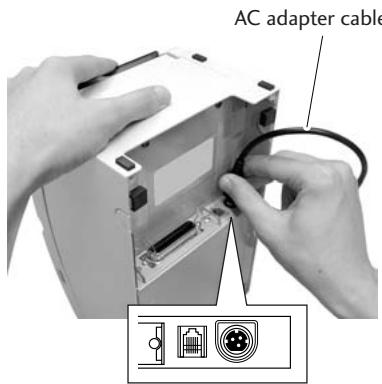
Flat side of the cable is up.
ACadapter type
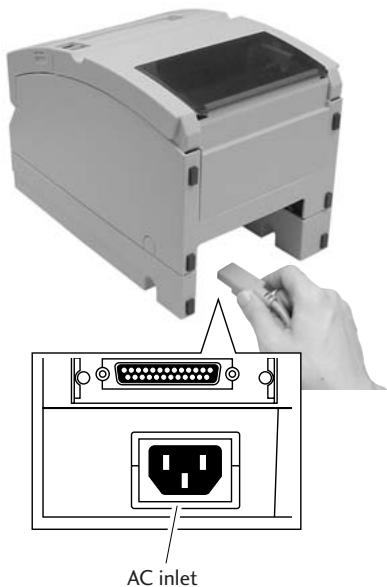
Built-in AC adapter type
Installation
This printer can be installed horizontally or vertically and can be wall mounted. But according to the model you are using, there may be restrictions on how it is installed. Refer to the following table.
| Horizontal | Vertical | Wall Mount | |
| Standard model (AC adapter type) | Yes | No | Yes*2 |
| Standard model (Built-in AC adapter type) | Yes | Yes*1 | Yes*2 |
| Auto cutter equipped model (AC adapter type) | Yes | No | Yes*2 |
| Auto cutter equipped model (Built-in AC adapter type) | Yes | Yes*1 | Yes*2 |
| Auto cutter and rewind equipped model (AC adapter type) | Yes | No | No |
| Auto cutter and rewind equipped model (Built-in AC adapter type) | Yes | No | No |
1: Accessory rubber feet must be used to prevent slipping.
2: The optional specialized wall mount unit is necessary to mount it on the wall.
Vertical installation and wall mounted installation
To install the printer vertically or wall mounted, remove the Chassis Platen L Spring used to open the rear cover. And reverse the LED name sheet on the operation panel to use it with the vertically installed and wall mounted display.
Removing the Chassis Platen L Spring
- Open the rear cover. Do this carefully, because the cover snaps open vigorously.
- Lift part A with the fingers of your right hand.
- Switch the Chassis Platen L Spring that you have raised from your right thumb to your left thumb to hook the protrusion on the end of the Chassis Platen L Spring inside part B of the printer.
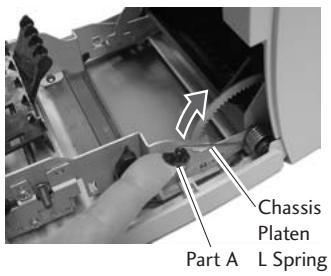

Caution
Chassis Platen L Spring with strong repulsive force is used. Be very careful that it does not slip off your finger causing an injury.

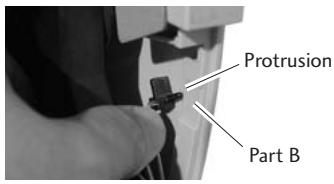
LED Name Sheet
Remove and reverse the sheet then reinsert the protruding part of the center of the sheet in the printer and push in both ends.
Setting the Paper Near End Sensor
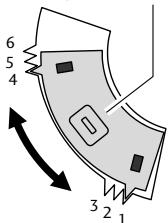
Change the sensor location according to the way the printer is installed and the interior diameter of the roll paper you are using. Referring to the following table, set it at a location suited to the usage environment by moving it to the left and right while pushing the concave part of the center of the sensor with your finger. (When shipped from the factory, it is set at 24mm .)
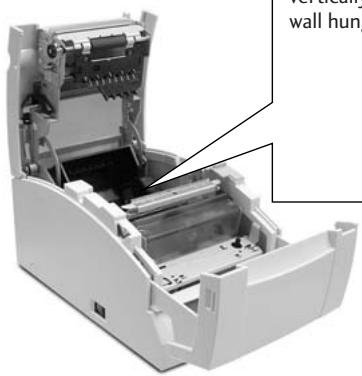
When installed vertically and wall hung
Paper near end sensor
When installed horizontally
| Installation method | Remaining roll paper (mm) | Sensor location |
| Horizontal | Approx. φ22 | 1 |
| Approx. φ24 | 2 | |
| Approx. φ27 | 3 | |
| Vertical (wall mounted) | Approx. φ27 | 4 |
| Approx. φ24 | 5 | |
| Approx. φ22 | 6 |

Caution
- The remaining roll paper (external diameter of the roll paper) differs greatly according to the type of roll paper used. Use these values only as guidelines.
- When the sensor has detected the remaining roll paper during printing, the printer stops printing after it has printed all the data that it had received.
- If you are using a model with parallel (IEEE1284) interface specifications, you can select sensor enabled/disabled in Soft SW Setting Mode.
- If you are using a model with serial (RS232C) interface specifications, it is always enabled.
Setting the Paper Width and Printing Line Column Number
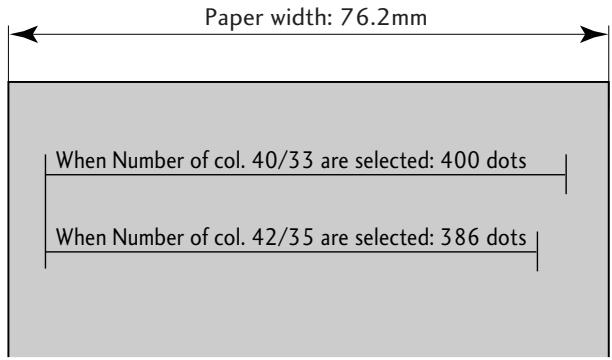
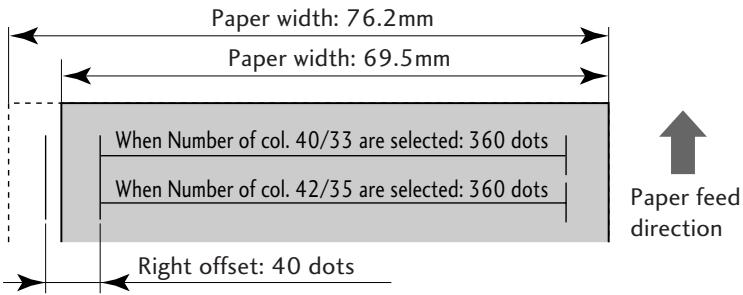
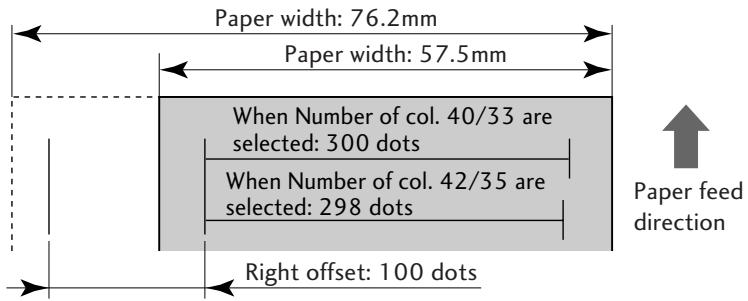
The printing dot line columns are changed as follows by setting the "Paper Width" of the roll paper used, the "Number of col." and the "Font Select" in Soft SW Setting Mode. For details about setting, see Soft SW Setting Mode (page 35).
When setting Paper Width of 76.2mm
| Soft SW Setting Mode | Space between characters | Printing line columns | Full columns | |
| Number of col. | Font Select | |||
| 40/33 | 9×9 dots | 3 dots | 33 columns | 400 dots |
| 7×9 dots | 3 dots | 40 columns | ||
| 42/35 | 9×9 dots | 2 dots | 35 columns | 386 dots |
| 7×9 dots | 2 dots | 42 columns | ||
Paper feed direction
Setting Paper Width and Printing Line Columns
When setting Paper Width of 69.5mm
| Soft SW Setting Mode | Space between characters | Printing line columns | Full columns | |
| Number of col. | Font Select | |||
| 40/33 | 9×9 dots | 3 dots | 30 columns | 360 dots |
| 7×9 dots | 3 dots | 36 columns | ||
| 42/35 | 9×9 dots | 2 dots | 32 columns | |
| 7×9 dots | 2 dots | 40 columns | ||
When setting Paper Width of 57.5mm
| Soft SW Setting Mode | Space between characters | Printing line columns | Full columns | |
| Number of col. | Font Select | |||
| 40/33 | 9×9 dots | 3 dots | 25 columns | 300 dots |
| 7×9 dots | 3 dots | 30 columns | ||
| 42/35 | 9×9 dots | 2 dots | 27 columns | 298 dots |
| 7×9 dots | 2 dots | 33 columns | ||
Installing the Ribbon Cassette
- Open the front cover of the printer. Insert your fingers into the dents at opposite ends of the front cover to open it with both hands.
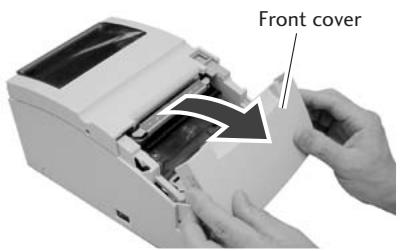
- Turn the ribbon cassette knob in the direction shown by the arrow to fully stretch the ribbon.
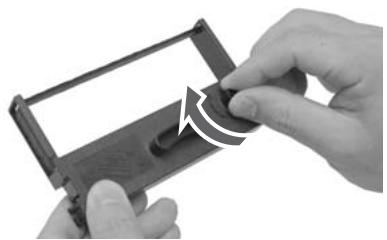
- Insert the cassette into the printer until a click is heard so that the ribbon is between the paper cut bar and the print head cover. If it difficult to insert, turn the ribbon cassette knob again.
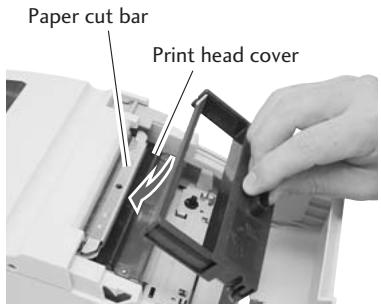
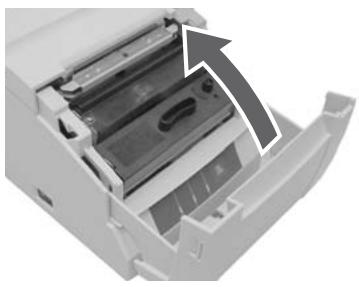
4.Close the front cover.

Be very careful not to let your hands touch the print head cover when replacing the ribbon cassette. When the
print head has become heated, there is a danger of it burning your hand.

Installing Roll Paper
The following are the types of roll paper that can be used by this printer.
Types: 1P roll paper
2P copy roll paper (1 original + 1 copy)
3P copy roll paper (1 original + 2 copies)
(2P and 3P copy roll paper are only usable on models equipped with auto cutter and rewind.)
Paper widths: 76.2 (±0.7)/69.5 (±0.6)/57.5 (±0.5)mm
Roll diameter: 30mm to 83mm
Core diameter: Interior diameter 10_-0^+2mm ,exterior diameter 27mm or less
Paper thickness: 1P 0.06 to 0.085mm
Copy paper 0.05 to 0.20mm (total thickness)
But the total thickness that can be cut is from 0.05 to 0.14mm
Standard and Auto Cutter Equipped Models
Installation method
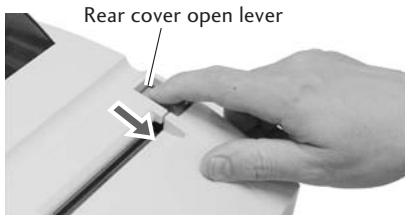
1.Pull the rear cover open lever towards you to open the rear cover.
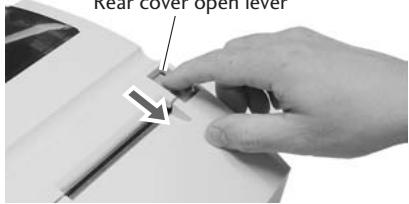
Rear cover open lever
- Set the attached partition in place if the roll paper you are using is 69.5mm wide or 57.5mm wide.
Change the paper width by changing the value set as the width using the Soft SW Setting Mode. (See page 35)
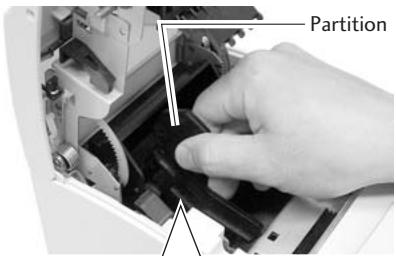

Caution
When setting the roll paper, be
careful not to cut your hand on the edge of the paper.
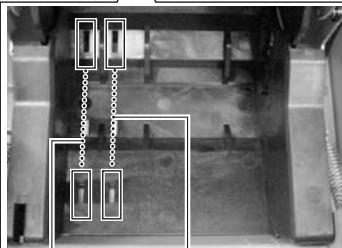
Location set for width of 57.5mm Location set for width of 69.5mm
- Place the roll paper and pull the end of the roll paper directly towards you as shown in the figure.
Hold the center of the roll paper to pull it as straight as possible so that one of the sides of the paper does not slacken.
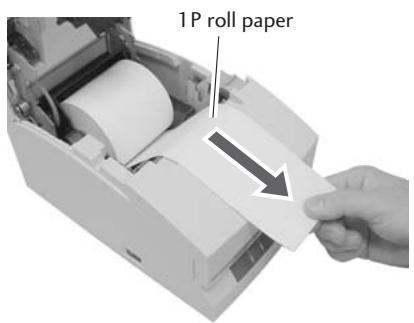
- Maintaining tension in the roll paper, firmly close the rear cover until you hear a click.
Paper feeds automatically and stops at the print start position.

Caution
Be very careful not to let the rear cover catch your hands when closing the rear cover.

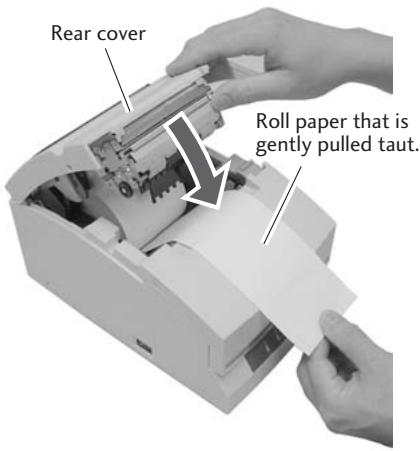
- Tear off surplus paper by holding one side of the end of the roll paper and pulling it towards you.

Caution
Do not insert any foreign objects such as a paper clip into the cutter unit.

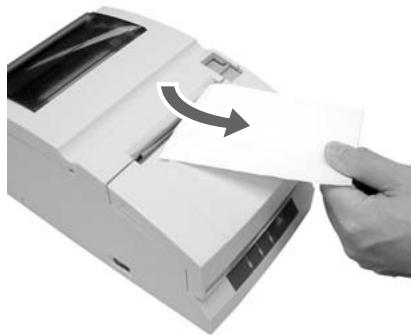
Installing Roll Paper
Auto Cutter and Rewinder Equipped Model
Installation Method
1.Pull the rear cover open lever towards you to open the rear cover.
- Then pull the platen open lever towards you to open the platen unit.
- Set the attached partition in place if the copy roll paper you are using is 69.5mm wide or 57.5mm wide. Change the paper width by changing the value set as the width using the Soft SW Setting Mode. (See page 35)

When setting the roll paper, be careful not to cut your hand on the edge of the paper.
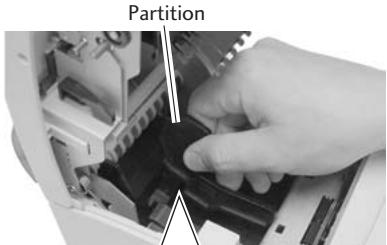
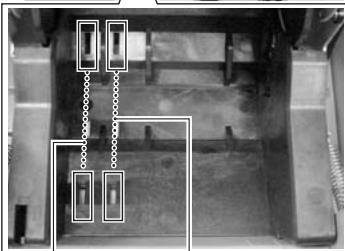
Location set for width of 57.5mm Location set for width of 69.5mm
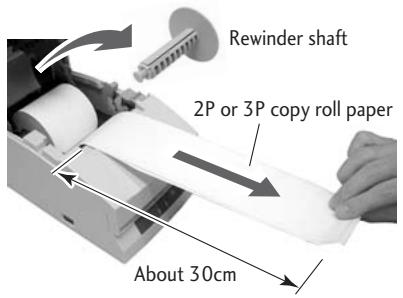
- After removing the rewind shaft, install the copy roll paper and pull the end of the roll paper straight towards you for about 30cm as shown in the figure.
Hold the center of the roll paper to pull it as straight as possible so that one of the sides of the paper does not slacken.
- Maintaining light tension in the copy roll paper, firmly close the platen unit until you hear a click.
Caution
Be very careful not to let your hands touch the blade on the paper cutter bar.
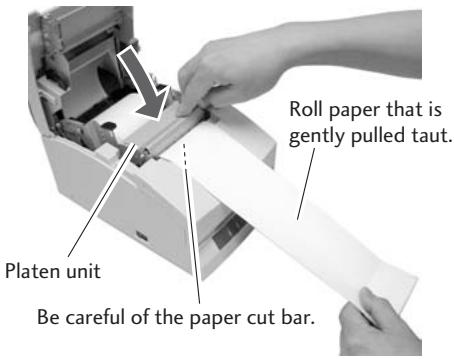
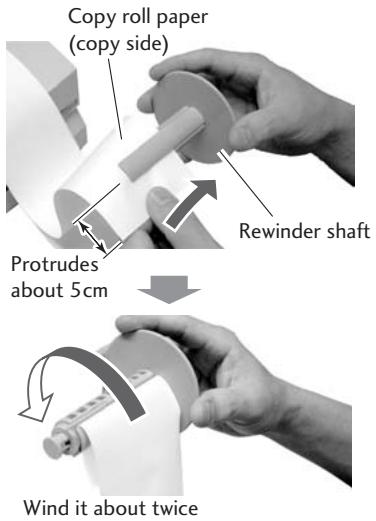
- Set one side of the copy roll paper (copy side) on the rewind shaft as shown in the figure, and tightly wind it about 2 rotations in the direction shown by the arrow.
Check to make sure that the copy roll paper rotates with the rewind shaft.
Installing roll paper
- Being careful not to let the copy roll paper set on the rewind shaft slacken, place the roll paper in the grooves on both sides.
Turn the flange on the rewind shaft in the direction shown by the arrow and make sure that the copy roll paper rotates with the rewind shaft.
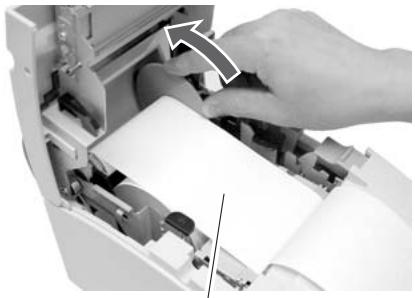
Taking up slack while checking that the copy roll paper winds.
- With the other side of the copy roll paper (original side) pulled lightly taut, close the rear cover firmly until you hear a click.
Hold the center of the roll paper to pull it as straight as possible so that one of the sides of the paper does not slacken.
Paper feeds automatically and stops at the print start position.

Caution
Be very careful not to let the rear cover catch your hands when closing the rear cover.

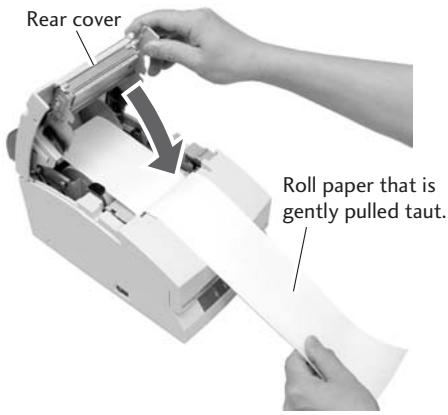
- Tear off surplus paper by holding one side of the end of the roll paper and pulling it towards you.

Caution
Do not insert any foreign objects such as a paper clip into the cutter unit.

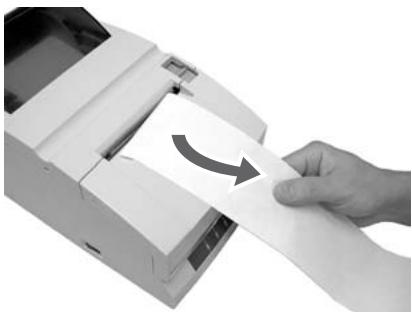
Operation when the cover is opened and closed
Operation when the front cover is opened and closed
Opening: During printing, the printing stops and if it is in red printing status, the ribbon is switched to the black ribbon status, moves to the centering location, and becomes the condition you can replace the ribbon cassette.
Closing: If it was red printing status when it was opened, the ribbon returns to red status and if there is printing data, printing restarts.
Operation when the rear cover is opened and closed
Opening: During printing, the printing stops and the ribbon moves to the centering location and remains in stand by. On models equipped with a rewind, if the cover is opened with paper set, the paper is fed forward about 1 inch then returns to the centering position.
Closing: After print operation and cut operation have been initialized, it performs paper feed check, and if there is printing data, printing restarts.

Caution
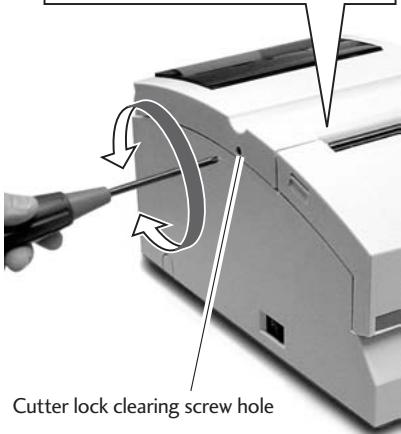
- If a cutter problem is caused by a paper jam etc., the printer may stop with the cutter blade protruding so that the rear cover cannot be opened. In this case, press the FEED switch to eliminate the cutter problem without trying to force it open. If the problem is not eliminated by pressing the switch, insert a screw driver in the hole on the left side surface of the rear cover and rotate it to manually restore the cutter blade, then open the cover. (The blade will be restored by turning it to either the left or the right.)
- Be careful of the manual paper cut bar in particular, to make sure that your fingers are not caught when opening and closing the cover.
- Opening the rear cover during printing causes malfunctions of the printer head or cutter unit. Make sure that printing has stopped before you open the rear cover.
- To close the rear cover, close it while holding the end of the paper so that the paper is not slack or bent inside the printer.
Maintenance Mode
The settings of the printer can be changed according to its usage environment in maintenance mode. And it is also possible to change their settings back to the initial factory shipping setting or to adjust the cut position after printing in this mode. And the content of the settings can be confirmed in demonstration printing mode. To change the settings in maintenance mode, print and check the present settings.
Demonstration printing mode
Setting the mode
Turning the power on while pressing the FEED switch with the front cover and the rear cover both closed starts demonstration printing mode and the "demonstration printing and the present printing settings" are printed.
Setting maintenance mode
- Set maintenance mode by turning on the power while pressing the FEED switch with the front cover open and the rear cover closed, then releasing the FEED switch.
- The POWER LED flashes as the printer enters maintenance mode. Close the front cover in this status.
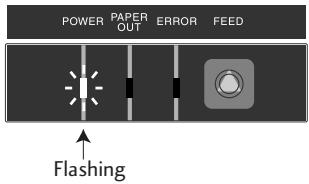
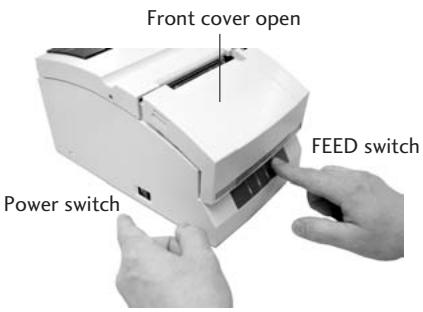
Types of maintenance mode
There are the following four types of maintenance mode.
Each mode is selected according to the number of times the FEED switch is pressed from maintenance mode.
- HEX Dump Mode: Press the FEED switch 0 times and reopen and close the front cover.
- Soft SW Setting Mode: Press the FEED switch 1 time and reopen and close the front cover.
- Initial Factory Shipping Mode: Press the FEED switch 2 times and reopen and close the front cover.
- Cut Position Adjustment Mode: Press the FEED switch 3 times and reopen and close the front cover.
HEX Dump Mode
Setting the mode
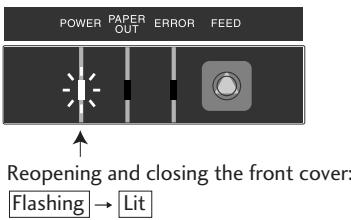
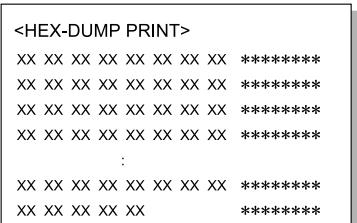
If the front cover is reopened and closed in maintenance mode (POWER LED is flashing), the POWER LED stops flashing and remains lit, and the printer enters HEX Dump Mode.
After printing the title, it stands by to receive data.
To leave HEX Dump Mode, turn off the printer power then turn the power on again with the front and rear covers both closed.
Soft SW Setting Mode
Setting the mode
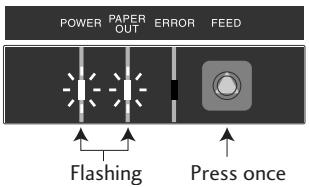
- If the FEED switch is pressed once in maintenance mode (POWER LED is flashing), the POWER LED and PAPER OUT LED start flashing.
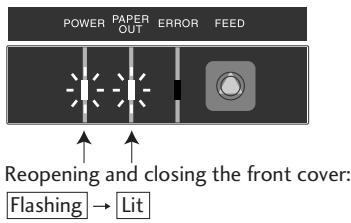
- If the front cover is reopened and closed in this status, the POWER LED and PAPER OUT LED stop flashing to and remain lit, and after the title and top items have printed, it enters Soft SW Setting Mode.
Soft SW Setting Mode
Operating method
Press the FEED switch (less than 2 seconds): The setting changes.
The present set value is changed and the same item is reprinted. (Press the FEED switch, and when the buzzer sounds once, release it.)
Pressing the FEED switch continuously (2 seconds or more):
Moves to the next item.
It prints the present set value of the next item. (Press the FEED switch, and when the buzzer sounds three times, release it.)
Opening/closing the front cover:
After saving the set values, it reprints all items from the top and returns to normal power on status.
- If the power is turned off without opening and closing the front cover, the setting change is invalid.
- If the paper runs out during the change, set the paper and close the rear cover to continue the process.
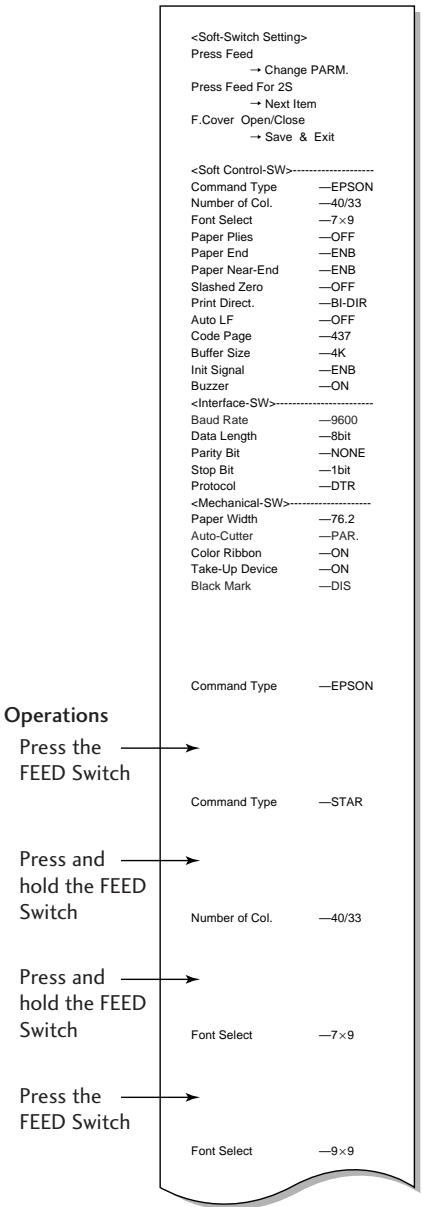
Example of a change of the Command Type to STAR and the Font Select to 9× 9
Setting Mode Table
Soft Control-SW
| Set item | Initial value | Setting value | Remarks |
| Command Type | EPSON | EPSON STAR CBM1 CBM2 | The emulation is selected from EPSON/STAR/ CBM1/CBM2. |
| Number of Col. | 40/33 | 40/33 42/35 | Number of full dot in full column is 200 dots. For the number of line columns based on the paper width, see “Setting the Paper Width and Printing Line Column Number”. |
| Font Select | 7x9 | 7x9 9x9 | The initial font size is selected immediately after the power is turned on. |
| Paper Plies | OFF | OFF 2P 3P | Copy mode is selected. OFF/2P/3P can be selected. But when 3P is set, the printing speed is low. |
| Paper End | ENB | ENB DIS | The PE signal enabled/disabled is set at paper end when only the centro-interface is set as enabled. During enabled status, BUSY, PE, FAULT are output and printing stops at paper out. During disabled status, only BUSY is output and printing stops at paper out. |
| Paper Near-End | ENB | ENB DIS | The PE signal enabled/disabled is set at paper near end when only the centro-interface is set as enabled. During enabled status, PE, FAULT are output and printing continues. During disabled status, nothing is output and printing continues. |
| Slashed Zero | OFF | OFF ON | It sets whether or not slash is used with the numeral 0 (zero). |
| Print Direct. | BI-DIR | BI-DIR UNI-DIR | Designates printing direction. When BI-DIR is selected, printing starts from the closer of the left and right ends of the next printing line from the print stop location. During UNI-DIR printing is usually done from the left end. |
| Auto LF | OFF | OFF ON | The LF operation during CR code reception is selected. When ON, LF does not operate; when OFF, LF operates. CR: Carriage Return LF: Line Feed |
| Code Page | 437 | 437, KATAKANA, 850, 860 863, 865 852, 866 857, 858 WPC1252 | The code page is selected. |
Soft SW Setting Mode
| Set item | Initial value | Setting value | Remarks |
| Buffer Size | 4k | 40byte | The receiving buffer size is selected. |
| 4Kbyte | |||
| Init Signal | ENB | ENB | Selects enabled (ENB)/disabled (DIS) of the printer initialized signal (PRIME) during centro-interface. |
| DIS | Selects enabled (ENB)/disabled (DIS) of the 25pin reset signal during serial interface. | ||
| Buzzer | ON | ON | Selects buzzer sound when an abnormality occurs as enabled (ON)/disabled (OFF). |
| OFF |
■ Interface-SW (Displayed only when the serial board is mounted)
| Set item | Initial value | Setting value | Remarks |
| Baud Rate | 9600 | 19200 | Sets the baud rate of the serial interface. |
| 9600 | |||
| 4800 | |||
| 2400 | |||
| 1200 | |||
| Data Length | 8 bit | 8 bit | Sets the character length of the serial interface. |
| 7 bit | |||
| Parity Bit | NONE | NONE | Sets the communication parity of the serial interface. |
| EVEN | |||
| ODD | |||
| Stop Bit | 1 bit | 1 bit | Sets the stop bit of the serial interface. |
| 2 bit | |||
| Protocol | DTR | DTR | |
| X-ON-OFF |
Mechanical-SW
| Set item | Initial value | Setting value | Remarks |
| Paper Width | 76.2 | 76.2 | Selects the paper size. |
| 69.5 | |||
| 57.5 | |||
| Auto-Cutter | PAR. | OFF | Selects the cutter operation. |
| FREE | When it is OFF, the FULL/PAR. commands do not start cutting. | ||
| FULL | In FREE status, cutting is done according to the FULL/PAR. commands. | ||
| PAR. | In FULL status, full cut is always done by both the FULL/PAR. commands. | ||
| In PAR status, partial cutting is always done by both the FULL/PAR. commands. | |||
| Color Ribbon | ON | ON | Selects the color function. |
| OFF | During OFF, the change color command is ignored. | ||
| Take-Up Device | ON | ON | Selects the rewind function. |
| OFF | During OFF, the rewind motor does not operate. | ||
| Black Mark | DIS | DIS | Selects enabled (TYPE1, TYPE2)/disabled (DIS) of the black mark control function. |
| TYPE1 | In TYPE1 status, auto paper length measuring operation is done and the black mark is fed to the paper cut position when the power is turned on. | ||
| TYPE2 | GS FF/FF commands are available in the status. It is used for formatting the black mark at the edge of the page. In TYPE2 status, measuring operation is not done when the power is turned on. The auto paper length paper measuring, initial paper positioning and paper cutting operations are controlled by the command from a host PC. FS(L command only is available in the status. It is used for formatting the black mark in the middle of the page. (TYPE2 status is not available in STAR and CBM1/2 modes.) |
Concerning Mechanical-SW operation
Functions that are not supported by the specifications at time of shipping have no impact on printer operation even when the settings are changed.
Examples) Items set for the Auto-Cutter in models that are not equipped with an Auto-Cutter.
Change of the setting of the Take-Up Device in models to which rewind specifications do not apply.
Concerning Auto-Cutter operation
The minimum cutting interval is 1/2 inch (3 lines with 6LPI).
Once a cut command has been executed, even if a command is sent before the paper has fed at least 1/2 inch, the cut command is ignored so the cut action cannot be executed.
Initial Factory Shipping Mode
Setting the mode
- Pressing the FEED switch twice in maintenance mode (POWER LED is flashing) causes the POWER LED, PAPER OUT LED, and the ERROR LED to begin to flash.
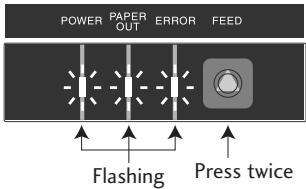
Initial Factory Shipping Mode
- Reopening and closing the front cover in this status switches the POWER LED, PAPER OUT LED, and the ERROR LED from flashing to continuously lit status.
- Pressing the FEED switch for 3 seconds or more restores settings to the factory shipping (initialized) status.
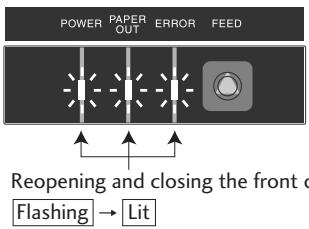
Cut Position Adjustment Mode
Setting the mode
- Pressing the FEED switch 3 times in maintenance mode (POWER LED is flashing) causes the POWER LED and the ERROR LED to begin to flash.
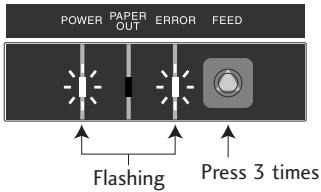
- Reopening and closing the front cover in this status switches the POWER LED and the ERROR LED from flashing to continuously lit status and enters Cut Position Adjustment Mode.
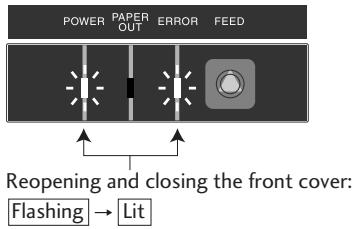
Operating Method
Pressing the FEED switch (less than 2 seconds):
The present value is changed in units of ± 1 / 144
Opening and closing the front cover:
The ± of the adjustment direction changes. Immediately after entering adjustment mode, the value is changed in the + direction. Opening then closing the front cover changes the ± of the adjusted value.
Pressing and holding the FEED Switch (2 seconds or more):
The present value is saved and the printer enters normal power on status.
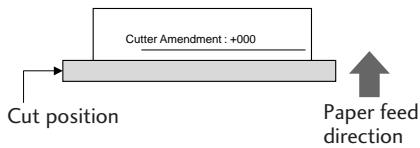
Adjustment range: -035 to +035
Initial value: +000
Error Indicators
When this printer malfunctions or jams etc., the type of problem is indicated by a buzzer and by lit or flashing LED on the operating panel.
In error status, the error indication can be cancelled by pressing the FEED switch.
Error indicator table
| Type of Error | LED indicator | Operation and restoration method | |
| Paper end | POWER PAPER OUT ERROR | Lit Lit Off | During printing, printing stops and the printer goes offline. Replace the paper and close the cover to return the printer online. |
| Paper near end | POWER PAPER OUT ERROR | Lit ○○●● Off | In centro-interface, when the Paper Near-End on the Soft SW is set as enabled, PE, FAULT are output and printing continues. When it is set as disabled, nothing is output and printing continues. |
| Rear/front cover open | POWER PAPER OUT ERROR | Lit Depends on status Lit | During printing, printing is immediately stopped and the printer goes offline. Close the cover to restore the printer to online status. |
| Head hot | POWER PAPER OUT ERROR | Lit Depends on status ○○●● | Cooling starts. After the temperature has fallen, it is automatically restored and printing restarts. The buzzer continues to sound until the error is cancelled by the FEED switch. |
| HP abnormal | POWER PAPER OUT ERROR | ○○●● ○○●● ○○●● | The printer goes offline. Remove the paper jam or other problem and press the FEED switch to restore the printer to online status. The buzzer continues to sound until the error is cancelled by the FEED switch. |
| Black mark abnormal | POWER PAPER OUT ERROR | ○○●● ○○●● ●●○○ | |
| Cutter abnormal position detection | POWER PAPER OUT ERROR | ○○●● ●●○○ ●●○○ | |
| Hardware abnormal RAM read-write | POWER PAPER OUT ERROR | Off ●○●○ ●○●○ | Turn off the power then turn it on again. If the error continues, notify the dealer where you purchased the printer or service personnel after turning off the power. |
| Hardware abnormal FROM read-write | POWER PAPER OUT ERROR | Off ○●○● ●○●○ | |
| 24V abnormal | POWER PAPER OUT ERROR | Off Off ●○●○ | |
- There are no RS232C communication error or front cover opened/closed detection indicators.
- If the buzzer setting is OFF in Soft SW Setting Mode, the buzzer does not sound.
1. Turn off the power and open the rear cover.
If the rear cover cannot be opened
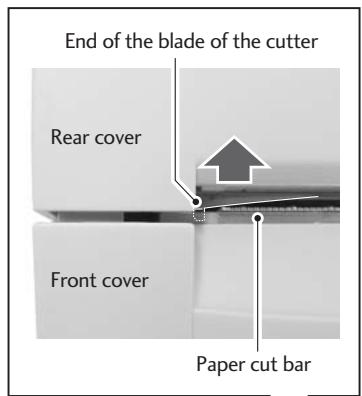
When there is a cutter problem, the printer may stop with the cutter blade protruding so that pressing the FEED switch fails to clear the error. When this happens, restore the cutter blade manually by inserting a screwdriver into the hole on the left side surface of the rear cover and rotating it, then open the cover (the blade will be restored whether you turn it to the left or right). Turn the screw driver so that the projections on both ends of the blade of the cutter are returned to the back of the printer (direction shown by the arrow).
- Remove all the jammed paper (temporarily remove the roll paper that is installed in the printer).
- Close the rear cover and turn on the power. The auto cutter operation will be initialized and the error cleared.

Caution
When removing the jammed paper, be careful not to touch the area around the print head nor the cutter blade. If you do you will be burned or cut.
Trouble Shooting
When there is trouble with this printer, take action to clear up the trouble according to the following table.
If this action does not clear up the trouble, notify the dealer where you purchased the printer or service personnel.
| Symptom | Check | Action | |
| 1 | Paper jam | Check for a jam at the paper ejection opening. If you cannot open the rear cover, do check number 2. | Remove all the jammed paper. Remove the roll paper from the printer and put it back again. |
| 2 | Rear cover does not open | Check to see if the blade of the auto cutter is protruding. | Insert a Phillips screwdriver (+) into the cutter lock cancel use feed hole on the printer and turn it clockwise or counter clockwise. (Use a #1 screwdriver.) Rotate the screwdriver while watching the paper ejection opening and stop turning it when both ends of the blade are fully retracted. (→P.42) Caution Do not try to force the rear cover to open. If you do, the printer will be damaged and you will be cut by the blade. |
| 3 | Ribbon does not feed correctly | Turn the knob on the ribbon cassette. | After turning the knob until the ribbon feeds smoothly, reset the ribbon cassette. If you cannot turn the knob, the ribbon may be jammed inside the cassette. If the situation does not improve, replace it with a new ribbon cassette. |
| 4 | The paper is not cut | Check to make sure that the rear cover and front cover are closed. | If one of the covers is open, close it. If the paper still cannot be cut after you have closed the cover, notify the dealer where you purchased the printer or service personnel. |
Specifications
| Printing mode | Serial impact dot matrix |
| Printing direction | Bi-directional |
| Head pins | 9 pins (φ: 0.3mm, Pin interval; 1/72inch) |
| Printing line columns | Paper width of 76.2mm 40/42 or 33/35 columns Paper width of 69.5mm 36/40 or 30/32 columns Paper width of 57.5mm 30/33 or 25/27 columns 200/400 dots (full dot/including half dot) |
| Font configuration | 7×9 or 9×9 dots |
| Character types | ASCII (96 characters), International characters, Katakana Code pages: 437, KatakANA, 850, 860, 863, 865, 852, 866, 857, 858, WPC1252 |
| Panel/switches | 1 switch (FEED), 3 LED (POWER/PAPER OUT/ERROR), 1 buzzer |
| Printing speed | Printing: 240CPS (3P paper 200CPS) Through-put: 76.2mm wide, 40 columns (7×9+3sp, 6LPI) 5.0LPS 69.5mm wide, 36 columns (7×9+3sp, 6LPI) 5.4LPS 57.5mm wide, 30 columns (7×9+3sp, 6LPI) 6.0LPS |
| Paper feed | Friction feed Minimum pitch: 1/144 inch Paper feed speed: 40LPS (6LPI) |
| Paper | Types: 1P roll paper 2P copy roll paper (1 original + 1 copy) 3P copy roll paper (1 original + 2 copies) * When 3P, printing speed falls 16% Paper widths: 76.2 / 69.5 / 57.5 (±0.5)mm Roll diameter: φ30mm to φ83mm Core diameter: Interior diameter φ10+2/0 mm, exterior diameter φ27mm or less Paper thickness: 1P 0.06 to 0.085mm Copy paper 0.05 to 0.20mm (total thickness) But the total thickness that can be cut is from 0.05 to 0.14mm. * No glue on the core or end of the paper. |
| Ribbon | Method: special ribbon cassette Colors: Single color (purple, black), 2 color (black and red) Life: Purple, approx. 4 million characters (continuous printing at 25°C) Black, approx. 3 million characters (continuous printing at 25°C) Red/black, black 1.5 million characters, Red 750,000 characters |
| Interface | Standard model: 2 models, either RS232C or IEEE1284 |
| Emulation | ESC/POS (Page mode) CBM mode, STAR mode |
| Data buffer | Receiving buffer: 40 or 4K bytes NV bit image: 128K bytes User NV memory: 8K |
| Features | Paper-drop-in style Auto cutter function (full cut/partial cut) Rewinder function Black mark sheet compatible Copy (2P/3P) paper compatible DKD (Drawer Kick Driver) function ASB (Auto Status Back) function |
| Power | CD-S500A type Input: DC24V, 1.0A CD-S500S type Input: AC100V-240V, 0.55A-0.35A, 50/60 Hz Power consumption: 24W |
| External dimensions | Standard model: 156(W) x 247.7(D) x 132(H) mm 156 AC adapter and rewind equipped model: 156(W) x 277.7(D) x 196.7(H) mm 156 277.7 |
Specifications
| Printer weight | Standard model: 2.20kg Auto cutter equipped model: 2.30kg Auto cutter and rewind equipped model: 2.45kg But these exclude the AC adapter, AC case, ribbon, and paper. |
| Environmental conditions | During operation: Temperature 0 to 50°C Humidity 10 to 90%RH (no condensation) During storage: Temperature -20 to 70°C Humidity 5 to 90%RH (no condensation) |
| Relative humidity (%) | |
| 0 35 50 Environmental temperature (°C) | |
| Durability | 7.5 million lines (MCBF) Head lifetime 150 million characters Cutter lifetime 1 million cuts |
| Applicable standard | UL, C-UL, FCC Class A, TÜV-GS, CE Marking, CCC |
Ribbon Cassette
| Cassette shape | Single color specification, color (purple) : IR-31P color (black) : IR-31B Two color specification, colors (red/black) : IR-31RB |
| Lifetime | Single color specification, color (purple) : approx. 4 million characters color (black) : approx. 3 million characters Two color specification, colors (red/black): red approx. 750,000 characters/black approx. 1.5 million characters |
Be sure to use a recommended ribbon cassette in order to maintain printing quality and stabilize printer operation.
Paper
Use the following printing paper in order to maintain printing quality and stabilize paper feeding.
| Roll paper | Paper width: 76.2±0.7mm (3±1/36 inch) 69.5±0.6mm (3±1/36 inch) 57.5±0.5mm (2.26±0.02inch) |
| Roll diameter: φ30mm to φ83mm | |
| Core diameter: Interior diameter φ10+2-0 mm, exterior diameter φ27mm or less | |
| Paper thickness: 0.06 to 0.085mm | |
| Weight: 52.3 to 64.0 g/m2(JIS P8124) (45 to 55kg/1,000 sheets/788mm x 1,091mm) | |
| Recommended paper: Register paper (Oji Paper Co., Ltd.) or equivalent | |
| Pressure sensitive paper | Non-carbon 2P/3P paper, 1 original + 1 copy /2 copies |
| Paper width: 76.2±0.7mm (3±1/36 inch) 69.5±0.6mm (3±1/36 inch) 57.5±0.5mm (2.26±0.02 inch) | |
| Roll diameter: φ30mm to φ83mm | |
| Core diameter: Interior diameter φ10+2-0 mm, exterior diameter φ27mm or less | |
| Paper thickness: 0.05 to 0.20mm | |
| But the total thickness that can be cut is from 0.05 to 0.14mm. | |
| Recommended paper: 2P NCR Super (Mitsubishi Paper Mills Limited) (prints in blue) or equivalent |
Cautions concerning the roll paper
Starting to wind the roll paper (interior end) processing (with center core)
- It must not be folded and its internal diameter must be even.
It must not be rolled back. - There must be no glue on its center core.
It must be wound with its printing side facing outwards. - When it is 2P paper, there must be no glue between the top and bottom sheets.
- In the case of 3P paper, there must be no glue on the top, middle, or bottom papers.
- Use pressure sensitive paper with total thickness no greater than 0.20mm and remember that the printer will not cut paper with total thickness greater than 0.14mm .
If you use pressure sensitive paper with total thickness greater than 0.14mm , either do not use the cutter or else rewind the bottom paper with the rewind to reduce the total thickness (top paper + middle paper) to 0.14mm or less.
Interface
Serial (RS232C) interface
Pin assignment
| PIN No. | Signal Name | Direction | Function |
| 1 | FG | - | Frame ground |
| 2 | TXD | Output | Data transmission |
| 3 | RXD | Input | Data reception |
| 4 | RTS | Output | Same as DTR (20pin) |
| 6 | DSR | Input | Host reception enabled status HIGH-READY/LOW-NOT READY [During DTR/RTS control] The printer transmits data after it is confirmed that DSR is high. (But transmission by DLE EOT, GS a) [During XON/XOFF control] Printer does not confirm DSR. |
| 7 | SG | - | Signal ground |
| 20 | DTR | Output | Printer READY/BUSY status HIGH-READY/LOW-BUSY [During DTR/RTS control] When the printer is in reception enabled status, it is READY, when it is reception disabled, it is BUSY. |
| Printer status | |||
| 1) BUSY until completion of initial settings when the power is turned on | |||
| 2) BUSY in normal OFFLINE status | |||
| 3) BUSY in OFFLINE status during PE | |||
| 4) BUSY in OFFLINE status when other errors occur | |||
| 5) BUSY when the reception buffer is full | |||
| 6) BUSY during Self-Print | |||
| [During XON/XOFF control] Always HIGH-READY except under the following conditions 1) Until completion of initial settings when the power is turned on 2) During Self-Print | |||
| 25 | INIT | Input | Printer RESET (1 ms or more is higher) |
Buffer Full Control
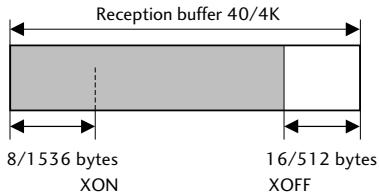
Overrun/Buffer size: 16/512 bytes
XOFF cancel size: 8/1536 bytes
■ Connection with HOST
| Printer D-Sub25P | Host D-Sub9P | |||
| 1 | FG | 1 | DCD | |
| 2 | TxD | 3 | TxD | |
| 3 | RxD | 2 | RxD | |
| 20 | DTR | 4 | DTR | |
| 6 | DSR | 6 | DSR | |
| 4 | RTS | 7 | RTS | |
| 5 | CTS | 8 | CTS | |
| 7 | SG | 5 | GD | |
| 25 | RESET | 9 | RI/RESET | |
Parallel (IEEE1284) Interface
Pin assignment
| PIN No. | Direction | Function | ||
| Compatibility Mode | Nibble Mode | Byte Mode | ||
| 1 | Input | *Strobe | HostCLK | HostCLK |
| 2 | Input/Output | Data0 | Data0 | Data0 |
| 3 | Input/Output | Data1 | Data1 | Data1 |
| 4 | Input/Output | Data2 | Data2 | Data2 |
| 5 | Input/Output | Data3 | Data3 | Data3 |
| 6 | Input/Output | Data4 | Data4 | Data4 |
| 7 | Input/Output | Data5 | Data5 | Data5 |
| 8 | Input/Output | Data6 | Data6 | Data6 |
| 9 | Input/Output | Data7 | Data7 | Data7 |
| 10 | Output | *ACK | PtrCLK | PtrCLK |
| 11 | Output | BUSY | PtrBUSY/Data3,7 | PtrBUSY |
| 12 | Output | PE | AckDataReq/Data2,6 | AckDataReq |
| 13 | Output | SELECT | Xflag/Data1,5 | Xflag |
| 14 | Input | *AutoFeed | HostBUSY | HostBUSY |
| 15 | - | (NC) | (ND) | (ND) |
| 16 | - | GND | GND | GND |
| 17 | - | FG | FG | FG |
| 18 | Output | Logic-H | Logic-H | Logic-H |
| 19–30 | - | GND | GND | GND |
| 31 | Input | *INIT | *INIT | *INIT |
| 32 | Output | *FAULT | *DataAvail/Data0,4 | *DataAvail |
| 33 | - | GND | (ND) | (ND) |
| 34 | Output | DK_STATUS | (ND) | (ND) |
| 35 | Output | +5V | (ND) | (ND) |
| 36 | Input | *Select-in | 1284-Active | 1284-Active |
*: Active Low
Data Reception Timing
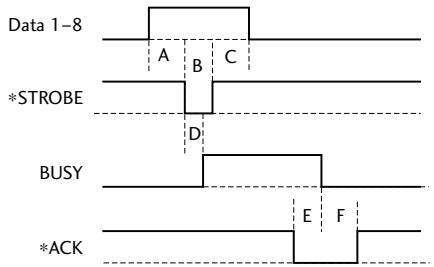
A:MIN.1us
B:MIN.1us
C:MIN.1us
D:MAX.1μs
E: Approx. 3.2μs
F:Approx. 3.2 s
Parallel (IEEE1284) Interface
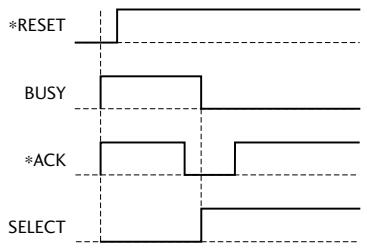
Timing when power is on
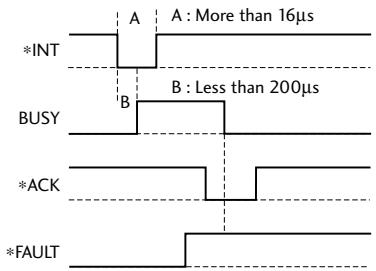
■ INIT signal timing
Drawer Kick-Out Interface
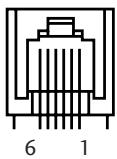
Pin assignment
| PIN No. | Direction | Function |
| 1 | - | Frame GND |
| 2 | Output | Drawer Kick-out Signal 1 |
| 3 | Input | Drawer Open/Close |
| 4 | - | +24V |
| 5 | Output | Drawer Kick-out Signal 2 |
| 6 | - | Signal GND |
The ESC pm t1 t2 commands select either Printer Kick-out Signal 1 or 2 to set the pulse time.
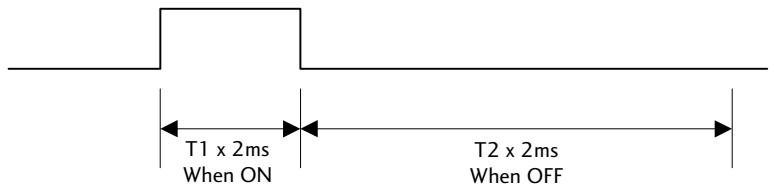
Note:
- T2 (when OFF) ≥ T1 (when ON) × 4 is satisfied.
- The maximum amperage at +24V is up to 1A. When connected to one that exceeds 1A, the printer and connected equipment may be damaged.
FRANÇAIS
Table des matières
ETAT DE CONFORMITE A L'USED DES UTILISATEURS EUROPEENS 3
Authorized representative in Europe :
Citizen Systems Europe GmbH
Mettinger Strasse 11
D-73728, Esslingen
Germany
- Ge
- Chapter2 Names and Functions of Parts
- Chapter3 Preparing the Printer
- Chapter4 Maintenance Mode
- Chapter5 Appendixes
- COMPLIANCE STATEMENT FOR EUROPEAN USERS
- FCC COMPLIANCE STATEMENT FOR AMERICAN USERS
- EMI COMPLIANCE STATEMENT FOR CANADIAN USERS
- This Class A digital apparatus complies with Canadian ICES-003.
- ETAT DE CONFORMITE EMI A L'USAGE DES UTILISATEURS CANADIENS
- Important Safety Instructions
- Notice
- SAFETY INSTRUCTIONS
- which must be strictly observed !
- Meaning of symbols
- Warning
- General Precautions
- Caution
- Precautions When Installing the Printer
- Features
- Explanation of the Models
- Explanation of models
- Examples of models
- Checking the Accessories
- ■ Printer: 1
- Names and Functions of Parts
- Exterior
- Interior
- AC adapter type
- Operation Panel
- Rear Connectors
- Built-in AC adapter type
- Others
- Built-in Buzzer
- User Memory
- Connections
- Connecting the Interface Cable
- - Connecting the serial (RS232C) interface cable
- - Connecting the parallel (IEEE1284) interface cable
- Connecting the Printer
- Connecting the Power
- Installation
- Vertical installation and wall mounted installation
- Removing the Chassis Platen L Spring
- LED Name Sheet
- Setting the Paper Near End Sensor
- Setting the Paper Width and Printing Line Column Number
- Setting Paper Width and Printing Line Columns
- When setting Paper Width of 69.5mm
- When setting Paper Width of 57.5mm
- Installing the Ribbon Cassette
- Installing Roll Paper
- Standard and Auto Cutter Equipped Models
- Installation method
- Auto Cutter and Rewinder Equipped Model
- Operation when the cover is opened and closed
- Operation when the front cover is opened and closed
- Operation when the rear cover is opened and closed
- Maintenance Mode
- Demonstration printing mode
- Setting the mode
- Setting maintenance mode
- Types of maintenance mode
- HEX Dump Mode
- Soft SW Setting Mode
- Operating method
- Setting Mode Table
- Concerning Mechanical-SW operation
- Concerning Auto-Cutter operation
- Initial Factory Shipping Mode
- Cut Position Adjustment Mode
- Error Indicators
- Error indicator table
- Turn off the power and open the rear cover.
- If the rear cover cannot be opened
- Trouble Shooting
- Paper
- Cautions concerning the roll paper
- Interface
- Serial (RS232C) interface
- Pin assignment
- Buffer Full Control
- ■ Connection with HOST
- Parallel (IEEE1284) Interface
- Data Reception Timing
- Drawer Kick-Out Interface
- Note:
- FRANÇAIS
- Table des matières
Brand : CITIZEN
Model : CD-S500
Category : Printer