
TK-1601R - Network switch TRENDNET - Free user manual and instructions
Find the device manual for free TK-1601R TRENDNET in PDF.


User questions about TK-1601R TRENDNET
0 question about this device. Answer the ones you know or ask your own.
Ask a new question about this device
Download the instructions for your Network switch in PDF format for free! Find your manual TK-1601R - TRENDNET and take your electronic device back in hand. On this page are published all the documents necessary for the use of your device. TK-1601R by TRENDNET.
USER MANUAL TK-1601R TRENDNET
1.Before You Start 1
2.How to Install 2
3. Operation 4
Technical Specifications 7
Troubleshooting 8
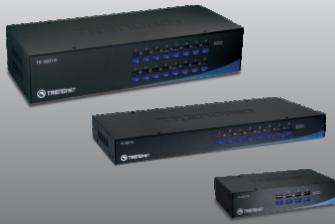
Package Contents
TK-401R/TK-801R/TK-1601R
Multi-Language Quick Installation Guide
- Rack mount kit
- AC Power Adapter (9V DC, 1A) (TK-801R/TK-1601R)
System Requirements
- PS/2 Keyboard
PS/2 Mouse
VGA Compatible Monitor - PS/2 KVM cables (e.g. TK-C06, TK-C10, TK-C15)
- Windows 98SE/ME/2000/XP/2003 Server/Vista, Linux, Unix
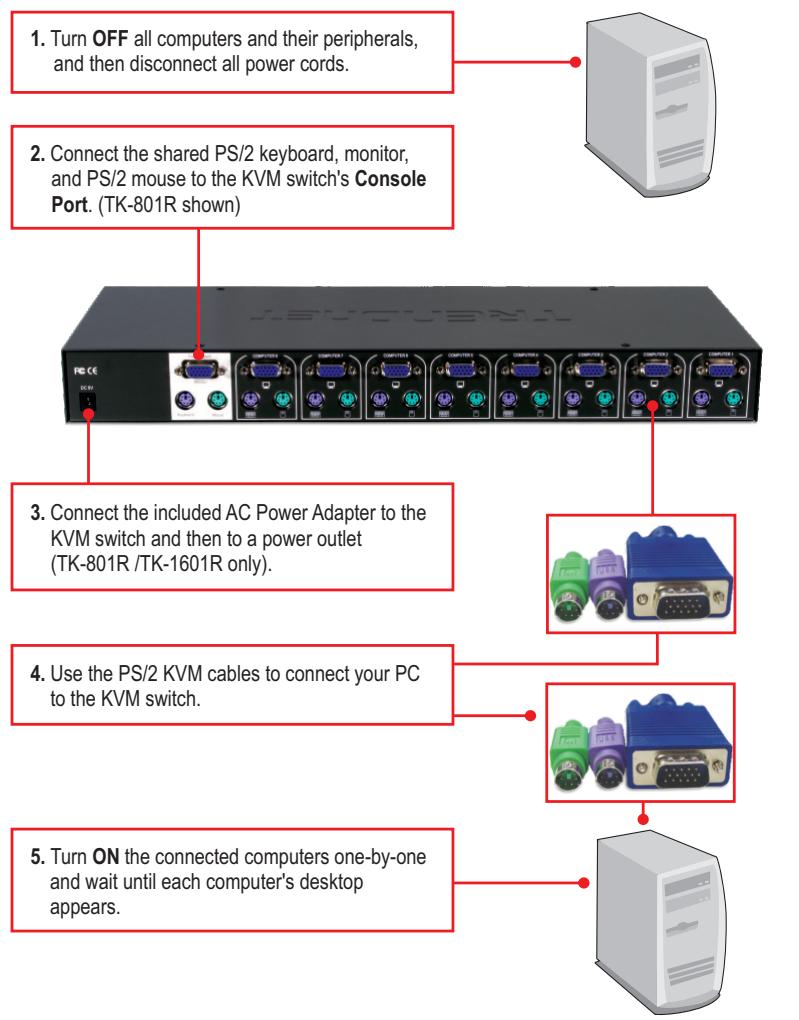
PC1,2,3,4 (TK-401R)
PC 1,2,3,4,5,6,7,8 (TK-801R)
PC1,2,3,4,5,6,7,8,9,10,11,12
13, 14, 15, 16 (TK-1601R)
Rack Mount
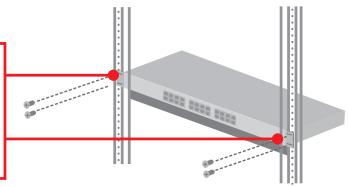
The KVM Switch can be mounted in an EIA standard-size, 19-inch rack, which can be placed in a wiring closet with other equipment.
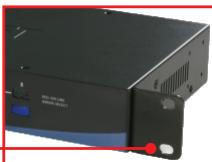
Note: If you would like to mount the KVM switch to a EIA 19" equipment rack, install the included mounting brackets to the sides of the KVM switch, secure them with the screws provided, and then mount the KVM switch to the equipment rack with the hardware provided by the equipment rack manufacturer.
- Attach the mounting brackets to both sides of the KVM switch and secure them with the provided screws.
- Carefully position the KVM switch onto the rack. Align the bracket to the screw holes on the rack, then use the screws provided with the equipment rack to mount the KVM switch.
Your installation is now complete.
Register Your Product
To ensure the highest level of customer service and support, please take a moment to register your product Online at: www.trendnet.com/register Thank you for choosing TRENDnet.
Note: To switch between computers, you can use the front-panel push buttons or the Hot Key commands.
LED Indicators
Red LED light: KVM cable is connected and PC is powering the KVM switch.
Green LED light: Indicates the selected PC port is active, whether the computer is turned on or off.
Green LED flash: The selected PC port is in scan mode or is not powered by the PC
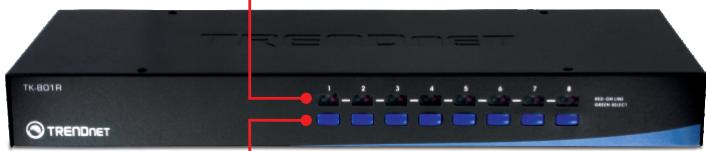
Push Buttons
Press the push buttons to switch between computers.
Hot Key Commands
A keyboard hot key command consists of three keystrokes:
Hot Key command = Scroll Lock + Scroll Lock + Command key(s)
After pressing the Scroll Lock key, you have 2 seconds to press the Scroll Lock key again. You then have another 2 seconds to press a command key. A beep confirms that the KVM switch is in "Hot Key" mode. If you do not press a key within 2 seconds, the switch will exit hot key mode.
To select a specific PC port:
For TK-401R
$$ Y = \text {P o r t n u m b e r 1 - 4} \quad \boxed {\text {S c r o l l L o c k}} + \boxed {\text {S c r o l l L o c k}} + \boxed {Y} $$
For example, to Select Port 1 on the KVM switch you hit the following key sequence
$$ \boxed {\text {S c r o l l L o c k}} + \boxed {\text {S c r o l l L o c k}} + \boxed {1} $$
For TK-801R/TK-1601R
$$ \boxed {\text {S c r o l l L o c k}} + \boxed {\text {S c r o l l L o c k}} + \boxed {\mathsf {Y}} + \boxed {\mathsf {Z}} $$
Y Z = Port number 01-08 (TK-801R) or Port number 01-16 (TK-160R)
For example, to select Port 1 or Port 10 on the KVM Switch, you hit the following key sequence
$$ \text {S e l e c t} 1 = \boxed {\text {S c r o l l L o c k}} + \boxed {\text {S c r o l l L o c k}} + \boxed {0} + \boxed {1} $$
$$ \text {S e l e c t} 1 0 = \boxed {\text {S c r o l l L o c k}} + \boxed {\text {S c r o l l L o c k}} + \boxed {1} + \boxed {0} $$
For a list of all the Hot Key commands, please see the Quick Reference Sheet.
| Quick Reference Sheet for TK-401R/801R/1601R | |||
| Command | Hot Keys | Front-Panel Buttons | Description |
| Select PC | TK-401R Scroll Lock + Scroll Lock + Y (Y)=1-digit port number (1-4) TK-801R/TK-1601R Scroll Lock + Scroll Lock + Y + Z (YZ)=2-digit port number (01-16) | Press the Push Button for a specific port to switch to that port | Select the active PC channel |
| Next lower channel | Scroll Lock + Scroll Lock + ↑ | --- | Select the next lower PC channel |
| Next higher channel | Scroll Lock + Scroll Lock + ↓ | --- | Select the next higher PC channel |
| Autoscan Beep Sound On/Off | Scroll Lock + Scroll Lock + B | --- | Toggle On/Off beep sound during Autoscan mode |
| Reset KVM | Scroll Lock + Scroll Lock + END | --- | Reset KVM |
| Autoscan | Scroll Lock + Scroll Lock + S | --- | Autoscan through every connected channel for quick screen browsing of each channel |
| Autoscan with Programmable Delay Time | Scroll Lock + Scroll Lock + S + X (X)=5-99 Seconds | --- | Autoscan through every connected channel for quick screen browsing of each channel in intervals of X seconds |
| Stop Autoscan | Press any key on keyboard | Press any button. | Terminate Autoscan activity |
| Management | TK-401R: 4 computers TK-801R: 8 computers TK-1601R: 16 computers |
| Console Port Connectors (all female) | 1 x PS/2 keyboard 6-pin mini din 1 x PS/2 mouse 6-pin mini din 1 x VGA HDB15 15-pin |
| PC Port Connectors (all female) | 4/8/16 x PS/2 keyboard 6-pin mini din 4/8/16 x PS/2 mouse 6-pin mini din 4/8/16 x VGA HDB15 15-pin |
| VGA Resolution | 1920 x 1440 |
| Port Selection | Push Button and Hot Key Commands |
| LED | Link (Green), Active (Red) |
| Keyboard State | Save and restore |
| Auto-Scan Intervals | 5 ~ 99 seconds |
| Power | PS/2 Interface Power External AC Power Adapter: 9V DC, 1A (TK-801/TK1601 only) |
| Dimensions | TK-401R: 202 x 104 x 45mm (8.0 x 4.1 x 1.8 in.) TK-801R: 407 x 165 x 45mm (16.0 x 6.5 x 1.8in.) TK-1601R: 406 x 165 x 85 mm (16.0 x 6.5 x 3.4 in.) |
| Weight | TK-401R: 835g (1.84lb.) TK-801R: 1.9 kg (4.2 lbs) TK-1601R: 2.65 kg (5.85 lbs) |
| Temperature | Operating: 0° ~ 40°C (32° ~ 104°F) Storage: -20° ~ 60°C (-4° ~ 140°F) |
| Humidity | 0% ~ 90% Non-Condensing |
| Certifications | CE and FCC |
Do I need to use the included external AC adapter?
It is recommended that you use the included external AC adapter with the TK-801R/TK-1601R KVM switch.
I have the KVM switch connected properly, but my keyboard and mouse don't work.
Please make sure your PS/2 ports are working properly by testing it with another mouse or keyboard. Once you confirm that the PS/2 ports are functional, please reboot your computers, and try to use the KVM switch again.
Can I connect or disconnect the KVM cables while the computers are turned on?
Yes, you can connect or disconnect the KVM cables while the computers are turned on, because the interface is Hot-Pluggable.
Will the KVM switch restore the keyboard settings between computers?
Yes, the KVM switch will restore the keyboard settings when switching between computers. (i.e.: Cap Lock, Num key, etc.)
How do I switch from one computer to another with the KVM switch?
You can switch computers by pressing the Push Buttons on the KVM switch or using the Hot Key commands.. Go to Section 3 Operation for more information.
If you still encounter problems or have any questions regarding the TK-401R/TK-801R/TK-1601R, please contact Trendnet's Technical Support Department.
Limited Warranty
TRENDnet warrants its products against defects in material and workmanship, under normal use and service, for the following lengths of time from the date of purchase.
TK-401R/TK-801R/TK-1601R - 2 Years Limited Warranty AC/DC Power Adapter, Cooling Fan and Power Supply carry a 1 year limited warranty
If a product does not operate as warranted during the applicable warranty period, TRENDnet shall reserve the right, at its expense, to repair or replace the defective product or part and deliver an equivalent product or part to the customer. The repair/replacement unit's warranty continues from the original date of purchase. All products that are replaced become the property of TRENDnet. Replacement products may be new or reconditioned. TRENDnet does not issue refunds or credit. Please contact the point-of-purchase for their return policies.
TRENDnet shall not be responsible for any software, firmware, information, or memory data of customer contained in, stored on, or integrated with any products returned to TRENDnet pursuant to any warranty.
There are no user serviceable parts inside the product. Do not remove or attempt to service the product by any unauthorized service center. This warranty is voided if (i) the product has been modified or repaired by any unauthorized service center, (ii) the product was subject to accident, abuse, or improper use (iii) the product was subject to conditions more severe than those specified in the manual.
Warranty service may be obtained by contacting TRENDnet within the applicable warranty period and providing a copy of the dated proof of the purchase. Upon proper submission of required documentation a Return Material Authorization (RMA) number will be issued. An RMA number is required in order to initiate warranty service support for all TRENDnet products. Products that are sent to TRENDnet for RMA service must have the RMA number marked on the outside of return packages and sent to TRENDnet prepaid, insured and packaged appropriately for safe shipment. Customers shipping from outside of the USA and Canada are responsible for return shipping fees. Customers shipping from outside of the USA are responsible for custom charges, including but not limited to, duty, tax, and other fees.
WARRANTIES EXCLUSIVE: IF THE TRENDNET PRODUCT DOES NOT OPERATE AS WARRANTED ABOVE, THE CUSTOMER'S SOLE REMEDY SHALL BE, AT TRENDNET'S OPTION, REPAIR OR REPLACE. THE FOREGOING WARRANTY AND REMEDIES ARE EXCLUSIVE AND ARE IN LIEU OF ALL OTHER WARRANTYES, EXPRESSED OR IMPLIED, EITHER IN FACT OR BY OPERATION OF LAW, STATUTORY OR OTHERWISE, INCLUDING WARRANTYES OF MERCHANTABILITY AND FITNESS FOR A PARTICULAR PURPOSE. TRENDNET NEITHER ASSUMES NOR AUTHORIZES ANY OTHER PERSON TO ASSUME FOR IT ANY OTHER LIABILITY IN CONNECTION WITH THE SALE, INSTALLATION, MAINTENANCE OR USE OF TRENDNET'S PRODUCTS.
TRENDNET SHALL NOT BE LIABLE UNDER THIS WARRANTY IF ITS TESTING AND EXAMINATION DISCLOSE THAT THE ALGEGD DEFECT IN THE PRODUCT DOES NOT EXIST OR WAS CAUSED BY CUSTOMER'S OR ANY THIRD PERSON'S MISUSE, NEGLECT, IMPROPER INSTALLATION OR TESTING, UNAUTHORIZED ATTEMPTS TO REPAIR OR MODIFY, OR ANY OTHER CAUSE BEYOND THE RANGE OF THE INTENDED USE, OR BY ACCIDENT, FIRE, LIGHTNING, OR OTHER HAZARD.
LIMITATION OF LIABILITY: TO THE FULL EXTENT ALLOWED BY LAW TRENDNET ALSO EXCULES FOR ITSELF AND ITS SUPPLIERS ANY LIABILITY, WHETHER BASED IN CONTRACT OR TORT (INCLUDING NEGLIGENCE), FOR INCIDENTAL, CONSEQUENTIAL, INDIRECT, SPECIAL, OR PUNITIVE DAMAGES OF ANY KIND, OR FOR LOSS OF REVENUE OR PROFITS, LOSS OF BUSINESS, LOSS OF INFORMATION OR DATE, OR OTHER FINANCIAL LOSS ASING OUT OF OR IN CONNECTION WITH THE SALE, INSTALLATION, MAINTENANCE, USE, PERFORMANCE, FAILURE, OR INTERRUPTION OF THE POSSIBILITY OF SUCH DAMAGES, AND LIMITS ITS LIABILITY TO REPAIR, REPLACEMENT, OR REFUND OF THE PURCHASE PRICE PAID, AT TRENDNET'S OPTION. THIS DISCLAIMER OF LIABILITY FOR DAMAGES WILL NOT BE AFFECTED IF ANY REMEDY PROVIDED HEREIN SHALL FAIL OF ITS ESSENTIAL PURPOSE.
Governing Law: This Limited Warranty shall be governed by the laws of the state of California.
Some TRENDnet products include software code written by third party developers. These codes are subject to the GNU General Public License ("GPL") or GNU Lesser General Public License ("LGPL").
Go to http://www.trendnet.com/gpl or http://www.trendnet.com Download section and look for the desired TRENDnet product to access to the GPL Code or LGPL Code. These codes are distributed WITHOUT WARRANTY and are subject to the copyrights of the developers. TRENDnet does not provide technical support for these codes. Please go to http://www.gnu.org/licenses/gpl.txt or http://www.gnu.org/licenses/lgpl.txt for specific terms of each license.
PWP05202009v2
Certifications
This equipment has been tested and found to comply with FCC and CE Rules.
Operation is subject to the following two conditions:
(1) This device may not cause harmful interference.
(2) This device must accept any interference received. Including interference that may cause undesired operation.


Waste electrical and electronic products must not be disposed of with household waste. Please recycle where facilities exist. Check with you Local Authority or Retailer for recycling advice.

NOTE: THE MANUFACTURER IS NOT RESPONSIBLE FOR ANY RADIO OR TV INTERFERENCE CAUSED BY UNAUTHORIZED MODIFICATIONS TO THIS EQUIPMENT. SUCH MODIFICATIONS COULD VOID THE USER'S AUTHORITY TO OPERATE THE EQUIPMENT.
ADVERTENCIA
Product Warranty Registration
Please take a moment to register your product online. Go to TRENDnet's website at http://www.trendnet.com/register