
TEG-S4000I - Network switch TRENDNET - Free user manual and instructions
Find the device manual for free TEG-S4000I TRENDNET in PDF.


User questions about TEG-S4000I TRENDNET
0 question about this device. Answer the ones you know or ask your own.
Ask a new question about this device
Download the instructions for your Network switch in PDF format for free! Find your manual TEG-S4000I - TRENDNET and take your electronic device back in hand. On this page are published all the documents necessary for the use of your device. TEG-S4000I by TRENDNET.
USER MANUAL TEG-S4000I TRENDNET
Introduction Product Overview Network Configuration Connecting to the Network Web-Based Management SNMP Management Product Specifications Appendix A. Internet Explorer Setting Appendix B. VLAN Setting
1.
Introduction
Welcome to the World of Switching-Network. In modern business society, communication and information sharing are fundamental to our lifestyle. Computer networks are one of the fastest means of communication.
Congratulations on purchasing the Modular Switch. This Modular Switch is a combination of 4-slot host cabinet and optional 4 kinds of media modules. A maximum 32 × 10 / 100 Base-TX switched ports can be achieved using 4 × 8 port 10 / 100 Base-TX switch modules. Modular Switch features store- and- forward switching scheme. Every module has it's own entry MAC address table to store source address. The backplane of the Modular Switch can reach up to 10.4 Gbps as to improving network performance.
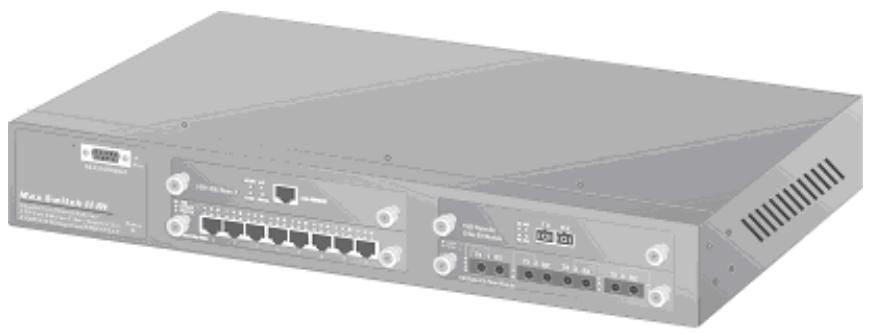
Figure 1-1 The Modular Switch
Modular Switch with layer 2 management functions, 4 expansion slots can flexible configure your network. The 4 optional modules can be 8-Port 10/100 Auto-sensing Intelligent Switch Module, 2/4/8-Port 100 Base-FX Intelligent Fiber Module, Gigabit 1000Base-T Intelligent Switch Modules, and Gigabit
1000Base-SX/LX Intelligent Fiber Modules.
With its build-in Web-based Management, managing and configuring the Modular Switch becomes easier. From cabinet management to port-level control and monitoring, you can visually configure and manage your network via Web Browser. Just click your mouse instead of typing cryptic command strings. However, the Modular Switch can also be managed via Telnet, Console, or third-party SNMP Management.
Key Features
Conforms to IEEE 802.3, 802.3u, 802.3z, 802.3ab and 802.3x standards
4 expansion slots to configure flexible network
One built-in intelligent module with RS-232 console port ( front side )
Supports Half-duplex mode for backpressure, and full-duplex for flow-control
Store-and-Forward switching architecture for abnormal packet filtering
Up to 9.6Gbps Back-plane forwarding rate
Mac address: 4K for 8 port 10/100 TX and Gigabit module, 12K for 2/4/8 port fiber module.
- Packet Buffer: 128Kbytes for 8 ports 10/100TX module, 4 Mbytes for 100FX Fiber module, 128KBytes for Gigabit module
LED System Power, Diagnostic 8 ports TX module: 10/100Mbps,Link/Active, Full-duplex/Collision; 2/4/8 ports Fiber module: Link/Active, Full-duplex/Collision Gigabit Module: Link, Active, Full duplex, Collision
- Optional different modules including Gigabit module ( SX/LX ), Gigabit 1000Base-T, 8-port auto-sensing 10/100Base-TX switch module, 2/4-port 100BaseFX ( ST/SC/MT-RJ/VF-45 ) fiber module, 8-port 100BaseFX ( MT-RJ/VF-45 ) fiber module
Intelligent Module Features
Web-Based Management
SNMP Management
■ Console and Telnet Management
IEEE 802.1Q Tagging VLAN ( Up to 4095 VLANs )
IEEE 802.1d Spanning Tree Protocol ( STP )
Statistic Address Table for manual address-addition
Port Trunking supported
IGMP supported
■ Broadcast Storm Filter
Port Mirror
Web Browser Security
■ Firmware upgradeable trough TFTP
MIB II and Private MIB supported
IEEE 802.1p QoS, ToS
■ Port Security
Management Methods
The Modular Switch supports following management methods :
■ Console and Telnet Management
Web-based Management
SNMP Network Management
Console and Telnet Management
Console Management is done through the RS-232 Console Port. Managing the Modular Switch in this method requires a direct connection between PC and the Switch. While Telnet management is done over the network. Once the Switch is on the network, you can use Telnet to Log in and change the configuration.
Web-based Management
The Modular Switch provides an embedded HTML web site residing in flash memory. It offers advanced management features and allow users to manage the Modular Switch from anywhere on the network through a standard browser such as Microsoft Internet Explorer. For more information, See Section 5 Web-Based Management.
SNMP Network Management
SNMP ( Simple Network Management Protocol ) provides a means to monitor and control network device, and to manage configurations, statistic collection, performance, and security.
Data is passed from SNMP agents, which are hardware & software processes reporting activity in each network device to the workstation console used to oversee the network. The agent return information contained in a MIB ( Management Information Base ), which is a data structure that defines what is obtainable from the device and what can be controlled.
Package Contents
Unpack the carton of the Modular Switch and verify them against the checklist below.
Modular Switch
Power Cordially
Four Rubber Feet
RS-232 cable
■ User Guide

Rubber Feet
Modular Switch

Rack-mounted Kit
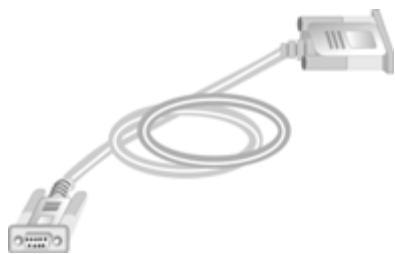
RS-232 cable

User Guide
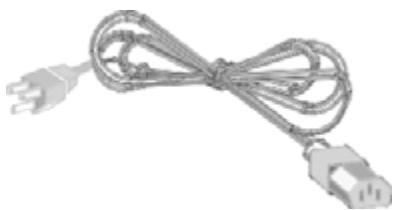
Power Cord
Figure 1-2. Package Contents
Compare the contents of your Modular Switch package with the standard checklist above. If any item is missing or damaged, please contact your local dealer for service.
2.
Product Overview
This section contains the following topics:
Physical Description
■ Optional Modules
- Installing Optional Modules
Software Concepts
Physical Description
The physical dimensions of the HomePNA 312M are:
440mmx 227mm x 67mm ( Lx Wx H )
The Modular Switch is a modular unit, and its chassis contains four slots. All optional models come with the built-in CPU modules. The LEDs are located on the front panel of the Switch to allow you to monitor the operation and performance at a glance. All ports can be used for network configuration. The RS-232 port is used for Out-of-Band Management.
Front & Rear Panel
The front panel of Modular Switch displayed in Figure 1-1 is shown with 8-port 10/100Base-TX Module, 4-port 100Base-FX Fiber Module and Gigabit 1000Base-T and Gigabit SX Fiber Module.
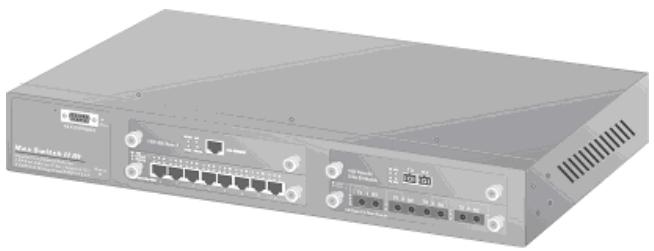
Figure 2-1. Front Panel
The 3-pronged power plug and On/off switched are located at the Rear Panel of the Modular Switch displayed in Figure 2-2. The Switch will work with AC in the range 100-240VAC, 50-60Hz.
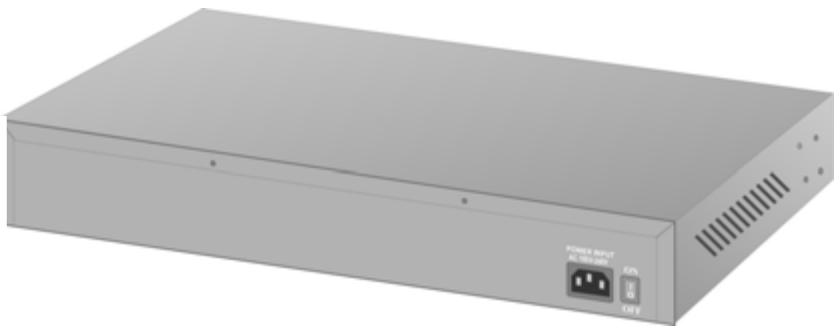
Figure 2-2. Rear Pane
LED Indicators
All LED status indicators are located on the FRONT panel of the switch. They provide a real-time indication of system and operational status. The ports for connections to other devices and networks are also on the front panels.
Table 2-1. The above table provides descriptions of the LED status and their meaning.
| LED | Status | Meaning |
| Power | Green | Power on |
| Diag | Red | Alert and problem notice |
| LK/ACT | Green | Device has been connected to the port |
| Blinks | The data is transmitting on the port | |
| Off | No device attached | |
| FD/COL | Yellow | Port in full duplex mode |
| Blinks | A collision occurs on the port | |
| Off | No device attached or in half duplex mode | |
| ■100 (Only for 8 port 10/100M Switch Module) | Green | The Port is in 100Mbps mode |
| Off | Not connected or in 10 Mbps mode |
RS-232 Console
This Console port is used to connect a management station or terminal with the switch. Out-of-band management means go through the RS-232 port. For more information about switch management, see Section 4 “Connecting to the Network”.
Software Concepts
Static Address
This feature allows you to enter the addresses that will not be aged out. It can confine users on certain ports specified by the system manager, so that they cannot switch to other ports.
Spanning Tree
Spanning Tree Protocol (STP) is an industry standard that prevents loops configurations in switched networks. The Spanning Tree algorithm creates a single path through network by making sure that if more than one path exists between parts of a network, only one of those paths is used.
This also permits multiple interswitch links to remain active for data transport while operating in conjunction with the Spanning Tree algorithm. The IEEE 802.1d Spanning Tree Protocol support for redundant backbone connections and loop-free networks simplifies network configuration and improves fault tolerance.
Virtual LANs ( VLANs )
A VLAN is a group of switch ports designated by the switch as belonging to the same broadcast domain.
This feature allows workgroups to be defined on the basis of their logical function instead of their physical location, and does not require recabling. It also enables you to configure port-based VLANs to help isolate broad- cast traffic and increase security, so as to increase bandwidth to each station.
VLAN also helps you create limited broadcast domains, to prevent traffic from being forwarded to stations where it is not needed.
Port Trunking
Port Trunking allows you to build higher bandwidth connections by aggregate several ports into one single group.
Additionally, it may be more cost-effective to trunk multiple lower speed links than to underutilize a gigabit port. Available copper links and supported distances are more pervasive for lower speed links.
For example, 100Mbps NICs and switch ports are less expensive than 1Gbps equipment.
Port trunking also allows end users to protect their investment in existing infrastructure by reusing current equipment.
SNMP
( Simple Network Management Protocol ) A widely-used network monitoring and control protocol. Data is passed from SNMP agents, which are hardware and/or software processes reporting activity in each network device ( hub, router, bridge, etc.) to the workstation console used to oversee the network. The agents return information contained in a MIB ( Management Information Base ), which is a data structure that defines what is obtainable from the device and what can be controlled ( turned off, on, etc.). Originating in the UNIX community, SNMP has become widely used on all major platforms.
Port Mirror
Port mirror allows user to define a destination port and a target port, all the packet on the target port will be copy and resend to destination port, it makes user can monitor the packet and won't effect the bandwidth of target port.
IGMP
Internet Group Multicast Protocol (IGMP) is used to support real-time applications such as video conferencing or streaming audio. IGMP allow you to query for any attached hosts who want to receive a specific multicast service. The switch looks up the IP Multicast Group used for this service and adds any port which received a similar request to that group. It then propagates the service request on to any neighboring multicast switch to ensure that it will continue to receive the multicast service.
Port Security
Port Security allow you to restrict specific MAC addresses to reside in some port. The mean is only packet that with pre-defined MAC address will be received by the port. It allows user by manual input the MAC address table.
Priority
There are two priority queues ( high and low ) on each port. Each port arbitrates between two transmit queues ( high and low priority ). The arbitration uses weighted round-robin between the high and low priority queues, and you can adjust this weight.
Broadcast Storm Filter
Storm Filter can avoid any flooded data packets. This feature prevents the bursts of broadcast traffic. Excessive broadcast packets ( Broadcast Storms ) can be filtered in our managed switch by enabling the "Broadcast Storm Filtering" option.
3.
Network Configuration
This chapter provides 3 network configuration examples by using the Modular Switch:
- Collapsed Backbone Application
Departmental Bridge Application
Virtual LAN (VLAN) Application
The switch provides versatile configuration options for the network. It is ideally suited as a workgroup or segment switch in a network; it aggregate traffic from workgroup switches, or provide dedicated 100Mbps to servers with bandwidth-intensive applications. And because all Fast Ethernet ports auto-negotiate for operation at 100 Mbps or 1000Mbps ( Gigabit ) the switch is perfectly suited to an evolving network environment where demand for network speed is increasing.
Collapsed Backbone Application
For small network where substantial growth can be expected in the near future, this switch is an ideal solution supporting backbone connectivity.
The switch can be used as a standalone switch for a group of heavy traffic users. Switching is brought to the desktop either through a single end-station per switch port or through a multi-port hub.
A 100 Mbps server is connected to a port, providing end stations high-speed accessibility to its applications. This configuration provides dedicated 100 Mbps connections to the network center, to the server, and the most up to 24 users.
When the network needs expansion, you can simply daisy-chain the switch to any IEEE 802.3 ( Ethernet ), IEEE 802.3u ( Fast Ethernet ), IEEE 802.3z ( Gigabit Ethernet ) compliant hub. This switch can also cooperate with a wide range of networking devices (e.g., firewall routers and printer servers) added to the network.
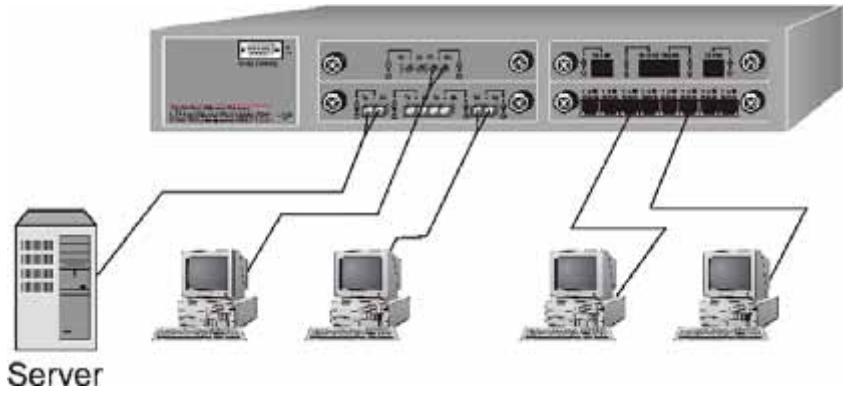
Figure 3-1. Collapsed Backbone Application
Departmental Bridge
For enterprise networks where large data broadcasts are constantly processed, this switch is an ideal solution for department users to connect to the corporate backbone. The Modular Switch used as segment switch can alleviate user contention for bandwidth and eliminate server and network bottlenecks. All ports can connect to high-speed department servers that need high bandwidth. This switch provides parallel communications between each of its ports, which can run up to 200 or 2000Mbps at full duplex.
The Switch makes key servers available to more users by allowing multiple conversations to occur concurrently, thereby significantly expanding overall network throughput. Moreover, this switch eases supervision and maintenance by allowing network manager centralize multiple servers in a single location.
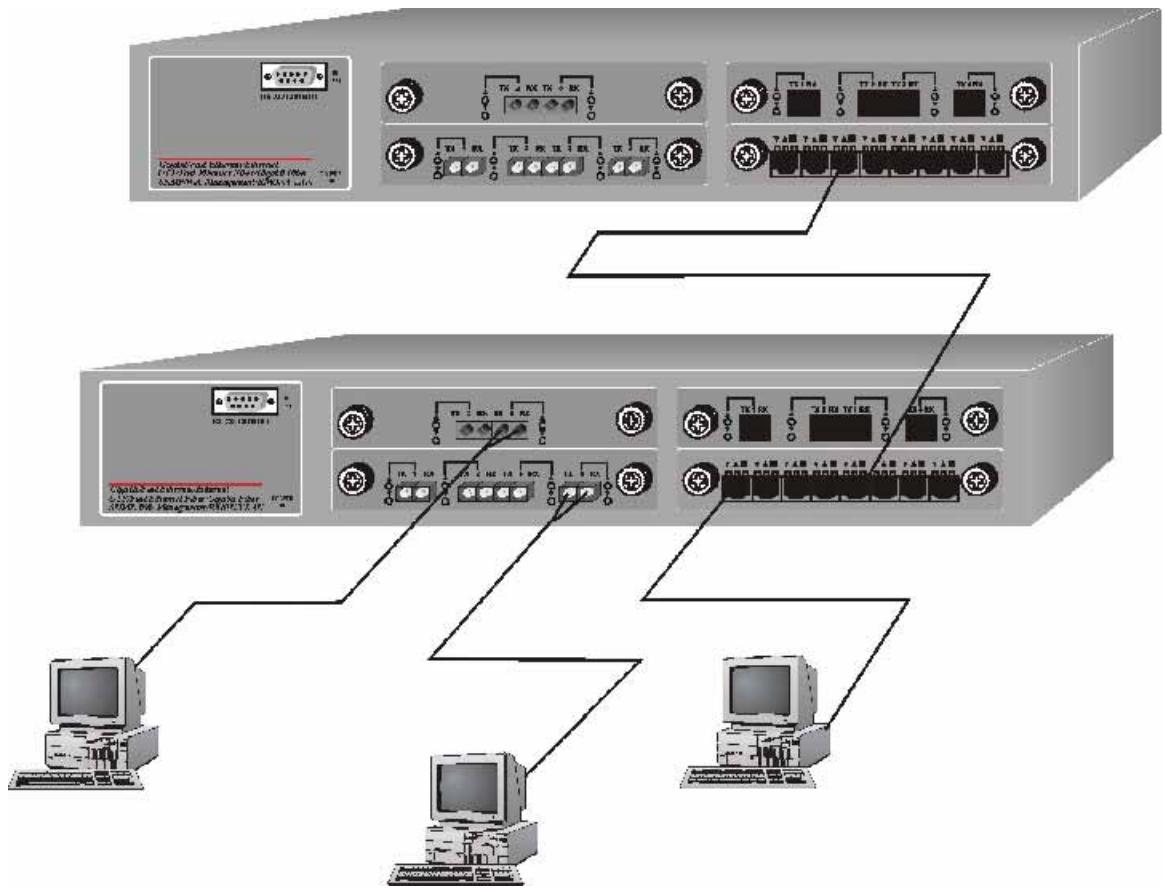
Figure 3-2. Departmental Bridge Application
NOTE: Full-duplex operation only applies to point-to-point access (for example, when attaching the switch to a workstation, server, or another switch). When connecting to hubs, use a standard cascaded connection set for half-duplex operation.
IEEE 802.1Q VLAN Application
The switch support up to 4095 port-based 802.1Q-compatible virtual LANs (VLANs).
Port-based VLAN Workgroup
You can group the switch ports into broadcast domains by assigning them to the same VLAN to increase network capacity and performance. With network segmentation, each switch port connects to a segment that is a single broadcast domain. Packets received in one VLAN can only be forwarded within that VLAN.
VLAN allows the grouping of end stations logically, based not on physical location but on business policies such as job function or department. Members of a group can be dispersed throughout a facility - they do not have to be connected in close physical locations.
Hence, group members can coordinate their data communication requirements regardless of the actual working locations; and the logical network can extend to any point you want it to. Moreover, VLAN groups can be modified at any time to add, move or change users without any re-cabling.
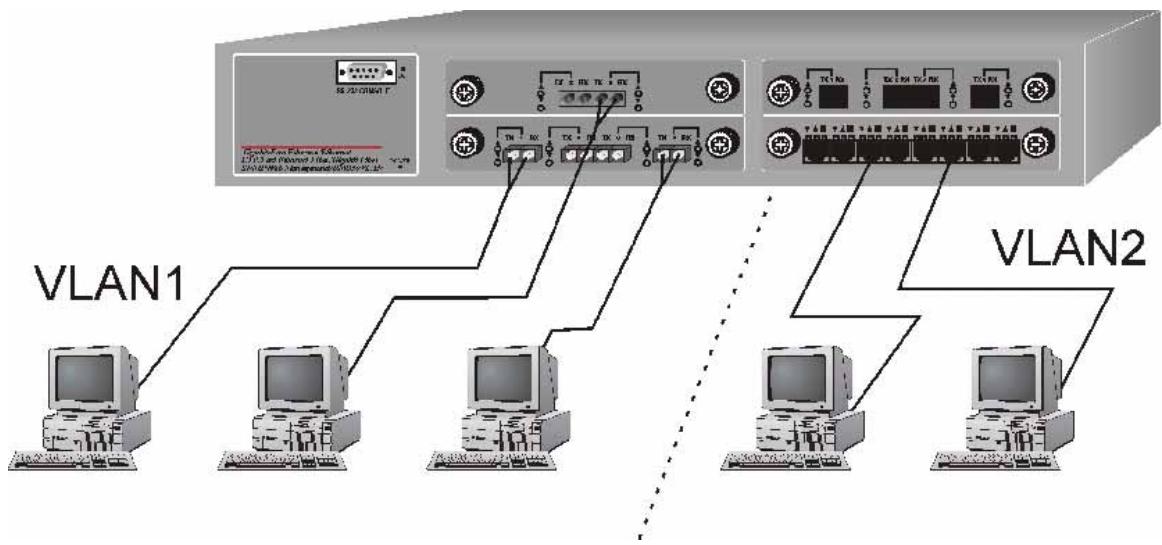
Figure 3-3. VLAN Workgroup Application
Shared Server
The switch compliant to the IEEE802.1Q tagging VLAN standard allows ports to exist in multiple VLANs for shared resources, such as servers, printers, and switch-to-switch connections. It is also possible to have resources exist in multiple VLANs on one switch as shown in the following figure.
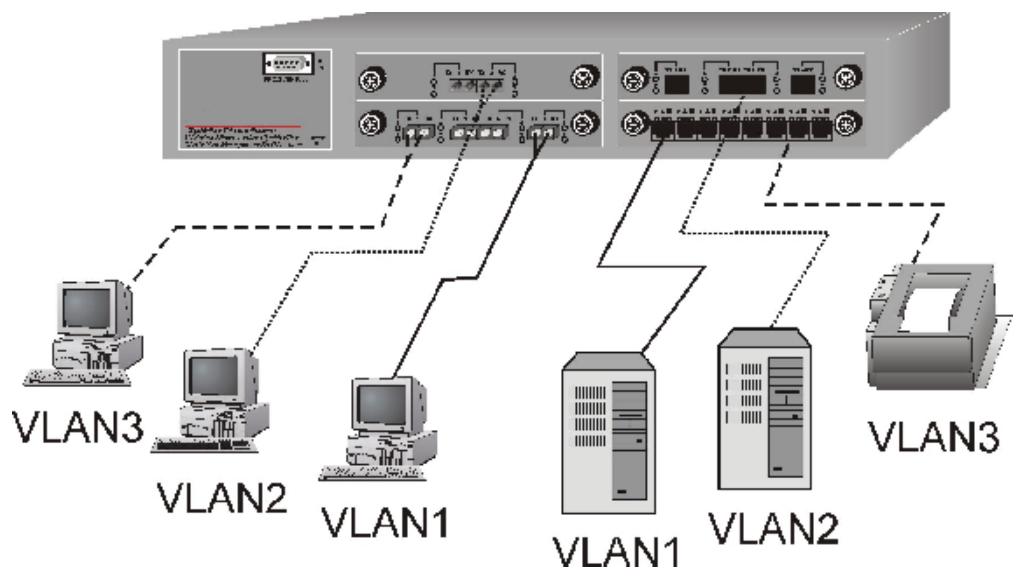
Figure 3-4. Shared Server
In this example, stations on different VLANs share resources. As a result, VLAN 1 and VLAN 2 can access VLAN 3 for printing. The broadcasts from ports configured in VLAN3 can be seen by all VLAN port members of VLAN3.
4.
Connecting to the Network
This chapter provides the installation procedure and instructions for assigning IP address. This chapter contains following topics:
Pre-instruction requirements
Mounting the switch
- Connecting to the switch
■Assigning IP address
Pre-Installation Requirements
Before you start hardware installation, make sure your installation environment has below items:
- PCs with 10/100/1000Mbps Ethernet cards: Your PC must have a standard Ethernet interface to connect to the switch.
- UTP cable with RJ-45 connector: Check if the cable and connectors work properly.
- Fiber cable with SC/ST/MT-RJ/VF-45 connector: Check if the cable and connector types are correct.
A power outlet: 100 to 240V AC at 50 to 60 Hz. Make sure that the switch power is accessible and cables can be connected easily.
Dedicated power supply: Use dedicated power circuits or power conditioners to supply reliable electrical power to the network devices. - A dry cool place: Keep the switch away from moisture. Avoid direct sunlight, heat source, and high amount of electromagnetic interference around.
- Mounting tools: If you intend to mount the switch on a rack, make sure you have all the tools, mounting brackets, screws.
Mounting the Switch
The Modular Switch is suitable for use in an office environment where it can be rack-mounted in standard EIA 19-inch racks or standalone.
Desktop Installation
Set the Switch on a sufficiently large flat space with a power outlet nearby. The surface where you put your Switch should be clean, smooth, level, and sturdy.
Make sure there is enough clearance around the Switch to allow attachment of cables, power cord and air circulation.
Attaching Rubber Feet
A. Make sure mounting surface on the bottom of the Switch is grease and dust free.
B. Remove adhesive backing from your Rubber Feet.
C. Apply the Rubber Feet to each corner on the bottom of the Switch. These footpads can prevent the Switch from shock/vibration.
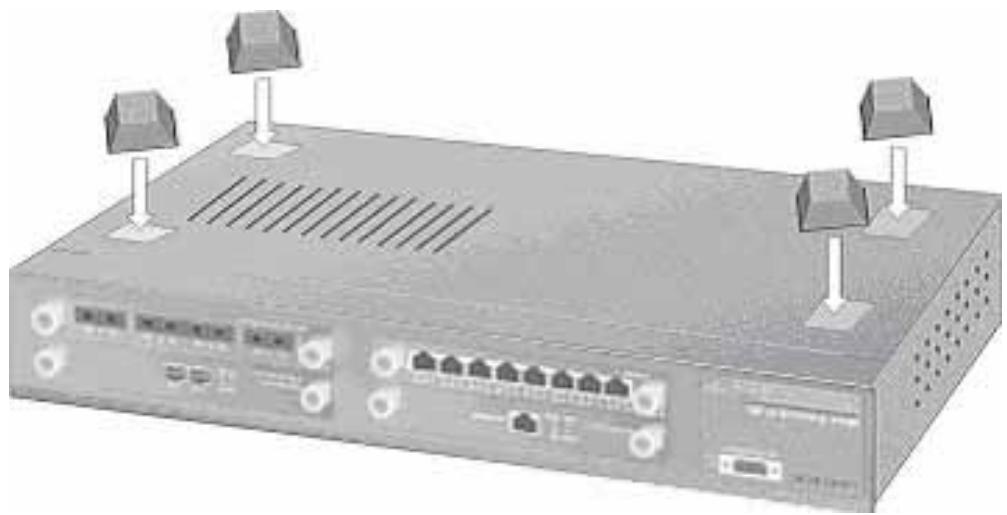
Figure 4-1. Attaching Rubber Feet to each corner on the bottom of the Switch
Rack Mounting
The Modular Switch come with a rack-mounted kid and can be mounted in an EIA standard size, 19-inch Rack. The Switch can be placed in a wiring closet with other equipment.
Perform the following steps to rack mount the switch:
A. Position one bracket to align with the holes on one side of the switch and secure it with the bracket screws. Then attach the remaining bracket to the other side of the Switch.
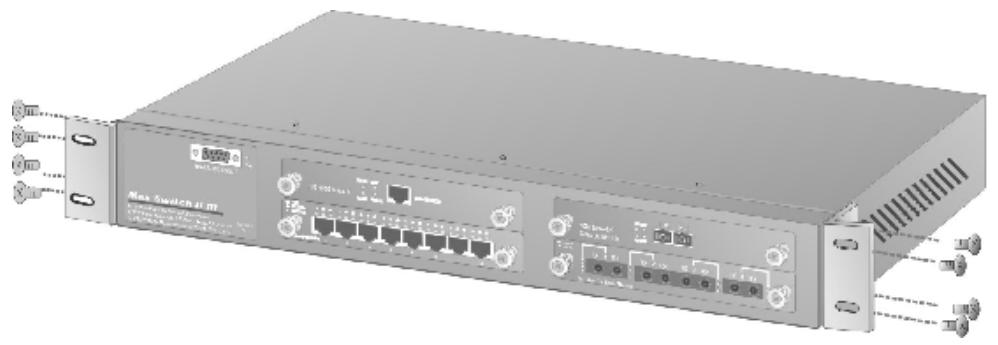
Figure 4-2. Figure 2-4. Attach mounting brackets with screws
B. After attached both mounting brackets, position the Switch in the rack by lining up the holes in the brackets with the appropriate holes on the rack. Secure the Switch to the rack with a screwdriver and the rack-mounting screws.
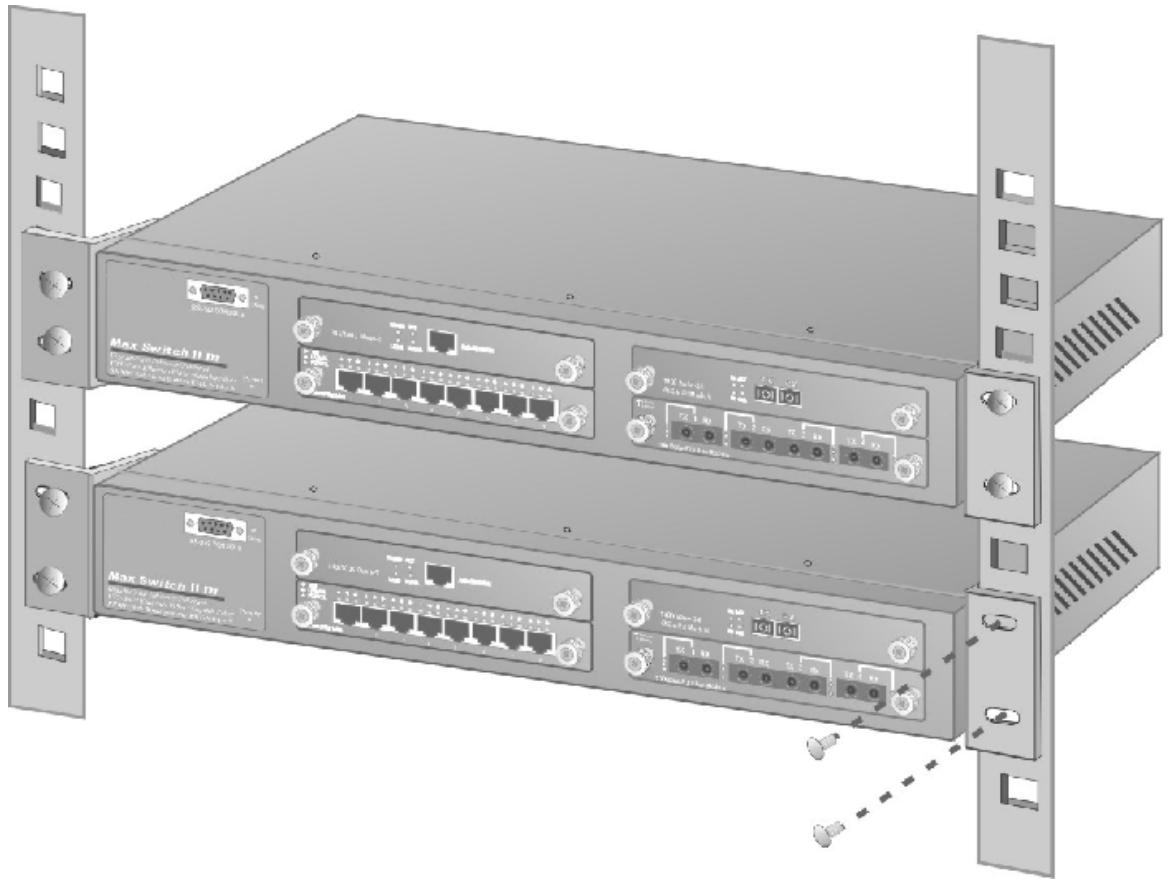
Figure 4-3. Figure 2-5. Mount the Modular Switch in an EIA standard 19-inch Rack
Note: For proper ventilation, allow at least 4 inches (10 cm) of clearance on the front and 3.4 inches (8 cm) on the back of the switch. This is especially important for enclosed rack installations.
Power On
After all network cables are connected, plug the power cord into the power socket on the back panel and the other end into a power outlet. Turn the power on using the power switch on the back panel.
Check the front panel Power indicator to see if power is properly supplied. The switch uses a universal power supply that requires no additional adjustment.
Diagnostic Test
After the installation is completed and AC power is applied to the switch, the system will automatically perform a diagnostic test. When the Power LED is on within 5 seconds, the Diagnostic status LEDs will soon flash red.
When the switch passes the self-test within 10 seconds, the Link/ACT LED turns on.
If the switch fails the self-test, the Diagnostic LED will blink.
Connecting the Switch
The serial console port is a male DB-9 connector that enables a connection to a PC or terminal for monitoring and configuring the switch.
Use the supplied RS-232 cable with a female DB-9 connector to connect a terminal or PC to the console port. The terminal or PC to be connected must support the terminal emulation program.
Figure 4-4. Connecting the MaxSwitch to a terminal
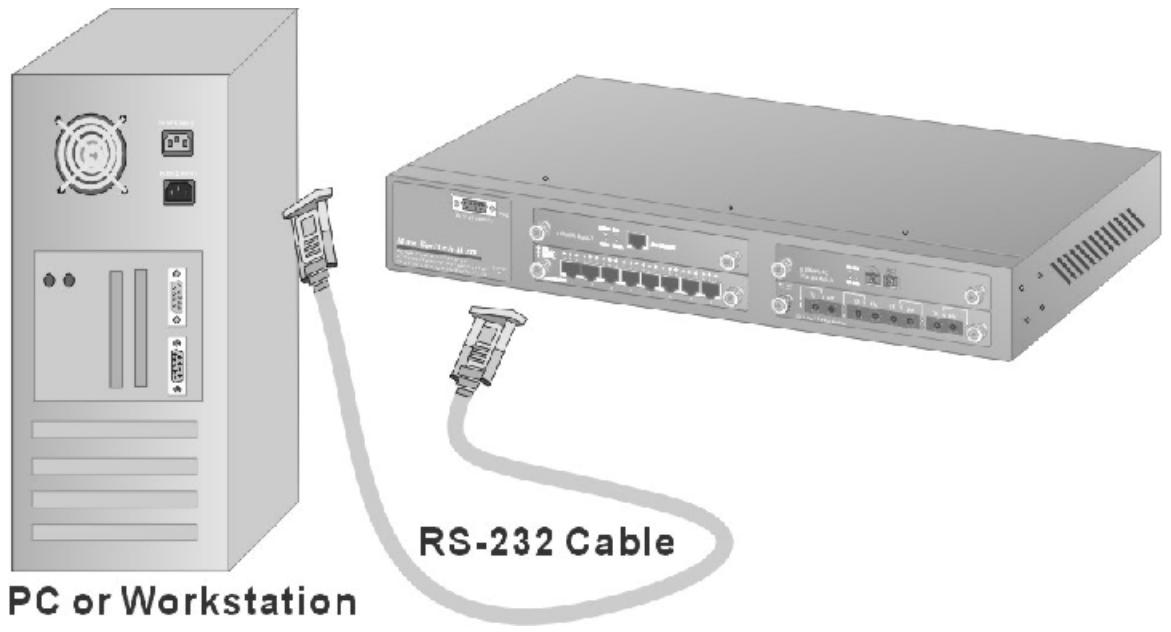
via RS-232 cable
After connected to the Console port, turn on the PC or terminal and configure its communications parameters to match the following default characteristics of the console port:
Baud Rate: 9600 bps
Start Bit: 1
Data Bits: 8
Stop Bit: 1
Parity: none
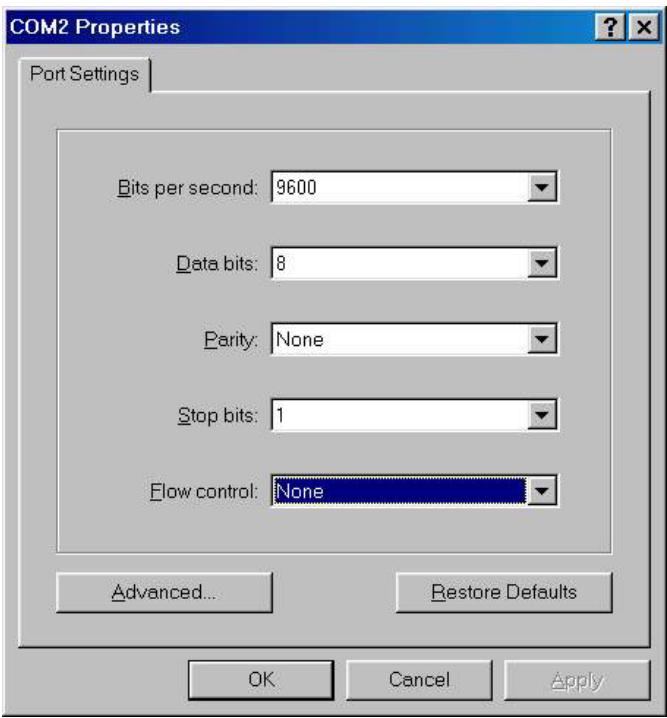
Figure 4-5. The setting of communication parameters
You can run Hyper Terminal or a terminal emulation program using the above settings for Console Management. After you have finished parameter settings, press Enter on your keyboard and the Main Menu appears.
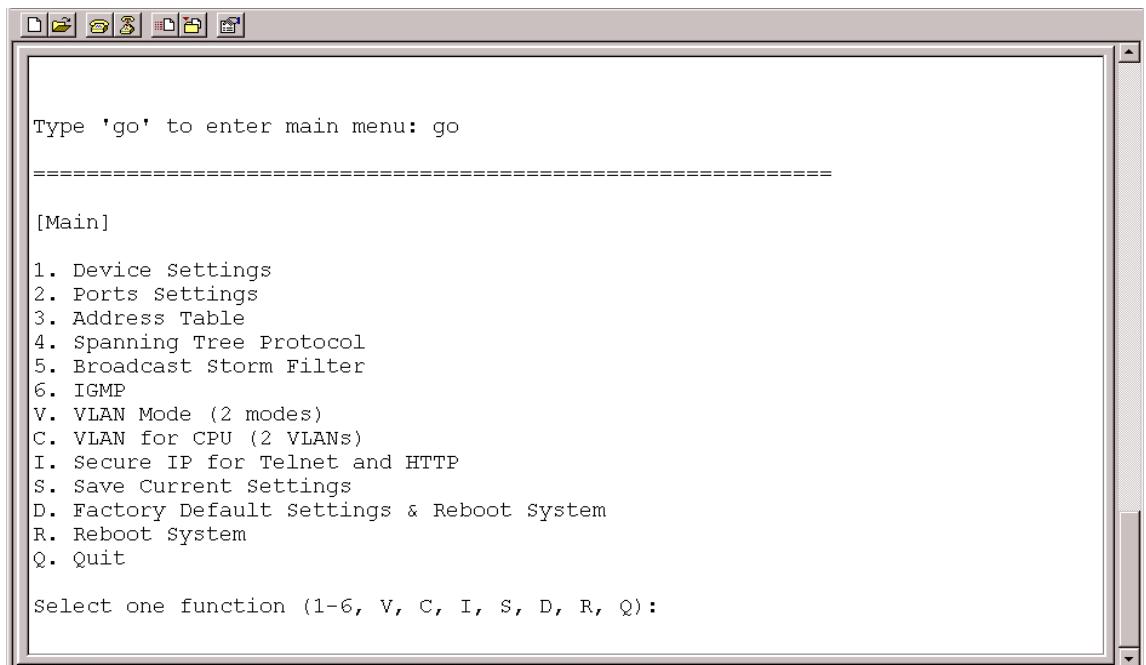
Figure 4-6. The Main Menu
Assigning IP Address
After you have attached a terminal or PC with emulation software and you are ready to make a connection using a web browser. You have to firstly assign IP information to the switch. It allows you to manage the switch once it has an IP address.
Once you have logged into the switch, you need to assign an IP address to the switch's Ethernet interfaces so that you can connect to the switch using a web browser.
Select Device settings from the main menu. It prompts you for System Name, System location, System Contact, IP address, subnet mask, and default gateway, etc. You should have information ready before you log into the switch and record them here:
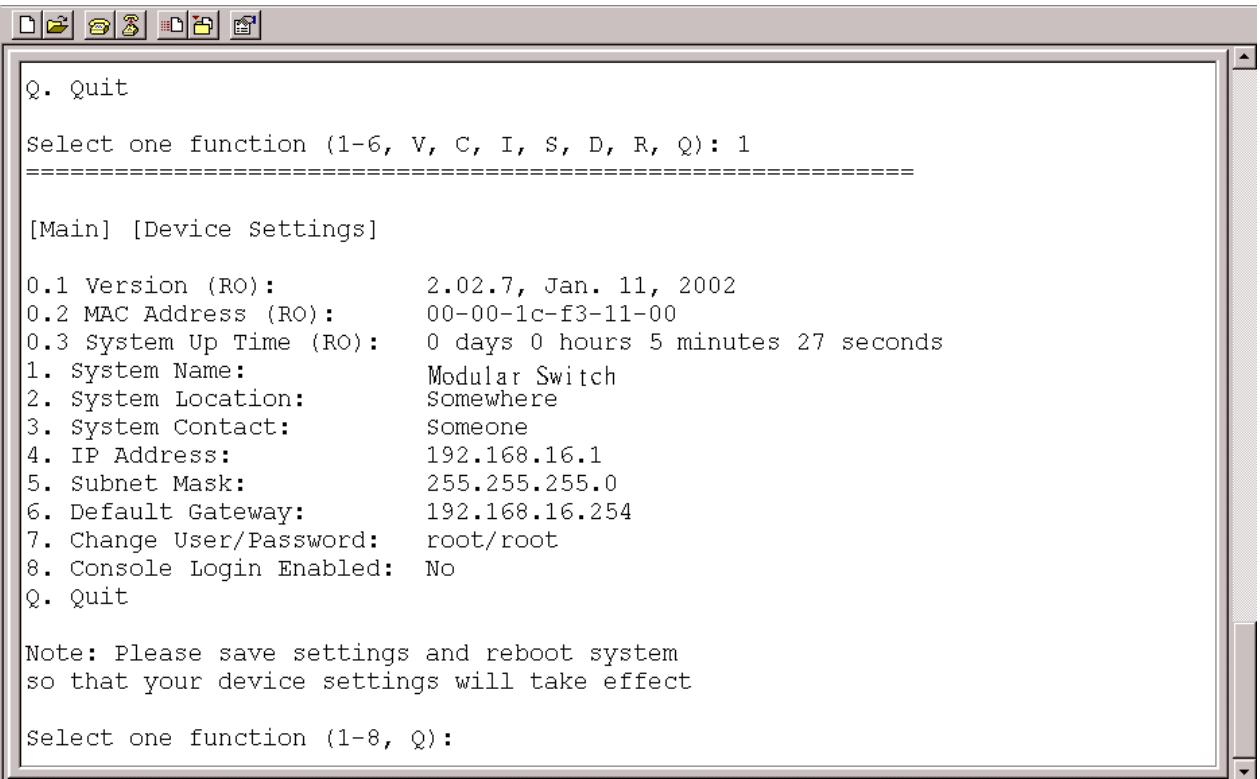
Figure 4-7. The Device Settings page
Select IP Address on the Device page, and enter a unique IP address for the switch, and press Enter. (Default IP address is 192.168.16.1)
Select Subnet Mask on the Device page, and enter the subnet mask (IP Netmask) address, and press Return. (Default subnet Mask is 255.255.255.0)
Select Default Gateway on the Device page, and enter the IP address of the default gateway if you are sending packets to another IP network, and press Return. (Default Gateway is 192.168.16.254)
Remember returning to the Main Menu to Save the previous settings, and then Reboot the switch. You may have to press Enter again when the switch is finished resetting.
Port Setting
This function is for port speed setup. For example, type "1" and "2" to select port 2 of modular 1.
[Main]
1. Device Settings
2. Ports Settings
3. Address Table
4. Spanning Tree Protocol
5. Broadcast Storm Filter
6. IGMP
V.VLAN Mode (2 modes)
C.VLAN for CPU (2 VLANs)
I. Secure IP for Telnet and HTTP
S. Save Current Settings
D.Factory Default Settings & Reboot System
R.Reboot System
Q.Quit
Select one function (1-6,V,C,I,S,D,R,Q):2
[Main] [Ports Settings]
Select one module port (e.g., 1 2 for module 1, port 2) or Q(uit):
a. More function to choice after typing 1, or 2
[Main] [Ports Settings]
Select one port (1..24) of module 0 or one module port (e.g., 1 2 for module 1, port 2) or Q(uit): 1
[Main] [Ports Settings] module: 0, port: 1
0.1 Link (RO): Down
0.2 Speed/Duplex (RO):
1. Port Enabled: Enabled
2. Speed/Duplex: Auto
3. Flow Control: Enabled
4. Back Pressure: Enabled
5. ULAN Tagged: No
6. Default ULAN ID: 1
7. Note:
Q. Quit
Select one function (1-7, Q):
b. Pick any number you need to set up, for example, the option 2 is for the Full or Half mood setting.
0.2 Speed/Duplex (RO):
1. Port Enabled: Disabled
2. Speed/Duplex: Auto
3. Flow Control: Enabled
4. Back Pressure: Enabled
5. ULAN Tagged: No
6. Default OLAN ID: 1
7. Note:
Q. Quit
Select one function (1-7, Q): 2
[Main] [Ports Settings] [Speed/Duplex]
module: 0, port: 1
0. Auto
1. 100/Full
2. 100/Half
3. 10/Full
4. 10/Half
Q. Quit
Select one item:
Address table
User can view the node's MAC address table of system, per module or per port, that attached on the device.
2. Ports Settings
3. Address Table
4. Spanning Tree Protocol
5. Broadcast Storm Filter
6. IGMP
V.VLAN Mode (2 modes)
C.VLAN for CPU (2 VLANs)
I. Secure IP for Telnet and HTTP
S. Save Current Settings
D. Factory Default Settings & Reboot System
R. Reboot System
Q.Quit
Select one function (1-6,V,C,I,S,D,R,Q):3
[Main] [Address Table]
1.All
2. Module
3. Module Port
Q.Quit
Select one function (1-3, Q):
Spanning Tree Protocol
Spanning tree is a link management protocol that provides path redundancy while preventing undesirable loops in the network.
2. Ports Settings
3. Address Table
4. Spanning Tree Protocol
5. Broadcast Storm Filter
6. IGMP
V.VLAN Mode (2 modes)
C.VLAN for CPU (2 VLANs)
I. Secure IP for Telnet and HTTP
S. Save Current Settings
D. Factory Default Settings & Reboot System
R. Reboot System
Q.Quit
Select one function (1-6,V,C,I,S,D,R,Q):4
[Main] [Spanning Tree Protocol]
Current state: Disabled
1. Enable
2. Disable
Q.Quit
Select one function (1-2, Q):
#
2. Ports Settings
3. Address Table
4. Spanning Tree Protocol
5. Broadcast Storm Filter
6. IGMP
V.VLAN Mode (2 modes)
C.VLAN for CPU (2 VLANs)
I. Secure IP for Telnet and HTTP
S. Save Current Settings
D. Factory Default Settings & Reboot System
R. Reboot System
Q. Quit
Select one function (1-6,V,C,I,S,D,R,Q):5
[Main] [Broadcast Storm Filter]
Current state: Disabled
1. Enable
2. Disable
Q.Quit
Select one function (1-2, Q):
IGMP
Internet Group Multicastng Protocol (IGMP) is used to support real-time applications such as video conferencing or streaming audio.
#
2. Ports Settings
3. Address Table
4. Spanning Tree Protocol
5. Broadcast Storm Filter
6. IGMP
V.VLAN Mode (2 modes)
C.VLAN for CPU (2 VLANs)
I. Secure IP for Telnet and HTTP
S. Save Current Settings
D. Factory Default Settings & Reboot System
R. Reboot System
Q. Quit
Select one function (1-6,V,C,I,S,D,R,Q):6
[Main] [IGMP]
Current state: Disabled
1. Enable
2. Disable
Q.Quit
Select one function (1-2, Q):
VLAN Mode (2 modes)
3. Address Table
4. Spanning Tree Protocol
5. Broadcast Storm Filter
6. IGMP
V. VLAN Mode (2 modes)
C. VLAN for CPU (2 VLANs)
I. Secure IP for Telnet and HTTP
S. Save Current Settings
D. Factory Default Settings & Reboot System
R. Reboot System
Q. Quit
Select one function (1-6, V, C, I, S, D, R, Q): v
[Main] [VLAN Mode]
Current mode: 1
1. VLAN is valid for all packets
2. VLAN is valid for broadcast and multicast packets, not for unicast packets.
For SmartBits test, this mode will get better throughput.
Q. Quit
Select one function (1-2, Q):
VLAN For Cpu(2 VLANs)
1. Device Settings
2. Ports Settings
3. Address Table
4. Spanning Tree Protocol
5. Broadcast Storm Filter
6. IGMP
V. VLAN Mode (2 modes)
C. VLAN for CPU (2 VLANs)
I. Secure IP for Telnet and HTTP
S. Save Current Settings
D. Factory Default Settings & Reboot System
R. Reboot System
Q. Quit
Select one function (1-6, V, C, I, S, D, R, Q): c
[Main] [VLAN for CPU]
1. Current first VLAN for CPU: VLAN ID 1
2. Current second VLAN for CPU: None
Q. Quit
Select one function (1-2, Q):
Secure IP for Telnet and HTTP
The IP security is for Telnet and HTTP, if device is installed in a internet environment, switch may be attach by Hacker, then the system maybe will crash, for prevent this status, you can enable the function and setting the IP address, it provides four IP address, only authorized IP address can manage device.
C.VLAN for CPU (2 VLANs) I. Secure IP for Telnet and HTTP S. Save Current Settings D. Factory Default Settings & Reboot System R. Reboot System Q.Quit Select one function (1-6,V,C,I,S,D,R,Q):I [Main] [Secure IP] 1. Secure IP for Telnet: Disabled 2. Secure IP for HTTP: Disabled 3. Secure IP 1: 4. Secure IP 2: 5. Secure IP 3: 6. Secure IP 4: Q.Quit Note: We suggest that you enable the HTTP option if the management CPU uses an Internet real IP Select one function (1-6, Q):
5.
Web-Based Management
This section introduces the configuration and functions of the Web-Based management.
About Web-based Management
Inside the CPU board of the Modular Switch exists an embedded HTML web site residing in flash memory. It offers advanced management features and allow users to manage the Switch from anywhere on the network through a standard browser such as Microsoft Internet Explorer.
The Web-Based Management supports Internet Explorer 5.0 and later versions. It is based on Java Applets with an aim to reduce network bandwidth consumption, enhance access speed and present an easy viewing screen.
Note: By default, IE4.0 does not allow Java Applets to open sockets. The user has to explicitly modify the browser setting to enable Java Applets to use network ports. ( See Appendix A: for the means to modify the setting ) And you don't need to change any configuration if you use Netscape browser.
System Login
- Start Internet Explorer
- Type http:// and the IP address of the Modular Switch ( for example, the default is 192.168.16.1 ) in the Location or Address field. Press Enter.
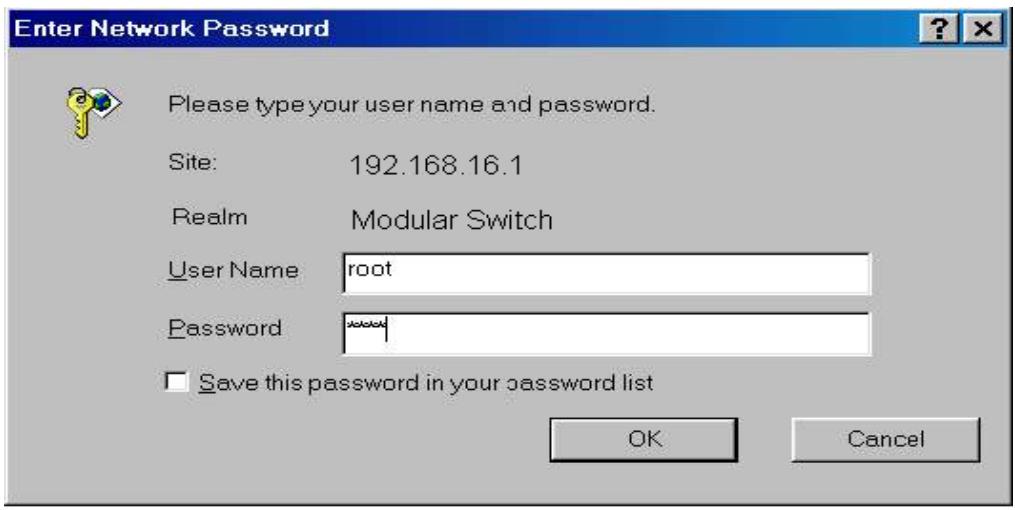
Figure 5-1: The Password Window
- The Password screen appears.
- Type user name and password. The default is " root" for both.
- Press "Enter" or Click "OK", then the Home Screen of the Web-based management appear.
System Configuration
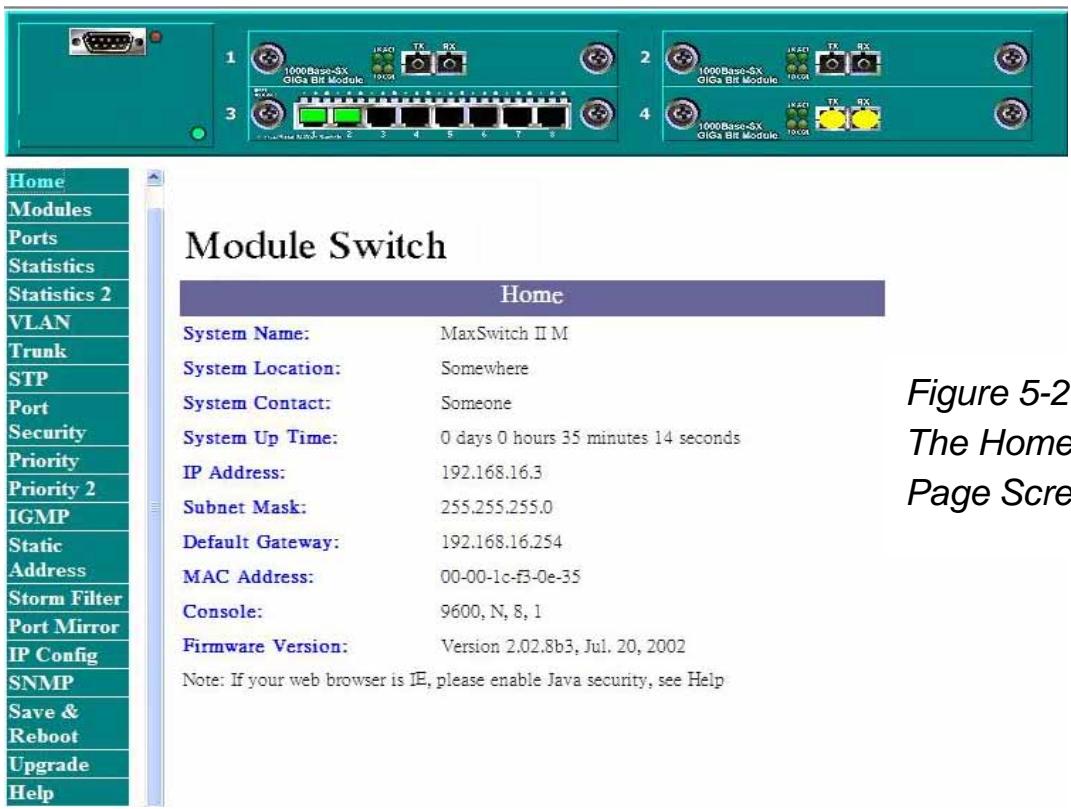
Home
The Home page displays the configuration of the Modular Switch.
System Name : An administratively-assigned name of the managed unit, can be modified in SNMP page.
System Location : The physical location of this managed unit ( e.g., laboratory, 3^rd floor), can be modified in SNMP page.
System Contact : The contact person for this managed unit, can be modified in SNMP page.
System Up Time : The time last since the managed unit was reinitialized, read only.
IP Address : The IP address of the managed unit, can be modified in IP Config page.
Subnet Mask : The subnet mask of the managed unit, can be modified in IP Config page.
Default Gateway : The default gateway of the managed unit, can be modified in IP Config page.
MAC Address : The MAC address of the managed unit, read only.
Firmware Version : The firmware version of the management unit, read only. You can on-line upgrade the new firmware if the new version is released.
Note: By default, IE4.0 does not allow Java Applets to open sockets. The user has to explicitly modify the browser setting to enable Java Applets to use network ports. ( See Appendix A: for the means to modify the setting ).
Modules
Modules page shows the modules that have installed into the Modular Switch. In the following example, 1-port Gigabit 1000Base-T Switch Module, 1-port Gigabit 1000Base-F (SX) Fiber Module, 8-port auto-sensing 10/100Base-TX Switch Module, and 4-port 100Base-FX (ST) Fiber Module are installed into the Switch.
Module Switch
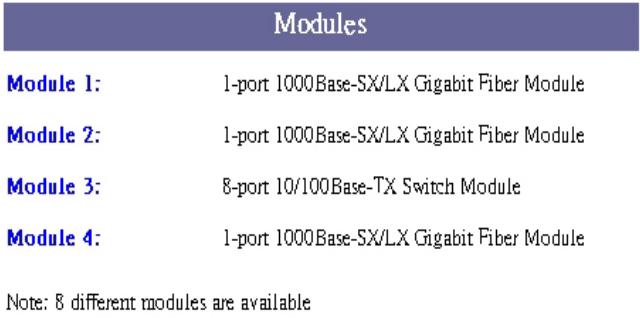
Figure 5-3 The Modules Page
Any four of the following modules can be installed to the Switch.
- 8-port auto-sensing 10/100Base-TX Switch Module
- 2-port 100Base-FX (SC/ST) Fiber Module
4-port 100Base-FX (SC/ST) Fiber Module
2-port 100Base-FX (MT-RJ/VF-45) Fiber Module
4-port 100Base-FX (MT-RJ/VF-45) Fiber Module - 8-port 100Base-FX (MT-RJ/VF-45) Fiber Module
- 1-port Gigabit 1000Base-F (SX/LX) Fiber Module
- 1-port Gigabit 1000Base-F (MT-RJ) Fiber Module
1-port Gigabit 1000Base-T Switch Module
Ports
Inside Ports page, you can enable/disable each port, configure
Speed/Duplex for each port, and assign VLAN ID.
The Port Management table shows the port status of all ports. You can also change some properties of all ports in this table.
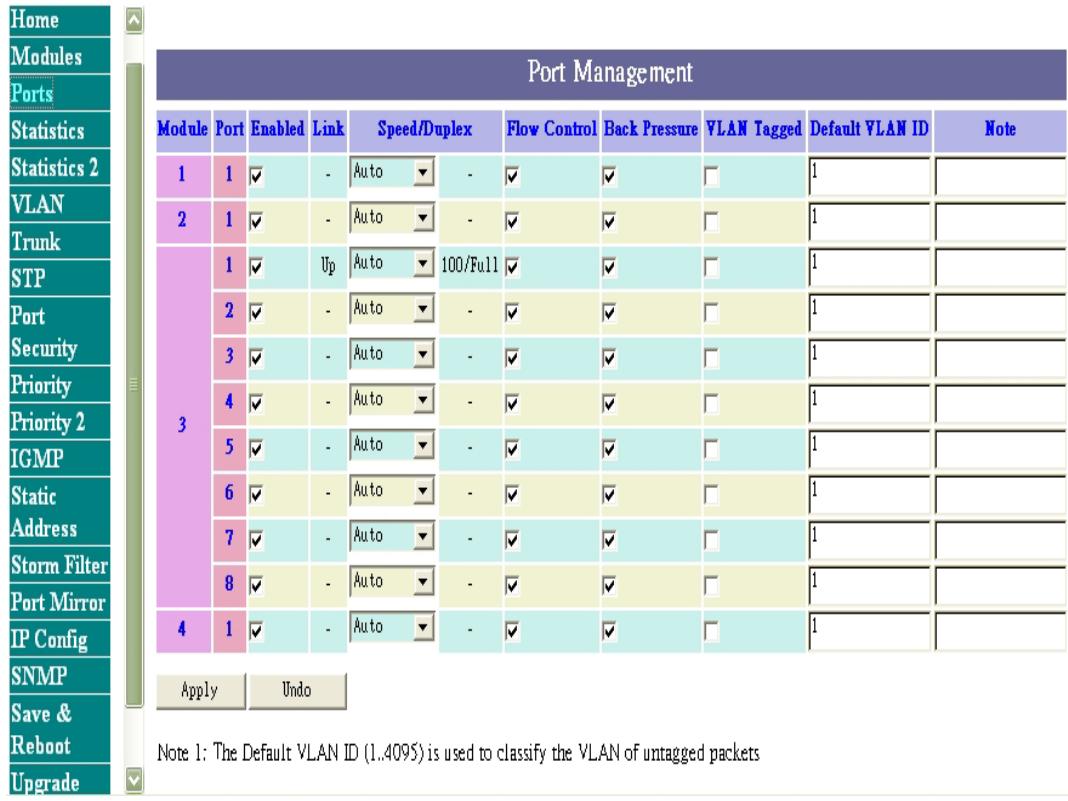
Figure 5-4 The Ports Page
- Module and Port number
- Enabled: if this option is disabled, all packets are not received or transmitted from that port
- Link: indicates whether a node links to that port or not
- Speed: current receive or transmit speed of 10/100/1000 Mbps
- Duplex: full or half duplex
- Tagged: whether a packet transmitted with VLAN tagged or not
- Default VLAN ID: if a packet is received without VLAN tagged, then the Default VLAN ID is used to classify this packet to that VLAN
Note: memorial note for this port, max length is 16 characters
Note: if you want to set multiple VLANs, we suggest that you set Default VLAN ID for each port first then set VLAN in the VLAN
Statistics
The Statistic page displays the detailed information about each port. You can compare and evaluate throughput or other port parameters. All screen data is updated automatically and you can also update the data manually.
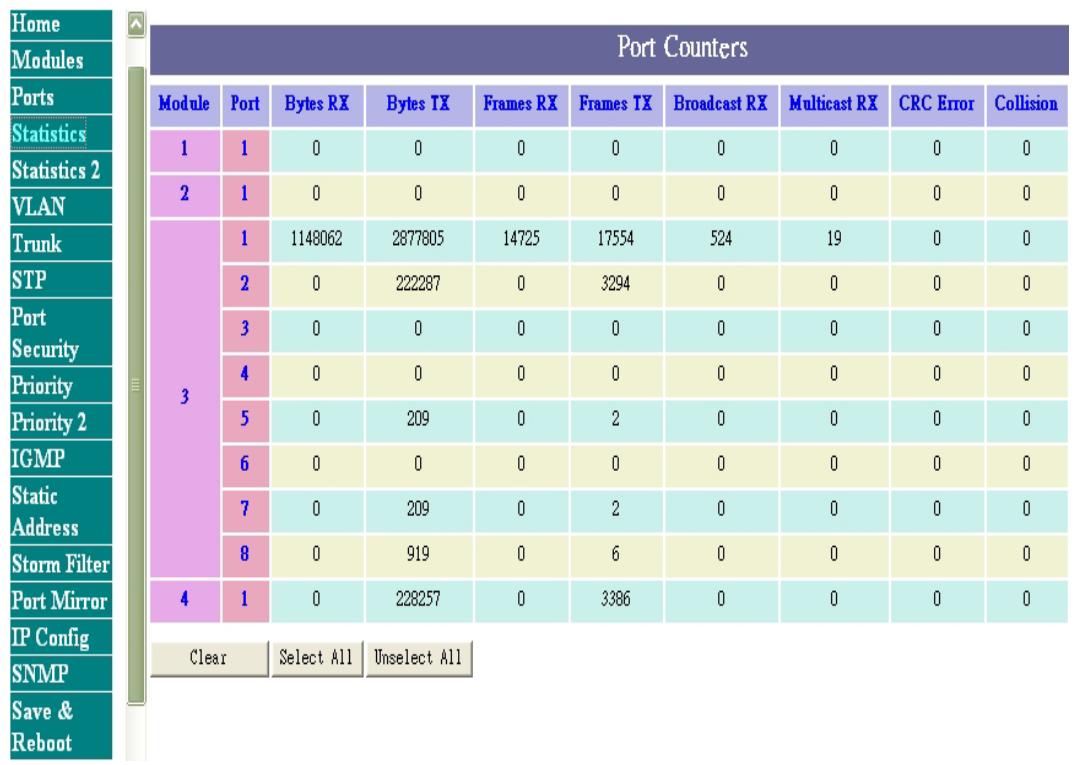
Figure 5-5-1 The Statistics Page
The Port Counters table shows 8 counters for each port in each module.
- Module and Port number
- Bytes RX: the total bytes received from that port
- Bytes TX: the total bytes sent from that port
- Frames RX: the total packets receive from that port (of all sizes)
- Frames TX: the total packets sent from that port (of all sizes)
- Broadcast RX: the total broadcast packets received from that port
-
Multicast RX: the total multicast packets received from that port
CRC Error: the total packets received containing CRC errors from that port -
Collision: the total number of collisions that occurred during reception and transmission
You can clear 8 counters of some ports by select the corresponding "Clear" check boxes then press "Clear" button. To clear all counters of all ports, press the "Select All" button then "Clear" button.
Statistics 2
The statistics 2 page displays the detailed packet size information about each port. You can compare and evaluate throughput or other port parameters. All screen data is updated automatically and you can also update the data manually.
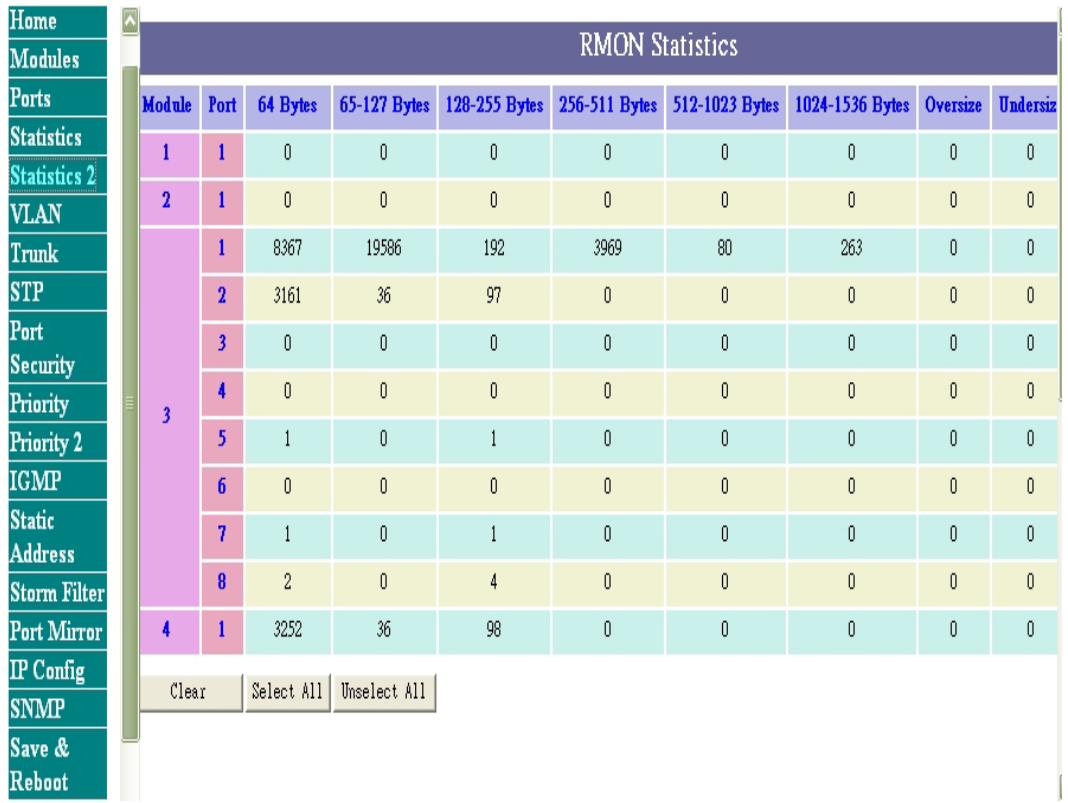
Figure 5-5-2 The Statistics Page
You can clear packet seize counters of some ports by select the corresponding "Clear" check boxes then press "Clear" button. To clear all counters of all ports, press the "Select All" button then "Clear" button.
VLAN (Virtual LAN)
A port-based VLAN is a group of switch ports designated by the switch as belonging to the same broadcast domain. If a broadcast packet is received from a port, it will forward this broadcast packet only to those ports belonging to the same VLAN. VLAN classification of every packet is done in the following way: If the packet is tagged with non-zero VLAN-id field then this is used as the VLAN id.
Otherwise the default VLAN id of the input port is used. You can assign a single switch port to two or more VLANs. The factory default VLAN is that all ports belong to the same VLAN group 1.
Creating VLANs increases network flexibility by allowing you to reassign devices to accommodate network moves, additions, and changes, eliminating the need to change physical cabling.
The switch support up to 4095 port-based 802.1Q-compatible virtual LANs (VLANs).
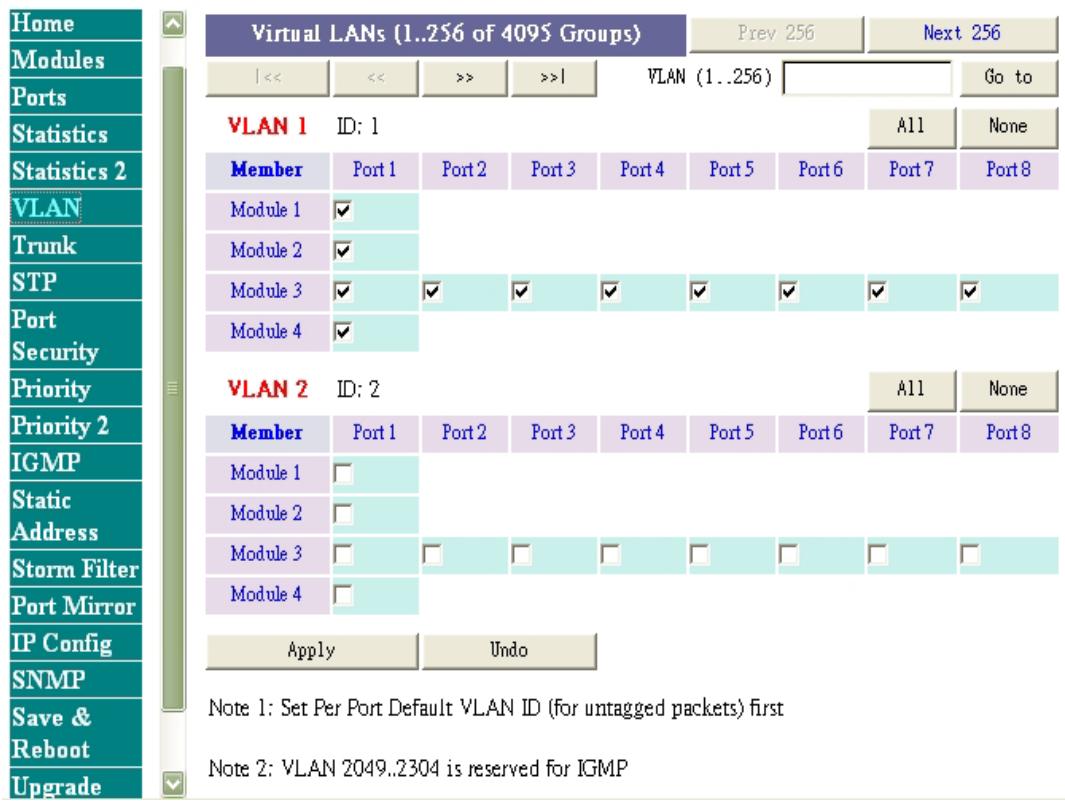
Figure 5-6 The VLAN Page
In the VLAN management window, you will see 2 VLANs in the page. To select a certain VLAN, you can do the following:
- Press ">>" button to display the next 2 VLANs
Press "<=" button to display the previous 2 VLANs
Press ">>|" button to display the last 2 VLANs - Press " | < < | button to display the first 2 VLANs
- Enter the VLAN index in the "VLAN" edit box then press "Go to" button
You can add, edit and remove port members of each VLAN and then finally press "Apply" button only once to configure the desired VLANs you want.
Note: if you want to set multiple VLANs, we suggest that you set Default VLAN ID for each port first in Ports page.
Trunk
Port trunking is the ability to group several 10/100Base-TX or 100Base-FX ports to increase the bandwidth between this switch and another compatible switch. This is an inexpensive way to increase bandwidth. We define port trunking as the ability to group set of ports (up to 8) within the same module into a single logical link. The port trunk acts as a single link between switches. Multiple trunks may be implemented in this switch, but only one trunk can be created within a module.
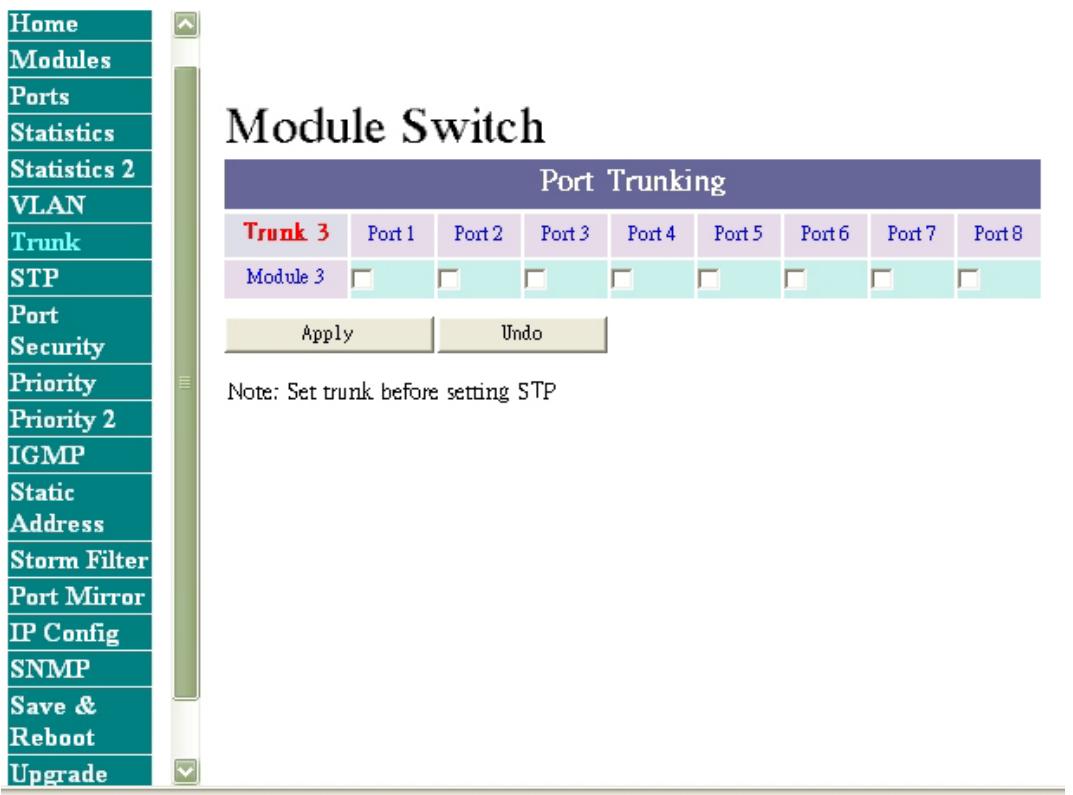
Figure 5-7 The Trunk page
You can add, edit and remove port members of each trunk and then press "Apply" button after you have finished configuring the trunks you need.
(Note: Make sure trunking ports are in the same VLAN group.)
STP (Spanning Tree Protocol)
Spanning tree is a link management protocol that provides path redundancy while preventing undesirable loops in the network. For Layer 2 Ethernet network to function properly, only one active path must exist between two stations. The spanning-tree algorithm calculates the best loop-free path throughout a switched network. STP forces redundant data paths into a standby (blocked) state. If a network segment in the spanning tree fails and a redundant path exists, the spanning-tree algorithm recalculates the spanning tree topology and activates the standby path.
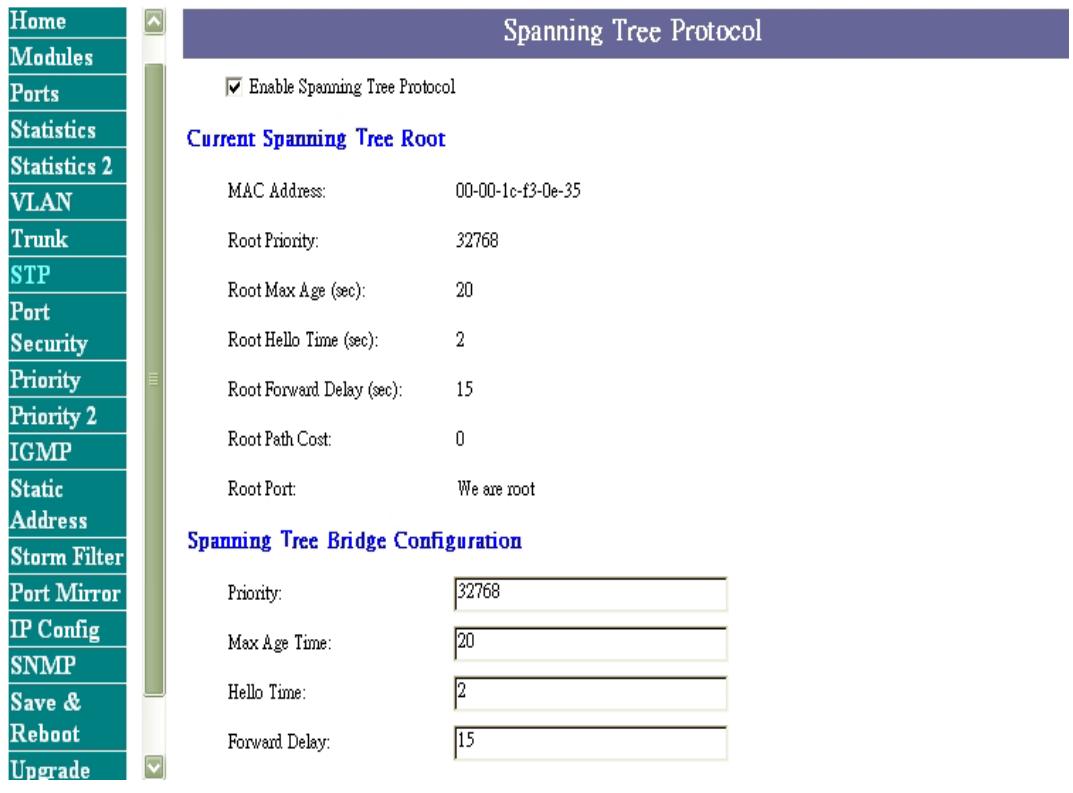
Figure 5-8-1 The STP upper page
If you want to participate in spanning tree, have the "Enable Spanning Tree Protocol" checkbox selected.
The Current Spanning Tree Root describes the unique root switch information for the instance of spanning tree.
MAC Address: the MAC address of the root switch
Root Max Age: the amount of time (in seconds) protocol information received on a port is stored by the root switch
Root Hello Time: how often the root switch broadcasts Hello message to other switches
Root Forward Delay: the amount of time a port will remain in the listening and learning states before entering the forwarding state
Root Path Cost: the path cost to the root switch from this switch
Root Port: the port providing the best path from the switch to the root switch
The Spanning Tree Bridge Configuration describes this switch information in the spanning tree.
Priority: the priority of this switch, default is 32768. The smaller this value, the higher priority this switch has.
Max Age: the amount of time (in seconds) protocol information received on a port is stored by the root switch, the default value is 20
Hello Time: how often the root switch broadcasts Hello message to other switches, the default value is 2
Forward Delay: the amount of time a port will remain in the listening and learning states before entering the forwarding state, the default value is 15
The Port Configuration describes those ports information in this switch in the spanning tree.
- Priority: the port priority. The smaller this value, the higher priority this port has.
- Learning: if you want to learn fast, check this checkbox
- State: this state of this port. Each port on a switch using STP exists in one of the following five states:
。 Listening
Learning
Forwarding
。 Blocking
o Disabled
- Path Cost: the cost of this port. The smaller this value, the higher cost this port has. 4 for Gigabit Ethernet and 10 for Fast Ethernet and FDDI
- Root Cost: The cost to the root.
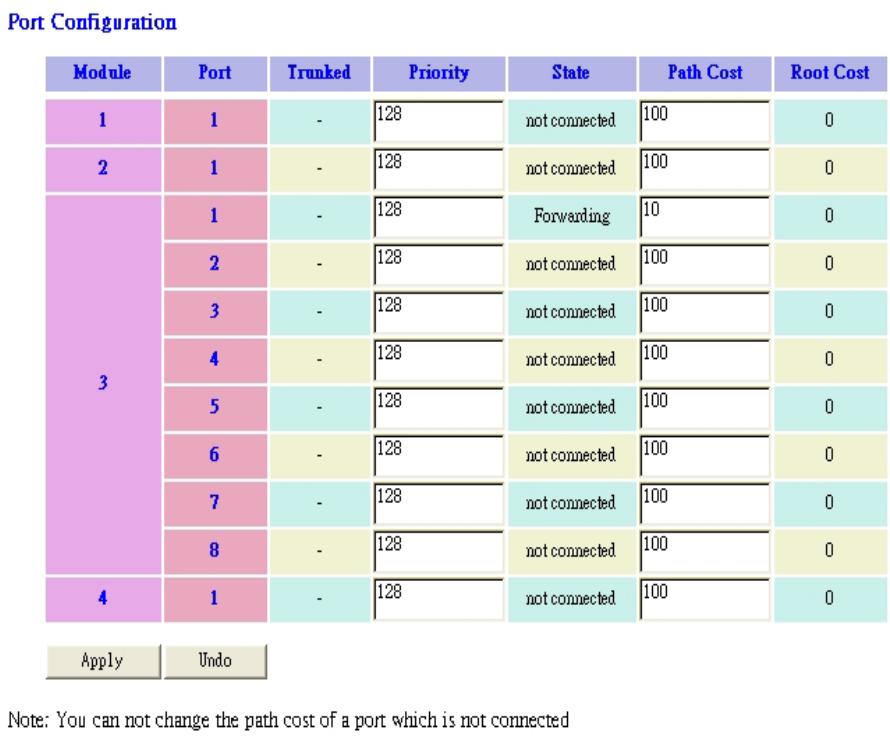
Figure 5-8-1 The STP lower page
Note: when you enable the spanning tree protocol, because all ports in the switch will listen and learn, you may lose communication to the switch you are managing. Wait about 2 times forward delay (2*15 seconds), you get the communication again.
Port Security
Port Security allow you to restrict specific MAC addresses to reside in some port. For example, a dummy hub is attached to some port for extension, and you just only allow 2 users to access this port at the same time, you can use the port security window to set the parameters.
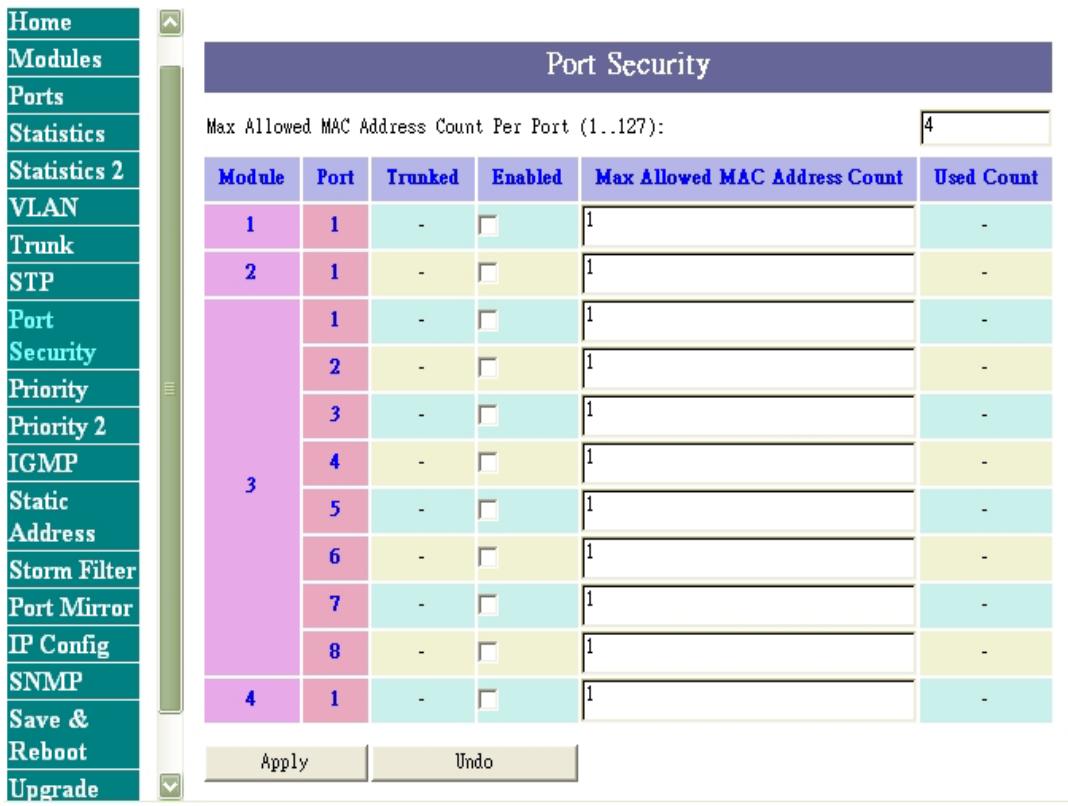
Figure 5-9. The Port Security page
To restrict the number of MAC address to reside in a port, you must do the following :
Click the “ Enable “ checkbox for that port. IF the “ Enable “checkbox is unchecked, there is no MAC address count restriction for that port.
Type the number in the “ Max Allowed MAC Address Count ” edit for that port. The upper bound of this number is the “ Max Allowed MAC Address Count per port “
Press the "Press " button
The “Used Count” will tell you how many MAC address residing in the corresponding port now.
Note : A trunked port is not allowed to enable the port security
option.
Priority
There are two priority queues ( high and low ) on each port. Each port arbitrates between two transmit queues ( high and low priority ). The arbitration uses weighted round-robin between the high and low priority queues, and you can adjust this weight.
Programmable Mapping of 802.1p to Internal Priority
The received packets with 802.1q tag are assigned priority according to a flexible (fixed for the old 48310 and 48320 module) and programmable mapping of the 802.1p user-priority tag (3 bits, value from 0 to 7) to the internal priority queue. The default is to assign a packet to high priority queue when the 802.1p user-priority tag is 4 to 7, and to low priority queue when the 802.1p user-priority tag is 0 to 3. Please check the corresponding mapping checkbox to assign a high priority or uncheck that to assign a low priority.
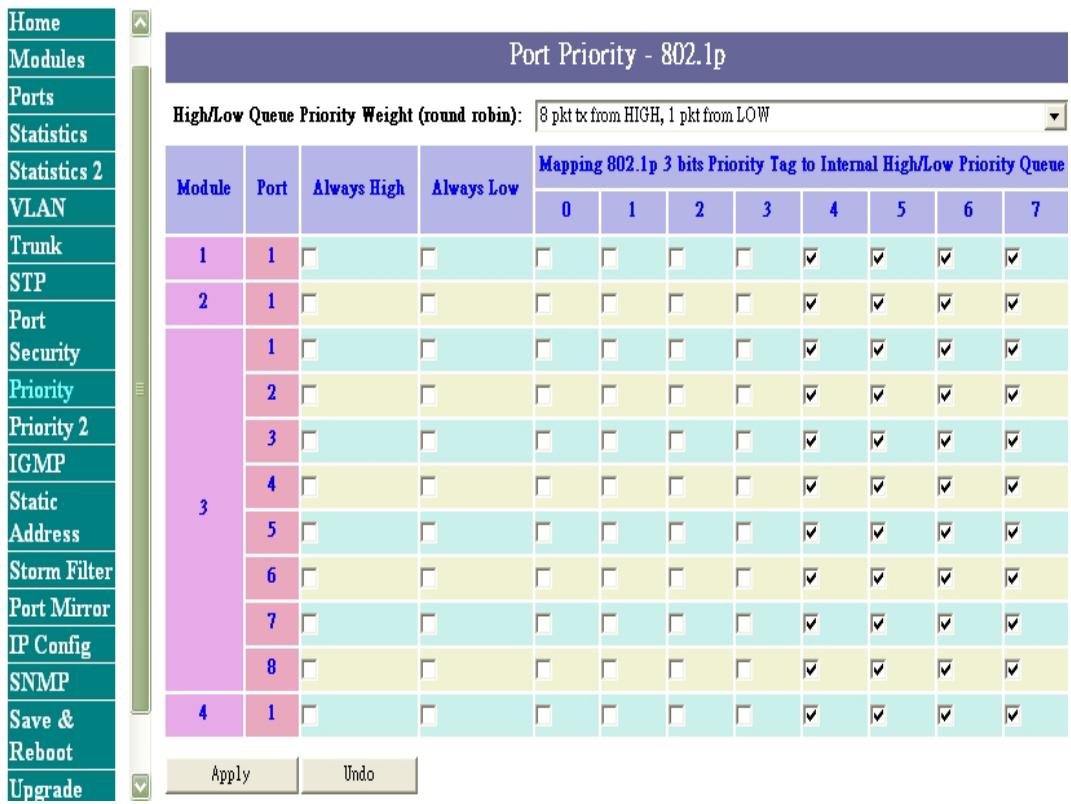
Figure 5-10. Port Priority - 802.1p page
Priority 2
Each port can parse the header of an incoming IPv4 header and identify the Type-Of-Service byte (TOS field). This is extremely important with the deployment of Microsoft Windows 2000 and the emerging DiffServ standard, which marks Voice-Over-IP and other real-time traffic using this field. This feature provides Quality of Service (QoS).
IF this function of a port is enabled, then the most significant 6 bits of the TOS (these 6 bits are also known as the DiffServ Code Point "DSCP" field, value from 0 to 63) are used to assign a priority to the packet received from this port. Please check the corresponding mapping checkbox to assign a high priority or uncheck that to assign a low priority. The old 48310 and 48320 modules do not support this function.
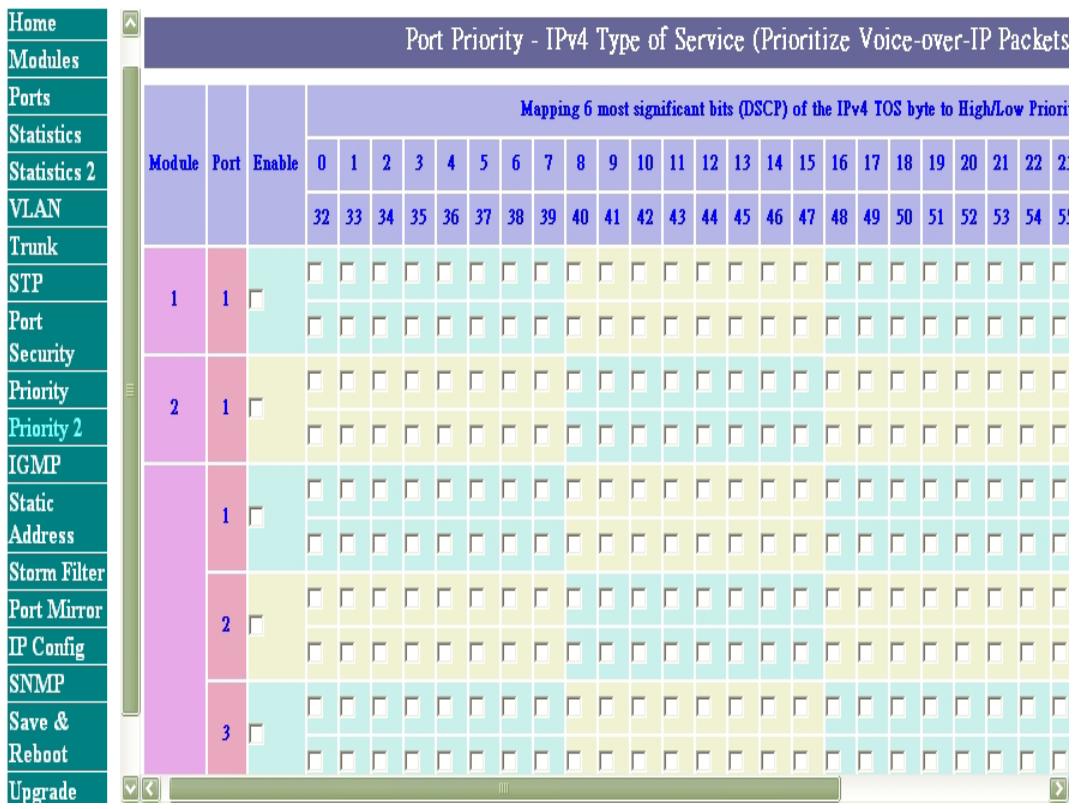
Figure 5-11. Port Priority - Type of Service
IGMP (IP Multicast)
IGMP is used in multicast communication network applications where one or more servers, for example, video servers, generate multicast traffic. If you want your switch to support multimedia and IP multicast, enable this option (default is enabled). When this option is enabled, this switch only directs the multicast data packets to the ports where needed, saving bandwidth. If "Forward with high priority" option is enabled, then the IP multicast traffic will have a higher priority than other traffic.
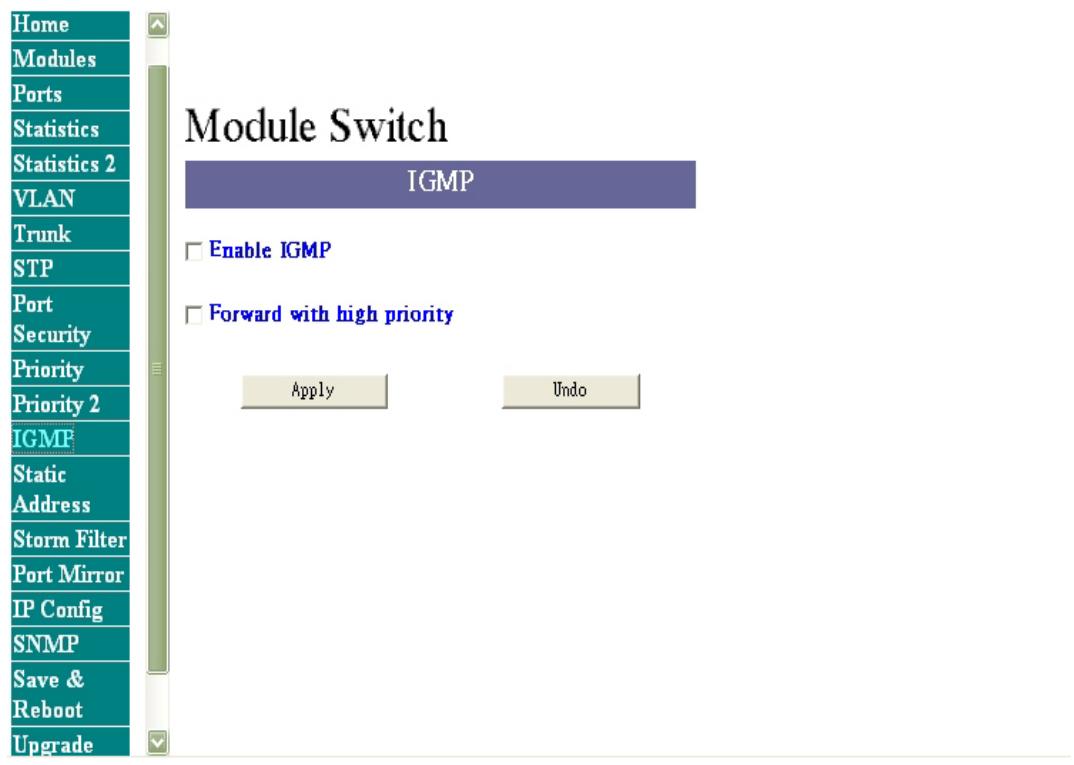
Figure 5-12 The IGMP page
Static Address
You can lock a certain MAC address ( associated with a host, ) to a certain port. Once a certain MAC address is locked to a certain port, this MAC address will not receive any packets if it is moved to another port.
Static addresses are manually entered into the Static Address Table.
- Enter the MAC address in the MAC Address field (ex. 00-11-22-33-44-55).
- Select the Module and Port you want to associate with this entry with from the Port drop-down box.
- Select VLAN Groups.
- Click<<Add...<<.
Note: You can apply the previous steps to add/remove Static Address manually.
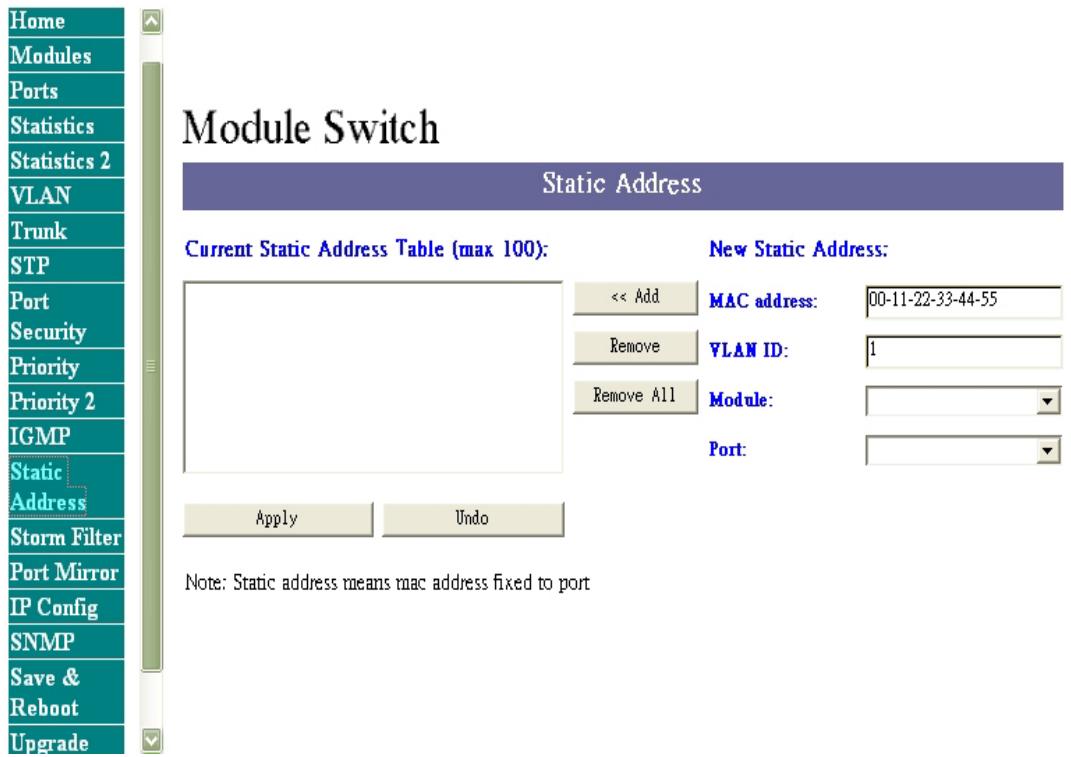
Figure 5-13 The Static Address page
Broadcast Storm Filter
Excessive broadcast packets (broadcast storms) can be filtered in our managed switch by enabling the "Broadcast Storm Filtering" option.
When this option is enabled, if more than 3000 packets per second broadcast packets sent to a port lasts 5 seconds, this port will not receive any broadcast packets until less than 3000 packets per second broadcast packets received lasts 5 seconds. If a broadcast storm happens to a port, you will see a red "BS" text appearing in the corresponding (module, port) cell, otherwise a "-" text.
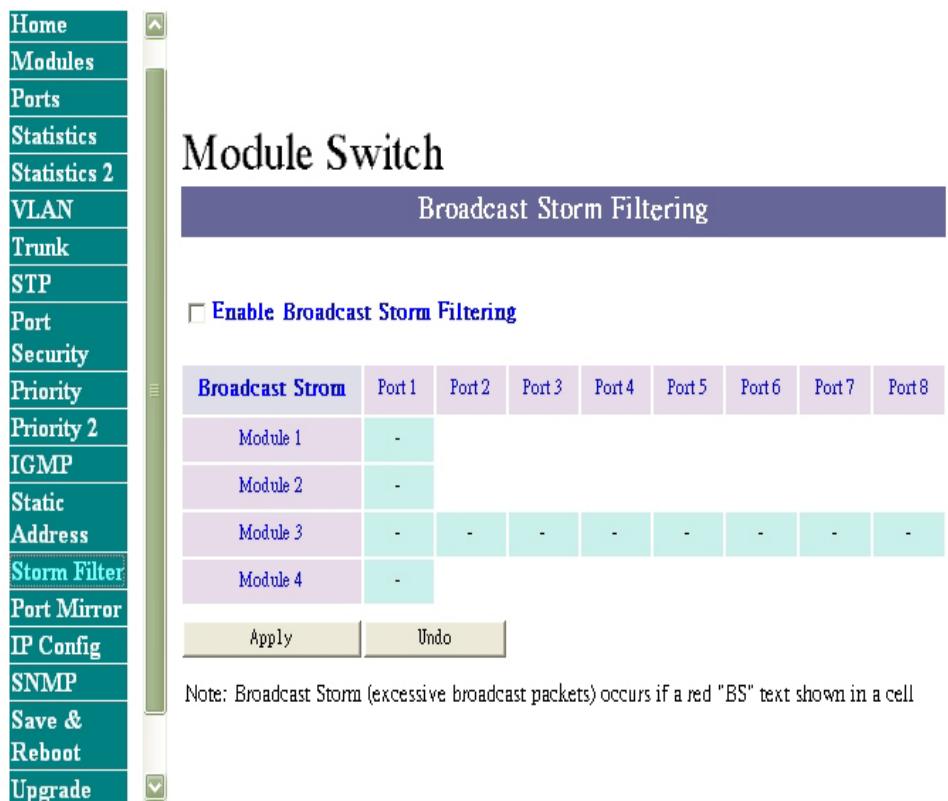
Figure 5-14 The Broadcast Storm Filter page
Port Mirror
If you want to monitor all receive and transmit packets of one port. You can do the following:
- Choose the monitored port in "Mirror Source Port" choice box in the corresponding mirror source module. Only one port can be monitored in one module at the same time
- Choose the corresponding target module, port in "Mirror Target Module" and "Mirror Target Port" choice box.
- Click the corresponding "Enabled" check box.
- Press "Apply" button
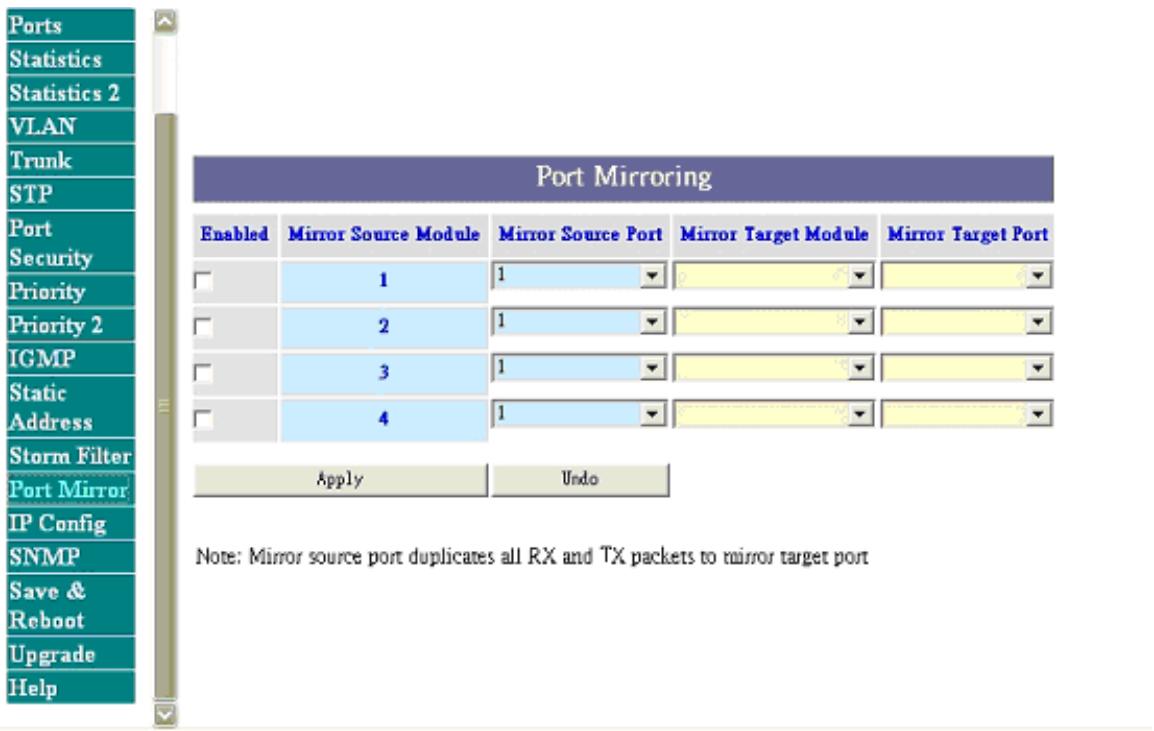
Figure 5-15 The Port Mirror page
IP Config
You can change the IP address, subnet mask and default gateway of the managed node. (You can also do that from RS232 console). Enter the IP address, subnet mask and default gateway in the corresponding edit box.
If you want to change the user name or password for the managed node, the following steps is needed:
- Click the "Change Password" checkbox
- Enter the user name in "Username" edit box
- Enter the same password in "Password" and "Confirm Password" edit box
Press the "Apply" button
You should reboot system to let your settings take effect if you have changed one of the IP address, subnet mask and default gateway.
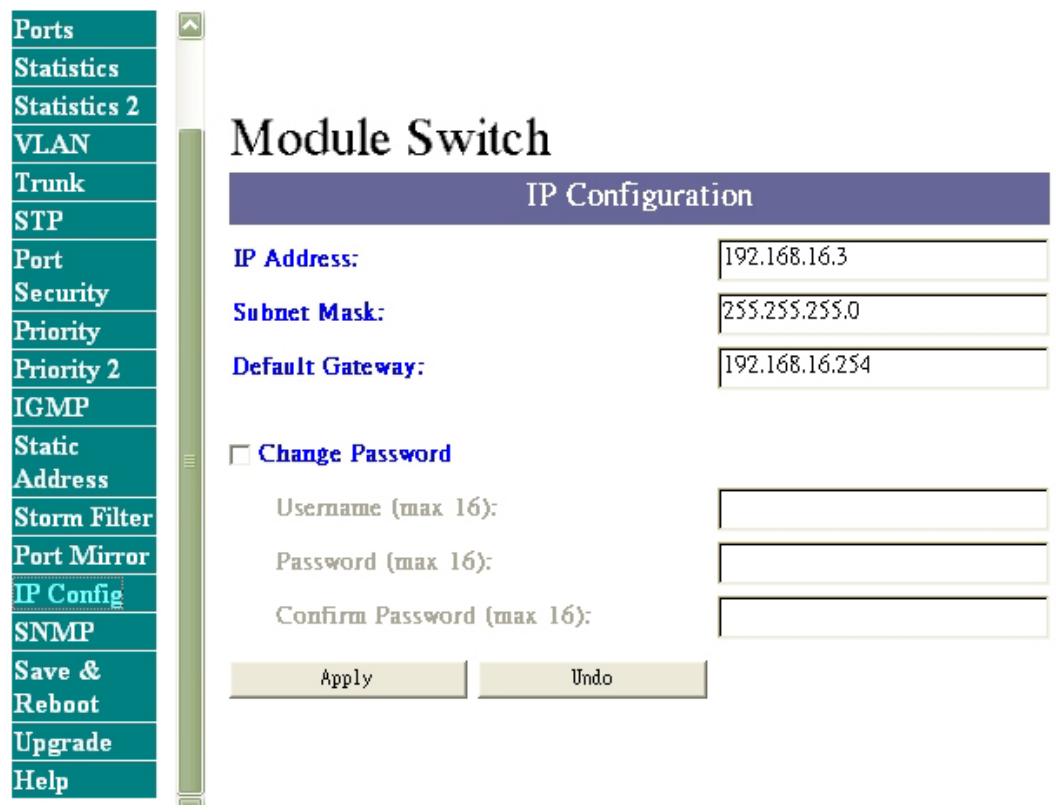
Figure 5-16 The IP Config page
SNMP
To set system name, system location and system contact, you can type the desired text string in the corresponding edit box.
To set the "get request" and "set request" community name, you can type the desired text string in the corresponding edit box. The default value of get request community is public. The default value of set request community is private. You must set these two parameters correctly to perform "get request" from the management unit and "set request" to the management unit.
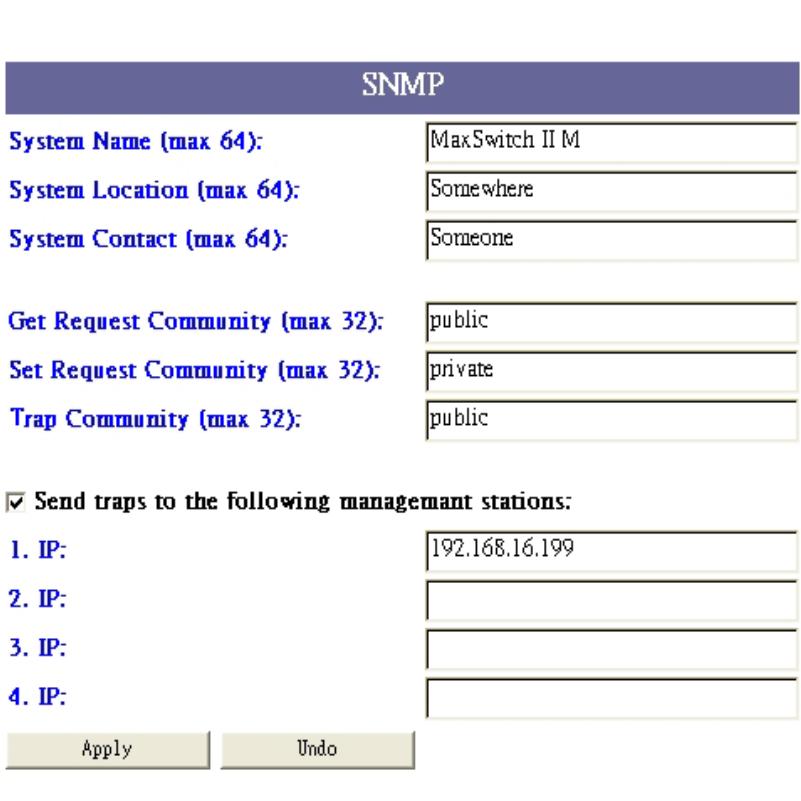
Figure 5-17 The SNMP page
Save and Reboot
Save
You can save current settings by click the "Current Settings" checkbox then press the "Apply" button next to the checkbox. You should reboot the system so that your current settings will take effect.
If you want to use the factory default settings, click the "Factory Default Settings" checkbox then press the "Apply" button next to the checkbox. You should reboot the system so that the factory default settings will take effect.
Reboot
If you want to reboot system, click the "Reboot System" checkbox then press the "Apply" button next to the checkbox. Please wait a moment (about 25 seconds) then continue to operate this home page.
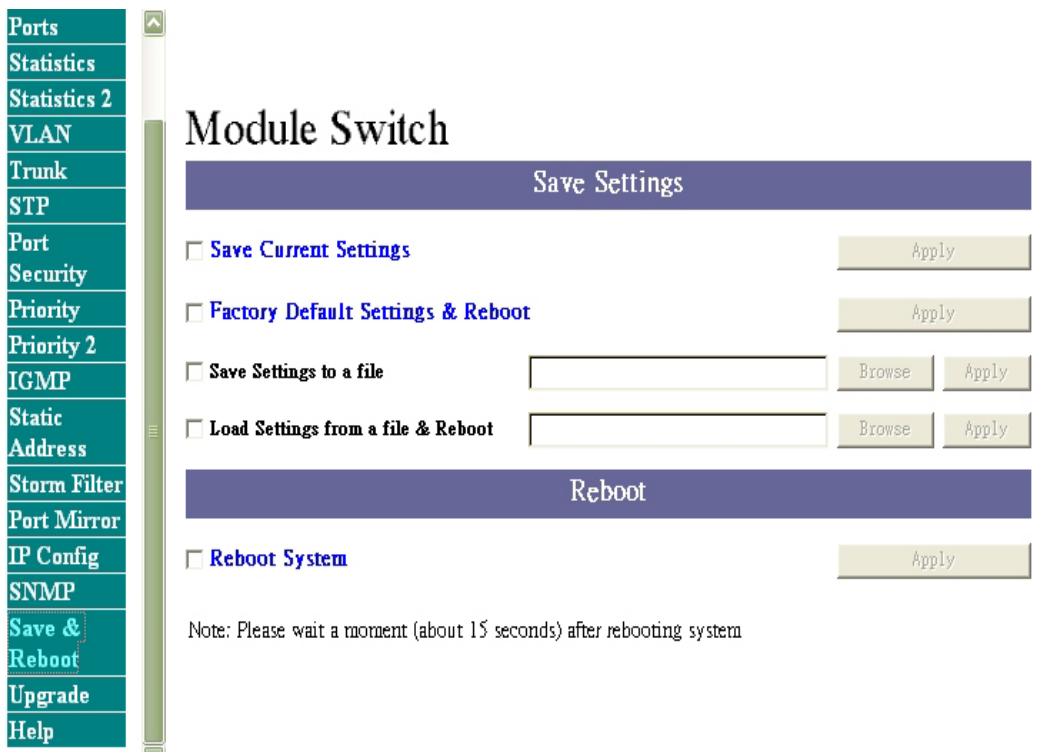
Figure 5-18 Save & Reboot page
Upgrade
You can on-line upgrade the firmware of the managed unit. The following steps is needed to upgrade the firmware:
- Use http or ftp to download the new version firmware from our web site.
- Enter password in the "Password" edit box.
- Enter the file downloaded in the "File Path" edit box. (You can use
"Browse" button to select the file.)
- Press the "Upgrade" button.
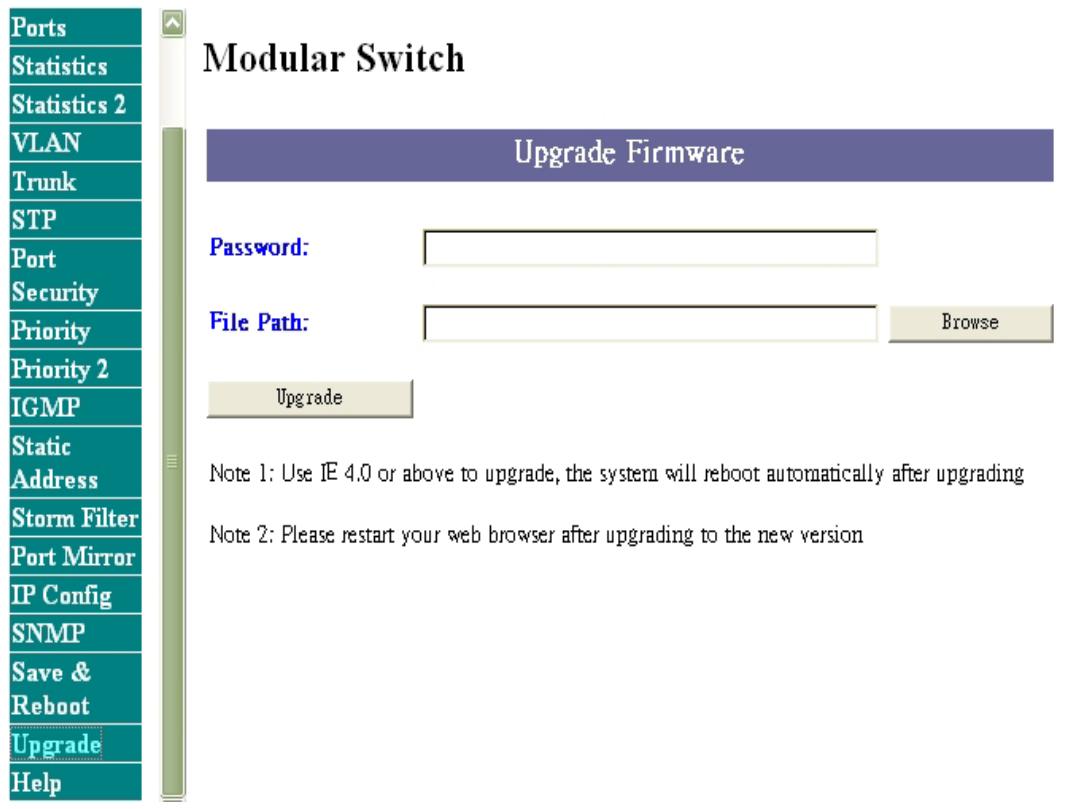
Figure 5-19 Upgrade page
After you have successfully upgraded the new firmware, please reboot the system so that the new firmware will take effect.
Note: If you can't upgrade your new firmware successfully, try again (don't shut down the switch).
6.
SNMP Management
This section describes how to configure and manage the switch by accessing Management Information Base (MIB) objects with the SNMP protocol.
SNMP Management
The switch MIB options are accessible through SNMP. Instead of defining a large set of commands, SNMP performs all operations using the "GET", "GETNEXT" and "SET" commands. The SNMP agent that resides on the switch can respond to MIB-related queries being sent by the network management software.
The SNMP agent gathers data from the MIB, which keeps information about device parameters and network data. The agent can send traps, or notification of certain events, to the manager.
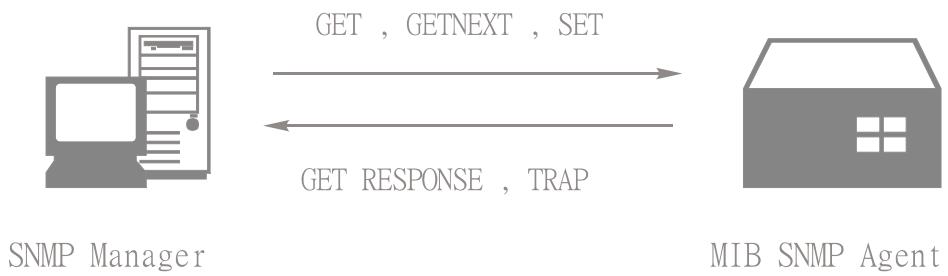
Figure 6-1: SNMP Network
The SNMP manager uses information in the MIB to perform the operations described below:
| Operation | Description |
| GET | Retrieve values of SNMP objects from a network device. |
Table 6-1. The commands of SNMP management
| GETNEXT | Specify an SNMP object in a network device and then retrieve information about the next few SNMP objects in the device. |
| SET | Modify and store values of SNMP objects in a network device. |
| GET RESPONSE | The reply to a GET, GETNEXT, and SET commands sent by a SNMP agent |
| TRAP | A message sent by an SNMP agent to an SNMP manager indicating some event occurred. |
7.
Product Specifications
This section provides the specifications of MaxSwitch IIM, and the following table lists these specifications.
Standards
IEEE 802.3 10BASE-T Ethernet,
| Compliance | IEEE 802.3u 100BASE-TX/FX Ethernet, IEEE 802.3z 1000BASE-LX/SX Ethernet, IEEE 802.3ab 1000BASE-T Gigabit Ethernet ANSI/IEEE standard 802.3 N-Way Auto-negotiation |
| Max Forwarding Rate and Max Filtering Rate | 14,880 pps per Ethernet port, 148,800 pps per Fast Ethernet port 1,488,000 pps per Gigabit Ethernet port |
| LED Indicators | Per Port: 8 port Auto-sensing: 100M, LK/ACT, FD/COL (3 LEDs) 100M Fiber: LK/ACT, FD/COL (2 LEDs) Gigabit Fiber: LK, ACT, FD, COL (4 LEDs) Gigabit Copper: 1000M, 100M, LK/ACT, FD/COL Per Unit : Power, Diag |
| Network Cables | 10Base-T: 2-pair UTP/STP Cat. 3, 4, 5 cable EIA/TIA-568 (100m) 100Base-TX: 2-pair UTP/STP Cat. 5 cable EIA/TIA-568 (100m) 100Base-FX: 50, 62.5/125 micron multi-mode fiber-optics (2Km) 8,9/125 micron single-mode fiber-optics (60Km) 1000Base-SX: 50, 62.5/125 micron multi-mode fiber-optics (500m) 1000BASE-LX: 10/125 micron single-mode fiber-optics (10Km) 1000Base-T: 4-pair UTP/STP Cat. 5 cable EIA/TIA-568 (100m) |
| Dimensions | 440mm x 227mm x 66.5mm (L x W x H) |
| Operational Temperature | 0°C to 45°C (32°F to 113°F) |
| Operational Humidity | 10% to 90% ( Non-condensing ) |
| Power Supply | Input rate: 100~240VAC, 50~60Hz Internal universal power supply: DC 3.3V/13A, 5V/4A |
| Power Consumption | 33~45 Watt depended on modules |
| EMI | FCC Class A, CE Mark |
| Safety | cUL, UL |
Appendix A.
Internet Explorer Setting
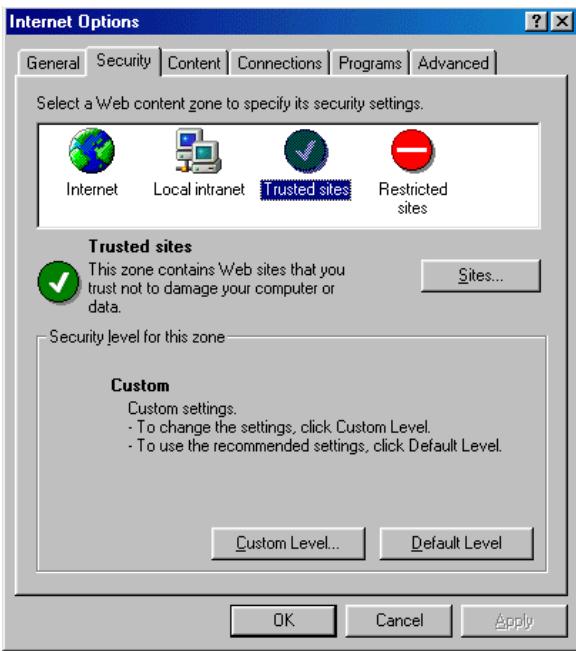
If using IE 4.x and later version, you have to modify the browser setting to enable Java applets to use network ports. We use Internet Explorer 5.0 as demonstrational sample: We first select "Internet Optional..." under "Tools" of function bar, then follow the
step-by-step execution.
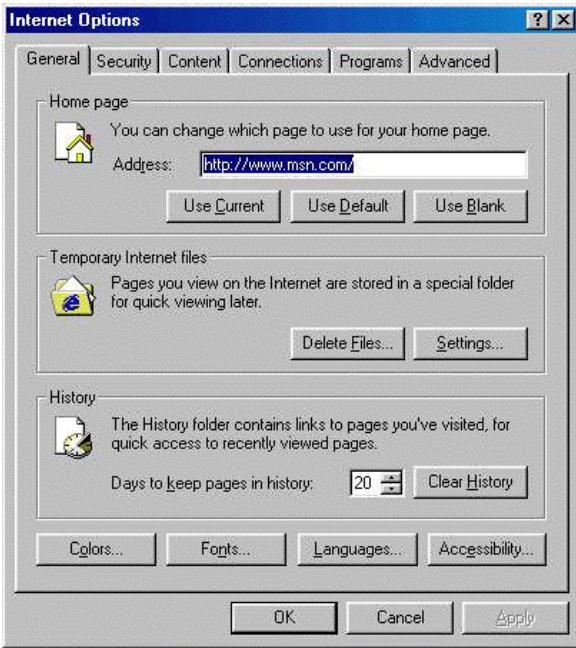
Step 1: then select "Security"
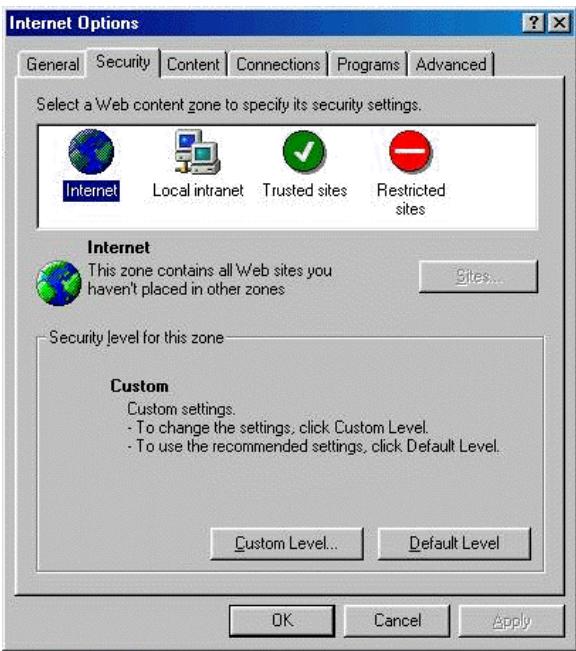
Step 2: select "trusted sites"
Step 3 : click “ sites ”
Step 4 : add the IP of the Modular Switch to the zone, click " Add "
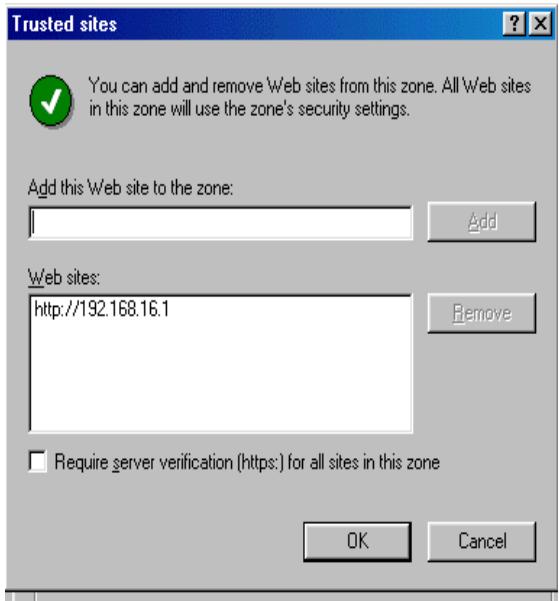
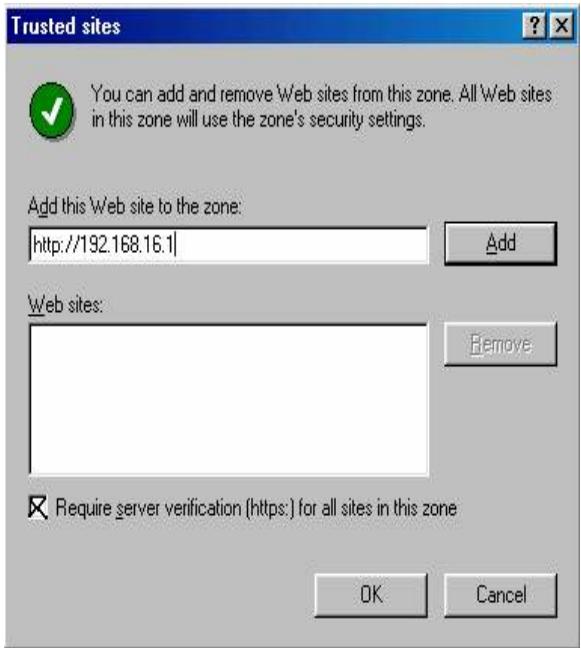
Step 5: Disable left-bottom box – Require server verification for all sites in this zone, then click "OK"
Step 6: go back to Internet Options, then click “Customer Level”
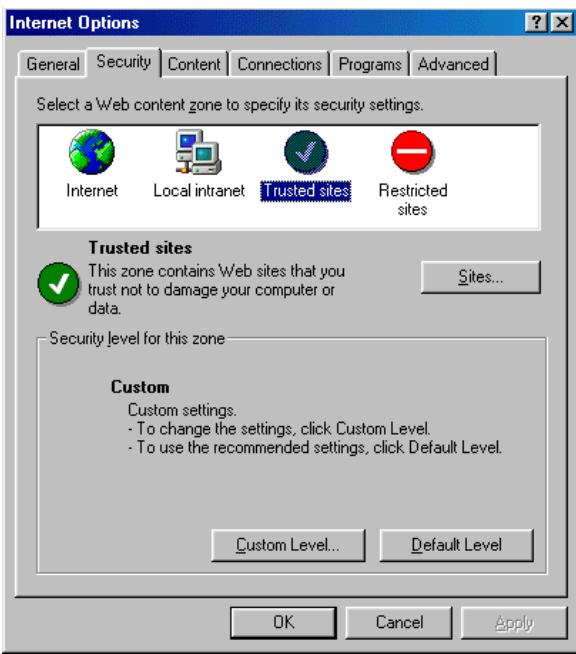
Step 7: pull down rolling to find "Java"

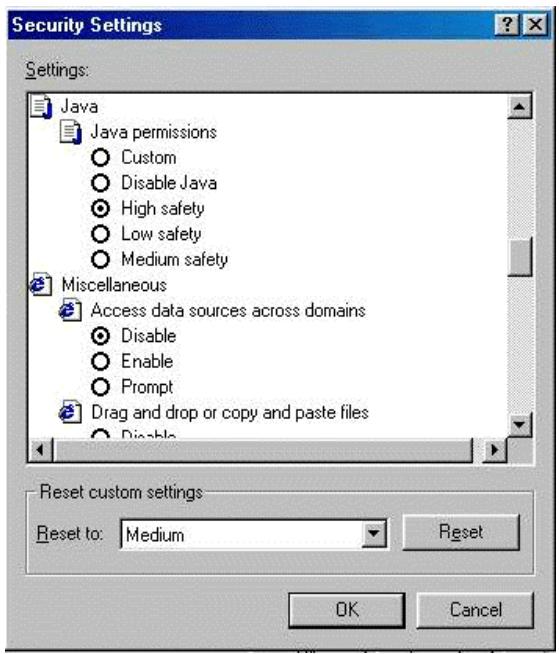
Step 8: select “ Custom ” under "Java"
Step 9:select"Java Custom Setting"
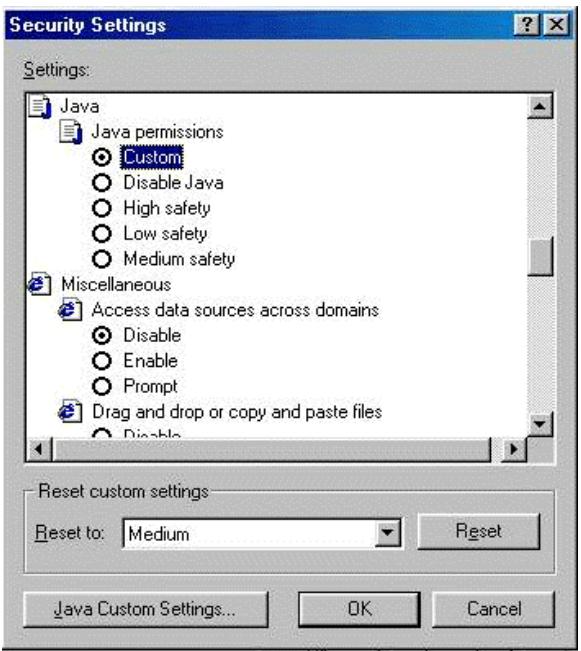
Step 10: select "Edit Permissions"
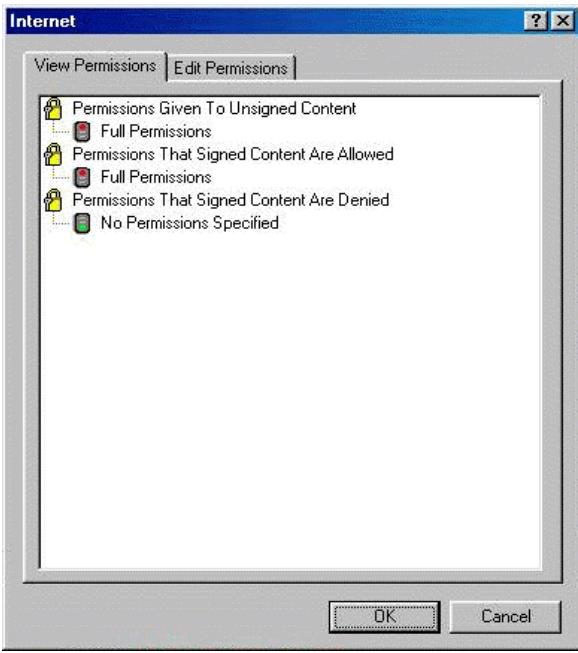
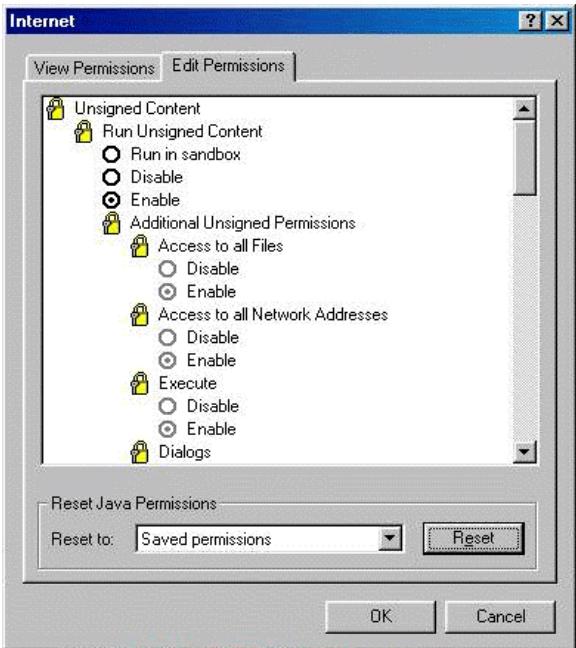
Step 11: select "Enable" under "Unsigned Content",
In Appendix B, We provide two examples of VLAN management on VLAN Group Configuration. The two examples will show you how to Configure VLAN Group:
Port-Based VLAN
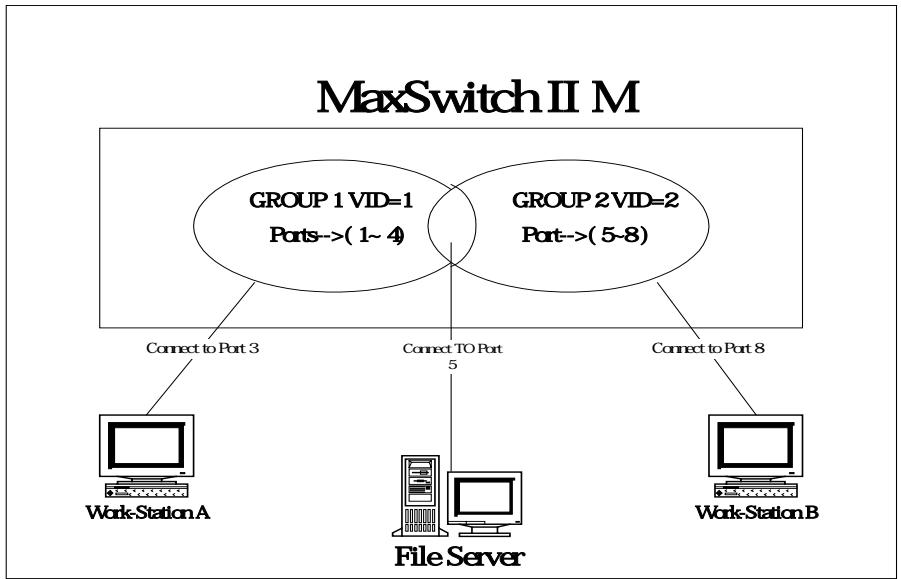
The following example shows you how to create 2 Port-based VLANs including two overlapping ports.
Before you begin to create new VLAN Group, you need to set PVID number on Ports page as below:
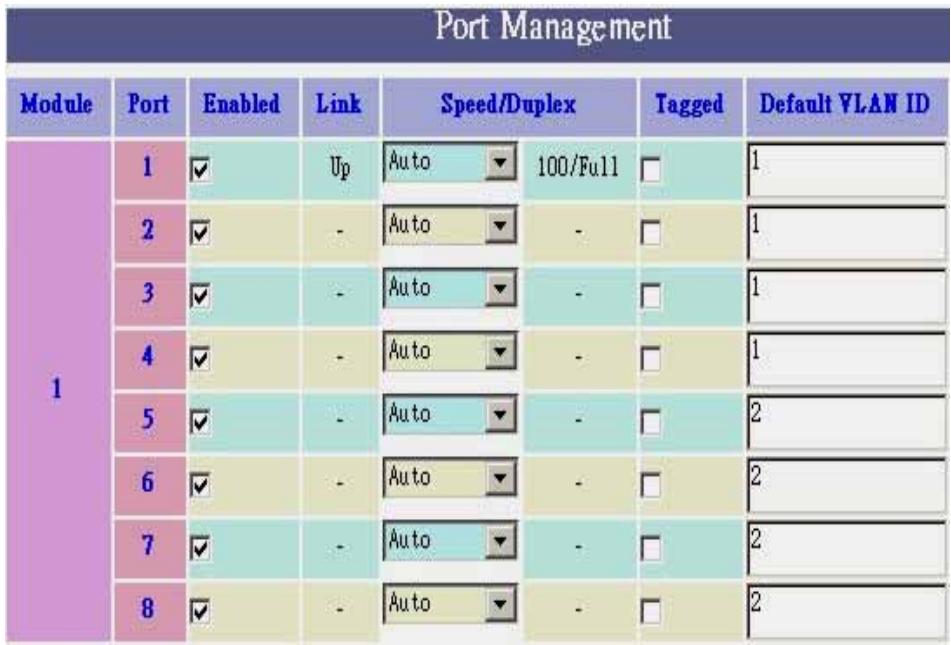
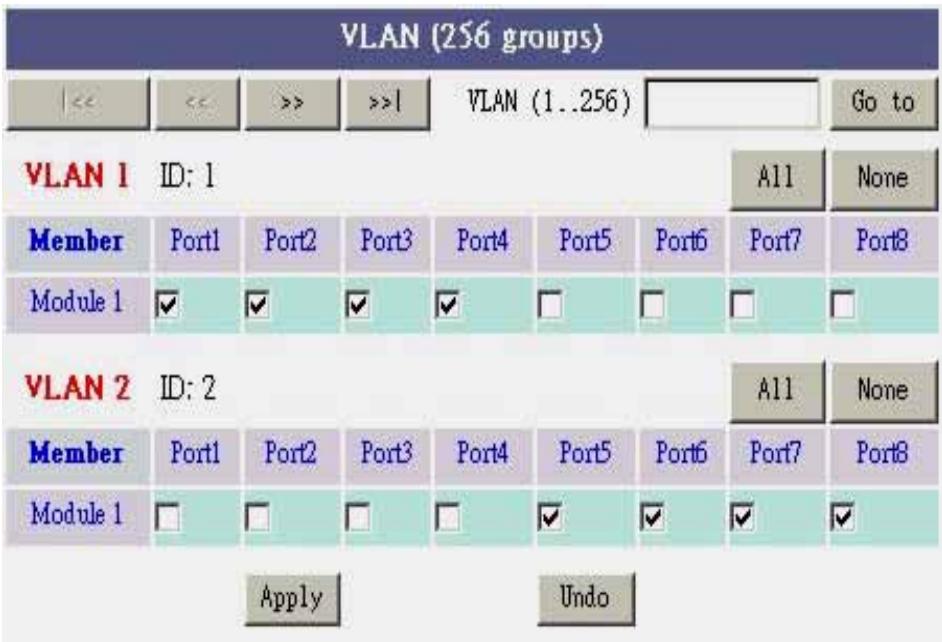
We set VLAN ID of Ports (1~4) 1, and PVID of Ports (5~8) 2. Remember to click “Apply” button after you finish your setting. Then, return to VLAN page, and the screen displays as below:
Afterwards, you click to select Port 4 and Port 5 for the purpose of overlapping. Remember to click “Apply” button after you finish your setting.
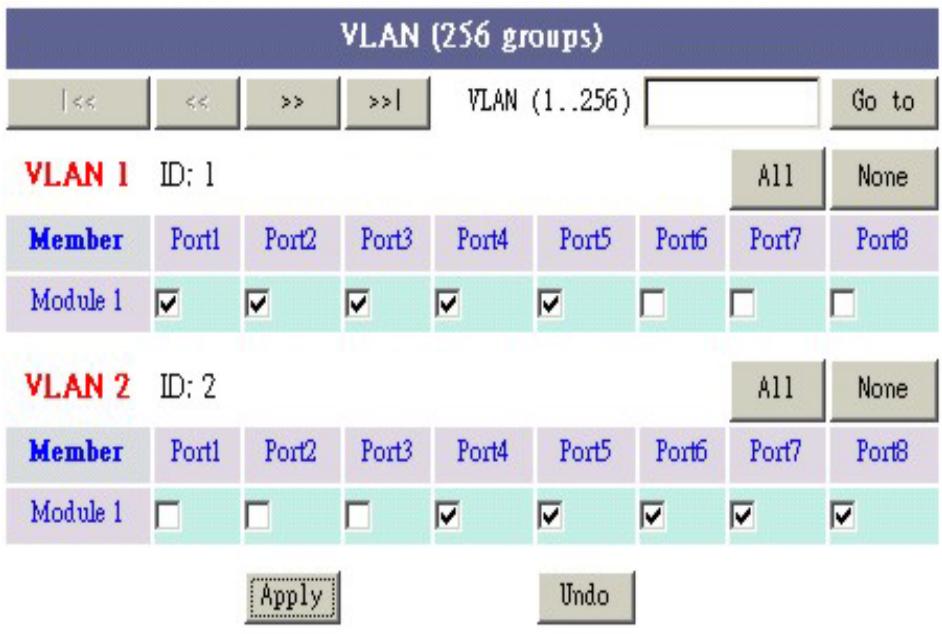
Now you have create two VLAN Groups ( Group1 VID=1 and Group2 VID=2 ) with overlapping ports ( Port 4 & Port 5 ).
Tagging ( Mac Address based ) VLAN
This method of tagging is defined in the IEEE 802.1Q standard, to configure switch port by the tagging function that allows the port to transmit tagging frame. VLAN Tagging can only be used if the devices at both ends of a link support IEEE 802.1Q.
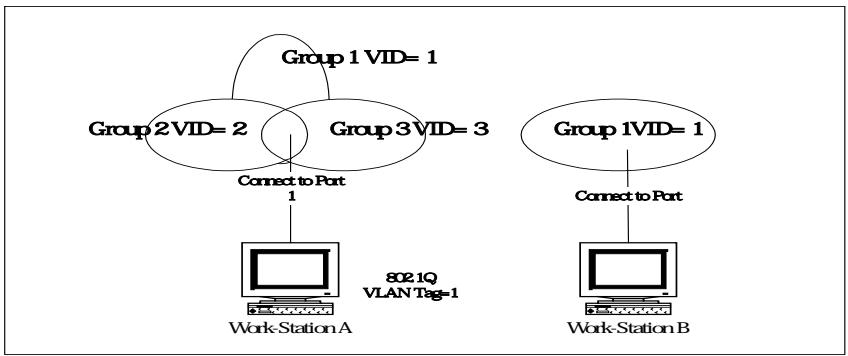
The following example show you how to create 3 VLAN Groups with one common tagged port.
MaxSwitchII M
First, on Ports page, we set VLAN ID 1, 2, 3 as below. Click the checkbox of Tagged on Module 1, port 1.(,which is a Gigabit port) Remember to click “ Apply “ button after you finish your setting.
| Module | Port | Enabled | Link | Speed/Duplex | Tagged | Default VLAN ID | ||
| 1 | 1 | ✓ | - | Auto | ✓ | - | ✓ | 1 |
| 2 | 1 | ✓ | Up | Auto | ✓ | 100/Full | □ | 2 |
| 2 | ✓ | - | Auto | ✓ | - | □ | 2 | |
| 3 | ✓ | - | Auto | ✓ | - | □ | 2 | |
| 4 | ✓ | - | Auto | ✓ | - | □ | 2 | |
| 5 | ✓ | - | Auto | ✓ | - | □ | 3 | |
| 6 | ✓ | - | Auto | ✓ | - | □ | 3 | |
| 7 | ✓ | - | Auto | ✓ | - | □ | 3 | |
| 8 | ✓ | - | Auto | ✓ | - | □ | 3 | |
Then, return to VLAN page, you will see the screen as below.
| VLAN (256 groups) | ||||||||
| | << | << | >> | >>| | VLAN (1..256) | Go to | |||
| VLAN 1 | ID: 1 | A11 | None | |||||
| Member | Port1 | Port2 | Port3 | Port4 | Port5 | Port6 | Port7 | Port8 |
| Module 1 | ✓ | |||||||
| Module 2 | □ | □ | □ | □ | □ | □ | □ | □ |
| VLAN 2 | ID: 2 | A11 | None | |||||
| Member | Port1 | Port2 | Port3 | Port4 | Port5 | Port6 | Port7 | Port8 |
| Module 1 | ✓ | |||||||
| Module 2 | ✓ | ✓ | ✓ | ✓ | □ | □ | □ | □ |
| Apply | Undo | |||||||
Continue to press
button and the next page VLAN 3 appears
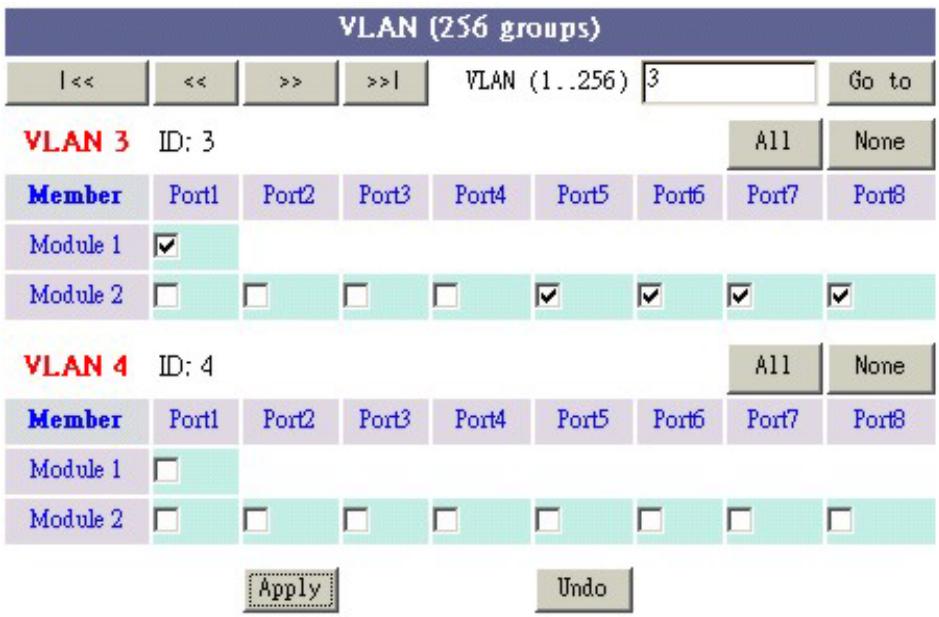
Click the checkbox on Port 1, Module 1.
Remember to click “ Apply “ button after you finish your setting.
Now, you have finished one Tagging VLAN setting.
While you connect this Switch to another Modular Switch to form tagging VLAN, remember that the other Modular Switch should have the same Tagging VLAN setting.
For this advanced Intelligent Switch, we provide easy access to technical support information through a variety of services. Here describes these services.
Registration
Fill in the Registration Card in the package and fax it to the fax number on the card, or you can visit the online Web site on the card. Once registered, we will constantly inform you of updated technical and service information of any new related products.
Problem Report
If any problems occur during your operation, please follow the Appendix A for troubleshooting. Before contact your dealer, network supplier or our service support, write down these information on a paper for a better description: Symptoms, error messages, frequency, product model name, serial number, part number, hardware, software and operation system you are using.
Hardware Repair Service
If there are problems with the hardware, you can return the hardware for repair. Please follow below steps to return you hardware:
Contact your local dealer or service contact on the Registration card, describe the problem, and ask for an RMA (Return Merchandise Authorization) number. If your hardware is still under warranty, you must also provide your purchase date and where you bought it.
If pack your hardware, using the original carton if possible, with RMA number written on.
After the hardware is repaired, we will inform you, giving you the delivery date and the amount due. Please send the payment by T/T(Telegram Transfer). If your hardware is found to be free of defects, you will only be charged for testing and handling.
Technical Support
TRENDware provides free technical support for customers worldwide for the duration of the product's warranty period.
Technical Support via Telephone: +1-310-626-6252
Fax: +1-310-626-6267
Technical Support via Internet: http://www.trendnet.com
E-mail: support@trendware.com
Technical Support Hours:
7:00AM ~ 6:00PM, Monday ~ Friday, Pacific Standard Time (except major holidays)