
TEG-S160TX - Network switch TRENDNET - Free user manual and instructions
Find the device manual for free TEG-S160TX TRENDNET in PDF.


User questions about TEG-S160TX TRENDNET
0 question about this device. Answer the ones you know or ask your own.
Ask a new question about this device
Download the instructions for your Network switch in PDF format for free! Find your manual TEG-S160TX - TRENDNET and take your electronic device back in hand. On this page are published all the documents necessary for the use of your device. TEG-S160TX by TRENDNET.
USER MANUAL TEG-S160TX TRENDNET
16-Port 10/100/100Mbps Copper Gigabit Ethernet Switch
User's Guide
FCC Warning
This equipment has been tested and found to comply with the limits for a Class A digital device, pursuant to Part 15 of the FCC Rules. These limits are designed to provide reasonable protection against harmful interference when the equipment is operated in a commercial environment. This equipment generates, uses, and can radiate radio frequency energy and, if not installed and used in accordance with this user's guide, may cause harmful interference to radio communications. Operation of this equipment in a residential area is likely to cause harmful interference in which case the user will be required to correct the interference at his own expense.
CE Mark Warning
This is a Class A product. In a domestic environment, this product may cause radio interference in which case the user may be required to take adequate measures.
VCCI Warning
This is a product of VCCI Class A Compliance.
注意
a) Elevated Operating Ambient Temperature-If installed in a closed or multi-unit rack assembly, the operating ambient temperature of the rack environment may be greater than room ambient. Therefore, consideration should be given to installing the equipment in an environment compatible with the manufacturer's maximum rated ambient temperature (Tmra).
b) Reduced Air Flow- Installation of the equipment in a rack should be such that the amount of air flow required for safe operation of the equipment is not compromised.
c) Mechanical Loading-Mounting of the equipment in the rack should be such that a hazardous condition is not achieved due to uneven mechanical loading.
d) Circuit Overloading- Consideration should be given to the connection of the equipment to the supply circuit and the effect that overloading of circuits might have on over current protection and supply wiring. Appropriate consideration of equipment nameplate ratings should be used when addressing this concern.
e) Reliable Earthing-Reliable earthing of rack-mounted equipment should be maintained. Particular attention should be given to supply connections other than direct connections to the branch circuit (e.g., use of power strips).
TABLE OF CONTENTS
ABOUT THIS GUIDE. 1
TERMS. 1
OVERVIEW OF THIS USER'S GUIDE. 1
INTRODUCTION 3
GIGABIT ETHERNET TECHNOLOGY 3
SWITCHING TECHNOLOGY 4
FEATURES 5
UNPACKING AND SETUP 6
UNPACKING. 6
SETUP. 6
DESKTOP INSTALLATION 7
RACK INSTALLATION 8
IDENTIFYING EXTERNAL COMPONENTS ....9
FRONT PANEL. 9
REAR PANEL. 10
LED INDICATORS 11
TECHNICAL SPECIFICATIONS 12
ABOUT THIS GUIDE
This user's guide tells you how to install your 16-Port 10/100/1000Mbps Copper Gigabit Ethernet Switch, how to connect it to your Gigabit Ethernet network.
Terms
For simplicity, this documentation uses the terms "Switch" (first letter upper case) to refer to the 16-Port 10/100/100Mbps Copper Gigabit Ethernet Switch, and "switch" (first letter lower case) to refer to all Ethernet switches, including the 16-Port 10/100/1000Mbps Gigabit Ethernet Switch.
Overview of this User's Guide
Introduction. Describes the Switch and its features.
Unpacking and Setup. Helps you get started with the basic installation of the Switch.
Identifying External Components. Describes the front panel, rear panel, and LED indicators of the Switch.
Technical Specifications. Lists all the technical specifications of the Switch.
INTRODUCTION
This section describes the features of the Switch, as well as providing some background information about Gigabit Ethernet and switching technology.
Gigabit Ethernet Technology
Gigabit Ethernet is an extension of IEEE 802.3 Ethernet utilizing the same packet structure, format, and support for CSMA/CD protocol, full duplex, flow control, and management objects, but with a tenfold increase in theoretical throughput over 100Mbps Fast Ethernet and a hundredfold increase over 10Mbps Ethernet. Since it is compatible with all 10Mbps and 100Mbps Ethernet environments, Gigabit Ethernet provides a straightforward upgrade without wasting a company's existing investment in hardware, software, and trained personnel.
The increased speed and extra bandwidth offered by Gigabit Ethernet is essential to coping with the network bottlenecks that frequently develop as computers and their busses get faster and more users use applications that generate more traffic. Upgrading key components, such as your backbone and servers to Gigabit Ethernet can greatly improve network response times as well as significantly speed up the traffic between your subnets.
Gigabit Ethernet supports video conferencing, complex imaging, and similar data-intensive applications. Likewise, since data transfers occur 10 times faster than Fast Ethernet, servers outfitted with Gigabit Ethernet NIC's are able to perform 10 times the number of operations in the same amount of time.
Switching Technology
Another key development pushing the limits of Ethernet technology is in the field of switching technology. A switch bridges Ethernet packets at the MAC address level of the Ethernet protocol transmitting among connected Ethernet or fast Ethernet LAN segments.
Switching is a cost-effective way of increasing the total network capacity available to users on a local area network. A switch increases capacity and decreases network loading by making it possible for a local area network to be divided into different segments which don't compete with each other for network transmission capacity, giving a decreased load on each.
The switch acts as a high-speed selective bridge between the individual segments. Traffic that needs to go from one segment to another is automatically forwarded by the switch, without interfering with any other segments. This allows the total network capacity to be multiplied, while still maintaining the same network cabling and adapter cards.
Switching LAN technology is a marked improvement over the previous generation of network bridges, which were
characterized by higher latencies. Routers have also been used to segment local area networks, but the cost of a router and the setup and maintenance required make routers relatively impractical. Today's switches are an ideal solution to most kinds of local area network congestion problems.
Features
The 16-Port 10/100/1000Mbps Copper Gigabit Ethernet Switch was designed for easy installation and high performance in an environment where traffic on the network and the number of users increase continuously.
16 10/100/1000Mbps Gigabit Ethernet ports
Auto-Negotiation and Auto-MDIX for each port
Supports Full/half duplex transfer mode for 10Mbps and 100Mbps
Supports Full duplex transfer mode for 1000Mbps
Wire speed reception and transmission
Store-and-Forward switching method
8K MAC addresses entities per device
128KBytes RAM for data buffering
Extensive front-panel diagnostic LEDs
IEEE 802.3x flow control for full duplex mode
UNPACKING AND SETUP
This chapter provides unpacking and setup information for the Switch.
Unpacking
Open the shipping carton of the Switch and carefully unpack its contents. The carton should contain the following items:
? ? One 16-Port 10/100/1000Mbps Gigabit Ethernet Switch
? ? Accessory pack: 2 mounting brackets and screws
? Four rubber feet with adhesive backing
? One AC power cord
? ? This User's Guide
If any item is found missing or damaged, please contact your local reseller for replacement.
Setup
The setup of the Switch can be performed using the following steps:
? ? The surface must support at least 5Kg (11 lbs.).
? ? The power outlet should be within 1.82 meters (6 feet) of the device.
? ? Visually inspect the power cord and see that it is fully secured to the AC power connector.
? ?Make sure that there is proper heat dissipation and adequate ventilation around the Switch. Do not place heavy objects on the Switch.
Desktop Installation
When installing the Switch on a desktop or shelf, the rubber feet included with the device must be first attached. Attach these cushioning feet on the bottom at each corner of the device. Allow enough ventilation space between the device and the objects around it.
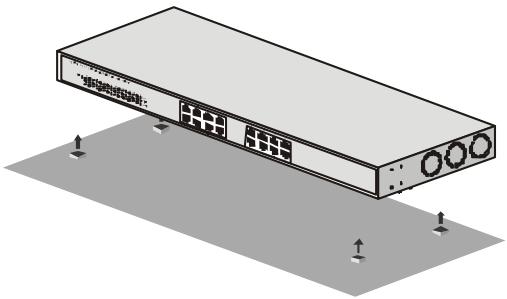
Installing The Switch on Desktop
Rack Installation
The Switch can be mounted in an EIA standard size, 19-inch rack, which can be placed in a wiring closet with other equipment. To install, attach the mounting brackets on the sides of the Switch and secure them with the screws provided.
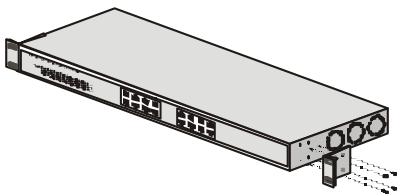
Attaching the mounting brackets to the Switch
Then, use the screws provided with the equipment rack to mount the Switch in the rack.
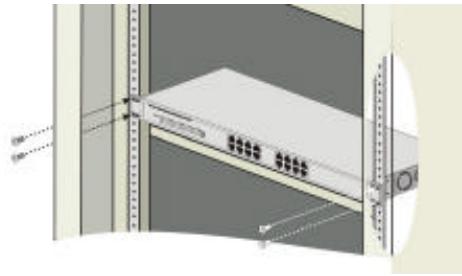
Installing the Switch in an equipment rack
IDENTIFYING EXTERNAL COMPONENTS
This chapter describes the front panel, rear panel and LED indicators of the Switch
Front Panel
The front panel of the Switch consists of sixteen 10/100/100Mbps Gigabit Ethernet ports and LED indicators.

Front panel view of the Switch
? Sixteen Gigabit Ethernet ports of 10/100/1000Mbps Auto-Negotiation interface.
? ? Comprehensive LED indicators that display the conditions of the Switch and status of the network. A description of these LED indicators follows (see LED Indicators).
Rear Panel
The rear panel of the Switch consists of an AC power connector and the power switch. The following shows the rear panel of the Switch.
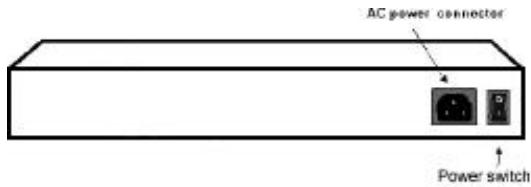
Rear panel view of the Switch
? ? AC Power Connector This is a three-pronged connector that supports the power cord. Plug in the female connector of the provided power cord into this connector, and the male into a power outlet. Supported input voltages range from 100 240VAC at 50 60Hz .
LED Indicators
The LED indicators of the Switch include Power, Link/Act, 1000Mbps and 100Mbps. The following shows the LED indicators for the Switch along with an explanation of each indicator.

The Switch LED indicators
Per unit:
? ? Power This indicator lights green when the Switch is receiving power, otherwise, it is off.
Per port:
? ?Link/ACT. This indicator lights green when the port is connected to a Gigabit Ethernet, Fast Ethernet or Ethernet device. If the indicator is blinking green, the port is receiving data.
? ? 1000Mbps. This LED indicator lights green when the port is connected to a 1000Mbps Gigabit Ethernet device.
? ? 100Mbps. This LED indicator lights green when the port is connected to a 100Mbps Fast Ethernet device.
Note: If the Link/ACT LED indicator light green and both of 1000Mbps and 100Mbps LED indicators are off, the port is connected to 10Mbps Ethernet device.
TECHNICAL SPECIFICATIONS
| General | ||
| Standards: | IEEE 802.3ab 1000BASE-T | |
| IEEE 802.3u 100BASE-TX | ||
| IEEE 802.3 10BASE-T | ||
| IEEE 802.3x Flow Control | ||
| Protocol: | CSMA/CD | |
| Data Transfer Rate: | Ethernet: 10Mbps (Half-duplex) | |
| 20Mbps (Full-duplex) | ||
| Fast Ethernet: 100Mbps (Half-duplex) | ||
| 200Mbps (Full-duplex) | ||
| Gigabit Ethernet: 2000Mbps (Full-duplex) | ||
| Topology: | Star | |
| Network Cables: | Ethernet: 2-pair UTP/STP Cat. 3,4,5 Cable (Max. 100M) | |
| Fast Ethernet: 2-pair UTP/STP Cat. 5 Cable (Max. 100M) | ||
| Gigabit Ethernet: 4-pair UTP/STP Cat. 5 Cable (Max. 100M) | ||
| Number of Ports: | Sixteen (16) 10/100/1000Mbps Copper Gigabit Ethernet ports | |
| Physical and Environmental | |
| AC inputs: | 100~240 VAC Universal, 50/60 Hz |
| Power Consumption: | 40 watts max. |
| Operating Temperature: | 0°C~40°C (32°F~104°F) |
| Storage Temperature: | -10°C~70°C (14°~158°F) |
| Humidity: | 5% ~ 90% (non-condensing) |
| Dimensions: | 440 x 44 x 210 mm (17.3" x 1.7" x 0.4") (W x H x D) |
| EMI: | CE Mark Class A, FCC Class A, VCCI Class A |
| Safety: | cUL(1950), CB(IEC60950) |
| Performance | |
| Transmission Method: | Store-and-forward |
| RAM Buffer: | 128Kbytes per device |
| Filtering Address Table: | 8K MAC address per device |
| Packet Filtering/Forwarding Rate: | 10Mbps: 14,880 Packet per Second (pps)100Mbps: 148,800 pps1000Mbps: 1,488,000 pps |
| MAC Address Learning: | Self-learning, auto-aging |