
P-334 - Router ZYXEL - Free user manual and instructions
Find the device manual for free P-334 ZYXEL in PDF.



| Product Type | Router |
| Brand | ZYXEL |
| Model | P-334 |
| Power Supply | 9 VAC via provided AC adapter |
| LAN Ports | 4 Ethernet 10/100 Mbps ports with auto-negotiation and auto-crossover |
| WAN Port | 1 Ethernet 10/100 Mbps port |
| Reset Button | Yes, to restore factory defaults (password 1234, LAN IP 192.168.1.1) |
| PWR LED | Indicates power: off (no power), orange (low), green (normal), blinking (tests) |
| LAN 1-4 LEDs | Indicates LAN status: green (10 Mbps), orange (100 Mbps), blinking (activity), off (not connected) |
| WAN LED | Indicates WAN status: green (10 Mbps), orange (100 Mbps), blinking (activity), off (not connected) |
| Main Features | Firewall, VPN, NAT, UPnP, Content Filtering, 4-port Switch |
| Supported Encapsulation | Ethernet, PPPoE, PPTP |
| Default LAN IP Address | 192.168.1.1 |
| Default Password | 1234 |
| Configuration | Web Setup Wizard (browser) or SMT via Telnet |
| Operating System Compatibility | Windows 2000/NT/XP, Mac OS 7 and later |
| Maintenance and Cleaning | Clean with a soft, dry cloth. Avoid moisture and chemicals. |
| Security | Built-in firewall, VPN, content filtering, password management |
| General Information | Full manual available as PDF on ZYXEL website (www.zyxel.com) |
Frequently Asked Questions - P-334 ZYXEL
User questions about P-334 ZYXEL
0 question about this device. Answer the ones you know or ask your own.
Ask a new question about this device
Download the instructions for your Router in PDF format for free! Find your manual P-334 - ZYXEL and take your electronic device back in hand. On this page are published all the documents necessary for the use of your device. P-334 by ZYXEL.
USER MANUAL P-334 ZYXEL
Broadband Router with Firewall
Quick Start Guide
11/2004
Version 3.60
English
中文
Deutsch
Espanol
Français
Italiano
ZyXEL Unleash Network
Unleash Networking Power
Contents
ENGLISH 2
中文....11
DEUTSCH 21
ESPANOL....32
FRANÇAIS....43
ITALIANO 53
1 Introducing the Prestige
The Prestige is a broadband sharing gateway with a built-in four-port 10/100 Mbps switch that makes it easy for people to set up a small home/office network and share Internet access via a broadband (cable/DSL) modem. Key features of the Prestige include a firewall, VPN, content filtering, NAT and UPnP. See your User's Guide for more details on all Prestige features.
You should have an Internet account already set up and have been given most of the following information.
Internet Account Information
| Your device's WAN IP Address (if given): ______________ | ||
| DNS Server IP Address (if given): First ____, Second ____, Third ______________ | ||
| Encapsulation: (select one below): | ||
| ○ Ethernet | Service Type: ______________ | |
| Login Server IP Address: ______________ | ||
| User Name: ____ | Password: ____ | |
| ○ PPTP | User Name: ____ | Password: ____ |
| Your WAN IP Address: ____ | PPTP Server IP Address: ____ | |
| Connection ID (if required): ____ | ||
| ○ PPPoE | (PPPoE) Service Name: ______________ | |
| User Name: ____ | Password: ____ | |
Procedure to View a Product's Certification(s)
- Go to www.zyxel.com.
- Select your product from the drop-down list box on the ZyXEL home page to go to that product's page.
- Select the certification you wish to view from this page.
2 Hardware Installation
2.1 Rear Panel

| LABEL | DESCRIPTION |
| LAN 10/100M | Use an Ethernet cable to connect at least one computer for initial Prestige configuration. These ports are auto-negotiating (can connect at 10 or 100Mbps) and auto-sensing (automatically adjust to the type of Ethernet cable you use (straight-through or crossover)). |
| WAN 10/100M | Connect your cable/DSL modem to this port with the cable that came with your modem. |
| POWER 9 VAC | Connect the end of the included power adaptor (use only this adapter) to this power socket. |
| After you've made the connections, connect the power cable to a power supply and look at the front panel LEDs. | |
| RESET | You only need to use this button if you've forgotten the Prestige's password. It returns the Prestige to the factory defaults (password is 1234, LAN IP address 192.168.1.1. See your User's Guide for details). |
2.2 Front Panel LEDs
The PWR LED blinks while performing system testing and then stays on if the testing is successful. The LAN, and WAN LEDs turn on if they are properly connected.
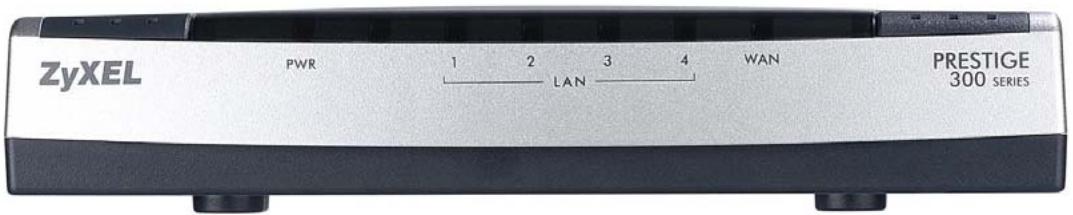
| LED | STATUS | COLOR | DESCRIPTION |
| PWR | Off | The Prestige is not receiving power. | |
| Amber | On | Power to the Prestige is too low | |
| Green | On | The Prestige is receiving power. | |
| Blinking | The Prestige is performing testing. | ||
| LAN 1-4 | Off | The LAN is not connected. | |
| Green | On | The Prestige has a successful 10Mb Ethernet connection. | |
| Blinking | The Prestige is sending/receiving data | ||
| Amber | On | The Prestige has a successful 100Mb Ethernet connection. | |
| Blinking | The Prestige is sending/receiving data | ||
| WAN | Off | The WAN connection is not ready, or has failed. | |
| Green | On | The Prestige has a successful 10Mb WAN connection. | |
| Blinking | The Prestige is sending/receiving data | ||
| Amber | On | The Prestige has a successful 100Mb Ethernet connection. | |
| Blinking | The Prestige is sending/receiving data |
3 Preparing Your Computer
Skip this section if your computer is already set up to accept a dynamic IP address. This is the default for most new computers.
The Prestige is already set up to assign your computer an IP address. Use this section to set up your computer to receive an IP address or assign it a static IP address in the 192.168.1.2 to 192.168.1.254 range with a subnet mask of 255.255.255.0. This is necessary to ensure that your computer can communicate with your Prestige.
Your computer must have an Ethernet card and TCP/IP installed. TCP/IP should already be installed on computers using Windows NT/2000/XP, Macintosh OS 7 and later operating systems.
3.1 Windows 2000/NT/XP
- In Windows XP, click start, Control Panel. In Windows 2000/NT, click Start, Settings, Control Panel.
- In Windows XP, click Network Connections.
In Windows 2000/NT, click Network and Dial-up Connections.
- Right-click Local Area Connection and then click Properties.
-
Select Internet Protocol (TCP/IP) (under the General tab in Win XP) and click Properties.
-
The Internet Protocol TCP/IP Properties screen opens (the General tab in Windows XP).
-
To have your computer assigned a dynamic IP address, click Obtain an IP address automatically.
-To configure a static IP address, click Use the following IP Address and fill in the IP address (choose one from 192.168.1.2 to 192.168.1.254), Subnet mask (255.255.255.0), and Default gateway (192.168.1.1) fields.
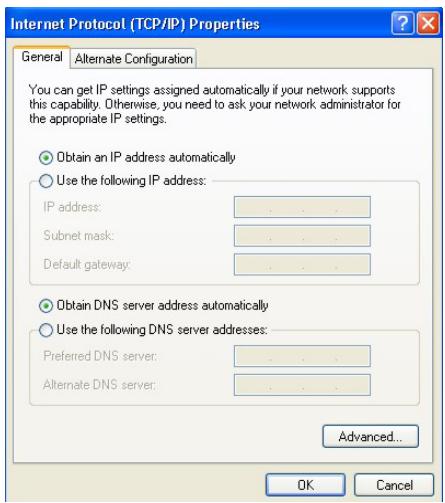
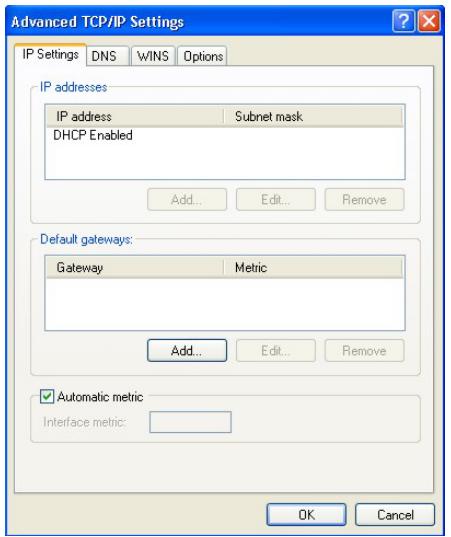
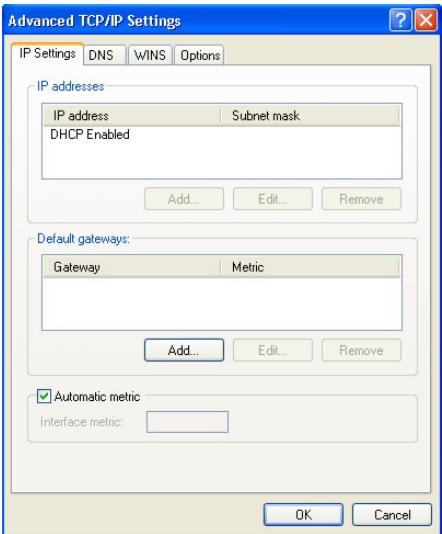
- Click Advanced. Remove any previously installed gateways in the IP Settings tab and click OK to go back to the Internet Protocol TCP/IP Properties screen.
- Click Obtain DNS server address automatically if you do not know your DNS server IP address(es).
If you know your DNS server IP address(es), click Use the following DNS server addresses, and type them in the Preferred DNS server and Alternate DNS server fields.
If you have more than two DNS servers, click Advanced, the DNS tab and then configure them using Add.
- Click OK to close the Internet Protocol (TCP/IP) Properties window.
- Click OK to close the Local Area Connection Properties window.
Checking Your Computer's IP Address
- In the computer, click Start, (All) Programs, Accessories and then Command Prompt.
- In the Command Prompt window, type "ipconfig" and then press ENTER. Your computer's IP address must be in the correct range (192.168.1.2 to 192.168.1.254) with subnet mask 255.255.255.0 in order to communicate with the Prestige.
Refer to your User's Guide for detailed IP address configuration for other Windows and Macintosh computer operating systems.
4 Configuring Your Prestige
Choose one of these methods to access and configure the Prestige. This Quick Start Guide shows you how to use the web configurator wizard only. See your User's Guide for background information on all Prestige features and SMT configuration. Click the web configurator online help for screen-specific web help.
▶ Web Configurator
➢ SMT (System Management Terminal). Access the SMT via LAN or WAN using Telnet.
4.1 Accessing Your Prestige Via Web Configurator
Step 1. Launch your web browser. Enter “192.168.1.1” as the web site address.

Step 2. The default password (“1234”) is already in the password field (in non-readable format). Click Login to proceed to a screen asking you to change your password. Click Reset to revert to the default password in the password field.
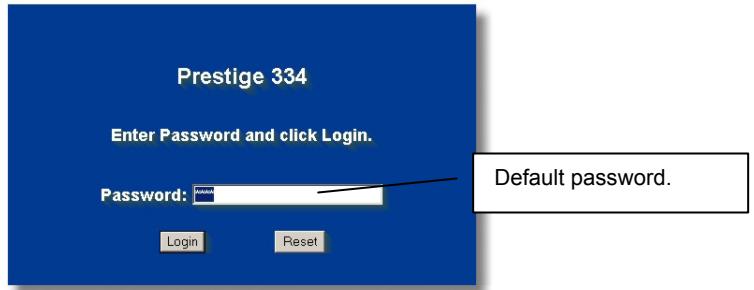
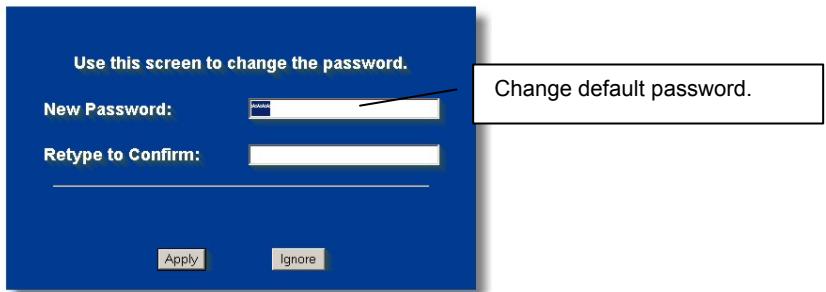
Step 3. It is highly recommended you change the default password! Enter a new password, retype it to confirm and click Apply; alternatively click Ignore to proceed to the main menu if you do not want to change the password now.
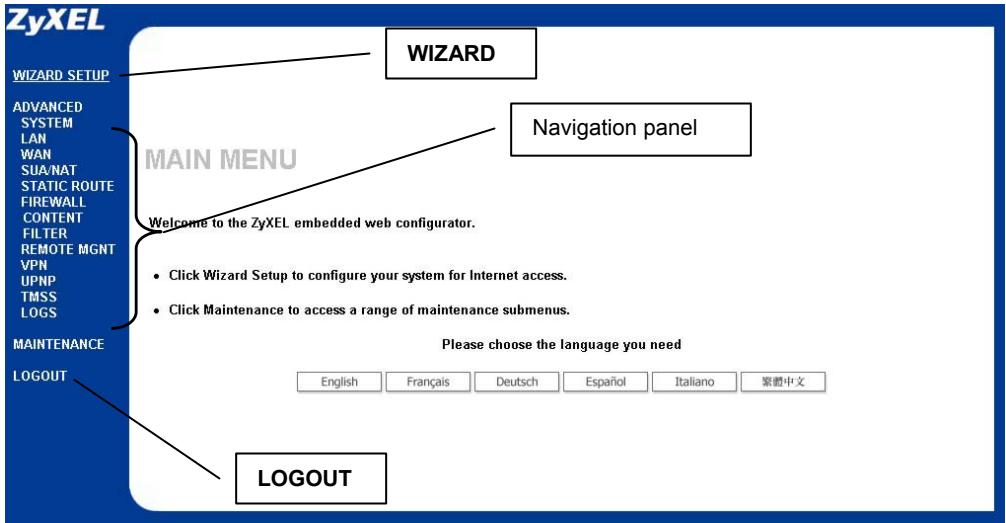
Step 4. You should now see the web configurator MAIN MENU screen.
➢ Click WIZARD to begin a series of screens to help you configure your Prestige for the first time.
➢ Click a link under ADVANCED in the navigation panel to configure that Prestige feature.
➢ Click MAINTENANCE in the navigation panel to see Prestige performance statistics, upload firmware and back up, restore or upload a configuration file.
Click LOGOUT when you have finished a Prestige management session. The Prestige automatically logs you out if it is left idle for five minutes; press ENTER to display the Login screen again and then log back in. This idle timeout timer is one of the many Prestige features that you may edit using the web configurator.
4.2 Internet Access Using the Wizard
Step 1. Click Wizard Setup in the main menu to display the first wizard screen.
WIZARD SETUP
General Setup:
This information is optional, but may be helpful in accessing services of your Internet Service Provider, such as mail and news servers and customer support web pages.
Enter a descriptive name for identification purposes. We recommend using your computer's name.
System Name:
P334
The ISP's domain name is often sent automatically by the ISP to the router. If you are having difficulty accessing ISP services, you may need to enter the Domain Name manually in the field below.
Domain Name:
Next
System Name is for identification purposes. Enter your computer's "Computer Name".
The Domain Name entry is what is propagated to the DHCP clients on the LAN. If you leave this blank, the domain name obtained by DHCP from the ISP is used. Click Next to continue.
Step 2. The second wizard screen has three variations depending on what encapsulation type you use. Use the information in Internet Account Information to fill in fields.
WIZARD SETUP
ISP Parameters for Internet Access
Encapsulation
Ethernet

Service Type
Standard

User Name
N/A
Password
N/A N/A
Login Server IP Address
Back Next
Choose Ethernet when the WAN port is used as a regular Ethernet. Choose from Standard or a RoadRunner version. You'll need User Name, Password and Login Server IP Address for some Roadrunner versions.
PPPoE or Point-to-Point Protocol over Ethernet (PPP over Ethernet) also functions as a dial-up connection. Therefore you'll also need a username and password and possibly the PPPoE service name.
Your ISP will give you all needed information.
Choose PPTP if your service provider uses a DSL terminator with PPTP login. You'll also need a user name, an associated password, the PPTP server IP address and possibly a connection ID/name.
Click Next to continue.
Step 3. This is the final wizard screen you need to configure. Fill in the fields and click Finish to save and complete the wizard setup.
WIZARD SETUP
WAN IP Address Assignment
Get automatically from ISP (Default)
Use fixed IP address
My WAN IP Address
My WAN IP Subnet Mask
Gateway IP Address
| 211.72.158.114 |
| 255.255.255.240 |
| 211.72.158.113 |
DNS Server Address Assignment
First DNS Server
Second DNS Server
Third DNS Server
| User-Defined | 168.95.1.1 |
| From ISP | 0.0.0.0 |
| From ISP | 0.0.0.0 |
WAN MAC Address
Factory default
Spoof this computer's MAC Address - IP Address
192.168.1.33
Back Next
WAN IP Address Assignment
Select Get automatically from ISP if your ISP did not assign you a fixed IP address. Select Use fixed IP address if the ISP assigned a fixed IP address and then enter your IP address and subnet mask in the next two fields. Enter the gateway IP address in this field (if provided) when you select Use Fixed IP Address.
DNS Server Address Assignment
Select From ISP if your ISP dynamically assigns DNS server information (and the Prestige's WAN IP address). The field to the right displays the (read-only) DNS server IP address that the ISP assigns. If you chose From ISP, but the Prestige has a fixed WAN IP address, From ISP changes to None after you click Next. If you chose From ISP for the second or third DNS server, but the ISP does not provide a second or third IP address, From ISP changes to None after you click Next.
Select User-Defined if you have the IP address of a DNS server. Enter the DNS server's IP address in the field to the right. If you chose User-Defined, but leave the IP address set to 0.0.0.0, User-Defined changes to None after you click Apply. If you set a second choice to User-Defined, and enter the same IP address, the second User-Defined changes to None after you click Apply.
Select None if you do not want to configure DNS servers. If you do not configure a system DNS server, you must use IP addresses when configuring VPN, DDNS and the timeserver.
WAN MAC Address
The WAN MAC address field allows users to configure the WAN port's MAC address by either using the factory default or cloning the MAC address from a computer on your LAN. Select Factory Default to use the factory assigned default MAC address. Alternatively, select Spoof this Computer's MAC address - IP Address and enter the IP address of the computer on the LAN whose MAC address you are cloning.
Step 4. Click Next to save and complete the wizard setup.
4.3 Test Your Internet Connection
Launch your web browser and navigate to www.zyxel.com. You don't need a dial-up program such as Dial Up Networking. Internet access is just the beginning. Refer to the User's Guide for more detailed information on the complete range of Prestige features.
5 Troubleshooting
| PROBLEM | CORRECTIVE ACTION |
| None of the LEDs turn on when you turn on the Prestige. | Make sure that you have the correct power adapter connected to the Prestige and plugged in to an appropriate power source. Check all cable connections.If the LEDs still do not turn on, you may have a hardware problem. In this case, you should contact your local vendor. |
| Cannot access the Prestige from the LAN. | Check the cable connection between the Prestige and your computer or hub. Refer to the Rear Panel section for details.Ping the Prestige from a LAN computer. Make sure your computer Ethernet card is installed and functioning properly. |
| Cannot ping any computer on the LAN. | If the 10/100M LAN LEDs are off, check the cable connections between the Prestige and your LAN computers.Verify that the IP address and subnet mask of the Prestige and the LAN computers are in the same IP address range. |
| Cannot get a WAN IP address from the ISP. | The WAN IP is provided after the ISP verifies the MAC address, host name or user ID.Find out the verification method used by your ISP and configure the corresponding fields. |
| If the ISP checks the WAN MAC address, you should clone the MAC address from a LAN computer. Click WAN and then the MAC tab, select Spoof this Computer's MAC address - IP Address and enter the IP address of the computer on the LAN whose MAC address you are cloning. | |
| If the ISP checks the host name, enter your computer's name (refer to the Wizard Setup section in the User's Guide) in the System Name field in the first screen of the WIZARD. | |
| If the ISP checks the user ID, click WAN and then the ISP tab. Check your service type, user name, and password. | |
| Cannot access the Internet. | Check the Prestige's connection to the cable/DSL device.Check whether your cable/DSL device requires a crossover or straight-through cable. |
| Click WAN to verify your settings. |
1 P334 介紹
檢查您電腦的 IP 位址
This information is optional, but may be helpful in accessing services of your Internet Service Provider, such as mail and news servers and customer support web pages.
Enter a descriptive name for identification purposes. We recommend using your computer's name.
System Name: P334
The ISP's domain name is often sent automatically by the ISP to the router. If you are having difficulty accessing ISP services, you may need to enter the Domain Name manually in the field below.
Domain Name:
Next
WAN IP Address Assignment
(指派 WAN IP 位址)
This information is optional, but may be helpful in accessing services of your Internet Service Provider, such as mail and news servers and customer support web pages.
Enter a descriptive name for identification purposes. We recommend using your computer's name.
System Name:
P334
The ISP's domain name is often sent automatically by the ISP to the router. If you are having difficulty accessing ISP services, you may need to enter the Domain Name manually in the field below.
Domain Name:
Next
This information is optional, but may be helpful in accessing services of your Internet Service Provider, such as mail and news servers and customer support web pages.
Enter a descriptive name for identification purposes. We recommend using your computer's name.
System Name: P334
The ISP's domain name is often sent automatically by the ISP to the router. If you are having difficulty accessing ISP services, you may need to enter the Domain Name manually in the field below.
Domain Name:
Next
WAN IP Address Assignment
- Broadband Router with Firewall
- Quick Start Guide
- Contents
- Introducing the Prestige
- Procedure to View a Product's Certification(s)
- Hardware Installation
- Rear Panel
- Front Panel LEDs
- Preparing Your Computer
- Skip this section if your computer is already set up to accept a dynamic IP address. This is the default for most new computers.
- Windows 2000/NT/XP
- Checking Your Computer's IP Address
- Configuring Your Prestige
- Accessing Your Prestige Via Web Configurator
- Internet Access Using the Wizard
- WIZARD SETUP
- WAN IP Address Assignment
- DNS Server Address Assignment
- WAN MAC Address
- Test Your Internet Connection
- P334 介紹
- (指派 WAN IP 位址)
Brand : ZYXEL
Model : P-334
Category : Router