
TS128MJF2L - USB Drive TRANSCEND - Free user manual and instructions
Find the device manual for free TS128MJF2L TRANSCEND in PDF.


User questions about TS128MJF2L TRANSCEND
0 question about this device. Answer the ones you know or ask your own.
Ask a new question about this device
Download the instructions for your USB Drive in PDF format for free! Find your manual TS128MJF2L - TRANSCEND and take your electronic device back in hand. On this page are published all the documents necessary for the use of your device. TS128MJF2L by TRANSCEND.
USER MANUAL TS128MJF2L TRANSCEND
Your Supplier, Your Partner, Your Friend.
Table of Contents
Introduction
Package Contents. 1
Features 1
System Requirements 1
Driver Installation
Driver Installation for Windows 98SE 2
Driver Installation for Windows Me, 2000, and XP
Driver Installation for Mac OS 9.0 or Later
Driver Installation for Linux Kernel 2.4 or Later
Security Function
Partition Types 3
Security Function for Windows 98SE, Me, 2000, and XP 4
Access Data in Security Area 5
Log Out of Security Area 7
Change Password 8
If You Forget the Password 9
PC-Lock Function
PC-Lock Function for Windows 98SE, Me, 2000, and XP
Lock Your Computer 10
Unlock Your Computer 11
Boot-Up Function
System Requirements for Boot-Up Function 11
Boot-Up Function for Windows 98SE and Me 11
Boot-Up Function for Windows XP 13
Recovery Function. 16
Safely Remove Your JetFlash
Remove JetFlash in Windows 98SE 17
Remove JetFlash in Windows Me, 2000, and XP 17
Remove JetFlash in Mac OS 18
Remove JetFlash in Linux 18
Uninstall the Win98 Driver 18
Troubleshooting 19
Specifications 21
Ordering Information 21
JetFlash Limited Warranty
Introduction
Thank you very much for purchasing Transcend's JetFlash™. This small device is designed to expedite the exchange of huge amounts of data between any desktop or laptop computers with a USB port. With a higher storage capacity and a much faster data transfer rate than other typical portable storage media, JetFlash can easily replace floppy diskettes and hard disks. In addition, its mobility, strong data retention ability, and impressive appearance will provide you with a brand-new data storage experience.
Package Contents
The JetFlash package includes the following items:
- JetFlash
Label - Neck Strap
- Driver CD
USB Extension Cable
Quick Installation Guide
Features
- Fully compatible with USB 2.0
- Easy Plug and Play installation
Security Function: Password protection provided
PC-Lock Function: Make JetFlash the key to lock your computer - Boot-Up Function: Make JetFlash a bootable device
- Recovery Function: Return JetFlash to its initial status
- Driverless (Only Windows® 98SE needs the enclosed driver)
- Powered via the USB port. No external power or battery needed
- LED indicates the usage status of JetFlash
System Requirements
- Hardware: Desktop or notebook computer with USB port
- Operating System: Windows® 98SE, Windows® Me, Windows® 2000 or Windows® XP Mac™ OS 9.0 or later, Linux™ kernel 2.4 or later
Driver Installation
Driver Installation for Windows 98SE
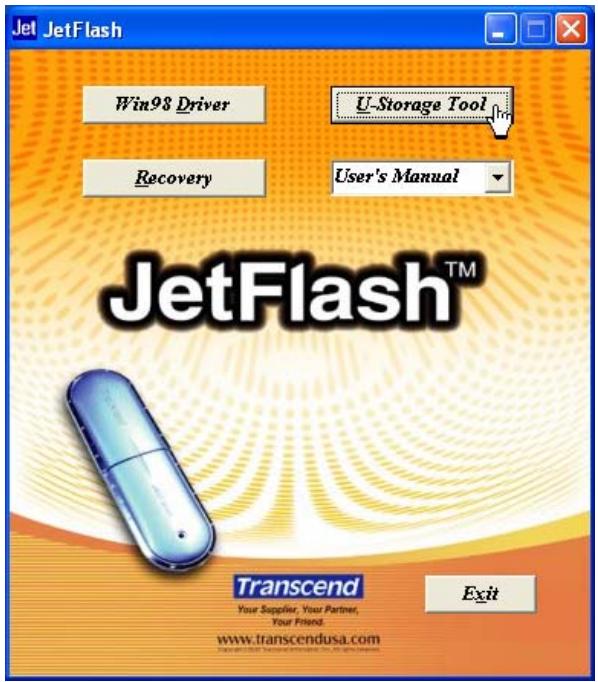
- Put the Driver CD into the CD-ROM drive (Auto-Run supported). Select the Win98 Driver button.
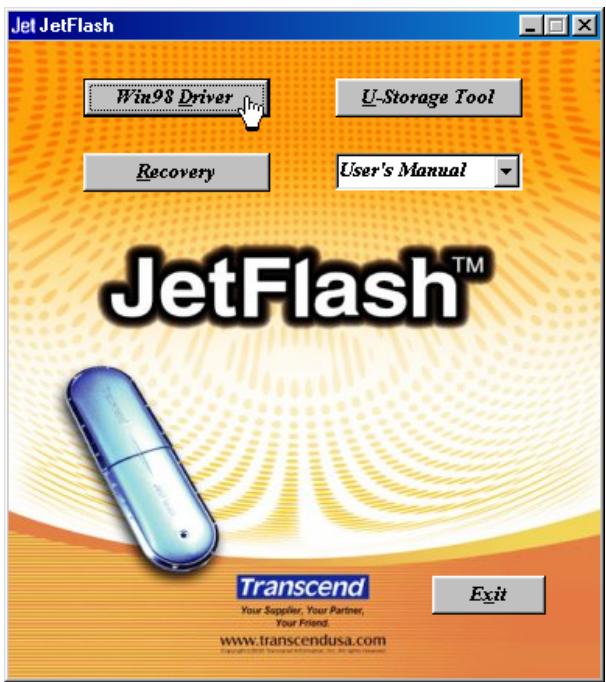
- Follow the on-screen instructions to complete the driver installation.
- Plug your JetFlash into an available USB port. A new Removable Disk drive with a newly assigned drive letter will appear in the My Computer window.
Driver Installation for Windows Me, 2000, and XP
No driver is required. These Windows operating systems have built-in drivers to support JetFlash. Simply plug JetFlash into an available USB port, and Windows will install the files needed to use your device. A new Removable Disk drive with a newly assigned drive letter will appear in the My Computer window.
Driver Installation for Mac OS 9.0 or Later
No driver is required. Just plug JetFlash into an available USB port and your computer will automatically detect it. A new Disk icon will appear on the Desktop.
Driver Installation for Linux Kernel 2.4 or Later
No driver is required. Just plug JetFlash into the USB port and mount it.
Example: 1. Create directory for JetFlash first
mkdir /mnt/jetflash
- Mount JetFlash
mount -a -t mdos /dev/sda1 /mnt/jetflash
Security Function
You must use the U-Storage Tool found on the Driver CD to enable the Security function. Before using the U-Storage Tool, carefully read the following sections.
The Security function is not supported in Mac and Linux Operating Systems.
To use the Security function, you must login into the Windows OS with Administrator rights.
Partition Types
U-Storage Tool can be used to partition JetFlash into three partition types. Before partitioning, you need to understand the following terms and concepts.
Type 1: "Public Area Only"
This is the default partition type for JetFlash. It allows the entire volume of JetFlash memory to be accessed by anyone. No secure data area is established.
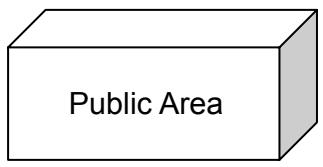
"Public Area Only"
Type 2: "Security Area Only"
This is the security partition type for JetFlash. It secures data in the Security Area and protects all of them by password.
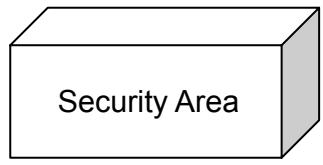
"Security Area Only"
Type 3: "Public and Security Area"
JetFlash is partitioned into a single Logical Unit Number (LUN) identified device, which contains a Public Area and a Security Area. Secure data can be established in the Security Area, which is protected by password. Access to data in the Public Area is unrestricted.

"Public and Security Area"
Security Function for Windows 98SE, Me, 2000, and XP
The default configuration of your JetFlash is “Public Area Only”. To establish a Security Area on your JetFlash, follow the procedures below to partition JetFlash as “Security Area Only” or “Public and Security Area”.
- Put the Driver CD into the CD-ROM drive (Auto-Run supported). Plug your JetFlash into an available USB port of your computer and select the U-Storage Tool button.
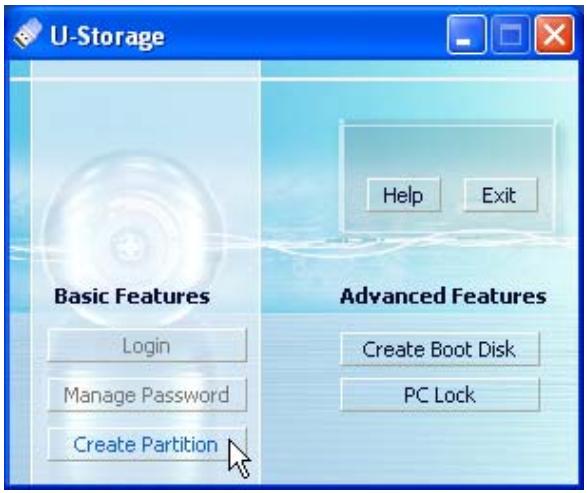
- Select Create Partition button in the U-Storage window.
- Select the partition type you need.
a. To partition your JetFlash to the default type, i.e., “Public Area Only.” Choose the Public Area Only, and then select OK.
b. To partition your JetFlash to "Security Area Only", select Security Area Only and select OK.
c. To partition your JetFlash to “Public and Security Area”, select Public and Security Area and enter the memory sizes to be apportioned to the Security Partition Area.
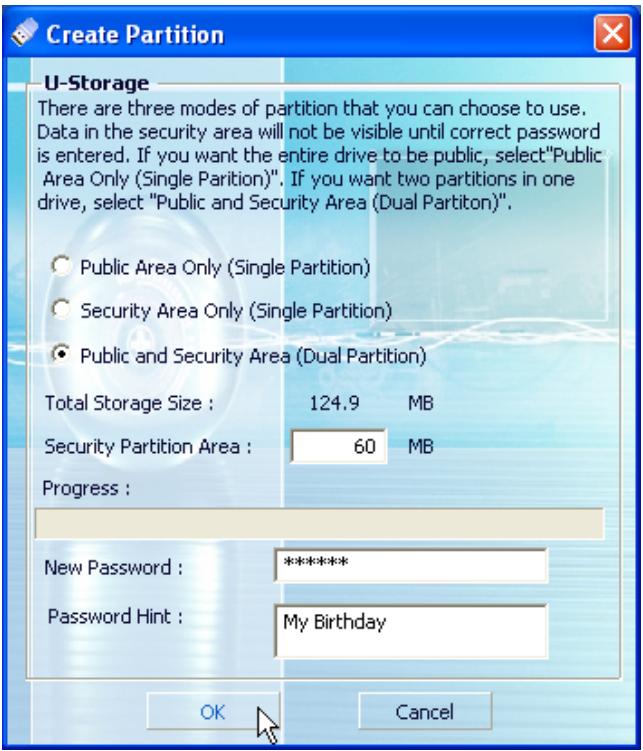
i. The minimum size apportioned to Security Partition Area is 2MB, and the maximum cannot exceed or equal to Total Storage Size.
ii. Key in a New Password. (Maximum size for password is 8 characters.)
iii. Key in a Password Hint, to set up a reminder for your new password.
iv. Select OK.
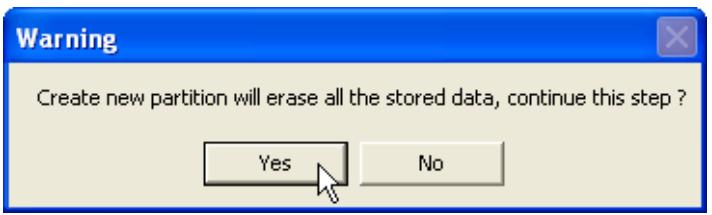
- The Warning window will appear to remind you to back up all the data on your JetFlash. Select Yes to continue or No to stop.
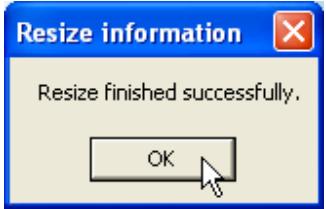
- Once the partition is finished, the Resize information window will appear. Select OK.
Access Data in Security Area
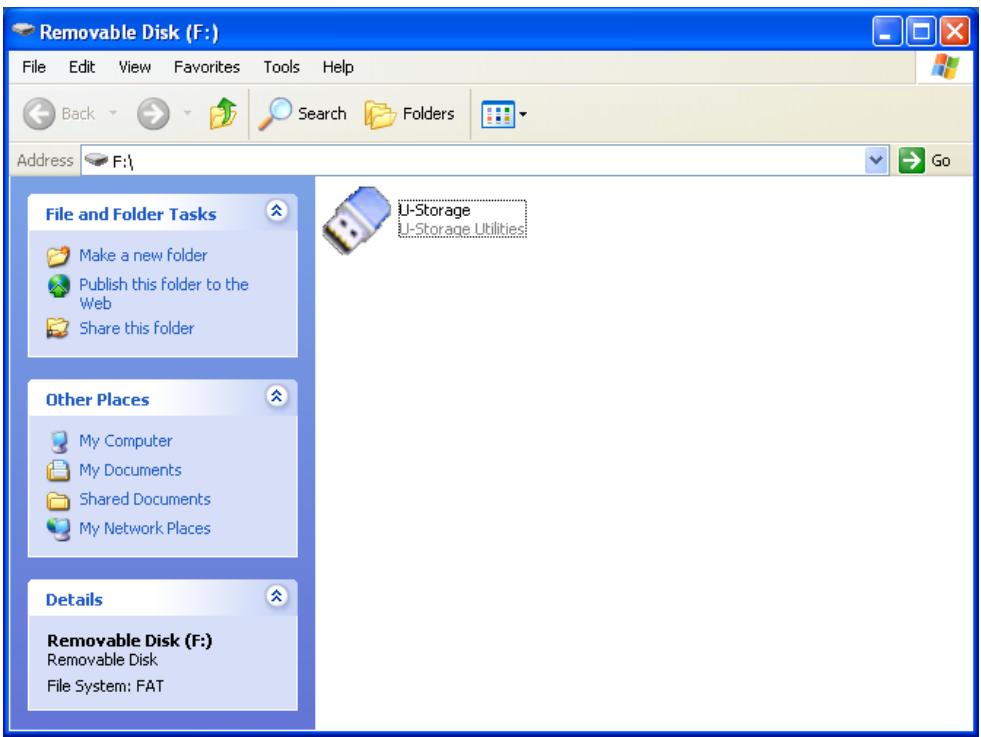
- Plug in your JetFlash and double-click the U-Storage icon.
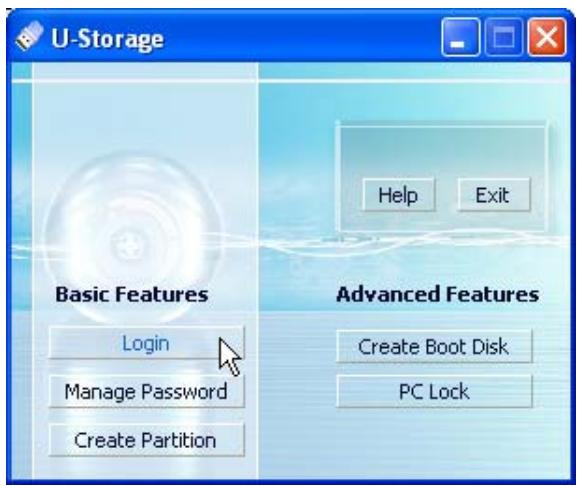
- Select the Login button after the U-Storage window appears.
- Enter the correct password and select OK.
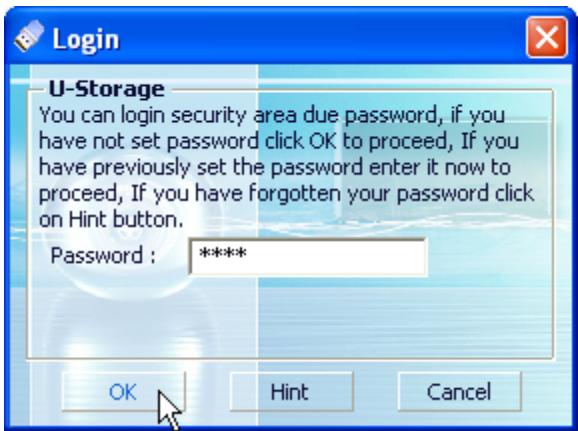
If a Password Hint was set up during the partition procedure, you can select the Hint button to display your Password Hint to help you to remember the password.
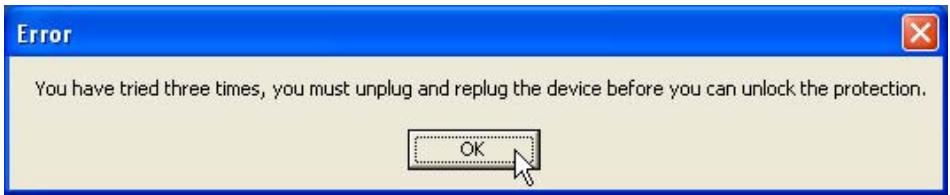
You are allowed three tries to input the correct password. After three wrong tries, the following message will appear. Unplug JetFlash and plug it in again to be allowed three
more tries to input the correct password to unlock the restricted data in the Security Area.
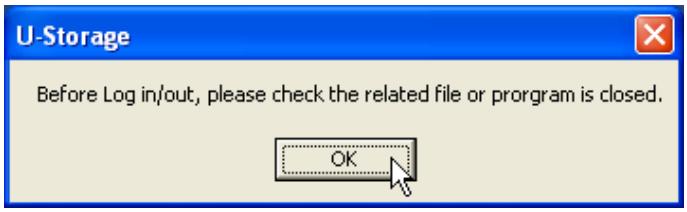
- The warning message will appear. Verify that there isn't any data being transferred to or from your JetFlash before login/loginout, and select OK to login.
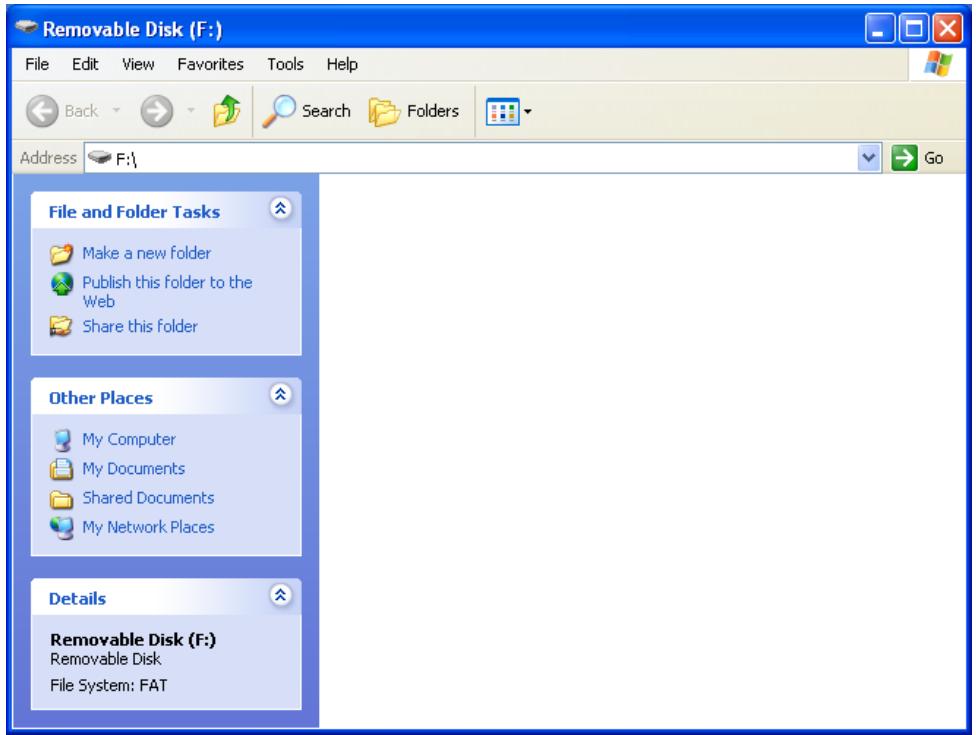
- The Removable Disk window will appear. The Security Area is ready for use.
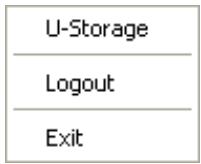
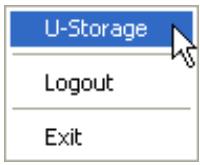
After login, the icon will appear in the system tray. You can right-click the icon to select U-Storage,Logout, or Exit.
Log Out of Security Area
- Make sure that all files are closed and that there isn't any data being transferred to or from your JetFlash.
In Windows 2000, the File Manager must be closed.
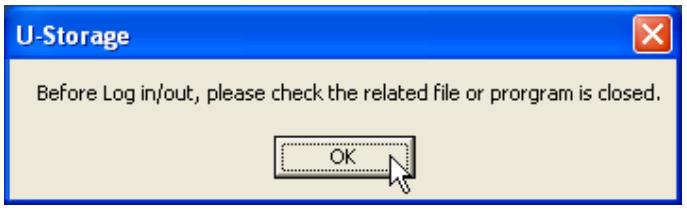
- Double-click the icon in the system tray and the warning message will appear. Close all of the applications and documents opened on JetFlash and select OK to logout. Once you have successfully completed Log Out of the Security Area of JetFlash, only data in the Public Area is accessible.
Change Password
- Right-click the icon in the system tray to select U-Storage.
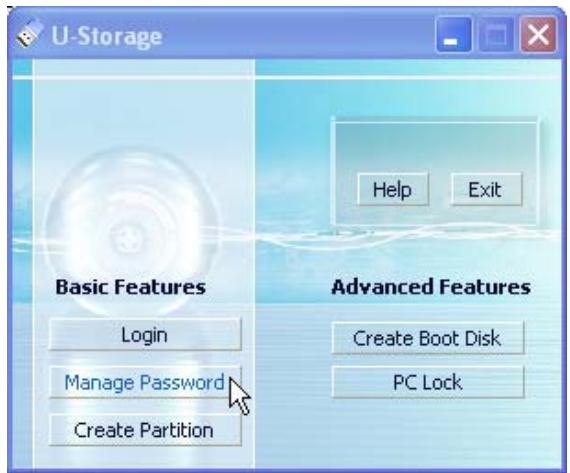
- The U-Storage window will appear. Select the Manage Password button.
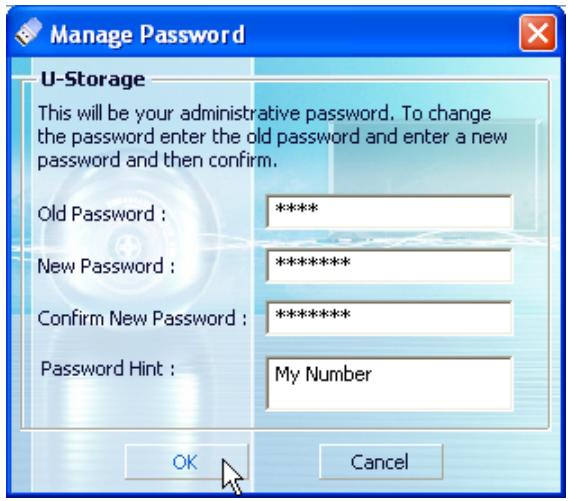
- Input the Old Password and enter the new password in both the New Password and the Confirm New Password fields. (Maximum size for a password is 8 characters.)
-
Input a Password Hint to set up a reminder for your new password.
-
Select OK. The Confirmation window appears.
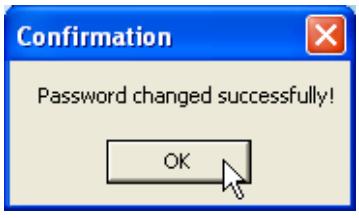
- Select OK to close this window.
If You Forget the Password
When you forget the password, you can use the password hint to remember it. If you cannot recall the password using the password hint, then all you can do is run the U-Storage Tool again to repartition your JetFlash. Unfortunately, all data of the data will be lost during this procedure. You will have the chance to make a backup copy of your data in the "Public Access," but all data in the "Secure" section is lost.
PC-Lock Function
Once the PC-Lock function is enabled, you can use your JetFlash as the key to lock your computer to protect it from being used by others.
The PC-Lock function is not supported in Mac and Linux Operating Systems.
To use the PC-Lock function, you must login into the Windows OS with Administrator rights.
PC-Lock Function for Windows 98SE, Me, 2000, and XP
- Put the Driver CD into the CD-ROM drive (Auto-Run supported). Plug your JetFlash into an available USB port of your computer and select the U-Storage Tool button.
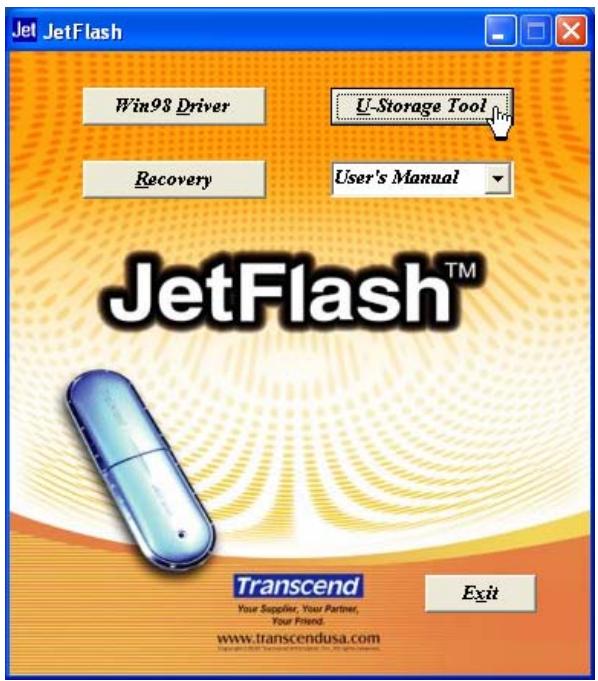
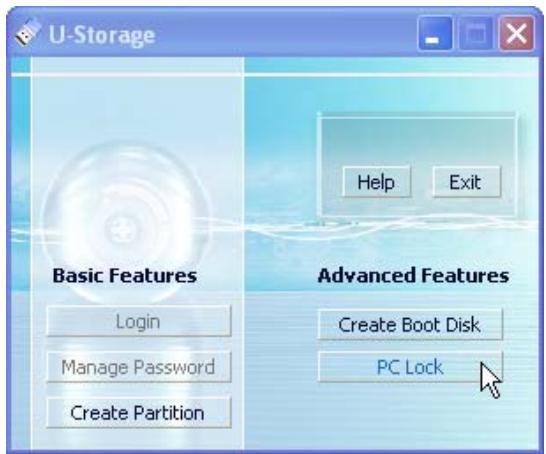
- The U-Storage window appears. Select the PC Lock button.
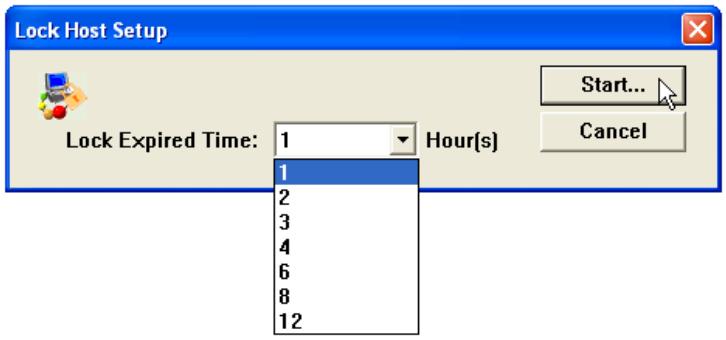
- The Lock Host Setup window will appear. Select the Lock Expired Time and select the Start button to enable the PC-Lock function.
- The icon will appear in the system tray to show that the PC-Lock function is enabled.
Lock Your Computer
After the PC-Lock function is enabled, your computer will be locked whenever you remove your JetFlash. If your computer is locked, the screen will display the locked status as below.
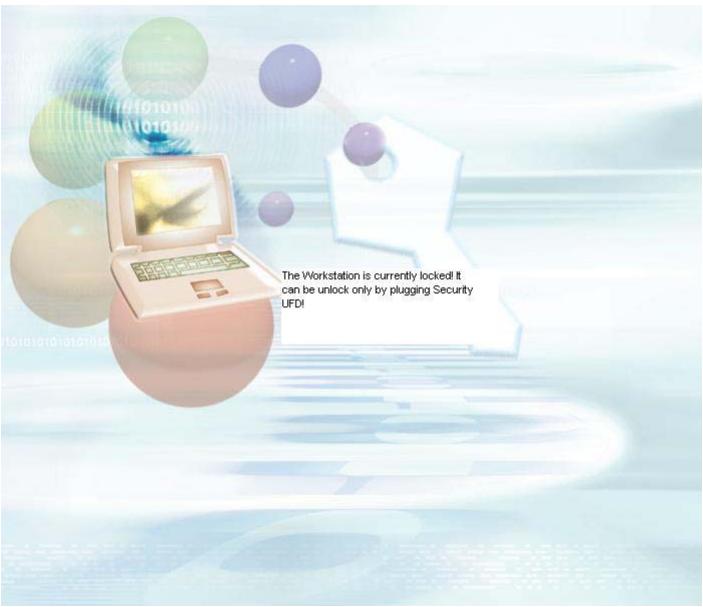
If you want to lock your computer after shutdown, you must turn off your computer before you remove your JetFlash.
Unlock Your Computer
To unlock your computer, you must re-plug your JetFlash. The locked status on the screen will disappear and you are now free to use your computer.
To disable the PC-Lock function, right-click on the icon in the system tray and select Stop Host Lock to turn off this function.
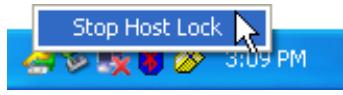
The locked status will be canceled automatically after the lock time has expired.
Boot-Up Function
For systems that use Windows 98SE, Me, or XP, JetFlash can be configured to serve as an MS-DOS Boot Disk. Upon completion of this procedure, JetFlash can be used to boot-up your computer, allowing you to run MS-DOS programs. This does not make JetFlash a Rescue Disk for Windows, nor does it put Windows Startup files onto your JetFlash. After booting with JetFlash, if you wish to enter Windows, you must then start Windows from your hard drive or a previously created Rescue Disk.
The Boot-Up function is not supported in Windows 2000, Mac, or Linux Operating Systems.
To use the Boot-Up function, you must login into the Windows OS with Administrator rights.
System Requirements for Boot-Up Function
- A desktop or notebook computer that supports USB-ZIP or USB-HDD as the First Boot Device in BIOS
Windows 98SE, Me, or XP located on drive C
Any anti-virus program present must be turned off
Boot-Up Function for Windows 98SE and Me
- Put the Driver CD into the CD-ROM drive (Auto-Run supported). Plug your JetFlash into an available USB port of your computer and select the U-Storage Tool button.
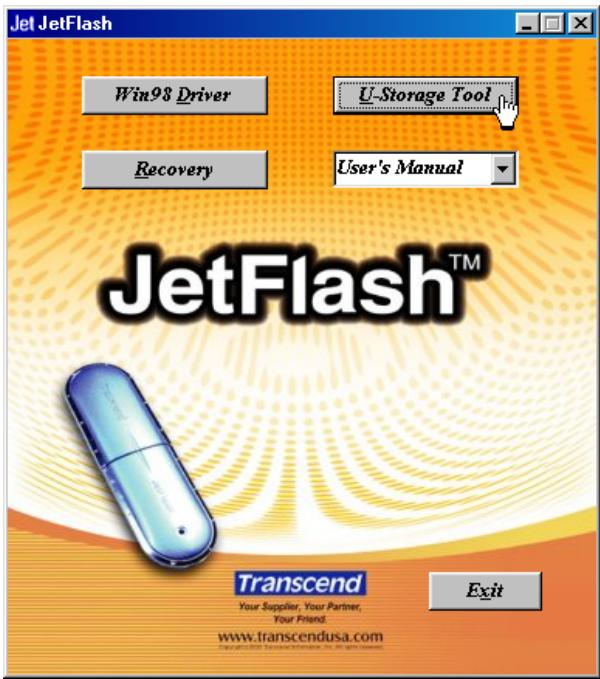
- The U-Storage window will appear. Select Create Boot Disk button.
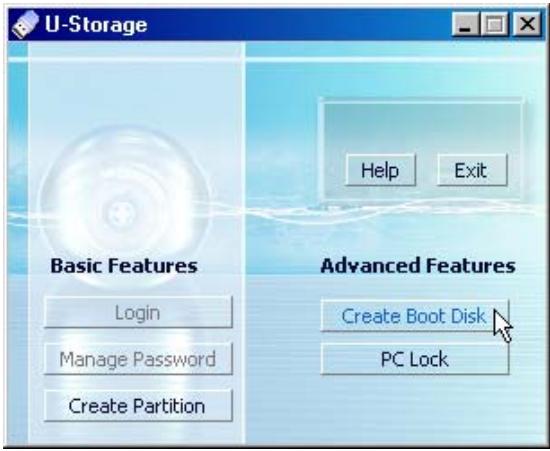
- The Create Boot Disk window will appear, choose the boot-up type you need (USB HDD or USB ZIP, whichever has been set as the First Boot Device in BIOS) and select OK.
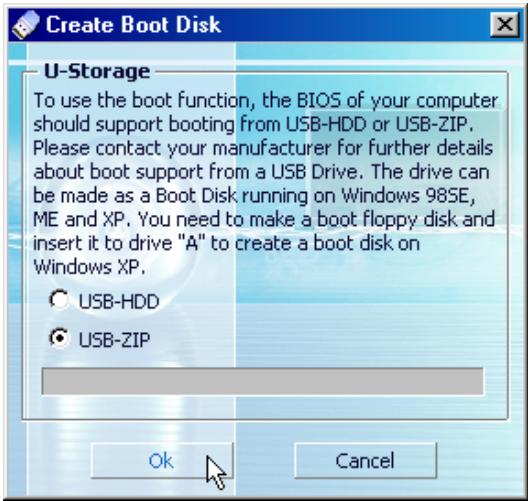
USB-HDD boot-up type is not supported in Windows Me.
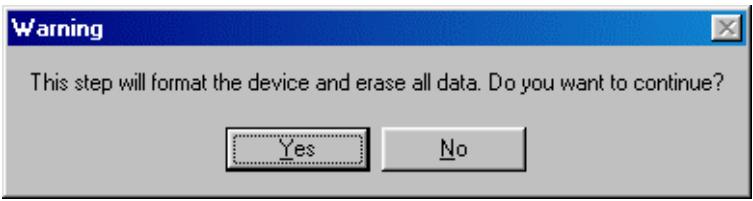
- The Warning message will appear. Be sure you have made a backup of all the files on your JetFlash. Select Yes to continue or No to exit.
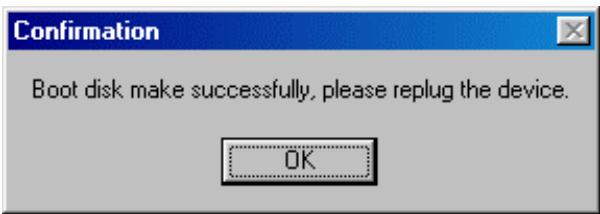
- The Confirmation window will appear. JetFlash is now ready for use as an MS-DOS Boot Disk. Select OK to close the window.
When you have completed this process, your JetFlash will contain the files needed for the Boot-up function. Do not remove any of these files else the Boot-Up function will fail.
If USB HDD was selected, the C:> prompt will appear after using JetFlash to boot up. If USB ZIP was selected, the screen will show the A:> prompt.
Boot-Up Function for Windows XP
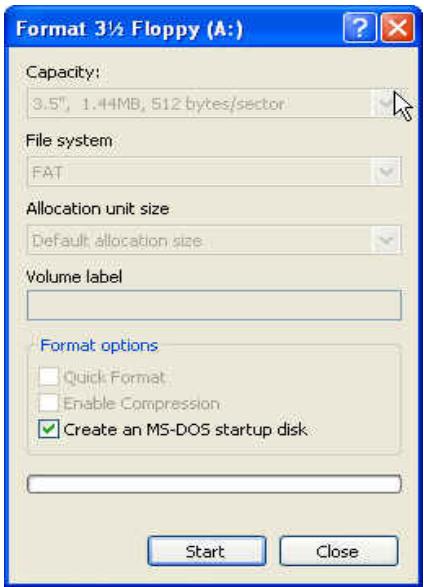
- Insert a new floppy disk into the Floppy Disk Drive (A:). Go to the My Computer window and right select on the Floppy Disk (A:) icon. Select Format... from the pull-down menu.
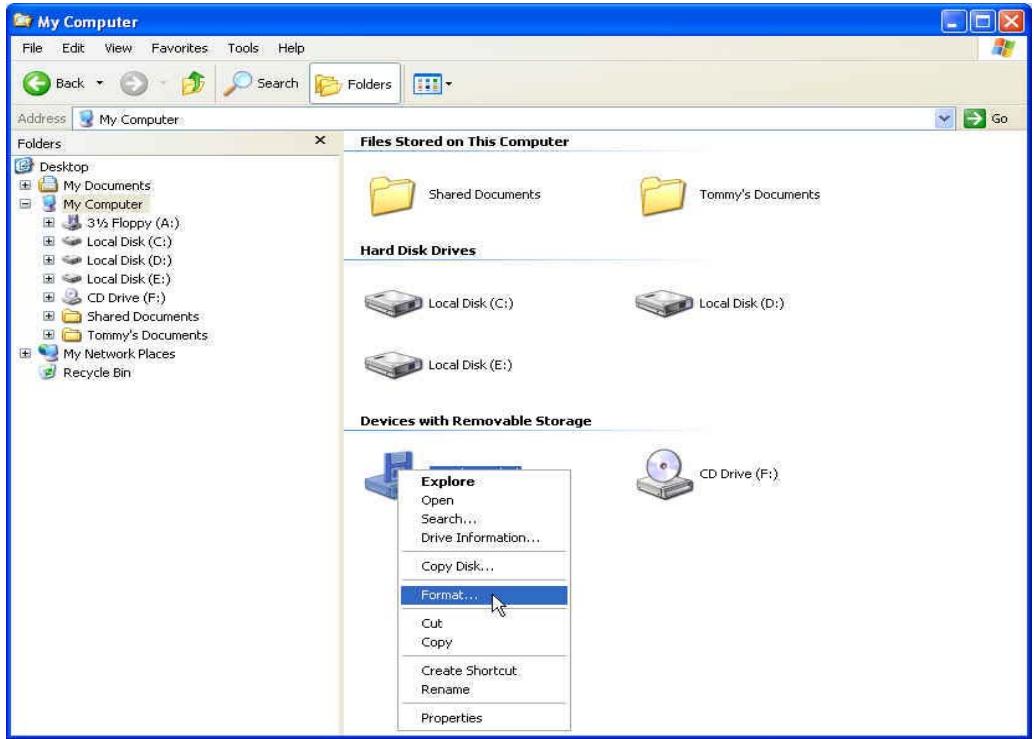
- Select Create an MS-DOS Startup Disk then select Start.
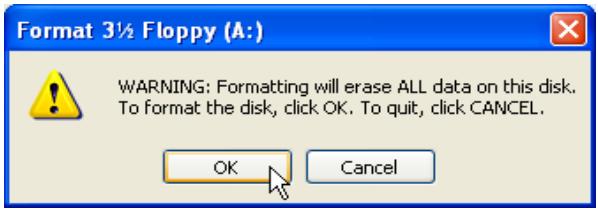
3. Select OK.
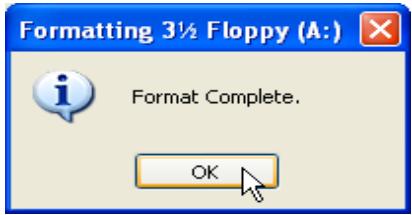
4. Select OK to complete the format.
5. Put the Driver CD into the CD-ROM drive (Auto-Run supported). Plug your JetFlash into an available USB port of your computer, and then select the U-Storage Tool button.
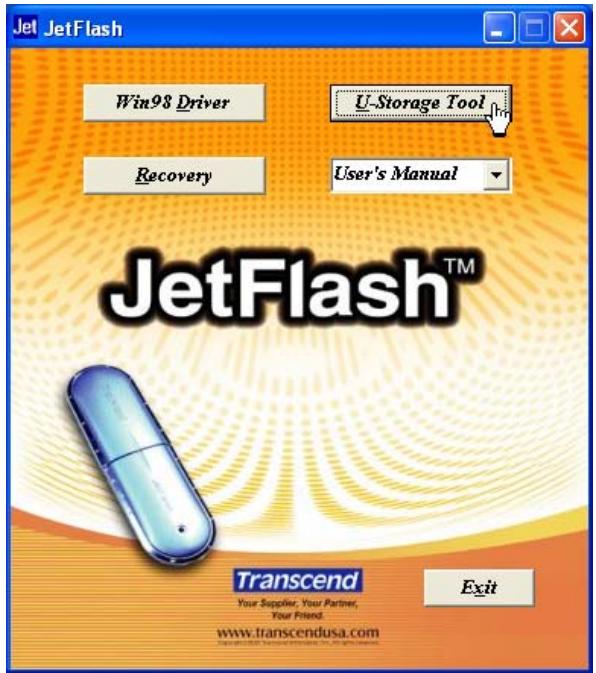
- The U-Storage window will appear. Select Create Boot Disk button.
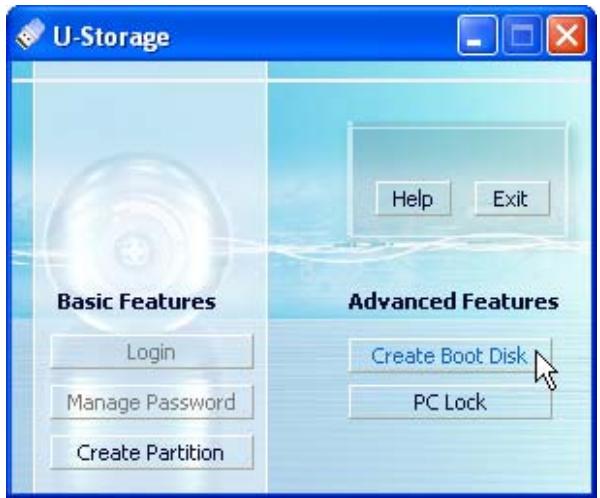
- The Create Boot Disk window will appear. Select USB ZIP and Select OK.
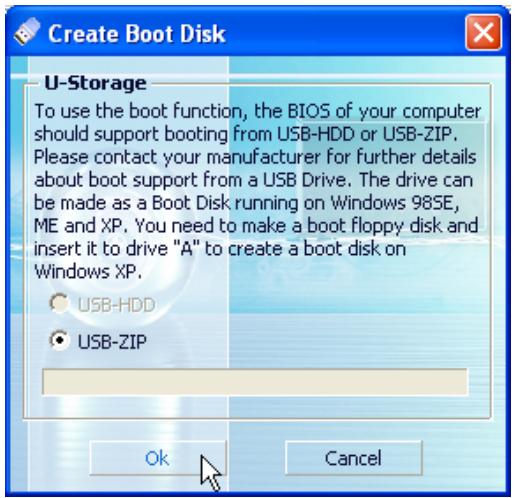
USB-HDD boot-up type is not supported in Windows XP.
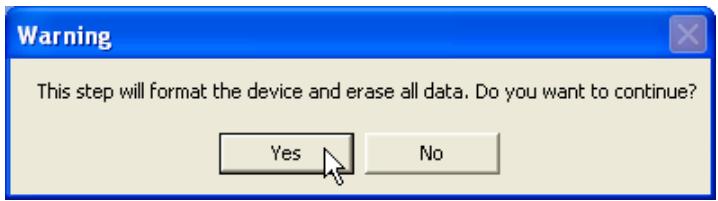
- The Warning message will appear. Be sure you have made a backup of all the files on your JetFlash. Select Yes to continue or No to exit.
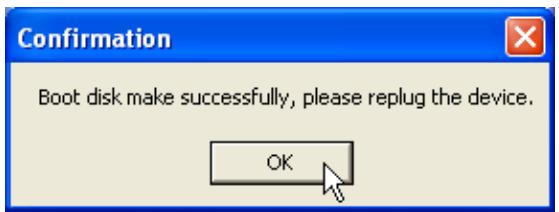
- The Confirmation window will appear. JetFlash is now ready for use as an MS-DOS Boot Disk. Select OK to close the window.
When you have completed this process, JetFlash will contain the files needed to use the Boot-up function. Do not remove any of these files else the Boot-Up function will fail.
Recovery Function
If your JetFlash is ever damaged, you can use the Recovery program to restore its default settings. Before using the Recovery, carefully read the following sections.
The Recovery function is not supported in Mac and Linux Operating Systems.
To use the Recovery function, you must login into the Windows OS with Administrator rights.
Running the Recovery program will erase all of the data on your JetFlash.
If there are bad blocks in the flash memory chip of JetFlash, the memory size of JetFlash after running the Recovery program will be smaller than the original memory size.
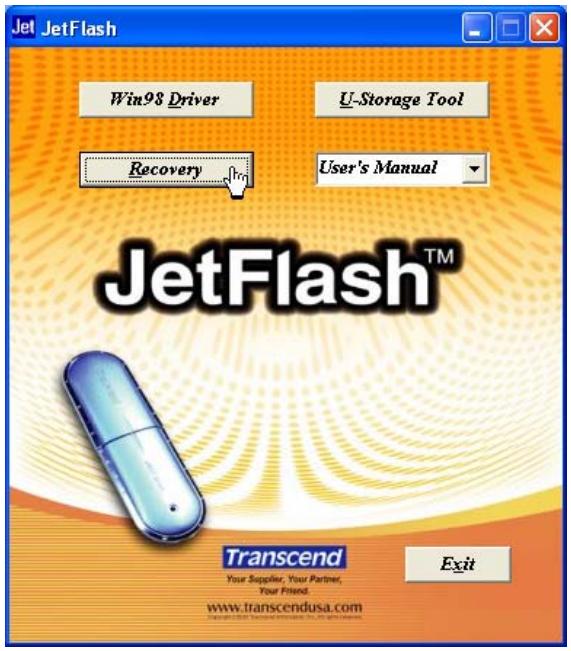
- Put the Driver CD into the CD-ROM drive (Auto-Run supported). Plug your JetFlash into an available USB port of your computer, and then select the Recovery button.
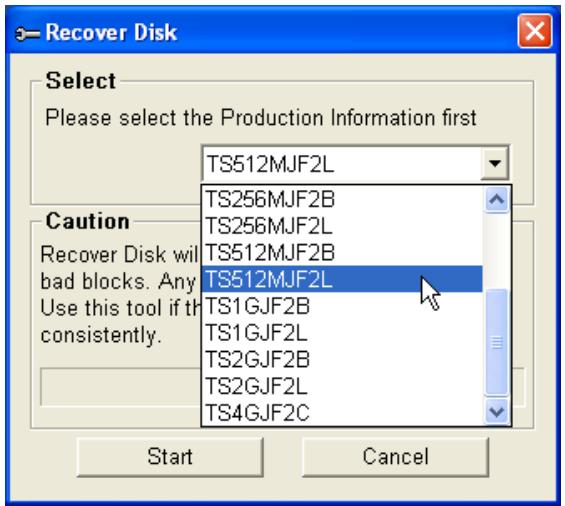
- The Recover Disk window will appear. Select the product number of your JetFlash.
- Select Start if you want to recover your JetFlash.
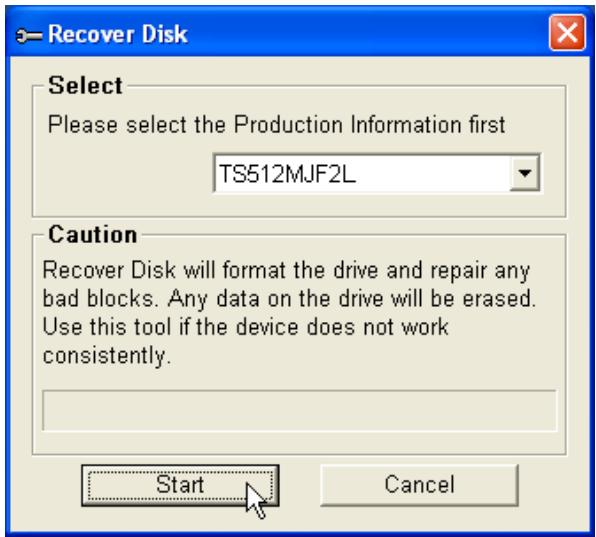
The Recovery program will perform a low-level format on your JetFlash, erasing all of the data and returning JetFlash to the default configuration.
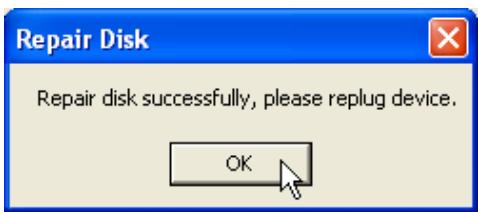
- When finished, the following status message will appear. Select OK and unplug your JetFlash. Plug it in again to continue to use it.
Safely Remove Your JetFlash
Remove JetFlash in Windows 98SE
Unplug JetFlash from your system directly when data is not transferring.
Remove JetFlash in Windows Me, 2000, and XP
- Select the

icon on the system tray.
- The Safely Remove Hardware pop-up menu will appear. Select to continue.

- Follow the on-screen instructions to complete the procedure.
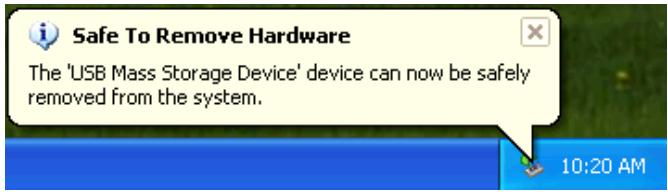
- The Safe To Remove Hardware message balloon will appear. JetFlash is now ready to be unplugged.
Remove JetFlash in Mac OS
Drag and drop the Disk icon corresponding to your JetFlash into the trashcan. Then unplug your JetFlash from the USB port.
Remove JetFlash in Linux
Unmount the device from the Linux environment.
Example: umount /mnt/jetflash
Uninstall the Win98 Driver
- Select the Start button on the task bar and select Programs > U-Storage Driver > Uninstall U-Storage.
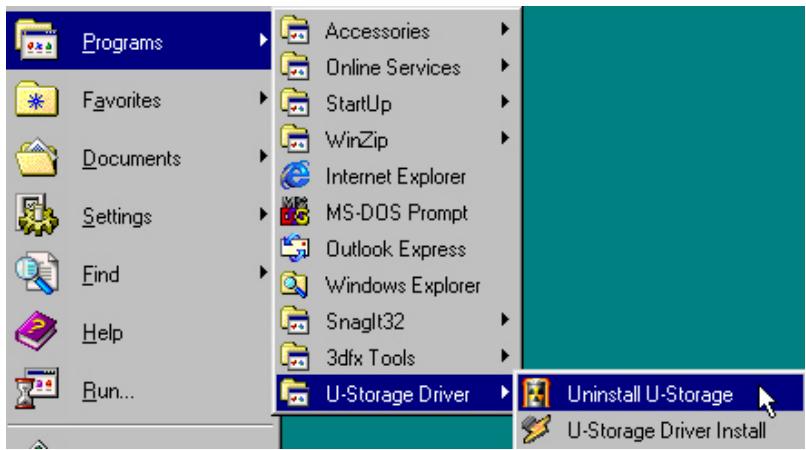
- Follow the on-screen instructions to uninstall the Windows 98SE driver.

Before removing JetFlash, please make sure the LED is steady and not Flash! If you remove JetFlash while the LED is flashing, unpredictable damage to the files and/or to your JetFlash may occur due to a write cache issue.
Troubleshooting
If an error occurs, first check the points listed below before taking your JetFlash for repair. If you are unable to remedy a problem from the following hints, please consult your dealer or service center.
Driver CD cannot auto-run in Windows
Enter Device Manager in Control Panel and enable the Auto-Insert function of the CD-ROM drive. Alternatively, you can execute the JetFlash.EXE in the driver CD manually.
Operating system cannot detect JetFlash
Check followings:
- Is your JetFlash properly connected to the USB port? If not, unplug it and plug it in again.
- Is your JetFlash connected to the Mac keyboard? If yes, unplug it and plug it into an available USB port on your Mac Desktop instead.
- Is the USB port enabled? If not, refer the user's manual of your computer (or motherboard) to enable it.
- Is the necessary driver installed? If your computer is equipped with Windows 98SE, you must insert the Driver CD into the CD-ROM and refer to the "Driver Installation for Windows 98SE" section to complete the driver installation before using your JetFlash.
Error Messages of Boot-Up Function
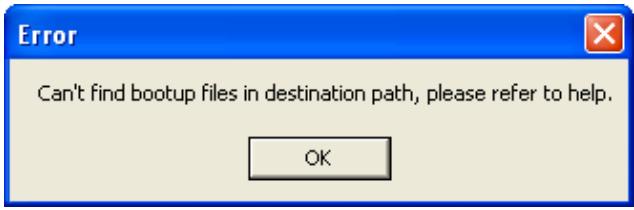
The initialization of the Boot-up Function or installation of the OS is probably incomplete. Please make sure that the path C:\WINDOWS\COMMAND\EBD exists in Windows 98SE, Me or XP. If yes, return to step 1 to re-initialize the Boot-up function. If this fails, the Boot-up function does not support your computer.
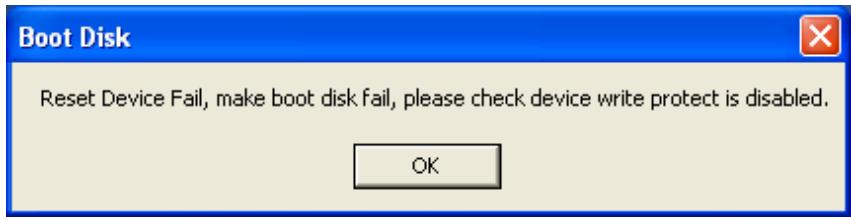
Cannot find the file that was just copied to JetFlash
Re-copy the file and refer to the "Safely Remove Your JetFlash" section to remove JetFlash after the copy process is completed.
File that was just deleted still appear
Re-delete the file and refer to the "Safely Remove Your JetFlash" section to remove. JetFlash after the delete process is completed.
Specifications
| • Size: | 75mm x 22mm x 10mm (Mini Size) 88mm x 29mm x 12mm (Normal Size) |
| • Weight: | 11 g (Mini Size) 22 g (Normal Size) |
| • Data Retention: | Up to 10 years |
| • Erase Cycles: | > 100,000 times |
| • Speed: | Read 10 MB/sec (Max.) Write 8 MB/sec (Max.) |
| • Certificates: | CE, FCC, BSMI |
Ordering Information
| Transcend P/N | Memory Size | Features |
| TS32MJF2B | 32MB | Blue, Mini Size |
| TS64MJF2B | 64MB | Blue, Mini Size |
| TS64MJF2L | 64MB | Lilac, Mini Size |
| TS128MJF2B | 128MB | Blue, Mini Size |
| TS128MJF2L | 128MB | Lilac, Mini Size |
| TS256MJF2B | 256MB | Blue, Mini Size |
| TS256MJF2L | 256MB | Lilac, Mini Size |
| TS512MJF2B | 512MB | Blue, Mini Size |
| TS512MJF2L | 512MB | Lilac, Mini Size |
| TS1GJF2B | 1GB | Blue, Mini Size |
| TS2GJF2B | 2GB | Blue, Mini Size |
| TS4GJF2C | 4GB | Champagne, Normal Size |
JetFlash Limited Warranty
"Above and beyond" is the standard we set for ourselves for customer service at Transcend. We consistently position ourselves to be significantly above the industry norm. It's all part of our commitment to Customer Satisfaction.
All Transcend Information, Inc. (Transcend) products are warranted and tested to be free from defects in material and workmanship and to conform to the published specifications. Should your Transcend JetFlash malfunction during normal use in its recommended environment due to improper workmanship or materials within the warranty period, Transcend will repair or replace your product with a comparable product. This warranty is subject to the conditions and limitations set forth herein.
Duration of Warranty: Transcend JetFlash is covered by this warranty for a period of two (2) years from the date of purchase. Transcend will inspect the product and make the determination as to whether the product is eligible for repair or replacement. The decision by Transcend regarding eligibility of the product for repair or replacement will be final and binding. Transcend reserves the right to provide a functionally equivalent, refurbished replacement product.
Limitations: This warranty does not apply to products that fail due to accident, abuse, mishandling, improper installation, alteration, acts of nature, improper usage, or problems with electrical power. Transcend JetFlash must be used with devices that conform to the recommended industry standards. Transcend will not be liable for damages resulting from a third-party device that causes the Transcend product to fail. Transcend shall in no event be liable for any consequential, indirect, or incidental damages, lost profits, lost business investments, lost goodwill, or interference with business relationships as a result of lost data. Transcend is also not responsible for damage or failure of any third-party equipment, even if Transcend has been advised of the possibility. This limitation does not apply to the extent that it is illegal or unenforceable under applicable law.
Disclaimer: The foregoing limited warranty is exclusive, with no other warranties, implied or statutory, including but not limited to any implied warranty of merchantability or fitness for a particular purpose. This warranty is not affected in any part by Transcend's providing technical support or advice.
Online Registration: To expedite warranty service, please register your Transcend Product within 30 days of purchase.
Register online at http://www.transcendusa.com/registration

Your Supplier, Your Partner, Your Friend.
Transcend Information, Inc.
www.transcendusa.com
The Transcend logo is a registered trademark of Transcend Information, Inc.
*All logos and marks are trademarks of their respective companies.