
KDL-46EX641 - Projector SONY - Free user manual and instructions
Find the device manual for free KDL-46EX641 SONY in PDF.


User questions about KDL-46EX641 SONY
0 question about this device. Answer the ones you know or ask your own.
Ask a new question about this device
Download the instructions for your Projector in PDF format for free! Find your manual KDL-46EX641 - SONY and take your electronic device back in hand. On this page are published all the documents necessary for the use of your device. KDL-46EX641 by SONY.
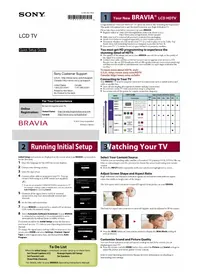
USER MANUAL KDL-46EX641 SONY
Sony Customer Support
U.S.A.: http://www.sony.com/tvsupport Canada: http://www.sony.ca/support
United States
Canada
1.800.222.SONY
1.877.899.SONY
Please Do Not Return
the Product to the Store
| For Your Convenience | |
| Online Registration: | Be sure to register your TV. |
| United States http://productregistration.sony.comCanada http://www.sony.ca/registration | |
BRAVIA
© 2012 Sony Corporation
Printed in Mexico
2 Running Initial Setup
Initial Setup instructions are displayed on the screen when your BRAVIA is powered on for the first time.
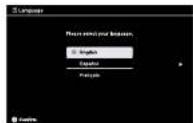
1 Select the language for the OSD (on screen display).
2 Choose your viewing country.
3 Select the type of use.
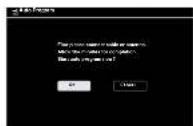
4 Connect either cable or antenna to your TV. You can connect both using an A-B RF switch (not supplied).
- If you are not using the CABLE/ANTENNA connection to TV (for example, if using a cable or satellite box), you can cancel the Auto Program by selecting Cancel.
5 Channels of the signal source (cable or antenna) connected in step 4 are automatically scanned and detected.
6 Set the date and current time.
7 If your BRAVIA is connected to a wired LAN or wireless LAN, make the network setting.
8 Select Automatic Software Download. If your BRAVIA is connected to a network, it is recommended to set to automatically download future available services.
If you did not follow the Initial Setup screen the first time you turned on your TV, refer to your Operating Instructions Manual.
To change the signal source setting (cable to antenna or vice versa), press HOME and select Settings, Channel, Signal Type to select signal source type, and then perform Auto Program.



To Do List
When the Initial Setup is completed, consider carrying out these items:
Set Closed Captions (CC)
Manage Inputs (AV Setup)
Set Parental Lock
Set Speakers
Show/Hide Channels
For details, refer to your BRAVIA Operating Instructions Manual.
1 Your New BRAVIA® LCD HDTV
Congratulations! Your new BRAVIA" TV opens the door to the "Stunning HD Experience". This guide will explain how to get the most from your new High Definition TV.
Please take these steps before you power up your BRAVIA:
■ Register online at: http://productregistration.sony.com (from U.S.A.) http://www.sony.ca/registration (from Canada)
■ Make sure you've removed all accessory contents from packaging.
■ Install AAA batteries (supplied separately) in your remote control.
■ Determine whether you will mount your TV on a wall or place it on the Table-Top Stand. Sony wall-mounting brackets are designed to provide the best fit.
■ Give your TV 2 3 /s inches (6 cm) of space behind it to properly ventilate.
You must get HD programming to experience the stunning detail of HDTV.
■ The quality of the image you see on your BRAVIA can only be as high as the quality of the signal it is receiving.
- Contact your cable, satellite or HD Service provider to upgrade your service to HD. Receive over-the-air HD broadcasts with an HD-quality antenna (www.antennaweb.org) and discover the wealth of entertainment now available on super-high-resolution Blu-ray Disc".
To learn more about HDTV, visit:
U.S.A.: http://www.sony.com/HDTV
Canada: http://www.sony.ca/hdtv
Connecting to Your TV
Your BRAVIA TV must be properly connected to components such as sound system and cable or satellite box.
■ Turn off and unplug all components before making connections.
■ Do not turn on the TV until connection setup is completed.
■ See reverse side of this poster for sample connection diagrams.
| INPUT Connector | VIDEO AUDIO | High or Standard Definition Quality | ||||||||
| Connection | 1080/24p | 1080p | 1080i | 720p | 480p | 480i | PC | |||
| HD | HDMI 1 | HDMI connection* | HDMI cable carries high video and audio signalsOther than HDMI pinning setsCell with anode, a separate output, and a monocyte. | |||||||
| HDMI 2 | ||||||||||
| HDMI 3 | ||||||||||
| HDMI 4 | ||||||||||
| COMPONENT | Component connection | Audio Lift | ||||||||
| SD | VIDEO 1 | Composite video connection | Audio L/R | ● | ||||||
| VIDEO 2 | Composite video connection | Audio L/R | ● | |||||||
| INPUT Connector | VIDEO AUD | D | High or Standard Definition Quality | |||||||
| Connection | 1080/24p | 1080p | 1080i | 720p | 480p | 480i | PC | |||
| HD | HDMI 1 | HDMI connection | HDMI cable cables inch video and audio signals (between HDMI cables and DeWith wireless signal) using I-R (non-USB). | |||||||
| HDMI 2 | ||||||||||
| HDMI 3 | ||||||||||
| HDMI 4 | ||||||||||
| COMPONENT | Component connection | Audio LiR | ||||||||
| SD | VIDEO 1 | Composite video connection | Audio LiR | ● | ||||||
| VIDEO 2 | Composite video connection | Audio LiR | ● | |||||||
3Watching Your TV
Select Your Content Source
Whether you are watching cable, satellite or broadcast TV; playing a VCR, DVD or Blu-ray Disc; or connecting to your PC, you need to choose the correct input using your remote control:
■ Press the INPUT button repeatedly until your selection is highlighted on-screen.
Adjust Screen Shape and Aspect Ratio
High Definition and Standard Definition signals are transmitted with different aspect ratios (the width-to-height ratio of the image).
The 16:9 aspect ratio (common to most HD signals) looks perfect on your BRAVIA.

The boxy 4:3 aspect ratio (common to most SD signals) must be adjusted to fill the screen.


■ Press the WIDE button on your remote control to display the Wide Mode setting of your preference.
Customize Sound and Picture Quality
You can choose optimum sound and picture settings to match the content you are displaying on your TV:
■ Press the remote control's HOME button, then select the Picture and Sound settings to adjust the picture and sound quality of your content.
Refer to your Operating Instructions Manual for more information on adjusting or customizing your settings.
HD Basic Connection with A/V Receiver
![graph TD A["Cable/Antenna"] --> B["Splitter"] B --> C["SAT (dish)"] C --> D["HD Cable Box or HD Satellite Receiver"] D --> E["A/V Receiver"] E --> F["Blu-ray Disc/DVD"] F --> G["Rear of TV"] G --> H["Switch"] H --> I["Radio buttons"] I --> J["Radio buttons"] J --> K["Radio buttons"] K --> L["Radio b…](/content/2026/08/1612575/images/8db1456c1e26ef32597801b27e8c35bf982bf02f024ef1187730c9dad9b0a465.jpg)
HD Basic Connection with Home Theater System

Required Cable Types for Connection


Notes on Connection:
- Your TV is equipped with multiple HDMI inputs; connect your incoming signal source (HD Cable Box, HD Satellite Box, or DVD) with HDMI or component video for the best possible picture quality.
If your connecting equipment has DVI output instead of HDMI output, you must use DVI-to-HDMI cable for the video and also connect an audio cable for the sound.
Connecting a PC to Your BRAVIA® TV
■ Connect PC's audio output when using an HD15 connection.
■ Press PC's FUNCTION Key + Select Output to transmit to TV.
- When using an HD15 connection, adjust TV's Pitch and Phase to correct sharpness.
■ Refer to your BRAVIA® Operating Instructions Manual for more information.
HD BRAVIA® Sync™ Basic Connection

*Signifies a BRAVIA Sync capable device.
Built-in Wireless LAN Connection and Setup
![graph LR A["Internet"] --> B["Modem"] B --> C["TV"] C --> D["Wireless router (access point)"]](/content/2026/08/1612575/images/9d3cb5e382b5c2eae09a53032d5994f594326f79a5eda535ccd76c8fdcfd7773.jpg)
Wireless Network can be set during initial setup.
Wireless Setup security type differs depending on the wireless router (access point) used. Follow the chart below and select the appropriate menu.

Security type of your Wireless router (access point)
![graph TD A["WPS (*1) PIN Code"] --> B["Select WPS (PIN)"] C["WPS (*2) Push Button"] --> D["Select WPS (Push Button)"] E["SSID with Security Key (WEP/WPA (*2))"] --> F["Select Scan, then select a network form the list (*3)"] G["SSID without Security Key"] --> H["Select Scan, then select a network for…](/content/2026/08/1612575/images/ca61164b1eeb953e33e2dd76f74f6855d1ad68544fd0696a0e5da596d9c5ba83.jpg)
*1 Wi-Fi Protected Setup™ (WPS) is a mark of the Wi-Fi Alliance.
*2 Wi-Fi Protected Access™ (WPA) is a mark of the Wi-Fi Alliance.
*3 Before scanning, be sure to make the wireless router (access point) settings (SSID/Key).



- SONY CUSTOMER SUPPORT
- BRAVIA
- RUNNING INITIAL SETUP
- TO DO LIST
- YOUR NEW BRAVIA® LCD HDTV
- YOU MUST GET HD PROGRAMMING TO EXPERIENCE THE STUNNING DETAIL OF HDTV
- TO LEARN MORE ABOUT HDTV, VISIT
- U.S.A.: HTTP://WWW.SONY.COM/HDTV
- CANADA: HTTP://WWW.SONY.CA/HDTV
- CONNECTING TO YOUR TV
- WATCHING YOUR TV
- SELECT YOUR CONTENT SOURCE
- ADJUST SCREEN SHAPE AND ASPECT RATIO
- CUSTOMIZE SOUND AND PICTURE QUALITY
- NOTES ON CONNECTION
- CONNECTING A PC TO YOUR BRAVIA® TV
Brand : SONY
Model : KDL-46EX641
Category : Projector