
F5U230 - USB Hub BELKIN - Free user manual and instructions
Find the device manual for free F5U230 BELKIN in PDF.



| Product type | USB hub with IrDA infrared adapter |
| Brand | BELKIN |
| Model | F5U230 |
| Dimensions (estimated) | 70 x 25 x 15 mm |
| Weight (estimated) | 30 g |
| Power | USB bus-powered (self-powered) |
| Connectivity | USB 1.1, IrDA infrared (SIR up to 115.2 kbit/s) |
| Supported operating systems | Windows 98, Windows Me, Windows 2000, Windows XP |
| Ports | 1 USB Type-A port (downstream), 1 infrared port |
| Main functions | Infrared wireless communication with PC, PDA, mobile phone, digital camera |
| Installation | Install the driver before connecting the device, follow the manual instructions |
| Maintenance and cleaning | Clean with a soft, dry cloth, avoid liquids |
| Safety | No specific safety instructions, use normally |
| Spare parts and repairability | Not planned, device not user-serviceable |
| General information | Belkin USB-IrDA adapter, enables simple and fast infrared connection |
Frequently Asked Questions - F5U230 BELKIN
User questions about F5U230 BELKIN
0 question about this device. Answer the ones you know or ask your own.
Ask a new question about this device
Download the instructions for your USB Hub in PDF format for free! Find your manual F5U230 - BELKIN and take your electronic device back in hand. On this page are published all the documents necessary for the use of your device. F5U230 by BELKIN.
USER MANUAL F5U230 BELKIN
USB devices listing following installation 7
Uninstallation. 10
USB-IrDA installeren under Win2000 11
USB devices listing following installation 13
Uninstallation. 14
USB-IrDA installeren under WinXP 16
USB devices listing following installation 18
Uninstallation. 19
Troubleshooting 21
Tha
Infra
Seri
Sy:
·1
·W
0
Introduction
En
Thank you for choosing the USB-IrDA adapter. The USB-IrDA is an Infrared adapter that connects to a PC or server via the Universal Serial Bus (USB) port.
System Requirements
- Pentium-class PC with USB port.
- 1 available USB type A (downstream) port.
- Windows 98, Windows Me, Windows 2000 or Windows XP operating system.
Installation of USB-IrDA under Win98/ME
Note: Please install USB-IrDA according to the procedure below. Do not connect the USB-IrDA to your computer if the installation has not yet been completed.
To install the USB-IrDA drivers
A1. Please insert the driver disk into the Computer's disk drive then execute "IRXpress.exe".
Click "Next" to continue.
(Figure A-1)
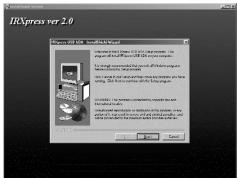
A2. Click "Next" to continue.
(Figure A-2)
Installation of USB-IrDA under Win98/ME
En
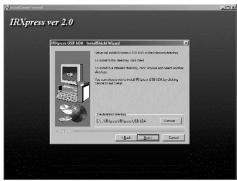
A3. Click "Next" to continue.
(Figure A-3)
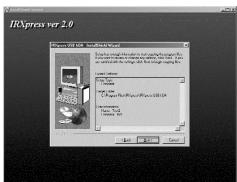
A4. Click "Next" to continue.
(Figure A-4)
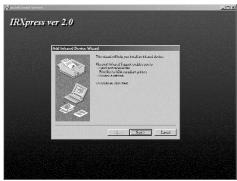
A5. For Win98, please select
"KC Technology, Inc.",
and select "IRXpress USB IrDA
Adapter-Windows 98^
Click "OK" to continue.
(Figure A-5)
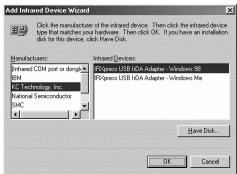
Installation of USB-IrDA under Win98/ME
A6. For WinMe, please select "KC Technology, Inc.", and select "IRXpress USB IrDA Adapter - Windows Me". Click "OK" to continue. (Figure A-6)
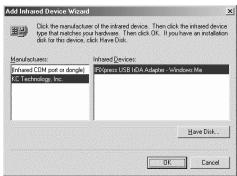
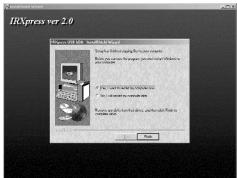
A7. Click "Finish", Windows has finished installing the device. (Figure A-7)
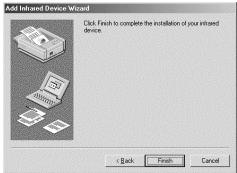
A8. Select "Yes, I want to restart my computer now". Then click "Finish" to restart the system and complete the driver installation. (Figure A-8)
After restarting the computer, please plug the flat end of the USB cable into the downstream A connector located at the back of your computer or USB HUB port, and plug the upstream, square, B connector into the USB-IrDA
Installation of USB-IrDA under Win98/ME
En
USB devices listing following installation
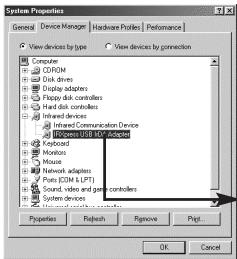
B1. To make sure you have installed the device successfully, please move the cursor to "My computer" -> "Control Panel" -> "System Properties" -> "Device Manager" -> "Infrared devices". It will show a new directory "IRXpress USB IrDA Adapter".
IRXpress USB IrDA Adapter
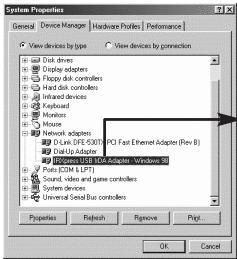
B2. And in the same window, you can select "Network adapters". This will show "IRXpress USB IrDA Adapter - Windows 98".
IRXpress USB IrDA Adapter -Windows 98
Installation of USB-IrDA under Win98/ME
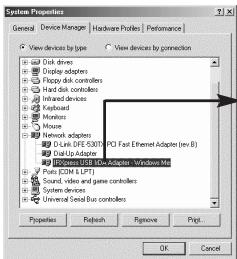
B3. It will show "IRXpress USB IrDA Adapter - Windows Me" under Win ME.
IRXpress USB IrDA Adapter - Windows Me

B4. And in the same window, you can select "Ports [COM & LPT]". It will show "Virtual Infrared COM Port".
Virtual Infrared COM Port
Installation of USB-IrDA under Win98/ME
En
B5. And in the same window, you can select "Ports [COM & LPT]". It will show "Virtual Infrared LPT Port".
Virtual Infrared LPT Port
Installation of USB-IrDA under Win98/ME
Uninstallation
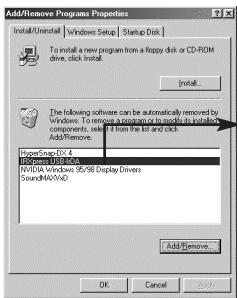
If you want to remove the driver for the USB-IrDA, you can move the cursor to "My computer" -> "Control Panel" -> "Add/Remove Programs". It will show a dialog box then select "Install/Uninstall"
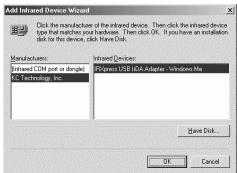
C1. Select "IRXpress USB-IrDA" from the list. Click "Add/Remove" to uninstall the driver of the USB-IrDA.
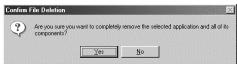
C2. Click "Yes" to continue.
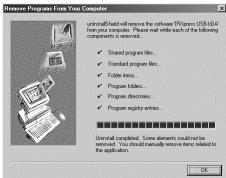
C3. Click "OK" to complete the driver's removal.
Installation of USB-lrDA under Win2000
En
Note: Please install USB-IrDA according to the procedure below. Do not connect the USB-IrDA to your computer if the installation has not yet been completed.
To install the USB-IrDA drivers
D1. Please insert the driver disk into the Computer's disk drive then execute "IRXpress.exe".
Click "Next" to continue.
(Figure D-1)
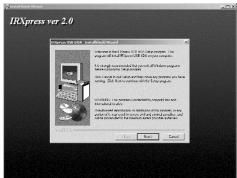
D2. Click "Next" to continue. (Figure D-2)
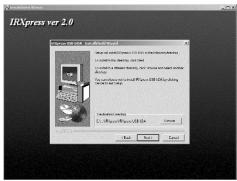
Installation of USB-IrDA under Win2000
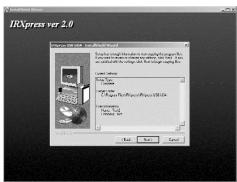
D3. Click "Next" to continue.
(Figure D-3)
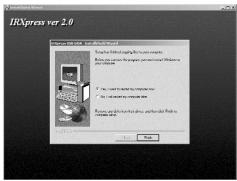
D4. Select "Yes, I want to restart my computer now", then click
"Finish" to restart the system and complete the driver installation.
(Figure D-4)
After restarting the computer, please plug the flat end of the USB cable into the downstream A connector located at the back of your computer or USB HUB port and plug the upstream, square B connector into the USB-IrDA adapter.
Installation of USB-lrDA under Win2000
En
USB devices listing following installation
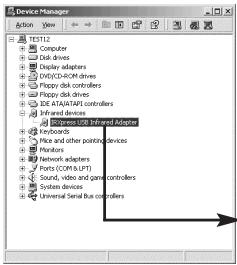
E1. To make sure you have installed the devices successfully, please move the cursor to "My computer" -> "Control Panel" -> "System Properties" -> "Hardware" -> "Device Manager" -> "Infrared devices". It will show a new directory "IRXpress USB Infrared Adapter".
IRXpress USB Infrared Adapter
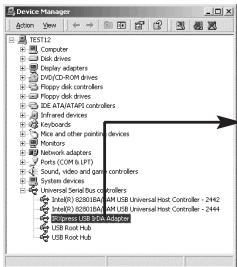
E2. And in the same window, you can select "Universal Serial Bus controllers". This will show "IRXpress USB IrDA Adapter".
IRXpress USB IrDA Adapter
Installation of USB-IrDA under Win2000
Uninstallation
If you want to remove the driver for the USB-IrDA, you can move the cursor to "My computer" -> "Control Panel" -> "Add/Remove Programs".
It will show a dialog box then select "Install/Uninstall".
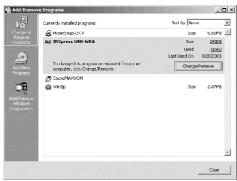
F1. Select "IRXpress USB-IrDA" from the list.
Click "Change/Remove" to uninstall the driver of the USB-IrDA.
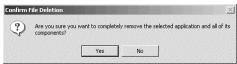
F2. Click "Yes" to continue.
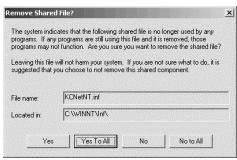
F3. Click "Yes To All" to continue.


Installation of USB-lrDA under Win2000
En
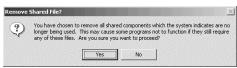
F4. Click "Yes" to continue.
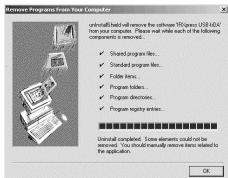
F5. Click "OK" to complete the device driver's removal.
Installation of USB-IrDA under WinXP
Note: Please install the USB-IrDA driver according to the procedure below. Do not connect the USB-IrDA to your computer if the installation has not yet been completed.
To install the USB-IrDA drivers
G1. Please insert the driver disk into the Computer's disk drive then execute "IRXpress.exe".
Click "Next" to continue.
(Figure G-1)
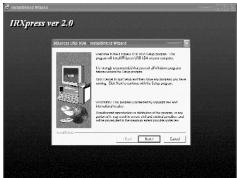
G2. Click "Next" to continue.
(Figure G-2)
G3.
G4.
Ate After the at t HUE sada
Installation of USB-IrDA under WinXP
En
low. as

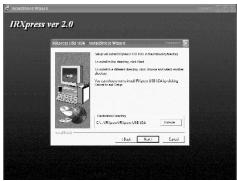
G3. Click "Next" to continue. (Figure G-3)
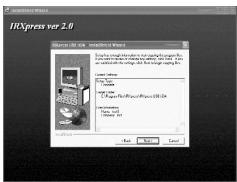
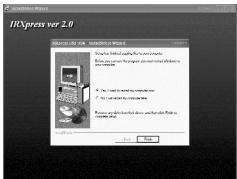
G4. Select "Yes, I want to restart my Computer now", then click "Finish" to restart the system and complete the driver installation. (Figure G-4)
After restarting the computer, please plug the flat end of the USB cable into the downstream A connector located at the back of your computer or USB HUB port and plug the upstream, square, B connector into the USB-IrDA adapter.
Installation of USB-IrDA under WinXP
USB devices listing following installation
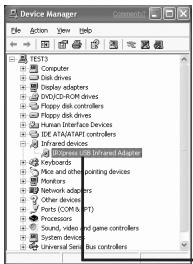
H1. To make sure you have installed the device successfully, please move the cursor to "My computer" -> "Control Panel" -> "Performance and maintenance" -> "System" -> "System Properties" -> "Hardware" -> "Device Manager" -> "Infrared devices". It will show a new directory "RXpress USB IrDA Adapter".
IRXpress USB Infrared Adapter
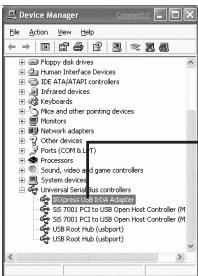
H2. And in the same window, you can select "Universal Serial Bus controllers". This will show "IRXpress USB IrDA Adapter".
IRXpress USB Infrared Adapter
Installation of USB-IrDA under WinXP
En
Uninstallation
If you want to remove the driver for the USB-IrDA, you can move the cursor to "My computer" -> "Control Panel" -> "Add/Remove Programs".
It will show a dialog box then select "Install/Uninstall".
- Select "IRXpress USB-IrDA" from the list.
Click "Change/Remove" to uninstall the driver of the USB-IrDA.
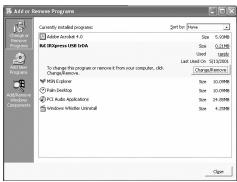
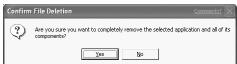
- Click "Yes" to continue.
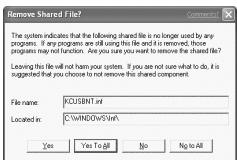
- Click "Yes to All" to continue.
Installation of USB-IrDA under WinXP
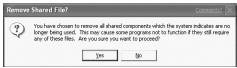
- Click "Yes" to continue.
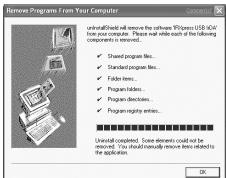
- Click "OK" to complete the device driver's removal.
Troubleshooting
En
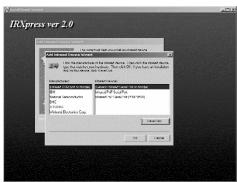
- Cannot find the picture of "Figure A-5" for installing under Win98.
Please select "Have Disk", and click "OK" to continue.
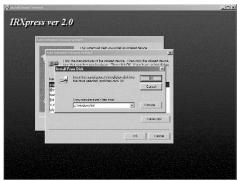
Then, select "Browse" to select the file "c:\windows\inf". Click "OK" to continue with the installation.
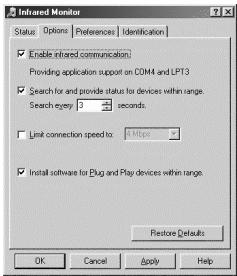
- The USB-IrDA does not work after completing the installation under Win98.
Please note that "enable infrared communication" must be selected after connecting the USB-IrDA device
Troubleshooting
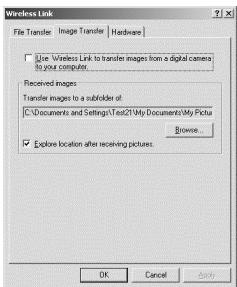
- The USB-IrDA does not work when it connects with PDA on Win2000.
Please move the cursor to "Control Panel" -> "Wireless Link" -> "Image Transfer", then enable "Explore location after receiving pictures."
Click "OK" to finish the setting.
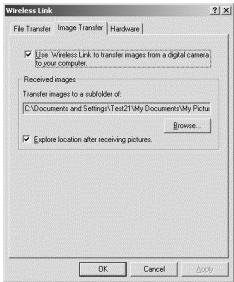
- The USB-IrDA does not work when it connects with a digital camera in Win2000.
Please move the cursor to "Control Panel" -> "Wireless Link" -> "Image Transfer", then enable "Explore location after receiving pictures." and "Use Wireless Link to transfer images from a digital camera to your computer."
Click "OK" to finish the setting.
BELKIN
belkin.com
Belkin Components
501 West Walnut Street • Compton • CA •
90220-5221·USA
Tel +1 310 898 1100
Fax +1 310 898 1111
Belkin Components, Ltd.
Express Business Park
Shipton Way • Rushden •
NN10 6GL • United Kingdom
Tel +44 (0) 1933 35 2000
Fax +44 (0) 1933 31 2000
Belkin Components B.V.
Starparc Building • Boeing Avenue 333 •
1119 PH Schiphol-Rijk
The Netherlands
Tel +31 (0) 20 654 7300
Fax +31 (0) 20 654 7349
Belkin Components, Ltd.
7 Bowen Present
West Gosford
NSW 2250 • Australia
Tel +61 (2) 4372 8600
Fax +61 (2) 4325 4277
© 2002 Belkin Components. All Rights Reserved. All Trade Names Are
Registered Trademarks of Respective Manufacturers Listed.

Intr
Inst
Inst
Inst
Pio
Contenu
Belkin Components, Ltd.
Express Business Park
Shipton Way · Rushden ·
Belkin Components, Ltd.
7 Bowen Present
West Gosford
NSW 2250 • Australie
Tel +61 (2) 4372 8600
Fax +61 (2) 4325 4277
Belkin Components, Ltd.
Express Business Park
Shipton Way • Rushden •
Belkin Components, Ltd.
7 Bowen Present
West Gosford
NSW 2250 · Australien
Tel +61 (2) 4372 8600
Fax +61 (2) 4325 4277

- Introduction
- System Requirements
- Installation of USB-IrDA under Win98/ME
- To install the USB-IrDA drivers
- USB devices listing following installation
- Uninstallation
- Installation of USB-lrDA under Win2000
- Installation of USB-IrDA under Win2000
- Installation of USB-IrDA under WinXP
- Troubleshooting
- BELKIN
- Belkin Components
- Belkin Components, Ltd.
- Belkin Components B.V.
- Contenu
Brand : BELKIN
Model : F5U230
Category : USB Hub