
CARTE EXPRESSCARD FIREWIRE #F5U505EA - Expansion card BELKIN - Free user manual and instructions
Find the device manual for free CARTE EXPRESSCARD FIREWIRE #F5U505EA BELKIN in PDF.


| Product type | FireWire ExpressCard |
| Model | F5U505ea |
| Brand | Belkin |
| Interface | ExpressCard 34 mm / 54 mm |
| Ports | 2 FireWire 6-pin ports (IEEE 1394a) |
| Data transfer rate | 100, 200, 400 Mbps |
| Compliance | IEEE 1394a-2000, OHCI 1.1, PCI Express 1.1 |
| Supported operating systems | Windows 2000, XP, Server 2003 |
| System requirements | Laptop with ExpressCard slot |
| Power | DC jack for 12 VDC power adapter (optional) |
| Hot plugging | Yes (hot-plug) |
| Package contents | ExpressCard, user manual |
| Warranty | Belkin limited lifetime warranty |
| Certifications | FCC (Part 15), CE (EN 55022 Class B) |
| Care | Clean connectors with a dry cloth if necessary |
| Safety | Comply with FCC and CE standards; avoid moisture |
| Repairability | Product not user serviceable; contact Belkin for technical support |
Frequently Asked Questions - CARTE EXPRESSCARD FIREWIRE #F5U505EA BELKIN
User questions about CARTE EXPRESSCARD FIREWIRE #F5U505EA BELKIN
0 question about this device. Answer the ones you know or ask your own.
Ask a new question about this device
Download the instructions for your Expansion card in PDF format for free! Find your manual CARTE EXPRESSCARD FIREWIRE #F5U505EA - BELKIN and take your electronic device back in hand. On this page are published all the documents necessary for the use of your device. CARTE EXPRESSCARD FIREWIRE #F5U505EA by BELKIN.
USER MANUAL CARTE EXPRESSCARD FIREWIRE #F5U505EA BELKIN
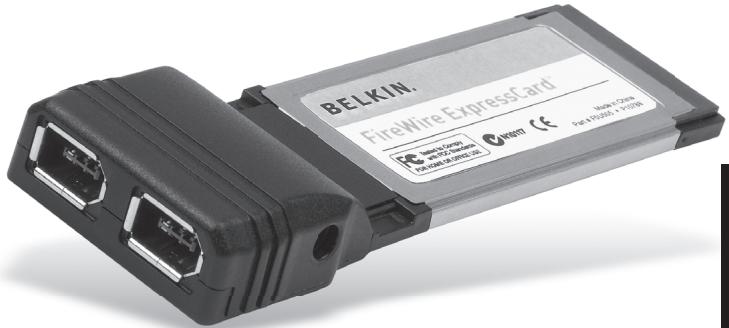
Add 2 FireWire® ports to your notebook computer using ExpressCard technology
User Manual
F5U505ea
Table of Contents
- Introduction......1
Specifications....2
System Requirements....3
Package Contents....3
- Hardware Installation 4
- Verifying Proper Installation 5
- Troubleshooting 6
- Information 8


Introduction
Congratulations and thank you for purchasing the FireWire ExpressCard from Belkin. This ExpressCard offers notebook users a fast and convenient way to add a FireWire port that can take advantage of the increased bandwidth and features the new ExpressCard I/O interconnection standard delivers.
Why ExpressCard?
ExpressCard, the standard destined to replace CardBus, quadruples your computing bandwidth. This results in faster music downloads, smoother streaming video, and lightning-fast access to mass-storage devices.
The ExpressCard provides the perfect solution for simultaneously streaming movies and downloading video from your camcorder to your hard drive—without risking that your computer will freeze, crash, or slow to a trickle. ExpressCard future-proofs your computer with technology so advanced that it exceeds the processing-speed of many devices currently on the market. This means that installing the ExpressCard now assures you of device-upgrade expansion room for many years to come.
Please carefully review this User Manual so that you can take full advantage of all the capabilities the Belkin FireWire ExpressCard offers.
Introduction
1
2
3
4
5
Specifications
• Meets PCI Express Base Specification Revision 1.1
- Delivers single-lane (x1) PCI Express throughput support rates of 2.5Gbps
- Complies with ExpressCard 34mm-wide module specification
- Builds in 2 external, independent 6-pin FireWire 400 ports
- Supports 1394 Open Host Controller Interface (OHCI) Specification 1.1
- Features IEEE 1394a-2000-compliant ports at 100-, 200-, and 400Mbps
- Equips 1 DC jack for using power adapter to provide 12VDC power output
- Complies with IEEE 1394 and 1394a
- Allows you to connect/disconnect devices without powering down the system (hot-swappable)
Introduction
System Requirements
- Windows® based notebook with available ExpressCard slot
• Windows 2000, XP, 2003 Server
Package Contents
- FireWire ExpressCard
- User Manual
1
2
3
4
5
EN
Hardware Installation
- Locate your notebook's CardBus slot(s).
- With your notebook on, slide the ExpressCard into the unused 34mm or 54mm ExpressCard bus slot.
Note: Do not plug any devices into the ExpressCard until you have completely finished the driver installation.
- The "New Hardware Wizard" will launch and recognize the ExpressCard.
- Windows OS automatically installs the correct driver.
- Installation is now complete and the ExpressCard is ready to use.
Verifying Proper Installation
Check the “Windows Device Manager” to confirm that your ExpressCard has been properly installed.
- Right-click on "My Computer" and select "Manage".
- Select the "Device Manager" tab.
- Click the (+) sign next to “IEEE1394 Bus host controllers”. The “IEEE 1394 Bus host controllers” will now include one entry that reads “Texas Instruments OHCI Compliant IEEE 1394 Host Controller”.
1
2
3
4
5
EN
Troubleshooting
The ExpressCard and devices connected to the computer do not work properly.
Please do the following:
- Check that all the cables you are using are the correct types, and that they are all securely connected.
- Make sure all devices are powered on and connected to the proper power supply and source.
- Reconnect daisy-chained devices you may have disconnected for installation. If reconnecting does not clear up the problem, restart your computer.
- Make sure you have properly installed the ExpressCard.
The computer did not detect the ExpressCard.
- Make sure that the ExpressCard is correctly plugged into the ExpressCard 34-/54mm slot; if not, plug in it securely.
- If the ExpressCard is plugged in correctly, see if its gold connectors are clean; if not, clean the connector surface.
- Follow the procedure on page 5, titled "Verifying Proper Installation". If the ExpressCard designation "Texas Instruments OHCI Compliant IEEE 1394 Host Controller" does not appear in the Device Manager, update your computer BIOS to the latest version (contact your computer manufacturer for
Troubleshooting
details). If after updating your BIOS, your computer still does not detect the ExpressCard, contact your computer manufacturer for advanced support for BIOS.
I cannot install the ExpressCard driver.
Ensure that your Microsoft Windows operating system is upgraded to the latest “Service Pack” (please check the Microsoft website). It is highly recommended that you update your system to Windows 2000 service pack 4, Windows XP service pack 2, or Windows Server 2003 service pack 1(or later).
Information
FCC Statement
DECLARATION OF CONFORMITY WITH FCC RULES FOR ELECTROMAGNETIC COMPATIBILITY
We, Belkin Corporation, of 501 West Walnut Street, Compton, CA 90220, declare under our sole responsibility that the product, F5U505ea
to which this declaration relates,
Complies with Part 15 of the FCC Rules. Operation is subject to the following two conditions: (1) this device may not cause harmful interference, and (2) this device must accept any interference received, including interference that may cause undesired operation.
CE Declaration of Conformity
We, Belkin Corporation, declare under our sole responsibility that the F5U505, to which this declaration relates, is in conformity with Generic Emissions Standard EN 55022:1998 Class B, EN50081-1 and with Generic Immunity Standard EN50082-1 1992.
Belkin Corporation Limited Lifetime Product Warranty
Belkin Corporation warrants this product against defects in materials and workmanship for its lifetime. If a defect is discovered, Belkin will, at its option, repair or replace the product at no charge provided it is returned during the warranty period, with transportation charges prepaid, to the authorized Belkin dealer from whom you purchased the product. Proof of purchase may be required.
This warranty does not apply if the product has been damaged by accident, abuse, misuse, or misapplication; if the product has been modified without the written permission of Belkin; or if any Belkin serial number has been removed or defaced.
THE WARRANTY AND REMEDIES SET FORTH ABOVE ARE EXCLUSIVE IN LIEU OF ALL OTHERS, WHETHER ORAL OR WRITTEN, EXPRESSED OR IMPLIED. BELKIN SPECIFICALLY DISCLAIMS ANY AND ALL IMPLIED WARRANTIES, INCLUDING, WITHOUT LIMITATION, WARRANTIES OF MERCHANTABILITY AND FITNESS FOR A PARTICULAR PURPOSE.
No Belkin dealer, agent, or employee is authorized to make any modification, extension, or addition to this warranty.
Information
BELKIN IS NOT RESPONSIBLE FOR SPECIAL, INCIDENTAL, OR CONSEQUENTIAL DAMAGES RESULTING FROM ANY BREACH OF WARRANTY, OR UNDER ANY OTHER LEGAL THEORY, INCLUDING BUT NOT LIMITED TO, LOST PROFITS, DOWNTIME, GOODWILL, DAMAGE TO OR REPROGRAMMING, OR REPRODUCING ANY PROGRAM OR DATA STORED IN, OR USED WITH, BELKIN PRODUCTS.
Some states do not allow the exclusion or limitation of incidental or consequential damages or exclusions of implied warranties, so the above limitations or exclusions may not apply to you. This warranty gives you specific legal rights, and you may also have other rights that vary from state to state.
1
2
3
4
5
EN
BELKIN®
www.belkin.com
Belkin Ltd.
Express Business Park
Shipton Way, Rushden
NN10 6GL, United Kingdom
+44 (0) 1933 35 2000
+44 (0) 1933 31 2000 fax
Belkin GmbH
Hanebergstrasse 2
80637 Munich, Germany
+49 (0) 89 143405 0
+49 (0) 89 143405 100 fax
Belkin B.V.
Boeing Avenue 333
1119 PH Schiphol-Rijk, The Netherlands
+31 (0) 20 654 7300
+31 (0) 20 654 7349 fax
Belkin SAS
130 rue de Silly
92100 Boulogne-Billancourt, France
+33 (0) 1 41 03 14 40
+33 (0) 1 41 31 01 72 fax
Belkin Tech Support
Europe: 00 800 223 55 460
© 2006 Belkin Corporation. All rights reserved. All trade names are registered trademarks of respective manufacturers listed. FireWire is a trademark of Apple Computer, Inc., registered in the U.S. and other countries. ExpressCard is a trademark of PCMCIA.
P75028ea
BELKIN®
Carte ExpressCard™ FireWire
Express Business Park
Shipton Way, Rushden
Assistance Technique Belkin
Europe : 00 800 223 55 460
Express Business Park
Shipton Way, Rushden
NL
Handleiding
F5U505ea
Inhoud
- Inleiding .... 1
Express Business Park
Shipton Way, Rushden
Express Business Park
Shipton Way, Rushden
Express Business Park
Shipton Way, Rushden