
SWITCH KVM À 2 PORTS #F1DJ102PEA - KVM Switch BELKIN - Free user manual and instructions
Find the device manual for free SWITCH KVM À 2 PORTS #F1DJ102PEA BELKIN in PDF.


| Product Type | 2-Port KVM Switch |
| Brand | Belkin |
| Model | F1DJ102PEA (F1DJ102P) |
| Dimensions (L x W x H) | 11.4 x 7.6 x 2.5 cm |
| Weight | 91 g |
| Power Supply | 9 VDC, 600 mA adapter (optional) or via PS/2 keyboard port |
| Number of Supported Computers | 2 |
| Console Peripherals | PS/2 keyboard, PS/2 mouse, VGA/SVGA monitor |
| Maximum Video Resolution | 1940 x 1440 @ 65 Hz |
| Video Bandwidth | 200 MHz |
| Switching Methods | Front button and keyboard hotkeys (Scroll Lock key) |
| AutoScan Mode | Yes (auto-scan every 8 seconds) |
| Keyboard/Mouse Emulation | PS/2 |
| Supported Operating Systems | Windows, DOS, Linux, Novell NetWare, etc. |
| Connectors | 6-pin miniDIN (keyboard/mouse), 15-pin HDDB (VGA) |
| LED Indicators | 2 (one per port) |
| Housing | Plastic |
| Warranty | 3 years |
| Care and Cleaning | Clean with a dry cloth. Do not use abrasive products. |
| Safety | Do not plug/unplug cables while powered on. Keep cables away from sources of electrical noise. |
| Spare Parts and Repairability | Recommended OmniView KVM cables (F1D9000-XX). Optional power adapter (F1D065-PWR). |
| General Information | Class B compliant (ICES-003). Compatible with PS/2, VGA, SVGA, XGA. |
Frequently Asked Questions - SWITCH KVM À 2 PORTS #F1DJ102PEA BELKIN
User questions about SWITCH KVM À 2 PORTS #F1DJ102PEA BELKIN
0 question about this device. Answer the ones you know or ask your own.
Ask a new question about this device
Download the instructions for your KVM Switch in PDF format for free! Find your manual SWITCH KVM À 2 PORTS #F1DJ102PEA - BELKIN and take your electronic device back in hand. On this page are published all the documents necessary for the use of your device. SWITCH KVM À 2 PORTS #F1DJ102PEA by BELKIN.
USER MANUAL SWITCH KVM À 2 PORTS #F1DJ102PEA BELKIN
Control up to four PS/2 computers using one monitor, keyboard and mouse
Control up to four PS/2 computers using one monitor, keyboard and mouse
En
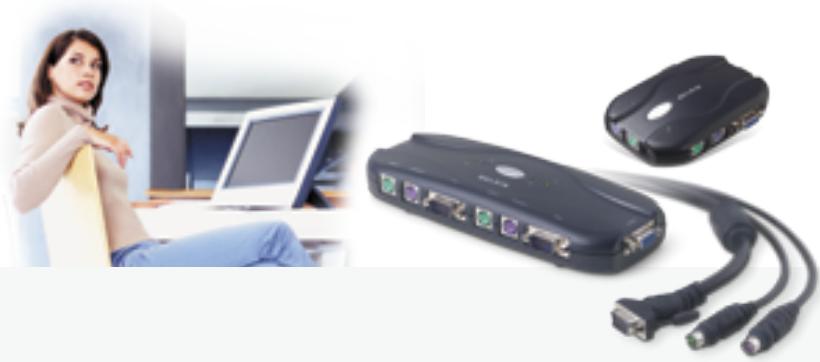
User Manual
F1DJ102P-B
F1DJ104P-B
TABLE OF CONTENTS
Introduction
Package Contents 1
Overview
Feature Overview 2
Equipment Requirements 3
Operating Systems 4
Unit Display Diagrams 5
Specifications. 7
Installation
Pre-Configuration 8
Step-By-Step Installation Guide 9
Using Your Switch
Powering Up the Systems 14
AutoScan Mode. 15
FAQs. 16
Troubleshooting 19
Information 23
INTRODUCTION
Congratulations on your purchase of this Belkin KVM Switch (the Switch). The diverse line of market-leading KVM solutions from Belkin exemplifies our commitment to delivering high-quality, durable products at a competitive price. Engineered to give you control over multiple computers and/or servers from one console, Belkin KVM switches come in a variety of capacities suitable for all configurations, large or small. This Switch is backed by a Belkin Three-Year Warranty and free technical support.
This manual will provide you details about your new Switch, from installation and operation, to troubleshooting—in the unlikely event of a problem.
For easy installation, please refer to the Quick Installation Guide included with your Switch.
Thank you for purchasing the Belkin KVM Switch. We appreciate your business.
Package Contents
KVM Switch
- User Manual
- Quick Installation Guide
- OmniView KVM Cable kits
OVERVIEW
The Belkin KVM Switch allows you to control multiple computers with one keyboard, monitor, and mouse. The Switch supports PS/2 input devices (keyboard and mouse), VGA, SVGA, XGA, and PS/2 computers.
Feature Overview
Hot Keys
Hot keys allow you to select ports using designated key commands. Control multiple computers using a simple hot key sequence on your keyboard.
AutoScan
The AutoScan feature allows you to automatically scan and monitor the activities of all operating computers connected to your Switch one by one.
Video Resolution
With a 200MHz bandwidth, the Switch is able to support video resolutions of up to 1920x1440@65Hz. To preserve signal integrity at high resolutions, 75-Ohm coaxial VGA cabling is required.
Front-Panel Push Button
A push button conveniently located on the face of the Switch allows for simple, manual port selection.
Light-Emitting Diode Display
LEDs on the front of the Switch function as status monitors. Positioned on either side of the front-panel push button, the LEDs light to indicate which corresponding monitor port is currently active.
OVERVIEW
Equipment Requirements
Cables
For each PS/2 computer you plan to connect to the Switch, you will need one VGA cable, one PS/2 keyboard cable, and one PS/2 mouse cable. Keyboard and mouse cables must have PS/2 male-to-PS/2 male connectors.
To support resolutions of up to 1920x1440@65Hz and to preserve signal integrity, use of a 75-Ohm coaxial VGA cable is required. Cables must have HDDB15 female-to-HDDB15 male connectors.
Belkin OmniView KVM Cables offer the highest quality possible to ensure that your data is optimally transmitted. KVM Cables include PC99 color-coded connectors for easier identification and connection. Double-shielded, strain-relief, ferrite-bead, E Series Cables include an industry-standard, 14-pin, coaxial VGA cable and nickel-plated connectors for high-resolution applications.
The following cable kit is included and recommended for your KVM Switch:
F1D9000-XX
OmniView E Series KVM Cable kit (PS/2 Style)
(-XX denotes the length in feet)
OVERVIEW
Operating Systems
Your Switch is for use on CPUs using:
Platforms
- Windows® 95, 98, 2000, Me, NT®, XP
DOS
Linux - Novell® NetWare® 4.x/5.x
Keyboards
Supports 101-, 102-, and 104-key keyboards
Mice
- Microsoft® system-compatible PS/2 mice with 2, 3, 4, or 5 buttons
Monitors
VGA
SVGA
MultiSync®
Optional Power Supply
An optional 9V, 600mA power supply is available. Visit belkin.com for ordering information.
OVERVIEW
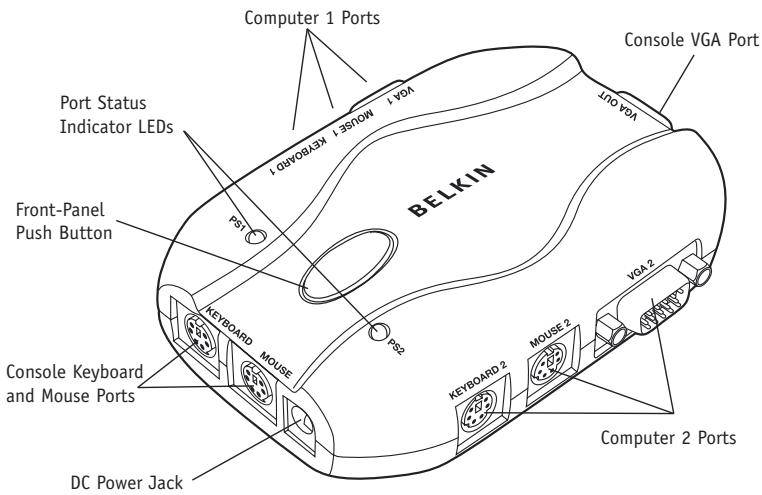
Unit Display Diagrams
The 2-Port KVM Switch:
OVERVIEW
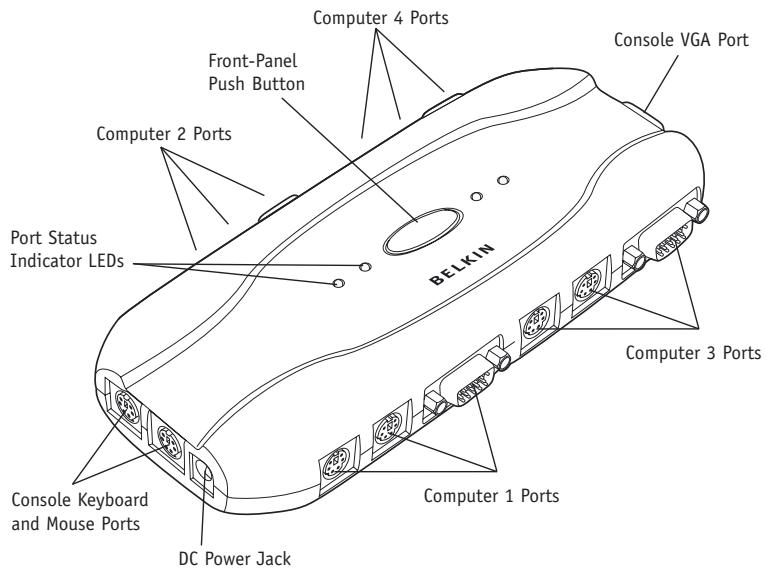
The 4-Port KVM Switch:
6

OVERVIEW
Specifications
Part No.: F1DJ102P, F1DJ104P
Power: Optional 9V DC, 600mA adapter with center-pin positive polarity
PCs Supported: F1DJ102P: 2 F1DJ104P: 4
Keyboard Emulation: PS/2
Mouse Emulation: PS/2 and Serial (with use of adapter)
Monitors Supported: VGA, SVGA, MultiSync, and LCD (with use of adapter cable)
Max. Resolution: 1940x1440@65Hz
Keyboard Input: 6-pin miniDIN (PS/2)
Mouse Input: 6-pin miniDIN (PS/2)
VGA Port: 15-pin HDDB type
LED Indicators: F1DJ102P: 2 F1DJ104P: 4
Enclosure: Plastic
Dimensions: F1DJ102P: (L) 4.5 × (W) 3.0 × (H) 1.0 in.
F1DJ104P: (L) 7.5 × (W) 3.0 × (H) 1.0 in.
Weight: F1DJ102P: 3.2oz.
F1DJ104P: 6.4oz.
Warranty: 3 years
Note: Specifications are subject to change without notice.
7
INSTALLATION
Pre-Configuration
Where to Place the Switch
The Switch is designed for positioning on the desktop. The exact placement will be based on the location of your CPUs and length of your cables.
Cable Distance Requirements
For PS/2 computers: VGA signals are best retained when transmitted up to 25 feet (7.6m). Beyond 25 feet, probability of video degradation increases with an increase in distance. For this reason, your PS/2 computer should be placed within 25 feet of the KVM Switch.
Note: If your computer needs to be more than 25 feet from the KVM Switch, you can use the Belkin CAT5 Extender (part number F1D084) to extend your PS/2 keyboard, PS/2 mouse, and monitor up to 500 feet (152.4m) away using a standard CAT5 UTP cable.
Cautions andWarnings
Avoid placing cables near fluorescent lights, air conditioning equipment, or machines that create electrical noise (e.g., vacuum cleaners).
INSTALLATION
Step-by-Step Installation Guide
This section provides complete instructions for the hardware setup of a single Switch.
Important Note
Before attempting to connect anything to the Switch or to any computer, make sure that everything is powered off. Plugging and unplugging cables while computers are powered on can cause irreversible damage to your computers, data, and/or to the Switch. Belkin Corporation will not be responsible for damage caused in this way.
Connecting the Console
- Connect your PS/2 type keyboard and mouse to the KEYBOARD and MOUSE ports located on the side of your Switch.

9
INSTALLATION
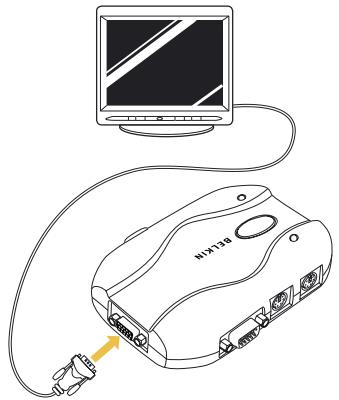
- Take the video cable that is attached to your monitor and connect it to the VGA OUT port located on the side of the Switch.
INSTALLATION
Connecting the Computer:
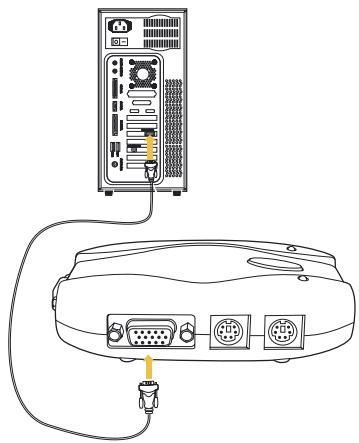
- Using an OmniView KVM Cable kit, take the VGA cable and connect the male end of the cable to the VGA port on the first computer. Connect the female end to the VGA 1 port on the side of the Switch.
INSTALLATION
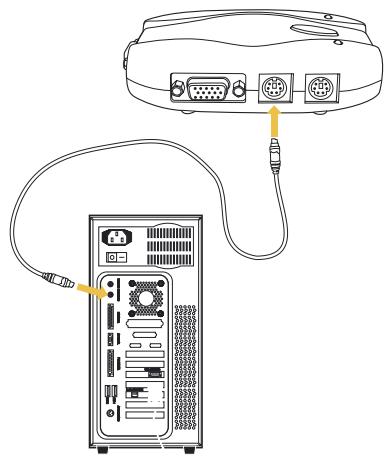
- Connect one end of the PS/2 keyboard KVM cable to the keyboard port on the computer and the other end to the KEYBOARD 1 port on the side of the Switch.
12
INSTALLATION
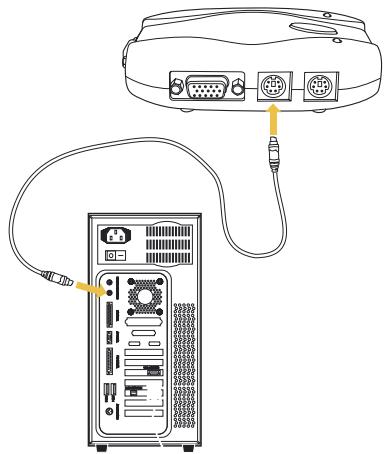
- Connect one end of the PS/2 mouse KVM cable to the mouse port on your computer and the other end to the MOUSE 1 port on the side of the Switch.
Repeat Steps 3 through 5 for each additional computer to be connected to the Switch, connecting them to the corresponding CPU ports on the side.
13

USING YOUR SWITCH
Powering Up the Systems
Once all cables have been connected, power up your CPUs that are attached to the Switch. All computers can be powered on simultaneously. The Switch emulates a mouse and keyboard on each port and will allow your computer to boot normally. Your Switch should now be ready for use.
You can select which computer to operate by either the front-panel push button located on the top of the Switch or through hot key commands. Note that it will take 1-2 seconds for the video to display after switching. This is due to the refresh of the video signal. A re-synchronization of the mouse and keyboard signal also takes place. This is normal operation and ensures that proper synchronization is established.
You can conveniently change ports on the Switch through a keyboard command sequence using the "SCROLL LOCK" key and up and down arrow keys. To send commands to the Switch, press the "SCROLL LOCK" key twice within two seconds. You will hear a beep for confirmation. Then you can press the up or down arrow keys to switch between ports.


Switch to next active port, up arrow


Switch to previous active port, down arrow
USING YOUR SWITCH
You can switch directly to any port by entering the Switch port number you wish to use. For example, if you press "SCROLL LOCK", "SCROLL LOCK", "2", the computer on port 2 will be selected.

Switch to Port 2- (02)
AutoScan Mode
In AutoScan mode, the Switch remains on one port for eight seconds before switching to the next. This time interval cannot be changed.
To enable AutoScan mode, press "SCROLL LOCK", "SCROLL LOCK", "S".
Note: There is no mouse or keyboard control in this mode by design, in order to prevent errors. If it were enabled, the user could move the mouse or use the keyboard while the KVM Switch is switching to the next port. This could interrupt communication between the computer and Switch that might cause erratic mouse movement, or result in errant display of characters when using the keyboard.
To disable AutoScan mode, press the space bar.
FAQs
Q: What operating system does the Switch support?
A: The Switch will support any operating system that runs on a PS/2 platform. It will also work with Sun and Mac operating systems using the appropriate adapters (Belkin OmniView Sun Adapter F1D082, OmniView Mac Adapter F1D080). Operating systems include, but are not limited to, DOS, Windows 3.x, 95, 98, 2000, Me, NT, XP, Linux, and Novell NetWare 4.x/5.x.
Q: Does the Switch function with the Microsoft IntelliMouse?
A: Yes, the Switch will function with Microsoft, Logitech, Kensington, as well as with all Belkin mice. The Switch will support only two mouse buttons. Please contact Belkin Technical Support for any compatibility questions you may have.
Q: How does the Switch allow the user to toggle between ports?
A: The Switch supports two methods of port selection. The user can choose computers using specially designated hot keys from the keyboard, or by pressing the front-panel push button.
Q: How far can the user be from the Switch?
A: When using PS/2 connections, the Switch can be up to 25 feet away from your computer. If your computer needs to be more than 25 feet from the KVM Switch, you can use the Belkin CAT5 Extender (part number F1D084) to extend the operation distance of your PS/2 keyboard, PS/2 mouse, and monitor up to 500 feet away using standard CAT5 UTP cable.
FAQs
Q: What is the maximum video resolution the Switch supports?
A: The advanced video circuit in the Switch supports a maximum resolution of 1940 × 1440 @ 65Hz . This higher resolution support is ideal for graphic artists and designers who depend on high-quality video.
Q: What video bandwidth does the KVM Switch support?
A: The Switch supports 200MHz of video bandwidth.
Q: What is the difference between the KVM Switch and the SOHO Series KVM Switch?
A: The SOHO Series KVM Switch offers additional audio and microphone support; a sculpted, space-saving design; cable management; flash-upgrade capability; and a USB option.
Q: What are the benefits of the Belkin KVM Switch over a similar competitor product?
A: The Belkin KVM Switch is an affordable solution, packed with features usually found in higher-priced units. The Belkin KVM Switch offers hot key command switching, resolution support of up to 1940x1440@65Hz, AutoScan, and a Belkin Three-Year Limited Warranty—all at a very affordable price.
Q: Can I use the Switch on my Sun computer?
A: Yes, the Switch works with Sun computers when used with the Belkin Sun Adapter, part number F1D082.
FAQs
Q: Do I have to install any software to use the Switch?
A: No, the Switch does not require any drivers or software to be installed on your computers. Simply connect all your computers to the PC ports on the Switch, then attach one monitor, mouse, and keyboard to the corresponding console ports and your Switch is ready for use.
Q: Does the Switch require an AC adapter?
A: The Switch can be powered by the PS/2 keyboard port of your computer. An optional 9V DC, 600mA power adapter may be used for instances where power cannot be drawn from a PS/2 port of a computer.
Q: Can I use the Switch to switch video signals only?
A: Yes, you may use the Switch to switch between video signals only without having to connect the keyboard and mouse. The keyboard and mouse should be connected directly to the computer that the video signal is taken from to ensure that your computer functions properly.
Note: The Switch will require the use of the optional AC power adapter since power cannot be drawn from the computer via the keyboard or through a USB port.
Q: How long is the warranty for the Switch?
A: The Switch comes with a Three-Year Limited Warranty.
TROUBLESHOOTING
Video
I am getting ghosting, shadowing, or fuzzy images on my monitor.
- Check that all video cables are inserted properly.
- Check that the monitor you are using supports the resolution and refresh-rate setting on your computer.
- Check that the graphics card you are using supports the resolution and refresh-rate setting on your computer.
- Connect the monitor directly into the computer you are having trouble with to see if the problem still appears.
I am getting a black screen on my monitor.
- Check that all video cables are inserted properly.
- If you are not using a power adapter, check that the keyboard cable is connected and inserted properly between the computer and the Switch.
- If you are using the Switch for video switching only and have no keyboard and mouse connection between the Switch and computer, you will need to purchase the optional 9V DC, 600mA power adapter (Belkin part number F1D065-PWR for your appropriate country).
- Connect your monitor directly to the computer to verify that your monitor is functioning properly.
TROUBLESHOOTING
Keyboard
Computer does not detect your keyboard and you get a keyboard error reported at boot up.
- Check that the keyboard cable between the Switch and the computer is connected properly. Tighten any loose connections.
- Try swapping your keyboard with a different one.
- Try connecting the computer to a different port.
- If you are using the keyboard software that was included with your keyboard, uninstall it and install the standard Microsoft keyboard driver.
Mouse
Mouse is lost when I switch to a different channel.
- Check that the mouse you are using is connected properly to the console port of the Switch.
- If you are using a mouse driver that was included with your mouse, uninstall it and install the standard Microsoft mouse driver.
- Disconnect and reconnect the mouse cable attached to the channel with which you are experiencing problems to re-synchronize the mouse connection.
- Attach the mouse directly to the computer with which you are experiencing mouse problems.
- Allow up to one minute following the computer's waking from standby mode for mouse function to return.
TROUBLESHOOTING
- Deactivate power management schemes on the PC with which you are experiencing problems.
- Try swapping the mouse with a different one.
The mouse is not detected at boot up.
- Check the cables and make sure that they are inserted properly.
The computer boots up fine, but the mouse does not work.
- Make sure it is plugged-in properly.
- Make sure the mouse works when directly plugged into the computer. Rebooting may be necessary when trying this.
Try a different mouse.
When I switch from one port to another, mouse movement is completely erratic.
- Make sure you do not have more than one mouse driver installed. Make sure that the driver is either for a standard PS/2 mouse or a Microsoft compatible PS/2 mouse.
- Make sure you do not have any mouse drivers loaded in your CONFIG.SYS or AUTOEXEC.BAT files.
- Avoid moving the mouse or pressing the mouse button when switching ports on the Switch.
- You can reset the mouse and resume proper mouse movement simply by unplugging the mouse from the Switch and waiting 2-3 seconds before plugging it in again.
TROUBLESHOOTING
General
My computer does not boot up when connected to the Switch, but works fine when I connect the keyboard, video, and mouse directly to it.
- Make sure that the keyboard and mouse cables are connected tightly between the Switch and the computer.
- Check that the keyboard and mouse cables are not crossed, i.e., make sure the connectors are plugged into the correct ports.
INFORMATION
FCC Statement
DECLARATION OF CONFORMITY WITH FCC RULES FOR ELECTROMAGNETIC COMPATIBILITY
We, Belkin Corporation, of 501 West Walnut Street, Compton, CA 90220, declare under our sole responsibility that the products:
F1DJ102P,F1DJ104P
to which this declaration relates:
Comply with Part 15 of the FCC Rules. Operation is subject to the following two conditions: (1) this device may not cause harmful interference, and (2) this device must accept any interference received, including interference that may cause undesired operation.
CE Declaration of Conformity
We, Belkin Corporation, declare under our sole responsibility that the products F1DJ102P and F1DJ104P to which this declaration relates, are in conformity with Emissions Standard EN55022 and, with Immunity Standard EN55024, LVP EN61000-3-2, and EN61000-3-3.
ICES
Belkin Corporation Limited Three-Year Product Warranty
Belkin Corporation warrants this product against defects in materials and workmanship for its warranty period. If a defect is discovered, Belkin will, at its option, repair or replace the product at no charge provided it is returned during the warranty period, with transportation charges prepaid, to the authorized Belkin dealer from whom you purchased the product. Proof of purchase may be required.
This warranty does not apply if the product has been damaged by accident, abuse, misuse, or misapplication; if the product has been modified without the written permission of Belkin; or if any Belkin serial number has been removed or defaced.
THE WARRANTY AND REMEDIES SET FORTH ABOVE ARE EXCLUSIVE IN LIEU OF ALL OTHERS, WHETHER ORAL OR WRITTEN, EXRESSED OR IMplied. BELKIN SPECIFICALLY DISCLAIMS ANY AND ALL IMPLIED WARRANTYES, INCLUDING, WITHOUT LIMITATION, WARRANTYES OF MERCHANTABILITY AND FITNESS FOR A PARTICULAR PURPOSE.
No Belkin dealer, agent, or employee is authorized to make any modification, extension, or addition to this warranty.
BELKIN IS NOT RESPONSIBLE FOR SPECIAL, INCIDENTAL, OR CONSEQUENTIAL DAMAGES RESULTING FROM ANY BREACH OF WARRANTY, OR UNDER ANY OTHER LEGAL THEORY, INCLUDING BUT NOT LIMITED TO LOST PROFITS, DOWNTIME, GOODWILL, DAMAGE TO OR REPROGRAMMING, OR REPRODUCING ANY PROGRAM OR DATA STORED IN OR USED WITH BELKIN PRODUCTS.
Some states do not allow the exclusion or limitation of incidental or consequential damages or exclusions of implied warranties, so the above limitations of exclusions may not apply to you. This warranty gives you specific legal rights, and you may also have other rights that vary from state to state.


BELKIN
KVM Switch
BELKIN
Switch KVM
Express Business Park • Shipton Way
Rushden · NN10 6GL · United Kingdom
Tel: +44 (0) 1933 35 2000
Fax: +44 (0) 1933 31 2000
Belkin B.V.
Starparc Building • Boeing Avenue 333
1119 PH Schiphol-Rijk · The Netherlands
Tel: +31 (0) 20 654 7300
Fax: +31 (0) 20 654 7349
Belkin Tech Support
Europe: 00 800 223 55 460
© 2004 Belkin Corporation. All rights reserved.
All trade names are registered trademarks of respective manufacturers listed.
Belkin GmbH
Hanebergstrasse 2
80637 Munich · Germany
Tel: +49 (0) 89 143405 0
Fax: +49 (0) 89 143405 100
Belkin SAS
Express Business Park • Shipton Way
Assistance technique Belkin
Europe: 00 800 223 55 460
Tastaturemulation: PS/2
Express Business Park • Shipton
Express Business Park • Shipton Way
Max. resolution: 1940x1440@65Hz
Express Business Park • Shipton Way
Rushden · NN10 6GL · Reino Unido
Tel: +44 (0) 1933 35 2000
Fax: +44 (0) 1933 31 2000
Belkin B.V.
Starparc Building • Boeing Avenue 333
1119 PH Schiphol-Rijk • Holanda
Tel: +31 (0) 20 654 7300
Fax: +31 (0) 20 654 7349
Asistencia的技术e de Belkin
Europa: 00 800 223 55 460
Express Business Park • Shipton Way
Rushden · NN10 6GL · Regno Unito
Tel: +44 (0) 1933 35 2000
Fax: +44 (0) 1933 31 2000
Belkin B.V.
Starparc Building • Boeing Avenue 333
1119 PH Schiphol-Rijk · Paesi Bassi
Tel: +31 (0) 20 654 7300
Fax: +31 (0) 20 654 7349
Belkin GmbH
Hanebergstrasse 2
Express Business Park • Shipton Way
Rushden · NN10 6GL · United Kingdom
Tel: +44 (0) 1933 35 2000
Fax: +44 (0) 1933 31 2000
Belkin B.V.
Starparc Building • Boeing Avenue 333
1119 PH Schiphol-Rijk • The Netherlands
Tel: +31 (0) 20 654 7300
Fax: +31 (0) 20 654 7349
Belkin GmbH
Hanebergstrasse 2
80637 Munich · Germany
Tel: +49 (0) 89 143405 0
Fax: +49 (0) 89 143405 100
Belkin SAS
© 2004 Belkin Corporation. All rights reserved.
All trade names are registered trademarks of respective manufacturers listed.
P74711ea


- TABLE OF CONTENTS
- INTRODUCTION
- OVERVIEW
- INSTALLATION
- USING YOUR SWITCH
- PACKAGE CONTENTS
- FEATURE OVERVIEW
- HOT KEYS
- AUTOSCAN
- VIDEO RESOLUTION
- FRONT-PANEL PUSH BUTTON
- LIGHT-EMITTING DIODE DISPLAY
- EQUIPMENT REQUIREMENTS
- CABLES
- F1D9000-XX
- OPERATING SYSTEMS
- PLATFORMS
- KEYBOARDS
- MICE
- MONITORS
- OPTIONAL POWER SUPPLY
- UNIT DISPLAY DIAGRAMS
- THE 2-PORT KVM SWITCH
- SPECIFICATIONS
- PRE-CONFIGURATION
- WHERE TO PLACE THE SWITCH
- CABLE DISTANCE REQUIREMENTS
- CAUTIONS ANDWARNINGS
- STEP-BY-STEP INSTALLATION GUIDE
- IMPORTANT NOTE
- CONNECTING THE CONSOLE
- POWERING UP THE SYSTEMS
- AUTOSCAN MODE
- FAQS
- TROUBLESHOOTING
- VIDEO
- KEYBOARD
- MOUSE
- GENERAL
- INFORMATION
- FCC STATEMENT
- DECLARATION OF CONFORMITY WITH FCC RULES FOR ELECTROMAGNETIC COMPATIBILITY
- CE DECLARATION OF CONFORMITY
- ICES
- BELKIN CORPORATION LIMITED THREE-YEAR PRODUCT WARRANTY
- BELKIN
- KVM SWITCH
- SWITCH KVM
- BELKIN B.V
- BELKIN TECH SUPPORT
- BELKIN GMBH
- BELKIN SAS
Brand : BELKIN
Model : SWITCH KVM À 2 PORTS #F1DJ102PEA
Category : KVM Switch