
F5U261 - USB Hub BELKIN - Free user manual and instructions
Find the device manual for free F5U261 BELKIN in PDF.



User questions about F5U261 BELKIN
0 question about this device. Answer the ones you know or ask your own.
Ask a new question about this device
Download the instructions for your USB Hub in PDF format for free! Find your manual F5U261 - BELKIN and take your electronic device back in hand. On this page are published all the documents necessary for the use of your device. F5U261 by BELKIN.
USER MANUAL F5U261 BELKIN
P74102-em-F5U261-man-9-02.qxd 9/24/02 10:03 AM Page d
INTRODUCTION
En
Congratulations and thank you for purchasing the Belkin Hi-Speed USB 2.0 4-Port Drive Bay Hub (the Hub). The Hub provides four downstream USB ports that are compatible with Hi-Speed USB 2.0 devices as well as with low- and full-speed USB 1.1 devices.
This means that the Hub is backward-compatible with all of your current USB 1.1 peripherals while it enables the ultrafast performance levels of next-generation USB 2.0 devices, including scanners, printers, mass storage devices, and high-resolution cameras. The Hub is self-powered, allowing for the cascading of devices with additional hubs, so that you can connect up to 127 USB devices to a single port. The Hub provides a multicolored status LED for each individual port, and a master power LED. For additional information, refer to the "Technical Specifications" section.
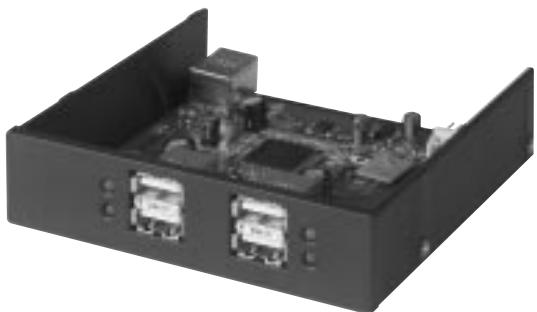
Fig. 1
1
FEATURES
Hi-Speed USB 2.0 (data rate 1.5/12/480Mbps) specification compliance
- Backward-compatible with USB 1.1 (data rate 1.5/12Mbps)
- Windows® 98 SE, Me, 2000, and XP compatibility
- USB Implementers Forum (USB-IF) approval
- Plug-and-Play functionality
- Hot swap capability of USB devices
Over-current detection and protection
- Port-status indicator LEDs
- Four 480Mbps downstream ports
- Sizing to fit in 3.5-inch drive bay
- Powered by your computer's power supply
Package Contents
Hi-Speed USB 2.0 4-Port Drive Bay Hub
- USB "A" to "B" Device Cable
- User Manual
TECHNICAL SPECIFICATIONS
En
Upstream Ports 1
Downstream Ports 4
Per-Port Voltage DC+5V
Per-Port Current 500mA (max)
Power Mode Self-powered
Operating Temperature 5^ 40^
Storage Temperature -20°C ~ 60°C
Enclosure Plastic
Power Supply Powered by computer power supply
Main Power LED Color Definitions:
Off Not Operational
Red Operational
Port-Status LED Color Definitions:
Off Not Operational
Amber Error Condition
Green Fully Operational
Blinking Off/Green Software Attention
Blinking Off/Amber Hardware Attention
INSTALLATION
- Turn off power and remove the cover from your computer.
- Remove the front panel insert from an empty 3.5-inch drive bay, and install the Hub into the drive bay (consult your computer manual for information regarding installation of drive bay compatible devices). (See Fig. 2.)
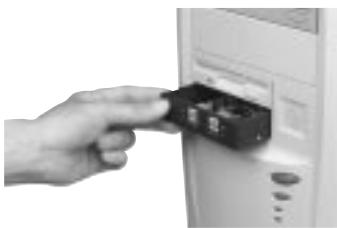
Fig. 2
- Plug a compatible power connector from your computer power supply onto the power connector on the rear of the Hub. (See Fig. 3.)
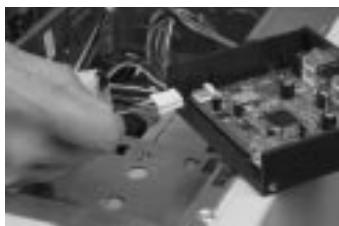
Fig. 3
4
INSTALLATION (CONTINUED)
- Plug the provided USB cable into the USB connector on the rear of the Hub. (See Fig. 4). Plug the other end of the USB cable into an available port on a Hi-Speed USB 2.0 host adapter card.
En
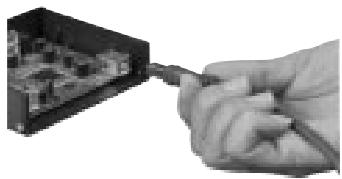
Fig. 4
Note A: The Hub must be connected to a USB 2.0-compliant host in order to function in high-speed mode (480Mbps data rate). If the Hub is connected to a USB 1.1-compliant host, it will operate only in low- or full-speed mode (1.5Mbps or 12Mbps).
5. Replace your computer's cover and turn the power on.
6. Your Windows operating system will now detect the Hub and install the required drivers. (The Windows "Install New Hardware Wizard" may prompt you to provide your Windows Installation CD to complete the driver installation process.)
INSTALLATION (CONTINUED)
Note B—VERY IMPORTANT: Hi-Speed USB 2.0 hub drivers are included with most USB 2.0 PCI upgrade cards, and are pre-installed along with the PCI card drivers. If you purchased an upgrade card prior to the release of Hi-Speed USB 2.0 hub support, please check with your PCI card vendor for an updated USB 2.0 driver. The Belkin USB 2.0 driver supports all competitive PCI cards based on the NEC host controller, with the exception of those released by Adaptec. The most recent Belkin driver is available at belkin.com.
7. Plug the USB A connector of a USB device, or an additional hub, into any of the downstream ports of the Drive Bay Hub. (See Fig. 5.)
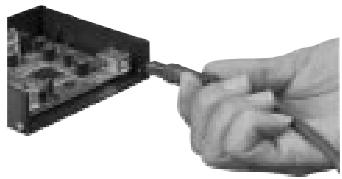
Fig. 5
Note C: When plugging a USB device into the Hub for the first time, it may be necessary to reinstall the USB drivers for that device. Likewise, if you move the device to another port on the Hub, it may be necessary to reinstall the drivers.
INFORMATION
En
FCC Statement
DECLARATION OF CONFORMITY WITH FCC RULES FOR ELECTROMAGNETIC COMPATIBILITY
We, Belkin Components, of 501 West Walnut Street, Compton CA 90220, declare under our sole responsibility that the product: FSU261
to which this declaration relates: Complies with Part 15 of the FCC Rules. Operation is subject to the following two conditions: (1) this device may not cause harmful interference, and (2) this device must accept any interference received, including interference that may cause undesired operation.
CE Declaration of Conformity
We, Belkin Components, declare under our sole responsibility that the FSU261, to which this declaration relates, is in conformity with Generic Emissions Standard EN550022 1998 and with Generic Immunity Standard EN550024 1998, EN61000-3-2, and EN61000-3-3.
Belkin Components Limited Lifetime Product Warranty
Belkin Components warrants this product against defects in materials and workmanship for its lifetime. If a defect is discovered, Belkin will, at its option, repair or replace the product at no charge provided it is returned during the warranty period, with transportation charges prepaid, to the authorized Belkin dealer from whom you purchased the product. Proof of purchase may be required.
This warranty does not apply if the product has been damaged by accident, abuse, misuse, or misapplication; if the product has been modified without the written permission of Belkin; or if any Belkin serial number has been removed or defaced.
THE WARRANTY AND REMEDIES SET FORTH ABOVE ARE EXCLUSIVE IN LIEU OF ALL OTHERS, WHETHER ORAL OR WRITTEN, EXPRESSED OR IMplied. BELKIN SPECIFICALLY DISCLAIMS ANY AND ALL IMPLIED WARRANTYES, INCLUDING, WITHOUT LIMITATION, WARRANTYES OF MERCHANTABILITY AND FITNESS FOR A PARTICULAR PURPOSE.
No Belkin dealer, agent, or employee is authorized to make any modification, extension, or addition to this warranty.
BELKIN IS NOT RESPONSIBLE FOR SPECIAL, INCIDENTAL, OR CONSEQUENTIAL DAMAGES RESULTING FROM ANY BREACH OF WARRANTY, OR UNDER ANY OTHER LEGAL THEORY, INCLUDING BUT NOT LIMITED TO LOSS PROFITS, DOWNTIME, GOODWILL, DAMAGE TO OR REPROGRAMMING, OR REPRODUCING ANY PROGRAM OR DATA STORED IN OR USED WITH BELKIN PRODUCTS.
Tech Support
US: 310.898.1100 ext. 2263
800.223.5546 ext. 2263
310.604.2089 (fax)
techsupp@belkin.com
Europe: 0080022355460
eurosupport@belkin.com
Australia: 1800666040
BELKIN
belkin.com
Belkin Components
501 West Walnut Street
Compton · CA · 90220 · USA
Tel: 310.898.1100
Fax: 310.898.1111
Belkin Components, Ltd.
Express Business Park
Shipton Way • Rushden • NN10 6GL
United Kingdom
Tel: +44 (0) 1933 35 2000
Fax: +44 (0) 1933 31 2000
Belkin Components B.V.
Starparc Building • Boeing Avenue 333
1119 PH Schiphol-Rijk • The Netherlands
Tel: +31 (0) 20 654 7300
Fax: +31 (0) 20654 7349
Belkin Components Ltd.
7 Bowen Crescent • West Gosford
NSW 2250 • Austra
Tel: +61 (0) 24372 8600
Fax: +61 (0) 24372 8603
© 2002 Belkin Components. All rights reserved.
All trade names are registered trademarks of respective manufacturers listed.
P74102em
SOMMAIRE
P74102-em-F5U261-man-9-02.qxd 9/24/02 10:04 AM Page 10
INTRODUCTION
Support technique de Belkin
USA: 310.898.1100 poste 2263
800.223.5546 poste 2263
501 West Walnut Street
Compton · CA · 90220 · USA
Tél.: 310.898.1100
Télécopie: 310.898.1111
Belkin Components, Ltd.
Express Business Park
Shipton Way • Rushden • NN10 6GL
Royaume-Uni
Tel.: +44 (0) 1933 35 2000
Télécopie: +44 (0) 1933 31 2000
Belkin Components B.V.
Starparc Building • Boeing Avenue 333
P74102-em-F5U261-man-9-02.qxd 9/24/02 10:04 AM Page 10
EINFUHRUNG
501 West Walnut Street
Compton · CA · 90220 · USA
Tel: 310.898.1100
Fax: 310.898.1111
Belkin Components, Ltd.
Express Business Park
Shipton Way · Rushden · NN10 6GL
Großbritannien
Tel: +44 (0) 1933 35 2000
Fax: +44 (0) 1933 31 2000
Belkin Components B.V.
Starparc Building • Boeing Avenue 333
1119 PH Schiphol-Rijk · Niederlande
Tel: +31 (0) 20 654 7300
Fax: +31 (0) 20654 7349
Belkin Components Ltd.
7 Bowen Crescent • West Gosford
NSW 2250 • Australia
Tel: +61 (0) 24372 8600
Fax: +61 (0) 24372 8603
P74102-em-F5U261-man-9-02.qxd 9/24/02 10:04 AM Page 10
INLEIDING
501 West Walnut Street
Compton · CA · 90220 · V.S.
Tel: 310.898.1100
Fax: 310.898.1111
Belkin Components, Ltd.
Express Business Park
Shipton Way • Rushden • NN10 6GL
Verenigd Koninkrijk
Tel: +44 (0) 1933 35 2000
Fax: +44 (0) 1933 31 2000
Belkin Components B.V.
Starparc Building • Boeing Avenue 333
P74102-em-F5U261-man-9-02.qxd 9/24/02 10:04 AM Page 10
INTRODUCCION
501 West Walnut Street
Compton · CA · 90220 · USA
Tel: 310.898.1100
Fax: 310.898.1111
Belkin Components, Ltd.
Express Business Park
Shipton Way • Rushden • NN10 6GL
Reino Unido
Tel: +44 (0) 1933 35 2000
Fax: +44 (0) 1933 31 2000
Belkin Components B.V.
Starparc Building • Boeing Avenue 333
1119 PH Schiphol-Rijk · Paises Bajos
Tel: +31 (0) 20 654 7300
Fax: +31 (0) 20654 7349
Belkin Components Ltd.
7 Bowen Crescent • West Gosford
NSW 2250 • Aus
Tel: +61 (0) 24372 8600
Fax: +61 (0) 243728603
P74102-em-F5U261-man-9-02.qxd 9/24/02 10:04 AM Page 10


INTRODUZIONE
501 West Walnut Street
Compton · CA · 90220 · USA
Tel: 310.898.1100
Fax: 310.898.1111
Belkin Components, Ltd.
Express Business Park
Shipton Way • Rushden • NN10 6GL
Regno Unito
Tel: +44 (0) 1933 35 2000
Fax: +44 (0) 1933 31 2000
Belkin Components B.V.
Starparc Building • Boeing Avenue 333
1119 PH Schiphol-Rijk · Paesi Bassi
Tel: +31 (0) 20 654 7300
Fax: +31 (0) 20654 7349
Belkin Components Ltd.
7 Bowen Crescent • West Gosford
NSW 2250 • Austral
Tel: +61 (0) 24372 8600
Fax: +61 (0) 243728603
P74102-em-F5U261-man-9-02.qxd 9/24/02 10:04 AM Page 10
INTRODUÇÃO
501 West Walnut Street
Compton · CA · 90220 · USA
Tel: 310.898.1100
Fax: 310.898.1111
Belkin Components, Ltd.
Express Business Park
Shipton Way • Rushden • NN10 6GL
Reino Unido
Tel: +44 (0) 1933 35 2000
Fax: +44 (0) 1933 31 2000
Belkin Components B.V.
Starparc Building • Boeing Avenue 333
1119 PH Schiphol-Rijk · Holanda
Tel: +31 (0) 20 654 7300
Fax: +31 (0) 20 654 7349
Belkin Components Ltd.
7 Bowen Crescent • West Gosford
NSW 2250 • Austral
Tel: +61 (0) 24372 8600
Fax: +61 (0) 24372 8603