MUVO N200 - Portable audio player CREATIVE - Free user manual and instructions
Find the device manual for free MUVO N200 CREATIVE in PDF.



| Product Type | Portable Audio Player |
| Brand | CREATIVE |
| Model | MuVo N200 |
| Approximate Dimensions | 70 x 35 x 15 mm |
| Approximate Weight | 30 g (without battery) |
| Power Source | 1 AAA alkaline battery |
| Supported Audio Formats | MP3, WMA (including DRM-protected WMA) |
| Display | Liquid Crystal Display (LCD) |
| Storage | Capacity not specified (typically 128/256 MB depending on version) |
| Connectivity | USB port (computer connection), 3.5mm headphone jack, Line-in jack (external stereo source) |
| FM Radio | Yes (auto search, up to 32 presets) |
| Voice Recording | Yes (built-in microphone) |
| Direct MP3 Encoding | Yes (via Line-in) |
| Playback Functions | Play/pause, scroll wheel navigation, volume control, key lock |
| System Compatibility | Windows 98 SE, Me, 2000, XP |
| Care and Cleaning | Protect from moisture and shocks. Clean with a soft, dry cloth. |
| Safety | Do not use headphones while driving. Set moderate volume to protect hearing. |
| Spare Parts and Repairability | Replaceable AAA battery. No spare parts provided. Contact Creative support for repairs. |
| General Information | Product certified compliant with French portable player regulations. Limited warranty included (see installation CD). |
Frequently Asked Questions - MUVO N200 CREATIVE
User questions about MUVO N200 CREATIVE
0 question about this device. Answer the ones you know or ask your own.
Ask a new question about this device
Download the instructions for your Portable audio player in PDF format for free! Find your manual MUVO N200 - CREATIVE and take your electronic device back in hand. On this page are published all the documents necessary for the use of your device. MUVO N200 by CREATIVE.
USER MANUAL MUVO N200 CREATIVE
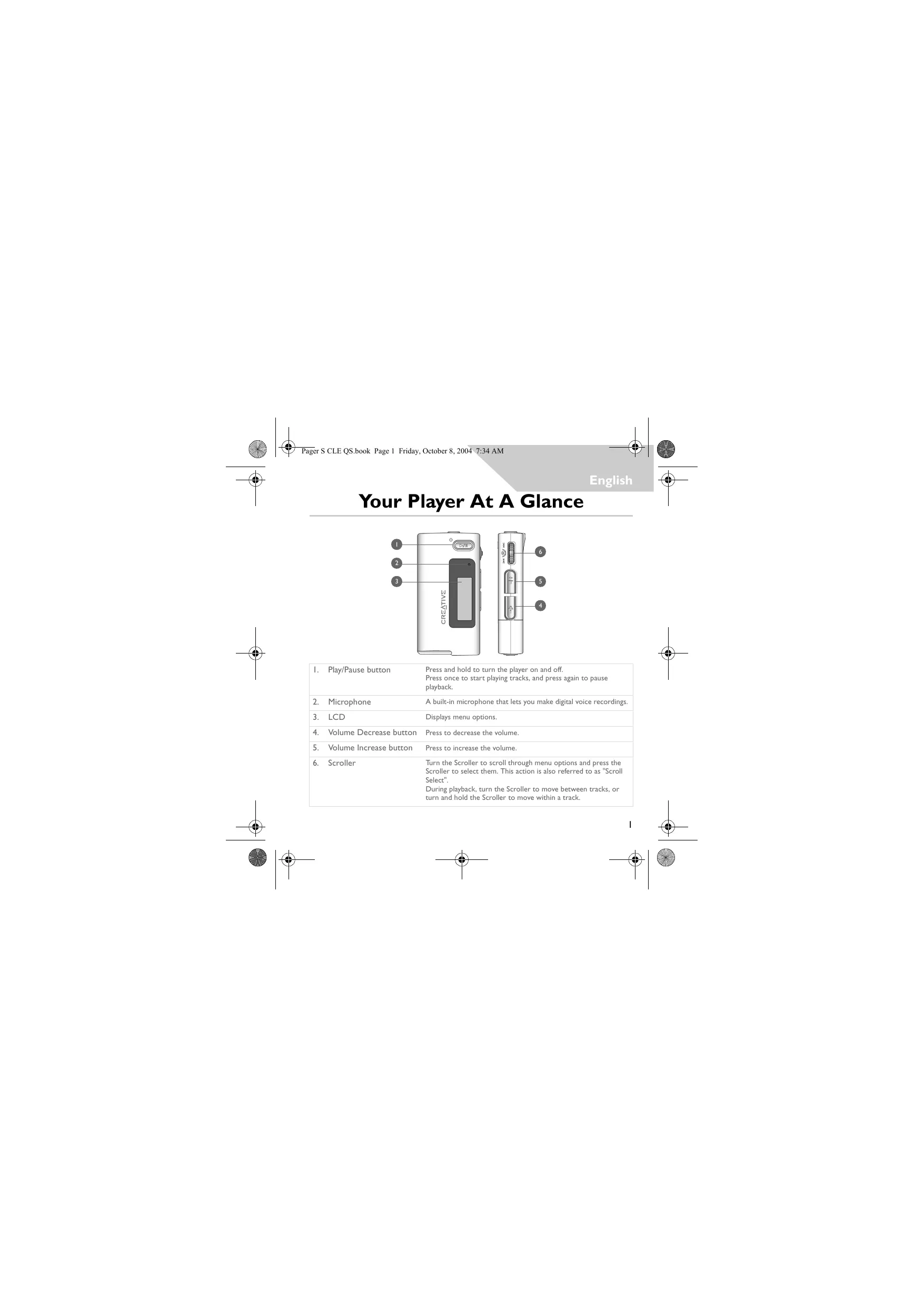
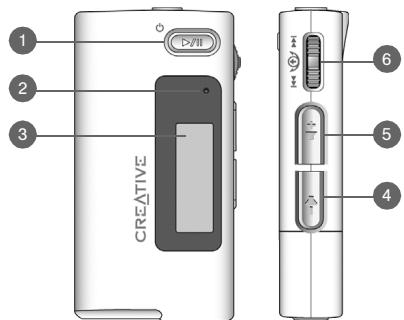
Your Player At A Glance
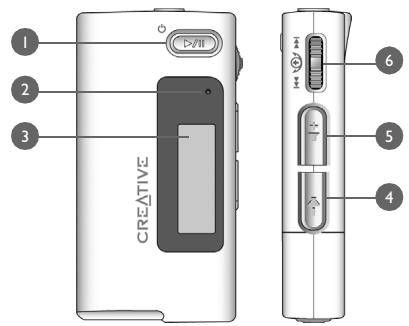
| 1. | Play/Pause button | Press and hold to turn the player on and off. Press once to start playing tracks, and press again to pause playback. |
| 2. | Microphone | A built-in microphone that lets you make digital voice recordings. |
| 3. | LCD | Displays menu options. |
| 4. | Volume Decrease button | Press to decrease the volume. |
| 5. | Volume Increase button | Press to increase the volume. |
| 6. | Scroller | Turn the Scroller to scroll through menu options and press the Scroller to select them. This action is also referred to as "Scroll Select". During playback, turn the Scroller to move between tracks, or turn and hold the Scroller to move within a track. |

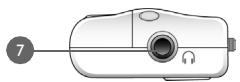
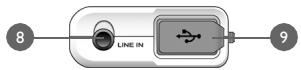
- Headphone jack Connect headphones to this jack.
- Line In jack Connect external stereo sources, such as cassette players, CD players and MiniDisc players, to this jack. Note that this is not a digital (optical) input jack.
This jack is only found on MuVo N200 players.
- USB port Connect your computer to this port using the supplied USB cable.
Using the Scroller
You can use the Scroller to select menu options. We use the term "Scroll Select" when we want you to use the Scroller to scroll to a menu option, and then select it by pressing the Scroller.

- Turn the Scroller to scroll through menu options on your LCD until the option that you want, such as Play Mode, is highlighted.
- Press the Scroller to select this menu option.
2
Getting Started
1 Set up computer
DO NOT connect your player to your computer before setting up the software.
I. Turn on your computer.
2. If you have Windows XP or Windows 2000, you must log in as an administrator in Windows before you can set up the software. For more information, refer to your operating system's online Help.
3. Insert the Installation and Applications CD into your CD-ROM/DVD-ROM drive. Your CD should start automatically. If it does not, follow the steps below:
i. Start Windows Explorer.
ii. On the left pane, click the My Computer icon.
iii. Right-click the CD-ROM/DVD-ROM drive icon, and then click AutoPlay.
- Follow the instructions on the screen.
- If prompted, restart your computer.

Windows 98 SE users must install a device driver before using the player. This driver is automatically installed when you set up the software on Windows 98 SE.

2 Insert battery
Use one AAA alkaline battery with your player.
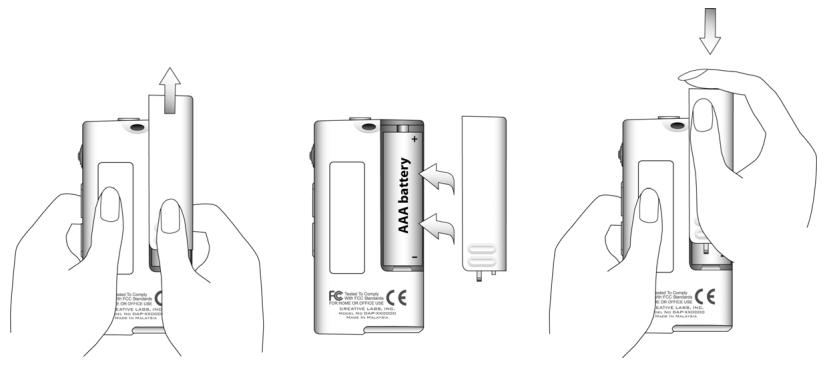
When you turn on your player for the first time, the menu will be in English.
To change the language
I. Press the Scroller. The main menu appears.
2. Scroll Select the Settings option
3. Scroll Select the Language option
4. Scroll Select the language that you want.
4

3 Transfer music
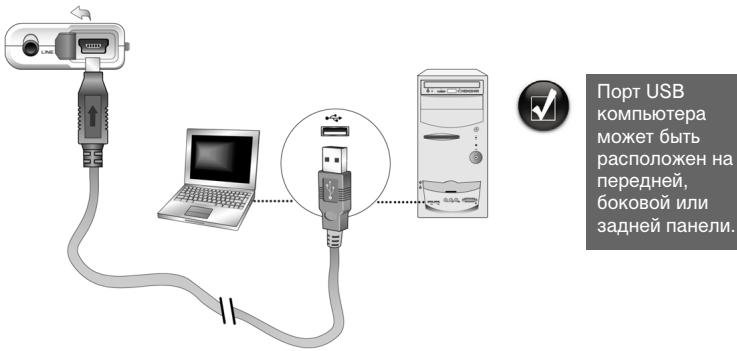
I. Flip open the rubber cover of your player's USB port.
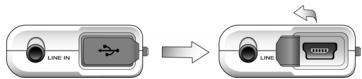
- Connect your player to your computer's USB port using the supplied USB cable. Do not press the buttons on your player while connecting it to your computer.
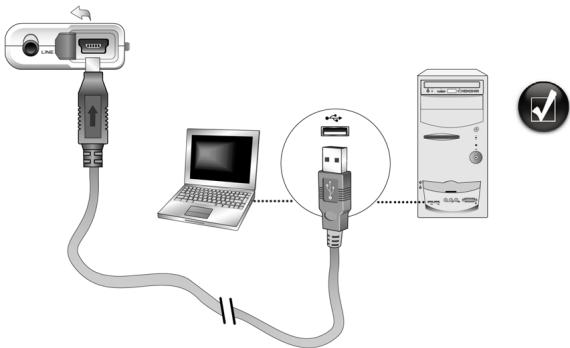
Your computer's USB port may be located on the front, back or side panels.
- Start Windows Explorer on your computer. You will notice that your player is recognized as a Removable Disk in Windows Explorer.


- Transfer audio files (MP3 or WMA files) to your player using a drag-and-drop operation.
You can also transfer data files using Windows Explorer. For more information about using Windows Explorer, refer to its online Help.
- For more advanced song management tasks, you can use Creative MuVo Media
Explorer or Creative MediaSource Player/Organizer. Creative MediaSource Player/Organizer is your digital music center for playing, creating, organizing and transferring digital music. To launch Creative MediaSource Player/Organizer, double-click the Creative MediaSource Player/Organizer shortcut icon on your desktop.
For more information about using Creative MediaSource Player/Organizer, refer to its online Help.

WMA files with Digital Rights Management (DRM) cannot be copied to your player using Windows Explorer. You can only do so with applications that support this technology, such as Creative MuVo Media Explorer, Creative MediaSource Player/Organizer, or Windows Media Player.


4 Disconnect player
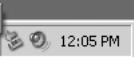
Before disconnecting your player from your computer, use the Windows Eject or Safely Remove Hardware icon on the Taskbar to safely disconnect your player. If not, your player may not be able to function normally. Follow these steps below to safely disconnect your player.
To stop your player in Windows XP, Windows 2000 or Windows Me: Click the Safely Remove Hardware icon on the Taskbar, click Safely remove USB Mass Storage Device, and disconnect your player when you are prompted to do so.

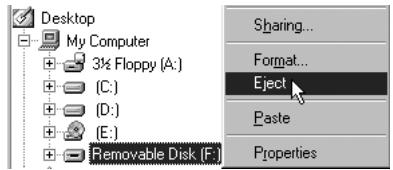
To stop your player in Windows 98 SE: In Windows Explorer, right-click the Removable Disk icon, click the Eject option, and disconnect your player when you are prompted to do so.
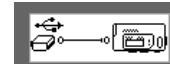
Make sure that this status diagram appears on the LCD for at least five seconds before disconnecting your player.

5 Play music
I. Press and hold the Play/Pause button until your player turns on.
The CREATIVE logo appears on the LCD, followed by the MuVo logo. Music stored in your player starts playing automatically. Note that your player comes preloaded with some music to get you started.
2. Press the Volume Increase and Volume Decrease buttons to adjust the volume.
3. After you have finished using your player, press and hold the Play/Pause button until the Power off message disappears.

- Remember to set the volume at a moderate level. Listening to music at high volumes can impair your hearing.
- For your safety and the safety of others, do not use headphones while driving, cycling or any other activity that requires your full attention.

Some Basic Functions
Playing music
I. Press the Scroller: The main menu appears.
2. Scroll Select the Music option
3. Scroll to the audio track that you want to play and press the Play/Pause button
Listening to FM radio
(FM radio is available on MuVo N200 players only.)
You can automatically scan for all available radio stations and save up to 32 radio presets.
I. Connect headphones to the Headphone jack.
2. Press the Scroller. The main menu appears.
3. Scroll Select the FM Radio option
4. Press the Scroller and Scroll Select the Autoscan option _FM . The player scans and stores all radio stations that it can receive. At the end of the autoscan, it automatically saves all stations as presets and tunes in to the first preset.
5. Turn the Scroller to select the preset station you want.

If you are using your player in Japan, you will need to change the FM region setting.
I. Press the Scroller. The main menu appears.
2. Scroll Select the Settings option
3. Scroll Select the FM Region option and switch to the Japan setting.

MP3 encoding
(Direct MP3 encoding is available on MuVo N200 players only.)
You can directly encode or "rip" music to your player, instead of ripping music on your computer first and then transferring it to your player.
- Connect the Line In jack on your player to the line output of an external stereo source, such as a CD or MiniDisc player, using the supplied Stereo cable.
- Press the Scroller. The main menu appears.
- Scroll Select the MP3 Encoding option
- Press the Play/Pause button to start the encoding. An encoding progress bar appears on the LCD and encoding starts.
- On your external stereo source, start playing the song you want to encode.
- Press the Play/Pause button to end the encoding. The first encoded track is named EN001, the second encoded track is named EN002, the third encoded track is named EN003, and so on.
Locking your player
Locking your player disables all buttons on your player except the Scroller. Lock your player when you want to prevent buttons from being accidentally pressed.
I. Press the Scroller. The main menu appears.
2. Scroll Select the Lock option appears at the top right corner of the LCD.
3. To unlock your player, press any button and Scroll Select the Unlock option
For more information, read the User's Guide in the Installation CD.
Go to d:\manual\language>manual.chm (replace d:\ with the drive letter of your CD-ROM/DVD-ROM drive, and
Frequently Asked Questions
Can I use my player as a portable data storage device?
Yes, you can. You can transfer data files using Creative MuVo Media Explorer or Windows Explorer.
Why does my player skip certain tracks?
The player will only play valid media formats (MP3 and WMA files). Other types of media formats will be skipped.
Why are some files/tracks corrupted when transferred to my player?
Transfer may have been interrupted. Before disconnecting your player from your computer, stop your player first. For more information on stopping your player, see to "Disconnect player" on page 7.
Can I play DRM-protected WMA files on my player?
Yes. To transfer DRM-protected WMA files to your player, you can use Creative MuVo Media Explorer or Creative MediaSource Player/Organizer.
Where can I get official information on all MuVo products?
Visit www.creative.com for updates and downloads relating to all MuVo products, Creative's MP3 players and accessories.
More Information
Creative Knowledge Base
Resolve and troubleshoot technical queries at Creative's 24-hour self-help Knowledge Base. Go to www.creative.com and select your region.
Register your product!
Enjoy a host of benefits by registering your product during installation, or at www.creative.com/register. Benefits include:
Service and product support from Creative.
Exclusive updates on promotions and events.
Customer Support Services and Warranty
You can find Customer Support Services, Warranty and other information in the Installation CD.
| Customer Support Services | d:\support\language\rSupport.chm |
| Warranty | d:\warranty\region\rWarranty.chmPlease keep your Proof of Purchase for the duration of the warranty period. |
| User's Guide | d:\manual\language\rmanual.chm |
(replace d:\ with the drive letter of your CD-ROM/DVD-ROM drive,
Copyright © 2004 Creative Technology Ltd. All rights reserved. The Creative logo, MuVo and Creative MediaSource are trademarks or registered trademarks of Creative Technology Ltd. in the United States and/or other countries. Microsoft, Windows and the Windows logo are registered trademarks of Microsoft Corporation. All other products are trademarks or registered trademarks of their respective owners and are hereby recognized as such. All specifications are subject to change without prior notice. Actual contents may differ slightly from those pictured.
Safety Advice
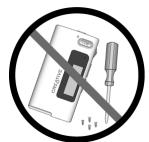
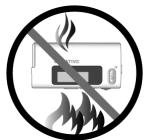
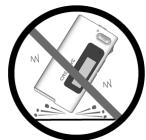
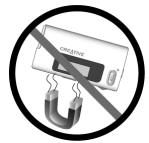
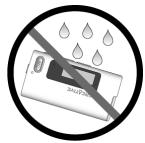
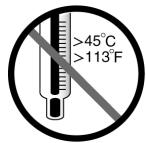

As with any digital media-based storage device, data should be backed up regularly. We strongly recommend that you observe the usage precautions laid out in this booklet, and also back up the data in your player regularly. In no event will Creative be liable for any indirect, incidental, special or consequential damages to any persons caused by Creative's negligence, or for any lost profits, lost savings, loss of use, lost revenues or lost data arising from or relating to this device, even if Creative has been advised of the possibility of such damages. In no event will Creative's liability or damages to you or any other person ever exceed the amount paid by you for the device, regardless of the form of the claim. Some countries/states do not allow the limitation or exclusion of liability for incidental or consequential damages, so the above limitation or exclusion may not apply to you.
François
Creative Knowledge Base
Safely remove USB Mass Storage Device - Drive(E:

12:05PM
I. Mantenga pulsado el botón Reproducir/Pausa 📁 📁 📁 📁 📁 📁 📁 📁 📁 📁 📁 📁 📁 📁 📁 📁 📁 📁 📁 📁 📁 📁 📁 📁 📁 📁 📁 📁 📁 📁 📁 📁 📁 📁 → 📁 → → → → → → → → → → → → → → → → → → → → → → → → → → → → → → → → → → → → → → → → → → → → → → → → → → → → → → → → → → → → → → → → → → → → → → → → → → → → → → → → → → → → → → → → → → → → → → → → → → → →
Safely remove USB Mass Storage Device - Drive(E:

12:05PM
Creative Knowledge Base
Safely remove USB Mass Storage Device - Drive(E:
Creative Knowledge Base
Safely remove USB Mass Storage Device - Drive(E:

12:05PM
Creative Knowledge Base
Creative Knowledge Base
Creative Knowledge Base
Safely remove USB Mass Storage Device - Drive(E:

12:05PM
Safely remove USB Mass Storage Device - Drive(E:
12:05PM
KpaTkoe onncahne npOnrgpbBaTeJia
- KhoNka HaXMMte uYepxuBaTe HaxaToI, YTO6bI BKIOUHTb IIN BOCPPOUN3BENHe/ BbIKIOUHTb PpOgPbIbATEJIb.
BocnpnBcEHN HaxMITE OINH p3, YTObI HauTb BOCpON3BcEHNOpOxK, 3aTeM HaxMITE eue p3 dIy npIOCTaHOBVBOCNPON3BcEHN. - MmKpOpoH BcTPOeHHbI MmKpOpoH, c NOMoUbIO KOtOpOro MoXHO npOn3BODnTb CnDpOBvIO 3aIncb rOLOca.
- JK-dncnnei PpocmTo pnyHkTob MeHIO.
- KhoNka yMeHbIeHnHaXMMTe, yMeHbIuTb rPOMKoCTb.
- KhoIIka yBelenueHnna HaxmTe, YTo6bI yBelenuHTb rPOMKocTb.
6. KoJecuKo npokpyTkN
He haxmuTe KhoIKN npOurpbIbATEn, KOrDa TOT NOkJIuOeH K KOMnbItepy.
- 3aynctnte npoBodnK Windows Ha KOMnbTepe.
Bby yBvndTe, yTo B npOBoHNke npOnrPbIbATEnb 6yJeT onpeJeH kAc cBeMHbI duCK.


- Перенье зауковые зайы (MP3 ул m WMA) в поогрьовать, Incплься осяразно пететackиваши.
Mожно takke nepehectn DaHHbIe c nOmoUbIO npOBdHnka Windows.ДлЯ пolyченя дОнOLHNTeBHOИ nHΦopMauIи O npOBoHnke Windows obpaTntecb К COOTBETCTBYUOSeI INTEpApKTHBHOI cnPaBKe. - Дя вилоненя 60ilec croxhix onepaunno ynpablenio 3bykoBbIMn paanammo monho nCpOlb3oBaTb nporpaMMb Creative MuVo Media Explorer nnu Creative MediaSource Player/Organizer. Creative MediaSource Player/ Organizer npedctabnaet coboi zufopoBoM My3bkaJbHb nuHTp dny Bocnpou3BeDeHn, co3daHn, cncTeMaTn3aUnn Ipepaun My3bIKN B zufoPobom fopMaTe. Yto6bl zanyctnb nporpaMMy Creative MediaSource Player/Organizer, DbaKdbI ueKNHe KlaBmWei MbUHn Ha 3Nauekce Creative MediaSource Player/Organizer Ha pa6oem CTone.
Baz3zhanm Creative Knowledge Base
Name and Address of Customer
- Nom et adrese du client
- Nome e indirizzo del cliente
Name & Anschrift des Käufers - Nombre & direccion del cliente
-
Naam & adresvan de klant
Kundensnavn & adress -
Asiakkaan nimi & osoite
Kundens namm & adress
Kundensnavn &adresse - Imie nazwisko klienra
- Meno a adresa zakaznika
- Nome emorada do comprador
Фамлии и anecdocokynpateя