
CYBORG X - Joystick SAITEK - Free user manual and instructions
Find the device manual for free CYBORG X SAITEK in PDF.


| Product type | Adjustable joystick |
| Brand | SAITEK |
| Model | CYBORG X |
| Power supply | USB port (5V, 500mA) |
| Cable length | Approximately 2 meters |
| Base | Detachable with retractable feet for stability |
| Stick | Adjustable height with safety button |
| Tilt | Head and grip adjustable via adjustment screw and supplied tool |
| Programmable buttons | Adaptable button positions |
| Scroll wheel | Integrated for flap or trim control |
| Throttle | Dual throttle for precision |
| Adjustment tool | Integrated into the stick base |
| Security screw | To secure the stick to the base |
| Programming software | Saitek Smart Technology (SST) with profile editor |
| Compatibility | PC with USB port, Windows |
| Standards | Class B, complies with NMB-003 Canada |
| Warranty | 2 years with proof of purchase |
| Maintenance | Clean with a dry, soft cloth, do not use chemicals |
| Safety | Use only with the supplied adjustment tool; do not overtighten screws |
Frequently Asked Questions - CYBORG X SAITEK
User questions about CYBORG X SAITEK
0 question about this device. Answer the ones you know or ask your own.
Ask a new question about this device
Download the instructions for your Joystick in PDF format for free! Find your manual CYBORG X - SAITEK and take your electronic device back in hand. On this page are published all the documents necessary for the use of your device. CYBORG X by SAITEK.
USER MANUAL CYBORG X SAITEK
Congratulations on buying your Saitek Cyborg X Flight Stick - the world's most adjustable PC joystick.
Features
Revolutionary stick base opens to create ultra stable platform
- Handle length increases to fit hand
- Button positions adjust for greater flexibility
Head and stick handle tilts for even greater comfort
- Includes scroll wheel, perfect for flap or trim control
- Twin throttle levers for greater control and flexibility
- Adjustment tool stores securely in base compartment
- Handle locks to base with secure screw collar
Please note: Do not overtighten the precision adjustment screws when adjusting your Cyborg X Flight Stick
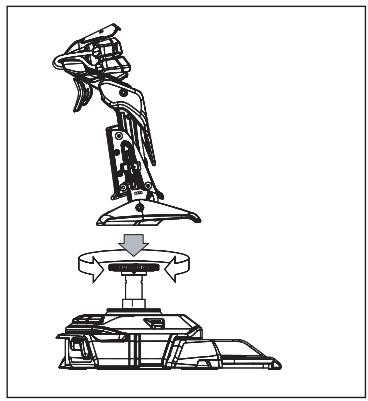
Setting up your Cyborg X stick
Attach the stick handle to the base by inserting it into the base collar and tightening the securing screw.
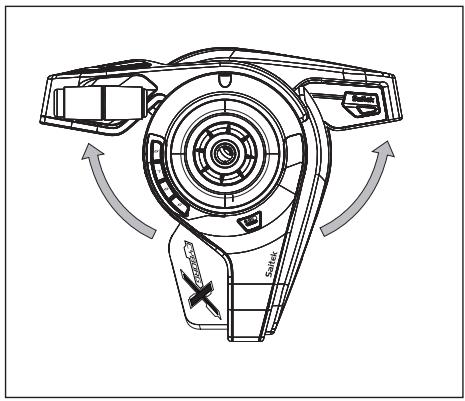
Extend the Cyborg stick's legs outwards until they click into place.
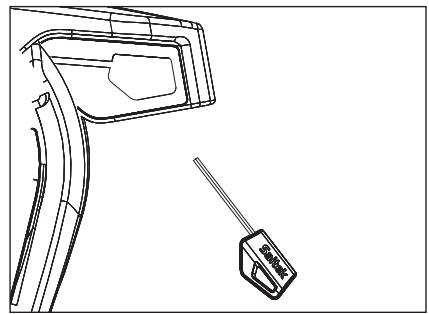
Remove the adjustment tool from the compartment on the stick base.
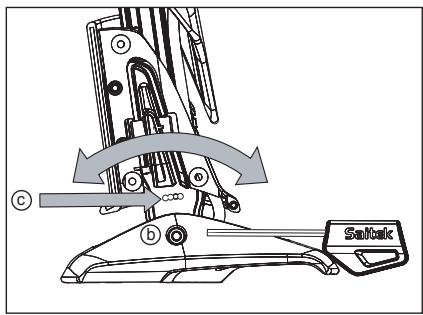
Insert the adjustment tool in the locking nut (b) and turn counter-clockwise. Press the locking pin (c) in and move the stick forward or backwards to the required angle. Lock by turning locking nut (b) clockwise.
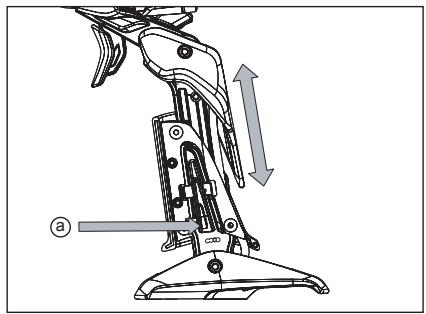
Press the locking switch (a) and move the stick up or down to adjust the height.
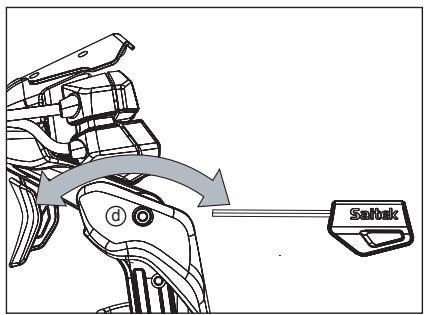
Insert the adjustment tool in the locking nut (d) and turn counter-clockwise to unlock the head mechanism. Move to the required angle and lock by turning the locking nut clockwise.

Insert the adjustment tool in the button adjustment nut (e) and turn clockwise or anticlockwise.
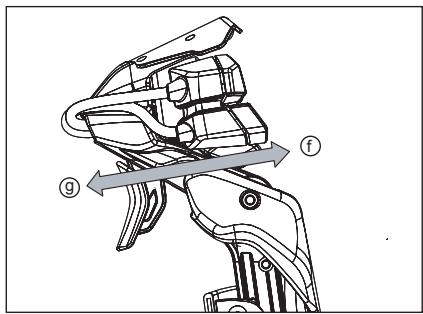
Turn the adjustment nut clockwise to move the buttons in direction (f) and anti-clockwise to move the buttons in direction (g).
System compatibility
PC running Windows XP/XP64/Vista (all versions)
Software installation for users of Windows® XP, XP64 and Vista (all versions)
A) Drivers Only
- With your computer switched on, close down any programs that are currently running and insert the Installation CD into your CD-ROM drive.
- When the Introduction Screen appears, click Install Software to continue. If the CD does not run automatically, select Start from the Windows® Taskbar, then Run and type D:\Setup.exe and click OK - where D:\ is letter of your CD-ROM drive. For Vista users, the screen will ask Do you want to run this file? Press Run. A screen will now appear saying A program needs your permission to continue. Press Continue.
- When the Welcome screen appears, click Next to continue.
- After reading the Disclaimer, select the I accept the terms of the Disclaimer option and click Next to continue.
- At the Registration screen, select Check this box to register now and follow the on-screen instructions, or you can choose to select this option later.
- Click on Finish to complete the installation.
B) Drivers and Programming Software
Follow points 1 - 6 of the install procedure in A), then at the Software Setup screen, select Install the SST Programming Software and click Next. For Vista users, the screen will once again ask Do you want to run this file? Press Run. A screen will now appear saying A program needs your permission to continue. Press Continue.
In the following Software Setup screen, click Next and follow the on-screen instructions. At this point Vista users will be asked to install the Saitek Magic Bus and XP users asked to install the Saitek Magic Mouse, HID-compliant mouse, Saitek Magic Keyboard and HID Keyboard Device (these are what Windows calls the Programming elements of your Saitek controller). Continue to click on Next and Finish to accept the installation until the Registration screen appears.
At the Registration screen, select Check this box to register now and follow the on-screen instructions, or do not select this option and register later.
Upon completion of the installation, you have the option to Run Profile Editor, which will give you a view of the programming environment. If you do not wish to see the Profile Editor at this point, just uncheck the box and click on Finish to complete the installation.
Introducing Saitek Smart Technology programming software
Saitek Smart Technology Programming Software (SST) is the software Saitek supplies to configure your Saitek controller for enhanced functionality. SST delivers a powerful set of features, allowing you to program your device with the ultimate configuration for total interaction. Despite a level of sophistication previously unseen in the market, and because of the Saitek Smart Technology inside, the software remains simple and intuitive to use.
For a complete guide on how to program your Saitek controller, visit the Saitek website at www.saitek.com or look at the help tab on your programming software menu.
Features of Smart Technology programming software:
- Quick and easy setup in any game
- Personalize the controller settings for your favorite games
- Configure your controller with an on-screen 3D model and interface
- Multiple setup option for each controller - ideal if a controller is used by several people and you need more than one profile per device
- Program special moves with sophisticated timing features
Special game setups available as 'Profiles' from the Saitek website and on the Smart Technology CD
Download the latest version of Saitek Smart Technology software from the Saitek website
What is a Profile?
A Profile is a custom setup for improved gameplay - consisting of a set of commands that are preassigned to the buttons or axes of your controller. Pre-written Profiles are available on the Product Companion Disk that accompanies this device or on the Saitek Website - www.saitek.com. (Please check the website for new or improved Profiles, which are added regularly).
How do I program my controller?
After getting to know your controller, you can start creating your own personal Profiles with the Saitek Smart Technology programming software (SST). This software has virtually unlimited programming capabilities and allows you to customize the controller to your exact gaming needs.
The Profile Editor allows you to program the buttons on your controller to perform different actions within your games - this is especially useful if the game you are using does not have its own screen that allows reconfiguring of your buttons.
Getting Started
- Double-click on the Saitek Smart Technology icon the install left on your desktop.
- In the Profile Editor, choose the control to which you wish to assign a keyboard command. You do this by left-clicking on the control's cell in the control list on the right of the screen.
- With the cursor flashing, type in the key commands and then click on the green tick mark when complete.
- Repeat this procedure for all the buttons you would like to program and then click File, Save at the top of the Profile Editor window.
- Give the profile a name (it is recommended you name it after the game for which the profile is intended) and then click Save.
- To enable the profile either click the blue Profile Now icon at the top of the Profile Editor or right-click on the controller icon in your taskbar and select the name of the profile from the pop-up list of options.
- You will notice that when a profile is loaded that the controller icon in your taskbar has a green square behind it, indicating that a profile is currently loaded. If you wish to unload a profile simply right-click on the controller icon and click Clear Profile from the pop-up list of options.
If you require more detailed assistance with using the SST Programming Software, click on Help at the top of the Profile Editor and then Manual.
Important Information
Driver updates
From time to time there may be updates to the driver and programming software for this product. You can check for the latest software updates by visiting the Saitek website (www.saitek.com) and clicking on Downloads. A drop down menu will appear. Select Drivers and Software.
Technical Support
Nearly all the products that are returned to us as faulty are not faulty at all - they have just not been installed properly. If you experience any difficulty with this product, please first visit our website www.saitek.com. The technical support area will provide you with all the information you need to get the most out of your product and should solve any problems you might have.
If you do not have access to the internet, or if the website cannot answer your question, please contact your local Saitek Technical Support Team. We aim to offer quick, comprehensive and thorough technical support to all our users so, before you call, please make sure you have all the relevant information at hand.
To find your local Saitek Technical Support Center, please see the separate Technical Support Center sheet that came packaged with this product.
Information for Customers in the United States
FCC Compliance and Advisory Statement
Warning: Changes or modifications to this unit not expressly approved by the party responsible for compliance could void the user's authority to operate the equipment.
This device complies with Part 15 of the FCC Rules. Operation is subject to the following two conditions:
1 This device may not cause harmful interference, and;
2 This device must accept any interference received, including interference that may cause undesired operation.
NOTE: This equipment has been tested and found to comply with the limits for a Class B digital device, pursuant to Part 15 of the FCC Rules. These limits are designed to provide reasonable protection against harmful interference in a residential installation. This equipment generates, uses and can radiate radio frequency energy and, if not installed and used in accordance with the instructions, may cause harmful interference to radio communications. However, there is no guarantee that interference will not occur in a particular installation. If this equipment does cause harmful interference to radio or television reception, which can be determined by turning the equipment off and on, the user is encouraged to try to correct the interference by one or more of the following measures:
Reorient or relocate the receiving antenna;
- Increase the separation between the equipment and receiver;
- Connect the equipment into an outlet on a circuit different from that to which the receiver is connected;
- Consult the dealer or an experienced radio/TV technician for help.
Mad Catz, Inc, 7480 Mission Valley Rd, Suite 101, San Diego, CA 92108-4406
Canada ICES-003
Operation is subject to the following two conditions:
1 This device may not cause interference, and;
2 This device must accept any interference, including interference that may cause undesired operation of the device.
This Class B digital apparatus complies with Canadian ICES-003.
Conditions of Warranty
1 Warranty period is 2 years from date of purchase with proof of purchase submitted.
2 Operating instructions must be followed.
3 Specifically excludes any damages associated with leakage of batteries. Note: Batteries can leak when left unused in a product for a period of time, so it is advisable to inspect batteries regularly.
4 Product must not have been damaged as a result of defacement, misuse, abuse, neglect, accident, destruction or alteration of the serial number, improper electrical voltages or currents, repair, alteration or maintenance by any person or party other than our own service facility or an authorized service center, use or installation of non-Saitek replacement parts in the product or the modification of this product in any way, or the incorporation of this product into any other products, or damage to the product caused by accident, fire, floods, lightning, or acts of God, or any use violative of instructions furnished by Saitek plc.
5 Obligations of Saitek shall be limited to repair or replacement with the same or similar unit, at our option. To obtain repairs under this warranty, present the product and proof of purchase (eg, bill or invoice) to the authorized Saitek Technical Support Center (listed on the separate sheet packaged with this product) transportation charges prepaid. Any requirements that conflict with any state or Federal laws, rules and/or obligations shall not be enforceable in that particular territory and Saitek will adhere to those laws, rules, and/or obligations.
6 When returning the product for repair, please pack it very carefully, preferably using the
original packaging materials. Please also include an explanatory note.
7 IMPORTANT: To save yourself unnecessary cost and inconvenience, please check carefully that you have read and followed the instructions in this manual.
This warranty is in lieu of all other expressed warranties, obligations or liabilities. ANY IMPLIED WARRANTYES, OBLIGATIONS, OR LIABILITIES, INCLUDING BUT NOT LIMITED TO THE IMPLIED WARRANTYES OF MERCHANTABILITY AND FITNESS FOR A PARTICULAR PURPOSE, SHALL BE LIMITED IN DURATION TO THE DURATION OF THIS WRITTEN LIMITED WARRANTY. Some states do not allow limitations on how long an implied warranty lasts, so the above limitations may not apply to you. IN NO EVENT SHALL WE BE LIABLE FOR ANY SPECIAL OR CONSEQUENTIAL DAMAGES FOR BREACH OF THIS OR ANY OTHER WARRANTY, EXPRESS OR IMPLIED, WHATSOEVER. Some states do not allow the exclusion or limitation of special, incidental or consequential damages, so the above limitation may not apply to you. This warranty gives you specific legal rights, and you may also have other rights which vary from state to state.

This symbol on the product or in the instructions means that your electrical and electronic equipment should be disposed at the end of its life separately from your household waste. There are separate collection systems for recycling in the EU.
For more information, please contact the local authority or your retailer where you purchased the product.

SAITEK CYBORG X FLIGHT STICK

- Features
- System compatibility
- Software installation for users of Windows® XP, XP64 and Vista (all versions)
- A) Drivers Only
- B) Drivers and Programming Software
- Introducing Saitek Smart Technology programming software
- Features of Smart Technology programming software:
- What is a Profile?
- Getting Started
- Important Information
- Driver updates
- Information for Customers in the United States
- FCC Compliance and Advisory Statement
- Canada ICES-003
- Conditions of Warranty
- SAITEK CYBORG X FLIGHT STICK
Brand : SAITEK
Model : CYBORG X
Category : Joystick